Baby Canyon NUC7i7BNHXG - Desktop computer INTEL - Free user manual and instructions
Find the device manual for free Baby Canyon NUC7i7BNHXG INTEL in PDF.


User questions about Baby Canyon NUC7i7BNHXG INTEL
0 question about this device. Answer the ones you know or ask your own.
Ask a new question about this device
Download the instructions for your Desktop computer in PDF format for free! Find your manual Baby Canyon NUC7i7BNHXG - INTEL and take your electronic device back in hand. On this page are published all the documents necessary for the use of your device. Baby Canyon NUC7i7BNHXG by INTEL.
USER MANUAL Baby Canyon NUC7i7BNHXG INTEL
Intel ^® NUC7 Home, a Mini PC with Windows ^® 10 – NUC7i3BNHXF
Intel® NUC7 Home, a Mini PC with Windows® 10 – NUC7i5BNHXF
Intel® NUC7 Enthusiast, a Mini PC with Windows® 10 – NUC7i7BNHXG
User Guide
Before You Begin

CAUTIONS
The procedures in this guide assume familiarity with the general terminology associated with personal computers and with the safety practices and regulatory compliance required for using and modifying electronic equipment.
Always disconnect the computer from its power source and from any network before performing any of the procedures described in this guide.
Failure to disconnect power or networks before you open the computer or perform any procedures can result in personal injury and/or equipment damage. Some circuitry on the board can continue to operate even though the front panel power button is off.
Follow these guidelines before you begin:
• Always follow the steps in each procedure in the correct order.
- Create a log to record information about your computer, such as model, serial numbers, installed options, and configuration information.
- Electrostatic discharge (ESD) can damage components. Perform the procedures described in this chapter only at an ESD workstation using an antistatic wrist strap and a conductive foam pad. If such a station is not available, you can provide some ESD protection by wearing an antistatic wrist strap and attaching it to a metal part of the computer chassis.
Installation Precautions
When you install and test the Intel NUC, observe all warnings and cautions in the installation instructions.
To avoid injury, be careful of:
- Sharp pins on connectors
- Sharp pins on circuit boards
- Rough edges and sharp corners on the chassis
• Hot components (such as SSDs, processors, voltage regulators, and heat sinks)
• Damage to wires that could cause a short circuit
Observe Safety and Regulatory Requirements
If you do not follow these instructions, you increase your safety risk and the possibility of noncompliance with regional laws and regulations.
This guide tells you how to:
• Upgrade memory (RAM)
• Change/install an M.2 SSD
• Change/install a 2.5-inch drive
• Use a VESA mount bracket
- Connect power
• Install an operating system
- Keep device drivers current
Open the Intel NUC Chassis
To open the Intel NUC chassis, follow these steps:
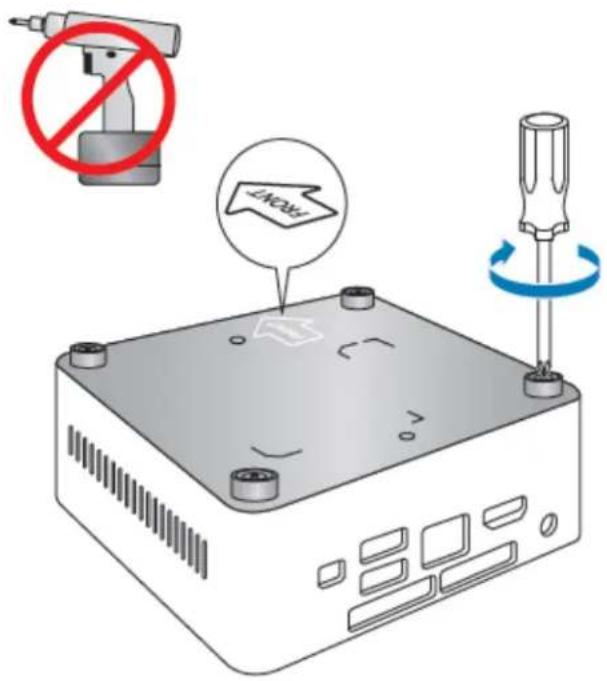
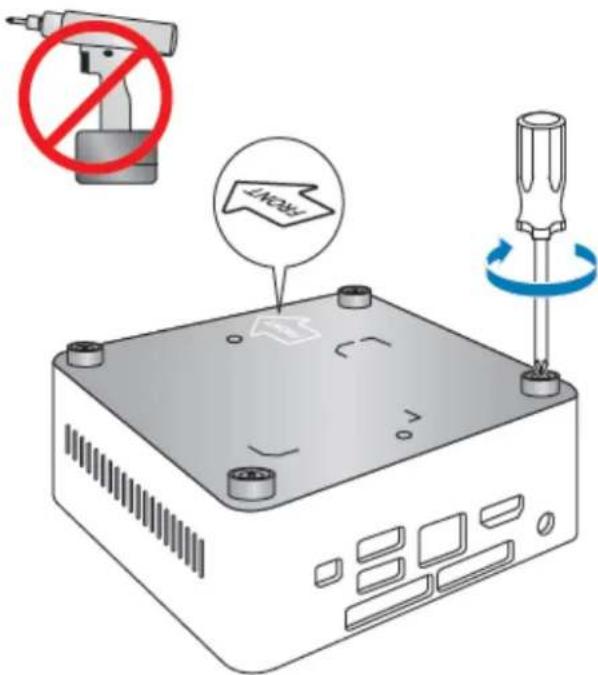
- With a screwdriver unscrew the four corner screws on the bottom cover of the chassis and lift the cover (using an electric or battery operated screw driver can damage the NUC).
Upgrading System Memory
The Intel NUC Kits NUC7i3BNHXF, NUC7i5BNHXF and NUC7i7BNHXG have two 260-pin DDR4 SO-DIMM sockets.
Pre-installed memory
| NUC7i3BNHXF | One 4GB memory module |
| NUC7i5BNHXF | One 4GB memory module |
| NUC7i7BNHXG | One 8GB memory module |
To upgrade memory, be sure to select memory modules that meet these requirements:
• 1.2V low voltage memory
• 2133 MHz SO-DIMMs
- Non-ECC
Find compatible memory modules in the Intel Product Compatibility Tool
- NUC7i3BNHXF
- NUC7i5BNHXF
- NUC7i7BNHXG
NOTE If you plan to install only one memory module, install it in the lower memory socket.
To upgrade or add memory, follow these steps:
- Observe the precautions in "Before You Begin" on page 2.
- Turn off all peripheral devices connected to the computer. Turn off the computer and disconnect the power cord.
- Remove the computer's bottom chassis cover.
Upgrade to different memory
a. Remove the pre-installed memory module
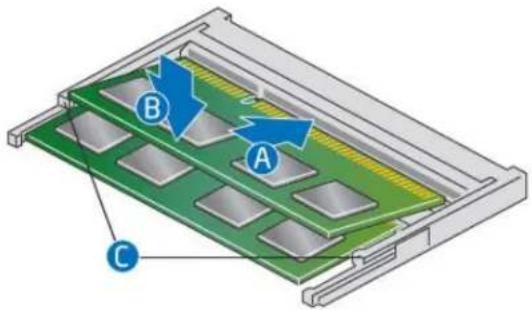
i. Gently spread the retaining clips at each end of the memory socket, which causes the module to pop out of the socket (C).
ii. Holding the module by the edges, lift it away from the socket, and store it in an anti-static package.
b. Install the new memory module
i. Align the small space at the bottom edge of the memory module with the key in the socket.
ii. Insert the bottom edge of the module at a 45 degree angle into the socket (A).
iii. When the module is inserted, push down on the outer edges of the module until the retaining clips snap into place (B). Make sure the clips are firmly in place (C).
Install an additional memory module
a. Align the small space at the bottom edge of the memory module with the key on the socket.
b. Insert the bottom edge of the module at a 45 degree angle into the socket (A).
c. When the module is inserted, push down on the outer edges of the module until the retaining clips snap into place (B). Make sure the clips are firmly in place (C).
- Reinstall and reconnect any parts you removed or disconnected to reach the memory sockets.
- Replace the computer's cover and reconnect the power cord.
Changing an M.2 SSD or Intel® Optane™ Memory Module
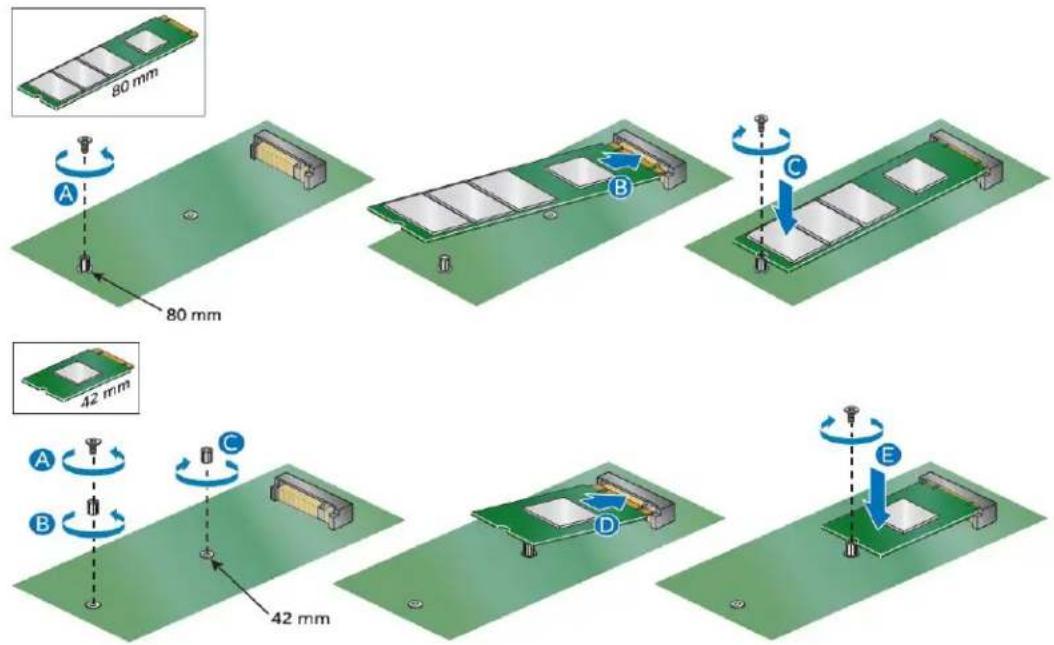
The Intel NUC Kits NUC7i3BNHXF, NUC7i5BNHXF and NUC7i7BNHXG support either an 80mm or 42mm SSD.
Pre-installed M.2
| NUC7i3BNHXF | One 16GB Intel Optane Memory module |
| NUC7i5BNHXF | One 16GB Intel Optane Memory module |
| NUC7i7BNHXG | One 16GB Intel Optane Memory module |
Find compatible M.2 SSDs in the Intel Product Compatibility Tool
- NUC7i3BNHXF
- NUC7i5BNHXF
- NUC7i7BNHXG
| NOTE | Before changing the Intel Optane memory module, it needs to be disabled. Follow Removing Intel Optane Memory on this page first, before taking the module out. |
To Change an M.2 SSD:
- Remove the small silver screw from the 80mm or 42mm metal standoff on the board (A).
- Remove the pre-installed SSD/Intel Optane Memory from the connector.
- Align the space at the bottom of the new M.2 SSD to the key on the connector.
- Insert the bottom edge of the M.2 SSD into the connector (B).
- Secure the card to the standoff with the small silver screw (C).
Changing a 2.5" SSD or Hard Drive
The Intel NUC Kits NUC7i3BNHX1, NUC7i5BNHX1 and NUC7i7BNHX1 support an additional 2.5" Solid State Drive (SSD) or Hard Disk Drive (HDD).
Find compatible 2.5" drives in the Intel Product Compatibility Tool:
- NUC7i3BNHXF
- NUC7i5BNHXF
-
NUC7i7BNHXG
-
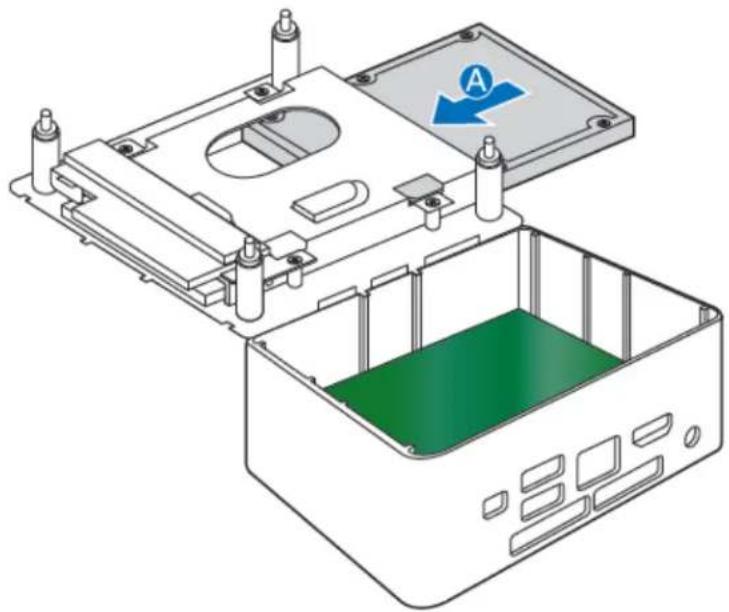
Unscrew the 4 screws holding the current drive in the bay.
-
Remove the pre-installed drive from the drive bay.
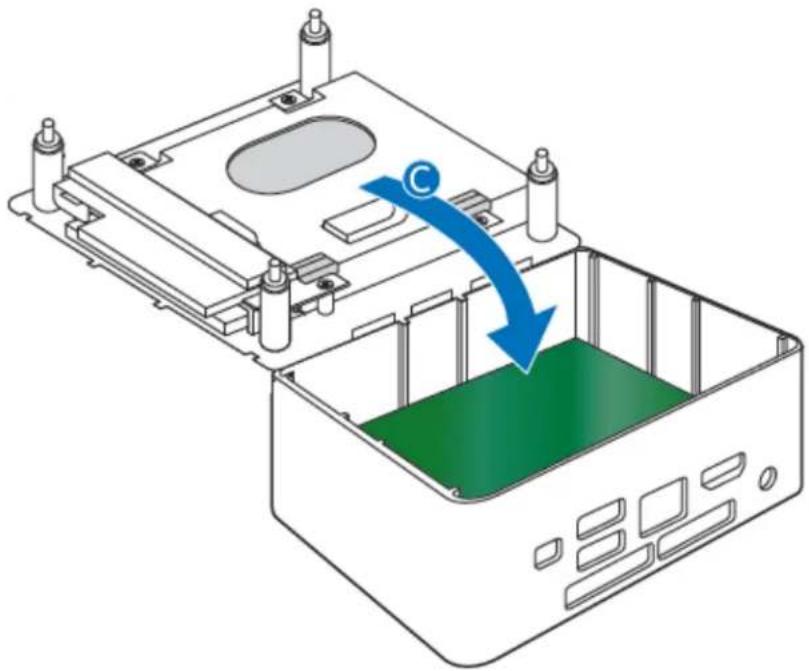
- Slide the new 2.5" drive into the drive bay, ensuring the SATA connectors are fully seated into the connectors of the SATA daughter card (A).
natural_image
Technical line drawing of an open electronic device casing with internal components and a blue arrow indicating direction (no text or symbols)- Secure the drive into the drive bay with the four screws that were used in step 1. Set the drive bay bracket down inside the chassis (C).
natural_image
Diagram of a computer chassis showing a green internal component being lifted by a blue arrow (no text or symbols present)Close the Chassis
After all components have been installed, close the Intel NUC chassis (using an electric or battery operated screw driver can damage the NUC).
Attach and Use the VESA Bracket (Optional)
Follow these instructions to attach and use the VESA mount bracket:
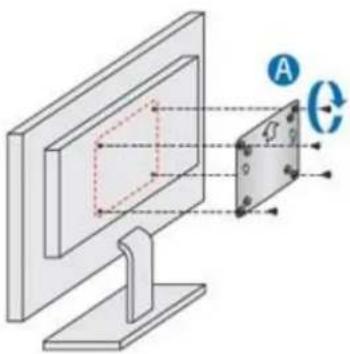
- Using the four small black screws that were included in the box, attach the VESA bracket to the back of the monitor or TV.
natural_image
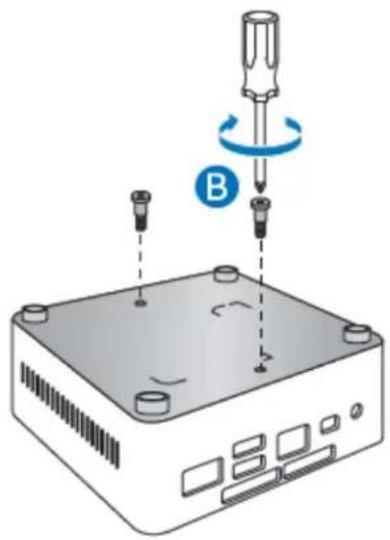
Diagram of a computer monitor displaying a screen with a small inset showing a circular component, labeled with 'A' and rotation arrow (no text or symbols on the main diagram)- Attach the two slightly larger black screws to the bottom chassis cover of the Intel NUC.
natural_image
Illustration of a screwdriver pressing down on a device with a blue circular indicator labeled 'B' (no text or symbols on the diagram itself)- Slide the Intel NUC onto the VESA mount bracket.
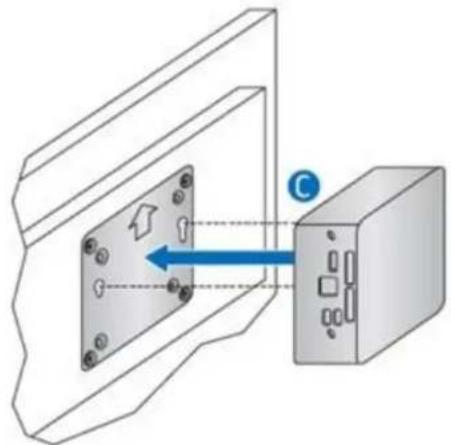
natural_image
Diagram showing a device with an open panel and a connected box, no text or symbols presentConnect Power
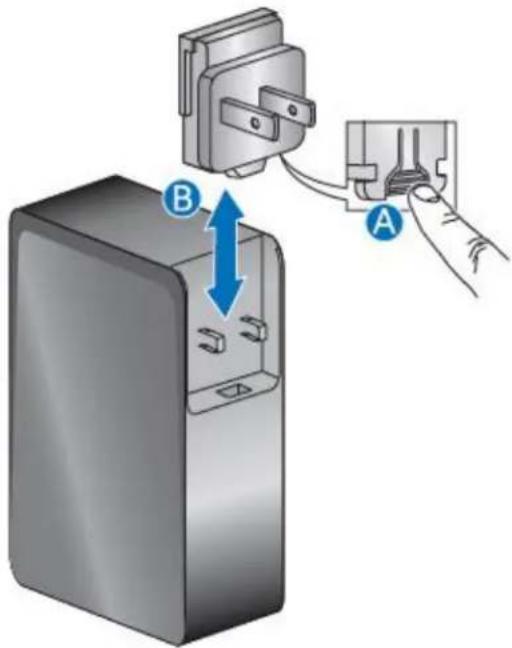
Country-specific power plug attachments are included in the Intel NUC Kit box.
- Choose the attachment for your region.
| Plug | 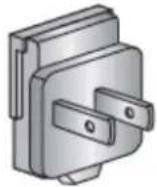 | 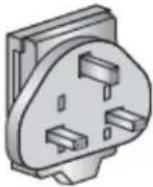 | 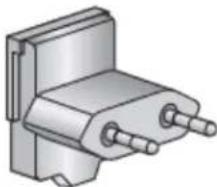 |  |
| Code | US | UK | EU | AUS |
| Country | United States | United Kingdom | European Union | Australia |
| Plug | 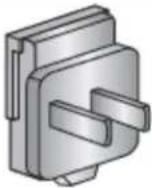 | 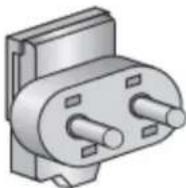 | 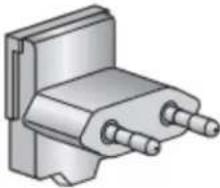 |  |
| Code | CHN | IND | KOR | ARG |
| Country | China | India | South Korea | Argentina |
| Plug | 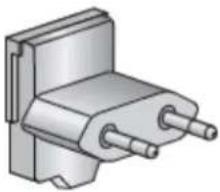 |
| Code | BRA |
| Country | Brazil |
- Slide the attachment (B) onto the power plug, locking it into place (A).
- Connect AC power.
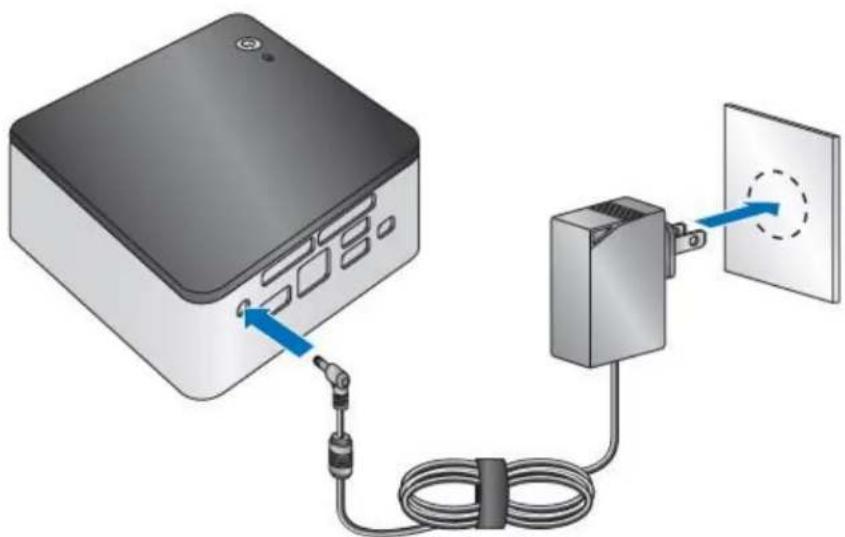
natural_image
Diagram showing a device connected to a power adapter and cable, with a wall-mounted panel nearby (no text or symbols)Install an Operating System
If a Hard drive or SSD has been removed or replaced, it may be necessary to reinstall the Windows® 10 operating system. Refer to Operating System Installation for installation steps.
Keep Intel NUC Drivers Current
To download the latest Microsoft* Windows* drivers and BIOS updates, use the Intel® Driver & Support Assistant (Intel® DSA) or go to Download Center:
Intel® NUC 7 Home, a Mini PC with Windows® 10 – NUC7i3BNHXF
Intel® NUC 7 Home, a Mini PC with Windows® 10 – NUC7i5BNHXF
Intel® NUC 7 Enthusiast, a Mini PC with Windows® 10 – NUC7i7BNHXG
Drivers are available for the following features:
- Realtek* Audio
- Intel® Bluetooth
- Intel® Chipset
- ITE* Consumer Infrared
- Intel® Graphics
- Intel® ME
- Intel® Rapid Storage Technology
- Intel® Ready Mode Technology
- Intel® LAN (wired and wireless)
- Thunderbolt™ (NUC7i7BNHXG and NUC7i5BNHXF only)
• Realtek Card Reader Driver