2911SX/ST - Network adapter Allied Telesis - Free user manual and instructions
Find the device manual for free 2911SX/ST Allied Telesis in PDF.


User questions about 2911SX/ST Allied Telesis
0 question about this device. Answer the ones you know or ask your own.
Ask a new question about this device
Download the instructions for your Network adapter in PDF format for free! Find your manual 2911SX/ST - Allied Telesis and take your electronic device back in hand. On this page are published all the documents necessary for the use of your device. 2911SX/ST by Allied Telesis.
USER MANUAL 2911SX/ST Allied Telesis
Gigabit Ethernet Network Interface Cards
AT-2911SX/ST AT-2911STX/LC
AT-2911SX/SC AT-2911LTX/SC
AT-2911SX/LC AT-2911LTX/LC
AT-2911LX/SC AT-2911SX/2LC
AT-2911LX/LC AT-2911LX/2LC
AT-291ISFP AT-291ISFP/2
AT-2911STX/SC AT-2911T/2
natural_image
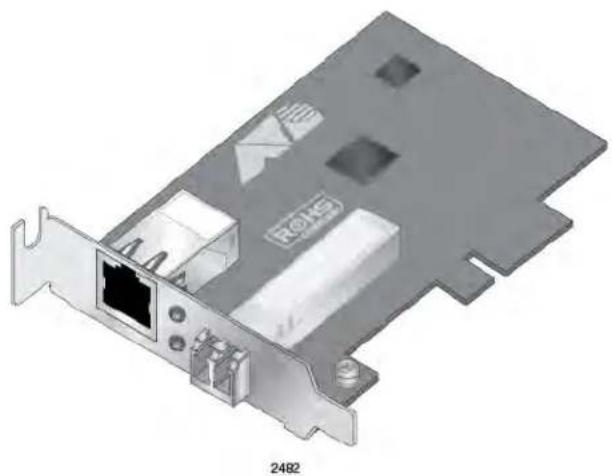
3D diagram of a network card with an Ethernet port and ROKS branding, no text or symbols presentInstallation and User's Guide
Copyright © 2015 Allied Telesis, Inc.
All rights reserved. No part of this publication may be reproduced without prior written permission from Allied Telesis, Inc. Microsoft and Internet Explorer are registered trademarks of Microsoft Corporation. Netscape Navigator is a registered trademark of Netscape Communications Corporation. All other product names, company names, logos or other designations mentioned herein are trademarks or registered trademarks of their respective owners.
Allied Telesis, Inc. reserves the right to make changes in specifications and other information contained in this document without prior written notice. The information provided herein is subject to change without notice. In no event shall Allied Telesis, Inc. be liable for any incidental, special, indirect, or consequential damages whatsoever, including but not limited to lost profits, arising out of or related to this manual or the information contained herein, even if Allied Telesis, Inc. has been advised of, known, or should have known, the possibility of such damages.
Electrical Safety and Emissions Standards
This product meets the following standards:
Federal Communications Commission Interference Statement
Declaration of Conformity
Manufacturer Name: Allied Telesis, Inc.
Declares that the product: Gigabit Ethernet Network Interface Cards
Model Numbers: AT-2911SX/ST, AT-2911SX/SC, AT-2911SX/LC, AT-2911LX/SC, AT-2911LX/LC, AT-2911SFP, AT-2911STX/SC, AT-2911STX/LC, AT-2911LTX/SC, AT-2911LTX/LC, AT-2911SX/2LC, AT-2911LX/2LC, AT-2911SFP/2, and AT-2911T/2
This device complies with Part 15 of the FCC Rules. Operation is subject to the following two conditions: (1) This device may not cause harmful interference, and (2) this device must accept any interference received, including interference that may cause undesired operation.
This equipment has been tested and found to comply with the limits for a Class B digital device, pursuant to Part 15 of the FCC Rules. These limits are designed to provide reasonable protection against harmful interference in a residential installation. This equipment generates, uses and can radiate radio frequency energy and, if not installed and used in accordance with the instructions, may cause harmful interference to radio communications. However, there is no guarantee that interference will not occur in a particular installation. If this equipment does cause harmful interference to radio or television reception, which can be determined by turning the equipment off and on, the user is encouraged to try to correct the interference by one of the following measures:
☐ Reorient or relocate the receiving antenna.
☐ Increase the separation between the equipment and receiver.
☐ Connect the equipment into an outlet on a circuit different from that to which the receiver is connected.
Consult the dealer or an experienced radio/TV technician for help.

Caution
FCC Caution: Any changes or modifications not expressly approved by the party responsible for compliance could void the user's authority to operate this equipment. E80

Avertissement
This transmitter must not be co-located or operating in conjunction with any other antenna or transmitter.
The band from 5600-5650MHz will be disabled by the software during the manufacturing and cannot be changed by the end user. This device meets all the other requirements specified in Part 15E, Section 15.407 of the FCC Rules.
Radiation Exposure Statement:
This equipment complies with FCC radiation exposure limits set forth for an uncontrolled environment. This equipment should be installed and operated with minimum distance 20cm between the radiator & your body.
European Union Restriction of the Use of Certain Hazardous Substances (RoHS) in Electrical and Electronic Equipment
This Allied Telesis RoHS-compliant product conforms to the European Union Restriction of the Use of Certain Hazardous Substances (RoHS) in Electrical and Electronic Equipment. Allied Telesis ensures RoHS conformance by requiring supplier Declarations of Conformity, monitoring incoming materials, and maintaining manufacturing process controls.
Safety and Electromagnetic Emissions Certificates
Standard Compliance
□ RoHs compliant
☐ European Union RoHS (Directive 2011/65/EU of the European Parliament and of the Council of 8 June 2011 on the restriction of the use of certain hazardous substances in electrical and electronic equipment.)
□ China RoHs compliant
Certificates
Translated Safety Statements
Important: The indicates that a translation of the safety statement is available in a PDF document titled "Translated Safety Statements" on the Allied Telesis website at www.alliedtelesis.com/support.
Preface 13
Safety Symbols Used in this Document 14
Contacting Allied Telesis 15
Chapter 1: Overview ...... 17
Physical Description....18
AT-2911 Series Single Port Adapters 18
AT-2911 Series Dual Port Adapters....19
ST Fiber Optic Connector 19
SC Fiber Optic Connector 20
LC Fiber Optic Connector 20
Twisted Pair Copper Port 20
SFP Slot 21
LEDs 21
Model Naming Conventions 22
Supported Operating Systems 23
Features 24
Broadcom Utilities 25
Teaming 25
CIM....25
SNMP 25
User Diagnostics 26
Installing Broadcom Utilities 26
Broadcom Documentation....26
Contents of Your Shipment 27
Warranty Registration....28
Chapter 2: Installing the Hardware ...... 29
Reviewing Safety Precautions....30
Pre-Installation Checklist 32
Replacing the Bracket 33
Installing the AT-2911 Series Adapter Card 35
Connecting the Network Cables 39
Fiber Optic Cable 39
Twisted Pair Copper Cable 40
SFP Transceiver 40
Chapter 3: Modifying Advanced Properties ......41
Overview 42
Guidelines 42
Twisted pair copper port....42
Accessing Advanced Properties 43
802.3az EEE 45
ARP Offload 47
EEE Control....48
Ethernet@WireSpeed 49
Flow Control 51
Interrupt Moderation....53
IPv4 Checksum Offload....54
Jumbo Mtu....55
Large Send Offload (IPv4)....56
Contents
Large Send Offload v2 (IPv4) 58
Large Send Offload v2 (IPv6)....60
Network Address 61
NS Offload 63
Priority & VLAN....64
Receive Buffers 66
Receive Side Scaling....67
RSS Queues....68
Speed & Duplex....70
TCP/UDP Checksum Offload (IPv4)....72
TCP/UDP Checksum Offload (IPv6)....74
Virtual Machine Queues 76
VLAN ID....77
VMQ Lookahead Split....78
VMQ VLAN Filtering 79
Chapter 4: Installing the Driver Software ....81
Overview....82
Guidelines 82
Installing Linux Driver 82
Downloading the Driver Software 83
Accessing the Device Manager 85
Accessing Device Manager on Windows Server 2008 R2, Server 2008, Vista, or 7 85
Accessing Device Manager on Windows Server 2003 and XP 86
Installing the Driver Software....89
Installing the Driver Software on Windows Server 2008 R2, Server 2008, Vista, or 7....89
Installing the Driver Software on Windows Server 2003 and XP....92
Updating the Driver Software....97
Updating the Driver on Windows Server 2008 R2, Server 2008, Vista, or 7....97
Updating the Driver on Windows Server 2003 and XP....98
Chapter 5: Uninstalling the Driver Software ....101
Overview....102
Guidelines 102
Uninstalling the Driver Software 103
Chapter 6: Troubleshooting ....105
Troubleshooting Checklist 106
Checking a Port LED on the Adapter 107
Testing Network Connectivity 108
Software Problems and Solutions....109
Microsoft Remote Installation Service (RIS) Instructions 109
Windows Server 2003....109
Miscellaneous....109
Appendix A: Specifications 111
Physical and Power Specifications....112
Environmental Specifications....113
Power Specifications 114
Performance Specification....115
Optical Specifications 116
Appendix B: Cleaning Fiber Optic Connectors 117
Overview....118
Cleaning Fiber Optic Connectors Using a Cartridge-Type Cleaner....119
Cleaning Fiber Optic Connector Using a Swab 121
Figures
Figure 1: AT-2911SX/SC Adapter .... 18
Figure 2: AT-2911LTX/LC Adapter....19
Figure 3: ST Fiber Optic Connector....19
Figure 4: SC Fiber Optic Connector ....20
Figure 5: LC Fiber Optic Connector....20
Figure 6: Twisted Pair Cable Port....20
Figure 7: Pin and RJ-45 Connector Pin Layout ....21
Figure 8: SFP Slot 21
Figure 9: AT-2911 Model Naming Conventions....22
Figure 10: Removing the Low-Profile Bracket ....33
Figure 11: Fastening Screws onto Standard Bracket 34
Figure 12: Removing the PC Cover....35
Figure 13: Removing the Faceplate From PCIe Slot....36
Figure 14: Inserting the Network Adapter Card....37
Figure 15: Securing the Adapter Card....37
Figure 16: Properties Window ....43
Figure 17: Advanced Properties Window ....44
Figure 18: 802.3az EEE Page 45
Figure 19: ARP Offload Page 47
Figure 20: EEE Control Page 48
Figure 21: Ethernet@WireSpeed Page....49
Figure 22: Flow Control Page....51
Figure 23: Interrupt Moderation Page....53
Figure 24: IPv4 Checksum Offload Page 54
Figure 25: Jumbo Mtu Page ....55
Figure 26: Large Send Offload (IPv4) Page 56
Figure 27: Large Send Offload v2 (IPv4) Page....58
Figure 28: Large Send Offload (IPv6) Page 60
Figure 29: Network Address Page....61
Figure 32: Receive Buffers Page....66
Figure 33: Receive Side Scaling Page....67
Figure 34: RSS Queues Page 68
Figure 35: Speed & Duplex Page 70
Figure 36: TCP/UDP Checksum Offload (IPv4) Page 72
Figure 37: TCP/UDP Checksum Offload (IPv6) Page 74
Figure 38: Virtual Machine Queues Page....76
Figure 39: VLAN ID Page....77
Figure 40: VMQ Lookahead Split Page....78
Figure 41: VMQ VLAN Filtering Page....79
Figure 42: Software Downloads Search Result Example....83
Figure 43: Specifying the Folder for Unzipped Files....84
Figure 44: System Window on Windows Server 2008 R2, Server 2008, Vista, and 7....85
Figure 45: Device Manager Window on Windows Server 2008 R2, Sever 2008, Vista, and 7....86
Figure 46: System Properties Window on Windows Server 2003 and XP 87
Figure 47: Hardware Page on Windows Server 2003 and XP....87
Figure 48: Device Manager Window on Windows Server 2003 and XP....88
Figure 49: Ethernet Controller on Windows Server 2008 R2, Server 2008, Vista, and 7....90
Figure 50: Update Driver Software Window on Windows Server 2008 R2, Server 2008, Vista, and 7....90
Figures
Figure 51: Update Device Software Window on Windows Server 2008 R2, Server 2008, Vista, and 7....91
Figure 52: Update Device Software Window on Windows Server 2008 R2, Server 2008, Vista, and 7....92
Figure 53: Ethernet Controller on Windows Server 2003 and XP....93
Figure 54: Hardware Update Wizard 1 93
Figure 55: Hardware Update Wizard 2....94
Figure 56: Hardware Update Wizard 3....95
Figure 57: Hardware Update Wizard 4....95
Figure 58: Device Manager with an Expanded List on Windows Server 2008 R2, Server 2008, Vista and 7....98
Figure 59: Network Adapters on Windows Server 2003 & XP....99
Figure 60: Confirm Device Uninstall Window....103
Figure 61: Command Window with ping displayed....108
Figure 62: Ferrule in an SC Connector Plug....118
Figure 63: Unclean and Clean Ferrule....118
Figure 64: Cartridge Cleaner ....119
Figure 65: Rubbing the Ferrule Tip on the Cleaning Surface .....119
Figure 66: Lint-Free and Alcohol-Free Swabs....121
Figure 67: Cleaning a Recessed Ferrule ....121
Tables
Table 1: LED Status ......21
Table 2: AT-2911 Model Naming Conventions ......22
Table 3: 1000BASE-X Fiber Optic Cable Specifications ....39
Table 4: Physical Specifications ....112
Table 5: Environmental Specifications ....113
Table 6: Power Specifications 114
Table 7: MTBF Specifications 115
Table 8: Optical Specifications 116
Tables
This manual is the installation and user's guide for the AT-2911 Series Gigabit Ethernet Network Adapters. The adapters included in this series are:
□ AT-2911SX/ST
□ AT-2911SX/SC
□ AT-2911SX/LC
□ AT-2911LX/SC
□ AT-2911LX/LC
□ AT-2911SFP
□ AT-2911STX/SC
□ AT-2911STX/LC
□ AT-2911LTX/SC
□ AT-2911LTX/LC
□ AT-2911SX/2LC
□ AT-2911LX/2LC
□ AT-2911SFP/2
□ AT-2911T/2
The instructions in this guide explain how to install the network adapter on a desktop computer, install and uninstall the driver software, and configure the driver software.
This preface contains the following sections:
☐ “Safety Symbols Used in this Document” on page 14
☐ “Contacting Allied Telesis” on page 15
Safety Symbols Used in this Document
This document uses the following conventions:
Note
Notes provide additional information.

Caution
Cautions inform you that performing or omitting a specific action may result in equipment damage or loss of data.

Warning
Warnings inform you that performing or omitting a specific action may result in bodily injury.

Warning
Warnings inform you that an eye and skin hazard exists due to the presence of a Class 1 laser device.
Contacting Allied Telesis
If you need assistance with this product, you may contact Allied Telesis technical support by going to the Support & Services section of the Allied Telesis web site at www.alliedtelesis.com/support. You can find links for the following services on this page:
☐ 24/7 Online Support - Enter our interactive support center to search for answers to your questions in our knowledge database, check support tickets, learn about Return Merchandise Authorization (RMA), and contact Allied Telesis technical experts.
☐ USA and EMEA phone support - Select the phone number that best fits your location and customer type.
□ Hardware warranty information - Learn about Allied Telesis warranties and register your product online.
- Replacement Services - Submit an RMA request via our interactive support center.
□ Documentation - View the most recent installation guides, user guides, software release notes, white papers and data sheets for your product.
☐ Software Updates - Download the latest software releases for your product.
For sales or corporate contact information, go to www.alliedtelesis.com/purchase and select your region.
Preface
Chapter 1 Overview
This chapter contains an overview for the AT-2911 Series Gigabit Ethernet Network Adapters and includes the following sections:
☐ "Physical Description" on page 18
☐ “Model Naming Conventions” on page 22
☐ "Supported Operating Systems" on page 23
☐ “Features” on page 24
☐ “Broadcom Utilities” on page 25
☐ "Broadcom Documentation" on page 26
☐ "Contents of Your Shipment" on page 27
☐ "Warranty Registration" on page 28
Physical Description
The AT-2911 Series Gigabit Ethernet Network Adapters are integrated Ethernet network interface cards based on Broadcom's BCM5718 chipset with a PCI Express (PCIe) x1 version 2 interface.
The AT-2911 series adapter connects a PCIe compliant computer to a Gigabit Ethernet network. Allied Telesis offers models equipped with a single port interface or dual port interface in the AT-2911 series. The AT-2911 adapter is equipped with single or dual fiber optic connector, copper connector, SFP slot, or a combination of these connectors.
AT-2911 Series Single Port Adapters
The following AT-2911 series models are equipped with a single port interface:
□ AT-2911SX/ST
□ AT-2911SX/SC
□ AT-2911SX/LC
□ AT-2911LX/SC
□ AT-2911LX/LC
□ AT-2911SFP
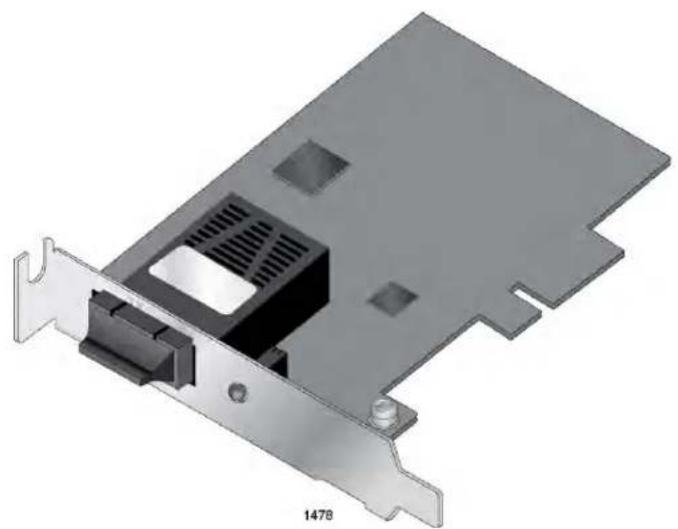
The AT-2911SX/SC adapter card is shown in Figure 1.
natural_image
3D CAD rendering of a computer drive card with heatsink and mounting bracket (no text or symbols)Figure 1. AT-2911SX/SC Adapter
AT-2911 Series Dual Port Adapters
The following AT-2911 series models are equipped with a dual port interface:
□ AT-2911STX/SC
□ AT-2911STX/LC
□ AT-2911LTX/SC
□ AT-2911LTX/LC
□ AT-2911SX/2LC
□ AT-2911LX/2LC
□ AT-2911SFP/2
□ AT-2911T/2
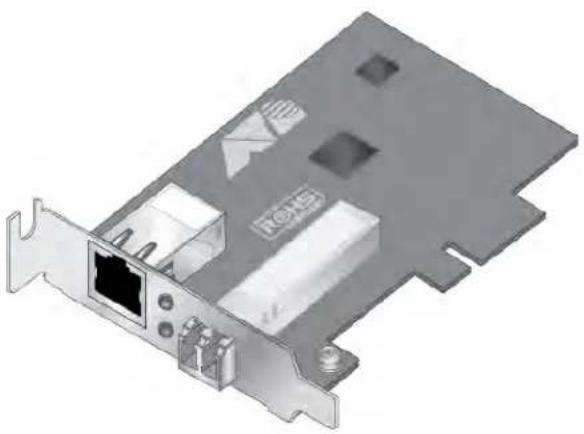
The AT-2911LTX/LC adapter is shown in Figure 2.
natural_image
3D technical illustration of a PCI expansion card with internal components (no text or symbols)Figure 2. AT-2911LTX/LC Adapter
ST Fiber Optic Connector
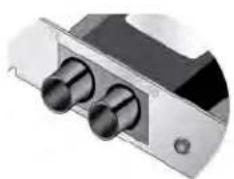
The AT-2911SX/ST adapter is equipped with a 1000BASE-SX ST fiber optic connector for attaching to a compatible link partner.
The ST fiber optic connector is shown in Figure 3.
natural_image
Close-up of a metallic electronic component with two cylindrical ports (no visible text or symbols)Figure 3. ST Fiber Optic Connector
To connect the adapter to a network cable, you must have a fiber optic network cable with the ST connector.
SC Fiber Optic Connector
The AT-2911SX/SC, AT-2911LX/SC, AT-2911STX/SC, and AT-2911LTX/SC, adapters are equipped with a 1000BASE-SX or 1000BASE-LX SC fiber optic connector.
The SC fiber optic connector is shown in Figure 4.
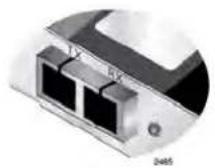
Figure 4. SC Fiber Optic Connector
To connect the adapter to a network cable, you must have a fiber optic network cable with the SC connector. For more information, see "1000BASE-X Fiber Optic Cable Specifications" on page 39.
LC Fiber Optic Connector
The AT-2911SX/LC, AT-2911LX/LC, AT-2911STX/LC, AT-2911LTX/LC, AT-2911SX/2LC, and AT-2911LX/2LC adapters are equipped with a 1000BASE-SX or 1000BASE-LX LC fiber optic connector. The AT-2911LX/2LC and AT-2911SX/2LC adapters have two LC connectors.
The LC fiber optic connector is shown in Figure 5.
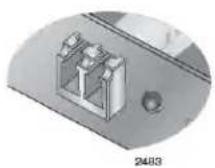
Figure 5. LC Fiber Optic Connector
To connect the adapter to a network cable, you must have a fiber optic network cable with the LC connector.
Twisted Pair Copper Port
The AT-2911STX/SC, AT-2911STX/LC, AT-2911LTX/LC adapters are equipped with a port for a 10/100/1000BASE-T twisted pair cable. The AT-2911T/2 adapter has two ports.
The twisted pair cable port is shown in Figure 6.
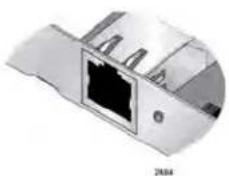
natural_image
3D rendering of a mechanical component with internal structure and mounting holes (no text or symbols visible)Figure 6. Twisted Pair Cable Port
The pin layout to a port and RJ-45 connector is illustrated in Figure 7.
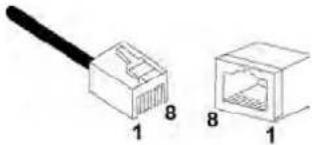
natural_image
Diagram of two Ethernet connectors with labeled pins (no text or symbols beyond numbers)Figure 7. Pin and RJ-45 Connector Pin Layout
SFP Slot The AT-2911SFP adapter has an SFP slot that you can plug in an SFP transceiver to connect the adapter to a compatible link partner. The AT-2911SFP/2 adapter has two SFP slots.
Note
An SFP transceiver must be purchased separately. For a list of supported transceivers, contact your Allied Telesis distributor or reseller.
The SFP slot is shown in Figure 8.
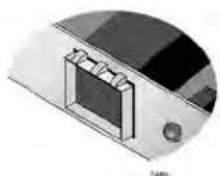
Figure 8. SFP Slot
LEDs The AT-2911 series adapter has an LED per port.
Table 1 describes the link states that the LED indicates.
Table 1. LED Status
| State Description | |
| On Valid link. | |
| Off No link. | |
| Flashing Data traffic is present between the adapter and the switch. |
Model Naming Conventions
The hardware features of the AT-2911 adapters are represented by the letters and numbers in the model names. The conventions for the AT-2911 adapters are identified in Figure 9.
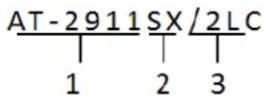
Figure 9. AT-2911 Model Naming Conventions
The conventions are defined in Table 2.
Table 2. AT-2911 Model Naming Conventions
| Convention | Definition |
| 1 Indicates the product name | |
| 2 Identifies the physical layer standard for Gigabit Ethernet transmission or SFP option. The following is a list of standards:☐ SX - 1000BASE-SX multi-mode fiber optic cable☐ LX - 1000BASE-LX single-mode fiber optic cable☐ T - 10/100/1000BASE-T twisted-pair cable☐ STX - dual port of SX fiber optic and twisted-pair cable☐ LTX - dual port of LX fiber optic and twisted-pair cable☐ SFP - SFP slot | |
| 3 Identifies the type of fiber optic connector and the number of connectors. The connectors are listed here:☐ ST - ST connector☐ SC - SC connector☐ LC - LC connectorThe AT-2911 Series offers single and dual port. Number 2 means that the model has two ports of same type. | |
Supported Operating Systems
The following list shows the supported operating systems for the AT-2911 series adapters:
□ Windows XP 32-bit
□ Windows XP 64-bit
☐ Windows Server 2003 32-bit
☐ Windows Server 2003 64-bit
□ Windows Vista 32-bit
□ Windows Vista 64-bit
☐ Windows Server 2008 32-bit
□ Windows Server 2008 64-bit
□ Windows 7 32-bit
□ Windows 7 64-bit
☐ Windows Server 2008 R2 64-bit
□ Linux 2.6
□ Linux 3.x
Features
The AT-2911 adapter supports the following features:
□ One or two interfaces
□ x1 PCI Express v2.0
☐ PXE 2.0 remote boot support
☐ Flow control (IEEE 802.3x)
☐ VLAN tag support (IEEE 802.1Q)
□ Jumbo packet (9K)
□ TCP, IP, and UDP checksum
□ TCP segmentation
□ Transmit Side Scaling (TSS)
□ Receive Side Scaling (RSS)
□ 17 Receive Queues
□ 16 Transmit Queues
☐ 17 MXI-x Vectors support per queue
☐ Link/Activity LED per port
□ SNMP MIB II
☐ Comprehensive diagnostic and configuration software
□ ACPI 1.1a compliant
□ RoHS compliant
□ Teaming
□ Manageability (CIM and SNMP)
□ User Diagnostics
Broadcom Utilities
The AT-2911 series adapter, which has a Broadcom's BCM5718 chipset inside, supports teaming and management functions, such as CIM and SNMP. In addition, you can run a series of diagnostic tests on your AT-2911 series adapter using Broadcom's user diagnostics utility. To configure and run these functions, you must install the utilities that Broadcom provides.
Teaming Teaming is a method of grouping network adapters together in your system as a team and making a team of network adapters function as a single adapter.
To configure teaming, you must have Broadcom Advanced Server Program (BASP) on your host computer. BASP runs within Broadcom Advance Control Suite (BACS), an integrated utility that enables tests, analyses, and diagnostics for network adapters installed in your system.
To install BASP and BACS, download the Broadcom Management Application Installer on the Allied Telesis website as described in "Installing Broadcom Utilities" on page 26.
For more information about teaming and how to install BASP and BACS, see the Broadcom NetXtreme® 57XX User Guide. To view the document, refer to “Broadcom Documentation” on page 26.
CIM The Common Information Model (CIM) is an industry standard defined by the Distributed Management task Force (DMTF). Broadcom's CIM data provider provides information through various classes and you can view them using a CIM client application.
To configure CIM, you must have the CIM provider and BACS on your host computer. To install CIM provider and BACS, download the Broadcom Management Application Installer on the Allied Telesis website as described in "Installing Broadcom Utilities" on page 26.
For more information about CIM and how to install the CIM provider and BACS, see the Broadcom NetXtreme® 57XX User Guide. To view the document, see “Broadcom Documentation” on page 26.
SNMP Simple Network management Protocol (SNMP) is an internet-standard protocol for managing devices on IP networks. The AT-2911 series adapter supports SNMP.
To configure SNMP, you must have the SNMP subagent and BACS on your host computer. To install SNMP subagent and BACS, download the Broadcom Management Application Installer on the Allied Telesis website as described in “Installing Broadcom Utilities” on page 26.
| For more information about SNMP and how to install SNMP subagent and BACS, see theBroadcom NetXtreme® 57XX User Guide. To view the document, see “Broadcom Documentation” on page 26. | |
| User Diagnostics | The Broadcom User Diagnostics utility is an MS-DOS based application that allows you to run a series of diagnostic tests on the AT-2911 series adapters.To run the user diagnostics, you must install the Broadcom user diagnostics utility. Download the user diagnostics utility on the Allied Telesis website as described in “Installing Broadcom Utilities,” next.For more information about the Broadcom User Diagnostics utility, see theBroadcom NetXtreme® 57XX User Guide. To view the document, see “Broadcom Documentation” on page 26. |
| Installing Broadcom Utilities | To download Broadcom utilities, do the following:1. Open a web browser, such as Internet Explorer or FireFox, on your system and enter the following:http://www.alliedtelesis.com/support/softwareThe Allied Telesis Software Download page is displayed.2. Enter “2911” in the search box and press the enter key.3. Select the Broadcom Management Applications Installer or User Diagnostics.4. Save the zip folder onto your system. |
| Broadcom Documentation | You can view more detailed information for the following features and topics for the AT-2911 series adapter in theBroadcom NetXtreme® 57XX User Guideincluding;Introduction - TeamingIntroduction - ManageabilityInstalling Linux Driver SoftwareInstalling Management ApplicationsConfigure Teaming (Windows)Using Broadcom Advance Control SuiteUser diagnostics.To access this document, click on the following link:www.broadcom.com/docs/support/ethernet_nic/Broadcom_NetXtreme_Server_17.0.pdf. |
Contents of Your Shipment
The following items are included with your AT-2911 series adapter:
□ Antistatic bag
The adapter is shipped in an antistatic bag. It protects the module when stored or shipped. Keep the module in its packaging until ready for installation.
□ Standard-profile bracket
The standard-profile bracket is a faceplate whose length is longer than the low-profile bracket. The AT-2911 series adapters from a factory are shipped with a low-profile bracket attached; however, you can replace it with the standard-profile bracket if your PCIe slot is the standard-profile size.
Note
The AT-2911 adapter is not shipped with a software driver CD. You must download the driver software from the Allied Telesis website. See Chapter 4, "Downloading the Driver Software" on page 83.
Inform your network supplier of any missing or damaged items. If you need to return the module, you must pack it in the original (or equivalent) packing material or the warranty will be voided. See “Contacting Allied Telesis” on page 15.
The product documentation is available in Portable Document Format (PDF) on our web site at www.alliedtelesis.com/support/software/. You can view the documents online or download them onto a local workstation or server.
Warranty Registration
Allied Telesis hardware products are covered under limited warranties.
All Allied Telesis warranties are subject to and provided only on the terms and conditions set out in the Allied Telesis Limited Warranties listed on the Allied Telesis website at www.alliedtelesis.com/support/warranty.
Chapter 2
Installing the Hardware
This chapter contains the following sections:
☐ “Reviewing Safety Precautions” on page 30
☐ "Pre-Installation Checklist" on page 32
☐ “Replacing the Bracket” on page 33
☐ “Installing the AT-2911 Series Adapter Card” on page 35
☐ "Connecting the Network Cables" on page 39
Reviewing Safety Precautions
Please review the following safety precautions before you begin to install a module.
Note
The indicates that a translation of the safety statement is available in a PDF document titled “Translated Safety Statements” posted on the Allied Telesis website at www.alliedtelesis.com/support.

Warning
This is a "Class 1 LED product". ∞ L1

Warning
Do not stare into the laser beam. ∞ L2

Warning
Do not look directly at the fiber optic cable ends or inspect the cable ends with an optical lens. L6

Warning
Do not work on this equipment or cables during periods of lightning activity. ∞ E2

Warning
Operating Temperature: This product is designed for a maximum ambient temperature of 40 degrees C. E7
Note
All Countries: Install this product in accordance with local and
National Electric Codes. E8

Warning
The module is being installed in a system that operates with voltages that can be lethal. Before you remove the cover of your system, you must observe the following precautions to protect yourself and to prevent damage to the system components.
- Remove any metallic objects or jewelry from your hands and wrists.
- Make sure to use only insulated or nonconducting tools.
- Verify that the system is powered OFF and unplugged before accessing internal components.
- Installation or removal of modules must be performed in a static-free environment. The use of a properly grounded wrist strap or other personal antistatic devices and an antistatic mat is strongly recommended. E39
Pre-Installation Checklist
Before installing the AT-2911 series adapter, check the following list:
- Check that your computer has an appropriate open PCIe slot.
- Verify that your computer is using the latest BIOS.
- When you download the driver software from the Allied Telesis website, record the path to where the driver file resides on your system.
- If your computer is active, shut it down.
- When the system shutdown is complete, power off and unplug your system.
- Holding the adapter by the edges, remove it from its shipping package and place it on an antistatic surface.
- Check the adapter for visible signs of damage, particularly on the edge connector.
Note
Do not attempt to install a damaged adapter. If the adapter is damaged, report it to Allied Telesis. See “Contacting Allied Telesis” on page 15.
Replacing the Bracket
The AT-2911 series adapter is shipped with the low-profile bracket attached to the adapter. Depending on your PC, you may need to replace the bracket attached to your adapter.
The following procedure describes how to remove the low-profile bracket from the adapter and replace it with the standard bracket. You can also use this procedure to remove the standard bracket and replace it with the low-profile bracket.
To replace the low-profile bracket with the standard bracket, perform the following procedure:
- Remove the screws that attach the bracket to the adapter. See Figure 10.
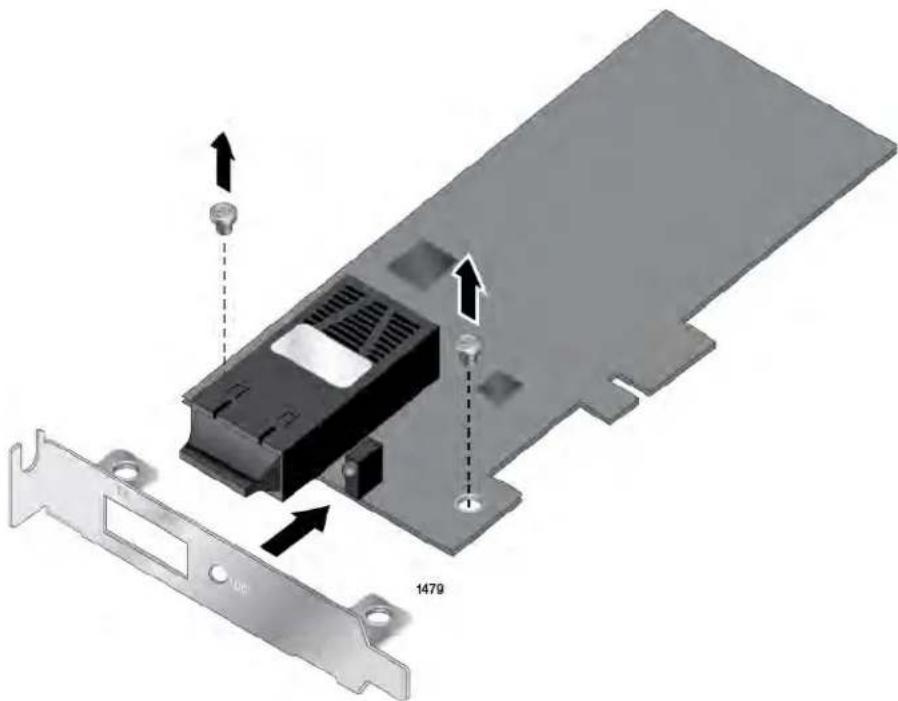
Figure 10. Removing the Low-Profile Bracket
- Align the tabs of the standard bracket with the holes on the adapter and fasten the screws onto the adapter. See Figure 11.
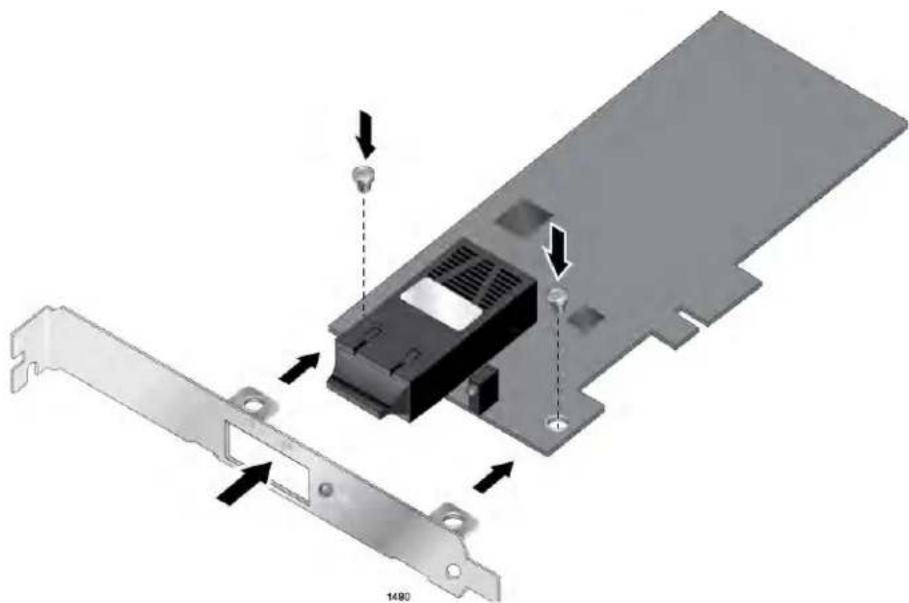
natural_image
3D diagram of a computer motherboard showing a heatsink, cooling unit, and drive components (no text or symbols)Figure 11. Fastening Screws onto Standard Bracket
Installing the AT-2911 Series Adapter Card
The following instructions describe how to install an AT-2911 series adapter in most systems. Refer to the manuals that were supplied with your system for details about performing these tasks on your particular system.
To install an AT-2911 series adapter, perform the following procedure:
- Review "Reviewing Safety Precautions" on page 30 and "Pre-Installation Checklist" on page 32.
Before installing the adapter, ensure the system power is OFF and unplugged from the power outlet, and that proper electrical grounding procedures have been followed.

Warning
To prevent electric shock, do not remove the cover. No user-serviceable parts inside. This unit contains hazardous voltages and should only be opened by a trained and qualified technician. To avoid the possibility of electric shock, disconnect electric power to the product before connecting or disconnecting the cables. E1
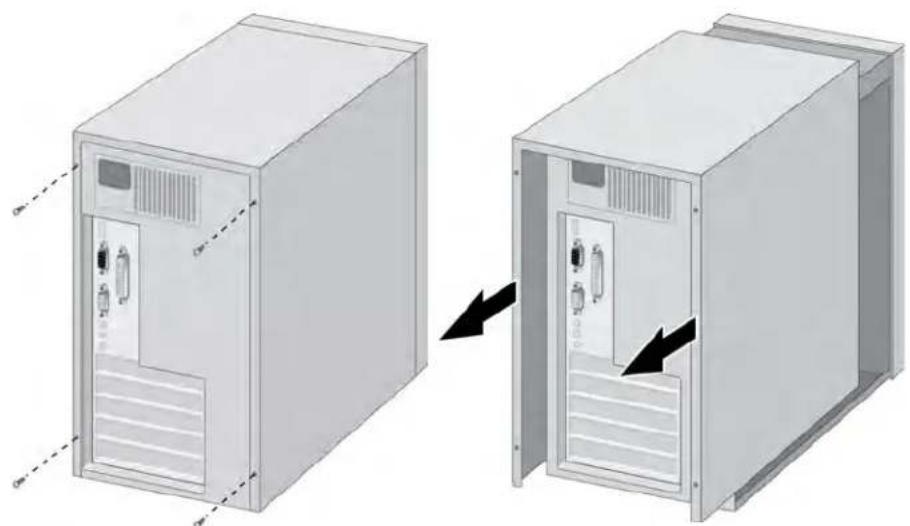
- Remove the system cover. See Figure 12.
natural_image
Diagram showing two views of a server rack cabinet with doors and ventilation slots, no text or symbols present.Figure 12. Removing the PC Cover
- Select any appropriate empty PCIe slot.
If you do not know how to identify an appropriate PCIe slot, refer to your system documentation.
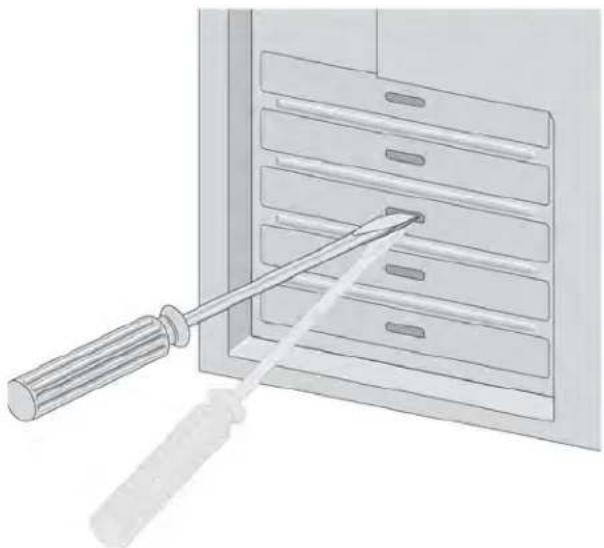
- Remove the faceplate that is directly in line with the PCIe slot you selected. See Figure 13.
Keep the faceplate in a safe place. You may need it for future use.
natural_image
Illustration of a screwdriver inserted into a rack with multiple drawers (no text or symbols)Figure 13. Removing the Faceplate From PCIe Slot
Note
If you cannot locate or know how to find an appropriate PCIe slot, refer to the documentation that came with your system.
- Remove the network adapter card from the shipping package and store the packaging material in a safe location.

Caution
A module can be damaged by static electricity. Be sure to observe all standard electrostatic discharge (ESD) precautions, such as wearing an antistatic wrist strap, to avoid damaging the device. E74
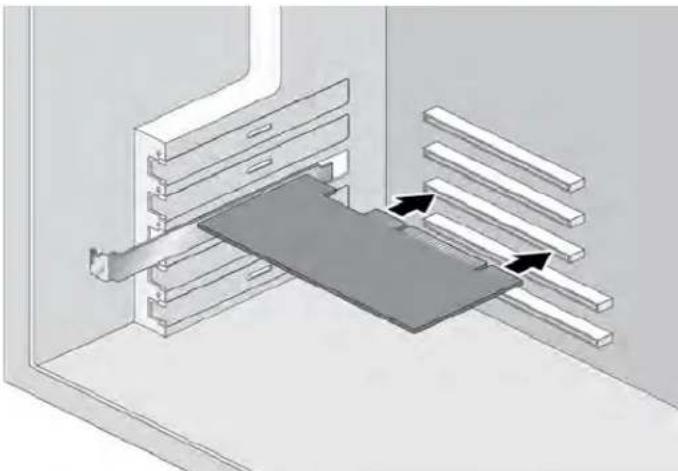
- Applying even pressure at both corners of the card, push the adapter card until it is firmly seated in the PCIe slot you have selected.
Make sure the card is securely seated. See Figure 14.
natural_image
3D diagram of a mechanical assembly with a central component and parallel rods, no text or symbols presentFigure 14. Inserting the Network Adapter Card

Caution
Do not use excessive force when seating the module, because this may damage the system or the module. If the module resists seating, remove it from the system, realign it, and try again. E47
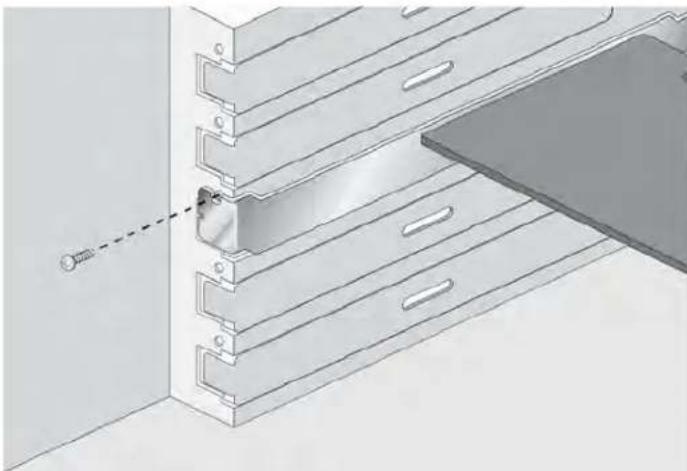
- Secure the network adapter card to the chassis with a Phillips-head screw (not provided) as shown in Figure 15 on page 37.
natural_image
Technical illustration of a mechanical assembly with a bracket and mounting plate (no text or symbols)Figure 15. Securing the Adapter Card
-
Replace the system's cover and secure it with the screws removed in Step 2.
-
Power the system on.
Note
When you installed the adapter in a Windows Operating system before installing the driver software, the Found New Hardware Wizard launches automatically except Windows 7 and Windows Server 2008 R2 systems. For installing the driver software, refer to the section for your Windows Operating system.
Once the system returns to proper operation, the adapter card is fully installed. Next, connect the network cables. See “Connecting the Network Cables” on page 39.
Connecting the Network Cables
After you install an AT-2911 series adapter in your desktop computer, attach the system to a compatible link partner or an IEEE 802.3 compliant Gigabit Ethernet switch. The adapter has a fiber optic connector, copper connector, SFP slot, or a combination of these connectors.
Note
You must have a fiber optic or copper cable to connect your system to the network. If your adapter has an SFP slot, you must have an SFP transceiver as well. Contact your Allied Telesis distributor or reseller for a list of supported transceivers.
Fiber Optic Cable
The AT-2911 series fiber optic adapters are equipped with two types of fiber optic connectors: SC and LC connectors. For optical characteristics of the AT-2911 adapter, see Appendix A, "Specifications" on page 111. In addition, the AT-2911 data sheet is available on the Allied Telesis website: www.alliedtelesis.com.
To connect a fiber optic network cable to the adapter, perform the following procedure:
- Prepare a fiber optic cable according to the specifications in Table 3.
Table 3. 1000BASE-X Fiber Optic Cable Specifications
| Port Type Connector Media | Maximum Distance | ||
| 1000BASE-SX Fiber Optic 50 μm multimode850 nm | 550 meters(1,804 feet) | ||
| 1000BASE-SX Fiber Optic 62.5 μm multimode850 nm | 275 meters(853 feet) | ||
| 1000BASE-LX Fiber Optic 9.125 μm single mode1310 nm | 10 kilometer(6.213 miles) | ||

Warning
The fiber optic ports contain a Class 1 laser device. When the ports are disconnected, always cover them with the provided plug. Exposed ports may cause skin or eye damage. L4
- Remove a rubber plug from the adapter.
-
Connect one end of the fiber optic cable to the adapter.
-
Connect the other end of the fiber optic cable to the appropriate Ethernet network port or fiber optic port.
After connecting the system to the network and power is supplied, the adapter performs auto-negotiation and attempts to establish the connection at 1000 Mbps full-duplex only. The adapter port LED should be functional at this point. See Table 1 on page 21 for a description of adapter port LED operation.
Note
Even minor smudges or dirt on the end face of the fiber can disrupt light transmission and lead to failure of the connection. For instructions that describe how to clean the fiber optic connector, see Appendix B "Cleaning Fiber Optic Connectors" on page 117
Twisted Pair Copper Cable
If your AT-2911 series adapter is equipped with a twisted pair copper port, you need a copper network cable with RJ-45 connectors. See “Twisted Pair Copper Port” on page 20.
- Connect one end of the cable to the adapter.
- Connect the other end of the cable to the appropriate Ethernet network port or twisted pair copper port.
After connecting the system to the network and power is supplied, the adapter performs auto-negotiation and attempts to establish the connection at the appropriate speed and duplex mode.
SFP Transceiver
If your AT-2911 series adapter is equipped with an SFP slot, you must have an SFP transceiver and an appropriate cable.
- Insert an SFP transceiver into the SFP socket on the adapter until the SFP transceiver snaps into place in the socket.
- Remove a plug from the SFP transceiver.
- Connect one end of the cable to the SFP transceiver.
- Connect the other end of the cable to the appropriate Ethernet network port or an appropriate port.
After connecting the system to the network and power is supplied, the adapter performs auto-negotiation and attempts to establish the connection at 1000 Mbps full-duplex only.
Chapter 3
Modifying Advanced Properties
This chapter includes the following topics:
☐ "Overview" on page 42
☐ “Accessing Advanced Properties” on page 43
☐ “802.3az EEE” on page 45
☐ “ARP Offload” on page 47
☐ "EEE Control" on page 48
☐ "Ethernet@WireSpeed" on page 49
☐ "Flow Control" on page 51
☐ "Interrupt Moderation" on page 53
☐ "IPv4 Checksum Offload" on page 54
☐ "Jumbo Mtu" on page 55
☐ “Large Send Offload (IPv4)” on page 56
☐ “Large Send Offload v2 (IPv4)” on page 58
☐ “Large Send Offload v2 (IPv6)” on page 60
☐ "Network Address" on page 61
☐ "NS Offload" on page 63
☐ "Priority & VLAN" on page 64
☐ "Receive Buffers" on page 66
☐ "Receive Side Scaling" on page 67
☐ "RSS Queues" on page 68
☐ "Speed & Duplex" on page 70
☐ “TCP/UDP Checksum Offload (IPv4)” on page 72
☐ “TCP/UDP Checksum Offload (IPv6)” on page 74
☐ "Virtual Machine Queues" on page 76
☐ "VLAN ID" on page 77
☐ "VMQ Lookahead Split" on page 78
☐ "VMQ VLAN Filtering" on page 79
Overview
Guidelines
To modify the advanced properties of the AT-2911 adapter, you must access Device Manager on your operating system, then go to each advanced property page.
Here are the guidelines to modifying the advanced properties:
☐ To change the advanced property settings, you must have Administrator privileges.
☐ When you upgrade the driver software, the settings of the advanced properties may change. Verify the settings after upgrading the driver software.
Twisted pair copper port
In addition to the advanced properties listed on page 41, twisted pair copper ports have the following properties:
□ Wake Up Capabilities
□ WOL Speed
Wake Up Capabilities
The Wake Up Capabilities property enables the network adapter to wake up from a low-power mode when it receives a network wake-up frame. Two types of wake-up frames are available: Magic Packet and Wake Up Frame.
WOL Speed
The WOL Speed property allows you to set the speed at which the adapter connects to a network while the adapter is in the Wake on LAN (WOL) mode.
Accessing Advanced Properties
To modify advanced properties, first access Device Manager, open the properties of your AT-2911 series adapter, and select a feature you want to change its setting.
- To access the Device Manager, follow one of these procedures:
☐ "Accessing Device Manager on Windows Server 2008 R2, Server 2008, Vista, or 7" on page 85
☐ "Accessing Device Manager on Windows Server 2003 and XP" on page 86
- In the Device Manager window, double-click Allied Telesis AT-2911xx Gigabit Fiber Ethernet.
The properties window pops up as shown in Figure 16.
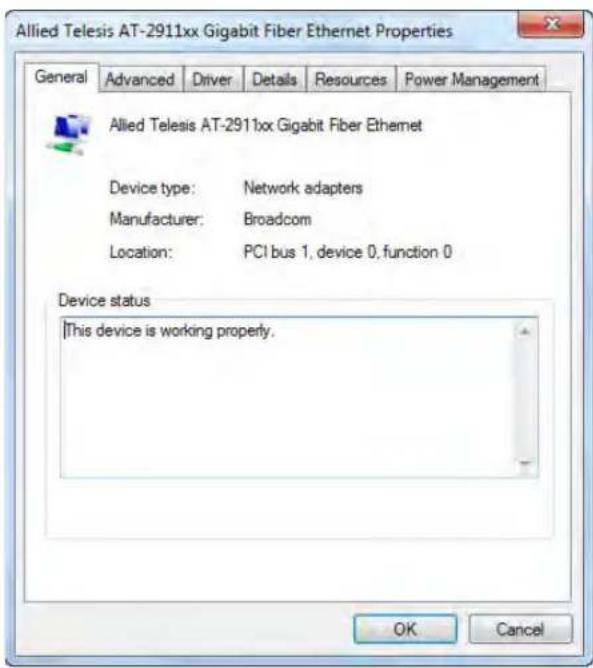
Figure 16. Properties Window
3. Click the Advanced tab.
The Advanced Properties window opens as shown in Figure 17.
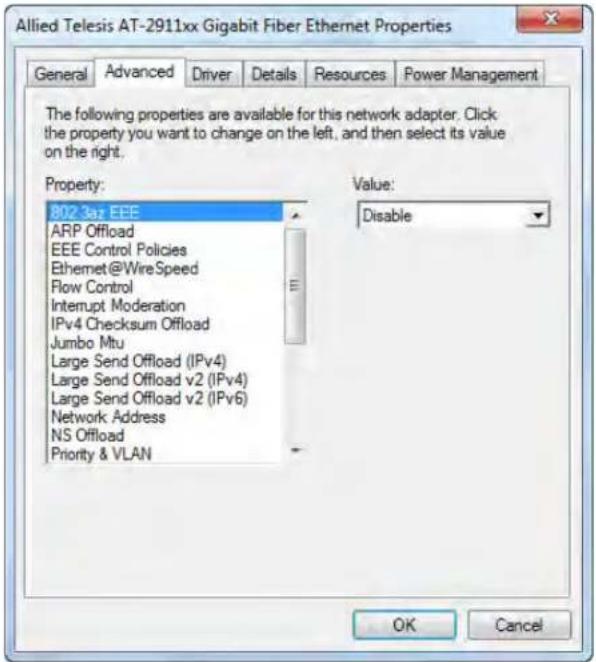
Figure 17. Advanced Properties Window
The 802.3az EEE (Energy-Efficient Ethernet) feature allows you to reduce power consumption when the network link is idle.
Note
This feature is valid only for copper ports. For fiber connectors, the setting is always disabled.
To enable or disable the 802.3az EEE feature, do the following:
- Access the Advanced Properties.
See "Accessing Advanced Properties" on page 43.
- Select 802.3az EEE in the Property box.
The 802.3az EEE page is displayed as shown in Figure 18.
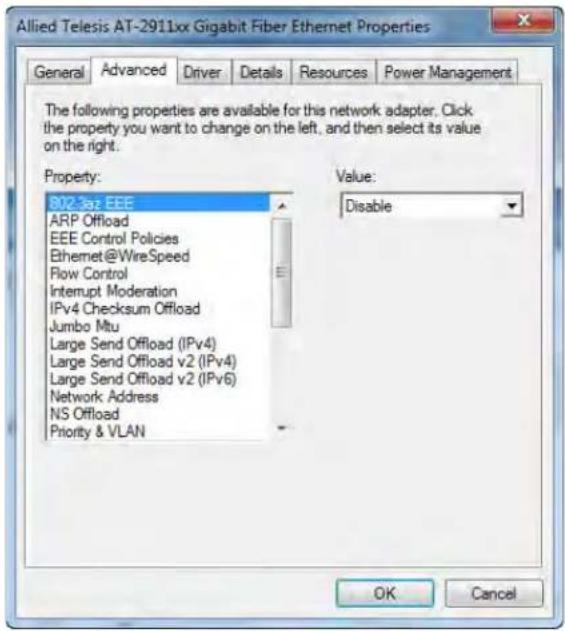
Figure 18. 802.3az EEE Page
- Select one of the following options:
☐ Disable — The Energy-Efficient Ethernet feature is off. This is the default setting.
Note
For fiber connectors, the setting is always disabled.
☐ Enable — The adapter saves energy consumption when the link is idle.
- Click OK.
ARP Offload
The ARP Offload feature, one of the network power management features, allows the adapter to respond to an ARP request without waking up the computer.
To enable or disable the ARP Offload feature, do the following:
- Access the Advanced Properties.
See "Accessing Advanced Properties" on page 43.
- Select ARP Offload in the Property box.
The ARP Offload page is displayed as shown in Figure 19.
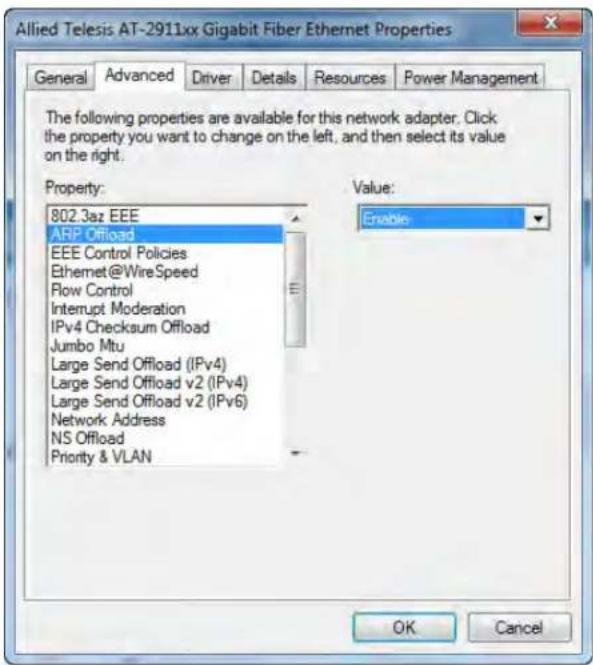
Figure 19. ARP Offload Page
- Select one of the following options:
□ Disable — The computer wakes up from sleep mode and responds to an ARP request.
□ Enable — The adapter responds to an ARP request without waking up the computer. This is the default setting.
- Click OK.
EEE Control
The EEE (Energy-Efficient Ethernet) Control feature allows you prioritize power saving, performance, optimal power, and performance.
To change the setting of the EEE Control feature, do the following:
- Access the Advanced Properties.
See "Accessing Advanced Properties" on page 43.
- Select EEE Control in the Property box.
The EEE Control page is displayed as shown in Figure 20.
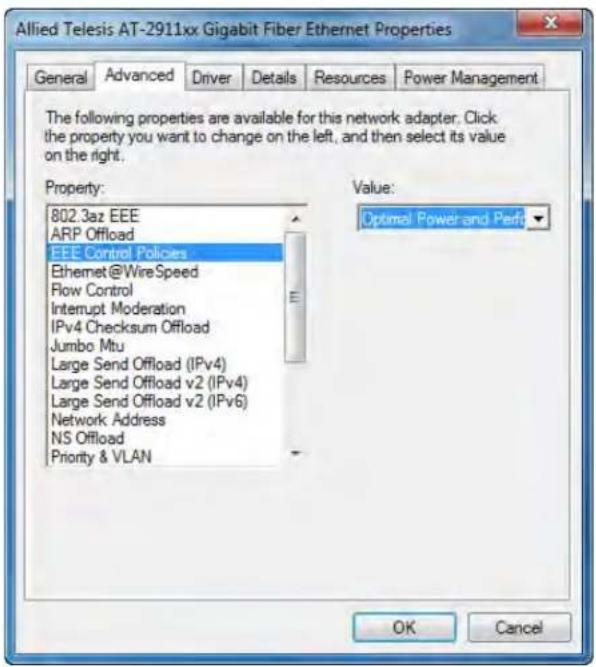
Figure 20. EEE Control Page
- Select one of the following options:
☐ Optimal Power and Performance — The adapter manages the best trade-off between energy efficiency and performance. This is the default setting.
☐ Maximum Performance — The adapter manages power for the best performance.
☐ Maximum Power Saving — The adapter manages power for the best energy saving.
- Click OK.
Ethernet@WireSpeed
The Ethernet@WireSpeed feature enables the adapter with a twisted pair copper interface to establish a link at a lower speed when only two pairs of wires are available in the connected cable.
Note
This feature is valid only for copper ports. For fiber connectors, the setting is always disabled.
To enable or disable the Ethernet@WireSpeed feature, do the following:
- Access the Advanced Properties.
See "Accessing Advanced Properties" on page 43.
- Select Ethernet@WireSpeed in the Property box.
The Ethernet@WireSpeed page is displayed as shown in Figure 21.
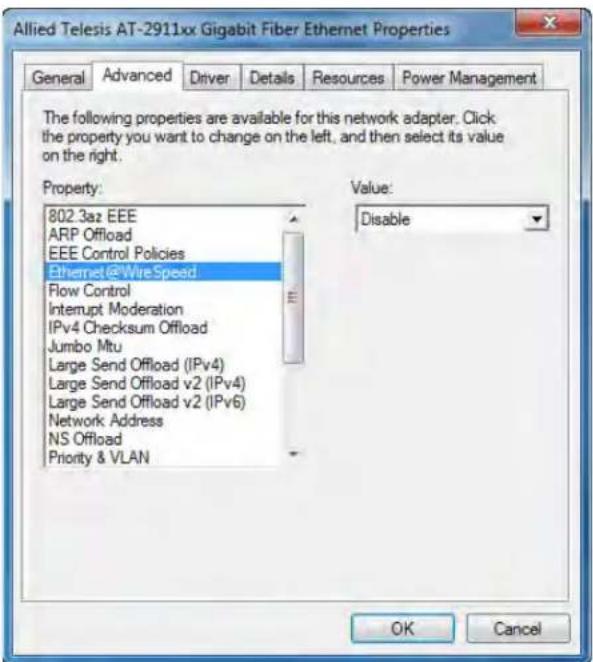
Figure 21. Ethernet@WireSpeed Page
- Select one of the following options:
☐ Disabled — The adapter tries to establish a link at 1000 Mbps.
Note
For fiber connectors, the setting is always disabled.
☐ Enabled — The adapter establishes a link at a lower speed when only two pairs of wires are available in the connected cable. This is the default setting for the AT-2911 series adapters with a twisted pair copper interface.
- Click OK.
Flow Control
The Flow Control feature allows you to control the flow between the AT-2911 adapter and its link partner. You can enable or disable the adapter to process received PAUSE frames and transmit PAUSE frames.
To enable or disable the Flow Control feature, do the following:
- Access the Advanced Properties.
See "Accessing Advanced Properties" on page 43.
- Select Flow Control in the Property box.
The Flow Control page is displayed as shown in Figure 22.
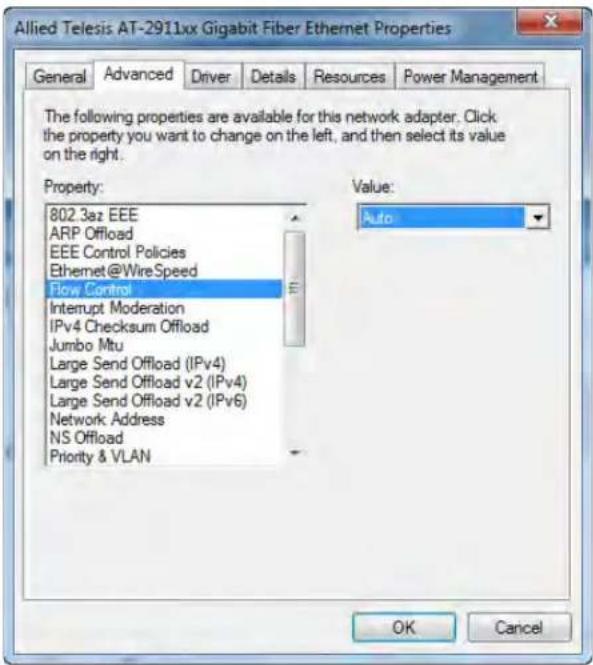
Figure 22. Flow Control Page
- Select one of the following options:
☐ Auto — Receiving and transmitting PAUSE frames are optimized. This is the default setting.
□ Disabled — The adapter ignores PAUSE frames.
☐ Tx & Rx Enabled — The adapter processes PAUSE frames when receiving and transmits PAUSE frames.
☐ Rx Enabled — The adapter processes PAUSE frames when receiving, but does not transmit PAUSE frame.
☐ Tx Enabled — The adapter transmits PAUSE frames, but ignores PAUSE frames when receiving.
- Click OK.
Interrupt Moderation
The Interrupt Moderation feature allows you to limit the rate of interrupts to the CPU during packet transmission and packet reception. When this feature is enabled, interrupts are handled as a group so that the CPU utilization decreases; however, the latency may increase.
To enable or disable the Interrupt Moderation feature, do the following:
- Access the Advanced Properties.
See "Accessing Advanced Properties" on page 43.
- Select Interrupt Moderation in the Property box.
The Interrupt Moderation page is displayed as shown in Figure 23.
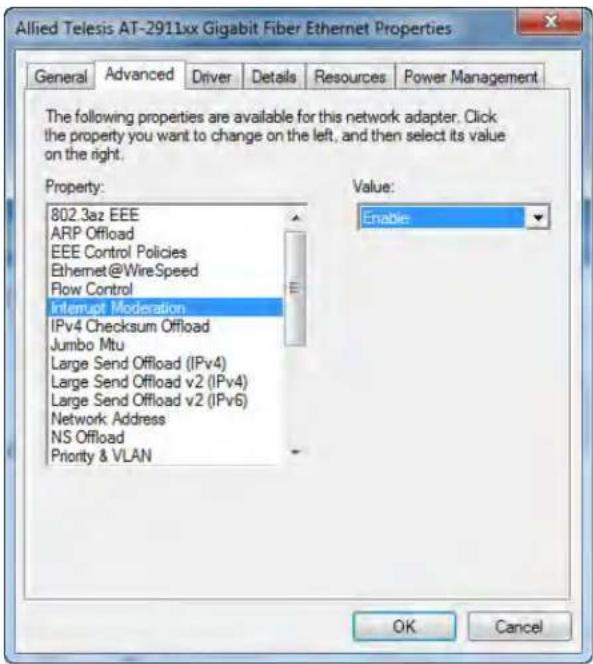
Figure 23. Interrupt Moderation Page
- Select one of the following options:
□ Disabled — The Interrupt Moderation feature is disabled.
□ Enabled — The Interrupt Moderation feature is enabled. This is the default setting.
- Click OK.
IPv4 Checksum Offload
The IPv4 Checksum Offload feature allows the adapter to verify the IPv4 checksum to enhance IPv4 receive and transmit performance and reduce CPU utilization.
To enable or disable the IPv4 Checksum Offload feature, do the following:
- Access the Advanced Properties.
See "Accessing Advanced Properties" on page 43.
- Select IPv4 Checksum Offload in the Property box.
The IPv4 Checksum Offload page is displayed as shown in Figure 24.
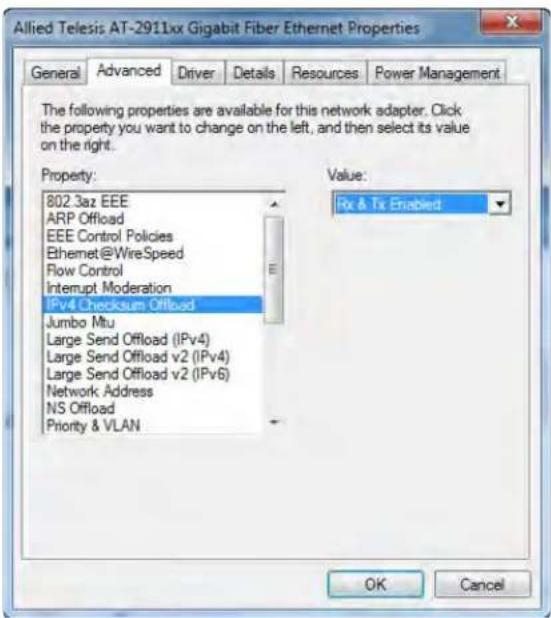
Figure 24. IPv4 Checksum Offload Page
- Select one of the following options:
☐ Rx & Tx Enabled — The adapter verifies IPv4 Checksum for both receiving and transmitting packets. This is the default setting.
□ Disabled — The CPU verifies IPv4 checksum.
☐ Rx Enabled — The adapter verifies IPv4 Checksum only for receiving packets.
☐ Tx Enabled — The adapter verifies IPv4 Checksum only for transmitting packets.
- Click OK.
Jumbo Mtu
The Jumbo Mtu (Maximum transmission unit) feature allows you to specify the size of the Ethernet frame that the adapter supports. The network performance usually improves when the larger frame size is specified: however, the network must be capable of supporting the oversized Ethernet frames.
To change the Jumbo Mtu setting, do the following:
- Access the Advanced Properties.
See "Accessing Advanced Properties" on page 43.
- Select Jumbo Mtu in the Property box.
The Jumbo Mtu page is displayed as shown in Figure 25.
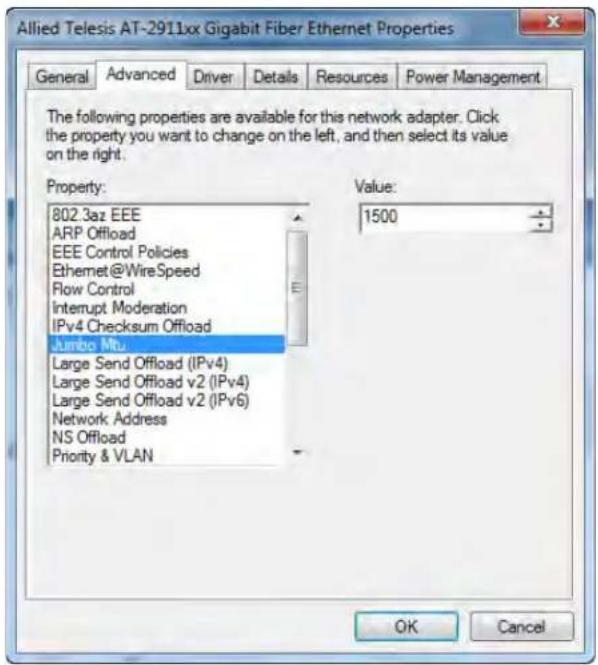
Figure 25. Jumbo Mtu Page
- Specify the size of the frame in the Value box.
The range of the value is from 1,500 to 9,000. The default value is 1,500.
- Click OK.
Large Send Offload (IPv4)
The Large Send Offload (IPv4) feature allows you to control the load of sending out large packets. When this feature is enabled, the AT-2911 adapter segments large packets and reduces the CPU load.
The Large Send Offload (IPv4) feature supports large packets up to 64kb. The Large Send Offload v2 (IPv4), which supports large packets up to 256kb, overrides the Large Send Offload (IPv4) feature if both features are enabled. For more information, see “Large Send Offload v2 (IPv4)” on page 58.
To enable or disable the Large Send Offload (IPv4) feature, do the following:
- Access the Advanced Properties.
See "Accessing Advanced Properties" on page 43.
- Select Large Send Offload (IPv4) in the Property box.
The Large Send Offload (IPv4) page is displayed as shown in Figure 26.
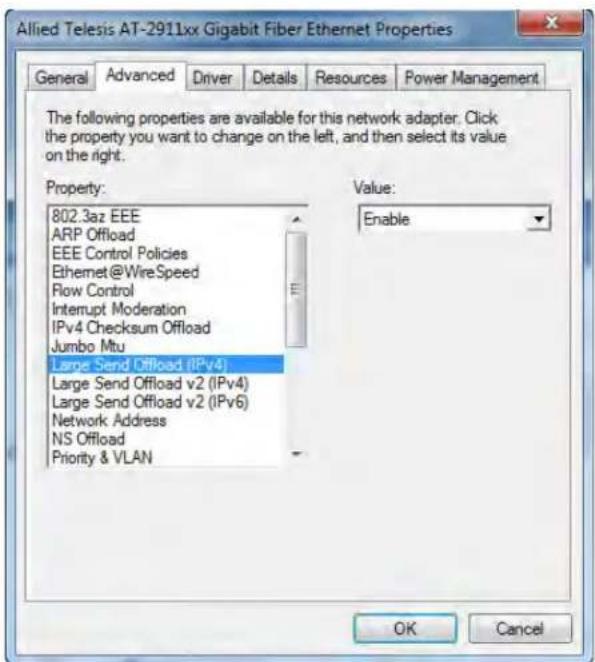
Figure 26. Large Send Offload (IPv4) Page
- Select one of the following options:
□ Disabled — This feature is disabled.
☐ Enabled — The adapter segments large packets up to 64kb for IPv4 traffic before sending them out. This is the default setting.
- Click OK.
Large Send Offload v2 (IPv4)
The Large Send Offload v2 (IPv4) feature allows you to control the load of sending out large packets. When this feature is enabled, the AT-2911 adapter segments large packets for IPv4 traffic and reduces the CPU load.
This feature, which supports large packets up to 256kb, overrides the Large Send Offload (IPv4) feature if both features are enabled.
To enable or disable the Large Send Offload v2 (IPv4) feature, do the following:
- Access the Advanced Properties.
See "Accessing Advanced Properties" on page 43.
- Select Large Send Offload v2 (IPv4) in the Property box.
The Large Send Offload v2 (IPv4) page is displayed as shown in Figure 27.
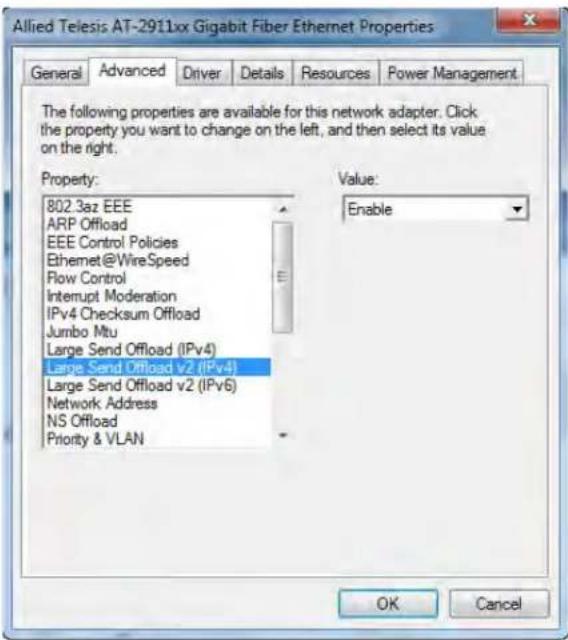
Figure 27. Large Send Offload v2 (IPv4) Page
- Select one of the following options:
□ Disabled — The feature is disabled.
☐ Enabled — The adapter segments large packets up to 256kb for IPv4 traffic before sending them out. This is the default setting.
- Click OK.
Large Send Offload v2 (IPv6)
The Large Send Offload v2 (IPv6) feature allows you to control the load of sending out large packets. When this feature is enabled, the AT-2911 adapter segments large packets for IPv6 traffic and reduces the CPU load.
To enable or disable the Large Send Offload v2 (IPv6) feature, do the following:
- Access the Advanced Properties.
See "Accessing Advanced Properties" on page 43.
- Select Large Send Offload v2 (IPv6) in the Property box.
The Large Send Offload v2 (IPv6) page is displayed as shown in Figure 28.
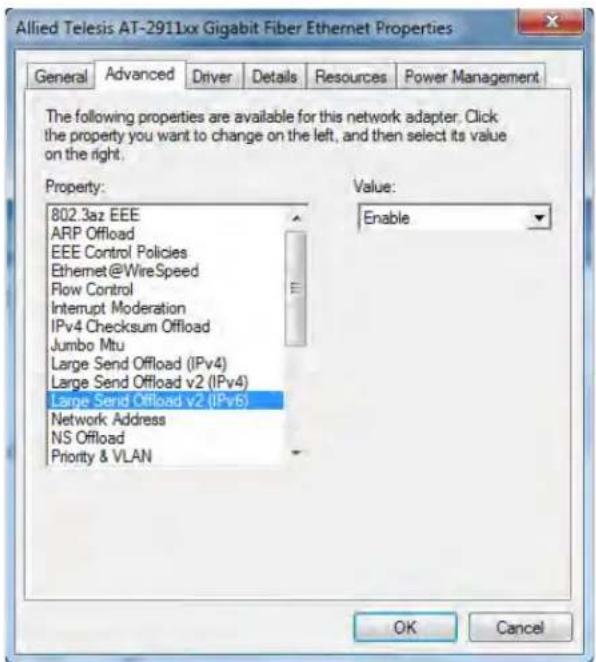
Figure 28. Large Send Offload (IPv6) Page
- Select one of the following options:
□ Disabled — The adapter does not segment packets for IPv6 traffic.
☐ Enabled — The adapter segments large packets up to 256kb for IPv6 traffic before sending them out. This is the default setting.
- Click OK.
Network Address
The Network Address allows you to replace the MAC address originally assigned to the adapter with a user-defined address. The user-defined address that you assign to the adapter is called a locally administered address.

Caution
A locally administered address overrides the original MAC address stored in the AT-2911 adapter hardware. When you change the MAC address, be sure to assign a unique MAC address. E81
To assign or change the Network Address, do the following:
- Access the Advanced Properties.
See "Accessing Advanced Properties" on page 43.
- Select Network Address in the Property box.
The Network Address page is displayed as shown in Figure 29.
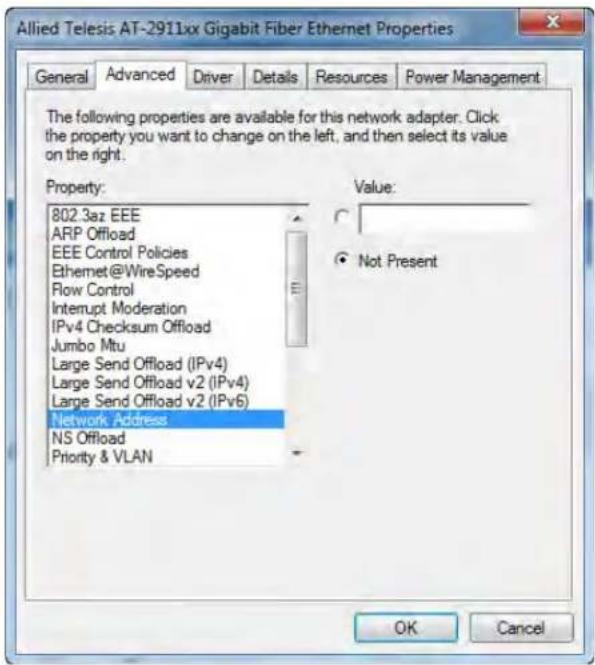
Figure 29. Network Address Page
- In the Value text box, enter a locally administered address for the AT-2911 adapter.
By default, no network address is assigned.
Here are guidelines to assigning a locally administered address:
☐ The address must be unique.
☐ The address consists of a 12-digit hexadecimal number, for example, "000C46005501."
☐ The range is from 0000 0000 0001 to FFFF FFFF FFFD excluding multicast MAC addresses, which cannot be used. The multicast MAC address has the least significant bit of the most significant octet as 1.
- Click OK.
NS Offload
The NS (Neighbor Solicitation) Offload feature, one of the network power management features, allows the adapter to respond to a Neighbor Solicitation request without waking up the computer.
To enable or disable the NS Offload feature, do the following:
- Access the Advanced Properties.
See "Accessing Advanced Properties" on page 43.
- Select NS Offload in the Property box.
The NS Offload page is displayed as shown in Figure 30.
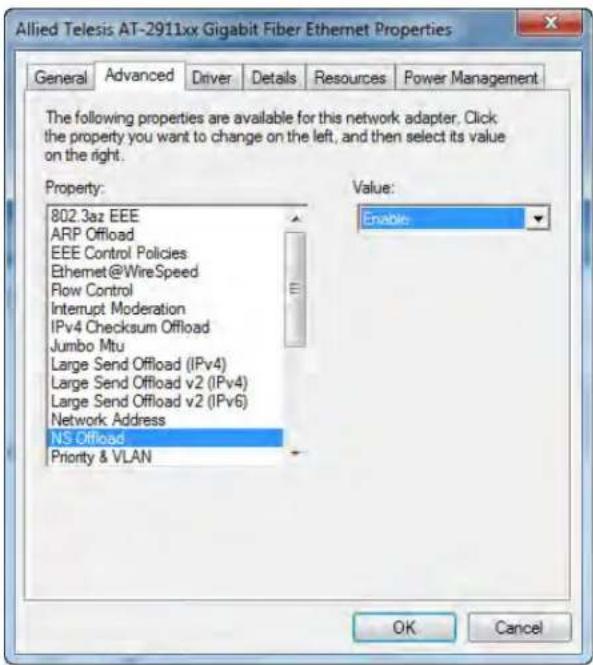
- Select one of the following options:
□ Disable — The computer wakes up from sleep mode and responds to an NS request.
□ Enable — The adapter responds to a Neighbor Solicitation request without waking up the computer. This is the default setting.
- Click OK.
Priority & VLAN
The Priority & VLAN feature allows you to control sending and receiving tagged frames of QoS and VLAN.
When the property is set to Priority & VLAN Enabled, the adapter sends and receives QoS and VLAN tagged frames; with Priority Enabled, the adapter sends and receives QoS tagged frames; with VLAN Enabled, the adapter sends and receives VLAN tagged frames. To assign a VLAN ID to the adapter, see "VLAN ID" on page 77.
To enable or disable the Priority & VLAN feature, do the following:
- Access the Advanced Properties.
See "Accessing Advanced Properties" on page 43.
- Select Priority & VLAN in the Property box.
The Priority & VLAN page is displayed as shown in Figure 31.
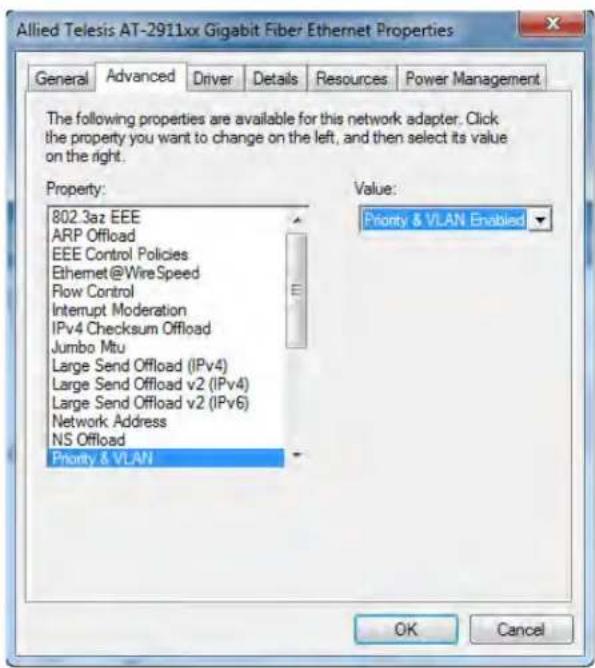
Figure 31. Priority & VLAN Page
- Select one of the following options:
☐ Priority & VLAN Enabled — The adapter sends and receives QoS and VLAN tagged frames. This is the default setting.
☐ Priority Enabled — The adapter sends and receives QoS tagged frames.
☐ VLAN Enabled — The adapter sends and receives VLAN tagged frames.
- Click OK.
Receive Buffers
The Receive Buffers property specifies the number of receive buffers allocated for the adapter. Increasing this value may enhance performance in receiving traffic, but consumes more system memory.
To change the Receive Buffers value, do the following:
- Access the Advanced Properties.
See "Accessing Advanced Properties" on page 43.
- Select Receive Buffers in the Property box.
The Receive Buffers page is displayed as shown in Figure 32.
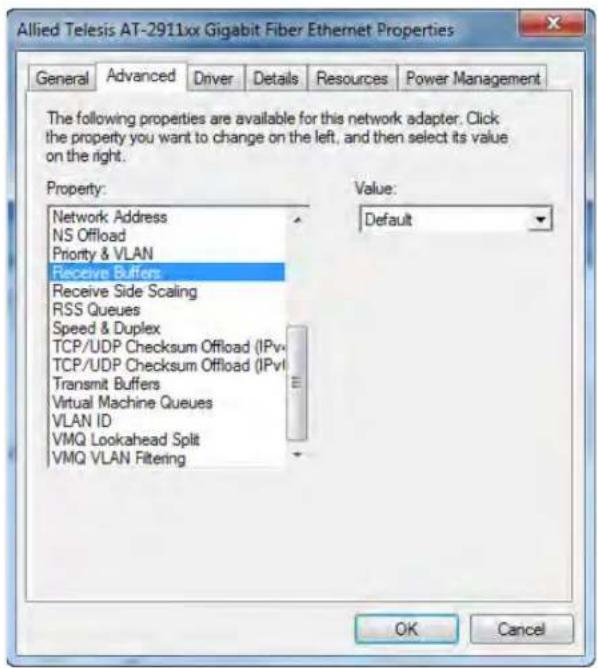
Figure 32. Receive Buffers Page
- Select one of the following options:
☐ Default — Specifies the default number of receive buffers allocated to the adapter. This is the default setting.
☐ Maximum — Specifies the maximum number of receive buffers allocated to the adapter.
☐ Minimum — Specifies the minimum number of receive buffers allocated to the adapter.
- Click OK.
Receive Side Scaling
The Receive Side Scaling (RSS) feature allows the adapter to efficiently distribute receive processing across multiple CPU and to prevent from overloading a single CPU. To make this feature effective, the computer must have multiple CPUs in a multiprocessor system.
To enable or disable the Receive Side Scaling feature, do the following:
- Access the Advanced Properties.
See "Accessing Advanced Properties" on page 43.
- Select Receive Side Scaling in the Property box.
The Receive Side Scaling page is displayed as shown in Figure 33.
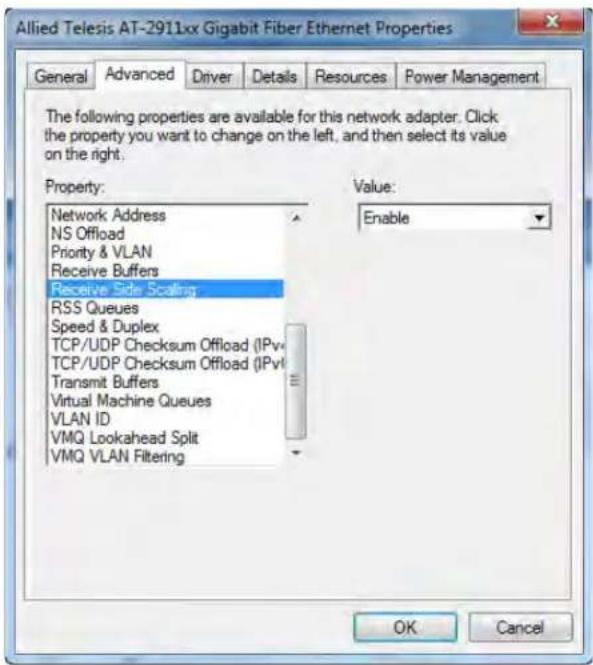
Figure 33. Receive Side Scaling Page
- Select one of the following options:
□ Enabled — Receiving data is processed by multiple CPUs. This is the default setting.
□ Disabled — Receiving data is processed by a single CPU.
- Click OK.
RSS Queues
The RSS Queues feature allocates queue space between the adapter and processor, and allows you to specify the number of RSS queues that the adapter assigns receiving data to.
To Specify the RSS Queues value, do the following:
- Access the Advanced Properties.
See "Accessing Advanced Properties" on page 43.
- Select RSS Queues in the Property box.
The RSS Queues page is displayed as shown in Figure 34.
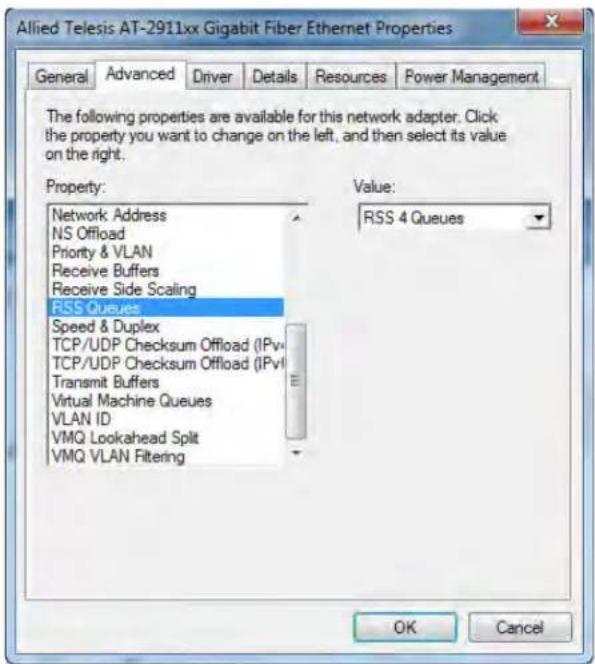
Figure 34. RSS Queues Page
3. Select one of the following options:
Note
The supported number of RSS queues and default setting depend on the adapter and operating system. You might not see all options listed below.
☐ RSS 4 Queues — The system allocates four RSS queues.
☐ RSS 1 Queue — The system allocates one RSS queue.
☐ RSS 2 Queues — The system allocates two RSS queues.
4. Click OK.
Speed & Duplex
The Speed & Duplex feature sets the link speed and duplex mode of the adapter with a twisted pair copper interface.
Note
This feature is valid only for copper ports. For fiber connectors, the setting is always Auto.
To change the Speed & Duplex property, do the following:
- Access the Advanced Properties.
See "Accessing Advanced Properties" on page 43.
- Select Speed & Duplex in the Property box.
The Speed & Duplex page is displayed as shown in Figure 35.
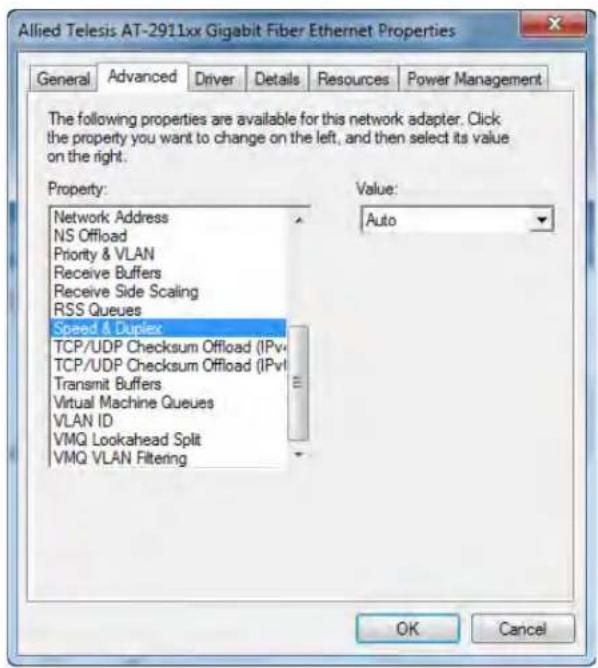
Figure 35. Speed & Duplex Page
3. Select one of the following options:
☐ Auto — Auto-negotiation. This is the default setting.
Note
For fiber connectors, the setting is always Auto.
☐ 10 Mbps Half Duplex — 10 Mbps speed in the half duplex mode.
☐ 10 Mbps Full Duplex — 10 Mbps speed in the full duplex mode.
☐ 100 Mbps Half Duplex — 100 Mbps speed in the half duplex mode.
☐ 100 Mbps Full Duplex — 100 Mbps speed in the full duplex mode. This is the default setting.
4. Click OK.
TCP/UDP Checksum Offload (IPv4)
The TCP/UDP Checksum Offload (IPv4) function enables the adapter to compute the checksum of transmitting IPv4 packets and verify the checksum of receiving IPv4 packets, taking load off from the CPU.
To modify the TCP/UDP Checksum Offload (IPv4) setting, do the following:
- Access the Device Manger on your operating system.
See "Accessing Advanced Properties" on page 43.
- Select TCP/UDP Checksum Offload (IPv4) in the Property box.
The TCP/UDP Checksum Offload (IPv4) page is displayed as shown in Figure 36.
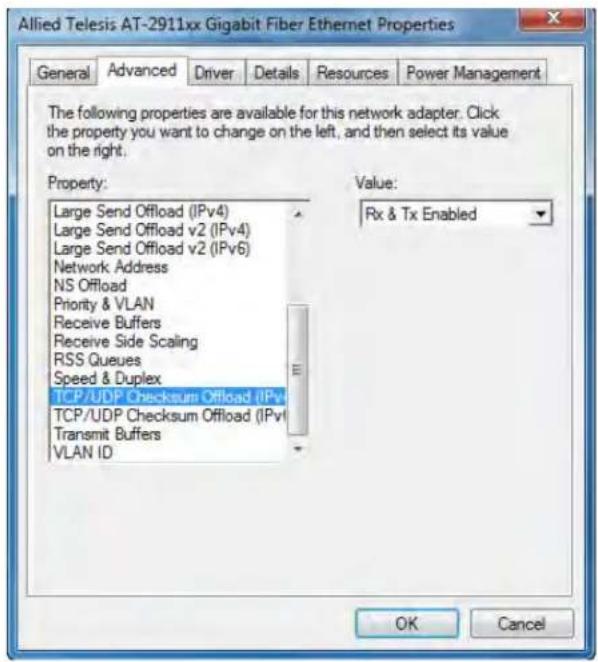
Figure 36. TCP/UDP Checksum Offload (IPv4) Page
- Select one of the following options:
☐ Rx & Tx Enabled — Enables the TCP/UDP Checksum Offload (IPv4) function for both receiving and transmitting IPv4 packets. This is the default setting.
☐ Rx Enabled — Enables the TCP/UDP Checksum Offload (IPv4) function only for receiving IPv4 packets.
☐ Tx Enabled — Enables the TCP/UDP Checksum Offload (IPv4) function only for transmitting IPv4 packets.
- Click OK.
TCP/UDP Checksum Offload (IPv6)
The TCP/UDP Checksum Offload (IPv6) function enables the adapter to compute the checksum of transmitting IPv6 packets and verify the checksum of receiving IPv6 packets, taking load off from the CPU.
To enable or disable the TCP/UDP Checksum Offload (IPv6) feature, do the following:
- Access the Device Manger on your operating system.
See "Accessing Advanced Properties" on page 43.
- Select TCP/UDP Checksum Offload (IPv6) in the Property box.
The TCP/UDP Checksum Offload (IPv6) page is displayed as shown in Figure 37.
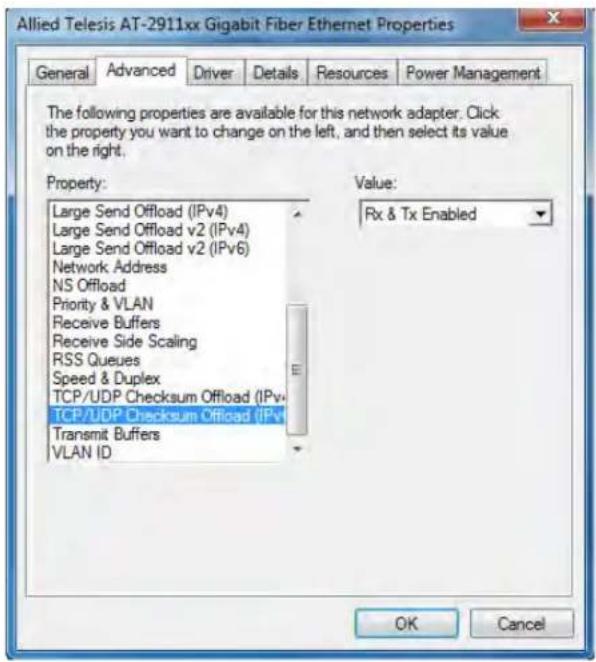
Figure 37. TCP/UDP Checksum Offload (IPv6) Page
- Select one of the following options:
☐ Rx & Tx Enabled — Enables the TCP/UDP Checksum Offload (IPv6) function for both receiving and transmitting IPv6 packets. This is the default setting.
☐ Rx Enabled — Enables the TCP/UDP Checksum Offload (IPv6) function only for receiving IPv6 packets.
☐ Tx Enabled — Enables the TCP/UDP Checksum Offload (IPv6) function only for transmitting IPv6 packets.
- Click OK.
Virtual Machine Queues
The Virtual Machine Queues feature allows you to control the load of sorting data packets. When this feature is enabled, the adapter sorts data packets to improve networking performance and reduce CPU utilization. This feature applies to host computers with Windows Server 2008 R2 or Windows 7 64 bit operating systems only. To make this feature effective, the host computer must be set in virtual environment.
To change the Virtual Machine Queues, do the following:
- Access the Advanced Properties.
See "Accessing Advanced Properties" on page 43.
- Select Virtual Machine Queues in the Property box.
The Virtual Machine Queues page is displayed as shown in Figure 38.
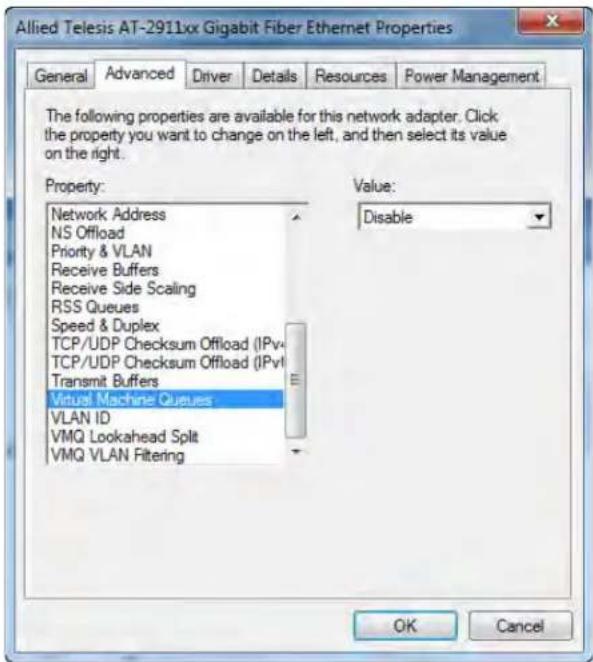
Figure 38. Virtual Machine Queues Page
- Select one of the following options:
□ Disable — The feature is disabled. This is the default setting.
□ Enable — The adapter sorts data packets.
- Click OK.
VLAN ID
The VLAN ID property allows you to specify a VLAN ID on your network to the adapter. The adapter adds the value of the VLAN ID to a frame in the VLAN tag before transmitting the frame.
To change the VLAN ID value, do the following:
- Access the Advanced Properties.
See "Accessing Advanced Properties" on page 43.
- Select VLAN ID in the Property box.
The VLAN ID page is displayed as shown in Figure 39.
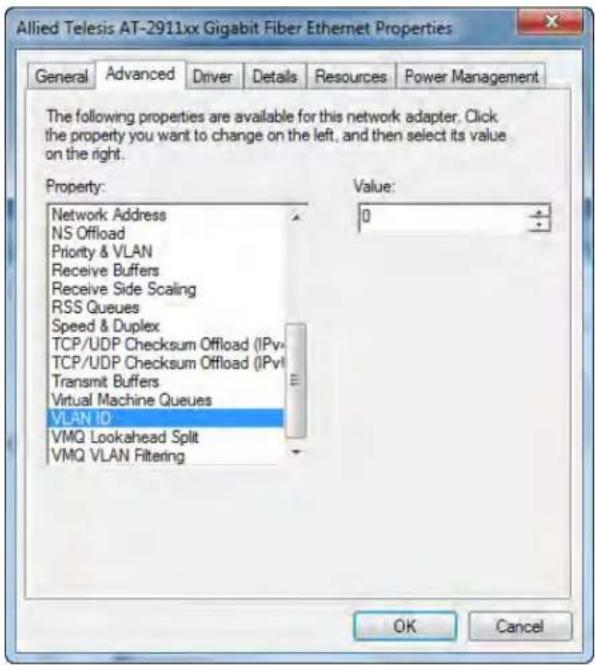
Figure 39. VLAN ID Page
- Specify an VLAN ID in the Value box.
The range of the value is from 0 to 4094. The default value is 0.
- Click OK.
VMQ Lookahead Split
The VMQ Lookahead Split feature allows the adapter to split receive buffers into two separate buffers. This feature applies to host computers with Windows Server 2008 R2 or Windows 7 64 bit operating systems only. To make this feature effective, the host computer must be set in virtual environment.
To enable or diable the VMQ Lookahead Split feature, do the following:
- Access the Advanced Properties.
See "Accessing Advanced Properties" on page 43.
- Select VMQ Lookahead Split in the Property box.
The VMQ Lookahead Split page is displayed as shown in Figure 40.
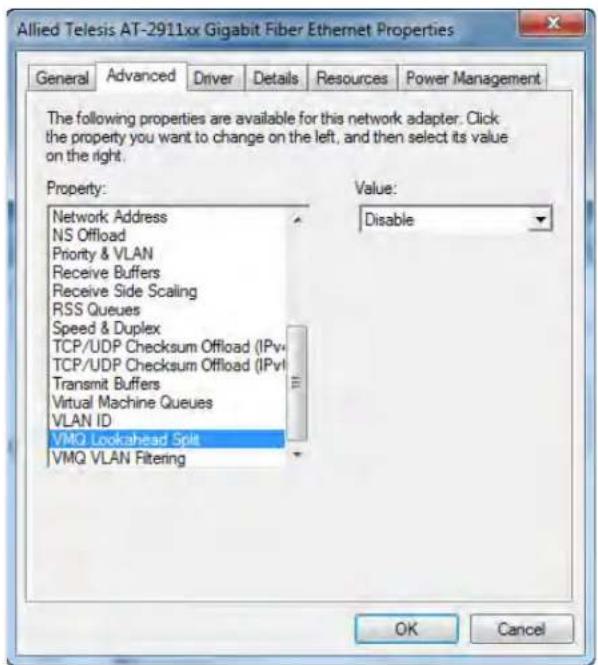
Figure 40. VMQ Lookahead Split Page
- Select one of the following options:
☐ Disable — The feature is disabled. This is the default setting.
□ Enable — The adapter uses two separate lookahead receive buffers.
- Click OK.
VMQ VLAN Filtering
The VMQ VLAN Filtering feature allows the adapter to filter data packets using the VLAN ID in the media access control (MAC) header to improve networking performance and reduce CPU utilization. This feature applies to host computers with Windows Server 2008 R2 or Windows 7 64 bit operating systems only. To make this feature effective, the host computer must be set in virtual environment.
To enable or disable the VMQ VLAN Filtering feature, do the following:
- Access the Advanced Properties.
See "Accessing Advanced Properties" on page 43.
- Select VMQ VLAN Filtering in the Property box.
The VMQ VLAN Filtering page is displayed as shown in Figure 41.
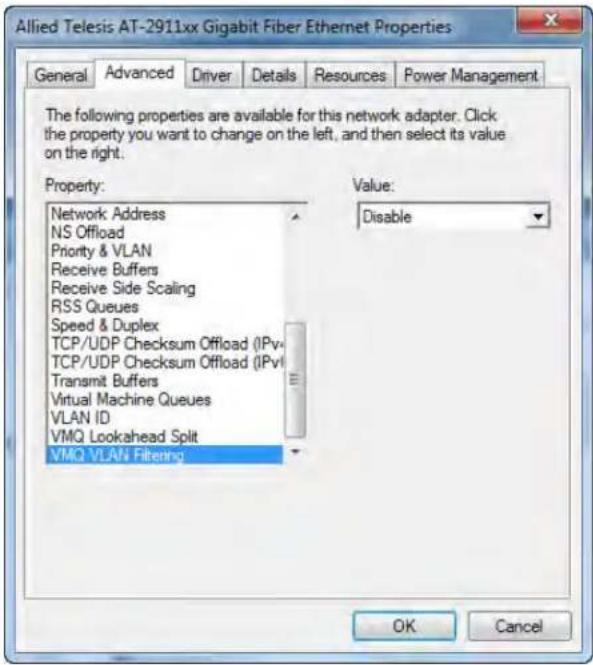
Figure 41. VMQ VLAN Filtering Page
- Select one of the following options:
☐ Disable — The feature is disabled. This is the default setting.
□ Enable — The adapter filters data packets using the VLAN ID in the MAC header.
- Click OK.
Chapter 3: Modifying Advanced Properties
Chapter 4
Installing the Driver Software
This chapter describes how to install driver software for the AT-2911 adapter onto your operating system. It contains the following topics:
☐ "Overview" on page 82
☐ “Downloading the Driver Software” on page 83
☐ “Accessing the Device Manager” on page 85
☐ "Installing the Driver Software" on page 89
☐ "Updating the Driver Software" on page 97
Overview
To install or update the driver software onto the Windows systems, you must follow the steps below:
☐ “Downloading the Driver Software” on page 83
☐ “Accessing the Device Manager” on page 85
☐ "Installing the Driver Software" on page 89
Or
☐ "Updating the Driver Software" on page 97
Guidelines Here are the guidelines for installing and updating the driver software on your operating system:
☐ To install or update the driver software, you must have administrative privileges.
☐ When you install the AT-2911 adapter on your computer and start the system, the Windows system detects a new adapter and may install a default driver. To update the driver software for the AT-2911 adapter, follow the instructions described in “Downloading the Driver Software” on page 83 and “Updating the Driver Software” on page 97.
☐ When you install the AT-2911 adapter on your computer and start the system, the Windows system may install the native Broadcom driver if your computer has an onboard Broadcom network interface. To update the driver for the AT-2911 adapter, follow the instructions described in "Downloading the Driver Software" on page 83 and "Updating the Driver Software" on page 97.
Installing Linux Driver Allied Telesis supports Linux systems for the AT-2911 series adapter. To install driver software, see the Broadcom NetXtreme® 57XX User Guide. To view this document, see "Broadcom Documentation" on page 26.
Downloading the Driver Software
The AT-2911 series adapter is not shipped with a software driver CD. You must download driver software from the Allied Telesis website.
To download driver software, do the following:
- Open a web browser, such as Internet Explorer or Firefox, on your system and enter the following:
http://www.alliedtelesis.com/support/software
-
The Allied Telesis Software Download page is displayed.
-
Enter "2911" in the search box and press the enter key.
Figure 42 shows an example of the search result.
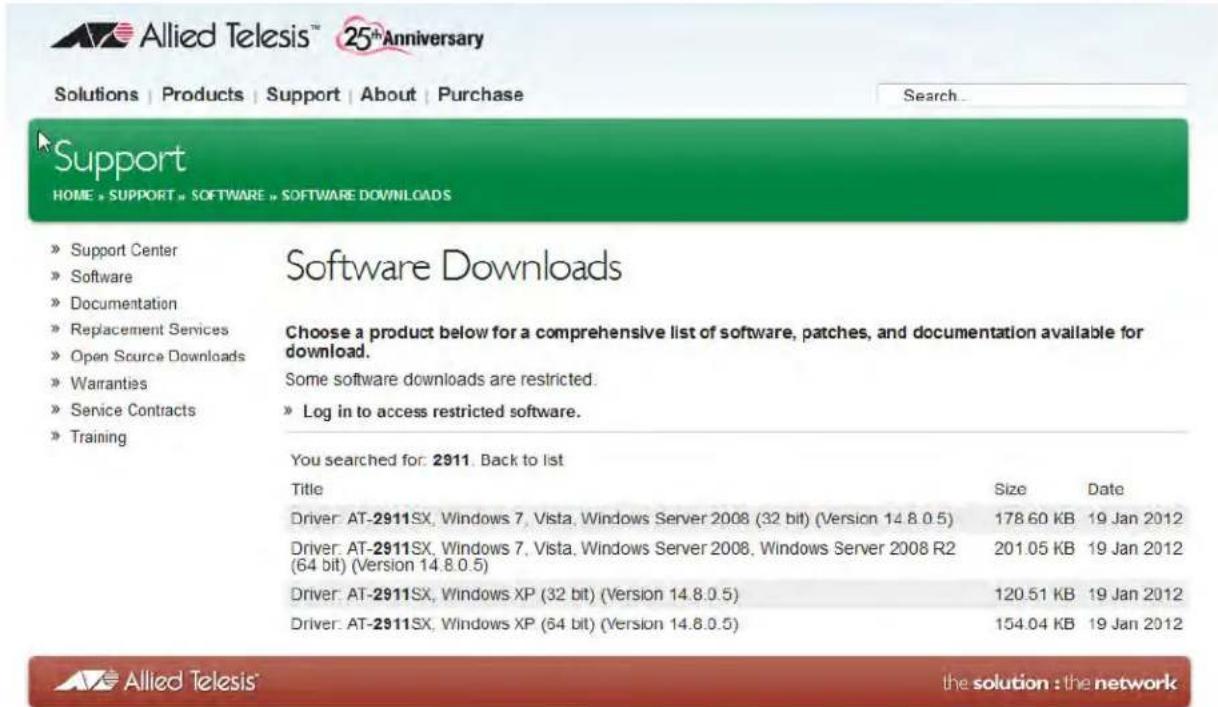
Figure 42. Software Downloads Search Result Example
- Select the driver for your adapter model and operating system.
- Save the zip folder onto your system.
- Right-click the zip folder and select Extract All.
A window as shown in Figure 43 pops up and prompts you to specify the location of a folder that you want to place unzipped files in.
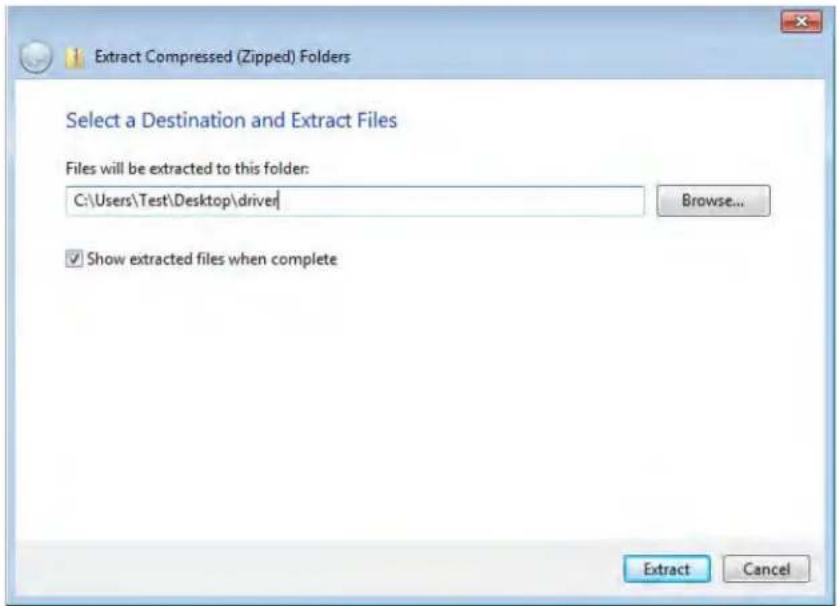
Figure 43. Specifying the Folder for Unzipped Files
- Specify the location of the folder and click Extract.
- Record the location of the folder.
Accessing the Device Manager
When you install or update the driver software for AT-2911 series adapter, you must first access Device Manager.
The procedures for accessing Device Manager are slightly different among Windows Server 2008 R2, Server 2008, Vista, 7, Server 2003, and XP. To access Device Manager on your operating system, follow one of the procedures below:
☐ “Accessing Device Manager on Windows Server 2008 R2, Server 2008, Vista, or 7,” next
☐ "Accessing Device Manager on Windows Server 2003 and XP" on page 86
Accessing Device Manager on Windows Server 2008 R2, Server 2008, Vista, or 7
To access Device Manager on Windows Server 2008 R2, Windows Sever 2008, Windows Vista, or Windows 7, do the following:
- Right-click the Computer icon on the desktop and select Properties. The System window is opened as shown in Figure 44.
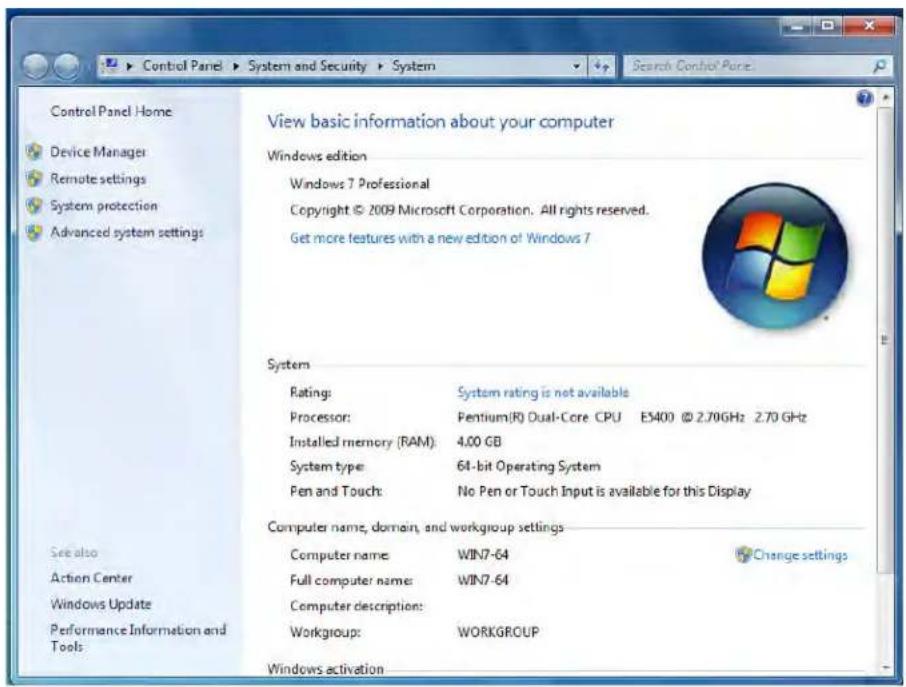
Figure 44. System Window on Windows Server 2008 R2, Server 2008, Vista, and 7
- Click Device Manager on the left side bar.
The Device Manager window opens. Your AT-2911 series adapter is detected as Ethernet Controller as shown in Figure 45.
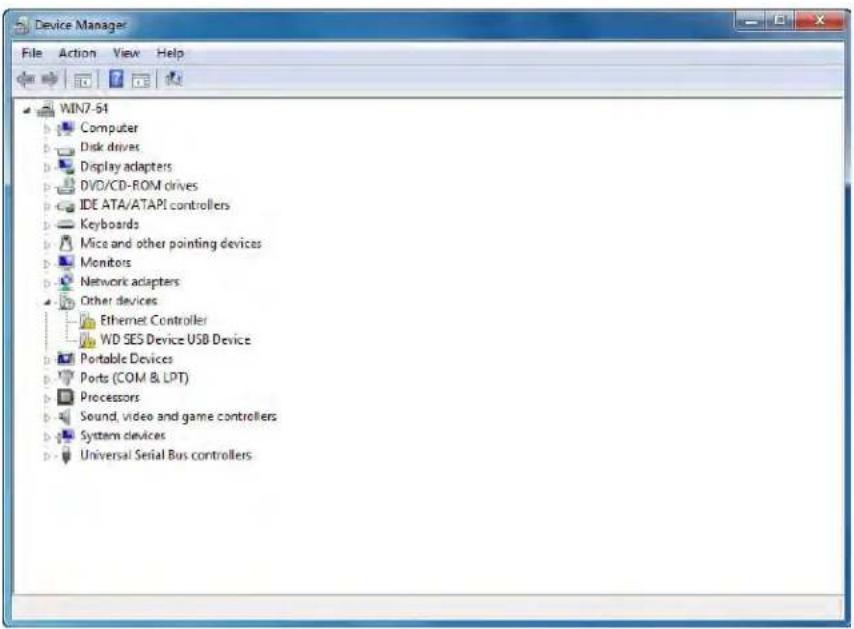
Figure 45. Device Manager Window on Windows Server 2008 R2, Sever 2008, Vista, and 7
Accessing Device Manager on Windows Server 2003 and XP
To access Device Manager on Windows Server 2003 or Windows XP, do the following:
- Right-click the My Computer icon on the desktop and select Properties.
The System Properties window is opened as shown in Figure 46.
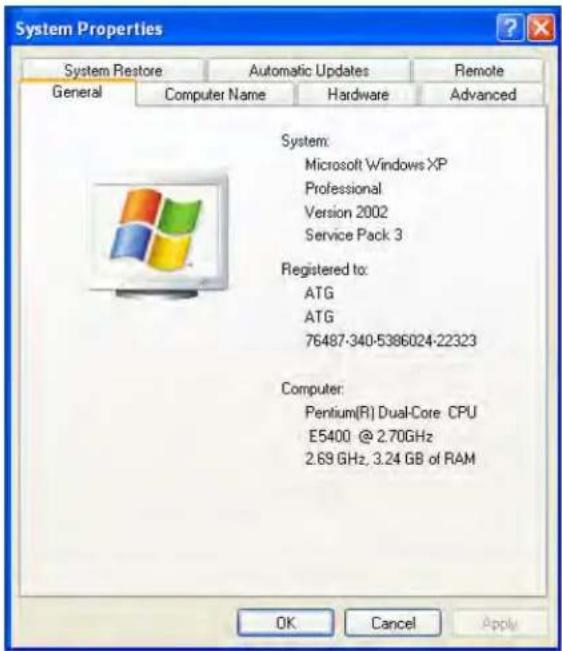
Figure 46. System Properties Window on Windows Server 2003 and XP
2. Select the Hardware Tab.
The Hardware page is shown in Figure 47.
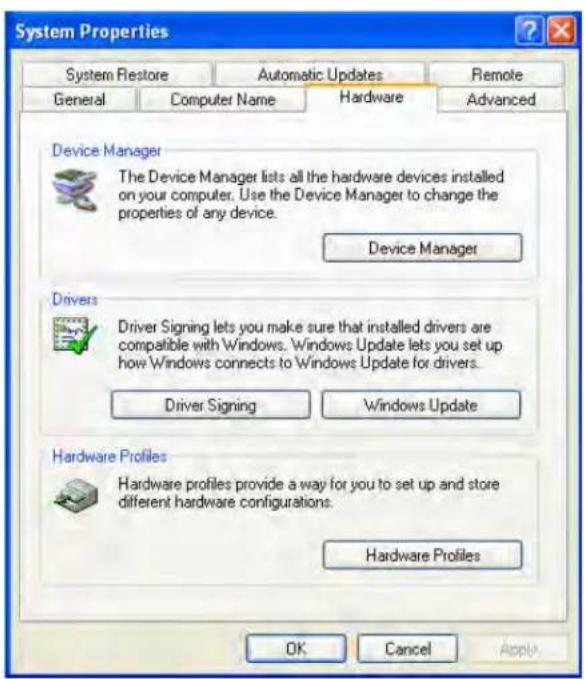
Figure 47. Hardware Page on Windows Server 2003 and XP
3. Click Device Manager.
The Device Manager window opens as shown in Figure 48.
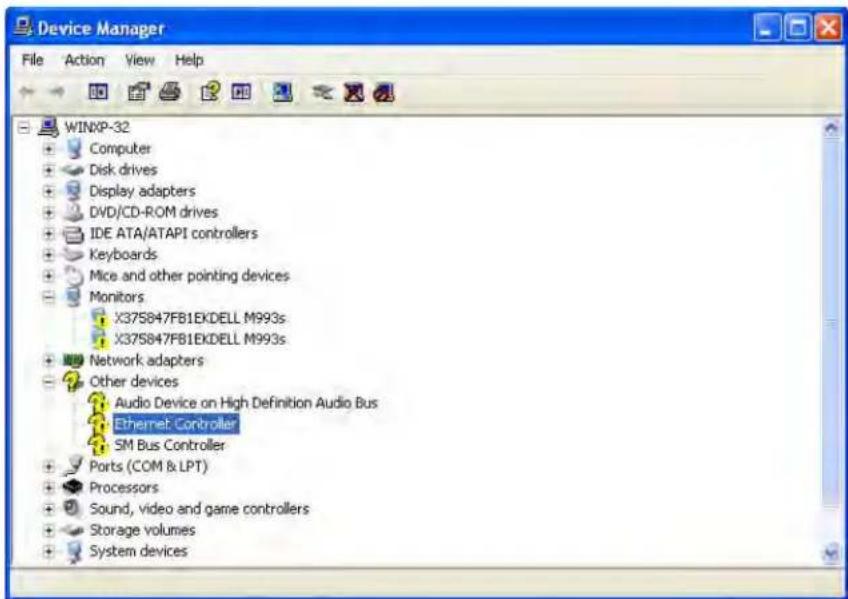
Figure 48. Device Manager Window on Windows Server 2003 and XP
Installing the Driver Software
Once you physically install the AT-2911 series adapter, the system detects the new hardware and creates an entry in Device Manger when the Windows operating system first boots up. Shortly after you log in, you need to install the driver software for your adapter.
Note
To install the driver software, you must have administrative privileges.
The procedures for installing the driver software are slightly different among Windows Server 2008 R2, Server 2008, Vista, 7, Server 2003, and XP. To install the driver software on your system, follow one of the procedures below:
☐ “Installing the Driver Software on Windows Server 2008 R2, Server 2008, Vista, or 7,” next
☐ “Installing the Driver Software on Windows Server 2003 and XP” on page 92
Installing the Driver Software on Windows Server 2008 R2, Server 2008, Vista, or 7
To install the driver software on Windows Server 2008 R2, Windows Server 2008, Windows Vista, or Windows 7, do the following:
- Access Device Manager. see "Accessing Device Manager on Windows Server 2008 R2, Server 2008, Vista, or 7" on page 85.
- In the Device Manager window, right-click Ethernet Controller. The shortcut menu appears as shown in Figure 49.
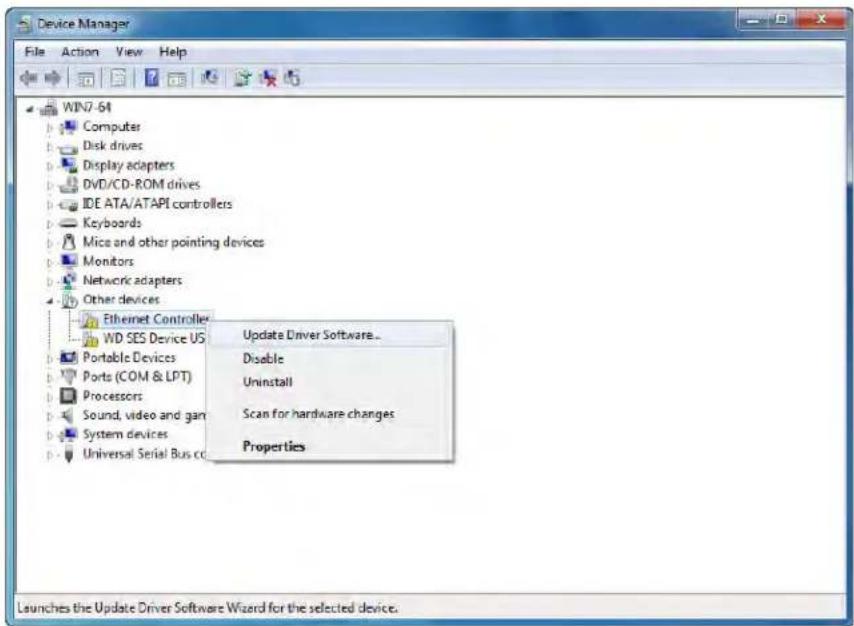
Figure 49. Ethernet Controller on Windows Server 2008 R2, Server 2008, Vista, and 7
3. Select Update Driver Software.
The Update Driver Software window pops up as shown in Figure 50.
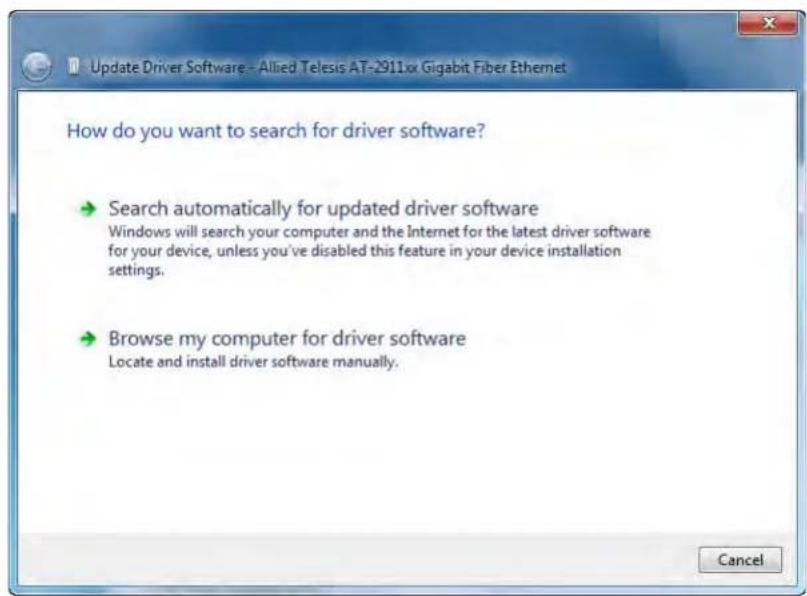
Figure 50. Update Driver Software Window on Windows Server 2008 R2, Server 2008, Vista, and 7
4. Select Browse my computer for driver software.
The Update Device Software window prompts you to enter the location of the driver folder as shown in Figure 51.
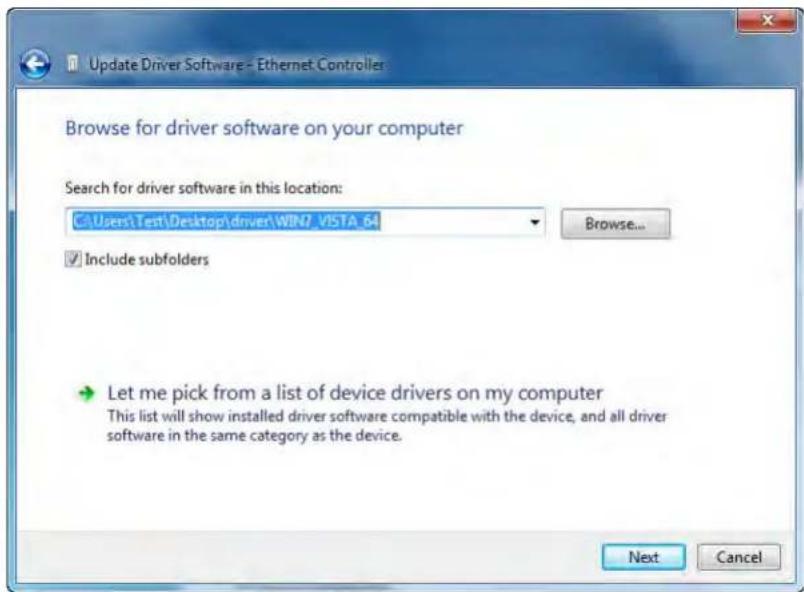
Figure 51. Update Device Software Window on Windows Server 2008 R2, Server 2008, Vista, and 7
-
Specify the location of the driver software. See "Downloading the Driver Software" on page 83 for details.
-
Click Next.
The confirmation message shown in Figure 52 appears when the driver software is successfully updated.
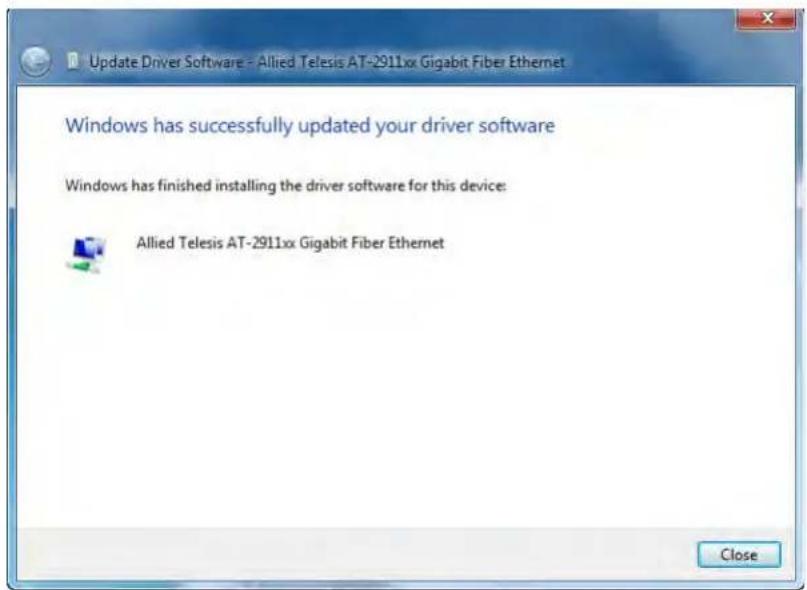
Figure 52. Update Device Software Window on Windows Server 2008 R2, Server 2008, Vista, and 7
- Click Close.
Installing the Driver Software on Windows Server 2003 and XP
To install the driver software onto Windows Server 2003 and Windows XP, do the following:
- Access Device Manger. See "Accessing Device Manager on Windows Server 2003 and XP" on page 86.
- In the Device Manager window, right-click Ethernet Controller. The shortcut menu appears as shown in Figure 53.
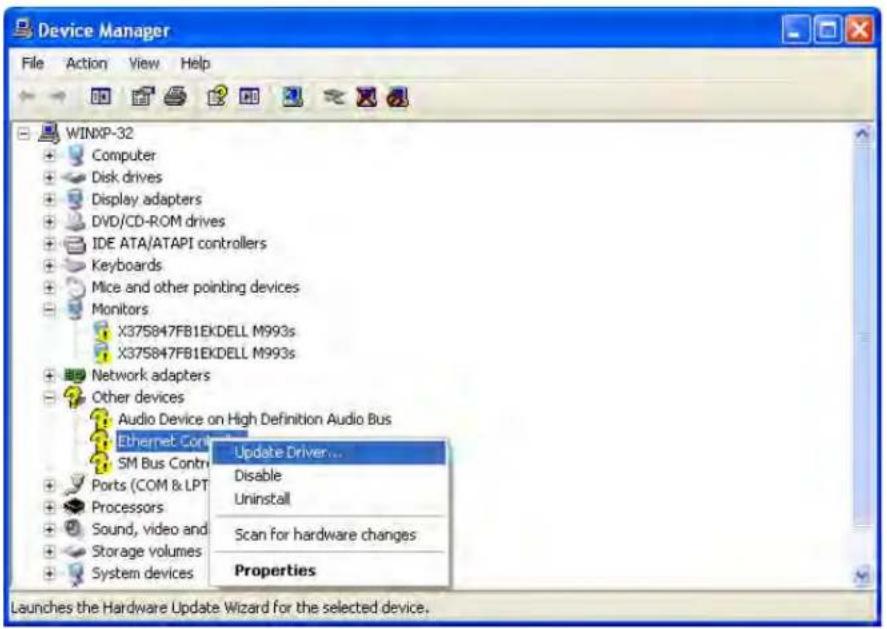
Figure 53. Ethernet Controller on Windows Server 2003 and XP
3. Select Update Driver.
The Hardware Update Wizard window pops up as shown in Figure 54.
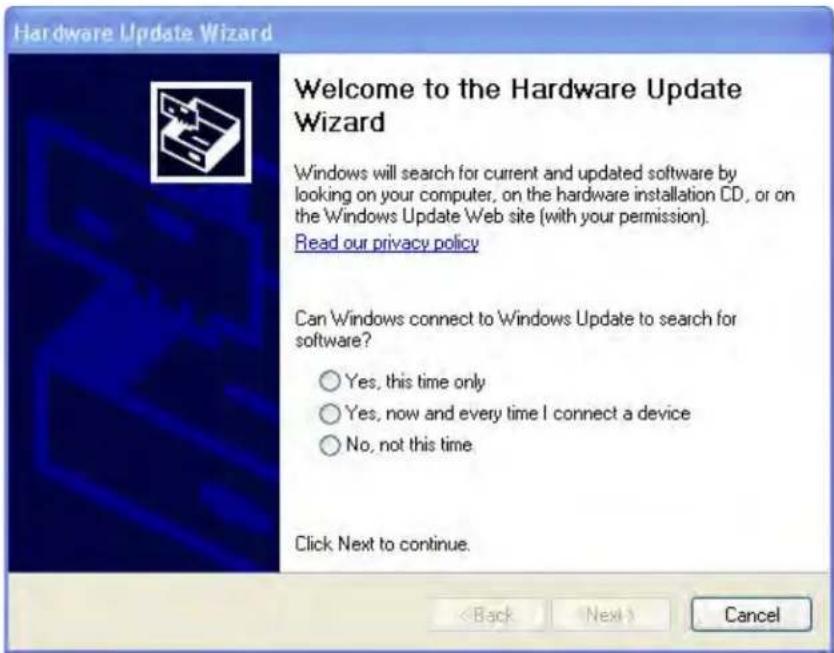
Figure 54. Hardware Update Wizard 1
4. Select No, not this time.
5. Click Next.
The Hardware Update Wizard prompts you to select one of two options as shown in Figure 55
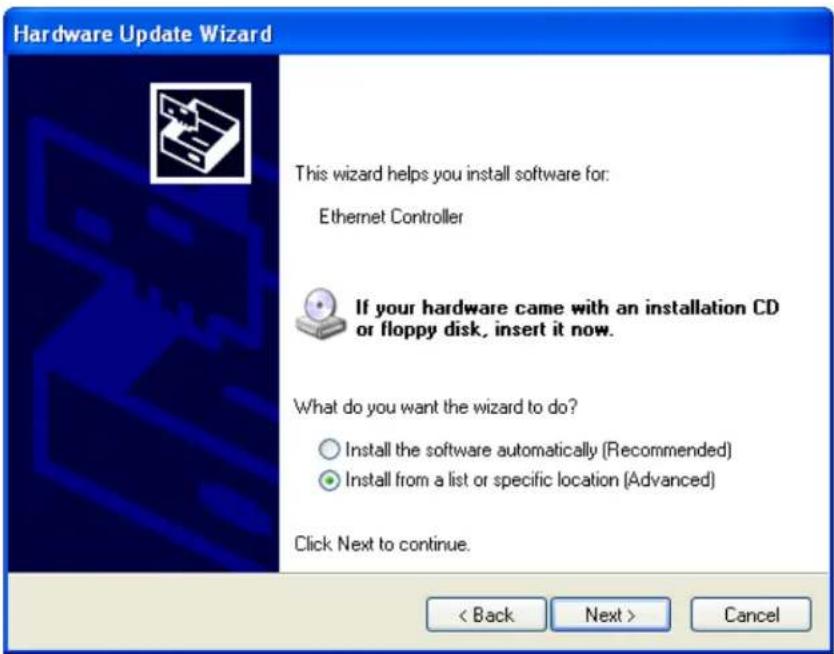
Figure 55. Hardware Update Wizard 2
-
Select Install from a list or specific location (Advanced).
-
Click Next.
The Hardware Update Wizard prompts you to specify the location of your driver software as shown in Figure 56 on page 95.
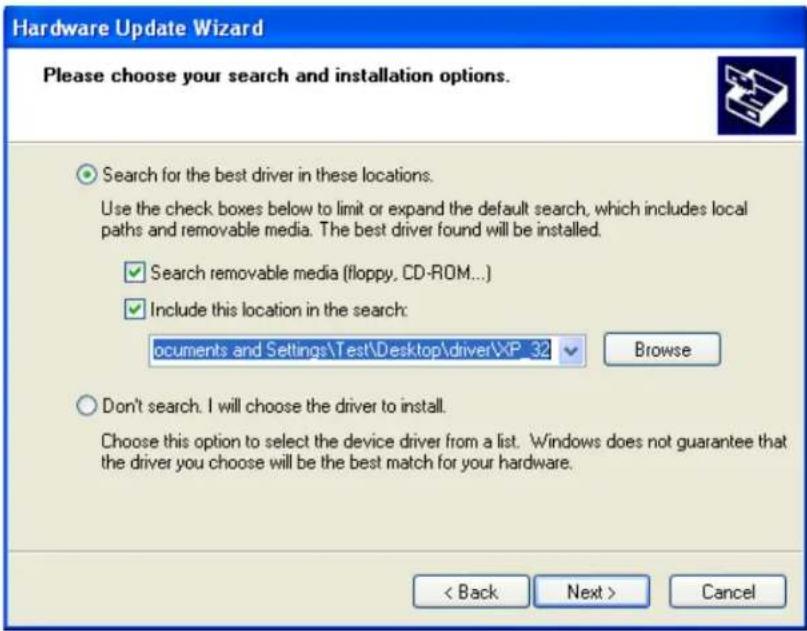
Figure 56. Hardware Update Wizard 3
- Specify the location of the driver software.
- Click Next.
The confirmation message is displayed as shown in Figure 57.
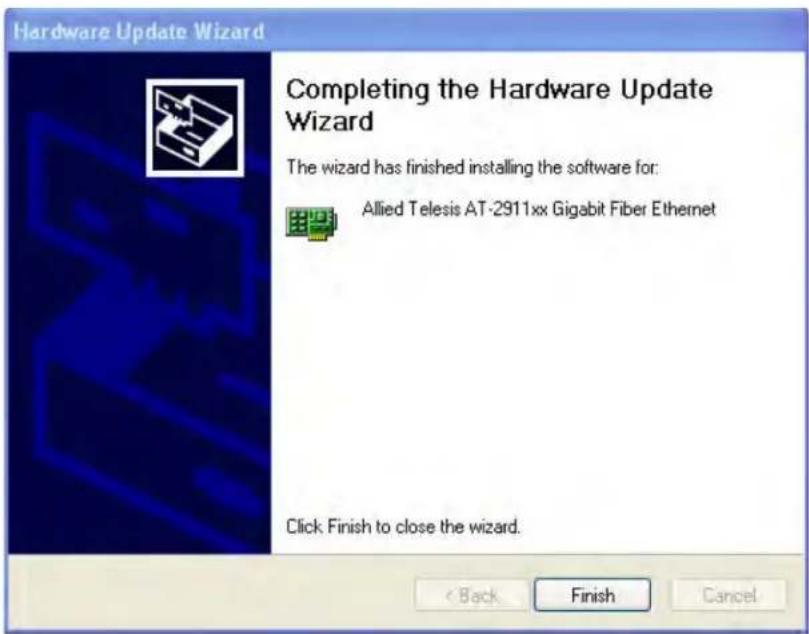
Figure 57. Hardware Update Wizard 4
10. Click Finish.
Updating the Driver Software
If your operating system detects an adapter and installs a default driver, you need to update the driver software with the driver that you downloaded from the Allied Telesis website. To obtain the latest version of the AT-2911 series adapter driver, see “Downloading the Driver Software” on page 83.
To update the driver software, you use the same procedure for installing the driver software for the first time. The only difference between updating and installing the driver software is the name of your adapter that Device Manager detects and lists.
Device Manager lists your adapter as Allied Telesis AT-2911xx Gigabit Ethernet once you installed the driver software. Before you installed the driver software, Device Manager does not know the name and lists your adapter as Ethernet Controller or as a Broadcom device.
The procedures for installing the driver software are slightly different among Windows Server 2008 R2, Server 2008, Vista, 7, Server 2003, and XP. To install the driver software on your system, follow one of the procedures below:
☐ “Updating the Driver on Windows Server 2008 R2, Server 2008, Vista, or 7,” next
☐ “Updating the Driver on Windows Server 2003 and XP” on page 98
Updating the Driver on Windows Server 2008 R2, Server 2008, Vista, or 7
To update the driver software for your AT-2911 series adapter, perform the following procedure:
- Access the Device Manager. See "Accessing Device Manager on Windows Server 2008 R2, Server 2008, Vista, or 7" on page 85.
- In the Device Manager window, right-click the device you wish to update. It may be listed as Allied Telesis AT-2911xx Gigabit Fiber Ethernet or as a Broadcom Device.
The shortcut menu appears as shown in Figure 58.
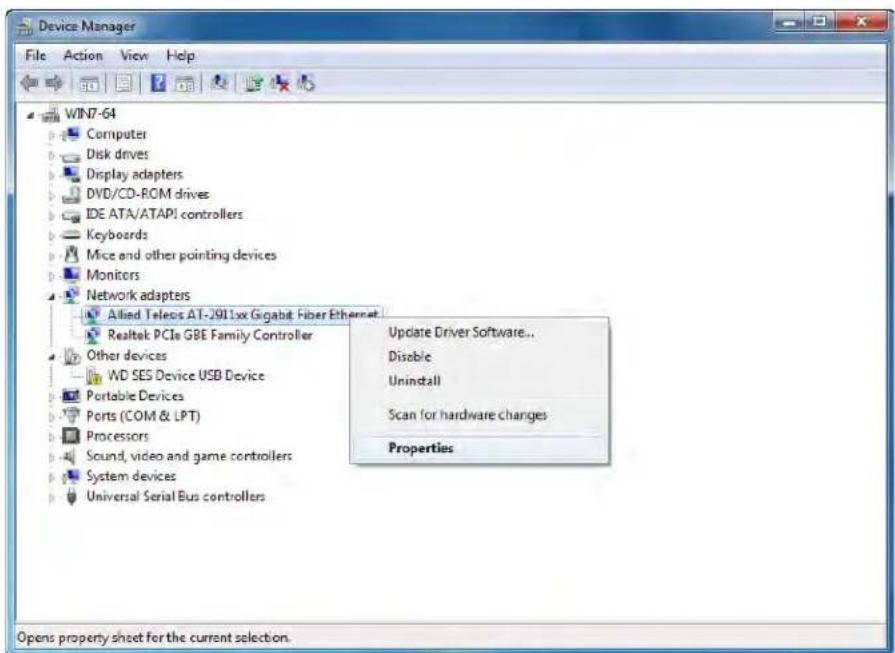
Figure 58. Device Manager with an Expanded List on Windows Server 2008 R2, Server 2008, Vista and 7
3. Select Update Driver Software.
The Update Driver Software window pops up as shown in Figure 50 on page 90.
4. Select Browse my computer for driver software.
The Update Device Software window prompts you to enter the location of the driver folder as shown in Figure 51 on page 91.
-
Specify the location of the driver software.
-
Click Next.
The confirmation message appears when the driver software is successfully updated. See Figure 52 on page 92.
- Click Close.
Updating the Driver on Windows Server 2003 and XP
To install the driver software for the AT-2911 adapter onto the Windows Server 2003 and Windows XP, do the following:
-
Access Device Manager. See "Accessing Device Manager on Windows Server 2003 and XP" on page 86.
-
In the Device Manager window, right-click the device you wish to update. It may be listed as Allied Telesis AT-2911xx Gigabit Fiber Ethernet or as a Broadcom Device.
The shortcut menu appears as shown in Figure 59.
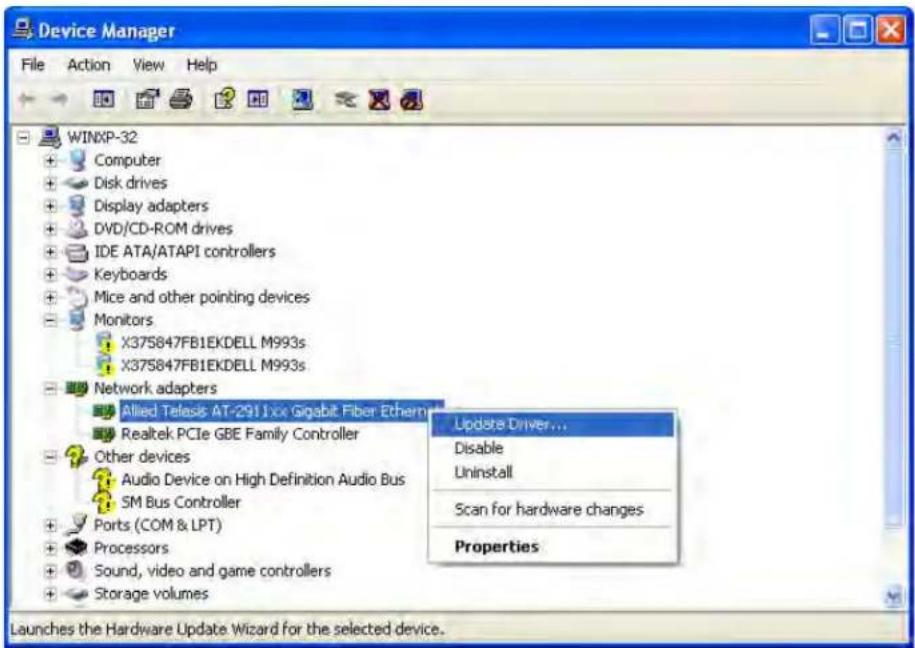
Figure 59. Network Adapters on Windows Server 2003 & XP
- Select Update Driver.
The Hardware Update Wizard window pops up as shown in Figure 54 on page 93.
-
Select No, not this time.
-
Click Next.
The Hardware Update Wizard prompts you to select one of two options as shown in Figure 55 on page 94.
-
Select Install from a list or specific location (Advanced).
-
Click Next.
The Hardware Update Wizard prompts you to specify the location of your driver software as shown in Figure 56 on page 95.
- Specify the location of the driver software that you downloaded from Allied Telesis website.
9. Click Next.
The confirmation message is displayed as shown in Figure 57 on page 95.
10. Click Finish.
Chapter 5
Uninstalling the Driver Software
This chapter describes how to uninstall the driver software for the AT-2911 adapter.
This chapter contains the following topics:
☐ "Overview" on page 102
☐ “Uninstalling the Driver Software” on page 103
Overview
When you no longer use the AT-2911 series adapter for your computer, you may want to uninstall the driver software from your operating system.
Guidelines
Here are the guidelines to uninstalling the driver software from your system:
☐ You must have Administrator privileges to remove the driver software.
Before uninstalling the Allied Telesis device, capture all of the Advanced Property settings for later use. The properties are lost during the uninstall process.
Uninstalling the Driver Software
To uninstall the driver software from your operating system, do the following:
-
Start your Windows operating system and log in.
-
Access the Device Manager.
See "Accessing the Device Manager" on page 85.
- In the Device Manager window, click the ▷ next to the Network Adapters folder.
Note
For the Windows XP operating systems, click the + next to the Network Adapters folder to expand the Network Adapter folder.
The selection expands to show the list of installed network adapter cards.
- Right-click Allied Telesis AT-2911xx Gigabit Fiber Ethernet.
The shortcut menu appears. See Figure 58 on page 98.
- Select Uninstall.
The Confirm Device Uninstall window pops up as shown in Figure 60.
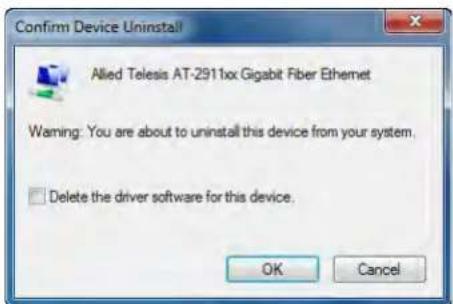
Figure 60. Confirm Device Uninstall Window
- Check the check box if you want to remove the driver software for your adapter.
Note
This option is available only for Windows Server 2008, Windows 7, and Windows Vista operating systems.
- Click OK to complete the uninstall.
Chapter 6
Troubleshooting
This chapter describes troubleshooting procedures and contains the following sections:
☐ “Troubleshooting Checklist” on page 106
☐ “Checking a Port LED on the Adapter” on page 107
☐ “Testing Network Connectivity” on page 108
☐ “Software Problems and Solutions” on page 109
Troubleshooting Checklist
The following checklist provides recommended actions to resolve problems installing the Allied Telesis AT-2911 Series Gigabit Ethernet Network Adapters or running them in your system.
Note
Before opening the cabinet of your system for removing or inserting the adapter, review all precautions outlined under “Reviewing Safety Precautions” on page 30.
☐ Inspect all cables and connections. Verify that the cable connections between the adapter and the switch are attached properly. Make sure that the cable length and rating are compliant with the requirements listed in “Connecting the Network Cables” on page 39.
☐ Check the adapter installation by reviewing Chapter 2, “Installing the Hardware” on page 29.
☐ Make sure that the adapter board is properly seated in a PCIe slot. Check for specific hardware problems, such as obvious damage to board components or the PCIe edge connector.
☐ Check the configuration settings and change them if they are in conflict with another device.
☐ Make sure that your system is using the latest BIOS.
☐ Try inserting the adapter in another slot. If the new position works, the original slot in your system may be defective.
☐ Replace the adapter that is not working with one that is known to work properly. If the second adapter works in the slot where the first one failed, the original adapter is probably defective.
☐ Install the adapter in another functioning system and run the tests again. If the adapter passed the tests in the new system, the original system may be defective.
☐ Remove all other adapters from the system and run the tests again. If the adapter passes the tests, the other adapters may be causing contention.
Checking a Port LED on the Adapter
Each port has an LED that indicates the link status. The LED functions once the driver is installed and the cables are connected properly. The LED is lit solid if data traffic is present.
Before the port LED can provide troubleshooting information, the adapter must be connected to the network and the network driver for your particular operating system must be installed.
Before troubleshooting, verify the following:
☐ The adapter driver software has been installed.
☐ The adapter is connected to a network.
☐ The LED operates properly.
To check the LED status, see Table 1 on page 21.
Testing Network Connectivity
To test network connectivity for Windows, perform the following procedure:
Note
When using forced link speeds, make sure that both the adapter and the switch, or link partner are forced to the same speed. Or, make sure the adapter and the link partner are configured for Auto-Negotiation.
- Start the DOS prompt.
See."Starting the DOS Diagnostic Utility" on page 105.
-
At the prompt, type ipconfig /all
-
Type ping
from the command line, then press Enter.
The network connectivity information is displayed, as shown in Figure 61.
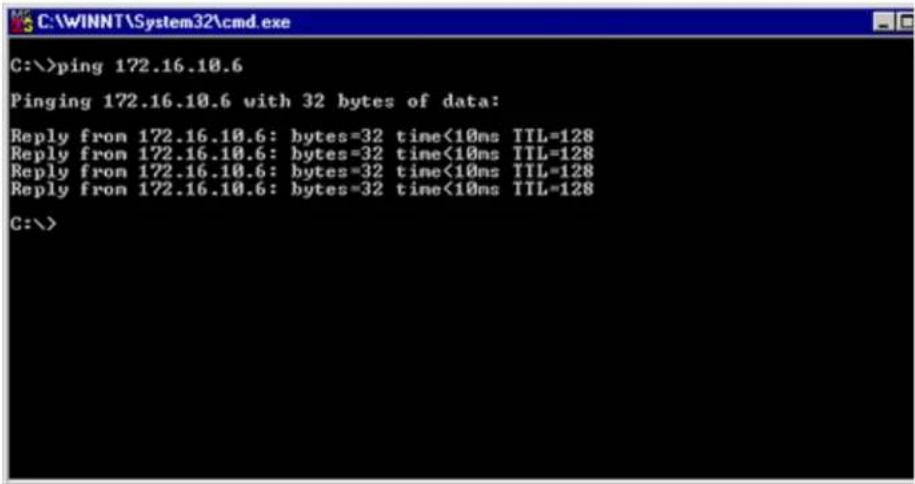
Figure 61. Command Window with ping displayed
Software Problems and Solutions
Microsoft Remote Installation Service (RIS) Instructions
Problem: Microsoft Remote Installation Service (RIS) installation fails for Windows XP.
Solution: Refer to Microsoft Article Q246184, "How to Add Third-Party OEM Network Adapters to RIS Installations."
Windows XP Image
To deploy a Windows XP Image, follow the steps in the Microsoft Article Q246184 at http://support.microsoft.com/default.aspx?scid=kb%3ben-us%3b246184.
Windows Server 2003
This section lists known problems and solutions for Windows Server 2003.
Problem: IP address is configurable on a member of the team.
Solution: When a team is created, the TCP/IP properties for the adapters are unselected. Then you can select and configure TCP/IP properties of the adapters and configure an IP address manually.
Problem: When creating 64 VLANs, all virtual adapters show disconnected or one of the 64 VLANs shows disabled.
Solution: The maximum VLAN configurations are 63 tagged and one untagged VLAN ID 0. If 64 tagged VLANs are created, they are disconnected. A reboot is required and only 63 tagged VLANs show links, while a 64th is disabled.
Miscellaneous
The following are known miscellaneous problems and solutions:
Problem: When the bus on the system is operating at PCIe mode, the adapter performs at PCIe mode if it is added by the Hot Plug application.
Solution: When the system is booted up without an adapter, the bus operates at the lowest mode which is PCIe. This problem can be corrected by rebooting the system.
Problem: The adapter may not perform at optimal level when it is added by the Hot Plug application on some systems.
Solution: The system BIOS, in some systems, does not set the cache line size and the latency timer, after the adapter is added by the Hot Plug application. This problem can be corrected by rebooting the system.
Chapter 6: Troubleshooting
This appendix contains the following specifications:
☐ “Physical and Power Specifications” on page 112
☐ “Environmental Specifications” on page 113
☐ "Power Specifications" on page 114
☐ “Performance Specification” on page 115
☐ "Optical Specifications" on page 116
Physical and Power Specifications
Table 4 provides the dimensions and weight specifications of the AT-2911 series adapters:
Table 4. Physical Specifications
| Model | Length Height | Weight | |||||
| (cm) (inch) (cm) (inch) (g) (oz) | |||||||
| AT-2911SX/ST 8.8 3.5 6.9 2.7 56.7 | 2.0 | ||||||
| AT-2911SX/SC | 8.8 3.5 6.9 2.7 | 56.7 | 2.0 | ||||
| AT-2911SX/LC 8.8 3.5 6.9 2.7 56.7 | 2.0 | ||||||
| AT-2911LX/SC 8.8 3.5 6.9 2.7 56.7 | 2.0 | ||||||
| AT-2911LX/LC | 8.8 3.5 6.9 2.7 | 56.7 | 2.0 | ||||
| AT-2911SFP 8.9 3.5 6.9 2.7 45.4 1.6 | |||||||
| AT-2911STX/SC | 8.8 3.5 6.9 2.7 | 59.5 | 2.1 | ||||
| AT-2911STX/LC | 8.8 3.5 6.9 2.7 | 59.5 | 2.1 | ||||
| AT-2911LTX/SC | 8.8 3.5 6.9 2.7 | 59.5 | 2.1 | ||||
| AT-2911LTX/LC | 8.8 3.5 6.9 2.7 | 59.5 | 2.1 | ||||
| AT-2911SX/2LC | 8.3 | 3.3 6.9 2.7 65.2 2.3 | |||||
| AT-2911LX/2LC | 8.3 | 3.3 6.9 2.7 65.2 2.3 | |||||
| AT-2911SFP/2 | 8.4 3.3 6.9 2.7 | 48.2 | 1.7 | ||||
| AT-2911T/2 | 7.6 3.0 6.9 2.7 | 48.2 | 1.7 | ||||
Environmental Specifications
The following environmental specifications apply to the AT-2911 adapter:
Table 5. Environmental Specifications
| Operating Temperature | 0°C to 45°C (+32°F to +113°F) |
| Storage Temperature | -20°C to +70°C (-4°F to +158°F) |
| Operating Humidity | 5% to 90% (non-condensing) |
| Storage Humidity | 5% to 95% (non-condensing) |
| Operating Altitude Range | 3048 m (10,000 ft.) |
The following power specifications apply to the AT-2911 adapter:
Table 6. Power Specifications
| Model Power | (Watts) |
| AT-2911SX/ST 1.5 @ +3.3V | |
| AT-2911SX/SC 1.5 @ +3.3V | |
| AT-2911SX/LC 1.5 @ +3.3V | |
| AT-2911LX/SC 1.5 @ +3.3V | |
| AT-2911LX/LC 1.5 @ +3.3V | |
| AT-2911SFP 1.5 @ +3.3V | |
| AT-2911STX/SC 1.7 @ +3.3V | |
| AT-2911STX/LC 1.7 @ +3.3V | |
| AT-2911LTX/SC 1.7 @ +3.3V | |
| AT-2911LTX/LC 1.7 @ +3.3V | |
| AT-2911SX/2LC 2.4 @ +3.3V | |
| AT-2911LX/2LC 2.4 @ +3.3V | |
| AT-2911SFP/2 2.4 @ +3.3V | |
| AT-2911T/2 1.4 @ +3.3V | |
Performance Specification
The following MTBF (Mean Time Between Failure) specifications apply to all of the AT-29xx Series adapters:
Table 7. MTBF Specifications
| Model MTBF@30C | |
| AT-2911SX/ST 860,000 | |
| AT-2911SX/SC 1,960,000 | |
| AT-2911SX/LC 1,550,000 | |
| AT-2911LX/SC 810,000 | |
| AT-2911LX/LC 1,130,000 | |
| AT-2911SFP 7,720,000 | |
| AT-2911STX/SC 530,000 | |
| AT-2911STX/LC 1,130,000 | |
| AT-2911LTX/SC 950,000 | |
| AT-2911LTX/LC 750,000 | |
| AT-2911SX/2LC 630,000 | |
| AT-2911LX/2LC 400,000 | |
| AT-2911SFP/2 6,910,000 | |
| AT-2911T/2 3,430,000 |
Optical Specifications
The following optical specifications apply to the AT-2911 series adapters:
Table 8. Optical Specifications
| Optical Sensitivity | Output Optical Power | Wavelength | |
| 1000SX/ST Connector -1 | 7 dBm -9.5/-4 | dBm 850 nm | |
| 1000SX/SC Connector -1 | 7 dBm -9.5/-4 | dBm 850 nm | |
| 1000SX/LC Connector -1 | 7 dBm -9.5/-1 | 5 dBm 850 nm | |
| 1000LX/SC Connector -2 | 0 dBm -9.5/-3 | dBm 1310 nm | |
| 1000LX/LC Connector -2 | 0 dBm -9.5/-3 | dBm 1310 nm |
This appendix explains how to clean fiber optic connectors and includes the following topics:
☐ “Overview” on page 118
☐ "Cleaning Fiber Optic Connectors Using a Cartridge-Type Cleaner" on page 119
☐ “Cleaning Fiber Optic Connector Using a Swab” on page 121
Overview
The fiber optic connector consists of a fiber optic plug and its adapter. The end of the fiber optic cable is held in the core of the ferrule in the plug. Light signals are transmitted through the core of the fiber. Even minor smudges or dirt on the end face of the fiber, completely invisible to the naked eye, can disrupt light transmission and lead to failure of the component or of the entire system. Therefore, it is of utmost importance to clean all fiber optic connectors before use.
Figure 62 shows the ferrule in an SC connector.
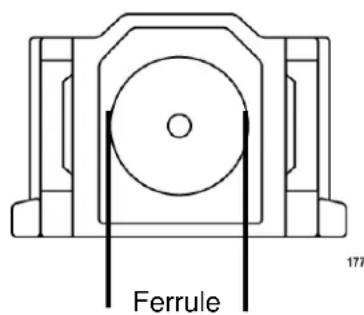
Figure 62. Ferrule in an SC Connector Plug
Figure 63 shows part of the end face of an unclean and clean ferrule.
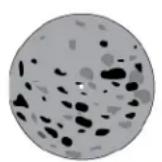
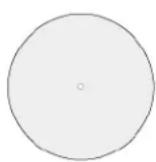
156
Figure 63. Unclean and Clean Ferrule
Cleaning Fiber Optic Connectors Using a Cartridge-Type Cleaner
Fiber optic cartridge-type cleaners are available from many vendors and typically called "cartridge cleaners." See Figure 64.
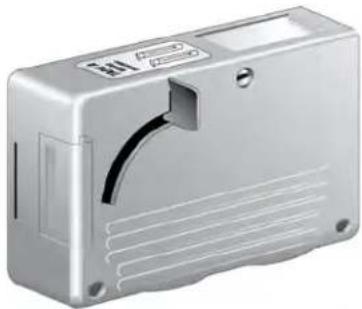
natural_image
Exterior view of a silver plastic electronic device casing (no visible text or symbols)Figure 64. Cartridge Cleaner
Note
Do not use compressed air or aerosol air to clean a fiber optic connector.
To clean a fiber optic connector using a cartridge cleaner, do the following:
-
With one hand, hold the cartridge cleaner and push the lever on the cleaning cartridge in the direction of the arrow to expose the cleaning surface.
-
Place the ferrule tip on the exposed cleaning surface and rub the ferrule in a downward direction, as shown in Figure 65.
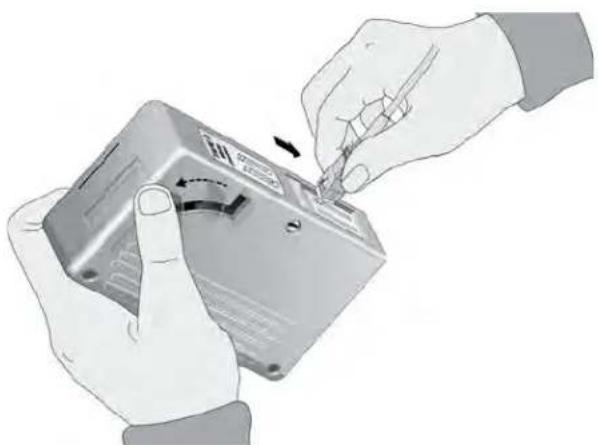
natural_image
Illustration of hands installing or adjusting a device component with a tool (no text or symbols visible)Figure 65. Rubbing the Ferrule Tip on the Cleaning Surface
Note
Rub the ferrule tip on the cleaning surface in one direction only.
- When you reach the end of the cleaning surface, pick up the ferrule tip, rotate and place it at the top and rub downwards at least 2 times.

Caution
Failing to pick up the ferrule tip when you reach the bottom of the cleaning surface can result in static electricity that can damage the fiber optic cable. E82
-
If desired, repeat steps 3 and 4.
-
If a fiber inspection scope is available, use the scope to inspect the ferrule end face to make sure that it is clean.
-
Reconnect the cable to the port or protect the ferrule tip with a dust cap.
Note
Always keep a dust cap on a fiber optic cable when it is not in use.
Note
Do not touch the end face of the ferrule in the connector.

Warning
Do not stare into the laser beam. ∞ L2

Warning
Do not look directly at the fiber optic cable ends or inspect the cable ends with an optical lens. L6
Cleaning Fiber Optic Connector Using a Swab
Specially treated swabs (stick cleaners) are available for cleaning inside connector adapters or hard-to-reach ferrule tips. These swabs, often referred to as "lint free" or "alcohol free" swabs, are available from many vendors. Stick cleaners are available in both 2.5 mm and 1.25 mm sizes for use on SC and MU connectors respectively. See Figure 66.
Note
NEVER use a household cotton swab and/or alcohol to clean a fiber optic connector. This may leave a residue on the ferrule tip.
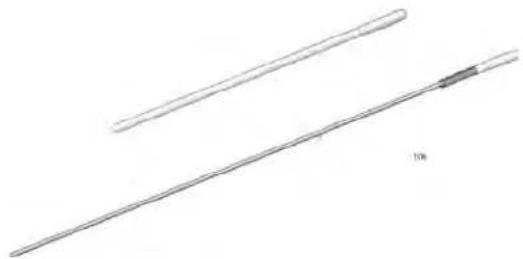
natural_image
Two elongated, thin, cylindrical objects with a central rectangular feature and label '106' (no text or symbols on the objects themselves)Figure 66. Lint-Free and Alcohol-Free Swabs
Note
Do not use compressed air or aerosol air to clean a fiber optic connector.
To clean a recessed ferrule using a swab, do the following.
- Insert the swab into the adapter as shown in Figure 65 and rub the ferrule tip with the swab.
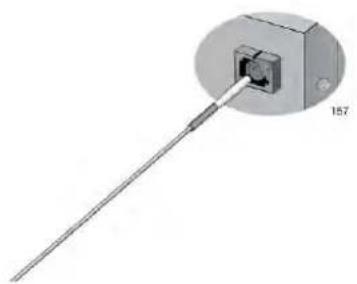
natural_image
Diagram of a mechanical component with a pin inserted into a housing, labeled '157' (no text or symbols on the diagram itself)Figure 67. Cleaning a Recessed Ferrule
-
If needed, repeat step 1.
-
If a fiber inspection scope is available, use the scope to inspect the connector to make sure that it is clean and to check for scratches, pits, or other problems that may affect performance.
Note
Always keep a dust cap on a fiber optic cable when it is not in use.

Warning
Do not stare into the laser beam. L2

Warning
Do not look directly at the cable ends or inspect the cable ends with an optical lens. L6