Comfort Type K64333 - Keyboard KENSINGTON - Free user manual and instructions
Find the device manual for free Comfort Type K64333 KENSINGTON in PDF.


User questions about Comfort Type K64333 KENSINGTON
0 question about this device. Answer the ones you know or ask your own.
Ask a new question about this device
Download the instructions for your Keyboard in PDF format for free! Find your manual Comfort Type K64333 - KENSINGTON and take your electronic device back in hand. On this page are published all the documents necessary for the use of your device. Comfort Type K64333 by KENSINGTON.
USER MANUAL Comfort Type K64333 KENSINGTON
Keyboard_ComfortTypeMulti
1/27/2005 9:35 AM
Page 1
Kensington.
READ FIRST!
Comfort Type Multimedia USB/PS2 Keyboard User Manual
Congratulations!
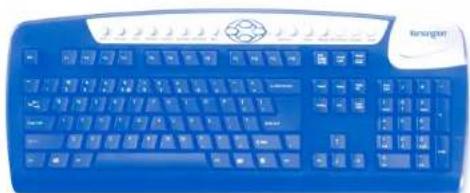
Your new Kensington Comfort Type Multimedia USB/PS2 Keyboard offers you increased comfort and immediate productivity. By encouraging a more relaxed, natural, wrist position, the Comfort Type key structure will provide you with hours of comfort while the light-touch keys make typing a breeze! Please read this short manual to learn valuable information about the proper use and installation of your new Comfort Type USB/PS2 Keyboard. Register your new keyboard on line at www.kensington.com.
natural_image
Blue computer keyboard with standard keys and a logo on the left (no visible text or symbols on the keys)Important: Computer User Health Information
In recent years, medical attention on occupational injuries has identified normal, seemingly harmless activities as a potential cause of a wide range of problems collectively known as Repetitive Stress Injuries (RSI) or Cumulative Trauma Disorders (CTD). It is now recognized that any repetitive motion may contribute to these health problems. As a computer user, you might also be at risk.
By paying attention to the way you perform your work, use your computer and phone, play sports, and work around the house, you can identify the behaviors that may be putting you at risk. If you experience pain, swelling, numbness, or weakness in your wrists or hands (especially during sleep), see your physician immediately. These symptoms could mean that you are developing a repetitive stress injury that requires prompt medical attention. For more detailed information, consult your doctor or a reputable book.
Using your Kensington Comfort Type Multimedia USB/PS2 Keyboard
Many factors go into creating a comfortable workspace, including proper placement and adjustment of furniture and equipment, lighting, and other environmental considerations.
- Computing is more comfortable and your body is more relaxed with the keyboard placed directly in front of you.
-
Adjust the keyboard and chair height so your elbows are near your body, your forearms are parallel to the floor, and your upper arms hang naturally at your sides.
-
Adjust the keyboard slope so that your wrists are in a natural, straight position while typing.
- Try typing with your hands and wrists floating above the keyboard. Avoid pressing your wrists against surfaces while you are typing.
- Keep your fingers relaxed. Do not strike the keys with excessive force.
- Do not overextend fingers or bend your wrists unnaturally to hit hard-to-reach keys. Instead, move your whole arm.
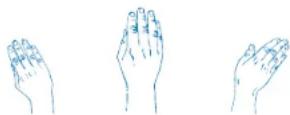
DON'T DO DON'T
Your hands and wrists should be in a neutral position. Your wrist should not bend too much to one side or the other.

DON'T DO DON'T
You may be more comfortable typing with your wrists floating slightly above the keyboard.
For more information on good computing habits, please visit Healthy Computing™.com at www.healthycomputing.com.
Connecting your Kensington Comfort Type Multimedia USB/PS2 Keyboard
| To connect to a keyboard port | Do this: |
| USB Turn off your computer. | |
| Plug the receiver cable into the computer's USB keyboard port. Reboot your computer. | |
| PS2 Turn off your keyboard port | Plug the receiver cable into the computer's PS2 keyboard port. Reboot your computer. |
| CAUTION: Never force a cable into a port. If you are having trouble, verify that the PS2 connector is aligned with the PS2 port. | |
Installing the Keyboard software-Kensington Keyboard Driver
Depending upon the operating system that your computer uses, you may need to install the software driver for the multimedia keys to function. The driver is in the installation CD that came packaged with your keyboard.
- Insert the installation CD into your CD-ROM drive.
- Click the Start button and then click Run
-
In the Run dialog window, type A:\setup, where "A" is the letter of your floppy disk drive.
-
Follow the set up wizard instructions on screen.
- Restart the computer when prompted.
Using the Kensington Keyboard Driver Software
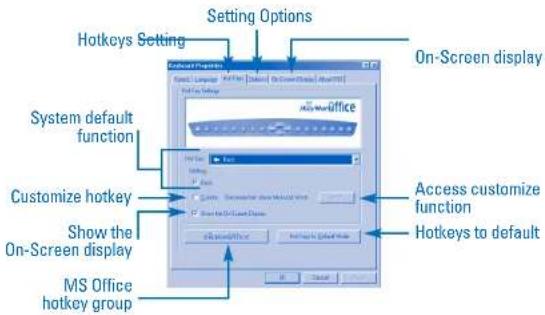
To launch the Kensington Keyboard Driver software, double-click the Kensington Keyboard Driver icon on the Windows Taskbar.
The Kensington Keyboard Driver software brings you closer to your desktop, allowing you to set up and organize your keyboard, as you like.
text_image
Hotkeys Setting Setting Options Hotkey Settings On-Screen display System default function Customize hotkey Show the On-Screen display MS Office hotkey group Access customize function Hotkeys to defaultUsing the 19 Hotkeys
There are 19 programmable Hotkeys. Each hotkey has a default function and a special function dedicated to Microsoft Office programs. In order to switch from the default functions to the Microsoft office function simply click on the "Hot keys to Office Button" under the "Hot Keys" tab of the Keyboard properties Menu.
| Hot Keys Default Functions Microsoft Office program functions | ||
| Back | Back to previous page | - Font Size: Decrease font size in Microsoft Word. |
| Forward | Forward to next page | + Font Size: Font size in Microsoft Word. |
| Stop | Stop download the page | New Office Document. |
| Refresh | Refresh the page | Open Office Document |
| Search | Web search | Address Book |
| Favorites | My favorite | Winzip |
| Web/Home | My Home key:Accesses your home web page. | Microsoft Word |
| E-mail key:Launches an e-mail application. | Open default Email Software.[ex: Outlook Express] | |
| Previous | Previous Track Key:Plays the previous track. | Previous Document |
| Stop | Stop key: Stops play. | Internet Browser |
| Next | Next Track key:Plays the next track. | Next Document |
| Play | Play/Pause key:Plays or pauses the CD/DVD. | Microsoft Excel |
| Hot Keys Default | Functions Microsoft Office program functions | |
| Volume - Volume | Down key: Zoom Out Decreases the sound volume. | |
| Volume + Volume | Up key: Zoom In Increases the sound volume. | |
| Mute Mute key: | Open Microsoft Outlook Stop/Start the sound volume. | |
| Media Open Micro | Microsoft Media player Open Microsoft | PowerPoint |
| My Computer Open | Open My Computer folder Open My Document folder | |
| Calculator Calculator | Office Tools Display online calculator | |
| Sleep | Suspend key: Access the Windows Shut Down dialog box, where you can put your system on stand-by or shut down Windows. | Microsoft Publisher |
Note* It is also possible to customize any of the hotkeys using the "Keyboard Properties" control panel
Cleaning your Kensington Comfort Type Multimedia USB/PS2 Keyboard
Depending on how you work and the environment in which you work, every keyboard needs to be cleaned periodically.
To clean the keyboard:
- Turn off your computer and unplug the keyboard from the computer.
- Use the Kensington Dust Guardian Keyboard Brush to whisk away crumbs and dirt or use the Kensington Dust Blaster ^® compressed air to blow away dirt and dust between the keys and in crevices.
- Wipe tops of keys and the surface of the keyboard with Kensington Surface Guardian® Cleaning Swabs, Surface Guardian Cleaning Wipes, or a damp cloth.
CAUTION: Never spray liquid cleaner directly on the keyboard.
-
Reconnect the keyboard.
-
Turn on your computer.
Your Kensington Comfort Type Multimedia USB/PS2 Keyboard requires no other maintenance.
Technical Support
In North America, technical support is available to all registered users of Kensington products. There is no charge for technical support except long distance charges where applicable. Technical Support Contact information can be found on page 12 of this manual.
Technical Support Tips
- You may find the answer to your problem in the Frequently Asked Questions (FAQ) section of the Support area on the Kensington Web site: www.kensington.com.
- Call from a phone where you have access to your computer.
- Be prepared to provide the following information
- Name, address, and telephone number
- The name of the Kensington product
- Make and model of your computer
-Your system software and version - Symptoms of the problem and what led to them
5-Year Warranty
KENSINGTON TECHNOLOGY GROUP ("KENSINGTON") warrants this PRODUCT against defects in material and workmanship under normal use and service for five years from the original date of purchase. KENSINGTON, at its option, shall repair or replace the defective unit covered by this warranty. Please retain the dated sales receipt as evidence of the date of purchase. You will need it for any warranty service.
In order to keep this warranty in effect, the product must have been handled and used as prescribed in the instructions accompanying this warranty. This warranty does not cover any damage due to accident, misuse, abuse, or negligence. This warranty is valid only if the product is used on the computer or system specified on the product box. Please check product box for details, or call technical support.
Repair or replacement, as provided under this warranty, is your exclusive remedy. KENSINGTON shall not be liable for any incidental or consequential damages. Implied warranties of merchantability and fitness for a particular purpose on this product are limited in duration to the duration of this warranty. Some states/countries do not allow the exclusion or limitation of incidental or consequential damages, so the above limitation or exclusion may not apply to you. Some states/countries do not allow limitations on how long an implied warranty lasts, so the above limitation may not apply to you. This warranty gives you specific legal rights, and you may also have other rights that vary from state to state and country to country.
Federal Communications Commission Radio Frequency Interference Statement
Note: The Kensington Comfort Type Multimedia USR/PS2 Keyboard has been tested and found to comply with the limits for a Class B digital device, pursuant to Part 15 of the FCC Rules. These limits are designed to provide reasonable protection against harmful interference in a residential installation. This equipment generates, uses and can radiate radio frequency energy end, if not installed and used in accordance with the instructions, may cause harmful interference to radio communications. However, there is no guarantee that interference will not occur in a particular installation. If this equipment does cause harmful interference to radio or television reception, which can be determined by turning the equipment off and on, the user is encouraged to try to correct the interference by one or more of the following measures:
- Reorient or relocate the receiving antenna.
- Increase the separation between the equipment and receiver.
- Connect the equipment into an outlet on a circuit different from that to which the receiver is connected.
- Consult the dealer or an experienced radio/TV technician for help.
MODIFICATIONS: Modifications not expressly approved by Kensington may void the user's authority to operate the device under FCC regulations and must not be made.
SHIELDED CABLES: In order to meet FCC requirements, all connections to equipment using a Kensington input device should be made using only the shielded cable provided.
Declaration of Conformity Compliance Statement for the Kensington Comfort Type Multimedia USB/PS2 Keyboard
The Kensington Comfort Type Multimedia Keyboard model no. 64333A complies with Part 15 of the FCC Rules. Operation is subject to two conditions: (1) This device may not cause harmful interference, and, (2) this device must accept any interference received, including interference that may cause undesired operation. As defined in Section 2.909 of the FCC Rules, the responsible party for this device is Kensington Technology Group, 2000 Alameda de las Pulgas, Second Floor, San Mateo, CA 94403, (650) 572-2700.
Keyboard_ComfortTypeMulti 1/27/2005 9:35 AM Page 12
Contacting Kensington
Troubleshooting information and answers to frequently asked questions are available 24 hours a day on the Kensington Web site at support.kensington.com.
Support by Telephone
Technical Support is available by telephone. Please visit www.kensington.com for hours.
US 800-535-4242 or 650-572-2700 Fax 650-572-9675 Canada 800-268-3447 Mexico 001-880-535-4242

Kensington Technology Group 2000 Alameda de las Pulgas Second Floor San Mateo, CA 94403 USA
ACCO Europe PLC Napicar House, London Road Wrotham Heath, Sevenoaks Kent TN15 7RS, UNITED KINGDDM
ACCO Canada Inc. 5 Precidio Court Brampton, Ontario L6S 6B7 CANADA
www.kensington.com
This manual is copyright © 2005 Kensington Technology Group, a division of ACCO Brands, Inc. Any unauthorized copying, duplicating, or other reproduction of the contents hereof is prohibited without written consent from Kensington Technology Group. All rights reserved. 01405 Kensington, Dust Blaster, Dust Guardian, and Surface Guardian are registered trademarks of ACCO World Corporation. Moc and Macintosh are registered trademarks of Apple Computer Inc. Microsoft and MS office are registered trademarks of Microsoft. All other registered and unregistered trademarks are the sole property of their respective owners. 901-0444-01
901-0444-01