LC4202E - Television MARANTZ - Free user manual and instructions
Find the device manual for free LC4202E MARANTZ in PDF.


User questions about LC4202E MARANTZ
0 question about this device. Answer the ones you know or ask your own.
Ask a new question about this device
Download the instructions for your Television in PDF format for free! Find your manual LC4202E - MARANTZ and take your electronic device back in hand. On this page are published all the documents necessary for the use of your device. LC4202E by MARANTZ.
USER MANUAL LC4202E MARANTZ
Contents of the Package 6
Products Sold Separately 6
Parts Names and Functions ....7
Remote Control 9
Connections
Connecting Indoor/Outdoor TV Antenna(UHF/VHF) .....11
Connecting Antenna input Connection to
External Equipments ......11
Before Connecting the Video/Audio Connections to
External Devices....12
How to Connect a DTV Receiver or DVD Player ....12
How to Connect a VCR, Cable Receiver, Camcoder,
Game Player 13
How to Connect to a PC 13
Scart Connection to the External Input/Output ....14
HDMI Connection....15
How to Set the OSD Screen 16
Picture Setup
How to Select the Picture Mode ....17
How to Set the Desired Picture ....17
How to Set the Desired Picture in PC, DVI,
DMI Input Modes 18
How to Set Image Adjust in PC Mode ....18
How to Select a Color Tone ....19
How to Set the Display Size ....19
How to Set Noise Reduction(NR) 20
Sound Setup
How to Select the Audio Mode ....20
How to Adjust the Desired Audio Mode ....21
How to Select Auto Volume....21
How to Select Sound Mode....22
Channel Setup
How to Select Auto Store 22
How to Select Manual Store ....23
How to Set the Program Edit(Add/Delete,Sort,Name) .....24
How to Fine Tune ....25
Function Setup
How to Reset 25
How to Set Clock, Sleep Time, ON/OFF Time ....26
Choosing the your Language ....27
How to Set OSD Tone 27
How to Set Teletext in ATV 28
Selecting Teletext Display Options in ATV Mode ....28
How to Set Key-Lock 29
DTV Setup
How to Search Automatically ....29
How to Search Manually ....30
How to Check Channel State ....30
How to Use the Guide (EPG : Electronic Program Guide) .....31
How to Select Channel List ....32
How to Factory Set ....34
Setting TV System 34
SettingRegion and Time....35
OSD Setting 35
Setting Parental Lock 36
Setting Load Factory Default 36
How to Set Teletext in DTV 37
How to Set Subtitle 37
Appendix
Troubleshooting 38
Product Specifications ....40
Image Sticking Precaution
When watching a still Image within motion pictures and Wide/Panorama/Zoom/ /4:3 screen/14:9

natural_image
Black-and-white landscape photo of two people walking by a lake with snow-capped mountains in the background, framed by dotted borders (no text or symbols)Wide, Panorama, Zoom, 4:3, 14:9, screen
Box still image
1. Note :
- When the central area of the screen and the screen edges are fixed, the different brightness level of the edges may cause image retentions on the edges when watching for a long time
- This phenomenon happens also to products from other manufacturers. Please avoid watching a still image for a long time.
- If you watch a still image for a long time, this may damage your TV.
* This matter does not come under the warranty.
Safety Precaution
The contents of this section are provided for the safety of users and their property. Please read the instructions carefully before using.
Outdoor Antenna Grounding
If an outside antenna or cable system is connected to the TV, be sure the antenna or cable system is grounded so as to provide some protection against voltage surges and built-up static charges. Section 810 of the National Electrical Code, ANSI/NFPA No.70-1984, provides information about proper grounding of the mast and supporting structure, grounding of the lead-in wire to an antenna discharge unit, size of grounding conductors, location of antenna discharge unit, connection to grounding electrodes, and requirements for the grounding electrode.
Example of Grounding According to National Electrical Code Instruction

text_image
ANTENNA LEAD IN WIRE GROUND CLAMP ELECTRIC SERVICE EQUIPMENT ANTENNA DISCHARGE UNIT (NEC SECTION 810-20) GROUNDING CONDUCTORS (NEC SECTION 810-21) GROUND CLAMPS POWER SERVICE GROUNDING ELECTRODE SYSTEM (NEC ART 250, PART H) NEC — NATIONAL ELECTRICAL CODE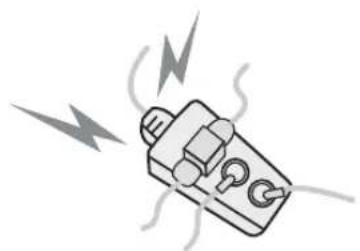
natural_image
Illustration of a plug with electrical connections and lightning bolts (no text or symbols)Do not connect multiple electrical appliances to a single outlet.
- It may cause a fire due to overheating from the outlet.

natural_image
Cartoon illustration of two hands holding a computer monitor with a sad face, surrounded by sound waves (no text or symbols)Make sure to remove the speakers before moving the TV with speakers mounted on it.
- When the speakers are detached from the unit while carrying it, this may cause damage to the unit or personal injury.
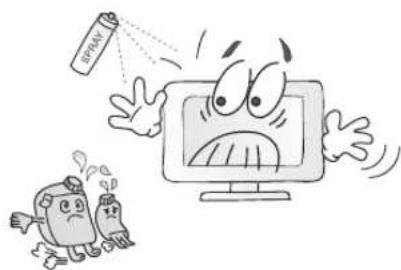
Do not use or store a flammable spray or inflammable things near the TV.
- They may cause explosion or fire.
natural_image
Cartoon illustration of a computer monitor with a spray can emitting vapor, accompanied by two anthropomorphic figures (no text or symbols)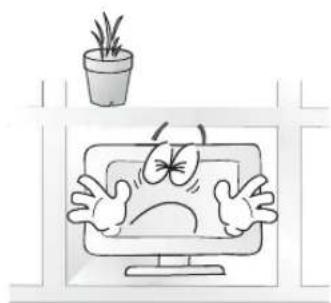
natural_image
Cartoon illustration of a computer monitor with angry faces and a potted plant on top (no text or symbols)Do not install the TV in a bookshelf, closet, or a place with poor air circulation.
- Fire may be caused due to the rise of internal temperature.

natural_image
Cartoon illustration of a person using a computer under a roof with lightning and rain (no text or symbols)Any necessary action such as making the antenna cable loop at the entrance of the building should be taken to prevent rainwater on the outdoor antenna cable from possibly running indoor.
- If raindrop gets into the TV, it may cause a fire or an electric shock.
Safety Precaution ....Continued from previous page
The contents of this section are provided for the safety of users and their property.
Please read the instructions carefully before using.
If there is a persistent accumulation of dusts or water on the plug, please make sure to wipe it off using a dry cloth.
- It may cause a fire or an electric shock.

natural_image
Illustration of a plug with water droplets falling, enclosed in a circle (no text or symbols)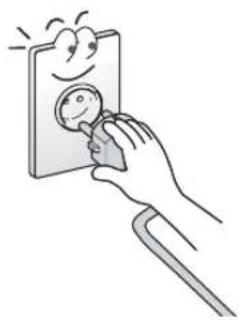
natural_image
Illustration of a hand inserting a coin into an electrical socket (no text or symbols)Firmly plug in the power cord so that it does not pull out.
- An unstable connection may cause fire.
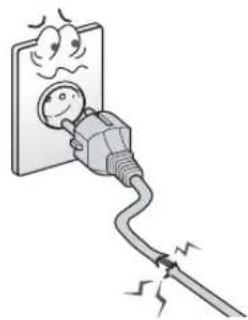
Do not use a damaged power cord or plug, or loose outlet.
- It may cause electric shock or fire.
natural_image
Cartoon illustration of a plug plugged into a wall with a surprised emoji, showing electrical shock (no text or symbols)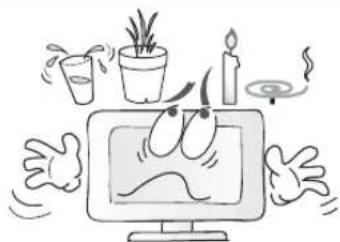
natural_image
Cartoon illustration of a computer monitor surrounded by plants, candles, and flames (no text or symbols)Do not put a water bowl, vase, candle, bug repellant smoke, cigarette, plants, or heavy thing on the TV.
- It may cause electric shock or fire and also heavy things may cause injury when they fall.
Do not install in a place where there is oil, smoke, excessive humidity, or where water may be sprinkled on it.
- This may cause electric shock or fire.

natural_image
Cartoon illustration of a computer monitor with an angry face and blushing expression, surrounded by clouds (no text or symbols)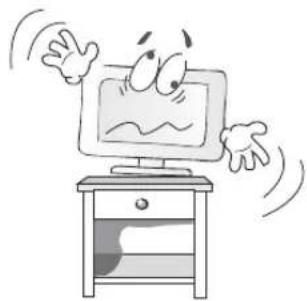
natural_image
Cartoon illustration of a computer monitor with a sad face and waving hands (no text or symbols)Do not install on an unstable place or small support.
- This may cause the TV to fall, resulting in serious injury especially to children.
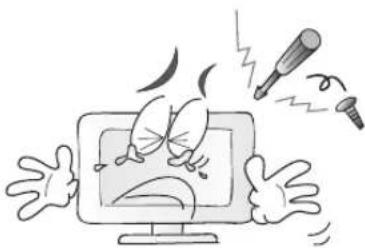
Never attempt to open, fix, or modify your TV.
- When there is a need for fixing, call a service center. Fire or electric shock may be caused.
natural_image
Cartoon illustration of a computer monitor with a sad face and flying syringe (no text or symbols)
natural_image
Cartoon illustration of a computer monitor with angry eyes and two chopsticks, no text or symbols presentDo not put a metallic object like chopstick, wire, or puncher or inflammables like paper or a match in a vent, headphone jack, or AV jacks of the TV.
- Electric shock or fire may be caused.
When the TV produces abnormal noise, burning smell, or smoke, unplug the TV immediately and call a service center.
- Electric shock or fire may be caused.

natural_image
Cartoon illustration of a computer monitor with a surprised expression and smoke trail (no text or symbols)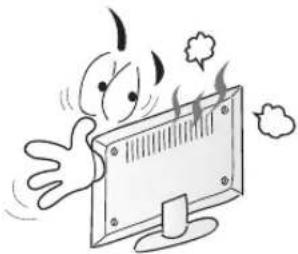
natural_image
Cartoon illustration of a person reacting to a computer monitor with sound waves (no text or symbols)Please avoid touching the panel at the rear of TV as it is producing high temperature.
- Direct contact with the hot surface may cause physical burns.
natural_image
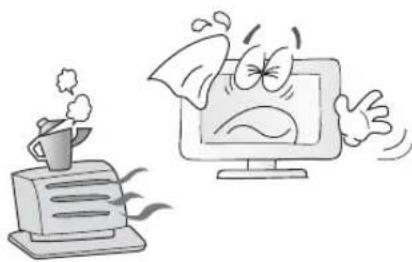
Cartoon illustration of a computer monitor with an angry face and a steaming cup on a keyboard (no text or symbols)Do not place any heat sources such as radiators and heat registers, etc. near the TV.
- It may cause a fire.
- Blocking the ventilation slits may produce internal heat increase, resulting in a fire.
Do not block ventilating slits with a table cloth.

natural_image
Cartoon illustration of a computer monitor with a frowning face and a magnifying glass, no text or symbols present.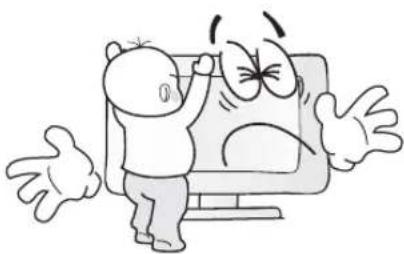
natural_image
Cartoon illustration of a person reacting to a computer screen displaying a sad face (no text or symbols present)Do not allow children to climb or play on the TV.
- This may cause the TV to fall resulting in serious injury.
- This may cause the TV to fall, resulting in serious injury.
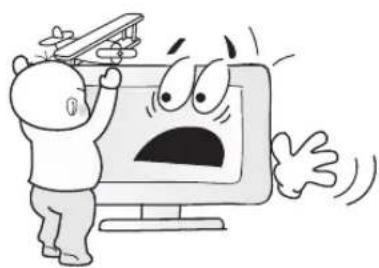
Do not place toys and cookies, etc. on the TV, which may attract children's attention.
natural_image
Cartoon illustration of a person reacting to a computer screen showing an angry face (no text or symbols present)
text_image
Cartoon illustration showing a computer monitor reacting to a chemical reaction with labeled bottles and containers, including 'Alcohol' and 'Beryllium'.When cleaning the TV, make sure to disconnect the power plug and use a dry, soft cloth for a cleanup.
- Please avoid using chemicals such as wax, benzene, alcohol, thinner, mosquito spray, air freshener, lubricant or synthetic detergent.
- If dust is stacked on the TV, electric shock or fire may be caused from heat, fire, or deterioration of insulation.
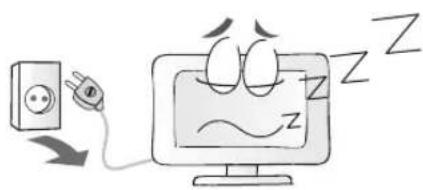
Unplug when you do not use your TV for a long time.
text_image
Cartoon illustration showing a power outlet connected to a computer monitor with 'Z' and 'W' labels, indicating sleep or stress.
natural_image
Illustration of two hands holding a computer monitor with sound waves (no text or symbols)When moving the TV, two or more people are advised to carry it.
- This may cause damage to the unit or personal injury.
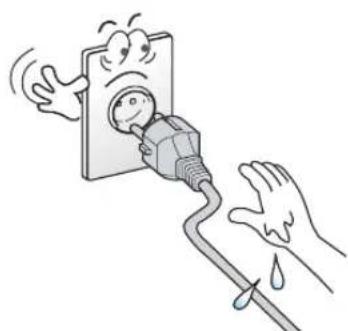
- This may cause electric shock.
Never touch the power plug or outlet with wet hands.
natural_image
Illustration of a hand inserting a plug into a wall socket with a surprised face, showing electrical shock (no text or symbols)Safety Precaution ....Continued from previous page
The contents of this section are provided for the safety of users and their property.
Please read the instructions carefully before using.
natural_image
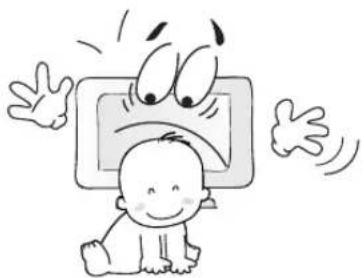
Cartoon illustration of a baby crawling under a computer screen with an angry face (no text or symbols)Do not install the product on the floor.
- This may cause the TV to fall resulting in serious injury.
- It may cause a fire or an electric shock.
Unplug the product during lightning or thunderstorms and never touch the antenna cable.

text_image
OK 1/2"
natural_image
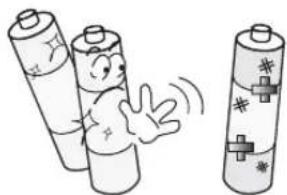
Cartoon illustration of a baby crawling next to two cylindrical batteries (no text or symbols)Keep the remote control batteries out of sight and out reach of children.
- If your child swallows a battery, see your doctor immediately.
- Mismatching of polarities may result in internal damage to batteries, fire due to leakage or contamination.
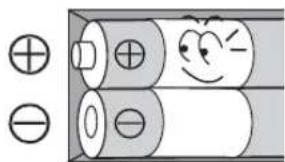
When replacing batteries, make sure to match the batteries to the (+) and (-) marks in the battery compartment.
natural_image
Illustration of three batteries with different sizes and symbols, no text or labels present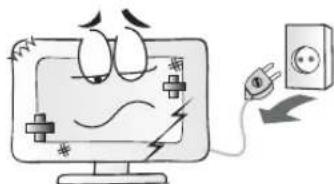
text_image
Cartoon illustration showing a computer monitor connected to an electrical outlet with Chinese labels and electrical symbolsAlways use the standard batteries and avoid using old batteries together with new ones.
- Otherwise it may result in internal damage to batteries, fire due to leakage or contamination.
- Using a damaged product may cause an electric shock or a fire.
- Contact your local service center.
In the event of damaging or dropping the product, switch off the power and remove the plug.
text_image
Diagram showing battery charge distribution with positive and negative charges and a smiling face inside
natural_image
Cartoon illustration of two hands reacting to a computer monitor with an angry face, connected to a power outlet (no text or symbols)Before moving the product, ensure to switch off the power and unplug all the electrical cords and the external connection cords such as an antenna cable and other source connections, etc.
- Electrical cords may be damaged, resulting in a fire or an electrical shock.
natural_image
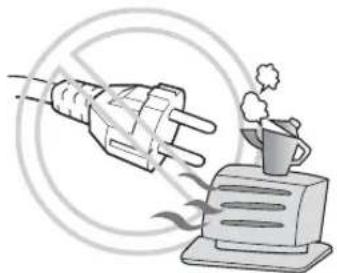
Illustration of a hand holding an electric plug emitting smoke from a steaming cup (no text or symbols)Ensure the power cord doesn't trail across any hot objects like a heater.
- This may cause a fire or an electric shock.
- When dust is piled inside the TV for a long time, fire or malfunction may be caused.
Consult a service center or customer service for inside cleaning about once a year.

natural_image
Cartoon illustration of a smiling computer monitor with a cloudy face and speech bubbles (no text or symbols)Contents of the Package
When opening the package, please ensure to check the following accessories.

Antenna Cable (coaxial cable)

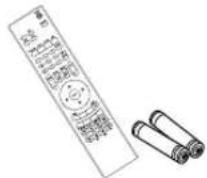
Power Cord Remote Control & 2 batteries (1.5V AAA)

User's Guide
Products Sold Separately
If you want to purchase the following accessories, consult a service center, electronics shops, or parts seller.
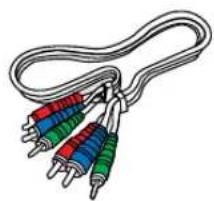
natural_image
Illustration of a coiled cable with three colored resistors (red, green, blue) attached at endpoints (no text or symbols)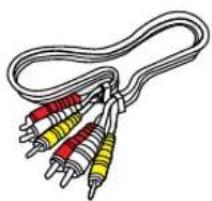
natural_image
Illustration of a coiled cable with multiple colored resistors (red, yellow, green) attached at endpoints (no text or symbols)
natural_image
Line drawing of two connected cables with connectors (no text or symbols)Component(Y, Pb, Pr) cable Composite(Video & Audio) cable DVI PC video(digital) cable
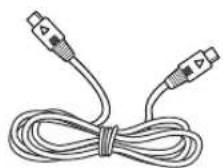

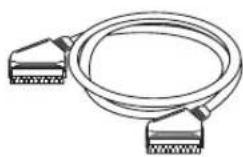
PC signal cable Scart cable S-video cable


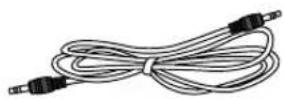
Audio Cable (DVI/DVD) Audio Cable (PC)HDMI cable
natural_image
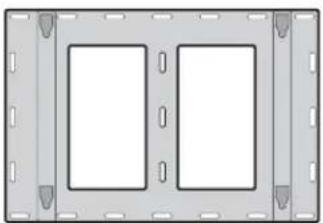
Pure diagram of a rectangular frame with two internal rectangular cutouts, no text or symbols present.Wall mounting frame

natural_image
Diagram of a mounting frame with a vertical support and rectangular panel (no text or symbols)Wall mounting frame
Parts Names and Functions
Front View

text_image
VOL + VOL - CH ▲ CH ▼ SELECT MENU SOURCE ① ② ③ ④ ⑤ ⑥ ⑦ ⑧* This product image may be a bit different from the actual product.
①Volume buttons
Use these buttons to adjust sound levels. These buttons also serve as the cursors of Select/Adjust in Menu mode.
② Channel buttons
Use these buttons to change channels. These buttons also serve as the cursors of Down and Up buttons in Menu mode.
③Select button
Use this button to select each item from the menu mode.
④ Menu button
Use this button to display or exit from the menu mode.
⑤ Source button
Use this button to switch among inputs connected to the TV.
⑥ Power button
Use this button to turn on or off the TV.
⑦ Remote sensor and power LED.
- Point the remote control toward LED.
-
It displays standby or operation status.
-
Power Indicator Status -
| Indicator | Status |
| Red | Standby |
| Green | Power on |
⑧Power switch
Use this switch to turn on/off power.
Rear View
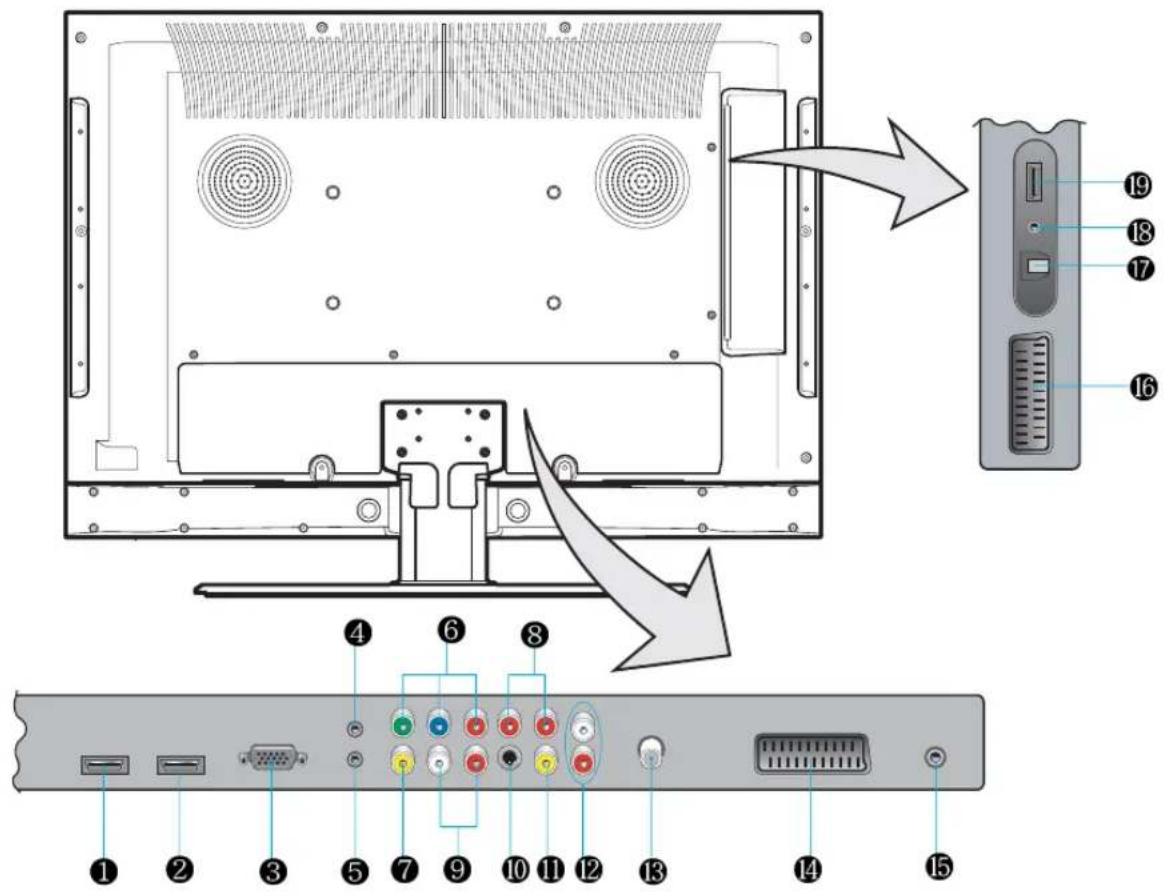
text_image
Diagram of computer monitor rear panel with labeled ports and internal components, showing a zoomed-in view from 1 to 19.* This product image may be a bit different from the actual product.
① HDMI1 input terminal
②HDMI2 input terminal
③ D-SUB input terminal
④* ATV Upgrade terminal
⑤D-SUB Audio input terminal
⑥ Component Video input terminal
⑦ Video(CVBS) output terminal
⑧ Component Audio input terminal
⑨Audio output terminal
⑩ S-Video input terminal
⑪ Video(CVBS) input terminal
⑫ Audio(CVBS/S-Video) input terminal
⑬ Antenna input terminal
⑭ Full Scart input terminal
⑮* Extend an RS-232 input for ATV communication
⑯Half Scart input terminal
⑰ SPDIF Optical audio output terminal
18* DTV Upgrade terminal
⑲HDMI3 input terminal
√ 4, 15, 18 - it's for technical service do not use at home.
Remote Control

text_image
POWER MAGIC QZ- ABC DEF 1 2 3 GHI JKL% MNO+ 4 5 6 VCR PRS. TUV.. WXY 7 8 9 DVD PRE EDIT * / ( ) PRE PR 0 SAT SOUND SLEEP ASPECT A/D TV SET 16 17 18 DTV VOL MENU EXIT CH VOL INFO SOURCE CH 15 10 13 14 GUIDE CH-LIST S.MODE TV/RADIO TTX/MIX INDEX LIST/FLOF STORE HOLD SIZE REVEAL SUB PAGE STILL ● ■ ► H ←→ ←→ →→ marantz®- POWER/STANDBY
- MUTE
This button is also used when setting up to use other external devices.
- PREVIOUS PROGRAM
- A/D TV
Use this button to switch the input source from analog to digital
- Other external device selection
- MENU SELECTION
Use this button to select menu items.
-
LEFT/RIGHT MOVE/ADJUST
-
Use these buttons to move between menu items or adjust each item.
- Use UP/DOWN buttons to select Analog TV channels.
- MENU
Use this button to call the OSD on the screen.
- EXIT
Use this button to end the OSD.
- DTV CHANNEL SELECTION
You can also use these buttons when changing pages in TTX mode.
- STILL
- Use this buttons to use other manufacturer's DVD or VCR.
- INFOMATION
Use this button to display resolution or various program.
- SOURCE
Use this button to select External Input.
- VOLUME
- SOUND MODE
- SLEEP
- ASPECT RATIO
Use this button to change the picture size.
- NUMERIC KEYS
Teletext & Fastext Function
text_image
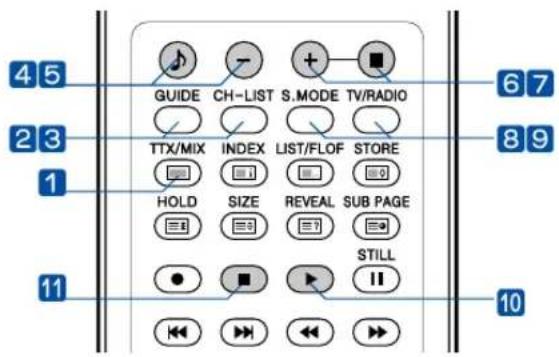
45 GUIDE CH-LIST S.MODE TV/RADIO 23 TTX/MIX INDEX LIST/FLOF STORE 1 HOLD SIZE REVEAL SUB PAGE 11 STILL 101. TTX/MIX
To see Teletext Service Data for Analog TV and Digital TV.
2. GUIDE (EPG-Electronic Program Guide)
To watch the program information. Press once more to return to normal mode.
3. CH. LIST
To watch the channel list for Digital TV. Press ↓ key to confirm or press EXIT to return to previous channels.
4. RED rubber
- DTV : To setup favorite channel lists in the Channel List menu.
- ATV : To delete a channel in the Program Edit menu.
5. GREEN rubber
- DTV: To lock favorite channel lists in the channel list menu.
- ATV : To sort channels in the Program Edit menu.
6. YELLOW rubber
- DTV: To move favorite channel lists in the channel list menu.
- ATV : To edit channel names in the Program Edit menu.
7. BLUE rubber
DTV : To delete a channel from the channel List menu. To show extended program information in the EPG menu.
8. S.MODE
To adjust the subtitle and audio condition/status of the current channel for Digital TV
9. TV-RADIO
To switch between the TV channel and radio channel for Digital TV.
10. WHITE rubber
DTV : To add a new channel to the Channel List menu.
11. ORANGE rubber
DTV : To see variant channel lists for user's convenience in the Channel List menu.
How to Insert Batteries in the Remote Controller
* Battery type :1.5V/AAA
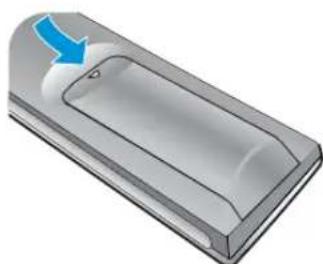
natural_image
3D illustration of a rectangular device with a blue arrow pointing to its side (no text or symbols)Press and hold cover.
1
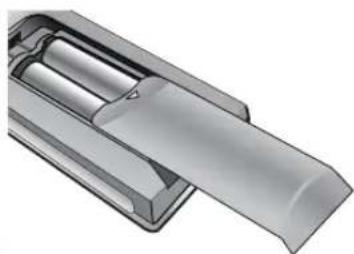
natural_image
3D rendered mechanical component with cylindrical and tapered sections (no text or symbols)Insert batteries with proper polarities of + and -.
2
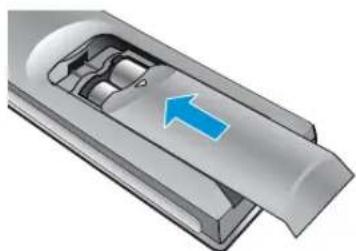
natural_image
3D illustration of a mechanical component with a blue arrow indicating direction (no text or symbols)Use the remote control with cover closed.
3
Connecting Indoor/Outdoor TV Antenna(UHF/VHF)
- Antenna or Cable service without cable box connections
- For on optimum picture quality, adjust the direction of antenna if needed.
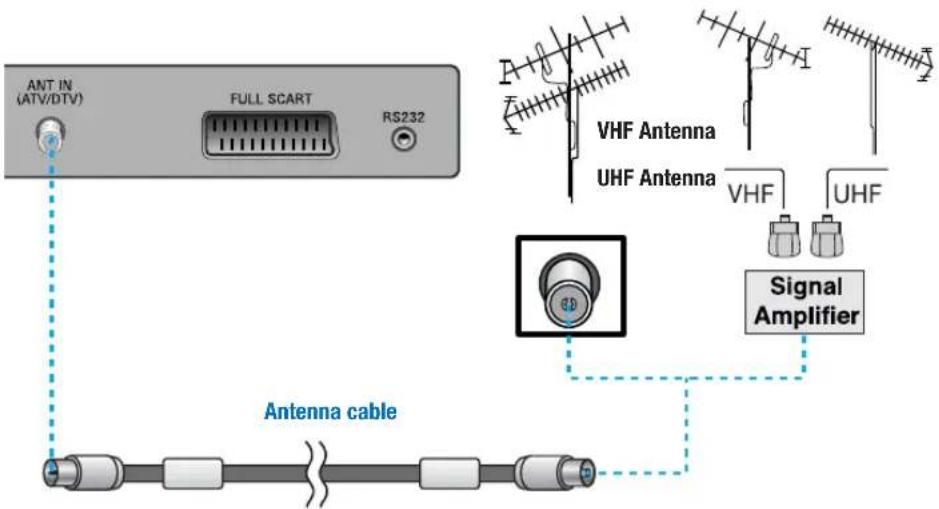
text_image
ANT IN (ATV/DTV) FULL SCART RS232 VHF Antenna UHF Antenna VHF UHF Signal Amplifier Antenna cable√ When inserting a 75 ohm coaxial cable into the input connection, ensure the wire tip not to bend.
√ If you experience poor signal reception, we recommend you purchase a signal amplifier for better picture quality.
Connecting Antenna Input Connection to External Equipments
- Connect an antenna cable to VCR/Cable/Satellite Receiver with the antenna input.
- Use a coaxial cable to connect VCR/Cable/Satellite Receiver's antenna output to the antenna input on your TV.

text_image
ANT IN (ATV/DTV) FULL SCART VCR/Cable Receiver ANT IN VIDEO S-VIDEO (L) AUDIO (R) ANT OUT Antenna cableBefore Connecting the Video/Audio Connections to External Devices...
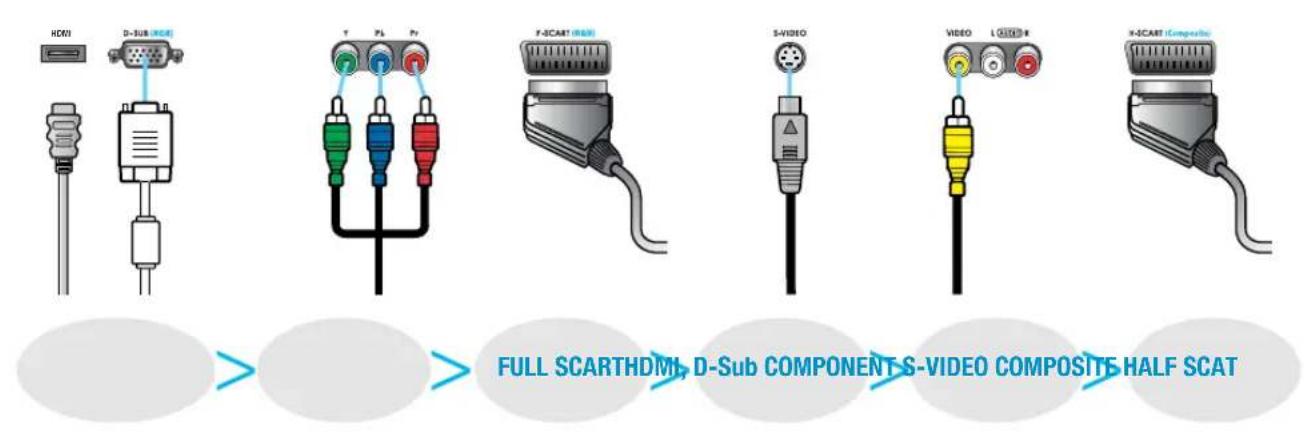
Please make sure to read the following instruction to enjoy the best picture quality.
Best picture quality is displayed in the following order.
flowchart
graph LR
    A["HD/1"] --> B["D-Sub HD/2"]
    B --> C["Resistor"]
    C --> D["T  PL  Pr"]
    D --> E["F-SCART (RGB)"]
    E --> F["S+VIDEO"]
    F --> G["Resistor"]
    G --> H["VIDEO L+O 8"]
    H --> I["S-SCART Composite"]
    style A fill:#f9f,stroke:#333
    style B fill:#ccf,stroke:#333
    style C fill:#cfc,stroke:#333
    style D fill:#fcc,stroke:#333
    style E fill:#cff,stroke:#333
    style F fill:#ffc,stroke:#333
    style G fill:#cfc,stroke:#333
    style H fill:#fcc,stroke:#333
    style I fill:#ffc,stroke:#333
The superior picture quality starts from the far left side.
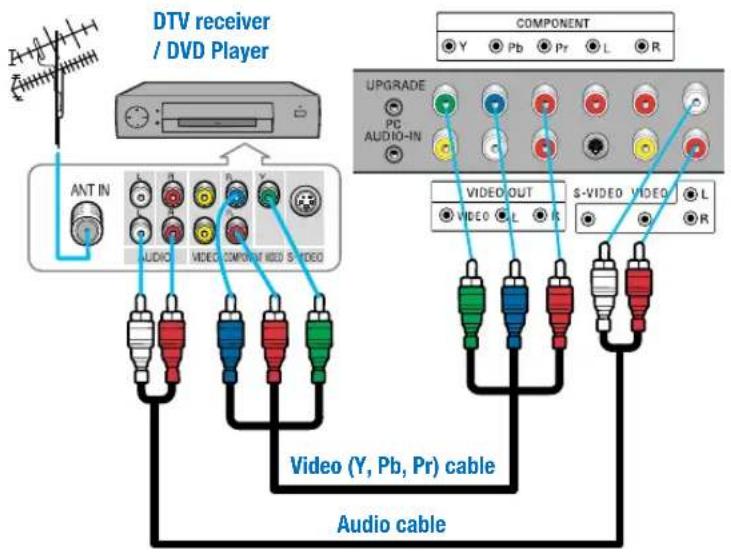
How to Connect a DTV Receiver or DVD Player
- Connect the Video cable (Y, Pb, Pr) between output terminals (Y, Pb, Pr) of DTV receiver or DVD player and the input terminals (Y, Pb, Pr) of DTV/DVD (576i/576p/720p/1080i/1080p) on the rear of TV. (Connect the jacks to terminals in the same color.)
- Connect the Audio cable between Audio output terminals of DTV receiver or DVD player and Audio input terminal for DTV/DVD Audio on the rear of TV. (Connect the jacks to terminals in the same color.)
text_image
DTV receiver / DVD Player COMPONENT Y Pb Pr L R UPGRADE PIC AUDIO-IN VIDEO OUT S-VIDEO VIDEO L R VIDEO (Y, Pb, Pr) cable Audio cable√ Output terminal mark (Y, Pb, and Pr) of DVD player may be indicated as Y, B-Y, R-Y/Y-Cb-Cr /Y-Pb-Pr according to the type of DVD player models.
√ If your DVD player or Set Top Box supports HDMI/DVI, see Connecting to a PC (page 15) for connection. You can enjoy more clearer picture quality.
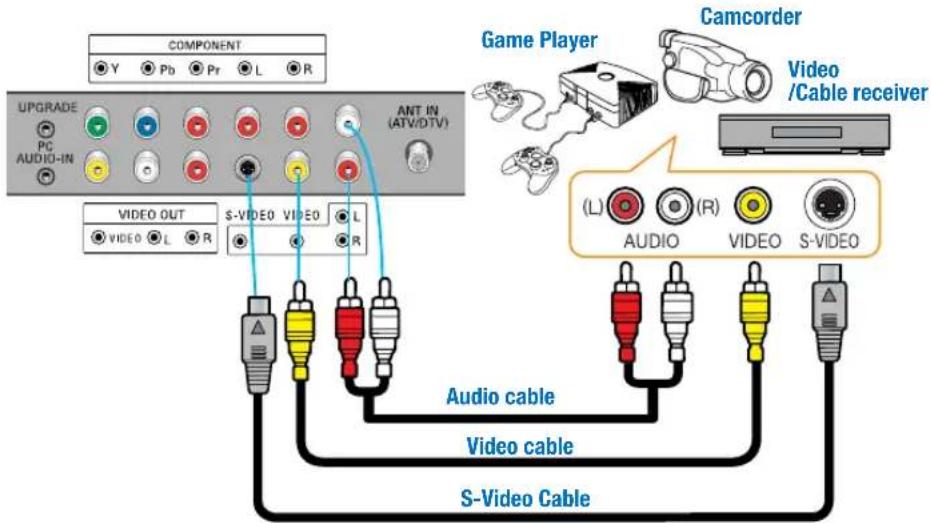
How to Connect a VCR, Cable Receiver, Camcoder, Game Player
- Connect the Video cable or S-Video cable between Video/S-Video output terminals of VCR or Cable receiver and Video/S-Video input terminal of TV. (Connect the jacks to terminals in the same color.)
- Connect the Audio cable (Left: white, Right: red) between Audio output terminals of VCR or cable receiver and Audio input terminal of TV. (Connect the jacks to terminals in the same color.)
text_image
COMPONENT Y Pb Pr L R UPGRADE PC AUDIO-IN ANT IN (ATV/DTV) VIDEO OUT S-VIDEO VIDEO L R Game Player Camcorder Video /Cable receiver (L) AUDIO (R) VIDEO S-VIDEO Audio cable Video cable S-Video Cable√ To enjoy a better picture quality, use the S-Video cable rather than the composite cable.
How to Connect to a PC
- Connect the PC signal cable (15-pin D-sub) between the output terminal of PC and the D-sub input terminal of TV.
- Connect the Audio cable between Audio output terminal of PC and Audio input terminal for PC on the rear of TV. (Connect the jacks to terminals in the same color.)

text_image
COMPONENT Y Pb Pr L R UPGRADE PC PC AUDIO-IN VIDEO OUT S-VIDEO VIDEO V 0 DEO L R Audio Cable D-SUB cable√ If you use HDMI connection, you can enjoy better picture quality.
√ This product supports Plug-and-Play function.
√ We recommend the above method if the DVD player or set top box supports DTV signal with HDMI cable for better picture quality.
√ If you input an unsupported resolution in PC or HDMI mode, the screen won't be displayed properly.
√ DTV Timing is not guaranteed on the PC D-Sub mode
Resolutions Supported in PC
| Resolution | Horizontal frequency | Vertical frequency |
| 640 x 350 | 31.47 | 70.00 |
| - | - | |
| 640 x 480 | 37.86 | 72.80 |
| 31.50 | 75.00 | |
| - | - | |
| - | - | |
| 720 x 400 | 31.47 | 70.08 |
| 800 x 600 | 37.88 | 60.32 |
| 46.88 | 75.00 | |
| 48.08 | 72.19 | |
| 832 x 624 | 49.73 | 74.55 |
| 1024 x 768 | 48.36 | 60.00 |
| 56.48 | 70.07 | |
| 1280 x 1024 | 60.02 | 75.03 |
| 63.98 | 60.02 | |
| 1366 x 768 | 47.7 | 60.00 |
| 1280 x 768 | 47.34 | 60.00 |
| 1600 x 1200 | 75.00 | 60.00 |
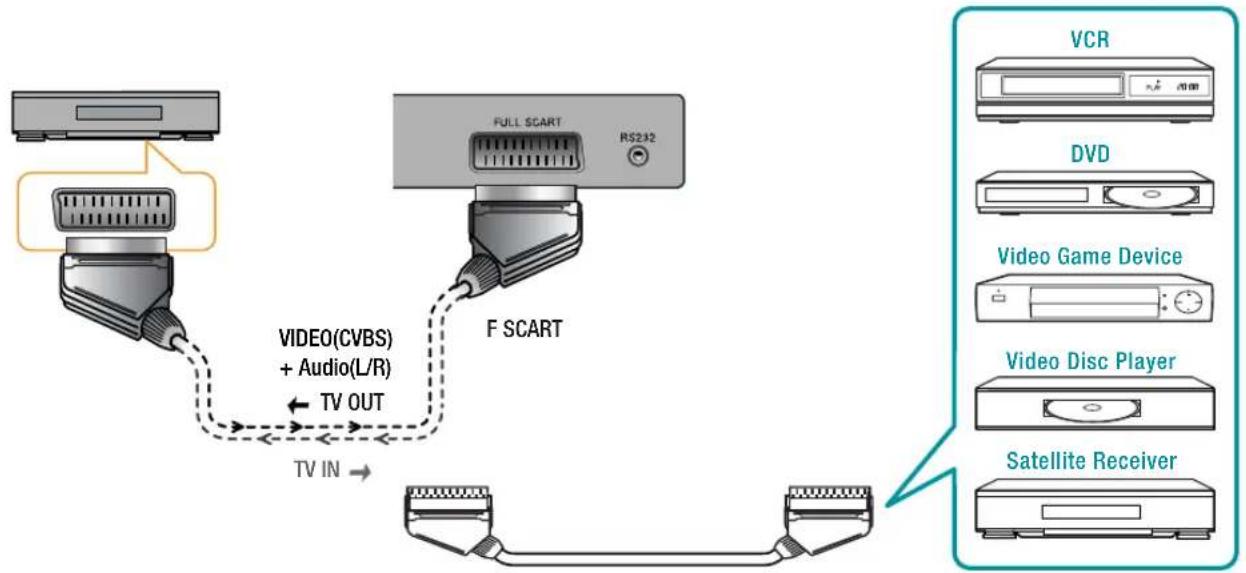
Scart Connection to the External Input/Output
If you have a second VCR and wish to copy cassettes tape. Connect the source VCR to "F Scart" and the target VCR to "H Scart" so that you can redirect the signal from "F Scart" to "H Scart".
* "F Scart" sends the TV broadcast signal received through an antenna to a set-top box and receives the descrambled signal back, which allows you to view TV broadcasts in AV Mode.
* "H Scart" you are capable to record live TV broadcasts on the TV screen. (Please make sure that your TV is "ON".)
flowchart
graph TD
    A["TV IN"] --> B["F SCART"]
    B --> C["FULL SCART"]
    C --> D["VCR"]
    C --> E["DVD"]
    C --> F["Video Game Device"]
    C --> G["Video Disc Player"]
    C --> H["Satellite Receiver"]
    B --> I["VIDEO(CVBS) + Audio(L/R)"]
    I --> J["TV OUT"]
√ When switching voltage comes into the Scart-Pin 8 during viewing a TV program, the current mode will be switched to Scart mode.
HDMI Connection
HDMI*1 (High Definition Multi media Interface) is the first all digital consumer electronics A/V interface that supports uncompressed standard. The HDMI terminal supports both video and audio information.
To the HDMI™ input terminal, you can connect an EIA/CEA-861/861*2 compliant consumer electronic device, such as a Set Top Box or DVD player with HDMI or DVI output terminal.
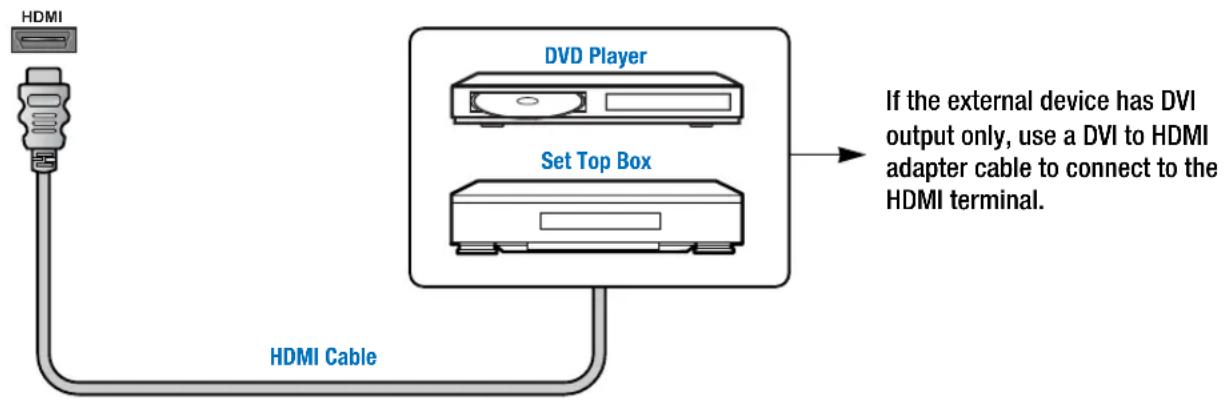
flowchart
graph TD
    A["HDMI"] --> B["HDMI Cable"]
    B --> C["DVD Player"]
    C --> D["Set Top Box"]
    D --> E["If the external device has DVI output only, use a DVI to HDMI adapter cable to connect to the HDMI terminal."]
▶ Compatible VIDEO Signal
| Model | Resolution Vertical frequency | |
| 1080 p | 1920 x 1080 p | 50 |
| 1080 i | 1,920 x 1,080 i | 50 |
| 576 p | 720 x 576 p | 50 |
| 640 x 576 p | 50 | |
| 720 p | 1280 x 720 p | 50 |
- This input terminal is not intended for use with computers.
▶ Compatible sampling frequency of AUDIO signal through HDMI (L.PCM) : 48kHz / 44.1kHz / 32 kHz
→ Notes :
• This HDMI connector is Type A.
- If you connect an equipment without a digital output terminal, connect to the COMPONENT VIDEO, S VIDEO or VIDEO input terminal on the TV so you can enjoy an analog signal.
- The DIGITAL IN terminal can only be used with 1080i, 720p or 576p/1080p picture signals. Set the Digital Set -Top -Box DIGITAL OUT terminal Output setting to 1080p/1080i, 720p or 576p. For detailed information, refer to the Digital Set -Top - Box instruction manual. If you cannot display the picture because your Digital Set -Top -Box does not have a DIGITAL OUT terminal Output setting, use the component Video Input (or the S Video Input or Video Input). In this case the picture will be displayed as an analog signal.
*1. HDMI, the HDMI logo and High-Definition Multimedia Interface are trademarks or registered trademarks of HDMI Licensing LLC.
*2. EIA/CEA-861/861B profiles compliance covers profiles for transmission of uncompressed digital video including high bandwidth digital content protection.
How to Set the OSD Screen

text_image
POWER MAGIC QZ- ABC DEF 1 2 3 GRI JKL% MNO+ 4 5 6 PRS. TUV... WXY 7 8 9 SOURCE PRE EDIT +/( ) PRE PR 0 +100 SOUND SLEEP ASPECT A/D TV P-CH SWAP POSITION Input Source Analog TV F-SCART H-SCART AV S-Video Component PC HOM1 HOM12 HOM13 IDTV Move EnterANALOG TV - Terrestrial broadcasting for supporting analog PAL/SECAM system.
H-SCART - Basically the same as Full SCART in function but not supporting RGB Video signals.
F-SCART - For supporting composite video and RGB video signals. SCART connectors is used with many European video equipments.
AV: For supporting the color shade(chrominance) and brightness(luminance) information into one video signal.
S-VIDEO : For supporting better resolution than composite video, which carries the signals together.
Component : For supporting greater color accuracy than composite video or S-VIDEO by splitting chrominance into one video signal.
HDMI : High Definition Multi media Interface that supports both video and audio information.
PC : For supporting Personal Computer connection.
iDTV : Digital Terrestrial broadcasting for supporting DVB-T System.
Different OSD Menu
You can confirm OSD menu of three different types.

text_image
SOUND SLEEP REFECT NO TV P-CH POSITION SET DTV VOL SOURCE CH CHANNEL Analog TV Country : Auto Store Manual Store Add/Delete Sort Name Fine Tune CIS / E.EUROPE :Move :Enter :Menu√ In case of the source in ATV
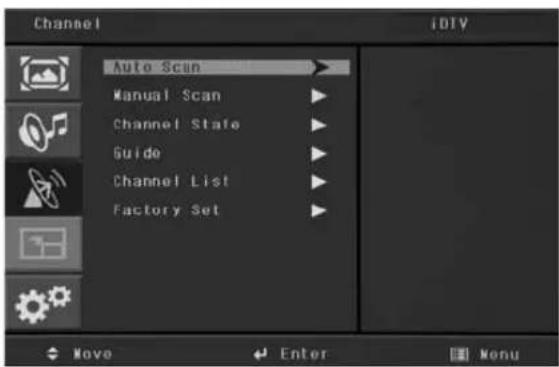
text_image
Channel Auto Scan Manual Scan Channel State Guide Channel List Factory Set IDTV Move Enter Menu√ In case of the source in iDTV
How to Select the Picture Mode
Users can automatically adjust the picture mode according to the input mode.

text_image
Picture Analog TV Picture Mode: Custom Dynamic Colour Tose: Standard Size: Movie NB: Mild Select Enter Menu1 Press MENU button.
Menu items appear on the screen.
2 Press ← button to select "Picture" Icon.
"PICTURE MODE" is highlighted.
3 Press ◀/▼ buttons to select "Picture mode".
4 The menu changes in the following order.
CUSTOM → DYNAMIC → STANDARD → MOVIE → MILD
5 Press EXIT button to TV viewing or press MENU button to return to the previous menu.
◆ CUSTOM : When the user wants to set the values directly.
◆ DYNAMIC : Clear display
◆ STANDARD : Most video contents are appropriate to this mode.
♦ MOVIE : When watching a movie
◆ MILD : Soft display.
√ In the custom's mode, the users can adjust their desired brightness, contrast, colour, Tint, sharpness and backlight.
How to Set the Desired Picture
Users can manually adjust their desired picture

text_image
Custom Analog TV Brightness : 40 Contrast : 80 Colour : 50 Tint : 50 Sharpness : 60 Backlight : 1066 Move Adjust Menu1 Press MENU button.
Menu items appear on the screen.
Press ← button to select "Picture" Icon.
"PICTURE MODE" is highlighted.
select CUSTOM."
button to adjust.
3 Press ▲ / ▼ buttons to move to "Custom" and press / o◀ buttons to
4 Select required option by pressing the ▲/▼ button, then Press / ◀ ▶
5 Press EXIT button to TV viewing or press MENU button to return to the previous menu.
◆ BRIGHTNESS : Adjust the brightness of the entire picture.
♦ CONTRAST : Adjust the brightness and darkness of the object and backgrounds.
◆ COLOUR : Adjust colors into deeper or lighter colors.(not operational in pc mode)
◆ TINT : Adjust colors naturally.(not operational in pc iDTV and component mode)
◆ SHARPNESS : Adjust the clarity of object outlines.(not operational in pc iDTV and component mode)
♦ PHASE : To remove the picture shaking.
To eliminate the Shake of picture(operational in component and iDTV Mode)
♦ BACKLIGHT : Adjust the brighten or darken of the screen.
How to Set the Desired Picture in PC, HDMI Input Modes
Users can adjust Color as users want.
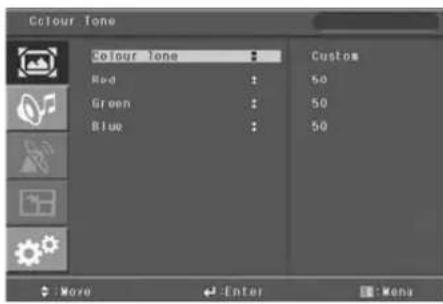
text_image
Colour Tone Colour Tone Red Green Blue Custom 50 50 50 Move Enter Menu1 Press MENU button.
Menu items appear on the screen.
2 Press ← button to select "Picture" Icon. picture mode is highlighted.
3 Press ◀/▼ buttons to select to "picture mode".
4 The menu changes in the following order.
→ CUSTOM → HIGH → MIDDLE → LOW
5 After selecting Color Tone, then the menu changes in the following order.
→ CUSTOM → COOL2 → COOL1 → NORMAL → WARM1 → WARM2
6 If you choose "CUSTOM" in "COLOR TONE" you can adjust R.G.B.
7 Press EXIT button to TV viewing or press MENU button to return to the previous menu.
◆ CUSTOM : When the user wants to set the degree of RGB directly.
◆ COOL : For cool colors with bluish tone.
♦ NORMAL : For a general Color Tone.
◆ WARM : For warm colors with reddish tone.
How to Set Image Adjust in PC Mode
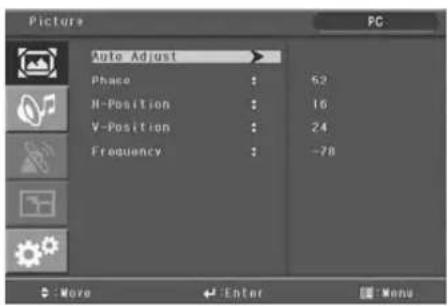
text_image
Picture PC Side Adjust Phase : 62 N-Position : 18 V-Position : 24 Frequency : -78 Move Enter Menu1 Press MENU button.
Menu items appear on the screen.
2 Press ← button to select "Picture" Icon. "PICTURE MODE" is highlighted.
3 Press ▲ / buttons to move to "PC" and Press / or ▶ ← buttons to select to "pc"
4 "AUTO ADJUST" is high lighted.
5 Press ← button to execute the "AUTO ADJUST"
6 Select required option by pressing the ◀/▶ buttons, then press ◀/▶ button to adjust
7 Press EXIT button to TV viewing or press NEW button to return to the previous menu
◆ Auto ADJUST : Horizontal/vertical positions are automatically adjusted.
♦ PHASE : To eliminate the shake of the picture.
◆ H-POSITION : To adjust the horizontal position of the picture.
◆ V-POSITION : To adjust the vertical position of the picture.
◆ FREQUENCY : To eliminate the shake of picture.
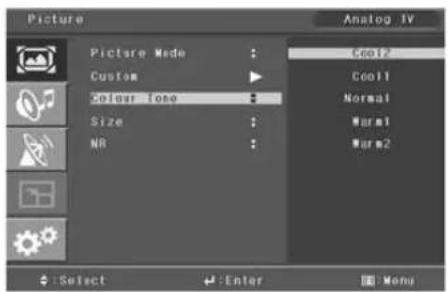
How to Select a Color Tone
Users can adjust Color as users want.
text_image
Picture Analog IV Picture Mode : Cool2 Custom ▶ Cool1 Colour Scope : Normal Size : Norm1 NR : Norm2 :Select Enter Mon1 Press MENU button.
Menu items appear on the screen.
2 Press ← button to select "Picture" Icon.
"PICTURE MODE" is highlighted.
3 Press ▲/ buttons to move to "COLOR TONE".
4 Press ◀/▶ buttons to select "COLOR TONE".
5 Press ▲/ buttons, then the menu changes in the following order.
→ COOL2 → COOL1 → NORMAL → WARM1 → WARM2
6 Press EXIT button to TV viewing or press MENU button to return to the previous menu.
◆ COOL : For cool colors with bluish tone.
♦ NORMAL : For a general Color Tone.
◆ WARM : For warm colors with reddish tone.
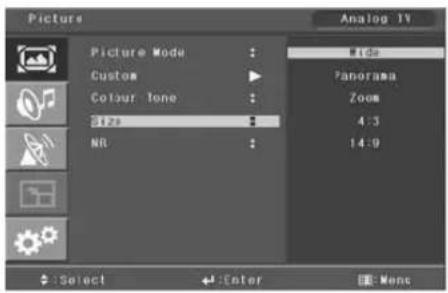
How to Set the Display Size
Users can adjust the display scale as they want
text_image
Picture Picture Mode Custom Colour Tone 3129 NR Analog 1V Wide Panorama Zoom 4:3 14:0 Select Enter Mono1 Press MENU button.
Menu items appear on the screen.
2 Press ← button to select "Picture" Icon.
"PICTURE MODE" is highlighted.
3 Press ▲ / ♥buttons to move to "SIZE".
4 Press ◀/▶ or □ buttons and press ▲/▼ then the mode change in the following order.
COMPONENT Input : → WIDE → PANORAMA → ZOOM → 4:3 → 14:9
PC/HDMI inputs : → WIDE → 4:3 →
Under other inputs : → AUTOSIZE → WIDE → PANORAMA → ZOOM
→ 4:3 → 14:9 →
5 Press EXIT button to TV viewing or press MENU button to return to the previous menu.
♦ AUTO SIZE - Screen size adjust automatically by screen signal.
◆ WIDE - General broadcast picture is adjusted to 16:9.
◆ PANORAMA - Picture enlarged to 16:9 format, letter box format.
◆ ZOOM - Zoom in 16:9 in vertical direction
◆ 4:3 - 4:3 general picture size
◆ 14:9 - 14:9 picture size
How to Set Noise Reduction(NR)
User can eliminate noises on the screen in Video mode

text_image
Picture Analog TV Picture Mode : Custom Colour 1ose : Size : 78 On Off Select Enter Memo1 Press MENU button.
1 Menu items appear on the screen.
2 Press ← button to select "Picture" Icon. "PICTURE MODE" is highlighted.
3 Press ▲/ buttons to move to "NR".
4 Press ◀/ buttons to select to "NR".
5 Press ▲or▼buttons to set ON/OFF r
6 Press EXIT button to TV viewing or press MENU button to return to the previous menu.
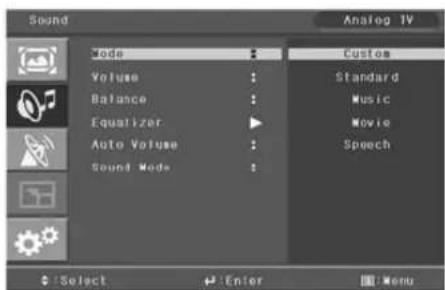
How to Select the Audio Mode
Users can adjust sound mode automatically as they want.
text_image
Sound Analog 1V Mode Customs Volume Standard Balance Music Equalizer Movie Auto Volume Speech Sound Mode Select Enter Menu1 Press MENU button.
1 Menu items appear on the screen.
2 Press ▲/ buttons to move to "SOUND" icon.
2 Press ← button to select "SOUND" Icon.
"MODE" is highlighted.
4 Press ◀/▼ buttons, to select to "SOUND MODE" then the menu changes in the following order.
CUSTOM → STANDARD → MUSIC → MOVIE → SPEECH →
5 Press EXIT button to TV viewing or press MENU button to return to the previous menu.
◆ CUSTOM : When the user wants to set the values directly.
◆ STANDARD : For the general sound. Most audio contents are appropriate to this mode.
◆ MUSIC : For enjoying original sound.
♦ MOVIE : Grandiose sound.
◆ SPEECH : Clear sound.
→ How To Directly Select Sound : Press Sound button.
Users can select custom CUSTOM → STANDARD → MUSIC → MOVIE → NEWS in order.
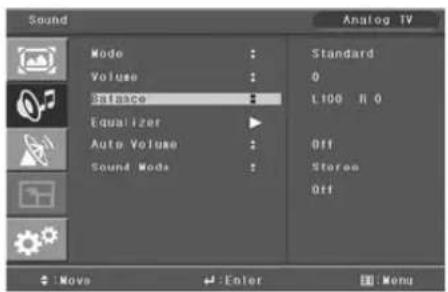
How to Adjust the Desired Audio Mode
Users can adjust sound mode automatically as they want.
text_image
Sound Mode Volume Balance Equalizer Auto Volume Sound Moda Standard 0 L100 8.0 Off Storee Off Move Enter Menu
text_image
Equalizer 10kHz 50 3kHz 50 1kHz 50 300Hz 50 100Hz 50 :Move Adjust :Menu1 Press MENU button.
Menu items appear on the screen.
2 Press ▲/ buttons to move to "SOUND" icon.
2 Press ↓ button to select "SOUND" icon.
"MODE" is highlighted.
4 Press ▲/ buttons to move to "Balance or Equalizer".
5 Press ← buttons to select Balance or Equalizer."
Balance or Equalizer menu appears.
6 Select required option by pressing the ▲/buttons, then Press / ◀▶ buttons to adjust.
7 Press EXIT button to TV viewing or press MENU button to return to the previous menu
♦ BALANCE : Adjusts the balance of left and right speakers.
♦ EQUALIZER : Adjusts the audio output signal in the desired band.
How to Select Auto Volume
This function will automatically give a similar volume size to each channel.
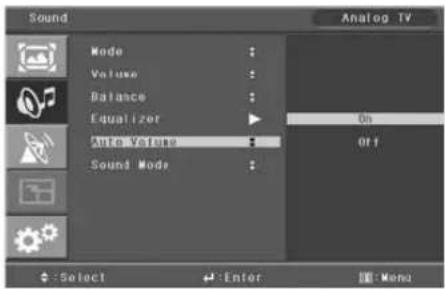
text_image
Sound Mode Volume Balance Equalizer Auto Value Sound Mode Analog TV On Off Select Enter Menu1 Press MENU button.
Menu items appear on the screen.
2 Press ▲ / ↓ buttons to move to "SOUND" icon.
3 Press ← button to select "SOUND" icon.
"MODE" is highlighted.
4 Press ▲ / ▼ buttons to move to "AUTO VOLUME".
5 Press ◀ / ▶r buttons to select ON/OFF.
6 Press ▲ /▼ buttons to set to ON/OFF.
7 Press EXIT button to TV viewing or press MENU button to return to the previous menu
How to Select Sound Mode
Depending on the particular program being broadcast, you can select stereo or mono.
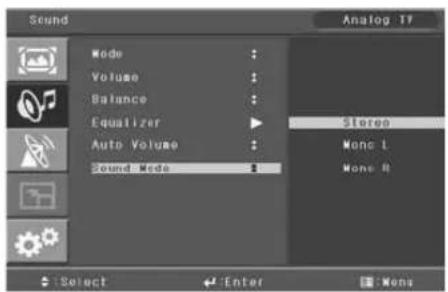
text_image
Sound Mode Volume Balance Equalizer Auto Volume Sound Mode Analog 1F Stereo None 1 None 8 Select Enter None1 Press MENU button.
Menu items appear on the screen.
2 Press ↓ button to select "SOUND" Icon.
"MODE" is highlighted.
3 Press ▲/ buttons to move to "SOUND MODE".
4 Press ◀/ ▶ or ← buttons to select to 'SOUND MODE'.
5 Press ▲/▼buttons to select to MONO or STEREO.
6 Press exit button to TV viewing or press MENU button to return to the previous menu
→ How To Directly Select S. MODE : Press S. MODE button.
To select "MONO" or "STEREO".
♦ Choose "STEREO" for channels that are broadcasting in STEREO.
♦ Choose “MONO” for channels that are broadcasting in MONO, or if you are having difficultly receiving a STEREO signal.
√ If the signal reception conditions deteriorate, setting to Mono will make sound conditions better.
√ If you select Mono L or R you could listen one sound signal by both speakers.
How to Select Auto Store
Auto store enables to search/store channels of countries where the user is located automatically.

text_image
Channel Country Auto Store Manual Store Add/Delete Sort Name Fine Tone Analog TV ASIA / E. EUROPE GIS / E. EUROPE CHINA HONGKONG / OK AUSTRALIA N7 / INDONESIA SOUTH AFRICA AMERICA Select Enter Mens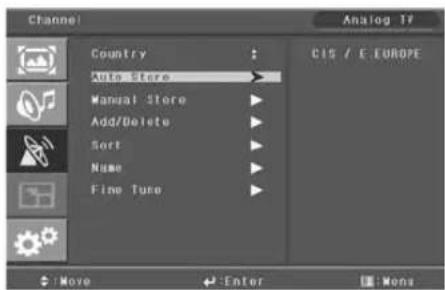
text_image
Channel Country Qute Store Manual Store Add/Delete Sort Name Fine Tune Analog TF CIS / E EUROPE Move Enter Mens1 Press MENU button.
Menu items appear on the screen.
2 Press ▲/ buttons to move to "CHANNEL" icon.
2 Press ← button to select "CHANNEL" Icon.
" COUNTRY" is highlighted.
4 Press ◀/ ▶ buttons to select "COUNTRY"
5 Press ▲/▼ buttons to set YOUR COUNTRY.
6 Press ▲/ buttons to move to "AUTO STORE".
7 Press ◀/ ▶ buttons to select AUTO STORE.
Auto store menu appears, and "START" is highlighted.
8 Press ◀/ buttons to select "START" or "STOP", then Press to store.
9 Press EXIT button to TV viewing or press MENU button to return to the previous menu.
How to Select Manual Store
Manual store enables to searching channels which the user want manually.

text_image
Channel Country Auto Store Manual Store Add/Delete Sort Name Fine Tube Analog TV CIS / E. EUROPE Move Enter Menu
text_image
Channel Analog TV Drop Colour System Sound System Channel Search Store 3 AUTO BE C Abc Abc MHz Move Adjust Menu1 Press MENU button.
1 Menu items appear on the screen.
2 Press ▲/ Buttons to move to "CHANNEL" icon.
3 Press button to select "CHANNEL" Icon. "COUNTRY" is highlighted.
4 Press ▲/ Buttons to move to "MANUAL STORE".
5 Press ◀/ ▶ button to select "MANUAL STORE".
Manual program menu appears, then "PROG." is highlighted.
6 Press ◀/ buttons to select program No.
7 Select required option by pressing the ▲/ button, then Press / o◀ ▶ ▲/ buttons to set or adjust.
8 To store the setting, press ▲/ buttons, move to "Store" and press ↓ button to store and finish.
How to Set the Program Edit(Add/Delete, Sort, Name)
Program edit enables users to edit the searched programs.
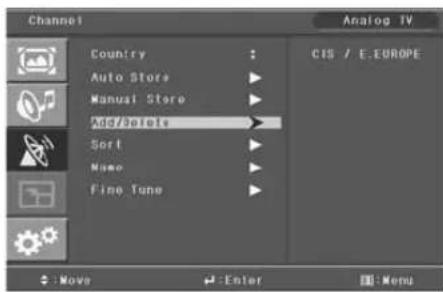
text_image
Channel Country Auto Store Manual Store Add/Delete Sort Name Fine Tune Analog TV CIS / E.EUROPE Move Enter Menu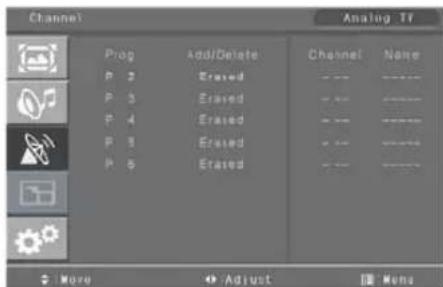
text_image
Channel Analog TF Prog Add/Delete Channel Name P 2 Erased P 3 Erased P 4 Erased P 5 Erased Move Adjust Help
text_image
Channel Analog TI Prog Channel Name P 3 P 4 P 5 P 6 Move Adjust Monz
text_image
Channel Analog TV Prog Channel Name P 2 --- 5Gv--- P 3 --- --- --- P 4 --- --- --- P 5 --- --- --- P 6 --- --- --- Move Adjust Mona1 Press MENU button.
Menu items appear on the screen.
2 Press ▲/ Buttons to move to "CHANNEL" icon.
3 Press ← buttons to select "CHANNEL" Icon.
"COUNTRY" is highlighted.
4 Press ▲/ Buttons to move to "add/delete, sort,name".
Press ← button to select "add/delete".
The program table appears on the screen. One program table contains five programs.
6 Press ▲/ Buttons to move the program list, and press / buttons to move the menu list select "added" or "Erased"
Sorting the Stored Channels
a. Place to ↓ buttons to select and ▲ buttons to choose the swapping PR number.
b. To store the setting, press ▲/▼ buttons.
Assigning Names to Channel
press button to select and / Button to set to "NAME"
a. Place the cursor on NAME and Select a letter (A\~Z), a number (0\~9) or blank space.
b. To store the setting, press the ← button once again.
7 Press EXIT button to TV viewing or press MENU button to return to the previous menu.
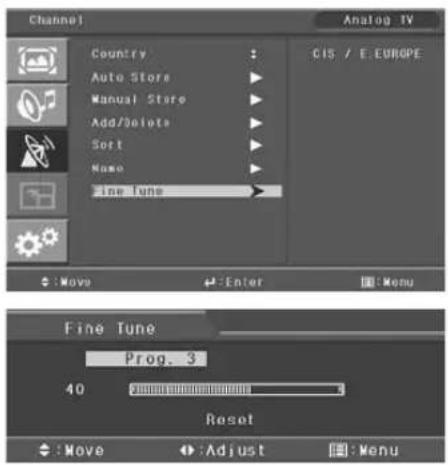
How to fine tune
if the reception is clear, you do not have to fine tune, as this is done automatically during the search and store operation. If the signal is weak or distorted, you may have to fine tune the channel manually.
text_image
Channel Analog TV Country Auto Store Manual Store Add/delete Sort None Fine Tune CIS / E. EUROPE : Move Enter Menu Fine Tune Prog. 3 40 Reset : Move : Adjust : Menu1 Press Menu button.
1 Menu items appear on the screen.
2 Press ← button to select "channel" icon
"country"is highlighted.
3 Press ▲/ buttons to move to "fine tune".
4 Press ◀/▼ buttons to select to "fine tune".
5 Press ▲/♥/buttons to adjust "to fine tune".
6 Press EXIT button to TV viewing or press MENU button to return to the previous menu.
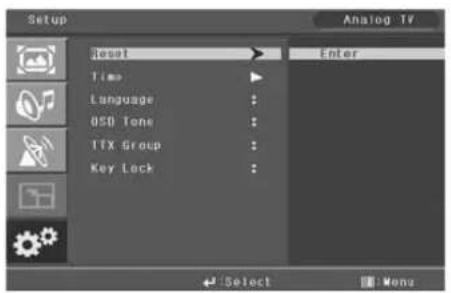
How to Reset
text_image
Setup Reset Time Language USD Tone ITX Group Key Lock Enter Select Mens1 Press MENU button.
1 Menu items appear on the screen.
Press ← button to select "Set up" Icon.
“Reset” is highlighted.
3 Press ◀ / ▶r buttons to select to "RESET".
4 Press buttons to choose to RESET.
5 Press EXIT button to TV viewing or press MENU button to return to the previous menu.
√ When you select "Reset" user setting value will initialize except channel value.
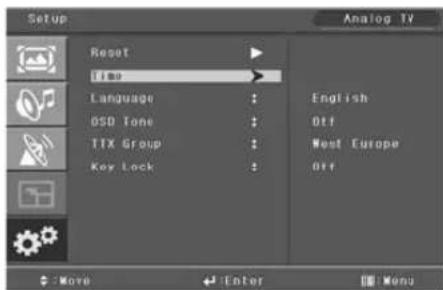
How to Set Clock, Sleep Time, ON/OFF Time
text_image
Setup Analog TV Reset Time Language GSD Tone TIX Group Key Lock English Off West Europe Off Move Enter Menu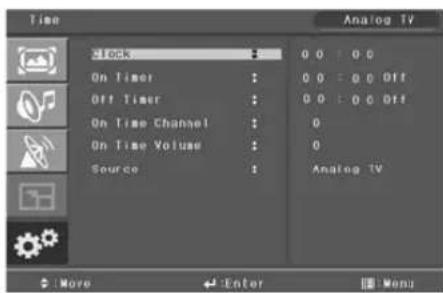
text_image
Time Stock On Timer Off Timer On Time Channel On Time Volume Source Analog TV 0 0 : 0 0 0 0 : 0 0 Off 0 0 : 0 0 Off 0 0 Analog TV Move Enter Menu
text_image
Time Clock : On Timer : Off Timer : On Time Channel : On Time Volume : Source : Analog TV 00 : 00 30 : 00 Off 00 : 00 Off 0 0 Analog TV $ Adjust Move Menu
text_image
Time Clock On Timer Off Timer On Time Channel On Time Value Source Analog TV 00 : 00 00 : 00 Off 00 : 00 Off 6 15 Analog TV More Adjust Mens1 Press Menu button.
Menu items appear on the screen.
2 Press ← button to select "SET-UP" Icon. "RESET" is highlighted.
3 Press ▲/ buttons to move to "TIME".
4 Press ◀/▼ buttons to select "TIME".
Time menu appears, then "CLOCK" is highlighted.
5 Press ◀/buttons to move between Hour, Minute and Press / ▲▼ buttons to set Hour, Minute.
√ When the power supply(AC main power) is cut off, the clock is reset to the value before the Time set.
Go to step 6 if you need to set the "ON or OFF TIME".
6 Press ▲/ buttons to move to "ON or OFF TIME".
7 Press ◀/ ▶ or ←buttons to select "ON or OFF TIME".
8 Press ◀/▶buttons to move between Hour, Minute and on/off and Press ▲/▶buttons to set Hour, Minute and on/off
go to step 9 if you need to set the "ON TIME CHAMEL" or "ON TIME VOLUM"
9 Press ▲/ buttons to move to on time channel or Volume.
10 Press ◀/ buttons to adjust on time channel or Volume.
go to step 11 if you need to set the "SOURCE"
11 Press ▲ /▼ buttons to move to "SOURCE"
12 Press ◀/▶r buttons to select to "SOURCE"
13 Press ◀/▶r buttons to set to "SOURCE"
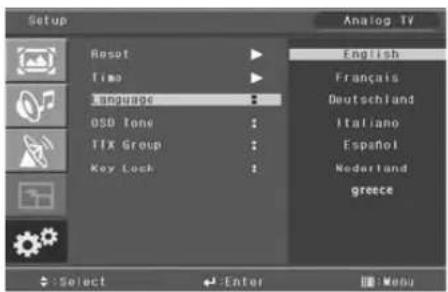
Choosing the Your Languages
Using the TV for the first time, users must select their preferred language preference in order to display main menus and sub menus, etc.
text_image
Setup Reset Time Language OSO Tone TJX Group Key Lock Analog TV English Français Deutschland Italiano Español Nederland greece Select Enter Menu1 Press MENU button.
1 Menu items appear on the screen.
2 Press ↓ button to select "SET UP" Icon.
"RESET" is highlighted.
3 Press ▲ / ▼ button to move to Language and press / ▼ button to select to Language.
→ ENGLISH → FRANÇAIS → DEUTSCHLAND → ITALIANO → ESPAÑOL
→ NEDERLAND → sverige → greece
4 Press EXIT button to TV viewing or press MENU button to return to the previous menu.
How to set osd tone

text_image
Setup Analog TV Reset Time Language 350 tone On Off TIX Group Key lock Select Enter Menu1 Press MENU button.
Menu items appear on the screen.
2 Press ← button to select "set up" icon
"RESET" is highlighted.
3 Press ▲/ buttons to move to "osd tone"
4 Press ◀/◆ buttons to select to "osd tone".
5 Press ▲/▼ buttons to set to "on/off".
How to Set Teletext in ATV
You can use Teletext service in analog TV mode. If it is included in you receiving channels.

text_image
100 54100/200 TELETEXT 00:02:39 VIDEO/TV SIGNAL GENERATOR 54100/200 未审本年本年审本年审本年率 TOP 未审本年年审本年审本年率 INDEX PROM VERSION &3 Page Contents Page Contents 100 This page 300 PDC/VPT 101 Clock cracker 102 Testpage 400 White picture 111 Newsflash 401 Color bar 150 Subtitle 402 Pattern 1 200 Char. set GB 403 Pattern 2 201 Char. set D 202 Char. set S/SF 555 VIDEOTEXT 203 Char. set F 560 COLORS 204 Char. set I 570 CISPR 13 205 Char. set E + NewsFlash Subtitle1 Press "TTX/MIX" button and wait.
If the “*” sign pops up left upside of the screen as the following picture, wait until the teletext service menu is displayed “*” means it provides teletext service. So wait a moment.
2 Select your interesting item with numeric keys.
Selecting Teletext Display Options in ATV Mode
When users have displayed a teletext page, they can have various options to suit their requirements.
| DISPLAY(ACTION) | BUTTON | |
| Hidden Text (Answers to Quiz Games, for Example)The Normal Screen |  | REVEALREVEAL AGAIN |
| A Second PageNormal screen |  | SUB PAGESUB PAGE AGAIN |
| Double-Size Letters in the :- Upper half of the screen-Lower half of the screenNormal Screen : |  | SIZE- ONCE-TWICE- THREE TIMES |
| Stops the automatic page change which will occur if teletext page consists of 2 or more sub pages.The stop symbol is displayed at the top left-hand corner of the screen. |  | HOLDHOLD AGAIN |
| FLOF INDEX (Full-Level One Facility)TOP INFO. (Table of Page) |  | INDEX |
| To Store Page |  | STORE |
| Return to List or FLOF mode |  | LIST/FLOF |
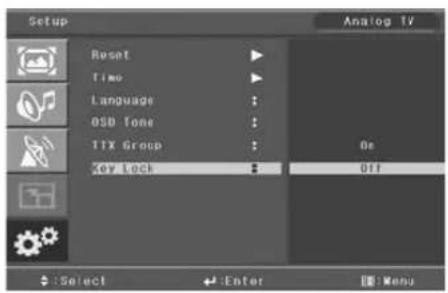
How to Set Key-Lock
User can lock the control buttons on the front bottom of the TV.
text_image
Setup Analog TV Reset Time Language OSB Tone T1X Group Key Lock 0s Off Select Enter Menu1 Press MENU button.
Menu items appear on the screen.
2 Press ▲/ button to move to "SET UP" Icon.
3 Press ← button to select "SET UP" Icon. "RESET" is highlighted
4 Press ▲/ buttons to move to "KEY LOCK".
5 Press ◀/▼ buttons to select to "KEY LOCK".
6 Press ▲/▼ or ↓ buttons to set to ON/OFF
7 Press EXIT button to TV viewing or press MENU button to return to the previous menu.
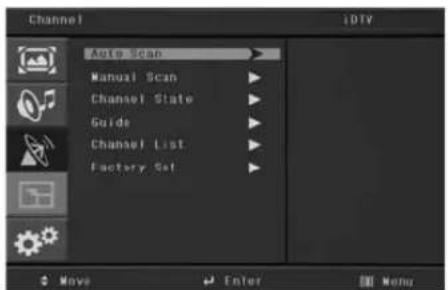
How to Search Automatically
This function can be used to get the latest program data while the receiver is still in use. Through this function, the receiver searches for all the available program and saves them in the memory.
text_image
Channel Auto Scan Manual Scan Channel State Guide Channel List Factory Set1 Press MENU button.
Menu items appear on the screen.
2 Press ▲/ Buttons to move to "DTV CHANNEL" icon.
3 Press ← button to select "DTV CHANNEL" Icon. "AUTO SCAN" is highlighted.
4 Firstly please select the country in System Setup Menu / Region and Time / Region
6 Moving the highlight to "Search" item and press ↓ key to start scanning.
5 In "Scan Mode" item, press ◀/ ▶ey to select scans all channels or just scans free channels

text_image
Auto-Scan Scan Mode AI Search Select Change Enter ExitHow to Search Manually
You can edit parameters of certain channels and scan them.

text_image
Channel Auto Scan Manual Scan Channel State Guide Channel List Factory Set Move Enter Menu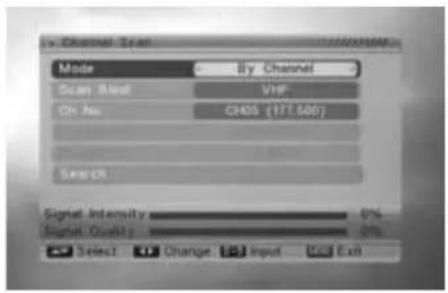
text_image
By Channel Span Mode By Channel Scan Blind Vis# On No. CH05 (177.500) Search Signal Intensity 0% Signal Quality 0% Select Change Input Exit1 Press MENU button.
1 Menu items appear on the screen.
2 Press ▲/ Buttons to move to "DTV CHANNEL" icon.
3 Press ← button to select "DTV CHANNEL" Icon. "AUTO SCAN" is highlighted.
4 Press ▲/ Buttons to move to "MANUAL SCAN".
5 Press ← buttons to select MANUAL SCAN" MANUAL Scan menu appears.
6 There are two modes. You can scan channel by channel or by frequency."
7 When scan band is UHF, the range of Ch No. is from 21 to 61. When scan band is VHF, the range of Ch No. is from 1 to 20.
8 When you complete your modification, move highlight to "Search" item and press [OK] key, then it will begin to scan.
9 In the "Manual Scan" item, press [Exit] key to exit the scanning and save the current parameters.
How to Check Channel State
Users can check parameters of certain channels and scan them.
text_image
Channel Auto Scan Manual Scan Channel State Guide Channel List Factory Set (BIV) Move Enter Menu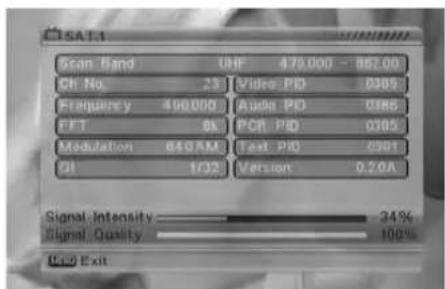
text_image
SCAN Band CH No. 231 Frequency 490.000 FFT 86 Modulation 649.5M QI 1/32 Signal Intensity 34% Signal Quality 100% ICU Exit1 Press MENU button.
1 Menu items appear on the screen.
2 Press ▲/ Buttons to move to "DTV CHANNEL" icon.
3 Press ←button to select "DTV CHANNEL" Icon. "AUTO SCAN" is highlighted.
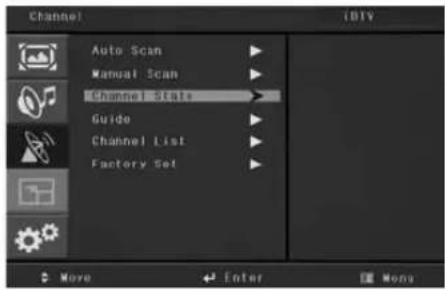
4 Press ▲/ Buttons to move to "CHANNEL STATE" icon.
5 Press _buttons to select CHANNEL STATE" Tuner State menu appears.
6 When you enter to "Channel State" menu, you will see a screen like left. The screen displays some parameters of information of current channel.
7 Press [Exit] key to draw back from "Channel State" menu
How to Use the Guide (EPG : Electronic Program Guide)
Users can check the channel information on the channels of the transponder they are watching.

text_image
Channel Auto Scan Manual Scan Channel Slate Guide Channel List Factory Set Move Enter Menu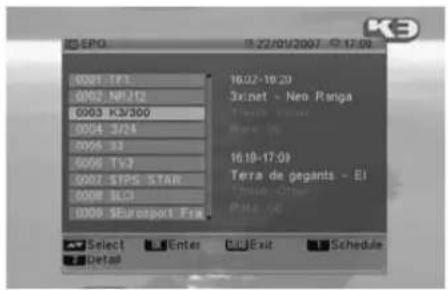
text_image
0001 17:1 0002 NF212 0003 K3/300 0004 3/24 0005 31 0006 TV3 0007 $TPS STAR 0008 SLC3 0009 $Eurosport Fran 16.02-16.20 3x.net - Neo Ranga 16.18-17.09 Terra de gegants - El Enter C#e P#e 46 Select Enter Exit Schedule Detail
text_image
Schedule 0003 K3/300 22/01/2007 11:50-12:14 Club Super3 Megaman, el cibergu 12:14-13:70 Club Super3 La bruta avcrida 13:20-13:78 Club Super3 La bruta acordida 13:29-14:56 Club Super3 Que mera d'horid 12:56-13:70 Club Super3 Ferras a les dents Language cat Rate 00 Theme Select Date Exit Enter Detail Timer 局罗夕班 仙台工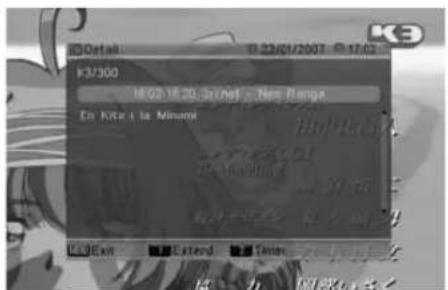
text_image
Detail 18/02/01/2007 9:17:03 K3/300 18:02-18:20, SpNet - New Range En K3a + Is Minant Exit Extend Times1 Press MENU button.
1 Menu items appear on the screen.
2 Press ▲/ Buttons to move to "DTV CHANNEL" icon.
3 Press ← button to select "DTV CHANNEL" Icon. "AUTO SCAN" is highlighted.
4 Press ▲/ Buttons to move to "GUIDE".
5 Press ← buttons to select GUIDE" Program Guide menu appears.
6 The EPG supplies information such as channel listings and starting and ending times for all available channels.
7 Press number key [1] can display all programs schedule information of the selected channel.
8 Press number key [2] can display the current channel detail information.
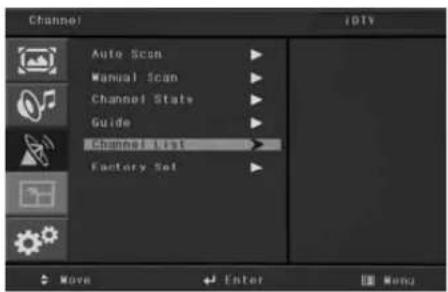
How to Select Channel List
Users can change the current channel to any other channel they want.
text_image
Channel Auto Scan Manual Scan Channel State Guide Channel List Factory Set
text_image
TV Channel List 001 191 002 HPJX2 003 STPS STAR 004 SLO 005 Surinaport France 1502 KM/300 1503 3/24 1504 32 1505 TV 3 474.000MHz/UHF R64OAM V/AJP.CB 141/142/141 Move Find Sort Edit Select Group Enter Dis Ex1 Press MENU button.
Menu items appear on the screen.
2 Press ▲/ buttons to move to "DTV CHANNEL" icon.
3 Press ← button to select "DTV CHANNEL" Icon. "AUTO SCAN" is highlighted.
4 Press ▲/ buttons to move to "CHANNEL LIST".
5 Press ← buttons to select CHANNEL LIST"
6 You can move highlight by press [Up/Down] key to preview the current highlighted program in the right side preview window.
You can press [Page Up/Page Down] key to
7 implement the Page Up/Page down function.
8 You can use [Left/Right] key to switch "Group."
9 You can press [Menu] or [Exit] keys to enter full screen playing mode.
10 Press the number key [1] \~ [4] can implement the corresponding function in "Channel List".
\* How to Move Channel
- Press number key [1], there will show a "moving mark" in the right side of the selected channel.
- You can move the selected channel to the position that you want to place by press [Up/Down] key. And press [OK] key to confirm your decision.
\* How to Find Channel
- Press number key [2] can open the "Find" window like above.
You can press [Channel Up/Channel Down/Volume Up/Volume Down] key to move highlight and press [OK] key to input the selected symbol or letter into the dialogue. - After input each character, the program list on the left will search the channel according your input, and list the matched channel.
- Press [Exit] key can close "Find" window and you can select channelfrom the channels list directly
\* How to Sort Channel
- Press number key [3] can open the "Sort" window likes above.
There are five kinds of sorting ways. You can press [Up/Down] key to move highlight and press [OK] key to confirm you selection - The five kinds of sorting way are:
Default: Sorting by scanning result.
Name (A-Z): Sorting in Alphabetical Order, ignore "\$" symbol.
Name (Z-A): Sorting in Alphabetical Order, ignore "\$" symbol.
FTA: Sieved out all free fare channels.
Lock: Accumulated all locked channels and list in the last of TV Channel List
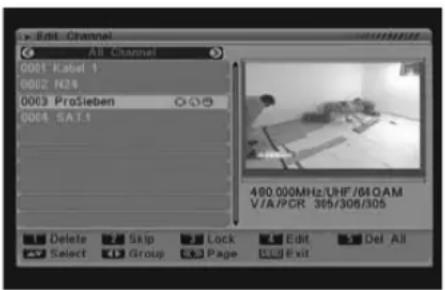
\* How to Edit Channel
text_image
Edit Channel All Channel 0001 Kabel 1 0002 N24 0003 ProSieben 0004 SA1.5 490.000MHz/UHF/64OAM V/A/PCR 369/308/305 Delete Skip Lock Edit Del All Select Group Page Exit
text_image
Edit Channel 0001 Kabel 1 0002 H24 0003 ProSiebe 0004 SAT1 Edit Channel Name ProSieben Save Exit Iz/HP/84OAM 305/308/305 Delete Skip Lock Edit Del All Select Group Page Exit- Press number key [4] will open a message box for you to enter password, and the default password is "0000".
- There are five items of "TV Channel List Edits": Delete, Skip, Lock, Edit, and elete all.
- Press [Exit] key to exit "TV Channel List Edit" menu.
The system will show up a message box to inquire you whether saving or not.
1) Delete
In "TV Channel List Edit" menu, press number key [1] can make a delete mark in the right side of the highlighted channel. After save and exit "TV Channel List Edit" menu, the marked channel will be deleted.
2) Skip
In “TV Channel List Edit” menu, press number key [2] can make a “skip mark” in the right side of the highlighted channel. After save and exit “TV Channel List Edit” menu, the channel will be skip while user change channel in the full screen.
3) Lock
In “TV Channel List Edit” menu, press number key [3] can make a “lock mark” in the right side of highlighted channel. After save and exit “TV Channel List Edit” menu, STB will request you to input the password while you want to watch the locked channel.
4) Edit
In "TV Channel List Edit" menu, press number key [4] can enter edit box like below:
- On the "Name" item, press [OK] key can display keypad to edit the name of selected channel.
- “Video PID”, “Audio PID” and “PCR PID” items are grey and can not be edited.
- After modification, move highlight to "Save" item and press [OK] key can save the modified value and exit "Edit" mode. Otherwise, move highlight to [Exit] item and press [OK] key can exit "Edit" mode and won't save any modification.
5) Delete all
- In "TV Channel List Edit" menu, press number key [5] can mark all the channel with delete mark
-. Press number key [5] again can cancel all the delete mark.
How to Factory Set
The status of the Digital-TV will return to factory default parameters by using this function.

text_image
Auto Scan Manual Scan Channel State Guide Channel List Factory Set Move Enter Menu
text_image
System Setup TV System Region and Time OSD Setting Parental Lock Timer Setting Load Factory Default Select Enter Exit1 Press MENU button.
1 Menu items appear on the screen.
2 Press ▲/ Buttons to move to "DTV CHANNEL" icon.
3 Press ← button to select "DTV CHANNEL" Icon. "AUTO SCAN" is highlighted.
4 Press ▲/ Buttons to move to "FACTORY SET".
5 Press ← buttons to select FACTORY SET" "Factory Set" is highlighted.
6 Press [Up/Down] key to select menu items among each item.
7 Press [OK] key to enter the selected item.
Setting TV System

1 You can press [Left/Right] key to select on or off.
2 LCN Mode can control the channel whether sort by the sequence information in the streams. The options are: On / Off. You can press [Left/Right] key to select each mode circularly.
3 Press [Exit] key to draw back from "TV System" menu
Setting Region and Time
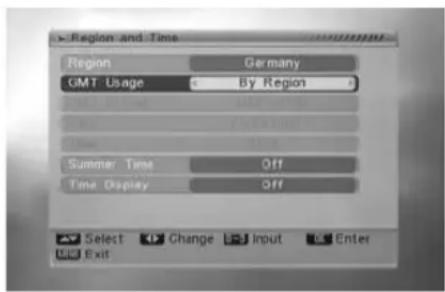
When you enter to "Region & Time" menu, you will see "Region" and "Time Setting" items like below:
text_image
Region and Time Region Germany GMT Usage By Region Month By Month Summer Time Off Time Display Off Select Change.Input Enter Exit1 Region: Region is used for selecting the country which you are in. You can press [Left/Right] key to select each mode circularly. Press [Menu] key to exit menu.
2 Time Setting: - .When you select "Time Setting" and press [OK] key to enter the menu, you will see the screen like below: - . GMT Usage: This item is use for open the usage of GMT. You can press [Left/Right] keys to switch "Off / User Define / By Region"
The “GMT Offset” item is valid only when the setting of “GMT Usage” is “User Define”.
You can press [Left/Right] keys to switch "GMT
- Offset" value and the range is “-12:00 \~ +12:00”, increase each half hour progressively.
- "Date" and "Time" items are valid only when the setting of "GMT Usage" is "Off".
You can press [Left/Right] keys to moving highlight and use number keys to input directly.
- “Summer Time” items are valid only when the setting of “GMT Usage” is “By Region.”
You can press [Left/Right] keys to switch.
- Time display function can control whether the time will be displayed on screen or not.
- Press [Exit] key to draw back from "Time" menu.
OSD Setting
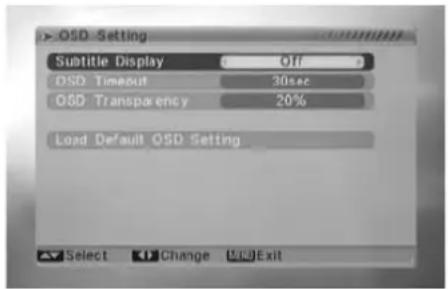
When you input to "OSD Setting" menu, you will see a screen like below:
text_image
> OSD Setting Subtitle Display Off OSD Timeout 30sec OSD Transparency 20% Load Default OSD Setting Select Change Exit1 Menu Style: offers five kinds different color style; you can press [Left/Right] key to select your favorite.
2 Subtitle Display: You can press [Left/Right] key to select "On" or "Off". If the current channel has subtitle information,
it will be showed up while this function is "On". If this function is "Off", there won't show up subtitle information even if the current channel has subtitle information.
3 OSD Timeout: When you switch channels in full screen, there will show up some information about current channel on the lower of the screen.
And regarding to the duration of these information show up on the screen, you can press [Left/Right] key to set the time. The range of the duration is "5 second \~ 30 seconds."
4 OSD Transparency: Besides the setting of "OSD Menu Style", you also can set the transparency of OSD. You can press [Left/Right] key to select the values.
There are 5 levels of transparency, 10%, 20%, 30%, and 40% and "NO" (means no transparency function).
5 Load OSD Setting Default: If you are not satisfy with your setting, you can move highlight to this item and press [OK] key to reset parameters as default value.
6 Press [Exit] key to draw back from the "OSD Setting" menu.
Setting Parental Lock
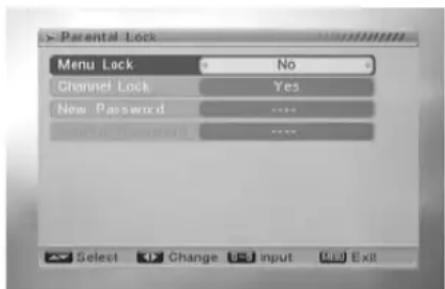
In "Parental Lock" function, press [OK] key, there will pop a dialogue for you to input the password. The default password is "0000". When you input the correct password, you will see a screen like below:
text_image
> Parental Lock Menu Lock No Channel Lock Yes New Password ...... Select Change Input Exit1 Menu Lock determining that when user wish to enter "Installation" menu, whether have to input Password or not. If the setting of "Menu Lock" is "Yes" which means user have to key in password, set "No" means unlock.
2 Channel Lock determining that when user wishes to play the lock channels, whether have to input the password or not. If the setting is "Yes", play the channels with lock mark will show up a dialogue on the screen and ask for the password.
- If the setting of "Channel Lock" is "No," the Lock function will invalid.
- New Password is used for revising password; you can input the new password in this item by using number keys directly. After you filled in 4 digital numbers, the highlight will auto skip to Confirm Password and ask you to input the new password again.
If the password is correct, the screen will show up a message of "Change password successfully."
After finish saving and draw back to "System Setup" menu, the revising is complete.
- Press [Exit] key to draw back from the "Parental Lock" menu.
Setting Load Factory Default
When you press [OK] key in the "Load Factory Default" item:

text_image
System Setup TV System Region and Time DSD Setting Parental Lock Load Factory Default1 There will pop a dialogue for you to enter the password, and the default password is "0000".
2 After you input the correct password, there will show a warning message to inquiry you "The operation will load default and erase all the channels that user added, continue?".
3 If you select "Yes" option, the all revised parameters of the receiver will reset to default value.
Please carefully to using this function.
4 In step 1 and step 2, press [Exit] key can draw back from this item and without saving
How to Set Teletext in DTV

text_image
Teletext/Subtitle Teletext/Subtitle Teletext On TTX LANG. 4, dan 17.561 Press [TTX/MIX] to show teletext information.
2 Select "on" OSD, and select language on the OSD.
3 Press [TTX/MIX] key to control about the background of the teletext like below the picture
How to Set Subtitle

text_image
Teletext/Subtitle Teletext/Subtitle Subtitle Subtitle Display Off 17.561 Press [S.MODE] to show the subtitle information.
2 Change the Subtitle Display, and select SUBT LANG.
3 Subtitle will be displayed on the screen like below the picture.
Troubleshooting
Symptom Possible solution
How can I install an antenna? Refer to page 11.
TV screen is not clear after installing an indoors antenna. Indoors antenna may experience poor reception due to surrounding buildings. Please install an outdoors antenna or wireless antenna.
How can I view cable broadcasting? Please install a cable broadcasting receiver (Converter).
Symptom Possible solution
Neither picture nor sound comes up. Check whether power is on. Check whether the power is cut or whether the power cord is properly connected. Try to plug another product's power cord to the same outlet to check the outlet itself.
Picture turns on slowly after power is on. This symptom is not a malfunction. This delay is designed to prevent the distorted and noisy picture when the power is on. However, if the picture does not appear more than 5 minutes after the power is on, call a service center.
Picture is distorted or frozen while watching digital This symptom may be caused by weak reception. Contact your local station or cable company.
Input Source information only appears on black screen. Check whether your TV is properly connected to external devices.
Poor reception on some channels. Check whether you selected proper channels. Try re-orienting your antenna. Ensure LNA is activated.
Black and white on some channels. Check other channels for black and white screen. Adjust colour.
TV won't turn on. Ensure the power cord is plugged.
Screen is too bright or too dark. Adjust brightness.
Auto On does not work. Ensure to use the remote control or power button on the product to turn off your TV. If you unplug the power cord, the stand-by consumption power becomes 0 (zero), which causes the programmed time to be erased.
After setting the time, I turned TV off and turn it on. Ensure to use the remote control or power button on the product to turn off your TV. If you unplug the power cord, the stand-by consumption power becomes 0 (zero), which causes the programmed time to be erased. The programmed information has been erased.
Symptom Possible solution
Too much noise occurs. Check whether the audio setting is in the Stereo mode. In the Stereo mode, the sound may be distorted in areas with poor reception or located far away from a TV broadcasting station.
No sound while viewing a cable channel Make sure audio or audio/video components are securely inserted into the appropriate jacks. Check other channels for sound. Check the volume settings on the cable broadcasting receiver.
Picture is OK but sound does not come out. Try to press volume up/volume down buttons of your remote control.
One of the speakers does not produce sound. Select sound balance and make proper adjustment. (Page 20) Check the speaker connection cables.
Symptom Possible solution
Remote control won't work. Check whether there is a blocking object between the remote control and PDP. Make sure your PDP is Power On. (Normally, the LED on the front panel is red.) Check whether batteries are inserted with proper polarities(+,-). When the batteries are worn out, replace them.
Where does the S-Video cable plug in for audio output? Connect the two Audio jacks from the S-Video cable to the left and right ports on the Composite.
Strange noises are heard. Ticking noises during or after watching are caused by the change of ambient environment such as humidity and temperature, which is characterized by plastic products. Strange ticking noises occur because a signal is suddenly transmitted to the PDP panel. So, It is not a malfunction.
I tried to use the TV screen as a PC monitor but it doesn't work. Adjust the resolution referring to the standard signal mode table. Check the specification of your video card installed in your PC. If your video card does not work in the supported hardware, try upgrading the video card's driver.
Product Specifications
| Model | LC4202e | LC4602e | |
| Input | Full-Scart | 1 (A/V) | 1 (A/V) |
| Half-Scart | 1 (A/V) | 1 (A/V) | |
| S-Video | 1 (A/V audio common) | 1 (A/V audio common) | |
| Video (RCA) | 1 (Audio included) | 1 (Audio included) | |
| Component(Y/Cb/Cr) | 1 (Audio included) | 1 (Audio included) | |
| Antenna | 1 | 1 | |
| PC Connection jack | D-SUB | D-SUB | |
| Max. resolution | 1600 X 1200 @ 60 Hz | 1600 X 1200 @ 60 Hz | |
| Audio | L/R | L/R | |
| DVI-HDCP / HDMI | 3 | 3 | |
| Video Output | 1 (Audio included) | 1 (Audio included) | |
| Audio Output | Digital SPDIF Optical | 1 | 1 |
| TV/Video | Color system | PAL/SECAM L | PAL/SECAM L |
| Sound system | FM, NICAM | FM, NICAM | |
| Video system | Component, S-Video, Composite, PC, DVI/HDMI | Component, S-Video, Composite, PC, DVI/HDMI | |
| Power | Supply | AC 100 - 240 V, 50/60 Hz | AC 100 - 240 V, 50/60 Hz |
| Consumption power | Typical 220W | Typical 250W | |
| Stand-by power | Typical 3W | Typical 3W | |
| Dimension (W x D x H mm - Stand included) | 1057 x 350 x 796 | 1143 x 350 x 845 | |
| Weigh (Stand included) | 32.6Kg | 31.0Kg | |
| Control type | Remote control, Key control | Remote control, Key control | |
- The above specifications may be subject to change without prior notice.