
XPRT - Smartphone MOTOROLA - Free user manual and instructions
Find the device manual for free XPRT MOTOROLA in PDF.


| Product Type | Smartphone |
| Brand | Motorola |
| Model | XPRT |
| Dimensions | 122 x 63 x 13 mm |
| Weight | 160 g |
| Display Size | 4.0 inches |
| Display Resolution | 480 x 854 pixels |
| Processor | 1 GHz |
| RAM | 512 MB |
| Internal Storage | 2 GB |
| Expandable Storage | microSD up to 32 GB |
| Battery Capacity | 1500 mAh |
| Operating System | Android 2.3 Gingerbread |
| Rear Camera | 5 MP |
| Front Camera | None |
| Connectivity | Wi-Fi 802.11 b/g/n, Bluetooth 2.1, GPS, microUSB |
| Network | GSM / UMTS |
| Keyboard | QWERTY physical keyboard |
| Special Features | Rugged design, Push-to-talk |
| Sensors | Accelerometer, Proximity, Compass |
| Security | Pattern lock, PIN, Password |
| Maintenance | Clean with dry cloth; avoid liquids |
| Spare Parts | Battery, charger, USB cable |
Frequently Asked Questions - XPRT MOTOROLA
User questions about XPRT MOTOROLA
0 question about this device. Answer the ones you know or ask your own.
Ask a new question about this device
Download the instructions for your Smartphone in PDF format for free! Find your manual XPRT - MOTOROLA and take your electronic device back in hand. On this page are published all the documents necessary for the use of your device. XPRT by MOTOROLA.
USER MANUAL XPRT MOTOROLA
©2011 Sprint. SPRINT and the logo are trademarks of Sprint. Other marks are the property of their respective owners.
5/11/11

To find this user guide in Spanish, please visit www.sprint.com and click Support > Devices.
Important Privacy Message – Sprint's policies often do not apply to third-party applications. Third-party applications may access your personal information or require Sprint to disclose your customer information to the third-party application provider. To find out how a third-party application will collect, access, use, or disclose your personal information, check the application provider's policies, which can usually be found on their website. If you aren't comfortable with the third-party application's policies, don't use the application.
Table of Contents
Tip: Looking for something? If you don't see it in the headings listed here, try the Index on page 95.
Introduction.... i
Section 1: Getting Started .... 1
1A. Setting Up Service 2
Setting Up Your Phone 2
Activating Your Phone 3
Setting Up Your Voicemail 4
Setting Up Messaging & Social Networking Accounts 4
Sprint Account Passwords 4
Getting Help 5
Section 2: Your Phone .... 7
2A. Phone Basics 8
Your Phone 8
Viewing Notifications 10
Turning Your Phone On and Off 11
Battery and Charger 11
Viewing Your Phone Number 12
Touch Tips & Navigation 13
Phone Setup Options 14
Making and Answering Calls 18
Entering Text 20
2B. Settings 23
Sound Settings 23
Display Settings 23
Location Settings 24
Airplane Mode 25
TTY Use With Sprint Service 25
Security Settings 26
2C. History 28
Recent Calls 28
Frequent Calls 28
2D. Contacts 29
Viewing Contacts 29
Creating Contacts 30
Transferring Contacts 30
Calling Or Emailing Contacts 31
Viewing and Using Contacts 32
Editing Or Deleting Contacts 32
Linking Contacts 32
Synchronizing Contacts 32
Making Groups 33
2E. Calendar & Tools 34
Calendar 34
File Manager 34
Alarm Clock and Timer 35
Help Center 35
Calculator 35
Updating Your Phone 36
2F. Voice Services 37
Voice Actions 37
Voice Commands 37
2G. microSD Card 38
Your Phone's microSD Card 38
microSD Card Settings 39
microSD Card Files 39
Connecting Your Phone to Your Computer ... 39
2H. Camera 41
Taking Photos 41
Recording Videos 43
Viewing Photos & Videos 44
Managing Photos and Videos 45
- Bluetooth & Wi-Fi 46
Using Bluetooth ^® 46
Connecting With Wi-Fi 48
Section 3: Sprint Service ..... 51
3A. Sprint Basics 52
Voicemail 52
Messaging 53
Social Networking 55
Making a Conference Call 56
Roaming 56
3B. Web and Apps 58
Surfing the Web 58
Android Market™ 59
Downloading Apps 60
YouTube™ 61
3C. Entertainment 62
Music 62
Digital Living 64
Sprint Entertainment Options 66
3D. Navigation 68
Google Maps™ 68
Latitude™ 69
TeleNav GPS Navigator 70
3E. Sprint Worldwide ^SM Wireless Service . 71
Getting Started With Sprint Worldwide Service 71
Activating Global Roaming Mode 72
Making and Receiving Worldwide Calls ..... 73
Sprint Voicemail Service 74
International Data Roaming 75
Understanding Status Messages 76
Contacting Sprint 79
Section 4: Safety and Warranty Information 81
4A. Important Safety Information ..... 82
General Precautions 82
Maintaining Safe Use of and Access to Your Phone 83
Using Your Phone With a Hearing Aid Device . 84
Caring for the Battery 86
Radio Frequency (RF) Energy 86
Owner's Record 88
User Guide Proprietary Notice 89
4B. Manufacturer's Warranty ..... 90
Manufacturer's Warranty 90
Index....95
Introduction
This User Guide introduces you to Sprint® service and all the features of your new MOTOROLA XPRT. It's divided into four sections:
Section 1: Getting Started
Section 2: Your Phone
Section 3: Sprint Service
Section 4: Safety and Warranty Information
Note: Because of updates in phone software, this printed guide may not be the most current version for your phone. Visit www.sprint.com and sign in to access the most recent version of the user guide.
WARNING: Please refer to the Important Safety Information section on page 82 to learn about information that will help you safely use your phone. Failure to read and follow the Important Safety Information in this phone guide may result in serious bodily injury, death, or property damage.
Section 1
Getting Started
Sprint

1A. Setting Up Service
Setting Up Your Phone (page 2)
- Activating Your Phone (page 3)
Setting Up Your Voicemail (page 4)
Setting Up Messaging & Social Networking Accounts (page 4)
♦ Sprint Account Passwords (page 4)
◆ Getting Help (page 5)
Setting Up Your Phone
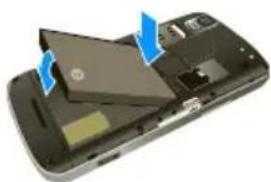
- Install the battery.
■ Remove the battery from its packaging.
■ Insert the battery into the opening in the back of the phone, making sure the connectors align. Gently press down to secure the battery.
■ Position the battery cover over the battery compartment and press down until you hear a click.
- Charge your battery for at least three hours.
natural_image
Close-up of a smartphone showing internal components and blue arrows indicating motion (no text or symbols visible)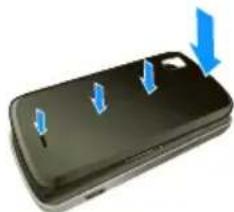
natural_image
Black rectangular device with blue arrows pointing to three internal components (no text or symbols visible)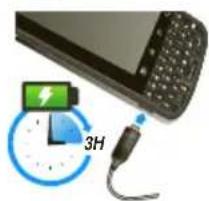
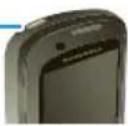
- Press and hold the Power/Screen Lock button on top of your phone to turn it on.
Power Button
2 1A. Setting Up Service
- If your phone is activated, it will turn on and show some setup instructions.
-
If your phone is not yet activated, see “Activating Your Phone” on page 3 for more information.
-
Follow the prompts to add email and other accounts. Or, touch Skip to go to the home screen so you can start to make calls. You can add accounts later.
■ Touch the android to begin.
■ Log on to a Wi-Fi network.
■ Set up or log into your Google account.
■ Add additional accounts.
Note: Please read the battery use and safety text in the important legal and safety information packaged with your phone.
Activating Your Phone
- If you purchased your phone at a Sprint Store, it is probably activated and ready to use.
- If you received your phone in the mail and it is for a new Sprint account or a new line of service, it is designed to
activate automatically. To confirm your activation, make a phone call.
- If you received your phone in the mail and you are activating a new phone for an existing number on your account, you will need to go online to activate your new phone.
- From your computer's Web browser, go to www.sprint.com/activate and complete the onscreen instructions to activate your phone.
When you have finished, make a phone call to confirm your activation. If your phone is still not activated or you do not have access to the Internet, contact Sprint Customer Service at 1-888-211-4727 for assistance.
Tip: Do not press the Power/Screen Lock button while the phone is being activated. Pressing it cancels the activation process.
Note: If you are having difficulty with activation, contact Sprint Customer Service by dialing 1-888-211-4727 from any other phone.
1A. Setting Up Service 3
Setting Up Your Voicemail
Your phone automatically transfers all unanswered calls to your voicemail, even if your phone is in use or turned off. You should set up your Sprint Voicemail and personal greeting as soon as your phone is activated. Always use a password to protect against unauthorized access.
- Touch to open the dial screen, and then touch and hold 1.
- Follow the system prompts to:
■Create your password.
■Record your name announcement.
■Record your greeting.
Note: Voicemail Password
Sprint strongly recommends that you create a password when setting up your voicemail to protect against unauthorized access. Without a password, anyone who has access to your phone is able to access your voicemail messages.
For more information about using your voicemail, see "Voicemail" on page 52.
Setting Up Messaging & Social Networking Accounts
If you skipped the setup steps when you first turned on your phone, use these steps to add accounts:
- Touch Ⓞ > My Accounts > Add account.
- To sign into your account, use the user name or email and password that you set up on that account (the same as on your computer)
Note: You can add corporate sync (Microsoft ^® Exchange ^® ), email, or social networking accounts (such as Facebook, Twitter, and more) to your phone. If you don't have accounts, you can visit their websites to set them up.
Tip: For faster downloads and data connection speeds in Wi-Fi covered areas, see "Connecting With Wi-Fi" on page 48.
Sprint Account Passwords
As a Sprint customer, you enjoy unlimited access to your personal account information, your voicemail
4 1A. Setting Up Service
account, and your data services account. To ensure that no one else has access to your information, you will need to create passwords to protect your privacy.
Account Username and Password
If you are the account owner, you will create an account username and password when you sign on to www.sprint.com. (Click Sign in and then click Sign up now! to get started.) If you are not the account owner (if someone else receives the bill for your Sprint service), you can get a sub-account password at www.sprint.com.
Voicemail Password
You'll create your voicemail password when you set up your voicemail. See "Setting Up Your Voicemail" on page 4 for more information on your voicemail password.
Data Services Password
With your Sprint phone, you may elect to set up an optional data services password to control access and authorize Premium Service purchases. For more information, or to change your passwords, sign on to www.sprint.com or call Sprint Customer Service at 1-888-211-4727.
Getting Help
Managing Your Account
Online: www.sprint.com
- Access your account information.
- Check your minutes used (depending on your Sprint service plan).
- View and pay your bill.
- Enroll in Sprint online billing and automatic payment.
● Purchase accessories. - Shop for the latest Sprint phones.
- View available Sprint service plans and options.
- Learn more about data services and other products like Sprint Picture Mail, games, ringers, screen savers, and more.
1A. Setting Up Service 5
From Your Sprint Phone
- Touch 📋 * to check minute usage and account balance.
- Touch 📊 * to 3 P#e a payment.
- Touch 📋 * to access a summary of your Sprint service plan or get answers to other questions.
From Any Other Phone
● Sprint Customer Service: 1-888-211-4727.
● Business Customer Service: 1-800-927-2199.
Sprint 411
Sprint 411 gives you access to a variety of services and information, including residential, business, and government listings; movie listings or showtimes; driving directions, restaurant reservations, and major local event information. You can get up to three pieces of information per call, and the operator can automatically connect your call at no additional charge.
There is a per-call charge to use Sprint 411, and you will be billed for airtime.
▶ Touch 4 GHI 1 1
6 1A. Setting Up Service
Sprint Operator Services
Sprint Operator Services provides assistance when you place collect calls or when you place calls billed to a local telephone calling card or third party.
▶ Touch 0 -
For more information or to see the latest in products and services, visit us online at www.sprint.com.
Section 2
Your Phone
Sprint

2A. Phone Basics
- Your Phone (page 8)
◆ Viewing Notifications (page 10)
♦ Turning Your Phone On and Off (page 11)
♦ Battery and Charger (page 11)
◆ Viewing Your Phone Number (page 12)
◆ Touch Tips & Navigation (page 13)
◆ Phone Setup Options (page 14)
◆ Making and Answering Calls (page 18) - Entering Text (page 20)
Tip: Phone Software Upgrades – Updates to your phone's software may become available from time to time. Sprint will automatically upload critical updates to your phone. You can also use the menu to check for and download updates. Touch > Settings > About phone > System updates to search for and download available updates.
8 2A. Phone Basics
Your Phone
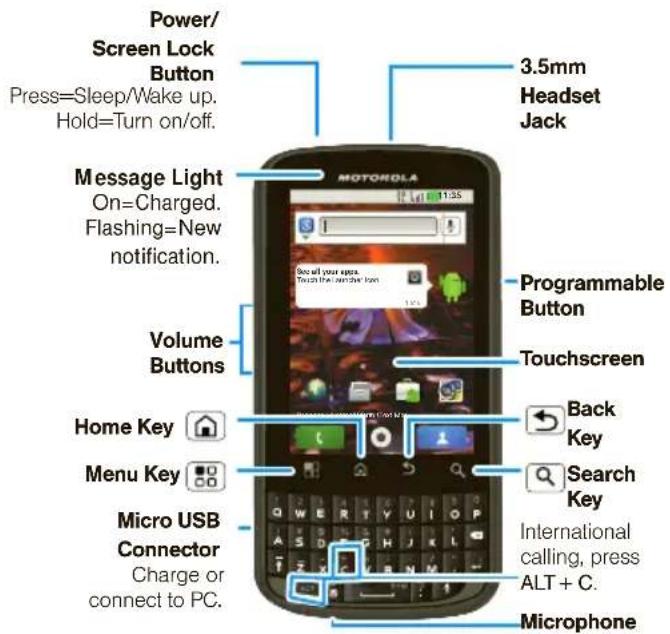
For some features, when you turn your phone, the screen adjusts for you.
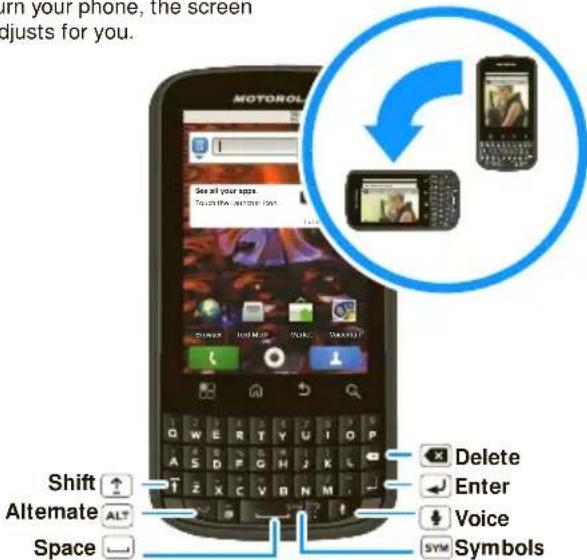
Note: From the home screen, press the voice key to start a voice search. If you're composing a message, press the voice key to begin dictation.
Key Functions
● Power/Screen Lock Button: turn the phone on or off or put the display to sleep.
- Message Light: see when you have a new message or see your phone's charging status at a glance.
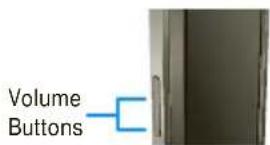
● Volume Buttons: adjust the ringer volume or adjust the voice volume during a call.
● Home Key: return to the home screen. Press and hold the home key to see your most recently used apps.
- Menu Key: open additional options for whatever screen you are viewing.
- Micro USB Connector/Accessory Jack: connect the phone charger or an optional USB cable (included). CAUTION! Inserting an accessory into the incorrect connector may damage the phone.
● Microphone: allow other callers to hear you clearly when you are speaking to them.
- Search Key: open a Google™ search screen so you can search the web.
● Back Key: return to the previous screen.
2A. Phone Basics 9
- Touchscreen: display all the information needed to operate your phone, such as the call status, the Contacts list, the date and time, and the signal and battery strength.
- Programmable Button: open your favorite feature with just one press.
- 3.5mm Headset Jack: plug in either a stereo headset (included) or an optional headset for convenient, hands-free conversations. CAUTION! Inserting an accessory into the incorrect jack may damage the phone.
Viewing Notifications
Your phone's display provides information about your phone's status and options. This list identifies some of the symbols you'll see:
| Bluetooth* active | network (full signal) | ||
| GPS active network (roaming) | |||
| Wi-Fi active 3G data service | |||
| downloading | airplane | ||
| vibrate | sync | ||
| silent | alarm | ||
| mute call battery (charging) | |||
| speakerphone active battery | (full charge) | ||
mode active set
10 2A. Phone Basics
Turning Your Phone On and Off
Turning Your Phone On
▶ Press and hold the Power/Screen Lock button on the top of the phone.
Once your phone is on, it may display "Searching for Service." When your phone finds a signal, it enters standby mode – the phone's idle state. At this point, you are ready to begin making and receiving calls.
If your phone is unable to find a signal after 15 minutes of searching, a Power Save feature is automatically activated. When a signal is found, your phone automatically returns to standby mode.
Tip: The Power Save feature conserves your battery power when you are in an area where there is no signal.
Turning Your Phone Off
▶ Press and hold Power/Screen Lock button to open the phone options menu. Touch Power off to turn the phone off.
Your screen remains blank while your phone is off (unless the battery is charging).
Battery and Charger
WARNING: Use only Sprint-approved or Motorola batteries and chargers with your phone. The failure to use a Sprint-approved or Motorola battery and charger may increase the risk that your phone will overheat, catch fire, or explode, resulting in serious bodily injury, death, or property damage.
Sprint-approved or Motorola batteries and accessories can be found at Sprint Stores or through Motorola; or call 1-866-866-7509 to order. They're also available at www.sprint.com.
Battery Capacity
Your phone is equipped with a Lithium Ion (Li-Ion) battery. It allows you to recharge your battery before it is fully drained.
Your phone warns you with a audible alert when the battery reaches 15% and 5% of its capacity. When there are approximately two minutes of talk time left, the phone plays another alert and then turns off.
2A. Phone Basics 11
Note: Long backlight settings, searching for service, vibrate mode, browser use, and other variables may reduce the battery's talk and standby times.
Tip: Watch your phone's battery level indicator and charge the battery before it runs out of power.
Installing the Battery
▶ See "Setting Up Your Phone" on page 2.
Removing the Battery
- Make sure the power is off so that you don't lose any stored numbers or messages.
- Remove the back cover by pulling up from the notch at the bottom, and then remove the battery from the phone.
WARNING: Do not handle a damaged or leaking Li-lon battery as you can be burned.
Charging the Battery
Keeping track of your battery's charge is important. If your battery level becomes too low, your phone automatically turns off, and you will lose any information you were just working on.
12 2A. Phone Basics
Always use a Sprint-approved or Motorola desktop charger, travel charger, or vehicle power adapter to charge your battery.
Plug the flat end of the charger into the phone's charger jack and the other end into an electrical outlet.
With the Sprint-approved Li-Ion battery, you can recharge the battery before it becomes completely run down.
Viewing Your Phone Number
▶ Touch 📁 > Settings > About phone > Status. (Your phone number and other information about your phone and account appear.)
Touch Tips & Navigation
Here are some tips for navigating around your phone.
Touch
To choose an icon or option, touch it.
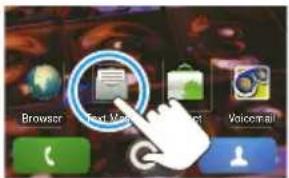
Touch & hold
To open special options, touch and hold an icon or other item. Try it: In the home screen, touch and then touch and hold a contact to open options.
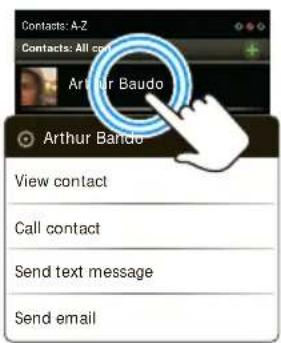
Drag
To scroll through a list or move slowly, drag across the touchscreen. Try it: In the home screen, touch, and then drag your Contacts list up or down.
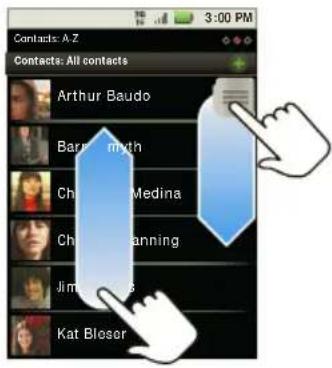
Tip: When you drag or flick a list, a scroll bar appears on the right. Drag the scroll bar to move the list to a letter A - Z.
Flick
To scroll through a list or move quickly, flick across the touchscreen (drag quickly and release).
Tip: When you flick a long list, touch the screen to stop it from scrolling.
2A. Phone Basics 13
Zoom
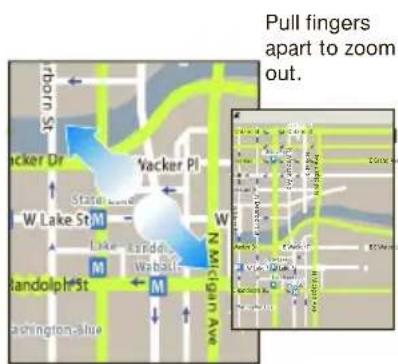
Get a closer look at maps or web pages. To zoom in, double-touch the screen. To zoom out, double-touch the screen again.
You can also zoom in or out by pinching your fingers together or moving them apart on the screen.
Phone Covers
Your touchscreen might stay dark during calls if the sensor just above it is covered. Don't use covers or screen protectors (even clear ones) that cover this sensor.
Screen protectors can also interfere with touchscreen performance.
Phone Setup Options
Home Screen
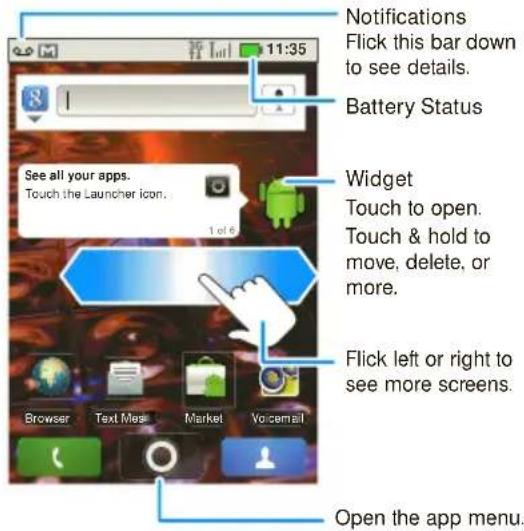
The home screen gives you all your latest information in one place. It's what you see when you turn on the phone or touch Home from a menu.
14 2A. Phone Basics
Note: Your home screen might look a little different.
The home screen extends beyond what you see on the screen to give you more room for adding shortcuts, widgets, and more. Flick the home screen left and right to see more panels or to add widgets or shortcuts.
Shortcuts
To add shortcuts to the home screen, touch 📄 to open the app menu, and then touch and hold the shortcut you want. Or, touch 🏠 Add > Shortcuts.
You can also add shortcuts directly to the home screen: touch and hold an empty spot on the home screen, touch Shortcuts, and select a shortcut.
Tip: You can launch your frequently used applications directly from the keyboard. For example, setSearch+B to launch browser, or Search+D for the dialer.
Widgets
A widget is small app on the home screen that displays information, such as weather, news, and social networking updates. You can add a widget, such as a clock, music player, or a calendar that shows upcoming appointments. To open a widget, touch it.
Creating Widgets
- Find an empty spot on your home screen where you want to add a widget. You can flick left or right to open other panels on your home screen.
- Touch and hold the empty spot until you see the Add to Home screen menu.
- Touch Motorola widgets or Android widgets.
- Touch the type of widget. If necessary, enter the widget settings.
Tip: You can change a widget's size. Just touch and hold the widget. When the widget's outline turns white, drag one of the corners to make it the size you want.
Note: If you install apps from Android Market™ that have widgets, touch and hold the home screen, and then select a widget to add to the home screen.
Setting Up Widgets
You can customize some widgets. Touch a widget to open it, and then touch
You may already have several useful widgets on your home screen:
- Messages: Change the widget name or choose how long it shows new messages. To add email accounts, see "Setting Up Messaging" on page 54.
- Music: Set this widget to an artist, album, song, playlist, or just touch ▶ Party shuffle. There's more about "Music" on page 62.
- News: Change the widget name, choose how long it shows new stories, or choose a news source. To choose a source, touch , and then choose preset Bundles or Channels, or choose Custom to enter a URL for a Webpage or an RSS feed.
- Weather: Change temperature units or add locations. To add locations, touch , enter a city, and touch Search. When you open the weather widget, flick left to see other locations you added.
App Menu
The app menu shows you all of your applications. To open it from the home screen, touch .
Flick up and down to see all of your apps. Any new apps that you download (see "Android Market™" on page 59) are added to the app menu.
To close the app tray, touch 📄 Home or 📃 Back.
Recent Apps
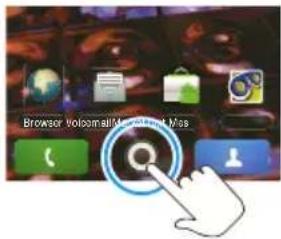
Touch and hold ☐ to see the last few apps you used, and then touch the app you want. Touch ☐ to return to the home screen.
16 2A. Phone Basics
Search
▶ Touch 🔒 Search to start a Google search.
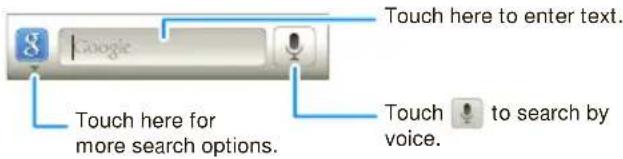
Note: You can also use the Voice search key on the keypad.
Programmable Side Key
Set the key on the side of your phone to open the feature you use most.
-
To set the programmable side key, touch Settings > Applications > Quick Launch.
-
Touch the item assigned to Side key (usually the first item on the list), and then touch an application.
Tip: You can also use Quick Launch to set shortcuts for most of the keyboard keys. To access these shortcuts, touch and hold [and] press the key while holding .
To make assigning Quick Launch keys easier, you can put a shortcut on the home screen. Touch and hold an empty spot on the home screen and select Shortcuts > Settings > Quick Launch
2A. Phone Basics 17
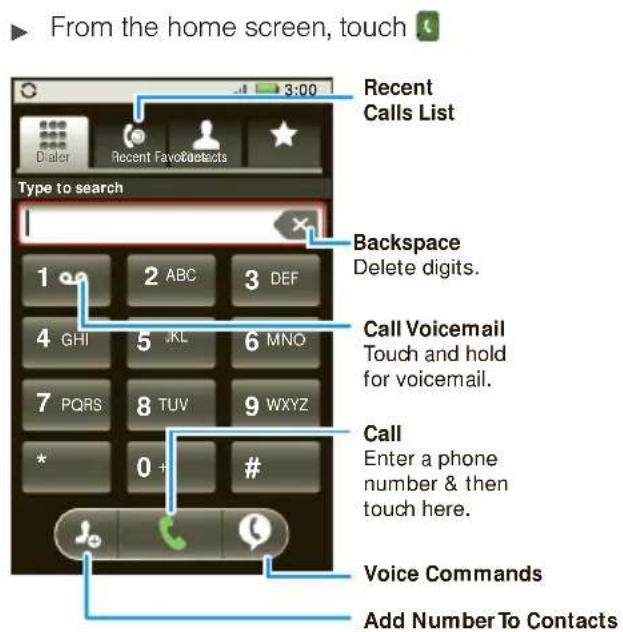
Making and Answering Calls
Making Calls
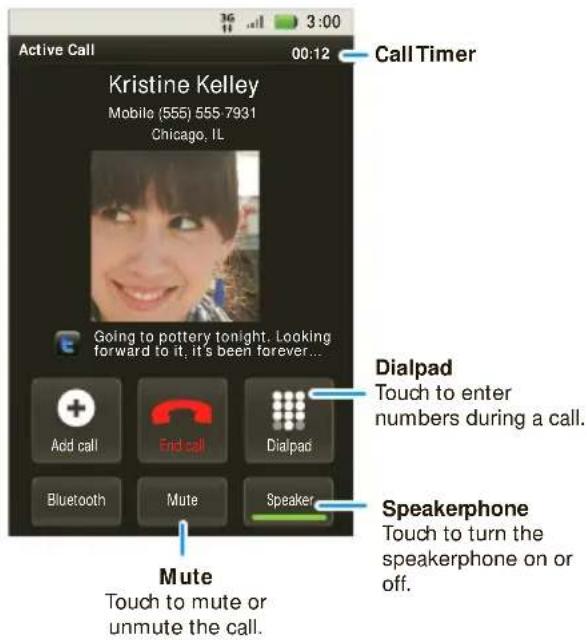
In-Call Options
18 2A. Phone Basics
During a call:
- To use a Bluetooth ^ device, touch Bluetooth. (First, turn on your phone and pair it. See "Connecting New Devices" on page 47.)
• To mute a call, touch Mute.
● To use the speakerphone, touch Speaker.
Note: Using a mobile device or accessory while driving may cause distraction and may be illegal. Always obey the laws and drive safely.
Your phone includes a proximity sensor. When you hold the phone to your ear, the display goes dark to prevent accidental touches. When you move your phone away from your ear, the display lights up again.
Tip: You can touch 📂 to leave the active call display. To reopen it, touch 📋 > Return to call in progress.
Answering Calls
To answer a call while the display is active, touch Answer. When the display is not active, answer by dragging to the right.
If the incoming call is from one of your Contacts, the person's name is displayed. You may also see the caller's phone number, if available.
Ending a Call
▶ To end a call, touch

Tip: To ignore a call, touchIgnore.
Note: Screen protectors can interfere with touchscreen performance. Aftermarket screen protectors must have an opening for the proximity sensor to operate properly. You may experience abnormal function if an aftermarket-protector or protective film covers proximity sensor area at the top of the phone.
Recent Calls
▶ To see recent or missed calls, touch 📋 Recent
■To call a number, touch
■To send a text message, touch and hold an entry., and then select Send text message.
■To clear the list, touch □> Clear list.
2A. Phone Basics 19
Calling Emergency Numbers
Note: Your service provider programs one or more emergency phone numbers (such as 911 or 112) that you can call under any circumstances, even when your phone is locked. Emergency numbers vary by country. Your pre-programmed emergency number(s) may not work in all locations, and sometimes an emergency call cannot be placed due to network, environmental, or interference issues.
- Touch 📋 (If your phone is locked, touch Emergency Call.)
- Enter the emergency number.
- Touch to call the emergency number.
Note: Your mobile device can use GPS and AGPS signals to help emergency services find you.
Enhanced 911 (E911) Information
This phone features an embedded Global Positioning System (GPS) chip necessary for utilizing E911 emergency location services where available.
When you place an emergency 911 call, the GPS feature of your phone seeks information to calculate your approximate location. Depending on several variables, including availability and access to satellite signals, it may take up to 30 seconds or more to determine and report your approximate location.
Important: Always report your location to the 911 operator when placing an emergency call. Some designated emergency call takers, known as Public Safety Answering Points (PSAPs) may not be equipped to receive GPS location information from your phone.
Cool Down
In very limited circumstances, such as where your phone has been exposed to extreme heat, "Cool Down" message screens will appear. To avoid possible damage to your battery and phone, you should follow these instructions until the phone is within its recommended temperature range. When your phone is in "Cool Down" mode, only emergency calls can be made.
Entering Text
You can type using the phone's QWERTY or touchscreen keyboard.
QWERTY Keyboard
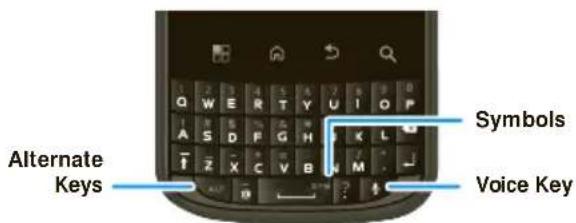
Tip: When you type, your phone suggests words for you. You can turn this on or off or explore other options by touching Settings> Language & keyboard
Note: When you're entering text, press the Voice Key to begin voice recognition dictation.
Touchscreen Keypad
Touch a text field to open a touchscreen keypad. Press Back to close it.
To move the cursor, touch and hold a word to open a magnifier where you can drag the cursor.
Multi-Touch Keypad
Use the touchscreen keypad to enter letters one at a time.
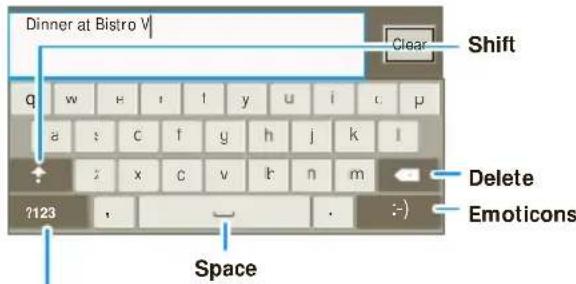
Letters/Numbers
Touch to open a keypad for symbols or numbers.
Typing Tips
| To... | |
| Enter alternate characters | To enter charactersappearing at the top of the keys (including numbers),touchALT |
2A. Phone Basics 21
| To... | |
| Enter one capital letter | Touch Shift. |
| Enter only capital letters, until you touch Shift again | Touch Shift twice. Touch again to revert to lowercase. |
| Cut or Copy selected text | Double touch to select text, and then drag to left or right to highlight words. Touch and hold on or near the highlighted text and select Cut or Copy. |
| Move the cursor | Touch where you want to move the cursor. When you see a red icon, drag it to where you want the cursor. |
| Paste cut or copied text | Touch and hold location to paste then touch Paste. |
| Delete a character (hold to delete more) | Touch Delete |
22 2A. Phone Basics
Input Methods
To select an input method, touch and hold a text entry area on the screen to open the Edit text menu. Touch Input method, and then touch the method you want.
Auto-Correction
As you type, your phone suggests words from your dictionary and chosen language.
Your phone also automatically enters apostrophes in some words, like "dont." You can also touch two keys at the same time, such as Shift with a letter.
Text Input Settings
▶ Touch > Settings > Language & keyboard.
2B. Settings
Sound Settings (page 23)
◆ Display Settings (page 23)
◆ Location Settings (page 24)
Airplane Mode (page 25)
◆ TTY Use With Sprint Service (page 25)
◆ Security Settings (page 26)
Sound Settings
Ringtones
To personalize your ringtones, touch Settings > Sound > Phone ringtone or Notification ringtone.
Adjusting the Phone's Volume Settings
▶ Press the volume buttons to change the ring volume (in the home screen), or the earpiece volume (during a call).
Vibrate
▶ To set your vibrate options, touch 📁 > Settings > Sound > Vibrate.
Display Settings
Changing the Display Screen
▶ To set display brightness, touch 📁 > Settings > Display > Brightness.
To set orientation, touch 📁 > Settings > Display > Auto-rotate screen.
2B. Settings 23
▶ To set animation, touch 📁 > Settings > Display > Animation.
Note: Some apps are designed so that your phone can "animate" them by rotating, fading, moving, and stretching one or more images.
Wallpaper
To apply a new wallpaper:
- Touch and hold an empty spot on your home screen.
- Touch Wallpapers.
- Touch Live Wallpapers, Media gallery, or Wallpapers, and choose a wallpaper.
Display Language
To set your menu language and region:
▶ Touch 📁 > Settings > Language & keyboard > Select locale.
Changing the Date & Time
To set date, time, time zone, and formats:
▶ Touch > Settings > Date & time.
Location Settings
Your phone is equipped with a Location feature for use in connection with location-based services.
The Location feature allows the network to detect your position. Turning Location off will hide your location from everyone, except 911.
Note: Turning Location on will allow the network to detect your position using GPS technology, making some Sprint applications and services easier to use. Turning Location off will disable the GPS location function for all purposes except 911, but will not hide your general location based on the cell site serving your call. No application or service may use your location without your request or permission. GPS-enhanced 911 is not available in all areas.
To enable your phone's Location feature:
▶ Touch 📁 > Settings > Location & security and select one or more services to use.
Airplane Mode
Airplane Mode turns off all your wireless connections and allows you to use many of your phone's features, such as Games, Notepad, and Voice Memos, when you are in an airplane or in any other area where making or receiving calls or data is prohibited. When you set your phone to Airplane Mode, it cannot send or receive any calls or access online information.
▶ Press and hold the Power/Screen Lock button and then touch Airplane mode.
TTY Use With Sprint Service
A TTY (also known as a TDD or Text Telephone) is a telecommunications device that allows people who are deaf, hard of hearing, or who have speech or language disabilities to communicate by telephone.
Your phone is compatible with select TTY devices. Please check with the manufacturer of your TTY device to ensure that it is compatible with digital cell phones. Your phone and TTY device will connect via a special cable that plugs into your phone's headset jack. If this cable was not provided with your TTY device, contact your TTY device manufacturer to purchase the connector cable.
To turn TTY Mode on or off:
▶ Touch 📁 > Settings > Call settings > TTY mode and select an option.
For additional information about Sprint Relay Services and TTY compatibility, call Sprint Relay Customer Service at 800-676-3777 or visit www.sprintrelay.com.
2B. Settings 25
WARNING: 911 Emergency Calling
Sprint recommends that TTY users make emergency calls by other means, including Telecommunications Relay Services (TRS), analog cellular, and landline communications. Wireless TTY calls to 911 may be corrupted when received by public safety answering points (PSAPs), rendering some communications unintelligible. The problem encountered appears related to software used by PSAPs. This matter has been brought to the attention of the FCC, and the wireless industry and the PSAP community are currently working to resolve this.
Security Settings
Screen Lock
Note: You can make emergency calls on a locked phone (see "Calling Emergency Numbers" on page 20). A locked phone still rings, but you need to unlock it to answer.
Lock the screen in the following ways:
▶ Press the Power/Screen Lock button on top of the phone.
26 2B. Settings
Let the screen time out (don't press anything).
▶ Switch the power off.
To unlock the screen, press the Power/Screen Lock button. Then, drag 📄 to the right.
Lock Pattern
-
To set the lock pattern, touch 📄 > Settings > Location & security > Set up screen lock > Pattern.
-
Follow the instructions to draw your lock pattern.
-
When prompted, draw the pattern to unlock the phone.
Password or PIN Lock
-
To set the passcode, touch 📄 > Settings > Location & security > Set up screen lock > Password or PIN.
-
Enter password or a numeric PIN, and then confirm it.
-
When prompted, enter the password to unlock the phone.
Forgot Your Pattern Or Passcode?
If you forget your pattern, password, or PIN, contact Sprint.
Resetting Your Phone
To reset your phone to factory settings and erase all the data on your phone, touch 📋 Settings > Privacy > Factory Data Reset > Reset Phone.
WARNING: All data on your phone will be deleted. (Nothing on your memory card is deleted.)
2B. Settings 27
2C. History
Recent Calls (page 28)
◆ Frequent Calls (page 28)
Recent Calls
To see all recent calls (call history):
▶ Touch > Recent.
■ To call a number, touch it.
■ To send a text message, create a contact, view a contact, or other options, touch and hold an entry.
■ To clear the list, touch 📄 Clear list.
28 2C. History
Frequent Calls
▶ Press > Favorites.
■ To call a number, touch it.
■ To send a text message, view a contact, or other options, touch and hold an entry.
2D. Contacts
◆ Viewing Contacts (page 29)
♦ Creating Contacts (page 30)
♦ Transferring Contacts (page 30)
- Calling Or Emailing Contacts (page 31)
◆ Viewing and Using Contacts (page 32)
Editing Or Deleting Contacts (page 32)
- Linking Contacts (page 32)
♦ Synchronizing Contacts (page 32)
Making Groups (page 33)
Viewing Contacts
From the home screen, touch
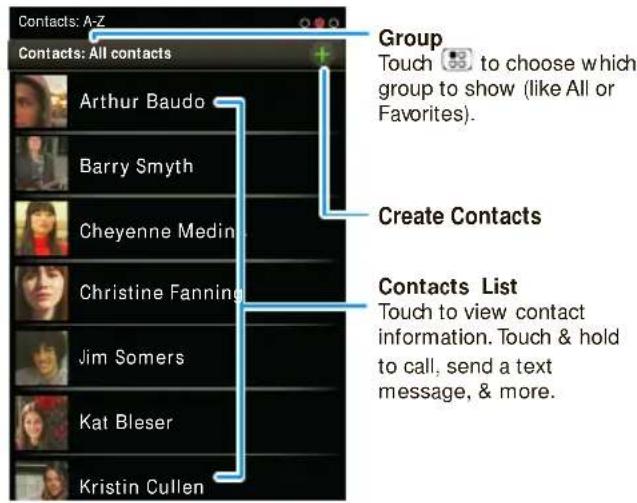
Tip: To search the list, begin typing a name.
2D. Contacts 29
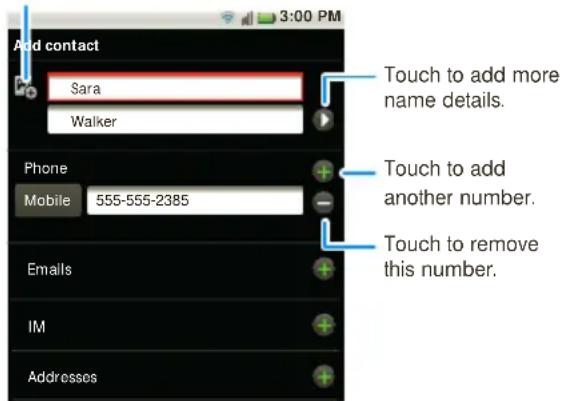
Creating Contacts
Note: Before entering contacts, you must set up at least one email account on your phone. See "Setting Up Your Voicemail" on page 4 or "Setting Up Messaging" on page 54.
- Touch > Add contact.
- Fill in as much or as little information as you'd like.
- When you're finished, touch Save.
Select a picture for the contact.
30 2D. Contacts
Transferring Contacts
Get all your contacts, all in one place. Here's a few helpful hints:
- Use Gmail™: All your Gmail contacts are automatically synced to your phone. Various computer applications for mobile phones and email accounts allow you to export your contacts as a ".CSV" file. You can then use Gmail to import the file. For more details, go to www.motorola.com/transfercontacts or log in to your Gmail account on your computer and select "Help".
- Use a SIM card or a microSD card: You can transfer contacts from your old phone to your new Motorola phone using your SIM card or a microSD card. See "Transferring Contacts Using Your SIM Card" on page 31 or "Transferring Contacts Using a microSD Card" on page 31.
- More: Find other methods and tools to help you at www.motorola.com/transfercontacts.
Transferring Contacts Using Your SIM Card
- On your old phone, copy all the contacts you want to your SIM card.
Tip: For Motorola Android phones, touch > Manage SIM card > Export contacts to save your contacts to your SIM card.
- Insert your SIM card in your new phone. See "Your SIM Card" on page 72.
- To import the contacts from your SIM card, touch, and then touch > Import/Export.
Transferring Contacts Using a microSD Card
- On your old phone, copy all the contacts to your microSD card. (They'll be copied as a VCard file.)
- Insert the microSD card in your new phone. See "Your Phone's microSD Card" on page 38.
- To import the contacts from your SIM card, touch and then touch > Import/Export. > Import contacts from: SD card.
Link Contacts
You might have two or more Contacts for the same person, such as a friend with two email addresses. To combine these contacts:
- Touch.
- Touch a contact to open it, and then touch Link contact and touch the second entry.
Calling Or Emailing Contacts
- Touch.
- For View contact, Call contact, Send text message, Send email, or other options, touch and hold the contact.
2D. Contacts 31
Viewing and Using Contacts
When you set up a social networking account (see page 4), you'll know what everybody's up to and when.
▶ Touch.
■To find a contact, type the contact name. Touch a contact to open its details. Flick the screen left or right to see Social Networking updates or History.
■To change which group of contacts is shown (All, Facebook, and so on), touch the filter name at the top.
■To change how you view the list of contacts, flick left or right at the bottom of the screen to select History (recently used), A-Z (list without status), or Status (list with status).
Editing Or Deleting Contacts
1. Touch.
- Touch the contact, and then touch ☐ > Edit or Delete.
32 2D. Contacts
Linking Contacts
You might have two Contacts for the same person, such as a friend with two email addresses. To combine these two contacts:
1. Touch.
- Touch a contact to open it, and then touch Link contact and touch the second entry. Your social networking account remembers this connection.
Synchronizing Contacts
When you change one of your Contacts, your phone automatically updates your other social networking accounts. Also, your phone updates your Contacts and social networking account whenever you change a friend in your social networking accounts.
Making Groups
▶ Touch > Display group > Create new group.
You can put your Contacts into groups that you create (like “friends”, “family”, or “work”). Then, you can find contacts faster by showing one group at a time.
2D. Contacts 33
2E. Calendar & Tools
◆ Calendar (page 34)
File Manager (page 34)
♦ Alarm Clock and Timer (page 35)
♦ Calculator (page 35)
♦ Updating Your Phone (page 36)
Calendar

Touch


Calendar.
Your calendar events can be viewed in different ways: Touch 📁 Agenda, Day, Week, or Month. When you highlight an event, more details appear.
Tip: You can set up multiple calendars through your Gmail account so you can access them from your phone wherever you go.
Adding Calendar Events
- From any view, touch 📁 > More > New event. Enter the event start time and other details. You can even set a reminder so you don't forget about the event. (When you set the reminder time to 0 minutes, it plays at the event start time.)
- When you finish entering event details, touch Save.
Managing Calendar Events
To edit an event, touch and hold it, and then touch Edit event. When you're done, touch Save.
▶ To delete an event, touch and hold it, and then touch Delete event.
▶ To go to today, touch 📁 > Today.
File Manager
File Manager allows you to manage files such as pictures, videos, music, and applications stored on the microSD card.
▶ Touch


Files > SD card.
34 2E. Calendar & Tools
Touch a file or folder to open, and then touch and hold a file to Delete or Share.
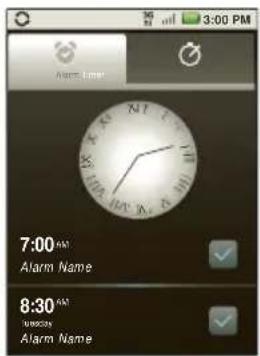
Alarm Clock and Timer
Alarm Clock
Your phone has multiple alarm capabilities.
▶ Touch


Alarm &
Timer > Alarm.
■ To turn on an alarm, touch the check box.
■When an alarm sounds, slide to Dismiss to turn it off or Snooze to delay for five minutes.
■To add an alarm, touch Add alarm, and then enter alarm details. Touch Done when you are finished.
■ To enable or disable an alarm, touch the check box.
Timer
To set a timer:
- Touch Ⓞ > Alarm & Timer > Timer.
- Set a time and touch Start.
■ For timer details, touch 📁 > Settings, change your settings, and then touch Done.
Help Center

Touch>Help Center.
You can also flick your home screen left or right to see the Tips & Tricks widget.
Calculator
Your phone comes with a handy calculator.

Touch ⚙ > Calculator.
Your calculator has basic and advanced views. To change views, touch 📄 Advanced panel/Basic panel. To clear history, touch 📄 Clear history.
2E. Calendar & Tools 35
Updating Your Phone
Stay up to date with the latest software updates for your phone. You can check, download and install updates using your phone, or using your computer:
• Using your phone:
You may get an automatic notification of an available update on your phone. Simply follow the instructions to download and install.
To manually check for updates, touch
Settings > About phone > System updates.
Select one of these options:
- Update firmware: Your phone downloads any updates over your mobile network. Remember, these updates can be quite large (25MB or more) and may not be available in all countries. If you don't have an unlimited data plan, or mobile network updates are not available in your country, you can update using a computer.
■Update profile: Manually perform a Hands Free Activation.
■ Update PRL: If a Sprint Customer Service representative asks you to do so, select this option to download the latest Preferred Roaming List (PRL).
- Using your computer:
On your computer, go to www.motorola.com, search for your phone model, and check the "Software" links. If an update is available, follow the installation instructions.
36 2E. Calendar & Tools
2F. Voice Services
Voice Actions
▶ To begin a voice search, press the Voice key on the keypad.
Note: If you're writing a text message, press the Voice key to begin dictation mode. Your phone recognizes words you speak and enters them into your message.
Or, press the Voice key and say one of the following commands:
To... Say...
| Map a route “navigate to” |
| Send a text message “send text” |
| Make a call “call” |
| Send email “send email” |
| Find local businesses “map of...” |
To... Say...
| Browse the web “go to” |
| Make a voice note “note to self” |
| Get directions “directions to” |
Tip: To learn more about voice actions, press the Voice key on the keypad, and then select Watch Video.
Voice Commands
For more voice commands, touch
Voice
Commands and follow the prompts.
Tip: For quick access to Voice Commands, add a shortcut to one of the home screens. Touch and hold an empty area, and then touch Shortcuts > Applications > Voice Commands.
2F. Voice Services 37
2G. microSD Card
- Your Phone's microSD Card (page 38)
◆ microSD Card Settings (page 39)
microSD Card Files (page 39) - Connecting Your Phone to Your Computer (page 39)
Your Phone's microSD Card
The microSD Card
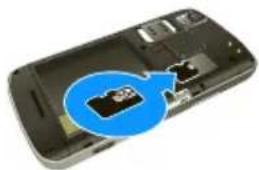
Your phone is equipped with a preinstalled microSD (Secure Digital) memory card to expand the phone's available memory space. It allows you to store images, videos, music, and voice data in your phone.
Note: You can easily damage the microSD card by improper operation. Please be careful when inserting, removing, or handling them.
Inserting the microSD Card
natural_image
Close-up of a smartphone showing internal components with a blue speech bubble highlighting a specific area (no text or symbols present)Note: Be sure to use only recommended microSD cards. Using non-recommended microSD cards could cause data loss and damage your phone.
Note: DO NOT remove a microSD card while files are being accessed or transferred. Doing so will result in loss or damage of data.
Make sure your battery is fully charged before using the microSD card. Your data may become damaged or unusable if the battery runs out while using the microSD card.
microSD Card Settings
Viewing Memory in the microSD Card
▶ With the microSD card inserted, touch Settings > SD card & phone storage. (The used and available memory space will be displayed.)
Formatting the microSD Card
Note: Do not remove your memory card while your phone is using it or writing files on it.
- Before you remove or format your memory card you need to unmount it. Touch 📋 Settings > SD card & phone storage > Unmount SD card.
- To format your memory card, touch Format SD card.
Note: The formatting procedure erases all the data on the microSD card, after which the files CANNOT be retrieved. To prevent the loss of important data, please check the contents before you format the card.
microSD Card Files
▶ Touch ⬤ > Files > SD card.
Touch a file or folder to open, and then touch and hold a file to Delete or Share.
Connecting Your Phone to Your Computer
You can connect your phone to a computer with a USB cable.
Note: The first time you use a USB connection, your computer may indicate that drivers are being installed. Follow any prompts you see to complete the installation. This may take a few minutes.
- With a memory card inserted, and your phone showing the home screen, connect a Motorola micro USB data cable from your phone's micro USB port to a USB port on your computer. Your phone should show in the status bar.
2G. microSD Card 39
Note: Make sure to connect the phone to a high power USB port. Typically, these are located directly on your computer.
- On your phone, flick down the status bar to see the USB connection options.
- Touch an option:
■Motorola Phone Portal: Connect your phone and computer with a cable or a Wi-Fi network to share files through an easy-to-use home screen.
- Windows® Media Player Sync: Share media files between your computer and phone.
Note: This device can be administered through Microsoft Exchange server security policies. Additional security policies may be applied to your device depending on rules set by your company.
- USB mass storage: Drag and drop files between your computer and memory card folders. When you're done, use "Safely Remove Hardware" before disconnecting the USB cable.
Note: You can't use the files on your memory card with your phone while it is connected to the computer.
- Charge Only: Use the connection only to charge a device.
2H. Camera
Taking Photos (page 41)
Recording Videos (page 43)
◆ Viewing Photos & Videos (page 44)
◆ Managing Photos and Videos (page 45)
Taking Photos
Take that family photo, and post it online for everyone to see.
- Touch


Tip: You can also program the side key on your phone to open the camera. See "Programmable Side Key" on page 17.
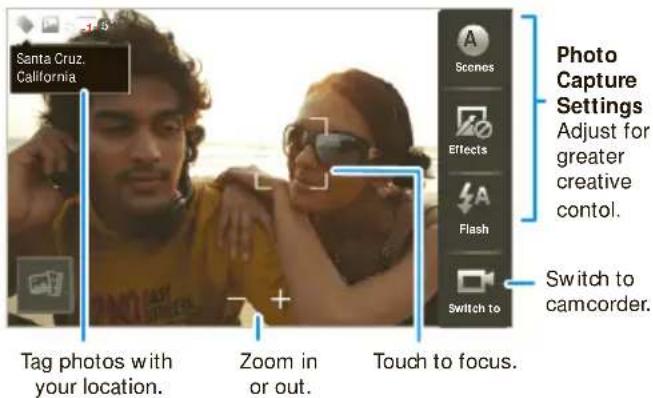
Note: Photos are stored on your microSD memory card.
- To take the photo, touch the viewfinder to lock the focus, and then touch 📂 to take the photo.
■To upload the photo to an online photo album, touch .You can set your Quick upload album when you upload your first picture.
■To send the photo in a message or post it online, touch .
■To delete the photo, touch ⬇ > Delete.
2H. Camera 41
Photo Options
You can make adjustments to optimize your shot. Touch a button on the right side of the screen to make changes (touch the screen to turn on the buttons if necessary):
- Scenes: Adjust for better im age capture in different environments: Auto, Portrait, Landscape, Sport, and more. Touch the screen when finished to return to the viewfinder.
- Effects: Change photo look: Normal, Negative, Black and White, and more.
- Flash: Set Flash On, Flash Off, or Auto Flash.
- Switch to: Toggle between photo and cam corder modes.
Camera Settings
In the viewfinder, touch 📁 > Settings to open the camera menu and adjust these settings:
• Picture Resolution: Adjust for optimal resolution.
• Video Resolution: Adjust for best resolution for your needs.
42 2H. Camera
- Quick upload album: Automatically upload photos to accounts you select, such as Facebook, MySpace, Photobucket, and more.
- Face Detection: Let the viewfinder automatically detect a face and adjust im age quality accordingly.
- Exposure: Select the best exposure for your environment.
- Shutter Tone: Select whether your cam era makes a sound when you take a photo.
- Shutter Animation: Select how the viewfinder looks when you take a photo.
Recording Videos
- Touch Ⓞ > Camcorder.
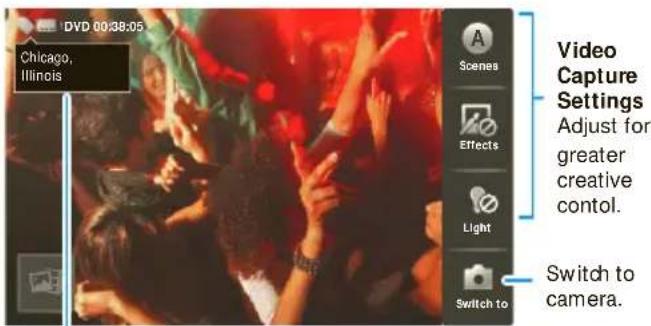
Tag videos with your location.
-
To record the video, touch 🔒. Touch □ to stop the recording.
-
Open your gallery and touch a video to view options:
■ To play the video, touch ▶
■ To upload the video to an online album, touch .
■ To send the video in a message or post it online, touch .
■ To delete the video, touch ➤ Delete.
Video Options
You can make adjustments to optimize your video. Touch one of the buttons on the right side of the viewfinder to make changes (you may need to touch the screen to make the buttons appear):
- Scenes: Adjust for better video capture in different environments: Auto and Night
● Effects: Change video look: Normal, Negative, Black and White, and more.
● Light: Turn a light on or off to adjust for the lighting where you are recording. - Switch to: Toggle between camcorder and camera.
Camcorder Settings
In the viewfinder, touch 📁 > Settings to open the cam corder m enu and adjust these settings: Video Resolution, Shutter Animation, and m ore.
2H. Camera 43
Viewing Photos & Videos
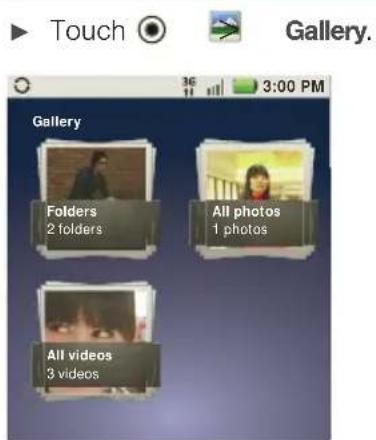
Touch a folder to display all of its photos or videos.
- Camera roll: All of the captured photos and videos on your phone.
• My Tags: Photos and videos grouped by tag. - Folders – Photos and videos grouped by the folders where they're saved.
- All photos – All photos, no groupings.
- All videos – All videos, no groupings.
44 2H. Camera
View Photos and Videos
Tip: Turn the phone sideways for a widescreen view.
The Gallery first shows photos and videos as thumbnails. Scroll through the thumbnails by flicking them left or right. Touch a thumbnail to select it for viewing or playback.
When you select a thumbnail, it is enlarged to normal viewing size. Videos are paused at the beginning. Touch the play and pause buttons on the screen to control video playback.
Note: To see the buttons while a video is playing, touch the display.
Share Photos and Videos
To send your photo in a message or post it online:
- Touch ♏ > Gallery.
- Select an image.
-
Touch and hold a photo or video, and then touch .
-
Choose how you want to share, such as Bluetooth, Email, Text Messaging, and more.
Managing Photos and Videos
- Touch ⬤ > Gallery.
- Select an image.
- Touch and hold a photo or video, and then touch 🔒, ,or (toedit, delete, set as, print, and more).
Tip: To copy photos to/from a computer, go to "Connecting Your Phone to Your Computer" on page 39.
2H. Camera 45
21. Bluetooth & Wi-Fi
Using Bluetooth ^® (page 46)
- Connecting With Wi-Fi (page 48)
Using Bluetooth®
Bluetooth is a short-range communications technology that allows you to connect wirelessly to a number of Bluetooth devices, such as headsets and hands-free car kits, and Bluetooth-enabled handhelds, computers, printers, and wireless phones. The Bluetooth communication range is usually up to approximately 30 feet.
▶ Touch 📁 > Settings > Wireless & networks > Bluetooth settings.
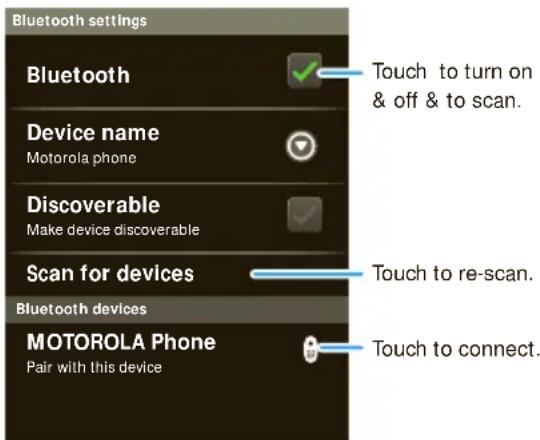
Turning Bluetooth On or Off
▶ Touch 📄 > Settings > Wireless & networks > Bluetooth.
Note: To extend battery life, turn Bluetooth power off when not in use.
Connecting New Devices
Note: This feature requires an optional accessory.
To connect with a new device, you need to pair with it. You only need to do this once for each device – to connect again, just turn on the device.
- Make sure the device you are pairing with is in discoverable mode.
Note: Refer to the guide that came with the device for details.
- Touch 📁 > Settings > Wireless & networks > Bluetooth settings.
- Touch Bluetooth to turn on and scan. If Bluetooth power is already on, touch Scan for devices.
- Touch a device to connect.
- If necessary, touch OK, or enter the device passkey (like 0000) to connect to the device. When the device is connected, the Bluetooth indicator 🔒 appears in the status bar.
Note: Using a mobile device or accessory while driving may cause distraction and may be illegal. Always obey the laws and drive safely.
The Bluetooth Enhanced Audio setting is not recommended for older Bluetooth headsets, as it may not deliver acceptable sound quality.
Reconnecting Devices
▶ To automatically reconnect your phone with a paired device, simply turn on the device.
To manually reconnect your phone with a paired device, touch the device name in the Bluetooth devices list.
Disconnecting Devices
▶ To automatically disconnect your phone from a paired device, simply turn off the device.
To manually disconnect your phone from a paired device, touch the device name in the devices list, and then touch Disconnect.
- Bluetooth & Wi-Fi 47
Editing Settings
▶ Touch 📁 > Settings > Wireless & networks > Bluetooth settings > Device name. Enter a name and touch OK.
Connecting With Wi-Fi
To use a Wi-Fi computer network for even faster Internet access:
▶ Touch 📁 > Settings > Wireless & networks > Wi-Fi settings.
Note: Your phone's Wi-Fi features and power levels are not allowed for outdoor operation in France. To avoid unlawful interference with radio signals, do not use the Wi-Fi features in France unless you are indoors.
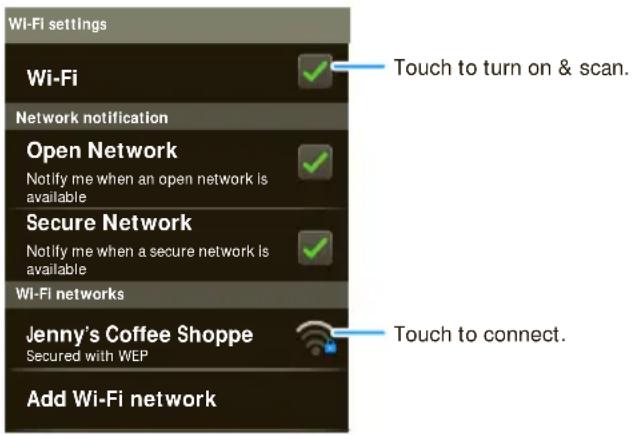
Turning Wi-Fi On or Off
▶ Touch 📄 > Settings > Wireless & networks > Wi-Fi.
Note: To extend battery life, turn off Wi-Fi power when not in use.
Wi-Fi Search and Connect
To find networks in your range:
- Touch 📁 > Settings > Wireless & networks > Wi-Fi settings.
- Touch Wi-Fi to turn on and scan. If Wi-Fi is already on, touch Scan. Your phone lists the networks it finds within range.
Tip: To see your phone's MAC address or other Wi-Fi details, touch Advanced.
- Touch a network to connect.
- If necessary, enter Network SSID, Security, and Wireless password, and touch Connect. When your phone is connected to the network, the wireless indicator appears in the status bar.
Tip: When you are in range and Wi-Fi is on, you will automatically reconnect to available networks you've connected to before.
Wi-Fi Hotspot
You can set up your phone as a Wi-Fi hotspot to provide portable, convenient internet access for up to 5 other Wi-Fi enabled devices.
Note: You need to subscribe to Wi-Fi hotspot service to use this feature. Contact your service provider.
You cannot use a Wi-Fi hotspot when your phone is roaming.
Setting Up
Note: Risks can be associated with connecting to the public internet. Your phone allows you to create a 3G Mobile Hotspot, which may be accessible by unauthorized users. It is highly recommended that you use a password other possible steps to protect your computer from unauthorized access.
To add security to your Wi-Fi hotspot:
-
Touch ⚙ > 3G Mobile Hotspot > □ □ □ Advanced > WiFi AP mode Settings.
-
Touch a setting to modify it:
■SSID: Enter a unique name for your hotspot.
■ Security: Select the type of security you want, and touch Save: WEP, WPA, or WPA2 Enter a unique Wireless password. Other users can access your Wi-Fi hotspot only if they enter the correct password.
Note: WEP is the weakest option because it is highly vulnerable to hacking. WPA2 is recommended by IEEE.
- Channel: Select a channel that minimizes potential interference. You may need to try different channels after your hotspot is active for a time.
- Touch Save when the settings are complete.
Activating the Hotspot
▶ Touch ⬤ > 3G Mobile Hotspot > Tap to start Mobile Hotspot service.
When your Wi-Fi hotspot is active, other Wi-Fi enabled devices can connect by entering your hotspot's SSID, selecting a Security type, and entering the correct Wireless password.
50 21. Bluetooth & Wi-Fi
Section 3
Sprint Service
Sprint

3A. Sprint Basics
Voicemail (page 52)
♦ Messaging (page 53)
Making a Conference Call (page 56)
◆ Roaming (page 56)
Voicemail
Setting Up Your Voicemail
To set up voicemail, see "Setting Up Your Voicemail" on page 4.
52 3A. Sprint Basics
Retrieving Your Voicemail Messages
When you have a new voicemail, shows at the top of your screen. To hear the message, touch 🔒, and then touch and hold 🔒
Tip: If you have a shortcut on your home screen, just touch Voicemail to retrieve your voicemail.
If you need to change your voicemail number, in the home screen touch 📋 Settings > Call settings > Voicemail settings.
Messaging
View your text, IM, and email messages all in one place.
View Your Inbox
▶ Touch ⬤ > Messaging > Universal Inbox.
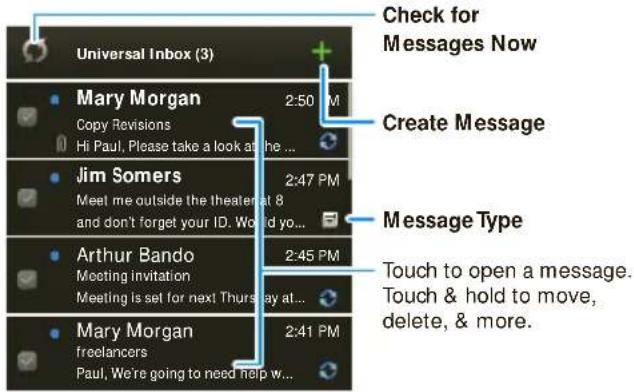
Tip: To see more messages, flick or drag up.
Reading and Replying to Messages
Touch > Messaging > Universal Inbox.
Note: Universal Inbox shows all of your messages together—text, email, and social networking messages. To show only one type of message, touch a message account type instead of Universal Inbox.
■ To open a text message or social networking message and all of its replies, touch it.
■To reply to a message, just open it and enter your response in the text box at the bottom.
■To forward a text message, touch and hold a message in the conversation, and then touch Forward message.
For email, touch to choose a reply or forward option.
■To open options, touch and hold a message.
Note: Try the Messages widget in "Widgets" on page 15.
Creating Messages
- Press the Voice key on the keypad and say, "send text."
3A. Sprint Basics 53

- Choose a message type, such as Text Messaging or Facebook. Then, enter the recipient and message. In text messages and emails, touch for options such as Insert... or Insert smiley.
Sending and Receiving Attachments
▶ To send a file in a message, open a new message and touch 📄 Insert.
When you receive a message with an attachment, open the message and touch the file name to download it. Then, touch the name again to open it. Some file formats can be converted to HTML for faster viewing, and your phone will show Get HTML version.
While viewing the attachment, touch it to save it, share it, and more.
Tip: To send and receive large attachments faster, use Wi-Fi. See "Connecting With Wi-Fi" on page 48.
Setting Up Messaging
To add other email accounts, touch Settings > Accounts > Add account. ■ Corporate Sync is for Exchange server work email accounts. Enter details from your IT administrator.
Tip: You might need to enter your domain name with your user name (like domain/username).
- Email is for most personal email accounts. For account details, contact the account provider.
To change your settings, touch Messaging > and then touch:
■ Manage accounts to add or remove an account.
■ Edit Universal Inbox to choose which accounts show messages in the Universal Inbox.
■ Messaging Settings to set the notification for each account type (along with other preferences, for email).
54 3A. Sprint Basics
The first time you turned on your phone (see page 2), you were prompted to log in to your Gmail™ account. You can add any other email account that you set up.
To add other email accounts to your Messaging widget and Universal Inbox, touch ⬤ > Messaging > 📄, and then touch Manage accounts > Add account. On the Setup accounts screen, touch Email or Corporate Sync and enter your email account information.
Instant Messages
To send and receive instant messages, use an instant messaging app or your browser. Your device comes preloaded with Google Talk™. You can also download an instant messaging app from the Android Market:
- To download and use an instant messaging app, touch Market > Apps > Communication, and then choose an app for your provider. Once you download the app, you'll see it in the app menu. See "App Menu" on page 16.
- If you don't see an app for your IM provider, you can use your Web browser. Touch 📄 Browser, and
then enter your provider's Web address. Once you're there, follow the link to sign in.
Note: Your IM options will depend on your IM provider. To browse instant messaging apps from your computer, go to www.android.com/market.
Social Networking
To add a social networking account, see "Setting Up Messaging & Social Networking Accounts" on page 4.
When you sign into social networking accounts, you'll see your friends and contacts in your Contacts list, and your status and updates can appear in Social Status and Social Networking widgets.
Twitter and MySpace m messages will always appear as "read" on your phone, but your phone notifies you when you receive a new m message.
3A. Sprint Basics 55
Making a Conference Call
With 3-way calling, you can talk to two people at the same time. When using this feature, the normal airtime rates will be charged for each of the two calls.
▶ To start a conference call, call the first number. After the call connects, touch Add Call. Dial the next number, or select it from contacts or favorites. When the next number answers, touch Merge calls.
Roaming
Roaming Icon
Your phone lets you know when you're off the Nationwide Sprint Network. Anytime you are roaming, the phone shows the roaming icon (9)
Setting Voicemail While Roaming
▶ Touch 📁 > Settings > Call settings > Set roaming voicemail.
56 3A. Sprint Basics
Setting Roam Mode
Control your roaming capabilities.
▶ Touch 📄 > Settings > Wireless & networks > Mobile networks, and then make selections under Roaming and CDMA Roaming Settings.
Call Guard
Your phone has two ways of alerting you when you are roaming off the Nationwide Sprint Network: the onscreen roaming icon and Call Guard. Call Guard requires an extra step before you can place or answer a roaming call. (This extra step is not required when you make or receive calls on the Nationwide Sprint Network.)
To turn Call Guard on or off:
- Touch 📁 > Settings > Wireless & networks > Mobile networks > Roaming Guards.
- Check or uncheck options under Domestic CDMA and International CDMA.
Note: Call Guard is turned off by default on your phone.
Voice dialing is not available when you are roaming with Call Guard enabled.
Note: If the Call Guard feature is set to On, you need to take extra steps to make and receive roaming calls.
Data Roam Guard
Depending on service availability and roaming agreements, your phone may be able to access data services while roaming on certain digital systems. You can set your phone to alert you when you are roaming off the Nationwide Sprint Network and try to use data services such as messaging.
Note: Data Roam Guard is turned off by default on your phone.
To set your Data Roam Guard notification:
- Touch 📁 > Settings > Wireless & networks > Mobile networks > Roaming Guards.
- Check or uncheck Data under Domestic CDMA and International CDMA.
To use data services when Data Roam Guard is active:
When a notification appears informing you that data roam charges may apply, touchRoam to connect.
3A. Sprint Basics 57
3B. Web and Apps
♦ Surfing the Web (page 58)
♦ Android Market™ (page 59)
- Downloading Apps (page 60)
- YouTube™ (page 61)
Surfing the Web
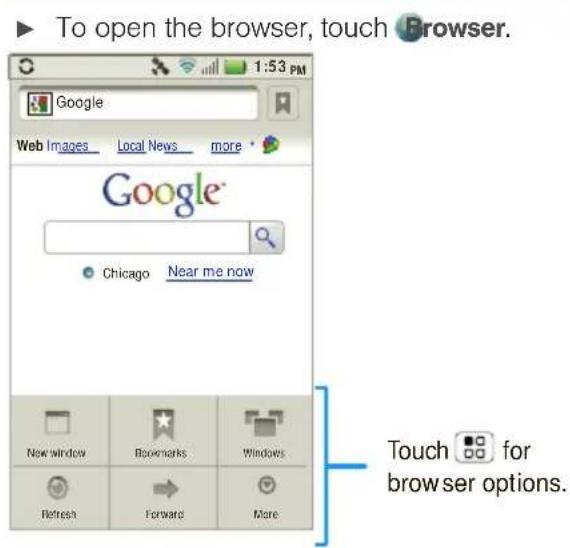
Note: If you can't connect, contact Sprint.
58 3B. Web and Apps
Connect
Your phone uses the mobile phone network (over the air) or a Wi-Fi connection to automatically access the Web.
To use a Wi-Fi connection, touch Settings > Wireless & networks. Touch Wi-Fi to turn it on and touch Wi-Fi settings to search for nearby wireless networks. Touch a network to connect.
Select Links
When you touch a link, your phone outlines it and goes to that page. If you touch and hold the link, your phone shows options, such as Open in new window or Bookmark link.
See Options
Touch with the browser open to see browser options:
| Options | |
| New Window | Open a new browser window. |
| Bookmarks | See your bookmarks. |
| Options | |
| Windows | View the browser windows that are currently open. |
| Refresh | Reload the current page. |
| Back/Forward | Navigate to previously viewed pages. |
| More | See additional browser options. |
Android Market™
Note: You must set up a Gmail account (see "Setting Up Your Phone" on page 2) in order to buy and download apps from the Android Market.

Touch

Market
Get all the fun games and cool apps you want! Android Market provides access to applications created by developers worldwide, so you can find the app you want. If you need help or have questions about Android Market, touch 📄 Help.
3B. Web and Apps 59
Browsing and Installing Apps
▶ Scroll to and touch the app you want to install. Then, touch Install (if app is free) or Buy.
If an app you are downloading requires access to your data or control of functions on your phone, you'll be asked to give your permission. After selecting Install, the app will download. After selecting Buy, you may be asked to sign in to an additional Google™ account. Sign in and select Purchase now to proceed. Follow the on-screen instructions. To see the download progress, open the notifications window.
After you download an app, the icon for that app appears on the App menu. (See "App Menu" on page 16.)
Managing and Restoring Apps
- Touch 📁 > Settings > Applications > Manage applications
- Touch an app in the list, and then touch Uninstall (for apps you downloaded), Clear cache, or other options.
60 3B. Web and Apps
Tip: To reinstall any downloaded items, touch Market.
Downloading Apps
WARNING: Apps downloaded from unknown sources can include spyware, phishing, or viruses that affect your phone, phone performance, and personal data. For security, download apps only from trusted sites like Market
To download apps:
- To download apps from any Web page, touch
Settings > Applications > Unknown sources.
- To launch the browser, touch Browser.
- Find the app you want to download and touch the download link.
Note: Downloaded apps are stored in your phone's memory.
Manage Your Downloads
To view files or apps you've downloaded, touch Browser > More > Downloads.
▶ To clear your download history, touch Clear list. To cancel, touch > Cancel all downloads.
YouTube™
Share videos with YouTube users everywhere. You don't need a YouTube account to browse and view videos.
▶ Touch ⬤ YouTube.
Note: If you want a YouTube account, go to www.youtube.com. To create an account or sign in, touch 📄 My account To Browse or Upload videos, touch 📄
3B. Web and Apps 61
3C. Entertainment
Music (page 62)
◆ Digital Living (page 64)
♦ Sprint Entertainment Options (page 66)
Music
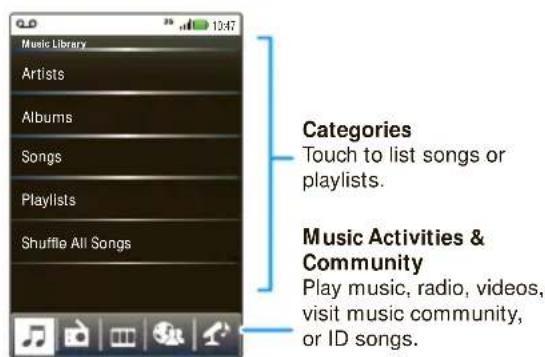
- Touch Ⓞ > Music > My Music.
62 3C. Entertainment
Your music is stored by artists, albums, songs, and playlists. Touch a category, and then touch the song or playlist you want to play. Touch Shuffle These Songs to randomly play all your songs, or touch Search to look for a song.
- Touch a song or playlist to start playing music.
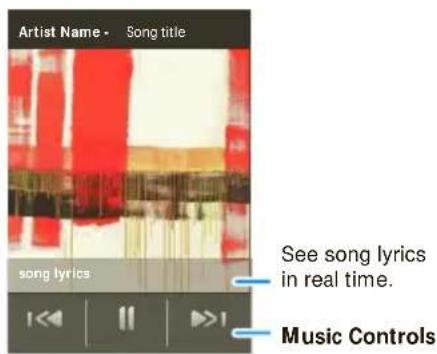
Your Music Community
Touch, touch, play — instant music. Just open your music library, then select what you want to play.
▶ Touch ⬤ > 🟢 Music.
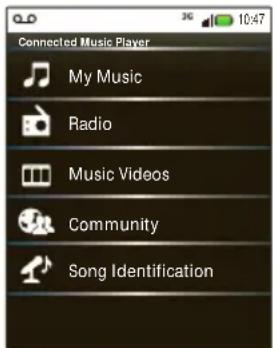
My Music: Listen to your tunes.
Radio: Surf the airwaves for fresh m usic. There's som ething for everyone. You need a headset for FM Radio. Check out SHOUTcast™ Radio for m usic from all generations and types.
Music Videos: Watch videos from YouTube™, prerecorded TV shows, and your own videos.
Community: Find songs, see what people are listening to all around the world, and see what's hot on the music charts.
Song Identification: Get information about a song that is playing. Select Tell me what is playing and hold your phone close to the source of the music.
Note: Song identification may not be successful if the music is from a live concert or a musical event in which digital recording is not even.
Setting Up Music
What music transfer tools do I need?
To put m usic on your com puter and then load it on your phone, you need:
- Microsoft ^® Windows ^® PC or Apple ^TM Macintosh ^TM .
- USB data cable (included with your phone).
- microSD memory card (2GB-included with your phone).
Your music is stored on your memory card. Your phone supports removable microSD memory cards up to 32GB capacity. To make sure your memory card is installed, go to "Your Phone's microSD Card" on page 38.
3C. Entertainment 63
Tip: To see the available m em ory on your m em ory card, touch 📁 Settings > SD card & phone storage.
What audio file formats can I play?
Your phone can play m any types of files: AAC, AMR, MP3, WAV, WMA, AAC+, and MIDI.
Note: Your phone does not support DRM-protected files.
What headphones can I use?
Your phone has a 3.5m m headset jack for wired stereo listening. You can go wireless with Bluetooth ^® stereo headphones or speakers. (See “Using Bluetooth ^® ” on page 46.)
Getting Music
You can transfer music from your computer to your phone by using a USB connection.
For more information on transferring music, see "Connecting Your Phone to Your Computer" on page 39.
64 3C. Entertainment
Digital Living
Note: Copyright – do you have the right? Always follow the rules. See “Content Copyright” in your legal and safety information.
Media Share
Media Share is an easy way to share your media content – photos, videos, and tunes – with friends and family.
Share your media on DLNA devices on your network: The Media Share wizard guides you through the easy setup steps.
Swap photos & videos: Share any photos or videos on your phone, even the ones you created.
More tunes: Enjoy favorites from your phone playlist on your sound system at home. Or get music from your portable music player and add it to your phone's music library.
Connecting
First, connect to a Wi-Fi ^® network or another device:
- Connect to your computer with a USB cable.
(See “Connecting Your Phone to Your Com puter” on page 39.) - Connect to a Wi-Fi network or use your own Wi-Fi hotspot. (See “Connecting With Wi-Fi” on page 4)
Media Share will lead you the rest of the way.
Your Media Share World
Note: If you're using a Wi-Fi connection, you need to allow access to other devices to download media from your phone and to share your files. If you want to access media files on other devices, they must allow access.
▶ To use Media Share, touch ⬤ > 📋 Media Share. Then, select the Media Share feature you want to use.
■ Share media: allow other devices to access media files on your phone. Without downloading any media from your phone, other people can view your pictures or videos, or play your songs, on their own devices.
- Sync media: sync the media files on your phone with other devices.
■ Copy media: copy a picture from one phone to another.
■ Play media: select media for playback on another device in a Wi-Fi network.
3C. Entertainment 65
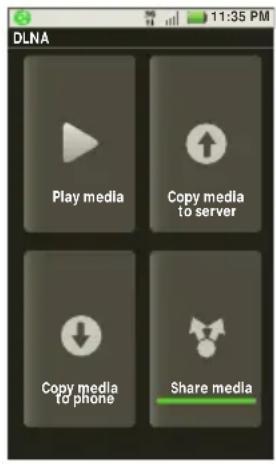
Share Using DLNA
Expand the ways you can enjoy your photos and videos on a DLNA Certified com puter, TV, or m onitor, using your own Wi-Fi network.
Make sure your phone is connected to an active Wi-Fi network and has access to a DLNA Certified device.
- Touch


DLNA.
- Touch Play media, Copy media to server, Copy media to phone, or Share media. Then follow the instructions you see on your phone.
Sprint Entertainment Options
Sprint Music Plus
In addition to the Music application, your phone offers Sprint Music Plus, an all-in-one music store and player for full songs, ringtones, and ringback tones.

Touch


Sprint Music.
■ Touch My Library to access all your music, including items you have purchased or loaded onto your phone's microSD card.
■ Touch Downloads to access your list of downloaded music.
■ Touch Music Store to access the music store, where you can browse, search for, sample, and purchase DRM-free music for your phone.
■ Touch Ringtone Store or Ringback Tone Store to find and purchase new ringtones and ringback tones for your phone.
■ For more information, touch Ⓞ > More > Help & About
Sprint Radio
Listen to streaming music through your phone's Sprint Radio app.

Touch


Sprint Radio.
Sprint TV
Live TV and video on demand. Complete episodes and clips of your favorite primetime shows. Over 50 channels of news, entertainment, weather, sports, and streaming music.
- Touch


Sprint TV.
- Touch a category to begin browsing.
- Touch a show or movie to begin watching it, or touch More to explore more options, such as subscription upgrades and special channels.
Visit sprint.com/tvguide for more information on channels and pricing.
Additional Sprint Lifestyle Features
You can also access exclusive Sprint content through NASCAR Sprint Cup Mobile (touch ⚙ > 📋 NASCAR) and Sprint Football Live (touch ⚙ > 📖 Sprint Football Live).
3C. Entertainment 67
3D. Navigation
Google Maps™ (page 68)
♦ Latitude™ (page 69)
TeleNav GPS Navigator (page 70)
Google Maps™

Touch


Maps.
Google Maps offers powerful, user-friendly mapping technology and local business information — including business locations, contact information, and driving directions.
For help, touch

More > Help.
Tip: Want to know what's in your immediate area? Try Google Places™. Touch ➕ Places to see listings for Restaurants, ATMs, Gas Stations, and more based on your current location.
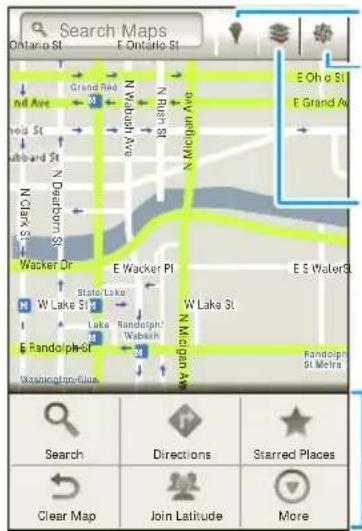
Find places.
Center the map on your current location.
Change the view by adding layers.
Touch for options.
68 3D. Navigation
Latitude™
See where your friends and family are on Google Maps™. Plan to meet up, check that your parents got home safely, or just stay in touch.
Don't worry, your location is not shared unless you agree to it. You need to join Latitude, and then invite your friends to view your location or accept their invitations. When using Google Maps, touch 📞 Join Latitude. Read the privacy policy and if you agree with it, touch Agree & Share.
Adding and Removing Friends
▶ Touch ● > Maps > □ > Latitude.
To add friends:
- Touch □ > Add friends or touch +
- Touch Select from Contacts, and then touch a contact. Or, touch Add via email address, and then enter an email address.
- Touch Yes.
If your friends already use Google Latitude, they'll receive an email request and a notification. If they have not yet joined Google Latitude, they'll receive an email request that invites them to sign in to Google Latitude with their Google account.
To remove friends:
- Touch 📁> Latitude to show your friend's list, and then touch a friend in your list.
- Touch ✗
Sharing Location
When you receive a request to share location details you can choose to:
- Accept and share back – See your friend's location, and your friend can see yours.
- Accept, but hide my location – See your friend's location, but they can't see yours.
- Don't accept – Location information is not shared between you and your friend.
3D. Navigation 69
Hiding Your Location
To hide your location from a friend, touch Latitude to show your friend's list. Touch your contact name, and then touch Edit privacy settings > Hide your location.
Turning Off Google Latitude
▶ Touch latitude to show your friends list. Touch Edit privacy settings > Turn off Latitude
TeleNav GPS Navigator
You can also use TeleNav GPS Navigator to get around. Use your keyboard or your voice to get step-by-step directions to your destination, get traffic updates, hear about the weather, and more.
- Touch ⬤ > 📊 TeleNav GPS Navigator. (The first time you access the app, your phone downloads files.)
- Follow the onscreen instructions to sign in and use the app.
70 3D. Navigation
3E. Sprint Worldwide ^SM Wireless Service
◆ Getting Started With Sprint Worldwide Service (page 71)
♦ Activating Global Roaming Mode (page 72)
◆ Making and Receiving Worldwide Calls (page 73)
♦ Sprint Voicemail Service (page 74)
◆ International Data Roaming (page 75)
◆ Understanding Status Messages (page 76)
- Contacting Sprint (page 79)
Getting Started With Sprint Worldwide Service
Before using your device in global roaming mode, you must activate Sprint Worldwide service.
To activate Sprint Worldwide service:
▶ Chat with or email an international support rep by visiting www.sprint.com/international and clicking the Chat with us or Email us link on the right side of the screen.
▶ Call Sprint Worldwide Customer support at 1-888-226-7212, option 2.
Your SIM Card
Your phone comes with a preinstalled SIM (Subscriber Identity Module) card to support roaming on compatible GSM networks.
Note: Your SIM card should be preinstalled. If you need to reinstall your SIM card, follow the instructions below.
The SIM included contains information specific to your phone and should be retained with the device for use on GSM networks.
- Hook your fingernail into the slot at the bottom of the battery cover and remove the cover. Remove the battery.
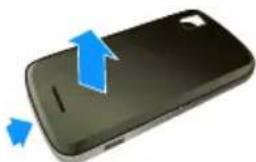
natural_image
Black smartphone with blue upward arrows indicating battery direction (no text or symbols)-
Hold the SIM card so that the metal contacts on the SIM card face down and the cut off corner points to the bottom-right corner of your device.
-
Slide the SIM card into the SIM card slot until it stops.
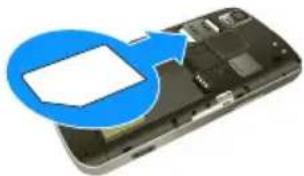
natural_image
Close-up of a smartphone showing a battery cover and a blue arrow pointing to its screen (no text or symbols visible)- Replace the battery and battery cover. (See "Setting Up Your Phone" on page 2.)
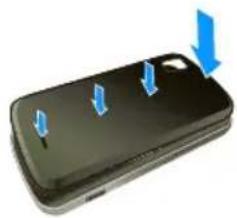
natural_image
Close-up of a black smartphone with three blue arrows pointing to the side (no text or symbols visible)Activating Global Roaming Mode
Your phone is designed to enter global roaming mode automatically when you activate your Sprint Worldwide service, meaning that it should automatically connect to an appropriate CDMA network or GSM/UMTS network when you travel. You may also set global roaming options through the settings menu.
To set your global roaming options manually:
▶ Touch 📁 > Settings > Wireless & networks > Mobile Networks > System select > International Roaming.
72 3E. Sprint Worldwide ^SM Wireless Service
■ To allow connections to the Nationwide Sprint Network only, touch Sprint Only.
■ To allow connections to CDMA networks only, touch Any CDMA.
■ To allow connections to GSM or UMTS networks only, touch Any GSM/UMTS.
■ To allow connections to available CDMA or GSM/UMTS networks, touch Automatic.
Making and Receiving Worldwide Calls
When travelling on international networks, you can place and answer calls as you would on the Sprint network (see "Making and Answering Calls" on page 18), although some additional instructions may be required to place a call. Some features and services are not available in all countries. For more information on services that are available while roaming, visit www.sprint.com/sww.
Making Calls Using Plus (+) Code Dialing
Placing calls from one country to another country is simple with the Plus (+) Code Dialing feature. When placing international calls, you can use Plus Code Dialing to enter the appropriate international access code for your location (for example, 011 for international calls placed from the United States).
| Note: Plus Code Dialing is only available when roaming internationally on GSM networks and on certain CDMA networks in the United States, Canada, and the Caribbean. |
| International access codes and dialing information are available online at www.sprint.com/sww. |
To use Plus Code Dialing to place an international call:
-
If you are on the GSM network, press ALT, and then + on the keypad to insert a "+" on the phone dial screen. (The "+" symbol automatically inserts the international access code for the country from which you are calling.)
-
If you are on the CDMA network outside Canada or the Caribbean, enter the international access code for the country from which you are calling.
3E. Sprint Worldwide ^SM Wireless Service 73
-
Touch to insert the US country code, and then enter the area code and number.
-
Touch to place the call.
Sprint Voicemail Service
Your Sprint voicemail will follow you as you travel. All of your unanswered calls will be forwarded to your Sprint voicemail. You will need to be sure your voicemail box is already set up and that you know your voicemail password.
Note: In India, Sprint voicemail is not available while roaming on the GSM network; it does work while on the CDMA network.
Setting Up Your Voicemail Access Number
To simplify accessing your Sprint Voicemail while travelling, you can set up your voicemail access number as a Contacts entry. This will make it faster and easier to access your messages while roaming internationally.
-
Touch ⏻ > 📁 > Add contact. Type the contact information (for example "Voicemail").
-
Press ALT, and then +1, your area code, and your wireless phone number.
-
Touch Save.
Accessing Your Voicemail
New Message Indicators
Your voicemail message indicators may be displayed differently when roaming internationally.
- A "Message Waiting" indicator icon or a text message is displayed when a voicemail message is received.
- You may see "Missed Call" on your screen prior to receiving a message notification.
- You must call voicemail in order to retrieve messages. Follow the instructions on the previous page to store your voicemail number for easy access.
Retrieving Voicemail Messages
The voicemail retrieval process while travelling is the same as on the Sprint Network; however, you will be required to enter your voicemail password.
To retrieve your voicemail messages:
- Touch 🔒 touch the voicemail entry and then touch the number to call it.
- When your voicemail answers, press ;enter the password and press #to access your voicemail.
Voicemail Troubleshooting
Please keep the following tips in mind when using Sprint voicemail while travelling:
- Some carriers may not support voicemail indicators. It may be necessary to call your voicemail to see if you have any new messages.
- If you hear the message "Please enter the number of the subscriber you wish to call," enter your 10-digit wireless phone number.
International Data Roaming
Sprint Worldwide Wireless Service can also keep you connected via email and Web browsing when travelling in countries in which Sprint offers data service. Data services are available on both CDMA and GSM/UMTS networks; check www.sprint.com/sww to determine the services available where you are travelling.
Note: Prior to using your Sprint Worldwide GSM/UMTS Data Services, you must establish and utilize your CDMA data services domestically on the Sprint Network.
Getting Started With Data Services
To use Sprint Worldwide Data Services, you will need to have these services activated on your account.
▶ To activate, call Sprint Worldwide Customer Support at 1-888-226-7212, option 2.
Representatives are available 24 hours a day, 7 days a week to assist you.
Once your services are activated, you may need to select a GSM data services provider for the country you are in.
3E. Sprint Worldwide ^SM Wireless Service 75
Accessing Your Email and Data Services on GSM/UMTS Networks
To access your email and browse the Web when travelling, you may need to manually select the carrier that provides Sprint service in your location. You can find a list of carriers for each country where GSM data service is offered at www.sprint.com/sww. Then, follow the instructions below to select the appropriate carrier network on your phone.
To select a GSM data service carrier for a specific country:
- Touch > Settings > Wireless & networks > Mobile networks.
- Change the Roaming Mode option to Any GSM/UMTS.
- Under GSM/UMTS settings, touch Select network and select a wireless network that supports Sprint International GSM Data Roaming. If applicable, touch Operator selection and select a specific operator.
Note: Be sure you have the Allow GSM Data option checked.
Accessing Your Email and Data Services on CDMA Networks
If data service is available on a CDMA network, then you only need to set the phone to CDMA; you will not need to select the specific carrier. Selecting a specific carrier is only necessary for providers on the GSM network. If your device has automatically selected a GSM network while travelling, then you will need to set the phone to CDMA to access CDMA data services. (See “Activating Global Roaming Mode” on page 72.) Visit www.sprint.com/sww for a list of services available in each country.
Understanding Status Messages
You may receive status messages under certain conditions. Before contacting Sprint Worldwide Customer Support, note the message, numeric code, and the conditions under which it appeared. The following table lists and describes the status messages.
| Status Messages Message | Description |
| Number Not in Service | The number that you entered is not valid. |
| User Not Available | The phone that you called is either busy, out-of-range, or turned off. Please try again later. |
| User Not Authorized | The phone that you called is either busy, out-of-range, or turned off. Please try again later. |
| Please Try Later | This service is temporarily not available. Please try again later. |
| Service Restricted | Service may not be activated properly. Please contact Sprint Customer Service to report the issue for resolution. |
| Service Not Available | This feature is not available on the current network. |
| Emergency Calls Only | Either the service is not activated properly or the current network is available for emergency calling only. Adjust your network settings to check for other available networks. If service is still not available after adjusting the settings, contact Sprint Customer Service to report the issue for resolution |
| System Busy. Try Later | The system is experiencing heavy traffic. Please try again later. |
| Service Conflict | This service cannot be enabled because an incompatible service has already been turned on. |
| Please Try Again | An error occurred. Note the error code and try again. |
3E. Sprint Worldwide ^SM Wireless Service 77
| Status Messages Message | Description |
| Self Check Error | A fault was detected with your phone. If this error recurs, note the error and contact Sprint Customer Service. |
| Self Check Fail | An operational fault was detected with your phone. Note the numeric code, turn your phone off, and contact Sprint Customer Service. |
| Wrong PIN | You have entered an incorrect SIM PIN number. You have only three attempts to enter your PIN. After a third unsuccessful attempt, your phone will be locked and you will have to call Sprint Customer Service to have it unlocked. Sprint sets the default to PIN off; if you elect to enable the PIN then you will need to contact Sprint for the default PIN and PUK. |
| PIN Blocked. Call Your Provider | An incorrect SIM PIN was entered three consecutive times. You will be unable to send or receive calls on your phone. Contact Sprint Customer Service to obtain the PIN Unblocked Key (PUK) code. Sprint sets the default to PIN off; if you elect to enable the PIN then you will need to contact Sprint for the default PIN and PUK. |
| Insert SIM | Your SIM Card is not being detected. Please check to ensure that you have inserted the SIM Card. |
| Check SIM Card | Please check your SIM card to make sure it is properly inserted. |
Contacting Sprint
If you experience any issues with voice or data services while outside of the United States, Sprint offers customer support 24 hours a day. In the event that you do experience an issue, try the following actions:
- First try powering your device off and then back on; this will force your phone to reregister with the network.
- Try manually selecting another network. Information for selecting networks can be found in the phone guide.
If neither of these actions resolves your issue, you will need to contact customer service (see below). When calling to report an issue, the following information will be beneficial in trying to resolve your issue as quickly as possible:
- Your wireless phone number.
● The city and country you are travelling in. - Any error message that displays on your phone or that you heard when trying to place a call.
- If the issue is with data, were you able to place voice calls?
- If the issue is with voice service, were you able to access data?
Please call the numbers below if you need assistance:
While in the United States:
- Call 1-888-226-7212, option 2.
While traveling outside the United States:
- In GSM mode: touch and hold 0 and then dial 1-817-698-4199, option 3.
- In CDMA mode: enter the country code and then dial 1-817-698-4199, option 3.
There is no charge for this call from your wireless phone.
From a landline phone when outside the United States:
Sprint Worldwide Customer Support can be reached from a landline phone at 1-817-698-4199, option 3. Access or connection fees may apply. The toll free numbers below can also be used to contact Sprint Worldwide Customer Support in the following countries:
3E. Sprint Worldwide ^SM Wireless Service 79
| Country From Landline Phone | |
| Caribbean (Anguila, Barbados, Cayman Islands, and Dominica) | 1-888-226-7212 |
| France | 0800-903200 |
| Germany | 0800-180-0951 |
| Italy | 800-787-986 |
| Mexico | 001-877-294-9003 |
| Trinidad and Tobago | 1-800-201-7545 |
| United Kingdom | 0808-234-6616 |
Note: This toll free service is available on ordinary landline phones and some public pay phones. This service does not cover any hotel access charges.
Section 4
Safety and Warranty Information
Sprint

4A. Important Safety Information
♦ General Precautions (page 82)
- Maintaining Safe Use of and Access to Your Phone (page 83)
◆ Using Your Phone With a Hearing Aid Device (page 84)
♦ Caring for the Battery (page 86)
♦ Radio Frequency (RF) Energy (page 86)
Owner's Record (page 88)
◆ User Guide Proprietary Notice (page 89)
This phone guide contains important operational and safety information that will help you safely use your
phone. Failure to read and follow the information provided in this phone guide may result in serious bodily injury, death, or property damage.
General Precautions
There are several simple guidelines to operating your phone properly and maintaining safe, satisfactory service.
- To maximize performance, do not touch the bottom portion of your phone where the internal antenna is located while using the phone.
● Speak directly into the mouthpiece. - Avoid exposing your phone and accessories to rain or liquid spills. If your phone does get wet, immediately turn the power off and remove the battery.
- Do not expose your phone to direct sunlight for extended periods of time (such as on the dashboard of a car).
- Although your phone is quite sturdy, it is a complex piece of equipment and can be broken. Avoid dropping, hitting, bending, or sitting on it.
- Any changes or modifications to your phone not expressly approved in this document could void your warranty for this equipment and void your authority to operate this equipment.
Note: For the best care of your phone, only Sprint-authorized personnel should service your phone and accessories. Failure to do so may be dangerous and void your warranty.
82 4A. Important Safety Information
Maintaining Safe Use of and Access to Your Phone
Do Not Rely on Your Phone for Emergency Calls
Mobile phones operate using radio signals, which cannot guarantee connection in all conditions. Therefore you should never rely solely upon any mobile phone for essential communication (e.g., medical emergencies). Emergency calls may not be possible on all cellular networks or when certain network services or mobile phone features are in use. Check with your local service provider for details.
Using Your Phone While Driving
Talking on your phone while driving (or operating the phone without a hands-free device) is prohibited in some jurisdictions. Laws vary as to specific restrictions. Remember that safety always comes first.
Tip: Purchase an optional hands-free accessory at your local Sprint Store, or call Sprint at 1-866-866-7509. You can also dial # 222 on your phone.
Following Safety Guidelines
To operate your phone safely and efficiently, always follow any special regulations in a given area. Turn your phone off in areas where use is forbidden or when it may cause interference or danger.
Using Your Phone Near Other Electronic Devices
Most modern electronic equipment is shielded from radio frequency (RF) signals. However, RF signals from wireless phones may affect inadequately shielded electronic equipment.
RF signals may affect improperly installed or inadequately shielded electronic operating systems or entertainment systems in motor vehicles. Check with the manufacturer or their representative to determine if these systems are adequately shielded from external RF signals. Also check with the manufacturer regarding any equipment that has been added to your vehicle.
Consult the manufacturer of any personal medical devices, such as pacemakers and hearing aids, to determine if they are adequately shielded from external RF signals.
Note: Always turn off the phone in healthcare facilities, and request permission before using the phone near medical equipment.
Turning Off Your Phone Before Flying
Turn off your phone before boarding any aircraft. To prevent possible interference with aircraft systems, the U.S. Federal Aviation Administration (FAA) regulations require you to have permission from a crew member to use your phone while the plane is on the ground. To prevent any risk of interference, FCC regulations prohibit using your phone while the plane is in the air.
4A. Important Safety Information 83
Turning Off Your Phone in Dangerous Areas
To avoid interfering with blasting operations, turn your phone off when in a blasting area or in other areas with signs indicating two-way radios should be turned off. Construction crews often use remote-control RF devices to set off explosives.
Turn your phone off when you're in any area that has a potentially explosive atmosphere. Although it's rare, your phone and accessories could generate sparks. Sparks can cause an explosion or fire, resulting in bodily injury or even death. These areas are often, but not always, clearly marked. They include:
■ Fueling areas such as gas stations.
■ Below deck on boats.
■ Fuel or chemical transfer or storage facilities.
■ Areas where the air contains chemicals or particles such as grain, dust, or metal powders.
- Any other area where you would normally be advised to turn off your vehicle's engine.
Note: Never transport or store flammable gas, flammable liquids, or explosives in the compartment of your vehicle that contains your phone or accessories.
Restricting Children's Access to Your Phone
Your phone is not a toy. Do not allow children to play with it as they could hurt themselves and others, damage the phone or make calls that increase your Sprint invoice.
Using Your Phone With a Hearing Aid Device
A number of Sprint phones have been tested for hearing aid device compatibility. When some wireless phones are used with certain hearing devices (including hearing aids and cochlear implants), users may detect a noise which can interfere with the effectiveness of the hearing device.
Some hearing devices are more immune than others to this interference noise, and phones also vary in the amount of interference noise they may generate. ANSI standard C63.19 was developed to provide a standardized means of measuring both wireless phone and hearing devices to determine usability rating categories for both.
Ratings have been developed for mobile phones to assist hearing device users find phones that may be compatible with their hearing device. Not all phones have been rated for compatibility with hearing devices. Phones that have been rated have a label located on the box. Your MOTOROLA XPRT has an M3 rating
These ratings are not guarantees. Results will vary depending on the user's hearing device and individual type and degree of hearing loss. If a hearing device is particularly vulnerable to interference noise; even a phone with a higher rating may still cause unacceptable noise levels in the hearing device. Trying
out the phone with your hearing device is the best way to evaluate it for your personal needs.
M-Ratings: Phones rated M3 or M4 meet FCC requirements for hearing aid compatibility and are likely to generate less interference to hearing devices than unrated phones. (M4 is the better/higher of the two ratings.)
T-Ratings : Phones rated T3 or T4 meet FCC requirements and are likely to be more usable with a hearing device's telecoil ("T Switch" or "Telephone Switch") than unrated phones. (T4 is the better/higher of the two ratings. Note that not all hearing devices have telecoils in them.)
Note: New Technologies, Including Wi-Fi
This phone has been tested and rated for use with hearing aids for some of the wireless technologies that it uses. However, there may be newer wireless technologies (including Wi-Fi) used in this phone that have not been tested for use with hearing aids.
Hearing aid devices may also be measured for immunity to interference noise from wireless phones and should have ratings similar to phones. Ask your hearing healthcare professional for the rating of your hearing aid. Add the rating of your hearing aid and your phone to determine probable usability:
- Any combined rating equal to or greater than six offers excellent use.
● Any combined rating equal to five is considered normal use.
● Any combined rating equal to four is considered usable.
Thus, if you pair an M3 hearing aid with an M3 phone, you will have a combined rating of six for “excellent use.” This is synonymous for T ratings.
Sprint further suggests you experiment with multiple phones (even those not labeled M3/T3 or M4/T4) while in the store to find the one that works best with your hearing aid device. Should you experience interference or find the quality of service unsatisfactory after purchasing your phone, promptly return it to the store within 30 days of purchase. (A restocking fee may be applied to exchanges. Visit www.sprint.com/returns for details.) More information about hearing aid compatibility may be found at: www.fcc.gov www.fda.gov and www.accesswireless.org.
Getting the Best Hearing Device Experience With Your Phone
To further minimize interference:
- Set the phone's display and keypad backlight settings to ensure the minimum time interval:
-
Touch □> Settings > Display > Screen timeout
-
Touch the minimum time interval setting.
-
Position the phone so the internal antenna is farthest from your hearing aid.
- Move the phone around to find the point with least interference.
4A. Important Safety Information 85
Caring for the Battery
Protecting Your Battery
The guidelines listed below help you get the most out of your battery's performance.
- Recently there have been some public reports of wireless phone batteries overheating, catching fire, or exploding. It appears that many, if not all, of these reports involve counterfeit or inexpensive, aftermarket-brand batteries with unknown or questionable manufacturing standards. Sprint is not aware of similar problems with Sprint phones resulting from the proper use of batteries and accessories approved by Sprint or the manufacturer of your phone. Use only Sprint-approved or manufacturer-approved batteries and accessories found at Sprint Stores or through your phone's manufacturer, or call 1-866-866-7509 to order. They're also available at www.sprint.com—click Accessories. Buying the right batteries and accessories is the best way to ensure they're genuine and safe.
- In order to avoid damage, charge the battery only in temperatures that range from 32^ to 113^ ( 0^ to 45^ ).
- Don't use the battery charger in direct sunlight or in high humidity areas, such as the bathroom.
● Never dispose of the battery by incineration. - Keep the metal contacts on top of the battery clean.
- Don't attempt to disassemble or short-circuit the battery.
-
The battery may need recharging if it has not been used for a long period of time.
-
It's best to replace the battery when it no longer provides acceptable performance. It can be recharged hundreds of times before it needs replacing.
- Don't store the battery in high temperature areas for long periods of time. It's best to follow these storage rules:
■ Less than one month:
-4° F to 140° F (-20° C to 60° C)
■ More than one month:
-4° F to 113° F (-20° C to 45° C)
Disposal of Lithium Ion (Li-Ion) Batteries
Do not handle a damaged or leaking Li-lon battery as you can be burned.
For safe disposal options of your Li-Ion batteries, contact your nearest Sprint authorized service center.
Special Note: Be sure to dispose of your battery properly. In some areas, the disposal of batteries in household or business trash may be prohibited.
Radio Frequency (RF) Energy
Understanding How Your Phone Operates
Your phone is basically a radio transmitter and receiver. When it's turned on, it receives and transmits radio frequency (RF) signals. When you use your phone, the system handling your call controls the power level. This power can range from 0.006 watt to 0.2 watt in digital mode.
Knowing Radio Frequency Safety
The design of your phone complies with updated NCRP standards described below.
In 1991–92, the Institute of Electrical and Electronics Engineers (IEEE) and the American National Standards Institute (ANSI) joined in updating ANSI's 1982 standard for safety levels with respect to human exposure to RF signals. More than 120 scientists, engineers and physicians from universities, government health agencies and industries developed this updated standard after reviewing the available body of research. In 1993, the Federal Communications Commission (FCC) adopted this updated standard in a regulation. In August 1996, the FCC adopted hybrid standard consisting of the existing ANSI/IEEE standard and the guidelines published by the National Council of Radiation Protection and Measurements (NCRP).
Body-Worn Operation
To maintain compliance with FCC RF exposure guidelines, if you wear a handset on your body, use a Sprint-supplied or Sprint-approved carrying case, holster or other body-worn accessory. If you do not use a body-worn accessory, ensure the antenna is at least 7/16 inch (1.5 centimeters) from your body when transmitting. Use of non-Sprint-approved accessories may violate FCC RF exposure guidelines.
For more information about RF exposure, visit the FCC website at www.fcc.gov
Specific Absorption Rates (SAR) for Wireless Phones
The SAR value corresponds to the relative amount of RF energy absorbed into the head of a user of a wireless handset.
The SAR value of a phone is the result of an extensive testing, measuring and calculation process. It does not represent how much RF the phone emits. All phone models are tested at their highest value in strict laboratory settings. But when in operation, the SAR of a phone can be substantially less than the level reported to the FCC. This is because of a variety of factors including its proximity to a base station antenna, phone design and other factors. What is important to remember is that each phone meets strict federal guidelines. Variations in SARs do not represent a variation in safety.
All phones must meet the federal standard, which incorporates a substantial margin of safety. As stated above, variations in SAR values between different model phones do not mean variations in safety. SAR values at or below the federal standard of 1.6 W/kg are considered safe for use by the public.
The highest reported SAR values of the MOTOROLA XPRT are:
Cellular CDMA mode (Part 22):
Head: 1.03 W/kg; Body-worn: 0.97 W/kg
PCS mode (Part 24):
Head: 1.39 W/kg; Body-worn: 1.34 W/kg
4A. Important Safety Information 87
FCC Radio Frequency Emission
This phone meets the FCC Radio Frequency Emission Guidelines.
FCC ID number: IHDP56LK1.
More information on the phone's SAR can be found from the following FCC website: http://www.fcc.gov/oet/ea/.
FCC Notice
This device complies with Part 15 of the FCC Rules. Operation is subject to the following two conditions: (1) this device may not cause harmful interference, and (2) this device must accept any interference received, including interference that may cause undesired operation.
Changes or modifications not expressly approved by the party responsible for compliance could void the user's authority to operate the equipment.
Note: This equipment has been tested and found to comply with the limits for a Class B digital device, pursuant to Part 15 of the FCC Rules.
These limits are designed to provide reasonable protection against harmful interference in a residential installation. This equipment generates, uses and can radiate radio frequency energy and, if not installed and used in accordance with the instructions, may cause harmful interference to radio communications.
However, there is no guarantee that interference will not occur in a particular installation.
If this equipment does cause harmful interference to radio or television reception, which can be determined by turning the equipment off and on, the user is encouraged to try to correct the interference by one or more of the following measures:
● Reorient the direction of the internal antenna.
- Increase the separation between the equipment and receiver.
- Connect the equipment into an outlet on a circuit different from that to which the receiver is connected.
- Consult the dealer or an experienced radio/TV technician for help.
Owner's Record
The model number, regulatory number, and serial number are located on a nameplate inside the battery compartment. Record the serial number in the space provided below. This will be helpful if you need to contact us about your phone in the future.
Model: MOTOROLA XPRT (MB612)
Serial No.:
88 4A. Important Safety Information
User Guide Proprietary Notice
Certain features, services and applications are network dependent and may not be available in all areas; additional terms, conditions and/or charges may apply. Contact your service provider for details.
All features, functionality, and other product specifications, as well as the information contained in this guide, are based upon the latest available information and believed to be accurate at the time of printing. Motorola reserves the right to change or modify any information or specifications without notice or obligation.
MOTOROLA and the Stylized M Logo are trademarks or registered trademarks of Motorola Trademark Holdings, LLC. All rights reserved. All other product or service names are the property of their respective owners.
© 2011 Motorola Mobility, Inc. All rights reserved.
Changes or modifications made in the radio phone, not expressly approved by Motorola, will void the user's authority to operate the equipment.
Product ID: MOTOROLA XPRT
Manual Number: NNTN9169-A
User Guide template version 11a (September 2010)
4A. Important Safety Information 89
4B. Manufacturer's Warranty
◆ Manufacturer's Warranty (page 90)
Your phone has been designed to provide you with reliable, worry-free service. If for any reason you have a problem with your equipment, please refer to the manufacturer's warranty in this section.
For information regarding the terms and conditions of service for your phone, please visit www.sprint.com or call Sprint Customer Service at 1-888-211-4727.
Note: In addition to the warranty provided by your phone's manufacturer, which is detailed on the following pages, Sprint offers a number of optional plans to cover your equipment for non-warranty claims. Sprint Total Equipment Protection provides the combined coverage of the Sprint Equipment Replacement Program and the Sprint Equipment Service and Repair Program, both of which are available separately. Each of these programs may be signed up for within 30 days of activating your phone. For more details, please visit your nearest Sprint Store or call Sprint at 1-800-584-3666.
Manufacturer's Warranty
Motorola Limited Warranty for the United States and Canada
What Does this Warranty Cover?
Subject to the exclusions contained below, Motorola Mobility, Inc. warrants its mobile telephones (“Products”), Motorola-branded or certified accessories sold for use with these Products (“Accessories”), and Motorola software contained on CD-ROMs or other tangible media and sold for use with these Products (“Software”) to be free from defects in materials and workmanship under normal consumer usage for the period(s) outlined below. This limited warranty is a consumer’s exclusive remedy, and applies as follows to new Motorola Products, Accessories, and Software purchased by consumers in the United States or Canada, which are accompanied by this written warranty:
Products and Accessories Exclusions (Products and Accessories)
| Products Covered Length of Coverage | |
| Products and Accessories as defined above, unless otherwise provided for below. | One (1) year from the date of purchase by the first consumer purchaser of the product unless otherwise provided for below. |
| Decorative Accessories and Cases. Decorative covers, bezels, PhoneWrap^TM covers and cases. | Limited lifetime warrantyfor the lifetime of ownership by the first consumer purchaser of the product. |
| Monaural Headsets. Ear buds and boom headsets that transmit mono sound through a wired connection. | Limited lifetime warrantyfor the lifetime of ownership by the first consumer purchaser of the product. |
| Products and Accessories that are Repaired or Replaced. | The balance of the original warranty or for ninety (90) days from the date returned to the consumer, whichever is longer. |
Normal Wear and Tear. Periodic maintenance, repair and replacement of parts due to normal wear and tear are excluded from coverage.
Batteries. Only batteries whose fully charged capacity falls below 80% of their rated capacity and batteries that leak are covered by this limited warranty.
Abuse & Misuse. Defects or damage that result from: (a) improper operation, storage, misuse or abuse, accident or neglect, such as physical damage (cracks, scratches, etc.) to the surface of the product resulting from misuse; (b) contact with liquid, water, rain, extreme humidity or heavy perspiration, sand, dirt or the like, extreme heat, or food; (c) use of the Products or Accessories for commercial purposes or subjecting the Product or Accessory to abnormal usage or conditions; or (d) other acts which are not the fault of Motorola, are excluded from coverage.
Use of Non-Motorola Products and Accessories. Defects or damage that result from the use of non-Motorola branded or certified Products, Accessories, Software or other peripheral equipment are excluded from coverage.
4B. Manufacturer's Warranty 91
Unauthorized Service or Modification. Defects or damages resulting from service, testing, adjustment, installation, maintenance, alteration, or modification in any way by someone other than Motorola, or its authorized service centers, are excluded from coverage.
Altered Products. Products or Accessories with (a) serial numbers or date tags that have been removed, altered or obliterated; (b) broken seals or that show evidence of tampering; (c) mismatched board serial numbers; or (d) nonconforming or non-Motorola housings, or parts, are excluded from coverage.
Communication Services. Defects, damages, or the failure of Products, Accessories or Software due to any communication service or signal you may subscribe to or use with the Products Accessories or Software is excluded from coverage.
Software
Products Covered Length of Coverage
Software. Applies only to
physical defects in the media that
embodies the copy of the
software (e.g. CD-ROM, or floppy disk).
Ninety (90) days from
the date of purchase.
Exclusions (Software)
Software Embodied in Physical Media. No warranty is made that the software will meet your requirements or will work in combination with any hardware or software applications provided by third parties, that the operation of the software products will be uninterrupted or error free, or that all defects in the software products will be corrected.
Software NOT Embodied in Physical Media. Software that is not embodied in physical media (e.g. software that is downloaded from the Internet), is provided “as is” and without warranty.
Who is Covered?
This warranty extends only to the first consumer purchaser, and is not transferable.
What Will Motorola Do?
Motorola, at its option, will at no charge repair, replace or refund the purchase price of any Products, Accessories or Software that does not conform to this warranty. We may use functionally equivalent reconditioned/refurbished/pre-owned or new Products, Accessories or parts. No data, software or applications added to your Product, Accessory or Software, including but not limited to personal contacts, games and ringer tones, will be reinstalled. To avoid losing such data, software, and applications, please create a back up prior to requesting service.
How to Obtain Warranty Service or Other Information
| USA | 1-800-734-5870 |
| Canada | 1-800-461-4575 |
| TTY | 1-888-390-6456 |
You will receive instructions on how to ship the Products, Accessories or Software, at your expense, to a Motorola Authorized Repair Center. To obtain service, you must include: (a) a copy of your receipt, bill of sale or other comparable proof of purchase; (b) a written description of the problem; (c) the name of your service provider, if applicable; (d) the name and location of the installation facility (if applicable) and, most importantly; (e) your address and telephone number.
What Other Limitations are There?
ANY IMPLIED WARRANTIES, INCLUDING WITHOUT LIMITATION THE IMPLIED WARRANTIES OF MERCHANTABILITY AND FITNESS FOR A PARTICULAR PURPOSE, SHALL BE LIMITED TO THE DURATION OF THIS LIMITED WARRANTY, OTHERWISE THE REPAIR, REPLACEMENT, OR REFUND AS PROVIDED UNDER THIS EXPRESS LIMITED WARRANTY IS THE EXCLUSIVE REMEDY OF THE CONSUMER, AND IS PROVIDED IN LIEU OF ALL OTHER WARRANTIES, EXPRESS OR IMPLIED. IN NO EVENT SHALL MOTOROLA BE LIABLE, WHETHER IN CONTRACT OR TORT (INCLUDING NEGLIGENCE) FOR DAMAGES IN EXCESS OF THE PURCHASE
4B. Manufacturer's Warranty 93
PRICE OF THE PRODUCT, ACCESSORY OR SOFTWARE, OR FOR ANY INDIRECT, INCIDENTAL, SPECIAL OR CONSEQUENTIAL DAMAGES OF ANY KIND, OR LOSS OF REVENUE OR PROFITS, LOSS OF BUSINESS, LOSS OF INFORMATION OR DATA, SOFTWARE OR APPLICATIONS OR OTHER FINANCIAL LOSS ARISING OUT OF OR IN CONNECTION WITH THE ABILITY OR INABILITY TO USE THE PRODUCTS, ACCESSORIES OR SOFTWARE TO THE FULL EXTENT THESE DAMAGES MAY BE DISCLAIMED BY LAW.
Some states and jurisdictions do not allow the limitation or exclusion of incidental or consequential damages, or limitation on the length of an implied warranty, so the above limitations or exclusions may not apply to you. This warranty gives you specific legal rights, and you may also have other rights that vary from state to state or from one jurisdiction to another.
94 4B. Manufacturer's Warranty
Index
Numerics
3-Way Call 56
A
Abbreviated Dialing 20
Activation 3
Airplane Mode 25
Alarm Clock 35
Android Market 59
Answering Calls 19
Apps, Downloading 60
B
Battery 11–12
Capacity 11
Charging 2, 12
Disposal 86
Installing 12
Bluetooth 46–48
C
Calculator 35
Calendar 34
Adding Events 34
Call Guard 56
Camcorder 43
Clock Display 24
D
Data Roam Guard 56, 57
Data Services Password 5
Date & Time 10, 24
Dialing Options 18
Directions 68
Display Screen 23
Language 24
E
Emergency Numbers 20
Enhanced 911 (E911) 20
Entering Text 20–22
F
FCC Notice 88
File Manager 34
G
Gallery 44
Google Latitude 69
Google Maps 69
Google Places 68
H
History 28
|
Instant Messaging 55
K
Key Functions 9
L
Language 24
Latitude 69
Location Settings 24
M
Making Calls 18
Maps 69
Messaging
Email 55
Instant Messages 55
Text Messaging 53
Voicemail 4, 52
microSD Card 38-40
File Manager 34
Formatting 39
Installing 38
Missed Calls 19
Music
Downloading 39, 64
Playing 62
N
NASCAR Sprint Cup Mobile 67
Navigation 68
O
Owner's Record 88
P
Phone (illus.) 8
Phone Number
Displaying 12
Phone Settings 23–27
Airplane Mode 25
Display Settings 23–24
Language 24
Location Settings 24
Sound Settings 23
TTY Use 25
Phone Updates 36
Pictures 44
Plus (+) Code Dialing 20
R
Resetting Your Phone 27
Ringers
Vibrate 23
Roaming 56–57
Call Guard 56
Data Roam Guard 56, 57
Roam Mode 56
S
Safety Information 82–89
Screen Lock 26
Settings 23–27
SMS Text Messaging 53
Software Updates, Downloading 36
Special Numbers 26
Sprint Football Live 67
Sprint Music Plus 66
Sprint Radio 67
Sprint Service
Account Passwords 4
Activation 3
Operator Services 6
Sprint 411 6
Sprint TV 67
Sprint Worldwide Wireless
Service 71
Activate 71
Getting Help 79
Global Roaming Mode 72
International Data Roaming 75
Making and Receiving Calls 73
SIM Card 72
Status Messages 76
Voicemail 74
T
TeleNav GPS Navigator 70
Text Entry
see Entering Text
Text Messaging 53
Three-Way Calling 56
Transferring Files 39
TTY Use 25
Turning Your Phone On and
Off 11
U
Updating Your Phone 36
USB 39
V
Vibrate 23
Video Camera 43
Videos 44
Voicemail
Retrieving 52
Setting Up 4, 52
Volume 23
W
Warranty 90
Wi-Fi 48
Wireless
Bluetooth 46
Wi-Fi 48
- Table of Contents
- Introduction
- 1A. Setting Up Service
- Setting Up Your Phone
- 1A. Setting Up Service
- Activating Your Phone
- Setting Up Your Voicemail
- Note: Voicemail Password
- Setting Up Messaging & Social Networking Accounts
- Sprint Account Passwords
- 1A. Setting Up Service
- Account Username and Password
- Voicemail Password
- Data Services Password
- Getting Help
- Managing Your Account
- Online: www.sprint.com
- From Your Sprint Phone
- From Any Other Phone
- Sprint 411
- 1A. Setting Up Service
- Sprint Operator Services
- 2A. Phone Basics
- 2A. Phone Basics
- Key Functions
- Viewing Notifications
- Turning Your Phone On and Off
- Turning Your Phone On
- Turning Your Phone Off
- Battery and Charger
- Battery Capacity
- Installing the Battery
- Removing the Battery
- Charging the Battery
- 2A. Phone Basics
- Viewing Your Phone Number
- Touch Tips & Navigation
- Touch
- Touch & hold
- Drag
- Flick
- Zoom
- Phone Covers
- Phone Setup Options
- Home Screen
- 2A. Phone Basics
- Shortcuts
- Widgets
- Creating Widgets
- Setting Up Widgets
- App Menu
- Recent Apps
- Search
- Programmable Side Key
- Making and Answering Calls
- During a call:
- Answering Calls
- Ending a Call
- Recent Calls
- Calling Emergency Numbers
- Enhanced 911 (E911) Information
- Cool Down
- Entering Text
- Touchscreen Keypad
- Multi-Touch Keypad
- 2A. Phone Basics
- Input Methods
- Auto-Correction
- Text Input Settings
- 2B. Settings
- Sound Settings
- Ringtones
- Adjusting the Phone's Volume Settings
- Vibrate
- Display Settings
- Changing the Display Screen
- Wallpaper
- Display Language
- Changing the Date & Time
- Location Settings
- Airplane Mode
- TTY Use With Sprint Service
- WARNING: 911 Emergency Calling
- Security Settings
- Screen Lock
- Lock Pattern
- Password or PIN Lock
- Resetting Your Phone
- 2C. History
- Frequent Calls
- 2D. Contacts
- Viewing Contacts
- Creating Contacts
- Transferring Contacts
- Transferring Contacts Using Your SIM Card
- Transferring Contacts Using a microSD Card
- Link Contacts
- Calling Or Emailing Contacts
- Viewing and Using Contacts
- ▶ Touch.
- Editing Or Deleting Contacts
- Touch.
- Linking Contacts
- Synchronizing Contacts
- Making Groups
- 2E. Calendar & Tools
- Calendar
- Adding Calendar Events
- Managing Calendar Events
- File Manager
- 2E. Calendar & Tools
- Alarm Clock and Timer
- Alarm Clock
- Timer
- Help Center
- Calculator
- Updating Your Phone
- 2F. Voice Services
- Voice Actions
- Voice Commands
- 2G. microSD Card
- Your Phone's microSD Card
- The microSD Card
- Inserting the microSD Card
- microSD Card Settings
- Viewing Memory in the microSD Card
- Formatting the microSD Card
- microSD Card Files
- Connecting Your Phone to Your Computer
- 2H. Camera
- Taking Photos
- Photo Options
- Camera Settings
- Recording Videos
- Video Options
- Camcorder Settings
- Viewing Photos & Videos
- View Photos and Videos
- Share Photos and Videos
- Managing Photos and Videos
- Bluetooth & Wi-Fi
- Using Bluetooth®
- Turning Bluetooth On or Off
- Connecting New Devices
- Reconnecting Devices
- Disconnecting Devices
- Editing Settings
- Connecting With Wi-Fi
- Turning Wi-Fi On or Off
- Wi-Fi Search and Connect
- Wi-Fi Hotspot
- Setting Up
- Activating the Hotspot
- 3A. Sprint Basics
- Voicemail
- Retrieving Your Voicemail Messages
- Messaging
- View Your Inbox
- Reading and Replying to Messages
- Creating Messages
- Sending and Receiving Attachments
- Setting Up Messaging
- 3A. Sprint Basics
- Instant Messages
- Social Networking
- Making a Conference Call
- Roaming
- Roaming Icon
- Setting Voicemail While Roaming
- Setting Roam Mode
- Call Guard
- Data Roam Guard
- 3B. Web and Apps
- Surfing the Web
- Connect
- Select Links
- See Options
- Android Market™
- Browsing and Installing Apps
- Managing and Restoring Apps
- Downloading Apps
- Manage Your Downloads
- YouTube™
- 3C. Entertainment
- Music
- Your Music Community
- Setting Up Music
- Getting Music
- Digital Living
- Media Share
- Connecting
- Your Media Share World
- Share Using DLNA
- Sprint Entertainment Options
- Sprint Music Plus
- Sprint Radio
- Sprint TV
- Additional Sprint Lifestyle Features
- 3D. Navigation
- Google Maps™
- 3D. Navigation
- Latitude™
- Adding and Removing Friends
- To add friends:
- To remove friends:
- Sharing Location
- Hiding Your Location
- Turning Off Google Latitude
- TeleNav GPS Navigator
- 3E. Sprint Worldwide SM Wireless Service
- Getting Started With Sprint Worldwide Service
- Your SIM Card
- Activating Global Roaming Mode
- Making and Receiving Worldwide Calls
- Making Calls Using Plus (+) Code Dialing
- Sprint Voicemail Service
- Setting Up Your Voicemail Access Number
- Accessing Your Voicemail
- New Message Indicators
- Retrieving Voicemail Messages
- To retrieve your voicemail messages:
- Voicemail Troubleshooting
- International Data Roaming
- Getting Started With Data Services
- Accessing Your Email and Data Services on GSM/UMTS Networks
- Accessing Your Email and Data Services on CDMA Networks
- Understanding Status Messages
- Contacting Sprint
- Please call the numbers below if you need assistance:
- From a landline phone when outside the United States:
- Safety and Warranty Information
- 4A. Important Safety Information
- This phone guide contains important operational and safety information that will help you safely use your
- General Precautions
- Maintaining Safe Use of and Access to Your Phone
- Do Not Rely on Your Phone for Emergency Calls
- Using Your Phone While Driving
- Following Safety Guidelines
- Using Your Phone Near Other Electronic Devices
- Turning Off Your Phone Before Flying
- Turning Off Your Phone in Dangerous Areas
- Restricting Children's Access to Your Phone
- Using Your Phone With a Hearing Aid Device
- Getting the Best Hearing Device Experience With Your Phone
- Caring for the Battery
- Protecting Your Battery
- Disposal of Lithium Ion (Li-Ion) Batteries
- Radio Frequency (RF) Energy
- Understanding How Your Phone Operates
- Knowing Radio Frequency Safety
- Body-Worn Operation
- Specific Absorption Rates (SAR) for Wireless Phones
- Cellular CDMA mode (Part 22):
- PCS mode (Part 24):
- FCC Radio Frequency Emission
- FCC Notice
- Owner's Record
- 4A. Important Safety Information
- User Guide Proprietary Notice
- 4B. Manufacturer's Warranty
- Manufacturer's Warranty
- Motorola Limited Warranty for the United States and Canada
- Products and Accessories Exclusions (Products and Accessories)
- Software
- Products Covered Length of Coverage
- Exclusions (Software)
- Who is Covered?
- What Will Motorola Do?
- What Other Limitations are There?
- Index
Brand : MOTOROLA
Model : XPRT
Category : Smartphone