
iPAQ hw6510 gps - Smartphone HP - Free user manual and instructions
Find the device manual for free iPAQ hw6510 gps HP in PDF.


| Product Type | Smartphone with PDA and GPS |
| Dimensions | 120 x 75 x 16 mm |
| Weight | 160 g |
| Display | 2.26-inch QVGA TFT touchscreen (320 x 240) |
| Processor | TI OMAP 850 200 MHz |
| Operating System | Windows Mobile 5.0 for Pocket PC Phone Edition |
| Memory | 64 MB RAM, 128 MB ROM |
| Storage Expansion | SDIO slot (supports SD/MMC cards) |
| Connectivity | GSM/GPRS/EDGE (quad-band), Bluetooth 1.2, Wi-Fi 802.11b |
| GPS | Integrated SiRFstarIII GPS receiver |
| Camera | 1.3 megapixel with digital zoom |
| Battery | Removable Li-Ion 1200 mAh |
| Talk Time | Up to 4 hours |
| Standby Time | Up to 200 hours |
| Input Method | QWERTY keyboard and touchscreen |
| Main Functions | Phone, GPS navigation, email, web browsing, media player, organizer |
| Maintenance & Cleaning | Wipe with soft dry cloth; avoid liquids and harsh chemicals |
| Safety Precautions | Use only HP-approved accessories; avoid extreme temperatures; do not disassemble |
| Spare Parts & Repairability | Battery, stylus, SD card available; limited repair options due to age |
| General Information | HP iPAQ hw6510 GPS; user manual available as PDF |
Frequently Asked Questions - iPAQ hw6510 gps HP
User questions about iPAQ hw6510 gps HP
0 question about this device. Answer the ones you know or ask your own.
Ask a new question about this device
Download the instructions for your Smartphone in PDF format for free! Find your manual iPAQ hw6510 gps - HP and take your electronic device back in hand. On this page are published all the documents necessary for the use of your device. iPAQ hw6510 gps by HP.
USER MANUAL iPAQ hw6510 gps HP
© 2005 Hewlett-Packard Development Company, L.P.
iPAQ is a trademark of Hewlett-Packard Development Company, L.P. in the U.S. and other countries.
Microsoft, Windows, the Windows logo, Outlook, and ActiveSync are trademarks of Microsoft Corporation in the U.S. and other countries.
HP iPAQ hw6500 Mobile Messenger series is Powered by Windows Mobile™ 2003 Second Edition software for Pocket PC.

SD Logo is a trademark of Secure Digital.
Bluetooth is a trademark owned by its proprietor and used by Hewlett-Packard Company under license.
Hewlett-Packard Company shall not be liable for technical or editorial errors or omissions contained herein or for incidental or consequential damages in connection with the furnishing, performance, or use of this material. The information in this document is provided “as is” without warranty of any kind, including, but not limited to, the implied warranties of merchantability and fitness for a particular purpose, and is subject to change without notice. The warranties for HP products are set forth in the express limited warranty statements accompanying such products. Nothing herein should be construed as constituting an additional warranty.
This document contains proprietary information that is protected by copyright. No part of this document may be photocopied, reproduced, or translated to another language without the prior written consent of Hewlett-Packard Company.
⚠ WARNING! Text set off in this manner indicates that failure to follow directions could result in bodily harm or loss of life.
△ CAUTION: Alerts the user that failure to follow a procedure exactly as described can result in either loss of data or damage to hardware or software.
User's Guide
HP iPAQ hw6500 Mobile Messenger series First Edition (June 2005)
Document Part Number: 378871-001
Contents
1 Getting to Know Your
HP iPÄQ Mobile Messenger
Using the Stylus 1-3
Setting the Date and Time 1-4
Setting the Time for Home and Locations You Are Visiting. . . 1-4
Setting the Date. 1-4
Entering Owner Information. 1-5
Setting a Password 1-5
Resetting the Unit 1-6
Performing a Soft Reset. 1-6
Performing a Hard Reset. 1-7
Aligning the Screen 1-7
Routine Care 1-8
Protecting the Screen 1-8
Traveling with Your HP iPAQ 1-9
2 Learning the Basics
Using the Today Screen. 2-1
Navigation Bar 2-2
Command Bar. 2-2
TodayPanel.... 2-2
Status Icons 2-3
Pop-Up Menus. 2–5
Creating information 2-5
Customizing the Today Screen 2-6
Customizing the Application Buttons 2-7
Locking the Application Buttons 2-7
Using Applications 2-8
Opening Applications 2-8
Using the ContextMenu Key 2-8
Minimizing Applications.... 2-8
Closing Applications 2-8
Installing Applications 2–9
Backing Up Information 2-9
Using iPAQ File Store Folder. 2-11
3 Using ActiveSync
Connecting to a Computer.... 3-1
Installing ActiveSync and Synchronizing with Your Computer 3-1
Using Microsoft Exchange ActiveSync. 3-3
Using the Serial Infrared (IR) Connection .... 3–4 Changing Synchronization Settings .... 3–5
Copying Files. 3-5
Installing Programs 3-6
Backing up and Restoring 3-6
Synchronizing Links 3-6
Using ActiveSync to Send and
Receive E-mail 3-7
Requesting Meetings. 3–7
4 Learning Input Methods
Using the Thumb Keyboard 4-1
Keyboard Components. 4-2
Using the Function and Shortcut Keys 4-2
Special Keys 4-3
Accent Characters 4-3
Using the On-Screen Keyboard 4-6
Writing with the Stylus and the Letter Recognizer ..... 4–6
Writing with the Stylus and Microsoft Transcriber ..... 4-7
Writing with the Stylus and Block Recognizer. 4–7
Drawing and Writing on the Screen. 4-8
Changing Word Suggestion Options 4–9
5 Using the Phone Features
SIM Card 5-1
Inserting a SIM Card 5-2
Removing the SIM Card 5-3
Activating Your Phone Service 5-4
Phone Features 5-4
Your PIN 5-4
Phone Buttons and Icons 5-5
Checking Your Connection
and Signal Strength 5-6
Automatic Frequency Band Selection 5-7
Turning the Phone On and Off 5-7
HP Profiles 5-8
Setting a Profile. 5-8
Switching a Profile. 5-9 Making and Receiving Phone Calls. 5-9 Making a Call. 5-10 Answering a Call. 5-10 Ending a Call 5-10 Making a Call from Contacts 5-10 Making a Call Using Speed Dial 5-11 Making a Call From Call History 5-12 Making a Conference Call 5-12 Adjusting Phone Volume. 5-12 Enabling the Mute Function. 5-12 Setting Ring Tones 5-12 Enabling Speakerphone Mode 5-13 Taking Notes During a Call 5-14 Using Voicemail 5-14 Putting a Call on Hold 5-14 Using Call Waiting 5-14 Displaying Caller ID. 5-15 Blocking Calls 5-15 Forwarding Calls. 5-15 Changing the System Volume 5-16 Change the Ringer Volume 5-16 Changing the Phone Settings 5-16 Changing Service Settings. 5-17 Viewing Available GSM/GPRS/EDGE Networks ..... 5-17 Using International Roaming 5-17 Changing Network Settings 5-18 Manually Selecting a Network 5-18 Configuring Your HP iPAQ for Your SIM Card . . . . . . . . . . 5-19 Modifying the GSM/GPRS Network Settings 5-19 Editing Network Properties 5-20 Creating a New Connection 5-22 Failed Automatic SIM Detection 5-23 TTY Functionality for the Hearing-Impaired. 5-23
6 Managing Multiple Wireless Connections
Using the iPAQ Wireless Manager 6-1
Power Buttons 6-2
Settings Buttons 6-2
Managing Data Connections 6-3
7 Making Data Connections
Impact of Data Connection When a Phone Call is Received 7-2
Using GSM/GPRS/EDGE Connections 7-2
Creating a GPRS/EDGE Connection 7-2
Setting Up a WAP Browser 7-3
Viewing WAP Pages 7-3
Connecting to a Private Network 7-4
Setting Up VPN Server Connections 7-4
Setting Up Proxy Server Settings 7-4
Managing Your E-mail 7-5
Entering an Internet Address 7-5
Using a Favorites List 7-6
Using a Favorites List 7-6
8 Using GPS Navigation
Getting Acquainted 8-1
Setting Up Your HP iPAQ 8-1
Setting Up Internet Access on Your HP iPAQ 8-1
Using HP iPAQ Quick GPS Connection Utility 8-1
Downloading the Quick GPS Connection Data File. 8-3
9 Using Bluetooth
Getting Acquainted with Bluetooth 9-1
Understanding Terms 9-2
Supported Services 9-2
Working with Bluetooth Settings 9-3
Turning On Bluetooth 9-3
Opening Bluetooth Settings. 9-3
Setting Accessibility Properties. 9-4
Enabling Bluetooth Services 9-4
Setting a Shared Folder 9-6
Understanding Profiles 9-6
Working with Bluetooth Manager 9-8
Opening Bluetooth Manager 9-8
Locating and Selecting a Device 9-8
Connecting to Other Devices 9-9
Identifying the Communications Port 9-9
Establishing a Headset Connection 9-10
Establishing a Headphone or Stereo Speakers Connection 9-10
Connection 9-10
Establishing an ActiveSync Connection 9-10
Establishing a Serial Connection 9-13
Dial-Up Networking Service 9-13
Using Dial-Up Networking Service 9-13
Joining a Personal Area Network 9-14
Working with Files 9–14
Creating a File Transfer Connection 9–15
Sending Files 9–15
Creating a Folder on a Remote Device 9–15
Receiving a File from a Remote Device 9–15
Deleting a File from a Remote Device 9–15
Using Business Card Exchange 9-16
Setting Up Your Business Card Information 9-16
Opening a Connection 9-17
Viewing Connection Status 9-18
Closing a Connection 9-18
Viewing Connection Information 9-18
Working with Connections 9–18
10 Using the Camera Features
Camera Components 10-2
Taking a Photo. 10-3
Ending Your Photo Session 10-5
Taking a Video Clip 10-5
Adjusting the Camera Settings 10-5
White Balance 10-6
Color 10-6
Compression. 10-6
Resolution 10-6
Flicker Filter 10-7
Setting Up Other Features 10-7
Camera Sounds.... 10-7
Configuring Instant Review 10-7
Using the Self-Timer 10-7
Configuring File Settings.... 10-8
Configuring Video Format. 10-8
Using HP Image Zone 10-9
Viewing Thumbnail Photos 10-10
Viewing a Photo Full-Screen 10-10
Recording Sound With a Picture 10-10
Viewing a Slideshow 10-11
E-mailing a Picture 10-12
Exiting HP Image Zone 10-13
HP Image Transfer 10-13
Tips for Taking Better Pictures 10-15
11 Expansion Cards
Installing a Secure Digital (SD) Expansion Card 11-2
Removing a Secure Digital (SD) Expansion Card 11-3
Viewing the Content of Memory Cards 11-3
12 Using Messaging
Understanding Messaging 12-1
Using Folders 12-1
Synchronizing Inbox 12-2
Setting Up Messaging Accounts 12-3
Internet E-mail 12-3
Text Messaging 12-6
Multimedia Messaging Service (MMS) 12-7
Using Messaging 12-7
Composing and Sending Messages 12-7
Replying to or Forwarding a Message 12-8
Sending Text Messages 12-8
Receiving Text Messages 12-8
Sending MMS Messages 12-9
Viewing MMS Messages 12-11
Downloading Messages 12-11
Downloading Messages From a Server 12-11
13 Managing the Battery
Inserting the Battery 13-2
Removing the Battery 13-3
Charging the Battery....13-4
Charging with the AC Adapter 13-5
Charging with the HP iPAQ Cradle and AC Adapter . . . . . 13-6
Charging Over a USB Connection. 13-6
Changing the Backlight Settings 13-7
Disabling the Application Buttons. 13-8
Maximizing Battery Life and Checking Battery Charge Levels. . 13-8
Checking Your Battery 13-9
14 Troubleshooting
Self-Test Diagnostics 14–1
Common Problems 14-1
ActiveSync. 14-5
Phone 14-7
Expansion Cards 14-8
Bluetooth 14-9
A Regulatory Notices
Federal Communications Commission Notice. . . . . . . . . . . A-1
Declaration of Conformity for products marked with the FCC logo—United States only ..... A-1
Canadian Notice....A-2
Avis Canadien A-2
European Union Regulatory Notice. A-2
Notice for Italy for use of
2.4 GHz wireless communication: A-3
Battery Warning. A-3
Equipment Warning A-3
Airline Travel Notice. A-3
Medical Electronic Equipment A-4
Wireless Notices A-4
U.S. Regulatory Wireless Notice ..... A-4
Health and Safety Information A-4
Canadian Regulatory Wireless Notice ..... A-5
Australian Wireless Notice A-5
Brazilian Regulatory Wireless Notice ..... A-5
Singaporean Wireless Notice A-5
Taiwanese Wireless Notice. A-6
B Environmental Notices
Battery Warning. B-1
Taiwan Battery Recycling Notice B-1
Disposal of Waste Equipment by Users in Private
Household in the European Union B-1
System Specifications C-1
Physical Specifications C-3
Operating Environment C-4
1 Getting to Know Your HP iPAQ Mobile Messenger
Congratulations on purchasing the HP iPAQ hw6500 Mobile Messenger series. This device includes the following features: a mobile phone, Global System for Mobile Communications/General Packet Radio Service/Enhanced Data Rates for Global Evolution (GSM/GPRS/EDGE) technology, Bluetooth, Pocket PC software, a digital camera on certain models, and the capability to use Global Positioning System (GPS) navigation. Use this chapter to find out about setting up your HP iPAQ Mobile Messenger and to learn how it works.
The software programs described below are preinstalled on your HP iPAQ or included on the Companion CD. The preinstalled programs are not deleted if your HP iPAQ loses power.
You can find detailed information for using these programs in the Help files on your HP iPAQ. To access these Help files, from the Start menu, tap Help and select a program.
In addition, Microsoft Pocket PC Basics provides instructions on operating the HP iPAQ. To locate Pocket PC Basics, go to the Today screen and tap Start > Help > Pocket PC Basics.
| HP iPAQ Software To Access Functions | |
| HP Asset Viewer From the Start menu, tap Settings > System tab > HP Asset Viewer. | Lists detailed information about your system and its configuration. |
| HP Photosmart From the Start menu, tap Programs > HP Photosmart. | Take digital photographs and modify settings with your HP iPAQ Camera. |
| HP Image Transfer This software is included on the Companion CD. | Transfer digital photographs from the HP iPAQ to your personal computer. |
| HP Image Zone From the Start menu, tap Programs > HP Image Zone. | Display individual images and run slideshows on your HP iPAQ. Also print, send, record and e-mail images from your HP iPAQ. |
| HP Profiles From the Start menu, tap Settings > System tab > HP Profiles. | Set different profiles for ring type or loudness, turning on wireless settings, screen brightness or battery settings. |
| HP iPAQ Software | To Access | Functions (continued) |
| iPAQ Backup From the Start menu, tap Programs > iPAQ Backup. | Back up your data to protect it from loss due to a drained battery, accidental deletion, or hardware failure. | |
| iPAQ Wireless From the Today screen, tap the Wireless icon in the bottom right of the screen. | Provides a centralized control to wireless features on your HP iPAQ. It allows you to turn all wireless features on and off and configure settings for phone and data functions using GSM/ GPRS/EDGE and Bluetooth. | |
| Self-Test From the Start menu, tap Settings > System tab > Self Test. | Run a basic diagnostic test on the device. | |
| Microsoft Pocket PC Software | Functions | |
| ActiveSync Synchronize information between your HP iPAQ and personal computer so you have the latest information in both locations. Be sure you install ActiveSync on your personal computer before connecting the cradle and HP iPAQ to your computer. | ||
| Calculator Perform calculations. | ||
| Calendar Schedule appointments, meetings, and other events, and set an alarm to remind you of the appointments. Appointments for the day are displayed on the Today screen. | ||
| Connections Connect your HP iPAQ to the Internet and intranet to browse Web sites, send and receive e-mail, and synchronize information using ActiveSync. | ||
| Contacts Keep an updated list of friends and colleagues to e-mail, message, and telephone. | ||
| Inbox Receive and send Internet e-mail, Text and MMS messages in Inbox on your HP iPAQ or from your computer if ActiveSync is installed or if synchronizing with Exchange ActiveSync over the air. You must have an e-mail address provided by your Internet Service Provider (ISP) or employer to send and receive e-mail. | ||
| Notes Create handwritten or typed notes, drawings, and recordings. | ||
| Pocket Excel | Create and edit workbooks or view and edit Excel workbooks created on your computer. | |
| Pocket Internet Explorer Browse the Internet and download pages through synchronization or by connecting to the Internet. | ||
| Pocket Word | Create new documents or view and edit Word documents created on your computer. | |
| Ring Tones | Select different sounds to notify you of incoming calls. | |
| Microsoft Pocket PC Software | Functions (continued) | |
| Settings Obtain quick access to settings for the backlight, clock, memory, power, regional settings, Today screen, password, sounds and notifications, etc. | ||
| Tasks Keep track of your to-do list. | ||
| Terminal Services Client Log onto your computer and use all the programs available on that computer from your HP iPAQ (Windows 2000 and XP or later). | ||
| Windows Media Player 10 Mobile | Play digital audio and video files in Windows Media or MP3 format on your device. | |
Using the Stylus
Your HP iPAQ comes with a stylus that you should use to tap or write on your screen.
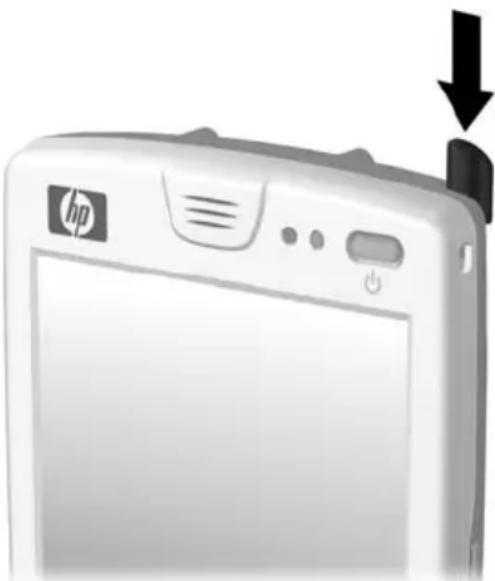

NOTE: Use the stylus to tap and write on the screen, and use your fingers to press the Power button, application buttons on the bottom of the device, and the camera's on-screen shutter button.

CAUTION: To prevent damage to your HP iPAQ screen, never use any device other than the stylus that comes with the HP iPAQ or an approved replacement to tap or write on the screen. If you lose or break your stylus, you can order extras at www.hp.com/go/ipaqaccessories.
You can perform three basic actions using the stylus:
Tap—Lightly touch the screen to select or open an item. Lift the stylus after you tap an item. Tapping is equivalent to clicking an item with the mouse on your computer.
Drag—Place the point of the stylus on the screen and drag an item across the screen without lifting the stylus until you have completed the selection. Dragging is equivalent to dragging with the left mouse button pressed on your computer.
Tap and hold—Hold the stylus pointer on an item for a short time until a menu displays. Tapping and holding is equivalent to right-clicking your computer mouse button. When you tap and hold, a circle of blue dots appears around the stylus to indicate that the menu will soon pop up.
Setting the Date and Time
When you turn on your HP iPAQ for the first time, you are requested to select your time zone. After setting the time zone, you still need to set the time and date on your unit. Tap the Clock icon on the Today screen to set the time and date. All three settings are located in the Clock Settings screen and can be set at the same time.

NOTE: By default, the time on the HP iPAQ is synchronized with your computer each time the two devices connect using ActiveSync.
Setting the Time for Home and Locations You Are Visiting
From the Start menu, tap Settings > System tab > Clock & Alarms icon.
SHORTCUT: From the Today screen, tap the Clock icon to set the time.
- Tap either Home or Visiting.
- Tap the time-zone down arrow, and select the appropriate time zone.
- Tap the hour, minutes, or seconds, and use the up and down arrows to adjust the time.
SHORTCUT: You can also adjust the time by moving the hands of the clock with the stylus.
- Tap AM or PM.
- Tap OK.
- Tap Yes to save the time.
Setting the Date
- From the Start menu, tap Settings > System tab > Clock & Alarms icon.
SHORTCUT: From the Today screen, tap the Clock icon to set the date.
- Tap the down arrow by the date.
- Tap the left or right arrow to select a month and year.
- Tap a day.
- Tap OK.
- Tap Yes to save the date settings.
You will need to reset your time zone, time, and date if:
- The location time (Home or Visiting) needs to be changed.
- All power to the HP iPAQ is lost, which removes all saved settings.
- You perform a full reset of your HP iPAQ.
SHORTCUT: From the Today screen, tap the Clock icon to set the time zone, time, and date.
Entering Owner Information
You can personalize your HP iPAQ by entering owner information. To enter owner information:
- From the Today screen, tap Start > Settings > Personal tab > Owner Information.
SHORTCUT: From the Today screen, tap Tap here to set owner information.
- Tap in the Name field. A keyboard appears at the bottom of the screen. Tap on the characters to enter your name.
NOTE: If you prefer, you can use Letter Recognizer, Microsoft Transcriber, or Block Recognizer to input information. Refer to Chapter 4, "Learning Input Methods" for more information.
- Tap the Tab key on the keyboard to move the cursor to the next field.
- Continue entering whatever information you want to include.
- To display owner information or notes at startup, tap the Options tab and place a checkmark in the Identification Information and Notes check boxes.
- Tap the Notes tab to enter any notes.
- Tap OK to save the information and return to the Today screen.
Setting a Password
You can set a password to prevent unauthorized access to or use of your HP iPAQ.
- From the Start menu, tap Settings > Personal tab > Password.
- On the Password screen, tap the box next to Prompt if device unused for, then set the timed prompt.
- In the Password Type box, tap the down arrow to display the drop-down box and select either Simple 4 digit or Strong alphanumeric as the password type you want to use.
- Enter your password in the Password box using the screen keyboard and tap OK.

NOTE: Keep a record of your password in a safe place in case you forget it. If you are unable to retrieve your password, you must perform a hard reset on your HP iPAQ and will lose settings and information that are not saved in ROM. See "Performing a Hard Reset" for more information.
Resetting the Unit
Performing a Soft Reset
A soft reset (also known as a normal reset) stops all running applications, but does not erase any programs or saved data.

CAUTION: Be sure to save any unsaved data before performing a soft reset since a soft reset erases all unsaved data.
To perform a soft reset:
- Locate the recessed Reset button on the bottom of the device to the right of the communications port.
- Use the stylus to lightly press the Reset button until the screen fades.
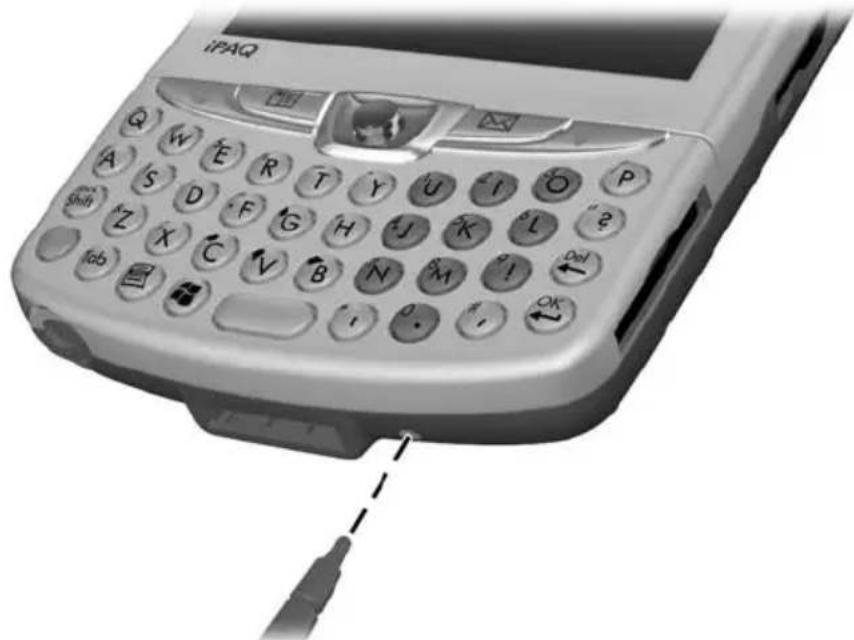
- Remove the stylus to restart the HP iPAQ.
The HP iPAQ restarts and displays the Today screen.
Performing a Hard Reset
Perform a hard reset (also known as a full reset) when you want to clear all settings, programs, and data from RAM.
CAUTION: If you perform a hard reset, your HP iPAQ returns to its default settings and loses all information that is not recorded in ROM or iPAQ File Store.
To perform a hard reset:
- Press and hold down the Power button.
- While holding the Power button, use the stylus to lightly press the recessed Reset button on the bottom of the HP iPAQ for about five seconds.
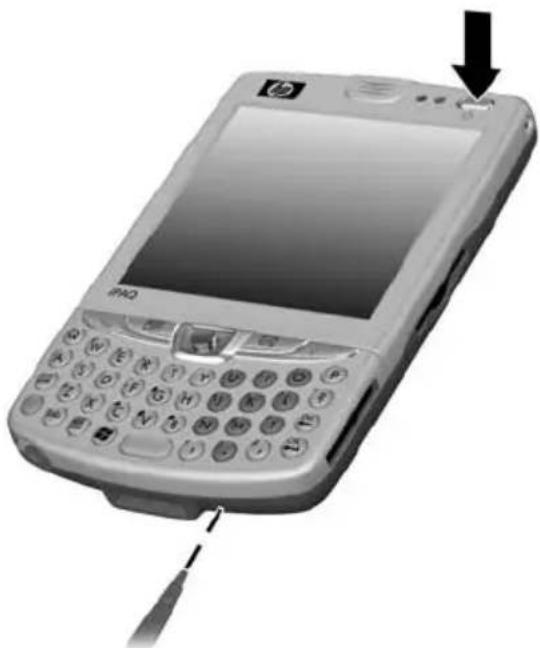
- The HP iPAQ screen fades and the device resets. Once the device resets and the screen comes back on, release the Power button and remove the stylus from the Reset button.
Aligning the Screen
When the HP iPAQ is turned on for the first time, you are guided through a screen alignment process. You must realign your screen if:
• The HP iPAQ does not respond accurately to your taps. - You perform a hard reset of your HP iPAQ.
To realign the HP iPAQ screen:
- From the Start menu, tap Settings > System tab > Screen icon.
- Tap the Align Screen button.
SHORTCUT: To access the Align Screen application without tapping on the screen, push down and hold the 5-Way Navigation button and the Contacts application button located to the left of the Navigation button.
- Tap the cross-hair object at each location. Be precise when tapping the cross-hair object.
- Tap OK.
Routine Care
To keep your HP iPAQ in good condition and working properly, follow these guidelines:
- Keep your HP iPAQ away from excessive moisture and temperature extremes.
- Do not expose your HP iPAQ to liquids or precipitation.
- Avoid exposing your HP iPAQ to direct sunlight or strong ultraviolet light for extended periods of time.
- When not in use, store your HP iPAQ in a case. You can select from a wide variety of case options at www.hp.com/go/ipaqaccessories.
Protecting the Screen
CAUTION: The screen and camera lens of your HP iPAQ are made of glass and can be damaged or broken by drops, impacts, or pressure.
NOTE: HP is not responsible for damage that occurs as a result of your failure to follow the instructions that came with the HP branded product. Refer to the warranty document included with your HP iPAQ for more information.
You should observe the following practices to protect the screen and camera lens of your HP iPAQ from damage.
- When transporting your HP iPAQ in a purse, pocket, briefcase, etc., ensure the device does not get compressed, bent, dropped, hit, or sat on.
- When not in use, close the flip cover on your HP iPAQ and store it in a case. You can select from a wide variety of case options at www.hp.com/go/ipaqaccessories.
- Do not place anything on top of your HP iPAQ to prevent damage to the screen.
- Avoid exposing your HP iPAQ to direct sunlight or strong ultraviolet light for extended periods of time.
- Avoid scratching the surface of the screen and the camera lens and banging them against hard objects.
- Use only the stylus that comes with your HP iPAQ or an approved replacement on the screen to prevent scratching it. If you lose or break your stylus, you can order extras at www.hp.com/go/ipaqaccessories.
- Clean your HP iPAQ by wiping the screen, the camera lens, and the exterior with a soft, damp cloth lightly moistened only with water.
CAUTION: To reduce the risk of damage to the internal components, do not spray liquid directly on the screen, or allow excess liquid to drip inside your HP iPAQ. Using soap or other cleaning products on the screen may discolor the finish and damage it.
Traveling with Your HP iPAQ
Use the following guidelines when traveling with your HP iPAQ:
- Back up your information. Take a copy of your backup with you on an SD memory card.
- Disconnect all external devices. Take the AC Adapter and AC Charger Adapter with you.
Keep your HP iPAQ in a protective case and keep it in your carry-on luggage.
For air travel, be sure to turn off the Phone and Bluetooth. To turn off all wireless features, from the Today screen, tap the iPAQ Wireless icon in the Command bar, then tap the ALL OFF button on the iPAQ Wireless screen to turn off all wireless features.
- If you are traveling internationally, be sure you have the plug adapter appropriate for the country you are visiting.
NOTE: If you are planning on traveling abroad with your HP iPAQ, you may need to set up your phone features for international calling. For this purpose, refer to the information in Chapter 5, in the section "Using International Roaming."
2 Learning the Basics
Using the Today Screen
When you first turn on your HP iPAQ, the Today screen displays. Also you can display it by tapping Start > Today. Use the Today screen to view:
- Date and time
- Owner information
- Upcoming appointments
- Unread and unsent messages
- Tasks that need to be completed
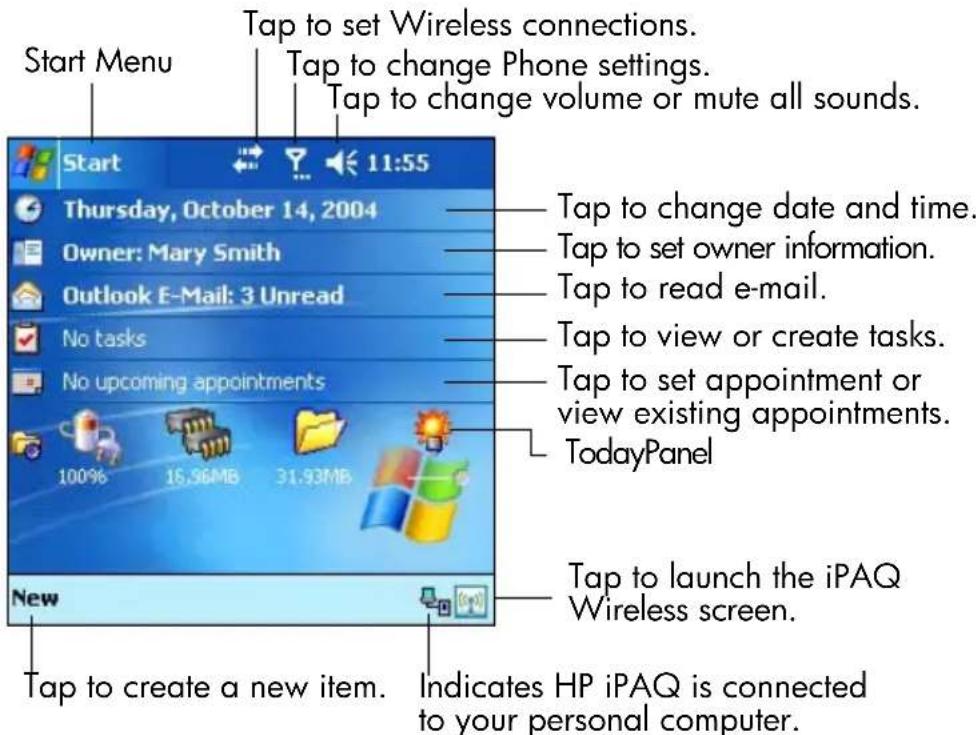
Navigation Bar
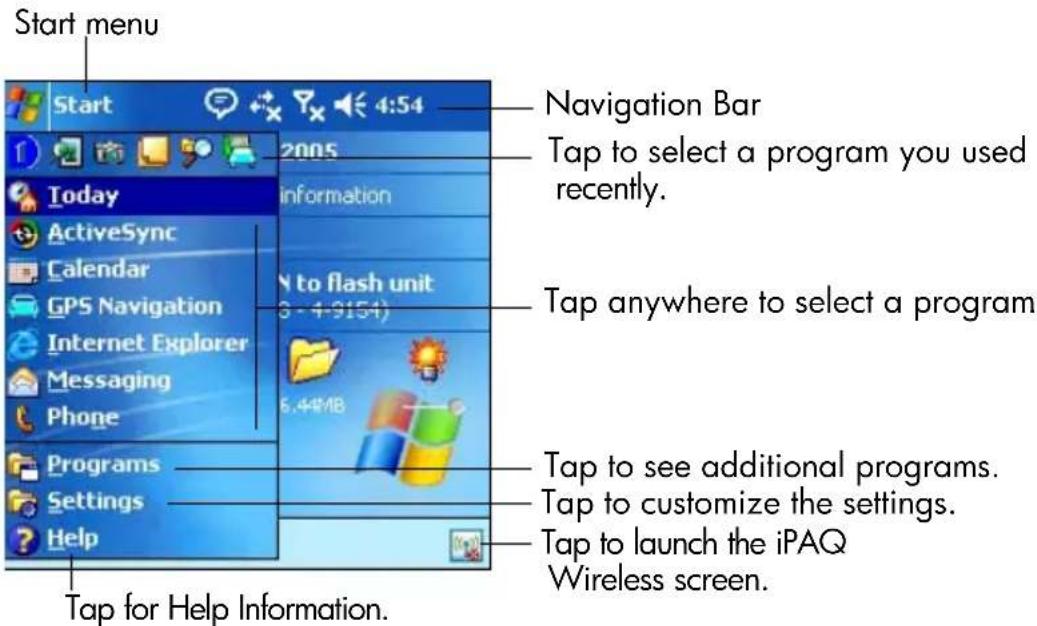
The Navigation bar is located at the top of the screen. It displays the active program, wireless, phone and volume status, the current time, and allows you to open programs. Tap on the Start menu to select a program.
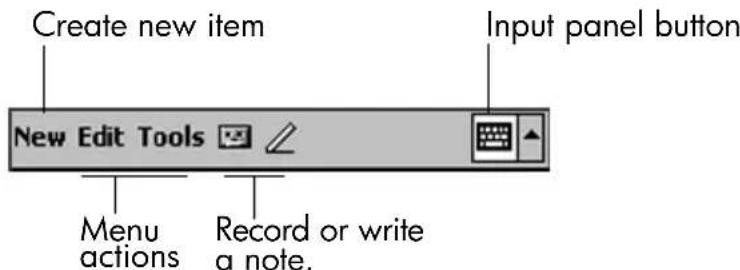
Command Bar
Within each program, use the Command bar located at the bottom of the screen to perform tasks. Tap New to create a new item in the current program.
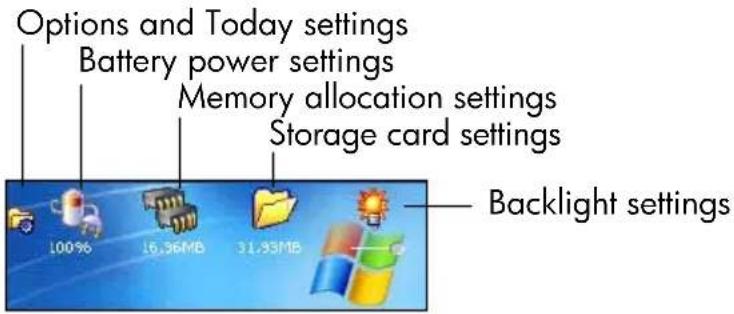
TodayPanel
The TodayPanel is located on the Today screen above the Command bar and displays shortcuts to the following settings:
- Options and Today Settings—Tap to access Options or Today Settings.
- Battery power settings—Tap to view battery power remaining or to adjust battery power settings.
- Memory allocation settings—Tap to view or adjust memory allocations, memory available for iPAQ File Store folder, and to activate or stop a running program.
- Storage card settings—Tap to view memory available for iPAQ File Store folder.
- Backlight settings—Tap to adjust backlight settings.
When you first power on your HP iPAQ, the TodayPanel is set to display on the Today screen. To turn it off:
- In the TodayPanel, tap the Options and Today Settings icon > Today Settings.
- On the Today Settings screen, scroll down and uncheck the TodayPanel box.
- Tap OK to close the program.
NOTE: To turn on the TodayPanel again, tap Start > Settings > Today icon > Items tab. On the Today Settings screen, scroll down and place a checkmark in the TodayPanel box.
Status Icons
You may see the following status icons displayed on the Navigation or Command bar. Tap the icon on the screen to view more information related to the item.
| Icon Definition | |
 | Active connection to computer or wireless network. |
 | Inactive connection to computer or wireless network. |
 | Microsoft ActiveSync is synchronizing. |
 | Speaker is on. |
 | Speaker is off or in mute position. |
 | GPRS service is registered and available if you are subscribed to the GPRS service. |
| Icon Definition | (continued) |
 | Active data connection to GPRS network. |
 | Phone is powered off. |
 | Phone is powered on. |
 | Network is searching or unavailable. |
 | Phone connection unavailable or network error. |
 | Signal strength indicator for phone functions. |
 | A missed call. Tap this screen icon to view missed calls. |
 | Call Forwarding Active. |
 | Tap to mute your phone conversation. Tap it again to continue the phone conversation. |
 | One or more instant messages have been received. Tap this screen icon to view the messages. |
 | One or more e-mail/SMS/MMS, or voice messages have been received. Tap this screen icon to view the messages. |
 | Message Center indicates messages received from different communication areas such as phone or voice messages, e-mail/ SMS/MMS, announcements, etc. Tap this screen icon to view all messages in the message center. |
 | Event notification set to vibrate instead of alarm. To set to vibrate: Tap the Speaker icon in the Navigation bar and, in the pop-up menu, tap Vibrate. |
 | Battery power is low. |
 | Battery power is very low. |
 | Your HP iPAQ is connected to your personal computer. This icon appears in the Command bar only when there is an active connection. |
| iPAQ Wireless icon—Tap to launch the iPAQ Wireless screen. The iPAQ Wireless screen provides a control center to turn all wireless activities on and off, and to configure their settings. When this icon displays with a red X, all wireless activities are off; when this icon displays without the red X, one or more of the wireless activities are on. | |
Pop-Up Menus
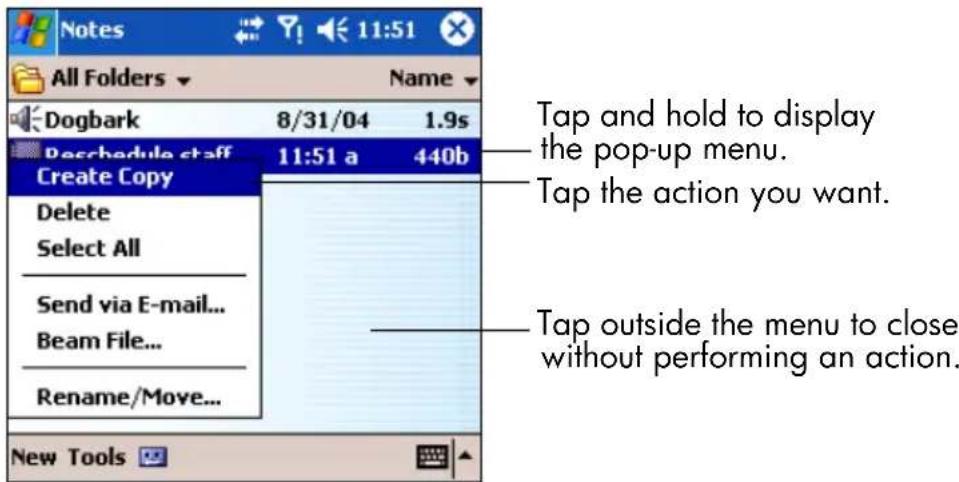
Pop-up menus allow you to quickly perform an action. Use the pop-up menu to cut, copy, rename, and delete an item, also send an e-mail or send a file to another device.
To access a pop-up menu, tap and hold the stylus on the item on which you want to perform the action. When the menu appears, tap the desired action, or tap anywhere outside the menu to close it without performing an action.
Creating information
From the Today screen, you can create new information, including:
- Appointments
- Contacts
- Excel Workbooks
- Messages
- Notes
- Tasks
- Word documents
- Tap 📄, or from the Start menu, tap Today > New.
- Tap an option to create a new item.
- Tap OK after you finish creating a new item.
Customizing the Today Screen
From the Settings Today screen, you can:
- Add a picture as the background. • Select information displayed on the Today screen.
- Set the order of the information. • Set when to see the Today screen.
- Tap, or from the Start menu, tap Settings > Today icon.
- Select Use this picture as the background check box.
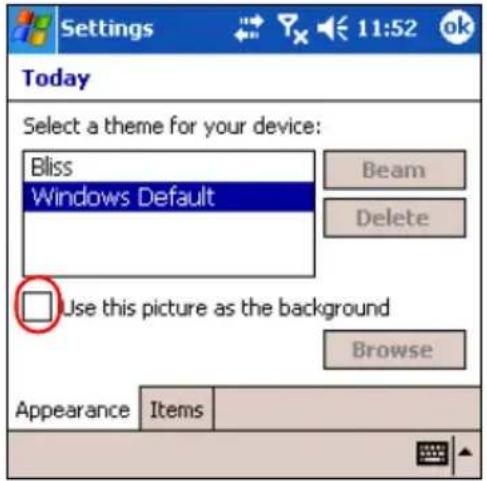
- Tap Browse to select a picture from File Explorer.
- Tap the Items tab to select or reorder the information on the Today screen.
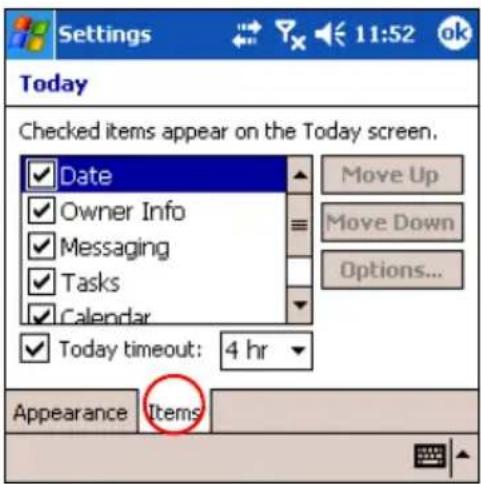
- Tap an item to highlight it.
- Tap Move Up or Move Down to change the order of items on the Today screen.

NOTE: You cannot change the placement of the Date on the Today screen.
- Tap the down arrow in the check box next to Today timeout and select the timeout period for the Today screen.
- Tap OK.
Customizing the Application Buttons
You can change the Contacts and Messaging programs currently assigned to two of the application buttons on the bottom of the HP iPAQ. You can replace these assignments with two programs that you use the most.

NOTE: The Phone application buttons cannot be reassigned.
To change the Button assignment:
- From the Start menu, tap Settings > Personal tab > Buttons.
- Under Select a button: highlight the button to be changed, for instance - Button 1.
- Tap the down arrow in the Assign a program: box and select your preferred program.
- Tap OK.
Locking the Application Buttons
To prevent the application buttons on your HP iPAQ from accidentally turning on and discharging the battery, the Buttons Settings include a Lock feature and a Keyguard feature to disable the buttons.
Use the Lock feature to disable the buttons when the HP iPAQ is in standby:
- From the Start menu, tap Settings > Personal tab > Buttons.
- Tap the Lock tab.
- Tap the check box next to Disable all buttons except power button.
- Tap OK.

NOTE: The next time your HP iPAQ is in standby, press one of the application buttons to test this feature. With the Lock feature enabled, your HP iPAQ will not power on until the Power button is pressed.

IMPORTANT: To make an emergency phone call while your HP iPAQ is in standby with the Lock feature enabled, press the Power button > tap the iPAQ Wireless icon > Phone button > Phone Keypad button, enter your phone number, and tap Talk.
Use the Keyguard feature to disable the buttons when the HP iPAQ is turned off:
- From the Start menu, tap Settings > Personal tab > Buttons.
- Tap the Lock tab.
- Tap the check box next to Enable Keyguard.
4. Tap OK.

NOTE: The next time your HP iPAQ is powered off, press one of the application buttons to test this feature. With the Keyguard feature enabled, your HP iPAQ will not power on until you press the Contacts button, and then the Messaging button on the Thumb Keyboard.
Using Applications
Opening Applications
Open any application on your HP iPAQ from the Start menu.

NOTE: You can also open an application by assigning it to one of the two available Application Buttons. The Phone Application Buttons cannot be reassigned. To assign the Application Buttons, from the Today screen, tap Start > Settings > Buttons.
To open an application:
- Tap Start > Programs.
- Tap the desired application title or logo.
Using the ContextMenu Key
Press the ContextMenu key for quick access to a drop-down context menu when you are using one of the following applications—Calendar, File Explorer, Messaging, Pocket Word, Notes, and Tasks. The context menu provides functions such as Copy, Cut, Delete, Select All, Send via E-mail..., Beam File..., Rename/Move..., Send via Bluetooth..., or Set as Ringtone. The menus are different in each application.
The ContextMenu key is the second key to the left of the space bar on the Thumb Keyboard. To see an illustration of its location, refer to Chapter 4, in the section "Keyboard Components."
Minimizing Applications
To minimize an open application, tap the x at the top right of the screen.
Closing Applications
Applications automatically close based on available memory. However, if your HP iPAQ is running slowly, you can close applications by manually closing them.
- From the Start menu, tap Settings > System tab > Memory > Running Programs tab.
- Tap Stop All or select a particular application, then tap Stop.
SHORTCUT: On the TodayPanel, tap the Memory icon > Running Programs tab, select an application and tap Stop.

NOTE: To bring a currently running program to the foreground, tap Activate.
Installing Applications
Install applications on your HP iPAQ from your:
- Computer by using Microsoft ActiveSync.
- Device if the application file has a .cab extension.
- Device or your computer by copying an application file that has an .exe or .cef extension.
When installing applications, look for the correct version for your device model or Windows Mobile™ 2003 Second Edition software for Pocket PC Edition.
- Follow the instructions provided with the application and by the Installation Wizard to install applications from your computer.
- Tap the application file in File Explorer on your HP iPAQ and follow the instructions on the Installation Wizard to install applications on your HP iPAQ.
Backing Up Information
Use iPAQ Backup or Microsoft ActiveSync Backup to back up and restore information on your HP iPAQ.

NOTE: iPAQ Backup is already installed on the HP iPAQ. You must install ActiveSync on your computer before using ActiveSync Backup.
To help reduce the chance of losing information, you should back up information on a regular schedule.
Backup/Restore using iPAQ Backup
iPAQ Backup saves your data in a backup file. You may designate a file name and a location for the file to be saved. iPAQ Backup backs up to a memory card, main memory, or the iPAQ File Store folder. Close all programs on your HP iPAQ before backing up or restoring your information.
CAUTION: Restoring your information replaces the current information on your HP iPAQ with the information saved in your backup. If you perform a hard reset on your HP iPAQ, any user installed information stored in main memory including backup files will be deleted. For this reason, it is suggested that backup files always be saved to a memory card or to the iPAQ File Store folder.
To backup/restore using iPAQ Backup:
- From the Start menu, tap Programs > iPAQ Backup.
- Tap Options > Switch to Advanced Mode and select the files and folders to be backed up or restored.
- Tap the ... box next to File to select the name, location, and folder name for backed-up data.
- Tap OK.
- Press the Backup or Restore button, and press the Start button on the next screen.
Backup/Restore Using ActiveSync
Close all programs on your HP iPAQ before backing up or restoring your information.
△ CAUTION: Restoring your information replaces the current information on your HP iPAQ with the information saved in your backup.
To backup/restore using ActiveSync:
- Be sure the HP iPAQ is connected to your computer.
- From your computer, open Microsoft ActiveSync. From the Start menu, click Programs > Microsoft ActiveSync.
- From the Tools menu in ActiveSync, click Backup/Restore.
- Click the Backup or Restore tab, and select your options.
- Click Backup Now or Restore Now.
Using iPAQ File Store Folder
You can install programs and save files to the iPAQ File Store folder, which is accessed from File Explorer on your HP iPAQ.
Programs and files stored in iPAQ File Store are stored in ROM and are saved if you perform a full reset of your HP iPAQ or if the battery discharges completely.
NOTE: Before saving files to the iPAQ File Store folder, it is a good idea to determine how much memory is available in the folder. To view the amount of memory, from the Start menu, tap Settings > System tab > Memory > Storage Card tab, then select iPAQ File Store from the drop-down menu.
3 Using ActiveSync
You can use Microsoft ActiveSync to:
- Synchronize information between your HP iPAQ model and up to two computers or one server so that you have the latest information in all locations.
- Change synchronization settings and the synchronization schedule.
- Copy files between your unit and computer. • Install applications on your HP iPAQ.
- Back up and restore unit information.
- Synchronize links.
- Send and receive e-mail.
- Request meetings.
△ CAUTION: For synchronization to work properly, install Microsoft ActiveSync on your computer before you connect your HP iPAQ to your computer.
Connecting to a Computer
Connect your HP iPAQ to your computer using Microsoft ActiveSync and the HP iPAQ Cradle, a wireless infrared connection, a Wi-Fi connection or Bluetooth. For more information on using ActiveSync with Bluetooth, refer to Chapter 9, "Using Bluetooth."
NOTE: When using Microsoft ActiveSync to synchronize e-mail on your computer with your HP iPAQ, you must have Microsoft Outlook 98 or later installed on your personal computer. If you do not have Outlook, install the Microsoft Outlook 2002 software from the Companion CD. Microsoft Outlook Express will not work with the HP iPAQ and ActiveSync.
Installing ActiveSync and Synchronizing with Your Computer
CAUTION: For synchronization to work properly, install Microsoft ActiveSync version 3.8 or greater on your computer before you connect your HP iPAQ to your personal computer. ActiveSync 3.7.1 can be used with this product; however, earlier versions of ActiveSync will not work with the HP iPAQ hw6500 Mobile Messenger series.
To install Microsoft ActiveSync on your personal computer:
- Insert the Companion CD into the CD tray or slot on your computer.
- When the CD displays on your computer screen, click on the Start Here tab, then select the link to install Microsoft ActiveSync.

NOTE: If the Companion CD does not automatically start on your personal computer, you may need to manually start it by clicking on the Microsoft Windows Start menu in the lower left corner of the monitor screen, and then clicking on Run. In the Run dialog box, navigate to your CD drive and double-click on SETUP.EXE to start the Companion CD.
- Install Microsoft Outlook 2002 from the Companion CD to your personal computer, if you do not already have it installed.

NOTE: To synchronize Calendar, Tasks, Contacts, and E-mail with your HP iPAQ, you must have Microsoft Outlook 98 or later installed on your personal computer. Microsoft Outlook Express does not work with the HP iPAQ and ActiveSync.
- Install ActiveSync 3.8 from the Companion CD onto your personal computer by following the instructions in the installation wizard. For more help, click the ActiveSync Help button during installation.
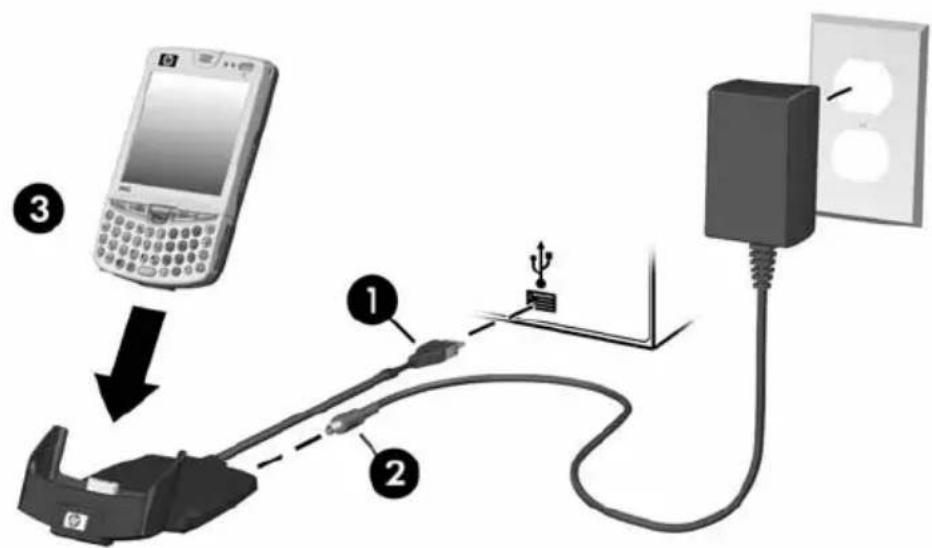
- After installing ActiveSync on your computer and, when prompted, connect the HP iPAQ to the computer using the HP iPAQ Cradle.
a. Connect the USB connector on the cradle ① to the USB port on your computer. b. Connect one end of the AC Adapter ② to the cradle and connect the other end to an electrical outlet to charge the unit. c. Insert the HP iPAQ in the cradle ③.
- Follow the on-screen ActiveSync instructions on your personal computer to establish a connection between your HP iPAQ and your personal computer.
After you have installed ActiveSync and connected your HP iPAQ to your personal computer, you can:
- Create partnerships that enable you to synchronize information with up to two computers.
- Select information to be synchronized with your HP iPAQ (for example, Contacts, Calendar, Inbox, Tasks, Favorites, Files, Notes, and AvantGo).

NOTE: When you synchronize files, you can drag and drop the selected files from your computer to the synchronized folder on your HP iPAQ. If you named your HP iPAQ "PC1" when you created your partnership, then the synchronized folder is named "PC1." When you synchronize, the files move to and from your HP iPAQ.
There are many error messages that can be received when synchronizing. For the best answers to troubleshooting these errors, refer to the Microsoft Windows Mobile Web site at www.microsoft.com/windowsmobile.
Under Help and How To on the left side of the screen, select For Pocket PC. Fill in your region, select your HP iPAQ name and your operating system; then, click the Get Support button. Under Support Topics on the left side of the screen, select ActiveSync.
Using Microsoft Exchange ActiveSync
If your company is using Microsoft Exchange Server 2003, you can synchronize Calendar, Contacts, and E-mail with your HP iPAQ wirelessly without connecting to a desktop cradle. Exchange ActiveSync in Microsoft Exchange Server 2003 allows the HP iPAQ to access corporate information on a server running Exchange server software. It allows ActiveSync-enabled HP iPAQs to synchronize mailbox items over the air (GPRS or wireless connection) without using a desktop computer, cradle, and desktop synchronization software.
You can also synchronize your mobile device with the Exchange server using the desktop pass-through option present in all Windows Mobile-based devices. Desktop pass-through allows your cradled HP iPAQ to use the desktop computer's Internet connection to connect directly to Exchange ActiveSync. You can then perform tasks such as browsing the Internet or downloading IMAP/POP3 e-mail messages.
After Exchange ActiveSync creates a connection and a partnership between the HP iPAQ and the desktop computer, desktop pass-through is enabled by default, even if the desktop is locked or protected with a password or PIN.
Exchange ActiveSync enables you to synchronize the following items in your Exchange Server 2003 mailbox over the air:
- Calendar
- Contacts list
- E-mail messages
You can receive update notifications by means of the Always-up-to-date (AUTD) feature in Exchange Server 2003. Up-to-date notifications generated by Exchange Server 2003 initiate Exchange ActiveSync synchronization between your HP iPAQ and your Exchange mailbox.

NOTE: To set up Exchange ActiveSync, you will first need to contact your corporate IT team for the name of the corporate server with Exchange Server 2003 installed.
To set up Exchange ActiveSync synchronization after you have the server information:
- On your personal computer, click the Microsoft ActiveSync application in your system tray.
- Click Options > Sync Options tab.
- Under Server, click in the Enable Synchronization with a Server box to enable it, then click Configure.
- Place a checkmark in the boxes next to the features to be enabled (Calendar, Contacts, Inbox).
- Follow the on-screen instructions to set up Exchange ActiveSync.

NOTE: For more information, refer to the Microsoft Windows Mobile Web site at www.microsoft.com/windowsmobile.
Using the Serial Infrared (IR) Connection
As an alternative to using the HP iPAQ Cradle or Exchange ActiveSync, you can synchronize your HP iPAQ and your computer using an infrared connection if you have an infrared port or an infrared USB adapter installed on your computer. The infrared connection option works only on computers that have Microsoft Windows 98SE, Me, 2000, or XP operating systems installed.
To set up an infrared connection to a computer:
- Synchronize your HP iPAQ with your computer using the HP iPAQ Cradle before the first time you establish an ActiveSync connection via infrared.
- Follow your computer manufacturer's instructions to install and set up an infrared port.
- Remove the HP iPAQ from the cradle and line up the infrared port with the computer infrared port so they are unobstructed and within 30.5 cm (12 inches) of each other.
- Initiate a connection by tapping Start > ActiveSync > Tools > Connect via IR. Synchronization begins on your HP iPAQ.
- To disconnect, move the devices away from each other or tap X in the upper right of the screen to turn off.
Changing Synchronization Settings
You can modify your synchronization settings for Microsoft ActiveSync to:
- Change when your HP iPAQ synchronizes with your computer or server.
- Change the type of connection from your HP iPAQ to your computer (for example, USB or infrared connections).

NOTE: The HP iPAQ hw6500 Mobile Messenger series does not support synchronization with a personal computer using a serial cable.
- Select the files and information to synchronize with your computer.
- Select the files and information you do not want to synchronize with your computer (for example, e-mail attachments).
- Determine how conflicts between information on your HP iPAQ and information on your computer are handled.
To change synchronization settings:
- From the Start menu on your computer, click Programs > Microsoft ActiveSync > Tools > Options.
a. On the Sync Options tab, select the files and information to synchronize with your computer. b. On the Schedule tab, select when your HP iPAQ synchronizes with your computer. c. On the Rules tab, determine how conflicts between information on your HP iPAQ and information on your computer are handled.
- Tap OK when you are finished.
- From the File menu, click Connection Settings. Select the type of connection to be allowed between the HP iPAQ and the computer.
Copying Files
You can copy files to and from your computer using Explore in ActiveSync and Windows Explorer.
To copy files:
- Insert your HP iPAQ into the cradle.
- From the Start menu on your computer, click Programs > Microsoft ActiveSync.
- Click Explore.
- Double-click the My Pocket PC icon.
- On your computer, right-click the Start menu, and select Explore.
- Locate the file(s) to be moved.

NOTE: You cannot copy preinstalled files or system files.
- Drag and drop your files between your HP iPAQ and your computer. ActiveSync converts the files so that they can be used by the Pocket Office applications, if necessary.

NOTE: Move your files directly into My Documents on your HP iPAQ (or into a folder inside My Documents), so the applications on your HP iPAQ can locate them.

NOTE: Some files may lose some of their format during the conversion process to an application on the HP iPAQ.
Installing Programs
Use ActiveSync to install programs on your HP iPAQ from your computer:
- Use the HP iPAQ Cradle to connect your HP iPAQ to your personal computer.
- Follow the instructions in the Installation Wizard provided with the program.
- Check the screen on your HP iPAQ to see if any further steps are necessary to complete the program installation.
Backing up and Restoring
To help reduce the chance of losing information, you should back up information to your computer on your HP iPAQ regularly. For more information on backing up and restoring information using Microsoft ActiveSync, refer to Chapter 2, in the section "Backing Up Information."
Synchronizing Links
You can synchronize links to Web sites from your Favorites list on your computer to view them offline with Pocket Internet Explorer.
- From the Start menu on your computer, click Programs and double-click the Internet Explorer icon.
- Click Favorites to see the list of links to your favorite Web sites.
- To save a Web site link to Mobile Favorites, open the Web site, and click Create Mobile Favorite.
- If you select "Favorites" as an information type to be synchronized, ActiveSync copies your mobile favorite to your HP iPAQ the next time you synchronize.
- Follow the instructions in Synchronize information to manually synchronize your favorite links.
Using ActiveSync to Send and Receive E-mail
You can send and receive e-mail messages by synchronizing your HP iPAQ with your computer using ActiveSync. If you are using ActiveSync to send and receive e-mail messages, the name of the folder you are using is displayed at the bottom of the screen. For more information on sending and receiving e-mail using ActiveSync, from the Start menu, tap Help > Messaging.
Requesting Meetings
You can schedule a meeting and send a meeting request through ActiveSync. For more information, from the Start menu, tap Help > Calendar.
4 Learning Input Methods
△ CAUTION: To avoid damaging your HP iPAQ screen, always use the stylus that comes with the HP iPAQ or an approved replacement to tap or write on the screen. If you lose or break your stylus, you can order extras at www.hp.com/go/ipaqaccessories. Never use a pen or any type of metal pointer on the screen.
To input information to your HP iPAQ, you can use the Thumb Keyboard, tap the soft keyboard on the screen, or write with the Letter Recognizer, Microsoft Transcriber, or Block Recognizer in any application. You can use the stylus to draw and write on the screen in the Notes application and from any Notes tab in the Calendar, Contacts, and Tasks applications.
Using the Thumb Keyboard
The integrated Thumb Keyboard is a convenient input device on your HP iPAQ product and uses a very small amount of power from your unit.
With the Thumb Keyboard, you can:
- Easily type text into your HP iPAQ.
- Quickly access your favorite HP iPAQ applications.
- Enter commands with special function keys.
- Use the numeric keypad to dial phone numbers.
- Use the ContextMenu key to launch a drop-down context menu from within an application.
- Launch the Start menu.
Keyboard Components
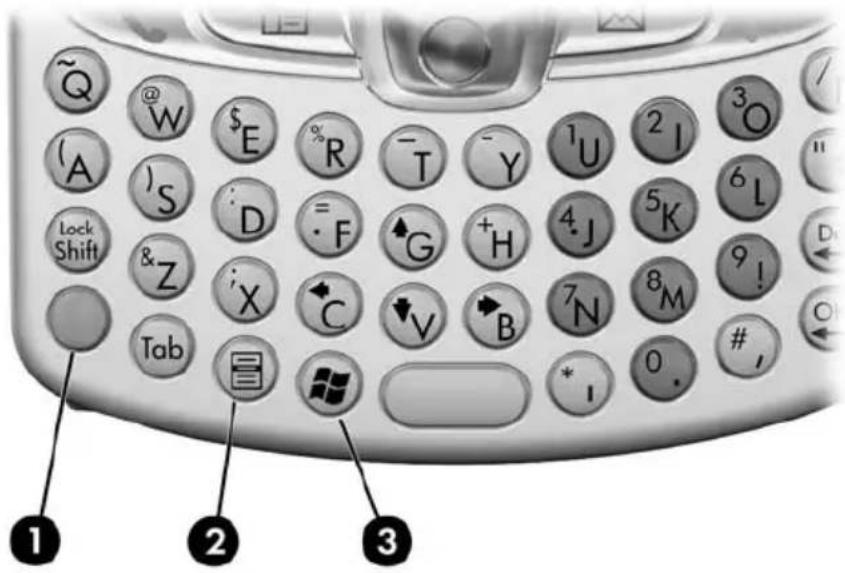
① Blue Key Use this function key in conjunction with Blue symbols on the upper left of the keyboard keys to type symbols and to type numbers on the numeric keypad. ② ContextMenu Key Press to display a drop-down context menu when working within applications such as Calendar, Messaging, Pocket Word, Notes, and Tasks. ③ Start menu Key Press to display the Start menu.
Using the Function and Shortcut Keys
The Thumb Keyboard keys perform additional functions when pressed in the combinations indicated.
The Blue Key is a function (Fn) key on the left side of the keyboard. Blue symbols used in conjunction with the Blue Key are located on the upper left of the keys.
| Keystroke Combination Action | |
| Blue Key +any key Enters characters printed on the upper left of the key (indicated in blue). | |
| Blue Key pressed twice | Toggles on blue keys. Press Blue Key once to toggle off. |
| Blue Key +down arrow | Page down |
| Blue Key +up arrow | Page up |
| Blue Key +left arrow Scrolls left | |
| Keystroke Combination Action | (continued) |
| Blue Key +right arrow Scrolls right | |
| Blue Key +OK Closes program | |
"Sticky" Keys
The integrated keyboard uses a "Sticky Key" feature for the Shift and Blue (Fn) keys (known as "key modifiers"). This means that when you enter a number or symbol requiring a combination of keys to be pressed, the key modifier will stay engaged until you press the second key. It is not necessary to press both keys at the same time.
Special Keys
| Key Function Description | |||
| Function (Fn) key “Sticky Key” for invoking alternate functions or symbols on most keys. | |||
| + | Function (Fn) key and space bar key (English only) | Used for selecting alternate characters and symbols to replace a character. | |

NOTE: To type a backslash (\) on the Thumb keyboard, first press the Blue (Fn) Key + P to create a forward slash (/), then the Symbol/Space Bar key to modify it as necessary. Refer to the following "Accent Characters" section for more information on modifying characters.
Accent Characters
To type any of the accent characters, press the letter you require to be accented, then press the Blue (Fn) Key and the Symbol/Space bar. Continue pressing the Blue (Fn) Key and the Space bar until you reach the desired special character. For example, if you press a, then the Blue Key and the Symbol/Space Bar, the a will result in à. If you press the Blue (Fn) Key and Space Bar again, the à will change to á. If you continue to press the Blue (Fn) Key and the Space Bar, the accent mark over the a will continue to change.
To type a capital letter with an accent, press and hold down the Shift key and press the desired letter, then press the Blue (Fn) Key and the Space Bar. For example, press Shift + a, then press the Blue (Fn) Key and the Space Bar, the A will result in Â.

Special Character Table
| Original Character | Modified Character |
| a | à á à ä à a ã ã æ |
| A | À Á À Ä À A ã À É |
| c | ç c č © |
| C | Ç C Č © |
| d | ð |
| D | Đ |
| e | è é è ë ɛ |
| E | È É Ê ë ɛ |
| i | ì í î î |
| l | ì lí î î |
| l | ł |
| L | Ł |
| n | ñ |
| N | Ñ |
| o | ò ó ô ô ô ô ø oe |
| O | Ò Ó Ô Ô Ô Ô Ô ∅ CE |
| p | p¶ |
| P | p¶ |
| r | ® |
| Rs | ®§ ŝ β |
| S | § ŝ β |
| † | † |
| T | T |
| u | ù ú û ü û |
| U | Ù Ú û û û |
| y | ý |
| Y | Ý |
| z | ž ž |
| Z | ž Z |
| $ | € £ ¥ |
| / | \ 1 |
| " | ' « » |
| ( | [ { < « |
| ) | ] } > » |
| + | ± & - _ |
| ! | i ? ¿ |
| . | : , ; |
| * | # |
| @ | ~ |
| % | ^ |
Using the On-Screen Keyboard
Use the stylus to tap letters, numbers, and symbols on the on-screen keyboard to enter typed text directly onto the screen.

NOTE: A question mark within a program indicates a Help file. Tap the ? to open the Help file.
- From any application, tap the up arrow next to the Input Panel icon.
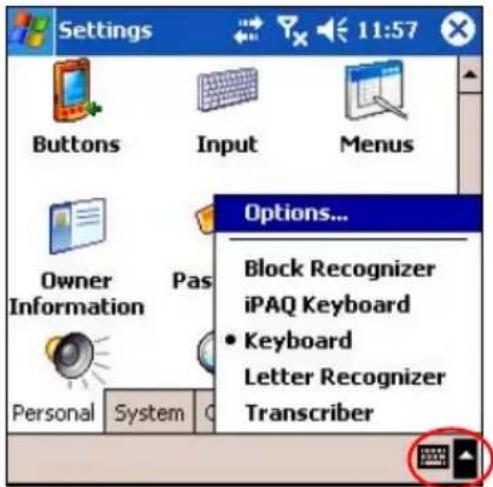
- Tap Keyboard to display a keyboard on the screen.

NOTE: To see symbols on the keyboard, tap the 123 or Shift key.
- Tap a letter, symbol, or number to enter information.
- Tap OK.
Writing with the Stylus and the Letter Recognizer
Use the stylus and Letter Recognizer to write letters, numbers, and symbols on the screen. Create words and sentences by writing in uppercase (ABC), lowercase (abc), and symbols (123) as instructed here.
To write with the stylus and Letter Recognizer:
- From any application, tap the up arrow next to the Input Panel icon.
- Tap Letter Recognizer.
- Write a letter or symbol between the dashed line and baseline.
a. To display in uppercase, write a letter between the hatch marks labeled ABC. b. To display in lowercase, write a letter between the hatch marks labeled abc. c. Write a number or draw a symbol between the hatch marks labeled 123.
What you write will be converted to text.

NOTE: For the Letter Recognizer to work effectively, write characters between the dashed line and baseline.
- If you are writing a letter like "p," write the top portion within the dashed line and baseline, and the tail portion below the baseline.
- If you are writing a letter like "b," write the bottom portion within the dashed line and baseline, and the top portion above the dashed line.
Writing with the Stylus and Microsoft Transcriber
Use the stylus and Microsoft Transcriber to write words, letters, numbers, and symbols anywhere on the screen.
- From any application, tap the up arrow next to the Input Panel icon.
- Tap Transcriber to display the Transcriber Intro screen.
- Tap OK.
- Tap New at the bottom of the screen.
- Begin writing on the screen. What you write will be converted to text.

NOTE: To "teach" Transcriber your style of writing, tap on the "a" icon at the bottom of the screen to display the Letter Shapes screen and follow the instructions.
Writing with the Stylus and Block Recognizer
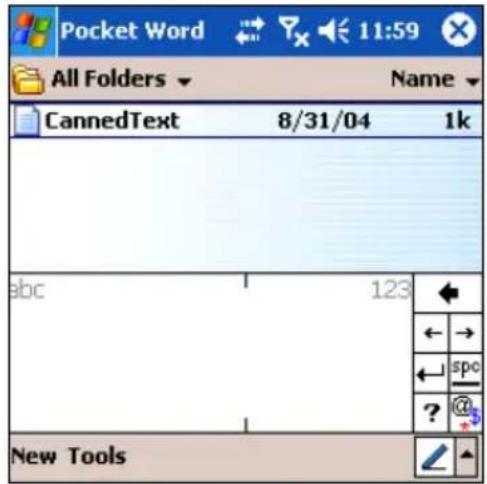
Write letters, numbers, and symbols using the stylus and Block Recognizer. Create words and sentences by writing letters and numbers in specific areas.
- From any application, tap the up arrow next to the Input Panel button.
- Tap Block Recognizer.

NOTE: For online Help, tap the ?.
- Write a word, letter, or symbol between the hatch marks. a. To type text, write a letter between the hatch marks labeled "abc."
b. To type numbers or symbols, write a number or symbol between the hatch marks labeled "123."
What you write will be converted to text.
Drawing and Writing on the Screen
Use the stylus as a pen to draw and write on the screen in the Notes program or from the Notes tab in Calendar, Contacts, or Tasks.
- From the Start menu, tap Notes > New.
- Draw and write on the screen.
- Tap the Pen icon.
- Tap OK.
Converting Writing to Text
You can convert your writing to text when you write with the stylus in the Notes program or from the Notes tab in:
- Calendar
- Contacts
- Tasks
To convert writing to text:
- From the Start menu, tap Notes.

NOTE: Otherwise, tap the Notes tab in Calendar, Contacts, or Tasks.
- Tap a note to open it.
- Tap Tools.
- Tap Recognize.

NOTE: To convert a particular word or phrase, highlight it before you tap Recognize. If a word is not recognized, it will not be converted.
- Tap OK.
Changing Word Suggestion Options
As you type or write, the HP iPAQ suggests words for you in a box above the soft keyboard, Letter Recognizer, or Block Recognizer.

NOTE: This feature is unavailable when you use the Thumb Keyboard or Transcriber.
You determine:
• If words are suggested. • The number of letters you enter before a word is suggested. • The number of words that are suggested per entry.
To change settings for word suggestions:
- From the Start menu, tap Settings > Personal tab > Input.
- Tap the Word Completion tab.
SHORTCUT: From within any application, tap the up arrow next to the Input Panel icon and tap Options > Word Completion tab.
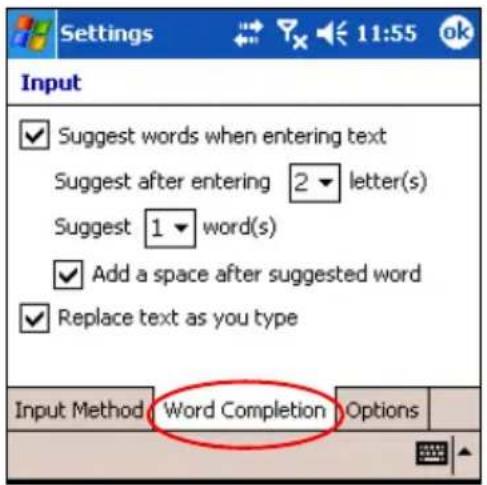
- Tap the down arrow associated with letters and select the number of letters you want to type before a word is suggested.
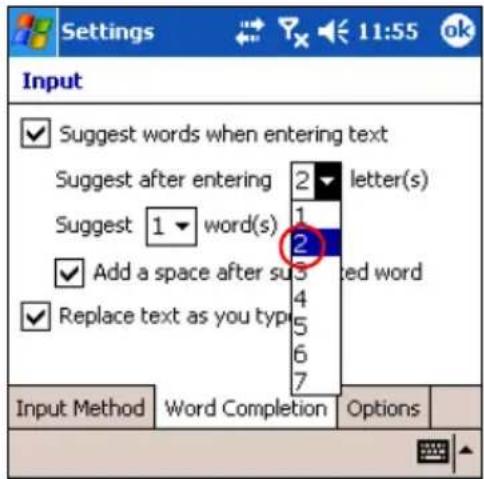
- Tap the down arrow associated with words and select the number of words you want suggested.
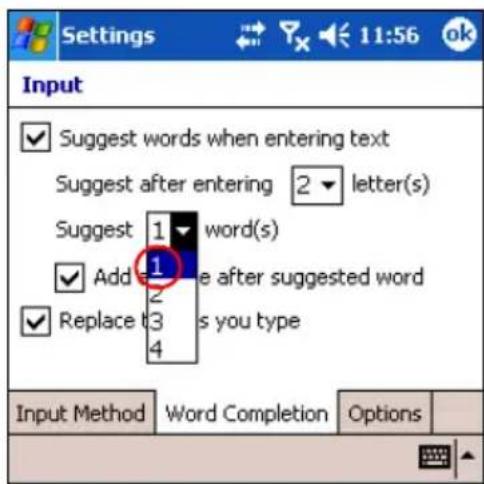
- Tap OK.

NOTE: If you do not want any words suggested, uncheck Suggest words when entering text.
5 Using the Phone Features
Use the HP iPAQ Mobile Messenger phone to make and receive telephone calls and send and receive Text and MMS (Multimedia Message Service) messages. Your mobile phone service provider may provide other useful services such as voicemail.
The phone can also be used to connect to an Internet Service Provider (ISP) or work network so you can browse the Web and read e-mail. You can connect to the Internet or work network over GPRS/EDGE (General Packet Radio Service/Enhanced Data Rates for Global Evolution), or you can use GSM (Global System for Mobile Communications) for dial-up access.
For information on establishing GSM/GPRS/EDGE data connections, refer to Chapter 7, "Making Data Connections."

NOTE: EDGE is an enhancement to GPRS technology and enables higher speed data connections than GPRS. This means faster phone multimedia capabilities such as sending and receiving SMS/MMS messages, and sharing video clips. Check with your service provider to see if they support EDGE technology. If your service provider does not support the EDGE network, the HP iPAQ defaults to GPRS.
SIM Card
A Subscriber Identity Module (SIM) card is required to operate the phone features on your HP iPAQ. The SIM card is a plastic card embedded with a computer chip that stores and transacts data. After the SIM card is activated by your mobile phone service provider, the computer chip will contain information about your phone number, service, registration information, and contacts, as well as memory to store speed dial numbers and text or SMS/MMS messages that you receive.
With the exception of emergency calls, the SIM card must be inserted into the SIM slot under the battery on the back of the HP iPAQ for voice/data calls to work.
To dial an emergency number from the Phone keypad, tap the emergency number appropriate for your region, and then tap Talk.

NOTE: See your local telephone directory for emergency numbers used in your area. Emergency numbers can be dialed without a SIM card being inserted in the HP iPAQ and there is no charge for emergency calls.
Inserting a SIM Card
To insert the SIM card into the HP iPAQ, you must first remove the battery cover and the battery from the HP iPAQ.
- On the back of your HP iPAQ, press down the battery cover latch ①.
- Use your thumb to slide the battery cover down and away from the HP iPAQ ②.
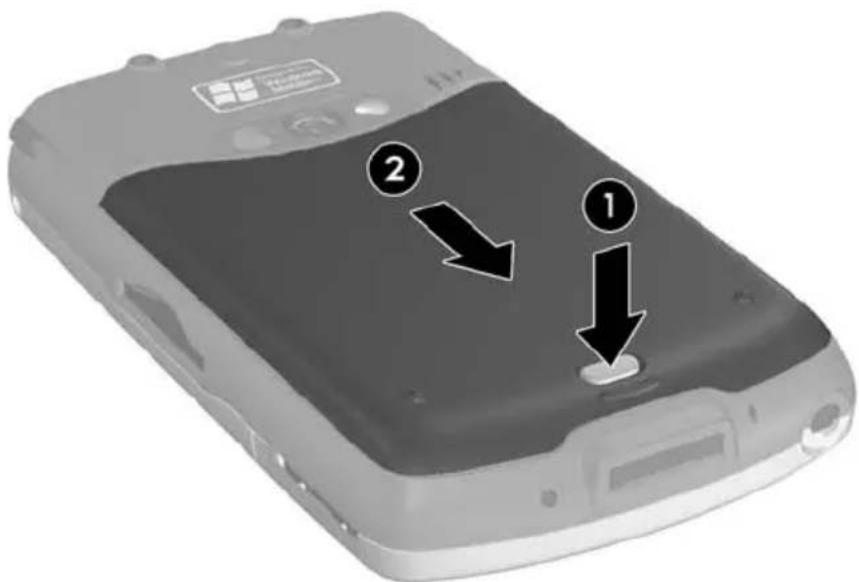
- Remove the battery.

NOTE: If the battery is already installed, you must remove it before inserting the SIM card. For more information on removing the battery, see Chapter 13, "Managing the Battery."
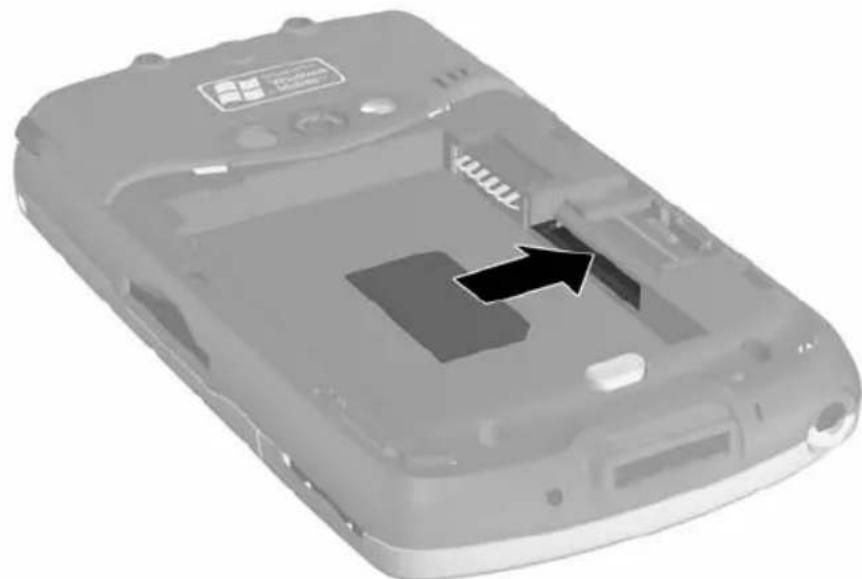
- Insert the SIM card into the SIM slot by aligning the notched corner on the card with the notched corner in the SIM slot, then push the SIM card into the SIM slot. Be sure to push it in all the way.

NOTE: The gold side of the SIM card should be facing down when it is inserted into the SIM slot.
Removing the SIM Card
- Repeat the previous steps to remove the battery cover and battery.
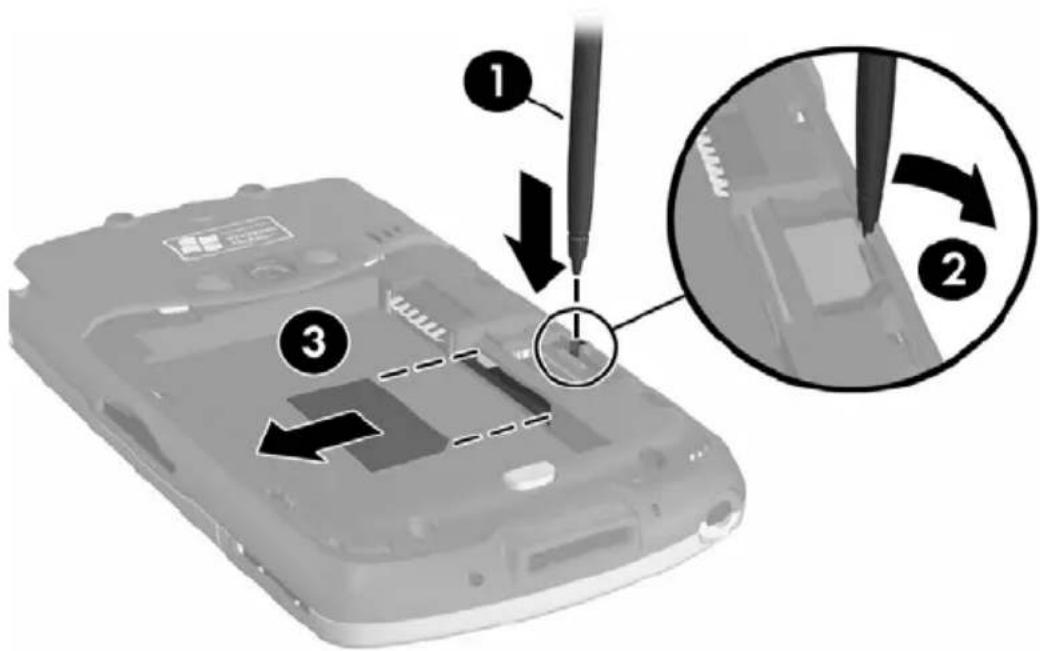
- Insert the stylus ① into the right side of the SIM slot opening ② and nudge or push the SIM card out of the slot ③. Do not touch the metal contacts.
Activating Your Phone Service
Before you are able to use the phone feature on your HP iPAQ, you need to subscribe with a mobile phone service provider.

NOTE: If you purchased your HP iPAQ from a mobile service provider, phone service may be activated at time of purchase or the mobile service provider may include activation instructions.
If you have purchased a prepaid SIM card to use with your HP iPAQ or, if your service provider issued you a SIM card with a preset PIN, the following information is not applicable.
After you select a service provider, you must place a phone call to the service provider to activate your mobile phone service. Your carrier may require the following information to activate your card:
- SIM Card Serial Number (printed on the box label or on the back of the SIM card)
- IMEI Number (printed on the system label under the removable battery)
Your mobile phone service representative will give you your wireless phone number and walk you through setting up your service.
Phone Features
The following features are supported on your HP iPAQ; however, these features must be activated by your mobile phone service provider:
- Call Forwarding • CSD—Circuit Switched Data • GPRS—General Packet Radio Service • International Dialing
- International Roaming
- Internet access
- Text Message/MMS—Text Message Service/Multimedia Message Service
• Voicemail
• VPN—Virtual Private Network
You can obtain additional information on these services from your mobile phone service provider.
Your PIN
After your SIM card is activated, it may be configured with a PIN (Personal Identification Number) to prevent unauthorized use of your mobile phone.

NOTE: Emergency phone calls do not require entering a PIN.
You can disable your PIN; however, for security reasons, it is recommended that you keep it enabled. While enabled, you must enter your PIN every time you turn on your phone features.
△ CAUTION: After three consecutive, incorrect PINs are entered, the SIM card locks to prevent further use. If the letters PUK (PIN Unblocking Key) display on your HP iPAQ screen, you have locked your SIM card and must enter your PIN Unblocking Key on the screen to unlock it. If you did not receive a PIN Unblocking Key with your SIM card, you must contact your service provider to unlock it.
If your HP iPAQ is ever stolen or lost, the PIN safeguards your phone against fraudulent use.
To enable your PIN:
- From the Phone keypad, tap Tools > Options > Phone tab.
- Select Require PIN when phone is used.
- Enter the PIN number given to you from your mobile phone service provider along with the SIM card, or enter the default PIN code of 1234.
- Press ENTER to enable your PIN.
NOTE: To change the PIN at any time, tap CHANGE PIN.
NOTE: To safeguard your HP iPAQ from unauthorized use, see the section Setting a Password in Chapter 1, "Getting to Know Your HP iPAQ Mobile Messenger."
Phone Buttons and Icons
| Phone Icons Definition | |
| Press this green Answer/Send Application Button to answer a call, access the phone keypad, and send a call.Press and hold this Button to activate the speakerphone function during a phone call. | |
| Press and hold this red End Call Application Button to end a call. | |
| Phone is powered off. | |
| Phone is powered on. | |
| Network is searching or unavailable. | |
| Phone Icons Definition | (continued) |
 | Phone connection unavailable or network error. |
 | Signal strength indicator for phone functions. |
 | Call missed. Tap this icon to view missed calls. |
 | Call Forwarding Active. |
 | Phone Volume is active. |
 | Microphone is in mute position. |
 | GPRS Service is available. |
 | Active data connection to GPRS network. |
 | Event notifications set to vibrate instead of alarm. To set to vibrate: Tap Speaker icon in the Navigation bar and in the pop-up menu, tap Vibrate. |
 | One or more instant messages have been received. Tap this icon to view messages. |
 | One or more e-mail/SMS/MMS or voicemail messages have been received. Tap this icon to view messages. |
 | Message Center indicates messages received from different communication areas such as phone or voice messages, e-mail/SMS/MMS, announcements, etc. Tap this screen icon to view all messages in the message center. |
Checking Your Connection and Signal Strength
After you insert the activated SIM card into your HP iPAQ, your unit connects to your service provider's network.
The powered on icon indicates that you are connected to your service provider's network. After that, full strength connection is indicated by the signal strength icon. The number of vertical bars in the icon diminish as the signal strength diminishes. The phone icon indicates no signal.
Automatic Frequency Band Selection
Your HP iPAQ has an integrated GSM/GPRS/EDGE feature that supports four different frequency bands which allow for international roaming. When traveling between countries and wireless network operators, the automatic selection feature changes the frequency bands of the GSM/GPRS/EDGE connection settings. It does this by initiating an automatic search for network frequency bands when your home bands are not available. This automatic selection feature is the default setting on your HP iPAQ.
Turning the Phone On and Off
You can turn your Phone on and off while keeping your HP iPAQ powered on.
There are several ways to turn on your Phone:
- From the Today screen, tap the iPAQ Wireless icon in the Command bar at the bottom of the screen, then tap the Phone button on the iPAQ Wireless screen.
- From the Today screen, use the numeric keypad on the Thumb Keyboard to enter a phone number. After the first or second number is entered, the phone keypad displays. Tap Yes when asked if you want to turn on the phone.
- Press the green Answer/Send Phone button to display the phone keypad. Enter a phone number on the keypad and tap Yes when asked if you want to turn on the phone. From the Today screen, tap the phone icon in the Navigation bar and, from the pop-up menu, tap Turn off flight mode.

NOTE: Flight mode turns on/off all wireless functions on your HP iPAQ. Turn on Flight mode when you are traveling by air to prevent a wireless function from turning on automatically.
There are two ways to turn off your phone:
From the Today screen, tap the iPAQ Wireless icon in the Command bar, then tap the Phone button to turn off the phone. On the Today Screen, tap the phone icon in the Navigation bar and, from the pop-up menu, tap Turn on flight mode.

NOTE: Leave the phone turned on to receive calls when your HP iPAQ is powered off.
You can use other programs on your HP iPAQ during a call. To quickly switch back to Phone, tap the green Answer/Send application button, or tap Start > Programs > Phone.
HP Profiles
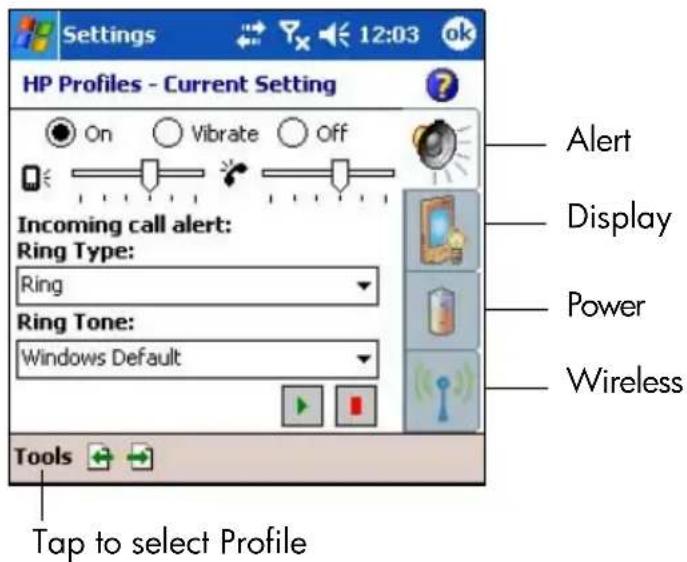
HP Profiles allows you to create system profiles for alerts, display, power, and wireless settings to match your current environment or location. You can set up and name profiles to use at different times and for different functions. For example, you can set a certain ring type or tone to be silent or vibrate when you are in a meeting, or loud when you are outdoors in a crowd.
You can select pre-defined profiles for specific situations. These pre-defined profiles have common settings for Alerts, Display Settings, Power, and Wireless.
• To access HP Profiles, from the Start menu, tap Settings > System tab > HP Profiles.
There are four button icons that allow you to modify settings for Alert, Display, Power, and Wireless.
Setting a Profile
To set a profile:
- From the Start menu, tap Settings > System tab > HP Profiles icon.
- Tap Tools > Select Profile and, from the drop-down list, select a profile name.
NOTE: Tapping the Rename selection brings up a dialog box. Enter the new name in the dialog box and tap OK.
- On the right of the screen, tap the icon button that you want to set (Alert, Display, Power, or Wireless).
- Select the desired settings: a. Use Alert to select a ring type and tone, set the type to On, Vibrate, or Off, and set the volumes for HP iPAQ and phone.
b. Use Display to adjust backlight brightness and set a timer to turn off the backlight, if HP iPAQ is not used. c. Use Power to set a timer to turn off the power if HP iPAQ is not used. d. Use Wireless to keep wireless settings On or Off (Phone and Bluetooth).
- Tap OK when you have finished setting the profile.
- Tap Yes to save your changes to the selected profile.
Switching a Profile
To quickly switch a profile from within any application:
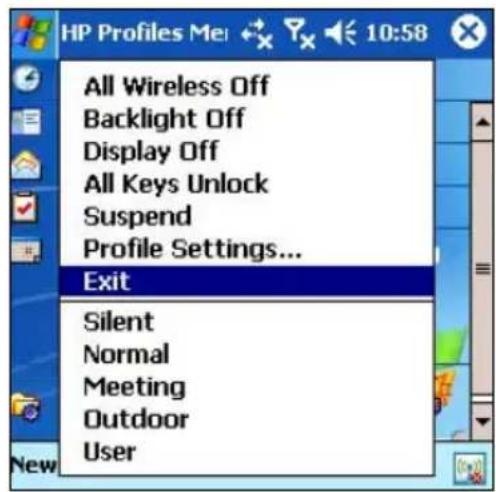
- Press and hold the Power button to bring up the quick access menu.

NOTE: The quick access menu includes five tasks and a shortcut to Profile Settings, in addition to the profile selections that allow you to switch tasks.
- Tap the desired profile.

NOTE: The quick access menu disappears after 10 seconds.

NOTE: When the Backlight is adjusted to its lowest setting, it cannot be turned on from the quick access menu. It can only be turned back on by accessing the Start menu > Settings > System tab > Backlight > Brightness tab and adjusting the brightness level. The brightness level can also be accessed from the battery icon if the TodayPanel is displayed.
Making and Receiving Phone Calls
You can now make local or long distance domestic calls and, if you requested the setup, you can also make international calls.
Making a Call
- From the Today screen, tap the iPAQ Wireless button in the Command bar.
- Tap the Phone icon on the iPAQ Wireless screen.
Alternate: Tap the 📋 icon in the Navigation bar > Turn off flight mode (activates the wireless radio which turns on your phone).
- Press the green 📋 Answer/Send button on the Thumb keyboard or from the Today screen, tap Start > Phone.
- Tap the number you want to call, and then tap Talk or press the green Answer/Send button from the Thumb keyboard.
NOTE: Press the Blue key to access the numbers on the Thumb Keyboard.
Refer to the following sections for alternate ways to make a call:
• "Making a Call from Contacts" • "Making a Call Using Speed Dial" • "Making a Call From Call History" • "Making a Conference Call"
Answering a Call
When you receive a phone call, the HP iPAQ rings or vibrates and a message appears on the screen, giving you an option to either answer or ignore the incoming call.
- Tap Answer on the Phone keypad or press the green Answer/Send button on the Thumb keyboard to receive the call.

NOTE: To silence the phone and reject the call, tap Ignore. This may send the caller to your voicemail or send out a busy signal, depending on your service provider.
Ending a Call
When your phone call is finished, tap End on the Phone keypad or press and hold the red End Call button to end the call.
Making a Call from Contacts
- Tap on the Contacts icon located on the Thumb keyboard, tap and hold the contact's phone number, and then tap Call Work, Call Home, or Call Mobile.
- To make a call from an open contact, tap the number you want to call.
Copying Contacts to a SIM
If you need to copy important contacts from another device to your HP iPAQ, use SIM Manager.
- Insert the SIM card (which has the important contacts on it) in the HP iPAQ. For detailed instructions, refer to the "Inserting a SIM Card" section in this chapter.
- From the Start menu, tap Programs > SIM Manager. SIM Manager loads the SIM data from the card.
- Tap and hold the contact you want to copy to your HP iPAQ and tap Copy to Contacts.
- Verify your contacts have been copied to your HP iPAQ by tapping Contacts and search for the added contacts.

NOTE: This feature may not be available on all models.
Making a Call Using Speed Dial
From the Phone keypad, tap Speed Dial, and then select the speed dial location number of the desired contact. You can also press and hold the speed dial location number assigned to a contact directly from the Phone keypad.

NOTE:
- To dial a one-digit speed dial number from the Phone keypad, tap and hold a single keypad key.
- To dial a two-digit speed dial number from the Phone keypad, tap the first digit, then tap and hold the second digit.
Creating a Speed Dial Entry
You can create up to 99 speed dial entries to call frequently-dialed numbers. Before you can create a speed dial entry for a phone number, that number must already exist in Contacts.
- From the Phone keypad, tap Speed Dial > New.
- Tap the desired contact name and number.
- In the Location field, tap the Up/Down arrows to select an available location to assign as the new speed dial entry. The first speed dial location is reserved for your voicemail.
- Tap OK.
Creating a Speed Dial Entry From Contacts
- Tap and hold the contact name.
- Tap Add to Speed Dial.
- Tap the Up/Down arrows to select an available location to assign as the new speed dial entry.
- Tap OK.
Editing a Speed Dial Entry
- From the Speed Dial list, tap and hold the contact name in the box to the right of the assigned speed dial number.
- Tap Edit or Delete.
- Enter your changes and tap OK.
Making a Call From Call History
From the Phone keypad, tap Call History, and then tap the icon next to the desired number.
Making a Conference Call
You can create a three-way conference call between yourself and two other parties.
From the Phone keypad, dial the first number, tap Talk and after the call is initiated, tap Hold, dial the second number, tap Talk and then tap Conference.
Adjusting Phone Volume
During a phone call, push the Phone volume slider on the top, left side of the HP iPAQ up (+) or down (-).

NOTE: The Phone volume can only be adjusted during a phone call.
Enabling the Mute Function
During a call, you can mute your microphone so that the person with whom you are speaking cannot hear you, but you can still hear him or her. This is useful if you do not want the other person to hear a conversation or background noise on your side of the call.
From the Phone keypad, tap the microphone icon in the Command bar to mute or unmute a call.
Setting Ring Tones
- Tap > Settings > System tab > HP Profiles.
- Tap the Alert icon 🔒 and tap the drop-down list under Ring type to select the type of ring to be used.
- Tap the drop-down list under Ring tone and select the ring tone to be used.
- To listen to the selected sounds, tap the Play icon. When you are finished listening, tap the red Stop icon.

NOTE: You can also select Ring Tones by tapping Start > Settings > Phone icon.

NOTE: To use custom.wav, .mid, or .wma files as ring tones, use ActiveSync on your personal computer to copy the file to the My HP iPAQ\Windows\Rings folder on your HP iPAQ. Then, select the sound from the Ring tone list.
To control tapping sounds for the keypad:
- From the Start menu, tap Settings > Personal tab > Sounds & Notifications.
- Place a checkmark in the box next to Screen taps and select Soft or Loud. If there is no checkmark in the Screen taps box, a tone is not played.
- Tap OK to save the settings.
Changing Ring Tones
You can select a different sound to notify you of incoming calls.
- From the Phone keypad, tap Tools > Options.
- Tap the Ring tone listbox, and select the sound you want to use.
Changing Keypad Tone
You can change the tone you hear when entering a phone number on the keypad. If set to Tones, the tone is heard continuously for as long as the number on the keypad is pressed. If set to Beep, the tone is heard only for one or two seconds.
- From the Phone keypad, tap Tools > Options.
- Tap the Keypad list, and select the option you want. To prevent tones from being heard when entering a phone number, select Off.
Adding Ring Tones
You can add different sounds to notify you of different events on your HP iPAQ.
- From the Start menu, tap Settings > System tab > Add Ring Tone.
- Tap the Ring tone list, and select the event sound you want to use, and tap the Add button.
- Tap OK when you are finished adding ring tones to your HP iPAQ.
Enabling Speakerphone Mode
Your HP iPAQ has a speakerphone mode that allows you to talk hands-free or allows other people to listen to the caller.
To enable the speakerphone mode:
- First make a phone call.
- Hold down the green Answer/Send button until the speakerphone dialog box comes on and the speakerphone icon appears in the top Navigation bar.
SHORTCUT: From the Phone keypad, tap Tools > Speakerphone.
- To turn off the speakerphone, hold down the button again. Answer/Send
⚠ WARNING! Do not leave the phone in speakerphone mode and hold it to your ear, the sound may temporarily impair your hearing.
Taking Notes During a Call
To create a note during a call, tap the Note icon in the Command bar and enter or record your note.
Using Voicemail
The first speed dial location is set as a default for your voice mailbox number. When you insert your SIM card into your HP iPAQ, it sets as default the voice mailbox number of your mobile service provider. You may need to configure your phone to the Voicemail setting by dialing or setting the Voicemail dial number or password.
To retrieve your voicemail:
- With the phone turned on and the phone keypad visible on the screen, press and release the left side of the 5-way navigation button, select 1 Voicemail, then press 📞.
Putting a Call on Hold
During a phone call, tap Hold on the Phone keypad to put the call on hold. The call on hold appears on the top right of the dialer screen. You may switch between calls by tapping the call on hold.
Using Call Waiting
Call waiting notifies you of incoming calls when you are already in a phone session.
To activate Call Waiting:
- From the Phone keypad, tap Tools > Options > Services tab.
- Tap Call Waiting > Get Settings.
- Select Notify me.
- Tap OK.

NOTE: To stop using call waiting, select Do not notify me.
To use Call Waiting to answer an incoming call during a phone conversation, tap Answer to move the current phone call to Call Waiting. The phone call on Call Waiting displays on the screen. Tap Ignore if you do not want to answer the incoming call.
Displaying Caller ID
You can display your caller ID when placing a phone call.
- From the Phone keypad, tap Tools > Options > Services tab.
- Tap Caller ID > Get Settings.
- Select Everyone.
- Tap OK.

NOTE: To prevent your caller ID from being displayed to others, select No One.
Blocking Calls
Use call barring to block certain types of incoming and/or outgoing calls.
- From the Phone keypad, type Tools > Options > Services tab.
- Tap Call Barring > Get Settings.
- Select the type of incoming and/or outgoing calls you want to block, such as barring incoming calls when your phone is in roaming mode or blocking all outgoing international calls.
- Tap OK to close the program.
Forwarding Calls
Use call forwarding to forward all incoming calls to a different number.
- From the Phone keypad, tap Tools > Options > Services tab.
- Tap Call Forwarding > Get Settings.
- Select Forward all incoming phone calls, and specify the phone number to receive forwarded calls.
You can also use call forwarding to forward incoming calls to a different number based on your situation.
- Select Unavailable to forward calls only when your phone is turned off or you are unreachable.
- Select Busy to forward calls only when the line is busy.
- Select No answer to forward calls only when you can't answer your phone.

NOTE: To stop using Call Forwarding, clear the box next to Forward all incoming phone calls.
Changing the System Volume
You can adjust the volume for system sounds, such as the sound you hear when you tap on program names and menu options.
• Tap the icon in the Navigation bar.
- In the pop-up volume box, move the system volume slider to the desired volume level.
Select On, Vibrate, or Off to quickly change both the system and ringer volume settings.

NOTE: You can also move the volume control on your HP iPAQ to quickly change the ringer settings. The volume slider is located on the top, left side of the HP iPAQ. Press up (+) or down (-) to adjust volume.
Change the Ringer Volume
There may be times when you want to change the ringer volume on your HP iPAQ. For example, you may want to increase the ringer volume when you're anticipating an important call, or immediately silence the ringer when you receive a call during a meeting or when you're in a quiet environment.
- Tap the icon in the Navigation bar. • In the pop-up volume box, move the ringer volume slider to the desired volume level.
Select On, Vibrate, or Off to quickly change both the ringer and system volume settings.

NOTE: You can also move the volume control on your HP iPAQ to quickly change the system volume settings.
Changing the Phone Settings
To change the phone settings, from the Start menu, tap Settings > Phone.
You can customize phone settings such as the ring type and ring tone to be used for incoming calls, and the keypad tone to be used when entering phone numbers. You can also protect your phone from unauthorized use with a PIN.
• To change phone settings from the Phone keypad, tap Tools in the Command bar > Options > Phone tab.
From the Phone tab, you can change the following items:
- Ring type—Tap the Ring type list and select the desired option.
- Ring tone—Tap the Ring tone list and select the sound you want.

NOTE: To use custom .wav, .mid, or .wma files as ring tones, use ActiveSync on your personal computer to copy the file to the /Windows/Rings folder on your HP iPAQ. Then, select the sound from the Ring tone list.
- Keypad tone—Tap the Keypad list, and select the option you want.
- Secure your Phone by placing a checkmark in the Require PIN when phone is used box.

NOTE: Your mobile service provider may already have given you a PIN to use with the Phone. After entering that PIN, you may change the PIN at any time by tapping Change PIN.
Changing Service Settings
You can change service settings by either of the following methods:
• From the Start menu, tap Settings > Phone > Services tab, tap a service, and then tap Get Settings. • From the Phone keypad, tap Tools > Options > Services tab, tap a service, and then tap Get Settings.
You can configure settings for phone services you subscribe to through your mobile phone service provider. For example, you may want to block certain types of incoming and/or outgoing calls, forward incoming calls to a different phone number based on your situation, be notified of incoming calls when you're already in a phone session, or let others know your identity when making calls.
Viewing Available GSM/GPRS/EDGE Networks
You can view all Global System for Mobile Communications /General Packet Radio Service/Enhanced Data Rates for Global Evolution (GSM/GPRS/EDGE) wireless networks available to you.
- From the Phone keypad, tap Tools > Options > Network tab.
- Tap Find Network.
Using International Roaming
When you are planning on traveling abroad or to foreign countries, you will be able to use your HP iPAQ to call home or anywhere by first setting it up for international roaming.
At least 24 hours before you go away on your trip, you need to do the following:

NOTE: Depending on your mobile phone service provider, it may not be necessary to complete all of the following items to set up your phone for international roaming.
Contact your mobile phone service provider for the following information and services:
- Have them activate your phone for International Roaming. Depending on your mobile phone service provider, there may be an additional charge for this feature.

NOTE: Once your HP iPAQ has been activated, it is set up permanently for you to use abroad.
- Check with your mobile phone service provider to make sure your HP iPAQ will work in the country you are going to and find out what kind of coverage you will receive. • Find out if you will need to purchase another SIM card with the correct international format on it, or if your mobile phone service provider may be able to reformat the SIM card you already have into the correct format.
- Since your HP iPAQ has GPRS and EDGE capability, you may want to ask your mobile phone service provider for an up-to-date list of foreign operators that enable you to use data functionality abroad and added costs for the service plan. Once you know which network to connect to in the country you are traveling through, you can connect to that network manually using the following instructions.
Changing Network Settings
You can change Network Settings by either of the following methods:
• From the Start menu, tap Settings > Phone > Network tab. - From the Phone keypad, tap Tools > Options > Network tab. The GSM/GPRS connection your HP iPAQ is currently using will be listed at the top of the screen.
You can view available networks, determine the order in which your phone accesses another network if the current one is unavailable, and specify whether you want to change networks manually or automatically. The current network remains active until you change it, lose your signal, or change your SIM card.
Manually Selecting a Network

NOTE: HP highly recommends leaving the HP iPAQ set to its automatic network settings.
At times, you may want to manually select a different wireless network to use, instead of your HP iPAQ automatically doing this for you. For example, if you want to connect to a specific network for a specific purpose, and you are authorized to use this specific network, then complete the following instructions:
- From the Phone keypad, tap Tools > Options > Network tab.
- Under Network selection, select Manual and select the network you want to use.

NOTE: When your current network is unavailable, tap Select Network, and manually select a different network to use.

NOTE: In the event you are unable to locate a network, you must reset the HP iPAQ by tapping Start > Settings > Phone > Network tab and under Network Selection, tap Automatic > Find network.
Configuring Your HP iPAQ for Your SIM Card
When the SIM card connects to your service provider's network, it may be updated by your service provider to include new network parameters for faster connection. The GSM/GPRS Settings Manager automatically updates your HP iPAQ files with the new network parameters on your SIM card.
At times, you may need to manually edit the network settings or create your own personal network settings. To do that, you will need to modify the GSM/GPRS Settings.
The GSM/GPRS Settings Manager has the following features:
• Automatically detects the carrier and sets up the GPRS, MMS, and WAP connection information. - Automatically detects the carrier and updates network settings on all hard and soft resets. - Provides the User with the ability to edit network settings including GPRS, CSD, SMS, MMS, and WAP information. - Provides the User with the ability to create their own network settings and save them under a user defined name in the iPAQ File Store folder.
Modifying the GSM/GPRS Network Settings
The first time you use your SIM Card, the GSM/GPRS Manager automatically detects the phone network and operator and sets up the GPRS connection information for you. You can modify these settings to your own preference or create your own network settings.

NOTE: If the automatic network detection fails, you can manually relaunch it by pressing the Automatic detection button on the GSM/GPRS Parameters screen.
• To access the GPRS Settings, from the Start menu, tap Settings > Connections tab > GSM/GPRS Manager icon. If your operator name appears in the drop-down list, it is recommended that you use that connection and, if needed, edit the default settings.
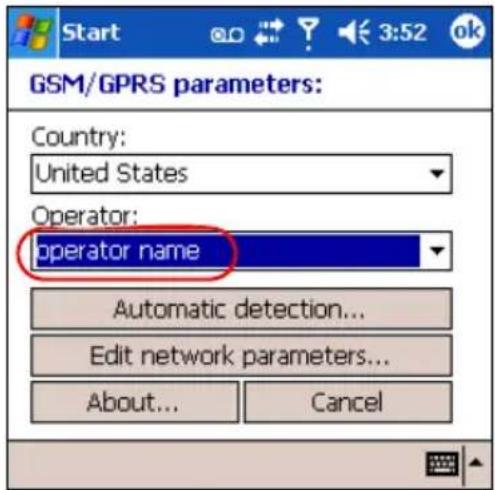

NOTE: In the event the automatic detection setting fails, complete one of the two following items:
- Select the appropriate country and operator name, then tap OK. The settings automatically update.
- If your operator name does not appear in the drop-down list, you must manually add it to the list by tapping the down arrow in the Operator box and tapping "Create New . . .". For more information, refer to the "Creating a New Connection" section in this chapter.
Editing Network Properties

CAUTION: Editing Network Properties is not recommended unless you are being accompanied by service provider Help.
Tapping on the Edit network Parameters bar on the GSM/GPRS Settings screen gives you access to the following areas:
- Internet Connection Information—Walks you through the different settings for GPRS (General Packet Radio Service) and CSD (Circuit Switched Data) connections.
- MMS Multimedia Messages—Allows you to modify the Multimedia Message Service Center (MMSC) address.
• WAP Information
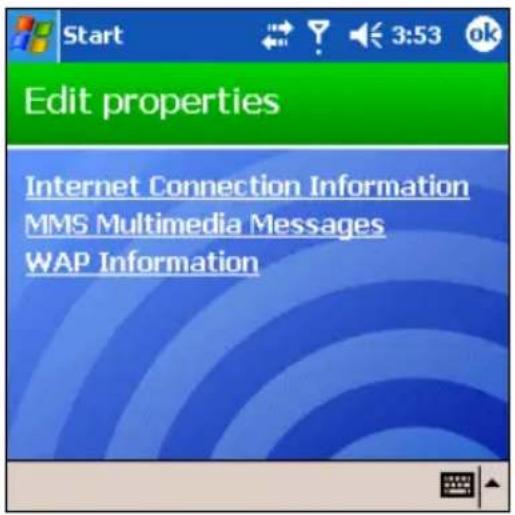
Editing an Internet Connection
If you tapped Internet Connection Information on the Edit properties screen:
- Select the connection to edit by tapping the appropriate box and tap OK.
- Enter a name for the connection such as the carrier name.
- Tap Next.
- After APN: enter the Access Point Name of the server you are attempting to connect.
- After Name: enter the Log on for your connection.
- After Password: enter the password for your connection.
- Tap Next.
- On the next screen, tap one of the following:
• Dynamic IP address
- Static IP address
- Tap Next.
- On the next screen, tap one of the following:
• Dynamic DNS addresses
• Static DNS addresses
- Tap OK.
Editing MMS Multimedia Messages Settings
If you tapped MMS Multimedia Messages on the Edit properties screen:
- Under Enter the MMS Center Address, enter the URL where all MMS messages are sent for delivery by the network (for example, enter http://mms.mobilelife.co.th).
- Enter the following information:
- APN: Access Point Name of the MMS server being connected.
- Name: Log on name for the MMS server.
- Password: Password for the MMS server.
- Tap OK.
- Enter the IP address and the Port number for the WAP MMS Gateway and tap Finished.
Editing WAP Information Settings
If you tap WAP Information on the Edit properties screen:
- Enter the IP address and the Port information for the WAP Gateway.
- Tap Next.
- Enter the IP address and the Port information for the secure WAP Gateway.
- Tap Finish.
Creating a New Connection
Before creating a new connection, you must obtain the following information from your service provider:
• To make a GPRS Connection:
- APN
- Username/Password • DNS address
- IP address
• To make an MMS Connection:
• MMS Center Address - APN (for MMS server if different than Internet connection)
- User Name / Password
- IP Address / Port
• To make a WAP connection:
- IP Address
- Port
- WAP Gateway
- Secure WAP Gateway - l
To create a new connection:
- Tap the down arrow under Country and select the appropriate country name.
- Tap the down arrow under Operator, and tap "Create new ...".
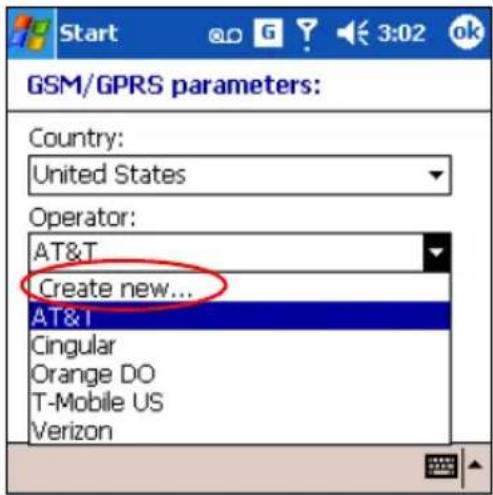
- Tap the down arrow under Country and select the appropriate country name.
- Enter the new service provider name.
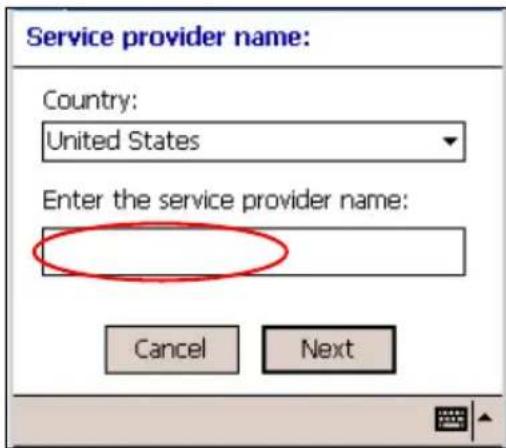
- Tap Next.
Failed Automatic SIM Detection
If the SIM card is not detected by the application:
- Check to see if the SIM card is present in the HP iPAQ. If it is not present, insert the SIM card and relaunch the application.
- Create a new connection.
- Ensure that the contacts on your SIM card and your SIM slot are not covered with a residue or dust that would inhibit a connection.
TTY Functionality for the Hearing-Impaired
This HP iPAQ supports TTY (Tele-typewriter) functionality. This functionality allows hearing-impaired persons to communicate using existing telephony infrastructure, including cellular phones. To achieve this, separately purchased TTY devices must be connected to the telephones on both ends of a telephone call session, and the TTY software application must be downloaded from the Companion CD onto the HP iPAQ. The sending TTY
device generates a distinct audio tone for every supported character, and these tones are decoded and converted back into text on the receiving TTY device.
Due to the use of audio compression codecs in modern digital cellular telephones, these TTY audio tones may be unintentionally distorted while being transmitted through cellular telephones. In order for TTY devices to continue to work in cellular networks, the cellular telephone must be set into a mode that optimizes the compression codec to handle TTY tones instead of the human voice.

NOTE: For information on connecting TTY devices to the HP iPAQ, refer to the TTY device manufacturer's documentation.
Enabling TTY Support
Before connecting the optional TTY device to the phone, you must enable TTY support in order to prepare the HP iPAQ Phone to expect a TTY device to be connected.
To enable TTY support:
- From the Start menu, tap Phone > Tools > Options > TTY tab.
- Place a checkmark in the Enable TTY support box by tapping it.
- Tap OK. The TTY icon displays in the Navigation bar when it is enabled.
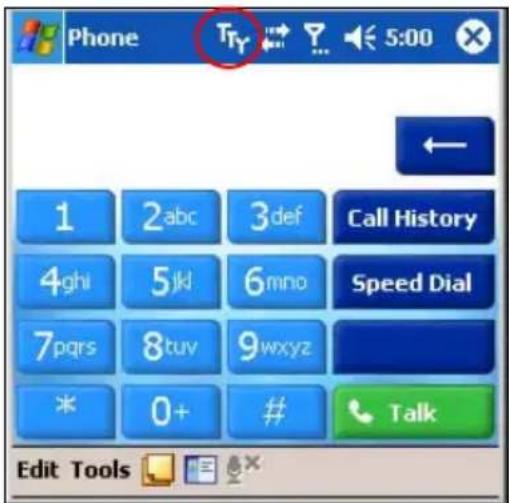
- Connect the optional TTY device or plug into the headphones as stated in the TTY manufacturer's documentation and connect the headphones to the HP iPAQ. This connection activates the TTY audio mode.
Making a Phone Call Using the TTY HP iPAQ
To make a phone call:
- Press the green Answer/Send phone button on the front of the HP iPAQ to launch the phone keypad.
- Dial the phone number of the person you are trying to reach who also has a TTY device connected to their phone. If the prompt displays asking if you want to turn on the phone, tap Yes.
- When the phone call is answered, start typing onto the TTY keyboard.
The letters typed into the machine are turned into electrical signals that travel over regular telephone lines. When the signals reach their destination (another TTY device), they are converted back into letters which appear on a display screen, are printed out on paper, or both.
When you are finished typing your phone conversation, the person on the other end of the line may begin typing their answers or comments to you.
- To end a phone call, press and hold the red End Call phone button on the front of the HP iPAQ.

NOTE: TTY audio mode activation may not be possible while a telephone call is already in progress.

NOTE:
- If a normal headset is connected while TTY support is enabled, the audio quality may be decreased.
- If a Bluetooth headset is connected while TTY support is enabled, the audio quality will not change because TTY audio mode has not been activated.
- However, if you make a phone call using a Bluetooth headset while TTY mode is enabled AND a plug has been inserted into the headphone jack, TTY audio mode will be activated and voice quality will decrease.
Deactivating TTY Audio Mode
To deactivate TTY audio mode:
- Remove the plug from the headphone jack or
- Uncheck the Enable TTY support check box in the Start menu > Phone > Tools > Options > TTY tab.
Disabling TTY Support
To disable TTY support:
- From the Start menu, tap Phone > Tools > Options > TTY tab.
- Uncheck the Enable TTY support box.

NOTE: It has not been determined if deactivation by either method is possible while a TTY telephone call is in progress.
6 Managing Multiple Wireless Connections
Using the iPAQ Wireless Manager
The iPAQ Wireless Manager application provides a centralized control for you to manage wireless features on the HP iPAQ.
The iPAQ Wireless screen has two individual power buttons to turn wireless features on and off—one at a time, and one All Off button to turn off all wireless features at the same time. The screen also includes Settings buttons to configure Phone and Bluetooth.
• To access the iPAQ Wireless screen, from the Today screen, tap the iPAQ Wireless icon in the Command bar at the bottom of the screen.
The iPAQ Wireless screen displays showing the current state of the wireless activities (an icon with an x indicates it is off).
![iPAQ Wireless 12:12 ok Phone [No Service] Settings Bluetooth [Off] Settings Manager ALL OFF](/content/2026/05/1142740/images/3ab55f719b17199f6a052879d6f4525668e44a8454ce2414b71cdda1528c3411.jpg)
• To power on one or more wireless activities, tap the desired buttons.
• To power off one or more wireless activities, tap the desired buttons or tap the All Off button ALL OFF to power off both activities.
Power Buttons
The two Power buttons display:
- Gray background with an x when they are powered off.
- Amber background when they are powered on and signals are available, but not connected.
- Green background when they are powered on and connected or associated with another HP iPAQ.

NOTE: If a button does not immediately respond when tapped, it may be busy performing a task you requested.
The All Off button displays:
- Gray background with the x ALL OFF when all wireless features are powered off.
- Green background when one or more wireless features are powered on.
Settings Buttons
The Settings buttons—Phone Settings, Bluetooth Settings, and Bluetooth Manager— only function when the Power buttons are enabled. With the Power button turned on, press the Settings button to open a page with information about configuration and settings for that particular wireless feature.

NOTE: You cannot access these configuration pages if you press the Settings buttons while in a disabled state.
Phone Settings Button
First, tap the Phone Power button to power it on; then press the Settings button to open the configuration screen.

NOTE: For information on configuring the Phone settings, refer to Chapter 5, "Using the Phone Features," and Chapter 7, "Making Data Connections."
Bluetooth Settings and Manager Buttons
First press the Bluetooth Power button to power it on; then press either the Settings or Manager button to open the Bluetooth settings and configuration screens.

NOTE: For information on configuring Bluetooth settings or manager, refer to Chapter 9, "Using Bluetooth."
Managing Data Connections
When you tap a data connectivity icon in the Navigation bar, it opens a drop-down connectivity box that displays the status of your wireless data connections and information about which service is connected. From this drop-down box, you can also create new connections, access wireless settings menus, and turn on or off the wireless features.
| Data Connectivity Icons | |
 | Inactive connection to computer or wireless network. |
 | Active connection to computer or wireless network. |
 | GPRS service is registered and available if you are subscribed to the GPRS service. |
 | Active data connection to GPRS network. |
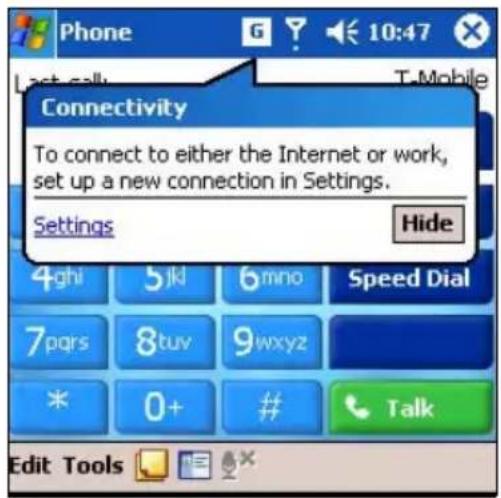
NOTE: For information on configuring data connections, refer to Chapter 7, "Making Data Connections."
7 Making Data Connections
The HP iPAQ hw6500 Mobile Messenger series offers you a comprehensive set of wireless capabilities to keep you connected in or out of the office. With Global System for Mobile Communications/General Packet Radio Service/Enhanced Data Rates for Global Evolution (GSM/GPRS/EDGE), and Bluetooth integrated into a single HP iPAQ, you have broad coverage offering high speed access to the Internet, and to business and personal information.

NOTE: EDGE is a global standard for wireless wide-area data communication being rapidly deployed by GSM carriers worldwide. Actual download speeds may vary. Coverage is subject to transmission limitations and terrain, system capacity and other limitations. Not all features and service options are available in all areas.
Use the following options to get connected:
- Use the GPRS/EDGE technology integrated on your HP iPAQ to connect to a Virtual Private Network (VPN) or to remotely connect to your mobile Internet Service Provider (ISP).
- Make a wireless GSM/GPRS/EDGE connection to place a phone call or send or receive e-mail, text message, or Multimedia Message Service (MMS) messages.

NOTE: EDGE technology delivers faster data speed than GPRS to mobile devices. It allows users to connect to the Internet and send and receive data, including digital images, Web pages and photographs faster than with a GSM/GPRS network. If a network provider does not have EDGE technology deployed, the HP iPAQ defaults to GPRS data transfer rates. Because EDGE is integrated into GPRS technology when it is enabled by your service provider, there is no visible means of identifying when it is being used. You will only receive faster data transmission.
- Transfer information between Bluetooth enabled devices.
- Transfer information between two Infrared (IrDA) enabled ports.

NOTE: Use of dial-up and wireless Internet, e-mail, corporate networks, and other wireless communications, such as Bluetooth-enabled devices, may require separately purchased additional hardware and other compatible equipment, in addition to a separately purchased service contract. Check with your service provider for availability and coverage in your area. Not all Web content may be available. Some Web content may require installation of additional software. GPRS may not be available in all networks. GPRS data transmission speeds may vary based upon network capabilities and other conditions. The establishment and continuation of a GPRS connection depends on network availability, provider support, and signal strength.
For more information on this subject, refer to the Help file on your HP iPAQ by tapping Start > Help > Connections.
Impact of Data Connection When a Phone Call is Received
Class B mobile phones may be attached to both GPRS and GSM services, using one service at a time. Class B enables making/receiving a voice call, or sending/receiving a text message during a GPRS connection. During voice calls or text messaging, GPRS services are suspended and then resumed automatically after the call or text message session has ended.
Using GSM/GPRS/EDGE Connections
GSM/GPRS/EDGE technology is integrated into your HP iPAQ. To send or receive data over a GSM/GPRS/EDGE network, you must have an account with a mobile telephone service provider that supports GSM/GPRS/EDGE data services and an activated SIM card. The service provider must enable the GPRS data features on your account to activate it and must have EDGE technology on the network for this capability to be used on the HP iPAQ. If EDGE is not enabled, the HP iPAQ defaults to GPRS.
Creating a GPRS/EDGE Connection
A GPRS/EDGE connection provides high-speed data transfer and is typically used for Web browsing and to send and receive small bursts of data such as e-mail and MMS messages.
To create a GPRS/EDGE connection, you must subscribe with a GSM service provider that supports GPRS/EDGE. After you configure your GPRS/EDGE connection and connect to the GPRS network, you may be required to authenticate GPRS.

NOTE: Your service provider must enable the GPRS/EDGE features on your account.
Manually Configuring your GPRS connection on your HP iPAQ

NOTE: Use this manual process only if the built-in automatic detection is not working and you are unable to make a connection.
- From the Start menu, tap Settings > Connections tab > Connections icon.
- Select Add a new modem connection from either My ISP or My Work Network sections.
- Enter a descriptive name for the connection (for example, Phone Dialup or anything you want).
- In the Select a modem list, tap Cellular Line (GPRS).
- Tap Next.
- Under Access Point Name, enter the APN provided by your GPRS service provider.
- Tap Next.
- If required, enter your User name, Password and, if provided by your ISP or network administrator, your Domain name. You should not need to change any settings in Advanced. Most ISPs now use a dynamically assigned address. If your GPRS service provider specified the IP addresses for your DNS servers, tap Advanced, then tap the Name Servers tab. Select Use specific server address, and then enter the DNS addresses provided by your GPRS service provider. Tap OK.
- Tap Finish.
Connecting to the GPRS Network
To connect to a GPRS/EDGE network:
▲ Tap the Connectivity icon ✦ in the Navigation bar and, from the pop-up menu, tap Connect GPRS.
Your service provider can provide additional information on connecting to the Internet using GPRS.
Setting Up a WAP Browser
Wireless Application Protocol (WAP) delivers content in a reduced format to fit the HP iPAQ screen. WAP protocol can accommodate the low memory limitations of handheld devices and the low-bandwidth limitations of a wireless-handheld connection.

NOTE: This protocol requires a GPRS/EDGE connection.
To set up the WAP browser:
- From the Start menu, tap Settings > Connections tab > Connections icon > Tasks tab.
- Under My Work Network, select Manage Existing Connections > Proxy Settings tab.
- Place a checkmark in the two boxes on the My Work Network screen and tap Advanced.
- Next to WAP enter the Server and Port information supplied by your Mobile Service Provider, and tap OK.
Viewing WAP Pages
Once you have set up your WAP browser, you can view WAP pages by starting a GSM or GPRS/EDGE connection and using Pocket Internet Explorer. When you enter a Web site using Pocket Internet Explorer, remember WAP addresses are prefixed by "wsp" not "http" (example: wsp://www.xxx.com).
Connecting to a Private Network
Setting Up VPN Server Connections
A VPN connection enables you to securely connect to a private or a corporate network, via the Internet. To set up a VPN server connection:
- Contact your network administrator for your user name, password, domain name, TCP/IP settings, and host name or IP address of the VPN server.
- From the Today screen on the HP iPAQ, tap Start > Settings > Connections tab > Connections icon > Tasks tab.
- Under My Work Network, tap Add a new VPN server connection.
- Follow the instructions in the Make New Connection wizard.

NOTE: For online Help for any screen in the New Connection wizard or while changing settings, tap the ?.
Setting Up Proxy Server Settings
If you are connected to your ISP or private network by a dial-up or broadband connection, the ISP provides these settings for you. If you are at work you might have to access the Internet through a proxy server. If these settings are not on your computer or need to be changed, you will need to set them up manually.
To set up proxy server settings on your HP iPAQ:
- Contact your ISP or network administrator for the proxy server name, server type, port, type of Socks protocol used, and your user name and password.
- From the Today screen on the HP iPAQ, tap Start > Settings > Connections tab > Connections icon > Tasks tab.
- Under My Work Network, tap Edit my proxy server > Proxy Settings tab.
- Tap the This network connects to the Internet and This network uses a proxy server to connect to the Internet check boxes.
- In the Proxy server box, enter the proxy server name.
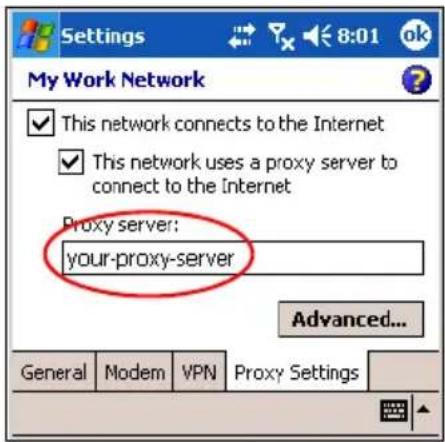
- To change port number, tap the Advanced button and enter the number in the HTTP proxy box.
7.Tap OK to exit the program.
Depending on where you are in the program, you may have to tap OK several times to exit.
Managing Your E-mail
You can send and receive e-mail messages by connecting directly to an e-mail server using GSM/GPRS. If you have already created a connection to a network or an ISP, you must still set up an e-mail account in Messaging. To set up your e-mail account, see Chapter 12, "Using Messaging."

NOTE: The network or ISP connection must use a POP3 or IMAP4 e-mail server and an SMTP gateway.
Entering an Internet Address
With Pocket Internet Explorer and a connection to the Internet, you can view Web sites on your HP iPAQ by typing an Internet address in the Address bar.

NOTE: Some Web content may require installation of additional software.
To enter an Internet address on your HP iPAQ:
- From the Start menu, tap Internet Explorer > Address Bar.

NOTE: If the Address Bar is not visible, tap the View tab > Address Bar to turn it on.
- Enter the Internet address in the Address bar.
- Tap the Go icon.
Using a Favorites List
With Pocket Internet Explorer and a connection to the Internet, you can view Web sites on your HP iPAQ by selecting one from your
Favorites list.
To select a Web site from your Favorites list:
- From the Start menu, tap Internet Explorer.
- Tap the Favorites icon ★ located in the Command bar, and then tap the Web site you want to view.
8 Using GPS Navigation
Getting Acquainted
Your HP iPAQ includes Global Positioning System (GPS) Navigation technology; therefore it is capable of using GPS software applications that are compatible with this device. The GPS technology on your HP iPAQ is based on a worldwide system of GPS satellites orbiting the earth that continuously transmit digital radio signals. These radio signals contain data on the satellites' locations and their exact clock time and are used to determine your location on the earth.
With your GPS capable device, you can use navigation software from other third-party companies. For GPS navigation solutions recommended by HP, visit www.hp.com/go/gpsnavigation. However, before you purchase, download, or install any GPS software, you must determine that the application is compatible with this device. Check with the GPS software supplier to see if their software is compatible with the HP iPAQ hw6500 Mobile Messenger series.
Setting Up Your HP iPAQ
First, follow the instructions in the printed Getting Started document until you complete creating a partnership with your personal computer. This includes installing the Subscriber Identity Module (SIM) and battery, synchronizing your HP iPAQ with your personal computer, and establishing a partnership.
Setting Up Internet Access on Your HP iPAQ
Now that you have completed the steps in the Getting Started document, verify you have Internet access on your HP iPAQ by visiting a web site such as www.google.com or www.yahoo.com. If you cannot access the Internet, take your HP iPAQ out of the cradle and use a GPRS connection. For details, refer to Chapter 7, in the section "Creating a GPRS/EDGE Connection."
Using HP iPAQ Quick GPS Connection Utility
To improve connection performance, you need to enable the HP iPAQ Quick GPS Connection Data Utility and download the latest data file. Even though the GPS radio on your HP iPAQ is able to connect to the GPS satellites without enabling the Quick GPS Connection Utility, it may take a few minutes longer and even up to five minutes to locate the satellites if you do not use this utility.
The default settings on the HP iPAQ Quick GPS Connection Utility are set where the device cannot receive automatic updates unless you enable the update feature.
To change the default settings:
- From the Start menu, tap Settings > Connections > Quick GPS Connection icon.
- In the Settings tab, tap the check boxes to enable or disable the following settings:
- Enable updates—This setting allows you to enable or completely disable the Quick GPS Connection capability. If you disable it, then your HP iPAQ will no longer receive Quick GPS Connection updates and your GPS start-up times could take a few minutes in unfavorable conditions.
- Initiate GPRS Connection for updates—This setting allows Quick GPS Connection updates to your device over the air when enabled.
- Show expiration reminders and warnings—This setting reminds you by notification when your satellite location file is out-of-date. If this setting is not enabled, notifications do not occur.
- Show tray icon on today screen—This setting turns on a Quick GPS Connection icon in the Command bar that notifies you by its color if your satellite location file is up-to-date.
- Blue icon—Up-to-date settings
- Blue/Gray icon—Less than 50% time remaining until settings expire
- Gray icon—Expired settings

NOTE: The Quick GPS Connection data on your HP iPAQ can be automatically updated using a wireless (GPRS) connection. This setting is called "Initiate GPRS Connection for updates" as described above. Since the update files are small, you should be able to download them wirelessly with little impact to device performance.
Downloading the Quick GPS Connection Data File
- Verify the correct date and time on your HP iPAQ. If the date and time are not correct, tap the Clock icon on the Today screen to adjust.
- Access your Quick GPS Connection status by tapping Start > Settings > Connections > Quick GPS Connection icon
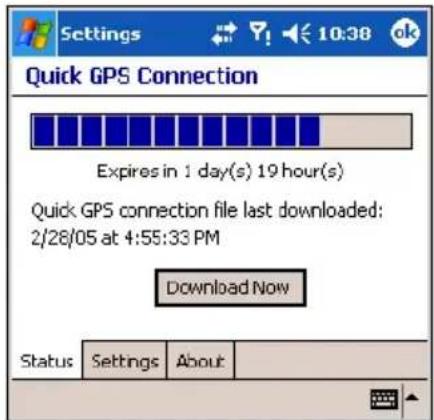
- If your HP iPAQ shows that the file has expired, again verify the date and time on the HP iPAQ is correct and press Download Now.
- Tap OK to close the program.
TIP: In the future, you can access the Quick GPS Connection Utility by tapping in the Command bar > Download Now.
After the GPS Quick Connection data file has been downloaded, GPS performance improves. Over time, the data file updates automatically when you enable the default setting to automatically update. However, you can manually force an update by tapping Start > Settings > Connections > Quick GPS Connection icon > Download Now.
Also, the Quick GPS Connection Utility icon turns gray within a few days letting you know when to update your satellite locations again.

NOTE: If you are going to use GPS Navigation in your vehicle for an extended period of time, connect your HP iPAQ to an Auto adapter to save battery power. If you don't have an Auto adapter, you can order one at www.hp.com/go/ipaqaccessories.
For more information, tap the Help icon in the Quick GPS Connection settings application.
9 Using Bluetooth
Your HP iPAQ comes with built-in Bluetooth technology that allows short-range connections and provides fast, reliable, wireless communication.
With Bluetooth powered on, you can send information or perform the following tasks wirelessly between two Bluetooth devices, within a range of 10 meters (approximately 33 feet):
- Exchange contacts, calendar items, and tasks
- Send or exchange business cards
- Transfer files
- Synchronize with a computer through an ActiveSync connection
- Partner with a Bluetooth-enabled cell phone and use the cell phone as a wireless modem
- Partner with a Bluetooth-enabled portable notebook and use your HP iPAQ as a wireless modem
- Connect to other Bluetooth devices (Virtual COM port)
- Use a Bluetooth headset with your HP iPAQ • Use Bluetooth headphones or Stereo speakers with your HP iPAQ
- Print to a Bluetooth printer
- Connect to a Bluetooth keyboard • Create a personal area network (PAN) to chat, play games, etc.

NOTE: Use of dial-up and wireless Internet, e-mail, corporate networks, and other wireless communications, such as Bluetooth-enabled devices, may require separately purchased additional hardware and other compatible equipment, in addition to a standard Wireless Local Area Network (WLAN) or Wi-Fi infrastructure and a separately purchased service contract. Check with your service provider for availability and coverage in your area. Not all Web content may be available. Some Web sites may not be formatted to fit Pocket PC screens and may require installation of additional software.
Getting Acquainted with Bluetooth
Before you start using Bluetooth to establish wireless connections, take a few minutes and familiarize yourself with:
- Terms used in this chapter • Supported Services
- Bluetooth Settings
- Bluetooth Manager

NOTE: For more detailed help, refer to the Help files installed on your HP iPAQ. From the Start menu, tap Help > Bluetooth.
Understanding Terms
The following Bluetooth terms are used throughout this chapter.
Term Definition
| Authentication Verification of a numeric passkey before a connection or activity can be completed. | |
| Authorization Approval of a connection, access, or activity before it can be completed. | |
| Bonding (Paired devices) Creating a trusted connection between your device and another. After a bond is created, the two devices become paired.A paired device does not require authentication or authorization. | |
| Device address Unique electronic address of a Bluetooth device. | |
| Device discovery Location and recognition of another Bluetooth device. | |
| Device name Name that a Bluetooth device provides when discovered by another device. | |
| Encryption Method of protecting data. | |
| Passkey Code you enter to authenticate connections or activities requested by other devices. | |
| Personal Information Manager (PIM) | Collection of programs used to manage daily business tasks (for example: Contacts, Calendar, and Tasks). |
| Profiles Collection of Bluetooth settings. | |
| Service discovery Determination of which programs you have in common with other devices. | |
Supported Services
The functions that Bluetooth supports are called services. You can communicate only with Bluetooth devices that support at least one of the following service profiles:
• AV (Audio Video/Stereo Headphone profile) • BPP (Basic Printer profile) • DUN (Dial-up Networking profile) • FAX (Facsimile) • FTP (File Transfer profile) • GAP (Generic Access profile) • HCRP (Hard Cable Replacement profile) • HSP (Headset profile) • LAP (LAN Access profile) • OBEX (Object Exchange profile)
- OPP (Object Push profile) • PAN (Personal Area Network profile)
- SPP (Serial Port profile) • ActiveSync (Uses SPP to connect to ActiveSync on a computer)
Working with Bluetooth Settings
From the tabs in Bluetooth Settings, you can:
- Select or add a user profile
- Turn Bluetooth on and off
- Enter or change your HP iPAQ Bluetooth Identification
- Set your connection preferences
- Enable Bluetooth services
- Specify security settings
- Define settings for sharing and connecting • View software and port information
Turning On Bluetooth
To turn on Bluetooth:
- From the Today screen, tap the iPAQ Wireless icon in the Command bar.
- On the iPAQ Wireless screen, tap the Bluetooth icon.
When Bluetooth is turned on, the Bluetooth LED on the top of your HP iPAQ blinks blue.
To turn off Bluetooth, tap the Bluetooth icon again. When Bluetooth is turned off, the Bluetooth LED stops blinking and no incoming or outgoing Bluetooth connections are possible.
BATTERY SAVING TIP: Turn Bluetooth off when you are not using it.
Opening Bluetooth Settings
- From the Today screen, tap the iPAQ Wireless icon in the Command bar.
- On the iPAQ Wireless screen, tap Bluetooth > Settings.

NOTE: Bluetooth must be powered on to enable the Bluetooth Settings button. You cannot access the settings if you press the Bluetooth Settings button while in a disabled state. For this reason, tapping the Bluetooth button is included in all following instructions. Tapping the Bluetooth button when it is already on turns it off.
Setting Accessibility Properties
Before your HP iPAQ interacts with other Bluetooth devices, you need to enter or change the accessibility properties to define how you want your HP iPAQ to interact.
To display the Accessibility screen:
- From the Today screen, tap the iPAQ Wireless icon in the Command bar.
- On the iPAQ Wireless screen, tap Bluetooth > Settings > Accessibility tab.
- Highlight the name in the Name field and enter your new Device Identification name. The device name is what other devices see on their screen when they locate your device.
- Select Allow other devices to connect.
- Select either All devices or Paired devices only.
△ CAUTION: Selecting All devices allows any device, even those unknown to you, to connect to your HP iPAQ. After they are connected, security settings for specific services apply as specified in the Bluetooth Settings. Selecting Paired devices only allows only devices that you trust to connect to your HP iPAQ.
NOTE: Paired devices share and exchange an internally generated secure Link Key before connecting.
- Select Other devices can discover me if you want to allow other devices to search and locate your HP iPAQ. Otherwise, leave this box unchecked.
NOTE: If another device has your device's address and you have selected Other devices can discover me, that device may be able to locate and connect to your device even though you did not select for it to be discovered.
- Tap OK to save your changes.
Enabling Bluetooth Services
You can use any of the following services when transferring files, creating a serial port connection, exchanging business card information, configuring dial-up networking, and joining a personal network.
Automatically Enabling Services
To automatically enable services:
- From the Today screen, tap the iPAQ Wireless icon in the Command bar.
- Tap Bluetooth > Settings > Services tab.
- In the Services box, select the service you want to enable: File Transfer, Information Exchange, Serial Port, Personal Network Server, Hands free, or Dial-up Networking Server.
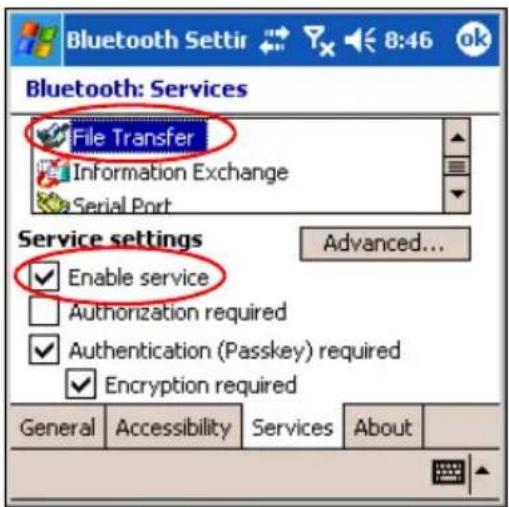
- The Service you select automatically enables the Service settings. Tap on the appropriate check box to change these Service settings to your preference.
- Tap OK to return to the iPAQ Wireless screen.
NOTE: If you select Authorization required in the Service Settings, you must authorize each connection. Your HP iPAQ will then always ask you if the connection should be permitted.
Secure Connections using a Passkey or Bond
To establish a secure connection with another device, you can use the passkey feature or an established bond. You can also add data encryption to this type of security.
A passkey is a code you enter to authenticate connections requested by other devices. The passkey must be known and used by both parties or the connection will not be allowed.
To require a passkey or bond:
- From the Today screen, tap iPAQ Wireless > Bluetooth > Settings > Services tab.
- Tap the tab for the service you want to enable: File Transfer, Information Exchange, Serial Port, Personal Network Server, Hands free, or Dial-up Networking Server.
- Select Authentication (Passkey) required.
- Select Encryption Required if you want to require all data exchanged between the devices to be encrypted.
- Tap OK.
Setting a Shared Folder
You can determine the folder that other devices access when they connect to your HP iPAQ.
To select a shared folder:
- From the Today screen, tap the iPAQ Wireless icon > Bluetooth > Settings > Services tab.
- Under Services, tap File Transfer.
- Under Service Settings, select your preferred settings.
- Tap the Advanced tab.
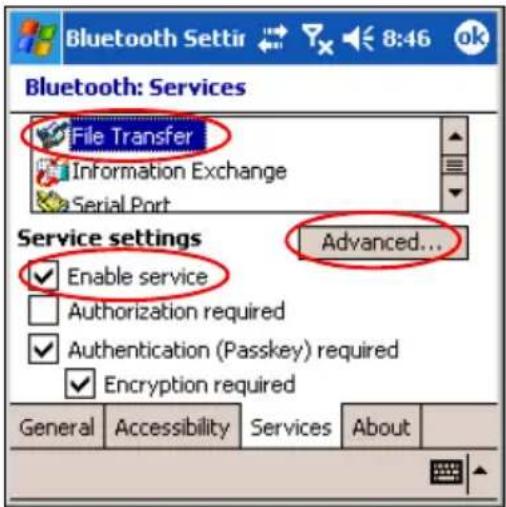
- Tap the Folder icon and locate a desired file folder.
- Tap OK.
Understanding Profiles
Use profiles to quickly enable selected personal settings in multiple environments.
Creating a Profile
To create a profile:
- From the Today screen, tap the iPAQ Wireless icon in the Command bar.
- Tap Bluetooth > Settings > General tab > Profile icon.
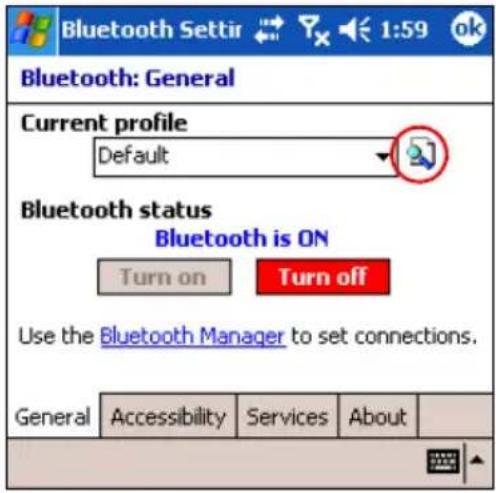
- Tap the New button.
- Enter a descriptive name.
- Select an existing profile to use as a template.
- Tap OK.
Activating a Profile
When a new profile is created, you must activate it to function as the current profile.
To activate a profile after creating it:
- From the Today screen, tap the iPAQ Wireless icon in the Command bar > Bluetooth > Settings.
- From the General tab, select it from the Current Profile down arrow list.
- Tap OK.
Saving Bluetooth Configuration Settings in a Profile
To save the HP iPAQ Bluetooth configuration settings to any profile:
- From the Today screen, tap the iPAQ Wireless icon in the Command bar > Bluetooth > Settings.
- From the General tab, tap the Profile icon.
- Select a profile from the Add/Delete Profiles list or create a new one.
- Tap OK.
- Tap the Services tab and specify the desired connection, sharing, and security settings in all Bluetooth Services selections.
- Tap OK to save the changes and close Bluetooth Services.
Renaming a Profile
- From the Today screen, tap the iPAQ Wireless icon in the Command bar > Bluetooth > Settings.
- From the General tab, tap the Profile icon.
- Select a profile from the Add/Delete Profiles list.
- Tap the Rename button.
- Enter a new descriptive name.
- Tap OK.
Deleting a Profile
- From the Today screen, tap the iPAQ Wireless icon > Bluetooth > Settings.
- From the General tab, tap the Profile icon.
- Select a profile from the Add/Delete Profiles list.
- Tap the Delete button.
- Tap Yes to confirm you want to delete the profile.
- Tap OK.
Working with Bluetooth Manager
Use Bluetooth Manager to:
- Establish connections • Exchange business cards or files • Control the on-screen display
- Display shortcuts
Opening Bluetooth Manager
From the Today screen, tap the iPAQ Wireless icon in the Command bar > Bluetooth > Manager.
The first screen that displays is My Shortcuts.

NOTE: Bluetooth must be powered on to enable the Bluetooth Manager button. You cannot access Manager if you press the Manager button while in a disabled state. For this reason, tapping the Bluetooth power-on button is included in all following instructions. If Bluetooth is already powered on when you perform the tasks, do not tap the Bluetooth button again. Tapping the Bluetooth button when it is already on turns it off.
Locating and Selecting a Device
Several tasks require you to locate a device and connect to it. When you are required to locate a device, the Bluetooth browser assists by searching for a function that supports other Bluetooth devices.
Pairing Devices
When you pair devices, they must exchange a computer generated security key prior to each connection. The security key is generated from a unique Bluetooth device address, a random number, and a user-defined password.
After two devices are paired, they have a trusted relationship with each other. No additional input is needed from the user. Therefore, connections and activities can be performed between the paired devices without constant authorization from the user.

NOTE: The remote device must have Bluetooth turned on and set up to allow discovery before the connection can occur. For more information, refer to "Setting Accessibility Properties."
To pair devices:
- From the Today screen on the HP iPAQ, tap the iPAQ Wireless icon in the Command bar > Bluetooth > Manager.
- Tap Tools > Paired devices.
- Tap Add.
- Tap the Lookup icon.
- Tap the device name as it appears on the screen.
- Create a password in the Passkey field so the devices can be paired. 7. Tap OK.
- Enter the same password into the other device.
- Tap OK.

NOTE: Some devices, such as mobile phones, need to be placed in a mode to accept a bond from another device. Refer to that device's user instructions for more information.
Unpairing Devices
You can remove a paired relationship between devices.
- From the Today screen, tap the iPAQ Wireless icon in the Command bar > Bluetooth > Manager.
- Tap Tools > Paired devices.
- Tap a device name.
- Tap Remove.
- Tap Yes to remove the pairing.
Connecting to Other Devices
Use ActiveSync, serial, and dial-up connections to communicate with other Bluetooth devices. Establish a partnership with a cell phone and set up the Bluetooth services it offers.
Identifying the Communications Port
You can identify the virtual COM ports used to create a serial port connection. You may need to identify these COM ports for activities such as printing.
Use the inbound COM port when other devices initiate a serial connection. Use the outbound COM port when you initiate a serial connection to another device.
To identify the communications port:
- From the Today screen, tap iPAQ Wireless > Bluetooth > Settings > Services tab.
- Under Services, tap Serial Port and tap the Advanced... button.
- Note the names of your inbound and outbound COM ports.
- Tap OK.
Establishing a Headset Connection
You can redirect your HP iPAQ's audio to a headset for a hands-free connection to your HP iPAQ.
To establish a headset connection:
- From the Today screen, tap iPAQ Wireless > Bluetooth > Manager.
- Tap New > Hands-free/Headset setup > Next.
- Follow the connection wizard instructions.
Establishing a Headphone or Stereo Speakers Connection
You can redirect your HP iPAQ's audio to a headphone or stereo speakers to use with your HP iPAQ.
To establish a headphone or stereo speaker connection:
- From the Today screen, tap iPAQ Wireless > Bluetooth > Manager.
- Tap New > High Quality Audio setup > Next.
- Follow the connection wizard instructions.
Establishing an ActiveSync Connection
You can set up an ActiveSync partnership with a Bluetooth-enabled computer by first setting up your computer, then setting up your HP iPAQ.
If you own an HP Evo Notebook or Desktop computer, you can use the Bluetooth Multiport Module preinstalled on that computer with your HP iPAQ.
If you are using other Bluetooth modules or cards on your computer, refer to the Bluetooth Configuration Manager or Settings for similar setup procedures, then skip to "Setting Up an ActiveSync Partnership on Your HP iPAQ" section in this chapter.
Using the HP Bluetooth Multiport Module for Evo Notebooks and Desktops
- Remove your HP iPAQ from the HP iPAQ Cradle.
- Turn on Bluetooth on both the HP iPAQ and the Evo computer.
- Right-click the Bluetooth icon in the system tray on your computer, then click Advanced Configuration.
- Select the Client Applications tab, and then write down the COM port number listed next to Bluetooth Serial Port.
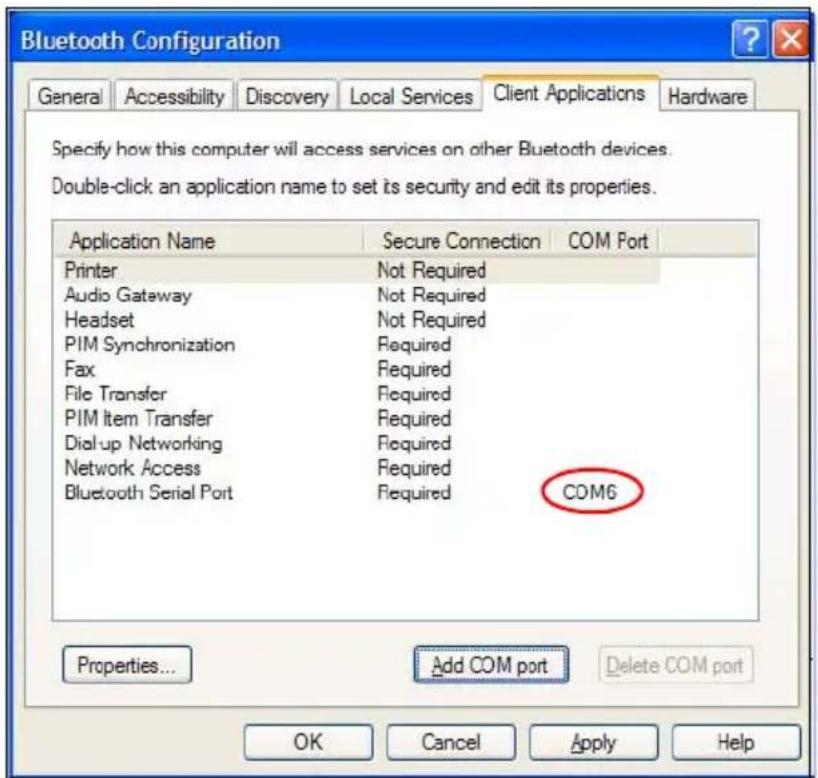
- Select Bluetooth Serial Port, and then click on the Delete COM Port button.
- Click on the Local Services tab, and then click Add Serial Service.
- Type a name for the serial service, and then select Startup Automatically.
- Remove the checkmark from the Secure Connection box, and then select the COM port that is the same as the one you wrote down earlier. Click Apply > OK > OK.
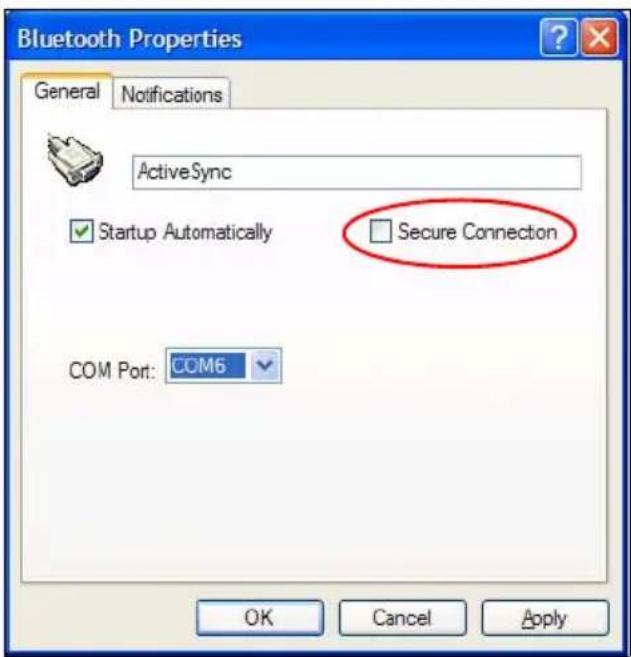
- Open ActiveSync on your computer, and then click File > Connection Settings.
- Check the Allow Serial Cable or Infrared Connection to this COM Port box.
- Select the COM port that is the same as the one you wrote down earlier, and then click OK.
Setting Up an ActiveSync Partnership on Your HP iPAQ
To establish an ActiveSync connection:
- From the Today screen, tap iPAQ Wireless > Bluetooth > Manager.
- Tap New > ActiveSync via Bluetooth > Next.
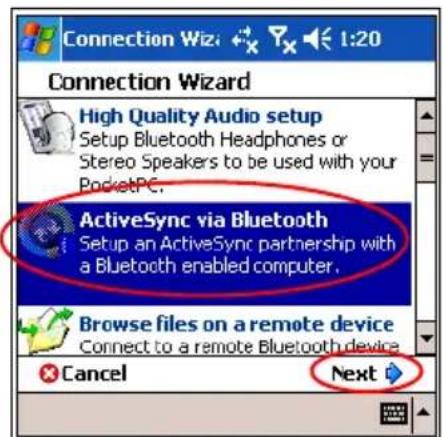
- Follow the connection wizard instructions and screen prompts, and then tap Next.
- From the Bluetooth Browser screen, select the computer you want to synchronize with, and tap Next.
- Under Shortcut creation, create a shortcut name for this connection, and then tap Finish.

NOTE: If you are setting up the ActiveSync partnership with an Evo Notebook or Desktop computer, select the name you typed in Step 7 of "Using the HP Bluetooth Multiport Module for Evo Notebooks and Desktops."
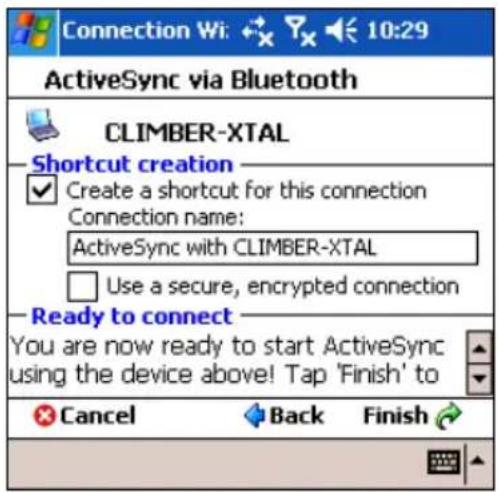
Establishing a Serial Connection
Use the wireless Bluetooth serial port connection just as you would a physical serial cable connection. You must configure the application that will use the connection to the correct serial port.
To establish a serial connection:
- From the Today screen, tap the iPAQ Wireless icon > Bluetooth > Manager.
- Tap New > Explore a Bluetooth device > Next.
- Tap the device name as it appears on the screen.
- Follow the connection wizard instructions.
Dial-Up Networking Service
Use dial-up networking (DUN) to connect to the internet from another Bluetooth device through your HP iPAQ.
Using Dial-Up Networking Service

NOTE: An activated SIM card must be inserted in your HP iPAQ and the phone must be turned on before beginning this process.
To connect to a device that provides phone or modem access:
- You must first pair the two devices. For more information, see the section on "Pairing Devices" in this chapter.
On the Alternate device:
- Use the documentation that came with the alternate device to create a connection to the HP iPAQ hw6500 Mobile Messenger series.
- On the screen that requires you to enter a phone number, use *99#. You may need to enter the country code and area code, depending on where you are calling. In addition, you may be asked for the username and password you received from your mobile phone service provider.
NOTE: To use the HP iPAQ hw6500 Mobile Messenger series as a dial-up networking server, use the default phone number *99#. However, depending on your location, you may not need the country code or area code. For more information on this, ask your mobile phone service provider.
- Tap OK to begin dialing. On your HP iPAQ:
- To authorize the dial-up connection, tap Accept when the Authorization Request screen appears. On the Alternate device:
- A dialog box displays your device dialing *99#. Once the connection occurs, an icon with two green arrows pointing toward each other appears on the Bluetooth Display screen. You now have a dial-up networking connection to access the Internet.
NOTE: In the future, you may only need to tap on the Dial-up Networking icon in the Bluetooth Display screen to access the Internet.
Joining a Personal Area Network
Connect two or more Bluetooth devices to share files, collaborate, or play multi-player games.
To establish a Personal Area Network connection:
- From the Today screen, tap iPAQ Wireless > Bluetooth > Manager.
- Tap New > Join a personal network.
- Follow the Connection Wizard instructions.
Working with Files
You can exchange information with a connected device and use the Bluetooth File Explorer to:
- Navigate through the directories • View files and folders
- Create new folders
- Send and receive files from a remote device
- Delete and rename files on a remote device
Creating a File Transfer Connection
- From the Today screen, tap iPAQ Wireless > Bluetooth > Manager.
The first screen that displays is My Shortcuts.
- Tap New > Browse files on a remote device.
- Tap the name of the remote device when it displays on the screen.

NOTE: The remote device must have Bluetooth turned on and set up to allow discovery before the connection can occur.
Sending Files
- Tap and hold the file transfer shortcut icon, and tap Connect.
- Tap File > Send a File...
- Locate the file(s) to send.
- Tap the file(s) to send it.
- Tap OK.
Creating a Folder on a Remote Device
- Tap and hold the file transfer shortcut icon, and tap Connect.
- Navigate to the location you want for the new folder.
- Tap File > Create a folder.
- Enter a folder name while New Folder is selected, and tap Enter.
- Tap OK.
Receiving a File from a Remote Device
- Tap and hold a file transfer shortcut icon, and tap Connect.
- Navigate to the file location on the remote device.
- Tap the file.
- Tap File > Get.
- Tap OK.
Deleting a File from a Remote Device
- Tap and hold a file transfer shortcut icon, and tap Connect.
- Navigate to the file location on the remote device.
- Tap the file.
- Tap File > Delete.
- Tap Yes to verify you want to delete the selected file.
- Tap OK.
Using Business Card Exchange
Using the business card exchange, you can:
- Set up your own business card
- Send, Request, or Exchange a business card to one or more devices
You must establish a default contact name to send or exchange business card information.
You must first specify your default business card on the Information Exchange tab in Bluetooth Settings. This name becomes the default for business card transfers.
Setting Up Your Business Card Information
To set up your business card information:
- Create a contact in the Contacts program that includes your name, title, and other relevant information.
- From the Today screen, tap iPAQ Wireless > Bluetooth > Settings > Services tab.
- Under Bluetooth: Services, select Information Exchange.
- Tap the Advanced... button.
- Tap the My business card (vCard) icon.
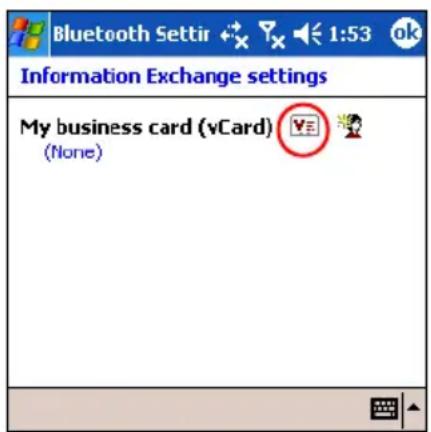
- Select your contact name from the Contacts list.
7. Tap OK.
NOTE: To create a new business card, tap the Contacts icon next to the vCard icon and create a new business card. Tap OK when you are finished.
Sending, Exchanging, or Requesting Business Cards
- From the Today screen, tap the iPAQ Wireless icon in the Command bar > Bluetooth > Manager.
- Tap Tools > Business Card Exchange.
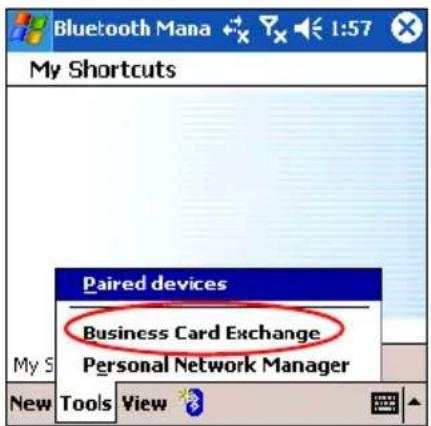
- Tap Send, Exchange, or Request a business card.
- Tap the device where you want to send, exchange, or request a business card.
NOTE: If you are Exchanging a business card, the device's information (if available) is sent directly to your Contacts list in Pocket Outlook.
- Tap OK.
NOTE: Be sure the receiving device has been enabled to accept the transfer.
Opening a Connection
- From the Today screen, tap the iPAQ Wireless icon in the Command bar > Bluetooth > Manager.
- Tap New > Explore a Bluetooth device and allow the discovery process to search for the Bluetooth enabled device.
- When the discovered device icon displays on your screen, tap the device in which you want to connect.
- Tap OK.
NOTE: Bluetooth can be set to automatically open a connection by setting your connection preferences. For more information, refer to Chapter 7, "Making Data Connections."
Viewing Connection Status
You can view:
- Connection's name
- Device's name
- Connection status
- Length of connection
- Signal strength
To view the connection status:
- From the Today screen, tap the iPAQ Wireless icon in the Command bar > Bluetooth > Manager.
- Tap and hold an active connection icon or list name, and tap Status.
- Tap OK.
Closing a Connection
- From the Today screen, tap the iPAQ Wireless icon in the Command bar > Bluetooth > Manager.
- Tap and hold the connection icon or list name.
- Tap Disconnect from the menu.
- Tap OK.
Viewing Connection Information
- From the Today screen, tap the iPAQ Wireless icon in the Command bar > Bluetooth > Manager.
- Tap and hold the connection icon or list name.
- Tap Properties from the menu.
- Tap OK.
Working with Connections
You can create shortcuts to open and view status information for all connections.
Creating a Shortcut
Creating a shortcut to one or more services does not establish a connection. It only places a shortcut to that service on the Shortcut tab of the Bluetooth Manager.
To create a shortcut:
- From the Today screen, tap the iPAQ Wireless icon in the Command bar > Bluetooth > Manager.
- Tap New, then a type of service, and tap Next.
- When the discovered device displays on your screen, tap it (device icon or list name) and tap Next.
- Tap a Service Selection (Generic Serial, OBEX File Transfer, or Network Access) and tap Next.
- When you have successfully created a connection shortcut, tap Finish.
To open the new shortcut connection:
- On My Shortcuts screen, tap and hold the new connection shortcut icon and tap Connect.

NOTE: Paired devices are designated by a checkmark.
Deleting a Shortcut
- From the Today screen, tap the iPAQ Wireless icon > Bluetooth > Manager.
- Tap and hold the connection icon or list name to be deleted.
- Tap Delete from the menu.
- Tap Yes to verify the selected shortcut should be deleted.
- Tap OK.
Viewing Shortcuts
You can view shortcuts as icons or in a list format.
- From the Today screen, tap the iPAQ Wireless icon > Bluetooth > Manager.
- Tap View.
- Tap List or Icon.
- Tap OK.
10 Using the Camera Features

NOTE: Camera features are included on certain HP iPAQ models.
The camera features of the HP iPAQ allow you to turn your HP iPAQ into a mobile digital imaging center. You can share images through e-mail or the Web, or print from your HP iPAQ using Bluetooth.
The software programs described below are included on your HP iPAQ or on the Companion CD.
HP Camera Software Function
| HP Photosmart Take digital photographs and modifysettings with your HP iPAQ Camera. | |
| HP Image Zone Display individual images and run slideshows on your HP iPAQ. Also print, send, record sounds, and e-mail images directly from your HP iPAQ to share with friends and family. | |
| HP Image Transfer Transfer digital images from the HP iPAQ to your personal computer. This software is included on the Companion CD and must be installed on your personal computer before you can use it. |
Camera Components
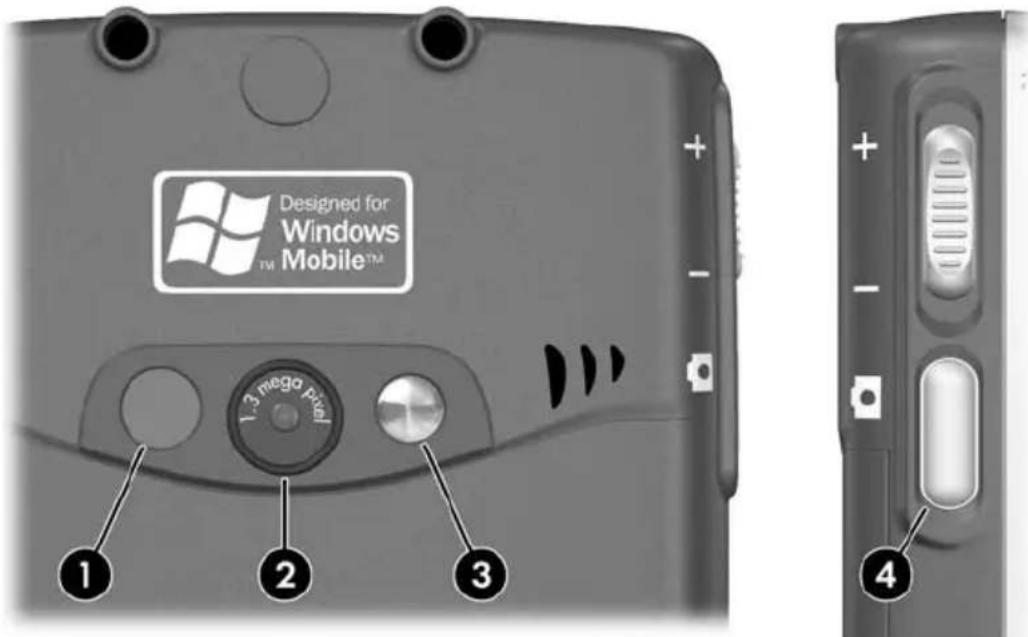
On the back of the HP iPAQ are camera components that assist you in taking photos:
- LED adds light to close-up photos taken within two feet of the camera. Press the LED toggle on/off button on the camera screen to turn the LED on or off.
- Camera lens used to focus on the subject.
- Mirror lens used to take a self-photo.
- Camera shutter button on the side of the device.
Taking a Photo
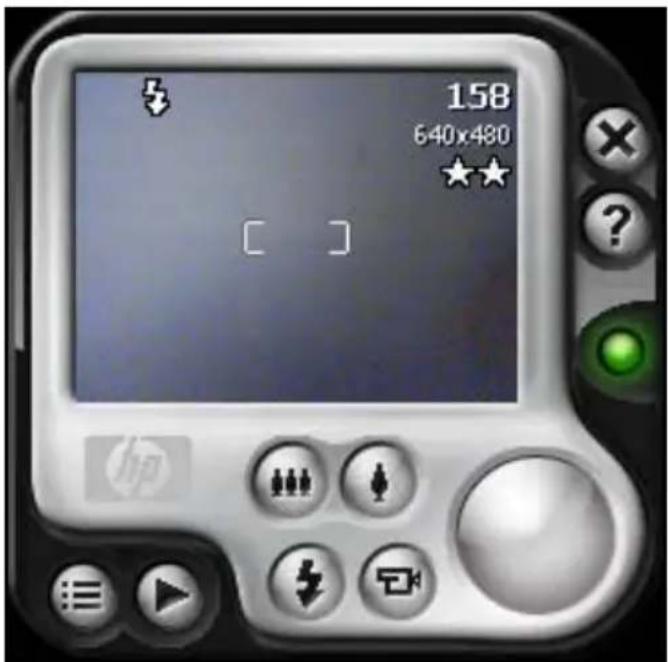
When you launch HP Photosmart, the camera screen above appears. The camera icons displayed on the screen are explained in the table below.
| HP Photosmart Icons Definition | |
 | Tap to access the camera settings. |
 | Tap to review images. |
 | Tap to zoom out. |
 | Tap to zoom in. |
 | Tap to toggle on/off LED on the back of the device.When the LED is toggled on, it emits a low level of light on the back of the HP iPAQ, and when the shutter button is pressed, the light flashes briefly.In video mode, when the LED is toggled on, it emits a low level of light without flashing. |
 | Tap to take short movie images or video clips. |
| HP Photosmart Icons Definition (continued) | |
 | Press or tap the Camera Shutter to snap a photo. |
 | Tap to exit the HP Photosmart application. |
 | Tap for Help. |
To take a photo:
- From the Start menu, tap Programs > HP Photosmart.
- Locate the camera lens on the back of the HP iPAQ and frame the subject to be photographed in the digital viewfinder located on the HP iPAQ screen.
- Tap the zoom icon on the screen to zoom in on the subject, or tap the zoom-out icon to zoom out.
NOTE: You can also press the top side of the 5-Way Navigation button (while holding the camera in landscape position) to zoom in, or press the bottom side of the 5-Way Navigation button to zoom out.
- Make sure that both you and your subject do not move to ensure a clear image.
- Press the Shutter button on the left side of the HP iPAQ or press the Shutter icon on the screen to snap a photo.

TIP: You can also take photos by pressing down on the middle of the 5-Way Navigation button when the camera is turned on. Use the mode that is convenient for you.
When you snap a photo, your HP iPAQ makes two audible shutter sounds (if you have not muted the sounds). Do not move the camera until you hear the second shutter sound. A clock runs on the screen to indicate that the photo has been taken and your HP iPAQ is processing the photo. It may take a few seconds to process and store the photo, depending on its size, quality, and complexity.
Immediately after capturing an image, a preview of the photo appears so you can decide to either discard, send, or keep the image.
• To discard the photo, tap on the Trash button on the screen while the preview image displays.
• To e-mail, send, or transfer the photo, tap the Send button on the screen, and select the method to be used (MMS, E-mail Attachment, Bluetooth, or Infrared) and follow the instructions on the screen.

NOTE: If you choose to e-mail the photo, notice the attached image appears at the bottom of the e-mail message.
• To save an image, tap OK or simply wait for the preview to disappear from the screen and the camera application to return to the digital viewfinder.
Ending Your Photo Session
• To exit the camera application, tap the Close button ✗ on the screen.
Taking a Video Clip
- From the Start menu, tap Programs > HP Photosmart.
- Locate the camera lens on the back of the HP iPAQ and frame the subject to be photographed in the digital viewfinder located on the HP Photosmart screen.
- Tap the Video icon 📄 on the HP Photosmart screen, and then press or tap the Shutter icon 🐵 on the screen to begin filming the video clip.

NOTE: Because you are filming moving images, you need to follow your subject with the camera if they are moving around.
- To end the video clip, tap or press the Shutter icon on the screen again.
- To view the video clip, tap the Play 🎨 icon.
- To stop the video clip, tap the Stop icon.
- To exit the video clip and camera application, tap the
Close icon

Adjusting the Camera Settings
Besides simple "point-and-shoot" and video clips, your HP Photosmart Camera includes many other features such as:
• Exposure settings (white balance, auto-exposure metering) - Color settings - Compression settings - Resolution settings - Self-timer - Flicker (banding) settings
To make changes to the camera settings:
- From the Start menu, tap Programs > HP Photosmart.
- Tap the menu icon.
- Select the category you want to modify from the Settings tab or the Setup tab, and then tap Change.
- Choose the best setting from the list of options.
- Tap OK to exit.
White Balance
To adjust the color balance in the image (depending on the lighting conditions), select from the following settings:
- Auto (default)—Automatically selects the best white balance for the picture.
- Sun—Best for outdoor pictures with natural lighting (sunny or cloudy conditions).
- Tungsten—Best for indoor pictures using incandescent lighting.
- Fluorescent—Best for pictures taken with fluorescent lighting.
Color
Select from the following color settings to capture images with creative effects:
• Full Color (default)—Standard color output. • Black & White—Grayscale images. • Sepia—Brown & White for old-fashioned images. • Negative—Produces a color negative of the image taken. • Cool—Blue & White images.
Compression
Choose the photo quality from three compressions for the photos you snap. Higher-quality photos look better, especially at greater magnification. Lower-quality photos require less storage space on your HP iPAQ, and may take less time when sending by e-mail or infrared.
• Good—Lower quality and smallest file size • Better (default)—Medium quality and file size • Best—Higher quality and largest file size
Resolution
Choose from four resolutions or sizes of pictures. Larger resolution size pictures require more storage space and may also take longer to process and send.
- 160 x 120 pixels
- 320 x 240 pixels
- 640 x 480 pixels
- 1280 x 960 pixels (default)
Flicker Filter
Fluorescent light bulbs flicker due to the alternating current. The electronic shutter on the HP iPAQ is not immune to this flickering, though the human eye is. The Flicker Filter setting is used to filter out the flickering or banding caused by fluorescent lighting.
To adjust the banding that can be caused by fluorescent lighting, select from the following settings:
- Auto (default)—Automatically adjusts the banding on the HP iPAQ for the best picture.
- 50 Hz—Filter out banding caused by fluorescent light bulbs that operate on AC at 50Hz
- 60 Hz—Filter out banding caused by fluorescent light bulbs that operate on AC at 60Hz
Setting Up Other Features
Camera Sounds
Camera Sounds allows you to turn on or off any sounds made when buttons are pressed.
- From camera mode, tap ⏻ > Setup tab.
- Tap Camera Sounds, and then tap Change.
- Tap Off to turn off the sounds, or tap On to turn on the sounds.
- Tap OK to exit the Settings menu.
Configuring Instant Review
Instant Review allows you to see a preview of the image you just captured to quickly determine whether you want to keep or discard the image.
To set the time period for Instant Review:
- From camera mode, tap ⏻ > Setup tab.
- Select Instant Review from the list, and then tap Change.
- Select the period of time you want the Instant Review image to remain on the screen.
- Tap OK to exit the Settings menu.
Using the Self-Timer
The Self-Timer allows you to set a short delay before a photo is snapped. Use this feature when you want to be in your own photos.
To set the timer:
- From camera mode, tap ⏻ > Setup tab.
- Select Self-Timer from the list, and then tap Change.
- Select a delay of either 2 or 10 seconds by selecting the corresponding option on the menu.
- Tap OK to exit the Settings menu.
To cancel the timer:
- From camera mode, tap ⏻ > Setup tab.
- Select Self-Timer from the list, and then tap Change.
- Select Off.
- Tap OK to exit the Settings menu.
Configuring File Settings
The file settings menu allows you to specify how images are named and stored on your HP iPAQ. Using the File tab settings, you can change the filename prefix of images you capture and adjust the image counter. Additionally, you can specify the folder on your HP iPAQ where images are stored.
To access the file settings menu:
- From camera mode, tap Ⓥ > File tab.
- Make the desired changes to the file configuration settings.
- Filename prefix—The text that is added to the beginning of the file name.
- Current counter value —The number (between 0000 and 9999) that automatically increments each time a picture is taken and is added to the filename prefix.
- Save picture in —The folder where the pictures are saved.
- Tap OK to exit the Settings menu.

NOTE: The filename prefix can be changed to any mixed or unmixed alpha or numeric characters, and certain symbols.
Configuring Video Format
The Video format menu allows you to specify the format you want to use and the size of the video. Using the video menu, you can change the format of video clips you capture and adjust the format size. Additionally, you can set the video format to record audio whenever a video clip is being filmed.
To access the Video format menu:
- From camera mode, tap 📋 > Video tab.
- Make the desired changes to the video configuration.
- Place a checkmark in the Record audio box if you prefer to have audio with your video clips.
- Tap OK to exit the Settings menu.
Using HP Image Zone

NOTE: By default, HP Image Zone displays images saved in the My Documents folder on your HP iPAQ.
Use HP Image Zone (for the Pocket PC) to:
• View photos stored on your HP iPAQ or storage card. • Record sounds with photos. • Send photos by MMS, E-mail attachments, Bluetooth, or by Infrared. • View a slideshow. • Print photos.

NOTE: You can find more information on using HP Image Zone in the Help files. Tap Start > Help > HP Image Zone.
When you launch HP Image Zone, the following icons are displayed on the bottom of the screen.
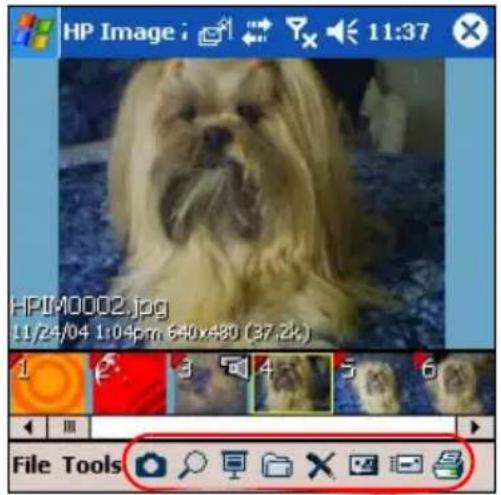
Icon Tap to:
| Switch back to camera mode. | |
| View the photo in full screen. | |
| Start slideshow mode or to view video clip. | |
| Change folders. | |
| Delete photo or video. | |
| Record and attach an audio clip to the photo. | |
| Icon Tap to: (continued) | |
 | Send the photo or video using your favorite method. |
 | Print using your favorite method. |
Viewing Thumbnail Photos
To view a photo:
- From the Start menu, tap Programs > HP Image Zone.

NOTE: The viewer opens in Browse mode by default. Browse mode displays a thumbnail view of the pictures in the current folder.
- Tap a thumbnail (a small representation of a larger image) to select the photo. A preview of the photo and information about it displays.
To view photos in a different folder:
- In the Command bar, tap File > Open.
- Select the desired folder.
- Tap OK. HP Image Zone now displays the photos from the new file folder you selected.

NOTE: To view all photos in HP Image Zone, be sure to move your scroll bar at the bottom of the screen all the way to the left and then to the right. Otherwise you might not be able to see other photos in the thumbnail view.
Viewing a Photo Full-Screen
To view a photo full-screen, and to be able to zoom in or out:
- Select the photo by tapping on its thumbnail.
- In the Command bar, tap Tools > View Image, or tap on the preview window.
- Zoom in or out using the toolbar buttons. If the photo is too large to fit on the screen, you can display other parts of the photo by dragging the stylus on the screen, or by using the 5-Way Navigation button.
- Tap OK to close the View Image screen.
Recording Sound With a Picture
You can record sound for each picture. When the picture displays, the associated sound plays. Pictures with sound have a speaker icon in their thumbnails.
To add sound to a picture:
- Select the picture by tapping on its thumbnail.
- Tap the Cassette icon on the menu bar.
- Tap the Record button on the Recording toolbar.
- Speak into the microphone or record the sound.
- Tap the Stop button on the Recording toolbar when you are finished.
- Tap the Cassette icon on the menu bar to close the Recording toolbar.
To change audio settings:
- In the Command bar, tap Tools > Settings > Audio tab.
- Select from the Record settings and/or Format settings by tapping the down arrow and tapping your selection.
- Codec—The recording options available are Pulse Code Modulation (PCM) and GSM 6.10.
- PCM provides better sound quality, but can take up to 86 times more storage space than GSM 6.10 recordings.
- GSM 6.10 provides a good voice recording and takes up far less space than PCM.
- Format — The configuration of the sound quality. Higher sound quality recordings take up more storage space.
- Tap OK to save your settings.
Viewing a Slideshow
You can view a slideshow of the photos in the current folder.
- To start the slideshow, in the Command bar, tap Tools > View Slideshow.
- During the slideshow, tap anywhere on the screen to display the on-screen controls. You can then use the on-screen controls to move forward or backward through the slides, or to end the slideshow. You can also use the 5-Way Navigation button to move forward or backward through the slides.
You can control display options such as:
- Sequence—the order in which photos display
- Delay—the amount of time each photo displays before the slideshow moves to the next photo
- Transition Effect—a visual effect used to exit each photo in a slideshow
To change slideshow settings:
- In the Command bar, tap Tools > Settings > Slideshow tab.
- Select the settings and effects you want to use in your slideshow.
- Tap OK to exit the menu.
Printing Photos
You can print photos from HP Image Zone using a storage card, or you can use Bluetooth to print your photos if you have access to a Bluetooth-enabled printer.
- To print a photo from a storage card, remove the storage card from the HP iPAQ and insert into a supported printer.
If photos need to be moved to the memory card:
a. From HP Image Zone, tap the thumbnails to select the photos to be moved. b. In the Command bar, tap File > Move to > Card. c. Tap Yes to confirm move. d. Tap Move to confirm again.
- To print a photo using Bluetooth:
a. From HP Image Zone, tap the thumbnail to select the photo to be printed. b. In the Command bar, tap File > Print icon. c. Tap Bluetooth and select a Bluetooth printer icon on your screen.

NOTE: For more information on HP Image Zone, tap > Help.
E-mailing a Picture
You can e-mail photos directly from HP Image Zone without opening Messaging. To e-mail a photo from HP Image Zone:
- Tap the thumbnail of the image to be e-mailed.
- In the Command bar, tap File > Send and select the method to be used from the list:
• MMS • E-mail Attachment - Bluetooth - Infrared
- Tap Next and follow the instructions on the screen.
If you select MMS or E-mail Attachment, you can either enter the appropriate e-mail address or tap the Contacts icon in the Navigation bar and select the appropriate Contact name(s).

NOTE: Notice that the attached image appears at the top of the MMS message, and the bottom of the E-mail message.
- Enter the subject and/or message if any and, when finished, tap Send.
Exiting HP Image Zone
- To exit from HP Image Zone, from the Command Bar, tap File > Exit. • To minimize HP Image Zone, tap the X in the upper right corner of the screen.
HP Image Transfer
Using the HP Image Transfer software and Microsoft ActiveSync version 3.8, you can automatically transfer photos and videos from your HP iPAQ to your personal computer. With HP Image Transfer, you can:
- Transfer photos and videos from your HP iPAQ to your personal computer.
- Transfer from an SD, mini-SD, or MMC card to your personal computer.
- Modify the image transfer settings.

NOTE: To transfer images, you must first install Microsoft ActiveSync version 3.8 to establish a standard partnership between your HP iPAQ and desktop computer.
To install HP Image Transfer:
- From the Companion CD, select Software and Accessories > Desktop Software, and then select the Install this check box next to HP Image Transfer.
- Select Install Now located at the top of the Install Desktop Software screen and follow the instructions on the screen.
Once HP Image Transfer has been installed and is recognized by ActiveSync, the ActiveSync window displays the Image check box.
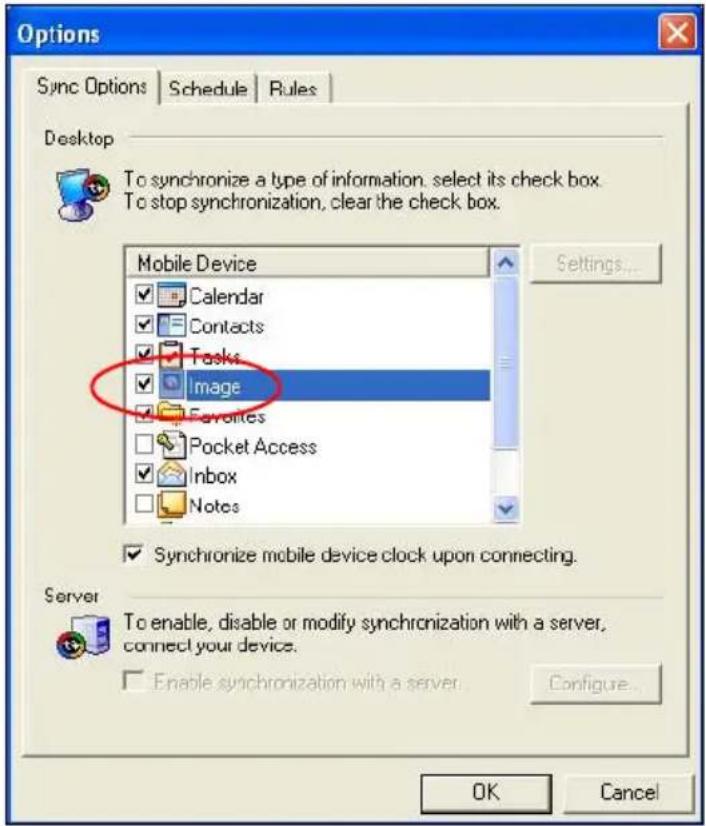
To enable and modify HP Image Transfer settings:
- Open ActiveSync on your personal computer, if it is not already open.
- Double-click Image under the Details window or select Options from the ActiveSync menu.
- Select Image on the Sync options tab, and then select the Settings button.

NOTE: Once image transfer has been enabled, the schedule and rules you have configured for ActiveSync synchronization are also applied to your image transfers. Depending on your configuration, images may be transferred continuously while the device is connected, only upon connection, or manually.
HP iPAQ Image Transfer allows the transferring of images in the following ways:
- Mobile Device — displays the location of the images you want to transfer from your HP iPAQ. Also, if you want to transfer images from storage cards, check the Include camera images on storage cards check box.
- The Computer — allows you to create subfolders on your desktop computer where images can be saved. For example, you can configure the images to be transferred to a subfolder with the same name as the folder on your HP iPAQ. If you are transferring images
from a folder with multiple subfolders, all the subfolders are automatically created in the folder you designated as the Save to: folder. You also can designate the images to be transferred to a subfolder with the month taken or the current date as the folder name.
• Which images would you like to transfer? — allows you to choose the transfer type of your choice:
• Transfer images taken since your last transfer - Transfer all images
- Delete transferred images from your HP iPAQ after they have been transferred
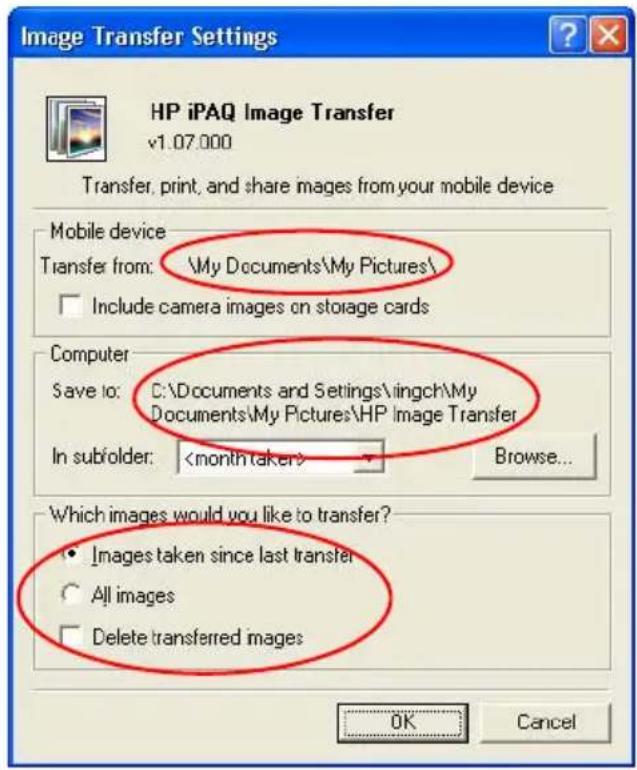

NOTE: Settings on the HP iPAQ Image Transfer screen can only be changed while your HP iPAQ is connected to your desktop computer. If your HP iPAQ is not connected, you are notified that settings cannot be changed and are currently inaccessible.
Tips for Taking Better Pictures
To ensure the pictures you take are of the highest possible quality.
- When taking pictures of scenes with many fine details and many colors (for example, a farmer's market), use the Best compression setting.
- When taking pictures of subjects where the background has bright lights, try to frame the subject so that the bright lights do not appear in the picture.
- When taking a picture, do not move the camera until after the first and second shutter sounds are heard.
11 Expansion Cards
You can expand the memory and connectivity of your HP iPAQ by using SD (Secure Digital), SDIO (Secure Digital Input/Output), or mini-SD (Secure Digital) expansion cards. Use these optional expansion cards for:
- Adding functionality such as Wi-Fi capability, Bar Code Scanners, etc.
- Expanding the memory of your HP iPAQ for data storage.

NOTE: Expansion cards must be purchased separately and are not included with your HP iPAQ.
Your HP iPAQ includes slots for an SDIO card and a mini-SD card on the right side of the device. The SDIO card slot can be used with various types of data cards and provides data exchange functionality such as Wi-Fi. The bottom mini-SD card slot can only be used for data storage.
To locate information about expansion cards, go to the following HP Web site: www.hp.com/go/ipaqaccessories.
Installing a Secure Digital (SD) Expansion Card
To install an SD, SDIO, or a mini-SD expansion card into the expansion slots on the HP iPAQ:
- Locate the two slots on the right side of the HP iPAQ.
- Insert the expansion card into the appropriate expansion slot and push the connection edge of the card firmly into the expansion slot until you hear a double click. When you hear the double click, the card is locked in place. If the card is not locked, it can pop out of the expansion slot.

NOTE: Be sure the expansion card label is facing the front of the HP iPAQ before inserting it.
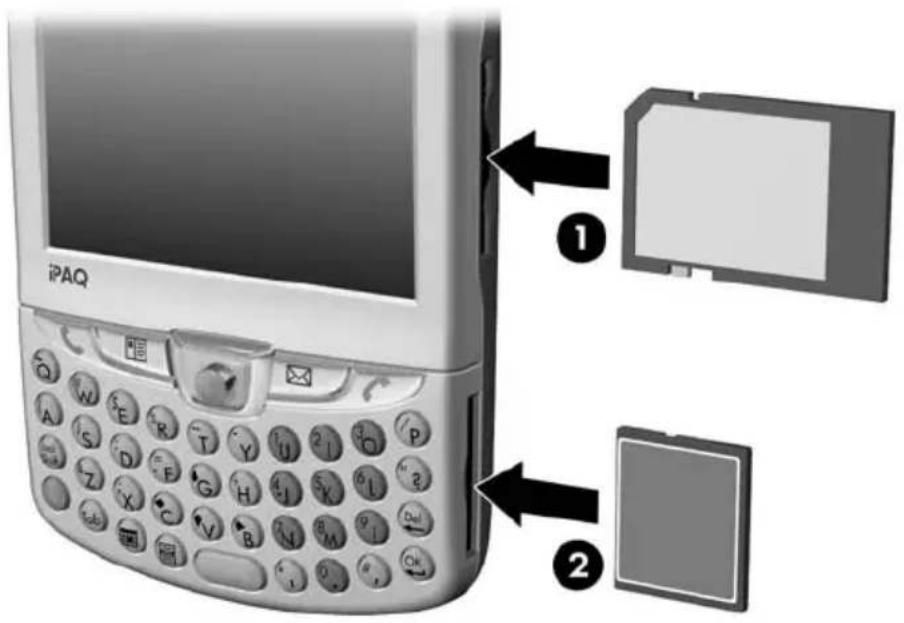
The top expansion slot ① is the SD slot with SDIO functionality. It can be used with various types of data cards and provides data exchange functionality such as Wi-Fi. The bottom expansion slot ② is the mini-SD slot and can be used only with storage cards.

CAUTION: Do not insert a mini-SD card into the SD slot or attempt to insert an SD card into the mini-SD slot.

NOTE: If your expansion card is not recognized, follow the card manufacturer's instructions to install it.
Removing a Secure Digital (SD) Expansion Card
△ CAUTION: SD cards must first be unlocked before removal.
To remove an SD expansion card from the expansion slots on the HP iPAQ:
- Close all applications that are using the expansion card.
- Remove the card from the expansion slot by slightly pushing down on the card ① to eject it.
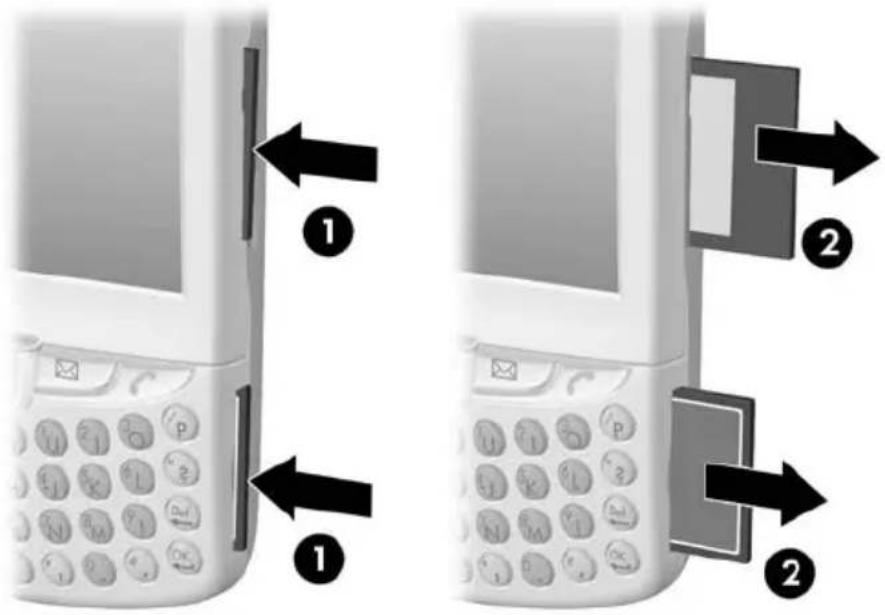
- When the card pops out ②, pull it from the expansion slot.
Viewing the Content of Memory Cards
Use File Explorer to view the files that are located on your optional SD or mini-SD card.
- From the Start menu, tap Programs > File Explorer.
- Tap the root directory of My Device, and select the Storage Card folder to see a list of files and folders.
12 Using Messaging

NOTE: To access Messaging Help on your HP iPAQ, from the Start menu, tap Help > Messaging.
Understanding Messaging
When using Messaging, you can send and receive messages in three ways: Internet e-mail, text messages, and Multimedia Message Service (MMS) messages. These accounts are already created in your HP iPAQ and are described more later in this chapter. The different types of messages can be:
- Internet e-mail --- messages sent and received by using the e-mail address you received from your Internet Service Provider (ISP) or your employer.
- Text messages --- messages sent and received through your mobile phone service provider by using a phone number as the message address.
- MMS messages -- messages sent and received through your mobile phone service provider by using a phone number or an e-mail address as the message address.
Additional accounts can be set up on your HP iPAQ such as a Post Office Protocol 3 (POP3) or an Internet Message Access Protocol 4 (IMAP4) account. POP3 and IMAP4 are protocols used to retrieve e-mail from a mail server. The newer version, IMAP4, is similar to POP3 but supports some additional features. For example, with IMAP4, you can search through your e-mail messages using keywords while the messages reside on the mail server. You then can choose which messages to download to your HP iPAQ.
Using Folders
Each e-mail account, text message account, and MMS account has its own folder hierarchy with five default folders: Inbox, Outbox, Deleted Items, Drafts, and Sent Items. The messages you send and receive through the mail account are stored in these folders. Also, you can create additional folders within each hierarchy. The Deleted Items folder contains messages that have been deleted on the HP iPAQ. The behavior of the Deleted Items and Sent Items folders depends on the Messaging options you have chosen.
The behavior of the folders you create depends on whether you are using ActiveSync, MMS, text messages, or a POP3 or IMAP4 mail server.
If you use ActiveSync, e-mail messages in the Outlook Inbox folder will automatically be synchronized with your HP iPAQ. You can select to synchronize additional folders by designating them for ActiveSync; however, when you synchronize wirelessly over the air using Exchange ActiveSync, only the Calendar, Contacts, and E-mail folders will
synchronize. The folders you create and the messages you move will then be mirrored on the server. For example, if you move two messages from the Inbox folder to a folder named Family, and you have designated Family for synchronization, the server creates a copy of the Family folder and copies the messages into that folder. You can then read the messages while away from your personal computer.
If you use MMS or text messages, messages are stored in the Inbox folder.
If you use IMAP4, the folders you create and the e-mail messages you move are mirrored on the server. Therefore, messages are available to you anytime you connect to your mail server, whether it is from your HP iPAQ or personal computer. This folder synchronization occurs whenever you connect to your mail server, create new folders, or rename/delete folders when connected.
For all accounts except MMS, you can access folder options by tapping Tools > Manage Folders on your HP iPAQ.
Synchronizing Inbox
After selecting Inbox for synchronization in ActiveSync, e-mail messages are synchronized as part of the general synchronization process. During synchronization:
- Messages are copied from the folders on your personal computer or the Microsoft Exchange server to the Outlook e-mail folders on your HP iPAQ. By default, you receive messages from the last three days only, the first 100 lines of each new message, and file attachments of less than 100 KB in size.

NOTE: You can only synchronize information directly with an Exchange Server if your company is using Microsoft Mobile Information Server 2002 or later.

NOTE: You can synchronize information over the air if your company is using Microsoft Exchange Server 2003 or later.
- Messages in the Outbox folder on your HP iPAQ are transferred to Exchange or Outlook and then sent from those programs.
- Messages on the two computers are linked. When you delete a message on your HP iPAQ, it's deleted from your personal computer the next time you synchronize.
- Messages in Outlook e-mail subfolders (or other e-mail folders) are synchronized only if they have been selected for synchronization in ActiveSync.

NOTE: If you have numerous e-mails and contacts on your personal computer, you may have to synchronize your HP iPAQ with your PC several times before all of the information downloads to your HP iPAQ.
For information on initiating Inbox synchronization or changing synchronization settings, see ActiveSync Help on your personal computer.

NOTE: MMS and text messages are not received through synchronization. Instead, they are sent to your HP iPAQ via your mobile phone service provider.
Setting Up Messaging Accounts
To set up an account on your HP iPAQ, you will create and connect to an e-mail account as well as select specific options, depending on the type of account you create.
Internet E-mail
Creating a New Account

IMPORTANT: You cannot add a new account while connected to an account. Tap Accounts > Disconnect to disconnect.
To create an e-mail account on your HP iPAQ:
- From the Start menu, tap Messaging > Accounts > New Account...
- Enter your e-mail address and tap Next.

NOTE: Enter the e-mail address provided by your ISP or network administrator, such as username@servername.com or username@servername.net.
Your HP iPAQ automatically attempts to configure your e-mail settings.
- Tap Next when the status says "completed," or tap Skip to bypass this screen.
- Enter your name and password, and then tap Save password if you do not want to re-enter the password each time you connect.
- Select the desired account type, a POP3 or IMAP4 connection, and tap Next.
- In Incoming mail, enter the name of your e-mail server provided by your ISP (for a POP3 account) or network administrator (for an IMAP4 account).
- In Outgoing mail, enter the name of your Simple Mail Transfer Protocol (SMTP) host provided by your ISP (for a POP3 account) or network administrator (for an IMAP4 account).
- If the server connection requires a domain, enter the domain name.
- Tap Options to access additional settings for the following:
- Change the time intervals for downloading new messages by tapping the minute(s) box and entering a new number of minutes.
- Download attachments.
- Limit the amount of messages downloaded.

NOTE: Inbox automatically picks the correct connection to use for the e-mail account you create. If you want to use a specific connection, select that connection from the Connection list. Connecting automatically may result in higher connection charges.
10. Tap Finish.
Connecting to an E-mail Account
To connect to an e-mail account:
- From the Start menu, tap Messaging.
- In the Command bar, tap Accounts and select the desired messaging account.
- Tap the Connect icon.

Changing Options
To change options for an account:
- From the Start menu, tap Messaging > Accounts > Accounts.
- Tap the name of the account, and follow the instructions on the screen.
Tips on Changing E-mail Options
- To save memory, Inbox downloads e-mail message headers only instead of the whole message. To automatically download the whole message, from the list, select Get full copy of messages.
- When using IMAP4, to save memory, Inbox does not download attachments. To download attachments, select the appropriate option. You can also select to limit the size of messages and attachments that are downloaded to your mobile HP iPAQ.
- If your outgoing e-mail server (SMTP) requires authentication, select Outgoing e-mail server requires authentication.
- If you are using an SSL connection, select Require SSL connection. Connections that use SSL allow you to send personal information safely.
- To save memory, limit the number of e-mails downloaded to your HP iPAQ by lowering the number of days to display them. You can increase this number as well.
Deleting an Account
To delete an account:
- From the Start menu, tap Accounts > Accounts.
- Tap and hold the name of the account, and then tap Delete.
Receiving Attachments
Attachments sent with an e-mail message or downloaded from the server appear as an icon at the bottom of the message in its own window. Tapping the attachment icon opens the attachment if it has been fully downloaded. You can mark an attachment for downloading (IMAP4 account only) the next time you connect.
- If you receive messages through synchronization, start ActiveSync on your personal computer, and click File > Mobile Device, and then select your HP iPAQ. Click Tools > Options. Select the message account, click Settings > Include File Attachments.
- If you receive messages wirelessly for a POP3 or IMAP4 account, in Messaging on the HP iPAQ, tap Accounts > Accounts, and then tap the desired account. Tap Next until you reach Server Information, and then tap Options. Tap Next twice, and then select Get full copy of messages.
- If you receive messages through Outlook e-mail, start ActiveSync on your personal computer, and click Tools > Options..., and then select the Server tab. Click on Inbox > Settings and check Include file attachments and size limitation.

NOTE: Embedded images and OLE objects cannot be received as attachments. An embedded message can be viewed as an attachment when using IMAP4 to receive e-mail. However, this feature does not work if TNEF is enabled so you can receive meeting requests on Microsoft Exchange Server 5.5.
Meeting Requests
If you receive your e-mail messages through ActiveSync, you will automatically receive meeting requests. If you connect directly to an e-mail server, the server must be running Microsoft Exchange Server 5.5 or 2000 for you to receive meeting requests. If you are running Microsoft Exchange Server 2000, you will automatically receive meeting requests in your Inbox.
To receive meeting requests on Microsoft Exchange Server 5.5:
- Ask your system administrator to activate Rich Text Format and TNEF support for your account. If TNEF is enabled, you will not receive messages that are included in other messages as attachments, and you will not be able to tell if a message has an attachment until you get the full copy. In addition, download time may be longer.
- While setting up your mail account, select Get file attachments.

NOTE: If you connect directly to an e-mail server and only receive message headers and/or a limited number of lines per message, tap and hold the message that you think is a meeting request, and then tap Mark for Download.
- Open the meeting request.
- Tap the response icon and, from the pop-up menu, tap Accept, Tentative, or Decline. If you want, you can also include a written message with the response. The response will be sent the next time that you synchronize or connect to your e-mail server, and your HP iPAQ Calendar will be updated.
Creating or Changing a Signature
To create or change an account signature:
- From the Start menu, tap Messaging > Tools > Options.
- Tap Accounts tab > Signatures.
- Select an account for which you are creating or changing a signature.
- Select Use signature with this account if the check box is not already selected.
- Select Use when replying and forwarding if wanted.
- Enter a signature in the box.

NOTE: You can use a different signature with each account.
To stop using a signature, clear the Use signature with this account check box.
Text Messaging
Text messaging is the transmission of short text messages to and from a mobile phone, fax machine and/or IP address. A single text message can be no longer than 160 alpha-numeric characters and contain no images or graphics.
Messages longer than 160 alpha-numeric characters will be sent as multiple text messages. A character count is visible when text messages (New/Reply/Forward) are composed. The count also shows how many text messages will be generated when the message is sent.
The SMS Service Center phone number is provided by your mobile phone service provider. Text messaging should function correctly after activating your account. To verify the number used or to change the SMS Service Center phone number, from the Start menu, tap Phone > Tools > Options > Services > Voicemail and SMS > Get Settings.
Multimedia Messaging Service (MMS)
The Multimedia Messaging Service (MMS) is a method of transmitting photographs or video clips, sound files, and short text messages over wireless networks.
When the phone radio is turned on for the first time, the GSM/GPRS Manager application detects the mobile phone service provider and automatically populates the MMS settings on the HP iPAQ. For more information on changing settings in the GSM/GPRS Manager, refer to Chapter 5, in the section "Modifying the GSM/GPRS Network Settings."
Alternately, you can access some MMS settings by tapping, from the Start menu, Messaging > Tools > MMS Settings. It is not recommended to change the MMS settings provided by your mobile phone service provider unless they request the change.
Using Messaging
Composing and Sending Messages
To create and send a message:
- From the Today screen, tap New in the Command bar, and then tap Message.
- To select an account, tap the Expand button ✕ and then tap the down arrow to select Outlook e-mail, Text Message, or the desired e-mail account.

NOTE: An MMS message only can be sent from the MMS account.
- Enter the e-mail address or phone number of one or more recipients, separating them with a semicolon. To access addresses and phone numbers from Contacts, tap To.
- Enter your message. To quickly add a canned message, tap My Text and tap a desired message.
- To check spelling, tap Edit > Spell Check.
- Tap Send. If you are working offline, the message is moved to the Outbox folder and will be sent the next time you connect.

NOTE: If you are sending a text message and want to know if it was received, before sending the message, tap Tools > Options, and select Request message delivery notification.
To attach a file to a message:
- With the message open, tap Tools > Add Attachment.
- Select the file you want to attach. OLE objects cannot be attached to Inbox messages. Inbox automatically converts Pocket Word files that you attach to messages to .doc format and Pocket Excel files to .xls format.

NOTE: Files cannot be attached to a text message.
Replying to or Forwarding a Message
To reply to or forward a message:
- Tap on the message to open it, tap the reply icon in the navigation bar, and then tap Reply, Reply All, or Forward.
- Enter your response. To quickly add common messages, tap My Text and tap a desired message.
- To check spelling, tap Edit > Spell Check.
- Tap Send.

NOTE: Selections in the Tools > Options > Message tab determine whether the original text is included with the outgoing message.
Sending Text Messages
You can send text messages from Messaging or by using the Phone keypad:
- From Messaging, tap Accounts > Text Messages > New. From the Today screen, tap Start > Phone > Tools > Send Text Message.
- In the To field, enter the text message phone number of one or more recipients, separating them with a semicolon. To access phone numbers from Contacts, tap Address Book in the Navigation bar.
- Enter a subject and your message. To quickly add a canned message, tap My Text and tap a desired message.
- To check spelling, tap Tools > Spell Check.
- When the message is finished, tap Send. If you are in an area with no service coverage, the message is moved to the Outbox folder and is sent the next time you connect.
Receiving Text Messages
When you receive text messages, the e-mail icon 📋 displays in the Navigation bar and the message displays on the HP iPAQ screen. If the HP iPAQ is turned off (or not currently being used), the message is stored in the Text Messaging Inbox folder.
You can select to Reply, Call, Delete or Close the message after reading it.
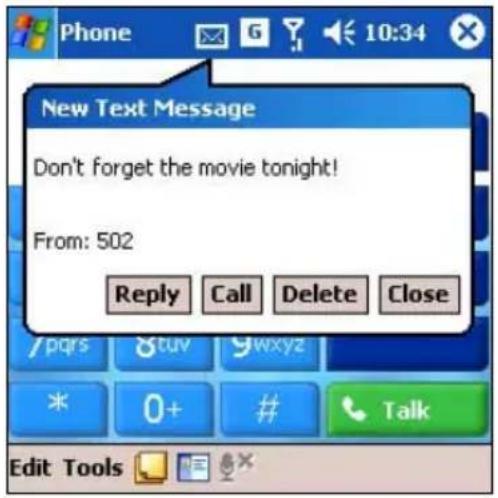

NOTE: The e-mail icon also notifies you of e-mail and MMS messages as well.
Sending MMS Messages
You may see the following icons displayed on the MMS Composer screens:
| Icon Definition | |
 | Tap to preview MMS message |
 | Tap to send an MMS message |
 | Navigation buttons - Tap to navigate forward and backward through the slides |
 | Tap to display photos/videos as file list |
 | Tap to display thumbnails |
 | Tap to display individual photos |
| [wXXY] | Tap to select an item |
 | Tap to return to previous screen or cancel |
 | Tap to bring up Recording controls |
Creating MMS Slides
To create an MMS slide:
- From the Start menu, tap Messaging > Accounts > MMS > New.
- In the Choose A MMS screen, tap the Message Type icon to create a new MMS message.
Use Custom to create your own message or select from the default message list.
NOTE: MMS messages are created by combining one or more slides. A slide can consist of a photograph or video clip, sound file, and text. However, the size of an MMS that you can send depends on your service provider limitations. To view the memory allowed per MMS, tap Start > Messaging > Tools > MMS Settings > Servers > Default server and scroll down to the bottom of the screen. To view the size of your message before sending, tap the Expand button in the message header.
- For Custom messages, tap the Tap here to insert a photo or video clip box to choose a photo or video to be inserted.
- On the top, left of the Next screen, tap My Pictures to select the specific location of the photos or videos to be inserted.
NOTE: You can only add a single photo or a single video clip to each MMS slide.
- Tap the photo or video clip to be inserted, then tap the Select icon at the bottom of the screen.
- Tap in the Insert text here box and enter the text to be sent, or tap the Canned Text icon to see a list of pre-saved text messages. Tap the one you want and tap the Select icon √.
- Tap in the Tap here to insert an audio clip box to add an audio clip.
NOTE: You can either add an existing sound file, or record a new one.
- Tap on the pull-down My Sounds to select a location that contains audio files.
- Tap the audio clip to be added and tap the Select icon √.
NOTE: To preview the audio clip before selecting it, use the playback controls on the bottom of the screen. Play/Pause and Stop controls are available.
NOTE: To record a new audio clip, tap the diskette tape icon to bring up controls that allow you to record new audio.
- To add a second or third slide, from the Messaging screen, tap Edit > Insert Slide and repeat the process.
Sending MMS Slides
To send the message:
- Enter the recipient's phone number or tap To > Phone tab to view your contacts by name and number.
- Enter the recipient's e-mail address or tap To > E-mail tab to view your contacts by name and e-mail address.
- Enter the subject of the message.
- When you're ready, tap Send. Otherwise, tap Edit > Cancel.

NOTE: If you are working offline, the message is moved to the Outbox folder and will be sent the next time you connect.

NOTE: Remember you can set up several e-mail accounts in addition to your ActiveSync account, but you can set up only one MMS account.
Viewing MMS Messages
To review a received message or preview a message that you created, you can use the playback controls (Play/Pause, Stop) on the MMS Composer screen. You can pause the message anytime during playback.
To view the slides manually, use the navigation buttons to scroll through the message.
Downloading Messages
The way you download messages depends on how you are receiving messages:
- If you receive e-mail messages through ActiveSync, begin synchronization.
- If you receive e-mail messages through a remote e-mail server, refer to the "Downloading Messages From a Server" section.
- As you receive MMS and text messages they are automatically sent to you when your phone is powered on. Otherwise, messages are held by your mobile phone service provider until the next time you turn on your phone.
Downloading Messages From a Server
To download one or several messages from a server:
- From the Start menu, tap Messaging > Accounts.
- Tap the account you want to use (marked by a bullet) and tap Connect.
The messages on your HP iPAQ and e-mail server are synchronized: new messages are downloaded to the HP iPAQ Inbox folder,
messages in the HP iPAQ Outbox folder are sent, and messages that have been deleted from the server are removed from the HP iPAQ Inbox. Tap a message in the message list to open it.
- If you read a message and decided you need the full copy, tap Edit > Mark for Download while in the message window. If you are in the message list, tap and hold the message, and then tap Mark for Download.
This also downloads message attachments if you selected those options when you set up the e-mail account. Also, you can choose to download full copies of messages by default.
- When finished, tap Accounts > Disconnect.

NOTE: Receiving entire messages consumes storage memory.
13 Managing the Battery
Your HP iPAQ is shipped with the rechargeable battery partially charged. It is recommended that you fully charge the HP iPAQ battery before setting up the unit, and recharge regularly. Your HP iPAQ uses some power to maintain files in RAM and the clock. While working at your desk, keep the HP iPAQ and AC Adapter connected through the HP iPAQ Cradle. When you travel, it is recommended that you carry the AC Adapter, Charger Adapter plug, or an optional spare battery with you.
△ CAUTION: Use only an HP approved battery for your HP iPAQ. Inserting a battery that does not comply with HP requirements might cause the unit to malfunction and will void the HP iPAQ limited warranty.
The HP iPAQ has a small internal backup battery that (when charged) allows you to change the main battery without losing RAM data (user-installed programs and data) as long as it is replaced within 15 minutes. Use the backup battery to "bridge" the time you need to re-install a new standard or extended battery or to find your serial number. You can check the charge level of the back up battery by referring to "Maximizing Battery Life and Checking Battery Charge Levels" in this chapter. The internal battery can only be removed by a qualified HP Technical Support Representative.
BATTERY SAVING TIP: To ensure you always have battery power available, you can purchase an extra Standard Battery or Extended Battery. These batteries can be charged using the HP iPAQ. To purchase an extra battery, refer to the HP Web site at www.hp.com/go/ipaqaccessories.
Inserting the Battery
To insert the removable/rechargeable battery in the HP iPAQ hw6500 Mobile Messenger series:
- First remove the battery cover of the device by pressing down on the battery cover latch ① and sliding the cover down ② and off of the device.

NOTE: Before inserting the battery, write down the Product ID, Serial Number, and IMEI Number that are located either on the label under the battery or in the Asset Viewer program. You need these numbers if you phone Customer Support for product or warranty support.
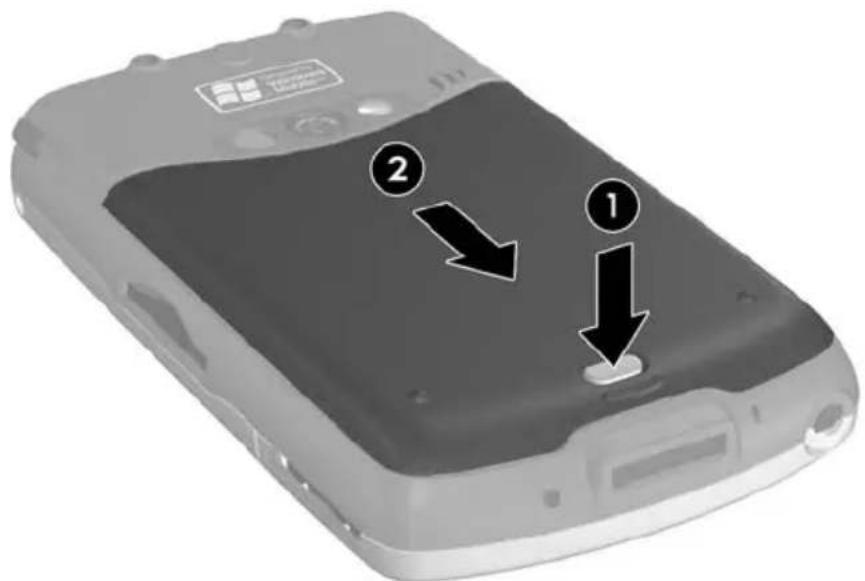
- Align the battery connectors on the battery with the housing pins ① in the battery compartment and insert the battery.
- Press the battery down into the battery compartment ②.
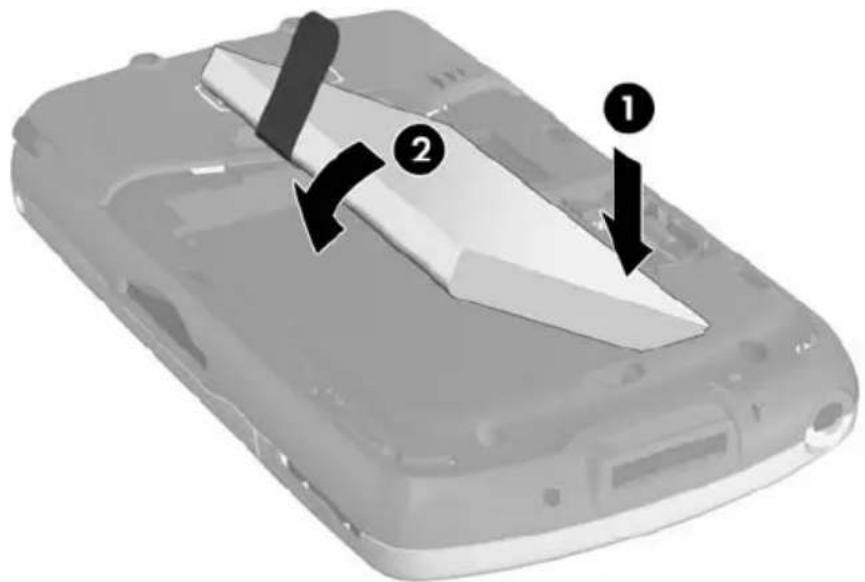
- Replace the battery cover by aligning the two tabs on the top of the cover ① with the two latches in the cover compartment and sliding the battery cover on until it clicks into place ②.
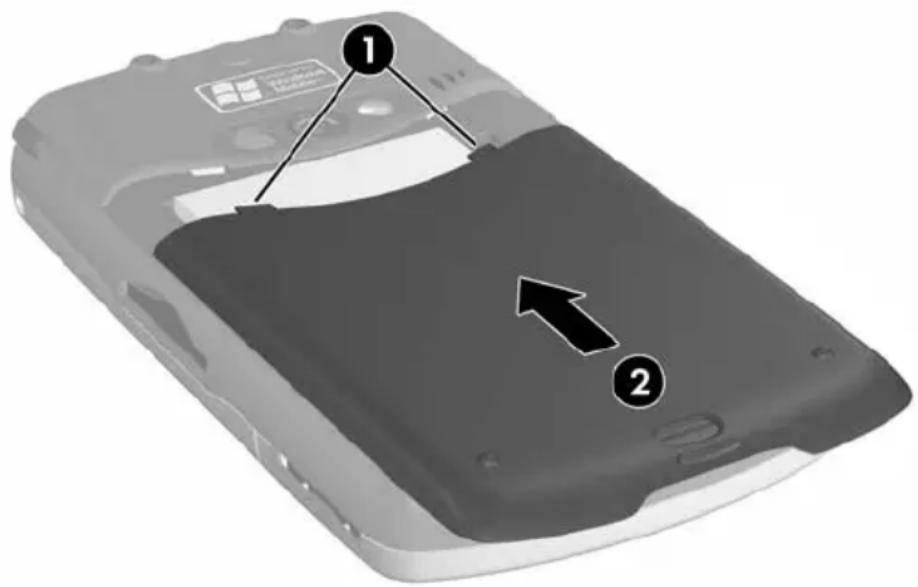

NOTE: If the battery is fully discharged, you must connect the AC Adapter to the HP iPAQ to fully charge it before continuing. It takes up to four hours to fully charge a completely drained battery.
Removing the Battery
△ CAUTION: Before removing the battery, use iPAQ Backup or ActiveSync to back up data on your HP iPAQ. If you need to clear the memory during the removal process, you will be able to restore the data. To prevent losing information, you can also copy user-installed applications to the iPAQ File Store folder.
To remove the battery from the HP iPAQ:
- Remove the battery cover. For more information, refer to "Inserting the Battery" described earlier in this chapter.
- Remove the battery from the compartment by lifting the tab.
△ CAUTION: Because most of the applications and data you install on your HP iPAQ are held in memory (RAM), you will need to reinstall them if the battery completely discharges or if the battery is removed from the unit for more than 15 minutes. Otherwise, when fully charged, the internal backup battery will save the user installed data for up to 15 minutes when the standard battery is removed. Before removing the battery, check to see that the internal backup battery is fully charged by tapping the Battery Icon in the TodayPanel. If the TodayPanel is not available, tap Start > Settings > System tab > Power icon.
You do not need to reinstall applications and data installed in the iPAQ File Store folder because they are saved in nonvolatile memory.
Charging the Battery
Battery Saving Tips:
- Leave your HP iPAQ connected to AC power at all times when you're not using it.
- Set your HP iPAQ to turn off after a short time if not being used.
- Set the backlight to go off quickly after you stop using your HP iPAQ.
- Turn off all wireless activities when not in use.
- Turn off the "Receive all incoming beams" setting and receive infrared beams manually instead.
- You can program an Application Button to turn off the screen when an MP3 is playing, saving battery power used to run the screen. Tap Start > Programs > Windows Media > Menu in the Command bar > Options... > Buttons tab. From the Options screen, scroll down and tap Toggle Screen, and then tap the Assign button. Assign the button of your choice and tap OK to accept changes.
- Power off your HP iPAQ when it is being charged to allow it to charge at a faster rate.
NOTE: If the battery is completely discharged, it will power on and will trickle charge for approximately 20 minutes when it is connected to the AC Adapter or the cradle. During this trickle charge, the device will not operate if removed from the AC power source and will not operate on main battery power. It is recommended that you leave the device connected to the AC power source long enough to power the device (approximately 30 minutes).
Charging with the AC Adapter
The standard AC Adapter works in a standard electrical outlet. You can also charge your HP iPAQ in your automobile with an automobile adapter that works in your vehicle's electrical cigarette lighter or a 12-volt power outlet.
To purchase an automobile adapter, refer to the HP Web site at: www.hp.com/go/ipaqaccessories.
△ CAUTION: Use only HP recommended AC Adapters.
To charge the HP iPAQ using the AC Adapter:
- Insert the AC Adapter plug into the AC Charger Adapter ①.
- Plug the AC Adapter into an electrical outlet ②.
- Insert the AC Charger Adapter into the communications port on the bottom of the HP iPAQ ③.
△ CAUTION: To avoid damaging your HP iPAQ or the AC Adapter, check to be sure all connectors are properly aligned before connecting them.
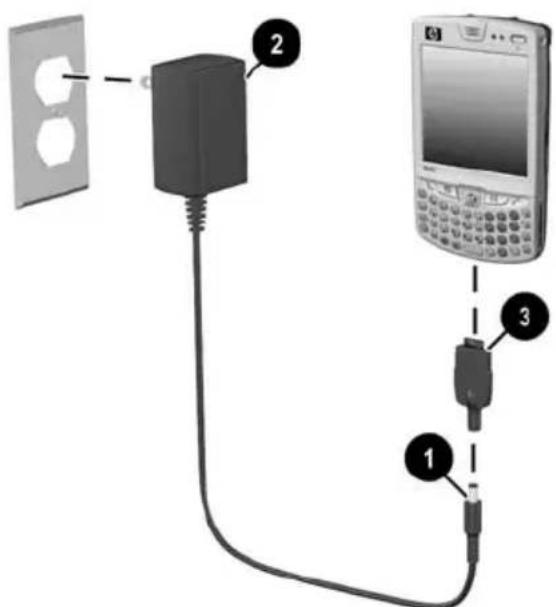
- Disconnect the AC Adapter when the LED indicator on the top of the HP iPAQ turns solid green, which indicates the unit is fully charged.
NOTE: A standard battery can be charged in about four hours; an optional extended battery takes longer.
Charging with the HP iPAQ Cradle and AC Adapter
Use the HP iPAQ Cradle to charge the HP iPAQ.

NOTE: It is not necessary to synchronize your HP iPAQ before charging it.
To charge the HP iPAQ using the cradle:
- Plug the AC Adapter into an electrical outlet ① and connect the other end of the AC Adapter to the AC connector on the cradle ②.
- Slide the bottom of your HP iPAQ into the cradle ③ and push firmly to seat it.

CAUTION: To avoid damaging your HP iPAQ or the cradle, check to be sure the HP iPAQ and cradle connectors are properly aligned before pushing the HP iPAQ into the cradle.
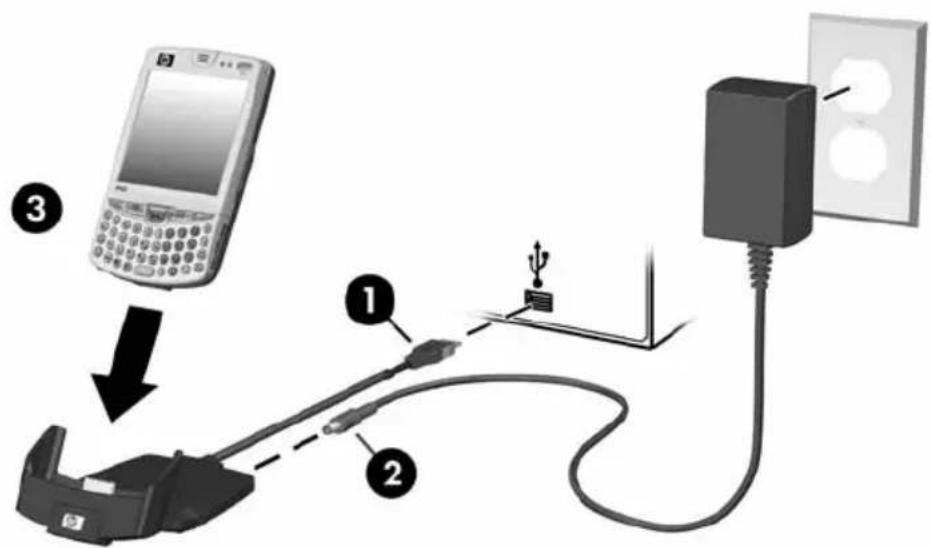

NOTE: The LED turns amber (non-flashing) while the battery is recharging and turns green (non-flashing) when the battery is fully charged.
Charging Over a USB Connection
You can charge your HP iPAQ with a USB connection to a personal computer or notebook computer using the HP iPAQ Cradle without an AC Adapter connected, or by using an optional USB Autosync Cable. Insert the HP iPAQ into the cradle and connect the cradle to your personal computer or notebook computer, or connect the Autosync Cable to the HP iPAQ and your personal computer or notebook computer. The HP iPAQ will charge using power from the computer.

NOTE: HP recommends that you power off your HP iPAQ while using the USB charging feature. If your HP iPAQ is powered on, your device will consume more current than is being supplied by the USB charging and the main battery will not be charged. During this state, the charging LED will not light since it is not charging.
To enable USB charging:
- From the Start menu, tap Settings > System tab > Power icon > USB Charging tab.
- Select Use USB Charging.
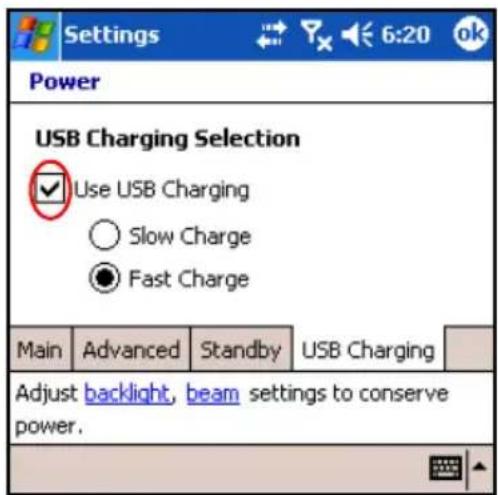
For faster charging, turn off all wireless activity and place your HP iPAQ in standby mode by turning the unit off.

NOTE: The LED charging indicator does not light when the HP iPAQ is turned on and being charged with a USB connection.
Changing the Backlight Settings
To change the backlight settings in order to conserve more battery power:
- From the Start menu, tap Settings > System tab > Backlight.
- Select the following backlight tabs to change the settings:
• Battery Power • AC Power - Brightness
Battery Saving Tips:
- Set the backlight to go off quickly after you stop using your HP iPAQ, or move the slide bar to Power Save mode to turn off the backlight completely. You can also set the backlight to turn on when a button is pressed or when the screen is tapped.
- Turn off all wireless connections and Bluetooth when they are not being used.
Disabling the Application Buttons
Pressing the Contacts or Messaging Application buttons on the front of your HP iPAQ will turn your HP iPAQ on by default.

NOTE: To reduce incidence of accidentally powering on the HP iPAQ, you may choose to disable the Application and Record Buttons Auto Power On feature.
To disable the Auto Power On function of the Application buttons or the Record button:
- Tap Start > Settings > Personal tab > Buttons > Lock tab.
- Tap the Disable all buttons except power button check box.
- Tap OK.

NOTE: If you disable the Auto Power On feature for the Application buttons, the Power button still turns on the unit. Once the unit is turned on, all buttons will function according to their programmed functions.
Maximizing Battery Life and Checking Battery Charge Levels
There are a number of ways to ensure your battery lasts as long as possible between charges. You can use as many as necessary to maximize your battery life.
- From the TodayPanel on the Today screen, tap the Battery icon > Advanced tab to set the HP iPAQ to turn off after a short time if it is not being used. For information on the TodayPanel, refer to the question "How Do I Use the TodayPanel to Monitor My System Resources?" located in the How Do I document in the box. An alternate way to access the same information is to tap Start > Settings > System tab > Power > Advanced tab.
- From the TodayPanel on the Today screen, tap the Light bulb icon to set the backlight to go off quickly after you stop using your HP iPAQ. An alternate way to access the same information is to tap Start > Settings > System tab > Backlight.
- Turn off Bluetooth power when not in use. To turn off Bluetooth, from the Today screen, tap the iPAQ Wireless icon in the Command bar, and then tap the Bluetooth icon.
- Leave your HP iPAQ connected to AC power at all times when you're not using it.
- From the Today screen, tap Start > Settings > Connections tab > Beam, then uncheck the "Receive all incoming beams" checkbox to receive infrared beams manually.
• To ensure you always have battery power available, purchase a spare standard or extended battery. The spare battery can be charged in the Battery Charger. For more information on purchasing optional batteries, visit the HP Web site at www.hp.com/go/ipaqaccessories.
Checking Your Battery
To check your battery charge level:
• From the TodayPanel on the Today screen, tap the Battery icon > Main tab.
- Or from the Today screen, tap Start > Settings > System tab > Power > Main tab.
You can view the amount of battery power remaining for both the main battery and the backup battery.
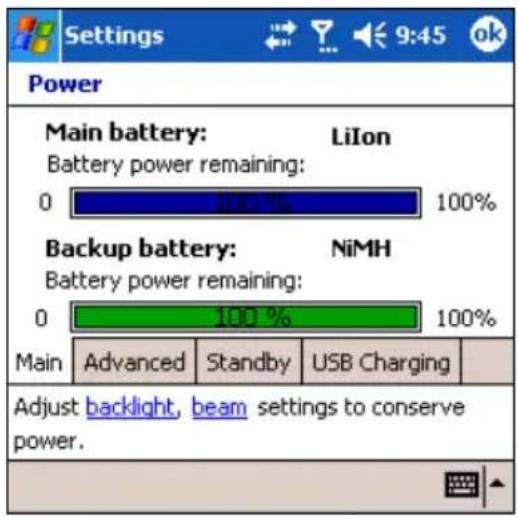
The main battery provides the HP iPAQ with power when it is not physically connected to the cradle or AC adapter. The internal backup battery provides the HP iPAQ with enough power to maintain data when you remove the battery for short periods of time. When the backup battery is fully charged, it maintains data for up to 15 minutes. However, you should always replace the main battery (extended or standard) immediately to minimize the drain on the backup battery.
If the main or backup battery charge level is low, recharge the battery by connecting the HP iPAQ to AC power using the cradle or the AC adapter or insert a fully charged battery into the HP iPAQ. When the HP iPAQ turns off (due to low battery level) and does not turn on again, you have only up to 72 hours to recharge the battery before you lose data.
For information on purchasing an optional standard or extended battery, visit the HP Web site at www.hp.com/go/ipaqaccessories.
△ CAUTION: Do not allow the battery installed in your HP iPAQ to discharge completely. Doing so will not harm your HP iPAQ or battery, but your device will lose all data not stored in File Store (ROM). Discharging the battery completely is similar to performing a hard reset. Refer to Chapter 1, "Getting to Know Your HP iPAQ Mobile Messenger" for more information on performing a hard reset.
14 Troubleshooting
Self-Test Diagnostics
Use the Self-Test application to run tests on the operation of your device. The diagnostics application tests for sound, notification, GSM/GPRS, and buttons.
To run the Self-Test application:
- From the Start menu, tap Settings > System tab > Self Test.
- Place a check in the check box next to the items to be tested or in all check boxes to test all of them.
- Tap Start.
- Follow the screen instructions as tests are performed on each requested item. Tap OK, Done or Cancel as required as you proceed through the testing. If you cancel a test, the test status is set to FAIL.

NOTE: You will receive Error messages with specific information on items that fail. For example, if you checked sound and it is not working properly, you could get an Error message that says something like the following: "Error detecting sound." Use the information in the Error messages to correct the device item.
- After the last test is performed, the test result screen displays the results of all performed tests. The final status will be either PASS or FAIL. When you tap Finish, you will be asked if you want to create a Self-Test log file.
- Tap Yes to create the log file in the My Documents folder. The log file will contain the results of the test with a time and date stamp.
- Tap No to skip the log file output.
Common Problems
To receive support from a qualified technical support specialist, visit the HP support Web site at www.hp.com/support. To find information on the support Web site for your specific product, be sure to have your model or product name available.
To access HP Instant Support:
- On your personal computer, go to www.hp.com/support.
- Select your country or region.
- Select See support and troubleshooting information, and then type your product model number.
- Click the >> button.

NOTE: For troubleshooting information on Microsoft Operating System applications, go to www.microsoft.com/mobile.
You can use the following suggestions to troubleshoot problems with your HP iPAQ.
| Problem | Solution |
| I cannot see anything on the screen. | Be sure the HP iPAQ is powered on.Be sure the HP iPAQ battery is charged.Be sure the HP iPAQ is connected to the AC Adapter and the HP iPAQ Cradle.Reset the device by using the stylus to lightly press theResetbutton.Remove and replace the battery. |
| I cannot keep my battery charged. | Always keep the HP iPAQ connected to the AC Adapter when you are not using it.Tap Start > Settings > System tab > Backlight icon. In backlight settings, place a checkmark in the check box next toTurn off backlight if device is not used for and select 30 seconds to conserve more battery power.Tap Start > Settings > System tab > Power > Advanced tab. In battery power settings, set the battery power To turn off device if not used for 2 minutes.Turn off the Phone, Bluetooth, and all wireless connections when not in use.Check to make sure you are using an HP authorized battery. |
| Unit will not turn on. Try one or all of the following:1. Reset the unit. Refer to the information on Resetting the Unit in Chapter 1, “Getting to Know Your HP iPAQ Mobile Messenger.”2. Remove and replace the battery and wait for the unit to power on.3. Connect the unit to the AC Adapter connected to an electrical outlet or to your connected HP iPAQ Cradle to recharge the battery.Note: After you have tried the above solutions and your HP iPAQ still does not turn on, visit the HP support Web site atwww.hp.com/support. | |
| The backlight keeps turning off. | In backlight settings, increase the amount of time the backlight stays on if not in use. From the Start menu, tap Settings > System tab >Backlight icon. |
| Message displays on the HP iPAQ screen that the battery is not recognized. | In this event, the HP iPAQ uses the remaining power available in the battery, but the battery will not charge and the device may display a blinking red LED indicating low battery charge. It is recommended that you back up information stored on your HP iPAQ and purchase an HP authorized battery. |
| Problem | Solution (continued) |
| Message displays on the HP iPAQ screen that the battery temperature is out of range. | The HP iPAQ goes into a suspend mode and battery charging is prohibited. The device will not operate until the battery is within the acceptable temperature range ( 32° to 104° F). Remove the HP iPAQ from extreme hot or cold environmental conditions. |
| I want to ship my HP iPAQ to a repair facility. | Back up your information to a memory card or external source for safekeeping.Disconnect all external devices.Pack your HP iPAQ and any external devices in protective packaging as requested by Customer Support. Include any additional documentation or items as instructed by Customer Support. |
| I cannot connect to a network. | Be sure you have added the necessary server information.Be sure the network you are attempting to connect to is available and not busy.Check the signal strength.Be sure your user name and password are correct.Tap Start > Settings > Connections tab > Connections and check your connection settings. Tap OK when you are finished to save your changes.Be sure the IP Address is correct.Reset the device by using the stylus to lightly press the Reset button.Check with your service provider for current connection problems.Run the self-test diagnostics. |
| When I try to open the Inbox, I receive an error or the application hangs. | Check to see if your wireless application is turned on and you are receiving a wireless signal.Check to see if your SIM card is inserted in your HP iPAQ.Limit the number of e-mail services you create. |
| I cannot configure the Calendar. | Tap Start > Help > Calendar and tap on the subjects listed under How To for information on configuring the Calendar settings. |
| I get an error when I try to record a note in Calendar or in Tasks. | Try using a more compressed recording format in Calendar or Tasks (8,000 Hz, Mono [8 KB/s] is the most compressed format available). To switch to a more compressed recording format, from the Today screen, tap Start > Settings > Personal tab > Input > Options tab. |
| I want to see the current date. | From the Today screen, tap the Clock icon 📋 to see today's date. |
| I cannot see all my appointments. | Be sure the appointment you created is in the selected category. |
| I cannot find the document or workbook I saved. | Pocket Word and Excel recognize and display documents in only one folder below My Documents. For example, if you created another folder in the Personal folder in My Documents, the documents in that folder will not be shown.To find your document or workbook, tap Start > Programs > File Explorer. Open the folder you created, then tap the file you're looking for. |
| My device is always asking me for a password. | Tap Start > Settings > Personal tab > Password to be sure the password settings are configured as you wish. |
| I cannot find files sent to me by another device. | Check My Documents, which is the default save location used to receive files. |
| Screen freezes, responds slowly, or no response. | Try resetting your HP iPAQ. Refer to the information on Resetting the Unit in Chapter 1, “Getting to Know Your HP iPAQ Mobile Messenger.” |
| Stylus taps have inappropriate or slow response. | Realign the screen. From the Start menu, tap Settings > System tab > Screen > Align Screen, and follow the instructions. |
| My device keeps running out of memory. | Move programs or data to a memory storage card such as an SDIO or mini-SD expansion card.Set some programs (such as Notes or Pocket Word) to automatically save new files on the expansion card.Move e-mail attachments to the expansion card.Delete old or unnecessary files by tapping Start > Programs > File Explorer. Tap and hold the file, then from the pop-up menu, tap Delete.Remove programs you do not use by tapping Start > Settings > System tab > Remove Programs. Tap the program to be removed and then tap Remove.Clear program memory by tapping Start > Settings > System tab > Memory > Running Programs tab. Tap the programs to be cleared and then tap Stop. |
ActiveSync
For more information on Microsoft ActiveSync, refer to
Chapter 3, "Using ActiveSync."
Problem Solution
| I cannot connect to my computer using the HP iPAQ Cradle. | ·Be sure you have installed Microsoft ActiveSync 3.8 or a later version on your host computer before connecting your HP iPAQ to it.·Be sure your HP iPAQ is connected to the HP iPAQ Cradle, and that the cradle is connected to your computer.·Be sure your HP iPAQ is securely seated in the cradle and is making contact with the cradle connector.·Be sure you are running Microsoft Windows 98SE, Me, 2000, or XP and that you have installed Microsoft ActiveSync 3.8 or a later version on your computer. Also be sure you are connecting directly to a USB port on your computer and not through a USB hub.·Try resetting your HP iPAQ. Refer to the information on Resetting the Unit in Chapter 1, "Getting to Know Your HP iPAQ Mobile Messenger."·Uninstall and reinstall ActiveSync.·If you are running personal firewall software, try disabling it. If you are then able to synchronize, contact the software vendor for information on configuring the required exclusions to eliminate this problem. |
| I connected my HP iPAQ before installing Microsoft ActiveSync. | 1. Disconnect the HP iPAQ from your computer.2. In Windows 98 or 2000, click Start > Settings > Control Panel > System. The Device Manager opens automatically. Locate and select the "unknown" USB device record and click Remove (Uninstall in Windows 2000).3. Restart your computer and allow it to detect the USB device.4. Install Microsoft ActiveSync 3.8.5. Reconnect the HP iPAQ to the computer. |
| Microsoft ActiveSync cannot locate my HP iPAQ when I synchronize. | ·Be sure the device is on and the charging/communications port on the bottom of the HP iPAQ is connected to the communications port in the HP iPAQ cradle.·Be sure all cables are securely connected.·Remove your HP iPAQ from the HP iPAQ Cradle or disconnect it from the Autosync cable, power on the unit by pressing the Power button, then put it back in the HP iPAQ Cradle or reconnect it to the Autosync cable.·Reset the device by using the stylus to lightly press the Reset button.·Check Connection Settings in ActiveSync on your computer to ensure the communications port you are using is active. |
| Problem Solution | (continued) |
| I cannot open e-mail in the Inbox after I restore using Microsoft ActiveSync. | Use Microsoft ActiveSync to synchronize your HP iPAQ with your computer. For more information, refer to the “Synchronizing with Your Computer” section in Chapter 3, “Using ActiveSync.” |
| I tried to synchronize a workbook and the file is unresolved in Microsoft ActiveSync. | Pocket Excel does not support all Excel formatting; therefore, Microsoft ActiveSync cannot synchronize the file. |
Phone
For more information on using the Phone, refer to Chapter 5, "Using the Phone Features."
| Problem Solution | |
| Phone will not turn on. | Check to see if your SIM card is inserted in the HP iPAQ.Be sure the battery in your HP iPAQ is charged.If the HP iPAQ is powering on and the phone still does not turn on, contact your mobile phone service provider for help. |
| I am unable to dial out or receive incoming phone calls. | Check to see if your SIM card is inserted in the HP iPAQ.Make sure your wireless connection to your mobile service provider is turned on and your unit displays the appropriate signal strength.Is the signal strength icon displaying a diminished number of vertical bars in the icon? If so, you may be in an area outside of the phone network.If you still cannot dial out or receive phone calls, contact your mobile service provider for help. |
| Phone cuts off in the middle of phone conversations. | Be sure the battery on your HP iPAQ is fully charged.Is the signal strength icon displaying a diminished number of vertical bars in the icon? If so, you may be in an area outside of the phone network. |
| Phone runs out of memory. | HP iPAQ automatically manages the allocation of memory between storage and program memory. When memory is low, try the following:Move data to a storage card.Move e-mail attachments to a storage card.Delete e-mail or files no longer needed.In Internet Explorer options, delete all files and clear history.Delete old or unnecessary files by tapping Start > Programs > File Explorer. Tap and hold the file, then from the pop-up menu, tap Delete.Remove programs no longer used by tapping Start > Settings > System tab > Remove Programs. Tap the program to be removed and then tap Remove.Clear program memory by tapping Start > Settings > System tab > Memory > Running Programs tab. Tap the programs to be cleared and then tap Stop. |
Expansion Cards
For more information on expansion cards, refer to Chapter 11,
"Expansion Cards."
Problem Solution
| My HP iPAQ does not recognize the SD expansion card. | ·Be sure you have firmly pushed the SD expansion card into the HP iPAQ.·Be sure any third party drivers are installed.·Reset the device by using the stylus to lightly press the Reset button on the bottom of the HP iPAQ. |
| I cannot insert my SD card. | ·Be sure the label is facing the front of the unit.·Be sure you are not inserting the card at an angle.·Be sure you insert the connection area first.·Be sure you are not inserting an SD size card into the mini-SD slot.·Be sure you have removed the blank filler card that ships with the device. |
| I cannot remove my SD card. | Push the SD card in to release the locking mechanism. The card will pop out slightly and can then be easily removed. |
Bluetooth
For more information on Bluetooth, refer to Chapter 9, "Using Bluetooth."
Problem Solution
| I cannot discover another Bluetooth device. | ·Be sure Bluetooth is turned on.·Move closer to the other device.·Be sure you have not limited your ability to see devices.·Be sure the device you are attempting to connect to is on and allows access to being discovered by other devices. |
| I can see other devices, but I cannot connect or exchange data with them. | ·Be sure Bluetooth is turned on.·Be sure your device has been set up to allow other devices to connect and your service settings are enabled.·Move closer to the device.·Be sure the other device has not restricted your access.·Try initiating pairing from the other device. Some Bluetooth-enabled device can only initiate pairing and cannot respond to pairing requests from other devices. |
| Other devices cannot find or connect to my device. | ·Be sure Bluetooth is turned on.·Move closer to the other device.·Be sure you have not restricted other devices from finding yours.·Check your Bluetooth settings to ensure you have allowed your device to be discovered and others to connect. |
| Other devices do not receive my correct business card information. | ·Be sure you have correctly set up your business card information inBluetooth Settings.·CheckBluetooth Settingsto be sure you have not restricted this function. |
| The HP iPAQ cannot find my Bluetooth-enabled Mobile phone. | ·Be sure your mobile phone is in discoverable mode.·Contact your mobile phone manufacturer and ask if there is a firmware upgrade. |
A Regulatory Notices
Federal Communications Commission Notice
This equipment has been tested and found to comply with the limits for a Class B digital device, pursuant to Part 15 of the FCC Rules. These limits are designed to provide reasonable protection against harmful interference in a residential installation. This equipment generates, uses, and can radiate radio frequency energy and, if not installed and used in accordance with the instructions, may cause harmful interference to radio communications. However, there is no guarantee that interference will not occur in a particular installation. If this equipment does cause harmful interference to radio or television reception, which can be determined by turning the equipment off and on, the user is encouraged to try to correct the interference by one or more of the following measures:
- Reorient or relocate the receiving antenna.
- Increase the separation between the equipment and receiver.
- Connect the equipment into an outlet on a circuit different from that to which the receiver is connected.
- Consult the dealer or an experienced radio or television technician for help.
Modifications
The FCC requires the user to be notified that any changes or modifications made to this device that are not expressly approved by Hewlett-Packard Company may void the authority to operate the equipment.
Cables
Connections to this device must be made with shielded cables with metallic RFI/EMI connector hoods in order to maintain compliance with FCC Rules and Regulations.
Declaration of Conformity for products marked with the FCC logo—United States only
This device complies with Part 15 of the FCC Rules. Operation is subject to the following two conditions: (1) this device may not cause harmful interference, and (2) this device must accept any interference received, including interference that may cause undesired operation.
For questions regarding your product, contact:
Hewlett-Packard Development Company, L.P. P. O. Box 692000, Mail Stop 530113 Houston, Texas 77269-2000
Or, call 1-800-652-6672
For questions regarding this FCC declaration, contact:
Hewlett-Packard Development Company, L.P.
P. O. Box 692000, Mail Stop 510101
Houston, Texas 77269-2000
Or, call (281) 514-3333
To identify this product, refer to the Part, Series, or Model number found on the product.
Canadian Notice
This Class B digital apparatus meets all requirements of the Canadian Interference-Causing Equipment Regulations.
Canadian Notice
European Union Regulatory Notice
This product complies with the following EU Directives:
- Low Voltage Directive 73/23/EEC • EMC Directive 89/336/EEC

NOTE: CE Compliance of this product is valid only if powered with the correct HP-provided and CE marked AC adapter.
If this product has telecommunication functionality, it also complies with the essential requirements of:
• R&TTE Directive 1999/5/EC
Compliance with these directives implies conformity to applicable harmonized European standards (European Norms) which are listed on the EU Declaration of Conformity issued by Hewlett-Packard for this product or product family.
This compliance is indicated by the following conformity marking placed on the product:

This marking is valid for non-Telecom products and EU harmonized Telecom products (e.g. Bluetooth).

This marking is valid for EU non-harmonized Telecom products.
* Notified body number (used only if applicable - refer to the product label).
The telecommunications functionality of this product may be used in the following EU and EFTA countries:
Austria, Belgium, Cyprus, Czech Republic, Denmark, Estonia, Finland, France, Germany, Greece, Hungary, Iceland, Ireland, Italy, Latvia, Liechtenstein, Lithuania, Luxembourg, Malta, Netherlands, Norway, Poland, Portugal, Slovak Republic, Slovenia, Spain, Sweden, Switzerland, and United Kingdom.
Notice for Italy for use of
2.4 GHz wireless communication:
License required for use. Verify with your dealer or directly with the General Directorate for Frequency Planning and Management (Direzione Generale Pianificazione e Gestione Frequenze).
Battery Warning
⚠ WARNING! This HP iPAQ device contains a LITHIUM-ION rechargeable battery. To reduce the risk of fire or burns, do not disassemble, crush, puncture, short external contacts, or dispose of in fire or water. Replace only with the HP battery Spare Part Number 383745-001. Replacing with a non-approved HP battery will void the warranty.
△ CAUTION: Risk of explosion if battery is replaced by an incorrect type. Dispose of used batteries according to the instructions.
Equipment Warning
⚠ WARNING! To reduce the risk of personal injury, electrical shock, fire or damage to the equipment:
- Plug the AC Adapter into an electrical outlet that is easily accessible at all times.
- Disconnect power from the equipment by unplugging the AC Adapter from the electrical outlet.
- Do not pull on power cables. When unplugging from the electrical outlet, grasp the AC Adapter and pull out from the electrical outlet.
- Do not place anything on the power cables. Arrange them so that no one may accidentally step on or trip over them.
Airline Travel Notice
Turn off your HP iPAQ before boarding any aircraft. Federal Aviation Administration (FAA) regulations require you to have permission from a crew member to use the phone features on your HP iPAQ while the plane
is on the ground. To prevent interference with wireless systems, local Radio Frequency (RF) regulations prohibit using the phone features on your HP iPAQ while the plane is in the air. Use it on the ground only with crew permission. Use of the HP iPAQ features other than the phone is at the discretion of the airline.
Medical Electronic Equipment
If you have a medical condition that requires you to use a pacemaker, hearing aid, or any type of medical electronic equipment, consult the manufacturer of the equipment to determine if the medical equipment is shielded from RF energy. Turn off your HP iPAQ in health care facilities or hospitals when there are posted restrictions requiring you to do so.
Wireless Notices
In some environments, the use of wireless devices may be restricted. Such restrictions may apply aboard airplanes, in hospitals, near explosives, in hazardous locations, etc. If you are uncertain of the policy that applies to the use of this device, please ask for authorization to use it prior to turning it on.
U.S. Regulatory Wireless Notice
⚠ WARNING! Exposure to Radio Frequency (RF) Radiation The radiated output power of this device is far below the FCC radio frequency exposure limits. Nevertheless, users concerned with the risk of Radio Frequency exposure may want to limit the duration of calls and position the antenna as far away from the body as practical. For body worn operation, this device has been tested and meets the FCC RF exposure guidelines when used with the Hewlett-Packard accessories supplied with or designated for this product. Use of other accessories may not ensure compliance with FCC RF exposure guidelines.
U.S. Regulatory Notice For 900/1800 GSM Frequency Bands
This device contains 900/1800 MHz GSM functions that are not operational in U.S. territories. This filing is only applicable for GSM 850 MHz and PCS 1900 MHz operations.
Health and Safety Information
Since your HP wireless phone is a radio transmitter and receiver, you may be exposed to Radio Frequency (RF) signals when it is powered on. However, your HP wireless phone has been designed so that it does not exceed the emission limits for exposure to radio frequency energy that are set by the Federal Communications Commission of the U.S. Government. These limits are part of comprehensive guidelines and establish permitted levels of RF energy for the general population. The guidelines are based on the safety standards previously set by both the United States and international standards.
This equipment under test has been shown to be capable of compliance for localized Specific Absorption Rate (SAR) for uncontrolled environment/general population exposure limits specified in ANSI/IEEE Standard C95.1-1992 and had been tested in accordance with measurement procedures specified in FCC/OET Bulletin 65 Supplement C (2001) and IEEE Standard 1528-200X (Draft 6.5, January 2002). Ministry of Health (Canada), Safety Code 6. The standards include a substantial safety margin designed to assure the safety of all persons, regardless of age and health. The exposure standard for wireless mobile phones employs a unit of measure known as the Specific Absorption Rate (SAR). The SAR limit set by the FCC is 1.6W/kg.

NOTE: In the U.S. and Canada, the SAR limit for mobile phones used by the public is 1.6 watts/kg (W/kg) averaged over one gram of tissue. The standard incorporates a substantial margin of safety to give additional protection to the public and to account for any variations.
Canadian Regulatory Wireless Notice
Operation is subject to the following two conditions: (1) this device may not cause interference, and (2) this device must accept any interference, including interference that may cause undesired operation of the device.
Australian Wireless Notice

WARNING! Switch off this device whenever in an area with a potentially explosive atmosphere (i.e., service stations, chemical plants, etc.).
Brazilian Regulatory Wireless Notice
Singaporean Wireless Notice
- Switch off your cellular telephone when in an aircraft. The use of cellular telephones in an aircraft may be dangerous to the operation of the aircraft, disrupt the cellular network, and is illegal. Failure to observe this instruction may lead to suspension or denial of cellular services to the offender, or legal action or both.
- Users are advised not to use the equipment when at a refueling point.
- Users are reminded of the need to observe restrictions on the use of radio equipment in fuel depots, chemical plants or where blasting operations are in progress.
- The use of the Alert device to operate a vehicle's lights or horn on public roads is not permitted.
- It is advised that a handheld microphone or telephone handset should not be used by the driver while the vehicle is moving, except in an emergency. Speak only into a fixed, neck slung or clipped-on microphone when it would not distract your attention from the road.
- As with other mobile radio transmitting equipment, users are advised that for satisfactory operation of the equipment and for the safety of personnel, it is recommended that no part of the human body be allowed to come too close to the antenna during operation of the equipment.
- This device has been designed to comply with applicable requirements for exposure to radio waves based on scientific guidelines that include margins intended to assure the safety of all people, regardless of health and age. These radio wave exposure guidelines employ a unit of measurement known as the Specific Absorption Rate (SAR). Tests for SAR are conducted using standardized methods with the phone transmitting at its highest certified power level in all used frequency bands. The SAR data information is based on CENELEC's standards EN50360 and EN50361 which use the limit of 2 Watts per kilogram (W/kg) averaged over 10 grams of tissue. The highest SAR value for this model phone when tested is as follows:
• GSM900: 0.234 W/kg (10g)
• DCS1800: 0.391 W/kg (10g)
Taiwanese Wireless Notice
Note:
B Environmental Notices
Battery Warning

Because of the type of battery used in your HP iPAQ, follow local regulations regarding the safe disposal of the battery. Your vendor can advise you on local regulations, and/or the existence of any battery disposal programs in operation.
Taiwan Battery Recycling Notice

Waste batteries must be recycled
Disposal of Waste Equipment by Users in Private Household in the European Union

This symbol on the product or on its packaging indicates that this product must not be disposed of with your other household waste. Instead, it is your responsibility to dispose of your waste equipment by handing it over to a designated collection point for the recycling of waste electrical and electronic equipment. The separate collection and recycling of your waste equipment at the time of disposal will help to conserve natural resources and ensure that it is recycled in a manner that protects human health and the environment. For more information about where you can drop off your waste equipment for recycling, please contact your local city office, your household waste disposal service or the shop where you purchased the product.
System Specifications
| System Feature Description | ||
| Processor Intel® PXA272 Processor 312MHz | ||
| Operating System Windows MobileTM 2003 Second Edition software for Pocket PC - Phone Edition | ||
| SDRAM | 64MB | SDRAM |
| ROM 64MB Flash ROM | ||
| Memory up to 55MB user available memory (of which 12MB is iPAQ File Store) | ||
| External Power 10 watt maximum output AC Adapter, cord length (approx.) 6 ft.(1.83m), voltage range 100 to 240V Switching, Input Current 0.3 Aac, Input Frequency 50 to 60Hz, Output Voltage 5 VDC, Output Current 2Amp | ||
| Display 56 x 56mm (2.205 x 2.205 inches) transflective TFT QVGA color,240 x 240 pixels,0.24mm dot pitch, 64K-color support,touch screen. | ||
| LED Backlight Multi-level brightness adjustment with power save mode | ||
| SD I/O slot Supports 1-bit SDIO and 4-bit SD/MMC type memory standard | ||
| Mini-SD slot Supports 1-bit and 4-bit SD/MMC type memory standard | ||
| Keyboard Integrated QWERTY Thumb Keyboard with 26 LED backlit alpha-numeric keys, one Function key, and two application keys - ContextMenu key and Start menu key. | ||
| Wired Ear Bud Headset | 2.5mm jack with single earbud style headset - Included in box. | |
| Antenna Internal | ||
| Audio | Integrated microphone, receiver, speaker and one 2.5mm stereo headphone jack, MP3 stereo (through headphone jack) Handsfree speakerphone | |
| Battery | Removable/rechargeable 1200 mAh, 3.7 Volt, Lithium-ion battery with internal backup battery to maintain data during main battery replacement. | |
| Photosmart Camera | Built-in SXGA 1.3MP with LED flash, 1280 x 1024 resolution, JPEG and 3GP format, support for still image, and video playback, H.263 (not included with all models) | |
| Bluetooth | Class II device; up to 4 dBm transmit, typical 10 meter range (approximately 33 feet) - High-speed, low-power, short-range wireless communication with other Bluetooth devices | |
| System Feature Description | (continued) | |
| Integrated GPS Receiver | High sensitivity integrated GPS receiver with Quick GPS Connection technology. Quick GPS Connection technology is a software application residing on the device that enables a faster connection time for enhanced GPS performance. For some models, GPS Navigation software and maps must be purchased separately. | |
| Infrared (IrDA) Serial | IrDA SIR, data transfer up to 115.2 Kb per second, USB 1.1Client - support via HP standard 22-pin cradle interfaceSerial RS232 - supported via HP standard 22-pin cable interface (cable to be purchased separately) | |
| SIM Card 3V, SIM standards, Phase 1, 2, 2+, CPHS, SIM Toolkit | ||
| GSM / GPRS / EDGE Technology | Global voice and data wireless network [Global System for Mobile Communications (GSM), General Packet Radio Services (GPRS), Enhanced Data rates for Global Evolution (EDGE)] | |
| GSM voice features | Half Rate, Full Rate, Enhanced Full Rate, Adaptive Multi-Rate (HR,FR/EFR/AMR)Echo cancellation and noise reductionFull duplex hands-free | |
| GPRS Data Features | Class B GPRS Multi slot Class 10, QuadbandCoding Schemes: CS1 to CS4, Network Mode 1-4 | |
| EDGE Features Class | 10, Support for E-GPRS coding schemes MCS1 to MCS9 in both the uplink and downlink | |
| Circuit Switched Data | Normal Single Slot GSM Circuit Switched Data @ 9.6 Kbps Transparent and Nontransparent data | |
| Supplementary Services Supported | Call Forwarding, Call Barring, Multiparty, Calling Line Identity, Call Waiting, and Call Hold | |
| Unstructured Supplementary Service Data | USSD Phase 2 (MO & MT) | |
| Encryption | GEA1 | |
| Authentication Password | Authentication Protocol (PAP) or Challenge Authentication Protocol (CHAP) | |
| Messaging Services | Text messaging for GSM, both mobile-originated and mobile-terminatedMMS (Multimedia Message Service)Cell Broadcast | |
| Ring Tones file formats | MIDI Type 0, WMA, WAV | |
| LED Indicators: | ||
| Charge and Notification LED | Flashing green indicates your HP iPAQ is in a mobile phone coverage area.Flashing amber indicates an event notification on your HP iPAQ.Solid amber indicates unit is charging.Solid green indicates unit is fully charged.Flashing red indicates the battery needs immediate recharging or you may lose data that has not been backed up or copied to iPAQ File Store folder.NOTE: LED does not light when the HP iPAQ is disconnected from AC power. | |
| Bluetooth (LED on right) | Blinking blue indicates Bluetooth is powered On.LED off indicates Bluetooth is powered Off. | |
| Phone Indicators: • VibrateAudibleVisual message on the display | ||
| Hardware Buttons/Reset Buttons | Power, soft reset, 5-way navigation joystick, Calendar, Contacts (both are programmable keys), send/end/ volume control, and camera capture. QWERTY keyboard with LED backlit keys. | |
Physical Specifications
HP iPAQ hw6500 Mobile Messenger series
| US Metric | ||
| Length | 4.645in 118.0mm | |
| Width | 2.795in 71.0mm | |
| Depth | 0.709in 18.0mm* | |
| Weight | 5.82oz | 165 g |
* Excludes height of 3mm joystick
Operating Environment
Environment
| US Metric |
| Temperature Operating 32° to 104° F 0° to 40° C |
| Nonoperating -4° to 140° F -20° to 60° C |
| Relative Humidity Operating up to 90% up to 90% |
| Nonoperating up to 90% up to 90% |
| Maximum Altitude Operating 15,000 ft 4,572 m |
| Nonoperating 40,000 ft 12,192 m |


- CONTENTS
- GETTING TO KNOW YOUR
- HP IPÄQ MOBILE MESSENGER
- LEARNING THE BASICS
- USING ACTIVESYNC
- LEARNING INPUT METHODS
- USING THE PHONE FEATURES
- MANAGING MULTIPLE WIRELESS CONNECTIONS
- MAKING DATA CONNECTIONS
- USING GPS NAVIGATION
- USING BLUETOOTH
- USING THE CAMERA FEATURES
- EXPANSION CARDS
- USING MESSAGING
- MANAGING THE BATTERY
- TROUBLESHOOTING
- A REGULATORY NOTICES
- B ENVIRONMENTAL NOTICES
- GETTING TO KNOW YOUR HP IPAQ MOBILE MESSENGER
- USING THE STYLUS
- SETTING THE DATE AND TIME
- SETTING THE TIME FOR HOME AND LOCATIONS YOU ARE VISITING
- SETTING THE DATE
- ENTERING OWNER INFORMATION
- SETTING A PASSWORD
- RESETTING THE UNIT
- PERFORMING A SOFT RESET
- PERFORMING A HARD RESET
- ALIGNING THE SCREEN
- ROUTINE CARE
- PROTECTING THE SCREEN
- TRAVELING WITH YOUR HP IPAQ
- USING THE TODAY SCREEN
- NAVIGATION BAR
- COMMAND BAR
- TODAYPANEL
- STATUS ICONS
- POP-UP MENUS
- CREATING INFORMATION
- CUSTOMIZING THE TODAY SCREEN
- CUSTOMIZING THE APPLICATION BUTTONS
- LOCKING THE APPLICATION BUTTONS
- TAP OK
- USING APPLICATIONS
- OPENING APPLICATIONS
- USING THE CONTEXTMENU KEY
- MINIMIZING APPLICATIONS
- CLOSING APPLICATIONS
- INSTALLING APPLICATIONS
- BACKING UP INFORMATION
- BACKUP/RESTORE USING IPAQ BACKUP
- BACKUP/RESTORE USING ACTIVESYNC
- USING IPAQ FILE STORE FOLDER
- CONNECTING TO A COMPUTER
- INSTALLING ACTIVESYNC AND SYNCHRONIZING WITH YOUR COMPUTER
- USING MICROSOFT EXCHANGE ACTIVESYNC
- USING THE SERIAL INFRARED (IR) CONNECTION
- CHANGING SYNCHRONIZATION SETTINGS
- COPYING FILES
- INSTALLING PROGRAMS
- BACKING UP AND RESTORING
- SYNCHRONIZING LINKS
- USING ACTIVESYNC TO SEND AND RECEIVE E-MAIL
- REQUESTING MEETINGS
- USING THE THUMB KEYBOARD
- KEYBOARD COMPONENTS
- USING THE FUNCTION AND SHORTCUT KEYS
- STICKY" KEYS
- SPECIAL KEYS
- ACCENT CHARACTERS
- USING THE ON-SCREEN KEYBOARD
- WRITING WITH THE STYLUS AND THE LETTER RECOGNIZER
- WRITING WITH THE STYLUS AND MICROSOFT TRANSCRIBER
- WRITING WITH THE STYLUS AND BLOCK RECOGNIZER
- DRAWING AND WRITING ON THE SCREEN
- CONVERTING WRITING TO TEXT
- CHANGING WORD SUGGESTION OPTIONS
- SIM CARD
- INSERTING A SIM CARD
- REMOVING THE SIM CARD
- ACTIVATING YOUR PHONE SERVICE
- PHONE FEATURES
- YOUR PIN
- CHECKING YOUR CONNECTION AND SIGNAL STRENGTH
- AUTOMATIC FREQUENCY BAND SELECTION
- TURNING THE PHONE ON AND OFF
- HP PROFILES
- SETTING A PROFILE
- SWITCHING A PROFILE
- MAKING AND RECEIVING PHONE CALLS
- MAKING A CALL
- ANSWERING A CALL
- ENDING A CALL
- MAKING A CALL FROM CONTACTS
- COPYING CONTACTS TO A SIM
- MAKING A CALL USING SPEED DIAL
- NOTE
- CREATING A SPEED DIAL ENTRY
- CREATING A SPEED DIAL ENTRY FROM CONTACTS
- CHANGING RING TONES
- CHANGING KEYPAD TONE
- ADDING RING TONES
- ENABLING SPEAKERPHONE MODE
- TAKING NOTES DURING A CALL
- USING VOICEMAIL
- PUTTING A CALL ON HOLD
- USING CALL WAITING
- DISPLAYING CALLER ID
- BLOCKING CALLS
- FORWARDING CALLS
- CHANGING THE SYSTEM VOLUME
- CHANGE THE RINGER VOLUME
- CHANGING THE PHONE SETTINGS
- CHANGING SERVICE SETTINGS
- VIEWING AVAILABLE GSM/GPRS/EDGE NETWORKS
- USING INTERNATIONAL ROAMING
- CHANGING NETWORK SETTINGS
- MANUALLY SELECTING A NETWORK
- CONFIGURING YOUR HP IPAQ FOR YOUR SIM CARD
- MODIFYING THE GSM/GPRS NETWORK SETTINGS
- EDITING NETWORK PROPERTIES
- WAP INFORMATION
- EDITING AN INTERNET CONNECTION
- EDITING MMS MULTIMEDIA MESSAGES SETTINGS
- FAILED AUTOMATIC SIM DETECTION
- TTY FUNCTIONALITY FOR THE HEARING-IMPAIRED
- ENABLING TTY SUPPORT
- MAKING A PHONE CALL USING THE TTY HP IPAQ
- DEACTIVATING TTY AUDIO MODE
- DISABLING TTY SUPPORT
- POWER BUTTONS
- SETTINGS BUTTONS
- MANAGING DATA CONNECTIONS
- IMPACT OF DATA CONNECTION WHEN A PHONE CALL IS RECEIVED
- USING GSM/GPRS/EDGE CONNECTIONS
- CREATING A GPRS/EDGE CONNECTION
- SETTING UP A WAP BROWSER
- VIEWING WAP PAGES
- CONNECTING TO A PRIVATE NETWORK
- SETTING UP VPN SERVER CONNECTIONS
- SETTING UP PROXY SERVER SETTINGS
- MANAGING YOUR E-MAIL
- ENTERING AN INTERNET ADDRESS
- USING A FAVORITES LIST
- GETTING ACQUAINTED
- SETTING UP YOUR HP IPAQ
- SETTING UP INTERNET ACCESS ON YOUR HP IPAQ
- USING HP IPAQ QUICK GPS CONNECTION UTILITY
- DOWNLOADING THE QUICK GPS CONNECTION DATA FILE
- GETTING ACQUAINTED WITH BLUETOOTH
- UNDERSTANDING TERMS
- SUPPORTED SERVICES
- WORKING WITH BLUETOOTH SETTINGS
- TURNING ON BLUETOOTH
- OPENING BLUETOOTH SETTINGS
- SETTING ACCESSIBILITY PROPERTIES
- ENABLING BLUETOOTH SERVICES
- AUTOMATICALLY ENABLING SERVICES
- SECURE CONNECTIONS USING A PASSKEY OR BOND
- SETTING A SHARED FOLDER
- UNDERSTANDING PROFILES
- CREATING A PROFILE
- DELETING A PROFILE
- WORKING WITH BLUETOOTH MANAGER
- OPENING BLUETOOTH MANAGER
- LOCATING AND SELECTING A DEVICE
- PAIRING DEVICES
- UNPAIRING DEVICES
- CONNECTING TO OTHER DEVICES
- IDENTIFYING THE COMMUNICATIONS PORT
- ESTABLISHING A HEADSET CONNECTION
- ESTABLISHING A HEADPHONE OR STEREO SPEAKERS CONNECTION
- ESTABLISHING AN ACTIVESYNC CONNECTION
- ESTABLISHING A SERIAL CONNECTION
- DIAL-UP NETWORKING SERVICE
- USING DIAL-UP NETWORKING SERVICE
- JOINING A PERSONAL AREA NETWORK
- WORKING WITH FILES
- CREATING A FILE TRANSFER CONNECTION
- SENDING FILES
- CREATING A FOLDER ON A REMOTE DEVICE
- RECEIVING A FILE FROM A REMOTE DEVICE
- DELETING A FILE FROM A REMOTE DEVICE
- USING BUSINESS CARD EXCHANGE
- SETTING UP YOUR BUSINESS CARD INFORMATION
- OPENING A CONNECTION
- VIEWING CONNECTION STATUS
- CLOSING A CONNECTION
- VIEWING CONNECTION INFORMATION
- WORKING WITH CONNECTIONS
- CREATING A SHORTCUT
- DELETING A SHORTCUT
- VIEWING SHORTCUTS
- CAMERA COMPONENTS
- TAKING A PHOTO
- ENDING YOUR PHOTO SESSION
- TAKING A VIDEO CLIP
- ADJUSTING THE CAMERA SETTINGS
- WHITE BALANCE
- COLOR
- COMPRESSION
- RESOLUTION
- FLICKER FILTER
- SETTING UP OTHER FEATURES
- CAMERA SOUNDS
- CONFIGURING INSTANT REVIEW
- USING THE SELF-TIMER
- CONFIGURING FILE SETTINGS
- CONFIGURING VIDEO FORMAT
- USING HP IMAGE ZONE
- VIEWING THUMBNAIL PHOTOS
- VIEWING A PHOTO FULL-SCREEN
- RECORDING SOUND WITH A PICTURE
- VIEWING A SLIDESHOW
- PRINTING PHOTOS
- E-MAILING A PICTURE
- EXITING HP IMAGE ZONE
- HP IMAGE TRANSFER
- TIPS FOR TAKING BETTER PICTURES
- INSTALLING A SECURE DIGITAL (SD) EXPANSION CARD
- REMOVING A SECURE DIGITAL (SD) EXPANSION CARD
- VIEWING THE CONTENT OF MEMORY CARDS
- UNDERSTANDING MESSAGING
- USING FOLDERS
- SYNCHRONIZING INBOX
- SETTING UP MESSAGING ACCOUNTS
- INTERNET E-MAIL
- CREATING A NEW ACCOUNT
- TAP FINISH
- CONNECTING TO AN E-MAIL ACCOUNT
- CHANGING OPTIONS
- DELETING AN ACCOUNT
- RECEIVING ATTACHMENTS
- MEETING REQUESTS
- CREATING OR CHANGING A SIGNATURE
- TEXT MESSAGING
- MULTIMEDIA MESSAGING SERVICE (MMS)
- COMPOSING AND SENDING MESSAGES
- REPLYING TO OR FORWARDING A MESSAGE
- SENDING TEXT MESSAGES
- RECEIVING TEXT MESSAGES
- SENDING MMS MESSAGES
- CREATING MMS SLIDES
- SENDING MMS SLIDES
- VIEWING MMS MESSAGES
- DOWNLOADING MESSAGES
- DOWNLOADING MESSAGES FROM A SERVER
- INSERTING THE BATTERY
- REMOVING THE BATTERY
- CHARGING THE BATTERY
- BATTERY SAVING TIPS
- CHARGING WITH THE AC ADAPTER
- CHARGING WITH THE HP IPAQ CRADLE AND AC ADAPTER
- CHARGING OVER A USB CONNECTION
- CHANGING THE BACKLIGHT SETTINGS
- DISABLING THE APPLICATION BUTTONS
- MAXIMIZING BATTERY LIFE AND CHECKING BATTERY CHARGE LEVELS
- CHECKING YOUR BATTERY
- SELF-TEST DIAGNOSTICS
- COMMON PROBLEMS
- NOTE: FOR TROUBLESHOOTING INFORMATION ON MICROSOFT OPERATING SYSTEM APPLICATIONS, GO TO WWW.MICROSOFT.COM/MOBILE
- ACTIVESYNC
- PHONE
- BLUETOOTH
- FEDERAL COMMUNICATIONS COMMISSION NOTICE
- MODIFICATIONS
- CABLES
- DECLARATION OF CONFORMITY FOR PRODUCTS MARKED WITH THE FCC LOGO—UNITED STATES ONLY
- CANADIAN NOTICE
- EUROPEAN UNION REGULATORY NOTICE
- NOTICE FOR ITALY FOR USE OF
- GHZ WIRELESS COMMUNICATION
- BATTERY WARNING
- EQUIPMENT WARNING
- AIRLINE TRAVEL NOTICE
- MEDICAL ELECTRONIC EQUIPMENT
- WIRELESS NOTICES
- U.S. REGULATORY WIRELESS NOTICE
- U.S. REGULATORY NOTICE FOR 900/1800 GSM FREQUENCY BANDS
- HEALTH AND SAFETY INFORMATION
- CANADIAN REGULATORY WIRELESS NOTICE
- AUSTRALIAN WIRELESS NOTICE
- BRAZILIAN REGULATORY WIRELESS NOTICE
- SINGAPOREAN WIRELESS NOTICE
- TAIWANESE WIRELESS NOTICE
- WASTE BATTERIES MUST BE RECYCLED
- DISPOSAL OF WASTE EQUIPMENT BY USERS IN PRIVATE HOUSEHOLD IN THE EUROPEAN UNION
- SYSTEM SPECIFICATIONS
- PHYSICAL SPECIFICATIONS
- OPERATING ENVIRONMENT
Brand : HP
Model : iPAQ hw6510 gps
Category : Smartphone