Security for Microsoft SharePoint Server - Antivirus ESET - Free user manual and instructions
Find the device manual for free Security for Microsoft SharePoint Server ESET in PDF.


User questions about Security for Microsoft SharePoint Server ESET
0 question about this device. Answer the ones you know or ask your own.
Ask a new question about this device
Download the instructions for your Antivirus in PDF format for free! Find your manual Security for Microsoft SharePoint Server - ESET and take your electronic device back in hand. On this page are published all the documents necessary for the use of your device. Security for Microsoft SharePoint Server by ESET.
USER MANUAL Security for Microsoft SharePoint Server ESET
Installation Manual and User Guide
Microsoft® Windows® Server 2003 / 2003 R2 / 2008 / 2008 R2 / 2012 / 2012 R2
Click here to download the most recent version of this document
ESET SECURITY
Copyright ©2015 by ESET, spol. s r.o.
ESET Security was developed by ESET, spol. s r.o.
For more information visit www.eset.com.
All rights reserved. No part of this documentation may be reproduced, stored in a retrieval system or transmitted in any form or by any means, electronic, mechanical, photocopying, recording, scanning, or otherwise without permission in writing from the author.
ESET, spol. s r.o. reserves the right to change any of the described application software without prior notice.
Customer Care: www.eset.com/support
REV. 20/05/2015
Contents
IntroductionL....5
1.1 System requirements....5
1.2 Types of protection....6
1.3 User interface....6
Installation2....7
2.1 Typical Installation....7
2.2 Custom Installation....9
2.3 SharePoint Farm deployment....11
2.4 Terminal Server....11
2.5 Upgrading to a newer version....11
2.6 On-demand scan....12
2.7 Integration into the SharePoint....13
2.7.1 On-access filter....13
2.7.2 On-demand database scan....14
3. Beginner's guide .....15
3.1 Introducing user Interface design....15
3.1.1 Checking operation of the system....16
3.1.2 What to do if the program doesn't work properly....17
3.2 Update Setup....18
3.3 Proxy server setup....19
3.4 Settings protection....20
4. Work with ESET Security ......21
4.1 ESET Security - Server protection....21
4.1.1 SharePoint....21
4.1.1.1 On-access filter 22
4.1.1.2 On-demand database scan....22
4.1.1.2.1 On-demand database scan targets....23
4.1.2 Rules 23
4.1.2.1 Add new rule-conditions....24
4.1.2.2 Add new rule - file name....24
4.1.2.3 Add new rule -file size....24
4.1.2.4 Add new rule - file type....24
4.1.2.5 Add new rule-actions....25
4.1.2.6 Add new rule - rule name....25
4.1.3 Logfiles 26
4.1.4 Performance....26
4.1.5 Antivirus and antispyware protection....26
4.1.5.1 SharePoint....26
4.1.5.1.1 On-access filter....27
4.1.5.1.2 On-demand database scan....27
4.1.5.2 Automatic exclusions....28
4.1.6 Protection status....28
4.2 ESET Security - Computer protection....29
4.2.1 Antivirus and antispyware protection....29
4.2.1.1 Real-time file system protection....29
4.2.1.1.1 Control setup....29
4.2.1.1.1.1 Media to scan....30
4.2.1.1.1.2 Scan on (Event-triggered scanning)....30
4.2.1.1.1.3 Advanced scan options....30
4.2.1.1.2 Cleaning levels....30
4.2.1.1.3 When to modify real-time protection 37
4.2.1.1.4 Configuration Checking real-time protection....31
4.2.1.1.5 What to do if real-time protection does not work..31
4.2.1.2 On-demand computer scan....32
4.2.1.2.1 Type of scan....33
4.2.1.2.1.1 Smart scan....33
4.2.1.2.1.2 Custom scan....33
4.2.1.2.2 Scan targets....34
4.2.1.2.3 Scan profiles....35
4.2.1.2.4 Command Line....35
4.2.1.3 Performance....37
4.2.1.4 Exclusions....37
4.2.1.5 ThreatSense engine parameters setup....37
4.2.1.5.1 Objects setup....38
4.2.1.5.2 Options....39
4.2.1.5.3 Cleaning....40
4.2.1.5.4 Extensions....41
4.2.1.5.5 Limits 41
4.2.1.5.6 Other 42
4.2.1.6 An infiltration is detected....42
4.3 Updating the program....43
4.3.1 Update setup....45
4.3.1.1 Update profiles....45
4.3.1.2 Advanced update setup....46
4.3.1.2.1 Update mode 46
4.3.1.2.2 Proxy server....47
4.3.1.2.3 Connecting to the LAN 49
4.3.1.2.4 Creating update copies - Mirror....50
4.3.1.2.4.1 Updating from the Mirror....51
4.3.1.2.4.2 Troubleshooting Mirror update problems....52
4.3.2 How to create update tasks....52
4.4 Scheduler....53
4.4.1 Purpose of scheduling tasks....53
4.4.2 Creating new tasks....54
4.5 Quarantine....55
4.5.1 Quarantining files....55
4.5.2 Restoring from Quarantine....56
4.5.3 Submitting file from Quarantine 56
4.6 Log files....57
4.6.1 Logfiltering....58
4.6.2 Find in log....59
4.6.3 Log maintenance....60
4.7 ESET WMI Provider....61
4.7.1 Provided Data....61
4.7.2 Accessing Provided Data....65
4.8 ESET SysInspector....65
4.8.1 Introduction to ESET SysInspector....65
4.8.1.1 Starting ESET SysInspector....66
4.8.2 User Interface and application usage....66
4.8.2.1 Program Controls....66
4.8.2.2 Navigating in ESET SysInspector....67
4.8.2.2.1 Keyboard shortcuts....68
4.8.2.3 Compare....69
4.8.3 Command line parameters....70
4.8.4 Service Script....71
4.8.4.1 Generating Service script....71
4.8.4.2 Structure of the Service script....71
4.8.4.3 Executing Service scripts....74
4.8.5 FAQ 74
4.9 ESET SysRescue....75
4.9.1 Minimum requirements....75
4.9.2 How to create rescue CD....76
4.9.3 Target selection....76
4.9.4 Settings 76
4.9.4.1 Folders....76
4.9.4.2 ESET Antivirus....77
4.9.4.3 Advanced settings....77
4.9.4.4 Internet protocol....77
4.9.4.5 Bootable USB device....77
4.9.4.6 Burn 78
4.9.5 Working with ESET SysRescue....78
4.9.5.1 Using ESET SysRescue....78
4.10 User interface....78
4.10.1 Alerts and notifications....80
4.10.2 Disable GUI on Terminal Server....81
4.11 eShell....81
.82Usage4.11.1
4.11.2 Commands 85
4.12 Import and export settings....87
4.13 ThreatSense.Net....87
4.13.1 Suspicious files....89
.90Statistics4.13.2
4.13.3 Submission....91
4.14 Remote administration....91
4.15 Licenses....92
5. Glossary....93
5.1 Types of infiltration....93
5.1.1....93Viruses
5.1.2....93Worms
5.1.3 Trojan horses....93
5.1.4 94Rootkits
5.1.5....94Adware
5.1.6....94Spyware
5.1.7 Potentially unsafe applications....95
5.1.8 Potentially unwanted applications....95
5.2 Email....95
5.2.1 Advertisements....96
5.2.2 96Hoaxes
5.2.3 96Phishing
5.2.4 Recognizing spam scams....96
5.2.4.1 Rules 97
1. Introduction
ESET Security is an integrated solution specifically designed for the Microsoft SharePoint family of products running on Microsoft Windows Server in standalone or farm configuration. It delivers effective and robust protection against various types of malware, viruses and other infiltrations. ESET Security works by protecting files stored in the SharePoint content database. Both user provided files stored in document libraries, asset libraries, wiki pages, etc. and ASP pages, (JavaScript) scripts, images, etc. that form the SharePoint site itself are protected.
ESET Security protects your content:
• by filtering during file access (On-access filter)
• using on-demand database scan (On-demand scan)
The on-access filter is run at SharePoint's discretion and its behavior differs slightly depending on the generation of SharePoint being used (2010 vs. 2007). In general, on-access filter is run when any file is first accessed and the result of the scan is cached until the version of the virus database has changed or some time elapses.
On-demand scan hierarchically crawls all the files and directories of a web site that are selected by the administrator. Files are accessed using the SharePoint object model (.NET based), which provides a unified view of all content stored on a SharePoint farm and abstracts the actual database server technology used.
Both on-access filter and on-demand scan apply following checks:
• Antivirus and antispyware protection
- User-defined rules with these types of conditions:
File name – using wildcards File size
File type – real content type, regardless of file name (see Appendix A for list of detected file types)
Some key features of ESET Security:
- On-access filter 22 file protection that works by filtering during file access
- On-demand scan [22] - file protection by database scan, initiated by user or scheduled to run at a certain time
- Automatic Exclusions ^28 – automatic detection and exclusion of critical server files for smooth operation
- eShell 81 (ESET Shell) - a new command line control interface that offers advanced users and administrators more comprehensive options for the management of ESET products
- ESET WMI Provider 61 - gives administrators the option to remotely monitor ESET products in their enterprise environment by using any WMI compliant application or tool. There is a vast selection of such tools, for example PowerShell scripts, VB scripts or third-party enterprise monitoring applications such as SCOM, Nagios, etc.
- User defined rules[23] – allow administrators to create and manage custom rules for file filtering by defining conditions and actions to take with filtered files
ESET Security supports Microsoft Windows 2003, 2008 (including R2) and Windows Server 2012. You can remotely manage ESET Security (especially in larger networks) with the help of ESET Remote Administrator.
1.1 System requirements
Operating System:
• Microsoft Windows Server 2003 (x86) SP1 SP2
• Microsoft Windows Server 2003 R2 (x86) SP1 SP2
• Microsoft Windows Server 2008 (x64) SP2
- Microsoft Windows Server 2008 R2 (x64) SP1
• Microsoft Windows Server 2012
• Microsoft Windows Server 2012 R2
• Microsoft Windows Small Business Server 2003
• Microsoft Windows Small Business Server 2003 R2
• Microsoft Windows Small Business Server 2008
• Microsoft Windows Small Business Server 2011
and any of the following application servers:
- Microsoft SharePoint Server 2007 (x86 and x64) - all editions
- Microsoft SharePoint Server 2010 (x64) - all editions
• Microsoft SharePoint Server 2013 (x64) - all editions
Hardware requirements depend on the operating system version in use. We recommend reading the Microsoft Windows Server and Microsoft SharePoint product documentation for more detailed information on hardware requirements.
NOTE: we strongly recommend that you install the latest Service Pack for your Microsoft Server operating system and server application before installing your ESET product. We also recommend that you install the latest Windows hotfixes and updates whenever available.
1.2 Types of protection
There are two types of protection:
- Antivirus protection
- Antispyware protection
This protection is provided by:
• Filtering during file access (On-access filter)
- On-demand database scan (On-demand scan)
1.3 User interface
ESET Security has graphical user interface (GUI) designed to be as intuitive as possible. The GUI gives users quick and easy access to the main functions of the program.
In addition the main GUI, there is an advanced setup tree which is accessible from anywhere in the program by pressing the F5 key.
Once you press F5, the advanced setup tree window opens and displays a list of configurable program features. From this window, you can configure the settings and options based on your needs. The tree structure is split into two main sections: Server protection and Computer protection. Apart from that, there are several other sections such as Update, Tools, User interface and Miscellaneous. The Computer protection section contains the configurable items for the protection of the server itself.
2. Installation
After purchasing ESET Security, the installer can be downloaded from ESET's website (www.eset.com) as an .msi package.
Please note that you need to execute the installer under Built-in Administrator account. Any other user, despite being a member of Administrators group, will not have sufficient access rights. Therefore you need to use Built-in Administrator account, as you will not be able to successfully complete the installation under any other user account than Administrator.
There are two ways to execute the installer:
- You can login locally using Administrator account credentials and simply run the installer
- You can be logged in as other user, but need to open command prompt with Run as... and type in Administrator account credentials to have the cmd running as Administrator, then type in the command to execute the installer (e.g.msiexec /i eshp_nt64_ENU.msi but you need to replace eshp_nt64_ENU.msi with the exact file name of the msi installer you have downloaded)
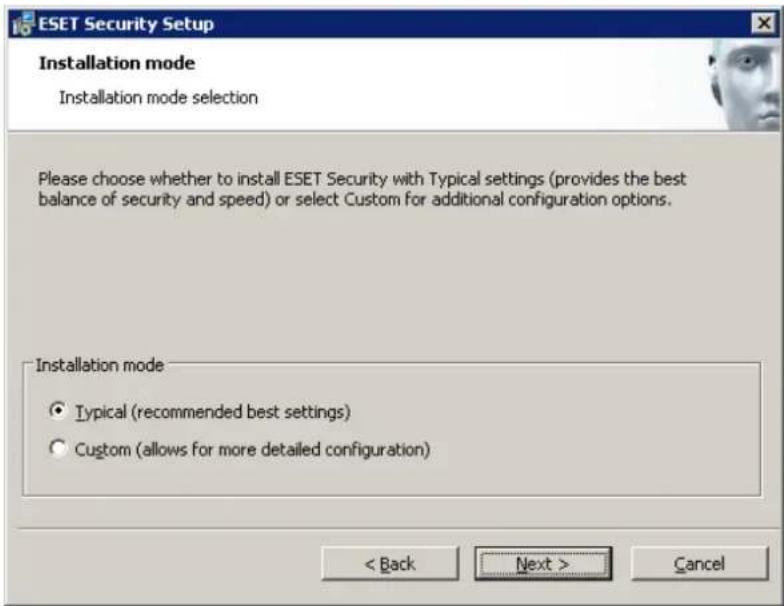
Once you launch the installer, the installation wizard will guide you through the basic setup. There are two types of installation available with different levels of setup details:
1. Typical Installation
2. Custom Installation
NOTE: We highly recommend installing ESET Security on a freshly installed and configured OS, if possible. However, if you do need to install it on an existing system, the best to do is to uninstall previous version of ESET Security, restart the server and install the new ESET Security afterwards.
2.1 Typical Installation
Typical installation mode quickly installs ESET Security with minimal configuration during the installation process. Typical installation is the default installation mode and is recommended if you do not have particular requirements for specific settings yet. After ESET Security has been installed on your system, you can modify the options and configuration settings at any time. This user guide describes these settings and functionality in detail. The Typical installation mode settings provide excellent security coupled with ease of use and high system performance.
After selecting the installation mode and clicking Next, you will be prompted to enter your Username and Password. This plays a significant role in providing constant protection to your system, as your Username and Password allows automatic virus signature database Updates 43
Enter the Username and Password, which you received after the purchase or registration of the product, into the corresponding fields. If you do not currently have your Username and Password available, it can be entered directly from the program at a later time.
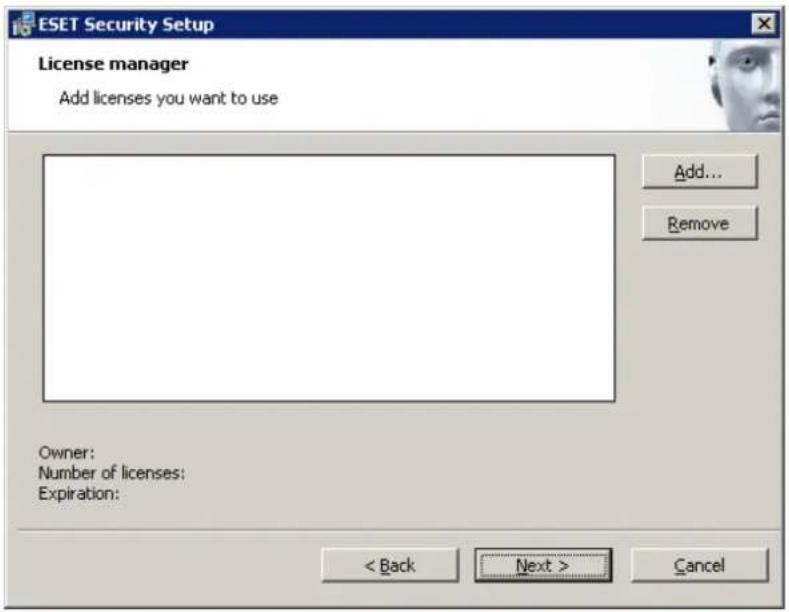
In the next step - License Manager - Add the license file that was delivered via email after you purchased your product.
The next step is to configure the ThreatSense.Net Early Warning System. The ThreatSense.Net Early Warning System helps ensure that ESET is immediately and continuously informed about new infiltrations in order to quickly protect its customers. This system allows new threats to be submitted to ESET's Threat Lab, where they are analyzed, processed and added to the virus signature database. By default, the Enable ThreatSense.Net Early Warning System option is selected. Click Advanced setup... to modify detailed settings about the submission of suspicious files.
The next step in the installation process is to configure Detection of potentially unwanted applications. Potentially unwanted applications are not necessarily malicious, but can often negatively affect the behavior of your operating system. See the Potentially unwanted applications 95 chapter for more details.
These applications are often bundled with other programs and may be difficult to notice during the installation process. Although these applications usually display a notification during installation, they can easily be installed without your consent.
Select the Enable detection of potentially unwanted applications option to allow ESET Security to detect this type of applications. If you do not wish to use this functionality, select Disable detection of potentially unwanted applications.
The next step is to specify SharePoint administrator account credentials. Installation cannot continue without the correct credentials of SharePoint administrator account as this account will be used to access SharePoint files and settings. There are also certain conditions that this account must meet for correct functioning.
NOTE: This account must have SharePoint Farm Administrators privileges, access to web site collections to be scanned and 'Log on as service' privileges. If SharePoint is configured to connect to the database using Windows authentication, this account must also be a member of the SQL Sysadmin role on the database server. It is recommended to have the Farm Administrator account created during the SharePoint installation.
NOTE: SharePoint administrator account credentials are not being stored, they're only used to create ESET SharePoint Helper service, which then has access to SharePoint files and settings.
Without entering valid logon credentials, ESET Security will not be functional after installation. In case the installation was carried out without GUI, it is necessary to set up the SharePoint administrator account using EGUI or eShell afterwards. Otherwise the product will not work.
The final step in Typical installation mode is to confirm the installation by clicking the Install button.
2.2 Custom Installation
Custom installation is designed for those who would like to configure ESET Security during the installation process.
After selecting the installation mode and clicking Next, you will be prompted to select a destination location for the installation. By default, the program installs inC:\Program Files\ESET\ESET Security. Click Browse... to change this location (not recommended).
Next, enter your Username and Password. This step is the same as the Typical installation mode step (see "Typical installation")
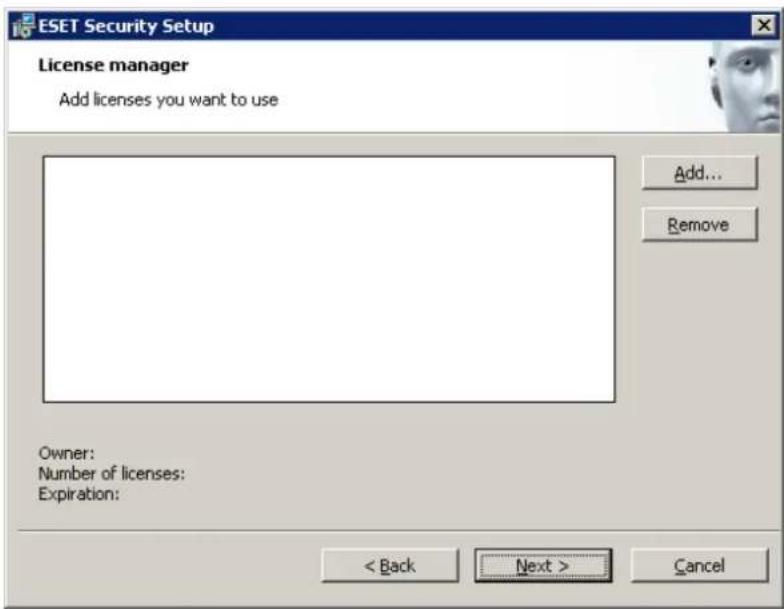
In the next step - License Manager - Add the license file that was delivered via email after you purchased your product.
After entering your Username and Password, click Next to proceed to Configure your Internet connection.
If you use a proxy server, it must be correctly configured for virus signature updates to work correctly. If you would like to have the proxy server configured automatically, select the default setting I am unsure if my Internet connection uses a proxy server. Use the same settings as Internet Explorer (Recommended) and click Next. If you do not use a proxy server, select the I do not use a proxy server option.
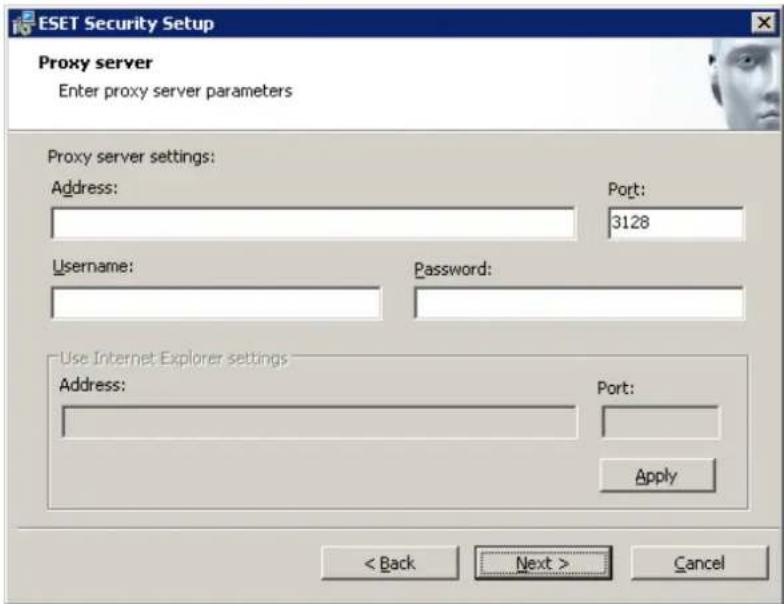
If you prefer to enter the proxy server details yourself, you can configure the proxy server settings manually. To configure your proxy server settings, select I use a proxy server and click Next. Enter the IP address or URL of your proxy server in the Address field. In the Port field, specify the port where the proxy server accepts connections (3128 by default). If your proxy server requires authentication, enter a valid Username and Password to grant access to the proxy server. Proxy server settings can also be copied from Internet Explorer if desired. Once the proxy server details
are entered, click Apply and confirm the selection.
Click Next to proceed to Configure automatic update settings. This step allows you to designate how automatic program component updates will be handled on your system. Click Change... to access the advanced settings.
If you do not want program components to be updated, select the Never update program components option. Select the Ask before downloading program components option to display a confirmation window before downloading program components. To download program component upgrades automatically, select the Always update program components option.
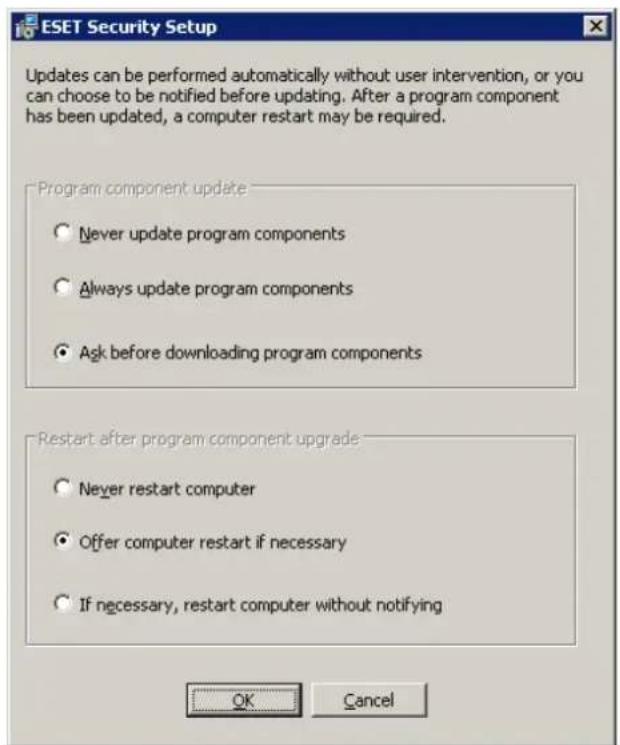
NOTE: After a program component update, a restart is usually required. We recommend selecting the Never restart computer option. The latest component updates will come into effect after the next server restart (whether it is scheduled [53], manual or otherwise). You can choose Offer computer restart if necessary if you would like to be reminded to restart the server after the components were updated. With this setting, you can restart the server right away or postpone the restart and perform it at a later time.
The next installation window offers the option to set a password to protect your program settings. Select the Protect configuration settings with a password option and choose a password to enter in the New password and Confirm new password fields.
The next three installation steps, ThreatSense.Net Early Warning System, Detection of potentially unwanted applications and SharePoint administrator account credentials are the same as the Typical installation mode steps (see "Typical installation" ^1 ).
Click Install in the Ready to install window to complete installation.
2.3 SharePoint Farm deployment
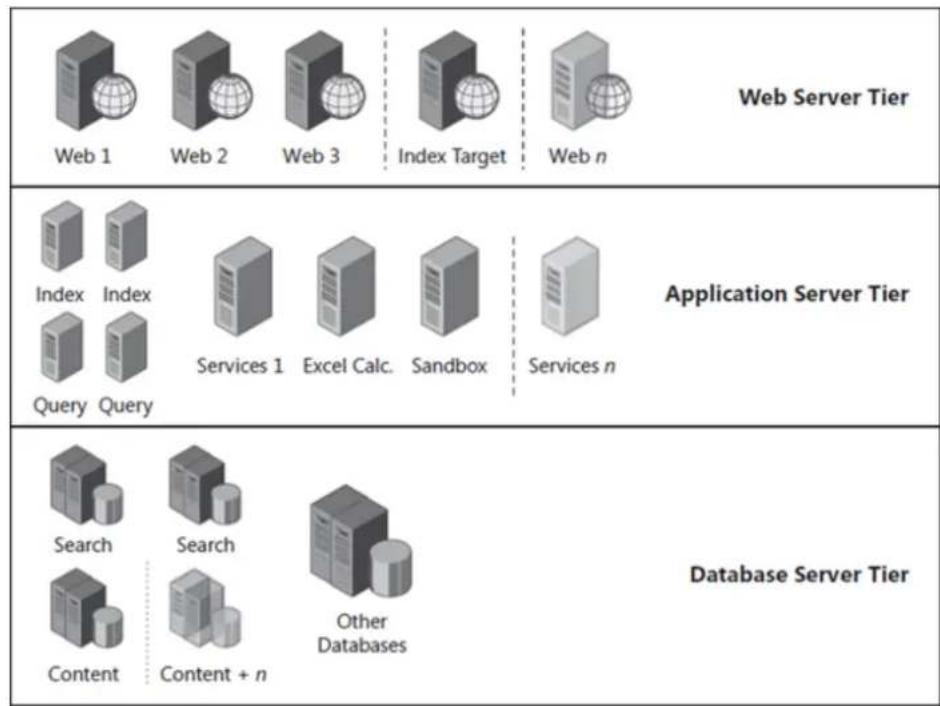
ESET Security must be installed on all SharePoint machines with the Web Server role in order to guarantee user protection by the on-access file scanner. Any of those machines can also be used to execute on-demand database scan. Optionally, ESET Security can be installed on SharePoint machine(s) with the Application Server role, where it can be used to perform on-demand database scan of the SharePoint content database.
flowchart
graph TD
    A["Web 1"] --> B["Index"]
    B --> C["Query"]
    C --> D["Search"]
    D --> E["Content"]
    E --> F["Web 2"]
    F --> G["Index"]
    G --> H["Query"]
    H --> I["Services 1"]
    I --> J["Excel Calc."]
    J --> K["Sandbox"]
    K --> L["Other Databases"]
    L --> M["Web 3"]
    M --> N["Index Target"]
    N --> O["Web n"]
    P["Web Server Tier"] --> Q["Application Server Tier"]
    R["Database Server Tier"] --> S["Database Server Tier"]
Because on-demand scan is a resource intensive operation, we recommend that you run it on a machine where increased machine load during the scan is not a problem. From a functional point of view, it is perfectly fine to run the on-demand database scan from any SharePoint farm machine that can access the content database, regardless of its role.
NOTE: It is sufficient to run on-demand database scan on a single machine selected from all the SharePoint farm machines. It will scan the whole SharePoint content database of the SharePoint farm.
The speed of on-demand database scan depends heavily on the throughput of the database server and of the network used. To increase database scanning throughput in large SharePoint farms, run on-demand database scan on more than one machine and configure each machine to scan different (non-overlapping) parts of the content database. Note that this will increase database server load and its benefits should be evaluated by the farm administrator.
2.4 Terminal Server
If you are installing ESET Security on Windows Server that acts as a Terminal Server, you might want to disable the ESET Security GUI to prevent it from starting up every time a user logs in. See Disable GUI on Terminal Server for specific steps to disable the GUI.
2.5 Upgrading to a newer version
Newer versions of ESET Security are issued to introduce product improvements or fix issues that cannot be resolved using automatic program module updates. Upgrading to a newer version can be done in several ways:
- Automatically upgrade using a program component update (PCU)
Since program component updates are distributed to all users, they are issued after a long period of testing to ensure a smooth upgrade process on all system configurations. If you need to upgrade to a newer version immediately after it has been released, use method 2 or 3. -
Manually upgrade by downloading and installing a new version over the previous installation
At the beginning of the installation you can choose to preserve current program settings by selecting the Use current settings check box. -
Manually upgrade with automatic deployment in a network environment using ESET Remote Administrator.
NOTE: To ensure security, SharePoint administrator account settings are not transferred from an old installation to a new one during an upgrade. All other settings are transferred from the old installation. It is necessary to enter your SharePoint administrator account credentials using the GUI or eShell once the upgrade process is complete.
NOTE: SharePoint administrator account credentials are not being stored, they're only used to create ESET SharePoint Helper service, which then has access to SharePoint files and settings. This is also the reason why it is necessary to enter the credentials after the upgrade process.
2.6 On-demand scan
After the installation of ESET Security, On-demand database scan and computer scan should be performed. From the main program window, click Database scan and then click Custom scan, select scan targets and run the scan. For more information about On-demand database scan, see section On-demand database scan [22].
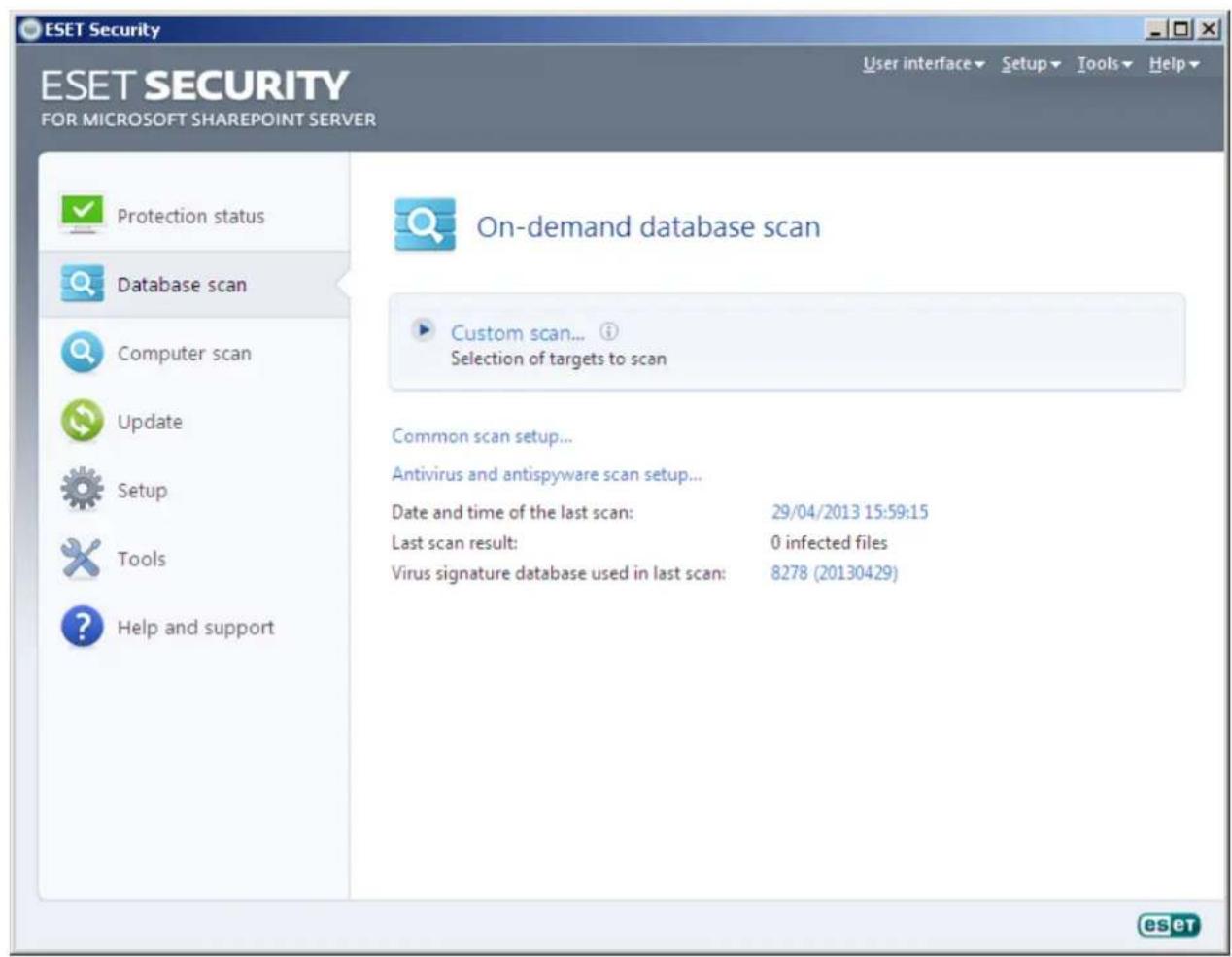
Likewise, perform On-demand computer scan by clicking Computer scan from the main window and then click Smart scan or Custom scan. For more information about On-demand computer scans, see section On-demand computer scan.32
2.7 Integration into the SharePoint
This section details the On-access filter and On-demand database scan functionalities.
2.7.1 On-access filter
The On-access filter scans all files according to "SharePoint protection settings". For example, an MS Office document stored in SharePoint and any pictures used by that document will be scanned, as well as any aspx files (which are actual SharePoint pages), css styles, icons, etc associated with the document. The scope of the files that will be sent for scanning via VSAPI is in full control of SharePoint. ESHP cannot actively decide what files will be scanned. When a file is sent for scanning/cleaning, its file name and size are noted. For these files it is not known who their owner is, what their location within SharePoint is or whether it is download or upload, or any further information. If "Scan document version" is enabled, only the current version file name will be displayed, for older versions alternate text will be used.
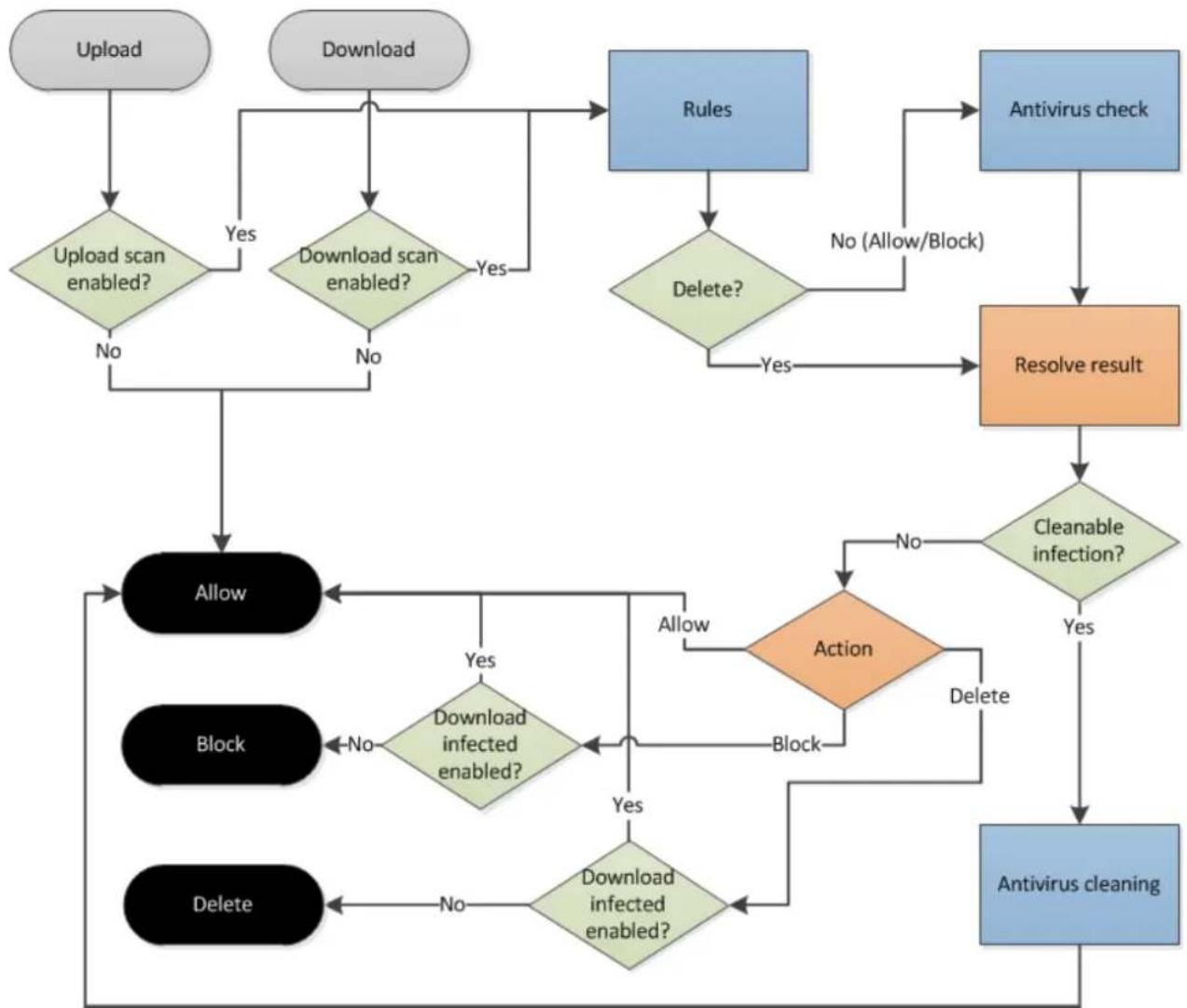
The process of On-access filter file scan is shown in the diagram below. This diagram illustrates possible actions performed by the On-access filter file scan:
flowchart
graph TD
    A["Upload"] --> B{Upload scan enabled?}
    C["Download"] --> D{Download scan enabled?}
    B -->|Yes| D
    B -->|No| E["Allow"]
    D -->|Yes| F["Rules"]
    D -->|No| E
    F --> G{Delete?}
    G -->|Yes| H["Resolve result"]
    G -->|No| I["Antivirus check"]
    H --> J{Cleanable infection?}
    J -->|Yes| K["Action"]
    J -->|No| L["Block"]
    K --> M{Download infected enabled?}
    M -->|Yes| N["Action"]
    M -->|No| O["Allow"]
    N --> P{Download infected enabled?}
    P -->|Yes| Q["Action"]
    P -->|No| R["Block"]
    Q --> S{Download infected enabled?}
    S -->|Yes| T["Action"]
    S -->|No| U["Allow"]
    T --> V{Download infected enabled?}
    V -->|Yes| W["Action"]
    V -->|No| X["Block"]
    W --> Y{Download infected enabled?}
    Y -->|Yes| Z["Action"]
    Y -->|No| AA["Block"]
    Z --> AB{Download infected enabled?}
    AB -->|Yes| AC["Action"]
    AB -->|No| AD["Block"]
    AC --> AE{Download infected enabled?}
    AE -->|Yes| AF["Action"]
    AE -->|No| AG["Block"]
    AF --> AH{Download infected enabled?}
    AH -->|Yes| AI["Action"]
    AH -->|No| AJ["Block"]
    AI --> AK{Download infected enabled?}
    AK -->|Yes| AL["Action"]
    AK -->|No| AM["Block"]
    AL --> AN{Download infected enabled?}
    AN -->|Yes| AO["Action"]
    AN -->|No| AP["Block"]
    AO --> AQ{Download infected enabled?}
    AQ -->|Yes| AR["Action"]
    AQ -->|No| AS["Block"]
    AR --> AT{Download infected enabled?}
    AT -->|Yes| AU["Action"]
    AT -->|No| AV["Block"]
2.7.2 On-demand database scan
The On-demand database scan feature is used to scan SharePoint Web sites.
Available actions are: retain, clean and delete. If deletion is executed for any reason, including during cleaning, the file is sent to the Recycle Bin. If the Recycle Bin is turned off deletion is definitive.
For each selected web site, its hierarchy of folders and files is scanned. If older versions of a particular file are present and the Scan document versions feature is enabled, then the older versions or the document are scanned first.
Notes on document version scanning:
- Scanning of older document versions can be activated in ESET Security settings (Scan document versions).
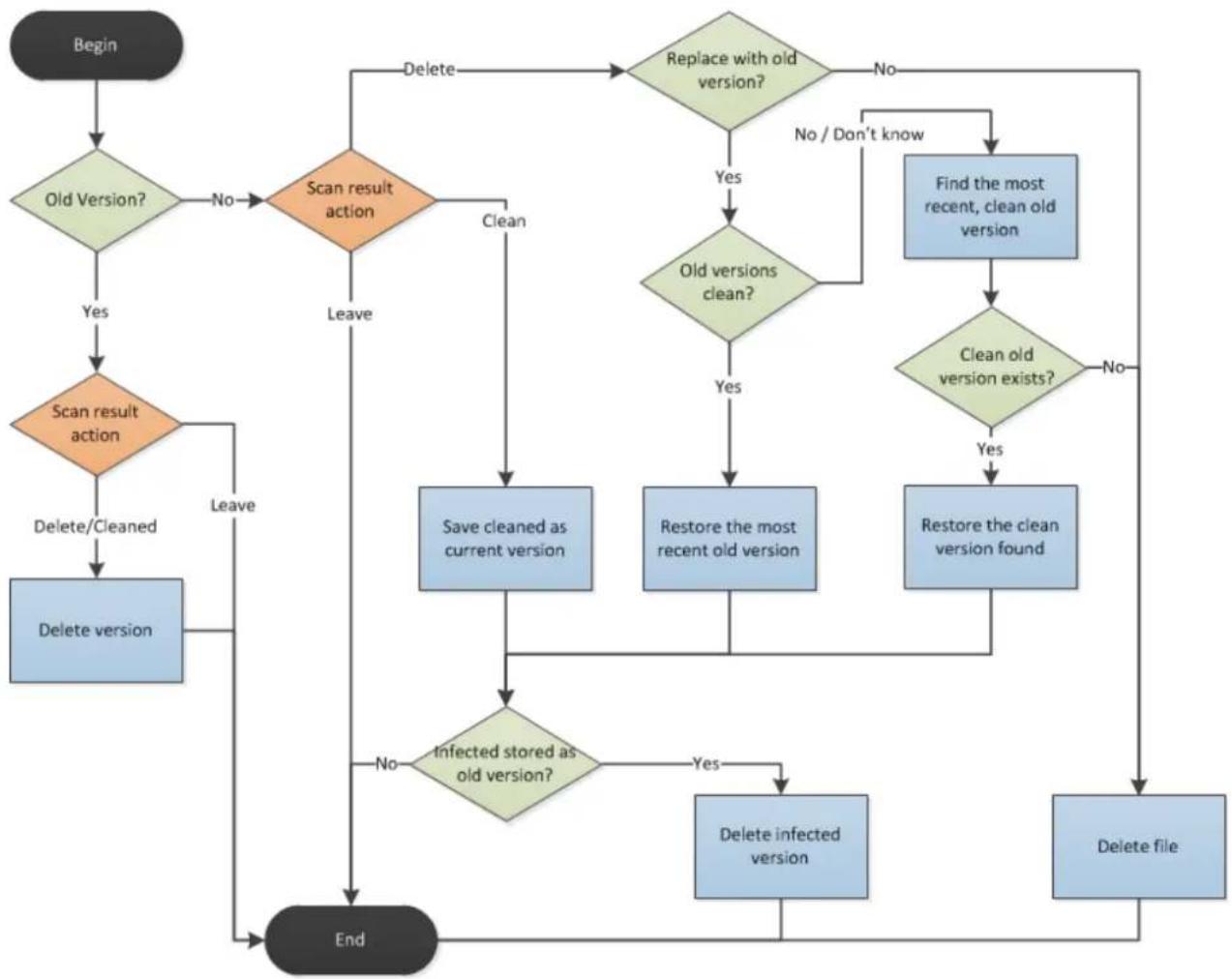
- If a document must be cleaned, a new version of the document will be created. The Infected version will be moved to trash.
- It is impossible to clean older versions of documents, they can only be deleted.
- If the most current version of a document is deleted, the older versions are kept. The most recent clean version will be used as the current document. This behavior can be activated in the settings (On document delete restore the latest clean version) and works even if Scan document versions is disabled.
Diagram of file scan result processing and subsequent action(s) taken during the on-demand database scan:
flowchart
graph TD
    A["Begin"] --> B{Old Version?}
    B -->|Yes| C{Scan result action}
    B -->|No| D["End"]
    C -->|Yes| E{Scan result action}
    C -->|No| F["Leave"]
    E -->|Delete/Cleaned| G["Delete version"]
    F --> H["Save cleaned as current version"]
    H --> I{Infected stored as old version?}
    I -->|Yes| J["Delete infected version"]
    I -->|No| K["End"]
    J --> L["Delete file"]
    K --> M["End"]
    D --> N{Replace with old version?}
    N -->|Yes| O{Old versions clean?}
    N -->|No| P["Find the most recent, clean old version"]
    O -->|Yes| Q{Clean old version exists?}
    Q -->|Yes| R["Restore the clean version found"]
    Q -->|No| S["End"]
    O -->|No / Don't know| T["End"]
3. Beginner's guide
This chapter provides an initial overview of ESET Security and its basic settings.
3.1 Introducing user Interface design
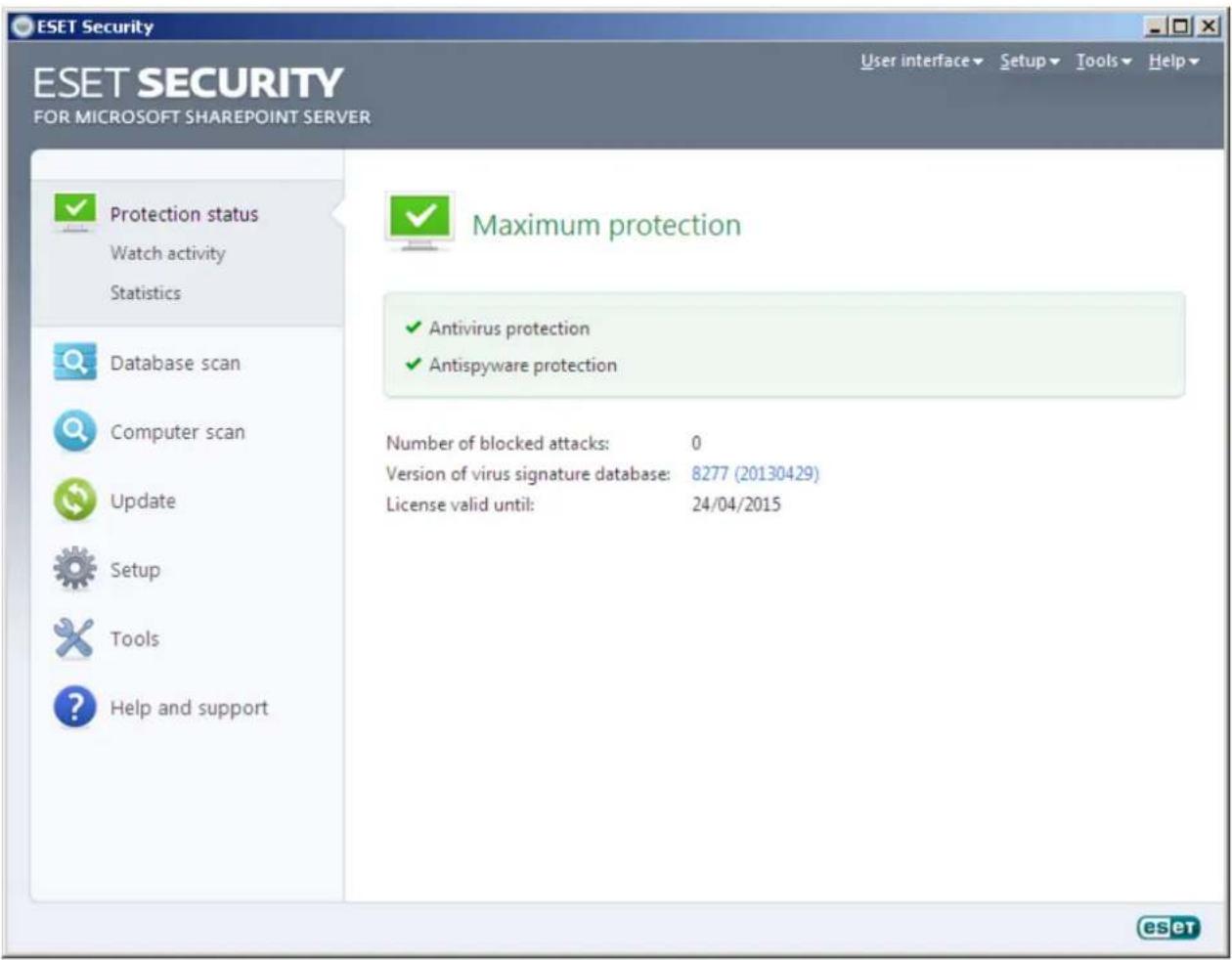
The main program window of ESET Security is divided into two main sections. The primary window on the right displays information that corresponds to the option selected from the main menu on the left.
The following is a description of the options within the main menu:
Protection status - Provides information about the protection status of ESET Security. When you click on this option, the Watch activity and Statistics submenu will be displayed as well.
Database scan - This option lets you launch and use the Database scan.
Computer scan - This option allows you to configure and launch the On-demand computer scan.
Update - Displays information about updates to the virus signature database.
Setup - Select this option to adjust your computer's security level. If Advanced mode is activated, the Antivirus and antispyware submenu will display.
Tools - Provides access to Log files, Quarantine, Scheduler and SysInspector. This option only displays in Advanced mode.
Help and support - Provides access to help files, the ESET Knowledgebase, ESET's website and links to open a Customer Care support request.
3.1.1 Checking operation of the system
To view the Protection status, click the top option from the main menu. A status summary about the operation of ESET Security will display in the primary window, and a submenu with two items will appear: Watch Activity and Statistics. Select either of these to view more detailed information about your system.
When ESET Security is fully functional, Protection status appears in green. If it is orange or red ESET Security requires your attention.
Click Watch Activity from the Protection status submenu to watch a graph of current file system activity in real time (horizontal axis). The vertical axis shows the amount of read data (blue line) and amount of written data (red line).
The Statistics submenu allows you to see the number of infected, cleaned and clean objects for a particular module. There are a number of modules you can choose from by selecting from the drop-down list.
3.1.2 What to do if the program doesn't work properly
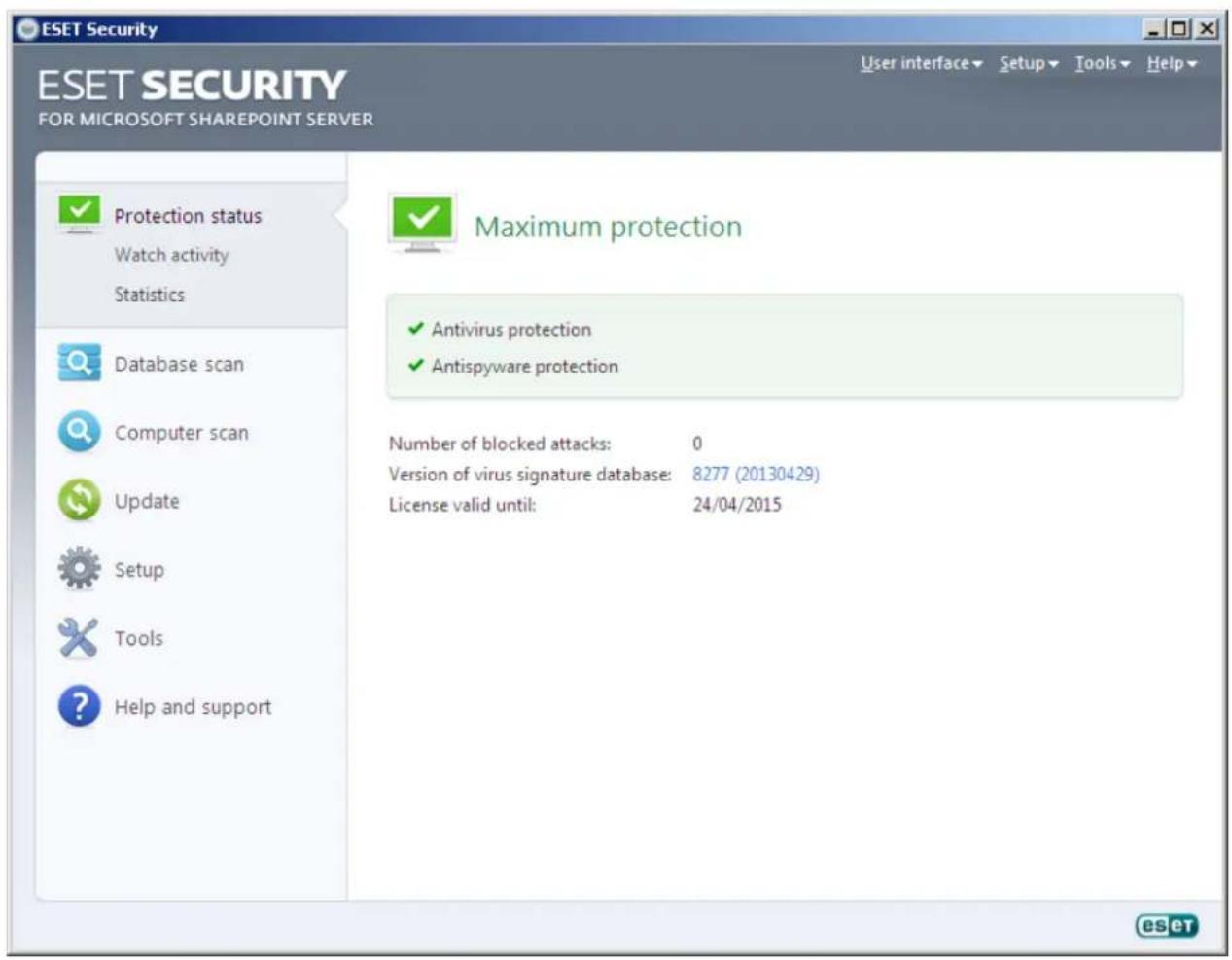
If a module is enabled and working properly, it is assigned a green check. If not, a red exclamation point or orange notification icon is displayed, and additional information about the module is shown in the upper part of the window. A suggested solution for fixing the module is also displayed. To change the status of individual modules, click Setup in the main menu and click on the desired module.
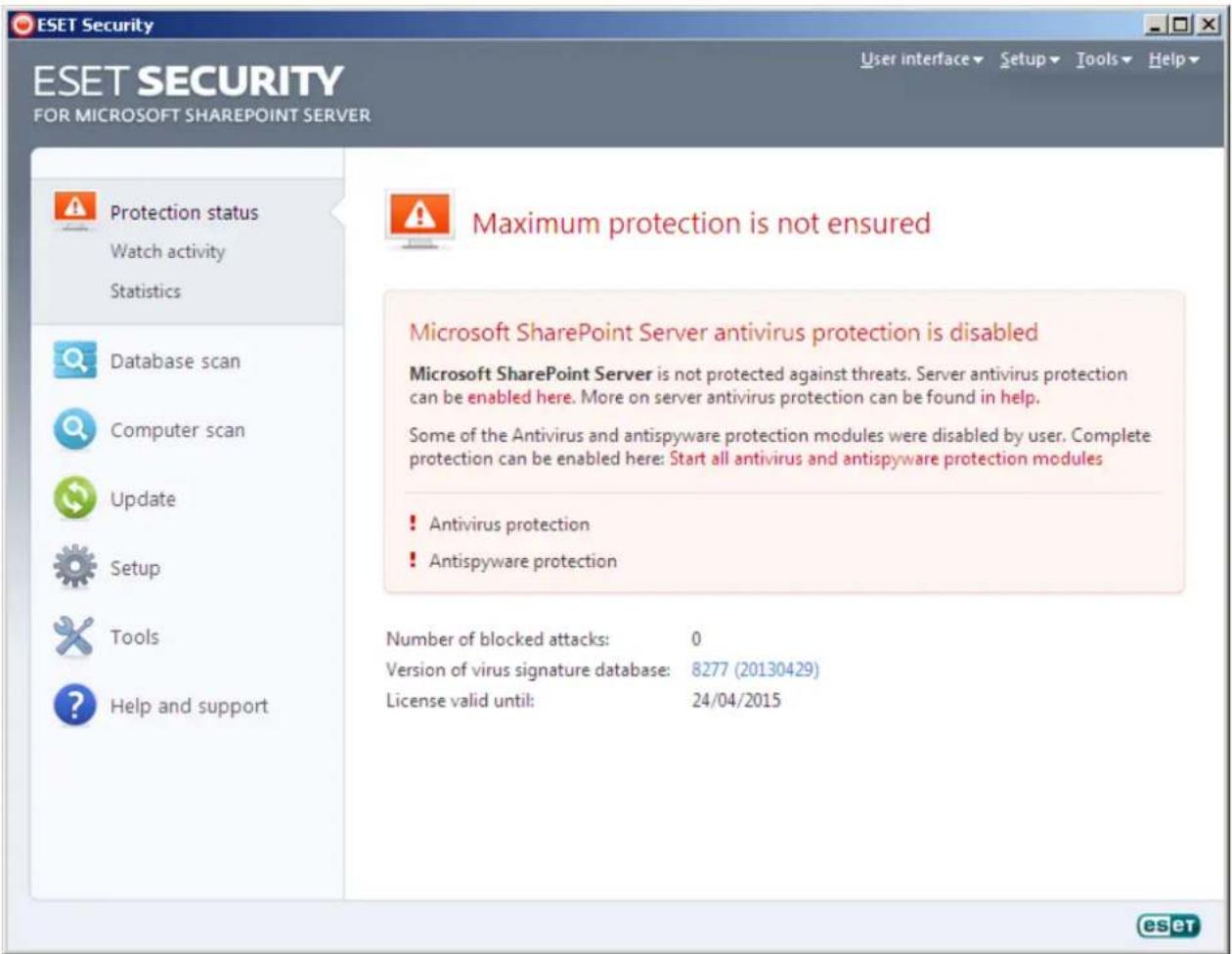
If you are unable to solve a problem using the suggested solutions, click Help and support to access the help files or search the Knowledgebase. If you still need assistance, you can submit an ESET Customer Care support request. ESET Customer Care will respond quickly to your questions and help determine a resolution.
3.2 Update Setup
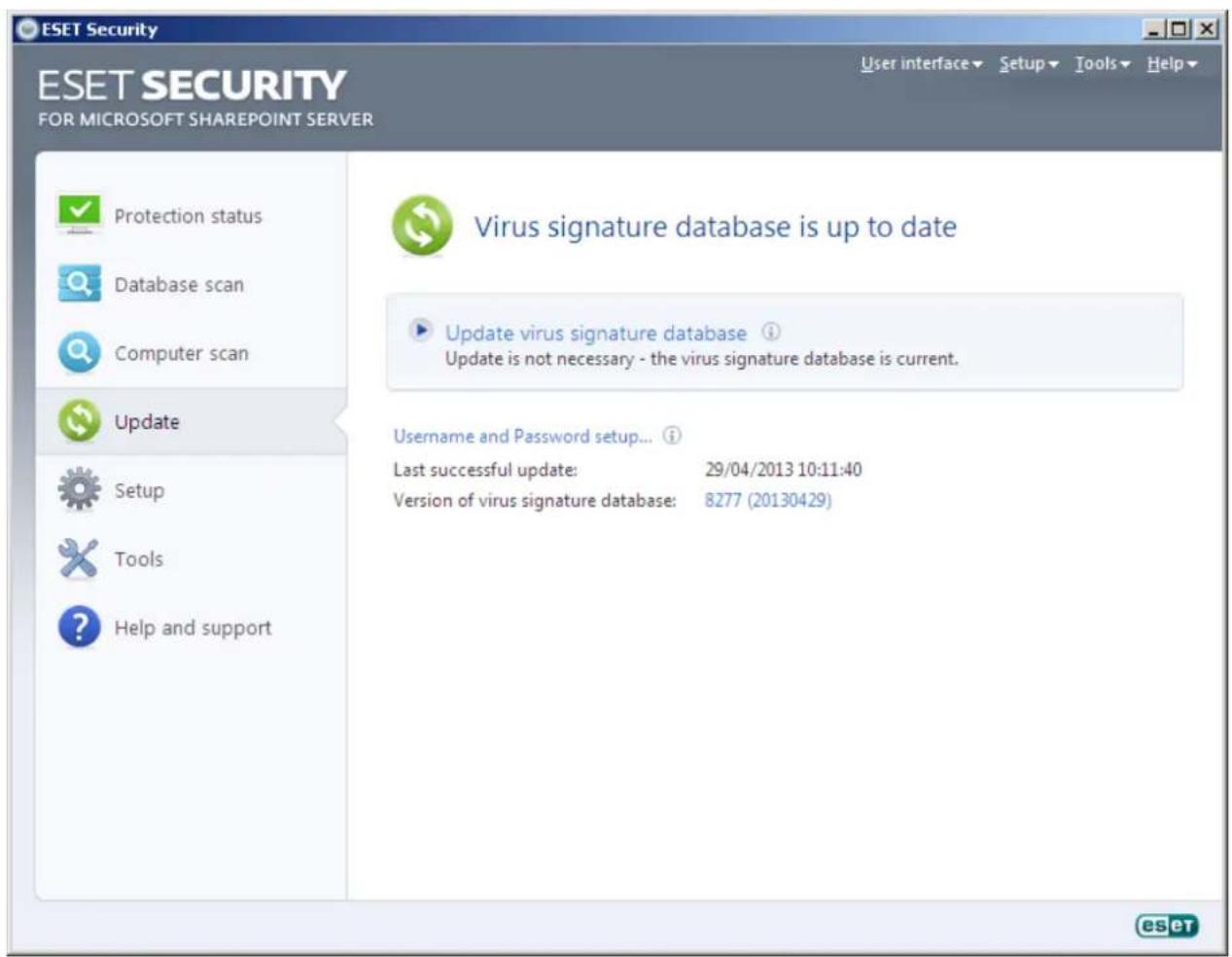
Updating the virus signature database and updating program components are important parts of providing complete protection against malicious code. Please pay attention to their configuration and operation. From the main menu, select Update and then click Update virus signature database in the primary window to check for a newer database update. Username and Password setup... displays a dialog box where your Username and Password (received at the time of purchase) should be entered.
If your Username and Password were entered during the installation of ESET Security you will not be prompted for them at this point.
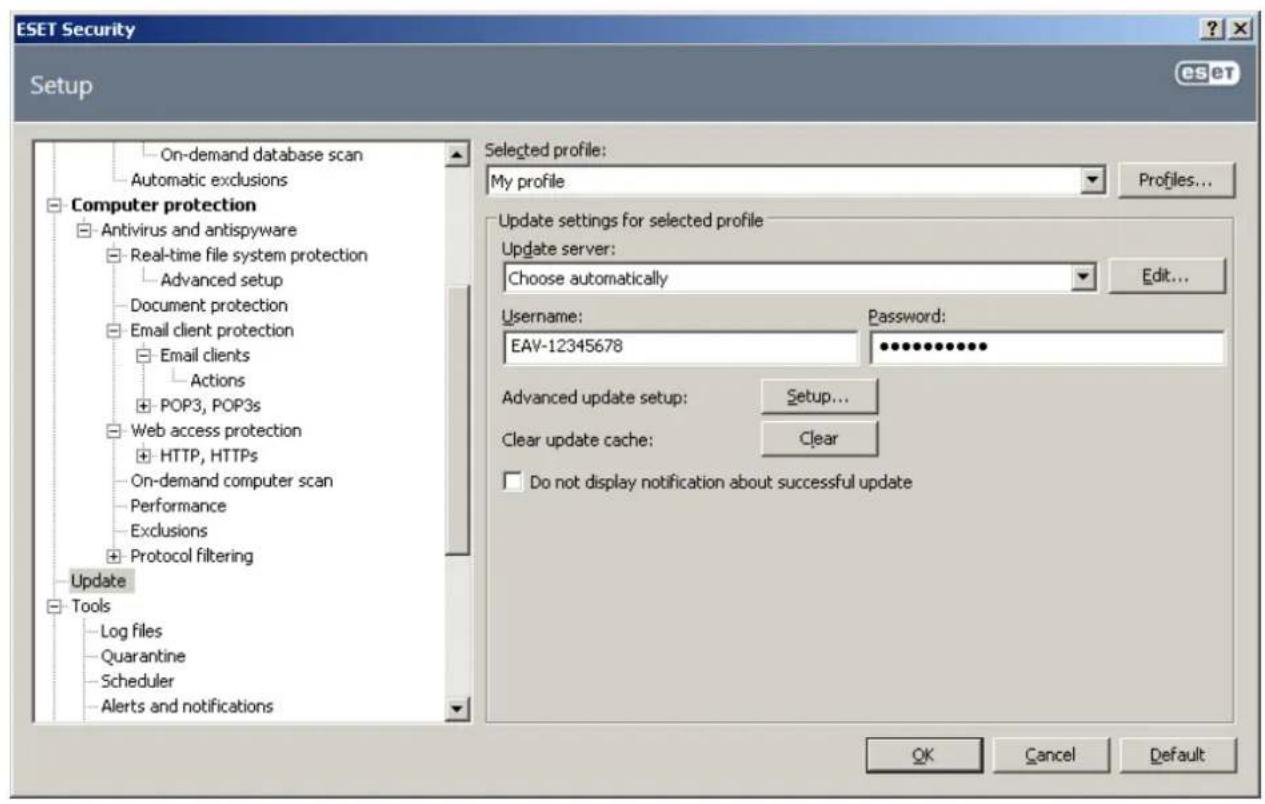
The Advanced Setup window (click Setup from the main menu and then click Enter entire advanced setup tree, or press F5) contains additional update options. Click Update from the Advanced Setup tree. The Update server dropdown menu should be set to Choose automatically. To configure advanced update options such as the update mode, proxy server access, LAN connections and creating virus signature copies, click Setup.
3.3 Proxy server setup
If you use a proxy server to control Internet connections on a system using ESET Security, you must specify server settings in Advanced setup. To access the Proxy server configuration window, press F5 to open the Advanced setup window and click Miscellaneous > Proxy server from the Advanced setup tree. Select Use proxy server, and fill in the Proxy server (IP address) and Port fields. If needed, select Proxy server requires authentication and then enter your Username and Password.
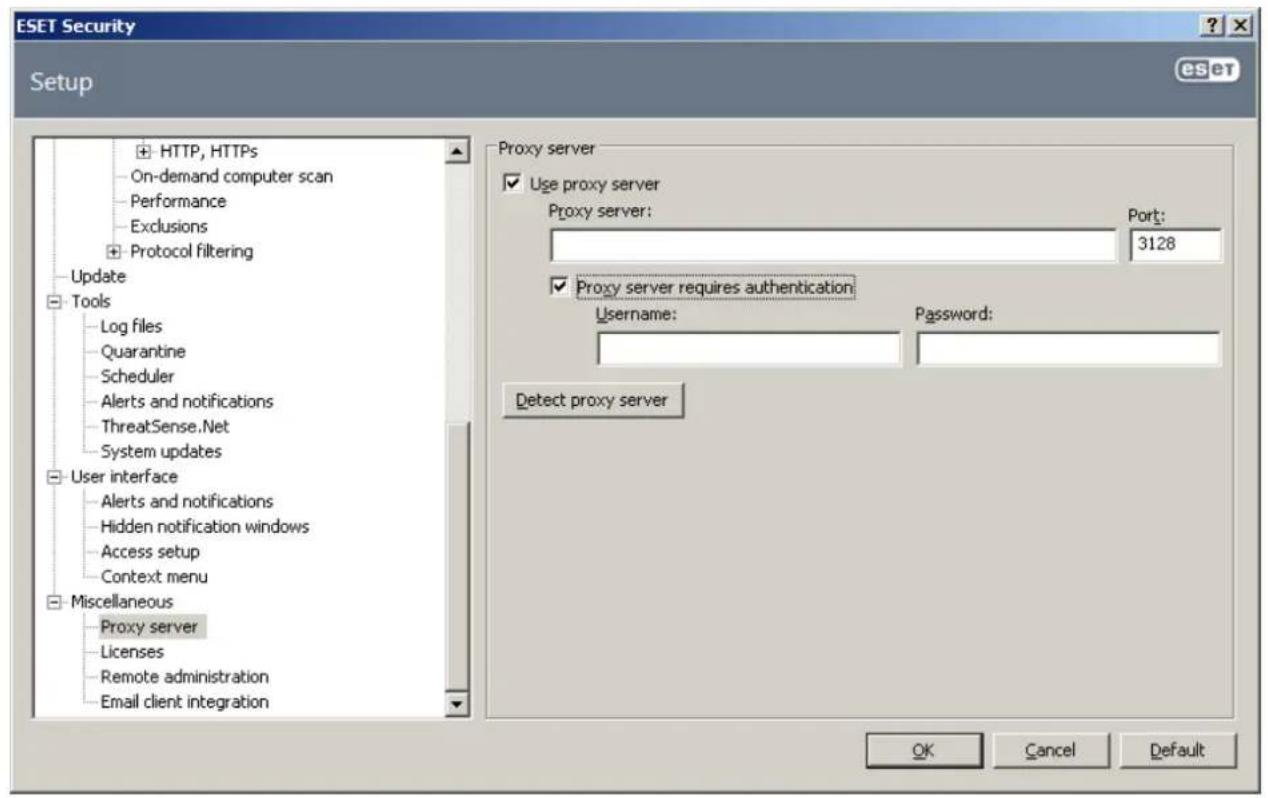
If this information is not available, you can try to automatically detect proxy server settings by clicking Detect proxy server.
NOTE: Proxy server options for various update profiles may differ. If this is the case, configure the different update
profiles in Advanced Setup by clicking Update from the Advanced setup tree.
3.4 Settings protection
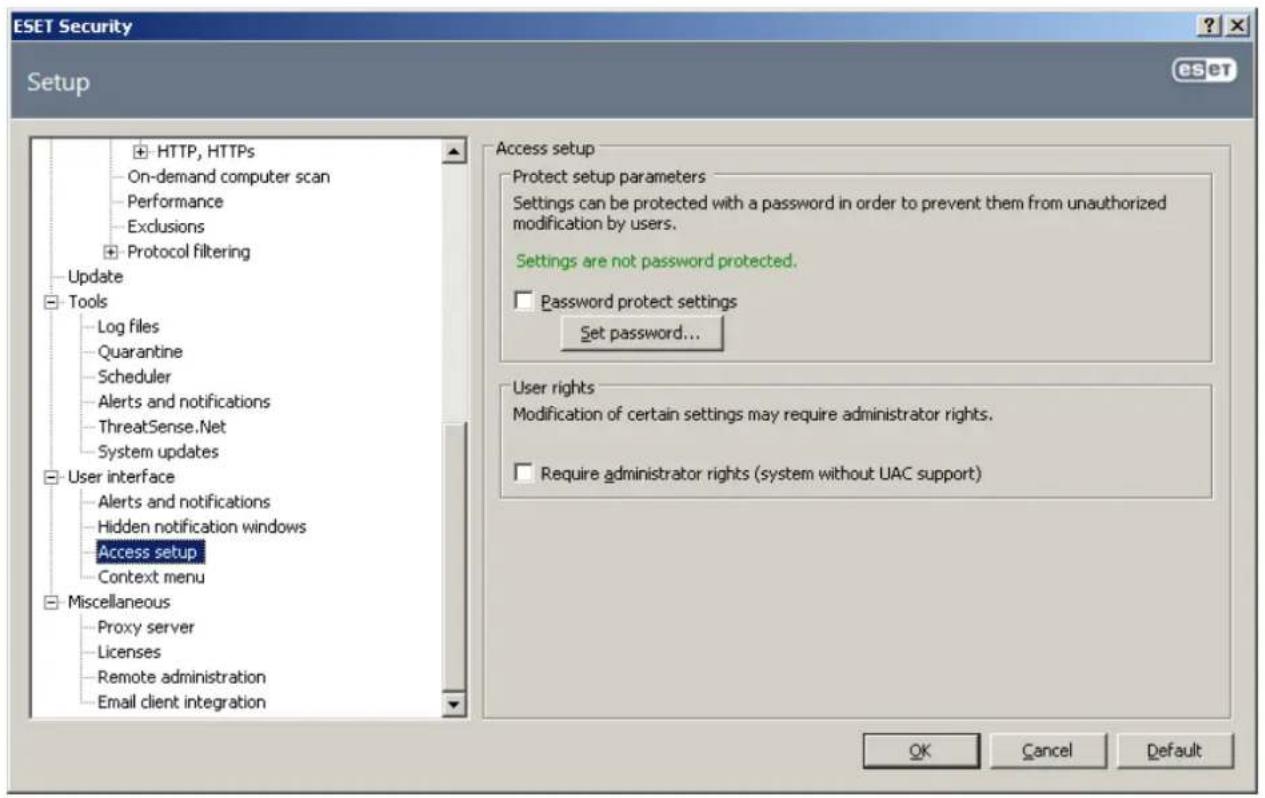
ESET Security settings can be very important from the perspective of your organization's security policy. Unauthorized modifications can potentially endanger the stability and protection of your system. To password protect the setup parameters, from the main menu click Setup > Enter entire advanced setup tree... > User interface > Access setup, select Password protect settings and click Set password.
Enter a password in the New password and Confirm new password fields and click OK. This password will be required for any future modifications to ESET Security.
4. Work with ESET Security
4.1 ESET Security - Server protection
ESET Security provides protection for your server with essential functionalities such as: SharePoint protection, Antivirus and Antispyware and Resident shield (Real-time protection). You can read more on each type of protection under ESET Security - Computer protection. Additionally, there is a feature called Automatic exclusions 28 that identifies critical server applications and server operating system files and automatically adds them to the list of Exclusions 37. This functionality will minimize the risk of potential conflicts and increase the overall performance of the server when running antivirus software.
4.1.1 SharePoint
ESET Security for Microsoft SharePoint Server is a security solution for Microsoft SharePoint products. By default, SharePoint is protected by real-time protection (on-access filter). Additionally, on-demand database scan can be used at any time to examine specific files. Automatic exclusions are used for increased performance and reliability. This is to avoid possible infiltration and thus prevent any damage that infiltration may cause.
Antivirus and antispyware protection is provided by:
• Filtering during file access (on-access filter)
- On-demand database scan (on-demand scan)
You can define custom rules for more secure protection of your files. User-defined rules can be based on the following conditions:
- File name
- File size
- File type (actual content of the file)
In the Advanced setup tree, you can see the configuration of each component of ESET Security and make any desired changes.
SharePoint administrator account - these are the credentials that are used to access SharePoint configuration files. The credentials you specified during installation will be displayed here.
NOTE: These credentials must be updated in the Advanced setup tree any time that they are changed. If the credentials entered here do not match those used by the Sharepoint administrator account, ESET Security will not function properly and will not provide maximum protection.
NOTE: This account must have SharePoint Farm Administrators privileges, access to web site collections to be scanned and 'Log on as service' privileges. If SharePoint is configured to connect to the database using Windows authentication, this account must also be a member of the SQL Sysadmin role on the database server. We recommend that you use the Farm Administrator account created during SharePoint installation.
If you do not enter valid logon credentials, ESET Security will not be functional after installation. If installation is performed without using the GUI, it will be necessary to set up the SharePoint administrator account using EGUI or eShell afterwards, otherwise the product will not work.
4.1.1.1 On-access filter
To configure the parameters of the On-access filter, press F5 to access the Advanced setup tree, navigate to Server protection > SharePoint and click On-access filter. In this window, you can customize the parameters of the On-access filter.
Start on-access filter automatically will automatically start the on-access filter after each server restart.
SharePoint Protection Settings:
- Scan documents on upload - documents uploaded to SharePoint will be scanned via the web interface whenever they are saved in MS Office programs and during synchronization via SharePoint workspace.
- Scan documents on download - documents downloaded from SharePoint via a web interface will be scanned when downloading. This includes pictures and documents opened from MS Office programs during synchronization via SharePoint workspace.
- Allow users to download infected documents - when enabled, SharePoint will display a warning about infected files when they are found, but you will still be able to open infected files and these files will be blocked rather than deleted. If disabled, a message will be shown saying the document is infected and the download is not possible. Note that the SharePoint administrator is always allowed to download infected files regardless of this setting.
- Attempt to clean infected documents - when enabled, infected documents that are cleanable will be cleaned. Documents that can't be cleaned will never get sent for cleaning.
Time out duration (in seconds): - the maximum time SharePoint will wait for a response from ESET Security. If no response is received, it will report an AV scanner error. Default is 300 seconds.
Number of threads: - number of instances for each w3wp process. SharePoint usually uses three w3wp processes. A total of 15 (3x5) scanner objects are available. This limits the maximum number of files downloaded/uploaded at the same time. This is not the same as number of ThreatSense scan engines.
4.1.1.2 On-demand database scan
From the main program window, you can run an On-demand database scan by clicking Custom scan. A window will open where you can scan all targets or select your specific targets. For more information see On-demand database scan targets.[23]
To configure the parameters of the On-demand database scan click Common scan setup (also accessible from the Advanced setup tree).
To select Scan targets press Setup. A dialog window will open where you can select SharePoint websites that you want to scan. A list of websites will be displayed. You can choose All targets or use Selected targets to customize your selection within the websites tree. Select the check box next to a website to add it to the scan. To add a website, copy and paste its URL into the dialog window. A view of the folders and files stored in SharePoint is not available, so you can only choose whole website, not specific files. The list may take a few moments to populate depending on the number of sites available and their complexity. If changes to websites are made, you can refresh the list by pressing F5. When you see the list, you can use the check boxes to select the websites you want to scan.
Scan in read-only mode - infected documents will not be cleaned or deleted. The delete rule action will not be applied. Scan document versions - if other versions of the same document exist within the SharePoint database, these will also be scanned.
On document delete restore the latest clean version - when an infected document is deleted, older non-infected versions are scanned. If older versions that are not infected exist, the most recent clean version will be restored and made the current version. This option is not available when Scan in read-only mode is enabled.
Once you have specified targets and parameters, press Scan to start the scanning process.
For each selected web site, its hierarchy of folders and files is scanned. Each file, user document or other SharePoint internal file is stored in a temporary file which is then sent to the kernel for scanning. If there are also older versions of a particular file and the Scan document versions feature is enabled, then the older versions are scanned first.
Notes on document version scanning:
- The scanning of older versions of documents can be activated in program settings (Scan document versions).
- New versions of documents are created during cleaning. Infected versions are moved to trash.
- It is impossible to clean older versions, they can only be deleted. Instead of cleaning, the version is deleted.
- If the current document version is deleted, the older versions are kept. The most recent clean version will be used as current. This behavior can be activated in program settings (On document delete restore the latest clean version) and works even if Scan document versions is disabled.
4.1.1.2.1 On-demand database scan targets
In this dialog window you can select SharePoint websites that you want to scan and run the scanning process. A list of websites will be displayed. In the Scan targets drop-down menu, you can choose All targets or Select targets. When selecting targets manually, click on the check box next to a website to add it to the scan. To add a website, copy and paste its URL into the dialog window. The list might take a few moments to populate, depending on the number and complexity of sites in the list. Also, if any changes to the sites are made, you can refresh the list by pressing F5. When you see the list, you can use the check boxes to select the websites you want to scan.
In the hierarchy displayed below there is a SharePoint web application on the top that contains one or more SharePoint web site collections, which in turn contain SharePoint websites themselves. Websites are arranged in a hierarchical manner, one of them always being the root.
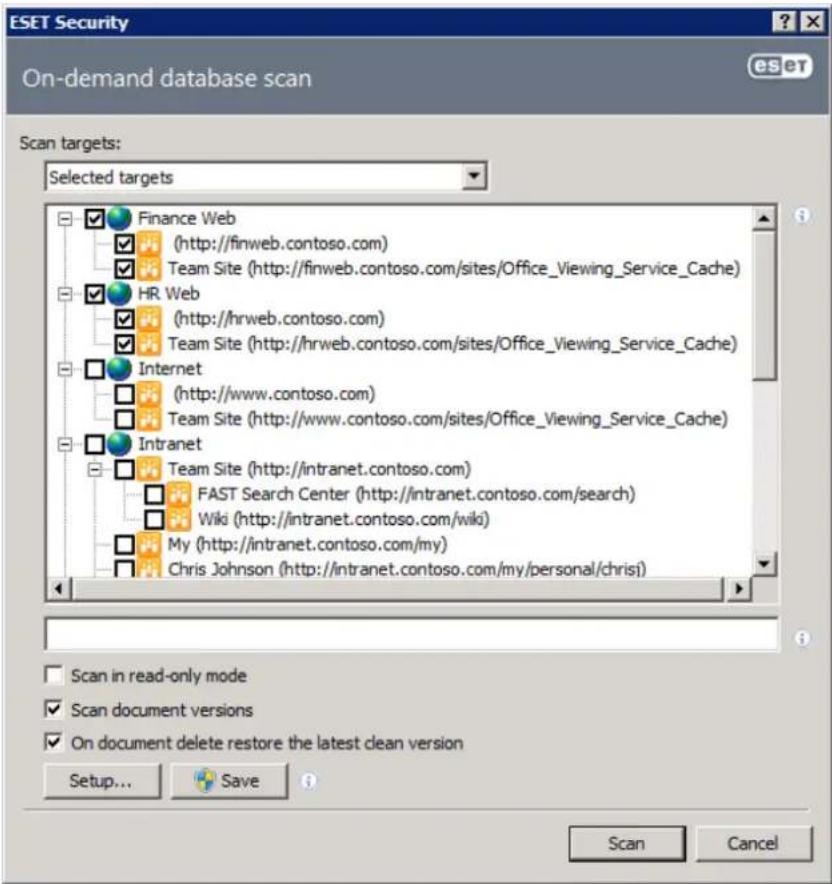
The web site hierarchy is retrieved from SharePoint the first time it is to be displayed and is cached in the ESET SharePoint Helper Service for faster access. The web site hierarchy is refreshed automatically after a certain amount of time has elapsed, but can also be refreshed by pressing the F5 key.
Once you have specified targets and parameters, press Scan to start the scanning process.
4.1.2 Rules
The Rules menu item allows administrators to manually define and manage file filtering conditions and actions to take with filtered files. The rules are applied according to a set of combined conditions. Multiple conditions are combined with the logical operator AND, applying the rule only when all the conditions are met. The Hits column (next to each rule name) displays the number of times the rule was successfully applied.
There are a few default pre-defined rules which prevent other rules or actions from damaging the SharePoint Central Administration site or other SharePoint web interface related files.
Skip other rules for web interface files [Enabled] - skips elements of web interface from scanning (on-access filter and on-demand database scan). This rule should be at the top of the list if possible. This is to ensure that web interface files will not be deleted if rules are configured incorrectly. It is still possible to remove pictures, which are part of the web interface, if incorrectly defined rules are used. This rule does not have an effect on antivirus protection functionality.
Do not allow executable files [Disabled] - deletes executable files from SharePoint. The file will be blocked when a request to save it is made. The file is checked based on its content, not the file name.
NOTE: We strongly recommend that you do not remove or modify pre-defined rules. This applies especially to the Skip other rules from web interface files rule (otherwise essential files of SharePoint web interface might get damaged or be deleted by incorrectly defined custom rules).
Use the buttons to manage your rules:
- Add... - runs a wizard for adding a new rule
- Edit... - runs a wizard for modifying existing rule, selected (highlighted) rule is being modified
- Remove - removes selected (highlighted) rule, it is possible to select and delete multiple rules at once
- Clear - clears the hit counter, it is possible to reset multiple rule counters at once
- Move up / Move down - moves the rule up or down in the list in order to change the priority of the rule
Deselecting a check box deactivates the current rule. Select the check box to reactivate the corresponding rule.
Scan using rules is performed first. They allow for scanning based upon following conditions:
- File name
- File size
- File content type
Antivirus scan is performed second, after the scan based on rules. Scan is always performed when antivirus protection is enabled, even if rules blocked the file. Antivirus scan is not performed in case rules marked the file for deletion. Antivirus scan uses the ThreatSense engine 37 bit is possible to change the number of ThreatSense scan engines. Separate scanner settings are used for:
- On-access filter scan 22
• On-demand database scan 22
4.1.2.1 Add new rule - conditions
This wizard guides you through adding user-specified rules with combined conditions.
- By the file name - applies to files with a specific name, if this condition is chosen, it allows you to specify a mask for the specified file name, you can use wildcards *? etc.
NOTE: This condition applies to the file name only, regardless of file path.
- By the file size - applies to files exceeding the defined size. If this condition is selected you can specify a maximum file size and when file size exceeds the set value the rule will be applied.
- By the file type - applies to files of a specified type (actual file type is detected by its contents, regardless of file name or extension), if this condition is chosen, it allows you to select one or more file types for which the rule is applied, for a complete list of file types detected see our Knowledgebase article
4.1.2.2 Add new rule - file name
Enter a condition that the rule will apply to files with a specific file name. You can use the wildcards * and ?. Multiple conditions must be separated by semicolon.
4.1.2.3 Add new rule - file size
Enter a condition that the rule will apply to files in violation of the file size specified. The rule will be applied to all files that exceed the size limit.
4.1.2.4 Add new rule - file type
Select file types that the rule will apply to. It is possible to select multiple file types. Actual file content is detected by its contents, regardless of file name or extension. This allows you to select one or more file types for which the rule is applied, for a complete list of file types detected see our Knowledgebase article.
4.1.2.5 Add new rule - actions
This section allows you to select actions to take with files matching conditions defined in rules.
On-access filter primary actions are (drop-down menu):
- No action – no action will be taken with the file
- Block – file upload or download is blocked
- Mark for delete – will not upload the file on upload attempt, will delete file during indexing, will mark the file for deletion on download attempt. If the user who is downloading the file has appropriate rights, the file will get deleted. Message type shown to the user is handled by SharePoint. In SharePoint 2007 the message says that file was deleted, despite the fact that user does not have the rights and the file wasn't actually deleted. In SharePoint 2010 and 2013, a correct message is shown.
On-access filter further actions (check boxes):
- Quarantine file - moves file into quarantine, even if antivirus quarantine is disabled
- Submit file for analysis - sends suspicious file via ThreatSense.Net to ESET lab for analysis
- Send event notification - works only when alerts and notifications are enabled in Tools > Alerts and notifications and sends notifications based on the settings
- Log - writes information into the log Tools > Log files > Events that a rule has been applied, including the rule(s) name, works when rule logging is enabled in Server protection > Log files > Log rule application
- Evaluate other rules - allows the evaluation of other rules, providing the administrator with the ability to define multiple sets of conditions and multiple actions to take, given the conditions, if disabled and the rules matches, no other rules are evaluated regardless of the rule action, antivirus scan is always performed
On-demand database scan primary actions are (drop-down menu):
- No action – no action will be taken with the file
- Delete – file is deleted from the database
On-demand database scan further actions, same as for on-access filter (check boxes):
- Quarantine file – moves the file into quarantine, provided that antivirus quarantine is not disabled
- Send file for analysis - sends the suspicious file via ThreatSense.Net to ESET lab for analysis
- Send event notification - works only when alerts and notifications are enabled in Tools > Alerts and notifications and sends notifications based on the settings
- Log – writes information into the log Tools > Log files > Events that a rule has been applied, including the rule(s) name. The Delete action is always logged
- Evaluate other rules - allows the evaluation of other rules, providing the administrator the ability to define multiple sets of conditions and multiple actions to take given those conditions. If this is disabled and the rules match, no other rules are evaluated regardless of the rule action and antivirus scan is always performed
4.1.2.6 Add new rule - rule name
Enter a rule name and a comment. The rule will be identified by its name and the comment will be displayed as well when the rule action block or delete is applied. You can use variables in your comments.
Rule name will be shown in the rules list. Rule name is written into the log Tools > Log files > Events when this rule is applied.
Rule comment - a custom defined text or a message, which will be shown to a user when block action or mark for deletion action is performed. Simply, when it is not possible to display/download file from/to SharePoint. The message may contain following variables:
%RULENAME% - rule name.
%MATCHCOUNT% - number of times a rule was applied.
%FILENAME% - file name.
%FILESIZE% - file size.
%FILETYPE% - file type. Works correctly only if the rule has file type condition, otherwise unknown file type is shown.
%PRODUCTNAME% - product name, in this case: ESET Security.
4.1.3 Log files
Log files settings let you choose how the log file will be assembled. More detailed protocol can contain more information, but it may slow down server performance.
If Synchronized writing without using cache is enabled, all log entries will be written immediately in the log file without being stored in the log cache. By default, ESET Security components running in Microsoft SharePoint Server store log messages in their internal cache and send them to the application log at regular intervals to preserve performance. In this case, however, the diagnostic entries in the log might not be in the proper order. We recommend keeping this setting turned off unless it is necessary for diagnostics. You can specify the type of information stored in the log files in the Content menu.
- Log rule application - when this is enabled, ESET Security writes the name of all activated rules to the log file.
- Log performance - logs information about the time interval of a performed task, size of the scanned object, transfer rate (kb/s) and performance rating. It also logs information about how fast the files being scanned are written to the log. Summary info is being written each minute but only if new data are available. If there is no on-access filter activity, no records are written. If diagnostic logging is enabled, performance info is written for each file scanned by on-access scan. Duration of file scan operations (in percent of overall time) is written in following order: File operations, Rule check, Antivirus scan.
- Log diagnostic information - logs diagnostic information needed for fine-tuning of the program to the protocol; this option is mostly for debugging and identifying problems. We recommend that you leave this disabled. To see diagnostic information provided by this function, set the Minimum logging verbosity to Diagnostic records under Tools > Log files > Minimum logging verbosity.
4.1.4 Performance
In this section you can define a folder to store temporary files in to improve the program's performance. If no folder is specified, ESET Security will create temporary files in the system's standard temp folder.
NOTE: In order to reduce potential I/O and fragmentation impact, we recommend placing the temporary folder on a different hard drive than the system drive or the drive on which SharePoint server is installed. We strongly recommend that you avoid assigning the Temporary folder to removable media such as floppy disk, USB, DVD, etc. Also, to further increase performance you can use a logical drive located on a physical RAID array (preferably RAID O, RAID 5 or one of the nested RAID levels, such as O+1, 1+O, etc.) attached directly to the server or connected via fibre channel.
NOTE: You can use system variables (e.g. %SystemRoot%|TEMP) when configuring Performance settings.
4.1.5 Antivirus and antispyware protection
Antivirus protection guards against malicious system attacks. If a threat with malicious code is detected, the Antivirus module can eliminate it by first blocking and then cleaning, deleting or moving it to quarantine.
You can enable antivirus and antispyware SharePoint server protection by selecting Enable antivirus and antispyware server protection. Note that antivirus and antispyware protection is turned on automatically after every restart of the service/computer. ThreatSense engine parameter setup 37 is accessible by clicking Setup....
4.1.5.1 SharePoint
ESET Security for Microsoft SharePoint Server uses two types of protection. One type filters files during access and the other scans files on demand. To configure and set the parameters for each, click on the appropriate item in the Advanced setup tree under Server protection > Antivirus and antispyware > SharePoint:
- On-access filter
- On-demand database scan
4.1.5.1.1 On-access filter
Enable Microsoft SharePoint Server on-access antivirus an antispyware filtering enables or disables file access antivirus protection. When disabled, protection using rules is still working. When enabled, you can customize its settings.
Press Setup to configure the ThreatSense engine parameters for SharePoint antivirus and antispyware.
Actions to take if cleaning not possible: allows you to select the action to take when an infected file is found and cleaning is not possible:
- No action - no changes are made. If uploaded, infected files will be stored on SharePoint and users will have access to them.
- Block - infected file is blocked and will not be uploaded/downloaded, also, if possible a message will be shown notifying the user of why the file wasn't uploaded/downloaded.
- Mark for delete - file is suggested to be deleted and SharePoint will decide on deletion on its own. It is usually impossible to delete the file when a user is accessing it (during download) as the user does not have write/delete rights. This option is not available when ThreatSense engine parameter cleaning level is set to No cleaning. However, if the user downloading the file has appropriate rights the file will be deleted. The Message type shown to the user is handled by SharePoint. In SharePoint 2010 and 2013, a correct message is shown. In SharePoint 2007 the message says the file was deleted, even if the user does not have the rights and the file was not actually deleted.
Warning: If the document is deleted, its older versions are deleted as well. Therefore, we recommend using the Block action. To remove infected documents from SharePoint, use on-demand database scan instead.
- Quarantine infected files marked for delete - when enabled, files that are marked for deletion will be put into quarantine. Deselect this setting to disable quarantine so that files do not accumulate in quarantine. For instance, if the partition on which the quarantine is located is too small and could potentially become too full. The quarantine should not usually be disabled. This option affects quarantine policy for both cleanable and non-cleanable files. The use of quarantine does not have an effect on rules.
Notifications - you can customize the message displayed in a user's browser when a threat or infiltration is detected and was cleaned, blocked or deleted. Type your text into the Template of a message displayed on threat detection field. The message is shown only within the web interface. The default message differs for SharePoint 2007 and SharePoint 2010 / Sharepoint 2013. You can use the following variables in the message:
%VIRUSNAME% - infiltration name from the scan engine.
%FILENAME% - file name.
%FILESIZE% - file size.
%PRODUCTNAME% - product name, in this case: ESET Security.
4.1.5.1.2 On-demand database scan
You can configure ThreatSense engine parameters for On-demand database scan separately from the On-access filter. Press Setup to access the configuration window.
Actions to take if cleaning not possible: select what action should be taken when an infected file is found and cleaning is not possible (Delete is not considered cleaning):
- No action - no changes are made, files will be uploaded/downloaded.
- Delete - the file is deleted from the database. If an error occurs during deletion, the error is written into the database scan log. This option is not available when ThreatSense engine parameter cleaning level is set to No cleaning.
- Quarantine deleted infected files - when enabled, files that are marked for deletion will be put into quarantine. Allows you to disable quarantine so that a lot of files are not accumulating in quarantine. For instance, if partition, on which the quarantine is located, is too small and could potentially get clogged up. But the quarantine should not usually be disabled. This option affects quarantine policy for both cleanable and non-cleanable files. The use of quarantine does not have an effect on rules.
4.1.5.2 Automatic exclusions
The developers of server applications and operating systems recommend excluding sets of critical working files and folders from antivirus scans for most of their products. Antivirus scans may have a negative influence on a server's performance, lead to conflicts and even prevent some applications from running on the server. Exclusions help minimize the risk of potential conflicts and increase the overall performance of the server when running antivirus software.
ESET Security identifies critical server applications and server operating system files and automatically adds them to the list of Exclusions 37. Once added to the list, the server process/application can be enabled (by default) by checking the appropriate box or disabled by unchecking it, with the following result:
1) If an application/operating system exclusion remains enabled, any of its critical files and folders will be added to the list of files excluded from scanning (Advanced setup > Computer protection > Antivirus and antispyware > Exclusions). Every time the server is restarted, the system performs an automatic check of exclusions and restores any exclusions that may have been deleted from the list. This is the recommended setting, if you wish to make sure the recommended Automatic exclusions are always applied.
2) If the user disables an application/operating system exclusion, its critical files and folders remain on the list of files excluded from scanning (Advanced setup > Computer protection > Antivirus and antispyware > Exclusions). However, they will not be automatically checked and renewed on the Exclusions list every time the server is restarted (see point 1 above). We recommend this setting for advanced users, who wish to remove or modify some of the standard exclusions. If you wish to have removed the exclusions from the list without restarting the server, you will need to remove them manually from the list (Advanced setup > Computer protection > Antivirus and antispyware > Exclusions).
Any user-defined exclusions entered manually under Advanced setup > Computer protection > Antivirus and antispyware > Exclusions will not be affected by the settings described above.
The Automatic exclusions of server applications/operating systems are selected based on Microsoft's recommendations. For details, please see the following links:
http://support.microsoft.com/kb/822158
http://support.microsoft.com/kb/245822
http://support.microsoft.com/kb/823166
http://technet.microsoft.com/en-us/library/bb332342%28EXCHG.80%29.aspx
http://technet.microsoft.com/en-us/library/bb332342.aspx
4.1.6 Protection status
Normally, when everything is working without any issues, the protection status is "Green". However, the protection status might change in certain circumstances.
Protection status will change to "Orange" and a warning message will be displayed if one of the following occurs:
- No SharePoint Server is installed
Protection status will change to "Red" and a warning message will be displayed if one of the following occurs:
- The installed version of SharePoint Server is not supported by ESET Security
• A valid license is not installed
• Installed license has expired
• Automatic start of Microsoft SharePoint Server on-access filter is disabled or On-access filtering is not working
• Server antivirus protection is disabled - SharePoint on-access filter is loaded but not in use
- Both upload and download scan are disabled
- The ESET SharePoint Helper service is not running
- ESET Security has no access to SharePoint configuration or files.
The last two status messages are deferred for up to 5 minutes after server startup. During this time the ESET SharePoint helper service is being initialized and waits for the SharePoint to become available. It usually takes a few seconds, but can take up to 5 minutes if load is high. The end of this initial delay is indicated by the following report in the event log: Initial wait for SharePoint services has finished.
4.2 ESET Security - Computer protection
ESET Security provides significant protection for your server through the use of Antivirus, Antispyware and Resident shield (Real-time protection) technologies.
4.2.1 Antivirus and antispyware protection
Antivirus protection guards against malicious system attacks by controlling file, email and Internet communication. If a threat with malicious code is detected, the Antivirus module can eliminate it by first blocking it, and then cleaning, deleting or moving it to quarantine.
4.2.1.1 Real-time file system protection
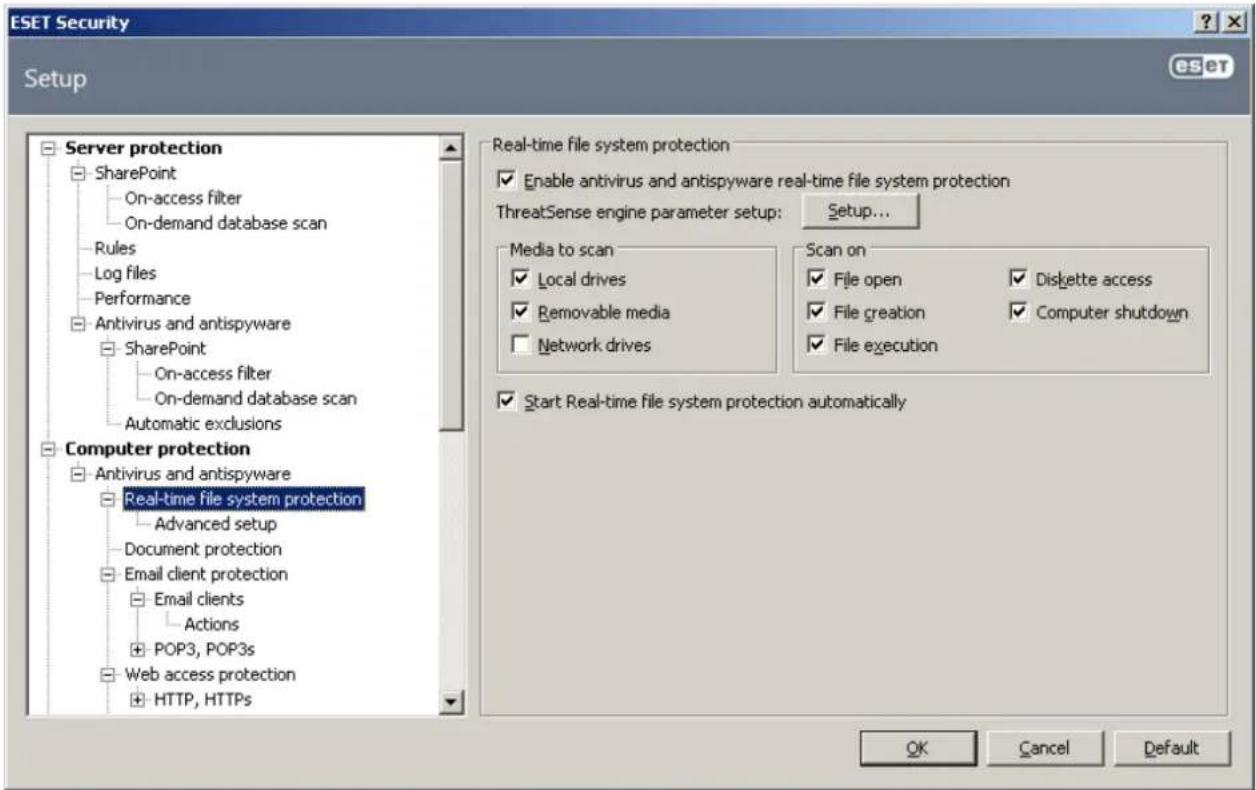
Real-time file system protection controls all antivirus-related events in the system. All files are scanned for malicious code at the moment they are opened, created or run on your computer. Real-time file system protection is launched at system startup.
4.2.1.1.1 Control setup
The Real-time file system protection checks all types of media, and control is triggered by various events. Using ThreatSense technology detection methods (as described in section ThreatSense engine parameter setup ^37 ), real-time file system protection may vary for newly created files and existing files. For newly created files, it is possible to apply a deeper level of control.
To provide the minimum system footprint when using real-time protection, files which have already been scanned are not scanned repeatedly (unless they have been modified). Files are scanned again immediately after each virus signature database update. This behavior is configured using Smart optimization. If this is disabled, all files are scanned each time they are accessed. To modify this option, open the Advanced Setup window and click Antivirus and antispyware >Realtime file system protection from the Advanced Setup tree. Then click the Setup... button next to ThreatSense engine parameter setup, click Other and select or deselect the Enable Smart optimization option.
By default, Real-time protection launches at system startup and provides uninterrupted scanning. In special cases (e.g., if there is a conflict with another Real-time scanner), the real-time protection can be terminated by deselecting the Start Real-time file system protection automatically option.
4.2.1.1.1.1 Media to scan
By default, all types of media are scanned for potential threats.
Local drives – Controls all system hard drives
Removable media – Diskettes, USB storage devices, etc.
Network drives – Scans all mapped drives
We recommend that you keep the default settings and only modify them in specific cases, such as when scanning certain media significantly slows data transfers.
4.2.1.1.1.2 Scan on (Event-triggered scanning)
By default, all files are scanned upon opening, creation or execution. We recommend that you keep the default settings, as these provide the maximum level of real-time protection for your computer.
The Diskette access option provides control of the diskette boot sector when this drive is accessed. The Computer shutdown option provides control of the hard disk boot sectors during computer shutdown. Although boot viruses are rare today, we recommend that you leave these options enabled, as there is still the possibility of infection by a boot virus from alternate sources.
4.2.1.1.1.3 Advanced scan options
More detailed setup options can be found under Computer protection > Antivirus and antispyware > Real-time system protection > Advanced setup.
Additional ThreatSense parameters for newly created and modified files – The probability of infection in newly-created or modified files is comparatively higher than in existing files. That is why the program checks these files with additional scanning parameters. Along with common signature-based scanning methods, advanced heuristics are used, which greatly improves detection rates. In addition to newly-created files, scanning is also performed on self-extracting files (.sfx) and runtime packers (internally compressed executable files). By default, archives are scanned up to the 10th nesting level and are checked regardless of their actual size. To modify archive scan settings, deselect the Default archive scan settings option.
Additional ThreatSense.Net parameters for executed files – By default, advanced heuristics are not used when files are executed. However, in some cases you may want to enable this option (by checking the Advanced heuristics on file execution option). Note that advanced heuristics may slow the execution of some programs due to increased system requirements.
4.2.1.1.2 Cleaning levels
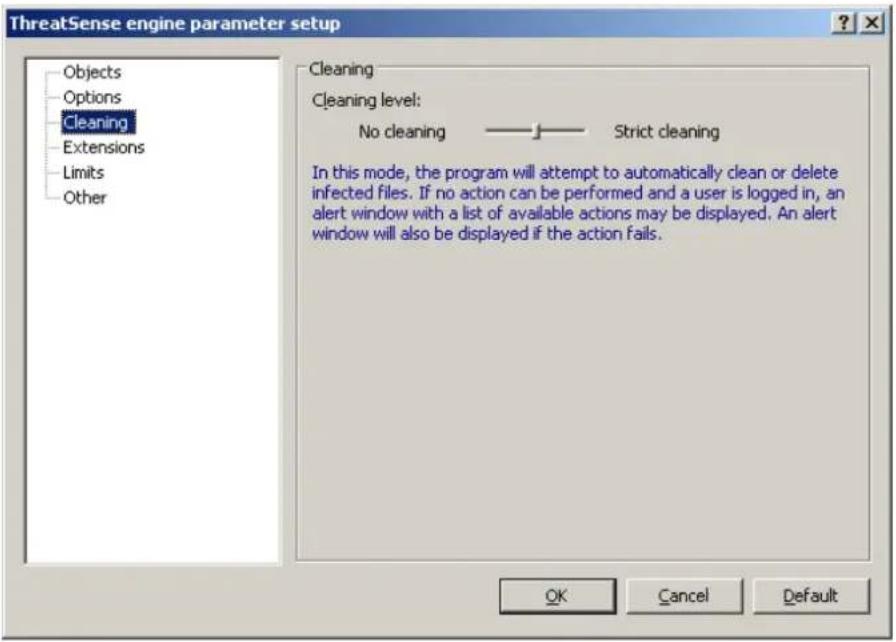
Real-time protection has three cleaning levels. To select a cleaning level, click the Setup... button in the Real-time file system protection section and then click the Cleaning branch.
- The first level, No cleaning, displays an alert window with available options for each infiltration found. You must choose an action for each infiltration individually. This level is designed for more advanced users who know which steps to take in the event of an infiltration.
- The default level automatically chooses and performs a predefined action (depending on the type of infiltration). Detection and deletion of an infected file is signaled by a message located in the bottom right corner of the screen. Automatic actions are not performed when the infiltration is located within an archive (which also contains clean files) or when infected objects do not have a predefined action.
- The third level, Strict cleaning, is the most "aggressive" – all infected objects are cleaned. As this level could potentially result in the loss of valid files, we recommend that it be used only in specific situations.
4.2.1.1.3 When to modify real-time protection configuration
Real-time protection is the most essential component of maintaining a secure system. Therefore, please be careful when modifying its parameters. We recommend that you only modify its parameters in specific cases. For example, if there is a conflict with a certain application or real-time scanner of another antivirus program.
After the installation of ESET Security, all settings are optimized to provide the maximum level of system security for users. To restore the default settings, click the Default button located at the bottom-right of the Real-time file system protection window (Advanced Setup > Antivirus and antispyware > Real-time file system protection).
4.2.1.1.4 Checking real-time protection
To verify that real-time protection is working and detecting viruses, use a test file from eicar.com. This test file is a special harmless file detectable by all antivirus programs. The file was created by the EICAR company (European Institute for Computer Antivirus Research) to test the functionality of antivirus programs. The file eicar.com is available for download at http://www.eicar.org/download/eicar.com
NOTE: Before performing a real-time protection check, it is necessary to disable the firewall. If the firewall is enabled, it will detect the file and prevent test files from downloading.
4.2.1.1.5 What to do if real-time protection does not work
In the next chapter, we describe problem situations that may arise when using real-time protection, and how to troubleshoot them.
Real-time protection is disabled
If real-time protection was inadvertently disabled by a user, it needs to be reactivated. To reactivate real-time protection, navigate to Setup > Antivirus and antispyware and click Enable in the Real-time file system protection section of the main program window.
If real-time protection is not initiated at system startup, it is probably due to the disabled option Automatic real-time file system protection startup. To enable this option, navigate to Advanced Setup (F5) and click Real-time file system protection in the Advanced Setup tree. In the Advanced setup section at the bottom of the window, make sure that the Start Real-time file system protection automatically checkbox is selected.
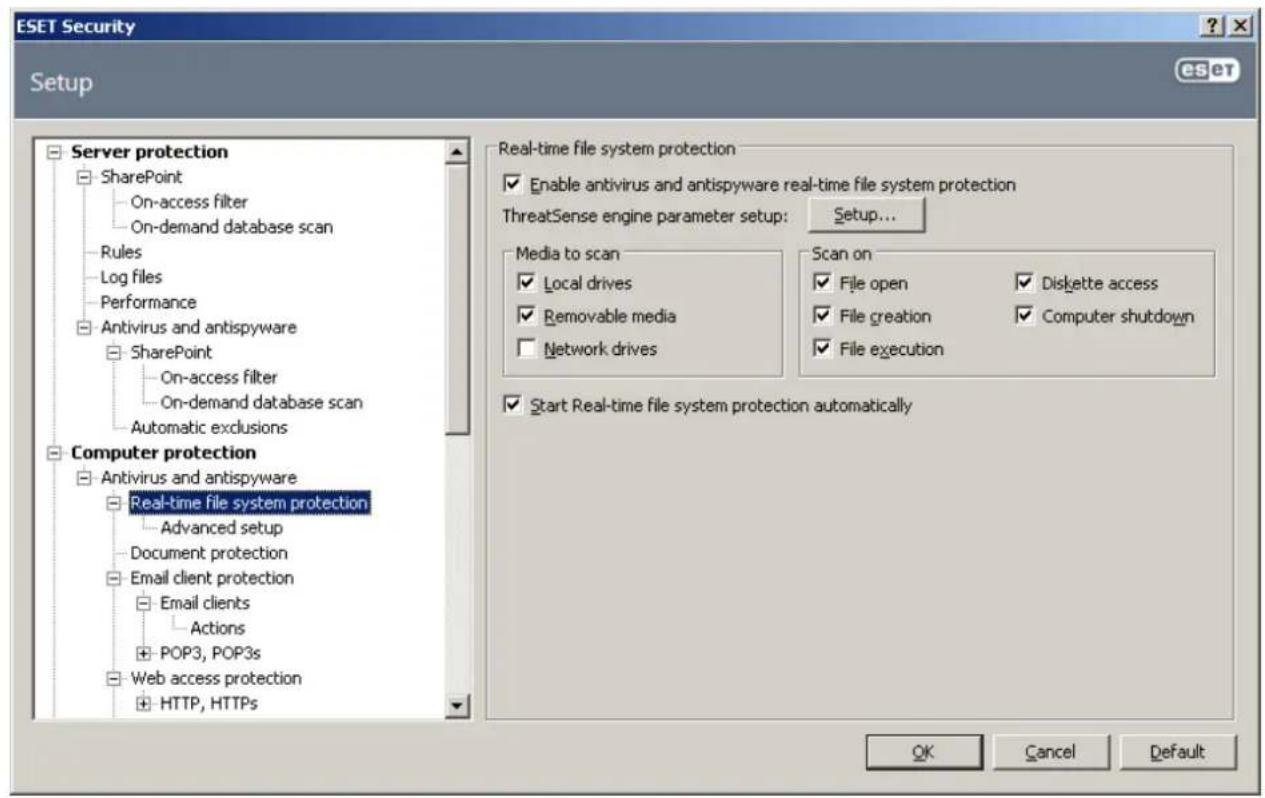
If Real-time protection does not detect and clean infiltrations
Make sure that no other antivirus programs are installed on your computer. If two real-time protection shields are enabled at the same time, they may conflict with each other. We recommend that you uninstall any other antivirus programs on your system.
Real-time protection does not start
If real-time protection is not initiated at system startup (and the Start Real-time file system protection automatically option is enabled), it may be due to conflicts with other programs. If this is the case, please consult ESET's Customer Care specialists.
4.2.1.2 On-demand computer scan
If you suspect that your computer is infected (it behaves abnormally), run an On-demand computer scan to examine your computer for infiltrations. From a security point of view, it is essential that computer scans are not just run when an infection is suspected, but regularly as part of routine security measures. Regular scanning can detect infiltrations that were not detected by the real-time scanner when they were saved to the disk. This can happen if the real-time scanner was disabled at the time of infection, or if the virus signature database is not up-to-date.
We recommend that you run an On-demand computer scan at least once a month. Scanning can be configured as a scheduled task from Tools > Scheduler.
4.2.1.2.1 Type of scan
Two types of On-demand computer scan are available. Smart scan quickly scans the system with no need for further configuration of the scan parameters. Custom scan... allows you to select any of the predefined scan profiles, as well as choose specific scan targets.
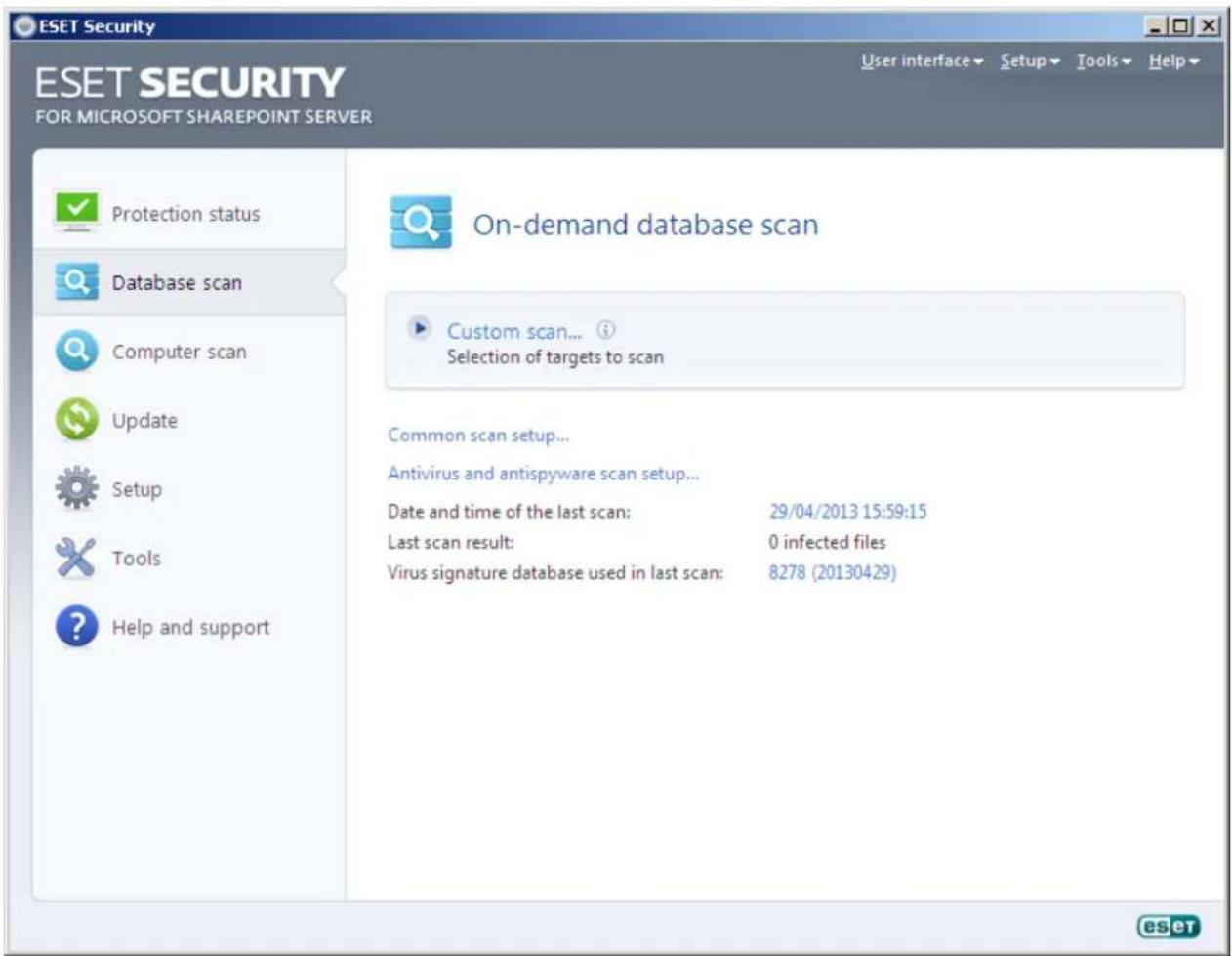
Smart scan allows you to quickly launch a computer scan and clean infected files with no need for user intervention. Its main advantages are easy operation with no detailed scanning configuration. Smart scan checks all files on local drives and automatically cleans or deletes detected infiltrations. The cleaning level is automatically set to the default value. For more detailed information on types of cleaning, see section Cleaning401
4.2.1.2.1.2 Custom scan
Custom scan is an optimal solution if you wish to specify scanning parameters such as scan targets and scanning methods. The advantage of Custom scan is the ability to configure the parameters in detail. The configurations can be saved to user-defined scan profiles, which can be useful if scanning is repeatedly performed with the same parameters.
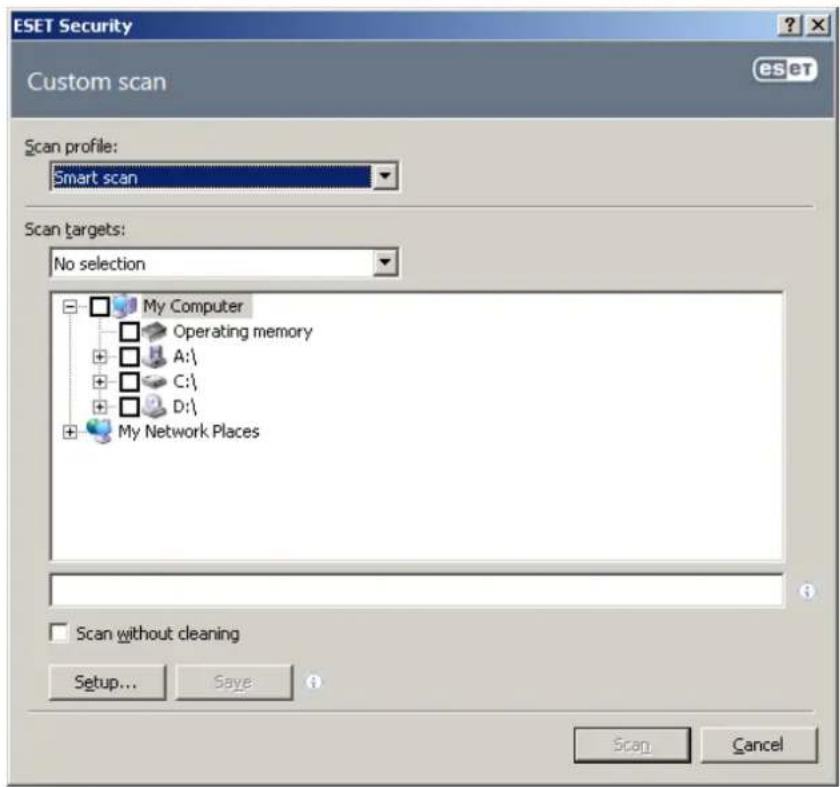
To select scan targets, select Computer scan > Custom scan and select an option from the Scan targets drop-down menu or select specific targets from the tree structure. A scan target can also be more precisely specified by entering the path to the folder or file(s) you wish to include. If you are only interested in scanning the system without additional cleaning actions, select the Scan without cleaning option. Furthermore, you can choose from three cleaning levels by clicking Setup... > Cleaning.
4.2.1.2.2 Scan targets
The Scan targets drop-down menu allows you to select files, folders and devices (disks) to be scanned for viruses.
By profile settings – Selects targets set in the selected scan profile
Removable media – Selects diskettes, USB storage devices, CD/DVD
Local drives – Selects all system hard drives
Network drives – Selects all mapped drives
No selection – Cancels all selections
A scan target can also be more precisely specified by entering the path to the folder or file(s) you wish to include in scanning. Select targets from the tree structure listing all devices available on the computer.
4.2.1.2.3 Scan profiles
Your preferred scan parameters can be saved for future scanning. We recommend that you create a different profile (with various scan targets, scan methods and other parameters) for each regularly used scan.
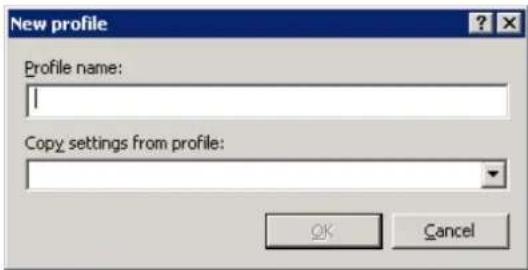
To create a new profile, open the Advanced Setup window (F5) and click On-demand computer scan > Profiles... The Configuration profiles window has a drop-down menu of existing scan profiles as well as the option to create a new one. To help you create a scan profile to fit your needs, see section ThreatSense engine parameters setup 37 for a description of each parameter of the scan setup.
EXAMPLE: Suppose that you want to create your own scan profile and the Smart scan configuration is partially suitable, but you don't want to scan runtime packers or potentially unsafe applications and you also want to apply Strict cleaning. From the Configuration profiles window, click the Add... button. Enter the name of your new profile in the Profile name field, and select Smart scan from the Copy settings from profile: drop-down menu. Then adjust the remaining parameters to meet your requirements.
4.2.1.2.4 Command Line
ESET Security's antivirus module can be launched via the command line – manually (with the "ecls" command) or with a batch ("bat") file.
The following parameters and switches can be used while running the On-demand scanner from the command line:
General options:
| – help | show help and quit |
| – version | show version information and quit |
| – base-dir = FOLDER | load modules from FOLDER |
| – quar-dir = FOLDER | quarantine FOLDER |
| – aind | show activity indicator |
Targets:
| – files | scan files (default) |
| – no-files | do not scan files |
| – boots | scan boot sectors (default) |
| – no-boots | do not scan boot sectorsk |
| – arch | scan archives (default) |
| – no-arch | do not scan archives |
| – max-archive-level = LEVEL | maximum archive nesting LEVEL |
| – scan-timeout = LIMIT | scan archives for LIMIT seconds at maximum. If the scanning time reaches this limit, the scanning of the archive is stopped and the scan will continue with the next file. |
| – max-arch-size=SIZE | scan only the first SIZE bytes in archives (default O = unlimited) |
| scan email files | |
| – no-mail | do not scan email files |
-sfx
-no-sfx
- rtp
-no-rtp
-exclude = FOLDER
- subdir
-no-subdir
- max-subdir-level = LEVEL
-symlink
-no-symlink
- ext-remove = EXTENSIONS
- ext-exclude = EXTENSIONS
Methods:
- adware
-no-adware - unsafe
- no-unsafe
- unwanted
- no-unwanted
- pattern
- no-pattern
-heur - no-heur
- adv-heur
-no-adv-heur
Cleaning:
- action = ACTION
- quarantine
- no-quarantine
Logs:
-log-file=FILE
- log-rewrite
-log-all
-no-log-all
Possible exit codes of the scan:
O
7
scan self-extracting archives
do not scan self-extracting archives
scan runtime packers
do not scan runtime packers
exclude FOLDER from scanning
scan subfolders (default)
do not scan subfolders
maximum subfolder nesting LEVEL (default O = unlimited)
follow symbolic links (default)
skip symbolic links
exclude EXTENSIONS delimited by colon from scanning
scan for Adware/Spyware/Riskware
do not scan for Adware/Spyware/Riskware
scan for potentially unsafe applications
do not scan for potentially unsafe applications
scan for potentially unwanted applications
do not scan for potentially unwanted applications
use signatures
do not use signatures
enable heuristics
disable heuristics
enable advanced heuristics
disable advanced heuristics
perform ACTION on infected objects. Available actions: none, clean, prompt
copy infected files to Quarantine (supplements ACTION)
do not copy infected files to Quarantine
log output to FILE
overwrite output file (default – append)
log also clean files
do not log clean files (default)
- no threat found
– threat found but not cleaned
| 10 | – some infected files remained |
| 101 | – archive error |
| 102 | – access error |
| 103 | – internal error |
NOTE: Exit codes greater than 100 mean that the file was not scanned and thus can be infected.
4.2.1.3 Performance
In this section, you can set the number of ThreatSense scan engines that will be used for virus scanning. More ThreatSense scan engines on multiprocessor machines can increase the scanning rate. Acceptable value is 1-20.
If there are no other restrictions, our recommendation is to increase the number of ThreatSense scan engines in the Advanced settings window (F5) under Computer protection >Antivirus and antispyware >Performance, according to this formula: number of ThreatSense scan engines = (number of physical CPUs x 2) + 1 . Here is an example:
Let's say you have a server with 4 physical CPUs. For the best performance, according to formula above, you should have 9 scan engines.
NOTE: Changes made here will be applied only after restart.
4.2.1.4 Exclusions
This section enables you to exclude files and folders from scanning. We do not recommend that you alter these options, to ensure that all objects are scanned for threats.
There are predefined exclusions by default. These exclusions help prevent conflicts with the system files and certain applications and ensure smooth system performance. These exclusions are predefined by the Automatic exclusions functionality of ESET Security. Please see chapter Automatic exclusions 28 for further details.
Path – path to excluded files and folders
Threat -if there is a name of a threat next to an excluded file, it means that the file is only excluded for the given threat, not completely. Therefore if that file becomes infected later with other malware, it will be detected by the antivirus module. This type of exclusion can be used only for certain types of infiltrations and it can be created either in the threat alert window reporting the infiltration (click Show advanced options and then select Exclude from detection), or in Setup > Quarantine using the context menu option Restore and exclude from detection on the quarantined file.
Add... - excludes objects from detection
Edit... – enables you to edit selected entries
Remove – removes selected entries
Default – cancels all exclusions.
To exclude an object from scanning:
- Select Add...
- Enter the path to an object or select it in the tree structure below.
4.2.1.5 ThreatSense engine parameters setup
ThreatSense is the name of the technology consisting of complex threat detection methods. This technology is proactive, which means it also provides protection during the early hours of the spread of a new threat. It uses a combination of several methods (code analysis, code emulation, generic signatures, virus signatures) which work in concert to significantly enhance system security. The scanning engine is capable of controlling several data streams simultaneously, maximizing the efficiency and detection rate. ThreatSense technology also successfully eliminates rootkits.
The ThreatSense technology setup options allow you to specify several scan parameters:
- File types and extensions that are to be scanned
- The combination of various detection methods
• Levels of cleaning, etc.
To enter the setup window, click the Setup... button located in any module's setup window which uses ThreatSense technology (see below). Different security scenarios could require different configurations. With this in mind, ThreatSense is individually configurable for the following protection modules:
- On-access filter 27
• On-demand database scan 27
• Real-time file system protection 291
• System startup file check
• On-demand computer scan 32
The ThreatSense parameters are highly optimized for each module, and their modification can significantly influence system operation. For example, changing parameters to always scan runtime packers, or enabling advanced heuristics in the real-time file system protection module could result in a system slow-down (normally, only newly-created files are scanned using these methods). Therefore, we recommend that you leave the default ThreatSense parameters unchanged for all modules except On-demand computer scan.
4.2.1.5.1 Objects setup
The Objects section allows you to define which computer components and files will be scanned for infiltrations.
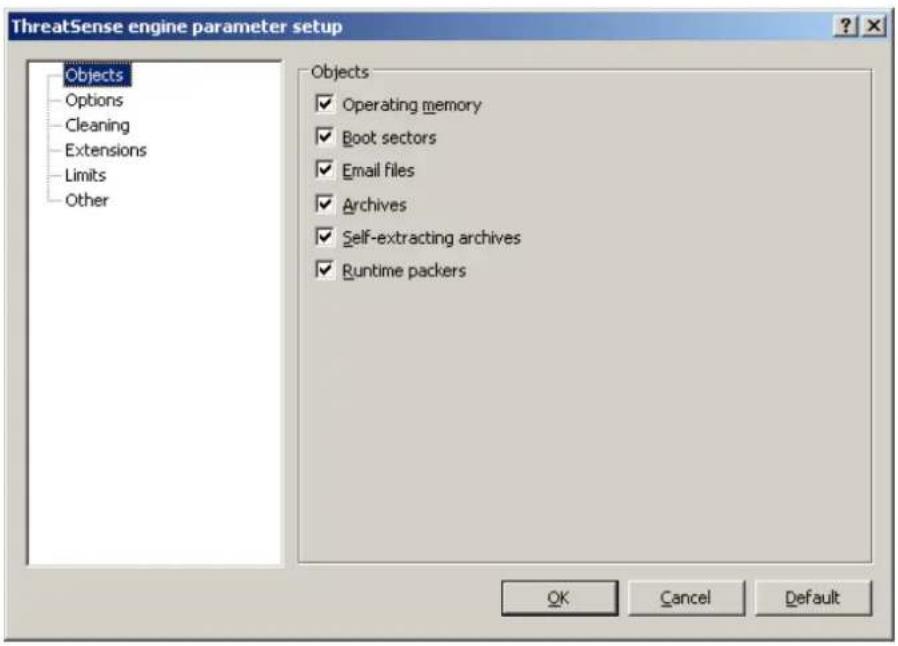
Operating memory – Scans for threats that attack the operating memory of the system.
Boot sectors – Scans boot sectors for the presence of viruses in the master boot record.
Files – Provides scanning for all common file types (programs, pictures, audio, video files, database files, etc.).
Email files – Scans special files where email messages are contained.
Archives – Provides scanning for files compressed in archives (.rar, .zip, .arj, .tar, etc.).
Self-extracting archives – Scans files which are contained in self-extracting archive files, but typically presented with an .exe file extension
Runtime packers – Runtime packers (unlike standard archive types) decompress in memory, in addition to standard static packers (UPX, yoda, ASPack, FGS, etc.).
NOTE: When a blue dot is shown next to a parameter, it means that current setting for this parameter differ from setting for other modules that also use ThreatSense. Since you can configure the same parameter differently for each module, this blue dot only reminds you that this same parameter is configured differently for other modules. If there isn't a blue dot, parameter for all the modules is configured the same way.
4.2.1.5.2 Options
In the Options section, you can select the methods to be used when scanning the system for infiltrations. The following options are available:
Heuristics – Heuristics use an algorithm that analyses the (malicious) activity of programs. The main advantage of heuristic detection is the ability to detect new malicious software which did not previously exist, or was not included in the list of known viruses (virus signatures database).
Advanced heuristics – Advanced heuristics comprise a unique heuristic algorithm, developed by ESET, optimized for detecting computer worms and trojan horses written in high-level programming languages. Due to advanced heuristics, the detection intelligence of the program is significantly higher.
Potentially unwanted applications – Potentially unwanted applications are not necessarily intended to be malicious, but may affect the performance of your computer in a negative way. Such applications usually require consent for installation. If they are present on your computer, your system behaves differently (compared to the state before their installation). The most significant changes include unwanted pop-up windows, activation and running of hidden processes, increased usage of system resources, changes in search results, and applications communicating with remote servers.
Potentially unsafe applications – Potentially unsafe applications is the classification used for commercial, legitimate software. It includes programs such as remote access tools, which is why this option is disabled by default.
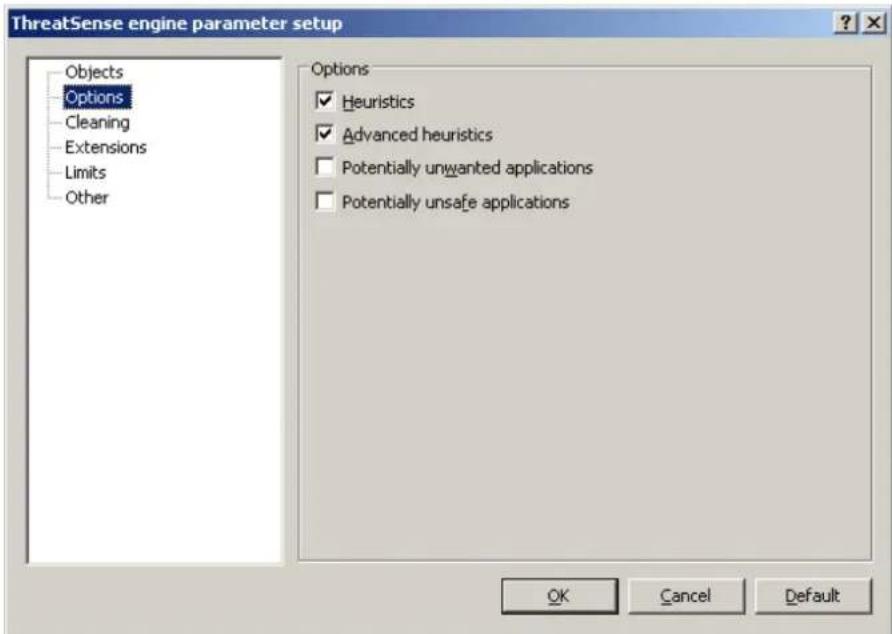
NOTE: When a blue dot is shown next to a parameter, it means that current setting for this parameter differ from setting for other modules that also use ThreatSense. Since you can configure the same parameter differently for each module, this blue dot only reminds you that this same parameter is configured differently for other modules. If there isn't a blue dot, parameter for all the modules is configured the same way.
4.2.1.5.3 Cleaning
The cleaning settings determine the behavior of the scanner during the cleaning of infected files. There are 3 levels of cleaning:
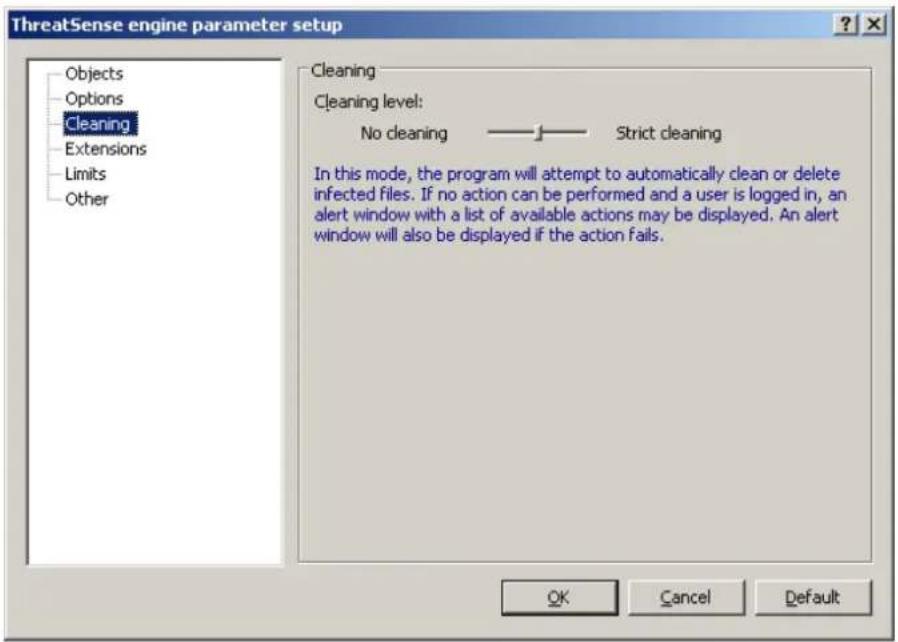
No cleaning – Infected files are not cleaned automatically. The program will display a warning window and allow you to choose an action.
Standard cleaning – The program will attempt to automatically clean or delete an infected file. If it is not possible to select the correct action automatically, the program will offer a choice of follow up actions. The choice of follow-up actions will also be displayed if a predefined action could not be completed.
Strict cleaning – The program will clean or delete all infected files (including archives). The only exceptions are system files. If it is not possible to clean them, you will be offered an action to take in a warning window.
Warning: In the Default mode, the entire archive file is deleted only if all files in the archive are infected. If the archive also contains legitimate files, it will not be deleted. If an infected archive file is detected in Strict cleaning mode, the entire archive will be deleted, even if clean files are present.
NOTE: When a blue dot is shown next to a parameter, it means that current setting for this parameter differ from setting for other modules that also use ThreatSense. Since you can configure the same parameter differently for each module, this blue dot only reminds you that this same parameter is configured differently for other modules. If there isn't a blue dot, parameter for all the modules is configured the same way.
4.2.1.5.4 Extensions
An extension is part of the file name delimited by a period. The extension defines the type and content of the file. This section of the ThreatSense parameter setup lets you define the types of files to scan.
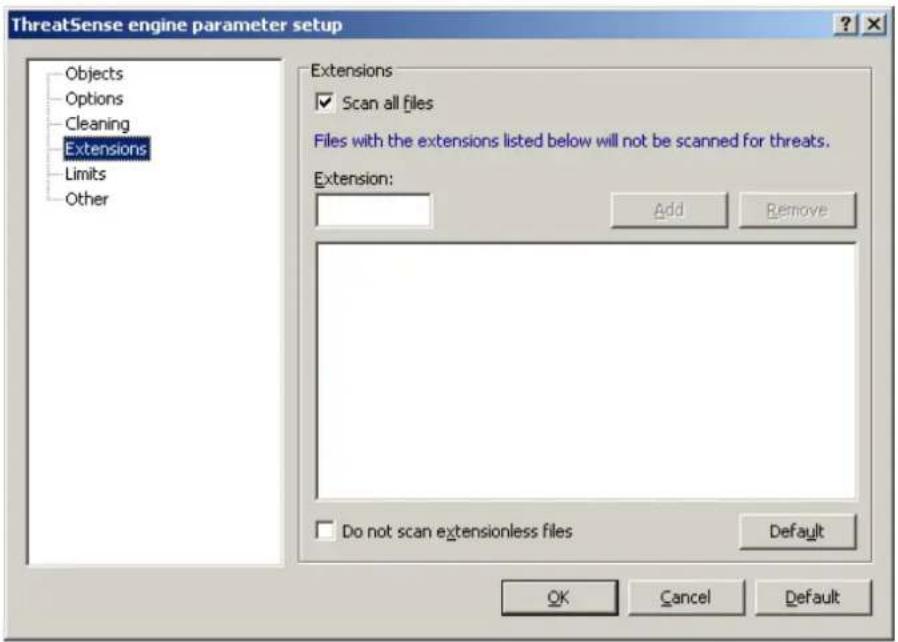
By default, all files are scanned regardless of their extension. Any extension can be added to the list of files excluded from scanning. If the Scan all files option is deselected, the list changes to show all currently scanned file extensions. Using the Add and Remove buttons, you can enable or prohibit scanning of desired extensions.
To enable scanning of files with no extension, select the Scan extensionless files option.
Excluding files from scanning is sometimes necessary if scanning certain file types prevents the program which is using the extensions from running properly. For example, it may be advisable to exclude the .edb, .eml and .tmp extensions when using Microsoft Exchange servers.
NOTE: When a blue dot is shown next to a parameter, it means that current setting for this parameter differ from setting for other modules that also use ThreatSense. Since you can configure the same parameter differently for each module, this blue dot only reminds you that this same parameter is configured differently for other modules. If there isn't a blue dot, parameter for all the modules is configured the same way.
4.2.1.5.5 Limits
The Limits section allows you to specify the maximum size of objects and levels of nested archives to be scanned:
Maximum object size: – Defines the maximum size of objects to be scanned. The given antivirus module will then scan only objects smaller than the size specified. We do not recommend changing the default value, as there is usually no reason to modify it. This option should only be changed by advanced users who have specific reasons for excluding larger objects from scanning.
Maximum scan time for object (sec.): – Defines the maximum time value for scanning an object. If a user-defined value has been entered here, the antivirus module will stop scanning an object when that time has elapsed, regardless of whether the scan has finished.
Archive nesting level: – Specifies the maximum depth of archive scanning. We do not recommend changing the default value of 10; under normal circumstances, there should be no reason to modify it. If scanning is prematurely terminated due to the number of nested archives, the archive will remain unchecked.
Maximum size of file in archive: – This option allows you to specify the maximum file size for files contained in archives (when they are extracted) that are to be scanned. If this causes scanning an archive to be prematurely terminated, the archive will remain unchecked.
NOTE: When a blue dot is shown next to a parameter, it means that current setting for this parameter differ from setting for other modules that also use ThreatSense. Since you can configure the same parameter differently for each module, this blue dot only reminds you that this same parameter is configured differently for other modules. If there
isn't a blue dot, parameter for all the modules is configured the same way.
4.2.1.5.6 Other
Scan alternate data streams (ADS) – Alternate data streams (ADS) used by the NTFS file system are file and folder associations which are invisible from ordinary scanning techniques. Many infiltrations try to avoid detection by disguising themselves as alternative data streams.
Run background scans with low priority – Each scanning sequence consumes a certain amount of system resources. If you work with programs that place a high load on system resources, you can activate low priority background scanning and save resources for your applications.
Log all objects – If this option is selected, the log file will show all the scanned files, even those not infected.
Enable Smart optimization – Select this option so that files which have already been scanned are not scanned repeatedly (unless they have been modified). Files are scanned again immediately after each virus signature database update.
Preserve last access timestamp – Select this option to keep the original access time of scanned files instead of updating it (e.g., for use with data backup systems).
Scroll log – This option allows you to enable/disable log scrolling. If selected, information scrolls upwards within the display window.
Display notification about scan completion in a separate window – Opens a standalone window containing information about scan results.
NOTE: When a blue dot is shown next to a parameter, it means that current setting for this parameter differ from setting for other modules that also use ThreatSense. Since you can configure the same parameter differently for each module, this blue dot only reminds you that this same parameter is configured differently for other modules. If there isn't a blue dot, parameter for all the modules is configured the same way.
4.2.1.6 An infiltration is detected
Infiltrations can reach the system from various entry points; webpages, shared folders, via email or from removable computer devices (USB, external disks, CDs, DVDs, diskettes, etc.).
If your computer is showing signs of malware infection, e.g., it is slower, often freezes, etc., we recommend that you do the following:
- Open ESET Security and click Computer scan
- Click Smart scan (for more information, see section Smart scan 33)
• After the scan has finished, review the log for the number of scanned, infected and cleaned files.
If you only wish to scan a certain part of your disk, click Custom scan and select targets to be scanned for viruses.
As a general example of how infiltrations are handled in ESET Security, suppose that an infiltration is detected by the real-time file system monitor, which uses the Default cleaning level. It will attempt to clean or delete the file. If there is no predefined action to take for the real-time protection module, you will be asked to select an option in an alert window. Usually, the options Clean, Delete and Leave are available. Selecting Leave is not recommended, since the infected file(s) would be left untouched. The exception to this is when you are sure that the file is harmless and has been detected by mistake.
Cleaning and deleting – Apply cleaning if a file has been attacked by a virus which has attached malicious code to the file. If this is the case, first attempt to clean the infected file in order to restore it to its original state. If the file consists exclusively of malicious code, it will be deleted.
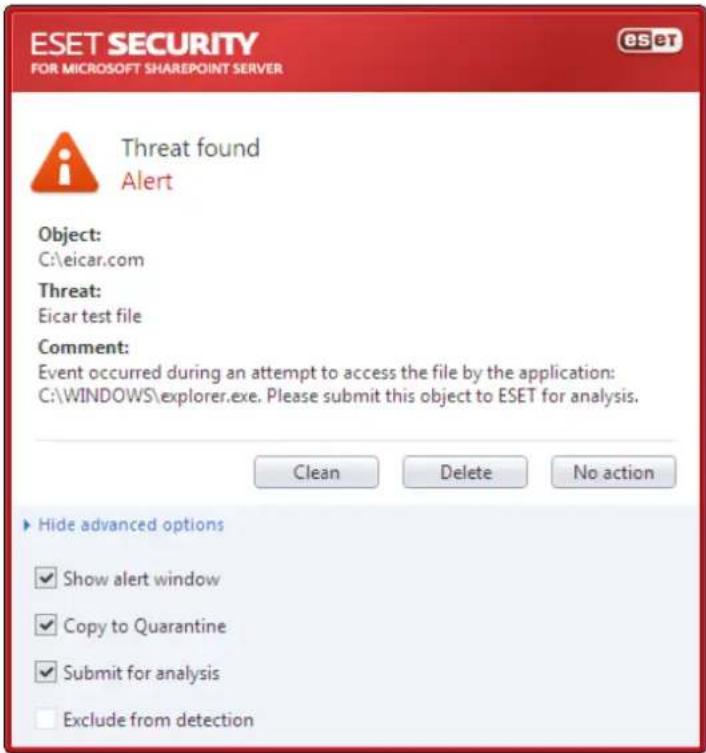
If an infected file is "locked" or in use by a system process, it will usually only be deleted after it is released (normally after a system restart).
Deleting files in archives – In the Default cleaning mode, the entire archive will be deleted only if it contains infected files and no clean files. In other words, archives are not deleted if they also contain harmless clean files. However, use caution when performing a Strict cleaning scan – with Strict cleaning the archive will be deleted if it contains at least one infected file, regardless of the status of other files in the archive.
4.3 Updating the program
Regular updating of ESET Security is the basic premise for obtaining the maximum level of security. The Update module ensures that the program is always up to date in two ways – by updating the virus signature database and by updating system components.
By clicking Update from the main menu, you can find the current update status, including the date and time of the last successful update and if an update is needed. The primary window also contains the virus signature database version. This numeric indicator is an active link to ESET's website, listing all signatures added within the given update.
In addition, the option to manually begin the update process – Update virus signature database – is available, as well as basic update setup options such as the username and password to access ESET's update servers.
Use the Product activation link to open a registration form that will activate your ESET security product and send you an email with your authentication data (username and password).
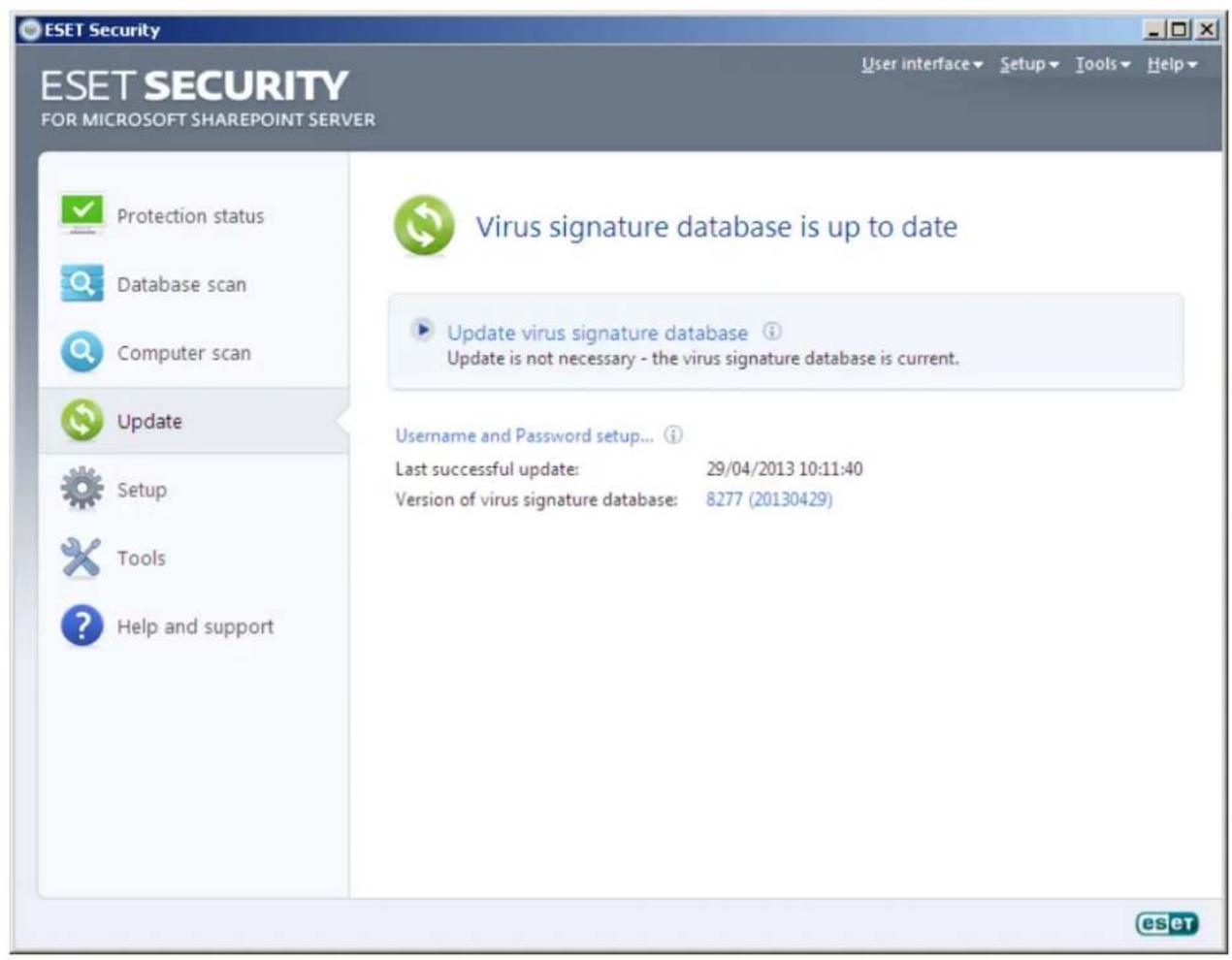
NOTE: The username and password are provided by ESET after purchasing ESET Security.
4.3.1 Update setup
The update setup section specifies update source information such as the update servers and authentication data for these servers. By default, the Update server drop-down menu is set to Choose automatically to ensure that update files will automatically download from the ESET server with the least network traffic. The update setup options are available from the Advanced Setup tree (F5 key), under Update.
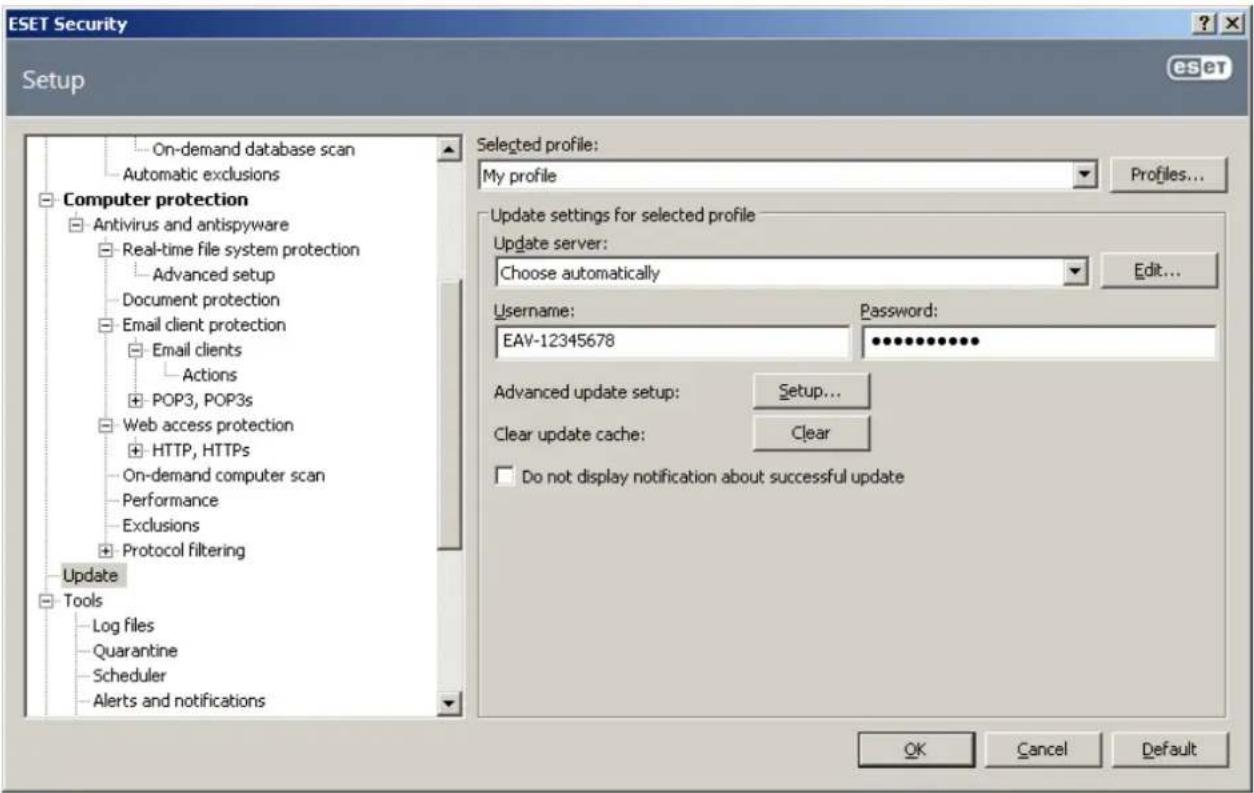
The list of available update servers is accessible via the Update server drop-down menu. To add a new update server, click Edit... in the Update settings for selected profile section and then click the Add button. Authentication for update servers is based on the Username and Password generated and sent to you after purchase.
4.3.1.1 Update profiles
Update profiles can be created for various update configurations and tasks. Creating update profiles is especially useful for mobile users, who can create an alternative profile for Internet connection properties that regularly change.
The Selected profile drop-down menu displays the currently selected profile, set to My profile by default. To create a new profile, click the Profiles... button and then click the Add... button and enter your own Profile name. When creating a new profile, you can copy settings from an existing one by selecting it from the Copy settings from profile drop-down menu.
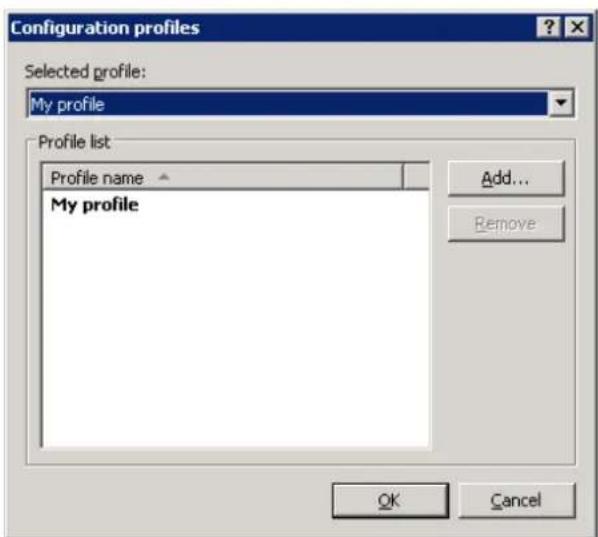
In the profile setup window, you can specify the update server from a list of available servers or add a new server. The list of existing update servers is accessible via the Update server: drop-down menu. To add a new update server, click Edit... in the Update settings for selected profile section and then click the Add button.
4.3.1.2 Advanced update setup
To view the Advanced update setup, click the Setup... button. Advanced update setup options include configuration of Update mode, HTTP Proxy, LAN and Mirror.
The Update mode tab contains options related to the program component update.
In the Program component update section, three options are available:
- Never update program components: New program component updates will not be downloaded.
• Always update program components: New program component updates will occur automatically. - Ask before downloading program components: The default option. You will be prompted to confirm or refuse program component updates when they are available.
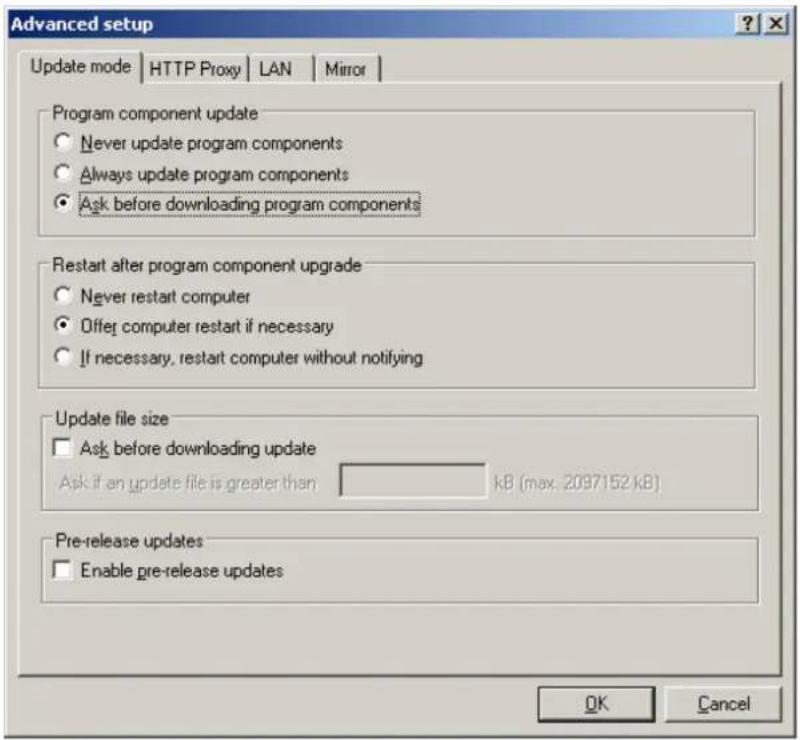
After a program component update, it may be necessary to restart your computer to provide full functionality of all modules. The Restart after program component upgrade section allows you to select one of the following options:
- Never restart computer
- Offer computer restart if necessary
- If necessary, restart computer without notifying
The default option is Offer computer restart if necessary. Selection of the most appropriate option depends on the workstation where the settings will be applied. Please be aware that there are differences between workstations and servers – e.g., restarting the server automatically after a program upgrade could cause serious damage.
4.3.1.2.2 Proxy server
In ESET Security, proxy server setup is available in two different sections within the Advanced Setup tree.
First, proxy server settings can be configured under Miscellaneous > Proxy server. Specifying the proxy server at this level defines global proxy server settings for all of ESET Security. Parameters here will be used by all modules requiring connection to the Internet.
To specify proxy server settings for this level, select the Use proxy server checkbox and then enter the address of the proxy server into the Proxy server: field, along with the Port number of the proxy server.
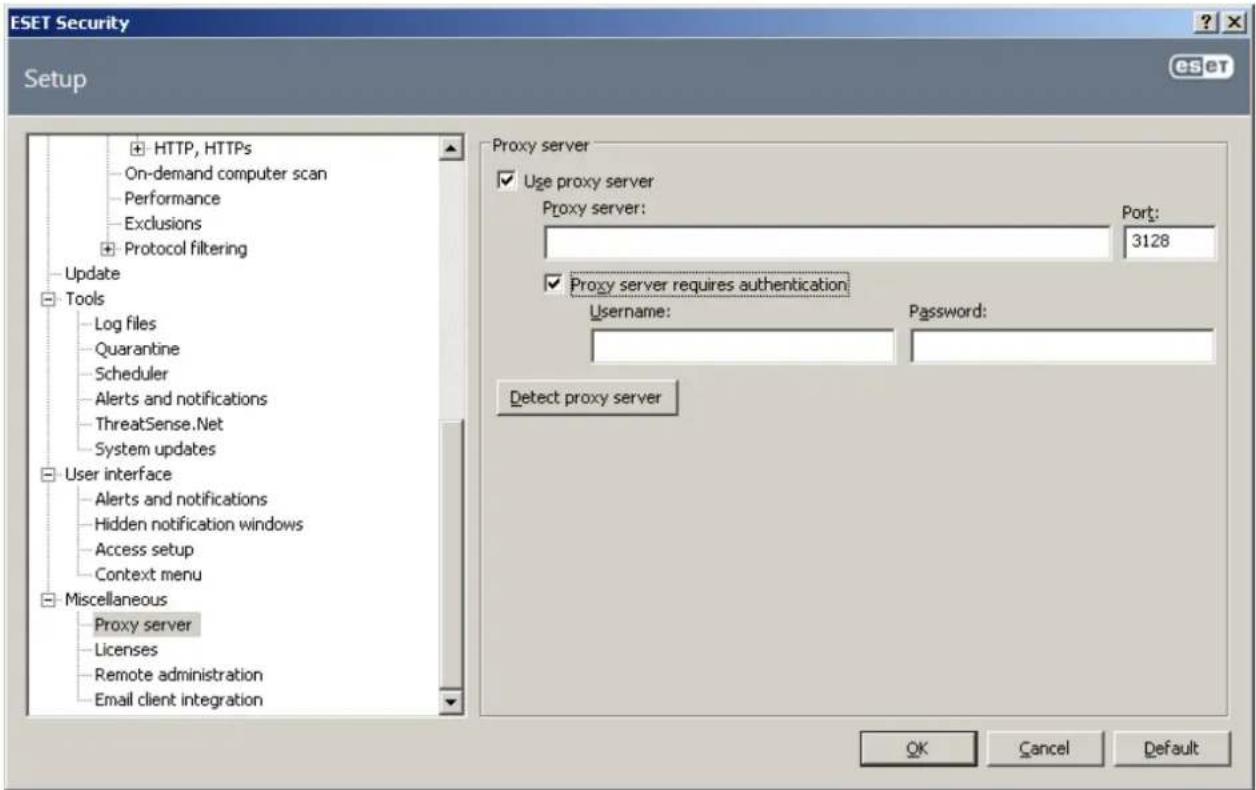
If communication with the proxy server requires authentication, select the Proxy server requires authentication checkbox and enter a valid Username and Password into the respective fields. Click the Detect proxy server button to automatically detect and insert proxy server settings. The parameters specified in Internet Explorer will be copied.
NOTE: This feature does not retrieve authentication data (username and password), it must be supplied by you.
Proxy server settings can also be established within Advanced update setup. This setting applies for the given update profile. You can access the proxy server setup options for a given update profile by clicking on the HTTP Proxy tab in Advanced update setup. You will have one of the three following options:
• Use global proxy server settings
- Do not use proxy server
- Connection through a proxy server (connection defined by the connection properties)
Selecting the Use global proxy server settings option will use the proxy server configuration options already specified within the Miscellaneous > Proxy server branch of the Advanced Setup tree (as described at the top of this article).
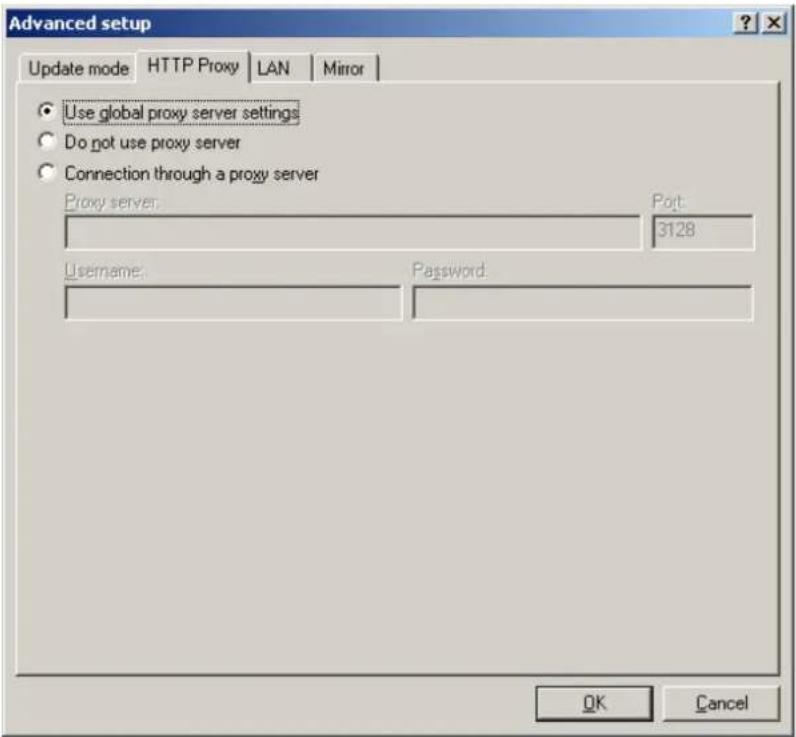
Select the Do not use proxy server option to specify that no proxy server will be used to update ESET Security.
The Connection through a proxy server option should be selected if a proxy server should be used to update ESET Security and is different from the proxy server specified in the global settings (Miscellaneous > Proxy server). If so, the settings should be specified here: Proxy server address, communication Port, plus Username and Password for the proxy server, if required.
This option should also be selected if the proxy server settings were not set globally, but ESET Security will connect to a proxy server for updates.
The default setting for the proxy server is Use global proxy server settings.
4.3.1.2.3 Connecting to the LAN
When updating from a local server with an NT-based operating system, authentication for each network connection is required by default. In most cases, a local system account does not have sufficient rights to access the Mirror folder (the Mirror folder contains copies of update files). If this is the case, enter the username and password in the update setup section, or specify an existing account under which the program will access the update server (Mirror).
To configure such an account, click the LAN tab. The Connect to LAN as section offers the System account (default), Current user, and Specified user options.
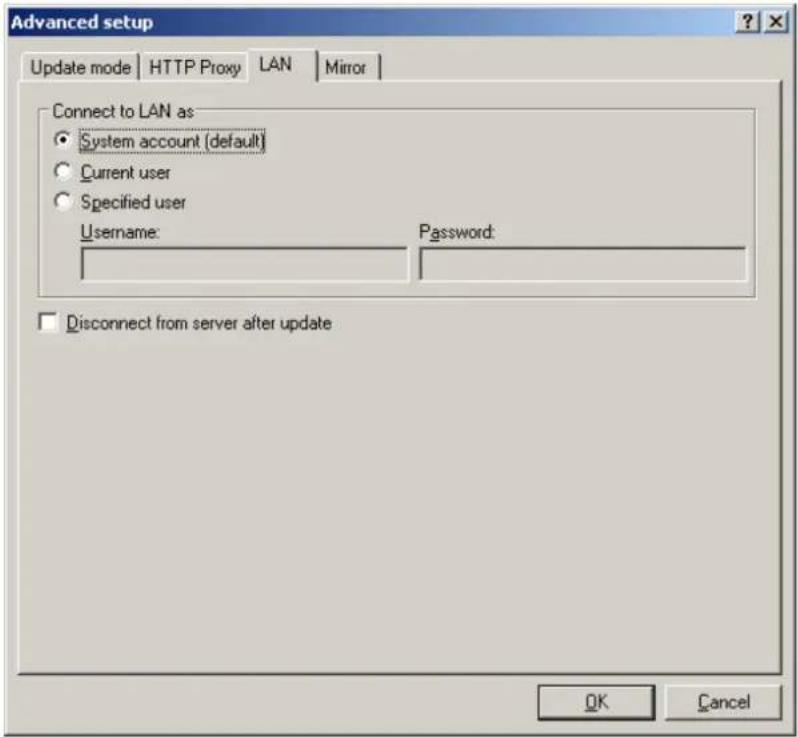
Select the System account (default) option to use the system account for authentication. Normally, no authentication process takes place if there is no authentication data supplied in the main update setup section.
To ensure that the program authenticates using a currently logged-in user account, select Current user. The drawback of this solution is that the program is not able to connect to the update server if no user is currently logged in.
Select Specified user if you want the program to use a specific user account for authentication.
Warning: When either Current user or Specified user is selected, an error may occur when changing the identity of the program to the desired user. We recommend inserting the LAN authentication data in the main update setup section. In this update setup section, the authentication data should be entered as follows: domain_name\user (if it is a workgroup, enter workgroup_name\name) and password. When updating from the HTTP version of the local server, no authentication is required.
4.3.1.2.4 Creating update copies - Mirror
ESET Security allows you to create copies of update files which can be used to update other workstations located in the network. Updating client workstations from a Mirror optimizes network load balance and saves Internet connection bandwidth.
Configuration options for the local Mirror server are accessible (after adding a valid license key in the license manager, located in the ESET Security Advanced Setup section) in the Advanced update setup: section. To access this section, press F5 and click Update in the Advanced Setup tree, then click the Setup... button next to Advanced update setup: and select the Mirror tab).
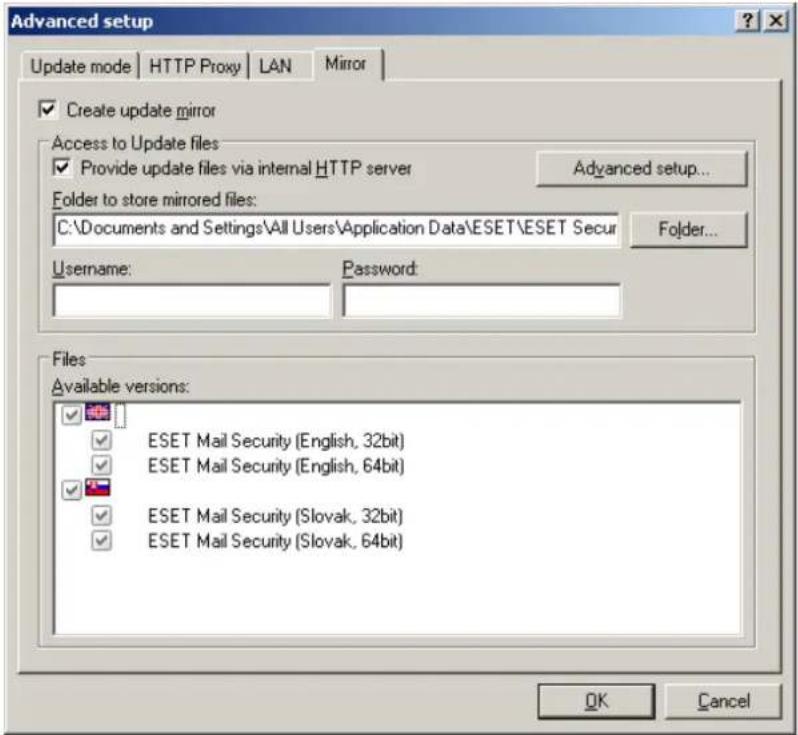
The first step in configuring the Mirror is to select the Create update mirror option. Selecting this option activates other Mirror configuration options such as the way update files will be accessed and the update path to the mirrored files.
The methods of Mirror activation are described in detail in section Updating from the Mirror 51. For now, note that there are two basic methods for accessing the Mirror – the folder with update files can be presented as a shared network folder or as an HTTP server.
The folder dedicated to storing update files for the Mirror is defined in the Folder to store mirrored files section. Click Folder... to browse for a folder on the local computer or shared network folder. If authorization for the specified folder is required, authentication data must be supplied in the Username and Password fields. The username and password should be entered in the format Domain/User or Workgroup/User. Please remember to supply the corresponding passwords.
When configuring the Mirror, you can also specify the language versions for which you want to download update copies. Language version setup is accessible in the section Files - Available versions:.
4.3.1.2.4.1 Updating from the Mirror
There are two basic methods of configuring the Mirror – the folder with update files can be presented as a shared network folder or as an HTTP server.
Accessing the Mirror using an internal HTTP server
This configuration is the default, specified in the predefined program configuration. In order to allow access to the Mirror using the HTTP server, navigate to Advance update setup (the Mirror tab) and select the Create update mirror option.
In the Advanced setup section of the Mirror tab you can specify the Server Port where the HTTP server will listen as well as the type of Authentication used by the HTTP server. By default, the Server port is set to 2221. The Authentication option defines the method of authentication used for accessing the update files. The following options are available: NONE, Basic, and NTLM. Select Basic to use the base64 encoding with basic username and password authentication. The NTLM option provides encoding using a safe encoding method. For authentication, the user created on the workstation sharing the update files is used. The default setting is NONE, which grants access to the update files with no need for authentication.
Warning: If you want to allow access to the update files via the HTTP server, the Mirror folder must be located on the same computer as the ESET Security instance creating it.
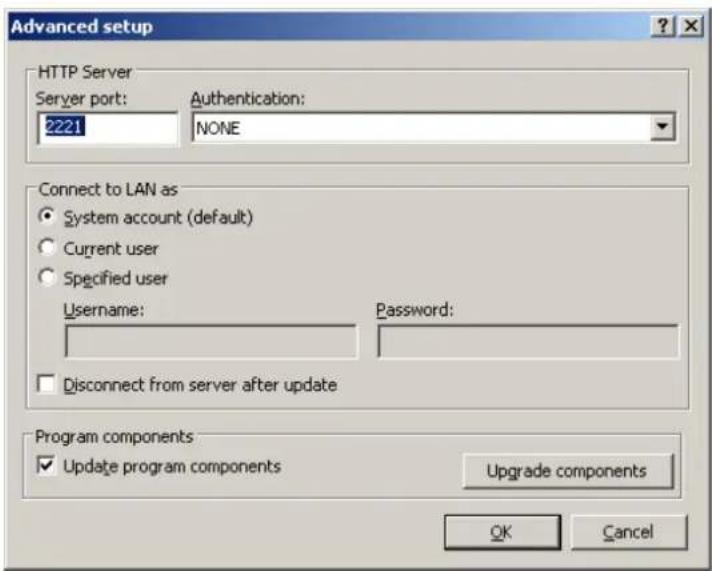
After configuration of the Mirror is complete, go to the workstations and add a new update server in the format http://IP_address_of_your_server:2221. To do this, follow the steps below:
- Open ESET Security Advanced Setup and click the Update branch.
- Click Edit... to the right of the Update server drop-down menu and add a new server using the following format: http://IP_address_of_your_server:2221.
- Select this newly-added server from the list of update servers.
Accessing the Mirror via system shares
First, a shared folder should be created on a local or a network device. When creating the folder for the Mirror, you must provide "write" access for the user who will save update files to the folder and "read" access for all users who will update ESET Security from the Mirror folder.
Next, configure access to the Mirror in the Advanced update setup section (Mirror tab) by disabling the Provide update files via internal HTTP server option. This option is enabled by default in the program install package.
If the shared folder is located on another computer in the network, you must specify authentication data to access the other computer. To specify authentication data, open ESET Security Advanced Setup (F5) and click the Update branch. Click the Setup... button and then click the LAN tab. This setting is the same as for updating, as described in section Connecting to LAN[49]
After the Mirror configuration is complete, proceed to the workstations and set \UNC\PATH as the update server. This operation can be completed using the following steps:
- Open ESET Security Advanced Setup and click Update
- Click Edit... next to the Update server and add a new server using the ||UNC|PATH format.
- Select this newly-added server from the list of update servers
NOTE: For proper functioning, the path to the Mirror folder must be specified as a UNC path. Updates from mapped drives may not work.
4.3.1.2.4.2 Troubleshooting Mirror update problems
In most cases, problems during an update from a Mirror server are caused by one or more of the following: incorrect specification of the Mirror folder options, incorrect authentication data to the Mirror folder, incorrect configuration on local workstations attempting to download update files from the Mirror, or by a combination of the reasons above. Below is an overview of the most frequent problems which may occur during an update from the Mirror:
ESET Security reports an error connecting to Mirror server – Likely caused by incorrect specification of the update server (network path to the Mirror folder) from which local workstations download updates. To verify the folder, click the Windows Start menu, click Run, insert the folder name and click OK. The contents of the folder should be displayed.
ESET Security requires a username and password – Likely caused by incorrect authentication data (username and password) in the update section. The username and password are used to grant access to the update server, from which the program will update itself. Make sure that the authentication data is correct and entered in the correct format. For example, Domain/Username, or Workgroup/Username, plus the corresponding Passwords. If the Mirror server is accessible to "Everyone", please be aware that this does not mean that any user is granted access. "Everyone" does not mean any unauthorized user, it just means that the folder is accessible for all domain users. As a result, if the folder is accessible to "Everyone", a domain username and password will still need to be entered in the update setup section.
ESET Security reports an error connecting to the Mirror server – Communication on the port defined for accessing the HTTP version of the Mirror is blocked.
4.3.2 How to create update tasks
Updates can be triggered manually by clicking Update virus signature database in the primary window displayed after clicking Update from the main menu.
Updates can also be run as scheduled tasks. To configure a scheduled task, click Tools > Scheduler. By default, the following tasks are activated in ESET Security:
- Regular automatic update
• Automatic update after dial-up connection
• Automatic update after user logon
Each update task can be modified to meet your needs. In addition to the default update tasks, you can create new update tasks with a user-defined configuration. For more details about creating and configuring update tasks, see section Scheduler ^531
4.4 Scheduler
Scheduler is available if Advanced mode in ESET Security is activated. Scheduler can be found in the ESET Security main menu under Tools. Scheduler contains a list of all scheduled tasks and configuration properties such as the predefined date, time, and scanning profile used.
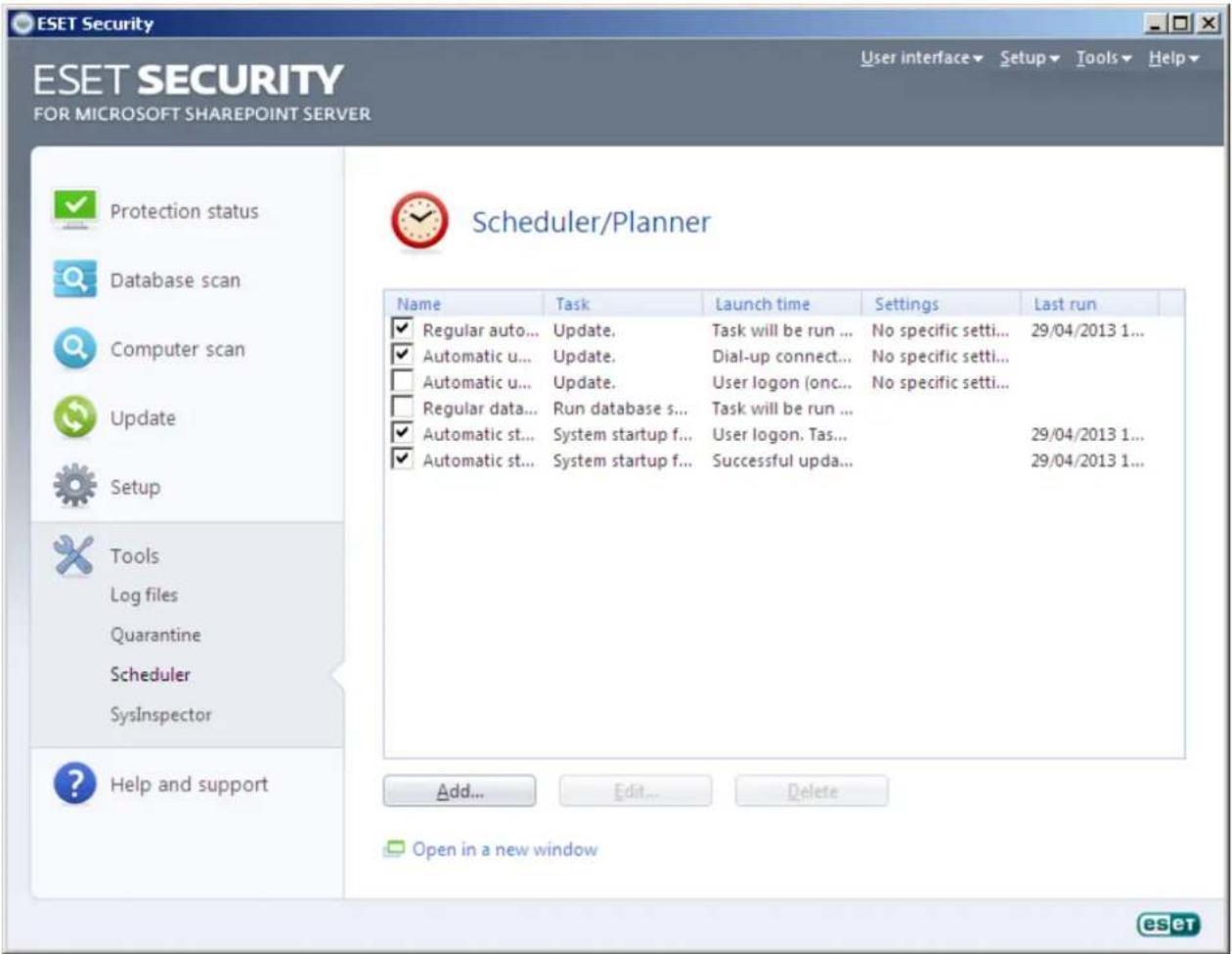
By default, the following scheduled tasks are displayed in Scheduler:
• Regular automatic update
• Automatic update after dial-up connection
• Automatic update after user logon
• Regular database scan
• Automatic startup file check (after user logon)
• Automatic startup file check (after successful update of the virus signature database)
To edit the configuration of an existing scheduled task (both default and user-defined), right-click the task and click Edit... or select the desired task you wish to modify and click the Edit... button.
4.4.1 Purpose of scheduling tasks
Scheduler manages and launches scheduled tasks with predefined configuration and properties. The configuration and properties contain information such as the date and time as well as specified profiles to be used during execution of the task.
4.4.2 Creating new tasks
To create a new task in Scheduler, click the Add... button or right-click and select Add... from the context menu. Five types of scheduled tasks are available:
- Run external application
• System startup file check
• Create a computer status snapshot
• On-demand computer scan - Update
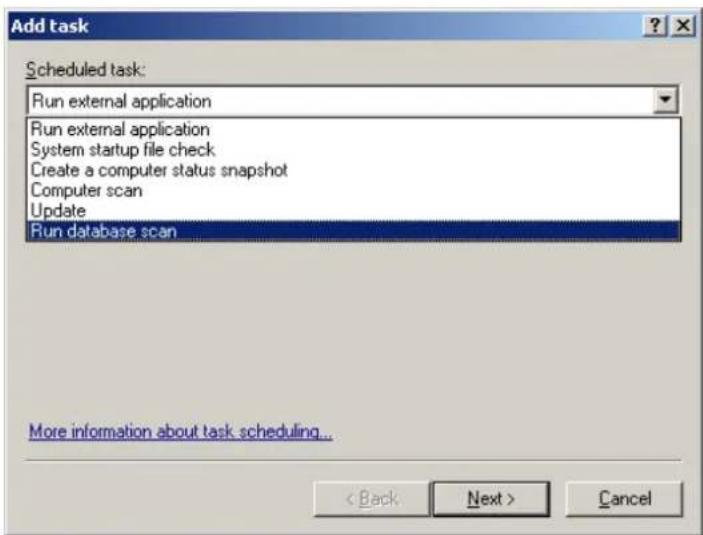
Since Update is one of the most frequently used scheduled tasks, we will explain how to add a new update task.
From the Scheduled task: drop-down menu, select Update. Click Next and enter the name of the task into the Task name: field. Select the frequency of the task. The following options are available: Once, Repeatedly, Daily, Weekly and Event triggered. Based on the frequency selected, you will be prompted with different update parameters. Next, define what action to take if the task cannot be performed or completed at the scheduled time. The following three options are available:
- Wait until the next scheduled time
- Run task as soon as possible
- Run task immediately if the time since its last execution exceeds specified interval (the interval can be defined using the Task interval scroll box)
In the next step, a summary window with information about the current scheduled task is displayed; the option Run task with specific parameters should be automatically enabled. Click the Finish button.
A dialog window will appear, allowing you to select profiles to be used for the scheduled task. Here you can specify a primary and alternative profile, which is used in case the task cannot be completed using the primary profile. Confirm by clicking OK in the Update profiles window. The new scheduled task will be added to the list of currently scheduled tasks.
4.5 Quarantine
The main task of quarantine is to safely store infected files. Files should be quarantined if they cannot be cleaned, if it is not safe or advisable to delete them, or if they are being falsely detected by ESET Security.
You can choose to quarantine any file. This is advisable if a file behaves suspiciously but is not detected by the antivirus scanner. Quarantined files can be submitted for analysis to ESET's Threat Lab.
![ESET Security FOR MICROSOFT SHAREPOINT SERVER Protection status Database scan Computer scan Update Setup Tools Log files Quarantine Scheduler SysInspector Help and support Quarantine Object name Size Reason 21/01/2014 ... C:\eicar.com 70 Eicar testovaci súbor 1... 21/01/2014 ... C:\DOCUME~1\ADMINI~1\LOCALS~... 68 Eicar testovaci súbor 1... 21/01/2014 ... C:\eicar[1].com.txt 70 Eicar test file 1... 11/12/2013 ... C:\eicar_com.zip 186 Eicar testovaci súbor 1... 11/12/2013 ... C:\eicarcom2.zip 310 Eicar testovaci súbor 1... 29/04/2013 ... C:\WINDOWS\eicar[1].com.txt 70 Eicar testovaci súbor 1... 29/04/2013 ... C:\WINDOWS\eicar.com 70 Eicar test file 1... 29/04/2013 ... C:\Documents and Settings\Adminis... 70 Eicar test file 1... 29/04/2013 ... C:\Documents and Settings\Adminis... 310 Eicar test file 1... Quarantine... Restore Open in a new window](/content/2026/05/1142531/images/d7f2bd8aa312d1167501668c0e299bde69752ca05e0db496b371949623b91853.jpg)
Files stored in the quarantine folder can be viewed in a table which displays the date and time of quarantine, the path to the original location of the infected file, its size in bytes, reason (added by user...), and number of threats (e.g., if it is an archive containing multiple infiltrations).
4.5.1 Quarantining files
ESET Security automatically quarantines deleted files (if you have not cancelled this option in the alert window). If desired, you can quarantine any suspicious file manually by clicking the Quarantine... button. If this is the case, the original file is not removed from its original location. The context menu can also be used for this purpose – right-click in the Quarantine window and select Add...
4.5.2 Restoring from Quarantine
Quarantined files can be restored to their original location. Use the Restore feature for this purpose. Restore is available from the context menu by right-clicking on the given file in the Quarantine window. The context menu also offers the Restore to option, which allows you to restore a file to a location other than the one from which it was deleted.
NOTE: If the program quarantined a harmless file by mistake, please exclude the file from scanning after restoring and send the file to ESET Customer Care.
4.5.3 Submitting file from Quarantine
If you have quarantined a suspicious file that was not detected by the program, or if a file was incorrectly evaluated as infected (e.g., by heuristic analysis of the code) and subsequently quarantined, please send the file to ESET's Threat Lab. To submit a file from quarantine, right-click the file and select Submit for analysis from the context menu.
![ESET Security FOR MICROSOFT SHAREPOINT SERVER Protection status Database scan Computer scan Update Setup Tools Log files Quarantine Scheduler SysInspector Help and support Quarantine Time Object name Size Reason 29/04/2013 ... C:\ecarcom2.zip 310 Eicar test file 1... 29/04/2013 ... C:\ecar_com.zip 186 Eicar test file 1... 29/04/2013 ... C:\ecar.com 70 Eicar test file 1... 29/04/2013 ... C:\ecar[1].com.txt 70 Eicar test file 1... 29/04/2013 ... C:\WINDOWS\ecar.com 70 Eicar test file 1... 29/04/2013 ... C:\Documents and Settings\Adminis... 70 Eicar test file 1... 29/04/2013 ... C:\Documents and Settings\Adminis... 310 Eicar test file 1... Quarantine... Restore Restore and exclude from scanning Restore to... Delete from Quarantine Del Submit for analysis Quarantine... Restore Open in a new window](/content/2026/05/1142531/images/c201aa22de29254100a0f505ff44f2c763144b9fecc2a2597560af6d8bb04417.jpg)
4.6 Log files
The Log files contain information about all important program events that have occurred and provide an overview of detected threats. Logging acts as an essential tool in system analysis, threat detection and troubleshooting. Logging is performed actively in the background with no user interaction. Information is recorded based on the current log verbosity settings. It is possible to view text messages and logs directly from the ESET Security environment.
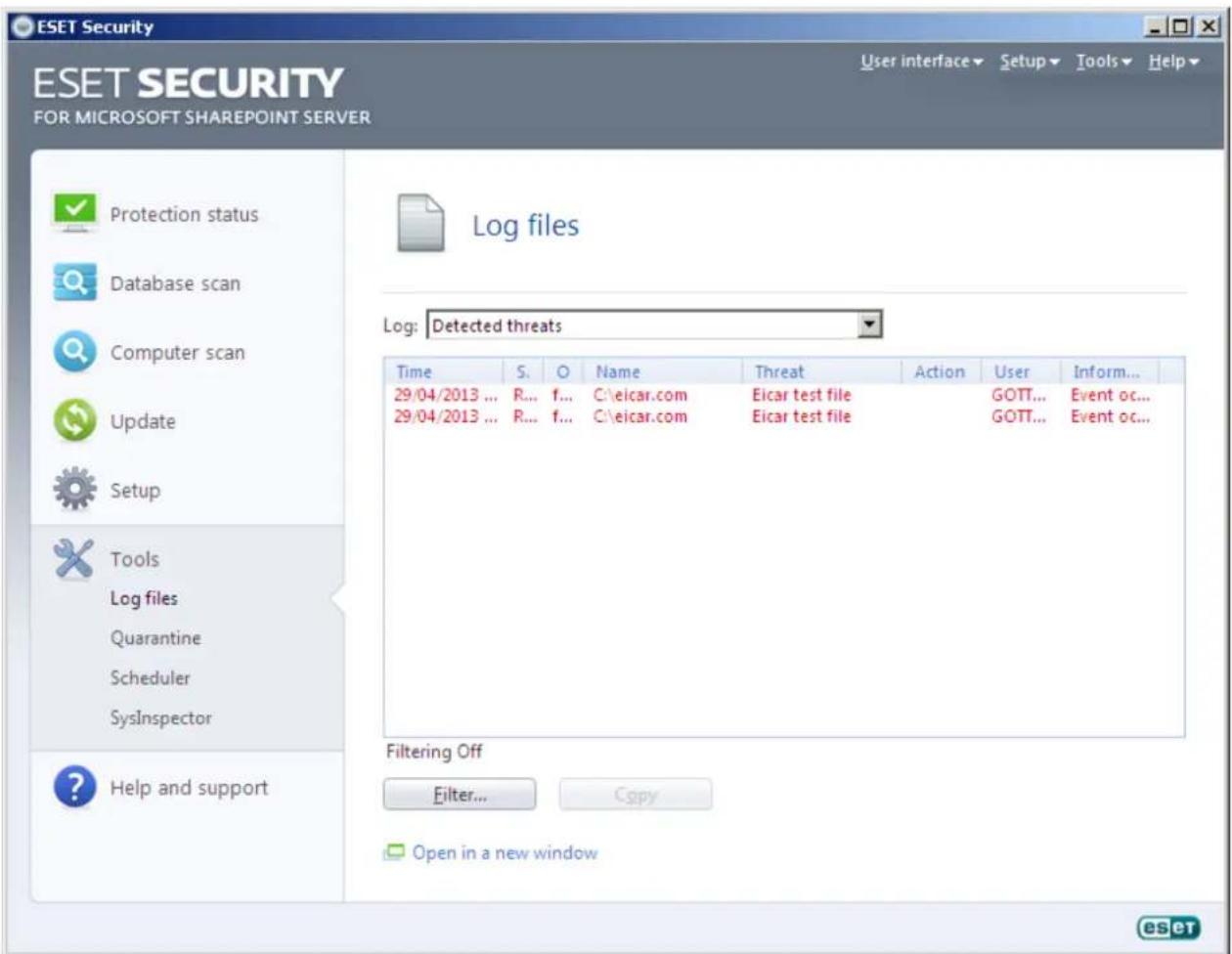
Log files are accessible from the main menu by clicking Tools > Log files. Select the desired log type using the Log: drop-down menu at the top of the window. The following logs are available:
- Detected threats – Use this option to view all information about events related to detected infiltrations, except infiltrations detected by on-demand computer scan (these events are recorded in On-demand computer scan log).
- Events – This option is designed for system administrators and users to solve problems. All important actions performed by ESET Security are recorded in the Event logs.
- On-demand computer scan – Results of all completed scans are displayed in this window. Double-click any entry to view details of the respective On-demand scan.
In each section, the displayed information can be directly copied to the clipboard by selecting the entry and clicking the Copy button. To select multiple entries, the CTRL and SHIFT keys can be used.
4.6.1 Log filtering
Log filtering is a useful feature that helps you find records in the log files, especially when there are too many records and it is difficult to find the particular information you need.
When using filtering, you can type in a string of What to filter, specify what columns to look in, select Record types and set a Time period to narrow down the number of records. By specifying certain filter options, only records that are relevant (according to those filter options) are shown in the Log files window for easy and quick access.
To open the Log filtering window, press Filter... button once in Tools > Log files, or use shortcut keys Ctrl + Shift + F.
NOTE: To search for a particular record, you can use the Find in log 59 functionality instead, or in conjunction with Log filtering.
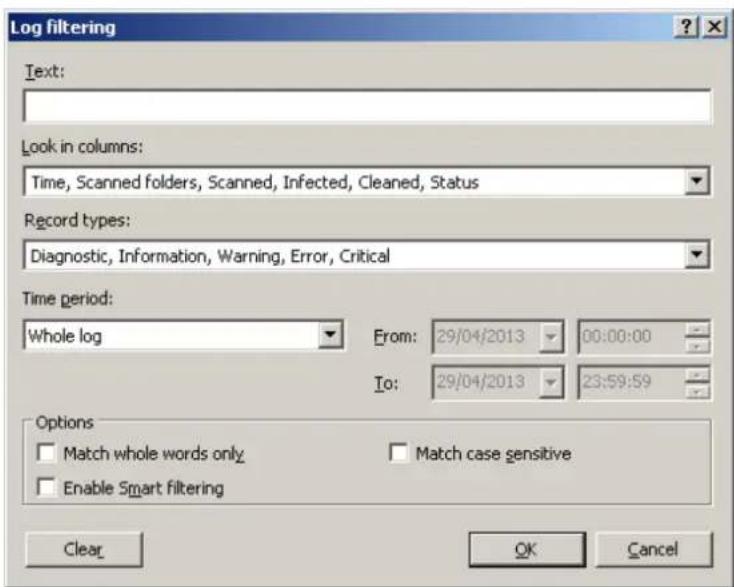
By specifying certain filter options, only records that are relevant (according to those filter options) are shown in the Log files window. This will filer out / narrow down the records, thus making it easier for you to find what you are looking for. The more specific filter options you use, the narrower the result will be.
What: - Type in a string (word, or part of a word.) Only records that contain this string will be shown. The rest of the records will not be visible for better readability.
Look in columns: - Select what columns will be taken into account when filtering. You can check one or more columns to be used for filtering. By default, all columns are checked:
• Time
- Module
- Event
- User
Record types: - Lets you choose what type of records to show. You can choose one particular record type, multiple types at the same time, or have all of the record types shown (by default):
- Diagnostic
- Information
- Warning
- Error
• Critical
Time period: - Use this option to have records filtered by time period. You can choose one of the following:
• Whole log (default) - does not filter by time period as it shows whole log
- Last day
- Last week
- Last month
- Interval - by selecting interval, you can specify exact time period (date and time) to have shown only those record that happened within specified time period.
Apart from the filtering settings above, you also have several Options:
Match whole words only - Shows only records that match the string as a whole word in the What text box.
Match case sensitive - Shows only records that match the string with exact capitalization in the What text box.
Enable Smart filtering - Use this option to let ESET Security perform filtering using its own methods.
Once you are finished with configuring filtering options, press the OK button to apply the filter. The Log files window will show only corresponding records according to the filter options.
4.6.2 Find in log
In addition to Log filtering [58], you can use search functionality within Log files, however you can also use it independently from log filtering. This is useful when you are looking for particular records in the logs. Like Log filtering, this search feature will help you find the information you are looking for, especially when there are too many records.
When using Find in log, you can type in a string of What to find, specify what columns to look in, select Record types and set a Time period to search only for records that happened within that time period. By specifying certain search options, only records that are relevant (according to those search options) will be searched in the Log files window.
In order to search in logs, open the Find in Log window by pressing Ctrl + f keys.
NOTE: You can use the Find in log feature in conjunction with Log filtering. ^58 . You can first narrow down the number of records using Log filtering and then start searching only within filtered records.
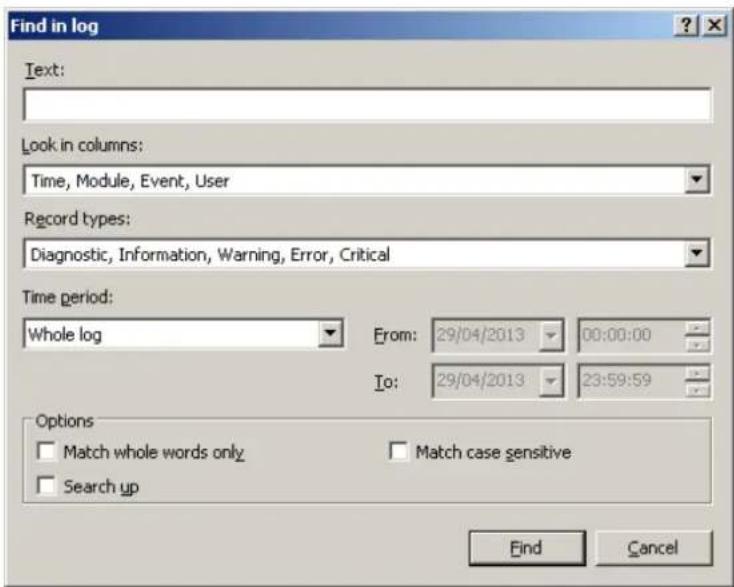
What: - Type in a string (word, or part of a word). Only records that contain this string will be found. The rest of the records will be omitted.
Look in columns: - Select what columns will be taken into account when searching. You can check one or more columns to be used for searching. By default, all columns are checked:
• Time
- Module
- Event
- User
Record types: - Lets you choose what type of records to find. You can choose one particular record type, multiple types at the same time, or have all of the record types to be searched (by default):
- Diagnostic
• Information - Warning
- Error
• Critical
Time period: - Use this option to find records only within particular time period. You can choose one of the following:
• Whole log (default) - does not search within time period, searches the whole log
- Last day
- Last week
- Last month
- Interval - by selecting interval, you can specify exact time period (date and time) to search only those record that happened within specified time period.
Apart from the find settings above, you also have several Options:
Match whole words only - Finds only records that match the string as a whole word in the What text box.
Match case sensitive - Finds only records that match the string with exact capitalization in the What text box.
Search up - Searches from current position upwards.
Once you configured your search options, click the Find button to start searching. The search stops when it finds the first corresponding record. Click the Find button again to search further. The Log files are searched from top to bottom, starting from current position (record that is highlighted).
4.6.3 Log maintenance
The Logging configuration of ESET Security is accessible from the main program window. Click Setup > Enter entire advanced setup tree... > Tools > Log files. You can specify the following options for log files:
- Delete records automatically: Log entries older than the specified number of days are automatically deleted
- Optimize log files automatically: Enables automatic defragmentation of log files if the specified percentage of unused records has been exceeded
- Minimum logging verbosity: Specifies the logging verbosity level. Available options:
– Diagnostic records – Logs information needed for fine-tuning of the program and all records above
- Informative records – Records informative messages including successful update messages plus all records above
- Warnings – Records critical errors and warning messages
- Errors - Only "Error downloading file" messages are recorded, plus critical errors
- Critical warnings - Logs only critical errors (error starting Antivirus protection, etc...)
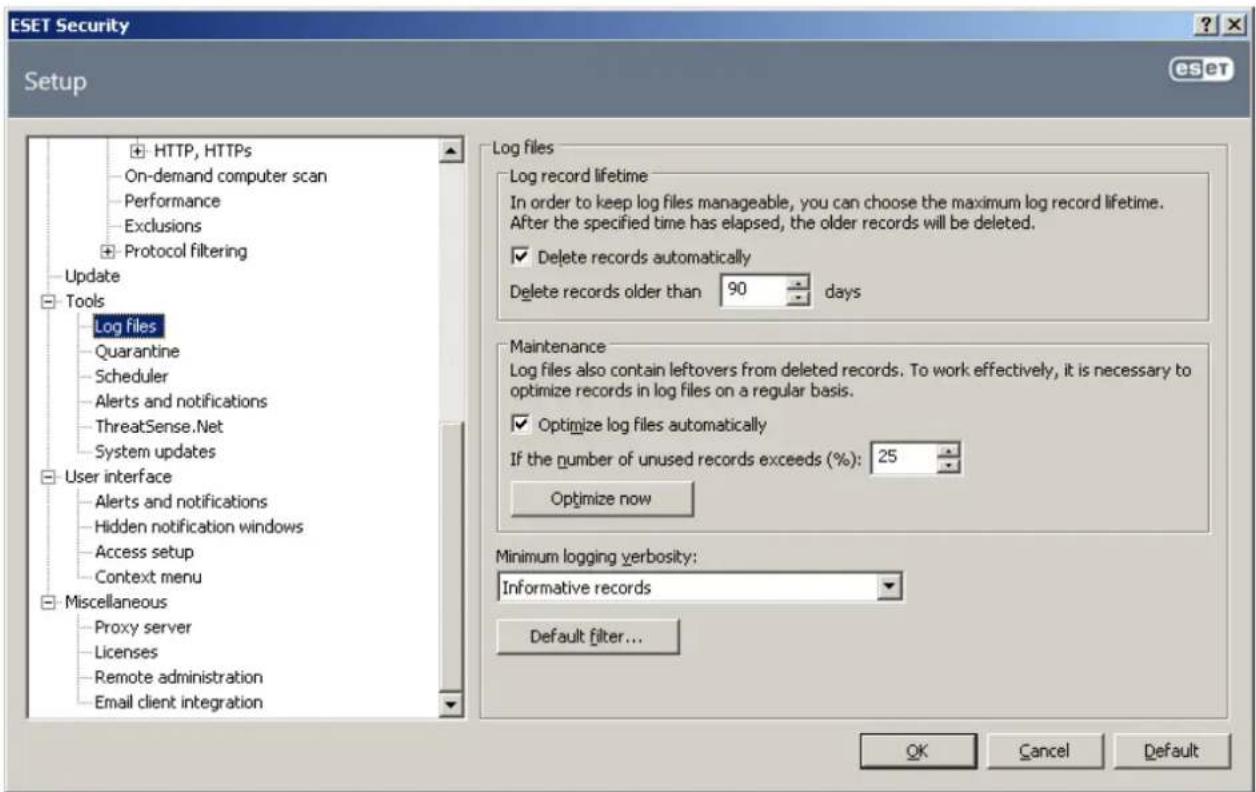
4.7 ESET WMI Provider
About WMI
"Windows Management Instrumentation (WMI) is the Microsoft implementation of Web-Based Enterprise Management (WBEM), which is an industry initiative to develop a standard technology for accessing management information in an enterprise environment.
For more information on WMI, see http://msdn.microsoft.com/en-us/library/windows/desktop/aa384642(v=vs.85).aspx
ESET WMI Provider
The purpose of the ESET WMI provider is to allow for the remote monitoring of ESET products in an enterprise environment without requiring any ESET specific software or tools. By making basic information (product name, version, protection status, update status, features, statistics, etc.) available via WMI, we offer options for enterprise administrators who want to monitor their ESET products. Administrators can monitor the state of their ESET products using any of several existing tools such as scripts (e.g. PowerShell, Visual Basic, etc.) and third-party enterprise monitoring tools (e.g. SCOM, Nagios, etc.).
4.7.1 Provided Data
All the WMI classes related to the ESET product are located in the 'foot\ESET" namespace. The following classes, which are described in more detail below, are currently implemented:
General:
- ESET_Product
- ESET_Features
- ESET_Statistics
Logs:
- ESET_ThreatLog
- ESET_EventLog
- ESET_ODFileScanLogs
- ESET_ODFileScanLogRecords
- ESET_ODServerScanLogs
• ESET_ODServerScanLogRecords - ESET_GreylistLog
- ESET_SpamLog
ESET\_Product class
The ESET_Product class can have only one instance with properties providing basic information about installed product:
- ID – product type identifier, for example "essbe"
- Name – name of the product, for example "ESET Security"
- Edition – edition of the product, for example "Microsoft SharePoint Server"
- Version – Product version, for example "4.5.15013.0"
- VirusDBVersion – version of the virus database, for example "7868 (20130107)"
- VirusDBLastUpdate – timestamp of the last update of the virus database. The string contains timestamp in WMI datetime format. For example, "20130118115511.000000+060"
- LicenseExpiration – license expiration time. The string contains timestamp in WMI datetime format. For example, "20130118115511.000000+060"
- KernelRunning – boolean value indicating whether the eKrn service is running on the machine, for example "TRUE"
- StatusCode – number indicating protection status of the product: O - Green (OK), 1 - Yellow (Warning), 2 - Red (Error)
- StatusText – message describing the reason of nonzero status code, otherwise it is null
ESET\_Features class
The ESET_Features class has multiple instances, depending on the number of product features. Each instance contains:
- Name – name of the feature (list of names is provided below)
- Status – status of the feature: O – inactive, 1 – disabled, 2 – enabled
List of strings representing currently recognized product features:
- CLIENT_FILE_AV – real-time file system anti-virus protection
- CLIENT_WEB_AV – client web anti-virus protection
- CLIENT_DOC_AV – client document anti-virus protection
- CLIENT_NET_FW – client personal firewall
- CLIENT_EMAIL_AV – client email anti-virus protection
- CLIENT_EMAIL_AS – client email anti-spam protection
- SERVER_FILE_AV – real-time anti-virus protection of files of protected file server product, for example, files in SharePoint's content database in case of ESET Security
- SERVER_EMAIL_AV – anti-virus protection of emails of protected server product, for example emails in MS Exchange or IBM Lotus Domino
- SERVER_EMAIL_AS – anti-spam protection of emails of protected server product, for example emails in MS Exchange or IBM Lotus Domino
- SERVER_GATEWAY_AV – anti-virus protection of protected network protocols on the gateway
- SERVER_GATEWAY_AS – anti-spam protection of protected network protocols on the gateway
ESET\_Statistics class
The ESET_Statistics class has multiple instances, depending on the number of scanners in the product. Each instance contains:
- Scanner – string code for the particular scanner, for example, "CLIENT_FILE"
• Total – total number of files scanned - Infected – number of infected files found
- Cleaned – number of cleaned files
- Timestamp – timestamp of the last change of this statistics. In WMI datetime format, for example, "20130118115511.000000+060"
- ResetTime – timestamp of when the statistics counters had been reset. In WMI datetime format, for example, "20130118115511.000000+060"
List of strings representing currently recognized scanners:
- CLIENT_FILE
- CLIENT_EMAIL
- CLIENT WEB
- SERVER_FILE
- SERVER_EMAIL
- SERVER_WEB
ESET\_ThreatLog class
The ESET_ThreatLog class has multiple instances, each one representing a log record from the "Detected threats" log. Each instance contains:
• ID - unique ID of this log record
- Timestamp - creation timestamp of the log record (in the WMI date/time format)
- LogLevel - severity of the log record expressed as a number in the [O-8] interval. Values correspond to the following named levels: Debug, Info-Footnote, Info, Info-Important, Warning, Error, SecurityWarning, Error-Critical, SecurityWarning-Critical
- Scanner - Name of the scanner that created this log event
- ObjectType - Type of the object that produced this log event
- ObjectName - Name of the object that produced this log event
- Threat - Name of the threat that has been found in the object described by ObjectName and ObjectType properties
- Action - Action performed after the threat has been identified
- User - User account that caused this log event to be generated
• Information - Additional description of the event
ESET\_EventLog
The ESET_EventLog class has multiple instances, each one representing a log record from the "Events" log. Each instance contains:
• ID - unique ID of this log record
- Timestamp - creation timestamp of the log record (in the WMI date/time format)
- LogLevel - severity of the log record expressed as a number in the [O-8] interval. Values correspond to the following named levels: Debug, Info-Footnote, Info, Info-Important, Warning, Error, SecurityWarning, Error-Critical, SecurityWarning-Critical
- Module - Name of the module that created this log event
• Event - Description of the event
- User - User account that caused this log event to be generated
ESET\_ODFileScanLogs
The ESET_ODFileScanLogs class has multiple instances, each one representing a run of the on-demand file scan. This is equivalent to the GUI "On-demand computer scan" list of logs. Each instance contains:
• ID - unique ID of this on-demand log
- Timestamp - creation timestamp of the log (in the WMI date/time format)
- Targets - Target folders/objects of the scan
• TotalScanned - Total number of objects scanned
- Infected - Number of infected objects found
- Cleaned - Number of objects cleaned
• Status - Status of the scan process
ESET\_ODFileScanLogRecords
The ESET_ODFileScanLogRecords class has multiple instances, each one representing a log record in one of the scan logs represented by instances of the ESET_ODFileScanLogs class. Instances of this class provide log records of all the on-demand scans/logs. When a specific instance of a particular scan log is required, logs must be filtered by the LogID property. Each class instance contains:
- LogID - ID of the scan log this record belongs to (ID of one of the instances of the ESET_ODFileScanLogs class)
• ID - unique ID of this scan log record - Timestamp - creation timestamp of the log record (in the WMI date/time format)
- LogLevel - severity of the log record expressed as a number in the [O-8] interval. Values correspond to the following named levels: Debug, Info-Footnote, Info, Info-Important, Warning, Error, SecurityWarning, Error-Critical, SecurityWarning-Critical
- Log - The actual log message
ESET\_ODServerScanLogs
The ESET_ODServerScanLogs class has multiple instances, each one representing a run of the on-demand server scan.
Each instance contains:
• ID - unique ID of this on-demand log
• Targets - Target folders/objects of the scan
• TotalScanned - Total number of objects scanned
• Infected - Number of infected objects found
- Cleaned - Number of objects cleaned
• RuleHits - Total number of rule hits
- Status - Status of the scan process
- Timestamp - creation timestamp of the log (in the WMI date/time format)
ESET\_ODServerScanLogRecords
The ESET_ODServerScanLogRecords class has multiple instances, each one representing a log record in one of the scan logs represented by instances of the ESET_ODServerScanLogs class. Instances of this class provide log records of all the on-demand scans/logs. When a specific instance of a particular scan log is required, logs must be filtered by the LogID property. Each class instance contains:
- LogID - ID of the scan log this record belongs to (ID of one of the instances of the ESET_ODServerScanLogs class)
• ID - unique ID of this scan log record - Timestamp - creation timestamp of the log record (in the WMI date/time format)
- LogLevel - severity of the log record expressed as a number in the [O-8] interval. Values correspond to the following named levels: Debug, Info-Footnote, Info, Info-Important, Warning, Error, SecurityWarning, Error-Critical, SecurityWarning-Critical
- Log - The actual log message
ESET\_GreylistLog
The ESET_GreylistLog class has multiple instances, each one representing a log record from the "Greylist" log. Each instance contains:
• ID - unique ID of this log record
- Timestamp - creation timestamp of the log record (in the WMI date/time format)
- LogLevel - severity of the log record expressed as a number in the [O-8] interval. Values correspond to the following named levels: Debug, Info-Footnote, Info, Info-Important, Warning, Error, SecurityWarning, Error-Critical, SecurityWarning-Critical
• HELODomain - Name of the HELO domain
• IP - Source IP address
- Sender - Email sender
- Recipient - Email recipient
• Action - Action performed
- TimeToAccept - Number of minutes after which the email will be accepted
ESET\_SpamLog
The ESET_SpamLog class has multiple instances, each one representing a log record from the "Spamlog". Each instance contains:
• ID - unique ID of this log record
- Timestamp - creation timestamp of the log record (in the WMI date/time format)
- LogLevel - severity of the log record expressed as a number in the [O-8] interval. Values correspond to the following named levels: Debug, Info-Footnote, Info, Info-Important, Warning, Error, SecurityWarning, Error-Critical, SecurityWarning-Critical
- Sender - Email sender
• Recipients - Email recipients
- Subject - Email subject
• Received - Time of reception
• Score - Spam score in percent [0-100]
- Reason - The reason why was the email marked as spam
• Action - Action performed
• DiagInfo - Additional diagnostic information
4.7.2 Accessing Provided Data
Here are a few examples of how to access ESET WMI data from Windows command line and PowerShell that should work from any current Windows operating system. There are, however, many additional ways of accessing the data using other scripting languages and tools.
Command line without scripts
The "wmic" command line tool can be used to access the various predefined WMI classes or any custom WMI class.
To display complete info about product on the local machine:
wmic /namespace:\root\ESET Path ESET_Product
To display product version number only of the product on the local machine:
wmic /namespace:\root\ESET Path ESET_Product Get Version
To display complete info about product on a remote machine with IP 10.1.118.180:
wmic /namespace:\root\ESET /node:10.1.118.180 /user:Administrator Path ESET_Product
PowerShell
Get and display complete info about product on the local machine:
Get-WmiObject ESET_Product -namespace 'root\ESET'
Get and display complete info about product on a remote machine with IP10.1.118.180:
\$cred = Get-Credential # prompts the user for credentials and stores it in the variable
Get-WmiObject ESET_Product -namespace 'root\ESET' -computername '10.1.118.180' -cred \$cred
4.8 ESET SysInspector
4.8.1 Introduction to ESET SysInspector
ESET SysInspector is an application that thoroughly inspects your computer and displays gathered data in a comprehensive way. Information like installed drivers and applications, network connections or important registry entries can help you to investigate suspicious system behavior be it due to software or hardware incompatibility or malware infection.
You can access ESET SysInspector two ways: From the integrated version in ESET Security solutions or by downloading the standalone version (SysInspector.exe) for free from ESET's website. Both versions are identical in function and have the same program controls. The only difference is how outputs are managed. The standalone and integrated versions each allow you to export system snapshots to an .xml file and save them to disk. However, the integrated version also allows you to store your system snapshots directly in Tools > ESET SysInspector (except ESET Remote Administrator).
Please allow some time while ESET SysInspector scans your computer. It may take anywhere from 10 seconds up to a few minutes depending on your hardware configuration, operating system and the number of applications installed on your computer.
4.8.1.1 Starting ESET SysInspector
To start ESET SysInspector, simply run the SysInspector.exe executable you downloaded from ESET's website.
Please wait while the application inspects your system, which could take up to several minutes depending on your hardware and data to be gathered.
4.8.2 User Interface and application usage
For clarity the Main window is divided into four major sections – Program Controls located on the top of the Main window, the Navigation window on the left, the Description window on the right in the middle and the Details window on the right at the bottom of the Main window. The Log Status section lists the basic parameters of a log (filter used, filter type, is the log a result of a comparison etc.).
![[Generated] - ESET SysInspector ESET SYSINSPECTOR File Tree List Help Detail: Full Filtering: Fine (Risk Level 1-9) Find: Status Section: Running processes > smss.exe Running processes Network Connections Important Registry Entries Services Drivers Critical Files System Scheduler Tasks System Information File Details About Process Path PID Username Running processes Nečinné procesy systému 0 System 4 smss.exe 228 csrss.exe 316 csrss.exe 352 wininit.exe 360 winlogon.exe 388 services.exe 452 lsass.exe 460 lsm.exe 468 svchost.exe 556 vboxservice.exe 612 c:\windows\system32\smss.exe SHA1 A81B48A5D6A06543ED36B7E6EA75C5E52B79DD37 Last Write Time 2009/07/14 03:14 Creation Time 2009/07/14 01:11 File Size 69632 File Description Windows Session Manager Company Name Microsoft Corporation Log Status Current Log: [Generated] eset](/content/2026/05/1142531/images/018a6024b8d4715660539cf524869ca992028be205bc9b068e3b65e0f454dba6.jpg)
4.8.2.1 Program Controls
This section contains the description of all program controls available in ESET SysInspector.
File
By clicking File you can store your current system status for later investigation or open a previously stored log. For publishing purposes we recommend that you generate a log Suitable for sending. In this form, the log omits sensitive information (current user name, computer name, domain name, current user privileges, environment variables, etc.).
NOTE: You may open previously stored ESET SysInspector reports by simply dragging and dropping them into the Main window.
Tree
Enables you to expand or close all nodes and export selected sections to Service script.
List
Contains functions for easier navigation within the program and various other functions like finding information online.
Help
Contains information about the application and its functions.
Detail
This setting influences the information displayed in the Main window to make the information easier to work with. In "Basic" mode, you have access to information used to find solutions for common problems in your system. In the "Medium" mode, the program displays less used details. In "Full" mode, ESET SysInspector displays all the information needed to solve very specific problems.
Item filtering
Item filtering is best used to find suspicious files or registry entries in your system. By adjusting the slider, you can filter items by their Risk Level. If the slider is set all the way to the left (Risk Level 1), then all items are displayed. By moving the slider to the right, the program filters out all items less risky than current Risk Level and only display items which are more suspicious than the displayed level. With the slider all the way to the right, the program displays only known harmful items.
All items labeled as risk 6 to 9 can pose security risk. If you are not using a security solution from ESET, we recommend that you scan your system with ESET Online Scanner if ESET SysInspector has found any such item. ESET Online Scanner is a free service.
NOTE: The Risk level of an item can be quickly determined by comparing the color of the item with the color on the Risk Level slider.
Search
Search can be used to quickly find a specific item by its name or part of its name. The results of the search request are displayed in the Description window.
Return
By clicking the back or forward arrow, you may return to previously displayed information in the Description window. You may use the backspace and space keys instead of clicking back and forward.
Status section
Displays the current node in Navigation window.
Important: Items highlighted in red are unknown, which is why the program marks them as potentially dangerous. If an item is in red, it does not automatically mean that you can delete the file. Before deleting, please make sure that files are really dangerous or unnecessary.
4.8.2.2 Navigating in ESET SysInspector
ESET SysInspector divides various types of information into several basic sections called nodes. If available, you may find additional details by expanding each node into its subnodes. To open or collapse a node, double-click the name of the node or alternatively click or next to the name of the node. As you browse through the tree structure of nodes and subnodes in the Navigation window you may find various details for each node shown in the Description window. If you browse through items in the Description window, additional details for each item may be displayed in the Details window.
The following are the descriptions of the main nodes in the Navigation window and related information in the Description and Details windows.
Running processes
This node contains information about applications and processes running at the time of generating the log. In the Description window you may find additional details for each process such as dynamic libraries used by the process and their location in the system, the name of the application's vendor and the risk level of the file.
The Detail window contains additional information for items selected in the Description window such as the file size or its hash.
NOTE: An operating system comprises of several important kernel components running 24/7 that provide basic and vital functions for other user applications. In certain cases, such processes are displayed in the tool ESET SysInspector with file path beginning with \??. Those symbols provide pre-launch optimization for those processes; they are safe for the system.
Network connections
The Description window contains a list of processes and applications communicating over the network using the protocol selected in the Navigation window (TCP or UDP) along with the remote address where to which the application is connected to. You can also check the IP addresses of DNS servers.
The Detail window contains additional information for items selected in the Description window such as the file size or its hash.
Important Registry Entries
Contains a list of selected registry entries which are often related to various problems with your system like those specifying startup programs, browser helper objects (BHO), etc.
In the Description window you may find which files are related to specific registry entries. You may see additional details in the Details window.
Services
The Description window Contains a list of files registered as windows Services. You may check the way the service is set to start along with specific details of the file in the Details window.
Drivers
A list of drivers installed in the system.
Critical files
The Description window displays content of critical files related to the Microsoft windows operating system.
System Scheduler Tasks
Contains a list of tasks triggered by Windows Task Scheduler at a specified time/interval.
System information
Contains detailed information about hardware and software along with information about set environmental variables, user rights and system event logs.
File details
A list of important system files and files in the Program Files folder. Additional information specific for the files can be found in the Description and Details windows.
About
Information about version of ESET SysInspector and the list of program modules.
4.8.2.2.1 Keyboard shortcuts
Key shortcuts that can be used when working with the ESET SysInspector include:
File
| Ctrl+O | opens existing log |
| Ctrl+S | saves created logs |
Generate
| Ctrl+G | generates a standard computer status snapshot |
| Ctrl+H | generates a computer status snapshot that may also log sensitive information |
Item Filtering
| 1, O | fine, risk level 1-9 items are displayed |
| 2 | fine, risk level 2-9 items are displayed |
| 3 | fine, risk level 3-9 items are displayed |
| 4, U | unknown, risk level 4-9 items are displayed |
| 5 | unknown, risk level 5-9 items are displayed |
| 6 | unknown, risk level 6-9 items are displayed |
| 7, B | risky, risk level 7-9 items are displayed |
| 8 | risky, risk level 8-9 items are displayed |
| 9 | risky, risk level 9 items are displayed |
| - | decreases risk level |
| + | increases risk level |
| Ctrl+9 | filtering mode, equal level or higher |
| Ctrl+O | filtering mode, equal level only |
View
Ctrl+5 view by vendor, all vendors
Ctrl+6 view by vendor, only Microsoft
Ctrl+7 view by vendor, all other vendors
Ctrl+3 displays full detail
Ctrl+2 displays medium detail
Ctrl+1 basic display
BackSpace moves one step back
Space moves one step forward
Ctrl+W expands tree
Ctrl+Q collapses tree
Other controls
| Ctrl+T | goes to the original location of item after selecting in search results |
| Ctrl+P | displays basic information about an item |
| Ctrl+A | displays full information about an item |
| Ctrl+C | copies the current item's tree |
| Ctrl+X | copies items |
| Ctrl+B | finds information about selected files on the Internet |
| Ctrl+L | opens the folder where the selected file is located |
| Ctrl+R | opens the corresponding entry in the registry editor |
| Ctrl+Z | copies a path to a file (if the item is related to a file) |
| Ctrl+F | switches to the search field |
| Ctrl+D | closes search results |
| Ctrl+E | run service script |
Comparing
| Ctrl+Alt+O | opens original / comparative log |
| Ctrl+Alt+R | cancels comparison |
| Ctrl+Alt+1 | displays all items |
| Ctrl+Alt+2 | displays only added items, log will show items present in current log |
| Ctrl+Alt+3 | displays only removed items, log will show items present in previous log |
| Ctrl+Alt+4 | displays only replaced items (files inclusive) |
| Ctrl+Alt+5 | displays only differences between logs |
| Ctrl+Alt+C | displays comparison |
| Ctrl+Alt+N | displays current log |
| Ctrl+Alt+P | opens previous log |
Miscellaneous
| F1 | view help |
| Alt+F4 | close program |
| Alt+Shift+F4 | close program without asking |
| Ctrl+I | log statistics |
4.8.2.3 Compare
The Compare feature allows the user to compare two existing logs. The outcome of this feature is a set of items not common to both logs. It is suitable if you want to keep track of changes in the system, a helpful tool for detecting activity of malicious code.
After it is launched, the application creates a new log which is displayed in a new window. Navigate to File > Save log to save a log to a file. Log files can be opened and viewed at a later time. To open an existing log, use File > Open log. In the main program window, ESET SysInspector always displays one log at a time.
The benefit of comparing two logs is that you can view a currently active log and a log saved in a file. To compare logs, use the option File > Compare log and choose Select file. The selected log will be compared to the active one in the main program windows. The comparative log will display only the differences between those two logs.
NOTE: If you compare two log files, select File > Save log to save it as a ZIP file; both files are saved. If you open this file later, the contained logs are automatically compared.
Next to the displayed items, ESET SysInspector shows symbols identifying differences between the compared logs.
Items marked by a -can only be found in the active log and were not present in the opened comparative log. Items marked by a -were present only in the opened log and are missing in the active one.
Description of all symbols that can be displayed next to items:
• + new value, not present in the previous log
• tree structure section contains new values
- removed value, present in the previous log only
- tree structure section contains removed values
• value / file has been changed
- tree structure section contains modified values / files
• the risk level has decreased / it was higher in the previous log
• the risk level has increased / it was lower in the previous log
The explanation section displayed in the left bottom corner describes all symbols and also displays the names of logs which are being compared.
![Log Status Current Log: [Generated] Previous Log: SysInspector-LOG-110725-1042.xml [Loaded-ZIP] Compare: [Comparison Result] Compare Icons Legend + Added Item - Removed Item ○ File Replaced ▼ Status Was Lowered → Status Was Raised □ Added Item(s) in Branch □ Removed Item(s) in Branch □ Added or Removed Item(s) in Branch □ File(s) Replaced in Branch](/content/2026/05/1142531/images/fe9fb1a941ae56a86e70e5897924d8550e37795af72a037597ff040b3b2559dd.jpg)
Any comparative log can be saved to a file and opened at a later time.
Example
Generate and save a log, recording original information about the system, to a file named previous.xml. After changes to the system have been made, open ESET SysInspector and allow it to generate a new log. Save it to a file named current.xml.
In order to track changes between those two logs, navigate to File > Compare logs. The program will create a comparative log showing differences between the logs.
The same result can be achieved if you use the following command line option:
Syslsnpector.exe current.xml previous.xml
4.8.3 Command line parameters
ESET SysInspector supports generating reports from the command line using these parameters:
| /gen | generate a log directly from the command line without running the GUI |
| /privacy | generate a log excluding sensitive information |
| /zip | store the resulting log directly on the disk in a compressed file |
| /silent | suppress the display of the log generation progress bar |
| /help, /? | display information about the command line parameters |
Examples
To load a specific log directly in the browser, use: SysInspector.exe "c:\clientlog.xml"
To generate a log to a current location, use: SysInspector.exe /gen
To generate a log to a specific folder, use: SysInspector.exe /gen="c:\folder"
To generate a log to a specific file/location, use:SysInspector.exe /gen="c:\folder\mynewlog.xml"
To generate a log excluding sensitive information directly in a compressed file, useSysInspector.exe /gen="c:\mynewlog.zip" /privacy/zip
To compare two logs, use: SysInspector.exe "current.xml" "original.xml"
NOTE: If the name of the file/folder contains a gap, then should be taken into inverted commas.
4.8.4 Service Script
Service script is a tool that provides help to customers that use ESET SysInspector by easily removing unwanted objects from the system.
Service script enables the user to export the entire ESET SysInspector log, or its selected parts. After exporting, you can mark unwanted objects for deletion. You can then run the modified log to delete marked objects.
Service Script is suited for advanced users with previous experience in diagnosing system issues. Unqualified modifications may lead to operating system damage.
Example
If you have a suspicion that your computer is infected by a virus which is not detected by your antivirus program, follow the step-by-step instructions below:
- Run ESET SysInspector to generate a new system snapshot.
- Select the first item in the section on the left (in the tree structure), press Ctrl and select the last item to mark all items.
- Right click the selected objects and select the Export Selected Sections To Service Script context menu option.
- The selected objects will be exported to a new log.
- This is the most crucial step of the entire procedure: open the new log and change the – attribute to + for all objects you want to remove. Please make sure you do not mark any important operating system files/objects.
- Open ESET SysInspector, click File > Run Service Script and enter the path to your script.
- Click OK to run the script.
4.8.4.1 Generating Service script
To generate a script, right-click any item from the menu tree (in the left pane) in the ESET SysInspector main window. From the context menu, select either the Export All Sections To Service Script option or the Export Selected Sections To Service Script option.
NOTE: It is not possible to export the service script when two logs are being compared.
4.8.4.2 Structure of the Service script
In the first line of the script's header, you can find information about the Engine version (ev), GUI version (gv) and the Log version (lv). You can use this data to track possible changes in the .xml file that generates the script and prevent any inconsistencies during execution. This part of the script should not be altered.
The remainder of the file is divided into sections in which items can be edited (denote those that will be processed by the script). You mark items for processing by replacing the “-” character in front of an item with a “+” character. Sections in the script are separated from each other by an empty line. Each section has a number and title.
01) Running processes
This section contains a list of all processes running in the system. Each process is identified by its UNC path and, subsequently, its CRC16 hash code in asterisks (*).
Example:
01) Running processes:
- \SystemRoot\System32\smss.exe *4725*
- C:\Windows\system32\svchost.exe *FD08*
+ C:\Windows\system32\module32.exe *CF8A*
[...]
In this example a process, module32.exe, was selected (marked by a "+" character); the process will end upon execution of the script.
02) Loaded modules
This section lists currently used system modules.
Example:
02) Loaded modules:
- c:\windows\system32\svchost.exe
- c:\windows\system32\kernel32.dll
+ c:\windows\system32\khbekhb.dll
- c:\windows\system32\advapi32.dll
[...]
In this example the module khbekhb.dll was marked by a "+" . When the script runs, it will recognize the processes using that specific module and end them.
03) TCP connections
This section contains information about existing TCP connections.
Example:
03) TCP connections:
- Active connection: 127.0.0.1:30606 -> 127.0.0.1:55320, owner: ekrn.exe
- Active connection: 127.0.0.1:50007 -> 127.0.0.1:50006,
- Active connection: 127.0.0.1:55320 -> 127.0.0.1:30606, owner: OUTLOOK.EXE
- Listening on *, port 135 (epmap), owner: svchost.exe
+ Listening on *, port 2401, owner: fservice.exe Listening on *, port 445 (microsoft-ds), owner: System
[...]
When the script runs, it will locate the owner of the socket in the marked TCP connections and stop the socket, freeing system resources.
04) UDP endpoints
This section contains information about existing UDP endpoints.
Example:
04) UDP endpoints:
- 0.0.0.0, port 123 (ntp)
+ 0.0.0.0, port 3702
- 0.0.0.0, port 4500 (ipsec-msft)
- 0.0.0.0, port 500 (isakmp)
[...]
When the script runs, it will isolate the owner of the socket at the marked UDP endpoints and stop the socket.
05) DNS server entries
This section contains information about the current DNS server configuration.
Example:
05) DNS server entries:
+ 204.74.105.85
- 172.16.152.2
[...]
Marked DNS server entries will be removed when you run the script.
06) Important registry entries
This section contains information about important registry entries.
Example:
06) Important registry entries:
* Category: Standard Autostart (3 items)
HKLM\SOFTWARE\Microsoft\Windows\CurrentVersion\Run
- HotKeysCmds = C:\Windows\system32\hkcmd.exe
- IgfxTray = C:\Windows\system32\igfxtray.exe
HKCU\SOFTWARE\Microsoft\Windows\CurrentVersion\Run
- Google Update = "C:\Users\antoniak\AppData\Local\Google\Update\GoogleUpdate.exe" /c
* Category: Internet Explorer (7 items)
HKLM\Software\Microsoft\Internet Explorer\Main
+ Default_Page_URL = http://thatcrack.com/
[...]
The marked entries will be deleted, reduced to O-byte values or reset to their default values upon script execution. The action to be applied to a particular entry depends on the entry category and key value in the specific registry.
07) Services
This section lists services registered within the system.
Example:
07) Services:
- Name: Andrea ADI Filters Service, exe path: c:\windows\system32\aeadisrv.exe, state: Running,
startup: Automatic
- Name: Application Experience Service, exe path: c:\windows\system32\aelupsvc.dll, state: Running,
startup: Automatic
- Name: Application Layer Gateway Service, exe path: c:\windows\system32\alg.exe, state: Stopped,
startup: Manual
[...]
The services marked and their dependant services will be stopped and uninstalled when the script is executed.
08) Drivers
This section lists installed drivers.
Example:
08) Drivers:
- Name: Microsoft ACPI Driver, exe path: c:\windows\system32\drivers\acpi.sys, state: Running,
startup: Boot
- Name: ADI UAA Function Driver for High Definition Audio Service, exe path: c:\windows\system32\drivers\adihdaud.sys, state: Running, startup: Manual
[...]
When you execute the script, the drivers selected will be stopped. Note that some drivers won't allow themselves to be stopped.
09) Critical files
This section contains information about files that are critical to the operating system.
Example:
09) Critical files:
* File: win.ini
- [fonts]
- [extensions]
- [files]
- MAPI=1
[...]
* File: system.ini
- [386Enh]
- woafont=dosapp.fon
- EGA80WOA.FON=EGA80WOA.FON
[...]
* File: hosts
- 127.0.0.1 localhost
- ::1 localhost
[...]
The selected items will either be deleted or reset to their original values.
4.8.4.3 Executing Service scripts
Mark all desired items, then save and close the script. Run the edited script directly from the ESET SysInspector main window by selecting the Run Service Script option from the File menu. When you open a script, the program will prompt you with the following message: Are you sure you want to run the service script "%Scriptname%"? After you confirm your selection, another warning may appear, informing you that the service script you are trying to run has not been signed. Click Run to start the script.
A dialog window will confirm that the script was successfully executed.
If the script could only be partially processed, a dialog window with the following message will appear: The service script was run partially. Do you want to view the error report? Select Yes to view a complex error report listing the operations that were not executed.
If the script was not recognized, a dialog window with the following message will appear: The selected service script is not signed. Running unsigned and unknown scripts may seriously harm your computer data. Are you sure you want to run the script and carry out the actions? This may be caused by inconsistencies within the script (damaged heading, corrupted section title, empty line missing between sections etc.). You can either reopen the script file and correct the errors within the script or create a new service script.
4.8.5 FAQ
Does ESET SysInspector require Administrator privileges to run?
While ESET SysInspector does not require Administrator privileges to run, some of the information it collects can only be accessed from an Administrator account. Running it as a Standard User or a Restricted User will result in it collecting less information about your operating environment.
Does ESET SysInspector create a log file?
ESET SysInspector can create a log file of your computer's configuration. To save one, select File > Save Log from the main menu. Logs are saved in XML format. By default, files are saved to the%USERPROFILE%\My Documents\ directory, with a file naming convention of "SysInspector-%COMPUTERNAME%-YYMMDD-HHMM.XML". You may change the location and name of the log file to something else before saving if you prefer.
How do I view the ESET SysInspector log file?
To view a log file created by ESET SysInspector, run the program and select File > Open Log from the main menu. You can also drag and drop log files onto the ESET SysInspector application. If you need to frequently view ESET SysInspector log files, we recommend creating a shortcut to the SYSINSPECTOR.EXE file on your Desktop; you can then drag and drop log files onto it for viewing. For security reasons Windows Vista/7 may not allow drag and drop between windows that have different security permissions.
Is a specification available for the log file format? What about an SDK?
At the current time, neither a specification for the log file or an SDK are available since the program is still in development. After the program has been released, we may provide these based on customer feedback and demand.
How does ESET SysInspector evaluate the risk posed by a particular object?
In most cases, ESET SysInspector assigns risk levels to objects (files, processes, registry keys and so forth) using a series of heuristic rules that examine the characteristics of each object and then weight the potential for malicious activity. Based on these heuristics, objects are assigned a risk level from 1 - Fine (green) to 9 - Risky (red). In the left navigation pane, sections are colored based on the highest risk level of an object inside them.
Does a risk level of "6 - Unknown (red)" mean an object is dangerous?
ESET SysInspector's assessments do not guarantee that an object is malicious – that determination should be made by a security expert. What ESET SysInspector is designed for is to provide a quick assessment for security experts so that they know what objects on a system they may want to further examine for unusual behavior.
Why does ESET SysInspector connect to the Internet when run?
Like many applications, ESET SysInspector is signed with a digital signature "certificate" to help ensure the software was published by ESET and has not been altered. In order to verify the certificate, the operating system contacts a certificate authority to verify the identity of the software publisher. This is normal behavior for all digitally-signed programs under Microsoft Windows.
What is Anti-Stealth technology?
Anti-Stealth technology provides effective rootkit detection.
If the system is attacked by malicious code that behaves as a rootkit, the user may be exposed to data loss or theft. Without a special anti-rootkit tool, it is almost impossible to detect rootkits.
Why are there sometimes files marked as "Signed by MS", having a different "Company Name" entry at the same time?
When trying to identify the digital signature of an executable, ESET SysInspector first checks for a digital signature embedded in the file. If a digital signature is found, the file will be validated using that information. If a digital signature is not found, the ESI starts looking for the corresponding CAT file (Security Catalog -%systemroot%\system32\catroot) that contains information about the executable file processed. If the relevant CAT file is found, the digital signature of that CAT file will be applied in the validation process of the executable.
This is why there are sometimes files marked as "Signed by MS", but having a different "CompanyName" entry.
Example:
Windows 2000 includes the HyperTerminal application located in C:\Program Files\Windows NT . The main application executable file is not digitally signed, but ESET SysInspector marks it as a file signed by Microsoft. The reason for this is a reference in C:\WINNT\system32\CatRoot{\F75OE6C3-38EE-11D1-85E5-00C04FC295EE}\sp4.cat pointing to C:\Program Files\Windows NT\hypertrm.exe (the main executable of the HyperTerminal application) and sp4.cat is digitally signed by Microsoft.
4.9 ESET SysRescue
ESET SysRescue is a utility which enables you to create a bootable disk containing one of the ESET Security solutions - it can be ESET NOD32 Antivirus, ESET Smart Security or even some of the server-oriented products. The main advantage of ESET SysRescue is the fact that ESET Security solution runs independent of the host operating system, while it has a direct access to the disk and the entire file system. This makes it possible to remove infiltrations which normally could not be deleted, e.g., when the operating system is running, etc.
4.9.1 Minimum requirements
ESET SysRescue works in the Microsoft Windows Preinstallation Environment (Windows PE) version 2.x, which is based on Windows Vista.
Windows PE is a part of the free packages, Windows Automated Installation Kit (Windows AIK) or Windows Assessment and Deployment Kit (Windows ADK) and therefore Windows AIK or ADK must be installed before creating ESET SysRescue (http://go.eset.eu/AIK) or (http://go.eset.eu/ADK). Which one of these kits should be installed on your system depends on the operating system version you are running. Due to the support of the 32-bit version of Windows PE, it is necessary to use a 32-bit installation package of ESET Security solution when creating ESET SysRescue on 64-bit systems. ESET SysRescue supports Windows AIK 1.1 and higher as well as Windows ADK.
NOTE: Since Windows AIK is over 1 GB in size and Windows ADK is 1.3 GB in size, a high-speed internet connection is required for smooth download.
ESET SysRescue is available in ESET Security solutions version 4.0 and higher.
ESET SysRescue supports following operating systems:
• Windows Server 2003 Service Pack 1 with KB926044
• Windows Server 2003 Service Pack 2
• Windows Server 2008
- Windows Server 2012
Windows AIK supports:
• Windows Server 2003
• Windows Server 2008
Windows ADK supports:
• Windows Server 2012
4.9.2 How to create rescue CD
To launch the ESET SysRescue wizard, click Start > Programs > ESET > ESET Security > ESET SysRescue.
First, the wizard checks for the presence of Windows AIK or Windows ADK and a suitable device for the boot media creation. If Windows AIK or Windows ADK is not installed on the computer (or it is either corrupt or installed incorrectly), the wizard will offer you the option to install it, or to enter the path to your Windows AIK folder (http://go.eset.eu/AIK) or Windows ADK (http://go.eset.eu/ADK).
NOTE: Since Windows AIK is over 1 GB in size and Windows ADK is 1.3 GB in size, a high-speed internet connection is required for smooth download.
In the next step 76, select the target media where ESET SysRescue will be located.
4.9.3 Target selection
In addition to CD/DVD/USB, you can choose to save ESET SysRescue in an ISO file. Later on, you can burn the ISO image on CD/DVD, or use it some other way (e.g. in the virtual environment such as VMware or VirtualBox).
If you select USB as the target medium, booting may not work on certain computers. Some BIOS versions may report problems with the BIOS - boot manager communication (e.g. on Windows Vista) and booting exits with the following error message:
file : \boot\bcd
status : 0xc000000e
info : an error occurred while attempting to read the boot configuration data
If you encounter this message, we recommend selecting CD instead of USB medium.
4.9.4 Settings
Before initiating ESET SysRescue creation, the install wizard displays compilation parameters in the last step of the ESET SysRescue wizard. These can be modified by clicking the Change... button. The available options include:
- Folders 76
• ESET Antivirus 77 - Advanced 77
- Internet protocol 77
- Bootable USB device (when the target USB device is selected)
- Burning (when the target CD/DVD drive is selected)
The Create button is inactive if no MSI installation package is specified, or if no ESET Security solution is installed on the computer. To select an installation package, click the Change button and go to the ESET Antivirus tab. Also, if you do not fill in username and password (Change > ESET Antivirus), the Create button is greyed out.
4.9.4.1 Folders
Temporary folder is a working directory for files required during ESET SysRescue compilation.
ISO folder is a folder, where the resulting ISO file is saved after the compilation is completed.
The list on this tab shows all local and mapped network drives together with the available free space. If some of the folders here are located on a drive with insufficient free space, we recommend that you select another drive with more free space available. Otherwise compilation may end prematurely due to insufficient free disk space.
External applications – Allows you to specify additional programs that will be run or installed after booting from a ESET SysRescue medium.
Include external applications – Allows you to add external programs to the ESET SysRescue compilation.
Selected folder – Folder in which programs to be added to the ESET SysRescue disk are located.
4.9.4.2 ESET Antivirus
For creating the ESET SysRescue CD, you can select two sources of ESET files to be used by the compiler.
ESS/EAV folder – Files already contained in the folder to which the ESET Security solution is installed on the computer.
MSI file – Files contained in the MSI installer are used.
Next, you can choose to update the location of (.nup) files. Normally, the default option ESS/EAV folder/MSI file should be set. In some cases, a custom Update folder can be chosen, e.g., to use an older or newer virus signature database version.
You can use one of the following two sources of username and password:
Installed ESS/EAV – Username and password will be copied from the currently installed ESET Security solution.
From user – Username and password entered in the corresponding text boxes will be used.
NOTE: ESET Security solution on the ESET SysRescue CD is updated either from the Internet or from the ESET Security solution installed on the computer on which the ESET SysRescue CD is run.
4.9.4.3 Advanced settings
The Advanced tab lets you optimize the ESET SysRescue CD according to the amount of memory on your computer. Select 576 MB and more to write the content of the CD to the operating memory (RAM). If you select less than 576 MB, the recovery CD will be permanently accessed when WinPE will be running.
In the External drivers section, you can insert drivers for your specific hardware (usually network adapter). Although WinPE is based on Windows Vista SP1, which supports a large range of hardware, occasionally hardware is not recognized. This will require that you add a driver manually. There are two ways of introducing a driver into an ESET SysRescue compilation - manually (the Add button) and automatically (the Aut. Search button). In the case of manual inclusion, you need to select the path to the corresponding .inf file (applicable *.sys file must also be present in this folder). In the case of automatic introduction, the driver is found automatically in the operating system of the given computer. We recommend using automatic inclusion only if ESET SysRescue is used on a computer that has the same network adapter as the computer on which the ESET SysRescue CD was created. During creation, the ESET SysRescue driver is introduced into the compilation so you do not need to look for it later.
4.9.4.4 Internet protocol
This section allows you to configure basic network information and set up predefined connections after ESET SysRescue.
Select Automatic private IP address to obtain the IP address automatically from DHCP (Dynamic Host Configuration Protocol) server.
Alternatively, this network connection can use a manually specified IP address (also known as a static IP address). Select Custom to configure the appropriate IP settings. If you select this option, you must specify an IP address and, for LAN and high-speed Internet connections, a Subnet mask. In Preferred DNS server and Alternate DNS server, type the primary and secondary DNS server addresses.
4.9.4.5 Bootable USB device
If you have selected a USB device as your target medium, you can select one of the available USB devices on the Bootable USB device tab (in case there are more USB devices).
Select the appropriate target Device where ESET SysRescue will be installed.
Warning: The selected USB device will be formatted during the creation of ESET SysRescue. All data on the device will be deleted.
If you choose the Quick format option, formatting removes all the files from the partition, but does not scan the disk for bad sectors. Use this option if your USB device has been formatted previously and you are sure that it is not damaged.
4.9.4.6 Burn
If you have selected CD/DVD as your target medium, you can specify additional burning parameters on the Burn tab.
Delete ISO file – Check this option to delete the temporary ISO file after the ESET SysRescue CD is created.
Deletion enabled – Enables you to select fast erasing and complete erasing.
Burning device – Select the drive to be used for burning.
Warning: This is the default option. If a rewritable CD/DVD is used, all the data on the CD/DVD will be erased.
The Medium section contains information about the medium in your CD/DVD device.
Burning speed – Select the desired speed from the drop-down menu. The capabilities of your burning device and the type of CD/DVD used should be considered when selecting the burning speed.
4.9.5 Working with ESET SysRescue
For the rescue CD/DVD/USB to work effectively, you must start your computer from the ESET SysRescue boot media. Boot priority can be modified in the BIOS. Alternatively, you can use the boot menu during computer startup – usually using one of the F9 - F12 keys depending on the version of your motherboard/BIOS.
After booting up from the boot media, ESET Security solution will start. Since ESET SysRescue is used only in specific situations, some protection modules and program features present in the standard version of ESET Security solution are not needed; their list is narrowed down to Computer scan, Update, and some sections in Setup. The ability to update the virus signature database is the most important feature of ESET SysRescue, we recommend that you update the program prior starting a Computer scan.
4.9.5.1 Using ESET SysRescue
Suppose that computers in the network have been infected by a virus which modifies executable (.exe) files. ESET Security solution is capable of cleaning all infected files except foexplorer.exe, which cannot be cleaned, even in Safe mode. This is because explorer.exe, as one of the essential Windows processes, is launched in Safe mode as well. ESET Security solution would not be able to perform any action with the file and it would remain infected.
In this type of scenario, you could use ESET SysRescue to solve the problem. ESET SysRescue does not require any component of the host operating system, and is therefore capable of processing (cleaning, deleting) any file on the disk.
4.10 User interface
The user interface configuration options in ESET Security allow you to adjust the working environment to fit your needs. These configuration options are accessible from the User interface branch of the ESET Security Advanced Setup tree.
In the User interface elements section, the Advanced mode option gives users the ability to toggle to Advanced mode. Advanced mode displays more detailed settings and additional controls for ESET Security.
The Graphical user interface option should be disabled if the graphical elements slow the performance of your computer or cause other problems. The graphical interface may also need to be turned off for visually impaired users, as it may conflict with special applications that are used for reading text displayed on the screen.
If you wish to disable the ESET Security splash-screen, uncheck the Show splash-screen at startup option.
At the top of the ESET Security main program window is a Standard menu which can be activated or disabled based on the Use standard menu option.
If the Show tooltips option is enabled, a short description will be displayed if the cursor is placed over an option. The Select active control element option will cause the system to highlight any element which is currently under the active area of the mouse cursor. The highlighted element will be activated after a mouse click.
To decrease or increase the speed of animated effects, select the Use animated controls option and move the Speed slider bar to the left or right.
To enable the use of animated icons to display the progress of various operations, select the Use animated icons for progress indication option. If you want the program to sound a warning if an important event takes place, select the Use sound signal option.
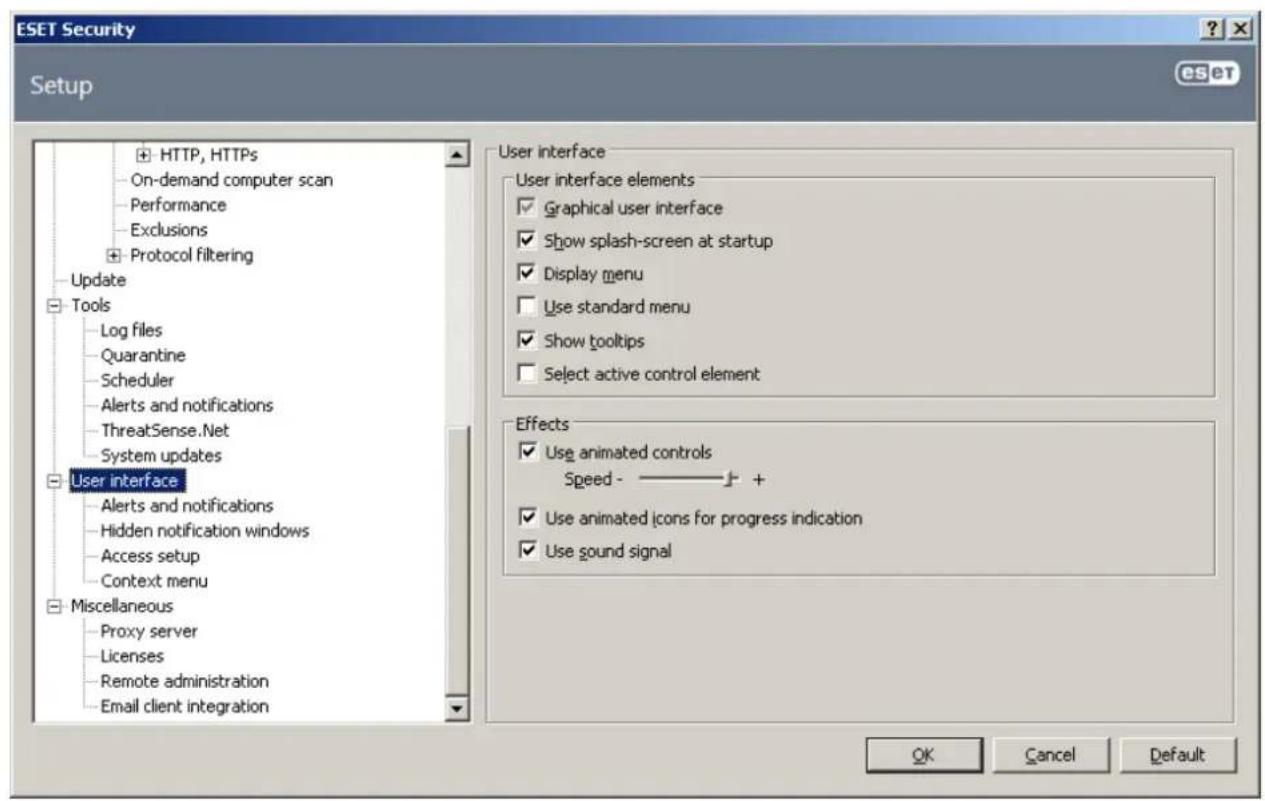
The User interface features also include the option to password-protect the ESET Security setup parameters. This option is located in the Settings protection submenu under User interface. In order to provide maximum security for your system, it is essential that the program be correctly configured. Unauthorized modifications could result in the loss of important data. To set a password to protect the setup parameter, click Set password...
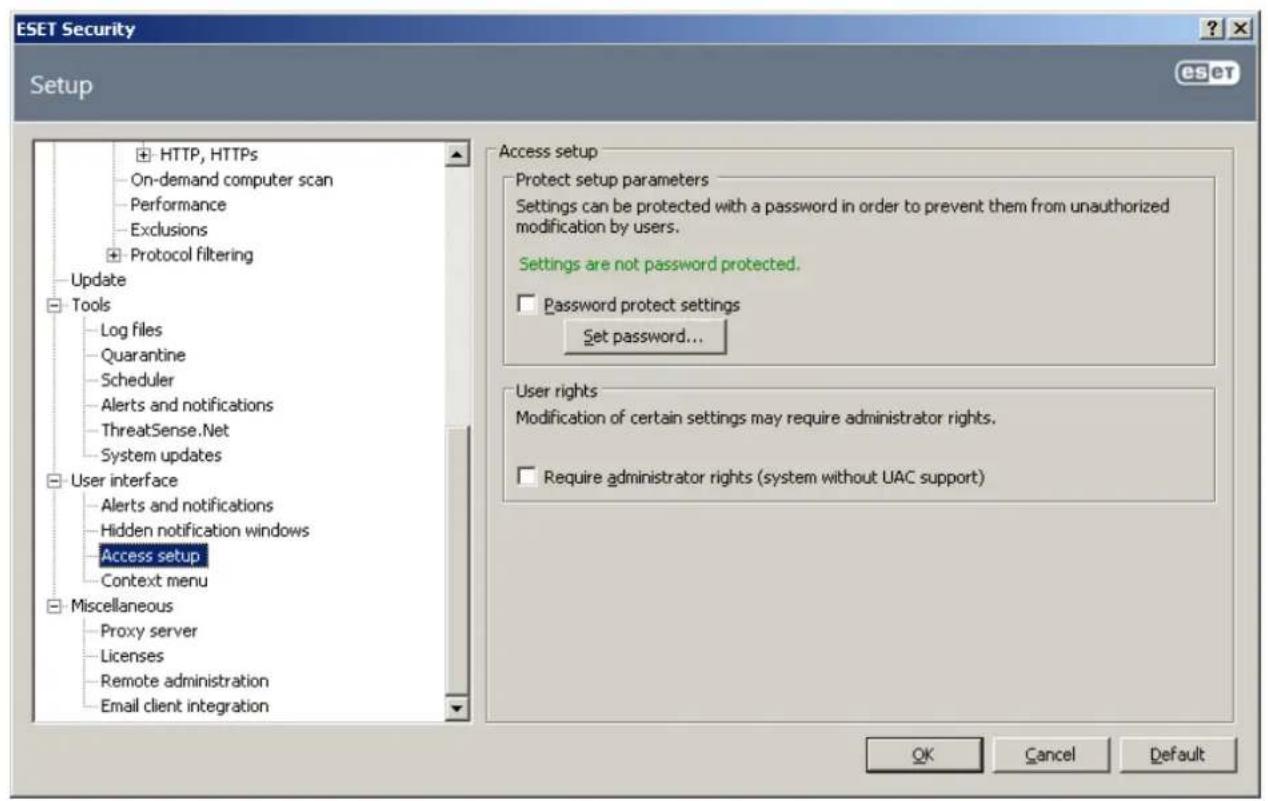
4.10.1 Alerts and notifications
The Alerts and notifications setup section under User interface allows you to configure how threat alerts and system notifications are handled in ESET Security.
The first item is Display alerts. Disabling this option will cancel all alert windows and is only suitable for a limited amount of specific situations. For most users, we recommend that this option be left to its default setting (enabled).
To close pop-up windows automatically after a certain period of time, select the option Close messageboxes automatically after (sec.). If they are not closed manually, alert windows are automatically closed after the specified time period has expired.
Notifications on the Desktop and balloon tips are informative only, and do not require or offer user interaction. They are displayed in the notification area at the bottom right corner of the screen. To activate displaying Desktop notifications, select the Display notifications on desktop option. More detailed options – notification display time and window transparency can be modified by clicking the Configure notifications... button.
To preview the behavior of notifications, click the Preview button. To configure the duration of the balloon tips display time, see the option Display balloon tips in taskbar (for sec.).
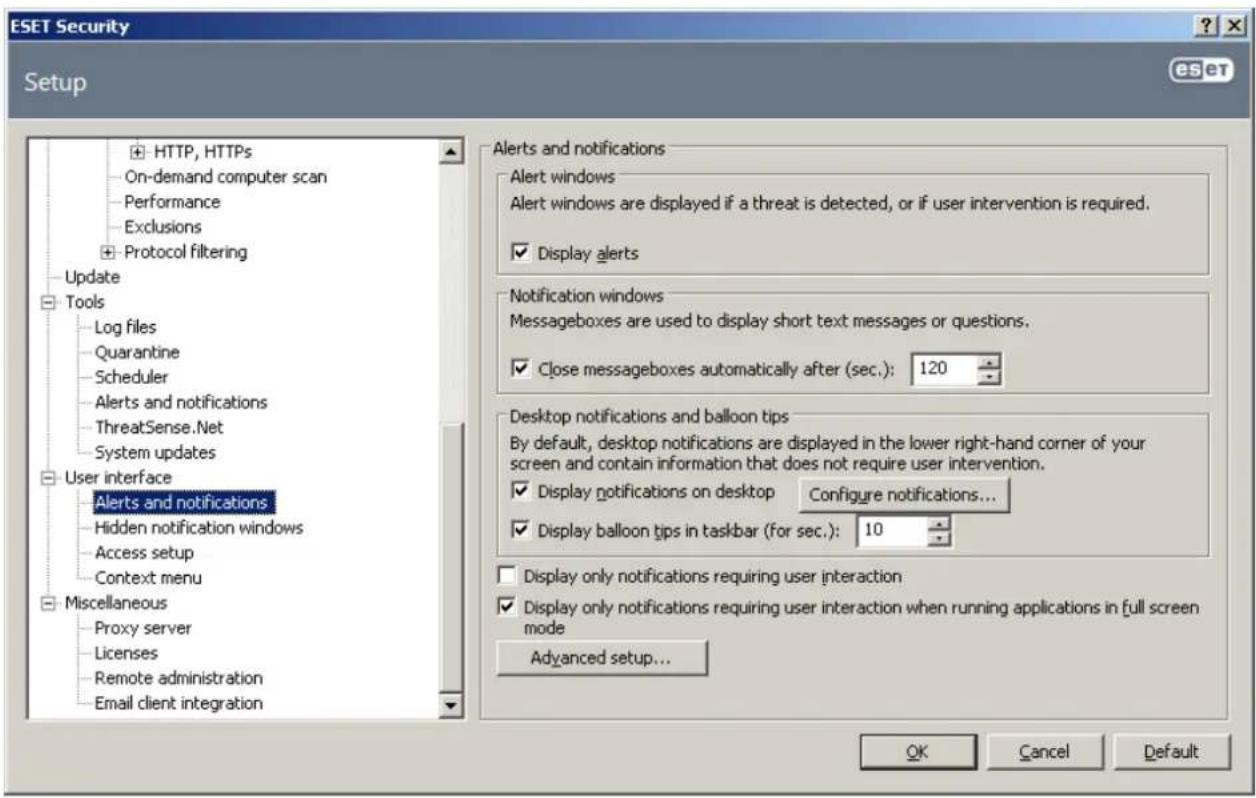
Click Advanced setup... to enter additional Alerts and notification setup options that include the Display only notifications requiring user's interaction. This option allows you to turn on/off displaying of alerts and notifications that require no user interaction. Select Display only notifications requiring user's interaction when running applications in full screen mode to suppress all noninteractive notifications. From the Minimum verbosity of events to display drop-down menu you can select the starting severity level of alerts and notification to be displayed.
The last feature in this section allows you to configure the destination of notifications in a multi-user environment. The On multi-user systems, display notifications on the screen of the user: field allows you to define who will receive important notifications from ESET Security. Normally this would be a system or network administrator. This option is especially useful for terminal servers, provided that all system notifications are sent to the administrator.
4.10.2 Disable GUI on Terminal Server
This chapter describes how to disable GUI of ESET Security running on Windows Terminal Server for user sessions.
Normally, ESET Security GUI starts up every time a remote user logs onto the server and creates a terminal session. This is usually undesirable on Terminal Servers. If you want to turn off the GUI for terminal sessions follow these steps:
- Run regedit.exe
- Navigate to HKEY_LOCAL_MACHINE\SOFTWARE\Microsoft\Windows\CurrentVersion\Run
- Right-click on Valueegui and select Modify...
- Add a /terminal switch to the end of an existing string
Here is an example of how the Value data of egui should be:
"C:\Program Files\ESET\ESET Security\egui.exe" /hide /waitservice /terminal
If you want to revert this setting and enable automatic startup of the ESET Security GUI, remove the /terminal switch. To get to the egui registry Value, repeat steps 1. to 3.
4.11 eShell
eShell (short for ESET Shell) is a command line interface for ESET Security. It is an alternative to the graphical user interface (GUI). eShell has all the features and options that the GUI normally gives you. eShell lets you configure and administer the whole program without the use of the GUI.
Apart from all the functions and features that are available in the GUI, it also provides you with the option of using automation by running scripts in order to configure, modify configuration or perform an action. Also, eShell can be useful for those who prefer using the command line over the GUI.
NOTE: A separate manual for eShell is available for you to download here. It lists all the commands with syntax and description.
This section explains how to navigate and use eShell as well as lists all the commands with the description of what particular command is used for and what it does.
There are two modes in which eShell can be run:
- Interactive mode - this is useful when you want to work with eShell (not just execute single command) for tasks such as changing configuration, viewing logs, etc. You can also use interactive mode if you are not familiar with the all the commands yet. Interactive mode will make it easier for you when navigating through eShell. It also shows you available commands you can use within a particular context.
- Single command / Batch mode - you can use this mode if you only need to execute a command without entering the interactive mode of eShell. This can be done from the Windows Command Prompt by typing in eshell with appropriate parameters. For example:
eshell set av document status enabled
NOTE: In order to run eShell commands from Windows Command Prompt or to run batch files, you need to have this function enabled first (command set general access batch always needs to be executed in interactive mode). For further information about the set batch command click here85
To enter interactive mode in eShell, you can use one of the following two methods:
- Via Windows Start menu: Start > All Programs > ESET > ESET File Security > ESET shell
- From Windows Command Prompt by typing in eshell and pressing the Enter key
When you run eShell in interactive mode for the first time, a first run screen will display.
![ESET Shell 1.1 (4.5.15018.0) Copyright (c) 1992-2013 ESET, spol. s r. o. All rights reserved. First run To display this information again enter: guide /? -help Syntax: [] [] [] For example, to activate document protection enter: set av document status enabled Operation The command may or may not support some of the operations. Operations change the meaning of the command. For example get av status returns the status of antivirus protection, while set av status enabled enables antivirus protection. An example of a command with no operation is exit. Following operations are available: get set select add remove clear start stop pause resume restore send import export For the meaning of the operation in relation to the specific command, see help. -- More --](/content/2026/05/1142531/images/26107049523e955d5e9de3505e208d7fdba2d14d8ec2397e6d23abe841cbdc01.jpg)
It shows you some basic examples how to use eShell with Syntax, Prefix, Command path, Abbreviated forms, Aliases, etc. This is basically a quick guide to eShell.
NOTE: If you want to display the first run screen in future, type in guide command.
NOTE: Commands are not case sensitive, you can use upper case (capital) or lower case letters and the command will execute regardless.
4.11.1 Usage
Syntax
Commands must be formatted in the correct syntax to function and can be composed of a prefix, context, arguments, options, etc. This is the general syntax used throughout the eShell:
[
Example (this activates document protection):
SET AV DOCUMENT STATUS ENABLED
SET - a prefix
AV DOCUMENT - path to a particular command, a context where this command belong
STATUS - the command itself
ENABLED - an argument for the command
Using HELP or ? with a command will display the syntax for that particular command. For example, CLEANLEVEL HELP will show you the syntax for CLEANLEVEL command:
SYNTAX:
[get] | restore cleanlevel
set cleanlevel none | normal | strict
You may notice that [get] is in brackets. It designates that the prefix get is default for the cleanlevel command. This means that when you execute cleanlevel without specifying any prefix, it will actually use the default prefix (in this case get cleanlevel). Using commands without a prefix saves time when typing. Usually get is the default prefix for most commands, but you need to be sure what the default prefix is for particular command and that it is exactly what you want to execute.
NOTE: Commands are not case sensitive, you can use upper case (capital) or lower case letters and the command will execute regardless.
Prefix / Operation
A prefix is an operation. The GET prefix will give you information about how a certain feature of ESET Security is configured or show you the status (such as GET AV STATUS will show you current protection status). The SET prefix will configure functionality or change its status (SET AV STATUS ENABLED will activate protection).
These are the prefixes that eShell lets you use. A command may or may not support any of the prefixes:
GET - returns current setting/status
SET - sets value/status
SELECT - selects an item
ADD - adds an item
REMOVE - removes an item
CLEAR - removes all items/files
START - starts an action
STOP - stops an action
PAUSE - pauses an action
RESUME - resumes an action
RESTORE - restores default settings/object/file
SEND - sends an object/file
IMPORT - imports from a file
EXPORT - exports to a file
Prefixes such as GET and SET are used with many commands, but some commands (such as EXIT) do not use a prefix.
Command path / Context
Commands are placed in contexts which form a tree structure. The top level of the tree is root. When you run eShell, you are at the root level:
eShell>
You can either execute a command from here, or enter the context name to navigate within the tree. For example, when you enter tools context, it will list all commands and sub-contexts that are available from here.
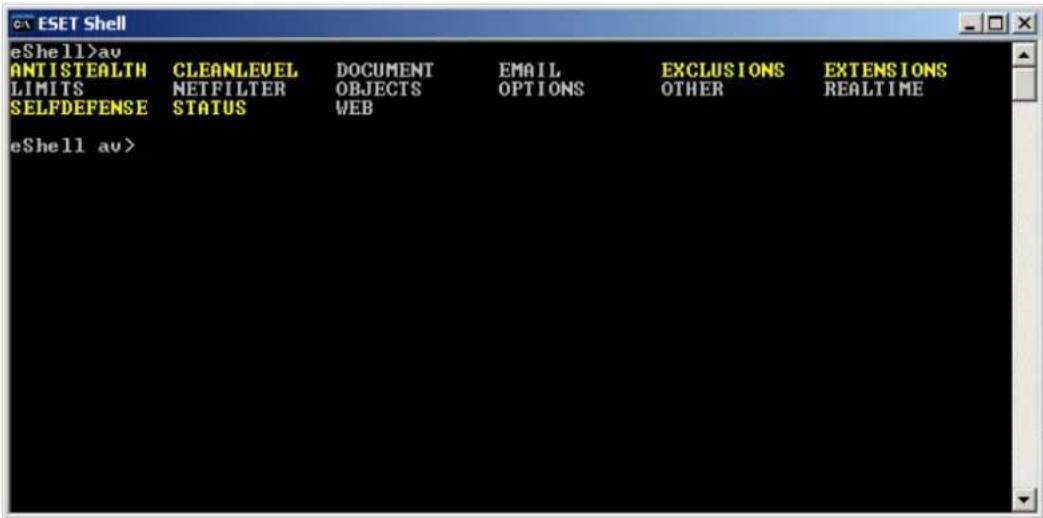
Yellow items are commands you can execute and grey items are sub-contexts you can enter. A sub-context contain further commands.
If you need to return back to a higher level, use .. (two dots). For example, say you are here:
eShell av options>
type .. and it will get you up one level, to:
eShell av>
If you want to get back to root from eShell av options> (which is two levels lower from root), simply type . . . (two dots and two dots separated by space). By doing so, you will get two levels up, which is root in this case. You can use this no matter how deep within the context tree you are. Use the appropriate number of . . as you need to get to the desired level.
The path is relative to the current context. If the command is contained in the current context, do not enter a path. For example, to execute GET AV STATUS enter:
GET AV STATUS - if you are in the root context (command line shows eShell>)
GET STATUS - if you are in the context AV (command line shows eShell av>)
.. GET STATUS - if you are in the context AV OPTIONS (command line shows eShell av options>)
Argument
An argument an action which is performed for a particular command. For example, command CLEANLEVEL can be used with following arguments:
none - Do not clean
normal - Standard cleaning
strict - Strict cleaning
Another example are the arguments ENABLED or DISABLED, which are used to enable or disable a certain feature or functionality.
Abbreviated form / Shortened commands
eShell allows you to shorten contexts, commands and arguments (provided the argument is a switch or an alternative option). It is not possible to shorten a prefix or argument that are concrete values such as a number, name or path.
Examples of the short form:
In a case where two commands or contexts start with same letters (such as ABOUT and AV, and you enter A as shortened command), eShell will not be able to decide which command of these two you want to run. An error message will display and list commands starting with "A" which you can choose from:
eShell>a
The following command is not unique: a
The following commands are available in this context:
ABOUT - Shows information about program
AV - Changes to context av
By adding one or more letters (e.g. AB instead of just A) eShell will execute ABOUT command since it is unique now.
NOTE: When you want to be sure that a command executes the way you need, we recommend that you do not abbreviate commands, arguments, etc. and use the full form. This way it will execute exactly as you need and prevent unwanted mistakes. This is especially true for batch files / scripts.
Aliases
An alias is an alternative name which can be used to execute a command (provided that the command has an alias assigned). There are few default aliases:
(global) help -?
(global) close -exit
(global) quit -exit
(global) bye -exit
warnlog -tools log events
virlog -tools log detections
"(global)" means that the command can be used anywhere regardless of current context. One command can have multiple aliases assigned, for example command EXIT has alias CLOSE, QUIT and BYE. When you want to exit eShell, you can use the EXIT command itself or any of its aliases. Alias VIRLOG is an alias for command DETECTIONS which is located in TOOLS LOG context. This way the detections command is available from ROOT context, making it easier to access (you don't have to enter TOOLS and then LOG context and run it directly from ROOT).
eShell allows you to define your own aliases.
Protected commands
Some commands are protected and can only be executed after entering a password.
Guide
When you run the GUIDE command, it will display a "first run" screen explaining how to use eShell. This command is available from the ROOT context (eShell>).
Help
When the HELP command is used alone, it will list all available commands with prefixes as well as sub-contexts within the current context. It will also give you a short description to each command / sub-context. When you use HELP as an argument with a particular command (e.g. CLEANLEVEL HELP), it will give you details for that command. It will display SYNTAX, OPERATIONS, ARGUMENTS and ALIASES for the command with a short description for each.
Command history
eShell keeps history of previously executed commands. This applies only to the current eShell interactive session. Once you exit eShell, the command history will be dropped. Use the Up and Down arrow keys on your keyboard to navigate through the history. Once you find the command you were looking for, you can execute it again, or modify it without having to type in the entire command from the beginning.
CLS / Clear screen
The CLS command can be used to clear screen. It works the same way as it does with Windows Command Prompt or similar command line interfaces.
EXIT / CLOSE / QUIT / BYE
To close or exit eShell, you can use any of these commands (EXIT, CLOSE, QUIT or BYE).
4.11.2 Commands
This section lists few basic eShell commands with description as an example. For the complete list of commands see eShell manual which can be downloaded here.
NOTE: Commands are not case sensitive, you can use upper case (capital) or lower case letters and the command will execute regardless.
Commands contained within ROOT context:
ABOUT
Lists information about the program. It shows name of the product installed, version number, installed components (including version number of each component) and basic information about the server and the operating system that ESET Security is running on.
CONTEXT PATH:
root
BATCH
Starts eShell batch mode. This is very useful when running batch files / scripts and we recommend using it with batch files. Put START BATCH as the first command in the batch file or script to enable batch mode. When you enable this function, no interactive input is prompted (e.g. entering a password) and missing arguments are replaced by defaults. This ensures that the batch file will not stop in the middle because eShell is expecting the user to do something. This way the batch file should execute without stopping (unless there is an error or the commands within the batch file are incorrect).
CONTEXT PATH:
root
SYNTAX:
[start] batch
OPERATIONS:
start - Starts eShell in batch mode
CONTEXT PATH:
root
EXAMPLES:
start batch - Starts eShell batch mode
GUIDE
Displays first run screen.
CONTEXT PATH:
root
PASSWORD
Normally, to execute password-protected commands, you are prompted to type in a password for security reasons.
This applies to commands such as those that disable antivirus protection and those that may affect ESET Security functionality. You will be prompted for password every time you execute such command. You can define this password in order to avoid entering password every time. It will be remembered by eShell and automatically be used when a password-protected command is executed. This means that you do not have to enter the password every time.
NOTE: Defined password works only for the current eShell interactive session. Once you exit eShell, this defined password will be dropped. When you start eShell again, the password needs to be defined again.
This defined password is also very useful when running batch files / scripts. Here is an example of a such batch file:
eshell start batch "&" set password plain
This concatenated command above starts a batch mode, defines password which will be used and disables protection.
CONTEXT PATH:
root
SYNTAX:
[get] | restore password
set password [plain <password>]
OPERATIONS:
get - Show password
set - Set or clear password
restore - Clear password
ARGUMENTS:
plain - Switch to enter password as parameter
password - Password
EXAMPLES:
set password plain <yourpassword> - Sets a password which will be used for password-protected commands
restore password - Clears password
EXAMPLES:
get password- Use this to see whether the password is configured or not (this is only shows only stars ^high , does not list the password itself), when no stars are visible, it means that there is no password set
set password plain <yourpassword>- Use this to set defined password restore password- This command clears defined password
STATUS
Shows information about the current protection status of ESET Security (similar to GUI).
CONTEXT PATH:
root
SYNTAX:
[get] | restore status
set status disabled | enabled
OPERATIONS:
get - Show antivirus protection status
set - Disable/Enable antivirus protection
restore - Restores default settings
ARGUMENTS:
disabled - Disable antivirus protection
enabled - Enable antivirus protection
EXAMPLES:
get status - Shows current protection status
set status disabled - Disables protection
restore status - Restores protection to default setting (Enabled)
VIRLOG
This is an alias of the DETECTIONS command. It is useful when you need to view information about detected infiltrations.
WARNLOG
This is an alias of the EVENTS command. It is useful when you need to view information about various events.
4.12 Import and export settings
Importing and exporting configurations of ESET Security is available under Setup by clicking on Import and export settings.
Both import and export use the .xml file type. Import and export are useful if you need to backup the current configuration of ESET Security to be able to use it later. The export settings option is also convenient for users who wish to use their preferred configuration of ESET Security on multiple systems - they can easily import an .xml file to transfer the desired settings.
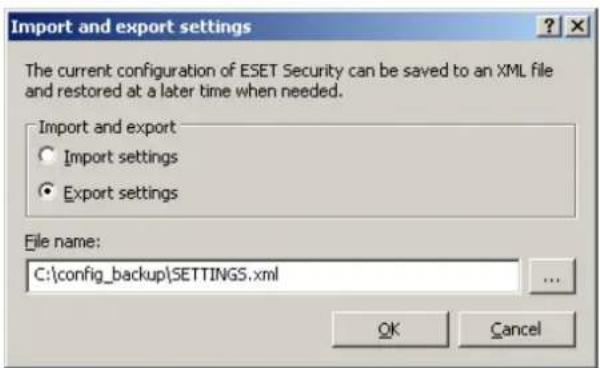
4.13 ThreatSense.Net
The ThreatSense.Net Early Warning System keeps ESET immediately and continuously informed about new infiltrations. The bidirectional ThreatSense.Net Early Warning System has a single purpose – to improve the protection that we can offer you. The best way to ensure that we see new threats as soon as they appear is to "link" to as many to as many of our customers as possible and use them as our Threat Scouts. There are two options:
-
You can decide not to enable the ThreatSense.Net Early Warning System. You will not lose any functionality in the software, and you will still receive the best protection that we offer.
-
You can configure the ThreatSense.Net Early Warning System to submit anonymous information about new threats and where the new threatening code is contained. This file can be sent to ESET for detailed analysis. Studying these threats will help ESET update its threat detection capabilities.
The ThreatSense.Net Early Warning System will collect information about your computer related to newly-detected threats. This information may include a sample or copy of the file in which the threat appeared, the path to that file, the filename, the date and time, the process by which the threat appeared on your computer and information about your computer's operating system.
While there is a chance that this may occasionally disclose some information about you or your computer (usernames in a directory path, etc.) to ESET's Threat Lab, this information will not be used for ANY purpose other than to help us respond immediately to new threats.
By default, ESET Security is configured to ask before submitting suspicious files for detailed analysis to ESET's Threat
Lab. Files with certain extensions such as .doc or .xls are always excluded. You can also add other extensions if there are particular files that you or your organization wants to avoid sending.
The ThreatSense.Net setup is accessible from the Advanced Setup tree, under Tools > ThreatSense.Net. Select the Enable ThreatSense Early Warning System option to activate and then click the Advanced setup... button.
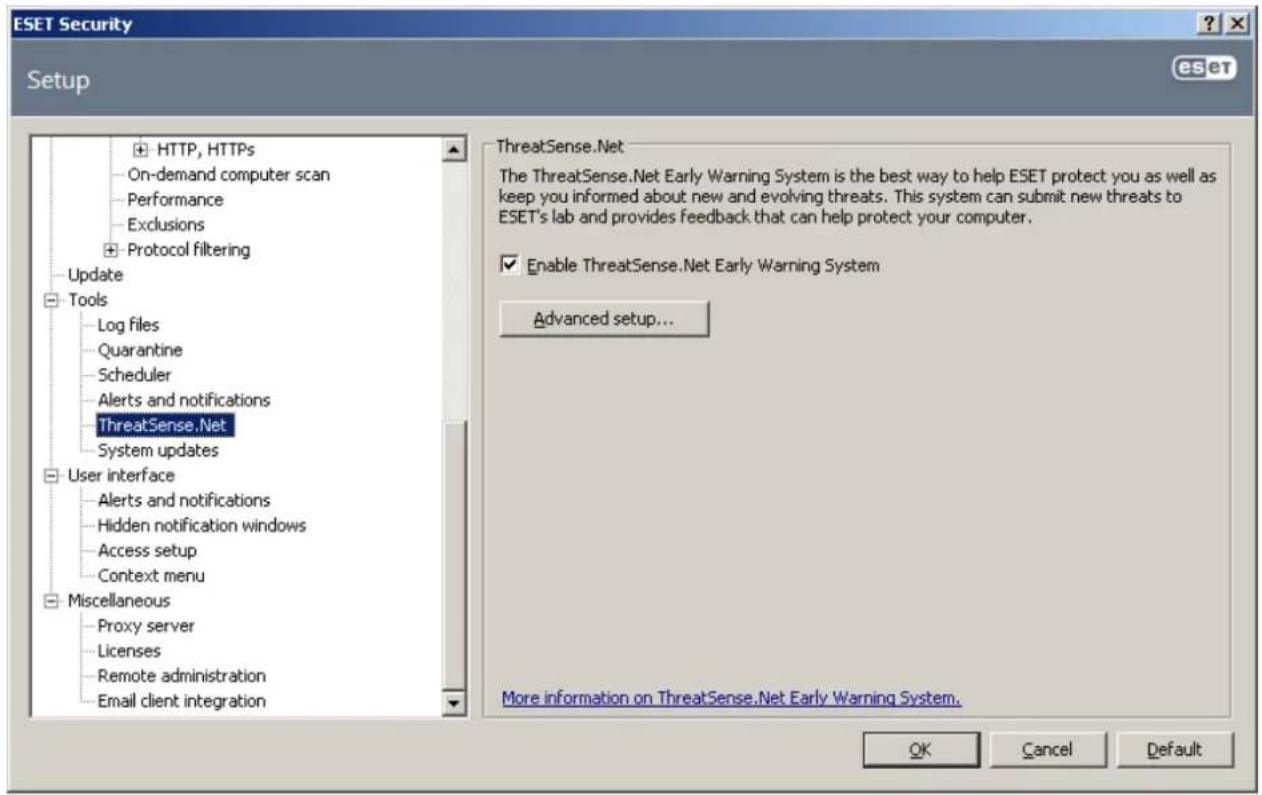
4.13.1 Suspicious files
The Suspicious files tab allows you to configure the manner in which threats are submitted to ESET's Threat Lab for analysis.
If you find a suspicious file, you can submit it for analysis to our ThreatLabs. If it is a malicious application, its detection will be added to the next virus signature update.
File submission can be set to occur automatically, or select the Ask before submitting option if you wish to know which files have been sent for analysis and confirm the submission.
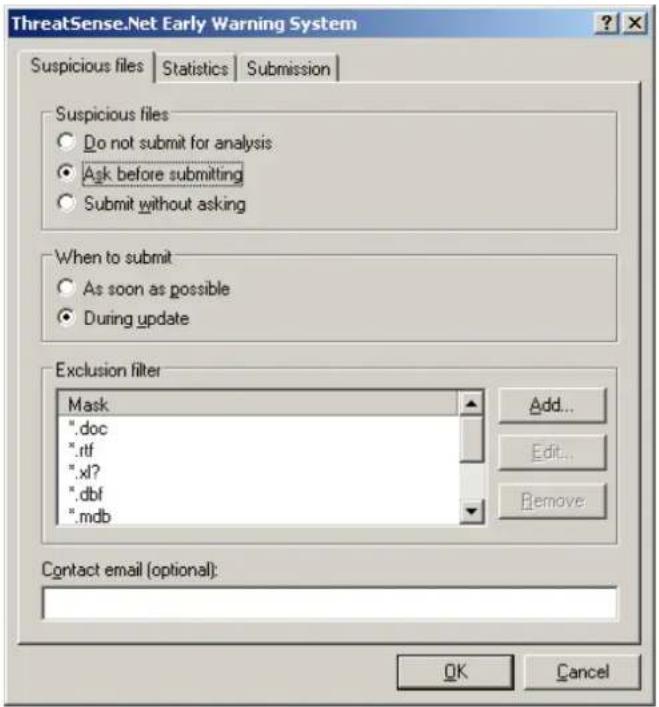
If you do not want any files to be submitted, select the Do not submit for analysis option. Selecting not to submit files for analysis does not affect submission of statistical information which is configured in its own setup (see section Statistics 901)
When to submit – By default, the As soon as possible option is selected for suspicious files to be sent to ESET's Threat Lab. This is recommended if a permanent Internet connection is available and suspicious files can be delivered without delay. Select the During update option for suspicious files to uploaded to ThreatSense.Net during the next update.
Exclusion filter – The Exclusion filter allows you to exclude certain files/folders from submission. For example, it may be useful to exclude files which may carry confidential information, such as documents or spreadsheets. The most common file types are excluded by default (.doc, etc.). You can add to the list of excluded files if desired.
Contact email – Your Contact email [optional] can sent with any suspicious files and may be used to contact you if further information is required for analysis. Please note that you will not receive a response from ESET unless more information is needed.
4.13.2 Statistics
The ThreatSense.Net Early Warning System collects anonymous information about your computer related to newly detected threats. This information may include the name of the infiltration, the date and time it was detected, the ESET security product version, your operating system version and the location setting. The statistics are typically delivered to ESET's servers once or twice a day.
Below is an example of a statistical package submitted:
<h1 id="utc_time2005-04-14-072128">utc_time=2005-04-14 07:21:28</h1>
<h1 id="countryslovakia">country="Slovakia"</h1>
<h1 id="languageenglish">language="ENGLISH"</h1>
<h1 id="osver512600-nt">osver=5.1.2600 NT</h1>
<h1 id="engine5417">engine=5417</h1>
<h1 id="components2502">components=2.50.2</h1>
<h1 id="moduleid0x4e4f4d41">moduleid=0x4e4f4d41</h1>
<h1 id="filesize28368">filesize=28368</h1>
<h1 id="filenamecdocuments-and-settingsadministratorlocal-settingstemporary-internet-filescontentie5c14j8">filename=C:\Documents and Settings\Administrator\Local Settings\Temporary Internet Files\Content.IE5\C14J8</h1>
When to submit – You can define when the statistical information will be submitted. If you choose to submit As soon as possible statistical information will be sent immediately after it is created. This setting is suitable if a permanent Internet connection is available. If the During update option is selected, statistical information will be submitted collectively during the next update.
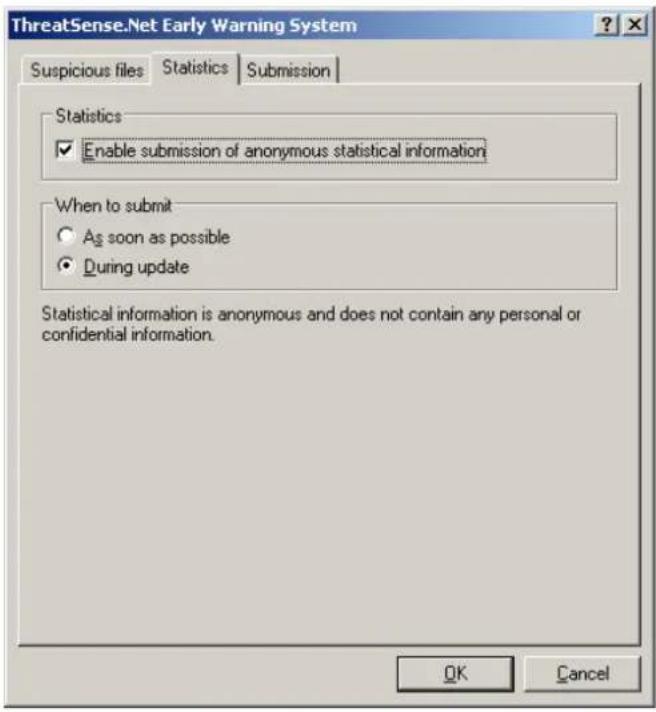
4.13.3 Submission
You can select how files and statistical information will be submitted to ESET. Select the By means of Remote Administrator or directly to ESET option for files and statistics to be submitted by any available means. Select the By means of Remote Administrator option to submit files and statistics to the remote administration server, which will ensure their subsequent submission to ESET's Threat Lab. If the option Directly to ESET is selected, all suspicious files and statistical information are sent to ESET's virus lab directly from the program.
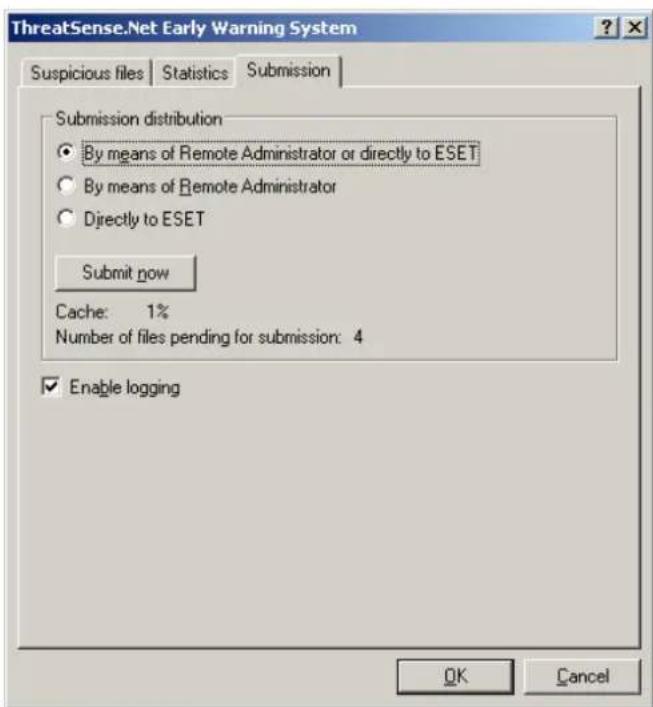
When there are files pending submission, the Submit now button will be active. Click this button to immediately submit files and statistical information.
Select the Enable logging option to create a log to record file and statistical information submissions.
4.14 Remote administration
ESET Remote Administrator (ERA) is a powerful tool to manage security policy and to obtain an overview of the overall security within a network. It is especially useful when applied to larger networks. ERA not only increases the security level, but also provides ease-of-use in the administration of ESET Security on client workstations.
Remote administration setup options are available from the main ESET Security program window. Click Setup > Enter the entire advanced setup tree... > Miscellaneous > Remote administration.

Activate remote administration by selecting the Connect to Remote Administration server option. You can then access the other options described below:
- Interval between connections to server (min.): This designates the frequency that ESET Security will connect to the ERA Server. If it is set to O, information will be submitted every 5 seconds.
- Server address: Network address of the server where the ERA Server is installed.
- Port: This field contains a predefined server port used for connection. We recommend that you leave the default port setting of 2222
- Remote Administrator server requires authentication: Allows you to enter a password to connect to the ERA Server, if required.
Click OK to confirm changes and apply the settings. ESET Security will use these settings to connect to the ERA Server.
4.15 Licenses
The Licenses branch allows you to manage the license keys for ESET Security and other ESET products such as ESET Mail Security, etc. After purchase, license keys are delivered along with your username and password. To Add/Remove a license key, click the corresponding button in the license manager window. The license manager is accessible from the Advanced Setup tree under Miscellaneous > Licenses.
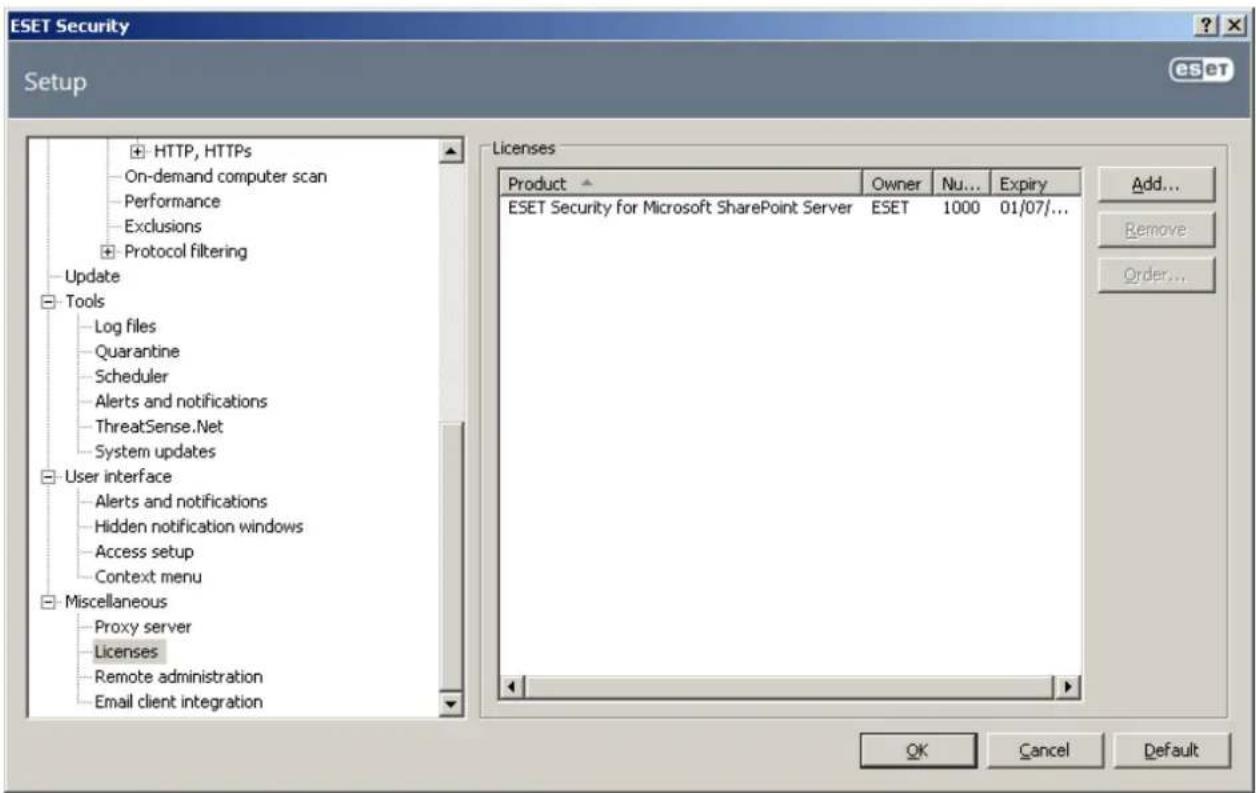
The license key is a text file containing information about the purchased product: the owner, number of licenses, and the expiration date.
The license manager window allows you to upload and view the content of a license key using the Add... button – the information contained is displayed in the manager. To delete license files from the list, click Remove.
If a license key has expired and you are interested in purchasing a renewal, click the Order... button – you will be redirected to our online store.
5. Glossary
5.1 Types of infiltration
An Infiltration is a piece of malicious software trying to enter and/or damage a user's computer.
5.1.1 Viruses
A computer virus is an infiltration that corrupts existing files on your computer. Viruses are named after biological viruses, because they use similar techniques to spread from one computer to another.
Computer viruses mainly attack executable files and documents. To replicate, a virus attaches its "body" to the end of a target file. In short, this is how a computer virus works: after execution of the infected file, the virus activates itself (before the original application) and performs its predefined task. Only after that is the original application allowed to run. A virus cannot infect a computer unless a user, either accidentally or deliberately, runs or opens the malicious program by him/herself.
Computer viruses can range in purpose and severity. Some of them are extremely dangerous because of their ability to purposely delete files from a hard drive. On the other hand, some viruses do not cause any damage – they only serve to annoy the user and demonstrate the technical skills of their authors.
It is important to note that viruses (when compared to trojans or spyware) are increasingly rare because they are not commercially enticing for malicious software authors. Additionally, the term "virus" is often used incorrectly to cover all types of infiltrations. This usage is gradually being overcome and replaced by the new, more accurate term "malware" (malicious software).
If your computer is infected with a virus, it is necessary to restore infected files to their original state – i.e., to clean them by using an antivirus program.
Examples of viruses are: OneHalf, Tenga, and Yankee Doodle.
5.1.2 Worms
A computer worm is a program containing malicious code that attacks host computers and spreads via a network. The basic difference between a virus and a worm is that worms have the ability to replicate and travel by themselves – they are not dependent on host files (or boot sectors). Worms spread through email addresses in your contact list or exploit security vulnerabilities in network applications.
Worms are therefore much more viable than computer viruses. Due to the wide availability of the Internet, they can spread across the globe within hours or even minutes of their release. This ability to replicate independently and rapidly makes them more dangerous than other types of malware.
A worm activated in a system can cause a number of inconveniences: It can delete files, degrade system performance, or even deactivate programs. The nature of a computer worm qualifies it as a "means of transport" for other types of infiltrations.
If your computer is infected with a worm, we recommend you delete the infected files because they likely contain malicious code.
Examples of well-known worms are: Lovsan/Blaster, Stration/Warezov, Bagle, and Netsky.
5.1.3 Trojan horses
Historically, computer trojan horses have been defined as a class of infiltrations which attempt to present themselves as useful programs, thus tricking users into letting them run. But it is important to note that this was true for trojan horses in the past–oday, there is no longer a need for them to disguise themselves. Their sole purpose is to infiltrate as easily as possible and accomplish their malicious goals. "Trojan horse" has become a very general term describing any infiltration not falling under any specific class of infiltration.
Since this is a very broad category, it is often divided into many subcategories:
- Downloader – A malicious program with the ability to download other infiltrations from the Internet
- Dropper – A type of trojan horse designed to drop other types of malware onto compromised computers
- Backdoor – An application which communicates with remote attackers, allowing them to gain access to a system and
to take control of it
- Keylogger – (keystroke logger) – A program which records each keystroke that a user types and sends the information to remote attackers
- Dialer – Dialers are programs designed to connect to premium-rate numbers. It is almost impossible for a user to notice that a new connection was created. Dialers can only cause damage to users with dial-up modems, which are no longer regularly used
Trojan horses usually take the form of executable files with the extension .exe. If a file on your computer is detected as a trojan horse, it is advisable to delete it, since it most likely contains malicious code.
Examples of well-known trojans are: NetBus, Trojandownloader. Small.ZL, Slapper
5.1.4 Rootkits
Rootkits are malicious programs that grant Internet attackers unlimited access to a system, while concealing their presence. Rootkits, after accessing a system (usually exploiting a system vulnerability), use functions in the operating system to avoid detection by antivirus software: they conceal processes, files and Windows registry data, etc. For this reason, it is almost impossible to detect them using ordinary testing techniques.
There are two levels of detection to prevent rootkits:
1) When they try to access a system. They are still not present, and are therefore inactive. Most antivirus systems are able to eliminate rootkits at this level (assuming that they actually detect such files as being infected).
2) When they are hidden from the usual testing. ESET Security users have the advantage of Anti-Stealth technology, which is also able to detect and eliminate active rootkits.
5.1.5 Adware
Adware is a short for advertising-supported software. Programs displaying advertising material fall under this category. Adware applications often automatically open a new pop-up window containing advertisements in an Internet browser, or change the browser's home page. Adware is frequently bundled with freeware programs, allowing their creators to cover development costs of their (usually useful) applications.
Adware itself is not dangerous – users will only be bothered with advertisements. Its danger lies in the fact that adware may also perform tracking functions (as spyware does).
If you decide to use a freeware product, please pay particular attention to the installation program. The installer will most likely notify you of the installation of an extra adware program. Often you will be allowed to cancel it and install the program without adware.
Some programs will not install without adware, or their functionality will be limited. This means that adware may often access the system in a "legal" way, because users have agreed to it. In this case, it is better to be safe than sorry. If there is a file detected as adware on your computer, it is advisable to delete it, since there is a high probability that it contains malicious code.
5.1.6 Spyware
This category covers all applications which send private information without user consent/awareness. Spyware uses tracking functions to send various statistical data such as a list of visited websites, email addresses from the user's contact list, or a list of recorded keystrokes.
The authors of spyware claim that these techniques aim to find out more about users' needs and interests and allow better-targeted advertisement. The problem is that there is no clear distinction between useful and malicious applications and no one can be sure that the retrieved information will not be misused. The data obtained by spyware applications may contain security codes, PINs, bank account numbers, etc. Spyware is often bundled with free versions of a program by its author in order to generate revenue or to offer an incentive for purchasing the software. Often, users are informed of the presence of spyware during a program's installation to give them an incentive to upgrade to a paid version without it.
Examples of well-known freeware products which come bundled with spyware are client applications of P2P (peer-to-peer) networks. Spyfalcon or Spy Sheriff (and many more) belong to a specific spyware subcategory – they appear to be antispyware programs, but in fact they are spyware programs themselves.
If a file is detected as spyware on your computer, it is advisable to delete it, since there is a high probability that it contains malicious code.
5.1.7 Potentially unsafe applications
There are many legitimate programs whose function is to simplify the administration of networked computers. However, in the wrong hands, they may be misused for malicious purposes. ESET Security provides the option to detect such threats.
"Potentially unsafe applications" is the classification used for commercial, legitimate software. This classification includes programs such as remote access tools, password-cracking applications, and keyloggers 931(a program that records each keystroke a user types).
If you find that there is a potentially unsafe application present and running on your computer (and you did not install it), please consult your network administrator or remove the application.
5.1.8 Potentially unwanted applications
Potentially unwanted applications are not necessarily intended to be malicious, but may affect the performance of your computer in a negative way. Such applications usually require consent for installation. If they are present on your computer, your system behaves differently (compared to the state before their installation). The most significant changes are:
- New windows you haven't seen previously are opened
- Activation and running of hidden processes
- Increased usage of system resources
• Changes in search results - Application communicates with remote servers
5.2 Email
Email, or electronic mail, is a modern form of communication with many advantages. It is flexible, fast and direct, and played a crucial role in the proliferation of the Internet in the early 1990's.
Unfortunately, with a high level of anonymity, email and the Internet leave room for illegal activities such as spamming. Spam includes unsolicited advertisements, hoaxes and proliferation of malicious software – malware. The inconvenience and danger to you is increased by the fact that the cost of sending spam is minimal, and authors of spam have many tools to acquire new email addresses. In addition, the volume and variety of spam makes it very difficult to regulate. The longer you use your email address, the more likely it will end up in a spam engine database. Some hints for prevention:
- If possible, don't publish your email address on the Internet
- Only give your email address to trusted individuals
- If possible, don't use common aliases – with more complicated aliases, the probability of tracking is lower
- Don't reply to spam that has already arrived in your inbox
- Be careful when filling out Internet forms – be especially cautious of options such as "Yes, I want to receive information".
- Use "specialized" email addresses – e.g., one for business, one for communication with your friends, etc.
• From time to time, change your email address
• Use an Antispam solution
5.2.1 Advertisements
Internet advertising is one of the most rapidly growing forms of advertising. Its main marketing advantages are minimal costs and a high level of directness; what's more, messages are delivered almost immediately. Many companies use email marketing tools to effectively communicate with their current and prospective customers.
This type of advertising is legitimate, since you may be interested in receiving commercial information about some products. But many companies send unsolicited bulk commercial messages. In such cases, email advertising crosses the line and becomes spam.
The amount of unsolicited email has become a problem and it shows no signs of slowing. Authors of unsolicited email often attempt to disguise spam as legitimate messages.
5.2.2 Hoaxes
A hoax is misinformation which is spread across the Internet. Hoaxes are usually sent via email or communication tools like ICQ and Skype. The message itself is often a joke or Urban Legend.
Computer Virus hoaxes try to generate fear, uncertainty and doubt (FUD) in the recipients, bringing them to believe that there is an “undetectable virus” deleting files and retrieving passwords, or performing some other harmful activity on their system.
Some hoaxes work by asking recipients to forward messages to their contacts, perpetuating the hoax. There are mobile phone hoaxes, pleas for help, people offering to send you money from abroad, etc. It is often impossible to determine the intent of the creator.
If you see a message prompting you to forward it to everyone you know, it may very well be a hoax. There are many websites on the Internet that can verify if an email is legitimate. Before forwarding, perform an Internet search on any message you suspect is a hoax.
5.2.3 Phishing
The term phishing defines a criminal activity which uses techniques of social engineering (manipulating users in order to obtain confidential information). Its aim is to gain access to sensitive data such as bank account numbers, PIN codes, etc.
Access is usually achieved by sending email masquerading as a trustworthy person or business (e.g., financial institution, insurance company). The email can look very genuine, and will contain graphics and content which may have originally come from the source it is impersonating. You will be asked to enter, under various pretenses (data verification, financial operations), some of your personal data – bank account numbers or usernames and passwords. All such data, if submitted, can easily be stolen and misused.
Banks, insurance companies, and other legitimate companies will never request usernames and passwords in an unsolicited email.
5.2.4 Recognizing spam scams
Generally, there are a few indicators which can help you identify spam (unsolicited emails) in your mailbox. If a message fulfills at least some of the following criteria, it is most likely a spam message:
- Sender address does not belong to someone on your contact list
- You are offered a large sum of money, but you have to provide a small sum first
- You are asked to enter, under various pretenses (data verification, Financial operations), some of your personal data – bank account numbers, usernames and passwords, etc.
• It is written in a foreign language - You are asked to buy a product you are not interested in. If you decide to purchase anyway, please verify that the message sender is a reliable vendor (consult the original product manufacturer)
- Some of the words are misspelled in an attempt to trick your spam filter. For example "vaigra" instead of "viagra", etc
5.2.4.1 Rules
In the context of Antispam solutions and email clients, rules are tools for manipulating email functions. They consist of two logical parts:
1) Condition (e.g., an incoming message from a certain address)
2) Action (e.g., deletion of the message, moving it to a specified folder)
The number and combination of rules varies with the Antispam solution. These rules serve as measures against spam (unsolicited email). Typical examples:
- Condition: An incoming email message contains some of the words typically seen in spam messages 2. Action: Delete the message
- Condition: An incoming email message contains an attachment with an .exe extension 2. Action: Delete the attachment and deliver the message to the mailbox
- Condition: An incoming email message arrives from your employer 2. Action: Move the message to the "Work" folder
We recommend that you use a combination of rules in Antispam programs in order to facilitate administration and to more effectively filter spam.