X7-15 - Tablet ELO - Free user manual and instructions
Find the device manual for free X7-15 ELO in PDF.


User questions about X7-15 ELO
0 question about this device. Answer the ones you know or ask your own.
Ask a new question about this device
Download the instructions for your Tablet in PDF format for free! Find your manual X7-15 - ELO and take your electronic device back in hand. On this page are published all the documents necessary for the use of your device. X7-15 by ELO.
USER MANUAL X7-15 ELO
natural_image
Black electronic display with a blue abstract background showing light streaks and a glowing light source (no text or symbols visible)USER MANUAL
Elo Touch Solutions
15" X-Series Rev. A All-in-One Touchcomputer
17" X-Series Rev. A All-in-One Touchcomputer
SW602213 Rev. A
Copyright © 2015 Elo Touch Solutions, Inc. All Rights Reserved.
No part of this publication may be reproduced, transmitted, transcribed, stored in a retrieval system, or translated into any language or computer language, in any form or by any means, including, but not limited to, electronic, magnetic, optical, chemical, manual, or otherwise without prior written permission of Elo Touch Solutions, Inc.
Disclaimer
The information in this document is subject to change without notice. Elo Touch Solutions, Inc. and its Affiliates (collectively "Elo") makes no representations or warranties with respect to the contents herein, and specifically disclaims any implied warranties of merchantability or fitness for a particular purpose. Elo reserves the right to revise this publication and to make changes from time to time in the content hereof without obligation of Elo to notify any person of such revisions or changes.
Trademark Acknowledgments
AccuTouch, CarrollTouch, Elo, Elo (logo), Elo Touch, Elo Touch Solutions, Elo TouchSystems, IntelliTouch, IntelliTouch Plus, IntelliTouch Pro, SecureTouch, TouchTools and VuPoint are trademarks of Elo and its Affiliates. Windows is a trademark of Microsoft Corporation.
Table of Contents
Read this first ....4
Chapter 1: Product Overview ......6
Product Description....6
Precautions....6
X-Series Layout....7
X-Series Expansion Module (optional accessory) Layout....10
Chapter 2: Getting Started....12
Unpacking the X-Series Touchcomputer 12
Adjusting the X-Series Display Title....13
Touchscreen Calibrating 14
Chapter 3: Operation....16
General Information....16
Front OSD Control Buttons....16
L.E.D. Functionality – POWER LED 17
L.E.D. Functionality – Wireless LAN LED 17
L.E.D. Functionality – Ethernet LAN LED 18
Using the Input/output Panel 18
Setting Up the Operating System 19
Creating the Recovery Flash Drive....22
Recovering the Operating System....25
Chapter 4: Options and Upgrades....28
Adding Optional Upgrades ....28
Optional Peripherals KITs ....28
Chapter 5: Technical Support....41
Solutions to Common Problems 41
Technical Assistance....41
Chapter 6: Safety & Maintenance....42
Safety....42
X-Series Power Adapter Support Notice....43
X-Series Care and Handling....43
Waste Electrical & Electronic Equipment....44
Chapter 7: Regulatory Information....45
Chapter 8: Warranty Information....50
Before using the X-Series All-In-One touchcomputer, read the important safety and handling information (this section), Safety & Maintenance (Chapter 6), Regulatory Notice (Chapter 7), and the Warranty Information (Chapter 8) chapters in this user manual.
This section provides guidance on the safe handling and use of your X-Series. Please read to understand all of the details.
ENERGY STAR Support information

Your touchcomputer is ENERGY STAR ^® qualified. Elo is a partner in the Environmental Protection Agency's (EPA) ENERGY STAR ^® Program and has designed the computer to meet the latest ENERGY STAR ^® guidelines for energy efficiency.
Your touchcomputer ships with the power management options preset to a configuration that will provide the most stable operating environment and optimum system performance.
To conserve energy, your computer is set to dim the display after 5 minutes of inactivity, and enter the low-power Sleep mode which shuts down the system after 30 minutes of inactivity. We recommend that you leave this and other energy saving features active, so that your touchcomputer will operate at its maximum energy efficiency. You can wake the touchcomputer from Sleep mode by pressing the power button.
When considering additions to your business, purchase products that have earned the ENERGY STAR ^® for all your equipment needs, which can save your money, save energy, and help protect the climate.
Visit http://www.energystar.gov or http://www.energystar.gov/powermanagement for more information regarding the ENERGY STAR® Program.
Important safety and handling information
To avoid personal injury, property damage, or accidental damage to your Elo X-Series (hereafter referred to as the X-Series), please read through all of the information provided in this section before using the X-Series.
For detailed operating instructions, refer to the X-Series User Manual (this publication).
Protect your data and software:
Do not delete or change the name of files or directories that were not created by you; as this may prevent the X-Series software from operating properly.
Be aware that accessing network resources can render your X-Series vulnerable to computer viruses, hackers, spyware, and other malicious activities that might damage your X-Series, software, or data. It is your responsibility to ensure that your X-Series have adequate protection in the form of firewalls, antivirus software, and anti-spyware software and keep them up to date.
Keep electrical appliances such as an electric fan, radio, high-powered speakers, air conditioner, and microwave oven away from your X-Series because the strong magnetic fields generated by these appliances can damage the screen and the data on the X-Series.
Take precautions with plastic bags:
The X-Series comes with plastic packaging material.
DANGER: Plastic bags can be dangerous. Keep plastic bags away from babies and children to avoid danger of suffocation.
Chapter 1: Product Overview
This chapter provides an overview of the new Elo Touch Solutions X-Series, including the locations of the connectors and controls, X-Series features, accessories, specifications, and operating environment.
Product Description
The new Elo All-in-One Touchcomputers X-Series combines Elo Touch Solutions reliable performance with the latest developments in touchscreen technology and display design. This combination creates a natural flow of information between a user and the X-Series AiO Touchcomputers.
The Elo Touch Solutions X-Series provides a powerful, compact, configurable, touchcomputer in two screen sizes: 15-inch and 17-inch. These models are ruggedized and available with a choice of industry-leading Elo touch technologies: AccuTouch ("micro bezel" resistive) or IntelliTouch Plus (zero-bezel multi-touch surface acoustic wave), IntelliTouch (single-touch surface acoustic wave), IntelliTouch Pro (projective capacitive). This X-Series incorporates a 24-bit color, 1024x768 (15"), 1280X1024 (17") LCD panel to provide superior display performance for displaying graphics and images and running applications. The X2 models are fan-less — well-suited for environments where noise may be an issue. The X3, X5, and X7 models with the 4^th generation Intel Core-i3, i5 and i7 processors and HD4600 graphics are fan-cooled and deliver superior performance when needed.
The X-Series touchcomputers have a compact, stylish design, with a choice of configuration and customer-installable peripheral options as well as ease of serviceability. These models feature a powerful line-up of Intel processors, and support multiple memory and storage configurations. Optional accessories are also available for purchase from Elo Touch Solutions.
Precautions
Follow all warnings, precautions and maintenance tips as recommended in this user manual to maximize the life of your unit and prevent risks to user safety. See Chapter 6 for more information on safety.
This manual contains information that is important for the proper setup and maintenance of the X-Series All-in-One Touchcomputers. Before setting up and powering on your new X-Series, please read through this manual in detail seriously and carefully.
text_image
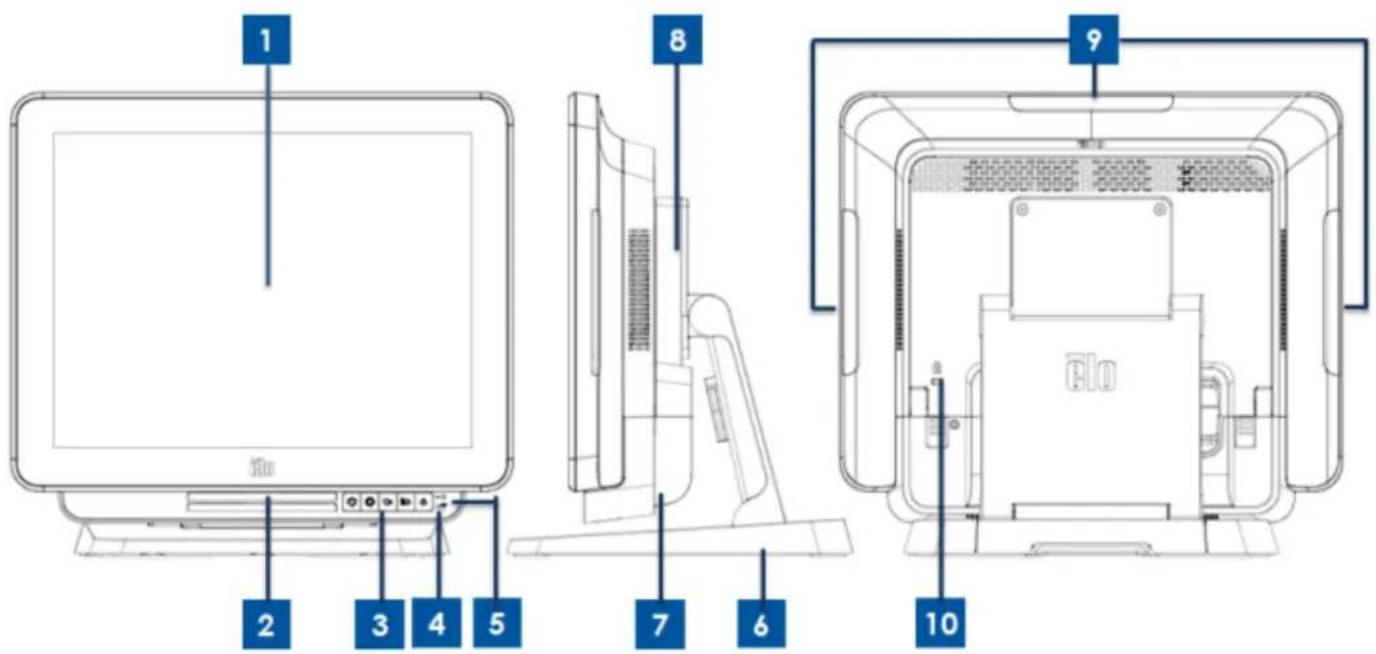
1 2 3 4 5 8 7 6 9 10Figure 1. X-Series front view (left), clerk right side view (middle), and back view (right)
text_image
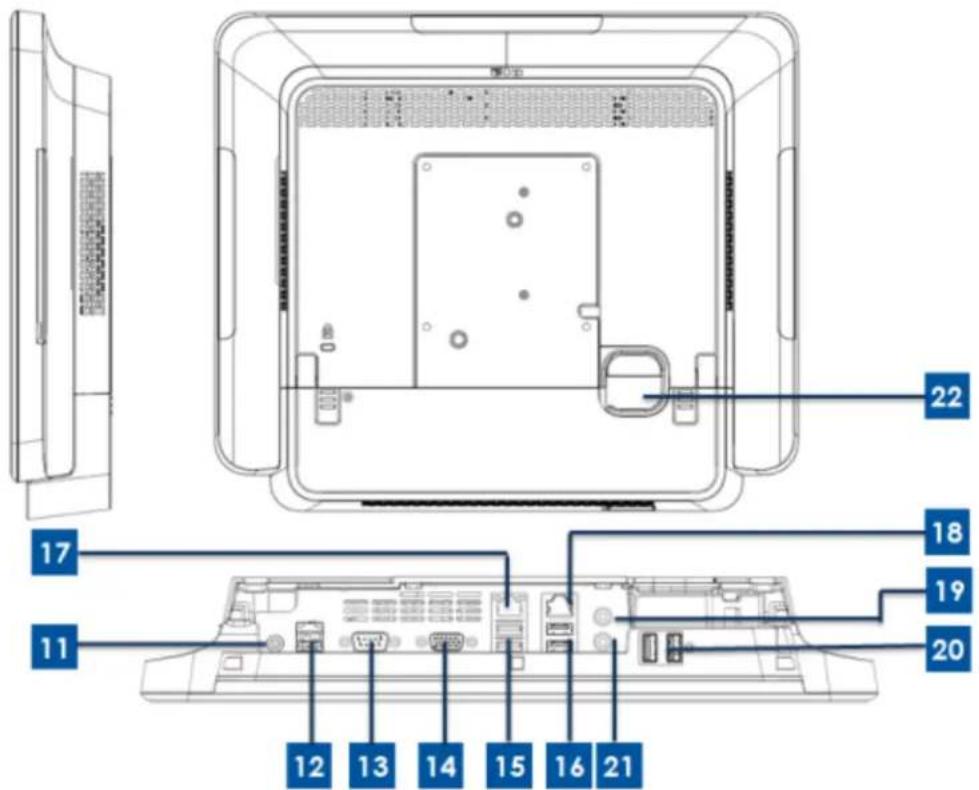
22 17 18 19 11 20 12 13 14 15 16 21Figure 2. X-Series back view (up) and rear IO view (down)
| 1 | Display w/Touch SRN | 12 | +24V Power USB Port (X3/X5/X7 only) |
| 2 | Speaker (built-in) | 13 | Serial Port (RS-232) |
| 3 | Front OSD Control Buttons | 14 | VGA Output (D-Sub) |
| 4 | Wireless indicator LED | 15 | USB 3.0 Port |
| 5 | Power indicator LED | 16 | USB 2.0 Port (X2/X3)USB 3.0 Port (X5/X7) |
| 6 | Stand Module | 17 | Ethernet LAN Port |
| 7 | Cable Cover | 18 | Serial Port (RJ-45) |
| 8 | Expansion Module (Optional) | 19 | Audio Port (Line-out) |
| 9 | Edge USB port (Accessory KITs) | 20 | Front USB Port |
| 10 | Kensington Lock | 21 | Microphone (built-in) |
| 11 | Power Connector (DC-IN) | 22 | Cable Exit Hole |
1. Display w/Touch SRN
The main display with different touch screen solution is made by two different sizes, 15-inch and 17-inch. The touch technology is defined as below touch type for composition of the system.
- AccuTouch ("micro bezel" resistive).
- Intellitouch Plus (zero-bezel multi-touch surface acoustic wave).
- Intellitouch (single-touch surface acoustic wave).
- Intellitouch Pro (projective capacitive).
2. Speaker (built-in)
The integrated speaker provides audio output for video and music playback.
3. Front OSD Control Buttons
The front OSD control buttons provide the OSD functions control.
4. Wireless indicator LED
Flashes blue when the X-Series is connected to a Wi-Fi network and flashes blue when the X-Series Bluetooth is on.
5. Power indicator LED
The power indicator LED is to show the state of the touchcomputer. The table below shows LED state and corresponding colors.
6. Stand Module
The stand module is a strong design to support all 15-inch and 17-inch Elo All-In-One Touchcomputers.
7. Cable cover
Open the back cable cover to access the system IO function ports.
8. Expansion Module (Optional)
The expansion module is an option kit for additional functions of X-Series. PIs reference the Expansion Module section for function description in detail below.
9. Edge USB Port (Accessory KITs - connection)
The edge USB port is design for X-Series optional Accessory KITs; the accessory kits can be mounted and fixed at the edge for additional function requirement.
10. Kensington Lock
Kensington Lock is a standard anti-theft device for X-Series to protect and keep the unit safe.
11. Power Connector (DC-IN)
Plug the DC cable of the AC/DC power adapter kit into the power connector to power up the X-Series system.
12. +24V Power USB Port (X3 / X5 / X7 only)
The +24V Power USB Port spec is design for X3/X5/X7 configuration only. The maximum power rating of the +24V Power USB would limit to 24V@2A specification.
13. Serial Port (RS-232)
The serial port is a standard native RS-232 interface for connection.
14. VGA Output (D-Sub)
The X-Series system has a VGA output (D-Sub) to support 2^nd display monitor.
15. USB 3.0 Port
The X-Series system has a two standard Super Speed USB 3.0 ports at rear IO side.
16. USB Port Configuration
- Two USB 2.0 Ports for X2 / X3 system configuration only.
- Two USB 3.0 Ports for X5 / X7 system configuration only.
17. Ethernet LAN Port
The Ethernet LAN Port has gigabyte speed capability for network of the X-Series.
18. Serial Port (RJ-45)
The serial port is a native RS-232 specification for RJ-45 interface connection.
19. Audio port (Line-out)
The audio port is design for headphones (Line-out) can be connected to the X-Series system.
20. Front USB Port
The Front USB Ports are two standard USB 2.0 ports for user to easy access the USB function when user fact to the X-series system.
21. Microphone (built-in)
The microphone port is built-in design for user can be connected to the X-Series system.
22. Cable Exit Hole
The cable exit hole is design for cable routing when the cables connect to rear port for each function. It provides the good cable management experience for X-Series setup.
X-Series Expansion Module (optional accessory) Layout

text_image
1 2 3 4 5Figure 3. X-Series expansion module clerk right side view (Left), module IO port view (middle), and back view (right).
| 1 | Expansion Module | 4 | +12V Power USB Port (Green) |
| 2 | Serial Port (RS-232) | 5 | Cash Drawer Port |
| 3 | Ethernet LAN Port | - |
1. Expansion Module
The expansion module is an optional kit for X-Series touchcomputer. It is mounted to the center of the system back cover as a peripheral port for all X-Series system.
2. Serial Port (RS-232)
The serial port is a standard native RS-232 interface for connection.
3. Ethernet LAN Port
The Ethernet LAN Port has gigabyte speed capability for network of the X-Series.
4. +12V Power USB Port
The +12V Power USB Port spec is design for Expansion Module only. The maximum power rating of the +12V Power USB would be limited to 12V@2A specification.
5. Cash Drawer Port
The cash drawer port is a RJ-11 interface design and capable for +12V and +24V switchable support. The default setting is at +24V and user can change the setting in system BIOS menu.
Chapter 2: Getting Started
Unpacking the X-Series Touchcomputer
To unpack the X-Series:
- Open the box.
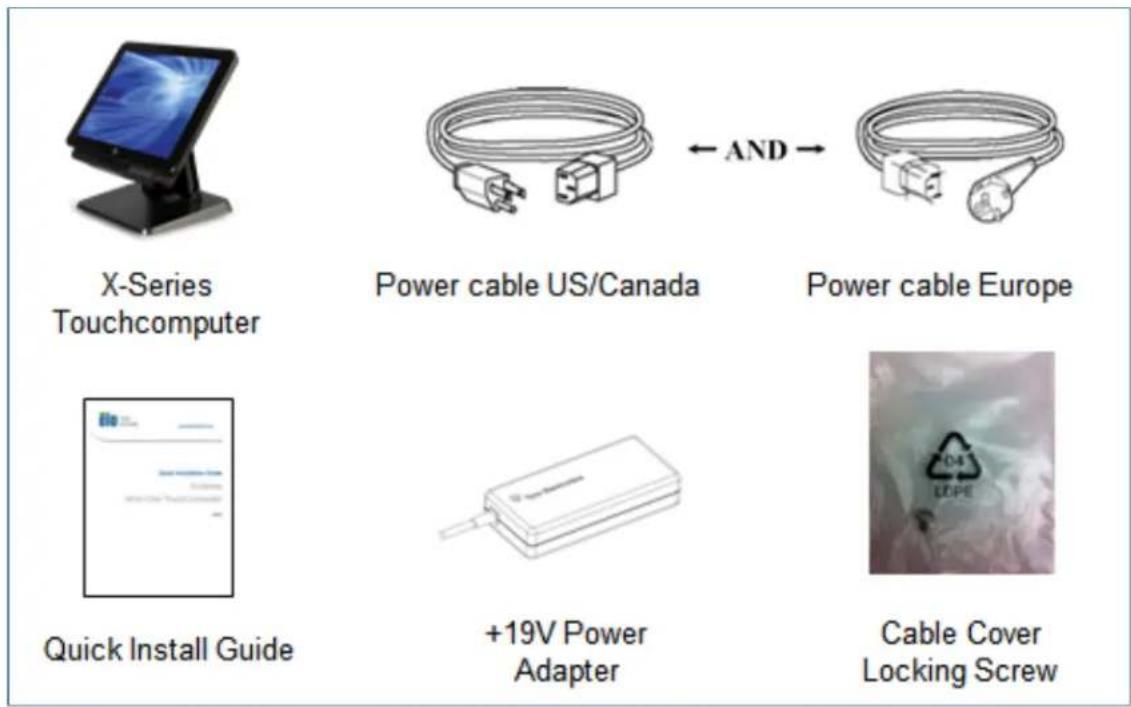
- Check that the following items are present and in good condition:
• X-Series system unit.
- Quick Install Guide
- AC/DC Power adapter.
• Power cable for North America, Europe, and U.K.
• Cable Cover Locking Screw.
- Remove the protection bag/cover, desiccant packs, and other packaging materials appropriately. Please take extra caution to ensure they are not accessible by small children.
- Press the power button to start using the X-Series.
text_image
X-Series Touchcomputer Power cable US/Canada ← AND → Power cable Europe Quick Install Guide +19V Power Adapter Cable Cover Locking ScrewFigure 4. The X-Series system material package.
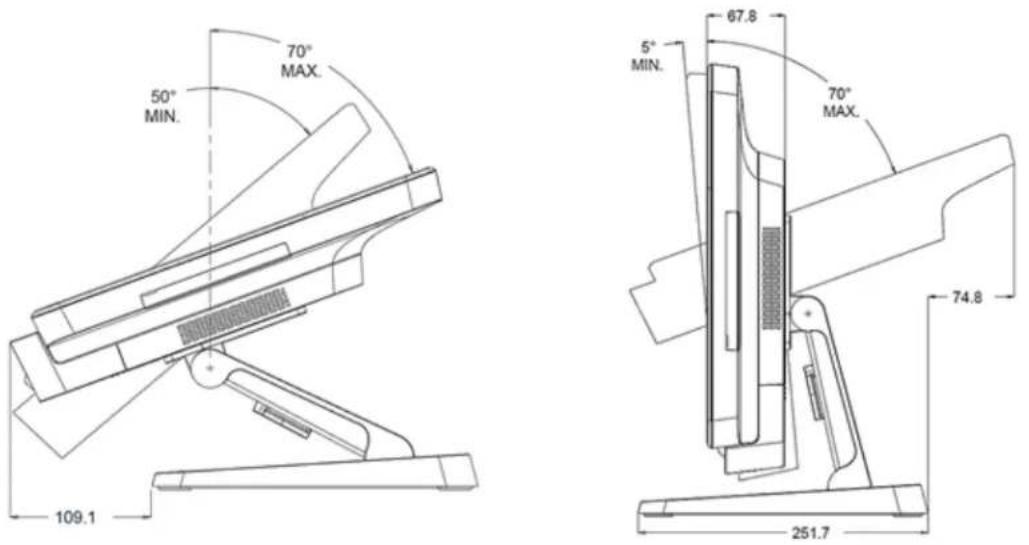
The X-Series all-in-one touchcomputer has two title positions for different scenario to use. It can through the two screws of the stand bottom to adjust the low and high position. The title adjust is shown as below.
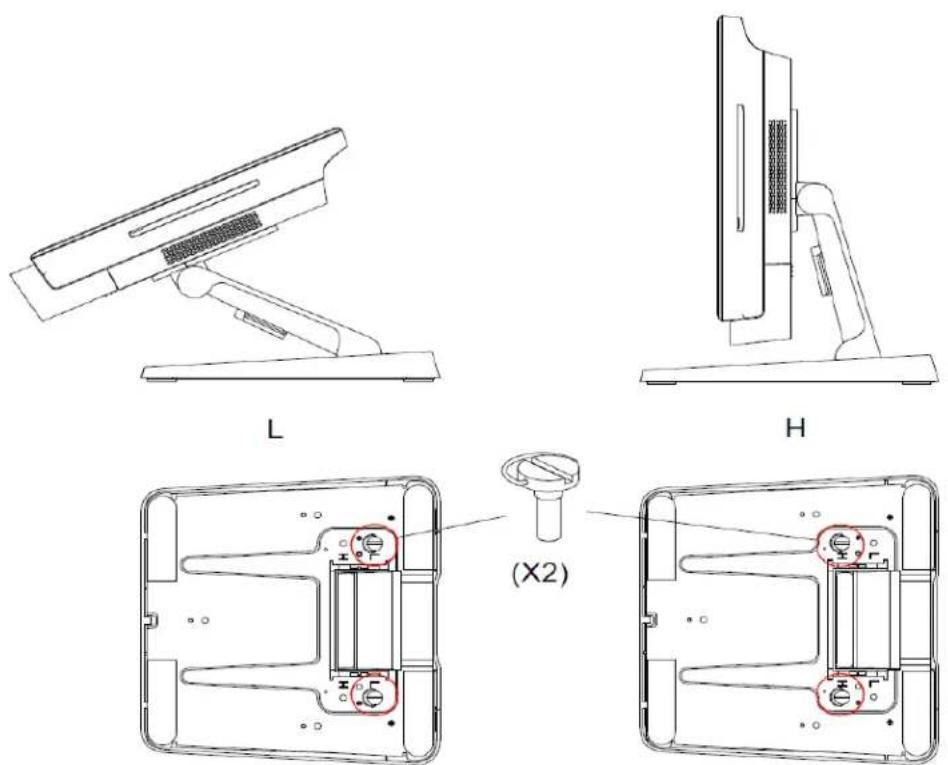
Figure 5. X-Series display angle in low and high position.
• X-Series 15-inch Display Title Adjustment.

text_image
45° MIN. 70° MAX. 110
text_image
5° MIN. 62.3 70° MAX. 348.8 35.6• X-Series 17-inch Display Title Adjustment.
Touchscreen Calibrating
The touchscreen is pre-calibrated for accurate touch response.
If for any reason the touchscreen needs to be recalibrated, double-click the Elo Alignment shortcut on the system desktop (for Windows 7)
This launches the calibration program. The window shown below opens. Follow the instructions to calibrate the touchscreen.

text_image
Touch targets from position of normal useNote: X-Series IntelliTouch Pro (projective capacitive) models are fully HID compliant so they do not need to be calibrated and configured. Therefore, EloConfig tool does not support X-Series IntelliTouch Pro technology.
Chapter 3: Operation
General Information
This chapter describes how to utilize the front OSD control buttons, I/O panel, and other unique features that Elo All-in-One Touchcomputer provide.
All adjustments made to the brightness and volume controls are automatically saved. User settings remain unchanged after powering off/on or in the case of a power failure.
Front OSD Control Buttons
text_image
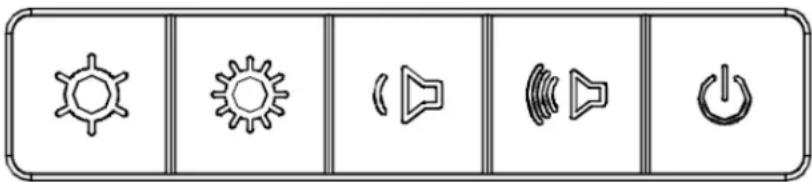
Control panel interface with six function icons: sun, gear, speaker, speaker, power buttonThe control buttons provide the following functions (from left to right).
| Feature | Description |
| Brightness - | Decrease brightness |
| Brightness + | Increase brightness |
| Volume - | Decrease speaker volume |
| Volume + | Increase speaker volume |
| Power | Power on/off the system |
| Control Button Locking | To Lock, press “Brightness +” and “Brightness -” buttons together for 3 seconds. To unlock, perform the same procedure for another 3 seconds |

text_image
Control panel interface with icons for settings, power, speaker, audio, and power buttonThe X-Series has a Power LED indicating the state of the touchcomputer. The table below shows LED state and corresponding color.
| LED Color to Observer | State |
| Off | No input power — Off mode |
| Red | Input power present — Off mode or hibernation |
| Orange | Input power present — Standby |
| Green | Input power present — Power On |
L.E.D. Functionality – Wireless LAN LED

text_image
Control panel interface with icons for lighting, weather, speaker, audio, and power symbolsThe X-Series has a Wireless LAND LED indicating the wireless status connection of the touchcomputer. The table below shows Wireless LAN LED state and corresponding color.
| Wireless State | Wireless LED Status |
| ON | Blue |
| OFF | NA |
L.E.D. Functionality – Ethernet LAN LED

text_image
Diagram showing various electronic components and connectors with labels like '1000', '1001', and connection icons.| LAN Speed State | LAN LED Status |
| 10Mbps | No Color |
| 100Mbps | Orange Color |
| 1Gbps | Green Color |
| Activity State | ACT LED Status |
| No Link | No Color |
| Linked | Solid (Green Color) |
| Data Activity | Blinking (Green Color) |
Using the Input/output Panel
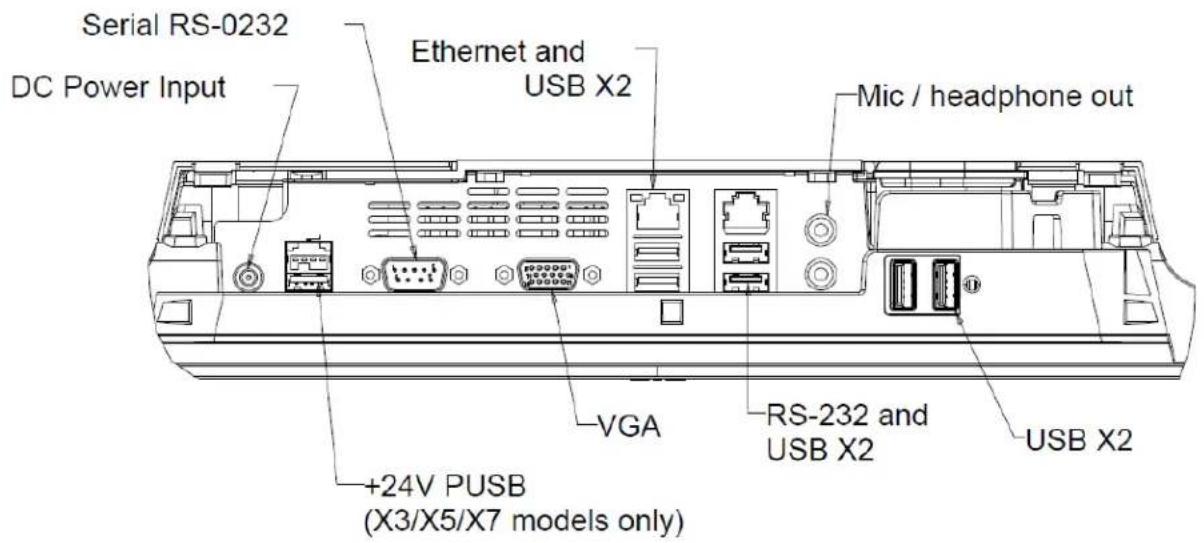
To access the input/output (I/O) ports, remove the cable cover at the bottom of the unit. A security screw is included and may be used to secure the cable cover to the touchcomputer. Below are the I/O descriptions by model:
text_image
Serial RS-0232 DC Power Input Ethernet and USB X2 Mic / headphone out VGA +24V PUSB (X3/X5/X7 models only) RS-232 and USB X2 USB X2X-SERIES (15" / 17") I/O
Note: As a safety precaution, always leave the cable cover door attached when the system is powered on.
Setting Up the Operating System
If configured with an operating system, the initial setup of the operating system takes approximately 5-10 minutes. Additional time may be needed depending on touchcomputer hardware configurations and connected devices.
To set up the Microsoft® Windows® Operating System for the touchcomputer, turn on the touchcomputer by pressing the power button, and then follow the on-screen instructions.
Injecting a new language
Windows only allows the use of only one language at one time. But you can use the Elo Touch Solutions language injection feature to modify your language preference. English is set as the default language, but you can change this language to suit your preferences.
- Power off your system completely.
- Power on your system.
- After the Elo splash screen (shown below), press “↑” or “↓” repeatedly to pause on Windows Boot Manager.

text_image
ēlo- Select either Restore OS 32bit or Restore OS 64bit depending on your OS

text_image
Windows Boot Manager Choose an operating system to start, or press TAB to select a tool: (Use the arrow keys to highlight your choice, then press ENTER.) windows Embedded Standard > Restore OS 32bit To specify an advanced option for this choice, press F8. Tools: windows Memory Diagnostic ENTER=Choose TAB=Menu ESC=Cancel- The following User Interface (UI) will be presented:

text_image
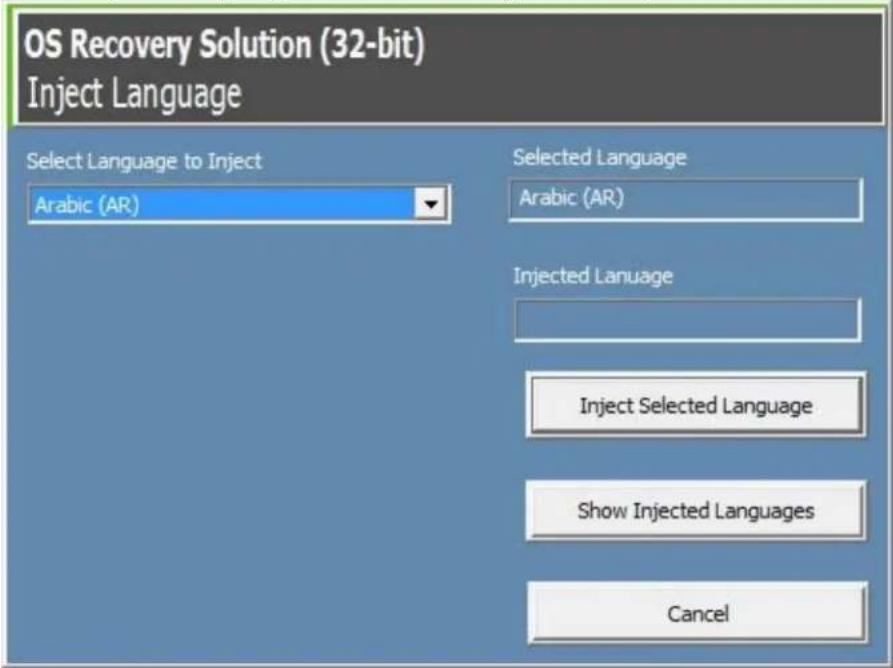
Elo OS Recovery Solution (32-bit) Actions Restore OS Capture OS Console Inject Language (Win 7 only) Exit Status Welcome to the Elo OS Recovery Solution! Please select one of the following actions: - Press [Restore OS] to apply an existing OS image to the device. - Press [Capture OS] to create an image of your current OS. © 2012 BSQUARE Corporation. All rights reserved. v4.0.00.0713- Select Inject Language and the following UI will be presented.
text_image
OS Recovery Solution (32-bit) Inject Language Select Language to Inject Arabic (AR) Selected Language Arabic (AR) Injected Language Inject Selected Language Show Injected Languages Cancel- Click the drop-down list and select the preference language.
- Click Inject Selected Language
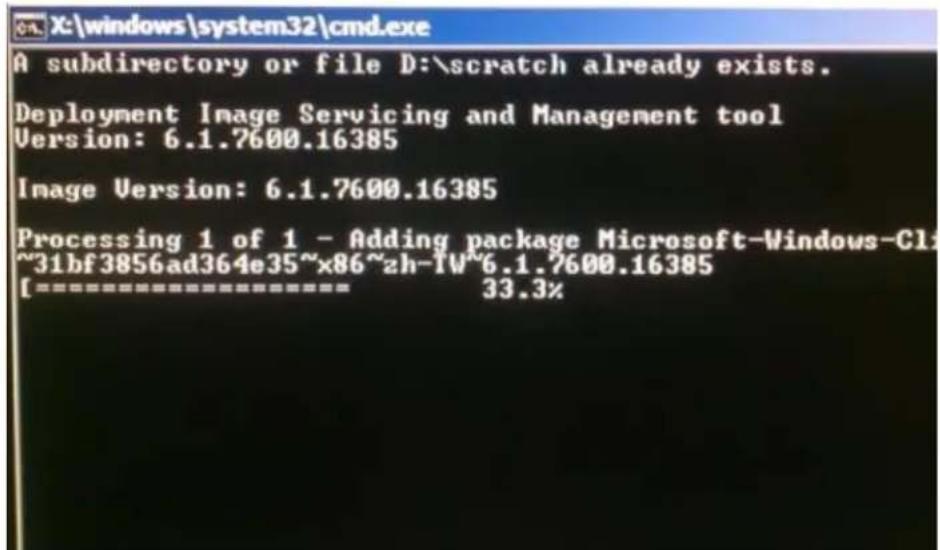
- While the injecting process is performing, DO NOT use your keyboard or mouse during this time. It may cause an error in the language injection process.
text_image
X:\windows\system32\cmd.exe A subdirectory or file D:\scratch already exists. Deployment Image Servicing and Management tool Version: 6.1.7600.16385 Image Version: 6.1.7600.16385 Processing 1 of 1 - Adding package Microsoft-Windows-Cl ~31bf3856ad364e35~x86~zh-TW~6.1.7600.16385 [==================== 33.3%- After the language package is installed correctly, press any key to exit the window.
-
You should see the new injected language in both "Selected Language" and "Injected Language".
-
Click Cancel → Exit. The system will reboot and new language UI should be presented when the system enters the Desktop.
Creating the Recovery Flash Drive
All POSReady 7 and Windows 8.1 touchcomputers come with the built-in Elo Restore Utility on the Windows Desktop. The utility is able to create a recovery flash drive based on the operating system you purchased. Please create your recovery flash drive immediately. In the event the HDD/SSD recovery partition is accidentally deleted or becomes inaccessible, you will need to use the recovery flash drive to recover your system.
The following procedures demonstrate how to use the utility to create a recovery flash drive.
- Right-click the EloRestoreUtility icon on the Desktop and select "Run as administrator".
- Click "Start" button to begin the process.

text_image
Elo Restore Utility Status: Press [Start] Button to begin ... Message: Set default Operating System Start Exit- Once completed, you shall see a pop-up window to ask to insert a blank flash drive to any of available USB ports on your system.

text_image
Elo Restore Utility Status: Initialization Message: Required Information Information: Please insert your flash drive at this moment! OK Set default Operating System Format Drive Exit- After the flash drive is inserted, you shall see a window as shown below. Click "Format Drive" to continue the process. PLEASE NOTE THAT ALL DATA WILL BE
LOST DURING THIS PROCESS.

text_image
Elio Restore Utility Status: Found Drive - D:\ Message: Press [Format Drive] Button to start format process ... Set default Operating System Format Drive Exit- Click "Create Restore Media" to proceed. This step will take 10-20 minutes depending on your system configurations and flash drive performance.

text_image
Elo Restore Utility Status: Creating directory structures ... Message: Creation directories success, please press [Create Restore Media] to start restore media creation ... Set default Operating System Create Restore Media Exit- Once the message says "Creation Restore Media success...", please remove the flash drive and click "Exit" to exit the program.

text_image
Elo Restore Utility Status: Creation Restore Media finished. Please refer to manual for additional steps ... Message: Creation Restore Media success ... Set default Operating System Create Restore Media Exit-
In case the system is crashed and you have to use the recovery flash drive, reboot the system and press F11 several times to enter Device Boot Menu. Then, choose boot from flash drive.
-
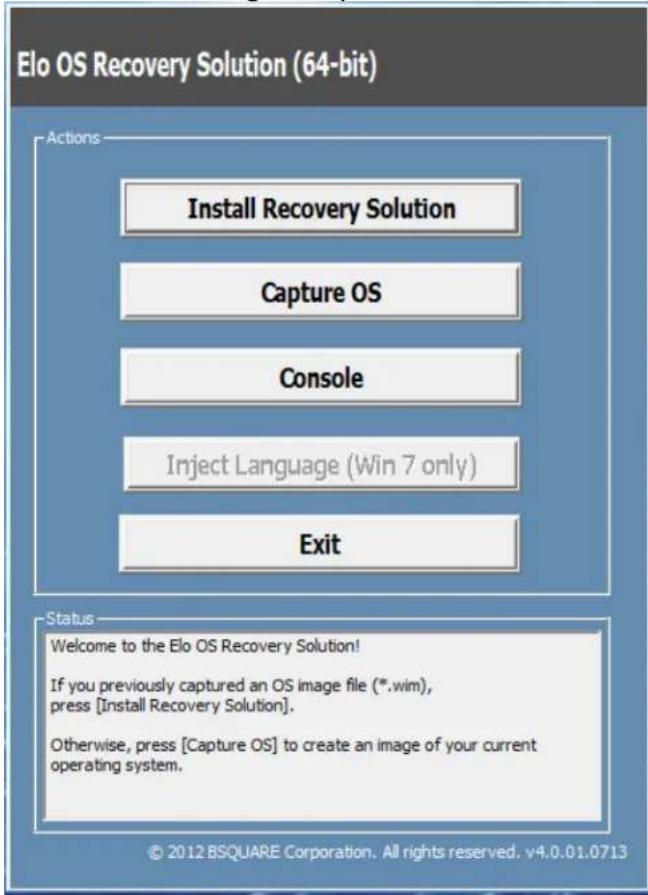
When the following UI is presented, click "Install Recovery Solution" button.
text_image
Elo OS Recovery Solution (64-bit) Actions Install Recovery Solution Capture OS Console Inject Language (Win 7 only) Exit Status Welcome to the Elo OS Recovery Solution! If you previously captured an OS image file (*.wim), press [Install Recovery Solution]. Otherwise, press [Capture OS] to create an image of your current operating system. © 2012 BSQUARE Corporation. All rights reserved. v4.0.01.0713- Follow the on-screen instructions to complete the installation process and then exit the program.
Note: All data is deleted during the recovery process. The user must back up files when necessary. Elo Touch Solutions does not accept liability for lost data or software.
Note: The end user must adhere to Microsoft's Licensing Agreement
If for any reason the touchcomputer's operating system needs to be recovered TO FACTORY SETTINGS, you can recover your system by following procedures below. PLEASE NOTE THAT ALL CUSTOMER SETTINGS AND DATA WILL BE LOST DURING THIS PROCESS.
Please be sure to completely backup all of your data, settings, and customer-installed software before proceeding.
- Power off your system completely.
- Power on your system.
- After the Elo splash screen (shown below), press “↑” or “↓” repeatedly to pause on Windows Boot Manager.

natural_image
Blue abstract background with light streaks and a bright sunburst effect, featuring the word 'ēlo' in white on the left (no other text or symbols)- Select either Restore OS 32bit or Restore OS 64bit depending on your OS environment.

text_image
Windows Boot Manager Choose an operating system to start, or press TAB to select a tool: (use the arrow keys to highlight your choice, then press ENTER.) windows Embedded Standard > Restore OS 32bit To specify an advanced option for this choice, press F8. Tools: windows Memory Diagnostic ENTER=Choose TAB=Menu ESC=Cancel- The following User Interface (UI) will be presented:
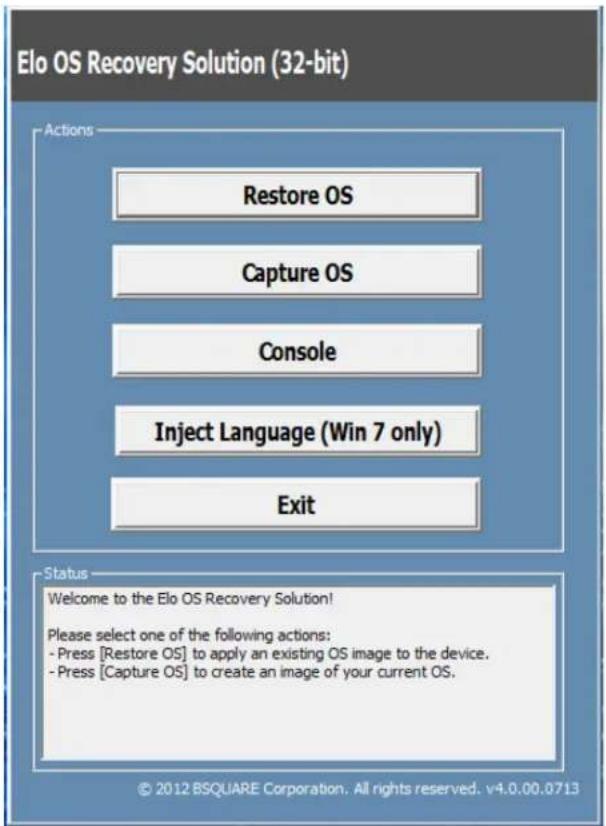
text_image
Elo OS Recovery Solution (32-bit) Actions Restore OS Capture OS Console Inject Language (Win 7 only) Exit Status Welcome to the Elo OS Recovery Solution! Please select one of the following actions: - Press [Restore OS] to apply an existing OS image to the device. - Press [Capture OS] to create an image of your current OS. © 2012 BSQUARE Corporation. All rights reserved. v4.0.00.0713- Select Restore OS. System will test your hardware automatically. Once the process completes, click Start button to perform the system recovery function.
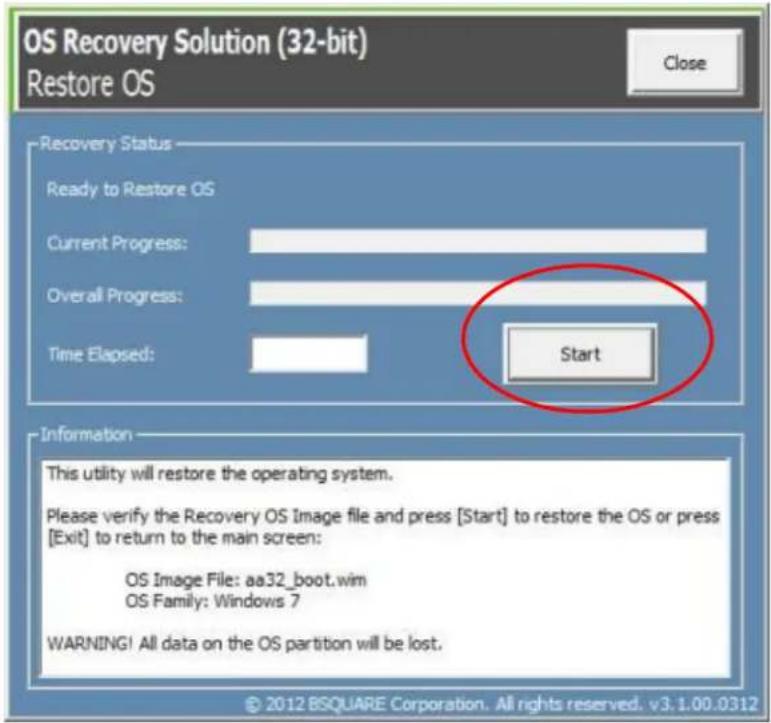
text_image
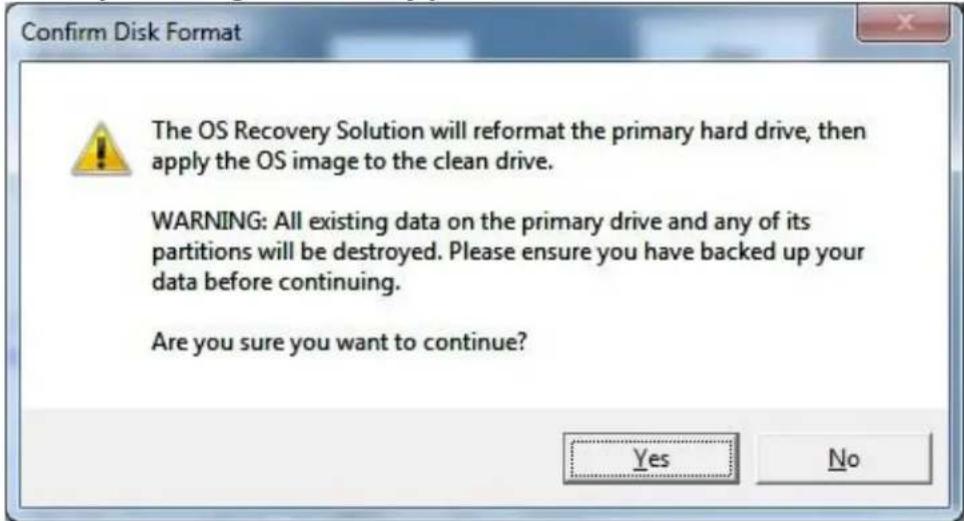
OS Recovery Solution (32-bit) Restore OS Close Recovery Status Ready to Restore OS Current Progress: Overall Progress: Time Elapsed: Start Information This utility will restore the operating system. Please verify the Recovery OS Image file and press [Start] to restore the OS or press [Exit] to return to the main screen: OS Image File: aa32_boot.wim OS Family: Windows 7 WARNING! All data on the OS partition will be lost. © 2012 BSQUARE Corporation. All rights reserved. v3.1.00.0312- The following process will reformat the primary hard drive. Please back up your data before performing the recovery process.
text_image
Confirm Disk Format The OS Recovery Solution will reformat the primary hard drive, then apply the OS image to the clean drive. WARNING: All existing data on the primary drive and any of its partitions will be destroyed. Please ensure you have backed up your data before continuing. Are you sure you want to continue? Yes No- Once completed, click the Close button. The system will return to the main menu of the Elo Recovery Solution. Then click the Exit button to restart your system.
NOTE: All data is deleted during the recovery process. The user must back up files when necessary. Elo Touch Solutions does not accept liability for lost data or software.
NOTE: The end user must adhere to Microsoft's Licensing Agreement.
Chapter 4: Options and Upgrades
Adding Optional Upgrades
The X-Series had quality below optional upgrades material for different or additional requirement to the system unit. To add the optional upgrades, the complete installation and setup instructions are provided with the field-installable kits.
• 320GB 5400rpmHard Disk Drive (HDD)
• 500GB 7200rpmHard Disk Drive (HDD)
• 1TGB 5400rpm Hard Disk Drive (HDD)
- 64GB 2.5" SATA SSD
• 128GB 2.5" SATA SSD
• 2GB DDR3L Memory SO-DIMM
• 4GB DDR3L Memory SO-DIMM
• 8GB DDR3L Memory SO-DIMM
Optional Peripherals KITs
The following optional accessories and spare parts are available for purchase from Elo Touch Solutions. Shown in parenthesis is the Elo orderable part number.
• Biometric Fingerprint Reader KIT (E001001)
- Fingerprint reader with USB interface for all X-Series configurations.
• Magnetic Stripe Reader KIT (E001002)
- MSR with USB interface for all X-Series configurations.
- Rear-Facing Customer Display KIT (E001003)
- The vacuum fluorescent display with USB interface for all X-Series configurations.
• Near Field Communication KIT (E001004)
- NFC reader with USB interface for all X-Series configurations.
• 7-Inch LCD Second Display KIT (E807955)
- ET-0700L: 7-Inch Rear-facing LCD customer display with USB interface for all X-Series configurations.
- Expansion Module KIT (E001006)
- The expansion module is an optional kit for X-Series touchcomputer. It is mounted to the center of the system back cover as a peripheral port for all X-Series configurations.
• POLE MOUNT STAND KIT (E038989)
- The Pole Mount Stand support 7"\~15" customer display and different portable devices w/VSESA mount (75x75mm) spec.
• WALL MOUNT KIT (E143088)
- The WALL MOUNT KIT is design for system can be mounted at wall through two mental frames.
- Barcode Scanner Reader KIT (E093433)
- The Barcode Scanner Reader KIT is design with USB interface for all X-Series configurations.
Biometric Fingerprint Reader KIT (E001001)
You can add a fingerprint reader to the X-Series touchcomputer to any of the three mounting locations located on the display head top, left, and right. Software application and drivers can be found in the following directory or on www.elotouch.com
C:\EloTouchSolutions\Peripherals
The fingerprint reader is powered by the USB bus. The reader optically scans the fingerprint when the user touches the glowing window. Optical technology gives the highest quality fingerprint scans and reliability.
Fingerprint reader specifications are shown in the table below.
| Feature | Spec Description |
| Power supply | 5.0VDC +/- 5% |
| Power consumption | < 1.0 W |
| Current draw – scanning mode | < 100 mA |
| Current draw – idle mode | < 120 mA |
| Current draw – suspend mode | < 0.5 mA |
| Image resolution | Up to 512 dpi or higher resolution. |
| Image color | 8-bit grayscale (256 levels of gray) |
| Scan capture size | 14.6mm (nominal width) x 18.1mm (nominal length) |
| Image capture speed | 100 ms or higher. |
| Interface type | USB 2.0 (Compatible with 1.0 / 1.1) |
| Operating temperature | 0 to 40°C |
| Storage temperature | -10 to 60°C |
| ESD Susceptibility | >15KV. |
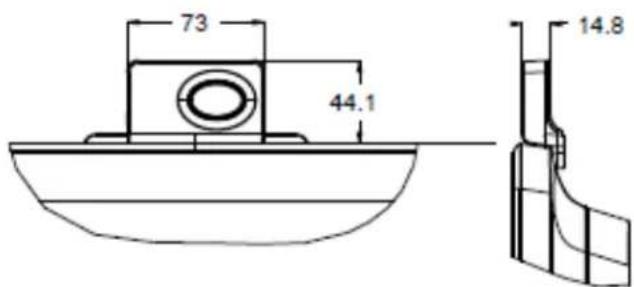
FPR allocation on X-Series
FINGER PRINT READER, P/N E001001
text_image
73 44.1 14.8Testing the FPR
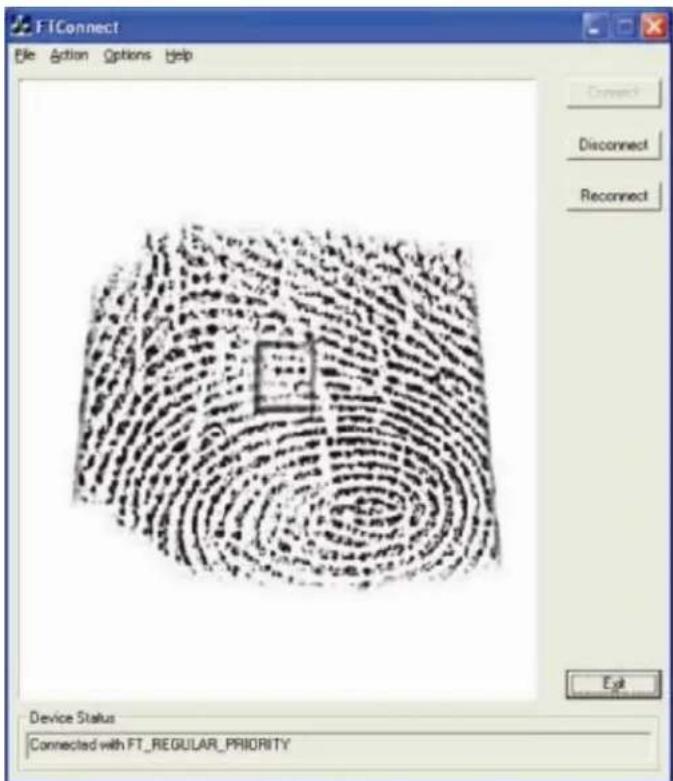
- Double-click the Fingerprint Reader Test icon to start the test application.
- Place your finger on the fingerprint reader sensor and verify that the image of your fingerprint is displayed on the application window.
text_image
FTConnect File Action Options Help Connect Disconnect Reconnect Device Status Connected with FT_REGULAR_PRIORITYYou can add a magnetic stripe reader (MSR) to the X-Series touchcomputer to any of the three mounting locations located on the display head top, left, and right. Software application and drivers can be found in the following directory or on www.elotouch.com
C:\EloTouchSolutions\Peripherals
The MSR is a USB 2.0 device that reads all three data stripes on standard credit cards or driver's licenses conforming to ISO/ANSI standards. The MSR has foreign language capability. The credit card is read by sliding the credit card forward or backward through the MSR, stripe side toward the display. The MSR is powered from the USB port; no external power is needed
The MSR specifications are shown in below table.
| Feature | Spec Description |
| Swipe Speed | 4~60 ips (10.1~152.4 cm/sec), Bi-direction |
| Card Width | 0.025 ~0.035 inches |
| Number of Tracks | 3 Tracks |
| Encryption | Triple DES encryption Device & Host Authentication Tokenization |
| Power supply | 5.0VDC +/- 0.25V |
| Power consumption | < 2.0 W |
| Current draw | < 40 mA |
| Current draw - Suspend mode | < 500 uA |
| Interface type | Compatible with USB, HID specification |
| Encrypts security | Level 2 |
| Operating temperature | -20°C to 80°C |
| Encoded data compliance | ANSI/ISO/AAMVA standards |
| Reliability | >1000K times swipes |
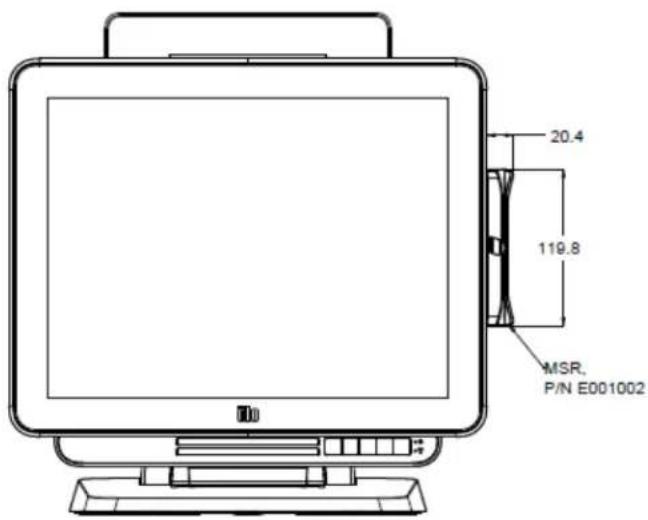
MSR allocation on X-Series
text_image
20.4 119.8 MSR. P/N E001002Testing the MSR
Testing in USB MSR Keyboard (KB) Emulation Mode
- Open the Notepad application (click Start > Accessories > Notepad).
- Slide the card through the MSR and verify that the data is displayed in the application window.

text_image
Untitled - Notepad File Edit Format View Help AB1234123412341234+DOG/30HH ^090210126449007420000007;1234123412341234=090210126449742?Testing in USB MSR Human Interface Device (HID) Mode
- Double-click the MagSwipe HID Demo icon to start the test application.
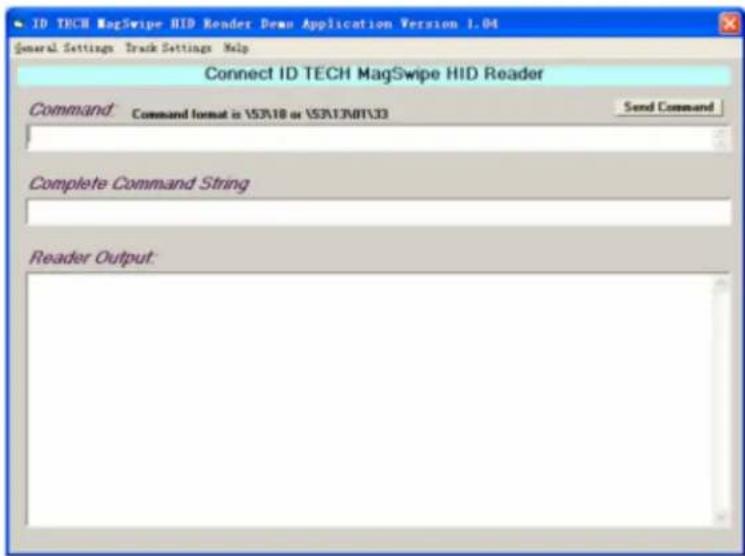
text_image
ID TECH MagSwipe HID Reader Demo Application Version 1.04 General Settings Track Settings Help Connect ID TECH MagSwipe HID Reader Command Command format is \US\18 or \US\13\MT\33 Send Command Complete Command String Reader Output:- Slide a card through the MSR and verify that the data is displayed in the application window.
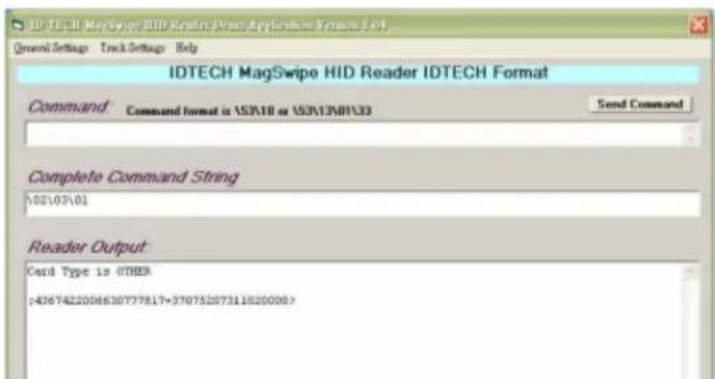
text_image
IDTECH MagSwipe HDI Reader Reader IDTECH Format Command: Command format is V5X18 or V5X13MB133 Send Command Complete Command String 102103101 Reader Output: Card Type is OTHER 4367422006630777817+57075207311820000?- If the card ID appears in the Reader Output window, the reader is functioning.
Rear-Facing Customer Display KIT (E001003)
You can optionally add a customer display to the X-Series touchcomputer to any of the three mounting locations located on the display head top, left, and right of the touchcomputer. Software application and drivers can be found in the following directory or on www.elotouch.com
C:\EloTouchSolutions\Peripherals
The Rear-Facing customer display is a USB 2.0 device and compatible design for X-Series all configurations. The display KIT is powered by the USB port; no external power is needed.
The Rear-Facing customer display specifications are shown in below table.
| Feature | Spec Description |
| Display Type | Vacuum Fluorescent Display (VFD) |
| Display Color | Blue Green |
| Character font | 5 x 7 dot matrix, cursor |
| Character Size | 9.2(W) x 5.5(H) mm |
| Character Number | 20 x 2 |
| Character Type | 95 Alphanumeric & 32 International Characters |
| Dot Size | 0.86 x 1.2 mm |
| Brightness | 500~1000 cd/m2 |
| Viewing Angle | Max. 90° |
| Panel Dimension | 220(W) x 50(D) x87(H) mm |
| Power supply | 5.0VDC +/- 0.25V |
| Power consumption | < 2.0 W |
| Current draw | < 400 mA |
| Interface type | USB interface |
| Operating temperature | 0 to 40°C |
| Reliability/MTBF | 30,000 Hours |
Rear-Facing Customer Display allocation on X-Series
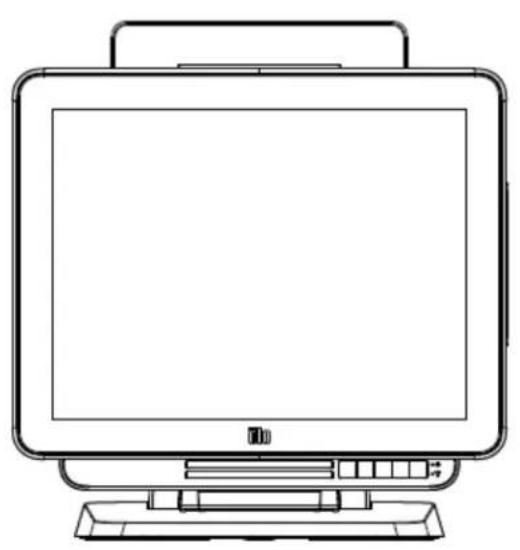
natural_image
Line drawing of a desktop computer monitor with front panel and keyboard (no text or symbols)
text_image
29.1You can optionally add a NFC KIT to the X-Series touchcomputer to any of the three mounting locations located on the display head top, left, and right of the touchcomputer
The NFC KIT is a USB 2.0 device and compatible design for X-Series all configurations. The NFC KIT is powered by the USB port; no external power is needed.
The NFC KIT specifications are shown in below table.
| Feature | Spec Description |
| Standards | ISO 14443 TYPE A and B compliantISO 18092 compliant |
| Encryption | Encrypted card data (AES or Triple DES)DUKPT key management with more than 2M keys (model selectable)Authentication with RSA 2048 bit key |
| Payment applications | American Express ExpressPayDiscover ZIPMasterCard PayPass/MCHIPVisa MSD/qVSDCGoogle wallet (optional)Apple Pay |
| Contact smart card | Contactless communication at 13.56MHzSupports 2-SAM or 4-SAM board (optional) |
| Antennas | Build-in direct matching antennaRemote 50 ohm matching antenna (optional) |
| Interface type | USB2.0 compliant / HID supportStandard RS-232 signal level |
| Power supply | 5.0VDC +/- 0.25V |
| Power consumption | < 330mA (idle mode)< 430mA (operation mode) |
| Temperature | -20°C to 70°C (Operating)-30°C to 70°C (Storage) |
| Humidity | 10 to 85% (Operating)10 to 90% (Storage) |
NFC KIT allocation on X-Series
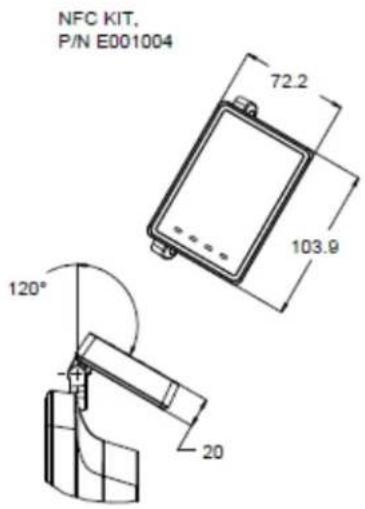
text_image
NFC KIT, P/N E001004 72.2 103.9 120° 207-Inch LCD Second Display KIT (E807955)
You can optionally add a customer display to the X-Series touchcomputer to the back of the touchcomputer. Software application and drivers can be found in the package or on www.elotouch.com
Note: Requires POLE MOUNT KIT for hold up the second display kit. (Part number E038989).
| Feature | Description |
| Display type | 7" diagonal, Active matrix TFT LCD |
| Aspect Ratio | 16x9 Widescreen |
| Useful Screen Area | Horizontal: 6.0" (154mm)Vertical: 3.4" (87mm) |
| Brightness | 160-180 nits |
| Colors | 16.7 million |
| Contrast Ratio | 500:1 |
| Viewing Angle (typical) | Horizontal: ±70° or 140° totalVertical: -60°/+50° or 100° total |
| Interface | USB |
| Part Number | No touch (E807955) |
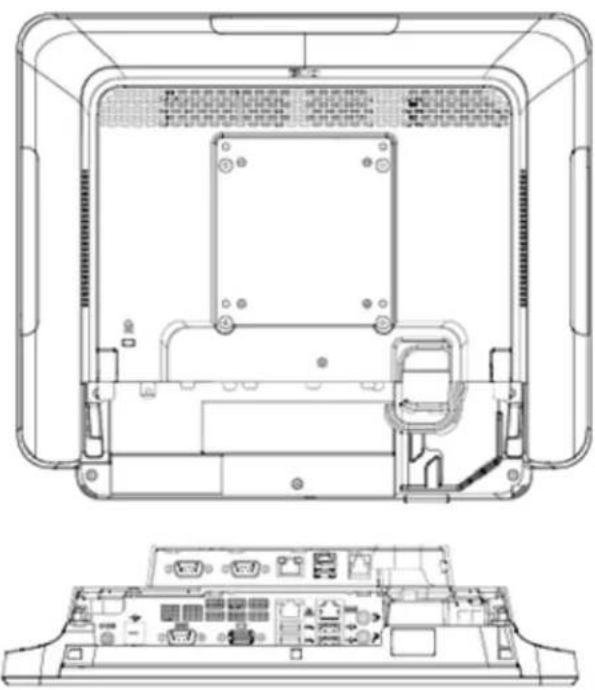
You can optionally add an expansion module kit to the center of the X-Series touchcomputer to back cover as a peripheral part for all X-Series configurations.
The Expansion Module KIT specifications are shown in below table.
| Feature | Spec Description |
| Serial Port 1 | Native RS-232 |
| Serial Port 2 | Native RS-232 |
| Ethernet Port | Giga LAN (1G/100MB/10MB) |
| Power USB Port | +12V Powered USB |
| Cash Drawer Port | +24/+12V RJ-11 Cash Drawer (switchable by BIOS) |
| Operating temperature | 0 to 40°C |
| Reliability/MTBF | 50,000 Hours |
Expansion Module allocation on X-Series
natural_image
Technical line drawing of an open computer case with internal components and a close-up view (no text or symbols)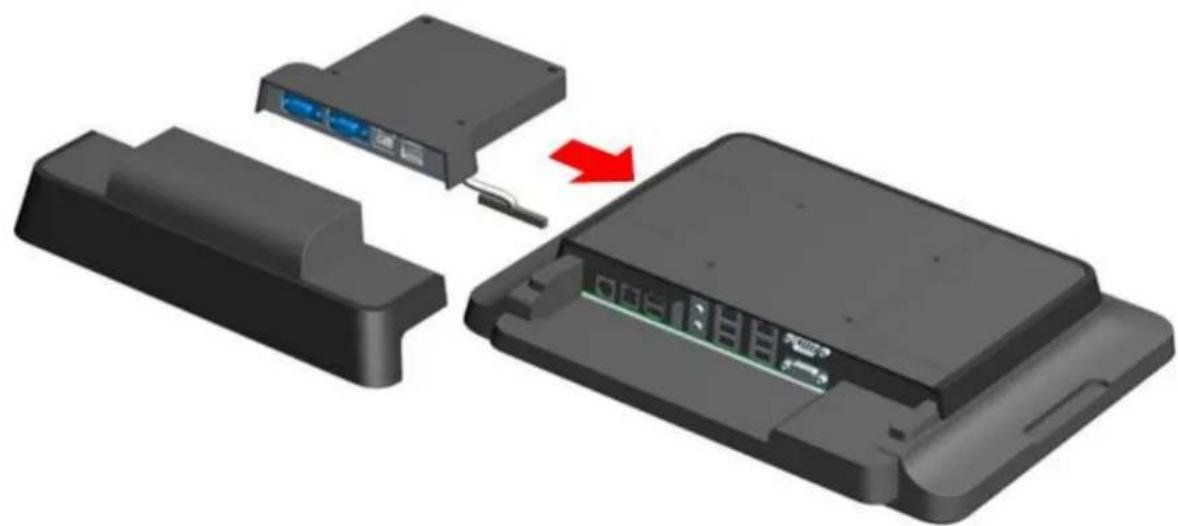
natural_image
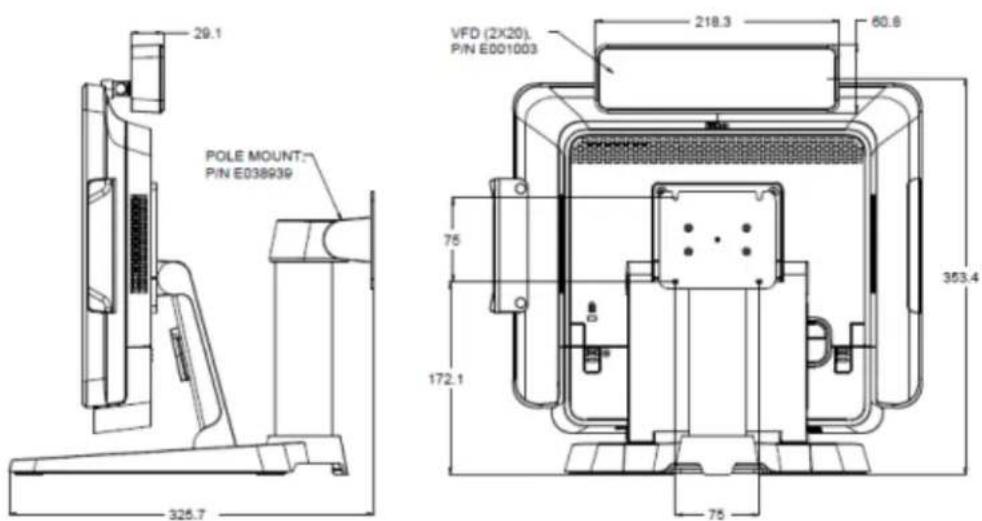
3D illustration of a device with two ports and a cable, showing a red arrow indicating assembly or transformation (no text or symbols present)POLE MOUNT STAND KIT (E038989)
You can optionally add a POLE MOUNT STAND KIT to combine with stand module of the X-Series touchcomputer for all X-Series configurations. The POLE MOUNT STAND KIT is ability to support 7"\~15" customer displays and different kinds of portable devices.
POLE MOUNT STAND allocation on X-Series
text_image
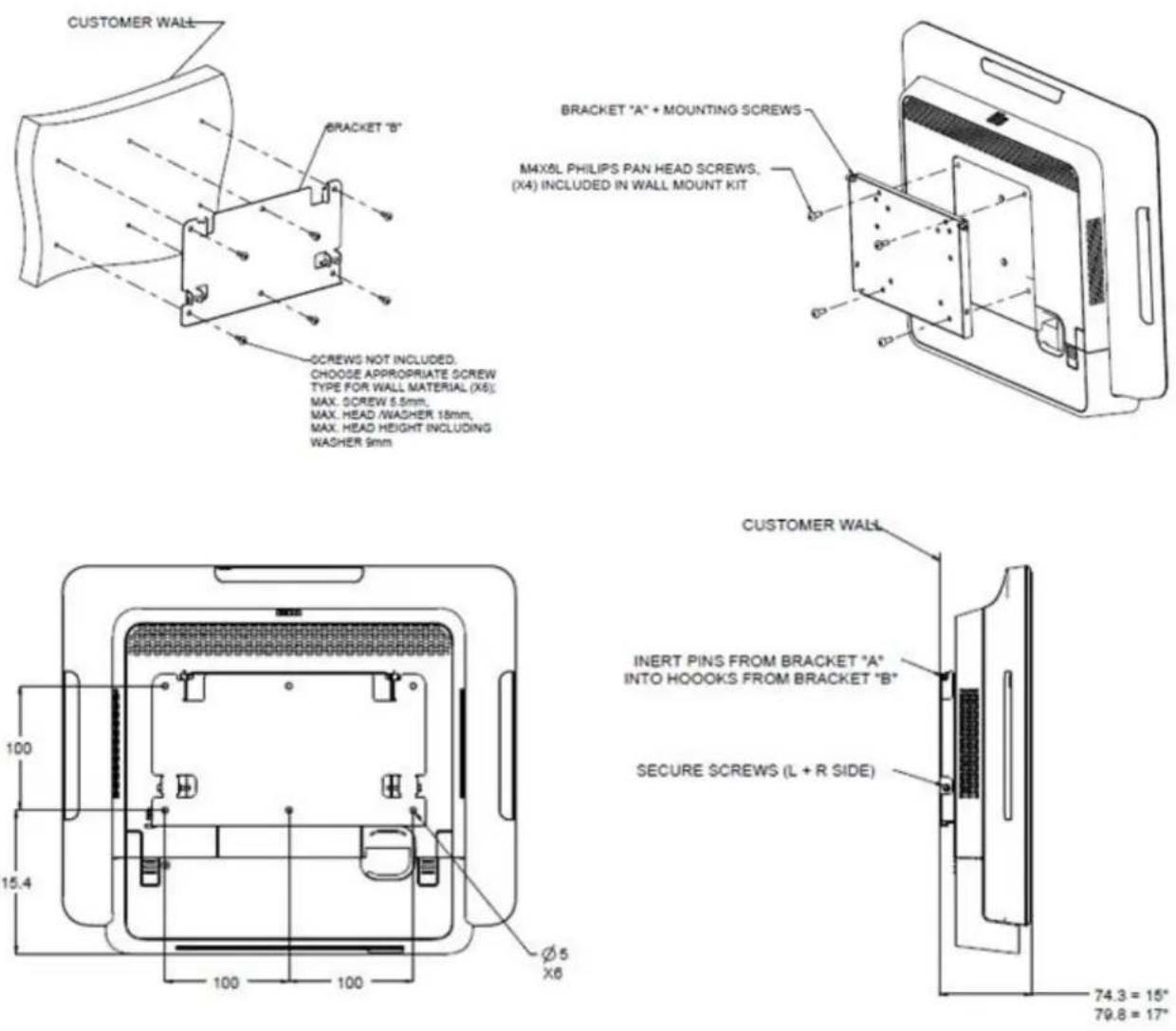
29.1 POLE MOUNT: PIN E038R39 VFD (2X20), PIN E001003 218.3 60.6 75 353.4 172.1 75 325.7You can optionally add a WALL MOUNT KIT to X-Series touchcomputer at wall through two mental frames for all X-Series configurations.
WALL MOUNT allocation on X-Series
You can optionally add a BCR KIT to the X-Series touchcomputer to any of the three mounting locations located on the display head top, left, and right of the touchcomputer
The BARCODE SCANNER peripheral shall consist of a mechanical housing, which encloses a BARCODE SCANNER electrical module. The BARCODE SCANNER peripheral shall have a USB connection to interface with the X-Series touchcomputer.
| Feature | Spec Description |
| Light Source | 660nm visible LED |
| Optical sensor | 2500 pixels Toshiba CCD sensor |
| Resolution | 3 mil |
| Depth of Field | 35 – 320mm |
| PCS | 30% or more |
| Interface type | USB HID / RS-232 (TTL)/ KBW |
| Voltage | + 5V DC ± 5% |
| Power | 120mA @ 5VDC (typ.) |
| Standby currents | 20 ~ 30 mA |
| Scanning Speed | Up to 270 scans/sec |
| Operating temperature | 0 °C to 55 °C |
| Storage temperature | -20 °C to 60 °C |
| Humidity | 10% ~90% RH (non-condensing) |
| Ambient Light | Works in any lighting conditions, from 0 to 10,000 lux |
BCR allocation on X-Series

natural_image
3D rendered black mechanical component with mounting bracket and mounting holes (no text or symbols)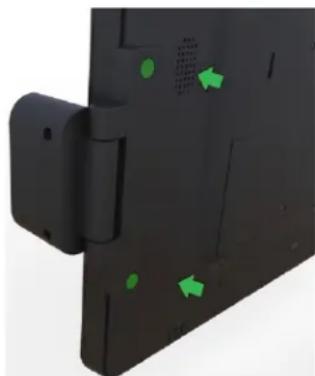
natural_image
Close-up of a black plastic electronic component with green arrows pointing to specific features (no readable text or symbols)Chapter 5: Technical Support
If you are experiencing trouble with your X-Series, refer to the following suggestions.
If the problem persists, please contact your local dealer or contact Elo Touch Solutions Customer Service.
Solutions to Common Problems
| Problem | Suggested Troubleshooting |
| No Power(The X-Series unit can’t power on.) | 1. Check that the AC/DC power adapter is properly connected.2. Verify the AC power source is functioning.3. Power button is destroyed or not? |
| No Display(Monitor display is blank.) | 1. If the Power Status LED is blinking, the X-Series may be in SLEEP mode. Press the power button to see if the image reappears.2. Internal cable loss or electrical part damage. |
| No Operation System | 1. Confirm the product with OS configuration.2. System unit powered on or not?3. Hard Driver damage. |
| Touch function abnormal. | 1. Do the touch calibration by Elo application.2. Confirm the touch device work normally in OS. |
| No Touch Function | 1. Confirm the touch screen is not broken.2. Check the touch screen trail connects to touch CTR board well.3. Check the touch CTR cable connection well. |
Technical Assistance
Visit http://www.elotouch.com/Support/TechnicalSupport/default.asp for technical support.
Refer to the last page of this user manual for Elo contact information worldwide.
Chapter 6: Safety & Maintenance
Safety
To avoid risk of electric shock, follow all safety notices and do not disassemble the Elo X-Series. The Elo X-Series is not user-serviceable.
Do not block or insert anything into any of the ventilation slots.
The Elo X-Series is equipped with an AC/DC power adapter. Do not use a damaged AC/DC power adapter. Use only the AC/DC power adapter supplied by Elo Touch Solutions for the X-Series. Use of an unauthorized AC/DC power adapter may invalidate your warranty.
Ensure that the system is maintained and runs within the specified environmental conditions listed below.
Environmental conditions for operating and storage
| Temperature: | ||
| Operating | 0°C to 35°C | |
| Storage | -30°C to 60°C | |
| Humidity (non-condensing): | ||
| Operating | 20% to 80% | |
| Storage | 5% to 95% | |
| Altitude: | ||
| Operating | 0 to 3,048 m | |
| Storage | 0 to 12,192 m | |
The following notice will help on the application when you use the Power USB function of your Elo X-Series:
- For X-Series, the +19V & +19.5V/90W power adapter (E001062/E001063) can't support both +12V PUSB and +24 PUSB at the same time.
- For X-Series, the +19V & +19.5V/150W power adapter (E001059/E001060) can't support both +12V PUSB and +24 PUSB at the same time.
- If you need both function support with your application, please contact with ELO for furthermore support on specify power adapter solution.
- The ELO PNs corresponding power adapter model name list as below table.
| Conguraon | ELO PN | Part Descripon | Vendor Model Name |
| X3/X5/X7 | E001059 | AIO POWER BRICK, 19V 150W, FSP | FSP150-ABBN2 |
| X3/X5/X7 | E001060 | AIO POWER BRICK, 19V 150W, DELTA | ADP-150VB BA |
| X2 | E001062 | AIO POWER BRICK, 19V 90W, FSP | FSP090-DIEBN2 |
| X2 | E001063 | AIO POWER BRICK, 19V 90W, DELTA | ADP-90CE BA |
X-Series Care and Handling
The following tips will help maintain optimal performance of your Elo X-Series:
- Disconnect the power cable before cleaning.
- To clean the X-Series (except touchscreen), use soft cotton or microfiber cloth lightly dampened with a mild detergent.
- It is important that your unit remains dry. Do not get liquids on or inside the unit. In the event that liquid does get inside, have a qualified service technician inspect the unit before you power it on again.
- Do not wipe the screen with a cloth or sponge that could scratch the surface.
- When cleaning the touchscreen, use window or glass cleaner applied to a clean cloth. Never apply the cleaner directly on the touchscreen or Elo X-Series. Do not use alcohol (methyl, ethyl or isopropyl), thinner, benzene, or other abrasive cleaners.
Waste Electrical & Electronic Equipment

This product should not be disposed of with household waste. It should be deposited at a facility that enables recovery and recycling. Ensure that product is disposed at the end of its useful life according to local laws and regulations.
Elo has put in place recycling arrangements in certain parts of the world. For information on how you can access these arrangements, please visit http://www.elotouch.com/AboutElo/ewaste-program/.
UL Directive
X-Series touchcomputer has included a lithium battery on the motherboard. There is a risk of explosion if battery is replaced by an incorrect type. Please dispose of used batteries according to the region instructions
Chapter 7: Regulatory Information
I. Electrical Safety Information
Compliance is required with respect to the voltage, frequency, and current requirements indicated on the manufacturer label. Connection to a different power source than those specified herein will likely result in improper operation, damage to the equipment or pose a fire hazard if the limitations are not followed.
There are no operator serviceable parts inside this equipment. There are hazardous voltages generated by this equipment which constitute a safety hazard. Service should be provided only by a qualified service technician.
Contact a qualified electrician or the manufacturer if there are questions about the installation prior to connecting the equipment to mains power.
II. Emissions and Immunity Information
Notice to Users in the United States:
This device complies with part 15 of the FCC Rules. Operation is subject to the following two conditions: (1) This device may not cause harmful interference, and (2) this device must accept any interference received, including interference that may cause undesired operation.
Note: This equipment has been tested and found to comply with the limits for a Class B digital device, pursuant to Part 15 of FCC Rules. These limits are designed to provide reasonable protection against harmful interference in a residential installation. This equipment generates, uses, and can radiate radio frequency energy and, if not installed and used in accordance with the instructions, may cause harmful interference to radio communications. However, there is no guarantee that interference will not occur in a particular installation. If this equipment does cause harmful interference to radio or television reception, which can be determined by turning the equipment off and on, the user is encouraged to try to correct the interference by one or more of the following measures:
- Reorient or relocate the receiving antenna.
- Increase the separation between the equipment and receiver.
- Connect the equipment to an outlet on a circuit different from that to which the receiver is connected.
- Consult the dealer or an experienced radio/TV technician for help.
Caution: Any changes or modifications not expressly approved by the party responsible for
compliance to this equipment would void the user's authority to operate this device.
Canada Compliance Statement:
This Class B digital apparatus complies with Canadian ICES-003.
This device complies with Industry Canada license-exempt RSS standard(s). Operation is subject to the following two conditions: (1) this device may not cause interference, and (2) this device must accept any interference, including interference that may cause undesired operation of the device.
Notice to Users in Canada:
This equipment complies with the Class B limits for radio noise emissions from digital apparatus as established by the Radio Interference Regulations of Industrial Canada.
Notice to Users in the European Union:
Use only the provided power cords and interconnecting cabling provided with the equipment. Substitution of provided cords and cabling may compromise electrical safety or CE Mark Certification for emissions or immunity as required by the following standards:
This Information Technology Equipment (ITE) is required to have a CE Mark on the Manufacturers label which means that the equipment has been tested to the following
Directives and Standards: This equipment has been tested to the requirements for the CE Mark as required by EMC Directive 2004/108/EC as indicated in European Standard EN 55022 Class B and the Low Voltage Directive 2006/95/EC as indicated in European Standard EN 60950.
General Information to all Users:
This equipment generates, uses, and can radiate radio frequency energy. If not installed and used according to this manual the equipment may cause interference with radio and television communications. There is, however, no guarantee that interference will not occur in any particular installation due to site-specific factors.
- In order to meet emission and immunity requirements, the user must observe the following:
a. Use only the provided I/O cables to connect this digital device with any computer.
b. To ensure compliance, use only the provided manufacturers approved line cord.
c. The user is cautioned that changes or modifications to the equipment not expressly
approved by the party responsible for compliance could void the user's authority to operate the equipment.
- If this equipment appears to cause interference with radio or television reception, or any other device:
a. Verify an emission source by turning the equipment off and on. If you determine that this equipment is causing the interference, try to correct the interference by using one or more of the following measures:
I. Move the digital device away from the affected receiver.
II. Reposition (turn) the digital device with respect to the affected receiver.
III. Reorient the affected receiver's antenna.
IV. Plug the digital device into a different AC outlet so the digital device and the receiver are on different branch circuits.
V. Disconnect and remove any I/O cables that the digital device does not use. (Unterminated I/O cables are a potential source of high RF emission levels.)
VI. Plug the digital device into only a grounded outlet receptacle. Do not use AC adapter plugs. (Removing or cutting the line cord ground may increase RF emission levels and may also present a lethal shock hazard to the user.)
If you need additional help, consult your dealer, manufacturer, or an experienced radio or television technician.
III. EC R&TTE Directive
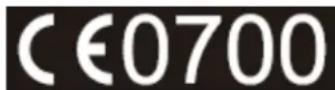
This equipment conforms to all the essential requirements of Directive 1999/5/EC. The conformity assessment procedure referred to in Article 10 and detailed in Annex [IV] of Directive 1999/5/EC has been with the involvement of the following notified body:
Identification mark: 0700 (Notified body number)
The relevant technical documentation is held at:
Elo Touch Solutions, Inc.
1033 McCarthy Boulevard
Milpitas, CA 95035-7920
USA
The following certifications and marks have been issued or declared for the X-Series:
- Europe Union CE
- United States FCC
- United States and Canada UL
- TUV
- CB
- Mexico COC
- Australia C-Tick
- Japan VCCI
- China CCC
- Energy Star ^®
V. China RoHS
In accordance to Chinese law (Administration on the Control of Pollution Caused by Electronic Information Products), the section below lists out the name and amount of the toxic and/or hazardous materials that this product may contain.
| Component Name | Toxic or Hazardous Substances and Elements | |||||
| Lead(Pb) | Mercury(Hg) | Cadmium(Cd) | Hexavalent Chromium (Cr6+) | Polybrominated Biphenyls (PBB) | Polybrominated Diphenyl Ethers (PBDE) | |
| Plastic Parts | O | O | O | O | O | O |
| Metal Parts | X | O | O | O | O | O |
| Wire and Cable Assembly | X | O | O | O | O | O |
| LCD Panel | X | X | O | O | O | O |
| Touch Screen Panel | X | O | O | O | O | O |
| PCBA | X | O | O | O | O | O |
| Software (CD, etc.) | O | O | O | O | O | O |
| O: Indicates that this toxic or hazardous substance contained in all of the homogeneous materials for this component is below the limit requirement in SJ/T11363-2006.X: Indicates that this toxic or hazardous substance contained in at least one of the homogeneous materials used for this component is above the limit requirement in SJ/T11363-2006. For items marked with X, exemptions were taken according to EU RoHS. | ||||||
Explanation of Markings
(1). In accordance with the SJ/T11364-2006 requirement, the electronic information products
are marked with the following pollution control logo. The Environment-Friendly Use Period for this product is 10 years. The product will not leak or mutate under normal operating conditions listed below, so that the use of this electronic information product will not result in any severe environmental pollution, any bodily injury, or damage to any assets.
Operating Temperature: 0-35°C / Humidity: 20%-80% (non-condensing).
Storage Temperature: -30\~60 °C / Humidity: 5%\~95% (non-condensing).

(2). It is encouraged and recommended that this product be recycled and reused according to local laws. The product should not be thrown away casually.

Chapter 8: Warranty Information
For warranty information, go to http://www.elotouch.com/Support/warranty.asp
Get the latest...
• Product Information
- Specifications
- Upcoming events
- Press releases
- Software drivers
Getting in Touch with us
To find out more about the extensive range of Elo touch solutions, visit our website at www.elotouch.com, or simply call the office nearest you:
North America
Elo Touch Solutions
1033 McCarthy Blvd
Milpitas, CA 95035
Tel 800-ELO-TOUCH
Tel 1-408-597-8000
Fax 1-408-597-8050
customerservice@elotouch.com
Europe
Tel +32 (0) 16 70 45 00
Fax +32 (0) 16 70 45 49
elosales@elotouch.com
Asia-Pacific
Tel +86 (21) 3329 1385
Fax +86 (21) 3329 1400
www.elotouch.com.cn
Latin America
Tel 786-923-0251
Fax 305-931-0124
www.elotouch.com
Disclaimer
The information in this document is subject to change without notice. Elo Touch Solutions, Inc. and its affiliates (collectively "Elo") makes no representations or warranties with respect to the contents herein, and specifically disclaims any implied warranties of merchantability or fitness for a particular purpose. Elo reserves the right to revise this publication and to make changes from time to time in the content hereof without obligation of Elo to notify any person of such revisions or changes.
No part of this publication may be reproduced, transmitted, transcribed, stored in a retrieval system, or translated into any language or computer language, in any form or by any means, including, but not limited to, electronic, magnetic, optical, chemical, manual, or otherwise without prior written permission of Elo Touch Solutions, Inc.
Elo, the Elo logo, Elo Touch, Elo Touch Solutions, Elo TouchSystems, AccuTouch, CarrollTouch, IntelliTouch, IntelliTouch Plus and IntelliTouch Pro are trademarks of Elo Touch Solutions, Inc. and its affiliates.
All other product and company names used herein may be trademarks of their registered owners.
First Edition (Jan 2015)
Copyright 2015 Elo Touch Solutions, Inc. All rights reserved.