CompressHD - Seva MATROX - Free user manual and instructions
Find the device manual for free CompressHD MATROX in PDF.


User questions about CompressHD MATROX
0 question about this device. Answer the ones you know or ask your own.
Ask a new question about this device
Download the instructions for your Seva in PDF format for free! Find your manual CompressHD - MATROX and take your electronic device back in hand. On this page are published all the documents necessary for the use of your device. CompressHD by MATROX.
USER MANUAL CompressHD MATROX
Installation and User Guide (Mac OS version)
June 22, 2012

Y11128-201-0311
Trademarks
Matrox Electronic Systems Ltd. .... Matrox ^ , CompressHD ^TM , Matrox MAX ^TM , MXO ^TM , Matrox Mojito ^TM Adobe Systems Inc.... Adobe ^ , After Effects ^ , Encore ^ , Premiere ^ Pro Apple Computer, Inc.... Apple ^ , iPad ^ , iPhone ^TM , iPod ^ , Mac ^ , Mac OS ^ , QuickTime ^ Boris FX, Inc.... Boris FX ^ , Media 100 ^ PCI-SIG .... PCI ^ SREcle ^TM Telestream, Inc.... Telestream ^ , Episode ^
All other nationally and internationally recognized trademarks and tradenames are hereby acknowledged.
Copyright © 2012 Matrox Electronic Systems Ltd. • All rights reserved.
Disclaimer Matrox Electronic Systems Ltd. reserves the right to make changes in specifications at any time and without notice. The information provided by this document is believed to be accurate and reliable. However, no responsibility is assumed by Matrox Electronic Systems Ltd. for its use; nor for any infringements of patents or other rights of third parties resulting from its use. No license is granted under any patents or patent rights of Matrox Electronic Systems Ltd.
Unauthorized recording or use of broadcast television programming, video tape, or other copyrighted material may violate copyright laws. Matrox Electronic Systems Ltd. assumes no responsibility for the illegal duplication, use, or other acts that infringe on the rights of copyright owners.
Matrox License Agreement, Warranty, and Service
A. Matrox software license agreement for single-user products
By installing the software, you, the original purchaser, indicate your acceptance of these terms. If you do not agree to the terms of this agreement, please return your Matrox product to your Matrox representative.
This Matrox software, any included sample images and other files (the "Software"), is copyrighted by Matrox Electronic Systems Ltd. All rights are reserved. You are granted a license to use the Software only, subject to the following restrictions and limitations:
1 The license is to you the original purchaser only, and is not transferable without written permission of Matrox.
2 You may install the Software on an unlimited number of computers owned or leased by you in any location. However, you must use the Software on a single computer owned or leased by you at a time in conjunction for the purpose of operating the Matrox hardware.
3 For the purposes of clarity, notwithstanding the fact that you may install the Software on more than one computer owned or leased by you, you may not use the Software on more than a single machine at a time, even if you own or lease more than one machine, without the express written consent of Matrox.
4 You may make back-up copies of the Software for your own use only, subject to the use limitations of this license.
5 You may not engage in, nor permit third parties to engage in, any of the following:
a Providing or disclosing the Software to third parties.
b Providing use of the Software in a computer service business, network, time-sharing, multiple CPU, or multi user arrangement to users who are not individually licensed by Matrox.
c Making alterations or copies of any kind in the Software (except as specifically permitted above).
d Attempting to disassemble, decompile, or reverse-engineer the Software in any way.
e Granting sublicenses, leases, or other rights in the Software to others.
f Making copies, or verbal or media translations of the user's guide.
g Making telecommunication data transmissions of the Software.
Matrox reserves the right to terminate this license without prejudice to any additional recourses Matrox may have against you if you violate any of its terms and conditions.
B. Software limited warranty
MATROX WARRANTS TO YOU, THE ORIGINAL PURCHASER, WHO PROVIDES AN ADEQUATE PROOF OF PURCHASE, THAT THE MEDIA ON WHICH THE SOFTWARE IS RECORDED IS FREE FROM DEFECTS IN MATERIALS AND WORKMANSHIP UNDER NORMAL USE, AND THAT THE SOFTWARE WILL PERFORM SUBSTANTIALLY AS DESCRIBED IN THE RELATED DOCUMENTATION PROVIDED BY MATROX FOR A PERIOD OF NINETY (90) DAYS FROM THE DATE OF PURCHASE.
MATROX PROVIDES YOU THE SOFTWARE AND RELATED DOCUMENTATION ON AN "AS IS" BASIS WITHOUT ANY WARRANTY OF ANY KIND, EITHER EXPRESSED OR IMPLIED, INCLUDING BUT NOT LIMITED TO ANY IMPLIED WARRANTY OF MERCHANTABILITY, NON-INFRINGEMENT OR FITNESS FOR A PARTICULAR PURPOSE AS WELL AS THE WARRANTY AGAINST HIDDEN OR LATENT DEFECTS, ALL OF WHICH MATROX SPECIFICALLY DISCLAIMS (AND YOU, THE ORIGINAL PURCHASER, BY ACCEPTING THE PRODUCT, SPECIFICALLY ACCEPTS SUCH DISCLAIMER AND WAIVER) TO THE MAXIMUM EXTENT PERMITTED BY LAW. THE ENTIRE RISK AS TO THE RESULTS AND PERFORMANCE OF THE SOFTWARE IS ASSUMED BY YOU. SHOULD THE SOFTWARE PROVE DEFECTIVE, YOU (AND NOT MATROX, ITS DISTRIBUTORS OR DEALERS) ASSUME THE ENTIRE COST OF ALL NECESSARY SERVICING, REPAIR OR CORRECTION.
MATROX DOES NOT WARRANT THAT THE OPERATION OF THE SOFTWARE WILL BE UNINTERRUPTED OR ERROR-FREE, THAT DEFECTS IN THE SOFTWARE WILL BE CORRECTED, OR
THAT THE SOFTWARE WILL MEET YOUR REQUIREMENTS OR PERFORM WITH ANY HARDWARE OR SOFTWARE PROVIDED BY THIRD PARTIES.
C. End-user registration
Before using your Matrox product, please take a moment to register your product in the Matrox Support section of our web site at www.matrox.com/video/support. The information you provide will assist Matrox to quickly diagnose and correct any problem that might arise when using the product. Only registered end users are entitled to customer support.
D. Hardware limited warranty
MATROX WARRANTS TO YOU, THE ORIGINAL PURCHASER, WHO PROVIDES AN ADEQUATE PROOF OF PURCHASE, THAT THE MATROX HARDWARE PRODUCTS WILL BE FREE FROM FACTORY DEFECTS FOR A PERIOD OF THREE (3) YEARS FROM THE DATE OF PURCHASE. MATROX WILL REPAIR OR REPLACE, AT THE CHOICE OF MATROX, THE MATROX HARDWARE PRODUCTS WHICH PROVE TO BE DEFECTIVE DURING THE WARRANTY PERIOD, PROVIDED THAT THEY ARE RETURNED TO MATROX, SUBJECT TO THE FOLLOWING LIMITATIONS:
Matrox's limited warranty covers only those defects which arise as a result of normal use of the hardware and does not apply to any:
—improper or inadequate maintenance;
— incompatibilities due to the user's hardware or software applications with or in which the Matrox product interfaces;
—product of a special or custom-made nature;
—unauthorized modification or misuse;
—improper installation, misapplication or negligence;
—operation outside the product's environmental specifications;
—improper site preparation or maintenance;
—software;
—other causes that do not relate to a product defect;
—defects or damage suffered as a result of force majeure (including theft);
— defects or damage suffered as a result of normal wear and tear, and/or stolen goods.
If Matrox receives from you, during the applicable warranty period notice of a defect in a warranted hardware product and the defective Matrox product in question, Matrox shall at its sole option, either repair or replace the product, and shall return the repaired product or a replacement product within a reasonable delay. The replacement product may not be new, provided that it has functionality at least equal to that of the product being replaced. This warranty is valid in any country where Matrox hardware products are distributed by Matrox or its authorized dealers.
This limited warranty statement gives you specific legal rights. You may also have other rights which vary from state to state in the United States, from province to province in Canada, and from country to country elsewhere in the world.
E. Limitations of warranty
EXCEPT FOR THE SOFTWARE LIMITED WARRANTY AND HARDWARE LIMITED WARRANTY STATEMENTS, NEITHER MATROX NOR ANY OF ITS THIRD PARTY SUPPLIERS MAKES ANY OTHER WARRANTY OF ANY KIND, WHETHER EXPRESSED OR IMPLIED, WITH RESPECT TO MATROX PRODUCTS. MATROX SPECIFICALLY DISCLAIMS (AND YOU, BY ACCEPTING THE MATROX PRODUCT, SPECIFICALLY ACCEPTS SUCH DISCLAIMER AND WAIVES) ALL OTHER WARRANTIES, EITHER EXPRESSED OR IMPLIED, INCLUDING BUT NOT LIMITED TO THE
IMPLIED WARRANTIES OF MERCHANTABILITY AND FITNESS FOR A PARTICULAR OR INTENDED PURPOSE OR USE AND THE WARRANTY AGAINSTLatENT DEFECTS, WITH RESPECT TO THE HARDWARE AND/OR SOFTWARE. MATROX FURTHER DISCLAIMS ANY WARRANTY THAT MATROX PRODUCTS, IN WHOLE OR IN PART, WILL BE FREE FROM INFRINGEMENT OF ANY THIRD PARTY INTELLECTUAL PROPERTY OR PROPRIETARY RIGHTS.
TO THE EXTENT THAT THESE LIMITED WARRANTY STATEMENTS ARE INCONSISTENT WITH THE LAW OF THE LOCALITY WHERE YOU PURCHASED THE MATROX PRODUCT, THESE LIMITED WARRANTY STATEMENTS SHALL BE DEEMED MODIFIED TO BE CONSISTENT WITH SUCH LOCAL LAW. UNDER SUCH LOCAL LAW, CERTAIN LIMITATIONS OF THESE LIMITED WARRANTY STATEMENTS MAY NOT APPLY TO YOU.
TO THE EXTENT ALLOWED BY LOCAL LAW, THE REMEDIES PROVIDED IN THESE LIMITED WARRANTY STATEMENTS ARE YOUR SOLE AND EXCLUSIVE REMEDIES.
F. Limitations of liability
EXCEPT FOR THE OBLIGATIONS SPECIFICALLY SET FORTH IN THE SOFTWARE LIMITED WARRANTY AND HARDWARE LIMITED WARRANTY STATEMENTS, IN NO EVENT SHALL MATROX BE LIABLE FOR ANY DIRECT, INDIRECT, SPECIAL, INCIDENTAL, CONSEQUENTIAL, FORESEEABLE OR UNFORESEEABLE, OR PUNITIVE DAMAGES, WHETHER BASED ON CONTRACT, TORT, DELICT OR ANY OTHER LEGAL THEORY AND WHETHER ADVISED OF THE POSSIBILITY OF SUCH DAMAGES, AND/OR DAMAGES ARISING FROM THE LOSS OF USE, DATA, PRODUCTION REVENUE AND/OR PROFIT OF IN CONNECTION WITH THE MATROX PRODUCT OR ANY BUSINESS INTERRUPTION. WITHOUT PREJUDICE TO THE FOREGOING, ANY LIABILITY OF MATROX FOR ANY BREACH OF WARRANTY SHALL BE LIMITED TO THE AMOUNT PAID BY YOU FOR THE DEFECTIVE HARDWARE IN QUESTION.
TO THE EXTENT ALLOWED BY LOCAL LAW, MATROX'S ENTIRE LIABILITY AND YOUR EXCLUSIVE REMEDY SHALL BE THE REPAIR OR REPLACEMENT OF ANY DEFECTIVE PRODUCT DURING THE WARRANTY PERIOD. MATROX DOES NOT OFFER ANY OTHER WARRANTY WITH RESPECT TO MATROX HARDWARE OR SOFTWARE OR ANY OTHER HARDWARE OR SOFTWARE.
YOU SHALL BE RESPONSIBLE FOR ALL APPLICABLE TAXES, DUTIES AND CUSTOMS FEES ON ANY REPLACEMENT UNIT, AS WELL AS ALL TRANSPORT, INSURANCE, STORAGE AND OTHER CHARGES INCURRED ON ALL RETURNED PRODUCTS.
G. Indemnification disclaimer
Matrox disclaims and shall have no obligation to indemnify or defend you or any third party in respect of any actual or alleged infringement of any actual or pending patents, copyright or other intellectual property rights. Matrox shall have no liability arising out of any such actual or alleged intellectual property infringement.
MATROX SPECIFICALLY MAKES NO REPRESENTATION AND DISCLAIMS ALL EXPRESS OR IMPLIED WARRANTIES OF MERCHANTABILITY, FITNESS FOR A PARTICULAR PURPOSE AND NONINFRINGEMENT.
H. Unauthorized use
THE MATROX LICENSED SOFTWARE AND ANY DOCUMENTATION RELATED THERETO ARE NOT DESIGNED, INTENDED, OR AUTHORIZED FOR USE IN ANY TYPE OF SYSTEM OR APPLICATION IN WHICH THE FAILURE OF THE LICENSED SOFTWARE COULD CREATE A SITUATION WHERE PERSONAL INJURY OR DEATH MAY OCCUR (E.G., MEDICAL SYSTEMS, LIFE SUSTAINING OR LIFE SAVING SYSTEMS). Should the LICENSEE license or use the Matrox Licensed Software for any such unintended or unauthorized use, the Licensee shall indemnify and hold Matrox and its officers, subsidiaries and affiliates harmless against all claims, costs, damages, and expenses, and reasonable attorney fees arising out of, directly or indirectly, any claim of product liability, personal injury or death associated with such unintended or
unauthorized use, even if such claim alleges that Matrox was negligent regarding the design or manufacture of the Licensed Software.
I. Choice of Law
This Agreement shall be governed by and interpreted in accordance with the laws of the Province of Quebec, excluding any conflict of laws provisions. All disputes arising out of this Agreement shall be subject to the exclusive jurisdiction of the courts of the Province of Quebec, district of Montreal, and the parties agree and submit to the personal and exclusive jurisdiction and venue of these Courts.
J. Procedure for returning goods
No returned goods, for service or otherwise, will be accepted without prior authorization from Matrox. To obtain return authorization, contact Matrox Customer Support (see the contact information at www.matrox.com/video/support). Once approved, Matrox will contact you with your Returned Merchandise Authorization (RMA) number. Matrox cannot be responsible for units returned without an RMA number. Matrox will advise you of the shipping address. The packaging must indicate the RMA number on the outside. It is strongly recommended that a copy of the original packing slip which states the serial number of the items you're returning be included with the returned merchandise. This will speed up processing.
Each individual, returned unit or group of units MUST have an RMA number issued by Matrox. Matrox must authorize the number of units grouped under one RMA number. Any units received without prior approval by Matrox will be returned to you freight collect.
You shall be responsible for the cost of consolidated freight (one way only) for warranty units from your location to the location designated by Matrox. Once repaired, Matrox will incur the cost of consolidated freight for warranty units to your location.
Contents
Chapter 1
Introducing Matrox CompressHD
Welcome to Matrox CompressHD 2
Matrox CompressHD system requirements 2
Supported programs 2
About this manual.... 2
Style conventions 2
Last-minute information.... 3
Chapter 2
Installing Your Matrox CompressHD Hardware and Software
Before you install your Matrox CompressHD hardware 6
Start with a functioning system.... 6
Avoid costly damage 6
Installing your Matrox CompressHD card ....7
Installing your Matrox CompressHD software ....7
Updating your CompressHD firmware....7
Removing your Matrox CompressHD software 8
Viewing CompressHD information 9
Chapter 3
Using Matrox CompressHD with Supported Programs
Overview.... 12
Using Adobe Premiere Pro or Media Encoder 12
Assigning a Matrox MAX H.264 preset.... 12
Creating a custom Matrox MAX H.264 preset.... 13
Using Telestream Episode.... 15
Using Apple QuickTime Pro, and other QuickTime-based applications .... 18
Appendix A
Matrox CompressHD Specifications
Matrox CompressHD card specifications 24
vi
Appendix B
Matrox Customer Support
How to get Matrox customer support ....26
Registration 26
Keep up to date with our website 26
Contacting us ....26
Index 27
1
Introducing Matrox CompressHD
This chapter lists the
CompressHD system
requirements, and describes
the CompressHD
documentation.
Welcome to Matrox CompressHD
Matrox CompressHD is an H.264 accelerator card that lets you deliver H.264 files for the web and mobile devices, faster than real time. Matrox CompressHD is the first implementation of Matrox MAX technology that lets you create H.264 files for resolutions ranging from iPod to HD, and it works in systems with or without a video I/O device.
Matrox CompressHD system requirements
Matrox CompressHD requires a Mac system or Apple Xserve system with the following configuration:

N o t e For the most up-to-date system requirements, including the supported versions of the operating system and programs, see the Matrox CompressHD Support section of our website at www.matrox.com/video/support.
- Intel-based Mac Pro or Apple Xserve.
• Mac OS X Lion v10.7.4. - One free PCIe x1 slot.
- You need 2 GB of RAM when working with compressed HD and uncompressed SD sources, or 4 GB of RAM when working with uncompressed HD sources.
Supported programs
- Apple QuickTime Pro v7.6.6, Adobe Premiere Pro v6.0.1, Adobe After Effects v11.0.1, Adobe Encore v6.0.1, Adobe Media Encoder v6.0.1, and Telestream Episode v6.2.2.
About this manual
This manual provides you with information about installing and using your Matrox CompressHD card, including how to configure Matrox CompressHD for use with supported programs.
Style conventions
The following style conventions are used in this manual:
- The names of files, folders, and documents appear in italics. For example:
- The data is stored in the Sample Movie file.
- The file is located in the Clips folder.
- Please refer to your Matrox CompressHD Release Notes.
- Menus and commands that you need to choose are displayed in the form Menu > Command. For example, File > Save means click File in the menu bar, then click Save in the menu that appears.
Last-minute information
Any important information that wasn't available for inclusion in this manual by publication time is provided to you in the Matrox CompressHD Release Notes.
Your notes
2
Installing Your Matrox CompressHD Hardware and Software
This chapter describes how to install the Matrox CompressHD card, and how to install the CompressHD software.
Before you install your Matrox CompressHD hardware
Read the following information carefully before attempting to install Matrox CompressHD hardware.
Start with a functioning system
Before attempting any Matrox CompressHD installation, you should have a Mac computer system with Mac OS X fully installed and functioning smoothly. This will avoid potential problems later on.
Avoid costly damage
Static electricity from your body can damage your Matrox CompressHD card or your computer. Although you may not notice it, static electricity is generated every time you move. It's often too small to cause a spark, but it can still cause damage to sensitive electronic components or at least reduce their lifespan.
To avoid damage, please observe the following precautions:
- Do not remove your Matrox CompressHD card from its antistatic bag until you're ready to install it. Before removing the card, place the package within easy reach of the area where you intend to perform the installation.
- You should avoid touching the chips and other components on the circuit board. Try to handle the card by its edges.
- Try to work in an area where the relative humidity is at least 50% .
- Do not wear wool or synthetic clothing. These fabrics tend to generate more static electricity than cotton, which is best for this kind of work.
- Turn off the power switches on your computer and its connected components.
Once you've opened your computer, drain static electricity from your body by touching a bare metal surface on your computer chassis before you install or remove any parts of your system. If you have a grounding wrist strap, use it while handling and installing any components in your computer.
Installing your Matrox CompressHD card
The Matrox CompressHD card is a low-profile, half-length PCIe x1 card designed to operate in an Intel-based Mac Pro or Apple Xserve system.
For detailed instructions on how to perform the following steps, refer to your Mac Pro or Xserve documentation.
1 Shut down your Mac Pro or Xserve system, unplug the power cord and all the cables from the unit, and open the Mac Pro or Xserve chassis.
2 Insert the Matrox CompressHD card in an available PCIe slot in your Mac Pro or Xserve, and secure the card into place.

CautionTo avoid overheating issues, don't install CompressHD close to another card that generates heat, such as a display card.
3 Close your Mac Pro or Xserve chassis, and reconnect the power cord and all the cables to the unit.
Installing your Matrox CompressHD software
You can install the Matrox CompressHD software on a computer with or without the CompressHD card installed. To download and install the latest version of the Matrox CompressHD software, visit the CompressHD Support section of our website at www.matrox.com/video/support. You can also contact your CompressHD dealer for the latest software.
Remarks
- If your CompressHD system also includes a Matrox MXO2 or Mojito MAX product, you must install the MAX version of your MXO2/Mojito MAX software (Matrox MAX Utilities software or Matrox Mini MAX software) instead of the CompressHD software, even if your MXO2 hardware does not include Matrox MAX technology. Installing a Matrox MAX software will install the software for your CompressHD card as well. If the CompressHD software is already installed on your computer, you must uninstall it before installing the Matrox MAX Utilities software or Matrox Mini MAX software.
- If you plan on working with third-party applications, you should install those applications before installing the CompressHD software. Adobe Premiere Pro users must install Premiere Pro to its default installation location before installing the CompressHD software.
Updating your CompressHD firmware
When you install the CompressHD software on a computer with the CompressHD card already installed, the software installation automatically verifies the firmware on your CompressHD card and updates it if required. However, if you install the CompressHD software on a computer without the
CompressHD card installed, your card may have a firmware version that is not supported by the installed CompressHD software. Once you install the CompressHD card, if it has an incompatible firmware version, a message regarding the incompatibility between the CompressHD software and firmware will appear in the Matrox CompressHD preferences window, along with a Launch firmware updater button.
To update the CompressHD firmware from the Matrox CompressHD preferences window, click Launch firmware updater to run the Matrox Firmware Updater. You'll be required to shut down your system to complete the firmware update.

CautionDo not power off your computer, or interrupt the firmware update during the update process. Doing so may damage your CompressHD card.
Alternately, you can update your CompressHD firmware by running the Matrox Firmware Updater from the Finder window as follows:
1 Make sure that your Matrox CompressHD card is installed in your computer (see "Installing your Matrox CompressHD card" on page 7).
2 Start your computer.
3 In the Finder menu, choose File > New Finder Window.
4 Choose Applications > Matrox CompressHD Utilities, and double-click the firmware updater file to run the Matrox Firmware Updater. You'll be required to shut down your system to complete the firmware update.
Removing your Matrox CompressHD software
Perform the following steps to remove the CompressHD software from your Mac system.
1 In the Finder menu, choose File > New Finder Window.
2 Choose Applications > Matrox CompressHD Utilities, and double-click the software uninstaller file.
3 Click Continue.
4 Enter your administrator password, and click OK to remove the CompressHD software from your computer.
Viewing CompressHD information
To view your CompressHD card's serial number, firmware version, and software version:
1 From the Apple menu, click System Preferences.
2 Click the Matrox CompressHD icon.
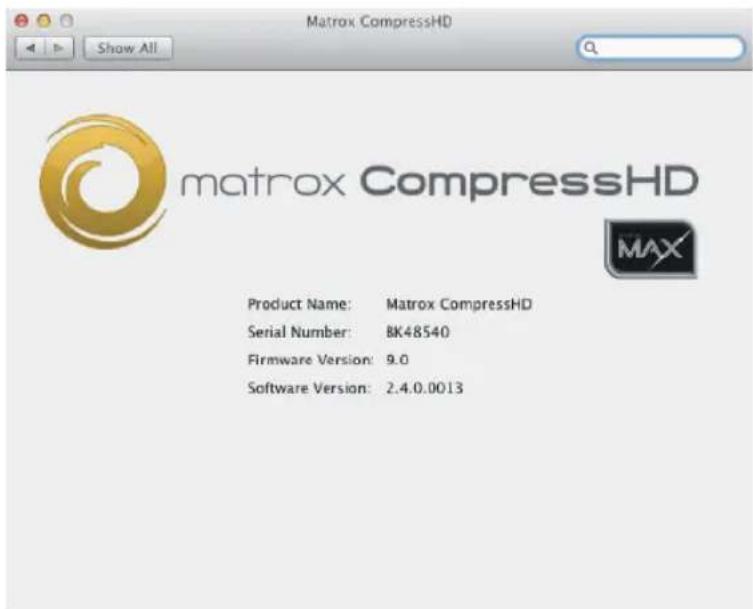

Note If a message appears indicating an unsupported firmware version on your CompressHD hardware, you must update the CompressHD firmware as explained in “Updating your CompressHD firmware” on page 7.
Your notes
3
Using Matrox CompressHD with Supported Programs
This chapter defines various settings for using Matrox CompressHD with supported applications for exporting material for the web and mobile devices.
Overview
Matrox CompressHD lets you quickly and easily create H.264 files for the web and mobile devices, such as Apple TV, iPod, and iPhone, using the Matrox MAX H.264 codec.

Note Non-Matrox compression options that are available in supported applications are not optimized for using CompresHD to accelerate H.264 encoding. As a result, the use of non-Matrox options in a supported application may result in increased encoding times.
This chapter provides information on how to encode using the Matrox MAX H.264 codec from the following applications:
- Adobe Premiere Pro
- Adobe Media Encoder
- Apple QuickTime Pro
- Telestream Episode
Using Adobe Premiere Pro or Media Encoder
This section details how to specify the Matrox MAX H.264 compression settings in Adobe Premiere Pro and Media Encoder for delivering QuickTime files for the web, and for use with Apple TV, iPad, iPod, iPhone, and other QuickTime-based devices. The encoded file's extension will be .mov.
The Matrox CompressHD component for Premiere Pro and Media Encoder includes predefined Matrox MAX H.264 presets that you can use to immediately apply appropriate compression settings for delivering H.264 files. For most deliverables, you can use one of the predefined Matrox MAX H.264 presets (see “Assigning a Matrox MAX H.264 preset” on page 12). However, if you require a custom setting, see “Creating a custom Matrox MAX H.264 preset” on page 13.
Assigning a Matrox MAX H.264 preset
This section describes how to assign a Matrox MAX H.264 preset to your source file in Premiere Pro and Media Encoder for delivering QuickTime files for the web, and for use with Apple TV, iPad, iPod, iPhone, and other QuickTime-based devices. The Matrox MAX H.264 presets include the predefined presets installed with your CompressHD software, and any custom presets that you create (see “Creating a custom Matrox MAX H.264 preset” on page 13).

Note When selecting a predefined Matrox MAX H.264 preset, any modifications made to your source video's frame size in your application must be taken into consideration. For example, if your source video was cropped in your application, your source video's frame size is the cropped frame size and not the original frame size.
Chapter 3, Using Matrox CompressHD with Supported Programs
1 Start Adobe Premiere Pro and open a project, or start Adobe Media Encoder and add the source clip or sequence to the queue.

Note When encoding using the Matrox MAX H.264 codec in Adobe Media Encoder, the Matrox MAX H.264 codec does not support batch encoding the same item (job) in the queue to more than one Matrox MAX H.264 setting. To export your file/sequence to more than one Matrox MAX H.264 setting, you must add a separate item to the queue for each Matrox MAX H.264 setting.
2 In Premiere Pro, choose File > Export > Media. In Media Encoder's Queue window, right-click the clip or sequence that you want to export, and then click Export Settings.
3 In the Export Settings window, under Export Settings, select QuickTime from the Format list, and then select the desired Matrox MAX preset from the Preset list.
4 Export the file as you would normally.
Creating a custom Matrox MAX H.264 preset
You can create a custom Matrox MAX H.264 preset in Adobe Premiere Pro and Media Encoder for delivering QuickTime files for the web, and for use with Apple TV, iPad, iPod, iPhone, and other QuickTime-based devices. Once you create a new Matrox MAX H.264 preset, you can assign it to your source file in Premiere Pro and Media Encoder using the steps described in “Assigning a Matrox MAX H.264 preset” on page 12.
1 Start Adobe Premiere Pro and open a project, or start Adobe Media Encoder and add the source clip or sequence to the queue.

Note When encoding using the Matrox MAX H.264 codec in Adobe Media Encoder, the Matrox MAX H.264 codec does not support batch encoding the same item (job) in the queue to more than one Matrox MAX H.264 setting. To export your file/sequence to more than one Matrox MAX H.264 setting, you must add a separate item to the queue for each Matrox MAX H.264 setting.
2 If using Premiere Pro, choose File > Export > Media. If using Media Encoder, in the Queue window, right-click the clip or sequence that you want to export, and then clickExport Settings.
3 In the Export Settings window, under Export Settings, select QuickTime from the Format list.

Tip You can use an existing Matrox MAX preset as a starting point for your new preset by selecting the desired preset from the Preset list before specifying your export settings.
4 In the Video pane, under Video Codec, select Matrox MAX H.264 from the Video Codec list, and then click Codec Settings.
5 In the Matrox MAX H.264 Codec Settings window, set the following options:
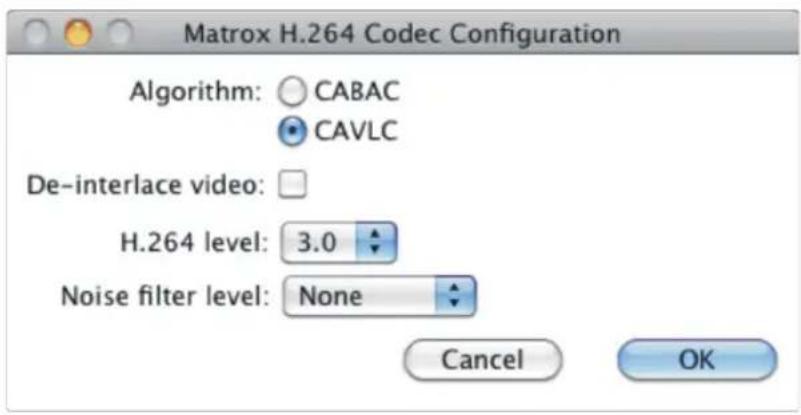
- Select the entropy coding Algorithm to be used during compression:
- CABAC Uses the CABAC coding method, and defines the video stream as H.264 Main profile.
- CAVLC Uses the CAVLC coding method, and defines the video stream as H.264 Main profile when Frame Reordering (under Advanced Settings) is selected. Otherwise, the video stream is defined as H.264 Baseline profile. This method is not supported when encoding to a frame size that has a width greater than 720. In this case, CABAC will always be used for encoding.
- De-interlace video Select this option if your source video is interlaced and you want to de-interlace your video before encoding. This option can be used to display your encoded video on a monitor that displays lines progressively, such as an LCD or computer monitor. For all other instances, make sure this option is not selected.
- Select the H.264 level that you want to be used to encode your video.
| H.264 level | Maximum Frame size | Maximum Frame rate (fps) | Maximum Data rate (Mb/s) |
| 2.0 352×288 29.97 2 | |||
| 3.0 720×576 29.97 10 | |||
| 3.1 1280×720 29.97 14 | |||
| 4.0 1920×1080 29 97 20 | |||
| 4.1 1920×1080 29 97 50 | |||
| 4.2 1920×1080 59 94 50 |
Chapter 3, Using Matrox CompressHD with Supported Programs
- Select the Noise filter level that will be applied to your video before encoding. Increasing the noise filter level reduces the amount of high frequencies in your source video by softening the high-detail portions of your video. Since high frequencies require more bits to encode, increasing the noise filter level leaves more bits available for the encoding of other frames, which can improve the overall quality of your encoded video. However, if you lose too much detail in your encoded video you may need to decrease the noise filter level.
6 Click OK to save and close the Matrox MAX H.264 Codec Settings window.
7 In the Export Settings window, in the Video pane, under Bitrate Settings, enable the Limit data rate to option and enter a value if you're using the CAVLC entropy coding algorithm (see step 5). If using CABAC, you can enable or disable this option.
8 For optimal results when encoding using the Matrox MAX H.264 codec, in the Video pane, under Basic Video Settings, select Progressive from the Field Order list.
9 Specify any other export settings as desired. For detailed information on Media Encoder settings, see your Media Encoder documentation.

N o t e To export a clip for use with Apple iPad, iPod or iPhone devices, you must select AAC as the Audio Codec.
10 In the Export Settings window, under Export Settings, click the Save Preset button next to the Preset list.
11 Type a descriptive name for your preset, and then click OK.
12 Export the file as you would normally.
Using Telestream Episode
This section details how to specify Matrox MAX H.264 compression settings in Telestream Episode for delivering QuickTime files for the web, and for use with Apple TV, iPad, iPod, iPhone, and other QuickTime-based devices. The encoded file's extension will be .mov.
1 Start Telestream Episode, drag the source file that you want to encode, and an encoder preset, to the Workflow Panel.
2 Click the encoder preset in the Workflow Panel, and then in the Inspector Panel, type a descriptive name in the Task Name text box.
3 In the Inspector Panel, under Format, select MOV for the Container, and QuickTime for the Video Codec. The Compression Settings window appears. If not, highlight Video Codec, and then click Options.
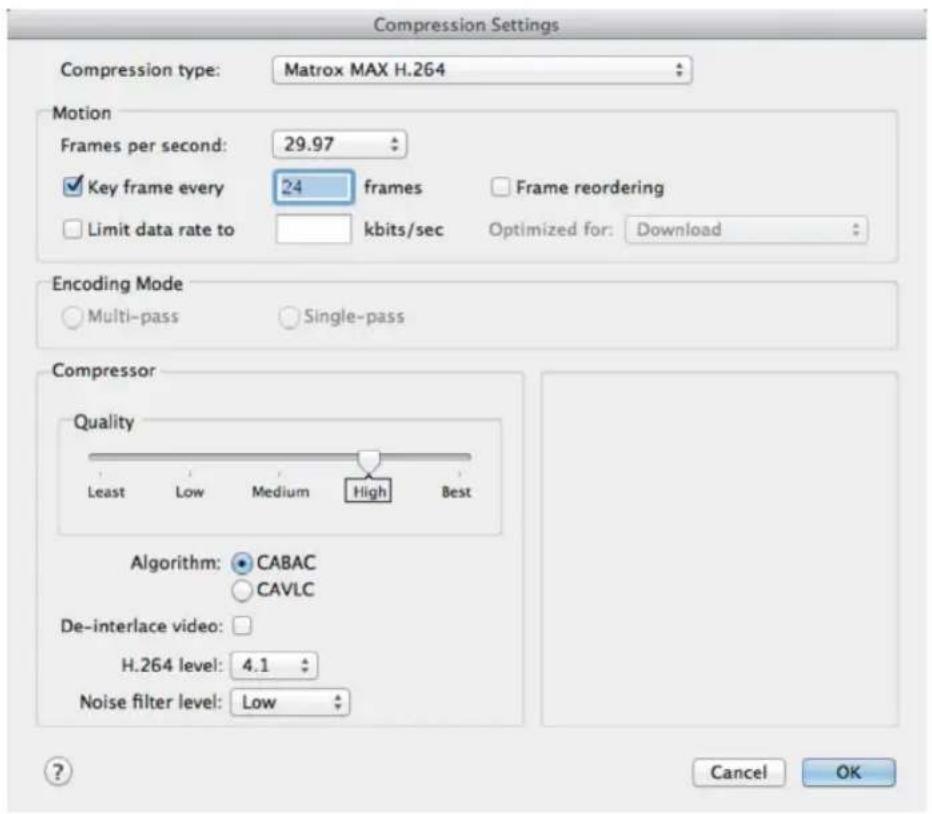
4 In the Compression Settings window, under Motion, select your desired settings as explained in your Telestream Episode documentation.
Remarks
- If using the CAVLC entropy coding algorithm (see step 6), you must enable Limit data rate to and type a value. If using CABAC, you can enable or disable this option.
- The Limit data rate to option applies to the video portion of your encoded file only. When factoring in the encoded audio, the overall data rate for your encoded file may exceed the specified data rate limit. To minimize the impact of the audio on the overall data rate, selectAAC or AAC QuickTime as the Audio Codec in the Inspector Panel.
5 Under Compressor, set the Quality level for your encoded video. Your desired quality is delivered on each frame at the lowest data rate possible, depending on the complexity of the video.
6 Select the entropy coding Algorithm to be used during compression:
Chapter 3, Using Matrox CompressHD with Supported Programs
- CABAC Uses the CABAC coding method, and defines the video stream as H.264 Main profile.
- CAVLC Uses the CAVLC coding method, and defines the video stream as H.264 Main profile whenFrame Reordering is selected. Otherwise, the video stream is defined as H.264 Baseline profile.

Note CAVLC is not supported when encoding to a frame size that has a width greater than 720. In this case, CABAC will always be used for encoding.
7 If your source video is interlaced and you want to de-interlace your video before encoding, select De-interlace video. This option can be used to display your encoded video on a monitor that displays lines progressively, such as an LCD or computer monitor. For all other instances, make sure this option is not selected.

ImportantIf your interlaced video is being scaled, either because you applied an effect in your project or specified a different frame size for export (see step 11), don't use this option. Instead, use the Deinterlace option under Video Filters in the Inspector Panel to de-interlace your video.
8 Select the H.264 level that you want to be used to encode your video.
| H.264 level | Maximum Frame size | Maximum Frame rate (fps) | Maximum Data rate (Mb/s) |
| 2.0 352×288 29.97 2 | |||
| 3.0 720×576 29.97 10 | |||
| 3.1 | 1280×720 | 29.97 14 | |
| 4.0 | 1920×1080 | 29.97 20 | |
| 4.1 | 1920×1080 | 29.97 50 | |
| 4.2 | 1920×1080 | 59.94 50 |

N o t e Use H.264 level 3.1 to create HD video for use with Apple iPad.
9 Select the Noise filter level that will be applied to your video before encoding. Increasing the noise filter level reduces the amount of high frequencies in your source video by softening the high-detail portions of your video. Since high frequencies require more bits to encode, increasing the noise filter level leaves more bits available for the encoding of other frames, which can improve the overall quality of your encoded video. However, if you lose too much detail in your encoded video you may need to decrease the noise filter level.
10 Click OK.
11 If you want to scale your source video for export, specify the new frame size in the Resize option under Video Filters in the Inspector Panel.

N o t e The minimum frame size is 64 × 64 , and the maximum frame size depends on the H.264 level selected in step 8. The horizontal and vertical values must be even numbers.
12 Set your desired audio settings. To export a clip for use with Apple iPad, iPod or iPhone devices, you must select AAC or AAC QuickTime as the Audio Codec in the Inspector Panel.
13 Drag a deployment location to the Workflow Panel, and encode the file as you would normally.
Using Apple QuickTime Pro, and other QuickTime-based applications
This section details how to specify Matrox MAX H.264 compression settings in QuickTime Pro v7.6.x for delivering QuickTime files for the web, and for use with Apple TV, iPad, iPod, iPhone, and other QuickTime-based devices. The encoded file's extension will be .mov. The settings described in this section are the same when exporting to QuickTime from other QuickTime-based video applications. For details on how to export to QuickTime from another QuickTime-based application, see your application's documentation.
1 Start QuickTime Pro, and open the video file that you want to export.
2 Choose File > Export.
3 In the Save exported file as window, click Options.
4 In the Movie Settings window, under Video, click Settings.
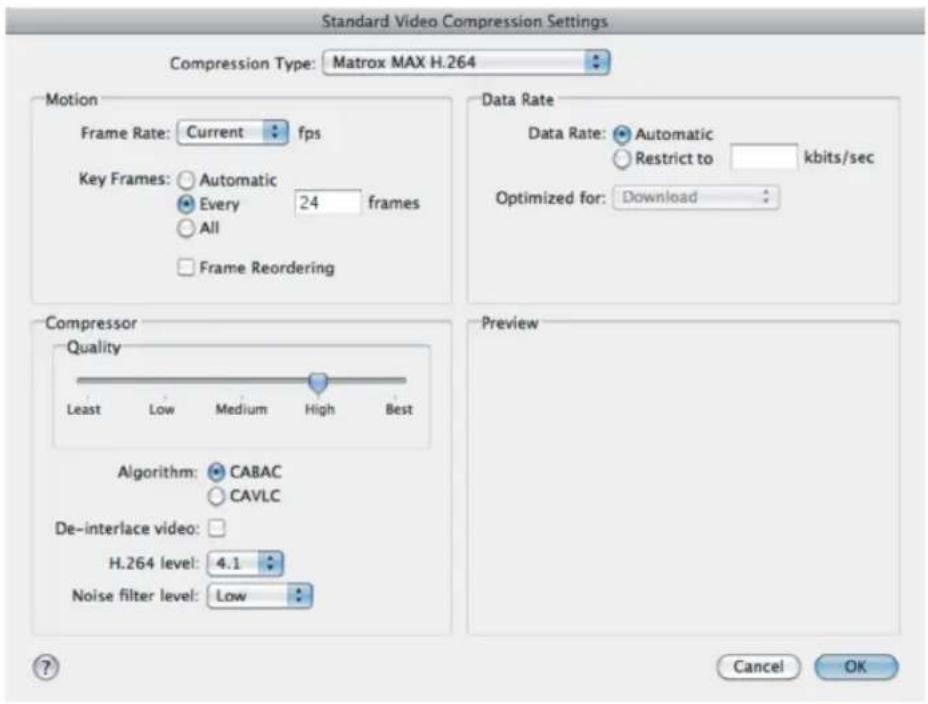
5 From the Compression Type menu, select Matrox MAX H.264.
6 Under Motion and Data Rate, select your desired settings as explained in your application's documentation.
Remarks
- If using the CABAC entropy coding algorithm (see step 8), you can use either the Automatic or Restrict to data rate option. If using CAVLC, you must use the Restrict to data rate option.
- The Restrict to data rate option applies to the video portion of your encoded file only. When factoring in the encoded audio, the overall data rate for your encoded file may exceed the specified data rate limit. To minimize the impact of the audio on the overall data rate, select AAC as the audio format for your encoded file (see step 13).
7 Under Compressor, set the Quality level for your encoded video. Your desired quality is delivered on each frame at the lowest data rate possible, depending on the complexity of the video.
8 Select the entropy coding Algorithm to be used during compression:
- CABAC Uses the CABAC coding method, and defines the video stream as H.264 Main profile.
Using Apple QuickTime Pro, and other QuickTime-based applications
- CAVLC Uses the CAVLC coding method, and defines the video stream as H.264 Main profile whenFrame Reordering is selected. Otherwise, the video stream is defined as H.264 Baseline profile.

Note CAVLC is not supported when encoding to a frame size that has a width greater than 720. In this case, CABAC will always be used for encoding.
9 If your source video is interlaced and you want to de-interlace your video before encoding, select De-interlace video. This option can be used to display your encoded video on a monitor that displays lines progressively, such as an LCD or computer monitor. For all other instances, make sure this option is not selected.

ImportantIf your interlaced video is being scaled, either because you applied an effect in your project or specified a different compression frame size, don't use this option. Instead, use theDeinterlace Source Video option in the Export Size Setup window to de-interlace your video. You'll be able to do this when specifying the frame size for your encoded video in step 14.
10 Select the H.264 level that you want to be used to encode your video.
| H.264 level | Maximum Frame size | Maximum Frame rate (fps) | Maximum Data rate (Mb/s) |
| 2.0 352×288 29.97 2 | |||
| 3.0 720×576 29.97 10 | |||
| 3.1 | 1280×720 | 29.97 14 | |
| 4.0 1920×1080 | 29 | 97 20 | |
| 4.1 1920×1080 | 29 | 97 50 | |
| 4.2 1920×1080 | 59 | 94 50 |

N o t e Use H.264 level 3.1 to create HD video for use with Apple iPad.
11 Select the Noise filter level that will be applied to your video before encoding. Increasing the noise filter level reduces the amount of high frequencies in your source video by softening the high-detail portions of your video. Since high frequencies require more bits to encode, increasing the noise filter level leaves more bits available for the encoding of other frames, which can improve the overall quality of your encoded video. However, if you lose too much detail in your encoded video you may need to decrease the noise filter level.
12 Click OK.
13 In the Movie Settings window, under Sound, click Settings to specify your audio settings, and then click OK.
Chapter 3, Using Matrox CompressHD with Supported Programs
Remarks
- When limiting the data rate of your encoded file to a specified bit rate (see step 6), please note that the encoded audio may cause the overall data rate to exceed the data rate limit. To minimize the impact of the encoded audio on the overall data rate, select AAC as the audio format for your encoded file. To do this, in theSound Settings window, select AAC from the Format list.
—To export a clip for use with Apple iPad, iPod or iPhone devices, you must choose AAC (advanced audio coding) as your export audio file format. To do this, in the Sound Settings window, select AAC from the Format list.
14 In the Movie Settings window, click Size and select the frame size that you want for your encoded video from the Dimensions menu.

N o t e The minimum frame size is 64 × 64 , and the maximum frame size depends on the H.264 level selected in step 10. The horizontal and vertical values must be even numbers.
15 Once all settings are specified, click OK, and then Save in the Save exported file as window to encode your video.
Your notes
A
Matrox CompressHD Specifications
This appendix provides specifications for the Matrox CompressHD card.
Matrox CompressHD card specifications
- Standard low-profile half-length PCIe (x1) card
- PCB dimensions:
$$ - 1 6 8 \mathrm{mm} \times 6 3. 5 \mathrm{mm} (6. 6 ^ {\prime \prime} \times 2. 5 ^ {\prime \prime}) $$
—overall thickness including components: 13 mm (0.5")
• Regulatory compliance:
—FCC Class B, CE Mark Class B and ACMA Class B
-RoHS Directive 2002/95/EC
• Typical operating voltages and current consumption
| Voltage +3.3 V | +12 V | |
| Current 3.0 A 0 | A |
Total power consumption: 10 watts
- Minimum/maximum ambient operating temperatures: 0 to 40^ C
- Minimum/maximum storage temperature: -40 to 75^
• Maximum altitude for operation: 3,000 meters
• Maximum altitude for transport: 12,000 meters - Operating humidity: 20 to 80% relative humidity (non-condensing)
- Storage humidity: 5 to 95% relative humidity (non-condensing)
B
Matrox Customer Support
This appendix explains how you can register your Matrox product and obtain customer support.
How to get Matrox customer support
If you have a problem that you're unable to solve by referring to the documentation for your Matrox product, please contact your Matrox representative. He or she should be able to help you quickly correct any installation or system configuration problem.
If your representative is unable to solve your problem, contact Matrox for further information and assistance.
Registration
You can register your Matrox product in the Matrox Support section of our website at www.matrox.com/video/support.

Important Only registered users are entitled to customer support, software updates, special promotional offers, and access to our user forum.
Keep up to date with our website
In addition to registering your Matrox product, our website offers you up-to-the-minute information about Matrox products and software updates. Be sure to place our site in your favorites or bookmarks:
www.matrox.com/video/support.
Contacting us
Matrox is proud to offer worldwide customer support. Please use the contact information for your Matrox product and area as provided on our website at www.matrox.com/video/support.
Index
A
Adobe Media Encoder assigning a Matrox MAX H.264 preset 12 creating a custom Matrox MAX H.264 preset 13 Matrox MAX H.264 settings 12
Adobe Premiere Pro assigning a Matrox MAX H.264 preset 12 creating a custom Matrox MAX H.264 preset 13 Matrox MAX H.264 settings 12
Apple QuickTime Pro, Matrox MAX H.264 settings in 18
C
CompressHD card before you install 6 installing 7 safety precautions 6 specifications 24 updating firmware 7 viewing information 9
Compressor See Apple Compressor Customer support 26
F
Firmware, updating 7
H
Hardware See CompressHD card viewing information 9
|
Information, viewing CompressHD 9 Internet site, Matrox 26
L
License agreement i
M
Matrox contacting us 26 WWW site 26
Matrox MAX H.264 codec assigning a preset for Adobe Media Encoder and Premiere Pro 12 creating a custom preset for Adobe Media Encoder and Premiere Pro 13 settings for Adobe Media Encoder 12 settings for Adobe Premiere Pro 12 settings for Apple QuickTime Pro 18 settings for Telestream Episode 15
Q
QuickTime files (.mov) assigning a Matrox MAX H.264 preset in Adobe Media Encoder 12 assigning a Matrox MAX H.264 preset in Adobe Premiere Pro 12 creating a custom Matrox MAX H.264 preset in Adobe Media Encoder 13 creating a custom Matrox MAX H.264 preset in Adobe Premiere Pro 13 specifying Matrox MAX H.264 settings in Adobe Media Encoder 12 specifying Matrox MAX H.264 settings in Adobe Premiere Pro 12 specifying Matrox MAX H.264 settings in Apple QuickTime Pro 18 specifying Matrox MAX H.264 settings in Telestream Episode 15
R
Registering your Matrox product 26 Returning procedure iv
S
Service, returns iv Software installation 7 Specifications 24 Style conventions 2 System requirements 2
T
Technical support 26
Telestream Episode, Matrox MAX H.264 settings in 15
W
Warranty i
WWW site, Matrox 26
Compliance Statements
USA
FCC Compliance Statement
Remark for the Matrox hardware products supported by this guide These devices have been tested and found to comply with the limits for a Class B digital device, pursuant to Part 15 of the FCC Rules. These limits are designed to provide reasonable protection against harmful interference in a residential installation. This equipment generates, uses and can radiate radio frequency energy and, if not installed and used in accordance with the instructions, may cause harmful interference to radio communications. However, there is no guarantee that interference will not occur in a particular installation. If this equipment causes harmful interference to radio or television reception, which can be determined by turning the equipment off and on, the user is encouraged to try to correct the interference by one or more of the following measures: • Reorient or relocate the receiving antenna • Increase the separation between the equipment and receiver • Connect the equipment into an outlet on a circuit different from that to which the receiver is connected • Consult the dealer or an experienced radio/TV technician for help.
WARNING Changes or modifications to this unit not expressly approved by the party responsible for the compliance could void the user's authority to operate this equipment.
Declaration of conformity of a Class B digital device according to the FCC rules
We, the Responsible Party Matrox, 625 State Route 3, Unit B, Plattsburgh, NY 12901-6530 • Telephone: (514) 822-6000 (ext. 2026) • Attention: Conformity Group
Declaration The Matrox hardware products supported by this guide comply with Part 15 of the FCC Rules. Operation is subject to the following two conditions: (1) these devices may not cause harmful interference, and (2) these devices must accept any interference received, including interference that may cause undesired operation. Any question regarding this declaration should be forwarded to the above coordinates.
Canada
(English) Industry Canada Compliance Statement
Remark for the Matrox hardware products supported by this guide These digital devices do not exceed the Class B limits for radio noise emission from digital apparatus devices set out in the Radio Interference Regulation of Industry Canada.
VCCI Compliance Statement
Remark for the Matrix hardware products supported by this guide These are Class B products based on the standard of the Voluntary Control Council for Interference from Information Technology Equipment (VCCI). If these are used near a radio or television receiver in a domestic environment, they may cause radio interference. Install and use the equipment according to instructions in the manual.
(English) European user's information – Declaration of Conformity
Remark for the Matrix hardware products supported by this guide These devices comply with EC Directive 2006/95/EC for a Class B digital device. They have been tested and found to comply with EN55022/CISPR22 and EN55024/CISPR24. In a domestic environment these products may cause radio interference in which case the user may be required to take adequate measures. These products have been tested in a typical class B compliant host system. It is assumed that these products will also achieve compliance in any class B compliant system.
www.matrox.com/video