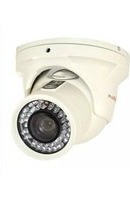
RETRT2812-1 - Security Camera REVO - Free user manual and instructions
Find the device manual for free RETRT2812-1 REVO in PDF.


| Product Type | Security Camera |
| Brand | REVO |
| Model | RETRT2812-1 |
| Image Sensor | 1/3" Sony Super HAD CCD |
| Resolution | 600 TV Lines (Color), 700 TV Lines (B/W) |
| Minimum Illumination | 0.15 Lux (IR Off), 0.00002 Lux (IR On) |
| Lens | DC Auto Iris Varifocal 2.8mm-12mm |
| Power Supply | DC 12V / AC 24V Dual Voltage |
| Power Consumption | IR Off: 200mA (DC), 70mA (AC); IR On: 670mA (DC), 240mA (AC) |
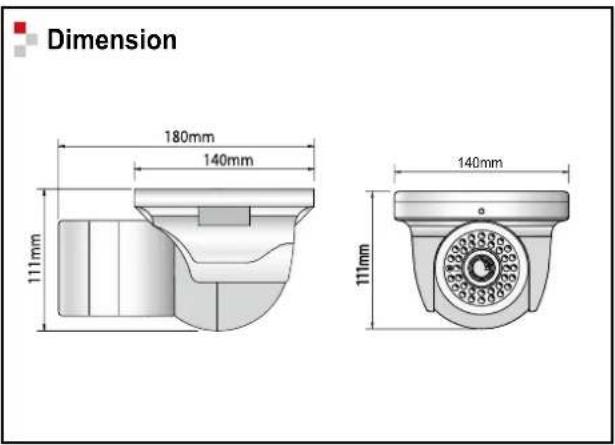
| Dimensions (W x H x D) | 140mm x 111mm x 180mm |
| Weight | 1800g |
| IP Rating | IP66 |
| Vandal Proof | Yes |
| Housing Material | Die-cast Aluminum |
| Day/Night Mode | Color / BW / Auto |
| DNR3 (Noise Reduction) | On/Off, Level Adjustable |
| SSDR | On/Off, Level Adjustable |
| OSD Control | Available |
| Motion Detection | 8 Programmable Zones |
| Privacy Masking | 12 Programmable Zones |
| Operating Temperature | -10°C to +50°C |
| Storage Temperature | -20°C to +60°C |
Frequently Asked Questions - RETRT2812-1 REVO
User questions about RETRT2812-1 REVO
0 question about this device. Answer the ones you know or ask your own.
Ask a new question about this device
Download the instructions for your Security Camera in PDF format for free! Find your manual RETRT2812-1 - REVO and take your electronic device back in hand. On this page are published all the documents necessary for the use of your device. RETRT2812-1 by REVO.
USER MANUAL RETRT2812-1 REVO
natural_image
Technical illustration of a REVO ELITE device component (no text or symbols on the diagram itself)REVO ^TM ELITE
Model No.: RETRT2812-1
(DC 12V —— /AC 24V \~ 60HZ, 12W / NTSC)
REVO AMERICA
700 FREEPORT PARKWAY SUITE 100 COPPELL,
TX 75019 U.S.A. TEL.: 1-866-625-REVO(7386)

CAUTION RISK OF ELECTRIC SHOCK DO NOT OPEN
CAUTION :
TO REDUCE THE RISK OF ELECTRIC SHOCK, DO NOT REMOVE COVER (OR BACK), NO USER SERVICEABLE PARTS INSIDE. REFER SERVICING TO QUALIFIED SERVICE PERSONNEL
The lightning flash with an arrowhead symbol, within an equilateral triangle is intended to alert the user to the presence of uninsulated dangerous voltage within the product's enclosure that may be of sufficient magnitude to constitute a risk of electric shock to persons.

The exclamation point within an equilateral triangle is intended to alert the user to the presence of important operating and maintenance (servicing) instructions in the literature accompanying the appliance.
INFORMATION - This equipment has been tested and found to comply with limits for a Class A digital device, pursuant to part 15 of the FCC Rules.
These limits are designed to provide reasonable protection against harmful interference when the equipment is operated in a commercial environment. This equipment generates, uses, and can radiate radio frequency energy and, if not installed and used in accordance with the instruction manual, may cause harmful interference to radio communications.
Operation of this equipment in a residential area is likely to cause harmful interference in which case the user will be required to correct the interference at his own expense.
WARNING - Changes or modifications not expressly approved by the manufacturer could void the user's authority to operate the equipment.
WARNING - To prevent electric shock and risk of fire hazards:
◆ Do NOT use power sources other than that specified.
◆ Do NOT expose this appliance to rain or moisture.
RoHS CE FC UL
This installation should be made by a qualified service person and should conform to all local codes.
Contents
- General Features 4
- Installing & Adjusting 5
- Dimension & Specification 6
- OSD Control Button 7
-
Camera Menu Set Up
-
Menu Set Up 8
-
Lens Setting 8
-
Exposure Setting 9
-
White Balance Setting 10
-
SSDR Setting 11
-
Backlight Setting 12
-
DNR3 Setting 13
-
Day/Night Setting 14
-
Special Setting 15
-
Exit Setting 19
- Trouble Shooting 20
General Features
- Ultra High Sensitivity
- The built-in high sensitivity COLOR CCD produces a clear image even in 0Lux(B/W, IR-LED ON) or lower illumination.
- 600TV Lines
- By adopting a diagonal 2.8mm(1/3") 410,000 (NTSC) pixel, 470,000(PAL) pixel SONY CCD, the camera produces clear picture quality with a horizontal resolution of 600 TV lines for color and a horizontal resolution of 700TV lines for BW mode.
• DNR3
- The high-performance W-V DSP chip effectively removes low-light gain noise and ghosting to provide clear images even in dark environments.
- Day & Night
- This camera has a function that automatically selects the mode that is appropriate for daytime or night-time conditions. The COLOR mode operates in daytime conditions to provide optimum colors, and BW mode operates in night-time conditions to enhance the definition of the image.
- SSDR
- For images with high contrast between bright and dark Areas from difficult lighting conditions such as backlighting, this camera selectively illuminates darker Areas while retaining the same light level for brighter Areas to even out the overall brightness.
- Miscellaneous Functions
- HLC(High Light Compensation), SENS-UP, FLIP(H/V-REV), D-ZOOM, SHARPNESS, MOTION DETECTION and PRIVACY functions are provided.
- Disk Saving Effects
- Up-most and advanced DNR technology camera picture quality has a disk saving effects due to Image sizes are smaller than standard CCTV camera image.
• Controlled by OSD Menu
- The camera can be controlled by selecting the menu text displayed on the monitor screen.
• IP66 Approved / Vandal Proof / RoHS Compliance
- To prevent from external strong impact. It has a high strength and durable exterior material of die cast aluminum body. It also has designed to prevent from shock, dust and rain resistant. The turret camera has designed to install anywhere even at exterior places.
INSTALLING & ADJUSTING
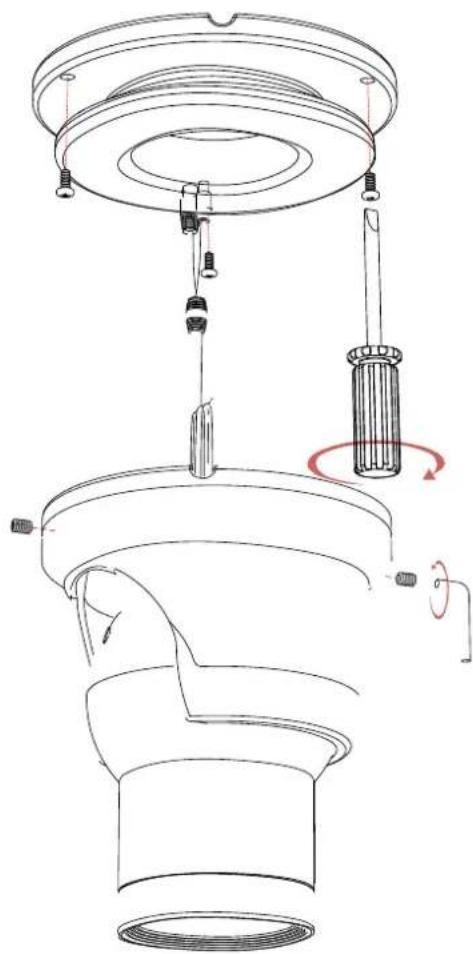
1. Installation
natural_image
Technical line drawing of a mechanical component with no visible text or symbols- Place the mounting plate on a flat installation surface and mount with the provided screws.
- Feed the cable through the center of the mounting plate.
- Place the camera body in the mounting plate socket and hold.
- Then place the outer plate over the camera body & mounting plate and tighten side screws to lock the camera into place.
- Loosen side screws to adjust camera angle as needed, then tighten the side screws to lock into place.
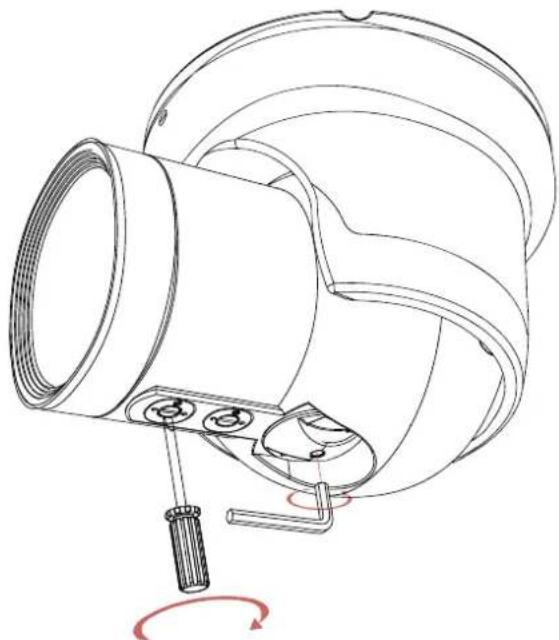
2. Focus/Zoom Screw
- To widen the viewing angle turn the Zoom screw to "W"(Wide) to obtain a closer view turn it to "T"(Tele)
- Turn the Focus screw to "N"(Near) or " " (Far) until the sharpest Focus is made.
natural_image
Technical line drawing of a mechanical component with a curved housing and mounting bracket (no text or symbols)DIMENSION & SPECIFICATION
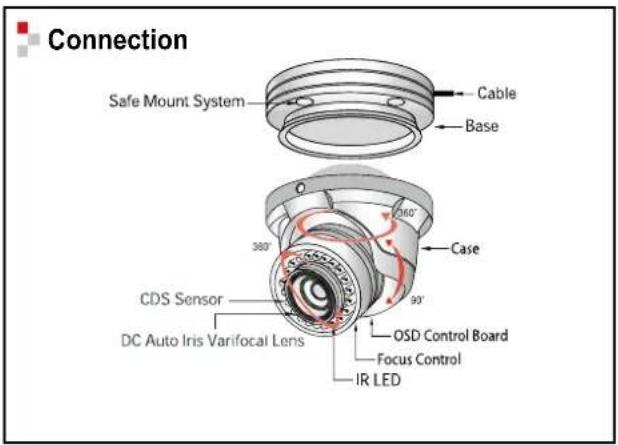
1. Dimension & Connection
2. Specification
| Image Pick-Up Device | 1/3" Sony Super HAD CCD |
| TV System | NTSC |
| Total Pixels | 811(H) * 508(V) |
| Effective Pixels | 768(H) * 494(V) |
| Scanning Frequency | 15.734KHz(H) & 59.94Hz(V) |
| Scanning System | 2:1 Interlace |
| Synchronization | Internal / Line Lock |
| Resolution | 600TV Lines |
| Minimum Illumination | IR LED OFF: 0.15 Lux, IR LED ON: 0.00002 Lux |
| S/N Ratio | More than 52dB |
| Video Output | CVBS: 1.0Vp-p / 75Ω |
| Electronic Shutter Speed | NTSC=(1/60sec~1/120,000sec) / PAL=(1/50sec~1/120,000sec) |
| OSD | Available |
| SSDR | On / Off (Level adjustable) |
| BLC | BLC / HLC / OFF |
| Day & Night | Color / BW / AUTO |
| Gain Control Low / High / | Off |
| White Balance | ATW / Outdoor / Indoor / Manual / AWC (1,700°K ~ 11,000°K) |
| SENS-UP | Auto ff (Selectable x2 ~ x512) O |
| Motion Detection | On / Off (8 Programmable Zones) |
| Privacy Masking | On / Off (12 Programmable Zones) |
| DNR3 (Digital Noise Reduction) | On / Off (Level adjustable) |
| Digital Zoom | On / Off (x1 ~ x16) |
| DIS (Digital Image Stabilization) | On Off / |
| Sharpness | On / Off (Level adjustable) |
| Flip / Mirror On / | Off |
| Power Supply | DC 12V / AC 24V Dual Voltage |
| Power Consumption | IR LED OFF 200mA(DC), IR LED OFF 70mA(AC) / IR LED ON 670mA(DC), IR LED ON 240mA(AC) |
| Lens DC Auto Iris Varifoca | Lens(2.8mm-12mm) |
| Operational Temp. | -10 ~ +50 Deg C. RH95% MAX. |
| Storage Temp. | -20 ~ +60 Deg C. RH95% MAX. |
| Dimension | 140mm(W) * 111mm(H) * 180mm(D) |
| Weight | 1800g |
OSD Control Button
- OSD button could be used when it needs to OSD control.
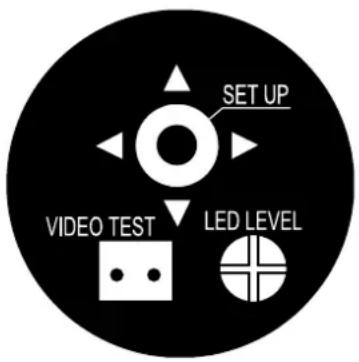
▲ Up button: Moves the cursor upwards. Use this button to select an item or adjust the parameters.
▼ Down button: Moves the cursor downwards. Use this button to select an item or adjust the parameters.
- Left button: Moves the cursor to the left. Use this button to select or adjust the parameters of the selected item. The parameter changes each time this button is pressed.
- Right button: Moves the cursor to the right. Use this button to select or adjust the parameters of the selected item. The parameter changes each time this button is pressed.
- Set button: Executes selections and displays a submenu for an item with the ← mark.
USER'S MANUAL
- Menu Setup
- Press the Function Setup switch.
- Main setup menu is displayed on the monitor screen.
MAIN SETUP
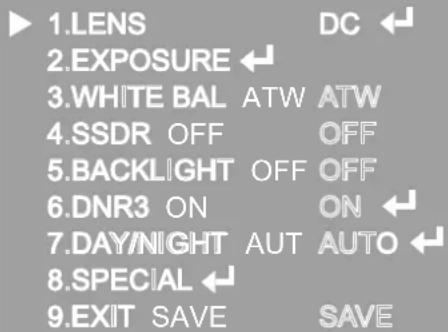
- Select a desired function using the Function Setup switch.
- Place the cursor over a desired item.
- Set up a selected item by using the Function Setup switch.
- To finish the setting, select 'EXIT' and press the Function Setup switch.
NOTE
■ An item with the ◀ icon also has sub menus. To select a sub menu, select an item with the icon and press the Function Setup switch.
■ An item with the -- - icon is unavailable due to function settings.
- Lens Setting
Using this function, you can control the screen brightness.
- When the SETUP menu screen is displayed, select 'LENS' by using the Function Setup switch so that the arrow indicates 'LENS'.
- DC: You can adjust the minimum shutter and maximum value of ESC shutter mode.
MAIN SETUP
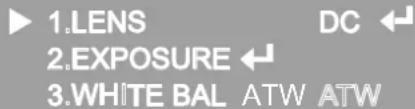
- THE Lens mode has sub menu items as listed below.
- BRIGHTNESS: Adjusts the video brightness.
- FOCUS ADJ: To adjust the DC lens focus correctly, you must activate the Focus Settings mode under each lens menu. Activate the Focus Settings mode, adjust the lens focus, and then deactivate the settings mode.
NOTE
■ If color rolling occurs when using a DC lens, set Shutter to Fixed (---).
- Exposure Setting
MAIN SETUP
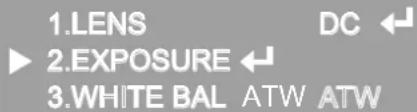
- When the SETUP menu screen is displayed, select 'EXPOSURE' by using the Function Setup Switch.
- Select a desired mode using the Function Setup switch.
EXPOSURE SETUP
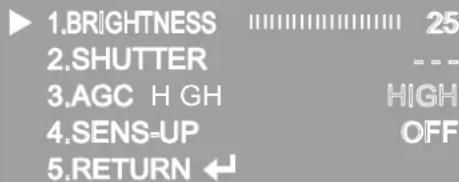
◆ SHUTTER: You can select either auto or manual shutter.
* --- : Shutter speed is fixed at 1/60sec(1/50sec)
* ESC: Select this to control the shutter speed automatically. If ESC is selected, the shutter speed is automatically controlled depending on the ambient illumination of the subject.
* MANUAL: You can control shutter speed manually.
(NTSC MODEL: 1/60\~1/120,000, PAL MODEL: 1/50\~1/120,000)
* A.FLK : Select this when you see picture flicker, this can happen when the frequency of the local lighting clashes with the camera.
NOTE
■ When the SHUTTER is set to MANUAL or A.FLK mode, SENS-UP will be disabled.
USER'S MANUAL
♦ AGC (AUTO GAIN CONTROL): The higher the gain level, the brighter the screen but the higher the noise.
* OFF: Deactivates the AGC function.
* LOW: Allows automatic gain control from 5.3dB to 32dB.
* HIGH: Allows automatic gain control from 5.3dB to 37dB.
◆ SENS-UP: When it is night or dark, the camera automatically detects the light level and maintains a clear picture if this mode is activated.
* OFF: Deactivates the SENS-UP function.
* AUTO: Activates the SENS-UP function.
- RETURN: Select this to save the changes in the EXPOSURE menu and return to the SETUP menu.
NOTE
■ If you press the Function Setup switch to 'AUTO' mode, you can adjust brightness by increasing or decreasing the shutter speed. (x2 \~ x512)
■ Note that the higher the zoom level, the brighter the screen, but the more likely there will be a ghosting effect.
■ It is normal for Noise, Spots and Whitish symptoms to appear in SENS-UP mode when the D-ZOOM level is increased.
- White Balance (White Bal) Setting
Use the White Balance function to adjust the screen color.
-
When the SETUP menu screen is displayed, select 'White Bal' by using the Function Setup switch so that the arrow indicates 'White Bal'.
-
Select a desired mode using the Function Setup switch.
MAIN SETUP
1.LENS

2.EXPOSURE

3.WHITE BAL ATW ATW
- Select one of the following 5 modes, as appropriate for your purpose. ☐ ATW: Select this when the color temperature is between 1,700°K and 11,000°K.
- OUTDOOR: Select this when the color temperature is between 1,700°K and 11,000°K. (sodium light inclusion)
- INDOOR: Select this when the color temperature is between 4,500°K and 8,500°K.
- MANUAL: Select this to fine-tune White Balance manually. Set White Balance first by using the ATW or AWC mode. After that switch to MANUAL mode, fine-tune the White Balance and then press the Function Setup switch.
- AWC→SET: To find the optimal luminance level for the current environment, point the camera towards a sheet of white paper and press the Function Setup switch. If the environment changes, readjust it.
NOTE
■ White Balance may not work properly under the following conditions. In this case select the AWC mode.
■ when the color temperature of the environment surrounding the subject is out of the control range (e.g. clear sky or sunset).
■ when the ambient illumination of the subject is dim.
■ If the camera is directed towards a fluorescent light or is installed in a place where illumination changes dramatically, the White Balance operation may become unstable.
- SSDR Setting
SSDR illuminates darker spots of an image while retaining the same light level for brighter spots to even out the overall brightness of images with high contrast between bright and dark spots.
MAIN SETUP
1.LENS


2.EXPOSURE
3.WHITE BAL ATW ATW

4.SSDR OFF

- When the SETUP menu screen is displayed, select 'SSDR' by using the switch so that the arrow indicates 'SSDR'.
- Use the switch to change the SSDR level according to the contrast between bright and dark areas.
USER'S MANUAL
- Backlight Setting
Unlike conventional cameras, W-V chip camera is designed to deliver a distinctive subject and background at the same time, even when the subject is backlight, by using the features of the proprietary W-V DSP chip.
- When the SETUP menu screen is displayed, select 'BACKLIGHT' by using the Function Setup switch so that the arrow indicates 'BACKLIGHT'.
MAIN SETUP
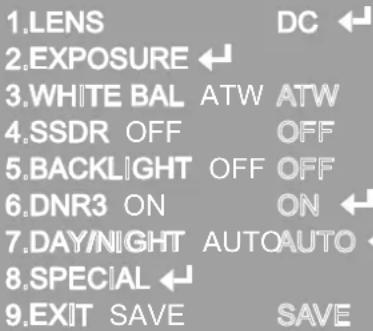
-
Select a desired mode using the Function Setup switch.
-
BLC : Enables a user to directly select a desired area from a picture, and to view the area more clearly.
- HLC (High Light Compensation): If the scene contains extremely bright light areas such as; from car headlights, the light can mask out much of the on-screen detail
- LEVEL : Adjust level of the HLC function.
- LIMIT: Enable to change the operating condition.
- MASK COLOR/TONE: Change the color / transparency of the masking area. (Black, Red, Blue, Cyan, Magenta)
- TOP/BOTTOM/LEFT/RIGHT: Adjust the area to be enhanced
-
OFF: Not being used
-
Select a desired mode using the Function Setup switch and press the Function Setup switch.
- Select 'BLC' to adjust the area to be enhanced then adjust the level.
■ Select 'HLC' to adjust the area to be enhanced then adjust the level.
BLC SETUP
| LEVEL | LOW | |
| TOP | |||||||||||||| | 38 |
| BOTTOM | |||||||||||||| | 109 |
| LEFT | |||||||||||||| | 54 |
| RIGHT | |||||||||||||| | 121 |
Press Set to Return
THE OESTOR
HLC SETUP
| LEVEL | MIDDLE | |
| LIMITS | NIGHT ONLY | |
| MASK COLOR | BLACK | |
| MASK TONE | 1 | |
| TOP | 5 | |
| BOTTOM | 120 | |
| LEFT | 5 | |
| RIGHT | 172 | |
Press Set to Return
NOTE
■ Because there can be a difference in the effectiveness of HLC according to the amount of light area in the screen, optimize the installation angle for the best HLC performance.
■ When dark, the HLC is only activated when a bright light exceeding a specific size in NIGHT ONLY mode.
■ The HLC is not activated in day light or when bright light is not present at night in NIGHT ONLY mode.
■ BLC Function doesn't work in the B/W mode of the DAY/NIGHT menu.
- DNR3 Setting
This function reduces the background noise in a low luminance environment.
- When the SETUP menu screen is displayed, select 'DNR3' by using the Function Setup switch so that the arrow indicates 'DNR3'.
MAIN SETUP
| 1.LENS | DC ← |
| 2.EXPOSURE ← | |
| 3.WHITE BAL | ATW |
| 4.SSDR | OFF |
| 5.BACKLIGHT | OFF |
| 6.DNR3 | ON ← |
| 7.DAY/NIGHT | AUTO ← |
| 8.SPECIAL ← | |
| 9.EXIT | SAVE |
- Select a desired mode using the Function Setup switch.
• OFF: Deactivates DNR3. Noise is not reduced.
• ON: Activates DNR3 so that noise is reduced.
USER'S MANUAL
- Set the DNR3 mode to 'ON' and press the Function Setup switch. Then you can adjust the noise reduction level.
NOTE
■ You cannot set the DNR3 to 'ON' or 'OFF' when the AGC mode of the EXPOSURE menu is 'OFF'.
■ When adjusting the noise reduction level in the DNR3 mode, remember that the higher the level set, the more the noise level will be reduced, as will the brightness of the image.
- Day/Night Setting
You can display pictures in color or black and white.
- When the SETUP menu screen is displayed, select 'DAY/NIGHT' by using the Function Setup switch so that the arrow indicates 'DAY/NIGHT'.
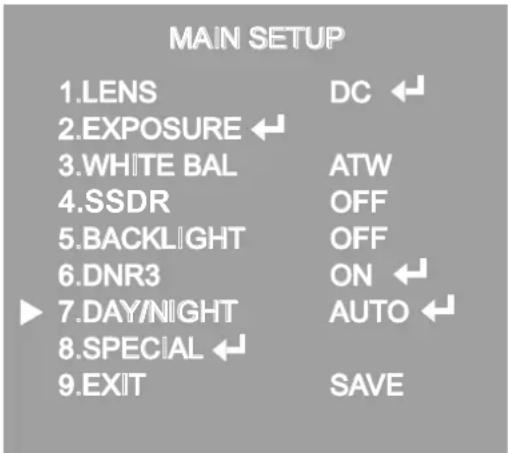
- Select a desired mode using the Function Setup Switch according to the picture display you want.
• COLOR: The picture is always displayed in color.
- B/W: The picture is always displayed in black and white.
- BURST MODE: You can turn on or off the burst signal on B/W mode.
B/W MODE SETUP
▶ 1.BURST MODE ON 2.RETURN
USER'S MANUAL
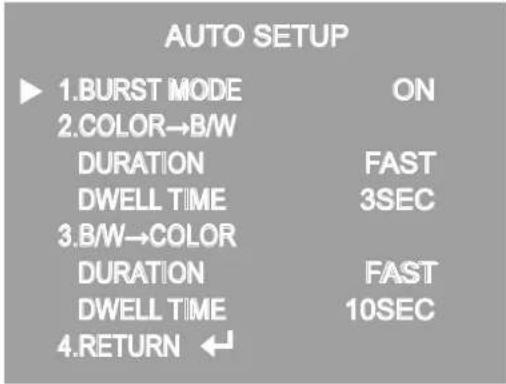
- AUTO: The mode is switched to 'Color' in a normal environment, but switches to 'B/W' mode when ambient illumination is low. To set up the switching time for AUTO mode, press the Function Setup switch. You can turn on or off the burst signal on B/W mode.
- BURST MODE: You can turn on or off the burst signal on B/W mode.
- DURATION: You can select brightness of illumination about changing the day/night mode.
- DWELLTIME: You can select the duration time about changing the day/night mode.
→3s, 5s, 7s, 10s, 15s, 20s, 30s, 40, 60s
| COLOR→B/W | B/W→COLOR | |
| FAST | 2.5 lux | 5 lux |
| SLOW | 1 lux | 10 lux |
* The day/night switching point of the camera can be adjusted.
NOTE
■ When AGC in the EXPOSURE menu is 'OFF', '---' mode operates as like selecting 'COLOR' mode and 'AUTO' mode cannot be selected.
- Special Setting
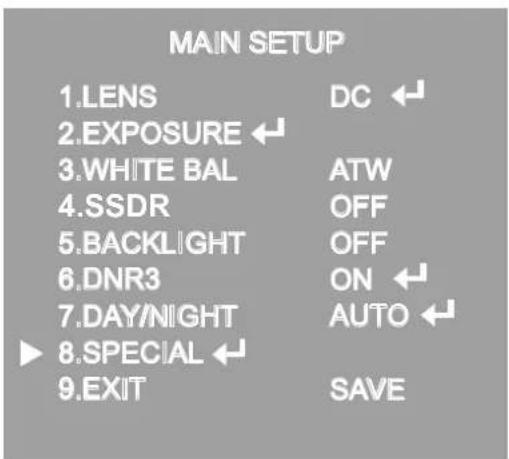
- When the SETUP menu screen is displayed, select 'SPECIAL' by using the Function Setup switch so that the arrow indicates 'SPECIAL'.
USER'S MANUAL
- Select a desired mode using the Function Setup switch.
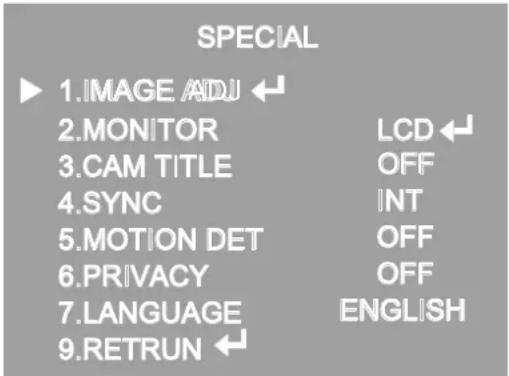
- IMAGE ADJ.:
1) When the SETUP menu screen is displayed, select 'IMAGE ADJ' by using the Function Setup switch so that the arrow indicates 'IMAGE ADJ'.
2) Select a desired mode using the Function Setup switch.
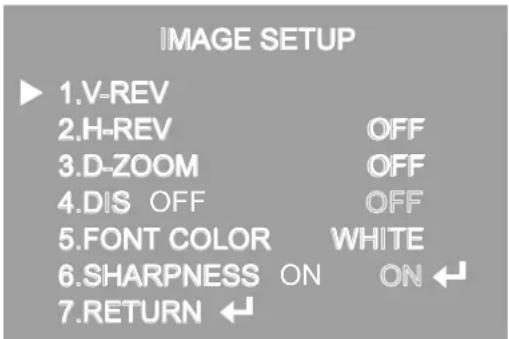
* V-REV: You can flip the picture vertically on the screen.
* H-REV: You can flip the picture horizontally on the screen. *
* D-ZOOM: You can use a digital zoom of x1 \~ x16.
* FONT COLOR: You can change the OSD font color. (White, Yellow, Green, Red, Blue)
* SHARPNESS: As you increase this value, the picture outline becomes stronger and clearer. Adjust this value appropriately depending on the sharpness of the picture.
* DIS (Digital Image Stabilizer):
This function mitigates any picture movement due to external factors such as wind.
NOTE
■ As the DIS function uses the digital zoom the camera's resolution will decrease.
- DIS doesn't operate when background illumination is too low.
- DIS doesn't operate when object pattern is monotonic as like sky or white wall.
* RETURN: Select this to save the settings for the IMAGE ADJ menu and to return to the SETUP menu.
NOTE
■ When the V-REV or H-REV mode is enabled, the text on the screen does not flip.
■ If you increase the SHARPNESS level too high, the picture may become distorted or noise may appear.
- CAM TITLE: If you enter a title, the title will appear on the monitor.
1) If the SPECIAL menu screen is displayed, use the Function Setup switch so that the
arrow indicates 'CAM TITLE'.
2) Set it to 'ON' by using the Function Setup switch.
3) Press the Function Setup switch.
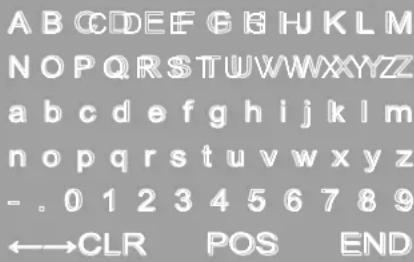
4) Use the Function Setup switch to move to a desired letter and select the letter by pressing the Function Setup switch. Repeat this to enter multiple letters. You can enter up to 15 letters.
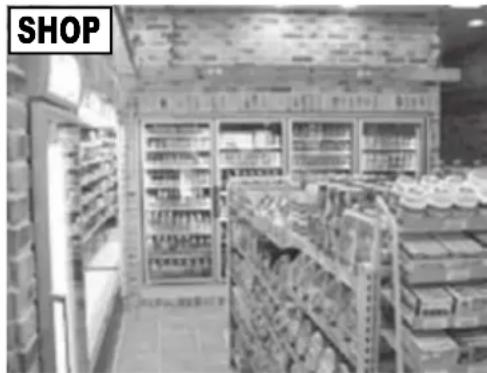
5) Enter a title, move the cursor to 'POS' and press the Function Setup switch. The entered title appears on the screen. Select the position to display the title on the screen by using the Function Setup switch and press the Function Setup switch. When the position is determined, select 'END' and press the Function Setup switch to return to the SPECIAL menu.
CAMERA TITLE SETUP
natural_image
Interior view of a convenience store with shelves stocked with products and a 'SHOP' sign visible (no readable text on shelves or signage)NOTE
■ When the CAM TITLE menu is 'OFF', no title will be displayed on the monitor screen even if you enter one.
■ Only English is available in this mode.
■ If you move the cursor to CLR and press the Function Setup switch, all the letters are deleted. To edit a letter, change the cursor to the bottom left arrow and press the Function Setup switch. Move the cursor over the letter to be edited, move the cursor to the letter to be inserted and then press the Function Setup switch.
- SYNC : In areas where the supply is at 60Hz(NTSC), 50Hz(PAL), you can synchronize the output phase of multiple cameras using the power synchronization function (Line-Lock) without using a synchronization signal generator.
- INT: Internal Synchronization Type
-L/L: Power Synchronization Type, Line-lock(AC24V Power)
* Press the Function Setup switch.
* You can select a desired phase from 0 to 359 when select 'phase'.
USER'S MANUAL
NOTE
■ When using AC power at 60Hz(NTSC), 50Hz(PAL), frequency, you can use the L/L type synchronization.
■ When the power is DC 12V, the SYNC menu is fixed to the 'INT' mode.
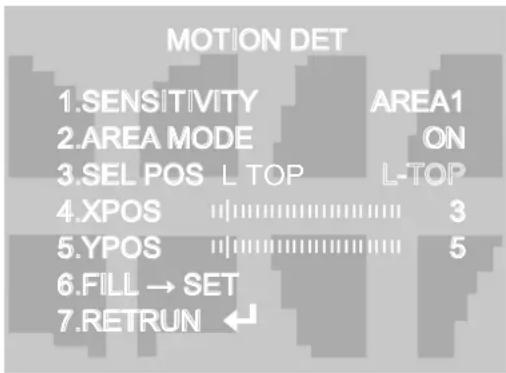
- MOTION DET : This product has a feature that allows you to observe movement of objects in 8 different areas on the screen, and the words 'MOTION DETECTED' appear on the screen when movement is detected.
Activity can be monitor more efficiently.
1) When the SPECIAL menu screen is displayed, press the Function Setup switch so that the arrow indicates 'MOTION DET'.
2) Set up the mode using the Function Setup switch.
- SENSITIVITY: You can select up to 8 MD areas. When SENSITIVITY number is high, motion detection sensitivity is increased to recognize even small movement.
- AREA MODE: Determines whether to use the MD area selected in SENSITIVITY.
- SEL POS: Determines which of the 4 vertices of each MD area is to be used.
- XPOS: Determines the coordinate of the horizontal axis for SEL POS.
- YPOS: Determines the coordinate of the vertical axis for SEL POS.
- FILL→SET: Fills in a selected MD area. The color of the area can be selected from brown, orange, blue, cyan, green, yellow, magenta and red.
- RETURN: Select this to save the MOTION DET menu settings and return to the SPECIAL menu.
- PRIVACY: Mask an area you want to hide on the screen.
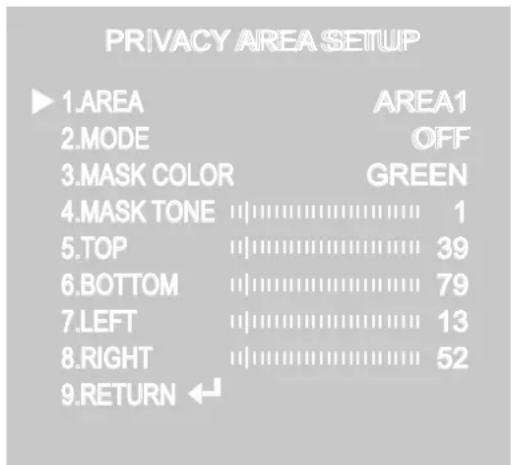
1) When the SPECIAL menu screen is displayed, press the Function Setup switch so that the arrow indicates 'PRIVACY'.
2) Set up the mode using the Function Setup switch.
- AREA: You can select up to 12 PRIVACY areas.
- MODE: Determines whether to use the area selected in the AREA.
- MASK COLOR: Determine area color. You can select Green, Red, Blue, Black, White, Gray.
- MASK TONE: Adjust the brightness of MASK COLOR.
- TOP/BOTTOM/LEFT/RIGHT: Adjust the size and position of the selected area.
- RETURN: Select this to save the PRIVACY menu settings and return to the SPECIAL menu.
- MONITOR :
Please change the settings value of video appropriate to your monitor.
- LCD: Please select this menu item when using a LCD monitor.
- CRT: Please select this menu item when using a CRT monitor.
-
USER: Please use this menu item when using a monitor other than standard ones. You can Change the gamma, PED level, and color gain in the sub menus.
-
LANGUAGE: You can select the menu language according to your requirements.
- RETURN: Select this to save the SPECIAL menu settings and return to the MAIN SETUP menu.
- Exit Setting
Select a desired EXIT mode using the Function Setup Switch.
- SAVE: Save the current settings and exit the MAIN SETUP menu.
- NOT SAVE: Do not save the current settings and exit the MAIN SETUP menu.
- RESET: Resets the camera settings to the factory defaults. Language, Communication and Monitor Settings are not initialized.
USER'S MANUAL
- Trouble Shooting
| PROBLEM | POSSIBLE CAUSE |
| Northing appears on the screen. | Check the power cable, power supply output and video connection between the camera and monitor. |
| The image on the screen is dim. | Are the camera lens or the lens glass dirty?Clean the lens / glass with a soft clean cloth.Adjust the monitor controls, as required.If the camera is facing a very strong light, change the camera position.Adjust the lens focus |
| The image on the screen is dark. | Adjust the contrast control of the monitor.If there is an intermediate device, correctly set the 75Ω/Hi-z. |
| The camera is not working properly and the surface of the camera is hot. | Check the camera is correctly connected to an appropriate regulated power source. |
| Motion Detection is not activated. | Has MOTION DET been set to ON in the menu?Has MD AREA been properly defined? |
| The color of the picture is not correct. | Check the settings in WHITE BALANCE menu. |
| The image on the screen flickers. | Make sure that the camera isn't facing direct sunlight or Fluorescent lighting. If necessary, change the camera position. |
| The SENS-UP does not work. | Check that the AGC setting in the EXPOSURE menu isn't set to OFF.Check the EXPOSURE menu and make sure SHUTTER is set to----. |
USER'S MANUAL
- CAUTION :
- RoHS CE FC UL
- Contents
- General Features
- - Ultra High Sensitivity
- - 600TV Lines
- • DNR3
- - Day & Night
- - SSDR
- - Miscellaneous Functions
- - Disk Saving Effects
- • Controlled by OSD Menu
- • IP66 Approved / Vandal Proof / RoHS Compliance
- INSTALLING & ADJUSTING
- Installation
- Focus/Zoom Screw
- DIMENSION & SPECIFICATION
- Dimension & Connection
- Specification
- OSD Control Button
- USER'S MANUAL
- - Menu Setup
- MAIN SETUP
- NOTE
- - Lens Setting
- - Exposure Setting
- EXPOSURE SETUP
- - White Balance (White Bal) Setting
- - SSDR Setting
- - Backlight Setting
- - DNR3 Setting
- - Day/Night Setting
- B/W MODE SETUP
- - Special Setting
- - MONITOR :
- - Exit Setting
- - Trouble Shooting
Brand : REVO
Model : RETRT2812-1
Category : Security Camera