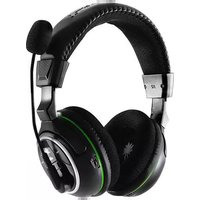
ZBX0HW68232 - Headphones TURTLE BEACH - Free user manual and instructions
Find the device manual for free ZBX0HW68232 TURTLE BEACH in PDF.


| Product Type | Wireless Gaming Headset |
| Model | ZBX0HW68232 (Ear Force XP400) |
| Connectivity | Dual-Band Wi-Fi (2.4/5 GHz), Bluetooth (Dual Pairing) |
| Audio Technology | Dolby Digital 5.1 Surround Sound |
| Driver Size | 50 mm with neodymium magnets |
| Frequency Response | 20 Hz - 20 kHz |
| Battery Life | Up to 15 hours (rechargeable Li-Po, 1000 mAh) |
| Charging Port | Mini USB (charging only) |
| Microphone | Removable, adjustable boom, condenser |
| Special Features | Chat Boost, Blast Limiter, Variable Mic Monitor, EQ Presets |
| Compatibility | Xbox 360, PS3, Bluetooth mobile phones |
| Wireless Range | Up to 30 feet (10 m) |
| Inputs | Optical digital audio, 3.5 mm analog |
| Outputs | Optical digital audio pass-through |
| Power Source | USB (5V DC, 350 mA max for transmitter) |
| Safety Features | Blast Limiter (hearing protection) |
| Regulatory | FCC, CE, IC certified |
| Package Contents | Headset, Transmitter, XBA Bluetooth Adapter, Charging Cable, Optical Cable, Sticker |
| Warranty | 1 year limited |
| Care Instructions | Wipe with dry cloth; avoid liquids; disconnect cables before transport |
| Repairability | Not user-serviceable; contact Turtle Beach support |
Frequently Asked Questions - ZBX0HW68232 TURTLE BEACH
User questions about ZBX0HW68232 TURTLE BEACH
0 question about this device. Answer the ones you know or ask your own.
Ask a new question about this device
Download the instructions for your Headphones in PDF format for free! Find your manual ZBX0HW68232 - TURTLE BEACH and take your electronic device back in hand. On this page are published all the documents necessary for the use of your device. ZBX0HW68232 by TURTLE BEACH.
USER MANUAL ZBX0HW68232 TURTLE BEACH
natural_image
Close-up of a black headband with green accent stripe, resting on a tiled wall (no text or symbols visible)TURTLE BEACH.
EARFORCE® XPP LHOO
ENGINEERED FOR:
XBOX 360®
ALSO WORKS WITH:
PS3
USER GUIDE


What's in the Box
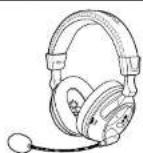
XP400 Headset
XP400 Dual-Band Wi-Fi
Transmitter
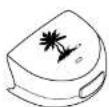
XBA Bluetooth Adapter
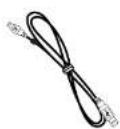
Headset Charging Cable
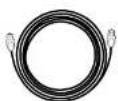
Digital Optical Cable

Turtle Beach Sticker
Table of Contents
| About the XP400 pg 1 | |
| XP400 Headset pg 3 | |
| XP400 Transmitter | |
| Overview pg 5 | |
| Using the Transmitter pg 6 | |
| Pairing the Headset and Transmitter pg 6 | |
| Xbox 360 ^ and P53 ^ Setup pg 7 | |
| Home Theater Setup pg 11 | |
| Connecting a Digital Music Player pg 12 | |
| Dolby Digital Processing pg 13 | |
| Surround Sound Angles pg 14 | |
| Bluetooth ^ pg 15 | |
| Recharging the Headset pg 17 | |
| Equalizer and Blast Limiter Presets | pg 18 |
| Chat Boost ^ | pg 19 |
| Mic Monitor | pg 19 |
| Technical Specifications pg 20 | |
| Troubleshooting | pg 21 |
| Important Safety Information | pg 22 |

watch XP400 training videos at www.youtube.com/TurtleBeachVideos
product, support and warranty information: www.TurtleBeach.com/support
About the XP400
The Ear Force™ XP400 is a premium, Dolby surround sound headset designed for Xbox 360 and PS3™ gaming. To get the most from your XP400, please take a few minutes to review this introduction.
Dolby® Surround Sound
The XP400 transmitter processes Dolby Digital surround sound from your Xbox 360 or PS3 and sends it to the headset via digital RF. The result is an immersive sound environment that makes you feel as if you're right in the middle of the action. It also helps you react quicker by hearing exactly where the sound cues in the game are coming from.

DOLBY DIGITAL
Dual-Band Wi-Fi
The Ear Force XP400 headset provides wireless CO-quality game sound via dual-band digital RF (radio frequency) that communicates with the XP400 transmitter. This advanced dual-band Wi-Fi technology uses other 5GHz or 2.4GHz signals to transmit high fidelity digital audio and finds the optimum frequency to help eliminate interference with other wireless devices and Wi-Fi networks. Unlike the RF technology used in most other wireless headsets, the dual-band Wi-Fi technology found in the XP400 coexists with wireless networks for optimum performance.

Hz WiFi AND WIRELESS
Dual Pairing Bluetooth
The XP400 incorporates Bluetooth technology which is used for communicating wirelessly on Xbox LIVE® with the included XBA Chat Adapter and on PlayStation® Network (PSN®). The Bluetooth can also be paired to your mobile phone so you can use your XP400 to accept phone calls – all while totally immersed in the action of the game.*

Bluetooth
Rechargeable Battery
The XP400 also features a rechargeable lithium polymer battery that provides up to 15 hours of continuous game play on a single charge. The battery can also be recharged while gaming with the included charging cable so you'll never miss out on the action.
Engineered for High-Quality Sound
The XP400 headset is engineered to deliver high-quality audio that makes it ideal for gaming, movies and digital music playback. The high-fidelity, 50mm speakers are encased in acoustically-tuned ear cups with soft fabric cushions and deliver extended bass with extraordinary dynamic range for optimum audio performance.
XBOX 360
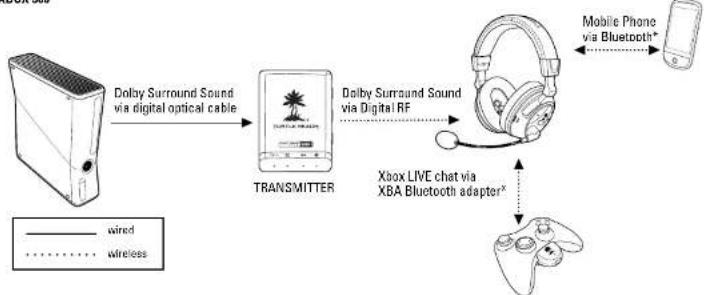
flowchart
graph LR
    A["wire"] -->|dolby Surround Sound via digital optical cable| B["TRANSMITTER"]
    C["wire"] -->|dolby Surround Sound via Digital RF| D["Xbox LIVE chat via XBA Bluetooth adapter*"]
    B -->|dolby Surround Sound via Digital RF| D
    D --> E["Mobile Phone via Bluetooth*"]
PS3
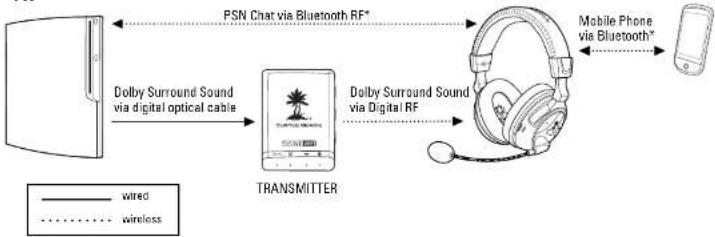
flowchart
graph LR
    A["PC"] -->|PSN Chat via Bluetooth RF*| B["TRANSMITTER"]
    B -->|Dolby Surround Sound via Digital RF| C["Mobile Phone via Bluetooth*"]
    B -->|Dolby Surround Sound via digital optical cable| D["Dolby Surround Sound via Digital Optical Cable"]
    D -->|wired| E["Wireless"]
    B -->|wired| F["Wireless"]
*Only 2 Bluetooth devices total can be connected to the headset at a time. In addition, only one Bluetooth device can be active on the headset at a time. For example, if you are making a call with the headset while on Xbox LIVE chat, the chat will be deactivated until the call is over.
XP400 Headset - Left View
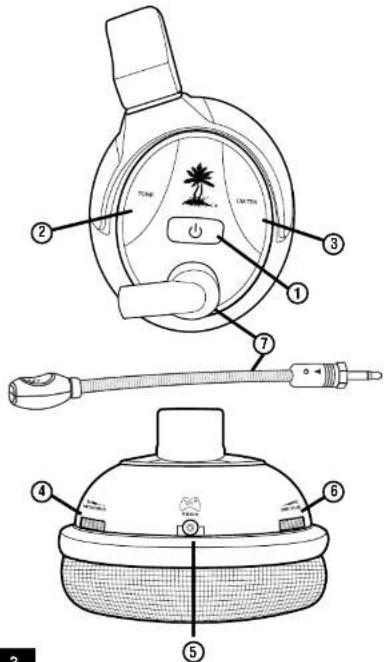
① Power Button: Turn on the headset by pressing the power button for a couple of seconds, then release. You will hear 2 beeps and the power LED should start flashing. Turn off the headset by pressing the button until the LED stays on and you hear 2 beeps, then release. To enter Pairing Mode, press and hold the power button for about 6 seconds until you hear 2 fast beeps and the LED begins to flash rapidly (see pg 6). The headset will turn off after several minutes if there's no audio detected or if the transmitter is turned off.
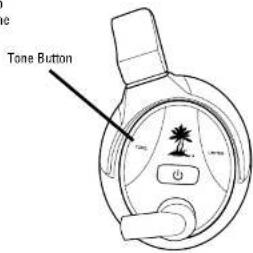
② Tone Button: Press this button to activate the different EQ presets. A beep will indicate which preset is selected. (see pg. 18)
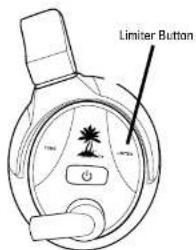
③ Blast Limiter Button: Press this button to activate the different Blast Limiter presets. A beep will indicate which preset is selected. (see pg. 18)
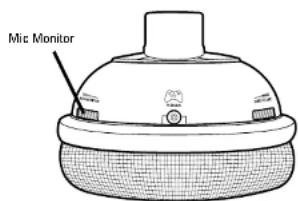
4 Variable Mic Monitor: Adjusts the level of your voice heard in the headset. (see pg. 19)
NOTE: Turning up the mic monitor may cause the mic to pick up room sounds which will make the silence detector not automatically shut off the headset when it's not being used. If the power is not automatically shutting down, turn down this mic monitor control.
⑤ Xbox 360 Controller Jack: Used for optional wired chat setup (see pg. 9)
⑥ Game Volume: Turn to adjust the game sound level.
⑦ Removable Microphone with Adjustable Boom:
The microphone can be removed from the headset when chat is not required by detaching it from the boom. To properly position the mic: Remove the foam cover, insert the boom into the socket so the holes on the mic casing are facing your mouth. Then replace the foam cover. The boom jack also has a maser to indicate the proper mic position.
XP400 Headset - Right View
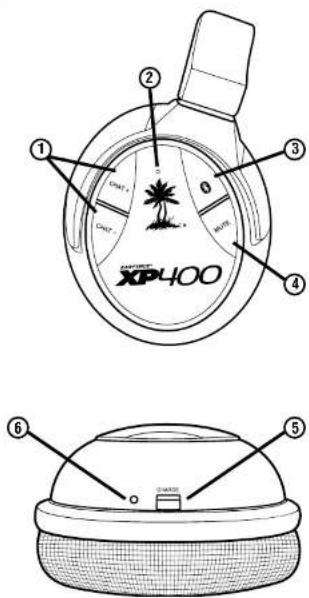
① Bluetooth Volume: Press Chat (+) or Chat (−) to adjust Bluetooth volume level. A tone will sound each time the volume level changes.
② Bluetooth LED: Flashes blue once per second when paired with a device. Flashes blue twice per second when not paired with a device. Flashes blue and red quickly when in pairing mode.
③ Bluetooth Multi-Function Button (BT MFB): Powers on the Bluetooth and performs several other functions described in the "Bluetooth" section. (see pg. 15) NOTE: The Bluetooth feature is normally powered on. If it is not paired to another device, it will automatically turn off after 5 minutes to conserve battery power.
④ Mic Mute Button: Press to toggle between muting and unmuting the microphone. A high beep will sound when the mic is unmuted and a low beep will sound when the mic is muted. When using the XBA Bluetooth Adapter, the mic can also be muted by double-pressing the button on the puck. When using the optional Talkback cable, the mic can be muted directly from the switch on the Talkback cable.
⑤ Headset Charging Port: The headset may be charged by connecting this Mini USB input to a free USB port on your gaming console using the included Headset Charging Cable. (see pg. 17)
NOTE: The Headset Charging Cable Included with the XP400 can only be used to charge the headset and cannot be used as a standard USB data cable.
⑥ Charging LED: Turns red when charging and turns off when charged.
XP400 Transmitter
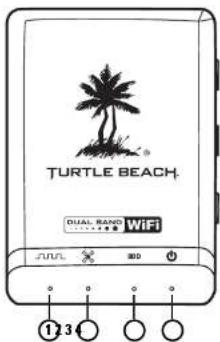
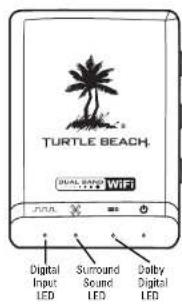
① Digital Input LED: This LED turns on when a digital input signal is detected. When this LED is ON, the analog input is turned off.
② Surround Sound LED: The LED will light whenever the digital input is being processed by the surround sound decoder. When this LED is off, the audio signal will be heard in stereo.
③ Dolby® Digital LED: The LED will light whenever a Dolby Digital encoded signal is detected on the digital input.
4 Power/Link LED: When the transmitter is powered on and communicating with the headset, this LED will be on solid. When the headset is turned off, the LED will turn off. A slowly pulsing LED indicates that the transmitter can't communicate with the headset. This could happen when the headset is out of range, turned off or not paired with the transmitter. (see pg. 6)
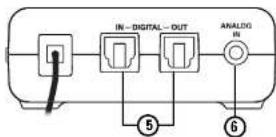
5 Digital Input and Output: Connect the digital input to the Xbox 360 digital output using the included digital optical cable. The digital input is passed through to the digital output so you can connect the XP400 transmitter and your home theater system to hear the Xbox sound on the headset and speakers at the same time. When a digital signal is detected by the optical input, the Digital Input LED will be lit.
⑥ Analog Input Jack: Provides a 3.5mm input for digital music players or additional audio sources. (3.5mm cable sold separately)
NOTE: The analog input is deactivated whenever a digital input is active, so both the digital and analog inputs cannot be used at the same time.
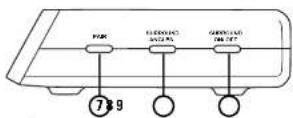
⑦ Pair Button: Press and hold to activate pairing mode. (See pg. 6)
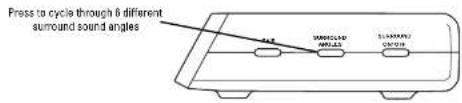
⑧ Surround Sound Angles Button: Press to select different HRTF surround angles. (see pg. 14)
⑨ Surround Sound On/Off Button: Pressing this button toggles between surround sound and stereo sound. When surround sound is active, the Surround Sound LED will be lit.
Using the Transmitter
Transmitter Range
The transmitter sends game audio from your Xbox 368 to the headset via digital radio frequency (RF) signal, so a direct line of sight is not required. When you're out of range, you may hear popping or clicking sounds if the headset loses the RF signal. For best performance, place the transmitter in an open area that is unobstructed by objects that might absorb RF signals from the internal antenna. Avoid placing it on a metal surface, such as the top of a home theater A/V receiver.
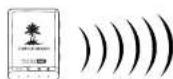
Optimum range: within 30 ft.
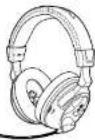
Pairing the Headset and Transmitter
The headset and transmitter in this package are "paired", which means they're synchronized to ensure they work together. When the headset and transmitter are communicating, the POWER LED on the transmitter will be on solid. If this LED is slowly pulsing instead, it means the transmitter can't communicate with the headset. This could happen when the headset is out of range, not turned on or not paired with the transmitter. If the LED is slowly pulsing when the headset is on and within range, then they might need to be "paired" as described below:
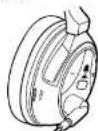
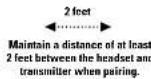
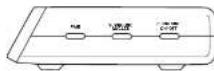
- Make sure the headset and transmitter are turned off and they are at least 2 feet away from each other.
- Power on the transmitter by connecting it to a free USB port on your gaming console. Then press and hold the PAIR button on the transmitter. The transmitter LED will begin to flash rapidly, then release the PAIR button.
-
Press and hold the headset POWER button for about 6 seconds until the LED begins to flash rapidly, then release the button.
-
Wait for the headset and transmitter to pair. This process could take up to 30 seconds.
If pairing is successful, the LED on the transmitter should be on solid and the headset LED should be flashing about once per second, indicating that the units are paired.
If pairing fails, repeat steps 1-4. It may take up to 5 attempts to pair successfully.
NOTE Only one headset can be paired with the transmitter. If you pair two headsets with the same transmitter, they'll interfere with each other as they compete for the transmitter RF signal. This will cause one headset to shut off. So don't try to pair two headsets with the same transmitter!
Xbox 360 ^® and PS3 ^™ Setup
Xbox 360 (Sllm) and PS3
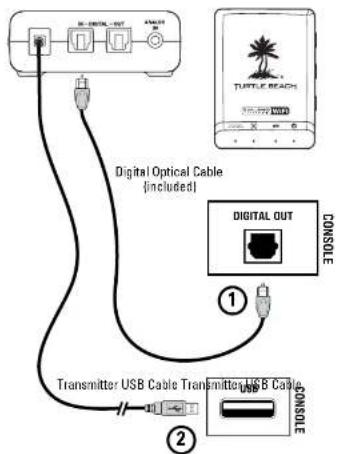
- Connect the Digital Optical Cable
NOTE: Remove the protective caps from each end of the optical cable before inserting it into the sockets.
- Connect the Transmitter Power
XBOX 360 (Older Models)\*
- Connect the Digital Optical Cable*
(Requires XBOX 360 HDMI Audio Adapter, sold separately) NOTE: Remove the protective caps from each end of the optical cable before inserting it into the sockets. - Connect the Transmitter Power
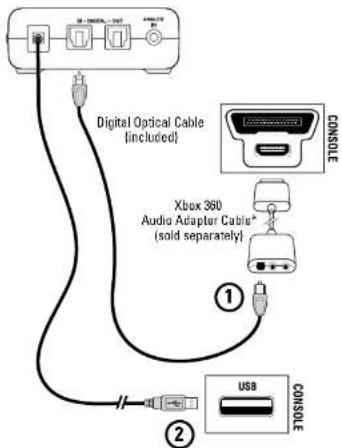
* Older Xbox 360 console models do not include an optical output so an Xbox 360 HDMI Audio Adapter cable is required (sold separately). If your HDTV has an optical AUDIO OUT jack, you can use it to connect the optical cable to the transmitter.
Xbox 360 Wireless Chat Setup
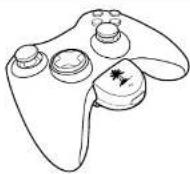
Connecting the XBA Bluetooth® Chat Adapter\*
- Power on the Xbox 360controller and plug the XBA into the controller headset jack.
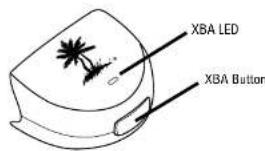
- With the XBA powered-OFF, press and hold the button on the XBA for 4 seconds to enter Bluetooth pairing mode. The LED will begin to blink rapidly.
- With the XP400 powered-ON, press and hold the Bluetooth button (BT MFB) on the right ear cup for about 5 seconds to power on the Bluetooth.
If this the first time you've powered-on the headset, the Bluetooth will automatically be in pairing mode.
If its not the first time the headset has been powered-ON, make sure the Bluetooth is powered-off and press and hold the BT MFB button for about 5 seconds until you hear 3 fast beeps in the headset and the Bluetooth LED is flashing blue and red.
After a few seconds, the XBA and the XP400 will be paired. The XBA will automatically pair itself to the headset each time it's powered on so you will only need to complete the pairing process during initial setup.
XBA Functions
| Function Button Press LED | |
| Power ON Single 1 blink / sec | |
| Power OFF Hold 3 secs OFF | |
| Mic MUTE Double Solid ON | |
| Mic UNMUTE Double 1 blink / sec | |
| Pairing Mode (paired) Hold 4 secs (not paired) | 2 blinks / sec 1 blink / sec |
* The XBA adapter is not compatible with the Xbox 360 chat pad and may not be compatible with third party controllers.
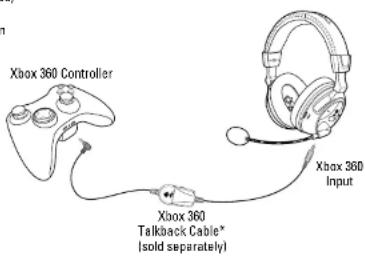
Xbox 360® Wired Chat Setup\* (optional)
In cases where the XBA Bluetooth Chat Adapter cannot be used, such as with third-party controllers and the Xbox Chat Pad, an optional talkback cable is available for a wired chat connection between the headset and controller.
- Insert the right angle plug into the headphone jack on the Xbox 360 controller.
- Insert straight plug into the controller jack on the left ear cup of the headset.
*The Xbox 360 Talkback Cable is required for this setup and is sold separately at www.TurtleBeach.com.
Configure Xbox 360 System Settings
- In the Xbox 360 System Settings, select: Settings > Audio > Accessory Settings > Audio Device Settings
Set the "Digital Output" to "Dolby Digital 5.1"
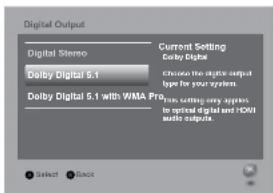
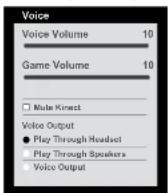
- In the Xbox 360 System Settings, select: Settings > Preferences > Voice
Set the "Voice/Game Volume" to 10 and set the "Voice Output" to "Play Through Headset"
PS3™ Chat Setup
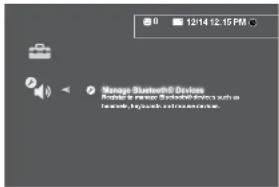
When using the XP400 with a PS3, the Bluetoothis used for PlayStation® Network (PSN®) chat. Follow these instructions to pair the Bluetooth with your PS3 console.
-
With the XP400 Bluetooth powered OFF, go in the PS3 Menu and select "Settings" > "Accessory Settings" > "Manage Bluetooth Devices"
-
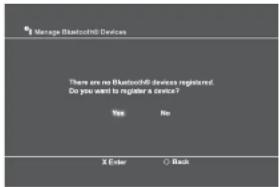
If you have never used a Bluetooth device or have deleted any profiles from other devices previously used with your console, the PS3 prompt will ask if you wish to register a device. Choose "Yes" to start scanning. If any other Bluetooth devices have previously been paired with your console they will appear in a list. Choose "Start Scanning" at the bottom of the screen.
Configure PS3 System Settings
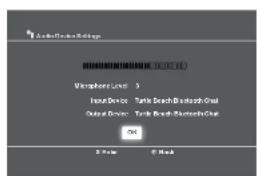
- In the PS3 Menu, select "Settings" > "Sound Settings" > "Audio Output Settings" > Optical Digital > Dolby Digital 5.1
- In the PS3 Menu, select "Settings" > "Accessory Settings" > "Audio Device Settings" > set the "Input" and "Output" to "TURTLE BEACH BLUETOOTH CHAT"
Home Theater Setup
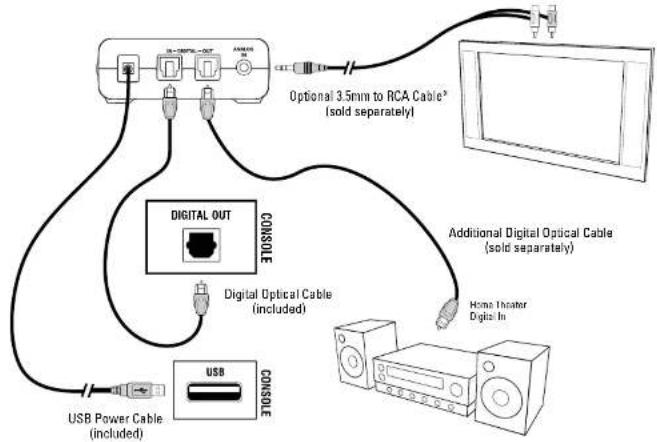
Setting up the transmitter as illustrated below lets you listen to your console or TV with the XP400 headset. You can also hear your console on your home theater speakers without disconnecting the optical cable from the transmitter.
Connecting the XP400 transmitter digital output to your home theater system will pass your console's game audio from the transmitter's digital input to the home theater A/V receiver digital input, so you can hear the game audio on your XP400 headset and your surround sound speakers at the same time. To hear the game audio only on the XP400 headset, turn down or mute your speakers.
flowchart
graph TD
    A["Device"] -->|Optional 3.5mm to RCA Cable* (sold separately)| B["Digital OUT"]
    A -->|Additional Digital Optical Cable (sold separately)| C["Home Theater Digital In"]
    A -->|Digital Optical Cable (included)| D["Digital Console"]
    A -->|USB Power Cable (included)| E["USB Console"]
    A -->|Digital Out Console| F["Console"]
* Whenever a DIGITAL INPUT is detected, the ANALOG INPUT is turned OFF. So if you have your TV plugged into the ANALOG IN jack, you won't hear it if your game console is transmitting digital audio to the transmitter.
Connecting a Digital Music Player
The XP400 features an analog input for connecting digital music players or other analog sources. The Analog Input volume can be adjusted directly from the digital music player or analog source.
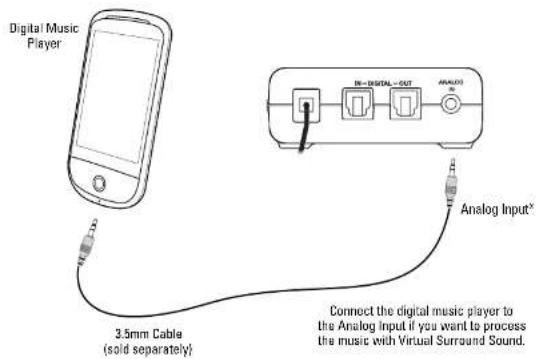
* Whenever a DIGITAL INPUT is detected, the ANALOG INPUT is turned OFF. So if you have your TV plugged into the ANALOG IN Jack, you won't hear it if your game console is transmitting digital audio to the transmitter.
Dolby® Digital Processing
The XP400 uses Dolby Digital 5.1 surround processing technology – the industry-standard format for encoding multi-channel game audio. Dolby Digital processing recreates 5.1 channel surround sound using the XP400 headset so you can hear the sound all around you, as if you were listening to a 5.1 speaker system.
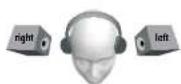
Stereo Sound Field
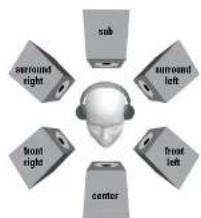
Sound field with Dolby® Digital 5.1 Surround Sound Processing
Here's how the Dolby Digital mode operates:
- When the digital input signal is active, the Digital Input LED turns on and the analog inputs are turned off.
- If the Surround LED is ON, surround sound processing is activated. If the LED is OFF, surround sound processing is deactivated and the signal will be heard as stereo.
- If a Dolby Digital encoded signal is detected by the digital input, the front LED turns on and Dolby Digital processes the channels to create surround sound in the headset. The surround sound must be turned on to enable the Dolby Digital processing.
Surround Sound Angles
The XP400 allows you to alter the virtual positioning of the Front and Surround speakers for the best surround sound experience. Press the Surround Angles Button on the transmitter to cycle through 6 different presets, as illustrated below:
Surround Sound Angle Presets:
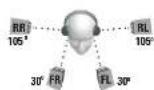
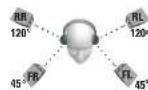
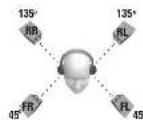
○ Front Angle; 45 degrees
Rear Angle; 120 degrees
○ Front Angle; 45 degrees
Rear Angle; 135 degrees
① Front Angle; 30 degrees
Rear Angle; 105 degrees
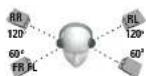
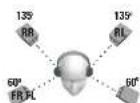
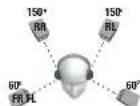
④ Front Angle; 60 degrees
Rear Angle; 120 degrees
○ Front Angle: 60 degrees
Rear Angle: 135 degrees
○ Front Angle: 60 degrees
Rear Angle: 150 degrees
The LEDs will blink in sequence, indicating the number of the preset selected.
Using Bluetooth®
The XP400 incorporates Dual Pairing Bluetooth technology that can be simultaneously paired to 2 Bluetooth enabled devices at once. This lets you communicate with Xbox LIVE and PSN® chat and answer calls on a Bluetooth enabled mobile phone. If you're not using either of these Bluetooth features, you should turn off the Bluetooth to conserve battery power. The XP400 will automatically remember the last 2 paired devices upon powering on.
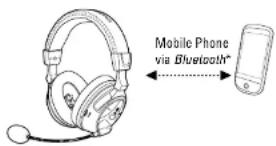
Pairing the Bluetooth for Xbox LIVE or PSN Chat
See "Xbox 360 Wireless Chat Setup" on page 10.
See "PS3 Chat Setup" on page 14.
Pairing a Bluetooth Enabled Mobile Phone
The XP400 Bluetooth must be powered off before you start:
- On the XP400, press and hold the Bluetooth Button (BT MFB) for 5 seconds until the flashing LED changes from blue to red—then release the button.
- On your Bluetooth enabled mobile phone, activate the Bluetooth mode and search for Bluetooth devices as described in its user manual.
- When your device is finished scanning, select "TURTLE BEACH BLUETOOTH CHAT" from the list and follow the prompts to connect.
- Enter "0000" as the Pass Key and select "OK". The Bluetooth LED on the headset will start flashing blue about once per second, indicating that the headset and phone are paired.
^* NOTE: Only one B/Bluetooth device can be active on the headset at a time. For example, if you are making a call with the headset while on Xbox LIVE chat, the chat will be deactivated until the call is over.
Making Calls
Once the headset is successfully paired with your mobile phone, you can use it to make and receive calls. It can be used with voice dialing if your phone supports this function.
- Using voice dialing* – Press and hold the BT MFB button for 3 seconds until you hear a tone—then release. The voice recognition prompt in your phone will now be activated. Say the name of the phone number or person whom you want to call. You can exit the voice recognition state at any time by pressing the MFB for 3 seconds.
- Using mobile phone keys to make a call – Dial the number on the mobile phone as normal. Once the call has been placed, the sound will automatically be transmitted to the headset.
- Redial - Double-click BT MFB button. You will hear two tones, and the last number called will be dialed.
- Muting the microphone - During a call, the microphone muting can be toggled by Pressing the MUTE button. You will hear one tone, indicating that the mic mute is active. While the mic is muted, a beep will be heard every 30 seconds to let you know that mic mute is still activated.
NOTE: Some mobile phones may not have a redial or voice recognition function. If a phone does not have a redial function, then a double-click of the MFB will initiate the voice recognition state instead. If a phone does not have either function, then a double-click or 3-second press of the MFB will have no effect.
Receiving Calls
When the XP400 Bluetooth is powered on and there is an incoming call you will hear a phone ring chime in the headset.
You have three options when an incoming call is received:
- Answer call – Press the BT MFB once to accept the call. Press it again to end a call. A tone is heard in the earpiece each time you answer or end a call.
- Reject call – Press and hold the BT MFB for 3 seconds until you hear a beep. The call is sent directly to your voicemail.
- Do nothing – The "incoming call chime" will sound until your phone sends the caller to voicemail.
Recharging the Headset
The XP400 features a rechargeable lithium polymer battery that provides more than 10 hours of continuous game play. When your headset battery power is low, a tone will begin to sound every 10 seconds until the headset powers off. You can recharge your headset while still gaming with the included Headset Charging Cable. Simply plug the mini USB end into your headset CHARGE port and plug the other end into a free USB port on your game console.
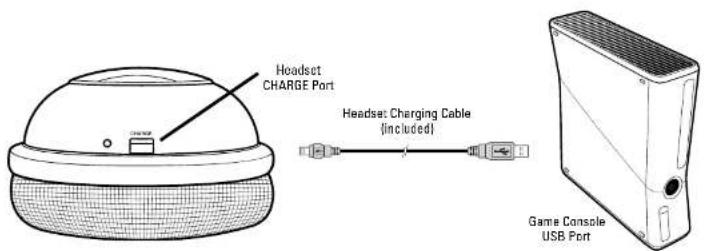
If your headset is charging while it's powered off, the LED on the headset will remain solid RED until the headset is charged, at which time the headset LED will turn off.
NOTE: Do not use the included Headset Charging Cable for Standard USB cable use. It does not include data lines.
The XP400 features multiple Equalizer presets to enhance your gaming audio experience. Press the TONE button on the XP400 headset to cycle through the EQ presets as illustrated below:
- Hat
- Bass Boost
- Treble Boost
- Bass and Treble Boost
Blast Limiter Presets
The Blast Limiter presets help protect your ears from deafening sounds such as explosions and gunfire by limiting the maximum level of the game sound. You won't hear the effect unless a loud sound occurs in the game. For example, if you're in a quiet section of the game, you might want to turn up the volume to hear softer sounds like footsteps. If an explosion or gunshot suddenly occurs, it could be uncomfortably loud because you turned up the volume for the footsteps. Turning on the Blast Limiter will reduce these louder sounds so you can boost the lower sounds. Press the LIMITER button to cycle through the three settings as illustrated below:
Blast Limiter Presets:
- Limiter Off
- Mild Limiter
- Medium Limiter
- Max Limiter
TM
Chat Boost is a dynamic talkback expander built into the XP400 headset that automatically increases chat volume during loud moments in your game, so you can always hear your teammates or other players, regardless of the game volume.
Typically, if you turn up a headset's game volume, the incoming chat level from other players could become difficult to hear over the game sound. However, with Chat Boost, as the game audio increases, the chat volume also increases. When the game volume quiets down again, Chat Boost automatically returns the chat level to your original volume setting.
To properly set the Chat Boost function:
-
Turn down the volume control on the headset so there's no game audio.
-
Adjust the chat volume control on the headset so you can hear the chat voices at a comfortable level.
-
Turn up the headset game volume and the chat volume will increase whenever the game gets louder, just as if the chat volume control is being automatically turned up along with the game level.
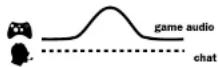
WITHOUT Chat Boost,
chat volume is overwhelmed by loud game audio
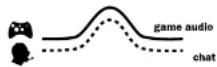
WITH Chat Boost,
chat volume increases along with game volume
NOTE: If the chat volume on the headset is set too loud, Chat Boost might increase the volume so much that the voices will distort. If that happens, turn down the chat volume on the headset.
Variable Mic Monitor
The XP400 headset includes a unique variable microphone monitor feature that allows you to adjust the level of your voice heard in the headset so you won't have to shout. This can be adjusted by turning the MIC MONITOR wheel on the left ear cup.
NOTE: Turning up the mic monitor may cause the mic to pick up room sounds which will make the silence detector not automatically shut off the headset when it's not being used. If the power is not automatically shutting down, turn down this mic monitor control.
XP400 Headset Technical SpecificationsChat Boost
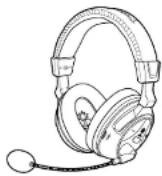
- 50mm diameter speakers with neodymium magnets
Game audio frequency response: 20Hz - 20kHz, >120dB SPL @ 1kHz
Condenser microphone frequency response: 50Hz - 15kHz
Game audio Dual Band WiFi Digital 2.4-2.495GHz/5.0-5.8GHz RF wireless reception
Bluetooth ^® radio with dual-pairing mode
Headphone amplifier: Stereo 27mW/ch, THD <1%
Rechargeable Li-Po Battery (1000 mAh)
Automatic shut down after approx 5 minutes of carrier loss or audio silence to conserve
battery power
Battery booster circuit extends battery life for up to 15 hours
XP400 Transmitter Technical Specifications
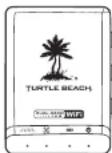
· Dual Band Digital 2.4-2.495GHz/5.0-5.8GHz RF wireless transmission
with up to 30 foot range
Frequency response: 20Hz - 20kHz
Optical T∅SLINK digital audio input compatible with 48kHz digital audio stream
Optical TOSLINK digital audio output pass-through of digital input stream
Stereo 3.5mm analog input jack
Maximum analog input level: 2Vpp (700mV rms)
USB Power - (5V DC @ 350mA max)
Troubleshooting
No sound
- Check that the headset volume control is turned up.
- Check that the transmitter USB power optical cables are properly connected.
- Check that the headset is powered on. The LED on the left ear cup should be flashing.
- Check if the LED on the front of the transmitter is on solid. If the LED is slowly pulsing, it indicates that the transmitter isn't communicating with the headset. If the headset is on solid and the transmitter LED is slowly pulsing, then the headset and transmitter need to be "paired" as described in the section "Pairing the Headset and Transmitter".
Audio Drops, Popping or Clicking Sounds
Audio dropouts, popping or clicking sounds on the headset are caused by poor reception. This can occur when:
• The headset and transmitter are out of range. For best performance, stand within 20 feet from the transmitter.
- There's a wall or other large object between the headset and transmitter.
• The transmitter is in a bad location that is interfering with the antenna.
- A wireless base station or wireless router is causing a lot of RF activity that's blocking the RF signal from the transmitter.
Voice Chat Drops
- Most in-game voice chat drops are simply caused by network performance or "lag". Usually they subside after a few moments so please be patient. In extreme cases, you may have to leave a game and return to reset the chat function.
- If you use a wireless internet connection, low signal strength from your modem/router can make the voice chat malfunction.
A wired connection from your modem/router to your console is recommended for best results.
Mobile Phone Bluetooth ^® Issues
ome models of mobile phones may experience issues with the Bluetooth performance:
- Nokia6500s: Sometimes the Bluetooth link will disconnect automatically and may need to be paired again.
- Moto V8: Sometimes there is no audio on headset when there is an active call. This issue happens rarely. The Moto V8 doesn't initiate SCO link when there is an active call. Single press the BT MFB button on the headset to initiate SCO link with the phone.
- HTC Hero: Sometimes the headset Bluetooth will fail to reconnect with PS3 after having connected with HTC Hero. This issue happens rarely. The user must reconnect the headset Bluetooth from PS3 Bluetooth system settings to fix this issue.
Force Shutdown
In the unlikely case that the headset becomes unresponsive and the main power button cannot be used to turn off the headset, the Mute button on the headset can be used to force shutdown. Press and hold the MUTE button on the headset for 10 seconds to initiate a forced shutdown.
Safety Notice
To avoid potential damage to the device, always disconnect all cables before transporting it.
WARNING: Permanent hearing damage can occur if a headset is used at high volumes for extended periods of time, so it is important to keep the volume at a safe level. Over time, your ears adapt to loud volume levels, so a level that may not cause initial discomfort can still damage your hearing. If you experience ringing in your ears after listening with the headset, it means the volume is set too loud. The louder the volume is set, the less time it takes to effect your hearing. So, please take care to listen at moderate levels.
- Before placing a headset on your ears, turn the volume down completely, then slowly increase it to a comfortable level.
- Turn down the volume if you can't hear people speaking near you.
- Avoid turning up the volume to block out noisy surroundings.
EC Declaration of Conformity
Manufacturer: Voyetra Turtle Beach
Manufacturers Address:
150 Clearbrook Rd. Suite 162, Elmsford, NY 10523
Product Name: Ear Force XP400
Type of Product: Wireless Headset
Model Number(s): TBS-2276-01
Year of Manufacture: 2011
We, Voyatra Turtle Beach, Inc. of Elmsford, New York, declare under our own responsibility that the above-referenced product complies with the following directives and standards:
Low Voltage Directive 2006/95/EC
EN 50332-2:2003
EN 60950-1:2006+A11:2009
Electromagnetic Compatibility Directive 1999/5/EC
ESTI EN 301 489-1 V1.8.1 (2008)
ESTI EN 301 489-3 V1.4.1 (2002)
ESTI EN 301 489-17 V2.1.1 (2009
R&TTE Directive 1999/5/EC
ESTI EN 300 328 V1.7.1 (2006-10)
ESTI EN 300 440-1 V1.4.1 (2008-05)
ESTI EN 300 440-2 V1.2.1 (2008-05)
All test reports have been reviewed and approved with a Positive Opinion from the following Notified Bodies:
Bay Area Compliance Laboratories, Corp (Shenzhen)
Shenzhen EBO Technology Co., Ltd.
6/F, the 3rd Phase of WanLi Industrial Building ShiHua Road, FuTian Free Trade Zone, Shenzhen, Guangdong, China Tel: +86-755-33320018, Fax: +86-755-33320008, Web: bacIcorp.com
No. 710 Yihua Building, Futian District, Shenzhen, China 518040 Tel: +86-755-29451282 Fax: 86-755-83709189 Web: ebotek.cn
The technical documentation required by this Directive is maintained at the corporate headquarters of Voyetra Turtle Beach, 150 Clearbrook Road. Suite 162, Elmsford, New York, 10562.
Authorized Person:

Printed Name: Frederick Romano Title: Executive Vice President
Date: 11/17/11
FCC Declaration of Conformity
Product Name: Ear Force XP400
Model Number(s): TBS-2276-01
FCC Rules: FCC CFR Title 47 Part 15 Subpart B: 2009 CLASS B
FCC CFR Title 47 Part 15 Subpart C: 2008
Operating Environment: GENERAL OFFICE AND HOME USE
FCC COMPLIANT STATEMENT
This device complies with part 15 of the FCC rules. Operation is subjected to the following conditions:
(1) This device may not cause harmful interference, and
(2) This device must accept any interference received including interference that may cause undesired operation.
INFORMATION TO USER
This equipment has been tested and found to comply with the limits for a Class B digital device, pursuant to Part 15 of FCC rules.
These limits are designed to provide reasonable protection against harmful interference in a residential installation. This equipment generates, uses and can radiate radio frequency energy and, if not installed and used in accordance with the instructions, may cause harmful interference to radio communications. However, there is no guarantee that interference will not occur in a particular installation. If this equipment does cause harmful interference to radio or television reception, which can be determined by turning the equipment off and on, the user is encouraged to try to correct the interference by one or more of the following measures:
1) Reorient or relocate the receiving antenna.
2) Increase the separation between the equipment and receiver.
3) Connect the equipment into an outlet on a circuit different from that to which the receiver is connected.
4) Consult the dealer or an experienced radio/TV technician for help.
The user's manual or instruction manual for an intention or unintentional radiator shall caution the user that the changes or modifications not expressly approved by the party responsible for compliance could void the user's authority to operate the equipment.
WARNING: Changes or modifications made to this equipment not expressly approved by VOYETRA TURTLE BEACH, INC. may void user's authority to operate this equipment.
EC Declaration of Conformity FCC Declaration of Conformity
Manufacturer: Voyetra Turtle Beach
Product Name: Ear Force XBA
Type of Product: Bluetooth Dongle
Model Number(s): TBS-2275-01
Year of Manufacture: 2011
Manufacturers Address:
150 Clearbrook Rd. Suite 162, Elmsford, NY 10523
We, Voyetra Turtle Beach, Inc. of Elmsford, New York, declare under our own responsibility that the above-referenced product complies with the essential requirements of Article 3 of the R&TTE1999/5/EC Directive and standards:
Electromagnetic Compatibility 2004/108/EC [Article 3.1(b) of the R&TTE Directive] comprising the harmonized standards
ESTI EN 301 489-1 V1.8.1 (2008-04)
ESTI EN 301 489-17 V2.1.1 (2009)
EN 61000-4-2:2001
EN 61000-4-3:2006
EN 55022:2006
All test reports have been reviewed and approved with a Positive Opinion from the following Notified Body:
SGS Taiwan Limited
No. 134, Wu Kung Road, Wuku Industrial Zone
Taipei County, Taiwan 248
Tel: +886-2-2299-3279
Fax: +886-2-2298-2698
The technical documentation required by this Directive is maintained at the corporate headquarters of
Voyetra Turtle Beach, 150 Clearbrook Road. Suite 162, Elmsford, New York, 10562.
Authorized Person:

Printed Name: Frederick Romano
Title: Executive Vice President
Date:
7/13/11
Product Name: Ear Force XBA
Model Number(s): TBS-2275-01
FCC Rules: FCC CFR Title 47 Part 15 Subpart B: 2009
FCC CFR Title 47 Part 15 Subpart C: 2008
Operating Environment: GENERAL OFFICE AND HOME USE
FCC COMPLIANT STATEMENT
This device complies with part 15 of the FCC rules. Operation is subjected to the following conditions:
(3) This device may not cause harmful interference, and
(4) This device must accept any interference received including interference that may cause undesired operation.
INFORMATION TO USER
This equipment has been tested and found to comply with the limits for a Class B digital device, pursuant to Part 15 of FCC rules.
These limits are designed to provide reasonable protection against harmful interference in a residential installation. This equipment generates, uses and can radiate radio frequency energy and, if not installed and used in accordance with the instructions, may cause harmful interference to radio communications. However, there is no guarantee that interference will not occur in a particular installation. If this equipment does cause harmful interference to radio or television reception, which can be determined by turning the equipment off and on, the user is encouraged to try to correct the interference by one or more of the following measures:
5) Reorient or relocate the receiving antenna.
6) Increase the separation between the equipment and receiver.
7) Connect the equipment into an outlet on a circuit different from that to which the receiver is connected.
8) Consult the dealer or an experienced radio/TV technician for help.
The user's manual or instruction manual for an intention or unintentional radiator shall caution the user that the changes or modifications not expressly approved by the party responsible for compliance could void the user's authority to operate the equipment.
WARNING: Changes or modifications made to this equipment not expressly approved by VOYETRA TURTLE BEACH, INC. may void user's authority to operate this equipment.
Limited Warranty for Turtle Beach Products
Voyetra Turtle Beach, Inc. ("VTB") warrants to the original end-user purchaser ("Purchaser") that the retail Turtle Beach hardware product herein ("Product") will be free of defects in materials and workmanship for a period of one year from the date of purchase by the Purchaser ("Warranty Period"). Any Extended Warranty or Service Plans purchased through a Retail store are not honored by VTB. The Warranty refers to the repair/replacement of a defective product during this period and not a refund.
This limited warranty extends only to the Purchaser and is not transferable or assignable to any subsequent purchaser. This limited warranty is applicable only in the country or territory where the Product was purchased from an authorized VTB retailer and does not apply to a Product that has been purchased as used or refurbished (except refurbished by VTB) or was included as part of a non-VTB product.
WARRANTY SERVICE
In the USA and CANADA Warranty Service is provided by our TURTLE BEACH OFFICES and in all other Countries it is provided by our local International Distributors.
VTB does not warrant uninterrupted or error-free operation of the Product and is under no obligation to support the Product for all computer operating systems or future versions of such operating systems.
If a defect should occur during the Warranty Period, Purchaser must contact VTB to obtain a Return Merchandise Authorization ('RMA') number. Purchaser will be responsible for shipping costs incurred in returning the defective Product to an authorized VTB service center, or to the repair facility located at VTB's corporate headquarters. A copy of the dated proof of purchase and a description of the problem must be included with the defective Product. VTB will not be responsible for other products or accessories included with the defective Product sent to VTB. The RMA number must be clearly indicated on the outside of the package. Packages without an RMA number will be refused by VTB or its representatives and returned to sender at the sender's expense.
In the event of a defect, Purchaser's sole and exclusive remedy, and VTB's sole liability, is expressly limited to the correction of the defect by adjustment, repair, or replacement of the Product at VTB's sole option and expense. VTB owns all Products it has replaced and all parts removed from repaired Products. VTB uses new and reconditioned parts made by various manufacturers in performing warranty repairs and building replacement products. If VTB repairs or replaces a product, the original Warranty Period is not extended, however, VTB warrants that repaired or replacement parts will be free from defects in material and workmanship for a period of thirty (30) days from the date of repair or replacement, or for the remainder of the Warranty Period, whichever is greater.
This warranty does not apply to any Product that has had its serial number altered, removed or defaced, or any Product damage caused by shipping, improper storage, accident, problems with electrical power, abuse, misuse, neglect, ordinary wear, acts of God (e.g. flood), failure to follow directions, improper maintenance, use not in accordance with product instructions, unauthorized modification or service of the Product or damage resulting from the use of the Product with hardware, software or other products not provided by or specifically recommended by VTB.
THIS LIMITED WARRANTY IS PURCHASER'S SOLE AND EXCLUSIVE REMEDY AND IS IN LIEU OF ALL OTHER WARRANTIES, EXPRESS OR IMPLIED. TO THE EXTENT PERMITTED BY APPLICABLE LAW, VTB HEREBY DISCLAIMS THE APPLICABILITY OF ANY IMPLIED WARRANTY OF MERCHANTABILITY, FITNESS FOR A PARTICULAR PURPOSE OR USE FOR THE PRODUCT. IF SUCH A DISCLAIMER IS PROHIBITED BY APPLICABLE LAW, THE IMPLIED WARRANTY IS LIMITED TO THE DURATION OF THE FOREGOING LIMITED WRITTEN WARRANTY.
IN NO EVENT SHALL VTB BE LIABLE FOR ANY INDIRECT, INCIDENTAL, SPECIAL, PUNITIVE OR CONSEQUENTIAL DAMAGES, OR DAMAGES, INCLUDING BUT NOT LIMITED TO ANY LOST PROFITS, DATA, OR LOSS OF USE, ANY THIRD PARTY CLAIMS, AND ANY INJURY TO PROPERTY OR BODILY INJURY (INCLUDING DEATH) TO ANY PERSON, ARISING FROM OR RELATING TO THE USE OF THIS PRODUCT OR ARISING FROM BREACH OF THE WARRANTY, BREACH OF CONTRACT, NEGLIGENCE, TORT, OR STRICT LIABILITY, EVEN IF VTB HAS BEEN ADVISED OF THE POSSIBILITY OF SUCH DAMAGES.
This warranty supersedes all prior agreements or understandings, oral or written, relating to the Product, and no representation, promise or condition not contained herein will modify these terms. Some states do not allow the exclusion or limitation of incidental or consequential damages, so the above exclusion or limitation may not apply to you. This warranty gives you specific legal rights. You may also have other rights, which vary from state to state. Any action or lawsuit for breach of warranty must be commenced within eighteen (18) months following the purchase of the Product.
EXCLUSIONS FROM LIMITED WARRANTY:
This Limited Warranty shall not apply and VTB has no liability under this Limited Warranty if the Turtle Beach Product:
- is used for commercial purposes such as "LAN Centers" (including rental or lease);
• is modified or tampered with; - is damaged by Acts of God, power surge, misuse, abuse, negligence, accident, wear and tear,
mishandling, misapplication, or other causes unrelated to defective materials or workmanship; - serial number is defaced, altered or removed;
- is not used in accordance with the documentation and use instructions; or
• is repaired, modified or altered by other than authorized repair centers. - product is no longer available because it was discarded.
Federal Communications Commission Interference Statement
This equipment has been tested and found to comply with the limits for a Class B digital device, pursuant to part 15 of the FCC Rules. These limits are designed to provide reasonable protection against harmful interference in a residential installation. This equipment generates use and can radiate radio frequency energy and, if not installed and used in accordance with the instructions, may cause harmful interference to radio communications. However, there is no guarantee that interference will not occur in a particular installation. In this equipment does cause harmful interference to radio or television reception, which can be determined by turning the equipment off and on, the user is encouraged to try to correct the interference by one or more of the following measures:
- Reorient or relocate the receiving antenna.
- Increase the separation between the equipment and receiver.
- Connect the equipment into an outlet on a circuit different from that to which the
receiver is connected
• Consult the dealer or an experienced radio TV technician for help.
FCC Caption:
Any changes or modifications not expressly approved by the grantee of this device could void the user's authority to operate the equipment.
RF Exposure Warning:
clearing
The equipment complies with FCC RF exposure limits set forth for an uncontrolled environment. The equipment must not be co-located or operating in conjunction with any other antenna or transmitter.
Transmitter Box
This equipment must be installed and operated in accordance with provided instructions and the antennas(s) used for this transmitter must be installed to provide a separation distance of at least 20 cm from all persons and must not be co-located or operating in conjunction with any other antenna or transmitter. End users and installers must be provided with antenna installation instructions and transmitter operating conditions for satisfying RF exposure compliance.
CANADA. INDUSTRY CANADA (IC) NOTICES
This Class B digital apparatus complies with Canadian ICES-003 and RSS-210. Operation is subject to the following two conditions: (1) this device may not cause interference, and (2) this device must accept any interference, including interference that may cause undesired operation of the device.
Radio Frequency (RF) Exposure Information:
Headset
The radiated output power of the Wireless Device is below the industry Canada (IC) radio frequency exposure limits. The Wireless Device should be used in such a manner such that the potential for human contact during normal operation is minimized. This device has also been evaluated and shown compliant with the IC RF Exposure limits under portable exposure conditions. Antennas are less than 20 cm of a person's body.
Техникация:
The radiated output power of the Wireless Device is below the Industry Canada (IC) radio frequency exposure limits. The Wireless Device should be used in such a manner such that
the potential for human contact during normal operation is minimized. This device has also been evaluated and shown compliant with the IC RF Exposure limits under mobile exposure conditions. Antenna are greater than 20cm from a person a baby).
This device has been certified for use in Canada. Status of the listing in the Industry Canada s RCL (Radio Equipment List can be found at the following web address: http://www.ic.gc.ca/angstitutingArchitecturalBdSrch.do?en=en)
Additional Canadian information on RF exposure also can be found at the following web address: http://www.ic.gc.ca/ee/site/smt-gst.net/enp/s106752.html
Canada, avis d'Industry Canada (IC)
This product is CE marked according to the provisions of the Low Voltage Directive (2006/95/EC), RATTE Directive (1999/5/EC) and EMC Directive (1999/5/EC). Frequency Range: 2.404-2.476GHz / 5,160-5.340GHz
• Grantee Code/Reg Number: AGB/GC22805b • Voyetra Turtle Beach, Inc.
DESIGNED AND ENGINEERED BY TURTLE BEACH IN NEW YORK, USA
Copyright © 2012 Voyetra Turtle Beach, Inc. (VTB, Inc.) All rights reserved. No part of this guide may be reproduced without permission. Turtle Beach, the Turtle Beach Logo, Voyetra, Ear Force, Chat Boost, Engineered For Gaming and the Dual Band logo are either trademarks or registered trademarks of VTB, Inc. XBOX, XBOX 360 and XBOX LIVE are registered trademarks of Microsoft Corporation. Bluetooth and the Bluetooth logo are registered trademarks of Bluetooth SIG Inc. Doloy and the double-D symbol are trademarks of Dolby Laboratories. All other trademarks are properties of their respective companies and are hereby acknowledged. Assembled in China. PATENTS PENDING

For more products, accessories and general product information, please visit TurtleBeach.com
For warranty information and product support, please visit TurtleBeach.com/support
NotesNotes
- EARFORCE® XPP LHOO
- About the XP400
- Dolby® Surround Sound
- Dual-Band Wi-Fi
- Dual Pairing Bluetooth
- Rechargeable Battery
- Engineered for High-Quality Sound
- XP400 Transmitter
- Using the Transmitter
- Transmitter Range
- Pairing the Headset and Transmitter
- Xbox 360 ® and PS3 ™ Setup
- Xbox 360 (Sllm) and PS3
- XBOX 360 (Older Models)\*
- Xbox 360 Wireless Chat Setup
- Connecting the XBA Bluetooth® Chat Adapter\*
- Xbox 360® Wired Chat Setup\* (optional)
- Configure Xbox 360 System Settings
- PS3™ Chat Setup
- Configure PS3 System Settings
- Home Theater Setup
- Connecting a Digital Music Player
- Dolby® Digital Processing
- Surround Sound Angles
- Using Bluetooth®
- Pairing the Bluetooth for Xbox LIVE or PSN Chat
- Pairing a Bluetooth Enabled Mobile Phone
- Making Calls
- Receiving Calls
- Recharging the Headset
- Blast Limiter Presets
- Blast Limiter Presets:
- TM
- To properly set the Chat Boost function:
- Variable Mic Monitor
- XP400 Headset Technical SpecificationsChat Boost
- XP400 Transmitter Technical Specifications
- Troubleshooting
- No sound
- Audio Drops, Popping or Clicking Sounds
- Voice Chat Drops
- Mobile Phone Bluetooth ® Issues
- Force Shutdown
- Safety Notice
- EC Declaration of Conformity
- FCC Declaration of Conformity
- FCC COMPLIANT STATEMENT
- INFORMATION TO USER
- EC Declaration of Conformity FCC Declaration of Conformity
- Limited Warranty for Turtle Beach Products
- WARRANTY SERVICE
- EXCLUSIONS FROM LIMITED WARRANTY:
- Federal Communications Commission Interference Statement
- FCC Caption:
- RF Exposure Warning:
- clearing
- Transmitter Box
- CANADA. INDUSTRY CANADA (IC) NOTICES
- Radio Frequency (RF) Exposure Information:
- Headset
- Техникация:
- Canada, avis d'Industry Canada (IC)
- DESIGNED AND ENGINEERED BY TURTLE BEACH IN NEW YORK, USA
- NotesNotes
Brand : TURTLE BEACH
Model : ZBX0HW68232
Category : Headphones