Vision² Master 36TB - NAS AMX - Free user manual and instructions
Find the device manual for free Vision² Master 36TB AMX in PDF.


| Product Type | Network Attached Storage (NAS) |
| Brand | AMX |
| Model | Vision² Master 36TB |
| Total Raw Capacity | 36 TB (4 x 9 TB HDDs) |
| Number of Bays | 4 (3.5-inch SATA) |
| Supported RAID Levels | RAID 0, 1, 5, 6, 10, JBOD |
| Processor | Intel Celeron J4125 (quad-core 2.0 GHz) |
| Memory | 4 GB DDR4 (expandable to 8 GB) |
| Ethernet Ports | 2 x Gigabit RJ-45 |
| USB Ports | 2 x USB 3.0, 1 x USB 2.0 |
| Other Connectivity | 1 x eSATA, 1 x HDMI |
| Cooling | 1 x 120 mm system fan |
| Power Supply | 100-240 V AC, 90 W adapter |
| Dimensions (H x W x D) | 200 x 200 x 300 mm |
| Weight (without drives) | 4.5 kg |
| Operating Temperature | 0°C to 40°C |
| Noise Level | 25 dB (idle) |
| Supported File Systems | EXT4, Btrfs, NTFS, FAT32, exFAT |
| Network Protocols | SMB, AFP, NFS, FTP, WebDAV |
| Management | Web-based interface, mobile app |
| Data Protection | Snapshots, replication, encryption |
| Maintenance | Hot-swappable drives, dust filter cleaning |
| Safety | Kensington lock, password protection |
| Spare Parts & Repairability | User-replaceable fan, memory, and drives |
Frequently Asked Questions - Vision² Master 36TB AMX
User questions about Vision² Master 36TB AMX
0 question about this device. Answer the ones you know or ask your own.
Ask a new question about this device
Download the instructions for your NAS in PDF format for free! Find your manual Vision² Master 36TB - AMX and take your electronic device back in hand. On this page are published all the documents necessary for the use of your device. Vision² Master 36TB by AMX.
USER MANUAL Vision² Master 36TB AMX
Operation/Reference Guide
Vision ^2®

natural_image
Front view of a server rack with AMX logo and ventilation slots (no readable text beyond logo)AMX Limited Warranty and Disclaimer
This Limited Warranty and Disclaimer extends only to products purchased directly from AMX or an AMX Authorized Partner which include AMX Dealers, Distributors, VIP's or other AMX authorized entity.
AMX warrants its products to be free of defects in material and workmanship under normal use for three (3) years from the date of purchase, with the following exceptions:
- Electroluminescent and LCD Control Panels are warranted for three (3) years, except for the display and touch overlay components are warranted for a period of one (1) year.
• Disk drive mechanisms, pan/tilt heads, power supplies, and MX Series products are warranted for a period of one (1) year. - AMX lighting products are guaranteed to switch on and off any load that is properly connected to our lighting products, as long as the AMX lighting products are under warranty. AMX also guarantees the control of dimmable loads that are properly connected to our lighting products. The dimming performance or quality there of is not guaranteed, impart due to the random combinations of dimmers, lamps and ballasts or transformers.
- AMX software is warranted for a period of ninety (90) days.
- Batteries and incandescent lamps are not covered under the warranty.
- AMX AutoPatch Epica, Modula, Modula Series4, Modula CatPro Series and 8Y-3000 product models will be free of defects in materials and manufacture at the time of sale and will remain in good working order for a period of three (3) years following the date of the original sales invoice from AMX. The three-year warranty period will be extended to the life of the product (Limited Lifetime Warranty) if the warranty card is filled out by the dealer and/or end user and returned to AMX so that AMX receives it within thirty (30) days of the installation of equipment but no later than six (6) months from original AMX sales invoice date. The life of the product extends until five (5) years after AMX ceases manufacturing the product model. The Limited Lifetime Warranty applies to products in their original installation only. If a product is moved to a different installation, the Limited Lifetime Warranty will no longer apply, and the product warranty will instead be the three (3) year Limited Warranty.
All products returned to AMX require a Return Material Authorization (RMA) number. The RMA number is obtained from the AMX RMA Department. The RMA number must be clearly marked on the outside of each box. The RMA is valid for a 30-day period. After the 30-day period the RMA will be cancelled. Any shipments received not consistent with the RMA, or after the RMA is cancelled, will be refused. AMX is not responsible for products returned without a valid RMA number.
AMX is not liable for any damages caused by its products or for the failure of its products to perform. This includes any lost profits, lost savings, incidental damages, or consequential damages. AMX is not liable for any claim made by a third party or by an AMX Authorized Partner for a third party.
This Limited Warranty does not apply to (a) any AMX product that has been modified, altered or repaired by an unauthorized agent or improperly transported, stored, installed, used, or maintained; (b) damage caused by acts of nature, including flood, erosion, or earthquake; (c) damage caused by a sustained low or high voltage situation or by a low or high voltage disturbance, including brownouts, sags, spikes, or power outages; or (d) damage caused by war, vandalism, theft, depletion, or obsolescence.
This limitation of liability applies whether damages are sought, or a claim is made, under this warranty or as a tort claim (including negligence and strict product liability), a contract claim, or any other claim. This limitation of liability cannot be waived or amended by any person. This limitation of liability will be effective even if AMX or an authorized representative of AMX has been advised of the possibility of any such damages. This limitation of liability, however, will not apply to claims for personal injury.
Some states do not allow a limitation of how long an implied warranty last. Some states do not allow the limitation or exclusion of incidental or consequential damages for consumer products. In such states, the limitation or exclusion of the Limited Warranty may not apply. This Limited Warranty gives the owner specific legal rights. The owner may also have other rights that vary from state to state. The owner is advised to consult applicable state laws for full determination of rights.
EXCEPT AS EXPRESSLY SET FORTH IN THIS WARRANTY, AMX MAKES NO OTHER WARRANTIES, EXPRESSED OR IMPLIED, INCLUDING ANY IMPLIED WARRANTIES OF MERCHANTABILITY OR FITNESS FOR A PARTICULAR PURPOSE. AMX EXPRESSLY DISCLAIMS ALL WARRANTIES NOT STATED IN THIS LIMITED WARRANTY. ANY IMPLIED WARRANTIES THAT MAY BE IMPOSED BY LAW ARE LIMITED TO THE TERMS OF THIS LIMITED WARRANTY. EXCEPT AS OTHERWISE LIMITED BY APPLICABLE LAW, AMX RESERVES THE RIGHT TO MODIFY OR DISCONTINUE DESIGNS, SPECIFICATIONS, WARRANTIES, PRICES, AND POLICIES WITHOUT NOTICE.
AMX Software License and Warranty Agreement
- LICENSE GRANT. AMX grants to Licensee the non-exclusive right to use the AMX Software in the manner described in this License. The AMX Software is licensed, not sold. This license does not grant Licensee the right to create derivative works of the AMX Software. The AMX Software consists of generally available programming and development software, product documentation, sample applications, tools and utilities, and miscellaneous technical information. Please refer to the README.TXT file on the compact disc or download for further information regarding the components of the AMX Software. The AMX Software is subject to restrictions on distribution described in this License Agreement. AMX Dealer, Distributor, VIP or other AMX authorized entity shall not, and shall not permit any other person to, disclose, display, loan, publish, transfer (whether by sale, assignment, exchange, gift, operation of law or otherwise), license, sublicense, copy, or otherwise disseminate the AMX Software. Licensee may not reverse engineer, decompile, or disassemble the AMX Software.
- ACKNOWLEDGEMENT. You hereby acknowledge that you are an authorized AMX dealer, distributor, VIP or other AMX authorized entity in good standing and have the right to enter into and be bound by the terms of this Agreement.
- INTELLECTUAL PROPERTY. The AMX Software is owned by AMX and is protected by United States copyright laws, patent laws, international treaty provisions, and/or state of Texas trade secret laws. Licensee may make copies of the AMX Software solely for backup or archival purposes. Licensee may not copy the written materials accompanying the AMX Software.
• TERMINATION. AMX RESERVES THE RIGHT, IN ITS SOLE DISCRETION, TO TERMINATE THIS LICENSE FOR ANY REASON UPON WRITTEN NOTICE TO LICENSEE. In the event that AMX terminates this License, the Licensee shall return or destroy all originals and copies of the AMX Software to AMX and certify in writing that all originals and copies have been returned or destroyed. - PRE-RELEASE CODE. Portions of the AMX Software may, from time to time, as identified in the AMX Software, include PRE-RELEASE CODE and such code may not be at the level of performance, compatibility and functionality of the GA code. The PRE-RELEASE CODE may not operate correctly and may be substantially modified prior to final release or certain features may not be generally released. AMX is not obligated to make or support any PRE-RELEASE CODE. ALL PRE-RELEASE CODE IS PROVIDED "AS IS" WITH NO WARRANTIES.
- LIMITED WARRANTY. AMX warrants that the AMX Software (other than pre-release code) will perform substantially in accordance with the accompanying written materials for a period of ninety (90) days from the date of receipt. AMX DISCLAIMS ALL OTHER WARRANTIES, EITHER EXPRESS OR IMPLIED, INCLUDING, BUT NOT LIMITED TO IMPLIED WARRANTIES OF MERCHANTABILITY AND FITNESS FOR A PARTICULAR PURPOSE, WITH REGARD TO THE AMX SOFTWARE. THIS LIMITED WARRANTY GIVES LICENSEE SPECIFIC LEGAL RIGHTS. Any supplements or updates to the AMX SOFTWARE, including without limitation, any (if any) service packs or hot fixes provided to Licensee after the expiration of the ninety (90) day Limited Warranty period are not covered by any warranty or condition, express, implied or statutory.
- LICENSEE REMEDIES. AMX's entire liability and Licensee's exclusive remedy shall be repair or replacement of the AMX Software that does not meet AMX's Limited Warranty and which is returned to AMX in accordance with AMX's current return policy. This Limited Warranty is void if failure of the AMX Software has resulted from accident, abuse, or misapplication. Any replacement AMX Software will be warranted for the remainder of the original warranty period or thirty (30) days, whichever is longer. Outside the United States, these remedies may not available. NO LIABILITY FOR CONSEQUENTIAL DAMAGES. IN NO EVENT SHALL AMX BE LIABLE FOR ANY DAMAGES WHATSOEVER (INCLUDING, WITHOUT LIMITATION, DAMAGES FOR LOSS OF BUSINESS PROFITS, BUSINESS INTERRUPTION, LOSS OF BUSINESS INFORMATION, OR ANY OTHER PECUNIARY LOSS) ARISING OUT OF THE USE OF OR INABILITY TO USE THIS AMX SOFTWARE, EVEN IF AMX HAS BEEN ADVISED OF THE POSSIBILITY OF SUCH DAMAGES. BECAUSE SOME STATES/COUNTRIES DO NOT ALLOW THE EXCLUSION OR LIMITATION OF LIABILITY FOR CONSEQUENTIAL OR INCIDENTAL DAMAGES, THE ABOVE LIMITATION MAY NOT APPLY TO LICENSEE.
U.S. GOVERNMENT RESTRICTED RIGHTS. The AMX Software is provided with RESTRICTED RIGHTS. Use, duplication, or disclosure by the Government is subject to restrictions as set forth in subparagraph ©(1)(ii) of The Rights in Technical Data and Computer Software clause at DFARS 252.227-7013 or subparagraphs ©(1) and (2) of the Commercial Computer Software Restricted Rights at 48 CFR 52.227-19, as applicable. - SOFTWARE AND OTHER MATERIALS FROM AMX.COM MAY BE SUBJECT TO EXPORT CONTROL. The United States Export Control laws prohibit the export of certain technical data and software to certain territories. No software from this Site may be downloaded or exported (i) into (or to a national or resident of) Cuba, Iraq, Libya, North Korea, Iran, Syria, or any other country to which the United States has embargoed goods; or (ii) anyone on the United States Treasury Department's list of Specially Designated Nationals or the U.S. Commerce Department's Table of Deny Orders. AMX does not authorize the downloading or exporting of any software or technical data from this site to any jurisdiction prohibited by the United States Export Laws.
This Agreement replaces and supersedes all previous AMX Software License Agreements and is governed by the laws of the State of Texas, and all disputes will be resolved in the courts in Collin County, Texas, USA. For any questions concerning this Agreement, or to contact AMX for any reason, please write: AMX License and Warranty Department, 3000 Research Drive, Richardson, TX 75082.
Table of Contents
Overview 1
Vision2 Dealer Demo Systems .... 1
Vision2 TDS.... 2
Vision2 Expansion Storage 2
Supported Third-Party Encoders.... 3
Server Specifications.... 4
Vision2 Master Servers.... 4
WMV Appliance 6
Digital TV Appliance 7
Video on Demand Server 8
MPEG Reflector Appliance 9
Dealer Demo System Specifications.... 10
V2-PVA 15TB Powervault Storage Archive.... 12
V2-STORAGE-2400 Expansion Storage.... 12
STB-02SB and STB-03CC Set-Top Boxes 13
STB-04 Set-Top Box 14
Network Switch Requirements.... 15
Wiring and Device Connections 17
Master Server Rear Panel Connections.... 17
LAN (RJ-45) Port 17
WMV Appliance Rear Panel Connections.... 19
HD-15 Port 19
Vision2 TDS.... 21
Vision2 PowerVault Drive Array Rear Panel Connections 21
Set-Top Boxes.... 22
Installation 25
Dealer Demo Systems.... 25
Vision2 TDS.... 27
DVB Installation.... 27
Live MPEG Installation for Vision2 TDS.... 28
Master Servers.... 29
Installing a Secondary Power Supply.... 29
Installing the V2-STORAGE-EXT810 External RAID Controller.... 30
Archive Servers.... 31
Installing the V2-STORAGE-EXT800 External RAID Controller.... 32
Set-Top Boxes.... 33
Table of Contents
Configuring Your Set-Top Box 34
Using the Remote Control.... 36
STB-02SB and STB-03CC Menus.... 37
Live TV Channels 37
Video on Demand 38
Technical Information 39
Configuration 39
Margins 40
Output 40
STB-04 Menus.... 41
Adding a New Device to the Device List.... 42
Creating a New Template 43
Upgrading the Vision2 Software.... 47
Upgrading to Vision2 Software Version 7.1 47
Upgrading to Vision2 Software Version 7.2 48
Accessing Servers 49
Overview 49
Starting and Accessing Vision2.... 49
Accessing the Server....50
Accessing the Server Directly.... 50
Accessing the Server Remotely 50
Changing Your Server's Name 50
Adding a Server....51
Master Service 53
Server Management 53
Managing a Specific Server 54
Adding and Activating Services.... 55
Changing the Channel Order.... 55
Adding an Unmanaged Channel.... 56
View Channels 56
Server Logs 56
User Interface Configuration.... 57
Amino UI 57
Tablet UI.... 58
V2 Player 59
Format Compatibility 61
Testing the Player in a Web Page.... 62
Set-Top Box Management 63
Configuring Vision2 for use with LDAP.... 65
User Access Control 65
Restricting User Access to Content.... 67
Live (MPEG) Service 69
Configuring the MAX-CSE Encoder 69
Service Settings.... 70
Stream Settings.... 70
Multicast Settings.... 71
Encoding Settings 71
Live (WMV) Service 73
Configuring the AMX Vision2 Dual Encoder.... 73
Configuring the VBrick WMV Appliance Encoder.... 75
Service Settings.... 75
Encoding Settings 76
Viewing the Stream 78
Reflector Service 79
WMV Configuration.... 79
Activating a Unicast Stream 80
Viewing the Stream 80
MPEG Configuration....81
Activating a Unicast Stream 82
Activating a Multicast Stream 82
Viewing the Stream 82
DVB Service 83
Configuration.... 83
Service Settings.... 84
Tuner Hardware Settings 84
Scan for Channels Settings.... 84
Scanning for Available Channels 85
Multicast Settings.... 85
Setting the Multicast Address.... 85
Channel List 86
Previewing the Selected Channels.... 86
Archive Service 87
Configuring the Service 87
Supported Video on Demand Media Formats 88
Flash Video (FLV) 88
Windows Media Video (WMV).... 88
MPEG-2 88
MPEG-4 AVC (H.264) 88
Table of Contents
Configuring Metadata....89
Creating a New Metadata Section 89
Browsing and Managing Content...... 91
Archive Sort Function.... 92
Adding an Online Video to an Archive 93
Viewing the Contents of an Archive.... 93
Playing a Video within the Archive.... 94
Editing Metadata 94
Uploading Additional Versions of the Same File.... 95
Thumbnail Editor 97
Requirements....97
1 Second Accuracy....98
Video Inputs 98
MAX-CSE Encoder Recommended Settings.... 98
Login to Thumbnail Editor 98
Archive Navigation Screen....99
Thumbnail Editor Screen.... 101
Playing a Thumbnail 101
Creating a Thumbnail 102
Deleting a Thumbnail 102
Adding Descriptive Text to a Thumbnail.... 102
Returning to Archive to Select Another Video 102
Video Playback Area.... 103
Exiting the Thumbnail Editor.... 103
Thumbnail Viewer 105
Requirements.... 105
Login to Thumbnail Viewer.... 105
Archive Navigation Screen.... 106
Thumbnail Viewer Screen.... 108
Playing a Thumbnail 108
Viewing Video Metadata.... 108
Returning to Archive to Select Another Video 108
Video Playback Area.... 109
Producer Service 111
Overview 111
Configuration.... 111
Multicasting with Producer.... 113
Setting Up an Intermission 113
Schedule Editing 114
Viewing the Stream.... 114
Record Service 115
Configuration.... 115
Service Settings.... 115
Recording Settings.... 116
Recording a Video Stream 117
Manual Recording.... 117
Scheduled Recording.... 118
Event Log 118
Appendix A: Graceful Startup/Shutdown Procedure 119
Overview 119
Shutdown.... 119
Startup/Restart 120
Troubleshooting 121
No TV signal on screen.... 121
No TV signal from Transmitter 121
Table of Contents
Overview
Vision ^2 is a sophisticated, fully-integrated video capture, management, and broadcast system for organizations and homeowners wanting a comprehensive, yet simple-to-use, IP video delivery solution. Vision ^2 offers live, scheduled, or on-demand video, all managed from a convenient web interface. Through the web interface, you can perform the following:
● Capture and encode content
- Upload, archive, manage, and publish content
- Schedule programming with a dynamic online program guide
● Broadcast at selectable bitrate to any platform
● Provide live TV and video on-demand over Intranet to any desktop/display
Vision ^2 Dealer Demo Systems
The V2-DLR-DEMO-SYS Dealer Demo System (FG3100-01K) provides one live MPEG channel, one live Windows Media Video (WMV) stream, and two live Digital Video Broadcasting - Terrestrial (DVB-T) multiplexes for up to 10 users over a standard IP network. The Producer channel allows scheduling for live channels or timed playback of prerecorded video content via unicast (WMV only) or multicast on private networks or the web. The V2-DLR-DEMO-SYS Dealer Demo System includes:
● 2 Live DVB-T multiplexes (10 users)
● 1 Live WMV stream (10 users)
● 2 Producer Channels (1 MPEG, 1 WMV)
- 1 Vision ^2 Server
• 1 MAX-CSE Encoder
The V2-DLR-DEMO-1RU Dealer Demo System (FG3100-D1K) provides two live MPEG channels and two live Digital Video Broadcasting - Terrestrial (DVB-T) multiplexes for up to 10 users over a standard IP network. The V2-DLR-DEMO-1RU Dealer Demo System includes:
● 1 Vision2 1RU Dealer Demo Appliance
● 2 Live DVB-T multiplexes
• 2 Live MPEG streams
● 1 Producer Channel (MPEG)
● 1 Record Channel (MPEG)
● 1 Archive (up to 2 Video on Demand users)
The V2-DLR-DEMO-SFF Dealer Demo System (FG3100-D2K) provides one live MPEG channel and one live Digital Video Broadcasting - Terrestrial (DVB-T) multiplex for up to 10 users over a standard IP network.
The V2-DLR-DEMO-SFF Dealer Demo System includes:
● 1 Vision2 SFF Dealer Demo Appliance
● 1 Live DVB-T multiplex (with support for locally stored TS demo content)
• 1 Live MPEG stream
• 1 Producer Channel (MPEG)
● 1 Record Channel (MPEG)
● 1 Archive (1 Video on Demand user)
Vision ^2 TDS
Vision ^2 TDS (FG3100-33K, -34K) provide multiple live Digital Video Broadcast (DVB) or MPEG multiplexed channels over a standard IP network. The FG3100-33K version is used to integrate DTV into an existing Vision ^2 system. The FG3100-34K version provides a stand-alone live system with support for 6 DTV streams and 6 MPEG streams. The following table lists the hardware and tools included in each Vision ^2 TDS kit:
| Vision ^2 Digital TV Solution Specifications | |
| V2-TDS (FG3100-33K): • 6 Live DTV Transport Streams• 1 Digital TV appliance | |
| V2-MPEG-LIVE (FG3100-34K): | • 6 Live DVB-T or DVB-S Transport Streams• 6 Live MPEG2 channels• 1 Digital TV appliance |
Vision ^2 Expansion Storage
The Vision ^2 Expansion Storage connects directly to the Video on Demand server to allow you to grow the storage capacity of your system. The Expansion Storage is shipped in a RAID configuration in order to provide resiliency in the event of a disk failure.
● V2-PVA 15TB PowerVault Storage Archive (FG3101-10)
• V2-STORAGE-2400 (FG3102-01)
You can store and manage videos in Flash, FLV, WMV, MPEG2, or MPEG4 format for future use. You can then use the stored content to build your own channel or allow users to access it with Video on Demand. The Vision ^2 Archive has an integrated search feature that enables you to find content based on titles and metadata. See the Archive Service section on page 87 for more information.
Supported Third-Party Encoders
Vision ^2 supports the following third party encoding units to expand upon the available stream types:
- Visionary Solutions AVN200 - MPEG-2 (SD/Full-D1) single channel encoder appliance
- Visionary Solutions AVN420 - h.264 (SD/D1 MPEG-4 Part 10/AVC) audio video encoder blade
● VBrick WMV Encoder PN 9190-4200-000 Single Channel Encoder (Up to 640 x 480)
The VBrick encoder has a Join Own Multicast setting. This setting is not available on the Vision ^2 configuration page, so you must adjust this setting prior to setting up the encoder to interface with the Vision ^2 system.
Use the VBrick Web Interface in a web browser to enable the Join Own Multicast setting prior to controlling the encoder via the Vision ^2 system (see FIG. 1).
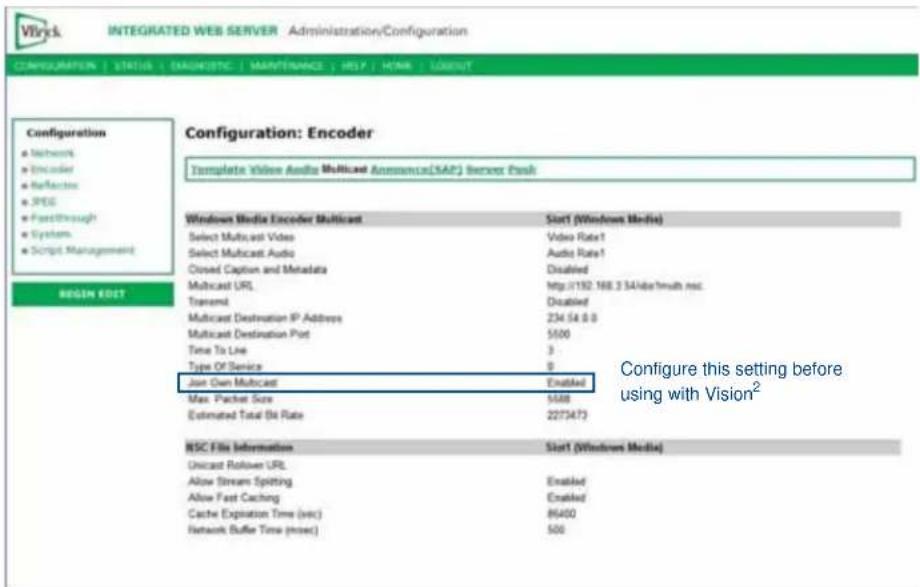
text_image
Configuration: Encoder Template Video Audio Multicast Annotation(SAP) Server Break Windows Media Encoder Multicast Select Multicast Video Select Multicast Audio Closed Caption and Metadata Multicast URL Transmit Multicast Destination IP Address Multicast Destination Port Time To Live Type Of Service Join Own Multicast Max. Packet Size Estimated Total Bit Rate Start (Windows Media) Video Rate1 Audio Rate1 Disabled Http://192.168.3 54/abs?mult nsc 234.54 0.0 5500 3 0 Enabled Configure this setting before using with Vision² NSC File Information Unicast Retower URL Allow Stream Splitting Allow Fast Caching Cache Expiration Time (sec) Network Buffer Time (msec) 500FIG. 1 VBrick Configuration page
Server Specifications
Vision ^2 servers can come installed with capture cards which enable you to capture and broadcast live video content in Windows Media Video (WMV). The system can also be supplied with a MAX encoder to broadcast live content in MPEG-2 format.
Vision ^2 Master Servers
The following table lists the specifications for the V2-SERVER-0300 (FG3106-03), V2-SERVER-1200 (FG3106-12), V2-SERVER-2400 (FG3106-24), and V2-SERVER-3600 (FG3106-36) servers:
| V2-SERVER Specifications | |
| Processor: 2 Intel | ^ Xeon^®E5-2620, 2.00 GHz series processors |
| Memory: 16GB RAM | |
| Storage (available): • 1.8 TB (7.2K RPM) (V2-SERVER-0300, FG3106-03)• 9.1 TB (7.2K RPM) (V2-SERVER-1200, FG3106-12)• 18.2 TB (7.2K RPM) (V2-SERVER-2400, FG3106-24)• 27.3 TB (7.2K RPM) (V2-SERVER-3600, FG3106-36) | |
| Power: 1100W (100-240 VAC), 50/60 HzNote: You can add one additional power supply (V2-POWER-1100) to your server to provide power supply redundancy. See the Installing a Secondary Power Supply section on page 29 for more information. | |
| Front Panel Components: | |
| USB ports 2 USB 2.0 ports for mouse, keyboard, or external peripheral devices | |
| Video connector | 1 15-pin (female) video connector for connecting a video output device such as a PC monitor |
| LCD panel Displays system ID, status info, and error messages. | |
| Power button Press to power on server. | |
| Rear Panel Components: | |
| Video connector | 2 15-pin (female) video connectors for connecting a video output device such as a PC monitor |
| Serial connector 1 9-pin (male) serial connector | |
| USB port 3 USB 2.0 ports for mouse, keyboard, or external peripheral devices | |
| LAN connectors 4 RJ-45 LAN ports for connecting to a network router (10/100/1000 Ethernet) | |
| Rack Mount | Sliding Ready\( ^TM rails with Cable Management arm |
| Operating Environment: | • Operating Temperature: 10^ to 35^ ( 50^ to 95^ )• Storage Temperature: -40^ to 65^ ( -40^ to 149^ )• Operating Relative Humidity (non-condensing twmax= 29^ ): 10% to 80% non-condensing• Maximum Humidity Gradient: 10% per hour, operational and non-operational conditions• Storage Relative Humidity: 5% to 95% non-condensing (twmax= 38^ )• Heat Dissipation: 4100 BTU/hr max |
| Dimensions (HWD): | 3 7/16" (8.73cm) H x 19" (48.24cm) W x 29 3/4" (75.5cm) D |
| Weight: | 71.5 lbs (32.5 kg) |
| Certifications: | CE, NRTL, FCC Class A |
The following table lists the specifications for the V2-MASTER server (FG3100-01):
| V2-MASTER Server Specifications | |
| Processor: 1 Intel | ® E5500 Xeon® 5500 series processor |
| Memory: 6GB Memory (3x2GB), 1333MHz Single Ranked LV RDIMMs | |
| Storage: • 2 300GB 15K RPM | SA SCSI 6Gbps 3.5in Hotplug Hard Drives• 4 1TB 7.2K RPM SATA 3.5" Hot Plug Hard Drives |
| Power: High Output Power Supply Non-Redundant, 870W | |
| Front Panel Components: | |
| USB ports 2 USB 2.0 ports for mouse, keyboard, or external peripheral devices | |
| Video connector | 1 15-pin (female) video connector for connecting a video output device such as a PC monitor |
| LCD panel Displays system ID, status info, and error messages. | |
| Power button Press to power on server. | |
| Rear Panel Components: | |
| Video connector | 1 15-pin (female) video connector for connecting a video output device such as a PC monitor |
| Serial connector 1 9-pin (male) serial connector | |
| WMV Video connector 1 15-pin (male) video connector for WMV source (WMV and V2-DLR-DEMO-SYS Dealer Demo Solutions only) | |
| USB port 2 USB 2.0 ports for mouse, keyboard, or external peripheral devices | |
| LAN connectors 4 RJ-45 LAN ports for connecting to a network router (10/100/1000 Ethernet) | |
| Rack Mount Sliding ReadyTM rails with Cable Management arm | |
| Operating Environment: | • Operating Temperature: 10^ C to 35^ C ( 50^ F to 95^ F)• Storage Temperature: -40^ C to 65^ C ( -40^ F to 149^ F)• Operating Relative Humidity (non-condensing twmax= 29^ C): 20% to 80% non-condensing• Maximum Humidity Gradient: 10% per hour, operational and non-operational conditions• Storage Relative Humidity: 5% to 95% non-condensing (twmax= 38^ C) |
| Dimensions (HWD): | 3 3/8" (8.64cm) H x 17 7/16" (44.31cm) W x 26 13/16" (68.07cm) D |
| Weight: | Rack Weight 57.54 lbs (26.1 kg) |
WMV Appliance
The following table lists the specifications for the Vision ^2 WMV appliances:
| Vision2WMV Appliance Specifications | |
| Processor: Quad Core Xeon X3323 Processor2x3MB Cache, 2.5GHz, 1333 MHz FSB | |
| Memory: 2GB 667MHz (2x1GB), single ranked DIMMs | |
| Storage: 2 250GB 7.2K RPM serial ATA 3Gbps 3.5-in cabled hard drives | |
| Power: Single 400W power supply | |
| Front Panel Components: | |
| USB ports 2 USB 2.0 ports for mouse, keyboard, or external peripheral devices | |
| Video connector | 1 15-pin (female) video connector for connecting a video output device such as a PC monitor |
| DVD-ROM 8X DVD-ROM drive | |
| Rear Panel Components: | |
| Serial connector 1 9-pin (male) serial connector | |
| Video connector | 1 15-pin (female) video connector for connecting a video output device such as a PC monitor |
| USB ports 2 USB 2.0 ports for mouse, keyboard, or external peripheral devices | |
| LAN connectors 2 RJ-45 LAN ports for connecting to a network router (10/100/1000 Ethernet) | |
| WMV Video connector 2 15-pin (male) video connectors for WMV source (WMV appliance only) | |
| Rack Mount Sliding ReadyTM rails with Cable Management arm | |
| Operating Environment: • Operating Temperature: 10^ C to 35^ C ( 50^ F to 95^ F)Storage Temperature: -40^ C to 65^ C ( -40^ F to 149^ F)Operating Relative Humidity (non-condensing twmax= 29^ C): 20% to 80% non-condensingMaximum humidity gradient: 10% per hour, operational and non-operational conditionsStorage Relative Humidity: 5% to 95% non-condensing (twmax= 38^ C) | |
| Dimensions (HWD): | 1 11/16" (4.235cm) H x 16 3/4" (42.63cm) W x 26" (66.04cm) D |
| Weight: | Rack Weight 29.66 lbs (13.45 kg) |
Digital TV Appliance
The following table lists the specifications for the Vision ^2 Digital TV appliance:
| Vision ^2 Digital TV Appliance Specifications | |
| Processor: One Quad-Core Intel | ^ Xeon ^ 3420 series processor |
| Memory: 2GB Memory (2x1GB), 1066MHz Single Ranked UDIMM | |
| Storage: 160GB 7.2k RPM Serial ATA 3Gbps 3.5-in Cabled Hard Drive-Entry | |
| Power: Single cabled power supply (250W) | |
| Front Panel Components: | |
| USB ports 2 USB 2.0 ports for mouse, keyboard, or external peripheral devices | |
| Video connector | 1 15-pin (female) video connector for connecting a video output device such as a PC monitor |
| Rear Panel Components: | |
| Serial connector 1 9-pin (male) serial connector | |
| Video connector | 1 15-pin (female) video connector for connecting a video output device such as a PC monitor |
| USB ports 2 USB 2.0 ports for mouse, keyboard, or external peripheral devices | |
| LAN connectors 2 RJ-45 LAN ports for connecting to a network router (10/100/1000 Ethernet) | |
| Rack Mount Sliding Ready ^TM rails with Cable Management arm | |
| Operating Environment: · Operating Temperature: 10^ C to 35^ C ( 50^ F to 95^ F)Storage Temperature: -40^ C to 65^ C ( -40^ F to 149^ F)Operating Relative Humidity (non-condensing twmax= 29^ C): 20% to 80% non-condensingMaximum humidity gradient: 10% per hour, operational and non-operational conditionsStorage Relative Humidity: 5% to 95% non-condensing (twmax= 38^ C) | |
| Dimensions (HWD): 1 11/16" (4.24cm) H x 17 1/8" (43.43cm) W x 15 1/2" (39.37cm) D | |
| Weight: Rack Weight 17.76 lbs (8.058 kg) | |
| Optional Accessories: | DTV-TX01-DVB-T Digital TV Transmitter (FG1410-01)DTV-TX02-DVB-S Digital TV Transmitter (FG1410-02)DTV-TX03-US Digital TV Transmitter (FG1410-03)MAX-CSE Encoder (FG2178-70) for Live MPEGs channelsNetLinx Integrated ControllersDell PowerConnect 2824 network switch |
Video on Demand Server
The following table lists the specifications for the Vision ^2 Video on Demand server (FG3100-02):
| Vision ^2 Video on Demand Server Specifications | |
| Processor: 1 Intel | ^ E5500 Xeon ^ 5500 series processor |
| Memory: 12GB Memory (12x1GB), 1333MHz Single Ranked LV RDIMMs | |
| Storage: • 2 300GB 15K RPM | SA SCSI 6Gbps 3.5in Hotplug Hard Drives• 4 1TB 15K RPM SATA 3.5" Hot Plug Hard Drives |
| Power: High Output Power Supply Non-Redundant, 870W | |
| Front Panel Components: | |
| USB ports 2 USB 2.0 ports for mouse, keyboard, or external peripheral devices | |
| Video connector | 1 15-pin (female) video connector for connecting a video output device such as a PC monitor |
| LCD panel Displays system ID, status info, and error messages. | |
| Power button Press to power on server. | |
| DVD-ROM DVD+/-RW, SATA, INTERNAL | |
| Rear Panel Components: | |
| Video connector | 1 15-pin (female) video connector for connecting a video output device such as a PC monitor |
| Serial connector 1 9-pin (male) serial connector | |
| SAS connector 4 SAS connectors for connection to the archive | |
| USB port 2 USB 2.0 ports for mouse, keyboard, or external peripheral devices | |
| LAN connectors 4 RJ-45 LAN ports for connecting to a network router (10/100/1000 Ethernet) | |
| Rack Mount Sliding Ready ^TM rails with Cable Management arm | |
| Operating Environment: | • Operating Temperature: 10^ C to 35^ C ( 50^ F to 95^ F)• Storage Temperature: -40^ C to 65^ C ( -40^ F to 149^ F)• Operating Relative Humidity (non-condensing twmax= 29^ C): 20% to 80% non-condensing• Maximum Humidity Gradient: 10% per hour, operational and non-operational conditions• Storage Relative Humidity: 5% to 95% non-condensing (twmax= 38^ C) |
| Dimensions (HWD): | 3 3/8" (8.64cm) H x 17 7/16" (44.31cm) W x 26 13/16" (68.07cm) D |
| Weight: | Rack Weight 57.54 lbs (26.1 kg) |

You can use the Video on Demand server as a Master server in a single-server installation. The Video on Demand server is limited to running only eight services at a given time.

If you are updating an existing Video on Demand Server to use the V2-STORAGE-EXT800 External RAID Controller and V2-STORAGE-2400 server, you must download the newest server administrator from Dell's website (www.dell.com) and have the latest perc6i driver prior to installing the V2-STORAGE-EXT800 External RAID Controller.
MPEG Reflector Appliance
The following table lists the specifications for the V2-MPEG-REFL MPEG Reflector Appliance:
| V2-MPEG-REFL Appliance Specifications | |
| Processor: One Quad-Core Intel | ® Xeon® 3420 series processor |
| Memory: 2GB Memory (2x1GB), 1066MHz Single Ranked UDIMM | |
| Storage: 250GB 7.2k RPM Serial ATA 3Gbps 3.5-in Cabled Hard Drive-Entry | |
| Power: Single cabled power supply (250W) | |
| Front Panel Components: | |
| USB ports 2 USB 2.0 ports for | mouse, keyboard, or external peripheral devices |
| Video connector | 1 15-pin (female) video connector for connecting a video output device such as a PC monitor |
| Rear Panel Components: | |
| Serial connector 1 9-pin (male) serial connector | |
| Video connector | 1 15-pin (female) video connector for connecting a video output device such as a PC monitor |
| USB ports 2 USB 2.0 ports for | mouse, keyboard, or external peripheral devices |
| LAN connectors 2 RJ-45 LAN | ports for connecting to a network router (10/100/1000 Ethernet) |
| Rack Mount Sliding ReadyTM rails with Cable Management arm | |
| Dimensions (HWD): 1 11/16" (4.24cm) x 17 1/8" (43.43cm) x 15 1/2" (39.37cm) | |
| Weight: 17.76 lbs (8.058 kg) | |
| Operating Environment: | · Operating Temperature: 10°C to 35°C (50°F to 95°F)· Storage Temperature: -40°C to 65°C (-40°F to 149°F)· Operating Relative Humidity (non-condensing twmax=29°C): 20% to 80% non-condensing· Maximum humidity gradient: 10% per hour, operational and non-operational conditions· Storage Relative Humidity: 5% to 95% non-condensing (twmax=38°C) |
Dealer Demo System Specifications
The following table lists the specifications for the V2-DLR-DEMO-SFF Dealer Demo Server:
| V2-DLR-DEMO-SFF Dealer Demo Server Specifications | |
| Power: 100-240VAC, 1.5A, 50/60Hz90W (20V, 4.5A) AC Adapter | |
| Enclosure: SECC with black matte finish | |
| Front Panel Components: | |
| Status Blue LED indicates power status | |
| Power Switch Turns power on/off. | |
| USB ports 2 Type-B USB 2.0 ports for connecting USB mouse and keyboard | |
| Rear Panel Components: | |
| Power connector 90W (20V, 4.5A) AC AdapterInput Voltage AC 100-240VNote: Isolate IT Power System Connection. | |
| USB ports 4 Type-B USB 2.0 ports | |
| LAN port RJ-45 LAN port provides Gigabit Ethernet communication | |
| Audio Out Provides stereo audio outputNote: The Audio in (blue) and Microphone (red) connectors are not used. | |
| Serial Port Provides serial control over devices which support RS-232 commands. | |
| HDMI Video Out Provides HDMI video output to the display, via an HDMI cable. | |
| VGA Video Out Provides VGA video output to the display | |
| e-SATA Reserved for future use | |
| Dimensions (HWD): 6 9/16" (16.6 cm) H x 1 7/8" (4.8 cm) W x 6 7/16" (16.4cm) D | |
| Weight: | 2.85 lbs (1.3 kg) |
| Operating Environment: | • Operating Temperature: 0^ C to 50^ C ( 32^ F to 122^ F)• Storage Temperature: -30^ C to 60^ C ( -22^ F to 140^ F)• Relative Humidity: 90% RH ( 45^ C non-condensing) |
The following table lists the specifications for the V2-DLR-DEMO-1RU Dealer Demo Server:
| V2-DLR-DEMO-1RU Dealer Demo Server Specifications | |
| Processor: One Quad-Core Intel | ^® Xeon ^® 3420 series processor |
| Memory: 2GB Memory (2x1GB), 1066MHz Single Ranked UDIMM | |
| Storage: 250GB 7.2k RPM Serial ATA 3Gbps 3.5-in Cabled Hard Drive-Entry | |
| Power: Single cabled power supply (250W) | |
| Front Panel Components: | |
| USB ports 2 USB 2.0 ports for mouse, keyboard, or external peripheral devices | |
| Video connector | 1 15-pin (female) video connector for connecting a video output device such as a PC monitor |
| Rear Panel Components: | |
| Serial connector 1 9-pin (male) serial connector | |
| Video connector | 1 15-pin (female) video connector for connecting a video output device such as a PC monitor |
| USB ports 2 USB 2.0 ports for mouse, keyboard, or external peripheral devices | |
| LAN connectors | 2 RJ-45 LAN ports for connecting to a network router (10/100/1000 Ethernet) |
| Rack Mount Sliding Ready ^TM rails with Cable Management arm | |
| Dimensions (HWD): 1 11/16" (4.24cm) x 17 1/8" (43.43cm) x 15 1/2" (39.37cm) | |
| Weight: 17.76 lbs (8.058 kg) | |
| Operating Environment: • Operating Temperature: 10°C to 35°C (50°F to 95°F)• Storage Temperature: -40°C to 65°C (-40°F to 149°F)• Operating Relative Humidity (non-condensing twmax=29°C): 20% to 80% non-condensing• Maximum humidity gradient: 10% per hour, operational and non-operational conditions• Storage Relative Humidity: 5% to 95% non-condensing (twmax=38°C) | |
| Processor: One Quad-Core Intel | ^® Xeon ^® 3420 series processor |
| Memory: 2GB Memory (2x1GB), 1066MHz Single Ranked UDIMM | |
V2-PVA 15TB Powervault Storage Archive
The following table lists the specifications for the V2-PVA 15TB PowerVault Storage Archive (FG3101-10):
| V2-PVA 15TB PowerVault Storage Archive Specifications | |
| Storage: 15 1TB 7.2K RPM Universal SATA 3Gbps 3.5-in HotPlug hard drives | |
| Power: • 488W maximum continuous; 550W peak• 90-264V• 47-63 Hz• 7.2A at 100V, 3.6A at 200V | |
| Rear Panel Components: | |
| Output ports 2 SAS connectors for connection to the Video on Demand server | |
| Expansion ports 2 SAS connectors for expansion to an additional archive server | |
| Operating Environment: • Operating Temperature: 10^ to 35^ C ( 50^ to 95^ F)• Storage Temperature: -40^ to 65^ C ( -40^ to 149^ F)• Operating Relative Humidity: 20% to 80% (non-condensing)• Storage Relative Humidity: 5% to 95% (non-condensing) | |
| Dimensions (HWD): 5 3/16" (13.11cm) H x 17 9/16" (44.63cm) W x 18 7/8" (48.01cm) D | |
| Weight: 78 lbs (35.37 kg) | |
V2-STORAGE-2400 Expansion Storage
The following table lists the specifications for the V2-STORAGE-2400 Expansion Storage (FG3102-01):
| V2-STORAGE-2400 Expansion Storage Specifications | |
| Storage: 12 2TB 7.2K RPM NL | SAS 6Gbps 3.5in HotPlug Hard Drives |
| Power: • 488W maximum continuous; 550W peak• 90-264V• 47-63 Hz• 7.2A at 100V, 3.6A at 200V | |
| Rear Panel Components: | |
| Output ports 2 SAS connectors for connection to the Video on Demand server | |
| Expansion ports 2 SAS connectors for expansion to an additional archive server | |
| Operating Environment: • Operating Temperature: 10^ to 35^ C ( 50^ to 95^ F)• Storage Temperature: -40^ to 65^ C ( -40^ to 149^ F)• Operating Relative Humidity: 8% to 85% (non-condensing)• Storage Relative Humidity: 5% to 95% (non-condensing)• 1181 BTU per hour | |
| Dimensions (HWD): 3 7/16" (8 7 cm) H x 19" (48.2 cm) W x 23 3/8" (59.4 cm) D | |
| Weight: 62.6 lbs (28.39 kg) | |
Please note that the V2-STORAGE-2400 is only compatible with one of the following:
- V2-MASTER Vision ^2 Master Server (FG3106-XXK) with V2-STORAGE-EXT810 Vision ^2
External RAID Controller (FG3102-03) installed. For information about installing the
V2-STORAGE-EXT810 Vision ^2 External RAID Controller, see the Installing the V2-STORAGE-EXT810 External RAID Controller section on page 30.
● V2-VOD-1000 Vision ^2 Video on Demand Server (FG3100-06K) - V2-VOD-SERVER (FG3100-05K) with V2-STORAGE-EXT800 Vision ^2 External RAID
Controller (FG3102-02) installed. For information about installing the V2-STORAGE-EXT800 Vision ^2 External RAID Controller, see the Installing the V2-STORAGE-EXT800 External RAID Controller section on page 32.
STB-02SB and STB-03CC Set-Top Boxes
The following table lists the specifications for the STB-02SB (FG3100-61) and STB-03CC (FG3100-62) Set-Top Boxes:
| STB-02SB and STB-03CC Set-Top Box Specifications | |
| Memory: 32MB Flash, 192MB RAM | |
| Power: • 5V DC at 1.5A via external power supply• Less than 8W typical usage (external supply input voltage 100-240V AC 50-60Hz 0.8A max) | |
| Front Panel LED: Power on IR | command received (Red) |
| Rear Panel Components: | |
| Power connector 1 connector | port for a 5V DC at 1.5A power supply |
| LAN ports 2 LAN 10/100 BaseT via RJ-45 shielded connectors | |
| USB port 1 Type-A USB 2.0 | port for peripheral connections |
| HDMI port 1 HDMI 1.2a with HDCP port | |
| SPDIF port 1 S/PDIF(optical) | port |
| AUDIO VISUAL port 1 10-way Mini-DIN for Composite video, Component (YPrPb), RGB, S-Video, and analog audio | |
| IOIOIO port 1 IR extender and TVI port | |
| Codecs: • MPEG-2 MP@HL | • MPEG-4 pt10 AVC/H.264 HP@L4 |
| Video Resolution: Up to 720p and 1080i | |
| Graphics Resolution: | HD graphics up to 1280x720 |
| Audio: | • Analog stereo audio out• Stereo and Dolby 5.1 surround via S/PDIF and HDMI• Dolby Digital pass through to external decoder |
| Operating Environment: | • Operating Temperature: 10^ to 35^ C ( 50^ to 95^ F)• Storage Relative Humidity: 5% to 95% (non-condensing) |
| Dimensions (HWD): | 1 9/16" (4cm) H x 5 1/2" (14cm) W x 4 1/2" (11.4cm) D |
| Weight: | 1.05 lbs (0.48 kg) |
| Included Accessories: • 1 Amino Universal Remote Control• 1 Amino Configuration Keyboard (FG3100-63) | |
STB-04 Set-Top Box
The following table lists the specifications for the STB-04 Set-Top Box (FG3100-65):
| STB-04 Set-Top Box Specifications | |
| Memory: 128MB Flash, 256MB RAM | |
| Power: • 5V DC at 1.5A via external power supply• Less than 8W typical usage (external supply input voltage 100-240V AC 50-60Hz 3A max) | |
| Front Panel LED: Power on/IR command received (Red) | |
| Rear Panel Components: | |
| Power connector 1 connector port for a 5V DC at 3A power supply | |
| LAN ports 1 x Ethernet 10/100 BaseT via RJ-45 shielded connector | |
| USB port 1 Type-A USB 2.0 port for peripheral connections | |
| HDMI port 1 HDMI 1.3a with HDCP and CEC port | |
| SPDIF port 1 S/PDIF(optical) port | |
| AUDIO VISUAL port 1 10-way Mini-DIN for Composite video, Component (YPrPb), RGB, S-Video, and analog audio | |
| IOIOIO port 1 IR extender and TVI port | |
| Codecs: • MPEG-2 MP@HL• MPEG-4 pt10 AVC/H.264 HP@L4 | |
| Video Resolution: Up to 720p and 1080i. Displays up to 1080p. | |
| Graphics Resolution: HD graphics up to 1280x720 | |
| Audio:• Analog stereo audio out• Stereo and Dolby 5.1 surround via S/PDIF and HDMI• Dolby Digital+ pass through to external decoder | |
| Operating Environment:• Operating Temperature: 0° to 40° C (32° to 104° F)• Storage Relative Humidity: 5% to 95% (non-condensing) | |
| Dimensions (HWD): 1 9/16" (4cm) H x 5 1/2" (14cm) W x 4 1/2" (11.4cm) D | |
| Weight: 0.70 lbs (0.32 kg) | |
| Included Accessories: • 1 Amino Universal Remote Control• 1 Amino Configuration Keyboard (FG3100-63) |
Network Switch Requirements
Vision ^2 requires a Gigabit layer 2/3 network switch with IGMP Snooping/Querier support. Your network switch should have the following requirements:
| Network Switch Requirements | |
| Physical Interfaces: | RJ-45 connectors for 10Base-T, 100Base-TX, 1000Base-T with 8, 16, 24, or 48 ports. |
| Layer 2 Services: • IGMP Snooping V1 or V2 (Not router dependant for operation)• IGMP Querier• Layer 2/3 switching• Spanning Tree Protocol (STP) | |
| Security: • QoS | • Storm Control Broadcast and Multicast |
| Performance Specifications: Jumbo frame support | |
| Switching Capacity: Non Blocking 32Gbps (16Port) - 140Gbps (48Port) | |
| Forward Rate: 24Mpps (16Port) - 96Mpps (48Port) | |
| Internet Protocol: IPv4 or IPv6 | |
| Optional: • VLAN support | • Web User Interface |
Overview
Wiring and Device Connections
Master Server Rear Panel Connections
This section details the ports and connectors on the rear panel of the Vision ^2 Master server.
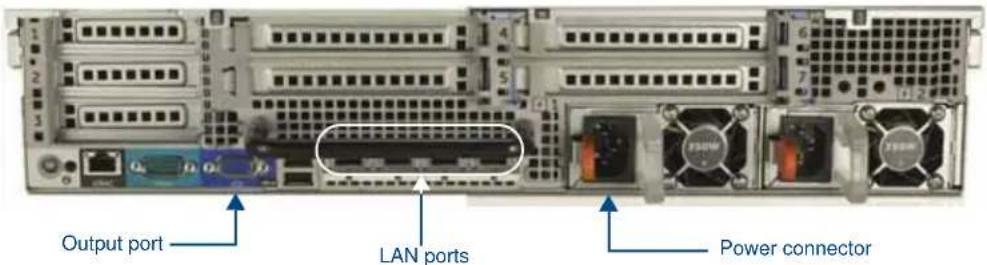
text_image
Output port LAN ports Power connectorFIG. 2 Vision ^2 Master server rear panel

Some rear panel connectors are not available with certain solutions. See the Overview section on page 1 for information on the options included with your solution.
LAN (RJ-45) Port
FIG. 3 LAN (RJ-45) Port
FIG. 4 describes the blink activity for the LAN 10/100/1000 Base-T RJ-45 connector and cable.

text_image
A - Activity LED (yellow) lights when receiving or transmitting LAN data packets A L L - Link LED (green) lights when the LAN cables are connected and terminated correctly.FIG. 4 LAN connector / LEDs

To prevent multicast traffic from flooding your network, use LAN port 2 as the Vision ^2 client side multicast interface.
The following table lists the pinouts, signals, and pairing associated with the LAN connector.
| LAN RJ-45 Pinouts and Signals | ||||
| Pin | Signals | Connections | Pairing | Color |
| 1 TX + 1 ---- 1 1 | 2 Orange-White | |||
| 2 TX - 2 ---- 2 Orange | ||||
| 3 RX + 3 ---- 3 3 | 6 Green-White | |||
| 4 no | connection 4 ---- 4 Blue | |||
| 5 no | connection 5 ---- 5 4 ---- 5 | Blue-White | ||
| 6 RX - 6 ---- 6 Green | ||||
| 7 no | connection 7 ---- 7 7 ---- 8 | Brown-White | ||
| 8 no | connection 8 ---- 8 Brown | |||
FIG. 5 diagrams the RJ-45 pinouts and signals for the LAN RJ-45 connector and cable.
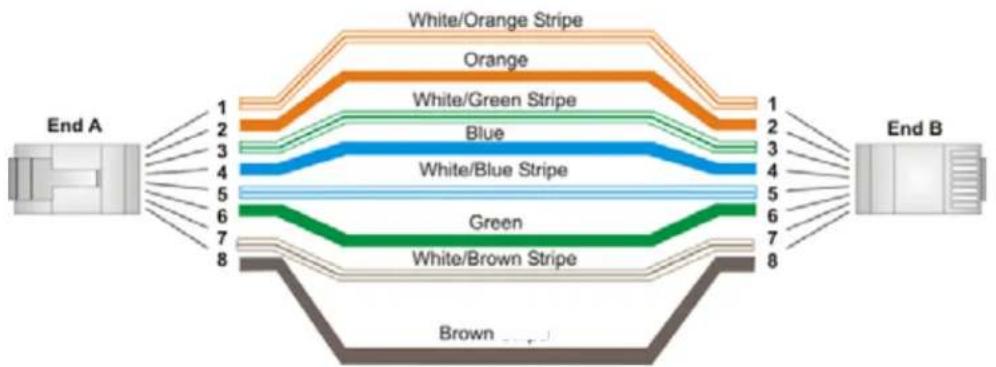
flowchart
graph LR
    A["End A"] -->|1| B["White/Orange Stripe"]
    A -->|2| C["Orange"]
    A -->|3| D["White/Green Stripe"]
    A -->|4| E["Blue"]
    A -->|5| F["White/Blue Stripe"]
    A -->|6| G["Green"]
    A -->|7| H["White/Brown Stripe"]
    A -->|8| I["Brown"]
    J["End B"] -->|1| K["White/Orange Stripe"]
    J -->|2| L["Orange"]
    J -->|3| M["White/Green Stripe"]
    J -->|4| N["Blue"]
    J -->|5| O["White/Blue Stripe"]
    J -->|6| P["Green"]
    J -->|7| Q["White/Brown Stripe"]
    J -->|8| R["Brown"]
FIG. 5 RJ-45 wiring diagram

Vision ^2 uses typical Cat5/5e/6 cabling for RJ-45 connections.
WMV Appliance Rear Panel Connections
This section details the ports and connectors on the rear panel of the Vision ^2 WMV appliance:
HD-15 Port
The HD-15 input connector is used for WMV source streams.

Use the male HD-15 port for WMV source streams. The female HD-15 port is available for an output device such as a PC monitor.
FIG. 6 displays the location of the HD-15 WMV port on the rear of the Vision ^2 WMV appliance.

FIG. 6 WMV port (WMV appliance)
The following tables list the HD-15 connector pinouts for WMV streams.
| HD-15 Connector Pinouts | ||
| Pin Signal Function | 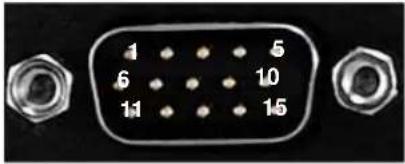 | |
| 1 Red Red signals | ||
| 2 Green Green signals | ||
| 3 Blue Blue signals | ||
| 4 Sense 2 Monitor ID bit 2 | ||
| 5 GND Signal Ground | ||
| 6 RAGND Red analog ground | ||
| 7 GAGND Green analog ground | ||
| 8 BAGND Blue analog ground | ||
| 9 N/A Not used | ||
| 10 | SAGND Synchronization analog ground | |
| 11 | Sense 0 Monitor ID bit 0 | |
| 12 | Sense 1 Monitor ID bit 1 | |
| 13 | HSYNC Horizontal synchronization signal | |
| 14 | VSYNC Vertical synchronization signal | |
| 15 | Sense 3 Monitor ID bit 3 | |
The following table lists the pinout configuration for HD-15 connector to S-Video connectors:
| HD-15 to S-Video Pinouts | ||
| HD-15 Pin | S-Video Signal S-Video Connector Pin | |
| 1 | ||
| 2 Luminance (Y) 3 | ||
| 3 Chrominance (C) 4 | ||
| 4 | ||
| 5 | ||
| 6 | ||
| 7 Luminance (Y) - Return 1 | ||
| 8 Chrominance (C) - Return 2 | ||
| 9 | ||
| 10 | ||
| 11 | ||
| 12 | ||
| 13 | ||
| 14 | ||
| 15 | ||
The following table lists the pinout configuration for HD-15 connector to Component (RGB) or Composite connectors:
| HD-15 to Component (RGB) or Composite Pinouts | ||||
| HD-15 Pin | Component Signal Red | RCA Green | RCA Blue RCA | |
| 1 Pr signal center pin | ||||
| 2 | Y signal | center pin | ||
| 3 | Pb signal | center pin | ||
| 4 | ||||
| 5 | ||||
| 6 | Pr - Return | shield | ||
| 7 Y - Return | shield | |||
| 8 | Pb - Return | shield | ||
| 9 | ||||
| 10 | ||||
| 11 | ||||
| 12 | ||||
| 13 | ||||
| 14 | ||||
| 15 | ||||
The WMV appliance also includes a set of two RJ-45 LAN ports identical to the ports found on the Master server. See LAN (RJ-45) Port section on page 17 for information on the port and wiring cables for it.
Vision ^2 TDS
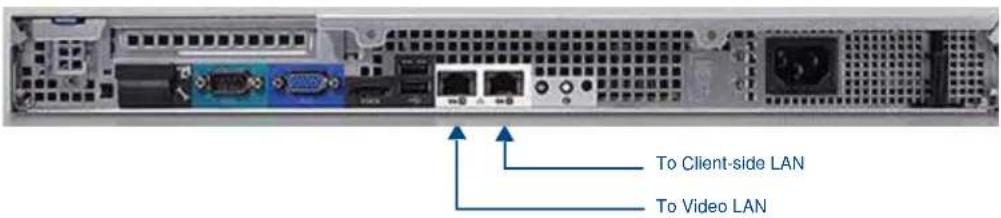
Vision ^2 TDS provides multiple live Digital Video Broadcast (DVB) or MPEG channels over a standard IP network for up to 150 users for each type of channel. See the Vision2 TDS section on page 27 for information on setting up your Digital TV appliance. See LAN (RJ-45) Port section on page 17 for information on wiring cables for the port.
text_image
To Client-side LAN To Video LANFIG. 7 Digital TV appliance (rear panel)
Vision ^2 PowerVault Drive Array Rear Panel Connections
This section details the ports and connectors on the rear panel of the Vision ^2 PowerVault Drive Array:

text_image
in from Video on Demand server out to additional Archive Power connector Power switchFIG. 8 Vision ^2 PowerVault Drive Array (rear panel view)
Use an external 4x SAS connector to connect the SAS ports on the rear of the PowerVault Drive Array to the SAS ports on the rear of the Archive Video on Demand server or to an additional PowerVault Drive Array.
FIG. 9 displays the rear panel of the V2-STORAGE-2400 Expansion Storage device:

natural_image
Front view of a server rack unit with multiple drive bays and ventilation fans (no visible text or labels)FIG. 9 V2-STORAGE-2400 Expansion Storage (rear panel view)
Set-Top Boxes
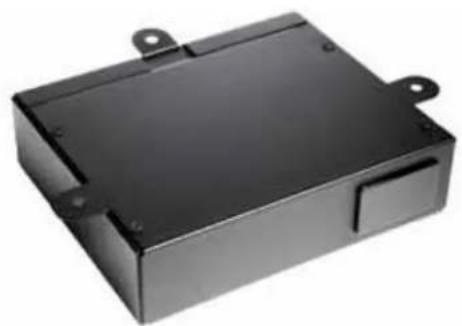
The STB-02SB (FG3100-61), STB-03CC (FG3100-62), and STB-04 Set-Top Boxes (FG3100-65) support viewing live programming via a producer channel or a MPEG encoder. The set-top boxes access your Vision ^2 server and display available programming on a connected video source. The set-top boxes are used only for MPEG content. They support viewing MPEG Video on Demand, but support only Stop, Play, and Pause features.
natural_image
Exterior view of a black rectangular electronic enclosure with mounting holes (no text or symbols visible)FIG. 10 STB-02SB Set-Top Box
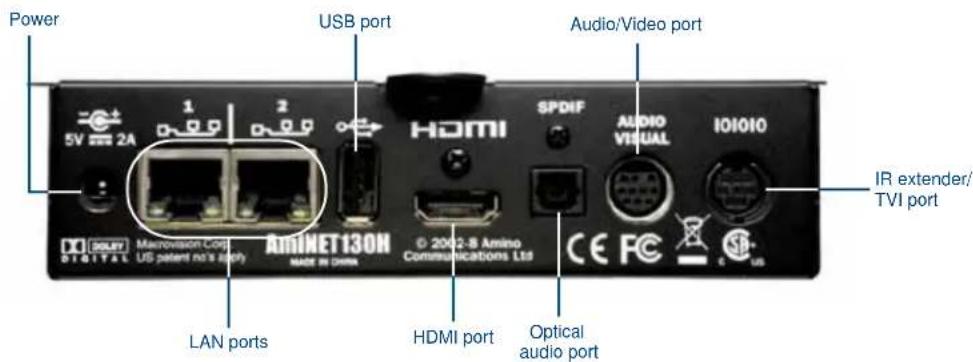
FIG. 11 displays the rear panel of the STB-02SB and STB-03CC Set-Top boxes.
text_image
Power USB port Audio/Video port 5V 2A 1 2 HDMI SPDIF AUDIO VISUAL 101010 IR extender/ TVI port DIO DIGITAL MACROVISION CORP. US patent no's safety AMINET130H MADE IN CHINA © 2002-8 Amino Communications Ltd LAN ports HDMI port Optical audio portFIG. 11 STB-02SB and STB-03CC Set-Top Box (rear-view)

The Set-Top Boxes have a limit of 18Mbps. Heavy traffic loads can cause the set-top box to reset itself periodically.
FIG. 12 displays the rear panel of the STB-04 Set-Top box.

text_image
LAN port Power Amine H140 RESET HDMI port Audio/Video port SPDIF USB port IR Extender/TVI port DSPIF DIGITAL HOMI AUDIO VISUALFIG. 12 STB-04 Set-Top Box (rear-view)
Wiring and Device Connections
Installation
This chapter provides instructions on how to connect the different types of Vision ^2 systems and servers.
Dealer Demo Systems
The V2-DLR-DEMO-1RU Dealer Demo System (FG3100-D1K) provides two live MPEG channels and two live Digital Video Broadcasting - Terrestrial (DVB-T) multiplexes for up to 10 users over a standard IP network. The Dealer Demo Solution includes:
- 1 Vision ^2 1RU Dealer Demo Appliance
● 2 Live DVB-T multiplexes - 2 Live MPEG streams
● 1 Producer Channel (MPEG)
● 1 Record Channel (MPEG)
● 1 Archive (up to 2 Video on Demand users)
The V2-DLR-DEMO-SFF Dealer Demo System (FG3100-D2K) provides one live MPEG channel and one live Digital Video Broadcasting - Terrestrial (DVB-T) multiplex for up to 10 users over a standard IP network.
The Dealer Demo Solution includes:
- 1 Vision ^2 SFF Dealer Demo Appliance
● 1 Live DVB-T multiplex (with support for locally stored TS demo content)
● 1 Live MPEG stream
• 1 Producer Channel (MPEG)
● 1 Record Channel (MPEG)
● 1 Archive (1 Video on Demand user)

NOTE
On the V2-DLR-DEMO-SFF system, only one service running at a single time is supported.
The following steps show you how to setup a typical configuration for the Dealer Demo Systems.
- Connect the power supply to the rear of the Dealer Demo server.
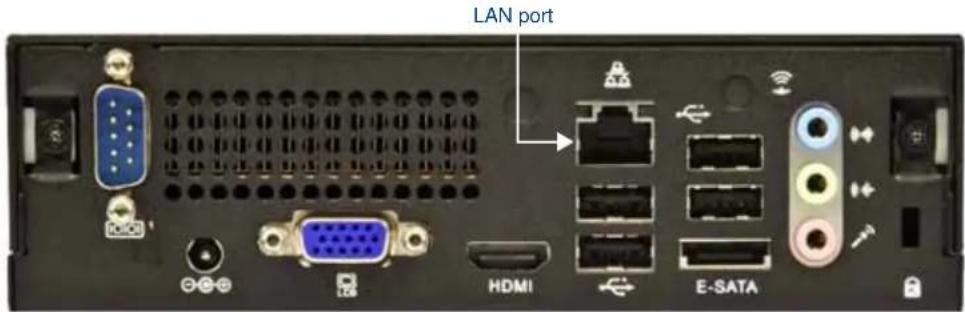
- Connect an RJ-45 LAN cable to LAN port one on the back of the Dealer Demo server. See FIG. 13 and FIG. 14 for connection locations for each type of Dealer Demo server. Connect the other end of the cable to a Gigabit port on a layer 3 network switch.

Vision ^2 uses typical Cat5/5e/6 cabling for RJ-45 connections.
FIG. 13 displays the connection locations for the VS-DLR-DEMO-SFF server.
text_image
LAN port HDMI E-SATAFIG. 13 V2-DLR-DEMO-SFF Dealer Demo Server (rear-view)

The V2-DLR-DEMO-SFF system only has one RJ-45 LAN connection.
FIG. 14 displays the connection locations for the VS-DLR-DEMO-1RU server.

text_image
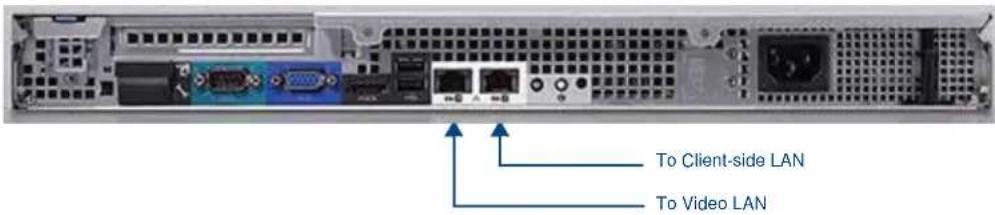
To CLIENT-SIDE LAN To VIDEO LANFIG. 14 V2-DLR-DEMO-1RU Dealer Demo Server (rear-view)
- Connect an RJ-45 LAN cable to the Ethernet port on your encoder. Connect the other end of the cables to any of the ports on your network switch.
- Connect a composite or S-video cable to the corresponding ports on your encoder. Connect the other end of the cables to a device capable of producing a video signal. The encoder converts the video signals into MPEG-2 multicast streams.
Vision ^2 TDS
Vision ^2 TDS provides multiple live Digital Video Broadcast (DVB) or MPEG channels over a standard IP network for up to 150 users for each type of channel. See LAN (RJ-45) Port section on page 17 for information on wiring cables for the port.
text_image
To Client-side LAN To Video LANFIG. 15 Digital TV appliance (rear panel)
DVB Installation
The following steps show you how to setup a typical DVB configuration for Vision ^2 TDS.
- Connect the power supply to the rear of the Digital TV appliance.
- Connect an RJ-45 LAN cable to LAN port two on the back of the Digital TV appliance (FIG. 15). Connect the other end to your Video LAN.

Vision ^2 uses typical UTP/STP cabling for RJ-45 connections.
- Connect an RJ-45 LAN cable to your Video LAN. Connect the other end of the cable to ETHERNET 10/100 port on the front panel of a digital TV transmitter (FIG. 16).

text_image
AMX ENDELEO DTV-TX01-DVB-T COMMON INTERFACE SLOT 2 COMMON INTERFACE SLOT 1 ETHERNET 10/100 Ethernet 10/100 port Reset buttonFIG. 16 DTV-TX01-DVB-T Transmitter - Front Panel

The DTV-TX01-DVB-T transmitter (FG1410-01) supports DVB-T (terrestrial) signals. The DTV-TX02-DVB-S transmitter (FG1410-02) supports DVB-S (satellite) signals. Each features RF 1/2 OUT output connectors to allow multiple streams for maximum channel coverage.
The DTV-TX03-US transmitter (FG1410-03) receives incoming ClearQAM or ATSC digital TV signals. Consult the AMX TDS Operation/Reference Guide for information on using the various digital TV transmitters available from AMX.
- Connect a coaxial cable to the RF IN connector on the rear of the digital TV transmitter (FIG. 17). Connect the other end of the cable to an available DVB source. If you are using the DTV-TX03-US transmitter, use the RCA-to-Coax adapter provided with the transmitter when connecting the coaxial cable to the TUNER IN connector on the rear of the unit.

text_image
RF INPUT 400 ~ 800 MHz RF IN 2 RF IN 1 RF OUT 2 RF OUT 1 RF INPUT LEVEL -25 ~ -50 dBm SERIAL 12V DC PWRFIG. 17 DTV-TX01-DVB-T Transmitter - Rear Panel
Repeat steps 3 and 4 for each DVB transmitter in your Vision ^2 solution.
Live MPEG Installation for Vision ^2 TDS
The following steps show you how to setup a typical Live MPEG configuration for Vision ^2 TDS.
- Connect the power supply to the rear of the Digital TV appliance.
- Connect an RJ-45 LAN cable to LAN port one on the back of the Digital TV appliance (FIG. 15). Connect the other end to your Client-side LAN.
- Connect an RJ-45 LAN cable to the LAN port on the rear of the MAX-CSE encoder. Connect the other end of the cables to any of the ports on your client-side LAN switch.
- Connect a composite or S-video cable to the corresponding ports on the rear of the MAX-CSE encoder. Connect the other end of the cables to a device capable of producing a video signal. The MAX-CSE encodes the video signals into MPEG-2 multicast streams.
Repeat steps 3 and 4 for each additional MAX-CSE encoder you have in your Vision ^2 solution.
Master Servers
You can install optional accessories into your Master server for redundant power or for connection to an Archive server.
Installing a Secondary Power Supply
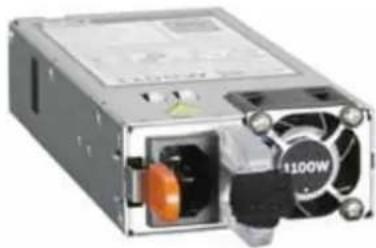
The V2-POWER-1100 (FG3106-PS) is a secondary power supply that you can use to add redundant power to FG3106-XX Vision ^2 Master Servers. Master servers ship with a single 1100W power supply. You can add one additional V2-POWER-1100 to the server to provide power supply redundancy.
natural_image
Close-up of a power supply unit with fan and drive components (no visible text or symbols)FIG. 18 V2-POWER-1100

The V2-POWER-1100 power supply is only compatible with the FG3106-XX Vision ^2 Master servers.
Follow these steps to install a secondary power supply.
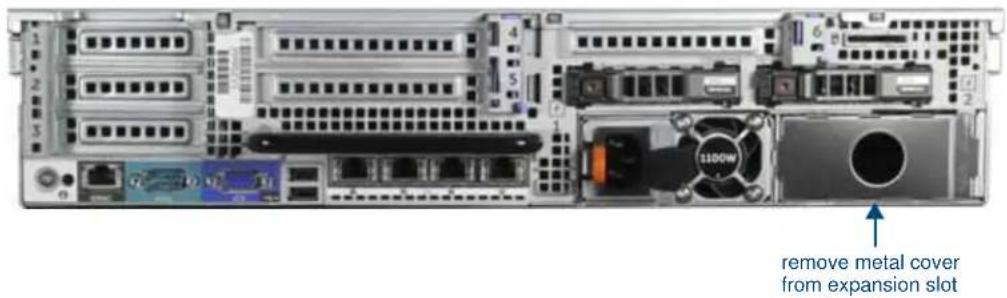
- Remove the metal cover from the power supply expansion slot (see FIG. 19).
text_image
remove metal cover from expansion slotFIG. 19 Master server - rear panel
- Slide the secondary power supply into the slot until the orange tab beside the power connector clicks into place.
Installing the V2-STORAGE-EXT810 External RAID Controller
The V2-STORAGE-EXT810 External RAID Controller is the external RAID card that connects to the V2-STORAGE-2400 Direct Attached Storage unit, allowing you to add additional storage to your Vision ^2 Master server. This card is only compatible with specific Vision ^2 Master Servers (FG3106-XX), and you can only install one card per server.

natural_image
Close-up of a computer motherboard with visible slots and ports (no text or symbols)FIG. 20 V2-STORAGE-EXT810 External RAID Controller

Before installing the V2-STORAGE-EXT810 External RAID Controller, be sure to discharge any static electricity from your body by touching a grounded object.
Follow these steps to install the V2-STORAGE-EXT810 External RAID Controller:
- Power off the V2 Master server.
- Unlock the cover of the server by flipping up the locking mechanism located on the cover of the server toward the rear of the device.
lift security latch upward to unlock server cover

natural_image
Close-up of a black electronic device with a blue upward arrow, no visible text or symbols
natural_image
Close-up of a black electronic component with a U-shaped top and two metallic leads (no visible text or symbols)FIG. 21 Front cover locking mechanism
- With the cover unlocked, lift it upward and remove it from the device.
- On the rear of the server, pull upward on the blue locking tab to unlock the card slots.
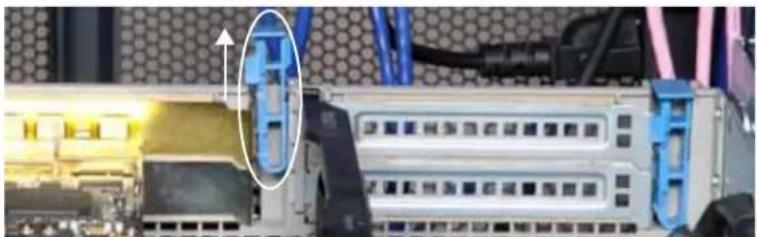
natural_image
Close-up of a server rack with illuminated ports and connectors, no visible text or symbolslift locking tab
FIG. 22 Locking tab
- Install the V2-STORAGE-EXT810 External RAID Controller into one of the available card slots inside the server.
- Press down on the blue locking tab to lock the cards back into place.
- Close the cover on the server and ensure that the cover lock is fastened securely after closing the lid.
Archive Servers
Vision ^2 Archive servers allow you to store and manage videos in Flash, WMV, MPEG-2, and MPEG-4 format for future use. The stored content can then be used to build your own channel and/or allow users to access it with Video on Demand. Vision ^2 Archive has an integrated search feature that allows you to find content based on titles and metadata. See the Archive Service section on page 87 for more information.

Older model Video on Demand servers may require you to install the V2-STORAGE-EXT800 External RAID Controller to be able to connect to the V2-STORAGE-2400 server. Master servers require you to install the V2-STORAGE-EXT800 External RAID Controller to connect to the Archive server. See the Installing the V2-STORAGE-EXT810 External RAID Controller section on page 30 for more information.
The following steps show you how to add an additional 15TB or 24TB of Disk storage to an existing archive server:
- Connect an SAS cable to the IN port on the rear of the V2-PVA (FIG. 23) or V2-STORAGE-2400 Expansion Storage device (FIG. 24). Connect the other end of the cable to the first SAS port on the rear of the Archive Video on Demand server.

natural_image
Front and rear views of a server rack with multiple Ethernet ports and drive fuses (no visible text or labels)FIG. 23 Vision ^2 Archive/Video on Demand server with V2-PVA (rear-view)

natural_image
Front view of a server rack unit with multiple drive bays and ventilation fans (no visible text or labels)FIG. 24 V2-STORAGE-2400 Expansion Storage (rear-view)
- Log in to the Admin server (see the Starting and Accessing Vision2 section on page 49 for more information.)
- Select Storage.
- Set the archive server to the I: drive.
The Archive Video on Demand server must have LDAP enabled and configured prior to importing it into a Master so a client can access the archives on the Video on Demand server. See the Configuring Vision2 for use with LDAP section on page 65 for more information.
Installing the V2-STORAGE-EXT800 External RAID Controller

Before installing the V2-STORAGE-EXT800 External RAID Controller, be sure to discharge any static electricity from your body by touching a grounded object.
Follow these steps to install the V2-STORAGE-EXT800 External RAID Controller:
- Power off the V2-VOD-SERVER.
- Unlock the cover of the server by flipping up the locking mechanism located on the cover of the server toward the front of the device.
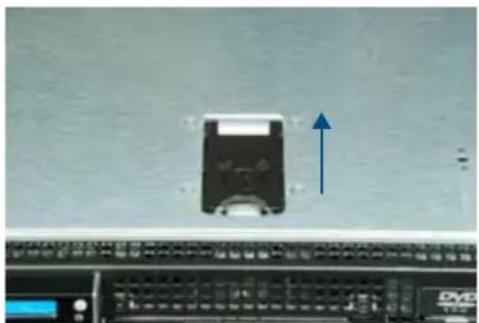
natural_image
Computer monitor with a CD-ROM drive and an upward arrow indicator (no readable text or symbols)
natural_image
Close-up of a mechanical component with a U-shaped top and central shaft, mounted on a flat surface (no visible text or symbols)lift security latch upward to unlock server cover
FIG. 25 Front cover locking mechanism
- With the cover unlocked, lift it upward and remove it from the device.
- On the rear of the server, pull upward on the blue locking tab which holds the existing card in place to unlock the card.

natural_image
Close-up of a computer tower with visible internal components and a magnified view of the tower's internal structure (no readable text or symbols)lift locking tab
FIG. 26 Locking tab
- Remove the existing card from the server and set it aside.
- Install the V2-STORAGE-EXT800 External RAID Controller in the newly-available card slot inside the server.

When installing the V2-STORAGE-EXT800 External RAID controller card, you must replace the existing PERC 6/E controller card. Do not install the V2-STORAGE-EXT800 card in an empty slot with the PERC 6/E card still in use. A server using both types of cards at the same time may not function properly.
- Press down on the blue locking tab to lock the cards back into place.
- Replace the cover on the server and ensure that the cover lock is fastened securely after closing the lid.

Be sure to download the newest server administrator from Dell's website (www.dell.com) and have the latest PERC 6/E driver prior to installing the RAID Controller. Also be sure to check for any updated BIOS or driver updates for the card.
Set-Top Boxes
The STB-02SB (FG3100-61), STB-03CC (FG3100-62), and STB-04 (FG3100-65) Set-Top Boxes support viewing live programming via a producer channel or an MPEG encoder. The set-top boxes access your Vision ^2 server and display available programming on a connected video source. The set-top boxes are used only for MPEG content. They support viewing MPEG Video on Demand, but support only Stop, Play, Pause, Fast Forward, and Rewind features.
FIG. 27 displays the rear panel of the STB-02SB Set-Top box.
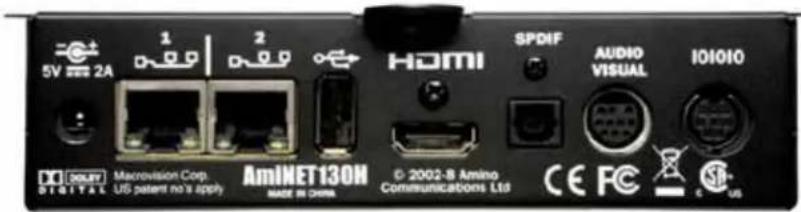
text_image
5V 2A 1 2 HDMI SPDIF AUDIO VISUAL IOIOIO SOLIET DIGITAL Macrovision Corp. US patent no's apply AmINET130H MADE IN CHINA © 2002-8 Amino Communications Ltd CE FC C USFIG. 27 STB-02CC Set-Top Box (rear-view)

The Set-Top Boxes have a limit of 18Mbps. Heavy traffic loads can cause the set-top box to reset itself periodically.
FIG. 28 displays the rear panel of the STB-04 Set-Top box.
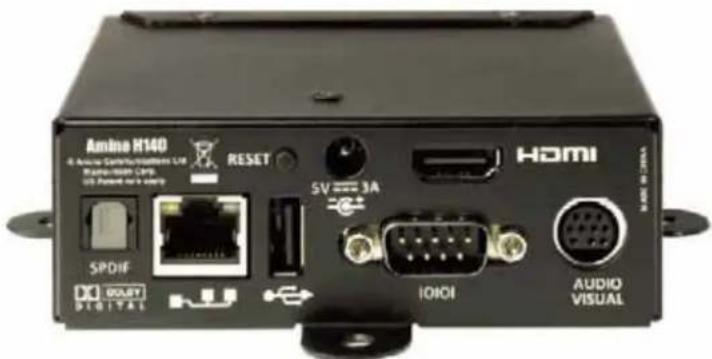
text_image
Amine H140 6 Analog Communications LIF Radio-Rain LIF US Patient on 4.8V RESET SVDIF DIODET DIGITATE RESET 5V 3A I/OI HOMI AUDIO VISUALFIG. 28 STB-04 Set-Top Box (rear-view)
Configuring Your Set-Top Box
Before you can use your set-top box to view a video source, you must configure it to access your Vision ^2 server. You can use the Amino Configuration Keyboard included with your set-top box to access the configuration pages for the unit. The keyboard is wireless and communicates with the set-top box via IR signal. Position the keyboard within a short range (1-3 ft or 0.3-1m) of the front of the set-top box before getting started.
Perform these steps to configure your set-top box:
- Connect the power supply to the power connector on the rear of the unit.
-
Choose one of the following methods to connect the set-top box to your audio and video sources:
-
Use an HDMI cable to connect the HDMI port on the set-top box to an HDMI port on your video source. HDMI also transmits an audio signal in addition to video.
-
Use a breakout cable to connect the AUDIO VISUAL port on the set-top box to your audio and video sources. In place of connecting the breakout cable to your audio source, you can connect an optical audio cable from the SPDIF port on the set-top box to your audio source.
-
Connect an RJ-45 LAN cable to LAN port 1 on the rear of the unit. The other end of the cable connects to your LAN. This connection accesses your Vision ^2 server and uploads the latest firmware and Vision ^2 menus to the set-top box.

LAN port 1 connects to your LAN. You can use LAN port 2 for a loop-out to an additional set-top box.
- Assure the keyboard is within range of the front of the set-top box, and press Alt-M to access the Enter Management Pages screen (FIG. 29).

text_image
Enter management pages Management password: OK CancelFIG. 29 Enter Management Pages screen

The setup pages vary in appearance depending on whether you are using the STB-02SB, STB-03CC, or STB-04 set-top box. This document displays the setup pages for the STB-02SB and STB-03CC. While the appearance may be different between set-top boxes, functionality is the same.
- In the Password field, enter the password (the default is leaves) and press Enter. The STB Management screen appears (FIG. 30).
STB Management
Choose an option-
- Browser Setup
- Channels
- Proxy Setup
- Trusted Domains
- Video Setup
• Network Configuration
• DHCP information
• Hardware Information - Software Version
• TVI configuration - Update Software
- Identity
• Infra-Red Configuration - User Preferences
Exit Management
Reboot
FIG. 30 STB Management screen
- Use the arrow keys on the keyboard to access the Browser Setup option, and press Enter. The Browser Setup screen appears (FIG. 31).
Browser Setup



Back to Main Menu
FIG. 31 Browser Setup screen
- Enter the address of your Vision ^2 server in the Home Page field. See the Starting and Accessing Vision2 section on page 49 for information on retrieving the server's address.

If you are using the STB-04 set-top box, set the Home Page to http://
- Use the arrow keys to access the Password field, and enter the password in the space provided (the default is snake).
- Use the arrow keys to highlight the Save Changes button, and press Enter.
- Use the arrow keys to highlight Back to Main Menu, and press Enter to return to the STB Management screen.
- Use the arrow keys to highlight Reboot, and press Enter to reboot the set-top box.
Using the Remote Control
The set-top box includes a universal remote control you can use to control your video display and navigate through the Vision ^2 menus. Not all buttons on the remote work with your Vision ^2 setup. While Vision ^2 supports Video on Demand, you can use only the Play, Pause, Stop, Fast-Forward, and Rewind features. FIG. 32 highlights some of the buttons you can use with Vision ^2 and your set-top box.

text_image
Power Play Stop Volume control Pause Turn on Subtitles Menu button for accessing the Vision² menu Navigational buttons for maneuvering through the Vision² menusFIG. 32 Amino Remote Control

Subtitles are only supported on DVB streams.

If you are using an STB-04 set-top box and you receive a "failed to load webpage" error, select the OK button on the remote and, using the remote, power the set-top box off and on again. Afterward, the Vision ^2 main menu loads.
STB-02SB and STB-03CC Menus
After the set-top box reboots, it accesses the Vision ^2 server you indicated and downloads the latest Vision ^2 menus you can use to navigate through the available channels. You can create channels and schedules through the Live (MPEG) service and Producer service. See the Live (MPEG) Service section on page 69 and Producer Service section on page 111 for more information.

You must load the set-top box with one of the following firmware revisions:
US Solutions: A130h-0.15.2-opera-gogi-cc
European Solutions: A130h-0.15.2-opera-gogi-bitband-subs
You can access the Vision ^2 menus by pressing the Menu button on the remote control. The Vision ^2 Main Menu (FIG. 33) contains five options: Live TV Channels, Video on Demand, Technical Information, Configuration, and Help menus. The following sections describe each submenu and the actions you can take on each.

text_image
Main Menu Live TV Channels Video on Demand Technical information Configuration Help Use the P + - keys to choose a menu option and OK to select.FIG. 33 Vision ^2 Main Menu
Live TV Channels
The Live TV Channels menu displays a listing of all live channels available through the Live (MPEG) service. Use the remote control to scroll through the list of the channels and press OK on the remote control to select a channel. See the Using the Remote Control section on page 36 for more information on using the remote.
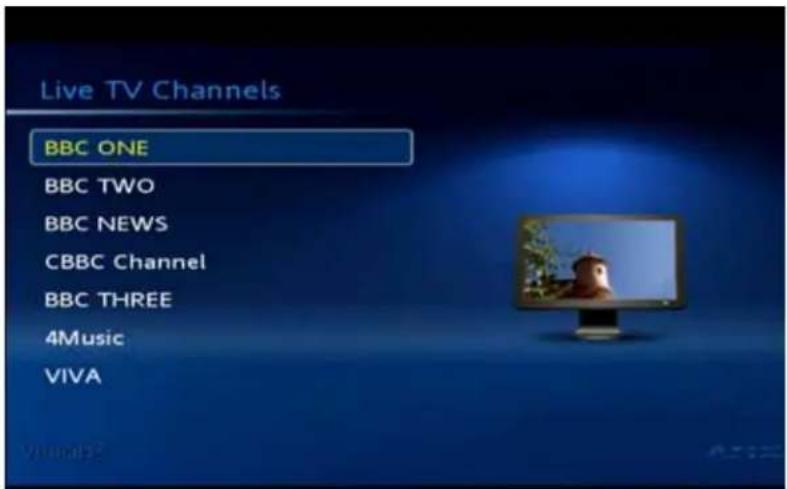
text_image
Live TV Channels BBC ONE BBC TWO BBC NEWS CBBC Channel BBC THREE 4Music VIVAFIG. 34 Live TV Channels
Video on Demand
The Video on Demand menu displays a listing of all available video on demand channels (FIG. 35).

text_image
Video On Demand center staging tony chiarello duchossois home metreau entry system green building luxury living amx new york showroom northern california homeFIG. 35 Video On Demand
Use the remote control to scroll through the list of the channels and press OK on the remote control to select a channel. See the Using the Remote Control section on page 36 for more information on using the remote. FIG. 36 displays an example of video on demand programming. While viewing video on demand programming, you can use the remote control to pause or stop the video stream. Use the Play button to resume viewing a paused video stream.

text_image
智能引声器 center staging 00:00:01 90:07:32 Video AudioFIG. 36 Video on Demand example
Technical Information
The Technical Information screen displays information about your set-top box, network, and display. This information is view-only.
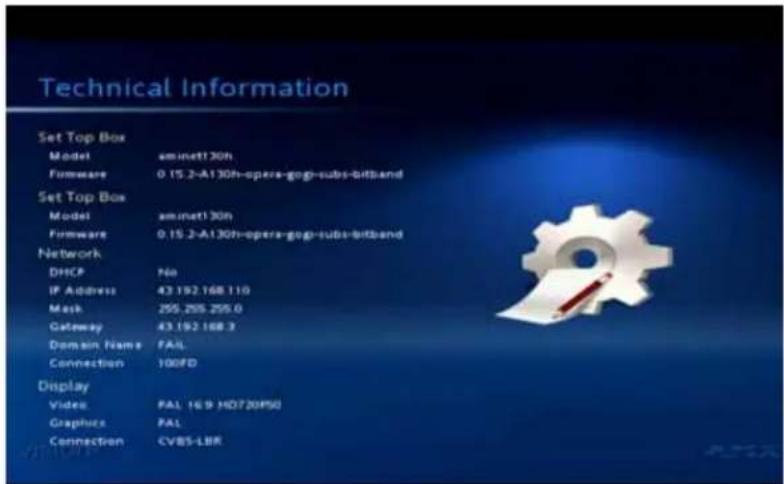
text_image
Technical Information Set Top Box Model aminet! 30h Firmware 0.15.2-A130h-opera-gog-subs-bitband Set Top Box Model aminet! 30h Firmware 0.15.2-A130h-opera-gog-subs-bitband Network DHCP No IP Address 43 192 168 110 Mask 255.255 255.0 Gateway 43 192 168 3 Domain Name FAIL Connection 100FD Display Video PAL 169 HD720P50 Graphics PAL Connection CVBS-LBRFIG. 37 Technical Information
Configuration
The Configuration screen enables you to change your video display settings. On this screen, you can choose to configure your margins or display output. Use the up and down cursor buttons on the remote control to select an option, and press the OK button to open a new screen of options.

text_image
Configuration Margins Output optionsFIG. 38 Configuration screen
Margins
The Configure Margins screen enables you to adjust the position of the images on your display. Use the up and down cursor buttons on the remote control to select an option. Use the left and right cursor buttons to change the setting of the selected margin. The image on the screen moves as you increase or decrease the value of an individual margin, so you can see the results of your adjustments as you make them. Press the OK button to apply the new setting.

text_image
Configure Margins Top Margin 0px Left Margin 38px Bottom Margin 27px Right Margin 42px Select an option to modify. Then use the left and right cursor keys to make the adjustment.FIG. 39 Configure Margins screen

Rebooting your set-top box can cause your margin settings to be reset.
Output
The Configure Output screen enables you to change the following display options: TV standard, resolution, aspect radio, and connection type.
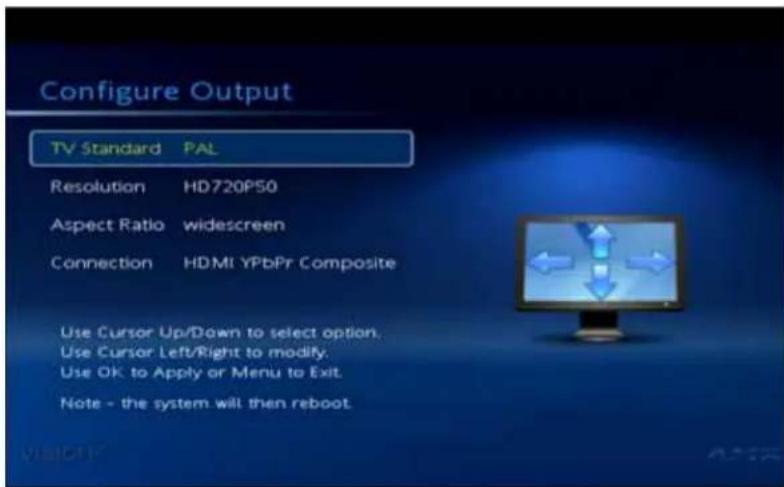
text_image
Configure Output TV Standard PAL Resolution HD720P50 Aspect Ratio widescreen Connection HDMI YPbPr Composite Use Cursor Up/Down to select option. Use Cursor Left/Right to modify. Use OK to Apply or Menu to Exit. Note - the system will then reboot.FIG. 40 Configure Output screen
The following table lists the configuration options. Use the up and down cursor buttons on the remote control to select an option. Use the left and right cursor buttons to change the setting of the selected option. Press the OK button to apply the new setting.
| Configuration Options | |
| TV Standard Enables you to indicate the television standard you are using. You can select NTSC or PAL. | |
| Resolution Enables you to select the resolution you want to display. You can select SD or any of several specific resolutions available for your display. | |
| Aspect Ratio Enables you to set the aspect ratio for your video display. You can select Widescreen, Letterbox, Panscan, or Ignore. | |
| Connection | Indicates the type of connection used to transmit the video signal to the output display. |
STB-04 Menus
Vision ^2 contains a Template Editor application for the STB-04 which enables you to create custom user interfaces for your set-top box. The application is available to any user with server access. The application is accessible by using a web browser and navigating to the following location:
http://

You must load the STB-04 set-top box with firmware version 2.3.4 or higher.
FIG. 41 displays the main screen you see when you access the Template Editor application.

text_image
districts Amazon 540 Database Resources Add New Resources TetraMatic Rev3 Blue Edit Complete Delete Complete Download... Upload... Create More Complete Settings Miscellaneous Workload Tread Discounts Background Ranking: 2000 Cyberics: 4 Phone: 0 Current Callback: 0 Automotive Copy: 0 Commercial Copy: 0 Automotive Image: 0 Audio Impact: 0 Video & Audio: 0 Video & Audio: 0 Text Copy: 15 Audio Text Color: 0 Audio Color: 1 Header Color: 2 Background Color: 0 Video Color: 5 Video Color: 0 Page Indicator Info: Audio Specific Tool AMX VISION² VIDEO ON DEMAND LIVE TV FEEDSFIG. 41 Template Editor - Main screen
The following table lists the Device and Template options available in the Template Editor. These options appear across the top of the screen.
| Device and Template Options | |
| Device Select a device from the | available list to view its template. Any new devices you add appear in this list. |
| Add New Device | Click to add a new device to the template list. See Adding a New Device to the Device List section on page 42 for more information. |
| Delete Device | Click to delete the currently selected device. You will receive a confirmation warning before deleting the device. |
| Template Select a template from the | the available list. Any new templates you create appear in this list. |
| Edit Template Click to edit the | template using the settings on the left side of the screen. These settings are not available until you click Edit Template. |
| Save Changes Click to save any changes you make to the template. This button is only available after you click Edit Template. | |
| Discard Changes Click to discard any changes you make to the template and return the template to its original settings. This button is only available after you click Edit Template. | |
| Delete Template | Click to delete the currently selected template. You will receive a confirmation warning before deleting the template. |
| Download Click to load an existing template from a local or network drive. | |
| Upload | Click to upload a template to a local or network drive. The Template Editor creates a.zip file with all necessary files included within it. |
| Create New Template | Click to create a new template. See the Creating a New Template section on page 43 for more information. |
Adding a New Device to the Device List
Adding new devices to the device list is useful since each device uses specific settings geared toward each individual device. By adding a new device, you can create a series of unique templates with settings that work perfectly with that specific device.
Perform these steps to add a new device to the template list:
- Click Add New Device. A series of options appears (FIG. 42).
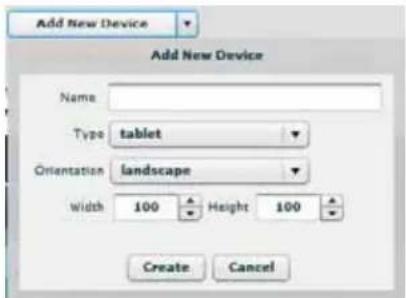
text_image
Add New Device Add New Device Name Type tablet Orientation landscape width 100 Height 100 Create CancelFIG. 42 Add New Device options
- Enter the name of the device in the Name field.
- Select the type of device from the Type options menu. You can choose from Tablet or Amino.
- Select the orientation view from the Orientation menu. You can choose from Landscape or Portrait.
- Use the Width and Height spin boxes to set the size of the screen for the device. You can set each option to any value between 100 and 5000.
- Click Create to add the device to the device list.
Creating a New Template
Perform these steps to create a new template:
- Click Create New Template. A series of options appears (FIG. 43).
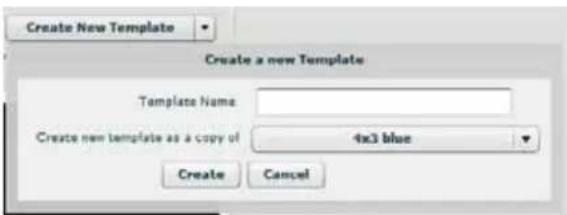
text_image
Create New Template Create a new Template Template Name: Create new template as a copy of 4x3 blue Create CancelFIG. 43 Create a New Template
- Enter the name of the template in the Template Name field.
- Use the Create new template as a copy of options menu to select the model of template you want to use.
- Click Create.
The left side of the Template Editor screen displays a list of options you can configure for an individual template. These options are only available after clicking Edit Settings. Changes do not take effect immediately. After making all necessary changes, click Test to view the changes to the template. Click Save Changes to save the new template settings or Discard Changes to return to the previous settings. FIG. 44 displays the Template Editor Settings.

text_image
Settings Navigation Vertical Text Thumbnails Background Alpha 255 Columns 4 Rows 3 Corner Radius 10 Horizontal Gap 4 Vertical Gap 4 Horizontal Margin 35 Header Height 25 Header X-Offset 5 Header Y-Offset 5 Font Size 11 Header Text Color Header Color 1 Header Color 2 Background Color Border Width 1 Border Color Page Indicator Info Amino Specific TestFIG. 44 Template Editor Settings
The following table lists the settings available in the Template Editor.
| Template Settings | |
| Navigation: | |
| Menu Selector Color Use the | color chart to select a color for the menu selector. |
| Render top line navigation Click the check box to render the text on the navigation bar. | |
| Color Use the color chart to select a color for the text on the navigation bar. | |
| Font Size Use the spin box to indicate the size of the text on the navigation bar. You can set any value between 1 and 255. | |
| Vertical Text: | |
| Render Click the check box to render the text on the left side bar. | |
| X-Offset Use the spin box to indicate the x-offset at which you want to align the text on the left side bar. You can set any value between 1 and 255. | |
| Font Size Use the spin box to indicate the size of the text on the left side bar. You can set any value between 1 and 255. | |
| Color Use the color chart to select a color for the text on the left side bar. | |
| Shadow Top Use the color chart to select a color for the top shadow of the text on the left side bar. | |
| Shadow Bottom Use the color chart to select a color for the bottom shadow of the text on the left side bar. | |
| Thumbnails: | |
| Background Alpha | Use the spin box to indicate the alpha used to create the background gradient. You can set any value between 0 and 255. |
| Columns Use the spin box to indicate the number of columns on the navigation pages. You can set any value between 1 and 255. | |
| Rows Use the spin box to indicate the number of rows on the navigation pages. You can set any value between 1 and 255. | |
| Corner Radius | Use the spin box to indicate the size of the corner radius of each thumbnail. You can set any value between 1 and 255. |
| Horizontal Gap Use the spin box to indicate the horizontal spacing between each thumbnail. You can set any value between 0 and 255. | |
| Vertical Gap | Use the spin box to indicate the vertical spacing between each thumbnail. You can set any value between 0 and 255. |
| Horizontal Margin | Use the spin box to indicate the margin on the left and right sides of each thumbnail. You can set any value between 1 and 255. |
| Header Height Use the spin box to indicate the height of the header containing the thumbnail's title. You can set any value between 1 and 255. | |
| Header X-Offset | Use the spin box to indicate the x-offset at which you want to align the header's text. You can set any value between 1 and 255. |
| Header Y-Offset | Use the spin box to indicate the y-offset at which you want to align the header's text. You can set any value between 1 and 255. |
| Font Size Use the spin box to indicate the size of the header text used for each thumbnail. You can set any value between 1 and 255. | |
| Header Text Color | Use the color chart to indicate the color of the header text for each thumbnail. |
| Header Color 1 | Use the color chart to indicate the first header color used to create a gradient fill. |
| Header Color 2 | Use the color chart to indicate the second header color used to create a gradient fill. |
| Background Color | Use the color chart to indicate the color of the background for each thumbnail. |
| Border Width | Use the spin box to indicate the width of the border around each thumbnail. You can set any value between 0 and 255. |
| Border Color | Use the color chart to indicate the color of the border around each thumbnail. |
| Template Settings (Cont.) | |
| Page Indicator: | |
| Render Click the check box to render the page indicator. | |
| Font Size | Use the spin box to indicate the size of the page indicator text. You can set any value between 1 and 255. |
| Height Use the spin box to indicate the height of the page indicator. You can set any value between 1 and 255. | |
| Y-Offset Use the spin box to indicate the y-offset at which you want to align the page indicator. You can set any value between 1 and 255. | |
| Color Use the color chart to indicate the color of the page indicator. | |
| Selected Color Use the color chart to choose the color used to indicate the selected page. | |
| Info: | |
| Heading Font Size Use the spin box to indicate the size of the heading text. You can set any value between 1 and 255. | |
| Text Font Size | Use the spin box to indicate the size of the information text. You can set any value between 1 and 255. |
| Heading Color Use the color chart to indicate the color of the heading text. | |
| Heading Background Use the color chart to indicate the color of the heading background. | |
| Section Text Color Use the color chart to indicate the color of the section text. | |
| Background Color 1 | Use the color chart to indicate the first color used to create the background gradient.Note:The gradient values are used to create a gradient 'wash' over the main info image to allow text to be more easily visible. |
| Background Alpha 1 | Use the spin box to indicate the first alpha used to create the background gradient. You can set any value between 1 and 255. |
| Background Color 2 Use the color chart to indicate the second color used to create the background gradient. | |
| Background Alpha 2 Use the spin box to indicate the second alpha used to create the background gradient. You can set any value between 1 and 255. | |
| Amino Specific: | |
| Live Channel Highlight Color | Use the color chart to indicate the color of the selected live channel. |
| Live Channels caption | Use the color chart to indicate the color of the captions on the live channel. |
| Live Channel Text | Use the color chart to indicate the color of the text on the live channel. |
| VOD Progress Color | Use the color chart to indicate the color of the VoD progress bar. |
FIG. 45 displays the locations of the vertical text, thumbnails, and page indicator on the user interface.

text_image
Thumbnail HeaderVertical Text Horizontal Margin Content Search Multi-Files Math MP4Text Content MP3 English Physics MP4 History IS Files Page IndicatorFIG. 45 User Interface Example 1
FIG. 46 displays the location of the info header on the user interface.

text_image
Info Heading Content > English > EnglishAdrenalineRush Synopsis EnglishAdrenalineRushFIG. 46 User Interface Example 2
Upgrading the Vision ^2 Software
Periodic upgrades will occasionally be available for the Vision ^2 interface. Upgrades are available by contacting AMX Tech Support at 800-932-6993.

Before upgrading, it is recommended that you make a copy of the server for backup purposes.
Upgrading to Vision ^2 Software Version 7.1
Perform the following steps to upgrade the Vision ^2 software to version 7.1:
- Copy the V2upgrade7-1.exe file onto the desktop of the server.
- Double-click the V2upgrade7-1.exe file to execute the script and begin the installation process (FIG. 47).
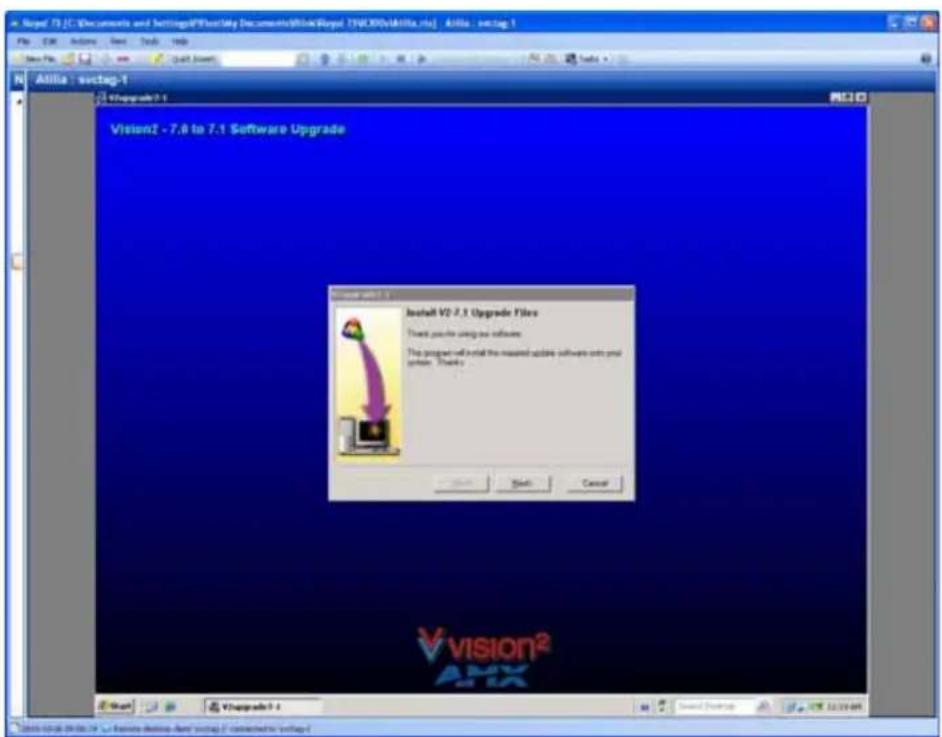
text_image
Alila - setag-1 Visual V2.7.1 Upgrade Files This project will install the required updates software onto your system. Please click OK Save Cancel Vision2 AnXFIG. 47 Vision ^2 Upgrade
- Click Next.
-
You can use the default installation location or specify a location by clicking the Browse (...) button. Once you determine a location, click Finish. The upgrade begins to install.
-
When the upgrade is complete, navigate to the directory where the files were installed, and double-click the Vision2Updater.exe file. The AMX Vision ^2 Updater opens (FIG. 48).

text_image
A-3X Vision2 Updates Update Vision2 Server to Version 2.1.0 Start UpdateFIG. 48 AMX Vision ^2 Updater
- Click Start Update. Once the update begins, it may be a few minutes before you see any progress. Once the upgrade is complete, you must manually reboot the server.
Upgrading to Vision ^2 Software Version 7.2
Upgrading to version 7.2 is similar to the upgrade to version 7.1, but you must download and install VLS version 1.1.11 after the 7.2 software upgrade is complete.

You cannot upgrade Vision ^2 software from version 7.0 directly to version 7.2. You must first upgrade to 7.1 before upgrading to 7.2
Perform the following steps to upgrade the Vision ^2 software to version 7.2:
- Copy the V2-Rel7.1to7.2-upgrade.exe file onto the desktop of the server.
- Double-click the V2-Rel7.1to7.2-upgrade.exe file to execute the script and begin the installation process.
- Follow the instructions provided in the installation window. You can use the default installation location or specify a location by clicking the Browse (...) button. Once you determine a location, click Finish. The upgrade begins to install.
- Reboot the server when the installation is complete.
- Download VLS version 1.1.11 from www.videolan.org. Install the package as a typical installation.
Accessing Servers
Overview
Vision ^2 enables you to easily add and manage additional servers in the system. All Vision ^2 services are managed by the Vision ^2 ServicesManager web interface.
Starting and Accessing Vision ^2
Perform these steps to access your server remotely:
-
Power on the Vision ^2 server. It may take a few minutes to boot.
-
Test that you can access the server via the LAN. You can run this test by accessing a Command Prompt using the Ping command. For example:
ping v2AMX-<SVCTAG>
where
- Using a web browser on a PC with network access, navigate to http://
/admin.aspx. The Master Services page appears (FIG. 49).
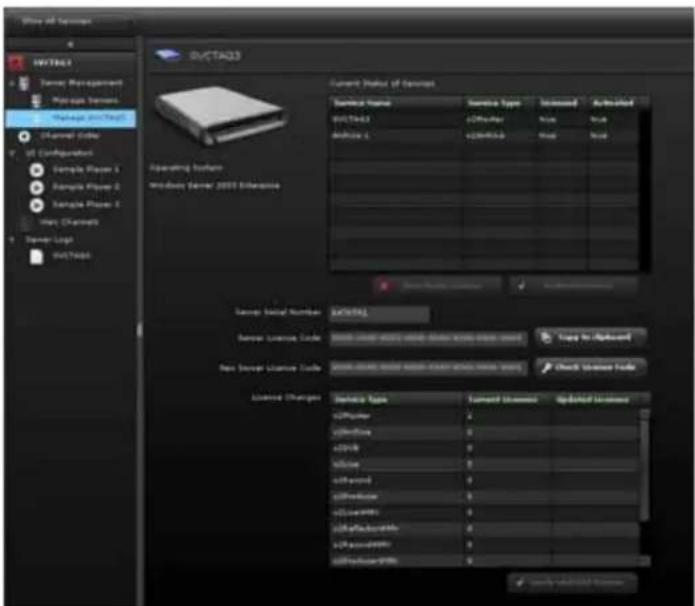
text_image
Show all services HUSTALS Server Management My name server Manage HUSTALS Channel Code IT Configuration Sample Player 1 Sample Player 2 Sample Player 3 New Channels Server Log HUSTALS Current Status of Services Service Name Service Type Advanced Automated HUSTALS Affordes: Access:\ Host:\ Operating System Windows Server 2005 Enterprise Server Status Number Service License Code Service License Code New Server License Code License Changes Service Type Command Access Updated Licensee Affordes: Affordes: Affordes: Affordes: Affordes: Affordes: Affordes: Affordes: Affordes: Affordes: Affordes: Affordes: Affordes: Affordes: Affordes: Affordes: Affordes: Affordes: Affordes: Affordes: Affordes: Affordes: Affordes: Affordes: Affordes: Affordes:\ Copyright:\ Copyright:\ Copyright:\ Copyright:\ Copyright:\ Copyright:\ Copyright:\ Copyright:\ Copyright:\ Copyright:\ Copyright:\ Copyright:\ Copyright:\ Copyright:\ Copyright:\ Copyright:\ Copyright:\ Copyright:\ Copyright:\ Copyright:\ Copyright:\ Copyright:\ Copyright:\ Copyright:\ Copyright:\ Copyright:\ Copyright:\ Copyright:\ Copyright:\ Copyright:\ Copyright:\ Copyright:\ Copyright:\ Copyright 1 Copyright 2 Copyright 3 Copyright 4 Copyright 5 Copyright 6 Copyright 7 Copyright 8 Copyright 9 Copyright 10 Copyright 11 Copyright 12 Copyright 13 Copyright 14 Copyright 15 Copyright 16 Copyright 17 Copyright 18 Copyright 19 Copyright 20 Copyright 21 Copyright 22 Copyright 23 Copyright 24 Copyright 25 Copyright 26 Copyright 27 Copyright 28 Copyright 29 Copyright 30 Copyright 31 Copyright 32 Copyright 33 Copyright 34 Copyright 35 Copyright 36 Copyright 37 Copyright 38 Copyright 39 Copyright 40 Copyright 41 Copyright 42 Copyright 43 Copyright 44 Copyright 45 Copyright 46 Copyright 47 Copyright 48 Copyright 49 Copyright 50 Copyright 51 Copyright 52 Copyright 53 Copyright 54 Copyright 55 Copyright 56 Copyright 57 Copyright 58 Copyright 59 Copyright 60 Copyright 61 Copyright 62 Copyright 63 Copyright 64 Copyright 65 Copyright 66 Copyright 67 Copyright 68 Copyright 69 Copyright 70 Copyright 71 Copyright 72 Copyright 73 Copyright 74 Copyright 75 Copyright 76 Copyright 77 Copyright 78 Copyright 79 Copyright 80 Copyright 81 Copyright 82 Copyright 83 Copyright 84 Copyright 85 Copyright 86 Copyright 87 Copyright 88 Copyright 89 Copyright 90 Copyright 91 Copyright 92 Copyright 93 Copyright 94 Copyright 95 Copyright 96 Copyright 97 Copyright 98 Copyright 99 Copyright 100FIG. 49 Master Services page
Accessing the Server
There are two methods you can use to access the Vision ^2 server: directly and remotely. Accessing directly requires connecting a monitor, keyboard, and mouse to the server and accessing it as you would with a typical PC. Accessing remotely requires using a remote desktop program to log in to the server.
Accessing the Server Directly
Perform these steps to access your server directly:
- Connect a monitor to the VGA port on the front of the server.
- Connect a USB keyboard and USB mouse to the 2 USB ports on the front of the server.

There is also a 15-pin VGA port and 2 USB ports on the rear of the server. It makes no difference which set of ports you use to connect your peripherals.
- Power on the Vision ^2 server. It may take a few minutes to boot.
- Enter the username and password for the server. The default settings are: username: Administrator password: vision2
- When the desktop appears, you can now access Vision ^2 via the web browser. On the desktop, double-click the shortcut to the Vision ^2 Master Services page. The Vision ^2 ServicesManager appears.
Accessing the Server Remotely
Perform these steps to access your server remotely:
-
Test that you can access the server via the LAN. You can run this test by accessing a Command Prompt using the Ping command. For example:
ping v2AMX-
whereis the service name, which you can find on the front of your server. If the server responds, write down the IP address of the server. -
Open a remote desktop service on a remote system on the same LAN as the server.
-
Using a web browser on a PC with network access, navigate to http://
/admin.aspx. The V2ServiceManager appears. You can also double-click the shortcut to the Vision ^2 Master Services page to access the Vision ^2 ServiceManager.

You can also access the server by using a remote desktop, however, you only need to use remote desktop to access the server for troubleshooting. You should also always use the Connect to Console when using a Remote desktop application, otherwise you will not see the v2server application running. You should configure to remote desktop to leave sound at the remote computer. If you keep the server running continuously, it should always be accessible via its web address.
Changing Your Server's Name
You can change your server's name from the default name assigned to it when you first receive it. After changing the name, use the new name to access the Vision ^2 application. Perform these steps to change your server's name:
- On your server's desktop, close the v2server application.
- On your server's desktop, click Start, right-click Computer, and select Properties. The System Properties window opens.
- In the Computer name, domain and workgroup settings section, click Change settings to open the System Properties menu.
- Click Change. The Computer Name Changes dialog box opens.
-
Enter the new name of the server in the Computer Name field.
-
Click OK, and restart the server as requested. Next, you must add the new server name to Windows Media Services.
- Click Start, select Administrative Tools, and Open Windows Media Services. You will see an RPC error box, so click OK to bypass it.
- In Windows Media Services, select Action from the top menu, open Add Server, and enter the new server name. Click OK.
- Close the Windows Media Services window and restart the server. The server name change is now complete.
Adding a Server
To add new servers, ensure that the new server is powered and configured with Vision ^2 Server running. Before you try to add the new server to the Vision ^2 system, ensure that you can access the server via the LAN. Perform these steps to add a server to your configuration:
- Test that you can access the server via the LAN. You can run this test by accessing a Command Prompt using the Ping command. For example:
ping V2AMX-
If the server responds, then continue.
- Click Server Management from the Master R710 Vision ^2 ServicesManager web interface.
- Click Manage Servers. The Manage Servers page appears (FIG. 50).

text_image
Show only v2Master Add new Server About Exit v2Master Server Management Manage Servers Manage VISION2-2T Manage VISION2-R1 Channel Order View Channels Server Logs VISION2-2950ENT VISION2-R300 VISION2-2950ENT VISION2-R300 Delete Server Service Name Service Type v2Master v2Master Master Archive v2Archive MAX Encoder v2Live v2Producer MPEG v2Producer New v2OVB-T v2OVB v2Producer WMV v2ProducerWMV Server is offline Refresh VISION2-R300 Delete Server Service Name Service Type R300 Master v2Master WMV Encoder 1 v2LiveWMV WMV Encoder 2 v2LiveWMVFIG. 50 Manage Servers page
- Click Add new Server to open a text box (FIG. 51).

text_image
Add new Server Server Name ✓ ApplyFIG. 51 Add new Server text box
- Enter the name of the new server in the space provided.
-
Click Apply. The New server appears in the Manage Servers pane.
-
To confirm the new server into the Master server configuration so it can be managed, select Import Server. The services from the new server are now added to the Master server's main services menu.
- Access the server's Vision ^2 application. See the Accessing the Server section on page 50 for more information.
- Change the Master Server Name to the Master R710 server's name (FIG. 52).
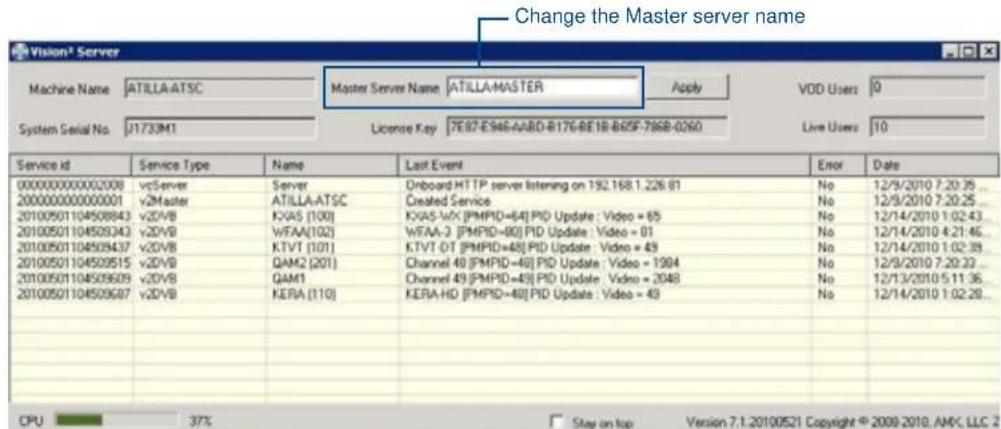
text_image
Change the Master server name Machine Name ATILLA-ATSC Master Server Name ATILLA-MASTER Apply VOD Users 0 System Serial No J1733M1 License Key 7E87-E946-AA8D-B176-BE1B-B65F-796B-0260 Live Users 10 Service id Service Type Name Last Event Error Date 000000000002008 vCServer Server Onboard HTTP server listening on 192.168.1.226.81 No 12/9/2010 7:20:35 ... 200000000000001 v2Master ATILLA-ATSC Created Service No 12/9/2010 7:20:25 ... 20100501104508843 v2DVB KXAS [100] KXAS-WX [PMPID=64] PID Update : Video = 65 No 12/14/2010 1:02:43 ... 20100501104509343 v2DVB WFAA[102] WFAA-3 [PMPID=60] PID Update : Video = 61 No 12/14/2010 4:21:46 ... 20100501104509437 v2DVB KTVT [101] KTVT OT [PMPID=48] PID Update : Video = 49 No 12/14/2010 1:02:39 ... 20100501104509515 v2DVB QAM2 [201] Channel 49 [PMPID=48] PID Update : Video = 1904 No 12/3/2010 7:20:33 ... 20100501104509609 v2DVB QAM1 Channel 49 [PMPID=48] PID Update : Video = 2048 No 12/13/2010 5:11:36 ... 20100501104509697 v2DVB KERA [110] KERA-HD [PMPID=48] PID Update : Video = 49 No 12/14/2010 1:02:28 ... CPU 37% Stay on top Version 7.1.20100521 Copyright © 2009-2018, AMX, LLC 2FIG. 52 Vision ^2 Server application
- Click Apply, and restart the application. You can now control this server via the Main Master server. You have now successfully added a new server. On the remote server, you must change the Master Server Name in the Vision ^2 application to the Master Server and restart the application.

If an incorrect server name is entered the system will attempt the connection for 30 seconds and then if unsuccessful the following error message will appear. Click OK, and click Add New Server again.
Master Service
The Vision ^2 Master Service is responsible for managing the licensing of all Vision ^2 services on all of the servers in the system. It also creates the playlists for the live channels for the Windows Media Player and VLC Media Player, and creates a generic XML list for custom media players.
Server Management
When you select the Master Service, a representation of all of the available services appears (FIG. 53).
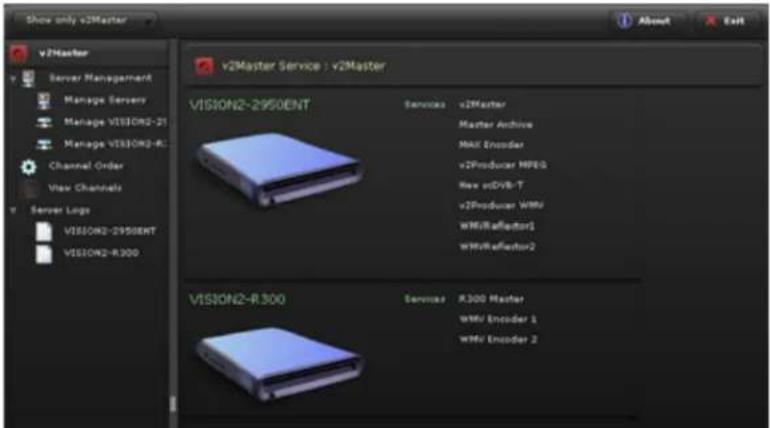
text_image
Show only v2Master v2Master Service : v2Master v2Master Service : v2Master VISION2-2950ENT Services v2Master Master Archive MAX Encoder v2Producer MPEG New vDVB-T v2Producer WWV WMVReflector1 WMVReflector2 VISION2-R300 Services R300 Master WMV Encoder 1 WMV Encoder 2FIG. 53 Vision ^2 Master Service
The Manage Servers menu option allows you to add and remove additional servers to and from the system. For details on adding a new server, see the Adding a Server section on page 51.
Managing a Specific Server
To view server information, select the server on the left pane. The Vision ^2 Server Information screen appears (FIG. 54).
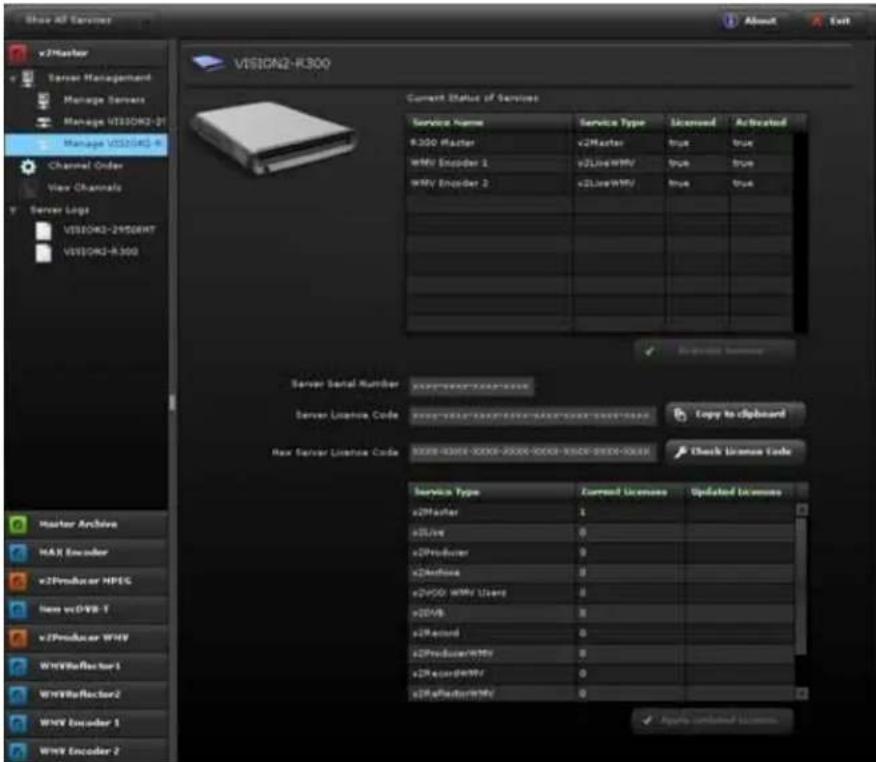
text_image
Show All Services About Exit v2VMaster Target Management Manage Servers Manage VISION2-01 Manage VISION2-06 Channel Order View Channels Server Logo VISION2-2450RWT VISION2-8.300 Current Status of Services Service Name Service Type Licensed Activated R300 Master v2Master True True MWM Encoder 1 v2LineWM/ True True MWM Encoder 2 v2LineWM/ True True Server Serial Number Server Serial Number Server License Code Copy to clipboard Max Server License Code Check License Code Service Type Current License Updated Licensee v2Master 1 v2Line 0 v2Producer 0 v2Phone 0 v2VSD WMU Lienz 0 v2VB 0 v2Record 0 v2ProducerWMT 0 v2AccdWMV 0 v2PhotoWMV 0 Apply updated license.FIG. 54 Vision ^2 Server Information
The following options appear for the server:
| Server Options | |
| Current Status of Services | This table lists all of the services on the selected server and if they are Licensed and Activated.Inactive services are highlighted in green and do not appear the service selection menu on the left of the Services Manager. |
| Activate Service | This button enables you to change the active state of the selected service. |
| Server Serial Number This is the unique serial number for the selected server. | |
| Server License code | This is the license code which has been used to unlock the services on the server. |
| New Server License Code This is where you would paste an updated license code supplied by AMX when you purchase additional services. | |
| Check License Code | After you input a new license code, you can check that it will unlock the expected services by clicking this button. The license Changes section updates to show what would change. |
| Apply updated License | After checking the license code this button will actually update the license code on the server. |
Adding and Activating Services
After successfully adding a server, you must activate the available services for it with an appropriate license key. Perform these steps to add and activate a service:
- Click Manage
in the services list on the left side of the page to display the available services for the server. - Enter a valid license code in the New Service License Code field.
- Click Check License Code. If the code is valid, the License Changes area displays the number of licenses available for each type of service.

Each server or Live appliance has its own license code. If you have more than one server or appliance, you must apply a license code to each unit.
- Click Apply updated License to apply the license code and create the requested services. The new services populate the Current Status of Services list at the top of the page.
- Select an inactive service from the Current Status of Services list. Inactive services appear highlighted in green in the list and have a value of False in the Activated column.
- Click Activate Service so you can manage the service. Repeat steps 5 and 6 to activate any remaining inactive services.
Changing the Channel Order
The Manage Channel Order page enables you to change the order in which live channels are listed in the user interfaces.
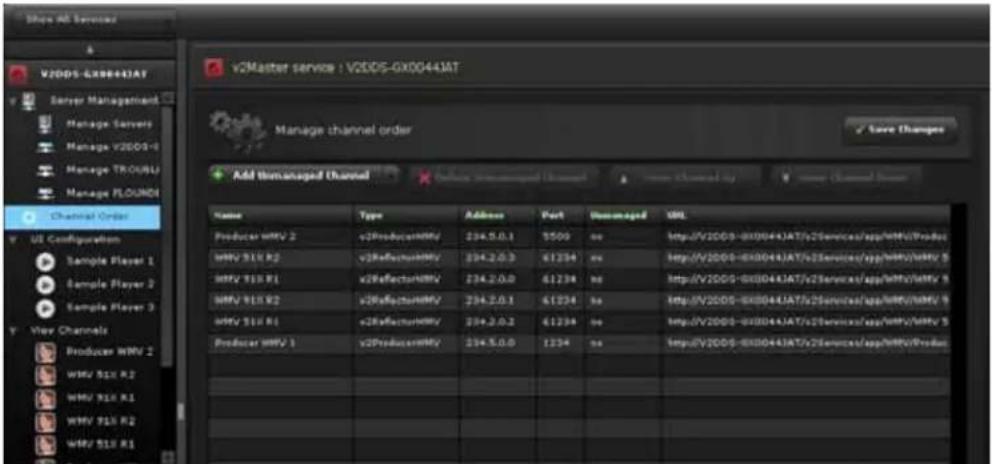
text_image
V2DDS-6X0044JAT V2DDS-6X0044JAT Manage channel order Save Changes Add Unmanaged Channel Name Type Address Port Unmanaged URL Producer MWV 2 v2ProduceMWV 234.5.0.1 5509 no http://V2DDS-6X0044JAT/v2Services/app/MWU/Produc MWV 918 R2 v2ReflectorMWV 234.2.0.3 61234 no http://V2DDS-6X0044JAT/v2Services/app/MWU/mWY 5 MWV 918 R1 v2ReflectorMWV 234.2.0.0 61234 no http://V2DDS-6X0044JAT/v2Services/app/MWY/mWY 9 MWV 918 R2 v2ReflectorMWV 234.2.0.1 61234 no http://V2DDS-6X0044JAT/v2Services/app/MWY/mWY 9 MWV 918 R1 v2ReflectorMWV 234.2.0.2 61234 no http://V2DDS-6X0044JAT/v2Services/app/MWY/mWY 5 Producer MWV 1 v2ProduceMWV 234.5.0.0 1234 no http://V2DDS-6X0044JAT/v2Services/app/MWU/ProducFIG. 55 Manage Channel Order

Be sure to dismiss any pop-ups that appear before you save your changes and navigate to a different screen. Failure to do so can cause an interface error requiring you to refresh your browser.
The following options appear on the Manage Channel Order page.
| Manage Channel Order Options |
| Add Unmanaged Channel Adds an unmanaged channel to the Channel Order list. |
| Channel Name The name of the channel as it will appear in the Channel Order list. |
| Type The type of stream for the channel. |
| Channel URL The URL of the video source. |
| Delete Unmanaged Channel Removes an unmanaged channel from the Channel Order list. |
| Move Channel Up Moves the selected channel one position up in the list |
| Move Channel Down Moves the selected channel position down in the list |
| Save Changes Saves the changes to the server |
Perform these steps to change the channel order:
- Select a channel in the list.
- Click Move Channel Up or Move Channel Down until the channel is in its appropriate location.
- Click Save Changes.
Adding an Unmanaged Channel
If you have a non-Vision ^2 video source, you can create an unmanaged channel for it. Perform these steps to add an unmanaged channel:
- Click Add Unmanaged Channel. A dialog box appears (FIG. 56).

text_image
Add Unmanaged Channel Channel Name: Type: Multicast MFGS-2 Transport Stream Channel URL: Add CancelFIG. 56 Add Unmanaged Channel
- Enter the name of the channel in the Channel Name field.
- Select the type of channel from the Type options menu.
- Enter the URL of the channel in the Channel URL field.
- Click Add.
View Channels
All of the available live channels are listed under this menu entry. You can view live channels by clicking on the channel name. The Vision ^2 interface, server, and player do not support h.264 content, therefore, you cannot view the stream from an AVN420 encoder.
Server Logs
The log files for each server can be viewed by selected the server name under this menu entry.
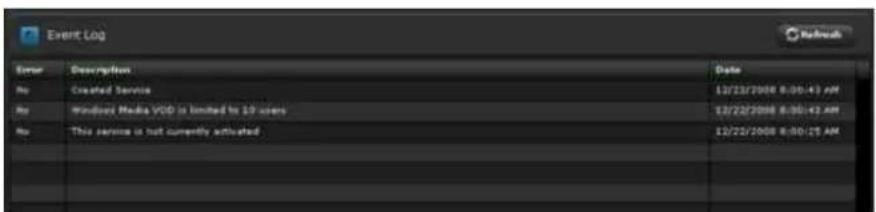
text_image
Event Log Error Description Data No Created Service 10/23/2008 8:00:45 AM No Windows Media VOD is limited to 10 users 12/22/2008 8:00:43 AM No This service is not currently activated 12/22/2008 8:00:25 AMFIG. 57 Event Log
User Interface Configuration
The User Interface Configuration options enable the administrator to configure which video formats are available to the users in the sample player. The Zoom setting on the web browser should be set to 100% or the video may not appear in browser window. The following user interfaces are available:
Amino UI
Selecting the STB-04 user interface configuration enables you to select a custom user interface. FIG. 58 displays the Amino UI player. You can select a template on this screen. See the Creating a New Template section on page 43 for information on creating a template. You must click Apply prior to using the Amino clients to access the system.
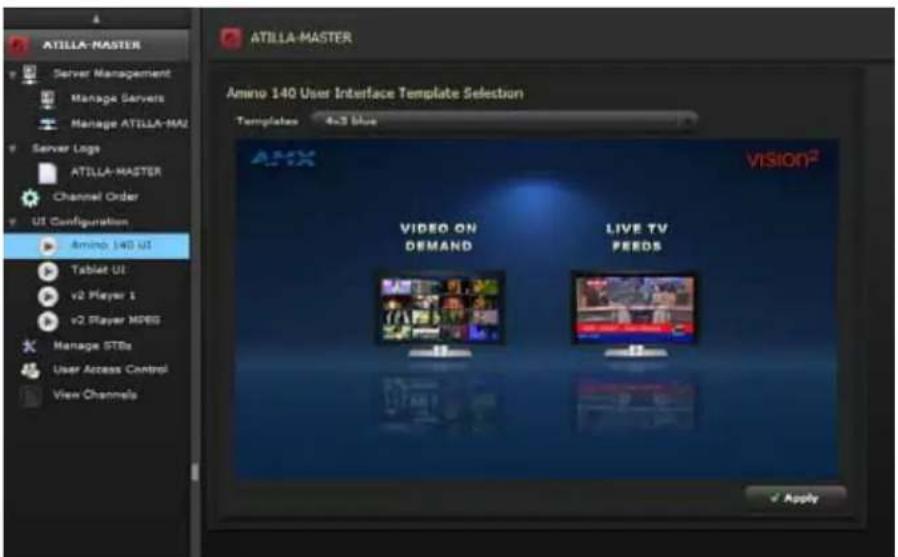
text_image
ATILLA-MASTER Server Management Manage Servers Manage ATILLA-MA2 Server Logo ATILLA-MASTER Channel Order UI Configuration Amino 140 UI Tablet UI v2 Player 1 v2 Player MDES Manage STBs User Access Control View Channels ATILLA-MASTER Amino 140 User Interface Template Selection Templates 4x3 blue VISION² VIDEO ON DEMAND LIVE TV PEEDS ApplyFIG. 58 Amino UI Player
Tablet UI
Selecting the Tablet user interface configuration enables you to select a custom user interface. FIG. 59 displays the Tablet UI player. You can select a template on this screen. You must click Apply prior to using the Amino clients to access the system.

text_image
ATILLA-MASTER Server Management Manage Servers Manage ATILLA-1 Manage WMVER-1 Manage ATILLA-4 Manage ARCHIVI Server Logs ATILLA-MASTER WMVER310 ATILLA-ATSC ARCHIVEVOD Channel Order UI Configuration Animo 140 UI Tablet UI v2 Player 1 v2 Player MPED Manage STBs User Access Control Archive 1 ATILLA-MASTER Tablet User Interface Template Selection Templates 4x5 Blue APR-VISION® To navigate use the following gestures Duppe Right - Previous Page Duppe Left - Next Page Duppe Down - Go back up a level When you see the play box Touch it to start playback Touch anywhere on this page to start ApplyFIG. 59 Tablet UI Player
V2 Player
This is a fully featured player capable of displaying both live feeds and Video on Demand in multiple formats.
natural_image
Grid of 16 video-style character scenes in various action poses, including urban, military, and fantasy scenes (no visible text or symbols)FIG. 60 Sample Player 1
Click the sample player under UI Configuration in the left panel to display the configuration options for the player (FIG. 61). The options for the V2 Player and the V2 MPEG Player are identical with the exception that the WMV options are not available with the MPEG player.
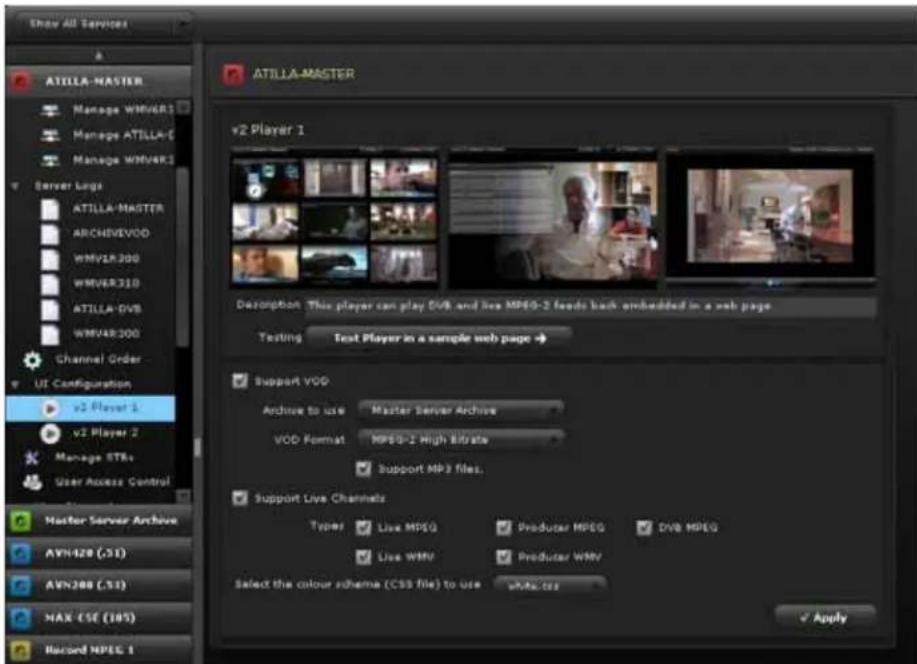
text_image
Show All Services ATILLA-MASTER Manage WMVER1 Manage ATILLA-C Manage WMVER1 Server Logs ATILLA-MASTER ARCHIVEVOD WMVER300 WMVER310 ATILLA-DVB WMVER300 Channel Order UI Configuration v2 Player 1 v2 Player 2 Manage STRs User Access Control Master Server Archive AVN428 (S1) AVN200 (S1) MAX (SE (105)) Recorded MPEG 1 ATILLA-MASTER v2 Player 1 Description: This player can play DVB and live MPEG-2 feeds back embedded in a web page. Testing: Text Player in a sample web page → Support VOD Archive to use Master Server Archive VOD Format MPS0-2 High Bitrate Support MP3 files. Support Live Channels Typers Live MPEG Producer MPEG DVB MPEG Live WMV Producer WMV Select the colour scheme (CSS file) to use white.css ApplyFIG. 61 Sample Player 1 Configuration
If a specific configuration option is not supported by a particular player, that option cannot be selected. The following options are available:
| V2 Player Configuration Options | |
| Description A single line description shown in the management interface to help with identification. | |
| Test Player in a sample web page | Clicking this button launches the player in a new web browser with the selected options. See the Testing the Player in a Web Page section on page 62 for more information. |
| Support VOD Toggles whether you want to support on demand content. | |
| Archive to use Selects the Archive for the player to use for Video on Demand content. | |
| VOD Format Selects the video format and bitrate that the player should use. | |
| Support MP3 files Toggles whether you want to enable the use of MP3 files. The Support VoD option must be enabled to use MP3 files. | |
| Support Live Channels Toggles whether the player supports live channels from the Vision system.2 | |
| Types Indicates the types of live channels should be supported by the player. You can choose from Live MPEG, Producer MPEG, DVB MPEG, Live WMV, and Producer WMV. Live WMV and Producer WMV are not available on the V2 MPEG player. | |
| Select the colour scheme (.css file) to use | Select a color scheme from the available menu. The color scheme defines the colors used in the interface. |
Perform these steps to configure the sample player:
- Click the arrow button beside UI Configuration under the Master menu to display the available players.
- Click the sample player you want to configure. The sample player's Configuration page opens (FIG. 61).
- Enter a description of the video in the Description text box. This step is only for ease of identification and is optional.
-
Click the Support VOD check box if you want the player to support video on demand content. If you click this check box, also perform the following steps:
-
Use the Archive to use options menu to select an archive to use for video on demand content. For more information about configuring an archive, see the Archive Service section on page 87.
-
Use the VOD Format options menu to select a video format and bitrate for the player to use.
-
Click the Support Live Channels check box if you want the player to support live channels. If you click this check box, click the respective check boxes for the types of live channels you want the player to support.
-
Click Apply when finished making changes to the configuration.

Vision ^2 version 7.2 does not support scaling and resizing of WMV files within a browser window.
Format Compatibility
The following tables list the formats that are compatible with Live channels and Video on Demand.
| Live Channel Compatibility | ||||
| Amino V | LC PC Client | WMP | ||
| WMV | No No | Yes Yes | ||
| MPEG-2/MPEG-2 TS | Yes Yes | Yes Yes | ||
| H.264 (AVC)/MPEG-2 TS | Yes Yes | No No | ||
| H.264 (AVC)/MP4 | Yes Yes | No No | ||
| PC Client | Yes Yes | Yes Yes | ||
| Video on Demand Compatibility | ||||
| Amino VLC PC Client WMP | ||||
| WMV | No Yes Yes Yes | |||
| MPEG-2/MPEG-2 TS | Y | e | s Y | e |
| H.264 (AVC)/MPEG-2 TS | Y | e | s Y | e |
| H.264 (AVC)/MP4 | No Yes | Yes No* | ||
| FLV (On2 VP6/FLV) | No Yes | Yes Yes | ||
s Y e s s Y e s
* - Some Windows 7 Media Players support MP4.
Testing the Player in a Web Page
To view how the Vision ^2 player will appear, click the Test Player in a sample web page button on the V2 Player Configuration page. The player appears in a new tab in your current browser. The additional tabs in the player screen provide more options (FIG. 62).
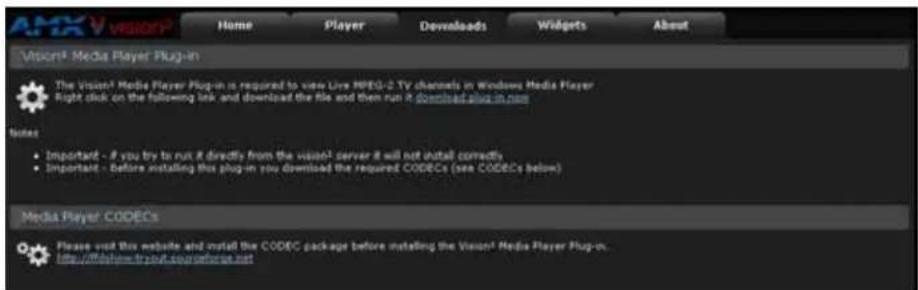
text_image
ANXV Vision® Home Player Downloads Widgets About Vision® Media Player Plug-in The Vision® Media Player Plug-in is required to view Live MPEG-2 TV channels in Windows Media Player Right click on the following link and download the file and then run it download plus in now Notes: • Important - If you try to run it directly from the vision® server it will not install correctly • Important - Before installing this plug-in you download the required CODECs (see CODECs below) Media Player CODECs Please visit this website and install the CODEC package before installing the Vision® Media Player Plug-in. http://dfbhexv.trpvt.com/obecat.netFIG. 62 Downloads tab
The Downloads tab provides links to plug-ins and codecs you may need to use certain features of Vision ^2 . The Widgets tab (FIG. 63) provides several different video tools. Each tool comes listed with its own HTML code which you can use to embed the video tool into a webpage. Simply copy the provided code into the HTML code of your webpage and the video tool appears on the page.
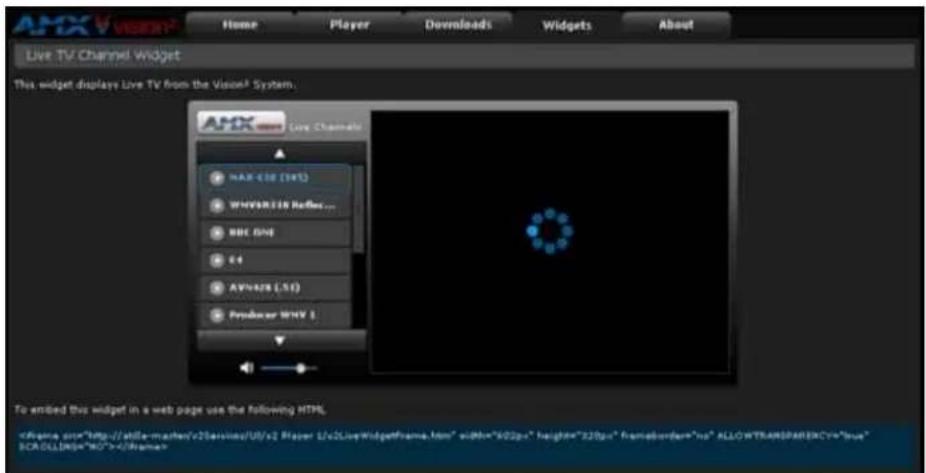
text_image
Home Player Downloads Widgets About Live TV Channel Widget This widget displays Live TV from the Vision® System. AHX Live TV Channel Kit MAX-438 (347) WMVSLTIN Reflex... BBC GND E4 AVNATIS (.51) Producer WMV 1 To ended this widget in a web page use the following HTML.FIG. 63 Widgets tab
Set-Top Box Management
Set-Top Boxes support viewing live programming via a producer channel or an MPEG encoder. The set-top boxes access your Vision ^2 server and display available programming on a connected video source. The set-top boxes are used only for MPEG content. They support viewing MPEG Video on Demand, and supports Stop, Play, Pause, Fast-Forward, and Rewind features. See the Set-Top Boxes section on page 33 for information on setting up a set top box. FIG. 64 displays the Set Top Box Management screen.
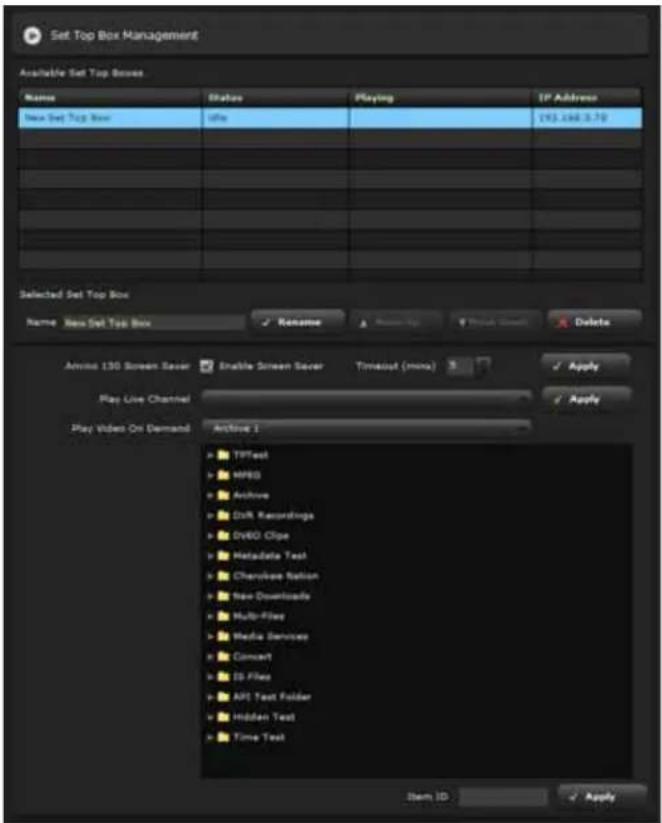
text_image
Set Top Box Management Available Set Top Boxes Name Status Playing IP Address New Set Top Box Info 213.446.578 Selected Set Top Box Name New Set Top Box Rename Rename Project Views Delots Audio 130 Screen Saver Enable Screen Saver Timeout (mins) Apply Play Live Channel Play Video On Demand Archive 1 YPTest WRG Archives Draft Recordings Dv60 Clpe Metadata Test Chromosome Station New Downloads Multi-Files Media Services Convert IS Files API Text Folder Hidden Text Time Text Item ID ApplyFIG. 64 Set Top Box Management screen
The Available Set Top Boxes area lists the set-top boxes currently detected. This list includes the name, status, channel type, and IP address of each set-top box. This list is view-only. You can select any set-top box from the list and use the options below to change its output. You can use Ctrl-Click to select multiple set-top boxes and Shift-Click to select a range of set-top boxes.
The set-top box management options are as follows:
| Set-Top Box Management Options | |
| Name Enter a name for the set-top box. | |
| Rename Click to apply the edited name to the set-top box. | |
| Move Up/Move Down Moves the selected set-top box up or down in the list. | |
| Delete Removes the set-top box from the list. | |
| Enable Screen Saver Click to activate screen saver mode. | |
| Timeout Use the up-and-down arrows to select the amount of idle time, in minutes, before the screen saver activates. After enabling screen saver mode and indicating the timeout, click Apply to enable the settings. | |
| Play Live Channel | Select a live channel to play through the set-top box. Click Apply when finished and the set-top box begins playing the live channel. |
| Play Video On Demand | Select a video on demand to play through the set-top box. Click Apply when finished and the selected video on demand becomes available.Note:Users are only able to pull Video on Demand content from the Master Archive, and not the subtending server archives. This option displays all files including hidden ones. It is up to the Administrator to make any hidden files available to users. Filenames should only contain the characters A-Z, 0-9, spaces and underscores. If a filename is imported that contains the special character, it could cause error. |
| Item ID This field displays a unique ID number for the selected video. This field is view-only. | |

If communication is lost between the set-top box and the Master server, the server is unable to poll the set-top box. The set-top box state remains at the last "known" state until the communication is re-established. The status does not show connectivity has been lost.
Configuring Vision ^2 for use with LDAP
If you intend to use Lightweight Directory Access Protocol (LDAP), then before you begin there is an XML file on the Vision ^2 server which must be edited manually. You must edit the ldsl.xml file located in the C:\Inetpub\wwwrootv2Services\App_Code directory. The contents of this file are used to impersonate the specified user when communicating with the LDAP server. For this reason, the user defined by these settings must have read rights on the LDAP server. The file contains the following entries:
- username - This is the user to impersonate
● domain - The domain in which the LDAP server resides - password - The password of the user to impersonate
It also contains and entry for userattributecontainingloginname. This entry, as the name suggests, contains the name of the attribute within the user Distinguished Name (DN) which holds the value that the user supplies when they log in. For a normal Active Directory implementation, this value is sAMAccountName and for ADAM it is usually name.
User Access Control
This section of the v2ServicesManager controls whether the system supports User Access Control (UAC), and if so, the type of UAC employed. (Where possible, example values are provided for both Active Directory and ADAM).

text_image
Configure User Access Access Control type: WT User Groups Warning : If you change the Access Control Type after you have already restricted access to categories in the archive, then all users will be denied access to those categories until you update the restriction on the affected categories. LDAP LDAP Server URL: LDAP:\Windows\DXServer\S00007 LDAP Base ON: DHCP UK DWLD\Microsoft\PLC\US Validate Group Name: Path Registry DQ=Biology.DQ=ARX.UK DWLD=Microsoft.LC=US Year 1 DQ=Year 1.DQ=Biology.DQ=ARX.UK DWLD=Microsoft.LC=US Year 2 DQ=Year 2.DQ=Biology.DQ=ARX.UK DWLD=Microsoft.LC=US Year 3 DQ=Year 3.DQ=Biology.DQ=ARX.UK DWLD=Microsoft.LC=US Chemistry DQ=Chemistry.DQ=ARX.UK DWLD=Microsoft.LC=US Depth test DQ=Depth test.DQ=ARX.UK DWLD=Microsoft.LC=US Level 1 DQ=Level 1.DQ=Depth test.DQ=ARX.UK DWLD=Microsoft.LC=US Level 2 DQ=Level 2.DQ=Level 2.DQ=Depth test.DQ=ARX.UK DWLD=Microsoft.LC=US Level 3 DQ=Level 3.DQ=Level 3.DQ=Depth test.DQ=ARX.UK DWLD=Microsoft.LC=US Level 4 DQ=Level 4.DQ=Level 4.DQ=Level 4.DQ=Depth test.DQ=ARX.UK DWLD=Microsoft.LC=US Latin Physics DQ=Physics.DQ=ARX.UK DWLD=Microsoft.LC=US Scoref (all years) DQ=Social (all years).DQ=ARX.UK DWLD=Microsoft.LC=US Set current selection as the LDAP Base ON SaveFIG. 65 User Access Control screen
The user access control options are as follows:
| User Access Control Options | |
| User Access Control Enable Enables user access control on the system | |
| Access Control Type | Select the appropriate option to indicate whether user access control is controlled by Windows NT User Groups or LDAP. |
| LDAP Server URL | This is the LDAP URL to the Server. This option is only available if you select LDAP as the Access Control Type.Example values:Active Directory:LDAP//AMXVision2Dev.Local/ADAM:LDAP//AMXVision2Dev:50000/ |
| LDAP Server Root | This is the LDAP URL to the Server Root. This option is only available if you select LDAP as the Access Control Type.Example values:Active Directory:LDAP//AMXVision2Dev.Local/ADAM:LDAP//AMXVision2Dev:50000/O=AMX, C=UK |
| LDAP Base DN This is the Base DN which is used as the starting point in the LDAP tree when browsing LDAP from a Content Folder in the Archive. This setting prevents you from having to traverse the entire LDAP tree when restricting user access to content in the Archive, thereby simplifying the procedure. This option is only available if you select LDAP as the Access Control Type.Example values:Active Directory:OU=AMX UK DMGADAM:OU=AMX UK DMG, O=AMX, C=UK | |
| Validate Click this button to apply the LDAP settings after entering them. The tree control at the bottom of the page displays the results. | |
| Set current selection as the LDAP base DN | Click this button to make the LDAP base DN the currently selected item in the tree control. |
| Save Click this button to save all selected values. | |
Restricting User Access to Content
In the Archive Service, when you navigate to a folder which contains videos the Restrict the users who gave access to the content in this category check box appears. When enabled, it displays the current DN selected for the restriction. The Change button displays a tree control which contains the LDAP tree from the LDAP Base DN (defined in the Master Service) downwards. You can then Apply a new DN.
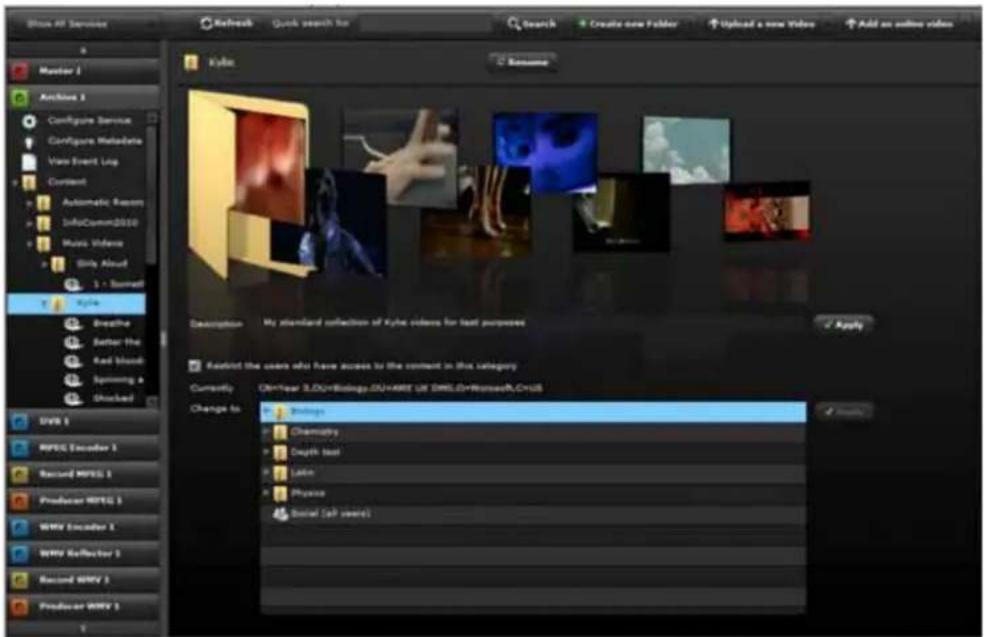
text_image
Show all Service Refresh Quick search for Search Create new Folder Upload a new Video Add an online video Master 1 Archives 3 Configure Service Configure Metadata Vias Event Log Content Automatic Reason InfoDoom2010 Music Videos Gilly Aloud 1 - Summit Kyle Breathe Better the Red blood Spinning a Shocked Data 1 MPEG Encoder 1 Record MPEG 1 Producer MPEG 1 MPEG Encoder 1 MPEG Reflector 1 Record MPG 1 Producer MPG 1 Kyle: My standard collection of Kyle videos for text purposes Apply Default the users who have access to the content in this category Currently: On-Year 3.00+Biology ON+MPEG UK DMSLO+RetroCAD+US Change to: MPEG Chemistry Depth test Latin Physics Social (all users)FIG. 66 LDAP Restriction settings
Master Service
Live (MPEG) Service
The Vision ^2 Live (MPEG) Service provides a single live TV channel to the system. The Live MPEG service uses an AMX MAX-CSE encoder (FG2178-70) or other supported third-party encoder to provide the hardware encoding of video and audio signals into an MPEG-2 multicast stream. Live Services, as with all other Vision ^2 services, are managed by the Vision ^2 Services Manager web interface.
Configuring the MAX-CSE Encoder
When you select the Configure MAX-CSE Encoder option from the Live Service Menu the following page appears (FIG. 67):

text_image
Configure Channel Name Max Encoder L Apply Shader Type Max C18 MP40-2 Encoder Apply Shader IP address $92.168.5.115 MAX Username Admin Max Password **** Apply Stream Multiunit Protocol Address Rout TTL Encoding Video Input Video Standard Aspect Ratio Shader Profile Video CODEC Resolution Single Mode Audio CODEC Sample Rate Alpha Apply The shader is not responding and is probably offline at the strong shader type has been selected.FIG. 67 Configure MAX-CSE Encoder
Service Settings

text_image
Channel Name MAX Encoder 1 Apply Encoder Type MAX CSE MPEG-2 Encoder Apply Encoder IP address 192.168.3.115 MAX Username Admin Apply MAX Password ****FIG. 68 MAX Encoder Service Settings
The top section of the page deals with the settings for the service itself and consists of the following options:
| Service Settings Options | |
| Channel Name The name of the | service as it appears in the playlists. |
| Encoder Type Use the options | menu to select the type of MPEG encoder you want to configure. |
| Encoder IP Address The network | IP Address of the encoder. You can find the IP address of the MAX-CSE encoder on the LED on the front of the unit. |
| MAX Username The user name | required to manage the device. The default user name is Admin. |
| MAX Password | The password required to manage the device. The password is 1988. |
Perform these steps to configure the MAX-CSE Encoder:
- Select Configure Encoder from the MAX Encoder Menu. The Live Service page opens (FIG. 67).
- In the Service Name text box, enter the name of the service as you want it to appear in playlists.
- Select the type of encoder you want to configure from the Encoder Type options menu.
- Enter the network IP Address of the encoder in the Encoder IP Address field. You can find the IP address of the MAX-CSE encoder on the LED on the front of the unit.
- In the MAX Username text box, enter the username used to gain access to the encoder. The default username is Admin.
-
In the MAX Password text box, enter the password used to gain access to the encoder. The default password is 1988.
-
Click Apply.

If you enter an incorrect IP address the system will attempt the connection for 30 seconds and then, if unsuccessful, the following message will appear at the bottom of the page: "The encoder is not responding and is probably offline."
Stream Settings
The bottom section of the page deals with the specific parameters defined for multicasting the video and the actual parameters which define the encoding process. When you check the Stream Enable check box, the system starts the encoding process and multicasts the stream.

You will receive an error if you disable a Live channel while it is being accessed by another service.
Multicast Settings

text_image
Multiracter Protocol Address Port TTL 32FIG. 69 MAX Encoder Multicast Settings
The following options are available in the multicast section:
| Multicast Settings Options | |
| Protocol The protocol setting is fixed at UDP multicast. UDP multicast is the only supported protocol at this time. | |
| Address This is the multicast address that will be used. This option is pre-configured and cannot be changed. | |
| Port This is the multicast port number that will be used. This option is pre-configured and cannot be changed. | |
| TTL This is the multicast TTL that will be used. You can enter a value in the space provided. This option is pre-configured and cannot be changed. |
Encoding Settings

text_image
Encoding Video Input Aspect Ratio 413 Encoder Profile Video CODEC Resolution Bitrate Mode Audio CODEC Bitrate Sample Rate ApplyFIG. 70 MAX Encoder Encoding Settings
The following options are available in the encoding section:
| Encoding Settings Options | |
| Video Input The MAX encoder | supports either S-Video or Composite video inputs. |
| Video Standard The MAX encoder | der supports NTSC (USA and Japan) and PAL (rest of the world, excluding France) video standards. |
| Aspect Ratio The MAX encoder | is supports a 4:3 and 16:9 aspect ratio. |
| Encoder Profile Vision | ^2 supports only the MAX Custom encoder profile. |
| Video CODEC Vision | ^2 supports only MPEG-2 video compression on the MAX encoder. |
| Video Resolution The MAX encoder | oder supports D1 (720 x 576 PAL / 640 x 480 NTSC) and SIF (360 x 288 PAL / 320 x 240 NTSC) resolutions. |
| Video Bitrate | The MAX encoder supports a range of selected video bitrates from 500 Kbits to 6 Mbits. The recommended encoding bitrate is 6 Mbits. |
| Video Mode The MAX encoder | supports Constant Bit Rate (CBR) and Variable Bit Rate (VBR) modes. For multicasting, CBR is recommended as it produces a constant rate over the network. |
| Audio CODEC Vision | ^2 supports only MP3 audio compression on the MAX encoder. |
| Audio Bitrate The MAX encoder | supports audio bitrates of 96K and 192K. |
| Audio Sample Rate The MAX encoder | encoder supports audio sample rates of 32, 44.1, and 48K. |
Perform these steps to configure the MPEG multicast stream:
- Select Configure Encoder from the MAX Encoder menu. The Live Service page opens (FIG. 67).
- Use the Video Input options menu to indicate whether you are connecting to the S-video or composite port on the MAX encoder.
- Use the Video Standard options menu to indicate which video standard the MAX encoder is using.
- Use the Aspect Ratio options menu to indicate the aspect ratio you want to use for the multicast stream.
- Use the Video Resolution options menu to indicate the video resolution of the multicast stream.
- Use the Video Bitrate options menu to indicate the video bitrate of the multicast stream.
- Use the Video Mode options menu to indicate the video mode of the multicast stream. It is recommended that you select CBR.
- Use the Audio Bitrate options menu to indicate the audio bitrate of the multicast stream.
- Use the Audio Sample Rate options menu to indicate the audio sample rate of the multicast stream.
- Click Apply. Clicking Apply saves your configuration.
- Click the Enable check box to begin the multicast stream.

With the stream enabled, you cannot change any of the multicast or encoding parameters.
Live (WMV) Service
The Vision ^2 Live (WMV) Service provides a single live TV channel to the system. It uses an A/V capture card and Windows Media 9 (WM9) to provide the software encoding of composite, S-video, and component video and audio signals into a WM9 unicast stream. Live Services as with all other Vision ^2 services are managed by the Vision ^2 Services Manager web interface to provide a unicast stream over HTTP.

This service is not available with Vision ^2 version 7.2.2-M. Unmanaged Live WMV multicast channels are still supported through third-party encoder devices. See the Supported Third-Party Encoders section on page 3 for more information.
Configuring the AMX Vision ^2 Dual Encoder
When you select Configure Encoder from the WMV Encoder menu and select AMX Vision ^2 Dual Encoder from the Encoder Type menu, the following page appears (FIG. 71):
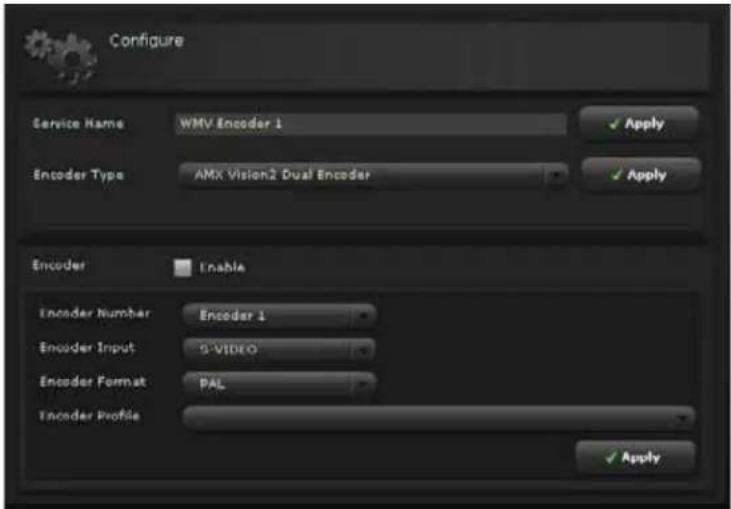
text_image
Configure Service Name WMV Encoder 1 Apply Encoder Type AMX Vision2 Dual Encoder Apply Encoder Enable Encoder Number Encoder 1 Encoder Input S-VIDEO Encoder Format PAL Encoder Profile ApplyFIG. 71 Configure Live WMV Service
This page contains the following options:
| Service Settings Options | |
| Service Name The name of the | service as it appears in the left pane of the main window. |
| Encoder Type Use the options | menu to select the type of WMV encoder you want toconfigure. Click Apply if selecting a new encoder type. |
| Encoder Select the Enable check box to Start or uncheck to Stop the encoder. | |
| Encoder Number Selects the | capture card and Encoder (Encoder 1 or Encoder 2). |
| Encoder Input Selects the input | port on the capture card (Component, Composite, orS-Video).S-Video: The video signal is divided into luminance and chrominance. Resultsin good-quality video.Composite video: Composite video should only be used as a source as a lastresort. With composite video, luminance and chrominance components aremixed, which makes it difficult to get good-quality video. |
| Encoder Format Selects the required Video Standard (PAL or NTSC). | |
| Encoder Profile This enables the selection of pre-configured encoder profiles at Preset Bitrates. A profile is a collection of properties tailored to the type of content beingencoded, the audience, and the intended distribution (file or broadcast). Theproperties stored in a profile include: the audio and video quality, connectionspeed for the intended audience, available bandwidth, and appropriate codecs.The use of profiles simplifies the process of setting up an encoding session. | |
Perform these steps to configure the AMX Vision ^2 Dual Encoder:
- Select Configure Encoder from the WMV Encoder menu. The Configure Live WMV Service page opens (FIG. 71).
- In the Service Name text box, enter the name of the service as you want it to appear in the left pane of the main window.
- Click Apply.
- Select the type of encoder you want to configure from the Encoder Type options menu.
- Click Apply.
- Use the Encoder Input options menu to indicate whether you are connecting to the S-video, component, or composite port on the encoder.
- Use the Encoder Format options menu to indicate which video standard the encoder is using.
- Use the Encoder Profile options menu to select a profile containing the appropriate pre-configured encoder settings.
- Click Apply. Clicking Apply saves your configuration.
- Check the Encoder Enable check box to start the encoder and unicast the video stream at the selected settings. You can view the encoded stream by clicking View Unicast Stream in the main menu (FIG. 75).
Configuring the VBrick WMV Appliance Encoder
When you select Configure Encoder from the WMV Encoder menu and select VBRICK WMV Appliance from the Encoder Type menu, the following page appears (FIG. 72):

text_image
v2Live (WMV) service : WMV Encoder 1 Configure Service Name WMV Encoder 1 Encoder Type VBRICK WMV Appliance Encoder IP address Not set defined Username admin Password stereo Encoder Enable Encoder Slot 1 Multicast Address Port TTL Inputs Video Input Composite Video Standard PAL Aspect Ratio 4.3 Audio Input 3.5bitn Jack Encoding Encoder Profile Version2 High Bitrate Video CODEC WMV Resolution Bitrate 6.0MHz Mode CSR Audio Bitrate 192% Sample Rate Channels Shares Apply Apply Apply ApplyFIG. 72 Configure VBrick WMV Appliance Encoder
Service Settings

text_image
Service Name WMV Encoder 1 Encoder Type VBRICK WMV Appliance Encoder IP address Nut vet defined Username admin Password *****FIG. 73 WMV Encoder Service Settings
The top section of the page deals with the settings for the service itself and consists of the following options:
| Service Settings Options | |
| Service Name The name of the options | service as it appears in the playlists. |
| Encoder Type Use the options | menu to select the type of WMV encoder you want to configure. |
| Encoder IP Address The network | IP Address of the encoder. |
| Username The user name required to manage the device. The default user name is admin. | |
| Password | The password required to manage the device. The password is admin. |
Perform these steps to configure the VBrick WMV Appliance Encoder:
- Select Configure Encoder from the MAX Encoder Menu. The Live Service page opens (FIG. 71).
- In the Service Name text box, enter the name of the service as you want it to appear in playlists.
- Click Apply.
- Select the type of encoder you want to configure from the Encoder Type options menu.
- Click Apply.
- Enter the network IP Address of the encoder in the Encoder IP Address field.
- In the Username text box, enter the username used to gain access to the encoder. The default username is admin.
- In the Password text box, enter the password used to gain access to the encoder. The default password is admin.
- Click Apply.

If you enter an incorrect IP address the system will attempt the connection for 30 seconds and then, if unsuccessful, the following message will appear at the bottom of the page: "The encoder is not responding and is probably offline."
Encoding Settings
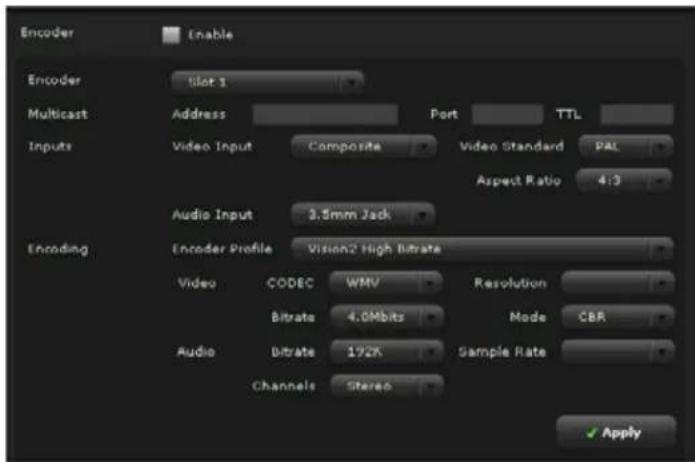
text_image
Encoder Enable Encoder slot 1 Multicast Address Port TTL Inputs Video Input Composite Video Standard PAL Aspect Ratio 4:3 Audio Input 3.5mm Jack Encoding Encoder Profile Vision2 High Bitrate Video CODEC WMV Resolution Bitrate 4.0Mbits Mode CBR Audio Bitrate 192K Sample Rate Channels Stereo ApplyFIG. 74 WMV Encoder Encoding Settings
The following options are available in the encoding section:
| Encoding Settings Options | |
| Enable Click to enable WMV streaming through the encoder. Note: You will receive an error if you disable a Live channel while it is being accessed by another service. | |
| Multicast | |
| Address This is the multicast address that will be used. This option is pre-configured and cannot be changed. | |
| Port This is the multicast port number that will be used. This option is pre-configured and cannot be changed. | |
| TTL This is the multicast TTL that will be used. You can enter a value in the space provided. This option is pre-configured and cannot be changed. | |
| Inputs | |
| Video Input The encoder supports either S-Video, Component, or Composite video inputs. | |
| Video Standard The encoder supports NTSC (USA and Japan) and PAL (rest of the world, excluding France) video standards. | |
| Aspect Ratio The encoder is supports a 4:3 and 16:9 aspect ratio. | |
| Audio Input Select the audio input you want to use from the options menu. | |
| Encoding | |
| Encoder Profile Select the encoder profile you want to use. | |
| Video CODEC Vision ^2 supports only WMV video compression on the WMV encoder. | |
| Video Resolution The encoder supports D1 (720 x 576 PAL / 640 x 480 NTSC) and SIF (360 x 288 PAL / 320 x 240 NTSC) resolutions. | |
| Video Bitrate The encoder supports a range of selected video bitrates from 500 Kbits to 4 Mbits. The recommended encoding bitrate is 4 Mbits. | |
| Video Mode The encoder supports Constant Bit Rate (CBR) and Variable Bit Rate (VBR) modes. For multicasting, CBR is recommended as it produces a constant rate over the network. | |
| Audio Bitrate The encoder supports audio bitrates of 12K through 192K. | |
| Audio Sample Rate The encoder supports audio sample rates of 32, 44.1, and 48K. | |
| Channels The type of audio channel used by the encoder. |
Perform these steps to configure the VBrick WMV multicast stream:
- Select Configure Encoder from the Encoder menu. The Live Service page opens (FIG. 71).
- Use the Video Input options menu to indicate whether you are connecting to the S-video, component, or composite port on the encoder.
- Use the Video Standard options menu to indicate which video standard the encoder is using.
- Use the Aspect Ratio options menu to indicate the aspect ratio you want to use for the multicast stream.
- Use the Audio Input options menu to indicate whether you are connecting to the 3.5 mm jack or the Mic DIN.
- Use the Encoder Profile options menu to indicate which profile the encoder is using.
- Use the Video Resolution options menu to indicate the video resolution of the multicast stream.
- Use the Video Bitrate options menu to indicate the video bitrate of the multicast stream.
- Use the Video Mode options menu to indicate the video mode of the multicast stream. It is recommended that you select CBR.
- Use the Audio Bitrate options menu to indicate the audio bitrate of the multicast stream.
- Use the Audio Sample Rate options menu to indicate the audio sample rate of the multicast stream.
- Click Apply. Clicking Apply saves your configuration.
- Click the Enable check box to begin the multicast stream.
Viewing the Stream
The Vision ^2 Services manager provides a menu option to allow you to view the stream without having to start a user player. Click the View Stream option in the Services menu to view the stream. You must select Encoder Enable on the configuration page to view the stream.

natural_image
Sketch of a tower structure with ladder and tower, displayed in an image editing interface (no text or symbols on the diagram itself)FIG. 75 View Unicast Stream
Reflector Service
The Vision ^2 Reflector Service provides a single live TV channel to the system. Reflector can multicast a Live WMV service, MPEG channel, or a stream from the Web. The MPEG Reflector accepts both unicast and multicast Windows Media streams as its input and can provide both unicast and multicast Windows Media streams as its output. Reflector services, as with all other services, are managed by the Vision ^2 ServicesManager web interface.

The Reflector WMV service is not available with Vision ^2 version 7.2.2-M.
WMV Configuration
The WMV reflector accepts a unicast stream from a source and multicasts out as a channel. When you select the Configure Reflector from the Reflector Service Menu the following page appears (FIG. 76).

text_image
v2Reflector WMV service : WMV Reflector 1 Configure Service Enable Channel Name WMV Reflector 1 Webservice URL http://v2BLACKBOARD/v2services/ Unicast source Internet source Unicast URL enter the URL of the stream to pull here... Stream type Multicast Unicast Multicast Stream Address 234.2.0.0 Port 61234 TTL 3 NIC to multicast on ApplyFIG. 76 Configure Vision ^2 WMV Reflector Service
The following options appear on the Reflector service configuration page:
| Reflector WMV Service Options | |
| Service Enable This enables the service and will begin multicasting if appropriate. Note: You cannot edit any of the other settings while the service is enabled. | |
| Service Name The name of the service as it appears in the playlists | |
| Web Service URL The URL to the Web Services interface for this service. This value is automatically generated and should not be edited unless instructed by AMX. | |
| Unicast source | The options menu provides a list of all the Live (WMV) encoders in the system and also an option to specify a WMV stream from the internet. See the Adding a Server section on page 51 and the Adding and Activating Services section on page 55 for more information on adding additional unicast sources. |
| Unicast URL If a Live (WMV) encoder is selected as the Unicast source then the Unicast URL is automatically configured. If, however, you are using a remote encoder that is not located on the local network, and you selected Internet source as the Unicast source then you need to enter the URL to the encoder here. | |
| Stream Type Click the appropriate option button to indicate the stream type. You should select Multicast if you are streaming over an Intranet. Select Unicast for an Internet stream. | |
| Multicast Stream | |
| Address The multicast address for this channel. This option is pre-configured and cannot be changed. | |
| Port The multicast port for this channel. This option is pre-configured and cannot be changed. | |
| TTL The Multicast TTL for this channel. This option is pre-configured and cannot be changed. | |
| NIC to multicast on The IP address of the network to use for multicasting. | |
| Apply You must click Apply to save the changes before your changes take effect. | |
Activating a Unicast Stream
Perform these steps to activate a unicast stream:
- Select Configure Reflector from the WMVReflector Menu on the left pane of the window. The Reflector WMV Service page appears (FIG. 76).
- In the Service Name box, enter the name of the service as you want it to appear in playlists.
- Select a unicast source from the Unicast source options menu. If you select Internet Source, enter the URL of the encoder you want to use for the unicast source in the Unicast URL box.
- Select the IP address of the network you want to use for the multicast from the NIC to multicast on options menu.
- Click Apply if you made any changes to the Reflector configuration.
- Click the Service Enable check box at the top of the screen. Reflector begins multicasting the video stream as configured.
Viewing the Stream
The Vision ^2 Services manager provides a menu option to allow you to view the stream without having to start a user player. Click the View Stream option in the menu for the service. You must select Service Enable on the configuration page to start the service before you can view the stream.
MPEG Configuration
The MPEG reflector can receive both unicast or multicast streams and output both unicast or multicast streams. When you select the Configure Reflector from the MPEG Reflector Service Menu the following page appears (FIG. 77).
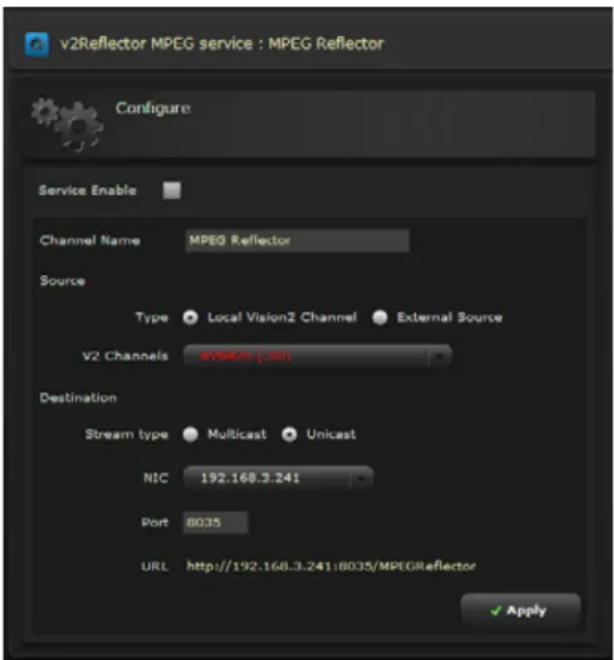
text_image
v2Reflector MPEG service : MPEG Reflector Configure Service Enable Channel Name MPEG Reflector Source Type Local Vision2 Channel External Source V2 Channels #V8R/0 (-30) Destination Stream type Multicast Unicast NIC 192.168.3.241 Port 8035 URL http://192.168.3.241:8035/MPEGReflector ✓ ApplyFIG. 77 Configure Vision ^2 MPEG Reflector Service
The following options appear on the Reflector service configuration page:
| Reflector MPEG Service Options | |
| Service Enable This enables the service and will begin multicasting if appropriate. | |
| Note: You cannot edit any of the other settings while the service is enabled. | |
| Channel Name The name of the service as it appears in the playlists. | |
| Source | |
| Type Click the appropriate option button to indicate the source type. You can choose from Local Vision2 Channel or External Source. | |
| V2 Channels The options menu provides a list of all the Producer channels in the system.This option is only available if you select Local Vision2 Channel as the source type. | |
| URL Use the provided field to enter the URL containing an MPEG-2 or H.264 video.This option is only available if you select External Source as the source type. | |
| Destination | |
| Stream type Click the appropriate option button to indicate the stream type. You should select Multicast if you are streaming over an Intranet. Select Unicast for an Internet stream. | |
| Multicast options | These options are only available if you select Multicast as the Stream type. |
| Address The multicast address for this channel. This option is pre-configured and cannot be changed. | |
| Port The multicast port for this channel. This option is pre-configured and cannot be changed. | |
| TTL The multicast TTL for this channel. This option is pre-configured and cannot be changed. | |
| Reflector MPEG Service Options (Cont.) | |
| NIC to multicast on The IP address of the network to use for multicasting. | |
| Unicast options | The following options are only available if you select Unicast as the Stream type. |
| NIC Select the unicast address for this channel. | |
| Port The unicast port for this channel. This option is pre-configured and cannot be changed. | |
| URL The unicast TTL for this channel. This option is pre-configured and cannot be changed. | |
| Apply You must click Apply to save the changes before your changes take effect. | |
Activating a Unicast Stream
Perform these steps to activate a unicast stream:
- Select Configure Reflector from the MPEG Reflector menu on the left pane of the window. The Reflector MPEG Service page appears (FIG. 76).
- In the Channel Name box, enter the name of the service as you want it to appear in playlists.
-
Indicate whether the source is a local channel or an external source by clicking the Local V2 Channel or External Source option button.
-
If you select, Local V2 Channel, select a Producer channel from the V2 Channels options menu.
-
If you select External Source, enter the URL of an address containing an MPEG-2 or H.264 video in the URL field.
-
Click the Unicast option button to indicate this stream is a unicast stream.
- Select a unicast source from the NIC options menu.
- Enter the port number in the Port field.
- Click Apply if you made any changes to the Reflector configuration.
- Click the Service Enable check box at the top of the screen. Reflector begins multicasting the video stream as configured.
Activating a Multicast Stream
Perform these steps to activate a multicast stream:
- Select Configure Reflector from the MPEG Reflector menu on the left pane of the window. The Reflector MPEG Service page appears (FIG. 76).
- In the Channel Name box, enter the name of the service as you want it to appear in playlists.
-
Indicate whether the source is a local channel or an external source by clicking the Local V2 Channel or External Source option button.
-
If you select, Local V2 Channel, select a Producer channel from the V2 Channels options menu.
-
If you select External Source, enter the URL of an address containing an MPEG-2 or H.264 video in the URL field.
-
Click the Multicast option button to indicate this stream is a multicast stream.
-
Select the IP address of the network you want to use for the multicast from the NIC to multicast on options menu.
- Click Apply if you made any changes to the Reflector configuration.
- Click the Service Enable check box at the top of the screen. Reflector begins multicasting the video stream as configured.
Viewing the Stream
The Vision ^2 Services manager provides a menu option to allow you to view the stream without having to start a user player. Click the View Stream option in the menu for the service. You must select Service Enable on the configuration page to start the service before you can view the stream.
DVB Service
The Vision ^2 DVB Service provides and manages a single Digital Video Broadcast (DVB) multiplex of live TV channels to the system. Terrestrial, satellite, and cable TV providers now use a digital rather than analog transmission systems to deliver their content. Where previously a single frequency was required for each TV channel, by using digital compression, multiple channels can be provided on a single frequency (known as a multiplex or bouquet). The DVB service de-multiplexes the individual TV channels on a selected frequency and makes each individual channel available for multicasting to users.
Configuration
When you select the Configure DVB from the DVB Service Menu the following page appears (FIG. 78).
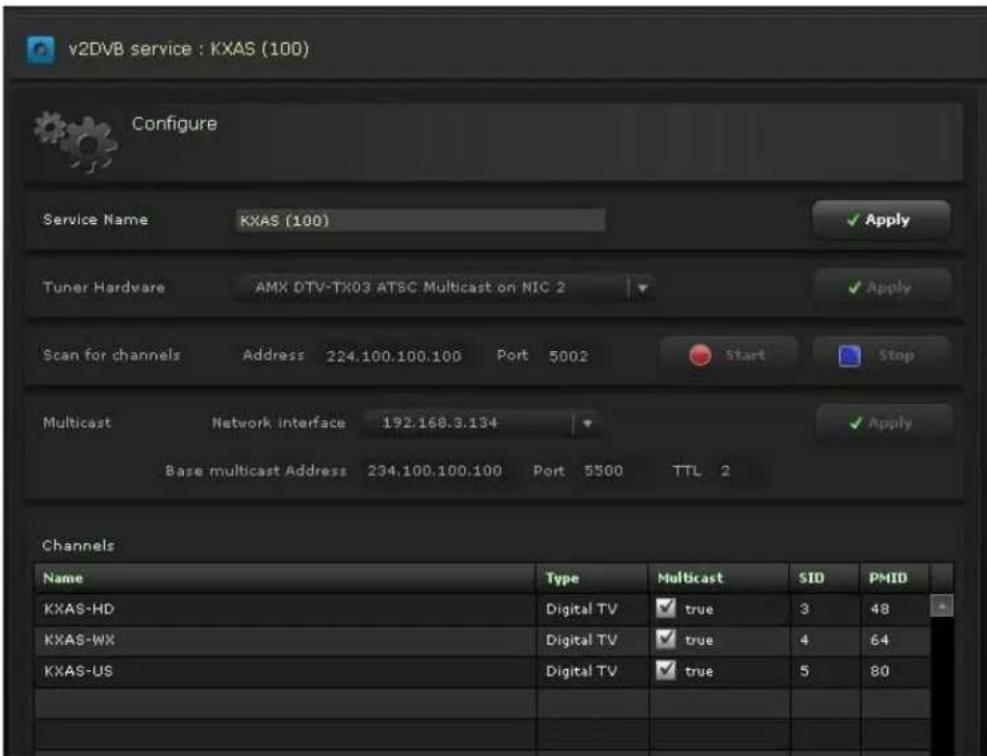
text_image
v2DVB service : KXAS (100) Configure Service Name KXAS (100) ✓ Apply Tuner Hardware AMX DTV-TX03 ATSC Multicast on NIC 2 ✓ Apply Scan for channels Address 224.100.100.100 Port 5002 Start Stop Multicast Network interface 192.168.3.134 ✓ Apply Base multicast Address 234.100.100.100 Port 5500 TTL 2 Channels Name Type Multicast SID PMID KXAS-HD Digital TV ✓ true 3 48 KXAS-WX Digital TV ✓ true 4 64 KXAS-US Digital TV ✓ true 5 80FIG. 78 Configure DVB Service
The Configure DVB Service page consists of the following sections:
Service Settings

text_image
Service Name DVB 1 ApplyFIG. 79 Service settings
The top section on the page deals with the settings for the service itself and consists of the following options:
| Service Options | |
| Service Name The name of the service as it appears in the services menu | |
| Apply Click to apply any change to the service name. |
Use the Service Name field to enter a unique name for the DVB service. This name appears on the left pane of the window and always refers to this specific configuration. Always click Apply after making any changes.
Tuner Hardware Settings

text_image
Tuner Hardware BG3540 DVBT Tuner 1 ApplyFIG. 80 Tuner Hardware Settings
The second section deals with the selection of the physical DVB tuner used to receive the broadcasts. The Hardware Tuner option enables you to indicate which tuner you want to use for this service. Always click Apply after making changes.
Scan for Channels Settings

text_image
Scan for channels Address 224.100.100.100 Port 5002 Start StopFIG. 81 Scan for Channels Settings
The third section enables you to scan all of the frequencies used by the broadcaster and detect all of the available TV channels.
| Scan for Channels Options | |
| Address The address you want to scan. | |
| Port The port you want to scan. | |
| Start Start the process of scanning for the available TV channels. | |
| Warning: Any existing list of channels will be deleted. | |
| Stop Stop the scanning process. | Only use this if you wish to return later and run the scan process again, as not all of the channels may have been detected. |
As the scan proceeds, any detected channels display in the Channel List at the bottom of the page.

The DVB system does not support the decoding of encrypted channels, therefore encrypted channels are not added to the channel list when they are detected.
Scanning for Available Channels
Perform these steps to scan for available channels on all frequencies:
- Select Configure DVB from the DVB Service Menu on the left pane of the window. The Configure DVB Service page appears (FIG. 78).
- Select the tuner you want to use from the Tuner Hardware options menu, and click Apply.
- Enter the IP address you want to scan in the Address field. This IP address should be the multicast address of the applicable transmitter.
- Enter the port you want to scan in the Port field.
- Click Start. Vision ^2 begins to scan for available channels. Any channels it finds appear in the channels section at the bottom of the page.
Multicast Settings

text_image
Multicast Network interface 192.168.123.94 Apply Base multicast Address 234.1.0.0 Port 1234 TTL 2FIG. 82 Multicast Settings
The following options are available in the multicast section:
| Multicast Options | |
| Network Interface Use this setting if the server has multiple network cards and you want to specify which one is used. This setting does not normally require changing. | |
| Base Multicast Address | All of the channels selected to multicast will be an offset from this address. For example, if the Base Multicast Address is 234.0.0.0, the first channel on the list is multicast on 234.0.0.0, and the second 234.0.0.1, etc. |
| Port This is the multicast port number to be used. | |
| TTL This is the multicast TTL value. You can enter a value in the space provided. | |
Setting the Multicast Address
Perform these steps to set the multicast address:
- Select Configure DVB from the DVB Service Menu on the left pane of the window. The Configure DVB Service page appears (FIG. 78).
- Use the Network interface to multicast on options menu to indicate which network interface you want to use for multicasting.
- Enter the base multicast address in the Base Multicast Address field. All channels selected to multicast are offsets from this address.
- Enter the port for this channel in the Port field.
- Enter a value for the multicast TTL for this channel in the TTL field. This step is optional.
-
In the Channels area, click the check box in the Multicast column for the channel you want to multicast. This step changes the multicast value of the channel from false to true. A confirmation pop-up appears. Click OK to accept this change. Repeat this step for each channel you want to multicast.
-
Click Apply.

NOTE
If you are using one of AMX's DTV-TX transmitters, all programs in the stream may appear in the TVCT table for your transmitter device even when the transmitter is configured to only stream certain channels.
Channel List
At the bottom of the page is the list of channels available on the selected frequency. This area of the page contains the following view-only information:
| Channel List Options | |
| Name The channel name as provided by the broadcaster | |
| Type The type of channel, either Digital TV or Digital Radio | |
| Multicast Checking the box multicasts the channel. | |
| Note: If you are using one of AMX's DTV-TX transmitters, all programs in the stream may appear in the TVCT table for your transmitter device even when the transmitter is configured to only stream certain channels. To avoid displaying channels that are not available in the stream, do not choose individual channels to stream, and instead stream the full transport stream. | |
| SID This is the DVB Service ID, and it is provided for technical users. | |
| PMID This is the DVB Program | Map ID, and it is provided for technical users. |
Previewing the Selected Channels
The Vision ^2 Services manager provides a menu option to allow you to preview the channels you have selected in the channel list. Select the channel from the available list on the left pane of the window.
Archive Service
The Vision ^2 Archive service provides a multi-format, multi-bitrate storage system for videos within the system. Thumbnails for the videos are automatically-generated. You can attach metadata to each video.
The archive can be accessed by means of Video on Demand and also provides the source for a Producer service, which provides a scheduled multicast TV channel. The Archive service supports four types of video files: WMV, MPEG2, MPEG4, and Flash Video (FLV). All four type of video files are supported for Video on Demand, however, Video on Demand can only support one file type at a time.
Configuring the Service
When you select Configure Service from the Archive Service menu, the following page appears (FIG. 83):
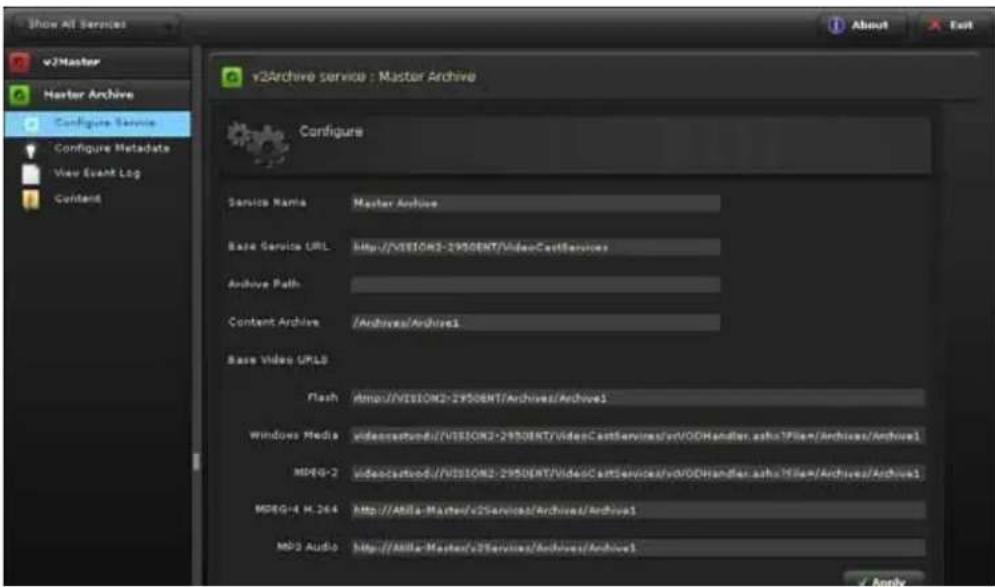
text_image
v2Archive service : Master Archive Configure Service Name: Master Archive Base Service URL: http://VISION2-295DENT/VideoCastServices Archive Path: Content Archive: /Archives/Archive1 Base Video UPLS Flash: http://VISION2-295DENT/Archives/Archive1 Windows Media: videocastvod://VISION2-295DENT/videoCastServices/vd/VODhandler.ashv3\File\Archives/Archive1 MDPG-2: videocastvod://VISION2-295DENT/VideoCastServices/vd/VODhandler.ashv3\File\Archives/Archive1 MDPG-4 H.264: http://Abila-Master/v2Services/Archives/Archive1 MD3 Audio: http://Abila-Master/v2Services/Archives/Archive1FIG. 83 Master Archive Service
The top panel on the page deals with the settings for the service itself and consists of the following options:
| Configure Archive Options | |
| Service Name The name of the service as it appears in the services menu | |
| Base Service URL The URL to the Web Services interface for this service. This value is automatically generated and should not be edited unless instructed by AMX. | |
| Archive Path | This is the physical path to the root folder of the archive. Please do not modify this setting unless instructed to do so by AMX. |
| Content Archive | This is the relative path the root folder if the archive. Please do not modify this setting unless instructed to do so by AMX. |
| Base Video URLs | These settings define the protocols and paths used to access the content in the archive. Please do not modify this setting unless instructed to do so by AMX. |

Filenames should only contain the characters A-Z, 0-9, spaces and underscores. If a filename is imported that contains the special character, it could cause error.
Supported Video on Demand Media Formats
Video on Demand service supports four types of media files (WMV, MPEG-2, MPEG-4, and FLV), however, Video on Demand can only support one file type at a time. To change the supported Video on Demand media format, an administrator must manually edit the vcArchiveBrowserConfig.xml file found in the /v2Service/UI folder.
Flash Video (FLV)
Flash video on the Vision ^2 server uses only standard definition and below video sizes. Flash videos must be encoded using the On2 VP6 video codec. The following table lists the recommended bitrates for flash video:
| Flash Video Recommended Bitrates | ||
| High Full D1 | 1.5 Mbits | |
| Medium Full D | 1 800 Kbits | |
| Low SIF 400 | Kbits | |
Windows Media Video (WMV)
Windows Media video can be encoded using WM9 and VC1. The following table lists the recommended bitrates for Windows Media video:
| Windows Media Video Recommended Bitrates | ||
| High Full D1 1.5 Mbits | ||
| Medium Full D1 800 Kbits | ||
| Low SIF 400 Kbits | ||
The recommended bitrate for high-definition VC1 is 8-12 Mbits.
MPEG-2
MPEG-2 must be encapsulated in an MPEG-2 transport stream. The supported audio formats are:
- MPEG Layer I
- MPEG Layer II
- MPEG Layer 3 (MP3)
AC3
The following table lists the recommended bitrates for MPEG-2 video:
| MPEG-2 Video Recommended Bitrates | ||
| High Full D1 8 | Mbits | |
| Medium Full D1 6 | Mbits | |
| Low Full D1 4 | Mbits | |
High-definition is supported for playback to a set-top box. The recommended bitrate is 8-12 Mbits.
MPEG-4 AVC (H.264)
MPEG-4 files must be encapsulated in an MPEG-4 stream (.mp4). Files must have the MOOV Atom at the start of the file for fast start. The audio must be in AAC format. The following table lists the recommended bitrates for MPEG-4 video:
| MPEG-4 Video Recommended Bitrates | ||
| High Full D1 | 1.5 Mbits | |
| Medium Full D1 | 800 Kbits | |
| Low SIF 400 | Kbits | |

The bitrates specified above are for playback on a PC unless otherwise stated.
Configuring Metadata
When you select Configure Metadata from the Archive Service Menu the following page appears (FIG. 84).
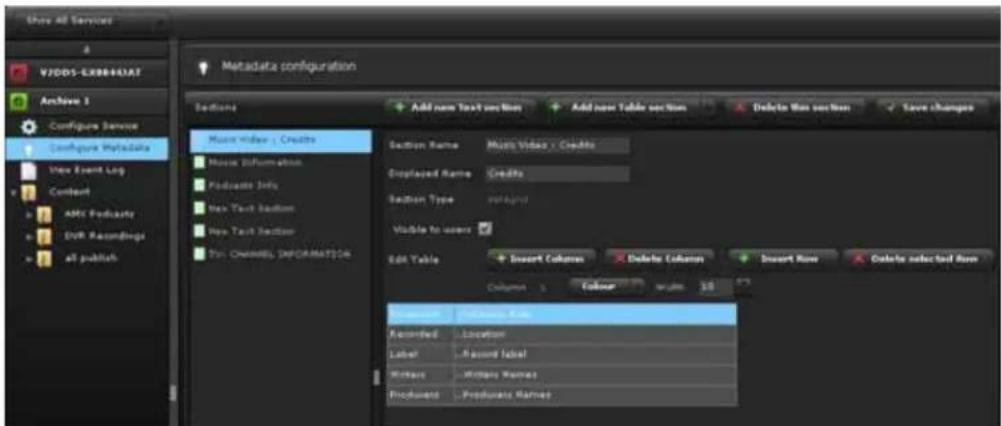
text_image
Show All Services V7DDS-EXPERDAT Archives 1 Configure Service Configure Metadata View Event Log Contour AMZ Podcasts DVI Recordings all publish Metadata configuration Sections Add new Text section Add new Table section Delete New section Save changes Music Window - Credits Music Information Podcasts Info New Text Section New Text Section Pty. Channel INFORMATION Section Name Music Video - Credits Displayed Name Credits Section Type Untitled Visible to users Edit Table Insert Columns Delete Columns Insert Row Delete selected Row Column 1 Colour w/m 10 Recorded Location Label Record Label Record Record Name Produce Produce NameFIG. 84 Metadata Configuration
The Archive supports two styles of metadata:
● Built-in: This information is only available in the Vision ^2 Service Manager
- Normal: This information is available in both management and user interfaces
The built-in metadata is used to display the available formats of specific videos and technical information about the videos.
Metadata is stored in different sections which appear as tabs when browsing the archive as an administrator. User-created metadata sections can be of one of two types:
• Text Section: Sequential text
● Table Section: A table with user defined number of columns
Creating a New Metadata Section
To create a new text section, click Add new Text section. The following options appear:
| Add New Text Section Options | |
| Section Name This is the name of the section as it appears on the left side of the page and also when editing metadata in the archive (see the Editing Metadata section on page 94). It can be different to the Displayed Name so that related sections appear together in the lists. For example:Music Video: InfoMusic Video: CreditsMusic Video: LyricsTV Program: CreditsTV Program: Synopsis | |
| Displayed Name This is the name of the section as it will be displayed to a user | |
| Visible to users | Check this box if you want the section to be visible to the users. If it is not checked then it will only be visible in the management interface. |
To create a new table section click Add new Table section, select the number of rows and columns, and click Add Table.
| Add New Table Section Options | |
| Section Name | This is the name of the section as it appears on the left side of the page and also when editing metadata in the archive. It can be different to the Displayed Name so that related sections appear together in the lists. For example:• Music Video: Info• Music Video: Credits• Music Video: Lyrics• TV Program: Credits• TV Program: Synopsis |
| Displayed Name This is the name of the section as it will be displayed to a user. | |
| Visible to users | Check this box if you want the section to be visible to the users. If it is not checked then it will only be visible in the management interface. |
| Edit Table | |
| Insert Column Allows you to insert an extra column | |
| Delete Column Allows you to delete the selected column | |
| Insert Row Allows you to insert a new row | |
| Delete Row Allows you to delete the selected row | |
| Colour Allows you to change the color of the selected column | |
| Width Allows you to define the width of the selected column | |
| User can edit this column | Check the box to allow the contents of the column to be edited (see example below) |
You can insert text into the table as a hint for when someone is adding metadata to a video. FIG. 85 displays a new table based section and the hints.
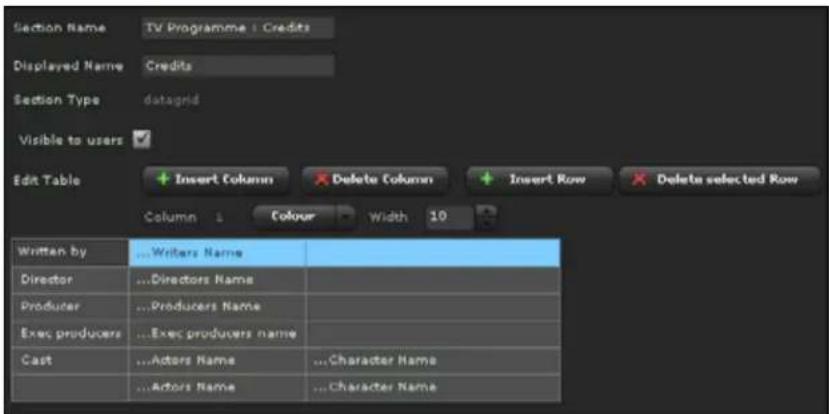
text_image
Section Name TV Programme : Credits Displayed Name Credits Section Type datagrid Visible to users ✓ Edit Table + Insert Column Delete Column Insert Row Delete selected Row Column 1 Colour Width 10 Written by ...Writers Name Director ...Directors Name Producer ...Producers Name Exec producers ...Exec producers name Cast ...Actors Name ...Character Name ...Actors Name ...Character NameFIG. 85 Metadata Table
FIG. 86 displays how the information appears with actual metadata in the main archive.
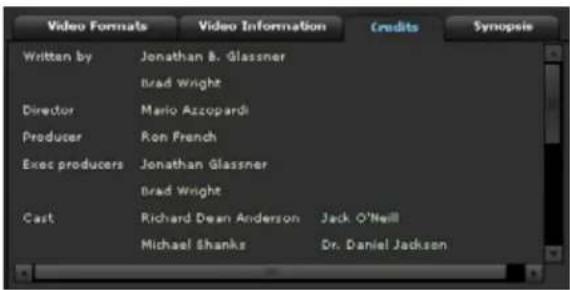
text_image
Video Formats Written by Jonathan B. Glassner Brad Wright Director Mario Azzopardi Producer Ron French Exec producers Jonathan Glassner Brad Wright Cast Richard Dean Anderson Jack O'Neill Michael Shanks Dr. Daniel JacksonFIG. 86 Metadata Example

If you make any changes that you want to keep, you must click the Save Changes button.
Browsing and Managing Content
All content is stored in the archive in a hierarchical structure, much like folders on a PC, and is displayed in a similar manner in the archive service menu. The descriptions folder and category are interchangeable.
To open or close a folder, click the arrow to the left of it in the left pane. If you click a folder, you will see a representation of the contents of the folder in the right pane.
You can rename the folder, and you can edit the description by clicking on the folder description below the images. You can also create a new folder, upload a new video, or add an online video. The process of uploading a new video is identical to the process of uploading an additional video (see the Uploading Additional Versions of the Same File section on page 95 for more information.) If you want to see your recently recorded files, you must click the Refresh button.

Vision ^2 does not validate any URL you enter for an online video. If there is an error in the URL, the page will not be successfully displayed.
Archive Sort Function
The Vision ^2 Archive Sort function provides the ability to alphabetize an existing Vision ^2 archive. Use the archive sort function by following the process outlined below:
- Open the Vision ^2 Admin user interface on the Master server and select the archive tab.
- Select the root Content folder, you will see a new button, Sort Entire Archive at the top right of the screen. Note that this is only available in the root Content folder and not in sub folders as you can only sort the entire archive. See FIG. 87 for details.
- Click the Sort Entire Archive button, a warning box will appear to highlight that the process cannot be undone.

AMX advises that the content.xml for the archive should be backed up before proceeding.
- Click Yes to sort the entire archive. Note that you may get a security prompt if authentication is enabled. After the Sort is complete, the Content list will refresh to show the new order. (See FIG. 88 for an example.) The sort process applies to all subfolders and their contents and repeats recursively until all the contents have been sorted. Once the sort is finished, you can reorganize folders and contents manually, if required. The Sort Entire Archive function can be reused at any time, for example when a new batch of content has been uploaded to the archive.
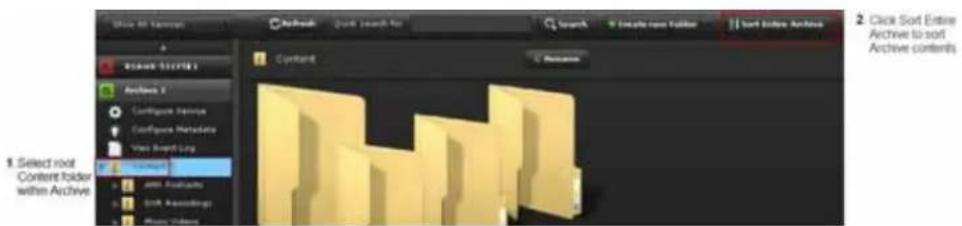
text_image
1. Select root Content folder with Archive 2. Click Sort Entire Archive to sort Archive contents.FIG. 87 Using the Sort Archive Function
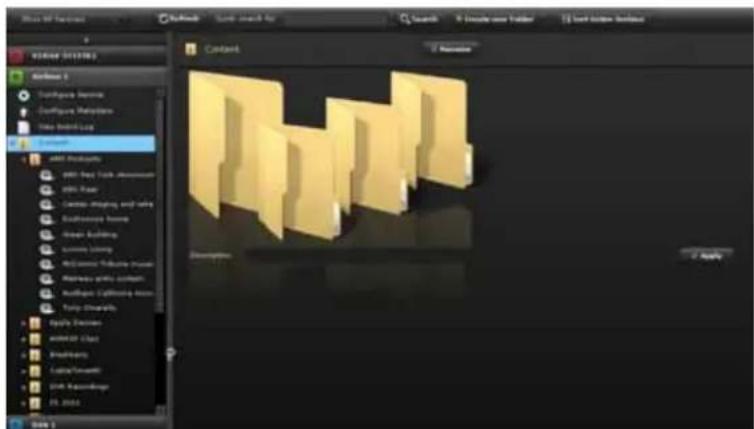
text_image
File Edit Options AutoRed Search 9. Create new Folder Last New Bookbox Content Rename Description ApplyFIG. 88 Folders and Content Sorted Alphabetically

The Sort function is only available in Vision ^2 version 7.2.2 or higher. This upgrade can only be installed on existing Vision ^2 release 7.2 R710 servers. Copy the "V2-Feature Upgrade-Rel-7-2-2 (040512).exe" installer to all your R710 Vision ^2 servers, then run the file on all required servers. This will install the required feature upgrades to the wwwroot and v2services folders.
Adding an Online Video to an Archive
Vision2 enables you to provide content links to online videos from websites such as YouTube or MediaSite. Follow these steps to add an online video to an archive.
- Click the Content folder under one of your archives on the left side of the page.
- On the Content screen, click Add an online video. A new series of options appears (FIG. 89).
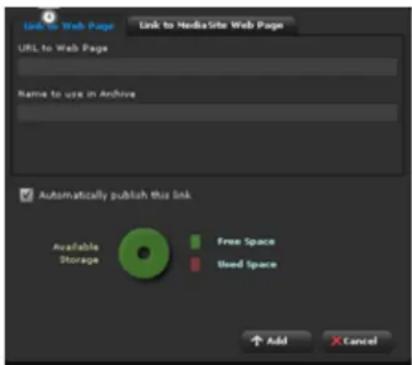
text_image
Link to Web Page Link to MediaSite Web Page URL to Web Page Name to use in Archive Automatically publish this link Available Storage Free Space Breed Space ↑ Add CancelFIG. 89 Add an online video screen
3. In the URL to WebPage field, enter the URL to the video you want to add. Vision ^2 does not verify this URL, so it must be correct to avoid errors.
4. In the Name to Use in Archive field, enter the name of the link as you want it to appear in the archive.
5. Click Add.
To add a MediaSite link, click the Link to MediaSite Web Page tab. The same information is required as above, but you must also enter a base website URL.
Viewing the Contents of an Archive
To examine an individual video you simply open a folder, and click on the name of the video. To view multiple videos, use CTRL-click. The following options act on multiple selections:
| Multiple Selections Options | |
| Quick search for | Enter the text you wish to search for in the metadata and click the Search button, the videos in the branch of the currently selected content folder will be shown with the search text highlighted in the metadata. |
| Clear all selections The current selection is cleared. | |
| Delete Selected Video Deletes the video shown in the right hand details pane. | |
The options for each individual video are as follows:
| Video Options | |
| Rename Change the name of | the video as it appears to a user |
| Published New videos which have been uploaded are automatically hidden from users not accessing the content through the management interface. This enables the administrator to add metadata before publishing the video for user access. | |
| Play Allows you to playback the video in all the available file formats and bitrates to check correctness (see the Playing a Video within the Archive section on page 94.) | |
| Edit Info | Provides metadata editing (see the Editing Metadata section on page 94.) |
| Edit thumbs When a new video is uploaded the system automatically generates four thumbnails which are used by the various user interfaces. You can change the thumbnails using this function. | |
| Upload additional video | Once a video has been uploaded, you can upload additional file formats or bitrates of the same video. |
The default metadata consists of three sections:
| Metadata Options | |
| Video Formats | This provides an visual representation of the currently uploaded file formats. Passing the cursor over an uploaded video format displays the upload date of the format. |
| Video Information Provides technical information on the individual video files. | |
| Synopsis Provides a description of the video. You can edit this option by clicking Edit Info. | |
Playing a Video within the Archive
To verify a video within the archive will playback correctly, click the Play button and the first available format/bitrate begins to play. The Format / Speed button matrix allows you to select which file format and bitrate to view. Click the appropriate Format and Speed buttons, and then click Play.

text_image
Refresh Quick search for Search Clear all selections Delete Selected Video 00:01:45 Coral_Reef_Adventure_1080 Reactive Published Play Edit Info Edit Thumbra Upload Additional Video Video Formats Video Information Synapse The following video formats have been uploaded: FLV WMV TS MP4 MP3 Bitrate Flash Windows MP3-2 MP3-4 Audio Uploaded date High Medium Low This format has not been uploaded. Thumbnail imagesFIG. 90 Archive video
By clicking on one the thumbnail images you will be taken to the point in the video where the thumbnail was captured (FIG. 90).
Editing Metadata
You cannot play any audio content from the Archive service on the server itself since the server has no audio capability. You must play audio files from a remote browser with audio capabilities.
To edit the metadata, click Edit Info for the video. Initially the Manage Sections options are visible and provide the following functions:
| Manage Section Options | |
| Add new section Allows a new | metadata section to be inserted (see the Configuring Metadata section on page 89 for more information.) Select the section to insert from the drop down, and click Add. |
| Move Section Left Changes the | order that metadata will be presented to the user. |
| Move Section Right Changes the | order that metadata will be presented to the user. |
| Delete section Removes the | selected metadata section from this video |

If you select a text-based section (in this case Podcast Info) and click Edit Section, the options change appropriately to display the usual text editing options like font type, size, and weight (FIG. 91).

text_image
Text editing options 00:02:19 - AFRX New York showroom1 Manage Section Vendor 10 F U Edit Section Consult text to Hapalink http:// Video Formats Video Information Podcast Info ARX hardware and software solutions simplify the way people interact with technology. With the increasing number of technologies and operating platforms at work and home, ARX sobre the complexity of managing this technology with reliable, consistent and scalable systems. Our award-winning products upon control and automation, switching, distributed audio and video, and technology management. They are implemented everywhere in conference rooms; homes, glassroom, network operation / command center, hotels, entertainment venues, broadcast facilities, among others. ARX focuses on developing targeted solutions that meet the ever-earning technology needs of customers in 14 vertical markets. Business Education Government House of Worship Entertainment Broadcasting Hunts Whole Home Home Theater Multi-Dwelling Units Private Transportation Retail Healthcare Network Operations Centers.FIG. 91 Editing Metadata
If you select a table-based section to edit, the options change again. The only options that appear are to insert or delete rows. The table shows gridlines and clicking on a table cell enables editing.
Uploading Additional Versions of the Same File
To upload an additional file format or bitrate version of the video, click Upload Additional Video to display the upload screen (FIG. 92). Vision ^2 does not support transcoding files. You must upload versions of the same file with different formats and bitrates.
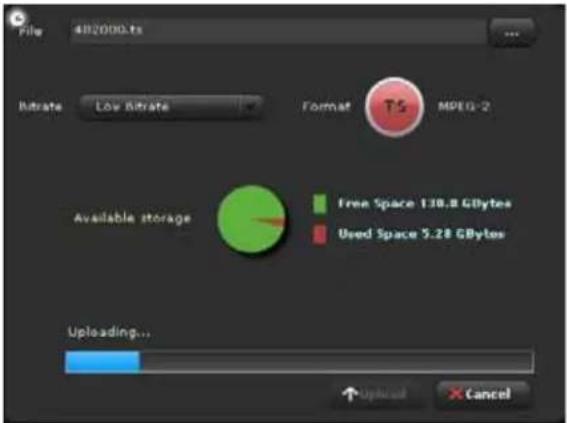
text_image
File 482000.ts Retrate Low Retrate Format TS MPEG-2 Available storage Free Space 130.8 GBytes Used Space 5.28 GBytes Uploading... ↑ Upload CancelFIG. 92 Upload Additional Video
Perform these steps to upload an additional version of the same file:
- Click the Content folder under Master Archive on the left side of the page, and select an existing file.
- Click Upload Additional Video. The upload screen appears.
- Click the Browse (...) button to select a file to upload.
- Select a bitrate category from the Bitrate options menu.
- Click Upload.
Archive Service
Thumbnail Editor
The thumbnail editor allows users to create video thumbnails, effectively bookmarks to certain points in your video. Each thumbnail contains an image captured from the video at the time of creation along with some descriptive text to describe its purpose. The thumbnail editor consists of two screens:
- Archive Navigation Screen - this is the first screen. It is used to select those videos you want to work on.
- Thumbnail Editor Screen - this screen is used to view, create, or edit thumbnails for a video selected using the Archive Navigation screen.

NOTE
The Thumbnail Editor is only available in Vision ^2 version 7.2.2 or higher. This upgrade can only be installed on existing Vision ^2 release 7.2 R710 servers. Copy the "V2-Feature Upgrade-Rel-7-2-2 (040512).exe" installer to all your R710 Vision ^2 servers, then run the file on all required servers. This will install the required feature upgrades to the wwwroot and v2services folders.
Requirements
The thumbnail editor requires Internet Explorer 8 (x32bit) web browser or later running on Windows XP or later.
The thumbnail editor requires two plugins:
- Adobe Flash (version 11 or higher). Download from http://get.adobe.com/flashplayer/
- VLC Media Player (version 2.0 or higher). Download .exe installer from http://www.videolan.org/vlc/download-windows.html
In order to edit thumbnails a user must be a member of either:
- Vision ^2 Servers NT Administrator Group
or
- an NT group on the Vision ^2 Server listed in the file config.xml which is located at c:\inetpub\wwroot\v2services\ui\ThumbsEditor.
A sample config.xml file is as follows:
?xml version="1.0"?
List of Windows NT User Groups whose users will be granted edit rights
1 Second Accuracy
Depending on the characteristics of the recorded video, the accuracy with which a thumbnail can be created—defined as the time difference between the frame shown when the user creates a thumbnail and the actual captured frame—can vary. The following sections detail the recommended configuration settings if an accuracy of one second is required:
Video Inputs
● Always use an encoder such as the MAX-CSE to encode the stream to an MPEG standard.
- Recording from a DVB-T/S Set-Top box without using an encoder is not advised. Set-top boxes can introduce noise into the file which can have adverse effects on the thumbnail captures. All recordings must be run through an encoder to be converted to a supported format.
MAX-CSE Encoder Recommended Settings
To ensure the best possible accuracy for thumbnail captures, use the MPEG codec with a Constant bitrate.

Thumbnail functionality has been thoroughly tested and confirmed to be within 1 second accuracy for capturing. For instance, if during a television broadcast there is a change in camera angle or there is fast-moving content, a visual inaccuracy could be created. Vision ^2 is not frame accurate and an example like this is a rare occurrence, however, the nature of the video makeup can impact thumbnail functionality.
Login to Thumbnail Editor
Login to the Thumbnail editor as follows:
- Enter the application link provided by your system administrator into your web browser. For example, http://
/ThumbsEdit.aspx. Replace with the name or IP address of your Vision ^2 Server. You should see a login panel as shown in FIG. 93.
text_image
Please Log in to the system User Name: Password: Log InFIG. 93 Login Window
- Enter the username and password provided by your system administrator and click Log in. The first application screen will now load, the Archive Navigation Screen.

Do not login more than once with the same credentials (username and password).
Archive Navigation Screen
The Archive Navigation Screen consists of two main areas (see FIG. 94):
- The Archive Navigation Pane - used to navigate through the video archive and select those videos you wish to create/view thumbnails for.
- The Selected Video Area - shows the videos selected in the navigation pane. You can now view, create, edit, or delete thumbnails for these videos.

text_image
Archive Navigation Pane Selected Video Area Overview • Content • Edit Audio • Music by animal • Play the Bloom • Starlight: New lighting • Resume • Interactive Bands • Christmas Açpicate • Christmas Witten • Comedy Matrix: Ase • Give Shooting • Funlosses • Fantasy • Dynamite: Chino • Grey: Alread • Fully: Science • Sports • Specialer content • Topo Boom • Fife • Fully: Steps • City: Men • Home • School • Craftful: Stearns The live shows nothing The live shows being a very performed by English major newspapers: Maxle Show. It is the lead single from her second album. The Maxle Show. The song will be written by Maxle along with the help of Adrian Agunes, Melissa Osten, Carina Thar, and others. The book covers the original version of a Disney's first book. One book has been read in this book. The book also has been copied with the original text. One book has been read in this book. The book also has been copied with the original text. One book has been read in this book. The book also has been copied with the original text. One book has been read in this book. The book also has been copied with the original text. One book has been read in this book. The book also has been copied with the original text. One book has been read in this book. The book also has been copied with the original Text. • Show Thunderships • Histograms count 8 Figure 1 Paramount: iTunes and Realms: Slides by screen adhesion of Marvel's Supermarkets: Super Movie: Don Man will reach into the season on May 2, 2006. Super movie: Super Movie: 10 stars as Young, Black/White Men's at the story of a Baltimore manuscript and a TV show, and a TV show, and a TV show, and a TV show, and a TV show, and a TV show, and a TV show, and a TV show, and a TV show, and a TV show, and a TV show, and a TV show, and a TV show, and a TV show, and a TV show, and a TV show, and a TV show, and a TV show, and a TV show, and a TV show, and a TV show, #ON MON Histograms count 4 Figure 2 Paramount: iTunes and Realms: Slides by screen adhesion of Marvel's Supermarkets: Super Movie: Don Man will reach into the season on May 2, 2006. Super movie: Super Movie: 10 stars as Young, Black/White Men's at the story of a Baltimore manuscript and a TV show, and a TV show, and a TV show, and a TV show, and a TV show, and a TV show, and a Tally-Black/White Fiction: Using the Impology and Science. They build a high part of music of music and videoelectric effects. When he enables a reference after with digital implications, we drive the music to create and write out the music that uses the Tally-Black/White Fiction through Books and those Immersion Transitions. The book also includes all the books about the genre. The book also includes all the books about the genre. The book also includes all the books about the genre. The book also includes all the books about the genre.FIG. 94 Different Areas of Main Thumbnail Creation Screen
The Archive Navigation Pane works in a similar way to windows explorer:
- Click the arrows beside the folders to expand or contract them, revealing or hiding the contents respectively.
- Videos are indicated by filmstrip icons. The video title appears to the right of the icon.

MP3 files are not shown.
Click a video you want to create/edit thumbnails for; this adds the video to the selected video area. Each video in this area contains the following:
• Video title (above image)
- Video image
● Video description (to the right of the image)
- Number of thumbnails associated with the video (thumbnail count). If this number is one or more then the video will have a show thumbnails button.

text_image
The boy does nothing The Boy Does nothing is a album. The Alesha Show, the Williams, and other members that year. It was also her track" on The Alesha Show on the majority charts it is bashing kind of record."[3] Show Thumbnails Thumbnails count: 9FIG. 95 Video in Selected Video Area
You can also select videos using the Search bar. Enter the text you want to search for and click the magnifying glass. Videos with a title, metadata, description, or thumbnail which contain this text are added to the Selected Video Area.

FIG. 96 Search Bar
Click Clear current selections to remove all videos from the Selected Video Area.
You can carry out the following actions on videos in the Selected Video Area:
- Play video in thumbnail editor - Hover over the video image to reveal a blue play icon. Click this icon to go to the thumbnail editor and start the video playing (from the beginning). Note that if someone is already playing/editing this video then you will see the following error message:

FIG. 97 Error Message - Video Locked By Other User
This message shows the username of the other user who is editing the video. Wait until they have finished to proceed.
- Show the thumbnails associated with video - Click Show Thumbnails to view all the thumbnails associated with this video and the descriptive text associated with these thumbnails.
- Remove video - Click the red cross in the top right hand corner to remove this video.
If you selected Show thumbnails you now have a list of thumbnails. Each thumbnail has an image, a time and some descriptive text.
● Time - time from start of video in (hours:minutes:seconds) of this thumbnail
- Descriptive text - text describing what the thumbnail bookmarks
- Image - thumbnail image
To play the video in the thumbnail editor screen starting at the point marked by this thumbnail proceed as follows:
-
Hover over the thumbnail image to reveal a blue play icon.
-
Click the blue play icon, see FIG. 98. Note if someone is already editing this video then you will see the error shown in FIG. 97:
text_image
00:00:17 Change this default description text by clicking on the Edit iconFIG. 98 Play Video From Thumbnail Position
Thumbnail Editor Screen
The thumbnail editor screen (FIG. 99) consists of two main areas:
- Thumbnail bar - Contains a number of thumbnails arranged in time order. Thumbnails at the top occur earlier in the video than those further down.
● Video Playback Area - Plays the video selected in the previous screen.
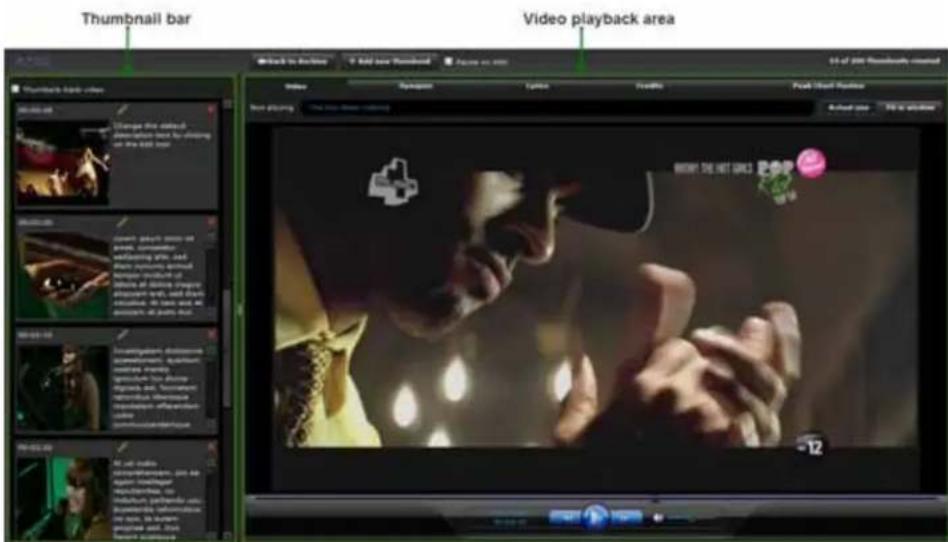
text_image
Thumbnail bar Video playback area Thumbnail Bar video 10 of 200 thumbnails created Back to Animation Top and new Preview Figure as info Video Synimage Systems Preview Peak Twist Preview Next playing The Live Video Screening About size 50 or 600mm BOMY DR NET OURS POP -12FIG. 99 Thumbnail Editor Screen
The following actions are available in this screen:
- Play a Thumbnail
- Create a new Thumbnail
- Delete a Thumbnail
- Add descriptive text to a Thumbnail
- Play video
- Return to archive
These actions are described in detail over the following pages.
Playing a Thumbnail
Hovering over the thumbnail images in the thumbnail bar reveals a play icon which allows you to play the video from the time marked by that thumbnail. Set the Thumbnail track video checkbox to automatically scroll the thumbnail bar to show those thumbnails closest in time to the current video playback.
Creating a Thumbnail
You can create up to 200 thumbnails for a video as follows:
- Start the video playing, ether by clicking play in the video playback panel or by clicking play on a thumbnail image.
- Wait until the video reaches the moment you want to mark.
- Click Add new Thumbnail to add a new thumbnail to the Thumbnail bar. This thumbnail marks your current video playback position and a thumbnail image is captured from the video playback. Note that you can set the Pause on Add checkbox to force the video playback to pause when you add a thumbnail.

Occasionally there will be some discrepancy between the time when you press Create Thumbnail and the time when the image is captured from the video. This is an artifact of the way some compressed video formats work.
Deleting a Thumbnail
Unwanted thumbnails can be deleted by clicking on the red arrow in the top right corner of the thumbnail.
Adding Descriptive Text to a Thumbnail
Once you have created a thumbnail you add descriptive text to provide further information for users. Click on the pencil (edit) icon or within the text field to edit the thumbnail text, see FIG. 100. Once you are satisfied, click the floppy disk (save) icon to save your changes, see FIG. 101. You can undo your changes by clicking on the curved (undo) arrow. Up to 5000 characters are allowed.

text_image
Time from beginning of video of this thumbnail in hours. minutes seconds Edit thumbnail text Change this default description text by clicking on the 000 mm Delete thumbnail Image captured from video for thumbnailFIG. 100 Thumbnail Entry in Thumbnail Bar
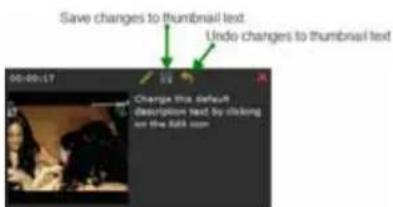
text_image
Save changes to thumbnail text Undo changes to thumbnail text 00:00:17 Change this default description text by clicking or the fall boxFIG. 101 Modifying Thumbnail Text
Returning to Archive to Select Another Video
Click Back to Archive to return to the Archive Navigation screen.
Video Playback Area
The video playback area is used for the following actions:
- Viewing a video.
● Finding the right position in a video to create a thumbnail. - Viewing thumbnails that have already been created.
You can control the playback using a small panel at the bottom of the screen, see FIG. 102. The main controls are as follows:
- Drag the slider to a position on the timeline to play the video from that position.
- Click a position on the timeline to play the video from then.
- Click the play button to play the video.
- Click pause to halt playback.

text_image
Timeline with slider to show current playback position. Playback Time (top) Video Length (bottom) Step backward one frame Play video VolumeFIG. 102 Video Playback Control Panel
Exiting the Thumbnail Editor
Navigate back to the Archive Navigation Pane once you have finished viewing a video and/or creating thumbnails and click Back to Archive before exiting the application. Do not close the browser or Edit thumbnail screen, otherwise the video you are working on will stay locked and will not be accessible to other users.

If you forget to logout correctly, you will need to log back in, play the problem video, and then exit correctly.
Thumbnail Editor
Thumbnail Viewer
The thumbnail viewer allows users to view video thumbnails, effectively bookmarks to certain points in your videos. Each thumbnail contains an image captured from the video at the time of creation along with some descriptive text to describe its purpose. The thumbnail viewer consists of two screens:
- Archive Navigation Screen - this is the first screen. It is used to select those videos you want to work on.
- Thumbnail Viewer Screen - this screen is used to view thumbnails for a video selected using the Archive Navigation screen.

NOTE
The Thumbnail Viewer is only available in Vision ^2 version 7.2.2 or higher. This upgrade can only be installed on existing Vision ^2 release 7.2 R710 servers. Copy the "V2-Feature Upgrade-Rel-7-2-2 (040512).exe" installer to all your R710 Vision ^2 servers, then run the file on all required servers. This will install the required feature upgrades to the wwwroot and v2services folders.
Requirements
The thumbnail viewer requires Internet Explorer 8 (x32bit) web browser or later running on Windows XP or later.
The thumbnail editor requires two plugins:
- Adobe Flash (version 11 or higher). Download from http://get.adobe.com/flashplayer/
- VLC Media Player (version 2.0 or higher). Download .exe installer from http://www.videolan.org/vlc/download-windows.html
Login to Thumbnail Viewer
Login to the Thumbnail viewer as follows:
- Enter the application link provided by your system administrator into your web browser. For example, http://
/ThumbsViewer.aspx. Replace with the name or IP address of your Vision ^2 Server. The first application screen will now load, the Archive Navigation Screen.
Archive Navigation Screen
The Archive Navigation Screen consists of two main areas (see FIG. 103):
- The Archive Navigation Pane - used to navigate through the video archive and select those videos you wish to create/view thumbnails for.
- The Selected Video Area - shows the videos selected in the navigation pane. You can now view thumbnails for these videos.

text_image
Archive Navigation Pane Selected Video Area ARCHA navigation pane Search View content selection The Box Down Nothing The Box Down Being a song performed by Blackish song-computer, Blanche Storm. It is the lead song from four second songs. The White Storm: The song was either by Blanche along with the title of Arora Magazine, Monosia DC Comics, Carla-Hama, and other children's books. The book was also called a series of popular characters. The song was described as being the original text of the year. It also also has been written using all her own words about us. The song was described as being the original text of the year. It also has been written using all her own words about us. The song was described as being the original text of the year. It also has been written using all her own words about us. The song was described as being the original text of the year. It also has been written using all her own words about us. The song was described as being the original text of the year. It also has been written using all her own words about us. The song was described as being the original text in the original text frame (e.g., 2016). The box showed that there were only one story, "This box shows something," then it was a music character named "box" (2), appearing that "the box contains a post chapter more than anything." (3) Black Sandblood Windgraph search & Figure 1 Recurrent Picture and Neural Styles Top answer adoptions of Marvel's appendices Super-narr Super will launch into Theater on May 3, 2008. The review members Robert Stowe, Jr., are at Tony Clark's New York of the story of a television audience and a TV show, and should be read-in and read-in both a corresponding version. The book has made a complete story to have a new article, and the book has read-in and read-in both a TV show, and should be read-in and read-in both a TV show, and should be read-in and read-in both a TV show, and should be read-in and read-in both a TV show, and should be read-in and read-in both a TV show, and should be read-in and read-in both a TV show, and should be read-in and read-in both a TV show, and should be read-in and read-in both a TV show, and should be read-in and read-in both a TV shows, and should be read-in and read-in both a TV shows, and should be read-in and read-in both a TV shows, and should be read-in and read-in both a TV shows, and should be read-in and read-in both a TV shows, and should be read-in and read-in both a TV shows, and should be read-in and read-in both a TV shows, and should be read-in and read-in both a TV shows, and should be read-in and read-out. Iron Man Housemate score 4 Figure 2 Recurrent Picture and Neural Styles Top answer adoptions of Marvel's legendary Super-narr Super will launch into Theater on May 3, 2008. The review members Robert Stowe, Jr., are at Tony Clark's New York of the story of a television audience and a TV show, and should be read-in and read-in both a TV show, and should be read-in and read-in both a TV show, and should be read-in and read-in both a TV shows, and should be read-in and read-in both a TV shows, and should be read-in and read-in both a TV shows, and should be read-in and read-out. The box showed that "The box has been a very strong performance for the second century," which is the lead song from four second songs. The White Storm: The song was either by Blanche along with the title of Arora Magazine, Monosia DC Comics, Carla-Hama, and other children's books. The song was also called a series of popular characters. The song was described as being the original text of the year. It also has been written using all her own words for the same time. The song was also called a series of popular characters. The song was described as being the original text of the year. It also has been written using all her own words for the same time. The song was also called a series of popular characters. The song was described as being the original text in the original text frame (e.g., 2016). The box showed that "The box has been a very strong performance for the second century," which is the lead song from four second songs. The white storm: The song was also called a series of popular characters. The song was described as being the original text of the year. It also has been written using all her own words for the same time. The box showed that "The box has been a very strong performance for the second century," which is the lead song from four second songs. The white storm: The song was also called a series of popular characters. The song was described as being the original text in the original text frame (e.g., 2016). The box showed that "The box has been a very strong performance for the second century," which is the lead song from four second songs. The white storm: The song was also called a series of popular characters. The song was described as being the original text in the original text frame (e.g., 2016). The box showed that "The box has been a very strong performance for the second century," which is the lead song from four second songs. The white storm:The song was also called a series of popular characters. The song was described as being the original text in the original text frame (e.g., 2016). The box showed that "The box has been a very strong performance for the second century," which is the lead song from four second songs. The white storm:The song was also called a series of popular characters. The song was described as being the original text in the original text frame (e.g., 2017). The box showed that "The box has been a very strong performance for the second century," which is the lead song from four second songs. The white storm:The song was also called a series of popular characters. The song was described as being the original text in the original text frame (e.g., 2017). The box showed that "The box has been a very strong performance for the second century," which is the lead song from four second songs. The white storm:National Storybook: The box showed that "The box has been a very strong performance for the second century," which is the lead song from four second songs. The white storm:National Storybook: The box showed that "The box has been a very strong performance for the second century," which is the lead song from four second songs. The white storm:National Storybook: The box showed that "The box has been a very strong performance for the second century," which is the lead song from four second songs.FIG. 103 Different Areas of Main Thumbnail Creation Screen
The Archive Navigation Pane works in a similar way to windows explorer:
- Click to expand a folder revealing its contents
- Click to contract a folder
- Videos are indicated by filmstrip icons. The video title appears to the right of the icon.

MP3 files are not shown.
Click a video you want to create/edit thumbnails for; this adds the video to the selected video area. Each video in this area contains the following:
• Video title (above image)
- Video image
● Video description (to the right of the image)
- Number of thumbnails associated with the video (thumbnail count). If this number is one or more then the video will have a show thumbnails button.
text_image
The boy does nothing The Boy Does nothing is a new album, The Alesha Show, The Williams, and other members that year. It was also her track on The Alesha Show on the majority charts it was bashing kind of record.[3] Show Thumbnails Thumbnails count : 9FIG. 104 Video in Selected Video Area
You can also select videos using the Search bar. Enter the text you want to search for and click the magnifying glass. Videos with a title, metadata, description, or thumbnail which contain this text are added to the Selected Video Area.

FIG. 105 Search Bar
Click Clear current selections to remove all videos from the Selected Video Area.
You can carry out the following actions on videos in the Selected Video Area:
- Play video in thumbnail viewer - Hover over the video image to reveal a blue play icon. Click this icon to go to the thumbnail viewer and start the video playing (from the beginning).
- Show the thumbnails associated with video - Click Show Thumbnails to view all the thumbnails associated with this video and the descriptive text associated with these thumbnails.
- Remove video - Click the red cross in the top right hand corner to remove this video
If you selected Show thumbnails you now have a list of thumbnails. Each thumbnail has an image, a time and some descriptive text.
● Time - time from start of video in (hours:minutes:seconds) of this thumbnail
- Descriptive text - text describing what the thumbnail bookmarks
- Image - thumbnail image
To play the video in the thumbnail viewer screen starting at the point marked by this thumbnail proceed as follows:
- Hover over the thumbnail image to reveal a blue play icon.
- Click the blue play icon, see FIG. 106.

text_image
00:00:17 Change this default description text by clicking on the Edit iconFIG. 106 Play Video From Thumbnail Position
Thumbnail Viewer Screen
The thumbnail viewer screen (FIG. 107) consists of two main areas:
- Thumbnail bar - Contains a number of thumbnails arranged in time order. Thumbnails at the top occur earlier in the video than those further down.
● Video Playback Area - Plays the video selected in the previous screen.
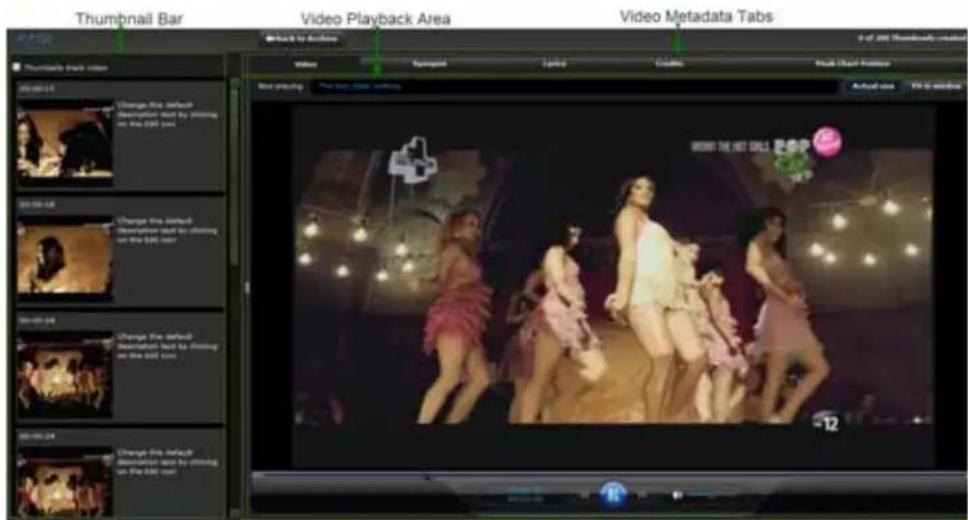
text_image
Thumbnail Bar Video Playback Area Video Metadata Tabs Thumbnail Track Video 0 of 200 (widely created) Video Playback Area Video Playback Area Video Playback Area Video Playback Area Video Playback Area Video Playback Area Video Playback Area Video Playback Area Video Playback Area Video Playback Area Video Playback Area Video Playback Area Video Playback Area Video Playback Area Video Playback Area Video Playback Area Video Playback Area Video Playback Area Video Playback Area Video Playback Area Video Playback AreaFIG. 107 Thumbnail Viewer Screen
The following actions are available in this screen:
- Play a Thumbnail
● Play video using video playback control panel - Return to archive
These actions are described in detail over the following pages.
Playing a Thumbnail
Hovering over the thumbnail images in the thumbnail bar reveals a play icon which allows you to play the video from the time marked by that thumbnail. Set the Thumbnail track video checkbox to automatically scroll the thumbnail bar to show those thumbnails closest in time to the current video playback.
Viewing Video Metadata
Click on the named tabs in the Video Metadata tab area to view information about the video added by the Vision ^2 administrator.
Returning to Archive to Select Another Video
Click Back to Archive to return to the Archive Navigation screen.
Video Playback Area
The video playback area is used for the following actions:
- Viewing a video.
- Viewing thumbnails.
You can control the playback using a small panel at the bottom of the screen, see FIG. 108. The main controls are as follows:
- Drag the slider to a position on the timeline to play the video from that position.
- Click a position on the timeline to play the video from then.
- Click the play button to play the video.
- Click pause to halt playback.

text_image
Timeline with order to show current playback position Playback Tree (top) Video Length (bottom) Step backward over frame Play video Volume Step Forward one frameFIG. 108 Video Playback Control Panel
Thumbnail Viewer
Producer Service
Overview
The Vision ^2 Producer Services provides a single scheduled TV channel to the system. Producer schedules a unicast of WMV files or a multicast of MPEG-2, MP4 H.264, or WMV files or a live channel from a Vision ^2 archive. Schedules run on a four week loop, then begin again after the four weeks have expired. In the event there is no content scheduled for a certain period of time, Producer enables you to set an intermission source which automatically plays an MPEG-2, MP4 H.264, or WMV file from a Vision ^2 archive, a multicast MPEG-2 or MP4 H.264 source such as a DVB or Live MPEG channel, or a unicast WMV source such as a live WMV channel. Please note that both the MPEG, MP4 H.264, and WMV (Windows Media Video) variants are managed in exactly the same manner, and that this section is applicable to both services.

The Producer WMV service is not available with Vision ^2 version 7.2.2-M.
Configuration
When you select Configure Service from the Producer menu, the following page appears (FIG. 109).
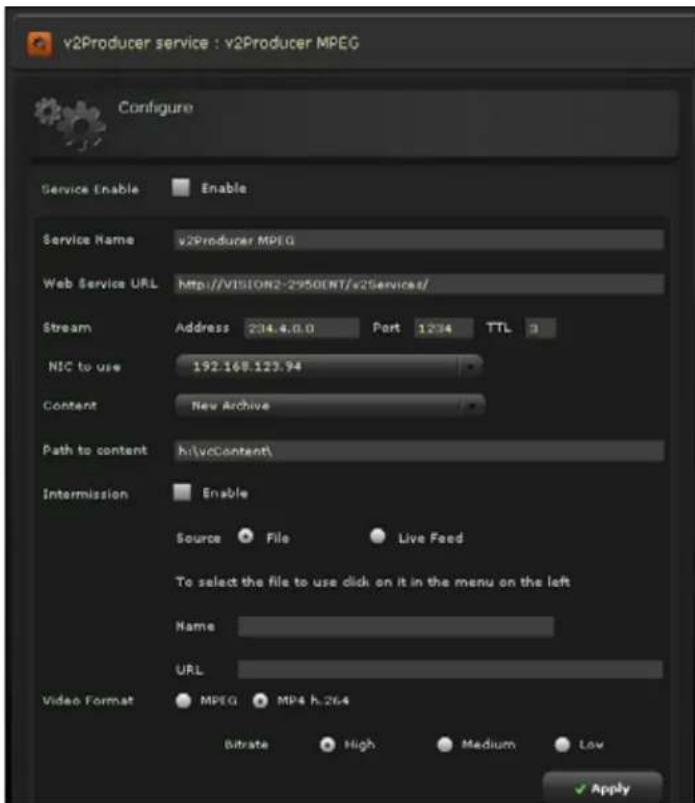
text_image
v2Producer service : v2Producer MPEG Configure Service Enable Enable Service Name: v2Producer MPEG Web Service URL: http://VISION2-2950ENT/v2Services/ Stream Address 234.4.0.0 Port 1234 TTL 3 NIC to use 192.168.123.94 Content New Archive Path to content k:\vcContent\ Intermission Enable Source File Live Feed To select the file to use click on it in the menu on the left Name URL Video Format MPEG MP4 h.264 Bitrate High Medium Low ApplyFIG. 109 Configure Producer Service
You can configure the following options for the Vision ^2 Producer Service:
| Configure Options | |
| Service Enable This enables the service and will begin multicasting if appropriate. Note: You cannot edit any of the other settings while the service is enabled. | |
| Service Name The name of the service as it appears in the playlists. | |
| Web Service URL The URL to the Web Services interface for this service. This value is automatically generated and should not be edited unless instructed by AMX. | |
| Stream Address | |
| Address The multicast address for this channel | |
| Port The multicast port for this channel | |
| TTL The multicast TTL for this channel. You can enter a value in the space provided. | |
| NIC to use The IP address of the network to use for multicasting. | |
| Content The Archive which is to be used as the source of the videos to be scheduled. | |
| Path to content The physical path to the archives content | |
| IntermissionThis section defines what to do whenever there are no videos scheduled to broadcast. You can schedule a specific MPEG-2 file from a Vision ^2 archive, a multicast MPEG-2 source such as a DVB or Live MPEG channel, or a WMV source such as an encoder. | |
| Enable If the Intermission not enabled and nothing is scheduled then the user sees a blank screen. | |
| Source Defines whether a file plays continuously or if it is a live feed during Intermission. | |
| Live Select the live channel from the available list. This option only appears if you select Live Feed for your source. | |
| Name Select a source file from the menu on the left pane. This option is view-only if you select File for your source. | |
| URL The path of the intermission source. This field is automatically populated when you select a file or live channel. | |
| Video Format Select the video format by clicking the appropriate option button. You can choose from MPEG and MP4 H.264 with MPEG Producer. For WMV Producer, the only option is Windows (.WMV). Note: You should have separate Producer services to isolate the MPEG-2 and the H.264 Live channels and content. If you mix the content, the Producer service may not function properly. | |
| Bitrate | Select the bitrate of the files to be used from the selected archive. |

You must apply the settings any changes to take effect.
Multicasting with Producer
Perform these steps to multicast with Producer:
- Select Configure Service from the V2Producer Menu on the left pane of the window. The Configure Producer page appears (FIG. 109).
- Select the IP address of the network you are using from the NIC to Use options menu.
- Click the Service Enable check box. Vision ^2 begins multicasting on the multicast address you assigned.

NOTE
Joining a new domain may enable the firewall and cause the multicast to be blocked to the server. Configure the firewall to permit any new multicast addresses or disable the firewall to allow the multicasts.
Setting Up an Intermission
If there is no content scheduled for a certain period of time, Producer enables you to set an intermission source which automatically plays an MPEG-2 or WMV file from a Vision ^2 archive, a multicast MPEG-2 source such as a DVB or Live MPEG channel, or a unicast WMV source such as a live WMV channel. Unmanaged channels are also available for Intermission, as well.
Perform these steps to set up an intermission:
- Select Configure Service from the V2Producer Menu on the left pane of the window. The Configure Producer page appears (FIG. 109).
- Click the File or Live Feed option button to indicate whether the intermission source is from a file or a live feed. After making your selection, do one of the following:
-
File: Select a file from the menu on the left pane of the window.
● Live Feed: Select a live feed from the Live options menu. -
Click Apply.
-
Click the Enable check box in the Intermission section.
-
Click the Service Enable check box to activate the intermission.
The Name and URL fields populate with the name and path of the intermission source. This source will play if there is no scheduled content playing on the regular multicast.

NOTE
If you disable a live channel while it is being used as the Intermission file, the Live drop-down menu will not be consistent with the URL, and the Intermission file will not work.
Schedule Editing
Producer runs a four week schedule which loops and starts again after the four weeks. To edit the schedule, select the Edit Schedule menu option in the service (FIG. 110).
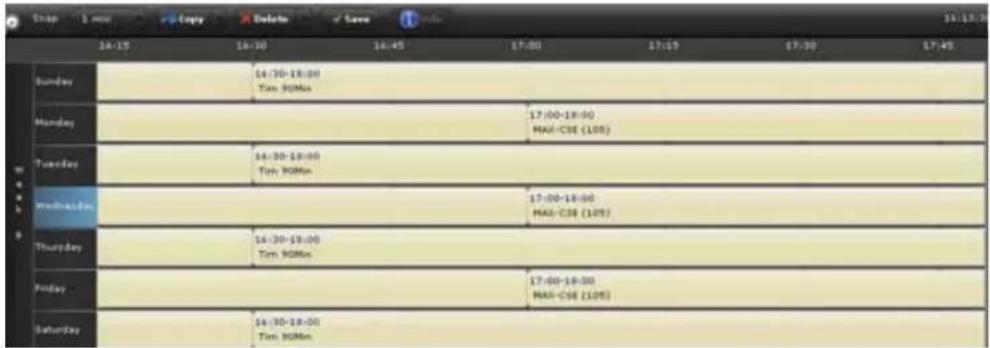
text_image
Stop 1 now Copy Delete save 14:13:00 16:15 18:30 19:45 17:00 17:15 17:30 17:45 Sunday Monday Tuesday Wednesday Thursday Friday Saturday 14:30-18:00 Tim 90Min 17:00-18:00 MAI-CSE (105) 14:30-18:00 Tim 90Min 17:00-18:00 MAI-CSE (105) 14:30-18:00 Tim 90Min 17:00-18:00 MAI-CSE (105)FIG. 110 Edit Schedule screen
The following options are available on the top toolbar:
| Edit Schedule Options | |
| Snap When moving a program | or adding a program to the schedule, the Snap limit defines the program time start boundary. For example, a 15 minute Snap setting only allows programs to be scheduled at :00, :15, :30, and :45 minutes past each hour. |
| Copy The copy option enables | you to copy individual programs, days, or entire weeks from one part of the schedule to another. |
| Delete The delete option enables | you to delete individual programs, days, or entire weeks from the schedule. |
| Save | To update the schedule on the server, click Save. Any changes will immediately take effect. |
| Show Program Info | When you select a program already in the schedule or one from the content menu, you can see the same program information that is available in the archive. |
- To move a program within the schedule, simply drag-and-drop it into the new location. If you attempt to drop it into a location where it will not fit (due to other programs) then it will return to its original location.
- To schedule a new program, drag it from the content menu on the left and onto the schedule.
Viewing the Stream
The Vision ^2 Services manager provides a menu option which allows you to view the stream without having to open a user player. Simply click the View Stream option in the menu for the service. You must have selected Stream Enable on the configuration page to start the service, and either have scheduled some content or enabled the Gap file before you can view the stream.
Record Service
The Vision ^2 Record Service provides the ability to record a multicast MPEG-2 or unicast Windows Media stream into an Archive. The Record Service essentially serves as a Digital Video Recorder. You can record any Live MPEG, DVB-T, encoder WMV stream, or unmanaged channel continuously, creating files of a fixed duration, or you can manually record a specific event. (Recording unmanaged WMV channels is not supported.)

The Record WMV service is not available with Vision ^2 version 7.2.2-M.
Configuration
When you select the Configure DVR from the Record Service Menu the following page appears (FIG. 111):

text_image
v2Record service : New v2Record Configure Service Name New v2Record Web Service URL http://VISION2-295GNT/v2Services/ ✓ Apply Recording Enabled MIC to use 192.168.123.94 Recording type Continuous Segment length 5 mins Keep Archives for 30 Days Mapped Archive Path N:\vcContent\Archive1\ Write to Archive Yes Record From < img src> ✓ ApplyFIG. 111 Configure Record Service
Service Settings
text_image
Service Name New v2Record Web Service URL http://VISION2-2950ENT/v2Services/ ✓ ApplyFIG. 112 Service Settings
The top section of the page deals with the settings for the service itself and consists of the following options:
| Service Settings Options | |
| Service Name The name of the | service as in Services Manager. |
| Web Service URL The URL to | the Web Services interface for this service. This value is automatically generated and should not be edited unless instructed by AMX. |
Recording Settings

text_image
Recording Enabled NIC to use 192.168.123.94 Recording type Continuous Segment length 5 mins Keep Archives for 30 Days Mapped Archive Path h:\vContent\Archive1\ Write to Archive on a Page Record From on user@AC ApplyFIG. 113 Recording Settings
The bottom section of the page deals with the specific parameters for recording a stream. When you check the Recording Enable check box, the system starts the recording.
With recording enabled, you cannot change any of the recording parameters.
The following settings are available in the Recording section:
| Recording Settings Options | |
| NIC to use The Network interface from which you want to record. | |
| Recording type | This can be either Continuous or Manual. Continuous recordings create a new recording in the Archive at specific intervals according to the value defined in the Segment length option. Manual recordings require the user to actually start and stop the recording process themselves.Note:If you stop and restart a Continuous recording, another archive folder appears in the left pane with an identical folder name as the previous archive folder. You can select the new archive folder and click Rename in the right pane to help differentiate between the archive folders. |
| Segment length This value defines the length of each individual recordings created by a continuous recording. Available options are 5, 15, 30, and 60 minutes. | |
| Keep Archives for | To prevent the continuous recording mode from filling up the hard disk used by the archive the system will delete automatically generated recordings after the period defined here. To prevent specific recordings being deleted, use the Content menu in the archive to drag them from the Automatic Recordings folder into the main archive itself.All automatic recordings are placed in a special area of the archive which are subfolders of the DVR Recordings | Automatic Recordings folder.Note:The automatic recordings are not available for scheduling in the Producer service. They are also not searched when you perform a Content search in the Archive service. You must move the automatic recordings to a new folder to be able to search and schedule them in these services. |
| Mapped Archive Path | This defines the physical path to the archive and should only modified if instructed by AMX. |
| Write to Archive This defines the archive in which you want the recordings to save. | |
| Record From This enables you to select which stream to record. | |

Recording a Video Stream
Perform these steps to record a video stream:
- Select Configure DVR from the Record Services menu on the left pane of the window. The Record Service page appears (FIG. 111).
- Select the IP address of the network you are using from the NIC to Use options menu.
- Select Continuous from the Recording type options menu.
- Select the length of each individual recording from the Segment length options menu.
- Use the Keep Archives for spin box to indicate how long you want the recordings to remain in the archive.
- Click Apply to save the new settings.
- Click the Recording Enable check box to begin recording the video stream.

If you disable a live service that is being recorded, the record service will generate an error. You must stop the current record service, and then start and stop a second record service to clear the error. Once the error is cleared, the record service should function normally again. This error also occurs if you refresh your browser during a Manual Recording.

Joining a new domain may enable the firewall and cause the multicast to be blocked to the server. Configure the firewall to permit any new multicast addresses or disable the firewall to allow the multicasts.
Manual Recording
After you have configured the Record service for manual recording and have enabled recording, select Manual Recording from the Record services menu. A video player opens with additional controls to stop and start the recording. You can also enter the filename as it will appear in the archive while the video player is open. The maximum supported manual recording is three hours.

The file name is not the name of the file that will be recorded, but it is the name of the recording as displayed in the archive.
Scheduled Recording
The Scheduled Record feature allows you to schedule when a live service is to be recorded. You must select the source from which to record and enable the service before editing the schedule. Scheduled recordings are only supported in the Live MPEG service and in 10 minute increments.
- Select Configure DVR from the Record Services menu on the left pane of the window. The Record Service page appears (FIG. 114).
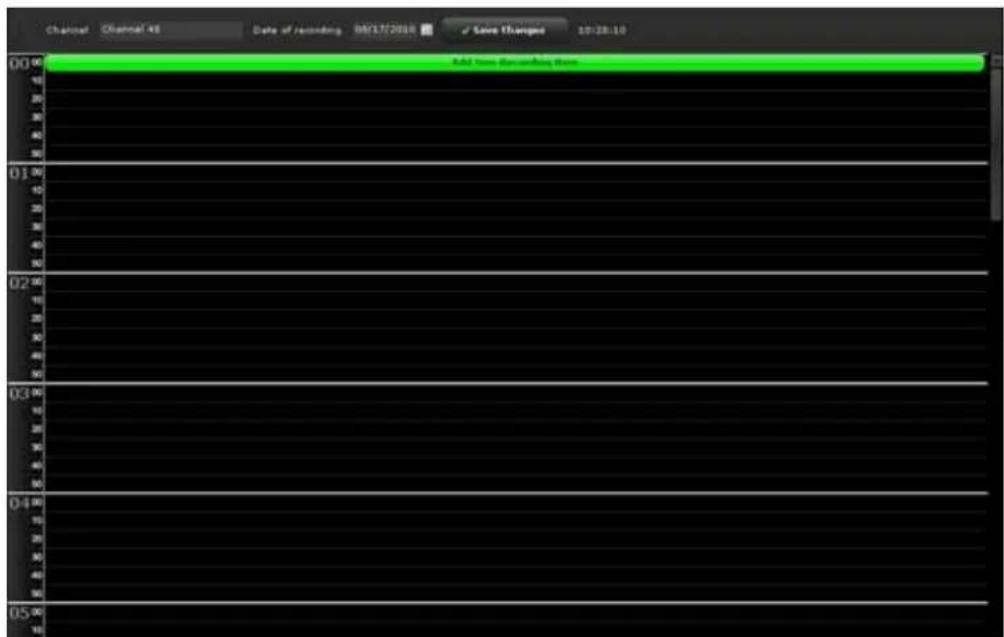
text_image
Channel Channel 43 Date of recording 08/12/2018 Save Changes 10:28:10 00 Add Time Recombing Time 10 20 30 40 50 01 10 20 30 40 50 02 10 20 30 40 50 03 10 20 30 40 50 04 10 20 30 40 50 05FIG. 114 Scheduled Recording screen
- In the Schedule editor, select the time where the recording should occur. A pop-up dialog box appears (FIG. 115).
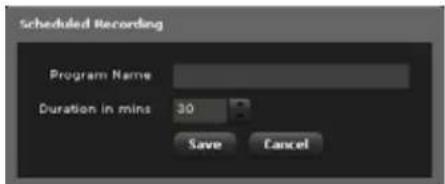
text_image
Scheduled Recording Program Name Duration in mins 30 Save CancelFIG. 115 Scheduled Recording dialog box
- Enter the name the recording in the Program Name field.
- Use the up-and-down arrows to indicate the duration of the recording in 10 minute increments.
You can enter a value in the Duration field, however, Vision ^2 only supports scheduled recordings in 10 minute increments. If you enter a value in the Duration field that isn't a 10 minute increment, Vision ^2 automatically rounds up to the next 10 minute increment without alerting you.
- Click Save.
Event Log
In common with other services, the Record service generates an event log which you can examine by selecting View Event Log from the Record services menu.

Appendix A: Graceful Startup/Shutdown Procedure
Overview
In the event of a planned or unplanned network or electrical outage, the following steps should be taken to ensure a controlled shutdown and restart of the IPTV system.
The order of restart is critical to provide data to the control components as to last operating configuration. If the system is brought back into service randomly or in improper order, it may perform with unexpected behaviors.
Shutdown
The order of shutdown is not as critical as the restarting, but the recommended order and tasks are:
- V2 TDS Gateway - gracefully shutdown using keyboard and mouse attached to server (FIG. 116).

FIG. 116 Attach a keyboard and mouse to the server
- To login, if necessary, enter the username V2Admin, and the password vision2.
-
From Windows desktop, navigate to Start, then select Shut Down.
-
DTV-MA01 TDS Management Appliance- gracefully shutdown using keyboard and mouse attached to unit.
-
To login, if necessary, enter the username amxdtv, and the password admin.
- From Windows desktop, navigate to Start, then select Shut Down.
As an alternative, you may simply press and hold the power button on the front face of the unit until activity and power indicator lights turn off (FIG. 117):
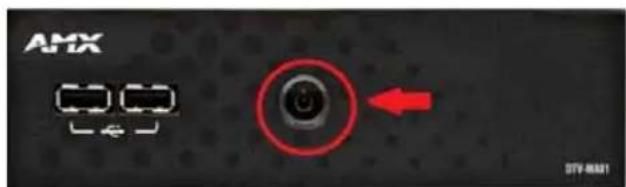
text_image
AMX DTV-AMX1FIG. 117 DTV-MA01 - Front Panel Power button
- DTV-TX03 Transmitter - power off unit by disconnecting power cable from rear of unit (FIG. 118).

text_image
TUNER IN 10 / 100 HDMI RS 232 POWER 12 VDCFIG. 118 TDS-TX03 - Rear Panel power connector
- STB-04 Vision ^2 Set Top Box - power off unit by disconnecting power cable from rear of unit (FIG. 119):
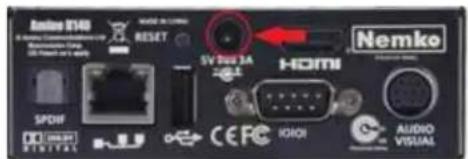
text_image
Namke 2140 NEMKO S VSS 300 3A HDMI SPSIF DIGITAL CEPC IOHOI AUDIO VISUALFIG. 119 STB-04 - Rear Panel power connector
S

It may not be necessary to power down every Amino throughout the facility in the event of a planned network or power outage, but it is a recommended practice. When network and power are restored, it may be necessary to select a program to be played on each Amino.
This can be accomplished by using the hand-held Amino remote, or possibly through the V2 TDS Gateway STB Management Interface, depending on the default browser page that has been configured in the Amino.
When all systems are down, you can safely proceed without negatively impacting the operation of the IPTV system. Once complete, the information which follows will provide the recommended startup procedure to return the system to operation.
Startup/Restart
The order of startup is critical to the proper operation of the IPTV system following a network or power outage. Several of the system components provide configuration or status details to each other, and the absence of that information can cause components to malfunction.
A short wait period between powering up each device is recommended to ensure that each has a chance to initialize before the next, to provide any needed configuration or status data in the proper sequence.
In addition, if the network has been offline during an outage, the first requirement before bringing the IPTV system back into service is to ensure the network switches are in operation.
If the servers or management appliances come online without network present, they may default to local loop-back addressing, which would impair or stop necessary services within those devices.
The recommended order for restoration of the system components, and their tasks is:
- DTV-TX03 Transmitters - connect the power cord to the transmitters. Verify power and network connectivity by looking at the lights on network interface at the rear of the unit.
- DTV-MA01 TDS Management Appliance - press the power button on the front face until the power and activity lights illuminate and flash. Verify network connectivity by looking at the indicator lights on network interface at the rear of the unit.

IMPORTANT! - Restarting the DTV-MA01 causes it to beacon out to all attached Transmitters. These units will then respond back to the DTV-MA01 and will re-create the list of units found, refreshing the list of channels and re-sending requests to transmitters to stream the requested channels.
- V2-TDS Gateway - press the power button on the front face of the server until the power and activity lights illuminate and flash. Verify network connectivity by looking at the indicator lights on network interface at the rear of the server.
- STB-04 Vision ^2 Set Top Box - connect the power cord to the STBs. Verify power and network connectivity by looking at the lights on network interface at the rear of the unit.
If you see a message on screen "unable to load web page" then place the unit into standby using the amino remote control, press STB then the power button, wait a few seconds then press the power button again and ensure that the correct web page is loaded.
Troubleshooting
In the case that this procedure is followed, but does not return the system to functionality, there are several steps which may be performed to verify which portion(s) of the system is not operating properly. For purposes of this document, these steps are bulleted, with more detailed information referenced.
No TV signal on screen
- Verify that the display is connected to power and to the STB-04.
- Verify that the display is powered on.
- Verify that the STB-04 is connected to power, network, and to the video display.
- Verify that the STB-04 is powered on, and has network connectivity by checking the red LED on the front of the STB-04, and the network connectivity and activity lights on the rear of the unit.
- Verify that the correct video display input is selected (check video connection from STB-04).
- Verify that the STB-04 has proper IP address and default browser page configured (refer to the Set-Top Boxes section on page 33 for more information.)
No TV signal from Transmitter
- Verify that network switch is operational, and that connectivity/activity lights are illuminated and flashing.
- Verify that CATV connection/service is functioning, and that transmitters have power, coaxial (RF), and network connections.
- Verify that transmitters are powered on, or that power source (strip/UPS, etc) is working.
- Verify that transmitters have active network connections with network activity lights on the NIC illuminated and flashing.
- Verify that the transmitter is configured and has a saved channel list (refer to the AMX TDS Television Distribution System Operation/Reference Guide for details on transmitter configuration).
Beyond these simple checks, the configuration of the V2 TDS gateway and the DTV-MA01 may need to be verified. For additional details, consult the Operation Reference guides for these products, available at www.amx.com, or contact AMX Technical Support
Appendix A: Graceful Startup/Shutdown Procedure
Appendix A: Graceful Startup/Shutdown Procedure
AMX UNIVERSITY
Increase Your Revenue through education + knowledge
In the ever-changing AV industry, continual education is key to success. AMX University is dedicated to ensuring that you have the opportunity to gather the information and experience you need to deliver strong AMX solutions. Plus, AMX courses also help you earn CEDIA, NSCA, InfoComm, and AMX continuing education units (CEUs).
Visit AMX University online for 24/7/365 access to:
- Schedules and registration for any AMX University course
- Travel and hotel information
- Your individual certification requirements and progress