
TroyaROYA - Mp3 player Sunstech - Free user manual and instructions
Find the device manual for free TroyaROYA Sunstech in PDF.


| Product Type | MP3 Player |
| Brand | Sunstech |
| Model | TroyaROYA |
| Dimensions (W x D x H) | 57 x 93 x 12 mm |
| Weight | 72 g |
| Display | 2.8-inch Color Touchscreen |
| Battery Type | Lithium-ion |
| Charging Time | Approximately 4.5 hours |
| Internal Memory | 128 MB to 8 GB (Flash) |
| Expandable Storage | Micro SD card (up to 32 GB supported) |
| Supported Audio Formats | MP3 (8-320 kbps), WMA/WMV (5-384 kbps) |
| Supported Video Formats | AVI, RM, RMVB |
| Supported Image Formats | JPEG, BMP, GIF |
| Frequency Response | 20 Hz - 22 kHz |
| Signal-to-Noise Ratio | >90 dB |
| Distortion | <0.5% |
| Interface | USB 2.0 High Speed |
| Audio Output | 3.5mm Earphone Jack, Built-in Speaker (8 ohm, 1W) |
| Functions | Music Player, Video Player, Photo Viewer, FM Radio, E-Book Reader, Voice Recorder, Stopwatch, Game |
| Controls | Touchscreen, Slide Switch (Power/On/Off/Hold), Return Button |
| Warranty | 2 years |
| Cleaning | Wipe with a soft, dry cloth. Do not use liquids or abrasive cleaners. |
| Safety | Keep away from water, heat sources, and strong magnetic fields. Do not disassemble or drop. |
Frequently Asked Questions - TroyaROYA Sunstech
User questions about TroyaROYA Sunstech
0 question about this device. Answer the ones you know or ask your own.
Ask a new question about this device
Download the instructions for your Mp3 player in PDF format for free! Find your manual TroyaROYA - Sunstech and take your electronic device back in hand. On this page are published all the documents necessary for the use of your device. TroyaROYA by Sunstech.
USER MANUAL TroyaROYA Sunstech
natural_image
Line drawing of a smartphone with a blank screen and circular button (no text or symbols)natural_image
Line drawing of a smartphone with a button and scroll icon (no text or symbols)What's in the box?
Operating Unit
Warranty Card
User Manual
USB Cable
Earphone
Content
Overview
Basic Operation & Charging
Operation of Music Mode
Operation of Video Mode
Operation of Photo Mode
Operation of Radio Mode
Operation of E-Book Mode
Operation of RecordMode
Operation of Other function
System Setting
Trouble Shooting
Technical information
Warranty Conditions
Overview
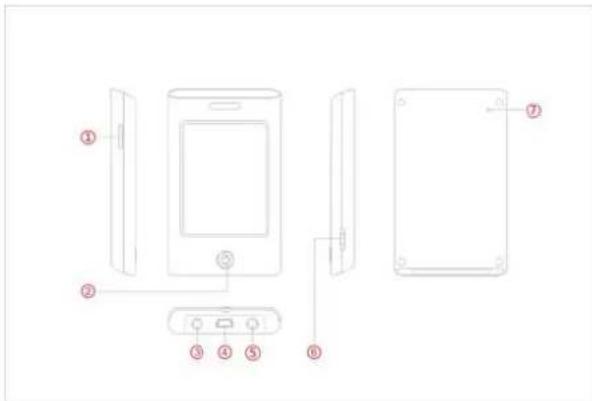
- Micro SD card slot
- Return button
- Earphone Jack
- USB Port
- Earphone Jack
- Power On / Off / Hold button
- MIC / Reset
Basic Operation
Power on/off and unlock
Slide the ON/OFF/HOLD for 3 seconds to switch on the device. Slide the switch to the LOCK to key-lock the player.
Removable disk function
Use the USB cable to connect with PC, you can use the
removable disk properly after the icon right bottom of the PC. It is better to us provided

show up at the
Note: To avoid any malfunction caused, please turn off the player before connect PC.
Charging
In order to charge the battery, please make sure disconnect the removable disk from the computer, but do not pull USB cable out from, and enter the charging mode It will stop charging automatically when the player is fully charged.
Note:
.Battery is fully charged in about 4.5 hours.
.Under the battery power is low and the USB power output less than 100mA, do not charging, and no display, need to be charged before use,
Fully charged time will be extended if playing or turn on the screen during charging.
.To save charging time, please do not operate the player during charging.
.Please charging in time if low power. It may cause damage to the device if turn on the player many times under the low power.
Touch on the screen to enter the main menu. The display will be turn off if no any operation.
How to insert and pull out Micro SD card
How to insert: with the front (the side with characters) of the Micro SD card up (towards the screen of the player), slightly push to insert into the card holder of the player to connect. After the card is inserted, the player can play the files in the Micro SD card.
How to pull out: slightly push the Micro SD card and the Micro SD card will partly come out, and then pull the card out.
Note: please insert or pull out the card when the player is off, or the internal files of the player will be lost or damaged.
Operation of Music Mode
Music explorer
Click Music icon to enter its mode, browse all of submenus
by click the


Current Play: Click the Current Play icon to resume play the current song.
All Music: Click All Music icon to show your library of Music, click any song to start playing.
Artist: Click Artist icon to show all the artists, double click any artist to show the songs of that artist. Double click a song to play it.
Album: Click the Album icon to browse all of albums, double click any particular album to browse the songs of that album. Double click a song to start the playing.
Genre: Click the Genre icon to browse all of Genres, double click any particular genre to browse the songs of that album. Double click a song to start playing.
My favorite: Click the My favorite icon to browse all songs that you've added to be your favorite. Double click a song to start playing.
Record: Click the Record icon to browse all recorded files, double click any file to start playing.
Dir List: Click Dir List icon to browse all folder of the directory. Double click a folder or select file to open.
MediaLib Update: Click MediaLib Update icon to update all songs information and details.
Play&pause: Click the Play/ Pause button to pause, and click the Play / Pause button again to continue the playing.
Previous & Next song: Click the left and right icons to skip to the previous and next track.
Volume adjust : Click the + / - icons to adjust the volume directly.
Fast forward and fast back forward: Hold the left or right icons or hold press the up / down buttons to fast forward/ fast backward.

icon on the music playing mode, there are
submenus list as below:
Repeat mode: Click Repeat icon to select from Repeat one / Repeat All / Repeat folder and Intro.
Play mode: Click Play mode to select from Normal / Shuffle. EQ: Click EQ to select different EQ from Normal / Rock /
Pop / Classic / Bass.
Click icon to return to the last menu and click to return to the main menu.
Video Mode
Click Video icon to enter the mode of Video. Click


icons to browse all of movies.
or
Click any particular movie in the list to start playing.
It will show up "Continue Last Play?" when you enter the movie which is not the first time play in the player. Click "yes" to resume play, and "No" to start play at the beginning.
When you are enjoy any movie, click the Play/Pause icon to pause and click it again to resume playing.
Volume: Click + / - icons to ajust the volume directly.
Previous & Next: Click the left and right icons to skip to the previous and next track.
Fast forward and fast backward: Hold the left or right
icons to fast forward/ fast backward.
When playing the video files, click the screen, below subemenus will be showed:
Searching: Click it to select Time play option, and input the
Hour / Minutes to select the time that you want to review, then press return button to confirm.
Display size: There are Full / Normal for selection, press return button to confirm.
Photo mode
Click Photo to enter the mode of photo, click icons to browse all photos.


Double click any pictures to open it, click to move to the left / right photos, click
submenu:
Rotate Right: Click it, the current photo will rotate 90 degrees in right direction.
Rotate Left: Click it, the current photo will rotate 90 degrees in left direction.
Zoom in / Out: Click it to Zoom in or zoom out the current photo.
Browse: Click it, there are Turn off / 2sec / 5sec / 8sec for
your selection, select turn off, the pictures will playback in manual mode, click other times, the pictures will be playback automatically.
Click 📁 icon to return to the last menu and click 📁 to return to the main menu.
FM Radio
Click Radio to enter the mode of Radio, click icons to skip to the previous or next detected channels. Click + / - icons to adjust the volume directly. Click to enter the submenu:


Search by hand: Click it to search the channels by hand.
Auto Search: Click it, the device will search the channels automatically, and it will play the first detected channel after finished.
Preset mode: Click it to preset any desired channels after finished the auto search.
Save channel: Click to save the current channels to the list.
Delete channel: Click any particular channels, there is pop up "Do you want to delete?", click YES to delect the
selected channel, click NO to exit.
Stereo switch: Select the stereo switch or not by click On / Off.
Receive area: Select the receive area from China / Japan / USA / Europe / Campus Radio.
FM Record: Click 📁 icon to enter the FM record mode and start the record mode, click 📁 icon to pause and click it again to resume recording, click 📁 icon, it will pop up "save record file?", click YES to save the recorded file, click NO to exit. If you don't save the recorded files. Click 📁 to return to the FM mode.
Click 📄 on to return to the last menu and click to return to the main menu.
Ebook
Click Ebook to enter the mode of ebook, Click


cons to browse all of ebook files.

Click any particular ebook files in the list to play it, click
or 📋 icons to page up or page down, Click 🔊 icon to enter the submenu:
Page Jump: Input the page number that you prefer to browse, and click √ icon to confirm.
SaveMark: Select any empty slot to save your bookmark.
LoadMark: Load any bookmarks that you saved.
DelMark: Delete any saved bookmarks from slot.
Set Font: Select the font size from Font Small / Font Mid / Font Big.
Set Color: Set the font color from Green / Blue / Red.
Browser mode: Select play mode from Auto mode / Manual mode. If select Auto mode, the ebook files will page up automatically, if select manual mode, you need to page up by manual.
Flip Time: Set from the time interval between every auto flip, from 10 Sec to 30 Sec.
Click 📄 icon to return to the last menu and click 📋 to
return to the main menu.
Record
Click Record icon to enter the mode of record. Before you starting to record the files, click 🙏 to select the recording quality:: Normal / High for selection.
Click icon to start the recording, click it again to pause or resume, click icon, it will pop up "save record file?", click YES to save the files, click NO to exit. Click + / - icons to adjust the volume directly.
Click 📄con to return to the last menu and click 📋 to return to the main menu.
File list
Click File list to browse all the files and double click any files to play.
Other Function
Click other function to enter its mode:
Stopwatch: Click it to enter the mode of stopwatch. Click 📄 to start the timing counts, click it again to pause, click 🔒 to clear the records.
Game: Click it to enter the slide game mode, click to change the shape of the snake, click to return the previous menu, click left / right / up / down icons to move the black frame. click or icons to return to the main menu.
Settings
Click Settings icon to enter the mode of setting. Click
or icons to browse all of submenus of setting.

Display Setting: Click it to enter the submenu, there is Power Saving mode., click Power Saving mode to select the times from 10S / 15S / 20S / 30S / Always On.
System Setting: Click it to enter the submenu, click Default setting, the device will pop up "Default Setting", click YES to Calibration to calibrate the touch screen.
Language: Click it to enter its submenu. Click any desired language to set it as default language.
System Information: Click it to check the firmware information, product name, memory size and card size.
Auto Power off: Click it to select the autoshut time from 3Minutes/5Minutes/10 Minutes/15 Minutes/20 Minutes/No auto power off.
Trouble Shooting
If you experience any of the following difficulties while using the player, use this Trouble-shooting guide to help you remedy the problem. Should any problem persists, consult the service center immediately
No power
- Check if the battery have been inserted properly.
- Check if the player is switched ON.
- Check if the player has run out of battery.
- Connect the player with charger or PC via USB and check again.
- If the player still cannot be charged, please contact the service center.
No sound is heard from earphone
- Check if volume is set to "0".
- Check if earphone plug is clean and being connected firmly.
- Make sure music files are not corrupted.
Noise
- Check if earphones are connected securely.
- Check if earphones plug is clean, residue attached on earphones plug may cause unnecessary noise.
- Check if audio source is not damaged. Try to play other audio files for comparison. Damaged audio files could cause unnecessary noise and cause skip track.
Display characters corrupted
- Check if the correct display language is selected.
Problem with downloading files
- Check if the player is connected to PC properly.
- Check if the player's memory is full.
- Check if USB cable is working properly.
Technical Information
| Flash Memory 128MB – 8GB | |
| MP3 compressed rate supported | MP3(8 – 320 kbps)WMV/WMA(5-384kbps) |
| Video format supported AVI / RM / RMVB | |
| Photo format supported JPEG / BMP / GIF | |
| Battery | Lithiumbattery |
| Interface USB2.0 high speed | |
| Display | 2.8" Color |
| Frequency Response 20Hz – 22kHz | |
| Distortion | <0.5% |
| Rate of Signal-to-noise >90dB | |
| Speaker Output 8ohm1W | |
| Weight | 72g |
| Dimensions 57(W) *93(D) | *12(H) mm |
Warranty conditions
- The warranty of this product is for 2 years since the purchase date.
- The warranty will exclude breakdowns caused by bad use of the product, wrong installation or installation in not desirable places for a proper maintenance of the product, rips, updates of the products that are not the supplied by the brand, pieces wore away for its use or for not domestic or inappropriate use. Also are excluded breakdowns caused for manipulations of the products by people or companies alien to our company.
- For any request regarding the warranty terms, the purchase receipt must be attached.
sunstech ^12
TROYA
natural_image
Line drawing of a smartphone with a blank screen and circular button (no text or symbols)Busca manual (Search by hand): Clique para procurar os
canais manualmente.

- What's in the box?
- Content
- Overview
- Basic Operation
- Power on/off and unlock
- Removable disk function
- Charging
- How to insert and pull out Micro SD card
- Operation of Music Mode
- Music explorer
- Video Mode
- Click any particular movie in the list to start playing.
- Photo mode
- FM Radio
- Ebook
- Record
- File list
- Other Function
- Settings
- Trouble Shooting
- No power
- No sound is heard from earphone
- Noise
- Display characters corrupted
- Problem with downloading files
- Warranty conditions
- sunstech 12
- TROYA
Brand : Sunstech
Model : TroyaROYA
Category : Mp3 player