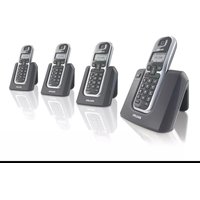
DECT1224S - Cordless phone PHILIPS - Free user manual and instructions
Find the device manual for free DECT1224S PHILIPS in PDF.


| Type of product | Cordless phone |
| Power supply | 220-240 V AC, 50/60 Hz |
| Battery type | 2 NiMH AAA 550 mAh rechargeable batteries |
| Talk time | Up to 10 hours |
| Standby time | Up to 120 hours |
| Indoor range | Up to 50 metres |
| Outdoor range | Up to 300 metres |
| Display | LCD with icons |
| Phonebook capacity | 30 names and numbers |
| Call log | 20 entries |
| Redial list | 5 most recent numbers |
| Maximum handsets | Up to 5 registrable |
| Key functions | Intercom, call transfer, conference, paging, chain dialing, call barring, SOS numbers, alarm clock, keypad lock, mute, auto answer |
| Compatibility | GAP compliant |
| Caller ID | Supported (subscription dependent) |
| Safety precautions | Do not expose to water; use only supplied batteries; do not open device |
| Maintenance | Clean contacts with cloth moistened with alcohol |
| Reparability | Unregister handset before repair |
Frequently Asked Questions - DECT1224S PHILIPS
User questions about DECT1224S PHILIPS
0 question about this device. Answer the ones you know or ask your own.
Ask a new question about this device
Download the instructions for your Cordless phone in PDF format for free! Find your manual DECT1224S - PHILIPS and take your electronic device back in hand. On this page are published all the documents necessary for the use of your device. DECT1224S by PHILIPS.
USER MANUAL DECT1224S PHILIPS
natural_image
Black-and-white photo of a Philips 3rd telephone with keypad and display screen (no visible text or symbols on device body)
natural_image
Warning symbol: white exclamation mark inside a triangle (no text or numbers)Charge handset(s) for 24 hours before use.
Table of contents
Conformity, environment and safety 2
Declaration of conformity Using GAP standard compliance 3
DECT 122 handset 4 Icons on the handset display 5 DECT 122 base station 6
Installing the DECT 122 Unpacking your DECT 122 6 Installing the base station 7 Installing and replacing the batteries in the handset 8 Battery life and range 8
Menu structure 9
Handset power OFF and ON 10 Text or number entry 10
Using the telephone Keypad lock / unlock 11 Making a call Call duration counter
Redial list 12 Phonebook 13-14 Call log 14-15 Intercom 16 Paging 17 Chain Dialing 17 Clock and Alarm Settings 17
Personal settings Handset tones 18 Handset name 19 Auto answer 19 Display language 19
Advanced settings Recall time 20 Dial mode 20 Area code 20 Call barring 21 SOS number 22 Register a handset 22 Unregister 23 PIN code 23 Reset unit 23
Default settings 24 Troubleshooting 25
Conformity, environment and safety
Safety information
This equipment is not designed to make emergency calls when the power fails. An alternative has to be made available to allow emergency calls.
Conformity
Hereby, Philips declares that the DECT 122 is in compliance with the essential requirements and other relevant provisions of Directive 1999/5/EC. This product can only be connected to the analogue telephone networks of the countries mentioned on the packaging.
Power requirements
This product requires an electrical supply of 220-240 volts, alternating monophased power, excluding IT installations defined in standard EN 60950. In case of power failure, the communication can be lost.
Warning!
The electrical network is classified as hazardous according to criteria in the standard EN 60950. The only way to power down this product is to unplug the power supply unit from the electrical outlet. Ensure the electrical outlet is located close to the apparatus and is always easily accessible.
Telephone connection
The voltage on the network is classified as TNV-3 (Telecommunication Network Voltages), as defined in the standard EN 60950.
Safety precautions
Do not allow the handset to come into contact with water. Do not open the handset or the base station. You could be exposed to high voltages. Do not allow the charging contacts or the battery to come into contact with conductive materials. Never use any battery type other than the one supplied : risk of explosion.
Environmental care
Please remember to observe the local regulations regarding the disposal of your packaging materials, exhausted batteries and old phone and, where possible, promote their recycling.
Recycling & disposal
Disposal instructions for old products :
The purpose of the WEEE directive (Waste Electrical and Electronic Equipment; 2002/96/EC) is to ensure that products are recycled using best available treatment, recovery and recycling techniques to ensure human health and high environmental protection.
Your product is designed and manufactured with high quality materials and components, which can be recycled and reused.
Do not dispose of your old product in your general household waste bin.
Inform yourself about the local separate collection system for electrical and electronic products marked by this symbol :
Use one of the following disposal options :
I. Dispose of the complete product (including its cables, plugs and accessories) in the designated WEEE collection facilities.
- If you purchase a replacement product, hand your complete old product back to the retailer. He should accept it as required by the WEEE directive.

Declaration of conformity
We,
PHILIPS Consumer Electronics
Route d'Angers
72081 Le Mans Cedex 9
France
Declare that the products DECT122xx are in compliance with ANNEX IV of the R&TTE-
Directive 1999/5/EC and then with the following essential requirements :
Article 3.1 a : (protection of the health & the safety of the user)
Safety : EN 60950-1 (10/2001)
SAR : EN 50361 (2001)
Article 3.1 b : (protection requirements with respect to electromagnetic compatibility)
EMC : ETSI EN 30I 489-6 VI.2.I (08/2002) & ETSI EN 30I 489-1 VI.4.I (08/2002)
Article 3.2 : (effective use of the radio spectrum)
Radio : EN 301 406 VI.5.I (2003/07)
The presumption of conformity with the essential requirements regarding Council Directive 1999/5/EC is ensured.
Date : 09/09/2005 Le Mans

Product Quality Manager
Home Communication
CE 0168
Using GAP standard compliance
The GAP standard guarantees that all DECT ^TM GAP handsets and base stations comply with a minimum operating standard irrespective of their make. Your DECT 122 handset and base station are GAP compliant, which means the minimum guaranteed functions are : register a handset, take the line, receive a call and dial. The advanced features may not be available if you use another handset than a DECT 122 with your base station.
To register and use your DECT 122 handset with a GAP standard base station of a different make, first follow the procedure described in the manufacturer's instructions, then follow the procedure described on page 22.
To register a handset of another make to the DECT 122 base station, place the base station into registration mode (page 22), then follow the procedure in the manufacturer's instructions.
Philips has marked the battery and packaging with standard symbols designed to promote the recycling and appropriate disposal of your eventual waste.

A financial contribution has been paid to the associated national recovery & recycling system.

The labelled packaging material is recyclable.
DECT ^™ is a Trade Mark of ETSI registered for the benefit of the implementers of the DECT technology.
DECT I22 Handset
Display
Icons see page 5
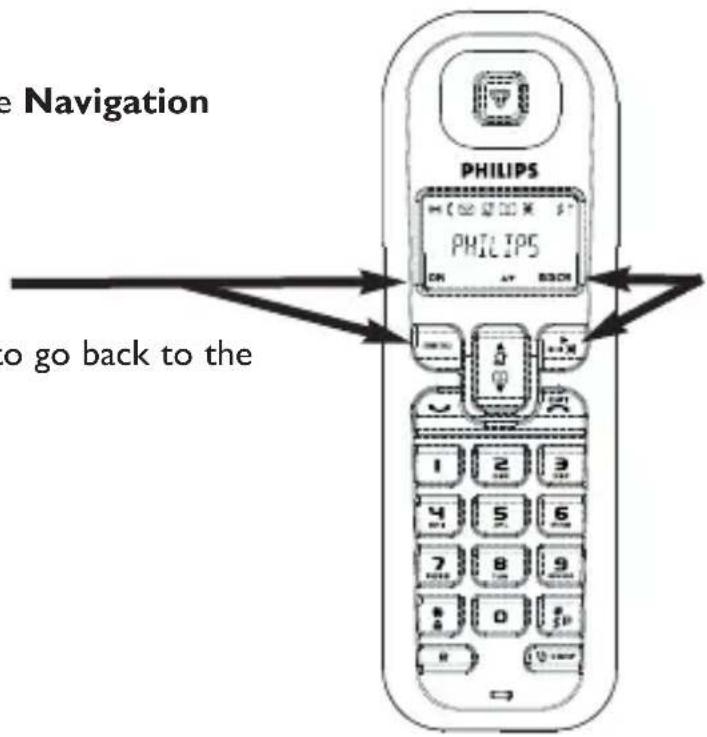
Menu key & Softkey OK
- In idle mode, short press to access the main menu.
- Short press to select next menu level.
- In Edit & Phonebook mode, short press to confirm OK or view selected phonebook record.
Pick-up key
- In idle mode, press to take the line and answer a call.
- In Phonebook mode, press to dial the selected number.
Keypad lock & insert

- Short press to insert
- Long press to lock/unlock the keypad in idle mode.
Recall key
- In idle mode, to switch from Date/Time display to handset name display.
- To insert R for operator services when on line.
Earpiece
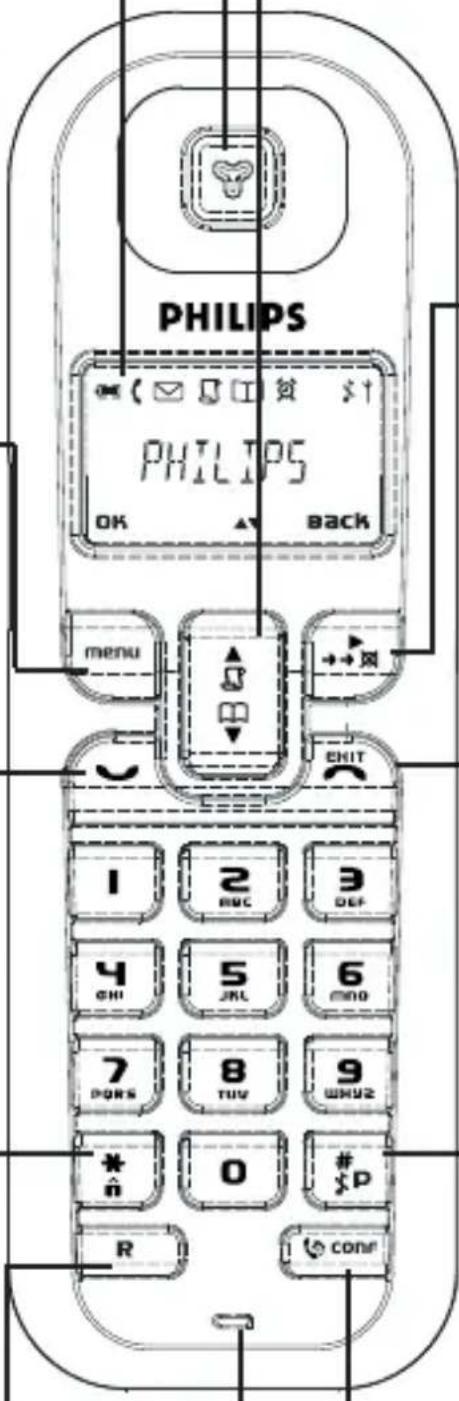
Microphone
Navigation keys
- Scroll up/down to move to the next or previous record in the Call log or Phonebook.
- Scroll up to access the Call log from idle mode.
- Scroll down to access the Phonebook from idle mode.
Redial list, mute key & Softkey Back
- In idle mode, short press to access the Redial list.
- In talk mode, to mute/unmute the handset microphone.
- In edit mode, to cancel last digit.
- In phonebook mode, to view number and name.
Hang-up key
- A short press to hang-up the line or to exit (return to idle mode).
- A long press to power off the handset.
- To exit Edit & Phonebook mode.
Ringer ON/OFF & Insert #
- Short press to insert #.
- Long press to insert a pause (P) when dialling.
- Long press to turn the ringer ON/OFF.
Intercom
- Short press to initiate an internal call.
Icons on the handset display
The display gives information about the operation of your telephone. Following icons can be shown in the headline of the display:

natural_image
Row of simple icons including camera, email, phone, open book, camera, musical note, and yard (no text or symbols)When being used for the first time, it is sometimes necessary to wait until the battery is sufficiently charged before the icons appear on the display.

When ON the battery is fully charged. When blinking, this symbol indicates that the battery needs to be charged.

An external call is in progress. When blinking, this symbol indicates that there is an internal call in progress or that the line is already busy.

New message(s) on your voice mailbox.

New Call log records or Call log records are being reviewed.

Phonebook is accessed.

The alarm clock is activated.

The ringtone is deactivated.

The handset is registered and in range of the base. When blinking, this symbol indicates that the handset is not registered to the base or out of range.

Turn ON when entering Menu mode. In Phonebook mode to enter next menu level.

Turn ON when entering Menu mode. In Phonebook mode to return to higher menu level.

Indicates further options are available.
DECT I22 base station


Paging key
The paging key enables you to locate a missing handset if the handset is in range and has charged batteries. Press the key until the handset starts to ring. Once retrieved, press paging key again to end paging.
Installing the DECT 122
Unpacking your DECT 122
The DECT 122 package contains:
One DECT 122 base station
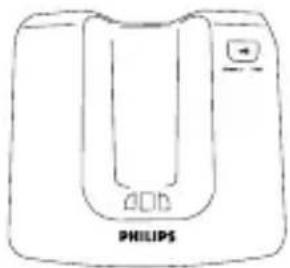
natural_image
Line drawing of a Philips washing machine (no text or symbols on the device body)One DECT 122 handset

2 NiMh AAA 550 mAh rechargeable batteries

A power supply unit

A line cord*

A user guide and a guaran-tee


Quick Start Guide
*Warning : You may find in the box the line adaptor delivered separately from the line cable. In this case, please connect the line adaptor to the line cable before connecting it to the line socket.
In DECT 122 multi handset packs, you will also find one or more additional handsets, chargers with power supply units and additional rechargeable batteries.
Installing the base station
Place your product close enough to the telephone and mains power sockets so that the cables will reach. To properly install the base station, plug the line cord and the power cable into the base station. Plug the cord and the cable into the wall. If you have a broadband DSL Internet connection, please make sure you have one DSL filter plugged directly on each line socket used in the house and check the modem and the phone are plugged in the correct filter slot (one specific for each).
Warning! The electrical network is classified as hazardous according to criteria in the standard EN 60-950. The only way to power down this product is to unplug the power supply from the electrical outlet. Ensure the electrical outlet is located close to the apparatus and is always easily accessible.
Please take care that the power supply and telephone line are connected to the correct sockets as incorrect placement could damage your equipment.
Warning! Always use the line cable provided with the product otherwise you may not have a dialling tone.

natural_image
Line drawing of a device casing with internal components and directional arrows indicating flow or movement (no text or symbols)Connect the power supply
Connect the telephone line cord delivered with the product
Installing and replacing the batteries in the handset

natural_image
Diagram of an electronic device showing internal components and battery connections (no text or symbols)To insert the batteries, open the battery cover, place the batteries as indicated and then replace the battery cover. When the battery icon is blinking, charge is needed. Allow 12 - 15 hours for the batteries to fully charge. On first use it may be necessary to wait for a few minutes before seeing symbols on the display.
Never use any battery type other than the one supplied : risk of explosion.
Warning : the base station must always be plugged into the mains when charging or when in use. Always use rechargeable batteries.
The warranty does not apply to the batteries and any other components which have a limited lifetime or are exposed to wear.

Batteries should not be disposed of with general household waste.
Battery life and range
Optimal battery life is reached after 3 cycles of complete charging & discharging. When reaching the range limit and the conversation becomes crackly, move closer to the base. To reach optimal range, place the base station away from electrical appliances.
| Battery life in talk time | Battery life in standby mode | Indoor range | Outdoor range |
| up to 10 hours | up to 120 hours | up to 50 metres | up to 300 metres |
Menu structure
From idle mode, press to enter the menu. Use the Navigation
keys to go up or down in the menu list.
Press Softkey OK to confirm the selection.
Press Softkey BACK to exit the menu or to go back to the previous menu level.
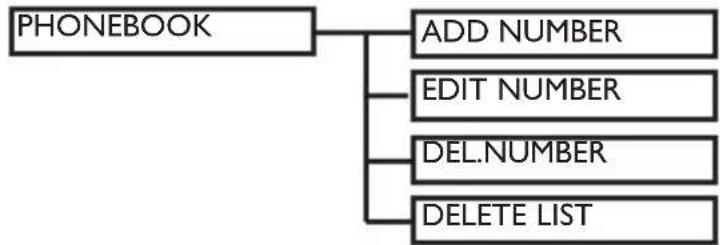
flowchart
graph TD
    A["PHONEBOOK"] --> B["ADD NUMBER"]
    A --> C["EDIT NUMBER"]
    A --> D["DEL.NUMBER"]
    A --> E["DELETE LIST"]

flowchart
graph TD
    A["CLOCK / ALARM"] --> B["DATE/TIME"]
    A --> C["SET ALARM"]
    A --> D["ALARM TONE"]
    C --> E["OFF/ON ONCE/ON DAILY"]
    D --> F["MELODY 1/2/3"]

flowchart
graph LR
    A["PERSONAL SET"] --> B["HANDSET TONE"]
    B --> C["RING VOLUME"]
    B --> D["RING MELODY"]
    B --> E["KEY TONE"]
    C --> F["HIGH/MEDIUM/LOW/RINGER OFF"]
    D --> G["MELODY I - 10"]
    E --> H["ON/OFF"]

flowchart
graph TD
    A["HANDSET NAME"] --> B["ON/OFF"]
    C["AUTO ANSWER"] --> B
    D["LANGUAGE"] --> E["Language list"]

flowchart
graph TD
    A["ADVANCE SET"] --> B["RECALL TIME"]
    A --> C["DIAL MODE"]
    A --> D["AREA CODE"]
    B --> E["SHORT/LONG"]
    C --> F["TONE/PULSE"]

flowchart
graph TD
    A["CALL BARRING"] --> B["BARR MODE"]
    A --> C["BARR NUMBER"]
    D["SOS NUMBER"] --> E["No. 1/2/3"]
    B --> F["ON/OFF"]
    C --> G["No. 1/2/3/4"]
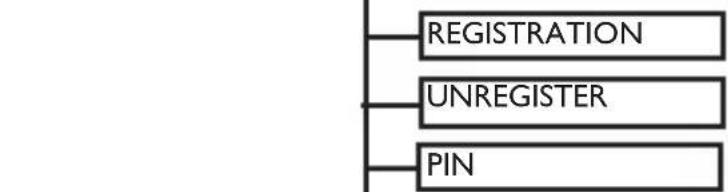
flowchart
graph TD
    A["REGISTRATION"] --> B["UNREGISTER"]
    B --> C["PIN"]

Handset power OFF and ON
To power the handset OFF or ON long press the key.
Text or number entry
You can enter the names of your phonebook entries character by character, pressing the corresponding key as many times as necessary to reach the desired character.
Press under the label to delete a character.
Example to write "Peter"
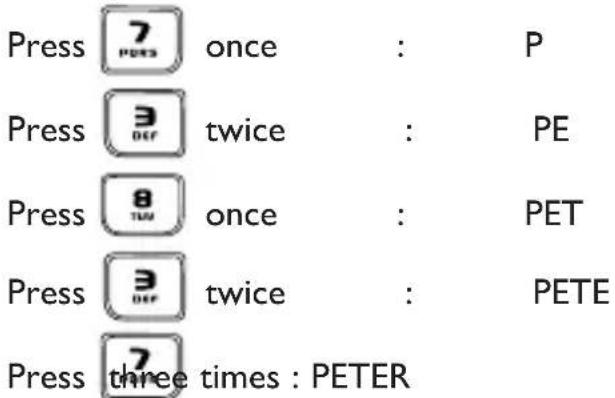
| Keypad Keys | Multi-tap Sequence |
| 1 | [space] 1_< >* |
| 2 | ABC2 |
| 3 | DEF3 |
| 4 | GHI4 |
| 5 | JKL5 |
| 6 | MNO 6 |
| 7 | PQRS7 |
| 8 | TUV 8 ? |
| 9 | WXYZ 9 |
| 0 | 0 - / \ # + |
Using the telephone
Keypad lock / unlock
Long press the key to lock/unlock the keypad in idle mode.
KEYS LOCKED is displayed on the screen.
Making a call
◆Answering a call / Hanging up


answer the call.
To end the conversation, press key or replace the handset on the base station.
◆Calling directly


dial the phone number.
◆Predialling the number before calling
Dial the phone number


◆Calling from the phonebook
Press Down


scroll through the list
Adjusting the earpiece and loudspeaker volume during a call
◆To mute the handset microphone during a call
Press to mute/unmute the handset microphone.
Call duration counter
After you have taken the line (dial a number or answer a call) the call duration counter appears on the handset display.

flashes
on an
incoming call.
To correct entries use

BACK.
3 volumes are available.
Redial list
◆Accessing / exiting the redial list

scroll through the redial list to exit
◆Calling a number from the redial list

flowchart
graph LR
    A["Press"] --> B["scroll through the redial list"]
    B --> C["User icon"]
◆Saving redial list numbers into the phonebook
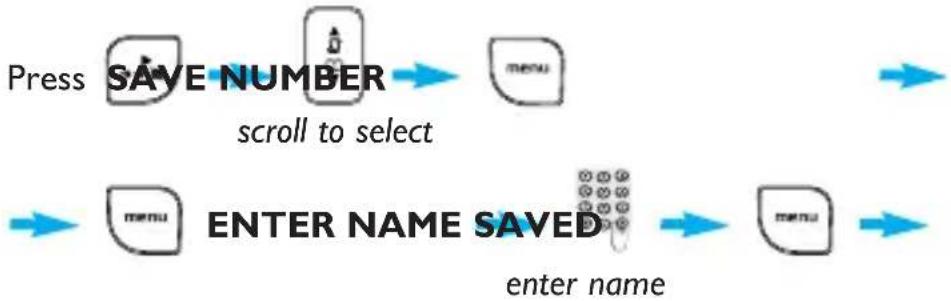
flowchart
graph LR
    A["Press SAVE NUMBER"] --> B["menu"]
    C["Enter NAME SAVED"] --> D["enter name"]
    style A fill:#f9f,stroke:#333
    style B fill:#ccf,stroke:#333
    style C fill:#cfc,stroke:#333
    style D fill:#fcc,stroke:#333
◆Editing a number from the redial list
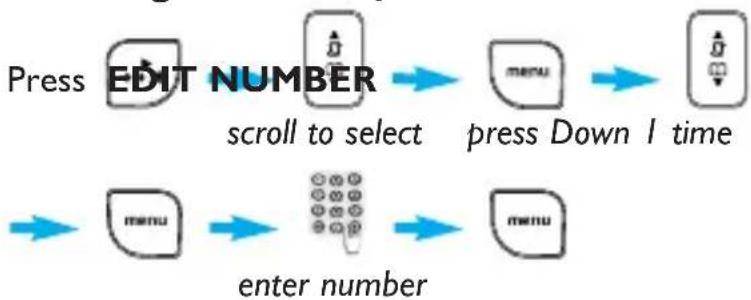
flowchart
graph LR
    A["Press EDIT NUMBER"] --> B["scroll to select menu"]
    B --> C["press Down 1 time"]
    D["enter number"] --> E["menu"]
    E --> F["enter number"]
◆Deleting a number from the redial list
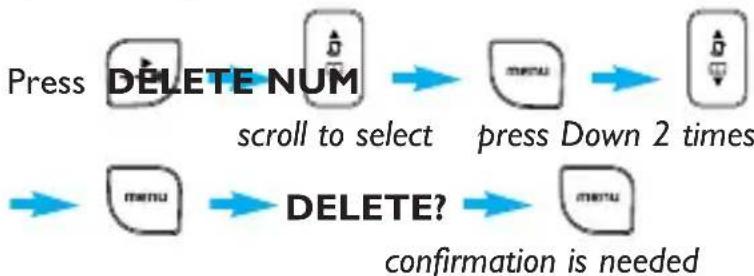
flowchart
graph LR
    A["Press DELETE NUM"] --> B["scroll to select menu"]
    B --> C["press Down 2 times"]
    D["→ menu"] --> E["DELETE?"]
    E --> F["confirmation is needed"]
◆Deleting all numbers from the redial list
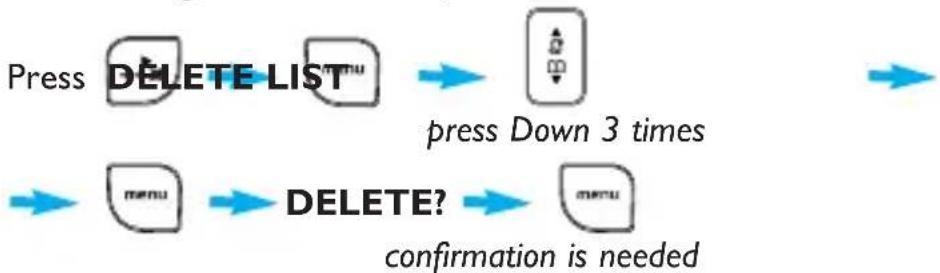
flowchart
graph TD
    A["Press DELETE LIST"] --> B["press Down 3 times"]
    B --> C["Formula?"]
    C --> D["confirmation is needed"]
The redial list contains the 5 most recently dialled numbers.
To delete a character use

Text and num- ber entry see page 10.
Phonebook
30 names and numbers can be stored in the built-in phonebook of the handset. The names are stored in alphabetical order.
♦Adding a new entry
Each entry contains a name (12 characters) and a number (24 digits).

flowchart
graph LR
    A["Press PHONEBOOK"] --> B["ADD"]
    B --> C["NUM"]


flowchart
graph LR
    A["Input"] --> B["Processing"]
    B --> C["Menu to confirm"]
enter the number
◆Changing a phonebook name or number

flowchart
graph LR
    A["Press PHONEBOOK\nin idle mode\npress Down 2 times"] --> B["menu"]
    C["EDIT NUMBER\npress Down 1 time"] --> D["menu"]
    D --> E["scroll to select\nview the name"]
    F["→"] --> G["→"]
    G --> H["→"]
    H --> I["menu to confirm."]
enter new name view number enter new number
◆Viewing the phonebook list

flowchart
graph LR
    A["Press Down"] --> B["in idle mode"]
    B --> C["scroll Up/Down in the list"]

To delete a character use

BACK.
Press for spacing.
You can also create an entry from the redial list and the call log (subscription dependent).
Text and num- ber entry see page 10.
Press

BACK to
return to idle mode.
◆Edit a number when browsing phonebook list

flowchart
graph LR
    A["Press Down EDIT NUMBER"] --> B["scroll to select menu"]
    B --> C["press Down 1 time"]
Text and number entry see page 10.

flowchart
graph LR
    A["menu"] --> B["ENTER"]
    B --> C["Patterned Pattern"]
    C --> D["NAME"]
ENTER
enter new name

flowchart
graph LR
    A["Input"] --> B["Processing"]
    B --> C["Menu to confirm"]
enter new number
◆Delete an entry when browsing phonebook list

flowchart
graph LR
    A["Press Down DELETE NUM"] --> B["menu"]
    B --> C["press Down 2 times"]


◆Delete whole phonebook list when browsing phonebook list

flowchart
graph LR
    A["Press Down DELETE LIST"] --> B["press Down 3 times"]
    B --> C["delete? to confirm"]
    style A fill:#f9f,stroke:#333
    style B fill:#ccf,stroke:#333
    style C fill:#cff,stroke:#333

◆Delete a phonebook entry when in idle mode

in idle mode press Down 2 times press Down 2 times

flowchart
graph LR
    A["DELETE NUM DELETE?"] --> B["Menu"]
    B --> C["Next Step"]

view the list scroll to select

◆Delete whole phonebook list when in idle mode

in idle mode press Down 2 times

press Down 3 times
Call log
This feature is available if you have registered to the caller identification service with your operator.
The call log stores the last 20 external calls received :
- network message service information*
◆Accessing / exiting the call log

flowchart
graph LR
    A["Press Up BACK"] --> B["scroll"]
    B --> C—to view the details to exit]
◆Consulting the call log
The screen can either display :
• the caller's number*
- the caller's name (if known in the phonebook)*
- UNKNOWN CALL if it is an unidentified call**
You can display, the phone number, the time and date of the call by pressing

◆Calling a number from the call log

flowchart
graph LR
    A["Press Up"] --> B["scroll to select"]
    B --> C["close-up state"]
Saving a Call log number into the phonebook

flowchart
graph LR
    A["Press Up SAVE NUMBER"] --> B["menu"]
    C["Enter NAME SAVED"] --> D["enter the name"]
    style A fill:#f9f,stroke:#333
    style B fill:#ccf,stroke:#333
    style C fill:#cfc,stroke:#333
    style D fill:#fcc,stroke:#333
◆Deleting a Call log entry
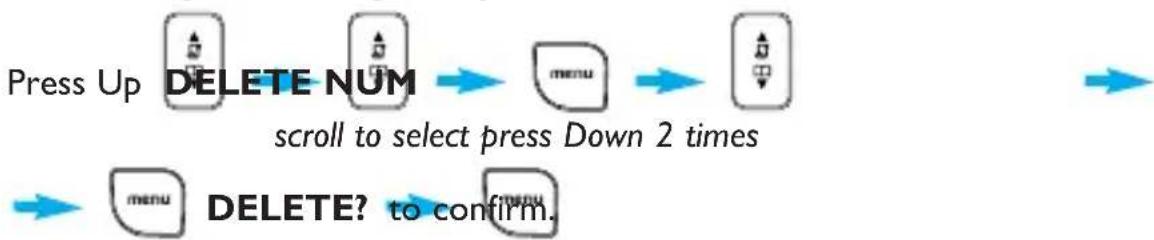
flowchart
graph LR
    A["Press Up DELETE NUM"] --> B["menu"]
    B --> C["delete? to confirm."]
    D["→ menu"] --> E["delete? to confirm."]
    style A fill:#f9f,stroke:#333
    style B fill:#ccf,stroke:#333
    style C fill:#cfc,stroke:#333
    style D fill:#fcc,stroke:#333
    style E fill:#cff,stroke:#333
* Subject to a subscription with your operator.
** Unlisted numbers, withheld caller identification.
Time and date depends on the network.
To delete a character use

BACK.
Press I for spacing.
◆Deleting all the Call log entries
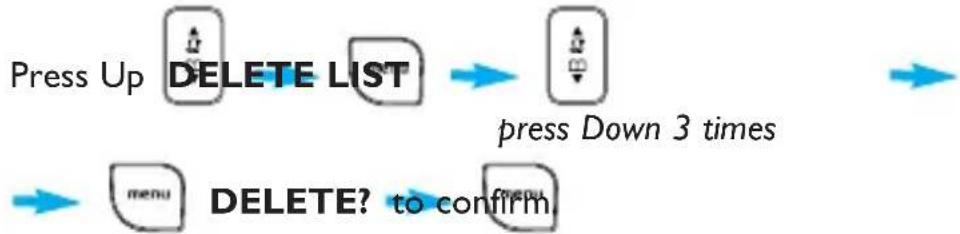
flowchart
graph TD
    A["Press Up DELETE LIST"] --> B["press Down 3 times"]
    C["menu DELETE?"] --> D["to confirm"]
Using the Intercom
This function can only be used with a multi-handset configuration. It allows you to make free internal calls, transfer external calls from one handset to another and to use the conference option.
◆Internal call

enter handset no.*
Press to answer and to end an internal call.
Note: If the handset does not belong to the Philips DECT 122 range, this function may not be available.
◆Call transfer to a specific handset when on line
During a call in progress you transfer the external call to a specific handset :

flowchart
graph LR
    A["Long press"] --> B["Grid-based processing"]
    B --> C["Output"]
enter handset no.*
◆Switch between internal and external call

flowchart
graph LR
    A["Long press"] --> B["enter handset no.*"]
    B --> C["long press"]
    D["to switch between internal/external call."] --> C
◆Conference call via the in-call options

The 3 people can share the conversation.
Intercom & call transfer is only possible with handsets registered to the same base station.
*Up to 5 handsets can be registered to the same base station (handset number 1 - 5).
*Up to 5 handsets can be registered to the same base station (handset number 1 - 5).
Paging
This feature allows you to locate the handset(s).
Press on the base station. Press any key on the handset to stop ringing once relocated.
Chain Dialing
If you have entered in your phonebook for example only the main number of a company without the extension, this feature allows you to add the subnumber (extension) of a particular person and to dial out this number.

flowchart
graph LR
    A["Take the line"] --> B["open phonebook list"]
    B --> C["scroll to select"]
    C --> D["to dial first part"]
each digit blinks to indicate dialed out.
enter the extension
Clock and Alarm Settings
◆To set the Date and Time
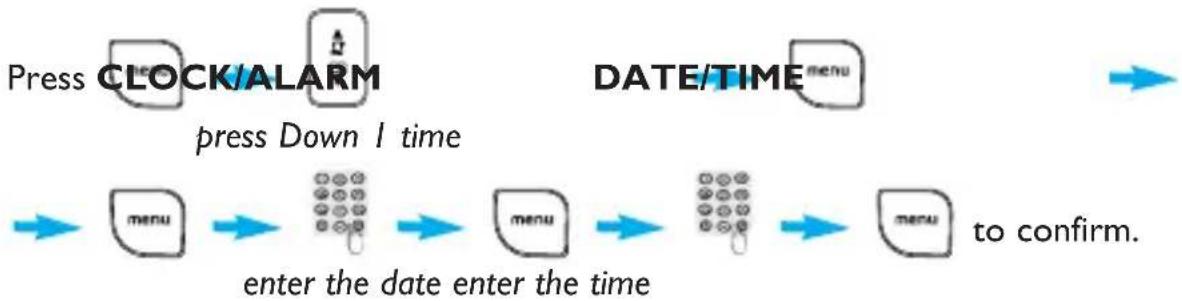
flowchart
graph LR
    A["Press CLOCK/ALARM"] --> B["press Down 1 time"]
    B --> C["enter the date enter the time"]
    C --> D["DATE/TIME menu"]
    D --> E["to confirm."]
Press to display the date and time.
Note: If you are connected to an ISDN line, the date & time may be updated after each call. Please check the date & time settings in your ISDN system.
◆To set or change the alarm clock settings

flowchart
graph LR
    A["Press CLOCK/ALARM"] --> B["menu"]
    B --> C["down arrow"]
    C --> D["→"]
    E["SET ALARM to confirm."] --> F["menu"]
    F --> G["scroll to select*"]
If you select ON ONCE or ON DAILY :

enter the time
Note: When the alarm rings, press any key to stop the alarm.
All the subscribed handsets ring.
To delete a character use BACK
*Choose : OFF or ON ONCE or ON DAILY
The alarm rings for at most 1 minute and ALARM is shown in idle mode.
◆To set the alarm tone
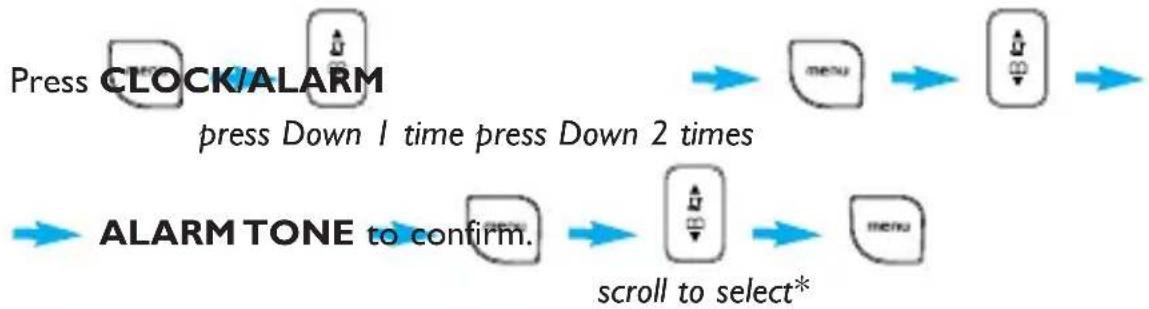
flowchart
graph LR
    A["Press CLOCK/ALARM"] --> B["press Down 1 time press Down 2 times"]
    B --> C["→ menu → ▲B →"]
    D["→ ALARM TONE to confirm."] --> E["→ ▲B → ▲ menu"]
    E --> F["scroll to select*"]
*Choose :
MELODY I or
MELODY 2 or
MELODY 3
Personal Settings
◆To set the handset ringer volume or silence mode (Ringer OFF)
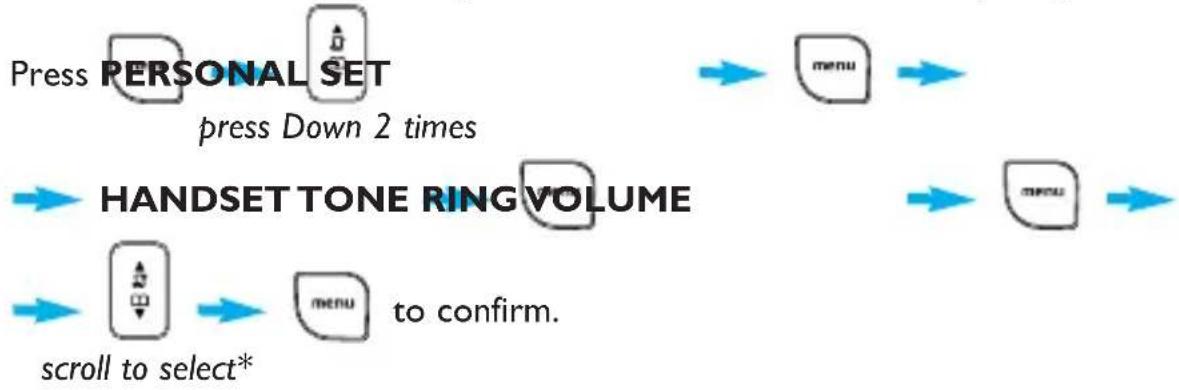
flowchart
graph TD
    A["Press PERSONAL SET press Down 2 times"] --> B["menu"]
    C["HANDSET TONE RING VOLUME scroll to select*"] --> D["menu to confirm."]
The current ring melody is played.
*Choose :
HIGH or
MEDIUM or
LOW or
RINGER OFF
◆To select the handset ring melody
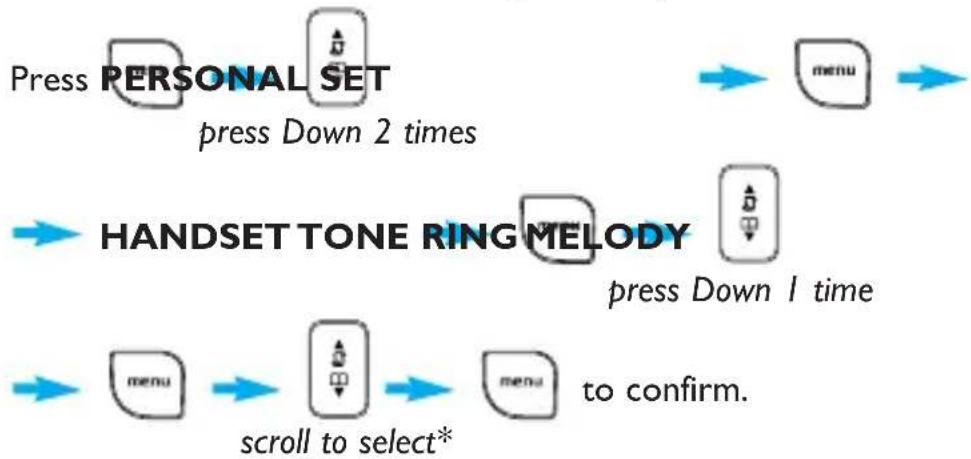
flowchart
graph TD
    A["Press PERSONAL SET\npress Down 2 times"] --> B["menu"]
    C["HANDSET TONE RING MELODY\npress Down 1 time"] --> D["menu"]
    E["scroll to select*"] --> F["menu to confirm."] --> G["→"]
The current ring melody is played.
*Choose one of the available melodies (I - 10)
◆To activate / deactivate the key tone

flowchart
graph TD
    A["Press PERSONAL SET press Down 2 times"] --> B["menu"]
    C["HANDSET TONE KEY TONE press Down 2 times"] --> D["insert key tone key tone"]
    E["scroll to select ON or OFF to confirm."] --> F["menu"]
    F --> G["insert key tone key tone"]
◆To rename the handset

flowchart
graph TD
    A["Press PERSONAL SET press Down 2 times"] --> B["menu"]
    C["HANDSET NAME press Down 1 time enter the name to confirm."] --> D["menu"]
    D --> E["phone icon"]
◆To activate / deactivate the auto answer mode

flowchart
graph TD
    A["Press PERSONAL SET"] --> B["press Down 2 times"]
    C["AUTO ANSWER"] --> D["press Down 2 times scroll to select ON or OFF"]
    E["to confirm."] --> F["→ menu"]
◆To change the display language

flowchart
graph TD
    A["Press PERSONAL SET"] --> B["press Down 2 times"]
    B --> C["→ LANGUAGE"]
    C --> D["→ menu"]
    D --> E["→"]
    E --> F["→"]
    F --> G["→"]
    G --> H["→"]
    H --> I["→"]
    I --> J["→"]
    J --> K["→"]
    K --> L["→"]
    L --> M["→"]
    M --> N["→"]
    N --> O["→"]
    O --> P["→"]
    P --> Q["→"]
    Q --> R["→"]
    R --> S["→"]
    S --> T["→"]
    T --> U["→"]
    U --> V["→"]
    V --> W["→"]
    W --> X["→"]
    X --> Y["→"]
    Y --> Z["→"]
    Z --> AA["→"]
    AA --> AB["→"]
    AB --> AC["→"]
    AC --> AD["→"]
    AD --> AE["→"]
    AE --> AF["→"]
    AF --> AG["→"]
    AG --> AH["→"]
    AH --> AI["→"]
    AI --> AJ["→"]
    AJ --> AK["→"]
    AK --> AL["→"]
    AL --> AM["→"]
    AM --> AN["→"]
    AN --> AO["→"]
    AO --> AP["→"]
    AP --> AQ["→"]
    AQ --> AR["→"]
    AR --> AS["→"]
    AS --> AT["→"]
    AT --> AU["→"]
    AU --> AV["→"]
    AV --> AW["→"]
    AW --> AX["→"]
    AX --> AY["→"]
The default name is : PHILIPS. You can enter 10 characters for the handset name.
If ON you take the line by lifting the handset from the charge cradle.
Advanced Settings
◆To change the recall time

press Down 3 times

flowchart
graph LR
    A["menu"] --> B["→"]
    B --> C["→"]
    C --> D["menu"] to confirm.
scroll to select SHORT or LONG

This option is useful when using operator services.
◆To change the dial mode
By default your phone is pre-configured with the appropriate dial mode for your country and you don't have to change this setting.

press Down 3 times

flowchart
graph LR
    A["Start"] --> B["DIAL MODE to confirm."]
    B --> C["Menu"]
press Down I time select TONE or PULSE
◆Local area code setting
If your local PSTN sends the CID with local area code attached, it is necessary to filter out the local area code when dial back from call log. The AREA CODE function allows you to remove the local area code from the call log entries. The local area code can be set from 1 to 4 digits. The default setting is blank.

press Down 3 times

press Down 2 times

flowchart
graph LR
    A["Mouse Icon"] --> B["MENU"]
    style A fill:#f9f,stroke:#333
    style B fill:#bbf,stroke:#333
enter the new area code*
*The maxi-mums for the area code is 4 digits.
◆To set or change Call Barring
This menu allows you to limit the use of your phone to specific calls by barring parts (prefix) of outgoing numbers. You can set 4 different barring numbers.

flowchart
graph LR
    A["Press ADVANCE SET"] --> B["Menu"]
    B --> C["Output"]
press Down 3 times press Down 3 times

flowchart
graph LR
    A["CALL BARRING"] --> B["menu"]
    B --> C((c))
    C --> D["menu"]
enter the PIN code*

flowchart
graph LR
    A["Menu Icon"] --> B["BARR NUMBER"]
    B --> C["Menu Icon"]
    C --> D["Menu Icon"]
press Down I time scroll to select 1/2/3/4

flowchart
graph LR
    A["Input"] --> B["Grid Element"]
    B --> C["Output: menu to confirm."]
enter the barring number**
◆To activate / deactivate Call Barring

flowchart
graph LR
    A["Press ADVANCE SET"] --> B["Menu"]
    B --> C["Arrow Down"]
    C --> D["Arrow Up"]
press Down 3 times press Down 3 times

flowchart
graph LR
    A["CALL BARRING"] --> B["menu"]
    B --> C((data point))
    C --> D["menu"]
enter the PIN code*

flowchart
graph LR
    A["BARR MODE to confirm."] --> B["OK"]
    B --> C["BY"]
    C --> D["MENU"]
scroll to select ON/OFF
*By default the PIN code is 0000
**The maxi- mums for the barring num- ber is 4 digits.
For example if you want to bar international calls, enter the barring number 00.
◆To set or change an SOS number
The SOS number feature allows you to enter 3 SOS phone numbers, which can be dialed out although the call barring is activated. The maximum length of an SOS number is 4 digits. The PIN code is required when modify the SOS number.

flowchart
graph LR
    A["Press ADVANCE SET"] --> B["Menu"]
    B --> C["Arrow to right"]
    C --> D["Arrow to right"]
press Down 3 times press Down 4 times

flowchart
graph LR
    A["SOS NUMBER"] --> B["menu"]
    B --> C((mouse icon))
    C --> D["menu"]
enter the PIN code*

flowchart
graph LR
    A["Input"] --> B["Rectangular Box with directional arrow"]
    B --> C["Menu Icon"]
    C --> D["Grid Icon"]
    D --> E["Menu Icon"]
    E --> F["to confirm."]
scroll to select 1/2/3 enter the SOS number
*By default the PIN code is 0000
◆To register a handset
Up to 5 handsets can be registered to the base station.
If you have inadvertently unregistered your handset, you can register it again.
Additional handsets must be registered to the base before use.
Warning : If you wish to register non Philips handsets to the DECT 122 base station, make sure that this handset is GAP compliant otherwise it will not operate properly (see page 3).
To register a handset, first press the paging key on the base for approx. 5
seconds when the base is in idle mode. Then carry out the following steps on the handset within ohne minute :

flowchart
graph LR
    A["Press ADVANCE SET"] --> B["menu"]
    B --> C["output arrow"]
press Down 3 times press Down 5 times

flowchart
graph LR
    A["→ REGISTRATION to confirm."] --> B["→"]
    B --> C["→ menu"]
enter the PIN code*
If the registration was successful, a long confirmation tone is heard and the handset number (1 to 5) will be assigned by the base automatically.
◆To unregister a handset

flowchart
graph LR
    A["Press ADVANCE SET"] --> B["Menu"]
    B --> C["Arrow Down"]
    C --> D["Arrow Up"]
press Down 3 times press Down 6 times

flowchart
graph LR
    A["UNREGISTER"] --> B["menu"]
    B --> C((mouse))
    C --> D["menu"]
enter the PIN code*

flowchart
graph LR
    A["Input"] --> B["Processing Step"]
    B --> C["Output"]
    style A fill:#f9f,stroke:#333
    style B fill:#ccf,stroke:#333
    style C fill:#cfc,stroke:#333
scroll to select appears on the screen the handset no.
*By default the PIN code is 0000
If you have your handset serviced, please make sure it is unregistered from the base station before taking it back to the repair centre.
◆To change the PIN code
The default PIN code is "0000". We advise you to personalize it. The maximum length for the PIN code is 8 digits.

flowchart
graph LR
    A["Press ADVANCE SET"] --> B["Menu"]
    B --> C["Directional Arrow"]
press Down 3 times press Down 7 times

flowchart
graph LR
    A["PIN"] --> B["menu"]
    B --> C["button icon"]
    C --> D["menu"]
enter current PIN code

flowchart
graph LR
    A["Input"] --> B["Grid"]
    B --> C["Menu"]
    C --> D["to confirm."]
enter new PIN code
◆To reset to default settings (base station and handset)
You can reset your phone to the default settings (see page 24) at any time. Note that after a reset all your personal settings will be deleted, however your phonebook and call log entries remain unchanged.

flowchart
graph LR
    A["Press ADVANCE SET"] --> B["Menu"]
    B --> C["Arrow to right"]
press Down 3 times press Down 8 times

a confirmation is needed
Default settings (after RESET UNIT)
Handset Ringer volume : MEDIUM
Handset Ringtone : MELODY I
Handset earpiece volume : VOLUME 2
Handset key tone : ON
Battery low tone : ON
Menu language (Handset) : English
Auto answer : OFF
Handset name : PHILIPS
Time/Date (Handset) : 00:00 01-01
Dialling mode : TONE
Flash time : Short (100ms)
PIN code : 0000
Alarm : OFF
Alarm tone : MELODY I
Area code : Empty
Call barring : Empty
SOS number : Empty
Redial list : Empty
Phonebook memory : Remain unchanged
Call log : Remain unchanged
Telephone troubleshooting
| PROBLEMS | CAUSES | SOLUTIONS |
| The icon is not blinkingwhen the handset is placed onthe base | - Bad battery contact- Dirty contact- Battery is full | - Move the handset slightly- Clean the contact with a clothmoistened with alcohol- No need to charge |
| No dialling tone | - No power- Batteries are empty- You are too far from the base station- Wrong line cable- Line adaptor (when needed) notconnected to the line cord | - Check the connections.Reset the phone : unplug andplug back in the mains- Charge the batteries at least 24hours- Move closer to the base station- Always use the line cableprovided- Connect the line adaptor (whenneeded) to the line cord |
| No ring tone | - The ring tone is deactivated | - Increase the volume (page 18) |
| The icon does not appear | - No mains power- The handset is too far from thebase station | - Check connections- Move closer to the base station |
| The icon is blinking | - Handset not registered to thebase station | - Register the handset to thebase (page 22) |
| Crackling on the line | - You are too far from the basestation- The base station is too close toelectrical appliances, reinforcedconcrete walls or metaldoorframes | - Move closer to the base station- Move the base station to find abetter place (the higher thebetter) |
| The handset displays ‘notavailable’- when attempting to addanother handset to the basestation- when using a handset | - The procedure to add a handsethas failed, try again- Maximum number of handsets(5) has been reached- Base station is already busy withanother handset | - Disconnect and connect thebase station power supply.- Remove and place back thehandset battery- Follow the procedure toregister a handset (page 22)- Unregister a handset- Wait until it is available |
| Noise interference on your radiolor television | The DECT 122 base station ormains power pack are too closeto electrical appliances | Move the power pack or basestation as far away as possible |
| Caller Line Identification (CLI)service does not work | - The service is not activated | - Check your subscription withyour network operator |
| A phonebook entry cannot bestored | The phonebook is full | Delete an entry to free memory |
© 2005
Philips Consumer Electronics
DECT & Home Telephony
All rights reserved
Printed in China
www.philips.com



3111 285 25432



- Table of contents
- Conformity, environment and safety 2
- Menu structure 9
- Conformity, environment and safety
- Safety information
- Conformity
- Power requirements
- Warning!
- Telephone connection
- Safety precautions
- Environmental care
- Recycling & disposal
- Use one of the following disposal options :
- Declaration of conformity
- Using GAP standard compliance
- DECT I22 Handset
- Display
- Menu key & Softkey OK
- Pick-up key
- Keypad lock & insert
- Recall key
- Navigation keys
- Redial list, mute key & Softkey Back
- Hang-up key
- Ringer ON/OFF & Insert #
- Intercom
- Icons on the handset display
- DECT I22 base station
- Paging key
- Installing the DECT 122
- Unpacking your DECT 122
- Installing the base station
- Installing and replacing the batteries in the handset
- Battery life and range
- Menu structure
- Handset power OFF and ON
- Text or number entry
- Example to write "Peter"
- Using the telephone
- Keypad lock / unlock
- Making a call
- Call duration counter
- Redial list
- ◆Accessing / exiting the redial list
- ◆Calling a number from the redial list
- ◆Saving redial list numbers into the phonebook
- ◆Editing a number from the redial list
- ◆Deleting a number from the redial list
- ◆Deleting all numbers from the redial list
- Phonebook
- ♦Adding a new entry
- ◆Changing a phonebook name or number
- ◆Viewing the phonebook list
- ◆Edit a number when browsing phonebook list
- ◆Delete an entry when browsing phonebook list
- ◆Delete whole phonebook list when browsing phonebook list
- ◆Delete a phonebook entry when in idle mode
- ◆Delete whole phonebook list when in idle mode
- Call log
- ◆Accessing / exiting the call log
- ◆Consulting the call log
- ◆Calling a number from the call log
- Saving a Call log number into the phonebook
- ◆Deleting a Call log entry
- ◆Deleting all the Call log entries
- Using the Intercom
- ◆Internal call
- ◆Call transfer to a specific handset when on line
- ◆Switch between internal and external call
- ◆Conference call via the in-call options
- Paging
- Chain Dialing
- Clock and Alarm Settings
- ◆To set the Date and Time
- ◆To set or change the alarm clock settings
- ◆To set the alarm tone
- Personal Settings
- ◆To set the handset ringer volume or silence mode (Ringer OFF)
- ◆To select the handset ring melody
- ◆To activate / deactivate the key tone
- ◆To rename the handset
- ◆To activate / deactivate the auto answer mode
- ◆To change the display language
- Advanced Settings
- ◆To change the recall time
- ◆To change the dial mode
- ◆Local area code setting
- ◆To set or change Call Barring
- ◆To activate / deactivate Call Barring
- ◆To set or change an SOS number
- ◆To register a handset
- ◆To unregister a handset
- ◆To change the PIN code
- ◆To reset to default settings (base station and handset)
- Default settings (after RESET UNIT)
Brand : PHILIPS
Model : DECT1224S
Category : Cordless phone