DuraDrive AT2 - SSD Super Talent Technology - Free user manual and instructions
Find the device manual for free DuraDrive AT2 Super Talent Technology in PDF.


| Product Type | Solid State Drive (SSD) |
| Brand | Super Talent Technology |
| Model | DuraDrive AT2 |
| Form Factor | 2.5-inch |
| Interface | SATA II (3 Gbps) |
| Capacity | 64 GB (also available in 32 GB, 128 GB) |
| Sequential Read Speed | Up to 170 MB/s |
| Sequential Write Speed | Up to 100 MB/s |
| Dimensions (W x D x H) | 100.2 x 69.8 x 9.5 mm (3.94 x 2.75 x 0.37 in) |
| Weight | Approximately 80 g (2.8 oz) |
| Power Consumption (Active) | Approximately 2.5 W typical |
| Power Consumption (Idle) | Approximately 0.5 W |
| Operating Temperature | 0°C to 70°C (32°F to 158°F) |
| Storage Temperature | -40°C to 85°C (-40°F to 185°F) |
| Shock Resistance | 1500 G (half sine wave, 1 ms) |
| MTBF | 1,000,000 hours |
| Key Features | Quiet operation, low power consumption, shock resistant, no moving parts |
| Included Accessories | Drive only (no mounting bracket or screws) |
| Maintenance & Cleaning | Keep drive clean and dry; use compressed air for dust removal; avoid liquid cleaners |
| Safety Warnings | Do not disassemble; avoid static discharge; handle by edges |
| Spare Parts & Repairability | No user-serviceable parts; contact support for warranty or replacement |
| General Information | Designed for reliability in demanding environments; compatible with most SATA controllers |
Frequently Asked Questions - DuraDrive AT2 Super Talent Technology
User questions about DuraDrive AT2 Super Talent Technology
0 question about this device. Answer the ones you know or ask your own.
Ask a new question about this device
Download the instructions for your SSD in PDF format for free! Find your manual DuraDrive AT2 - Super Talent Technology and take your electronic device back in hand. On this page are published all the documents necessary for the use of your device. DuraDrive AT2 by Super Talent Technology.
USER MANUAL DuraDrive AT2 Super Talent Technology
natural_image
Close-up of a black SUPER-TAL memory card with visible internal circuitry and mounting holes (no text or symbols on the chip itself)1. Product Overview ...... 2
(1.1) - PRODUCT DEFINITION 2
(1.2) - INTERFACE DESCRIPTION 2
1.2.1 SATA Interface 2
1.2.2 IDE Interface 2
(1.3) - SSD DIAGRAM 3
1.3.1 SATA Diagram 3
1.3.2 IDE Diagram....3
A Solid State Drive (SSD) is a storage device that is based on semiconductors rather than rotating magnetic platters. Super Talent uses Flash memory as the storage media because they are fast, highly reliable, widely available, and are non-volatile. SSDs are a drop-in replacement with standard hard disk drives since they use both industry standard dimensions and a standard hard drive interface.
(1.2) – Interface Description
1.2.1 SATA Interface
All Super Talent's SATA SSDs are compatible with the SATA 1.5 Gb/s standard, allowing for drop-in drive replacement.
Super Talent's SATA 3.0 SSDs are compatible with the SATA 3.0 Gb/s standard in addition to the SATA 1.5 Gb/s standard, allowing for drop-in drive replacement.
1.2.2 IDE Interface
44-pin IDE (parallel ATA) interface can also support PIO mode and UDMA mode; this allows for drop-in drive replacement.
(1.3) - SSD Diagram
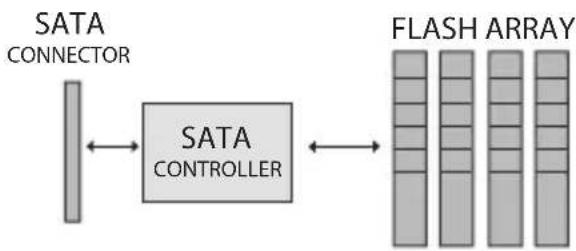
1.3.1 SATA Diagram
Figure 1 shows the internal components and its connections in an SSD. The three main components that make up an SATA SSD are the following:
- NAND Flash
- SATA controller
- SATA connector
flowchart
graph LR
    A["SATA CONNECTOR"] <--> B["SATA CONTROLLER"]
    B <--> C["FLASH ARRAY"]
Figure 1: Block Diagram of SATA SSD
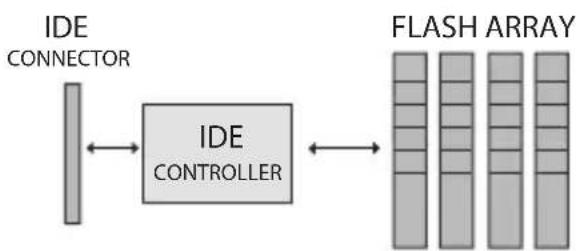
1.3.2 IDE Diagram
Figure 2 shows the internal components and its connections in an SSD. The three main components that make up an IDE SSD are the following
- NAND Flash
- IDE controller
- IDE connector
flowchart
graph LR
    A["IDE CONNECTOR"] <--> B["IDE CONTROLLER"]
    B <--> C["FLASH ARRAY"]
Figure 1: Block Diagram of IDE SSD
(2.1) Back Up Your Data
Back up your existing drive before installing the SSD
(2.2) Visual Inspection
Before unpacking and handling the SSD, discharge the static electricity by touching the metal chassis of your computer or by using an anti-static wrist strap.
Save the original shipping box and the anistatic bag in case you need to return the SSD. Before installation, inspect the box and device for the following:
- Shrink wrap of the box is broken
- Box is damaged or water-stained
- Any physical damage to the SSD
(3.1) SSD Configuration
The SSD can be installed in any mounting position in your computer.
(3.2) Install the SSD
- Power down the PC
- Remove the computer system outside cover
- Connect a cable between the SSD and the host
- Replace the PC cover
- Power on the PC
- A BIOS sign-on message appears and displays a key sequence to enter the BIOS setup. Set up the BIOS to recognize the SSD.
- Installation is complete
(4.1) Handling the SSD
Be cautious when unpacking, installing, and handling the SSD drive. Misuse of the SSD voids all warranty. Follow these instructions when managing the SSD.
- Follow all ESD precautions
- Always operate the SSD within environmental conditions
- Never switch DC power to the drive by plugging an electrically live source cable into the drive's power connector
- Ensure correct cable polarity whenever connecting the drive to the cable
WARNING: If the warranty void label is broken, the warranty voids immediately
(4.2) Using the SSD in a Windows OS
No modifications need to be made to use the SSD in a Windows OS platform.
(4.3) Using the SSD in a Linux OS
No modifications need to be made to use the SSD in a Linux OS platform.
(4.4) Using the SSD in Other OS
No modifications need to be made to use the SSD in other OS platforms.
*Note: Please contact technical support if you have any questions about other O/S platforms.
(5.1) Technical Support
If additional support is needed, please visit our Web site for the following topics.
- Warranty: If the warranty void label is broken, the warranty voids immediately.
- Datasheets: For additional technical information on all SSDs
- SSD FAQs: A "Q&A" section for information regarding the SSD
- SSD Awards & Benchmarks: Keep up to date on all the awards and reviews for Super Talent's SSD
- Technical Resources: Learn more about SSDs with various whitepapers
- Contact Support: support@supertalent.com
(5.2) Contact Information
CORPORATE HEADQUARTERS
United States
2077 North Capitol Avenue
San Jose, CA 95132 U.S.A.
Tel: 1.408.934.2560
Fax: 1.408.719.5020
ssd.supertalent.com