HF235DPB - Monitor Hanns.G - Free user manual and instructions
Find the device manual for free HF235DPB Hanns.G in PDF.


| Product Type | 23-inch LED-backlit LCD Monitor |
| Model Number | HF235DPB |
| Brand | Hanns.G |
| Display Size | 23 inches (diagonal) |
| Resolution | 1920 x 1080 (Full HD) |
| Brightness | 250 cd/m² |
| Contrast Ratio | 1000:1 (typical) |
| Response Time | 5 ms (typical) |
| Viewing Angles | 170° horizontal / 160° vertical |
| Color Support | 16.7 million colors |
| Connectivity | VGA, DVI-D, HDMI |
| Power Consumption | 32W (typical), 0.5W standby |
| Input Voltage | 100-240V AC, 50/60Hz |
| Weight (with stand) | Approx. 4.5 kg |
| Dimensions (with stand) | 553 x 395 x 195 mm |
| Tilt Adjustment | -5° to +15° |
| VESA Mount Compatible | 100 x 100 mm |
| Speakers | Built-in 2W x 2 |
| Energy Efficiency Class | A |
| Safety Features | Anti-glare coating, Kensington lock slot |
| Cleaning Instructions | Wipe gently with a soft, dry cloth; do not use liquid cleaners |
| Repair Information | User-replaceable stand; power supply integrated |
Frequently Asked Questions - HF235DPB Hanns.G
User questions about HF235DPB Hanns.G
0 question about this device. Answer the ones you know or ask your own.
Ask a new question about this device
Download the instructions for your Monitor in PDF format for free! Find your manual HF235DPB - Hanns.G and take your electronic device back in hand. On this page are published all the documents necessary for the use of your device. HF235DPB by Hanns.G.
USER MANUAL HF235DPB Hanns.G
Before operating the monitor, please read this manual thoroughly. This manual should be retained for future reference.
FCC Class B Radio Frequency Interference Statement
This equipment has been tested and found to comply with the limits for a Class B digital device, pursuant to Part 15 of the FCC Rules. These limits are designed to provide reasonable protection against harmful interference in a residential installation. This equipment generates, uses and can radiate radio frequency energy, and if not installed and used in accordance with the instructions, may cause harmful interference to radio communications. However, there is no guarantee that interference will not occur in a particular installation. If this equipment does cause harmful interference to radio or television reception, which can be determined by turning the equipment off and on, the user is encouraged to try to correct the interference by one or more of the following measures:
■ Reorient or relocate the receiving antenna.
■ Increase the separation between the equipment and receiver.
- Connect the equipment into an outlet on a circuit different from that to which the receiver is connected.
- Consult the dealer or an experienced radio/TV technician for help.
The device complies with Parts 15 of the FCC Rule. Operation is subject to the following two conditions: (1) this device may not cause harmful interference; and (2) this device must accept any interference received, including interference that may cause undesired operations.
CANADA
This Class B digital apparatus meets all requirements of the Canadian Interference-Causing Equipment Regulation.
Socket-outlet shall be near the equipment and shall be accessible.
RECYCLING INFORMATION
We, the Hannsprce care very much about our environment protection strategy and firmly believe that it helps us have healthier earth via appropriate treatment and recycling of industrial technology devices at the end-of-life.
These devices contain recyclable materials, which can be re-decomposed and re-integrated into brand-new marvels. On the contrary, other material can be classified to hazardous and poisoned substances. We strongly encourage you to contact the provided information to recycle this product.
For more information, please visit
www.Hannspree.com
TABLE OF CONTENTS
SAFETY NOTICE 5
PRECAUTIONS....5
SPECIAL NOTES ON LCD MONITORS 6
ADJUSTING THE VIEWING ANGLE....11
OPERATING INSTRUCTIONS 12
GENERAL INSTRUCTIONS.... 12
FRONT PANEL CONTROL .... 13
HOW TO ADJUST A SETTINGS 15
PLUG AND PLAY 18
TECHNICAL SUPPORT (FAQ) 19
Q & A FOR GENERAL PROBLEMS 19
ERROR MESSAGE & POSSIBLE SOLUTIONS 21
APPENDIX 23
SPECIFICATIONS....23
SAFETY NOTICE
- The changes or modifications not expressly approved by the party responsible for compliance could void the user's authority to operate the equipment.
- Shielded interface cables and AC power cord, if any, must be used in order to comply with the emission limits.
- The manufacturer is not responsible for any radio or TV interference caused by unauthorized modification to this equipment. It is the responsibilities of the user to correct such interference.
- Only use attachments/accesories specified by the manufacturer.
WARNING:
To prevent fire or shock hazard, do not expose the monitor to rain or moisture. Dangerously high voltages are present inside the monitor. Do not open the cabinet. Refer servicing to qualified personnel only.
PRECAUTIONS
- Do not use the monitor near water, e.g. near a bathtub, washbowl, kitchen sink, laundry tub, swimming pool or in a wet basement.
- Do not place the monitor on an unstable cart, stand, or table. If the monitor falls, it can injure a person and cause serious damage to the appliance. Use only a cart or stand recommended by the manufacturer or sold with the monitor. If you mount the monitor on a wall or shelf, use a mounting kit approved by the manufacturer and follow the kit instructions.
- Slots and openings in the back and bottom of the cabinet are provided for ventilation. To ensure reliable operation of the monitor and to protect it from overheating, be sure these openings are not blocked or covered. Do not place the monitor on a bed, sofa, rug, or similar surface. Do not place the monitor near or over a radiator or heat register. Do not place the monitor in a bookcase or cabinet unless proper ventilation is provided.
- The monitor should be operated only from the type of power source indicated on the label. If you are not sure of the type of power supplied to your home, consult your dealer or local power company.
- Unplug the unit during a lighting storm or when it will not be used for long period of time. This will protect the monitor from damage due to power surges.
- Do not overload power strips and extension cords. Overloading can result in fire or electric shock.
- Never push any object into the slot on the monitor cabinet. It could short circuit parts causing a fire or electric shock. Never spill liquids on the monitor.
- Do not attempt to service the monitor by yourself; opening or removing covers can expose you to dangerous voltages and other hazards. Please refer all servicing to qualified service personnel.
- The wall socket shall be installed near the equipment and shall be easily accessible.
SPECIAL NOTES ON LCD MONITORS
The following symptoms are normal with LCD monitor and do not indicate a problem.
- Due to the nature of the fluorescent light, the screen may flicker during initial use. Turn off the Power Switch and then turn it on again to make sure the flicker disappears.
- You may find slightly uneven brightness on the screen depending on the desktop pattern you use.
- The LCD screen has effective pixels of 99.99% or more. It may include blemishes of 0.01% or less such as a missing pixel or a pixel lit all of the time.
- Due to the nature of the LCD screen, an afterimage of the previous screen may remain after switching the image, when the same image is displayed for hours. In this case, the screen is recovered slowly by changing the image or turning off the Power Switch for hours.
- If the screen suddenly flashes erratically or the backlighting fails, please contact your dealer or service center for repair. Do not attempt to repair the monitor yourself.
Lamp Disposal

LAMP(S) INSIDE THIS PRODUCT CONTAIN MERCURY AND MUST BE RECYCLED OR DISPOSED OF ACCORDING TO LOCAL, STATE OR FEDERAL LAWS. FOR MORE INFORMATION, CONTACT THE ELECTRONIC INDUSTRIES ALLIANCE ATWWW.EIAE.ORG. FOR LAMP SPECIFIC DISPOSAL INFORMATION CHECKWWW.LAMPRECYCLE.ORG.
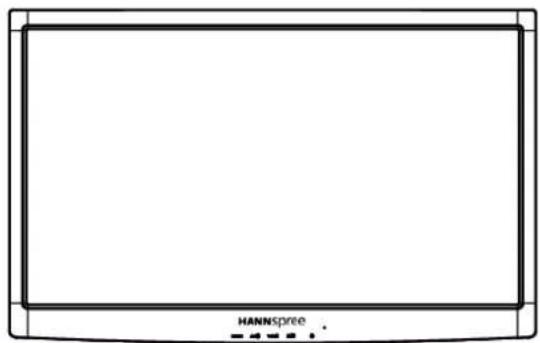
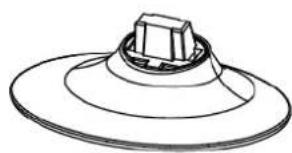
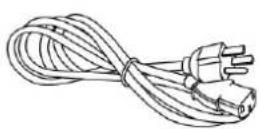
The product package should include the following items:
LCD Monitor
natural_image
Front view of a blank rectangular screen with no visible text, symbols, or markings.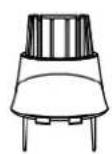
natural_image
Technical line drawing of a mechanical component with concentric rings and a central hub (no text or symbols)Cables and User manual
natural_image
Simple concentric circle diagram with no text or symbolsPower Cord Warranty Card Quick Start Guide User's Manual
Audio Cable (optional)
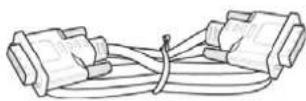
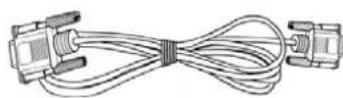
DVI Cable (optional)
VGA Cable
INSTALLATION INSTRUCTIONS
INSTALL
REMOVE
natural_image
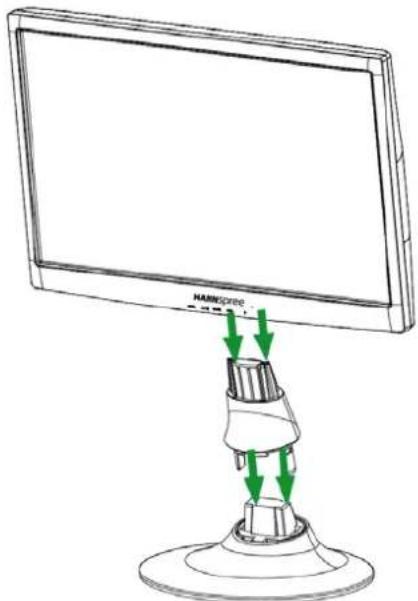
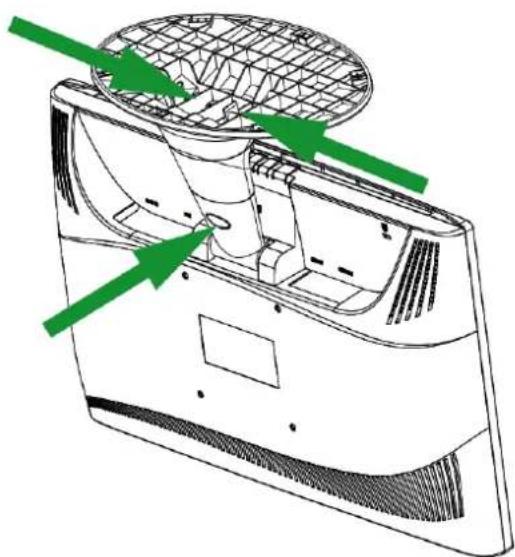
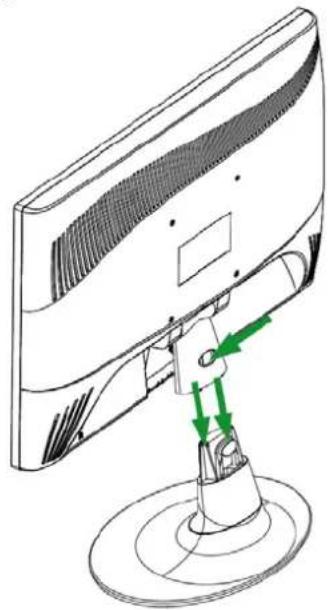
Technical line drawing of a device interior with green arrows indicating directional flow or force vectors (no text or symbols present)Figure.1. Installing and Removing the Base
INSTALLATION:
- Align the monitor with the opening in the base.
- Note that the longer section of the base points forward.
- Snap the monitor into its base. A clear click sound will affirm that the base is connected correctly.
- Verify that the monitor is securely attached to the base by looking at the bottom of the base and making sure that the clips are fully engaged in the base.
REMOVAL:
- Flip over the monitor so that it is upside down.
- Press the 2 clips on the base that holds the monitor in place.
- Gently press and hold the 2 clips while pulling the base from the monitor unit they are unattached.
POWER
POWER SOURCE:
- Make sure that the power cord is the correct type required in your area.
- This LCD monitor has an Internal universal power supply that allows operation in either 100/120V AC or 220/240V AC voltage area (No user adjustment is required.)
- Connect the AC-power cord one end to your LCD monitor's AC-input socket, the other end to wall-outlet.
SETTING THE MONITOR ON THE WALL
DISSEMBLING THE STAND BASE:
- Disconnect all the cables and cords from the Monitor to prevent breakage.
- Carefully place the Monitor face down on a soft and flat surface (blanket, foam, cloth, etc) to prevent any damage to the Monitor.
- Gently remove the stand base.
natural_image
Line drawing of a monitor with a green arrow indicating the cable or connector (no text or symbols present)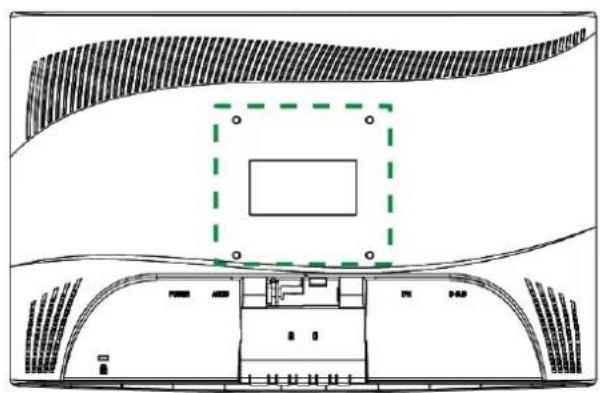
natural_image
Architectural floor plan showing room layouts and structural elements (no text or labels)(For reference only)
WALL MOUNTING THE MONITOR:
- Purchase a VESA compatible wall bracket:
VESA 100×100, 4 holes, M4, 10mm, 8kg.
-
Locate your ideal Monitor position on the wall.
-
Fix the wall bracket firmly on the wall.
-
Secure the Monitor to the bracket using the 4 mount holes on the back and center of the Monitor.
Note:
- Please read the instructions of your specific wall bracket to properly wall mount the Monitor.
- The pitch of the mounting holes is 100mm horizontally and 100mm vertically.
- The screws type required is metric: M4, 10mm length.
- The Monitor stand base can be screwed on a table or a hard surface using the hole on the back of the stand base.
*Installing the LCD Monitor requires special skill that should only be performed by qualified service personnel. Customers should not attempt to do the work themselves. Hannspree bears no responsibility for improper mounting or mounting that results in accident or injury. You can ask a qualified service personnel about using an optional bracket to mount the Monitor to the wall.
MAKING CONNECTIONS
CONNECTING TO A PC
Turn off your computer before performing the procedure below.
- Connect one end of the VGA cable to the back of the monitor and connect the other end to the computer's VGA port.
- Connect one end of the DVI cable (optional) to the back of the monitor and connect the other end to the computer's DVI port.
- Connect the audio cable between the monitor's audio input and the PC's audio output (green port).
- Plug one end of the AC power cord to the LCD monitor's AC input socket, and the other end to Wall outlet.
- Turn on your monitor and computer.
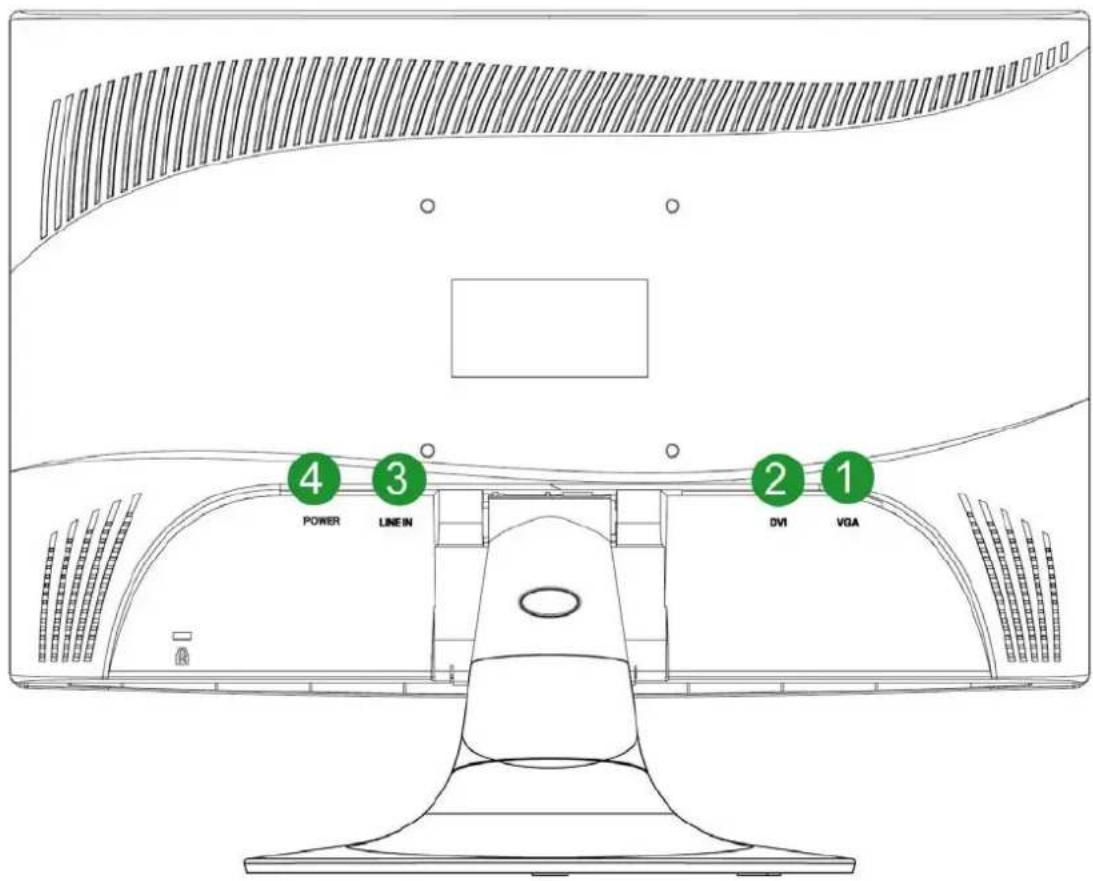
Figure.2. Connecting to a PC
| 1 VGA Input 2 DVI Input | ||
| 3 LINE IN 4 Power AC Input |
ADJUSTING THE VIEWING ANGLE
- For optimal viewing it is recommended to look at the full face of the monitor, then adjust the monitor's angle to your own preference.
- Hold the stand so you do not topple the monitor when you change the monitor's angle.
- You are able to adjust the monitor's angle from -5^ to 15^ .
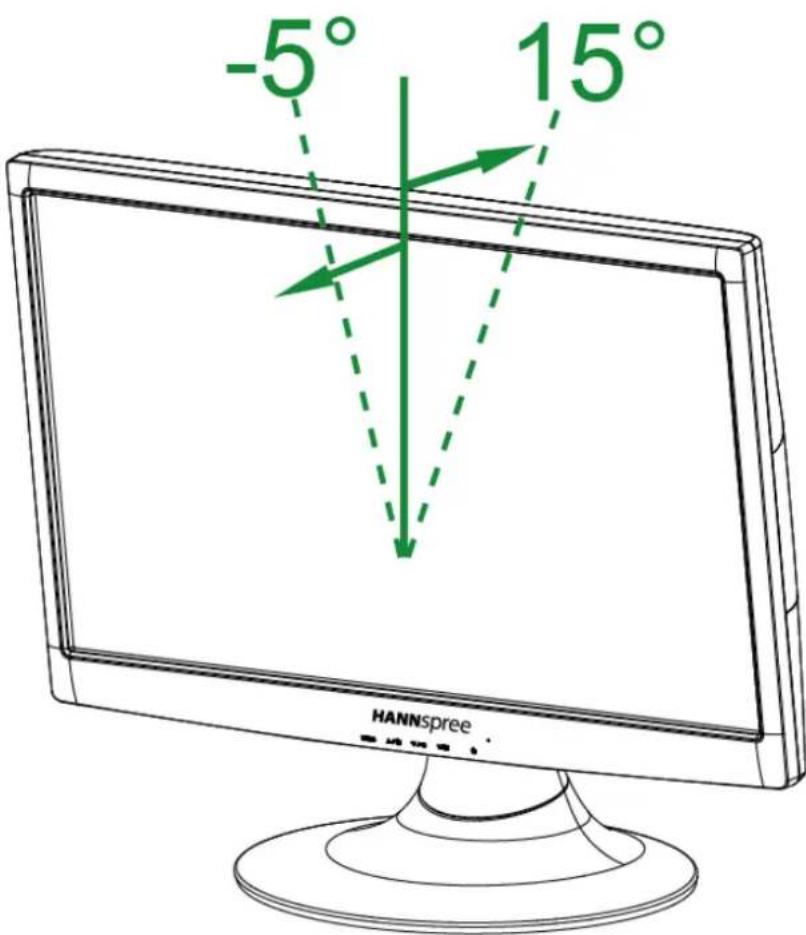
Figure.3. Monitor Angle
NOTES:
- Do not touch the LCD screen when you change the angle. It may cause damage or break the LCD screen.
- Be careful not to place fingers or hands near the hinges when tilting the monitor, otherwise pinching can result.
OPERATING INSTRUCTIONS
GENERAL INSTRUCTIONS
Press the power button to turn the monitor on or off. The other control buttons are located on the front panel of the monitor (See Figure 4). By changing these settings, the picture can be adjusted to your personal preferences.
- The power cord should be connected.
- Connect the Signal cable from the monitor to the VGA card.
- Press the power button to turn on the monitor. The power indicator will light up.
![MENU Menu / Return ^ / ▲ [—] Brightness adjustment button ▼ [+] Volume adjustment button i / Auto adjustment/ Enter 《Analog Input Models》 Input source change/ Enter 《Digital Input Models》 Power Button](/content/2026/05/1141459/images/d48a01a2e412cb918b17e27de4ab0327ddcef401b6a99e3384a194f58f06d7ed.jpg)
Figure.4. Control Panel Buttons
FRONT PANEL CONTROL
- Power Button:
Press this button to switch ON/OFF of monitor's power.
• Power Indicator:
Green — Power On mode.
Orange — Power Saving mode.
- MENU / RETURN:
- Turn the OSD menu on/off or return to the previous menu.
- Exit OSD menu when in volume OSD status.
- Adjust ▲▼:
- Adjust Brightness and volume when the OSD is off.
- Navigate through adjustment icons when OSD is ON or adjust a function when function is activated.
-
Press 【i】 to enter Source selections. (Selections include VGA, HDMI, etc. The actual selections may very depending on the models. This function is only available in models with digital inputs)
-
The OSD menu is used as confirmation function during start-up.
-
Press and hold this button more than 3 seconds will start 「Auto Adjust」 function when using VGA input only. (The auto adjustment function is used to optimize the 「horizontal position」, 「vertical position」, 「clock」, and 「phase」.)
- Hotkeys:
1. Restore Brightness and Contrast defaults:
To reset both the Brightness and Contrast to their default values, press the 【▲】and 【▼】 keys at the same time.
2. ASPECT RATIO:
3. Change Resolution:
For similar screen display resolutions (see table below), the screen resolution can be changed by pressing the 【MENU】+【▲】button to achieve the optimal display quality.
- Change Preset Mode: [The availability of this function depends upon the selected model] Press 【MENU】key for 3 seconds to select one of the following modes 「PC」, 「MOVIE」, 「GAME」, 「ECO」. Default is 「PC」.
| Resolution |
| 640×400@70Hz ↔ 720×400@70Hz |
| 640×400@85Hz ↔ 720×400@85Hz |
| 640×480@60Hz ↔ 720×480@60Hz |
| 1024×768@70Hz ↔ 1280×768@70Hz |
| 1280×768@60Hz ↔ 1360×768@60Hz |
| 1400×1050@60Hz ↔ 1680×1050@60Hz |
| 1400×1050@RB 60Hz ↔ 1680×1050@RB 60Hz |
| 1400×1050@75Hz ↔ 1680×1050@75Hz |
| 1440×900@60Hz ↔ 1600×900@60Hz |
| 1360×768@60Hz ↔ 1366×768@60Hz |
| 1280×960@60Hz ↔ 1600×900@60Hz |
| ** The screen resolutions available will depend on the purchased model. |
NOTES:
- Do not install the monitor in a location near heat sources such as radiators or air dusts, or in a place subject to direct sunlight, or excessive dust or mechanical vibration or shock.
- Save the original shipping box and packing materials, as they will come in handy if you ever have to ship your monitor.
- For maximum protection, repackage your monitor as it was originally packed at the factory.
- To keep the monitor looking new, periodically clean it with a soft cloth. Stubborn stains may be removed with a cloth lightly dampened with a mild detergent solution. Never use strong solvents such as thinner, benzene, or abrasive cleaners, since these will damage the cabinet. As a safety precaution, always unplug the monitor before cleaning it.
HOW TO ADJUST A SETTINGS
| BRIGHTNESS/ CONTRAST | |
| BRIGHTNESS | Adjust the brightness value of the display according to your preference. Select 「BRIGHTNESS」 option to adjust the brightness value. |
| CONTRAST | Adjust the contrast value of the display according to your preference. Select 「CONTRAST」 option to adjust the contrast value. |
| ACTIVE CONTRAST | Optimal setting for high contrast images or videos. The dark and light areas of the image are automatically detected, and the contrast is enhanced to provide a clearer, sharper image. Also, you may select the 「ACTIVE CONTRAST」 option. |
| PRESET MODE | Select the preset mode according to your preference: PC/MOVIE/ GAME/ ECO[The availability of this function depends upon the selected model] |
| INPUT SETTING | |
| INPUT SETTING | Select the 「INPUT SETTING」 option to change between analog (VGA) or Digital (DVI) source. Enter the option and select Analog or Digital. [Dual input mode optional] |
| AUTO SEARCH | From the Signal Selection menu, select the 「AUTO SEARCH」 option to activate or deactivate the automatic signal search function. [For DVI/ HDMI Input only] |
| COLOR SETTING | |
| WARMNATURE (6500K)COOL | Adjust the color temperature value of the display according to your preference: WARM/NATURE/ COOL. |
| USER | Move the cursor to the User option and select it,1. To adjust the red, enter the 「R」 option and adjust the level.2. To adjust the green, enter the 「G」 option and adjust the level.3. To adjust the blue, enter the 「B」 option and adjust the level. |
| IMAGE SETTING | |
| AUTO ADJUST | The auto adjustment function is used to optimize the 「H-POSITION」, 「V-POSITION」,「CLOCK」,and 「PHASE」.[For VGA Input only] |
| ASPECT RATIO | When the aspect ratio of screen is distorted, you may make adjustments by using this function. 「FULL」 indicates full screendisplay, which does not ensure the image is shown as is or in initial scale. 「FIT」indicates scaling by the proportion of original images, which may cause the screen showing black bands. [The availability of this function depends upon the selected model] |
| H-POSITION | Select the 「H-POSITION」option to shift the screen image to the left or right. Enter the option and adjust the level. [For VGA only] |
| V-POSITION | Select the 「V-POSITION」option to shift the screen image up or down. Enter the option and adjust the level. [For VGA only] |
| CLOCK | Select the 「CLOCK」option to reduce the vertical flicker of characters on the screen. Enter the option and adjust the level. [For VGA only] |
| PHASE | Select the 「PHASE」option to reduce the horizontal flicker of characters on the screen. Enter the option and adjust the level. [For VGA only] |
| SHARPNESS | Select the 「SHARPNESS」option to adjust the sharpness of the display. Set the value from -2 to 2. |
| VIDEO MODE | Choose 「VIDEO MODE」or 「PC MODE」for video transmission. While using HDMI or HDMI to DVI ports for video transmission, the video will appear cut off slightly around the edge; choose 「PC MODE」to view videos with complete image. (VIDEO MODE only functions for inputs from HDMI or DVI that supports HDCP video (YUV format)) |
| RESPONSE TIME | Setup the display response time through the Response time function. Available settings are MINIMUM, INTERMEDIATE, and MAXIMUM. [This feature is limited to specific models only.] |
| OSD SETTING | |
| LANGUAGE | Select 「LANGUAGE」option to change the language of the OSD. Enter the option and select a language. [Reference only, the OSD Language depends on the selected model] |
| H-POSITION | Select 「H-POSITION」option to adjust the horizontal position of the OSD. Enter the option and adjust the level. |
| V-POSITION | Select 「V-POSITION」option to adjust the vertical position of the OSD. Enter the option and adjust the level. |
| TRANSPARENCY | Select 「TRANSPARENCY」option to adjust the transparency ofthe OSD. Enter the option and adjust the level. |
| OSD TIME-OUT | Select 「OSD TIME-OUT」option to set the OSD time out from 10 to 100 seconds. Enter the option and adjust the level. |
| OSD COLOR | To choose the color combination of the OSD window, select 「OSD COLOR」option under 「OSD SETTING」menu, choose modes 1/2/3. |
| SYSTEM | |
| AUDIO INPUT | While transferring via the HDMI port, it is recommended to set AUDIO INPUT to HDMI; if no sound is outputted, it is recommended to select AUDIO INPUT as PC, and make sure the PC audio output cable is connected to monitor's LINE IN (or AUDIO IN) port. [For HDMI Input only] |
| VOLUME | Select the 「VOLUME」option to change the volume level. Enter the option and adjust the level. [This function applies only to models with incorporated audio.]● By high volume, risk of hearing damage exists. |
| MUTE | Select the 「MUTE」option to switch the function On or Off. [The availability of this function depends upon the selected model. Adjusting the volume while muted cancels Mute mode.] |
| DDC/CI | Select the 「DDC/CI」option to switch the function On or Off. [Dual input mode optional] |
| FACTORY RESET | Select the 「FACTORY RESET」option to reset to the monitor's default setting. This will erase the current settings. Enter the option and select On or Off. |
| INFORMATION | Display Horizontal frequency/Vertical frequency/Resolution information. |
PLUG AND PLAY
Plug & Play DDC2B Feature
This monitor is equipped with VESA DDC2B capabilities according to the VESA DDC STANDARD. It allows the monitor to inform the host system of its identity and, depending on the level of DDC used, communicate additional information about its display capabilities. The DDC2B is a bidirectional data channel based on the I²C protocol. The host can request EDID information over the DDC2B channel.
THIS MONITOR WILL APPEAR TO BE NON-FUNCTIONAL IF THERE IS NO VIDEO INPUT SIGNAL. IN ORDER FOR THIS MONITOR TO OPERATE PROPERLY, THERE MUST BE A VIDEO INPUT SIGNAL.
TECHNICAL SUPPORT (FAQ)
Q & A FOR GENERAL PROBLEMS
| PROBLEM & QUESTION POSSIBLE SOLUTION | |
| Power LED is not on | *Check if the Power Switch is in the ON position.*Power Cord should be connected. |
| No Plug & Play | *Check if the PC system is Plug & Play compatible.*Check if the Video Card is Plug & Play compatible.*Check if any plug pins on the VGA or DVI connector are bent. |
| The display is too dark or too bright. *Adjust the Contrast and Brightness Controls. | |
| Picture bounces or a wave pattern is present in the picture | *Move electrical devices that may cause electrical interference. |
| The power LED is ON (orange) but there's no video or no picture. | *Computer Power Switch should be in the ON position.*Computer Video Card should be snugly seated in its slot.*Make sure monitor's video cable is properly connected to the computer.*Inspect monitor's video cable and make sure none of the pins are bent.*Make sure computer is operational by hitting the CAPS LOCK key on the keyboard while observing the CAPS LOCK LED. The LED should either turn ON or OFF after hitting the CAPS LOCK key. |
| Missing one of the primary colors (RED, GREEN, or BLUE) | *Inspect the monitor's video cable and make sure that none of the pins are bent. |
| Screen image is not centered or sized properly. | * Adjust pixel frequency CLOCK and PHASE or press hot-key (i Button). |
| Picture has color defects(White does not look white) | *Adjust RGB color or select color temperature. |
| The screen resolution needs to be adjusted | *Use win 2000/ME/XP Right click anywhere on desktop and select Properties>Settings>Screen Resolution. Use the solder to adjust the resolution and click Apply. |
| No sound is outputted from monitor's built-in speaker | *Make sure PC audio output cable is connected to screen's LINE IN port (or AUDIO IN port).*Make sure the sound volume adjustment can be clearly identified.*Make sure the System > Silence option in the monitor menu is on.*While transferring via HDMI port but no sound is outputted, it is recommended to select AUDIO |
INPUT as a PC option, and make sure PC audio output cable is connected to monitor's LINE IN port(or AUDIO IN port). [For HDMI Input only]
Addendum related to Windows 7
When you encounter display problem under Windows 7, you need to do the following:
- Make sure your PC computer (Hardware requirement) can support Windows 7.
- Make sure your video card can run Windows 7.
- If your video card can support Windows 7, need to install the latest Win 7 driver of your video card.
Suggest to do the following:
- Install the latest Windows 7 video driver of your video card.
- Try to use the recommended display resolution that is supported by the monitor.
- If the recommended display resolution is not working, try the second recommended display resolution.
| 1 2 | ||
| 35,56cm / 14” (16:9) 13 | 66×768@60Hz 1366× | 768@50Hz |
| 39,6cm / 15.6” (16:9) 13 | 366×768@60Hz 1366× | 768@75Hz |
| 40,64cm / 16” (16:9) 13 | 66×768@60Hz 1366× | 768@50Hz |
| 43,2cm / 17” (16:10) 14 | 40×900@60Hz 1440× | 900@75Hz |
| 47cm / 18.5” (16:9) 136 | 66×768@60Hz 1366×7 | 68@75Hz |
| 48,3cm / 19” (5:4) 1280 | ×1024@60Hz 1280×1 | 1024@75Hz |
| 48,3cm / 19” (16:10) 14 | 40×900@60Hz 1440× | 900@75Hz |
| 51cm / 20” (16:9) 1600 | ×900@60Hz 1600×900 | @50Hz |
| 56cm / 22” (16:10) 168 | 0×1050@60Hz 1680× | 1050@50Hz |
| 54,6cm / 21.5” (16:9)58,4cm / 23” (16:9)60cm / 23.6” (16:9)62,5cm / 24.6 (16:9) | 1920×1080@60Hz | 1920×1080@50Hz |
| 70cm / 27.5” (16:10) 19 | 20×1200@60Hz 1920 | ×1200@50Hz |
And if you still have display problem after doing the above procedure, please visit Hannspree support and Service Website: http://www.hannspree.com
Windows is a registered trademark of Microsoft Corporation.
ERROR MESSAGE & POSSIBLE SOLUTIONS
CABLE NOT CONNECTED:
- Check that the signal-cable is properly connected, if the connector is loose, tighten the connector's screws.
- Check the signal-cable's connection pins for damage.
■ INPUT NOT SUPPORT :
Your computer has been set to unsuitable display mode, set the computer to display mode given in the following table.
FACTORY PRESET TIMING TABLE:
| MODE | RESOLUTION | HORIZONTAL FREQUENCY (KHz) | VERTICAL FREQUENCY (Hz) |
| 1 | 640×350 @70Hz 31.469 | 70.087 | |
| 2 | 640×400 @56Hz 24.827 | 56.424 | |
| 3 | 640×400@70Hz 31.469 | 70.087 | |
| 4 | 640×480 @60Hz 31.469 | 59.940 | |
| 5 | 640×480 @67Hz 35.000 | 66.667 | |
| 6 | 640×480 @70Hz 36.052 | 70.004 | |
| 7 | 640×480 @72Hz 37.861 | 72.809 | |
| 8 | 640×480 @75Hz 37.500 | 75.000 | |
| 9 | 720×400@70Hz 31.469 | 70.087 | |
| 10 | 720×480@60Hz 31.469 | 59.940 | |
| 11 | 800×600 @56Hz 35.156 | 56.250 | |
| 12 | 800×600 @60Hz 37.879 | 60.317 | |
| 13 | 800×600 @72Hz 48.077 | 72.188 | |
| 14 | 800×600 @75Hz 46.875 | 75.000 | |
| 15 | 832×624 @74.6Hz 49.725 | 74.500 | |
| 16 | 1024×768 @60Hz 48.363 | 60.004 | |
| 17 | 1024×768 @66Hz 53.964 | 66.132 | |
| 18 | 1024×768 @70Hz 56.476 | 70.069 | |
| 19 | 1024×768 @75Hz 60.023 | 75.029 | |
| 20 | 1024×768 @75Hz 60.150 | 74.720 | |
| 21 | 1152×864 @75Hz 67.500 | 75.000 | |
| 22 | 1152×900 @66Hz 61.846 | 66.004 | |
| 23 | 1280×720 @60Hz 45.000 | 60.000 | |
| 24 | 1280×768 @60Hz 47.776 | 59.870 | |
| 25 | 1280×768 @75Hz 60.289 | 74.893 | |
| 26 | 1280×960 @60Hz 60.000 | 60.000 | |
| 27 | 1280×960 @75Hz 74.592 | 74.443 | |
| 28 | 1280×1024 @72Hz 76.020 | 71.448 | |
| 29 | 1360×768 @60Hz 47.712 | 60.015 | |
| 30 | 1400×1050@60Hz 64.744 | 59.948 | |
| 31 | 1440×900 @60Hz 55.469 | 59.901 | |
| 32 | 1440×900 @75Hz 70.635 | 74.984 | |
| 33 | 1600×1200@60Hz 55.540 | 59.978 | |
| 34 | 1600×1200@60Hz 75.000 | 60.000 | |
| 35 | 1680×1050@60Hz 65.290 | 59.954 | |
| 36 | 1920×1080@60Hz 66.587 | 59.934 | |
| 37 | 1920×1080@60Hz 67.158 | 59.963 |
(Video mode)
| MODE RESOLUTION |
| 1 720×480i @60Hz |
| 2 720×480p @60Hz |
| 3 720×576i @50Hz |
| 4 720×576p @50Hz |
| 5 1280×720p @60Hz |
| 6 1920×1080i @50Hz |
| 7 1920×1080i @60Hz |
| 8 1920×1080p @50Hz |
| 9 1920×1080p @60Hz |
| 10 640×480p @60Hz |
** We ensure that the monitor can be lighted under interlace signal mode, but we can not guarantee the image quality.
APPENDIX
SPECIFICATIONS
| LCD Panel | Driving system TFT Color LCD | |
| Size 58,4cm / 23” Diagonal | ||
| Pixel pitch 0,266mm(H) × 0,266mm(V) | ||
| Video | H-Frequency 24KHz – 83KHz | |
| V-Frequency 56Hz – 75Hz | ||
| Display Colors 16.7M Colors | ||
| Max. Resolution 1920 × 1080 @60Hz | ||
| Plug & Play | VESA DDC2B^TM | |
| Power consumption | ON Mode 49W (Typical) | |
| Power Saving Mode ≤1W | ||
| OFF Mode ≤0.5W | ||
| Audio output Rated Power 1.0 W rms (Per channel) | ||
| Input Terminal | VGADVI | |
| Maximum Screen Size | Hor.: 513.78mmVer.: 291.02mm | |
| Power Source | 100~240VAC, 50~60Hz | |
| Environmental Considerations | Operating Temp:5° to 35°CStorage Temp.: -20° to 60°COperating Humidity: 10% to 85% | |
| Dimensions | 543.2 (W)×399(H)×198.2(D) mm21.4”(W)×15.7 ”(H)×7.8 ”(D) | |
| Weight (NW) | 5.0 kg (11.1 lb) | |
*** The above specification is subject to actual product specification and is subject to change without prior notice.
NOTES:
The Maximum Resolution will depends on the display card supporting. Related issue can refer to www.hannspree.com FAQ section.