WAP200N - Access Point Amer Networks - Free user manual and instructions
Find the device manual for free WAP200N Amer Networks in PDF.


| Product Type | Wireless Access Point |
| Brand | Amer Networks |
| Model | WAP200N |
| Wireless Standard | IEEE 802.11b/g/n |
| Frequency Band | 2.4 GHz |
| Max Data Rate | 300 Mbps |
| Antenna Type | Internal (2x2 MIMO) |
| Ports | 1x 10/100 Ethernet (PoE support) |
| Power Supply | PoE (802.3af) or 12V DC adapter |
| Dimensions (W x D x H) | 185 x 185 x 35 mm |
| Weight | 400 g |
| Security | WEP, WPA/WPA2-PSK, WPA2-Enterprise |
| Mounting | Wall / Ceiling mountable (brackets included) |
| Operating Temperature | 0°C to 40°C |
| LED Indicators | Power, LAN, WLAN |
| Management | Web interface, SNMP |
| Certifications | FCC, CE |
Frequently Asked Questions - WAP200N Amer Networks
User questions about WAP200N Amer Networks
0 question about this device. Answer the ones you know or ask your own.
Ask a new question about this device
Download the instructions for your Access Point in PDF format for free! Find your manual WAP200N - Amer Networks and take your electronic device back in hand. On this page are published all the documents necessary for the use of your device. WAP200N by Amer Networks.
USER MANUAL WAP200N Amer Networks
natural_image
White wireless router with three black antennas, labeled 'WAP200N' at bottom (no other text or symbols visible)WAP200N
Copyright Statement

is the registered trademark of Amer.com Corp. All the products and product names mentioned herein are the trademarks or registered trademarks of their respective holders. Copyright of the whole product as integration, including its accessories and software, belongs to Amer.com Corp. Without the permission of Amer.com Corp, any individual or party is not allowed to copy, plagiarize, or translate it into other languages.
All the photos and product specifications mentioned in this manual are for references only. Due to firmware updates, some of the screen shots may be different. Amer Networks is not responsible for informing you in advance, about these changes. If you want to know more about our product information, please visit our website at www.amer.com
Content
Chapter 1 Product Overview ....1
1.1 Features ......2
1.2 Package Contents......3
1.3 LED Indicator and Panel Description.....4
Chapter 2 Hardware Installation....8
Chapter 3 Web Configuration .... 10
3.1 Web Login.... 10
3.2 Wizard.... 12
3.3 Running Status.... 13
3.4 LAN Settings 14
Chapter 4 Wireless Settings.... 16
4.1 Working Mode.... 16
4.1.1 Access Point (AP) Mode 17
4.1.2 P2P (Point to Point) Bridge Mode.. 33
4.1.3 P2MP Bridge Mode.... 38
4.1.4 Wireless Repeater Mode .....43
4.1.5 Wireless Client Mode.... 50
4.2 Advanced Settings 54
4.3 WPS Settings.....56
4.4 Access Control.... 58
4.5 Connection Status.... 60
4.6 PING.... 61
Chapter 5 SNMP Setting.... 62
5.1 SNMP Introduction 62
5.2 SNMP Setting 63
Chapter 6 System Tools .... 65
6.1 Password Change.... 65
6.2 Restore to Factory.... 66
6.3 Backup/Restore 67
6.4 Time Settings 68
6.5 Reboot System 69
6.6 Firmware Upgrade.... 69
6.7 Syslog....71
Appendix I: Glossary 72
Appendix II: TCP/IP Address Setting (Take Winxp as example) .....75
Chapter 1 Product Overview
WAP200N is an IEEE802.11n (Draft 2.0)-compliant wireless access point with one Gigabit LAN switch port, which utilizes the latest MIMO technology and provides up to 300Mbps stable transmission rate from wireless radio to wired network. With backward compatible with IEEE802.11b/g device, it is suitable for SOHOs and small-sized enterprises to share the wireless network.
WAP200N supports five working modes: wireless AP mode for other wireless access; Repeater mode for relaying wireless network coverage; P2P, P2MP mode for bridging two or more wireless network and wireless client mode. It supports multiple encryption methods like 64/128bit WEP, WPA, WPA2 and WPA&WPA2 to protect you network against malicious attack, and WPS can free you from remembering long passwords. Power over Ethernet support can utilize data transmission and power supply via one Ethernet cable. Moreover, SNMP and Web-based management interface can help users easily configure the device.
1.1 Features
➢ Complies with IEEE802.11n (Draft 2.0), IEEE802.11b and IEEE802.11g standards
Supports five working modes: wireless AP, Repeater, P2P, P2MP and wireless client
➢ Provides 300Mbps receiving rate and 300Mbps sending rate
MIMO technology utilizes reflection signal to increase 8 times transmission distance of original 802.11g standard and reduces the "dead spots" in the wireless coverage area
➢ Provides one Gigabit Auto-negotiation RJ45 port for LAN connection
Supports two power options: Power over Ethernet and external power adapter
Supports SNMP and Web-based management interface
Supports 64/128bit WEP encryption
Supports multiple encryption methods as WPA, WPA2 and WPA&WPA2 and security mechanism
Supports WPS (PBC and PIN) encryption method to free you from remembering long passwords
Supports five connection modes: AP, WDS P2P
Bridge, WDS P2MP Bridge, WDS AP Bridge and Client
Supports Auto MDI/MDIX
Supports Firefox1.0, IE5.5 or above
➢ Supports authorization access for over thirty-two MAC addresses
Supports auto wireless channel selection
- Provides three detachable antennas
A Wireless local network is used in a planned environment where each access point is located permanently and with a stable radio coverage area. The AP (Access Point) will provide wireless communication service for all users located around the access point.
1.2 Package Contents
Please unpack the package and find the following items:
One WAP200N Wireless AP
One Power Adapter
One Quick Installation Guide
One CD-ROM
If any of listed items are missing or damaged, please contact the Amer.com reseller from whom you purchased for replacement immediately.
1.3 LED Indicator and Panel Description
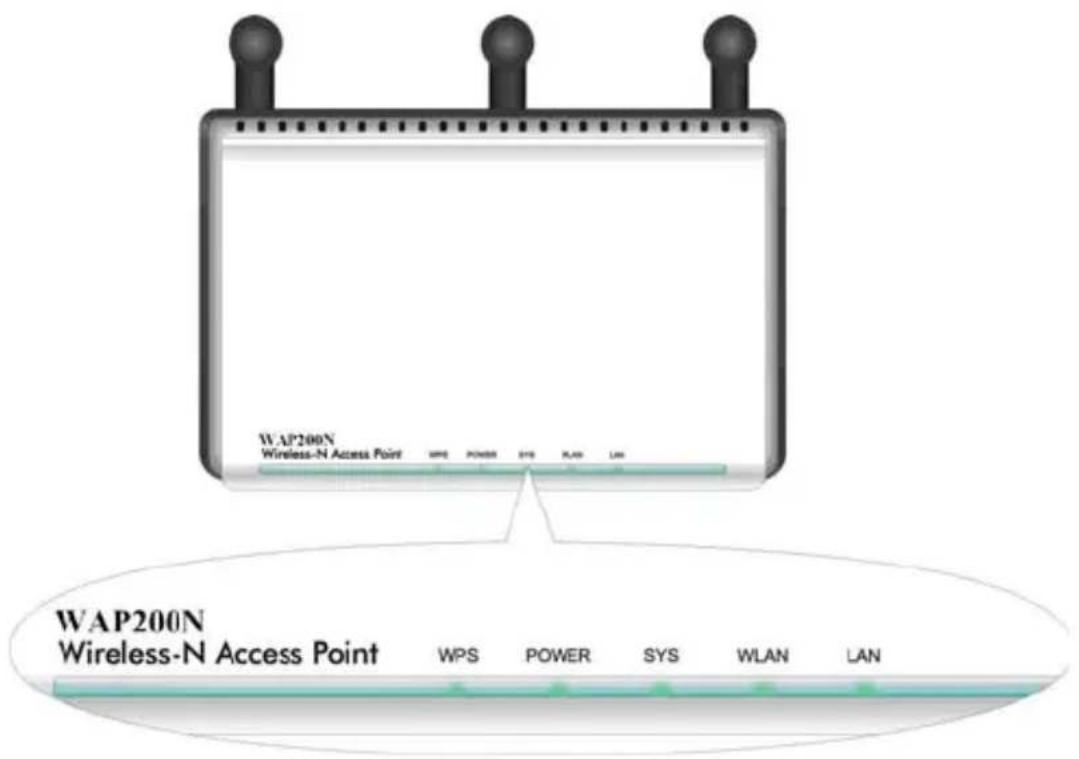
- LED indicator description on front panel (from L to R)
WPS
When blinking, it indicates the device is negotiating with a client in WPS mode.
POWER
When it turns green, indicates the unit has power.
SYS
When it turns green, a blinking light indicates the system is running correctly.
WLAN
Wireless signal LED indicator. When it turns green, it indicates the wireless function is enabled; blinking indicates the device is transmitting and/or receiving data.
LAN
Wired local network LED indicator. It indicates the device is connected with an Ethernet device; green indicates the link speed is 1000Mbps; orange indicates the link speed is 10/100Mbps; blinking indicates the device is transmitting and/or receiving data.
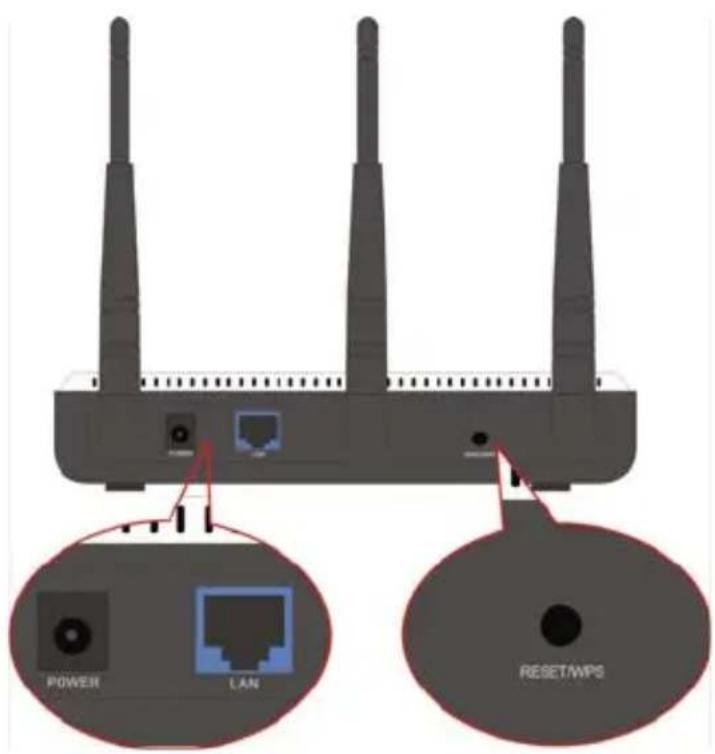
- Rear Panel: (From L to R)
POWER
The jack is used to connect the included 12V DC power adapter.
LAN
The Gigabit Ethernet port is for a computer's NIC or a switch connection. It can also be used as a PoE interface. When PoE or the external power adapter are available, the include power adapter is preferred.
RESET/ WPS
Recessed button is for system reset and WPS. When you press this button for 7 seconds, the device will restore the configured settings to factory default settings. When you press it for 1
second, the WPS function will be enabled.
Antenna
The detachable antenna is for wireless radio transmitting and receiving. Do not detach these antennas as the wireless performance will be negatively affected.
Chapter 2 Hardware Installation
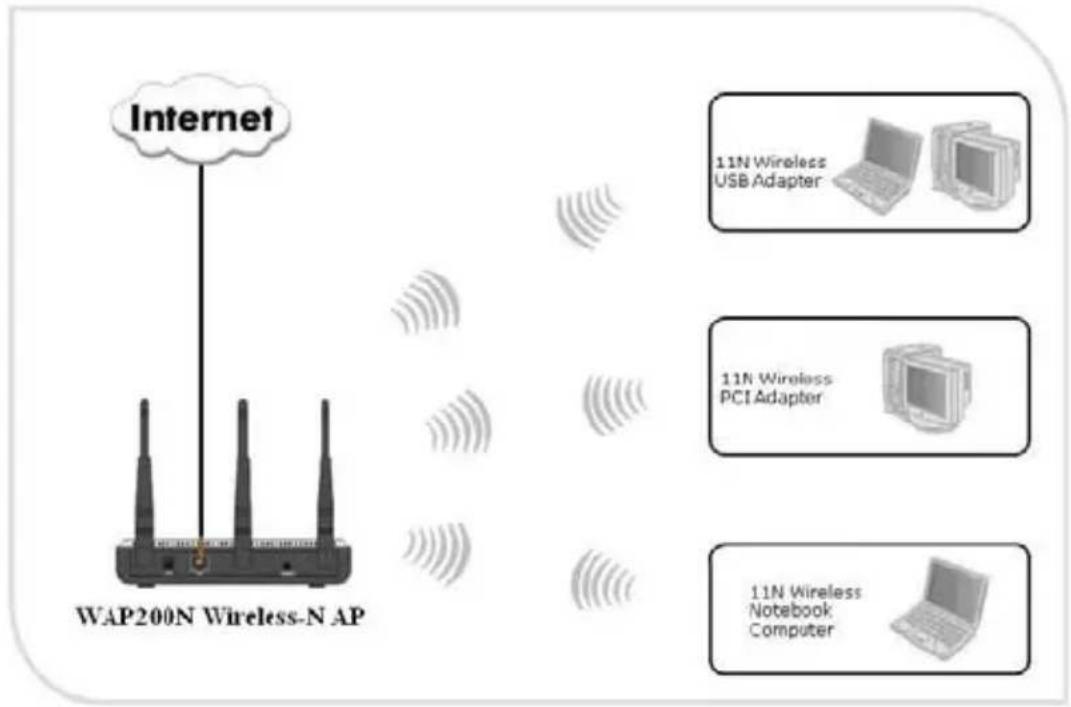
This chapter explains how to connect the Access Point (take the AP mode installation as example, other installation modes please refer to the Quick Installation Guide). The detailed processes are shown below:
-
Connect one end of the network cable to your Ethernet broadband router, switch or PC, and the other end to the WAP200N's LAN port.
-
Connect the power adapter to the AP's Power jack. Then plug the power adapter into an electrical outlet. The power LEDs on the front panel will light up as soon as the AP's powers on. Then, connect your wireless clients to the AP via wireless signals. Please refer to the topology below:
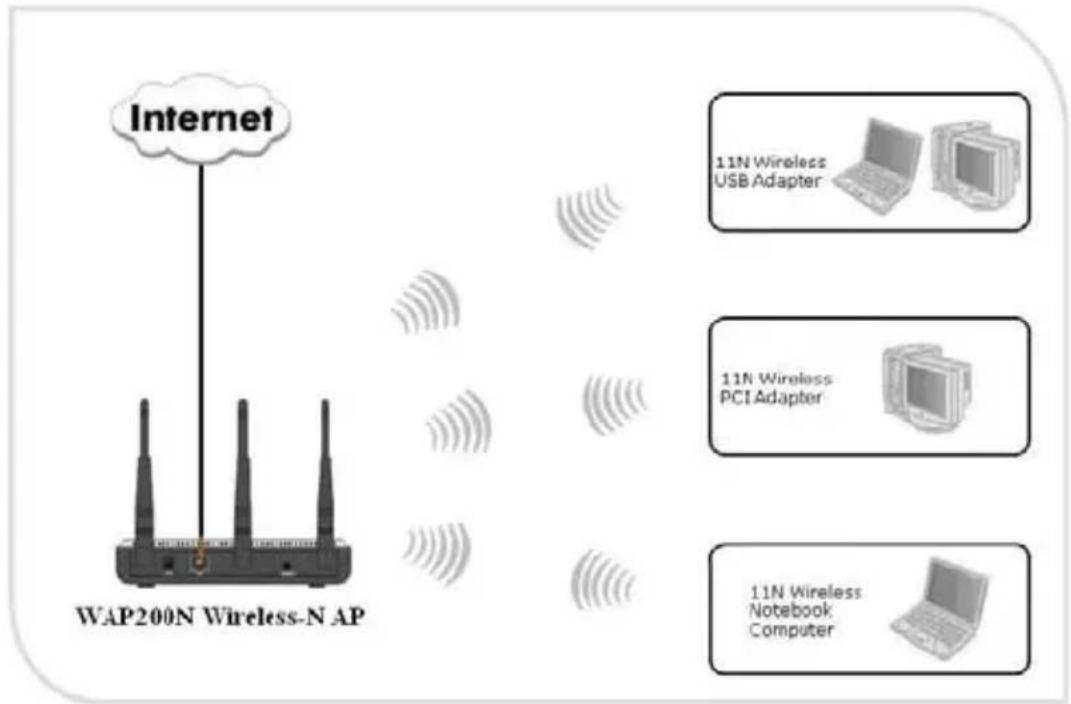
flowchart
graph TD
    A["Internet"] --> B["WAP200N Wireless-N AP"]
    B --> C["11N Wireless USB Adapter"]
    B --> D["11N Wireless PCI Adapter"]
    B --> E["11N Wireless Notebook Computer"]
The topology plan of AP mode connection
Chapter 3 Web Configuration
3.1 Web Login
Connect to the WAP200N via wired cable and configure 192.168.0.x(x ranges 1-253) as your PC's IP address, and 255.255.255.0 as subnet mask. (Please refer to the Appendix II for details on TCP/IP setting)
Launch Internet Explorer or Firefox. In the address bar, enter the AP's default IP address, 192.168.0.254 Press Enter and the login screen will appear.
Enter admin for both the user name and password field. IF this is your first time logging into the Web-based management interface, you can change the password from the System Tool – Change password tab.
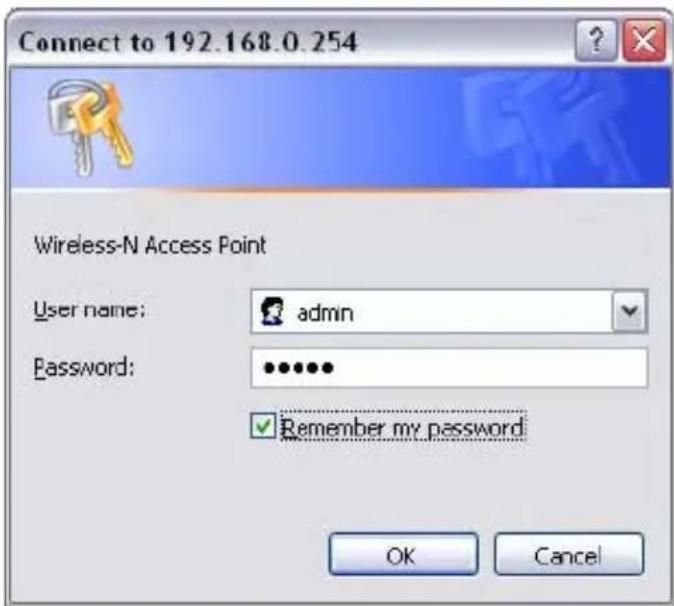
Click OK to enter the first web page of the device.
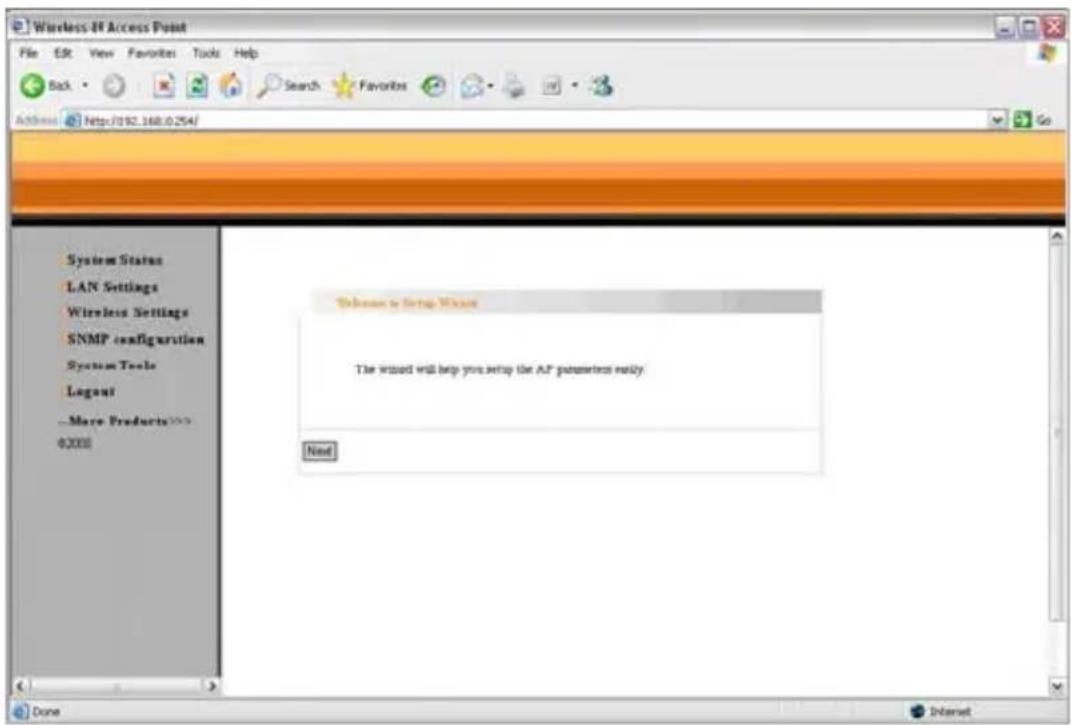
3.2 Wizard
Click “Next” in the first page and the next page appears.
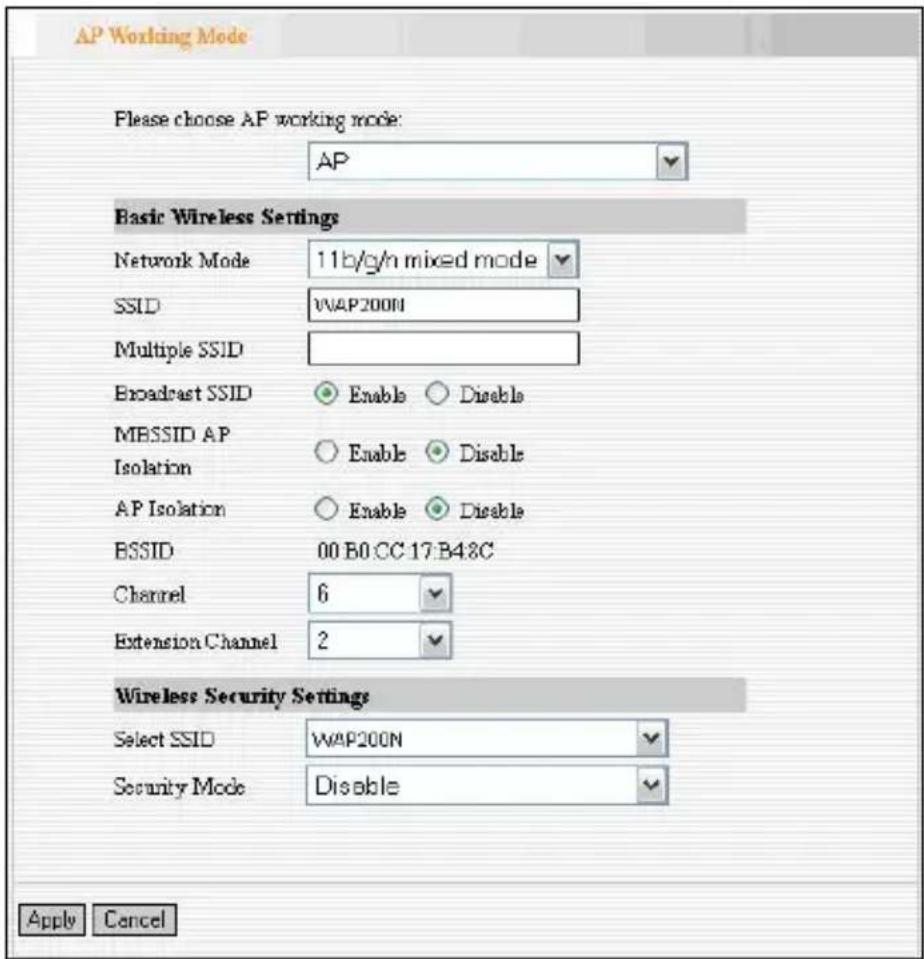
On this page, you can select from five wireless network modes: Wireless AP, P2P Bridge Mode, P2MP Bridge Mode, Repeater Mode and Client. You can also setup the corresponding security setting, for your network.
3.3 Running Status
This page shows the wireless AP's current status, including wireless status, LAN status and system information.
| Wireless status | |
| Working mode: | AP |
| Wireless mode | 11b/g/n mixed mode |
| Main SSID | EaRegNW313178 |
| Security Mode | WPA2-PSK |
| Minor SSID | |
| Channel | 12 |
| LAN interface information | |
| Ethernet IP method | Static IP |
| MAC Address | 00:B0:CC:17:B4 8C |
| IP Address | 192.168.0.252 |
| Subset mask | 255.255.255.0 |
| Default gateway | 192.168.0.1 |
| System information | |
| Software version | 2.4.12 |
| Hardware version | 1.0 |
| Running time | 00:00 08:29 |
- Wireless Status
This shows the current working status, including working mode, wireless network mode, SSID,
Channel, Encryption mode, etc.
● LAN Interface information
This shows the LAN IP obtain way, MAC address, IP address, subnet mask, etc.
- System information
This shows the device's current software version, hardware version, etc.
3.4 LAN Settings
This section mainly deals with LAN's basic settings.
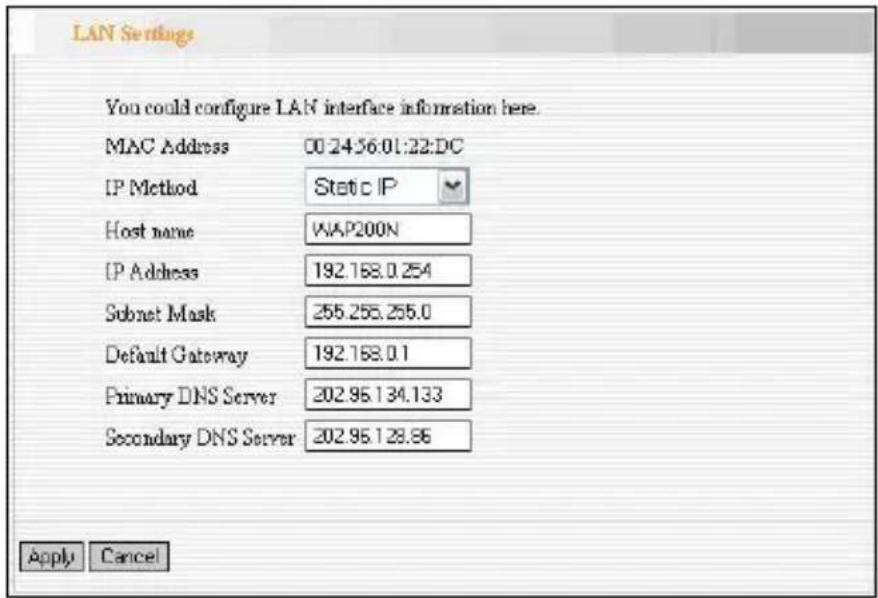
Static IP: The default IP address is 192.168.0.254. If necessary, you can configure a new IP
address, subnet mask and gateway manually for the device.
Dynamic IP: Automatically obtain IP address, subnet mask and gateway from DHCP server. (Unless you have received permission to obtain this information from the uplink device, otherwise, it is not recommended to select this option).
Note: If the LAN IP address is changed, you will need use the new IP address to access the wireless AP's Web interface next time.
Chapter 4 Wireless Settings
4.1 Working Mode
Select “Wireless Setting->Working Mode” to enter the following window. From the drop-down menu of Working Mode, the device supports five working modes: AP, P2P Bridge, P2MP Bridge, AP Repeater and Client.
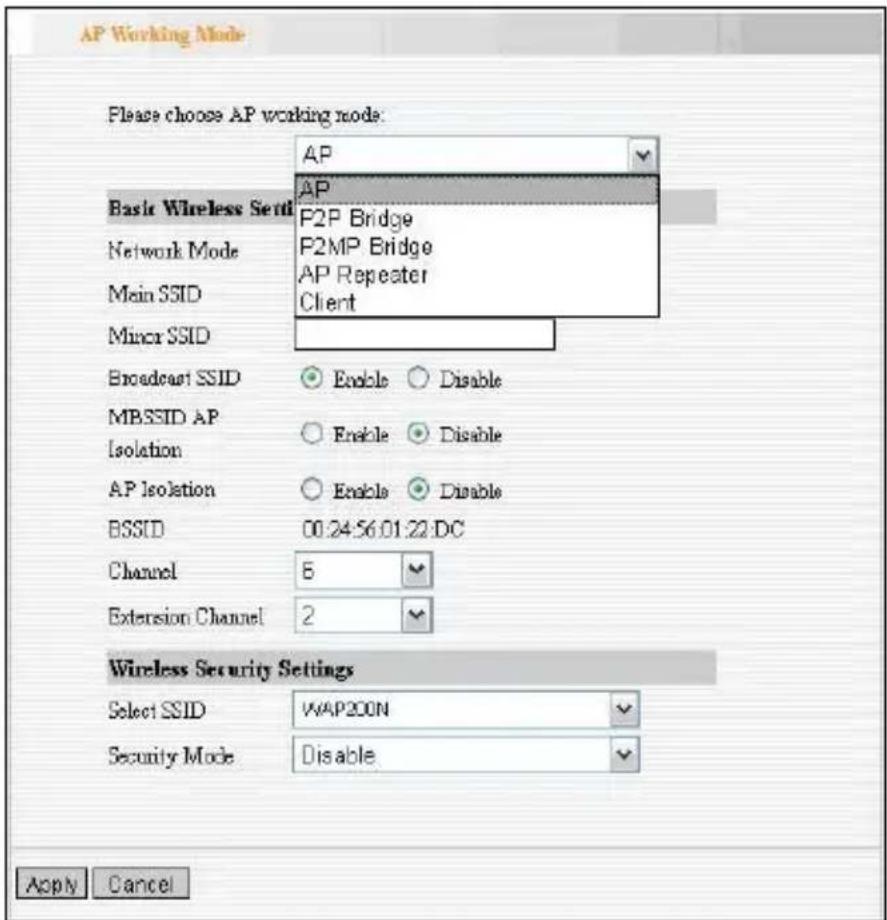
Next, this user guide will explain the five modes one by one:
4.1.1 Access Point (AP) Mode
The AP mode is the basic mode of the device. When the system is reset to the factory default settings, the operating mode reverts to AP mode. In this mode, the AP will act as a central hub for different wireless LAN clients. For example, when traveling to a hotel that has high-speed internet access, you can connect to the internet through the AP which is connected to an Ethernet cable in a room.
4.1.1.1 Application and Topology Plan
The AP mode can convert the wired transmission into wireless signals. If you have one wired cable connecting to the Internet, and want to access the Internet via a wireless signal, this mode fits perfectly.
flowchart
graph TD
    A["Internet"] --> B["WAP200N Wireless-N AP"]
    B --> C["11N Wireless USB Adapter"]
    B --> D["11N Wireless PCI Adapter"]
    B --> E["11N Wireless Notebook Computer"]
4.1.1.2 AP Mode Settings
In the working mode, select "AP" to enter the next window.
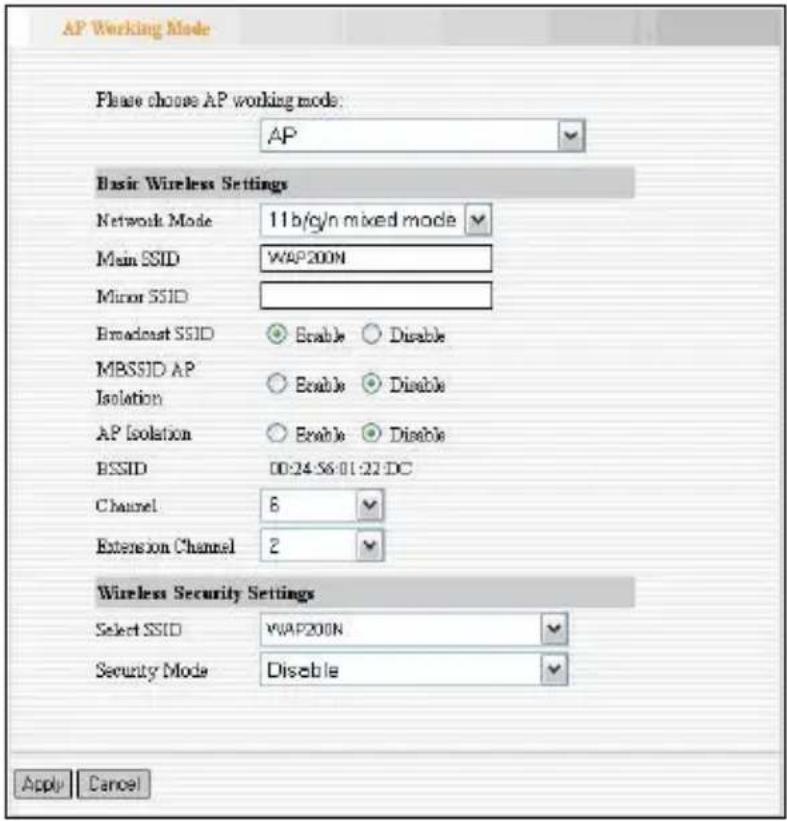
● Basic Wireless Settings
Network Mode: Select one mode from the following. The default is 11b/g/n mode.
11b mode: Allow the wireless client to connect with the device in 11b mode at the maximum speed of 11Mbps.
11g mode: Allow the 11g/11n-compliant client device to connect with the AP at the maximum speed of 54Mbps.
11b/g mode: Allow the 11b/g-compliant client device to connect with the AP with
auto-negotiation speed, and 11n wireless client to connect the device with 11g speed. 11b/g/n mode: Allow 11b/g/n-compliant client device to connect with the AP with auto-negotiation speed.
Main SSID : SSID (Service Set Identifier) is the unique name of the wireless network. This device has two SSID and the main SSID is necessary.
Minor SSID : It is optional.
✿ MBSSID AP Isolation : One access control feature based on wireless MAC address. When this feature is enabled, wireless clients connected with the same SSID can not communicate with each other. For example, configure main SSID as AP1, minor SSID as AP2. PC1 and PC2 connect to AP1 via wireless adapter, and configure PC1 and PC2 in the same segment. After the feature is enabled, two PCs can not communicate and share network resource each other, but they can communicate with wireless clients connected with AP2. This feature is to isolate the
communication of wireless clients connected with the same SSID.

AP Isolation: One access control feature based on wireless MAC address. When this feature is enabled, each of your wireless clients will be in its own virtual network and will not be able to communicate with each other. This feature is deployed when you have many guests that frequent your wireless network. For example, configure main SSID as AP1, minor SSID as AP2. PC1 connects to AP1 via wireless adapter; PC2 connecting to AP2. After the feature is enabled, two PCs can not communicate and share network resource each other. This feature is to isolate the communication of wireless clients connected with different SSID.
Tip: If you want to isolate all connected wireless client's communication, please enable MBSSID AP Isolation and AP Isolation simultaneously.

BSSID : Basic Service Set Identifier of
wireless network. In IEEE802.11, BSSID is the MAC address of wireless access point.
Channel : Specify the effective channel (from 1 to 13\Auto) of the wireless network.
✿ Extension channel : To increase data throughput of wireless network, the extension channel range is used in 11n mode.
● Wireless Security Setting:
It is used to configure the AP network's security setting. The most common ten encryption methods are: including Mixed WEP, WPA-personal, WPA-enterprise, WPA2-personal, WPA2-enterprise, etc.
Mixed WEP
WEP (Wired Equivalent Privacy), a basic encryption method, usually encrypts wireless data using a series of digital keys (64 bits or 128 bits in length). By using the same keys on each of your wireless network devices, you can prevent unauthorized wireless devices from monitoring your transmissions or using your wireless resources. WEP is based on RSA algorithm from RC4. It is the original and weak encryption method, so it is recommended not to use this method. Select Mixed WEP to enter the following window:
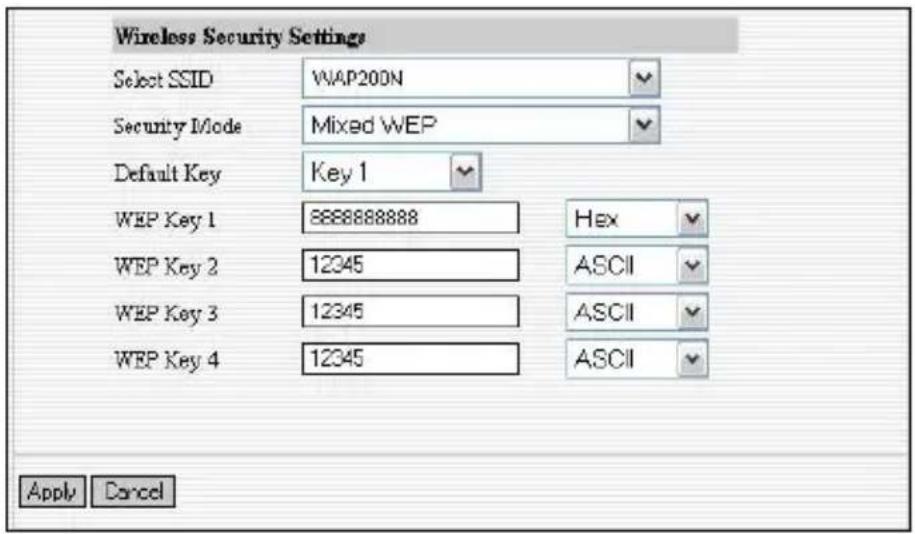
Setting Explanation
Select SSID : Select the SSID (main SSID or minor SSID) to configure security setting from the drop-down menu.
* Security Mode : From the drop-down menu select the corresponding security encryption modes.
✿ WEP Key1\~4 : Set the WEP key with the format of ASCII and Hex. You can enter ASCII code (5 or 13 ASCII characters. Illegal character as “/” is not allowed.) Or 10/26 hex characters.
✿ Default Key : Select one key from the four configured keys as the current available one.
WPA-PSK
WPA (Wi-Fi Protected Access), a Wi-Fi standard, is a more recent wireless encryption scheme, designed to improve the security features of WEP. Select “WPA-PSK” from the drop-down menu to
enter the following window:
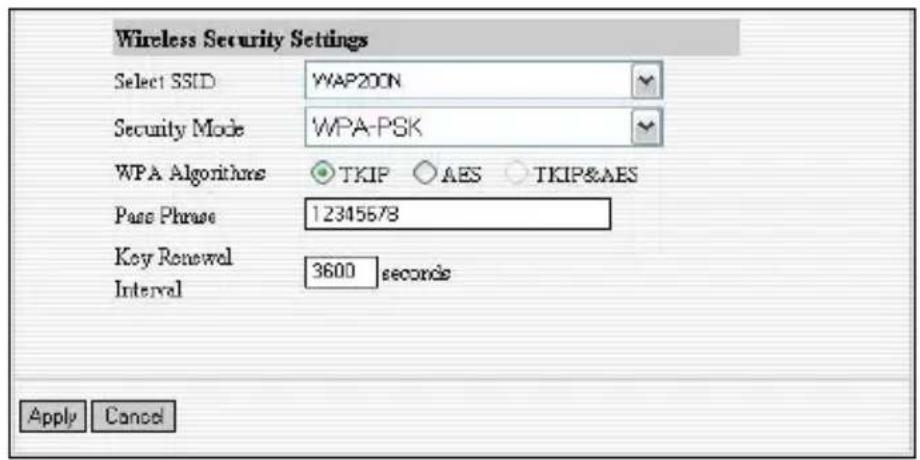
Setting Explanation
Select SSID : Select the SSID (main SSID or minor SSID) to configure security setting from the drop-down menu.
✿ WPA Algorithms : Provides TKIP [Temporal Key Integrity Protocol] or AES [Advanced Encryption Standard]. The default is TKIP mode.
✿ Pass Phrase : Enter the encrypted characters with 8-63 ASCII characters.
Key Renewal Interval : Set the key's renewal period.
◆
WPA2-PSK
WPA2 provides more secure features than WEP and WPA. Select “WPA2-PSK” from the drop-down menu to enter the following window:
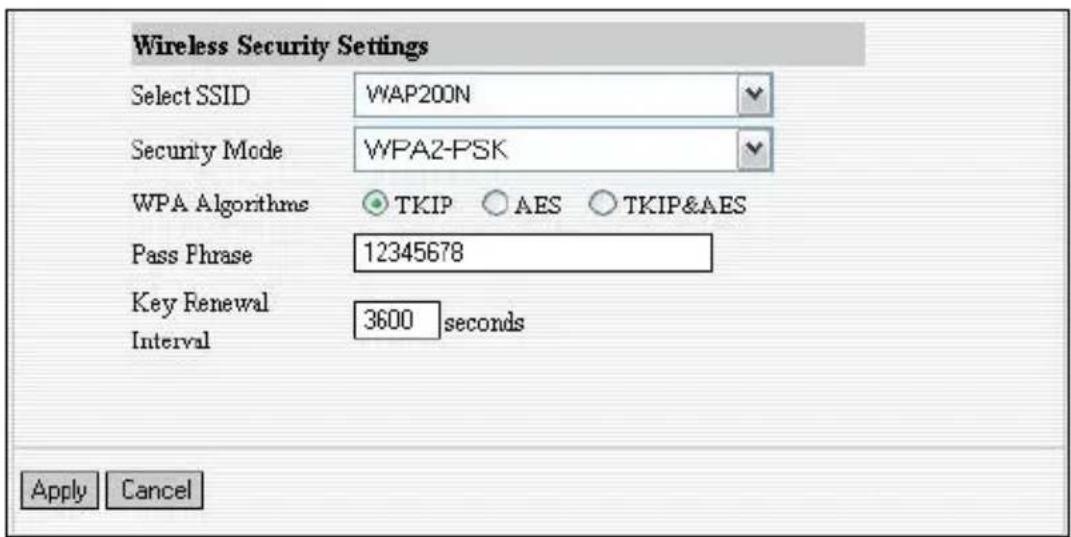
Setting Explanation
Select SSID : Select the SSID (main SSID or minor SSID) to configure security setting from the drop-down menu.
✿ WPA Algorithms : Provides TKIP [Temporal Key Integrity Protocol] or AES [Advanced Encryption Standard]. The default is TKIP mode.
✿ Pass Phrase : Enter the encrypted characters with 8-63 ASCII characters.
Key renewal Interval : Set the key's renewal period.
WPA
This security mode is used when a RADIUS server is connected to the device. Select “WPA” from the drop-down menu to enter the following window:
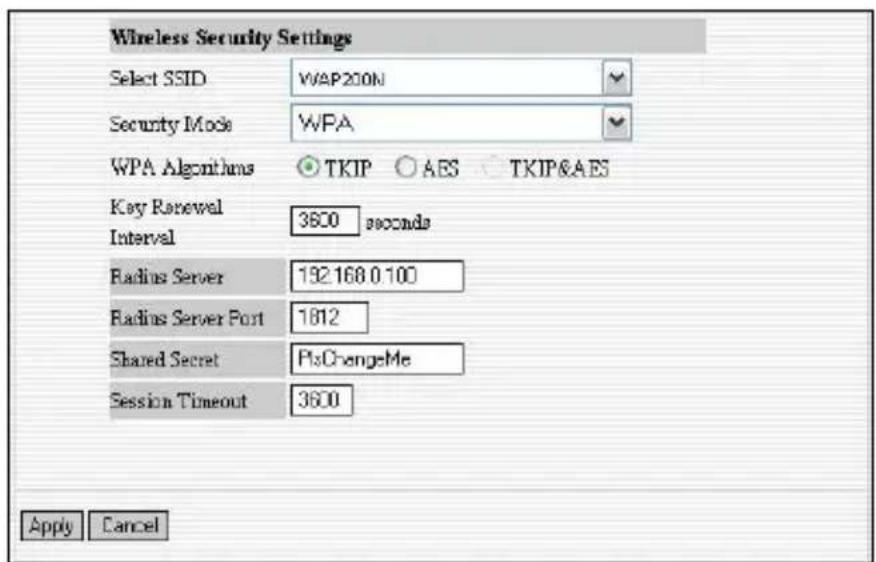
Setting Explanation
Select SSID : Select the SSID (main SSID or minor SSID) to configure security setting from the drop-down menu.
WPA Algorithms : Provides TKIP [Temporal Key Integrity Protocol] or AES
[Advanced Encryption Standard]. The default is TKIP mode.
Key Renewal Interval : Set the key's renewal period.
✿ Radius Server : Enter the IP address of the Radius server.
✿ Radius Server port : Enter the authentication port of the Radius server. The default is 1812.
✿ Shared Secret : Enter the shared key for authentication server with 8\~63 ASCII characters.
✿ Session Timeout : The authentication interval period between AP and authentication server. The default is 3600s.
WPA2
This security mode is based on Radius authentication server and WPA2 encryption method. WPA2 is used when a RADIUS server is connected to the device. Select “WPA2” from the drop-down menu to enter the following window:
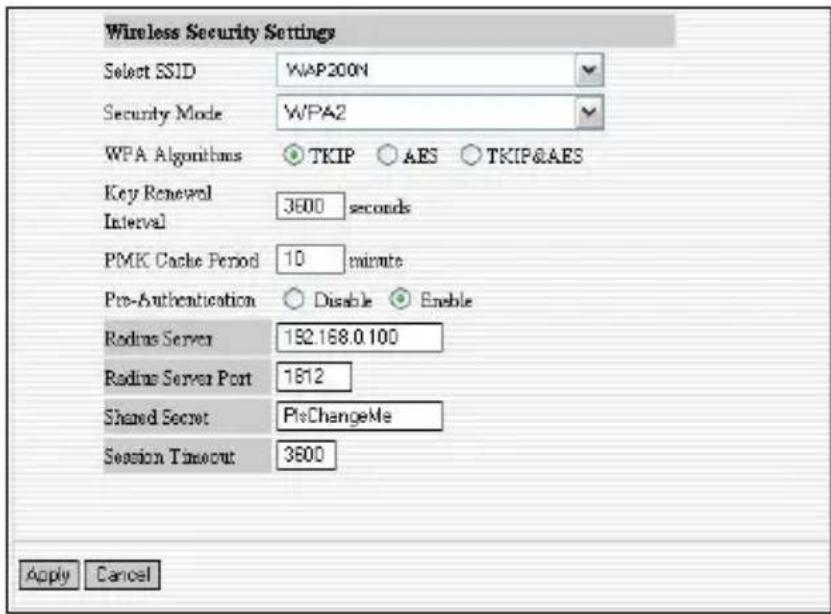
Setting Explanation
Select SSID : Select the SSID (main SSID or minor SSID) to configure security setting from the drop-down menu.
✿ WPA Algorithms : Provides TKIP [Temporal Key Integrity Protocol] or AES [Advanced Encryption Standard]. The default is TKIP mode.
Key Renewal Interval : Set the key's renewal period.
✿ Radius Server : Enter the IP address of the Radius server.
✿ Radius Server Port : Enter the authentication port of the Radius server.
The default is 1812.
✿ Shared Key : Enter the shared key for authentication server with 8\~63 ASCII characters.
Session Timeout : The authentication interval period between AP and authentication server. The default is 3600s.
802.1x Authentication
This security mode is used when a RADIUS server is connected to the device. 802.1x, is a Port-based authentication protocol, and a authentication type and strategy for users. The port can be either a physic port or logic port (such as VLAN). For wireless LAN users, a port is just a channel. The final purpose of 802.11x authentication is to check if the port can be used. If the port is authenticated successfully, you can open this port which allows all the messages to pass. If the port isn't authenticated successfully, you can keep this port "disable" which just allows 802.1x authentication protocol message to pass. Select "802.1x" from the drop-down menu to enter the following window:
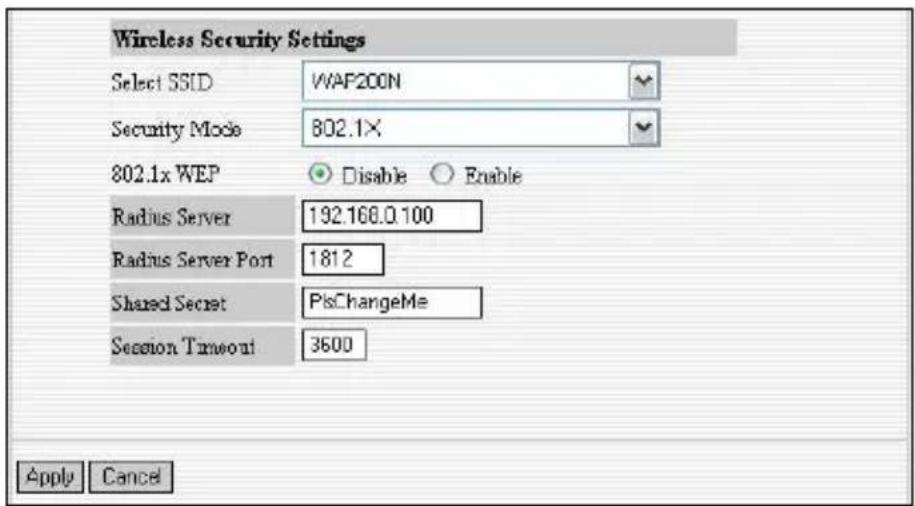
Setting Explanation
Select SSID : Select the SSID (main SSID or minor SSID) to configure security setting from the drop-down menu.
✿ 802.1x WEP : Click "Enable/Disable" to enable or disable the WEP algorithm.
✿ Radius Server : Enter the IP address of the Radius server.
✿ Radius Server Port : Enter the authentication port of the Radius server. The default is 1812.
✿ Shared Secret : Enter the shared key for authentication server with 8\~63 ASCII characters.
Session Timeout : The authentication interval period between AP and authentication server. The default is 3600s.
Note: To improve the security level, do not use a simply password.
4.1.2 P2P (Point to Point) Bridge Mode
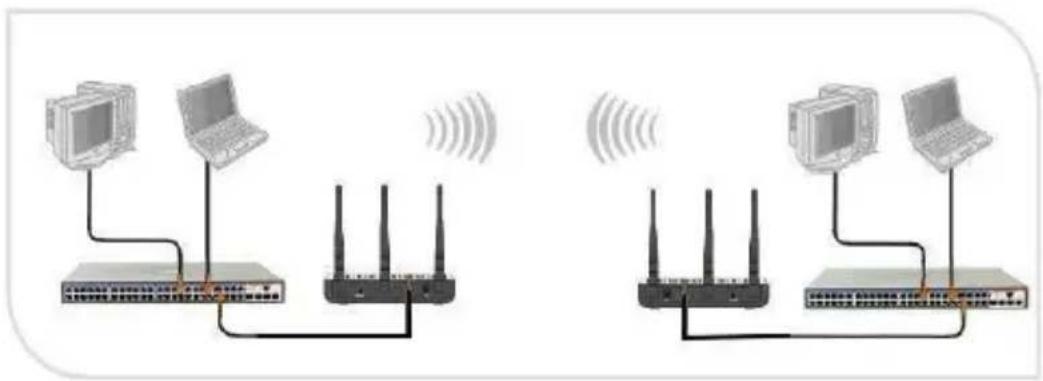
Two wired local networks communicate and share network resource via two WAP200N's wireless signals which also can extend the wired network. In this mode, AP can not connect with wireless clients, but serve only as wireless bridge.
4.1.2.1 Application Plan
P2P bridge mode can connect with two wired network via wireless access points, which communicate by wireless signals and not by cables. This mode can free you from the hassle of a cable install. The P2P topology shows below:
natural_image
Two identical network topology diagrams showing two devices connected via wireless devices with signal waves (no text or labels)4.1.2.2 P2P Bridge Setting
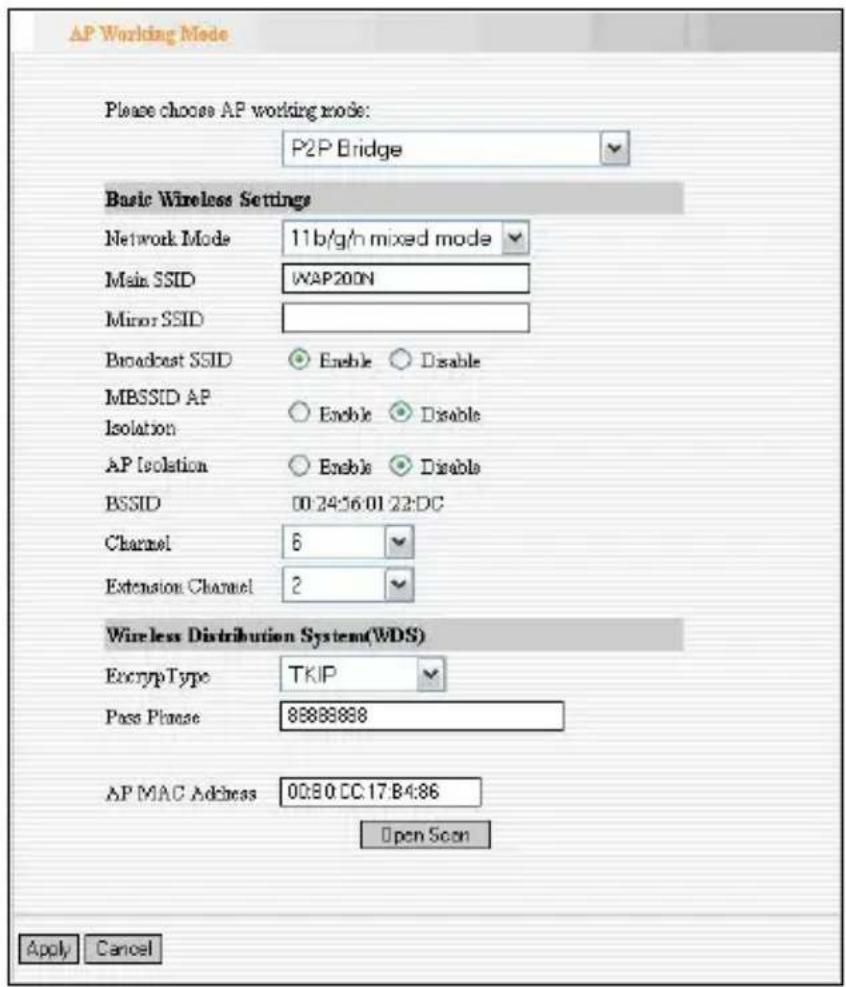
In the working mode, select "WDS P2P" to enter the next screen.
- Basic wireless Settings
Network Mode: Select one mode from the following. The default is 11b/g/n mode.
✿ 11b mode : Allow the wireless client to connect with the device in 11b mode at the
maximum speed of 11Mbps.
✿ 11g mode : Allow the 11g/11n-compliant client device to connect with the AP at the maximum speed of 54Mbps.
✿ 11b/g mode : Allow the 11b/g-compliant client device to connect with the AP with auto-negotiation speed, and 11n wireless client to connect the device with 11g speed.
✿ 11b/ g/ n mode : Allow 11b/g/n-compliant client device to connect with the AP with auto- negotiation speed.
Main SSID : SSID (Service Set Identifier) is the unique name of the wireless network. This device has two SSID and the main SSID is necessary.
Minor SSID : It is optional.
✿ Broadcast SSID: If disable broadcast SSID is selected, the AP will not broadcast its own SSID. If wireless connection requests approaches, users need to enter the SSID by manual.
✿ BSSID : Basic Service Set Identifier of wireless network. In IEEE802.11, BSSID is
the MAC address of wireless access point.
Channel : Specify the effective channel (from 1 to 13\Auto) of the wireless network.
✿ Extension channel : To increase data throughput of the wireless network, the extension channel range is used in 11n mode.
● Wireless Distribution System (WDS) Setting
✿ Encryption Type : Select the data encryption method from WEP, TKIP, AES or NONE. The default is NONE.
WEP Encryption Description
✿ WEP Key 1\~4 : Set the WEP key with the format of ASCII and Hex. You can enter ASCII code (5 or 13 ASCII characters. Illegal character as “/” is not allowed.) Or 10/26 hex characters.
✿ Default Key : Select one key from the four configured keys as the current available one.
TKIP Encryption Description
✿ Pass Phrase : Enter the encrypted characters with 8-63 ASCII characters.
AES Encryption Description
✿ Pass Phrase : Enter the encrypted characters with 8-63 ASCII characters.
✿ AP MAC Address : Input the MAC address of remote access point manually or open scan.
Open Scan: Enable scan to obtain remote AP MAC address, select one and Click "Save" to complete this part's setting. The AP will reboot automatically, the setting will go into effect.
Note: In this mode, the two devices should keep the same channel and encryption method.
4.1.3 P2MP Bridge Mode
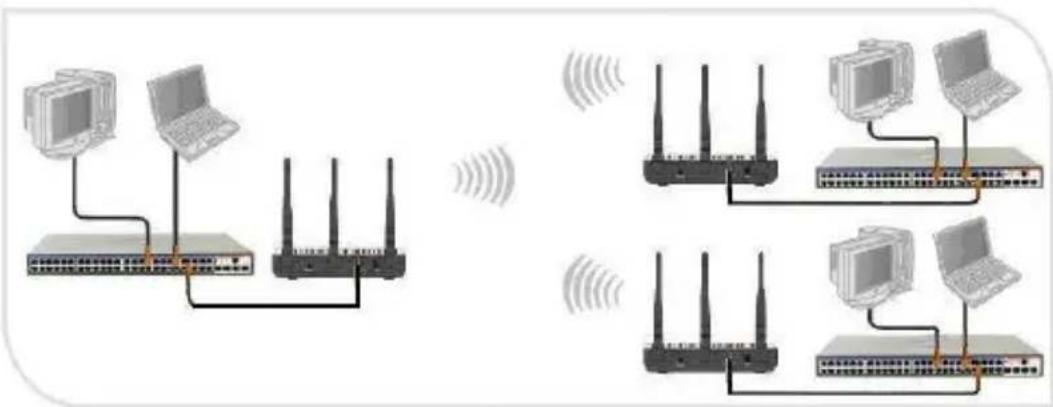
The P2MP Bridge Mode which connects scattered wired network together is more complicated than P2P Bridge mode. P2MP usually transmit wireless signals from one access point, and other access points are in charge of receiving signals so as to share network resource. Support up to 4 remote access point connection. In this mode, wireless clients are not allowed to connect.
4.1.3.1 Application and Network Topology
P2MP Bridge mode can connect multiple wireless access point together without cabling. If “Root AP” is configured as P2MP bridge mode, other (less than 4) remote access points should select P2P bridge modes. The topology is shown below:
Note: In P2P Bridge and P2MP bridge mode, at
least two wireless APs are needed. For better performance, it is recommended to use an AP of the same model.
4.1.3.2 P2MP Setting
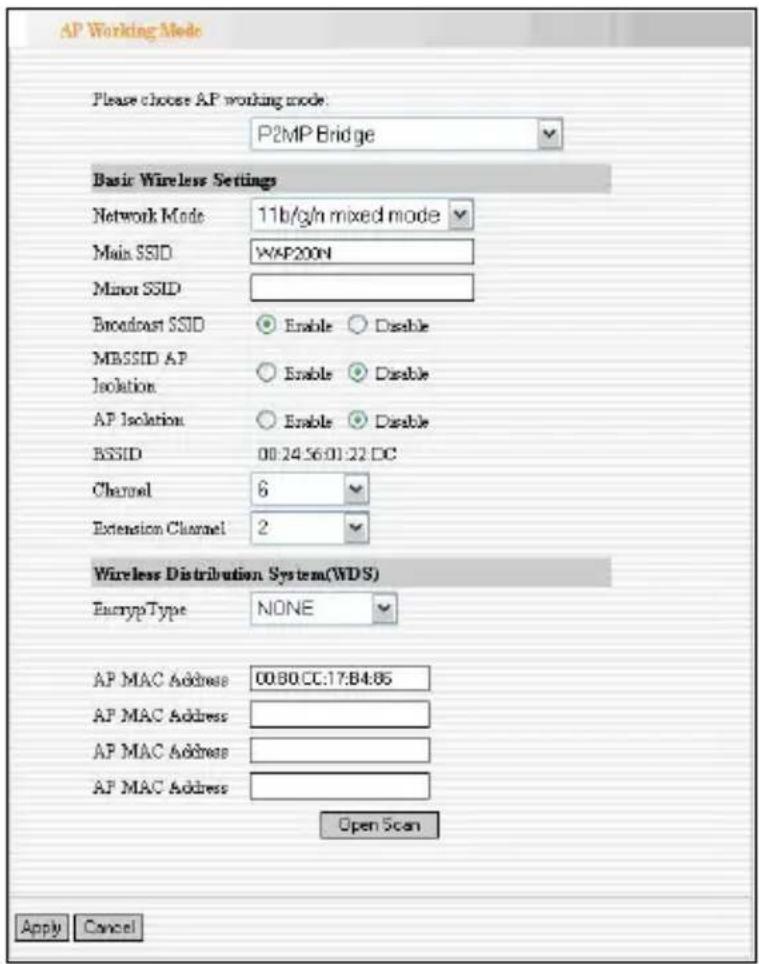
In the working mode, select "P2MP Bridge" to enter the next screen.
● Basic wireless Settings
Network Mode: Select one mode from the following. The default is 11b/g/n mode.
✿ 11b mode : Allow the wireless client to connect with the device in 11b mode at the maximum speed of 11Mbps.
✿ 11g mode : Allow the 11g/11n-compliant client device to connect with the AP at the maximum speed of 54Mbps.
✿ 11b/g mode : Allow the 11b/g-compliant client device to connect with the AP with auto-negotiation speed, and 11n wireless client to connect the device with 11g speed.
✿ 11b/g/n mode : Allow 11b/g/n-compliant client device to connect with the AP with auto- negotiation speed.
Main SSID : SSID (Service Set Identifier) is the unique name of the wireless network. This device has two SSID and the main SSID is necessary.
Minor SSID : It is optional.
✿ Broadcast SSID: If disable broadcast SSID is selected, the AP will not broadcast its own SSID. If a wireless connection requests access, the user needs to enter the SSID manually.
✿ BSSID : Basic Service Set Identifier of wireless network. In IEEE802.11, BSSID is the MAC address of wireless access point.
Channel : Specify the effective channel (from 1 to 13\Auto) of the wireless network.
✿ Extension channel : To increase data throughput of wireless network, the extension channel range is used in 11n mode.
● Wireless Distribution System (WDS) Setting
✿ Encryption Type : Select the data encryption method from WEP, TKIP, AES or NONE. The default is NONE.
WEP Encryption Description
✿ WEP Key 1\~4 : Set the WEP key with the format of ASCII and Hex. You can enter ASCII code (5 or 13 ASCII characters. Illegal character as “/” is not allowed.) Or 10/26 hex characters.
Default Key : Select one key from the four configured keys as the current available one.
TKIP Encryption Description
✿ Pass Phrase : Enter the encrypted characters with 8-63 ASCII characters.
AES Encryption Description
✿ Pass Phrase : Enter the encrypted characters with 8-63 ASCII characters.
✿ AP MAC Address : Input the MAC addresses (no more than four) of remote access points by manual or scan.
MAC Address 1 : Input AP1's MAC address;
MAC Address 2 : Input AP2's MAC address;
MAC Address 3 : Input AP3's MAC address;
MAC Address 4 : Input AP4's MAC address;
Open Scan: Enable scan to obtain remote AP MAC address, select one and Click "Save" to complete this part's setting. The AP will reboot automatically, the setting will go into effect.
Note: In this mode, the two devices should keep the same channel and encryption method.
4.1.4 Wireless Repeater Mode
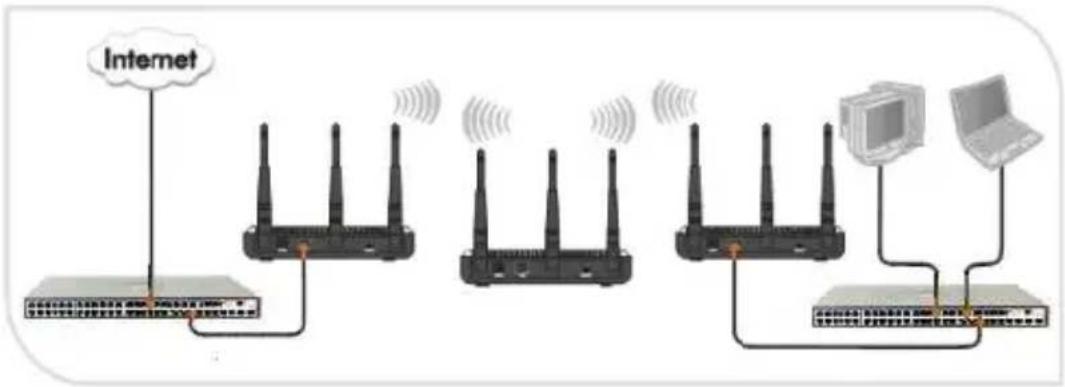
Repeater Mode can repeat and amplify wireless signals to extend the wireless network coverage. In this mode, wireless clients are allowed to connect.
4.1.4.1 Application and Topology Plan
When two LAN's transmission distance is over the wireless device's maximum transmission value, or there is much signal loss among devices, you can use the Repeater mode to deal with these problems by adding MAC addresses. The topology is shown below:
flowchart
graph LR
    A["Internet"] --> B["Rear 1"]
    B --> C["Rear 2"]
    C --> D["Rear 3"]
    D --> E["Rear 4"]
    E --> F["Rear 5"]
    F --> G["Computer"]
    G --> H["Desktop"]
4.1.4.2 Repeater Mode Setting
In the working mode, select “AP Repeater” to enter the next window.
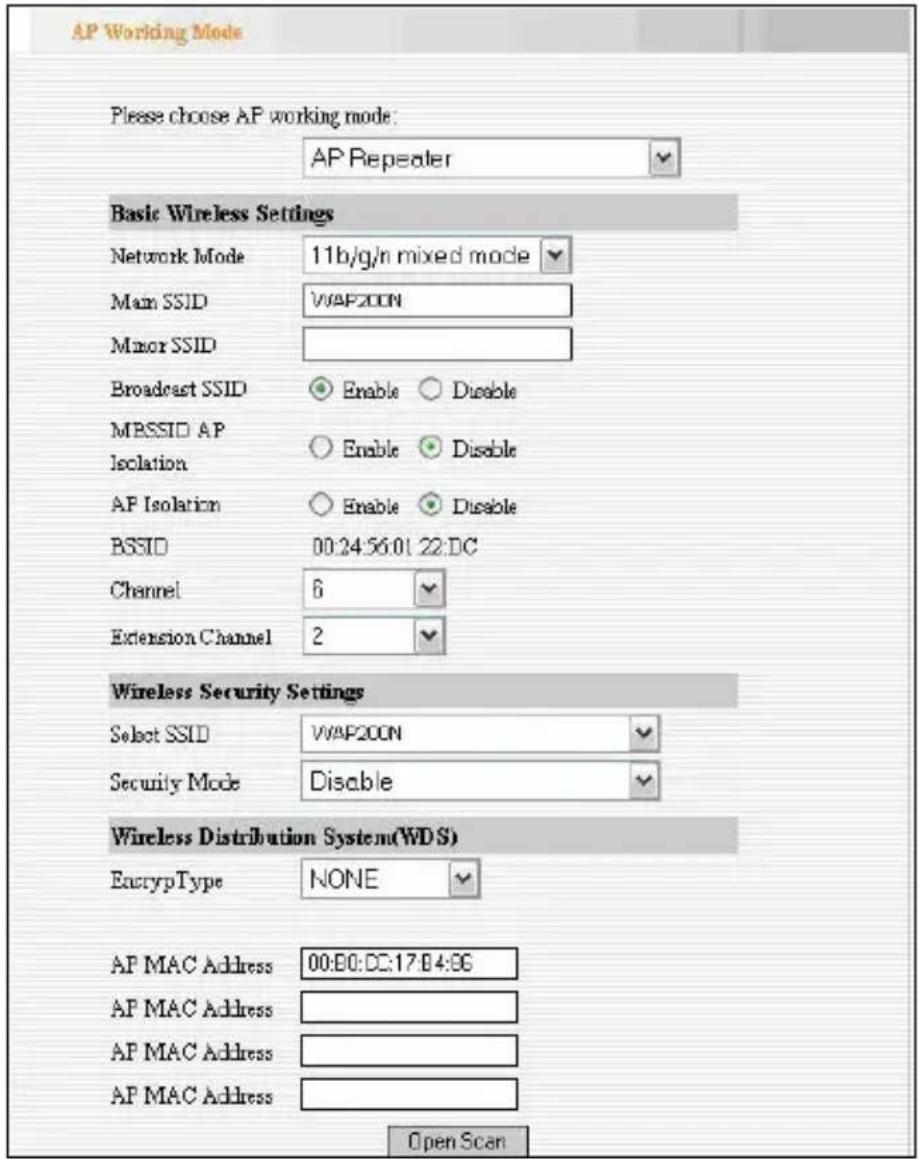
● Basic wireless Settings
Network Mode: Select one mode from the following. The default is 11b/g/n mode.
✿ 11b mode : Allow the wireless client to connect with the device in 11b mode at the
maximum speed of 11Mbps.
✿ 11g mode : Allow the 11g/11n-compliant client device to connect with the AP at the maximum speed of 54Mbps.
✿ 11b/g mode : Allow the 11b/g-compliant client device to connect with the AP with auto-negotiation speed, and 11n wireless client to connect the device with 11g speed.
✿ 11b/ g/ n mode : Allow 11b/g/n-compliant client device to connect with the AP with auto- negotiation speed.
Main SSID : SSID (Service Set Identifier) is the unique name of the wireless network. This device has two SSID and the main SSID is necessary.
Minor SSID : It is optional.
✿ Broadcast SSID: If disable broadcast SSID is selected, the AP will not broadcast its own SSID. Connecting users need to enter the SSID by manual.
MBSSID AP Isolation : One access control feature based on wireless MAC address. When this feature is enabled, wireless clients connected with the same SSID can not
communicate with each other. For example, configure main SSID as AP1, minor SSID as AP2. PC1 and PC2 connect to AP1 via wireless adapter, and configure PC1 and PC2 in the same segment. After the feature is enabled, two PCs can not communicate and share network resource each other, but they can communicate with wireless clients connected with AP2. This feature is to isolate the communication of wireless clients connected with the same SSID.
AP Isolation: One access control feature based on wireless MAC address. When this feature is enabled, each of your wireless clients will be in its own virtual network and will not be able to communicate with each other. This feature is deployed when you have many guests that frequent your wireless network. For example, configure main SSID as AP1, minor SSID as AP2. PC1 connects to AP1 via wireless adapter; PC2 connecting to AP2. After the feature is enabled, two PCs can not communicate and share network resource each other. This
feature is to isolate the communication of wireless clients connected with different SSID.
Tip: If you want to isolate all connected wireless client's communication, please enable MBSSID AP and AP Isolation simultaneously.
✿ BSSID : Basic Service Set Identifier of wireless network. In IEEE802.11, BSSID is the MAC address of wireless access point.
Channel : Specify the effective channel (from 1 to 13\Auto) of the wireless network.
✿ Extension channel : To increase data throughput of wireless network, the extension channel range is used in 11n mode.
● Wireless Security Settings
Select SSID : Select the SSID for security setting, main SSID or minor SSID.
Security Mode: select wireless encryption method, WEP, WPA-PSK, WPA2-PSK. (Note: when you select “Disable”, security mode can’t be used.) Here security setting is for wireless client’s encryption authentication.
More details please refer to 4.1.1.2.
● Wireless Distribution System (WDS) Setting
✿ Encryption Type : Select the data encryption method from WEP, TKIP, AES or NONE. The default is NONE.
WEP Encryption Description
✿ WEP Key 1\~4 : Set the WEP key with the format of ASCII and Hex. You can enter ASCII code (5 or 13 ASCII characters. Illegal character as “/” is not allowed.) Or 10/26 hex characters.
✿ Default Key : Select one key from the four configured keys as the current available one.
TKIP Encryption Description
✿ Pass Phrase : Enter the encrypted characters with 8-63 ASCII characters.
AES Encryption Description
✿ Pass Phrase : Enter the encrypted characters with 8-63 ASCII characters.

4.1.5 Wireless Client Mode
In this mode, connect the device's LAN port to wired network adapter port. In this case, the AP is used as a wireless Adapter. When you select this mode, please keep the device and the connecting network in the same segment.
4.1.5.1 Application and Topology Plan
If you select this mode to establish your network, please follow the next topology plan:

4.1.5.2 Client Mode Settings
In the working mode, select "Client" to enter the next window.
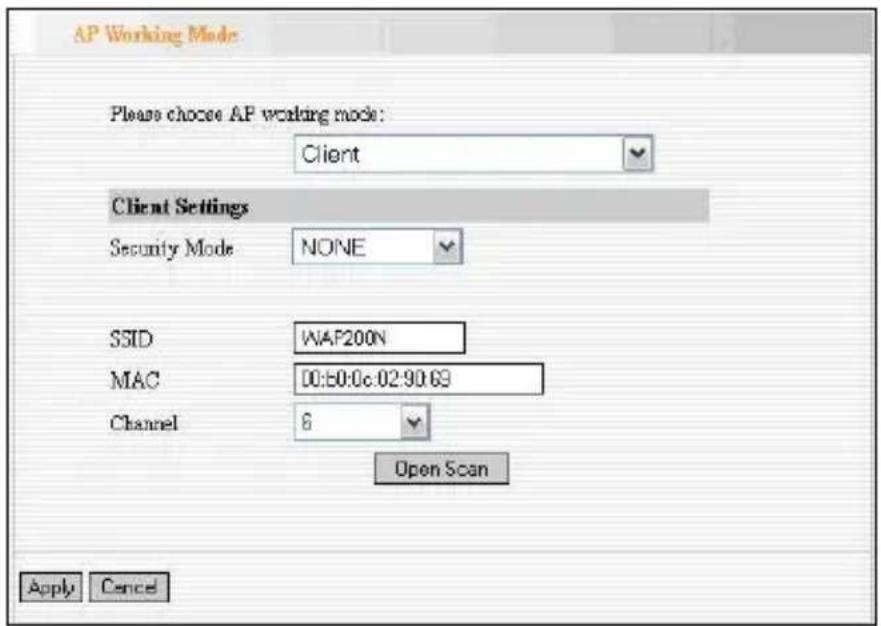
Security Mode : Select wireless encryption method from WEP, WPA-PSK and WPA2- PSK (Note: when you select "NONE", the security mode is disabled.).
WEP Encryption Description
✿ WEP Type : Select the connected device's WEP authentication method. OPEN and SHARED is supported.
✿ WEP Key1\~4 : Set the WEP key with the format of ASCII and Hex. You can enter
ASCII code (5 or 13 ASCII characters. Illegal character as “/” is not allowed.) Or 10/26 hex characters.
✿ Default Key : Select one key from the four configured keys as the current available one.
WPA-PSK Encryption Description
✿ WPA-WPA2 Algorithms : Select one from TKIP and AES.
✿ Pass Phrase : Enter the encrypted characters with 8-63 ASCII characters.
WPA2-PSK Encryption Description
WPA-WPA2 Algorithms : Select one from TKIP and AES. Usually WPA2-personal supports AES.
✿ Pass Phrase : Enter the encrypted characters with 8-63 ASCII characters.
✿ SSID : SSID for connected device, obtained by scan or manual.
✿ MAC: The MAC address for connected device, obtained by scan or manual.
Channel : Specify the effective channel (from 1 to 13\Auto) of the wireless network, obtained by scan or manual.
✨ Open Scan : Enable scan to obtain remote
AP MAC address. Select one and Click "Save" to complete this part's setting. The AP will reboot automatically, and then the setting will go into effect.
4.2 Advanced Settings
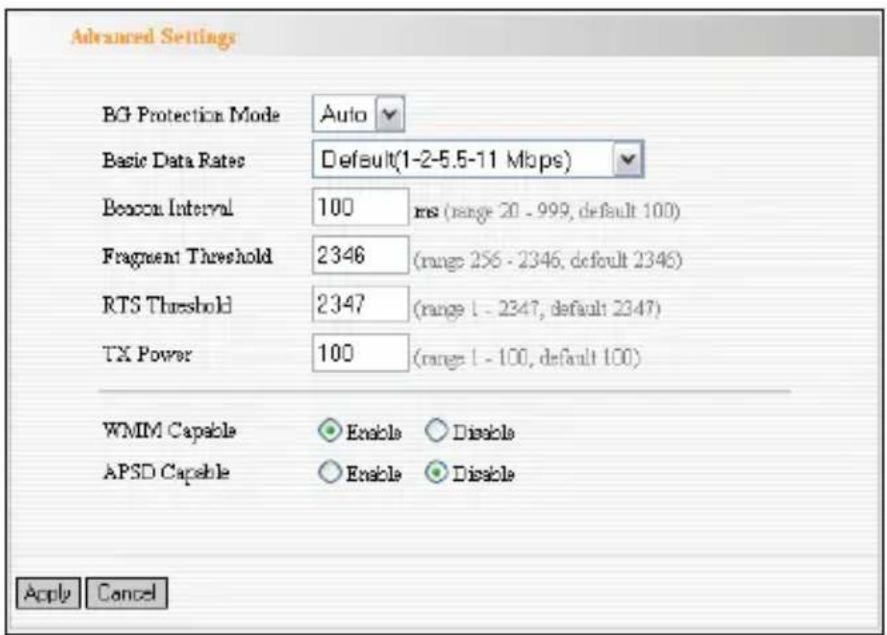
This section mainly deals with wireless advanced settings, including Speed, Beacon Interval, Fragment Threshold, etc. Select “Wireless Setting->Advanced Setting” to enter the following screen:
Setting Explanation:
✿ BG Protection Mode : For 11b/g wireless client, it is easier to connect with 11n wireless device. The default is “Auto”.
✿ Basic Data Rates: In term of different requirements, you can select one of the suitable Basic Data Rates from the drop-down menu. Here,
default value is (1-2-5.5-11Mbps...). It is recommended not to modify the default value.
Beacon Interval : The frequency interval of the beacon, which is a packet broadcast by an AP to synchronize a wireless network. The default value is 100 ms.
Fragment Threshold : The fragmentation threshold defines the maximum transmission packet size in bytes. The packet will be fragmented if the arrival is bigger than the threshold setting. The default size is 2346 bytes.
✿ RTS Threshold : RTS stands for “Request to send”. This parameter controls what size packet the frequency protocol issues to RTS packet. If the device works in SOHO, do not modify the default value.
✿ TX Power: Set the wireless output power level. The default value is 100.
✿ WMM Capable : To enhance wireless multimedia transfer performance (On-line video and voice). If you are not clear about this, enable it.
✿ APSD Capable : It is used for auto power-saved service. The default is disabled.
4.3 WPS Settings
WPS (Wi-Fi Protected Setting) can be easy and quick to establish the connection between the wireless network clients and the device through encrypted contents. The users only enter the PIN code or the WPA button on the front panel to configure it without selecting encryption method and secret keys by manual.
In the "Wireless settings" menu, click "WPS settings" to enter the next screen.
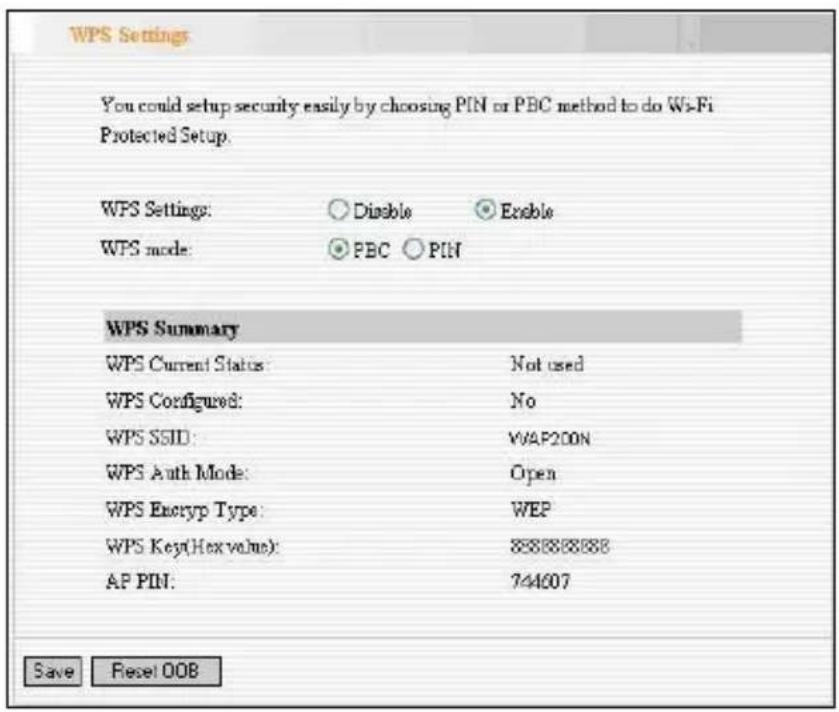
Setting Explanation:
WPS settings : To enable or disable WPS function. The default is “disable”.
WPS mode : Provide two ways: PBC (Push-Button Configuration) and PIN code.
✿ PBC : Select the PBC or press the WPS button on the front panel of the device for about one second (Press the button for about one second and WPS indicator will be blinking for 2 minutes, which means the WPS is enabled. During the configuration time, you can enable another device to implement the WPS/PBC negotiation between them. At present, the WPS only supports up to 32 clients access. Two minutes later, the WPS indicator will be off. If more clients are added, repeat the above steps).
✿ PIN : If this option is enabled, you need to enter a wireless client's PIN code in the field and keep the same code in the WPS client. The user is required to enter an 8-digit PIN Code.
WPS summary : Show Wi-Fi current protection state, authentication mode, encryption method, etc.
Note: Press the WPS/ Reset button for 1 second on the front panel to run PBC. Press for 7 seconds, the device's setting will
restore to default setting. The access client has to support WPS function when you implement WPS settings.
4.4 Access Control
To secure your wireless LAN, the wireless access control is actually based on the MAC address management. Select “Wireless Setting->Access Control” to display the following screen:
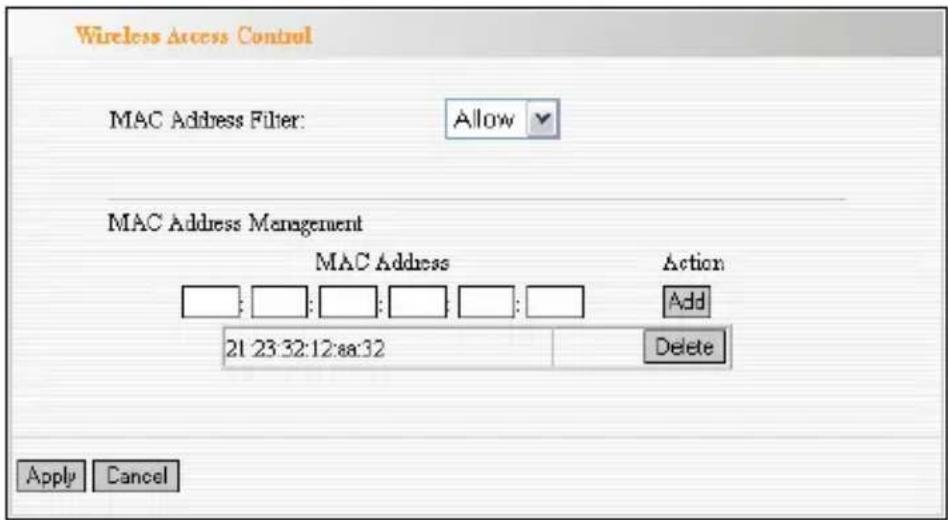
Setting Explanation
✿ MAC Address Filter : Enable/disable MAC address filter. Select “Close” to malfunction MAC address; “disable” to prevent the MAC addresses in the list from accessing the wireless network; “Allow” to allow the MAC address in the list to
access the wireless network.
✿ MAC Address Management : Input the MAC address to implement the filter policy. Click “Add” to finish the MAC add operation.
✿ MAC list : Show the added MAC address. You can add or delete them.
Note: This AP can support no more than 32 MAC addresses.
4.5 Connection Status
This page shows wireless client's connection status, including MAC address, Channel bandwidth, etc. Select "Wireless Setting->connection status" to enter the following screen:
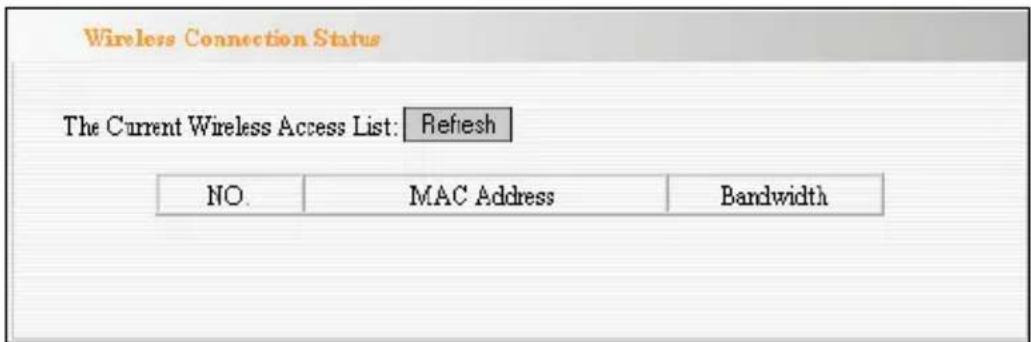
Explanation:
✿ MAC Address : Shows current connecting host's MAC address.
Bandwidth : Shows current connecting host's (wireless client) bandwidth (20MHz or 40MHz).
4.6 PING
Ping is used to check a device's connectivity. If the connecting device has established connection with the AP, the result will show “connected”, otherwise, it shows “destination host unreachable”. Select “Wireless Setting->Ping” to show the following window:
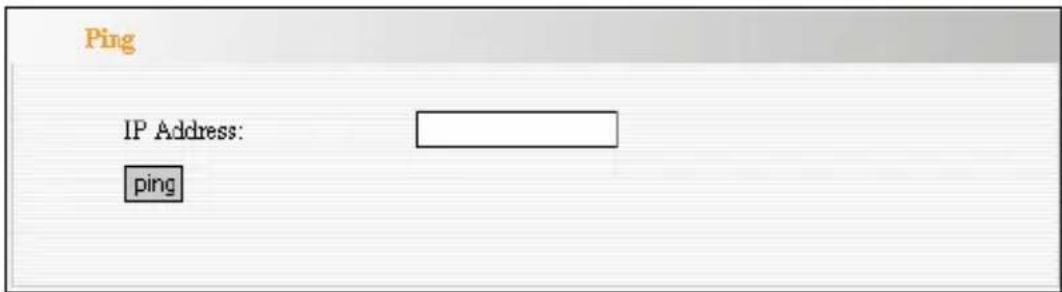
Explanation:
✨ IP Address : Enter the device's IP address.
✿ ping : Click “Diagnose” button to show connectivity result after a few seconds. This is to check the connectivity between devices for trouble shooting.
Chapter 5 SNMP Setting
5.1 SNMP Introduction
Simple Network Management Protocol (SNMP) is a popular protocol for network management. It is widely used in local area networks (LAN) for collecting information, and managing and monitoring, network devices, such as servers, printers, hubs, switches, and routers from a management host. Managed devices that support SNMP including software are referred to as an SNMP agent, which usually interacts with third-party SNMP management software to enable the sharing of network status information between monitored devices and applications and the SNMP management system. A defined collection of variables (managed objects) are maintained by the SNMP agent and used to manage the device. These objects are defined in a Management Information Base (MIB), which provides a standard presentation of the information controlled by the on-board SNMP agent. SNMP defines both the format of the MIB specifications and the protocol used to access this information over the network.
5.2 SNMP Setting
This device supports SNMP v1 and SNMP v2c. Please click “SNMP Setting” in the left page to enter the following window:
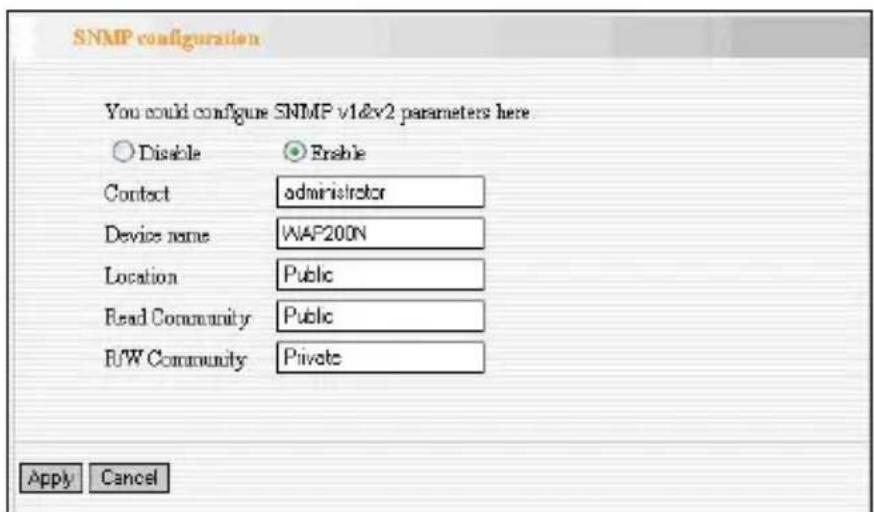
Click “enable” or “disable” to enable and disable SNMP management.
Setting Explanation :
Contact : Set the name to access the AP. Usually set the administrator's name.
Device Name : Set the AP's name, such as WAP200N.
Location : Set the AP's network location.
Read Community: Indicates the community read access string to permit reading this AP's SNMP information. The default is Public.
Read/Write Community: Indicates the community read/write access string to permit reading and re-writing this AP's SNMP information. The default is Private.
Chapter 6 System Tools
This section focuses on how to maintain the AP, including Restore to Factory Default Setting, Backup/Restore, Firmware Upgrade, Reboot, Password Change, Syslog.
6.1 Password Change
This section is to set a new user name and password to better secure your device and network. Click “Apply” to finish changing the password.
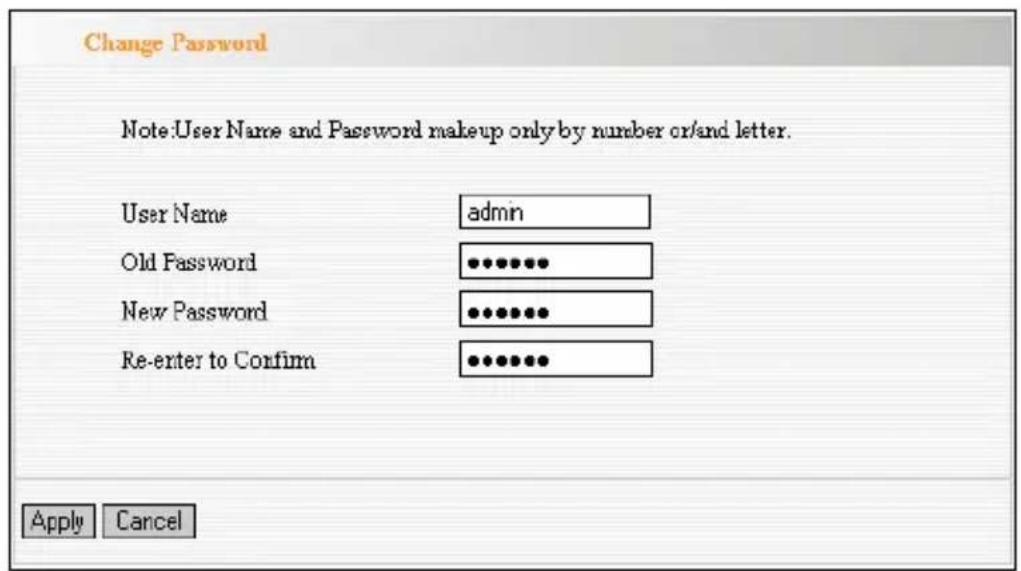
User Name: Enter a new user name for the device.
Old Password: Enter the old password.
New Password: Enter a new password.
Re-enter to Confirm: Re-enter to confirm the new password.
NOTE: It is highly recommended to change the password to secure your network and the device.
6.2 Restore to Factory
This button is to reset all configurations to the default values. It means the device will lose all the settings you have set.
Restore: Click this button to restore to default settings.
Factory Default Settings:
User Name: admin
Password: admin
IP Address: 192.168.0.254
Subnet Mask: 255.255.255.0
Restore to Factory Default Settings
Restore to Factory Default Settings.
Restore
6.3 Backup/Restore
The device provides backup/restore settings, so you need to set a directory to backup these settings.
Backup: Click this button to back up the device's configurations.
Browse: Click this button to browse to the directory where you backup or save the device's settings.
Restore: Click this button to restore the device's configurations.
Backup.Restore
The device provides backup/restore settings, so you
need set a directory to keep these parameters.
Please choose restore file:
Browse
Backup
Restore
6.4 Time Settings
This section is to select the time zone for your location. You can select your own time or obtain the standard GMT time from Internet.
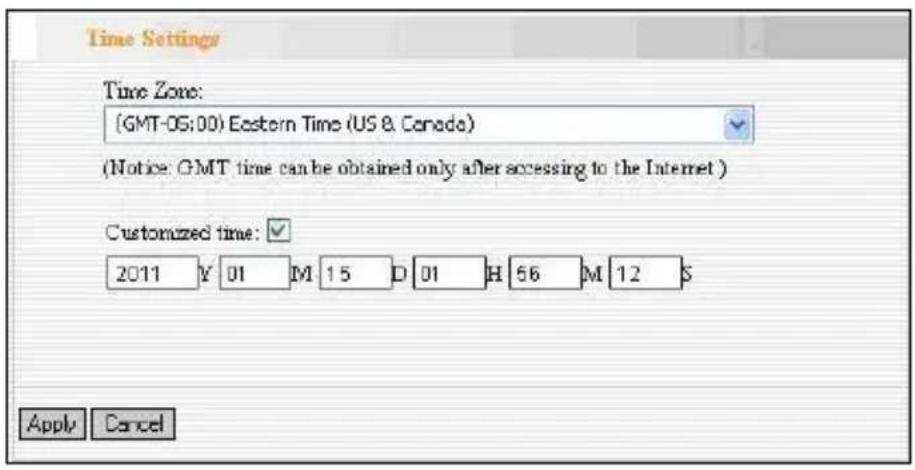
Setting Explanation:
✿ Time Zone: Select your time zone from the drop-down menu.
✨ Customized time: Enter the customized time.
6.5 Reboot System
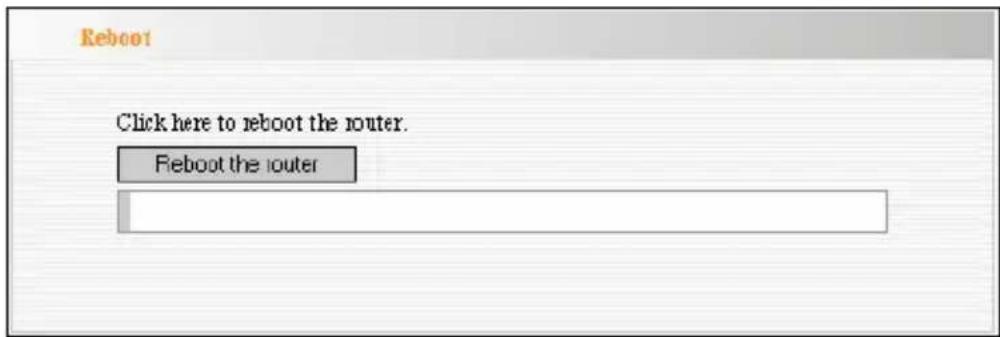
This page is used to reboot the wireless access point. Rebooting the device makes the settings configured go into effect.
Reboot: Click this button to reboot the device.
6.6 Firmware Upgrade
Update the devices firmware by clicking the "Upgrade" button after browsing for the firmware upgrade file.
The firmware can be downloaded from Amer.com.
After the upgrade is completed, the device will reboot automatically.
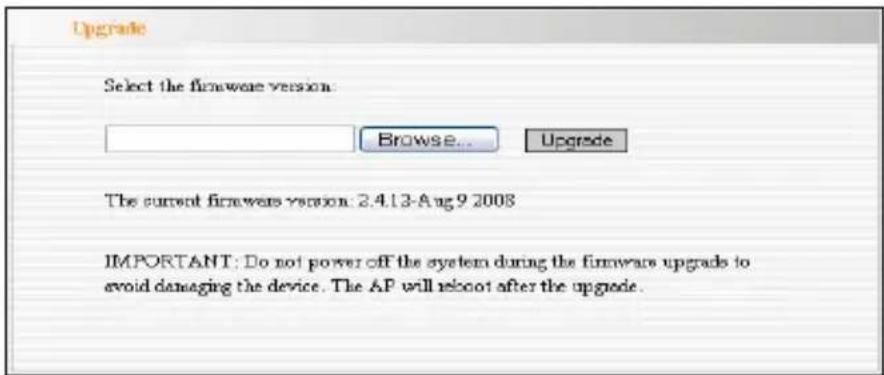
Upgrade Steps:
- Download the higher firmware version from our website: www.Amer.com.
- Extract the firmware file on your computer.
- On the Firmware Upgrade screen, enter the location directory of the firmware file in the field provided, or click the Browse button and find the file.
- Click Upgrade button, and follow the on-screen instructions.
- After the upgrade is completed, the device will reboot automatically.
IMPORTANT: Do not power off the system during the firmware upgrade to avoid damaging the device.
6.7 Syslog
The section is to view the system log. Click the "Refresh" to update the log. Click "Clear" to clear all shown information. If the log is over 150 records, it will clear them automatically.
![System Log Page 1 content 1 2007-03-29 09:48:15 System wins started. 2 2007-03-29 09:48:15 System System start success. [1] Refresh Clear](/content/2026/05/1140950/images/0ce1a078a7289c37c82b72bb20f584d76ee604ba963bb93f4154f388726115cc.jpg)
Refresh: Click this button to update the log.
Clear: Click this button to clear the current log.
Appendix I: Glossary
Access
Point(AP): Any entity that has station functionality and provides access to the distribution services, via the wireless medium(WM) for associated stations.
Channel: An instance of medium use for purpose of passing protocol data units (PDUs) that may be used simultaneously, in the same volume of space, with other instances of medium use (on other channels) by other instances of the same physical layer (PHY), with an acceptably low frame error ratio (FER) due to mutual interference.
SSID: Service Set identifier. An SSID is the network name shared by all devices in a wireless network. Your network's SSID should be unique to your network and identical for all devices within the network. It is case-sensitive and must not exceed 20 characters (use any of the characters on the keyboard). Make sure
this setting is the same for all devices in your wireless network.
WEP:
Wired Equivalent Privacy (WEP) is the method for secure wireless data transmission. WEP adds data encryption to every single packet transmitted in the wireless network. The 40bit and 64bit encryption are the same because of out 64 bits, 40 bits are private. Conversely, 104 and 128 bit are the same. WEP uses a common KEY to encode the data. Therefore, all devices on a wireless network must use the same key and same type of encryption. There are 2 methods for entering the KEY; one is to enter a 16-bit HEX digit. Using this method, users must enter a 10-digit number (for 64-bit) or 26-digit number (for 128-bit) in the KEY field. Users must select the same key number for all devices. The other method is to enter a text and let the computer generate the WEP key for you. However, since each
product use different method for key generation, it might not work for different products. Therefore, it is NOT recommend using.
WPA/ WPA2: A security protocol for wireless networks that builds on the basic foundations of WEP. It secures wireless data transmission by using a key similar to WEP, but the added strength of WPA is that the key changes dynamically. The changing key makes it much more difficult for a hacker to learn the key and gain access to the network. WPA2 is the second generation of WPA security and provides a stronger encryption mechanism through Advanced Encryption Standard (AES), which is a requirement for some government users.
Appendix II: TCP/IP Address Setting (Take Winxp as example)
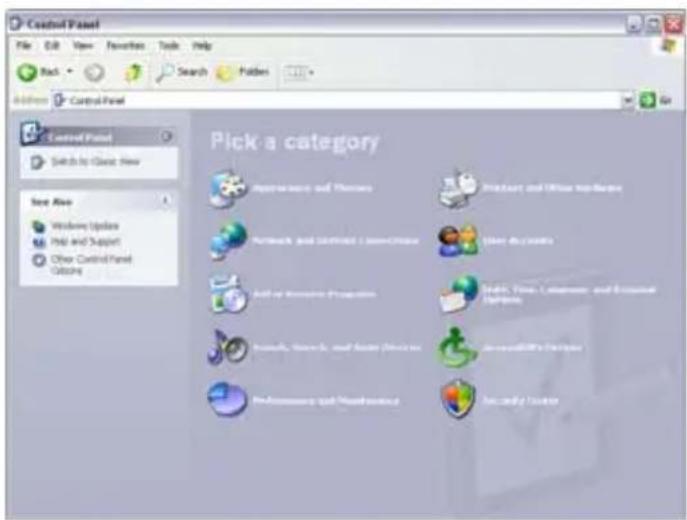
Click the "Start—> Settings—> Control Panel" (Fig- 1):
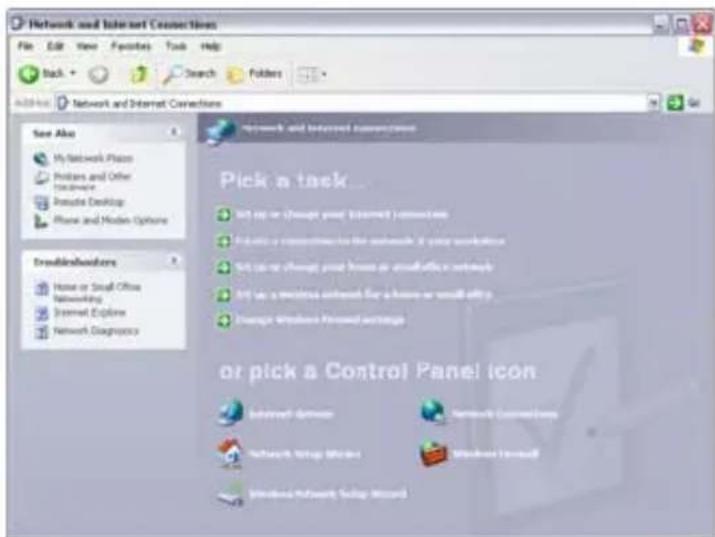
Click “Network and Internet Connections”, the windows as below will appear (Fig- 2):
Click the "Network Connections", as Fig-3:
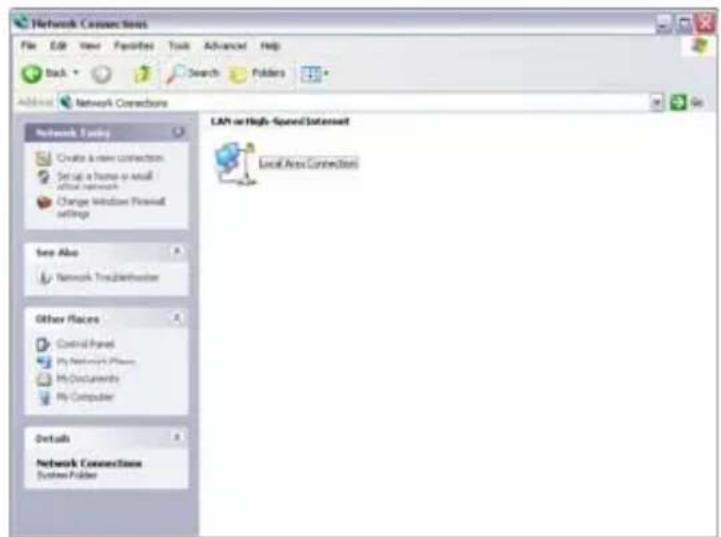
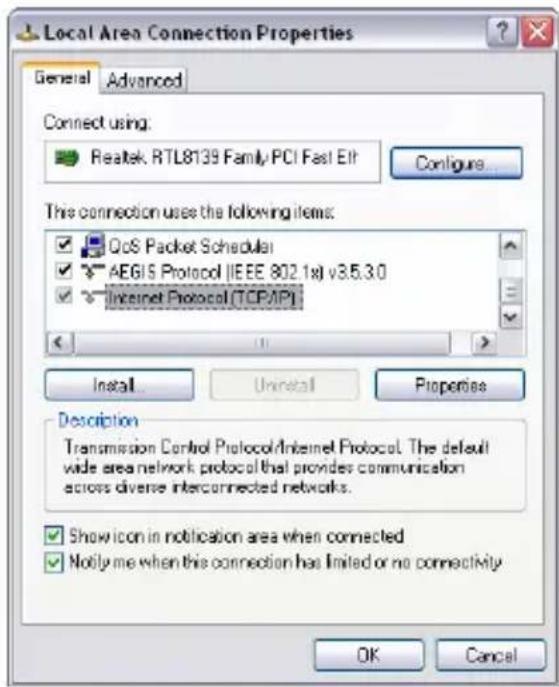
Choose “Local Area Connection”, right-click on the icon, choose the “Properties”, then the “Local Area Connection Properties” windows appear, choose the “Internet Protocol (TCP/IP)” in the “This connection uses the following items”, click the “Properties”.
Choose the “Use the following IP address”, enter the IP address as: 192.168.0.xxx. (xxx ranges 1\~253), Subnet mask is: 255.255.255.0(As Showed in Fig- 5)
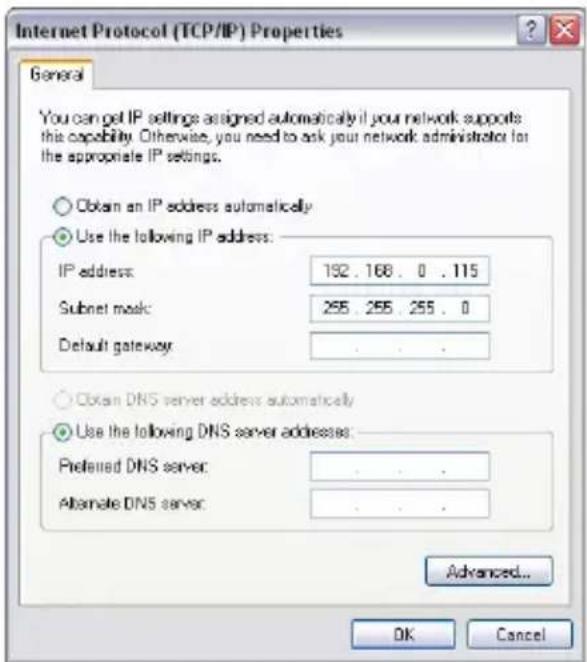
Click "OK" to apply and return to the "Local Area Connection Properties" windows. Continue click "OK" to exit the setting windows.