
MR1520UA - Car Radio BOSS - Free user manual and instructions
Find the device manual for free MR1520UA BOSS in PDF.


| Product Type | Car Radio / Multimedia Receiver |
| Brand | Boss |
| Model | MR1520UA |
| Power Supply | DC 11-14V (negative ground) |
| Power Output | 4 x 80 Watts (max) |
| Speaker Impedance | 4 ohms |
| FM Frequency Range | 87.5-107.9 MHz (US) / 87.5-108 MHz (EU) |
| AM Frequency Range | 530-1710 kHz (US) / 522-1620 kHz (EU) |
| CD Player | Yes (CD, CD-R, CD-RW) |
| USB Port | Yes (USB 1.1, FAT12/16/32) |
| SD/MMC Card Slot | Yes |
| AUX Input | Front panel AUX-in jack |
| Detachable Control Panel | Yes (DCP) |
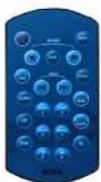
| Remote Control | Included (IR) |
| Audio Features | iX-BASS (Loudness), EQ presets, Bass/Treble/Balance/Fader |
| MP3/WMA Playback | Yes (MPEG1/2/2.5, WMA 7/8/9) |
| Display | LCD with clock |
| Tuner Presets | 18 FM + 12 AM (6 per band) |
| Dimensions (approx.) | 180 x 50 x 160 mm (standard DIN) |
| Weight (approx.) | 1.2 kg |
Frequently Asked Questions - MR1520UA BOSS
User questions about MR1520UA BOSS
0 question about this device. Answer the ones you know or ask your own.
Ask a new question about this device
Download the instructions for your Car Radio in PDF format for free! Find your manual MR1520UA - BOSS and take your electronic device back in hand. On this page are published all the documents necessary for the use of your device. MR1520UA by BOSS.
USER MANUAL MR1520UA BOSS
WITH USB AND SD MEMORY CARD PORTS AND FRONT PANEL AUX INPUT
06.2011
BOSS®
AUDIO SYSTEMS
3451 Lunar Court • Oxnard, CA 93030
www.bossaudio.com
800.999.1236
tech support: www.bossaudio.com/support

CE

10 R-02 0896
IPs49 is a trademark of Apple, Inc. registered in the U.S. and other countries.
WITH USB AND SD MEMORY CARD PORTS AND
FRONT PANEL AUX INPUT

BOSS®
AUDIO SYSTEMS
Ross Audio Systems is not affiliated with Apple, Inc.
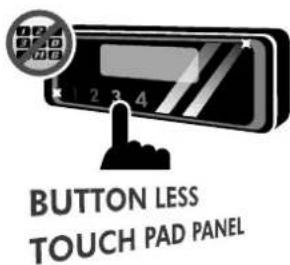
This radio is equipped with the most advanced "TOUCH SENSE PANEL", so that it is easy and convenient to use while driving.
Tips Here are some tips to show you how easy it is to use this touch sense panel:
- Using a very light touch on the radio panel will activate that feature. You will not need to "PRESS" hard on the panel to make this radio change features.
- The power button along with some of the buttons that have dual functions, will need to be "TOUCHED" from 2 to 3 seconds to make the change.
- The best area to "TOUCH" on the panel to make it activate is the illuminated or lighted area. For example, just touch for 2 to 3 seconds the illuminated power symbol and the unit will turn on or off.
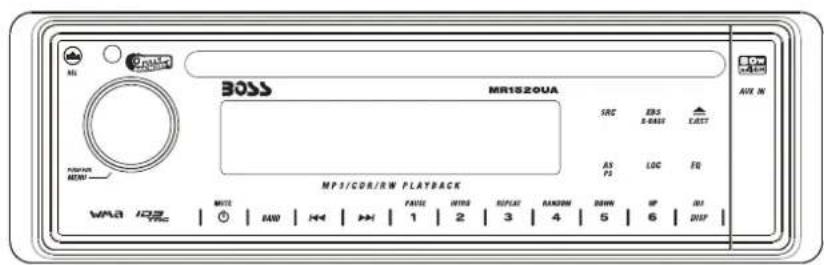
- BUTTONS LOCATION AND FUNCTIONS


2. HANDLING COMPACT DISCS
MOISTURE CONDENSATION
On a rainy day or in a very damp area, moisture may condense on the lenses inside the unit. Should this occur, the unit will not operate properly. In such a case, remove the disc and wait for about an hour until the moisture has evaporated.
NOTES ON CDs
- A dirty or defective disc may cause sound dropouts while playing. To enjoy optimum sound, handle the disc as follows. Handle the disc by its edge. To keep the disc clean, do not touch the surface (P.1).

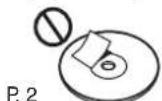
- Do not stick paper or tape on the disc (P.2).
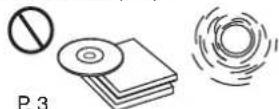
- Do not expose the discs to direct sunlight or heat sources such as hot air-ducts, or leave them in a car parked in direct sunlight where there can be a considerable rise in temperature inside the car (P.3).
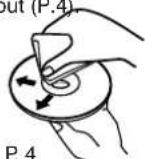
- Before playing, clean the discs with an optional cleaning cloth. Wipe each disc from the centre out (P.4).
- Do not use solvents such as benzine, thinner, commercially available cleaners, or antistatic spray intended for analog discs.
NOTES ON DISCS
If you use the discs explained below, the sticky residue can cause the CD to stop spinning and may cause malfunction or ruin your discs.
Do not use second-hand or rental CDs that have a sticky residue on the surface (for example, from peeled-off stickers or from ink, or glue leaking from under the stickers).
There are paste residue. Ink is sticky (P.5).

Do not use rental CDs with old labels that are beginning to peel off.
Stickers that are beginning to peel away, leaving a sticky residue (P.6). P. 6
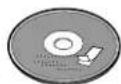
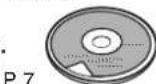
Do not use your CDs with labels or stickers attached.
Labels are attached (P.7).
P.7
Do Not Use Special Shape CDs
Be sure to use round shape CDs only for this unit and do not use any special shape CDs. Use of special shape CDs may cause the unit to malfunction.(P.8).
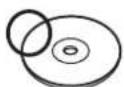
P.8

Be sure to use CDs with disc mark
CD-Rs and CD-RWs which have not undergone finalization processing cannot be played. (For more information on finalization processing, refer to the manual for your CD-R/CD-RW writing software or CD-R/CD-RW recorder.) Additionally, depending on the recording status, it may prove impossible to play certain CDs record on CD-R or CD-RW.
3. INSTALLATION
- Before finally installing the unit, connect the wiring temporarily and make sure it is all connected up properly and the unit and system work properly.
- Use only the parts included with the unit to ensure proper installation. The use of unauthorized parts can cause malfunctions.
- Consult with your nearest dealer if installation requires the drilling of holes or other modifications of the vehicle.
- Install the unit where it does not get in the driver's way and cannot injure the passenger if there is a sudden stop, like an emergency stop.
- If installation angle exceeds 30irc from horizontal, the unit might not give its optimum performance.
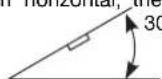
- Avoid installing the unit where it would be subject to high temperature, such as from direct sunlight, or from hot air, from heater, or where it would be subject to dust dirt or excessive vibration.
- Be sure to remove the front panel before installing the unit.
DIN FRONT/REAR-MOUNT
This unit can be property installed either from "Front" (conventional DIN Front-mount) or "Rear" (DIN Rear-mount installation, utilizing threaded screw holes at the sides of the unit chassis). For details, refer to the following illustrated installation methods A and B.
DIN FRONT-MOUNT (Method A)
Installation the unit
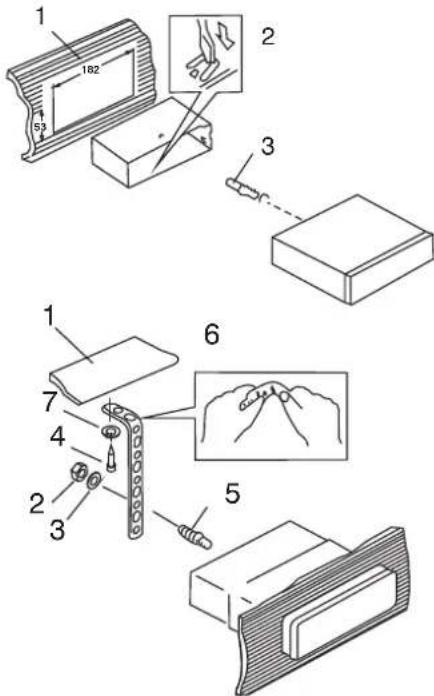
- Dashboard
- Holder
After inserting the half sleeve into the dashboard, select the appropriate tab according to the thickness of the dashboard material and bend them inwards to secure the holder in place.
-
Screw
-
Dashboard
- Nut (5mm)
- Spring washer
- Screw (4x12mm)
- Screw
- Support Strap Be sure to use the support strap to secure the back of the unit in place. The strap can be bent by hand to the desired angle.
- Plain washer
Removing the unit

a. Frame
b. Insert fingers into the groove in the front of frame and pull out to remove the frame. (When re-attaching the frame, point the side with a groove down wards and attach it.)
c. Insert the levers supplied with the unit into the grooves at both sides of the unit as shown in figure until they click. Pulling the levers makes it possible to remove the unit from the dashboard.
Trim Plate Installation:
Push the trim plate against the chassis until it is fitted.
You must do this before you install the front panel, otherwise it can't be attached.
DIN REAR-MOUNT (METHOD B)
Installation using the screw holes on the sides of the unit.
Fastening the unit to the factory radio mounting bracket.

- Select a position where the screw holes of the bracket and the screw holes of the main unit become aligned (are fitted) and tighten the screws at 2 places on each side.
- Screw
- Factory radio mounting bracket.
- Dashboard or Console
- Hook (Remove this part)
Note: the mounting box, outer trim ring, and half-sleeve are not used for method B installation.
4. DETACHABLE CONTROL PANEL (D.C.P.)
Removing The Detachable Control Panel (D.C.P.).
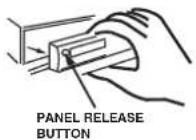
- Turn the power off
- Press the D.C.P. release button
- Remove the D.C.P.
Attaching the DCP
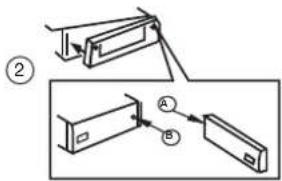
- Attach the panel at the right side first, with point B on the main unit touching point A on the D.C.P. (As shown on the digram).
- Then press the left side of D.C.P. onto the main unit until a "click" sound is heard.
CAUTION
• DO NOT insert the D.C.P from the left side. Doing so may damage it.
- The D.C.P can easily be damaged by shocks. After removing it, place it in a protective case and be careful not to drop it or subject it to strong shocks.
- When the release button is pressed and the D.C.P is unlocked, the car's vibrations may cause it to fall. To prevent damage to the D.C.P, always store it in a protective case after detaching it.
- The rear connector that connects the main unit and the D.C.P is an extremely important part. Be careful not to damage it by pressing on it with fingernails, pens, screwdrivers, etc.

Note:
If the D.C.P is dirty, wipe off the dirt with soft, dry cloth only. And use a cotton swab soaked in isopropyl alcohol to clean the socket on the back of the D.C.P.
- WIRING DIAGRAM (20 PIN HARNESS PLUG)

| PIN | WIRE COLOR | FUNCTION/LABEL |
| 1 | GREY/BLACK | RIGHT FRONT SPEAKER (-) |
| 2 | GREY | RIGHT FRONT SPEAKER (-) |
| 3 | VIOLET | RIGHT REAR SPEAKER (+) |
| 4 | VIOLET/BLACK | RIGHT REAR SPEAKER (-) |
| 5 | ||
| 6 | GREEN | LEFT REAR SPEAKER (+) |
| 7 | GREEN/BLACK | LEFT REAR SPEAKER (-) |
| 8 | RED | IGNITION/(ACC) |
| 9 | BLACK | REAR PRE-AMP LINE OUT COMMON |
| 10 | RED | RIGHT REAR PRE-AMP LINE OUT |
| PIN | WIRE COLOR | FUNCTION/LABEL |
| 11 | WHITE | LEFT FRONT SPEAKER (+) |
| 12 | WHITE/BLACK | LEFT FRONT SPEAKER (-) |
| 13 | ||
| 14 | BLUE | POWER ANTENNA |
| 15 | YELLOW | BATTERY(+) |
| 16 | BLACK | CHASSIS GROUND |
| 17 | WHITE | LEFT FRONT PRE-AMP LINE OUT |
| 18 | RED | RIGHT FRONT PRE-AMP LINE OUT |
| 19 | BLACK | FRONT PRE-AMP LINE OUT COMMON |
| 20 | WHITE | LEFT REAR PRE-AMP LINE OUT |
6. BASIC OPERATIONS
2) PANEL RELEASE BUTTON (REL)
Press this button to remove the control panel.
Press the POWER button on the front of the unit to turn on the unit. Long press the POWER button to turn Off the unit.
1) MUTE BUTTON (MUTE)
Short Press the MUTE button to mute the audio output, and "Mute" will appear on the display. Press the mute button again to restore the audio output to the previous level.
12) DISP BUTTON(DISP)
Press this button briefly, the LCD will display the clock for about 5 seconds, then return to previous display mode.
3) ENCODER VOLUME KNOB
Turn this knob to adjust desired volume level.
4) SOURCE BUTTON (SRC)
- Press this button to select different mode, sequence as follow:
A) Tuner mode (Radio)
B) CDP / MP3 (only if a CD or MP3 disc is inserted)
C) USB (only if a USB drive is inserted)
D) SD / MMC (Only if a SD or MMC card is inserted)
E) AUX IN (only if this unit with this features)
- SOURCE PRIORITY
Whenever a USB or SD/MMC is being inserted, unit will automatically switch to USB or SD/MMC mode, does not matter the unit is currently in what mode.
When in USB or SD / MMC mode, if the USB or SD / MMC is being removed, unit will automatically switch to radio mode.
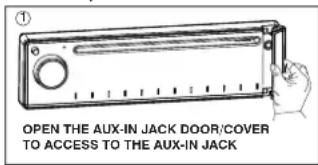
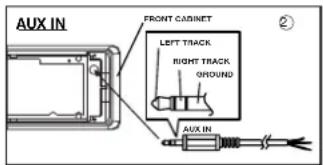
16) FRONT PANEL AUX-IN JACK
Connect the external signal to AUX in jack located at the front of the panel, then press SOURCE button to select Aux mode. Press SOURCE Button again to cancel Aux Mode and return to previous mode.
RESET BUTTON
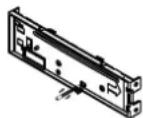
The RESET button is located on the main unit (as shown on the diagram). To press it vertically with a ballpoint pen or metal object will activate it. The reset button is to be activated for the following
reasons:
- Initial installation of the unit when all wiring is completed.
• All the function buttons do not operate. - Error symbol on the display.
Note: If press RESET button, the unit still cannot function normally, please use a cotton swab soaked in isopropyl alcohol to clean the socket on the back of the control panel.
7. MENU OPERATIONS
To use this function keep press short AUDIO/MENU Button for few seconds, each time you press this button the mode will move and the functions will shown on the display, turn the encoder volume knob up/ down to set the desires functions, the function states as following:
BASS ( Bass level )
Turn the encoder volume knob to adjust the desired Bass level range from -10 to +10, the default is "0".
TREBLE ( Treble level )
Turn the encoder volume knob to adjust the desired Treble level range from -10 to +10, the default is "0".
BALANCE
Rotate the encoder volume knob to adjust the Balance between the right and left speakers from R10 to L10, the "C00" is default.
FADER
Rotate the encoder volume knob to adjust the Fader between the front and rear speakers from F10 to R10, the "C00" is default.
TIME SET (CLK)
The time on the clock is set to "12:00" by default, Rotate the encoder volume knob to adjust the minutes and hours. Press AUDIO/MENU button to select the hour or minute.
Note: Time format can not to set up, it should be follow the tuner area to change, when is in U.S.A Latin then the time in 12H by default, when is in Europe Latin then the time in 24H by default.
Programmable Turn-on Volume (P-VOL)
This option allows selection of the volume level the radio will automatically assume when first turned on. "P - VOL 40" is the default setting, which will turn the radio on at the volume level selected when the unit was last turned off. To program a specific volume level for the radio to turn on at, rotate the volume control to select "VOLUME LEVEL". Within 5 seconds.
BEEP ON / OFF
Rotate the encoder volume knob to select Beep On / Off option.
Beep Off: disable audible beep tone when any function is accessed.
Beep On: enable audible deep tone.
Press this button to toggle the following EQ setting:
At DSP OFF mode, EQ will be controlled by Bass/Treble setting.
9) iX-BASS BUTTON
Press the iX-BASS button to switch the loudness on or off. When Loudness is on, display will show 'Loud On' for a few seconds.
8. RADIO OPERATIONS
11) STATION PRESET BUTTONS (M1-M6)
- Press these buttons briefly to recall the stored stations in the selected band.
- Presetting stations manually, Press the BAND button to select the band for the station to be preset. Use Tuning Up/Down to tune in the stations to be preset. Press the Preset button at which you want to store the station for at least 2 second. The preset number will appear on the display accompanied by a beep, this indicate that the station has been stored into memory.
14) TUNING / SEEK UP AND TUNING / SEEK DOWN BUTTONS
- Press these buttons briefly will operate AUTO SEARCH tuning mode, the radio will tune up or down to the next station and remain on the frequency.
- Press these buttons more than 2 seconds, operate as MANUAL SEARCH buttons, under this mode the tuning frequency will advance up or down rapidly when the button is pressed. If the buttons are not pressed within 3 seconds, they will return to auto search mode.
During station tuning, this button allows you prior to access strong local station only (Local mode), or to access a wider range of using distant mode (DX). When power up DX mode will be selected automatically; Press LOC button briefly to select Local mode and "LOCAL" symbol on the LCD will light up for a few seconds.
10) AUTO MEMORY STORE/PRESET SCAN BUTTON (AS/PS)
- PRESET SCAN: Press AMS button briefly enter Preset Scan mode, it will scan all the preset stations in the memories, you can hear that will stay on each station for about 5 seconds.
- AUTO MEMORY STORE: Press AMS button long to enter Auto Store mode, this feature will automatically scan the current band and enter up to 6 strongest stations into the 6 preset memories. To stop Auto Store & Scan, press the AMS button again.
Press BAND button to change between FM1, FM2, FM3 & AM/MW bands.
9. CD OPERATIONS
M1) PAUSE BUTTON (PAUSE)
Press this button to pause CD play, press again to release pause.
M2) INTRO BUTTON (INTRO)
During file play, press INTRO SCAN BUTTON (INTRO) to play the first 10 seconds to each file on the file. When the desired file is reached, press INTRO SCAN BUTTON (INTRO) again to end the scan and play the selected file.
M3) REPEAT BUTTON (REPEAT)
Press this button, the current track will be played repeatedly until this button is pressed again.
M4) RANDOM BUTTON (RANDOM)
Press RANDOM BUTTON (RANDOM) during file play to play all files in random, shuffled order. Press RANDOM BUTTON (RANDOM) again to stop random play.
15) EJECT BUTTON (△)
Press this button to eject the CD from the unit. The receiver will switches to radio mode automatically.
Press the Track Up Button to skip to the next track or previous track. Press the Track Down button during play will return to the beginning of the current track, press it one more time to skip to previous skip. Press and hold Track Up/Down Button to fast forward or fast reverse. CD player starts when you release the button.
PLEASE READ THIS INSTRUCTION CAREFULLY
natural_image
Diagram of a rectangular electronic component with a circular label 'P.1' and an arrow indicating rotation (no text or symbols on the component itself)COMPATIBILITY
Due to the fast changing technology world, this unit may or may not be compatible to all the USB drive / device available with all the future technology, especially those USB drive / device which require to install a driver. Always choose a compatible USB drive / device which is compatible with this unit.
NOTE:
This unit is not compatible with portable Hard-Disk.
START THE USB DEVICE MODE
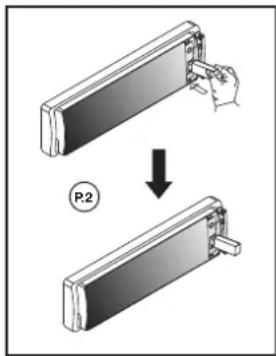
- The USB socket is covered by the USB plastic cover as indicated in picture 1 (P.1). Flip open the USB plastic cover, and the USB socket will become accessible.
- Plug in the USB drive / device completely as indicated in picture 2(P.2) and display will show "USB PLAY" to indicate that the USB drive / device is being plugged in correctly & the download has begun.
NOTE:
The unit may take a while to detect or download the USB files, detect & download time may vary depends on the type of USB drive / device.
- It does not matter what mode the unit is in, (Tuner, CD, SD/MMC, etc), once a USB drive / device is being plugged into the unit, the unit will automatically switch to USB mode.
- All the USB files playback functions are the same as normal CD or MP3 disc playback.(Please refer to section CD operations & MP3 operations)
TO STOP USB PLAYBACK
- When the USB drive / device is unplugged, the unit will automatically switch to radio mode. The user can also use the mode button to switch to other modes.
-
User can use the mode button to choose USB mode (only if USB drive / device is inserted in the unit) or any other modes, when they are in any mode.
-
USB 1.1 > 320KBPS
- FILE MANAGE: FAT12 / FAT16/ FAT 32
WARNING
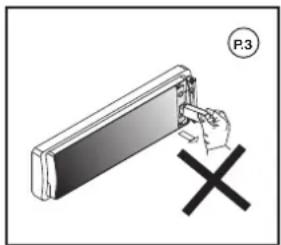
- Always unplugged the USB gently from the unit, excessive force used will cause permanent & serious damage to the unit & the USB drive / device.(P.3)
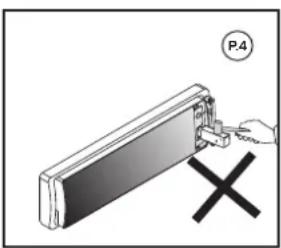
- Never intentionally or accidentally hit on the USB drive / device when it is plugged in. This will cause permanent & serious damage to the unit & USB drive / device.(P4)
- Never try to plug in any USB drive / device with excessive weight or excessive size into the unit. Always use USB drive / device with reasonable weight & size which will not overload the unit, which will not make performing normal operation on the front panel impossible. Excessive weight or size USB drive / device may cause permanent & serious damage to the unit. And may cause access to the buttons / knobs on the front panel impossible.
natural_image
Diagram showing a hand pressing a panel with a cross symbol, labeled P.4 (no text or symbols on the diagram itself)11. SD/MMC OPERATIONS
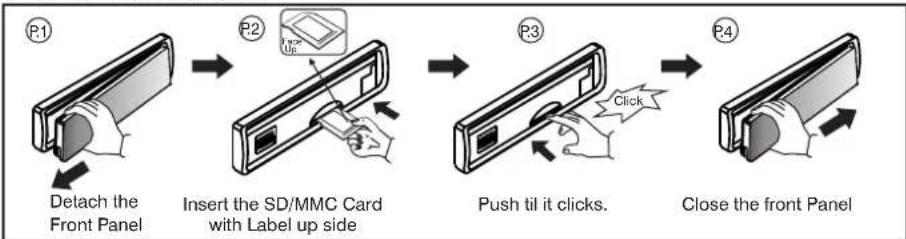
- Press panel release button to release the front panel.(P.1)
- The SD/MMC card slot is located on the unit as indicated in (P.2).
- Insert the SD/MMC card into the card slot in the correct direction until a "CLICK" sound is heard.(P.3)
- Close the front panel.(P.4)
flowchart
graph LR
    A["Detach the Front Panel"] --> B["Insert the SD/MMC Card with Label up side"]
    B --> C["Push til it clicks."]
    C --> D["Close the front Panel"]
- The display will show "SD PLAY" to indicate that the SD or MMC card is correctly inserted. Once the SD or MMC card is inserted, the MP3 file will automatically play.
- It does not matter what mode the unit is in, (Tuner, CD, USB, etc), once a SD or MMC card is being inserted in the unit, the unit will automatically switch to SD / MMC mode.
- All the SD / MMC files playback function is the same as normal CD or MP3 disc playback. (Please refer to section CD operations & MP3 operations)
TO STOP SD/MMC CARD PLAYBACK
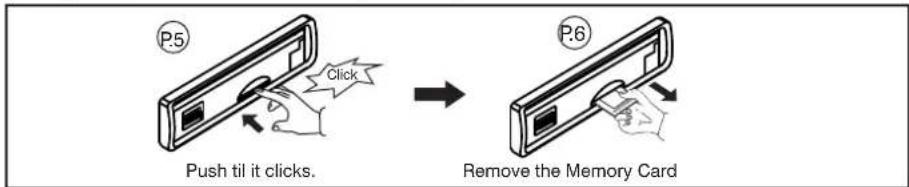
- Push on the end of the SD or MMC card to eject the sd or MMC card. Once the SD or MMC card is taken out, the unit will automatically switch to previous mode.(P.5-P.6)
2.User can use the mode button to choose SD / MMC mode (only if SD or MMC is inserted in the unit) or any other modes, when they are in any mode.
WARNING
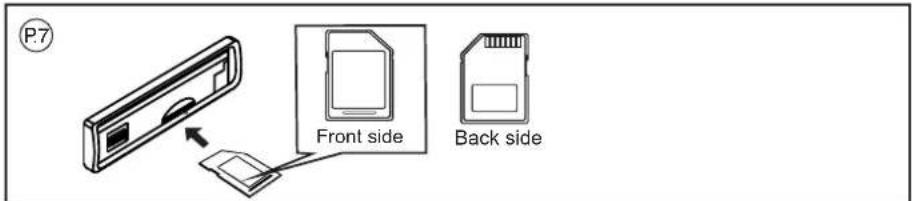
- Please make sure to insert the SD or MMC card in the correct direction / orientation as indicated in picture (P.7). Wrong insert will cause permanent & serious damage to the unit & the SD or MMC card.
- Always make sure the SD or MMC card is completely inserted before re-attaching the front panel.
12. MP3/WMA OPERATIONS(ENCODER VERSION)
Notes :
This unit support :
MPEG1/2/2.5/ Layer 2/3
WMA Version 7/8/9
Sampling frequency
- MPEG1 : 32/44.1/48 KHz
- MPEG2 :16/22.05/24 KHz
- MPEG2.5 : 8/11.025/12KHz
- WMA : 22/32/44/48KHz
Sampling But rate
- MP3/WMA : 32\~320Kbps & VBR
CDROM Mode 1 / 2
ISO9660 Level 1 / 2 & Joliet(unicode)
Max File/DIR. Count : 255
Max DIR. Depth : 255
Sorting Method : Tree sorting
Max File/DIR. Name : 64Byte
ID3 V1.0/1.1/2.0/2.3(Max 32Byte)
- An MP3 directory is shown in this manual as "Directory", and an MP3 file is shown as "Track".
- Maximum length of file name : 28 characters.
- Maximum length of directory : 16 characters.
- Supports Multi-Session recording.
- Supports CD, CDR and CDRW.
- Disc written by Packet Write (UDF) is not supported.
LOADING DISC
Insert the CD as usual, if it is an MP3 CD, the display will show "MP3 T01" then the message "READING" will appear, when disc scanning completed, the first track on the first directory will play.
NOTE: 1) ICON turns on when a MP3 disc is playing.
2) ICON is blinking when under directory/Files search mode.
NAVIGATING THROUGH DIRECTORIES AND TRACKS
NOTE: MP3 Directory / Track selection can be done by Encoder Volume Knob or Tune Up / Down Buttons Both operations will be described. But Encoder Volume Knob is available on some models only. Please skip this description if your model is not equipped with this feature.
THERE ARE FOUR WAYS TO SELECT YOUR FAVORITE TRACK / DIRECTORY
A) SEARCHING TRACK DIRECTLY
Under MP3 play mode, press MP3 MENU(AS/PS) BUTTON once, the display shows "MP3 T*", enter the desired track number directly, then press MP3 MENU(AS/PS) ENTER BUTTON to confirm.
SEARCH TRACK NUMBER BY USING ENCODER VOLUME KNOB
Rotate the ENCODER VOLUME KNOB to scroll through the numbers, then press MP3 ENTER BUTTON to confirm.
B) SEACRCHING BY DIRECTORY OR TRACK NAME
(1) SEARCH DIRECTORY / TRACK NAME BY USING TUNE UP / DOWN BUTTON
Under MP3 Play Mode, press MP3 MENU BUTTON twice, the display shows “*”, enter the character directly. The unit searches files and directories which have the same character which is inputted by the user. The unit shows these sorted files and directories by TUNE UP / DOWN Button (TUNE DOWN First). If the selected name is directory, the user can go into the selected directory by press MP3
ENTER BUTTON and continue to search the directory or file name in the directory by
TUNE UP / DOWN Button (TUNE DOWN First). The selected file can be played by pressing MP3 Enter Button
The distribution of alphabetical characters are listed as follow :
| Button | M1 | M2 | M3 | M4 | M5 | M6 | MODE | TUNE DN | TUNE UP | DISP | SEL | VOL UP/DN |
| Character | A,B,C | D,E,F | G,H,I | J,K,L | M,N,O | P,Q,R | S,T,U | V,W,X | Y,Z, Space | _,+ | Move Cursor | Next/Previous Character |
(2) SEARCH DIRECTORY / TRACK NAME BY USING ENCODER VOLUME KNOB
Under MP3 Play Mode, press MP3 MENU BUTTON twice, the display shows “*”. Rotate the ENCODER VOLUME KNOB for selecting the character. In this Encoder Search mode, SELECT button use as move cursor. Press BAND button use as MP3 CONFIRM BUTTON. The unit searches files and directories which have the same character which is inputted by the user. The unit shows these sorted files and directories by ENCODER VOLUME KNOB (ROTATE ANTI-CLOCKWISE First). If the selected name is directory, the user can go into the selected directory by press MP3 CONFIRM BUTTON and continue to search the directory or file name in the directory by ENCODER VOLUME KNOB (ROTATE ANTI-CLOCKWISE First) The selected file can be played by pressing MP3 ONFIRM BUTTON.
(C) SEARCHING FROM DIRECTORY
(1) SEARCH DIRECTORY BY USING TUNE UP / DOWN BUTTON.
Under MP3 play mode, press MP3 MENU BUTTON three times. Then the first Directory name is shown. Press TUNE UP/DOWN (TUNE DOWN FIRST) to navigate through the directory list, press MP3 ENTER BUTTON to select the desired directory. The display will show " \". To select the tracks under the selected directory, by pressing TUNE UP/DOWN Buttons (TUNE DOWN FIRST) then press MP3 ENTER BUTTON to confirm when desired track is found.
(2) SEARCH DIRECTORY BY USING ENCODER VOLUME KNOB
Under MP3 play mode, press MP3 MENU BUTTON three times, Then the first Directory name is shown. Rotate ENCODER VOLUME KNOB (ROTATE ANTI-CLOCKWISE First) to navigate through the directory list, press MP3 ENTER BUTTON to select the desired directory. The display will show " \". To select the tracks under the selected directory, by Rotate ENCODER VOLUME KNOB (ROTATE ANTI-CLOCKWISE First) then press MP3 ENTER BUTTON to confirm when desired track is found.
(D) NAVIGATING THROUGH DIRECTORY BY USING M5/M6 BUTTON
Press directory up (M6) or directory down (M5) buttons to skip the current directory forward or backward by one position. In a multi-level directories disc, the movement will take place at the current level until the last directory is reached. At this point press directory down (M5) again, it will move to the next level of directory.
ID3 TAG
Press DISPLAY button repeatedly to Display ID3 TAG information.
If the MP3 file is available with ID3 TAG, pressing the display button repeatedly will show information in the following sequence:
SONG TITLE > ARTIST > ALBUM TITLE
If any of the ID3-TAG information is not available, pressing the DISPLAY button repeatedly will show information in the following sequence:
UNKNOWN SONGNAME> UNKNOWN ARTIST> NO ALBUM TITLE
If the MP3 file is without ID3 TAG, pressing the DISPLAY button, & "NO ID3 TAG" will be displayed.
The file name & track number of the MP3 file will scroll repeatedly through the display during the playing of the MP3 file.
13. REMOTE CONTROL

OPERATIONS:
| Key | Radio Mode | CD Player Mode | MP3 Mode |
| 1. Power (0) | Power On/Off | Power On/Off | Power On/Off |
| 2. Volume Up/Down | Adjust Vol,Bas,Tre,Fad,Bal | Adjust Vol,Bas,Tre,Fad,Bal | Adjust Vol,Bas,Tre,Fad,Bal |
| 3. ID3/DISP | Display Clock | Display Clock | ID3 tag InformationDisplay Clock,Numeric key 0* |
| 4.Stereo/Mono | Stereo/FM Mono | No Function No Function | |
| 5. Tuning Up/Down | Tuning/Seek Up/Down | Track Up/Down | Track Up/Down / Numeric key 8*9* |
| 6. LOC | Local/Distant | No Function | No Function |
| 7. Scan | Station Scan | No Function | No Function |
| 8. Mute | Mute | Mute | Mute |
| 9. Audio | Select Vol, Bas, Tre, Fad, BalCLK,P-VOL,BEEP ON/OFF | Select Vol, Bas, Tre, Fad, Bal SelectCLK,P-VOL,BEEP ON/OFF | Vol, Bas, Tre, Fad, BalCLK,P-VOL,BEEP ON/OFF |
| 10. Source | Change to CD/MP3 or AUX IN | Change to Radio or AUX IN | Change to Radio or AUX IN/Numeric key 7* |
| 11. Band/Enter | Band | MP3 Enter | |
| 12. AS/PS/Menu | Auto Store/Preset Scan | No function | Menu function |
| 13. EQ | Preset EQ | Preset EQ | Preset EQ |
| 14. Numeric Key(1) | Preset station 1 | Pause | Pause |
| (2) | Preset station 2 | CD scan | CD scan |
| (3) | Preset station 3 | Repeat | Repeat |
| (4) | Preset station 4 | Shuffle | Shuffle |
| (5) | Preset station 5 | No Function | Folder Down |
| (6) | Preset station 6 | No Function | Folder Up |
14. SPECIFICATIONS
CD PLAYER
| System | Compact disc audio system |
| Usable disc | Compact disc |
| Sampling frequency | 44.1KHz |
| No of quantization bits | 1bit |
| Frequency | 5-20,000Hz |
| Number of channels | 2 stereo |
| S/N Ratio | 70dB |
RADIO SECTION
FM
| Frequency Range | 87.5-107.9MHz U.S. |
| 87.5-108MHz EURO | |
| Intermediate Frequency | 10.7 MHz |
| Usable Sensitivity | Better than 15dB at S/N 30 dB |
| Stereo Separation | 25 dB at 1KHz |
| S/N Ratio | 50 dB |
AM/MW
| Frequency Range | 530-1710KHz U.S. |
| 522-1620KHz EURO | |
| Intermediate Frequency | 450KHz |
| Usable Sensitivity | Better than 45dB |
| S/N Ratio | 40 dB |
GENERAL
| Power Supply | DC 11 -14V |
| Polarity | Negative Ground |
| Speaker impedance | 4 ohms |
| Power Output | 4x 80 Watts |
REMARK :
Specifications subject to change without notice.
15. TROUBLE SHOOTING
Before going through the check list, check wiring connection. If any of the problems persist after check list has been made, consult your nearest service dealer.
| Symptom | Cause | Solution |
| No power | The car ignition is not on. | If the power supply is properly connected to the car accessory terminal, switch the ignition key to “ACC” |
| The fuse is blown. | Replace the fuse. | |
| Disc cannot be loaded or ejected | Presence of CD disc inside the player. | Remove the disc in the player, then put a new one. |
| Inserting the disc in reverse direction. | Insert the compact disc with the label facing upward. | |
| Compact disc is extremely dirty or defective disc. | Clean the disc or try to play a new one. | |
| Temperature inside the car is too high. | Cool off or until the ambient temperature returns to normal. | |
| Condensation. | Leave the player to off for an hour or so, then try again. | |
| No sound | Volume is in minimum. | Adjust volume to a desired level. |
| Wiring is not properly connected. | Check wiring connection. | |
| The operation keys do not work | The built-in microcomputer is not operating properly due to noise. | Press the RESET button.Front panel is not properly fixed into its place |
| Sound skips. | The installation angle is more than 30 degrees. | Adjust the installation angle to less than 30 degrees. |
| The disc is extremely dirt or defective disc. | Clean the compact disc. Then try to play a new one. | |
| The radio does not work.The radio station automatic selection does not work. | The antenna cable is not connected. | Insert the antenna cable firmly. |
| The signals are too weak. | Select a station manually. | |
| ERROR 1 | Mechanism Error | Press the reset button if the error code does not disappear, consult your nearest service dealer. |
| ERROR 2 | Servo Error | Press the reset button if the error code does not disappear, consult your nearest service dealer. |
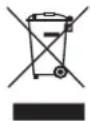
If at any time in the future you should need to dispose of this product please note that Waste electrical products should not be disposed of with household waste. Please recycle where facilities exist. Check with your Local Authority or retailer for recycling advice.(Waste Electrical and Electronic Equipment Directive)
- HANDLING COMPACT DISCS
- MOISTURE CONDENSATION
- NOTES ON CDs
- NOTES ON DISCS
- Do Not Use Special Shape CDs
- INSTALLATION
- DIN FRONT/REAR-MOUNT
- DIN FRONT-MOUNT (Method A)
- Installation the unit
- Removing the unit
- Trim Plate Installation:
- DIN REAR-MOUNT (METHOD B)
- DETACHABLE CONTROL PANEL (D.C.P.)
- Attaching the DCP
- CAUTION
- Note:
- BASIC OPERATIONS
- 2) PANEL RELEASE BUTTON (REL)
- 1) MUTE BUTTON (MUTE)
- 12) DISP BUTTON(DISP)
- 3) ENCODER VOLUME KNOB
- 4) SOURCE BUTTON (SRC)
- - SOURCE PRIORITY
- 16) FRONT PANEL AUX-IN JACK
- RESET BUTTON
- MENU OPERATIONS
- BASS ( Bass level )
- TREBLE ( Treble level )
- BALANCE
- FADER
- TIME SET (CLK)
- Programmable Turn-on Volume (P-VOL)
- BEEP ON / OFF
- 9) iX-BASS BUTTON
- RADIO OPERATIONS
- 11) STATION PRESET BUTTONS (M1-M6)
- 14) TUNING / SEEK UP AND TUNING / SEEK DOWN BUTTONS
- 10) AUTO MEMORY STORE/PRESET SCAN BUTTON (AS/PS)
- CD OPERATIONS
- M1) PAUSE BUTTON (PAUSE)
- M2) INTRO BUTTON (INTRO)
- M3) REPEAT BUTTON (REPEAT)
- M4) RANDOM BUTTON (RANDOM)
- 15) EJECT BUTTON (△)
- PLEASE READ THIS INSTRUCTION CAREFULLY
- COMPATIBILITY
- START THE USB DEVICE MODE
- TO STOP USB PLAYBACK
- WARNING
- SD/MMC OPERATIONS
- TO STOP SD/MMC CARD PLAYBACK
- MP3/WMA OPERATIONS(ENCODER VERSION)
- Notes :
- LOADING DISC
- NAVIGATING THROUGH DIRECTORIES AND TRACKS
- THERE ARE FOUR WAYS TO SELECT YOUR FAVORITE TRACK / DIRECTORY
- A) SEARCHING TRACK DIRECTLY
- B) SEACRCHING BY DIRECTORY OR TRACK NAME
- SEARCHING FROM DIRECTORY
- NAVIGATING THROUGH DIRECTORY BY USING M5/M6 BUTTON
- ID3 TAG
- REMOTE CONTROL
- SPECIFICATIONS
- TROUBLE SHOOTING
Brand : BOSS
Model : MR1520UA
Category : Car Radio