
PT1985P - Screen Planar - Free user manual and instructions
Find the device manual for free PT1985P Planar in PDF.


| Product Type | LCD Monitor |
| Brand | Planar |
| Model | PT1985P |
| Screen Size | 19 inches |
| Resolution | 1280 x 1024 (SXGA) |
| Aspect Ratio | 5:4 |
| Contrast Ratio | 1000:1 (typical) |
| Brightness | 250 cd/m² |
| Response Time | 5 ms |
| Viewing Angle | 170° / 160° (H/V) |
| Video Inputs | VGA (D-Sub), DVI-D |
| Power Consumption | 30W (typical), <1W (standby) |
| Power Supply | 100-240VAC, 50/60Hz |
| Dimensions (WxHxD) | 17.5 x 14.6 x 7.5 inches (with stand) |
| Weight | 12.5 lbs (with stand) |
| VESA Mount | 100 x 100 mm |
| Tilt | -5° to +20° |
| Security | Kensington lock slot |
| Cleaning | Use a soft, dry cloth. Do not use harsh chemicals. |
| Repairability | Contact Planar support or authorized service center. |
Frequently Asked Questions - PT1985P Planar
User questions about PT1985P Planar
0 question about this device. Answer the ones you know or ask your own.
Ask a new question about this device
Download the instructions for your Screen in PDF format for free! Find your manual PT1985P - Planar and take your electronic device back in hand. On this page are published all the documents necessary for the use of your device. PT1985P by Planar.
USER MANUAL PT1985P Planar
Touch Screen LCD Monitors
USER'S GUIDE
www.planartouch.com
The information contained in this document is subject to change without notice.
This document contains proprietary information that is protected by copyright. All rights are reserved. No part of this document may be reproduced, translated to another language or stored in a retrieval system, or transmitted by any means, electronic,
mechanical, photocopying, recording, or otherwise, without prior written permission.
Windows is a registered trademark of Microsoft, Inc.
Other brand or product names are trademarks of their respective holders.
Important Recycle Instructions:

Lamp(s) inside this product contains mercury. This product may contain other electronic waste that can be hazardous if not disposed of properly. Recycle or dispose in accordance with local, state, or federal Laws. For more information, contact the Electronic Industries Alliance at WWW.EIAE.ORG. For lamp specific disposal information check WWW.LAMPRECYCLE.ORG.
For more information on how to recycle your product, please visit
WWW.PLANARSYSTEMS.COM/GREEN.
Table of Contents
Usage Notice ....3
Precautions ....3
Introduction ....4
About PT1957R / PT1911MX / PT1975S / PT1985P ....4
Touch Screen for PT1975R....5
Touch Screen for PT1911MX 5
Touch Screen for PT1975S....5
Touch Screen for PT1985P....6
Package Overview 7
Installation 8
Product Overview....8
Front View....8
PT1975R / PT1911MX / PT1975S Bottom View....8
PT1985P Bottom View....8
Start Your Installation 9
Connecting the Display (Figure 12.1).... 11
Kensington Security Slot 13
VESA Mount your monitor....14
Remove the Deskstand....15
User Controls ....16
Side Panel Controls .... 16
How to Use the OSD Menus 17
On-Screen Display Menus....19
Appendix....20
Troubleshooting ....20
Warning Signal....21
No Signal....21
Going to Sleep....21
Out of Range 21
Product Dimensions....22
Compatibility Modes....24
Touch Screen Driver Installation....25
Product Registration and Technical Support 31
Usage Notice

Warning- To prevent the risk of fire or shock hazards, do not expose this product to rain or moisture.

Warning- Please do not open or disassemble the product as this may cause electric shock.
Precautions
Follow all warnings, precautions and maintenance as recommended in this user's manual to maximize the life of your unit.
Do:
□Turn off the product before cleaning.
☐ Touch screen surface may be cleaned using a soft clean cloth moistened with mild window glass commercial cleaners or 50/50 mixture of water and isopropyl alcohol.
□Use a soft cloth moistened with mild detergent to clean the display housing.
□Use only high quality and safety approved AC/DC adapter.
☐ Disconnect the power plug from AC outlet if the product is not going to be used for an extended period of time.
Don't:
☐Do not touch the LCD Display screen surface with sharp or hard objects.
☐Do not use abrasive cleaners, waxes or solvents for your cleaning.
☐Do not operate the product under the following conditions:
- Extremely hot, cold or humid environment.
- Areas susceptible to excessive dust and dirt.
- Near any appliance generating a strong magnetic field.
- In direct sunlight.
Introduction
About PT1975R / PT1911MX / PT1975S / PT1985P
The PT1975R / PT1911MX / PT1975S / PT1985P is a 19" flat panel screen with an active matrix, thin-film transistor (TFT) liquid crystal display (LCD).
Features include:
□Direct Analog signal input
□Direct Digital signal input
□Active matrix TFT LCD technology
□1280x1024 SXGA resolution
☐19" viewable display area
☐31.47 \~ 80 kHz horizontal scan
□56 \~ 75 Hz high refresh rate
□0.294mm x 0.294mm Pixel pitch
□Auto adjustment function
□Multilingual OSD user controls
□VESA DPMS power saving
□Kensington security slot
☐75 mm / 100 mm VESA mount
□Built-in speakers-1W X 2
☐Removable base for flexible mounting solutions.
☐PT1975R – 5-wire resistive touch screen with dual RS-232 Serial/USB controller
☐PT1911MX – Capacitive touch screen with dual RS-232 Serial/USB controller
☐PT1975S – SAW touch screen with dual RS-232 Serial/USB controller
☐PT1985P – Projected capacitive touch screen with USB controller
Touch Screen for PT1975R
☐5-wire resistive touch screen for finger and stylus input
□Surface: Anti-glare treatment
□Interface: Dual RS-232 Serial/USB controller
□Durability: 35 million touches at a single point
□Hardness of surface: 3H Typical
☐Operating force: 40g\~200g when using a silicon rubber tipped pen with a 1 mm diameter minimum and a hardness of 60 degree.
□Transmittance: 82%±5%
☐Driver: Windows ^® 7, VISTA, XP, 2000, ME, 98, NT4.0, CE, XP Embedded, Linux, Apple ^® Mac OS
Touch Screen for PT1911MX
□Capacitive touch screen for finger input
Surface: Anti-glare treatment
□Interface: Dual RS-232 Serial/USB controller
☐Durability: 225 million touches at a single point
□Hardness of surface: Mohs' Hardness rating of 7
□Transmittance: 85%±5%
☐Driver: Windows ^® 7, VISTA, XP, 2000, ME, 98, NT4.0, CE, XP Embedded, Linux, Apple ^® Mac OS
Touch Screen for PT1975S
□Surface Acoustic Wave (SAW) touch screen for finger and stylus input
□Surface: Anti-glare treatment
□Interface: Dual RS-232 Serial/USB controller
☐Durability: 50 million touches at a single point
□Hardness of surface: Mohs' Hardness rating of 7
☐Operating force: Typically less than 85 g
□Transmittance: 92%±5%
☐Driver: Windows ^® 7, VISTA, XP, 2000, ME, 98, NT4.0, CE, XP Embedded, Linux, Apple ^® Mac OS
Touch Screen for PT1985P
□Project capacitive touch screen for finger input only
□Surface: Glare treatment
□Interface: USB controller
□Transmittance: 90%±5%
□Driver: Windows ^® 7, VISTA 64/32 bits, XP, 2000, XP Embedded Express, Linux, Apple ^® Mac OS
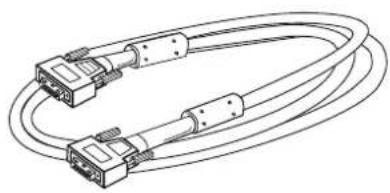
Package Overview
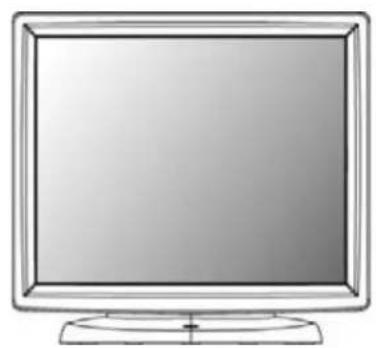
natural_image
Illustration of a flat-screen computer monitor with a stand (no text or symbols)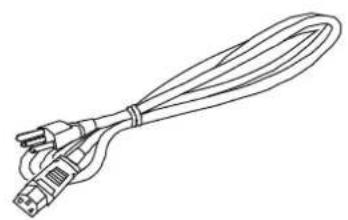
natural_image
Line drawing of a cable with two connectors and a connector pin (no text or symbols)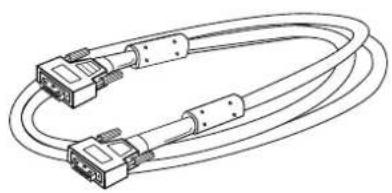
natural_image
Line drawing of two connected USB connectors with multiple leads (no text or symbols)LCD Display Power Cord VGA Signal Cable
natural_image
Line drawing of two coaxial connectors with connecting wires (no text or symbols)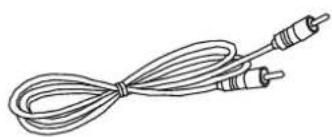
natural_image
Line drawing of a coiled cable with two terminal leads (no text or symbols)DVI Signal Cable Audio-in Cable

natural_image
Line drawing of two connected 320V I/O connectors (no text or symbols)RS-232 Cable
(PT1975R/PT1911MX/PT1975S only)
natural_image
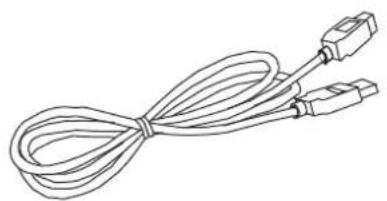
Line drawing of a coiled cable with two connectors (no text or symbols)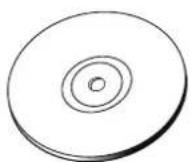

User's Guide
USB Cable - Type A to B Touch Screen Driver Installation CD-ROM
natural_image
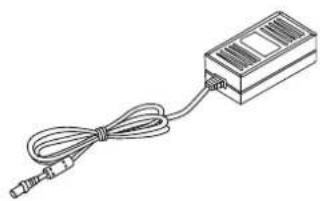
Line drawing of a rectangular electronic device with a coiled cable and connector (no text or symbols)Landing Strip DC Power Supply (sold separately)
natural_image
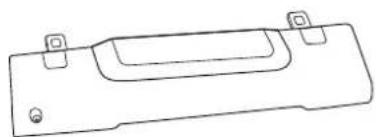
Simple line drawing of a rectangular electronic component with two mounting holes (no text or symbols)Cable Cover

Screw
Installation
Product Overview
▶ Front View
natural_image
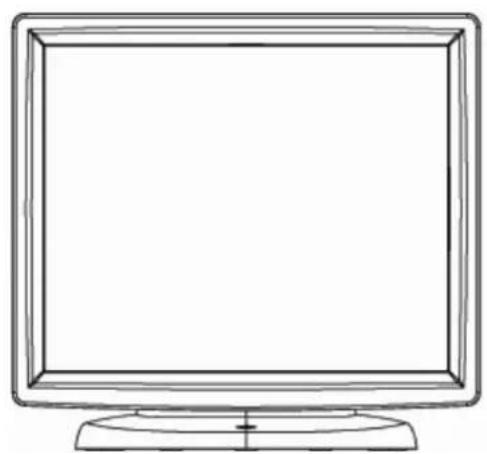
Line drawing of a flat-screen computer monitor with blank screen (no text or symbols)PT1975R/PT1911MX/PT1975S
natural_image
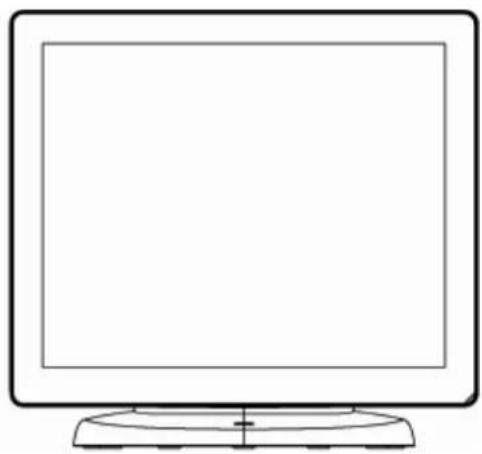
Line drawing of a flat-screen computer monitor with a stand (no text or symbols)PT1985P
PT1975R/PT1911MX/PT1975S Bottom View (Without Stand)
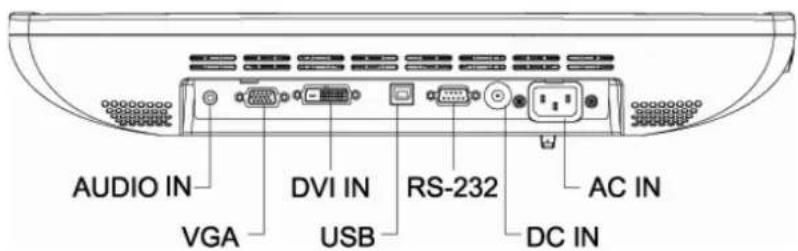
▶ PT1985P Bottom View (Without Stand)
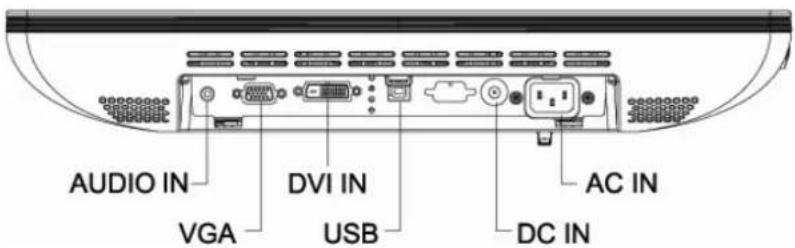
Start Your Installation
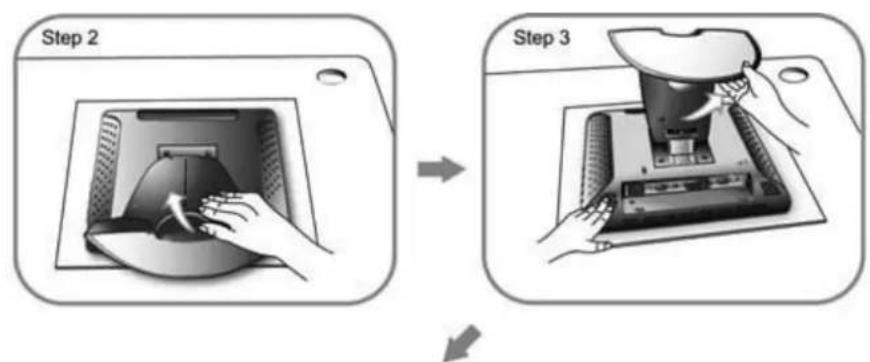
- Lay the LCD flat on an even surface.
- Remove the stand back cover by pulling in the direction of the arrow as seen in step 2 diagram.
- Move the stand into position as seen in step 3 diagram.
- Connect the cables to the appropriate connectors as seen in Step 4 diagram. Use step 4-1 or 4-2 diagram if using the RS-232 serial connector. Use step 4-3 diagram if using the USB connector.
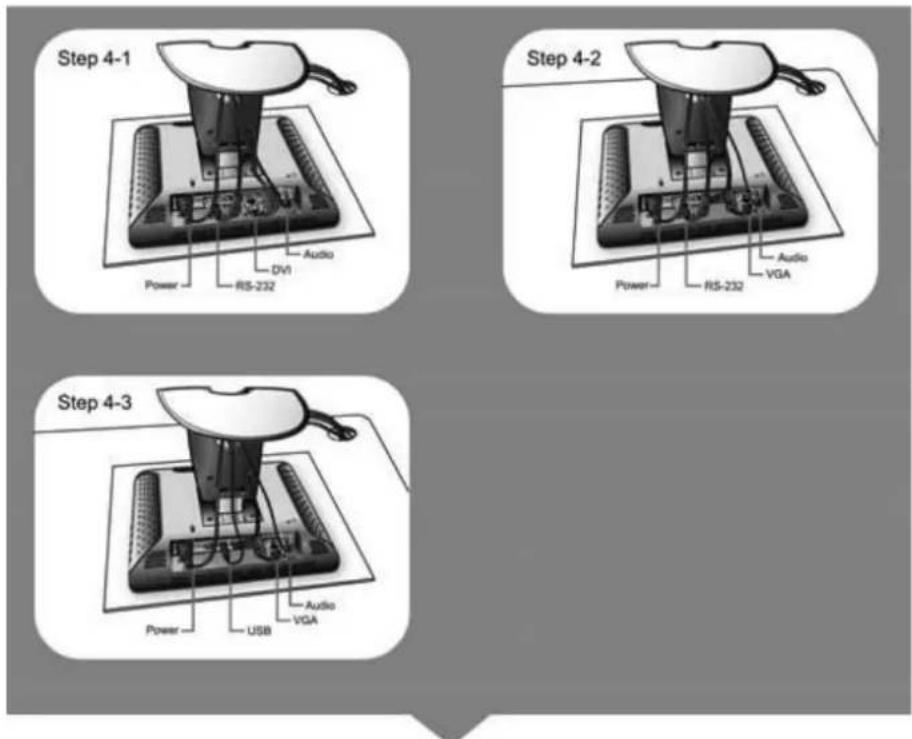
- Take the optional cable cover and screw from the accessory box. Position all cables under the cover lip as seen in the step 5 diagram.
- Using a Philips Head screwdriver, insert the screw (CBM M3x6) into the cable cover and monitor as seen in the step 6 diagram.
- Re-attach the stand back cover to the LCD stand by pressing firmly until the tabs snap into place as seen in the step 7 diagram. You may also keep the cables in order by using the cable organizer.
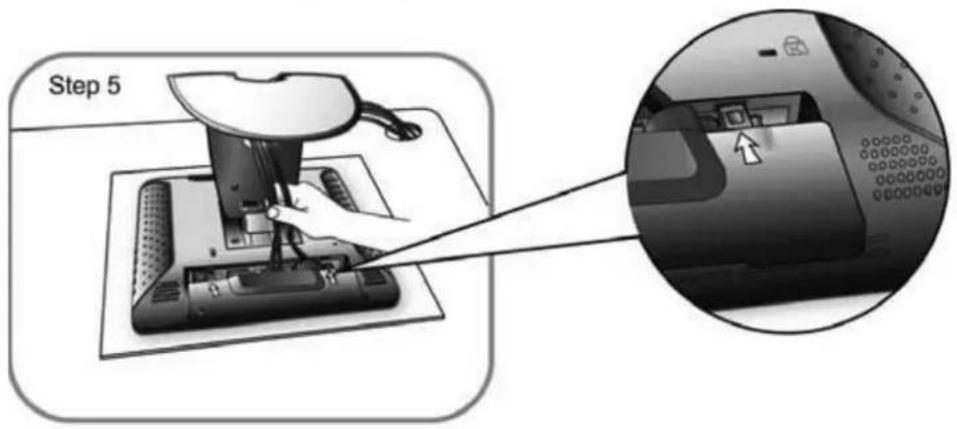
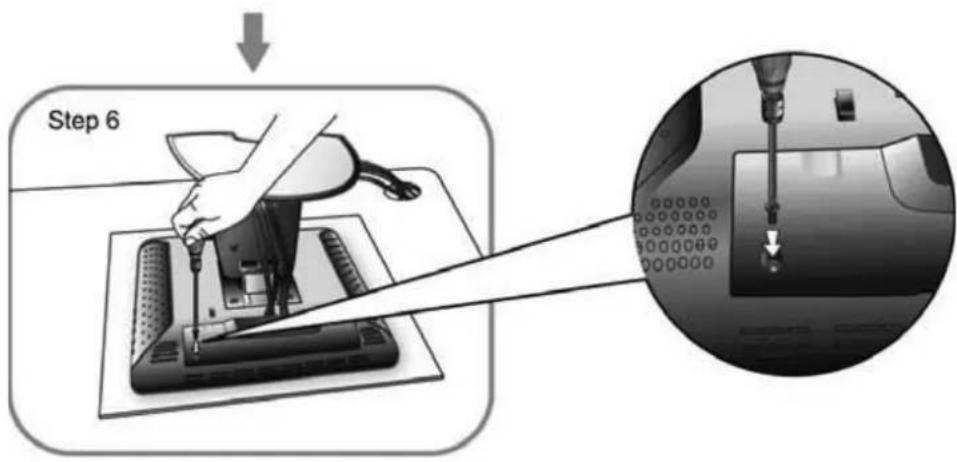
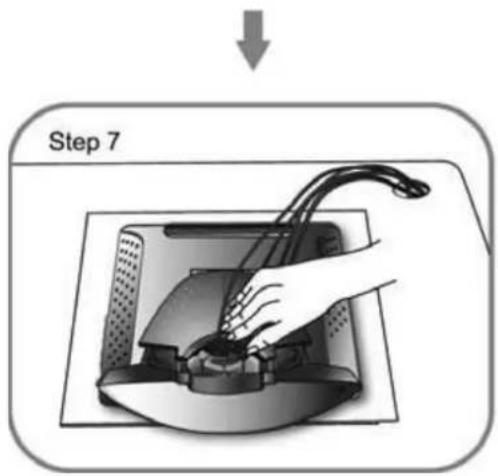
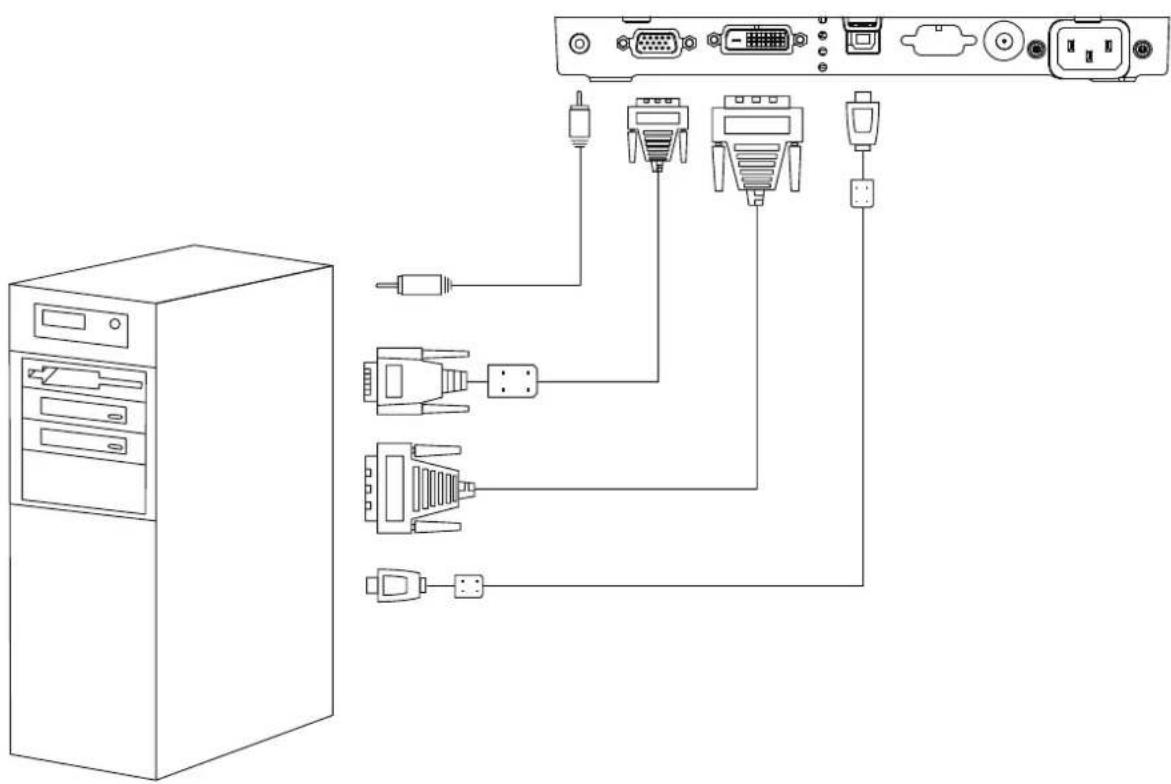
Connecting the Display (Figure 12.1)
To setup this display, please refer to the following figure and procedures.
- Be sure all equipment is turned off.
- Connect the AC power cord to the power connector on the monitor and the other end into an electrical outlet (12.1).
- Connect the D-SUB or DVI cable from the display's VGA or DVI input connector to the D-SUB or DVI connector of your host computer and tighten the screws (12.1).
- Connect the Audio-In cable from the audio input port of your display to the Audio-out port of your computer (12.1).
- Connect the RS-232 or USB cable from the RS-232 or USB port of your display to the RS-232 port or USB port (12.1) of your computer.
- Configure the touch screen. Refer to the "Touch Screen Driver Installation" section on page 25.
- Once the touch screen is configured, the monitor is ready for use.

Notice!
To ensure the LCD display works well with your computer, please configure the display mode of your graphics card to make it less than or equal to 1280 x1024 resolution and make sure the timing of the display mode is compatible with the LCD display.
We have listed the compatible "Video Modes" of your LCD display in the appendix for your reference.
(Figure 12.1)
▶ PT1975R/PT1911MX/PT1975S
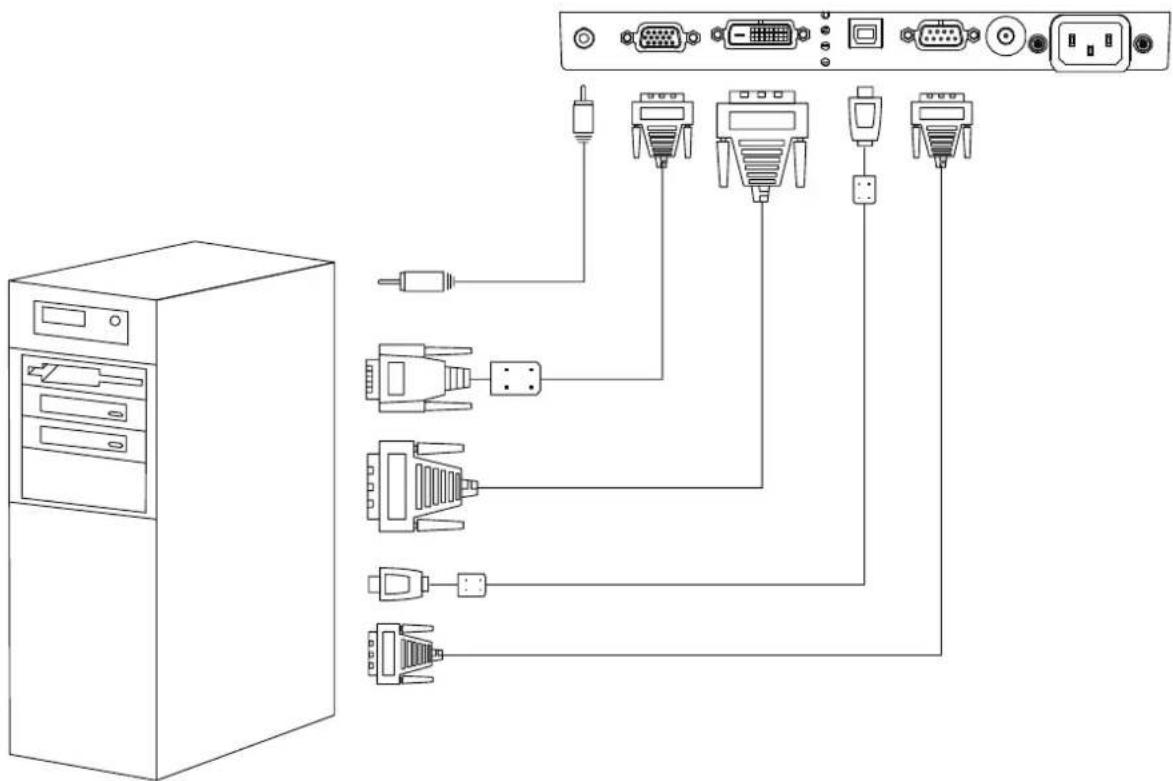
PT1985P
natural_image
Line drawing of a desktop computer tower connected to an external network interface (no text or symbols present)Kensington Security Slot
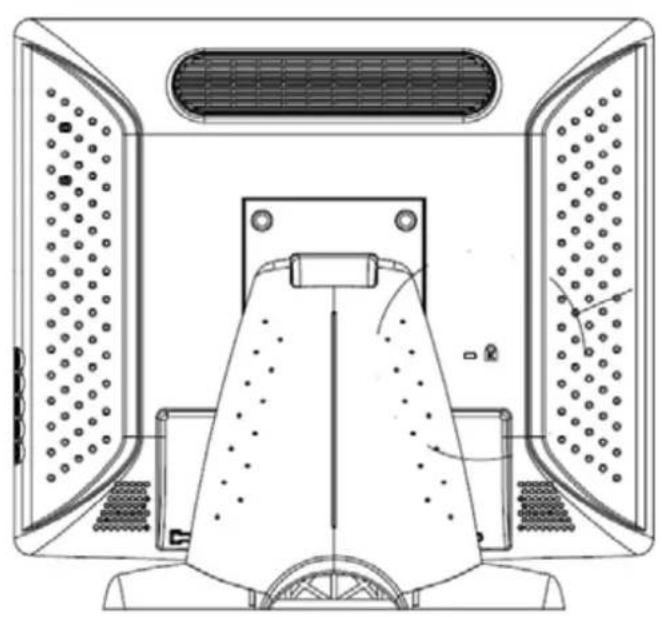
The monitor can be secured to your desk or any other fixed object with Kensington lock security products. The Kensington lock is not included.
natural_image
Technical line drawing of a mechanical device with internal components and no visible text or symbols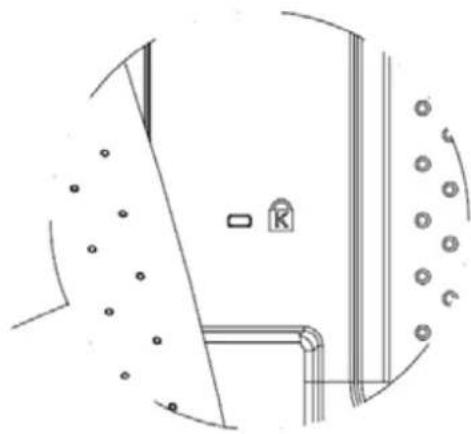
natural_image
Pure technical line drawing of a mechanical or architectural component without any text, numbers, or symbolsKensington Security Slot
VESA Mount Your Monitor
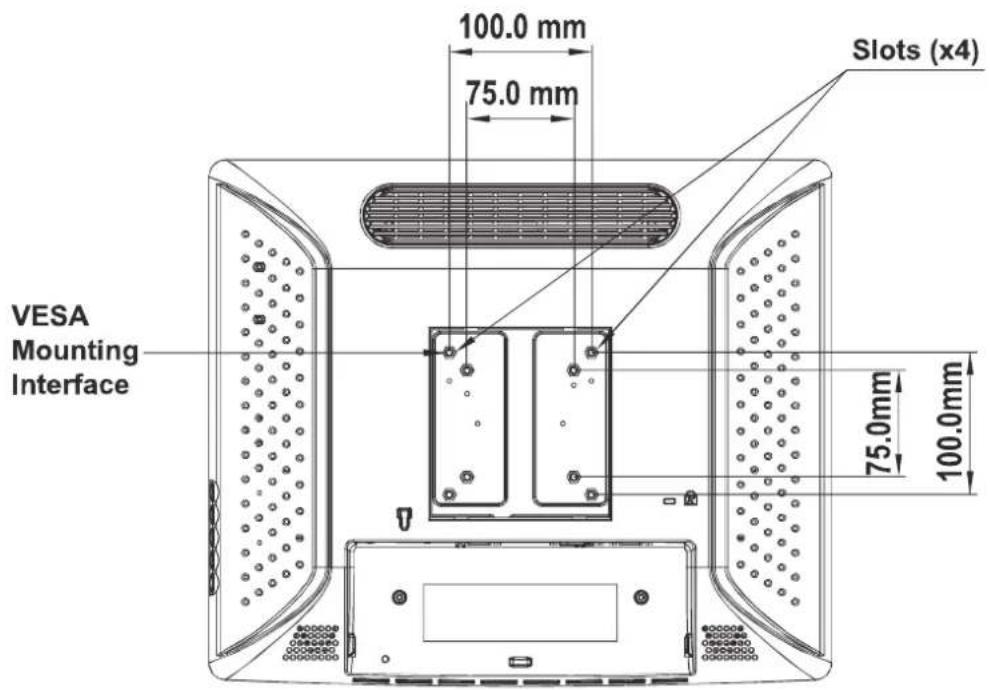
This monitor conforms to the VESA Flat Panel Mounting Physical Mounting Interface standard which defines a physical mounting interface for flat panel monitors, and corresponding with the standards of flat panel monitor mounting devices, such as wall and table arms. The VESA mounting interface is located on the back of your monitor.
To mount the monitor on a UL certified swing arm or other mounting fixture, follow the instructions included with the mounting fixture to be used.

Warning!
Please select the proper screws!
The distance between the back cover surface and the bottom of the screw hole is 8 mm. Please use four M4 screws diameter with proper length to mount your monitor.
Please note: the mounting stand must be able to support at least 15.4 lbs (7Kg).
Remove the Deskstand
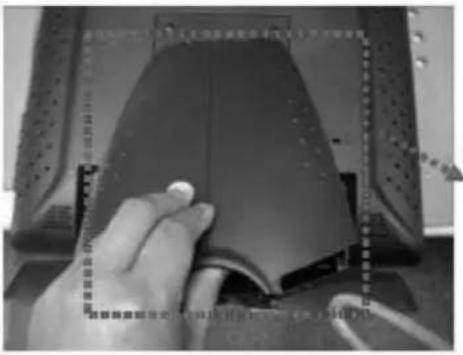 | 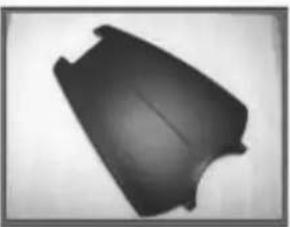 | 1. Remove stand back cover. |
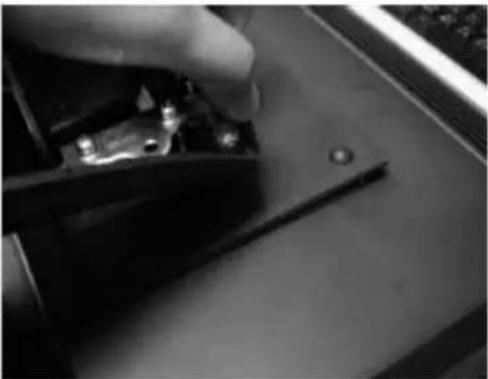 | 2. Remove hinge cover | |
 | 3. Remove 4 screws and then remove hinge. |
User Controls
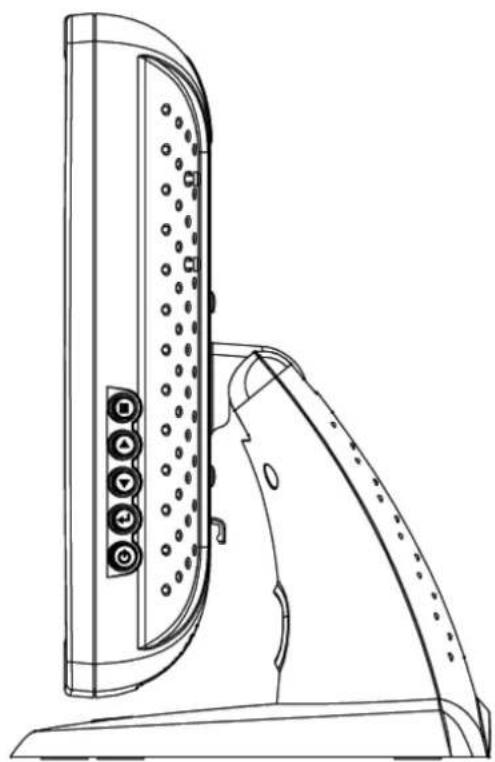
Side Panel Controls
natural_image
Line drawing of a mechanical device with multiple ports and a curved handle (no text or symbols)| Icon | key Name |
| Menu | |
| Up | |
| Down | |
| Enter | |
| Power |
| Key\OSD | Menu off status | Menu on status |
| ≡ | Menu appear | Menu disappear / return to main item |
| ▲ | Brightness | Main item select up / Adjust up |
| ▼ | Mute | Main item select down / Adjust down |
| ← | Enter / Select sub-item function | |
| ∅ | Power On / Off | |
How to Use the OSD Menus
-
Press the "MENU" button to pop up the "on-screen menu" and press "Up" or "Down" button to select among the six functions in the main menu.
-
Choose the adjustment items by pressing the "Enter" button.
-
Adjust the value of the adjustment items by pressing the "Up" or "Down" button.
-
With the OSD menu on screen, press "Menu" button to return main menu or exit OSD.
-
The OSD menu will automatically close, if you have left it idle for a pre-set time.
-
To Lock the OSD / Power menu buttons, please follow the instructions below.
(Please note: the monitor has to be turned ON with a valid signal pre-set)
(a.) Press “Menu” key, the OSD menu will pops upon display. (b.) Press and hold the “Menu” key again with the OSD menu on the screen, the OSD menu will disappear. Then press the “Power” key 1 time while the menu key is still being pressed. The “Lock/Unlock” menu will appear for 3 seconds.
(c.) Use the "Enter" key to select OSD or Power setting then set at "Lock" by pushing the "UP" or "Down" button.
(d.) When the "UP" or "Down" button is released, the previous setting will be saved and exit the "Lock/Unlock" menu automatically.
- To Unlock the OSD / Power menu buttons, please follow the instructions below.
(Please note: the monitor has to be turned ON with a valid signal pre-set)
(a.) Press and hold the "Menu" key then press the "Power" key simultaneously, the "Lock/Unlock" menu will appear for 3 seconds.
(b.) Use the "Enter" key to select OSD or Power setting then set at "Unlock" by pushing the "UP" or "Down" button.
(c.) When the "UP" or "Down" button is released, the previous setting
will be saved and exit the "Lock/Unlock" menu automatically.
Please note:
a. When the OSD Lock function is selected, this indicates that all the buttons except "power" button are now disabled.
b. When the Power Lock function is selected, this indicates that the power key is disabled; user can not to turn off the monitor by "Power" key.
On-Screen Display Menus
Main OSD Menu:
| ITEM | CONTENT |
| Contrast The monitor luminance level control. | |
| Brightness The monitor backlight level control. | |
| Auto Adjust Fine-tune the image to full screen automatically. | |
| Left/Right Moving screen image horizontal position to left or right. | |
| Up/Down Moving screen image vertical position to up or down. | |
| Horizontal size The screen image horizontal dot clock adjustment. | |
| Fine The screen image pixel phase adjustment. | |
| OSD Left/Right Moving OSD menu horizontal position to left or right. | |
| OSD Up/Down Moving OSD menu vertical position to up or down. | |
| OSD Time out OSD auto-disappear time selection. | |
| OSD Language | OSD menu language selection. ( English, French, Japanese, Deutsch, Spanish, Italian, Traditional Chinese and Simplified Chinese) |
| Factory Reset Factory default value restored. | |
| RGB | Color temperature selection. (9300K, 6500K, 5500K, 7500K, User) |
| Volume | Audio volume adjustment. |
| Mute | Audio On/Off control. |
Appendix
Troubleshooting
If you are experiencing trouble with the LCD display, refer to the following. If the problem persists, please contact your local dealer or our service center.
Problem: No image appears on screen.
▶ Check that all the I/O and power connectors are correctly and well connected as described in the “Installation” section.
Make sure the pins of the connectors are not crooked or broken.
Problem: Partial Image or incorrectly displayed image.
▶ Check to see if the resolution of your computer is higher than that of the LCD display.
▶ Reconfigure the resolution of your computer to make it less than or equal to 1280 x 1024.
Problem: Image has vertical flickering line bars.
▶ Use "Fine" to make an adjustment.
▶ Check and reconfigure the display mode of the vertical refresh rate of your graphic card to make it compatible with the LCD display.
Problem: Image is unstable and flickering
▶ Use "Horizontal size" to make an adjustment.
Problem: Image is scrolling
▶ Check and make sure the VGA signal cable (or adapter) is securely connected.
▶ Check and reconfigure the display mode of the vertical refresh rate of your graphics card to make it compatible with the LCD display.
Problem: Vague image (characters and graphics)
▶ Use "Fine" to make an adjustment. If this problem still exists, use "Horizontal size" to make an adjustment.
Warning Signal
If you see warning messages on your LCD screen, this means that the LCD display cannot receive a clean signal from the computer graphics card.
Below are the three kinds of Warning Signal. Please check the cable connections or contact your local dealer or our service center for more information.
No Signal
This message means that the LCD display has been powered on but it cannot receive any signal from the computer graphics card. Check all the power switches, power cables, and VGA signal cable.
Going to Sleep
The LCD display is under the power saving mode. In addition, the LCD display will enter power saving mode when experiencing a sudden signal disconnecting problem.
The monitor can be activated by pressing any keyboard, triggering the mouse or touching the screen.
Out of Range
This message means that the signal of the computer graphic card is not compatible with the LCD display. When the signal is not included in the "Video Modes" list we have listed in the Appendices of this manual, the LCD monitor will display this message.
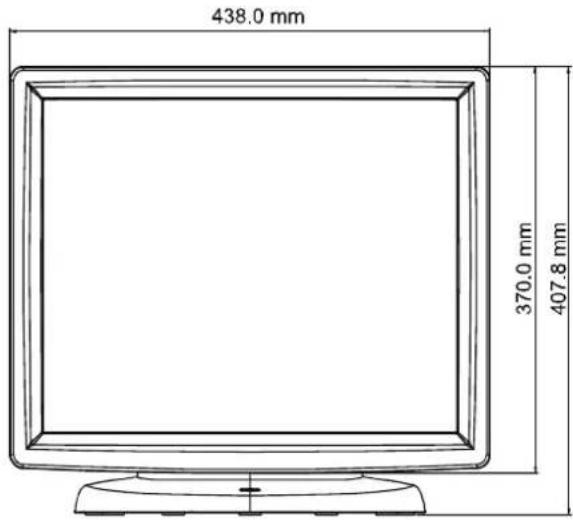
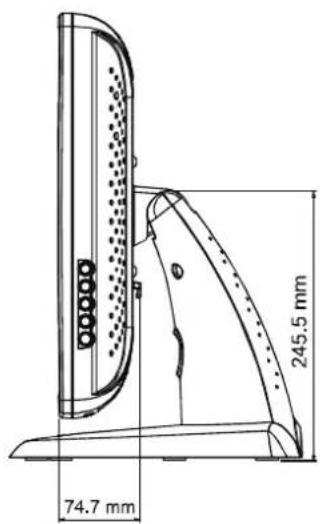
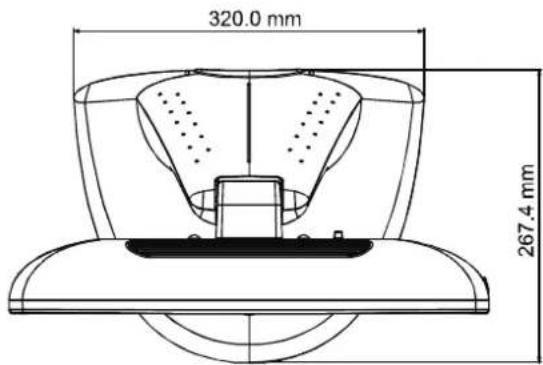
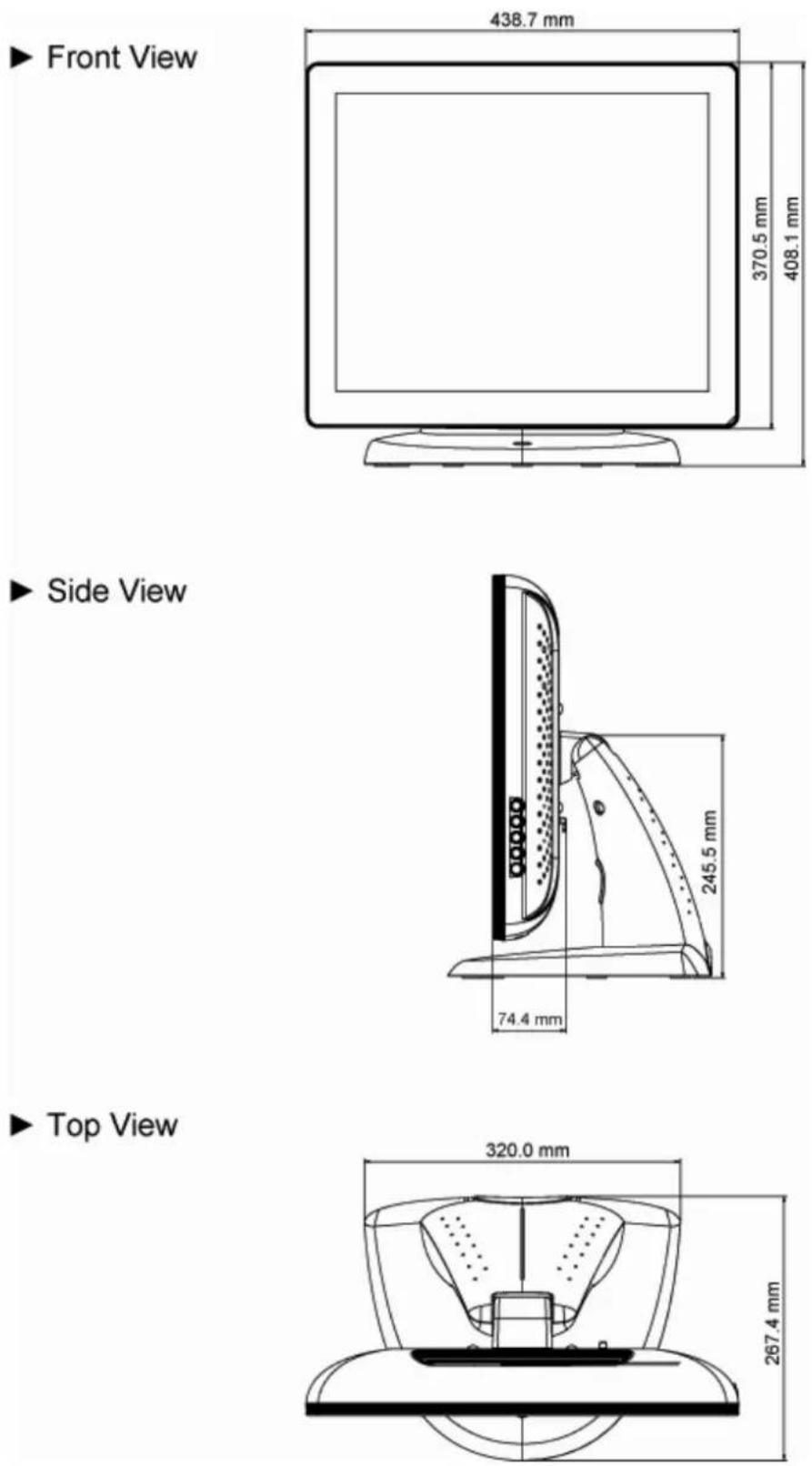
Product Dimensions
PT1975R/PT1911MX/PT1975S
▶ Front View
▶ Side View
▶ Top View
PT1985P
Compatibility Modes
| Mode | Resolution | H. Frequency (kHz) | V. Frequency (Hz) |
| IBM VGA | 720 x 400 | 31.47 | 70 |
| IBM VGA | 640 x 480 | 31.47 | 60 |
| VESA VGA 640 x | 480 37.86 72 | ||
| VESA VGA 640 x | 480 37.50 75 | ||
| VESA SVGA 800 x | 600 35.16 56 | ||
| VESA SVGA 800 x | 600 | 37.88 60 | |
| VESA SVGA 800 x | 600 | 48.08 72 | |
| VESA SVGA 800 x | 600 | 46.88 75 | |
| VESA XGA 1024 x | 768 48.36 60 | ||
| VESA XGA 1024 x | 768 | 56.48 70 | |
| VESA XGA 1024 x | 768 | 60.02 75 | |
| VESA SXGA 1280 | X1024 | 64.00 60 | |
| VESA SXGA 1280 | X1024 | 80.00 75 | |
| VESA SXGA 1280 | X960 60.00 60 | ||
| VESA SXGA 1152 | X864 67.50 75 | ||
| Apple Mac II 640 | x 480 35.00 67 | ||
| Apple Mac | 832 x 624 49.72 75 |
Touch Screen Driver Installation
The PT1975R/PT1911MX/PT1975S is available with both RS232 and USB connections. The touch driver is located on the enclosed CD-ROM for these operating systems: Windows ^® 7, VISTA 64/32 bits, XP, 2000, ME, 98, NT4.0, CE, XP Embedded, Linux, Apple ^® Mac OS.
The PT1985P is available with USB connection. The touch driver is located on the enclosed CD-ROM for these operating systems: Windows ^ 7, VISTA 64/32 bits, XP, 2000, XP Embedded (Express only), Linux, Apple ^ Mac OS.
Please Note:
- The PT1975R/PT1911MX/PT1975S/PT1985P is Microsoft® Windows® HID (Human Interface Device) compatible if you use the USB touch screen interface. No additional software driver is required for general operation of the touch screen.
- For PT1985P, the system requires 15 seconds for Windows 7 to install/uninstall the touch driver while turning power on/off or plugging/unplugging USB cable.
PT1975R/PT1911MX/PT1975S Optional Calibration Tool Install:
If you would like to use the Optional Calibration Tool, follow the instructions below. Please note: the calibration tool supports Windows ^® 7, VISTA, XP, XP Embedded, 2000, 98 and ME operating systems via USB only.
- Open the CD-ROM.
- Select the monitor size and then model name.
- Click on the "Load Utility" button that appears to the right of the model name.
- The HID calibration tool will automatically open. From here the user can choose to do the following:
a. 4 Points Calibration
b. 9 Points Linearization
c. 25 Points Linearization
d. Clear
e. Draw Test
f. Advanced. In the Advanced settings area the user may do the following:
i. Adjust the Double Click Area.
ii. Enable auto right click and adjust the auto right click time.
iii. Choose to be either in the HID Mouse Mode or HID Digitizer Mode (Windows® Vista and Windows® 7).
iv. Simply click the "Apply" button once the settings are finalized.
PT1985P Calibration Instructions:
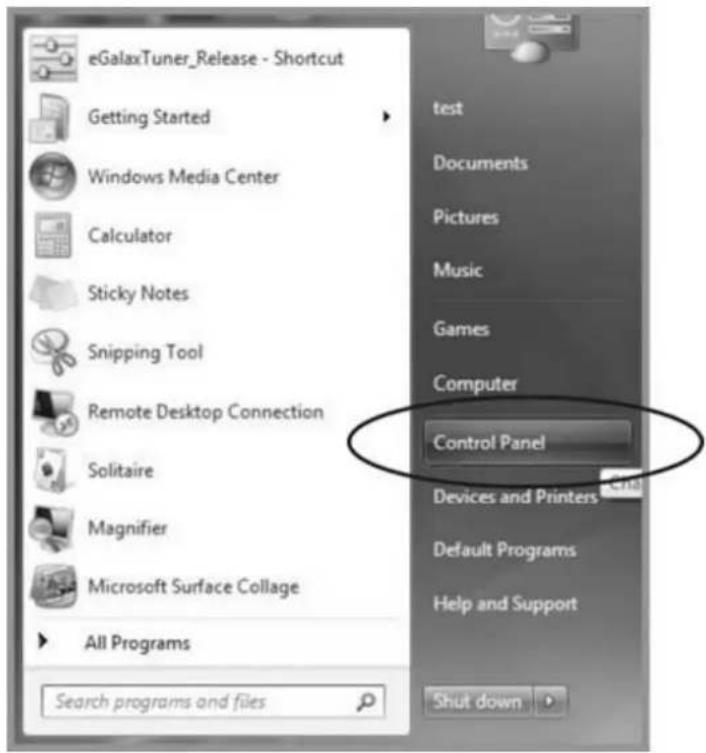
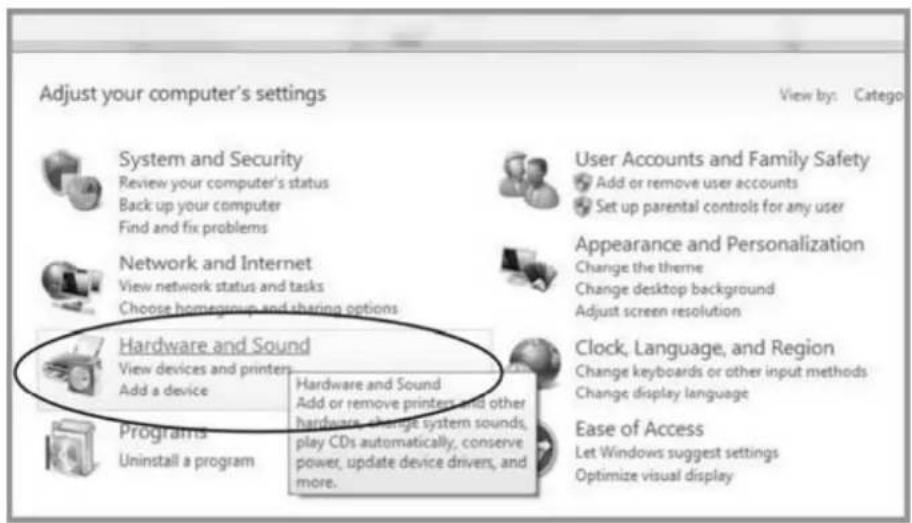
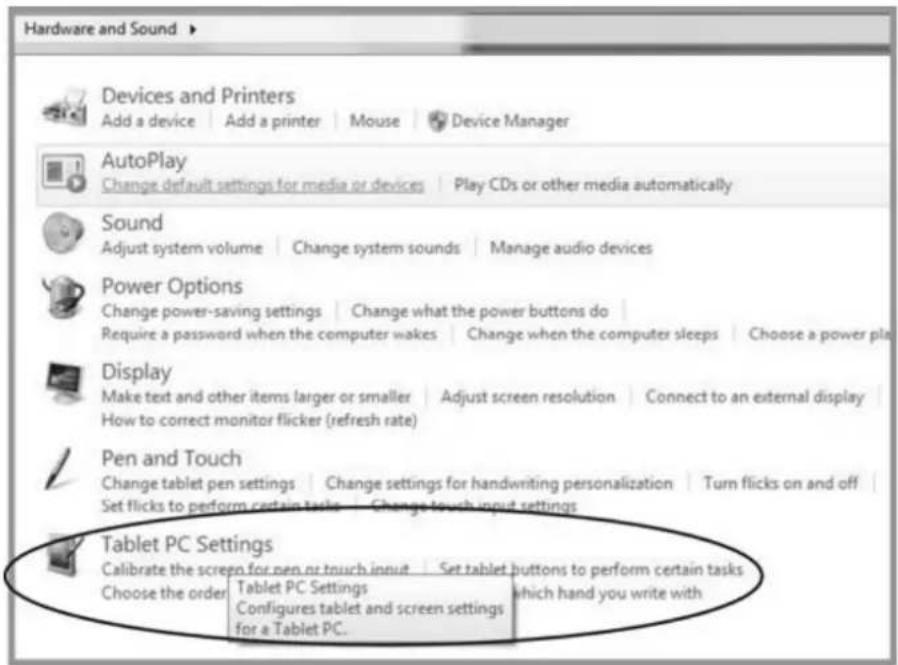
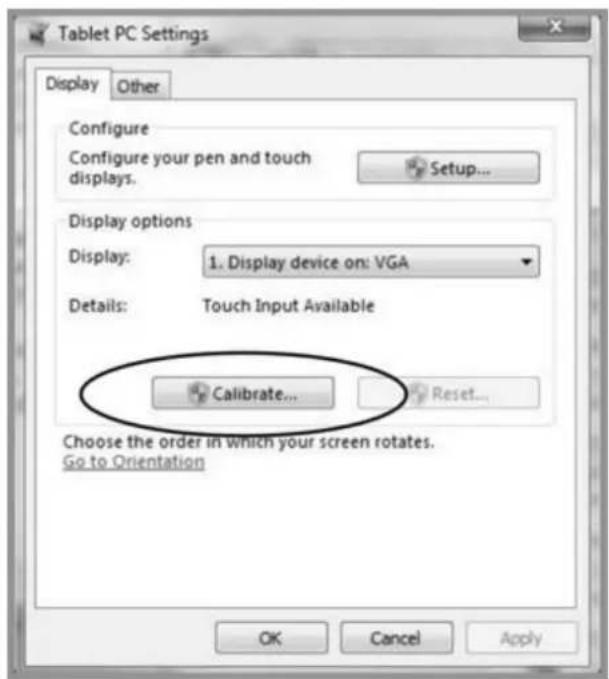
Calibrating the touch screen in Windows 7:
- Tap the Start button, Control Panel and then Hardware and Sound.
- Under Tablet PC Settings, tap Calibrate the screen for pen or touch input.
- On the Display tab, under Display options, tap Calibrate and then Yes to allow the program to make changes.
- Follow the on-screen instructions to calibrate the touch screen.
PT1975R/PT1911MX/PT1975S/PT1985P Install Instructions:
If you are using a PC running Windows ^® 7, VISTA, XP, 2000, ME, 98, NT4.0, follow the instructions below:
- Power on the PC.
- Be sure the USB or the RS-232 Serial cable is connected from the PC to the LCD display.
- Open the CD-ROM.
- Follow the step-by-step instructions as shown on the pop-up windows.
If you are using a PC running Windows® XP Embedded, follow the instructions below:
Express:
- Power on the computer.
- Make sure that the RS232 or USB cable is connected to the computer.
- Be sure that your EWF is disabled. If your EWF is enabled, please disable the EWF by using the EWF Manager command.
- Once the EWF is disabled click on the XP driver on the CD-ROM and follow the step-by-step instructions as shown on the pop-up windows.
Custom (PT1985P excluded):
- Power on the computer.
- Make sure that the RS232 or USB cable is connected to the computer.
- Follow the step-by-step instructions found in the zipped file on the CD-ROM.
If you are using a PC running Windows® CE, follow the instructions below (PT1985P excluded):
- Power on the computer.
- Make sure that the RS232 or USB cable is connected to the computer.
- Using Platform Builder, build an image file by following the step-by-step instructions found in the zipped file on the CD-ROM.
If you are using a PC running Linux or Apple® Mac OS, follow the instructions below:
- Power on the computer.
- Make sure that the RS232 or USB cable is connected to the computer.
- Follow the step-by-step instructions found in the zipped file on the CD-ROM.
When changing the Touch Interface (RS-232 or USB), please follow instructions below.
- Uninstall the touch driver.
- Re-start the computer.
- Remove the original Touch Interface (RS-232 or USB).
- Connect the computer to the Touch Interface (RS-232 or USB) that you would like to use.
- Load the Touch Driver CD, then follow the step-by-step instructions as show on monitor.
PLEASE NOTE!
Don't plug in both the RS-232 and USB cables!
Doing so may cause a driver conflict, making your touch screen inoperable.
Product Registration and Technical Support
Register Your Planar Products Today
Thank you for choosing Planar. To assure you receive all the benefits of your Planar product and services, register your Planar product today. Visit our website to register your product at
http://www.planar.com/support/product_registration.html.
Cables, Replacement Lamps, Accessories
To find cables, replacement lamps and accessories for your Planar projector, LCD monitor, touch screen or other Planar products visit our online store at www.PlanarOnline.com or find other stores who carry Planar products at http://www.planar.com/howtobuy.
Technical Support
Visit Planar at http://www.planar.com/support for product registration, operations manuals, touch screen drivers, warranty information and access to Planar's Technical Library for online troubleshooting.
To speak with Planar Customer Support please have you model and serial number available and dial:
Planar Support
Tel: 1-866-PLANAR1 (866-752-6271) or +1 503-748-5799 outside the US.
Hours: 24 hours a day, 7 days a week.
Toll or long distance charges may apply.
Planar Systems, Inc.
Customer Service
24x7 Online Technical Support: http://www.planar.com/support
1195 NW Compton Drive
Beaverton, OR 97006-1992
Tel: 1-866-PLANAR1 (866-752-6271) or +1 503-748-5799 outside the United States.
Hours: 24 hours a day, 7 days a week
© 2011 Planar Systems, Inc. 3/11 Planar is a registered trademark of Planar Systems, Inc.
Other brands and names are the property of their respective owners.
Technical information in this document is subject to change without notice.
020-0699-00 Rev G
820490045104
- Table of Contents
- Usage Notice ....3
- Introduction ....4
- Installation 8
- User Controls ....16
- Appendix....20
- Usage Notice
- Precautions
- Do:
- Don't:
- Introduction
- About PT1975R / PT1911MX / PT1975S / PT1985P
- Features include:
- Touch Screen for PT1975R
- Touch Screen for PT1911MX
- Touch Screen for PT1975S
- Touch Screen for PT1985P
- Package Overview
- Installation
- Product Overview
- Start Your Installation
- Connecting the Display (Figure 12.1)
- Notice!
- Kensington Security Slot
- VESA Mount Your Monitor
- Warning!
- Remove the Deskstand
- User Controls
- Side Panel Controls
- How to Use the OSD Menus
- Please note:
- On-Screen Display Menus
- Appendix
- Troubleshooting
- Problem: No image appears on screen.
- Problem: Partial Image or incorrectly displayed image.
- Problem: Image has vertical flickering line bars.
- Problem: Image is unstable and flickering
- Problem: Image is scrolling
- Problem: Vague image (characters and graphics)
- Warning Signal
- No Signal
- Going to Sleep
- Out of Range
- Product Dimensions
- PT1975R/PT1911MX/PT1975S
- PT1985P
- Touch Screen Driver Installation
- PT1975R/PT1911MX/PT1975S Optional Calibration Tool Install:
- PT1985P Calibration Instructions:
- PT1975R/PT1911MX/PT1975S/PT1985P Install Instructions:
- Express:
- Custom (PT1985P excluded):
- If you are using a PC running Linux or Apple® Mac OS, follow the instructions below:
- When changing the Touch Interface (RS-232 or USB), please follow instructions below.
- PLEASE NOTE!
- Product Registration and Technical Support
- Register Your Planar Products Today
- Cables, Replacement Lamps, Accessories
- Technical Support
- Planar Support
- Planar Systems, Inc.
Brand : Planar
Model : PT1985P
Category : Screen