TAB-2M - Uncategorized Oben - Free user manual and instructions
Find the device manual for free TAB-2M Oben in PDF.


| Product Type | Tablet |
| Brand | Oben |
| Model | TAB-2M |
| Display Size | 7 inches |
| Display Resolution | 1024 x 600 pixels |
| Processor | Quad-core 1.3 GHz |
| RAM | 1 GB |
| Internal Storage | 8 GB |
| Expandable Storage | microSD up to 32 GB |
| Operating System | Android 6.0 Marshmallow |
| Battery Capacity | 3000 mAh |
| Charging Port | Micro USB |
| Wi-Fi | 802.11 b/g/n |
| Bluetooth | 4.0 |
| Rear Camera | 2 MP |
| Front Camera | 0.3 MP |
| Dimensions (W x D x H) | 191 x 110 x 10 mm |
| Weight | 320 g |
| Care Instructions | Wipe with a soft, dry cloth; avoid liquids |
| Safety Warning | Do not expose to water or extreme temperatures |
Frequently Asked Questions - TAB-2M Oben
User questions about TAB-2M Oben
0 question about this device. Answer the ones you know or ask your own.
Ask a new question about this device
Download the instructions for your Uncategorized in PDF format for free! Find your manual TAB-2M - Oben and take your electronic device back in hand. On this page are published all the documents necessary for the use of your device. TAB-2M by Oben.
USER MANUAL TAB-2M Oben
Tripod Accessory Bar
natural_image
Mechanical assembly diagram showing a shaft with flanges and bearings (no text or symbols visible)You're on steady ground®
Thank you for choosing Oben.
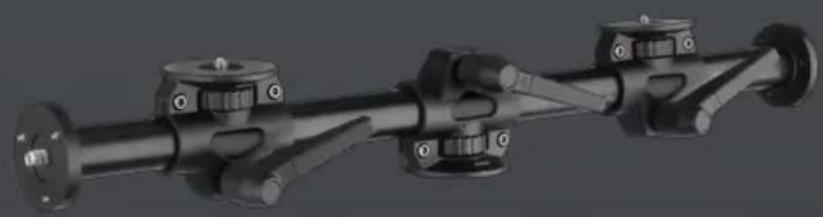
Oben's two-mount (TAB-2M) and four-mount (TAB-4M) accessory bars turn any tripod into a customizable workstation. They add a sturdy aluminum bar with additional mounting points for accessories such as a camera, light, monitor, microphone, or laptop computer. The sturdy 23-inch-long, 30 mm aluminum tube features heavy-duty mounts that are all outfitted with set screws to securely hold your accessories.
The accessory bar features two side mounts with 3/8-16 threads that are compatible with most tripod heads and arms. The TAB-4M adds two adjustable top mounts with 1/4-20 threads and included bushings for compatibility with most cameras and tripod accessories.
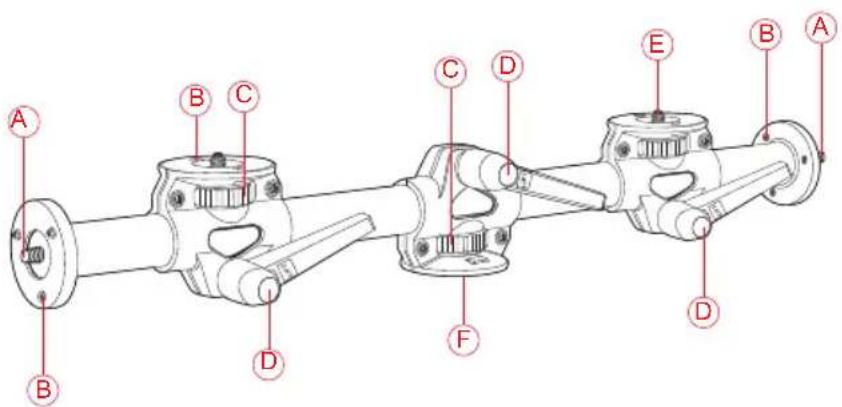
Overview (TAB-4M Shown)
A Side mounts (3/8-16 thread)
B Set screws
© Thumbscrews
D Locking handles
E Top mounts (1/4-20 thread, TAB-4M only)
F Tripod mount socket (3/8-16 thread)
G Hex key
H 1/4-20 to 3/8-16 bushings (TAB-4M only)

Operation
Mount the Accessory Bar to the Tripod
Align the tripod's 3/8-16 threaded post with the accessory bar's socket, and tighten with the thumbscrew until secure.
For increased stability: If the tripod has a set screw, tighten it until it's snug, but don't overtighten it.
Adjusting the Tripod Mount and Top Mounts
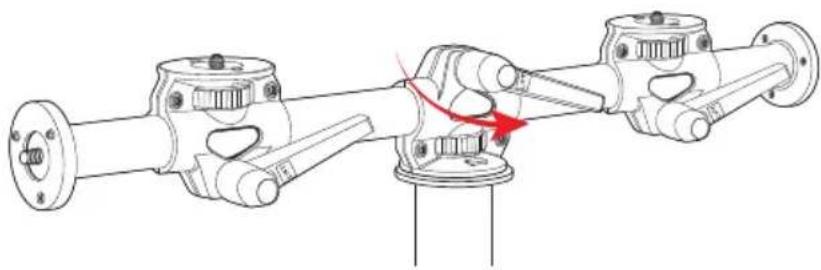
- To adjust the position of the tripod and top mounts, loosen the locking handle by turning it counterclockwise.
- Move the tripod or top mount to the desired position, and tighten the locking handle by turning it clockwise.
natural_image
Mechanical assembly diagram showing two connected shafts with a red arrow indicating a turning point (no text or symbols present)Note: If the handle is obstructed and won't turn a full 360°, pull the handle out to reposition it. Release the handle so it reengages, and continue to turn.
Important! Before attaching any accessories or cameras to the bar, make sure the locking handles have been sufficiently tightened and the accessory bar is secure before proceeding.
Mounting Accessories to the Bar
Side Mounts
- Screw an accessory, such as a head, onto the side mount until secure.
- Use the hex key to tighten the three set screws until snug. Don't overtighten the set screws.
Top Mounts (TAB-4M only)
The top mounts have 1/4-20 threaded posts. If an accessory, such as a head, has a 3/8-16 threaded socket, screw one of the included reducer bushings into the socket, and tighten it with a flat screwdriver or coin.
To attach accessories to the top mounts:
- Align the accessory's socket with the top mount, and tighten with the thumbscrew until secure.
- Use the hex key to tighten the two set screws until snug. Don't overtighten the set screws.
Five-Year Limited Warranty
This Oben product is warranted to the original purchaser to be free from defects in materials and workmanship under normal consumer use for a period of five (5) year from the original purchase date or thirty (30) days after replacement, whichever occurs later. The warranty provider's responsibility with respect to this limited warranty shall be limited solely to repair or replacement, at the provider's discretion, of any product that fails during normal use of this product in its intended manner and in its intended environment. Inoperability of the product or part(s) shall be determined by the warranty provider. If the product has been discontinued, the warranty provider reserves the right to replace it with a model of equivalent quality and function.
This warranty does not cover damage or defect caused by misuse, neglect, accident, alteration, abuse, improper installation or maintenance. EXCEPT AS PROVIDED HEREIN, THE WARRANTY PROVIDER MAKES NEITHER ANY EXPRESS WARRANTIES NOR ANY IMPLIED WARRANTIES, INCLUDING BUT NOT LIMITED TO ANY IMPLIED WARRANTY OF MERCHANTABILITY OR FITNESS FOR A PARTICULAR PURPOSE. This warranty provides you with specific legal rights, and you may also have additional rights that vary from state to state.
To obtain warranty coverage, contact the Oben Customer Service Department to obtain a return merchandise authorization ("RMA") number, and return the defective product to Oben along with the RMA number and proof of purchase. Shipment of the defective product is at the purchaser's own risk and expense.
For more information or to arrange service, visit www.ObenSupports.com or call Customer Service at 212-594-2353.

OBEN ^* A Gradus Group Brand
Product warranty provided by the Gradus Group.
www.gradusgroup.com
Oben is a registered trademark of the Gradus Group.
© 2019 Gradus Group LLC. All Rights Reserved.
GG1
Brand : Oben
Model : TAB-2M
Category : Uncategorized