MC-WU8601W - Video projector HITACHI - Free user manual and instructions
Find the device manual for free MC-WU8601W HITACHI in PDF.


| Product Type | Video Projector |
| Brand | Hitachi |
| Model | MC-WU8601W |
| Display Technology | 3LCD |
| Native Resolution | WUXGA (1920 x 1200) |
| Brightness | 8600 ANSI Lumens |
| Contrast Ratio | 10000:1 |
| Lamp Type | UHP |
| Lamp Life (Normal/Eco) | 4000h / 6000h |
| Lens Shift (Vertical/Horizontal) | V: ±50%, H: ±10% |
| Zoom Ratio | 1.8x (Motorized) |
| Dimensions (W x H x D) | 530 x 200 x 470 mm |
| Weight | 18.5 kg |
| Power Consumption | 650W (Standby: 0.5W) |
| Noise Level (Normal/Eco) | 38 dB / 32 dB |
| Inputs | HDMI, DVI-D, VGA, Composite, S-Video, RS-232C, LAN |
| Network Control | Ethernet (RJ-45), RS-232C |
| Filter Cleaning Interval | Every 500 hours (depending on environment) |
| Safety Features | Auto power off, key lock, password protection |
| Warranty | 3 years (lamp: 1 year) |
| Repairability | Lamp and filter user-replaceable; lens module serviceable |
Frequently Asked Questions - MC-WU8601W HITACHI
User questions about MC-WU8601W HITACHI
0 question about this device. Answer the ones you know or ask your own.
Ask a new question about this device
Download the instructions for your Video projector in PDF format for free! Find your manual MC-WU8601W - HITACHI and take your electronic device back in hand. On this page are published all the documents necessary for the use of your device. MC-WU8601W by HITACHI.
USER MANUAL MC-WU8601W HITACHI
Thank you for purchasing this projector.
This is the basic manual on the product. Visit our website to get the detailed manuals and the latest information on the product. Check them before using the product, for safe use and utilization of the product.
Our website: See the attached sheet.
⚠ WARNING ▶ Before using this product, be sure to read all manuals for this product. After reading them, store them in a safe place for future reference.
▶Heed all the warnings and cautions in the manuals or on the product.
▶ Follow all the instructions in the manuals or on the product.
NOTE • In this manual, unless any comments are accompanied, “the manuals” means all the documents provided with this product, and “the product” means this projector and all the accessories came with the projector.
Contents

First of all....2
Entries and graphical symbols explanation .....2
Important safety instruction ....2
Regulatory notices 3
About Electro-Magnetic Interference ....3
Disposal of Old Equipment and Batteries Only for European Union and countries with recycling systems ....4
Contents of package.... 4
Installing the lens unit 5
Preparing for the remote control ..... 5
Arrangement......6
Connecting with your devices ..... 9
Fastening the adapter cover......10
Attaching the terminal cover 11

Connecting power supply 12
Turning on the power 13
Adjusting the projector's elevator ..... 14
Adjusting the lens position 14
Displaying the picture 15
Turning off the power 16
Replacing the lamp 17
Cleaning and replacing the air filter .. 19
Installing or replacing the internal clock battery.... 21
Specifications 22
Troubleshooting - Warranty and after-service ...... 24
First of all
Entries and graphical symbols explanation
The following entries and graphical symbols are used for the manuals and the product as follows, for safety purpose. Please know their meanings beforehand, and heed them.
⚠ WARNING This entry warns of a risk of serious personal injury or even death.
⚠️CAUTION This entry warns of a risk of personal injury or physical damage.
NOTICE This entry notices of fear of causing trouble.
Important safety instruction
The followings are important instructions for safely using the product. Be sure to follow them always when handling the product. The manufacturer assumes no responsibility for any damage caused by mishandling that is beyond normal usage defined in these manuals of this projector.
⚠ WARNING ▶ Never use the product in or after an abnormality (ex. giving off smoke, smelling strange, took a liquid or an object inside, broken, etc.) If an abnormality should occur, unplug the projector urgently.
▶ Situate the product away from children and pets.
▶ Keep small parts away from children and pets. If swallowed, consult a physician immediately for emergency treatment.
▶ Do not use the product when there is fear of a thunderbolt.
▶ Unplug the projector from the power outlet if the projector is not used for the time being.
▶ Do not connect the projector to a power supply while no lens unit is attached to it.
▶ Do not open or remove any portion of the product, unless the manuals direct it. For internal maintenance, leave it to your dealer or their service personnel.
▶ Use only the accessories specified or recommended by the manufacturer.
▶ Do not modify the projector or accessories.
▶ Do not let any things or any liquids enter to the inside of the product.
▶ Do not wet the product.
▶ Do not place the projector where any oils, such as cooking or machine oil, are used. Oil may harm the product, resulting in malfunction, or falling from the mounted position. Do not use adhesive such as threadlocker, lubricant and so on.
▶ Do not apply a shock or pressure to this product.
- Do not place the product on an unstable place such as the uneven surface or the leaned table.
- Do not place the product unstably. Place the projector so that it does not protrude from the surface where the projector is placed on.
- Place your hands on the grip on the bottom of the projector when carrying the projector.
- Remove all the attachments including the power cord and cables, from the projector when carrying the projector.
▶ Do not look into the lens and the openings on the projector, while the lamp is on, since the projection ray may cause a trouble on your eyes.
▶ Do not approach the lamp cover and the exhaust vents, while the projection lamp is on. Also after the lamp goes out, do not approach them for a while, since too hot.
Regulatory notices
About Electro-Magnetic Interference
This is a Class A product. In a domestic environment this product may cause radio interference in which case the user may be required to take adequate measures.
This product may cause interference if used in residential areas. Such use must be avoided unless the user takes special measures to reduce electromagnetic emissions to prevent interference to the reception of radio and television broadcasts.
In Canada
CAN ICES-3(A) / NMB-3(A).
In the US and places where the FCC regulations are applicable
This device complies with part 15 of the FCC Rules. Operation is subject to the following two conditions: (1) This device may not cause harmful interference, and (2) this device must accept any interference received, including interference that may cause undesired operation.
This equipment has been tested and found to comply with the limits for a Class A digital device, pursuant to Part 15 of the FCC Rules.
These limits are designed to provide reasonable protection against harmful interference when the equipment is operated in a commercial environment. This equipment generates, uses, and can radiate radio frequency energy and, if not installed and used in accordance with the instruction manual, may cause harmful interference to radio communications. Operation of this equipment in a residential area is likely to case harmful interference in which case the user will be required to correct the interference at his own expense.
INSTRUCTIONS TO USERS: Some cables have to be used with the core set. Use the accessory cable or a designated type cable for the connection. For cables that have a core only at one end, connect the core to the projector.
CAUTION: Changes or modifications not expressly approved by the party responsible for compliance could void the user's authority to operate the equipment.
Regulatory notices (continued)
Disposal of Old Equipment and Batteries Only for European Union and countries with recycling systems

The above mark is in compliance with the Waste Electrical and Electronic Equipment Directive 2012/19/EU (WEEE). The mark indicates the requirement NOT to dispose the equipment including any spent or discarded batteries as unsorted municipal waste, but use the return and collection systems available. If the batteries or accumulators included with this equipment display the chemical symbol Hg, Cd, or Pb, then it means that the battery has a heavy metal content of more than 0.0005% Mercury, or more than 0.002% Cadmium or more than 0.004% Lead.
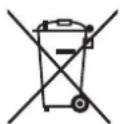
Note for the battery symbol (bottom symbol): This symbol might be used in combination with a chemical symbol. In this case it complies with the requirement set by the Directive for the chemical involved.
Contents of package
Your projector should come with the items shown below. Check that all the items are included. Require of your dealer immediately if any items are missing.
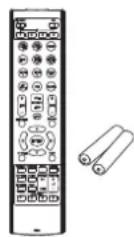
(1) Remote control with the two AA batteries
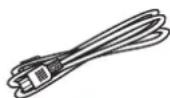
(2) Power cord
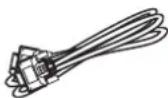
(3) Computer cable
(4) Lens hole cover
(5) User's manual *
* This is the basic manual on the product. Visit our website to get the detailed manuals and the latest information on the product.
(6) Security label
(7) Adapter cover
(8) Terminal cover
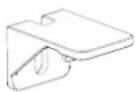
(9) HDMI cable holder (x2)
(10) Cable tie (x2)
(1)
(6)
(2)
(7)
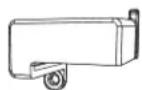
(3)
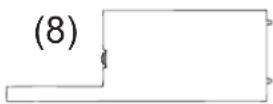
(9)
(4)
(10)
(5)

⚠ WARNING ▶ Keep small parts away from children and pets. Take care not to put in the mouth. If swallowed, consult a physician immediately for emergency treatment.
NOTE • Keep the original packing materials for future reshipment. Be sure to use the original packing materials when moving the projector. Remove the lens unit and attach the lens hole cover when moving the projector.
Installing the lens unit
See the manual of the optional lens.
Preparing for the remote control
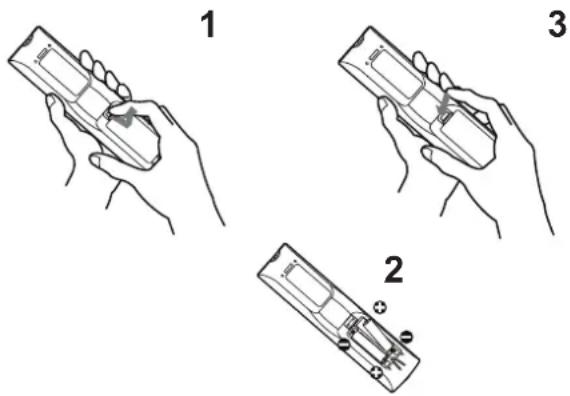
Please insert the batteries into the remote control before using it. If the remote control starts to malfunction, try to replace the batteries. If you will not use the remote control for long period, remove the batteries from the remote control and store them in a safe place.
- Holding the hook part of the battery cover, remove it.
-
Align and insert the two AA batteries according to their plus and minus terminals as indicated in the remote control. (Use the appropriate AA carbon-zinc or alkaline batteries (non-rechargeable) in accordance with laws and regulations.)
-
Replace the battery cover in the direction of the arrow and snap it back into place.
⚠ WARNING ▶ Always handle the batteries with care and use them only as directed. Improper use may result in battery explosion, cracking or leakage, which could result in fire, injury and/or pollution of the surrounding environment.
- When replacing the batteries, replace both of the batteries with new batteries of the same type. Do not use a new battery with a used battery.
- Be sure to use only the batteries specified. Do not use batteries of different types at the same time. Do not mix a new battery with used one.
- Make sure the plus and minus terminals are correctly aligned when loading a battery.
- Keep a battery away from children and pets.
- Do not recharge, short circuit, solder or disassemble a battery.
- Do not place a battery in a fire or water. Keep batteries in a dark, cool and dry place.
- If you observe battery leakage, wipe out the leakage and then replace a battery. If the leakage adheres to your body or clothes, rinse well with water immediately.
- Obey the local laws on disposing the battery.
Arrangement
Refer to tables T-1 to T-3 at the back of this manual as well as the following to determine the screen size and projection distance. The values shown in the table are calculated for a full size screen.
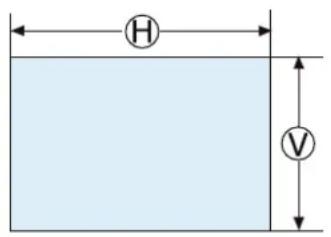
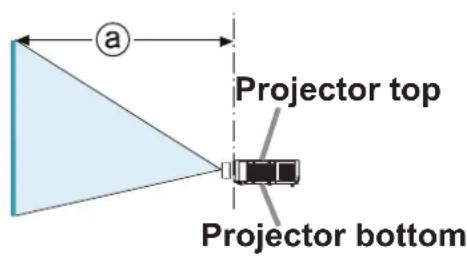
(H) × (V) Screen size
① : Projection distance
(from the front of the projector unit)
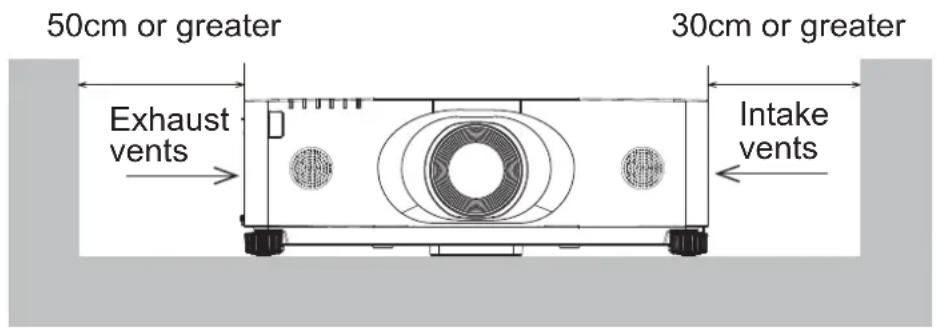
Secure a clearance of 50cm or greater between the exhaust vents and walls, and a clearance of 30cm or greater between the intake vents and walls. Assume that there is enough clearance in the front, back, and top of the projector in the figure below.
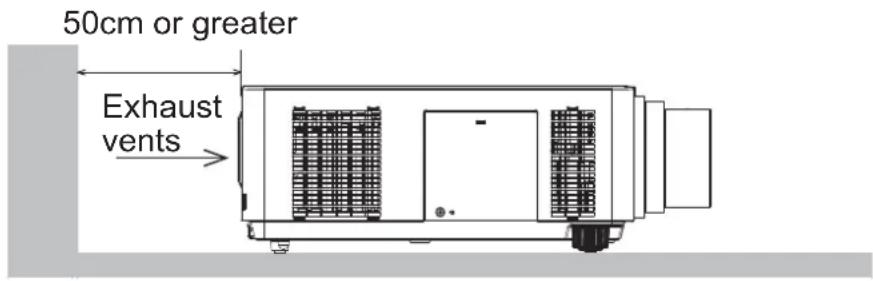
Secure a clearance of 50cm or greater between the exhaust vents and walls. Assume that there is enough clearance in the front, sides, and top of the projector in the figure below.
(continued on next page)
Arrangement (continued)
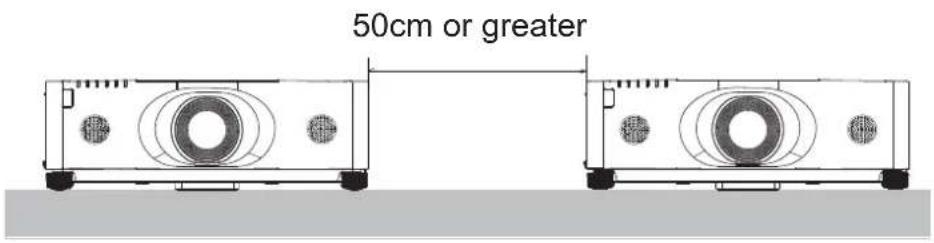
Secure a clearance of 50cm or greater when installing the projectors side by side. As for the required clearance not shown in the figure below, follow the installation mentioned above.
Secure a clearance of 30cm or greater between the intake vents and walls when installing the projector in portrait mode. As for the required clearance not shown in the figure below, follow the installation mentioned above.
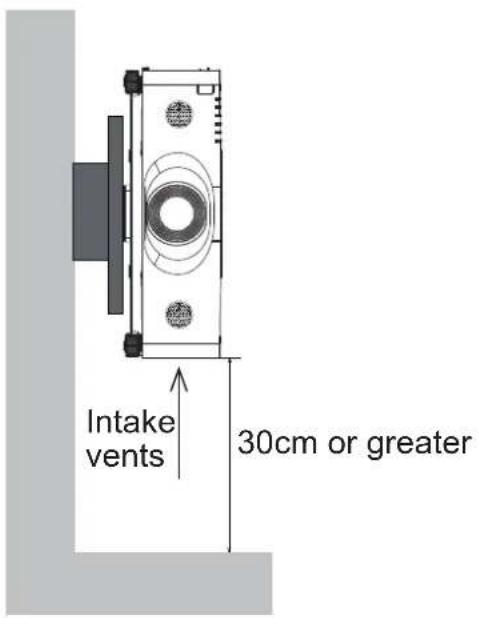
(continued on next page)
⚠ WARNING ▶ Install the projector where you can access the power outlet easily.
▶ Install the projector in a stable horizontal position.
- Do not use any mounting accessories except the accessories specified by the manufacturer. Read and keep the manuals of the accessories used.
- For special installation such as ceiling mounting, be sure to consult your dealer beforehand. Specific mounting accessories and services may be required.
- Do not put the projector on its side, front or rear position.
- Do not attach nor place anything on the projector unless otherwise specified in the manual.
▶ Do not install the projector near thermally conductive or flammable things.
▶ Do not place the projector where any oils, such as cooking or machine oil, are used.
▶ Do not place the projector in a place where it may get wet.
▶ Do not block the intake vents and exhaust vents of the projector. If the intake vents and exhaust vents of the projector are blocked, the accumulated inside heat may cause fire.
⚠️CAUTION ▶Place the projector in a cool place with sufficient ventilation.
- Do not stop up, block nor cover the projector's vent holes.
- Do not place the projector at places that are exposed to magnetic fields, doing so can cause the cooling fans inside the projector to malfunction.
▶ Avoid placing the projector in smoky, humid or dusty place. - Do not place the projector near humidifiers.
NOTICE ▶ Position the projector to prevent light from directly hitting the projector's remote sensor.
▶ Do not place the product in a place where radio interference may be caused.
▶ Set the ALTITUDE MODE of the SERVICE item in the OPTION menu correctly. It is recommended to leave it at AUTO usually. If the projector is used with a wrong setting, it may cause damage to the projector itself or the parts inside. For details, see User's Manual - Operating Guide. (1)
NOTE • When the temperature inside the projector rises high, it may cause the high rotation of the fan for cooling temporarily.
Connecting with your devices
Before connecting the projector to a device, consult the manual of the device to confirm that the device is suitable for connecting with this projector and prepare the required accessories, such as a cable in accord with the signal of the device. Consult your dealer when the required accessory did not come with the product or the accessory is damaged.
After making sure that the projector and the devices are turned off, perform the connection, according to the following instructions. Refer to figures F-1 to F-5 at the back of this manual.
For details, see User's Manual - Operating Guide. (1) Before connecting the projector to a network system, be sure to read User's Manual - Network Guide too. (1)
⚠ WARNING ▶ Use only the appropriate accessories. Otherwise it could cause a fire or damage the projector and devices.
- Use only the accessories specified or recommended by the projector's manufacturer. It may be regulated under some standard.
- Neither disassemble nor modify the projector and the accessories.
- Do not use the damaged accessory. Be careful not to damage the accessories. Route a cable so that it is neither stepped on nor pinched out.
▶ Heat may build up in the USB wireless adapter, to avoid possible burns disconnect the projector power cord for 10 minutes before touching the adapter. - When using the USB wireless adapter, use the supplied adapter cover or terminal cover (10,11).
⚠️CAUTION ▶For a cable with a core at only one end, connect the end with the core to the projector. That may be required by EMI regulations.
▶ Before connecting the projector to a network system be sure to obtain the consent of the administrator of the network.
▶ Do not connect the LAN port to any network that might have the excessive voltage.
The designated USB wireless adapter that is sold as an option is required to use the wireless network function of this projector. Before connecting the USB wireless adapter, turn off the power of the projector and disconnect the power cord.
NOTE • Do not turn on or off the projector while connected to a device in operation, unless that is directed in the manual of the device.
- Some input ports are selectable in the use. For details, see User's Manual - Operating Guide. (1)
- Be careful not to mistakenly connect a connector to a wrong port.
Fastening the adapter cover
When using the USB wireless adapter, use the supplied adapter cover for theft prevention.
USB wireless adapter: USB-WL-11N
Temperature range: 0 \~ 45°C(operating)
- Loosen the screw on the bottom left of the WIRELESS port.
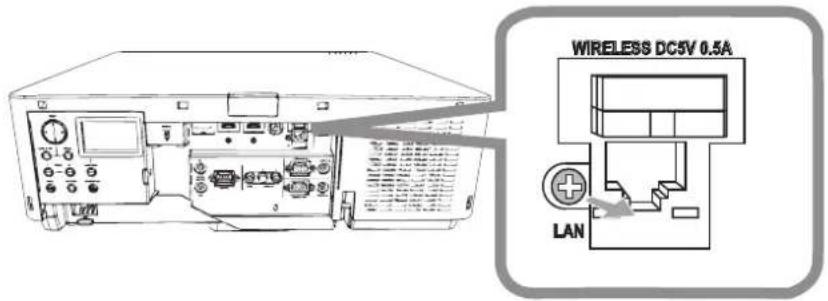
- Insert the tab of the cover into the hole at the upper right of the WIRELESS port in the direction of the arrow.
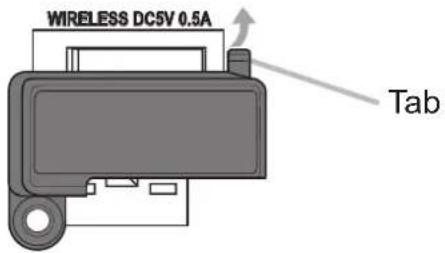
- Align the screw holes on the projector and the cover. Then insert the screw removed from the projector into the hole and tighten the screw.
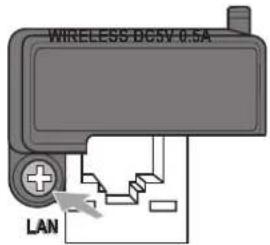
⚠ WARNING ▶ Keep small parts away from children and pets. Take care not to put in the mouth.
▶ Heat may build up in the USB wireless adapter, to avoid possible burns disconnect the projector power cord for 10 minutes before touching the adapter.
Attaching the terminal cover
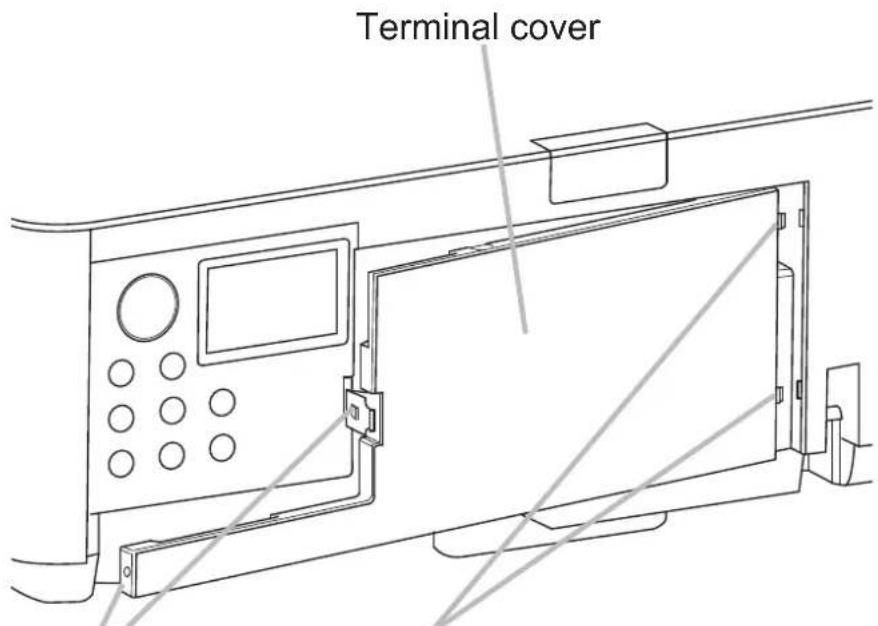
Hook
Insert the two claws of the Terminal cover into the hole of the case and confirm two Hooks are fitting into the case.
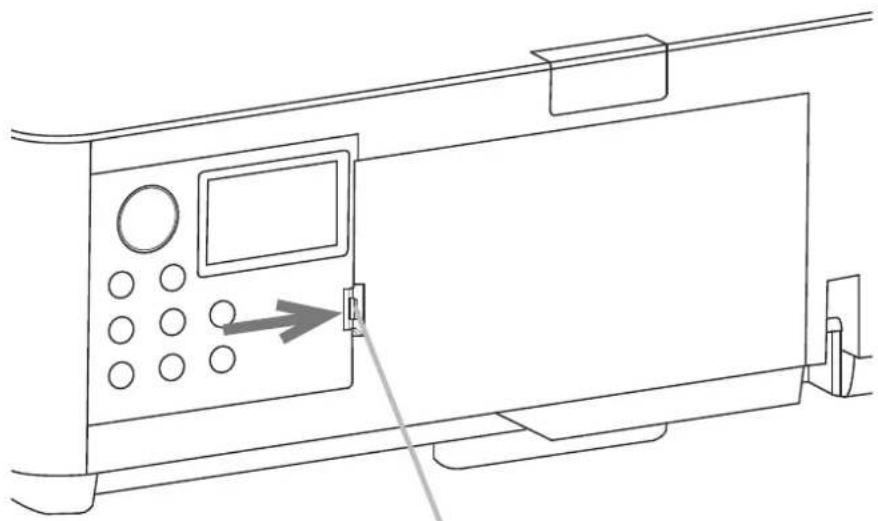
natural_image
Line drawing of a device panel with control buttons and a directional arrow pointing to the door (no text or symbols)When detaching the Terminal cover, push the Hook in the direction of the arrow and pull it forward.
NOTE • Do not attach the Adapter cover when attaching the Terminal cover.
Connecting power supply
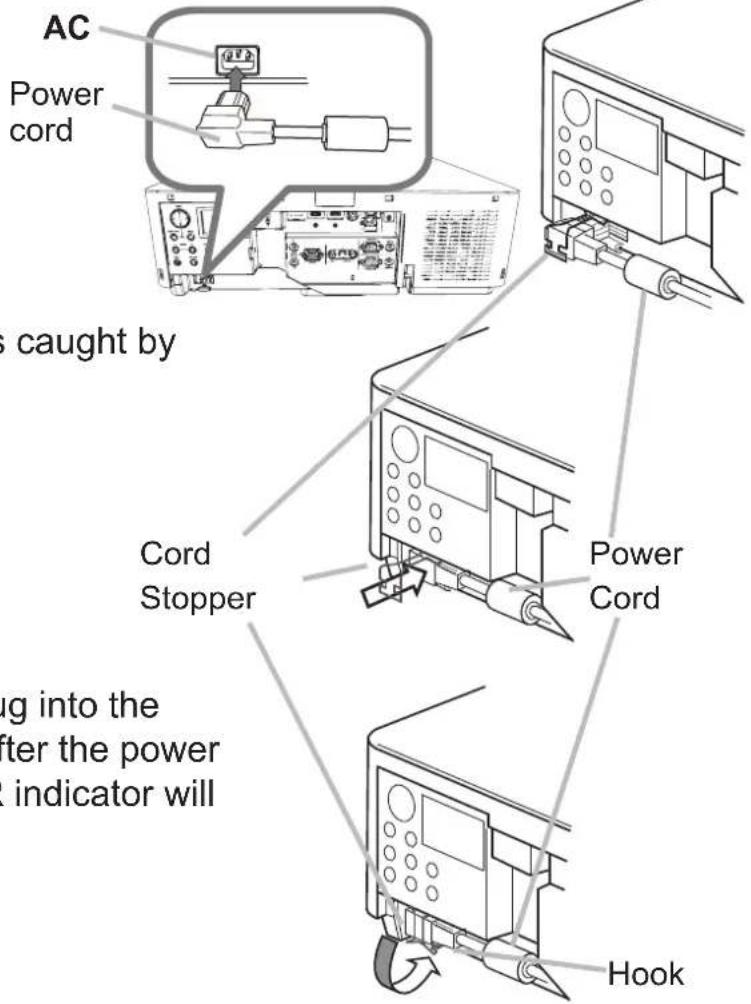
- Put the connector of the power cord into the AC (AC inlet) of the projector.
-
Push the Cord Stopper until it is caught by the hook.
-
Firmly plug the power cord's plug into the outlet. In a couple of seconds after the power supply connection, the POWER indicator will light up in steady orange.
Please remember that when the DIRECT POWER ON function activated, the connection of the power supply make the projector turn on.
⚠ WARNING ▶ Do not connect the projector to a power supply while no lens unit is attached to it.
▶ Please use extra caution when connecting the power cord, as incorrect or faulty connections may result in fire and/or electrical shock.
- Do not touch the power cord with a wet hand.
- Only use the power cord that came with the projector. If it is damaged, consult your dealer to get a new one. Never modify the power cord.
- Only plug the power cord into an outlet whose voltage is matched to the power cord. The power outlet should be close to the projector and easily accessible. Remove the power cord for complete separation.
- Do not distribute the power supply to multiple devices. Doing so may overload the outlet and connectors, loosen the connection, or result in fire, electric shock or other accidents.
- Connect the ground terminal for the AC inlet of this unit to the ground terminal of the building using an appropriate power cord (bundled).
NOTICE ▶This product is also designed for IT power systems with a phase-to-phase voltage of 220 to 240 V.
Turning on the power
- Make sure that the power cord is firmly and correctly connected to the projector and the outlet.
- Make sure that the POWER indicator is lighted in steady orange. Then remove the lens cover.
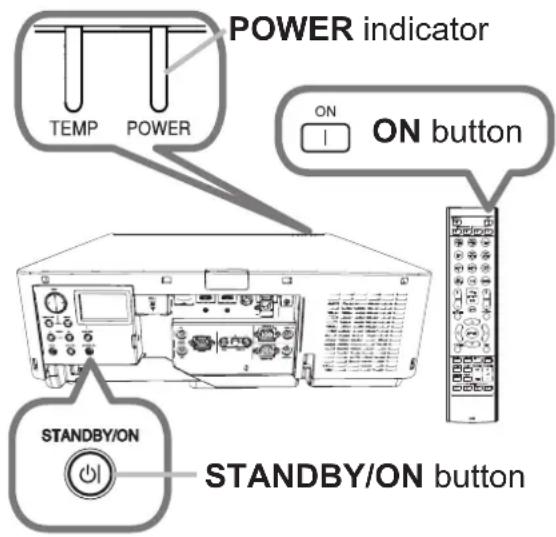
- Press the STANDBY/ON button on the projector or the ON button on the remote control.
The projection lamp will light up and the POWER indicator will begin blinking in green. When the power is completely on, the indicator will stop blinking and light in steady green.
⚠ WARNING ▶ A strong light is emitted when the projector's power is on. Do not look into the lens of the projector or look inside of the projector through any of the projector's openings, since the projection ray may cause a trouble on your eyes.
▶ Blocking the beam by something causes high temperature and could result in fire or smoke.
NOTE • Please power on the projector prior to the connected devices.
- The projector has the DIRECT POWER ON function, which can make the projector automatically turn on. For more information, please see User's Manual - Operating Guide. (1)
Adjusting the projector's elevator
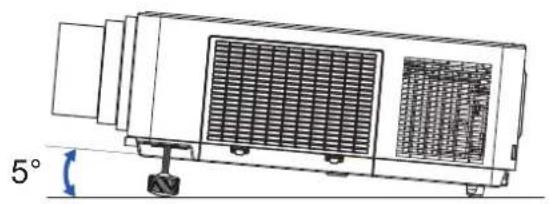
Lengthening or shortening the length of the elevator feet shifts the projection position and the projection angle.
Turn the elevator feet each to adjust their length.
natural_image
Technical line drawing of a mechanical device with internal grating and mounting base, showing angular measurement (5°) at bottom left corner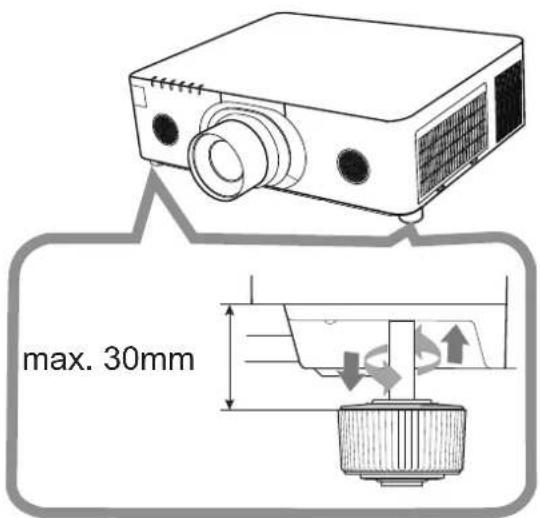
⚠ WARNING ▶ Do not lengthen the elevator feet exceeding 30 mm. The foot lengthened exceeding the limit may come off and drop the projector down, and result in an injury or damaging the projector.
Adjusting the lens position
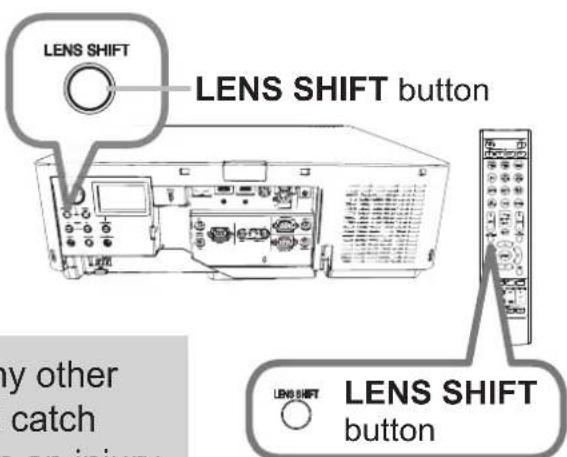
Shifting the lens position shifts the projection position.
After pressing the LENS SHIFT button on the control panel or the remote control, use the cursor buttons to shift the lens position.
⚠️CAUTION ▶Do not put your fingers or any other things around the lens. The moving lens could catch them in the space around the lens and result in an injury.
NOTE • The projector may ignore operation by buttons while moving the lens.
- Generally, better image quality can be got when the lens is set to the center.
Displaying the picture
- Activate your signal source. Turn the signal source on, and make it send the signal to the projector.
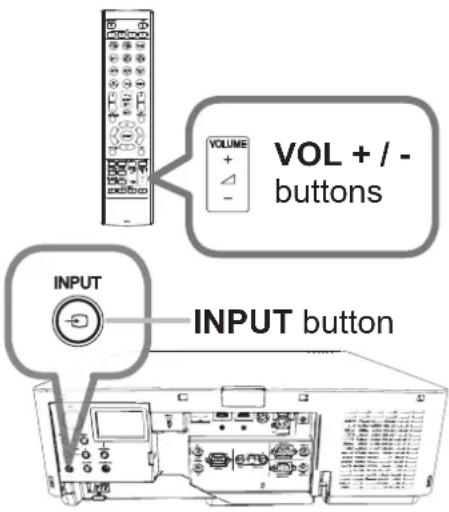
- Use the VOL + / - buttons to adjust the volume.
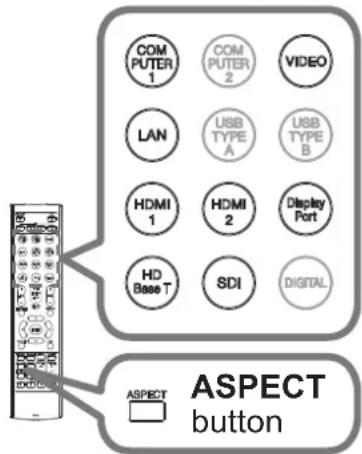
- Press the INPUT button on the projector. Each time you press the button, the projector switches its input port in turn. You can also use the remote control to select an input signal. Press any of the buttons from COMPUTER 1, VIDEO, LAN, HDMI 1 / 2, DisplayPort, HDBaseT, SDI (MC-WU8701W/B only) to select the input signal from each port.
- Press the ASPECT button on the remote control. Each time you press the button, the projector switches the mode for aspect ratio in turn.
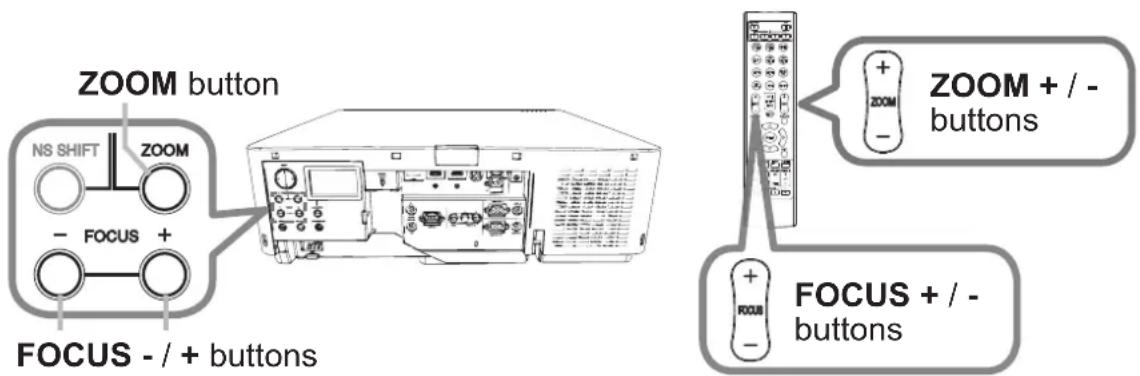
- Use the ZOOM + / - buttons on the remote control or ZOOM button and ◀/▶ cursor buttons on the projector to adjust the screen size.
- Use the FOCUS + / - buttons on the projector or the remote control to focus the picture.
Buttons for input ports
⚠️CAUTION ▶ If you wish to have a blank screen while the projector's lamp is on, use the shade or AV MUTE function. Taking any other action may cause the damage on the projector.
NOTE • The ASPECT button does not work when no proper signal is inputted.
- There may be some noise and/or the screen may flicker for a moment when an operation is made. This is not a malfunction.
- For the details of how to adjust the picture, please see User's Manual - Operating Guide. (1)
Turning off the power
- Press the STANDBY/ON button on the projector or the STANDBY button on the remote control.
The message "Power off?" will appear on the screen for about 5 seconds.
- Press the STANDBY/ON or STANDBY button again while the message appears.
The projector lamp will go off, and the POWER indicator will begin blinking in orange. Then the POWER indicator will stop blinking and light in steady orange when the lamp cooling is complete.
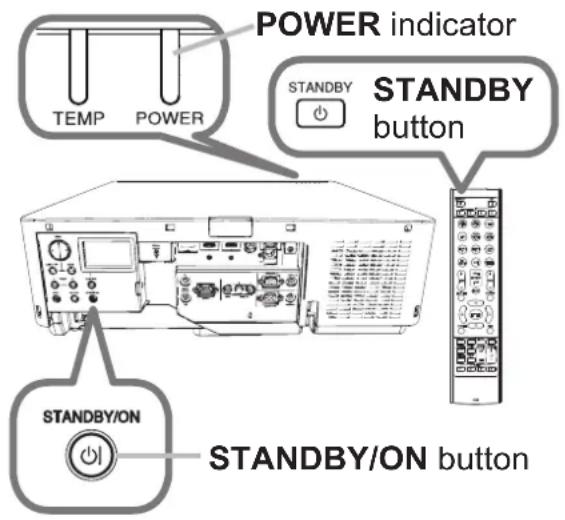
- Attach the lens cover, after the POWER indicator turns to steady orange.
Do not turn the projector on for about 10 minutes or more after turning it off. Also, do not turn the projector off shortly after turning it on. Such operations might cause the lamp to malfunction or shorten the lifetime of some parts including the lamp.
⚠ WARNING ▶ Do not touch around the lamp cover and the exhaust vents during use or just after use, since it is too hot.
▶ Remove the power cord for complete separation. The power outlet should be close to the projector and easily accessible.
NOTE • Please power off the projector after any connected devices are powered off.
- This projector has the AUTO POWER OFF function that can make the projector turn off automatically. For more information, please see User's Manual - Operating Guide. (1)
Replacing the lamp
A lamp has finite product life. Using the lamp for long periods of time could cause the pictures darker or the color tone poor. Note that each lamp has a different lifetime, and some may burst or burn out soon after you start using them.
Preparation of a new lamp and early replacement are recommended. To prepare a new lamp, make contact with your dealer and tell the lamp type number.
Type number : DT01881
DT01871
- Turn the projector off, and unplug the power cord. Allow the projector to cool for at least 45 minutes.
-
Prepare a new lamp. If the projector is mounted with specified mounting accessories, or if the lamp has broken, also ask the dealer to replace the lamp.
In case of replacement by yourself, follow the following procedure. -
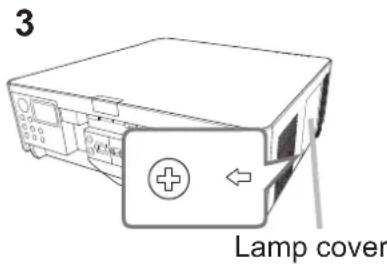
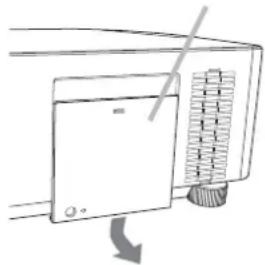
Loosen the screw (marked by arrow) of the lamp cover and then slide down and lift the lamp cover to remove it.
-
Loosen the 3 screws (marked by arrow) of the lamp, and slowly pull the lamp out by the handles. Never loosen any other screws.
-
Insert the new lamp, and retighten firmly the 3 screws of the lamp that are loosened in the previous process to lock it in place.
-
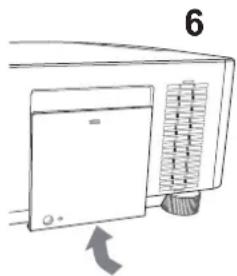
While putting the interlocking parts of the lamp cover and the projector together, slide the lamp cover back in place. Then firmly fasten the screw of the lamp cover.
-
Turn the projector on and reset the lamp time using the LAMP TIME item in the SETUP menu.
(1) Press the MENU button to display a menu.
(2) Point at the ADVANCED MENU in the menu using the ▼/▲ button, then press the ▶ button.
(3) Point at the SETUP in the left column of the menu using the ▼/▲button, then press the ▶ button.
(4) Point at the LAMP TIME using the ▼/▲ button, then press the ▶ button. A dialog will appear.
(5) Press the ▶ button to select "OK" on the dialog. It performs resetting the lamp time.
natural_image
Simple line drawing of a microwave oven with a door and fan, showing a scroll wheel (no text or symbols)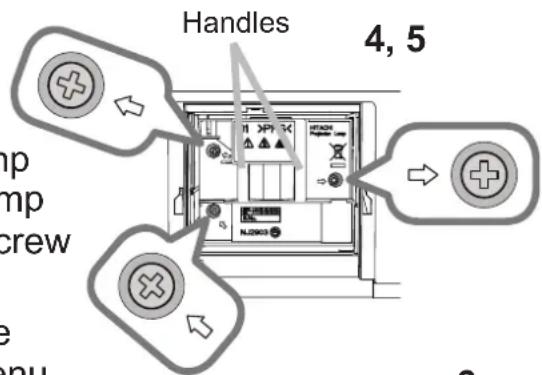
natural_image
Diagram of a microwave oven with a door and cooling unit, showing airflow direction (no text or symbols)⚠️CAUTION ▶ Do not touch the interior of the projector, while the lamp is taken out.
NOTE • Please reset the lamp time only when you have replaced the lamp, for a suitable indication about the lamp.
Replacing the lamp (continued)

HIGH VOLTAGE

HIGH TEMPERATURE HIGH PRESSURE
⚠ WARNING ▶ The projector uses a high-pressure mercury glass lamp. The lamp can break with a loud bang, or burn out, if jolted or scratched, handled while hot, or worn over time. Note that each lamp has a different lifetime, and some may burst or burn out soon after you start using them. In addition, if the bulb bursts, it is possible for shards of glass to fly into the lamp housing, and for gas containing mercury and dust containing fine particles of glass to escape from the projector's vent holes.
▶ About disposal of a lamp: This product contains a mercury lamp; do not put it in a trash. Dispose of it in accordance with environmental laws.
- For lamp recycling, go to www.lamprecycle.org (in the US).
- For product disposal, consult your local government agency or www.eiae.org (in the US) or www.epsc.ca (in Canada).
For more information, ask your dealer.

Disconnect the plug from the power outlet
- If the lamp should break (it will make a loud bang when it does), unplug the power cord from the outlet, and make sure to request a replacement lamp from your local dealer. Note that shards of glass could damage the projector's internals, or cause injury during handling, so please do not try to clean the projector or replace the lamp yourself.
- If the lamp should break (it will make a loud bang when it does), ventilate the room well, and make sure not to inhale the gas or fine particles that come out from the projector's vent holes, and not to get them into your eyes or mouth.
- Before replacing the lamp, turn the projector off and unplug the power cord, then wait at least 45 minutes for the lamp to cool sufficiently. Handling the lamp while hot can cause burns, as well as damaging the lamp.

- Never unscrew except the appointed (marked by an arrow) screws.
- Do not open the lamp cover while the projector is suspended from a ceiling. This is dangerous, since if the lamp's bulb has broken, the shards will fall out when the cover is opened. In addition, working in high places is dangerous, so ask your local dealer to have the lamp replaced even if the bulb is not broken.
- Do not use the projector with the lamp cover removed. At the lamp replacing, make sure that the screws are screwed in firmly. Loose screws could result in damage or injury.

- Use only the lamp of the specified type. Use of a lamp that does not meet the lamp specifications for this model could cause a fire, damage or shorten the life of this product.
- If the lamp breaks soon after the first time it is used, it is possible that there are electrical problems elsewhere besides the lamp. If this happens, consult your local dealer or a service representative.
- Handle with care: jolting or scratching could cause the lamp bulb to burst during use.
- Using the lamp for long periods of time, could cause it dark, not to light up or to burst. When the pictures appear dark, or when the color tone is poor, please replace the lamp as soon as possible. Do not use old (used) lamps; this is a cause of breakage.
Cleaning and replacing the air fi Iter
Please check and clean the air fi Iter periodically. When the indicators or a message prompts you to clean the air fi Iter, comply with it as soon as possible.
The filter unit with 2 sheets of filters is inside of the filter cover. In addition, the extra air fi lter is attached to inner side of the fi lter cover. If one of the fi lters is damaged or heavily soiled, replace whole fi lter set with a new one.
Request for a fi lter set with the following type number from your dealer when purchasing a new one.
Type number : UX40821
- Turn the projector off, and unplug the power cord. Allow the projector to sufficiently cool down.
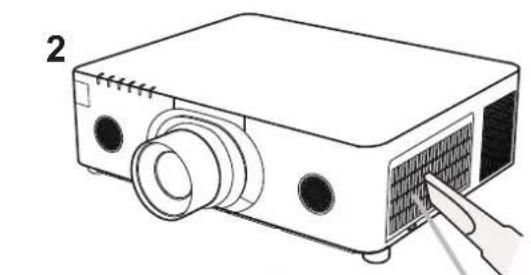
- Use a vacuum cleaner on and around the fi Iter cover.
- Pick and pull up the filter cover knobs to take it off.
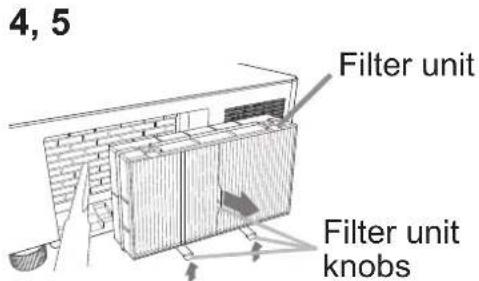
- Press up slightly the bottom side knobs to unlock the bottom side of the fi Iter unit. Pull the center knob to take the fi Iter unit off.
- Use a vacuum cleaner for the fi Iter vent of the projector and the outer side of the fi Iter unit.
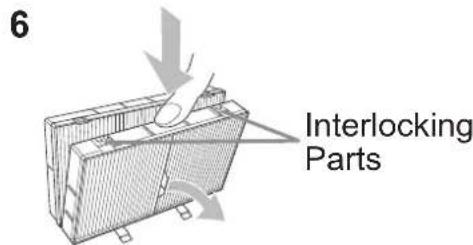
- The fi Iter unit consists of two parts. Press down around the interlocking parts to unlock, then separate the two parts.
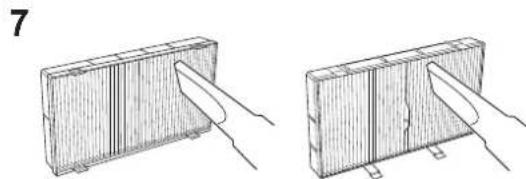
- Use a vacuum cleaner for the inner side of each part of the filter unit to clean them up. If the filters are damaged or heavily soiled, replace them with the new ones.
- Combine the two parts to reassemble the fi Iter unit.
- Put the filter unit back into the projector.
(continued on next page)
natural_image
Line drawing of a projector with a button inserted, showing internal components and a finger pointing to the screen (no text or symbols)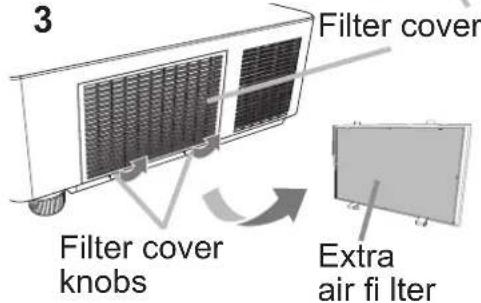
natural_image
Two technical line drawings of a rectangular object with internal channels and a knife inserted, shown from different angles (no text or symbols)Cleaning and replacing the air filter (continued)
10. Put the filter cover back into the place.
11. Turn the projector on and reset the filter time using the FILTER TIME item in the EASY MENU.
(1) Press the MENU button to display a menu.
(2) Point at the FILTER TIME using the ▲/▼ cursor buttons, then press the ▶ cursor (or the ENTER / the RESET) button. A dialog will appear.
(3) Press the ▶ cursor button to select the "OK" on the dialog. It performs resetting the filter time.
⚠ WARNING ▶ Before taking care of the air filter, make sure the power cable is not plugged in, then allow the projector to cool sufficiently.
▶ Use only the air filter of the specified type. Do not use the projector without the air filter or the filter cover. It could result in a fire or malfunction to the projector.
▶ Clean the air filter periodically. If the air filter becomes clogged by dust or the like, internal temperatures rise and could cause a fire, a burn or malfunction to the projector.
NOTE • Please reset the filter time only when you have cleaned or replaced the air filter, for a suitable indication about the air filter.
- The projector may display the message such as the “CHECK THE AIR FLOW” or turn off the projector, to prevent the internal heat level rising.
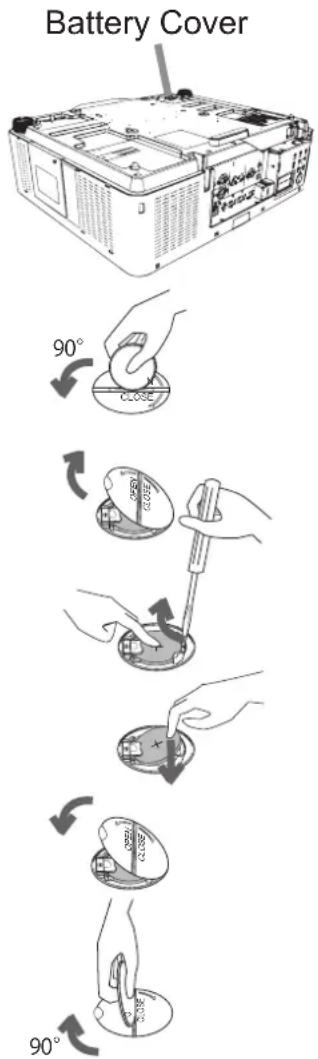
Installing or replacing the internal clock battery
This product has an internal clock.
When you use the function that requires the internal clock (☐“Event Scheduling” in the Network Guide), install a new battery.
If the internal clock starts to malfunction, try to replace the battery.
Use the following type of battery, and follow the steps below.
MAXELL, Part No. CR2032 or CR2032H
- Turn the projector off, and unplug the power cord. Allow the projector to cool sufficiently.
- After making sure that the projector has cooled adequately, slowly turn over the projector, so that the bottom is facing.
- Turn the battery cover fully in the direction indicated "OPEN" using a coin or the like, and pick the cover up to remove it.
- Pry up the old battery using a flathead screwdriver or the like to take it out. Do not use any metal tools. While prying it up, put a finger lightly on the battery since it may pop out of the holder.
- Install a new battery in place. Slide the battery in under the plastic claw, and push it into the holder until it clicks.
- Replace the battery cover in place, then turn it in the direction indicated "CLOSE" using such as coins, to fix.
⚠ WARNING ▶ Always handle the batteries with care and use them only as directed. Battery may explode if mistreated. Do not recharge, disassemble or dispose of in fire.
And also improper use may result in cracking or leakage, which could result in fire, injury and/or pollution of the surrounding environment.
- Be sure to use only the batteries specified.
- Make sure the plus and minus terminals are correctly aligned when loading a battery.
- Keep a battery away from children and pets. If swallowed consult a physician immediately for emergency treatment.
- Do not short circuit or solder a battery.
- Do not allow a battery in a fire or water. Keep batteries in a dark, cool and dry place.
- If you observe battery leakage, wipe out the leakage and then replace a battery. If the leakage adheres to your body or clothes, rinse well with water immediately.
- Obey the local laws on disposing a battery.
Specifications
| Item Specification | |
| Product name Liquid crystal projector | |
| Liquid Crystal Panel | MC-X8801W/B:786,432 pixels (1024 horizontal x 768 vertical)MC-WX8751W/B, MC-WX8651W/B:1,024,000 pixels (1280 horizontal x 800 vertical)MC-WU8701W/B, MC-WU8601W/B:2,304,000 pixels (1920 horizontal x 1200 vertical) |
| Lamp | MC-WU8601W/B, MC-WX8651W/B: 370W UHPMC-WU8701W/B, MC-WX8751W/B, MC-X8801W/B: 430W UHP |
| Speaker | 8W x2 |
| Power supply/Rated current | MC-WU8601W/B, MC-WX8651W/B:AC100V-120V: 5.2A, AC220V-240V: 2.5AMC-WU8701W/B, MC-WX8751W/B, MC-X8801W/B:AC100V-120V: 5.9A, AC220V-240V: 2.9A |
| Power consumption | MC-WU8601W/B, MC-WX8651W/B:AC100V-120V: 510W, AC220V-240V: 500WMC-WU8701W/B, MC-WX8751W/B, MC-X8801W/B:AC100V-120V: 580W, AC220V-240V: 560W |
| Temperature range | 0 ~ 45 °C (Operating)* When the projector is used at high altitudes, the service life of the optical components may be reduced by peripheral temperatures of over about 40°C. It is recommended to reduce the temperature as far as possible.40 ~ 45°C* The brightness of the lamp is reduced automatically. |
| Size | 498 (W) x 167 (H) x 437 (D) mm* Not including protruding parts. Refer to figure F-6 at the back of this manual. |
| Weight (mass) approx. | 11.1 kg |
| Ports | COMPUTER IN ...... D-sub 15 pin mini jack x1HDMI 1 ...... HDMI connector x1HDMI 2 ...... HDMI connector x1HDBaseT ...... RJ45 jack x1SDI (MC-WU8701W/B only) ...... BNC jack x1DisplayPort ...... DisplayPort connector x1MONITOR OUT ...... D-sub 15 pin mini jack x1VIDEO ...... RCA jack x1AUDIO IN1 ...... 3.5 mm (stereo) mini jack x1AUDIO IN2 (L, R) ...... RCA jack x2AUDIO OUT ...... 3.5 mm (stereo) mini jack x1WIRELESS ...... Wireless connector x1CONTROL ...... D-sub 9 pin plug x1LAN ...... RJ45 jack x1REMOTE CONTROL IN ...... 3.5 mm (stereo) mini jack x1REMOTE CONTROL OUT ...... 3.5 mm (stereo) mini jack x1 |
| Optional parts | Lamp: DT01881DT01871F ilter set:UX40821Lens unit: FL-701 (Fixed Short throw zoom lens)SL-712 (Short throw zoom lens)ML-713 (Middle throw zoom lens)LL-704 (Long throw zoom lens)UL-705 (Ultra long throw zoom lens)Mounting accessory:HAS-9110 (Bracket for fixing mount)HAS-204L (Standard adaptor for fixing mount)HAS-304H (Long adaptor for fixing mount)USB wireless adapter: USB-WL-11N* For more information, please consult your dealer. |
Manufacturing year and month
The manufacturing year and month of this projector is indicated as follows in the serial number of the rating label on the projector.
Example:
F7C×00001
Manufacturing month: A = January, B = February, ... L = December. Manufacturing year: 7 = 2017, 8 = 2018, ... 0 = 2020, 1 = 2021.
Troubleshooting - Warranty and after-service
If an abnormal operation (such as smoke, strange odor or excessive sound) should occur, stop using the projector immediately.
Otherwise if a problem occurs with the projector, first refer to “Troubleshooting” of User’s Manual - Operating Guide and Network Guide, and run through the suggested checks.
If this does not resolve the problem, please consult your dealer or service company. They will tell you what warranty condition is applied.
Check our website where you may find the latest information for this product. (1)
NOTE • The information in this manual is subject to change without notice.
- The illustrations shown in this manual are one example for explanation. On your projector, there may be some differences from the illustrations.
- The manufacturer assumes no responsibility for any errors that may appear in this manual.
- The reproduction, transfer or copy of all or any part of this document is not permitted without express written consent.
Trademark acknowledgment
- HDMI™, the HDMI logo and High-Definition Multimedia Interface are trademarks or registered trademarks of HDMI Licensing LLC in the United States and other countries.
- Blu-ray Disc ^TM and Blu-ray ^TM are trademarks of Blu-ray Disc Association.
- HDBaseT™ and the HDBaseT Alliance logo are trademarks of the HDBaseT Alliance.
- DisplayPort is a trademark or registered trademark of Video Electronics Standards Association.
All other trademarks are the properties of their respective owners.
End User License Agreement for the Projector Software
- Software in the product consists of the plural number of independent software modules and there exist our copyright and/or third party copyrights for each of such software modules.
- The product also uses software modules that we have developed and/or produced.
- And there exist our copyright and intellectual property for each of such software and related items including but not limited to the software related documents.
• These rights above are protected by copyright law and other applicable laws. - And the product uses software modules licensed as Freeware upon GNU GENERAL PUBLIC LICENSE Version 2 and GNU LESSER GENERAL PUBLIC LICENSE Version 2.1 established by Free Software Foundation, Inc. (U.S.) or license agreements for each software.
- Check our website for license agreements for such software modules and other software. (1)
- Contact dealer in your region for inquiry regarding licensed software.
- Refer to license agreements of each software on the web page for detail of the license conditions and so on. (The original in English is carried since the license agreement is established by third party other than us.)
- Because the program (the software module) is licensed free of charge, the program is provided “as is” without warranty of any kind, either expressed or implied, to the extent permitted by applicable law.
- And we do not take any responsibility or compensate for loss of any kind (including but not limited to loss of data, loss of accuracy or loss of compatibility with interface between other programs) by the software concerned and/or use of the software concerned to the extent permitted by applicable law.