
M-DVD9901 - DVD player Macrom - Free user manual and instructions
Find the device manual for free M-DVD9901 Macrom in PDF.


| Product Type | DVD player |
| Brand | Macrom |
| Model | M-DVD9901 |
| Dimensions (W x D x H) | 430 x 260 x 38 mm |
| Weight | 2.5 kg |
| Power Supply | 100-240V AC, 50/60 Hz |
| Power Consumption | 15 W (typical) |
| Supported Disc Formats | DVD, DVD±R/RW, CD, CD-R/RW, MP3, JPEG |
| Video Outputs | Composite, Component, S-Video |
| Audio Outputs | Coaxial digital, Stereo RCA |
| Playback Functions | Play, Pause, Stop, Skip, Repeat, Zoom, Slow Motion |
| Remote Control | Included (batteries not included) |
| Safety Features | Overheat protection, auto power off |
| Maintenance | Clean with a soft, dry cloth; avoid liquids |
| Repair and Spare Parts | Contact authorized service center; no user-serviceable parts inside |
| Region Code | Region 2 (Europe) or multi-region (check label) |
Frequently Asked Questions - M-DVD9901 Macrom
User questions about M-DVD9901 Macrom
0 question about this device. Answer the ones you know or ask your own.
Ask a new question about this device
Download the instructions for your DVD player in PDF format for free! Find your manual M-DVD9901 - Macrom and take your electronic device back in hand. On this page are published all the documents necessary for the use of your device. M-DVD9901 by Macrom.
USER MANUAL M-DVD9901 Macrom
natural_image
Front view of a black electronic device with control buttons and indicator lights (no readable text or symbols)
ALDINET S.P.A. VIALE C.COLOMBO, 8 20090 TREZZANO S/N (MI) ITALY
M-DVD9901
USER MANUAL
TABLE OF CONTENTS
Precautions 1-3
Identification of controls 4-6
Front panel
Remote control
When using remote control
Quick Guide 7-10
Loading and unloading a disc 7
Turning the power on and off
Source
Setting volume level
Displaying the disc status
Tuning the sound on and off 8
Playing a disc 9
Stopping playback
Fast-forwarding/ fast-reversing
Finding the beginning of chapters or tracks 10
Convenient Functions 11
Chapter/track/title repeat playback
Switching the audio language
Switching the angle
Switching the subtitles
Playing from the desired location
Changing the default settings (setup) 12-13
Installation and connections 14-16
Others 17-18
In case of difficulty....17
Specifications 18
This digital versatile disc (DVD) video player uses 12V

For future reference, record the model and serial number
(located on the case of the DVD player) in the space provided.
CAUTION:
This DVD VIDEO PLAYER IS A CLASS 1 LASER PRODUCT.
USE OF CONTROLS OR ADJUSTMENTS OR PERFORMANCE OF PROCEDURES OTHER
THAN THOSE SPECIFIED HEREIN MAY RESULT IN HAZARDOUS RADIATION EXPOSURE.
AS THE LASER BEAM USED IN THIS DVD VIDEO PLAYER IS HARMFUL TO THE EYES.
DO NOT ATTEMPT TO DISASSEMBLE THE CABINET.
REFER SERVICING TO QUALIFIED PERSONNEL ONLY.
WARNING : class 1 laser product - avoid long term viewing of direct laser radiation.
WARNING OF DEW FORMATION
Dew may form on the pickup lens in the following conditions.
- Immediately after a heater has been turned on.
- In a steamy or very humid room.
When the unit is suddenly moved form a cold environment to a warm one.
If dew forms inside this unit, it may not operate properly.
In this case, turn on the power and wait about 2 or 3 hours for the dew to evaporate.
When the unit is used under low temperatures.
The pick up lens might warm up very fast and dew will form.
In this case, turn on the power and wait a while for the dew to evaporate.
DO NOT DISASSEMBLE OR ALTER THIS UNIT.
Doing so may result in an accident, fire or electric shock.
KEEP SMALL OBJECTS SUCH AS BATTERY OUT OF THE REACH OF CHILDREN.
If swallowed, consult a physician immediately.
USE THE CORRECT AMPERE RATING WHEN REPLACING FUSES.
Failure to do so may result in fire or electric shock.
USE IN CARS WITH A 12VOLT NEGATIVE GROUND.
(Check with your dealer if you are not sure.)Failure to do so may result in fire, etc.
BEFORE WIRING, DISCONNECT THE CABLE FROM THE NEGATIVE BATTERY TERMINAL.
Failure to do so may result in electric shock or injury due to electrical shorts.
DO NOT SPLICE INTO ELECTRICAL CABLES.
Never cut away cable insulation to supply power to other equipment.
Doing so will exceed the current carrying capacity of the wire and result in fire or electric shock.
DO NOT INSTALL IN LOCATIONS WHICH MIGHT HINDER VEHICLE OPERATION, SUCH AS THE STEERING WHEEL OR GEARSHIFT.
Doing so may obstruct forward vision or hamper movement etc. And result in serious accident.
DO NOT USE BOLTS OR NUTS IN THE BRAKE OR STEERING SYSTEMS TO MAKE GROUND CONNECTIONS.
Bolts or nuts used for the brake or steering system (or any other safety-related system), or tanks should NEVER be used for installations or ground connections.
Using such parts could disable control of the vehicle and cause fire etc.
DO NOT OPERATE ANY FUNCTION THAT TAKES YOUR ATTENTION AWAY FROM SAFELY DRIVING YOUR VEHICLE.
Any function that requires your prolonged attention should only be performed after coming to a complete stop. Always stop the vehicle in a safe location before performing these functions.
Failure to do so may result in an accident.
DO NOT DAMAGE PIPE OR WIRING WHEN DRILLING HOLES
When drilling holes in thee chassis for installation, take precautions so as not to contact, damage or obstruct pipes, fuel lines, tanks or electrical wiring.
Failure to
take such precautions may result in fire.
MAKE THE CORRECT CONNECTIONS
Failure to make the proper connections may result in fire or product damage.
DO NOT PLACE HANDS, FINGERS OR FOREIGN OBJECTS IN INSERTION SLOTS OR GAPS.
Doing so may result in personal injury or damage to the product.
KEEP THE VOLUME AT A LEVEL WHERE YOU CAN STILL HEAR OUTSIDE NOISE WHILE DRIVING.
Failure to do so may result in an accident.
USE THIS PRODUCT FOR MOBILE 12V APPLICATIONS.

Caution
This symbol means important instructions.
Failure to heed them can result in injury or property damage.
ARRANGE THE WIRING SO IT IS NOT CRIMPED OR PINCHED BY A SHARP EDGE.
Route the cables and wiring away from moving parts (like the seat rails) or sharp or pointed edges. This will prevent crimping and damage to the wiring. If wiring passes through a hold in metal, use a rubber grommet to prevent the wire's insulation from being cut by the metal edge of the hole.
USE SPECIFIED ACCESSORY PARTS AND INSTALL THEM SECURELY.
Be sure to use only the specified accessory parts. Use of other than designated parts may damage this unit internally or may not securely install the unit in place. This may cause parts to become loose resulting in hazards or product failure.
DO NOT INSTALL IN LOCATIONS WITH HIGH MOISTURE OR DUST.
Avoid installing the unit in locations with high incidence of moisture or dust. Moisture or dust that penetrates into this unit may result in product failure.
INSERT WITH THE CORRECT BATTERY POLARITY.
When inserting the battery, be sure to observe proper polarity(+ and -) as instructed. Rupture from the battery may cause fire or personal injury.
HAVE THE WIRING AND INSTALLATION DONE BY EXPERTS.
The wiring and installation of this unit requires special technical skill and experience. To ensure safety, always contact the dealer where you purchased this product to have the work done
HALT USE IMMEDIATELY IF A PROBLEM APPEARS.
Failure to do so may cause personal injury or damage to the product. Consult a professional mobile video installer.
Temperature
Be sure the temperature inside the vehicle is between +55 C (+131 F) and -5 C(+23 F) before turning your unit on.
Proper Handling
Do not drop the disc while handling. Hold the disc so you will not leave fingerprints on the surface. F the surface is scratched, it may cause the pickup to skip. Do not affix tape, paper, or gummed labels on the disc. Do not write on the disc.
Keep your discs clean
Fingerprints, dust, or soil on the surface could cause the pickup to skip. For routine cleaning, wipe the playing surface with a clean, soft cloth from the center of the disc to the outer edge. If the surface is heavily soiled, dampen a clean, soft cloth in a solution of mild neutral detergent before cleaning the disc.
Disc accessories
Various disc accessories for protecting the surface of the disc and improving sound quality are available on the market. However, many of them will increase the thickness and/or diameter of the disc. Using such accessories may place the disc beyond the specified size limitation and cause the changer to malfunction. Because of the high precision electronics of this unit and the highly stable mechanism, these accessories are not necessary and therefore not recommended for use with discs placed in this unit.
Damaged disc
Do not attempt to play cracked, warped, or otherwise damaged discs. Playing a bad disc could severely damage the playback mechanism.
Installation location
Make sure the unit will not be installed in a location subjected to:
- Direct sun and heat
• High humidity and water
- Excessive dust Excessive vibrations
Identification of controls
Front panel
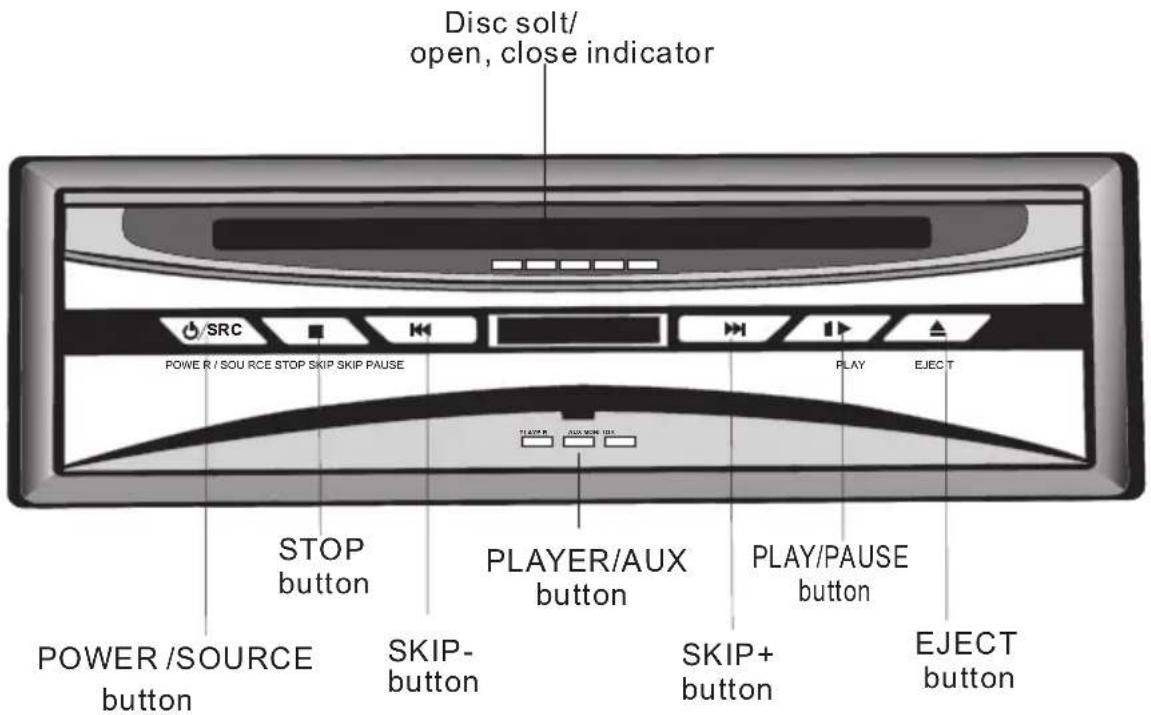
| The button |  |
| /SRC | Short press is POWER function to power on/off, long press is SOURCE function to select different source ( player or AUX ) |
| ■ | To stop playback |
| ▶▶| | To locate previous/next chapter or track |
| || ▶ | Play/ pause |
| ▲ | To eject a disc |
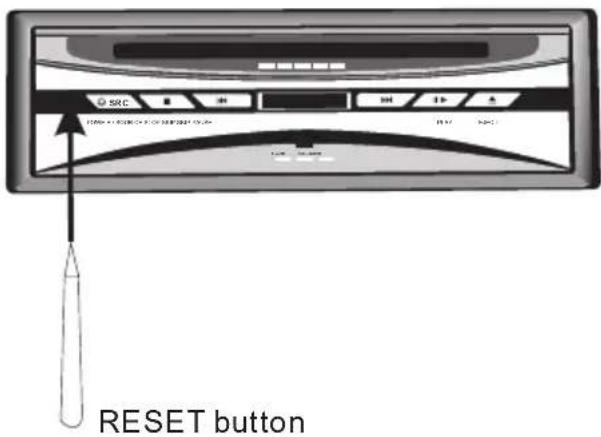
Resetting the unit
Press the RESET button with a pointed object, such as a ballpoint pen, as shown.
Unit will turn off momentary after the RESET button is pressed.
Note: pressing the RESET button will erase some stored contents.
Identification of controls
Remote Control

1 power on/off button
2 GOTO button to location
by entering its corresponding track
number, chapter number or time
Long press is CLEAR function
to clear the wrong number you entered.
3 Number button
Used to input numbers and
To select the disc by pressing 1\~6 button
4 REPEAT.button
To play repeatedly
5 AUDIO button-toselect DVD audio or VCD audio stereo
Long press is TITLE function to locate a specific title chapter or track
6 Joy stick and ENTER button
7 SETUP button
To change the default settings
8
17
To change the playback speed
9 ▶▶▶▶▶▶▶▶▶▶▶▶▶▶▶▶▶▶▶▶▶▶▶▶▶▶▶▶▶▶▶▶▶▶▶▶▶▶▶▶▶▶▶▶▶▶▶▶▶▶▶▶▶▶▶▶▶▶▶▶▶▶▶▶▶▶▶▶▶▶▶▶▶▶▶▶▶▶▶▶▶▶▶▶▶▶▶▶▶▶▶▶▶▶▶▶▶▶▶▶▶>
10 DISPLAY button to display the disc staus
11 ▲ button to eject the disc
12 SOURCE button
to select different sources
(DVD or AUX)
Long press is SUBTITLE function
to select the DVD disc subtitle
13 ▶/II Button to pause/play playback (Long press is ANGLE – To select the DVD disc angle)
14 ■ Button to stop playback
15 MENU button
to locate a specific DVD root MENU
or VCD PBC on/off.
16 VOL button
To Adjust the sound setting
Press VOL until the item you want to adjust appears, then change Volume by pressing
◀◀
When the setting item of VOLUME appears you can change the volume of each channel Press ▲▼ button to select channels and press ◀▶ to change volume.
18 mute button playing with no sound
When using remote control
Preparing the remote control
Notes on battery
To operate the remote control correctly, follow the instructions below.
Notes on the remote control
Quick Guide
Loading and unloading a disc
Turn on the power before loading and unloading discs.
1 Insert the disc with the side containing words diagrams facing upwards.
Once the disc is partially inserted, it is drawn in automatically. Playback starts.

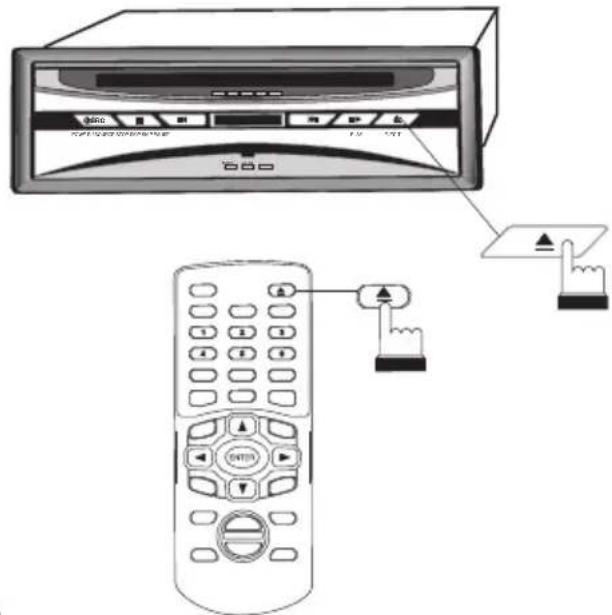
2 Unloading disc
Press EJECT button, the disc is automatically ejected.
Notes:
If wrong disc, upside-down discs or dirty discs have been inserted, "NO DISC" is displayed.
Remove the disc.
Do not put any objects other than discs into the disc slot. doing so may cause the player to malfunction.
Tips

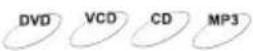
These indicate the disc for which the function can be used.

:You can use this function with DVD discs.

:You can use this function with VIDEO CDs.

:You can use this function with MP3 discs.

:You can use this function with CDs.
About this owner's manual
This owner's manual explains the basic instructions of this DVD player, some DVD disc are produced in a manner that allows specific or limited operation during playback. As such, the DVD player may not respond to all operating commands. This is not a defect in the DVD player. Refer to the instruction notes of discs.
“ may appear on the screen during operation.
A “ ⊗” means that the operation is not permitted by the DVD player or the disc.
Quick Guide
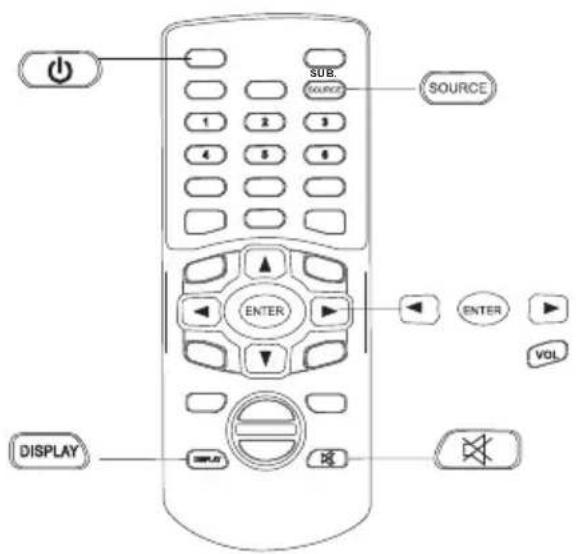
1 Turning the power on and off

Press the ⏻ button of the remote control, the power turns off.
To turn the power on, press the ⏻ button again.
Play Position Memory Function
- Even if you turn power off or switch the ignition Key to OFF during playback or change the video source, playback will continue from the point where playback stopped when the power is turned ON again.
The play position memory is released if the magazine is removed or the disc is changed.
2 SOURCE
Select DVD player or AUX input by pressing the SOURCE button.

| Connect | SOURCE |
| Using AUDIO and VIDEO IN, connect the DVD video player to a VTR, TV/VTR combination or video selector. | AUX |
3 Setting volume level
First press VOL button on the remote then press the ▶ or ◀ button to increase or decrease volume level

4 Tuning the sound on and off

During playback pree ☑ no sound is played. Press ☑ to resume normal playback with sound.
5 Displaying the disc status
During playback,
press DISPLAY buttonto appear the playback status ;
press DISPLAY button again to turn off the playback status.
1 Playing a disc


Caution
With some DVDs, certain operations are disabled. Such operations are not possible on such DVDs. The DVD functions described in this manual are not supported by all instructions for details on the features supported.
Fingerprints on a disc may adversely affect playback. If a problem occurs, remove the disc and check for fingerprints on the playback side. Clean the disc if necessary.
When using the remote control, be careful to pressing multiple buttons at the same time may cause erroneous operation.
① Press ENTER button.
Playback starts.
If a menu screen appears
On DVDs and video CDs with playback control (PBC), menu screen may appear automatically. If this happens, perform the operation described below to start playback.
Note: For many discs, the menu screen can
DVD menu
Use the Joystick to select the desired item, then press ENTER or ▶ button.
Or press the number keys(0\~9)

Tips

Using the Number keys
This describes use of the Number keys.
To input 16: Press the 1 button and then press the 6 key.
To input 28: Press the 2 key and then press the 8 key.
To input 108: Press the 1 key and then press the 0 and 8 button.
VCD menu
Use the number keys(0\~9) to select the desired item.

Note: The menu screen does not appear when the PBC function is turned off. If this is the case press MENU to turn on the PBC function. In PBC off mode, you can use the number keys to input the desired track also.
Quick Guide

1 Stopping playback
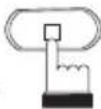
Press the stop button during playback to stop playback.
Press ■ during playback.
Tips
• Using the PRE-STOP function.
When the PRE-STOP function is used, the position at which playback is stopped is stored in the memory, and playback resumes from that position.
① Press ■ once during playback.

is displayed.
② Press ▶ in the PRE-STOP mode.

Playback starts from the position at which it was stopped.
• To cancel the PRE-STOP function
Either press ■ again in the PRE-STOP mode, eject the disc to clear the memory.
Playback will start at the beginning of the disc.
Notes:
- For some discs, the position at which playback was stopped may not be accurate.
2 Fast-forwarding/ fast-reversing During playback press ◀ (fast-reverse) or ▶ (fast-forward)
Each time you press the ◀ or ▶ button, the playback speed changes to multi-level normal speed or normal speed.
3 Finding the beginning of chapters or tracks
① During playback press or
The chapter/track switches each time
the button is pressed, and playback of the selected chapter/track starts.
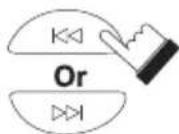
▶:Press this to start playback from the beginning of the next chapter or track.
◀:Press this to start playback from the beginning of the previous chapter or track.
Note: Some DVDs do not have chapters.
Supplementary explanation
Chapters are divisions of movies or musical selections on DVDs.
Tracks are divisions of movies or musical selections on video and audio CDs.
Convenience Functions

1 Switching the audio language
On DVDs that include multiple audio modes or multiple audio languages, the audio language can be switched during playback.
① During playback, pressing audio button

The sound will switch between the different audio modes recorded on the disc each time the button is pressed.
Notes:
- The language chosen in the player's default settings is selected when the power is turned on or when a disc is replaced. If the disc playing does not include the chosen language, then the disc's default language will be used.
- For some discs it is not possible to switch the audio language during playback.
Some time may be required for the audio language to change.
Video CDs with multiplex audio
① During playback, pressing 📋 AUDIO button

Stereo→Left→RightStereo
The sound will switch between the different audio modes recorded on the disc each time the button is pressed.
2 Switching the subtitles
With DVDs that include multiple subtitle languages, the subtitle language can be switched during playback.
During playback, pressing SUB. SOURCE button

The subtitle language will switch between the languages recorded.
3 Switching the angle
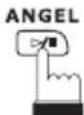
With DVDs on which images photographed from multiple angles are recorded, the angle can be switch during playback.
During playback, long press ▷/■ button
The angle switches between the angles recorded on the disc each time the button is pressed.
4 Playing form the desired location
Locating a specific location by entering the track number, the chapter number or the time

① During playback, press GOTO.
② Input the chapter the title or the time from which you want to start playback using the joystick and the number keys(0\~9).
Notes:
- Input the hours first, followed by the minutes, then the seconds.
- Press CLEAR to delete all digits you input.
③ Press ENTER
Playback starts from the selected chapter, track or the time.
5 Chapter/Track/Title repeat playback
① During playback, Press REPEAT button.
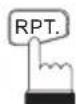
The repeat mode switches each time the button is pressed

flowchart
graph TD
    A["DVD"] --> B["CHAPTER"]
    B --> C["TITLE"]
    C --> D["OFF"]
    D --> E["VCD"]
    E --> F["TRACK"]
    F --> G["ALL"]
    G --> H["OFF"]
    H --> I["VCD(PBC OFF)"]
Default Settings (SET UP)
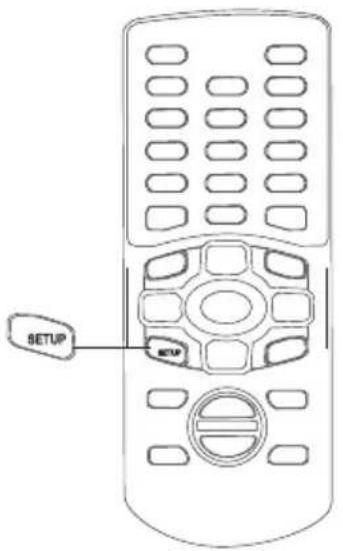
Changing the default settings (setup)
Press SETUP.
The setting menu appears.
Press joystick button to move the cursor to the item, then press ENTER to select the item you want.

flowchart
graph TD
    A["SETUP"] --> B["Input"]
    B --> C["Processing"]
    C --> D["ENTER"]
    D --> E["Output"]
1 Language setup
| Language | OSD Language | :English |
| Video | Subtitle | :English |
| Audio | Div X subtitle | :Central European |
| Rating | Audio | :English |
| DVD menu | :English | |
| Others |
2 Video setup
| Language | Aspect Ratio : 4:3 | |
| Video | View Mode : Auto Fit | |
| Audio | TV System : Multi | |
| Rating | Smart Picture : Standard | |
| Others |
Default Settings (SET UP)
3 Audio setup
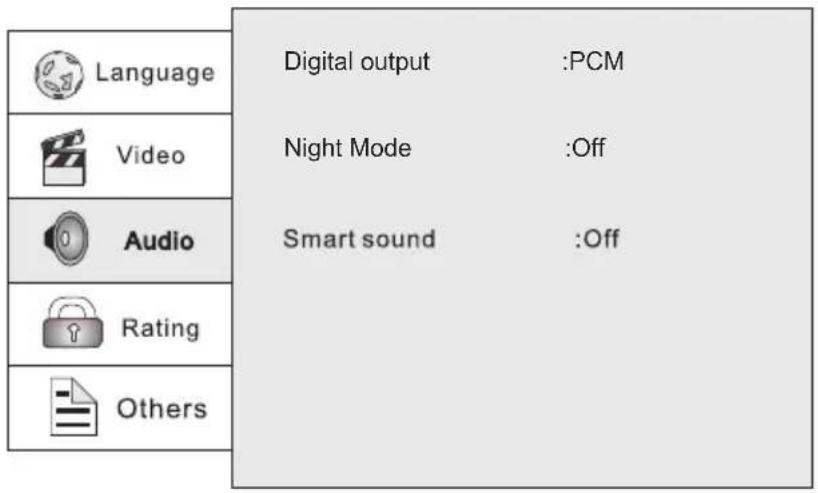
4 Rating setup
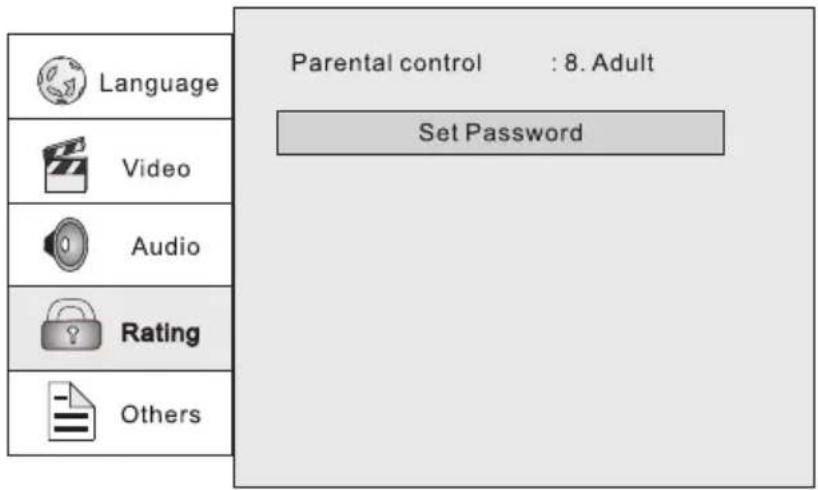
The player with the default password 8888. Press the number button to create or change your 4-digital security password to change the rating, input numbers are displayed. Then, you must enter the correct password or the default password 8888 to change the rating or you can not play DVD disc rated higher than the level you selected.
This is the function of DVD for restricting the viewing age as stipulated by laws in different countries. The way in which viewing is restricted differd from DVD to DVD. Sometimes the DVD can not be played at all, other times certain scenes are skipped, and the other times certain scenes are replaced with other scenes.
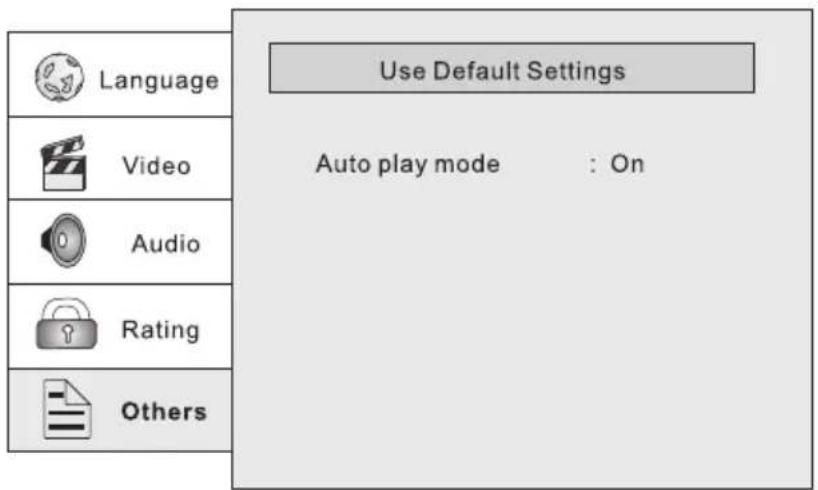
5 Others setup
Installation and connections
Before installing or connecting the unit, please read the following and pages 1,2,3 Of this manual thoroughly for proper use.

WARNING
DO NOT DISASSEMBLE OR ALTER
Doing so may result in an accident, fire or electric shock.
KEEP SMALL OBJECTS SUCH AS BATTERY OUT OF THE REACH OF CHILDREN.
Swallowing them may result in serious injury. If swallowed, consult a physician immediately.
USE THE CORRECT AMPERE RATING WHEN REPLACE FUSES.
Failure to do so may result in fire or electric shock.
USE ONLY IN CARS WITH A 12 VOLT NEGATIVE GROUND
(Check with professional mobile video installer, if you are not sure.) Failure to do so may result in fire, etc.
BEFORE WIRING, DISCONNECT THE CABLE FROM THE NEGATIVE BATTERY TERMINAL.
Failure to do so may result in electric shock or injury due to electrical shorts.
DO NOT SPLICE INTO ELECTRICAL CABLES.
Never cut away cable insulation to supply power to other equipment. Doing so will exceed the current carrying capacity of the wire and result in fire or electric shock.
DO NO ALLOW CABLES TO BECOME ENTANGLED IN SURROUNDING OBJECTS.
Never cut away cable insulation to supply power to other equipment. Doing so will exceed the current carrying capacity of the wire and result in fire or electric shock.
DO NO ALLOW CABLES TO BECOME ENTANGLED IN SURROUNDING OBJECTS.
Arrange wiring and cables in compliance with the manual to prevent obstructions when driving. Cables or wiring that obstruct or hang up on places such as the steering wheel, gear lever, brake pedals, etc. can be extremely hazardous.
DO NOT DAMAGE PIPE OR WIRING WHEN DRILLING HOLES.
When drilling holes in the chassis for installation, take precautions so as not to contact, damage or obstruct pipes, fuel lines, tanks or electrical wiring. Failure to take such precautions may result in fire.
MAKE THE CORRECT CONNECTIONS.
Failure to make the proper connections may result in fire or product damage.
DO NOT USE BOLTS OR NUTS IN THE BRAKE OR STEERING SYSTEMS TO MAKE GROUND CONNECTIONS.
Bolts or nuts used for the brake or steering systems(or any other safety-related system), or tanks should NEVER be used for installations or ground connections. Using such parts could disable control the vehicle and cause fire etc.
DO NOT BLOCK VENTS OR RADIATOR PANELS.
Doing so may cause heat or build up inside and may result in fire.
USE SPECIFIED ACCESSORY PARTS AND INSTALL THEM SECURELY.
Be sure to use only the specified accessory parts. Use of other then designated parts may damage this unit internally or may not securely install the unit in place.
This may cause parts to become loose resulting in hazards or product failure.
DO NOT INSTALL IN LOCATIONS WITH HIGH MOISTURE OR DUST.
Avoid installing the unit in locations with high incidence of moisture or dust. Moisture or dust that penetrates into this unit may result in product failure.
HAVE THE WIRING AND INSTALLATION DONE BY EXPERTS.
The wiring and installation of this unit requires special technical skill and experience. To ensure safety, always contact the professional mobile video installer to have the work done.
ARRANGE THE WIRING SO IT IS NOT CRIMPED OR PINCHED BY A SHARP METAL EDGE.
Route the cables and wiring away from moving parts (like seat rails) or sharp of pointed edges. This will prevent crimping and damage to the wiring. If wiring passes through a hole in metal, use a rubber grommet to prevent the wires insulation from being cut by the metal edge of the hole.
Installation and connections
Note:
The are 2 mounting screws on the case of DVD player to protect unit during shipping. Be sure to remove these screws before installing the unit. Cover the holes with the dustproof paster.

Preparation
1 Park the vehicle in a flat, safe place. Apply the parking brake, then remove the ignition key.
2 Check the included parts and organize the tools.

Power cable

Remote control sensor unit
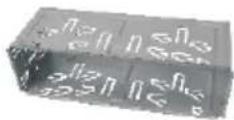
Mounting bracket (half sleeve)
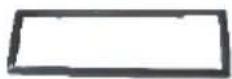
Removable trim ring equipped on the unit

Rear strap (brace)

Key
x2

Dustproof paster
x2
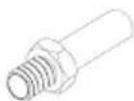
Mounting screw M5
X1
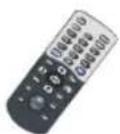
Remote control

Lithium Button Cell (3V)

Double-sided adhesive tape
3 Disconnect the battery's minus terminal.
Mounting
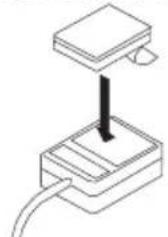
Mounting the remote control sensor unit Press the double-sided adhesive tape onto the back of the remote control sensor unit.
natural_image
Simple line drawing of a device with a cable and a rectangular block, no text or symbols present.Before completing the sensor mounting, make sure the location selected is within the operating range of the remote control. Peel off the backing of the adhesive tape and press the sensor onto the selected mounting location.
Precautions
- Be sure to disconnect the cable from the(-) battery post be before installing this unit. This will reduce any chance of damage to the unit in case of a short-circuit.
- Be sure to connect the color coded leads according to the diagram. Incorrect connections may cause the unit to malfunction or damage the vehicle's electrical system.
- When making connections to the car's electrical system, be aware of the factory installed components (e.g. On-board computer). Do not tap into these leads to provide power for this unit. When connecting the unit to fuse box, make sure the fuse for the intended circuit of the unit has the appropriate amperage. Failure to do so may result in damage to the unit and/or the vehicle.
Installation
Caution
Be careful that the vehicle's cords do not touch the unit. If the cords are in contact with the unit, their sheaths may be damaged due to vibrations generated while the vehicle is running, resulting in short-circuit. Leave enough space when routing wires to prevent contact between the vehicle's wires and the unit.
Notes
To prevent external noise from entering the audio system.
Locate the unit and route the leads at least 10 cm away from the car harness.
Keep the battery power leads as far away from other leads as possible.
Connect the ground lead securely to a bare metal spot(remove any paint, dirt or grease if necessary) of the car chassis.
Installation and connections

flowchart
graph TD
    A["Rear of product"] --> B["Yellow"]
    A --> C["Left(WHITE) Right(RED)"]
    A --> D["USB jack(optional)"]
    B --> E["REAR VIDEO OUT"]
    B --> F["FRONT VIDEO OUT"]
    B --> G["MONITOR VIDEO IN"]
    B --> H["EXTERIOR VIDEO IN"]
    B --> I["AUDIO OUT (LEFT)"]
    B --> J["AUDIO OUT (RIGHT)"]
    B --> K["AUDIO IN (LEFT)"]
    B --> L["AUDIO IN (RIGHT)"]
    C --> M["remote control sensor jack"]
    D --> N["AUDIO input (RCA)"]
    D --> O["AUDIO output (RCA)"]
    D --> P["RCA input for video games"]
    D --> Q["RCA input for rear-view camera"]
    D --> R["To monitor with rear-videm camera input"]
    D --> S["To headrest or ceiling mount monitors"]
    T["BLACK: (-) neg. ground input. To vehicle chassis"] --> U["YELLOW: (+) pos. 12 volt constant input"]
    T --> V["RED: (+) pos. 12 volt accessory input"]
    W["BLE: (+) 300mA max. standby output"] --> X["BROWN: (+) pos. reverse wire input (for rear view camera option)"]
    Y["GREEN: Used to detect the On/Off status of the parking brake, This lead must be connected to the power supply side of the parking brake switch."] --> Z["BLE - STANDBY OUT"]
    AA["50mA"] --> AB["BLACK - POWER GROUND"]
    AC["3A"] --> AD["YELLOW - +12V BATT"]
    AE["RED - +12V ACC"] --> AF["BROWN - REVERSE INPUT"]
    AG["BLE - STANDBY OUT"] --> AH["GREEN - PARKING BRAKE"]
Note
- We advise to connect the EX-VIDEO-CON lead.
And so the front display only will be on while detecting the parking brake ON.
Or if the EX-VIDEO-CON and MONITOR VIDEO IN are used, the front display will be on while backing the car. - This product's REAR VIDEO OUT is for connections of displays to enable passengers in the rear seats to watch the DVD or Video CD.
Warning
NEVER install the display in a location that enables the driver to watch the DVD or Video CD while driving.
This products whether your car's parking brake is engaged or not, and prevents you from watching a DVD or Video CD on the display connected to FRONT VIDEO OUT while driving.
Example: When you attempt to watch a DVD, the screen is black. When you parking your car in a safe place and apply the parking brake, the picture appears on the screen.
Others
In case of difficulty
If operation freezes, the screen goes black or the unit should otherwise not function properly, try turning the power off then back on.
This guide will help you isolate the problem if the unit is at fault. Otherwise, make sure the rest of your system is properly connected or consult a professional mobile video installer.
| Symptom | Cause | Remedy |
| Unit does not operate. | Fuse is blown. | Replace with a fuse of the specified capacity. |
| Monitor's power is not turn on. | Turn on the monitor's power | |
| Condensation | Wait a while(about 1 hour) for the condensation to dry. | |
| Operation is unstable. | Remote control unit's battery is worn. | Replace the remote control unit's battery with new one. |
| Remote control sensor or transmitter is dirty. | Clean the sensor or transmitter. | |
| No picture is produced. | Monitor's mode is not switched to the mode you want to see. | Switch to the mode you want to see. |
| Playback does not start. | Disc is loaded upside-down. | Check the disc and load it with the labeled side facing upward. |
| Disc is dirty. | Clean the disc. | |
| A disc not able to playback with this unit is loaded. | Check if the disc is able to be played back. | |
| Parental lock is set. | Cancel the parental lock or change the rating level. | |
| Picture is unclear or noisy | Disc is being fast-forwarded or fast-reversed. | The picture may be slightly disturbed, but this is normal. |
| Vehicle's battery power is weak. | Check the battery power and wiring.The unit may turn off automatically if the battery is weak. | |
| Monitor's fluorescent tube is worn. | Replace the monitor's fluorescent tube. | |
| Image stops sometimes. | Disc is scratched. | Replaced with a non-scratched disc. |
| No disc | No disc is loaded. | Load a disc. |
| Disc is dirty. | Clean the disc. | |
| Not valid | Remote control operation is not possible. | For some discs or playing modes, certain operations are not possible. This not a malfunction. |
| VIDEO SIGNAL SYSTEM IS NOT CORRECT | PAL( or NTSC) disc is loaded. | Change the TV Output of the unit(see SET UP). |
| No sound | Select the wrong Audio Out | According to the connection, set right Audio out. |
Others
Specifications
| Audio | Audio output : 1.9 | 0.2V± 100k (analog) |
| Video | Video output: Resolution: | 1 ± 0.2V 75 Ω more than 500 line |
| Power | Power requirement: Power consumption: | 12 +20% -10% V DC less than 20 W |
| General | Dimensions(approx.): Weight: Normal operating temperature range: -5°C(+23°F) TO+55°C(+131°F) | 178x50x183mm (w/h/d) incl. Projecting parts 1.4Kg |
| Design and specifications are subject to change without notice. The illustrations in this manual may appear different from the actual product due to printing conditions. | ||
- TABLE OF CONTENTS
- Precautions 1-3
- Identification of controls 4-6
- Quick Guide 7-10
- Convenient Functions 11
- Changing the default settings (setup) 12-13
- Installation and connections 14-16
- Others 17-18
- CAUTION:
- WARNING OF DEW FORMATION
- Caution
- ARRANGE THE WIRING SO IT IS NOT CRIMPED OR PINCHED BY A SHARP EDGE.
- USE SPECIFIED ACCESSORY PARTS AND INSTALL THEM SECURELY.
- DO NOT INSTALL IN LOCATIONS WITH HIGH MOISTURE OR DUST.
- INSERT WITH THE CORRECT BATTERY POLARITY.
- HAVE THE WIRING AND INSTALLATION DONE BY EXPERTS.
- HALT USE IMMEDIATELY IF A PROBLEM APPEARS.
- Temperature
- Proper Handling
- Keep your discs clean
- Disc accessories
- Damaged disc
- Installation location
- Identification of controls
- Resetting the unit
- Remote Control
- When using remote control
- Notes on battery
- Quick Guide
- Loading and unloading a disc
- Insert the disc with the side containing words diagrams facing upwards.
- Unloading disc
- Notes:
- Tips
- These indicate the disc for which the function can be used.
- About this owner's manual
- Turning the power on and off
- Play Position Memory Function
- SOURCE
- Setting volume level
- Tuning the sound on and off
- Displaying the disc status
- Playing a disc
- ① Press ENTER button.
- If a menu screen appears
- DVD menu
- Using the Number keys
- VCD menu
- Stopping playback
- Fast-forwarding/ fast-reversing During playback press ◀ (fast-reverse) or ▶ (fast-forward)
- Finding the beginning of chapters or tracks
- ① During playback press or
- Supplementary explanation
- Convenience Functions
- Switching the audio language
- Switching the subtitles
- Switching the angle
- Playing form the desired location
- Chapter/Track/Title repeat playback
- Default Settings (SET UP)
- Changing the default settings (setup)
- Language setup
- Video setup
- Audio setup
- Rating setup
- Others setup
- Installation and connections
- WARNING
- DO NOT DISASSEMBLE OR ALTER
- KEEP SMALL OBJECTS SUCH AS BATTERY OUT OF THE REACH OF CHILDREN.
- USE THE CORRECT AMPERE RATING WHEN REPLACE FUSES.
- USE ONLY IN CARS WITH A 12 VOLT NEGATIVE GROUND
- BEFORE WIRING, DISCONNECT THE CABLE FROM THE NEGATIVE BATTERY TERMINAL.
- DO NOT SPLICE INTO ELECTRICAL CABLES.
- DO NO ALLOW CABLES TO BECOME ENTANGLED IN SURROUNDING OBJECTS.
- DO NOT DAMAGE PIPE OR WIRING WHEN DRILLING HOLES.
- MAKE THE CORRECT CONNECTIONS.
- DO NOT USE BOLTS OR NUTS IN THE BRAKE OR STEERING SYSTEMS TO MAKE GROUND CONNECTIONS.
- DO NOT BLOCK VENTS OR RADIATOR PANELS.
- ARRANGE THE WIRING SO IT IS NOT CRIMPED OR PINCHED BY A SHARP METAL EDGE.
- Note:
- Preparation
- Mounting
- Precautions
- Installation
- Notes
- Note
- Others
- In case of difficulty
Brand : Macrom
Model : M-DVD9901
Category : DVD player