PT-DW17KEJ - Video projector PANASONIC - Free user manual and instructions
Find the device manual for free PT-DW17KEJ PANASONIC in PDF.


User questions about PT-DW17KEJ PANASONIC
0 question about this device. Answer the ones you know or ask your own.
Ask a new question about this device
Download the instructions for your Video projector in PDF format for free! Find your manual PT-DW17KEJ - PANASONIC and take your electronic device back in hand. On this page are published all the documents necessary for the use of your device. PT-DW17KEJ by PANASONIC.
USER MANUAL PT-DW17KEJ PANASONIC
Operating Instructions Functional Manual
DLP™ Projector
Commercial Use
Model No. PT-DZ21KE PT-DS20KE PT-DW17KE
natural_image
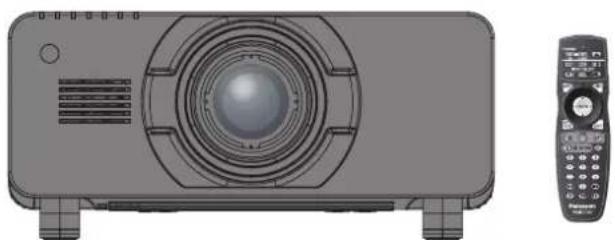
Illustration of a projector and its remote control unit (no text or symbols)The projection lens is sold separately.
Thank you for purchasing this Panasonic product.
■ Before operating this product, please read the instructions carefully and save this manual for future use.
Before using your projector, be sure to "Read this first!" (→ pages 2 to 10).
Read this first!
WARNING: THIS APPARATUS MUST BE EARTHED.
WARNING: To prevent damage which may result in fire or shock hazard, do not expose this appliance to rain or moisture.
Machine Noise Information Ordinance 3. GSGV, January 18, 1991: The sound pressure level at the operator position is equal or less than 70 dB (A) according to ISO 7779.
WARNING:
- Remove the plug from the mains socket when this unit is not in use for a prolonged period of time.
- To prevent electric shock, do not remove cover. No user serviceable parts inside. Refer servicing to qualified service personnel.
- Do not remove the earthing pin on the mains plug. This apparatus is equipped with a three prong earthingtype mains plug. This plug will only fit an earthing-type mains socket. This is a safety feature. If you are unable to insert the plug into the mains socket, contact an electrician. Do not defeat the purpose of the earthing plug.
WARNING:
This is a class A product. In a domestic environment this product may cause radio interference in which case the user may be required to take adequate measures.
CAUTION:
To assure continued compliance, follow the attached installation instructions, which include using the provided power cord and shielded interface cables when connecting to computer or peripheral device. If you use serial port to connect PC for external control of projector, you must use a commercial RS-232C serial interface cable with ferrite core. Any unauthorized changes or modifications to this equipment will void the user's authority to operate.
This is a device to project images onto a screen, etc., and is not indented for use as indoor lighting in a domestic environment.
Directive 2009/125/EC
Product information (for Turkey only)
EEE Complies with Directive of Turkey.
IMPORTANT: THE MOULDED PLUG (U.K. only)
FOR YOUR SAFETY, PLEASE READ THE FOLLOWING TEXT CAREFULLY.
This appliance is supplied with a moulded three pin mains plug for your safety and convenience. A 13 amp fuse is fitted in this plug. Should the fuse need to be replaced, please ensure that the replacement fuse has a rating of 13 amps and that it is approved by ASTA or BSI to BS1362.
Check for the ASTA mark 📍 or the BSI mark 🤖 on the body of the fuse.
If the plug contains a removable fuse cover, you must ensure that it is refitted when the fuse is replaced. If you lose the fuse cover, the plug must not be used until a replacement cover is obtained. A replacement fuse cover can be purchased from an Authorised Service Center.
If the fitted moulded plug is unsuitable for the mains socket in your home, then the fuse should be removed and the plug cut off and disposed of safely. There is a danger of severe electrical shock if the cut off plug is inserted into any 13 amp socket.
If a new plug is to be fitted, please observe the wiring code as shown below.
If in any doubt, please consult a qualified electrician.
WARNING: THIS APPLIANCE MUST BE EARTHED.
IMPORTANT: The wires in this mains lead are coloured in accordance with the following code:
Green - and - Yellow: Earth
Blue: Neutral
Brown: Live
As the colours of the wire in the mains lead of this appliance may not correspond with the coloured markings identifying the terminals in your plug, proceed as follows.
The wire which is coloured GREEN - AND - YELLOW must be connected to the terminal in the plug which is marked with the letter E or by the Earth symbol 12 or coloured GREEN or GREEN - AND - YELLOW.
The wire which is coloured BLUE must be connected to the terminal in the plug which is marked with the letter N or coloured BLACK.
The wire which is coloured BROWN must be connected to the terminal in the plug which is marked with the letter L or coloured RED.
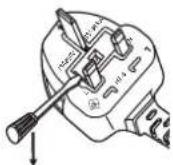
How to replace the fuse: Open the fuse compartment with a screwdriver and replace the fuse.
WARNING:
POWER
The wall outlet or the circuit breaker shall be installed near the equipment and shall be easily accessible when problems occur. If the following problems occur, cut off the power supply immediately.
Continued use of the projector in these conditions will result in fire or electric shock.
- If foreign objects or water get inside the projector, cut off the power supply.
- If the projector is dropped or the cabinet is broken, cut off the power supply.
- If you notice smoke, strange smells or noise coming from the projector, cut off the power supply.
Please contact an Authorized Service Center for repairs, and do not attempt to repair the projector yourself.
During a thunderstorm, do not touch the projector or the cable.
Electric shocks can result.
Do not do anything that might damage the power cord or the power plug.
If the power cord is used while damaged, electric shocks, short-circuits or fire will result.
- Do not damage the power cord, make any modifications to it, place it near any hot objects, bend it excessively, twist it, pull it, place heavy objects on top of it or wrap it into a bundle.
Ask an Authorized Service Center to carry out any repairs to the power cord that might be necessary.
Completely insert the power plug into the wall outlet and the power connector into the projector terminal.
If the plug is not inserted correctly, electric shocks or overheating will result.
- Do not use plugs which are damaged or wall outlets which are coming loose from the wall.
Do not use anything other than the provided power cord.
Failure to observe this will result in fire or electric shocks.
Clean the power plug regularly to prevent it from becoming covered in dust.
Failure to observe this will cause a fire.
- If dust builds up on the power plug, the resulting humidity can damage the insulation.
- If not using the projector for an extended period of time, pull the power plug out from the wall outlet.
Pull the power plug out from the wall outlet and wipe it with a dry cloth regularly.
Do not handle the power plug and power connector with wet hands.
Failure to observe this will result in electric shocks.
Do not overload the wall outlet.
If the power supply is overloaded (ex., by using too many adapters), overheating may occur and fire will result.
■ ON USE/INSTALLATION
Do not place the projector on soft materials such as carpets or sponge mats.
Doing so will cause the projector to overheat, which can cause burns, fire or damage to the projector.
Do not set up the projector in humid or dusty places or in places where the projector may come into contact with oily smoke or steam, ex. a bathroom.
Using the projector under such conditions will result in fire, electric shocks or deterioration of components.
Deterioration of components (such as ceiling mount brackets) may cause the projector which is mounted on the ceiling to fall down.
Do not install this projector in a place which is not strong enough to take the full weight of the projector or on top of a surface which is sloped or unstable.
Failure to observe this will cause projector to fall down or tip over the projector, and severe injury or damage could result.
WARNING:
Do not cover the air intake/exhaust ports or place anything within 500 mm (20") of them.
Doing so will cause the projector to overheat, which can cause fire or damage to the projector.
- Do not place the projector in narrow, badly ventilated places.
- Do not place the projector on cloth or papers, as these materials could be drawn into the air inlet port.
Do not place your hands or other objects close to the air exhaust port.
Doing so will cause burns or damage your hands or other objects.
- Heated air comes out of the air exhaust port. Do not place your hands or face, or objects which cannot withstand heat close to this port.
Do not look at or place your skin into the light emitted from the lens while the projector is being used.
Doing so can cause burns or loss of sight.
- Extremely strong light is emitted from the projector's lens. Do not look at or place your hands directly into this light.
- Be especially careful not to let young children look into the lens. In addition, turn off the power and disconnect the power plug when you are away from the projector.
Never attempt to remodel or disassemble the projector.
High voltages can cause fire or electric shocks.
- For any inspection, adjustment and repair work, please contact an Authorized Service Center.
Do not project an image with the lens cover of the projection lens (optional) attached.
Doing so can cause fire.
Do not allow metal objects, flammable objects, or liquids to enter inside of the projector. Do not allow the projector to get wet.
Doing so may cause short circuits or overheating, and result in fire, electric shock, or malfunction of the projector.
- Do not place containers of liquid or metal objects near the projector.
- If liquid enters inside of the projector, consult your dealer.
● Particular attention must be paid to children.
Use the ceiling mount bracket specified by Panasonic.
Using the ceiling mount bracket other than the specified one will result in falling accidents.
- Attach the supplied safety cable to the ceiling mount bracket to prevent the projector from falling down.
Installation work (such as ceiling mount bracket) should only be carried out by a qualified technician.
If installation is not carried out and secured correctly it can cause injury or accidents, such as electric shocks.
- Do not use anything other than an authorized ceiling mount bracket.
- Be sure to use the wire provided with the ceiling mount bracket as an extra safety measure to prevent the projector from falling down. (Install in a different location to the ceiling mount bracket.)
WARNING:
ACCESSORIES
Do not use or handle the batteries improperly, and refer to the following.
Failure to observe this will cause burns, batteries to leak, overheat, explode or catch fire.
- Use AA/R6 batteries.
- Do not use unspecified batteries.
- Do not use chargeable batteries.
- Do not disassemble dry cell batteries.
- Do not heat the batteries or place them into water or fire.
- Do not allow the + and – terminals of the batteries to come into contact with metallic objects such as necklaces or hairpins.
- Do not store batteries together with metallic objects.
- Store the batteries in a plastic bag and keep them away from metallic objects.
- Make sure the polarities (+ and −) are correct when inserting the batteries.
- Do not use a new battery together with an old battery or mix different types of batteries.
- Do not use batteries with the outer cover peeling away or removed.
If the battery fluid leaks, do not touch it with bare hands, and take the following measures if necessary.
● Battery fluid on your skin or clothing could result in skin inflammation or injury.
Rinse with clean water and seek medical advice immediately.
● Battery fluid coming in contact with your eyes could result in loss of sight.
In this case, do not rub your eyes. Rinse with clean water and seek medical advice immediately.
Do not remove unspecified screws during the lamp unit replacement.
Doing so can cause electric shocks, burns, or injury.
Do not disassemble the lamp unit.
If the lamp breaks, it could cause injury.
Lamp replacement
The lamp has high internal pressure. If improperly handled, an explosion and severe injury or accidents will result.
● The lamp can easily explode if struck against hard objects or dropped.
- Before replacing the lamp unit, be sure to turn the power off and to disconnect the power plug from the wall outlet.
Electric shocks or explosions can result if this is not done.
- When replacing the lamp unit, turn the power off and allow the lamp to cool for at least one hour before handling it otherwise it can cause burns.
- Be careful to hold the lamp unit cover and to loosen the lamp unit cover fixing screws with the projector installed upward in the vertical direction since the lamp unit cover may open and the lamp case may drop off on its weight.
This can cause severe injury or accidents.
- When you loosen or fix the lamp case fixing screws with the projector installed upward in the vertical direction, make sure to hold the lamp case handle since the lamp case may drop off on its weight. This can cause severe injury or accidents.
Do not use the supplied power cord with devices other than this projector.
- Using the supplied power cord with devices other than this projector may cause short circuits or overheating, and result in electric shock or fire.
Keep accessories (lens fixing screws, etc.) out of the reach of small children.
Accidentally swallowing them can cause physical harm.
- If you believe that parts have been swallowed, seek medical advice immediately.
Remove the depleted batteries from the remote control promptly.
● Leaving them in the unit may result in fluid leakage, overheating, or explosion of the batteries.
CAUTION:
POWER
When disconnecting the power cord, be sure to hold the power plug and power connector.
If the power cord itself is pulled, the lead will become damaged, and fire, short-circuits or serious electric shocks will result.
When not using the projector for an extended period of time, disconnect the power plug from the wall outlet and remove the batteries from the remote control.
Failure to do so may result in fire or electric shock.
Disconnect the power plug from the wall outlet before carrying out any cleaning and replacing the unit.
Failure to do so may result in electric shock.
■ ON USE/INSTALLATION
Do not place heavy objects on top of the projector.
Failure to observe this will cause the projector to become unbalanced and fall, which could result in damage or injury. The projector will be damaged or deformed.
Do not put your weight on this projector.
You could fall or the projector could break, and injury will result.
- Be especially careful not to let young children stand or sit on the projector.
Do not place the projector in extremely hot locations.
Doing so will cause the outer casing or internal components to deteriorate, or result in fire.
● Take particular care in locations exposed to direct sunlight or near stoves.
Do not place your hands in the openings beside the optical lens, while shifting the lens.
Failure to observe this could cause injury.
Do not stand in front of the lens while the projector is being used.
Doing so can cause damage and burns to clothing.
- Extremely strong light is emitted from the projector's lens.
Do not place objects in front of the lens while the projector is being used.
Doing so can cause damage to the object and can cause the set to malfunction.
- Extremely strong light is emitted from the projector's lens.
Always disconnect all cables before moving the projector.
Moving the projector with cables still attached can damage the cables, which will cause fire or electric shocks to occur.
ACCESSORIES
Do not use the old lamp unit.
If used it could cause lamp explosion.
If the lamp has broken, ventilate the room immediately. Do not touch or bring your face close to the broken pieces.
Failure to observe this will cause the user to absorb the gas which was released when the lamp broke and which contains nearly the same amount of mercury as fluorescent lamps, and the broken pieces will cause injury.
- If you believe that you have absorbed the gas or that the gas has got into your eyes or mouth, seek medical advice immediately.
- Ask your dealer about replacing the lamp unit and check the inside of the projector.
Do not attach the air filter unit while it is wet.
Doing so may result in electric shock or malfunctions.
● After you clean the air filter units, dry them thoroughly before reattaching them.
Do not touch the fan with your fingers or any other parts of your body when replacing the lamp unit.
Doing so can cause injury.
Ask your dealer about cleaning inside the projector once a year.
Continuous use while dust is accumulated inside the projector may result in fire.
- For cleaning fee, ask your dealer.
When not using the projector for an extended period of time, remove the batteries from the remote control.
Failure to observe this will cause the batteries to leak, overheat, catch fire or explode, which may result in fire or contamination of surrounding area.
CAUTION:
■ VIEWING 3D VIDEO (PT-DZ21KE and PT-DS20KE only)
Those with a medical history of oversensitivity to light, heart problems, or poor physical health should not view 3D images.
This may lead to a worsening of medical conditions.
If you feel tiredness or discomfort, or other abnormality while viewing with 3D Eyewear, discontinue viewing.
Continuing use may cause health problems. Take a break as necessary.
When viewing 3D movies, aim to view one movie at a time and take a break as necessary.
When viewing 3D images, for example when playing 3D games or using a PC where two way interaction is possible, take an appropriate break every 30 to 60 minutes.
Watching for long periods of time may cause eye fatigue.
When preparing contents, use contents properly created to be used for 3D.
This may cause eye fatigue or health problems.
When viewing 3D images, pay attention to people and objects in the vicinity.
3D video may be mistaken for actual objects, and the related bodily movements can cause damage to objects and lead to injury.
Use 3D Eyewear when viewing 3D videos.
Do not tilt your head when viewing with 3D Eyewear.
Those who are near or far sighted, those with weaker eyesight in one eye, or those with astigmatism should use corrective glasses etc. when using 3D Eyewear.
If the image appears distinctly double when viewing 3D video, discontinue viewing.
Watching for long periods of time may cause eye fatigue.
View at a distance of at least three times the effective height of the screen.
Viewing at distance closer than the recommended distance may cause eye fatigue. As with movies, if there are black bands at the top and bottom of the video, view at a distance of 3 times or more of the height of the video section.
Children younger than 5 or 6 years old should not use 3D Eyewear.
As it is difficult to gauge the reactions of children to fatigue and discomfort their condition may worsen suddenly.
If a child uses the 3D Eyewear, guardians should beware of the child's eyes becoming tired.
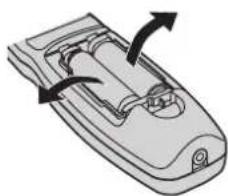
To remove the battery
Remote Control Battery
- Press the guide and lift the cover.
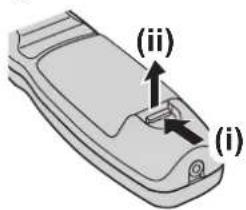
- Remove the batteries.
natural_image
Diagram of a remote control panel with directional arrows indicating movement (no text or symbols)Trademarks
- Microsoft ^ , Windows ^ , Windows Vista ^ , and Internet Explorer ^ are the registered trademarks or trademarks of Microsoft Corporation in the United States and/or other countries.
• Mac, Mac OS, OS X, and Safari are the trademarks of Apple Inc. registered in the United States and other countries. - PJLink™ is a trademark or pending trademark in Japan, the United States, and other countries and regions.
- HDMI, the HDMI logo and High-Definition Multimedia Interface are trademarks or registered trademarks of HDMI Licensing LLC.
• VGA and XGA are trademarks of International Business Machines Corporation.
• SVGA is a registered trademark of the Video Electronics Standards Association.
• RealD 3D is a trademark of RealD Inc. - The font used in the on-screen displays is a Ricoh bitmap font, which is manufactured and sold by Ricoh Company, Ltd.
- Other names, company names or product names used in these operating instructions are the trademarks or registered trademarks of their respective holders.
Please note that the operating instructions do not include the ® and TM symbols.
Illustrations in these operating instructions
- Note that illustrations of the projector and screens may differ from the ones you actually see.
Page references
- In these instructions, references to pages are indicated as: (→ page 00).
Term
- In these instructions, the “Wireless/wired remote control unit” accessories are referred to as the “Remote control”.
Features of the Projector
Small size & ultra-high luminance
▶ ultra high luminance of 20 000 lm ^*1 is achieved while having a small size due to the unique optical system, cooling, and mechanism design.
*1: For PT-DZ21KE and PT-DS20KE. PT-DW17KE has a luminance of 17 000 lm.
Easy setup and improved serviceability
Extensive lineup of optional lenses allow more flexible setup of the projector.
Improved cost performance in maintenance fee
The new filter reduces the maintenance cost.
Quick Steps
For details, see the corresponding pages.
- Set up the projector. (→ page 28)

- Attach the projection lens (optional accessories) (→ page 43)

- Connect with other devices. (→ page 44)

- Connect the power cord. (→ page 48)

- Switch on the projector. (→ page 50)

- Make initial settings. ^*1 (→ page 21)

- Select the input signal. (→ page 52)

- Adjust the image. (→ page 52)
Important Information
Read this first! 2
Precautions for use ....15
Cautions when transporting 15
Cautions when installing 15
Security 18
Disposal 18
Cautions on use 18
Accessories 19
Optional accessories ....20
Preparation
Start-up display ....21
About your projector 22
Remote control 22
Projector body....24
Using the remote control 27
Inserting and removing the batteries....27
Setting Remote control ID numbers .....27
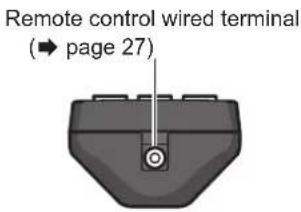
Connecting to the projector with a cable .....27
Getting Started
Setting up.... 28
Projection method ......28
Parts for ceiling mount (optional) 29
Screen size and throw distance....29
Adjusting adjustable feet 42
Attaching/removing the projection lens (optional accessory) 43
Attaching the projection lens 43
Removing the projection lens ....43
Connecting 44
Before connecting ....44
Connecting example: AV equipment .....45
Connecting example: Computers......47
Basic Operation
Switching on/off the projector 48
Connecting the power cord 48
Power indicator 49
Switching on the projector 50
Making adjustments and selections 50
Switching off the projector 51
Projecting.... 52
Select the input signal ....52
Adjusting the focus, zoom, and shift ....52
Moving the lens to the home position....53
Adjustment range by the lens position shift (optical shift) ....54
Adjusting the lens mounter when the focus is unbalanced ....55
Remote control operation 58
Using the shutter function....58
Using the on-screen display function .....58
Switching the input ....58
Using the STATUS function 59
Using the Automatic setup function....59
Using the Function button....59
Displaying the internal test pattern....60
Changing the picture aspect ratio ....60
Settings
Menu navigation ......61
Navigating through the menu 61
Main menu 62
Sub-menu 63
[PICTURE] menu 65
[PICTURE MODE]......65
[CONTRAST] 66
[BRIGHTNESS]......66
[COLOR]......66
[TINT]......66
[COLOR TEMPERATURE] 66
[GAMMA] 68
[SYSTEM DAYLIGHT VIEW] 68
[SHARPNESS] 68
[NOISE REDUCTION] 69
[DYNAMIC IRIS]......69
[SYSTEM SELECTOR] 70
Making sRGB compliant images.... 71
[POSITION] menu 72
[SHIFT] 72
[ASPECT] 72
[ZOOM]....73
[CLOCK PHASE] 74
[GEOMETRY] (PT-DZ21KE and PT-DS20KE only)....74
[KEYSTONE] (PT-DW17KE only) 76
[ADVANCED MENU] 77
[DIGITAL CINEMA REALITY]....77
[BLANKING]....77
[INPUT RESOLUTION]....78
[CLAMP POSITION]....78
[EDGE BLENDING] 78
[FRAME RESPONSE] 80
[FRAME LOCK] (PT-DZ21KE and PT-DS20KE only) 80
[RASTER POSITION] 80
[DISPLAY LANGUAGE] menu .....81
Changing the display language ....81
[3D SETTINGS] menu (PT-DZ21KE and PT-DS20KE only) 82
[3D SYSTEM SETTING] 82
[3D SYNC SETTING] 82
[3D SIMUL INPUT SETTING] 83
[3D INPUT FORMAT] 84
[LEFT/RIGHT SWAP] 84
[3D COLOR MATCHING] 84
[3D PICTURE BALANCE] 85
[DARK TIME SETTING] 85
[3D FRAME DELAY]......86
[3D TEST MODE] 86
[3D TEST PATTERN] 86
[SAFETY PRECAUTIONS MESSAGE] .....87
[3D SAFETY PRECAUTIONS] 87
[DISPLAY OPTION] menu 88
[COLOR MATCHING] 88
[LARGE SCREEN CORRECTION] 89
[SCREEN SETTING] (PT-DZ21KE and PT-DS20KE only) 90
[AUTO SIGNAL] 90
[AUTO SETUP] 91
[RGB IN] (supported during RGB signal input only) 92
[DVI-D IN] 92
[HDMI IN] 93
[SDI IN] (PT-DZ21KE and PT-DS20KE only) ....93
[ON-SCREEN DISPLAY] 94
[BACK COLOR] 95
[STARTUP LOGO] 95
[UNIFORMITY] 95
[SHUTTER SETTING] 96
[FREEZE] 96
[WAVEFORM MONITOR] 96
[CUT OFF] 98
[PROJECTOR SETUP] menu 99
[PROJECTOR ID] 99
[PROJECTION METHOD] 99
[COOLING CONDITION] 100
[HIGH ALTITUDE MODE] 100
[LAMP SELECT] 100
[LAMP RELAY] 101
[BRIGHTNESS CONTROL] 102
[STANDBY MODE] 106
[SCHEDULE] 106
[RS-232C]....108
[STATUS] 109
[NO SIGNAL SHUT-OFF] 110
[REMOTE2 MODE] 110
[FUNCTION BUTTON] 110
[DATE AND TIME].... 110
[LENS CALIBRATION]....111
[LENS MEMORY] 112
[SAVE ALL USER DATA].... 113
[LOAD ALL USER DATA] 113
[INITIALIZE]...... 114
[SERVICE PASSWORD].... 114
[P IN P] menu 115
Using P IN P functions 115
Setting P IN P functions 115
[TEST PATTERN] menu .....117
[TEST PATTERN]...... 117
[SIGNAL LIST] menu 118
Registering a signal to the list 118
Renaming the registered data 118
Deleting the registered data 118
Protecting the registered data 119
Expanding signal lock-in range 119
Managing the sub memory list ....120
[SECURITY] menu 121
[SECURITY PASSWORD] 121
[SECURITY PASSWORD CHANGE] 121
[DISPLAY SETTING] 122
[TEXT CHANGE] 122
[CONTROL DEVICE SETUP] 122
[CONTROL DEVICE PASSWORD CHANGE]. 124
[NETWORK] menu 125
[NETWORK SETUP] 125
[NETWORK CONTROL] 125
[NETWORK STATUS] 125
Network connections 126
Accessing from the Web browser 127
Maintenance
Lamp/Temperature/Filter Indicators .....142
Managing the indicated problems ....142
Maintenance/replacement 144
Before maintaining/replacing the unit .....144
Maintenance 144
Replacing the unit ....146
Troubleshooting ....151
Self-diagnosis display ....153
Contents
Appendix
Technical information ......156
PJLink protocol ....156
Control commands via LAN 157
Two window display combination list 165
Control device password 166
Upgrade kit (only supports PT-DZ21KE and PT-DS20KE) 166
List of compatible signals .....167
Specifications ....172
Dimensions ....175
Ceiling mount bracket safeguards .....176
Index 177
Precautions for use
Cautions when transporting
- The projection lens (optional accessory) is susceptible to effects due to vibration or impact. Make sure to remove the lens when transporting.
- When transporting the projector, hold it securely by its bottom and avoid excessive vibration and impacts. Not doing so may damage the internal parts and result in malfunctions.
- Do not transport the projector with the adjustable feet extended. Doing so may damage the adjustable feet.
Cautions when installing
■ After removing the projection lens (optional accessory), attach the dust-proof sponge included with the projector.
If the cover is not attached, dust will accumulate inside and may cause malfunctions.
■ Do not set up the projector outdoors.
The projector is designed for indoor use only.
- Do not set up the projector in the following locations.
- Places where vibration and impacts occur such as in a car or vehicle: Doing so may damage the internal parts and result in malfunctions.
- Near the exhaust of an air conditioner: Depending on the conditions of use, the screen may fluctuate due to the hot air from the air exhaust port or the heated or cooled air from the air conditioner. Make sure that the exhaust from the projector or other equipment, or the air from the air conditioner does not blow toward the front of the projector.
- Near lights (studio lamps, etc.) where temperature changes greatly (“Operating environment” page 174): Doing so may shorten the life of the lamp or result in deformation of the outer case and malfunctions.
● Near high-voltage power lines or near motors: Doing so may interfere with the operation of the projector. - Place where there is a high-power laser equipment: It may cause malfunction in DLP chips when the laser beam enters the lens.
- Be sure to ask a specialized technician or your dealer when installing the product to a ceiling.
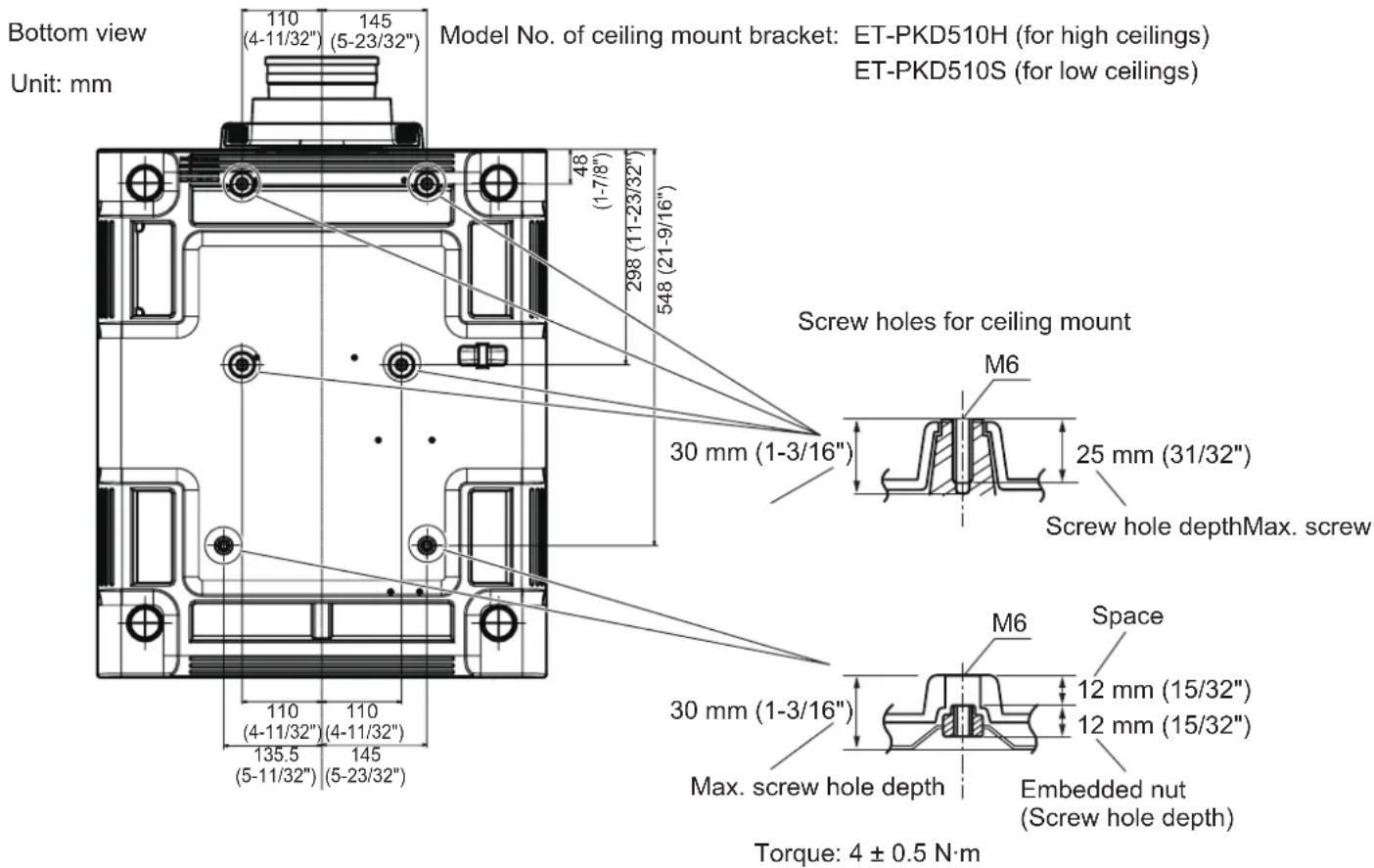
If the product is to be installed hanging from the ceiling, purchase an optional Ceiling Mount Attachment. Model No.: ET-PKD510H (for high ceilings), ET-PKD510S (for low ceilings)
Lens focus
The high clarity projection lens is thermally affected by the light from the light source, making the focus unstable in the period just after switching on the power. Wait at least 30 minutes with the image projected before adjusting the lens focus.
■ Make sure to set [HIGH ALTITUDE MODE] to [ON] when using the projector at elevations of 1 400 m (4 593 ft) or higher and lower than 2 700 m (8 858 ft) above sea level.
Failure to do so may shorten the life of the internal parts and result in malfunctions.
■ Make sure to set [HIGH ALTITUDE MODE] to [OFF] when using the projector at elevations lower than 1 400 m (4 593 ft) above sea level.
Failure to do so may shorten the life of the internal parts and result in malfunctions.
- Do not install the projector at elevations of 2 700 m (8 858 ft) or higher above sea level.
Doing so may shorten the life of the internal parts and result in malfunctions.
Precautions for use
- Do not use the projector tilted to the right or left
Using the projector at a vertical angle that exceeds 15^ may reduce product life or result in malfunction.
When installing and using the projector at an angle that exceeds 30^ vertically, set [COOLING CONDITION] (page 100).
Failure to observe this will result in malfunctions or shorten the life of the lamp or other components.
■ When a replacement lamp unit is used (for portrait mode), install it with the terminals surface facing down
Do not use the projector tilted to the right and left, front and back.
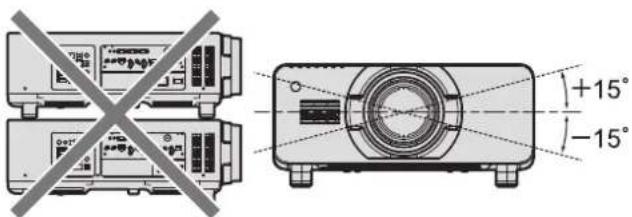
Using the projector at an angle that exceeds 15^ in either direction may reduce product life or result in malfunction.
■ Cautions when setting up the projector
- When installing and using the projector with a method other than the floor standing installation using the adjustable feet, fix the projector using the six screw holes for ceiling mounting (see the figure below). (Screw diameter: M6, tapping depth inside the set: 30 mm (1-3/16"), torque: 4 ± 0.5 N·m)
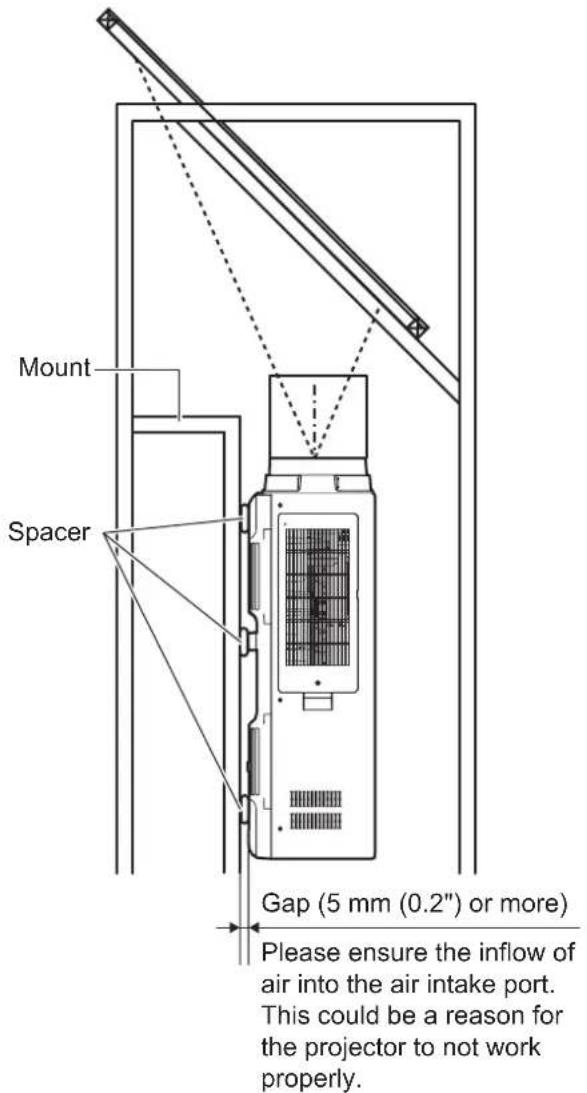
- Make a clearance of at least 5 mm (0.2") between the projector bottom and setting surface by inserting spacers (metallic) etc. between them.
● The adjustable feet can be removed if not needed in the installation. However, do not use the screw holes where the adjustable feet was removed to fix the projector in place.
Also, do not install other screws not specified in the instruction manuals of accessories in the adjustable feet's screw holes.
Doing so may damage the set.
- Use the adjustable feet only for the floor standing installation and for adjusting the angle. Using it for other purposes may damage the set.
- Do not stack projectors on top of each other.
- Do not use the projector tilted at an angle that exceeds ± 15^ from the horizontal plane.
● Prevent hot and cool air from the air conditioning system to blow directly to the ventilation ports (intake and exhaust) of the projector.
- Do not block the ventilation ports (intake and exhaust) of the projector.
Precautions for use
500 mm (20") or more 500 mm (20") or more 500 mm (20") or more
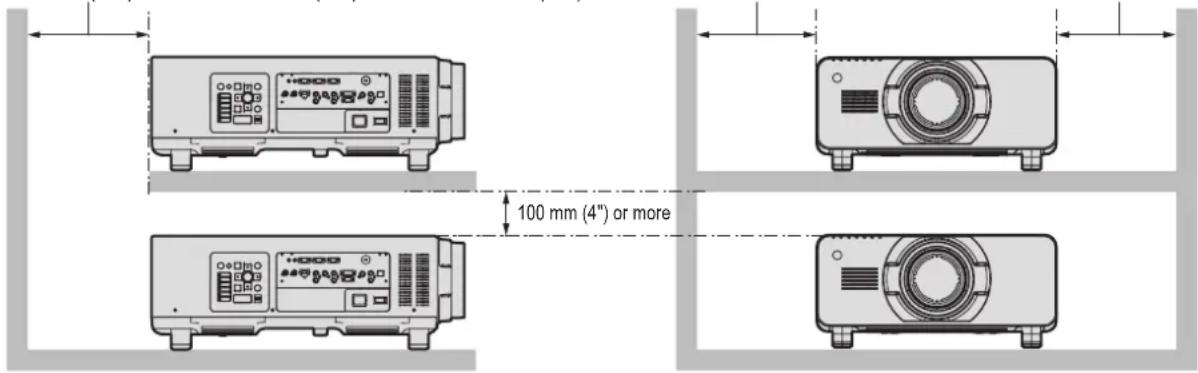
- Do not install the projector in a confined space.
When it is necessary to install the projector in a confined space, install the air conditioning or ventilation separately. Exhaust heat may accumulate when the ventilation is not enough, triggering the protection circuit of the projector.
Security
When using this product, take safety measures against the following incidents.
● Personal information being leaked via this product
● Unauthorized operation of this product by a malicious third party
● Interfering or stopping of this product by a malicious third party
Take sufficient security measures. (→ pages 121, 140)
● Make your password difficult to guess as much as possible.
- Change your password periodically.
- Panasonic Corporation or its affiliate companies will never ask for your password directly. Do not divulge your password in case you receive such inquiries.
● The connecting network must be secured by a firewall, etc.
- Set a password for the web control and restrict the users who can log in.
Disposal
To dispose of the product, ask your local authorities or dealer for correct methods of disposal.
The lamp contains mercury. When disposing of used lamp units, contact your local authorities or dealer for correct methods of disposal.
Cautions on use
■ To get a good picture quality
In order to view a beautiful image in higher contrast, prepare an appropriate environment. Draw curtains or blinds over windows and turn off any lights near the screen to prevent outside light or light from indoor lamps from shining onto the screen.
■ Do not touch the surface of the projection lens with your bare hands.
If the surface of the projection lens becomes dirty from fingerprints or anything else, this will be magnified and projected onto the screen. Please put the lens cover (accessory) on the projector when you do not use it.
DLP chips
- The DLP chips are precision-made. Note that in rare cases, pixels of high precision could be missing or always lit. This is not a malfunction.
- Directing a high-power laser beam onto the lens surface can damage the DLP chips.
- Do not move the projector while it is operating or subject it to vibration or impact.
Doing so may shorten the service life of its internal components.
Lamp
The luminous source of the projector is a high-pressure mercury lamp.
A high-pressure mercury lamp has the following characteristics.
● The luminance of the lamp will decrease by duration of usage.
- The lamp may burst with a loud sound or have its service life shortened because of shock, chipping, or degradation due to cumulative operating time.
- The lamp life varies greatly depending on individual differences and usage conditions. In particular, frequent on/off switching of the power greatly deteriorate the lamp and affect the lamp life.
- Continuous use for over 1 week will deteriorate the lamp. The degradation of the lamp due to continuous usage can be reduced by lamp relay function. (→ page 101)
- In rare cases, the lamps burst shortly after projection starts.
- The risk of bursting increases when the lamp is used beyond its replacement cycle. Make sure to replace the lamp unit regularly.
("When to replace the lamp unit" (→ page 148), "Replacing the lamp unit" (→ page 148))
- If the lamp bursts, gas contained inside of the lamp is released in a form of smoke.
- It is recommended that you store replacement lamp units for contingency.
■ Viewing 3D video (PT-DZ21KE and PT-DS20KE only)
The projector can display 3D video signals that are input by the "simultaneous", "frame packing method", and "side by side" methods. You are required to prepare external devices for viewing 3D video (such as 3D Eyewear, video signal output devices) which are suitable for your 3D system. For connections of the projector and external devices, see the instructions of external devices you use. Refer to "List of 3D compatible signals" (→ page 169) for the types of 3D video signals that can be used with the projector.
© Panasonic Corporation 2012
This product is equipped with the following software:
(1) Software which is developed independently by or for Panasonic Corporation
(2) Software which is licensed under GNU GENERAL PUBLIC LICENSE
(3) Software which is licensed under GNU LESSER GENERAL PUBLIC LICENSE
For license conditions related to software in (2) and (3), refer to the provisions of the software licenses (GNU GENERAL PUBLIC LICENSE and GNU LESSER GENERAL PUBLIC LICENSE) in the supplied CD-ROM.
If you have any questions regarding the software, please contact us via email (sav.pj.gpl.pavc@ml.jp.panasonic.com).
Pursuant to at the directive 2004/108/EC, article 9(2)
Panasonic Testing Centre
Panasonic Service Europe, a division of Panasonic Marketing Europe GmbH
Winsbergring 15, 22525 Hamburg, F.R. Germany
Accessories
Make sure that the following accessories are provided with your projector. Numbers enclosed in < > show the number of accessories.
| Wireless/wired remote control unit <1>(N2QAYB000769) | Power cord <1>(K2CM3YY00007) | Power cord <1>(K2CT3YY00014) | CD-ROM <1>(TXFQB02VKR9) |
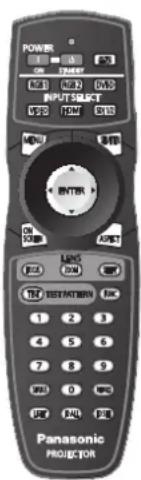 | 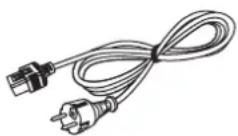 | 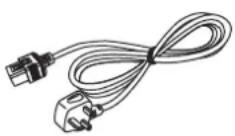 |  |
| AA/R6 battery <2> | Lens fixing screw <1>(XYN4+J18FJ) | ||
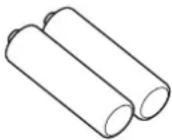 (For remote control unit) (For remote control unit) | 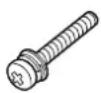 |
Precautions for use
Attention
● After unpacking the projector, discard the power cord cap and packaging material properly.
- For missing accessories, consult your dealer.
- Store small parts in an appropriate manner, and keep them away from small children.
Note
● The model numbers of accessories and optional components are subject to change without notice.
Contents of the supplied CD-ROM
The contents of the supplied CD-ROM are as follows.
| Instruction/list (PDF) Software | |
| ●Operating Instructions - Functional Manual●Multi Projector Monitoring & Control Software Operation Manual●Logo Transfer Software Operating Instructions●List of Compatible Projector Models- This is a list of projectors that are compatible with the software contained in the CD-ROM and their restrictions.●Software license(GNU GENERAL PUBLIC LICENSE, GNU LESSER GENERAL PUBLIC LICENSE) | ●Multi Projector Monitoring & Control Software (Windows)- This software allows you to monitor and control multiple projectors connected to the LAN.●Logo Transfer Software (Windows)- This software allows you to create original images, such as company logos to be displayed when projection starts, and transfer them to the projector. |
Optional accessories
| Optional accessories (product name) | Model No. |
| Projection lens | ET-D75LE6 (Zoom Lens), ET-D75LE8 (Zoom Lens), ET-D75LE10 (Zoom Lens), ET-D75LE20 (Zoom Lens), ET-D75LE30 (Zoom Lens), ET-D75LE40 (Zoom Lens), ET-D75LE50 (Fixed-Focus Lens) |
| Ceiling mount bracket ET-PKD510H (for high ceilings), ET-PKD510S (for low ceilings) | |
| Frame ET-PFD510 | |
| Replacement lamp unit ET-LAD510 (1 pc), ET-LAD510F (4 pcs) | |
| Replacement lamp unit (for portrait mode) | ET-LAD510P (1 pc), ET-LAD510PF (4 pcs) |
| Replacement filter unit ET-EMF510 | |
| Smoke cut filter ET-SFR510 | |
| Upgrade kit ET-UK20 (only for PT-DZ21KE, PT-DS20KE) | |
Start-up display
The initial setting screen is displayed when the projector is switched on for the first time after purchase as well as when [ALL USER DATA] (→ page 114) in [INITIALIZE] is executed. Set them in accordance with circumstances. In other occasions, you can change the settings by menu operations.
Note
- When the projector is used for the first time, you may be required to adjust the focus, zoom, and shift to display the menu screen clearly.
Refer to "Adjusting the focus, zoom, and shift" (→ page 52) for details.
Initial setting (display language)
Select the language to show on the screen page 81)
1) Press ▲▼ to select the desired language.
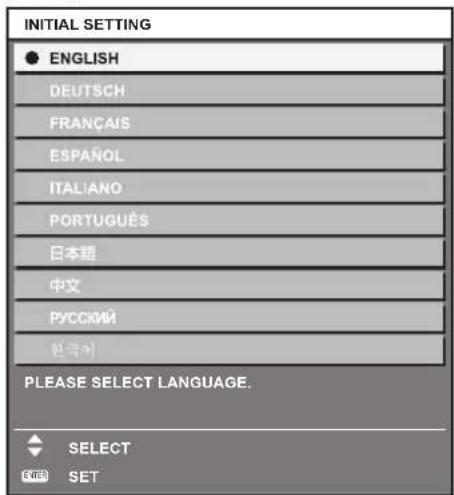
2) Press the
■ tial setting (projector setup)
Set each item.
1) Press ▲▼ to select an item.
2) Press ◀▶ to switch the setting.
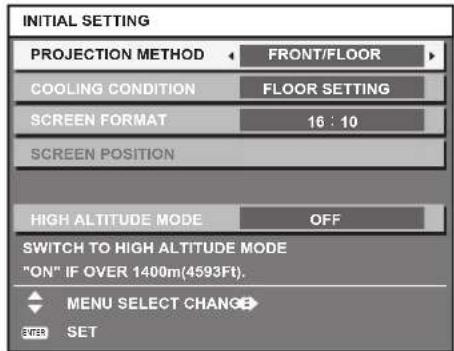
Refer to the following page for details of each item.
● [PROJECTION METHOD] (→ page 99)
● [COOLING CONDITION] (→ page 100)
● [SCREEN FORMAT] (→ page 90)
● [SCREEN POSITION] (→ page 90)
● [HIGH ALTITUDE MODE] (→ page 100)
- Confirm the setting value to complete the initial setting.
Note
- If you press the
- You can set [SCREEN FORMAT] and [SCREEN POSITION] for PT-DZ21KE and PT-DS20KE.
About your projector
Remote control
Font
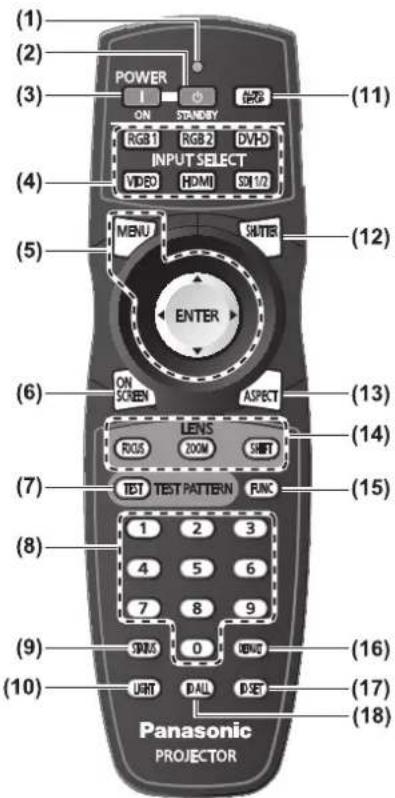
(1) Remote control indicator
Flashes if any button in the remote control is pressed.
(2) Power standby <↓> button
Sets the projector to the standby mode when the
(3) Power on < | > button
Starts projection when the
(4) Input selection (
(11)
(12)
(13)
(14) Lens (
(15)
(16)
(17)
(18)
About your projector
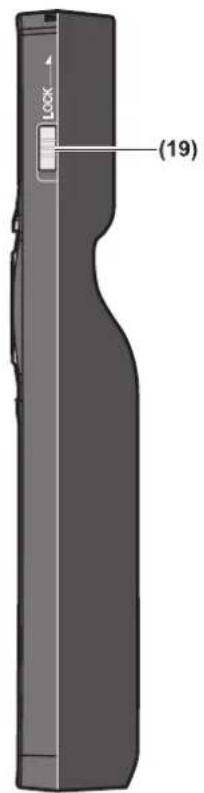
Side
p
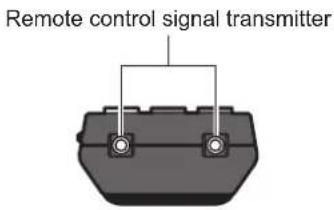
Bottom
(19) button
Used to prevent unintended operation by careless pressing of the buttons and prevent draining the remote control batteries.
Attention
- Do not drop the remote control.
● Avoid contact with liquids or moisture. - Do not attempt to modify or disassemble the remote control.
Note
- The remote control can be used within a distance of about 30 m (98'5") if pointed directly at the remote control receiver. The remote control can control at angles of up to ±15° vertically and ±30° horizontally, but the effective control range may be reduced.
- If there are any obstacles between the remote control and the remote control signal receiver, the remote control may not operate properly.
● The signal will be reflected off the screen. However, the operating range may be limited due to light reflection loss because of the screen material. - If the remote control signal receiver directly receives strong light, such as fluorescent light, the remote control may not operate properly. Use it in a place distant from the light source.
● The power indicatorwill flash if the projector receives a remote control signal.
Projector body
Font
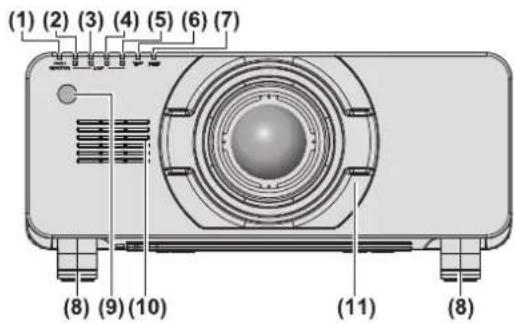
(1) Power indicator
(2) Lamp indicator
(3) Lamp indicator
(4) Lamp indicator
(5) Lamp indicator
(6) Temperature indicator
(7) Filter indicator
(8) Adjustable feet
Adjusts the projection angle.
(9) Remote control signal receiver (front)
(10) Air intake port
(11) Projection lens cover
(12) Lamp unit cover (→ page 148)
(13) Remote control signal receiver (rear)
(14) Air exhaust port
(15) Control panel and connecting terminals lights
(16) Control panel ( page 25)
(17) Connecting terminals (→ page 26)
(18) Security slot
This security slot is compatible with the Kensington security cables.
(19)
(20)
(21) Air filter cover
The air filter unit is inside. (→ page 144)
Bottom
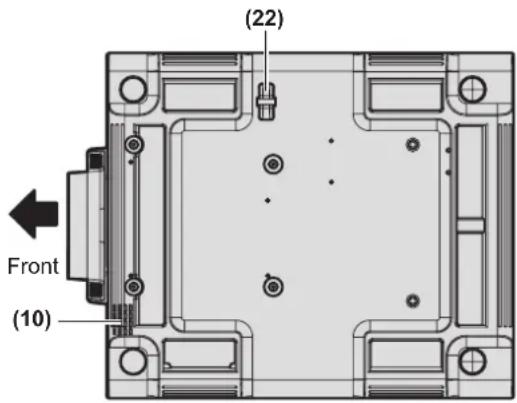
(22) Burglar hook port
You can attach a commercial burglar prevention cable.
Attention
- Keep your hands and other objects away from the air exhaust port.
- Keep your hands and face away.
- Do not insert your fingers.
- Keep heat-sensitive objects away.
Heated air from the air outlet port can cause bums, injury, or deformations. - Do not block the ventilation ports (intake and exhaust) of the projector.
Control panel
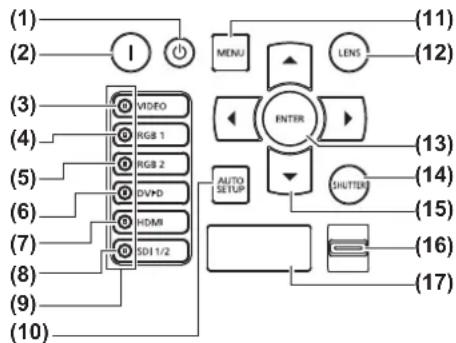
flowchart
graph TD
    A["1"] --> B["I"]
    C["2"] --> B
    D["3"] --> E["VIDEO"]
    F["4"] --> E
    G["5"] --> H["RGB 1"]
    I["6"] --> J["RGB 2"]
    K["7"] --> L["DVDHD"]
    M["8"] --> N["HDMI"]
    O["9"] --> P["SDI 1/2"]
    Q["10"] --> R["ENTER"]
    S["11"] --> T["MENU"]
    U["12"] --> V["LENS"]
    W["13"] --> X["AUTO SETUP"]
    Y["14"] --> Z["SHUTTER"]
    AA["15"] --> AB["Switch"]
    AC["16"] --> AD["Control Unit"]
    AE["17"] --> AF["Control Unit"]
(1) Power standby <@> button
Sets the projector to the standby mode when the
(2) Power on < | > button
Starts projection when the
(3)
(11)
- Use only the ceiling mount brackets specified for this projector.
- Refer to the installation manual for the ceiling mount bracket when installing the bracket and the projector.
Attention
- To ensure projector performance and security, installation of the ceiling mount bracket must be carried out by your dealer or a qualified technician.
Screen size and throw distance
Refer to the following figures and table describing projection distances to install the projector. Image size and image position can be adjusted in accordance with the screen size and screen position.
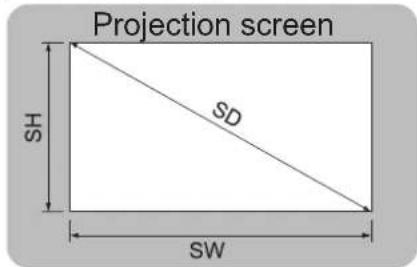
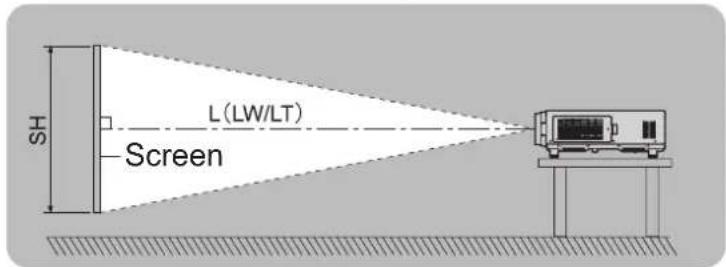
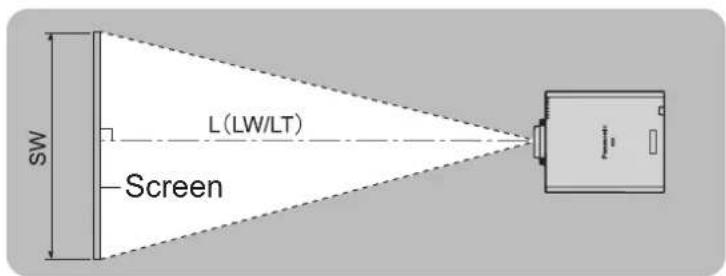
| L (LW/LT)1 | Projection distance (m) |
| SH Image | height (m) |
| SW Image | width (m) |
| SD Image | diagonal size (m) |
*1: LW: Minimum projection distance when the Zoom Lens is used LT: Maximum projection distance when the Zoom Lens is used
Attention
- Before installing, read "Precautions for use" (→ pages 15 to 20).
- Do not use the projector and the high-powered laser equipment in the same room. Hitting of a laser beam on to the lens can damage the DLP chips.
[EMETRY] projection range (PT-DZ21KE and PT-DS20KE only)
[VERTICAL KEYSTONE] (viewed from the side) [HORIZONTAL KEYSTONE] (viewed from above)
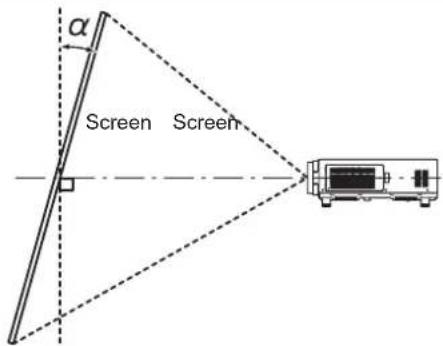
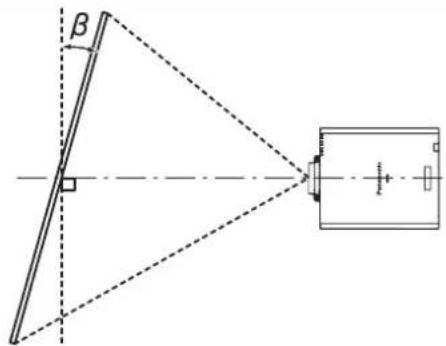
Vertical arc correction (viewed from the side) Horizontal arc correction (viewed from above)
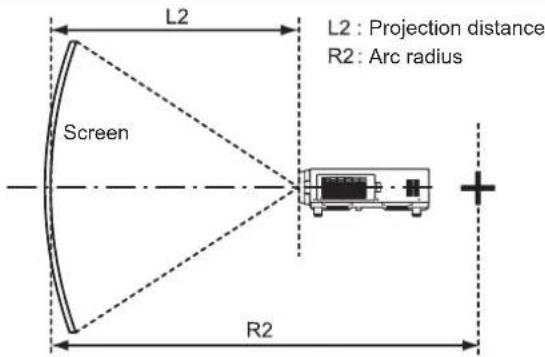
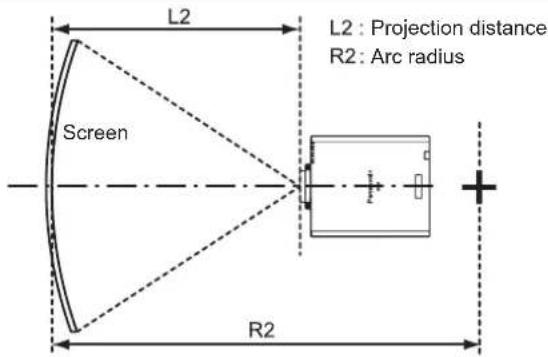
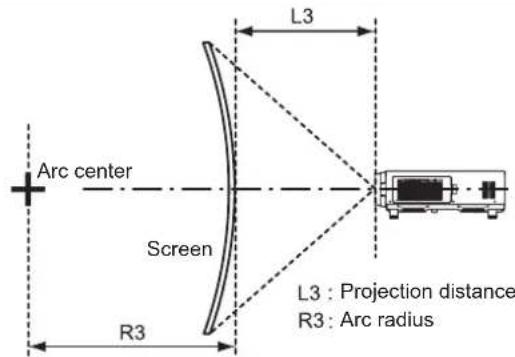
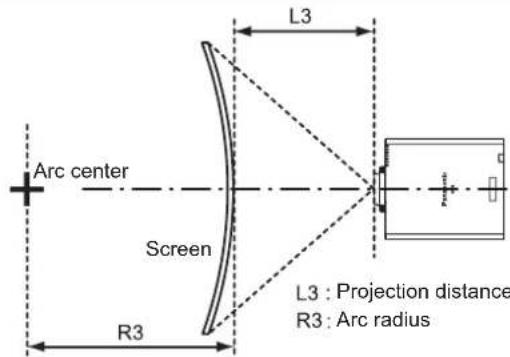
- Standard
| Projection lens Model No. | Only for [KEYSTONE] [KEYSTONE] and [CURVED] used together Only for [CURVED] | |||||||
| Vertical trapezoidal distortion correction angle α (°) | Horizontal trapezoidal distortion correction angle β (°) | Vertical trapezoidal distortion correction angle α (°) | Horizontal trapezoidal distortion correction angle β (°) | Minimum value of R2/L2 | Minimum value of R3/L3 | Minimum value of R2/L2 | Minimum value of R3/L3 | |
| ET-D75LE1 ±40 | ±15 ±20 ±15 1. | 0 2.3 0.6 1.3 | ||||||
| ET-D75LE2 ±40 | ±15 ±20 ±15 0 | 8 1.6 0.5 0.9 | ||||||
| ET-D75LE3 ±40 | ±15 ±20 ±15 0 | 6 1.1 0.3 0.6 | ||||||
| ET-D75LE4 ±40 | ±15 ±20 ±15 0 | 4 0.7 0.2 0.4 | ||||||
| ET-D75LE5 ±22 | ±15 ±8 ±8 2.0 | 4.9 1.2 2.9 | ||||||
| ET-D75LE6 ±28 | ±15 ±10 ±10 1. | 6 3.9 0.9 2.3 | ||||||
| ET-D75LE8 ±40 | ±15 ±20 ±15 0 | 2 0.4 0.2 0.3 | ||||||
| ET-D75LE10 ±40 | ±15 ±20 ±15 | 1.1 2.6 0.6 1.5 | ||||||
| ET-D75LE20 ±40 | ±15 ±20 ±15 | 0.9 1.7 0.5 1.0 | ||||||
| ET-D75LE30 ±40 | ±15 ±20 ±15 | 0.6 1.2 0.4 0.7 | ||||||
| ET-D75LE40 ±40 | ±15 ±20 ±15 | 0.4 0.7 0.2 0.4 | ||||||
| ET-D75LE50 ±22 | ±15 ±8 ±8 2.0 | 4.9 1.2 2.9 | ||||||
●Using optional upgrade kit (ET-UK20)
| Projection lens Model No. | Only [KEYSTONE] ^1 | [KEYSTONE] and [CURVED] used together Only for [CURVED] | ||||||
| Vertical trapezoidal distortion correction angle (°) | Horizontal trapezoidal distortion correction angle (°) | Vertical trapezoidal distortion correction angle (°) | Horizontal trapezoidal distortion correction angle (°) | Minimum value of R2/L2 | Minimum value of R3/L3 | Minimum value of R2/L2 | Minimum value of R3/L3 | |
| ET-D75LE1 ±40 | ±40 ±20 ±15 0 | 8 1.8 0.5 1.0 | ||||||
| ET-D75LE2 ±40 | ±40 ±20 ±15 0 | 6 1.2 0.4 0.7 | ||||||
| ET-D75LE3 ±45 | ±40 ±20 ±15 0 | 4 0.8 0.3 0.5 | ||||||
| ET-D75LE4 ±45 | ±40 ±20 ±15 0 | 3 0.5 0.2 0.3 | ||||||
| ET-D75LE5 ±22 | ±15 ±8 ±8 1.5 | 3.7 0.9 2.2 | ||||||
| ET-D75LE6 ±28 | ±15 ±10 ±10 1 | 2 3.0 0.7 1.7 | ||||||
| ET-D75LE8 ±45 | ±40 ±20 ±15 0 | 2 0.3 0.1 0.2 | ||||||
| ET-D75LE10 ±40 | ±40 ±20 ±15 | 0.9 2.0 0.5 1.1 | ||||||
| ET-D75LE20 ±40 | ±40 ±20 ±15 | 0.7 1.3 0.4 0.7 | ||||||
| ET-D75LE30 ±45 | ±40 ±20 ±15 | 0.5 0.9 0.3 0.5 | ||||||
| ET-D75LE40 ±45 | ±40 ±20 ±15 | 0.3 0.5 0.2 0.3 | ||||||
| ET-D75LE50 ±22 | ±15 ±8 ±8 1.5 | 3.7 0.9 2.2 | ||||||
*1: Cannot correct [VERTICAL KEYSTONE] and [HORIZONTAL KEYSTONE] if the total exceeds 55° when used at the same time.
Note
- When [GEOMETRY] is used, the focus of the entire screen may be lost as correction increases.
● Make the curved screen a circular arc shape with one part of a perfect circle removed. - Adjustment range of the [GEOMETRY] items may not match above due to the projection lens. Use this projector within the projection range, otherwise the correction does not work.
Projection distance of each projection lens (for PT-DZ21KE)
- When the screen aspect is 16:10 (unit: m)
| Lens type Zoom Lens | ||||||||||||||
| Projection lens Model No. | ET-D75LE1 ET-D | 75LE2 ET-D75LE | 3 ET-D75LE4 ET- | D75LE8 ET-D75LE6 | ||||||||||
| Throw ratio*1 | 1.4 to 1.8:1 1.8 to 2.8:1 2.8 to 4.6:1 4.6 to 7.4:1 7.3 to 13.8:1 0.9 to 1.1:1 | |||||||||||||
| Screen size Projection distance (L) | ||||||||||||||
| Screen diagonal*2(SD) | Height(SH) | Width(SW) | Min.(LW) | Max.(LT) | Min.(LW) | Max.(LT) | Min.(LW) | Max.(LT) | Min.(LW) | Max.(LT) | Min.(LW) | Max.(LT) | Min.(LW) | Max.(LT) |
| 1.78 (70") | 0.942 1 | .508 2.01 | 2.69 2.7 | 2 4.10 4 | 11 6.90 | 6.91 11.0 | 6 10.78 | 20.56 1.3 | 5 1.62 | |||||
| 2.03 (80") | 1.077 1 | .723 2.31 | 3.09 3.1 | 2 4.70 4 | 71 7.90 | 7.91 12.6 | 6 12.37 | 23.55 1.5 | 5 1.86 | |||||
| 2.29 (90") | 1.212 1 | .939 2.61 | 3.49 3.5 | 2 5.30 5 | 31 8.91 | 8.91 14.2 | 5 13.97 | 26.54 1.7 | 6 2.10 | |||||
| 2.54 (100") | 1.346 2 | .154 2.91 | 3.89 3.9 | 2 5.90 5 | 91 9.91 | 9.91 15.8 | 5 15.57 | 29.53 1.9 | 6 2.34 | |||||
| 3.05 (120") | 1.615 2 | .585 3.51 | 4.68 4.7 | 3 7.10 7 | 11 11.91 | 11.92 | 19.04 1 | 8.76 35.5 | 0 2.36 2 | 82 | ||||
| 3.81 (150") | 2.019 3 | .231 4.40 | 5.88 5.9 | 3 8.90 8 | 91 14.92 | 14.93 2 | 8.82 23.5 | 4 44.47 | 2.96 3.55 | |||||
| 5.08 (200") | 2.692 4 | .308 5.89 | 7.87 7.9 | 3 11.91 | 11.92 19 | 94 19.95 | 31.80 3 | 1.52 59.4 | 1 3.97 4 | 75 | ||||
| 6.35 (250") | 3.365 5 | .385 7.39 | 9.87 9.9 | 3 14.91 | 14.92 24 | 95 24.96 | 39.77 3 | 9.49 74.3 | 6 4.98 5 | 96 | ||||
| 7.62 (300") | 4.039 6 | .462 8.88 | 11.86 1 | 1.93 17.9 | 11 17.92 | 29.97 29 | 98 47.75 | 47.47 89 | 9.30 5.99 | 7.17 | ||||
| 8.89 (350") | 4.712 7 | .539 10.3 | 37 13.86 | 13.93 20 | 91 20.92 | 34.98 3 | 4.99 55.7 | 2 55.44 | 104.24 | 6.99 8.37 | ||||
| 10.16 (400") | 5.385 8 | .616 11.8 | 36 15.85 | 15.94 23 | 92 23.93 | 40.00 4 | 0.01 63.7 | 0 63.42 | 119.19 | 8.00 9.58 | ||||
| 12.70 (500") | 6.731 | 10.770 | 14.85 | 19.84 | 19.94 | 29.92 | 29.93 | 50.03 | 50.04 | 79.65 | 79.37 | 149.08 | 10.01 | 11.99 |
| 15.24 (600") | 8.077 | 12.923 | 17.83 | 23.82 | 23.94 | 35.93 | 35.94 | 60.06 | 60.07 | 95.60 | 95.32 | 178.96 | 12.03 | 14.40 |
| Lens type | Zoom Lens | Fixed-Focus Lens | ||||||||||
| Projection lens Model No. | ET-D75LE10 | ET-D75LE20 | ET-D75LE30 | ET-D75LE40 | ET-D75LE5 | ET-D75LE50 | ||||||
| Throw ratio*1 | 1.3 to 1.7:1 1.7 | to 2.4:1 2.4 to 4.7:1 4.6 to 7.4:1 | 0.7:1 | 0.7:1 | ||||||||
| Screen size | Projection distance (L) | |||||||||||
| Screen diagonal*2(SD) | Height (SH) | Width (SW) | Min.(LW) | Max.(LT) | Min.(LW) | Max.(LT) | Min.(LW) | Max.(LT) | Min.(LW) | Max.(LT) | Fixed | Fixed |
| 1.78 (70") | 0.942 1 | .508 1.90 | 2.46 2.4 | 6 3.58 3 | 56 6.94 | 6.87 11.04 | 0.99 | 1.01 | ||||
| 2.03 (80") | 1.077 1 | .723 2.19 | 2.83 2.8 | 2 4.11 4 | 08 7.96 | 7.88 12.65 | 1.15 | 1.16 | ||||
| 2.29 (90") | 1.212 1 | .939 2.47 | 3.20 3.1 | 9 4.64 4 | 61 8.98 | 8.88 14.25 | 1.30 | 1.32 | ||||
| 2.54 (100") | 1.346 2 | .154 2.76 | 3.56 3.5 | 5 5.17 5 | 13 9.99 | 9.88 15.85 | 1.45 | 1.47 | ||||
| 3.05 (120") | 1.615 | 2.585 | 3.32 | 4.30 | 4.28 | 6.22 | 6.18 | 12.03 | 11.89 | 19.05 | 1.76 | 1.78 |
| 3.81 (150") | 2.019 | 3.231 | 4.18 | 5.40 | 5.37 | 7.81 | 7.75 | 15.08 | 14.90 | 23.85 | 2.22 | 2.24 |
| 5.08 (200") | 2.692 | 4.308 | 5.60 | 7.24 | 7.19 | 10.45 | 10.38 | 20.16 | 19.92 | 31.86 | 2.99 | 3.01 |
| 6.35 (250") | 3.365 | 5.385 | 7.02 | 9.07 | 9.00 | 13.09 | 13.00 | 25.25 | 24.95 | 39.86 | 3.76 | 3.78 |
| 7.62 (300") | 4.039 | 6.462 | 8.44 | 10.91 | 10.82 | 15.73 | 15.62 | 30.34 | 29.97 | 47.87 | 4.53 | 4.56 |
| 8.89 (350") | 4.712 7 | .539 9.86 | 12.74 1 | 2.64 18.3 | 7 18.24 | 35.42 34 | 99 55 | 87 | ||||
| 10.16 (400") | 5.385 8 | .616 11.2 | 28 14.58 | 14.46 21 | 01 20.86 | 40.51 40.01 | 63.87 | |||||
| 12.70 (500") | 6.731 | 10.770 | 14.12 | 18.25 | 18.09 | 26.29 | 26.11 | 50.68 | 50.05 | 79.88 | ||
| 15.24 (600") | 8.077 | 12.923 | 16.96 | 21.92 | 21.73 | 31.58 | 31.35 | 60.85 | 60.09 | 95.89 | ||
*1: The throw ratio is based on the value during projection onto a 3.81-m (150") screen size.
*2: The screen size unit is inches.
Note
● A ±5% error in listed projection distances may occur.
- When [GEOMETRY] is used, distance is corrected to become smaller than the specified screen size.
- When the screen aspect is 16:9 (unit: m)
| Lens type Zoom Lens | ||||||||||||||
| Projection lens Model No. | ET-D75LE1 ET-D | 75LE2 ET-D75LE3 | ET-D75LE4 ET- | D75LE8 ET-D75LE6 | ||||||||||
| Throw ratio*1 | 1.4 to 1.8:1 1.8 | to 2.8:1 2.8 to 4.6:1 4.6 to 7.4:1 7.3 | to 13.8:1 0.9 to 1.1:1 | |||||||||||
| Screen size Projection distance (L) | ||||||||||||||
| Screen diagonal*2(SD) | Height(SH) | Width(SW) | Min.(LW) | Max.(LT) | Min.(LW) | Max.(LT) | Min.(LW) | Max.(LT) | Min.(LW) | Max.(LT) | Min.(LW) | Max.(LT) | Min.(LW) | Max.(LT) |
| 1.78 (70") | 0.872 1 | .550 2.07 | 2.77 2.80 | 4.21 4 | 23 7.09 | 7.10 11.3 | 7 11.09 | 21.14 1.39 | 1.66 | |||||
| 2.03 (80") | 0.996 1 | .771 2.38 | 3.18 3.21 | 4.83 4 | 84 8.13 | 8.13 13.0 | 1 12.73 | 24.21 1.60 | 1.91 | |||||
| 2.29 (90") | 1.121 1 | .992 2.68 | 3.59 3.62 | 5.45 5 | 46 9.16 | 9.16 14.6 | 5 14.37 | 27.29 1.81 | 2.16 | |||||
| 2.54 (100") | 1.245 2 | .214 2.99 | 4.00 4.04 | 6.07 6 | 08 10.19 | 10.19 16.29 | 16.01 | 30.36 | 2.01 2.41 | |||||
| 3.05 (120") | 1.494 2 | .657 3.60 | 4.82 4.86 | 7.30 7 | 31 12.25 | 12.26 19.57 | 19.29 | 36.50 | 2.43 2.90 | |||||
| 3.81 (150") | 1.868 3 | .321 4.53 | 6.05 6.09 | 9.15 9 | 16 15.34 | 15.35 24.49 | 24.21 | 45.72 | 3.05 3.65 | |||||
| 5.08 (200") | 2.491 4 | .428 6.06 | 8.10 8.15 | 12.24 | 12.25 20 | 50 20.50 | 32.69 | 32.40 61.08 | 4.08 4.89 | |||||
| 6.35 (250") | 3.113 5 | .535 7.59 | 10.15 1 | 0.21 15.3 | 3 15.34 | 25.65 25.66 | 40.88 | 40.60 76.44 | 5.12 | 6.13 | ||||
| 7.62 (300") | 3.736 6 | .641 9.13 | 12.19 1 | 2.27 18.4 | 1 18.42 | 30.81 30.81 | 49.08 | 48.80 91.79 | 6.15 | 7.37 | ||||
| 8.89 (350") | 4.358 7 | .748 10.66 | 14.24 | 14.32 21 | 50 21.51 | 35.96 35.97 | 57.28 | 57.00 | 107.15 7.19 | 8.61 | ||||
| 10.16 (400") | 4.981 8 | .855 12.19 | 16.29 | 16.38 24 | 58 24.60 | 41.12 41.12 | 65.47 | 65.19 | 22.51 8.22 | 9.85 | ||||
| 12.70 (500") | 6.226 1 | 1.069 15 | 26 20.39 | 20.50 3 | 0.76 30.7 | 51.42 51.43 | 81 | 87 81.59 | 153.23 | 0.29 12.33 | ||||
| 15.24 (600") | 7.472 1 | 3.283 18 | 33 24.49 | 24.61 3 | 6.93 36.9 | 4 61.73 | 61.74 98 | 26 97.98 | 183.95 | 12.36 14.81 | ||||
| Lens type Zoom Lens Fixed-Focus Lens | ||||||||||||
| Projection lens Model No. | ET-D75LE10 | ET-D75LE20 | ET-D75LE30 | ET-D75LE40 | ET-D75LE5 | ET-D75LE50 | ||||||
| Throw ratio*1 | 1.3 to 1.7:1 1.7 | to 2.4:1 2.4 to 4.7:1 4.6 to 7.4:1 | 0.7:1 | 0.7:1 | ||||||||
| Screen size | Projection distance (L) | |||||||||||
| Screen diagonal*2(SD) | Height(SH) | Width(SW) | Min.(LW) | Max.(LT) | Min.(LW) | Max.(LT) | Min.(LW) | Max.(LT) | Min.(LW) | Max.(LT) | Fixed | Fixed |
| 1.78 (70") | 0.872 | 1.550 | 1.96 | 2.53 | 2.53 | 3.68 | 3.66 | 7.14 | 7.07 | 11.36 | 1.02 | 1.04 |
| 2.03 (80") | 0.996 1 | .771 2.25 | 2.91 2.91 | 4.23 4 | 20 8.19 | 8.10 13.00 | 1.18 | 1.20 | ||||
| 2.29 (90") | 1.121 1 | .992 2.54 | 3.29 3.28 | 4.77 4 | 74 9.23 | 9.13 14.65 | 1.34 | 1.36 | ||||
| 2.54 (100") | 1.245 | 2.214 | 2.83 | 3.67 | 3.65 | 5.31 | 5.28 | 10.28 | 10.16 | 16.29 | 1.50 | 1.51 |
| 3.05 (120") | 1.494 | 2.657 | 3.42 | 4.42 | 4.40 | 6.40 | 6.35 | 12.37 | 12.23 | 19.58 | 1.81 | 1.83 |
| 3.81 (150") | 1.868 | 3.321 | 4.29 | 5.55 | 5.52 | 8.03 | 7.97 | 15.50 | 15.32 | 24.52 | 2.29 | 2.31 |
| 5.08 (200") | 2.491 | 4.428 | 5.75 | 7.44 | 7.39 | 10.74 | 10.67 | 20.73 | 20.48 | 32.75 | 3.08 | 3.10 |
| 6.35 (250") | 3.113 | 5.535 | 7.21 | 9.33 | 9.26 | 13.46 | 13.36 | 25.96 | 25.64 | 40.97 | 3.87 | 3.89 |
| 7.62 (300") | 3.736 | 6.641 | 8.67 | 11.21 | 11.13 | 16.17 | 16.06 | 31.18 | 30.80 | 49.20 | 4.66 | 4.68 |
| 8.89 (350") | 4.358 7 | .748 10.13 | 13 13.10 | 12.99 18 | 88 18.75 | 36.41 35.96 | 57.43 | |||||
| 10.16 (400") | 4.981 8 | .855 11.59 | 14.99 | 14.86 21 | 60 21.45 | 41.64 41.12 | 65.65 | |||||
| 12.70 (500") | 6.226 1 | 1.069 14 | 51 18.76 | 18.60 27 | 7.03 26.84 | 52.09 51.44 | 82.11 | |||||
| 15.24 (600") | 7.472 1 | 3.283 17 | 44 22.54 | 22.33 32 | 46 32.23 | 62.54 61.76 | 98.56 | |||||
*1: The throw ratio is based on the value during projection onto a 3.81-m (150") screen size.
*2: The screen size unit is inches.
Note
● A ±5% error in listed projection distances may occur.
- When [GEOMETRY] is used, distance is corrected to become smaller than the specified screen size.
Setting up
- When the screen aspect is 4:3 (unit: m)
| Lens type Zoom Lens | ||||||||||||||
| Projection lens Model No. | ET-D75LE1 ET-D | 75LE2 ET-D75LE | 3 ET-D75LE4 ET- | D75LE8 ET-D75LE6 | ||||||||||
| Throw ratio*1 | 1.6 to 2.2:1 2.2 | to 3.3:1 3.3 to 5.5 | 5:1 5.6 to 8.9:1 8.8 | to 16.5:1 1.1 to 1.3:1 | ||||||||||
| Screen size Projection distance (L) | ||||||||||||||
| Screen diagonal*2(SD) | Height(SH) | Width(SW) | Min.(LW) | Max.(LT) | Min.(LW) | Max.(LT) | Min.(LW) | Max.(LT) | Min.(LW) | Max.(LT) | Min.(LW) | Max.(LT) | Min.(LW) | Max.(LT) |
| 1.78 (70") | 1.067 1 | .422 2.29 | 3.06 3.09 | 4.65 4.66 | 7.83 | 7.83 12.5 | 4 12.25 | 23.32 1.5 | 4 1.84 | |||||
| 2.03 (80") | 1.219 1 | .626 2.63 | 3.51 3.55 | 5.33 5.34 | 8.96 | 8.97 14.3 | 4 14.06 | 26.71 1.7 | 7 2.11 | |||||
| 2.29 (90") | 1.372 1 | .829 2.96 | 3.96 4.00 | 6.01 6.02 | 10.10 | 10.10 16.15 | 15.8 | 7 30.09 | 2.00 2.38 | |||||
| 2.54 (100") | 1.524 2 | .032 3.30 | 4.41 4.45 | 6.69 6.70 | 11.23 | 11.24 17.96 | 17.6 | 7 33.47 | 2.22 2.66 | |||||
| 3.05 (120") | 1.829 2 | .438 3.98 | 5.32 5.36 | 8.05 8.06 | 13.50 | 13.51 21.57 | 21.2 | 8 40.24 | 2.68 3.20 | |||||
| 3.81 (150") | 2.286 3 | .048 4.99 | 6.67 6.72 | 10.09 | 10.10 | 16.91 | 16.92 | 26.98 26.70 | 50.39 | 3.36 4.02 | ||||
| 5.08 (200") | 3.048 4 | .064 6.68 | 8.93 8.99 | 13.49 | 13.50 | 22.59 | 36.01 | 35.73 | 67.3 | 4.50 5.39 | ||||
| 6.35 (250") | 3.810 5 | .080 8.37 | 11.18 1 | 1.25 16.8 | 16.90 | 28.27 | 28.27 | 44.76 | 84.23 | 5.64 | 6.76 | |||
| 7.62 (300") | 4.572 6 | .096 10.06 | 13.44 | 13.52 20.29 | 20.30 | 33.94 | 33.95 | 54.0 | 7 53.79 | 101.14 | 6.78 | 8.12 | ||
| 8.89 (350") | 5.334 7 | .112 11.75 | 15.70 | 15.79 23.69 | 23.70 | 39.62 | 39.63 | 63.1 | 0 62.82 | 118.06 | 7.92 | 9.49 | ||
| 10.16 (400") | 6.096 8 | .128 13.44 | 17.96 | 18.05 27.09 | 27.10 | 45.30 | 45.31 | 72.1 | 3 71.85 | 134.98 | 9.06 | 10.85 | ||
| 12.70 (500") | 7.620 1 | .160 16.82 | 22.47 | 22.58 33.89 | 33.90 | 56.65 | 56.66 | 90.18 | 89.91 | 168.81 | 11.34 | 13.58 | ||
| 15.24 (600") | 9.144 | 12.192 | 20.20 | 26.98 | 27.12 | 40.69 | 40.70 | 68.01 | 68.02 | 108.24 | 107.96 | 202.65 | 13.62 | 16.32 |
| Lens type | Zoom Lens | Fixed-Focus Lens | ||||||||||
| Projection lens Model No. | ET-D75LE10 | ET-D75LE20 | ET-D75LE30 | ET-D75LE40 | ET-D75LE5 | ET-D75LE50 | ||||||
| Throw ratio*1 | 1.6 to 2.0:1 2.0 to 2.9:1 2.9 to 5.6:1 5.5 to 8.9:1 | 0.8:1 | 0.8:1 | |||||||||
| Screen size | Projection distance (L) | |||||||||||
| Screen diagonal*2(SD) | Height (SH) | Width (SW) | Min.(LW) | Max.(LT) | Min.(LW) | Max.(LT) | Min.(LW) | Max.(LT) | Min.(LW) | Max.(LT) | Fixed | Fixed |
| 1.78 (70") | 1.067 | 1.422 2.17 | 2.80 | 2.80 4.07 4 | 04 7.88 | 7.80 12.52 | 1.13 | 1.15 | ||||
| 2.03 (80") | 1.219 | 1.626 2.49 | 3.22 | 3.21 4.67 4 | 64 9.03 | 8.94 14.34 | 1.31 | 1.33 | ||||
| 2.29 (90") | 1.372 | 1.829 | 2.81 | 3.63 | 3.62 | 5.27 | 5.23 | 10.19 | 10.07 | 16.15 | 1.48 | 1.50 |
| 2.54 (100") | 1.524 | 2.032 | 3.13 | 4.05 | 4.03 | 5.86 | 5.82 | 11.34 | 11.21 | 17.96 | 1.66 | 1.67 |
| 3.05 (120") | 1.829 | 2.438 | 3.77 | 4.88 | 4.86 | 7.06 | 7.01 | 13.64 | 13.48 | 21.59 | 2.00 | 2.02 |
| 3.81 (150") | 2.286 | 3.048 | 4.74 | 6.13 | 6.09 | 8.85 | 8.79 | 17.09 | 16.89 | 27.02 | 2.53 | 2.55 |
| 5.08 (200") | 3.048 | 4.064 | 6.35 | 8.21 | 8.15 | 11.84 | 11.76 | 22.85 | 22.58 | 36.09 | 3.40 | 3.42 |
| 6.35 (250") | 3.810 | 5.080 | 7.96 | 10.28 | 10.20 | 14.83 | 14.73 | 28.61 | 28.26 | 45.15 | 4.27 | 4.29 |
| 7.62 (300") | 4.572 | 6.096 | 9.56 | 12.36 | 12.26 | 17.82 | 17.70 | 34.36 | 33.94 | 54.21 | 5.14 | 5.17 |
| 8.89 (350") | 5.334 | 7.112 11.1 | 17 14.44 | 14.32 20 | 81 20.67 | 40.12 39.63 63.27 | ||||||
| 10.16 (400") | 6.096 | 8.128 12.7 | 18 16.52 | 16.38 23 | 80 23.63 | 45.88 45.31 72.33 | ||||||
| 12.70 (500") | 7.620 | 10.160 16 | 20 20.68 | 20.49 29 | 9.78 29.5 | 57 57.39 56.68 90.45 | ||||||
| 15.24 (600") | 9.144 | 12.192 19 | 21 24.83 | 24.61 35 | 5.76 35.5 | 68.91 68.05 108.58 | ||||||
*1: The throw ratio is based on the value during projection onto a 3.81-m (150") screen size.
*2: The screen size unit is inches.
Note
● A ±5% error in listed projection distances may occur.
- When [GEOMETRY] is used, distance is corrected to become smaller than the specified screen size.
Projection distance of each projection lens (for PT-DS20KE)
●When the screen aspect is 4:3 (unit: m)
| Lens type Zoom Lens | ||||||||||||||
| Projection lens Model No. | ET-D75LE1 ET-D | 75LE2 ET-D75LE | 3 ET-D75LE4 ET- | D75LE8 ET-D75LE6 | ||||||||||
| Throw ratio*1 | 1.5 to 2.0:1 2.0 | to 3.0:1 3.0 to 5.0 | 0:1 5.0 to 8.0:1 7.9 | to 15.0:1 1.0 to 1.2:1 | ||||||||||
| Screen size Projection distance (L) | ||||||||||||||
| Screen diagonal*2(SD) | Height(SH) | Width(SW) | Min.(LW) | Max.(LT) | Min.(LW) | Max.(LT) | Min.(LW) | Max.(LT) | Min.(LW) | Max.(LT) | Min.(LW) | Max.(LT) | Min.(LW) | Max.(LT) |
| 1.78 (70") | 1.067 | 1.422 2.07 | 2.77 2.80 | 4.21 4 | 23 7.09 | 7.10 11.3 | 7 11.09 | 21.14 1.39 | 1.66 | |||||
| 2.03 (80") | 1.219 | 1.626 2.38 | 3.18 3.21 | 4.83 4 | 84 8.13 | 8.13 13.0 | 1 12.73 | 24.21 1.60 | 1.91 | |||||
| 2.29 (90") | 1.372 | 1.829 2.68 | 3.59 3.62 | 5.45 5 | 46 9.16 | 9.16 14.6 | 5 14.37 | 27.29 1.81 | 2.16 | |||||
| 2.54 (100") | 1.524 | 2.032 2.99 | 4.00 4.04 | 6.07 6 | 08 10.19 | 10.19 16 | 6.29 16.0 | 1 30.36 | 2.01 2.41 | |||||
| 3.05 (120") | 1.829 | 2.438 3.60 | 4.82 4.86 | 7.30 7 | 31 12.25 | 12.26 19 | 9.57 19.29 | 36.50 | 2.43 2.90 | |||||
| 3.81 (150") | 2.286 | 3.048 4.53 | 6.05 6.09 | 9.15 9 | 16 15.34 | 15.35 24 | 4.49 24.21 | 45.72 | 3.05 3.65 | |||||
| 5.08 (200") | 3.048 | 4.064 6.06 | 8.10 8.15 | 12.24 | 12.25 20 | 50 20.50 | 32.69 32 | 40 61.08 | 4.08 4.89 | |||||
| 6.35 (250") | 3.810 | 5.080 7.59 | 10.15 10.21 | 15.33 | 3 15.34 | 25.65 25 | 66 40.88 | 40.60 76 | 6.44 5.12 | 6.13 | ||||
| 7.62 (300") | 4.572 | 6.096 9.13 | 12.19 12.27 | 18.41 | 1 18.42 | 30.81 30 | 81 49.08 | 48.80 91 | 7.79 6.15 | 7.37 | ||||
| 8.89 (350") | 5.334 | 7.112 10.66 | 14.24 | 21 | 50 21.51 | 35.96 35 | 5.97 57.28 | 57.00 | 107.15 7.19 | 8.61 | ||||
| 10.16 (400") | 6.096 | 8.128 12.19 | 16.29 | 24 | 58 24.60 | 41.12 41 | 1.12 65.47 | 65.19 | 22.51 8.22 | 9.85 | ||||
| 12.70 (500") | 7.620 | 10.160 | 15.26 | 20.39 | 20.50 | 30.76 | 30.77 | 51.42 | 51.43 | 81.87 | 81.59 | 153.23 | 10.29 | 12.33 |
| 15.24 (600") | 9.144 | 12.192 | 18.33 | 24.49 | 24.61 | 36.93 | 36.94 | 61.73 | 61.74 | 98.26 | 97.98 | 183.95 | 12.36 | 14.81 |
| Lens type | Zoom Lens | Fixed-Focus Lens | ||||||||||
| Projection lens Model No. | ET-D75LE10 | ET-D75LE20 | ET-D75LE30 | ET-D75LE40 | ET-D75LE5 | ET-D75LE50 | ||||||
| Throw ratio*1 | 1.4 to 1.8:1 1.8 to 2.6:1 2.6 to 5.1:1 5.0 to 8.0:1 | 0.8:1 | 0.8:1 | |||||||||
| Screen size | Projection distance (L) | |||||||||||
| Screen diagonal*2 (SD) | Height (SH) | Width (SW) | Min. (LW) | Max. (LT) | Min. (LW) | Max. (LT) | Min. (LW) | Max. (LT) | Min. (LW) | Max. (LT) | Fixed | Fixed |
| 1.78 (70") | 1.067 1 | .422 1.95 | 2.52 2.5 | 2 3.66 3 | 64 7.10 | 7.02 11.28 | 1.02 | 1.03 | ||||
| 2.03 (80") | 1.219 1 | .626 2.24 | 2.89 2.8 | 9 4.20 4 | 17 8.13 | 8.05 12.92 | 1.18 | 1.19 | ||||
| 2.29 (90") | 1.372 1 | .829 2.53 | 3.27 3.2 | 6 4.74 4 | 71 9.17 | 9.07 14.56 | 1.34 | 1.35 | ||||
| 2.54 (100") | 1.524 | 2.032 | 2.82 | 3.64 | 3.63 | 5.28 | 5.24 | 10.21 | 10.10 | 16.19 | 1.50 | 1.50 |
| 3.05 (120") | 1.829 | 2.438 | 3.40 | 4.39 | 4.37 | 6.36 | 6.31 | 12.29 | 12.15 | 19.46 | 1.81 | 1.82 |
| 3.81 (150") | 2.286 | 3.048 | 4.27 | 5.52 | 5.49 | 7.98 | 7.92 | 15.41 | 15.23 | 24.37 | 2.29 | 2.29 |
| 5.08 (200") | 3.048 | 4.064 | 5.72 | 7.39 | 7.34 | 10.67 | 10.60 | 20.60 | 20.35 | 32.54 | 3.08 | 3.08 |
| 6.35 (250") | 3.810 | 5.080 | 7.17 | 9.27 | 9.20 | 13.37 | 13.28 | 25.79 | 25.48 | 40.72 | 3.87 | 3.87 |
| 7.62 (300") | 4.572 | 6.096 | 8.62 | 11.14 | 11.06 | 16.07 | 15.96 | 30.99 | 30.61 | 48.89 | 4.66 | 4.65 |
| 8.89 (350") | 5.334 7 | .112 10.0 | 7 13.02 | 12.91 18 | 77 18.63 | 36.18 35.74 57.07 | ||||||
| 10.16 (400") | 6.096 8 | .128 11.5 | 2 14.90 | 14.77 21 | 46 21.31 | 41.38 40.87 65.25 | ||||||
| 12.70 (500") | 7.620 1 | 0.160 | 14.42 18 | 65 18.48 | 26.86 26 | 67 51.77 51.12 81.60 | ||||||
| 15.24 (600") | 9.144 1 | 2.192 | 17.33 22 | 40 22.19 | 32.25 32 | 03 62.15 61.38 97.95 | ||||||
*1: The throw ratio is based on the value during projection onto a 3.81-m (150") screen size.
*2: The screen size unit is inches.
Note
● A ±5% error in listed projection distances may occur.
- When [GEOMETRY] is used, distance is corrected to become smaller than the specified screen size.
Setting up
●When the screen aspect is 16:9 (unit: m)
| Lens type Zoom Lens | ||||||||||||||
| Projection lens Model No. | ET-D75LE1 ET-D | 75LE2 ET-D75LE | 3 ET-D75LE4 ET- | D75LE8 ET-D75LE6 | ||||||||||
| Throw ratio*1 | 1.5 to 2.0:1 2.0 | to 3.0:1 3.0 to 5.0 | 0:1 5.0 to 8.0:1 8.0 | to 15.0:1 1.0 to 1.2:1 | ||||||||||
| Screen size Projection distance (L) | ||||||||||||||
| Screen diagonal*2(SD) | Height(SH) | Width(SW) | Min.(LW) | Max.(LT) | Min.(LW) | Max.(LT) | Min.(LW) | Max.(LT) | Min.(LW) | Max.(LT) | Min.(LW) | Max.(LT) | Min.(LW) | Max.(LT) |
| 1.78 (70") | 0.872 | 1.550 2.26 | 3.02 3.06 | 4.60 | 4.61 7.74 | 7.75 12 | 40 12.12 | 23.06 1.52 | 1.82 | |||||
| 2.03 (80") | 0.996 | 1.771 2.60 | 3.47 3.51 | 5.27 | 5.28 8.86 | 8.87 14 | 18 13.90 | 26.41 1.75 | 2.09 | |||||
| 2.29 (90") | 1.121 | 1.992 2.93 | 3.92 3.95 | 5.95 | 5.96 9.99 | 9.99 15 | 97 15.69 | 29.76 1.97 | 2.36 | |||||
| 2.54 (100") | 1.245 | 2.214 3.27 | 4.36 4.40 | 6.62 | 6.63 11.11 | 11.11 | 17.76 17.47 | 33.10 | 2.20 | 2.63 | ||||
| 3.05 (120") | 1.494 | 2.657 3.93 | 5.26 5.30 | 7.96 | 7.97 13.35 | 13.36 | 21.33 21.04 | 39.79 | 2.65 | 3.17 | ||||
| 3.81 (150") | 1.868 | 3.321 4.94 | 6.60 6.64 | 9.98 | 9.99 16.72 | 16.73 | 26.68 26.40 | 49.83 | 3.33 | 3.98 | ||||
| 5.08 (200") | 2.491 | 4.428 6.61 | 8.83 8.89 | 13.34 | 13.35 22.34 | 22.34 | 35.61 | 35.33 | 66.56 | 4.45 | 5.33 | |||
| 6.35 (250") | 3.113 | 5.535 8.28 | 11.06 | 11.13 | 16.70 16.71 | 27.95 | 27.96 44.54 | 44.26 | 83.29 | 5.58 | 6.68 | |||
| 7.62 (300") | 3.736 | 6.641 9.95 | 13.29 | 13.37 20.07 | 20.08 | 33.57 33.57 | 53.47 | 53.19 | 100.02 | 6.71 | 8.03 | |||
| 8.89 (350") | 4.358 | 7.748 | 11.62 | 15.52 | 15.61 | 23.43 | 23.44 | 39.18 | 39.19 | 62.40 | 62.12 | 116.75 | 7.84 | 9.38 |
| 10.16 (400") | 4.981 | 8.855 13.29 | 17.76 | 17.85 26.79 | 26.80 | 44.80 | 44.80 71.33 | 71.05 | 133.48 | 8.96 | 10.73 | |||
| 12.70 (500") | 6.226 | 11.069 | 16.63 | 22.22 | 22.33 | 33.51 | 33.52 | 56.03 | 56.03 | 89.19 | 88.91 | 166.95 | 11.22 | 13.43 |
| 15.24 (600") | 7.472 | 13.283 | 19.97 | 26.69 | 26.82 | 40.24 | 40.25 | 67.26 | 67.26 | 107.04 | 106.77 | 200.41 | 13.47 | 16.14 |
| Lens type | Zoom Lens | Fixed-Focus Lens | ||||||||||
| Projection lens Model No. | ET-D75LE10 | ET-D75LE20 | ET-D75LE30 | ET-D75LE40 | ET-D75LE5 | ET-D75LE50 | ||||||
| Throw ratio*1 | 1.4 to 1.8:1 1.8 to 2.6:1 2.6 to 5.1:1 5.0 to 8.0:1 | 0.8:1 | 0.8:1 | |||||||||
| Screen size | Projection distance (L) | |||||||||||
| Screen diagonal*2(SD) | Height (SH) | Width (SW) | Min.(LW) | Max.(LT) | Min.(LW) | Max.(LT) | Min.(LW) | Max.(LT) | Min.(LW) | Max.(LT) | Fixed | Fixed |
| 1.78 (70") | 0.872 | 1.550 | 2.13 | 2.75 | 2.75 | 4.00 | 3.97 | 7.74 | 7.66 | 12.31 | 1.12 | 1.13 |
| 2.03 (80") | 0.996 | 1.771 | 2.44 | 3.16 | 3.15 | 4.59 | 4.55 | 8.88 | 8.78 | 14.09 | 1.29 | 1.30 |
| 2.29 (90") | 1.121 | 1.992 | 2.76 | 3.57 | 3.56 | 5.17 | 5.14 | 10.01 | 9.90 | 15.87 | 1.47 | 1.47 |
| 2.54 (100") | 1.245 | 2.214 | 3.08 | 3.98 | 3.96 | 5.76 | 5.72 | 11.14 | 11.01 | 17.65 | 1.64 | 1.64 |
| 3.05 (120") | 1.494 | 2.657 | 3.71 | 4.79 | 4.77 | 6.94 | 6.89 | 13.40 | 13.25 | 21.21 | 1.98 | 1.99 |
| 3.81 (150") | 1.868 | 3.321 | 4.66 | 6.02 | 5.98 | 8.70 | 8.64 | 16.80 | 16.60 | 26.56 | 2.50 | 2.50 |
| 5.08 (200") | 2.491 | 4.428 | 6.24 | 8.06 | 8.01 | 11.64 | 11.56 | 22.46 | 22.19 | 35.46 | 3.36 | 3.36 |
| 6.35 (250") | 3.113 | 5.535 | 7.82 | 10.11 | 10.03 | 14.58 | 14.47 | 28.11 | 27.77 | 44.37 | 4.22 | 4.22 |
| 7.62 (300") | 3.736 | 6.641 | 9.40 | 12.15 | 12.05 | 17.51 | 17.39 | 33.77 | 33.36 | 53.27 | 5.08 | 5.08 |
| 8.89 (350") | 4.358 | 7.748 10 | 98 14.19 | 14.07 20 | 0.45 20.3 | 1 39.43 | 38.95 62 | 18 | ||||
| 10.16 (400") | 4.981 | 8.855 12 | 56 16.23 | 16.10 23 | 3.39 23.2 | 3 45.09 | 44.53 71 | 09 | ||||
| 12.70 (500") | 6.226 | 11.069 | 15.72 20 | 0.32 20.1 | 4 29.27 | 29.06 56 | 40 55.70 | 88.90 | ||||
| 15.24 (600") | 7.472 | 13.283 | 18.88 | 24.41 | 24.18 | 35.15 | 34.90 | 67.72 | 66.88 | 106.71 | ||
*1: The throw ratio is based on the value during projection onto a 3.81-m (150") screen size.
*2: The screen size unit is inches.
Note
● A ±5% error in listed projection distances may occur.
- When [GEOMETRY] is used, distance is corrected to become smaller than the specified screen size.
Projection distance of each projection lens (for PT-DW17KE)
●When the screen aspect is 16:9 (unit: m)
| Lens type Zoom Lens | ||||||||||||||
| Projection lens Model No. | ET-D75LE1 ET-D | 75LE2 ET-D75LE | 3 ET-D75LE4 ET- | D75LE8 ET-D75LE6 | ||||||||||
| Throw ratio*1 | 1.5 to 2.0:1 2.1 | to 3.1:1 3.1 to 5.2 | 2:1 5.2 to 8.2:1 8.2 | to 15.4:1 1.0 to 1.2:1 | ||||||||||
| Screen size Projection distance (L) | ||||||||||||||
| Screen diagonal*2(SD) | Height(SH) | Width(SW) | Min.(LW) | Max.(LT) | Min.(LW) | Max.(LT) | Min.(LW) | Max.(LT) | Min.(LW) | Max.(LT) | Min.(LW) | Max.(LT) | Min.(LW) | Max.(LT) |
| 1.78 (70") | 0.872 1 | .550 2.32 | 3.10 3.1 | 4 4.72 4 | 73 7.94 | 7.94 12.7 | 1 12.43 | 23.65 1.5 | 6 1.87 | |||||
| 2.03 (80") | 0.996 1 | .771 2.66 | 3.56 3.6 | 0 5.41 5 | 42 9.09 | 9.09 14.5 | 4 14.26 | 27.08 1.7 | 9 2.14 | |||||
| 2.29 (90") | 1.121 1 | .992 3.01 | 4.02 4.0 | 6 6.10 6 | 11 10.24 | 10.25 1 | 6.37 16.0 | 9 30.51 | 2.02 2.42 | |||||
| 2.54 (100") | 1.245 2 | .214 3.35 | 4.48 4.5 | 2 6.79 6 | 80 11.39 | 11.40 1 | 8.21 17.9 | 2 33.94 | 2.25 2.70 | |||||
| 3.05 (120") | 1.494 2 | .657 4.03 | 5.39 5.4 | 4 8.17 8 | 18 13.69 | 13.70 2 | 1.87 21.5 | 8 40.80 | 2.72 3.25 | |||||
| 3.81 (150") | 1.868 3 | .321 5.06 | 6.76 6.8 | 1 10.23 | 10.24 17 | 15 17.15 | 27.36 2 | 7.08 51.0 | 9 3.41 4.08 | |||||
| 5.08 (200") | 2.491 4 | .428 6.77 | 9.05 9.1 | 1 13.68 | 13.69 22 | 90 22.91 | 36.51 3 | 6.23 68.2 | 5 4.56 5.47 | |||||
| 6.35 (250") | 3.113 5 | .535 8.49 | 11.34 1 | 1.41 17.1 | 3 17.14 | 28.66 28 | 67 45.67 | 45.39 8 | 5.40 5.72 | 6.85 | ||||
| 7.62 (300") | 3.736 6 | .641 10.2 | 20 13.63 | 13.71 20 | 57 20.58 | 34.42 3 | 4.42 54.8 | 2 54.54 | 102.55 6 | 87 8.24 | ||||
| 8.89 (350") | 4.358 | 7.748 | 11.91 | 15.92 | 16.00 | 24.02 | 24.03 | 40.17 | 40.18 | 63.97 | 63.70 | 119.70 | 8.03 | 9.62 |
| 10.16 (400") | 4.981 8 | .855 13.6 | 63 18.21 | 18.30 27 | 47 27.48 | 45.93 4 | 5.93 73.1 | 3 72.85 | 136.85 9 | 18 11.01 | ||||
| 12.70 (500") | 6.226 | 11.069 | 17.05 | 22.78 | 22.90 | 34.36 | 34.37 | 57.44 | 57.45 | 91.43 | 91.16 | 171.16 | 11.49 | 13.78 |
| 15.24 (600") | 7.472 | 13.283 | 20.48 | 27.36 | 27.49 | 41.25 | 41.26 | 68.95 | 68.96 | 109.74 | 109.47 | 205.46 | 13.80 | 16.55 |
| Lens type | Zoom Lens | Fixed-Focus Lens | ||||||||||
| Projection lens Model No. | ET-D75LE10 | ET-D75LE20 | ET-D75LE30 | ET-D75LE40 | ET-D75LE5 | ET-D75LE50 | ||||||
| Throw ratio*1 | 1.4 to 1.9:1 1.8 to 2.7:1 2.7 to 5.2:1 5.1 to 8.2:1 | 0.8:1 | 0.8:1 | |||||||||
| Screen size | Projection distance (L) | |||||||||||
| Screen diagonal*2(SD) | Height (SH) | Width (SW) | Min.(LW) | Max.(LT) | Min.(LW) | Max.(LT) | Min.(LW) | Max.(LT) | Min.(LW) | Max.(LT) | Fixed | Fixed |
| 1.78 (70") | 0.872 1 | .550 2.18 | 2.82 2.8 | 2 4.10 4 | 07 7.94 | 7.86 12.62 | 1.15 | 1.16 | ||||
| 2.03 (80") | 0.996 1 | .771 2.51 | 3.24 3.2 | 3 4.70 4 | 67 9.10 | 9.01 14.45 | 1.33 | 1.34 | ||||
| 2.29 (90") | 1.121 | 1.992 | 2.83 | 3.66 | 3.65 | 5.31 | 5.27 | 10.26 | 10.15 | 16.27 | 1.50 | 1.51 |
| 2.54 (100") | 1.245 | 2.214 | 3.15 | 4.08 | 4.06 | 5.91 | 5.87 | 11.42 | 11.30 | 18.10 | 1.68 | 1.69 |
| 3.05 (120") | 1.494 | 2.657 | 3.80 | 4.92 | 4.89 | 7.11 | 7.07 | 13.74 | 13.59 | 21.75 | 2.03 | 2.04 |
| 3.81 (150") | 1.868 | 3.321 | 4.78 | 6.17 | 6.14 | 8.92 | 8.86 | 17.22 | 17.02 | 27.23 | 2.56 | 2.57 |
| 5.08 (200") | 2.491 | 4.428 | 6.40 | 8.27 | 8.21 | 11.93 | 11.85 | 23.03 | 22.75 | 36.36 | 3.44 | 3.45 |
| 6.35 (250") | 3.113 | 5.535 | 8.02 | 10.36 | 10.28 | 14.95 | 14.84 | 28.83 | 28.48 | 45.49 | 4.33 | 4.33 |
| 7.62 (300") | 3.736 | 6.641 | 9.64 | 12.46 | 12.36 | 17.96 | 17.83 | 34.63 | 34.20 | 54.62 | 5.21 | 5.21 |
| 8.89 (350") | 4.358 7 | .748 1 | 1.26 | 14.55 14.43 | 20.97 | 20.82 40 | 43 39.93 | 63.75 | ||||
| 10.16 (400") | 4.981 8 | .855 12.88 | 16.65 | 16.50 23 | 98 23.81 | 46.23 45 | 66 72.88 | |||||
| 12.70 (500") | 6.226 | 11.069 | 16.12 | 20.83 | 20.65 | 30.01 | 29.80 | 57.83 | 57.11 | 91.14 | ||
| 15.24 (600") | 7.472 1 | 3.283 19 | 36 25.02 | 24.80 36 | 03 35.7 | 69.43 | 68.56 | 109.40 | ||||
*1: The throw ratio is based on the value during projection onto a 3.81-m (150") screen size.
*2: The screen size unit is inches.
Note
● A ±5% error in listed projection distances may occur.
- When [GEOMETRY] is used, distance is corrected to become smaller than the specified screen size.
Setting up
- When the screen aspect is 4:3 (unit: m)
| Lens type Zoom Lens | ||||||||||||||
| Projection lens Model No. | ET-D75LE1 ET-D | 75LE2 ET-D75LE | 3 ET-D75LE4 ET- | D75LE8 ET-D75LE6 | ||||||||||
| Throw ratio*1 | 2.0 to 2.7:1 2.7 | to 4.1:1 4.1 to 6.9 | 9:1 6.9 to 11.0:1 1 | 0.9 to 20.5:1 1.4 to 1.6:1 | ||||||||||
| Screen size Projection distance (L) | ||||||||||||||
| Screen diagonal*2(SD) | Height(SH) | Width(SW) | Min.(LW) | Max.(LT) | Min.(LW) | Max.(LT) | Min.(LW) | Max.(LT) | Min.(LW) | Max.(LT) | Min.(LW) | Max.(LT) | Min.(LW) | Max.(LT) |
| 1.78 (70") | 1.067 | 1.422 2.86 | 3.82 3.8 | 6 5.80 5 | 81 9.74 | 9.75 15.5 | 9 15.30 | 29.04 1.9 | 2 2.30 | |||||
| 2.03 (80") | 1.219 | 1.626 3.28 | 4.38 4.4 | 2 6.65 6 | 66 11.15 | 11.16 1 | 7.83 17.5 | 5 33.24 | 2.21 2.64 | |||||
| 2.29 (90") | 1.372 | 1.829 3.70 | 4.94 4.9 | 8 7.49 7 | 50 12.56 | 12.57 2 | 0.07 19.7 | 9 37.44 | 2.49 2.98 | |||||
| 2.54 (100") | 1.524 | 2.032 4.12 | 5.50 5.5 | 5 8.33 8 | 34 13.97 | 13.98 2 | 2.31 22.0 | 3 41.64 | 2.77 3.32 | |||||
| 3.05 (120") | 1.829 | 2.438 4.96 | 6.62 6.6 | 7 10.02 | 10.03 16 | 79 16.80 | 26.79 26 | 6.51 50.0 | 4 3.34 4.00 | |||||
| 3.81 (150") | 2.286 | 3.048 6.21 | 8.30 8.3 | 6 12.55 | 12.56 21 | 02 21.03 | 33.52 33 | 24 62.6 | 4 4.19 5.01 | |||||
| 5.08 (200") | 3.048 | 4.064 8.31 | 11.11 1 | 1.17 16.7 | 7 16.78 | 28.07 28 | 07 44.72 | 44.44 83 | 6.63 5.60 | 6.71 | ||||
| 6.35 (250") | 3.810 | 5.080 10.4 | 11 13.91 | 13.99 20 | 99 21.00 | 35.12 35 | 5.12 55.9 | 3 55.65 | 104.63 | 7.01 8.40 | ||||
| 7.62 (300") | 4.572 | 6.096 12.5 | 11 16.71 | 16.80 25 | 21 25.22 | 42.16 42 | 2.17 67.1 | 4 66.86 | 125.63 | 8.43 10.10 | ||||
| 8.89 (350") | 5.334 | 7.112 14.6 | 10 19.51 | 19.61 29 | 43 29.44 | 49.21 49 | 2.22 78.3 | 4 78.07 | 146.63 | 9.84 11.80 | ||||
| 10.16 (400") | 6.096 | 8.128 | 16.70 | 22.31 | 22.43 | 33.65 | 33.66 | 56.26 | 56.26 | 89.55 | 89.28 | 167.63 | 11.26 | 13.49 |
| 12.70 (500") | 7.620 | 10.160 | 20.89 | 27.92 | 28.05 | 42.09 | 42.10 | 70.35 | 70.36 | 111.96 | 111.69 | 209.62 | 14.08 | 16.88 |
| 15.24 (600") | 9.144 | 12.192 | 25.09 | 33.52 | 33.68 | 50.53 | 50.54 | 84.45 | 84.45 | 134.38 | 134.11 | 251.62 | 16.91 | 20.27 |
| Lens type | Zoom Lens | Fixed-Focus Lens | ||||||||||
| Projection lens Model No. | ET-D75LE10 | ET-D75LE20 | ET-D75LE30 | ET-D75LE40 | ET-D75LE5 | ET-D75LE50 | ||||||
| Throw ratio*1 | 1.9 to 2.5:1 | 2.5 to 3.6:1 | 3.6 to 6.9:1 | 6.8 to 10.9:1 | 0.8:1 | 1.0:1 | ||||||
| Screen size | Projection distance (L) | |||||||||||
| Screen diagonal*2(SD) | Height (SH) | Width (SW) | Min.(LW) | Max.(LT) | Min.(LW) | Max.(LT) | Min.(LW) | Max.(LT) | Min.(LW) | Max.(LT) | Fixed | Fixed |
| 1.78 (70") | 1.067 | 1.422 2.69 | 3.48 | 3.47 5.05 5 | 01 9.77 | 9.66 15.49 | 1.43 | 1.44 | ||||
| 2.03 (80") | 1.219 | 1.626 | 3.09 | 3.99 | 3.98 | 5.78 | 5.75 | 11.19 | 11.06 | 17.72 | 1.64 | 1.65 |
| 2.29 (90") | 1.372 | 1.829 | 3.49 | 4.51 | 4.49 | 6.52 | 6.48 | 12.61 | 12.46 | 19.96 | 1.86 | 1.87 |
| 2.54 (100") | 1.524 | 2.032 | 3.88 | 5.02 | 4.99 | 7.26 | 7.21 | 14.03 | 13.86 | 22.19 | 2.08 | 2.08 |
| 3.05 (120") | 1.829 | 2.438 | 4.68 | 6.05 | 6.01 | 8.74 | 8.68 | 16.87 | 16.67 | 26.67 | 2.51 | 2.51 |
| 3.81 (150") | 2.286 | 3.048 | 5.87 | 7.58 | 7.53 | 10.95 | 10.87 | 21.13 | 20.88 | 33.37 | 3.16 | 3.16 |
| 5.08 (200") | 3.048 | 4.064 | 7.85 | 10.15 | 10.07 | 14.64 | 14.53 | 28.23 | 27.89 | 44.55 | 4.24 | 4.24 |
| 6.35 (250") | 3.810 | 5.080 | 9.83 | 12.71 | 12.61 | 18.32 | 18.20 | 35.33 | 34.90 | 55.73 | 5.32 | 5.31 |
| 7.62 (300") | 4.572 | 6.096 | 11.82 | 15.28 | 15.15 | 22.01 | 21.86 | 42.43 | 41.91 | 66.91 | 6.40 | 6.39 |
| 8.89 (350") | 5.334 | 7.112 13.80 | 17.84 | 17.68 25 | 70 25.52 | 49.53 48.92 | 78.08 | |||||
| 10.16 (400") | 6.096 | 8.128 15.78 | 20.40 | 20.22 29 | 39 29.18 | 56.64 55.93 | 89.26 | |||||
| 12.70 (500") | 7.620 | 10.160 | 19.75 | 25.53 | 25.30 | 36.76 | 36.50 | 70.84 | 69.95 | 111.62 | ||
| 15.24 (600") | 9.144 | 12.192 | 23.72 | 30.66 | 30.38 | 44.14 | 43.83 | 85.04 | 83.98 | 133.97 | ||
*1: The throw ratio is based on the value during projection onto a 3.81-m (150") screen size.
*2: The screen size unit is inches.
Note
● A ±5% error in listed projection distances may occur.
- When [GEOMETRY] is used, distance is corrected to become smaller than the specified screen size.
To use a screen size not listed in this manual, check the screen size SD and use the following formula to calculate projection distance.
The unit of the calculation result is m.
Formula to calculate projection distance per projection lens (for PT-DZ21KE)
| Projection lens Throw | ratio Aspect ratio | Projection distance (L) formula | |
| Zoom Lens | ET-D75LE1 | 1.4 to 1.8:1 16:10 | Min. (LW) L = 1.1732 x SD (m) - 0.0760Max. (LT) L = 1.5709 x SD (m) - 0.1004 |
| 1.4 to 1.8:1 16:9 | Min. (LW) L = 1.2087 x SD (m) - 0.0760Max. (LT) L = 1.6142 x SD (m) - 0.1004 | ||
| 1.6 to 2.2:1 4:3 | Min. (LW) L = 1.3307 x SD (m) - 0.0760Max. (LT) L = 1.7756 x SD (m) - 0.1004 | ||
| ET-D75LE2 | 1.8 to 2.8:1 16:10 | Min. (LW) L = 1.5748 x SD (m) - 0.0795Max. (LT) L = 2.3661 x SD (m) - 0.1064 | |
| 1.8 to 2.8:1 16:9 | Min. (LW) L = 1.6220 x SD (m) - 0.0795Max. (LT) L = 2.4291 x SD (m) - 0.1064 | ||
| 2.2 to 3.3:1 4:3 | Min. (LW) L = 1.7835 x SD (m) - 0.0795Max. (LT) L = 2.6772 x SD (m) - 0.1064 | ||
| ET-D75LE3 | 2.8 to 4.6:1 16:10 | Min. (LW) L = 2.3661 x SD (m) - 0.0958Max. (LT) L = 3.9488 x SD (m) - 0.1216 | |
| 2.8 to 4.6:1 16:9 | Min. (LW) L = 2.4291 x SD (m) - 0.0958Max. (LT) L = 4.0591 x SD (m) - 0.1216 | ||
| 3.3 to 5.5:1 4:3 | Min. (LW) L = 2.6772 x SD (m) - 0.0958Max. (LT) L = 4.4724 x SD (m) - 0.1216 | ||
| ET-D75LE4 | 4.6 to 7.4:1 16:10 | Min. (LW) L = 3.9488 x SD (m) - 0.1158Max. (LT) L = 6.2795 x SD (m) - 0.1013 | |
| 4.6 to 7.4:1 16:9 | Min. (LW) L = 4.0591 x SD (m) - 0.1158Max. (LT) L = 6.4528 x SD (m) - 0.1013 | ||
| 5.6 to 8.9:1 4:3 | Min. (LW) L = 4.4724 x SD (m) - 0.1158Max. (LT) L = 7.1102 x SD (m) - 0.1013 | ||
| ET-D75LE8 | 7.3 to 13.8:1 16:10 | Min. (LW) L = 6.2795 x SD (m) - 0.3862Max. (LT) L = 11.7677 x SD (m) - 0.3598 | |
| 7.3 to 13.8:1 16:9 | Min. (LW) L = 6.4567 x SD (m) - 0.3862Max. (LT) L = 12.0945 x SD (m) - 0.3598 | ||
| 8.8 to 16.5:1 4:3 | Min. (LW) L = 7.1102 x SD (m) - 0.3862Max. (LT) L = 13.3189 x SD (m) - 0.3598 | ||
| ET-D75LE6 | 0.9 to 1.1:1 16:10 | Min. (LW) L = 0.7913 x SD (m) - 0.0566Max. (LT) L = 0.9488 x SD (m) - 0.0736 | |
| 0.9 to 1.1:1 16:9 | Min. (LW) L = 0.8150 x SD (m) - 0.0566Max. (LT) L = 0.9764 x SD (m) - 0.0736 | ||
| 1.1 to 1.3:1 4:3 | Min. (LW) L = 0.8976 x SD (m) - 0.0566Max. (LT) L = 1.0748 x SD (m) - 0.0736 | ||
| ET-D75LE10 | 1.3 to 1.7:1 16:10 | Min. (LW) L = 1.1181 x SD (m) - 0.0857Max. (LT) L = 1.4449 x SD (m) - 0.1085 | |
| 1.3 to 1.7:1 16:9 | Min. (LW) L = 1.1496 x SD (m) - 0.0857Max. (LT) L = 1.4843 x SD (m) - 0.1085 | ||
| 1.6 to 2.0:1 4:3 | Min. (LW) L = 1.2677 x SD (m) - 0.0857Max. (LT) L = 1.6378 x SD (m) - 0.1085 | ||
| ET-D75LE20 | 1.7 to 2.4:1 16:10 | Min. (LW) L = 1.4331 x SD (m) - 0.0832Max. (LT) L = 2.0787 x SD (m) - 0.1162 | |
| 1.7 to 2.4:1 16:9 | Min. (LW) L = 1.4724 x SD (m) - 0.0832Max. (LT) L = 2.1378 x SD (m) - 0.1162 | ||
| 2.0 to 2.9:1 4:3 | Min. (LW) L = 1.6220 x SD (m) - 0.0832Max. (LT) L = 2.3543 x SD (m) - 0.1162 | ||
| ET-D75LE30 | 2.4 to 4.7:1 16:10 | Min. (LW) L = 2.0630 x SD (m) - 0.1131Max. (LT) L = 4.0039 x SD (m) - 0.1765 | |
| 2.4 to 4.7:1 16:9 | Min. (LW) L = 2.1220 x SD (m) - 0.1131Max. (LT) L = 4.1142 x SD (m) - 0.1765 | ||
| 2.9 to 5.6:1 4:3 | Min. (LW) L = 2.3386 x SD (m) - 0.1131Max. (LT) L = 4.5315 x SD (m) - 0.1765 | ||
Setting up
| Projection lens Throw ratio Aspect ratio Projection distance (L) formula | ||||
| Zoom Lens ET-D75LE40 | 4.6 to 7.4:1 16:10 | Min. (LW) L = 3.9528 x SD (m) - 0.1577 | ||
| Max. (LT) L = 6.3031 x SD (m) - 0.1615 | ||||
| 4.6 to 7.4:1 16:9 | Min. (LW) L = 4.0630 x SD (m) - 0.1577 | |||
| Max. (LT) L = 6.4764 x SD (m) - 0.1615 | ||||
| 5.5 to 8.9:1 4:3 | Min. (LW) L = 4.4764 x SD (m) - 0.1577 | |||
| Max. (LT) L = 7.1339 x SD (m) - 0.1615 | ||||
| Fixed-Focus Lens | ET-D75LE5 | 0.7:1 16:10 | — L = 0.6 | 063 x SD (m) - 0.0835 |
| 0.7:1 16:9 | — L = 0.6 | 220 x SD (m) - 0.0835 | ||
| 0.8:1 4:3 | — L = 0.6 | 850 x SD (m) - 0.0835 | ||
| ET-D75LE50 | 0.7:1 16:10 | — L = 0.6 | 063 x SD (m) - 0.0713 | |
| 0.7:1 16:9 | — L = 0.6 | 260 x SD (m) - 0.0713 | ||
| 0.8:1 4:3 | — L = 0.6 | 890 x SD (m) - 0.0713 | ||
Frmula to calculate projection distance per projection lens (for PT-DS20KE)
| Projection lens Throw ratio Aspect ratio Projection distance (L) formula | |||||
| Zoom Lens | ET-D75LE1 1.5 to 2.0:1 | 4:3 | Min. (LW) | L = 1.2087 x SD (m) - 0.0760 | |
| Max. (LT) | L = 1.6142 x SD (m) - 0.1004 | ||||
| 16:9 | Min. (LW) | L = 1.3150 x SD (m) - 0.0760 | |||
| Max. (LT) | L = 1.7559 x SD (m) - 0.1004 | ||||
| ET-D75LE2 2.0 to 3.0:1 | 4:3 | Min. (LW) | L = 1.6220 x SD (m) - 0.0795 | ||
| Max. (LT) | L = 2.4291 x SD (m) - 0.1064 | ||||
| 16:9 | Min. (LW) | L = 1.7638 x SD (m) - 0.0795 | |||
| Max. (LT) | L = 2.6457 x SD (m) - 0.1064 | ||||
| ET-D75LE3 3.0 to 5.0:1 | 4:3 | Min. (LW) | L = 2.4291 x SD (m) - 0.0958 | ||
| Max. (LT) | L = 4.0591 x SD (m) - 0.1216 | ||||
| 16:9 | Min. (LW) | L = 2.6457 x SD (m) - 0.0958 | |||
| Max. (LT) | L = 4.4213 x SD (m) - 0.1216 | ||||
| ET-D75LE4 5.0 to 8.0:1 | 4:3 | Min. (LW) | L = 4.0591 x SD (m) - 0.1158 | ||
| Max. (LT) | L = 6.4528 x SD (m) - 0.1013 | ||||
| 16:9 | Min. (LW) | L = 4.4213 x SD (m) - 0.1158 | |||
| Max. (LT) | L = 7.0315 x SD (m) - 0.1013 | ||||
| ET-D75LE8 | 7.9 to 15.0:1 4:3 | Min. (LW) | L = 6.4567 x SD (m) - 0.3862 | ||
| Max. (LT) | L = 12.0945 x SD (m) - 0.3598 | ||||
| 8.0 to 15.0:1 16:9 | Min. (LW) | L = 7.0315 x SD (m) - 0.3862 | |||
| Max. (LT) | L = 13.1732 x SD (m) - 0.3598 | ||||
| ET-D75LE6 1.0 to 1.2:1 | 4:3 | Min. (LW) | L = 0.8150 x SD (m) - 0.0566 | ||
| Max. (LT) | L = 0.9764 x SD (m) - 0.0736 | ||||
| 16:9 | Min. (LW) | L = 0.8858 x SD (m) - 0.0566 | |||
| Max. (LT) | L = 1.0630 x SD (m) - 0.0736 | ||||
| ET-D75LE10 | 1.4 to 1.8:1 | 4:3 | Min. (LW) | L = 1.1417 x SD (m) - 0.0857 | |
| Max. (LT) | L = 1.4764 x SD (m) - 0.1085 | ||||
| 16:9 | Min. (LW) | L = 1.2441 x SD (m) - 0.0857 | |||
| Max. (LT) | L = 1.6102 x SD (m) - 0.1085 | ||||
| ET-D75LE20 | 1.8 to 2.6:1 | 4:3 | Min. (LW) | L = 1.4606 x SD (m) - 0.0832 | |
| Max. (LT) | L = 2.1260 x SD (m) - 0.1162 | ||||
| 16:9 | Min. (LW) | L = 1.5906 x SD (m) - 0.0832 | |||
| Max. (LT) | L = 2.3150 x SD (m) - 0.1162 | ||||
| ET-D75LE30 | 2.6 to 5.1:1 | 4:3 | Min. (LW) | L = 2.1102 x SD (m) - 0.1131 | |
| Max. (LT) | L = 4.0906 x SD (m) - 0.1765 | ||||
| 16:9 | Min. (LW) | L = 2.2953 x SD (m) - 0.1131 | |||
| Max. (LT) | L = 4.4567 x SD (m) - 0.1765 | ||||
| ET-D75LE40 | 5.0 to 8.0:1 | 4:3 | Min. (LW) | L = 4.0394 x SD (m) - 0.1577 | |
| Max. (LT) | L = 6.4370 x SD (m) - 0.1615 | ||||
| 16:9 | Min. (LW) | L = 4.3976 x SD (m) - 0.1577 | |||
| Max. (LT) | L = 7.0118 x SD (m) - 0.1615 | ||||
| Fixed-Focus Lens | ET-D75LE5 0.8:1 | 4:3 | — L = 0.6220 x SD (m) - 0.0835 | ||
| 16:9 | — L = 0.6772 x SD (m) - 0.0835 | ||||
| ET-D75LE50 | 0.8:1 | 4:3 | — L = 0.6220 x SD (m) - 0.0713 | ||
| 16:9 | — L = 0.6772 x SD (m) - 0.0713 | ||||
Frmula to calculate projection distance per projection lens (for PT-DW17KE)
| Projection lens Throw ratio Aspect ratio Projection distance (L) formula | |||
| Zoom Lens | ET-D75LE1 | 1.5 to 2.0:1 16:9 | Min. (LW) L = 1.3504 x SD (m) - 0.0760 |
| Max. (LT) L = 1.8031 x SD (m) - 0.1004 | |||
| 2.0 to 2.7:1 4:3 | Min. (LW) L = 1.6496 x SD (m) - 0.0760 | ||
| Max. (LT) L = 2.2047 x SD (m) - 0.1004 | |||
| ET-D75LE2 | 2.1 to 3.1:1 16:9 | Min. (LW) L = 1.8110 x SD (m) - 0.0795 | |
| Max. (LT) L = 2.7126 x SD (m) - 0.1064 | |||
| 2.7 to 4.1:1 4:3 | Min. (LW) L = 2.2165 x SD (m) - 0.0795 | ||
| Max. (LT) L = 3.3228 x SD (m) - 0.1064 | |||
| ET-D75LE3 | 3.1 to 5.2:1 16:9 | Min. (LW) L = 2.7126 x SD (m) - 0.0958 | |
| Max. (LT) L = 4.5315 x SD (m) - 0.1216 | |||
| 4.1 to 6.9:1 4:3 | Min. (LW) L = 3.3228 x SD (m) - 0.0958 | ||
| Max. (LT) L = 5.5472 x SD (m) - 0.1216 | |||
| ET-D75LE4 | 5.2 to 8.2:1 16:9 | Min. (LW) L = 4.5315 x SD (m) - 0.1158 | |
| Max. (LT) L = 7.2087 x SD (m) - 0.1013 | |||
| 6.9 to 11.0:1 4:3 | Min. (LW) L = 5.5472 x SD (m) - 0.1158 | ||
| Max. (LT) L = 8.8228 x SD (m) - 0.1013 | |||
| ET-D75LE8 | 8.2 to 15.4:1 16:9 | Min. (LW) L = 7.2087 x SD (m) - 0.3862 | |
| Max. (LT) L = 13.5039 x SD (m) - 0.3598 | |||
| 10.9 to 20.5:1 4:3 | Min. (LW) L = 8.8228 x SD (m) - 0.3862 | ||
| Max. (LT) L = 16.5354 x SD (m) - 0.3598 | |||
| ET-D75LE6 | 1.0 to 1.2:1 16:9 | Min. (LW) L = 0.9094 x SD (m) - 0.0566 | |
| Max. (LT) L = 1.0906 x SD (m) - 0.0736 | |||
| 1.4 to 1.6:1 4:3 | Min. (LW) L = 1.1142 x SD (m) - 0.0566 | ||
| Max. (LT) L = 1.3346 x SD (m) - 0.0736 | |||
| ET-D75LE10 | 1.4 to 1.9:1 16:9 | Min. (LW) L = 1.2756 x SD (m) - 0.0857 | |
| Max. (LT) L = 1.6496 x SD (m) - 0.1085 | |||
| 1.9 to 2.5:1 4:3 | Min. (LW) L = 1.5630 x SD (m) - 0.0857 | ||
| Max. (LT) L = 2.0197 x SD (m) - 0.1085 | |||
| ET-D75LE20 | 1.8 to 2.7:1 16:9 | Min. (LW) L = 1.6339 x SD (m) - 0.0832 | |
| Max. (LT) L = 2.3701 x SD (m) - 0.1162 | |||
| 2.5 to 3.6:1 4:3 | Min. (LW) L = 2.0000 x SD (m) - 0.0832 | ||
| Max. (LT) L = 2.9055 x SD (m) - 0.1162 | |||
| ET-D75LE30 | 2.7 to 5.2:1 16:9 | Min. (LW) L = 2.3543 x SD (m) - 0.1131 | |
| Max. (LT) L = 4.5669 x SD (m) - 0.1765 | |||
| 3.6 to 6.9:1 4:3 | Min. (LW) L = 2.8819 x SD (m) - 0.1131 | ||
| Max. (LT) L = 5.5906 x SD (m) - 0.1765 | |||
| ET-D75LE40 | 5.1 to 8.2:1 16:9 | Min. (LW) L = 4.5079 x SD (m) - 0.1577 | |
| Max. (LT) L = 7.1890 x SD (m) - 0.1615 | |||
| 6.8 to 10.9:1 4:3 | Min. (LW) L = 5.5197 x SD (m) - 0.1577 | ||
| Max. (LT) L = 8.8031 x SD (m) - 0.1615 | |||
| Fixed-Focus Lens | ET-D75LE5 | 0.8:1 16:9 | — L = 0.6929 x SD (m) - 0.0835 |
| 1.0:1 4:3 | — L = 0.8504 x SD (m) - 0.0835 | ||
| ET-D75LE50 | 0.8:1 16:9 | — L = 0.6929 x SD (m) - 0.0713 | |
| 1.0:1 4:3 | — L = 0.8465 x SD (m) - 0.0713 | ||
Setting up
Adjusting adjustable feet
Install the projector on a flat surface so that the front of the projector is parallel to the screen surface and the projection screen is rectangular.
If the screen is tilted downward, the projection screen can be adjusted to be rectangular by adjusting the adjustable feet. The adjustable feet can also be used to adjust the projector to be level when it is tilted in a horizontal direction.
Extend the adjustable feet by rotating in the direction shown in the figure and retract by rotating in the opposite direction.
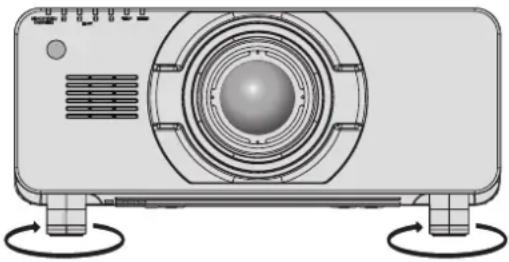
natural_image
Illustration of a projector with two base legs and circular vent, no text or symbols presentAdjustable range
Front adjustable feet: 12 mm (15/32")
Rear adjustable feet: 12 mm (15/32")
Attention
- Hot air is expelled from the air exhaust port. Do not touch the air exhaust port directly when adjusting the adjustable feet. (→ page 24)
Attaching/removing the projection lens (optional accessory)
Move the lens to the home position before replacing or removing the lens. (→ page 53)
Attention
- Replace the projection lens after turning off the power of the projector.
- Do not touch the lens signal receiver. Dust or dirt may cause defective contact.
- Do not touch the lens surface with your bare hands.
● Before attaching the projection lens, remove the lens cover attached to the projection lens.
Attaching the projection lens
1) Remove the projection lens cover.
● While grasp the right and left buttons from vertical and horizontal directions, pull the lens cover to remove.
2) Insert by aligning the projection lens (orange) mark with the mark on the projector body (a circle to the left of LOCK) and turn clockwise until it clicks.
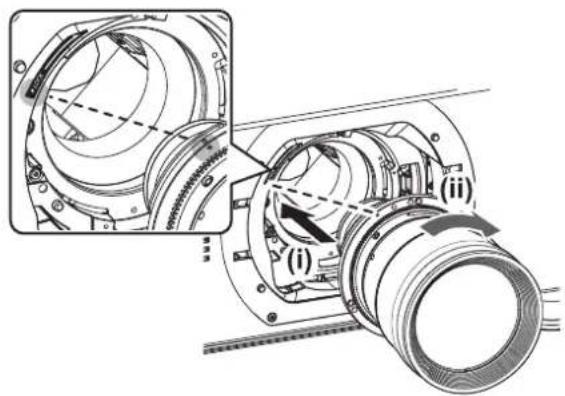
3) Secure the projection lens with the lens fixing screw supplied ^*1 .
- Use a Phillips screwdriver to secure it in the first screw hole to the right of the projection lens (orange) mark.
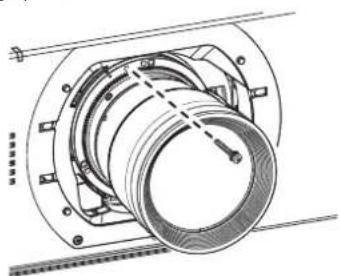
natural_image
Technical line drawing of a mechanical assembly with no visible text or symbols*1: Some lenses may not have a screw hole to use to secure the projection lens.
4) Attach the projection lens cover.
Attention
- Turn the projection lens counterclockwise to confirm that it does not come out.
- Store the removed dust sponge in a safe place to transport or store.
Removing the projection lens
1) Remove the projection lens cover.
● While grasp the right and left buttons from vertical and horizontal directions, pull the lens cover to remove.
2) Remove the lens fixing screw ^*1 .
- Use a Phillips screwdriver to remove the first screw to the right of the projection lens (orange) mark.
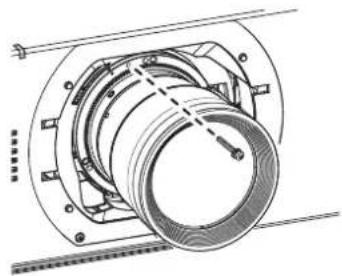
natural_image
Technical line drawing of a mechanical assembly with no visible text or symbols*1: Some lenses may not have a screw hole to use to secure the projection lens.
3) While pressing the lock button, turn the projection lens counterclockwise to remove.
● Turn counterclockwise until the projection lens (orange) mark is at the mark on the projector body (the circle to the left of LOCK).
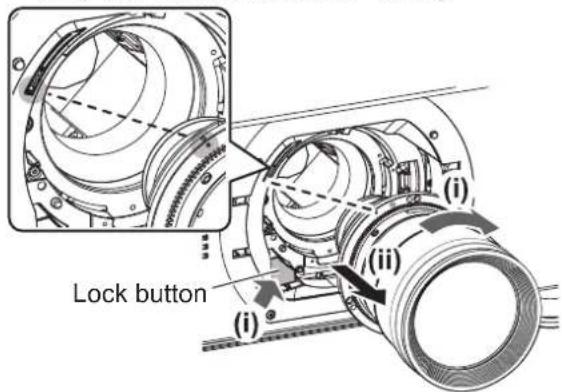
4) Attach the projection lens cover and dust sponge.
Attention
- Store the removed lens where it will be free from vibration and impact.
- Store the removed lens fixing screw in a safe place.
Connecting
Before connecting
● Before connecting, carefully read the operating instructions for the external device to be connected.
● Turn off the power of all devices before connecting cables.
- Acquire any connection cable necessary to connect the external device to the system that is either not supplied with the device or not available as an option.
- Video signals containing too much jitter may cause the images on the screen to randomly wobble or wafture. In this case, a time base corrector (TBC) must be connected.
- The projector accepts video signals (including Y/C signals), analog RGB signals (synchronous signals are TTL level), and digital signals.
- Some computer models are not compatible with the projector.
- Use a cable compensator when you connect devices to the projector using long cables. Otherwise the image may not display properly.
- Refer to “List of compatible signals” (→ page 167) for the types of video signals that can be used with the projector.
GB 2 IN> terminal pin assignments and signal names
| Outside view Pin No. Signal name | |
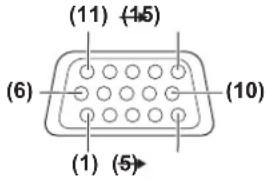 | (1) R/P_R |
| (2) G/G, SYNC/Y | |
| (3) B/P_B | |
| (12) DDC data | |
| (13) HD/SYNC | |
| (14) VD | |
| (15) DDC clock | |
(4) and (9) are not used.
(5) - (8), (10), and (11) are GND terminals.
DMI IN> terminal pin assignments and signal names
Outside viewEven-numbered pins (2) to (18)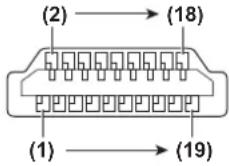 Odd-numbered pins (1) to (19) Odd-numbered pins (1) to (19) | Pin No. Signal name Pin No. Signal | name | ||
| (1) T.M | D.S data 2+ (11) T.M.D.S clock shield | |||
| (2) T.M | D.S data 2 shield (12) T.M.D.S clock- | |||
| (3) | T.M.D.S data 2- | (13) | CEC | |
| (4) | T.M.D.S data 1+ | (14) | — | |
| (5) T.M | D.S data 1 shield (15) | SCL | ||
| (6) T.M | D.S data 1-(16) | SDA | ||
| (7) T.M | D.S data 0+(17) | DDC/CECGND | ||
| (8) | T.M.D.S data 0 shield | (18) | +5 V | |
| (9) T.M | D.S data 0-(19) | Hot plug detection | ||
| (10) | T.M.D.S clock+ | |||
terminal pin assignments and signal names
Outside view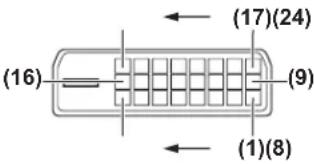 | Pin No. Signal name Pin No. Signal name | |||
| (1) T.M | D.S data 2-(13)— | |||
| (2) T.M | D.S data 2+(14)+5 V | |||
| (3) T.M | D.S data 2/4 shield (15) GND | |||
| (4)—(16) Hot plug detection | ||||
| (5)—(17) T.M.D.S data 0- | ||||
| (6) DDC clock (18) T.M.D.S data 0+ | ||||
| (7) | DDC data | (19) | T.M.D.S data 0/5 shield | |
| (8)—(20)— | ||||
| (9) T.M | D.S data 1-(21)— | |||
| (10) | T.M.D.S data 1+ | (22) | T.M.D.S clock shield | |
| (11) | T.M.D.S data 1/3 shield | (23) | T.M.D.S clock+ | |
| (12)—(24) | T.M.D.S clock- | |||
Connecting example: AV equipment
Fir /
The following diagram is a connecting example for PT-DZ21KE and PT-DS20KE.
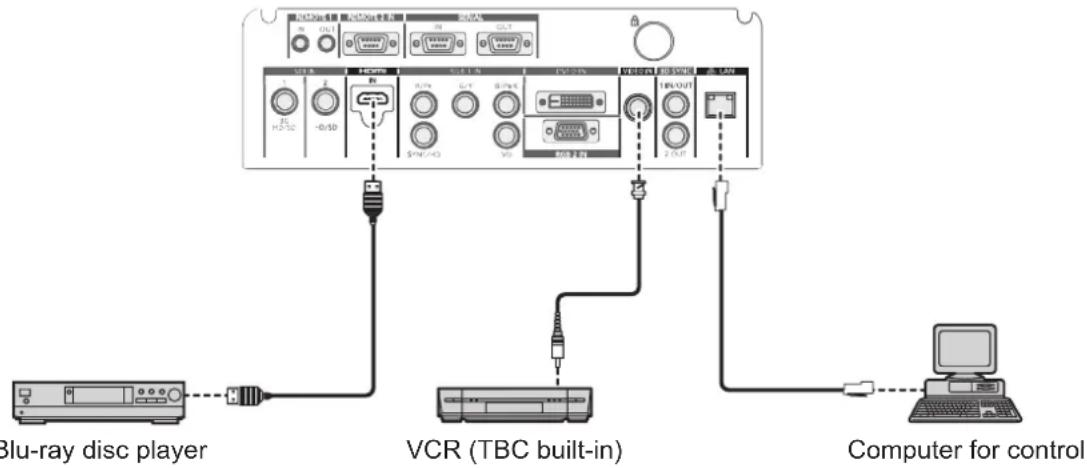
flowchart
graph TD
    A["Blu-ray disc player"] --> B["VCR (TBC built-in)"]
    B --> C["Computer for control"]
    D["USB ports"] --> E["USB/USB"]
    E --> F["USB/USB"]
    F --> G["USB/USB"]
    G --> H["USB/USB"]
    H --> I["USB/USB"]
    I --> J["USB/USB"]
    J --> K["USB/USB"]
    K --> L["USB/USB"]
    L --> M["USB/USB"]
    M --> N["USB/USB"]
    N --> O["USB/USB"]
    O --> P["USB/USB"]
    P --> Q["USB/USB"]
    Q --> R["USB/USB"]
    R --> S["USB/USB"]
    S --> T["USB/USB"]
    T --> U["USB/USB"]
    U --> V["USB/USB"]
    V --> W["USB/USB"]
    W --> X["USB/USB"]
    X --> Y["USB/USB"]
    Y --> Z["USB/USB"]
Attention
● Always use one of the following when connecting a VCR.
- A VCR with built-in time base corrector (TBC)
- A time base corrector (TBC) between the projector and the VCR
- If nonstandard burst signals are connected, the image may be distorted. In such case, connect the time base corrector (TBC) between the projector.
Note
- The
terminal can be connected to HDMI- or DVI-D-compliant devices. However, images may not appear or may not be displayed properly on some devices. (→ page 92) - The HDMI cable used should be an HDMI High Speed cable that conforms to HDMI standards. If a cable that does not meet HDMI standards is used, video may be interrupted or may not be displayed.
- The
terminal of the projector can be connected to an external device with an DVI-D terminal by using a HDMI/DVI conversion cable, but some devices may not project the image properly or function properly.
● The projector does not support VIERA Link (HDMI).
Connecting
Fir / terminals (for PT-DZ21KE and PT-DS20KE only)
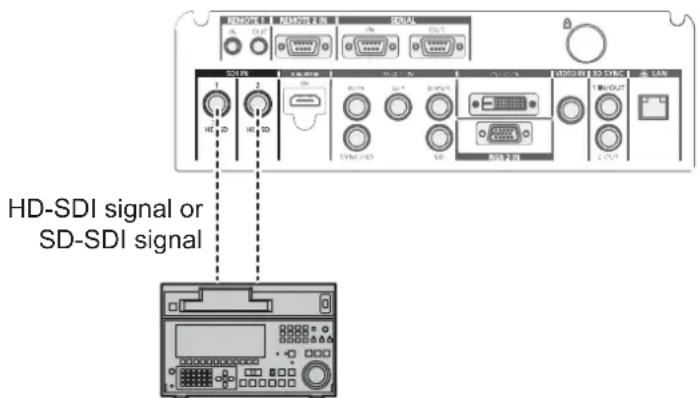
Digital VCR for commercial use
Note
- Use [SYSTEM SELECTOR] (→ page 70) to switch the input format.
- Some external devices to be connected require [SDI IN] (→ page 93) to be set.
- Use a 5CFB or higher (such as 5CFB, or 7CFB) or a Belden 1694A or higher connection cable to properly transmit images. Use a connection cable of 100m (328'1") length or less.
● To enter dual link signals, the [SDI LINK] in [SDI IN] must be set. - Use the same length and same type of cables to connect
/ terminals when entering dual link signals. If there is a difference of 4 m (13'1") or greater in cable length, images may not be projected properly. - To input dual link signals, connect directly without going through a distributor or other such device to the external device which outputs signals. A phase difference may occur between the LINK-A signal and the LINK-B signal and images may not be projected properly.
- When an unsteady signal is connected, an error in signal detection may occur. In such a case, use the [SYSTEM SELECTOR] (→ page 70) to switch to a system that matches the signal format.
Connecting example: Computers
The following diagram is a connecting example for PT-DZ21KE and PT-DS20KE.
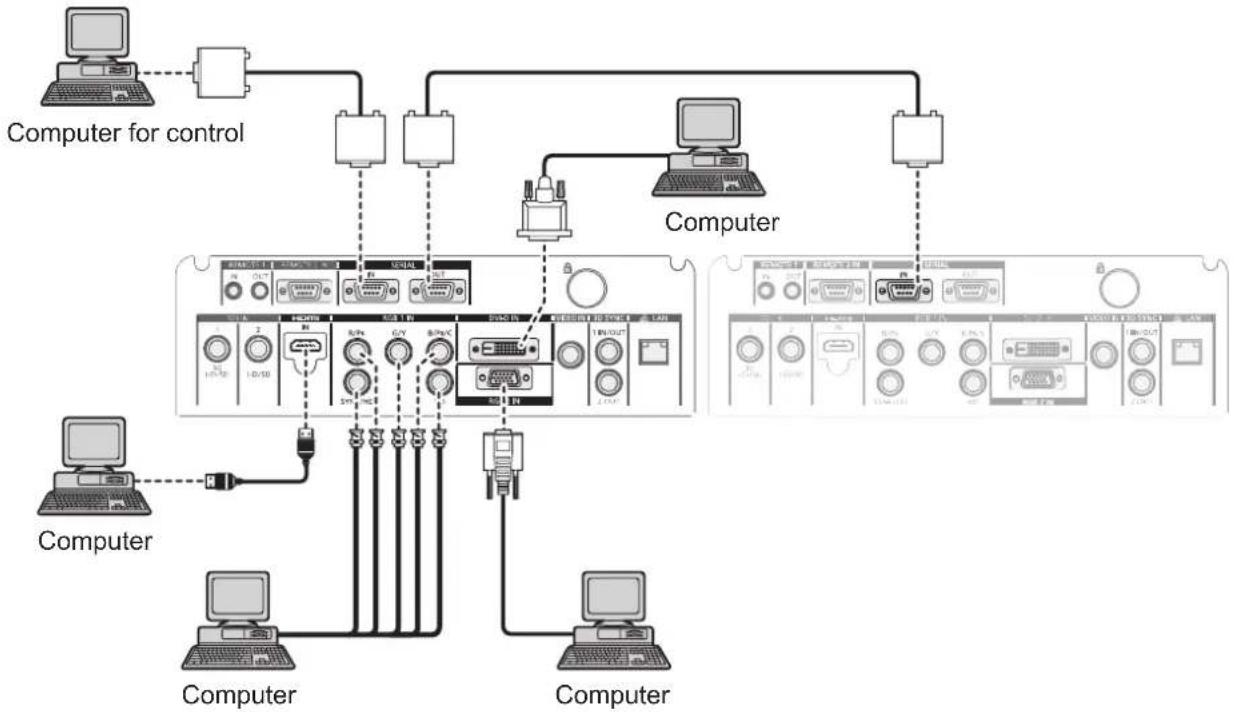
- The
terminal supports single links only. - For signals that the projector can project, refer to "List of compatible signals" (→ page 167).
- If you operate the projector using the computer with the resume feature (last memory), you may have to reset the resume feature to operate the projector.
- When entering the SYNC ON GREEN signal, do not enter sync signals to the
terminal or the terminal. - When entering DVI-D, some external devices to be connected require EDID to be set. (→ page 92)
- Use an HDMI cable that conforms to HDMI standards such as an HDMI High Speed cable. If a cable that does not meet HDMI standards is used, video may be interrupted or may not be displayed.
- The
terminal of the projector can be connected to an external device with an DVI-D terminal by using a HDMI/DVI conversion cable, but some devices may not project the image properly or function properly.
Caution
When connecting the projector to a computer or an external device, use the power cord supplied with each device and commercially available shielded cables.
Switching on/off the projector
Connecting the power cord
Make sure that the supplied power cord is fully inserted into the projector to prevent removal of the power cord.
Confirm that the
For detailed power cord handling, refer to "Read this first!" (→ pages 2 to 10).
attach the power cord
1) Check the shapes of the
2) Insert the power cord plug into an electrical outlet.
remove the power cord
1) Confirm that the
2) Remove the power cord from the
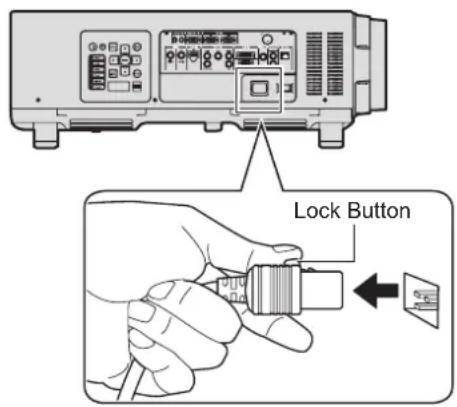
Power indicator
The power indicator displays the status of the power. Check the status of the power indicator
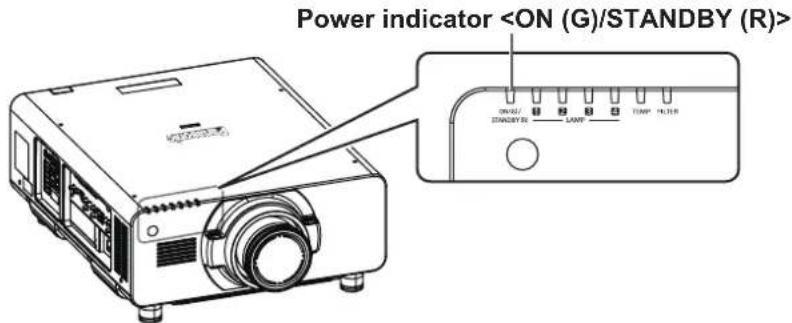
| Indicator status Status | ||
| No illumination or flashing The main power is switched off. | ||
| Red Lit | The power is switched off. (Standby mode.)Projection will start if the power on < | > button is pressed.● The projector may not operate when the lamp indicators//<LAMP2>/<LAMP3>/<LAMP4> or temperature indicator<TEMP> is flashing (⇨ page 142). | |
| Green Lit Projecting. | ||
| Orange Lit | The projector is preparing to switch off the power.The power is switched off after a while. (Changes to the standby mode.) | |
Note
- In about 150 seconds after the projector is switched off and the luminous lamp cooling is started, the lamp indicators will not light up even if the power is switched on. After the power indicator
lights in red, turn on the power again. - The projector consumes power even in standby mode (power indicator
lit in red). Refer to "Power consumption" (→ page 172) for the power consumption.
● The power indicatorwill flash in green if a remote control signal is received.
● The power indicatorwill flash slowly in green while the shutter is closed. (→ page 58) - If the power indicator
is flashing in red, consult your dealer.
Switching on/off the projector
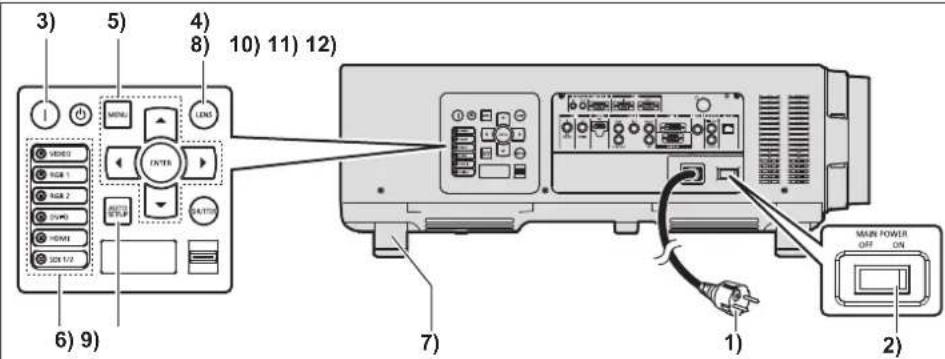
Switching on the projector
Install the projection lens before switching on the projector. (→ page 43)
Remove the lens cover first.
1) Connect the power plug to an outlet.
(AC 200 V - 240 V 50 Hz/60 Hz)
2) Press the
- The power indicator
3) Press the power on <▶ button.
- The power indicator
Attention
- Using the projector while the lens cover is attached may cause the device to heat up and result in a fire.
Note
- If the projector is switched on at about 0°C (32°F), a warm-up period of approximately five minutes may be necessary until a projection is displayed. The temperature indicator
is lit during the warm-up period. When the warm-up is completed, the temperature indicator turns off and the projection starts. Refer to “Managing the indicated problems” (→ page 142) for the indicator status. - If the operating environment temperature is low and warm-up takes more than 5 minutes, the projector will judge that a problem has occurred and the power will automatically be set to stand-by. If this happens, increase the operating environment temperature 0^ (32°F) or higher, turn off the main power, and then turn on the power again.
- If the menu [PROJECTOR SETUP] → [STANDBY MODE] (→ page 106) is set in the [ECO] menu, display will start approximately 10 seconds later compared to when [NORMAL] is selected.
Making adjustments and selections
It is recommended that images are projected continuously for at least 30 minutes before the focus is adjusted.
4) Press the
5) Set the projection method using [PROJECTION METHOD] (→ page 99) and [COOLING CONDITION] (× page 100) on the menu.
- Refer to "Navigating through the menu" (→ page 61) for the operation of the menu screen.
6) Press the input selection (
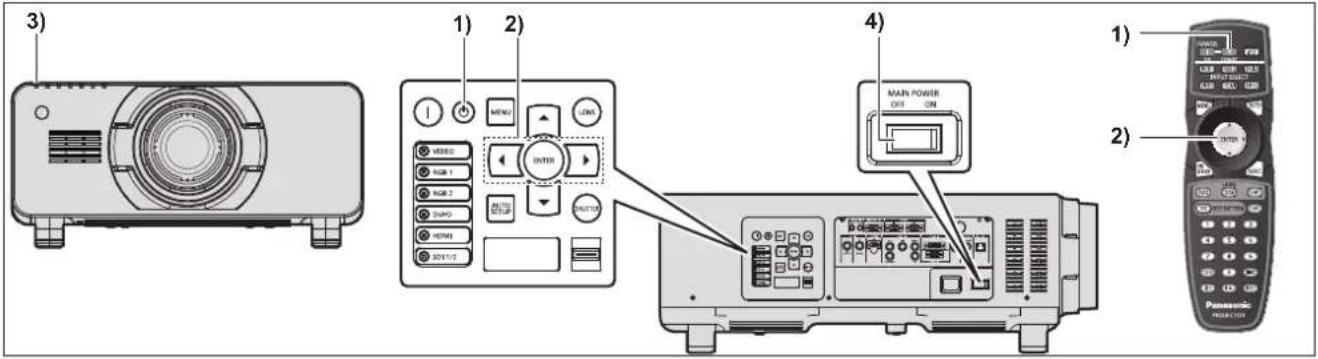
Switching off the projector
1) Press the power standby <▶ button.
2) Press ◀▶ to select [OK], and press the
- Projection of the image will stop, and the power indicator
3) Wait until the power indicator
4) Press the
Note
- Do not turn on the power and project images immediately after turning the projector off. Turning on the power while the lamp is still hot may shorten the lamp life.
- In about 150 seconds after the projector is switched off and the luminous lamp cooling is started, the lamp indicators will not light up even if the power is switched on. Even after 150 seconds, the lamp may not light up if the power is switched on. After the power indicator
lights in red, turn on the power again. - The projector consumes power even when the power standby <⏻> button is pressed and the power is switched off if the projector's main power is on. Refer to "Power consumption" (→ page 172) for the power consumption.
Projecting
Check the projection lens attachment (▶ page 43), external device connection (▶ page 44), power cord connection (▶ page 48), switch on the power (▶ page 50) to start projecting. Select the video for projection, and adjust appearance of the projected image.
Select the input signal
Select an input signal.
1) Switch on the external devices.
- Press the play button on an external device, such as a Blu-ray disc player.
2) Press the input selection (
● The image of the signal being input in the selected terminal is projected.
Attention
- Images may not be projected properly depending on the external device, or the blu-ray disc or DVD disc, to be played back. Set [PICTURE]→[SYSTEM SELECTOR] (→ page 70) on the menu.
- Confirm the aspect ratio of the projection screen and the image, and switch to an optimum aspect ratio from the [POSITION] menu → [ASPECT] (→ page 72).
Adjusting the focus, zoom, and shift
If the projected image or the position is not correct when the positioning of the projector and the screen is correctly installed, adjust the focus, zoom, and shift.
the projector
1) Press the
- Pressing the button changes the setup screen in the order of "lens focus", "lens zoom", and "lens shift".
2) Select each item and press ▲▼◀▶ to adjust it.
Using the remote control
1) Press the lens (
button: Adjusts focus. button: Adjusts zoom. button: Adjusts shift.
2) Select each item and press ▲▼◀▶ to adjust it.
Note
- Zoom adjust menu will not be displayed when the projection lens without the zoom function is attached.
● Use the projection lens ET-D75LE5, ET-D75LE50 with the lens position on the home position. (→ page 53)
● The adjustment can be performed faster by pressing and holding ▲▼◀▶ while adjusting the focus and shift. - It is recommended that images are projected continuously for at least 30 minutes before the focus is adjusted.
- Only “lens focus” is shown in yellow so that the displayed menu item can be recognized by color, even when the projector is not focused and displayed characters are unreadable. (Factory default) Displaying the color of “lens focus” varies depending on the setting of [OSD DESIGN] page 94) on the men
- When the power is switched off during focus and shift adjustment, lens calibration needs to be performed the next time the power is switched on. (→ page 111)
- When the main power is switched off during focus adjustment, lens calibration is performed automatically during the next focus adjustment.
- When the main power is switched off during shift adjustment, a lens calibration error screen will be displayed during the next shift adjustment. Run [LENS CALIBRATION] (▶ page 111) from the menu.
- When the lens calibration error is displayed even though [LENS CALIBRATION] was executed, ask your dealer to repair the unit.
Moving the lens to the home position
1) Press the
2) While the [HOME POSITION] menu is displayed (for approximately five seconds), press the
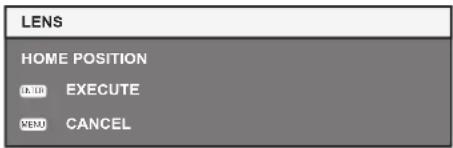
● [PROGRESS] is displayed in the menu screen, and the lens returns to the home position.
Attention
- The home position of the lens is the lens position when the lens is being replaced or when the projector is being stored, and it is not the optical center of the screen.
Projecting
Adjustment range by the lens position shift (optical shift)
Perform the lens position shift within the adjustment range.
The focus may change when the lens position is shifted out of the adjustment range. This is because the movement of the lens is restricted to protect the optical parts. Projection position can be adjusted with the optical axis shift based on the standard projection position in the range shown in the following figures.
| Projection lens Model No. | ET-D75LE6 | ET-D75LE1, ET-D75LE2, ET-D75LE3, ET-D75LE4, ET-D75LE8, ET-D75LE10, ET-D75LE20, ET-D75LE30, ET-D75LE40 |
| PT-DZ21KE | 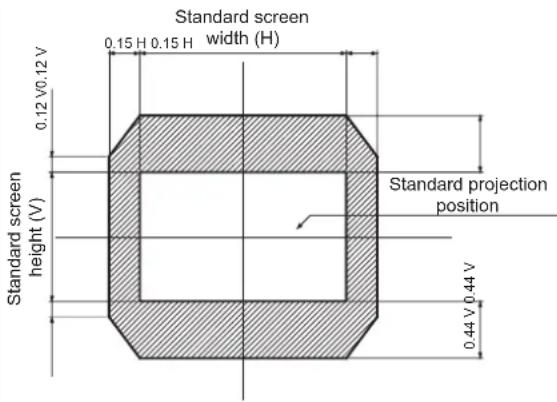 | 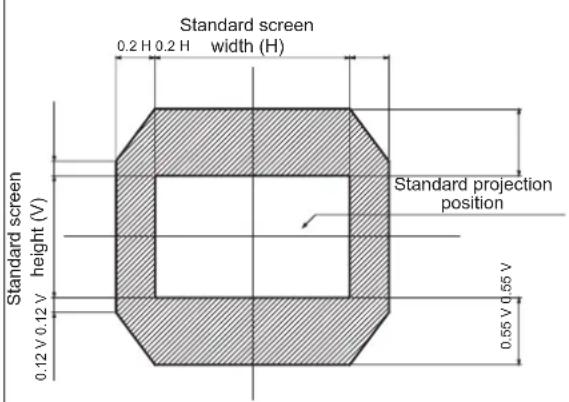 |
| PT-DS20KE | 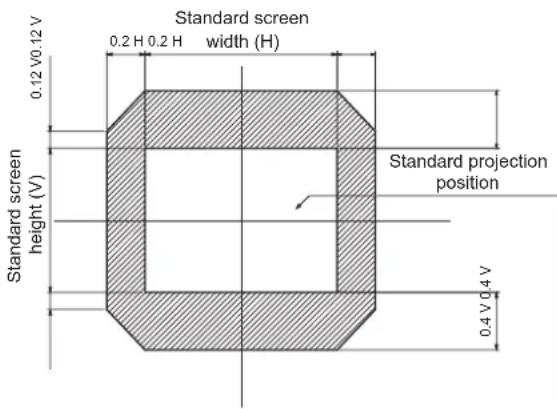 | 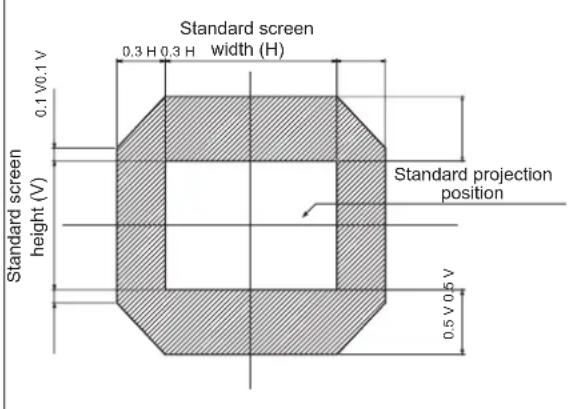 |
| PT-DW17KE | 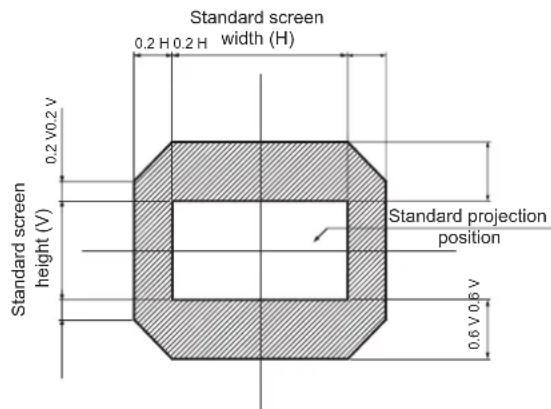 | 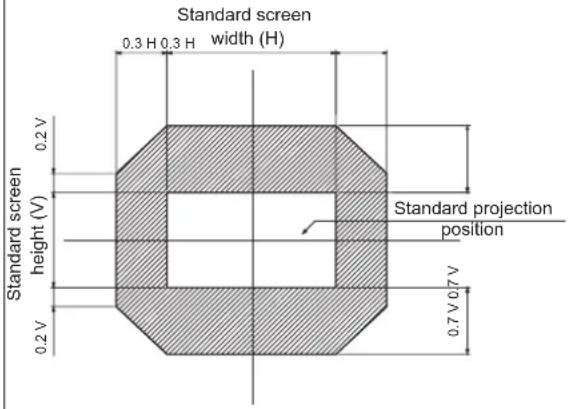 |
Note
- When the Fixed-Focus Lens (Model No.: ET-D75LE5, ET-D75LE50) is attached, shift adjustment cannot be performed.
Adjusting the lens mounter when the focus is unbalanced
Focus balance
●Relationship between the tilt of the lens and the screen focus surface
When the projection lens is tilted in contrast with the image forming surface, tilting the front side (screen side) of the projection lens downwards (in the direction of the dotted arrow line), the upper side of the screen focus surface will tilt inwards and the lower side will tilt outwards.
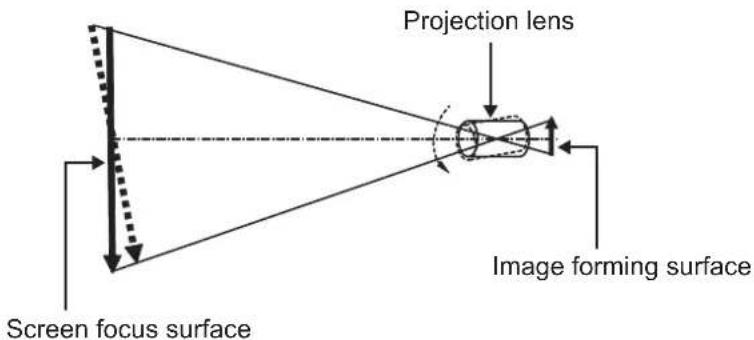
Figure 1 A diagram showing the effect of lens tilting
How to adjust the focus balance (adjustment by tilting the lens mounter)
When the entire screen surface is not uniform even if the lens focus has been adjusted, the lens mounter has focus adjustment screws in 3 locations.
●Lens mounter structure
The lens mount bracket can be moved back and forth by turning focus adjustment screws (a), (b), and (c). Also, tightening the fixed screws locks the lens mount bracket in place so it does not move.
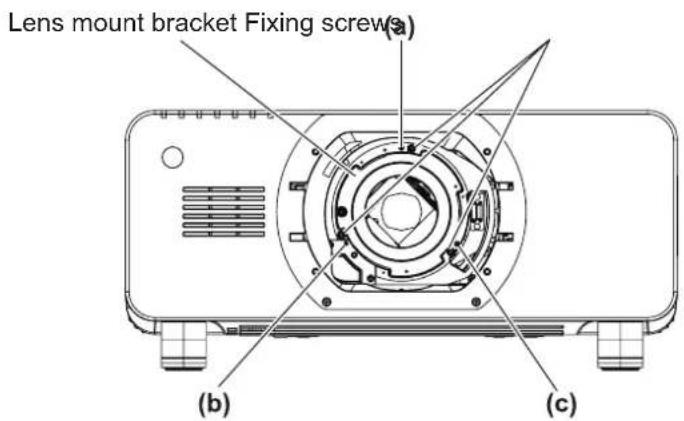
(Focus adjustment screws (a), (b), and (c) are adjusted with the lens attached.)
Figure 2 Front view diagram of the lens mounter (as seen from the screen side)
Projecting
When a projection lens with a large weight is installed, or when the projector is installed in an inclination, the lens may tilt and the focus may become unbalanced. In these cases, refer to Figure 3 and the adjustment examples in the table below, and perform adjustments through the following procedures.
●Adjustment procedure
1) Press the
2) Shift the focus of the entire screen once pressing ▼.
3) Press ▲ to stop on any part of the screen to be the first just focus point.
● For the location where focus is shifted in this state, the just focus point is in the inner side of the screen.
4) Loosen the fixed screws in the position relative to the location where the focus is shifted the most (the location where the just focus point is shifted the most towards the inner side in Step 2)) up to two rotations (see Figure 3).
Attention
- Turn screws clockwise in 2 locations, or at least in 1 location to be adjusted.
5) Little by little, turn the focus adjustment screws corresponding to the locations in the table below counter clockwise and stop where the image is in focus (→ page 55).
- If the screws are turned counter clockwise, the tilt of the lens will change (see Figure 1) by moving the lens mount bracket of the lens mounter forward (screen side), and in the projected image on the screen, the adjustment screws and the focus point in the opposite direction will move from the inner side of the screen to the outside.
6) Press the
7) Perform focus adjustment again near the center of the screen and if it is still not enough, fine tune the amount of rotation of the adjustment screws.
8) When adjustments have been made, securely tighten the loosened fixed screws.
9) Adjust the focus again using the remote control.
● Tool used: Hex driver or allen wrench (diagonal 2.5 mm (0.1"))
● The allen wrench is included with the projection lens ET-D75LE6, ET-D75LE8.
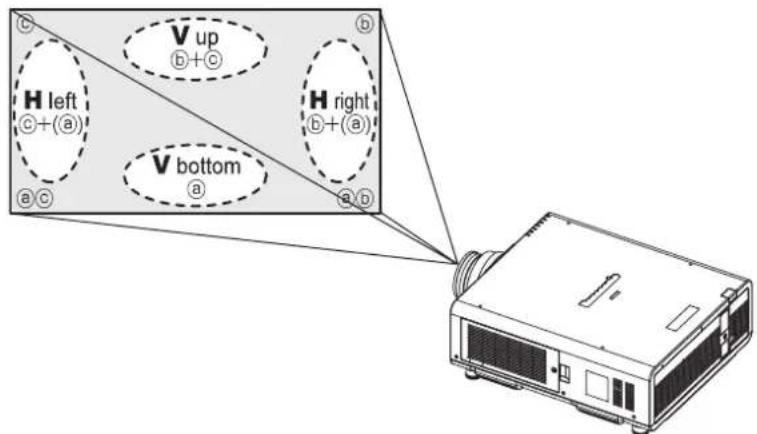
Adjustment location:
Location where the just focus point of the screen is in the inner side of the screen
Figure 3 Relationship between the adjustment location and adjustment screws
| When the just focus point of the screen in V up is in the inner side of the screen | When the just focus point of the screen in V bottom is in the inner side of the screen | When the just focus point of the screen in H left is in the inner side of the screen | When the just focus point of the screen in H right is in the inner side of the screen | |
| (a) | Rotate counter clockwise — | — — | ||
| (b) | — Rotate counter clockwise | Rotate counter clockwise — | ||
| (c) | — Rotate counter clockwise | — Rotate counter clockwise |
Remote control operation
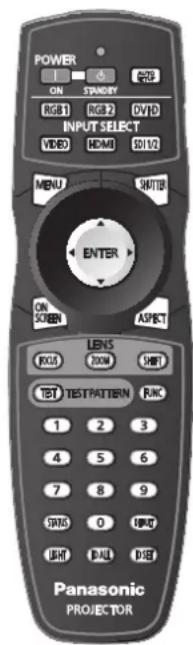
Using the shutter function
If the projector is not used for a certain period of time during the meeting intermission, for example, it is possible to turn off the image temporarily.

button
1) Press the
● The image disappears.
2) Press the
● The image is displayed.
Note
- The power indicator
will flash slowly in green while the shutter is closed (→ page 58). - You can set the speed of shutter opening/closing via [SHUTTER SETTING] (→ page 96).
Using the on-screen display function
Turn off the on-screen display function (no display) when you do not wish the viewers to see the on-screen display, such as the menu or the input terminal name.

button
1) Press the
● The on-screen display disappears.
2) Press the
● The on-screen display appears.
Note
- If you press the
- The CLOCK PHASE may shift even if it has completed without any incident. In such cases, adjust with the [POSITION] menu → [CLOCK PHASE] (→ page 74).
- If an image with blurred edges or a dark image is input, [INCOMPLETE] may appear or adjustment may not be performed properly even if [COMPLETE] appears. In this case, adjust the settings in the [ADVANCED MENU] menu → [INPUT RESOLUTION] (→ page 78), [POSITION] → [CLOCK PHASE] (→ page 74), [SHIFT] (→ page 72).
- Adjust specific signals according to the [DISPLAY OPTION] menu → [AUTO SETUP] (→ page 91).
● Automatic adjustment may not work depending on the model of the computer.
● Automatic adjustment may not work for a synchronization signal of C-SY or SYNC ON GREEN.
● Images may be disrupted for a few seconds during automatic adjustment, but it is not a malfunction. - Adjustment is required for each input signal.
● Automatic adjustment can be canceled by pressing the - Even for an RGB signal for which automatic setup is possible, if automatic setup is performed while moving images are being input, the adjustment may not be performed properly. Even if [INCOMPLETE] or [COMPLETE] appears, the adjustment may not be performed properly.
Using the Function button
[DISABLE], [P IN P], [SUB MEMORY], [SYSTEM SELECTOR], [SYSTEM DAYLIGHT VIEW], [FREEZE], [WAVEFORM MONITOR], [LENS MEMORY LOAD], or [LEFT/RIGHT SWAP] operations can be assigned to the

button
Press the button on the remote control.
Note
● [LEFT/RIGHT SWAP] can only be assigned in PT-DZ21KE, PT-DS20KE.
- Assignment of the function is performed from the [PROJECTOR SETUP] menu → [FUNCTION BUTTON] (→ page 110).
Remote control operation
Displaying the internal test pattern
The projector has eight types of internal test patterns to check the condition of the set. To display test patterns, perform the following steps.
TEST TEST PATTERN button
1) Press the
2) Press the ◀▶ button to select the test pattern.
Note
- Setting is also available from the [TEST PATTERN] menu (→ page 117).
- Settings of position, size, and other factors will not be reflected in test patterns. Make sure to display the input signal before performing various adjustments.
Changing the picture aspect ratio
You can toggle through aspect ratios to select the one that is appropriate for the input signal.

button
Press the button on the remote control.
- The setting will change as follows each time you press the button.
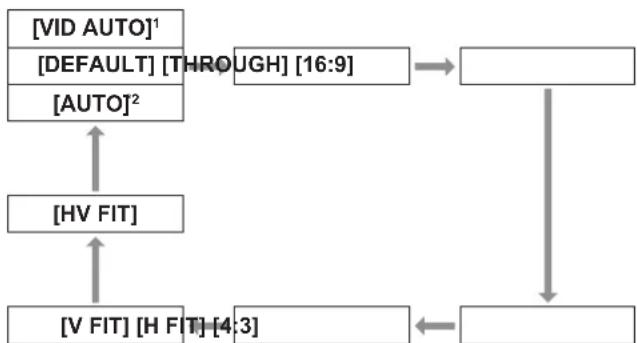
flowchart
graph TD
    A["[VID AUTO"]¹] --> B["[DEFAULT"] [THROUGH] [16:9]]
    B --> C[" "]
    C --> D["[HV FIT"]]
    D --> E["[V FIT"] [H FIT] [4:3]]
    E --> D
    A --> F["[AUTO"]²]
    F --> G["HV FIT"]
*1: Only for video signal and Y/C signal (NTSC) input
*2: Only for RGB (480i or 480p) signal input
Note
- Some aspect ratios may not be available depending on the input signal.
Refer to “[ASPECT]” (→ page 72) for details.
Menu navigation
The on-screen menu (Menu) is used to perform various settings and adjustments of the projector.
Navigating through the menu

erating procedure

button
1) Press the
● The [MAIN MENU] screen is displayed.
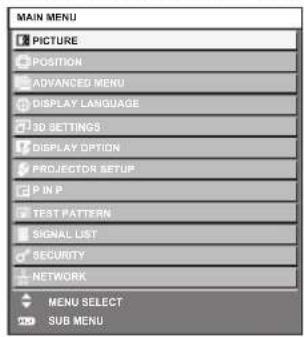
2) Press ▲▼ to select an item from the main menu.
● The selected item is highlighted in yellow.
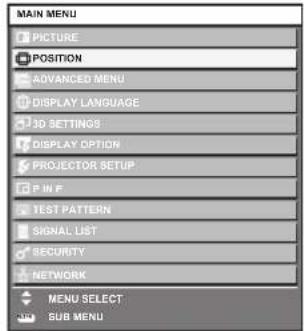
● The sub-menu items of the selected main menu are displayed.
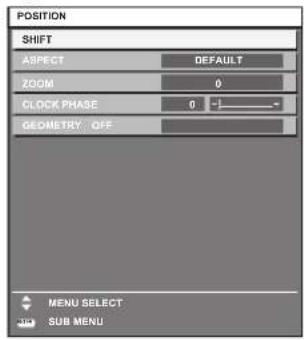
4) Press ▲▼ to select a sub-menu, and the ◀▶ buttons or the button to change or adjust settings.
- For some items, press the ◀ button to display an individual adjustment screen with a bar scale as shown in the following diagram.

Note
- Pressing the
- Some items may not be adjusted or used for certain signal formats to be input to the projector. The menu items that cannot be adjusted or used are shown in gray characters, and they cannot be selected. [DIGITAL CINEMA REALITY] and [FRAME LOCK] may not be displayed depending on signal input.
- Some items can be adjusted even if signals are not input.
● Individual adjustment screen is cleared automatically if no operation is performed for approximately five seconds. - For menu items, see "Main menu" (→ page 62) and "Sub-menu" (→ pages 63 to 64).
- The cursor color depends on the [OSD DESIGN] (→ page 94) settings on the menu. The selected item is displayed with the yellow cursor by default.
● During portrait setting, the menu will be displayed horizontally.
Menu navigation
■ reset adjustment values to the factory default
If the

button
Press the button on the remote control.

Note
- You cannot reset all the settings to the factory default at a time.
- To reset all the settings adjusted in the sub-menu item to the factory default at a time, perform initialization from the [PROJECTOR SETUP] menu → [INITIALIZE] (→ page 114).
- Some menu items cannot be reset by pressing the
button. Adjust each item manually. - The triangular mark under the bar scale in the individual adjustment screen indicates the factory default setting. The position of the triangular mark varies by the selected input signals.
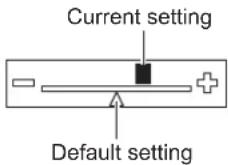
Main menu
The following items are in the main menu. When a main menu item is selected, the screen changes to a sub-menu selection screen.
| Main menu item Page | ||
 | [PICTURE] 63 | |
 | [POSITION] 63 | |
 | [ADVANCED MENU] 63 | |
 | [DISPLAY LANGUAGE] 63 | |
 | [3D SETTINGS]*1 | 63 |
 | [DISPLAY OPTION] 64 | |
 | [PROJECTOR SETUP] 64 | |
 | [P IN P] 64 | |
 | [TEST PATTERN] 64 | |
 | [SIGNAL LIST] 64 | |
 | [SECURITY] 64 | |
 | [NETWORK] 64 | |
*1: PT-DZ21KE and PT-DS20KE only
Sub-menu
The sub-menu of the selected main menu item is displayed, and you can set and adjust items in the sub-menu.

| Sub-menu item | Factory default | Page |
| [PICTURE MODE] | [STANDARD]^1 | 65 |
| [CONTRAST] [0] 66 | ||
| [BRIGHTNESS] [0] 66 | ||
| [COLOR] [2] | *1 | 66 |
| [TINT] [-2] 66 | ||
| [COLOR TEMPERATURE] [DEFAULT] 66 | ||
| [GAMMA] [DEFAULT] 68 | ||
| [SYSTEM DAYLIGHT VIEW] [OFF] 68 | ||
| [SHARPNESS] [8] 68 | ||
| [NOISE REDUCTION] [2] 69 | ||
| [DYNAMIC IRIS] [2] 69 | ||
| [SYSTEM SELECTOR] | [YP_B P_R]^1 | 70 |
*1: Depends on the signal input.
Note
● The factory default settings may vary depending on the picture mode.

| Sub-menu item | Factory default | Page |
| [SHIFT] | — | 72 |
| [ASPECT] | [DEFAULT]^*1 | 72 |
| [ZOOM] | — | 73 |
| [CLOCK PHASE] | [0] 74 | |
| [GEOMETRY]^*2 | [OFF] 74 | |
| [KEYSTONE]^*3 | — | 76 |
*1: Depends on the signal input.
*2: PT-DZ21KE and PT-DS20KE only
*3: Only for PT-DW17KE
[ADVANCED MENU]

| Sub-menu item | Factory default | Page |
| [ DIGITAL CINEMA REALITY] | [AUTO] ^1 | 77 |
| [BLANKING] | — | 77 |
| [INPUT RESOLUTION] | — | 78 |
| [CLAMP POSITION] | [24] ^1 | 78 |
| [EDGE BLENDING] | [OFF] 78 | |
| [FRAME RESPONSE] | [NORMAL] | 80 |
| [FRAME LOCK] ^2 | [OFF] 80 | |
| [RASTER POSITION] | — | 80 |
*1: Depends on the signal input.
*2: PT-DZ21KE and PT-DS20KE only


Details ( page 81)

| Sub-menu item | Factory default | Page |
| [3D SYSTEM SETTING] | [SINGLE] | 82 |
| [3D SYNC SETTING] | — | 82 |
| [3D SIMUL INPUT SETTING] | — | 83 |
| [3D INPUT FORMAT] | [AUTO] ^2 | 84 |
| [LEFT/RIGHT SWAP] | [NORMAL] | 84 |
| [3D COLOR MATCHING] | [SHARED 2D/3D] | 84 |
| [3D PICTURE BALANCE] | — | 85 |
| [DARK TIME SETTING] | [1.5 ms] | 85 |
| [3D FRAME DELAY] | [0 us] | 86 |
| [3D TEST MODE] | [NORMAL] | 86 |
| [3D TEST PATTERN] | — | 86 |
| [SAFETY PRECAUTIONS MESSAGE] | [ON] | 87 |
| [3D SAFETY PRECAUTIONS] | — | 87 |
*1: PT-DZ21KE and PT-DS20KE only
*2: Differs based on the selected input terminal.
Menu navigation

[SPLAY OPTION]
![PANASONIC PT-DW17KEJ - [SPLAY OPTION] - 1](/content/2026/05/1137714/images/a4820483631764e2962b39c15b858f8d1743eaba7988988488a8c225ffc5c47c.jpg)
| Sub-menu item | Factory default | Page |
| [COLOR MATCHING] [OFF] 88 | ||
| [LARGE SCREEN CORRECTION] | [OFF] 89 | |
| [SCREEN SETTING]*1 | — | 90 |
| [AUTO SIGNAL] [OFF] 90 | ||
| [AUTO SETUP] — 91 | ||
| [RGB IN] — 92 | ||
| [DVI-D IN] — 92 | ||
| [HDMI IN] — 93 | ||
| [SDI IN]*1 | — | 93 |
| [ON-SCREEN DISPLAY] — 94 | ||
| [BACK COLOR] [BLUE] 95 | ||
| [STARTUP LOGO] | [DEFAULT LOGO] | 95 |
| [UNIFORMITY] — 95 | ||
| [SHUTTER SETTING] | — 96 | |
| [FREEZE] | — 96 | |
| [WAVEFORM MONITOR] | [OFF] 96 | |
| [CUT OFF] | — 98 |
*1: PT-DZ21KE and PT-DS20KE only
![PANASONIC PT-DW17KEJ - [SPLAY OPTION] - 2](/content/2026/05/1137714/images/fd4ccec2026b1e181d5ea625397e18886b4db1fadf90d6ae187003dfe2c13b91.jpg)
ROJECTOR SETUP]
![PANASONIC PT-DW17KEJ - ROJECTOR SETUP] - 1](/content/2026/05/1137714/images/6ade316d212250b2520c52d7dcf3f8f0eb365ddff7ee316a15d0efbd0894539d.jpg)
| Sub-menu item | Factory default | Page |
| [PROJECTOR ID] | [ALL] | 99 |
| [PROJECTION METHOD] | [FRONT/ FLOOR] | 99 |
| [COOLING CONDITION] | [FLOOR SETTING] | 100 |
| [HIGH ALTITUDE MODE] | [OFF] | 100 |
| [LAMP SELECT] | [QUAD] | 100 |
| [LAMP RELAY] | [OFF] | 101 |
| [BRIGHTNESS CONTROL] | — | 102 |
| [STANDBY MODE] | [NORMAL] | 106 |
| [SCHEDULE] [OFF] 106 | ||
| [RS-232C] | — | 108 |
| [STATUS] | — | 109 |
| [NO SIGNAL SHUT-OFF] | [DISABLE] | 110 |
| [REMOTE2 MODE] | [DEFAULT] | 110 |
| [FUNCTION BUTTON] | — | 110 |
| [DATE AND TIME] | — | 110 |
| [LENS CALIBRATION] | — | 111 |
| [LENS MEMORY] | — | 112 |
| [SAVE ALL USER DATA] — | 113 | |
| [LOAD ALL USER DATA] | — | 113 |
| [INITIALIZE] | — | 114 |
| [SERVICE PASSWORD] — | 114 |
![PANASONIC PT-DW17KEJ - ROJECTOR SETUP] - 2](/content/2026/05/1137714/images/e52409e9e3450582ba3051ab05d72e0b756f15248f719570be6f52dff3f1dbff.jpg)
IN P]
![PANASONIC PT-DW17KEJ - IN P] - 1](/content/2026/05/1137714/images/87275f996185b85b3b0859c2502e3f0cf8c64c6669b5c199e50099bd2b42788b.jpg)
Details ( page 115)
![PANASONIC PT-DW17KEJ - IN P] - 2](/content/2026/05/1137714/images/3cbe9a758f0db90b269c511f7174b65aec6e1b7936e764bc5109cb2066ba5d25.jpg)
EST PATTERN]
![PANASONIC PT-DW17KEJ - EST PATTERN] - 1](/content/2026/05/1137714/images/afac2a02dc9b3fa20beec9ed06e7d84f15b11bb95afaf5a79203b0db64a0de70.jpg)
Details (→ page 117)
![PANASONIC PT-DW17KEJ - EST PATTERN] - 2](/content/2026/05/1137714/images/0569da58ab57f070dde7ccc31ac7a07eeabc1ee87e1a7a9cc921dc596f133e44.jpg)
GNAL LIST]
![PANASONIC PT-DW17KEJ - GNAL LIST] - 1](/content/2026/05/1137714/images/3f637e66185c93f2bb020a2e8aa3dcbcabd4f5c636ddacb334542116e7b2472c.jpg)
Details ( page 118)
![PANASONIC PT-DW17KEJ - GNAL LIST] - 2](/content/2026/05/1137714/images/ce85fb9e6e342eb1067f4ebcfd74d292fd1250e0c1ee9fb75043913ce7cb84db.jpg)
ECURITY]
![PANASONIC PT-DW17KEJ - ECURITY] - 1](/content/2026/05/1137714/images/b3c3ac4dfbbd8eb44756001c573e461704db9b505ff6922239e6103d9d65dd97.jpg)
| Sub-menu item | Factory default | Page |
| [SECURITY PASSWORD] | [OFF] | 121 |
| [SECURITY PASSWORD CHANGE] | — | 121 |
| [DISPLAY SETTING] | [OFF] | 122 |
| [TEXT CHANGE] | — | 122 |
| [CONTROL DEVICE SETUP] | — | 122 |
| [CONTROL DEVICE PASSWORD CHANGE] | — | 124 |
![PANASONIC PT-DW17KEJ - ECURITY] - 2](/content/2026/05/1137714/images/b6489c3bdeff71f38078921dfff751682c5442ee00b948ac3439d5ee5bf98827.jpg)
ETWORK]
![PANASONIC PT-DW17KEJ - ETWORK] - 1](/content/2026/05/1137714/images/91e0fdd4037b13ae89a646e94c886013591b77bed6f63ebcfd66c3727faeffc0.jpg)
| Sub-menu item | Factory default | Page |
| [NETWORK SETUP] | — | 125 |
| [NETWORK CONTROL] — | 125 | |
| [NETWORK STATUS] | — | 125 |
Note
- Some items may not be adjusted or used for certain signal formats to be input to the projector.
The menu items that cannot be adjusted or used are shown in gray characters, and they cannot be selected. - Sub-menu items and factory default settings differ depending on the selected input terminal.
[PICTURE] menu
Select [PICTURE] from the main menu, and select the item from the sub-menu. Refer to "Navigating through the menu"
(→ page 61) for the operation of the menu screen.
● After selecting the item, press ▲▼◀▶ to set.
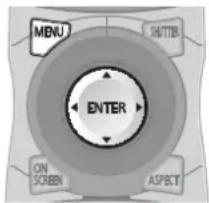
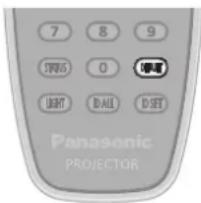
[PICTURE MODE]
You can switch to the desired picture mode suitable for the image source and the environment in which the projector is used.
1) Press ▲▼ to select [PICTURE MODE].
2) Press ◀▶.
- The [PICTURE MODE] individual adjustment screen is displayed.
3) Press ◀▶ to switch the [PICTURE MODE].
- The setting will change as follows each time you press the button.
![PANASONIC PT-DW17KEJ - [PICTURE MODE] - 1](/content/2026/05/1137714/images/9691c90012d92cabb914ca5d7bd24db323a498e343077a26b9c360a5747c760d.jpg)
flowchart
graph TD
    A["[STANDARD"]] <--> B["[CINEMA"] [NATURAL]]
    B <--> C["[USER"]]
    C <--> D["[GRAPHIC"] [DYNAMIC]]
    D <--> E["[DICOM SIM."]]
| [STANDARD] | The picture becomes suitable for moving images in general. |
| [CINEMA] | The picture becomes suitable for movie sources. |
| [NATURAL] | The picture is sRGB compliant. |
| [DICOM SIM.] | The picture becomes similar to that of DICOM Part14 Grayscale Standard. |
| [DYNAMIC] | The light output is maximized for use in bright areas. |
| [GRAPHIC] | The picture becomes suitable for input from to the personal computer. |
| [USER] Set | any desired picture mode. |
Note
● The factory default picture mode is [GRAPHIC] for still image input signals and [STANDARD] for movie based input signals.
- DICOM is an abbreviation of “Digital Imaging and COmmunication in Medicine” and is a standard for medical imaging devices. Although the DICOM name is used, the projector is not a medical device, and should not be used for purposes such as diagnosis of display images.
- Press the
- In the factory default settings, [USER] is set to images that comply with the ITU-R BT.709 standard.
change the [USER] name
● The [PICTURE MODE] detailed screen is displayed.
6) Press ▲▼ to select [PICTURE MODE NAME CHANGE].
7) Press the
● The [PICTURE MODE NAME CHANGE] screen is displayed.
8) Press ▲▼◀▶ to select the character, and press the
9) Press ▲▼◀▶ to select [OK], and press the
● The picture mode name is changed.
[PICTURE] menu
[CONTRAST]
You can adjust the contrast of the colors.
1) Press ▲▼ to select [CONTRAST].
2) Press ◀▶ or the
● The [CONTRAST] individual adjustment screen is displayed.
3) Press ◀▶ to adjust the level.
| Operation Adjustment Range | ||
| Press ▶ . | Brightens the screen and makes the color of image deeper. | Maximum value +31 |
| Press ◀ . | Darkens the screen and makes the color of image lighter. | Minimum value -31 |
Attention
- Adjust [BRIGHTNESS] first when you need to adjust the black level.
[BRIGHTNESS]
You can adjust the dark (black) part of the projected image.
1) Press ▲▼ to select [BRIGHTNESS].
2) Press ◀▶ or the
3) Press ◀▶ to adjust the level.
| Operation Adjustment Range | ||
| Press ▶ . | Increases the brightness of the dark (black) parts of the screen. | Maximum value +31 |
| Press ◀ . | Reduces the brightness of the dark (black) parts of the screen. | Minimum value -31 |
[COLOR]
You can adjust the color saturation of the projected image.
1) Press ▲▼ to select [COLOR].
2) Press ◀▶ or the
- The [COLOR] individual adjustment screen is displayed.
3) Press ◀▶ to adjust the level.
| Operation Adjustment Range | ||
| Press ▶ . Deepens colors. | Maximum value +31 | |
| Press ◀ . Weakens colors. | Minimum value -31 | |
[TINT]
You can adjust the skin tone in the projected image.
1) Press ▲▼ to select [TINT].
2) Press ◀▶ or the
● The [TINT] individual adjustment screen is displayed.
3) Press ◀▶ to adjust the level.
| Operation Adjustment Range | ||
| Press ▶ . | Adjusts skin tone toward greenish color. | Maximum value +31 |
| Press ◀ . | Adjusts skin tone toward reddish purple. | Minimum value -31 |
[COLOR TEMPERATURE]
You can switch the color temperature if the white areas of the projected image are bluish or reddish.
1) Press ▲▼ to select [COLOR TEMPERATURE].
2) Press ◀▶ or the
3) Press ◀▶ to switch the [COLOR TEMPERATURE].
- The setting will change as follows each time you press the button.
![PANASONIC PT-DW17KEJ - [COLOR TEMPERATURE] - 1](/content/2026/05/1137714/images/3920610f9869732ce7680f6bfbce0f07f37b53632a60be24e5a9dbb0a4aab593.jpg)
flowchart
graph TD
    A["DEFAULT"]¹ <--> B["USER1"] [USER2]
    A <--> C["9300K"] [3200K]
    B <--> D["(100 K increments)"]
    C -.-> D
*1: When [PICTURE MODE] is set to [USER] or [DICOM SIM.], [DEFAULT] cannot be selected.
Note
- When the [COLOR MATCHING] (→ page 88) adjustment is set to any setting other than [OFF], the color temperature setting is fixed to [USER1].
- The color temperature numerical values are guidelines.
■ adjust desired white balance
4) Select [USER1] or [USER2] in Step 3).
5) Press the
● The [COLOR TEMPERATURE] screen is displayed.
6) Press ▲▼ to select [WHITE BALANCE].
7) Press the
● The [WHITE BALANCE] screen is displayed.
8) Press ▲▼ to select [WHITE BALANCE HIGH] or [WHITE BALANCE LOW].
9) Press the
● The [WHITE BALANCE HIGH] screen or the [WHITE BALANCE LOW] screen is displayed.
10) Press ▲▼ to select [RED], [GREEN], and [BLUE].
11) Press ◀▶ to adjust the level.
| Item Operation | Adjustment | Range | |
| [RED] | Press ▶ . | Deepens red. | Maximum valueHigh: 255Low: 127Minimum valueHigh: 0Low: -127DefaultHigh: 255Low: 0 |
| Press ◀ . | Weakens red. | ||
| [GREEN] | Press ▶ . | Deepens green. | |
| Press ◀ . | Weakens green. | ||
| [BLUE] | Press ▶ . | Deepens blue. | |
| Press ◀ . | Weakens blue. | ||
■ adjust desired white balance based on existing color temperature settings
4) Select a setting other than [DEFAULT], [USER1], or [USER2] in Step 3).
5) Press the
● The [CHANGE TO *****] screen is displayed.
6) Press ▲▼ to select [USER1] or [USER2].
● The status of the color temperature changed is saved to the selected item.
7) Press the
● The confirmation screen is displayed.
8) Press ◀▶ to select [OK], and press the
● The [USER1] or [USER2] data is overwritten.
- If you press ◀▶ to select [CANCEL] and then press the
● The [WHITE BALANCE HIGH] screen is displayed.
9) Press ▲▼ to select [RED], [GREEN], and [BLUE].
10) Press ◀▶ to adjust the level.
Note
- Adjust [COLOR TEMPERATURE] correctly. All colors will not be displayed properly unless adequate adjustment is made. If the adjustment does not look suitable, you can press the
button on the remote control to return the setting for the selected item only to the factory default setting. - When color temperature has been changed, the colors before and after the change will differ slightly.
change the name of [USER1] or [USER2]
4) Select [USER1] or [USER2] in Step 3).
5) Press the
● The [COLOR TEMPERATURE] screen is displayed.
6) Press ▲▼ to select [COLOR TEMPERATURE NAME CHANGE].
7) Press the
● The [COLOR TEMPERATURE NAME CHANGE] screen is displayed.
● The [COLOR TEMPERATURE NAME CHANGE] screen is displayed.
8) Press ▲▼◀▶ to select the character, and press the
9) Press ▲▼◀▶ to select [OK], and press the
● The name set to color temperature is changed.
Note
- When a name is changed, display of [USER1] and [USER2] on the menu is also changed.
[GAMMA]
Switch gamma mode.
1) Press ▲▼ to select [GAMMA].
2) Press ◀▶ or the
● The [GAMMA] individual adjustment screen is displayed.
3) Press ◀▶ to switch the [GAMMA].
● The setting will change as follows each time you press the button.
![PANASONIC PT-DW17KEJ - [GAMMA] - 1](/content/2026/05/1137714/images/c1deb686a53c700fb16c2a87ce1b8559f761bcd4abd6669ab988755bfeb72454.jpg)
flowchart
graph TD
    A["DEFAULT"]*1 <--> B["USER1"]
    B <--> C["DICOM SIM."]
    C <--> D["1.0"]
    D <--> E["2.0"]
    E <--> F["2.8"]
    F <--> G["USER2"]
    G <--> H["0.1 increments"]
*1: When [PICTURE MODE] is set to [DYNAMIC], [USER], or [DICOM SIM.], [DEFAULT] cannot be selected.
Note
- DICOM is an abbreviation of “Digital Imaging and COmmunication in Medicine” and is a standard for medical imaging devices. Although the DICOM name is used, the projector is not a medical device, and should not be used for purposes such as diagnosis of display images.
change the name of [USER1] or [USER2]
4) Select [USER1] or [USER2] in Step 3).
5) Press the
● The [GAMMA] screen is displayed.
6) Press the
● The [GAMMA NAME CHANGE] screen is displayed.
7) Press ▲▼◀▶ to select the character, and press the
8) Press ▲▼◀▶ to select [OK], and press the
● The Select Gamma name is changed.
Note
- When a name is changed, display of [USER1] and [USER2] on the menu is also changed.
[SYSTEM DAYLIGHT VIEW]
You can correct the image to the optimal vividness even if it is projected under a bright light.
1) Press ▲▼ to select [SYSTEM DAYLIGHT VIEW].
2) Press ◀▶ or the
● The [SYSTEM DAYLIGHT VIEW] individual adjustment screen is displayed.
3) Press ◀▶ to switch the [SYSTEM DAYLIGHT VIEW].
● The setting will change as follows each time you press the button.
![PANASONIC PT-DW17KEJ - [SYSTEM DAYLIGHT VIEW] - 1](/content/2026/05/1137714/images/fcf02d1e4726b9dc2020b4010974a5a68a8e739cd2068a7e5828147a3db9d994.jpg)
flowchart
graph TD
    A["[OFF"] (No correction)] <--> B["[1"] (Low)]
    C["[3"] (High) [2] (Medium)] --> A
    C --> B
[SHARPNESS]
You can adjust the sharpness of the projected image.
1) Press ▲▼ to select [SHARPNESS].
2) Press ◀▶ or the
● The [SHARPNESS] individual adjustment screen is displayed.
3) Press ◀▶ to adjust the level.
| Operation Adjustment | Adjustment range | |
| Press ▶. | Contours become sharper. | 0 - 15 |
| Press ◀. | Contours become softer. | |
Note
- If you press while the adjustment value is [15], the value will become [0]. If you press while the adjustment value is [0], the value will become [15].
[NOISE REDUCTION]
You can reduce noises when the input image is degraded and noise is occurring in the image signal.
1) Press ▲▼ to select [NOISE REDUCTION].
2) Press ◀▶ or the
● The [NOISE REDUCTION] individual adjustment screen is displayed.
3) Press ◀▶ to switch the [NOISE REDUCTION].
- The setting will change as follows each time you press the button.
![PANASONIC PT-DW17KEJ - [NOISE REDUCTION] - 1](/content/2026/05/1137714/images/2bee77450e9a6131144da75f0776d855986f333069d8215dfebaa07f9f93cd0d.jpg)
flowchart
graph TD
    A["[1"] (Low) [2] (Medium)] --> B["[OFF"] (No correction)]
    B <--> C["[3"] (High)]
    C --> D[" "]
Attention
- When this is set for an input signal with less noise, the image may look different from what it originally was. In such case, set it to [OFF].
[DYNAMIC IRIS]
Aperture correction and signal compensation are performed automatically based on the image to result in an image of optimum contrast.
1) Press ▲▼ to select [DYNAMIC IRIS].
2) Press ◀▶ or the
● The [DYNAMIC IRIS] individual adjustment screen is displayed.
3) Press ◀▶ to switch the [DYNAMIC IRIS].
● The setting will change as follows each time you press the button.
![PANASONIC PT-DW17KEJ - [DYNAMIC IRIS] - 1](/content/2026/05/1137714/images/100ad26dece1f6bcfacbc618dd0c7e6bdbb480894942b8dadc270d6b63481bb4.jpg)
flowchart
graph TD
    A["[OFF"] (No correction)] <--> B["[1"] (Small)]
    B <--> C["[2"] (Medium)]
    D["[USER"] [3] (Large)] --> E[" "]
    C <--> E
■ adjust desired correction amount
4) Select [USER] in Step 3).
5) Press the
● The [DYNAMIC IRIS] screen is displayed.
6) Press ▲▼ to select the item you want to adjust, and press ◀▶ to adjust the correction amount.
●Auto Iris (Automatic adjustment of aperture)
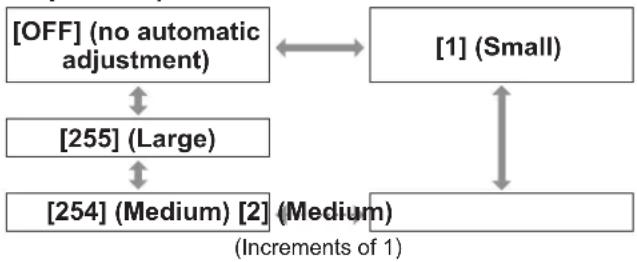
flowchart
graph TD
    A["[OFF"] (no automatic adjustment)] <--> B["[1"] (Small)]
    B <--> C["[255"] (Large)]
    C <--> D["[254"] (Medium) [2] (Medium)]
    D -->|Increments of 1| E
●Manual Iris (Fixed adjustment of aperture)
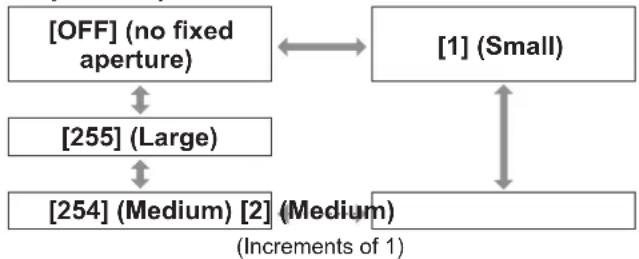
flowchart
graph TD
    A["[OFF"] (no fixed aperture)] <--> B["[1"] (Small)]
    C["[255"] (Large)] --> D["[254"] (Medium) [2] (Medium)]
    B <--> D
    style A fill:#f9f,stroke:#333
    style B fill:#ccf,stroke:#333
    style C fill:#cfc,stroke:#333
    style D fill:#fcc,stroke:#333
●Dynamic Gamma (adjustment of signal compensation)
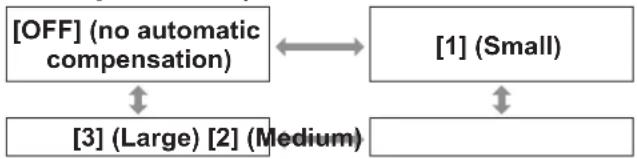
flowchart
graph TD
    A["[OFF"] (no automatic compensation)] <--> B["[1"] (Small)]
    B --> C["[3"] (Large) [2] (Medium)]
    C --> A
Note
- When [DYNAMIC GAMMA] is set [3], the contrast will be maximized.
● Luminance control and iris operate simultaneously, but the iris will not operate if left fully open while brightness is being measured.
[SYSTEM SELECTOR]
The projector will automatically detect the input signal, but you can set the system method manually when an unstable signal is input. Set the system method matching the input signal.
1) Press ▲▼ to select [SYSTEM SELECTOR].
2) Press the
3) Press ▲▼ to select a system format.
4) Press the
When using
Select [AUTO], [NTSC], [NTSC4.43], [PAL], [PAL-M], [PAL-N], [SECAM], or [PAL60].
Attention
- Set it to [AUTO] normally.
- Switch the setting to the signal method for the TV used.
Note
- Setting [AUTO] will automatically select [NTSC], [NTSC4.43], [PAL], [PAL-M], [PAL-N], [SECAM], or [PAL60].
When using
● Only during 480i, 576i, or 576p signal input
Select [RGB] or [YC_BC_R] .
- Only during VGA60 or 480p signal input Select [VGA60], [480p YC B C R ], or [480p RGB].
- When using other movie based input signals
Select [RGB] or [YP_BP_R] .
Note
- Refer to "List of compatible signals" page 167) for compatible signals.
When using terminal
- Only during 480p or 576p signal input Select [RGB] or [YCBCR] .
- When using other movie based input signals
Select [RGB] or [YP_BP_R] .
Note
- Refer to List of compatible signals (→ page 167) for compatible signals.
● This may not function properly for some external devices that are connected.
When using the
●Only during 480p or 576p signal input
Select [AUTO], [RGB], or [YC_BC_R] .
- When using other movie based input signals
Select [AUTO], [RGB], or [YP_BP_R] .
Note
- Refer to List of compatible signals (→ page 167) for compatible signals.
● This may not function properly for some external devices that are connected.
When using terminal, terminal (PT-DZ21KE and PT-DS20KE only)
●Single link
During SDI1 input, select [AUTO], [480i YCBR], [576i YCBR], [720/50p YPBPR], [720/60p YPBPR], [1035/60i YPBPR], [1080/24p YPBPR], [1080/24sF YPBPR], [1080/25p YPBPR], [1080/30p YPBPR], [1080/50i YPBPR], [1080/60i YPBPR], [1080/50p YPBPR], [1080/60p YPBPR], [1080/24p RGB], [1080/24sF RGB], [1080/25p RGB], [1080/30p RGB], [1080/50i RGB], or [1080/60i RGB]. During SDI2 input, select [AUTO], [480i YCBR], [576i YCBR], [720/50p YPBPR], [720/60p YPBPR], [1035/60i YPBPR], [1080/24p YPBPR], [1080/24sF YPBPR], [1080/25p YPB PR], [1080/30p YPBPR], [1080/50i YPBPR], or [1080/60i YPBPR].
- Dual link
Select [AUTO], [1080/24p RGB], [2K/24p RGB], [2K/24p XYZ], [1080/24sF RGB], [2K/24sF RGB], [2K/24sF XYZ], [1080/25p RGB], [1080/30p RGB], [1080/50i RGB], or [1080/60i RGB].
Note
- Refer to "List of compatible signals" (page 167) for compatible signals.
- This may not function properly for some external devices that are connected.
Making sRGB compliant images
sRGB is color reproduction international standard IEC61966-2-1, set by the IEC (International Electrotechnical Commission).
Set according to the following steps to reproduce more faithful, sRGB compliant colors.
1) Set [COLOR MATCHING] adjustment to [OFF].
- Refer to [COLOR MATCHING] (→ page 88).
2) Display the [PICTURE] menu.
- Refer to “[PICTURE] menu” (→ page 65).
3) Press ▲▼ to select [PICTURE MODE].
4) Press ◀▶ to set [NATURAL].
5) Press ▲▼ to select [COLOR].
6) Press the
7) Set [TINT], [COLOR TEMPERATURE], and [GAMMA] to the factory default values by following Steps 5) to 6).
Note
- sRGB is supported only when RGB signals are input.
[POSITION] menu
Select [POSITION] from the main menu, and select the item from the sub-menu. Refer to "Navigating through the menu"
(→ page 61) for the operation of the menu screen.
● After selecting the item, press ▲▼◀▶ to set.
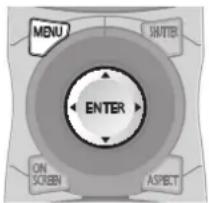
[SHIFT]
You can move the image position vertically or horizontally if the image position projected on the screen is shifted even when the relative position of the projector and the screen is installed correctly.
1) Press ▲▼ to select [SHIFT].
2) Press the
3) Press ▲▼◀▶ to adjust the position.
■r vertical (up and down) adjustment
| Operation Adjustment | ||
| Press ▲. | The picture position moves up. | ![PANASONIC PT-DW17KEJ - [SHIFT] - 1](/content/2026/05/1137714/images/a758dbe6e4b24d338424aaa5b4619f2f81ab8ce5c0ff32fabeed40a7c3f516e1.jpg) |
| Press ▼. | The picture position moves down. | ![PANASONIC PT-DW17KEJ - [SHIFT] - 2](/content/2026/05/1137714/images/7005352c03e55c6d96d9c45b484674edf878c871031dd1e983b78e007b3ed0fa.jpg) |
■r horizontal (right and left) adjustment
| Operation Adjustment | ||
| Press ▶. | The picture position moves to the right. | ![PANASONIC PT-DW17KEJ - [SHIFT] - 3](/content/2026/05/1137714/images/ae7dec2c91dcd0d21abedc84b84c1810806c49e19cf9a89925f539ab8c585bdf.jpg) |
| Press ◀. | The picture position moves to the left. | ![PANASONIC PT-DW17KEJ - [SHIFT] - 4](/content/2026/05/1137714/images/dd591fc02515c4f5209810aa57e691a36638b9e414e0df14a67348dc118bf048.jpg) |
[ASPECT]
You can switch the aspect ratio of the image. The aspect ratio is switched within the screen range selected in [SCREEN SETTING]. Set [SCREEN SETTING] first.(→ page 90)
1) Press ▲▼ to select [ASPECT].
2) Press ◀▶ or the
● The [ASPECT] individual adjustment screen is displayed.
3) Press ◀▶ to switch the [ASPECT].
● The setting will change as follows each time you press the button.
![PANASONIC PT-DW17KEJ - [ASPECT] - 1](/content/2026/05/1137714/images/fd058c5729832fe3952882aadea573b3e3a70a97daf2d1d09a20acbc39da149d.jpg)
flowchart
graph TD
    A["[VID AUTO"]*1\n["DEFAULT"] [THROUGH]\n["AUTO"]*2] --> B["<<"]
    B --> C["[HV FIT"] [16:9]]
    C --> D["[V FIT"] [H FIT] [4:3]]
    D --> E["<<"]
    E --> F["<<"]
    F --> G["<<"]
    G --> H["<<"]
    H --> I["<<"]
    I --> J["<<"]
    J --> K["<<"]
    K --> L["<<"]
    L --> M["<<"]
    M --> N["<<"]
    N --> O["<<"]
    O --> P["<<"]
    P --> Q["<<"]
    Q --> R["<<"]
    R --> S["<<"]
    S --> T["<<"]
    T --> U["<<"]
    U --> V["<<"]
    V --> W["<<"]
    W --> X["<<"]
    X --> Y["<<"]
    Y --> Z["<<"]
    Z --> AA["<<"]
    AA --> AB["<<"]
    AB --> AC["<<"]
    AC --> AD["<<"]
    AD --> AE["<<"]
    AE --> AF["<<"]
    AF --> AG["<<"]
    AG --> AH["<<"]
    AH --> AI["<<"]
    AI --> AJ["<<"]
    AJ --> AK["<<"]
    AK --> AL["<<"]
    AL --> AM["<<"]
    AM --> AN["<<"]
    AN --> AO["<<"]
    AO --> AP["<<"]
    AP --> AQ["<<"]
    AQ --> AR["<<"]
    AR --> AS["<<"]
    AS --> AT["<<"]
    AT --> AU["<<"]
    AU --> AV["<<"]
    AV --> AW["<<"]
    AW --> AX["<<"]
    AX --> AY["<<"]
    AY --> AZ["<<"]
    AZ --> BA["<<"]
    BA --> BB["<<"]
    BB --> BC["<<"]
    BC --> BD["<<"]
    BD --> BE["<<"]
    BE --> BF["<<"]
    BF --> BG["<<"]
    BG --> BH["<<"]
    BH --> BI["<<"]
    BI --> BJ["<<"]
    BJ --> BK["<<"]
    BK --> BL["<<"]
    BL --> BM["<<"]
    BM --> BN["<<"]
    BN --> BO["<<"]
    BO --> BP["<<"]
    BP --> BQ["<<"]
    BQ --> BR["<<"]
    BR --> BS["<<"]
    BS --> BT["<<"]
    BT --> BU["<<"]
    BU --> BV["<<"]
    BV --> BW["<<"]
    BW --> BX["<<"]
    BX --> BY["<<"]
    BY --> BZ["<<"]
*1: For video signals and Y/C signals (NTSC) only
*2: For RGB (480i or 480p) signal input only
[DEFAULT]
Pictures are displayed without changing the aspect ratio of the input signals.
[D AUTO]
The projector identifies the video ID (VID) embedded in the image signals and displays the image by automatically switching the screen sizes between 4:3 and 16:9. This function is effective for NTSC signals.
[UTO]
The projector identifies the video ID (VID) embedded in the image signals and displays the image by automatically switching the screen sizes between 4:3 and 16:9. This function is effective for 480i/480p signals.
HROUGH]
Pictures are displayed without changing the resolution of the input signals.
[6:9]
When standard signals ^1 are input, the pictures are displayed with the aspect ratio converted to 16:9. When wide-screen signals ^2 are input, the pictures are displayed without changing the aspect ratio.
[3]
When standard signals ^1 are input, the pictures are displayed without changing the aspect ratio. When wide-screen signals ^2 are input and [4:3] is selected in [SCREEN FORMAT], the pictures are displayed with the aspect ratio changed to 4:3. If [4:3] is not selected with [SCREEN FORMAT], the pictures are reduced so that they will be in the 4:3 screen without changing the input aspect ratio.
[■FIT]
The display will use the full width of the screen range selected with [SCREEN FORMAT]. When signals have a vertical aspect ratio that is larger than the screen aspect selected with [SCREEN FORMAT], pictures will be displayed with their top and bottom areas cut off.
[■FIT]
The display will use the full height of the screen range selected with [SCREEN FORMAT]. When signals have a horizontal aspect ratio that is larger than the screen aspect selected with [SCREEN FORMAT], pictures will be displayed with their both sides cut off.
[IV FIT]
The pictures are displayed in the full screen range selected with [SCREEN FORMAT]. If the aspect ratios of the input signals and screen range differ, conversion to the screen aspect set with [SCREEN FORMAT] is performed and then the pictures are displayed.
*1: Standard signals are input signals with an aspect ratio of 4:3 or 5:4.
*2: Wide-screen signals are input signals with an aspect ratio of 16:10, 16:9, 15:9 or 15:10.
Note
- Some size modes are not available for certain types of input signals. [DEFAULT] cannot be selected for NTSC signals.
- If an aspect ratio which is different from the aspect ratio for the input signals is selected, the pictures will appear differently from the originals. Be careful of this when selecting the aspect ratio.
- If using this projector in places such as cafes or hotels to display programs for a commercial purpose or for public presentation, note that adjusting the aspect ratio or using the zoom function to change the screen pictures may be an infringement of the rights of the original copyright owner for that program under copyright protection laws. Take care when using a function of the projector such as the aspect ratio adjustment, zoom function, etc.
- If conventional (normal) 4:3 pictures which are not wide-screen pictures are displayed on a wide screen, the edges of the pictures may not be visible or they may become distorted. Such pictures should be viewed as with an aspect ratio of 4:3 in the original format intended by the creator of the pictures.
[ZOOM]
You can adjust the size of the projected image.
1) Press ▲▼ to select [ZOOM].
2) Press the
3) Press ▲▼ to select [VERTICAL] or [HORIZONTAL], then press ◀▶ to adjust it.
When [ASPECT] is set to [DEFAULT]
1) Press ▲▼ to select [MODE].
2) Press ◀▶ to switch [MODE].
| [INTERNAL] | Enlarge the size within the aspect range set in [SCREEN FORMAT]. |
| [FULL] | Enlarges the size of the pictures using the whole of the display area selected with [SCREEN FORMAT]. |
3) Press ▲▼ to select [INTERLOCKED].
4) Press ◀▶ to switch [INTERLOCKED].
| [OFF] | Set the [VERTICAL] and [HORIZONTAL] zoom ratio. |
| [ON] | Use [BOTH] to set zoom ratio. Horizontal and vertical can be expanded by units of 1.0 time. |
Note
- When [ASPECT] is set to [THROUGH], [ZOOM] is not displayed.
- When anything but [DEFAULT] is selected for [ASPECT], [MODE] is not displayed.
[CLOCK PHASE]
You can adjust to achieve an optimal image when there is a flickering image or smeared outlines.
1) Press ▲▼ to select [CLOCK PHASE].
2) Press ◀▶ or the
● The [CLOCK PHASE] individual adjustment screen is displayed.
3) Press ◀▶ to adjust the level.
- Adjustment value will change between [0] and [31]. Adjust so that the amount of interference is at a minimum.
Note
● Certain signals may not be adjustable.
- Optimal value may not be achieved if the output from the input computer is unstable.
- Optimal value may not be achieved when there is a shift in the total dot numbers.
- [CLOCK PHASE] can be adjusted only when a signal is input to the
- [CLOCK PHASE] cannot be adjusted when a digital signal is input.
- If you press while the adjustment value is [31], the value will become [0]. If you press while the adjustment value is [0], the value will become [31].
[GEOMETRY] (PT-DZ21KE and PT-DS20KE only)
Correct various types of distortion in a projected image.
Unique image processing technology enables projection of a square image on a special screen shape.
1) Press ▲▼ to select [GEOMETRY].
2) Press ◀▶ to switch the [GEOMETRY] setting.
● The setting will change as follows each time you press the button.
![PANASONIC PT-DW17KEJ - [GEOMETRY] (PT-DZ21KE and PT-DS20KE only) - 1](/content/2026/05/1137714/images/6a22e84ce8ef7e28ae5bfa0e08a793800aa9500fba8c766505c351566e0139a0.jpg)
flowchart
graph TD
    A["[OFF"] [KEYSTONE]] --> B[" "]
    C["[PC"] [CURVED]] --> D[" "]
    B <--> C
| [OFF] | Does not perform geometric adjustment. |
| [KEYSTONE] | Adjusts any trapezoidal distortion in the projected image. |
| [CURVED] | Adjusts any curved distortion in the projected image. |
| [PC]*1 | Uses the computer to perform geometric adjustment. |
*1: Advanced skills are necessary to use a computer to control geometric adjustment. Consult your dealer.
3) Select [KEYSTONE] or [CURVED] in Step 2), and press the
● The [GEOMETRY:KEYSTONE] or [GEOMETRY:CURVED] screen is displayed.
4) Press ▲▼ to select the item you want to adjust, and press ◀▶ to adjust the correction amount.
● The projected image can be corrected.
[KEYSTONE]
●[LENS THROW RATIO]
Set the throw ratio for the lens used.
●[VERTICAL KEYSTONE]
![PANASONIC PT-DW17KEJ - [KEYSTONE] - 1](/content/2026/05/1137714/images/4ce3d2489dca02eb28dc990f9af784f579a871fb0259c83b84bb1711411d214b.jpg)
natural_image
Two identical 2D grid diagrams with no text or symbols, one plain and one tilted (no text or symbols)●[HORIZONTAL KEYSTONE]
![PANASONIC PT-DW17KEJ - ●[HORIZONTAL KEYSTONE] - 1](/content/2026/05/1137714/images/6414ad40b739750c9b3697f089772ae26d5db5e858278061ad3ef3127113dbc2.jpg)
natural_image
Two identical 3D grid diagrams side by side, no text or symbols present●[VERTICAL BALANCE]
![PANASONIC PT-DW17KEJ - ●[VERTICAL BALANCE] - 1](/content/2026/05/1137714/images/446349fb303e4c652bf7313a94d2e5afc406a6dd3a73913f56edaaa3ff1f33f6.jpg)
natural_image
Two identical grid-patterned rectangular shapes with no text or symbolsAdjust the setting according to the lens shift range in vertical direction.
●[HORIZONTAL BALANCE]
![PANASONIC PT-DW17KEJ - ●[HORIZONTAL BALANCE] - 1](/content/2026/05/1137714/images/e6e8912970fd6f0e8d9438ff788a0ccd59d3abcbc9f985b8ad54a08431863ae9.jpg)
natural_image
Two identical grid diagrams side by side, no text or symbols presentAdjust the setting according to the lens shift range in horizontal direction.
[URVED]
●[LENS THROW RATIO]
Set the throw ratio for the lens used.
●[VERTICAL KEYSTONE]
![PANASONIC PT-DW17KEJ - ●[VERTICAL KEYSTONE] - 1](/content/2026/05/1137714/images/ce2cbf23f25914bcb89871671e5808806cd2db79855f9e5496a1f54bc3a86bb0.jpg)
natural_image
Two geometric grid patterns: a flat grid on the left and a tilted rectangular grid on the right (no text or symbols)●[HORIZONTAL KEYSTONE]
![PANASONIC PT-DW17KEJ - ●[HORIZONTAL KEYSTONE] - 1](/content/2026/05/1137714/images/9478fce618a1d86b8c5e9220219afe20eac30d83e2d53b7c03702cb0f47d7a62.jpg)
natural_image
Two identical 2D grid diagrams side by side, no text or symbols present●[VERTICAL ARC]
![PANASONIC PT-DW17KEJ - ●[VERTICAL ARC] - 1](/content/2026/05/1137714/images/69bca7a22e02be87e83429ed27db94d1998025338adc2b4af58e9f587a39fb93.jpg)
natural_image
Two abstract grid patterns with curved and straight lines, no text or symbols present●[HORIZONTAL ARC]
![PANASONIC PT-DW17KEJ - ●[HORIZONTAL ARC] - 1](/content/2026/05/1137714/images/a49feccb14903fed47978317eef0be6ac83516933f643078669609b8b51ce99f.jpg)
natural_image
Two 3D grid diagrams showing curved surfaces with no text or symbols●[VERTICAL BALANCE]
![PANASONIC PT-DW17KEJ - ●[VERTICAL BALANCE] - 1](/content/2026/05/1137714/images/3e7723fedd7057c8a62b930077704bdfd496265e35651fb2028351c1105c408d.jpg)
natural_image
Two grid diagrams showing curved and straight lines, no text or symbols present●[HORIZONTAL BALANCE]
![PANASONIC PT-DW17KEJ - ●[HORIZONTAL BALANCE] - 1](/content/2026/05/1137714/images/88f70dba51222f926486bf19ef05ab37901ed9c54a432d7b577f3001a4268949.jpg)
natural_image
Two grid diagrams with curved and straight lines, no text or symbols presentNote
● The menu or logo may extend beyond the edge of the screen when [GEOMETRY] is set.
- If [EDGE BLENDING] (→ page 78) adjustment and [GEOMETRY] are used together, correct edge blending adjustment may not be possible in certain environments.
● An optional upgrade kit (Model No.: ET-UK20) can be used to expand the correctable range. To purchase the product, consult your dealer.
[KEYSTONE] (PT-DW17KE only)
You can correct the trapezoidal distortion that occurs when the projector is installed tilted or when the screen is tilted.
1) Press ▲▼ to select [KEYSTONE].
2) Press the
3) Press ▲▼ to select the item to adjust.
4) Press ◀▶ to adjust the level.
[KEYSTONE]
![PANASONIC PT-DW17KEJ - [KEYSTONE] (PT-DW17KE only) - 1](/content/2026/05/1137714/images/116fa0e2c92bd3d83f92260f1e832ad800c36f893092056d859d291a7bfaab61.jpg)
natural_image
Two geometric grid patterns: a flat square and a tilted rectangular shape (no text or symbols)[JB KEYSTONE]
![PANASONIC PT-DW17KEJ - [KEYSTONE] (PT-DW17KE only) - 2](/content/2026/05/1137714/images/711d4a9d9c3472698a7af51d95d82f86ba46f5d3a232f193bfbf305a42ff7ae2.jpg)
natural_image
Two identical grid patterns, one plain and one tilted, with no text or symbols.[NEARITY]
![PANASONIC PT-DW17KEJ - [KEYSTONE] (PT-DW17KE only) - 3](/content/2026/05/1137714/images/978efec9497f45f9392219c0bfdff7d0deae670f027d711fc905b3204a876498.jpg)
natural_image
Two empty grid diagrams with no text, numbers, or symbolsNote
- The menu or logo may run off the screen when various adjustments are performed with [KEYSTONE].
- Various adjustments with [KEYSTONE] are possible to correct up to ± 40^ for the tilt in vertical direction. However, the picture quality will degrade and it will get harder to focus with more correction. Install the projector so the correction will be as small as possible. ( ± 22^ when using projection lens ET-D75LE5/ET-D75LE50, or ± 28^ when using the ET-D75LE6.)
- Image size will also change when [KEYSTONE] is used to perform adjustments.
- Trapezoidal distortion may occur depending on the lens shift position.
- Aspect ratio of the image size may shift depending on the correction or lens zoom value.
[ADVANCED MENU]
Select [ADVANCED MENU] from the main menu, and select the item from the sub-menu. Refer to "Navigating through the menu"
(→ page 61) for the operation of the menu screen.
● After selecting the item, press ▲▼◀▶ to set.
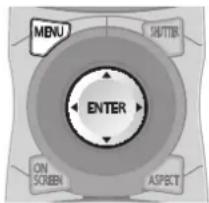
[DIGITAL CINEMA REALITY]
You can increase the vertical resolution and enhance the picture quality by performing the cinema processing when the PAL (or the SECAM) 576i signal, the NTSC 480i, 1080/50i, and 1080/60i signals are input.
1) Press ▲▼ to select [DIGITAL CINEMA REALITY].
2) Press ◀▶ to switch [DIGITAL CINEMA REALITY].
- The setting will change as follows each time you press the button.
![PANASONIC PT-DW17KEJ - [DIGITAL CINEMA REALITY] - 1](/content/2026/05/1137714/images/855bc84897414c51b394d87e700efd74124918471680269b0bab05265beda73d.jpg)
flowchart
graph LR
    A["[AUTO"] [OFF]] <--> B[" "]
    B --> C[" "]
    C --> D[" "]
    D --> E[" "]
    E --> F[" "]
    F --> G[" "]
    G --> H[" "]
    H --> I[" "]
    I --> J[" "]
    J --> K[" "]
    K --> L[" "]
    L --> M[" "]
    M --> N[" "]
    N --> O[" "]
    O --> P[" "]
    P --> Q[" "]
    Q --> R[" "]
    R --> S[" "]
    S --> T[" "]
    T --> U[" "]
    U --> V[" "]
    V --> W[" "]
    W --> X[" "]
    X --> Y[" "]
    Y --> Z[" "]
    Z --> A
[25p FIXED] (when a 576i or 1080/50i signal is input) [30p FIXED] (when a 480i or 1080/60i signal is input)
| [AUTO] | Performs automatic detection and cinema processing.(Factory default) |
| [OFF] Unforced cinema processing. | |
| [25p FIXED] | Forced cinema processing (2:2 pulldown) is performed when a 576i or 1080/50i signal is input. |
| [30p FIXED] | Forced cinema processing (2:2 pulldown) is performed when a 480i or 1080/60i signal is input. |
Note
- In [DIGITAL CINEMA REALITY] mode, the picture quality will degrade when a signal other than the 2:2 pulldown is set as [25p FIXED] or [30p FIXED]. (Vertical resolution will degrade.)
[BLANKING]
The blanking width is adjusted when there are noise at the edge of the screen or the image is slightly running out from the screen when an image from the VCR or other devices are projected.
1) Press ▲▼ to select [BLANKING].
2) Press the
● The [BLANKING] adjustment screen is displayed.
3) Press ▲▼ to select the adjustment item.
4) Press ◀▶ to adjust the blanking.
- Changes within the following range.
For PT-DZ21KE
Left to right: 0 to 959, Top to bottom: 0 to 599
For PT-DS20KE
Left to right: 0 to 699, Top to bottom: 0 to 524
For PT-DW17KE
Left to right: 0 to 682, Top to bottom: 0 to 383
When correcting blanking at the top of the screen [UPPER]
Press ◀ to move the blanking zone upward. Press ▶ to move the blanking zone downward.
![PANASONIC PT-DW17KEJ - [BLANKING] - 1](/content/2026/05/1137714/images/9ab4bfedf00ab3de11b84a91898a3d75b01be3ca447545439af9add5e50d5091.jpg)
When correcting blanking at the bottom of the screen [LOWER]
Press ▶ to move the blanking zone upward. Press ◀ to move the blanking zone downward.
![PANASONIC PT-DW17KEJ - [BLANKING] - 2](/content/2026/05/1137714/images/d553fb7fcced46d2acf09bcf273f01e323068c6f8a5371403d351f8c8c4e742e.jpg)
When correcting blanking at the left of the screen [LEFT]
Press ▶ to move the blanking zone to the right. Press ◀ to move the blanking zone to the left.
![PANASONIC PT-DW17KEJ - [BLANKING] - 3](/content/2026/05/1137714/images/23767f4d2bc37e842edb3bb88f2607778e23d5843d3d12cd66f31b16ae77cd63.jpg)
When correcting blanking at the right of the screen [RIGHT]
Press ◀ to move the blanking zone to the right. Press ▶ to move the blanking zone to the left.
![PANASONIC PT-DW17KEJ - [BLANKING] - 4](/content/2026/05/1137714/images/2a145a1692712575ad00fc4df5227189106c22bb9d66185ecab0b614590e1812.jpg)
For [CUSTOM MASKING] ^*1
Set from a PC to perform blanking in any shape.
*1: To use the [CUSTOM MASKING] function, an optional upgrade kit (Model No.: ET-UK20) is required. To purchase the product, consult your dealer.
[INPUT RESOLUTION]
You can adjust to achieve an optimal image when there is a flickering image or smeared outlines.
1) Press ▲▼ to select [INPUT RESOLUTION].
2) Press the
● The [INPUT RESOLUTION] screen is displayed.
3) Press ▲▼ to select [TOTAL DOTS], [DISPLAY DOTS], [TOTAL LINES], or [DISPLAY LINES], and press ◀▶ to adjust it.
● Values corresponding to the input signal are displayed automatically for each item. Change the displayed values and adjust to the optimal point viewing the screen when there is a vertical banding or missing in the screen.
Note
- Previously mentioned vertical banding will not occur with all white signal input.
- The image may be disrupted while performing the adjustment, but it is not a malfunction.
- [INPUT RESOLUTION] can be adjusted only when a signal is input to the
terminal or the terminal.
● Certain signals may not be adjustable.
[CLAMP POSITION]
You can adjust the optimal point when the black part of the image is blunt or it has turned green.
1) Press ▲▼ to select [CLAMP POSITION].
2) Press ◀▶ to adjust the level.
- Adjust the level to a value from [1] to [255].
- Optimal value of clamp position adjustment When the black part is blunt:
The point where bluntness of the black part improves the most is the optimal value.
When the black part is green:
The point where the green part becomes black, and the bluntness has improved is the optimal value.
Note
- [CLAMP POSITION] can be adjusted only when a signal is input to the
terminal or the terminal.
● Certain signals may not be adjustable.
[EDGE BLENDING]
The edge blending function allows multiple projector images to be seamlessly overlapped by using the inclination of the brightness at the overlapped area.
1) Press ▲▼ to select [EDGE BLENDING].
2) Press ◀▶ to switch [EDGE BLENDING].
● The setting will change as follows each time you press the button.
[OFF] [ON] [USER]
| [OFF] | Sets the edge blending function to off. |
| [ON] | Use the setting value of the internal distortion of the set for the inclination of the edge blending area. |
| [USER] | Use the user-setting value for the inclination of the edge blending area. (Configuration/registration requires separate software. Consult your dealer.) |
● The [EDGE BLENDING] screen is displayed.
4) Press ▲▼ to specify the location to be corrected.
- When joining at top: Set [UPPER] to [ON].
- When joining at bottom: Set [LOWER] to [ON].
- When joining at left: Set [LEFT] to [ON].
- When joining at right: Set [RIGHT] to [ON].
5) Press ◀▶ to switch [ON] and [OFF].
6) Press ◀▶ to adjust correction width and starting point.
■ display the adjustment marker
7) Press ▲▼ to select [MARKER].
8) Press ◀▶ to switch [ON].
- A marker for image position adjustment is displayed. The position where the red and green lines overlap for the sets to join will be the optimal point.
Make sure to set the correction width for the sets to join as the same value. Optimal joining is not possible with the sets with different correction widths.
The optimal point is the point where this line overlaps.
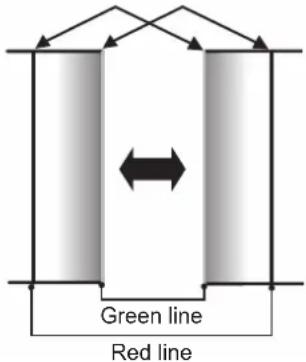
9) Press ▲▼ to select [BRIGHT ADJUST].
10) Press the button.
● The [BRIGHT ADJUST] screen is displayed.
- When [AUTO TESTPATTERN] in the [EDGE BLENDING] screen is set to [ON], completely black test patterns will appear when the [BRIGHT ADJUST] screen is displayed.
11) Press ▲▼ to select [BRIGHT INSIDE].
● The [BRIGHT INSIDE] individual adjustment screen is displayed.
- When [INTERLOCKED] is set to [OFF], [RED], [GREEN], and [BLUE] can be adjusted.
13) Press ▲▼ to select an item, and press ◀▶ to adjust the setting.
- Once the adjustment is completed, press the
- The joining part may look discontinuous depending on the position you are looking from when a screen with high gain or rear screen is used.
- When horizontal and vertical edge blending are used simultaneously, adjust [BRIGHT BLENDING] before the Step 11) adjustment.
● To use either horizontal or vertical edge blending only, set all values of [BRIGHT BLENDING] to 0. - The [AUTO TESTPATTERN] settings change in conjunction with the [AUTO TESTPATTERN] in [COLOR MATCHING].
[ADVANCED MENU]
[FRAME RESPONSE]
Image processing is simplified when 1080/60i, 1080/50i, and 1080/24sF signals are input to reduce image frame delay.
1) Press ▲▼ to select [FRAME RESPONSE].
2) Press ◀▶ to switch [FRAME RESPONSE].
● The setting will change as follows each time you press the button.
[NORMAL] [FAST]
| [NORMAL] Standard setting. | |
| [FAST] | Set when the picture is displayed later than sound. |
Note
- When [FRAME RESPONSE] is set to [FAST], picture quality deteriorates. Noise reduction, digital cinema quality and P IN P functions also cannot be used.
- When [NOISE REDUCTION] is set to other than [OFF], [FRAME RESPONSE] cannot be set.
[FRAME LOCK] (PT-DZ21KE and PT-DS20KE only)
Set this to view 3D display when the scanning frequency of the signal is 25 Hz, 50 Hz, and 100 Hz.
1) Press ▲▼ to select [FRAME LOCK].
2) Press ◀▶ to switch [FRAME LOCK].
- The setting will change as follows each time you press the button.
| [OFF] [ON] |
| [OFF] Decreases the flickering. | |
| [ON] | Synchronizes the display to the scanning frequency of the input signal. |
Note
- [FRAME LOCK] is not displayed when the scanning frequency of the signal other than above is input or 2D images are displayed.
- The screen may flicker when the [FRAME LOCK] is set to [ON].
- The display may look discontinuous when the [FRAME LOCK] is set to [OFF].
[RASTER POSITION]
This will allow the position of the image to move within the display area arbitrarily when the input image is not using the whole display area.
1) Press ▲▼ to select [RASTER POSITION].
2) Press the
3) Press ▲▼◀▶ to adjust the position.
[DISPLAY LANGUAGE] menu
Select [DISPLAY LANGUAGE] from the main menu, and display the sub-menu.
Refer to "Navigating through the menu"
(→ page 61) for the operation of the menu screen.
- Press ▲▼ to select a language, and press the
Changing the display language
You can select the language of the on-screen display.
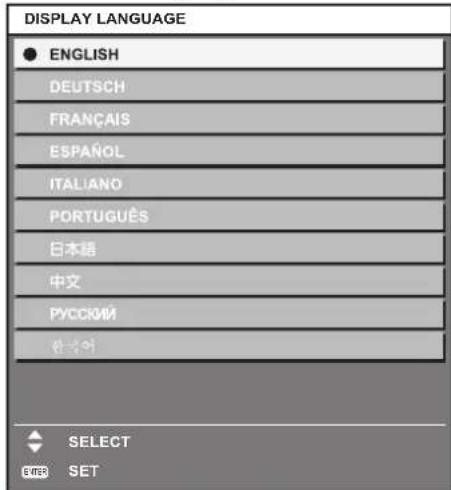
● Various menus, settings, adjustment screens, control button names, etc., are displayed in the selected language.
● The language can be changed to English, German, French, Spanish, Italian, Portuguese, Japanese, Chinese, Russian, and Korean.
Note
● The on-screen display language of the projector is set to English by default. (Factory default)
[3D SETTINGS] menu (PT-DZ21KE and PT-DS20KE only)
Select [3D SETTINGS] from the main menu, and select the item from the sub-menu.
Refer to "Navigating through the menu"
(→ page 61) for the operation of the menu screen.
● After selecting the item, press ▲▼◀▶ to set.
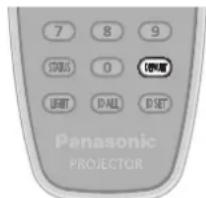
[3D SYSTEM SETTING]
Set a picture display method for use during 3D signal input as necessary for the 3D system in use.
1) Press ▲▼ to select [3D SYSTEM SETTING].
2) Press ◀▶ to switch [3D SYSTEM SETTING].
● The setting will change as follows each time you press the button.
![PANASONIC PT-DW17KEJ - [3D SYSTEM SETTING] - 1](/content/2026/05/1137714/images/9bbdd1eca2306b042e2e3fe70d2a9c2e0937df8e9a66b9f7da70b7fdfd4e0a39.jpg)
flowchart
graph LR
    A["[SINGLE"]] <--> B["[DUAL (LEFT)"]] [DUAL (RIGHT)]
    B --> C
| [SINGLE] | During 3D signal input, sequential frames of images for the right eye and images for the left eye are alternately displayed. |
| [DUAL (LEFT)] | Only images for the left eye are displayed during 3D signal input. |
| [DUAL (RIGHT)] | Only images for the right eye are displayed during 3D signal input. |
Note
- When 2D images are input, 2D images are displayed regardless of [3D SYSTEM SETTING] settings.
[3D SYNC SETTING]
Set the way in which the <3D SYNC 1 IN/OUT> terminal and the <3D SYNC 2 OUT> terminal will be used.
Attention
- Before connecting the external device with the cables to the <3D SYNC 1 IN/OUT> terminal and the <3D SYNC 2 OUT> terminal, finish the [3D SYNC MODE] setting and confirm that the device is turned off.
- Changing [3D SYNC MODE] while connecting the cables may result in malfunctions of the projector or external devices connected.
1) Press ▲▼ to select [3D SYNC SETTING].
2) Press the
● The precaution message related to 3D SYNC setting is displayed.
3) Press the
● The [3D SYNC SETTING] screen is displayed.
4) Press ▲▼ to select [3D SYNC MODE].
5) Press ◀▶ to switch [3D SYNC MODE].
● The setting will change as follows each time you press the button.
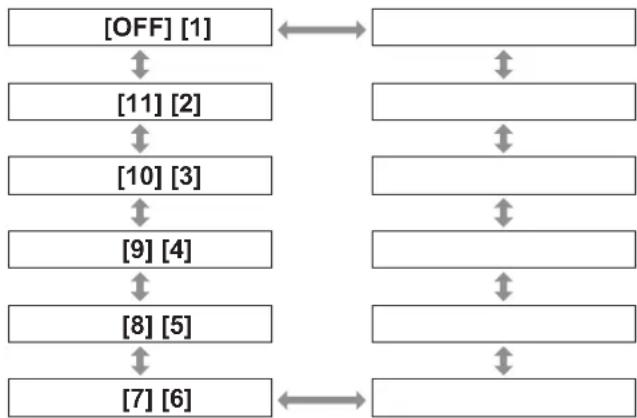
flowchart
graph TD
    A["[OFF"] [1]] --> B["[11"] [2]]
    B --> C["[10"] [3]]
    C --> D["[9"] [4]]
    D --> E["[8"] [5]]
    E --> F["[7"] [6]]
    F --> G["End"]
    style A fill:#f9f,stroke:#333
    style G fill:#bbf,stroke:#333
- Items set in [3D SYNC1]
| [OFF] Not used. | |
| [1] 3D trigger output | |
| [2] 3D trigger output | |
| [3] Stereo synch input | |
| [4] Stereo synch input | |
| [5] Stereo synch input | |
| [6] Frame synch input | |
| [7] Frame synch input | |
| [8] Frame synch input | |
| [9] 3D trigger output | |
| [10] Stereo synch output | |
| [11] 3D IR TRANSMITTER (+) output |
●Items set in [3D SYNC2]
| [OFF] Not used. |
| [1] Stereo synch output |
| [2] 3D trigger output |
| [3] Through 3D SYNC1 |
| [4] Stereo synch output |
| [5] 3D trigger output |
| [6] Through 3D SYNC1 |
| [7] Stereo synch output |
| [8] 3D trigger output |
| [9] Frame synch output |
| [10] Frame synch output |
| [11] 3D IR TRANSMITTER (−) output |
6) If you selected [1], [4], [7], or [10], press ▲▼ to select [STEREO SYNC OUTPUT DELAY] and press ◀▶ to set the amount of delay output.
● Values in the following range change by units of 10 us.
0 us to 25 000 us
- To synchronize multiple projectors to display 3D images, use a frame synch input and output. Select [9] or [10] for the first projector. Select [6], [7], or [8] for the second and subsequent projectors.
- Stereo synch is a Duty 50% signal at High during Left and at Low during Right.
- An “H” is output to the 3D images display and an “L” is output to the 2D image display from the terminal for which 3D trigger output is selected.
Note
● [11] of [3D SYNC SETTING] is the setting when the 3D IR TRANSMITTER TY-3DTRW (Panasonic) is used with this projector. As for connecting method, consult your dealer.
[3D SIMUL INPUT SETTING]
Set to input and use simultaneous 3D images signals.
1) Press ▲▼ to select [3D SIMUL INPUT SETTING].
2) Press the
● The [3D SIMUL INPUT SETTING] screen is displayed.
3) Press ▲▼ to select [LEFT:RGB1 RIGHT:RGB2], [LEFT:HDMI RIGHT:DVI-D], or [LEFT:SDI1 RIGHT:SDI2].
4) Press ◀▶ to switch the setting.
- The setting will change as follows each time you press the button.
[OFF] [AUTO]
![PANASONIC PT-DW17KEJ - [3D SIMUL INPUT SETTING] - 1](/content/2026/05/1137714/images/8cb22d3967ea83e79fda1c1bc7b4079644147b82302fba711b94588b06db3830.jpg)
[OFF] Cannot use 3D simultaneous.
[AUTO] Displays simultaneous 3D images.
Note
- When set to [AUTO], 3D images are displayed when the same 3D compatible signals are entered to each input. However, the P IN P status during P IN P is maintained.
● This may not function properly for some external devices that are connected.
● Certain signals may not function properly.
[3D SETTINGS] menu (PT-DZ21KE and PT-DS20KE only)
[3D INPUT FORMAT]
Set the 3D format for the image signals being input. Set a 3D format that matches the input signal.
1) Press ▲▼ to select [3D INPUT FORMAT].
2) Press the
● The [3D INPUT FORMAT] screen is displayed.
3) Press ▲▼ to select a 3D format.
4) Press the
| [AUTO]*1 | Automatically detects 3D format of input image signals and displays images. |
| [NATIVE] | Forcibly displays images in 2D regardless of input image signals. |
| [SIMULTANEOUS]*2 | Forcibly displays 3D images in simultaneous format regardless of input image signals. |
| [SIDE BY SIDE] | Forcibly displays 3D images in side by side format regardless of input image signals. |
| [TOP AND BOTTOM] | Forcibly displays 3D images in top and bottom format regardless of input image signals. |
| [LINE BY LINE]*3 | Forcibly displays 3D images in line by line format regardless of input image signals. |
| [FRAME SEQUENTIAL]*4 | Forcibly displays 3D images in frame sequential format regardless of input image signals. |
*1: During DVI-D or HDMI input only
*2: During 3G-SDI level B input only
*3: During signals other than interlaced signals are input
*4: During RGB1, RGB2, DVI-D, and HDMI input only
Note
- When set to [AUTO], [SIMULTANEOUS], [SIDE BY SIDE], [TOP AND BOTTOM], [LINE BY LINE], or [FRAME SEQUENTIAL], images are not displayed in 3D as per the [3D SIMUL INPUT SETTING]. However, this only occurs in [AUTO] when 3D format can be recognized.
- This may not function properly for some external devices that are connected.
[LEFT/RIGHT SWAP]
Flips the timing of the switch between the left and right of an image to display. Change the setting if the 3D images you see appear strange.
1) Press ▲▼ to select [LEFT/RIGHT SWAP].
2) Press ◀▶ to switch [LEFT/RIGHT SWAP].
● The setting will change as follows each time you press the button.
[NORMAL] [SWAPPED]
| [NORMAL] | If the 3D images are displayed correctly, do not change the [NORMAL] settings. |
| [SWAPPED] | Select when left and right 3D images are swapped to be displayed. |
Note
- This is disabled when [3D SYSTEM SETTING] is set to any setting other than [SINGLE].
[3D COLOR MATCHING]
Switches the color matching correction data applied to the displayed image.
1) Press ▲▼ to select [3D COLOR MATCHING].
2) Press ◀▶ to switch [3D COLOR MATCHING].
- The setting will change as follows each time you press the button.
[SHARED 2D/3D] [SEPARATE 2D/3D]
| [SHARED 2D/3D] | 2D signals and 3D signals use the same correction data. |
| [SEPARATE 2D/3D] | 2D signals and 3D signals use different correction data. |
Note
- Keep the signal you want to adjust input when you switch the [COLOR MATCHING] page 88) setting.
[3D PICTURE BALANCE]
Correct a shift when the brightness or color differ in the right eye and left eye images.
1) Press ▲▼ to select [3D PICTURE BALANCE].
2) Press the
● The [3D PICTURE BALANCE] screen is displayed.
3) Press ▲▼ to select an item, and press ◀▶ to adjust the setting.
- Correct the setting value parts of the right eye image based on the left eye image.
| [CONTRAST] | You can adjust the contrast of the colors. |
| [WHITE BALANCE HIGH RED] | Adjusts the high red white balance. |
| [WHITE BALANCE HIGH GREEN] | Adjusts the high green white balance. |
| [WHITE BALANCE HIGH BLUE] | Adjusts the high blue white balance. |
| [BRIGHTNESS] | You can adjust the dark (black) part of the projected image. |
| [WHITE BALANCE LOW RED] | Adjusts the low red white balance. |
| [WHITE BALANCE LOW GREEN] | Adjusts the low green white balance. |
| [WHITE BALANCE LOW BLUE] | Adjusts the low blue white balance. |
| [COLOR] | You can adjust the color saturation of the projected image. |
| [TINT] | You can adjust the skin tone in the projected image. |
| [CLOCK PHASE] | Adjust when the screen flickers or outline blurs. |
Note
- [CLOCK PHASE] settings go are enabled at simultaneous input of RGB1 and RGB2 to adjust the right eye image.
● This is disabled when [3D SYSTEM SETTING] is set to any setting other than [SINGLE]. - This is disabled when [3D TEST PATTERN] is displayed.
- This is disabled when [3D TEST MODE] is set to any setting other than [NORMAL] and [SIDE BY SIDE].
■ display [3D WAVEFORM MONITOR]
The left eye and right eye images are divided and displayed in a waveform on the left and right.
4) Select [3D WAVEFORM MONITOR] in Step 3).
5) Press ◀▶ to switch [3D WAVEFORM MONITOR].
● The setting will change as follows each time you press the button.
| [OFF] [ON] |
| [OFF] | The 3D waveform monitor is not displayed. |
| [ON] | The 3D waveform monitor is displayed. |
Note
● The 3D waveform monitor is displayed only when the [3D PICTURE BALANCE] screen is displayed.
- The normal waveform monitor cannot be displayed in 3D images.
[DARK TIME SETTING]
Set the black display period to be displayed between the right eye image and the left eye image as necessary for the 3D system used.
1) Press ▲▼ to select [DARK TIME SETTING].
2) Press ◀▶ to switch [DARK TIME SETTING].
● The setting will change as follows each time you press the button.
![PANASONIC PT-DW17KEJ - [DARK TIME SETTING] - 1](/content/2026/05/1137714/images/6e8e05e9b50e031a2c4b257ae68f20e685d65d427b132f9f712d5620e38a5371.jpg)
flowchart
graph TD
    A["0.5 ms"] --> B["1.0 ms"]
    B --> C["1.5 ms"]
    D["2.7 ms"] --> E["2.5 ms"]
    E --> F["2.0 ms"]
    C <--> G
    F <--> H
Note
● This is disabled when [3D SYSTEM SETTING] is set to any setting other than [SINGLE].
- When the setting does not correspond to the 3D system in use, phenomenon such as increased crosstalk and darkening of displayed images may occur.
[3D SETTINGS] menu (PT-DZ21KE and PT-DS20KE only)
[3D FRAME DELAY]
Adjust the timing of the left-right switch of an image.
1) Press ▲▼ to select [3D FRAME DELAY].
2) Press ◀▶ to switch [3D FRAME DELAY].
● Values in the following range change by units of 10 us.
0 us to 25 000 us
[3D TEST MODE]
Set the image display format for use with 3D system adjustments.
1) Press ▲▼ to select [3D TEST MODE].
2) Press ◀▶ to switch [3D TEST MODE].
● The setting will change as follows each time you press the button.
![PANASONIC PT-DW17KEJ - [3D TEST MODE] - 1](/content/2026/05/1137714/images/9c56c24a8450bcc6b890171d4bb401be01d1d2860b1357776d3750fa1494f835.jpg)
flowchart
graph TD
    A["[NORMAL"]] <--> B["[SIDE BY SIDE"]]
    B <--> C["[LEFT/LEFT"]]
    D["[BLACK/RIGHT"]] <--> E["[LEFT/BLACK"]]
    E <--> F["[RIGHT/RIGHT"]]
| [NORMAL] Standard setting. | |
| [SIDE BY SIDE] | The left eye image is displayed on the left, next to the right eye image displayed on the right. |
| [LEFT/LEFT] | Both the left eye image and right eye image display the left eye input signal. |
| [RIGHT/RIGHT] | Both the left eye image and right eye image display the right eye input signal. |
| [LEFT/BLACK] | The left eye input signal is displayed in the left eye image and a completely black image is displayed in the right eye image. |
| [BLACK/RIGHT] | A completely black image is displayed in the left eye image and the right input signal is displayed in the right eye image. |
Note
- The [3D TEST MODE] settings return to [NORMAL] when the projector is switched off.
● This is disabled when [3D SYSTEM SETTING] is set to any setting other than [SINGLE]. - This is disabled when [3D TEST PATTERN] is displayed.
[3D TEST PATTERN]
The 3D test pattern can be used to check operation and make adjustments even without a 3D signal.
1) Press ▲▼ to select [3D TEST PATTERN].
2) Press ◀▶ to switch [3D TEST PATTERN].
● The setting will change as follows each time you press the button.
![PANASONIC PT-DW17KEJ - [3D TEST PATTERN] - 1](/content/2026/05/1137714/images/372a6a487b46361b38c9026ec465eb36f9df99bcaf988db5f3a3518d677614a2.jpg)
flowchart
graph LR
    A["Menu screen + Entry screen"] <--> B["Menu screen + Left: white/Right: black"]
    B <--> C["Menu screen + Left: black/Right: white"]
Note
- The 3D test pattern cannot be displayed when the following inputs are selected.
VIDEO input
- RGB1 input (only when [RGB IN] is set to [Y/C])
● This is disabled when [3D SYSTEM SETTING] is set to any setting other than [SINGLE].
[SAFETY PRECAUTIONS MESSAGE]
Set to show or hide safety precaution messages related to 3D viewing when the projector is switched on.
1) Press ▲▼ to select [SAFETY PRECAUTIONS MESSAGE].
2) Press ◀▶ to switch [SAFETY PRECAUTIONS MESSAGE].
● The setting will change as follows each time you press the button.
[ON] [OFF]
| [ON] | Shows safety precaution messages related to 3D viewing when the projector is switched on. |
| [OFF] | Hides safety precaution messages related to 3D viewing when the projector is switched on. |
Note
- Set to [OFF] to hide the safety precautions message when the projector is switched on.
- A confirmation window is displayed when switched from [ON] to [OFF]. Select [OK] in the confirmation window and press the
button to change the setting to [OFF].
Attention
- When 3D images are viewed by unspecified number of people for commercial use, display safety precaution messages related to 3D viewing to notify viewers.
[3D SAFETY PRECAUTIONS]
Show safety precaution messages related to 3D viewing.
1) Press ▲▼ to select [3D SAFETY PRECAUTIONS].
2) Press the
● The [3D SAFETY PRECAUTIONS] screen is displayed.
- Press ◀▶ to turn the page.
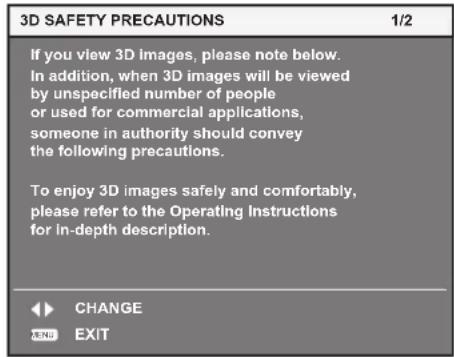
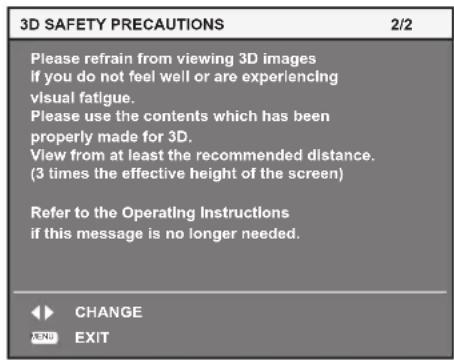
[DISPLAY OPTION] menu
Select [DISPLAY OPTION] from the main menu, and select the item from the sub-menu. Refer to "Navigating through the menu"
(→ page 61) for the operation of the menu screen.
● After selecting the item, press ◀▶ to set.
[COLOR MATCHING]
You can correct the color difference between the sets when multiple sets are to be used simultaneously.
1) Press ▲▼ to select [COLOR MATCHING].
2) Press ◀▶ to switch [COLOR MATCHING].
- The setting will change as follows each time you press the button.
![PANASONIC PT-DW17KEJ - [COLOR MATCHING] - 1](/content/2026/05/1137714/images/cfb3057271b2c9c188cf8594b4540a7e408fe6bcce01aa05ac5db23199ec9ef2.jpg)
flowchart
graph LR
    A["[OFF"] [3COLORS] [7COLORS]] --> B[" "]
    B --> C["[709MODE"]]
    C --> D["[MEASURED"]]
    D --> A
| [OFF] | Color matching adjustment is not carried out. |
| [3COLORS] | The three colors [RED], [GREEN], and [BLUE] can be adjusted. |
| [7COLORS] | The seven colors [RED], [GREEN], [BLUE], [CYAN], [MAGENTA], [YELLOW], and [WHITE] can be adjusted. |
| [709MODE] | Refer to “To use a colorimeter to adjust the color matching” page 89) for details about this mode. |
| [MEASURED] |
![PANASONIC PT-DW17KEJ - [COLOR MATCHING] - 2](/content/2026/05/1137714/images/0a2273d1a57719c1e7d98a2c3e5cfa6e5542987752d3a32245981750a8de8343.jpg)
flowchart
graph TD
    A["[OFF"] [3COLORS] [7COLORS]] --> B[" "]
    B --> C["[709MODE"]]
    C --> D["[MEASURED"]]
    D --> A
set [3COLORS] or [7COLORS]
3) Select [3COLORS] or [7COLORS] in Step 2).
4) Press the
- The [3COLORS] or [7COLORS] screen is displayed.
● The [3COLORS] or [7COLORS] screen is displayed.
5) Press ▲▼ to select [RED], [GREEN], and [BLUE] (for [7COLORS]: [RED], [GREEN], [BLUE], [CYAN], [MAGENTA], [YELLOW], and [WHITE]).
6) Press the
5) Press ▲▼ to select [RED], [GREEN], and [BLUE] (for [7COLORS]: [RED], [GREEN], [BLUE], [CYAN], [MAGENTA], [YELLOW], and [WHITE]).
6) Press the
- The [3COLORS:RED], [3COLORS:GREEN] or [3COLORS:BLUE] screen is displayed. For [7COLORS], the [7COLORS:RED], [7COLORS:GREEN], [7COLORS:BLUE], [7COLORS:CYAN], [7COLORS:MAGENTA], [7COLORS:YELLOW] or [7COLORS:WHITE] screen is displayed.
- Set [AUTO TESTPATTERN] to [ON] to display a test pattern of selected colors.
- The [3COLORS:RED], [3COLORS:GREEN] or [3COLORS:BLUE] screen is displayed. For [7COLORS], the [7COLORS:RED], [7COLORS:GREEN], [7COLORS:BLUE], [7COLORS:CYAN], [7COLORS:MAGENTA], [7COLORS:YELLOW] or [7COLORS:WHITE] screen is displayed. - Set [AUTO TESTPATTERN] to [ON] to display a test pattern of selected colors.
7) Press ◀▶ to adjust the level.
- Adjustment value will change between 0 and 2048.
Note
- Operation when correcting the adjustment color When the adjustment color and the same correction color are moved: The luminance of the adjustment color will change. When correction color red is changed: Red is added to or subtracted from the adjustment color. When correction color green is changed: Green is added to or subtracted from the adjustment color. When correction color blue is changed: Blue is added to or subtracted from the adjustment color.
- This adjustment should be carried out by a person who is familiar with the projector or by a service person because a high level of skill is required to make a successful adjustment.
- Pressing the
button will restore the factory default settings for all items. - When [COLOR MATCHING] adjustment has been set to any setting other than [OFF], the [COLOR TEMPERATURE] is fixed to [USER1].
- Set [3D COLOR MATCHING] (→ page 84) to set whether 2D and 3D signals are set separately or whether common data is used. (PT-DZ21KE and PT-DS20KE only)
- When 2D and 3D settings are set separately, [NATIVE] or [3D] is displayed in the upper right of the menu. (PT-DZ21KE and PT-DS20KE only)
■ use a colorimeter to adjust the color matching
Use a colorimeter that can measure chromaticity coordinates and luminance to change the colors [RED], [GREEN], [BLUE], [CYAN], [MAGENTA], [YELLOW], and [WHITE] to desired colors.
- Inputting the current luminance and chromaticity coordinates
1) Press ▲▼ to select [COLOR MATCHING].
2) Press ◀▶ to select [709MODE] or [MEASURED].
3) Press the
4) Press ▲▼ to select [MEASURED DATA].
5) Press the
6) Measure the luminance (Y) and the chromaticity coordinates (x, y) using the colorimeter.
7) Press ▲▼ to select a color, and press ◀▶ to adjust the setting. ● Set [AUTO TESTPATTERN] to [ON] to display a test pattern of selected colors.
8) Once all the input is completed, press the
- When [709MODE] is selected in [COLOR MATCHING], the ITU-R BT.709 standard three primary colors are set as target data.
-
Colors are not displayed properly when target data is a color outside the region of this projector.
● The [709MODE] may differ slightly from the ITU-R BT.709 standard colors. -
Set the [AUTO TESTPATTERN] to [ON] to automatically display a test pattern for use in adjusting the selected adjustment colors.
- Before using a colorimeter or similar instrument to measure measurement data, set [PICTURE MODE] to [DYNAMIC].
● A difference in the color coordinates of target data and measurement values obtained from an instrument may occur for certain instruments and measurement environments used. - The [AUTO TESTPATTERN] setting s change in conjunction with the [AUTO TESTPATTERN] settings in [EDGE BLENDING].
[LARGE SCREEN CORRECTION]
Corrects the phenomenon in which colors that appear lighter when viewed on a large screen viewed from a close distance compared to when viewed on an average screen size so that colors appear the same.
1) Press ▲▼ to select [LARGE SCREEN CORRECTION].
2) Press ◀▶ to switch [LARGE SCREEN CORRECTION].
- The setting will change as follows each time you press the button.
![PANASONIC PT-DW17KEJ - [LARGE SCREEN CORRECTION] - 1](/content/2026/05/1137714/images/dfbe3daf8ea91fd4277cfe87b39d775bd070e4cf18833f32c738b4a71a604769.jpg)
flowchart
graph LR
    A["[OFF"] (No correction)] <--> B["[1"] (Low) [2] (High)]
    B --> C
[DISPLAY OPTION] menu
[SCREEN SETTING] (PT-DZ21KE and PT-DS20KE only)
Set the screen size.
When changing the aspect of a projected image, correct to the optimum image position for the set screen. Set as necessary for the screen in use.
Fir PT-DZ21KE
1) Press ▲▼ to select [SCREEN SETTING].
2) Press the
● The [SCREEN SETTING] screen is displayed.
3) Press ◀▶ to switch [SCREEN FORMAT].
[16:10] [4:3] [16:9]
4) Press ▲▼ to select [SCREEN POSITION].
5) Press ◀▶ to adjust [SCREEN POSITION].
- When [SCREEN FORMAT] is set to [16:9], the vertical position can be adjusted from -60 to +60.
- When [SCREEN FORMAT] is set to [4:3], the horizontal position can be adjusted from -160 to +160.
Fir PT-DS20KE
1) Press ▲▼ to select [SCREEN SETTING].
2) Press the
● The [SCREEN SETTING] screen is displayed.
3) Press ◀▶ to switch [SCREEN FORMAT].
[4:3] [16:9]
4) Press ▲▼ to select [SCREEN POSITION].
5) Press ◀▶ to adjust [SCREEN POSITION].
- When [SCREEN FORMAT] is set to [16:9], the vertical position can be adjusted from -132 to +131.
Note
- [SCREEN POSITION] cannot be adjusted in PT-DZ21KE when [SCREEN FORMAT] is [16:10], or in PT-DS20KE when [SCREEN FORMAT] is [4:3].
[AUTO SIGNAL]
Set automatic execution of auto setup.
The screen display position or signal level can be adjusted automatically without pressing the
1) Press ▲▼ to select [AUTO SIGNAL].
2) Press ◀▶ to switch [AUTO SIGNAL].
- The setting will change as follows each time you press the button.
[OFF] [ON]
[OFF] Set input auto setup to off.
[ON]
Auto setup is automatically executed when images are changed to unregistered signals during projection.
[AUTO SETUP]
You can set when adjusting a special signal or horizontally long (16:9, etc.) signal.
1) Press ▲▼ to select [AUTO SETUP].
2) Press the
● The [AUTO SETUP] screen is displayed.
3) Press ▲▼ to select an item.
set [MODE]
4) Select [MODE] in Step 3).
5) Press ◀▶ to switch [MODE].
● The setting will change as follows each time you press the button.
![PANASONIC PT-DW17KEJ - set [MODE] - 1](/content/2026/05/1137714/images/166bf1632855a3438acdb36de67ed57e4612084365361cf70c9e8aaed6af7aba.jpg)
flowchart
graph LR
    A["DEFAULT"] --> B["WIDE"] --> C["USER"]
    C <--> D[" "]
    D --> E
| [DEFAULT] | Standard setting. |
| [WIDE] | Select when an image aspect is a wide-screen signal, which does not meet the [DEFAULT] settings. |
| [USER] | Select when displaying a signal with a special horizontal resolution (number of display dots). |
- If [DEFAULT] or [WIDE] was selected in Step 5)
- Automatic adjustment is executed. [PROGRESS] is displayed while automatically adjusting. When complete, the system returns to the [AUTO SETUP] screen.
● If [USER] was selected in Step 5)
6) Press ▲▼ to select [DISPLAY DOTS], and press ◀▶ to adjust [DISPLAY DOTS] to the horizontal resolution of the signal source.
7) Press ▲▼ to select [MODE].
- Automatic adjustment is executed. [PROGRESS] is displayed while automatically adjusting. When complete, the system returns to the [AUTO SETUP] screen.
■ adjust position automatically
4) Select [POSITION ADJUST] in Step 3).
5) Press ◀▶ to switch [POSITION ADJUST].
- The setting will change as follows each time you press the button.

| [OFF] | Does not perform automatic adjustment. |
| [ON] | Adjust the screen position and size when auto setup is executed. |
■ adjust signal level automatically
4) Select [SIGNAL LEVEL ADJUST] in Step 3).
5) Press ◀▶ to switch [SIGNAL LEVEL ADJUST].
● The setting will change as follows each time you press the button.

| [OFF] | Does not perform automatic adjustment. |
| [ON] | Adjust black level (on-screen menu [BRIGHTNESS]) and white level (on-screen menu [CONTRAST]) when auto setup is executed. |
Note
- [SIGNAL LEVEL ADJUST] may not function properly unless a still image containing clear blacks and whites is input.
[DISPLAY OPTION] menu
[RGB IN] (supported during RGB signal input only)
Set to match the signal to input to the
1) Press ▲▼ to select [RGB IN].
2) Press the
● The [RGB IN] screen is displayed.
3) Press ▲▼ to select an item.
set [RGB1 INPUT SETTING]
4) Select [RGB1 INPUT SETTING] in Step 3).
5) Press ◀▶ to switch [RGB1 INPUT SETTING].
● The setting will change as follows each time you press the button.
[RGB / YPBPR] [Y/C]
| [RGB/YPBPR] | Select when inputting an RGB signal to theterminal. |
| [Y/C] | Select when inputting a luminance signal and color signal to theterminal. |
■ switch the slice level of an input sync signal
4) Select [RGB1 SYNC SLICE LEVEL] or [RGB2 SYNC SLICE LEVEL] in Step 3).
5) Press ◀▶ to switch the [RGB1 SYNC SLICE LEVEL] or the [RGB2 SYNC SLICE LEVEL].
- The setting will change as follows each time you press the button.
[LOW] [HIGH]
[LOW] Set the slice level to [LOW].
[HIGH] Set the slice level to [HIGH].
[DVI-D IN]
Switch the setting when the external equipment is connected to the
1) Press ▲▼ to select [DVI-D IN].
2) Press the
● The [DVI-D IN] screen is displayed.
3) Press ▲▼ to select [DVI EDID].
4) Press ◀▶ to switch [DVI EDID].
- The setting will change as follows each time you press the button.
[EDID3] [EDID1] [EDID2:PC]
| [EDID3] | Switch between fine settings for a moving image and for a still image. |
| [EDID1] | Select mainly when an external device that outputs movie-type image signals (such as a blu-ray disk player) is connected to theterminal. |
| [EDID2:PC] | Select mainly when an external device that outputs still image-type signals (such as a computer) is connected to theterminal. |
5) Press ▲▼ to select [DVI SIGNAL LEVEL].
6) Press ◀▶ to switch [DVI SIGNAL LEVEL].
● The setting will change as follows each time you press the button.
[0-255:PC] [16-235]
| [0-255:PC] | Select when an external device (such as a computer) is connected via DVI-D terminal output. |
| [16-235] | Select when an external device (such as a blu-ray disc player) is connected via HDMI terminal output by use of a conversion cable or similar cable. |
Note
- The optimal setting is different depending on the output setting of the connected external equipment. Refer to the instruction manual of the external equipment regarding the output of the external equipment.
- The data for Plug and play will change when the setting is changed. Refer to "List of compatible signals" (→ page 167) for a resolution that supports plug and play.
[HDMI IN]
Switch the setting when the projector is connected to an external device via an HDMI cable and the image is not projected correctly.
1) Press ▲▼ to select [HDMI IN].
2) Press the
● The [HDMI IN] screen is displayed.
3) Press ◀▶ to switch [HDMI SIGNAL LEVEL].
● The setting will change as follows each time you press the button.
[0-1023] [64-940]
| [0-1023] | Select when the DVI-D terminal output of an external device (such as a computer) is connected to theterminal via a conversion cable or similar cable.Select also when the HDMI terminal output of a computer or other device is connected to theterminal. |
| [64-940] | Select when the HDMI terminal of an external device (such as a blu-ray disc player) is connected to theterminal. |
Note
- The optimal setting is different depending on the output setting of the connected external equipment. Refer to the instruction manual of the external equipment regarding the output of the external equipment.
● The HDMI signal level is displayed per each 30 bits of input.
[SDI IN] (PT-DZ21KE and PT-DS20KE only)
Set to match the signal to input to the
1) Press ▲▼ to select [SDI IN].
2) Press the
3) Press ▲▼ to select an item.
set [SDI LINK]
4) Select [SDI LINK] in Step 3).
5) Press ◀▶ to switch [SDI LINK].
● The setting will change as follows each time you press the button.
[SINGLE LINK] [DUAL LINK]
| [SINGLE LINK] | Set SDI1 input and SDI2 input to single link. |
| [DUAL LINK] | Set SDI1 input and SDI2 input to dual link. |
set [SDI SIGNAL LEVEL]
Select the amplitude of the signal to input.
4) Select [SDI SIGNAL LEVEL] in Step 3).
5) Press ◀▶ to switch [SDI SIGNAL LEVEL].
- The setting will change as follows each time you press the button.
[64-940] [4-1019]
| [64-940] Normally use this setting. | |
| [4-1019] | Select when gray is displayed as black. |
[DISPLAY OPTION] menu
![PANASONIC PT-DW17KEJ - [DISPLAY OPTION] menu - 1](/content/2026/05/1137714/images/e70fb28739b8aad90ef406a26d6e6bf9284a3ebbc6b17ec62c563f15224175a9.jpg)
set [BIT DEPTH]
4) Select [BIT DEPTH] in Step 3).
5) Press ◀▶ to switch [BIT DEPTH].
- The setting will change as follows each time you press the button.
![PANASONIC PT-DW17KEJ - set [BIT DEPTH] - 1](/content/2026/05/1137714/images/d491d93ead4975ed860b76b2b48c385380686e3d1cfe545539efd7d8636803a6.jpg)
flowchart
graph TD
    A["AUTO"] --> B["12-bit"]
    B --> C["10-bit"]
    C --> D["↔"]
    E["AUTO"] --> F["Automatically select 12 bits or 10 bits."]
    G["12-bit"] Fix --> H["to 12 bits."]
    I["10-bit"] Fix --> J["to 10 bits."]
![PANASONIC PT-DW17KEJ - set [BIT DEPTH] - 2](/content/2026/05/1137714/images/b7e6e0c8450ba9af02fd49f7bdc11574e94f285a654b99d1eef45d8dfd73cabc.jpg)
set [3G-SDI MAPPING]
4) Select [3G-SDI MAPPING] in Step 3).
5) Press ◀▶ to switch [3G-SDI MAPPING].
● The setting will change as follows each time you press the button.
![PANASONIC PT-DW17KEJ - set [3G-SDI MAPPING] - 1](/content/2026/05/1137714/images/103ab3e5f68f884947717aff07ef24f27528b2520e4fffd543cf271fcbb6e79e.jpg)
flowchart
graph TD
    A["AUTO"] --> B["LEVEL A"] --> C["LEVEL B"]
    C --> D["Automatically select level A or level B."]
    E["LEVEL A"] --> F["Fix to level A."]
    G["LEVEL B"] --> H["Fix to level B."]
Note
- Does not operate during SD-SDI or HD-SDI input.
[ON-SCREEN DISPLAY]
Set the on-screen display.
1) Press ▲▼ to select [ON-SCREEN DISPLAY].
2) Press the
● The [ON-SCREEN DISPLAY] screen is displayed.
3) Press ▲▼ to select an item, and press ◀▶ to change the setting.
![PANASONIC PT-DW17KEJ - [ON-SCREEN DISPLAY] - 1](/content/2026/05/1137714/images/5fc3da9cdb8c863db4e176f6f60318e12dc73a19590379e57c61bf77c3569711.jpg)
[SD POSITION]
Set the position of the menu screen (OSD).
- The setting will change as follows each time you press the button.
![PANASONIC PT-DW17KEJ - [SD POSITION] - 1](/content/2026/05/1137714/images/0d6cc8c52ad220b4536166bb26c091bec468d7f16e22c9ebc3af70bfbd333fcb.jpg)
flowchart
graph TD
    A["1 (Top left of the screen)"] --> B["2 (Center left of the screen)"]
    B --> C["3 (Bottom left of the screen)"]
    C --> D["4 (Top center of the screen)"]
    D --> E["5 (Center of the screen)"]
    E --> F["6 (Bottom center of the screen)"]
    F --> G["7 (Top right of the screen)"]
    G --> H["8 (Center right of the screen)"]
    H --> I["9 (Bottom right of the screen)"]
    I --> A
![PANASONIC PT-DW17KEJ - [SD POSITION] - 2](/content/2026/05/1137714/images/7177c166488cf12305424354ab32004f3594c77127ef4c6fffaf6f897972fa7a.jpg)
[SD DESIGN]
Set the color of the menu screen (OSD).
- The setting will change as follows each time you press the button.
![PANASONIC PT-DW17KEJ - [SD DESIGN] - 1](/content/2026/05/1137714/images/e2e542c8b75e0c64986213da65762f08a98f14292ebd7158517e972545009102.jpg)
flowchart
graph TD
    A["[1"]: Yellow["2"]: Blue] --> B[" "]
    C["[6"]: Brown["3"]: White] --> D[" "]
    E["[5"]: Pink["4"]: Green] --> F[" "]
    B --> D
    D --> F
    C --> G[" "]
    G --> F
![PANASONIC PT-DW17KEJ - [SD DESIGN] - 2](/content/2026/05/1137714/images/f69012ab2d0261cbdc4f37992a8982f13dc48f203fd8b62da0d87f01128a0847.jpg)
[SD MEMORY]
Set hold for the position of the menu screen (OSD) cursor.
- The setting will change as follows each time you press the button.
![PANASONIC PT-DW17KEJ - [SD MEMORY] - 1](/content/2026/05/1137714/images/9181f0f049997747fb6ce7a461592597f0549eb89613e707a7b221485a920d0f.jpg)
Note
- Even if set to [ON], the cursor position will not be held when the
[DISPLAY OPTION] menu
[■PUT GUIDE]
Set display of the input terminal name, signal name and memory number currently selected in the position set by the [OSD POSITION].
● The setting will change as follows each time you press the button.
[ON] [OFF]
[WARNING MESSAGE]
You can set the display/hide of the warning message.
● The setting will change as follows each time you press the button.
[ON] [OFF]
[BACK COLOR]
Set the color of the projected image when there is no signal input.
1) Press ▲▼ to select [BACK COLOR].
2) Press ◀▶ to switch [BACK COLOR].
● The setting will change as follows each time you press the button.
![PANASONIC PT-DW17KEJ - [BACK COLOR] - 1](/content/2026/05/1137714/images/5075c197392932422210f7230b7c2f8e121c45a67e8634afe5b75f21aa2f5ad8.jpg)
flowchart
graph TD
    A["[BLUE"] [BLACK]] --> B[" "]
    C["[USER LOGO"] [DEFAULT LOGO]] --> D[" "]
    C -->|↓| C
    C -->|↓| C
| [BLUE] | The entire projection area appears blue. |
| [BLACK] | The entire projection area appears black. |
| [DEFAULT LOGO] | The Panasonic logo is projected. |
| [USER LOGO] | The picture registered by the user is projected. |
Note
- To create the image for [USER LOGO], "Logo Transfer Software" included in the supplied CD-ROM is required.
[STARTUP LOGO]
Set the logo display when the power is turned on.
1) Press ▲▼ to select [STARTUP LOGO].
2) Press ◀▶ to switch [STARTUP LOGO].
● The setting will change as follows each time you press the button.
![PANASONIC PT-DW17KEJ - [STARTUP LOGO] - 1](/content/2026/05/1137714/images/b5d38d551345c8ab768aad250922a1ae8d5762128d3a63255652977d22e4347a.jpg)
flowchart
graph LR
    A["DEFAULT LOGO"] <--> B["USER LOGO"]
    B <--> C["NONE"]
    C --> A
| [DEFAULT LOGO] | The Panasonic logo is projected. |
| [USER LOGO] | The picture registered by the user is projected. |
| [NONE] No | startup logo is projected. |
Note
● The startup logo will disappear in approximately 15 seconds.
- To create the image for [USER LOGO], "Logo Transfer Software" included in the supplied CD-ROM is required.
[UNIFORMITY]
Correct the brightness and color unevenness of the entire screen.
1) Press ▲▼ to select [UNIFORMITY].
2) Press the
● The [UNIFORMITY] screen is displayed.
3) Press ▲▼ to select an item.
set per color
4) Select [WHITE], [RED], [GREEN], and [BLUE] in Step 3).
5) Press ◀▶ to switch.
- Adjust the setting to a value from [-127] to [+127] .
• [VERTICAL]
| Operation Adjustment | |
| Press ▶ . Deepens upper colors. | |
| Press ◀ . Deepens lower colors. |
• [HORIZONTAL]
| Operation Adjustment | |
| Press ▶ . Deepens colors on the left. | |
| Press ◀ . Deepens colors on the right. |
[DISPLAY OPTION] menu
set [PC CORRECTION]
To use the [PC CORRECTION] function, an optional upgrade kit (Model No.: ET-UK20) is required. To purchase the product, consult your dealer.
4) Select [PC CORRECTION] in Step 3).
5) Press ◀▶ to switch.
- The setting will change as follows each time you press the button.
[ON] [OFF]
| [ON] ^1 | Use a computer to correct the brightness and color unevenness of the entire screen. |
| [OFF] | A computer cannot be used to correct. |
*1: Advanced skills are necessary to use computer controls to correct. Consult your dealer.
Note
- [UNIFORMITY] can be set for each [LAMP SELECT] setting.
- The setting value for [UNIFORMITY] will not return to the factory default value even if [INITIALIZE] is executed.
[SHUTTER SETTING]
Set image fade-in and fade-out at opening and closing of the shutter. Set automatic opening and closing of the shutter when power is turned on and off.
1) Press ▲▼ to select [SHUTTER SETTING].
2) Press the
● The [SHUTTER SETTING] screen is displayed.
3) Press ▲▼ to select an item.
set [FADE-IN] or [FADE-OUT]
4) Select [FADE-IN] or [FADE-OUT] in Step 3).
5) Press ◀▶ to switch.
- The setting can be set to [OFF], or to a value from [0.5 s] to [4.0 s].
Note
- Press the
Sitting [STARTUP]
4) Select [STARTUP] in Step 3).
5) Press ◀▶ to switch.
- The setting will change as follows each time you press the button.
[OPEN] [CLOSE]
| [OPEN] | Projection begins when the shutter is open and the power is turned on. |
| [CLOSE] | Projection begins when the shutter is closed and the power is turned on. |
set [SHUT-OFF]
4) Select [SHUT-OFF] in Step 3).
5) Press ◀▶ to switch.
● The setting will change as follows each time you press the button.
| [OPEN] [CLOSE] | [KEEP CURRENT STATE] |
| [OPEN] | Enters standby when the shutter is open and the power is turned off. |
| [CLOSE] | Enters standby when the shutter is closed and the power is turned off. |
| [KEEP CURRENT STATE] | Maintains the current shutter status and enters standby when the power is turned off. |
[FREEZE]
The projected image is paused temporarily regardless of the playback of the external equipment.
1) Press ▲▼ to select [FREEZE].
2) Press the
- Press the
- Before adjusting the black level for DVI-D signals, HDMI signals, and SDI signals, confirm that the [DVI SIGNAL LEVEL], [HDMI SIGNAL LEVEL], and [SDI SIGNAL LEVEL] settings are correct.
● Waveform monitor cannot be displayed in [P IN P]. - The waveform monitor turns off when [P IN P] is executed during waveform monitoring.
- The waveform monitor is not displayed when on-screen display is hidden (off).
- To display the waveform monitor in 3D image, use [3D WAVEFORM MONITOR]. (PT-DZ21KE and PT-DS20KE only)
[DISPLAY OPTION] menu
[CUT OFF]
Each red, green and blue color component can be removed.
1) Press ▲▼ to select [CUT OFF].
2) Press the
● The [CUT OFF] screen is displayed.
3) Press ▲▼ to select [RED], [GREEN], or [BLUE].
4) Press ◀▶ to switch.
- The setting will change as follows each time you press the button.
![PANASONIC PT-DW17KEJ - [CUT OFF] - 1](/content/2026/05/1137714/images/f1c0e5b0c2c0706cede8e69b3c7cb92151dfe554616c667ba88830cc9b5a4006.jpg)
| [OFF] Disables cutoff. |
| [ON] Enables cutoff. |
Note
- When input is switched or a signal is switched, the cutoff setting returns to its original setting (off).
[PROJECTOR SETUP] menu
Select [PROJECTOR SETUP] from the main menu, and select the item from the sub-menu. Refer to "Navigating through the menu"
(→ page 61) for the operation of the menu screen.
● After selecting the item, press ▲▼◀▶ to set.
[PROJECTOR ID]
The projector has an ID number setting function that can be used when multiple projectors are used side by side to enable simultaneous control or individual control via one remote control.
1) Press ▲▼ to select [PROJECTOR ID].
2) Press ◀▶ to switch [PROJECTOR ID].
● The setting will change as follows each time you press the button.
![PANASONIC PT-DW17KEJ - [PROJECTOR ID] - 1](/content/2026/05/1137714/images/c9f6c71c3cbf0c76cd17255749ff212eb8491940c505f3d70fca63fe177f33e1.jpg)
flowchart
graph TD
    A["[ALL"] [1]] <--> B[" "]
    C["[64"] [2]] <--> D[" "]
    A <--> C
    B <--> D
Note
- The ID number can be set to a value from [ALL], [1] to [64].
- To specify an ID number for individual control, the ID number of a remote control must match the ID number of the projector.
- When the ID number is set to [ALL], the projector will operate regardless of the ID number specified during remote control or computer control. If multiple projectors are set up side by side with IDs set to [ALL], they cannot be controlled separately from the projectors with other ID numbers.
- Refer to "Setting Remote control ID numbers" (→ page 27) regarding the method to set the ID number on the remote control.
[PROJECTION METHOD]
Set the projection method in accordance with the installation status of the projector.
Change the projection method if the screen display is upside down or inverted.
1) Press ▲▼ to select [PROJECTION METHOD].
2) Press the
● The [PROJECTION METHOD] screen is displayed.
3) Press ▲▼ to select the projection method.
| [FRONT/FLOOR] | When installing on the desk, etc., in front of the screen |
| [FRONT/CEILING] | When installing using the ceiling mount bracket (optional accessories) in front of the screen |
| [REAR/FLOOR] | When installing on the desk, etc., behind the screen (using a translucent screen) |
| [REAR/CEILING] | When installing using the ceiling mount bracket (optional accessories) behind the screen (using a translucent screen) |
4) Press the
5) When the confirmation is displayed, select [OK] or [CANCEL], and press the
Attention
- When [PROJECTION METHOD] is changed, confirm that [COOLING CONDITION] (page 100) is set correctly.
[PROJECTOR SETUP] menu
[COOLING CONDITION]
Change the fan control depending on the direction of projection.
Set [COOLING CONDITION] correctly in accordance with the direction of projection referencing the following figure. It may shorten the life of the lamp if used in incorrect setting.
1) Press ▲▼ to select [COOLING CONDITION].
2) Press the
3) Press ▲▼ to select a cooling condition.
![[VERTICAL UP SETTING] [FEOR SETTING] 30° 30° 30° 30° [CEILING SETTING] [VERTICAL DOWN SETTING] : Projection direction](/content/2026/05/1137714/images/66dc8bb8afe5d74b8f3f3ad552a14285191f69e176941b2df538b976bdfbc619.jpg)
- Cannot be set when using the optional accessory replacement lamp unit (for portrait mode) (Model No.: ET-LAD510P (1 pc), ET-LAD510PF (4 pcs)) (fixed to [PORTRAIT SETTING]).
[HIGH ALTITUDE MODE]
Set to [ON] to use the projector at 1 400 m (4 593 ft) to 2 700 m (8 858 ft) elevations.
1) Press ▲▼ to select [HIGH ALTITUDE MODE].
2) Press ◀▶ to switch [HIGH ALTITUDE MODE].
| [OFF] [ON] | ←→ |
| [OFF] | When using at a place lower than 1 400 m (4 593 ft) above sea level |
| [ON] | When using at a high altitude (1 400 m (4 593 ft) or higher and lower than 2 700 m (8 858 ft) above sea level) |
3) When the confirmation is displayed, select [OK] or [CANCEL], and press the
Note
● The speed of the fan increases and the operation sound becomes louder when set to [ON].
- The optional smoke cut filter cannot be used when in high elevation mode.
[LAMP SELECT]
Select luminous lamps from the four equipped in the projector body to turn on for a certain use condition or purpose.
1) Press ▲▼ to select [LAMP SELECT].
2) Press ◀▶ to switch [LAMP SELECT].
● The setting will change as follows each time you press the button.
![PANASONIC PT-DW17KEJ - [LAMP SELECT] - 1](/content/2026/05/1137714/images/12bfbae6f8dae8bddc9673ddae37cbdd77beda23069cba829f12f47b1a8bf3a2.jpg)
flowchart
graph TD
    A["[L1"] [L2]] --> B["[QUAD"] (4 lit) [L3]]
    B --> C["[TRIPLE"] (3 lit) [L4]]
    C --> D["[DUAL"] (2 lit) [L1/L4]]
    D --> E["[SINGLE"] (1 lit) [L2/L3]]
    E --> F["[L2/L3/L4"] [L1/L2/L3]]
    F --> G["[L1/L3/L4"] [L1/L2/L4]]
    G --> H["..."]
    H --> I["..."]
    I --> J["..."]
    J --> K["..."]
    K --> L["..."]
    L --> M["..."]
    M --> N["..."]
    N --> O["..."]
    O --> P["..."]
    P --> Q["..."]
    Q --> R["..."]
    R --> S["..."]
    S --> T["..."]
    T --> U["..."]
    U --> V["..."]
    V --> W["..."]
    W --> X["..."]
    X --> Y["..."]
    Y --> Z["..."]
| [L1] Lamp | 1 will light. |
| [L2] Lamp | 2 will light. |
| [L3] Lamp | 3 will light. |
| [L4] Lamp | 4 will light. |
| [L1/L4] Lamp | 1 and Lamp 4 will light. |
| [L2/L3] Lamp | 2 and Lamp 3 will light. |
| [L1/L2/L3] | Lamp 1, Lamp 2 and Lamp 3 will light. |
| [L1/L2/L4] | Lamp 1, Lamp 2 and Lamp 4 will light. |
| [L1/L3/L4] | Lamp 1, Lamp 3 and Lamp 4 will light. |
| [L2/L3/L4] | Lamp 2, Lamp 3 and Lamp 4 will light. |
| [SINGLE](1 lit) | One lamp will light. (A short usage time lamp will automatically light.) |
| [DUAL](2 lit) | Two lamps will light. (A short usage time lamp will automatically light.) |
| [TRIPLE](3 lit) | Three lamps will light. (A short usage time lamp will automatically light.) |
| [QUAD](4 lit) | Four lamps will light. |
- For a set time after [LAMP SELECT] is switched, [LAMP SELECT] cannot be switched again, because the speed of the lamp replacement cycle will increase. Repeatedly switching [LAMP SELECT] in a short time will also increase the speed of the lamp replacement cycle.
● The colors of the items indicate the status.
Green → Current setting
Yellow → Current setting
(When there is a lamp that cannot turn on or failed to turn on)
Red → Lamp that has failed to turn on White → Any other status
- When a lamp fails to turn on or has been used in excess of 2 000 hours ^1 and a setting other than [QUAD] is selected, that lamp is turned off and another lamp turned on.
When a lamp fails to turn on or has been used in excess of 2 000 hours ^1 in [QUAD], a lamp that has not been used in excess of 2 000 hours ^1 is turned on.
The projector enters standby mode when all lamps have been used in excess of 2 000 hours ^4 .
- Ensure that lamp units not to be turned on are also installed.
- More lamps than the specified number of lamps light temporarily to prevent decreased illuminance when a lamp is switched.
*1: 500 hours when the optional accessory replacement lamp unit (for portrait mode) (Model No.: ET-LAD510P (1 pc), ET-LAD510PF (4 pcs)) is used.
[LAMP RELAY]
The lump to be turned on can be automatically switched by setting a day and time.
The degradation of the lamp due to continuous usage can be reduced by automatically switching the lamp to be turned on when using the projector continuously for a week or more.
1) Press ▲▼ to select [LAMP RELAY].
2) Press ◀▶ to switch [LAMP RELAY].
- The time setting to switch the lamp will change as follows each time you press the button.
![PANASONIC PT-DW17KEJ - [LAMP RELAY] - 1](/content/2026/05/1137714/images/69ffd4b70509022c8e2559b2740164a8ac673cc5bece8fd2891afe9d15fa66d0.jpg)
flowchart
graph LR
    A["[OFF"] [24H] [1 WEEK]] --> B[" "]
    style A fill:#f9f,stroke:#333
    style B fill:#ccf,stroke:#333
3) Press ▲▼ to select [TIME].
4) Press the
- Enters adjustment mode (the display is blinking).
5) Press ◀▶ to select [HOUR] or [MINUTE], and then press ▲▼ to adjust it.
![PANASONIC PT-DW17KEJ - [LAMP RELAY] - 2](/content/2026/05/1137714/images/47288f943e7001147c6869a50fc2ea0ec9ca666e239e1ccb3ef5830a041bad6c.jpg)
flowchart
graph LR
    A["[00:00"]] --> B["[00:01"]]
    B --> C["[00:59"]]
    C --> D["..."]
    D --> E["(1 hour or 1 minute increments)"]
6) Press the
● The adjusted time is established.
7) Press ▲▼ to select [DAY OF THE WEEK].
8) Press ◀▶ to switch [DAY OF THE WEEK].
● The setting will change as follows each time you press the button.
![PANASONIC PT-DW17KEJ - [LAMP RELAY] - 3](/content/2026/05/1137714/images/3ae955232d8a57dbaf2d37b2a777939e363502d6d4a6428a5581879bbcb7e611.jpg)
flowchart
graph TD
    A["[SATURDAY"]] --> B["[SUNDAY"] [MONDAY] [TUESDAY]]
    B --> C["[WEDNESDAY"]]
    C --> D["[THURSDAY"]]
    D --> E["[FRIDAY"] [SATURDAY]]
    E --> F["[SATURDAY"] [WEDNESDAY]]
    F --> G["[WEDNESDAY"]]
    G --> H["[SATURDAY"] [WEDNESDAY]]
Note
● The [LAMP RELAY] function is enabled when [SINGLE], [DUAL], [TRIPLE], or [QUAD] is selected in [LAMP SELECT].
- When [SINGLE] or [DUAL] is selected in [LAMP SELECT], the lamp switches to the specified time. When [TRIPLE] is selected in [LAMP SELECT], the lamp switches a total of three times every two hours from the specified time, and thereafter maintains the previous status until the specified time. When [QUAD] is selected in [LAMP SELECT], three turn on at the specified time and the three lamps switch every two hours for a total of four times. Next, four lamps turn on eight hours after the specified time and thereafter three lamps switch again after the specified time.
● The operating time will be the local time (page 110)
- Use the number (<0> to <9>) buttons on the remote control to directly enter the time.
[BRIGHTNESS CONTROL]
The projector is equipped with a luminance sensor to measure brightness and functions to correct screen brightness resulting from changes in lamp brightness. Use the projector when using multiple projectors to display on multiple screens to reduce changes in overall brightness of the multiple screens due to lamp degradation and suppress variation in brightness to preserve uniformity.
1) Press ▲▼ to select [BRIGHTNESS CONTROL].
2) Press the
● The [BRIGHTNESS CONTROL] screen is displayed.
3) Press ▲▼ to select an item.
■ set [BRIGHTNESS CONTROL GAIN]
Adjust brightness when using multiple projectors to display on multiple screens.
4) Select [BRIGHTNESS CONTROL GAIN] in Step 3).
5) Press ◀▶ to adjust.
| Operation | Adjustment | Range | |
| Brightness | Maximum brightness correction | ||
| Press ▶ . | The screen becomes brighter. | The maximum correction amount decreases. | Maximum value 100% |
| Press ◀ . | The screen becomes darker. | The maximum correction amount increases. | Minimum value 20% |
Note
- When one projector is used, the maximum correction amount is the value obtained when the [BRIGHTNESS CONTROL GAIN] value is subtracted from 100%. When [BRIGHTNESS CONTROL GAIN] is 100%, the maximum correction amount is 0% and brightness cannot be corrected due to luminance controls.
- Luminance will be unsteady for eight minutes after a lamp is turned on. Adjust after eight minutes have elapsed from the time that the power is switched on.
● [BRIGHTNESS CONTROL GAIN] adjustments are reflected to all image signals, internal test patterns, and on-screen menus.
● [BRIGHTNESS CONTROL GAIN] is enabled even if [BRIGHTNESS CONTROL SETUP] is [OFF].
■ set [BRIGHTNESS CONTROL SETUP]
Set the operation of luminance control.
4) Select [BRIGHTNESS CONTROL SETUP] in Step 3).
5) Press the
● The [BRIGHTNESS CONTROL SETUP] screen is displayed.
6) Press ▲▼ to select [MODE].
7) Press ◀▶ to switch [MODE].
● The setting will change as follows each time you press the button.
![PANASONIC PT-DW17KEJ - ■ set [BRIGHTNESS CONTROL SETUP] - 1](/content/2026/05/1137714/images/4917a6649fb0309f1f59f6b59c93ecbb6c58568ea7f1fac3f14958b5b7bba55c.jpg)
flowchart
graph LR
    A["[OFF"] [AUTO] [PC]] --> B[" "]
    style A fill:#f9f,stroke:#333
    style B fill:#ccf,stroke:#333
| [OFF] | No correction performed by the luminance sensor. |
| [AUTO] | Correction is performed by the luminance sensor.Automatically corrects screen brightness when lamp brightness changes. |
| [PC] | Use a computer and the dedicated “Multi Projector Monitoring & Control Software”1 to connect nine or more projectors. |
*1: "Multi Projector Monitoring & Control Software" is included in the attached CD-ROM.
- Setting [MODE] to [AUTO]
8) Press ▲▼ to select [LINK].
9) Press ◀▶ to switch [LINK].
● The setting will change as follows each time you press the button.
![PANASONIC PT-DW17KEJ - ■ set [BRIGHTNESS CONTROL SETUP] - 2](/content/2026/05/1137714/images/11263ced1a97b4d45af7750f81d2d1ff731170d26358e8a8ada3905bdbbec290.jpg)
flowchart
graph TD
    A["OFF"] --> B["GROUP A"]
    C["GROUP D"] --> D["GROUP C"]
    B --> E[" "]
    D --> F["GROUP B"]
| [OFF] | Uses the luminance sensor on one projector to perform correction without connecting another projector.The length of time that constant brightness can be maintained increases as the [BRIGHTNESS CONTROL GAIN] value decreases. |
| [GROUP A][GROUP B][GROUP C][GROUP D] | Correction by luminance sensor is performed by connecting several projectors.Use network functions to set up to four A to D groups within the same subnet.Up to eight projectors can be registered and connected in each group. |
10) Press ▲▼ to select [CALIBRATION TIME].
11) Press the
12) Enter the time and press the
● Measure brightness at a specified time. Dynamic iris is fixed to open during measurement.
13) Press ▲▼ to select [CALIBRATION MESSAGE].
14) Press ◀▶ to switch [CALIBRATION MESSAGE].
- The setting will change as follows each time you press the button.
| [ON] [OFF] |
| [ON] | Displays a message during calibration. |
| [OFF] | Does not display a message during calibration. |
15) Press ▲▼ to select [APPLY].
16) Press the
- The set [MODE] and [LINK] are enabled, and LAMP RELAY screen alert is displayed when the [LAMP RELAY] setting is [OFF]. When [CALIBRATION MESSAGE] is set to [ON], a calibration running message is displayed which will automatically disappear 30 seconds after calibration completes.
- If the [MODE] in [BRIGHTNESS CONTROL SETUP] is not [OFF] when the
button is pressed, the lamp brightness at that time is recorded as the standard brightness. - If the
button is pressed when [LINK] is [GROUP A] to [GROUP D], the group name is displayed on the projector screen set as the same group.
LINK
Note
- When setting the [MODE] in [BRIGHTNESS CONTROL SETUP] to [AUTO] or [PC], [APPLY] luminance control after the shutter is open for at least two minutes.
- If the shutter is closed within approx. 10 minutes from the time that the lamp turns on when operating with the [MODE] in [BRIGHTNESS CONTROL SETUP] set to [AUTO] or [PC], brightness may be corrected approx. two minutes after the shutter opens because brightness could not be measured.
- When operating with the [MODE] in [BRIGHTNESS CONTROL SETUP] set to [AUTO] or [PC], lamp brightness is automatically measured eight minutes after a lamp is turned on, and corrected to the same value as the screen brightness and the standard
brightness at the time of [APPLY]. Lamp brightness cannot be measured during the eight minutes after it is turned on because it is not steady.
- When [LAMP SELECT] is 2 lit or higher and the [MODE] in [BRIGHTNESS CONTROL SETUP] is operating in [AUTO] and a light fails to turn on or LAMP RELAY is performed, brightness is corrected one minute later whenever possible.
- When operating with [MODE] in [BRIGHTNESS CONTROL SETUP] set to [AUTO], and [LINK] is [OFF], brightness correction is performed until correction exceeds the maximum correction amount.
- In certain projector environments, dust may accumulate on the lens or screen or inside the projector and increase variation in brightness.
- Adjust luminance control again when lamp degradation causes increased variation in brightness or a lamp is replaced.
- For continued use longer than 24 hours, set the [BRIGHTNESS CONTROL SETUP] to [CALIBRATION TIME], or set [LAMP RELAY] (→ page 101). Correction is not automatically executed when not set.
● Luminance control and iris operate simultaneously, but the iris does not operate when fully open while a brightness measurement is performed. - The setting of [CALIBRATION TIME] applies at the time when the time is entered.
- The setting of [CALIBRATION MESSAGE] applies at the time when the item is switched with ◀▶.
[PROJECTOR SETUP] menu
■ set [BRIGHTNESS CONTROL STATUS]
Displays the luminance control status.
4) Select [BRIGHTNESS CONTROL STATUS] in Step 3).
● The [BRIGHTNESS CONTROL STATUS] screen is displayed.
- When [MODE] in [BRIGHTNESS CONTROL SETUP] is [OFF]
Displays the luminance control disabled status.
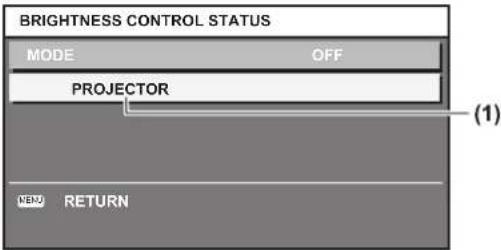
(1) Displays the name of the projector in question.
- When [MODE] in [BRIGHTNESS CONTROL SETUP] is [AUTO] and the [LINK] is [OFF]
Displays the luminance control status of Projector 1.
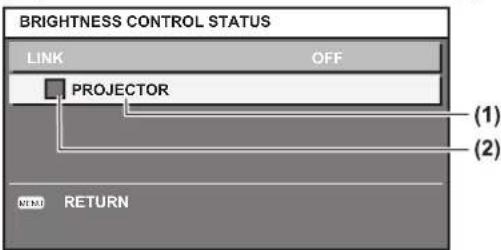
(1) Displays the name of the projector in question.
(2) Uses color to display status.
Green: There is margin for brightness correction.
Yellow: There is less margin for brightness correction.
Red: An error occurred in luminance control.
- When [MODE] in [BRIGHTNESS CONTROL SETUP] is [AUTO] and the [LINK] is [GROUP A] to [GROUP D]
Displays the luminance control status of connected projectors (up to eight), including projectors operated by the on-screen menu.
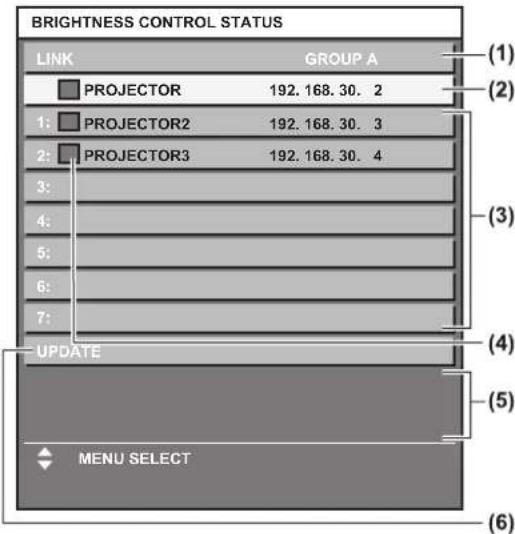
(1) Displays the groups to connect.
(2) Displays the name and IP address of the projector in question.
(3) Displays the name and IP address of projectors in the same group that were detected on the network.
(4) Uses color to display status.
Green: There is margin for brightness correction.
Yellow: There is less margin for brightness correction.
Red: An error occurred in luminance control.
(5) Displays an error message.
(6) Updates to the latest information. If the message [Failed to apply BRIGHTNESS CONTROL to some projectors.] is displayed, connection of the projector displayed in red font has failed.
Press ▲▼ to select the projector displayed in red font and press the
- Error details
| Error message Remedy | |
| [Exceed maximum number of projectors.] | ● Set no more than eight projectors in one group.● Use a computer and the dedicated “Multi Projector Monitoring & Control Software”1 to connect nine or more projectors. |
| [Please check the COMMAND CONTROL setting.] | ● Set the on-screen menu [NETWORK CONTROL] [COMMAND CONTROL] to [ON] for the projector in error.● Set the [NETWORK CONTROL] [COMMAND PORT] of all projectors to be connected to the same value. |
| [Please check the USER NAME and PASSWORD in the COMMAND CONTROL setting.] | ● Set the same character string to the [User name] and [Password] that has Web control administrator rights for all projectors to be connected. |
| [Cannot apply BRIGHTNESS CONTROL. Please check projector status.] | ● The projector is in standby status. Switch on the projector. |
| [Brightness Sensor Error] | ● There is a problem with the luminance sensor. If the problem is not corrected by turning off the power and turning it on again, consult your dealer. |
*1: "Multi Projector Monitoring & Control Software" is included in the attached CD-ROM.
Note
- Check the following when a projector to be connected is not listed.
- Is there a device on the network with the same IP address?
- Is a LAN cable connected correctly? ➕ page 126)
- Is the projector subnet identical?
- Is [LINK] set to the same group?
- To change a projector name, refer to [NETWORK SETUP] (→ page 125), or [Network config] page (→ page 133).
- When [MODE] in [BRIGHTNESS CONTROL SETUP] is [PC]
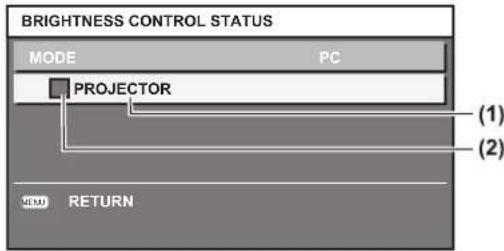
(1) Displays the name of the projector in question.
(2) Uses color to display status.
Green: There is margin for brightness correction. Yellow: There is less margin for brightness correction.
Red: An error occurred in luminance control.
Example steps to adjust luminance control
The steps exemplify an adjustment to link the brightness of eight projectors connected in a network.
1) Use a LAN cable to connect all projectors to a hub. (→ page 126)
2) Switch on all projectors.
3) Set [LAMP SELECT] to either [DUAL] or [SINGLE] for all projectors.
4) Set [MODE] in [BRIGHTNESS CONTROL SETUP] to [OFF] and [APPLY].
5) Set [SUBNET MASK] of the projectors to the same value, and [IP ADDRESS] of each projector to a different value so that the network can communicate.
6) Wait at least eight minutes until the lamp brightness becomes steady.
7) Set all items in the [PICTURE] menu of all projectors to the same values.
8) To match colors, adjust [COLOR MATCHING].
9) Display the internal test patterns of all projectors in "completely white".
[PROJECTOR SETUP] menu
10) Set [BRIGHTNESS CONTROL GAIN] of all projectors to 100%.
11) Set [BRIGHTNESS CONTROL GAIN] of the darkest projector to 90%.
12) Adjust [BRIGHTNESS CONTROL GAIN] to match the [BRIGHTNESS CONTROL GAIN] set to 90% of the other projectors.
13) Set [MODE] in [BRIGHTNESS CONTROL SETUP] of all projectors to [AUTO], and [LINK] to [GROUP A].
14) Select [APPLY] in [BRIGHTNESS CONTROL SETUP] on all projectors and press the
● Luminance control starts.
Note
● Brightness is automatically corrected each time the lamp blinks when the power is switched on or off.
- Adjust luminance control again when variation in brightness has increased or a lamp is replaced.
[STANDBY MODE]
Set the power consumption during the standby.
1) Press ▲▼ to select [STANDBY MODE].
2) Press ◀▶ to switch [STANDBY MODE].
● The setting will change as follows each time you press the button.
[NORMAL] [ECO]
Note
- When set to [ECO], network functions and
terminal, and some RS-232C commands are not available during standby. The lighting for the connecting terminals and control panel does not turn on. - When an error or warning occurs, a self diagnosis is displayed on the control panel regardless of the [STANDBY MODE] setting. (→ page 25)
- When set to [ECO], the time taken to start display may be approximately ten seconds slower than compared to when set to [NORMAL].
[SCHEDULE]
Set the command execution schedule for each day of the week.
1) Press ▲▼ to select [SCHEDULE].
2) Press ◀▶ to switch [SCHEDULE].
● The setting will change as follows each time you press the button.
[ON] [OFF]
Note
- If [SCHEDULE] is set to [ON], the setting for [STANDBY MODE] is automatically set to [NORMAL] and cannot be changed. Even if [SCHEDULE] is then set to [OFF] when in this state, the setting of [STANDBY MODE] remains at [NORMAL].
How to assign a program
3) Select [ON] in Step 2), and press the
● The [SCHEDULE] screen is displayed.
4) Select and assign program to each day of week.
- Press ▲▼ to select the day of week, and press ◀▶ to select a program number.
- You can set the program from No.1 to No.7. “--” indicates that the program number has not been set yet.
How to set a program
You can set up to 16 commands to each program.
3) Select [ON] in Step 2), and press the
● The [SCHEDULE] screen is displayed.
4) Press ▲▼ to select [PROGRAM EDIT].
5) Press ◀▶ to select a program number and then press the
6) Press ▲▼ to select a command number and press the
- You can change the page using ◀▶.
7) Press ▲▼ to select [TIME] and press the
8) Press ◀▶ to select hour and minute, and press ▲▼ or the number (<0> to <9>) buttons on the remote control to set a time, and press the
9) Press ▲▼ to select [COMMAND].
10) Press ◀▶ to switch [COMMAND].
- The setting will change as follows each time you press the button.
![PANASONIC PT-DW17KEJ - 10) Press ◀▶ to switch [COMMAND]. - 1](/content/2026/05/1137714/images/9835db4b48549e6c2ec6b0214a4eaf7f1e231938ec1004d7424e37862a09c431.jpg)
flowchart
graph TD
    A["[POWER ON"]] --> B["[STANDBY"]]
    B --> C["[SHUTTER"]*1]
    C --> D["[INPUT"]*1]
    D --> E["[LAMP SELECT"]*1]
    E --> F["[P IN P"]*1]
    F --> A
*1: Displays the details set in Step 12).
● The [COMMAND] detailed setting screen is displayed.
12) Press ▲▼ to select a command.
- For [SHUTTER], [INPUT], [LAMP SELECT], and [P IN P], the setting will change as follows each time you press the button.
●[SHUTTER]
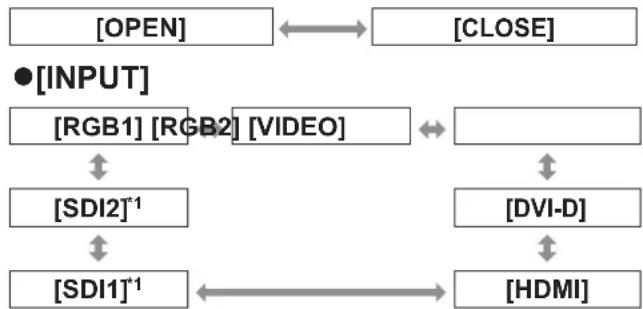
flowchart
graph TD
    A["[OPEN"]] <--> B["[CLOSE"]]
    C["●[INPUT"]] --> D["[RGB1"] [RGB2] [VIDEO]]
    D <--> E["[SDI2"]*¹]
    E <--> F["[SDI1"]*¹]
    F <--> G["[HDMI"]]
    D <--> H["[DVI-D"]]
    H <--> G
*1: PT-DZ21KE and PT-DS20KE only
●[LAMP SELECT]

flowchart
graph TD
    A["[SINGLE"] [DUAL]] --> B[" "]
    C["[QUAD"] [TRIPLE]] --> D[" "]
    A <--> C
●[P IN P]

flowchart
graph TD
    A["OFF"] --> B["USER1"]
    C["USER3"] --> D["USER2"]
    B --> E
    D --> E
- The command is fixed and is displayed at the left of the selected command.
- After the command is fixed, press the
14) Press ▲▼ to select [STORE], and press the button.
Note
- If you try to register a setting that would cause the lamp to flash for a short time, an error message will be displayed on the screen. Set the time and command again.
- To delete a command already set, press the
button on the Step 6) screen, or select [DELETE] on the Step 7) screen and press the button. - If multiple commands have been set for the same time, they are executed in chronological order starting from the smallest command number.
● The operating time will be the local time→(page 110) - If an operation is executed with the remote control or control panel of the projector or with a control command before the command set in [SCHEDULE] is executed, the command set with this function may not be executed.
[RS-232C]
Set the communication conditions of the
1) Press ▲▼ to select [RS-232C].
2) Press the
● The [RS-232C] screen is displayed.
3) Press ▲▼ to select an item.
■ set the communication condition of the
4) Select [(IN) BAUDRATE] in Step 3).
5) Press ◀▶ to switch [(IN) BAUDRATE].
● The setting will change as follows each time you press the button.
![PANASONIC PT-DW17KEJ - [RS-232C] - 1](/content/2026/05/1137714/images/0e7b7440eb325ffde4d72a0e2c61c97468f92a10a8c18eccf49da9c729441944.jpg)
flowchart
graph LR
    A["[9600"]] --> B["[19200"]]
    B --> C["[38400"]]
    C <--> D[" "]
    D --> E[" "]
    E --> F[" "]
    F --> G[" "]
    G --> H[" "]
    H --> I[" "]
    I --> J[" "]
    J --> K[" "]
6) Press ▲▼ to select [(IN) PARITY].
7) Press ◀▶ to switch [(IN) PARITY].
- The setting will change as follows each time you press the button.
![PANASONIC PT-DW17KEJ - [RS-232C] - 2](/content/2026/05/1137714/images/2b1b1b8589402b97770a486f3fb79fab300d5aa6fc95fdfc545eedc17a702692.jpg)
flowchart
graph LR
    A["[NONE"] [EVEN] [ODD]] --> B[" "]
    style A fill:#f9f,stroke:#333
    style B fill:#ccf,stroke:#333
■ set the communication condition of the
4) Select [(OUT) BAUDRATE] in Step 3).
5) Press ◀▶ to switch [(OUT) BAUDRATE].
● The setting will change as follows each time you press the button.
![PANASONIC PT-DW17KEJ - [RS-232C] - 3](/content/2026/05/1137714/images/5b236e13e327d1ac95e30b664ba5c9c46acad800206b554acb0b81502ae4bb4e.jpg)
flowchart
graph LR
    A["[9600"]] --> B["[19200"]]
    B --> C["[38400"]]
    C <--> D[" "]
    D --> E[" "]
    E --> F[" "]
    F --> G[" "]
    G --> H[" "]
    H --> I[" "]
    I --> J[" "]
6) Press ▲▼ to select [(OUT) PARITY].
7) Press ◀▶ to switch [(OUT) PARITY].
- The setting will change as follows each time you press the button.
![PANASONIC PT-DW17KEJ - [RS-232C] - 4](/content/2026/05/1137714/images/ccc26819d723876be220286f375bbf353162bf37311126b1c8cb745fa25d476c.jpg)
flowchart
graph LR
    A["[NONE"] [EVEN] [ODD]] <--> B[" "]
set the response
4) Select [RESPONSE(ID ALL)] in Step 3).
5) Press ◀▶ to switch [RESPONSE(ID ALL)].
- The setting will change as follows each time you press the button.

| [ON] | Returns the response when the ID setting is ALL. |
| [OFF] | Does not return the response when the ID setting is ALL. |
6) Press ▲▼ to select [GROUP].
7) Press ◀▶ to switch [GROUP].
● The setting will change as follows each time you press the button.

flowchart
graph LR
    A["A"] --> B["B"]
    B --> C["Z"]
    C --> D["..."]
    D --> E[" "]
    E --> F[" "]
    F --> G[" "]
    G --> H[" "]
| [A] to [Z] | Controls multiple projectors simultaneously by sending the ID of RS-232C. Set the group from [A] to [Z]. The projector responds when the ID of RS-232C matches the setting. |
8) Press ▲▼ to select [RESPONSE(ID GROUP)].
9) Press ◀▶ to switch [RESPONSE(ID GROUP)].
● The setting will change as follows each time you press the button.

| [ON] | Returns the response when the ID setting is GROUP. |
| [OFF] | Does not return the response when the ID setting is GROUP. |
Note
- Refer to "
[STATUS]
Displays the status of the projector.
1) Press ▲▼ to select [STATUS].
2) Press the
● The [STATUS] screen is displayed.
3) Press ◀▶ to switch the pages.
| [INPUT] | Displays the input terminal currently selected. |
| [SIGNAL NAME] | Displays the input signal name. |
| [SIGNAL FREQUENCY] | Displays the frequency of the input signal. |
| [PROJECTOR RUNTIME] | Displays the operation times of the projector. |
| [LAMP1] | Displays the usage time and status of Lamp 1. |
| [LAMP2] | Displays the usage time and status of Lamp 2. |
| [LAMP3] | Displays the usage time and status of Lamp 3. |
| [LAMP4] | Displays the usage time and status of Lamp 4. |
| [INTAKE AIR TEMP.] | Displays the status of the air intake temperature of the projector. |
| [OPTICS MODULE TEMP.] | Displays the status of the internal temperature of the projector. |
| [AROUND LAMP TEMP.] | Displays the status of the temperature around the lamps of the projector. |
| [REMOTE2 STATUS] | Displays the control status of the REMOTE2. |
| [PROJECTOR TYPE] | Displays the type of the projector. |
| [SERIAL NUMBER] | Displays the serial number of the projector. |
| [LAMP UNIT MODEL NO.] | Displays the model no. of the lamp unit. |
| [LAMP1 SERIAL NUMBER] | Displays the serial number of the lamp 1. |
| [LAMP2 SERIAL NUMBER] | Displays the serial number of the lamp 2. |
| [LAMP3 SERIAL NUMBER] | Displays the serial number of the lamp 3. |
| [LAMP4 SERIAL NUMBER] | Displays the serial number of the lamp 4. |
| [MAIN VERSION] | Displays the main version of the firmware of the projector. |
| [SUB VERSION] | Displays the sub version of the firmware of the projector. |
| [NETWORK VERSION] | Displays the network version of the projector. |
| [UPGRADE (ET-UK20)] | Displays the activation status based on the upgrade kit. |
| [ON COUNT] | ● [POWER ON TIMES]:Displays the number of times the power is turned on.● [LAMP1 ON] to [LAMP4 ON]:Displays the number of times the lamp is turned on.● [SHUTTER]:Displays the number of times the shutter is closed. |
| [NUMBER OF ENTRY SIGNAL] | Displays the number of registered signals. |
| [AC VOLTAGE] | Displays the status of the AC voltage. |
![PANASONIC PT-DW17KEJ - [STATUS] - 1](/content/2026/05/1137714/images/0648639e00b9671d523d7f45a55d1203dfb29d982decafa6faed70c25aacf3df.jpg) | ● [MEMORY NO.]:Displays the memory number of the input signal.● [INPUT]:Displays the input terminal currently selected.● [SIGNAL NAME]:Displays the input signal name.● [SIGNAL FREQUENCY]:Displays the frequency of the input signal.● [SYNC.STATE]:Displays the synch polarity of the input signal.● [V.SYNC WIDTH]:Displays the vertical sync signal pulse width of the input signal.● [SCAN TYPE]:Displays the scan type of the input signal.● [TOTAL DOTS]:Displays the total dot count of the input signal.● [DISPLAY DOTS]:Displays the number of input signal display dots.● [TOTAL LINES]:Displays the total line count of the input signal.● [DISPLAY LINES]:Displays the number of input signal display lines.● [SAMPLING]:Displays the sampling information of the input signal.● [BIT DEPTH]:Displays the gradation of the input signal. |
Note
- Some items in [SIGNAL INFORMATION] may be displayed and others not displayed, depending on the signal being input.
[PROJECTOR SETUP] menu
[NO SIGNAL SHUT-OFF]
You can set the power of the projector automatically to standby if there is no input signal by the specified time.
1) Press ▲▼ to select [NO SIGNAL SHUT-OFF].
2) Press ◀▶ to switch [NO SIGNAL SHUT-OFF].
| [DISABLE] | Disables the No signal shut-off function. |
| [10MIN.] - [90MIN.] | Allows you to set in ten minutes intervals. |
[REMOTE2 MODE]
You can set the
1) Press ▲▼ to select [REMOTE2 MODE].
2) Press ◀▶ to switch [REMOTE2 MODE].
- The setting will change as follows each time you press the button.
![PANASONIC PT-DW17KEJ - [REMOTE2 MODE] - 1](/content/2026/05/1137714/images/d60c9eb839a0890d23cedfab4f01beed8d5b3474565c004260c80cb2d487168b.jpg)
flowchart
graph LR
    A["[DEFAULT"] [USER]] <--> B["[L6500 SERIES"]]
    B --> A
| [DEFAULT] | The pin assignment of theterminal is used by the factory default setting of the projector. (→ page 164) |
| [USER] | Used to change the setting of theterminal. |
| [L6500 SERIES] | Use the settings for the L6500 series compatible REMOTE2 terminal. |
set [USER]
3) Select [USER] in Step 2).
4) Press the
5) Press ▲▼ to select either [PIN2] or [PIN8] and press ◀▶ to switch the setting.
[FUNCTION BUTTON]
Set the functions of the
1) Press ▲▼ to select [FUNCTION BUTTON].
2) Press the
3) Press ▲▼ to select a function.
| [DISABLE] | Disables thebutton. |
| [P IN P] | Switches [OFF]/[USER1]/[USER2]/[USER3] in [P IN P]. (→ page 115) |
| [SUB MEMORY] | Lists the sub memory. (→ page 120) |
| [SYSTEM SELECTOR] | Switches to [SYSTEM SELECTOR] settings. (→ page 70) |
| [SYSTEM DAYLIGHT VIEW] | Switches to [SYSTEM DAYLIGHT VIEW] settings. (→ page 68) |
| [FREEZE] | Temporarily pauses the image.(→ page 96) |
| [WAVEFORM MONITOR] | Displays the waveform of the input signal. (→ page 96) |
| [LENS MEMORY LOAD] | Calls the registered memory.(→ page 112) |
| [LEFT/RIGHT SWAP]*1 | Switches the flip horizontal settings.(→ page 84) |
*1: PT-DZ21KE and PT-DS20KE only
Set the time zone, date, and time of the built-in clock of the projector.
1) Press ▲▼ to select [DATE AND TIME].
2) Press the
● The [DATE AND TIME] screen is displayed.
3) Press ▲▼ to select an item.
set time zone
4) Select [TIME ZONE] in Step 3).
5) Press ◀▶ to set [TIME ZONE].
■ adjust the date and time manually
4) Select [ADJUST CLOCK] in Step 3).
5) Press the
● The [ADJUST CLOCK] screen is displayed.
6) Press ▲▼ to select an item, and press ◀▶ to set the local date and time.
7) Press ▲▼ to select [APPLY], and press the
● The setting of the time will be completed.
■ adjust the date and time automatically
4) Select [ADJUST CLOCK] in Step 3).
5) Press the
● The [ADJUST CLOCK] screen is displayed.
6) Press ▲▼ to select [NTP
SYNCHRONIZATION], and press ◀▶ to change the setting to [ON].
● The setting will change as follows each time you press the button.
[OFF] [ON]
7) Press ▲▼ to select [APPLY], and press the
● The setting of the time will be completed.
Note
- To set the date and time automatically, the projector must be connected to the network.
- If synchronization with the NTP server fails just after [NTP SYNCHRONIZATION] is turned [ON], or if [NTP SYNCHRONIZATION] is turned [ON] while the NTP server is not set, [NTP SYNCHRONIZATION] will return to [OFF].
- Access the projector via a web browser to set the NTP server. (→ page 134)
[LENS CALIBRATION]
Automatically set the lens shift limit values and home position for the projector.
1) Press ▲▼ to select [LENS CALIBRATION].
2) Press the
● A confirmation message is displayed.
3) Press ◀▶ to select [OK], and press the
● To cancel, select [CANCEL].
● The lens moves up, down, left and right to automatically set the lens shift limit values and home position.
● The lens stops to complete the calibration.
Note
● [PROGRESS] is displayed on the menu during lens calibration. Cannot cancel mid-operation.
- When lens calibration executes correctly, [COMPLETE] is displayed and [INCOMPLETE] is displayed when it does not execute correctly.
[LENS MEMORY]
Save and call the focus position, shift position and zoom position of an adjusted lens.
1) Press ▲▼ to select [LENS MEMORY].
2) Press the
3) Press ▲▼ to select an item.
Saving lens position
4) Select [LENS MEMORY SAVE] in Step 3).
● The [LENS MEMORY SAVE] screen is displayed.
6) Press ▲▼ to select the item to initialize, and press the
7) When the confirmation is displayed, select [OK], and press the
● Lens memory input screens are displayed.
8) Press ▲▼◀▶ to select the text, and press the
9) After the name is input, press ▲▼◀▶ to select [OK], and press the
● The registration completes and returns to the [LENS MEMORY SAVE] screen.
- If you press ▲▼◀▶ to select [CANCEL] and then press the
- If you press ▲▼◀▶ to select [DEFAULT] and press the
- If you select [OK] without entering any characters and press the
call the lens position
4) Select [LENS MEMORY LOAD] in Step 3).
● The [LENS MEMORY LOAD] screen is displayed.
6) Press ▲▼ to select the item to initialize, and press the
7) When the confirmation is displayed, select [OK], and press the
- Moves automatically to the registered shift, zoon and focus positions.
Note
● Lens memory is not guaranteed to be 100% reproduced.
- The zoom and focus positions may have shifted after lens memory was called. Readjust as necessary.
Beware of shift, as errors in zoom position are particularly significant.
- When a lens is replaced, readjust and save the lens memory again.
- If a lens without zoom function is used, the lens memory of the zoom position does not operate.
- When using the
delete a lens memory
4) Select [LENS MEMORY EDIT] in Step 3).
● The [LENS MEMORY EDIT] screen is displayed.
6) Press ▲▼ to select [LENS MEMORY DELETE].
● The [LENS MEMORY DELETE] screen is displayed.
8) Press ▲▼ to select the item to delete, and press the
9) When the confirmation is displayed, select [OK], and press the
change the lens memory name
4) Select [LENS MEMORY EDIT] in Step 3).
5) Press the
● The [LENS MEMORY EDIT] screen is displayed.
6) Press ▲▼ to select [LENS MEMORY NAME CHANGE].
7) Press the
● The [LENS MEMORY NAME CHANGE] screen is displayed.
8) Press ▲▼ to select the name to change, and press the
● Lens memory name screens are displayed.
9) Press ▲▼◀▶ to select the text, and press the
10) After the name is changed, press ▲▼◀▶ to select [OK], and press
● The registration completes and returns to the [LENS MEMORY NAME CHANGE] screen.
- If you press ▲▼◀▶ to select [CANCEL] and then press the
- If you press ▲▼◀▶ to select [DEFAULT] and press the
- If you select [OK] without entering any characters and press the
[SAVE ALL USER DATA]
Save the various setting values as a backup in the built-in memory of the projector.
1) Press ▲▼ to select [SAVE ALL USER DATA].
2) Press the
● The [SECURITY PASSWORD] screen is displayed.
3) Enter a security password and press the
4) When the confirmation is displayed, select [OK] or [CANCEL], and press the
● [PROGRESS] is displayed on the screen while the data is saved.
[LOAD ALL USER DATA]
Load the various setting values saved as a backup in the built-in memory of the projector.
1) Press ▲▼ to select [LOAD ALL USER DATA].
2) Press the
● The [SECURITY PASSWORD] screen is displayed.
3) Enter a security password and press the
4) When the confirmation is displayed, select [OK] or [CANCEL], and press the
Note
- The projector will go into the standby status to reflect the setting values when [LOAD ALL USER DATA] is executed.
● Data set from the computer application is not included in the [ALL USER DATA].
[INITIALIZE]
Return various setting values to their factory default settings.
1) Press ▲▼ to select [INITIALIZE].
2) Press the
● The [SECURITY PASSWORD] screen is displayed.
3) Enter a security password and press the
● The [INITIALIZE] screen is displayed.
4) Press ▲▼ to select an item to initialize.
| [ALL USER DATA] | All setting items including [ENTRY SIGNAL], [NETWORK SETUP], [E-mail set up], and [USER LOGO] are returned to factory default values.The projector will go into the standby status to reflect the setting values. |
| [ENTRY SIGNAL] | Deletes all the setting values saved for each input signal.To delete only a part of a registered signal, perform the procedure described in “Deleting the registered data” (→ page 118). |
| [NETWORK/E-MAIL] | Returns [NETWORK SETUP] and [E-mail set up] to factory default settings. |
| [LOGO IMAGE] | Deletes the image registered in [USER LOGO]. |
5) Press the
6) When the confirmation is displayed, select [OK] or [CANCEL], and press the
[SERVICE PASSWORD]
Used by a service person.
[P IN P] menu
Select [P IN P] from the main menu, and select the item from the sub-menu.
Refer to "Navigating through the menu"
(→ page 61) for the operation of the menu screen.
● After selecting the item, press ▲▼◀▶ to set.
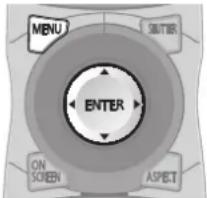
Using P IN P functions
Locate a separate, small sub screen in the main screen to project two images simultaneously.
1) Press ▲▼ to select [P IN P].
2) Press the
● The [P IN P] screen is displayed.
3) Press ▲▼ to select [P IN P MODE], and press the
● The [P IN P MODE] screen is displayed.
4) Press ▲▼ to select a function.
| [OFF] P IN | P function is not used. |
| [USER1] | The items set in “Setting P IN P functions” (→ page 115) are used in P IN P functions. |
| [USER2] | |
| [USER3] |
Setting P IN P functions
P IN P function settings can be saved to [USER1], [USER2], and [USER3].
1) In Step 4) "Using P IN P functions", select the desired mode from [USER1], [USER2], and [USER3], and press the
- The settings screen of the selected mode is displayed.
2) Press ▲▼ to select an item, and press the
● The sub-menu of the selected item is displayed.
| [MAIN WINDOW] | The input terminal to be displayed as the main window is shown. (Press ▲▼ to select, and press thebutton to switch.[SIZE]: The window display size can be set from 10% to 100%. [POSITION]: Set a display location for the main window in the screen. |
| [SUB WINDOW] | The input terminal to be displayed as the sub window is shown. (Press ▲▼ to select, and press thebutton to switch.) [SIZE]: The sub window display size can be set from 10% to 100%. [POSITION]: Set a display location for the sub window in the screen. [CLOCK PHASE]: When the sub window is RGB1 or RGB2 and a flickering image or smeared outline appears, set from 0 to 31. |
| [FRAME LOCK] | Select a window to which frame lock will be applied. (Press ◀▶ to switch.) [MAIN WINDOW]: Set frame lock to the input signal set in the main window. [SUB WINDOW]: Set frame lock to the input signal set in the sub window. |
| [TYPE] | Select the window displayed on top when windows overlap. (Press ◀▶ to switch.) [MAIN WINDOW]: The main window has display priority. [SUB WINDOW]: The sub window has display priority. |
[P IN P] menu
Note
- The P IN P functions may not be available for some signals being input or terminals being selected. Refer to “Two window display combination list” (→ page 165) for details.
● The main window setting values are applied to adjustment values such as [PICTURE MODE], [GAMMA], and [COLOR TEMPERATURE]. - On the main screen (when no menu is displayed), press ◀▶ to switch the sizes and positions of the main window and sub window while P IN P is operating.
● 3D images cannot be displayed in P IN P. (PT-DZ21KE and PT-DS20KE only)
● The P IN P state continue even if 3D simultaneous is used to display 3D images in P IN P. (PT-DZ21KE and PT-DS20KE only)
[TEST PATTERN] menu
Select [TEST PATTERN] from the main menu. Refer to "Navigating through the menu"
(→ page 61) for the operation of the menu screen.
- Press ◀▶ to switch.
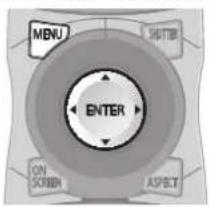
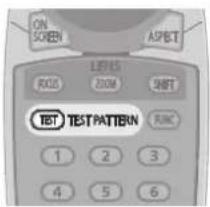
[TEST PATTERN]
Displays the test pattern built-in to the projector. Settings of position, size, and other factors will not be reflected in test patterns. Make sure to display the input signal before performing various adjustments.
Press ◀▶ to switch [TEST PATTERN].
● The setting will change as follows each time you press the button.
![PANASONIC PT-DW17KEJ - [TEST PATTERN] - 1](/content/2026/05/1137714/images/cfa21e1f97b7ac46400c319a751f00ab69ecc5d711356800b11e819f930866ac.jpg)
flowchart
graph TD
    A["Menu screen + Focus"] <--> B["Menu screen + 16:9/4:3 aspect frame"]
    C["Menu screen + Entry screen"] <--> D["Menu screen + All white"]
    B --> E["Menu screen + Color bar (horizontal)"]
    D --> F["Menu screen + All black"]
    E --> G["Menu screen + Color bar (vertical)"]
    F --> H["Menu screen + Window"]
    G <--> I["Menu screen + Window (inversion)"]
    H <--> I
Note
- Press the
change color or a focus test pattern
When the "Menu Screen + Focus" test pattern is displayed, the color can be changed.
1) Press ◀▶ to select the "Menu Screen + Focus" test pattern.
2) Press the
● The [TEST PATTERN COLOR] screen is displayed.
3) Press ▲▼ to select a color, and press the
● The test pattern color changed to the color selected.
Note
● The test pattern color settings return to [WHITE] when the projector is switched off.
● The only test pattern colors that can be changed are the "Focus Test Pattern" colors.
[SIGNAL LIST] menu
Select [SIGNAL LIST] from the main menu. Refer to "Navigating through the menu"
(→ page 61) for the operation of the menu screen.
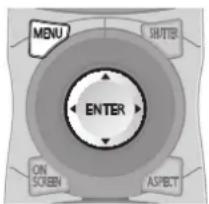
Registered signal status
- A name can be set for each sub memory (→ page 120).
● Memory number: A1 (1-2) ↑ Sub memory number
When the address number (A1, A2, ... H7, H8) is registered
Registering a signal to the list
After a new signal is input and the
- Up to 96 signals, including sub memories, can be registered to the projector.
- There are 12 pages (eight memories of A through L, with eight memories possible on each page) for memory numbers, and it is registered to the lowest number that is available. If there is no available memory number it will be overwritten from the oldest signal.
- The names to be registered are automatically determined by the input signals and memory numbers.
- If a menu is being displayed, the new signals will be registered at the instant they are input.
Renaming the registered data
1) Press ▲▼◀▶ to select the signal for which details are to be displayed.
2) Press the
● The [REGISTERED SIGNAL STATUS] screen is displayed.
- The name, memory number, input terminal, frequency, synchronization signal, etc., of the input signal are displayed.
- Press the
- When [LOCK] is set to [ON], signal delete, image adjustment and auto setup are not available. To perform these operations, set [LOCK] to [OFF].
● A signal can be registered to sub memory even if it is protected. - Even a protected signal will be deleted if [INITIALIZE] is executed.
Expanding signal lock-in range
1) Press ▲▼◀▶ to select the signal to set.
2) Press the
● The [REGISTERED SIGNAL STATUS] screen is displayed.
3) Press the
- The [REGISTERED SIGNAL SETUP] screen is displayed.
4) Press ▲▼ to select [LOCK-IN RANGE].
5) Press ◀▶ to switch [LOCK-IN RANGE].
● The setting will change as follows each time you press the button.

| [NARROW] | Select in most cases. |
| [WIDE] | Widens the lock-in range. |
Note
- Switch the range that determines that a signal to be input is the same signal that is already registered.
- To prioritize the determination that it is the same signal that is already registered, set to the [WIDE] setting.
- Use in cases such as when the synchronizing frequency of a signal to be input has changed slightly, or multiple signal lists are registered.
- Can only be used when a signal is input from the
terminal, terminal, terminal, or terminal. - When [WIDE] is set, the image may appear distorted because a signal is determined to be the same signal even if a synchronizing frequency changes slightly.
- When a signal to be input corresponds to the signal set in [WIDE], a registered signal with a high memory number receives priority. Example: a signal to be input that corresponds to memory numbers A2, A4 and B1 will be determined to be B1.
- When a registration signal is deleted, the settings are also deleted.
- In an environment where multiple types of signals are input to the same terminal, signals are sometimes not determined correctly when settings are set to [WIDE].
Managing the sub memory list
The projector has a sub memory function that can register the multiple image adjustment data, even if it is recognized as the same signal by the frequency or format of the synchronization signal source. Use this function when you need to adjust the picture quality such as switching of the aspect ratio or white balance by the same synchronization signal source. The sub memory includes all the data that can be adjusted for each signal, such as the screen aspect ratio and data adjusted in the [PICTURE] item ([CONTRAST], [BRIGHTNESS], etc.).
register the current settings to the list
1) Press ◀▶ on the normal screen (when the menu is not displayed).
- The sub memory registration screen is displayed if the sub memory is not registered. Proceed to Step 3).
- A list of sub memories registered to the signal currently input is displayed.
- By selecting [SUB MEMORY] in the [PROJECTOR SETUP] menu → [FUNCTION BUTTON], the
button can be used instead of ◀▶.
2) Press ▲▼◀▶ to select the sub memory number to register in [SUB MEMORY LIST].
3) Press the
● The [RENAME] screen is displayed.
- To rename the registered data, follow the procedure in Steps 4) and 5) in “Renaming the registered data” (→ page 118).
switch to the sub memory list
1) Press ◀▶ on the normal screen (when the menu is not displayed).
● A list of sub memories registered to the signal currently input is displayed.
2) Press ▲▼◀▶ to select the signal to switch in [SUB MEMORY LIST].
● This switches to the signal selected in Step 2).
delete the sub memory data
1) Press ◀▶ on the normal screen (when the menu is not displayed).
● [SUB MEMORY LIST] screen is displayed.
2) Use the ▲▼◀▶ buttons to select the item to delete, and press the
● [ENTRY SIGNAL DELETE] screen is displayed.
- To cancel the deletion, press the
- When you select the [SECURITY] from the main menu and press the
button, entering a password is required. Enter the set password and then continue operations of the [SECURITY] menu. - When the password has been changed previously, enter the changed password, and press the
button.
Note
- The entered password is displayed with * mark on the screen.
[SECURITY PASSWORD]
The [SECURITY PASSWORD] screen is displayed when the power is turned on. When the entered password is incorrect, the operation will be restricted to the power standby <↓> button, the
1) Press ▲▼ to select [SECURITY PASSWORD].
2) Press ◀▶ to switch [SECURITY PASSWORD].
● The setting will change as follows each time you press the button.
[OFF] [ON]
![PANASONIC PT-DW17KEJ - [SECURITY PASSWORD] - 1](/content/2026/05/1137714/images/1963c267cb914bdb9b47d6d775571639c905ad7c1031dbec939ff8e830a74706.jpg)
| [OFF] | Disables the security password entry. |
| [ON] Enables the security password entry. | |
Note
● The [SECURITY PASSWORD] setting is set to [OFF] at the time of purchase or when all the user data has been initialized.
- Change the password periodically that is hard to guess.
- The security password will be enabled after setting [SECURITY PASSWORD] to [ON] and turning the
[SECURITY PASSWORD CHANGE]
Change the security password.
1) Press ▲▼ to select [SECURITY PASSWORD CHANGE].
2) Press the
● The [SECURITY PASSWORD CHANGE] screen is displayed.
3) Press ▲▼◀▶ and the number (<0> to <9>) buttons to set the password.
- Up to eight button operations can be set.
4) Press the
5) Re-enter the password for the confirmation.
6) Press the
Note
- The entered password is displayed with * mark on the screen.
- An error message is displayed on the screen when the entered password is incorrect. Re-enter the correct password.
[DISPLAY SETTING]
Overlap the security message (text or image) over the projecting image.
1) Press ▲▼ to select [DISPLAY SETTING].
2) Press ◀▶ to switch [DISPLAY SETTING].
- The setting will change as follows each time you press the button.
![PANASONIC PT-DW17KEJ - [DISPLAY SETTING] - 1](/content/2026/05/1137714/images/df94ea005da9844b703f3b3d6c7c485d17b1e1505bc1c689157fa124ea45f5dc.jpg)
flowchart
graph TD
    A["[OFF"] [TEXT]] --> B[" "]
    B <--> C["[USER LOGO"]]
    D["[OFF"] The text display is disabled.] --> E["[TEXT"] The text display is enabled.]
    F["[USER LOGO"]] --> G["The picture registered by the user is projected."]
Note
- To create the image for [USER LOGO], "Logo Transfer Software" included in the supplied CD-ROM is required.
[TEXT CHANGE]
Change the text displayed when the text display is enabled by selecting [TEXT] in [DISPLAY SETTING].
1) Press ▲▼ to select [TEXT CHANGE].
2) Press the
● The [TEXT CHANGE] screen is displayed.
3) Press ▲▼◀▶ to select the text, and press the
4) Press ▲▼◀▶ to select [OK], and press the
● The text is changed.
[CONTROL DEVICE SETUP]
Enable/disable the button operations on the control panel and the remote control.
1) Press ▲▼ to select [CONTROL DEVICE SETUP].
2) Press the
● The [CONTROL DEVICE SETUP] screen is displayed.
3) Press ▲▼ to select an item.
set [CONTROL PANEL]
- You can set the limitation on the control from the control panel.
4) Select [CONTROL PANEL] in Step 3).
5) Press the
● The [CONTROL PANEL] screen is displayed.
6) Press ◀▶ to switch [CONTROL PANEL].
● The setting will change as follows each time you press the button.
![PANASONIC PT-DW17KEJ - set [CONTROL PANEL] - 1](/content/2026/05/1137714/images/d5adf6d6dff7237bc0e6684cacf3ed8a70ca1a8c68e6c77644bba3103df6c2cf.jpg)
flowchart
graph LR
    A["[ENABLE"] [DISABLE] [USER]] <--> B[" "]
    A <--> C[" "]
| [ENABLE] | Enables all button operations from the projector body. |
| [DISABLE] | Disables all button operations from the projector body. |
| [USER] | Operation of all buttons on the projector body can be enabled/disabled separately. |
7) Press ▲▼ to select [APPLY], and press the
● The confirmation screen is displayed.
8) Press ◀▶ to select [OK], and press the
● Enabling/disabling any projector body button
7) Select [USER] in Step 6).
- Setting items can be selected for the buttons on the projector body.
8) Press ▲▼ to select [POWER BUTTON], [INPUT SELECT BUTTON], [MENU BUTTON], [LENS BUTTON], [AUTO SETUP BUTTON], [SHUTTER BUTTON], or [OTHER BUTTON].
- Use the following items to enable/disable buttons on the projector body.
| [POWER BUTTON] | Power standbybutton and power on > button |
| [INPUT SELECT BUTTON] | button,button,button,button, andbutton |
| [MENU BUTTON] | button |
| [LENS BUTTON] | button |
| [AUTO SETUP BUTTON] | button |
| [SHUTTER BUTTON] | button |
| [OTHER BUTTON] | ▲▼◄► buttons,button |
9) Press ◀▶ to switch between enable/disable.
● The setting will change as follows each time you press the button.
[ENABLE] [DISABLE]
[ENABLE] Enables button operations.
[DISABLE] Disables button operations.
10) Press ▲▼ to select [APPLY], and press the
● The confirmation screen is displayed.
11) Press ◀▶ to select [OK], and press the
set [REMOTE CONTROL]
- You can set the limitation on the control from the remote control.
4) Select [REMOTE CONTROL] in Step 3).
● The [REMOTE CONTROL] screen is displayed.
6) Press ◀▶ to switch [REMOTE CONTROL].
- The setting will change as follows each time you press the button.
[ENABLE] [DISABLE] [USER]
![PANASONIC PT-DW17KEJ - set [REMOTE CONTROL] - 1](/content/2026/05/1137714/images/f32c0f30d0096ea6662740d26c0f10883acab2efc9567d1450bbf3df271e9d91.jpg)
| [ENABLE] | Enables all button operations from the remote control. |
| [DISABLE] | Disables all button operations from the remote control. |
| [USER] | Operation of all buttons on the remote control can be enabled/disabled separately. |
7) Press ▲▼ to select [APPLY], and press the
● The confirmation screen is displayed.
8) Press ◀▶ to select [OK], and press the
● Enabling/disabling any remote control button
7) Select [USER] in Step 6).
- Setting items can be selected for the buttons on the remote control.
8) Press ▲▼ to select [POWER BUTTON], [INPUT SELECT BUTTON], [MENU BUTTON], [LENS BUTTON], [AUTO SETUP BUTTON], [SHUTTER BUTTON], [ASPECT BUTTON], [ON SCREEN BUTTON], or [OTHER BUTTON].
- Use the following items to enable/disable buttons on the remote control.
| [POWER BUTTON] | Power standby <↓> button and power on < | > button |
| [INPUT SELECT BUTTON] | button,button,button,button,button, andbutton |
| [MENU BUTTON] | button |
| [LENS BUTTON] | button,button,button |
| [AUTO SETUP BUTTON] | button |
| [SHUTTER BUTTON] | button |
| [ASPECT BUTTON] | button |
| [ON SCREEN BUTTON] | button |
| [OTHER BUTTON] | Buttons not listed above |
[SECURITY] menu
9) Press ◀▶ to switch between enable/disable.
- The setting will change as follows each time you press the button.
[ENABLE] [DISABLE]
[ENABLE] Enables button operations.
[DISABLE] Disables button operations.
10) Press ▲▼ to select [APPLY], and press the
● The confirmation screen is displayed.
11) Press ◀▶ to select [OK], and press the
Note
- When a button operation is performed on the device set to [DISABLE], the [CONTROL DEVICE PASSWORD] screen is displayed.
Enter the control device password.
● The [CONTROL DEVICE PASSWORD] screen will disappear when there is no operation for approximately ten seconds. - It will not be possible to turn off the power (standby status) if the operations of both of [CONTROL PANEL] and [REMOTE CONTROL] are set to [DISABLE].
- When the setting has completed, the menu screen will disappear. To operate continuously, press the
- Even when button operation on the remote control is disabled, the
button and the button are enabled.
[CONTROL DEVICE PASSWORD CHANGE]
The control device password can be changed.
1) Press ▲▼ to select [CONTROL DEVICE PASSWORD CHANGE].
2) Press the
● The [CONTROL DEVICE PASSWORD CHANGE] screen is displayed.
3) Press ▲▼◀▶ to select the text, and press the
4) Press ▲▼◀▶ to select [OK], and press the
● To cancel, select [CANCEL].
Attention
- The initial password when used for the first time or after initializing all the user data is "AAAA".
- Change the password periodically that is hard to guess.
[NETWORK] menu
Select [NETWORK] from the main menu, and select the item from the sub-menu.
Refer to "Navigating through the menu"
(→ page 61) for the operation of the menu screen.
● After selecting the item, press ▲▼◀▶ to set.
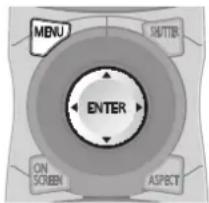
[NETWORK SETUP]
Perform the initial setting of the network before using the network function.
1) Press ▲▼ to select [NETWORK SETUP].
2) Press the
● The [NETWORK SETUP] screen is displayed.
3) Press ▲▼ to select an item, and change the settings according to the operation instructions of the menu.
| [PROJECTOR NAME] | Change the setting when using a DHCP server. |
| [DHCP] | Set the item to [ON] when using a DHCP server to automatically acquire the IP address. Set to [OFF] when not using a DHCP server. |
| [IP ADDRESS] | Enter the IP address when not using a DHCP server. |
| [SUBNET MASK] | Enter the subnet mask when not using a DHCP server. |
| [DEFAULT GATEWAY] | Enter the default gateway address when not using a DHCP server. |
| [STORE] Save the current network settings. | |
4) Press ▲▼ to select [STORE], and press the
5) When the confirmation is displayed, select [OK] or [CANCEL], and press the
Note
- When using a DHCP server, confirm that the DHCP server is running.
- Consult your network administrator regarding the IP address, subnet mask, and default gateway.
[NETWORK CONTROL]
Set up the control method of the network.
1) Press ▲▼ to select [NETWORK CONTROL].
2) Press the
● The [NETWORK CONTROL] screen is displayed.
3) Press ▲▼ to select an item, and press
◀▶ to change the setting.
| [WEBCONTROL] | Set to [ON] to control with the Web browser. |
| [PJLinkCONTROL] | Set to [ON] to control with the PJLink protocol. |
| [COMMANDCONTROL] | Set to [ON] to control with the/terminal control command format (⇨ page 163).Refer to “Control commands via LAN” (⇨ page 157). |
| [COMMANDPORT] | Set the port number used for command control. |
| [STORE] | Save the current network control settings. |
[NETWORK STATUS]
Displays the status of the projector network.
1) Press ▲▼ to select [NETWORK STATUS].
2) Press the
● The [NETWORK STATUS] screen is displayed.
[NETWORK] menu
Network connections
The projector has a network function, and the following operations are available from the computer using the Web control.
● Setting and adjustment of the projector
● Display of the projector status
● Setting of E-mail notification
Note
● A LAN cable is required to use the network function.
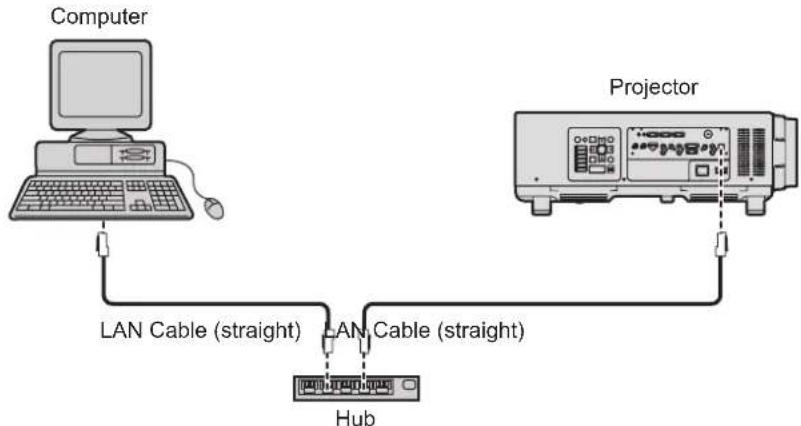
flowchart
graph TD
    A["Computer"] -->|LAN Cable (straight)| B["Hub"]
    B -->|LAN Cable (straight)| C["Projector"]
- A Web browser is required to use this function. Confirm that the Web browser can be used beforehand. Compatible OS: Windows XP/Windows Vista/Windows 7, Mac OS X v10.4/v10.5/v10.6/v10.7 Compatible browser: Internet Explorer 7.0/8.0/9.0, Safari 4.0/5.0 (Mac OS)
- Communication with an E-mail server is required to use the E-mail function. Confirm that the E-mail can be used beforehand.
- Use a LAN cable that is straight-through and compatible with category 5 or higher.
● Use a LAN cable of 100 m (328'1") or shorter length.
Name and function of network function parts
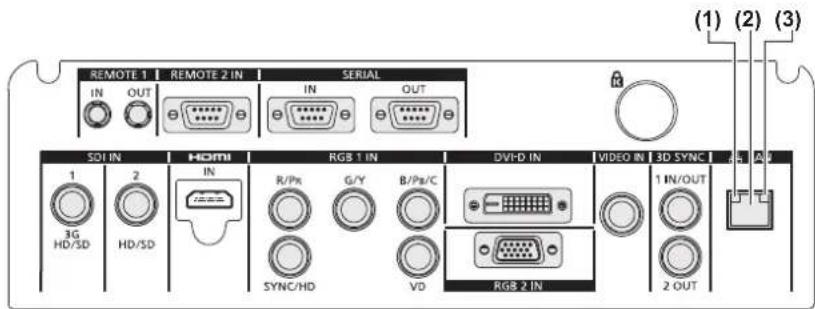
(1) LAN10/100 lamp (yellow)
Lights on when connected to the 100BASE-TX.
(2)
Used to connect the LAN cable here.
(3) LAN LINK/ACT lamp (green)
Lights on when connected.
Flashes when transmitting/receiving data.
Attention
- When a LAN cable is directly connected to the projector, the network connection must be made indoors.
Accessing from the Web browser
1) Start up the Web browser on the computer.
2) Enter the IP address set on the projector into the URL entry field of the Web browser.
3) Enter the user name and the password.
- The factory default setting of the user name is user1 (user rights)/admin1 (administrator rights) and the password is panasonic (lower case).
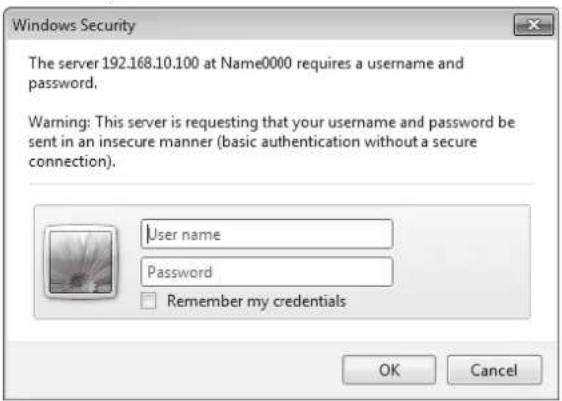
4) Click OK.
● The [Projector status] page is displayed.
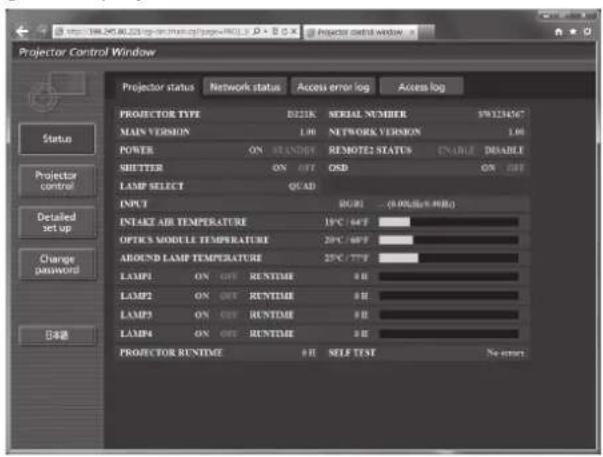
Note
- If you use a Web browser to control the projector, set [WEB CONTROL] to [ON] in [NETWORK CONTROL] (→ page 125).
- Do not perform setting or control simultaneously by starting up multiple Web browsers. Do not set or control the projector from multiple computers.
- Change the password first.(→ page 140)
- The administrator rights allows to use all functions. The user rights allow use of [Projector status] (→ page 128), confirmation of the error information page (page 129), [Network status] (→ page 130), [Basic control] (→ page 132), and [Change password] (→ page 140) only.
- Access will be locked for few minutes when an incorrect password is entered three times consecutively.
Descriptions of items
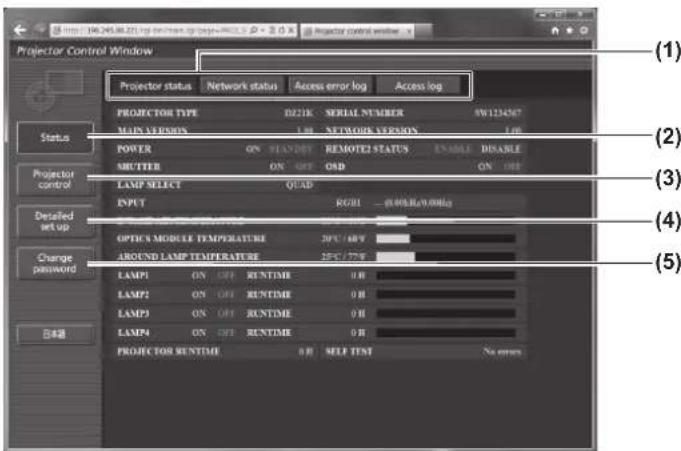
(1) Page tab
Switches pages by clicking it.
(2) [Status]
The status of the projector is displayed by clicking this item.
(3) [Projector control]
The [Projector control] page is displayed by clicking this item.
(4) [Detailed set up]
The [Detailed set up] page is displayed by clicking this item.
(5) [Change password]
The [Change password] page is displayed by clicking this item.
[Projector status] page
Click [Status] → [Projector status].
Displays the status of the projector for the following items.
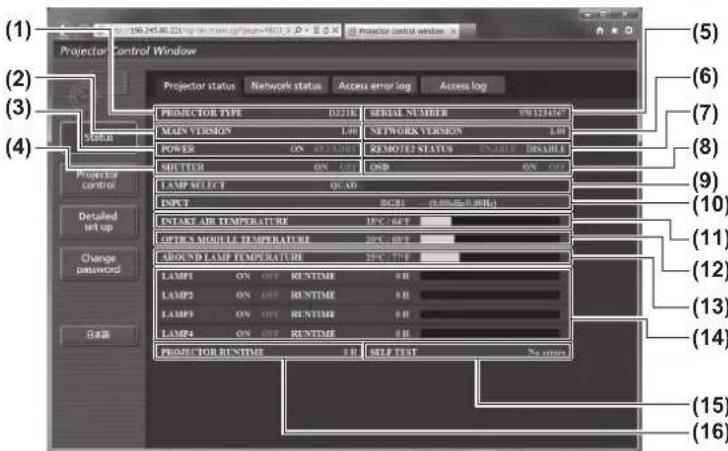
(1) [PROJECTOR TYPE]
Displays the type of the projector.
(2) [MAIN VERSION]
Displays the firmware version of the projector.
(3) [POWER]
Displays the status of the power.
(4) [SHUTTER]
Displays the status of the projector.
(5) [SERIAL NUMBER]
Displays the serial number of the projector.
(6) [NETWORK VERSION]
Displays the version of the firmware of the network.
(7) [REMOTE2 STATUS]
Displays the control status of the
(8) [OSD]
Displays the status of the on-screen display.
(9) [LAMP SELECT]
Displays the setting status of [LAMP SELECT] (→ page 100).
(10) [INPUT]
Displays the status of the input selection.
(11) [INTAKE AIR TEMPERATURE]
Displays the status of the air intake temperature of the projector.
(12) [OPTICS MODULE TEMPERATURE]
Displays the status of the internal temperature of the projector.
(13) [AROUND LAMP TEMPERATURE]
Displays the status of the temperature around the lamp of the projector.
(14) [LAMP1][LAMP2][LAMP3][LAMP4][RUNTIME]
Displays the status and the usage time of the lamp.
(15) [SELF TEST]
Displays the self-diagnosis information.
(16) [PROJECTOR RUNTIME]
Displays the operation times of the projector.
Error information page
When [Error (Detail)] or [Warning (Detail)] is displayed in the self-diagnosis display of the [Projector status] screen, click it to display the error/warning details.
- The projector may go into the standby status to protect the projector depending on the contents of the error.
![Projector Control Window Projector status Network status Access error log Access log PROJECTOR TYPE D221K SERIAL NUMBER 97123464T MAIN VERSION 1.00 NETWORK VERSION 1.00 POWER ON STANDARD REMOTE STATUS ENABLE DISABLE SHUTTER ON OFF OSB ON OFF LAMP SELECT QCAD INPUT RGBI ... (0.00dBx0.00Hz) INTAKE AIR TEMPERATURE 19°C /45°F OPTICS MODULE TEMPERATURE 29°C /49°F AROUND LAMP TEMPERATURE 25°C /77°F LAMP1 ON OFF RUNTIME 9 H LAMP2 ON OFF RUNTIME 8 H LAMP3 ON OFF RUNTIME 9 H LAMP4 ON OFF RUNTIME 8 H PROJECTOR RUNTIME 9 H SELF TEST Projector Control Window Projector status Network status Access error log Access log ---- Paramount projector clock system -- ---- clock status -- ---- MAIN CPU BIOS [OK] FAN [OK] INTAKE AIR TEMPERATURE [OK] OPTICS MODULE TEMPERATURE [OK] AROUND LAMP TEMPERATURE [OK] LAMP1 REMAIN TIME [OK] LAMP2 REMAIN TIME [OK] LAMP3 REMAIN TIME [OK] LAMP4 REMAIN TIME [OK] LAMP1 STATUS [OK] LAMP2 STATUS [OK] LAMP3 STATUS [OK] LAMP4 STATUS [OK] APRIT(R/CONTRANT GRITTER) [OK] SHUTTERMUTE GRITTER [OK] INTAKE AIR TEMP SENSOR [OK] OPTICS MODULE TEMP SENSOR [OK] AROUND LAMP TEMP SENSOR [OK] BATTERY [OK] LENS MOINDER [OK]](/content/2026/05/1137714/images/407411cf860d57a29abd58d0ef6208ff49278ddaea20e726b9005c2aa631c1df.jpg)
- [OK]: Normal operation
[FAILED]: Occurrence of trouble
●Description of problem occurrence [FAILED]:
| Parameter Description | |
| [MAIN CPU BUS] | There is a problem with the microcomputer circuitry. Consult your dealer. |
| [FAN] | There is a problem with the fan or the fan drive circuit. Consult your dealer. |
| [INTAKE AIR TEMPERATURE] | The air intake temperature is too high. It may be used in an operating environment where the temperature is high, such as near a heating appliance. |
| [OPTICS MODULE TEMPERATURE] | The temperature inside the projector is high. It may be used in an operating environment where the temperature is high, such as near a heating appliance. |
| [AROUND LAMP TEMPERATURE] | The temperature around the lamp is high. The air exhaust port may be blocked. |
| [LAMP1 REMAIN TIME] | The usage time of the lamp has exceeded the specified time, and it is time to replace the lamp. |
| [LAMP2 REMAIN TIME] | |
| [LAMP3 REMAIN TIME] | |
| [LAMP4 REMAIN TIME] | |
| [LAMP1 STATUS] | The lamp has failed to turn on. Wait a while until the luminous lamp cools off, and then turn on the power. |
| [LAMP2 STATUS] | |
| [LAMP3 STATUS] | |
| [LAMP4 STATUS] | |
| [APERTURE(CONTRAST-SHUTTER)] | There is a problem in the contrast shutter circuit for dynamic iris. Consult your dealer. |
| [SHUTTER(MUTE-SHUTTER)] There is a | problem with the shutter circuitry. Consult your dealer. |
| [INTAKE AIR TEMP.SENSOR] | There is a problem with the sensor used to detect intake air temperature. Consult your dealer. |
| [OPTICS MODULE TEMP.SENSOR] | There is a problem with the sensor used to detect temperature inside the projector. Consult your dealer. |
[NETWORK] menu
| Parameter Description | |
| [AROUND LAMP TEMP. SENSOR] | There is a problem with the sensor used to detect exhaust air temperature. Consult your dealer. |
| [BATTERY] The battery replacement is required. Consult your dealer. | |
| [LENS MOUNTER] There is a problem in the lens mounter. Consult your dealer. | |
| [BRIGHTNESS SENSOR] | There is a problem with the luminance sensor. If the problem is not corrected by turning off the power and turning it on again, consult your dealer. |
| [ANGLE SENSOR] | There is a problem with the sensor that detects angle. Consult your dealer. |
| [FILTER UNIT] | The air filter unit is not attached. Check the connection of the air filter unit. (→ page 146) |
| [AIR FILTER] | There are too much dust accumulated in the air filter unit. Turn off theswitch to(→ page 51), and clean the air filter (→ page 144). |
| [AC POWER] | AC input voltage is weak. Use electric wiring that can sufficiently withstand the power consumption of the projector. |
[Network status] page
Click [Status] → [Network status].
The current network setting status is displayed.
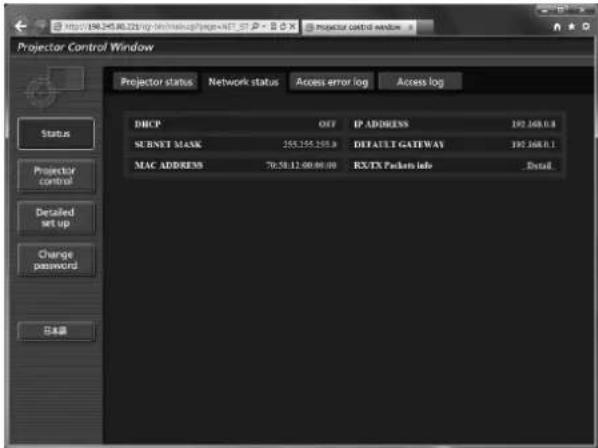
[■ccess error log] page
Click [Status] → [Access error log].
The error log on the WEB server is displayed such as access to the pages that do not exist or access with unauthorized user names or passwords.
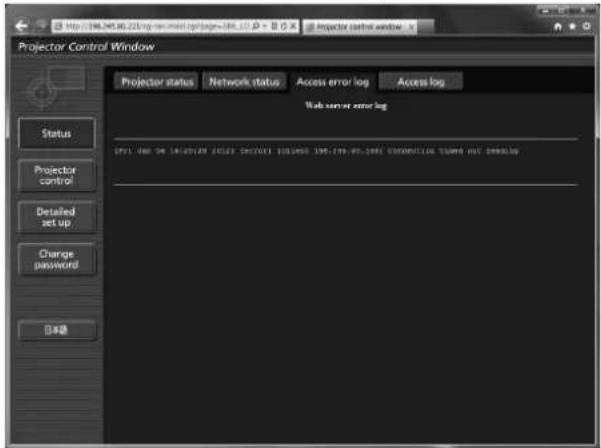
[access log] page
Click [Status] → [Access log].
The log such as user name accessed to the WEB control page, accessed IP address, accessed time is displayed.
![Projector Control Window Projector status Network status Access error log Access log Status 184 249.00.100 - [16]//www/2012/15:21:57 <0001" *NET http://knot/index.cgi HTTP/1.3" 400_718 185 249.00.100 - [16]//www/2012/15:21:56 <0001" *NET http://knot/index.cgi HTTP/1.3" 400_718 186 249.00.100 - wamai1 106/Tw/2012/15:21:57 <0001" *NET http://knot/index.cgi HTTP/1.3" 400_718 187 249.00.100 - wamai1 106/Tw/2012/15:21:58 <0001" *NET http://knot/index.cgi HTTP/1.3" 400_718 188 249.00.100 - wamai1 106/Tw/2012/15:21:59 <0001" *NET http://knot/index.cgi HTTP/1.3" 400_718 189 249.00.100 - wamai1 106/Tw/2012/15:22:59 <0001" *NET http://knot/index.cgi HTTP/1.3" 400_718 190 249.00.100 - wamai1 106/Tw/2012/15:23:59 <0001" *NET http://knot/index.cgi HTTP/1.3" 400_718 191 249.00.100 - wamai1 106/Tw/2012/15:24:59 <0001" *NET http://knot/index.cgi HTTP/1.3" 400_718 192 249.00.100 - wamai1 106/Tw/2012/15:25:59 <0001" *NET http://knot/index.cgi HTTP/1.3" 400_718 193 249.00.100 - wamai1 106/Tw/2012/15:26:59 <0001" *NET http://knot/index.cgi HTTP/1.3" 400_718 194 249.00.100 - wamai1 106/Tw/2012/15:27:59 <0001" *NET http://knot/index.cgi HTTP/1.3" 400_718 195 249.00.100 - wamai1 106/Tw/2012/15:28:59 <0001" *NET http://knot/index.cgi HTTP/1.3" 400_718 196 249.00.100 - wamai1 106/Tw/2012/15:29:59 <0001" *NET http://knot/index.cgi HTTP/1.3" 400_718 197 249.00.100 - wamai1 106/Tw/2012/15:30:59 <0001" *NET http://knot/index.cgi HTTP/1.3" 400_718 198 249.00.100 - wamai1 106/Tw/2012/15:31:59 <0001" *NET http://knot/index.cgi HTTP/1.3" 400_718 199 249.00.100 - wamai1 106/Tw/2012/15:32:59 <0001" *NET http://knot/index.cgi HTTP/1.3" 400_718 200 249.00.100 - wamai1 106/Tw/2012/15:33:59 <0001" *NET http://knot/index.cgi HTTP/1.3" 400_718 201 249.00.100 - wamai1 106/Tw/2012/15:34:59 <0001" *NET http://knot/index.cgi HTTP/1.3" 400_718 Change password [ ] 注:表](/content/2026/05/1137714/images/0decbb9fe8efe4d51d9ca028a12ae8f835eab7584ecdd64b82bf121e83c459be.jpg)
Note
- [Access error log]/[Access log] will display the recent few thousand accesses/requests. May be unable to display all information when many accesses/requests are made at one time.
- When [Access error log]/[Access log] exceeds a certain amount, old information will be erased.
- Confirm [Access error log]/[Access log] periodically.
[■asic control] page
Click [Projector control] → [Basic control].
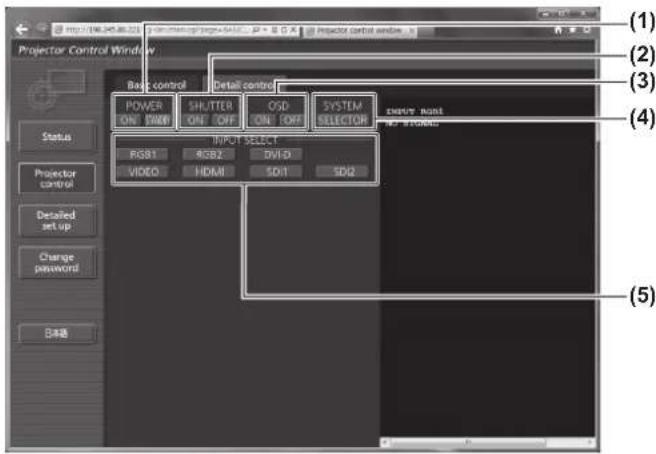
[ ]etail control] page
Click [Projector control] → [Detail control].
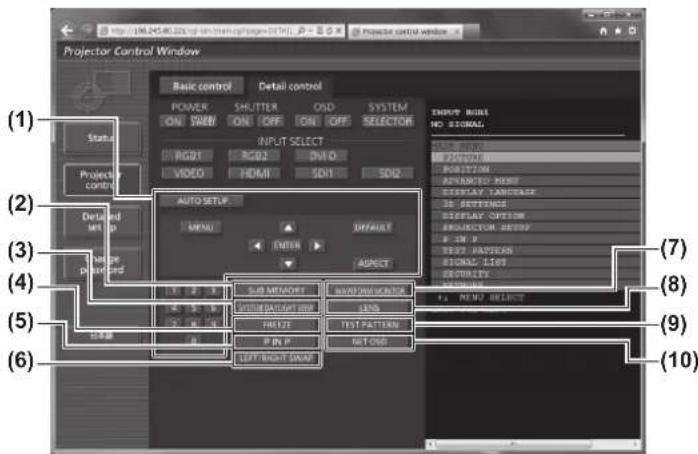
(1) [POWER]
Switches the power on/off.
(2) [SHUTTER]
Switches between use or not use of the shutter function.
(3) [OSD]
Switches between on (display)/off (no display) of the on-screen display function.
(4) [SYSTEM]
Switches the system method.
(5) [INPUT SELECT]
Switches the input signal.
(1) Control of the projector
The projector is controlled by clicking the buttons in the same way as the buttons on the remote control.
(2) [SUB MEMORY]
Switches the sub memory.
(3) [SYSTEM DAYLIGHT VIEW]
Switches to system daylight view settings.
(4) [FREEZE]
Temporarily pauses the image.
(5) [P IN P]
Switches the P IN P setting.
(6) [LEFT/RIGHT SWAP] (PT-DZ21KE and
PT-DS20KE only)
Switches the flip horizontal settings.
(7) [WAVEFORM MONITOR]
Displays the waveform of the input signal.
(8) [LENS]
Adjusts the projection lens.
(9) [TEST PATTERN]
Displays the test pattern.
(10) [GET OSD]
Updates the on-screen display of the projector at the right of the control page.
[Network config] page
Click [Detailed set up] → [Network config].
- Click [Network config] to display the [CAUTION!] screen.
- Click [Next] to display the current settings.
- Click [Change] to display the following setting change screen.
![Projector Control Window E-mail set up Authentication set up Network config Adjust clock Ping test Status Projector control Detailed set up Change password 日本語 PROTECTOR NAME PROJECTOR IP DNS Back Next MICE ON SUEP OFF IP ADDRESS: 150 168.0.0 [Example: 192 168.0.100] SUBST MASK: 254.255.255.0 [Example: 255.255.255.0] DETAILY: 192 168.0.0 [Example: 192 168.0.251] DNS: [Example: 192 168.0.100] DNS: [Example: 192 168.0.100] (1) (2) (3) (4) (5) (6) (7) (8)](/content/2026/05/1137714/images/a0341bbde2e36d52dc622becbb93a4d23851153cbf24cdfd1e1a141e8552d972.jpg)
(1) [PROJECTOR NAME]
Enter the name of the projector. Also enter the host name if it is required when using a DHCP server, etc.
(2) [DHCP ON]/[DHCP OFF]
To enable the DHCP client function, set to [DHCP ON].
(3) [IP ADDRESS]
Enter the IP address when not using a DHCP server.
(4) [SUBNET MASK]
Enter the subnet mask when not using a DHCP server.
(5) [DEFAULT GATEWAY]
Enter the default gateway address when not using a DHCP server.
(6) [DNS1]
Enter the DNS 1 server address.
Permissible characters for the entry of DNS 1 server address (primary):
Numbers (0 to 9), period (.)
(Example: 192.168.0.253)
(7) [DNS2]
Enter the DNS 2 server address.
Permissible characters for the entry of DNS 2 server address (secondary):
Numbers (0 to 9), period (.)
(Example: 192.168.0.254)
(8) [Back]/[Next]
Click the [Back] button to return to the original screen. [Next]The current settings are displayed by pressing the button. Click the [Submit] button to update the settings.
Note
- When you use the "Forward" and "Back" functions of your browser, a warning message "Page has Expired" may appear. In that case, click [Network config] again since the following operation will not be guaranteed.
[Adjust clock] page
Click [Detailed set up] → [Adjust clock].
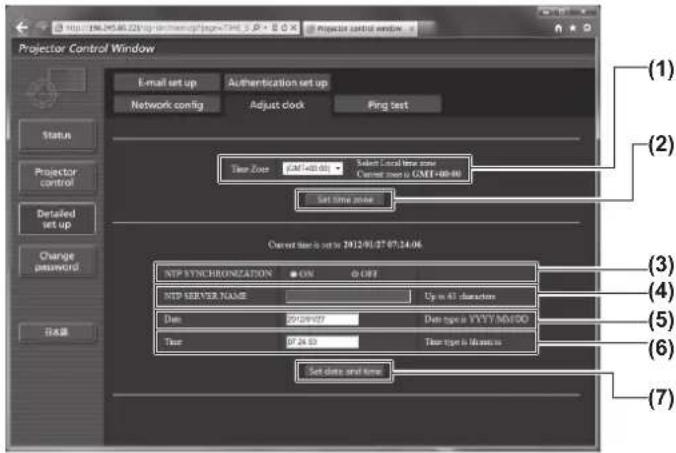
(1) [Time Zone]
Selects the time zone.
(2) [Set time zone]
Updates the time zone setting.
(3) [NTP SYNCHRONIZATION]
Set to [ON] to adjust the date and time automatically.
(4) [NTP SERVER NAME]
Enter the IP address or server name of the NTP server when you set to adjust the date and time manually. (To enter the server name, the setup of the DNS server is required.)
(5) [Date]
Enter the date to be changed.
(6) [Time]
Enter the time to be changed.
(7) [Set date and time]
Updates the date and time settings.
Note
- The replacement of the battery inside the projector is required when the time goes out of alignment right after correcting the time. Please consult your dealer.
[ng test] page
You can check whether the network is connected to the E-mail server, POP server, DNS server, etc. Click [Detailed set up] → [Ping test].
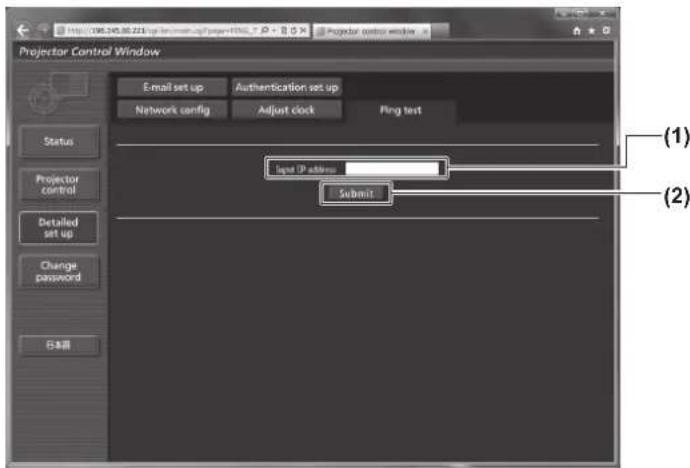
(1) [Input IP address]
Enter the IP address of the server to be tested.
(2) [Submit]
Executes the connection test.
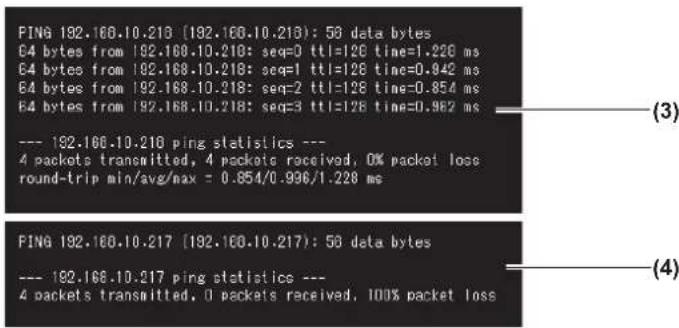
(3) Example of display when the connection has succeeded
(4) Example of display when the connection has failed
[■-mail set up] page
E-mail address set in advance for use when there is a problem or when the usage time of a lamp reaches a set value.
E-mail can be sent to (maximum two locations).
Click [Detailed set up] → [E-mail set up].
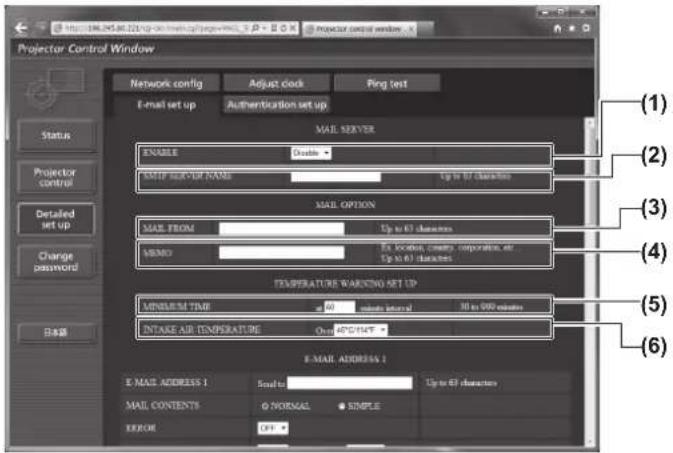
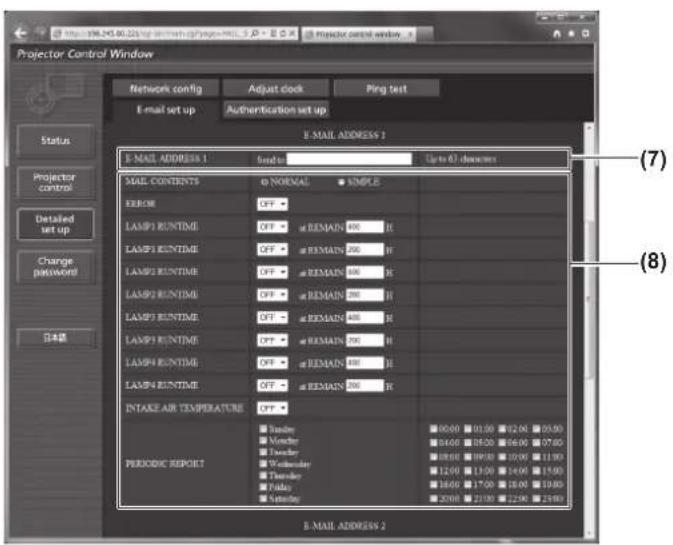
(1) [ENABLE]
Select [Enable] to use the E-mail function.
(2) [SMTP SERVER NAME]
Enter the IP address or the server name of the E-mail server (SMTP). To enter the server name, the DNS server settings are required.
(3) [MAIL FROM]
Enter the E-mail address of the projector. (Up to 63 characters in single byte)
(4) [MEMO]
You can enter information such as the location of the projector that notifies the sender of the E-mail. (Up to 63 characters in single byte)
(5) [MINIMUM TIME]
Change the minimum interval for the temperature warning mail. The default value is 60 minutes. In this case, another E-mail will not be sent for 60 minutes after sending the temperature warning mail even if it reaches the warning temperature.
(6) [INTAKE AIR TEMPERATURE]
Change the temperature setting for the temperature warning mail. A temperature warning mail is sent when the temperature exceeds this value.
(7) [E-MAIL ADDRESS 1]
Enter the E-mail address to be sent.
(8) Settings of the conditions to send E-mail Select the conditions to send E-mail.
[MAIL CONTENTS]:
Select either [NORMAL] or [SIMPLE].
[ERROR]:
An E-mail message is sent when an error occurred in the self-diagnosis.
[LAMP1 RUNTIME]:
An E-mail message is sent when the remaining lamp on time for the lamp 1 has reached the value set at the right field.
[LAMP2 RUNTIME]:
An E-mail message is sent when the remaining lamp on time for the lamp 2 has reached the value set at the right field.
[LAMP3 RUNTIME]:
An E-mail message is sent when the remaining lamp on time for the lamp 3 has reached the value set at the right field.
[LAMP4 RUNTIME]:
An E-mail message is sent when the remaining lamp on time for the lamp 4 has reached the value set at the right field.
[INTAKE AIR TEMPERATURE]:
An E-mail message is sent when the air intake temperature has reached the value set at the above field.
[PERIODIC REPORT]:
Place a check mark on this when E-mail is to be sent periodically.
It will be sent on the days and time with the check mark.
Note
- Set each item of [LAMP1 RUNTIME] to [LAMP4 RUNTIME] to 500 hours or less when using the optional accessory replacement lamp unit (for portrait mode) (Model No.: ET-LAD510P (1 pc), ET-LAD510PF (4 pcs)).
[■-mail set up] page (continued)
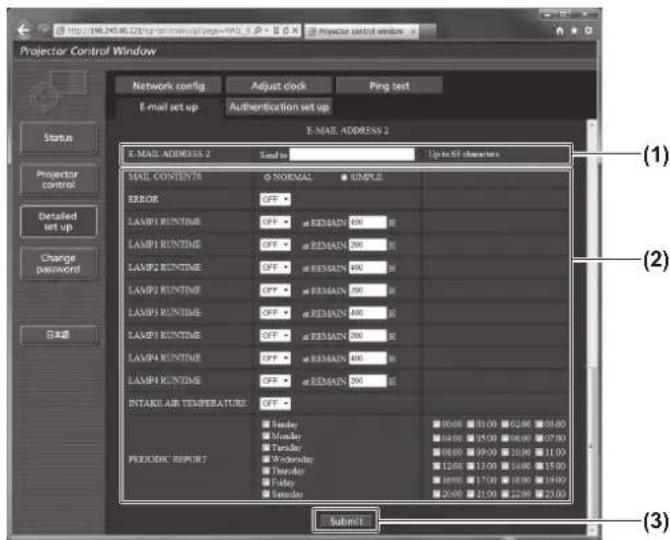
(1) [E-MAIL ADDRESS 2]
Enter the E-mail address to be sent when two E-mail addresses are to be used. Leave it blank when two E-mail addresses are not to be used.
(2) Settings of the conditions to send E-mail
Select the conditions to send E-mail to the second E-mail address.
[MAIL CONTENTS]: Select either [NORMAL] or [SIMPLE].
[ERROR]: An E-mail message is sent when an error occurred in the self-diagnosis.
[LAMP1 RUNTIME]: An E-mail message is sent when the remaining lamp on time for the lamp 1 has reached the value set at the right field.
[LAMP2 RUNTIME]: An E-mail message is sent when the remaining lamp on time for the lamp 2 has reached the value set at the right field.
[LAMP3 RUNTIME]: An E-mail message is sent when the remaining lamp on time for the lamp 3 has reached the value set at the right field.
[LAMP4 RUNTIME]: An E-mail message is sent when the remaining lamp on time for the lamp 4 has reached the value set at the right field.
[INTAKE AIR TEMPERATURE]: An E-mail message is sent when the air intake temperature has reached the value set at the above field.
[PERIODIC REPORT]: Place a check mark on this when E-mail is to be sent periodically. It will be sent on the days and time with the check mark.
(3) [Submit]
Update the settings.
Note
- Set each item of [LAMP1 RUNTIME] to [LAMP4 RUNTIME] to 500 hours or less when using the optional accessory replacement lamp unit (for portrait mode) (Model No.: ET-LAD510P (1 pc), ET-LAD510PF (4 pcs)).
[Authentication set up] page
You can set the authentication items when POP authentication or SMTP authentication is necessary to send an E-mail message.
Click [Detailed set up] → [Authentication set up].
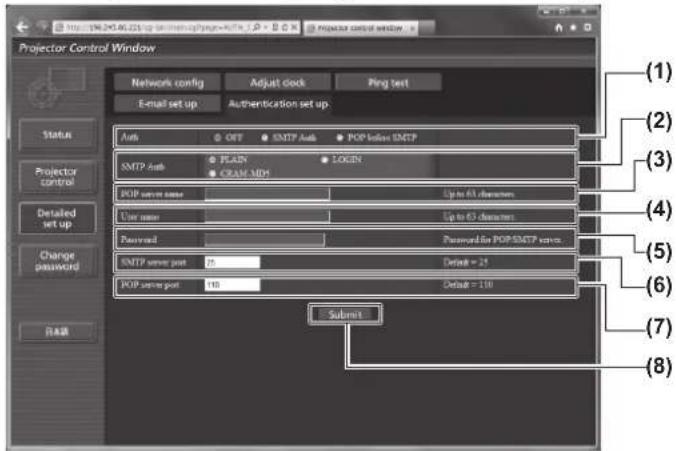
(1) [Auth]
Select the authentication method specified by your Internet service provider.
(2) [SMTP Auth]
Set when the SMTP authentication is selected.
(3) [POP server name]
Enter the POP server name. (Up to 63 characters in single byte)
Allowed characters:
Alphanumerics (A to Z, a to z, 0 to 9)
Minus sign (-) and period (.)
(4) [User name]
Enter the user name for the POP server or the SMTP server. (Up to 63 characters in single byte)
(5) [Password] Enter the password for the POP server or the SMTP server. (Up to 63 characters in single byte)
(6) [SMTP server port]
Enter the port number of the SMTP server.
(Normally 25)
(7) [POP server port]
Enter the port number of the POP server.
(Normally 110)
(8) [Submit] Update the settings.
Contents of mail sent
●Example of E-mail sent when E-mail is set
The following E-mail is sent when the E-mail settings have been established.
| === Panasonic projector report(CONFIGURE) === | |
| Projector Type : DZ21K | |
| Serial No : SW1234567 | |
| ---- E-mail setup data ---- | |
| TEMPERATURE WARNING SETUP | |
| MINIMUM TIME at [ 60] minutes interval | |
| INTAKE AIR TEMPERATURE Over [ 45C / 113F ] | |
| ERROR [ OFF ] | |
| LAMP1 RUNTIME [ OFF ] at REMAIN [ 400] H | |
| LAMP1 RUNTIME [ OFF ] at REMAIN [ 200] H | |
| LAMP2 RUNTIME [ OFF ] at REMAIN [ 400] H | |
| LAMP2 RUNTIME [ OFF ] at REMAIN [ 200] H | |
| LAMP3 RUNTIME [ OFF ] at REMAIN [ 400] H | |
| LAMP3 RUNTIME [ OFF ] at REMAIN [ 200] H | |
| LAMP4 RUNTIME [ OFF ] at REMAIN [ 400] H | |
| LAMP4 RUNTIME [ OFF ] at REMAIN [ 200] H | |
| INTAKE AIR TEMPERATURE [ OFF ] | |
| PERIODIC REPORT | |
| Sunday [ OFF ] Monday [ OFF ] Tuesday [ OFF ] Wednesday [ OFF ] | |
| Thursday [ OFF ] Friday [ OFF ] Saturday [ OFF ] | |
| 00:00 [ OFF ] 01:00 [ OFF ] 02:00 [ OFF ] 03:00 [ OFF ] | |
| 04:00 [ OFF ] 05:00 [ OFF ] 06:00 [ OFF ] 07:00 [ OFF ] | |
| 08:00 [ OFF ] 09:00 [ OFF ] 10:00 [ OFF ] 11:00 [ OFF ] | |
| 12:00 [ OFF ] 13:00 [ OFF ] 14:00 [ OFF ] 15:00 [ OFF ] | |
| 16:00 [ OFF ] 17:00 [ OFF ] 18:00 [ OFF ] 19:00 [ OFF ] | |
| 20:00 [ OFF ] 21:00 [ OFF ] 22:00 [ OFF ] 23:00 [ OFF ] | |
| ---- check system ---- | |
| MAIN CPU BUS [ OK ] | |
| FAN [ OK ] | |
| INTAKE AIR TEMPERATURE [ OK ] | |
| OPTICS MODULE TEMPERATURE [ OK ] | |
| AROUND LAMP TEMPERATURE [ OK ] | |
| LAMP1 REMAIN TIME [ OK ] | |
| LAMP2 REMAIN TIME [ OK ] | |
| LAMP3 REMAIN TIME [ OK ] | |
| LAMP4 REMAIN TIME [ OK ] | |
| LAMP1 STATUS [ OK ] | |
| LAMP2 STATUS [ OK ] | |
| LAMP3 STATUS [ OK ] | |
| LAMP4 STATUS [ OK ] | |
| APERTURE(CONTRAST-SHUTTER) [ OK ] | |
| SHUTTER(MUTE-SHUTTER) [ OK ] | |
| INTAKE AIR TEMP.SENSOR [ OK ] | |
| OPTICS MODULE TEMP.SENSOR [ OK ] | |
| AROUND LAMP TEMP.SENSER [ OK ] | |
| BATTERY [ OK ] | |
| LENS MOUNTER [ OK ] | |
| BRIGHTNESS SENSOR [ OK ] | |
| ANGLE SENSOR [ OK ] | |
| FILTER UNIT [ OK ] | |
| AIR FILTER [ OK ] | |
| AC POWER [ OK ] | |
| (Error code 00 00 00 00 00 00 00 00 00 00 00 00 00 00 00) | |
| Intake air temperature : 27 degC / 80 degF | |
| Optics module temperature : 33 degC / 91 degF | |
| Around lamp temperature : 32 degC / 89 degF | |
| PROJECTOR RUNTIME 0 H | |
| POWER ON 0 times | |
| LAMP1 ON 0 times | |
| LAMP1 0 H | |
| LAMP1 REMAIN 2000 H | |
| LAMP2 ON 0 times | |
| LAMP2 0 H | |
| LAMP2 REMAIN 2000 H | |
| LAMP3 ON 0 times | |
| LAMP3 0 H | |
| LAMP3 REMAIN 2000 H | |
| LAMP4 ON 0 times | |
| LAMP4 0 H | |
| LAMP4 REMAIN 2000 H | |
| ---- Current status ---- | |
| MAIN VERSION 1.00 | |
| NETWORK VERSION 1.00 | |
| SUB VERSION 1.00 | |
| LAMP STATUS LAMP1=OFF LAMP2=OFF LAMP3=OFF LAMP4=OFF | |
| INPUT RGB1 | |
| REMOTE2 STATUS DISABLE | |
| ---- Wired Network configuration ---- | |
| DHCP Client OFF | |
| IP address 192.168.0.8 | |
| MAC address 70:85:12:00:00:00 | |
| Tue Dec 20 12:18:38 2011 | |
| ---- Memo ---- |
●Example of the E-mail sent for an error
The following E-mail is sent when an error has occurred.
=== Panasonic projector report(ERROR) ===
Projector Type : DZ21K
Serial No : SW1234567
check system ----
| MAIN CPU BUS | [ OK ] |
| FAN | [ OK ] |
| INTAKE AIR TEMPERATURE | [ OK ] |
| OPTICS MODULE TEMPERATURE | [ OK ] |
| AROUND LAMP TEMPERATURE | [ OK ] |
| LAMP1 REMAIN TIME | [ FAILED ] |
| LAMP2 REMAIN TIME | [ OK ] |
| LAMP3 REMAIN TIME | [ OK ] |
| LAMP4 REMAIN TIME | [ OK ] |
| LAMP1 STATUS | [ OK ] |
| LAMP2 STATUS | [ OK ] |
| LAMP3 STATUS | [ OK ] |
| LAMP4 STATUS | [ OK ] |
| APERTURE(CONTRAST-SHUTTER) | [ OK ] |
| SHUTTER(MUTE-SHUTTER) | [ OK ] |
| INTAKE AIR TEMP.SENSOR | [ OK ] |
| OPTICS MODULE TEMP.SENSOR | [ OK ] |
| AROUND LAMP TEMP.SENSER | [ OK ] |
| BATTERY | [ OK ] |
| LENS MOUNTER | [ OK ] |
| BRIGHTNESS SENSOR | [ OK ] |
| ANGLE SENSOR | [ OK ] |
| FILTER UNIT | [ OK ] |
| AIR FILTER | [ OK ] |
| AC POWER | [ OK ] |
(Error code 00 00 00 00 00 00 00 00 00 00 00 00 00 01 00)
Intake air temperature : 27 degC / 80 degF
Optics module temperature : 33 degC / 91 degF
Around lamp temperature : 32 degC / 89 degF
PROJECTOR RUNTIME 2000 H
POWER ON 100 times
LAMP1 ON 100 times
LAMP1 2000 H
LAMP1 REMAIN 0 H
LAMP2 ON 0 times
LAMP2 0 H
LAMP2 REMAIN 2000 H
LAMP3 ON 0 times
LAMP3 0 H
LAMP3 REMAIN 2000 H
LAMP4 ON 0 times
LAMP4 0 H
LAMP4 REMAIN 2000 H
-- Current status ----
MAIN VERSION 1.00
NETWORK VERSION 1.00
SUB VERSION 1.00
LAMP STATUS LAMP1=OFF LAMP2=OFF LAMP3=OFF LAMP4=OFF
INPUT RGB1
REMOTE2 STATUS DISABLE
Wired Network configuration ----
DHCP Client OFF
IP address 192.168.0.8
MAC address 70:85:12:00:00:00
Tue Dec 20 12:18:38 2011
■er name [Change password] page
Click [Change password].
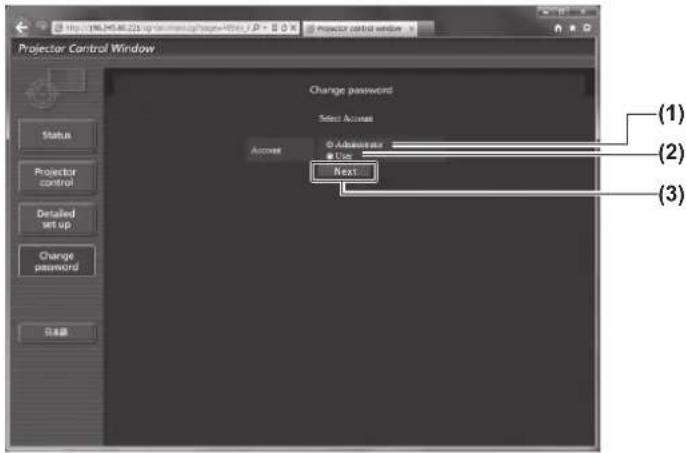
●[Administrator] account
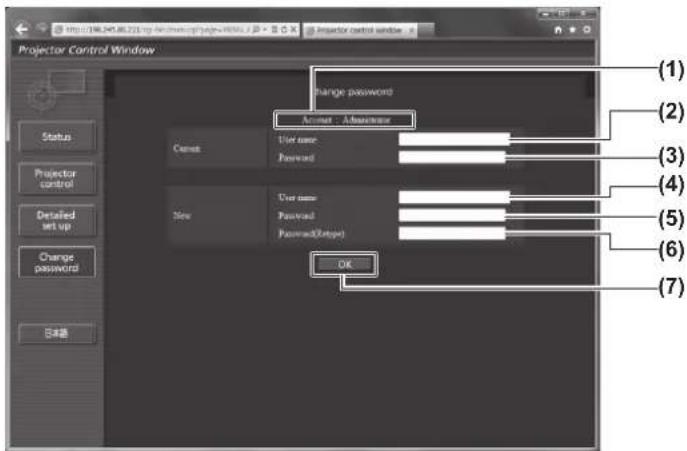
(1) [Administrator]
Used to change the setting of the [Administrator].
(2) [User] Used to change the setting of the [User].
(3) [Next] Used to change the setting of the password.
(1) [Account] Displays the account to change.
(2) [Current][User name]
Enter the user name before the change.
(3) [Current][Password] Enter the current password.
(4) [New][User name]
Enter the desired new user name. (Up to 16 characters in single byte)
(5) [New][Password]
Enter the desired new password. (Up to 16 characters in single byte)
(6) [New][Password(Retype)]
Enter the desired new password again.
(7) [OK]
Determines the change of password.
- [User] account
![PANASONIC PT-DW17KEJ - ■er name [Change password] page - 3](/content/2026/05/1137714/images/a5cf224aaed2c312af9f6abb5d492e3c2c84284f61156efe5728116c99dc53bd.jpg)
(1) [Account] Displays the account to change.
(2) [New][User name]
Enter the desired new user name. (Up to 16 characters in single byte)
(3) [New][Password] Enter the desired new password. (Up to 16 characters in single byte)
(4) [New][Password(Retype)]
Enter the desired new password again.
(5) [OK]
Determines the change of password.
●[Change password] (For user rights)
Only the change of password is enabled under the user rights.
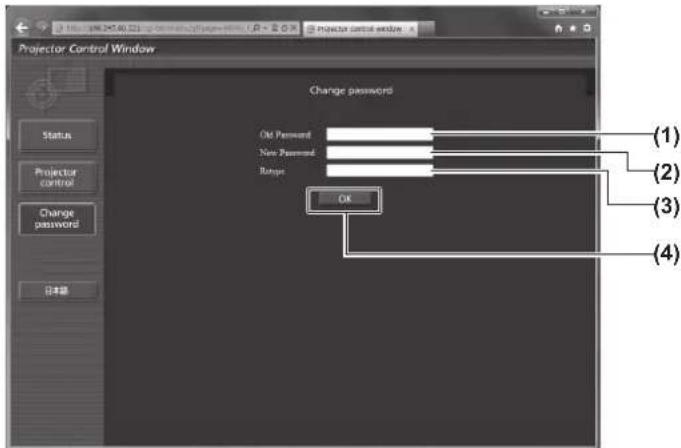
(1) [Old Password] Enter the current password.
(2) [New Password]
Enter the desired new password. (Up to 16 characters in single byte)
(3) [Retype]
Enter the desired new password again.
(4) [OK] Determines the change of password.
Note
● To change the account of the administrator, you must enter the [Current] [User name] and [Password].
Lamp/Temperature/Filter Indicators
Managing the indicated problems
If a problem should occur inside the projector, the lamp indicators
Attention
- When switching off the power to deal with problems, make sure to follow the procedure in “Switching off the projector” (→ page 51).
Note
- Check the status of the power supply with the power indicator
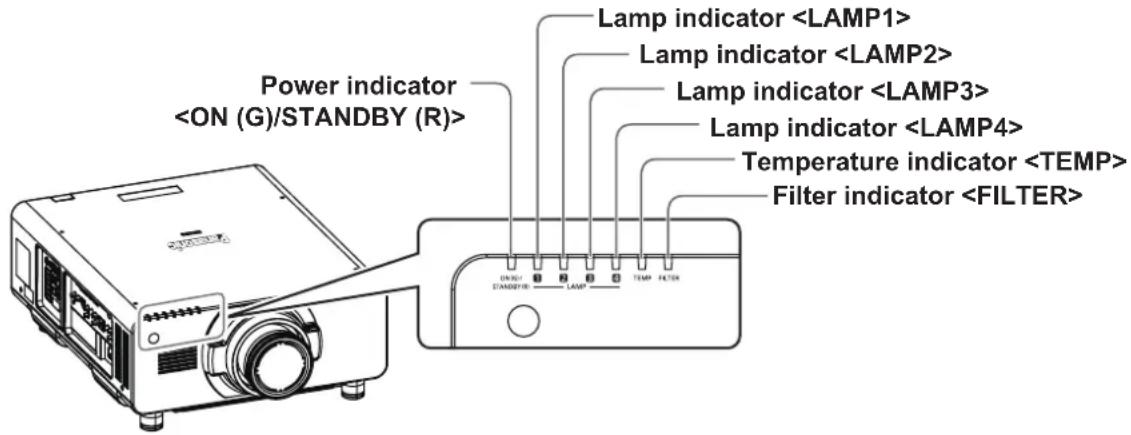
Lamp indicators
| Indicator status | Illuminating red | Flashing red(1 time) | Flashing red(3 times) | |
| Problem | Time to replace the lamp unit. (→ page 148) | The lamp unit or the lamp case is not installed. | A problem is detected in the lamp or the power supply for the lamp. | |
| Cause | ● Is [REPLACE LAMP] displayed when you turned on the power?● This indicator lights up when the cumulative operating time of the lamp unit has reached 1 800 hours*1. | ● Is the lamp unit or the lamp case installed? | ● Have you turned on the power again immediately after turning it off? | ● Some error has arisen in the lamp circuit. Check for fluctuation (or drop) in the source voltage. |
| Solution | ● Replace the lamp unit. | ● Install the lamp unit or the lamp case if it is not installed.● If the indicator is still blinking in red despite having installed the lamp unit or the lamp case, consult your dealer. | ● Wait a while until the luminous lamp cools off, and then turn on the power. | ● Turn theswitch to(→ page 51), and consult your dealer. |
*1: 300 hours when the optional accessory replacement lamp unit (for portrait mode) (Model No.: ET-LAD510P (1 pc), ET-LAD510PF (4 pcs)) is used.
Note
- If the lamp indicator
Temperature indicator
| Indicator status | Lighting in red | Flashing in red(2 times) | Flashing in red(3 times) | |
| Status Warm-up status | Internal temperature is high.(WARNING) | Internal temperature is high(standby mode) | The cooling fan has stopped. | |
| Cause | Did you turn on the power when the room temperature was about 0°C (32°F)? | Is the air intake/exhaust port blocked?Is the room temperature high?Is the filter indicatornot lit? | — | |
| Solution | Wait at least five minutes in the current status.Install the unit in a location with an ambient temperature of 0°C (32°F) to 45°C (113°F)*1. | Remove any objects that are blocking the air intake/exhaust port.Move the projector to a location with an ambient temperature of 0°C (32°F) to 45°C (113°F)*1 and a humidity of 20% to 80% (no condensation).Clean the air filter unit or replace it page 144) | Turn theswitch topage 51), and consult your dealer. | |
*1: When using the projector at high elevations (1 400 m (4 593 ft) – 2 700 m (8 858 ft) above sea level), the operating environment temperature will be 5°C (41°F) lower than the maximum limit. The upper limit of the operating environment temperature will be reduced by a further 5°C (41°F) when using the replacement lamp unit (for portrait mode). When using a smoke cut filter, the temperature will be 0°C (32°F) to 35°C (95°F). However, it cannot be used at high elevations.
Note
- If the temperature indicator
Filter indicator
| Indicator status | Lighting in red Flashing in red | |||
| Status | The filter is clogged.The temperature inside or outside the projector is abnormally high. | The air filter unit is not attached. | ||
| Cause | ● Is the air filter unit dirty? | ● Is the air intake/exhaust port blocked? | ● Is [HIGH ALTITUDE MODE] set correctly? | ● Is the air filter unit attached? |
| Solution | ● Clean the air filter unit or replace it.(→ page 144) | ● Remove any objects that are blocking the air intake/exhaust port. | ● When using the projector at high elevations 1 400 m (4 593 ft) – 2 700 m (8 858 ft) sea level, set [HIGH ALTITUDE MODE](→ page 100) to [ON].● Do not use the projector at high elevations 2 700 m (8 858 ft) or higher above sea level. | ● Attach the air filter unit. |
Note
- If the filter indicator
is still lit or flashing after taking the preceding measures, ask your dealer to repair the unit.
● [LAMP SELECT] may be set to [DUAL] when the filter clogged even when the [LAMP SELECT] is set to [QUAD] or [TRIPLE]. Cleaning the air filter unit or replacing it with a new one will turn off the indicator.
Maintenance/replacement
Before maintaining/replacing the unit
● Make sure to turn off the power before maintaining or replacing the unit. (→ pages 48, 51)
- When switching off the projector, make sure to follow the procedures in "Switching off the projector" page 51).
Maintenance
Outer case
Wipe off dirt and dust with a soft, dry cloth.
- If the dirt is persistent, soak the cloth with water and wring it thoroughly before wiping. Dry off the projector with a dry cloth.
- Do not use benzene, thinner, or rubbing alcohol, other solvents, or household cleaners. Doing so may deteriorate the outer case and peel off the paint.
- When using chemically treated dust cloths, follow the instructions written on its packaging.
Lns
If dirt or dust accumulates on the surface of the lens, it will be enlarged and projected onto the screen.
Wipe off dirt and dust from the front surface of the lens with a soft clean cloth.
- Do not use a cloth that is fluffy, dusty, or soaked with oil/water.
- Since the lens is fragile, do not use excessive force when wiping the lens.
Attention
- The lens is made of glass. Impacts or excessive force when wiping may scratch its surface. Please handle with care.
Air filter unit
Perform maintenance of the air filter unit in the following cases.
- The air filter is clogged with dust, causing the filter replacement message to appear on the screen and the filter indicator
1) Remove the air filter cover.
- Use a Phillips screwdriver to turn the air filter cover screw counterclockwise until it turns freely, and then remove the air filter cover.
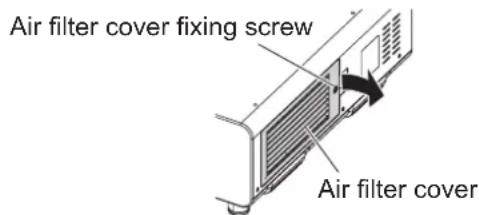
2) Pull out the air filter unit.
- Remove the air filter unit frame at the front side (with the lens) from the tab of the projector body while slightly pressing the center and pull out in the direction of the arrow, and then remove the frame at the opposite side from the tab.
- After pulling out the air filter unit, remove large foreign objects and dust from the air filter unit compartment and the air intake port of the projector body if there are any.
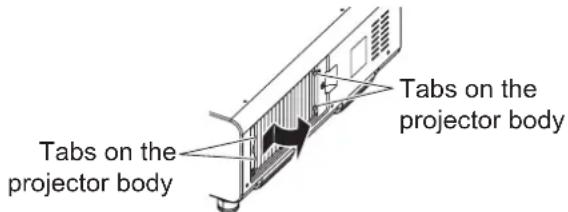
Air filter unit compartment and the projector's air intake port
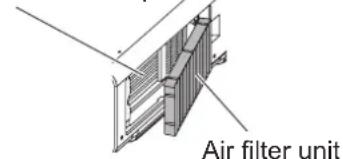
Attention
● Take care not to touch the radiator fin when removing dirt or dust.
3) Clean and dry the air filter unit.
● Cleaning the air filter unit
(i) Soak the air filter unit in cold or warm water and then lightly rinse it.
- Do not use cleaning tools such as brushes.
- When rinsing, hold the frame of the air filter unit without putting strong pressure on the filter unit.
(ii) Rinse the unit two to three times using fresh water each time.
- Insufficient rinsing may result in odors.
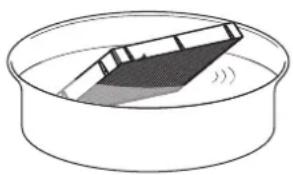
natural_image
Simple line drawing of a container with a submerged object inside (no text or symbols)● Drying the air filter unit
- Let the unit naturally dry off in a well-ventilated place where there is little dust and the unit is protected from direct sunlight.
- Do not dry using drying devices such as dryers.
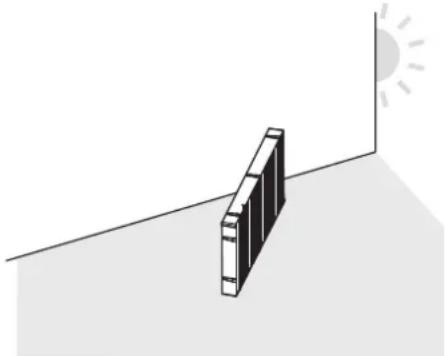
natural_image
Simple 3D diagram of a vertical rectangular block mounted on a horizontal surface, with a sun symbol above (no text or labels)4) Attach the air filter unit to the projector.
- The air filter unit has no difference between top and bottom, but is two-sided. Match the protrusion position of the air filter unit with the grooves on the projector body.
- Hook the air filter unit frame at the exhaust port side to the two tabs of the back side of the projector's air filter unit compartment and perform Step 2) in the reverse order to attach.
- Confirm that the tabs of the air filter unit compartment of the projector body are hooked to the air filter unit frame.
Tabs on the projector body

5) Attach the air filter cover to the projector and use a Phillips screwdriver to tighten the air filter cover screw.
● Perform Step 1) in the reverse order.
Attention
- After washing the air filter unit, dry it thoroughly before attaching it back to the projector. Attaching a wet unit will cause an electric shock or malfunction.
- Do not disassemble the air filter unit.
Maintenance/replacement
Note
● Take care not to touch the radiator fin when removing dirt or dust.
- Make sure that the air filter unit is properly attached before using the projector. If it is not properly attached, the projector will suck in dirt and dust causing a malfunction.
- If you use the projector without attaching the air filter unit, the message appears on the projection screen for approximately 30 seconds.
- Replace the air filter unit with a replacement filter unit (Model No.: ET-EMF510) if it is damaged or if the dirt does not come off even after washing.
● Air filter replacement is recommended after cleaning the unit two times.
● The dust-proof properties may be reduced after each cleaning.
Replacing the unit

filter unit
If dirt does not come off even if the unit is maintained, it is time for the unit to be replaced.
The replacement filter unit (Model No.: ET-EMF510) is an optional accessory. To purchase the product, consult your dealer.

placement of the air filter unit
Attention
● Make sure to turn off the power before replacing the air filter unit.
- When replacing the unit, make sure that the projector is stable. Perform the replacement in a safe place where the projector will not be damaged even if you drop the air filter unit.
1) Remove the air filter cover.
- Use a Phillips screwdriver to turn the air filter cover screw counterclockwise until it turns freely, and then remove the air filter cover.
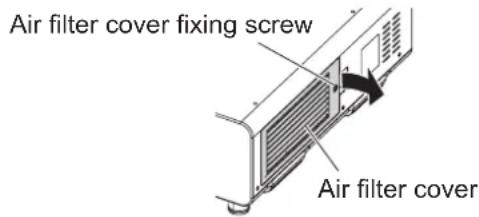
2) Pull out the air filter unit.
- Remove the air filter unit frame at the front side (with the lens) from the tab of the projector body while slightly pressing the center and pull out in the direction of the arrow, and then remove the frame at the opposite side from the tab.
- After pulling out the air filter unit, remove large foreign objects and dust from the air filter unit compartment and the air intake port of the projector body if there are any.
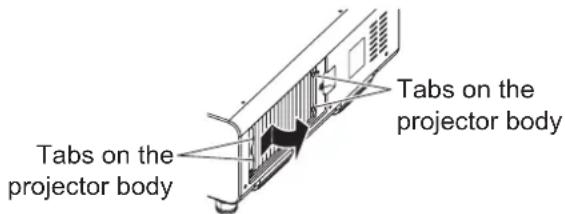
Air filter unit compartment and the projector's air intake port
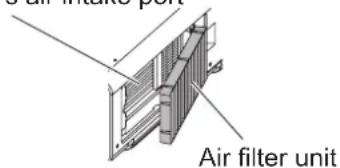
Attention
● Take care not to touch the radiator fin when removing dirt or dust.
3) Attach the replacement filter unit optional accessory (Model No.: ET-EMF510) to the projector.
- The air filter unit has no difference between top and bottom, but is two-sided. Match the protrusion position of the air filter unit with the grooves on the projector body.
- Hook the air filter unit frame at the exhaust port side to the two tabs of the back side of the projector's air filter unit compartment and perform Step 2) in the reverse order to attach.
- Confirm that the tabs of the air filter unit compartment of the projector body are hooked to the air filter unit frame.

4) Attach the air filter cover to the projector and use a Phillips screwdriver to tighten the air filter cover screw.
● Perform Step 1) in the reverse order.
Attention
- When switching on the projector, make sure that the air filter unit is installed. If it is not properly attached, the projector will suck in dirt and dust causing a malfunction.
- If you use the projector without attaching the air filter unit, the message appears on the projection screen for approximately 30 seconds.
Note
- The replacement cycle of the air filter unit varies greatly depending on the usage environment.
Lamp unit
The lamp unit is a consumable component. See "When to replace the lamp unit" page 148) for details about the replacement cycle.
Consult your dealer to purchase a replacement lamp unit (Model No.: ET-LAD510 (1 pc), ET-LAD510F (4 pcs)) or a replacement lamp unit (for portrait mode) (Model No.: ET-LAD510P (1 pc), ET-LAD510PF (4 pcs)). It is recommended that you request a qualified technician to replace the lamp unit. Consult your dealer.
Attention
- Do not replace the lamp unit when it is hot. (Wait at least one hour after use.)
- Checking the lamp unit to be replaced
Check the status of the lamp indicators ///.
● The lamp unit corresponding to the lamp indicator that is lit in red is required to be replaced.
Notes on the replacement of the lamp unit
● A Phillips screwdriver is necessary when replacing the lamp unit.
- Since the luminous lamp is made of glass, it may burst if dropped or hit with a hard object. Please handle with care.
- Do not disassemble or modify the lamp unit.
- When replacing the lamp unit, be sure to hold it by the handle because its surface is pointed and its shape is protruded.
- The lamp may be burst. Replace the lamp unit carefully so that the broken pieces of the lamp glass will not scatter. When the projector is mounted on the ceiling, do not make the replacement directly under the lamp unit or put your face near it.
- The lamp contains mercury. When disposing of used lamp units, contact your local authorities or dealer for correct methods of disposal.
Attention
- Use only specified lamp units.
- For portrait setting, always use the replacement lamp unit (for portrait mode).
- Do not use the replacement lamp unit (for portrait mode) and the ordinary lamp unit together.
- When using the replacement lamp unit (for portrait mode), always use it with portrait setting.
Maintenance/replacement
Note
● The model numbers of accessories and optional components are subject to change without notice.
When to replace the lamp unit
The lamp unit is a consumable component. Since its brightness gradually decreases over time, it is necessary to replace it regularly. The estimated duration before replacement is 2 000 hours. However, this may be shortened depending on individual lamp characteristics, usage conditions, and the installation environment.
Therefore, it is strongly recommended that a replacement lamp unit be prepared. The unit can damage the projector if it has not been replaced after 2 000 hours of usage. Thus, the lamp automatically turns off after approximately ten minutes.
If the cumulative operating time of all 4 lamp unit bulbs exceeds 2 000 hours, the power will be switch off after about 10 minutes.
| On-screen display Lamp indicatorREPLACE LAMP | ||
| Over 1 800 hours | The message is displayed for 30 seconds. Pressing any button on the control panel or remote control within 30 seconds will clear the message. | Lights in red even during the standby mode. |
| Over 2 000 hours | The message remains displayed until you press a button. |
Note
- To predict when to replace the lamp, check the lamp cumulative operating hours displayed in [LAMP1] - [LAMP4] (→ page 109) of [STATUS].
● The usage period of 2 000 hours is a rough estimate and is not guaranteed. - The guide for replacing the replacement lamp unit (for portrait mode) is 500 hours. The on-screen message for replacing the lamp appears after 300 hours.
Replacing the lamp unit
Attention
- When the projector is mounted on the ceiling, do not perform tasks while your face is near the lamp unit.
- Do not remove or loosen the screws other than specified ones when replacing the lamp.
- Use the same type of lamp unit for all four lamps.
1) Set the
- Wait at least one hour and and check if the lamp unit has cooled down.
2) Remove the lamp unit cover.
(i) Use a Phillips screwdriver to loosen the lamp unit cover fixing screw (one screw) counterclockwise until it turns freely, and then open the lamp unit cover slowly in the direction of the arrow described in the following figure.
- Opening the lamp unit cover quickly may result in damage to the cover.
- If you loosen the lamp unit cover fixing screw with the projector installed upward in the vertical direction, the lamp unit cover may open on its weight and drop off the lamp unit.
(ii) Hold the lamp unit cover securely and slide it in the direction of the arrow, and then pull it out backward to remove.
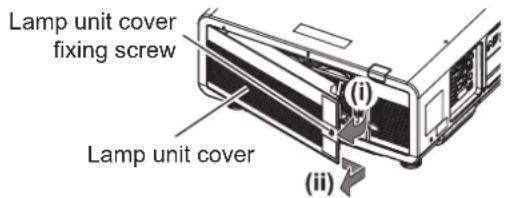
Attention
- Be careful to hold the lamp unit cover and to loosen the lamp unit cover fixing screws with the projector installed upward in the vertical direction since the lamp unit cover may open and the lamp case may drop off on its weight.
- This can cause severe injury or accidents.
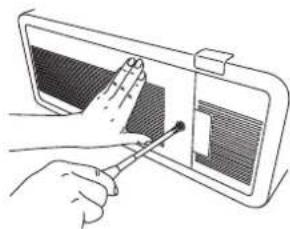
natural_image
Line drawing of a hand using a power tool to touch a device (no text or symbols visible)3) Pull out the lamp case.
- Use a Phillips screwdriver to turn the lamp case fixing screws of the lamp unit to be replaced (two screws each) counterclockwise until they turn freely, and then hold the lamp case handles to be replaced and pull out backward.
- Do not remove the black screws other than the lamp case fixing screws.
- When you loosen the lamp case fixing screws with the projector installed upward in the vertical direction, the lamp case may drop off on its weight. Be sure to hold the lamp case handle when you loosen the lamp case fixing screws.
- When removing the lamp case, make sure that the projector is stable and remove it in a safe place where the lamp case is dropped off.
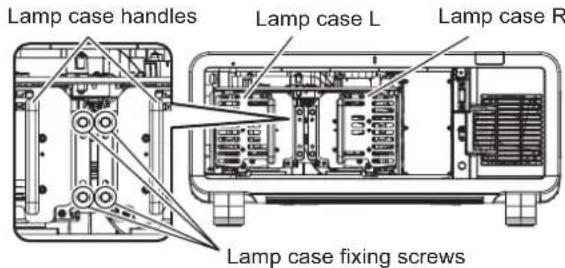
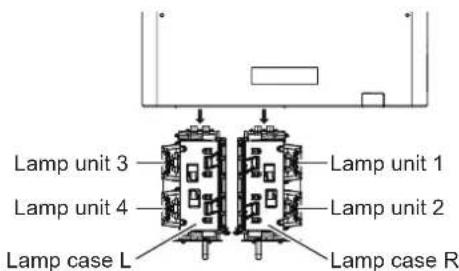
4) Remove the lamp unit.
- Use a Phillips screwdriver to turn the lamp unit fixing screws (two screws) counterclockwise until they turn freely, and then remove the lamp unit from the lamp case.
● Hold the handles of the lamp unit and remove it. - Do not remove the screws other than the lamp unit fixing screws.
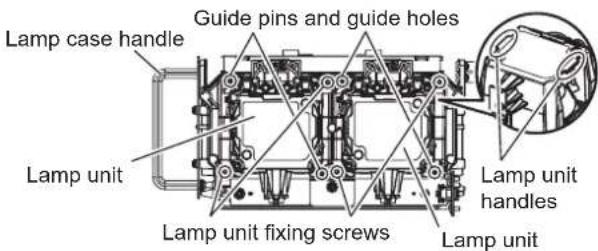
5) Attach the lamp unit.
(i) Gently push the new lamp unit into the lamp case. Install the new lamp unit carefully so that the guide pins on the lamp case are inserted into the guide holes on the lamp unit.
- If the lamp unit is not installed properly, remove it and then gently install it again. Pushing it in forcibly or exerting excessive force may break the connector.
(ii) Use a Phillips screwdriver to firmly tighten the lamp unit fixing screws (two screws each).
● Make sure to attach the lamp unit properly.
Maintenance/replacement
6) Attach the lamp case.
- Gently push in the lamp case along the grooves for the lamp case attachment guide on the projector, and then firmly tighten the lamp case fixing screws (two screws).
- When you secure the lamp case with the projector installed upward in the vertical direction, the lamp case may drop off on its weight. Be sure to hold the lamp case handle when you tighten the lamp case fixing screws.
- If the lamp case is not installed properly, remove it and then gently install it again. Pushing it in forcibly or exerting excessive force may break the connector.
● Make sure to attach the lamp case properly.
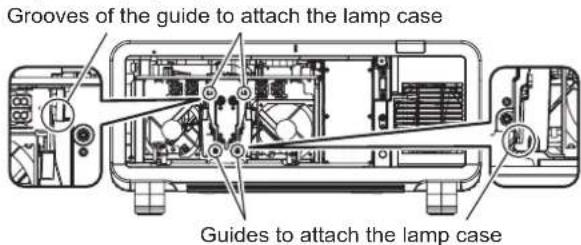
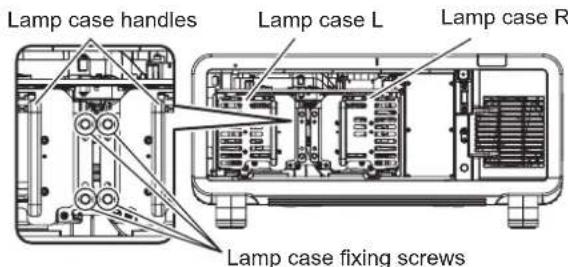
7) Attach the lamp unit cover.
(i) Align the lamp unit cover to the marks of (a) and (b) (and) to attach as shown by the arrow.
(ii) Close the lamp unit cover in the direction of the arrow and use a Phillips screw driver to firmly tighten the lamp unit cover fixing screw (one screw).
● Make sure to attach the lamp unit cover properly.
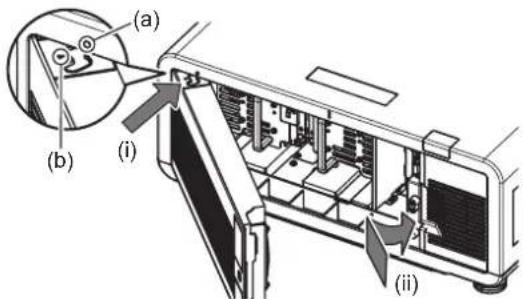
Note
- When you place the new lamp unit, the projector resets the total usage time of the lamp unit automatically.
- When the lamp case is removed or attached, it will be caught because of the fall-prevention stopper. This, however, is not a problem.
Troubleshooting
Review the following points. For details, see the corresponding pages.
| Problems Points to be checked Page | ||
| Power does not turn on. | ● Is the power plug firmly inserted into the outlet? —● Is theswitch turned? 51● Is the wall outlet supplying electricity? —● Have the circuit breakers tripped? —● Is the temperature indicatoror the lamp indicators///lit or flashing?● Is the lamp unit cover securely installed? 148● Are you using the correct power supply voltage (AC 200 - 240 V)? 172 | 142, 143 |
| No image appears. | ● Are connections to external devices correctly performed? 44● Is the input selection setting correct? 58● Is the [BRIGHTNESS] adjustment setting at a minimum? 66● Is the external device that is connected to the projector working properly?● Is the shutter function in use? 58● If the power indicatoris flashing in red, consult your dealer.● Is the lens cover still attached to the lens? 50 | — |
| The picture is fuzzy. | ● Is the lens focus set correctly?● Is the projection distance appropriate?● Is the lens dirty?● Is the projector installed perpendicular to the screen? | 522918— |
| The color is pale or grayish. | ● Is the [COLOR] adjusted correctly?● Is the [TINT] adjusted correctly?● Is the external device connected to the projector adjusted correctly?● Is the RGB cable damaged? | 666644— |
| The remote control does not respond. | ● Are the batteries depleted?● Is the polarity of the batteries set correctly?● Are there any obstructions between the remote control and the projector's remote control signal receiver?● Is the remote control being used beyond its effective operation range?● Are other forms of light, such as fluorescent light, affecting the projection?● Is the [REMOTE CONTROL] setting in [CONTROL DEVICE SETUP] set to [DISABLE]?● Is theterminal used for contact control?● Is the ID number setting operation correct? | —2723232312216427 |
Troubleshooting
| Problems Points to be checked Page | ||
| The menu screen does not appear. | ● Is the on-screen display function turned off (hidden)? | 25, 58 |
| The buttons on the control panel do not operate. | ● Is the [CONTROL PANEL] setting in [CONTROL DEVICE SETUP] set to [DISABLE]?● Is theterminal used for contact control? 164 | 122 |
| The image does not display correctly. | ● Is the [SYSTEM SELECTOR] selection set correctly? 70● Is there a problem with the video tape or other image sources? —● Is a signal which is not compatible with the projector being input? 167 | |
| Image from a computer does not appear. | ● Is the cable too long? (Use D-Sub cables that are 10 m (32'10") or shorter.)● Is the external video output of the laptop computer set correctly?- Example: The external output settings may be switched by pressing “Fn” + “F3” or “Fn” + “F10” keys simultaneously. Since the method varies depending on the computer type, refer to the user manual provided with your computer. | — |
| Image from a computer's DVI-D output does not appear. | ● Is the [DVI-D IN] setting set to [EDID3]/[EDID2:PC]? 92● The graphics accelerator driver of the computer may need to be updated to the latest version.● The computer may need to be restarted after performing [DVI-D IN] settings. | —92 |
| Video from HDMI compatible device does not appear or it appears jumbled. | ● Is the HDMI cable connected securely? 44● Turn the power of the projector and the external device off and on. —● Is an unsupported signal being used? | 167 |
Attention
- If problems persist even after checking the preceding points, consult your dealer.
Self-diagnosis display
A self-diagnosis display which automatically displays errors and warnings, and their details, is placed on the side of the projector. (→ page 25)
| Self-diagnosis display | Details Measure | |
| U04 Air filter clog | ● Clean the air filter unit. | |
| U11 Intake temperature warning | ● The ambient temperature is too high.U12 Optical module temperature | |
| U13 | Lamp surrounding temperature warning | |
| U14 Low temperature warning | ● The ambient temperature is too low. | |
| U21 Intake temperature error | ● The ambient temperature is too high.U22 Optical module temperature | |
| U23 Lamp surrounding temperature error | ||
| U24 Low temperature error | ● The ambient temperature is too low. | |
| U30 | Installation angle error | ● Do not use the projector tilted at an angle that exceeds ±15° from the horizontal plane. |
| U31 Portrait setting angle error | ● Install the connecting terminals facing down. | |
| U32 | Lamp unit usage error | ● For portrait setting, use the replacement lamp unit (for portrait mode). |
| U33 | Lamp unit mixed usage error | ● Different types of lamp units have been installed. Use only the same type of lamp unit. The replacement lamp unit (for portrait mode) is marked on the right side of the lamp unit Model No. to make it easy to differentiate from ordinary replacement lamp units.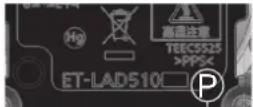 Mark Mark |
| U41 | Lamp 1 cumulative operation time error | ● It's time to replace the lamp unit. Replace the lamp unit. |
| U42 | Lamp 2 cumulative operation time error | |
| U43 | Lamp 3 cumulative operation time error | |
| U44 | Lamp 4 cumulative operation time error | |
| U51 Lamp 1 error | ● Failed to light the lamp. Switch the power on again after letting the lamp cool down. If the lamp still doesn't light up, consult your dealer. | |
| U52 Lamp 2 error | ||
| U53 Lamp 3 error | ||
| U54 Lamp 4 error | ||
| U61 | The cumulative operation time of Lamp 1 has exceeded 2 000 hours*1 | ● The lamp unit's replacement period has been exceeded. Replace the unit immediately. |
| U62 | The cumulative operation time of Lamp 2 has exceeded 2 000 hours*1 | |
| U63 | The cumulative operation time of Lamp 3 has exceeded 2 000 hours*1 | |
| U64 | The cumulative operation time of Lamp 4 has exceeded 2 000 hours*1 | |
| U71 Lamp 1 not installed | ● Attach the lamp unit. | |
| U72 Lamp 2 not installed | ||
| U73 Lamp 3 not installed | ||
| U74 Lamp 4 not installed | ||
| U76 Air filter unit not installed | ● Attach the air filter unit. | |
| U78 Clog sensor error | ● Clean the air filter unit or replace it. (→ page 144) | |
Self-diagnosis display
| Self-diagnosis display | Details Measure | |
| U81 | Low AC voltage warning (below 170 V) | ● The power voltage input is low. Dedicate an outlet for the electrical wiring for the projector's power consumption. |
| H01 | Battery replacement for the internal clock | ● Battery replacement is required. Consult your dealer. |
| H11 Intake temperature sensor not present | ● When the display does not clear even after switching the main power on and off, consult your dealer. | |
| H12 | Optical module temperature sensor not present | |
| H13 | Lamp surrounding temperature sensor not present | |
| H18 Clog sensor not present | ||
| F00 Liquid cooling pump R warning | ||
| F01 Liquid cooling pump G warning | ||
| F02 Liquid cooling pump B warning | ||
| F11 Shutter error | ||
| F12 Dynamic iris error | ||
| F13 Air filter unit error | ||
| F15 Luminance sensor error | ||
| F16 Angle sensor error | ||
| F41 Lamp 1 memory error | ● The lamp unit is broken. Consult your dealer. | |
| F42 Lamp 2 memory error | ||
| F43 Lamp 3 memory error | ||
| F44 Lamp 4 memory error | ||
| F50 Exhaust fan 1 warning | ● When the display does not clear even after switching the main power on and off, consult your dealer. | |
| F51 Exhaust fan 2 warning | ||
| F52 Exhaust fan 3 warning | ||
| F53 Exhaust fan 4 warning | ||
| F54 Intake fan 1 warning | ||
| F55 Intake fan 2 warning | ||
| F56 Lamp 1 fan warning | ||
| F57 Lamp 2 fan warning | ||
| F58 Lamp 3 fan warning | ||
| F59 Lamp 4 fan warning | ||
| F61 Lamp 1 power transmission error | ||
| F62 Lamp 2 power transmission error | ||
| F63 Lamp 3 power transmission error | ||
| F64 Lamp 4 power transmission error | ||
| F70 Lamp 1 power supply fan warning | ||
| F71 Lamp 2 power supply fan warning | ||
| F72 Power supply fan warning | ||
| F73 Signal fan warning | ||
| F74 Lamp 1/2 relay fan warning | ||
| F75 Lamp 3/4 relay fan warning | ||
| F76 Color prism fan 1 warning | ||
| F77 Color prism fan 2 warning | ||
| F78 Color prism fan 3 warning | ||
| F91 FPGA 1/2 configuration error | ● When the display does not clear even after switching the main power on and off, consult your dealer. | |
| F92 FPGA 3 configuration error | ||
| F96 Lens | mounter error | |
| F97 | Geometric adjustment board communication error | |
| F98 | Geometric distortion correction board communication error | |
| F99 Internal error | ||
| FE0 Internal error | ||
| FE1 Exhaust fan 1 error | ||
| FE2 Exhaust fan 2 error | ||
| FE3 Exhaust fan 3 error | ||
| FE4 Exhaust fan 4 error | ||
| FE5 Intake fan 1 error | ||
| FE6 Intake fan 2 error | ||
| FE7 Lamp 1 fan error | ||
| FE8 Lamp 2 fan error | ||
| FE9 Lamp 3 fan error | ||
| FF0 Lamp 4 fan error | ||
| FF1 Lamp 1/2 power supply fan error | ||
| FF2 Lamp 3/4 power supply fan error | ||
| FF3 Power supply fan error | ||
| FF4 Signal fan error | ||
| FF5 Lamp 1/2 relay fan error | ||
| FF6 Lamp 3/4 relay fan error | ||
| FF7 Color prism fan 1 error | ||
| FF8 Color prism fan 2 error | ||
| FF9 Color prism fan 3 error | ||
| FJ0 Liquid cooling pump R error | ||
| FJ1 Liquid cooling pump G error | ||
| FJ2 Liquid cooling pump B error | ||
*1: 500 hours when the optional accessory replacement lamp unit (for portrait mode) (Model No.: ET-LAD510P (1 pc), ET-LAD510PF (4 pcs)) is used.
Note
● The self-diagnosis display and the details of the malfunction may vary.
Technical information
PJLink protocol
The network function of this projector supports the PJLink class 1, and the PJLink protocol can be used to perform projector setting and projector status query operations from a computer.

ntrol commands
The following table lists the PJLink protocol commands that can be used to control the projector.
| Command | Control details Remark | |
| POWR Power supply control | Parameters0 = Standby1 = Power on | |
| POWR? Power supply status query | Parameters0 = Standby 1 = Power on2 = Preparing to switch off the projector 3 = Warm-up in progress | |
| INPT Input selection | Parameters11=RGB1 12=RGB2 21=VIDEO31=DVI-D 32=HDMI33=SDI 1 (only for PT-DZ21KE, PT-DS20KE)34=SDI 2 (only for PT-DZ21KE, PT-DS20KE) | |
| INPT? Input selection query | ||
| AVMT Shutter control Parameters | 30 = shutter function off (picture mute canceled)31 = shutter function on (picture mute) | |
| AVMT? Shutter status query | ||
| ERST? Error status query | Parameters1st byte: Indicates fan errors, range 0 - 22nd byte: Indicates lamp errors, range 0 - 23rd byte: Indicates temperature errors, range 0 - 24th byte: Fixed to 05th byte: Indicates filter errors, range 0 - 26th byte: Indicates other errors, range 0 - 2Definitions for each value from 0 to 2 are as follows0 = No error is detected 1 = Warning 2 = Error | |
| LAMP? Lamp status query | Parameters1st digits (1 - 5 digits): Lamp 1 cumulative operating time2nd digit: 0 = Lamp 1 off, 1 = Lamp 1 on3rd digits (1 - 5 digits): Lamp 2 cumulative operating time4th digit: 0 = Lamp 2 off, 1 = Lamp 2 on5th digits (1 - 5 digits): Lamp 3 cumulative operating time6th digit: 0 = Lamp 3 off, 1 = Lamp 3 on7th digits (1 - 5 digits): Lamp 4 cumulative operating time8th digit: 0 = Lamp 4 off, 1 = Lamp 4 on | |
| INST? Input selection list query | Parameters are returned with the following values.“11 12 21 31 32” (only for PT-DW17KE)“11 12 21 31 32 33 34” (only for PT-DZ21KE, PT-DS20KE) | |
| NAME? Projector name query | Returns the name set in [PROJECTOR NAME] of [NETWORK SETUP]. | |
| INF1? Manufacturer name query Returns “Panasonic”. | ||
| INF2? Model name query Returns “DZ21KE”, “DS20KE”, “DW17KE”. | ||
| INF0? Other information queries Returns information such as version number. | ||
| CLSS? | Class information query | Returns “1”. |
Link security authentication
The password used for PJLink is the same as that of the password set for Web control.
When using the projector without security authentication, do not set a password for Web control.
- For specifications regarding PJLink, refer to the Japan Business Machine and Information System Industries Association website.
Control commands via LAN
When Web control administrator rights password is set (Protect mode)
- Connecting
1) Obtain the IP address and port number (Initial setting value = 1024) of the projector and request for a connection to the projector.
You can obtain both the IP address and the port number from the menu screen of the projector.
| IP address Obtain from the main menu → [NETWORK] → [NETWORK STATUS] | |
| Port number | Obtain from the main menu → [NETWORK] → [NETWORK CONTROL] → [COMMAND PORT] |
2) Check the response from the projector
Response data
| Data section Blank | Mode Blank | Random number section | Termination symbol | ||
| “NTCONTROL” (ASCII string) | ‘’ 0x20 | ‘1’ 0x31 | ‘’ 0x20 | “zzzzzzzzz” (ASCII code hexadecimal number) | (CR) 0x0d |
| 9 bytes 1 byte 1 | byte 1 byte 8 | bytes 1 byte | |||
Mode: 1 = Protect mode
3) Generate a 32-byte hash value from the following data using MD5 algorithm.
"xxxxxx:yyyy:zzzzzzzz"
| xxxxxx | Administrator rights user name for Web control (default user name is “admin1”) |
| yyyyy | Password of above administrator rights user (default password is “panasonic”) |
| zzzzzzzz 8-byte | random number obtained in Step 2) |
Technical information
●Command transmission method
Transmit using the following command formats.
Transmitted data
| Header Data section | Termination symbol | |||
| Hash value("Connecting" (→ page 157)) | ‘0’0x30 | ‘0’0x30 | Control command(ASCII string) | (CR)0x0d |
| 32 bytes 1 byte 1 byte Undefined length 1 byte | ||||
Received data
| Header Data section | Termination symbol | ||
| ‘0’0x30 | ‘0’0x30 | Control command(ASCII string) | (CR)0x0d |
| 1 byte 1 byte Undefined length 1 byte | |||
Error response
| Error message Termination symbol | |
| “ERR1” Undefined control command“ERR2” Out of parameter range“ERR3” Busy state or no-acceptable period“ERR4” Timeout or no-acceptable period“ERR5” Wrong data length“ERRA” Password mismatch | (CR)0x0d |
| 4 bytes 1 byte |
When Web control administrator rights password is not set (Non-protect mode)
- Connecting
1) Obtain the IP address and port number (Initial set value = 1024) of the projector and request for a connection to the projector.
You can obtain both the IP address and the port number from the menu screen of the projector.
| IP address Obtain from the main menu → [NETWORK] → [NETWORK STATUS] | |
| Port number | Obtain from the main menu → [NETWORK] → [NETWORK CONTROL] → [COMMAND PORT] |
2) Check the response from the projector Response data
| Data section Blank | Mode | Termination symbol | |
| “NTCONTROL”(ASCII string) | ‘’0x20 | ‘0’0x30 | (CR)0x0d |
| 9 bytes | 1 byte | 1 byte | 1 byte |
Mode: 0 = Non-protect mode
●Command transmission method
Transmit using the following command formats.
Transmitted data
| Header Data section | Termination symbol | ||
| ‘0’0x30 | ‘0’0x30 | Control command(ASCII string) | (CR)0x0d |
| 1 byte 1 byte Undefined length 1 byte | |||
Received data
| Header Data section | Termination symbol | ||
| ‘0’0x30 | ‘0’0x30 | Control command(ASCII string) | (CR)0x0d |
| 1 byte 1 byte Undefined length 1 byte | |||
Error response
| Error message Termination symbol | |
| “ERR1” Undefined control command“ERR2” Out of parameter range“ERR3” Busy state or no-acceptable period“ERR4” Timeout or no-acceptable period“ERR5” Wrong data length“ERRA” Password mismatch | (CR)0x0d |
| 4 bytes 1 byte |
Technical information
/ terminal
The
Connection
- When using 1 unit When using multiple -nits
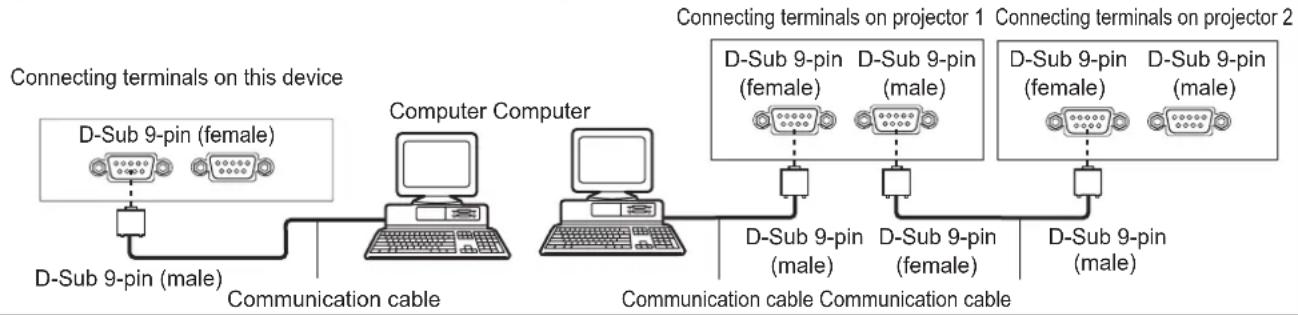
flowchart
graph LR
    A["Connecting terminals on this device"] --> B["D-Sub 9-pin (female)"]
    A --> C["D-Sub 9-pin (male)"]
    B --> D["Computer Computer"]
    C --> D
    D --> E["Connecting terminals on projector 1"]
    E --> F["D-Sub 9-pin (female)"]
    E --> G["D-Sub 9-pin (male)"]
    F --> H["Connecting terminals on projector 2"]
    G --> H
    H --> I["D-Sub 9-pin (female)"]
    H --> J["D-Sub 9-pin (male)"]
    I --> K["Communication cable"]
    J --> K
    K --> L["Communication cable Communication cable"]
H assignments and signal names
D-Sub 9-pin (female) Outside view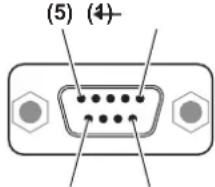 (9) (6) (9) (6) | Pin No. Signal name Details | ||
| (1) — NC | |||
| (2) TXD Transmitted data | |||
| (3) RXD | Received data | ||
| (4) — Connected internally | |||
| (5) | GND | Earth | |
| (6) — NC | |||
| (7) CTS | Connected internally | ||
| (8) RTS | |||
| (9) — NC | |||
D-Sub 9-pin (male) Outside view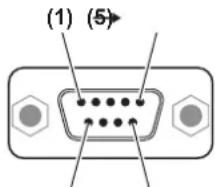 (6) (9) (6) (9) | Pin No. Signal name Details | ||
| (1) — NC | |||
| (2) RXD | Received data | ||
| (3) TXD Transmitted data | |||
| (4) — NC | |||
| (5) | GND | Earth | |
| (6) — NC | |||
| (7) RTS | Connected internally | ||
| (8) CTS | |||
| (9) — NC | |||
■mmunication conditions
| Signal level | RS-232C-compliant |
| Sync. method | Asynchronous |
| Baud rate | 9 600 bps |
| Parity | None |
| Character length | 8 bits |
| Stop bit | 1 bit |
| X parameter | None |
| S parameter | None |
Basic format
Transmission from the computer starts with STX, then the ID, command, parameter, and ETX are sent in this order. Add parameters according to the details of control.
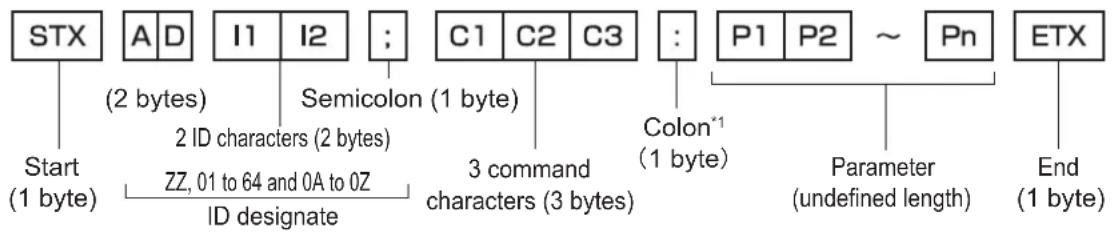
flowchart
graph TD
    A["STX"] --> B["Start (1 byte)"]
    B --> C["A D (2 bytes)"]
    C --> D["I1"]
    D --> E["I2"]
    E --> F["Semicolon (1 byte)"]
    F --> G["C1"]
    G --> H["C2"]
    H --> I["C3"]
    I --> J["Colon*1 (1 byte)"]
    J --> K["P1"]
    K --> L["P2 ~ Pn"]
    L --> M["ETX"]
    N["End (1 byte)"] --> O["Parameter (undefined length)"]
*1: When transmitting a command which does not need a parameter, a colon (:) is not necessary.
■sic format (with subcommands)
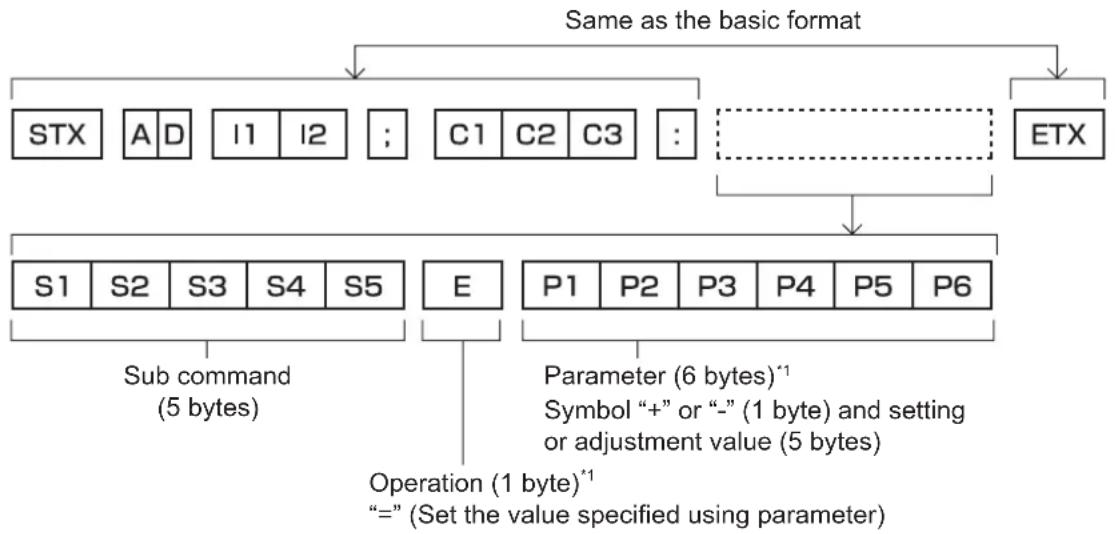
flowchart
graph TD
    A["STX"] --> B["Sub command (5 bytes)"]
    C["ETX"] --> D["Operation (1 byte)'"]
    E["S1"] --> F["Sub command (5 bytes)"]
    G["S2"] --> H["Sub command (5 bytes)"]
    I["S3"] --> J["Sub command (5 bytes)"]
    K["S4"] --> L["Sub command (5 bytes)"]
    M["S5"] --> N["Sub command (5 bytes)"]
    O["E"] --> P["Sub command (5 bytes)"]
    Q["P1"] --> R["Parameter (6 bytes)'"]
    S["P2"] --> T["Symbol “+” or “-” (1 byte) and setting or adjustment value (5 bytes)"]
    U["P3"] --> V["Parameter (6 bytes)'"]
    W["P4"] --> X["Operation (1 byte)'"]
    Y["P5"] --> Z["Set the value specified using parameter"]
    AA["ETX"] --> AB["Same as the basic format"]
    AC["ETX"] --> AD["Same as the basic format"]
*1: When transmitting a command which does not need a parameter, the operation (E) and parameter are not necessary.
Attention
- If a command is transmitted after the lamp starts illuminating, there may be a delay in response or the command may not be executed. Try sending or receiving any command after 60 seconds.
- When transmitting multiple commands, be sure to wait until 0.5 seconds has elapsed after receiving the response from the projector before sending the next command.
Note
- If a command cannot be executed, a "ER401" response is sent from the projector to the computer.
- If an invalid parameter is sent, a "ER402" response is sent from the projector to the computer.
● ID transmission in RS-232C supports ZZ (ALL) and 01 to 64, as well as 0A to 0Z groups. - If a command is sent with a specified ID, a response will be sent to the computer only in the following cases.
- It matches the projector ID
- ID setting is set to ALL and [RESPONSE(ID ALL)] is [ON]
- ID setting is set to GROUP and [RESPONSE(ID GROUP)] is [ON]
- STX and ETX are character codes. STX shown in hexadecimal is 02, and ETX shown in hexadecimal is 03.
Technical information
When multiple projectors are controlled
- When multiple projectors are all controlled
When controlling multiple projectors together via RS-232C, perform the following settings.
1) Set a different ID for each projector
2) Set [RESPONSE(ID ALL)] to [ON] in only one projector
3) Set [RESPONSE(ID ALL)] to [OFF] for all other projectors set in Step 2)
- When multiple projectors are all controlled by group unit
When controlling multiple projectors by group unit via RS-232C, perform the following settings.
1) Set a different ID for each projector
2) Set [RESPONSE(ID GROUP)] to [ON] in only one projector
3) Set [RESPONSE(ID GROUP)] to [OFF] for all other projectors set in Step 2)
Note
● There will be no response if 2 or more projectors have [RESPONSE(ID ALL)] set to [ON].
● There will be no response if 2 or more projectors of the same group have [RESPONSE(ID GROUP)] set to [ON].
- When setting multiple groups, set [RESPONSE(ID ALL)] to [ON] in only one projector in each group.
■ble specification
●When connected to a computer
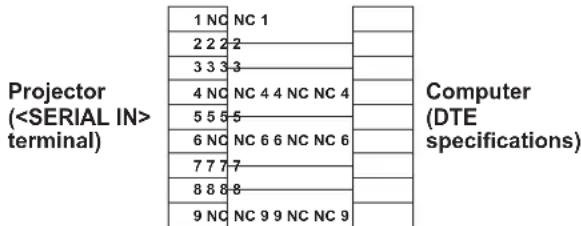
- When multiple projectors are connected
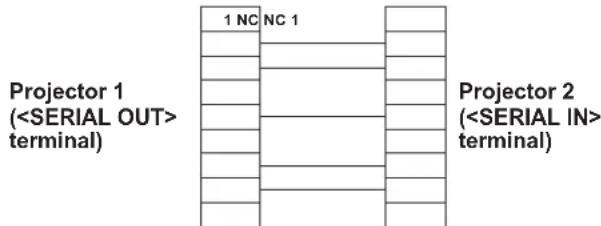
Control command
The following table lists the commands that can be used to control the projector using a computer.
●Projector control command
| Command | Details Remarks (parameters) | ||||
| PON Power on | To check if the power is on, use the “Power query” command. | ||||
| POF Power standby | |||||
| QPW Power query 000 = Standby 001 = Power on | |||||
| IIS | Switching the input signal | VID=VIDEO RG1 = RGB1 RG2 = RGB2 DVI=DVI-D HD1 = HDMI SD1 = SDI 1 (only for PT-DZ21KE, PT-DS20KE) SD2 = SDI 2 (only for PT-DZ21KE, PT-DS20KE) | |||
| QSL | Query for active lamp selection | 0 = Quad 4 = Lamp 1/2/3 8 = Triple *1 12 = Lamp 4 | 1 = Lamp 1/4 5 = Lamp 1/2/4 9 = Lamp 1 13 = Single *1 | 2 = Lamp 2/3 6 = Lamp 1/3/4 10 = Lamp 2 | 3 = Dual *1 7 = Lamp 2/3/4 11 = Lamp 3 |
| LPM Lamp mode | 0 = Quad 4 = Lamp 1/2/3 8 = Triple *1 12 = Lamp 4 | 1 = Lamp 1/4 5 = Lamp 1/2/4 9 = Lamp 1 13 = Single *1 | 2 = Lamp 2/3 6 = Lamp 1/3/4 10 = Lamp 2 | 3 = Dual *1 7 = Lamp 2/3/411 = Lamp 3 | |
| Q$L | Lamp cumulative operating time query | 1 = Lamp 1 2 = Lamp 2 3 = Lamp 3 4 = Lamp 4 Response is 0000 to 2000 | |||
| OSH Shutter 0 = End 1 = Execute | |||||
| QSH Shutter status query 0 = End 1 = Execute | |||||
| VSE Aspect switching | 0 = Standard/ VID auto 6 = HV FIT | 9 = H FIT | 1=4:3 10 = V FIT | 2=16:9 5 = THROUGH | |
| QSE Aspect setting query | 0 = Standard/ VID auto 6 = HV FIT | 9 = H FIT | 1=4:3 10 = V FIT | 2=16:9 5 = THROUGH | |
| OPP | P IN P execute | 0 = Off | 1 = User 1 | 2 = User 2 | 3 = User 3 |
| QPP | P IN P setting query | 0 = Off | 1 = User 1 | 2 = User 2 | 3 = User 3 |
| OCS | Sub memory switching | 01 to 96 = Sub memory number | |||
| QSB | Sub memory status query | 01 to 96 = Sub memory number | |||
*1: Used from the lamp with the shortest cumulative operating time.
●Projector control command (with sub command)
| Command | Sub command | Details | Notes |
| VXX | RYCI1 | RGB1 input setting +00000=RGB/YP | _BP_R, +00001 = Y/C |
●Lens control command
| Command | Sub command | Details | Notes |
| VXX | LNSI2 | Lens H shift | +00000 = Fine tuning 1+, +00001 = Fine tuning 1-, +00100 = Fine tuning 2+, +00101 = Fine tuning 2-, +00200 = Coarse adjustment+, +00201 = Coarse adjustment- |
| VXX | LNSI3 | Lens V shift | |
| VXX | LNSI4 | Lens focus | |
| VXX | LNSI5 | Lens zoom |
Technical information
terminal
It is possible to control the projector remotely (by external contact) from a control panel located away from the projector where remote control signals cannot reach. Use the
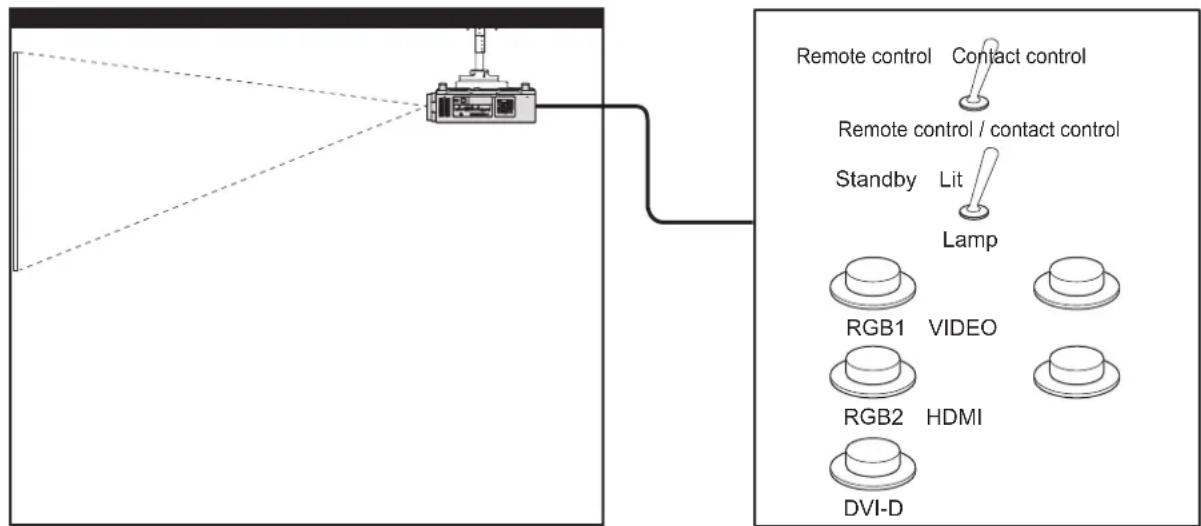
flowchart
graph TD
    A["Device"] --> B["Remote control"]
    B --> C["Contact control"]
    C --> D["Remote control / contact control"]
    D --> E["Standby"]
    E --> F["Lit"]
    F --> G["Lamp"]
    G --> H["RGB1"]
    G --> I["VIDEO"]
    G --> J["RGB2"]
    G --> K["HDMI"]
    G --> L["DVI-D"]
Installation locations in meeting rooms, etc.
Remote control board in another location
Fh assignments and signal names
| D-Sub 9-pin (Outside view) Pin No. Signal name Open (H) Short (L) | ||||
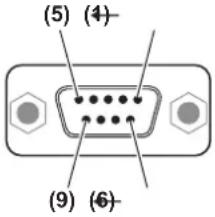 | (1) GND | — GND | ||
| (2) POWER | OFF | ON | ||
| (3) | RGB1 | Other | RGB1 | |
| (4) | RGB2 | Other | RGB2 | |
| (5) | VIDEO | Other | VIDEO | |
| (6) | HDMI | Other | HDMI | |
| (7) | DVI-D | Other | DVI-D | |
| (8) | SHUTTER | OFF | ON | |
| (9) | RST/SET | Controlled by remote control | Controlled by external contact | |
Attention
- When controlling, make sure to short-circuit pins (1) and (9).
- When pins (1) and (9) are short-circuited, the following buttons on the control panel and the remote control cannot be used.
The power on < | > button, the power standby < ◀> button, the
- When pins (1) and (9) are short-circuited, do not short-circuit any pins from (3) to (7) with pin (1). The following buttons on the control panel and the remote control cannot be used.
The power on < |> button, the power standby < ◀> button,
Note
- For pin (2) to pin (8) settings, you can make changes if you set [REMOTE2 MODE] to [USER]. (→ page 110)
Two window display combination list
| Sub windowMain window | RGB1 RGB2 | VIDEO input | DVI-D HDMI | SDI1*4 | SDI2*4 | Dual link HD SDI*4 | ||||||||
| RGB Movie *3 | Y/C input | RGB | Movie *3 | RGB*2 | Movie *1 | RGB*2 | Movie *1 | |||||||
| RGB1 | RGB | ✓✓✓ | ✓✓✓✓ | ✓✓ | — | |||||||||
| Movie*3 | ✓▲▲ | ✓▲✓ | ▲▲▲ | — | ||||||||||
| Y/C input | ✓ | ▲ | — | ✓▲✓ | ▲▲▲▲ | |||||||||
| RGB2 | RGB | ✓✓✓ | ✓✓✓✓ | ✓✓✓ | — | |||||||||
| Movie3 | ✓▲▲▲ | ✓▲ | ✓▲▲▲ | — | ||||||||||
| VIDEO input | ✓ | ▲ | — | ✓▲✓ | ✓▲ | ▲▲▲ | ||||||||
| DVI-D | RGB*2 | ✓✓✓ | ✓✓✓✓ | ✓✓ | — | — | ||||||||
| Movie*1 | ✓▲▲ | ✓▲▲ | ✓▲▲ | — | — | |||||||||
| HDMI | RGB*2 | ✓✓✓ | ✓✓✓✓ | ✓ | — | ✓ | — | |||||||
| Movie*1 | ✓▲▲ | ✓▲▲ | ✓▲ | — | ▲ | — | ||||||||
| SDI1*4 | ✓▲▲ | ✓▲▲ | ✓▲ | — | — | ▲ | — | |||||||
| SDI2*4 | ✓▲▲ | ✓▲▲ | — | — | ✓▲▲ | — | ||||||||
| Dual link HD SDI*4 | — | — | ▲ | — | — | ▲ | — | — | — | — | — | — | ||
√: P IN P (picture in picture) combination is possible
▲: P IN P (picture in picture) combination is possible through the same frequency
-: P IN P (picture in picture) combination is not possible
*1: Only supports 480p, 576p, 720/60p, 720/50p, 1080/60i, 1080/50i, 1080/24sF, 1080/24p, 1080/25p, 1080/30p, 1080/50p, and 1080/60p
*2: VGA (640 x 480) - WUXGA (1 920 x 1 200)
Non-interlace signal, dot clock frequency: 25 MHz to 162 MHz
(The WUXGA signal is only compatible with VESA CVT RB (Reduced Blanking) signals.)
*3: 480i, 480p, 576i, 576p, 720/60p, 720/50p, 1080/60i, 1080/50i, 1080/24sF, 1080/24p, 1080/25p, 1080/30p, 1080/50p, 1080/60p
*4: Only for PT-DZ21KE, PT-DS20KE
Note
- When the resolution of the sub window input signal exceeds 1280 horizontal pixels, picture quality of the sub window may deteriorate.
- In the combination of , if P IN P (picture in picture) is performed with the signals of the different frequency, images in the sub window will not be displayed.
Technical information
Control device password
To initialize your password, consult your distributor.
Upgrade kit (only supports PT-DZ21KE and PT-DS20KE)
If the optional accessories upgrade kit (Model No.: ET-UK20) is applied, the following functions are extended.
| Function Standard status When the upgrade kit is applied | ||
| Adjustment range of [VERTICAL KEYSTONE] | Maximum of ± 40^ × 1 | Maximum of ± 45^ × 1 |
| Adjustment range of [HORIZONTAL KEYSTONE] | Maximum of ± 15^ × 1 | Maximum of ± 40^ × 1 |
| Adjustment range of [CURVED] | Vertical arc Maximum of ± 50^ × 1 Horizontal arc Maximum of ± 50^ × 1 | Vertical arc Maximum of ± 100^ × 1 Horizontal arc Maximum of ± 100^ × 1 |
| [CUSTOM MASKING] Cannot be used. The image can be masked in optional form. | ||
| [PC CORRECTION] of [UNIFORMITY] | Cannot be used. | The brightness and unevenness of color of the entire screen can be corrected. |
*1: The adjustment range of the menu. Refer to “[GEOMETRY] projection range” (→ pages 30, 31) for the possible projection range.
For details, Refer to the Upgrade Kit Operating Instructions included in the CD-ROM of optional upgrade kit (Model No.: ET-UK20).
List of compatible signals
The following table specifies the types of signals compatible with the projector.
| Mode | Resolution(Dots) | Scanning frequency | Dots clockFrequency(MHz) | Plug and play*1 | Format*2 | |||||
| Horizontal(kHz) | Vertical(Hz) | RGB2 | DVI-DEDID1 | DVI-DEDID2 | DVI-DEDID3 | HDMI | ||||
| NTSC/NTSC4.43/PAL-M/PAL60 | 720 x 480i 15 | 7 59.9 | — | — | — | — | V | |||
| PAL/PAL-N/SECAM 720 x 576i 15.6 50.0 | — | — | — | — | V | |||||
| 525i (480i) 720 x 480i 15.7 59.9 13.5 | — | — | — | R/Y/SDI*10 | ||||||
| 625i (576i) 720 x 576i 15.6 50.0 13.5 | — | — | — | R/Y/SDI*10 | ||||||
| 525p (480p) 720 x 483 31.5 59.9 27.0 | — | √ | — | √ | √ | D/H/R/Y | ||||
| 625p (576p) 720 x 576 31.3 50.0 27.0 | — | √ | — | √ | √ | D/H/R/Y | ||||
| 1125 (1080)/60i*3 | 1 920 x 1 080i 33.8 60.0 | 74.3 | — | √ | — | √ | √ | D/H/R/Y/SDI | ||
| 1125 (1080)/50i 1 920 x 1 080i 28.1 50 | 0 74.3 | — | √ | — | √ | √ | D/H/R/Y/SDI | |||
| 1125 (1080)/24p 1 920 x 1 080 27.0 24 | 0 74.3 | — | √ | — | √ | √ | D/H/R/Y/SDI | |||
| 1125 (1080)/24sF 1 920 x 1 080i 27.0 24 | 0 74.3 | — | — | — | D/H/R/Y/SDI | |||||
| 1125 (1080)/25p 1 920 x 1 080 28.1 25 | 0 74.3 | — | √ | — | √ | — | D/H/R/Y/SDI | |||
| 1125 (1080)/30p 1 920 x 1 080 33.8 30 | 0 74.3 | — | — | — | D/H/R/Y/SDI | |||||
| 1125 (1080)/60p 1 920 x 1 080 67.5 60 | 0 148.5 | — | √ | — | √ | √ | D/H/R/Y/SDI*8*10 | |||
| 1125 (1080)/50p 1 920 x 1 080 56.3 50 | 0 148.5 | — | √ | — | √ | √ | D/H/R/Y/SDI*8*10 | |||
| 2K/24p | 2 048 x 1 080 27.0 24.0 | 74.3 | — | — | — | SDI*9 | ||||
| 2K/24sF 2 048 x 1 080 27.0 24.0 | 74.3 | — | — | — | SDI*9 | |||||
| 750 (720)/60p | 1 280 x 720 | 45.0 | 60.0 | 74.3 | — | √ | — | √ | √ | D/H/R/Y/SDI*10 |
| 750 (720)/50p | 1 280 x 720 | 37.5 | 50.0 | 74.3 | — | √ | — | √ | √ | D/H/R/Y/SDI*10 |
| VESA400 | 640 x 400 31.5 70.1 | 25.2 | — | — | — | D/H/R | ||||
| 640 x 400 37.9 85.1 | 31.5 | — | — | — | D/H/R | |||||
| VGA480 | 640 x 480 31.5 59.9 | 25.2 | √√√√√ | D/H/R | ||||||
| 640 x 480 35.0 66.7 | 30.2 | — | — | — | D/H/R | |||||
| 640 x 480 37.9 72.8 | 31.5 | √ | — | √√√ | D/H/R | |||||
| 640 x 480 37.5 75.0 | 31.5 | √ | — | √√√ | D/H/R | |||||
| 640 x 480 43.3 85.0 | 36.0 | — | — | — | D/H/R | |||||
| SVGA | 800 x 600 35.2 56.3 | 36.0 | √ | — | √√√ | D/H/R | ||||
| 800 x 600 37.9 60.3 | 40.0 | √ | — | √√√ | D/H/R | |||||
| 800 x 600 48.1 72.2 | 50.0 | √ | — | √√√ | D/H/R | |||||
| 800 x 600 46.9 75.0 | 49.5 | √ | — | √√√ | D/H/R | |||||
| 800 x 600 53.7 85.1 | 56.3 | — | — | — | D/H/R | |||||
| MAC16 | 832 x 624 49.7 74.6 | 57.3 | √ | — | √√√ | D/H/R | ||||
| XGA | 1 024 x 768 | 39.6 50.0 | 51.9 | — | — | — | D/H/R | |||
| 1 024 x 768 | 48.4 60.0 | 65.0 | √ | — | √√√ | D/H/R | ||||
| 1 024 x 768 | 56.5 70.1 | 75.0 | √ | — | √√√ | D/H/R | ||||
| 1 024 x 768 | 60.0 75.0 | 78.8 | √ | — | √√√ | D/H/R | ||||
| 1 024 x 768 | 65.5 81.6 | 86.0 | — | — | — | D/H/R | ||||
| 1 024 x 768 | 68.7 85.0 | 94.5 | — | — | — | D/H/R | ||||
| 1 024 x 768 | 81.4 100.0 | 113.3 | — | — | — | D/H/R | ||||
| 1 024 x 768 | 98.8 120.0 | 139.1 | √ | — | √√√ | D/H/R | ||||
| MXGA | 1 152 x 864 | 53.7 60.0 | 81.6 | — | — | — | D/H/R | |||
| 1 152 x 864 | 64.0 71.2 | 94.2 | — | — | — | D/H/R | ||||
| 1 152 x 864 | 67.5 74.9 108.0 | — | — | — | D/H/R | |||||
| 1 152 x 864 | 76.7 85.0 121.5 | — | — | — | D/H/R | |||||
| MAC21 | 1 152 x 870 | 68.7 75.1 100.0 | √ | — | √√√ | D/H/R | ||||
Technical information
| Mode | Resolution(Dots) | Scanning frequency | Dots clock Frequency(MHz) | Plug and play ^-1 | Format ^*2 | |||||
| Horizontal(kHz) | Vertical(Hz) | RGB2 | DVI-DEDID1 | DVI-DEDID2 | DVI-DEDID3 | HDMI | ||||
| 1280 x 720 | 1 280 x 720 37 | 7.1 49.8 | 60.5 | — — | — — | — | D/H/R | |||
| 1 280 x 720 44 | 8.59 | 74.5 | — — | — — | — | D/H/R | ||||
| 1 280 x 720 76 | 3.100 | 131.8 | — — | — — | — | D/H/R | ||||
| 1 280 x 720 92 | 6.120 | 161.6 | — — | — — | — | D/H/R | ||||
| 1280 x 768 | 1 280 x 768 39 | 6.49 | 65.3 | — — | — — | — | D/H/R | |||
| 1 280 x 768 47 | 8.59 | 79.5 | — — | — — | — | D/H/R | ||||
| 1 280 x 768 ^*4 | 47.4 | 60.0 68.3 | — — | — — | — | D/H/R | ||||
| 1 280 x 768 60 | 3.74 | 102.3 | — — | — — | — | D/H/R | ||||
| 1 280 x 768 68 | 6.84 | 117.5 | — — | — — | — | D/H/R | ||||
| 1280 x 800 | 1 280 x 800 41 | 3.50 | 68.0 | — — | — — | — | D/H/R | |||
| 1 280 x 800 49 | 7.59 | 83.5 | — — | — — | — | D/H/R | ||||
| 1 280 x 800 ^*4 | 49.3 | 59.9 71.0 | — — | — — | — | D/H/R | ||||
| 1 280 x 800 62 | 8.74 | 106.5 | — — | — — | — | D/H/R | ||||
| 1 280 x 800 71 | 6.84 | 122.5 | — — | — — | — | D/H/R | ||||
| MSXGA 1 280 x 960 | 60.0 60.0 108 | 0 | — — | — — | — | D/H/R | ||||
| SXGA | 1 280 x 1 024 52 | 4.50 | 88.0 | — — | — — | — | D/H/R | |||
| 1 280 x 1 024 64 | 0.60 | 108.0 | √ | — | √√√ | D/H/R | ||||
| 1 280 x 1 024 72 | 3.66 | 125.0 | — — | — — | — | D/H/R | ||||
| 1 280 x 1 024 78 | 2.72 | 135.1 | — — | — — | — | D/H/R | ||||
| 1 280 x 1 024 80 | 0.75 | 135.0 | √ | — | √√√ | D/H/R | ||||
| 1 280 x 1 024 91 | 1.85 | 157.5 | — — | — — | — | D/H/R | ||||
| 1366 x 768 | 1 366 x 768 47 | 7.59 | 85.5 | √ ^*5 | — | √ ^*5 | √ ^*5 | √ ^*5 | D/H/R | |
| 1 366 x 768 39 | 6.49 | 69.0 | — — | — — | — | D/H/R | ||||
| SXGA+ | 1 400 x 1 050 54 | 1.50 | 99.9 | — — | — — | — | D/H/R | |||
| 1 400 x 1 050 64 | 0.60 | 108.0 | — — | — — | — | D/H/R | ||||
| 1 400 x 1 050 65 | 2.60 | 122.6 | √ | — | √√√ | D/H/R | ||||
| 1 400 x 1 050 65 | 3.60 | 121.8 | — — | — — | — | D/H/R | ||||
| 1 400 x 1 050 78 | 8.72 | 149.3 | — — | — — | — | D/H/R | ||||
| 1 400 x 1 050 82 | 2.75 | 155.9 | — — | — — | — | D/H/R | ||||
| WXGA+ | 1 440 x 900 55 | 9.59 | 106.5 | — — | — — | — | D/H/R | |||
| 1 440 x 900 46 | 3.49 | 86.8 | — — | — — | — | D/H/R | ||||
| UXGA60 1 600 x 1200 | 75.0 60.0 162.0 | √ | — | √√√ | D/H/R | |||||
| WSXGA+ | 1 680 x 1 050 65 | 3.60 | 146.3 | — — | — — | — | D/H/R | |||
| 1 680 x 1 050 54 | 1.50 | 119.5 | — — | — — | — | D/H/R | ||||
| 1920 x 1080 | 1 920 x 1 080 55 | 6.49 | 141.5 | — — | — — | — | D/H/R | |||
| 1 920 x 1 080 ^*4 | 6.65 | 9.9 138.5 | — — | — — | — | D/H/R | ||||
| 1 920 x 1 080 ^*7 | 6.72 | 0.173.0 | — — | — — | — | R | ||||
| WUXGA | 1 920 x 1 200 61 | 8.49 | 158.3 | — — | — — | — | D/H/R | |||
| 1 920 x 1 200 ^*4 | 6.0 | 154.0 | √ | — | √ | √ ^*6 | √ ^*6 | D/H/R | ||
| 1 920 x 1 200 ^*7 | 9.9 | 193.3 | — — | — — | — | R | ||||
*1: Signals with a √ in the Plug and Play columns are signals described in the projector's EDID (extended display identification data). If a signal has no √ in the Plug and play columns but has an entry in the Format column, it can be entered. For signals without a √ in the Plug and play columns, there are instances that resolution cannot be selected in the computer even though the projector supports them.
*2: Signals that show formats are as follows.
V: Video, Y/C
D: DVI-D
H: HDMI
R: RGB
Y: YC B C R /YP B P R
SDI: SDI (only for PT-DZ21KE, PT-DS20KE)
*3: When a 1125 (1035)/60i signal was input, it is displayed as a 1125 (1080)/60i signal.
*4: VESA CVT-RB (Reduced Blanking) compatible
*5: Only for PT-DW17KE
*6: Only for PT-DZ21KE
*7: Samples the pixels in the image processing circuit and projects the image.
*8: SDI 1 only
*9: For dual link connections only
*10: For single link connections only
Note
- There are 1 920 x 1 200 display dots for PT-DZ21KE, 1 400 x 1 050 for PT-DS20KE, and 1 366 x 768 for PT-DW17KE.
A signal with a different resolution is converted to the number of display dots and displayed.
- The "i" at the end of the resolution indicates an interlaced signal.
- When interlaced signals are connected, flickering may occur on the projected image.
List of 3D compatible signals (only for PT-DZ21KE, PT-DS20KE)
The following table specifies the 3D compatible image signals that the projector can project. Items that are applicable to (1) to (7) in the table are as follows.
(1) Frame packing method
(2) Side by side method
(3) Top and bottom method
(4) Line by line method
(5) Frame sequential method
(6) 3G-SDI Level B simultaneous method
(7) Simultaneous method
| 3D compatible signal | Resolution(Dots) | Scanning frequency | Dot clockfrequency(MHz) | HDMI DVI-D | |||||||
| Horizontal(kHz) | Vertical(Hz) | (1) (2) | *1 | (3) (2) | *1 | (3) (4) | (5) | ||||
| 720/60p 1 280 x 720 45.0 60.0 74.3 | ✓✓✓ | ✓✓✓ | — | ||||||||
| 720/50p 1 280 x 720 37.5 50.0 74.3 | ✓✓✓ | ✓✓✓ | — | ||||||||
| 1080/60i 1 920 x 1 080i 33.8 | 60.0 74.3 | ✓ | ✓ | — | ✓ | ✓ | — | — | |||
| 1080/50i 1 920 x 1 080i 28.1 | 50.0 74.3 | ✓ | ✓ | — | ✓ | ✓ | — | — | |||
| 1080/24p | 1 920 x 1 080 27.0 24.0 74.3 | ✓✓✓ | ✓✓ | — | — | ||||||
| 1080/24sF | 1 920 x 1 080i | 27.0 | 24.0 | 74.3 | — | — | — | ✓ | ✓ | — | — |
| 1080/25P | 1 920 x 1 080 | 28.1 | 25.0 | 74.3 | — | — | — | ✓ | ✓ | — | — |
| 1080/30P | 1 920 x 1 080 | 33.8 | 30.0 | 74.3 | — | — | — | ✓ | ✓ | — | — |
| 1080/60p | 1 920 x 1 080 | 67.5 | 60.0 | 148.5 | — | ✓✓✓✓ | — | — | |||
| 1080/50p | 1 920 x 1 080 | 56.3 | 50.0 | 148.5 | — | ✓✓✓✓ | — | — | |||
| VGA480 | 640 x 480 | 31.5 | 59.9 | 25.2 | — | — | — | ✓ | — | — — | |
| SVGA | 800 x 600 | 37.9 | 60.3 | 40.0 | — | — | — | ✓ | — | — — | |
| XGA | 1 024 x 768 | 39.6 | 50.0 | 51.9 | — | — | — | ✓ | — | — — | |
| 1 024 x 768 | 48.4 | 60.0 | 65.0 | — | — | — | ✓ | — | — — | ||
| 1 024 x 768 | 81.4 | 100.0 | 113.3 | — | — | — | — | — | — | ✓ | |
| 1 024 x 768 | 98.8 | 120.0 | 139.1 | — | — | — | — | — | — | ✓ | |
| MXGA | 1 152 x 864 | 53.7 | 60.0 | 81.6 | — | — | — | ✓ | — | — — | |
| 1280 x 720 | 1 280 x 720 | 37.1 | 49.8 | 60.5 | — | — | — | ✓ | — | — — | |
| 1 280 x 720 | 44.8 | 59.9 | 74.5 | — | — | — | ✓ | — | — — | ||
| 1 280 x 720 | 76.3 | 100.0 | 131.8 | — | — | — | — | — | — | ✓ | |
| 1 280 x 720 | 92.6 | 120.0 | 161.6 | — | — | — | — | — | — | ✓ | |
| 1280 x 768 | 1 280 x 768 | 39.6 | 49.9 | 65.3 | — | — | — | ✓ | — | — — | |
| 1 280 x 768 | 47.8 | 59.9 | 79.5 | — | — | — | ✓ | — | — — | ||
| 1 280 x 768^*2 | 47.4 60.0 68.3 — | — | — | ✓ | — | — — | |||||
| 1280 x 800 | 1 280 x 800 | 41.3 | 50.0 | 68.0 | — | — | — | ✓ | — | — — | |
| 1 280 x 800 | 49.7 | 59.8 | 83.5 | — | — | — | ✓ | — | — — | ||
| 1 280 x 800^*2 | 49.3 59.9 71.0 — | — | — | ✓ | — | — — | |||||
| MSXGA | 1 280 x 960 | 60.0 | 60.0 | 108.0 | — | — | — | ✓ | — | — — | |
| SXGA | 1 280 x 1 024 | 52.4 | 50.0 | 88.0 | — | — | — | ✓ | — | — — | |
| 1 280 x 1 024 | 64.0 | 60.0 | 108.0 | — | — | — | ✓ | — | — — | ||
| 1366 x 768 | 1 366 x 768 | 47.7 | 59.8 | 85.5 | — | — | — | ✓ | — | — — | |
| 1 366 x 768 | 39.6 | 49.9 | 69.0 | — | — | — | ✓ | — | — — | ||
Technical information
| 3D compatible signal | Resolution(Dots) | Scanning frequency | Dot clockfrequency(MHz) | HDMI DVI-D | |||||||
| Horizontal(kHz) | Vertical(Hz) | (1) (2) | *1 | (3) (2) | *1 | (3) (4) | (5) | ||||
| SXGA+ | 1 400 x 1 050 54. | 1 50.0 | 99.9 — | — — | √ | — — | — | ||||
| 1 400 x 1 050 64. | 0 60.0 | 108.0 — | — — | √ | — — | — | |||||
| 1 400 x 1 050 65. | 2 60.0 | 122.6 — | — — | √ | — — | — | |||||
| 1 400 x 1 050 65. | 3 60.0 | 121.8 — | — — | √ | — — | — | |||||
| WXGA+ | 1 440 x 900 55.9 | 59.9 | 106.5 — | — — | √ | — — | — | ||||
| 1 440 x 900 46.3 | 49.9 | 86.8 — | — | √ | — — | — | |||||
| UXGA60 1 600 x 1 200 75.0 60.0 | 162.0 | — — | √ | — — | — | ||||||
| WSXGA+ | 1 680 x 1 050 65. | 3 60.0 | 146.3 — | — — | √ | — — | — | ||||
| 1 680 x 1 050 54. | 1 50.0 | 119.5 — | — — | √ | — — | — | |||||
| 1920 x 1080 | 1 920 x 1 080 55. | 6 49.9 | 141.5 — | — — | √ | — — | — | ||||
| 1 920 x 1 080*2 | 66.6 | 59.9 138.5 — | — — | √ | — — | — | |||||
| WUXGA | 1 920 x 1 200 61. | 8 49.9 | 158.3 — | — — | √ | — — | — | ||||
| 1 920 x 1 200*2 | 74.0 | 60.0 154.0 — | — — | √ | — | √ | — | ||||
*1: Supports half.
*2: VESA CVT-RB (Reduced Blanking) compatible
| 3D compatible signal | Resolution(Dots) | Scanning frequency | Dot clockfrequency(MHz) | RGB1/RGB2 | SDI1/SDI2 | HDMI & DVI-D | RGB1 & RGB2 | SDI1 & SDI2 | |||||||
| Horizontal(kHz) | Vertical(Hz) | (2)*1 | (3) | (4) | (5) | (2)*1 | (3) | (4) | (6)*3 | (7) | (7) | (7) | |||
| 720/60p | 1 280 x 720 45.0 | 60.0 | 74.3 | √ | √ | √ | — | √ | √ | √ | √ | √ | √ | √ | |
| 720/50p | 1 280 x 720 37.5 | 50.0 | 74.3 | √ | √ | √ | — | √ | √ | √ | √ | √ | √ | √ | |
| 1080/60i 1 920 x 1 080i | 33.8 | 60.0 | 74.3 | √ | √ | — | — | √ | √ | — | √ | √ | √ | √ | |
| 1080/50i 1 920 x 1 080i | 28.1 | 50.0 | 74.3 | √ | √ | — | — | √ | √ | — | √ | √ | √ | √ | |
| 1080/24p 1 920 x 1 080 27.0 | 24.0 | 74.3 | √ | √ | — | — | √ | √ | — | √ | √ | √ | √ | ||
| 1080/24sF 1 920 x 1 080i | 27.0 | 24.0 | 74.3 | √ | √ | — | — | √ | √ | — | √ | √ | √ | √ | |
| 1080/25P | 1 920 x 1 080 28.1 | 1 25.0 | 74.3 | √ | √ | — | — | √ | √ | — | √ | √ | √ | √ | |
| 1080/30P | 1 920 x 1 080 33.8 | 8 30.0 | 74.3 | √ | √ | — | — | √ | √ | — | √ | √ | √ | √ | |
| 1080/60p 1 920 x 1 080 67.5 | 60.0 | 148.5 | √ | √ | — | — | √*3 | √*3 | — | — | √ | √ | — | ||
| 1080/50p 1 920 x 1 080 56.3 | 50.0 | 148.5 | √ | √ | — | — | √*3 | √*3 | — | — | √ | √ | — | ||
| VGA480 | 640 x 480 | 31.5 | 59.9 | 25.2 | √ | — — | — — | — — | — — | — — | |||||
| SVGA | 800 x 600 | 37.9 | 60.3 | 40.0 | √ | — — | — — | — — | — — | — — | |||||
| XGA | 1 024 x 768 39.6 | 50.0 | 51.9 | √ | — — | — — | — — | — — | — — | ||||||
| 1 024 x 768 48.4 | 60.0 | 65.0 | √ | — — | — — | — — | — — | — — | |||||||
| 1 024 x 768 81.4 | 100.0 | 113 | 3 — — | — | √ | — — | — — | — — | |||||||
| 1 024 x 768 98.8 | 120.0 | 139 | 1 — — | — | √ | — — | — — | — — | |||||||
| MXGA | 1 152 x 864 53.7 | 60.0 | 81.6 | √ | — — | — — | — — | — — | — — | ||||||
| 1280 x 720 | 1 280 x 720 37.1 | 49.8 | 60.5 | √ | — — | — — | — — | — — | — — | ||||||
| 1 280 x 720 44.8 | 59.9 | 74.5 | √ | — — | — — | — — | — — | — — | |||||||
| 1 280 x 720 76.3 | 100.0 | 131 | 8 — — | — | √ | — — | — — | — — | |||||||
| 1 280 x 720 92.6 | 120.0 | 161 | 6 — — | — | √ | — — | — — | — — | |||||||
| 1280 x 768 | 1 280 x 768 39.6 | 49.9 | 65.3 | √ | — — | — — | — — | — — | — — | ||||||
| 1 280 x 768 47.8 | 59.9 | 79.5 | √ | — — | — — | — — | — — | — — | |||||||
| 1 280 x 768*2 | 47.4 | 60.0 | 68.3 | √ | — — | — — | — — | — — | — — | ||||||
| 1280 x 800 | 1 280 x 800 41.3 | 50.0 | 68.0 | √ | — — | — — | — — | — — | — — | ||||||
| 1 280 x 800 49.7 | 59.8 | 83.5 | √ | — — | — — | — — | — — | — — | |||||||
| 1 280 x 800*2 | 49.3 | 59.9 | 71.0 | √ | — — | — — | — — | — — | — — | ||||||
| MSXGA | 1 280 x 960 60.0 | 60.0 | 108.0 | √ | — — | — — | — — | — — | — — | ||||||
| SXGA | 1 280 x 1 024 52.4 | 50.0 | 88.0 | √ | — — | — — | — — | — — | — — | ||||||
| 1 280 x 1 024 64.0 | 60.0 | 108.0 | √ | — — | — — | — — | — — | — — | |||||||
| 3D compatible signal | Resolution(Dots) | Scanning frequency | Dot clock frequency(MHz) | RGB1/RGB2 SDI1/SDI2 | HDMI & DVI-D | RGB1 & RGB2 | SDI1 & SDI2 | |||||||||
| Horizontal(kHz) | Vertical(Hz) | (2)*1 | (3) | (4) | (5) | (2) | *1 | (3) | (4) | (6) | *3 | (7) | (7) | |||
| 1366 x 768 | 1 366 x 768 47.7 | 59.8 | 85.5 | √ | — | — | — | — | — | — | ||||||
| 1 366 x 768 39.6 | 49.9 | 69.0 | √ | — | — | — | — | — | — | |||||||
| SXGA+ | 1 400 x 1 050 54.1 | 50.0 | 99.9 | √ | — | — | — | — | — | √ | √ | — | ||||
| 1 400 x 1 050 64.0 | 60.0 | 108.0 | √ | — | — | — | — | — | √ | √ | — | |||||
| 1 400 x 1 050 65.2 | 60.0 | 122.6 | √ | — | — | — | — | — | √ | √ | — | |||||
| 1 400 x 1 050 65.3 | 60.0 | 121.8 | √ | — | — | — | — | — | √ | √ | — | |||||
| WXGA+ | 1 440 x 900 55.9 | 59.9 | 106.5 | √ | — | — | — | — | — | — | ||||||
| 1 440 x 900 46.3 | 49.9 | 86.8 | √ | — | — | — | — | — | — | |||||||
| UXGA60 1 600 x 1 200 75.0 60.0 | 162.0 | √ | — | — | — | — | — | — | ||||||||
| WSXGA+ | 1 680 x 1 050 65.3 | 60.0 | 146.3 | √ | — | — | — | — | — | — | ||||||
| 1 680 x 1 050 54.1 | 50.0 | 19.5 | √ | — | — | — | — | — | — | |||||||
| 1920 x 1080 | 1 920 x 1 080 55.6 | 49.9 | 141.5 | √ | — | — | — | — | — | — | ||||||
| 1 920 x 1 080*2 | 66.6 | 59.9 138.5 | √ | — | — | — | — | — | — | |||||||
| WUXGA | 1 920 x 1 200 61.8 | 49.9 | 158.3 | √ | — | — | — | — | — | √ | √ | — | ||||
| 1 920 x 1 200*2 | 74.0 | 60.0 154.0 | √ | — | √ | — | — | — | — | √ | √ | — | ||||
*1: Supports half.
*2: VESA CVT-RB (Reduced Blanking) compatible
*3: Only supports SDI 1
Specifications
The following table describes the specifications of the projector.
| Model No. PT-DZ21KE PT-DS20KE PT-DW17KE | ||||
| Power supply AC 200 V - 240 V | 50 Hz/60 Hz | |||
| Power consumption | 2300 W (12 A) | |||
| (0.3 W when standby mode is set to [ECO], and 9 W when set to [NORMAL]) | ||||
| DLP chips | Panel size | 24.4 mm (0.96") (aspect ratio 16:10) | 24.1 mm (0.95") (aspect ratio 4:3) | 21.6 mm (0.85") (aspect ratio 16:9) |
| Display method 3-unit DLP chips, DLP type | ||||
| Number of pixels | 2304000 pixels (1920 x 1200 dots) x 3 panels | 1470000 pixels (1400 x 1050 dots) x 3 panels | 1049088 pixels (1366 x 768 dots) x 3 panels | |
| Lens Optional | ||||
| Luminous lamp 465 W UHM lamp x 4 | ||||
| Light output *1 | 20000 lm (ANSI) 17000 lm (ANSI) | |||
| Applicable scanning frequency *2 | For RGB signal | Horizontal: 15 kHz to 100 kHz, Vertical: 24 Hz to 120 HzPIAS (Panasonic Intelligent Auto Scanning) system | ||
| Dot clock frequency162 MHz or less | ||||
| For YC_B C_R / YP_B P_R signals | [480i] H: 15.73 kHz, V: 59.94 Hz[480p] H: 31.5 kHz, V: 59.94 Hz[720/50p] H: 37.5 kHz, V: 50 Hz[1035/60i] H: 33.75 kHz, V: 60 Hz[1080/60i] H: 33.75 kHz, V: 60 Hz[1080/25p] H: 28.13 kHz, V: 25 Hz[1080/30p] H: 33.75 kHz, V: 30 Hz[1080/50p] H: 56.25 kHz, V: 50 Hz●The HD/SYNC and VD terminals do not support 3 value SYNC. | |||
| For video signals (including Y/C signals) | Horizontal: 15.75 kHz/15.63 kHz, Vertical: 50 Hz/60 Hz | |||
| For DVI-D signal For HDMI signal | 480p, 576p, 720/60p, 720/50p, 1080/60p, 1080/50p, 1080/60i, 1080/50i, 1080/24sF, 1080/30p, 1080/25p, 1080/24p●Displayable resolution: VGA to WUXGA (non-interlaced)●Dot clock frequency: 25 MHz to 162 MHz | |||
| For SDI signal | [SD-SDI signal] SMPTE ST 259 compliant YC_B C_R 4:2:2 10-bit]480i, 576i[Single link HD-SDI signal] SMPTE ST 292 compliant YP_B P_R 4:2:2 10-bit]720/50p, 720/60p, 1035/60i,1080/50i, 1080/60i, 1080/25p,1080/24p, 1080/24sF, 1080/30p[Dual link HD-SDI signal] SMPTE ST 372 compliant[RGB 4:4:4 12-bit/10-bit]1080/50i, 1080/60i, 1080/25p,1080/24p, 1080/24sF, 1080/30p, X'Y'Z' 4:4:4 12-bit]2048 x 1080/24p,2048 x 1080/24sF[3G-SDI signal] SMPTE ST 424 compliant YP_B P_R 4:2:2 10-bit]1080/50p, 1080/60p[RGB 4:4:4 12-bit/10-bit]1080/50i, 1080/60i, 1080/25p,1080/24p, 1080/24sF, 1080/30p●The 3G-SDI signal is only compatible with SDI 1. | — | ||
| Color system 7 standards (NTSC/NTSC4.43/PAL/PAL-N/PAL-M/SECAM/PAL60) | ||||
| Projection screen size | 1.78 m (70") - 15.24 m (600")3 | |||
| Screen aspect ratio | 16:10 | 4:3 | 16:9 | |
| Projection method | FRONT CEILING/FRONT FLOOR/REAR CEILING/REAR FLOOR | |||
| Model No. PT-DZ21KE PT-DS20KE PT-DW17KE | |||
| Contrast ratio 10 000:1 (when [DYNAMIC IRIS] is set to [3]) | |||
| Terminals | 1 set (BNC x 5 (RGB/YP _B PR/YC _B CR/YC x 1))[RGB signal] 0.7 V [p-p] 75 Ω (SYNC ON GREEN: 1.0 V [p-p] 75 Ω)HD/SYNC TTL high impedance, automatic positive/negative polarity compatibleVD TTL high impedance, automatic positive/negative polarity compatible[YP _B PR signal] Y: 1.0 V [p-p] including synchronization signal, PB _R : 0.7 V [p-p] 75 Ω[Y/C signal] Y: 1.0 V [p-p], C: 0.286 V [p-p] 75 Ω | ||
| 1 set, high-density D-Sub 15p (female)[RGB signal] 0.7 V [p-p] 75 Ω (SYNC ON GREEN: 1.0 V [p-p] 75 Ω)HD/SYNC TTL high impedance, automatic positive/negative polarity compatibleVD TTL high impedance, automatic positive/negative polarity compatible[YP _B PR signal] Y: 1.0 V [p-p] including synchronization signal, PB _R : 0.7 V [p-p] 75 | |||
| 1 set, BNC 1.0 V [p-p] 75 Ω | |||
| 1 set, DVI-D 24 p single link, DVI 1.0 compatible, HDCP compliant | |||
| 1 set, HDMI 19 pin, (HDCP and Deep color compatible) | |||
| 1 set (BNC)[SD-SDI signal] SMPTE ST 259 compliant[HD-SDI signal] SMPTE ST 292 compliant[3G-SDI signal] SMPTE ST 424 compliant[Dual link HD-SDI (LINK-A) SMPTE ST 372 compliant signal] | — | ||
| 1 set (BNC)[SD-SDI signal] SMPTE ST 259 compliant[HD-SDI signal] SMPTE ST 292 compliant[Dual link HD-SDI (LINK-B) SMPTE ST 372 compliant signal] | — | ||
| <3D SYNC 1 IN/OUT> terminal | 1 set (BNC)During input setting TTL high impedanceDuring output setting TTL output max. 10 mA | — | |
| <3D SYNC 2 OUT> terminal | 1 set (BNC)TTL output max. 10mA | — | |
| D-Sub 9 p, each set, RS-232C compatible, for computer control | |||
| M3 stereo mini jack, each set, remote control for serial control | |||
| 1 set D-Sub 9 p for contact control | |||
| 1 set, (for RJ-45 network connection, PJLink compatible, 10Base-T/100Base-TX) | |||
| Power cable length 3.0 m (118-1/8") | |||
| Outer case Molded plastic | |||
Specifications
| Model No. PT-DZ21KE | PT-DS20KE PT-DW17KE | |||
| Dimensions | Width: 620 mm (24-13/32"), Height: 255 mm (10-1/32") (excluding the legs), Depth: 730 mm (28-3/4") (excluding the projection lens cover) | |||
| Weight Approx 43.0 k | g (94.8 lbs.) ^4 | |||
| Operating environment | Operating environment temperature ^5 : 0°C (32°F) to 45°C (113°F) Operating environment humidity: 10% to 80% (no condensation) | |||
| Remote control | Power supply DC 3 | V (AA/R6 battery x 2) | ||
| Operating range | Approx. 30 m (98'5") (when operated directly in front of signal receiver) | |||
| Weight 134 | g (4.7 ozs.) (including batteries) | |||
| Dimensions Width: | 51 mm (2"), Height: 176 mm (6-15/16"), Depth: 28 mm (1-3/32") | |||
*1: Measurement, measuring conditions and method of notation all comply with ISO21118 international standards.
*2: Refer to "List of compatible signals" (→ page 167) for the types of video signals that can be used with the projector.
*3: 1.78 m - 7.62 m (70" - 300") when ET-D75LE5, ET-D75LE50 projection lens is attached.
*4: Average value. Weight varies for each product.
*5: When using the projector at high elevations 1 400 m (4 593 ft) – 2 700 m (8 858 ft) from sea level, operating environment temperature will be 0°C (32°F) to 40°C (104°F).
When using a smoke cut filter, the temperature will be 0°C (32°F) to 35°C (95°F). However, it cannot be used at high elevations. When using the replacement lamp unit (for portrait mode), the operating environment temperature will be 0°C (32°F) to 40°C (104°F); when using it at high altitudes 1 400 m (4 593 ft) – 2 700 m (8 858 ft) from sea level, the operating environment temperature will be 0°C (32°F) to 35°C (95°F); when using it with a smoke cut filter, the operating environment temperature will be 0°C (32°F) to 30°C (86°F).
● The part numbers of accessories and separately sold components are subject to change without notice.
Dimensions
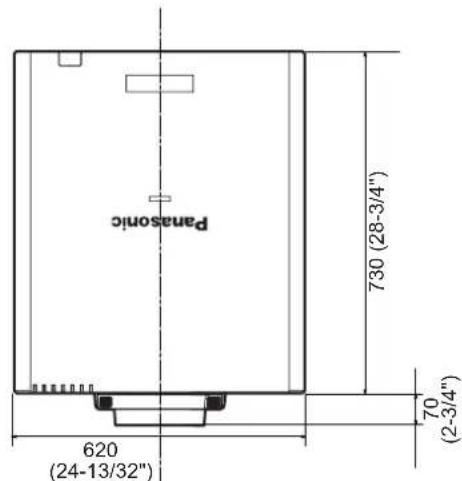
Unit: mm
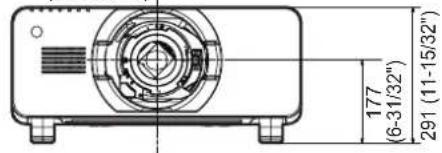
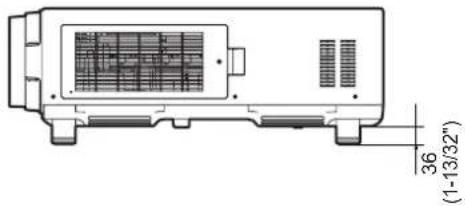
* Actual dimensions may differ depending on the product.
Ceiling mount bracket safeguards
- When installing the projector to a ceiling, be sure to use the specified ceiling mount bracket (Model No.: ET-PKD510H (for high ceilings), ET-PKD510S (for low ceilings)).
- When installing the projector, attach the drop-prevention set included with the ceiling mount bracket to the projector.
If you need the drop-prevention set (hex bolt with washer (M10 x 40), wire rope: TTRA0143) separately, consult your dealer. - Request for a qualified technician to do the installation.
- Panasonic takes no responsibility for any damage to the projector resulting from use of a ceiling mount bracket not manufactured by Panasonic or the inappropriate choice of location for installation, even if the warranty period of the projector has not expired.
● Unused products must be removed promptly by a qualified technician. - Referring to the screw holes for ceiling mount diagram below, use screws of sufficient length to reach the imbedded nuts.
- Use a torque screwdriver or Allen torque wrench to tighten bolts to their specified tightening torques. Do not use tools such as electric screwdrivers or impact screwdrivers.
- For details, read the installation manual that comes with the ceiling mount bracket.
● The part numbers of accessories and separately sold components are subject to change without notice.
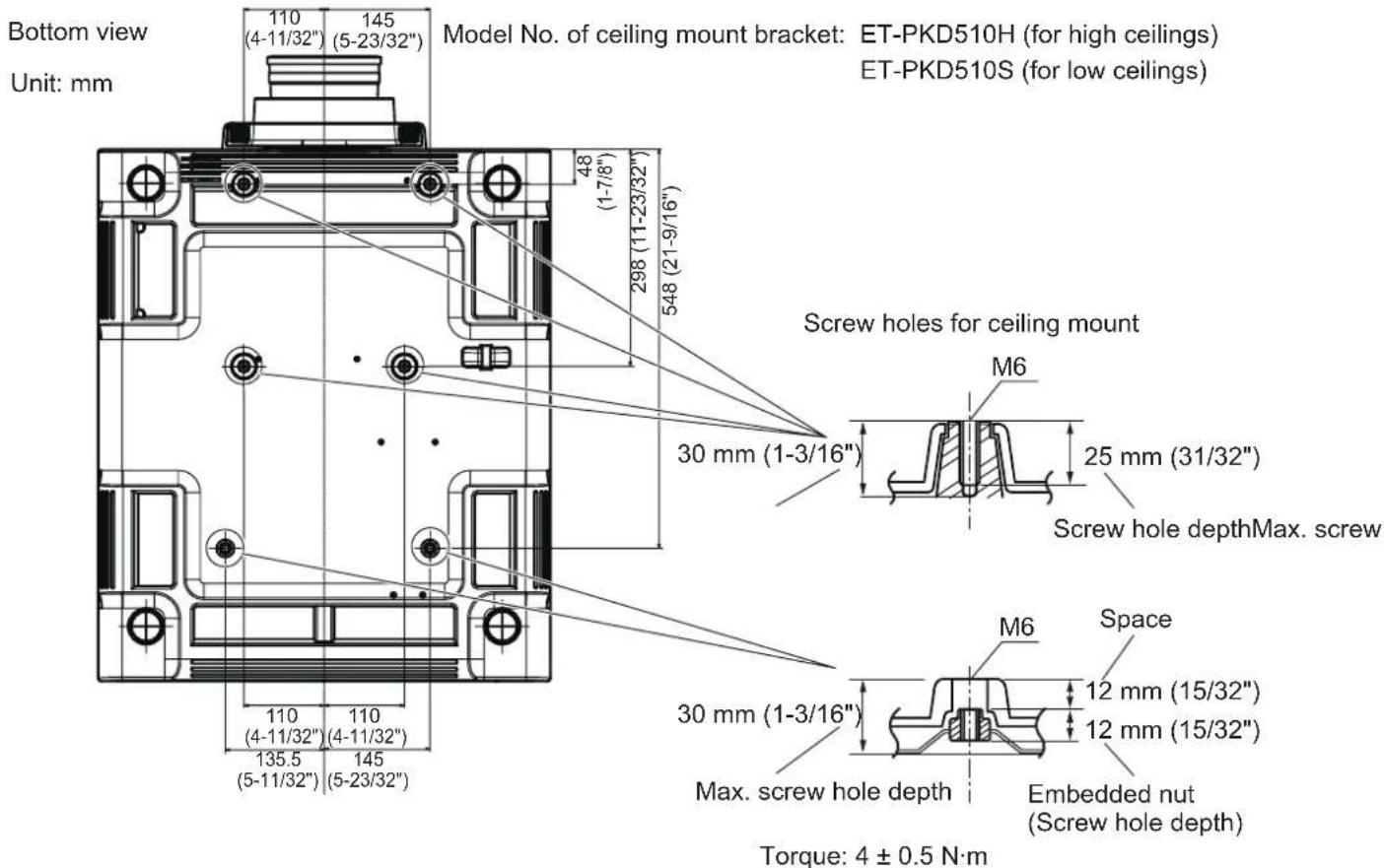
Index
Numerics
[3D COLOR MATCHING] 84
[3D FRAME DELAY] 86
[3D INPUT FORMAT] 84
[3D PICTURE BALANCE] 85
[3D SAFETY PRECAUTIONS] 87
[3D SETTINGS] 63, 82
[3D SIMUL INPUT SETTING].... 83
[3D SYNC SETTING] 82
[3D SYSTEM SETTING] 82
[3D TEST MODE] 86
[3D TEST PATTERN] 86
A
Accessories 19
Adjustable feet 42
[ADVANCED MENU] 63,77
Air filter unit 144
Air filter unit compartment 146
[ASPECT] 72
Remote control 22,60
Aspect function 60
Attaching/removing the projection lens 43
Automatic setup function 59
[AUTO SETUP] 91
Projector body 25, 59
Remote control 22,59
[AUTO SIGNAL] 90
B
[BACK COLOR] 95
[BLANKING] 77
[BRIGHTNESS] 66
[BRIGHTNESS CONTROL] 102
C
Cautions on use 18
Cautions when installing 15
Cautions when transporting 15
Ceiling mount bracket 176
Ceiling mount bracket safeguards .....176
[CLAMP POSITION] 78
[CLOCK PHASE] 74
[COLOR] 66
[COLOR MATCHING] 88
[COLOR TEMPERATURE] 66
Connecting the power cord 48
Connection 44
[CONTRAST] 66
[CONTROL DEVICE PASSWORD CHANGE]...124
[CONTROL DEVICE SETUP] 122
[COOLING CONDITION] 100
[CUT OFF] 98
D
[DARK TIME SETTING] 85
[DATE AND TIME] 110
Remote control 22,62
Deleting a registered data 118
[DIGITAL CINEMA REALITY] 77
Dimensions 175
Display language 63,81
[DISPLAY OPTION] 64, 88
[DISPLAY SETTING] 122
Disposal 18
Projector body 25, 58
Remote control 22,58
[DVI-D IN] 92
[DYNAMIC IRIS] 69
E
[EDGE BLENDING] 78
Projector body 25
Remote control 22
Expanding signal lock-in range 119
F
Filter indicator 143
[FRAME LOCK] 80
[FRAME RESPONSE] 80
[FREEZE] 96
Function button 59, 11
G
[GAMMA] 68
[GEOMETRY] 74
H
[HDMI IN] 93
[HIGH ALTITUDE MODE] 100
[Non-Text]
[INITIALIZE] 114
Initial setting 21
[INPUT RESOLUTION] 78
Input selection terminal indicator 25
K
[KEYSTONE]....76
[Non-Text]
Lamp indicator 142
[LAMP RELAY] 101
[LAMP SELECT] 100
Lamp unit cover 24
[LARGE SCREEN CORRECTION] 89
[LEFT/RIGHT SWAP] 84
[LENS CALIBRATION] 111
[LENS MEMORY] 112
List of compatible signals 167
[LOAD ALL USER DATA] 113
M
Main menu 62
Main power switch 24,50
Maintenance 144
Managing the sub memory list 120