
DPX-XT-2P - AV Extension Smart-AVI - Free user manual and instructions
Find the device manual for free DPX-XT-2P Smart-AVI in PDF.


| Product Type | AV Extender |
| Model | DPX-XT-2P |
| Brand | Smart-AVI |
| Video Interface | DVI-D Single Link |
| Max Resolution | 1920x1200 @ 60Hz |
| Transmission Medium | CAT5e/6 UTP Cable |
| Max Distance | Up to 60 meters |
| Input Connectors | 1x DVI-D (Female) |
| Output Connectors | 1x DVI-D (Female) |
| Transmitter/Receiver Pair | Yes, 2 units |
| Power Supply | External 5V DC, 1A |
| Power Consumption | <2.5W per unit |
| Dimensions (each unit) | 8.5 x 5.5 x 2.5 cm |
| Weight (each unit) | 0.12 kg |
| Operating Temperature | 0°C to 50°C |
| Storage Temperature | -20°C to 70°C |
| Humidity | 10% to 85% RH (non-condensing) |
| LED Indicators | Power and Link status |
| Included Accessories | 2x DVI cables, 2x power adapters, user manual |
| Maintenance | Wipe with dry cloth; no liquid cleaning |
| Safety | Use only specified power adapter; keep away from water |
| Repairability | No user-serviceable parts; contact support |
Frequently Asked Questions - DPX-XT-2P Smart-AVI
User questions about DPX-XT-2P Smart-AVI
0 question about this device. Answer the ones you know or ask your own.
Ask a new question about this device
Download the instructions for your AV Extension in PDF format for free! Find your manual DPX-XT-2P - Smart-AVI and take your electronic device back in hand. On this page are published all the documents necessary for the use of your device. DPX-XT-2P by Smart-AVI.
USER MANUAL DPX-XT-2P Smart-AVI
USER MANUAL
| DPX-XT | Single Head DisplayPort, USB 2.0 and Audio KVM CAT5/6 Extender |
| DPX-XT-2P | Dual Head DisplayPort, USB 2.0 and Audio KVM CAT5/6 Extender |
| DPX-XT-4P | Quad Head DisplayPort, USB 2.0 and Audio KVM CAT5/6 Extender |
TABLE OF CONTENT
TECHNICAL SPECIFICATIONS 3
WHAT'S IN THE BOX? 4
FRONT AND REAR 4
INSTALLATION 5-8
LED's BEHAVIOR 11
SYSTEM OPERATION 12
TROUBLESHOOTING 12
TECHNICAL SUPPORT 12
LIMITED WARRANTY STATEMENT 13
TECHNICAL SPECIFICATIONS
| VIDEO | ||
| Format DisplayPort 1.1 and 1.2 | ||
| Video Resolution 3840 x 2160 @ 30 Hz | ||
| Video Bandwidth | Single-link 340 MHz (10.2 Gbps) | |
| Input Interface (TX) | DPX-XT | (1) DisplayPort |
| DPX-XT-2P | (2) DisplayPort | |
| DPX-XT-4P | (4) DisplayPort | |
| Output Interface (RX) | DPX-XT | (1) DisplayPort |
| DPX-XT-2P | (2) DisplayPort | |
| DPX-XT-4P | (4) DisplayPort | |
| Max Output Distance | Up to 1920 x 1200 @ 60 Hz | |
| Equalization Automatic | ||
| Input TMDS Signal | 1.2 Volts [peak-to-peak] | |
| Input DDC Signal | 5 Volts [peak-to-peak, TTL] | |
| Data Rate 1.65 Gbps per color | ||
| AUDIO | ||
| Format Stereo | ||
| Input Interface | 3.5 mm Jack Socket (female) | |
| Output Interface | 3.5 mm Jack Socket (female) | |
| USB | ||
| Input Interface (TX) | (1) USB Type B | |
| Output Interface (RX) | (2) USB 1.1 Type A for KM Devices;(2) USB 2.0 Type A Transparent | |
| Keyboard and mouse | Keyboard and mouse emulation | |
| SYSTEM | ||
| Interface | RJ-45 | |
| Cable Requirements | CAT5/5e/6 | |
| Maximum Length | 330 ft | |
| OTHER | ||
| Power | 100-240 VAC/ 5VDC @ 3A/15W | |
| Approvals | UL, CE, ROHS Compliant | |
| Operating Temp. | +32 to +104°F (0 to +40°C) | |
| Storage Temp. | -4 to 140°F (-20 to +60°C) | |
| Humidity | Up to 95% (No Condensation) | |
| Compliance EMC | FCC (Class A), CE (Class A), ICES-003 | |
| Envr. Compliance | RoHS2 (CE) | |
| Support Warranty | 1-year | |
WHAT'S IN THE BOX?
| DPX-XT Unit | Single/Dual/Quad Head DisplayPort, USB 2.0, Audio, CAT5/5e/6 Extender. |
| PS5VD3A-WMT | 5V DC, 3A (minimum) power adapter with center-pin positive polarity. |
| User Manual |
DPX-XT TRANSMITTER REAR

DPX-XT TRANSMITTER FRONT
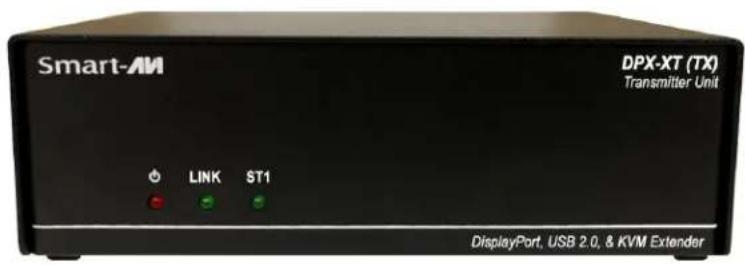
DPX-XT RECEIVER REAR

DPX-XT RECEIVER FRONT

INSTALLATION
- Ensure that power is turned off or disconnected from the unit and the computers.
- Use a DisplayPort cable to connect the DP output port from each computer to the corresponding DP IN ports of the unit.
- Use a USB cable (Type-A to Type-B) to connect a USB port on each computer to the respective USB ports of the unit.
- Optionally connect a stereo audio cable (3.5mm to 3.5mm) to connect the audio output of the computers to the AUDIO IN ports of the unit.
- Connect a monitor to the DP OUT console port of the unit using a DisplayPort cable.
- Connect a USB keyboard and mouse in the two USB console ports.
- Optionally connect stereo speakers to the AUDIO OUT port of the unit.
- Finally, power on the KVM by connecting a 12VDC power supply to the power connector, and then turn on all the computers.
APPLICATION DIAGRAM DPX-XT
The DPX-XT is a Single Head DisplayPort 4K/30Hz, USB 2.0, USB 1.1 keyboard-mouse and stereo audio extender, sending signals up to 330 ft (100 m) away over a single conventional and inexpensive CAT5/5e/6 cable.

flowchart
graph TD
    A["DPX-XT-TX"] -->|330 ft| B["DPX-XT-RX"]
    B -->|USB K/M OUT| A
    B -->|AUDIO IN| A
    B -->|AUDIO OUT| A
    A --> C["Server"]
    B --> D["Computer"]
    C --> E["User"]
    D --> F["Desktop"]
| Part No. Description | |
| DPX-XT-S | Single Head DisplayPort, USB2.0, Audio,CAT5/5e/6 Extender.Includes: [DPX-XT-TX-S, DPX-XT-RX-S, 2x(PS5VD3A-WMT)] |
| DPX-XT-TX-S | Single Head DisplayPort, USB2.0, Audio,CAT5/5e/6 Transmitter. Includes: [DPX-XT-TX-S, PS5VD3A-WMT] |
| DPX-XT-RX-S | Single Head DisplayPort, USB2.0, Audio,CAT5/5e/6 Receiver. Includes: [DPX-XT-RX-S, PS5VD3A-WMT] |
APPLICATION DIAGRAM DPX-XT-2P
The DPX-XT-2P is Dual Head DisplayPort 4K/30Hz, USB 2.0, USB 1.1 keyboard-mouse and stereo audio extender, sending signals up to 330 ft (100 m) away over two conventional and inexpensive CAT5/5e/6 cables.
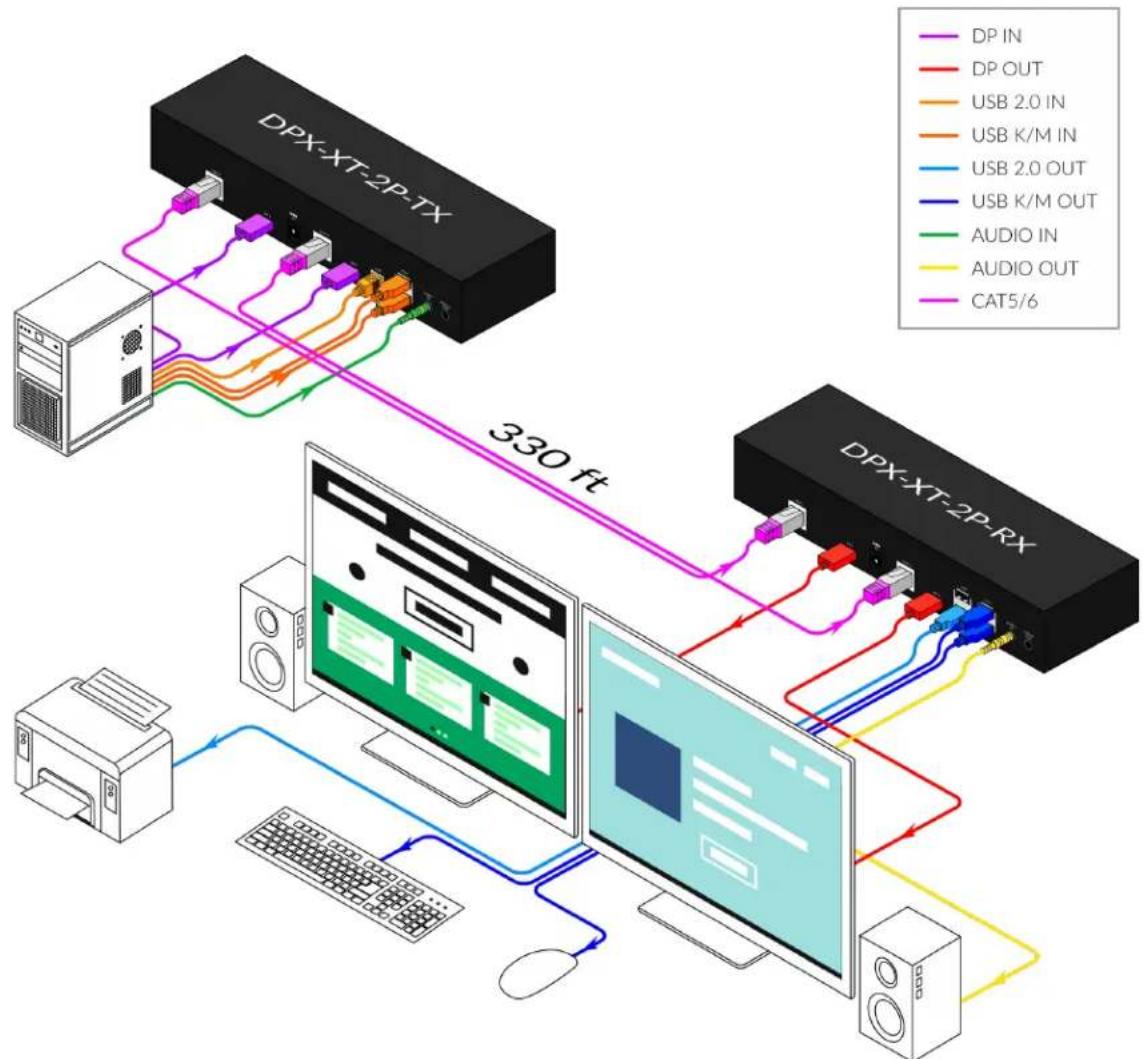
flowchart
graph TD
    A["DPX-XT-2P-TX"] -->|330 ft| B["DPX-XT-2P-RX"]
    B -->|USB 2.0 IN| A
    B -->|USB K/M IN| A
    B -->|USB 2.0 OUT| A
    B -->|USB K/M OUT| A
    B -->|AUDIO IN| A
    B -->|AUDIO OUT| A
    B -->|CAT5/6| A
    C["Server"] --> A
    D["Printer"] --> A
    E["Desktop"] --> A
    F["Computer"] --> B
    G["User"] --> A
| Part No. Description | |
| DPX-XT-2P-S | Dual Head DisplayPort, USB 2.0, Audio, CAT5/5e/6 Extender.Includes: [DPX-XT-2P-TX-S, DPX-XT-2P-RX-S, 2x (PS5VD3A-WMT)] |
| DPX-XT-2P-TX-S | Dual Head DisplayPort, USB 2.0, Audio, CAT5/5e/6 Transmitter.Includes: [DPX-XT-2P-TX-S, PS5VD3A-WMT] |
| DPX-XT-2P-RX-S | Dual Head DisplayPort, USB 2.0, Audio, CAT5/5e/6 Receiver.Includes: [DPX-XT-2P-RX-S, PS5VD3A-WMT] |
APPLICATION DIAGRAM DPX-XT-4P
The DPX-XT-4P is Quad Head DisplayPort 4K/30Hz, USB 2.0, USB 1.1 keyboard-mouse and stereo audio extender, sending signals up to 330 ft (100 m) away over four conventional and inexpensive CAT5/5e/6 cables.

flowchart
graph TD
    A["DPX-XT-4P-TX"] -->|330 ft| B["DPX-XT-4P-RX"]
    B -->|DP IN| A
    B -->|DP OUT| A
    A --> C["USB 2.0 IN"]
    A --> D["USB K/M IN"]
    A --> E["USB 2.0 OUT"]
    A --> F["USB K/M OUT"]
    A --> G["AUDIO IN"]
    A --> H["AUDIO OUT"]
    A --> I["CAT5/6"]
| Part No. Description | |
| DPX-XT-4P-S | Quad Head DisplayPort, USB 2.0, Audio, CAT5/5e/6 Extender.Includes: [DPX-XT-4P-TX-S, DPX-XT-4P-RX-S, 2x (PS5VD3A-WMT)] |
| DPX-XT-4P-TX-S | Quad Head DisplayPort, USB 2.0, Audio, CAT5/5e/6 Transmitter.Includes: [DPX-XT-4P-TX-S, PS5VD3A-WMT] |
| DPX-XT-4P-RX-S | Quad Head DisplayPort, USB 2.0, Audio, CAT5/5e/6 Receiver.Includes: [DPX-XT-4P-RX-S, PS5VD3A-WMT] |
LED CONTROL
| NAME DESCRIPTION | |
| PWR Solid red LED when power is connected | |
| Link | Solid green LED when cat5 is connected |
| FW | Blinking green LED when transferring information between unit and computer |
TROUBLESHOOTING
No Power
- Make sure that the power adapter is securely connected to the power connector of the unit.
- Check the output voltage of the power supply and make sure that the voltage value is around 12VDC.
- Replace the power supply.
No Video
- Check if all the video cables are connected properly.
- Connect the computer directly to the monitor to verify that your monitor and computer are functioning properly.
- Restart the computers
Keyboard is not working
- Check if the keyboard is properly connected to the unit.
- Check if the USB cables connecting the unit and the computers are properly connected.
- Try connecting the USB on the computer to a different port.
• Make sure that the keyboard works when directly connected to the computer. - Replace the keyboard.
Mouse is not working
- Check if the mouse is properly connected to the unit.
- Try connecting the USB on the computer to a different port.
• Make sure that the mouse works when directly connected to the computer. - Replace the mouse.
No Audio
- Check if all the audio cables are connected properly.
- Connect the speakers directly to the computer to verify that the speakers and the computer audio are functioning properly.
- Check the audio settings of the computer and verify that the audio output is through the speakers.
TECHNICAL SUPPORT
For product inquiries, warranty questions, or technical questions, please contact info@smartavi.com.
LIMITED WARRANTY STATEMENT
A. Extent of limited warranty
SmartAVI, Inc. warrants to the end-user customers that the SmartAVI product specified above will be free from defects in materials and workmanship for the duration of 1 year, which duration begins on the date of purchase by the customer. Customer is responsible for maintaining proof of date of purchase.
SmartAVI limited warranty covers only those defects which arise as a result of normal use of the product, and do not apply to any:
a. Improper or inadequate maintenance or modifications
b. Operations outside product specifications
c. Mechanical abuse and exposure to severe conditions
If SmartAVI receives, during applicable warranty period, a notice of defect, SmartAVI will at its discretion replace or repair defective product. If SmartAVI is unable to replace or repair defective product covered by the SmartAVI warranty within reasonable period of time, SmartAVI shall refund the cost of the product.
SmartAVI shall have no obligation to repair, replace or refund unit until customer returns defective product to SmartAVI.
Any replacement product could be new or like new, provided that it has functionality at least equal to that of the product being replaced.
SmartAVI limited warranty is valid in any country where the covered product is distributed by SmartAVI.
B. Limitations of warranty
To the extant allowed by local law, neither SmartAVI nor its third party suppliers make any other warranty or condition of any kind whether expressed or implied with respect to the SmartAVI product, and specifically disclaim implied warranties or conditions of merchantability, satisfactory quality, and fitness for a particular purpose.
C. Limitations of liability
To the extent allowed by local law the remedies provided in this warranty statement are the customers sole and exclusive remedies.
To the extant allowed by local law, except for the obligations specifically set forth in this warranty statement, in no event will SmartAVI or its third party suppliers be liable for direct, indirect, special, incidental, or consequential damages whether based on contract, tort or any other legal theory and whether advised of the possibility of such damages.
D. Local law
To the extent that this warranty statement is inconsistent with local law, this warranty statement shall be considered modified to be consistent with such law.
Smart-AM
SMART AUDIO VIDEO INNOVATION
NOTICE
The information contained in this document is subject to change without notice. SmartAVI makes no warranty of any kind with regard to this material, including but not limited to, implied warranties of merchantability and fitness for particular purpose. SmartAVI will not be liable for errors contained herein or for incidental or consequential damages in connection with the furnishing, performance or use of this material. No part of this document may be photocopied, reproduced, or translated into another language without prior written consent from SmartAVI, Inc.
20180109

Designed and Manufactured in the USA
Tel: (800) AVI-2131 • (702) 800-0005
2455 W Cheyenne Ave, Suite 112
North Las Vegas, NV 89032
www.smartavi.com
- TABLE OF CONTENT
- WHAT'S IN THE BOX?
- DPX-XT TRANSMITTER REAR
- DPX-XT TRANSMITTER FRONT
- DPX-XT RECEIVER REAR
- DPX-XT RECEIVER FRONT
- INSTALLATION
- APPLICATION DIAGRAM DPX-XT
- APPLICATION DIAGRAM DPX-XT-2P
- APPLICATION DIAGRAM DPX-XT-4P
- LED CONTROL
- TROUBLESHOOTING
- No Power
- No Video
- Keyboard is not working
- Mouse is not working
- No Audio
- TECHNICAL SUPPORT
- LIMITED WARRANTY STATEMENT
- Extent of limited warranty
- Limitations of warranty
- Limitations of liability
- Local law
- Smart-AM
- SMART AUDIO VIDEO INNOVATION
- NOTICE
Brand : Smart-AVI
Model : DPX-XT-2P
Category : AV Extension