HI5-12G-TR - Audio/video converter AJA - Free user manual and instructions
Find the device manual for free HI5-12G-TR AJA in PDF.


User questions about HI5-12G-TR AJA
0 question about this device. Answer the ones you know or ask your own.
Ask a new question about this device
Download the instructions for your Audio/video converter in PDF format for free! Find your manual HI5-12G-TR - AJA and take your electronic device back in hand. On this page are published all the documents necessary for the use of your device. HI5-12G-TR by AJA.
USER MANUAL HI5-12G-TR AJA
Installation and Operation Guide
Trademarks
AJA^® and Because it matters. are registered trademarks of AJA Video Systems, Inc. for use with most AJA products. AJA^TM is a trademark of AJA Video Systems, Inc. for use with recorder, router, software and camera products. Because it matters. is a trademark of AJA Video Systems, Inc. for use with camera products.
Corvid Ultra ^® , Io ^® , Ki Pro ^® , KONA ^® , KUMO ^® , ROI ^® and T-Tap ^® are registered trademarks of AJA Video Systems, Inc.
AJA Control Room™, KiStor™, Science of the Beautiful™, TruScale™, V2Analog™ and V2Digital™ are trademarks of AJA Video Systems, Inc.
All other trademarks are the property of their respective owners.
Copyright
Copyright © 2023 AJA Video Systems, Inc. All rights reserved. All information in this manual is subject to change without notice. No part of the document may be reproduced or transmitted in any form, or by any means, electronic or mechanical, including photocopying or recording, without the express written permission of AJA Video Systems, Inc.
Contacting AJA Technical Support or Sales
Please have all pertinent information at hand prior to contacting AJA support or sales.
Support Telephone: +1.530.271.3190
Support Website: https://www.aja.com/support/contact
Support Email: support@aja.com
Sales Email: sales@aja.com
Shipping Address: AJA Video Systems
180 Litton Drive
Grass Valley, CA 95945, USA
Contents
Notices 2
Trademarks 2
Copyright 2
Contacting AJA Technical Support or Sales 2
Chapter 1 – Introduction .....4
Overview....4
Default Operation 4
AJA Mini-Config Control 4
Features 5
Block Diagram 5
I/O Connections 6
Lock LED Status Indicators 6
Installation....6
Chapter 2 – Operation....8
USB Control and Setup—Using AJA Mini-Config 8
Acquiring AJA Mini-Config 8
Installing Mini-Config 8
Running Mini-Config. 10
Operating AJA Mini-Config 11
Tabbed Screens 12
Input Tab Screen 13
Output Tab Screen. 15
HDR Metadata Tab Screen....16
Custom HDMI Metadata 17
HDMI Out Overrides 18
Audio Tab Screen 19
Update Tab Screen. 20
Software Update Procedure 21
Info Tab Screen 21
Appendix A – Specifications .....23
Hi5-12G Family Tech Specs. 23
Appendix B – Safety and Compliance ..... 26
Warranty and Liability Information....35
Index. 36
Chapter 1 – Introduction
Overview
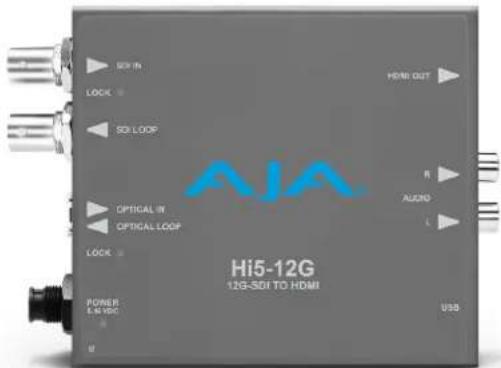
The Hi5-12G converts 12G-SDI to HDMI 2.0, with pristine image fidelity and HFR support up to 60p for 4K/UltraHD, with single cable simplicity. Hi5-12G provides an easy to deploy monitoring connection from professional 4K 12G-SDI devices to new displays with HDMI 2.0 inputs, for cost-effective monitoring in professional workflows. The Hi5-12G supports HDR signaling metadata pass-through and optional override in accordance with HDMI v2.0 and CTA-861-G.
The Hi5-12G features a 12G-SDI single link input with a reclocked SDI loop out for simpler SDI confidence monitoring or pass on for SDI pipelines.
Fiber SFP equipped Hi5-12G models are available including the Hi5-12G-R receiver, which can receive 4K signals over long distances from a Fiber connected source, and the Hi5-12G-TR transceiver, which delivers a 4K/UltraHD SDI or Fiber source signal to an HDMI destination with pass on of the source through SDI or Fiber to a secondary destination. The Video Source Auto Switch Over feature (SDI and Optical Inputs) in Hi5-12G-R and Hi5-12G-TR provides automatic input changeover with configurable Switch Over Priority selection (Last Valid Input, Priority SDI, and Priority Optical).
Default Operation
The Hi5-12G's default settings include many automatic settings. The Hi5-12G's Auto-Configure feature automatically identifies the incoming SDI signal format and converts the signal based on the HDMI output default configuration parameters.
AJA Mini-Config Control
AJA's Mini-Config application is available for firmware updates and advanced configuration. The Mini-Config application provides configuration controls for Hi5-12G along with real-time input signal status.
With the Mini Config application, you can specify what input signal parameters you want to use, specify the output signal format, configure HDR settings, audio settings, and perform software updates.
Configuration settings made through AJA Mini-Config are stored in the Hi5-12G unit through subsequent power cycles.
Features
- Convert 12G-SDI to HDMI 2.0b at up to 4K 60p
• Support for 4:4:4/4:2:2/4:2:0 HDMI 2.0b output
• HDR signaling metadata pass-through and optional override
• HDR support for HDR10 and HLG - Embedded audio pass-through of E-AC-3 (Dolby Digital Plus) compressed audio, including DD+ Atmos
- 12G-SDI loop out
• Fiber SFP models available - Configure via USB port and supplied Mini-Config software
- Uses 5-16 VDC power (DWP-U-R1 universal power supply included)
- USB port used with Mini-Config software application to configure the device via PC/Mac
- Five year warranty
Block Diagram
Figure 1. Hi5-12G Converter, Simplified Block Diagram
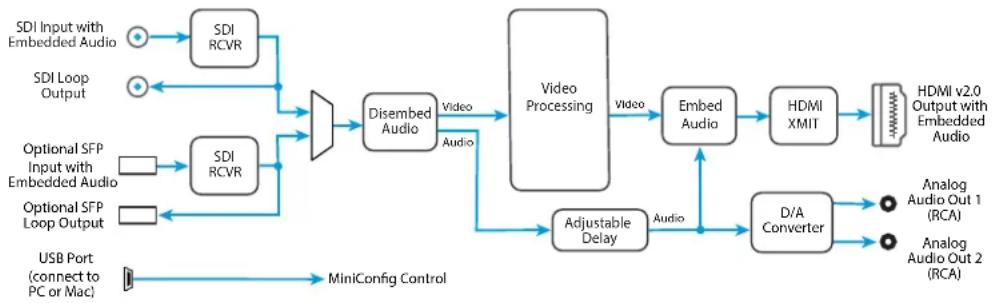
flowchart
graph LR
    A["SDI Input with Embedded Audio"] --> B["SDI RCVR"]
    C["SDI Loop Output"] --> D["SDI RCVR"]
    E["Optional SFP Input with Embedded Audio"] --> F["SDI RCVR"]
    G["Optional SFP Loop Output"] --> H["SDI RCVR"]
    I["USB Port (connect to PC or Mac)"] --> J["MiniConfig Control"]
    B --> K["Disembed Audio"]
    D --> K
    K --> L["Video Processing"]
    L --> M["Video"]
    M --> N["Embed Audio"]
    N --> O["HDMI XMIT"]
    O --> P["HDMI v2.0 Output with Embedded Audio"]
    L --> Q["Adjustable Delay"]
    Q --> R["Audio"]
    R --> S["D/A Converter"]
    S --> T["Analog Audio Out 1 (RCA)"]
    S --> U["Analog Audio Out 2 (RCA)"]
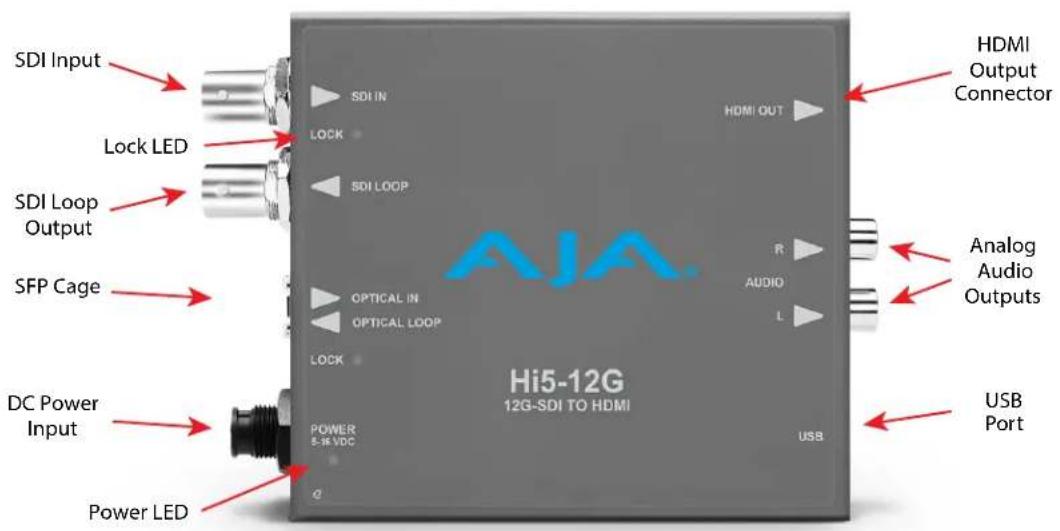
Figure 2. Hi5-12G Converter Connections
Lock LED Status Indicators
- Off = No signal / no valid input
- Green = SD-SDI
- Red = HD-SDI
- Amber = 3G-SDI
- Purple = 6G-SDI
- Blue = 12G-SDI
Installation
NOTE: AJA does not support third-party SFP modules. Use of a non-AJA SFP module will void the warranty.
Hi5-12G-R ships with a 12G-SDI Fiber LC single channel SFP receiver.
Hi5-12G-R-ST ships with a 12G-SDI Fiber ST single channel SFP receiver.
Hi5-12G-TR ships with a 12G-SDI Fiber LC SFP transceiver.
Installation consists of the following steps:
- Ensure the Hi5-12G is disconnected from power.
- Connect video equipment to the converter BNCs.
- If applicable, connect fiber to the 12G-SDI Fiber LC or ST single channel SFP receiver or transceiver.

Warning! Active fiber-optic cables emit radiation invisible to the human eye. Do not look directly at the end of an active fiber-optic cable or the fiber connector on a Hi5-12G-R, Hi5-12G-R-ST or Hi5-12G-TR; these models are Class 1 Laser Products.
Figure 3. Hi5-12G to Fiber LC Single Channel SFP Example
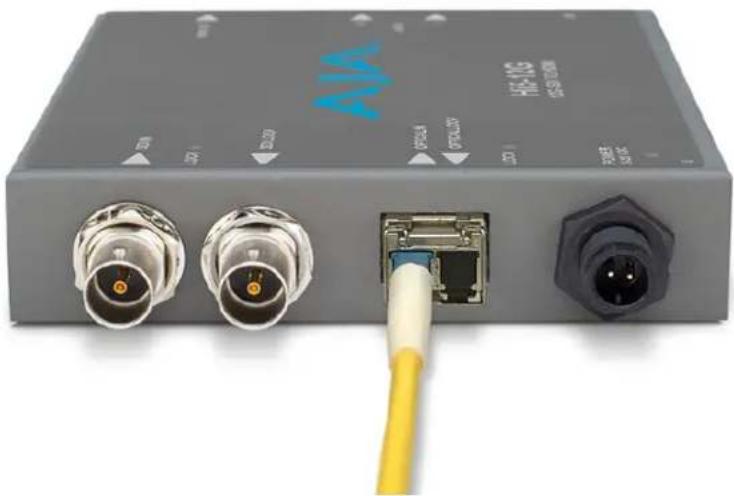
natural_image
Close-up of a gray electronic device with two connectors and a white cable inserted into a port (no visible text or symbols)NOTE: Fiber optic interconnections can be severely compromised by dirt, oils, or other contaminants. All dust caps should be replaced on cables and equipment whenever Hi5-12G converters are disconnected from fiber optic cables.
- Apply +5VDC power to the converter (AJA power supply included).
- The Hi5-12G will now run using the default factory settings. If you wish to alter the factory settings, you'll need to:
• Install the AJA Mini-Config software on your computer
- Attach the Hi5-12G via USB
- Make your changes using AJA Mini-Config setup screens.
This process is detailed in "USB Control and Setup—Using AJA Mini-Config" on page 8.
NOTE: For highest reliability, the mini converter relies on convection cooling instead of using a built-in fan. Therefore, when installing the unit, mount in a location where it has access to air for proper cooling. Do not stack the Hi5-12G with other mini converters.
USB Control and Setup—Using AJA Mini-Config
Your AJA Mini-Converter can be used right out of the box for some applications since it is designed to recognize inputs and perform standard actions automatically by default. However, to use its full capability, you must use AJA's Mini-Config software application for PCs and Macs. This same application can be used to update to new Mini-Converter software released by AJA.
Acquiring AJA Mini-Config
AJA's Mini-Config application is available for download from the AJA website.
To download the latest AJA Mini-Config package, which includes the AJA Mini-Config application, Mini-Converter firmware, and documentation, go to:
https://www.aja.com/products/mini-config-software
Select either the Windows or Mac icon to download the desired version.
Mini-Converter Documentation
Included with the AJA Mini-Config package is a complete set of documentation for all Mini-Converters supported by AJA Mini-Config. A .PDF of the Installation and Operation Guide for the currently connected Mini-Converter can be accessed from the AJA Mini-Config UI via the Help/Manual drop-down menu.
Documentation for all AJA Mini-Converters that use AJA Mini-Config can also be accessed directly in the AJA Mini-Config download package Documentation folder, and via the Documentation icon available on the Mac installer.
Documentation (and firmware) included with the AJA Mini-Config application are the versions available at the time of distribution. However, Mini-Converter software, firmware and documentation are updated regularly, so newer versions may exist.
To download the latest documentation for an individual Mini-Converter, go to: https://www.aja.com/family/mini-converters
and navigate to the Support webpage of that Mini-Converter.
Installing Mini-Config
PC Installation
NOTE: If you have an older version of Mini-Config software installed on your PC, AJA recommends uninstalling the older version before installing the current version.
To install Mini-Config on a Windows PC:
- Download the application from the AJA website (select the Windows icon on the Mini-Config Support web page).
- Open the AJA_MiniConfig.zip file
- Double-click on the Minilnstaller.msi file.
- A Setup Wizard will guide you through the installation.
Figure 4. Mini-Config PC Setup Wizard
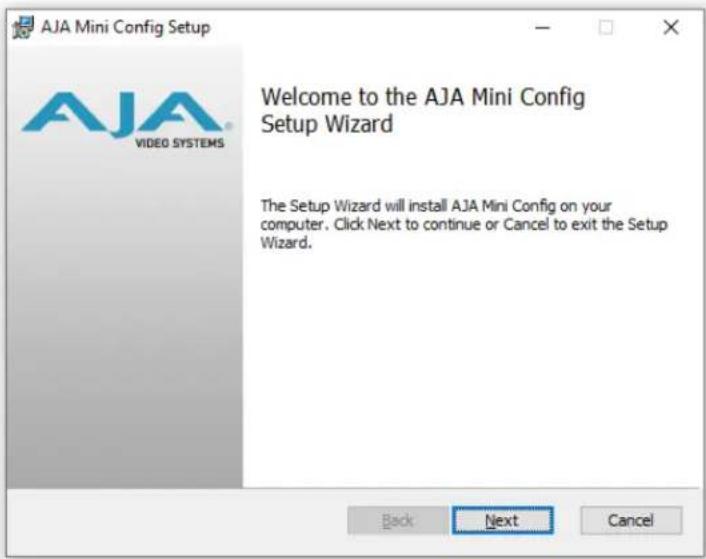
- Click Next to begin. Answer the questions in the subsequent dialogs. When finished, an AJA Mini-Config shortcut will be installed on the desktop, and you will be able to locate the Mini-Config application in the AJA folder in the Programs listing.
NOTE: If the same version of the Mini-Config application already exists on the PC, a different Setup Wizard appears.
Figure 5. Mini-Config Setup Wizard, Reinstallation
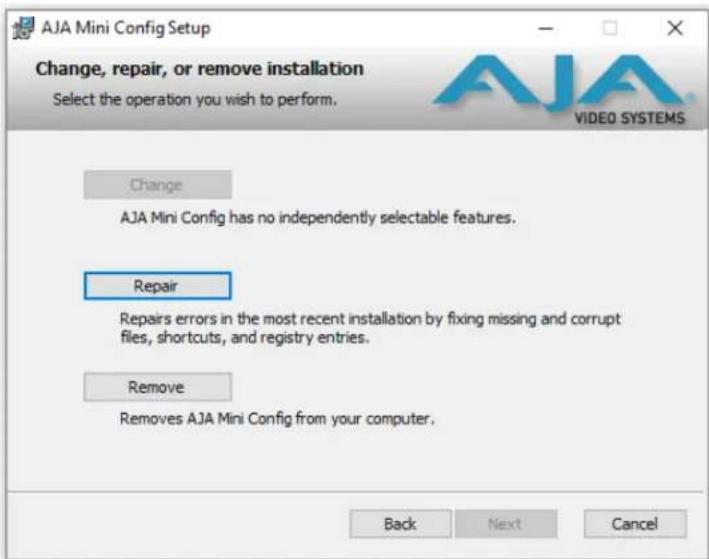
With this screen you can Repair (reinstall) or Remove (uninstall) Mini-Config on the PC.
Mac Installation
NOTE: Intel and Apple Silicon (M1/M2) based CPUs are supported for use with AJA Mini-Config software.
To install the application on a Mac:
- Download the application from the AJA website (select the Apple icon on the Mini-Config Support web page).
- Open the AJA_MiniConfig folder.
- Double-click on the AJAMiniConfig.dmg file.
- Answer the prompt and a utility program will be launched.
Figure 6. Mini-Config Mac Installer
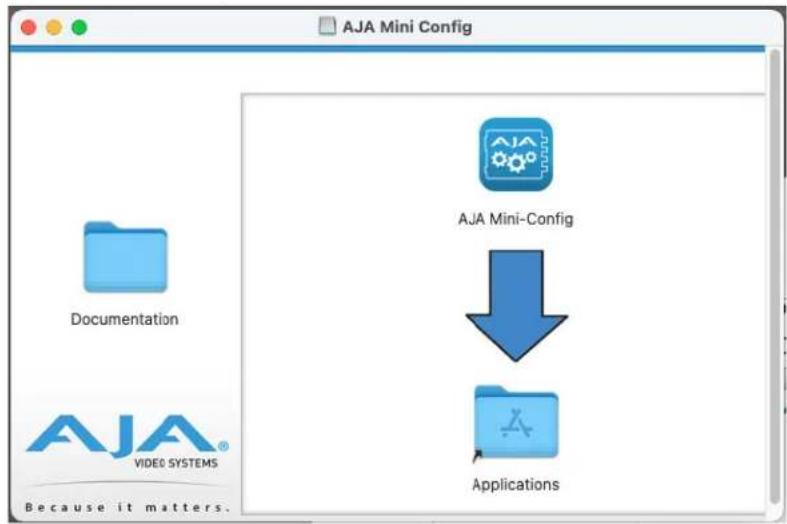
- To complete the installation drag the MiniConfig.app icon to the Applications folder.
Running Mini-Config
Connect the Mini-Converter to the PC or Mac via the supplied USB cable. Connect the external power supply (supplied) to the Mini-Converter.
PC Startup
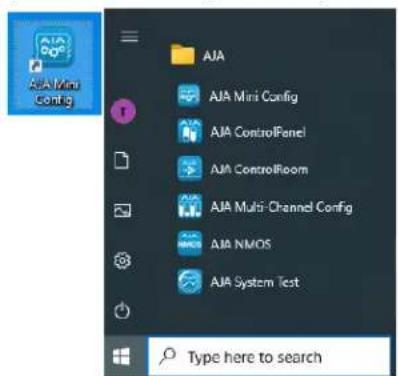
To run Mini-Config on a PC, double-click on the AJA Mini-Config icon on your desktop, or open the AJA folder in the program list and click on the AJA Mini-Config application located inside the Mini-Config folder.
Figure 7. Mini-Config PC Startup icon and Folder Location
Mac Startup
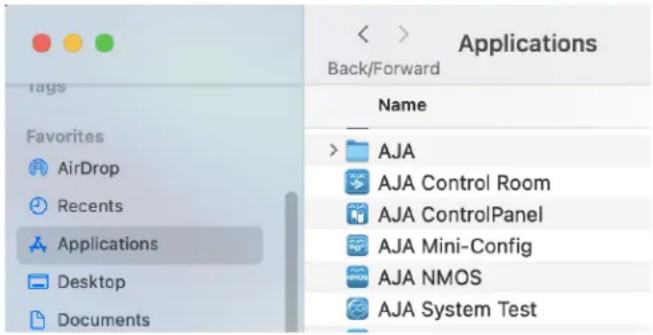
To run Mini-Config on a Mac, open the Applications folder and locate the AJA Mini-Config application. Double-click the application to launch it.
Saving Setups
A File drop down menu on the Mini-Config application bar (similar for Mac and PC) allows you to save the current state of the Mini-Converter to a preset file for later recall.
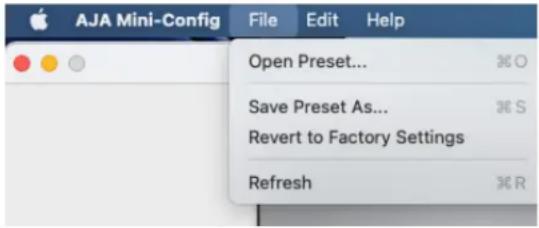
Using this feature you can set up the converter for different applications, storing each configuration (Save Preset As...) with a unique name for easy recall (Open Preset...).
A Revert to Factory Settings menu item similarly allows you to change the settings back to AJA's factory defaults.
Operating AJA Mini-Config
The AJA Mini-Config application provides a graphic interface for viewing settings and updating software. It consists of an information area at the top that shows the available Mini-Converters attached to the computer via USB, with a graphical rendering of the selected Mini-Converter showing all the connectors and their current state.
Colored text next to the connectors indicates the signal type and what the MiniConverter is doing:
- Blue text indicates the values automatically selected
- Black text indicates values that you have manually selected
- Red text indicates the Mini-Converter is not detecting a signal, or cannot operate with the current user settings.
NOTE: Even if no output device is detected, the SDI connector text still shows the signal it is outputting.
NOTE: Configuration settings in red will change based on the attached output device as well as input signals. For improved accuracy and reliability, you should configure the Mini-Converter only when the target output device is attached and input signals are supplied at the inputs.
Screens are virtually the same on both PC and Mac, with subtle differences that reflect the general look of the platform environment.
Figure 8. Example AJA Mini-Config Screen
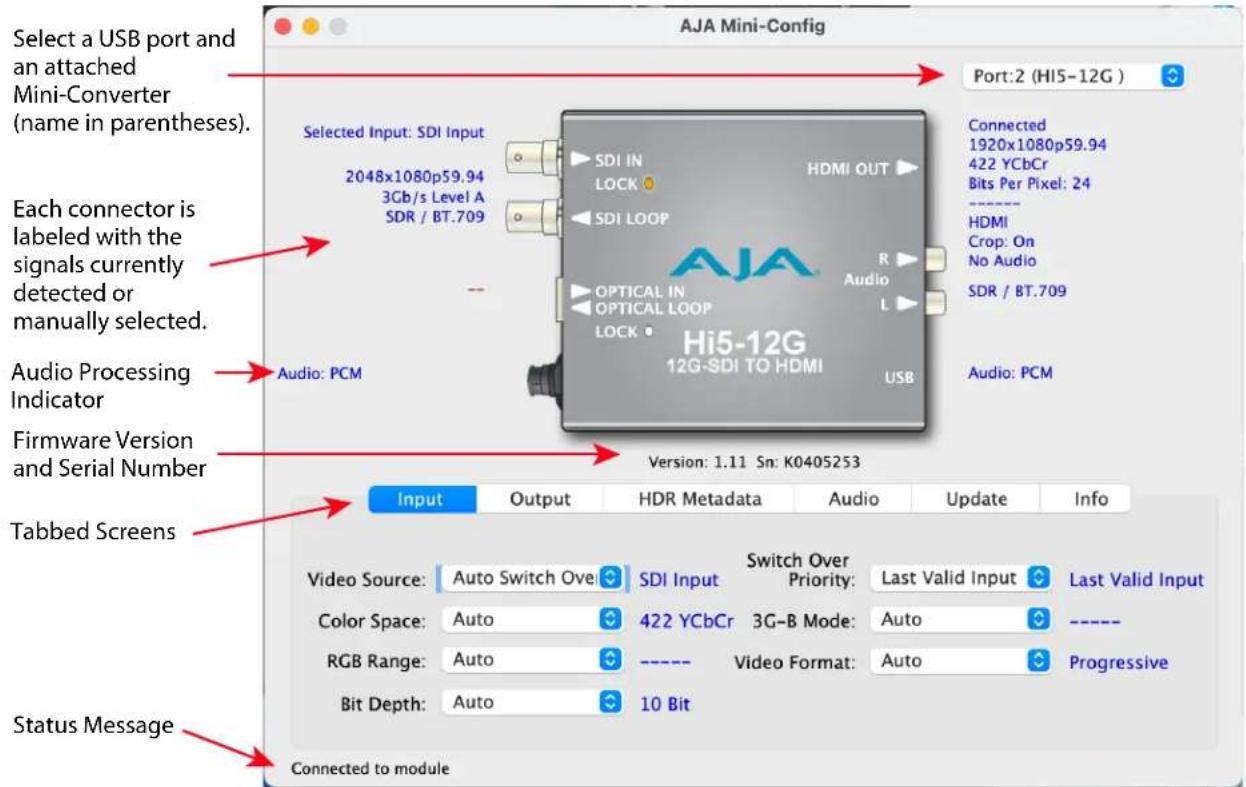
NOTE: The LEDs adjacent to each SDI or Fiber connector indicate by color the detected SDI input signal. Off is no signal, Green is SD-SDI, red is HD-SDI, amber is 3G-SDI, purple is 6G-SDI, blue is 12G-SDI.
Selecting a Mini-Converter with the pulldown menu causes this application to connect to the selected converter. The graphic of Mini-Converter and text below it provides:
- Type of converter
- Firmware version
- Serial number of the unit.
A status field at the bottom of the screen shows if your application is connected and communicating with the Mini-Converter.
When configuring the Mini-Converter, select it from the top pulldown, view the current settings and change any values. Making a change communicates that new value to the Mini-Converter's non-volatile memory.
Tabbed Screens
The Tabs delineate control screens with groups of controls for each type of task to be performed. The controls for the actual configuration parameters are specific to each Mini-Converter type. When you Click on any of the tab buttons, the pane below the tabs will change to match your tab selection. Any changes you make are immediately applied and will be saved, overwriting previous settings.
Input Tab Screen
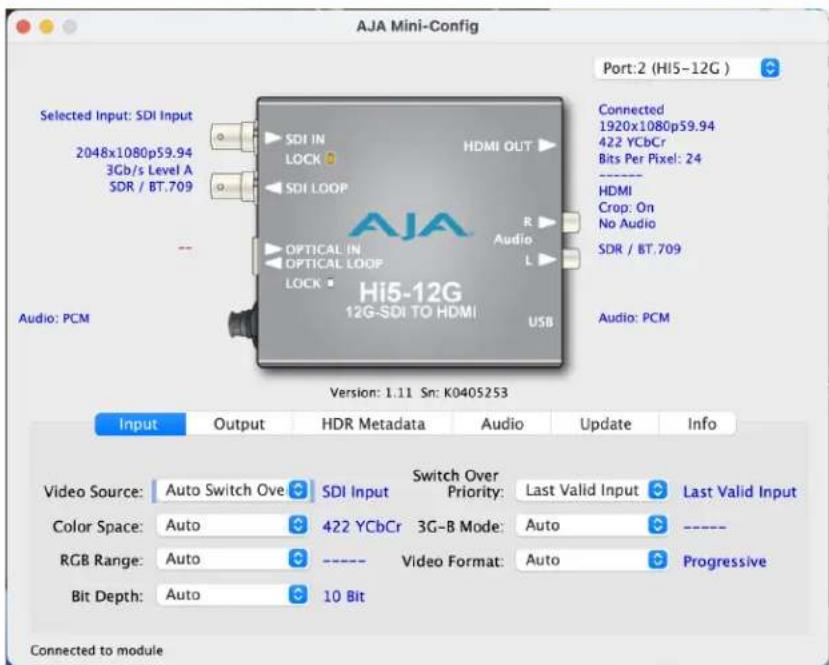
Click on the Input tab to view and make changes to the converter's input settings.
Video Source
Selects the input video source. Choose from the following:
- Auto Switch Over - automatically selects between the SDI Input and the Optical Input (applicable to the Hi5-12G-R, Hi5-12G-R-ST and Hi5-12G-TR models).
• SDI Input - selects the SDI input. - Optical Input - selects the optical input (applicable to the Hi5-12G-R, Hi5-12G-R-ST and Hi5-12G-TR models).
Color Space
Selects the Input Video Color Space. Choose from the following:
- Auto - automatically selects color space based on the input video parameters and payload ID.
• 4:2:2 YCbCr
• 4:4:4 RGB
• 4:4:4 YCbCr
RGB Range
Selects the Input Video Color Range when the input is RGB. Does not apply when the input is YCbCr. Choose SMPTE or Full color range.
Bit Depth
Selects the input video bit depth. Choose from Auto, 8-bit, 10-bit, or 12-bit. Choosing "Auto" automatically selects the bit depth based on the input video and the attached device's capabilities. High frame rate (HFR) 4K/UltraHD 4:4:4 limited to 8 bits. DVI output is limited to 8 bits.
Switch Over Priority
Selects which input (SDI or Optical) is the preferred input. This selection is valid only when an AJA optical SFP is installed. If and when the selected input signal is no longer detected, the auto switchover circuit will fail over to the non-priority input if present.
Choose from Last Valid Input, SDI Input, or Optical Input.
3G-B Mode
Selects the 3G level B Video Mode. Choose from the following:
- Auto - automatically selects the format based on the input video parameters.
• Level B-DL (Dual Link)
• B-DS (Dual Stream) Link 1 - use Link 1
• B-DS (Dual Stream) Link 2 - use Link 2
Video Format
This control can be used to force the Hi5-12G's input video receiver to interpret that incoming video signal as either Progressive, interlaced, or PsF (Progressive Sequential Frame).
The default setting is Auto, in which the Hi5-12G examines the incoming video signal to determine which format is appropriate.
Choose from Auto, Progressive, Interlaced, or PsF.
- Auto - Automatically selects the format based on the input video parameters and the payload ID.
- Progressive - Forces the Hi5-12G to interpret the incoming video as Progressive.
- Interlaced - Forces the Hi5-12G to interpret the incoming video as Interlaced.
- PsF - Forces the Hi5-12G to interpret the incoming video as PsF.
Under normal circumstances you should always run in Auto mode. However, because interlaced and PsF formats are essentially the same signal, the Hi5-12G might confuse them. For example, if you know for sure that you receiving a PsF signal, but the Hi5-12G is interpreting it as an Interlaced signal while running in Auto mode, setting this control to PsF will force the receiver to interpret that signal as PsF. However, if the Hi5-12G is receiving a Progressive signal and you force it to interpret it as Interlaced, an invalid output video signal will be created.
Output Tab Screen
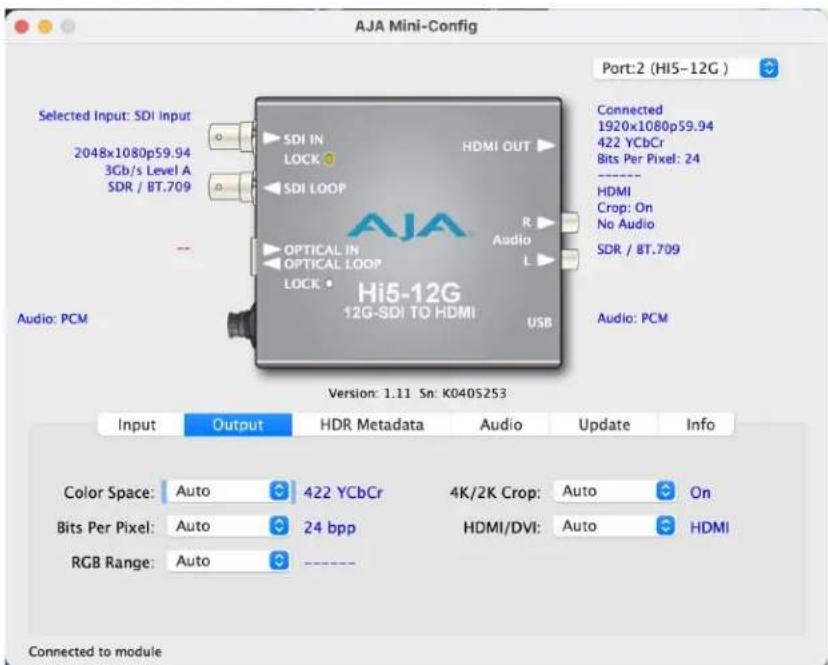
Click on the Output tab to view and make changes to the Hi5-12G Output settings.
Color Space
Selects the Output Video Color Space. Note that DVI output is limited to 4:4:4 RGB. Choose from the following:
- Auto - selects the video format based on the input video and the attached device's capabilities.
• 4:2:2 YCbCr
• 4:4:4 RGB
• 4:4:4 YCbCr
• 4:2:0 YCbCr
Bits Per Pixel
Selects the input video bits per pixel. Choose from Auto, 24 bpp, 30 bpp, or 36 bpp. Choosing "Auto" automatically selects the bits per pixel based on the input video and the attached device's capabilities. High frame rate (HFR) 4K/UltraHD 4:4:4 limited to 24 bpp. DVI output is limited to 24 bpp.
About Bits Per Pixel
With HDMI, YCbCr is always reported as 24bpp, which is 12 bit depth (whether the input signal is 8, 10, or 12 bit depth).
To determine the bit depth for RGB, divide the bpp by 3. For example:
- 24bpp = 8 bit depth
- 30bpp = 10 bit depth
- 36bpp = 12 bit depth
RGB Range
Selects the Output Video Color Range when the output is RGB. Does not apply when the output is YCbCr. Choose Auto, SMPTE or Full color range. DVI output is limited to RGB.
4K/2K Crop
Choose Auto, Off, or On. Provides the option of center cutting 2048x1080 video signals to make 1920x1080, or center cutting 4096x2160 signals to make 3840x2160.
HDMI/DVI
Choose Auto, HDMI, or DVI. When DVI is selected, any audio signals present are not passed. Choosing "Auto" automatically selects the output mode based on the attached device's capabilities.
When the incoming signal is 4K or UltraHD and the HDMI/DVI control is set to "DVI," the output will be downsampled to deliver a 2048x1080 or 1920x1080 image. The downsampling is accomplished by passing only one of the 2SI quadrants from the SDI input signal. The output will appear to be a full picture, but is actually only one quarter of the total pixels. This feature is very helpful when connecting to a non-4K/UHD preview monitor.
HDR Metadata Tab Screen
![AJA Mini-Config Port:2 (HI5-12G ) Selected Input: SDI Input 2048x1080p59.94 3Gb/s Level A SDR / BT.709 Audio: PCM Selected HDMI Metadata Red: x[2] 0.68000 y[2] 0.32000 Presets Green: x[0] 0.26500 y[0] 0.69000 BT. 709 Blue: x[1] 0.15000 y[1] 0.06000 BT. 2020 White Pt: x 0.31270 y 0.32900 DCI-P3 DM Lum.: min 0.0005 max 1000 Max: CLL 1000 FALL 400 Reset Hi5-12G 12G-SDI TO HDMI USB Connected 1920x1080p59.94 422 YCbCr Bits Per Pixel: 24 HDMI Crop: On No Audio SDR / BT.709 Audio: PCM Version: 1.11 Sn: K040S253 Input Output HDR Metadata Audio Update Info Custom HDMI Metadata HDMI Out Overrides SDR/HDR: Auto SDR Colorimetry: Auto BT.709 HDMI Metadata: Auto ---- Connected to module](/content/2026/05/1129455/images/cc61ed7dba87062031403d9babe7a89fb4cbc651b7f6fe13897cf23a7d966d8a.jpg)
Click on the HDR Metadata tab to view and, if necessary, make changes to the Hi5-12G High Dynamic Range metadata The Hi5-12G can identify HDR Metadata from the incoming SDI signal and either pass it through to the HDMI output, or override them and set new values for the HDMI output.
For SDI, this metadata defines the VPID (Video Payload Identifier) for Transfer Characteristic and Colorimetry. For HDMI, it defines the EOTF and Colorimetry and sets parameters for the Dynamic Range and Mastering infoframes. The HDR metadata is a mechanism to inform an HDMI sink device (such as a TV or monitor) that the video content is HDR encoded.
NOTE: HDR Metadata values do not modify video image data. They define the HDR metadata included in the video output.
For most workflows the Auto settings for the HDMI Out Overrides parameters are appropriate, which will automatically pass incoming HDR metadata, if present, through to the output. However, this metadata may need to be edited for a specific workflow, or to correct inaccurate incoming metadata.
NOTE: You can hover the cursor over each parameter field to view its corresponding description in a pop-up window.
Custom HDMI Metadata
The twelve Custom Metadata parameters on the left side of the HDR Metadata tab can be used to define HDR color, white point, and luminance values.
NOTE: These settings are only applied when the HDMI Metadata parameter on the lower right is set to Custom. These values can be changed at any time (even with Auto selected), in which case those values will only be applied after selecting Custom.
Red, Green, Blue, White Point
These eight values define the color gamut and white point, and are adjustable in units of 0.00002 cd/m^2 , with a range of 0.00000 to 1.00000 cd/m^2 .
Presets
For user convenience, the eight top values (RGB vertices and white point) can be preset to default BT.709, default BT.2020, or to default DCI-P3 values.
DM Lum
These two parameters define the Display Mastering Luminance.
- Minimum: Defines the floor of the SMPTE ST 2086 color volume (in the case of HDR) and is determined by the mastering environment.
- Range: 0.00000 cd/m^2 to 1.00000 cd/m^2 .
- Step size: 0.00002 cd/m ^2 .
- Maximum: Defines the ceiling of the SMPTE ST 2086 color volume (in the case of HDR) and is determined by the mastering environment.
• Range: 1 cd/m ^2 to 65535 cd/m ^2 . - Step size: 1 cd / m^2 .
Maximum: CLL
Represents the highest-value pixel component in an entire scene. It is determined by analyzing each frame of video, and can be determined in the post environment.
• Range: 1 cd/m ^2 to 65535 cd/m ^2 .
- Step size: 1 cd / m^2 .
Maximum: FALL
Represents the maximum of frame-based average light levels taken over an entire scene, and can be determined in the post environment.
• Range: 1 cd/m ^2 to 65535 cd/m ^2 .
- Step size: 1 cd / m^2 .
The override controls on the right can be used to replace incoming or missing HDR metadata with alternative values for the Hi5-12G's HDMI output.
SDR/HDR
This setting controls what SDR/HDR metadata value is applied to the video output.
- Auto - Passes the SDR/HDR value from the video input to the output.
- SDR - An SDR value is applied to the output.
- PQ - A PQ value is applied to the output.
- HLG - An HLG value is applied to the output.
Colorimetry
This setting controls what Colorimetry metadata value is applied to the video output.
- Auto - Passes the Colorimetry value from the video input to the output.
• BT.601, BT.709 and BT.2020 values are passed through. - If a non-supported colorimetry value is received, then BT.601 is signaled for SD formats and BT.709 is signaled for HD/UltraHD formats.
- BT.709 - A BT.709 value is applied to the output.
- BT.2020 - A BT.2020 value is applied to the output.
HDMI Metadata
This setting can be used to insert custom metadata values on the HDMI outputs.
- Auto - The 8 RGB vertices/white point parameters that get inserted into the HDMI HDR Infoframe are automatically generated:
- If the incoming Colorimetry value is BT.709, Color VANC Packet, or Unknown, then BT.709 values are passed to the outputs.
- If the incoming Colorimetry value is BT.2020, BT.2020 values are passed to the outputs.
- Custom - The 8 RGB vertices/white point parameters defined on the left side of the screen are applied to the HDMI output.
NOTE: The four mastering parameters (Max CLL, etc) set in Mini-Config are always inserted into the HDMI HDR Infoframe, although HDMI HDR Infoframes are only generated if the SDR/HDR value is PQ or HLG.
Audio Tab Screen
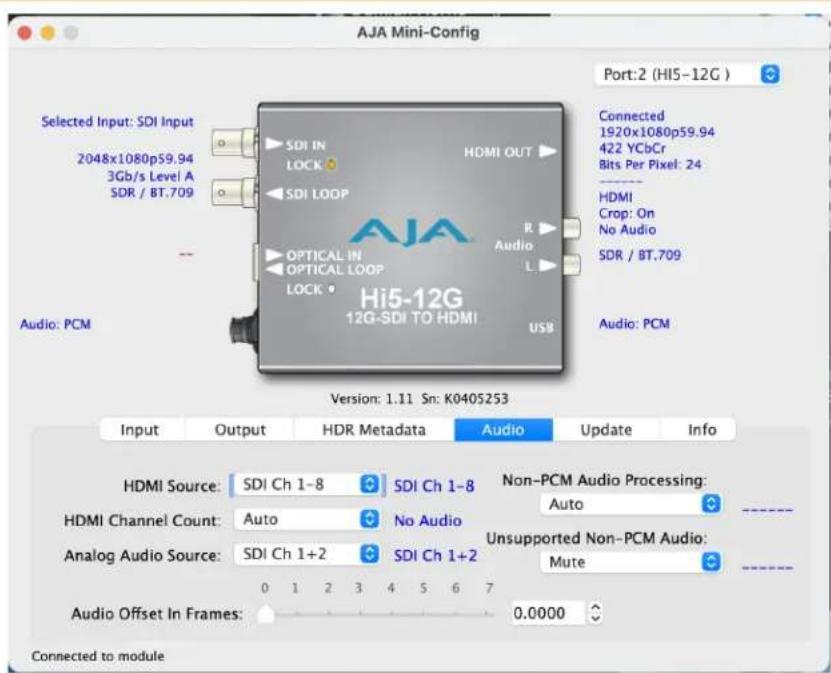
Click on the Audio tab to view and make changes to the Hi5-12G audio settings.
NOTE: When using the DVI video protocol, no audio is output since that protocol is video only.
HDMI Source
Choose which SDI embedded audio channels are routed to the HDMI output. Eight channels are routed at a time. You can choose Ch 1-8 or Ch 9-16. The source of the audio channels is the currently selected video input.
HDMI Channel Count
Choose Auto, 2 Channels, or 8 Channels for embedded audio. Choosing "Auto" automatically selects the audio channels based on the attached device's capabilities.
Analog Audio Source
Selects the channel pair that will be output to the Analog RCA connectors (L/R) and the HDMI audio output (when Output Channel Count is in 2-channel mode). Choose from the following:
- SDI Ch 1+2
- SDI Ch 3+4
- SDI Ch 5+6
- SDI Ch 7+8
- SDI Ch 9+10
- SDI Ch 11+12
- SDI Ch 13+14
- SDI Ch 15+16
NOTE: When compressed audio is present (if the selected audio is non-PCM), the Analog Audio Outputs are automatically disabled.
Audio Offset In Frames
Permits delaying the embedded audio in relationship to the video (for example, to correct for lip sync problems), in 1/16 of a frame increments. Range is from 0 video frames to +7.0 video frames of delay. The actual time duration of delay will vary depending on the frame rate of the format being converted.
Non-PCM Audio Processing
This control is used to specify the processing mode for non-pcm audio. Default is Auto (non-pcm audio will be processed) or Off (non-pcm audio will not be processed). Audio Processing Status in UI will reflect type of audio that is passed when control is set to Pass.
Unsupported Non-PCM Audio
This control is used to specify behavior if unsupported non-pcm audio is detected. Default is Mute (unsupported non-pcm audio is not passed to output) or Pass (unsupported non-pcm audio is passed to output). Audio Processing Status in UI will reflect Mute/Pass status.
Update Tab Screen
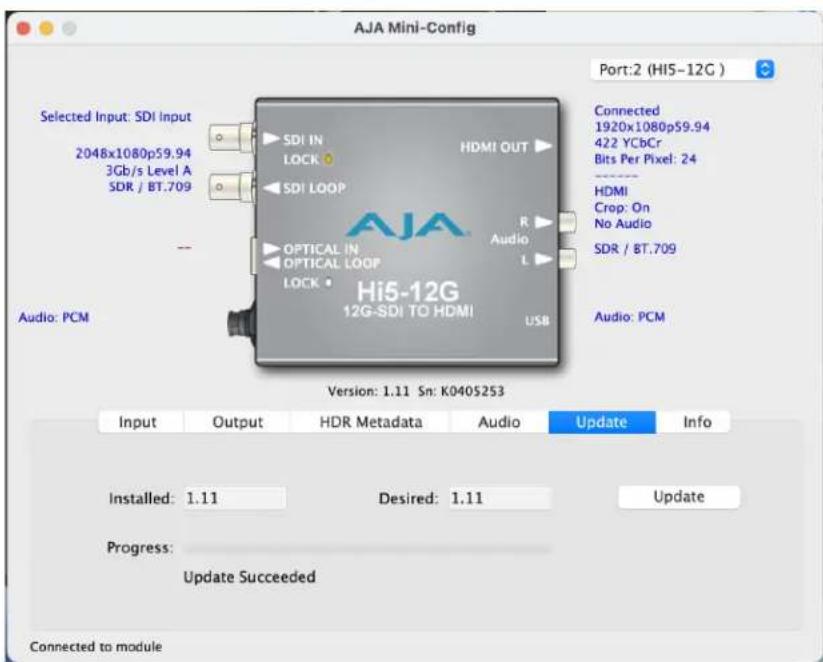
Use this Update screen to view the software version currently installed on the converter or install new software.
NOTE: When discussing Mini-Converters, "Firmware" is software that will be stored in the Mini-Converter's non-volatile memory and used when it is powered up. This is something different than the AJA Mini-Config application software. The version numbers shown in the Update screen refer only to the firmware.
Installed - This field shows the version of the firmware currently installed inside the Mini-Converter.
Desired - This field shows the version of firmware embedded in the AJA Mini-Config application which you can install into the Mini-Converter by clicking the Update button.
Update - This button initiates a software update operation loading the "Desired" version of firmware into the Mini-Converter's non-volatile memory.
Progress - This indicator bar shows the progress of firmware installation.
Software Update Procedure
- Check the AJA website for new AJA Mini-Config software for your MiniConverter. If new software is found, download it and uncompress the file archive (zip). Here is the URL to use when checking:
https://www.aja.com/products/mini-config-software - Connect the Mini-Converter to a Mac or PC via a USB port on the computer and run the new AJA Mini-Config software just downloaded.
- Click on the Update tab screen.
- Check the Installed version level against the Desired version level. If the Desired is newer, then click the Update button to download the new firmware to the Mini-Converter; progress will be shown via the "Progress" thermometer bar.
Info Tab Screen
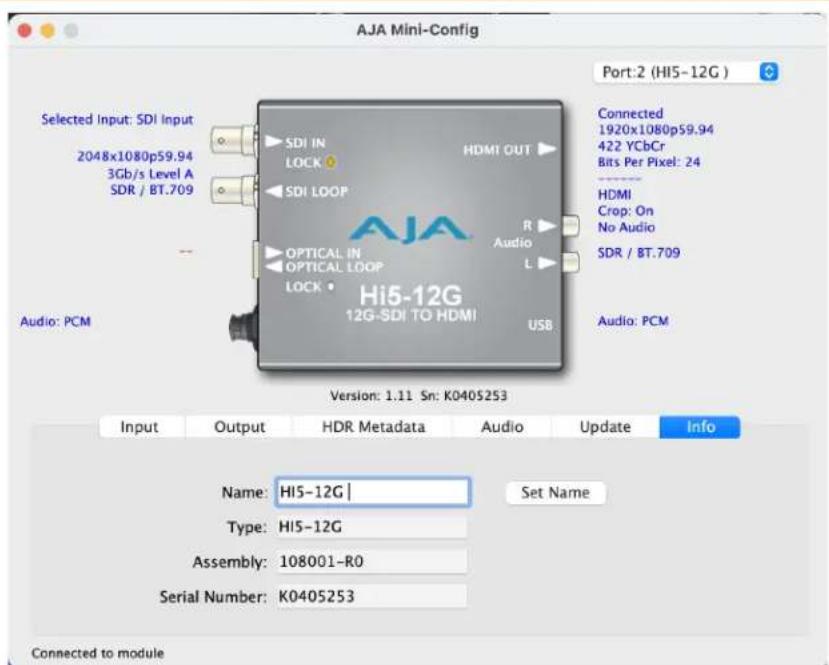
This screen provides basic information about the Mini-Converter. This information is useful when calling AJA Support for service or technical support.
Name
This field allows you to give your Mini-Converter a name. This can be useful if you have several Mini-Converters attached to a Mac/PC via USB so you can distinguish between them easily (especially if they're the same model). Click Set Name to apply new name.
Type - This is the factory set model name of the Mini-Converter.
Assembly - This is the factory assembly number.
NOTE: Some newly manufactured Mini-Converters may not be backwards compatible with older firmware and Mini-Config versions. It is highly recommended that you update the firmware to avoid any potential issues. Please check the current Release Notes to confirm that the Assembly number is compatible with any older firmware or Mini-Config versions.
Serial Number - This is the factory set unique serial number of your MiniConverter. If you ever call AJA Support for service, you may be asked for this number.
Hi5-12G Family Tech Specs
Video Formats
• (4K) 4096 x 2160p
• (UltraHD) 3840 x 2160p
• (2K) 2048 x 1080p
• (HD) 1920 x 1080p
• (HD) 1920 x 1080i
• (HD) 1280 x 720p
• (SD) 720 x 576i
• (SD) 720 x 480i
NOTE: Raster and Frame Rate Dependent, please see Hi5-12G Video Formats in the Download / Documents section of the website product page.
Video Input Digital
• 1x 12G-SDI BNC, SMPTE-259/292/424/2081/2082
- YCbCr 4:2:2/4:4:4
• RGB 4:4:4, SMPTE or Full level
• 8, 10, or 12-bit
- Two Sample Interleave (2SI) 4K/UltraHD source mapping
- 1x 12 Gb SDI
• (4K) 4096x2160p 23.98, 24, 25, 29.97, 30, 47.95, 48, 50, 59.94, 60
• (UltraHD) 3840x2160p 23.98, 24, 25, 29.97, 30, 50, 59.94, 60
- 1x6Gb SDI
• (4K) 4096 x 2160p 23.98, 24, 25, 29.97, 30
• (UltraHD) 3840 x 2160p 23.98, 24, 25, 29.97, 30
• 1x 3 Gb SDI (Level A or B-Dual Link)
• (2K) 2048x1080p 23.98, 24, 25, 29.97, 30, 47.95, 48, 50, 59.94, 60
• (2K) 2048x1080PsF 23.98, 24, 25, 29.97, 30
• (HD) 1920x1080p 23.98, 24, 25, 29.97, 30, 50, 59.94, 60
• (HD) 1920 x 1080PsF 23.98, 24, 25, 29.97, 30
• (HD) 1920 x 1080i 50, 59.94, 60
• (HD) 1280 x 720p* 50, 59.94, 60
- 1x 1.5 Gb SDI
• (2K) 2048 x 1080p 23.98, 24, 25, 29.97, 30
• (2K) 2048 x 1080PsF 23.98, 24, 25, 29.97, 30
• (HD) 1920 x 1080p 23.98, 24, 25, 29.97, 30
• (HD) 1920 x 1080PsF 23.98, 24, 25, 29.97, 30
• (HD) 1920 x 1080i 50, 59.94, 60
• (HD) 1280 x 720p 50, 59.94, 60
- 1x 270 Mb SDI
• (SD) 625i 50
• (SD) 525i 59.94
*1280 x 720p is Level A Only
Input Signal Selection - Hi5-12G-R and Hi5-12G-TR Only
• 1x 12G-SDI BNC, SMPTE-259/292/424/2081/2082
• 1x 12G-SDI Fiber LC connector, SMPTE 297/259/292/424/2081/2082
• Nominal Wavelength: Rx 1260 nm (min), 1620 nm (max)
• Optical Sensitivity: -10 dBm (min 12 Gbps), -14 dBm (min 3 Gbps)
• Overload Power: -2 dBm (min)
Input Signal Selection - Hi5-12G-R-ST Only
• 1x 12G-SDI BNC, SMPTE-259/292/424/2081/2082
• 1x 12G-SDI Fiber ST connector, SMPTE 297/259/292/424/2081/2082
• Nominal Wavelength: Rx 1260 nm (min), 1620 nm (max)
• Optical Sensitivity: -10 dBm (min 12 Gbps), -14 dBm (min 3 Gbps)
• Overload Power: -2 dBm (min)
Video Output Digital
- 1x HDMI Type A connector*, HDMI v2.0b
- HDR infoframe generation with pass-through or override for Colorimetry and Transfer Characteristic
- YCbCr 4:2:2/4:4:4/4:2:0
• RGB 4:4:4, SMPTE or Full level
• 24, 30, or 36 Bits Per Pixel (HFR 4K/UltraHD 4:4:4 limited to 24 BPP)
• (4K) 4096x2160p 23.98, 24, 25, 29.97, 30, 47.95, 48, 50, 59.94, 60
• (UltraHD) 3840x2160p 23.98, 24, 25, 29.97, 30, 47.95, 48, 50, 59.94, 60
• (2K) 2048x1080p 23.98, 24, 25, 29.97, 30, 47.95, 48, 50, 59.94, 60
• (HD) 1920x1080p 23.98, 24, 25, 29.97, 30, 50, 59.94, 60
• (HD) 1920x1080i 50, 59.94, 60
• (HD) 1280 x 720p 50, 59.94, 60
• (SD) 720 x 576i 50
• (SD) 720 x 480i 59.94
*If a connected monitor doesn't support HDMI protocol the unit automatically switches to DVI protocol (which does not pass audio)
Video Output Digital - Additional for Hi5-12G-TR Only
• 1x 12G-SDI Fiber LC connector, SMPTE 297/259/292/424/2081/2082
- Nominal Wavelength: Tx 1260 nm (min), 1310 nm (typ), 1360 nm (max)
• Optical Power: -5 dBm (min), 0.5 dBm (max)
• Extinction Ratio: 5.4 dB (min)
Audio Pass-Through Formats
- PCM
• Dolby Digital (AC-3)
• Dolby Digital Plus (E-AC-3), including Atmos Immersive Sound (JOC)
Audio Input Digital
• SDI embedded audio, 24-bit (SD limited to 20-bit), 16-channel
Audio Output Digital
• HDMI embedded audio, 24-bit, 8-channel
Audio Output Analog
• 2x RCA style connector, 2-channel -10dBu (nominal)
User Interface
- USB port used with supplied cable and Mini-Config software application to configure and view device status via Mac or Windows
Size (w x d x h)
- 4.6" x 4.02" x 0.9" (116.84 x 102.11 x 22.86 mm)
Weight
• 0.5 lb (0.3 kg)
Power
- 5-16VDC regulated, 11 watts, power supply required included with purchase
• AC Adapter: 100-240VAC, 50/60 Hz, universal input
Environment
- Safe Operating Temperature: 0 to 40 C (32 to 104 F)*
- Safe Storage Temperature (Power OFF): -40 to 60 C (-40 to 140 F)
- Operating Relative Humidity: 10-90% noncondensing
- Operating Altitude: <3,000 meters (<10,000 feet)
*Hi5-12G devices use approximately 11 watts of power and convection cooling. It will be very warm to the touch, which is normal. When installing a unit, mount in a location where the device has access to air for proper cooling. Do not stack a Hi5-12G device with other Mini-Converters.
Appendix B – Safety and Compliance
Federal Communications Commission (FCC) Compliance Notices
Class A Interference Statement
This equipment has been tested and found to comply with the limits for a Class A digital device, pursuant to Part 15, Subpart B of the FCC Rules. These limits are designed to provide reasonable protection against harmful interference in a residential installation. This equipment generates, uses, and can radiate radio frequency energy and, if not installed and used in accordance with the instructions, may cause harmful interference to radio communications. However, there is no guarantee that interference will not occur in a particular installation. If this equipment does cause harmful interference to radio or television reception, which can be determined by turning the equipment off and on, the user is encouraged to try to correct the interference by one or more of the following measures:
- Reorient or relocate the receiving antenna.
- Increase the separation between the equipment and receiver.
- Connect the equipment into an outlet on a circuit different from that to which the receiver is connected.
- Consult the dealer or an experienced radio/TV technician for help.
FCC Caution
This device complies with Part 15 of the FCC Rules. Operation is subject to the following two conditions: (1) This device may not cause harmful interference, and (2) this device must accept any interference received, including interference that may cause undesired operation.
Canadian ICES Statement
Canadian Department of Communications Radio Interference Regulations
This digital apparatus does not exceed the Class A limits for radio-noise emissions from a digital apparatus as set out in the Radio Interference Regulations of the Canadian Department of Communications. This Class A digital apparatus complies with Canadian ICES-003.
European Union, European Free Trade Association (EFTA) and United Kingdom Regulatory Compliance
This equipment may be operated in the countries that comprise the member countries of the European Union, European Free Trade Association and the United Kingdom. These countries, listed in the following paragraph, are referred to as The European Community throughout this document:
AUSTRIA, BELGIUM, BULGARIA, CROATIA, CZECH REPUBLIC, DENMARK, ESTONIA, FINLAND, FRANCE, GERMANY, GREECE, HUNGARY, ICELAND, IRELAND, ITALY, LATVIA, LIECHTENSTEIN, LITHUANIA, LUXEMBOURG, MALTA, NETHERLANDS, NORWAY, POLAND, PORTUGAL, REPUBLIC OF CYPRUS, ROMANIA, SLOVAK REPUBLIC, SLOVENIA, SPAIN, SWEDEN, SWITZERLAND, UNITED KINGDOM
Marking by these symbols indicates compliance with the Essential Requirements of the EMC Directive of the European Union 2014/30/EU.


This equipment meets the following conformance standards:
Safety
EN 62368-1: 2014 + A11 (T-Mark License)
IEC 62368-1: 2014; (CB Scheme Certificate)
Emissions
EN 55032: 2015 + A11: 2020, CISPR 32: 2015
EN 61000-3-2: 2014, EN 61000-3-3: 2013
Immunity
EN 55035: 2017 + A11: 2020, EN 61000-4-2: 2009, EN 61000-4-3: 2006 + A1: 2008 +
A2: 2010, EN 61000-4-4: 2012, EN 61000-4-5: 2014/A1: 2017, EN 61000-4-6: 2014,
EN 61000-4-8: 2010, EN 61000-4-11: 2020
Environments: E2, E3 and E4
The product is also licensed for additional country specific standards as required for the International Marketplace.
Laser
EN 60825-1: 2014+A11 and EN 60825-2: 2004+A1+A2,
CDRH Compliant Class 1 (TUV Cert No. 50135086)
Also Licensed for Standards: FDA 21 CFR 1040.10 and 1040.11

Warning! This is a Class A product. In a domestic environment, this product may cause radio interference, in which case, the user may be required to take appropriate measures.
This symbol on the product or its packaging indicates that this product must not be disposed of with your other household waste. Instead, it is your responsibility to dispose of your waste equipment by handling it over to a designated collection point for the recycling of waste electrical and electronic equipment. The separate collection and recycling of your waste equipment at the time of disposal will help conserve natural resources and ensure that it is recycled in a manner that protects human health and the environment. For more information about where you can drop off your waste for recycling, please contact your local authority, or where you purchased your product.
Korea KCC Compliance Statement
사용자 안내문
Taiwan Compliance Statement
警告使用者:
This is a Class A product based on the standard of the Bureau of Standards,
Metrology and Inspection (BSMI) CNS 13438, Class A. In a domestic environment this product may cause radio interference in which case the user may be required to take adequate measures.
Japanese Compliance Statement
This is a Class A product based on the standard of the VCCI Council (VCCI-32:2016). If this equipment is used in a domestic environment, radio interference may occur, in which case, the user may be required to take corrective actions.
Translated Warning and Caution Messages
The following caution statements, warning conventions, and warning messages apply to this product and manual.

Warning Symbol

Caution Symbol
Before Operation Please Read These Instructions

Warning! Read and follow all warning notices and instructions marked on the product or included in the documentation.
Warning! Do not use this device near water and clean only with a dry cloth.
Warning! Do not block any ventilation openings. Install in accordance with the manufacturer's instructions.
Warning! Do not install near any heat sources such as radiators, heat registers, stoves, or other apparatus (including amplifiers) that produce heat.
Warning! Do not defeat the safety purpose of the polarized or grounding-type plug. A polarized plug has two blades with one wider than the other. A grounding type plug has two blades and a third grounding prong. The wide blade or the third prong are provided for your safety. If the provided plug does not fit into your outlet, consult an electrician for replacement of the obsolete outlet.
Warning! Since the Mains plug is used as the disconnection for the device, it must remain readily accessible and operable.
Warning! Protect the power cord from being walked on or pinched particularly at plugs, convenience receptacles, and the point where they exit from the device.
Warning! Unplug this device during lightning storms or when unused for long periods of time.
Warning! Refer all servicing to qualified service personnel. Servicing is required when the device has been damaged in any way, such as power-supply cord or plug is damaged, liquid has been spilled or objects have fallen into the device, the device has been exposed to rain or moisture, does not operate normally, or has been dropped.
Warning! Do not open the chassis. There are no user-serviceable parts inside. Opening the chassis will void the warranty unless performed by an AJA service center or licensed facility.
Warning! Disconnect the external AC power supply line cord(s) from the mains power before moving the unit.
Warning! Only use attachments and accessories specified and/or sold by the manufacturer.
CLASS 1 LASER PRODUCT
Warning! AJA models that contain Class 1 Laser products use active fiber-optic cables that emit radiation invisible to the human eye. Do not look directly at the end of an active fiber-optic cable or the fiber connector.
Warranty and Liability Information
Limited Warranty on Hardware
AJA Video Systems, Inc. (AJA Video) warrants that the hardware product, not including storage modules or software components, will be free from defects in materials and workmanship for a period of five years from the date of purchase. AJA Video warrants that the storage modules provided as part of the hardware product will be free from defects in materials and workmanship for a period of one year from the date of purchase. AJA Video provides a separate software warranty as part of the license agreement applicable to software components.
If the Customer brings a valid claim under this limited warranty for a hardware product or storage module (hereafter, a "product") during the applicable warranty period, AJA Video will, at its sole option and as the Customer's sole remedy for breach of the above warranty, provide one of the following remedies:
- Repair or facilitate the repair the product within a reasonable period of time, free of charge for parts and labor.
- Replace the product with a direct replacement or with a product that performs substantially the same function as the original product.
- Issue a refund of the original purchase price less depreciation to be determined based on the age of the product at the time remedy is sought under this limited warranty.
To obtain service under this warranty, the Customer must notify AJA Video of the defect before expiration of the warranty period and make suitable arrangements for the performance of service by contacting AJA Video support through the channels set forth on the support contacts web page at https://www.aja.com/support. Except as stated, the Customer shall bear all shipping, packing, insurance and other costs, excluding parts and labor, to effectuate repair. Customer shall pack and ship the defective product to a service center designated by AJA Video, with shipping charges prepaid. AJA Video shall pay to return the product to Customer, but only if to a location within the country in which the AJA Video service center is located. SOME JURISDICTIONS DO NOT ALLOW THE EXCLUSION OF IMPLIED WARRANTIES OR LIMITATIONS ON APPLICABLE STATUTORY RIGHTS OF A CONSUMER, SO SOME OR ALL OF THE TERMS OF THIS PARAGRAPH MAY NOT APPLY TO YOU.
Limitation of Liability
Under no circumstances shall AJA video BE LIABLE IN ANY WAY FOR ANY LOST, CORRUPTED OR DESTROYED DATA, FOOTAGE OR WORK, OR FOR ANY OTHER INDIRECT, SPECIAL, INCIDENTAL OR CONSEQUENTIAL DAMAGES OR LOST PROFITS, OR FOR ANY THIRD PARTY CLAIM, IN CONNECTION WITH THE PRODUCT, WHETHER RESULTING FROM DEFECTS IN THE PRODUCT, SOFTWARE OR HARDWARE FAILURE, OR ANY OTHER CAUSE WHATSOEVER, EVEN IF AJA VIDEO HAS BEEN ADVISED OF THE POSSIBILITY OF SUCH DAMAGES. AJA VIDEO'S LIABILITY IN CONNECTION WITH THE PRODUCT SHALL UNDER NO CIRCUMSTANCES EXCEED THE PURCHASE PRICE PAID FOR THE PRODUCT. The foregoing limitations apply even if any remedy set forth in this LIMITED WARRANTY fails of its essential purpose. SOME JURISDICTIONS DO NOT ALLOW THE LIMITATION OF LIABILITY FOR PERSONAL INJURY, OR OF INCIDENTAL OR CONSEQUENTIAL DAMAGES, SO SOME OR ALL OF THE TERMS OF THIS PARAGRAPH MAY NOT APPLY TO YOU.
Governing Law and Language; Your Rights
This limited warranty is the only warranty provided by AJA Video on the hardware product. It supersedes all prior or contemporaneous understandings regarding such subject matter. No amendment to or modification of this warranty will be binding unless in writing and signed by AJA Video. The laws of the State of California, USA will govern this warranty and any dispute arising from it. Any translation of this Agreement is intended for convenience and to meet local requirements and in the event of a dispute between the English and any non-English versions, the English version of this warranty will govern. This limited warranty gives you specific legal rights and you may have other rights that vary from jurisdiction to jurisdiction, some of which are noted above.
Index
Symbols
3G-B Mode 14
4K/2K Crop 16
A
AJA Support 2
Analog Audio Source 19
Audio
Output Analog Audio 19
Audio Offset In Frames 20
Audio Tab Screen 19
B
Bit Depth 13, 15, 20
Bits Per Pixel 15
Block Diagram 5
C
CLL
Maximum 17
Colorimetry Override 18
Color Space 13, 15
Custom HDMI Metadata 17
D
Default Operation 4
DM Lum 17
Documentation 8
F
FALL
Maximum 17
H
HDMI Channel Count 19
HDMI/DVI 16
HDMI Metadata Override 18
HDMI Out Overrides 18
HDMI Source 19
HDR Metadata Tab Screen 16
|
Info Tab Screen 21
ini-Converter Documentation 8
Input Tab Screen 13
Installation 6
Installing Mini-Config 8
I/O Connections 6
M
Maximum: CLL 17
Maximum: FALL 17
Mini-Config
Acquiring 8
Operating 11
Startup on Mac 11
Mini-Config Control 4
O
Output Tab Screen 15
Overview 4,5
P
Presets
Custom HDMI Metadata 17
R
Red, Green, Blue, White Point 17
RGB Range 13, 16
Running Mini-Config 10
S
Saving Setups 11
SDR/HDR Overrides 18
Software Download 8
Software Update 21
Switch Over Priority 14
U
Update Tab Screen 20
V
Video Format 14
Video Source 13