CD5004SG - CD Player MARANTZ - Free user manual and instructions
Find the device manual for free CD5004SG MARANTZ in PDF.


| Product Type | CD Player |
| Brand | Marantz |
| Model | CD5004SG |
| Color | Silver Gold |
| Disc Compatibility | CD, CD-R, CD-RW |
| Audio Outputs | Analog (RCA), Digital Optical, Digital Coaxial |
| Headphone Output | Yes, 3.5mm jack with volume control |
| DAC | 24-bit/192kHz |
| Dimensions (W x H x D) | 440 x 105 x 340 mm |
| Weight | 5.5 kg |
| Power Supply | AC 230V, 50Hz |
| Power Consumption | 10 W (standby <0.3 W) |
| Remote Control | Included (RC0005CD) |
| Display | Fluorescent dot-matrix display |
| Playback Modes | Program, Random, Repeat (1/All), A-B Repeat |
| Maintenance | Clean with soft dry cloth; use lens cleaner disc occasionally |
| Safety | Do not expose to moisture or extreme temperatures; use in well-ventilated area |
| Spare Parts and Repairability | Contact authorized Marantz service center for genuine parts; repair index 7.5/10 |
| General Information | Designed for high-quality audio reproduction; features Marantz HDAM |
Frequently Asked Questions - CD5004SG MARANTZ
User questions about CD5004SG MARANTZ
0 question about this device. Answer the ones you know or ask your own.
Ask a new question about this device
Download the instructions for your CD Player in PDF format for free! Find your manual CD5004SG - MARANTZ and take your electronic device back in hand. On this page are published all the documents necessary for the use of your device. CD5004SG by MARANTZ.
USER MANUAL CD5004SG MARANTZ
natural_image
Pure electrical circuit lines without any symbolsmarantz®
CD Player
CD5004
User Guide
ENGLISHDEUTSCHF
ENGLISHDEL
T SCHFRANÇAISI
ALIANOESPAÑO
NEDERLANDSSV
NSKA
SAFETY PRECAUTIONS

CAUTION RISK OF ELECTRIC SHOCK DO NOT OPEN

CAUTION:
TO REDUCE THE RISK OF ELECTRIC SHOCK, DO NOT REMOVE COVER (OR BACK). NO USER-SERVICEABLE PARTS INSIDE. REFER SERVICING TO QUALIFIED SERVICE PERSONNEL.

The lightning flash with arrowhead symbol, within an equilateral triangle, is intended to alert the user to the presence of uninsulated "dangerous voltage" within the product's enclosure that may be of sufficient magnitude to constitute a risk or electric shock to persons.

The exclamation point within an equilateral triangle is intended to slert the user to the presence of important operating and maintenance (servicing) instructions in the literature accompanying the appliance.
WARNING:
TO REDUCE THE RISK OF FIRE OR ELECTRIC SHOCK, DO NOT EXPOSE THIS APPLIANCE TO RAIN OR MOISTURE.
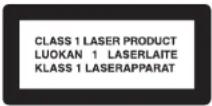
CLASS 1 LASER PRODUCT
LUOKAN 1 LASERLAITE
KLASS 1 LASERAPPARAT
ADVARSEL: USYNLIG LASERSTRÁLING VED ÁBNING, NÁR
SIKKERHEDSAFBRYDERE ER UDE AF FUNKTION.
UNDGÁ UDSAETTELSE FOR STRÀLING.
VAROITUS! LAITTEEN KÄYTTÄMINEN MUULLA KUIN TÄSSÄ
KÄYTTÖOHJEESSA MAINITULLA TAVALLA SAATTAA
ALTISTAA KÄYTTÄJÄN TURVALLISUUSLUOKAN 1
YLITTÄVÄLLE NÄKYMÄMTTÖMÄLLE LASERSÄTEILYLLE.
VARNING: OM APPARATEN ANVÄNDS PÅ ANNAT SÄTT ÄN I DENNA
BRUKSANVISNING SPECIFICERATS, KAN ANVÄNDAREN
UTSÄTTAS FÖR OSYNLIG LASERSTRÅLNING SOM
ÖVERSKRIDER GRÄNSEN FÖR LASERKLASS 1.

ATTENZIONE: QUESTO APPARECCHIO E' DOTATO DI DISPOSITIVO OTTICO CON RAGGIO LASER. L'USO IMPROPRIQ DELL'APPARECCHIO PUO' CAUSARE PERICOLOSE ESPOSIZIONI A RADIAZIONI!
IMPORTANT SAFETY INSTRUCTIONS
- Read these instructions.
- Keep these instructions.
- Heed all warnings.
- Follow all instruction
- Do not use this apparatus near water.
- Clean only with dry cloth.
- Do not block sovantilati
- Do not block any ventilation openings.
Install in accordance with the manufacture
Install in accordance with the manufacturer's instructions. 9. Do not install near any host courses such as radiat - Do not install near any heat sources such as radiators, heat registers, stoves, or other apparatus (including amplifi are) that produce heat
- Protect the power cord from being walked on or pinched part;
- Protect the power side from using walls on or pinches, particularly of plugs, convenience receptacles, and the point where they exit from the apparatus.
- Only use attachments/accessories specified by the manufacturer.
- Use only with the cart, stand, tripod, bracket, or table
specified by the manufacturer, or sold with the apparatus.
When a cart is used, use caution when moving the
apparatus combination to avoid injury from tip-over - Chiplag this apparatus during lightning storms of when unused for long periods of time.
- Belar all servicing to qualified service personnel
Servicing is required when the apparatus has been damaged in any way, such as power-supply cord or plug is damaged, liquid has been spilled or objects have fallen into the apparatus, the apparatus has been exposed to rain or moisture, does not operate normally, or has been dropped. - Batteries shall not be exposed to excessive heat such as sunshine, fire or the like.

CAUTION:
To completely disconnect this product from the mains, disconnect the plug from the wall socket outlet.
The mains plug is used to completely interrupt the power supply to the unit and must be within easy access by the user.
VORSICHT:
USE OF CONTROLS OR ADJUSTMENTS OR PERFORMANCE OF PROCEDURES OTHER THAN THOSE SPECIFIED HEREIN MAY RESULT IN HAZARDOUS RADIATION EXPOSURE.
THIS PRODUCT SHOULD NOT BE ADJUSTED OR REPAIRED BY ANYONE EXCEPT PROPERLY QUALIFIED SERVICE PERSONNEL.
NOTE ON USE / HINWEISE ZUM GEBRAUCH / OBSERVATIONS RELATIVES A L'UTILISATION / NOTE SULL'USO / NOTAS SOBRE EL USO / ALVORENS TE GEBRUIKEN / OBSERVERA ANGÄENDE ANVÄNDNINGEN
WARNINGS WARNHINWEISE AVERTISSEMENTS AVVERTENZE ADVERTENCIAS WAARSCHUWINGEN VARNINGAR
- Avoid high temperatures. Allow for sufficient heat dispersion when installed in a rack.
- Handle the power cord carefully. Hold the plug when unplugging the cord.
- Keep the unit free from moisture, water, and dust.
- Unplug the power cord when not using the unit for long periods of time.
- Do not obstruct the ventilation holes.
- Do not let foreign objects into the unit.
- Do not let insecticides, benzene, and thinner come in contact with the unit.
- Never disassemble or modify the unit in any way.
- Ventilation should not be impeded by covering the ventilation openings with items, such as newspapers, tablecloths or curtains.
- Naked flame sources such as lighted candles should not be placed on the unit.
- Observe and follow local regulations regarding battery disposal.
- Do not expose the unit to dripping or splashing fluids
- Do not place objects filled with liquids, such as vases, on the unit.
- Do not handle the mains cord with wet hands.
- When the switch is in the OFF position, the equipment is not completely switched off from MAINS.
• The equipment shall be installed near the power supply so that the power supply is easily accessible.
• DECLARATION OF CONFORMITY
We declare under our sole responsibility that this product, to which this declaration relates, is in conformity with the following standards: EN60085, EN55013, EN55020, EN61000-3-2 and EN61000-3-3.
Following the provisions of Low Voltage Directive 2006/95/EC and EMC Directive 2004/108/EC, the EC regulation 1275/2008 and its frame work Directive 2009/125/EC for Energy-related Products (ErP).
Following the provisions of low voltage directive 2008/9s/EC and EMC directive 2004/108/EC, the EC regulation 12/5/2008 and its frame work directive 2009/125/EC for energy-related products (ErP).
• DECLARATION DE CONFORMITE
A division of D&M Europe B.V.
A NOTE ABOUT RECYCLING:
This product's packaging materials are recyclable and can be reused. Please dispose of any materials in accordance with the local recycling regulations. When discarding the unit, comply with local rules or regulations.
Batteries should never be thrown away or incinerated but disposed of in accordance with the local regulations concerning battery disposal.
This product and the supplied accessories, excluding the batteries, constitute the applicable product according to the WEEE directive.
HINWEIS ZUM RECYCLING:
* For proper heat dispersal, do not install this unit in a confined space, such as a bookcase or similar enclosure.
- More than 0.1 m is recommended
- Do not place any other equipment on this unit
Thank you for purchasing this Marantz product. To ensure proper operation, please read this owner's manual carefully before using the product. After reading the manual, be sure to keep it for future reference.
Contents
Getting started 1
Accessories 1
About this manual 1
Main features....2
Cautions on handling....3
Discs 3
Discs playable on this unit 3
Holding discs 3
Loading discs 3
Cautions on loading discs 3
Cautions on handling 4
Cautions on storing discs 4
Cleaning discs 4
About the remote control 4
Inserting the batteries 4
Operating range of the remote control 4
Part names and functions 5
Front panel 5
Display 5
Rear panel 6
Remote control 6
Basic connections 7
Preparations 7
Connecting cables 7
Analog connections 7
Connecting the power cord....7
Basic operation......8
Before use 8
Turning the power on 8
Turning the power standby 8
Playback CDs ...... B
Turning off display 9
To change time display 9
Displaying text 9
Listening with headphone 10
Playing repeatedly (Repeat Playback)....10
Repeat Playback Between Specifi ed Points (A-B Repeat)....10
Playing in random order (Random playback)....11
Searching for a specific track (AMS play) 11
Advanced connections....12
Preparations 12
Connecting cables 12
Digital connections 12
Remote control connection....12
Advanced operations....13
Playing tracks in a specific order
(Program playback) 13
Playback with unwanted tracks skipped (Delete program
playback) 13
Playing back at different speeds (Pitch control function) .....14
Setting higher quality sound (Audio EX function)....14
Performing menu settings 14
Peak (Peak level search) 15
Edit (Edit mode) 15
MP3/WMA Mode (File playback mode setting) 16
Digital Out (Digital audio output setting) 16
Quick Replay (Quick replay playback) 16
Auto Standby (Auto standby mode) 16
Playback of MP3 and WMA files 17
Playing MP3 and WMA files 18
Explanation of terms 20
Others 20
Troubleshooting....21
Specifications 22
Index 22
Accessories
Check that the following parts are supplied with the product.
① User guide....1
② AC power cord (Cord length: Approx. 1.5 m) ..... 1
③ Audio connecting cable (Cord length: Approx. 1.0 m) .....1
④ Remote control connecting cable 1
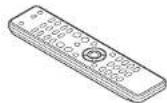
⑤ Remote controller (RC002CD) 1
⑥ AAA-size batteries 2

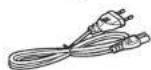
④
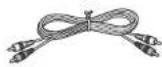
⑤
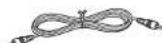
About this manual
Operation buttons
The operations described in this manual are based mainly on remote control operation.
Symbols
This symbol indicates a reference page on which related information is described.

This symbol indicates a supplementary information and tips for operations.
NOTE
This symbol indicates points to remember operations or function limitations.
□ Illustrations
Note that the illustrations in these instructions are for explanation purposes and may differ from the actual unit.
Main features
Using Marantz original HDAM ^10 SA2
The unit uses an HDAM®SA2, whose quality has been proved in Super Audio CD players and high-end amplifiers, as a high-speed buffer amplifier.
You can enjoy the high speed and high-quality sound like that produced by high-end equipment.
Incorporates a Cirrus Logic advanced D/A converter, CS4392
The unit adopts CS4392 corresponding to Cirrus Logic 192 kHz/24 bit in a D/A converter, which is the important element for deciding sound quality, the same with the highly reputed Marantz Super Audio CD player. The Cirrus Logic converter is a high quality device that supports DVD-Audio content.
(This model is only suitable for reproduction of Audio CDs or MP3/WMA files)
Audio EX function
Audio EX mode, which allows setting of pitch control, digital output, and display function to OFF, is provided in order for you to enjoy higher quality sound (page 14).
High grade headphone circuit
The high-grade headphone circuit incorporates a high-speed buffer amplifier to enable headphone listening of high quality sound reproduction, late at night or in other such situations.
Supports MP3 and WMA fi le playback
MP3 and WMA files that have been recorded onto CD-R or CD-RW discs can be played back on this CD player (page 17).
Pitch control function (Audio CDs only)
The "pitch control" function enables the play speed (pitch) to be varied over a ±12 step (page 14).
Quick replay function (Audio CDs only)
By a single-action operation, the "quick replay" function enables play to be moved back from the current play position for the time equivalent to the setting (setting range: 5 to 60 seconds) and play to be resumed.
This function makes it possible to return to a part of the track that was just played so it can be heard again (page 16).
Supports CD-Text display
CD-Text is an extension to the existing audio CD standard that enables text information, such as the name of the artist, album title and song titles to be stored on an audio CD.
CDs with the following logos support this function.
CD TEXT

Text information is recorded on the parts that are not used in the conventional Audio CDs.
This CD player enables the text information stored on a CD-Text CD to be read (applies only to English alphanumeric text).
ENGLISH
ENGLISH
Cautions on handling
• Before turning the power switch on
Check once again that all connections are correct and that there are no problems with the connection cables.
- When leaving home for long periods of time, be sure to unplug the power cord from the power outlet.
- Proper ventilation If the unit is left in a room full of the smoke from cigarettes, etc., for long periods of time, the surface of the optical pickup may get dirty, preventing it from receiving the signals properly.
- About condensation
If there is a major difference in temperature between the inside of the unit and its surroundings, condensation may form on parts inside the unit, causing the unit to fall to operate properly. If this happens, let the unit sit for an hour or two with the power off and wait until there is little difference in temperature before using the unit.
• Cautions on using mobile phones
Using a mobile phone near this unit may result in noise. If that occurs, move the mobile phone away from the unit when it is in use.
- Moving the unit
Turn off the power and unplug the power cord from the power outlet. Next, disconnect the cables connected to other system units before moving the unit.
Discs
Discs playable on this unit
Music CDs
Discs marked with the logo at right can be played in this unit.

② CD-R/CD-RW
NOTE
• Discs in special shapes (heart-shaped discs, octagonal discs, etc.) cannot be played. Do not attempt to play them, as doing so can damage the unit.
• Some discs and some recording formats cannot be played.
• Non-fi realized discs cannot be played.
※ What is finalization?
Finalization is the process that makes recorded CD-R/CD-RW discs playable on compatible players.
Holding discs
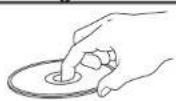


Do not touch the signal surface.
Loadingdiscs
- Place the disc in the tray, label side up.
- Make sure the disc tray is fully open when inserting the disc.
- Place the discs flat, 12 cm discs in the outer tray guide (Figure 1), 8 cm discs in the inner tray guide (Figure 2).
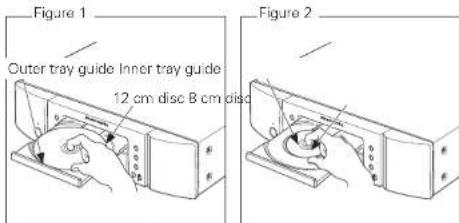
- Place 8 cm discs in the inner tray guide without using an adapter.
NOTE
- If you place a DVD or other disc that cannot be played by this unit in the disc tray, the tray does not open/close for about 1 minute. When that happens, press ▲ after "Error" is displayed.
- If you place a disc that contains other than MP3 or WMA files, "No File" is displayed.
Cautions on loading discs
- Only load one disc at a time. Loading two or more discs can damage the unit or scratch the discs.
- Do not use cracked or warped discs or discs that have been repaired with adhesive, etc.
- Do not use discs on which the sticky part of cellophane tape or labels is exposed or on which there are traces of where labels have been removed. Such discs can get caught inside the player and damage it.
Discs
Cautions on handling
- Do not get fingerprints, oil or dirt on discs.
• Take special care not to scratch discs when removing them from their cases. - Do not bend or heat discs.
- Do not enlarge the hole in the center.
- Do not write on the labeled (printed) surface with ball point pens, pencils, etc., or stick new labels on discs.
- Water droplets may form on discs if they are moved suddenly from a cold place (outdoors for example) to a warm place, but do not try to dry them off using a hairdryer, etc.
Cautions on storing discs
- Be sure to remove discs after using them.
- Be sure to store discs in their cases to protect them from dust, scratches, warping, etc.
- Do not store discs in the following places:
- Places exposed to direct sunlight for long periods of time
- Dusty or humid places
- Places exposed to heat from heaters, etc.
Cleaning discs
- If there are fi ingerprints or dirt on a disc, wipe them off before using the disc. Fingerprints and dirt can impair sound quality and cause interruptions in playback.
- Use a commercially available disc cleaning set or a soft cloth to clean discs.
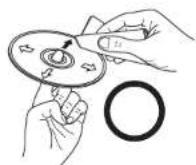
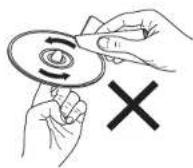
Gently wipe the disc from the inside towards the outside.
Do not wipe in a circular motion.
NOTE
Do not use record spray, antistatic agents, benzene, thinner or other solvents.
About the remote control
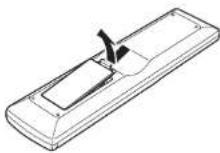
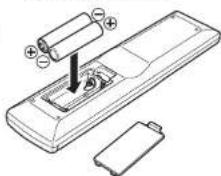
Insertingthebatteries
① Remove the rear cover of the remote control.
② Set two R03/AAA batteries in the battery compartment in the indicated direction.
natural_image
Line drawing of a remote control casing with battery and indicator lights (no text or symbols)③ Put the rear cover back on.
NOTE
- Replace the batteries with new ones if the unit does not operate even when the remote control is operated close to the unit.
• The supplied batteries are only for verifying operation. - Insert the batteries in the proper direction, following the “⊕” and “⊖” marks in the battery compartment.
• To prevent damage or leakage of battery fluid: - Do not use a new battery with an old one.
- Do not use two different types of batteries.
- Do not attempt to charge dry batteries.
- Do not short-circuit, disassemble, heat or dispose of batteries in a fire.
- Do not keep the battery in a place exposed to direct sunlight or in places with extremely high temperatures, such as near a heater.
- If the battery fluid leaks, carefully wipe the fluid off the inside of the battery compartment and insert new batteries.
- Remove the batteries from the remote control if it will not be used for a long time.
- Dispose of batteries in accordance with local regulations on battery disposal.
Operating range of the remote control
Operate the remote control while pointing it at the remote sensor.
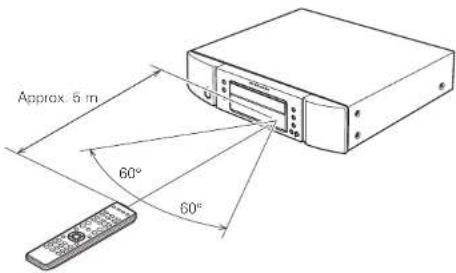
NOTE
The unit may function improperly or the remote control may not operate if the remote control sensor is exposed to direct sunlight or strong artificial light from a fluorescent or infrared light.
ENGLISH
Part names and functions
For buttons not explained here, see the page indicated in parentheses ( ).
Front panel Display
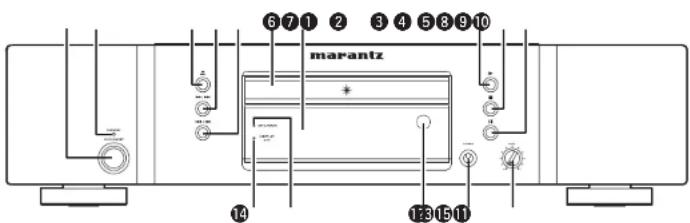
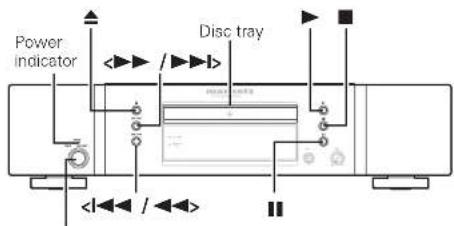
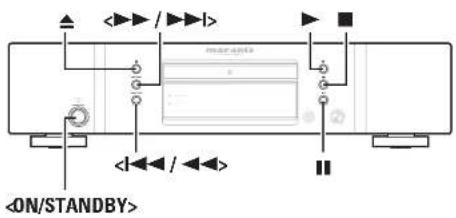
① Power operation switch (ON/STANDBY) ......(8)
2 Power indicator (STANDBY) ....(8) The two-colored light indicates the CD player operating status as follows: • Power "ON" ....Turn off • Standby ....Red
③ Disc tray open/close button (▲)....(8)
④ Fast forwarding/Forward-skip button (▶▶, ▶▶▶) ..... [8]
⑤ Fast reversing/Reverse-skip button (1←, ←) ......(8)
⑥ Disc tray ......(8)
⑦ Display....(5)
⑧ Play button (▶) ..... (8)
⑨ Stop button (■) ...... (8)
⑩ Pause button (III) ...... (8)
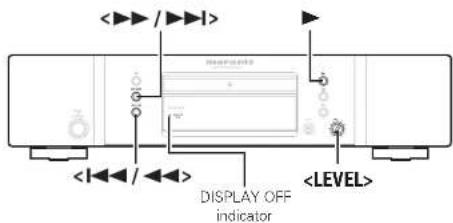
⑪ Headphone volume control knob (LEVEL)
12 Headphones jack (PHONES)....(10)
13 Remote control sensor ...... (4)
14 MP3/WMA Indicator ...... (18)
15 DISPLAY OFF indicator ...... (9)
① Pause indicator (II) This lights when play is temporarily suspended.
② Play indicator (▶)
This lights during play.
③ Disc indicator (DISC)
This fl ashes during readout of the table of contents (TOC) information on the disc.
4 Total track indicator (TTL)
Lights up when the total number of tracks recorded in the CD is displayed.
⑤ Random indicator (RNDM)
This lights during random play.
⑥ Track indicator (TRK)
Lights up when the track number of a track being played back is displayed.
7 Program indicator (PROG)
This lights during program play.
⑧ A-B repeat indicator (A-B)
This lights during A-B repeat play.
⑨ Repeat indicator (RPT)
This lights during repeat play.
⑩ 1-track repeat indicator (1)
This lights during 1-track repeat play.
⑪ Pitch control indicator (PITCH)
Lights up when the pitch control function is set and active.
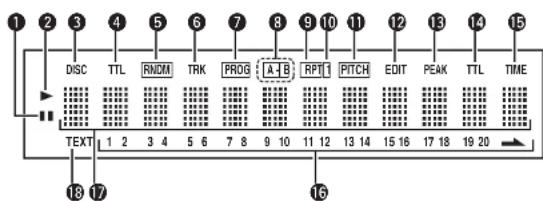
⑫ Edit indicator (EDIT)
This lights during edit mode.
13 Peak indicator (PEAK)
This lights during peak search and playback of the peak.
14 Total time indicator (TTL)
Lights up when the total remaining time or total program time is displayed.
15 Time indicator (TIME)
This lights while the elapsed time or other such time is displayed.
⑯ Music calendar (1 - 20,
This displays the track numbers recorded on the disc, the track numbers still to be played, and the track numbers programmed for program play. (Audio CD only)
17 Information display
This displays the time information and text information of the disc played, the setting menus, etc.
18 Text indicator (TEXT)
This lights when a disc supporting CD-TEXT has been loaded.
ENGLISH
Part names and functions
Rear panel
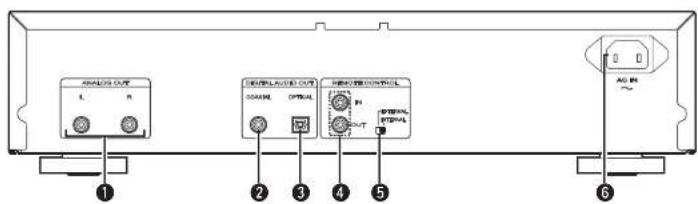
① ANALOG OUT connectors …… (7)
② DIGITAL OUT COAXIAL connector …… (12)
③ DIGITAL OUT OPTICAL connector …… (12)
4 REMOTE CONTROL IN / OUT connectors ...... (12)
⑤ EXTERNAL/INTERNAL switch …… (12)
⑥ AC inlet (AC IN)....(7)
Remote control
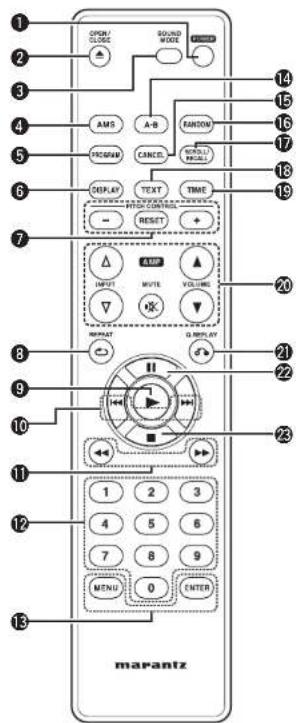
① POWER button....(8)
② OPEN/CLOSE button (▲) …… (8)
③ SOUND MODE button ..... (14)
4 Auto music scan button (AMS)....(11,19)
⑤ PROGRAM button …… (13)
⑥ DISPLAY button....(9)
⑦ Pitch control down/reset/up buttons ..... (14) (-/RESET/+)
⑧ REPEAT button....(10,18)
⑨ Play button (▶) ..... (8)
⑩ Track skip buttons (I◄◄, ►►I)....(8, 9)
① Search buttons (◀◀, ▶▶) ..... (8, 9)
⑫ Number buttons (0 - 9)....(9)
⑬ MENU, ENTER button....(14)
⑭ A-B repeat button (A-B) …… (10, 18)
⑮ CANCEL button (13)
16 RANDOM button (11, 19)
17 SCROLL/RECALL button....(13)
18 TEXT button....(9, 18)
19 TIME button (9)
20 Amplifi er operation buttons Volume button (▲, ▼) Input button (△, ▽) MUTE button
② Q. REPLAY button (16)
② Pause button (III) ..... (8)
23 Stop button (■) ..... (8)

- The supplied remote control can operate Marantz amplifiers.
- When using it, also refer to the operating instructions of the other devices.
NOTE
The remote control may not operate some devices.
ENGLISH
Basic connections
NOTE
- Do not plug in the power cord until all connections have been completed.
- When making connections, also refer to the owner's manual of the other components.
- Insert the plugs securely. Loose connections will result in the generation of noise.
- Be sure to connect the left and right channels properly (left with left, right with right).
- Do not bundle power cords together with connection cables. Doing so can result in humming or noise.
- Do not connect the unit to the PHONO input connectors on the amplifier.
Preparations
Connectingcables
Select the cables according to the equipment being connected.
Audio cables
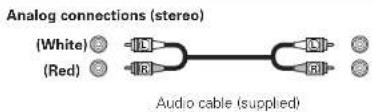
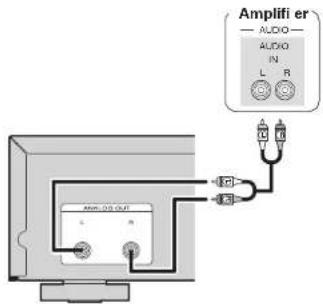
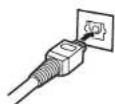
Connecting the power cord
Do not plug in the power cord until all connections have been completed.
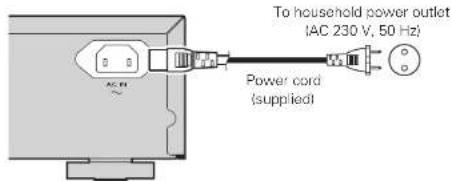
NOTE
- Insert the plugs securely. Loose connections will result in the generation of noise.
- Do not unplug the power cord while the unit is operating.
- Do not use a power cord other than the cord supplied with this unit.
Basic operation

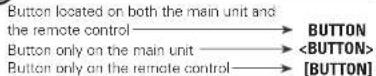
Symbols used to indicate buttons in this manual
![[POWER] [<<, >>] [<<, >>]](/content/2026/05/1128927/images/7b430687c134d28a95c1a429da541b405aa7d97ea125be45615125cef14b0cf4.jpg)
Before use
Turning the power on
Press
Power is turned on and the power indicator goes off.
Turning the power standby
Press
Power is set to standby and the power indicator lights.

Before setting power to standby, make sure the disc tray is completely closed.
NOTE
- Do not force the tray in by hand while power is set to standby. This could cause a trouble.
- Even when power is set to standby, electrical current passes through some circuits. If you do not intend to use the unit for an extended period of time, unplug the power cord from the household power outlet.
PlaybackCDs
1 Insert a disc.
• To open or close the disc tray, press ▲
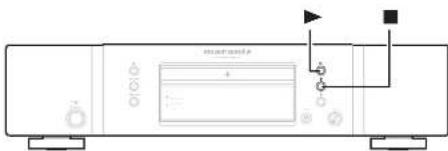
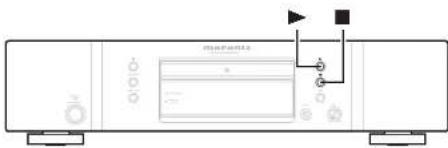
- You can close the disc tray by pressing ▶

Press ▶.
2 The "▶" indicator lights and the disc is played back.
After playing all tracks recorded on the disc, the unit automatically stops playback.
StoppingPlayback
Press ■
Stopping Playback temporarily
Press II.
• The "III" indicator lights.
• To restart playback, press ▶ or ▶.
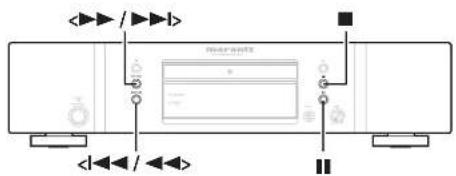
Fast-Forwarding and Fast-Reversing (Searching)
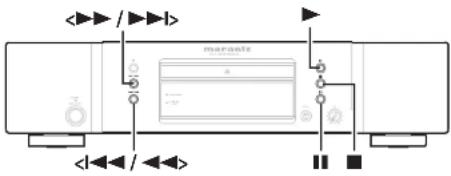
[Using the buttons on the main unit]
During playback, press and hold in <◄◄◄/◄◄►> or <►►/►►►>.
- When you remove your finger from the button, normal playback is resumed.
- When normal playback is resumed after searching, the sound may be interrupted momentarily.
[Using the buttons on the remote control]
During playback, press and hold in [◀◀] or [▶▶].
- When you remove your finger from the button, normal playback is resumed.
- When normal playback is resumed after searching, the sound may be interrupted momentarily.
ENGLISH

Symbols used to indicate buttons in this manual
![[A-B] [TEXT] [DISPLAY] [TIME] [REPEAT] [NUMBER] (0 - 9) 1 2 3 4 5 6 7 8 9 10 11 12 13 14 15 16 17 18 19 20 21 22 23 24 25 26 27 28 29 30 31 32 33 34 35 36 37 38 39 40 41 42 43 44 45 46 47 48 49 50 51 52 53 54 55 56 57 58 59 60 61 62 63 64 65 66 67 68 69 70 71 72 73 74 75 76 77 78 79 80 81 82 83 84 85 86 87 88 89 90 91 92 93 94 95 96 97 98 99 100](/content/2026/05/1128927/images/dcc3cf73c6af479834eb73d47a4555996eec0d6210161843b8dd096b1353e6ea.jpg)
Playback CDs
Moving to the Beginning of Tracks (Skipping)
[Using the buttons on the main unit]
- The disc is skipped the number of tracks equal to the number of times the button is pressed.
- When you press ◀◀◀/◀◀> once, playback restarts from the beginning of the current track.
[Using the buttons on the remote control]
During playback, press and hold in [1◄◄] or [►►I]
- The disc is skipped the number of tracks equal to the number of times the button is pressed.
- When you press [◀◀◀] once, playback restarts from the beginning of the current track.
Playing a Specific Track (Direct searching)
Press [NUMBER] (0 - 9) to select the track.
[Example]: Track 4 : Press number [4] to select Track No. 4
[Example]: Track 12 : Press numbers [1] and [2] consecutively to select Track No. 12.

The number you enter is set about 1.5 seconds after you press the number buttons. To enter a two-digit number, be sure to press the two number buttons, one immediately after the other.
Turning off display
Press [DISPLAY].
The DISPLAY OFF indicator lights and the display information goes off.
NOTE
During stop mode, the display information does not turn off. The information is turned off only during playback.
To change time display
Press [TIME]
- When [TIME] is pressed each time, the display shows differently in the following orders.
![MARANTZ CD5004SG - Press [TIME] - 1](/content/2026/05/1128927/images/61e2fbcf74fbd13a72925def533ed093fd9bbd9b889df122d20ace6df6163516.jpg)
Displayingtext
The "TEXT" indicator lights when a CD-Text disc is loaded.
- When you press [TEXT], the text information stored on a CD-Text disc is displayed.
• This unit can display up to 64 characters of text information.
[Display of player]
![MARANTZ CD5004SG - [Display of player] - 1](/content/2026/05/1128927/images/5a0904f887b6e5646967ddfae556188fd5caceb0bd11b8072d08cd79977a1a9f.jpg)
ENGLISH
During playback mode
When [TEXT] is pressed each time, the display switches text information in the following order. 【Example】While the third track is being played back
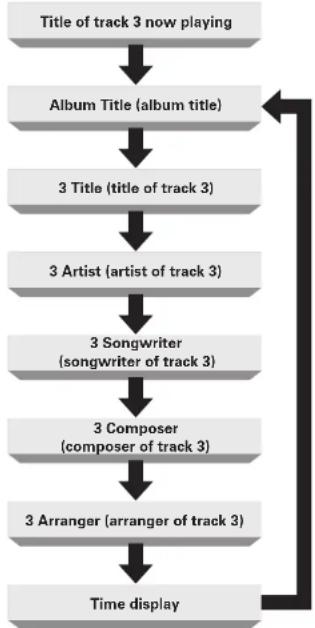
flowchart
graph TD
    A["Title of track 3 now playing"] --> B["Album Title (album title)"]
    B --> C["3 Title (title of track 3)"]
    C --> D["3 Artist (artist of track 3)"]
    D --> E["3 Songwriter (songwriter of track 3)"]
    E --> F["3 Composer (composer of track 3)"]
    F --> G["3 Arranger (arranger of track 3)"]
    G --> H["Time display"]

The type of text information stored in a CD-Text disc varies depending on the disc. No text information is displayed for the disc that does not contain information.
Displaying text
During stop mode
When [TEXT] is pressed each time, the display switches text information in the following order. If you press ▶ while the title of a track is displayed, playback starts from the beginning of the current track.
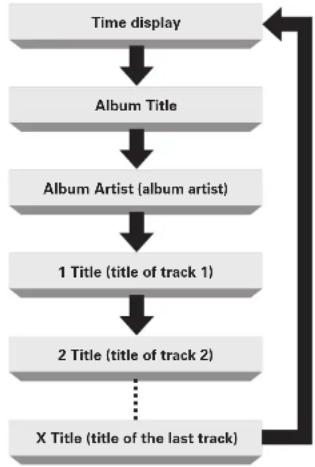
flowchart
graph TD
    A["Time display"] --> B["Album Title"]
    B --> C["Album Artist (album artist)"]
    C --> D["1 Title (title of track 1)"]
    D --> E["2 Title (title of track 2)"]
    E --> F["X Title (title of the last track)"]
    F --> A
Listening with headphone
Plug the headphones into the headphone jack (PHONES).
Adjusting the Volume
Turn
NOTE
To prevent hearing loss, do not raise the volume level excessively when using headphones.
Playing repeatedly (Repeat Playback)
Press [REPEAT] to select repeat mode.
When [REPEAT] is pressed each time, the display switches repeat modes in the following order.
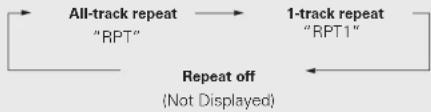
flowchart
graph LR
    A["All-track repeat "RPT""] --> B["1-track repeat "RPT1""]
    B --> C["Repeat off (Not Displayed)"]
    C --> A
[Selectable items]
All-track repeat "RPT"
1-track repeat "RPT1"
Repeat off (Not Displayed)
All tracks are played repeatedly.
Only 1 track is played repeatedly.
Normal playback resumes.
Repeat Playback Between Specifi ed Points (A-B Repeat)
1 During playback, press [A-B] at the desired starting point (A).
The "A-" indicator on the display lights.
2 Press the [A-B] again at the desired ending point (B). The "B-" indicator on the display lights and the selected part (from point A to point B) is played repeatedly.
- To stop A-B repeat playback and resume normal playback, press [A-B] again. The "A-B" indicator goes off.

You cannot use the A-B repeat playback function during random playback.
ENGLISH

Symbols used to indicate buttons in this manual
![[AMS] [RANDOM] [REPEAT]](/content/2026/05/1128927/images/d675aff3ee933a39d0a0f57773531a42db150e4bf09a59e54a5f6018239a1470.jpg)
Playing in random order (Random playback)
During playback or stop mode, press [RANDOM].
The "RNDM" indicator on the display lights and random playback starts.
Stopping Random Playback
Press ■ or [RANDOM] during random playback. The "RNDM" indicator on the display goes off.

If you press [REPEAT] during random playback, playback is performed using the 1-track repeat or all-track repeat mode.
- All-track repeat: After the current session of random playback ends, another session is started using a different order for the tracks. This operation is repeated until you cancel the all track repeat mode.
- 1-track repeat: The current track is played repeatedly.
NOTE
- Direct searching is not possible during random playback. - The random playback mode is canceled if you set power to standby, turn off power, or open the disc tray.
Searching for a specific track (AMS play)
You can play back all track intros, from the first track onward, in sequence. This function is useful when you search for a specific track you want to listen to. (AMS playback: Auto Music Scan playback)

During playback or stop mode, press [AMS].
The Play indicator "▶" on the display flashes and AMS playback starts.

Press [AMS] to set the playback time.
- When [AMS] is pressed each time, the display switches AMS playback time in the following order.
→ 10 sec. 20 sec. 30 sec. OFF


When you find the track you want to listen to, press
The Play indicator "▶" lights and normal playback is resumed.
- If you press [RANDOM] during AMS playback, the AMS playback mode is canceled and random playback starts.
Advanced connections
Preparations
Connectingcables
Select the cables according to the equipment being connected.
Audio cables
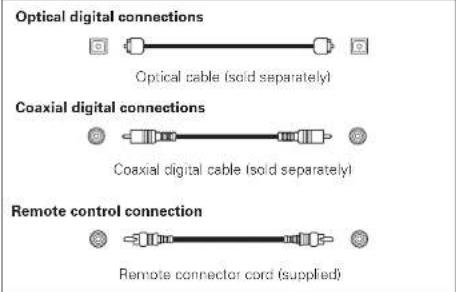
Digital connections
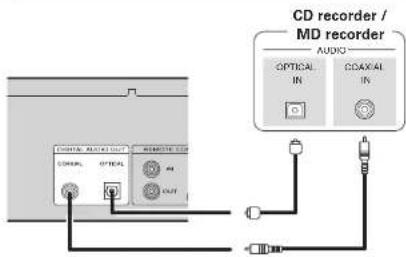
When connecting the optical digital output connector with an optical transmission cable (sold separately)
Match the shapes then insert firmly.
Remote control connection
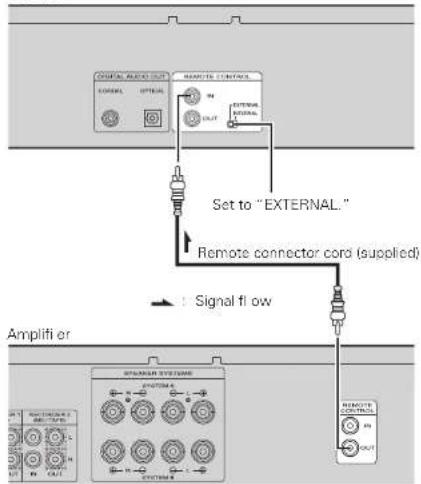
When you use this unit connected to a Marantz amplifier, this unit receives operation signals sent from the amplifier and operates accordingly.
Connection
Use the supplied remote connection cable to connect the REMOTE CONTROL IN terminal of this unit to REMOTE CONTROL OUT terminal of the amplifier.
Setting
Set the remote control switch on the rear panel of this unit to "EXTERNAL" to use this feature.
- This setting will disable remote sensor reception of this unit.
- To operate the unit, point the remote control at the remote sensor of the amplifier.

To use this unit without connecting it to the amplifier, set the remote control switch to "INTERNAL".
The unit
flowchart
graph TD
    A["External Control"] --> B["Set to "EXTERNAL""]
    B --> C["Signal flow"]
    C --> D["Amplifier"]
    D --> E["External Control"]
    style A fill:#f9f,stroke:#333
    style B fill:#ccf,stroke:#333
    style C fill:#cfc,stroke:#333
    style D fill:#fcc,stroke:#333
    style E fill:#cff,stroke:#333
ENGLISH
Advanced operations

Symbols used to indicate buttons in this manual
![[CANCEL] [PROGRAM] [DISPLAY] [PITCH -, +] [PITCH RESET] [REPEAT] [NUMBER] (D - 9) [MENU] [SOUND MODE] [SCROLL/RECALL] [I←←, ►►I] [ENTER]](/content/2026/05/1128927/images/4f0246116d9ec537451c64df0867f197cd79b6a34c8ae2239a91ddf3567cd0b6.jpg)
Playing tracks in a specific order (Program playback)
1 During stop mode, press [PROGRAM].
- "Program" appears on the display and the program playback mode starts.
• The "PROG" indicator fl ashes.
2 Use [NUMBER] (0 - 9), [I◄◄, ►►l] or
To program tracks 3 and 12 to be played in that order, press [3], [1], and [2] one after the other.
2 Press ▶
Playback starts in the programmed order.

The number you enter is set about 1.5 seconds after you press the number buttons. To enter a two-digit number, be sure to press the two number buttons, one immediately after the other.
Playback with unwanted tracks skipped (Delete program playback)
1 After pressing [PROGRAM] during stop mode, press [CANCEL].
- "Delete Prog." appears on the display and delete program playback mode starts.
- "PROG" indicator fl ashes.
2 Use [NUMBER] (0 - 9), [I◄◄, ►►I] or
[Example]
To program tracks 3 and 12 to play in that order: Press [3], [1] and [2].
2 Press ▶.
The selected tracks are skipped when the disc is played back.

The number you enter is set about 1.5 seconds after you press the number buttons. To enter a two-digit number, be sure to press the two number buttons, one immediately after the other.
Checking the order of the programmed tracks
Press [SCROLL/RECALL]
• During program playback:
Displays the track numbers in the programmed order.
• During delete program playback
Displays the deleted track numbers in the deleted order.
Adding tracks for program playback
During playback or stop, press [PROGRAM].
- When the "PROG" indicator flashes, select tracks that you want to add for program playback.
Canceling a track from program playback
While stopped, press [SCROLL/RECALL].
Press [SCROLL/RECALL] to display the track that you want to delete and press [CANCEL].
Clearing the all programmed track
During program playback, press ■ twice
During stop mode, press ■ once.

- You can specify up to 30 tracks each for program playback and delete program playback.
- If you press [REPEAT] during program playback or delete program playback, programmed tracks are repeatedly played in the selected repeat mode (1-track repeat or all-track repeat).
- During 1-track repeat: The current track is played repeatedly.
- During all-track repeat: After the current session of program playback ends, the tracks are played repeatedly from the first programmed track. This operation is repeated until you cancel the all-track repeat mode.
NOTE
- Programmed playback is not possible with MP3 and WMA files. - The program playback mode is canceled if you set power to standby, turn off power, or open the disc tray.
ENGLISH
Playing back at different speeds (Pitch control function)
You can use the Pitch control function to play back music CDs (CD-DA) at a different speed (pitch) during playback.
Increasing the play speed
Press [PITCH+]
- "PITCH" will light up and each time the button is pressed, the playback speed will increase (max +12).
Reducing the play speed
Press [PITCH-].
- "PITCH" will light up and each time the button is pressed, the playback speed will decrease (min -12).
Returning play to the normal speed
Press [PITCH RESET]
- The "PITCH" indicator on the display goes off and "Pitch: 0" appears on the main display.
- Press [PITCH RESET] again to restore the original playback speed setting.
NOTE
- The pitch control function is enabled only when Audio EX mode is set to "Audio EX OFF" (page 14).
- Pitch control playback is not possible with MP3 and WMA files.
Setting higher quality sound (Audio EX function)
You can use the Audio EX function to set higher quality sound.
During stop mode, press [SOUND MODE].
- When [SOUND MODE] is pressed each time, the display switches sound modes in the following order.
![MARANTZ CD5004SG - During stop mode, press [SOUND MODE]. - 1](/content/2026/05/1128927/images/71486939e647186de9f3713a0eddf0fef0ae719527a367788441ac2ac0df53b0.jpg)
| Sound mode | Pitch control | Digital output | Display |
| Audio EX OFF: | Enable | Available *1 *2 | On |
| Audio EX 1:Plays with a higher quality sound than "Audio EX OFF" mode. | Disable Available *2 On | ||
| Audio EX 2:Plays analog audio output using highest quality sound. | Disable Not available | Off (during playback) *3 | |
(*1) Digital signals are output only when the pitch control setting is "Pitch: 0".
(*2) The "Digital Out" setting of the menu overrides the Audio EX setting (page 16).
(*3) When you press[DISPLAY], the display turns on for about 3 seconds.
Performing menu settings
You can set the following functions. For further information, see the page indicated in parentheses (1).
☐ Peak (Peak level search) (1-9 page 15)
Edit (Edit mode) (page 15)
MP3/WMA Mode (File playback mode setting) (page 16)
☐ Digital Out (Digital audio output setting) (page 16)
☐ Quick Replay (Quick replay playback) (page 16)
☐ Auto Standby (Auto standby mode) (page 16)
1 During stop mode, press [MENU].
2 Press ■ or □ to select the menu item you want to set.
3 Press [ENTER].
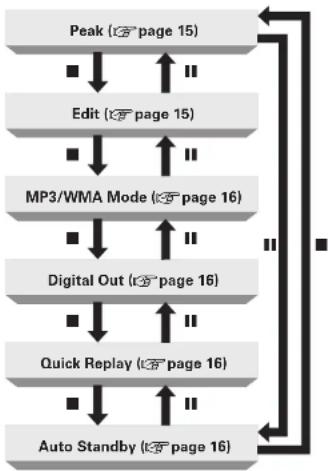
flowchart
graph TD
    A["Peak (page 15)"] --> B["Edit (page 15)"]
    B --> C["MP3/WMA Mode (page 16)"]
    C --> D["Digital Out (page 16)"]
    D --> E["Quick Replay (page 16)"]
    E --> F["Auto Standby (page 16)"]
    F --> A
ENGLISH

Symbols used to indicate buttons in this manual
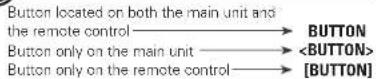
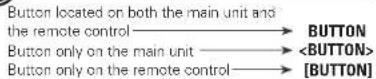
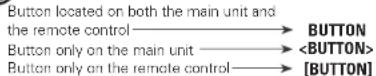
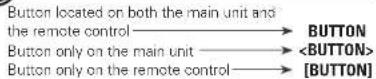
| Button located on both the main unit and the remote control→ | BUTTON |
| Button only on the main unit→ | <BUTTON> |
| Button only on the remote control→ | [BUTTON] |
![[NUMBER] (0~9) [MENU] [ENTER] [Q.REPLAY] [◀◀, ▶▶▶▶] [◀◀, ▶▶▶▶] [◀◀, ▶▶▶▶]](/content/2026/05/1128927/images/478bec612d7340e49b73f37fc1875572be7d0870db46777287b8601012716414.jpg)
Performing menu settings
Peak (Peak level search)
You can avoid distortion and noise in a recording if you adjust the recording level of the cassette deck in relation to the peak volume level on a disc. This unit can detect portions with relatively high volume levels over the entire disc or programmed tracks.
1 Select "Peak" and press [ENTER].
- The "PEAK" indicator on the display lights and the peak level search starts from the first track on a disc.
- When the peak level search of the last track is finished, a 6-second segment before and after portions with relatively high volume level is played repeatedly.
- Adjust the recording level of the cassette deck during the above 6-second repeated playback. (For further information, refer to the user guide of the cassette deck.)
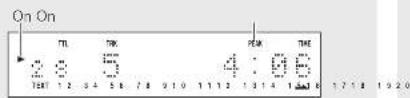
2 Press ■ to stop playback of the peak location.
NOTE
There are multiple locations on a disc where the volume level may be high. Therefore, each time you perform the peak level search on the same disc, different high peak levels may be detected.
Edit(Editmode)
When you record from CD to tape, you can use this function to divide the tracks and record them on tape side A and tape side B in accordance with the tape length. When recording, 4-second intervals are inserted between the tracks.
- You can use the edit mode during program mode and delete program mode.
1 Select "Edit" and press [ENTER].
- The "EDIT" indicator on the display lights and the tracks stored on the disc are recorded on tape side A and tape side B.
(Example: Disc containing 28 tracks)
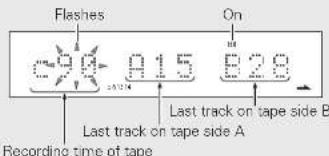
In this example, tracks 1 to 15 are recorded on tape side A and tracks 16 to 28 are recorded on side B when a 90-minute cassette tape is used.
2 Setting the recording time of a tape.
- When [I◄◄, ►►I] or ◁◄◄/◄◄, ►►/►►> is pressed each time, the display switches the recording time setting to 46, 54, 60, 74, and 90 minutes.
- When [◀◀, ▶▶] or <◀◀◀/◀◀, ▶▶/▶▶▶> is pressed each time, you can change the recording time in 1-minute increments.
- You can also use the number buttons to enter the setting time directly.
• [Example] To set 46 minutes, press [4] and [6].
NOTE
When “→” is displayed on the right of the last track on tape side B, tracks following the last track on tape side B are not played.
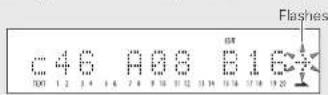
In this example, tracks after track 17 are not played.
![3 Press [ENTER] to end the setting operation. On On 15 1 44 54 Total playing time of side A All tracks to be played on tape side A Total number of tracks on side A](/content/2026/05/1128927/images/c907d24a019897ffc4ead4a1fd1d59dabafe1ac580da7b1b3ef9ced07d6da448.jpg)
NOTE
- During edit playback, you can operate only <■>, <▲>, and
buttons on the main unit. (You cannot use the remote control for operation.)
This prevents recording errors due to unintentional operation. - During edit playback, no text information stored on a CD-Text disc is displayed. Only the time is displayed.
- With Auto Standby On, you can automatically set this unit to standby mode after the unit is in stop mode continuously for about 30 minutes, during setting in the Edit mode or edit playback.
Edit recording
1 After you finish settings in the edit mode, set the cassette deck to start recording.
2 Press ▶ or Ⅱ to play back the tracks on side A. Playback starts after about 4 seconds.
- When playback for recording tracks on side A ends, the recording stops temporarily at the beginning of the first track to be recorded on side B.
3 Change the cassette tape to side B and start recording.
4 Press ▶ or Ⅱ to play back the tracks on side B. Playback starts after about 4 seconds.
- When playback for recording tracks on side B ends, the recording stops and the settings in the edit mode are canceled.

You can perform edit recording during the program mode and delete program mode.
MP3/WMA Mode (File playback mode setting)
You can select the playback mode for MP3/WMA files.
1 Select "MP3/WMA Mode" and press [ENTER].
- The default setting is "Cont. mode"
2 Press [l◄◄, ►►l] or
Cont. mode: All files on the disc are played.
Folder mode: All files in the selected folder are played.
• This unit can play MP3 and WMA files.
3 Press [ENTER]. The setting is saved.
Digital Out (Digital audio output setting)
You can prevent analog audio circuits from being affected by digital audio circuits by turning off the digital audio output. You can use higher quality sound to play back analog sounds.
1 Select "Digital Out" and press [ENTER]. The current settings appear on the display.
• Digital output is set to "On" at the factory.
2 Press [l◄◄, ►►l] or
Off: Turns off digital audio output.
On: Turns on digital audio output.
3 Press [ENTER]. The setting is saved.
Quick Replay (Quick replay playback)
Using the quick replay function
When you press [Q.REPLAY] during playback, the play position will jump back from the current position for length of time that was set and playback is resumed.
NOTE
- You cannot cross over from one track to another when you perform the quick replay function.
- When you press [Q.REPLAY], if the total length of the track being played or the track elapsed playing time is shorter than the time set for quick replay, the play position will return to the beginning of the track and playback is resumed.
Setting the quick replay time
If a disc is set in the disc tray, remove the disc and then perform the setting.
1 Select "Quick Replay" and press [ENTER].
The quick replay time current setting appears on the display.
- Ref: 105 sec
• The quick replay time is set to 10 seconds at the factory.
2 Press [l◄◄, ►►l] or
3 Press [ENTER]. The setting is saved.
Auto Standby (Auto standby mode)
With Auto Standby On, you can automatically set this unit to standby mode after the unit is in stop mode continuously for about 30 minutes (no operation).
1 Select "Auto Standby" and press [ENTER]. The Auto Standby mode current setting appears on the display.
- Auto Standby mode is set to "OFF" at the factory.
2 Press [l◄◄, ►►l] or
• ON: Enable Auto Standby mode.
• OFF Disable Auto Standby mode.
3 Press [ENTER]. The setting is saved.
ENGLISH

Symbols used to indicate buttons in this manual
![[A-B] [PITCH - , +] [REPEAT] [MENU] [TEXT] [1◄◄►, ►►►I] [◄◄►, ►►►] [ENTER]](/content/2026/05/1128927/images/dd8bac1dedf3317100d1bb3b3a03befef2a28ca220e1c77946c9464fb75f50ff.jpg)
Playback of MP3 and WMA fi les
□ Playback order of MP3/WMA fi les
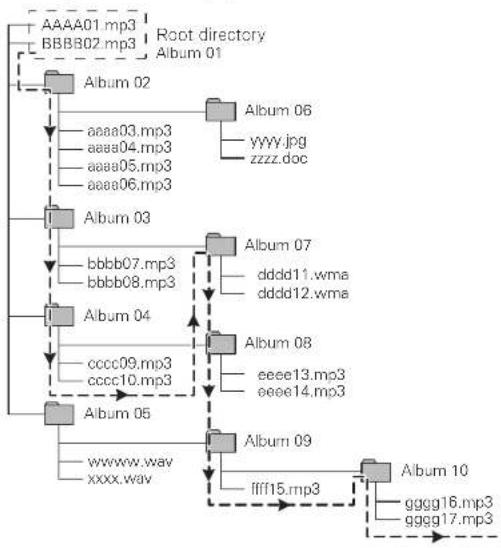
• Example of MP3/WMA playback order
flowchart
graph TD
    A["Root directory"] --> B["Album 01"]
    B --> C["Album 02"]
    C --> D["aaaa03.mp3"]
    C --> E["aaaa04.mp3"]
    C --> F["aaaa05.mp3"]
    C --> G["aaaa06.mp3"]
    B --> H["Album 03"]
    H --> I["bbbb07.mp3"]
    H --> J["bbbb08.mp3"]
    H --> K["Album 04"]
    K --> L["cccc09.mp3"]
    K --> M["cccc10.mp3"]
    K --> N["Album 05"]
    N --> O["www.wav"]
    N --> P["xxxx.wav"]
    B --> Q["Album 06"]
    Q --> R["yyyy.jpg"]
    Q --> S["zzzz.doc"]
    Q --> T["Album 07"]
    T --> U["dddd11.wma"]
    T --> V["dddd12.wma"]
    T --> W["Album 08"]
    W --> X["eeee13.mp3"]
    W --> Y["eeee14.mp3"]
    W --> Z["Album 09"]
    Z --> AA["flff15.mp3"]
    Z --> AB["Album 10"]
    AB --> AC["gggg16.mp3"]
    AB --> AD["gggg17.mp3"]
- Playback order
1 AAAA01.mp3 10 cccc10.mp3
2 BBBB02.mp3 11 dddd11.wma
3 aaaa03.mp3 12 dddd12.wma
4 aaaa04.mp3 13 eeee13.mp3
5 aaaa05.mp3 14 eeee14.mp3
6 aaaa06.mp3 15 ffff15.mp3
7 bbbb07.mp3 16 gggg16.mp3
8 bbbb08.mp3 17 gggg17.mp3
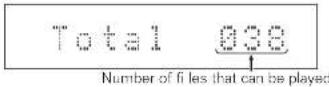
• Display while the player is stopped
- The dotted lines with arrows indicate the playback order of files and folders.
- If there are any MP3/WMA files located immediately below the root directory, i.e. that are not in folders, they will be played before the folder files.
- The playback order will depend on the folder names and file names with the order of precedence being: numbers alphabet upper case alphabet lower case.
- The files in Albums 05 and 06 are not played back because they are not MP3/WMA files.
- It is possible that the playback order will be different than that of the order displayed on a personal computer. This order can also change according to the CD writing software used.
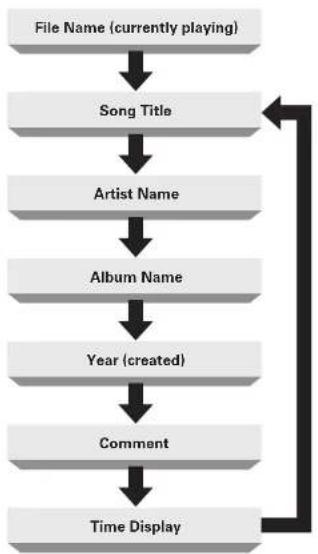
□ Displaying text information
When [TEXT] is pressed each time, the display switches text information in the following order.
During playback, mainly information about the currently playing file will be displayed.
flowchart
graph TD
    A["File Name (currently playing)"] --> B["Song Title"]
    B --> C["Artist Name"]
    C --> D["Album Name"]
    D --> E["Year (created)"]
    E --> F["Comment"]
    F --> G["Time Display"]
Playing MP3 and WMA files
1 Set a CD-R/RW disc that contains MP3 or WMA format music files in the disc tray (page 3).
2 Press [MENU] to select "MP3/WMA Mode". Set "Cont. mode" or "Folder mode" ( page 16).
To Switch the Folder or File During Playback
[To change a folder]
Use [PITCH -, +] to select a folder and press [ENTER].
[To change a fi le]
Use [|◀◀, ▶▶▶] or <|◀◀/◀◀, ▶▶/▶▶> to select a file.

When you use a CD-R/RW disc, this unit automatically sets the playback order. For further information, refer to "Playback of MP3 and WMA fi les" (page 17).
Stopping Playback
Press ■
Stopping Playback temporarily
Press III.
The "11" is displayed.
• To restart playback, press ■ again.
Fast-Forwarding and Fast-Reversing (searching)
During playback, press and hold in [◀◀, ▶▶] or
- When you remove your finger from the button, normal playback is resumed.
- When normal playback is resumed after searching, the sound may be interrupted momentarily.
□ Playing repeatedly (Repeat playback)
Press [REPEAT] to select repeat mode.
- When [REPEAT] is pressed each time, the display switches repeat modes in the following order.
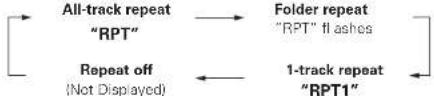
flowchart
graph LR
    A["All-track repeat "RPT""] --> B["Folder repeat "RPT" flashes"]
    C["Repeat off (Not Displayed)"] --> D["1-track repeat "RPT1""]
    B --> D
[Selectable items]
All-track repeat "RPT"
Folder repeat "RPT" fl ashes
1-track repeat "RPT1"
Repeat off (Not Displayed)
All tracks are played repeatedly.
Tracks in a folder are played repeatedly.
Only 1 track is played repeatedly.
Normal playback resumes.
☐ Repeat Playback Between Specified Points (A-B Repeat)
1 During playback, press [A-B] at the desired starting point (A).
The "A-" indicator on the display lights.
2 Press the [A-B] again at the desired ending point (B). The "B-" indicator on the display lights and the selected part (from point A to point B) is played repeatedly.
- To stop A-B repeat playback and resume normal playback, press [A-B] again. The "A-B" indicator goes off.
NOTE
- The A-B repeat play function cannot be used during random play. - There are cases in which difficulties will be experienced, when setting the B point, if the file's bit rate is low.

- Only alphanumeric characters can be displayed.
- The type of text information recorded in a file can be different depending on the method used to write a file and the CD writing software. Unrecorded text information is not displayed.
- When a CD is not playing, only the number of files on the disc that can be played is displayed.
NOTE
Depending on the MP3 or WMA file being played, text information may not be displayed.
ENGLISH

Symbols used to indicate buttons in this manual
natural_image
Line drawing of a computer monitor with indicator lights and ports (no text or symbols)![[AMS] [RANDOM] [REPEAT] [REPEAT]](/content/2026/05/1128927/images/043a8a1cfe308ee6ac47ab3e4bcdc0d4f1ec6c33d830aed5e0bcac0cdb58b0d4.jpg)
Playback of MP3 and WMA files
☐ Playing in random order (Random playback)
During playback or stop mode, press [RANDOM]. The "RNDM" indicator on the display lights and random playback starts.
Stopping Random Playback
Press ■ or [RANDOM] during random playback The "RNDM" indicator on the display goes off.

If you press [REPEAT] during random playback, playback is performed using the 1-track repeat or all-track repeat mode. - All-track repeat: After the current session of random playback ends, another session is started using a different order for the tracks. This operation is repeated until you cancel the all-track repeat mode. - 1-track repeat: The current track is played repeatedly.
NOTE
The random playback mode is canceled if you set power to standby, turn off power, or open the disc tray.
☐ Searching for a specific track (AMS play)
You can play back all track intros, from the first track onward, in sequence. This function is useful when you search for a specific track you want to listen to. (AMS playback: Auto Music Scan playback)
1 During playback or stop mode, press [AMS]. The play indicator "▶" on the display fl ashes and AMS playback starts.
2 Press [AMS] to set the playback time.
- When [AMS] is pressed each time, the display switches AMS playback time in the following order.

3 When you find the track you want to listen to, press
The Play indicator "▶" lights and normal playback is resumed.
- If you press [RANDOM] during AMS playback, the AMS playback mode is canceled and random playback starts.
NOTE
AMS playback allows you to play back the files set in the "MP3/WMA Mode" menu (page 16).
Explanation of terms
Bit rate
This expresses the read amount per 1 second of video/audio data recorded in a disc.
M
MP3 (MPEG Audio Layer-3)
This is an internationally standardized audio data compression scheme, using the "MPEG-1" video compression standard. It compresses the data volume to about one eleventh its original size while maintaining sound quality equivalent to a music CD.
s
Sampling frequency
Sampling involves taking a reading of a sound wave (analog signal) at regular intervals and expressing the height of the wave at each reading in digitized format (producing a digital signal). The number of readings taken in one second is called the "sampling frequency". The larger the value, the closer the reproduced sound is to the original.
38
WMA (Windows Media Audio)
This is audio compression technology developed by Microsoft Corporation.
WMA data can be encoded using Windows Media ^® Player Ver.7, 7.1, Windows Media ^® Player for Windows ^® XP and Windows Media ^® Player 9 Series.
To encode WMA files, only use applications authorized by Microsoft Corporation. If you use an unauthorized application, the file may not work properly.
Others
□ Playing CD-R/CD-RW discs


This unit can play back the CD-RW (ReWritable) discs as well as ordinary Audio CD and CD-R (Recordable) discs.
- This unit can play back Audio CD format and CD-R/CD-RW discs which contain MP3/WMA music data. However, some discs may have problems such as unable to play, noise or sound distortion. For details, please read the instruction manual provided with a CD recorder.
- The CD-R and CD-RW discs should contain properly-recorded TOC information so that they can be played back. In CD recorders, the task of writing TOC information is referred to as fi nalizing the disc. Discs that are not fi nalized cannot be properly recognized as an Audio CD and played back by regular CD players and Super Audio CD players. For details, please read the instruction manual provided with a CD recorder.
^x TOC stands for Table Of Contents and contains information such as the total number of tracks and total playing time of the disc. - This player can only be used to play Audio CD-DA format discs or discs on which MP3 or WMA audio data have been recorded. Do not attempt to play a disc containing other data, such as a CD-ROM for PCs, on this unit.
- As the playback of a CD-RW disc necessitates partial change of the player setup, it may take longer time for reading the TOC information than when an Audio CD or CD-R disc is played.
□ Playing MP3 or WMA files
This CD player can be used to play CD-R or CD-RW discs on which MP3 (MPEG Audio Layer-3) or WMA (Windows Media Audio) format audio files have been recorded. Support for MP3 ID3 tags enables display of ID3 information, such as artist names, album titles, track titles and the like, if this information has been recorded with the tracks.
- Windows Media and the Windows are the registered trademark and trademark of Microsoft Corporation in the United States and other countries.
- Music that you have recorded that is subject to copyright laws is for personal use only, and cannot be used otherwise without the permission of the copyright holder.
NOTE
- The sound file specification supported by this CD player is "MPEG-1 Audio Layer-3" (sampling frequency fs 32 kHz, 44.1 kHz, 48 kHz). Other specifications, such as MPEG-2 Audio Layer-3, MPEG-2.5 Audio Layer-3, MP1 or MP2 are not supported.
- Generally the higher the bit rate, the higher the sound quality. MP3 bit rates are between 32 - 320 kb/s and for WMA between 64 - 160 kb/s. It is recommended that MP3/WMA recordings with a bit rate of at least 128 kb/s be used.
- Ensure that MP3/WMA files have the extension ".mp3" or ".wma." Files with other file extensions or without any extension at all cannot be played on this player.
• Playlists are not supported - The maximum number of files supported on a single disc is 255 and the maximum number of folders is also 255.
- File and folder names up to a length of 32 characters can be displayed.
• This player supports MP3 ID3 tags. - The text information, such as ID3 tag information and file names that are displayed during playback of MP3s, support English alphanumeric characters only.
- When playing variable bit rate files, it is possible that the playing time may not be displayed accurately.
- When writing onto CD-R or CD-RW discs, please use either ISO9660 mode 1 or ISO9660 mode 2-disc format. Multi-session recording is also supported enabling the playing of data that have been added to a disc.
- MP3/WMA files that have been recorded by "packet writing" cannot be played back.
• Depending on the condition of the recorded data, it may take some time to read song information. - In the case of an Enhanced or Mixed Mode CD having combined audio format CD-DA along with MP3/WMA fi les, only the CD-DA audio portion will be played.
- The playback of WMA DRM (Digital Rights Management) files is not supported by this player.
ENGLISH
Troubleshooting
If a problem occurs, fi rst check the following:
-
Are the connections correct?
-
Is the unit being operated as described in the owner's manual?
If this unit does not operate properly, check the items listed in the table below. If the problem persist there may be a malfunction.
In this case, disconnect the power immediately and contact the retail outlet.
| Symptom Cause Countermeasure Page | |||
| The disc does not rotate. | The power cable is not plugged in. | Plug the power cable into a household power outlet. | 7 |
| Power of this unit is not turned on. | Turn on power to the unit. | 8 | |
| The disc is not set correctly. Set the disc correctly. 3 | |||
| The disc is placed upside-down. (The label of the disc is facing down.) | Set the disc correctly. | 3 | |
| The disc is dirty. Clean the recording surface of the disc. | 4 | ||
| The disc is scratched. A disc with many scratches may not be playable. | - | ||
| The disc is warped. A warped disc may not be playable. | - | ||
| The disc rotates but there is no sound output. | The amplifi er or speakers are not connected correctly. | Connect the cables correctly. (Refer to User Guide supplied with the amplifi er.) | - |
| Power to the amplifier is not turned on. | Turn on power to the amplifier. (Refer to User Guide supplied with the amplifier er.) | - | |
| The function or input source selector switch of the amplifier is not set to "CD" or "AUX" (amplifi er terminal to which this unit is connected). | Set the function or input source selector switch of the amplifier to "CD" or "AUX" (amplifi er terminal to which this unit is connected). (Refer to User Guide supplied with the amplifier er.) | - | |
| The amplifier or volume is set to minimum. | Adjust the amplifier volume. (Refer to User Guide supplied with the amplifier er.) | - | |
| The display does not light during playback. | The Audio EX function (ISOUND MODE) is set to "Audio EX2". | Set the Audio EX function (ISOUND MODE) to "Audio EX OFF" or "Audio EX1". | 14 |
| Symptom Cause Countermeasure Page | |||
| The disc stops rotating. | • The disc is dirty. • Clean the recording surface of the disc. | 4 | |
| • The disc is scratched. • A disc with many scratches may not be playable. | - | ||
| • The disc is warped. • A warped disc may not be playable. | - | ||
| • The disc being played is not a music CD. Or MP3/WMA files are not recorded on the disc. | • A CD-ROM meant for a personal computer cannot be played. 17 | ||
| The remote control does not operate. | • The distance between the unit and remote control is too great. | • Use the remote control closer to the unit, within operational range. | 4 |
| • There is some object between the unit and remote control. | • Remove the object. | 4 | |
| • The batteries in the remote control are expended. | • Replace all batteries with new batteries. | 4 | |
| • The remote sensor of the unit is exposed to strong light. | • Avoid exposing the remote sensor to strong light. | 4 | |
| • The EXTERNAL/INTERNAL switch of the unit is set to "EXTERNAL". | • To use this unit without an amplifier, set the remote control switch to "INTERNAL". | 12 | |
| CD-R/CD-RW disc cannot be played. | • The disc is placed upside-down. (The label of the disc is facing down.) | • Set the disc correctly. | 3 |
| • The recorded data is not written in an audio (CD-DA) format. Or the MP3/WMA files are not recorded correctly. | • Record data that is applicable to this unit. | 17 | |
| Pitch control operation cannot be performed. | • The Audio EX function (|SOUND MODE|) is not set to "Audio EX OFF". | • Set the Audio EX function (|SOUND MODE|) to "Audio EX OFF". | 14 |
| Digital audio signals are not output. | • The "Digital Out" setting is set to "Off". | • Set the "Digital Out" setting to "On". | 16 |
| • The Audio EX function (|SOUND MODE|) is set to "Audio EX2". | • Set the Audio EX function (|SOUND MODE|) to "Audio EX1". | 14 | |
| • The Audio EX function (|SOUND MODE|) is set to "Audio EX OFF" and pitch control is used. | • Set the pitch control "Pitch: 0". • Or, set the Audio EX function (|SOUND MODE|) to "Audio EX1". | 14 | |
Specifications
□ Audio characteristics
| Channels: | 2 channels |
| Frequency response: | 2 Hz to 20 kHz |
| Dynamic range: | 100 dB |
| Signal-to-noise ratio: | 110 dB |
| Channel separation: | 110 dB (1 kHz) |
| Harmonic distortion: | 0.002% (1 kHz) |
| Wow & flutter: | Precision of quartz |
| Audio output: | 2.25 V rms, stereo |
| Headphone output: | 18 mW/32 ohms (variable maximum) |
Coaxial output (pin jack): 0.5 Vp-p, 75 ohms
Optical output (square optical connector): -19 dBm
☐ Optical readout system
| • Laser: | AlGaAs semiconductor |
| • Wavelength: | 780 nm |
□ Signal system
| Sampling frequency: | 44.1 kHz |
| Quantization: | 16-bit linear PCM |
Power supply
| • N version: | AC 230 V 50 Hz |
| • Power consumption: | 14 W |
| • Standby power consumption: | 0.4 W |
Cabinet, etc.
| • Accessories | |
| Remote controller: | 1 |
| AAA batteries: | 2 |
| AC power cord: | 1 |
| Audio connecting cord: | 1 |
| Remote control connecting cord: | 1 |
| • Maximum outer dimensions | |
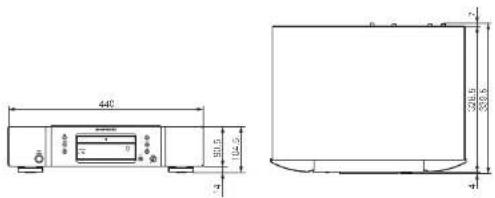
| Width: | 440mm |
| Height: | 104.5mm |
| Depth: | 339.5mm |
| • Weight: | 5.1kg |
| • Allowable operating temperature: | +5 to +35°C |
| • Allowable operating humidity: | 5 to 90% (no condensation) |
For purposes of improvement, specifications and design are subject to change without notice.
Index
Numerics
| 1-track repeat | 10, 18 |
A
| A-B Repeat | 10, 18 |
| All-track repeat | 10, 18 |
| AMS play | 11, 19 |
| Analog connections | 7 |
| Audio cable | 7 |
| Auto standby mode | 16 |
B
| Batteries | 4 |
C
| CD R/CD RW | 3 |
| CD Text | 9 |
| Coaxial digital cable | 12 |
| Connections | |
| Analog connections | 7 |
| Coaxial digital connections | 12 |
| Connecting cables | 7, 12 |
| Connecting the power cord | 7 |
| Digital connections | 12 |
| Optical digital connections | 12 |
| Cont. mode | 16 |
D
| Delete program playback | 13 |
| Digital audio output setting | 16 |
| Display | 5 |
E
| Edit | 15 |
| EXTERNAL | 12 |
F
| Fast-forwarding | 8, 18 |
| Fast-reversing | 8, 18 |
| File playback mode setting | 16 |
| Finalise | 3 |
| Folder mode | 16 |
1
| INTERNAL | 12 |
M
| MP3 | 18 |
| Music CDs | 3 |
0
| Optical cable | 12 |
P
| Peak level search | 15 |
| Pitch control function | 14 |
| Playback | |
| Playback CDs | 8 |
| Program playback | 13 |
| Random playback | 11, 19 |
| Repeat playback | 10, 18 |
| Stopping playback | 8, 18 |
| Stopping playback temporary | 8, 18 |
| Power cord | 7 |
| Program playback | 13 |
Q
| Quick replay playback | 16 |
R
| Random playback | 11, 19 |
| Remote control | 6 |
| Inserting the batteries | 4 |
| Remote control connection | 12 |
| Repeat playback | 10, 18 |
S
| Searching | 8, 18 |
| Skipping | 9 |
| Stopping playback | 8, 18 |
T
| Text information | 9, 18 |
W
| WMA | 18 |
www.marantz.com
You can find your nearest authorized distributor or dealer on our website.
marantz® is a registered trademark.