Media-Tech

MT4207 - Carte/adaptateur réseau Media-Tech - Free user manual and instructions

Find the device manual for free MT4207 Media-Tech in PDF.

📄 8 pages English EN Download 💬 AI Question
Notice Media-Tech MT4207 - page 2
Pick your language and provide your email: we'll send you a specifically translated version.

User questions about MT4207 Media-Tech

0 question about this device. Answer the ones you know or ask your own.

Ask a new question about this device

The email remains private: it is only used to notify you if someone responds to your question.

No questions yet. Be the first to ask one.

Download the instructions for your Carte/adaptateur réseau in PDF format for free! Find your manual MT4207 - Media-Tech and take your electronic device back in hand. On this page are published all the documents necessary for the use of your device. MT4207 by Media-Tech.

USER MANUAL MT4207 Media-Tech

802.11N WLAN USB ADAPTER

HIGH SPEED

WIRELESS CONECTIVITY

MT4207
Media-Tech MT4207 - 802.11N WLAN USB ADAPTER - 1

natural_image Two electronic devices, one black and one white, with visible internal components and no readable text or symbols.

QuickGuide

Welcome

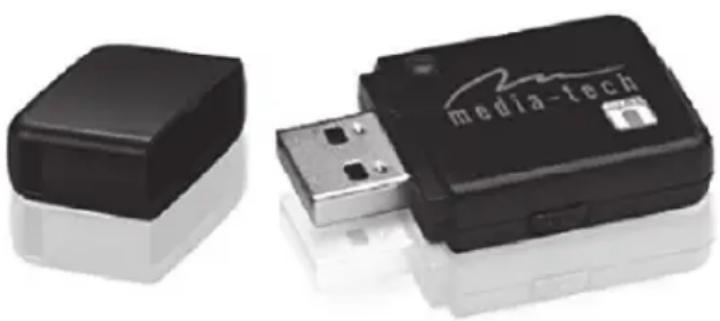
Thank you for purchasing the IEEE 802.11n WLAN USB Adapter. WLAN USB Adapter has an extra foundation which is designed to make Wireless USB Adapter get better signal when it is plugging into the foundation and can be easily move around. In addition, Wireless USB Adapter is backward compatible with 802.11b/g. When Wireless USB Adapter is connecting to the standard 802.11b, 802.11g or 802.11n APs or routers, it can perform much better than other standard stations. Wireless USB Adapter supports higher data throughput than the IEEE802.11n standard (up to 150Mbps). For the security of WLAN, Wireless USB Adapter supports 64/128-bit WEP data encryption which protects your wireless network from eavesdropping. It also supports WPA/WPA2 which combines IEEE802.1x and TKIP technologies. Client users are required to authorize before accessing to APs or routers, and the data transmitted on the network is encrypted and decrypted by a dynamically changed secret key. Wireless USB Adapter supports WPA2 function which provides a stronger encryption through AES which is the most advanced WLAN solution for IEEE802.11i. Besides, Wireless USB Adapter supports WPS function which provides a stronger encryption and easier configuration through WPA2 which is the most advanced WLAN solution for IEEE802.11i.

Package Contents

  1. Wireless USB Adapter with antenna
  2. Quick Installation Guide
  3. AUTORUN CD

Wireless USB Adapter Overview

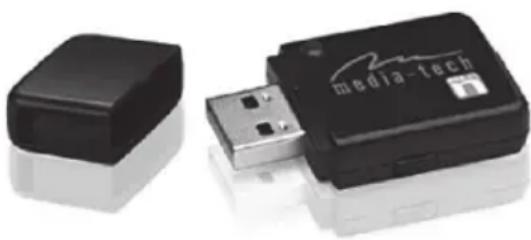
Wireless USB Adapter has the USB interface, LED and WPS button below.

Interface

USB Interface: Connect the USB Interface to a USB port on your computer.

LED Description

LED: The LED stays lighted to indicate WLAN link established and active.

WPS Button

WPS Button: Press this button to do WPS with AP.
Media-Tech MT4207 - WPS Button - 1

natural_image Two electronic devices, one black and one white, with no visible text or symbols on the devices themselves.

Wireless USB Adapter Installation

The following instructions will guide you to through the process of installing the Wireless USB Adapter.

Windows Vista/XP/2000/ME/98SE

Step 1:

The following illustrations of installation procedures are from Windows Vista. And these procedures are all similar to the operating procedures on Windows 98SE/ME/2000 and XP.

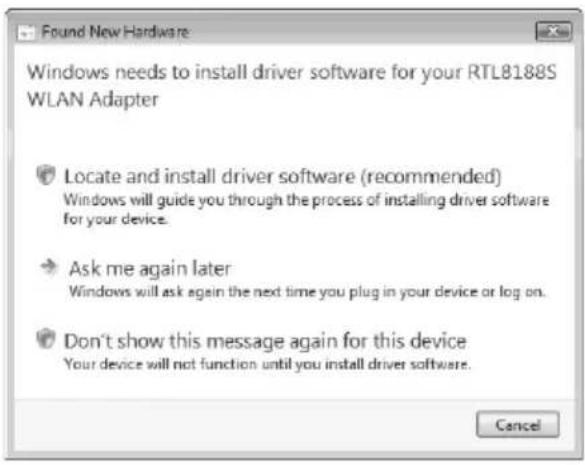
As Windows starts it will detect that new hardware has been added, and start the "Found New Hardware Wizard". Click on "Cancel".
Found New Hardware Windows needs to install driver software for your RTL8188S WLAN Adapter Locate and install driver software (recommended) Windows will guide you through the process of installing driver software for your device. Ask me again later Windows will ask again the next time you plug in your device or log on. Don't show this message again for this device Your device will not function until you install driver software. Cancel

Step 2:

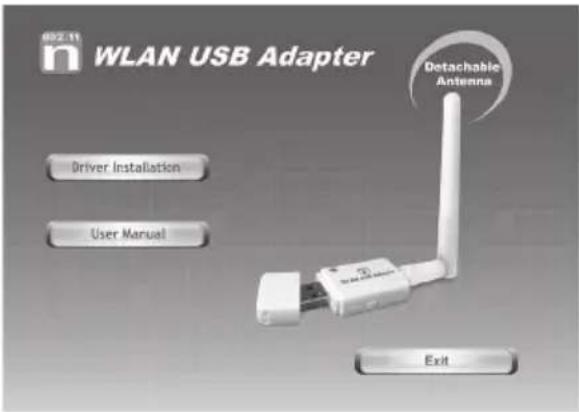
Please insert the AUTORUN CD into your CD-ROM drive. The CD should auto-start, displaying the following window. If it does not start, click on Start – Run and type in CD: \autorun.exe (where CD is the drive letter of your CD-ROM drive.) Click "Driver Installation".
WLAN USB Adapter Driver Installation User Manual Detachable Antenna Exit

Step 3: (For Vista User only)

For Security reasons VISTA requires the installer program to have administrator privileges so the new policy called "User Account Control" has been introduced in Windows VISTA. If UAC is enabled Windows pops up a window "User Account Control" Windows need your permission to continue. User needs to Click "Continue" to proceed with the installation.

Step 4: Click "Next".
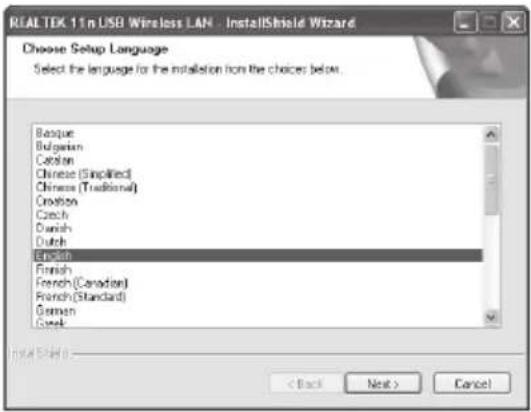
REALTEK 1.1n USB Wireless LAN - InstallShield Wizard Choose Setup Language Select the language for the installation from the choices below. Basque Bulgarian Canton Chinese (Simplified) Chinese (Traditional) Creation Czech Danish Dutch English Finnish French (Canadian) French (Standard) German Greek < Back Next > Cancel

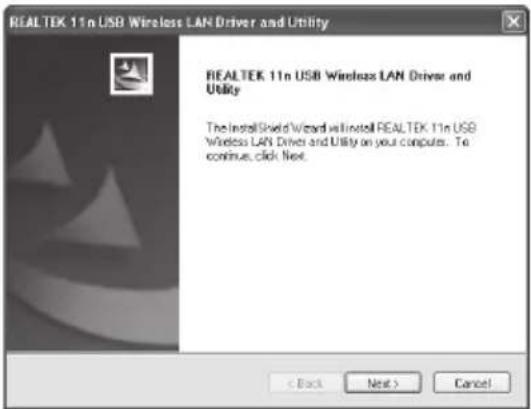
Step 5: Click "Next".

REALTEK 11n USB Wireless LAN Driver and Utility REALTEK 11n USB Wireless LAN Driver and Utility The InstallShield Wizard will install REALTEK 11n USB Wireless LAN Driver and Utility on your computer. To continue, click Next. < Back Next > Cancel

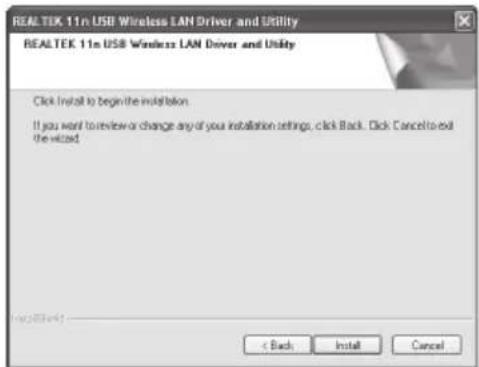
Step 6: Click "Install".

REALTEK 11n USB Wireless LAN Driver and Utility REALTEK 11n USB Wireless LAN Driver and Utility Click Install to begin the installation If you want to review or change any of your installation settings, click Back. Click Cancel to exit the wizard. < Back Install Cancel

Step 7: For Windows 2000/XP User, just click "Finish". For Windows Vista User, you will need to restart the computer.
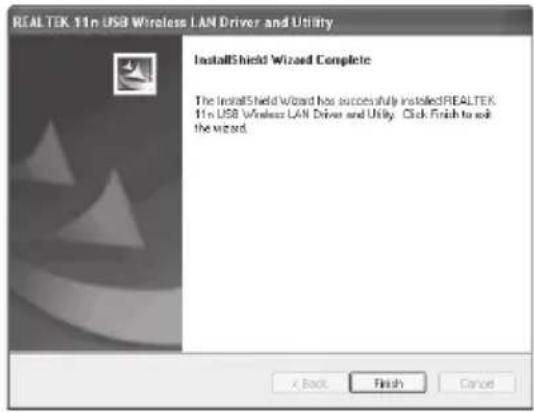
REAL TEK 11n USB Wireless LAN Driver and Utility InstallShield Wizard Complete The InstallShield Wizard has successfully installedREALTEK 11n USB Wireless LAN Driver and Utility. Click Finish to ask the wizard. < Back Finish Cancel

Making a Basic Wireless Network Connection

For Windows XP/Vista users, your native Windows XP/Vista wireless support (Wireless Zero Configuration Service) has been disabled by default.

Infrastructure mode

An Infrastructure Mode network contains at least one wireless client and one wireless AP or router. This client connects to Internet or intranet by communicating with this wireless AP or router.

Step 1: Double click the icon on your desktop to start the utility or in the task bar.
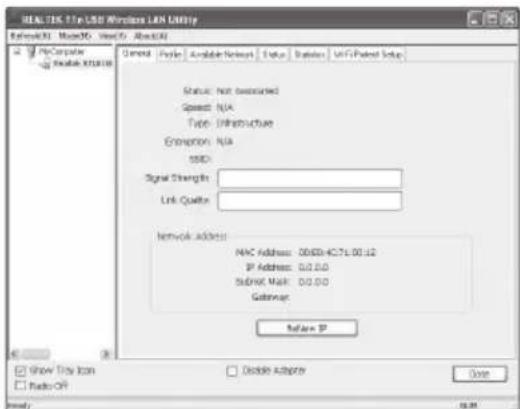
REAL-TIS T1e USB Wireless LAN Utility Information Mode: Audio Aback Control Profile Available Network Status Server WiFi Packet Setup Status: Not installed Speed: N/A Type: Infrastructure Extension: N/A SSID: Signal Strength: Link Quality: Network Address: MAC Address: 00.00+0.75.00.12 IP Address: 0.0.0.0 Subbit Mask: 0.0.0.0 Gateway: Refer to IP Show This Icon Radio Off Divide Adapter Date

Step 2: Click the "Available Network" button to scan available access points.
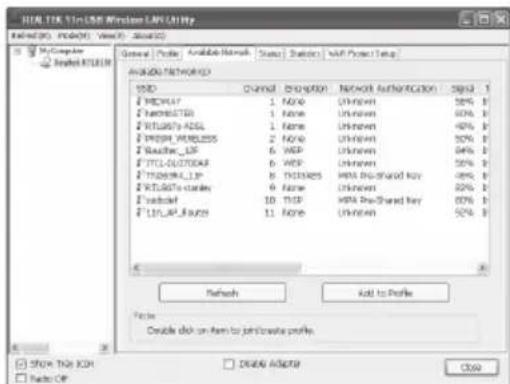
HEALTH.TS10.58 Wireless LANUTILITY Network (N): mode(M): View(V): Status(S) My Computer Model RT: 10.58 General Profile Available Network Status / Section / Web Power Teng AVAILABLE NETWORKED USB Channel Description Network Authentication Signal HKEYPLAY 1 Name Unknown 56% 1 HKEYSOFT 1 Name Unknown 60% 1 HKEYSLRY-ASLL 1 Name Unknown 40% 1 HKEYSLRY-MLESS 2 Name Unknown 30% 1 HKEYSLRY-LIF 6 HSP Unknown 94% 1 HKEYSLRY-ASLL 6 HSP Unknown 30% 1 HKEYSLRY-LIF 8 DISKES HPA Pre-SShared Key 8% 1 HKEYSLRY-ASLL 9 Name Unknown 22% 1 HKEYSLRY-LIF 10 THP HPA Pre-SShared Key 80% 1 HKEYSLRY-LIF 11 HSP Unknown 52% 1 Network Add to Profile Factor Double click on Item to join profile Show This KOR Delete Adapter Radio CP

Step 3: Double click on the SSID of AP that you are going to connect to and create profi le that you are connecting to an open (Encryption is None) wireless network.
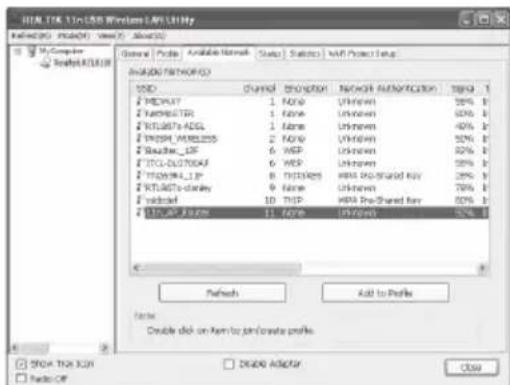
ITAL.TDL 11xUSB Wireless APPLICITY Network (C): Modest (V) View (W) About (A) My Computer Select:RAT/RAT/RAT General | Profile | Available Network | Status | Status | With Power Setup ANALOG NETWORK(S) SDD 1. PROVAT 2. PARMA/TER 3. RTLAGTo-ADGL 4. PROSPERM/DEBSS 5. RECATOR_LIF 6. ITCI-DUT00KAF 7. PTAOM94_1IP 8. RTLAGTo-DALEY 9. VTRDST 10. TICLUP 11. NAVID Network Authentication 100% 1 Unknown Unknown Unknown Unknown Unknown Unknown Unknown Unknown Unknown Unknown Unknown Unknown Unknown Unknown Unknown Unknown Unknown Unknown Unknown Unknown Unknown Unknown Unknown Unknown Unknown Unknown Unknown Unknown Unknown Unknown Unknown Unknown Unknown Unknown Unknown Unknown Unknown Unknown Unknown Unknown Unknown Unknown Unknown Unknown Unknown Unknown Unknown Unknown Unknown Unknown Unifected 10 THP 11 THP 10 THP 10 THP 10 THP 10 THP 10 THP 10 THP 10 THP 10 THP 10 THP 10 THP 10 THP 10 THP 10 THP 10 THP 10 THP 10 THP 10 THP 10 THP 10 THP 10 THP 15 THP 15 THP 15 THP 15 THP 15 THP 15 THP 15 THP 15 THP 15 THP 15 THP 15 THP 15 THP 15 THP 15 THP 15 THP 15 THP 15 THP 15 THP 15 THP 15 THP 10 THP 10 THP 10 THP 10 THP 10 THP 10 THP 10 THP 10 THP 10 THP 10 THP 10 THP 10 THP 10 THP 10 THP 10 THP 10 THP 10 THP 10 THP 10 THP 12 THP 12 THP 12 THP 12 THP 12 THP 12 THP 12 THP 12 THP 12 THP 12 THP 12 THP 12 THP 12 THP 12 THP 12 THP 12 THP 12 THP

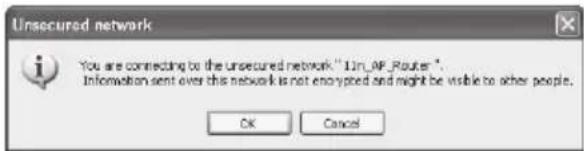
Step 4: Click the "OK".

Unsecured network You are connecting to the unsecured network "1in_AF_Router". Information sent over this network is not encrypted and might be visible to other people. OK Cancel

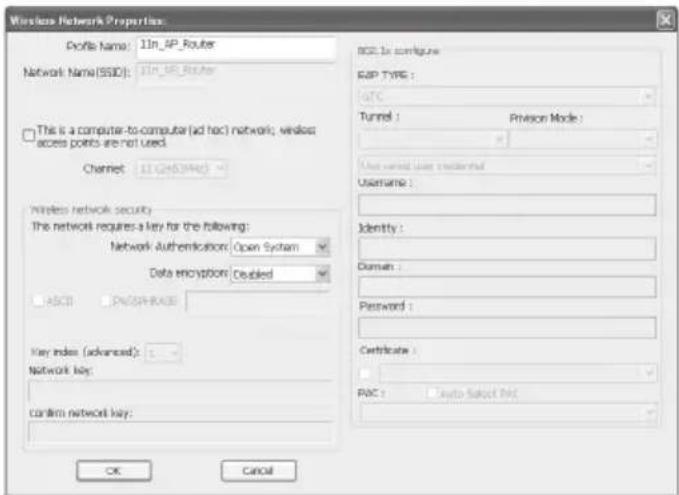
Step 5: Click the "OK".

Wireless Network Properties Profile Name: 11n_AP_Router Network Name (SSID): 11n_AP_Router This is a computer-to-computer (ad hoc) network, wireless access points are not used. Channel: 11(2453946) Wireless network security The network requires a key for the following: Network Authentication Open System Data encryption Doubled ASCII DNS/HRADS Key index (advanced): Network Key: confirm network Key: BCC to configure E&P TYPE : GTC Tunnel : Privacy Mode : User named User credentials Username : Identity : Domain : Password : Certificate : PAC : Auto Select PAC OK Cancel

Step 6: Now you are ready to use the Wireless Network to Internet or intranet.
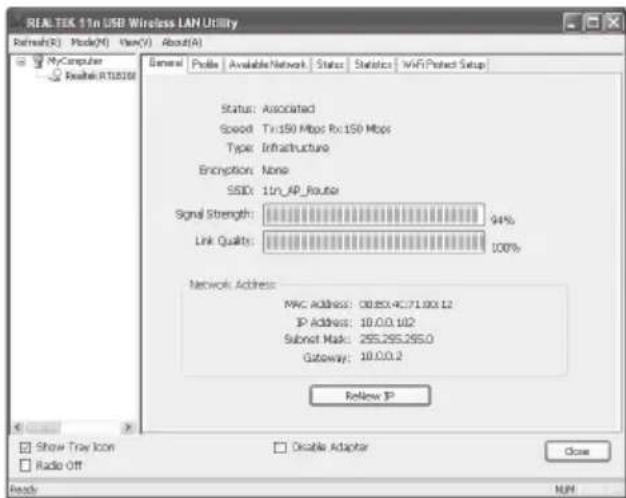
REALTEK 11n USB Wireless LAN Utility Refresh(R) Mode(M) View(V) About(A) General Profile Available Network Status Statistics WiFi Protect Setup Status: Associated Speed: Tx:150 Mbps Rx:150 Mbps Type: Infrastructure Encryption: None SSID: 11n_AP_Route Signal Strength: 94% Link Quality: 100% Network Address: MAC Address: 08.85.4C/71.00X.12 IP Address: 10.0.0.102 Submit Mask: 255.255.255.0 Gateway: 10.0.0.2 ReNew IP Show Tray Icon Radio Off Disable Adapter Close Reads N/M

Note: This example is an open wireless network. If you are going to connect to a Wireless adapter with security protection, you will have to confi gure the encryption settings in this profi le to be corresponding to the other wireless adapter. Please click on the "Network Authentication" drop-down list to select an authentication method, and then select a "Data encryption" type. Fill in each required blanks and click "OK".
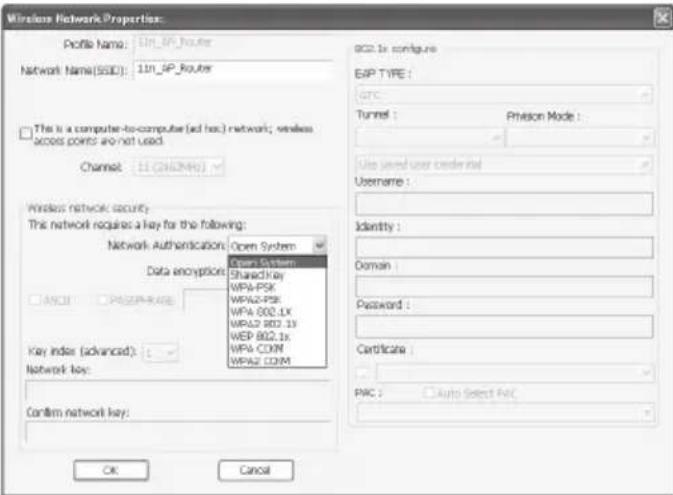
Wireless Network Properties: Profile Name: 11n_IP_Router Network Name(SSD): 11n_IP_Router This is a computer-to-computer (ad hoc) network; wireless access points are not used. Channel: 11 (2452446) Wireless network security: This network requires a key for the following: Network Authentication: Open System Data encryption: Open System Share3 key WPA-PSK WPA2-PSK WPA 802.1x WPA2 802.1x WEP 802.1x WPA COIN WPA2 COIN Key index (advanced): Network Key: Confirm network Key: OK Cancel 802.1x configure E&P TYPE : GTC Tunnel : Prison Mode : Use used user credentials Username : Identity : Domain : Password : Certificate : PAC : Auto Select Pac

EN

Manual assistant
Powered by Anthropic
Waiting for your message
Product information

Brand : Media-Tech

Model : MT4207

Category : Carte/adaptateur réseau