AIM-192 - Switch Adder - Free user manual and instructions
Find the device manual for free AIM-192 Adder in PDF.


| Product Type | KVM Switch (Keyboard, Video, Mouse) |
| Model | AIM-192 |
| Brand | Adder |
| Form Factor | Desktop / Rackmount (1U) |
| Dimensions (W x D x H) | 430 mm x 230 mm x 44 mm |
| Weight | 2.5 kg |
| Power Supply | 100-240V AC, 50/60Hz, auto-sensing |
| Power Consumption | 12W (max) |
| Number of KVM Ports | 2 (1 local, 1 remote over IP) |
| Video Resolution | Up to 1920x1080 @ 60Hz |
| Remote Access | Via Ethernet (RJ-45) with IP connectivity |
| Supported Operating Systems | Windows, Linux, macOS, Sun Solaris |
| Security | AES 128-bit encryption, SSL/TLS, password protection |
| Authentication | Local user accounts and LDAP/Active Directory integration |
| Audio Support | Yes (stereo input/output) |
| USB Peripheral Support | 2 USB 2.0 ports for peripherals |
| Management Interface | Web browser, Telnet, SSH, local console |
| Firmware Upgrade | Via web interface or TFTP |
| Operating Temperature | 0°C to 40°C (32°F to 104°F) |
| Storage Temperature | -20°C to 60°C (-4°F to 140°F) |
| Humidity | 10% to 90% non-condensing |
| Maintenance | Wipe with a soft, dry cloth; do not use liquids |
| Spare Parts & Repairability | Modular design; contact Adder support for replacements |
| Certifications | CE, FCC, RoHS compliant |
| Warranty | 3 years limited hardware warranty |
Frequently Asked Questions - AIM-192 Adder
User questions about AIM-192 Adder
0 question about this device. Answer the ones you know or ask your own.
Ask a new question about this device
Download the instructions for your Switch in PDF format for free! Find your manual AIM-192 - Adder and take your electronic device back in hand. On this page are published all the documents necessary for the use of your device. AIM-192 by Adder.
USER MANUAL AIM-192 Adder
Experts in Connectivity Solutions

KVM Extension Solutions
Contents
Introduction
Local feed through 3
AIM basics....4
Supplied items 6
Installation
Connections 7
Installation requirements....8
Tips for a successful implementation....8
Mounting the AIM server 9
Configuration
Supported browsers....10
Login for admin users....10
Important first configuration steps....11
Adding AdderLink Infinity units 12
If an ALIF unit is not located....12
ALIF manual factory reset....13
The Dashboard tab....14
Upgrading ALIF firmware globally....25
Upgrading (or downgrading) AIM firmware....26
Enabling Remote Support....28
Web Interface Access....29
Troubleshooting....29
The Channels tab 30
The Receivers tab 33
The Transmitters tab 37
The C-USB LAN tab 41
The Servers tab 42
The Users tab 43
The Presets tab....47
The Statistics tab....49
Operation
Logging in 50
The Local OSD screen....51
Listing C-USB LAN transmitters 52
Accessing virtual machines....52
Using the Remote OSD feature....53
Further information
Lithium battery 54
Getting assistance 54
Appendix A - Tips for success when networking ALIF units .....55
Appendix B - Troubleshooting....57
Appendix C - Redundant servers: Setting up and swapping out....58
Setting up AIM server redundancy 58
Operation of Redundancy....58
Swapping out an AIM server 59
Appendix D - Upgrade license....60
Appendix E - Glossary 61
Appendix F - AIM API 64
Appendix G - DHCP server requirements for ALIF support....76
Using DHCP Option 125....77
Appendix H - Technical specifications....78
Appendix I - Open source licenses....79
Index

Introduction
AdderLink™ Infinity transmitter and receiver units allow multiple remote users to access host computers in a very flexible manner. Such flexibility requires management and coordination – that is where AIM (AdderLink Infinity Manager) becomes vital.
AIM is designed to promote the most efficient use of AdderLink Infinity (ALIF) units by allowing central control over any number of transmitters and receivers. Using the intuitive AIM web-based interface, one or more administrators can manage potentially thousands of users who are interacting with an almost unlimited number of devices.
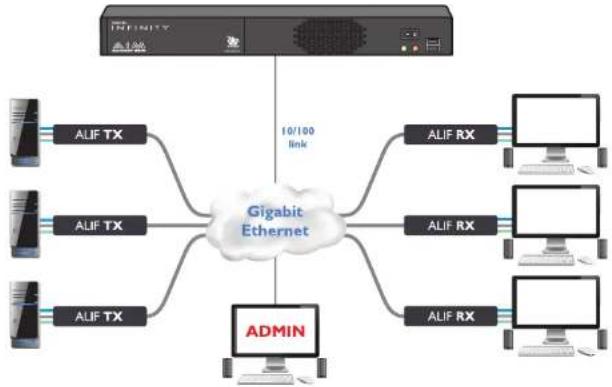
AIM operates as a self-contained compact server (including its own DHCP server) unit that can be situated anywhere within your network of ALIF devices:
flowchart
graph TD
    A["INFINITY"] -->|10/100 link| B["Gigabit Ethernet"]
    C["ALIF TX"] --> B
    D["ALIF TX"] --> B
    E["ALIF TX"] --> B
    F["ALIF RX"] --> B
    G["ALIF RX"] --> B
    H["ALIF RX"] --> B
    I["ALIF RX"] --> B
    J["ADMIN"] --> B
    B --> K["Computer"]
The AIM server connects to your network and provides administrative control over the various AdderLink Infinity transmitters, receivers and their users.
Note: Although the AdderLink Infinity units require Gigabit Ethernet connections, in its administrative role, the AIM server requires only a 10/100Mbps connection to the network.

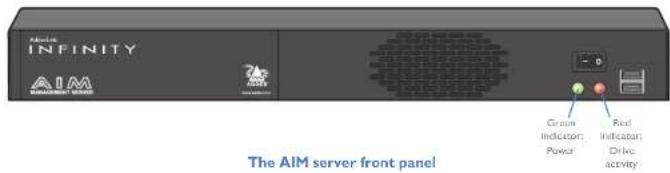
The AIM server is supplied pre-loaded and is straightforward to deploy, requiring only a network connection and a power input to begin operation.
All configuration of your AdderLink Infinity transmitters (channels), receivers and users are performed using the intuitive AIM browser interface via a network connected computer.

The AIM server rear panel. In normal use only the network and power connectors are used (ringed in red).
Please see the section Basic steps for a new configuration for assistance with creating AIM installations.
LOCAL FEED THROUGH
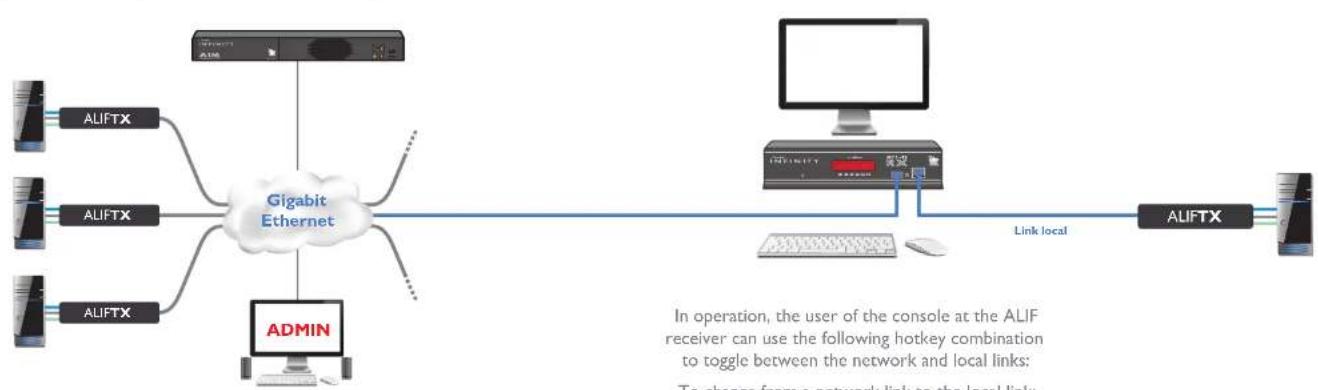
ALIF receivers which are equipped with dual IP network ports (ALIFI002, ALIF2000 and ALIF2020) can be configured to support a local link to a host PC in addition to the main link to the network. The locally linked PC remains completely isolated from the main network.
To configure this arrangement, ensure that the IP port that is used for the local link is not allocated an IP address.
Note: For the local feed through feature to operate, the AIM server must be at version 4.8 or greater while the endpoints must be at version 4.6 or greater.
flowchart
graph LR
    A["ALIF"] --> B["Gigabit Ethernet"]
    C["ALIF"] --> B
    D["ALIF"] --> B
    E["ALIF"] --> B
    B --> F["ADMIN"]
    G["ALIF"] --> F
    H["ALIF"] --> F
    I["ALIF"] --> F
    J["ALIF"] --> F
    K["ALIF"] --> F
    L["ALIF"] --> F
    M["ALIF"] --> F
    N["ALIF"] --> F
    O["ALIF"] --> F
    P["ALIF"] --> F
    Q["ALIF"] --> F
    R["ALIF"] --> F
    S["ALIF"] --> F
    T["ALIF"] --> F
    U["ALIF"] --> F
    V["ALIF"] --> F
    W["ALIF"] --> F
    X["ALIF"] --> F
    Y["ALIF"] --> F
    Z["ALIF"] --> F
    AA["ALIF"] --> F
    AB["ALIF"] --> F
    AC["ALIF"] --> F
    AD["ALIF"] --> F
    AE["ALIF"] --> F
    AF["ALIF"] --> F
    AG["ALIF"] --> F
    AH["ALIF"] --> F
    AI["ALIF"] --> F
    AJ["ALIF"] --> F
    AK["ALIF"] --> F
    AL["ALIF"] --> F
    AM["ALIF"] --> F
    AN["ALIF"] --> F
    AO["ALIF"] --> F
    AP["ALIF"] --> F
    AQ["ALIF"] --> F
    AR["ALIF"] --> F
    AS["ALIF"] --> F
    AT["ALIF"] --> AU["Admin"]
    AV["Admin"] --> AW["Admin"]
    AX["Admin"] --> AY["Admin"]
    AZ["Admin"] --> BA["Admin"]
    BB["Admin"] --> BC["Admin"]
    BD["Admin"] --> BE["Admin"]
    BF["Admin"] --> BG["Admin"]
    BH["Admin"] --> BI["Admin"]
    BJ["Admin"] --> BK["Admin"]
    BL["Admin"] --> BM["Admin"]
    BN["Admin"] --> BO["Admin"]
    BP["Admin"] --> BQ["Admin"]
    BR["Admin"] --> BS["Admin"]
    BT["Admin"] --> BU["Admin"]
    BV["Admin"] --> BW["Admin"]
    BX["Admin"] --> BY["Admin"]
    BZ["Admin"] --> BQ
    CA["Admin"] --> BQ
    CB["Admin"] --> BQ
    CC["Admin"] --> BQ
    DD["Admin"] --> BQ
    DB["Admin"] --> BQ
    BE --> DC["Link local"]
    BK --> DC
In operation, the user of the console at the ALIF receiver can use the following hotkey combination to toggle between the network and local links:
To change from a network link to the local link: enter CTRL+ALT+L
To change from the local link to a network link: enter CTRL+ALT +C to display the OSD and choose the required connection.
Note: The L and C default hotkeys can be changed within the AIM control panel.

AIM BASICS
Channels
Think of a channel as a 'virtual transmitter'. It is virtual because the video, audio and USB streams of a channel do not necessarily have to originate from the same physical transmitter unit, although in most cases they will. For instance, you could arrange for video and USB streams to be received from one host computer, while the audio stream came from an alternative source. Alternatively, two channels could be configured for the same host computer, each with different access rights to suit particular situations.
Groups
In order to accommodate potentially large numbers of users and devices, AIM uses a system of groups: User Groups, Receiver Groups and Channel Groups. Groups allow the administrator to apply collective settings to all members and also to take full advantage of Inheritance. Inheritance allows members of a group to benefit from settings and permissions made within other groups to which their group is linked. This saves administration time because members do not need to be individually altered. For instance, if Sam is in User Group I, all Channels accessible to User Group I will be available to Sam.
User types
This guide refers to the two main categories of users involved with the AIM system:
- An Admin (administrator) user accesses the AIM system via a network-linked computer running an Internet browser. Once the necessary username and password have been entered, Admin users can make changes to the operation of the AIM system.
- A Regular user has a keyboard, video monitor and mouse (plus speakers where appropriate) attached to an AdderLink Infinity receiver unit and can access one or more computers that are linked to AdderLink Infinity transmitters. The AdderLink Infinity receiver provides an On-Screen Display (OSD) that lists all accessible computers and allows easy access to them.
Security
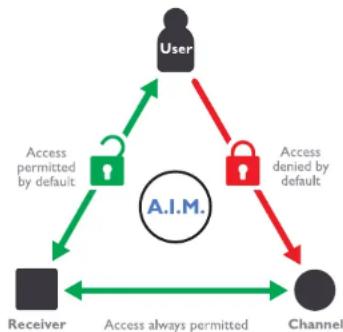
Security considerations form a major part of AIM operation, ensuring that users have rapid access only to the systems for which they have permission. At its core, AIM manages an important three-way relationship between the users, the AdderLink Infinity receiver(s) and the channels from the host computers.
The diagram shows a representation of the three-way relationship which exists between users, receivers and channels.
flowchart
graph TD
    A["User"] -->|Access permitted by default| B["Receiver"]
    B -->|Access always permitted| C["Channel"]
    C -->|Access denied by default| A
    style A fill:#000,stroke:#fff,color:#fff
    style B fill:#fff,stroke:#000
    style C fill:#000,stroke:#fff,color:#fff
    subgraph A.I.M.
        D["Green key"] --> E["Red lock icon"]
        E --> F["Red lock icon"]
    end
To successfully gain access to a channel:
• The user requires permission to use the receiver,
- The receiver requires permission to connect with the channel, AND
- The user must have permission to access the channel.
In most cases, the need for three access permissions per connection is unnecessary and raises administration overheads. Hence, by default, AIM grants open access for the user to the receiver and the receiver to the channel while restricting the final, most crucial piece of the puzzle. For those who require it, the lock upon the user to receiver stage can be applied individually or globally.
See Permissions on the next page for more details.
continued

Active Directory
To streamline administration even further, AIM supports Active Directory. By synchronizing with an LDAP/Active Directory server, details of users (including their usernames and group memberships) can be securely synchronised from existing databases in order to both minimize the initial configuration as well as streamline ongoing updates.
AIM interface
AIM appears in two main ways depending on whether you are an administrator or a regular user.
- For administrators, full access to the AdderLink Infinity Manager Suite is granted. This comprehensive application shows nine main tabbed areas: Dashboard, Channels, Receivers, Transmitters, C-USB LAN, Servers, Users, Presets and Statistics, each of which contains numerous related pages of settings and options. The Dashboard provides a central location from which the administrator can view overall operation, make various changes, database backups and also upgrade the firmware of any linked AdderLink Infinity unit.
- For regular users, an efficient page layout provides a list of all channels for which you have permission to visit. Against each selectable channel name and description, a series of icons provide clear feedback about current availability.
Permissions
Permissions exist between Users, Receivers, and Channels.
By default, all users are granted permission to access ALL receivers.
By default, all receivers have permission to connect to ALL channels.
As shown in the introductory diagram, the missing part is the permission for a user to access each channel.
Permissions between a user and a receiver can be applied in any of the following ways:
- User → Receiver
- User → User Group → Receiver
- User → User Group → Receiver Group → Receiver
- User → Receiver Group → Receiver
Thus, a very indirect way of granting permissions could be:
- User1 is in UserGroup1,
- UserGroup1 has access to ReceiverGroup1.
- ReceiverGroup1 contains Channel1,
• Therefore, User I has access to Channel I indirectly.

SUPPLIED ITEMS

AIM server unit with integral rack brackets
natural_image
Illustration of a portable electronic device with cables and connectors (no text or symbols)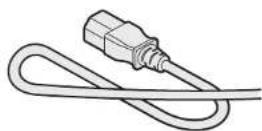
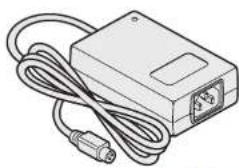
12V, 5A Power supply plus country-specific mains cable
Replacement power adapter with locking connector
Part number: PSU-IEC-12VDC-5A
Country-specific power cords
CAB-IEC-AUS (Australia)
CAB-IEC-EURO (Central Europe)
CAB-IEC-UK (United Kingdom)
CAB-IEC-USA (United States)
CAB-IEC-JAPAN(Japan)

natural_image
Isometric view of a rectangular plate with a curved internal pattern and no visible text or symbols.Information wallet
containing:
Four self-adhesive rubber feet
Safety document

Installation
CONNECTIONS
The AIM server unit is supplied fully pre-loaded and permits no local user interaction. All configuration takes place remotely via the network connections and as a result only two connections are required: Network and power.
Note: If an existing AIM server must be replaced, follow the important advice given within Appendix C (Swapping out an AIM server).
Note: The AIM server is supplied with the front panel USB connections blanked off. There is no need to connect a keyboard or mouse to the unit as configuration takes place across the network connection.
Network connections
The AIM server has two network connections on the rear panel: port 1 on the left and port 2 on the right. These allow the unit to be connected to internal and external network connections (respectively) as required. The external network connection allows admin users located away from the internal network to be able to login. Network port 2 supports DHCP, however, port 1 does not and needs to be configured manually.
To connect the internal IP network port
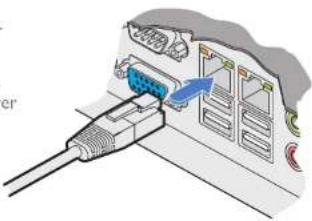
1 Run a category 5e or 6 link cable from the appropriate hub or router to the AIM server unit.
2 Connect the plug of the link cable to the left IP port (I) on the rear panel of the AIM server unit.
Category 5e or 6 cable from LAN / network switch
Note: The precise operation of the two ports are determined within the AIM server Management Suite, particularly the Dashboard > Settings > Network page.
Power supply connection
IMPORTANT: Please read and adhere to the electrical safety information given within the Safety information provided with the AIM server. In particular, do not use an unearthed power socket or extension cable.
Note: The AIM server can also be powered from the optional RED-PSU managed power supply system using a VSC 48 cable.
To connect the power supply
1 Attach the output connector of the power supply to the power input socket on the left side of the rear panel.
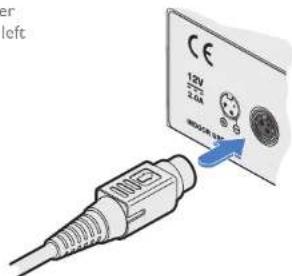
2 Connect the main body of the power supply to a nearby earthed mains outlet.

INSTALLATION REQUIREMENTS
- The minimum permissible firmware versions for ALIF units linked with the AIM server depend upon the firmware version that is running on the AIM server itself. Note: AIM servers with firmware v4.1 or above no longer support the original ALIF1000.
• AIM server: v4.0 is intended for use with ALIF endpoints at v3.7
- AIM server: v4.1 is intended for use with ALIF endpoints at v4.1
- AIM server: v4.2 is intended for use with ALIF endpoints at v4.2
- AIM server: v4.3 is intended for use with ALIF endpoints at v4.3
- AIM server: v4.4 is intended for use with ALIF endpoints at v4.3 or v4.4*
• AIM server: v4.5 is intended for use with ALIF endpoints at v4.5
- AIM server: v4.6 is intended for use with ALIF endpoints at v4.5 or v4.6
- AIM server: v4.7 is intended for use with ALIF endpoints at v4.5 or v4.6
- AIM server: v4.8 is intended for use with ALIF endpoints at v4.5 to v4.8
- AIM server: v4.9 is intended for use with ALIF endpoints at v4.5 to v4.8
- AIM server: v4.11 is intended for use with ALIF endpoints at v4.9
* Due to the changes made to ALIF v4.4 endpoint code to support 4 bit Flash error checking, it is not possible to downgrade from v4.4 endpoint code. Therefore, v4.4 AIM has been designed to run with both v4.3 and v4.4 endpoint code. These are both identical in functionality, but v4.4 endpoint code uses 4-bit ECC flash and v4.3 uses 1-bit ECC flash.
To upgrade to v4.5 endpoint code, it is necessary to first upgrade to v4.4. Once at v4.4, it is not possible to downgrade. However, v4.5 does allow a downgrade to v4.4.
- ALIF2xxx receivers require firmware version 4.9 (or greater) while ALIF2xxx transmitters are still at version 4.5.
- Portfast needs to be enabled on the network switch to ensure that the ALIF to AIM communication happens in a timely manner. Note that Cisco uses the term 'edge port' rather than 'port fast'. The option is enabled on each port to which an AIM unit is connected. Where portfast is not enabled, if a second AIM is added for redundancy, this could result in a mis-configured Backup server.
- If an existing AIM server must be replaced, follow the important advice given within Appendix C (Swapping out an AIM server).
- When configuring the installation for multicasting (and to improve overall performance), the network switch(es) being used must support a minimum of IGMP v2 snooping. For faster performance use switches that support IGMP v3.
- In order to display video resolutions that use a horizontal video resolution of 2048 pixels, the network switch must have support for Jumbo packets.
- Please also see Appendix A - Tips for success when networking ALIF units
Compatibility matrix
For a full summary of ALIF models and their compatibility with AIM firmware versions, please go to https://www.adder.com/compatibility
TIPS FOR A SUCCESSFUL IMPLEMENTATION
Installations based upon the Adderlink Infinity modules vary widely in their scope and complexity. Each implementation is distinct, however, there are numerous tips and best practice recommendations available on the Adder website. Many tips are concerned with the correct selection and configuration of network switches plus the choice of network topology.
Please go to http://www.adder.com/alif-successful-implementation
MOUNTING THE AIM SERVER
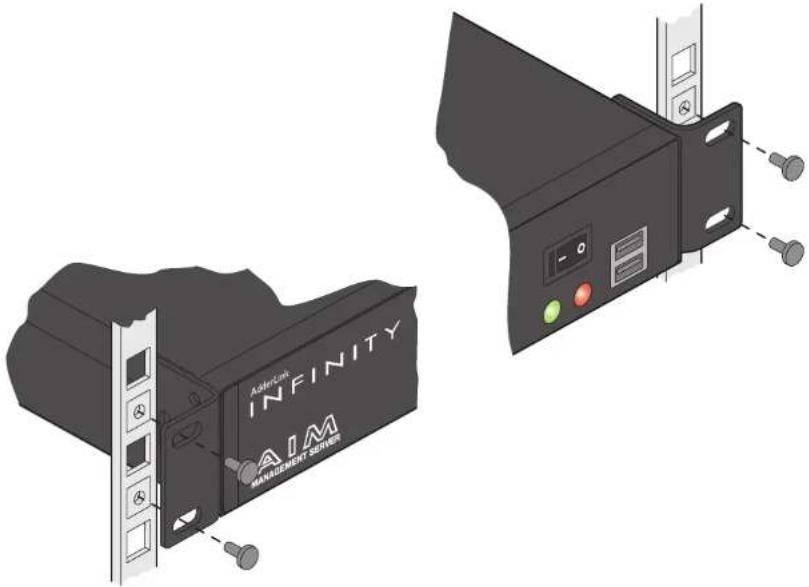
The AIM unit is designed to be easy to mount within a standard 19" rack, but is also suitable for free standing use on the desktop. The server chassis requires just a IU space within the rack.
To mount the AIM server within a rack mount
I Slide the AIM server into the vacant IU space within the rack mount.
2 Secure each bracket to the rack using two screws per side as shown below:

Configuration
This section covers configuration of the AdderLink Infinity Manager Suite for administrators. For details about the regular user interface, please see the Operation section.
SUPPORTED BROWSERS
The AIM admin interface requires an A-grade browser with Javascript enabled. For best results always use the latest version of any browser used.
- Google Chrome
- Firefox
- Edge*
- Safari for Mac OS*
* The most intensive testing has been carried out using Chrome and Firefox. MS Edge and Safari are known to work but testing with these browsers has been limited by comparison.
LOGIN FOR ADMIN USERS
I Ensure that the AIM server is powered on (allow 3 minutes before accessing).
2 Using a computer located anywhere within the local network open a web browser (see Supported browsers list opposite) and enter the default IP address for the AIM server: 169.254.1.3
The Login page will be displayed:
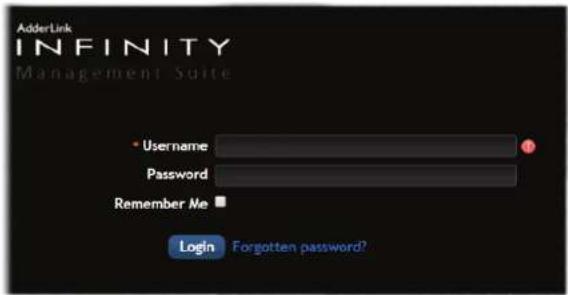
3 Enter your Username and Password and click the Login button.
The default username is admin and the default password is password.
You are strongly recommended to change the default admin password as one of your first actions: Go to Dashboard>Users. Click on the furthest right icon in the admin row (configure users) and change the password for the admin user.
If you check the Remember Me box, a cookie will be stored on the computer, allowing you to access the admin section without having to log in each time. The cookie will survive for up to the AIM Admin Timeout period. If you do not check the Remember Me box, you will remain logged in only for the duration of your browser session.
4 Continue to the section Important first configuration steps on the next page.
Forgotten password
If necessary, click the Forgotten password link to display an assistance page where a secret code will be given. Provide the secret code to Adder support or your distributor to obtain an unlock code which can then be entered to reset your password and gain access.
IMPORTANT FIRST CONFIGURATION STEPS
There are several important configuration steps that must be carried out when starting a new AIM server for the first time.
To determine the AIM server's rôle and main IP address
I Switch on and log in to the AIM server; you will be presented with the Servers page.
2 Within the Server page, choose the Rôle of this new AIM server:
- Solo - This will be the only AIM server on the network (with no redundancy and failover), or
- Primary - This server will be used as part of a redundant cluster of AIM servers, where it will be the main server used to manage the ALIF units.
3 Click the Save button. You will next be presented with the Dashboard > Settings > Network page.
4 See the warning below - do not carry out this step while the system is in operation. Within the Ethernet Port 1 section at the top of the page, change the default AIM IP Address (and Netmask) options to settings that suit your network configuration and which will be used henceforth for this server.
IMPORTANT: The Ethernet Port I AIM IP Address and Netmask settings must NOT be changed during operation of the system. Changing these will invalidate the system's security and require intervention from the Adder technical support staff to restore to a working state.
5 You can now either:
- Continue with other settings on the same page (See To choose how IP addresses are applied to ALIF units right), or
- Click the Save button. After a short delay the web browser will automatically redirect itself to the new IP address so that you can continue administering the AIM server.
Note: Ensure that your computer can view the new IP address, otherwise the AIM server will appear to be offline. Depending on your network configuration and that of the computer, you may need to change the computer's configuration to be able to see AIM server's new network address.
IMPORTANT: To use subnet operation, you must have a DHCP server within your network in order to assign IP addresses to the AIM and ALIF endpoints. If subnet operation is used without a DHCP server, the ALIF endpoints will not communicate with AIM. As a result, the AIM will need a factory reset in order to be able to revert it back to single subnet mode.
To choose how IP addresses are applied to ALIF devices
I Login again to the AIM server and choose the Dashboard > Settings > Network page.
2 The Subnet Operation option may, or may not, be presented at the top of the page.
Note: If Subnet Operation is not present, the AIM server will operate as per the Off setting described below.
When the Subnet Operation option is present, you have the following choices:
- Off - AIM can administer a single subnet and will use its own DHCP (Dynamic Host Configuration Protocol) server to automatically assign IP addresses to new ALIF devices, drawing upon a pool of spare addresses defined by you.
- On - AIM can administer devices across multiple subnets, but will rely upon an external DHCP server to assign valid IP addresses to new ALIF devices.
3 If you chose the Off setting, you now need to define the boundaries of the IP address pool that will be used by the internal DHCP server. Enter valid start and end addresses to the IP Pool Lower Limit and IP Pool Upper Limit options.
Note: If you chose the On setting, you will need to perform a similar operation within the external DHCP server. For details about DHCP server requirements, see Appendix G.
For further details about other options within this page, see Dashboard > Settings > Network.
4 When all options have been set, click the Save button.
5 If you need to change the operation of AIM from single subnet to multi-subnet (or back again) this option only appears after a successful factory reset of AIM
IMPORTANT
Note: If an existing AIM server must be replaced, follow the important advice given within Appendix C (Swapping out an AIM server).
ADDING ADDERLINK INFINITY UNITS
When new ALIF transmitters and receivers are added to a network, they are designed to automatically announce themselves ^9 to the AIM server. Once the AIM server receives their announcement(s), the ALIF units will be added to the administrator's view of the Dashboard. From here you can then begin to configure each new ALIF unit.
* ALIF units can be configured either from their own browser-based configuration utility or via the AIM server. Once an ALIF unit has been configured in one way, it cannot be reconfigured using the other method without undergoing a factory reset. This policy is in place to help prevent accidental overwriting of configurations. It also means that once an ALIF unit has been locally configured, it will not announce itself to the AIM server upon being added to a network.
When new ALIF devices announce themselves, depending upon how it was initially configured (see Important first configuration steps), the AIM server will either assign IP addresses to new ALIF units automatically, or will rely upon an external DHCP server to do the same. Either way, providing each ALIF device is not already configured and announces itself to the AIM server (see right for potential issues that can prevent this), they will be automatically provided with a suitable IP address so that they may operate within the network. Once ALIF units have been added, you can use the AIM server
Dashboard to select and further configure any or all of them.
How to perform a manual factory reset (see next page)
If an ALIF unit is not located
There are several reasons why an ALIF unit might not be located by AIM:
- The ALIF unit has been locally configured or is otherwise not using its factory default setting. Try performing a factory reset on an ALIF that is not being located.
- The ALIF unit is not located in the same Ethernet segment as the AIM server. Double check connections and move units where necessary, so that all reside within the same Ethernet segment.
- There is a potential cabling problem between the ALIF and AIM units. Check and where necessary, replace faulty cables.
Further information
Please also see:
- Appendix A - Tips for success when networking ALIF units
• Appendix B - Troubleshooting - Appendix C - Redundant servers: Setting up and swapping out
• Appendix D - Upgrade license - Appendix E - Glossary
- Appendix F - AIM API
- Appendix G - DHCP server requirements for ALIF support
• Appendix H - Technical specifications
ALIF manual factory reset
Where a previously configured ALIF unit is being added to a network for control by an AIM server, you need to ensure that the unit is reset to its default configuration. The procedures given here cover how to perform a reset on the various types of ALIF units.
ALIF 100T models
1 Power on the ALIFI00T unit.
2 Use a narrow implement (e.g. a straightened-out paper clip) to press-and-hold the recessed reset button on the front panel for roughly fifteen seconds, until the indicators turn blue (Note: alternating red/green indications will occur during the fifteen second period while the button is still pressed).
3 Release the reset switch.
The indicators will remain blue for a short while (less than ten seconds) while ALIFI00T unit configures itself and should then change to green if all connections are correct; or orange if one or more of the video, USB and/or network links are missing.
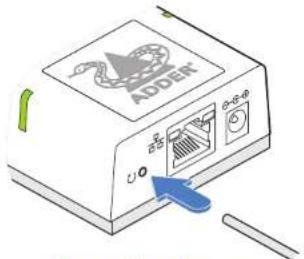
Use a straightened-out paper clip to press the reset button for roughly 5 seconds
ALIF 1xxx and 2xxx models
I Remove power from the ALIF unit.
2 Use a narrow implement (e.g. a straightened-out paper clip) to press-and-hold the recessed reset button on the front panel. With the reset button still pressed, re-apply power to the unit and then release the reset button.
After roughly eight seconds, when the factory reset has completed, five of the front panel indicators will flash for a period of three seconds to indicate a successful reset operation.

ALIF Ixxx
Use a straightened-out paper clip to press the reset button while powering on the unit

ALIF 2xxx
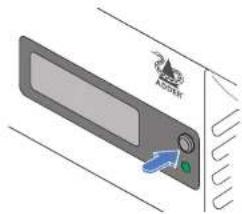
ALIF 3xxx models
I Power on the ALIF3000 unit.
2 Press-and-hold the button located next to the front panel OLED screen for 10 seconds until the indicator turns blue and the OLED screen shows the message: In factory reset mode
3 You can now either:
- Continue with the factory reset: Use a long narrow implement (e.g. a straightened-out paper clip) to press-and-release the recessed reset button on the front panel.
- Return to normal operation without resetting: Press the button next to the OLED screen again.
4 Once the factory reset has been carried out the unit should now be ready for discovery by an AIM server.
natural_image
Diagram of a device with a water drop and a logo, no readable text or symbols present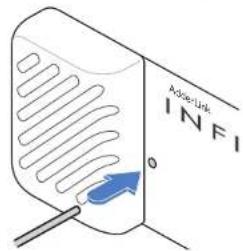
ALIF 4xxx models
1 Power on the ALIF4000 unit.
2 Use a long narrow implement (e.g. a straightened-out paper clip) to press-and-hold the recessed reset button on the front panel for roughly ten seconds, until the
status indicator turns blue (Note: alternating red/green indications will occur during the ten second period while the button is still pressed).
3 Release the reset switch. The indicator will change to red for a short while (less than ten seconds) and then back to blue while ALIF4000 unit performs the reset and should then change to an alternative color, usually orange initially, signifying that the operation is complete.
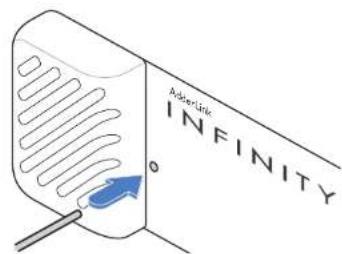
Note: If you are performing a factory reset and intend to disconnect the power immediately after the reset, you must wait at least 30 seconds after you have released the reset button for it to complete the process.
THE DASHBOARD TAB
The Dashboard is your main point of contact for checking and changing the general status of all AIM operations.
Click the DASHBOARD tab to view its initial home page.

The various other Dashboard pages (e.g. Settings, Backups, Updates, etc.) are selectable within the blue section located just below the tabs.
Dashboard > Home
- Shutdown button - Allows the admin user to shut down the AIM server. The OSD will no longer work on Receivers. The AIM server will need to be manually started again when next required.
- Restart - The admin user can reboot the AIM server. The OSD and admin section will be unavailable while the server is rebooting. The time for a reboot can vary significantly depending upon settings such as ETHI obtaining an IP address by DHCP, or whether or not the clock is maintained by NTP.
Within the Home page*, the different sections provide a variety of information:
- Warning messages - Live alerts are displayed concerning any devices that are offline, rebooting, recently added or unconfigured.
- Latest Active Connections - shows the five most recent active sessions, detailing for each: When the session started; which user/receiver/channel is involved; the connection type (icons show audio, video, serial, USB, exclusive) and IP addresses in use. The red unplug icon on the far right allows the admin user to disconnect a connection.
- Event Log - shows all actions performed by the admin or end-users within the AIM system. See also the Event Log page.
-
Latest Channels Created - shows the last five channels created within the AIM system. A channel is created by default when a new transmitter is added and configured. The edit icon next to a channel allows the admin user to configure the channel.
-
Latest OSD Logins - shows the last five users who logged in (either to the AIM admin or at an AdderLink Infinity Receiver).
- Latest User Registrations - shows the last five users added to the AIM system, with a link to edit the user's details/permissions.
- Latest Channel Changes - shows the last five users who changed a channel, either while using the on-screen display (OSD) at an AdderLink Infinity Receiver, or via the AIM admin control panel.
- Latest Receivers Added - shows the last five receivers to be added and configured within the AIM network. Click to configure a receiver; click to connect to a channel; or click to disconnect an existing connection.
- Latest Transmitters Added - shows the last five transmitters to be added and configured within the AIM network. Clicks to configure a transmitter.
* The Home page is auto-refreshed every thirty seconds to ensure that the latest information is always available.
Dashboard > Settings
Click the Settings option below the Dashboard tab.
The Settings section contains global configuration options for the AIM system and is divided into eight pages, each accessible by clicking the relevant button located below the blue options bar:

General • Transmitters • Receivers • Servers • Network • Time • Mail • Active Directory
For configuration options that affect individual receivers, users channels, etc., see the sections dealing with those tabs.
Dashboard > Settings > General

Receiver OSD Timeout
Determines the time period of inactivity within the OSD after which a standard user will be automatically logged out.
AIM Administrator Timeout
Determines the time period of inactivity within the AIM config pages after which an admin user will be automatically logged out.
Anonymous User
Determines which user is shown in the log when a receiver is set to 'No login required'.
Disable Password Reset
This prevents the password reset button from appearing on the login page.
Hide Dormant Devices
If enabled, devices that have been offline for more than 24 hours will be hidden.
Grant All Users Private Access
Determines whether a user can connect to a channel privately and thus prevent any other users from simultaneously connecting to that channel. If not set, users can only connect in Video-Only mode or Shared mode. Settings that are applied specifically to a user will override settings applied to user groups they're in, which in turn override this global setting.
Note: If a user has Private Access mode granted or NOT granted at user level, then it doesn't matter what settings there are above (usergroups or global).
- If a user is set to inherit “Allow Private?” mode from their user groups, if any one of their user groups has “Allow Private?” mode granted, then the user will have it granted, even if the rest of the user’s usergroups have private mode not granted.
- If a user is set to inherit “Allow Private?” mode from their user groups, and one of the user groups is set to inherit from the global setting - if that global setting is “Allow Private?” mode, then effectively the user group is “Allow Private?” mode so the user will be allowed private mode.
Grant All Users Remote OSD Access
If enabled, allows receivers to be switched remotely from another receiver's OSD menu.
Grant All Users Force Disconnect
If enabled, permits any user logged in at a receiver to disconnect a channel or preset established on that receiver by another user.
Allowed Connection Modes
Determines the global setting that will be applied to all new channels concerning connection modes. The setting made here is only applied as a default and can be overridden at the channel level, where necessary. Options are:
• Video-Only: Allows users only to view the video output, the USB channel is denied.
- Shared:* Allows users to control a system in conjunction with other users.
- Exclusive: Grants exclusive control to one user while all others can simultaneously view and hear, but not control, the output.
- Private: Allows a user to gain private access to a system, while locking out all others.
Note: By default, all new channels are set to inherit this global value. So it's easy to change all channel connection modes simply by changing the global setting. If a channel has its own setting, the global setting has no effect on that channel.
* If USB is disabled, Shared mode will not be available as an option.
Rows per Page
The number of rows to display in all paginated tables in the admin section.
Locale
Determines the language shown on the OSD menus of the receivers. Note the admin configuration web pages remain in English.
Debug Level
This allows information to be collected for diagnostic purposes. Do not use the full level unless advised by an Adder FAE.
API - Login Required
If enabled, the anonymous use of the AIM API will be disallowed.
API - Anonymous user
Determines the user permissions to be used when the API is accessed without logging in.
Licence - Supported Devices - Indicates the limits of the current license.
Upgrade License - (see Appendix D for details)
Displays information about the number of devices that can be connected to the AIM server.
Licensed Features - Displays the level of operation permitted under the current license. Click view/change to see more detail and gain a unique identifier that can be declared to Adder when upgrading a license.
Dashboard > Settings > Transmitters

This page applies a standard global configuration to all transmitters.
Magic Eye
Determines whether the Magic Eye feature should be enabled on ALIF (1002T, 2002T, 2020T or 2112T models only) transmitters. Magic Eye works to overcome the issues with increased bandwidth usage caused by 'dithering' techniques used on some computers, such as Apple Macs. See the ALIF dual user guide for more details.
EDID
Determines how the video configuration details should be determined: Either harvested from the connected display screens (USE CONNECTED MONITOR'S EDID) or by selecting a static fixed EDID setting from the list (e.g. GENERIC 16:9, 1920x1080 HD1080, 1600x1200 UXGA, etc.). Using a fixed EDID setting can significantly speed up video switching times as EDIDs do not need to be checked, however, all of the installed monitors need to support the chosen resolution. Where EDIDs are checked, enabling EDID Optimisation (below) can help to regain some of the switching speed. Note: Care must be taken when selecting a Dual Link Video resolution (e.g. 2560x1600) as certain ALIF units do not support Dual Link Video resolutions. In the case of a Dual Link EDID being set in the Global settings, no EDID will be set on Video port 2 of dual port ALIF transmitters.
EDID Optimisation
When this option is ticked, the transmitters will compare the native resolution settings of monitors when switching. If a monitor has the same native resolution as the previous one, the new EDID is not sent to the graphics card. This speeds up switching as the graphics card does not need to go through a hotplug detect routine when a new receiver is switched to that channel. If the new receiver has a monitor with a different native resolution, then the EDID will be updated to allow for a change in video mode.
Audio EDID
For transmitters which support digital audio via the DisplayPort connection(s), this setting determines how the audio should be configured: (USE CONNECTED MONITOR'S EDID) or a static setting: NONE, 2 CHANNEL (Stereo), 6 CHANNEL (surround 5.1) or 8 CHANNEL (surround 7.1). Using a fixed EDID setting can significantly speed up switching times as EDIDs do not need to be checked, however, all of the installed audio devices need to support the chosen format. Where EDIDs are checked, enabling Audio EDID Optimisation (below) can help to regain some of the switching speed.
Audio EDID Optimisation
When this option is ticked, the transmitters will compare the digital audio settings when switching. If a receiver's digital audio settings are the same as the previous one, the new EDID is not sent to the host system. This speeds up switching as the host system does not need to go through a hotplug detect routine when a new receiver is switched to that channel. If the new receiver uses a different audio setting, then the EDID will be updated to allow for a change in audio mode.
Hot Plug Detect Control
Determines whether to enable hot plug detection for monitors. By default this is enabled.
Hot Plug Detect Signal Period
By default this is set at 100ms, which is sufficient for most graphics cards. Occasionally it may be necessary to adjust this. An Adder FAE will advise if necessary.
Background Refresh
The number of frames between sending an entire frame of video data. Setting this to a longer period or disabling this will reduce the bandwidth required.
Compression Level
The newer AFZ+ codec complements the existing AFZ codec by providing greater compression for increased speed where pixel perfect results are not the primary focus. The transmitter video configuration page allows you to choose the required compression mode. Choices are:
- 'Pixel Perfect' - only uses pixel perfect AFZ,
- 'Adaptive' - guarantees frame rate, builds to pixel perfect,
- 'Smoothest Video' - forces the maximum compression, or
- 'Advanced' - allows you to choose the minimum and maximum compression modes:
I = 'AFZ only (pixel perfect),
2 = 'AFZ+ Minimum compression'.
3 = 'AFZ + Middle compression', or
4 = 'AFZ+ Maximum compression'.

USB Speed
Determines standard USB operation: USB1 Full speed or USB 2 Hi-speed.
USB Hub Size
Select either a 13 or 7 port USB hub. This determines the number of USB devices that can be connected to a single Transmitter.
Note: In order to access the BIOS on some host machines it is necessary to change this setting to 7 ports.
Enable Dummy Boot Keyboard
It is often necessary to have a keyboard reported at start up. This setting means that a "Virtual Keyboard" is always reported to the USB host. It may be necessary to disable this for use with some KVM switches.
Reserved USB ports
This setting lets you set aside a specific number of USB ports (up to 8) on the transmitter that can be made available for certain USB devices which require a quirk setting under advanced USB features, connected to a receiver.
Note: This setting can only be applied globally it is not found with individual transmitter configurations because all receivers need to know how many USB ports are available for the advanced USB features.
Serial port options
These allow you to match the serial configuration being used by the attached PC host.
Dashboard > Settings > Receivers
Transmitters


This page applies a standard global configuration to all receivers.
OSD Hotkeys
Determines whether the hotkeys that invoke the OSD are enabled or disabled.
Connection Hotkeys
Determines whether the hotkeys that switch channels are enabled or disabled. This affects all of the hotkey settings below.
Disconnect Hotkeys
Determines the hotkey combination used to end the current connection.
Shortcut and Extended Hotkeys
Shortcut hotkeys allow quick connection to channels 0 to 9. Extended hotkeys also allow quick connection to those same channels, but then offer a further set of connections from channels 10 to 99. It is important to set a different combination of Extended
Hotkeys to those configured for the Shortcut Hotkeys setting.
Note: For all types of hotkeys, Left Ctrl and Left Alt are the default settings. It is not possible to use a mixture of left and right Ctrl/Alt/Shift keys for any given function.
Other Hotkey Settings
The next six settings determine the Hotkeys that can be used to invoke certain functions, such as last-used channel selection, connection mode and feedthrough selection.
For all of these hotkey settings it is possible to choose mouse buttons to perform the functions, however, it is not possible to use a mixture of mouse buttons and keyboard keys in combination, it must all one or the other type.
Show Multi-User Information
When set to Yes, the names of other users who are currently viewing the same channel will be displayed within the OSD.
Login Required
Determines whether it is necessary to log into the receiver.
OSD Login Message
Text entered in this box will be displayed as a message to all users who access the OSD login page.
Enable Receiver OSD Alerts
Determines whether pop up OSD alerts should be displayed for users.
Show Current Channel
When enabled, displays the channel name on the OSD banner (in the position determined in the setting below).
OSD Banner Position
Determines the screen location of the OSD banner (when enabled in the above setting), which will state the currently viewed channel name.
Video Compatibility Check
When enabled, this option reads the EDID from the attached monitor and determines whether it is capable of displaying the selected video mode before connecting a channel. This prevents the receiver showing a black screen and the user being locked out because a dual link resolution has been selected to display on a single link monitor.
Audio Compatibility Check
Applicable only to receivers (such as the ALIF4021R) which are capable of processing multichannel digital audio via their DisplayPort connections. When enabled, this option reads the EDID from the attached monitor/audio system and determines whether the receiver's current audio setting (e.g. 2 Channel, 6 Channel, 8 Channel) is capable of correctly playing the selected audio (e.g. Stereo, 5.1 or 7.1) mode before connecting a channel.
Force 60Hz
If enabled, the receiver frame rate is held at 60Hz regardless of the video input frame rate. The Video Switching options (below) cannot be altered when this option is enabled.
Video Switching
Provides two options for video switching:
- Fast Switching (default state) - Retains the same frame rate (at either 50Hz or 60Hz) depending upon which video resolution was displayed first.
- Match Frame Rate - Follows the source frame rate and will change the frame rate every time this changes even if the video resolution doesn't change. If you have one receiver switching between 1920x1080@60Hz and 1920x1080@50Hz then this setting will change the frame rate from 60Hz to 50 Hz every time that you switch.
Keyboard Country Code
Select the country code of the keyboard connected to the receiver.
Audio Input Type
Select the required audio input type: Mic or Mic Boost.
USB Settings
HID only
If enabled, allows only HID (mice and keyboards) devices to be connected to the receivers.
Disable Isochronous Endpoint OSD Alerts
When an isochronous USB device is connected to the receiver there will no longer be a warning message. ALIF units do not support isochronous devices.
Enable Isochronous Endpoint Attach
Some USB devices combine many USB devices behind a USB hub. e.g a keyboard with audio support. By enabling this option, devices will be allowed to connect to ALIF receivers, however, the isochronous part (e.g. the audio component) of the devices will not work.
Advanced Port Features
This section allows you to determine USB port behaviour for use with certain USB devices.
The default is no reserved ports, Merging enabled and no feature code (or Quirk) set. It is recommended that these are left at the default settings and are only changed under advice from an Adder FAE.
For each of the four USB ports on the receiver, certain rules can be applied depending upon the USB device connected.
If you have reserved USB ports on the transmitter, you can select which USB port to use for a particular device.
You can turn off USB merging for a particular port. This will slow down switching as the USB device will be enumerated every time that you switch.
You can also enter an advanced feature if it is necessary for your USB device. The drop down lists the feature codes for some known USB devices. Otherwise please contact your local FAE for advice.
Dashboard > Settings > Servers
Receivers
Servers
Network
This page is used to configure redundant operation for the AIM servers.
Two or more servers can be added onto the same subnet or Vlan. One AIM box is the Primary (or Master) the other is the Backup (or Slave). If the Primary server fails for any particular reason then the Backup will take over until the Primary is repaired. This functionality is only possible if the licenses of the both AIM units match. Both AIM units need to be able to control the same number of endpoints.
When in Multi-subnet mode it is possible to place additional servers on a different subnet or Vlan. These servers are referred to as satellites.
Primary Timeout
The time (in seconds) for the Primary server to be unavailable before the Backup takes over.
Quiescent Timeout
The time after which an inactive (Quiescent) server is assumed to have disappeared.
Backup Check Interval
The interval between the Primary server querying its backups to determine if they are all on-line.
Backup Timeout
The period of time that a backup server can be off line or uncontactable before it is treated as a failed server.
Require Authentication?
If set to 'Yes', then a new, unconfigured AIM server will be unable to join the cluster automatically; it's behaviour will be to report itself as unconfigured and quiescent, and request a password. Entering the cluster password will then allow it to join the cluster as a Backup.
Cluster Password
This is the password that is used for AIM-to AIM https queries, if the Require Authentication option is enabled.
Dashboard > Settings > Network
Servers
Network
d Time
This page applies global network parameters to the AIM network.
AIM Connectivity
Require SSL for Web
If set to yes, a certificate needs to be downloaded and all connections will then take place using HTTPS://connections rather than the default HTTP://connection types.
Gateway IP Address
Defines the IP address of an optional gateway device.
Note: Only a single gateway can be specified within an AIM server. If both Ethernet ports are to be used in multi-subnet mode, it is important to specify a single gateway IP address that suits both Ethernet ports. Communications between AIM and the ALIF endpoints on the different subnets will be affected if using multi-subnet mode without a jointly valid gateway.
Ethernet Port I
The primary AIM server Ethernet port can only be configured using a static IP address. Use the three options provided to configure the IP address, netmask and DNS server address.
Ethernet Port 2
The Backup AIM server Ethernet port can be configured to either: gain its details via a DHCP server; use a Static IP address, netmask and DNS server address, or alternatively be set to Bonded operation, whereupon three further Bonding Mode options are displayed:
- Active-Backup - This can be used when both of the AIM server's network connections are linked to the same network switch. This option provides a fail-over to cater for the possibility of hardware failure or connectivity failure between the AIM server and the switch.
In this mode, one of the AIM server's network ports will be active while the other remains dormant. If the active port experiences a failure, such as a loss of connection, its configuration is automatically transferred to the Backup port. Once the original primary port resumes connectivity, this will become the backup and be placed into a dormant mode.
continued
- Broadcast - This option would be used when the twin ports of the AIM server and all attached ALIF devices are split between duplicate networks:
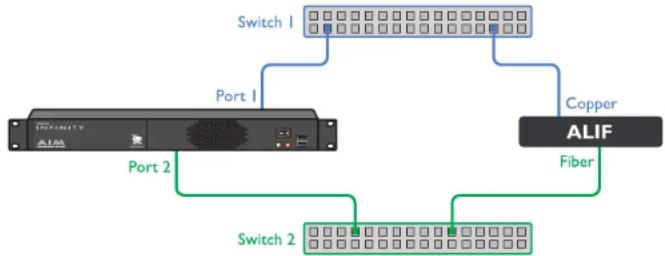
flowchart
graph TD
    A["INFINITY AUM"] -->|Port 1| B["Switch 1"]
    A -->|Port 2| C["Switch 2"]
    B --> D["Copper ALIF Fiber"]
    C --> D
The 'Separate Device Networks' option mentioned earlier would be enabled on the AIM server and the respective network connections on the endpoints are connected accordingly (e.g. copper to copper on only switch I and SFP to SFP only on switch 2).
In Broadcast mode, both of the AIM server network connections mirror each other, i.e. duplicate network traffic is sent out on both connections. It is assumed that the connected devices will only listen to the network traffic intended for themselves and drop/ignore all other traffic intended for other devices. This mode is robust but inefficient because half of the packets are discarded.
- 802.3ad - This mode uses a similar topology to Active-Backup, (i.e. both network ports connected to the same switch) but has two important differences: Both of the AIM server network ports are used simultaneously, and the network switch must support LACP (Link Aggregation Control Protocol).
The AIM server will 'merge' (aggregate) the two connections and treat them as one. The only exception to this would be on 'multi-Subnet racks' where it would be possible to have each network connection on different switches.
This mode provides the benefit of increased bandwidth availability between the AIM server and the network, but also provides a layer of redundancy. If one of the network connections is lost, the remaining connection would take over until the link is restored.
The network traffic is not split on a packet by packet basis between the connections; it operates on a connection basis. When a connection is established between the AIM server and one of the ALIF endpoints, this would travel via one port. When a second connection to another endpoint is established, this could use the same port or it may use the other. There is no order to which network port is used for any connection.
Note: When changing between bonded and any other mode, a warning message will be displayed and, when the Save button is clicked, will cause the AIM server to be rebooted.
Device Connectivity
IP Pool Lower/Upper Limits (not shown in multi-subnet mode)
When the AIM server is used in single subnet mode, these two fields are used to define the range (pool) of IP addresses that the AIM server can automatically assign to new ALIF endpoint devices. The AIM server contains its own DHCP server with which it applies the available IP addresses to ALIF endpoint devices.
When used in multi-subnet mode, the internal DHCP server with the AIM is disabled and instead the AIM server will rely upon an external DHCP server to provide valid IP address details.
Multicasting
Multicast IP Base
The start address for the multicast IP addresses to be used. Multicast IP addresses are in the range 237.1.1.1 to 239.255.255.255. This setting lets you adjust this range of IP Multicast addresses. It is important to allow sufficient addresses for your system. For instance, if the multicast IP address base was set to 239.255.255.252 there would only be 4 multicast addresses available.
Always Multicast
Determines whether multicast addressing is always used for video and audio streams. This should be used for most installations as it provides the most efficient way to deliver video and audio to multiple destinations.
Use Global Multicast Addresses
Ordinarily, multicast addresses are set individually for each transmitter. However for installations with many transmitters (particularly dual video port models, which require six multicast addresses each), selecting this option allows you to configure just six multicast IP addresses to use globally across the whole installation. Note: This option requires full support for IGMP v3, which allows source-specific joins.
IGMP version
By default, force IGMPv2 is enabled. However, if your network supports IGMPv3 you can take advantage of the IGMPv3 features by applying the Force v3 option.
Interfaces
Separate Device Networks
When this option is set to 'Yes', the ALIF devices within the network will be instructed to promote a further level of network resilience by treating their copper and fiber/teaming connections as independent links via separate switches (in conjunction with dual independent cabling schemes) see the diagram on next page. If one connection route is compromised, the other will continue unaffected. During normal operation, when both connection routes are operating, transfer speeds are boosted by the copper and fiber links working in parallel.
The two Ethernet ports of the AIM server can be connected to the two separate network switches to ensure that AIM control remains in place if one network switch should become unavailable.
Route of Last Resort
This option is appropriate when the AIM server is used in multi-subnet mode. In such cases, it is possible that the AIM server is not directly connected to the same sub-network as some or all of the ALIF endpoints. Therefore, it will be necessary for the ALIF unit(s) to communicate back to the AIM server via a gateway device (see Gateway IP Address above). This option is used to indicate which interface has the gateway configured.
Device network port
This lets the admin specify which port on AIM to use for ALIF control. This is either the default ETH1 or Both ports if the AIM has ETH1 and ETH2 connected to the ALIF network.
Monitoring
Packet loss monitoring is available if Statistics are enabled on one or more of the receivers being monitored (see The Statistics Tab). You will need to set up an Simple Network Management Protocol (SNMP) trap (see below) and/or declare a suitable email account (see Dashboard > Settings > Mail) to receive notification when packet loss drops below the chosen threshold/time frame:
Packet-Loss Alert Threshold
Determines when to issue a trap/alert based upon a threshold percentage of video packets that have been dropped at the receiver.
Packet-Loss Alert Window
Determines the sampling period (in seconds) in determining the packet-loss threshold (see above).
Syslog Enabled
Determines whether Syslog should be used to record log data to an external Syslog server.
Syslog IP Address
The address of the external syslog server.
Note: Ensure that this is not set to the AIM's IP adress as AIM cannot log its own syslog messages.
SNMP
This option allows the AIM to connect to an external SNMP (Simple Network Management Protocol) server. If SNMP is enabled, there are three connection modes:
• Authentication + Privacy
- Authentication Only
- No Authentication
There are two authentication types SHA or MD5 and two Privacy types AES or DES. The MIB file can be downloaded from http://
The response is split into three sections:
The first reports status of each individual endpoint:
deviceIdIndex,
deviceType, (ALIF type i.e ALIF2002R)
deviceFirmware, (firmware revision)
deviceName,
deviceldentifier,
deviceIPI,
deviceMACI,
deviceIP2,
deviceMAC2,
deviceSerialNum,
deviceStatus,
deviceLock,
deviceEth I Status,
deviceEth2Status,
The second part is returned from AIM:
numRx, (Number of RX units on system)
numTx, (number of Tx units on system)
numActiveConnexions,
serverCPULoad,
serverMemoryUsage,
serverSoftwareVersion,
serverDiskSpace,
The third part is the reporting of lost packets:
rxHead, (Which video head you are monitoring)
packetsSent,
packetsDropped
Dashboard > Settings > Time
Network


This page deals with all time related settings for the installation and allows up to three external NTP servers to be defined.
NTP Enabled
Determines whether one or more external Network Time Protocol servers should be used to provide timing for the installation.
Server 1/2/3 Address
Enter the IP address of the NTP server(s).
NTP Key Number(s)/NTP Key(s)
If you wish to use Symmetric key authentication for the server, enter an appropriate NTP key number and key.
If you need to add more NTP servers, click the Set option next to the NTP Server 2 or 3 entries.
Time Zone Area and Time Zone Location
Use these entries to pinpoint the current location of the installation.
Dashboard > Settings > Mail
Time


This page sets up the email functionality of the AIM server if required. An external Email server is required to sit on the network if this functionality is to be used.
Mail Enabled?
Determines whether the mail features of AIM should be invoked.
SMTP Domain name/IP
Enter the name or IP address of the external SMTP server that will be used to process all outgoing mail.
SMTP Port
Enter the appropriate port on the SMTP server.
Username, Password
Enter the appropriate username and password for access to the SMTP server.
From Address
Enter the email address that will be listed as the sender of alert messages.
Email Address for Alerts
Enter the email address to which alert messages should be sent.
Suppress Similar Alerts
Allows you to optionally define a time period within which similar alerts to one already received will be suppressed.
Dashboard > Settings > Active Directory

This page sets up the active directory server, if there is one on your network, and to use active directory to maintain the user database.
Note: Active Directory groups with more than 1500 members will be downloaded as empty.
AD Enabled?
Determines whether Active Directory features will be used.
Account Suffix
Enter the account suffix for your domain.
Base DN
Specify the base Distinguished Name for the top level of the directory service database that you wish to access.
Domain Controller
Enter the IP address or name of the server that holds the required directory service.
Username, Password
Enter the username and password for the domain account.
Sync Schedule
Choose the most appropriate synchronization schedule, from hourly intervals to daily or weekly.
Dashboard > Backups
You can schedule backup copies of the AIM database (containing all devices, users, channels and logs) to be made on a recurring basis and you can also perform backups on demand, as required.
IMPORTANT: You are strongly recommended to arrange regular scheduled backups of your AIM database. Adder cannot be held responsible for any loss of data, however caused.
Backup Options
Download to your computer: If this option is checked, when you click the "Backup Now" button, the backup file will be saved to the server and then will be presented as a download in your browser, so that you may save a local copy of the backup file.
Email Backup: If this option is checked, a copy of the backup file will be sent to the email address specified in the "Email Backup To" field. The backup file will be emailed either when you click "Backup Now" and/or according to the option selected in the Schedule section.
Note: Use of the Email backup option requires a valid email address to be stored within the Dashboard>Settings page.
Note: Emailed backups are encrypted, and these backup files are automatically decrypted by the AIM server when they are used.
Schedule: Determines how often a backup should be created. There are set periods for the various options:
• Hourly backups are executed on the hour (or quarter past).
• Daily backups are executed at 2am (or quarter past).
• Weekly backups are executed every Sunday at 3am (or quarter past).
Backups on the Server
All backups (whether initiated manually or by schedule) are saved on the server together with a time-stamp of when the backup was run. If required, you can select a previous backup and restore its contents. Alternatively, you can download the backup file to another location.
IMPORTANT: It is advisable to make a backup of the current state of the AIM system before restoring a previous backup. Restoring the contents of a backup file will overwrite ALL data in the AIM system, with the data within the backup file. This includes configured devices, channels, users, connection logs and action logs.
Downloaded Backups
Use this option to upload a backup file that you have previously downloaded or received by email. This will overwrite the contents of the current AIM system therefore it is advisable to make a backup of the current state of the AIM system before restoring a previous backup.
Archive Log to CSV File
You can archive connection or log data to a CSV file and, at the same time, remove old log data from the database.
Click "Archive" to save a CSV file to the server.
Download CSV Archive
You can download any CSV archive that was created in the archive step (described above) by selecting from the archives saved on the server.
The CSV archive can be opened in Microsoft Excel (or similar) to perform detailed analysis of actions and connections within the AIM system.
Download Debug File
The purpose of the "Download Debug File" is to prove support with a copy of the internal log files for diagnostics. The file is encrypted and can only be open by Adder.
Dashboard > Updates
Upgrade AIM Software
This option allows you to upgrade (or downgrade, if required) the AIM server firmware while preserving all configuration data. Firmware files are encrypted and digitally-signed for AIM-server integrity.
Please see Upgrading (or downgrading) AIM firmware on the next page
Note: There is no longer any support for ALIFI000 units within AIM firmware version 4.1 onwards.
Reset AIM Configuration
This option can be used to reset AIM to its initial configuration or a previous upgrade.
When the AIM server is reset, all devices, channels, presets, users, groups and logs will be removed. Note: You are recommended to take a backup onto an external device before starting the upgrade process.
If one or more previous upgrades have been installed on this system, you will be given the option to choose either the original factory image or the last upgrade image. They will be listed by version number - click the appropriate radio button to select.
Two other options are available within this section:
- Also reset the server IP address - When ticked, the IP address will be reset to the default: 169.254.1.3 and you will be reminded to manually navigate to that address.
- Also delete security certificates and keys - When ticked, all certificates and keys held within the server will be removed.
When the required options have been chosen, click the Reset AIM Configuration button to commence.
Upload New TX/RX Firmware
Allows you to upload a firmware file to the AIM server, which can then be used to upgrade ALIF TX and RX units.
Install Firmware onto Devices
Allows you to determine various upgrade settings and then commence the upgrade process.
Please see Upgrading ALIF firmware globally >>
Upgrading ALIF firmware globally
This method allows the AIM admin user to upgrade firmware on receivers and transmitters, wherever they are located.
I Use the "Upload New TX/RX Firmware" section to place new transmitter and/or receiver firmware file(s) onto the AIM server. Once uploaded, the stored firmware files are listed within the relevant "Available firmware" drop-down boxes within the sections below.
2 Within the "Install Firmware onto Devices" section, choose either the Device Type (RX or TX) or Firmware Type (Main or Backup copies).
3 Click the Available firmware drop-down box and select the required new firmware version.
Note: There is no longer any support for ALIF1000 units within AIM firmware version 4.1 onwards.
4 Click the "Install" button to apply the chosen firmware to the devices.
5 On the right side of the list, you can:
- Individually select the devices to which the firmware upgrade will be applied by checking the "Upgrade" boxes next to each device, or
- Use the "Upgrade All" option to apply firmware globally to all devices.
6 Click the "Upgrade Selected..." button to create a queue of devices to be upgraded. If there are many devices to upgrade, this may take some time.
The status of devices during the upgrade process should be shown in near-real time on the receivers/transmitters pages and on the device's own page. The page will show whether the device is still being upgraded or if it is in the process of rebooting with the new firmware. Note that the process of applying firmware to a device and enacting a reboot takes several minutes to complete.
Upgrading (or downgrading) AIM firmware
In certain circumstances it may be necessary to upgrade or downgrade the firmware of an AIM unit to take advantage of particular features. The Upgrade AIM Software option changes the firmware without affecting configuration data such as devices, channels, presets, users, groups and logs.
Notes:
- Although configuration details are not affected during the firmware upgrade process, you are recommended to take a backup onto an external device before starting the upgrade process.
- When changing the AIM firmware, it will be necessary to reboot the unit in order to apply the changes.
- There is no longer any support for ALIFI000 units within AIM firmware version 4.1 onwards.
- If you have any ALIFI000 endpoints and upgrade the AIM firmware above version 4.0, you can use the 'Replace Device' feature in order to swap them for ALIFI002 endpoints.
- It is not possible to downgrade from firmware version 4.4
- If you have any ALIFI000 endpoints and you want to upgrade your AIM system these need to be swapped out for ALIFI002 endpoints. Ensure that your AIM is running 4.0.40623. If your AIM has a 4.0 version below this, it must be upgraded first. Upgrade your ALIFI000s to firmware version 3.7. Ensure the ALIFI002s are running 3.7. This is essential to ensure that the replace device feature works.
- It is not possible to downgrade ALIF endpoint firmware from below 4.4. The AIM can be downgraded to below 4.4
To upgrade/downgrade the AIM unit firmware
Note: If there are any Backup or Satellite servers then these must be upgraded or downgraded to be on the same software version before applying any ALIF firmware updates.
I Download the appropriate firmware file from the Adder website or technical support.
2 Visit the Dashboard > Updates page of the AIM unit and within the 'Upgrade AIM Software' section, click the Browse... button to locate the downloaded firmware file.
3 When you are ready to proceed, click the Upload button. The file will be uploaded, checked and applied to the secondary partition within the AIM unit. A confirmation message will be displayed and you will also be prompted to reboot the AIM unit.
4 When it is appropriate to do so (dependent on the current activity of the AIM unit), click OK and then click the Reboot Now button. The AIM unit will reboot using the new firmware partition.

Dashboard > Active Connections
Shows only connections that are currently active within the AIM network. Please refer to the Connection Log page section below.
Dashboard > Connection Log
Shows all connections that have occurred within the AIM network. The most recent connections are shown at the top, and the log is paginated (the number of rows per page can be set from the Dashboard > Settings page). The log can be filtered to show all connections, or only currently active connections. Current connections have no “end time” and a disconnect icon (✗).
The "Audio Broadcast IP" and "Video Broadcast IP" columns show whether the audio and video are being sent directly from the transmitter to the receiver or broadcast to a multicast group. Direct links are denoted by the receiver's IP address only; whereas multicast broadcasts are indicated by the multicast icon ( 播放 and the common multicast IP address (the address will be in the range specified within the "Multicast IP Address" option of the Dashboard > Settings page).
Actions that you can take within this page include:
• Hover the mouse over the receiver, user or channel names to show more information about each item.
- Hover the mouse over the five "Info" icons to see descriptions (audio on/off; video on/off; USB on/off; shared/exclusive mode; serial on/off).
- Click 30o end a connection between a receiver and a channel.
Dashboard > Event Log
This page lists events that have occurred within the AIM system. A drop-down list box is available at the top of the page which allows you to apply one or more filters to reduce the listed events to show those of specific interest, as follows:
- Event Type
• Event Date/Time - Recent Events
- Username
- Receiver Name
- Transmitter Name
- Channel Name
- Preset Name
As each filter type is selected, a new field will be added to the page so that you may enter your filter criteria.
You can archive Event Log data to a CSV file via the "Archive log data" link, which jumps to the relevant section within the Dashboard > Backups page.
Dashboard > Remote Support
The remote support feature grants a member of the technical support team remote access to the AIM unit. This page shows the current state of remote support, whether currently enabled or disabled, plus a button to change the remote support state.
For further details, please see Enabling Remote Support.
Note: Before enabling remote support contact Adder technical support.
ENABLING REMOTE SUPPORT
The AIM manager has a remote support feature that allows technical support to connect should the need arise. It works by establishing a secure SSL connection with a managed secure server hosted on the internet. Using a reverse tunnel, technical support can connect to the manager via the secure server. Each support representative has their own unique SSL keys for full traccability when making a remote connection. To protect the manager against unauthorised access, Remote Support is disabled by default. Access is only granted by Enabling Support and giving the support representative a unique one-time password which is automatically generated each time it is enabled.
Below is a diagram that shows how the feature works:

flowchart
graph TD
    A["Remote Server"] --> B["Internet"]
    B --> C["Router"]
    C --> D["Firewall"]
    D --> E["AIM"]
    F["Adder Support"] --> B
Note: There have been different versions of this Remote Support feature where the behaviour varies slightly. We recommend that you have the latest firmware installed.
- AIM must be connected to a network which has internet access using Ethernet Port 2.
- Navigate to Dashboard -> Settings -> Network. You will need to configure an IP address, gateway and DNS for Ethernet Port 2.
- For AIM running firmware versions 4.4 and below, they will connect to the remote server over port 22. You will need to ensure that outbound port 22 is not blocked by the firewall or router to the internet. For AIM versions 4.5 and above, you can choose other ports such as 80, 443, 53, 2222, 10222.
- Navigate to the Dashboard -> Remote Support tab on the AIM admin Web UI and click on the Enable Remote Support button.
- NOTE: AIM firmware versions 4.0, 4.1 and 4.2 do not show the port number or password when enabling Remote Support.

- The AIM will show a port number and one-time password (OTP) which are required to remotely access the manager.
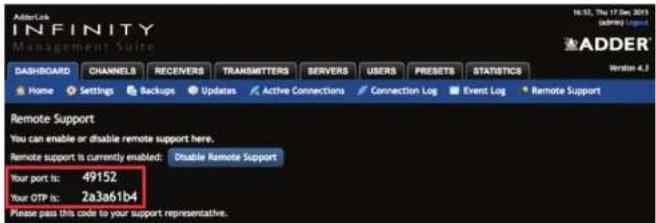
- If the port number changes after 1 minute, this means that either 1) The port is used by another Remote session or 2) The manager has been unable to access the remote server. If port number continues to change, please check your network and firewall settings.
- Please contact support@adder.com, stating the port number and one-time password that you have been given. If you have changed the admin password from the default, then please could you create a temporary administrator account so that we can access the web interface if required.


Web Interface Access
During the Remote Support session, we may need access to the AIM's web interface. So that you do not need to reveal or change your Admin password, please could you create a temporary user and set it as an AIM Administrator. Please let us know the user and password that you have created.
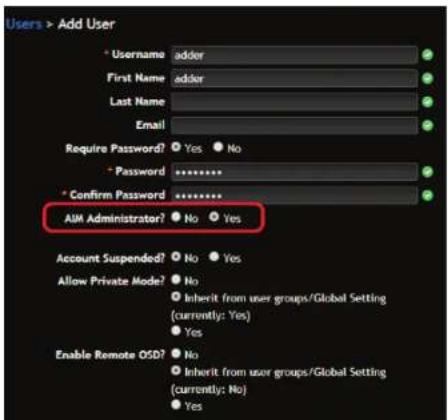
Troubleshooting
In the event that you do not see a port number when running AIM 4.3 and above then check the following:-
- You have outbound port enabled on your firewall, typically 22 or on 4.5 (and above) it can be 443, 53, 2222, 10222.
- There is only one gateway on the AIM Manager, make sure that the gateway is correct. If you set the Ethernet port 2 to DHCP, the gateway from the DHCP server is not used.
- Try manually assigning an IP address, subnet mask, gateway and DNS Setting to Ethernet Port 2.

THE CHANNELS TAB
The Channels tab provides access to all settings and options related directly to the video, audio and USB streams, collectively known as channels, emanating from any number of transmitters.
Click the CHANNELS tab to view the Initial View Channels page.

The various other Channels pages (e.g. Add Channel, View Channel Groups, etc.) are selectable within the blue section located just below the tabs.
Search filters
The key fields (Name, Description, Location and Type) all provide a search filter to locate particular items within long lists. Enter a full or partial search string into the appropriate filter box and then click 🔒 to start the search. Optionally use the 🔊 buttons to invert the order of the listing.
The page will reload with the same pagination/sort order, but with the added search filter. It's possible to filter by several columns at once (e.g. search for all entries with "mac" in the name, and "mixed" in the description). Search terms are case-insensitive. You can re-sort and paginate on filtered results without losing the filters.
To remove a filter, click the red cross next to the relevant filter, (you can also empty the search box and click 📄again).
The Type column will either state ALIF for connections which use an ALIF transmitter or RDP for virtual machine connections, which do not require a physical transmitter.
Channels > View Channels
This page lists all channels that currently exist within the AIM system. A channel is automatically created for every transmitter when it is added and configured within the AIM network. The new default channel for each added transmitter will inherit the name of the transmitter. Such default names can be altered at any time and additionally, you can also create new channels manually, if necessary.
Within the list of channels, the Allowed Connections column indicates how each channel may be accessed by users. By default, these settings are inherited from the global setting (configurable within the Dashboard > Settings page), however, each channel can be altered as required. The icons denote the following connection rules:
Connection details inherited from the global setting
Video-Only
Shared
Exclusive
Private
The Channel Groups column shows to how many channel groups each channel belongs. The Users column indicates how many users have permission to view each channel.
Actions that you can take within this page include:
- Create a new channel: Click the "Add Channel" option.
- Create a new channel group: Click the "Add Channel Group" option.
- Configure an existing channel: Click for the required channel.
- Clone an existing channel: Click → to use the settings for the current channel as the basis for a new channel entry.
- Delete a channel: Click for the required channel.
- Delete multiple channels: Click the "Turn Batch Delete Mode On" button, the 🔊 icons for all channels are replaced with tick boxes. Tick the boxes of the channels that need to be deleted and then click the "Delete selected channels" button which appears at the bottom of the page. When you are finished, click the "Turn Batch Delete Mode Off" button.
• View a channel group: Click the "View Channel Groups" button.

Channels > Add or Configure a Channel
From the View Channels page, you can add a new channel or configure an existing channel:
- To create a new channel: Click the "Add Channel" option.
- To configure an existing channel: Click for a channel.
The Add and Configure pages are similar in content.
Channel Name, Description and Location
These are all useful ways for you to identify the channel and its origins. A consistent naming and description policy is particularly useful in large installations.
Video, Audio, USB, Serial and Digital Audio
These drop down boxes list all of the available streams from installed transmitters. When creating a channel, you can choose to take all streams from the same transmitter or from different ones, as required.
Notes: Where necessary, channels can be created without video, audio, USB and/or serial.
Only one receiver can use a transmitter's serial port at any time.
Digital audio is the audio signal that is derived from video signals, such as DisplayPort connections and is only available on certain dual port ALIF models.
Sensitive
This will mark the channel as sensitive within the OSD channels list.
Allowed Connection Modes
This section allows you to define the types of connection that you wish to permit users to make. You can define particular individual or combined connection types to suit requirements.
Note: This setting for each channel acts as the final arbiter of whether exclusive access can actually be achieved. If you deny exclusive access rights within this setting, then exclusive access for any user cannot take place for this channel, regardless of settings made elsewhere.
- Inherit from global - uses the setting of the "Allowed Connection Modes" option within the Dashboard > Settings page.
- Set for this channel - permits you to choose modes manually:
• Video-Only: Allows users only to view the video output, the USB channel is denied.
• Shared: Allows users to control a system in conjunction with other users.
- Exclusive: Grants exclusive control to one user while all others can simultaneously view and hear, but not control, the output.
- Private: Allows a user to gain private access to a system, while locking out all others.
Group Membership
Groups provide a quick and easy way to manage settings for channels. By making a channel part of a particular group, the channel automatically inherits the key settings of that group.
The group membership section displays existing channel groups in the left list (to which the current channel does not belong) and the channel groups in the right list to which it does belong.
To add the channel to groups: Highlight one or more (use the CTRL key if selecting more than one) group names in the left list and then click to add the name(s) to the right list.
Note: You can also include or exclude individual channels by double clicking on them.
To add the channel to all groups: Click—to move all group names from the left to the right list.
To remove the channel from groups: Highlight one or more (use the CTRL key if selecting more than one) group names in the right list and then click to move the name(s) back to the left list.
To remove the channel from all groups: Click to move all group names from the right to the left list.
Permissions
This section allows you to determine which users and user groups should be given access to this channel. Individual users and user groups are handled within separate subsections, but both use the same method for inclusion and exclusion.
To include one or more users (or groups): Highlight one or more (use the CTRL key if selecting more than one) user/group names in the left list and then click no add them to the right list.
To include all users (or groups): Click 📋 to move all user/group names from the left to the right list.
To remove one or more users (or groups): Highlight one or more (use the CTRL key if selecting more than one) user/group names in the right list and then click to move them back to the left list.
To remove all users (or groups): Click 🔒 to move all user/group names from the right to the left list.
Channels > Add or Configure Channel Group
Channel groups allow easy permission-granting for several channels at once. Permissions can be set to determine which users can access channels within a channel group.
From the View Channels page, you can add a new channel group or configure an existing channel group:
- To create a new channel: Click the "Add Channel Group" option.
- To configure an existing channel: Click "the View Channel Groups" option and then click for a group.
The Add and Configure Channel Group pages are similar in content.
Channel Group Name and Description
These are all useful ways for you to identify the channel and its origins. A consistent naming and description policy is particularly useful in large installations.
Group Membership
Allows you to determine which channels should be members of the group. By making a channel part of the group, each channel automatically inherits the key settings of the group.
To add a channel to the group: Highlight one or more (use the CTRL key if selecting more than one) channel names in the left list and then click to add the name(s) to the right list.
Note: You can also include or exclude individual channels by double clicking on them.
To add all channels to the group: Click to move all channel names from the left to the right list.
To remove a channel from the group: Highlight one or more (use the CTRL key if selecting more than one) channel names in the right list and then click to move the name(s) back to the left list.
To remove all channels from the group: Click to move all channel names from the right to the left list.
Permissions
This section allows you to determine which users and user groups should be given access to channels within this group. Individual users and user groups are handled within separate sub-sections, but both use the same method for inclusion and exclusion.
To include one or more users (or groups): Highlight one or more (use the CTRL key if selecting more than one) user/group names in the left list and then click to add them to the right list.
To include all users (or groups): Click 📋 to move all user/group names from the left to the right list.
To remove one or more users (or groups): Highlight one or more (use the CTRL key if selecting more than one) user/group names in the right list and then click to move them back to the left list.
To remove all users (or groups): Click 📄 to move all user/group names from the right to the left list.
THE RECEIVERS TAB
The Receivers tab shows a paginated table of all receiver devices within the AIM network.
Click the RECEIVERS tab to view the initial View Receivers page.

The other Receivers pages (e.g. View Receiver Groups, Add Receiver Group, etc.) are selectable within the blue section located just below the tabs.
Search filters
The key fields (Name, Description and Location) all provide a search filter to locate particular items within long lists. Enter a full or partial search string into the appropriate filter box and then click 🔒 to start the search. Optionally use the ⏻ buttons to invert the order of the listing.
The page will reload with the same pagination/sort order, but with the added search filter. It's possible to filter by several columns at once (e.g. search for all entries with "mac" in the name, and "mixed" in the description). Search terms are case-insensitive. You can re-sort and paginate on filtered results without losing the filters.
To remove a filter, click the red cross next to the relevant filter, (you can also empty the search box and click 📄 again).
Receivers > View Receivers
The table shows the following information for each receiver:
- Type and online status
- Name
• IP address • Firmware revision - Custom Settings (Inherited or Custom icons) • Receiver Groups
- Presets - Users
• Description & Location • Manage (admin options - see below)
The Manage icons are as follows:
(Note: You can hover your mouse pointer over any icons to reveal additional information):
Configure device: Displays the "Configure Receiver" page.
Reboot device: Allows you to reboot or reset a unit to its factory settings. A popup will ask which task you wish to carry out. A reboot is useful if a device enters an unknown state. A reset will return the unit to its factory default state and reset its IP address (the unit will retain any firmware updates that have been applied).
Identify unit: Causes the LED lights to flash on the front of the selected unit. An alert will be shown if the unit cannot be contacted (e.g. if it is offline).
Delete device: Confirmation will be requested. You will need to factory-reset any devices that you wish to re-configure to work with AIM.
Connect to a channel: A list of available channels is shown, along with connection modes (Video-Only/Shared/Exclusive/Private). The admin user can thus remotely change channel on any receiver.
Disconnect: If a receiver is currently connected to a channel, clicking the disconnect icon will end the connection, regardless of who is connected. Hovering over the icon will show which user is connected, which channel they are connected to, and when the connection was created.
Receivers > Configure Receiver
From the View Receivers page, you can configure details for a receiver:
- Click for a receiver.
Note: If the IP address of the receiver is changed, the device will need to reboot itself.
Device ID / Type - Identity of the receiver.
Device Name, Description and Location
These are all useful ways for you to identify the receiver and its origins. A consistent naming and description policy is particularly useful in large installations.
Main/Backup Firmware - The current firmware versions contained within the unit.
Online? - Current status of the receiver.
MAC Address / 2 - Lists the fixed network identifiers for the single or double ports.
IP Address / 2 - Lists the single or dual IP addresses for the unit. If the DHCP options are ticked then the fields will be grayed out.
Allow Local Feed through - When selected, allows the receiver to connect directly to a local source. The receiver must have a free interface, i.e. no IP address.
Login Required
- No: When selected, anyone can use a receiver terminal and connect to a channel. The channels/permissions displayed to this anonymous user are those that are set for the "anonymous user" that is defined within the Dashboard > Settings page.
- Inherit from Receiver Groups: When selected, the requirement for user login will be determined by the "Login Required" settings within the Receiver Groups to which this unit belongs:
- If ANY of the receiver groups (to which this receiver belongs) are set as “Login Required = Yes”, this receiver will require login.
- If ANY of the receiver groups (to which this receiver belongs) are set as “Login Required = Inherit...” and the global setting is “login required = yes”, then this receiver will require login.
- If ALL receiver groups (to which this receiver belongs) are set as "Login Required = No", then this receiver will NOT require login.
- Yes: When selected, a user will need to login with the username and password defined in the "Users" section. They will only be allowed to login if they have been granted permission to access that particular receiver.
Receiver OSD Alerts
Determine the required setting for pop up OSD alerts: Inherit, No or Yes.
Show Current Channel
When selected, shows the currently connected channel as an overlay.
OSD Banner Position
Allows you to determine the position of the OSD banner on each user's screen.
Keyboard Country
Select the country code of the keyboard connected to the receiver.
Audio Input Type
Select the required audio input type.
USB settings - see next page for details.
Video Compatibility Check
This reads the EDID from the attached monitor and determines whether the monitor is capable of displaying the selected video mode before connecting a channel. This prevents the receiver showing a black screen and the user being locked out because a dual link resolution has been selected to display on a single link monitor.
Force 60Hz
If enabled, the receiver frame rate is held at 60Hz regardless of the video input frame rate. The Video Switching options (below) cannot be altered when this option is enabled.
Video Switching
Provides two options for video switching:
- Fast Switching (default state) - Retains the same frame rate (at either 50Hz or 60Hz) depending upon which video resolution was displayed first.
- Match Frame Rate - Follows the source frame rate and will change the frame rate every time this changes even if the video resolution doesn't change. If you have one receiver switching between 1920x1080@60Hz and 1920x1080@50Hz then this setting will change the frame rate from 60Hz to 50 Hz every time that you switch.
Group Membership
To facilitate collective permission-granting for numerous receivers, a receiver can belong to one or more receiver groups. Any permissions applied to the receiver group are inherited by all receivers that are included within the receiver group. For example, multiple receivers can be made available to a user by placing them all in a receiver group and then granting the user permission to use that receiver group.
Permissions
This is hidden by default as, by default, all users have access to all receivers. You can deny access to particular receivers for a user in this section. However, be aware that users who are included within user groups may have access to the same receivers via their groups.
USB Settings
Receiver ID / Name - Identity of the receiver.
HID only
If enabled, allows only HID (mice and keyboards) devices to be connected to the receivers.
Disable Isochronous Endpoint OSD Alerts
When an isochronous USB device is connected to the receiver there will no longer be a warning message. ALIF units do not support isochronous devices.
Enable Isochronous Endpoint Attach
Some USB devices combine many USB devices behind a USB hub. e.g a keyboard with audio support. By enabling this option, devices will be allowed to connect to ALIF receivers, however, the isochronous part (e.g. the audio component) of the devices will not work.
Advanced Port Features
This section allows you to determine USB port behaviour for use with certain USB devices.
The default is no reserved ports, Merging enabled and no feature code (or Quirk) set. It is recommended that these are left at the default settings and are only changed under advice from an Adder FAE.
For each of the four USB ports on the receiver, certain rules can be applied depending upon the USB device connected.
If you have reserved USB ports on the transmitter, you can select which USB port to use for a particular device.
You can turn off USB merging for a particular port. This will slow down switching as the USB device will be enumerated every time that you switch.
You can also enter an advanced feature if it is necessary for your USB device. The drop down lists the feature codes for some known USB devices. Otherwise please contact your local FAE for advice.
Receivers > Configure New Receiver
This page is displayed whenever a new receiver is added to the network.
The IP Address I field, showing the IP address that has been assigned by DHCP. Before AIM can add the device into its database, a new IP address must be added to IP Address I. This is the system IP address and applies equally for all ALIF series.
ALIF 2xxx, 3xxx and 4xxx series units have a secondary link port which can be used for bandwidth doubling and/or redundancy. The IP address 2 field is for the second (Teaming) port. In order to use the second port, IP address 2 field must be given a valid IP address. For ALIF 1xxx units, this field will remain blank.
Receivers > Add Receiver Group or Configure Group
From the View Receiver Groups page, you can create a new group or configure an existing group:
- To create a new group: Click the "Add Receiver Group" option.
• To configure an existing group: Click for a group.
The Add and Configure pages are similar in content.
Receiver Group Name and Description
The group name must be populated with a name up to 45 characters. A consistent naming and description policy is particularly useful in large installations.
Login Required
- No: When selected, anyone can use a receiver terminal and connect to a channel. The channels/permissions displayed to this anonymous user are those that are set for the “anonymous user” defined within the Dashboard > Settings page.
- Inherit from global setting: When selected, the requirement for user login will be determined by the "Login Required" setting within the Dashboard > Settings page.
- Yes: When selected, a user will need to login with the username and password defined in the "Users" section. They will only be allowed to login if they have been granted permission to access devices in the receiver group.
Enable Receiver OSD Alerts
Determine the required setting for pop up OSD alerts: Inherit, No or Yes.
The next fields are the USB settings.
Note: USB port reservation and advanced USB features will be added to future releases of the AIM management system.
Show Current Channel
When enabled, the name of the channel currently being viewed will be shown on screen.
OSD Banner Position
Allows you to determine the position of the OSD banner on each user's screen.
Enable Video Compatibility Check
When enabled, this option reads the EDID from the attached monitor and determines whether it is capable of displaying the selected video mode before connecting a channel. This prevents the receiver showing a black screen and the user being locked out because a dual link resolution has been selected to display on a single link monitor.
Enable Audio Compatibility Check
Applicable only to receivers (such as the ALIF4021R) which are capable of processing multichannel digital audio via their DisplayPort connections. When enabled, this option reads the EDID from the attached monitor/audio system and determines whether the receiver's current audio setting (e.g. 2 Channel, 6 Channel, 8 Channel) is capable of correctly playing the selected audio (e.g. Stereo, 5.1 or 7.1) mode before connecting a channel.
Force 60Hz
If enabled, the receiver frame rate is held at 60Hz regardless of the video input frame rate. The Video Switching options (below) cannot be altered when this option is enabled.
Video Switching
Provides two options for video switching:
- Fast Switching (default state) - Retains the same frame rate (at either 50Hz or 60Hz) depending upon which video resolution was displayed first.
- Match Frame Rate - Follows the source frame rate and will change the frame rate every time this changes even if the video resolution doesn't change. If you have one receiver switching between 1920x1080@60Hz and 1920x1080@50Hz then this setting will change the frame rate from 60Hz to 50 Hz every time that you switch.
USB Settings - see USB Settings.
Group Membership
This section allows you to easily include or exclude individual receivers for this group. All relevant group permissions will be applied to all receivers that are included within the group. Receivers that are not currently included in this group within the left list and those receivers that are included within the right list.
To add a receiver to this group: Highlight one or more (use the CTRL key if selecting more than one) receiver names in the left list and then click no add the name(s) to the right list.
To add all receivers to the group: Click to move all receiver names from the left to the right list.
To remove a receiver from the group: Highlight one or more (use the CTRL key if selecting more than one) receiver names in the right list and then click to move the name(s) back to the left list.
To remove all receivers from the group: Click to move all receiver names from the right to the left list.
Permissions
This is hidden by default because all users have access to all receivers. You can deny access to the receiver group, however, be aware that users who are included within user groups may have been given access to the receiver group via their user groups.
Receivers > Update Firmware
Click this option to go straight to the Dashboard > Updates page. See Dashboard > Updates for more details.
THE TRANSMITTERS TAB
The Transmitters tab shows a paginated table of all transmitter devices within the AIM network.
Click the TRANSMITTERS tab to view the transmitters page.

Search filters
The key fields (Name, Description and Location) all provide a search filter to locate particular items within long lists. Enter a full or partial search string into the appropriate filter box and then click 🔒 to start the search. Optionally use the 🔊 🔘 buttons to invert the order of the listing.
The page will reload with the same pagination/sort order, but with the added search filter. It's possible to filter by several columns at once (e.g. search for all entries with "mac" in the name, and "mixed" in the description). Search terms are case-insensitive. You can re-sort and paginate on filtered results without losing the filters.
To remove a filter, click the red cross next to the relevant filter, (you can also empty the search box and click 📋 again).
Transmitters >View Transmitters
The table shows the following information for each transmitter:
• Type and online status • Name
• IP address • Firmware revision
- Custom Settings (Inherited or Custom icons) - Presets
- Channels (attributed to each transmitter) • Description & Location
- Manage (admin options - see below)
The Manage icons are as follows:
(Note: You can hover your mouse pointer over any icons to reveal additional information):
Configure device: Displays the "Configure Transmitter" page.

Reboot device: Allows you to reboot or reset a unit to its factory settings. A popup will ask which task you wish to carry out. A reboot is useful if a device enters an unknown state. A reset will return the unit to its factory default state and reset its IP address (the unit will retain any firmware updates that have been applied).
Note: This icon is not present on virtual machine entries.

Identify unit: Causes the LED lights to flash on the front of the selected unit. An alert will be shown if the unit cannot be contacted (e.g. if it is offline).
Note: This icon is not present on virtual machine entries.

Delete device: Confirmation will be requested. You will need to factory-reset any devices that you wish to re-configure to work with AIM.
Transmitters > Configure transmitter or Virtual Machine
In the list of transmitters, when you click for a particular entry, you will see one of two pages of settings depending on whether the entry represents an ALIF transmitter or a Virtual Machine (VM), also referred to as VDI (Virtual Device Infrastructure) of which RDP (Remote Desktop Protocol) is one type.
• ALIF transmitter - see below
• Virtual Machine - see page 40
ALIF transmitter
Device ID / Type - Identity of the transmitter.
Device Name, Description and Location
These are useful identifiers for the transmitter unit and its exact location. These become even more valuable as the number of transmitters within the system increases.
Main/Backup Firmware
The current firmware versions contained within the unit.
Online?
Current status of the receiver.
MAC Address / 2
Lists the fixed network identifiers for the single or double ports.
IP Address / 2
Lists the single or dual IP addresses for the unit. If the DHCP options are ticked then the fields will be grayed out.
Video I/2 Multicast IPs
Lists the IP addresses that will be used for distributing video signals when multicasting.
Audio Multicast IPs
Lists the IP addresses that will be used for distributing audio signals when multicasting.
Enable Dummy Boot Keyboard
It is often necessary to have a keyboard reported at start up. This setting means that a "Virtual Keyboard" is always reported to the USB host. It may be necessary to disable this for use with some KVM switches.
Enable Audio
Determines the status of the audio feed from the transmitter.
USB Speed
Select Low/full speed or High speed USB operation.
USB Hub Size
Select either a 13 or 7 port USB hub. This determines the number of USB devices that can be connected to a single Transmitter.
Peak Bandwidth Limiter
The transmitter will use as much of the available network bandwidth as necessary to achieve optimal data quality, although typically the transmitter will use considerably less than the maximum available. In order to prevent the transmitter from 'hogging' too much of the network capacity, you can reduce this setting to place a tighter limit on the maximum bandwidth permissible to the transmitter. Range: 1 to 95%.
Video Settings
This section allows you to directly adjust various key video controls within the transmitter in order to obtain the most efficient operation taking into account connection speeds and the nature of the video images sent by that transmitter.
Magic Eye
Determines whether the Magic Eye feature should be enabled on certain ALIF transmitters (e.g. 1002T, 2002T, 2020T, 2112T 4000T models). Magic Eye works to overcome the issues with increased bandwidth usage caused by 'dithering' techniques used on some computers, such as Apple Macs. See the ALIF dual user guide for more details.
DDC
Determines whether video configuration details should be harvested from connected display screens or a static fixed EDID report should be used. Care must be taken when selecting a Dual Link Video resolution as only ALIF dual units support a Dual Link Video resolutions. In the case of a Dual Link EDID being set in the Global settings, no EDID will be set on Video port 2 of the ALIF dual transmitters.
EDID
Determines how the video configuration details should be determined: Either harvested from the connected display screens (USE CONNECTED MONITOR'S EDID) or by selecting a static fixed EDID setting from the list (e.g. GENERIC 16:9, 1920x1080 HD1080, 1600x1200 UXGA, etc.). Using a fixed EDID setting can significantly speed up video switching times as EDIDs do not need to be checked, however, all of the installed monitors need to support the chosen resolution. Where EDIDs are checked, enabling EDID Optimisation (below) can help to regain some of the switching speed.
Note: Care must be taken when selecting a Dual Link Video resolution (e.g. 2560x1600) as certain ALIF units do not support Dual Link Video resolutions. In the case of a Dual Link EDID being set in the Global settings, no EDID will be set on Video port 2 of dual port ALIF transmitters.
EDID optimisation
When this option is ticked, the transmitter will compare the native resolution settings of its monitor(s) when switching. If a monitor has the same native resolution as the previous one, the new EDID is not sent to the graphics card. This speeds up switching as the graphics card does not have to go through a hotplug detect routine when a new receiver is switched to that channel. If the new receiver has a monitor with a different native resolution, then the EDID will be updated to allow for a change in video mode.
Hot Plug Detect Control
Determines whether to enable hot plug detection for monitors. By default this is enabled.
Hot Plug Detect Signal Period
By default this is set at 100ms, which is sufficient for most graphics cards. Occasionally it may be necessary to adjust this. An Adder engineer will advise if necessary.
Background Refresh
The transmitter sends portions of the video image only when they change. In order to give the best user experience, the transmitter also sends the whole video image, at a lower frame rate, in the background. The Background Refresh parameter controls the rate at which this background image is sent. The default value is 'every 32 frames', meaning that a full frame is sent in the background every 32 frames. Reducing this to 'every 64 frames' or more will reduce the amount of bandwidth that the transmitter consumes. On a high-traffic network this parameter should be reduced in this way to improve overall system performance. Options: Every 32 frames, Every 64 frames, Every 128 frames, Every 256 frames or Disabled.
Compression Level
The newer AFZ+ codec complements the existing AFZ codec by providing greater compression for increased speed where pixel perfect results are not the primary focus. The transmitter video configuration page allows you to choose the required compression mode. Choices are:
- 'Pixel perfect' - only uses pixel perfect AFZ,
- 'Adaptive' - guarantees frame rate, builds to pixel perfect,
- 'Smoothest video' - forces the maximum compression, or
- 'Advanced' - allows you to choose the minimum and maximum compression modes: I = AFZ only (pixel perfect),
2 = 'AFZ + Minimum compression',
3 = 'AFZ+ Middle compression', or
4 = 'AFZ+ Maximum compression'.
Frame Skipping
Frame Skipping involves 'missing out' video frames between those captured by the transmitter. For video sources that update only infrequently or for those that update very frequently but where high fidelity is not required, frame skipping is a good strategy for reducing the overall bandwidth consumed by the system. Range: 0 to 99%.
Serial Settings
Serial Parity, Serial Data Bits, Serial Stop Bits, Serial Speed
This group of settings allows you to define the key parameters for the AUX port of the transmitter so that it matches the operation of the device attached to it.
Transmitters > Add VDI
Virtual Machines are capable of connecting to the network and sharing their resources directly, without the need for a distinct transmitter device; the common term for this is VDI (Virtual Desktop Infrastructure).
From the Transmitters page, you can add a new VDI virtual machine system, which can be accessed across the network directly by specially equipped receivers, such as the ALIF3000:
- To create a new virtual machine entry: Click the "Add VDI" option.
A number of fields will be displayed:
VDI Type
Choose the virtual machine access protocol that will be used. At launch, RDP (Remote Desktop Protocol) is the sole VDI type. Others will be added in time.
RDP Name
Enter a valid name for the virtual machine.
IP Address/DNS Name
Enter either a distinct IP address for the virtual machine or a valid DNS server:
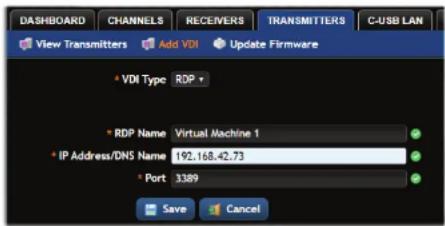
Enter either an IP address for the virtual machine...
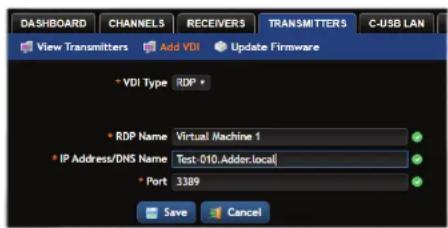
...or a valid DNS server name.
Port
The usual port address for VDI connections is 3389.
Transmitters > Configure Virtual Machine
In the list of transmitters, when you click on a Virtual Machine (VM) entry, also referred to as VDI (Virtual Device Infrastructure), the following settings will be shown:
VDIType
Choose the virtual machine access protocol that will be used. At launch, RDP (Remote Desktop Protocol) is the sole VDI type. Others will be added in time.
RDP Name
The name for the virtual machine.
IP Address/DNS Name
Either a distinct IP address for the virtual machine or a valid DNS server name.
Port
The usual port address for VDI connections is 3389.
Transmitters > Update Firmware
Click this option to go straight to the Dashboard > Updates page. See Dashboard > Updates for more details.
Transmitters > Configure New Transmitter
This page is displayed whenever a new transmitter is added to the network.
The IP Address I field, showing the IP address that has been assigned by DHCP. Before AIM can add the device into its database, a new IP address must be added to IP Address I. This is the system IP address and applies equally for ALIF (1000 series) and ALIF dual (2000 series).
ALIF dual units have a Teaming port which provides a second I Gigabyte link port which can be used for bandwidth doubling and/or redundancy. The IP address 2 field is for the Teaming port. In order to use the Teaming port, IP address 2 field must be given a valid IP address. For ALIF (1000) units, this field will remain blank.
THE C-USB LAN TAB
The C-USB LAN tab lists all Adder C-USB LAN extenders that have been declared within the AIM network. Within this page you can manage the connections between C-USB LAN receivers and transmitters. Only one receiver can connect to a single transmitter at a time.
Click the C-USB LAN tab to view the page.

Search filters
The Name field provides a search filter to locate particular items within long lists. Enter a full or partial search string into the appropriate filter box (Note: New C-USB LAN units are listed in the Name field using their MAC addresses by default - you are recommended to change these to descriptive entries as early as possible) and then click 🔍 to start the search. Optionally use the ⏻ buttons to invert the order of the listing.
Where many devices are listed, you can also choose to filter by transmitters or receivers. At the top of the Type column, click either to display only C-USB LAN transmitters or click to display only C-USB LAN receivers.
To remove all applied filters, click the Remove Filters
C-USB LAN
The table shows the following information for each transmitter:
• Type (transmitter or receiver)
- Name (each C-USB LAN device's MAC address is shown, but can be edited)
- IP address
- Linked ALIF Receiver
- Manage (admin options - see below)
The Manage icons are as follows:
(Note: You can hover your mouse pointer over any icons to reveal additional information):
Reset device: Performs a 'cold' reset of the selected unit.
Delete device: Confirmation will be requested.
Permitted users: Allows you to view and alter the users and groups who are permitted to access each C-USB device (see right).
Connect...: Click to show a list of available C-USB LAN devices. The admin user can thus link transmitters and receivers.
Disconnect: Click to end a link between a C-USB LAN transmitter and receiver.
To edit the name for a C-USB LAN unit - Clicks against the required unit in the Name column and edit/enter the name.
To link an ALIF receiver with a C-USB LAN unit
For the required C-USB LAN unit, in the Linked ALIF Receiver column, click the icon to reveal a drop down box control (ALIF2003R ▼).
2 Click the drop down box control to show the list of available ALIF receivers
3 Click the required receiver in the list.
To link with a C-USB LAN transmitter
For the required C-USB LAN unit, in the Manage column, click the icon to show a page listing all available C-USB LAN transmitters.
2 Click the CONNECT button of the required C-USB LAN transmitter.
To configure access permissions
For the required C-USB LAN unit, in the Manage column, click the 📁 icon to show a page listing all users and groups.
2 Make the required changes (as discussed below) and click the Save button.
Permissions
This section allows you to determine which users and user groups should be given access to channels within this group. Individual users and user groups are handled within separate sub-sections, but both use the same method for inclusion and exclusion.
To include one or more users (or groups): Highlight one or more (use the CTRL key if selecting more than one) user/group names in the left list and then click no add them to the right list.
To include all users (or groups): Click 📄 to move all user/group names from the left to the right list.
To remove one or more users (or groups): Highlight one or more (use the CTRL key if selecting more than one) user/group names in the right list and then click to move them back to the left list.
To remove all users (or groups): Click 🔒 to move all user/group names from the right to the left list.
THE SERVERS TAB
The Servers tab shows a table of all servers within the AIM network.
Click the SERVERS tab to view the page.

For installations that require greater redundancy, it is possible to have two or more AIM servers running on the same subnet. If used on multiple subnets it is possible to have two or more servers on each subnet. If the primary server fails then alternative servers with the same database can take over until the primary unit recovers.
Each server entry will have one of five possible states within the Rôle column:
- Unconfigured The server is a factory fresh device or has performed a full factory reset. This does not yet have a proper role.
- Solo This is a server acting as a standalone AIM server. If there is only going to be one AIM server on the subnet, this is the Rôle that should be used.
- Primary The server is configured as a fully functional AIM from which a back-up server can be slaved.
- Backup If more than one server is on the same subnet this is a primary backup configuration. If there are three servers on the same subnet you will have one primary and two backups.
- Satellite This is the role of a server on a different subnet to the primary. If you have multiple servers on the different subnet these would all be called satellite servers. If you had a configuration with two servers on Vlan 1, two servers on Vlan 2 and 1 server on Vlan 3. AIM would report 1 primary on Vlan 1, 1 Backup on Vlan 1, 2 satellites on Vlan 2 and 1 satellite on Vlan3.
Each server entry will also show one of six entries within the Status column:
- Active This server is functioning as an AIM server and is administering ALIF devices. Primary or Solo servers with this status are fully functional AIM servers that will accept network configuration changes. A Backup server with this status is functioning as an Active Primary. It will execute channel changes, but will not accept network configuration changes.
- Standby This server is currently maintaining its database as a copy of the primary in readiness to take over if necessary.
-
Offline This server should be maintaining a copy of the primary's database, but is not doing so. The offline status of a satellite server means that it is ready to take over ALIFs on its own subnet if necessary, but that it cannot communicate with the primary server.
-
Initialising This is the initial status upon start up. This should not persist beyond the initial start up procedure.
- Quiescent This is an inactive server on the network. It will not function without remedial action from its system administration. A typical reason for this is the presence of another server on the network blocking its configured role, i.e. two servers are configured as a primary on the same subnet.
- Failed This server has suffered a serious internal failure.
Servers > Configure Server
When you click a for a particular server, this page lists information about the unit and allows several basic settings to be configured.
Server ID - Identity number of the server.
Rôle
Allows you to change the server's function between primary and solo (see descriptions left).
Status
See above.
Name, Description and Location
These are useful identifiers for the server unit and its exact location. These become even more valuable as the number of servers within the system increases.
Ethernet Port 2
Where a second Ethernet port is available and the primary server has its second interface configured, this option allows you to determine how the addressing for the second port on this server should be derived. For further details, see the Ethernet port 2 explanation in the Dashboard > Settings > Network section.
For details about setting up server redundancy, please see Appendix C - Redundant servers: Setting up and swapping out.
THE USERS TAB
The Users tab shows a paginated table of all users within the AIM network. Within the list, the admin user is always present and cannot be deleted - in order to avoid being locked out of the AIM system.
Click the USERS tab to view the initial View Users page.

The other user pages (e.g. Add User, View User Groups, etc.) are selectable within the blue section located just below the tabs.
Search filters
The key fields (Username, First Name and Last Name) all provide a search filter to locate particular items within long lists. Enter a full or partial search string into the appropriate filter box and then click to start the search. Optionally use the buttons to invert the order of the listing.
The page will reload with the same pagination/sort order, but with the added search filter. It's possible to filter by several columns at once (e.g. search for all entries with "B" in the Username, and "Smith" in the Last Name). Search terms are case-insensitive. You can re-sort and paginate on filtered results without losing the filters.
To remove a filter, click the red cross next to the relevant filter, (you can also empty the search box and click 📄again).
Users > View Users page
The table shows the following information for each user:
• AD - indicates whether the user was imported from Active Directory
- Username • First Name • Last Name
- User Groups - the number of user groups to which the user belongs
- Channels - the number of channels to which the user has access
- Receivers - the number of receivers to which the user has access
- Allow Private? - indicates whether the user is permitted to access channels in private mode (✓ - Yes, ✗ - No, 📁 - Inherited setting from user groups)
- Remote OSD? - indicates whether the user is permitted to gain OSD access to remote receivers in order to change channels (✓ - Yes, ✗ - No, 🌐 - Inherited setting from user groups)
- Suspended - indicates the user account status (✓ User is suspended, ✗ - User account is active, i.e. not suspended)
- AIM Admin - indicates whether the user has admin privileges
The Manage icons are as follows:
Configure user: Displays the "Configure User" page.
Clone user: Create a complete copy of the currently selected user entry.
Delete user: Confirmation will be requested.
Users > Add User or Configure User page
From the View Users page, you can add a new user or configure an existing user:
- To add a user: Click the "Add User" option.
• To configure an existing user: Click for a user.
The Add and Configure pages are similar in content.
Username
The username is mandatory and must be unique within the AIM installation.
Note: If a user is synced with Active Directory, it is not possible to change the Username, First/Last Name, Password, or User Group membership. These items must be edited on the Active Directory server and the changes will filter through to AIM the next time a sync takes place with Active Directory.
First Name, Last Name and Email
The First Name, Last Names and Email address entries are optional but are advisable within an installation of any size or one that will be administered by more than one person.
Require Password
Determines whether the chosen user must enter a password to gain access to channels and/or AIM admin system.
Password
The password is required for logging into a channel and/or for logging into the AIM admin system, if the user is to be granted admin privileges.
AIM Administrator?
When set to Yes, the user is granted privileges to login to the AIM admin system and make changes.
Account Suspended?
Allows the admin user to temporarily prevent the user from logging in without the need to delete the whole account.
Allow Private Mode?
Defines whether the user is able to connect to channels privately (locking out other users during a session). When this is set to "Inherit from User Groups/Global Setting", if ANY user-group that a user is a member of is granted permission to connect privately, then the user will have permission to connect privately. Note: It is an additional requirement that the channel being accessed by the user, must also permit private access.
Enable Remote OSD?
This option determines whether the chosen user should be permitted to use the remote OSD functionality which permits access to remote receivers in order to change channels or presets even though a user has not logged into those receivers. Please see Using the Remote OSD feature for details.
Group Membership
This section defines the user groups to which the user will be a member. Any permissions applied to the user group are inherited by all users in the user group. User groups to which the user is not currently a member are shown in the left list and those to which the user is a member are shown within the right list. See Including and excluding a user... on the next page for details about including and excluding group membership.
Permissions
This section defines to which channels and/or channel groups the user should have access. Note: Only the channels for which a user is given permission to access will appear within their channel list.
See Including and excluding a user... on the next page for details about including and excluding channels and/or channel groups.
Receiver and Receiver Group Permissions
Receiver and Receiver Group Permissions are hidden by default because all users are initially granted permission to use all receivers. If desired, permission to use a receiver and/or receiver group may be withdrawn from a user by revealing this section.
Users > Add User Group or Configure Group page
From the View User Groups page, you can create a new group or configure an existing group:
• To create a new group: Click the "Add User Group" option.
• To configure an existing group; Click for a group.
The Add and Configure pages are similar in content.
User Group Name
The User Group name must be unique within the AIM installation.
Allow Private Mode?
Defines whether the users within the group will be able to connect to channels privately (locking out other users during the session). When this is set to "Inherit from global setting", the setting for the "Grant all users private access" option (within Dashboard > Settings) will be applied. Note: The final arbiter of whether any user can gain private access is always whether the channel being accessed is also set to allow private connections.
Enable Remote OSD?
Determines whether members of the chosen user group should be permitted to gain OSD access to remote receivers in order to change channels.
Group Membership
This section allows you to select which users should be members of the group. Any permissions applied to the user group are inherited by all users in the user group. Users who are not currently members are shown in the left list and those who are members are shown within the right list. See Including and excluding a user... on the right for details about including and excluding group membership.
Permissions
This section defines to which channels and/or channel groups the user within this group should have access. Note: Only the channels/channel groups for which a user is given permission to access will appear within their channel list.
See Including and excluding a user... right for details about including and excluding channels and/or channel groups.
Receiver and Receiver Group Permissions
Receiver and Receiver Group Permissions are hidden by default because all users/user groups are initially granted permission to use all receivers. If desired, permission to use a receiver and/or receiver group may be withdrawn from members of this user group by revealing this section.
Including and excluding a user within group or channels
The Group Membership and Permissions section use the same method to determine inclusion and exclusion:
To add the user to a group or grant access to a channel: Highlight one or more (use the CTRL key if selecting more than one) of the entries in the left list and then click to add them to the right list (you can also double-click on an entry to quickly add it).
To add the user to all groups or grant access to all channels: Clickto move all entries from the left to the right list.
To remove the user from a group or channel: Highlight one or more (use the CTRL key if selecting more than one) entries in the right list and then click to move them back to the left list (you can also double-click on an entry to quickly remove it).
To remove the user from all groups or channels: Click to move all entries from the right to the left list.
Users > Active Directory
To simplify integration alongside existing systems within organisations, AIM can be synchronized with an LDAP/Active Directory server. This allows a list of users (and user groups), together with usernames and group memberships to be quickly imported and kept up to date.
Initial configuration
The basic Active Directory (AD) server details are defined in the Dashboard > Settings page. Once configured, the Users > Active Directory page (called "Import Users from Active Directory") will allow you to scan the AD server for a list of folders and users/groups within those folders.
Choosing users and groups
Once scanned, the "Import Users from Active Directory" page shows all folders that are available on the AD server.
I Use the "Include Users" and "Include Groups" checkbox columns on the right hand side of the folder lists to select which items to import (with optional additional LDAP filters where necessary).
- If an AD user was not in the AIM user database, they will be imported.
- If an AD user is already in the AIM user database, they are kept.
- If an AD user is NOT marked for import/sync from the AD import page, and they already exist in the AIM user database, they will be removed from the AIM user database during the sync operation.
IMPORTANT: It is thus vital to ensure that all users you want in the AIM system are always selected for import/sync, otherwise they will be removed.
2 Choose the required "Re-Synchronize" interval. Choices are Never, Hourly, Daily or Weekly.
3 You can choose to synchronize immediately or to preview the results of your settings:
- Click the "Preview" button to view the list of users that will be added/updated/removed on this synchronization. Once previewed, you can either go ahead with the sync or return to the filter page and edit your settings.
- Click the "Save & Sync" button to synchronize the selected items into the AIM user database.
Active Directory Tips
- A backup schedule is recommended so that any changes on the AD server are carried across to the AIM server regularly. You can choose from hourly/daily or weekly syncs. The settings/filters saved on this screen will be applied to each subsequent sync, ensuring that your list of users is kept accurate.
- To temporarily remove a particular user from AIM access, without having to make complicated LDAP filters, simply edit the AIM user to be suspended (see Users > Add User or Configure User page). Even though they will continue to be imported/synced from AD, they will be prevented from logging on.
- All LDAP filters should be self-contained, e.g: ( ( cn = a^*) )
- Be sure to save any changes made to the sync settings before clicking the "sync-now" option. Otherwise, the next scheduled sync operation will overwrite any user changes you made in your "sync-now".
- User groups are only imported from AD to AIM if they contain users that are set to be imported too (i.e. a group will not be imported, even if it contains users, unless its users match the sync filters).
Note: If a group contains more than 1499 users, then the group is returned as empty. - Associations between users and user groups can only be made on the AD server - it is not possible to edit user/user-group membership for AD users/groups on the AIM server.
- Users and groups are technically “synchronized” rather than “imported” - each time a sync takes place, details are updated and if a user no longer matches the sync filters, they will be removed from the AIM user list.
THE PRESETS TAB
Presets enable multiple actions to be pre-defined so that they can be initiated with a single action. This feature is particularly useful when switching multiple AdderLink Infinity units, such as in the example below where multiple video heads need to be switched in unison between different server systems.
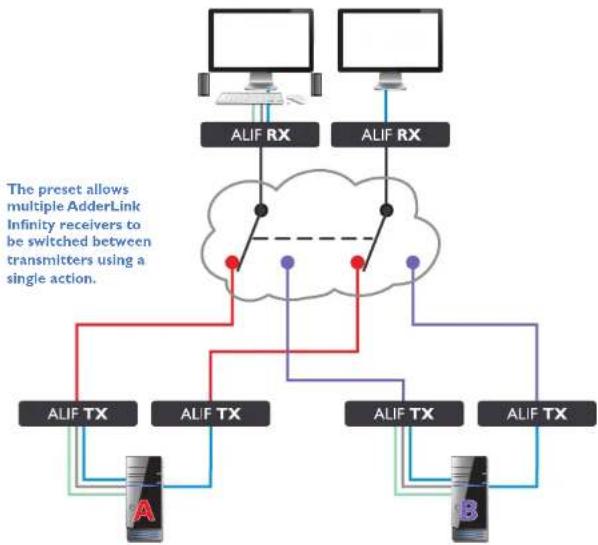
flowchart
graph TD
    subgraph Device A
        A1["ALIF TX"] -->|red arrow| Cloud
        A2["ALIF TX"] -->|purple arrow| Cloud
        A3["ALIF TX"] -->|blue arrow| Cloud
        A4["ALIF RX"] -->|black dot| Cloud
        A5["ALIF RX"] -->|black dot| Cloud
    end
    subgraph Device B
        B1["ALIF TX"] -->|red arrow| Cloud
        B2["ALIF TX"] -->|purple arrow| Cloud
        B3["ALIF TX"] -->|blue arrow| Cloud
    end
    Cloud -.->|dashed line| Cloud
    note["The preset allows multiple AdderLink Infinity receivers to be switched between transmitters using a single action."]
According to how a preset is configured, it is possible to have one or more receivers connected to separate channels (i.e. unicast) or multiple receivers connected to a single channel (i.e. multicast).
The Presets page is where the admin user can create and configure new and existing presets.
Click the PRESETS tab to view the Presets page.

The nature of each preset, i.e. which receiver connects to which channel(s), is defined by the admin. The permitted connection modes are worked out according to:
• The topology of the preset,
AND
• The current connections within the AIM network.
It will not be possible to connect in Private mode
The presets table shows the preset name, description, allowed connection modes, and number of receiver-channel pairs in the preset.
If any preset-pairs are misconfigured (e.g. a channel no longer exists), a warning triangle will appear. The preset will NOT be usable if any receiver-channel pairs are misconfigured. The admin user can connect any presets using the standard Video-Only/Shared/Exclusive/Private buttons.
Note: There are no permissions to set for a preset. Instead, a preset will only be available to users who have permission to use ALL receivers and channels within the preset. In other words, permissions on the preset are implied by the permissions on the preset's contents.
continued
Presets > Add or Configure Presets page
From the Presets page, you can add a new preset or configure an existing preset:
• To create a new preset: Click the "Add Preset" option.
• To configure an existing preset: Click, for a preset.
The Add and Configure pages are similar in content.
Preset Name and Description
The Preset Name is mandatory, whereas the Description is optional but recommended when numerous presets will be used. A consistent naming and description policy is particularly useful in large installations.
Receiver - Channel Pairs
Pair 1
From the two drop down lists, choose a receiver and a corresponding channel for it to connect with. This base pair can be altered but cannot be deleted from the preset.
Add another pair
Click this link to define another receiver/channel pairing.
Note: While channels can be assigned to multiple receivers, each receiver may only appear once within a single preset.
Allowed Connection Modes
Choose one of the following connection rules to be applied to the preset:
- Inherit from global - uses the setting of the "Allowed Connection Modes" option within the Dashboard > Settings page.
- Set for this channel - permits you to choose modes manually:
• Video-Only: Allows users only to view the video output, the USB channel is denied.
• Shared: Allows users to control a system in conjunction with other users.
• Exclusive: Grants exclusive control to one user while all others can simultaneously view and hear, but not control, the output.
- Private: Allows a user to gain private access to a system, while locking out all others.
Note: If multicasting is present (e.g. two or more receivers connected to the same channel or two channels containing the same audio/video end point), it will not be possible to choose the 'Private' connection mode.
THE STATISTICS TAB
The Statistics tab provides an opportunity to view a range of real-time data measurements related to any links within the AIM network. This is particularly useful for optimization and troubleshooting purposes.
Click the STATISTICS tab to view the page.

Search filters
The key fields (Name, Description and Location) all provide a search filter to locate particular items within long lists. Enter a full or partial search string into the appropriate filter box and then click 📄 to start the search. Optionally use the
buttons to invert the order of the listing.
The page will reload with the same pagination/sort order, but with the added search filter. It's possible to filter by several columns at once (e.g. search for all entries with "B" in the Name and "Server" in the Location). Search terms are case-insensitive. You can re-sort and paginate on filtered results without losing the filters.
To remove a filter, click the red cross next to the relevant filter, (you can also empty the search box and click 📄again).
Where many devices are listed, you can also choose to filter by transmitters or receivers. At the top of the Type column, click either 📄 to display only transmitters or click 📄 to display only receivers.
To remove all applied filters, click the ✗Remove Filters
To view statistics
I To the right of the unit for which you wish to view statistics, click the dark graph icon ( ) so that it gains a white background ( ).
2 Click on the device name to display the available statistics.
A dynamic graph will be displayed showing the chosen data series for the selected ALIF units.
Note: When statistics are enabled on a receiver, you can also monitor packet loss information, if email or SNMP is enabled.

Identify unit: Causes the LED lights to flash on the front of the selected unit. An alert will be shown if the unit cannot be contacted (e.g. if it is offline).
Operation
For non-admin users, the On-Screen Display provides a clear way to choose and access multiple channels.
LOGGING IN
On the keyboard connected to your AdderLink Infinity receiver, press the hotkey combination Ctrl-Alt-C to display the On-Screen Display or OSD (this hotkey combination can be altered on the Dashboard > Settings > Receivers page).
You will either see the list of channels for which you have permission or be presented with the following login:
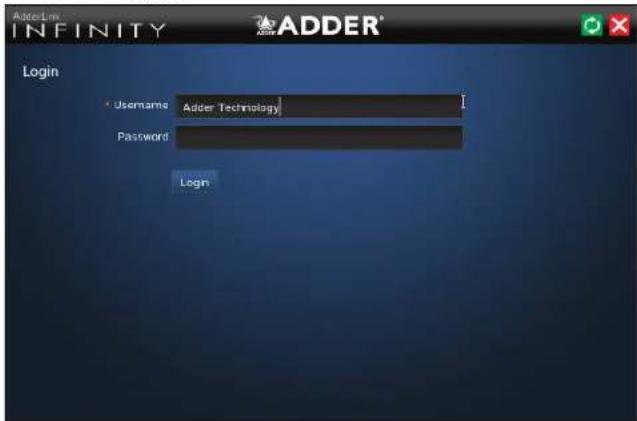
2 Enter your Username and Password and click the Login button to display the Local OSD screen.
Once logged in, you will remain logged in until either you click the Logout link in the top right of the OSD; or there is no activity for two days or until the AdderLink Infinity unit is rebooted.
Hotkey shortcuts
The following standard shortcuts are available for use with the Local OSD (and Remote OSD). These default shortcuts can be altered within the Dashboard > Settings > Receivers page.
Left Ctrl + Left Alt + C: Launch the OSD
Left Ctrl + Left Alt + X: Disconnect the current receiver
Left Ctrl + Left Alt + 3: Connect to the channel/preset saved in shortcut slot 3
Left Ctrl + Left Alt + A: Re-connect to the last channel
Left Ctrl + Left Alt + L: Switch between a locally linked TX and your regular channel
Left Ctrl + Left Alt + V: Change the current connection to the video-only mode
Left Ctrl + Left Alt + S: Change the current connection to the shared mode
Left Ctrl + Left Alt + E: Change the current connection to the exclusive mode
Left Ctrl + Left Alt + P: Change the current connection to the private mode
Creating/using favorites and shortcuts
When the OSD contains many possible channels and presets, it can be useful to mark the most commonly visited ones as favorites. For those channels that you'd like to access by keyboard shortcut, there are also ten assignable hotkeys.
To create a new favorite
I Click the icon next to the required channel or preset.
2 Click the SAVE at the top of the page.
To display favorites
The star shown at the top of the channel list has three appearances to represent the three display modes. Click the star to change the mode:
Currently showing all channels/presets.
★ Currently showing only favorites.
Currently showing only numbered shortcuts.
To create a new hotkey shortcut
I Click the 📂 on next to the required channel or preset. The screen will list the ten hotkey slots, with any available slots listed as EMPTY. Click the number prefix (from 1 to 0) of an available slot.
Note: To remove a previous channel from a slot, click the ✗ icon on the right side of the slot.
2 You will now be asked to choose which mode should be used to access the channel when using this shortcut. Select Video-Only, Shared, Exclusive or Private, as appropriate.
3 Click the SAVE at the top of the page. As mentioned above, you will now be able to access the chosen channel by using the hotkeys (Left Ctrl + Left Alt, as standard) plus the number that you assigned to it.
Once logged in, the list of channels for which you have permission are shown in the Local OSD (blue) screen.
- To choose a channel/preset, click on one of the blue connection icons ( 📄 → 📋 → 📞) shown to the right of the required channel/preset name (see the Connection buttons box below right).
- Where many channels/presets are listed, use the Channel Name and Description search boxes and list arrows to filter the choices.
- To use the Remote OSD feature, click the icon in the top right corner.
Favorites icons

Currently showing all channels/presets
Currently showing only favorites
Currently showing only numbered shortcuts
Click to add this channel as a favorite
This channel is a numbered shortcut
Sorting icons
Currently showing channels and presets. Click to change
Currently showing only channels. Click to change
Currently showing only presets. Click to change
Currently showing only C-USB LAN. Click to change
Filter this column using the specified term
× Remove the search filter
Click to sort the list in ascending order via this column
The list is sorted in ascending order via this column
Click to Logout
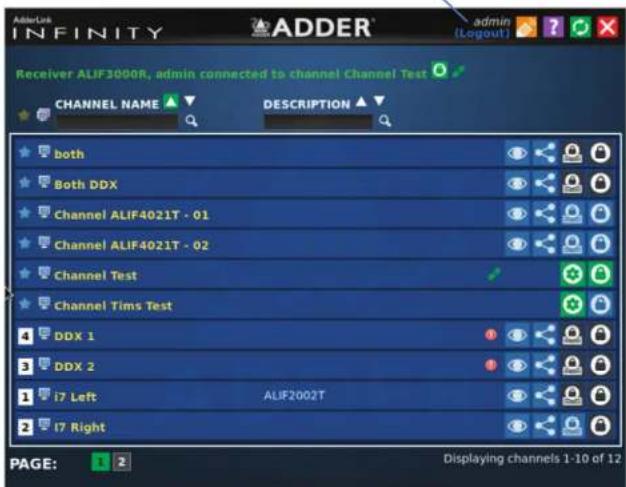
Top corner icons
Enter 'Remote OSD' mode
Exit 'Remote OSD' mode
? Display the help pages
Refresh the current page
Close the OSD
Connection buttons
There are five connection options:
Video-Only: Allows users only to view the video output, the USB channel is denied.
Shared: Allows users to control a system in conjunction with other users.
Exclusive: Grants exclusive control to one user while all others can simultaneously view and hear, but not control, the output.
Private: Allows a user to gain private access to a system, while locking out all others.
VM credentials: Displays a login screen to allow users to enter their username and password for access to the corresponding virtual machine. See next page.
Connection buttons shown in blue are ready to select. Icons in green have been selected by another user and those shown in gray are not available.
End this connection
Listing C-USB LAN transmitters
In addition to listing channels and presets, the OSD screen can also list the C-USB LAN transmitters that are associated with the current receiver.
To list all associated C-USB LAN transmitters
1 Login to the OSD from the appropriate ALIF receiver and display the OSD: CTRL + ALT + C
2 In the top left corner of the OSD screen, click the monitor icon (or repeatedly until it changes to the USB logo:
The list of devices will be displayed:
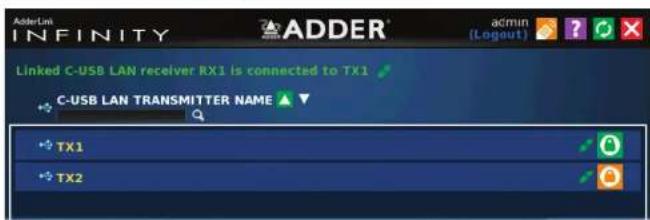
C-USB LAN transmitters can only be accessed in Private mode, so the icon is shown in various colors to indicate the connection status:
Available.
not available.
Transmitter connected to another receiver.
Connected to the transmitter.
Click the icon to break an existing connection.
Accessing virtual machines
Before you can access a virtual machine you need to first enter your login credentials.
To enter your credentials
I Login to the OSD from the appropriate ALIF receiver and display the OSD: CTRL + ALT + C
2 In the list of channels, to the right of the required virtual machine entry, click the icon to display the following login page:
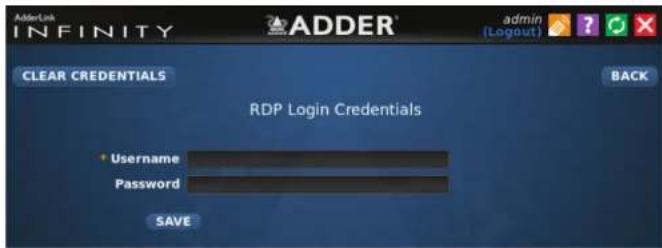
3 Enter your Username and Password and click the SAVE button. You will be returned to the main OSD page. The 🧑 icon will now be green to show that your details are stored.
To access a virtual machine
I Login to the OSD from the appropriate ALIF receiver and display the OSD: CTRL + ALT + C
2. In the list of channels, to the right of the required virtual machine entry, click the icon to display the video feed from the chosen system. Virtual machine links can only accessed as private connections.
To clear your credentials
1 Login to the OSD from the appropriate ALIF receiver and display the OSD: CTRL + ALT + C
2 In the list of channels, to the right of the required virtual machine entry, click the icon to display the login credentials page.
3 Click the CLEAR CREDENTIALS button.
You will be returned to the main OSD page. The 📄 icon will now be blue to show that no details are stored.
Using the Remote OSD feature
The Remote OSD feature allows authorized users to access and take control of ALIF receivers other than the one to which they are connected. Once linked in, users can then determine which channels the remote receivers should link with.
Remote OSD requires that a user must have been given specific authorization to access one or more remote receivers.
To access the Remote OSD
On the keyboard connected to your ALIF receiver, press the hotkey combination Ctrl-Alt-C to display the Local OSD login screen.
2 If required, enter your Username and Password and click the Login button.
3 In the top right corner, click the icon.

4 The screen will list all of the receivers to which you have access rights. Click on the required receiver from the list:
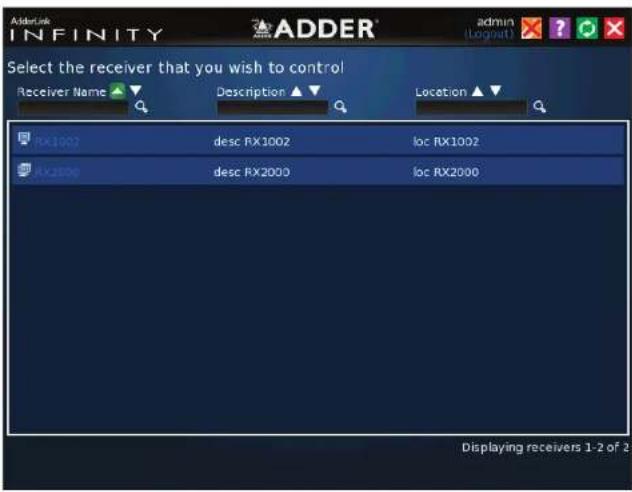
5 The Remote OSD for the chosen ALIF receiver will be displayed. Remote OSDs always have a yellow background to differentiate them from the standard local OSD:
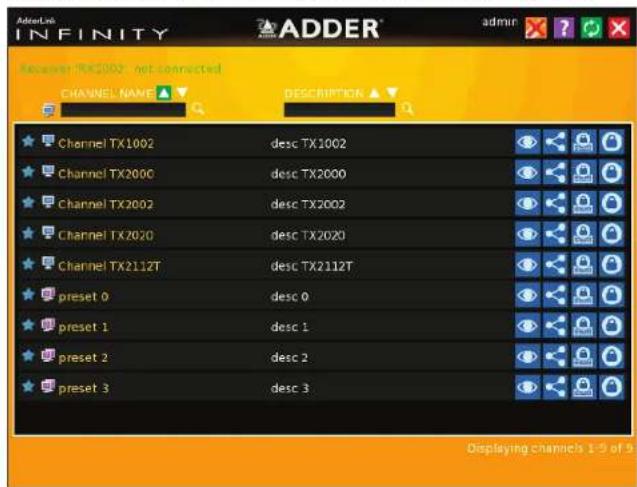
6 The behavior of the controls is generally the same as for the Local OSD screen with the following exceptions:
- To avoid confusion, you cannot login or logout while in Remote OSD mode. Click the ✗ icon to first return to the Local OSD.
- Hotkeys will only affect the current receiver to which you are connected, not the remotely-controlled receiver.
7 To exit from the Remote OSD, click the icon in the top right corner.
PRODUCTION
PRODUCTION
PRODUCTION
Further information
This chapter contains a variety of information, including the following:
• Getting assistance - see right
- Appendix A - Tips for success when networking ALIF and AIM units
- Appendix B - Troubleshooting
- Appendix C - Redundant servers: Setting up and swapping out
- Appendix D - Upgrade license
- Appendix E - Glossary
- Appendix F - AIM API
- Appendix G - DHCP server requirements for ALIF support
• Appendix H - Technical specifications
• Appendix I - Open source licenses
GETTING ASSISTANCE
If you are still experiencing problems after checking the information contained within this guide, then please refer to the Support section of our website:
www.adder.com
LITHIUM BATTERY
CAUTION: This product contains a lithium battery which must be disposed of in the correct manner.
CAUTION: RISK OF EXPLOSION IF BATTERY IS REPLACED BY AN INCORRECT TYPE.
- If the lithium battery needs to be changed, you must return the product to your nearest Adder dealer. The battery must be replaced by an authorized Adder dealer.
- Once the product has come to the end of its useful life, the lithium battery must be removed as part of the decommissioning process and recycled in strict accordance with the regulations stipulated by your local authority. Advice on battery removal can be provided on request by Adder.

APPENDIX A - Tips for success when networking ALIF units
ALIF units use multiple strategies to minimize the amount of data that they send across networks. However, data overheads can be quite high, particularly when very high resolution video is being transferred, so it is important to take steps to maximize network efficiency and help minimize data output. The tips given in this section have been proven to produce very beneficial results.
Summary of steps
- Choose the right kind of switch.
- Create an efficient network layout.
- Configure the switches and devices correctly.
Choosing the right switch
Layer 2 switches are what bind all of the hosts together in the subnet. However, they are all not created equally, so choose carefully. In particular look for the following:
• Gigabit (1000Mbps) or faster Ethernet ports,
• Support for IGMP v2 (or v3) snooping,
• Support for Jumbo frames up to 9216-byte size,
• High bandwidth connections between switches, preferably Fibre Channel.
- Look for switches that perform their most onerous tasks (e.g. IGMP snooping) using multiple dedicated processors (ASICS).
- Ensure the maximum number of concurrent ‘snoopable groups’ the switch can handle meets or exceeds the number of ALIF transmitters that will be used to create multicast groups.
- Check the throughput of the switch: Full duplex, 1 Gbps up- and down- stream speeds per port.
- Use the same switch make and model throughout a single subnet.
- You also need a Layer 3 switch. Ensure that it can operate efficiently as an IGMP Querier.
Layer 2 (and 3) switches known to work
| Cisco 2960 | Extreme Networks X480 | HuaWei Quidway |
| Cisco 3750 | HP Procurve 2810 | s5328c-El |
| Cisco 4500 | HP Procurve 2910 | (Layer 3 switch) |
| Cisco 6500 | H3C 5120 |
For the latest list of switches known to work with ALIF and setup instructions for them, please go to www.adder.com
Creating an efficient network layout
Network layout is vital. The use of IGMP snooping also introduces certain constraints, so take heed:
- Keep it flat. Use a basic line-cascade structure rather than a pyramid or tree arrangement (see note below).
- Keep the distances between the switches as short as possible.
- Ensure sufficient bandwidth between switches to eliminate bottlenecks.
- Where the AIM server is used to administer multiple ALIF transceivers, ensure the AIM server and all ALIF units reside in the same subnet.
- Do not use VGA to DVI converters, instead replace VGA video cards in older systems with suitable DVI replacements. Converters cause ALIF TX units to massively increase data output.
- Stackable switches will allow you to create more ports at each cascade level.
• Wherever possible, create a private network.
The recommended layout
The layout shown below has been found to provide the most efficient network layout for rapid throughput when using IGMP snooping:
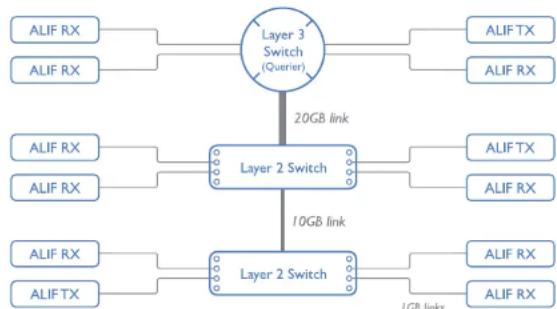
flowchart
graph TD
    A["ALIF RX"] --> B["Layer 3 Switch (Querier)"]
    C["ALIF RX"] --> B
    D["ALIF RX"] --> B
    E["ALIF RX"] --> F["Layer 2 Switch"]
    G["ALIF RX"] --> F
    H["ALIF RX"] --> F
    I["ALIF RX"] --> F
    J["ALIF RX"] --> F
    K["ALIF RX"] --> F
    L["ALIF RX"] --> F
    M["ALIF RX"] --> F
    N["ALIF RX"] --> F
    O["ALIF RX"] --> F
    P["ALIF RX"] --> F
    Q["ALIF RX"] --> F
    R["ALIF RX"] --> F
    S["ALIF RX"] --> F
    T["ALIF RX"] --> F
    U["ALIF RX"] --> F
    V["ALIF RX"] --> F
    W["ALIF RX"] --> F
    X["ALIF RX"] --> F
    Y["ALIF RX"] --> F
    Z["ALIF RX"] --> F
    AA["ALIF RX"] --> F
    AB["ALIF RX"] --> F
    AC["ALIF RX"] --> F
    AD["ALIF RX"] --> F
    AE["ALIF RX"] --> F
    AF["ALIF RX"] --> F
    AG["ALIF RX"] --> F
    AH["ALIF RX"] --> F
    AI["ALIF RX"] --> F
    AJ["ALIF RX"] --> F
    AK["ALIF RX"] --> F
    AL["ALIF RX"] --> F
    AM["ALIF RX"] --> F
    AN["ALIF RX"] --> F
    AO["ALIF RX"] --> F
    AP["ALIF RX"] --> F
    AQ["ALIF RX"] --> F
    AR["ALIF RX"] --> F
    AS["ALIF RX"] --> F
    AT["ALIF RX"] --> F
    AU["ALIF RX"] --> F
    AV["ALIF RX"] --> F
    AW["ALIF RX"] --> F
    AX["ALIF RX"] --> F
    AY["ALIF RX"] --> B
    AZ["ALIF RX"] --> B
    BA["ALIF RX"] --> B
    BB["ALIF RX"] --> B
    BC["ALIF RX"] --> B
    BD["ALIF RX"] --> B
    BE["ALIF RX"] --> B
    BF["ALIF RX"] --> B
    BG["ALIF RX"] --> B
    BH["ALIF RX"] --> B
    BI["ALIF RX"] --> B
    BJ["ALIF RX"] --> B
    BK["ALIF RX"] --> B
    BL["ALIF RX"] --> B
    BM["ALIF RX"] --> B
    BN["ALIF RX"] --> B
    BO["ALIF RX"] --> B
    BP["ALIF RX"] --> B
    BQ["10GB link"] --> B
Note: From firmware version 3.0, tree and hierarchical structures of network switches are also supported. The Transmitter now joins its own multicast group so there is always a route from the querier to the transmitter which was previously missing in firmware versions 2.9 and below.
- Use no more than two cascade levels.
- Ensure high bandwidth between the two L2 switches and very high bandwidth between the top L2 and the L3. Typically 10GB and 20GB, respectively for 48 port L2 switches.
continued

Configuring the switches and devices
The layout is vital but so too is the configuration:
- Enable IGMP Snooping on all L2 switches.
- Ensure that IGMP Fast-Leave is enabled on all switches with ALIF units connected directly to them.
- Enable the L3 switch as an IGMP Querier.
- Enable Spanning Tree Protocol (STP) on all switches and importantly also enable portfast (edge-port) only on all switch ports that have ALIF units connected.
- If any hosts will use any video resolutions using 2048 horizontal pixels (e.g. 2048 x 1152), ensure that Jumbo Frames are enabled on all switches.
- Choose an appropriate forwarding mode on all switches. Use Cut-through if available, otherwise Store and forward.
-
Optimize the settings on the ALIF transmitters:
-
If moving video images are being shown frequently, then leave Frame Skipping at a low percentage and instead reduce the Peak bandwidth limiter and Colour Depth.
- Where screens are quite static, try increasing the Background Refresh interval and/or increasing the Frame skipping percentage setting.
Make changes to the ALIF transmitters one at a time, in small steps, and view typical video images so that you can attribute positive or negative results to the appropriate control.

APPENDIX B - Troubleshooting
Problem: AIM cannot locate working ALIF units.
There are a few possible causes:
- The ALIF units must be reset back to their zero config IP addresses for AIM discovery. If you have a working network of ALIF's without AIM and then add AIM to the network AIM will not discover the ALIFs until they are reset to the zero config IP addresses.
- This could be caused by Layer 2 Cisco switches that have Spanning Tree Protocol (STP) enabled but do not also have portfast enabled on the ports to which ALIF units are connected. Without portfast enabled, ALIF units will all be assigned the same zero config IP address at reboot and AIM will only acquire them one at a time on a random basis.
You can easily tell whether portfast is enabled on a switch that is running STP: When you plug the link cable from a working ALIF unit into the switch port, check how long it takes for the port indicator to change from orange to green. If it takes roughly one second, portfast is on; if it takes roughly thirty seconds then portfast is disabled.
Remedies:
- Ensure that the ALIF units and the AIM server are located within the same subnet. AIM cannot cross subnet boundaries.
- Manually reset the ALIF units to their zero config IP addresses. Please refer to the ALIF user guide for details.
- Enable portfast on all switch ports that have ALIF units attached to them or try temporarily disabling STP on the switches while AIM is attempting to locate ALIF units.
- Change to ensure AIM and ALIFs can communicate with each other. If on different subnets, confirm that the gateway is correctly configured and there is routing between the subnets.
- Manually factory reset the ALIF endpoints so they can be seen by an AIM.
Problem: The mouse pointer of the ALIF receiver is slow or sluggish when moved across the screen.
This issue is often related to either using dithering on the video output of one or more transmitting computers or using VGA-to-DVI video converters.
Dithering is used to improve the perceived quality and color depth of images by diffusing or altering the color of pixels between video frames. This practice is commonly used on Apple Mac computers using ATI or Nvidia graphics cards. VGA-to-DVI converters unwittingly produce a similar issue by creating high levels of pixel background noise.
ALIF units attempt to considerably reduce network traffic by transmitting only the pixels that change between successive video frames. When dithering is enabled and/or VGA-to-DVI converters are used, this can have the effect of changing almost every pixel between each frame, thus forcing the ALIF transmitter to send the whole of every frame: resulting in greatly increased network traffic and what's perceived as sluggish performance.
Remedies:
- Linux PCs - Check the video settings on the PC. If the Dither video box option is enabled, disable it.
- Apple Mac with ATI graphics - Use the ALIF 2000 series unit with Magic Eye dither removal feature.
- Windows PCs - If you suspect these issues with PCs, contact technical support for assistance.
APPENDIX C - Redundant servers: Setting up and swapping out
This appendix contains two main sections related to the creation and repair of AIM server installations that employ redundancy.
- Setting up AIM server redundancy - below
- Swapping out an AIM server - on next page
Setting up AIM server redundancy
This section details the steps required to successfully configure two AIM units as primary and backup servers.
I Set the Rôle entry to Primary on the primary server.
2 Configure its Ethernet port | Address.
3 Ensure that password requirements is set to NO.
4 Add the new Backup AIM server to the network. The Backup server must have the same license as the primary. It is not possible to have two servers with different licenses in a cluster. This unit must have its factory default settings in place. The new server will appear within the main Servers tab and be identified as being Unconfigured.
5 Wait five minutes for automatic server replication to take place and the backup database to be transferred from the primary unit. After this period, the new Backup server will be added to the list on the main Servers tab. Its Rôle will be shown as backup and its Status as standby.
6 The initial configuration of the Backup is done from the Primary. Click the icon to view the configuration.
Operation of Redundancy
If the Primary server fails for any reason (for example, loss of power or a network issue) then the Backup server will failover. This will happen automatically without any user intervention, however it is not instantaneous. The failover time required is the value entered in the primary timeout plus 30 seconds for the process to happen. The AdderLink Infinity extenders will start communication with the second IP address that is stored in their configuration and the redundant server will take control of the AdderLink Infinities. When the redundant server is acting as the primary it is not possible to add any new devices or change the configuration. If this is required then the backup server can be promoted to be the primary.
When the primary server comes back online then it will resume its role as the primary. If however the backup server has been promoted to primary, when the primary server comes back its role will need to be factory reset back to the backup. After doing this the AdderLink Infinity endpoints will need to be rebooted. It is not possible to have two primary servers on the same network.
Both the primary and the backup server periodically synchronize their databases to ensure that they are identical. If for any reason the backup server is powered down then any changes to the system configuration will not be maintained by the backup server.

Swapping out an AIM server
Once ALIF devices have been configured to run with an AIM server, their default IP addresses are automatically changed as part of the installation process. In this state the ALIF devices become undetectable to any new AIM server that does not have access to the database of devices. Therefore, if an existing AIM server needs to be replaced within an installation, follow one of the basic procedures given here to smooth the transition.
For solo AIM servers (if the solo is still operating)
Before connecting the new AIM server to the main network, connect the new AIM server to a network switch that is isolated from the main network.
2 Use a computer connected to the same switch to login to the new AIM server management suite.
3 Set the Rôle entry from Solo to Primary.
4 Add in the new unconfigured server as a Backup.
5 Remove the original solo server from the network.
6 Promote the Backup to Primary. Then change its Rôle to Solo.
7 All the devices will appear as offline. Using a paperclip, perform a factory reset on all the ALIF endpoints so as they acquire the new certificate and keys. All ALIF units require a minimum of firmware version 3.3.
For dual AIM installations using redundancy
The correct procedure depends on which AIM server has failed:
Primary server failure
I Promote the Backup server to be the primary server.
2 Delete the failed server from the database.
3 Replace the faulty primary AIM server with a replacement unit that has the same license version and has its default factory settings in place.
4 The replacement server will begin communicating with the primary server and download the database so that it can operate as the Backup server. This process may take ten minutes.
5 Reboot the Adderlink Infinity endpoints at the earliest opportunity.
Backup server failure
I Delete the failed server from the database.
2 Replace the failed backup server with a new unit that has the same license version and has its default factory settings in place.
3 The replacement server will begin communicating with the primary server and download the database so that it can operate as the backup server. This process may take ten minutes.
4 Reboot the Adderlink Infinity endpoints at the earliest opportunity.
Warning: If step 4, rebooting the Adderlink Infinity endpoints, does not happen then the Adderlink Infinity endpoints will be offline if a fallover occurs and will need to be factory reset with a paperclip.
Starting from scratch
If none of the above procedures are used, then the following will be necessary. This will require a certain amount of effort because each ALIF unit must be visited and reset, plus the AIM database will need to be fully reconfigured.
Place a new AIM server into the network and then perform a factory reset on every ALIF device. This will force the ALIF units back to their default states whereupon they will announce themselves to the new AIM server.
2 Use a computer connected to the same network to login to the new AIM server management suite and begin to recreate the database of devices and users.

APPENDIX D - Upgrade license
AIM servers are licensed according to the number of devices that can be managed. As your installation grows you can purchase an updated AIM license at any time using the procedure outlined below. A range of licenses are available for primary only and primary/failover bundles:
• AIMLIC-48 License for 48 endpoints
• AIMLIC-48-BCK Licenses for Primary and Failover units 48 endpoints
• AIMLIC-96 License for 96 endpoints
• AIMLIC-96-BCK Licenses for Primary and Failover units 96 endpoints
• AIMLIC-192 License for 192 endpoints
• AIMLIC-192-BCK Licenses for Primary and Failover units 192 endpoints
• AIMLIC-288 License for 288 endpoints
• AIMLIC-288-BCK Licenses for Primary and Failover units 288 endpoints
• AIMLIC-UNL License for unlimited endpoints
• AIMLIC-UNL-BCK Licenses for Primary and Failover units unlimited endpoints
To upgrade your AIM license
1 Visit the Dashboard > Settings > General page of the AIM unit to be upgraded. At the bottom of the page, click the 'upgrade license' link:
![DASHBOARD CHANNELS RECEIVERS TRANSMITTERS SERVERS Home Settings Backups Updates Active Connections Settings General Transmitters Receivers Servers Netv * Receiver OSD 1 day Timeout * AIM Admin Timeout 1 day Licence Supported Devices 24 [upgrade licence] Save Cancel](/content/2026/05/1127935/images/813b8ef7d5980a5b5afffb0213484445ecd7ed8f8cac4cd88713a74c5bdc42ff.jpg)
The subsequent file dialog will show a Product Code that is unique to your AIM server:
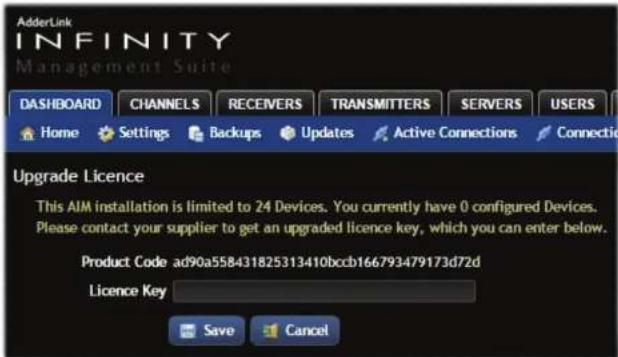
2 Contact your supplier and quote all of the following:
• The unique product code,
- The serial number of the AIM server (marked on a label on the base of the unit),
• The current number of supported devices, and
• The number of devices to which you wish to upgrade.
3 The supplier will provide a license key, which is unique to unit to the unit to be upgraded. Enter the new license key into the blank entry in the page shown above. Note: It is important that you only enter the license key into the specific AIM unit.
If the upgrade is successful, the new number of supported devices will be shown in the Dashboard > Settings > General page.
APPENDIX E - Glossary
Internet Group Management Protocol
Where an ALIF transmitter is required to stream video to two or more receivers, multicasting is the method used.
Multicasting involves the delivery of identical data to multiple receivers simultaneously without the need to maintain individual links. When multicast data packets enter a subnet, the natural reaction of the switches that bind all the hosts together within the subnet, is to spread the multicast data to all of their ports. This is referred to as Multicast flooding and means that the hosts (or at least their network interfaces) are required to process plenty of data that they didn't request. IGMP offers a partial solution.
The Internet Group Management Protocol (IGMP) is designed to prevent multicast flooding by allowing Layer 3 switches to check whether host computers within their care are interested in receiving particular multicast transmissions. They can then direct multicast data only to those points that require it and can shut off a multicast stream if the subnet has no recipients.
There are currently three IGMP versions: 1, 2 and 3, with each version building upon the capabilities of the previous one:
- IGMPvI allows host computers to opt into a multicast transmission using a Join Group message, it is then incumbent on the router to discover when they no longer wish to receive; this is achieved by polling them (see IGMP Querier below) until they no longer respond.
- IGMPv2 includes the means for hosts to opt out as well as in, using a Leave Group message.
- IGMPv3 encompasses the abilities of versions 1 and 2 but also adds the ability for hosts to specify particular sources of multicast data.
AdderLink Infinity units make use of IGMPv2 when performing multicasts to ensure that no unnecessary congestion is caused.
IGMP Snooping
The IGMP messages are effective but only operate at layer 2 - intended for routers to determine whether multicast data should enter a subnet. A relatively recent development has taken place within the switches that glue together all of the hosts within each subnet: IGMP Snooping. IGMP snooping means these layer 2 devices now have the ability to take a peek at the IGMP messages. As a result, the switches can then determine exactly which of their own hosts have requested to receive a multicast – and only pass on multicast data to those hosts.
IGMP Querier
When IGMP is used, each subnet requires one Layer 3 switch to act as a Querier. In this lead role, the switch periodically sends out IGMP Query messages and in response all hosts report which multicast streams they wish to receive. The Querier device and all snooping Layer 2 switches, then update their lists accordingly (the lists are also updated when Join Group and Leave Group (IGMPv2) messages are received).
IGMP Fast-Leave (aka Immediate Leave)
When a device/host no longer wishes to receive a multicast transmission, it can issue an IGMP Leave Group message as mentioned above. This causes the switch to issue an IGMP Group-Specific Query message on the port (that the Leave Group was received on) to check no other receivers exist on that connection that wish to remain a part of the multicast. This process has a cost in terms of switch processor activity and time.
Where ALIF units are connected directly to the switch (with no other devices on the same port) then enabling IGMP Fast-Leave mode means that switches can immediately remove receivers without going through a full checking procedure. Where multiple units are regularly joining and leaving multicasts, this can speed up performance considerably.
Jumbo frames (Jumbo packets)
Since its commercial introduction in 1980, the Ethernet standard has been successfully extended and adapted to keep pace with the ever improving capabilities of computer systems. The achievable data rates, for instance, have risen in ten-fold leaps from the original 10Mbit/s to a current maximum of 100Gbit/s.
While data speeds have increased massively, the standard defining the number of bytes (known as the Payload) placed into each data packet has remained resolutely stuck at its original level of 1500 bytes. This standard was set during the original speed era (10Mbits/s) and offered the best compromise at that speed between the time taken to process each packet and the time required to resend faulty packets due to transmission errors.
But now networks are much faster and files/data streams are much larger; so time for a change? Unfortunately, a wholesale change to the packet size is not straightforward as it is a fundamental standard and changing it would mean a loss of backward compatibility with older systems.
Larger payload options have been around for a while, however, they have often been vendor specific and at present they remain outside the official standard. There is, however, increased consensus on an optional 'Jumbo' payload size of 9000 bytes and this is fully supported by the AdderLink Infinity (ALIF) units.
Jumbo frames (or Jumbo packets) offer advantages for ALIF units when transmitting certain high resolution video signals across a network. This is because the increased data in each packet reduces the number of packets that need to be transferred and dealt with - thus reducing latency times.
The main problem is that for jumbo frames to be possible on a network, all of the devices on the network must support them.
Spanning Tree Protocol (STP)
In order to build a robust network, it is necessary to include certain levels of redundancy within the interconnections between switches. This will help to ensure that a failure of one link does not lead to a complete failure of the whole network.
The danger of multiple links is that data packets, especially multicast packets, become involved in continual loops as neighbouring switches use the duplicated links to send and resend them to each other.
To prevent such bridging loops from occurring, the Spanning Tree Protocol (STP), operating at layer 2, is used within each switch. STP encourages all switches to communicate and learn about each other. It prevents bridging loops by blocking newly discovered links until it can discover the nature of the link: is it a new host or a new switch?
The problem with this is that the discovery process can take up to 50 seconds before the block is lifted, causing problematic timeouts.
The answer to this issue is to enable the portfast/edge port variable for all host links on a switch. This will cause any new connection to go immediately into forwarding mode. However, take particular care not to enable portfast (edge port) on any switch to switch connections as this will result in bridging loops.
Forwarding modes
In essence, the job of a layer 2 switch is to transfer as fast as possible, data packets arriving at one port out to another port as determined by the destination address. This is known as data forwarding and most switches offer a choice of methods to achieve this. Choosing the most appropriate forwarding method can often have a sizeable impact on the overall speed of switching:
- Store and forward is the original method and requires the switch to save each entire data packet to buffer memory, run an error check and then forward if no error is found (or otherwise discard it).
- Cut-through was developed to address the latency issues suffered by some store and forward switches. The switch begins interpreting each data packet as it arrives. Once the initial addressing information has been read, the switch immediately begins forwarding the data packet while the remainder is still arriving. Once all of the packet has been received, an error check is performed and, if necessary, the packet is tagged as being in error. This checking 'on-the-fly' means that cut-through switches cannot discard faulty packets themselves. However, on receipt of the marked packet, a host will carry out the discard process.
- Fragment-free is a hybrid of the above two methods. It waits until the first 64 bits have been received before beginning to forward each data packet. This way the switch is more likely to locate and discard faulty packets that are fragmented due to collisions with other data packets.
- Adaptive switches automatically choose between the above methods. Usually they start out as a cut-through switches and change to store and forward or fragment-free methods if large number of errors or collisions are detected.
So which one to choose? The Cut-through method has the least latency so is usually the best to use with AdderLink Infinity units. However, if the network components and/or cabling generate a lot of errors, the Store and forward method should probably be used. On higher end store and forward switches, latency is rarely an issue.
Layer 2 and Layer 3: The OSI model
When discussing network switches, the terms Layer 2 and Layer 3 are very often used. These refer to parts of the Open System Interconnection (OSI) model, a standardised way to categorize the necessary functions of any standard network.
There are seven layers in the OSI model and these define the steps needed to get the data created by you (imagine that you are Layer 8) reliably down onto the transmission medium (the cable, optical fibre, radio wave, etc.) that carries the data to another user; to complete the picture, consider the transmission medium is Layer 0. In general, think of the functions carried out by the layers at the top as being complex, becoming less complex as you go lower down.
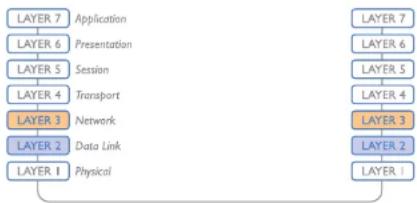
flowchart
graph TD
    A["LYER 1"] --> B["LYER 2"]
    B --> C["LYER 3"]
    C --> D["LYER 4"]
    D --> E["LYER 5"]
    E --> F["LYER 6"]
    F --> G["LYER 7"]
    G --> H["LYER 8"]
    H --> I["LYER 9"]
    I --> J["LYER 10"]
    J --> K["LYER 11"]
    K --> L["LYER 12"]
    L --> M["LYER 13"]
    M --> N["LYER 14"]
    N --> O["LYER 15"]
    O --> P["LYER 16"]
    P --> Q["LYER 17"]
    Q --> R["LYER 18"]
    R --> S["LYER 19"]
    S --> T["LYER 20"]
    T --> U["LYER 21"]
    U --> V["LYER 22"]
    V --> W["LYER 23"]
    W --> X["LYER 24"]
    X --> Y["LYER 25"]
Network connection
As your data travel down from you towards the transmission medium (the cable), they are successively encapsulated at each layer within a new wrapper (along with a few instructions), ready for transport. Once transmission has been made to the intended destination, the reverse occurs: Each wrapper is stripped away and the instructions examined until finally only the original data are left.
So why are Layer 2 and Layer 3 of particular importance when discussing AdderLink Infinity? Because the successful transmission of data relies upon fast and reliable passage through network switches – and most of these operate at either Layer 2 or Layer 3.
continued

The job of any network switch is to receive each incoming network packet, strip away only the first few wrappers to discover the intended destination then rewrap the packet and send it in the correct direction.
In simplified terms, the wrapper that is added at Layer 2 (by the sending system) includes the physical address of the intended recipient system, i.e. the unique MAC address (for example, 09:f8:33:d7:66:12) that is assigned to every networking device at manufacture. Deciphering recipients at this level is more straightforward than at Layer 3, where the address of the recipient is represented by a logical IP address (e.g. 192.168.0.10) and requires greater knowledge of the surrounding network structure. Due to their more complex circuitry, Layer 3 switches are more expensive than Layer 2 switches of a similar build quality and are used more sparingly within installations.

APPENDIX F - AIM API
The AIM API provides access for external applications to key routines used within the AIM server. This appendix provides a reference to the available methods.
Note: The API is documented as an HTML file and is found by going to the following address: http://
API version: 7
Changelog
v7 (AIM v4.8) - added reboot_devices.
v6 (AIM v4.5) - added get_all_c_usb, delete_c_usb, update_c_usb, connect_c_usb, disconnect_c_usb.
v5 (AIM v4.3) - added update_device; updated get_devices, connect_channel, connect_preset, create_channel, create_preset.
v4 (AIM v4.1) - added create_channel, delete_channel; updated get_channels.
v3 (AIM v3.2) - added create_preset, delete_preset.
v2 (ATM v2.3) - added get_devices, get_channels, connect_channel, disconnect_channel. Updated version compatibility information.
v1 (AIM v1.3) - added login, logout, get_presets, connect_preset, disconnect_preset
Methods
login
logout
get_devices
get_channels
get_presets
connect_channel
connect_preset
disconnect_channel
disconnect_preset
create_preset
delete_preset
create_channel
delete_channel
update_device
get_all_c_usb
delete_c_usb
update_c_usb
connect_c_usb
disconnect_c_u sb
reboot_devices
login
This method was last updated in API version 1, and is compatible with API requests from version 1 onwards.
The API will require a valid AIM user's login credentials to be presented in the first request. The API will return an authentication code, which must be passed in all future requests. This authentication code can be re-used until a logout request is made, at which point the authentication code will no longer be valid.
The concept of an 'anonymous user' can apply to the API. If no login username and password are provided, the API will return an authentication token for the anonymous user (either the same one as for the OSD, or else an 'anonymous API user' account can be created).
Input parameters:
- username
- password
- v (the AIM API version this request is designed for)
Output values:
- timestamp - the current server time
- version - the current API version number
- token - an authentication code for future API requests
- success
Examples
Input:
/api/?v=1&method=login&username=xxxxx&password=xxxxx
Output:
or

2
12/10/2018 217.196.235.249:8097/api/
http://217.196.235.249:8097/api/2/11
logout
This method was last updated in API version 1, and is compatible with API requests from version 1 onwards. The authentication token provided by the 'login' method can be used until the 'logout' method is called.
Input parameters:
- token
- v (the AIM API version this request is designed for)
Output values:
- timestamp - the current server time
- success - 0 = fail, 1 = success
Examples
Input:
/api/?method=logout&token=xxxxx&v=1
Output:
or
3
get\_devices
This method was last updated in API version 5, and is compatible with API requests from version 2 onwards.
This method returns a list of devices.
Input parameters:
- token
- v (the AIM API version this request is designed for)
- device_type ('rx' = receivers, 'tx' = transmitters. Default = 'rx')
- filter_d_name (Optional. Device name search string)
- filter_d_description (Optional. Device description search string)
- filter_d_location (Optional. Device location search string)
- sort (Optional. Sort results by 'name'/'description'/'location'. Default = 'name')
- sort_dir (Optional. Sort direction for results 'asc'/'desc'. Default = 'asc')
- status (Optional. 'outdated_aim_ip', 'rebooting', 'offline', 'outdated_firmware', 'invalid_backup_firmware', 'rebooting', 'upgrading_firmware', 'backup_)
- show_all (Optional. If set and not blank, shows all receivers, not just those the logged-in user is permitted to use)
- page (page number to start showing results for, default = 1)
- results_per_page (number of results per page, default = 1000)
Output values:
- version - the current API version number
- timestamp - the current server time
- success
- page (page number)
- results_per_page (number of results per page, default = unlimited)
- total_devices - the total number of devices
- count_devices - the number of devices on this page
- for each device:
- attribute: item (e.g. 17th device)
- d_id (device ID)
- d_serial_number (the device's serial number, if it is reported)

- d_mac_address (MAC address for interface 1)
- d_mac_address2 (MAC address for interface 2)
- d_name (device name)
- d_online (0 = interface | offline, I = interface | online)
- d_online2 (0 = interface 2 offline, l = interface 2 online)
- d_type (rx, tx)
- d version (I = ALIFI000R/ALIFI000T, 2 = ALIF2000R/ALIF2000T/ALIF2002T/
ALIF2112T/ALIFI002R/ALIFI002T/ALIF2020R/ALIF2020T/ALIFI00T, 4 = ALIF8000R/A - d_variant ('b' = ALIF2002T, 'v' = ALIF2112T, 's' = ALIF1002R/ALIF1002T, 't' = ALIF2020R/ALIF2020T, 'd' = ALIF100T)
- d_ip_address (IP address for interface 1)
- d_ip_address2 (IP address for interface 2)
- d_description (device description)
- d_location (device location)
- d configured (0 = no, 1 = yes)
- d_valid_firmware (0 = no, 1 = yes)
- d_valid_backup_firmware (0 = no, 1 = yes)
- d_firmware (firmware version, e.g. 2.5.17879)
- d_backup_firmware (backup firmware version)
- d_date_added (Date device added to AIM network e.g. 2012-07-13 22:17:22)
- d_status (0 = device offline, 1 = device online, 2 = rebooting, 4 = firmware_upgrading, 6
= running backup firmware)
The following property is only returned for transmitters: - count_transmitter_channels (the number of channels containing this transmitter)
- count_transmitter_presets (the number of presets containing this transmitter)
The following properties are only returned for receivers: - con_exclusive (0/1 - if the last connection is/was in private mode)
- con_control (1/2/3 - 1 if the last connection is/was video-only, 2 if in exclusive mode, 3 if in shared mode)
- con_start_time (start time of last connection e.g. 2012-09-07 13:33:17)
- con_end_time (empty if connection still active, else date/time the connection was ended e.g. 2012-09-07 13:33:17)
- u_username (username of the user who initiated the last connection)
- u_id (user ID of the user who initiated the last connection)
- c_name (name of the channel last connected)
- count_receiver_groups (the number of receiver groups this receiver is a part of)
- count_receiver_presets (the number of presets this receiver is a part of)
- count_users (the number of users who have access to this receiver)
Examples
Input:
/api/?v=2&method=get_devices&token=xxxxx
/api/?v=2&method=get_devices&device_type=tx&page=2&results_per_page=3&token=xxxxx
Output:
<d_backup_firmware>2.3.16682</d_backup_firmware>
<d_date_added>2012-07-14 01:37:07</d_date_added>
<d_status>1</d_status>
<conExclusive>0</conExclusive>
<con_control>1</con_control>
<con_start_time>2012-09-07 13:33:19</con_start_time>
<con_end_time/>
<u_username>admin</u_username>
<u_id>1</u_id>
<c_name>Channel 1</c_name>
<count_receiver_groups>1</count_receiver_groups>
<count_receiver_presets>2</count_receiver_presets>
<count_users>1</count_users>
</device>
</devices>
</api_response>
<api_response>
<version>2</version>
<timestamp>2012-09-12 14:56:11</timestamp>
<success>1</success>
<page>1</page>
<results_per_page>1</results_per_page>
<total_devices>1</total_devices>
<count_devices>1</count_devices>
<devices>
<device item="1">
<d_id>64</d_id>
<d_serial_number/>
<d_mac_address>00:0F:58:01:56:85</d_mac_address>
<d_mac_address2>00:0F:58:5B:56:85</d_mac_address2>
<d_name>TX 456</d_name>
<d_online>0</d_online>
<d_online2>0</d_online2>
<d_type>tx</d_type>
<d_version>1</d_version>
<d_variant></d_variant>
<d_ip_address>1.1.201.31</d_ip_address>
<d_ip_address2>1.1.201.32</d_ip_address2>
<d_description></d_description>
<d_location></d_location>
<d_configured>1</d_configured>
<d_valid_firmware>1</d_valid_firmware>
<d_valid_backup_firmware>1</d_valid_backup_firmware>
<d_firmware>2.1.15747</d_firmware>
<d_backup_firmware>2.1.15747</d_backup_firmware>
<d_date_added>2012-07-13 17:50:04</d_date_added>
<d_status>0</d_status>
<count_transmitter_channels>3</count_transmitter_channels>
<count_transmitter_presets>1</count_transmitter_presets>
</device>
</devices>
</api_response>
get\_channels
This method was last updated in API version 4, and is compatible with API requests from version 2 onwards. This method returns a list of channels available to the authenticated user, for a specific receiver. It was updated in version 4 to include additional information.
Input parameters:
- token
- v (the AIM API version this request is designed for)
- page (page number to start showing results for, default = 1)
- results_per_page (number of results per page, default = 1000)
- device_id (ID of the receiver that this channel will be connected to. Recommended to ensure full checks for connection mode availability.
- filter_c_name (channel name search string)
- filter_c_description (channel description search string)
- filter_c_location (channel location search string)
- filter_favourites (set this non-empty to only show a user's favourites)
Output values:
- version - the current API version number
- timestamp - the current server time
- success
-
page (page number)
-
results_per_page (number of results per page, default = unlimited)
- count_channels - the number of channels on this page, available to the authenticated user
- for each channel:
- attribute: item (e.g. 17th channel)
- c_id (channel id)
- c_name (channel name)
- c_description (channel description)
- c_location (channel location)
- c_favourite (true if this channel is in the user's favourites, 0-9 if it's a numbered shortcut)
- view_button (disabled/enabled/hidden - whether the user can connect to the preset in video-only mode.
disabled = no, because something is in use by someone else. hidden = never. enabled = yes
If the device_id of the proposed receiver to be used in the connection is not provided, this will not necessarily be an accurate indication of whether other connections may actually interfere) - shared_button (disabled/enabled/hidden - as above, but in shared mode)
- control_button (disabled/enabled/hidden - as above, but in exclusive mode)
- exclusive_button (disabled/enabled/hidden - as above, but in private mode)
Additional channel output values in version 4: - c_video1 (device ID)
- c_video1_head (1|2)
- c_video2 (device ID)
- c_video2_head (1|2)
- c_audio (device ID)
- c_usb (device ID)
- c_serial (device ID)
Examples
Input:
/api/?v=2&method=get_channels&token=xxxxx
Version 2 output:
get\_presets
This method was last updated in API version 1, and is compatible with API requests from version 1 onwards. This simple method returns a list of presets available to the authenticated user.
Input parameters:
- token
- v (the AIM API version this request is designed for)
- results_per_page (number of results per page, default = 1000)
- page (page number to start showing results for, default = 1)

Output values:
- version - the current API version number
- timestamp - the current server time
- success
- page (page number)
- results_per_page (number of results per page, default = unlimited)
- total presets - the total number of presets available to the authenticaed user
- count_presets - the number of presets on this page, available to the authenticated user
- for each connection_preset:
- attribute: item (e.g. 17th preset)
- cp_id (preset id)
- cp_name (preset name)
- cp_description (preset description)
- cp_pairs (the number of channel-receiver pairs in this preset)
- problem_cp_pairs (the number of channel-receiver pairs that are mis-configured (e.g. receiver offline, receiver not defined)
- cp_active (whether all, any, or none of the channel-receiver pairs in this preset are currently connected; values are 'full', 'partial', and 'none')
- connected_rx_count (the number of receivers in this preset that are already connected)
- view_button (disabled/enabled/hidden - whether the user can connect to the preset in video-only mode.
disabled = no, because something is in use by someone else. hidden = never. enabled = yes)
- shared_button (disabled/enabled/hidden - as above, but in shared mode)
- control_button (disabled/enabled/hidden - as above, but in exclusive mode)
- exclusive_button (disabled/enabled/hidden - as above, but in private mode)
Examples
Input:
/api/?v=1&method=get_presets&token=xxxxx
Output:
connect channel
This method was last updated in API version 5, and is compatible with API requests from version 2 onwards
This simple method connects a receiver to a channel.
Input parameters:
- token
- v (the AIM API version this request is designed for)

- c_id - the ID of the channel (acquired from get_channels)
- rx_id - the ID of the receiver (acquired from get_devices)
- mode (optional, 'v', 's', 'e', 'p' - defaults to 's') - the mode in which to connect the channel
Output values:
- version - the current API version number
- timestamp - the current server time
- success (0 = fail, 1 = success)
- errors (optional, if anything went wrong with connecting the channel)
Examples
Input:
/api/?v=5&method=connect_channel&token=xxxxx&c_id=1&rx_id=2&mode=e
Output:
or
231
connect\_preset
This method was last updated in API version 5, and is compatible with API requests from version 1 onwards
This simple method connects all channel-receiver pairs in a preset.
Input parameters:
- token
- v (the AIM API version this request is designed for)
- id - the ID of the preset (acquired from get_presets)
- mode (optional, 'v', 's', 'e', 'p' - defaults to 's') - the mode in which to connect the preset
- force (optional, 0/1 - defaults to 0) - whether to ignore errors with some of the preset's pairs or not
Output values:
- version - the current API version number
- timestamp - the current server time
- success (0 = fail, 1 = success)
- errors (optional, if anything went wrong with connecting the presets)
Examples
Input:
/api/?v=5&method=connect_preset&token=xxxxx&id=1&force=1
Output:
or
210
disconnect channel
This method was last updated in API version 2, and is compatible with API requests from version 2 onwards
This method disconnects a receiver, a number of receivers, or all connected receivers.
Input parameters:
- token

- v (the AIM API version this request is designed for)
- rx_id (ID(s) of the receiver, as an integer, or comma-separated set of integers. Optional. If not supplied, all connections will be ended)
- force - whether to disconnect existing connections by other users, or for offline receivers
Output values:
- version - the current API version number
- timestamp - the current server time
- success (0 = fail, 1 = success)
- errors (if anything failed, details are returned here)
Examples
Input:
/api/?v=2&method=disconnect_channel&token=xxxxx (disconnect all your online, connected channels)
/api/?v=2&method=disconnect_channel&token=xxxxx&rx_id=1 (disconnect channel 1, if you connected it and it's online)
/api/?v=2&method=disconnect_channel&token=xxxxx&rx_id=1,2,3 (disconnect channels 1, 2, and 3, if you connected them and they're online)
/api/?v=2&method=disconnect_channel&token=xxxxx&force=1 (force disconnect all connected channels)
/api/?v=2&method=disconnect_channel&token=xxxxx&rx_id=1,3&force=1 (force disconnect channels 1 and 3)
Output:
disconnect\_preset
This method was last updated in API version 1, and is compatible with API requests from version 1 onwards. This method disconnects all channel-receiver pairs in a preset, or disconnects ALL connections in the whole AIM network.
Input parameters:
- token
- v (the AIM API version this request is designed for)
- id (optional. If not supplied, all connections will be ended)
- force - whether to ignore errors with some of the preset's pairs or not
Output values:
- version - the current API version number
- timestamp - the current server time
- success (0 = fail, 1 = success)
- errors (if anything failed, details are returned here)
Examples
Input:
/api/?v=1&method=disconnect_preset&token=xxxxx&id=1&force=1
Output:
create\_preset
This method was last updated in API version 5, and is compatible with API requests from version 3 onwards. This method creates a new preset. The API user must have admin privileges to call this method successfully.
Input parameters:
- token
- v (the AIM API version this request is designed for)
- name (the display name for the new preset)
- pairs (a comma-separated list of the channel ID–receiver ID pairs for the preset, where each ID in the pair is separated by a hyphen)
- allowed (the permitted connection modes for the preset. Optional; if omitted, the global setting will be inherited.
Permitted values are any combination of the characters:
v - video-only
s - shared
e - exclusive
p - private
Output values:
- version - the current API version number
- timestamp - the current server time
- success (0 = fail, 1 = success)
- errors (if anything failed, details are returned here)
- id (the ID of the new preset, if it was created)

Examples
Input:
/api/?v=5&method=create_preset&token=xxxxx&name=my_preset&pairs=1-1,1-2,2-3,2-
4&allowed=vs
Output:
delete\_preset
This method was last updated in API version 3, and is compatible with API requests from version 3 onwards. This method deletes a preset. The API user must have admin privileges to call this method successfully.
Input parameters:
- token
- v (the AIM API version this request is designed for)
- id (the ID of the preset to be deleted)
Output values:
- version - the current API version number
- timestamp - the current server time
- success (0 = fail, 1 = success)
- errors (if anything failed, details are returned here)
Examples
Input:
/api/?v=3&method=delete_preset&token=xxxxx&id=5
Output:
create channel
This method was last updated in API version 5, and is compatible with API requests from version 4 onwards. This method creates a new channel. The API user must have admin privileges to call this method successfully.
NB that, although the source device ID inputs are each optional, at least one is required.
Input parameters:
- token
- v (the AIM API version this request is designed for)
- name (the display name for the new channel)
- desc (the display description for the new channel. Optional, default is empty.)
- loc (the display location for the new channel. Optional, default is empty.)
- allowed (the permitted connection modes for the channel. Optional; if omitted, the global setting will be inherited.
Permitted values are any combination of the characters:
v - video-only
s - shared
e - exclusive
p - private
- video I (device ID of video source I. Optional, default is empty.)
- video1head (video head number for source 1. Optional, default is 1.)
- video2 (device ID of video source 2. Optional, default is empty.)
- video2head (video head number for source 2. Optional, default is 1.)
- audio (device ID of the audio source. Optional, default is empty.)
- usb (device ID of the usb source. Optional, default is empty.)
- serial (device ID of the serial source. Optional, default is empty.)
- groupname (the name of a channel group of which the created channel will be a member. Optional, default is empty.)
Output values:
- version - the current API version number
- timestamp - the current server time
- success (0 = fail, 1 = success)
- errors (if anything failed, details are returned here)
- id (the ID of the new channel, if it was created)
Examples
Input:
/api/?v=5&method=create_channel&token=xxxxx&name=my_channel&video1=21&audio
=81&groupname=my_channel_group

Output:
delete channel
This method was last updated in API version 4, and is compatible with API requests from version 4 onwards. This method deletes a channel. The API user must have admin privileges to call this method successfully.
Input parameters:
- token
- v (the AIM API version this request is designed for)
- id (the ID of the channel to be deleted)
Output values:
- version - the current API version number
- timestamp - the current server time
- success (0 = fail, 1 = success)
- errors (if anything failed, details are returned here)
Examples
Input:
/api/?v=4&method=delete_channel&token=xxxxx&id=5
Output:
update\_device
This method was last updated in API version 5, and is compatible with API requests from version 5 onwards. This method updates the description and location fields for a device. The API user must have admin privileges to call this method successfully.
Input parameters:
- token
- v (the AIM API version this request is designed for)
- id (the ID of the device to be updated)
- desc (the display description for the device. Optional, if not supplied, the description will not be changed. To delete an existing value, set it to
- loc (the display location for the new channel. Optional, if not supplied, the location will not be changed. To delete an existing value, set it to t
Output values:
- version - the current API version number
- timestamp - the current server time
- success (0 = fail, 1 = success)
- errors (if anything failed, details are returned here)
Examples
Input:
/api/?v=5&method=update_device&token=xxxx&id=1501&desc=John's Desk&loc=room 5
Output:
get all c usb
This method was last updated in API version 6, and is compatible with API requests from version 6 onwards. This method returns a list of the C-USB LAN network extenders.
Input parameters:
- token
- v (the AIM API version this request is designed for)
Output values:
- version - the current API version number
- timestamp - the current server time
- success
- count_c_usbs - the total number of C-USB LAN network extenders
- for each C-USB LAN network extender:
- attribute: item (e.g. 17th C-USB LAN extender)
- mac (C-USB LAN extender MAC address)
- type (rx, tx)
- name (customisable name)
- online (0, 1)

- ip (C-USB LAN extender IP address)
- connectedTo (if connected, the MAC address of the connected C-USB LAN extender)
Examples
Input:
/api/?v=6&method=get_all_c_usb&token=xxxxx
Output:
delete\_c\_usb
This method was last updated in API version 6, and is compatible with API requests from version 6 onwards. This method deletes a C-USB LAN network extender. The API user must have admin privileges to call this method successfully.
Input parameters:
- token
- v (the AIM API version this request is designed for)
- mac (the C-USB LAN extender MAC address)
Output values:
- version - the current API version number
- timestamp - the current server time
- success (0 = fail, 1 = success)
- errors (if anything failed, details are returned here)
Examples
Input:
/api/?v=6&method=delete_c_usb&token=xxxxx&mac=aa:aa:aa:aa:aa:aa
Output:
update\_c\_usb
This method was last updated in API version 6, and is compatible with API requests from version 6 onwards. This method updates the name field for a C-USB LAN network extender. The API user must have admin privileges to call this method successfully.
Input parameters:
- token
- v (the AIM API version this request is designed for)
- mac (the C-USB LAN extender MAC address)
- name (the new display name for the C-USB LAN extender)
Output values:
- version - the current API version number
- timestamp - the current server time
- success (0 = fail, 1 = success)
- errors (if anything failed, details are returned here)
Examples
Input:
/api/?v=6&method=update_c_usb&token=xxxxx&mac=aa:aa:aa:aa:aa:aa&name=John's Desk
Output:

connect\_c\_usb
This method was last updated in API version 6, and is compatible with API requests from version 6 onwards. This method connects a C-USB LAN network extender receiver to a C-USB LAN network extender transmitter. Note that if either the receiver or the transmitter is currently connected, it will have to be disconnected first.
Input parameters:
- token
- v (the AIM API version this request is designed for)
- rx (the MAC address of the C-USB LAN extender receiver)
- tx (the MAC address of the C-USB LAN extender transmitter)
Output values:
- version - the current API version number
- timestamp - the current server time
- success (0 = fail, 1 = success)
- errors (if anything failed, details are returned here)
Examples
Input:
/api/?v=6&method=connect_c_usb&token=xxxxx&rx=aa:aa:aa:aa:aa:aa&tx=bb:bb:bb:bb:b:bb
Output:
disconnect\_c\_usb
This method was last updated in API version 6, and is compatible with API requests from version 6 onwards. This method disconnects a C-USB LAN network extender receiver.
Input parameters:
- token
- v (the AIM API version this request is designed for)
- mac (the MAC address of the C-USB LAN extender receiver)
Output values:
- version - the current API version number
- timestamp - the current server time
- success (0 = fail, 1 = success)
- errors (if anything failed, details are returned here)
Examples
Input:
/api/?v=6&method=disconnect_c_usb&token=xxxxx&mac=aa:aa:aa:aa:aa:aa
Output:
reboot devices
This method was last updated in API version 7, and is compatible with API requests from version 7 onwards. This method sends a reboot command to the specified devices.
Input parameters:
- token
- v (the AIM API version this request is designed for)
- ids (a comma-separated list of IDs of the devices to be rebooted)
Output values:
- version - the current API version number
- timestamp - the current server time
- success (0 = fail, 1 = success)
- errors (if anything failed, details are returned here)
Examples
Input:
/api/?v=7&method=reboot_devices&token=xxxxx&ids=101,1701,501
Output:

APPENDIX G - DHCP server requirements for ALIF support
Version 1.0
ALIF DHCP client
The ALIF DHCP client will identify itself to a DHCP server using DHCP option 60 (Vendor-Class-Identifier) containing the brand string appropriate to the firmware, e.g. Adder.
The ALIF DHCP client will also provide the DHCP server with its unique hostname and a request for DHCP option 125 (Vendor Identified Vendor Sub Options). See Using DHCP option 125 for details.
DHCP server
A DHCP server will use the Vendor-Class-Identifier to identify an ALIF and supply it with Adder vendor information encapsulated in the Adder Enterprise number (25119) within DHCP option 125 (Vendor Identified Vendor Sub Options).
As of ALIF firmware version 4.2, the required Adder vendor information to be encapsulated is:
Sub-option I: Array of IP addresses of all AIM servers in the cluster.
Note: ALIF will ignore any DHCP OFFER not containing this information.
Example Gamma (Cisco IOS DHCPd, Adder, AIM servers: 10.0.20.5, 10.0.20.6) ip dhcp pool vlan20
network 10.0.20.0 255.255.255.0
default-router 10.0.20.1
option 60 ascii "adder"
option 125 hex 0000.62|f.0a01.080a.0014.050a.0014.06
where:
0x0000621f Adder Enterprise number (25119)
0x0a Length
0x01 Sub-option I
0x08 Length
0x0a001405 10.0.20.5 (Primary AIM)
0x0a001406 10.0.20.6 (Backup AIM)
Example Alpha (ISC DHCPd, Adder, AIM servers: 10.0.20.5, 10.0.20.6)
ISC DHCPd configuration for Adder
set vendor-string = option vendor-class-identifier;
option space adder code width 1 length width 1;
option adder.aim-servers code I = array of ip-address;
option space vivso code width 4 length width 1;
option vivso.iana code 0 = string;
option vivso.adder code 25119 = encapsulate adder;
option option-125 code 125 = encapsulate vivso;
default-lease-time 3600;
max-lease-time 7200;
log-facility local7;
class "adder"
{ match if option vendor-class-identifier = "adder"; }
subnet 10.0.20.0 netmask 255.255.255.0 {
pool { allow members of "adder"; vendor-option-space adder; option domain-name "customer.com"; option domain-name-servers 10.0.20.2; option routers 10.0.20.1; option vivso.iana 01:01:01; option adder.aim-servers 10.0.20.5, 10.0.20.6; range 10.0.20.100 10.0.20.200; }

Using DHCP Option 125
DHCP Option 125 is a vendor-specific feature that provides additional information to the ALIF Receivers and Transmitters when requesting an IP Address. The option gives the endpoints the IP Address of the Primary and any other Backup or Satellite AIM Servers that reside on the network.
The information is provided in a hex code which can be formatted slightly differently depending on the DHCP Server, but will typically look like:-
000062 | f0a0 | 080a00 | 4050a00 | 406
The Hex code is broken down to the following elements:
000062If Adder Enterprise number (25119)
0a Length A
01 Sub-option I
08 Length B
0a001405 10.0.20.5 (Primary AIM)
0a001406 10.0.20.6 (Backup AIM)
The Adder Enterprise element of hex code is fixed and does not change, however the IP Address and lengths A & B hex values will change depending on the Infinity configuration. The first IP address in the list must always be the Primary AIM Server, followed by the Backup then Satellite AIM's.
There are a number of online websites that help you convert an IP Address into a hex number. Alternatively, you could use a Calculator with a Hex and Dec function which you may find is built into your computers operating system.
An IP Address hex code can be calculated by converting each of the four octet decimals individually into hex.
| Decimal | Hex |
| 10 | 0a |
| 0 | 00 |
| 20 | 14 |
| 5 | 05 |
10.0.20.5 = 0a001405
Each hex IP Address is 4-bytes in length:
| 0a | 00 | 14 | 05 |
| I | I | I | (Total 4 bytes) |
The Lengths A and B values will change depending on the number of IP Addresses that are included.
The Length B value is the total byte count of the hex IP Addresses. In the example below, there are 2x IP hex addresses. Each IP hex address is 4-bytes, therefore Length B is 8-bytes in total which equates to 08 in hex.
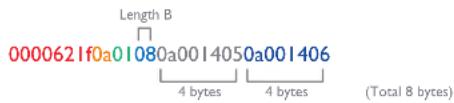
Length A includes Sub-option I (1-byte) and the Length B value (1-byte) plus the total of Length B (8-bytes). This makes the total 10-bytes which equates to 0a in hex.
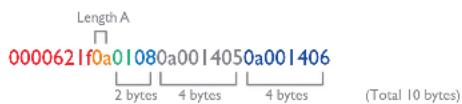
Example
In the following example an additional IP address will be added to the existing DHCP option 125 hex code shown previously. It will be a Satellite AIM whose IP address is 10.0.30.1 which is on a different subnet.
Step 1: Convert IP Address 10.0.30.1 into hex, which is 0a001e01. Add it to the end of the hex code:
000062|f..01..0a00|4050a00|4060a00|c01
Step 2: Calculate Length B. Since we now have 3x IP addresses and each hex address is 4-bytes, the total length is 12-bytes which equates to 0c in hex:
0000621f..010c0a0014050a0014060a001e01
Step 3: Calculate Length A. This is the total of Length B plus the byte count for Sub-option I and the Length B value. The Sub-option I and Length B values are I-byte each, the Length B total is 12-bytes. This makes the total of Length A to be 14-bytes which equates to 0e in hex:
000062|f0e0|0c0a00|4050a00|4060a00|e0|

APPENDIX H - Technical specifications
Hardware
Industrial specification server with solid state memory
Software
Closed system with bespoke application preloaded
Physical design
IU short-depth (230mm) server
WxHxD: 16.93" x 1.75" x 9.05"
430mm × 44.5mm × 230mm
Weight: 5.95 lbs
2.7kg
Power
Input rating of server: 12VDC 2.0A
Power Adapter
Input: 100-240VAC 50/60Hz 1.5A
Output: 12VDC 5.0A
Connector: IEC input
IMPORTANT: A defective power adapter MUST only be replaced with this make
and model: Adder order code: PSU-IEC-12VDC-5A
Permitted operational ambient conditions
Operating temperature: 0 to 40°C / 32 to 104°F
Relative Humidity: 10-90% non-condensing
Permitted Altitude: <2000m
Approvals: CE, FCC

APPENDIX I - OPEN SOURCE LICENSES
This product includes binaries that are derived from the open source community by Adder under the GNU General Public License v2. Please follow the link below to view the full list of open source licenses used:
https://support.adder.com/tiki/tiki-index.php?page=AIM%3A+OpenSource+Licence3
The software included in this product contains copyrighted software that is licensed under the GNU General Public License (GPL). You may obtain the complete Corresponding Source Code from Adder for a period of three years after the last shipment of this product, which will be no earlier than 2028, by contacting support@adder.com or writing to:
Attn: ACD/Open Source Request,
Adder Technology Ltd,
Saxon Way, Bar Hill,
Cambridge, CB23 8SL,
United Kingdom
Please write "Source for product XXXXXXXX" in the subject line, where XXXXXXXX is the model and version number.
This offer is valid to anyone in receipt of this information.


www.adder.com
Documentation by:

www.ctxd.com
© 2020 Adder Technology Limited
All trademarks are acknowledged.
Part No. MAN-AIM-ADDER • Release 5.0

Index
A
Accessing virtual machines 52
Active Directory 5,46
Add VDI 39
B
Base DN 23
Browsers
supported 10
C
Cable spec
null modem 56
Channel
add channel group 32
configure channel group 32
Channels
add a channel 31
configure a channel 31
view channels page 30
what are they? 4
Channels tab 30
Clear credentials 52
Connections
transmitter - power in 7
Credentials
VM 52
C-USB LAN 41,52
D
Dashboard
active connections page 27
backups page 24
connection log page 27
event log page 27
home page 14
settings page 15
updates page 25
Dashboard tab 14
Distinguished Name 23
F
Factory reset 13
Favorites 50
Firmware (AIM)
upgrade/downgrade 25,26
Frame Skipping 39
G
Groups
what are they? 4
H
Hotkey settings 18
Hotkey shortcuts 50
1
|GMP 6|
IP port
connecting 7
L
LDAP 23
Logging in
administrators 10
normal users 50
N
Network ports
configuration 21
0
On-Screen Display 4,50,51,53
OSD 4
login 50
main screen 51
On Screen Display 51
remote 53
shortcuts 50
P
Permissions 5
Port
VDI 39,40
Portfast 62
Presets 47
add presets page 48
configure presets page 48
Presets tab 47
R
RDP
Remote Desktop Protocol 39
Receivers
add receiver group page 36
configure group page 36
configure receiver page 34
view receivers page 33
Receivers tab 33
Redundant servers
setting up 58
Regular user 4
Relationship
three-way 4
Remote OSD 53
Remote support 27
Reset
manual 13
S
Search filters 30
Security 4
Server redundancy 58
Servers tab 41,42
Shortcuts 50
Specifications 78
Statistics tab 49
Swapping an AIM server 58
T
Technical specifications 76,78
Transmitters
configure transmitter page
38,40
update firmware 40
view transmitters page 37
Transmitters tab 37
U
Users
active directory 46
add user group page 45
add user page 44
configure group page 45
configure user page 44
view users page 43
Users tab 43
V
VDI 39
Virtual Desktop Infrastructure
39
VM credentials 51,52
