BNC Monitor Adapter Cable 2457-23533-001 - Câbles POLYCOM - Free user manual and instructions
Find the device manual for free BNC Monitor Adapter Cable 2457-23533-001 POLYCOM in PDF.


User questions about BNC Monitor Adapter Cable 2457-23533-001 POLYCOM
0 question about this device. Answer the ones you know or ask your own.
Ask a new question about this device
Download the instructions for your Câbles in PDF format for free! Find your manual BNC Monitor Adapter Cable 2457-23533-001 - POLYCOM and take your electronic device back in hand. On this page are published all the documents necessary for the use of your device. BNC Monitor Adapter Cable 2457-23533-001 by POLYCOM.
USER MANUAL BNC Monitor Adapter Cable 2457-23533-001 POLYCOM
Integrator's Reference Manual for Polycom® HDX™ Systems
Trademark Information
Polycom®, the Polycom "Triangles" logo, and the names and marks associated with Polycom's products are trademarks and/or service marks of Polycom, Inc., and are registered and/or common-law marks in the United States and various other countries.
All other trademarks are the property of their respective owners.
Patent Information
The accompanying product is protected by one or more U.S. and foreign patents and/or pending patent applications held by Polycom, Inc.
Customer Feedback
We are constantly working to improve the quality of our documentation, and we would appreciate your feedback. Please send email to videodocumentation@polycom.com.
© 2010 Polycom, Inc. All rights reserved.
Polycom, Inc.
4750 Willow Road
Pleasanton, CA 94588-2708
USA
No part of this document may be reproduced or transmitted in any form or by any means, electronic or mechanical, for any purpose, without the express written permission of Polycom, Inc. Under the law, reproducing includes translating into another language or format.
As between the parties, Polycom, Inc., retains title to and ownership of all proprietary rights with respect to the software contained within its products. The software is protected by United States copyright laws and international treaty provision. Therefore, you must treat the software like any other copyrighted material (e.g., a book or sound recording).
Every effort has been made to ensure that the information in this manual is accurate. Polycom, Inc., is not responsible for printing or clerical errors. Information in this document is subject to change without notice.
About This Guide
The Integrator's Reference Manual for Polycom HDX Systems is for system integrators who need to configure, customize, manage, and troubleshoot Polycom® HDX systems. The API commands in this guide are only applicable to the Polycom HDX™ 9000 series and Polycom HDX™ 8000 HD systems.
Contents
About This Guide ....iii
1 Room Integration
Setting Up a Room for Video Conferencing 1-1
Room Layout Examples 1-1
Setting Up the Room for Polycom People On Content™ 1-3
Polycom HDX Installation Precautions 1-4
Integrating Video 1-5
Connecting Polycom Cameras 1-5
Connecting Sony and ELMO Cameras 1-16
Connecting Vaddio and Canon Cameras 1-18
Integrating Audio and Content 1-20
Connecting a Computer to a Polycom HDX 9000 Series System .. 1-20
Connecting a Vortex® Mixer to a Polycom HDX 9000 Series System .. 1-23
Connecting a Polycom SoundStructure C-Series Mixer to a Polycom HDX 9000 Series System .... 1-24
2 Cables
Network Cables 2-1
CAT 5e LAN Cable 2-1
LAN Cable 2-3
ISDN Cable 2-4
Analog Telephone (POTS) Cable 2-6
V.35/RS-449/RS-530 Serial Adapter 2-7
V.35 NIC Cable 2-8
V.35 and RS-366 Serial Cable 2-9
RS-449 and RS-366 Serial Cable 2-10
RS-530 with RS-366 Serial Cable 2-12
Video and Camera Cables 2-14
S-Video Cable 2-14
BNC to S-Video Cable 2-15
BNC to S-Video Adapter 2-16
DVI to VGA Monitor Cable 2-17
HDMI Monitor Cable 2-18
BNC Monitor Adapter Cable 2-19
Polycom HDX Component Monitor Cable 2-20
HDX Component Video Cable 2-21
DVI-D Monitor Cable 2-22
Component A/V Monitor Cable 2-23
HDCI Analog Camera Cable 2-24
HDCI Digital Camera Cable 2-25
HDCI Camera Break-Out Cable 2-26
VCR/DVD Composite Cable 2-27
Composite Video Cable 2-28
PowerCam Plus Primary Cable 2-29
HDCI PowerCam Cable 2-30
HDCI PowerCam Plus Adapter Cable 2-31
HDCI VISCA Adapter Cable 2-32
HDCI Polycom EagleEye 1080 Camera Cable 2-33
HDCI Polycom EagleEye View Camera Cable 2-34
HDCI Sony VISCA Adapter Cable 2-35
HDCI EagleEye 1080 or Sony Adapter Cable ..... 2-36
PowerCam Primary Camera Cable 2-37
PowerCam Break-Out Cable 2-38
PowerCam Plus/VISCA Control Cable 2-39
Audio Cables 2-41
Polycom HDX Microphone Host Cable 2-41
Polycom HDX Microphone Array Cable 2-43
Polycom HDX Microphone Array Cable Adapter 2-44
Custom Cabling for Polycom HDX Microphones 2-46
Audio Adapter Cable 2-49
Audio Cable 2-50
Vortex Cable 2-51
3.5mm Screw Cage Connector 2-52
Subwoofer Volume Attenuator 2-53
Serial Cables 2-54
Straight-Through Serial Cable 2-54
Null Modem Adapter 2-56
3 Using the API
Using the API with an RS-232 Interface 3-1
Configuring the RS-232 Interface 3-1
Starting an API Session via an RS-232 Interface 3-2
Using the API with the Department of Defense (DoD) Security Profile Enabled....3-3
Using the API with a LAN Connection 3-3
Using the API Controller Code 3-3
Additional API Resources 3-4
Technical Support Contact Information 3-4
Feature Enhancement Request Web Site 3-4
Video Test Numbers 3-4
Knowledge Base 3-4
A/V Professionals Web Site 3-4
4 System Commands
About the API Commands 4-2
Syntax Conventions 4-2
Availability of Commands 4-2
Command Response Syntax 4-3
Commands that Restart the System 4-5
Additional Tips 4-5
! 4-7
abk (deprecated) 4-9
addrbook 4-12
addressdisplayedingab 4-15
advnetstats 4-16
alertusertone 4-18
alertvideotone 4-19
all register 4-20
all unregister 4-22
allowabkchanges 4-23
allowcamerapresetsetup 4-24
allowdialing 4-25
allowmixedcalls 4-26
allowusersetup 4-27
amxdd 4-28
answer 4-29
areacode 4-30
audiometer 4-31
audiotransmitlevel 4-33
autoanswer 4-35
autoshowcontent 4-36
backlightcompensation 4-37
basicmode 4-38
bri1enable, bri2enable, bri3enable, bri4enable 4-39
briallenable 4-40
button 4-41
calendardomain 4-45
calendarmeetings 4-46
calendarpassword 4-51
calendarplaytone 4-52
calendarregisterwithserver 4-53
calendarremindertime 4-54
calendarresource 4-55
calendarserver 4-56
calendarshowpvtmeetings 4-57
calendarstatus 4-58
calendaruser 4-59
calldetail 4-60
calldetailreport 4-61
callencryption (deprecated) 4-62
callinfo 4-63
callstate 4-64
callstats 4-66
camera 4-67
cameradirection 4-70
camerainput 4-71
chaircontrol 4-72
cmdecho 4-74
colorbar 4-75
configchange (deprecated) 4-76
configdisplay 4-77
configparam 4-79
configpresentation 4-80
confirmdiradd 4-82
confirmdirdel 4-83
contentauto 4-84
contentsplash 4-85
country 4-86
cts 4-87
daylightsavings 4-88
dcd 4-89
dcdfilter 4-90
defaultgateway 4-91
dhcp 4-92
dial 4-93
dialchannels 4-96
dialingdisplay 4-97
diffservaudio, diffservfecc, diffservvideo 4-98
directory 4-99
display (deprecated) 4-100
displayglobaladdresses 4-102
displaygraphics 4-103
displayipext 4-104
displayipisdninfo (deprecated) 4-105
displayparams 4-106
dns 4-108
dsr 4-109
dsranswer 4-110
dtr 4-111
dualmonitor 4-112
dynamicbandwidth 4-113
e164ext 4-114
echo 4-115
echocanceller 4-116
enablefirewalltraversal 4-117
enablekeyboardnoisereduction 4-118
enablelivemusicmode 4-119
enablepvec 4-120
enablersvp 4-121
enablesnmp 4-122
encryption....4-123
exit 4-125
exportdirectory 4-126
farcontrolnearcamera 4-128
farnametimedisplay 4-129
flash 4-130
gabk (deprecated) 4-131
gabpassword 4-134
gabserverip 4-135
gaddrbook 4-136
gatekeeperip 4-139
gatewayareacode 4-140
gatewaycountrycode 4-141
gatewayext 4-142
gatewaynumber 4-143
gatewaynumbertype 4-144
gatewayprefix 4-145
gatewaysetup 4-146
gatewaysuffix 4-147
gdsdirectory 4-148
gendial 4-149
gendialtonepots (deprecated) 4-150
generatetone 4-151
get screen 4-152
getcallstate 4-153
getconfiguredipaddress 4-154
gmscity 4-155
gmscontactemail 4-156
gmscontactfax 4-157
gmscontactnumber 4-158
gmscontactperson 4-159
gmscountry 4-160
gmsstate 4-161
gmstechsupport 4-162
gmsurl 4-163
h239enable 4-164
h323name 4-165
h331audiomode 4-166
h331dualstream 4-167
h331framerate 4-168
h331videoformat 4-169
h331videoprotocol 4-170
hangup 4-171
history 4-172
homecallquality 4-173
homemultipoint (deprecated) 4-174
homerecentcalls 4-175
homesystem 4-176
homesystemname 4-177
hostname 4-178
importdirectory 4-180
ipaddress 4-183
ipdialspeed 4-184
ipisdninfo 4-186
ipprecaudio, ipprecfecc, ipprecvideo 4-187
ipstat 4-188
isdnareacode 4-189
isdncountrycode 4-190
isdndialingprefix 4-191
isdndialspeed 4-192
isdnnum 4-194
isdnswitch....4-195
keypadaudioconf 4-196
language 4-197
lanport 4-198
Idapauthenticationtype 4-199
Idapbasedn 4-200
ldapbinddn 4-201
ldapdirectory 4-202
ldapntlmdomain 4-203
ldappassword 4-204
ldapserveraddress 4-205
ldapserverport 4-206
Idapsslenabled 4-207
ldapusername 4-208
linestate 4-209
listen 4-210
localdatetime 4-211
marqueedisplaytext 4-212
maxgabinternationalcallspeed 4-213
maxgabinternetcallspeed 4-214
maxgabisdncallspeed 4-215
maxtimeincall 4-216
mcupassword 4-217
meetingpassword 4-218
monitor1 (deprecated) 4-219
monitor1screensaveroutput 4-220
monitor2 (deprecated) 4-221
monitor2screensaveroutput 4-222
mpautoanswer 4-223
mpmode 4-224
mtumode 4-226
mtusize 4-227
mute 4-228
muteautoanswer 4-229
natconfig 4-230
nath323compatible 4-231
nearloop 4-232
netstats 4-233
nonotify 4-234
notify 4-235
ntpmode 4-238
ntpserver 4-239
numberofmonitors (deprecated) 4-240
numdigitsdid 4-241
numdigitsext 4-242
ocsdirectory 4-243
oobcomplete 4-245
pause 4-246
phone 4-247
pip 4-248
popupinfo 4-250
preset 4-251
pricallbycall 4-253
prichannel 4-254
pricsu 4-256
pridialchannels 4-257
printlprefix 4-258
prilinebuildout 4-259
prilinesignal 4-260
primarycallchoice (deprecated) 4-261
prinumberingplan 4-262
prioutsideline 4-263
priswitch 4-264
reboot 4-265
recentcalls 4-266
registerall (deprecated) 4-267
registerthissystem 4-268
remotecontrol 4-269
remotemonenable 4-271
requireacctnumtodial 4-272
resetsystem 4-273
roomphonenumber 4-274
rs232 baud, rs232port1 baud 4-275
rs232 mode, rs232port1 mode 4-276
rs366dialing 4-278
rt 4-279
rts 4-280
screen 4-281
screencontrol 4-282
secondarycallchoice (deprecated) 4-283
serialnum 4-284
session 4-285
setaccountnumber 4-286
setpassword 4-287
showpopup 4-288
sleep 4-289
sleeptext 4-290
sleeptime 4-291
snmpadmin 4-292
snmpcommunity 4-293
snmpconsoleip 4-294
snmplocation 4-295
snmpsystemdescription 4-296
snmptrapversion 4-297
soundeffectsvolume 4-298
spidnum 4-299
st 4-301
subnetmask 4-302
sysinfo 4-303
systemname 4-304
tcpports 4-305
techsupport 4-306
teleareacode 4-307
telenumber 4-308
telnetechoeol 4-309
timediffgmt 4-310
typeofservice 4-31
udpports 4-312
unregisterall (deprecated) 4-313
usefixedports 4-314
usegatekeeper 4-315
usepathnavigator 4-316
userocompassword 4-318
v35broadcastmode 4-319
v35dialingprotocol 4-320
v35num 4-321
v35portsused 4-323
v35prefix 4-324
v35profile 4-325
v35suffix 4-326
validateacctnum 4-327
vcbutton 4-328
vcraudioout....4-331
vcrrecordsource 4-332
version 4-333
vgaqualitypreference 4-334
videocallorder 4-335
voicecallorder 4-336
volume 4-337
vortex 4-339
waitfor 4-341
wake 4-342
wanipaddress 4-343
webmonitoring....4-344
webport 4-345
whoami 4-346
A Room Design and Layout
Room Requirements ...... A-1
Walls A-3
Windows A-3
Ceiling Tiles A-4
Air Conditioning.... A-4
Interior Design and Finishes A-5
Furniture A-5
Acoustics ...... A-5
Room Lighting A-6
Light Fixtures A-7
Room Preparation Conclusion ...... A-8
Audio Elements A-8
Audio Input.... A-8
Audio Output A-10
Direction.... A-10
Power A-10
Range/Frequency Response A-11
Video Elements A-11
Video Projection for Use in Videoconference.... A-12
Cameras A-12
Room Control Elements ...... A-13
B Status Messages
Status Display....B-1
B Channel Status Message Example ...... B-1
C Polycom HDX 9000 Series Specifications
Back Panel Information C-1
Inputs/Outputs C-1
Audio Specifications C-1
DTMF Dialing.... C-2
Remote Control C-3
RS-232 Serial Interface C-6
Index ...... Index-1
Room Integration
Setting Up a Room for Video Conferencing
For detailed information about setting up a room for video conferencing, refer to Room Design and Layout on page A-1.
Room Layout Examples
Use the following diagrams as examples for setting up a conference room with Polycom HDX systems. Polycom recommends that you contract an experienced contractor to assure all the components operate as a single cohesive system.
Small Conference Room
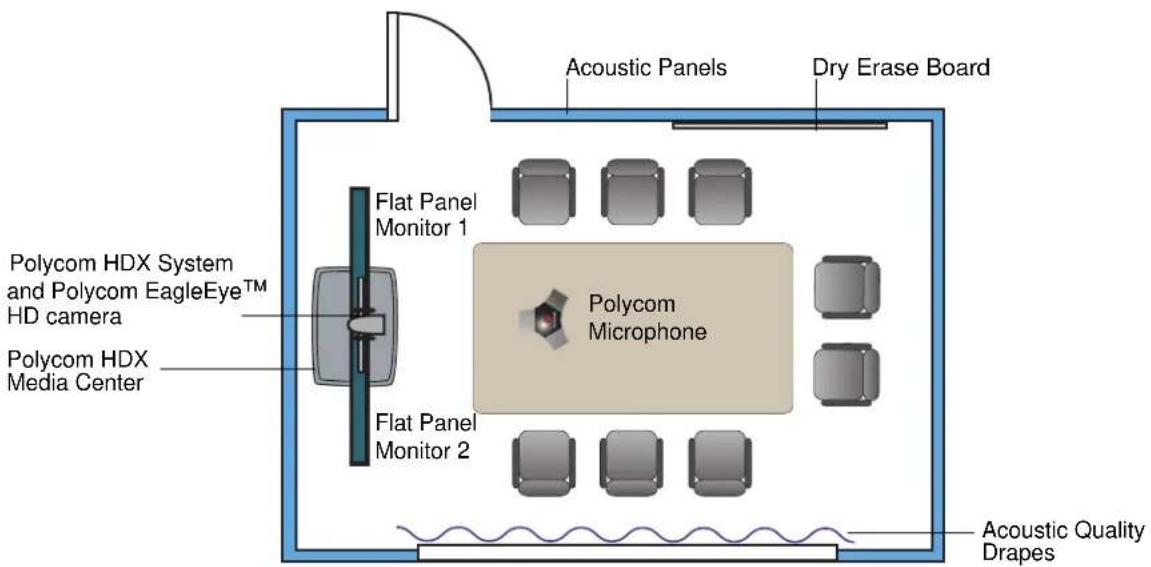
text_image
Acoustic Panels Dry Erase Board Flat Panel Monitor 1 Polycom HDX System and Polycom EagleEye™ HD camera Polycom HDX Media Center Polycom Microphone Flat Panel Monitor 2 Acoustic Quality DrapesLarge Conference Room
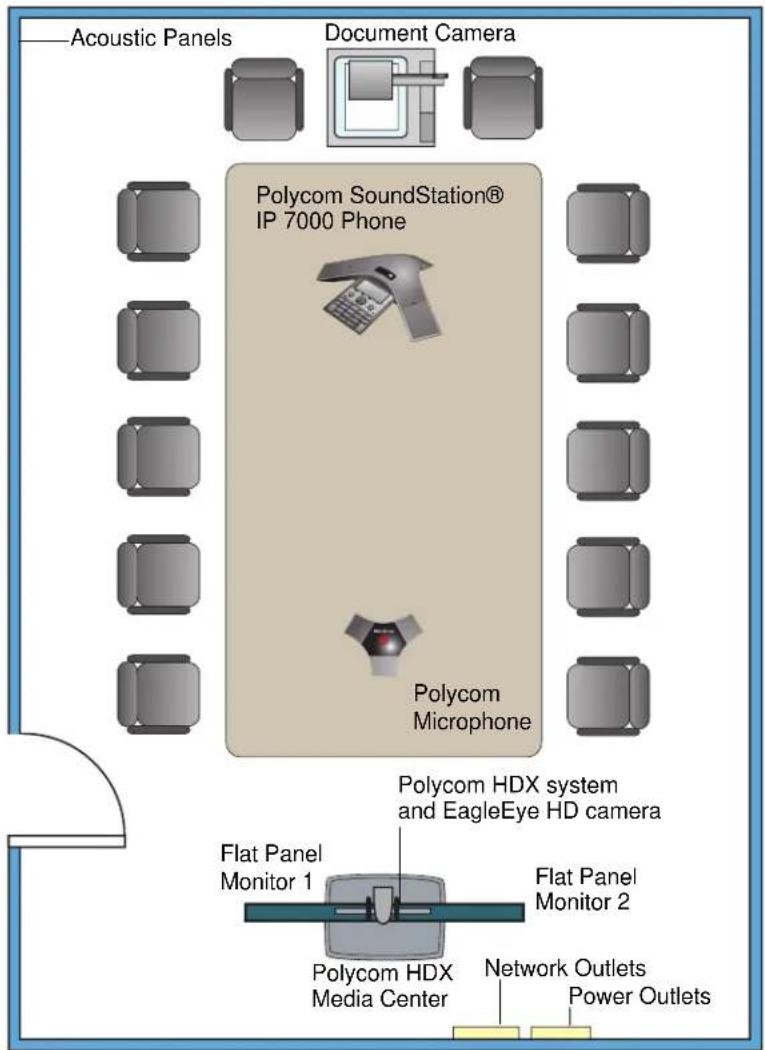
text_image
Acoustic Panels Document Camera Polycom SoundStation® IP 7000 Phone Polycom Microphone Polycom HDX system and EagleEye HD camera Flat Panel Monitor 1 Flat Panel Monitor 2 Polycom HDX Media Center Network Outlets Power OutletsClassroom
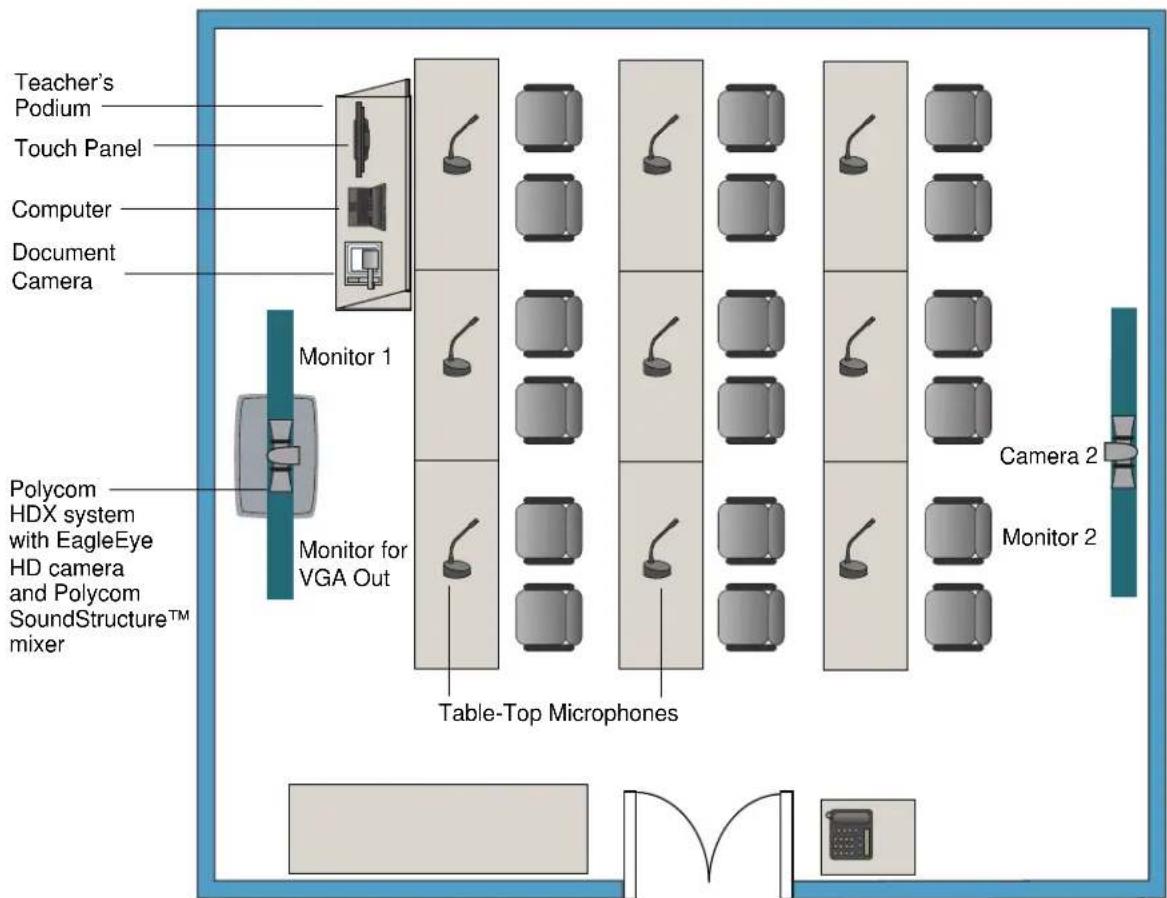
text_image
Teacher's Podium Touch Panel Computer Document Camera Monitor 1 Polycom HDX system with EagleEye HD camera and Polycom SoundStructure™ mixer Monitor for VGA Out Table-Top Microphones Camera 2 Monitor 2Setting Up the Room for Polycom People On Content™
For the best results, follow these guidelines for setting up Polycom People On Content™:
- Use the Polycom EagleEye™ HD camera with Polycom HDX 9000 series and Polycom HDX 8000 series systems. Polycom recommends using a Polycom EagleEye HD or Polycom EagleEye HD 1080 camera with People on Content. If you are using a Polycom EagleEye 1080 or Polycom EagleEye View camera, activating People on Content automatically reduces the resolution to 720p.
- Create a flat, consistent background color using a screen or matte-finish paint in green or blue. Make sure the background does not have shadows or glare.
- Make sure that the background and the presenter are well lit. For example, use a minimum of two 250 W halogen lights on the background and one on the presenter.
- Experiment with different room and lighting arrangements until the best results are achieved.
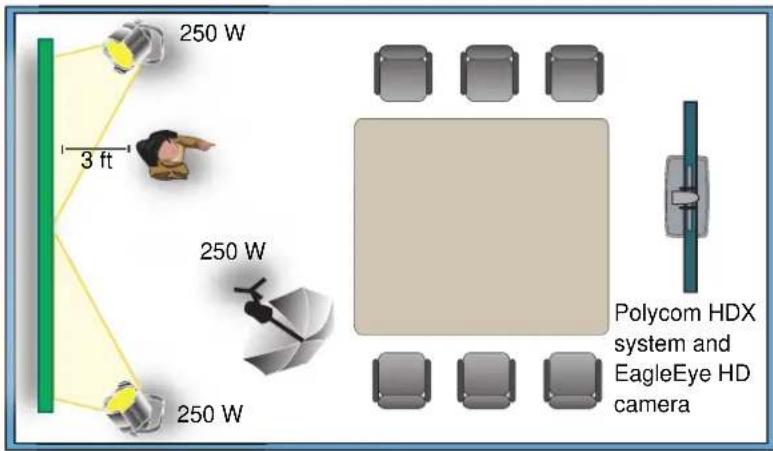
text_image
250 W 3 ft 250 W 250 W Polycom HDX system and EagleEye HD cameraYou can find more information about configuring and using People On Content in the User's Guide for Polycom HDX Systems and in the Knowledge Base on the Polycom web site.
Polycom HDX Installation Precautions
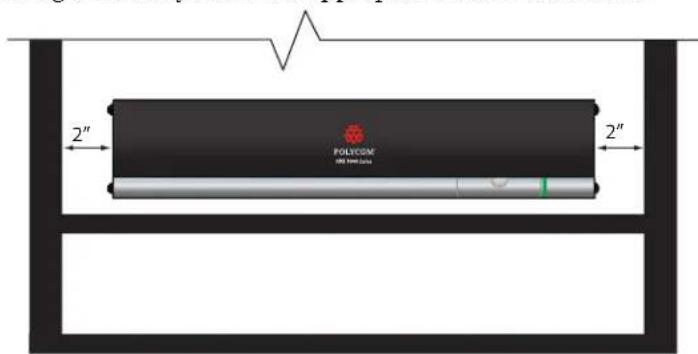
If you place the Polycom HDX series system in a cart or credenza, ensure that there is proper ventilation for maintaining an ambient temperature of 40^ C or lower.
Polycom recommends ventilation gaps of at least 2 inches (50.80 mm) on the left and right of the system with appropriate access to fresh air.
text_image
POLYCOM 2" 2"Integrating Video
The following sections describe how to connect cameras to Polycom HDX systems. After you connect a camera to a Polycom HDX system, refer to the Administrator's Guide for Polycom HDX Systems for information about configuring the camera options in the user interface.
Connecting Polycom Cameras
You can connect Polycom HDX systems to a Polycom EagleEye 1080, Polycom EagleEye HD, Polycom EagleEye View, Polycom PowerCam™, or PowerCam Plus camera from Polycom, or to other supported cameras. Refer to the release notes for the software release installed on the Polycom HDX system for a list of supported PTZ cameras.
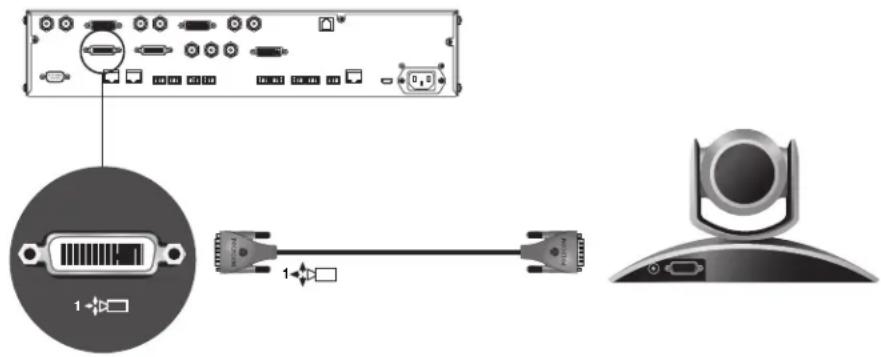
Polycom EagleEye HD Camera as the Main Camera up to 30 ft Away
You can connect a Polycom EagleEye HD camera (part number 8200-23600-001 or 8200-23610-001) to a Polycom HDX 9000 Series system as the main camera using:
• HDCI Analog Camera Cable on page 2-24
text_image
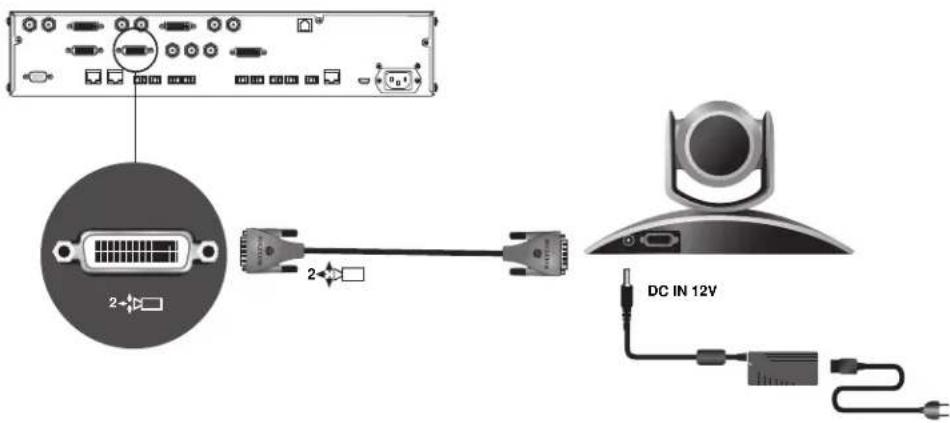
Diagram showing connection between a computer port, DVI port, and network interface with labeled ports and connectorsPolycom EagleEye HD Camera as the Second Camera up to 30 ft Away
You can connect a Polycom EagleEye HD camera (part number 8200-23600-001 or 8200-23610-001) to a Polycom HDX 9000 Series system as the second camera using:
• HDCI Analog Camera Cable on page 2-24.
- Power supply. Use only the approved power supply from Polycom (part number 1465-52621-036). Do not exceed 12 Volts at 3 Amps. Verify the polarity of the power supply as shown on the Polycom camera next to the power supply input.
text_image
DC IN 12VPolycom EagleEye HD Camera as the Main or Second Camera up to 100 ft Away
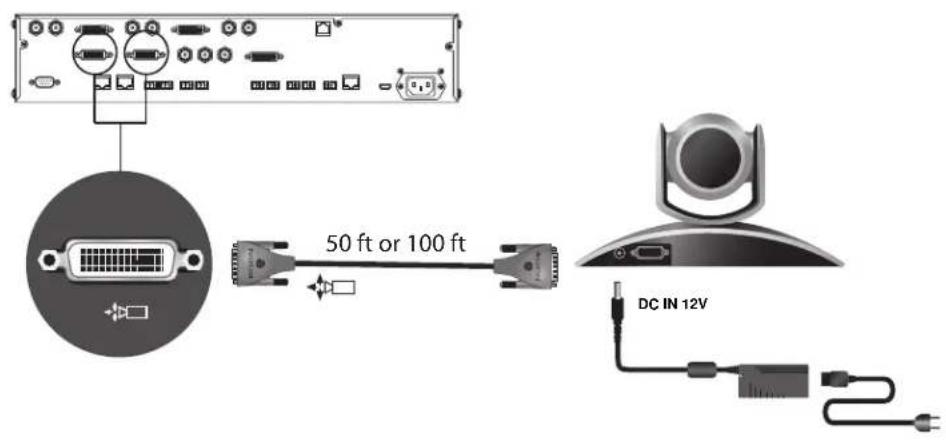
To connect a Polycom EagleEye HD camera (part number 8200-23600-001 or 8200-23610-001) to a Polycom HDX 9000 Series system more than 30 ft away:
Option 1
• HDCI Analog Camera Cable on page 2-24.
- Power supply. Use only the approved power supply from Polycom (part number 1465-52621-036). Do not exceed 12 Volts at 3 Amps. Verify the polarity of the power supply as shown on the Polycom camera next to the power supply input.

Polycom recommends this configuration when a custom cable length is not required.
text_image
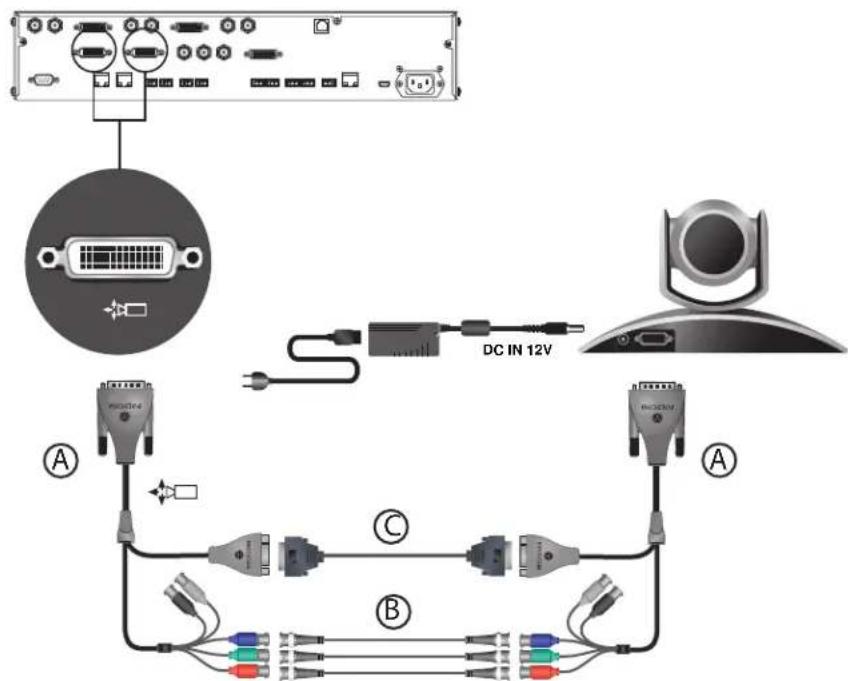
50 ft or 100 ft DC IN 12VOption 2
• A—Two HDCI Camera Break-Out Cable on page 2-26.
• B—Coaxial analog video cables
• C—DB-9 serial cable
- Power supply. Use only the approved power supply from Polycom (part number 1465-52621-036). Do not exceed 12 Volts at 3 Amps. Verify the polarity of the power supply as shown on the Polycom camera next to the power supply input.

Polycom recommends this configuration when a custom cable length is required. The BNC and serial cables can be built to custom lengths.
text_image
DC IN 12V A B C D E F G H I J K L M N O P Q R S T U V W X Y ZOptional, up to 100 ft
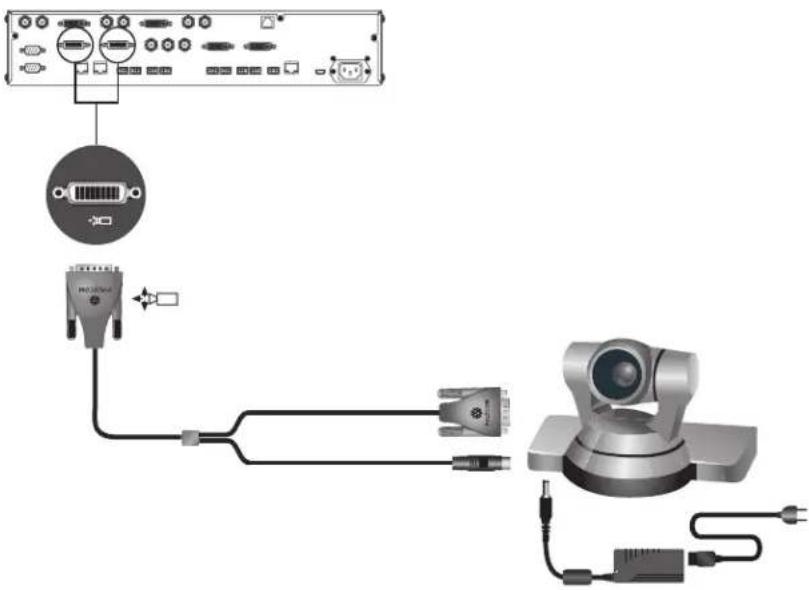
Polycom EagleEye 1080 or Sony EVI-HD1 PTZ as the Main or Second Camera
You can connect a Polycom EagleEye 1080 or Sony EVI-HD1 PTZ camera to a Polycom HDX 9000 Series system as the main or second camera using:
Option 1
- HDC1 Polycom EagleEye 1080 Camera Cable on page 2-33 (this cable is compatible with the Sony EVI-HD1 PTZ camera)

Polycom recommends this configuration when a custom cable length is required.
text_image
Diagram showing connections between a device with ports, VGA, and a video camera module connected via cables.Option 2
- A – HDCI Sony adapter cable on page HDCI Sony VISCA Adapter Cable on page 2-35.
- B-VGA cable
• C-VISCA cable
Polycom recommends this configuration when a custom cable length is required.
A
B Up to 100 ft
C Up to 100 ft
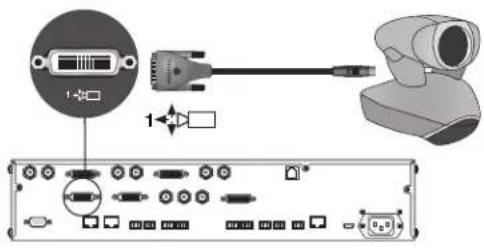
PowerCam as the Main Camera up to 10 ft Away
You can connect a PowerCam (part number 2215-50370-001) to a Polycom HDX 9001, Polycom HDX 9002, or Polycom HDX 9004 system as the main camera up to 10 ft away using:
Option 1
• HDCI PowerCam Cable on page 2-30
text_image
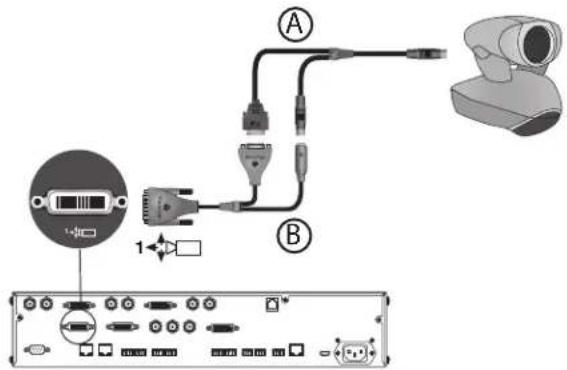
Diagram showing electronic device connection with labeled ports and connectors, including a USB port and camera module.Option 2
• A—PowerCam Primary Camera Cable on page 2-37
• B—HDCI PowerCam Plus Adapter Cable on page 2-31
text_image
Diagram showing audio connection components with labeled parts A and B, including a device labeled 1 and a monitor icon.PowerCam as the Second Camera
The following kits are available, which include the power supply, PowerCam Break-Out cable, 8-pin mini-DIN to DB-9 cable, and S-Video cable:
• 7230-22231-001 (50 ft)
• 7230-22232-001 (100 ft)
You can connect a PowerCam (part number 2215-50370-001) to a Polycom HDX 9001, Polycom HDX 9002, or Polycom HDX 9004 system as the second camera using:
• A – PowerCam Break-Out Cable on page 2-38
• B—8-pin mini-DIN to DB-9 on page 2-40
• C—S-Video Cable on page 2-14
• D—HDCI PowerCam Plus Adapter Cable on page 2-31
• Power Supply (part number 1465-52621-036)
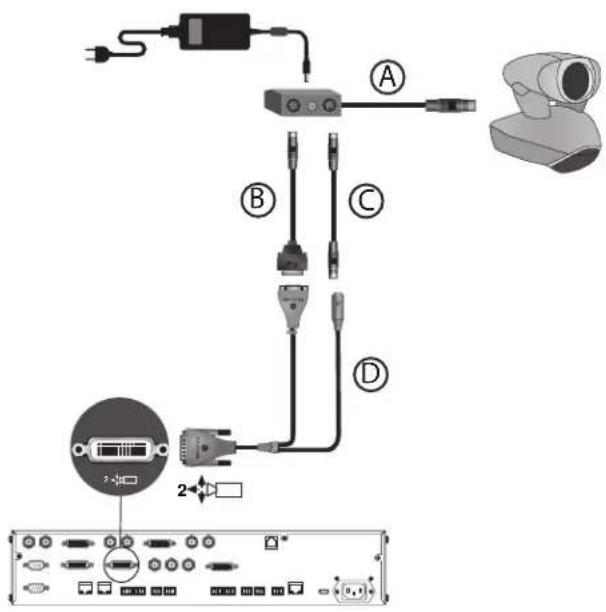
text_image
Diagram showing cable connections and device layout with labeled components A, B, C, D and a 2-pin connector on the front panel.You can connect a PowerCam (part number 2215-50370-001) to a Polycom HDX 9001, Polycom HDX 9002, or Polycom HDX 9004 system as the third camera using:
• A – PowerCam Break-Out Cable on page 2-38
• B—8-pin mini-DIN to DB-9 on page 2-40
• C—S-Video Cable on page 2-14
• D—BNC to S-Video Cable on page 2-15
• Power Supply (part number 1465-52621-036)
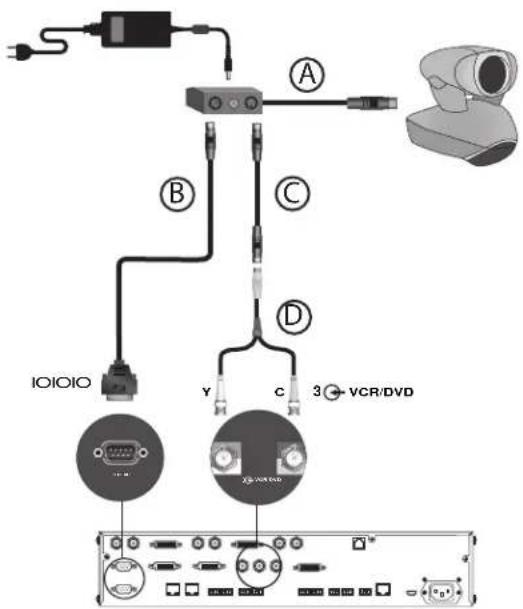
text_image
I/OIOIO A B C D Y c 3 VCR/DVDIf you connect a PTZ camera to a serial port, set RS-232 Mode to Camera PTZ on the Serial Ports screen.
PowerCam Plus as the Main Camera up to 10 ft Away
You can connect a PowerCam Plus (part number 2215-50200-001) to a Polycom HDX 9001, Polycom HDX 9002, or Polycom HDX 9004 system as the main camera up to 10 ft away using:
• A—PowerCam Plus Primary Cable on page 2-29
• B – HDCI PowerCam Plus Adapter Cable on page 2-31

Automatic camera tracking is not available when using the PowerCam Plus camera with a Polycom HDX system.
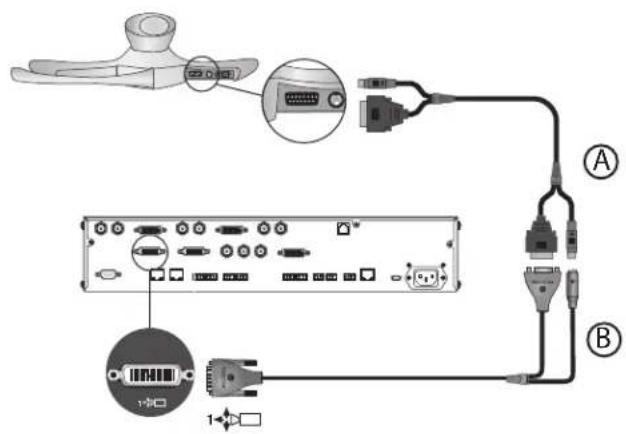
text_image
Diagram showing network connection between a device and an internal device, with labeled ports and connectorsPowerCam Plus as the Second Camera up to 10 ft Away
You can connect a PowerCam Plus (part number 2215-50200-001) to a Polycom HDX 9001, Polycom HDX 9002, or Polycom HDX 9004 system as the second camera up to 10 ft away using:
• A—PowerCam Plus Primary Cable on page 2-29
• B – HDCI PowerCam Plus Adapter Cable on page 2-31
• Power Supply (part number 1465-52621-036)

Automatic camera tracking is not available when using the PowerCam Plus camera with a Polycom HDX system
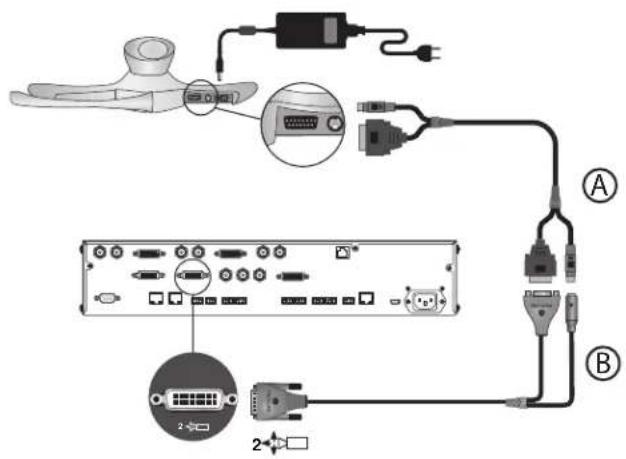
text_image
Diagram showing connections between electronic devices and a device panel, labeled with components A and B.Connecting Sony and ELMO Cameras
Refer to the release notes for a list of supported Pan/Tilt/Zoom (PTZ) cameras.
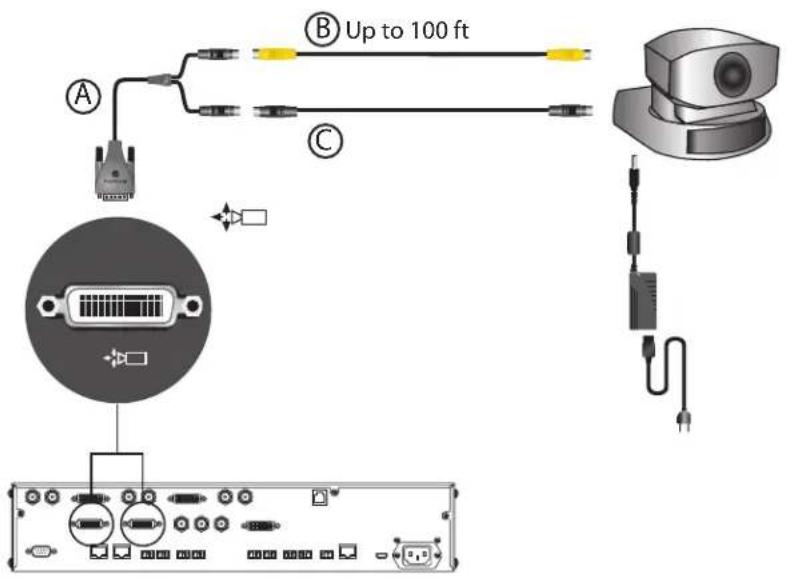
Sony or ELMO PTZ as the Main or Second Camera
To connect a Sony or ELMO PTZ camera to a Polycom HDX 9000 Series system as the main or second camera:
You can connect a Sony or ELMO PTZ camera to a Polycom HDX system using:
• A—HDCI Sony VISCA Adapter Cable on page 2-35
• B—S-Video Cable on page 2-14
• C—Sony VISCA cable
text_image
A B Up to 100 ft CSony BRC-H700 PTZ
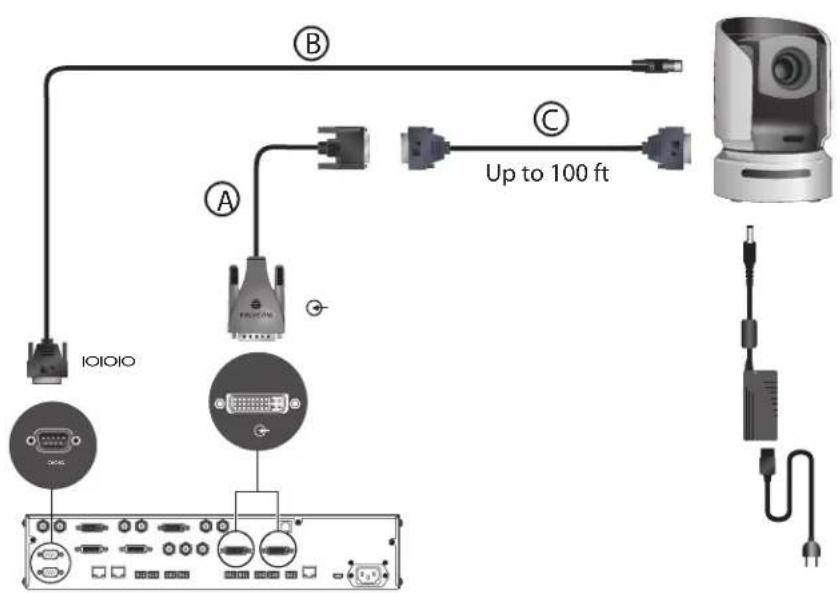
To connect a Sony BRC-H700 PTZ camera to a Polycom HDX 9000 Series system:
You can connect a Sony BRC-H700 PTZ camera to a Polycom HDX system using:
• A—DVI to VGA Monitor Cable on page 2-17
• B—8-pin mini-DIN to DB-9 on page 2-40
• C—VGA extension cable

To provide XGA output (1024x768), you must install the optional Sony HFBK-XG1 card into the slot on the back of the Sony BRC-H700 PTZ camera.
text_image
B C Up to 100 ft A I/OIOIO
Another option is to use a VGA cable for cable C and to use a VGA/DVI-A adapter (part number 1517-52689-001) for cable A. The VGA/DVI-A adapter is a solid overmolded adapter that connects to the Polycom HDX 9000 Series system side of cable C and adapts from cable C's VGA connector to a DVI-A connector to plug into the Polycom HDX 9000 Series system.
Connecting Vaddio and Canon Cameras
Refer to the release notes for a list of supported Pan/Tilt/Zoom (PTZ) cameras.
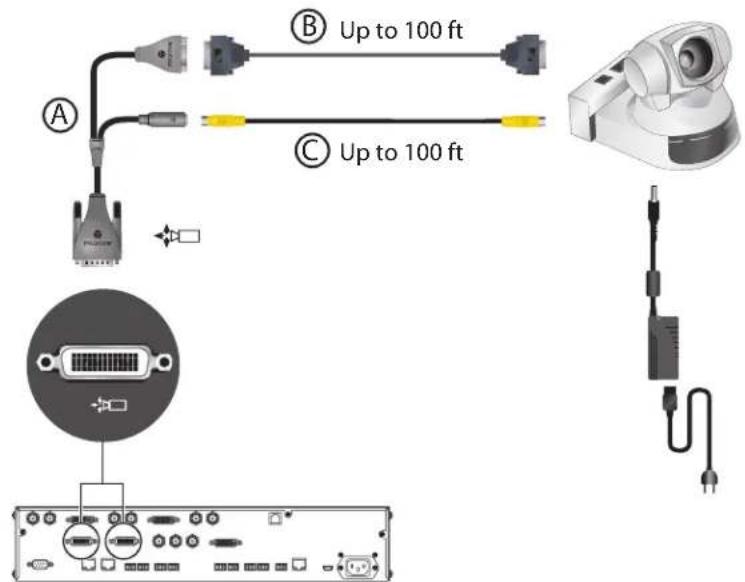
Vaddio or Canon PTZ as the Main or Second Camera
To connect a Vaddio or Canon PTZ camera to a Polycom HDX 9000 Series system as the main or second camera:
You can connect a Vaddio 70, Vaddio 100, or Canon (with VISCA cable shoe) PTZ camera to a Polycom HDX system using:
• A—HDCI VISCA Adapter Cable on page 2-32
• B—DB-9 serial cable
• C-S-Video Cable on page 2-14
text_image
A B Up to 100 ft C Up to 100 ft
A separate power supply is required regardless of which connector is used on the HDX 9000 Series back panel.
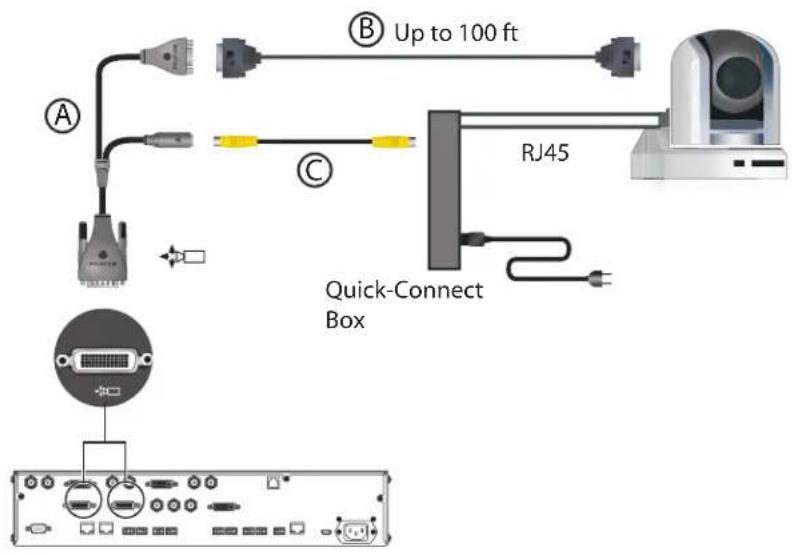
Vaddio 300 PTZ as the Main or Second Camera
To connect a Vaddio 300 PTZ camera to a Polycom HDX 9000 Series system as the main or second camera:
You can connect a Vaddio 300 PTZ camera to a Polycom HDX system using:
• A-HDCI VISCA Adapter Cable on page 2-32
- B—DB-9 serial cable
• C-S-Video Cable on page 2-14
Note: For situations that require extraordinary cable lengths, CAT5 extension kits for camera video, power, and control are available from third-party vendors.
text_image
A B Up to 100 ft C RJ45 Quick-Connect BoxIntegrating Audio and Content
Connecting a Computer to a Polycom HDX 9000 Series System
You can connect Polycom HDX™ 9000 series systems to a computer.
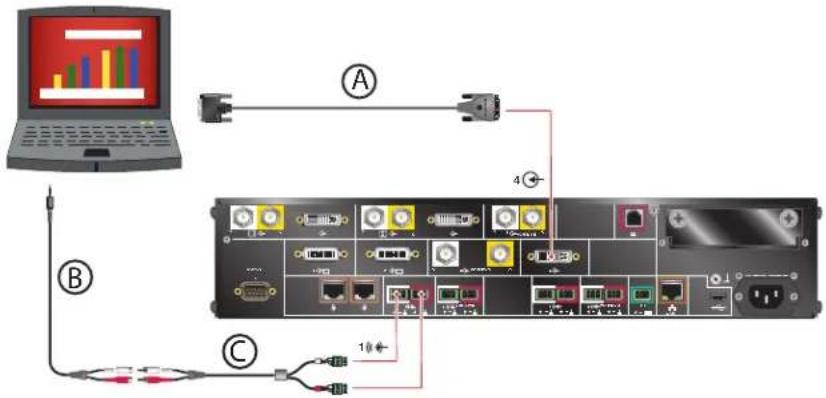
To connect a computer to a Polycom HDX 9001 or Polycom HDX 9002 system:
Option 1
Connect a Polycom HDX ^TM 9001 or Polycom HDX 9002 system to a computer using
• A—DVI to VGA Monitor Cable on page 2-17
• B—3.5 mm stereo to RCA adapter cable
• C- Audio Adapter Cable on page 2-49
When you connect a computer to a Polycom HDX 9001 or Polycom HDX 9002 as follows, audio is only heard at the far site and may be heard even when video input 4 is not selected.
text_image
Diagram showing network connection between a laptop, switch, and internal device with labeled ports and cable linksOption 2
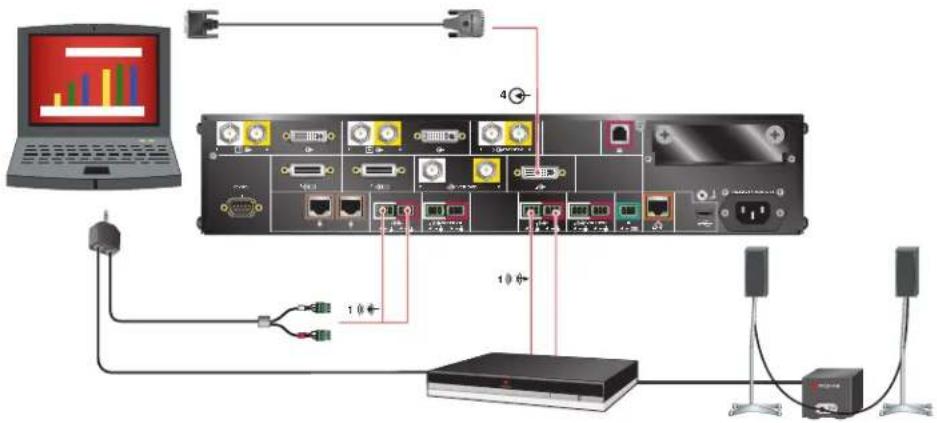
To hear audio at both the near site and the far site, use a bypass mixer to connect a computer to the Polycom HDX 9001 or Polycom HDX 9002 system as the following figure shows.
flowchart
graph TD
    A["Laptop"] --> B["Network Port 1"]
    B --> C["Server"]
    C --> D["Server 2"]
    D --> E["Server 3"]
    E --> F["Server 4"]
    F --> G["Server 5"]
    G --> H["Server 6"]
    H --> I["Server 7"]
    I --> J["Server 8"]
    J --> K["Server 9"]
    K --> L["Server 10"]
    L --> M["Server 11"]
    M --> N["Server 12"]
    N --> O["Server 13"]
    O --> P["Server 14"]
    P --> Q["Server 15"]
    Q --> R["Server 16"]
    R --> S["Server 17"]
    S --> T["Server 18"]
    T --> U["Server 19"]
    U --> V["Server 20"]
    V --> W["Server 21"]
    W --> X["Server 22"]
    X --> Y["Server 23"]
    Y --> Z["Server 24"]
    Z --> AA["Server 25"]
    AA --> AB["Server 26"]
    AB --> AC["Server 27"]
    AC --> AD["Server 28"]
    AD --> AE["Server 29"]
    AE --> AF["Server 30"]
    AF --> AG["Server 31"]
    AG --> AH["Server 32"]
    AH --> AI["Server 33"]
    AI --> AJ["Server 34"]
    AJ --> AK["Server 35"]
    AK --> AL["Server 36"]
    AL --> AM["Server 37"]
    AM --> AN["Server 38"]
    AN --> AO["Server 39"]
    AO --> AP["Server 40"]
    AP --> AQ["Server 41"]
    AQ --> AR["Server 42"]
    AR --> AS["Server 43"]
    AS --> AT["Server 44"]
    AT --> AU["Server 45"]
    AU --> AV["Server 46"]
    AV --> AW["Server 47"]
    AW --> AX["Server 48"]
    AX --> AY["Server 49"]
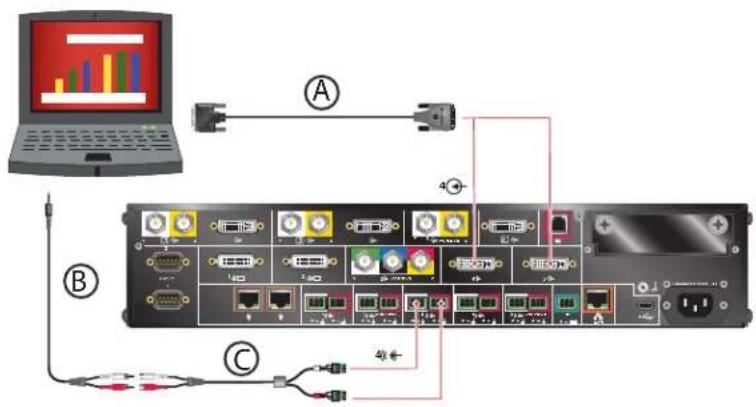
To connect a computer to a Polycom HDX 9004 system:
Connect a Polycom HDX 9004 system to a computer using
• A—DVI to VGA Monitor Cable on page 2-17
• B-3.5 mm stereo to RCA adapter cable
• C- Audio Adapter Cable on page 2-49 (Polycom HDX 9004, Polycom HDX 9002, and Polycom HDX 9001 systems only.)
When you connect a computer to video input 4 and audio input 4 on a Polycom HDX 9004 as follows, audio from input 4 is muted unless video input 4 is selected as a video source.
text_image
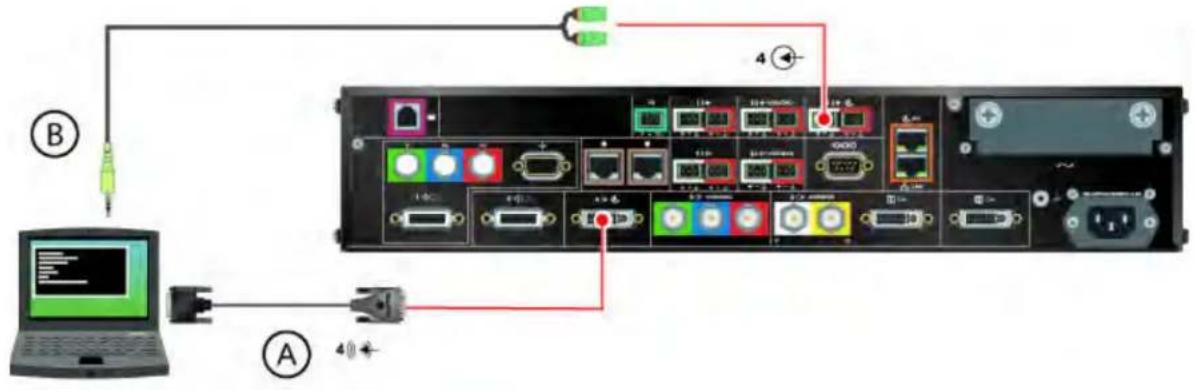
Diagram showing network connection between a laptop and a device with labeled ports, cables, and connectors (A, B, C)To connect a computer to a Polycom HDX 9006 system:
Connect a Polycom HDX 9006 system to a computer using:
• A—DVI to VGA Monitor Cable on page 2-17
- B—3.5 mm stereo to dual 3-pin Phoenix connectors cable
When you connect a computer to video input 4 and audio input 4 on a Polycom HDX 9006 system as follows, audio from input 4 is muted unless video input 4 is selected as a video source.
text_image
Diagram showing network connection between a laptop and an internal device, with labeled ports and connections.Connecting a Vortex® Mixer to a Polycom HDX 9000 Series System

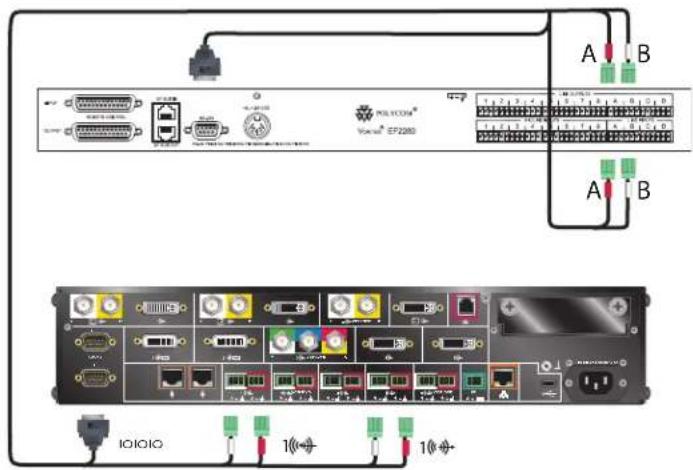
Polycom strongly recommends using Polycom InstantDesigner™ to get started with your Vortex® mixer integration. InstantDesigner resolves many common issues with connections and configuration settings.
To use a Polycom HDX system with audio input from a Vortex mixer, set the Input Type to Line Input and disable Echo Canceller.
Connect a Polycom HDX system to the Vortex mixer using:
• Vortex cable shown on page Vortex Cable on page 2-51
text_image
A B A B IOIOIO 10Connecting a Polycom SoundStructure C-Series Mixer to a Polycom HDX 9000 Series System
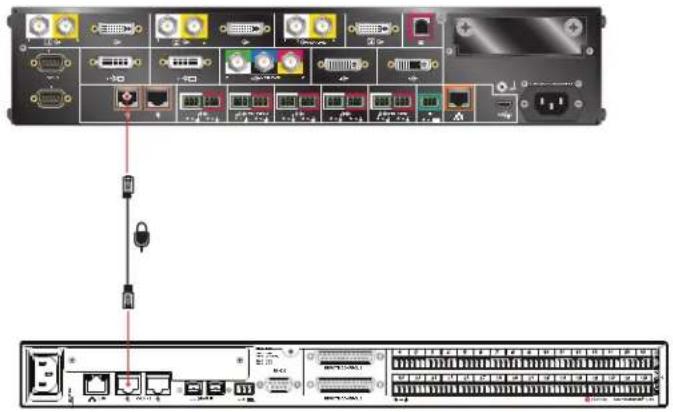
Connect a Polycom HDX system to the Polycom SoundStructure C-Series mixer using:
• Polycom HDX Microphone Host Cable on page 2-41
text_image
Diagram showing network device rack with ports, switches, and a lock icon connected to a server rack interface.
The microphone input of the Polycom HDX 9000 Series system can support one SoundStructure C-Series mixer that has up to four Polycom HDX microphones connected to it. For more information about using the SoundStructure C-Series mixer with a Polycom HDX system, refer to the SoundStructure C-Series documentation on the Polycom web site.
You cannot connect both a SoundStructure C-Series mixer and a SoundStation IP 7000 phone to the Polycom HDX 9000 Series system at the same time.
Cables
This chapter includes information about cables that can be used with a Polycom HDX system. Please note that drawings and part numbers are provided for reference only. Compliance information is provided for the Restriction of certain Hazardous Substances Directive (RoHS).
Network Cables
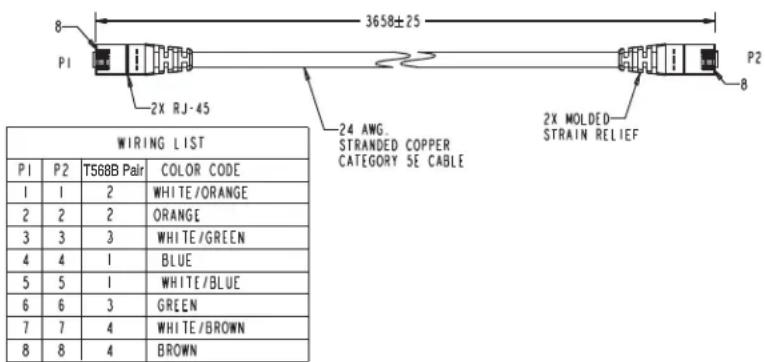
CAT 5e LAN Cable

This cable connects a Polycom HDX system to the LAN. It has orange RJ-45 connectors on both ends. It meets category 5e requirements and is wired according to EIA/TIA-568B. The maximum approved length for this cable is 100 ft (30 m) on an 802 network.
| Length Part Number RoHS | Compliant | |
| 12 ft (3.6 m) 2457-23537-001 | Yes |
text_image
3658±25 P1 2X RJ-45 WIRING LIST 24 AWG. STRANDED COPPER CATEGORY SE CABLE 2X MOLDED- STRAIN RELIEF P2 8 P1 P2 T568B Pair COLOR CODE 1 1 2 WHITE/ORANGE 2 2 2 ORANGE 3 3 3 WHITE/GREEN 4 4 1 BLUE 5 5 1 WHITE/BLUE 6 6 3 GREEN 7 7 4 WHITE/BROWN 8 8 4 BROWN
Drawings and part numbers are provided for reference only. Polycom claims no responsibility or liability for the quality, performance, or reliability of cables based on these reference drawings, other than cables provided by Polycom. Contact your Polycom distributor or Polycom Custom/Vertical Products to order cables that meet the appropriate manufacturing tolerances, quality, and performance parameters for your application.
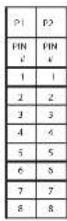
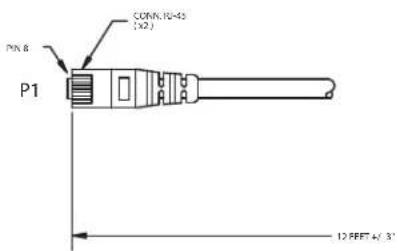
LAN Cable
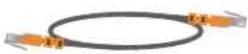
This cable connects a Polycom HDX system to the LAN. It has orange RJ-45 connectors on both ends and is used with all systems. The maximum approved length for this cable is 100 ft (30 m).
| Length Part Number RoHS | Compliant | |
| 12 ft (3.6 m) 2457-08343-001 | Yes |
text_image
PN.8 CDKN.NO-42 (X2) P1 12 REFT 4/3"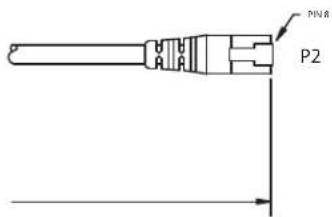
text_image
PN8 P2
Drawings and part numbers are provided for reference only. Polycom claims no responsibility or liability for the quality, performance, or reliability of cables based on these reference drawings, other than cables provided by Polycom. Contact your Polycom distributor or Polycom Custom/Vertical Products to order cables that meet the appropriate manufacturing tolerances, quality, and performance parameters for your application.
ISDN Cable
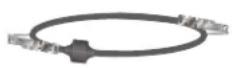
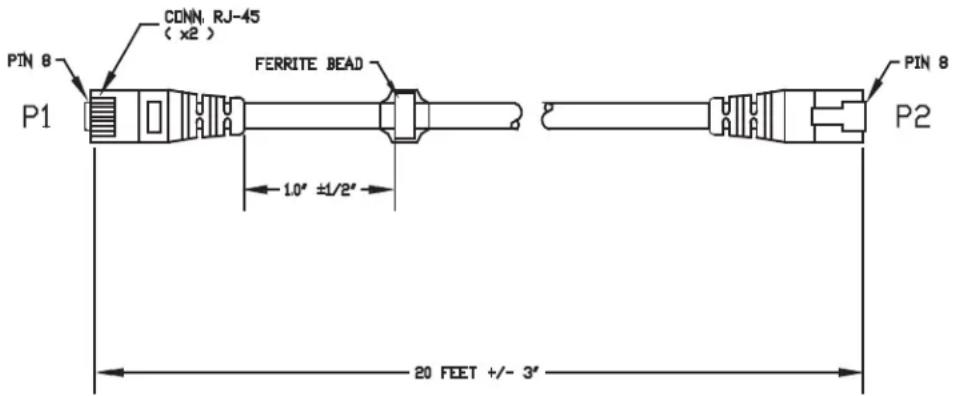
This cable connects a Polycom HDX system to a BRI or PRI line. It has clear RJ-45 connectors on both ends and is used with all Polycom HDX systems that have ISDN capability. The maximum approved length for this cable is 50 ft (15 m).
| Length Part Number RoHS | Compliant | |
| 20 ft (6.6 m) 2457-08548-001 | Yes |
| P1 | P2 |
| PIN# | PIN# |
| 1 | 1 |
| 2 | 2 |
| 3 | 3 |
| 4 | 4 |
| 5 | 5 |
| 6 | 6 |
| 7 | 7 |
| 8 | 8 |
text_image
PIN 8 P1 CONN. RJ-45 ( x2 ) FERRITE BEAD 1.0" ±1/2" 20 FEET +/- 3"
Drawings and part numbers are provided for reference only. Polycom claims no responsibility or liability for the quality, performance, or reliability of cables based on these reference drawings, other than cables provided by Polycom. Contact your Polycom distributor or Polycom Custom/Vertical Products to order cables that meet the appropriate manufacturing tolerances, quality, and performance parameters for your application.
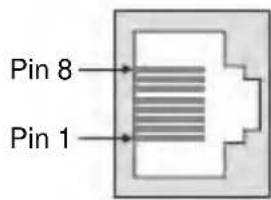
PRI Pin Assignments
The following illustration and table show the pin assignments for the PRI port on the Polycom HDX system.
text_image
Pin 8 Pin 1| Pin | Signal Name |
| 1 | Receive Ring |
| 2 | Receive Tip |
| 3 | No Connection |
| 4 | Transmit Ring |
| 5 | Transmit Tip |
| 6 | No Connection |
| 7 | No Connection |
| 8 | No Connection |
Analog Telephone (POTS) Cable
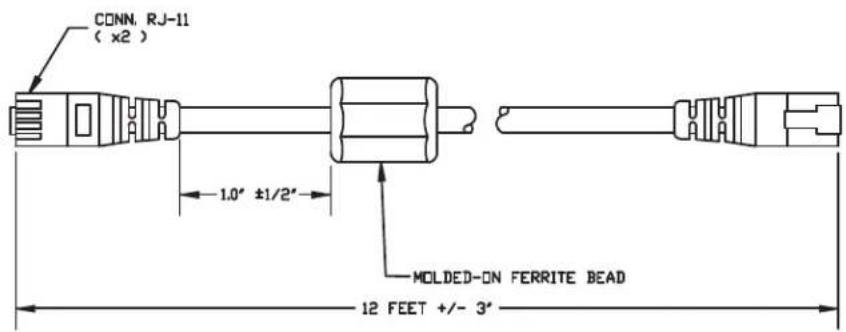
This cable connects a Polycom HDX system to an analog telephone line. It has pink RJ-11 connectors on both ends. The maximum approved length for this cable is 100 ft (30 m).
| Length Part Number RoHS Compliant | |
| 12 ft (3.6 m) 2457-20071-001 Yes |
text_image
CONN. RJ-11 ( x2 ) 1.0" ±1/2" MOLDED-ON FERRITE BEAD 12 FEET +/- 3"WIRING IS "PIN TO PIN" 1-1, 2-2, ETC.

Drawings and part numbers are provided for reference only. Polycom claims no responsibility or liability for the quality, performance, or reliability of cables based on these reference drawings, other than cables provided by Polycom. Contact your Polycom distributor or Polycom Custom/Vertical Products to order cables that meet the appropriate manufacturing tolerances, quality, and performance parameters for your application.
V.35/RS-449/RS-530 Serial Adapter
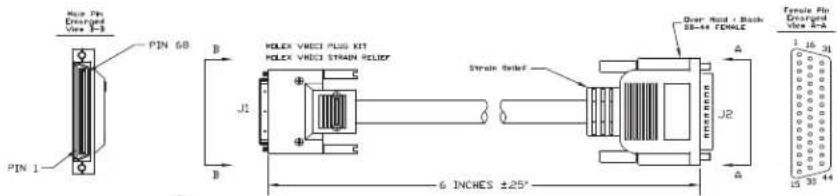
This adapter is used when connecting a Polycom HDX system to other third-party network equipment. It adapts the 68-pin interface to an industry standard 44-pin interface used by some network interface equipment. It is used with Polycom HDX systems that have a V.35/RS-449/RS-530 serial network interface card (NIC) installed.
| Length Part Number RoHS Compliant | |
| 6 in (15.23 cm) 2457-21264-200 Yes |
text_image
Pin 1 Pin 60 B J1 B HELEX VREED PLUS KIT HELEX VREED STRAIN RELIEF Stroke Relief Over Mass - Black 58-44 FOILE J2 A Tensile Pin Granged Wire 3-5 1.15 31 15 30 44 6 INCHES ±25°| #1 | SPIRAL | SHEL3 | #2 |
| HSG | HSG | ||
| 12 | PAIR | 8 | |
| 11 | 3 | ||
| 10 | PAIR | 4 | |
| 9 | 5 | ||
| 14 | PAIR | 14 | |
| 13 | 15 | ||
| 8 | PAIR | 16 | |
| 7 | 17 | ||
| 6 | PAIR | 26 | |
| 5 | 27 | ||
| 15 | PAIR | 18 | |
| 16 | 19 | ||
| 63 | PAIR | 29 | |
| 64 | 30 | ||
| 61 | PAIR | 31 | |
| 62 | 32 | ||
| 65 | PAIR | 33 | |
| 66 | 34 | ||
| 18 | PAIR | 37 | |
| 17 | 38 | ||
| 27 | PAIR | 8 | |
| 8 | 25 | ||
| 31 | PAIR | 43 | |
| 28 | 7 | ||
| 34 | PAIR | 9 | |
| 24 | 16 | ||
| 32 | PAIR | 11 | |
| 26 | 12 | ||
| 21 | PAIR | 13 | |
| 35 | 20 | ||
| 20 | PAIR | 21 | |
| 19 | 22 | ||
| 23 | PAIR | 23 | |
| 25 | 24 | ||
| 4 | PAIR | 35 | |
| 22 | 41 | ||
| 3 | 39 | ||
| 1 | PAIR | 48 | |
| 29 | 6 | ||
| 30 | PAIR | 48 | |
| 33 | PAIR | 36 | |
| 36 | 1 | ||
| 37 | |||
| 38 | SPIRAL | SHEL3 |
| 68 pin Signal Name Signal Type From card Function V.35 RSS30-DB25 RS4449-DB37 RS366-DB25 | ||||||||
| Shield | V.35/RS4449/RS30 | A | 19 | 7,16,19* | ||||
| 12 | Receive Data A | Differential | in | V.35/RS449/RS30 | B | 3 | 6 | |
| 11 | Receive Update D | Differential | in | V.35/RS449/RS30 | T | 16 | 25 | |
| 10 | Send Timing A | Differential | in | V.35/RS449/RS30 | Y | 15 | 5 | |
| 9 | Send Timing B | Differential | in | V.35/RS449/RS30 | AA | 12 | 23 | |
| 25 | Data Set Ready (DSR) | Single Ended | in | V.35 | F | |||
| 25 | Request To Send (ITS) | Single Ended out | V.35 | C | ||||
| 27 | Data Terminals Ready (DTI) | Single Ended out | V.35 | H | ||||
| 24 | Draft Percent (CFPI) | Single Ended out | RS326 | 2 | ||||
| 24 | Abandoned Certory (ACIT) | Single Ended in | RS326 | 3 | ||||
| 32 | Cell Request (CRC) | Single Ended out | RS326 | 4 | ||||
| 26 | Present Next Dial (PND) | Single Ended in | RS326 | 3 | ||||
| 21 | Data Line Occupated (LOX) | Single Ended in | RS326 | 22 | ||||
| 14 | Receive Timing A | Differential | in | V.35/RS449/RS30 | Y | 17 | 8 | |
| 13 | Receive Timing U | Differential | in | V.35/RS449/RS30 | X | 9 | 25 | |
| 8 | Terminal Timing A | Differential | out | V.35/RS449/RS30 | U | 24 | 17 | |
| 7 | Terminal Timing B | Differential | out | V.35/RS449/RS30 | W | 11 | 35 | |
| 15 | Request To Send (RTS) A | Differential out | RS449/RS30 | 4 | 7 | |||
| 15 | Request To Send (ITS) B | Differential out | RS449/RS30 | 19 | 23 | |||
| 35** | Receive Common | Grid | RS449 | 25 | ||||
| 20 | BCD Dial Digit BL 1 (NB1) | Single Ended out | RS326 | 14 | ||||
| 19 | BCD Dial Digit BL 2 (NB2) | Single Ended out | RS326 | 15 | ||||
| 23 | BCD Dial Digit BL 4 (NB4) | Single Ended out | RS326 | 16 | ||||
| 25 | BCD Dial Digit BL 6 (NB6) | Single Ended out | RS326 | 17 | ||||
| 2** | Signal Ground | Grid | V.35/RS326 | B | 7,18,19 | |||
| 6 | Send Data A | Differential | out | V.35/RS449/RS30 | P | 2 | 4 | |
| 5 | Send Data B | Differential | out | V.35/RS449/RS30 | S | 14 | 22 | |
| Reserved (Recent selected line) | ||||||||
| 43 | Clear To Send (CTS) A | Differential | in | RS449/RS30 | 5 | 0 | ||
| 64 | Clear To Send (CTS) B | Differential | in | RS449/RS30 | 13 | 27 | ||
| 61 | Data Mode (DM-DSR) A | Differential | in | RS449/RS30 | 6 | 11 | ||
| 62 | Data Mode (DM-DSR) B | Differential | in | RS449/RS30 | 22 | 28 | ||
| 65 | Recover Ready (RE-DCB) A | Differential | in | RS449/RS30 | 8 | 13 | ||
| 66 | Recover Ready (RE-DCB) B | Differential | in | RS449/RS30 | 10 | 31 | ||
| 4** | Send Common | Grid | RS326 | 7 | 37 | |||
| 33 | Data Command-Detected (DCD) | Single Ended in | V.35 | F | ||||
| 18 | Terminal Ready (TR-CTR) A | Differential | out | RS449/RS30 | 20 | 12 | ||
| 17 | Terminal Ready (TR-CTR) B | Differential | out | RS449/RS30 | 25 | 30 | ||
| 3 | V35 Capsle Connected | ground to indicate a V35 capsle is attached | 7,19,19* | |||||
| 1 | RS449 Capsle Connected | ground to indicate a RS449 capsle is attached | 7,18,19* | |||||
| 22 | Decant Station Connected (DSC) | Single Ended in | RS326 | 13 | ||||
| 30 | Clear To Send (CTR) | Single Ended in | V.35 | D | ||||
| 31 | Ring Indicate Pin Unoccurring Coil | Single Ended in | V.35/RS449 | J | 15 | |||
| reserved (Recent selected line) | ||||||||
| 65 | LOS A | Differential | out | RS326 square | 18 | 3 | ||
| 67 | LOS B | Differential | out | RS326 square | 21 | 21 | ||
* For V.55, connect pin 3 of 68 pin connector to ground (For PE44), connect pin 1 of 68 pin connectors to ground
For P3449, connection pin 1 of 68 pin connector to ground 45 for P3550, compact pins 1 and 3 of 68 pin connectors to ground
**Gnd pine are 2,4.35-60

Drawings and part numbers are provided for reference only. Polycom claims no responsibility or liability for the quality, performance, or reliability of cables based on these reference drawings, other than cables provided by Polycom. Contact your Polycom distributor or Polycom Custom/Vertical Products to order cables that meet the appropriate manufacturing tolerances, quality, and performance parameters for your application.
V.35 NIC Cable
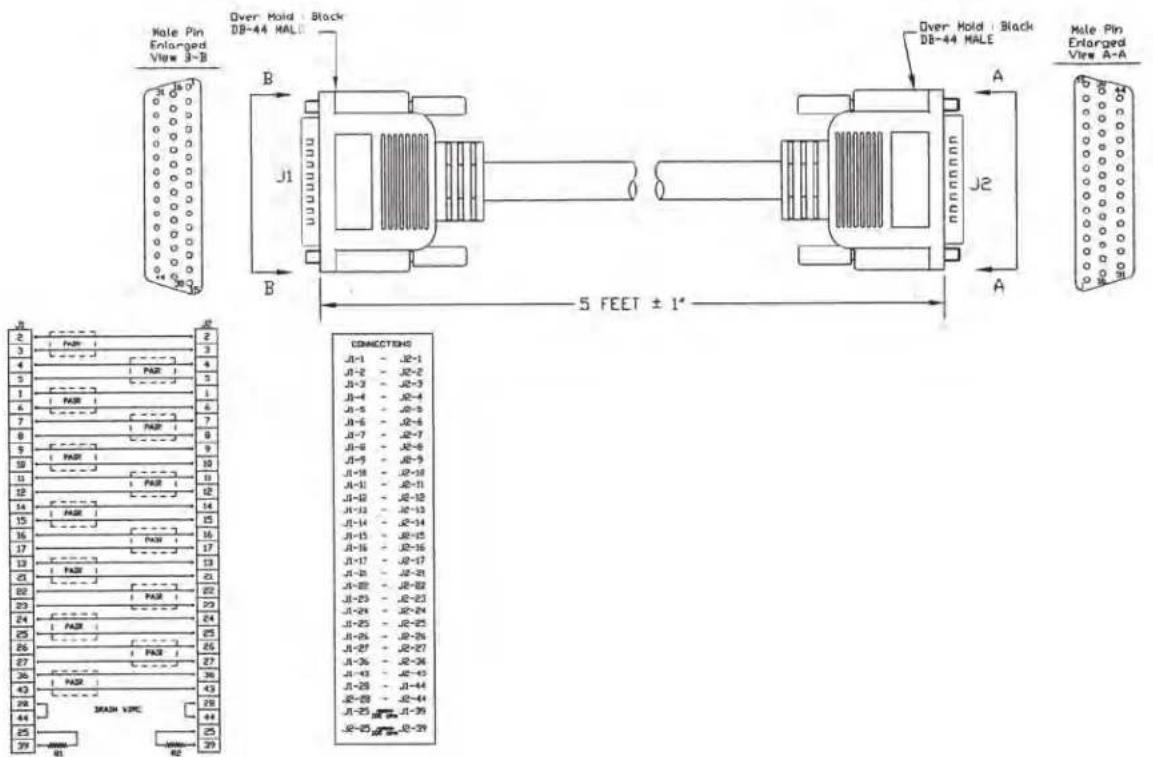
This cable connects a Polycom HDX system to Ascend network equipment. It is used with the V.35/RS-449/RS-530 serial adapter on page
V.35/RS-449/RS-530 Serial Adapter on page 2-7 to connect to network equipment that has the HD-44 pin interface. It has HD-44 M connectors on both ends and is used with Polycom HDX systems that have a serial network interface card (NIC) installed.
| Length Part Number RoHS Compliant | ||
| 5 ft (1.65 m) 2457-10608-200 Yes |
text_image
Male Pin Enlarged View 3-B Over Hold : Black DB-44 HALF J1 B J2 5 FEET ± 1" Over Hold : Black DB-44 HALF A A Male Pin Enlarged View A-A B J1 B J2 CONNECTIONS J1-1 - J2-1 J1-2 - J2-2 J1-3 - J2-3 J1-4 - J2-4 J1-5 - J2-5 J1-6 - J2-6 J1-7 - J2-7 J1-8 - J2-8 J1-9 - J2-9 J1-10 - J2-10 J1-11 - J2-11 J1-12 - J2-12 J1-13 - J2-13 J1-14 - J2-14 J1-15 - J2-15 J1-16 - J2-16 J1-17 - J2-17 J1-18 - J2-18 J1-19 - J2-19 J1-20 - J2-20 J1-21 - J2-21 J1-22 - J2-22 J1-23 - J2-23 J1-24 - J2-24 J1-25 - J2-25 J1-26 - J2-26 J1-27 - J2-27 J1-28 - J2-28 J1-29 - J2-29 J1-30 - J2-30 J1-31 - J2-31 J1-32 - J2-32 J1-33 - J2-33 J1-34 - J2-34 J1-35 - J2-35 J1-36 - J2-36 J1-37 - J2-37 J1-38 - J2-38 J1-39 - J2-39
Drawings and part numbers are provided for reference only. Polycom claims no responsibility or liability for the quality, performance, or reliability of cables based on these reference drawings, other than cables provided by Polycom. Contact your Polycom distributor or Polycom Custom/Vertical Products to order cables that meet the appropriate manufacturing tolerances, quality, and performance parameters for your application.
V.35 and RS-366 Serial Cable
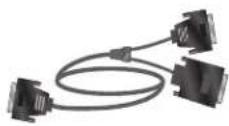
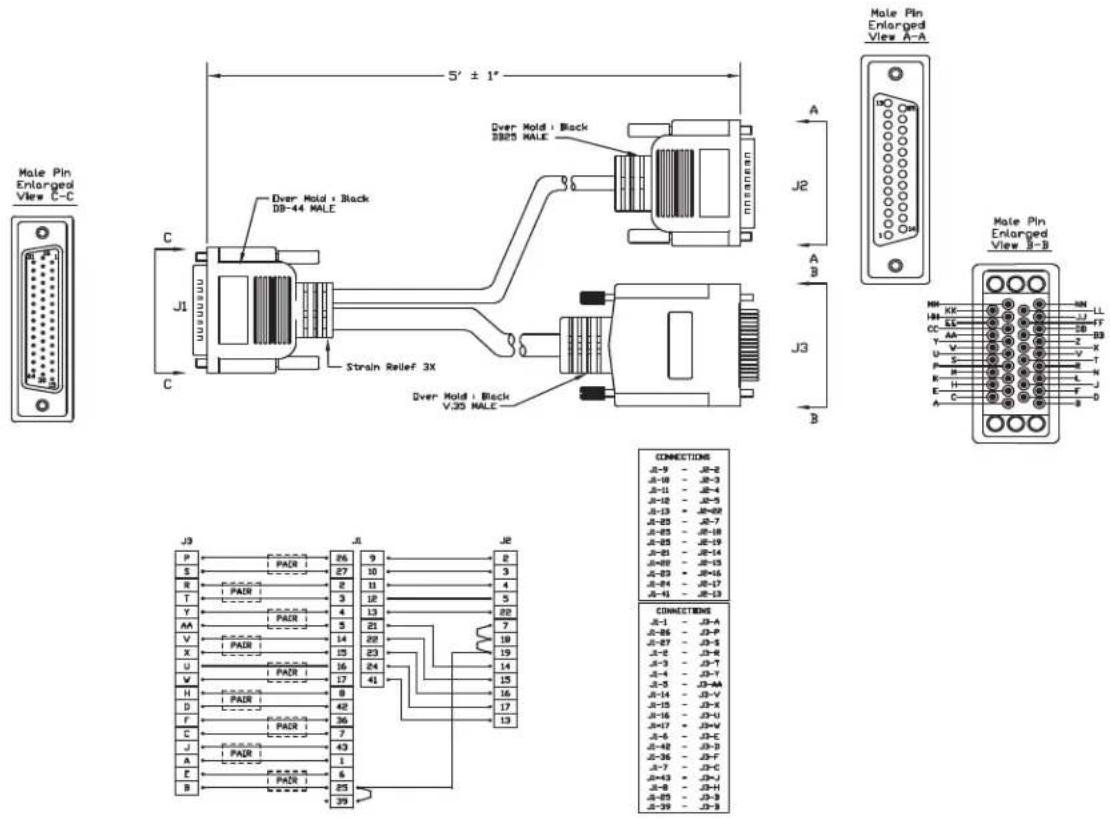
This cable connects a Polycom HDX system to third-party network equipment. It is used with the V.35/RS-449/RS-530 serial adapter on page V.35/RS-449/RS-530 Serial Adapter on page 2-7 to connect to network equipment that has a V.35/RS-366 interface. It is HD-44 M to "Y" Winchester 34M/RS-366 DB-25M and is used with Polycom HDX systems that have a serial network interface card (NIC) installed.
| Length Part Number RoHS Compliant | ||
| 5 ft (1.65 m) 2457-10609-200 Yes |
text_image
Male Pin Enlarged View C-C C J1 C Over Hold + Black DB-44 MALE Strain Relief 3X Over Hold + Black VJ3 MALE 5' ± 1" A J2 A B J3 B Mole Pin Enlarged View A-A Mole Pin Enlarged View B-B J3 J1 JE P PADR 26 9 2 S 27 10 3 R 2 11 4 T 3 12 5 Y 4 13 20 AA 5 21 7 V PADR 14 22 18 X PADR 15 23 19 U PADR 16 24 14 W PADR 17 41 15 H PADR 8 16 D PADR 42 17 F PADR 36 13 C PADR 7 J PADR 43 A PADR 1 E PADR 6 B PADR 25 39 CONNECTIONS J-9 - J-2 J-10 - J-3 J-11 - J-4 J-12 - J-5 J-13 - J-6 J-23 - J-7 J-25 - J-8 J-26 - J-9 J-27 - J-10 J-28 - J-11 J-29 - J-12 J-30 - J-13 J-31 - J-14 J-32 - J-15 J-33 - J-16 J-34 - J-17 J-35 - J-18 J-36 - J-19 J-37 - J-20 J-38 - J-21 J-39 - J-22 J-40 - J-23 J-41 - J-24 J-42 - J-25 J-43 - J-26 J-44 - J-27 J-45 - J-28 J-46 - J-29 J-47 - J-30 J-48 - J-31 J-49 - J-32 J-50 - J-33 J-51 - J-34 J-52 - J-35 J-53 - J-36 J-54 - J-37 J-55 - J-38 J-56 - J-39 J-57 - J-40 J-58 - J-41 J-59 - J-42 J-60 - J-43 J-61 - J-44 J-62 - J-45 J-63 - J-46 J-64 - J-47 J-65 - J-48 J-66 - J-49 J-67 - J-50 J-68 - J-51 J-69 - J-52 J-70 - J-53 J-71 - J-54 J-72 - J-55 J-73 - J-56 J-74 - J-57 J-75 - J-58 J-76 - J-59 J-77 - J-60 J-78 - J-61 J-79 - J-62 J-80 - J-63 J-81 - J-64 J-82 - J-65 J-83 - J-66 J-84 - J-67 J-85 - J-68 J-86 - J-69 J-87 - J-70
Drawings and part numbers are provided for reference only. Polycom claims no responsibility or liability for the quality, performance, or reliability of cables based on these reference drawings, other than cables provided by Polycom. Contact your Polycom distributor or Polycom Custom/Vertical Products to order cables that meet the appropriate manufacturing tolerances, quality, and performance parameters for your application.
RS-449 and RS-366 Serial Cable
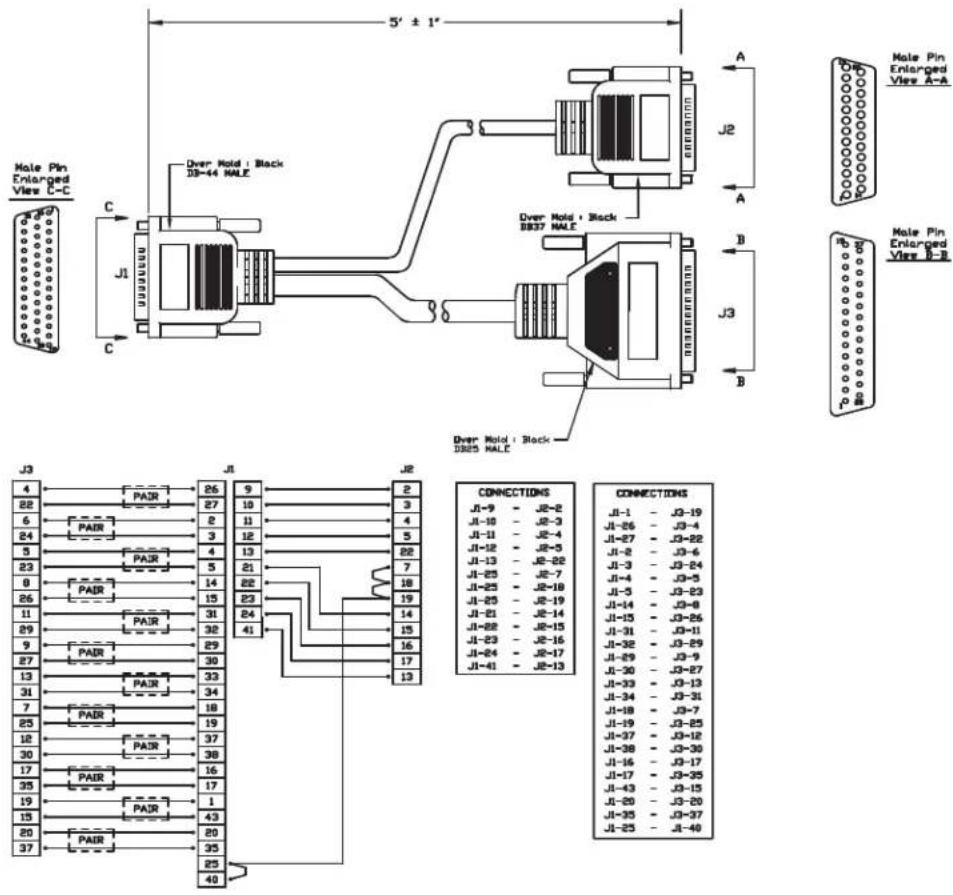
This cable connects a Polycom HDX system to third-party network equipment. It is used with the V.35/RS-449/RS-530 serial adapter on page
V.35/RS-449/RS-530 Serial Adapter on page 2-7 to connect to network equipment that has an RS-449/RS-366 interface. It is HD-44 M to "Y" RS-449 DB-37M/RS-366 DB-25M and is used with Polycom HDX systems that have a serial network interface card (NIC) installed.
| Length Part Number RoHS Compliant | ||
| 5 ft (1.65 m) 2457-10610-200 Yes |
text_image
5' ± 1' Male Pin Enlarged View C-C J1 C J2 A J3 B J4 J5 J6 J7 J8 J9 J10 J11 J12 J13 J14 J15 J16 J17 J18 J19 J20 J21 J22 J23 J24 J25 J26 J27 J28 J29 J30 J31 J32 J33 J34 J35 J36 J37 J38 J39 J40 J41 J42 J43 J44 J45 J46 J47 J48 J49 J50 J51 J52 J53 J54 J55 J56 J57 J58 J59 J60 J61 J62 J63 J64 J65 J66 J67 J68 J69 J70 J71 J72 J73 J74 J75 J76 J77 J78 J79 J80 J81 J82 J83 J84 J85 J86 J87 J88 J89 J90 J91 J92 J93 J94 J95 J96 J97 J98 J99 J100 J101 J102 J103 J104 J105 J106 J107 J108 J109 J110 J111 J112 J113 J114 J115 J116 J117 J118 J119 J120 J121 J122 J123 J124 J125 J126 J127 J128 J129 J130 J131 J132 J133 J134 J135 J136 J137 J138 J139 J140
Drawings and part numbers are provided for reference only. Polycom claims no responsibility or liability for the quality, performance, or reliability of cables based on these reference drawings, other than cables provided by Polycom. Contact your Polycom distributor or Polycom Custom/Vertical Products to order cables that meet the appropriate manufacturing tolerances, quality, and performance parameters for your application.
RS-530 with RS-366 Serial Cable
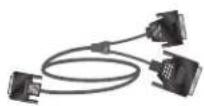
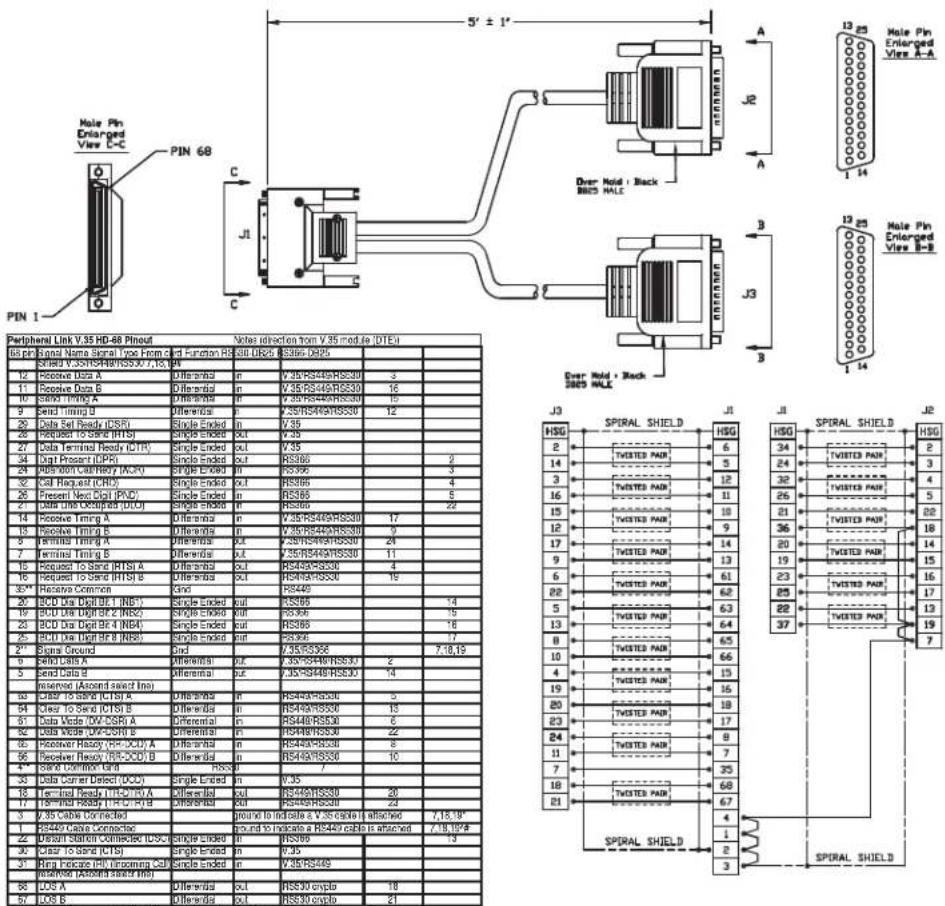
This cable connects a Polycom HDX system to third-party network equipment. It is used with the V.35/RS-449/RS-530 serial adapter on page
V.35/RS-449/RS-530 Serial Adapter on page 2-7 to connect to network equipment that has an RS-530/RS-366 interface. It is HD-68M to "Y" DB-25M and is used with Polycom HDX systems that have a serial network interface card (NIC) installed.
| Length Part Number RoHS Compliant | ||
| 5 ft (1.65 m) 2457-21263-200 Yes |
text_image
PIN 1 Hole Pin Enlarged View C-C PIN 68 C J1 C J3 Over Hold + Black BRES HALE Over Hold + Black BRES HALE 12 25 1 14 12 25 1 14 Peripheral Link V.35 HD-68 Pinout Notes insertion from V.35 module (DTEU) 05 pin Signal Name Signal Type From and Function R SBU DISb RS366-D925 12 Receive Data A Differentiate in V.35/RS449/RS300 3 11 Receive Data B Differentiate in V.35/RS449/RS300 16 10 RS300 TINR A Differentiate in V.35/RS449/RS300 15 9 Send Timing B Differentiate in V.35/RS449/RS300 12 20 Data Set Ready (DSR) Single Ended in V.35 Request to Send (RTS) Single Ended out V.35 27 Data Terminal Ready (CTR) Single Ended out V.35 34 Digit Present (IPX) Single Ended in V.35/RS366 2 28 ABS 1000 CAFWRY (ACPU) Single Ended in V.35/RS366 3 32 Call Request (CLR) Single Ended in V.35/RS366 4 29 Present Vect Digit (PVD) Single Ended in V.35/RS366 5 21 Data Unit Outputs (DUC) Single Ended in V.35/RS366 22 14 Receive Timing A Differentiate in V.35/RS449/RS300 17 13 Receive Timing B Differentiate in V.35/RS449/RS300 9 9 Terminal Timing A Differentiate out V.35/RS449/RS300 24 7 Terminal Timing B Differentiate out V.35/RS449/RS300 11 15 Request to Send (RTS) A Differentiate out V.35/RS449/RS300 4 16 Request to Send (RTS) B Differentiate out V.35/RS449/RS300 19 35* Receivable Common Gnd RS449 20 DCU Digit BF1 (NBQ) Single Ended in V.35/RS366 14 19 DCU Digit BF2 (NBQ) Single Ended out V.35/RS366 15 20 DCU Digit BF4 (NBQ) Single Ended out V.35/RS366 18 25 DCU Digit BF6 (NBQ) Single Ended out V.35/RS366 17 21* Signal Ground Gnd V.35/RS366 7:18,19 9 Signal Data A Differentiate out V.35/RS449/RS300 2 5 Send Data B Differentiate out V.35/RS449/RS300 14 assistant (Along said line) 90 Delay To Send (RTS) A Differentiate in V.35/RS449/RS300 5 94 Delay To Send (RTS) B Differentiate in V.35/RS449/RS300 13 81 Data Mode (UV-DSR) A Differentiate in V.35/RS449/RS300 8 82 Data Mode (UV-DSR) B Differentiate in V.35/RS449/RS300 22 86 Receiver Hscay (RF-DCU) A Differentiate in V.35/RS449/RS300 8 86 Receiver Hscay (RF-DCU) B Differentiate in V.35/RS449/RS300 10 8* SSB Control Grid HSGD / 33 Data Carrier Delnt (DCU) Single Ended in V.35 18 Terminal Ready (RTC/TRI) A Differentiate out V.35/RS449/RS300 29 17 Terminal Hscay (RTC/TRI) B Differentiate out V.35/RS449/RS300 22 3 V.35 Cable Connected ground to indicate a V.35 cable is attached 7:18,19' 2 RS449 Cable Connector ground to indicate a RS449 cable is attached 7:18,19# 2 RS449 Cable Connector (DCU) Single Ended in V.35/RS366 13' 2 RS449 Cable Connector (RTS) Single Ended in V.35/RS366 17' 2 RS449 Cable Connector (RF-DCU) Single Ended in V.35/RS366 22' 2 RS449 Cable Connector (RF-DCU) B Single Ended out V.35/RS366 18' 2 RS449 Cable Connector (RTC/TRI) B Single Ended out V.35/RS366 21' J1 J1 J1 J1 J1 J1 J1 J1 J1 J1 J1 J1 J1 J1 J1 J1 J1 J1 J1 J1 J1 J1 J1 J1 J1 J1 J1 J1 J1 J1 J1 J1 J1 J1 J1 J1 J1 J1 J1 J1 J1 J1 J1 J1 J1 J1 J1 J1 J1 J1 J1J SPRAL SHIELD SPRAL SHIELD SPRAL SHIELD*For BS449, connected pin 1 of 53 pin connector to around
For BS530, connect pins 1 and 3 of 68 pin connectors to ground
"End point are 2.4, 95.60

Drawings and part numbers are provided for reference only. Polycom claims no responsibility or liability for the quality, performance, or reliability of cables based on these reference drawings, other than cables provided by Polycom. Contact your Polycom distributor or Polycom Custom/Vertical Products to order cables that meet the appropriate manufacturing tolerances, quality, and performance parameters for your application.
Video and Camera Cables
S-Video Cable
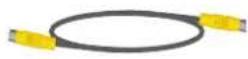
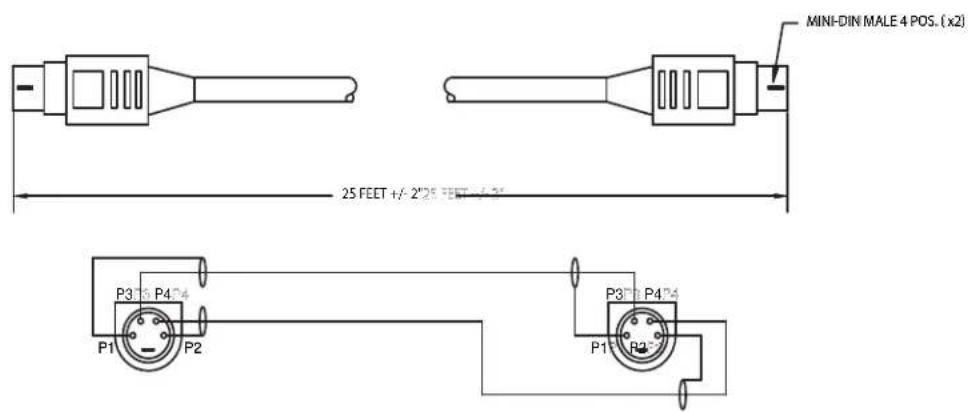
These cables connect a Polycom HDX system to a monitor or camera. They have yellow 4-pin mini-DIN connectors on both ends and are used with all Polycom HDX systems. The maximum approved length for this cable is 200 ft (60 m).
| Length Part Number RoHS Compliant | ||
| 8 ft (2.4 m) 2457-08410-002 Yes | ||
| 25 ft (7.6 m) 2457-08409-002 Yes | ||
| 50 ft (15 m) 2457-09204-200 Yes |
text_image
MINI-DIN MALE 4 POS. (x2) 25 FEET +/- 2" 25 FEET +/- 2" P3 P4 P1 P2 P3 P4 P1 P2
Drawings and part numbers are provided for reference only. Polycom claims no responsibility or liability for the quality, performance, or reliability of cables based on these reference drawings, other than cables provided by Polycom. Contact your Polycom distributor or Polycom Custom/Vertical Products to order cables that meet the appropriate manufacturing tolerances, quality, and performance parameters for your application.
BNC to S-Video Cable
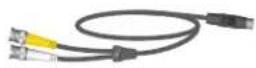
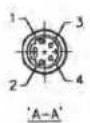
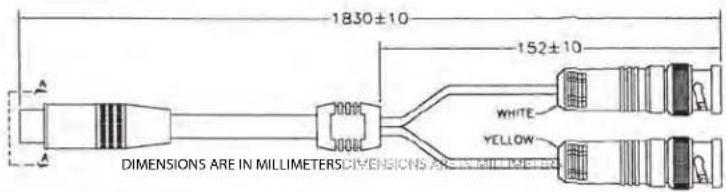
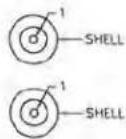
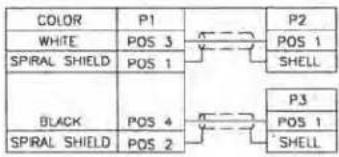
This cable connects S-Video devices to a Polycom HDX system. It is 4-pin male mini-DIN to dual BNC male. The maximum approved length for this cable is 100 ft (30 m).
| Length Part Number RoHS Compliant | ||
| 6 ft (1.8 m) 2457-21489-200 Yes |
P1
text_image
1830±10 152±10 WHITE YELLOW DIMENSIONS ARE IN MILLIMETERS DIMENSIONS ARE MILLIMETERSP2
text_image
COLOR WHITE SPIRAL SHIELD BLACK SPIRAL SHIELD P1 POS 3 POS 1 P2 POS 1 SHELL P3 POS 1 SHELL
Drawings and part numbers are provided for reference only. Polycom claims no responsibility or liability for the quality, performance, or reliability of cables based on these reference drawings, other than cables provided by Polycom. Contact your Polycom distributor or Polycom Custom/Vertical Products to order cables that meet the appropriate manufacturing tolerances, quality, and performance parameters for your application.
BNC to S-Video Adapter
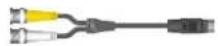
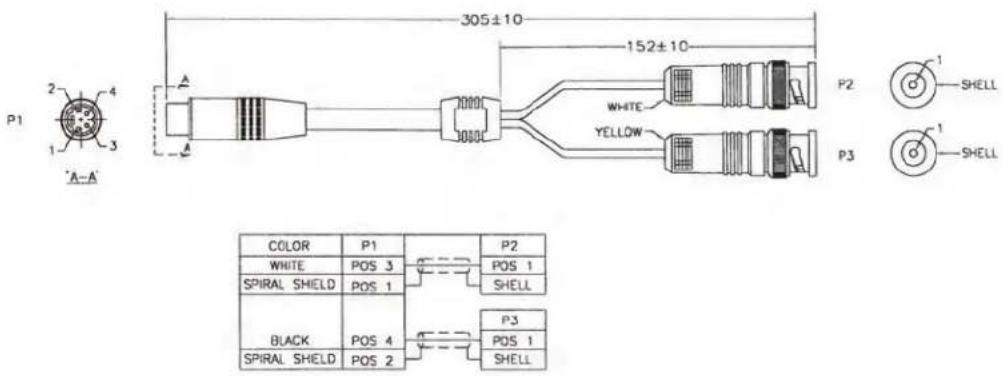
This adapter may be required when connecting standard S-Video cables to a Polycom HDX system. It is dual BNC male to 4-pin female mini-DIN.
| Length Part Number RoHS Compliant | ||
| 1 ft (.3 m) 2457-21490-200 Yes |
text_image
P1 2 4 1 3 'A-A' 305±10 152±10 WHITE YELLOW P2 SHELL P3 SHELL COLOR P1 POS 3 P2 POS 1 SHELL SPIRAL SHIELD POS 1 BLACK POS 4 P3 POS 1 SHELL SPIRAL SHIELD POS 2
Drawings and part numbers are provided for reference only. Polycom claims no responsibility or liability for the quality, performance, or reliability of cables based on these reference drawings, other than cables provided by Polycom. Contact your Polycom distributor or Polycom Custom/Vertical Products to order cables that meet the appropriate manufacturing tolerances, quality, and performance parameters for your application.
DVI to VGA Monitor Cable
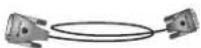
This cable connects a Polycom HDX system DVI-I output to a VGA monitor. It can also be used to connect a computer to one of the DVI-A video inputs on a Polycom HDX system. It is male DVI-A to male HD-15.
| Length Part Number RoHS Compliant | ||
| 4 ft 6 in (1.5 m) 2457-25182-001 Yes | ||
| 9 ft 10 in (3 m) 2457-23792-001 Yes | ||
| 25 ft (7.6 m) 2457-23792-025 Yes |
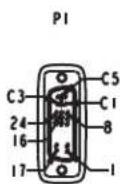
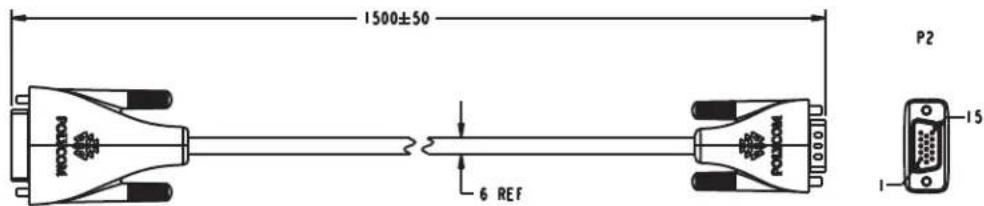
text_image
1500±50 6 REF PODCOM P2 15 1| WIRING LIST | ||||
| SIGNAL | P1 | P2 | CABLE UNIT | CONDUCTOR |
| RED | C1 | 1 | D1 | CENTER |
| GREEN | C2 | 2 | D2 | CENTER |
| BLUE | C3 | 3 | D3 | CENTER |
| H-SYNC | C4 | 13 | E1 | - |
| GROUND-RED | C5 | 6 | D1 | SHIELD |
| GROUND-GREEN | 7 | D2 | SHIELD | |
| GROUND-BLUE | 8 | D3 | SHIELD | |
| DDC-SCL | 6 | 15 | E2 | - |
| DDC-SDA | 7 | 12 | E3 | - |
| V-SYNC | 8 | 14 | E4 | - |
| 15V DC | 14 | 9 | E5 | - |
| 16 | ||||
| GROUND | 15 | 5 | E6 | - |
| 10 | ||||
| SHIELD | SHELL | SHELL | C.D | - |

Drawings and part numbers are provided for reference only. Polycom claims no responsibility or liability for the quality, performance, or reliability of cables based on these reference drawings, other than cables provided by Polycom. Contact your Polycom distributor or Polycom Custom/Vertical Products to order cables that meet the appropriate manufacturing tolerances, quality, and performance parameters for your application.
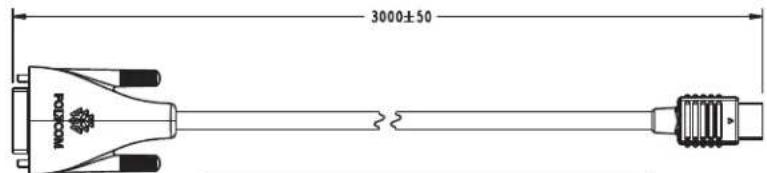
HDMI Monitor Cable
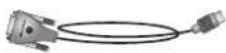
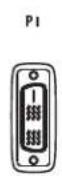
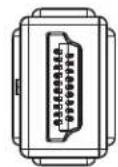
This cable connects the Polycom HDX system DVI-I output to an HDMI monitor. It is male DVI-D to male HDMI.
| Length Part Number RoHS Compliant | ||
| 9 ft 10 in (3 m) 2457-23905-001 Yes |
text_image
3000±50 PDICM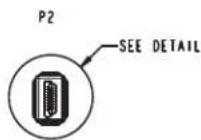
| WIRING LIST | ||||
| SIGNAL | P1 | P2 | CABLE UNIT | CONDUCTOR |
| TMDS Data2- | 1 | 3 | D1 | TIP |
| TMDS Data2+ | 2 | 1 | RING | |
| TMDS Data2 SHIELD | 3 | 2 | DRAIN | |
| DDC Clock | 6 | 15 | E1 | — |
| DDC Data | 7 | 16 | E2 | — |
| TMDS Data1- | 9 | 6 | D2 | TIP |
| TMDS Data1+ | 10 | 4 | RING | |
| TMDS Data1 Shield | 11 | 5 | DRAIN | |
| +5 Volts | 14 | 18 | E3 | — |
| +5 Volts Ground | 15 | 17 | E4 | — |
| Hol Plug Delect | 16 | 19 | E5 | — |
| TMDS Data0- | 17 | 9 | D3 | TIP |
| TMDS Data0+ | 18 | 7 | RING | |
| TMDS Data0 Shield | 19 | 8 | DRAIN | |
| TMDS Clock Shield | 22 | 11 | D4 | DRAIN |
| TMDS Clock+ | 23 | 10 | RING | |
| TMDS Clock- | 24 | 12 | TIP | |
| Shield | SHELL | SHELL | B,C | — |

Drawings and part numbers are provided for reference only. Polycom claims no responsibility or liability for the quality, performance, or reliability of cables based on these reference drawings, other than cables provided by Polycom. Contact your Polycom distributor or Polycom Custom/Vertical Products to order cables that meet the appropriate manufacturing tolerances, quality, and performance parameters for your application.
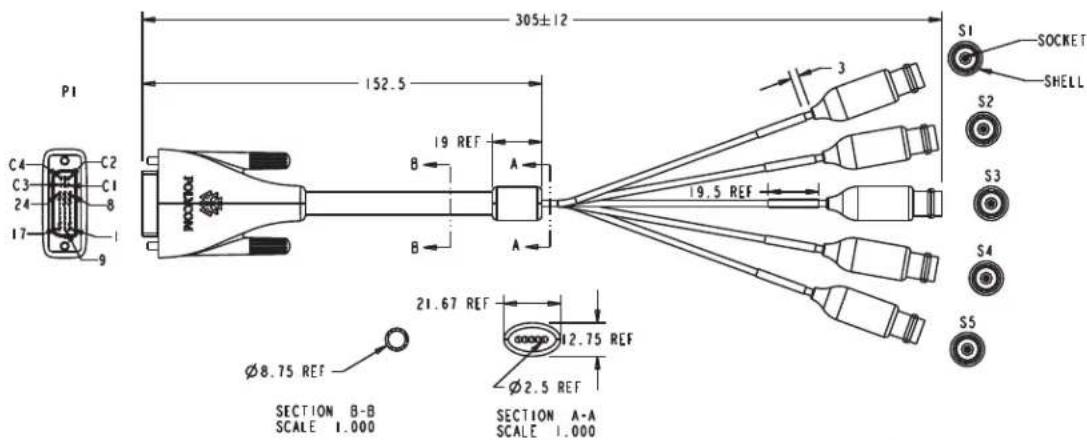
BNC Monitor Adapter Cable
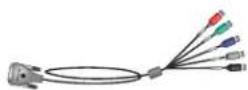
This cable connects the Polycom HDX system DVI-I output to a variety of analog display devices with composite, S-Video, component YPbPr, or RGBHV inputs. It is male DVI-A to five female BNC connectors.
| Length Part Number RoHS Compliant | ||
| 1 ft (0.3 m) 2457-23533-001 Yes |
text_image
305±12 152.5 P1 C4 C2 C3 C1 24 8 17 9 19 REF B A B A 19.5 REF S1 SOCKET SHELL S2 S3 S4 S5 Ø8.75 REF 21.67 REF 12.75 REF Ø2.5 REF SECTION B-B SCALE 1.000 SECTION A-A SCALE 1.000| WIRING LIST | |||||||
| SIGNAL | PI | WIRE | S1 | S2 | S3 | S4 | S5 |
| VSync | 8 | COAX #1 CENTER | — | — | — | — | SOCKET |
| R/C/Pr | C1 | COAX #2 CENTER | SOCKET | — | — | — | — |
| G/T/Y/Comp. | C2 | COAX #3 CENTER | — | SOCKET | — | — | — |
| B/-/Pb | C3 | COAX #4 CENTER | — | — | SOCKET | — | — |
| HSync | C4 | COAX #5 CENTER | — | — | — | SOCKET | — |
| GROUND | C5 | COAX #1 SHIELD | SHELL | — | — | — | — |
| COAX #2 SHIELD | — | SHELL | — | — | — | ||
| COAX #3 SHIELD | — | — | SHELL | — | — | ||
| COAX #4 SHIELD | — | — | — | SHELL | — | ||
| COAX #5 SHIELD | — | — | — | — | SHELL | ||

Drawings and part numbers are provided for reference only. Polycom claims no responsibility or liability for the quality, performance, or reliability of cables based on these reference drawings, other than cables provided by Polycom. Contact your Polycom distributor or Polycom Custom/Vertical Products to order cables that meet the appropriate manufacturing tolerances, quality, and performance parameters for your application.
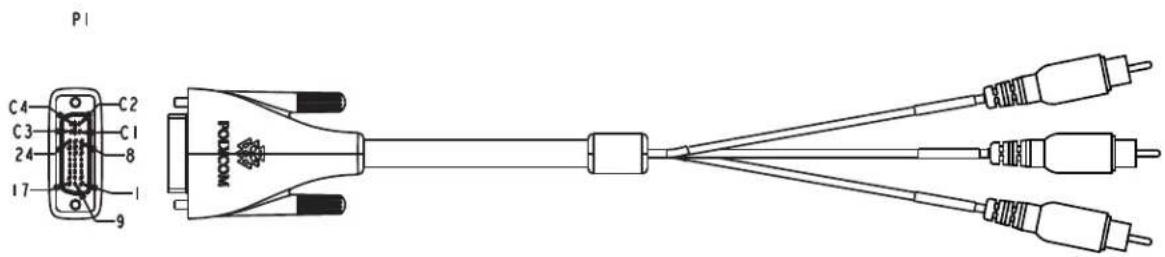
Polycom HDX Component Monitor Cable
This cable connects a Polycom HDX system DVI-1 output to a monitor with component connections. It is male DVI-A to three RCA.
| Length Part Number RoHS Compliant | ||
| 6 ft (1.8 m) 2457-52698-006 Yes | ||
| 12 ft (3.6 m) 2457-52698-012 Yes |
text_image
P1 C4 C2 C3 C1 24 8 17 1 9 NOSK R 2
Drawings and part numbers are provided for reference only. Polycom claims no responsibility or liability for the quality, performance, or reliability of cables based on these reference drawings, other than cables provided by Polycom. Contact your Polycom distributor or Polycom Custom/Vertical Products to order cables that meet the appropriate manufacturing tolerances, quality, and performance parameters for your application.
HDX Component Video Cable
This cable connects a Polycom HDX system to a video playback device with component connections. It is three RCA to three male BNC.
| Length Part Number RoHS Compliant | ||
| 25 ft (7.6 m) 2457-52688-025 Yes |

natural_image
Pure electrical circuit lines without any symbols
Drawings and part numbers are provided for reference only. Polycom claims no responsibility or liability for the quality, performance, or reliability of cables based on these reference drawings, other than cables provided by Polycom. Contact your Polycom distributor or Polycom Custom/Vertical Products to order cables that meet the appropriate manufacturing tolerances, quality, and performance parameters for your application.
DVI-D Monitor Cable
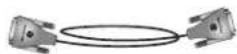
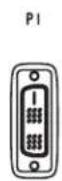
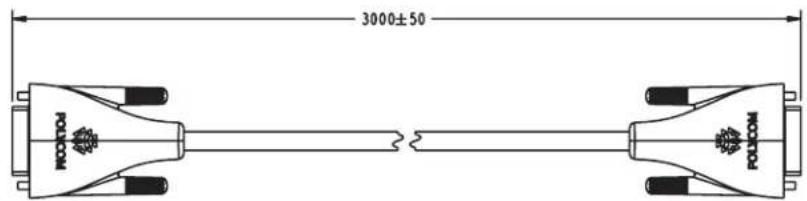
This cable connects a Polycom HDX system DVI-I output to a DVI-D monitor. It is male DVI-D on both ends.
| Length Part Number RoHS Compliant | ||
| 4 ft 6 in (1.5 m) 2457-25181-001 Yes | ||
| 9 ft 10 in (3 m) 2457-23793-001 Yes |
text_image
3000±50 POLOCOM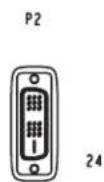
| WIRING LIST | ||||
| SIGNAL | P1 | P2 | CABLE UNIT | CONDUCTOR |
| TMDS Data2- | 1 | 1 | D1 | TIP |
| TMDS Data2+ | 2 | 2 | RING | |
| TMDS Data2 SHIELD | 3 | 3 | DRAIN | |
| DDC Clock | 6 | 6 | E1 | — |
| DDC Data | 7 | 7 | E2 | — |
| TMDS Data1- | 9 | 9 | D2 | TIP |
| TMDS Data1+ | 10 | 10 | RING | |
| TMDS Data1 Shield | 11 | 11 | DRAIN | |
| +5 Volts | 14 | 14 | E3 | — |
| +5 Volts Ground | 15 | 15 | E4 | — |
| Hot Plug Detect | 16 | 16 | E5 | — |
| TMDS Data0- | 17 | 17 | D3 | TIP |
| TMDS Data0+ | 18 | 18 | RING | |
| TMDS Data0 Shield | 19 | 19 | DRAIN | |
| TMDS Clock Shield | 22 | 22 | D4 | DRAIN |
| TMDS Clock+ | 23 | 23 | RING | |
| TMDS Clock- | 24 | 24 | TIP | |
| Shield | SHELL | SHELL | B.C | — |

Drawings and part numbers are provided for reference only. Polycom claims no responsibility or liability for the quality, performance, or reliability of cables based on these reference drawings, other than cables provided by Polycom. Contact your Polycom distributor or Polycom Custom/Vertical Products to order cables that meet the appropriate manufacturing tolerances, quality, and performance parameters for your application.
Component A/V Monitor Cable
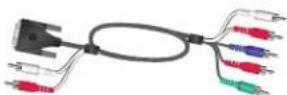
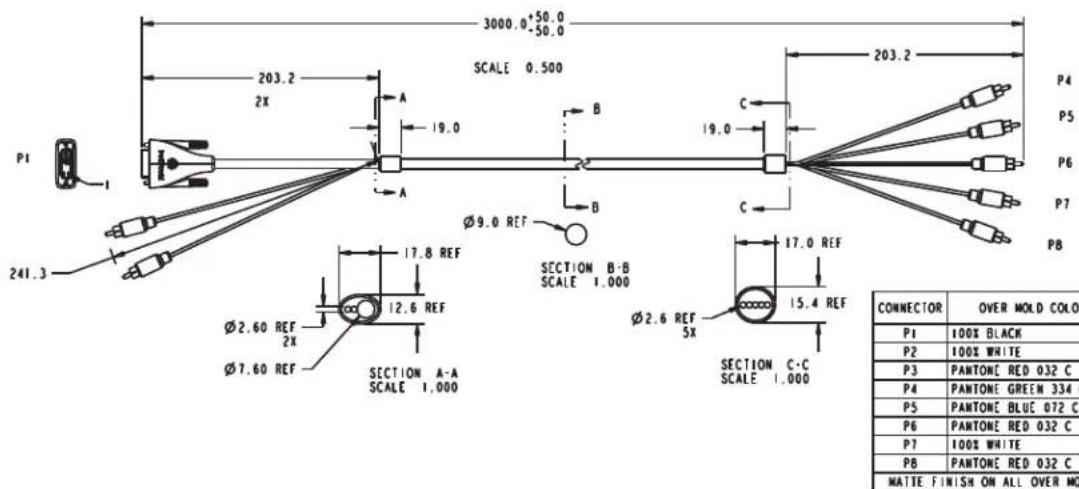
This cable connects a Polycom HDX system DVI-I video output and stereo audio output to a monitor with component video and stereo audio connections. It is male DVI-A and dual male RCA to five RCA.
You must use the audio adapter cable on page Audio Adapter Cable on page 2-49 to connect the dual RCA connectors on this component A/V monitor cable to the dual Phoenix connectors on the Polycom HDX system.
| Length Part Number RoHS Compliant | ||
| 9 ft 10 in (3 m) 2457-24772-001 Yes |
text_image
3000.0*50.0 -50.0 203.2 SCALE 0.500 203.2 P1 I 241.3 A 19.0 B C 19.0 P4 P5 P6 P7 P8 Ø9.0 REF SECTION B-B SCALE 1.000 Ø2.60 REF 2X Ø7.60 REF SECTION A-A SCALE 1.000 Ø2.6 REF 5X SECTION C-C SCALE 1.000 17.8 REF SECTION A-A SCALE 1.000 15.4 REF P2 100X WHITE P3 PANTONE RED 032 C P4 PANTONE GREEN 334 C P5 PANTONE BLUE 072 C P6 PANTONE RED 032 C P7 100X WHITE P8 PANTONE RED 032 C MATTLE FINISH ON ALL OVER MO CONNECTOR OVER MOLD COLOR P1 100X BLACK P2 100X WHITE P3 PANTONE RED 032 C P4 PANTONE GREEN 334 C P5 PANTONE BLUE 072 C P6 PANTONE RED 032 C P7 100X WHITE P8 PANTONE RED 032 C| CONNECTOR | OVER MOLD COLOR |
| P1 | 100% BLACK |
| P2 | 100% WHITE |
| P3 | PAINTONE RED 032 C |
| P4 | PAINTONE GREEN 334 C |
| P5 | PAINTONE BLUE 072 C |
| P6 | PAINTONE RED 032 C |
| P7 | 100% WHITE |
| P8 | PAINTONE RED 032 C |
| MATTE FINISH ON ALL OVER MOLDS | |

Drawings and part numbers are provided for reference only. Polycom claims no responsibility or liability for the quality, performance, or reliability of cables based on these reference drawings, other than cables provided by Polycom. Contact your Polycom distributor or Polycom Custom/Vertical Products to order cables that meet the appropriate manufacturing tolerances, quality, and performance parameters for your application.
HDCI Analog Camera Cable

This cable connects a Polycom HDX system to a Polycom EagleEye HD camera. This cable can be connected to the EagleEye View camera, but does not support audio. It has male HDCI connectors on both ends.
| Length Part Number RoHS Compliant | ||
| 9 ft 10 in (3 m) 2457-23180-003 Yes | ||
| 33 ft (10 m) 2457-23180-010 Yes | ||
| 50 ft (15 m) 2457-23180-015 Yes | ||
| 100 ft (30 m) 2457-23180-030 Yes |

text_image
P1 30 60 41.5 3000*50 50 7.5 REF P2 41.5 60| WIRING LIST | |||||
| SIGNAL NAME | P1 PIN# | P2 PIN# | CABLE UNIT | CONDUCTOR | COLOR |
| Y | 47 | 47 | D1 | CENTER | |
| Y SHIELD | 46 | 46 | SHIELD | ||
| Pb | 13 | 13 | D2 | CENTER | |
| Pb SHIELD | 12 | 12 | SHIELD | ||
| Pr | 14 | 14 | D3 | CENTER | |
| Pr SHIELD | 15 | 15 | SHIELD | ||
| +12 VDC | 4 | 4 | E1 | - | |
| +12 VDC | 5 | 5 | E2 | - | |
| +12 VDC | 10 | 10 | E3 | - | |
| +12 VDC | 11 | 11 | E4 | - | |
| GND | 7 | 7 | E5 | - | |
| GND | 8 | 8 | E6 | - | |
| GND | 48 | 48 | E7 | - | |
| GND | 58 | 58 | E8 | - | |
| Rx | 1 | 1 | E9 | - | |
| Tx | 2 | 2 | E10 | - | |
| IR | 3 | 3 | E11 | - | |
| GND | SHELL | SHELL | B | - | |

Drawings and part numbers are provided for reference only. Polycom claims no responsibility or liability for the quality, performance, or reliability of cables based on these reference drawings, other than cables provided by Polycom. Contact your Polycom distributor or Polycom Custom/Vertical Products to order cables that meet the appropriate manufacturing tolerances, quality, and performance parameters for your application.
HDCI Digital Camera Cable

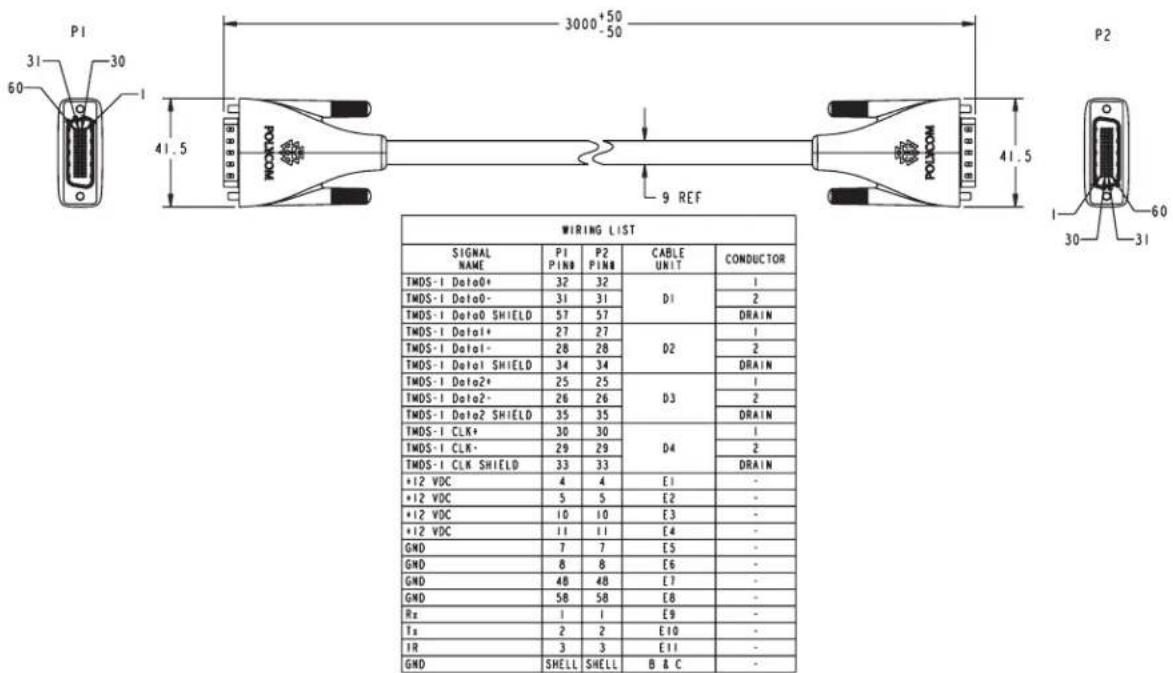
This cable connects a Polycom HDX system to a Polycom EagleEye HD camera. It has male HDCI connectors on both ends.
| Length Part Number RoHS Compliant | ||
| 9 ft 10 in (3 m) 2457-23181-003 Yes |
text_image
P1 30 60 41.5 3000+50 -50 POLOOM 9 REF WIRING LIST SIGNAL NAME P1 P1N P2 PIN CABLE UNIT CONDUCTOR TMDS-1 Data0+ 32 32 D1 1 TMDS-1 Data0- 31 31 D2 2 TMDS-1 Data0 SHIELD 57 57 D3 2 TMDS-1 Data1+ 27 27 D4 1 TMDS-1 Data1- 28 28 D5 2 TMDS-1 Data1 SHIELD 34 34 D6 2 TMDS-1 Data2+ 25 25 D7 2 TMDS-1 Data2- 26 26 D8 2 TMDS-1 Data2 SHIELD 35 35 D9 2 TMDS-1 CLK+ 30 30 D10 - TMDS-1 CLK- 29 29 D11 - TMDS-1 CLK SHIELD 33 33 D12 - *12 VDC 4 4 E1 - *12 VDC 5 5 E2 - *12 VDC 10 10 E3 - *12 VDC 11 11 E4 - GND 7 7 E5 - GND 8 8 E6 - GND 48 48 E7 - GND 58 58 E8 - Rz 1 1 E9 - Ta 2 2 E10 - IR 3 3 E11 - GND SHELL SHELL B & C - WIRING LIST
Drawings and part numbers are provided for reference only. Polycom claims no responsibility or liability for the quality, performance, or reliability of cables based on these reference drawings, other than cables provided by Polycom. Contact your Polycom distributor or Polycom Custom/Vertical Products to order cables that meet the appropriate manufacturing tolerances, quality, and performance parameters for your application.
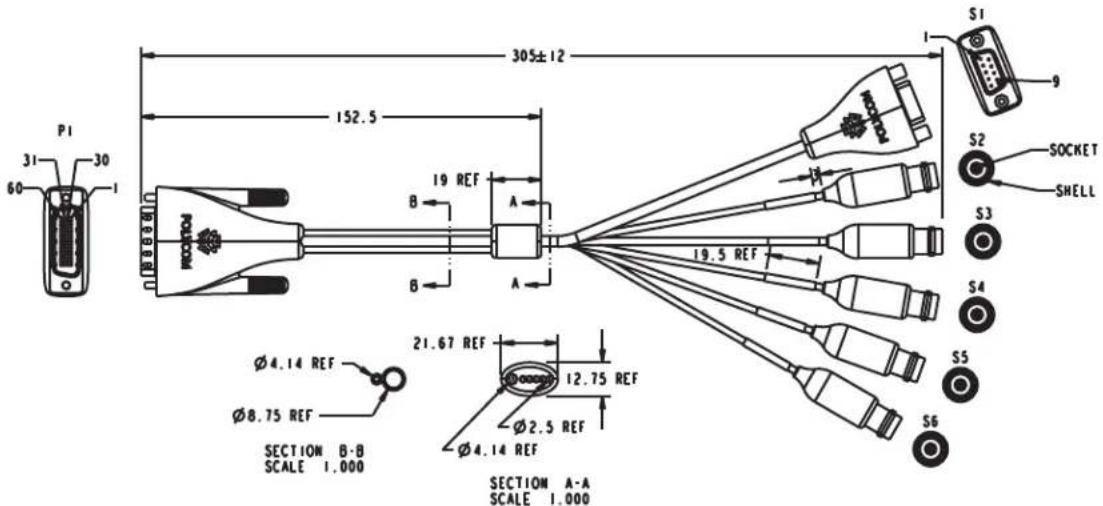
HDCI Camera Break-Out Cable
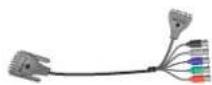
This cable breaks out the HDCI camera cable video and control signals to standard interfaces. This cable can be connected to the EagleEye View camera, but does not support audio. The five BNC connectors can be used to carry composite video, S-Video, or analog component YPbPr video. The DB-9 connector is used to connect to PTZ camera control interfaces. It is male HDCI to five female BNC and one female DB-9.
| Length Part Number RoHS Compliant | ||
| 1ft (0.3 m) 2457-23521-001 Yes |
text_image
P1 31 30 60 1 152.5 305±12 S1 9 S2 SOCKET SHELL RQOLTR B 19 REF A B A 19.5 REF S3 S4 ∅4.14 REF ∅8.75 REF SECTION B-B SCALE 1.000 21.67 REF 12.75 REF ∅2.5 REF ∅4.14 REF SECTION A-A SCALE 1.000 S5 S6| WIRING LIST | ||||||||
| SIGNAL | WIRE | P1 | S1 | S2 | S3 | S4 | S5 | S6 |
| RS-232 R8 | 28 AWG 81 | 1 | 2 | — | — | — | — | — |
| RS-232 T8 | 28 AWG 82 | 2 | 3 | — | — | — | — | — |
| 1R | 28 AWG 83 | 3 | 9 | — | — | — | — | — |
| GROUND | 28 AWG 84 | 7 | 5 | — | — | — | — | — |
| Pb/B SHIELD | COAX 81 SHIELD | 12 | — | — | — | SHELL | — | — |
| Pb/B | COAX 81 CENTER | 13 | — | — | — | SOCKET | — | — |
| Pr/R/C SHIELD | COAX 82 CENTER | 14 | — | SOCKET | — | — | — | |
| Pr/R/C | COAX 82 SHIELD | 15 | — | SHELL | — | — | — | — |
| T/G/C SHIELD | COAX 83 SHIELD | 46 | — | — | SHELL | — | — | — |
| T/G/C | COAX 83 CENTER | 47 | — | — | SOCKET | — | — | — |
| HSync | COAX 84 CENTER | 50 | — | — | — | — | SOCKET | — |
| VSync | COAX 85 CENTER | 51 | — | — | — | — | — | SOCKET |
| HSync SHIELD | COAX 84 SHIELD | 52 | — | — | — | — | SHELL | — |
| VSync SHIELD | COAX 85 SHIELD | — | — | — | — | — | SHELL | |
| — | BRAIDED SHIELD | SHIELD | SHIELD | — | — | — | — | — |

Drawings and part numbers are provided for reference only. Polycom claims no responsibility or liability for the quality, performance, or reliability of cables based on these reference drawings, other than cables provided by Polycom. Contact your Polycom distributor or Polycom Custom/Vertical Products to order cables that meet the appropriate manufacturing tolerances, quality, and performance parameters for your application.
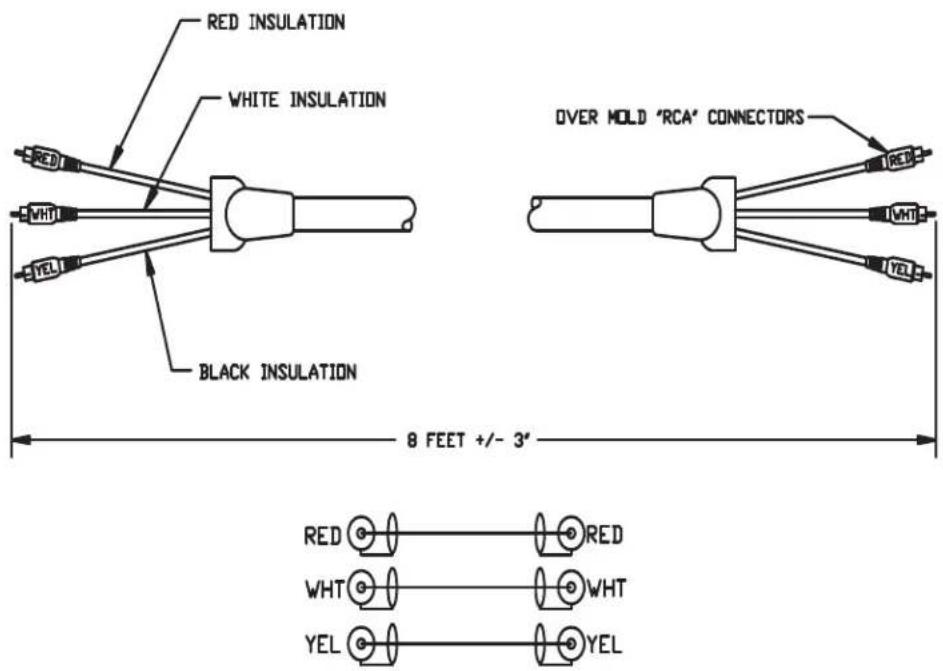
VCR/DVD Composite Cable
This cable connects a Polycom HDX system to a VCR or DVD player. It has triple RCA connectors on both ends. The Polycom HDX system requires a female RCA to male BNC adapter for the yellow video RCA connector, and the Audio Adapter Cable on page 2-49. The maximum approved length for this cable is 50 ft (15 m).
| Length Part Number RoHS Compliant | ||
| 8 ft (2.6 m) 2457-08412-001 — |
text_image
RED INSULATION WHITE INSULATION BLACK INSULATION 8 FEET +/- 3° OVER MOLD "RCA" CONNECTORS RED WHT YEL RED WHT YEL
Drawings and part numbers are provided for reference only. Polycom claims no responsibility or liability for the quality, performance, or reliability of cables based on these reference drawings, other than cables provided by Polycom. Contact your Polycom distributor or Polycom Custom/Vertical Products to order cables that meet the appropriate manufacturing tolerances, quality, and performance parameters for your application.
Composite Video Cable
This cable connects a Polycom HDX system to a monitor or camera. It has single yellow RCA connectors on both ends. The Polycom HDX system requires a female RCA to male BNC adapter in order to connect to composite input or output. The maximum approved length for this cable is 100 ft (30 m).
| Length Part Number RoHS Compliant | ||
| 25 ft (7.6 m) 2457-09207-001 — |
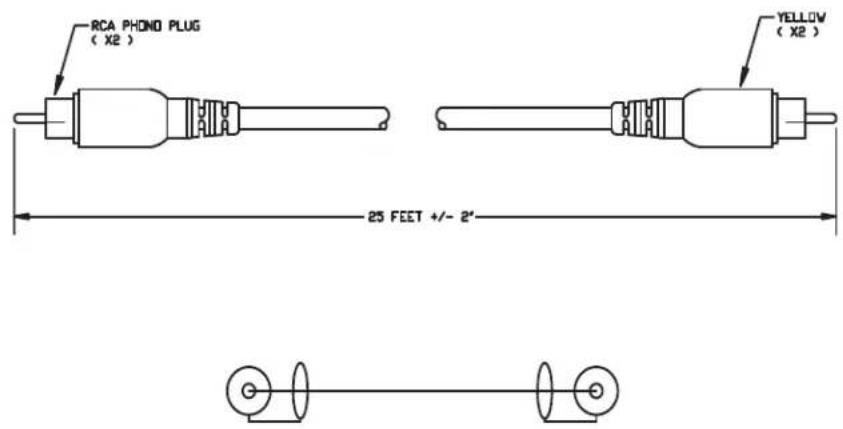
text_image
RCA PHONO PLUG (X2) YELLOW (X2) 25 FEET +/- 2°
Drawings and part numbers are provided for reference only. Polycom claims no responsibility or liability for the quality, performance, or reliability of cables based on these reference drawings, other than cables provided by Polycom. Contact your Polycom distributor or Polycom Custom/Vertical Products to order cables that meet the appropriate manufacturing tolerances, quality, and performance parameters for your application.
PowerCam Plus Primary Cable
This cable connects a Polycom HDX system to a Polycom PowerCam Plus camera using the HDCI PowerCam Plus Adapter Cable on page 2-31. It has 4-pin mini-DIN and DB-15 connectors on both ends.
| Length Part Number RoHS Compliant | ||
| 9 ft 10 in (3 m) 1457-50105-002 Yes | ||
| 30 ft (9 m) 1457-50105-230 Yes | ||
| 50 ft (15 m) 1457-50105-250 Yes | ||
| 100 ft (30 m) 1457-50105-300 Yes | ||
| 150 ft (45 m) 1457-50105-350 Yes |
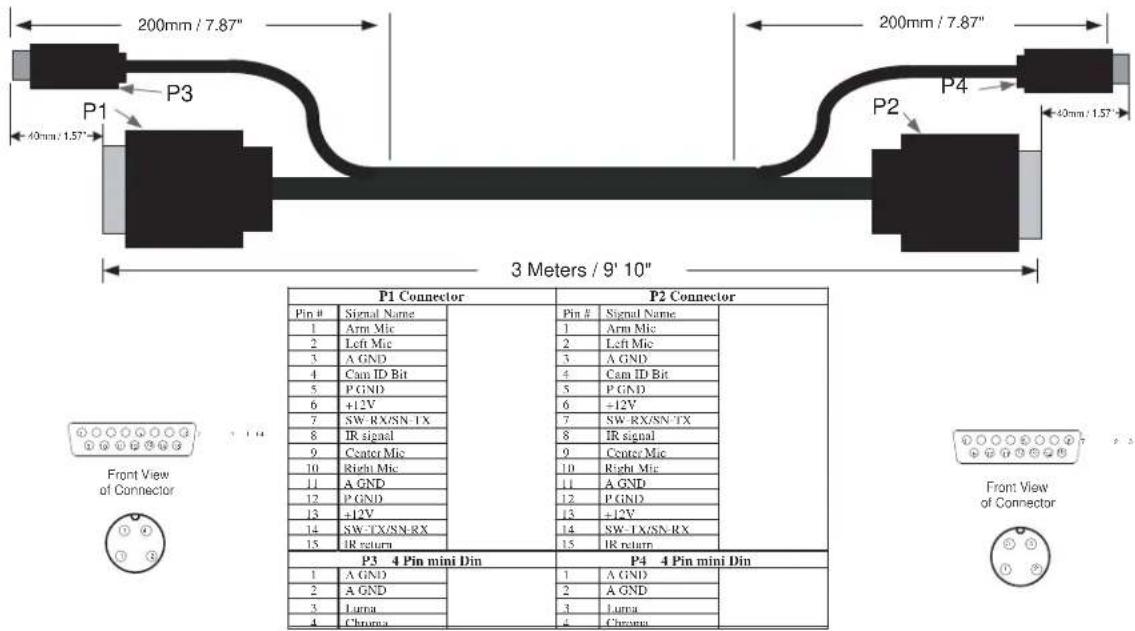
text_image
200mm / 7.87" P1 40mm / 1.57" P3 3 Meters / 9' 10" P2 P4 40mm / 1.57" P1 Connector Pin # | Signal Name | 1 | Arm Mic 2 | Left Mic 3 | A GND 4 | Cam ID Bit 5 | P GND 6 | +12V 7 | SW RX/SN-TX 8 | IR signal 9 | Center Mic 10 | Right Mic 11 | A GND 12 | P GND 13 | +12V 14 | SW TX/SN-RX 15 | IR return P3 4 Pin mini Din P4 4 Pin mini Din Pin # | Signal Name | 1 | Arm Mic 2 | Left Mic 3 | A GND 4 | Cam ID Bit 5 | P GND 6 | +12V 7 | SW RX/SN-TX 8 | IR signal 9 | Center Mic 10 | Right Mic 11 | A GND 12 | P GND 13 | +12V 14 | SW TX/SN-RX IR return Front View of Connector Front View of Connector
Drawings and part numbers are provided for reference only. Polycom claims no responsibility or liability for the quality, performance, or reliability of cables based on these reference drawings, other than cables provided by Polycom. Contact your Polycom distributor or Polycom Custom/Vertical Products to order cables that meet the appropriate manufacturing tolerances, quality, and performance parameters for your application.
HDCI PowerCam Cable
This cable connects a Polycom HDX system to a Polycom PowerCam camera. It is HDCI to 8-pin mini-DIN.
| Length Part Number RoHS Compliant | ||
| 10 ft (3 m) 2457-28168-001 Yes |

text_image
P1 31 60 30 1 3000±50 41.5 NOCOM P2 8 3| WIRING LIST | |||
| SIGNAL NAME | P1 | CABLE UNIT | P2 |
| Rx (CODEC) | 1 | E1 | 2 |
| Tx (CODEC) | 2 | E2 | 1 |
| IR | 3 | E3 | 4 |
| +12V | 4 | E4 | 7 |
| 5 | E5 | ||
| 10 | E6 | ||
| 11 | E7 | ||
| PGND & IR RTN | 7 | E8 | 3 |
| 8 | E9 | ||
| 48 | E10 | ||
| 58 | E11 | ||
| A GND | 15 | SHIELD D1 | 5 |
| 46 | SHIELD D2 | ||
| CHROMA | 14 | CTR D1 | 8 |
| LUMA | 47 | CTR D2 | 6 |
| SHIELD | SHELL | BRAID | SHELL |

Drawings and part numbers are provided for reference only. Polycom claims no responsibility or liability for the quality, performance, or reliability of cables based on these reference drawings, other than cables provided by Polycom. Contact your Polycom distributor or Polycom Custom/Vertical Products to order cables that meet the appropriate manufacturing tolerances, quality, and performance parameters for your application.
HDCI PowerCam Plus Adapter Cable
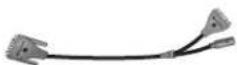
This cable adapts a PowerCam Plus cable to HDCI. It is HDCI to 4-pin mini-DIN and DB-15. It can also be used with the PowerCam Primary Camera Cable on page 2-37 to connect PowerCam.
| Length Part Number RoHS Compliant | ||
| 1 ft (0.3 m) 2457-23481-001 Yes |
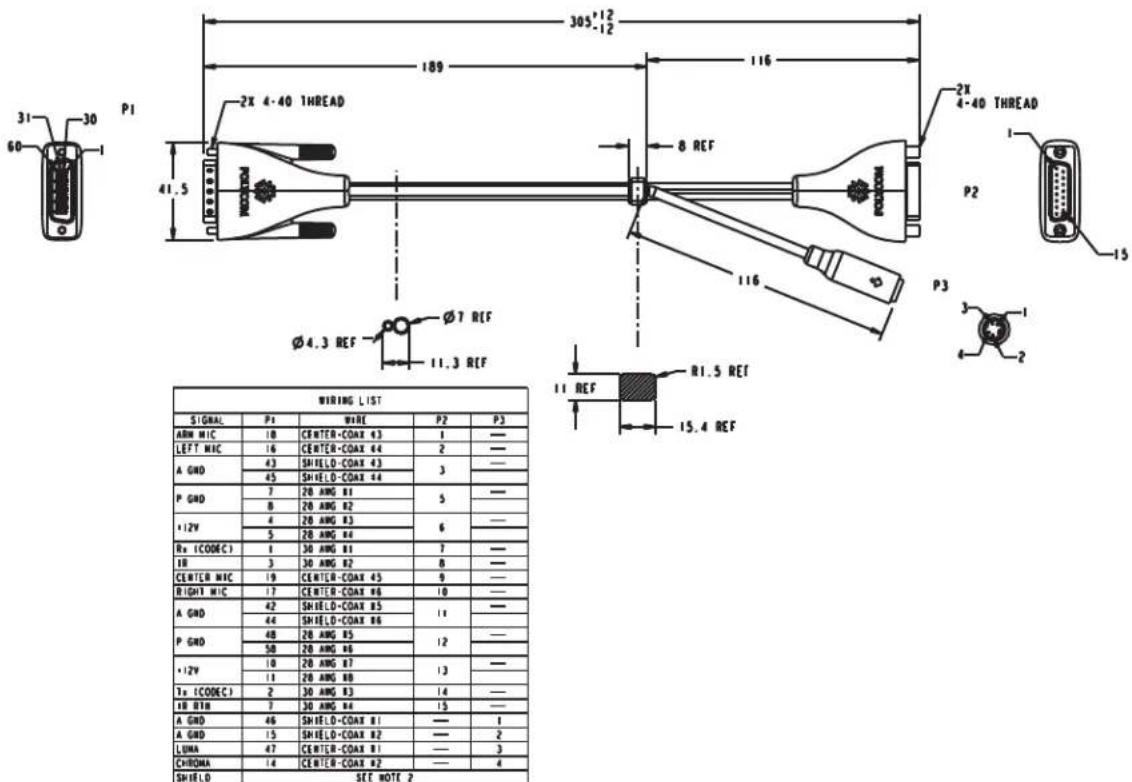
text_image
305°12 189 116 2X 4-40 THREAD P1 41.5 2X 4-40 THREAD Ø7 REF 11.3 REF WIRING LIST SIGNAL P1 WIRE P2 P3 ARM MIC 18 CENTER-COAX #3 1 — LEFT MIC 16 CENTER-COAX #4 2 — A GND 43 SHIELD-COAX #3 3 — SHIELD-COAX #4 P GND 7 28 AWG #1 5 — 8 28 AWG #2 *12V 4 28 AWG #3 6 — 5 28 AWG #4 R0 (CODEC) 1 30 AWG #1 7 — IB 3 30 AWG #2 8 — CENTER MIC 19 CENTER-COAX #5 9 — RIGHT MIC 17 CENTER-COAX #6 10 — A GND 42 SHIELD-COAX #5 11 — 44 SHIELD-COAX #6 P GND 48 28 AWG #5 12 — 58 28 AWG #6 *12V 10 28 AWG #7 13 — T0 (CODEC) 2 30 AWG #3 14 — IB BTB 7 30 AWG #4 15 — A GND 46 SHIELD-COAX #1 — 1 A GND 15 SHIELD-COAX #2 — 2 LUMA 47 CENTER-COAX #1 — 3 CHROMA 14 CENTER-COAX #2 — 4 SHIELD SET NOTE 2
Drawings and part numbers are provided for reference only. Polycom claims no responsibility or liability for the quality, performance, or reliability of cables based on these reference drawings, other than cables provided by Polycom. Contact your Polycom distributor or Polycom Custom/Vertical Products to order cables that meet the appropriate manufacturing tolerances, quality, and performance parameters for your application.
HDCI VISCA Adapter Cable
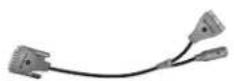
This cable connects a Polycom HDX system HDCI video input to SD cameras with VISCA control that use a DB-9 serial connector. It is HDCI to 4-pin mini-DIN and DB-9. Standard S-Video and DB-9 serial cables are required to connect this cable to the camera.
| Length Part Number RoHS Compliant | ||
| 1 ft (0.3 m) 2457-23486-001 Yes |
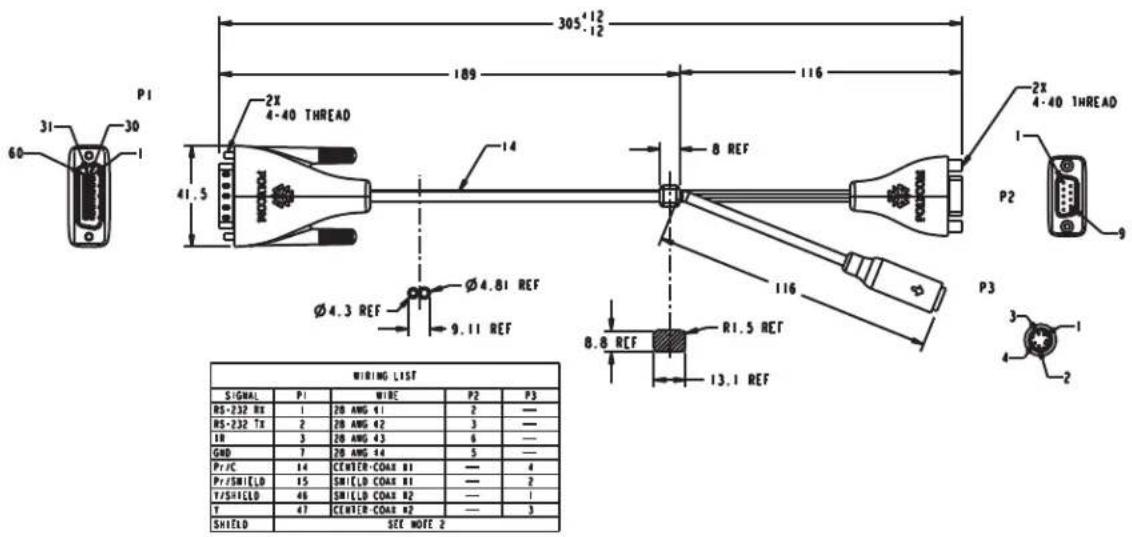
text_image
305.12 189 116 2X 4-40 THREAD P1 31 30 60 41.5 14 8 REF Ø4.3 REF Ø4.81 REF 9.11 REF R1.5 REF 13.1 REF P2 2X 4-40 THREAD P3 3 4 2 WIRING LIST SIGNAL P1 WIRE P2 P3 RS-232 RX 1 20 ANG 41 2 — RS-232 TX 2 20 ANG 42 3 — 1B 3 20 ANG 43 6 — GND 7 20 ANG 44 5 — Pr/C 14 CENTER-COAR R1 — 4 Pr/SHIELD 15 SHIELD COAR R1 — 2 T/SHIELD 46 SHIELD COAR R2 — 1 Y 47 CENTER-COAR #2 — 3 SHIELD SIZE NOTE 2
Drawings and part numbers are provided for reference only. Polycom claims no responsibility or liability for the quality, performance, or reliability of cables based on these reference drawings, other than cables provided by Polycom. Contact your Polycom distributor or Polycom Custom/Vertical Products to order cables that meet the appropriate manufacturing tolerances, quality, and performance parameters for your application.
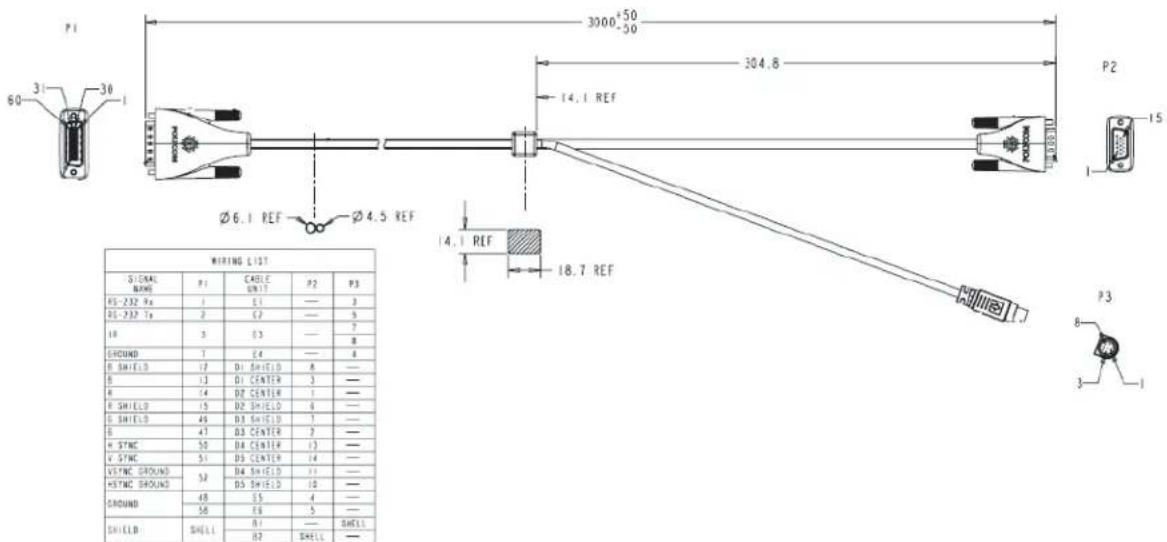
HDCI Polycom EagleEye 1080 Camera Cable
This cable connects a Polycom HDX system HDCI video input to a Polycom EagleEye 1080 camera or to a Sony HD camera. The cable is HDCI to 8-pin mini-DIN and HD-15.
| Length Part Number RoHS Compliant | ||
| 9 ft 10 in (3 m) 2457-28153-001 Yes | ||
| 33 ft (10 m) 2457-28154-001 Yes | ||
| 50 ft (15m) 2457-28154-050 Yes | ||
| 100 ft (30m) 2457-28154-100 Yes |
text_image
P1 60 3 30 1 3000-50 304.8 14.1 REF Ø6.1 REF Ø4.5 REF 18.7 REF WIRING LIST SIGNAL NAME P1 CABLE P2 P3 RS-232 Tr 1 E1 — 3 DS-232 Tr 2 C2 — 5 18 3 D3 — 7 SHUND 1 E4 — 8 R SHIELD 12 D1 SHIELD 8 — B 13 D1 CENTER 3 — R 14 D2 CENTER 1 — R SHIELD 15 D2 SHIELD 6 — G SHIELD 49 D3 SHIELD 1 — B 47 D3 CENTER 2 — A SYNC 50 D4 CENTER 13 — V SYNC 51 D5 CENTER 14 — VSYNC GROUND 52 D6 SHIELD 11 — HSTNC GROUND 53 D5 SHIELD 10 — GROUND 48 E5 4 — SHIELD 56 E6 5 — SHIELD SHELL R1 — SHELL —
Drawings and part numbers are provided for reference only. Polycom claims no responsibility or liability for the quality, performance, or reliability of cables based on these reference drawings, other than cables provided by Polycom. Contact your Polycom distributor or Polycom Custom/Vertical Products to order cables that meet the appropriate manufacturing tolerances, quality, and performance parameters for your application.
HDCI Polycom EagleEye View Camera Cable

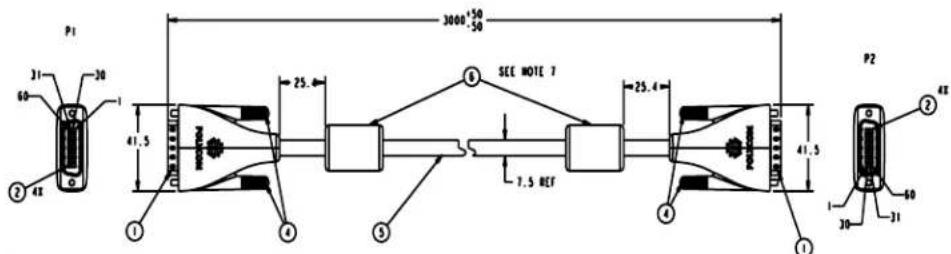
This cable connects a Polycom HDX system HDCI video input to a Polycom EagleEye View camera. It has male HDCI connectors on both ends.
| Length Part Number RoHS Compliant | ||
| 9 ft 10 in (3 m) 2457-29759-001 Yes | ||
| 33 ft (10 m) 2457-29759-010 Yes |
text_image
P1 31 60 30 41.5 25.4 3000+50 -50 ① ② 4X ③ ④ ⑤ SEE NOTE 7 7.5 REF 25.4 ⑥ ⑦ 41.5 P2 ② 4X B 60 30 31| WIRING LIST | ||||
| SIGNAL NAME | P1 P1N8 | P2 P1N8 | CABLE UNIT | CONDUCTOR |
| T | 47 | 47 | 01 | CENTER |
| T SHIELD | 46 | 46 | SHIELD | |
| PB | 13 | 13 | 02 | CENTER |
| PB SHIELD | 12 | 12 | SHIELD | |
| Pr | 14 | 14 | 03 | CENTER |
| Pr SHIELD | 15 | 15 | SHIELD | |
| LEFT MIC | 16 | 16 | 04 | CENTER |
| LEFT MIC SHIELD | 45 | 45 | SHIELD | |
| RIGHT MIC | 17 | 17 | 05 | CENTER |
| RIGHT MIC SHIELD | 44 | 44 | SHIELD | |
| +12 VDC | 4 | 4 | 11 | - |
| +12 VDC | 5 | 5 | 12 | - |
| +12 VDC | 10 | 10 | 13 | - |
| +12 VDC | 11 | 11 | 14 | - |
| GND | 1 | 1 | 15 | - |
| GND | 9 | 9 | 16 | - |
| GND | 49 | 49 | 17 | - |
| GND | 58 | 58 | 18 | - |
| Ra | 1 | 1 | 19 | - |
| Ta | 2 | 2 | 210 | - |
| R | 3 | 3 | 211 | - |
| GND | SHIELD | SHIELD | 8 | - |

Drawings and part numbers are provided for reference only. Polycom claims no responsibility or liability for the quality, performance, or reliability of cables based on these reference drawings, other than cables provided by Polycom. Contact your Polycom distributor or Polycom Custom/Vertical Products to order cables that meet the appropriate manufacturing tolerances, quality, and performance parameters for your application.
HDCI Sony VISCA Adapter Cable
This cable connects a Polycom HDX system HDCI video input to a camera using Sony 8-pin mini-DIN VISCA and S-Video. It is HDCI to 8-pin mini-DIN and S-Video. Standard S-Video and Sony VISCA cables are required to connect this cable to the camera. The VISCA cable is a straight-through male 8-pin mini-DIN to male 8-pin mini-DIN serial cable.
| Length Part Number RoHS Compliant | ||
| 1 ft (0.3 m) 2457-23549-001 Yes |
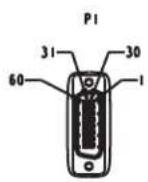
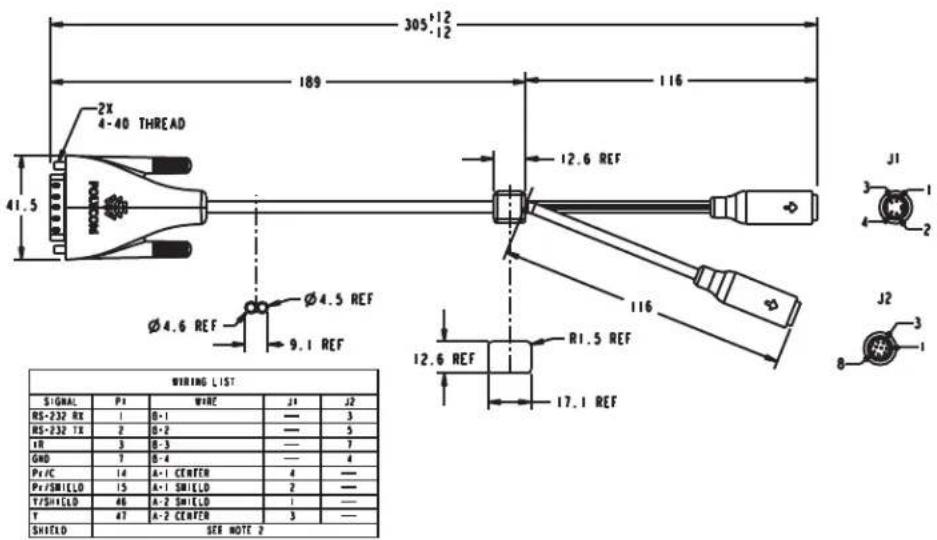
text_image
305⁺¹²₋¹² 189 116 2X 4-40 THREAD 41.5 RODDOR Ø4.6 REF Ø4.5 REF 9.1 REF WIRING LIST SIGNAL P1 WIRE J1 J2 RS-232 RX 1 B-1 — 3 RS-232 TX 2 B-2 — 5 TX 3 B-3 — 7 GND 7 B-4 — 4 P/IC 14 A-1 CENTER 4 — P/SMIELD 15 A-1 SMIELD 2 — T/SHIELD 46 A-2 SMIELD 1 — T 47 A-2 CENTER 3 — SHIELD SER NOTE 2
Drawings and part numbers are provided for reference only. Polycom claims no responsibility or liability for the quality, performance, or reliability of cables based on these reference drawings, other than cables provided by Polycom. Contact your Polycom distributor or Polycom Custom/Vertical Products to order cables that meet the appropriate manufacturing tolerances, quality, and performance parameters for your application.
HDCI EagleEye 1080 or Sony Adapter Cable
This cable connects a Polycom system HDCI video input to the Polycom EagleEye 1080, Sony EVI-HD1 PTZ or Sony BRC-H700 PTZ cameras. It is HDCI to 8-pin mini-DIN and HD-15. The maximum approved length for this cable is 100 ft (30 m).
| Length Part Number RoHS Compliant | ||
| 1 ft (0.3 m) 2457-23548-001 Yes |
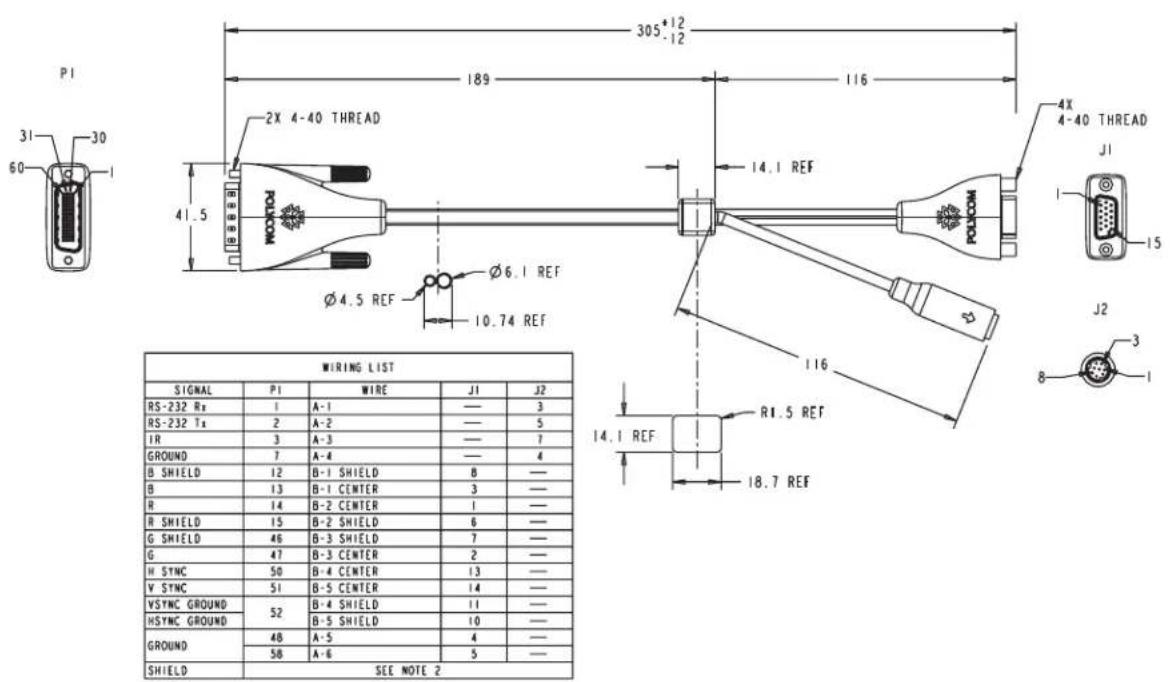
text_image
PI 31 30 60 2X 4-40 THREAD 41.5 305*12 189 116 14.1 REF POLYCOM 4X 4-40 THREAD J1 15 J2 3 8 MIRING LIST SIGNAL PI WIRE J1 J2 RS-232 Rt 1 A-1 — 3 RS-232 Ts 2 A-2 — 5 IR 3 A-3 — 7 GROUND 7 A-4 — 4 B SHIELD 12 B-1 SHIELD 8 — B 13 B-1 CENTER 3 — R 14 B-2 CENTER 1 — R SHIELD 15 B-2 SHIELD 6 — G SHIELD 46 B-3 SHIELD 7 — G 47 B-3 CENTER 2 — H SYNC 50 B-4 CENTER 13 — V SYNC 51 B-5 CENTER 14 — VSYNC GROUND 52 B-4 SHIELD 11 — HSYNC GROUND 53 B-5 SHIELD 10 — GROUND 48 A-5 4 — SHIELD 58 A-6 5 — SEE NOTE 2
Drawings and part numbers are provided for reference only. Polycom claims no responsibility or liability for the quality, performance, or reliability of cables based on these reference drawings, other than cables provided by Polycom. Contact your Polycom distributor or Polycom Custom/Vertical Products to order cables that meet the appropriate manufacturing tolerances, quality, and performance parameters for your application.
PowerCam Primary Camera Cable
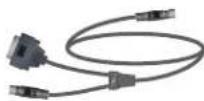
This cable connects the Polycom HDX system video input 1 to a Polycom PowerCam camera up to 10 ft away when used with the HDCI PowerCam Plus Adapter Cable on page 2-31. It is 8-pin mini-DIN to 4-pin mini-DIN and DB-15. The maximum approved length for this cable is 10 ft (3 m).
| Length Part Number RoHS Compliant | ||
| 9 ft 10 in (3 m) 1457-50338-002 Yes |
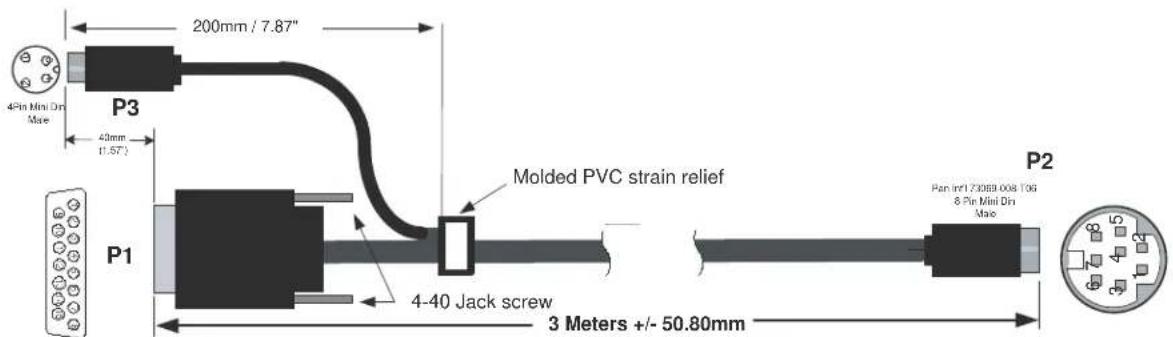
text_image
200mm / 7.87" 4Pin Mini Din Max 43mm (1.57°) P3 Molded PVC strain relief P1 4-40 Jack screw 3 Meters +/- 50.80mm P2 Pan inf1 73069.008 T06 8 Pin Mini Din Max| P1 15 Pin D Connector P2 8 Pin mini Din | ||||
| Pin # Signal | Name Wire Type Pin | Signal Name | ||
| 1-4 | N/C | |||
| 5 | PGND | 22AWG wire | 3 | DGND |
| 6 | +12V | 22 AWG wire | 7 | +12V |
| 7 | SW-RX/SN-TX | 30 AWG wire | 2 | SW-RX/SN-TX |
| 8 | IR-SIGNAL | 30 AWG wire | 4 | IR SIGNAL |
| 9-11 | N/C | |||
| 12 | P GND | 22 AWG wire | 5 | DGND |
| 13 | +12V | 22 AWG wire | 7 | +12V |
| 14 | SW-TX/SN-RX | 30 AWG wire | 1 | SW-TX/SN-RX |
| 15 | IR RETURN | 30 AWG wire | 3 | DGND |
| SHIELD | DRAIN wire | SHIELD | ||
| P3 4 Pin Mini Din | ||||
| 1 | RIN | Coax Shield | 5 | GVID |
| 2 | RIN | Coax Shield | 5 | GVID |
| 3 | Luma | Micro Coax | 6 | Luma |
| 4 | Chroma | Micro Coax | 8 | Chroma |
| SHIELD | DRAIN wire | SHIELD | ||

Drawings and part numbers are provided for reference only. Polycom claims no responsibility or liability for the quality, performance, or reliability of cables based on these reference drawings, other than cables provided by Polycom. Contact your Polycom distributor or Polycom Custom/Vertical Products to order cables that meet the appropriate manufacturing tolerances, quality, and performance parameters for your application.
PowerCam Break-Out Cable

This cable connects S-Video and control cables and a power supply to a Polycom PowerCam camera. This combination is required when using the PowerCam as the primary camera more than 10 ft away from the system, or as the secondary camera. It is 8-pin mini-DIN to 3-way breakout block.
A separate power supply is required (part number 1465-52621-036).
| Length Part Number RoHS Compliant | ||
| 6 ft (1.8 m) 2457-50526-200 Yes |
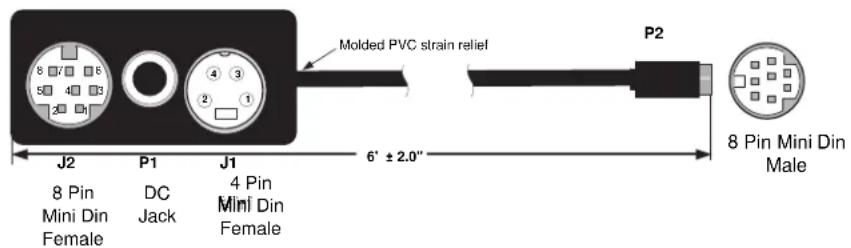
text_image
Molded PVC strain relief J2 P1 J1 6' ± 2.0" P2 8 Pin Mini Din Male 8 Pin Mini Din Female DC Jack 4 Pin Mini Din Female| CONNECTION TABLE | ||||
| Signal Name | P1 | P2 | J1 | J2 |
| TXD | — | 1 | — | 5 |
| RXD | — | 2 | — | 3 |
| DGND | 1 | 3 | — | 6 & 4 |
| IR-SIGNAL | — | 4 | — | 7 |
| CHROMAR | — | 5 | 1 | — |
| LUMAR | — | 5 | 2 | — |
| LUMA (Y) | — | 6 | 3 | — |
| +12V | 2 | 7 | — | — |
| CHROMA (C) | — | 8 | 4 | — |
| SHIELD | — | Shield | — | Shield |

Drawings and part numbers are provided for reference only. Polycom claims no responsibility or liability for the quality, performance, or reliability of cables based on these reference drawings, other than cables provided by Polycom. Contact your Polycom distributor or Polycom Custom/Vertical Products to order cables that meet the appropriate manufacturing tolerances, quality, and performance parameters for your application.
PowerCam Plus/VISCA Control Cable
8-pin mini-DIN to DB-15
This cable adapts the 8-pin mini-DIN VISCA control interface to the PowerCam Plus DB-15 control interface. It is used with the PowerCam Break-Out cable and the HDCI PowerCam Plus adapter cable. It is 8-pin mini-DIN to DB-15.
| Length Part Number RoHS Compliant | ||
| 50 ft (15 m) 1457-50527-201 Yes |

text_image
P1 15 Pin D-sub Male 50' ± 3.0" P2 8 Pin Min On Male| P1 15 Pin D Connector P2 VISCA 8 Pin mini Din | |||||
| Pin # Signal Name Pin # Signal Name | |||||
| 1-6, 9-11, 13 NC 1, 2, 8 NC | 3 | ||||
| 7 | SW-RX/SN-TX | SW-RX/SN-TX | |||
| 8 | IR-SIGNAL | 7 | IR OUT | ||
| 12 | P GND | 4 | GND | ||
| 14 | SW-TX/SN-RX | 5 | SW-TX/SN-RX | ||
| 15 | IR RETURN | 6 | GND | ||
| SHIELD | SHIELD | ||||

Drawings and part numbers are provided for reference only. Polycom claims no responsibility or liability for the quality, performance, or reliability of cables based on these reference drawings, other than cables provided by Polycom. Contact your Polycom distributor or Polycom Custom/Vertical Products to order cables that meet the appropriate manufacturing tolerances, quality, and performance parameters for your application.
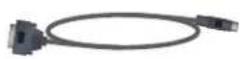
8-pin mini-DIN to DB-9
This cable connects Polycom HDX system serial port inputs to a non-Polycom camera using a VISCA 8-pin DIN connector, or to a Polycom PowerCam break-out cable with a PowerCam camera. It is 8-pin mini-DIN to DB-9. RTS/CTS and IR are not supported on this cable.
| Length Part Number RoHS Compliant | ||
| 50 ft (15 m) 2457-10029-200 Yes |
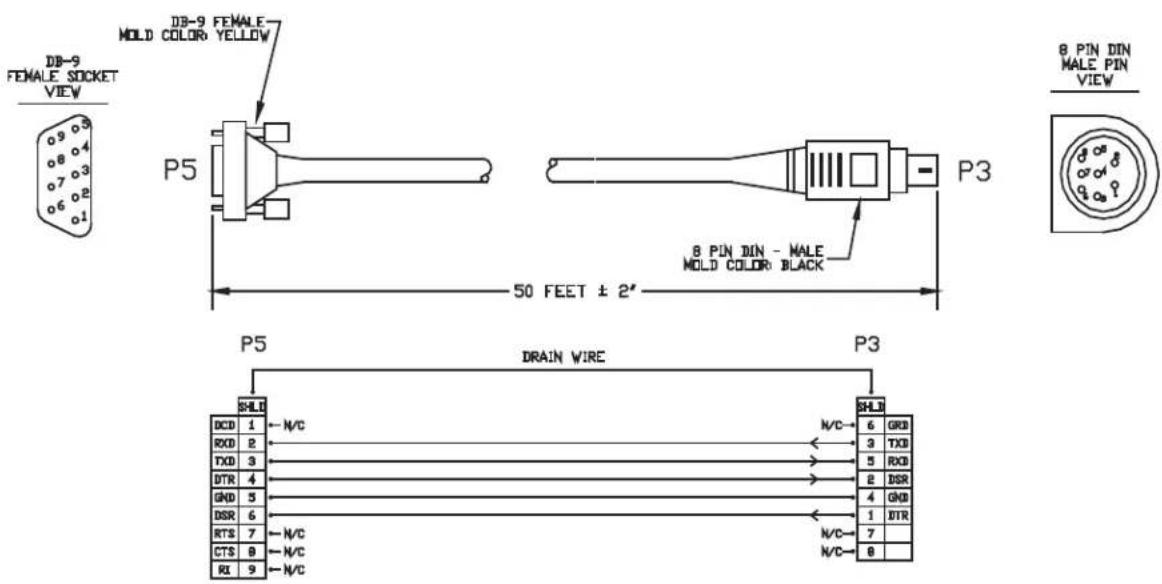
text_image
DB-9 FEMALE MOLD COLOR YELLOW DB-9 FEMALE FEMALE SOCKET VIEW P5 P3 8 PIN DIN - MALE MOLD COLOR BLACK 50 FEET ± 2" P5 DRAIN WIRE P3 SHLD DCD 1 ← N/C RXD 2 ← N/C→6 GRD TXD 3 ← N/C→3 TXD DTR 4 ← N/C→5 RXD GND 5 ← N/C→2 DSR DSR 6 ← N/C→4 GND RTS 7 ← N/C→1 DTR CTS 8 ← N/C→7 RL 9 ← N/C→N/C→8 SHLD
Drawings and part numbers are provided for reference only. Polycom claims no responsibility or liability for the quality, performance, or reliability of cables based on these reference drawings, other than cables provided by Polycom. Contact your Polycom distributor or Polycom Custom/Vertical Products to order cables that meet the appropriate manufacturing tolerances, quality, and performance parameters for your application.
Audio Cables
Polycom HDX Microphone Host Cable

For more information about supported microphone configurations, refer to the Administrator's Guide for Polycom HDX Systems.
This cable connects a Polycom HDX system to the Polycom SoundStructure C-Series mixer. It is unkeyed male RJ-45 on both ends.
| Length Part Number RoHS Compliant | ||
| 18 in (0.5 m) 2457-23574-001 Yes | ||
| 25 ft (7.5 m) 2457-23217-001 Yes |

text_image
P1 10 I 2X BEL STEWART CONNECTOR P.N. 937-SP-361010-031-A108 457±12 12.7 25 12.7 25 P2 I 10 WIRING LIST P1 P2 CABLE CONDUCTOR 2 6 TWISTED 1 3 7 PAIR #1 2 6 2 TWISTED 1 7 3 PAIR #2 2 8 8 CONDUCTOR #1 - 9 9 CONDUCTOR #2 - 4 4 DRAIN - SHIELD SHIELD SHIELD PINS 1, 5 AND 10 OF P1 & P2 ARE NOT USED AND SHALL BE LEFT OPEN.| COLOR | AWG | P1 | P2 | |
| WHITE/GREEN | 24 | 1 | 5 | |
| GREEN | 24 | 2 | 6 | |
| WHITE/ORANGE | 24 | 5 | 1 | |
| ORANGE | 24 | 6 | 2 | |
| WHITE/BROWN | 24 | 7 | 7 | |
| BROWN | 24 | 8 | 8 | |
| DRAIN WIRE | 3 | 3 | ||
| SHIELD | SHELL | SHELL |
P1 - RJ-45 shielded plug, Tyco 5-569552 or equivalent P2 - RJ-45 shielded plug, Tyco 5-569552 or equivalent

When connecting two Polycom HDX microphone host devices, a cross-over cable is required. To build a custom cross-over cable for this purpose, you should use shielded CAT5 or better cable. Each end of the custom cable should have a shielded RJ-45 plug connector that connects to a Polycom HDX microphone host device. The maximum supported cable length is 100 feet.
Due to differing use of the twisted pairs within the cable, the pinout for this custom CAT5 cross-over cable is not the same as the pinout that is used for standard Ethernet cables. Do not use standard Ethernet cables. Instead, for best cable performance, refer to the following pinout information to create this custom CAT5 cross-over cable.

Drawings and part numbers are provided for reference only. Polycom claims no responsibility or liability for the quality, performance, or reliability of cables based on these reference drawings, other than cables provided by Polycom. Contact your Polycom distributor or Polycom Custom/Vertical Products to order cables that meet the appropriate manufacturing tolerances, quality, and performance parameters for your application.
Polycom HDX Microphone Array Cable

For more information about supported microphone configurations, refer to the Administrator's Guide for Polycom HDX Systems.
This cable connects two Polycom HDX microphones together. This cable can also be used with the Polycom HDX Microphone Array Cable Adapter on page 2-44 to connect a Polycom HDX system to a Polycom HDX microphone array or to a SoundStation IP 7000 phone. It has male Walta connectors on both ends.
| Length Part Number RoHS Compliant | ||
| 15 ft (4.6 m) 2457-23215-001 Yes | ||
| 25 ft (7.6 m) 2457-23216-001 Yes |
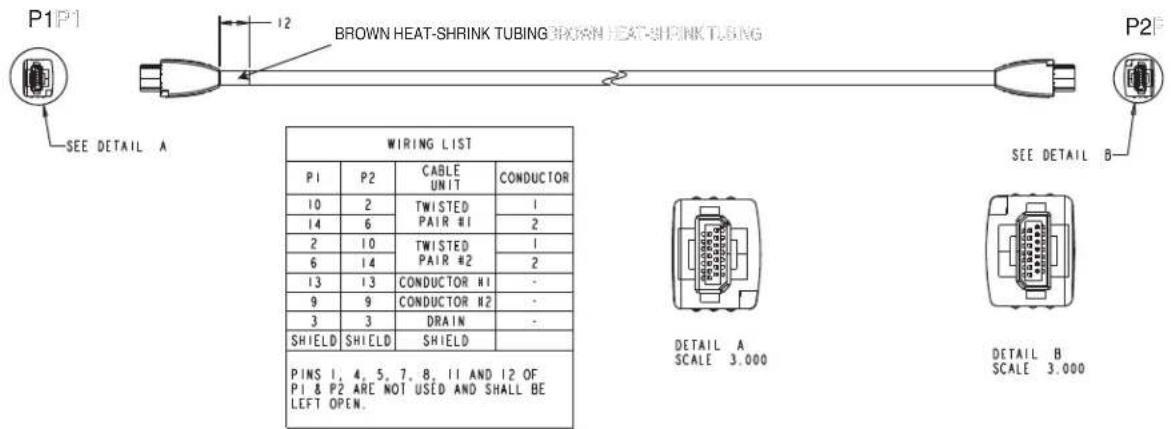
text_image
P1 P1 BROWN HEAT-SHRINK TUBING BROWN HEAT-SHRINK TUBING SEE DETAIL A WIRING LIST P1 P2 CABLE UNIT CONDUCTOR 10 2 TWISTED 1 14 6 PAIR #1 2 2 10 TWISTED 1 6 14 PAIR #2 2 13 13 CONDUCTOR H1 - 9 9 CONDUCTOR H2 - 3 3 DRAIN - SHIELD SHIELD PINS 1, 4, 5, 7, 8, 11 AND 12 OF P1 & P2 ARE NOT USED AND SHALL BE LEFT OPEN. DETAIL A SCALE 3.000 DETAIL B SCALE 3.000
Drawings and part numbers are provided for reference only. Polycom claims no responsibility or liability for the quality, performance, or reliability of cables based on these reference drawings, other than cables provided by Polycom. Contact your Polycom distributor or Polycom Custom/Vertical Products to order cables that meet the appropriate manufacturing tolerances, quality, and performance parameters for your application.
Polycom HDX Microphone Array Cable Adapter
For more information about supported microphone cable configurations, refer to the Administrator's Guide for Polycom HDX Systems.
This cable adapts the Polycom HDX Microphone Array Cable on page 2-43 for use with the Polycom HDX 9000 Series system and the SoundStructure C-Series mixer. It is male RJ-45 to female Walta.
| Length Part Number RoHS Compliant | ||
| 18 in (0.5 m) 2457-23716-001 Yes |

text_image
P1 10 1 457±12 12.7 5.3 REF SCALE 0.800 J1| WIRING LIST | |||
| PI | JI | CABLE UNIT | CONDUCTOR |
| 2 | 10 | TWISTED PAIR #1 | 1 |
| 3 | 14 | 2 | |
| 6 | 2 | TWISTED PAIR #2 | 1 |
| 7 | 6 | 2 | |
| 8 | 13 | INSULATED CONDUCTOR #1 | - |
| 9 | 9 | INSULATED CONDUCTOR #2 | - |
| 4 | 3 | DRAIN | - |
| SHIELD | |||
| SHIELD | - | SHIELD | - |
| CONTACTS 1,5 AND 10 OF PI AND CONTACTS 1,4,5,7,8,81 AND 12 OF JI ARE NOT USED AND SHALL BE LEFT OPEN. | |||
The following diagram shows microphone connection options for Polycom HDX 9000 Series systems, using cables available from Polycom.

flowchart
graph LR
    A["Server"] --> B["Data Packet"]
    B --> C["Network Interface"]
    C --> D["Device 1"]
    C --> E["Device 2"]
    C --> F["Device 3"]
Polycom HDX Microphone Cable Adapter Polycom HDX Microphone Cables

Do not connect Polycom microphone cables or devices to the Ethernet port, and do not connect an Ethernet cable or device to the Polycom microphone input.

Drawings and part numbers are provided for reference only. Polycom claims no responsibility or liability for the quality, performance, or reliability of cables based on these reference drawings, other than cables provided by Polycom. Contact your Polycom distributor or Polycom Custom/Vertical Products to order cables that meet the appropriate manufacturing tolerances, quality, and performance parameters for your application.
Custom Cabling for Polycom HDX Microphones
You can create a custom-length cable from the Polycom HDX 9000 Series system to the Polycom HDX microphone. Start with the microphone cable (2457-23216-001), and cut off the P1 end. Using the wiring tables shown, create a custom cable from the microphone to a wall plate or other interfacing device. Next, from the wall plate or other interfacing device, run shielded CAT5 or better cable to the Polycom HDX system, terminating with a shielded RJ-45 plug connector.
The total length from the Polycom HDX system to the first Polycom microphone can vary between 18 in and 100 ft. The maximum length between subsequent microphones is 25 ft.
The following diagram shows an example of longer custom cabling from a Polycom HDX system to a Polycom microphone or a Polycom SoundStation IP 7000 Phone.
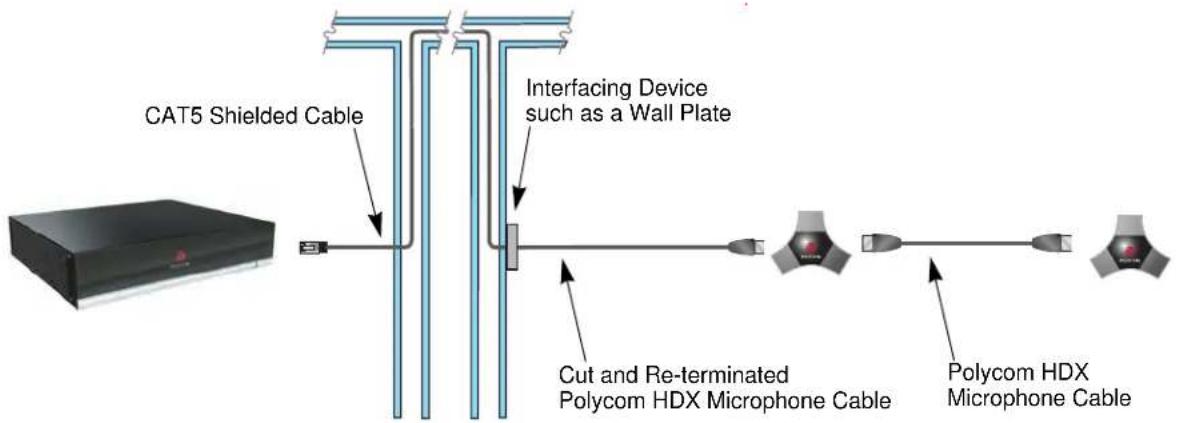
flowchart
graph LR
    A["CAT5 Shielded Cable"] --> B["Interfacing Device such as a Wall Plate"]
    B --> C["Cut and Re-terminated Polycom HDX Microphone Cable"]
    B --> D["Polycom HDX Microphone Cable"]
The following steps explain how to wire this custom cable configuration.
1 Identify the P1 connector on the Polycom HDX microphone cable according to the location of the brown heat-shrink tubing as shown on page Polycom HDX Microphone Array Cable on page 2-43. Remove the P1 connector and skip to step 4. Note that two separate vendors manufacture these cables, which are electrically equivalent but have different color coding. If you cannot identify the P1 connector, remove either connector from the cable and continue with step 2.
The following tables show the color coding for the cable wiring.
VENDOR 1
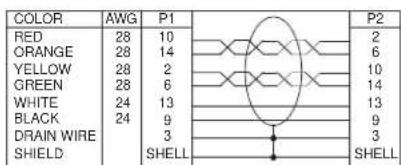
text_image
COLOR AWG P1 RED 28 10 ORANGE 28 14 YELLOW 28 2 GREEN 28 6 WHITE 24 13 BLACK 24 9 DRAIN WIRE 3 SHIELD SHELL P2 2 6 10 14 13 9 3 SHELLP1, P2 - Walta Electronics, M30-558-0051
VENDOR 2
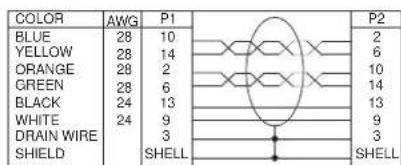
text_image
COLOR AWG P1 BLUE 28 10 YELLOW 28 14 ORANGE 28 2 GREEN 28 6 BLACK 24 13 WHITE 24 9 DRAIN WIRE 3 SHIELD SHELL P2 2 6 10 14 13 9 3 SHELLP1, P2 - Walta Electronics, M30-558-0051
2 If you are not sure which connector you cut off, use the following tables to perform a continuity check between the connector and the cable colors. If you cut off P1, skip to step 4. If you cut off P2, continue with step 3.
VENDOR 1, P1
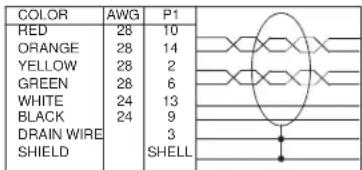
text_image
COLOR AWG P1 RED 28 10 ORANGE 28 14 YELLOW 28 2 GREEN 28 6 WHITE 24 13 BLACK 24 9 DRAIN WIRE 3 SHIELD SHELLVENDOR 2, P1
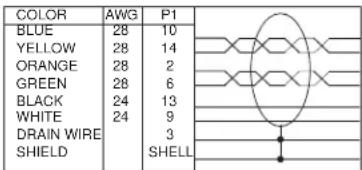
text_image
COLOR AWG P1 BLUE 28 10 YELLOW 28 14 ORANGE 28 2 GREEN 28 6 BLACK 24 13 WHITE 24 9 DRAIN WIRE SHIELD 3 SHELLP1 - Walta Electronics, M30-558-0051 P1 - Walta Electronics, M30-558-0051
VENDOR 1, P2
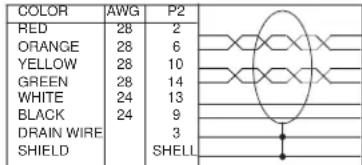
text_image
COLOR AWG P2 RED 28 2 ORANGE 28 6 YELLOW 28 10 GREEN 28 14 WHITE 24 13 BLACK 24 9 DRAIN WIRE 3 SHIELD SHELLVENDOR 2, P2
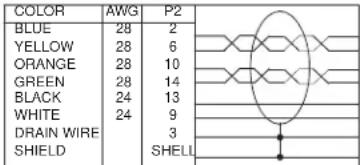
text_image
COLOR AWG P2 BLUE 28 2 YELLOW 28 6 ORANGE 28 10 GREEN 28 14 BLACK 24 13 WHITE 24 9 DRAIN WIRE 3 SHIELD SHELLP2 - Walta Electronics, M30-558-0051 P2 - Walta Electronics, M30-558-0051
3 If you cut off P2, re-terminate the cable with a shielded RJ-45 connector using the following tables, then skip to step 5.
VENDOR 1, P1 VENDOR 2, P1
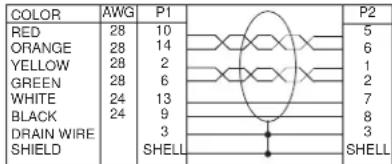
text_image
COLOR 28 10 RED ORANGE 28 14 YELLOW 28 2 GREEN 28 6 WHITE 24 13 BLACK 24 9 DRAIN WIRE 3 SHIELD SHELL P1 P2 5 6 1 2 7 8 3 SHELL| COLOR | AWG | P1 | P2 | |
| BLUE | 28 | 10 | 5 | |
| YELLOW | 28 | 14 | 6 | |
| ORANGE | 28 | 2 | 1 | |
| GREEN | 28 | 6 | 2 | |
| BLACK | 24 | 13 | 7 | |
| WHITE | 24 | 9 | 8 | |
| DRAIN WIRE | 3 | 3 | ||
| SHIELD | SHELL | SHELL |
P1 - Walta Electronics, M30-558-0051
P1 - Walta Electronics, M30-558-0051
P2 - RJ-45 shielded plug, Tyco 5-569552 or equivalent
P2 - RJ-45 shielded plug. Tyco 5-569552 or equivalent
4 If you cut off P1, re-terminate the cable with an RJ-45 8-pin plug using the following tables, then continue with step 5.
VENDOR 1
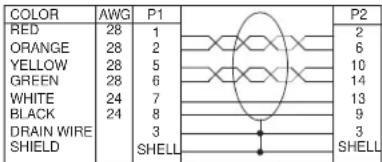
text_image
COLOR AWG P1 28 1 ORANGE 28 2 YELLOW 28 5 GREEN 28 6 WHITE 24 7 BLACK 24 8 DRAIN WIRE 3 SHIELD SHELL P2 2 6 10 14 13 9 3 SHELLVENDOR 2
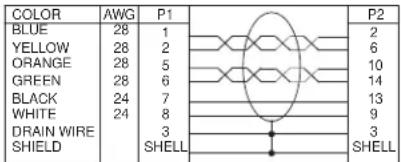
text_image
COLOR AWG P1 BLUE 28 1 YELLOW 28 2 ORANGE 28 5 GREEN 28 6 BLACK 24 7 WHITE 24 8 DRAIN WIRE 3 SHIELD SHELL P2 2 6 10 14 13 9 3 SHELLP1-RJ-45 shielded plug, Tyco 5-569552 or equivalent
P1-RJ-45 shielded plug, Tyco 5-569552 or equivalent
P2 - Walta Electronics, M30-558-0051
P2 - Walla Electronics, M30-558-0051
5 Whether you re-terminated the P1 or P2 end of the cable, at this point the cable can be connected directly to the system and to the first microphone. If it is necessary to install an extension to the system's RJ-45 connection on a wall plate or panel, create a custom pinout cable using shielded CAT5 cable. The cable is terminated on one end to either a shielded CAT5
keystone jack or, if using a shielded panel coupler, a shielded RJ-45 plug connector. The other end terminates to a shielded RJ-45 plug that connects to the Polycom HDX system.
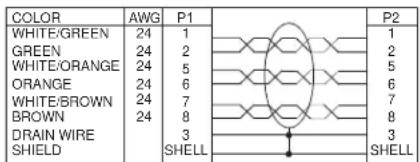
text_image
COLOR AWG P1 WHITE/GREEN 24 1 GREEN 24 2 WHITE/ORANGE 24 5 ORANGE 24 6 WHITE/BROWN 24 7 BROWN 24 8 DRAIN WIRE 3 SHIELD SHELL P2 1 2 5 6 7 8 3 SHELLP1 - RJ-45 shielded Keystone jack, L-com RJ110C5-S or equivalent OR
P1 - RJ-45 shielded plug, Tyco 5-569552 or equivalent with shielded
RJ-45 panel coupler kit (L-com ECF504-SC5E or equivalent)
P2- RJ-45 shielded plug, Tyco 5-569552 or equivalent

The Polycom RJ-45 connector pinout is custom. For best performance, follow the wiring tables shown in this document. If standard Ethernet cables are used, signal integrity cannot be guaranteed and degraded performance may occur, especially at longer lengths.
Audio Adapter Cable
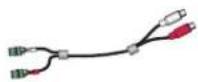
This cable adapts the Polycom HDX system Phoenix audio connectors to standard RCA audio cables, such as the Audio Cable on page Audio Cable on page 2-50. It is dual male Phoenix to dual female RCA connectors (red/white).
| Length Part Number RoHS Compliant | ||
| 1 ft (0.3 m) 2457-23492-001 Yes |
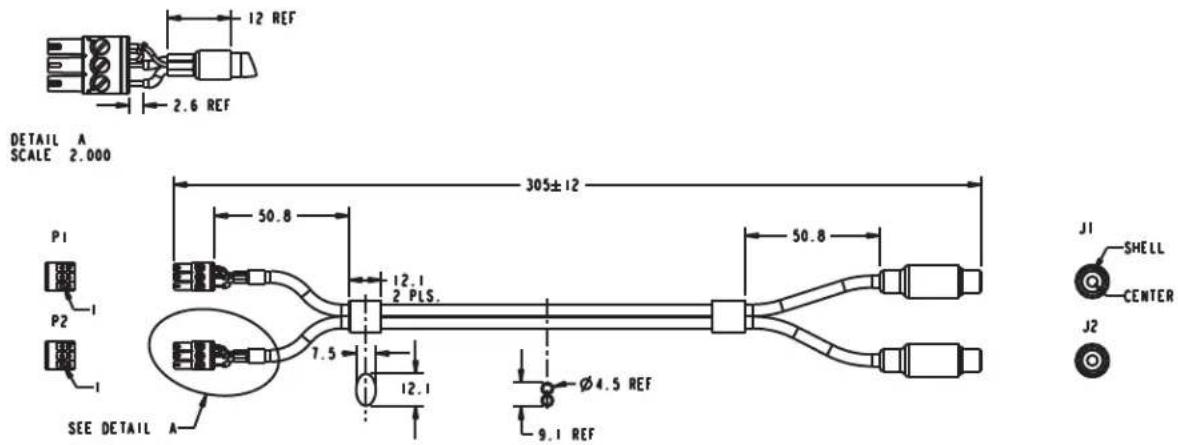
text_image
DETAIL A SCALE 2.000 305±12 50.8 12.1 2 PLS. 7.5 12.1 Ø4.5 REF 9.1 REF P1 P2 SEE DETAIL A J1 SHELL CENTER J2| WIRING LIST | ||||
| PLUG | CONTACT | CONDUCTOR | CONTACT | JACK |
| PI | 1 | A+ | CENTER | JI |
| 2 | A- | SHELL | ||
| 3 | A DRAIN | — | ||
| P2 | 1 | B+ | CENTER | J2 |
| 2 | B- | SHELL | ||
| 3 | B DRAIN | — | ||
| INSTALL JUMPER BETWEEN CONTACT 2 AND CONTACT 3OF BOTH PI & P2 AS SHOWN IN DETAIL "A". | ||||

Drawings and part numbers are provided for reference only. Polycom claims no responsibility or liability for the quality, performance, or reliability of cables based on these reference drawings, other than cables provided by Polycom. Contact your Polycom distributor or Polycom Custom/Vertical Products to order cables that meet the appropriate manufacturing tolerances, quality, and performance parameters for your application.
Audio Cable
This cable connects a Polycom HDX system to an external audio system. It is used with the Audio Adapter cable on page Audio Cable on page 2-50. It has dual RCA connectors (red/white) on both ends. The maximum approved length for this cable is 100 ft (30 m).
| Length Part Number RoHS Compliant | ||
| 25 ft (7.6 m) 2457-09212-002 Yes | ||
| 9 ft 10 in (3 m) 2457-09212-010 Yes |
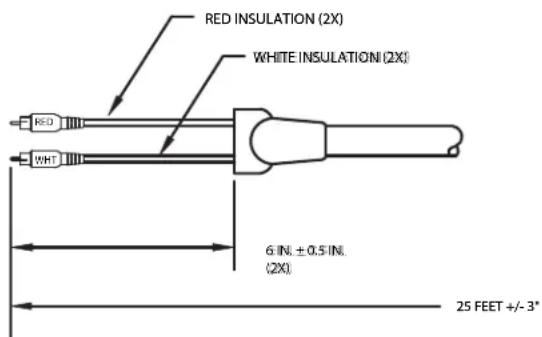
text_image
RED INSULATION (2X) WHITE INSULATION (2X) 6 IN. ± 0.5 IN. (2X) 25 FEET +/- 3°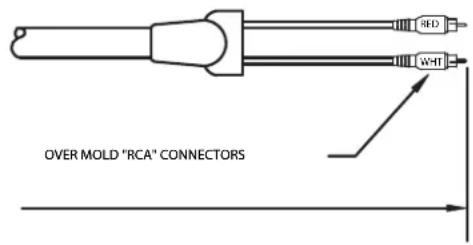
text_image
RED WHT OVER MOLD "RCA" CONNECTORS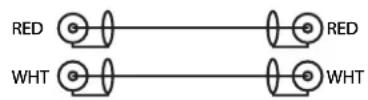

Drawings and part numbers are provided for reference only. Polycom claims no responsibility or liability for the quality, performance, or reliability of cables based on these reference drawings, other than cables provided by Polycom. Contact your Polycom distributor or Polycom Custom/Vertical Products to order cables that meet the appropriate manufacturing tolerances, quality, and performance parameters for your application.
Vortex Cable
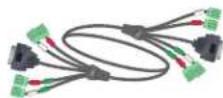
This cable connects a Polycom HDX system to a Polycom Vortex mixer. It has four mini-Phoenix connectors and one DB-9 connector on each end.
| Length Part Number RoHS Compliant | ||
| 6 ft (1.8 m) 2457-21978-200 Yes |
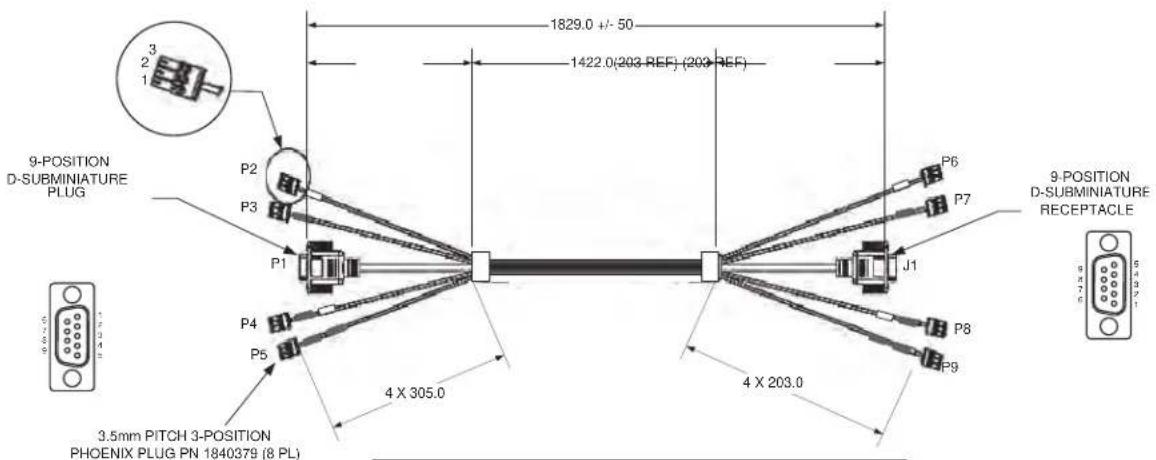
text_image
9-POSITION D-SUBMINIATURE PLUG 3.5mm PITCH 3-POSITION PHOENIX PLUG PN 1840379 (8 PL) 1829.0 +/- 50 1422.0(203 REF) (200 REF) P2 P3 P1 P4 P5 4 X 305.0 4 X 203.0 P6 P7 J1 P8 P9 9-POSITION D-SUBMINIATURE RECEPTACLE
| PIN # | |
| 1 | Signal + |
| 2 | Signal - (return) |
| 3 | Shield/darin wire/ground |
| WIRING CHART | |||
| FROM TO | WIRE TYPE WIRE USE | ||
| P1-2 J1-2 | A | IGNAL | |
| P1-3 J1-3 | IGNAL | ||
| P1-5 J1-5 | IGNAL | ||
| P1-7 J1-7 | IGNAL | ||
| P1-8 J1-8 | IGNAL | ||
| P1-SHELL | J1-SHELL | SHIELD | |
| PINS 1, 4, 6, 9 ARE N/C | N/A | ||
| P2-1 P6-1 | B | IGNAL | |
| P2-2 P6-2 | $IGNAL | ||
| P2-3 | P6-3 | SHIELD (DRAIN WIRE) | |
| P3-1 | P7-1 | B | SIGNAL |
| P3-2 | P7-2 | SIGNAL | |
| P3-3 | P7-3 | SHIELD (DRAIN WIRE) | |
| P4-1 | P8-1 | B | SIGNAL |
| P4-2 | P8-2 | SIGNAL | |
| P4-3 | P8-3 | SHIELD (DRAIN WIRE) | |
| P5-1 | P9-1 | B | SIGNAL |
| P5-2 | P9-2 | SIGNAL | |
| P5-3 | P9-3 | SHIELD (DRAIN WIRE) | |

Drawings and part numbers are provided for reference only. Polycom claims no responsibility or liability for the quality, performance, or reliability of cables based on these reference drawings, other than cables provided by Polycom. Contact your Polycom distributor or Polycom Custom/Vertical Products to order cables that meet the appropriate manufacturing tolerances, quality, and performance parameters for your application.
3.5mm Screw Cage Connector
This 3-pin connector connects audio input and output to the Polycom HDX system. It also connects the IR sensor input on a Polycom HDX system to an external IR receiver, such as Xantech models 780-80, 780-90, 480-00, and 490-90.
| Length Part Number RoHS Compliant | |
| — 1515-41597-001 Yes |
Top View
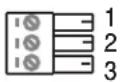
Pinout for audio connector
| PIN # | |
| 1 | Signal + |
| 2 | Signal - (return) |
| 3 | Shield/drain wire/ground |
Pinout for IR connector
| PIN # | |
| 1 | +12 V |
| 2 | Ground |
| 3 | IR signal |
Drawings and part numbers are provided for reference only. Polycom claims no responsibility or liability for the quality, performance, or reliability of cables based on these reference drawings, other than cables provided by Polycom. Contact your Polycom distributor or Polycom Custom/Vertical Products to order cables that meet the appropriate manufacturing tolerances, quality, and performance parameters for your application.
The following table shows how to wire this connector for 2-wire connections, Phoenix to RCA.
| Phoenix Contact RCA Contact | |
| 1 | C e |
| 2 | S h |
| 3 | — |
| Install jumper between contact 2 and contact 3 on the Phoenix connector. | |
Subwoofer Volume Attenuator

This attenuator plugs into the Volume Control RJ-11 port on the subwoofer that comes with the Polycom stereo speaker kit. The attenuator is required for proper operation of the acoustic echo cancellation. It has an RJ-11 connector.
| Length Part Number RoHS Compliant | ||
| 3.5 in (9 cm) 1457-52415-001 — |
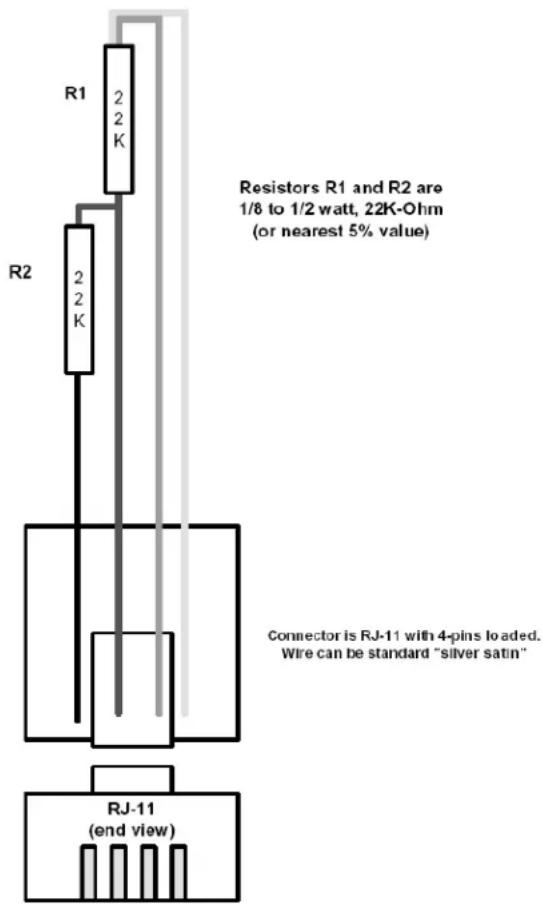
text_image
R1 2 2 K Resistors R1 and R2 are 1/8 to 1/2 watt, 22K-Ohm (or nearest 5% value) R2 2 2 K Connector is RJ-11 with 4-pins loaded. Wire can be standard "silver satin" RJ-11 (end view)
Drawings and part numbers are provided for reference only. Polycom claims no responsibility or liability for the quality, performance, or reliability of cables based on these reference drawings, other than cables provided by Polycom. Contact your Polycom distributor or Polycom Custom/Vertical Products to order cables that meet the appropriate manufacturing tolerances, quality, and performance parameters for your application.
Serial Cables
Straight-Through Serial Cable
This cable connects a Polycom HDX system to a serial device. It has a DB-9 connector on each end. The maximum approved length for this cable is 100 ft (30 m).

Polycom does not recommend using this straight-through serial cable for RS-232 communication from a computer, Crestron system, or AMX device. Instead, for RS-232 communication, Polycom recommends using a cross-over cable with pin 2 wired to pin 3, pin 3 wired to pin 2, and pin 5 wired to pin 5. The other pins are not used.
If you choose to use this straight-through serial cable for RS-232 communication from a computer or Crestron system, the null modem adapter 1517-61577-001 on page Null Modem Adapter on page 2-56 is required. However, the null modem adapter does not work for RS-232 communication from AMX devices and will cause problems if you try to use it.
| Length Part Number RoHS Compliant | ||
| 25 ft (7.6 m) 2457-09172-001 — |
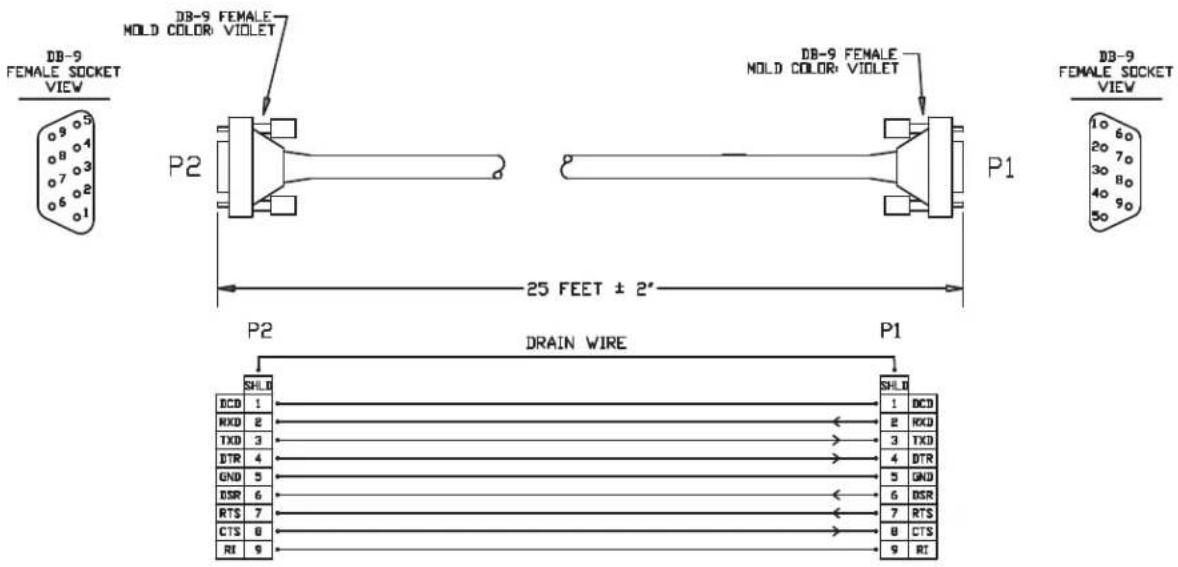
text_image
DB-9 FEMALE SOCKET VIEW DB-9 FEMALE MOLD COLOR VIOLET DB-9 FEMALE MOLD COLOR VIOLET DB-9 FEMALE SOCKET VIEW P2 P1 25 FEET ± 2° P2 DRAIN WIRE P1 SHL0 BCD 1 RXD 2 TXD 3 DTR 4 GND 5 ESR 6 RTS 7 CTS 8 RI 9 SHL1 1 BCD 2 RXD 3 TXD 4 DTR 5 GND 6 BSR 7 RTS 8 CTS 9 RI
Drawings and part numbers are provided for reference only. Polycom claims no responsibility or liability for the quality, performance, or reliability of cables based on these reference drawings, other than cables provided by Polycom. Contact your Polycom distributor or Polycom Custom/Vertical Products to order cables that meet the appropriate manufacturing tolerances, quality, and performance parameters for your application.
The DB-9 male connector on the Polycom HDX system has the following connections.
| Pin Signal | |
| 1 Not used | |
| 2 | Rx |
| 3 | Tx |
| 4 DTR (tied to pin 6, DSR) | |
| 5 | GND |
| 6 DSR (tied to pin 4, DTR) | |
| 7 | R T S |
| 8 | C T S |
| 9 Not used | |
Most devices which connect to the serial port to control the Polycom HDX system via the API only require pins 2, 3, and 5. For more information and to verify the proper cabling, refer to the documentation for your control system.
Null Modem Adapter

This adapter is used when connecting a Polycom HDX system to a serial device that transmits on pin 3 such as Crestron Pro2 processor. It is a male to female DB-9 adapter plug. This connection may require the straight-through serial cable (2457-09172-001) on page Straight-Through Serial Cable on page 2-54.

Do not use this adapter with an AMX device. AMX systems support both RS-232 and RS-422. Therefore, for RS-232 support, use a null modem cross-over cable that carries only pins 2, 3, and 5, with pins 2 and 3 crossed.
| Length Part Number RoHS Compliant | ||
| — 1517-61577-001 Yes |
| DB9F DB9M |
| PIN 1&6 PIN 4 |
| PIN 2 PIN 3 |
| PIN 3 PIN 2 |
| PIN 4 PIN 1&6 |
| PIN 5 PIN 5 |
| PIN 7 PIN 8 |
| PIN 8 PIN 7 |
| PIN 9 N/C |
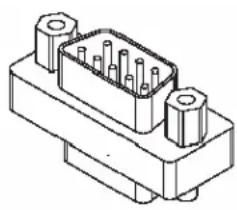
natural_image
Technical line drawing of an electrical connector with pins (no text or symbols)
Drawings and part numbers are provided for reference only. Polycom claims no responsibility or liability for the quality, performance, or reliability of cables based on these reference drawings, other than cables provided by Polycom. Contact your Polycom distributor or Polycom Custom/Vertical Products to order cables that meet the appropriate manufacturing tolerances, quality, and performance parameters for your application.
Using the API
The Application Programming Interface (API) is a set of commands for advanced users who want to automate a Polycom HDX system. You can use the API by connecting a control system or computer RS-232 serial port to the Polycom HDX system. Or, you can use Telnet over the LAN to use the API.
Using the API with an RS-232 Interface
If you use an RS-232 interface to send API commands, you must connect and configure the control system or computer and the Polycom HDX system for serial communication.
Configuring the RS-232 Interface
If you use the API with a serial connection, make sure that the RS-232 interfaces of the Polycom HDX system and your computer are configured appropriately.
To access the RS-232 settings on your system, select System > Admin Settings > General Settings > Serial Port.
Configure the Baud Rate and RS-232 Mode options as follows:
| Option | Configure this way on your computer | Configure this way on the Polycom HDX system |
| Baud Rate Must be the same rate for both devices. Available rates are:960014400192003840057600115200 | ||
| RS-232 Mode — | Control | |
The RS-232 port on the Polycom HDX system supports the following modes:
- Camera PTZ
- Closed Caption
- Control
- Pass-Thru
• Vortex Mixer
In Control Mode, a device (for example, a computer) connected to the RS-232 port can control the system using the API.
In Pass-Thru Mode, the operational modes of both devices' RS-232 ports depend on the port configuration of each device.
Starting an API Session via an RS-232 Interface
After you have verified that the Polycom HDX system and your computer or control system are both configured appropriately, set up both devices as follows:
1 Power off the computer or control system and the Polycom HDX system.
2 Use an RS-232 cable to connect the computer or control system RS-232 port to an RS-232 port on the Polycom HDX system as shown in the following illustration. This connection may require the Null Modem Adapter on page 2-56.
To connect a computer to a Polycom HDX 9006 system:

flowchart
graph LR
    A["Computer"] -->|Cable Cable| B["Server"]
    B --> C["Switch"]
To connect a computer to a Polycom HDX 9001, Polycom HDX 9002 or Polycom HDX 9004 systems:
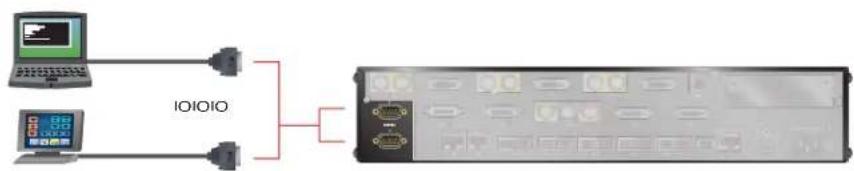
flowchart
graph LR
    A["Computer"] -->|IOIOIO| B["Rack-mounted Device"]
    C["Digital Display"] -->|IOIOIO| B
3 Power on the computer or control system and the Polycom HDX system.
4 From the computer or control system, start a serial session using HyperTerminal or another appropriate utility.
Using the API with the Department of Defense (DoD) Security Profile Enabled
On a system with the Security Profile set to DoD, you can access the API commands using an RS-232 connection only, and must log in as an Admin or User.
The availability of certain API commands and parameters depends on whether you are logged in as Admin or User. For example, if you are logged in to the API session as Admin, you can set and get the ISDN area code using the areacode command. If you are logged in as User, you can only get the ISDN area code.
For a complete list of API commands and parameters available to the User and Admin IDs, refer to U.S. DoD DSN Deployment Guide for Polycom HDX Systems.
Using the API with a LAN Connection
If you have a computer connected to the LAN, you can send API commands to the Polycom HDX system via Telnet port 24.
1 On the computer, open a command line interface.
2 Start a Telnet session using the Polycom HDX system IP address and port number — for example, telnet 10.11.12.13 24.
You cannot use Telnet to access the system if Security Mode is enabled.
Using the API Controller Code
In cooperation with the leading touch panel controller manufacturers, Polycom Video Division is proud to offer its own version of controller code designed to run on Crestron and AMX systems. This independent code base was developed specifically to address issues of code compatibility with video system software releases. It provides a fully executable controller program but also serves as a guideline for ongoing development using Polycom preferred methodology and commands.
To download the API controller code, refer to www.polycom.com/forms/amx_code.html. Additionally, AMX controller code or Crestron controller code is available for controlling the Polycom EagleEye HD camera. Companion documents are also available to further explain how to interface your controller with Polycom video systems and utilize the API efficiently.
Additional API Resources
The following online resources are available for your reference as you use the API.
Technical Support Contact Information
To contact Polycom Technical Support, go to www.polycom.com/support. This web site provides you with contact information for Polycom technical support. Use this web site when you need help using the API.
Feature Enhancement Request Web Site
Go to www.polycom.com/support, and navigate to Feature Request. This web site allows you to submit suggestions for feature enhancements. Use this web site when you have requests for future development of the Polycom API.
Video Test Numbers
Refer to www.polycom.com/videotest. This web site provides you with test numbers of various Polycom systems worldwide. Use this web site when you need to access video test numbers to use when testing your Polycom system.
Knowledge Base
Refer to the Knowledge Base at www.polycom.com/support. This tool allows you to search for user guides, release notes, and other forms of product documentation. You can also search for troubleshooting information and technical briefs. Use this web site when you need to access Polycom product documentation or tips.
A/V Professionals Web Site
Refer to www.polycom.com, and navigate to Solutions > Industry Solutions > A/V Professionals. This web site provides you with information and downloads, including API controller code downloads, that are specific to A/V professionals. Use this web site when you want to locate the latest information for integrators of Polycom products.
System Commands
This chapter describes the API commands for software version 2.6.
For an alphabetical list of all the commands, refer to the table of contents for this document.
About the API Commands
Syntax Conventions
The following conventions are used for the API command descriptions in this chapter. All of the commands are case sensitive.
| Convention Meaning | |
| Multiple valid parameters are enclosed in angle brackets and separated by the pipe (“|”) character.Example: allowdialingshows that the allowdialing command must be followed by one of the parameters listed. | |
| [param]["param"] | Optional parameters are enclosed in square brackets. Quotation marks indicate strings to be supplied by the user.Example: teleareacode set ["telephone_area_code"] shows that you can supply a value for the area code, or omit it and let the default value apply. You do not need to enclose the actual value in quotes unless it contains a space. |
| {a..z} | A range of possible alphanumeric values is enclosed in braces.Example: abk letter {a..z} shows that the abk command can be used to return address book entries that begin with an alphanumeric character in the range specified.Example: camera near {1..4} shows that the camera command can be used to select camera 1, 2, 3, or 4 at the near site. |
| “x” | Quotation marks indicate strings to be supplied by the user. You do not need to enclose the value in quotes unless it contains a space. |
Although the API command parser may accept the minimum number of characters in a command which makes it unique, you should always use the full command string.
Availability of Commands
The availability of API commands depends on the type of system, optional equipment installed or connected, security settings and the software version installed on the system. If a particular command is not supported on the system, the command returns feedback such as "error: this command is not supported on this model" or "command is not available in current system configuration". If a setting is configured by a provisioning service, the command may return feedback such as "this setting is
controlled by a provisioning service and cannot be changed". For more information about provisioned settings, refer to your provisioning service administrator.
Deprecated commands are included for backward compatibility only and are not recommended for use with this version. Suitable replacements are noted for each deprecated command.

API support is not available for:
- Telnet ports 23 and 24 when Security Mode is enabled.
- Software versions for the Joint Interoperability Test Command (JITC) certification
Command Response Syntax
When you send a command, the system returns responses using the following syntax, where

The end of line (EOL) character for the echo is different for serial and LAN responses. The feedback examples below and elsewhere in the Integrator's Reference Manual are based on the serial response.
When Not Registered To Receive Notifications
When your system is not registered to receive any notifications and you send an API command, an API echo and API acknowledgement are returned.
For example:
- camera near 2
When your system is not registered for notifications, always use the API acknowledgement (
When Registered To Receive Notifications
Registering for notifications adds extra line responses in the form of API registration responses. When your system is already registered to receive notifications and you send an API command that affects a notification, an API echo, API acknowledgement, and API registration response are returned. You
may receive multiple API registration responses if you are registered for multiple notifications that are affected by the API command you are currently sending.
For example, after your system has already been registered to receive camera notifications (the notify vidsourcechanges API command enables these notifications), the following responses are returned when you change the camera source using the camera near 1 API command:
- camera near 1 <CR>API command
    returns
    camera near 1<LF><CR>API echo
    camera near 1<CR><LF>API acknowledgement
    notification:vidsourcechange:near:1:Main:people<CR><LF>
    API registration response
When your system is registered for notifications, always use the API registration response (
End Of Line (EOL) Characters When Connected To The API Using A LAN Connection
In software versions prior to 2.5.0.6, the EOL characters for the echo responses on a system connected to the LAN and using a Telnet session were as follows:
camera near 2 <CR> API command
returns
camera near 2<CR><CR><LF> API echo
camera near 2<CR><LF> API acknowledgement
Starting with software version 2.5.0.6, the response changed to a single
camera near 2 <CR> API command
returns
camera near 2<CR><LF> API echo
camera near 2<CR><LF> API acknowledgement
The telnetechoeol command allows you to change the EOL characters of the API echo to the EOL characters of the serial port echo. See telnetechoeol on page 4-309 for more details.
Commands that Restart the System
Commands that Restart the System with a Prompt
- reboot
Commands that Restart the System without a Prompt
- reboot yes
- reboot now
Additional Tips
- The Polycom HDX system does not provide flow control. If the connection is lost through restarting the system or other means, you must re-establish the connection.
- The API processes one command at a time.
- Polycom does not recommend sending multiple commands simultaneously without a pause or delay between them.
- For commands with a single action and a single response: A delay of 200 milliseconds between commands is usually sufficient. Examples of these commands include the commands for switching cameras (camera near 1), sending content (vcbutton play), and checking the status of the audio mute (mute near get).
- For commands with a single action and a more extensive response: The time required to receive the response, and thus the time between commands, may be longer than 200 milliseconds. The response length, which can vary in size, determines the time required to receive the response. Examples of these commands include the commands for retrieving the local address book (addrbook all), the global address book (gaddrbook all), the list of system settings (displayparams), and system session information (whoami).
- When developing your program, always allow enough time for the response to the requested command to complete before sending another command.
- Do not send any commands while an incoming or outgoing call is being established.
• The API provides feedback status in two ways: registrations or polling. -
It is only required that you send registration and notification API commands once, because the registrations become written into Flash memory and are retained even upon restarting the system.
-
Polycom recommends putting registrations in the initialization or startup of Crestron and AMX systems.
- Registrations are recommended over polling since they will provide status updates without having to query for changes.
- Never poll for registrations.
- Registrations are specific to the port from which they are registered. If you register for notifications from com port 1, registration will not be sent to com port 2 or Telnet port 24.

Executes a previously used command from the history list, starting with a specific number or letter.
Syntax
!"string"
!{1..64}
| Parameter Description | |
| “string” | Specifies the most recent command from the history list that begins with this string. |
| {1..64} | Specifies the Nth command in the history list, where N is 1 through 64. |
Feedback Examples
Assume the following command history.
• gatewaynumber set 123456789
returns
gatewaynumber 123456789
- hangup video
returns
hanging up video call
- history
returns
1 gatewaynumber set 123456789
2 hangup video
- h323name get
returns
h323name testip
In this case, each of the following !
• !1
returns
gatewaynumber set 123456789
gatewaynumber 123456789
• !2
returns
hangup video
hanging up video call
• !h
returns
h323name get
h323name testip
- history
returns
1 gatewaynumber set 123456789
2 hangup video
3 h323name get
4 gatewaynumber set 123456789
5 hangup video
6 h323name get
See Also
For information about the history list, refer to the history on page 4-172.
abk (deprecated)
Returns local directory (address book) entries. This command has been deprecated. Polycom recommends using the addrbook command on page 4-12.
Syntax
abk a11
abk batch {0..59}
abk batch search "pattern" "count"
abk batch define "start_no" "stop_no"
abk letter {a..z}
abk range "start_no" "stop_no"
abk refresh
| Parameter Description | |
| all | Returns all the entries in the local directory. |
| batch | Returns a batch of 10 local directory entries. Requires a batch number, which must be an integer in the range {0..59}. |
| search | Specifies a batch search. |
| “pattern” | Specifies a pattern to match for the batch search. |
| “count” | Specifies the number of entries to list that match the pattern. |
| define | Returns a batch of entries in the range defined by “start_no” to “stop_no.” |
| “start_no” | Specifies the beginning of the range of entries to return. |
| “stop_no” | Specifies the end of the range of entries to return. |
| letter | Returns entries beginning with the letter specified from the range {a..z}. Requires one or two alphanumeric characters. Valid characters are:-_/ ; @ , . \0 through 9a through z |
| range | Returns local directory entries numbered “start_no” through “stop_no”. Requires two integers. |
| refresh | Gets a more current copy of the local directory. |
Feedback Examples
- abk all
returns
abk 0. Polycom HDX Demo 1 spd:384 num:1.700.5551212
abk 1. Polycom HDX Demo 2 spd:384 num:192.168.1.101
abk 2. Polycom HDX Demo 3 spd:384 num:192.168.1.102
abk 3. Polycom HDX Demo 3 spd:384 num:1.700.5551213
(and so on, until all entries in the local directory are
listed, then:)
abk all done - abk batch 0
returns
abk 0. Polycom HDX Demo 1 spd:384 num:1.700.5551212
abk 1. Polycom HDX Demo 2 spd:384 num:192.168.1.101
abk 2. Polycom HDX Demo 3 spd:384 num:192.168.1.102
(and so on, through the last entry in the batch of 10 directory entries, such as:)
abk 9. Polycom HDX Demo 20 spd:384 num:192.168.1.120
abk batch 0 done - abk batch define 0 2
returns
abk 0. Polycom HDX Demo 1 spd:384 num:1.700.5551212
abk 1. Polycom HDX Demo 2 spd:384 num:192.168.1.101
abk 2. Polycom HDX Demo 3 spd:384 num:192.168.1.102
abk batch define 0 2 done
• abk batch search Polycom 3
returns
abk 0. Polycom HDX Demo 1 spd:384 num:1.700.5551212
abk 1. Polycom HDX Demo 2 spd:384 num:192.168.1.101
abk 2. Polycom HDX Demo 3 spd:384 num:192.168.1.102
abk batch search Polycom 3 done - abk letter p
returns
abk 0. Polycom HDX Demo 1 spd:384 num:1.700.5551212
abk 1. Polycom HDX Demo 2 spd:384 num:192.168.1.101
abk 2. Polycom HDX Demo 3 spd:384 num:192.168.1.102
abk 3. Polycom HDX Demo 3 spd:384 num:1.700.5551213
abk 9. Polycom HDX Demo 20 spd:384 num:192.168.1.120
abk letter p done - abk range 0 2
returns
abk 0. Polycom HDX Demo 1 spd:384 num:1.700.5551212
abk 1. Polycom HDX Demo 2 spd:384 num:192.168.1.101
abk 2. Polycom HDX Demo 3 spd:384 num:192.168.1.102
abk range 0 2 done
Comments
Beginning in software version 2.5, entries with multiple addresses (for example, an H.323 address and an ISDN number) return each address type on separate lines with an incremented record number. With previous software versions, entries with multiple addresses return each address type with the same record number.
abk entries are entries stored on the system. gabk entries are entries stored on the GDS. In the user interface, the address book and global address book features are referred to as the directory and the global directory.
See Also
To return global directory entries, use the gabk (deprecated) command on page 4-131.
addrbook
Returns local directory (address book) entries.
Syntax
addrbook a11
addrbook batch {0..59}
addrbook batch search "pattern" "count"
addrbook batch define "start_no" "stop_no"
addrbook letter {a..z}
addrbook range "start_no" "stop_no"
addrbook refresh
| Parameter Description | |
| all | Returns all the entries in the local directory. |
| batch | Returns a batch of 10 local directory entries. Requires a batch number, which must be an integer in the range {0..59}. |
| search | Specifies a batch search. |
| “pattern” | Specifies a pattern to match for the batch search. |
| “count” | Specifies the number of entries to list that match the pattern. |
| define | Returns a batch of entries in the range defined by “start_no” to “stop_no.” |
| letter | Returns entries beginning with the letter specified from the range {a..z}. Requires one or two alphanumeric characters. Valid characters are:- _ / ; @ , . \0 through 9a through z |
| range | Returns local directory entries numbered “start_no” through “stop_no”. Requires two integers. |
| “start_no” | Specifies the beginning of the range of entries to return. |
| “stop_no” | Specifies the end of the range of entries to return. |
| refresh | Gets a more current copy of the local directory. |
Feedback Examples
- addrbook all
returns
addrbook 0. "Polycom HDX Demo 1" isdn_spd:384
isdn_num:1.700.5551212 isdn_ext:
addrbook 1. "Polycom HDX Demo 2" h323_spd:384
h323_num:192.168.1.101 h323_ext:7878
addrbook 2. "Polycom HDX Demo 3" sip_spd:384
sip_num:polycomhdx@polycom.com
addrbook 3. "Polycom HDX Demo 3" phone_num:1.512.5121212 (and so on, until all entries in the local directory are listed, then:)
addrbook all done
- addrbook batch 0
    returns
    addrbook 0. "Polycom HDX Demo 1" isdn_spd:384
    isdn_num:1.700.5551212 isdn_ext:
    addrbook 1. "Polycom HDX Demo 2" h323_spd:384
    h323_num:192.168.1.101 h323_ext:7878
    addrbook 2. "Polycom HDX Demo 3" sip_spd:384
    sip_num:polycomhdx@polycom.com
    addrbook 3. "Polycom HDX Demo 3" phone_num:1.512.5121212
(and so on, through the last entry in the batch of 10 directory entries, such as:)
addrbook 9. "Polycom HDX Demo 20" h323_spd:384
h323_num:192.168.1.120 h323_ext:
addrbook batch 0 done
- addrbook batch define 0 2
    returns
    addrbook 0. "Polycom HDX Demo 1" isdn_spd:384
    isdn_num:1.700.5551212 isdn_ext:
    addrbook 1. "Polycom HDX Demo 2" h323_spd:384
    h323_num:192.168.1.101 h323_ext:7878
    addrbook 2. "Polycom HDX Demo 3" sip_spd:384
    sip_num:polycomhdx@polycom.com
    addrbook batch define 0 2 done
Comments
Beginning in software version 2.5, entries with multiple addresses (for example, an H.323 address and an ISDN number) return each address type on separate lines with an incremented record number. With previous software versions, entries with multiple addresses return each address type with the same record number. addrbook entries are stored in the local directory (address book).
See Also
To return global directory entries use the gaddrbook command on page 4-136.
addressdisplayedingab
Specifies whether to display the system address in the global directory.
Syntax
addressdisplayedingab get addressdisplayedingab private addressdisplayedingab public
| Parameter Description | |
| get | Returns the current setting. |
| private | Specifies not to display the system address in the global directory. |
| public | Displays the system address in the global directory. |
Feedback Examples
- addressdisplayedingab private returns addressdisplayedingab private
- addressdisplayedingab public returns addressdisplayedingab public
- addressdisplayedingab get returns addressdisplayedingab public
advnetstats
Gets advanced network statistics for a call connection.
Syntax
advnetstats [{0..n}]
| Parameter Description | |
| {0..n} | Specifies a connection in a multipoint call, where n is the maximum number of connections supported by the system. 0 is call #1, 1 is call #2, 2 is call #3, and so on. Select a number from this range to specify a remote site call for which you want to obtain advanced network statistics.Omit this parameter when retrieving statistics for a point-to-point call. |
Feedback Examples
- advnetstats 1
returns
call:1 tar:24k rar:24k tvr:64.3k rvr:104k
tvru:63.8k rvru:114.6k tvfr:15.0 rvfr:15.0 vfe ---
tapl:66 rapl:0 taj:46mS raj:40mS tvpl:122 rvpl:0
tvj:21mS rvj:60mS dc:--- rsid:Polycom_4.2 ccaps:E9P
• Returned parameters are :
tar=Transmit audio rate
rar=Receive audio rate
tvr=Transmit video rate
rvr=Receive video rate
tvru=Transmit video rate used
rvru=Receive video rate used
tvfr=Transmit video frame rate
rvfr=Receive video frame rate
vfe=Video FEC errors
tap1=Transmit audio packet loss (H.323 calls only)
tlsdp=Transmit LSD protocol (H.320 calls only)
rap1=Receive audio packet loss (H.323 calls only)
r1sdp=Receive LSD protocol (H.320 calls only)
taj=Transmit audio jitter (H.323 calls only)
tlsdr=Transmit LSD rate (H.320 calls only)
raj=Receive audio jitter (H.323 calls only)
r1sd=Receive LSD rate (H.320 calls only)
tvpl=Transmit video packet loss (H.323 calls only)
tmlpp=Transmit MLP protocol (H.320 calls only)
rvpl=Receive video packet loss (H.323 calls only)
rmlpp=Receive MLP protocol (H.320 calls only)
tvj=Transmit video jitter (H.323 calls only)
tmlpr=Transmit MLP rate (H.320 calls only)
rvj=Receive video jitter (H.323 calls only)
rmlpr=Receive MLP rate (H.320 calls only)
dc=Encryption information
rsid=Remote system id
ccaps=Content capability, where possible responses include "9" (H.239), "E" (enterprise dual streams), "N" (none), and "P" (content over the people stream)
See Also
To return network statistics for a call, use the netstats command on page 4-233
alertusertone
Sets or gets the tone used for user alerts.
Syntax
alertusertone
| Parameter Description | |
| get | Returns the current setting. |
| 1|2|3|4 | Sets the user alert to the corresponding tone. |
Feedback Examples
- alertusertone 1 returns alertusertone 1
- alertusertone get returns alertusertone 1
alertvideotone
Sets the tone used for incoming video calls.
Syntax
alertvideotone
| Parameter Description | |
| get | Returns the current setting. |
| 1|2|3|4|5|6|7|8|9|10 | Sets the incoming video alert to the corresponding tone. |
Feedback Examples
- alertvideotone 1 returns alertvideotone 1
- alertvideotone get returns alertvideotone 1
all register
Registers for most commonly-used user registration events.
Syntax
all register
Feedback Examples
- all register returns callstate registered camera registered chaircontrol registered linestate registered mute registered pip registered popupinfo registered preset registered screen registered vcbutton registered volume registered sleep registered
Comments
Registers changes to any of the following types of parameters:
- Current near-site or far-site source
• State of privacy - Current volume level
• Active camera presets
• Status of point-to-point or multipoint calls - Status of physical ISDN/IP connection to codec
- PIP state
- Chair control
- System information
This command is particularly useful when two different control systems are being used simultaneously, such as the web and API commands. The system maintains the registration changes through restarts.
To register for events not included in this feedback, refer to the specific registration command.
This is a one time registration command that is retained in flash memory. Sending the command a second time results in the following feedback response:
- info: event/notification already active:callstate
info: event/notification already active:camera
info: event/notification already active:chaircontrol
info: event/notification already active:chaircontrol
info: event/notification already active:linestate
info: event/notification already active:mute
info: event/notification already active:pip
info: event/notification already active: popupinfo
info: event/notification already active:preset
info: event/notification already active:screen
info: event/notification already active:vcbutton
info: event/notification already active:volume
info: event/notification already active:sleep
Polycom recommends you use this command in place of the registerall (deprecated) command on page 4-267.
all unregister
Simultaneously unregisters all registered user feedback so that the API no longer reports changes to the parameters.
Syntax
all unregister
Feedback Examples
- all unregister returns callstate unregistered camera unregistered chaircontrol unregistered linestate unregistered chaircontrol unregistered mute unregistered pip unregistered popupinfo unregistered preset unregistered screen unregistered vcbutton unregistered volume unregistered sleep unregistered
Comments
The following types of parameters are unregistered:
- Current near-site or far-site source
• State of privacy - Current volume level
• Active camera presets
• Status of point-to-point or multipoint calls - Status of physical ISDN/IP connection to codec
- PIP state
- Chair control
- System information
Polycom recommends you use this command in place of the unregisterall (deprecated) command on page 4-313.
allowabkchanges
Sets or gets the Allow Directory Changes setting.
Syntax
allowabkchanges
| Parameter Description | |
| get | Returns the current setting. |
| yes | Enables the Allow Directory Changes setting. |
| no | Disables the Allow Directory Changes setting. |
Feedback Examples
- allowabkchanges no returns allowabkchanges no
- allowabkchanges yes returns allowabkchanges yes
- allowabkchanges get returns allowabkchanges yes
Comments
If this option is enabled, the user has access to the New, Edit, and Delete operations in the directory.
allowcamerapresetsetup
Sets or gets whether users are allowed to change camera presets.
Syntax
allowcamerapresetsetup
| Parameter Description | |
| get | Returns the current setting. |
| yes | Allows users to change camera presets. |
| no | Prevents users from changing camera presets. |
Feedback Examples
- allowcamerapresetsetup no returns allowcamerapresetsetup no
- allowcamerapresetsetup yes returns allowcamerapresetsetup yes
- allowcamerapresetsetup get returns allowcamerapresetsetup yes
allowdialing
Sets or gets the ability to dial out from the system.
Syntax
allowdialing
| Parameter Description | |
| get | Returns the current setting. |
| yes | Allows users to place calls. |
| no | Disables dialing so that the system can only receive calls. |
Feedback Examples
- allowdialing no returns allowdialing no
- allowdialing yes returns allowdialing yes
- allowdialing get returns allowdialing yes
Comments
allowdialing no removes the dialing field and marquee text from the Home screen.
See Also
The ability to place calls is also controlled by the dialingdisplay command on page 4-97.
allowmixedcalls
Sets or gets the ability to place and receive mixed protocol multipoint calls (IP and ISDN). It allows the administrator to disable this ability for security reasons.
Syntax
allowmixedcalls
| Parameter Description | |
| get | Returns the current setting. |
| yes | Enables mixed IP and ISDN calls. |
| no | Disables mixed IP and ISDN calls. |
Feedback Examples
- allowmixedcalls no returns allowmixedcalls no
- allowmixedcalls yes returns allowmixedcalls yes
- allowmixedcalls get returns allowmixedcalls yes
allowusersetup
Adds or removes the User Settings icon on the System screen, which allows users to access the User Settings screen.
Syntax
allowusersetup
| Parameter Description | |
| get | Returns the current setting. |
| yes | Enables the User Settings icon. |
| no | Disables the User Settings icon. |
Feedback Examples
- allowusersetup no returns allowusersetup no
- allowusersetup yes returns allowusersetup yes
- allowuser setup get returns allowuser setup yes
Comments
This command is useful to prevent users from changing the user settings.
amxdd
Sets or gets the AMX Device Discovery beacon.
Syntax
amxdd get
amxdd
| Parameter Description | |
| get | Returns the current setting. |
| on | Turns on the AMX Device Discovery beacon. |
| off | Turns off the AMX Device Discovery beacon. |
Feedback Examples
- amxdd get returns amxdd off
- amxdd on returns amxdd on
Comments
The default setting for this signal is "off".
Turning on this command sends out the AMX Device Discovery beacon over the LAN interface. On serial port API sessions, a similar feature is always enabled. This command does not affect that feature on serial port API sessions.
answer
Answers incoming video or phone calls (analog voice or ISDN voice).
Syntax
answer
| Parameter Description | |
| video | Answers incoming video calls when Auto Answer Point-to-Point Video or Auto Answer Multipoint Video is set to No. |
| phone | Answers incoming analog phone or ISDN voice calls. |
Feedback Examples
- answer video returns answer incoming video call failed
- answer video returns answer incoming video call passed
- answer phone returns answer incoming phone call failed
- answer phone returns answer incoming phone call passed
areacode
Sets or gets the area code for all ISDN lines. This command is only applicable if you have a network interface connected to your system.
Syntax
areacode get
areacode set "areacode"
| Parameter Description | |
| get | Returns the area code information. |
| set | Sets the ISDN area code when followed by the area code parameter. To erase the current setting, omit “areacode”. |
| “areacode” | Area code to use for all lines. |
Feedback Examples
- areacode set 212
returns
areacode 212 - areacode get
returns
areacode 212
Comments
This area code is associated with the area where the system is used.
audiometer
Queries and displays audio levels, once per second.
Syntax
audiometer
| Parameter Description | |
| micleft | Measures the audio strength of the signal coming from all microphones assigned to the “left” microphone channel. |
| micright | Measures the audio strength of the signal coming from all microphones assigned to the “right” microphone channel. |
| lineinright | Measures the audio strength of the signal connected to the right line input port. |
| lineinleft | Measures the audio strength of the signal connected to the left line input port. |
| lineoutleft | Measures the audio strength of the signal on the left main audio output port. |
| lineoutright | Measures the audio strength of the signal on the right main audio output port. |
| contentinleft | Measures the audio strength of the signal on the left content audio input port. |
| contentinright | Measures the audio strength of the signal on the right content audio input port. |
| vcrinleft | Measures the strength of the signal on the left VCR/DVD audio input port. |
| vcrinright | Measures the strength of the signal on the right VCR/DVD audio input port. |
| vcroutleft | Measures the strength of the signal on the left VCR/DVD audio output port. |
| vcroutright | Measures the strength of the signal on the right VCR/DVD audio output port. |
| farendright | Measures the strength of the signal on the right channels of all far-site audio inputs. |
| farendleft | Measures the strength of the signal on the left channels of all far-site audio inputs. |
| off | Turns off audiometer output. |
Feedback Examples
• audiometer micleft returns
audiometer micleft level peak:-19
audiometer micleft level peak:-19
audiometer micleft level peak:-19
audiometer micleft level peak:-20
audiometer micleft level peak:-20
audiometer micleft level peak:-20
audiometer micleft level peak:-20
and so on until you enter
audiometer off
• audiometer micrigh returns
audiometer micright level peak:-19
audiometer micright level peak:-19
audiometer micright level peak:-19
audiometer micright level peak:-20
audiometer micright level peak:-20
audiometer micright level peak:-20
audiometer micright level peak:-20
and so on until you enter
audiometer off
Comments
Audio level of a port is measured on the spectrum ranging from -20 dB to +20 dB. Use the audiometer command for a different port to stop monitoring a previous port and to begin monitoring a new port. To turn off monitoring, use audiometer off and watch for the audiometer off acknowledgement or registration response, which confirms that the audiometer monitoring is turned off.
audiotransmitlevel
Sets or gets the audio volume transmitted to the far site, or notification of transmit level changes.
Syntax
audiotransmitlevel
| Parameter Description | |
| get | Returns the current setting. |
| up | Sets the volume 1 decibel higher than the current setting. |
| down | Sets the volume 1 decibel lower than the current setting. |
| register | Registers to receive notification when audio transmit level changes. |
| unregister | Unregisters to receive notification when audio transmit level changes. |
| set | Sets the volume to the specified dB level. Valid values are: {-20..30}. |
Feedback Examples
- audiotransmitlevel set 2
returns
audiotransmitlevel 2
• audiotransmitlevel get returns audiotransmitlevel 2
• audiotransmitlevel up returns audiotransmitlevel 3
• audiotransmitlevel down returns audiotransmitlevel 2 - audiotransmitlevel register returns audiotransmitlevel registered
- audiotransmitlevel unregister returns audiotransmitlevel unregistered
autoanswer
Sets or gets the Auto Answer Point-to-Point Video mode, which determines how the system will handle an incoming call in a point-to-point video conference.
Syntax
autoanswer
| Parameter Description | |
| yes | Allows any incoming video call to be connected automatically. This is the default setting. |
| no | Prompts the user to answer incoming video calls. |
| donotdisturb | Notifies the user of incoming calls, but does not connect the call. The site that placed the call receives a Far Site Busy (H.320) or Call Rejected (H.323) code. |
| get | Returns the current setting. |
Feedback Examples
• autoanswer yes
returns
autoanswer yes
• autoanswer no
returns
autoanswer no
• autoanswer get returns
autoanswer no
- autoanswer donotdisturb returns
autoanswer donotdisturb
Comments
If autoanswer is set to no or donotdisturb, you must rely on API session notifications to answer inbound calls.
autoshowcontent
Specifies whether to send content automatically when a computer is connected to the system.
Syntax
autoshowcontent
| Parameter Description | |
| get | Returns the current setting. |
| on | Sets the system to send content automatically when a computer is connected to the system. |
| off | Sets the system to not send content automatically. |
Feedback Examples
- autoshowcontent on returns autoshowcontent on
- autoshowcontent off returns autoshowcontent off
- autoshowcontent get returns autoshowcontent off
backlightcompensation
Sets or gets the Backlight Compensation mode.
Syntax
backlightcompensation
| Parameter Description | |
| get | Returns the current setting. |
| yes | Enables Backlight Compensation. The camera automatically adjusts for a bright background. |
| no | Disables the option. |
Feedback Examples
- backlightcompensation yes returns backlightcompensation yes
- backlightcompensation no returns
- backlightcompensation no
- backlightcompensation get returns backlightcompensation no
basicmode
Sets or gets the Basic Mode configuration, a limited operating mode that uses H.261 for video and G.711 for audio. Basic mode provides administrators with a workaround for interoperability issues that cannot be solved using other methods.
Syntax
basicmode
| Parameter Description | |
| get | Returns the current setting. |
| on | Enables basic mode. |
| off | Disables basic mode. |
Feedback Examples
- basicmode on returns basicmode on
- basicmode off returns basicmode off
- basicmode get returns basicmode off
bri1 enable, bri2 enable, bri3 enable, bri4 enable
Sets or gets the configuration of the specified ISDN BRI line. This command is only applicable if you have a BRI network interface connected to your system.
Syntax
bri1enable
bri2enable
bri3enable
bri4enable
| Parameter Description | |
| get | Returns the status of the BRI line—yes if enabled, no if disabled. |
| yes | Enables the BRI line. |
| no | Disables the BRI line. |
Feedback Examples
- brilenable yes returns brilenable yes
- brilenable no returns - brilenable no
- brilenable get returns - brilenable no
briallenable
Sets or gets the configuration of all ISDN BRI lines. This command is only applicable if you have a BRI network interface connected to your system.
Syntax
briallenable
| Parameter Description | |
| get | Returns the status of all BRI lines—yes if enabled, no if disabled. |
| yes | Enables all BRI lines. |
| no | Disables all BRI lines. |
Feedback Examples
- briallenable yes returns bri1enable yes bri2enable yes bri3enable yes bri4enable yes
- briallenable no returns bri1enable no bri2enable no bri3enable no bri4enable no
- briallenable get returns bri1enable no bri2enable no bri3enable no bri4enable no
Comments
briallenable yes only enables lines where the directory numbers have been populated.
button
Simulates Polycom remote control buttons.
Syntax
button <#|*|0|1|2|3|4|5|6|7|8|9|.>
button <down|left|right|select|up>
button <auto|back|call|far|graphics|hangup|near>
button <help|mute|volume+|volume-|lowbattery|zoom+|zoom->
button <pickedup|putdown>
button <camera|delete|directory|home|keyboard|period|pip|preset>
button <info|menu|slides|option>
button "valid_button" ["valid_button" ...]
button <mmstop|mmplay|mmpause|mmrecord|mmforward|mmrewind>
| Parameter Description | |
| . | Types a period (dot) if the cursor is on a text field. |
| # | Sends the # button signal to the user interface. |
| * | Sends the * button signal to the user interface. |
| ["valid_button" ...] | Sends one or more remote control button signals. |
| 0|1|2|3|4|5|6|7|8|9 | Sends the corresponding numeric button signal to the user interface. |
| auto | Sends the Auto button signal to the user interface. |
| back | Simulates the Back button on multiple-page screens. |
| call | Sends the Call button signal to the user interface. |
| camera | Sends the Camera button signal to the user interface. |
| delete | Sends the Delete button signal to the user interface. |
| directory | Sends the Directory button signal to the user interface. |
| down | Sends the down arrow button signal to the user interface. |
| far | Sends the Far button signal to the user interface. |
| graphics | Sends the Content button signal to the user interface. |
| hangup | Sends the Hang Up button signal to the user interface. |
| help | Sends the Help button signal to the user interface. |
| home | Sends the Home button signal to the user interface. |
| info | Sends the Info button signal to the user interface. |
| keyboard | Brings up the on-screen keyboard if the cursor is on a text field. |
| left | Sends the left arrow button signal to the user interface. |
| lowbattery | Simulates a low battery alert for the remote control. |
| menu | Sends the Menu button signal to legacy systems.Deprecated. Polycom recommends using back instead of this button. |
| mmstop | Stops the video stream on the RSS-2000TM. |
| mmplay | Plays the video stream on the RSS-2000. |
| mmpause | Pauses the video stream on the RSS-2000. |
| mmrecord | Records the video stream on the RSS-2000. |
| mmforward | Fast forwards the video stream on the RSS-2000. |
| mmrewind | Rewinds the video stream on the RSS-2000. |
| mute | Sends the Mute button signal to the user interface, causing a toggle of mute state. |
| near | Sends the Near button signal to the user interface. |
| option | Sends the Option button signal to the user interface. |
| period | Types a period (dot) if the cursor is on a text field. |
| pickedup | Sends a signal indicating that the remote control has been picked up. |
| pip | Sends the Display button signal to the user interface. |
| preset | Sends the Preset button signal to the user interface. |
| putdown | Sends a signal indicating that the remote control has been set down. |
| right | Sends the right arrow button signal to the user interface. |
| select | Sends the Select (center button) button signal to the user interface. |
| slides | Sends the Slides button signal to legacy systems.Deprecated. Polycom recommends using graphics instead of this button. |
| up | Sends the up arrow button signal to the user interface. |
| volume-volume+ | Sends the volume - button signal to the user interface.Sends the volume + button signal to the user interface. |
| zoom- | Sends the zoom - button signal to the user interface. |
| zoom+ | Sends the zoom +button signal to the user interface. |
Feedback Examples
- button up sends the up arrow command to the user interface and returns button up
- button near left right call is valid, sends the near, left arrow, right arrow, and call commands to the user interface, and returns button near button left button right button call
- button mmstop returns button mmstop
- button mmplay returns button mmplay
The command checks for invalid input and reports button responses as they are processed. One of three status values is returned when the command is issued for multiple buttons:
- succeeded – all buttons are valid
- failed – all input is invalid and none can perform a valid action
- completed—some are invalid, and responses specify each as valid or invalid
For example:
- button camera right center select returns
button camera button right error: button center not a recognized command button select button completed
Long button command sequences will complete before a second command is considered. Feedback for button command sequences that include multiple buttons show only the first button name.
Comments
Several parameters can be combined in the same command in any order.
The button commands are not recommended. When possible, use another API command instead of the button commands, which rely on the current organization of the user interface.
Use button pip to send the Display button signal to the user interface.
Feedback responses from RSS-2000 parameters are not from the RSS-2000 and are not an indication that you are in control of the RSS-2000. You can issue the commands when you are not connected to the RSS-2000 and still receive feedback.
calendardomain
Gets and sets the domain used by the calendaring service to log in to the Microsoft® Exchange server.
Syntax
calendardomain get calendardomain set "domain"
| Parameter Description | |
| get | Returns the domain used by the calendaring service. |
| set | Sets the domain to be used by the calendaring service. |
| “domain” | The domain to be used by the calendaring service. |
Feedback Examples
- calendomain get returns calendomain smithfield
- calendomain set fairview returns calendomain fairview
See Also
To enable or disable the calendaring service, use the calendarregisterwithserver command on page 4-53. To configure the Microsoft Exchange server address used by this service use the calendarserver command on page 4-56. To set the resource mailbox to be monitored, use the calendarresource command on page 4-55.
calendarmeetings
Retrieves scheduled meetings within the given time span or with the given meeting ID.
Syntax
calendarmeetings list "starttime" ["endtime"]
calendarmeetings info "meetingid"
| Parameter Description | |
| list | Returns the meeting id or ids for meetings that start at or after the specified start time and end time. |
| “starttime” | The start time of meetings to be retrieved.The start time can be entered in one of the following formats:YYYY-MM-DD:HH:MMtoday:HH:MMtodaytomorrow:HH:MMtomorrowThe times are interpreted to be local times in the time zone the system was configured for. |
| “endtime” | The end time of meetings to be retrieved.This parameter can be given in the following format.YYYY-MM-DD:HH:MMtoday:HH:MMtodaytomorrow:HH:MMtomorrowThe times are interpreted to be local times in the time zone the system was configured for. |
| info | Retrieves meeting details for scheduled meetings when the Polycom HDX system is registered with the calendaring service. Returns information such as the location, subject and organizer of the meeting. |
| “meetingid” | The ID of the meeting for which you want to find details. |
Feedback Examples
• calendarmeetings list tomorrow returns
calendarmeetings list begin
meeting|AAAaAEFsZXguTWFjRG9uYWxkQHBvbH1jb20uY29tAVEACIjMne2/ndgARgAAAADr9GlhsSjWEZBcAAKzMphJBwA4wicbtr3UEZArAKAk09LtAA ACZpKWAADe7hJleQIOS7j2mzRJxkLKAAADI/F8BAAA|2010-03-30:08:30|2010-03-30:09:00|Discuss Budget
meeting|AAAaAEFsZXguTWFjRG9uYWxkQHBvbH1jb20uY29tAVEACIjMne2/ndgARgAAAADr9GlhsSjWEZBcAAKzMphJBwA4wicbtr3UEZArAKAk09LtAA ACZpKWAADe7hJleQIOS7j2mzRJxkLKAAAA/9PhAAAQ|2010-03-30:09:00|2010-03-30:09:30|Program Review
meeting|AAAaAEFsZXguTWFjRG9uYWxkQHBvbH1jb20uY29tAVEACIjMne2/ndgARgAAAADr9GlhsSjWEZBcAAKzMphJBwA4wicbtr3UEZArAKAk09LtAA ACZpKWAADE7hJleQIOS7j2mzRJxkLKAAAA/9PhAAAQ|2010-03-30:10:00|2010-03-30:11:00|Customer Care Commitment Meeting
calendarmeetings list end
- calendarmeetings list 2010-03-30:08:00 2010-04-01:17:00 returns
calendarmeetings list begin
meeting|AAAaAEFsZXguTWFjRG9uYWxkQHBvbH1jb20uY29tAVEACIjMne2/ndgARgAAAADr9GlhsSjWEZBcAAKzMphJBwA4wicbtr3UEZArAKAk09LtAA ACZpKWAADe7hJleQIOS7j2mzRJxkLKAAADI/G8AAAQ|2010-03-30:08:30 |2010-03-30:09:00|Bug Scrub
meeting|AAAaAEFsZXguTWFjRG9uYWxkQHBvbH1jb20uY29tAVEACIjMne2/ndgARgAAAADr9GlhsSjWEZBcAAKzMphJBwA4wicbtr3UEZArAKAk09LtAA ACZpKWAABZ29fOU0S5Q6xzZ1lzDDNnAABFQARCAAAQ|2010-03-30:11:30 |2010-03-30:12:30|HDX/IP7000/Conference Coordination
meeting|AAAaAEFsZXguTWFjRG9uYWxkQHBvbH1jb20uY29tAVEACIjMne2/ndgARgAAAADr9GlhsSjWEZBcAAKzMphJBwA4wicbtr3UEZArAKAk09LtAA ACZpKWAABZ29fOU0S5Q6xzZ1lzDDNnaABFQAQ3AAAQ|2010-04-01:16:30 |2010-04-01:17:00|Customer Care Commitment Meeting
calendarmeetings list end
- calendarmeetings info
AAAaAEFsZXguTWFjRG9uYWxkQHBvbH1jb20uY29tAVEACIjMne2/ndgARgAAADr9GlhsSjWEZBcAAKzMphJBwA4wicbtr3UEZArAKAk09LtAAACZpKWAA De7hJleQIOS7j2mzRJxkLKAAADI/G8AAAQ
returns
calendarmeetings info start
id|AAAaAEFsZXguTWFjRG9uYWxkQHBvbH1jb20uY29tAVEACIjMne2/ndgARgAAAADr9GlhsSjWEZBcAAKzMphJBwA4wicbtr3UEZArAKAk09LtAAACZpKWAA De7hJleQIOS7j2mzRJxkLKAAADI/G8AAAQ
2010-03-30:08:30|2010-03-30:09:00|dialable|public
organizer|Russell Bell
location|Russell's RMX Meeting Room - IP Video Number: 123456 (if registered to corp GK); 888-123-4567/978-123-4567 with passcode: #760900
subject|Bug Scrub
dialingnumber|video|733397@vsgwstdma01.r13.vsg.local2|sip
dialingnumber|video|733397|h323
dialingnumber|audio|48527
meetingpassword|none
attendee|Russell Bell
attendee|Rebecca Sharp
calendarmeetings info end
- calendarmeetings info
AAAaAEFsZXguTWFjRG9uYWxkQHBvbHljb20uY29tAVEACIJMn4AUcVgARgAAADr9GlhsSjWEZBcAAKzMphJBwA4wicbtr3UEZArAKAk09LtAAACZpKWAA De7hJleQIOS7j2mzRJxkLKAAAA30GwAAAQ
returns
calendarmeetings info start
id|AAAaAEFsZXguTWFjRG9uYWxkQHBvbHljb20uY29tAVEACIJMn4AUcVgARgAAAADr9GlhsSjWEZBcAAKzMphJBwA4wicbtr3UEZArAKAk09LtAAACZpKWAADe7hJleQIOS7j2mzRJxkLKAAAA30GwAAAQ
2010-04-01:10:30|2010-04-01:11:00|nondialable|private organizer|Rebecca Sharp location|Red River conference room subject|Escalations Review attendee|Roslin Adam attendee|Conf.AUS.Red River attendee|Claudia Nevarez calendarmeetings info end
Comments
If the meeting's end time is more than 31 days from the meeting's start time, the response is shortened to starttime + 31days , and meetings that start in that time span are returned.
If an API client is logged in with user-level credentials and if the Polycom HDX system is configured to hide private meeting information on the web interface, the API hides the information from the API client and shows the subject of the meeting as "Private Meeting"; for example:
calendarmeetings list begin
meeting|AAAaAEFsZXguTWFjRG9uYWxkQHBvbH1jb20uY29tAVEACIJmN4AUcVg ARgAAAADr9G1hsSjWEZBcAAKzMphJBwA4wicbtr3UEZArAKAk09LtAAACZpKWAA De7hJleQIOS7j2mzRJxkLKAAAA30GwAAAAQ|2009-09-25:08:30|2009-09-25:09:
15|private meeting
calendarmeetings list end
If a Polycom HDX system is configured to provide private meeting
information on the web interface, the API provides the same information to the API client; for example:
calendarmeetings list begin
meeting|AAAZAGV4Y2H1C2VYMDFACJEZLNZZZY5SB2NHBDIARGAAAAAAKQKC8WW
3CUWGCPM+AP66WQCASOLXUYMOMEKYBQJJ1Z0MBWASDQANHQAASOLXUYMOMEKYBQ
JJ1ZOMBWASDQASVGAA|2009-09-25:08:30|2009-09-25:09:15| Demo
calendarmeetings list end
If the API client is logged in with admin-level credentials, the API provides private meeting information to the API client, regardless of the HDX configuration for displaying private meeting information; for example: calendarmeetings list begin
meeting|AAAZAGV4Y2H1C2VYMDFACJEZLNZZZY5SB2NHBDIARGAAAAAAKQKC8WW
3CUWGCPM+AP66WQCASOLXUYMOMEKYBQJJ1Z0MBWASDQANHQAASOLXUYMOMEKYBQ
JJ1ZOMBWASDQASVGAA|2009-09-25:08:30|2009-09-25:09:15|Release plan
meeting|AAAZAGV4Y2H1C2VYMDFACJEZLNZZZY5SB2NHBDIARGAAAAAAKQKC8WW
3CUWGCPM+AP66WQCASOLXUYMOMEKYBQJJ1Z0MBWASDQANHQAASOLXUYMOMEKYBQ
JJ1ZOMBWASDQASVGAA|2009-09-23:11:00|2009-09-23:11:45|Product roadmap for 2010
calendarmeetings list end
The calendaring service must be registered with Microsoft Exchange server for the calendarmeetings command to work successfully. If the calendar credentials are invalid, the server address is not valid, or the configured user credentials don't have access permissions to the resource mailbox calendar, the service will fail to register.
This command has multi line output.
The following characters in the meeting subject will not be displayed:
• | (vertical bar)
• CR (carriage return)
- LF (line feed)
See Also
To enable or disable the calendaring service, use the calendarregisterwithserver command on page 4-53. To configure the Microsoft Exchange server address used by this service use the calendarserver command on page 4-56.
calendarpassword
Sets the password used by the calendaring service to log in to the Microsoft Exchange server.
Syntax
calendarpassword set "password"
| Parameter Description | |
| “password” | The password used by the calendaring service to log into the Microsoft Exchange server. |
Feedback Examples
calendarpassword Dscalend@r
returns
calendarpassword Dscalend@r
Comments
The password can be up to 15 characters long and is case-sensitive. Use strong passwords that combine uppercase and lowercase letters, numbers, and symbols.
See Also
To enable or disable the calendaring service, use the calendarregisterwithserver command on page 4-53.
calendarplaytone
Enables or disables the reminder alert tone that plays with the meeting reminder when the Polycom HDX system is registered with the calendaring service.
Syntax
calendarplaytone get
calendarplaytone
| Parameter Description | |
| get | Gets the current setting for the alert tone. |
| yes | Enables the alert tone. |
| no | Disables the alert tone. |
Feedback Examples
- calendarplaytone get returns
- calendarplaytone yes
- calendarplaytone yes
returns
calendarplaytone yes
• calendarplaytone no returns calendarplaytone no
See Also
See calendarremindertime command on page 4-54.
calendarregisterwithserver
Enables or disables the calendaring service.
Syntax
calendarregisterwithserver get
calendarregisterwithserver
| Parameter Description | |
| get | Returns the current server registration status. |
| yes | Enables the calendaring service. |
| no | Disables the calendaring service. |
Feedback Examples
- calendarregisterwithserver get returns calendarregisterwithserver no
- calendarregisterwithserver yes returns
- calendarregisterwithserver yes
- calendarregisterwithserver no returns calendarregisterwithserver no
Comments
To configure the Microsoft Exchange server address used by the calendaring service use the calendarserver command on page 4-56.
calendarremindertime
Gets and sets the reminder time for meetings in the calendar when the system is registered with the calendaring service.
Syntax
calendarremindertime
| Parameter Description | |
| get | Gets the current reminder time. |
| 1|5|10|15|30|none | The number of minutes before a meeting starts that a meeting reminder is given. |
Feedback Examples
- calendarremindertime get returns
- calendarremindertime 5
• calendarremindertime 15 returns calendarremindertime 15 - calendarremindertime none returns calendarremindertime none
Comments
By default, the reminder time is set to 5 minutes.
See Also
Use the notify command on page 4-235 to register for meeting reminders.
See also calendarplaytone command on page 4-52.
calendarresource
Gets and sets the mailbox account being monitored for calendar events. The mailbox account is called a resource.
Syntax
calendarresource get calendarresource "resource"
| Parameter Description | |
| get | Returns the resource being monitored for calendar events. |
| “resource” The resource to monitor for calendaring events. | |
Feedback Examples
- calendarresource get
returns
calendarresource radam@abcde.com
• calendarresource jmcnulty@abcde.com
returns
calendarresource jmcnulty@abcde.com
Comments
A resource can be a user mailbox or a resource mailbox. A resource mailbox is a mailbox specifically assigned to a meeting room.
See Also
Use the calendarregisterwithserver command on page 4-53 to enable or disable the calendaring service. See the calendarserver command on page 4-56 to configure the Microsoft Exchange server address used by the calendaring service.
calendarserver
Gets or sets the Microsoft Exchange server used by the calendaring service.
Syntax
calendarserver get
calendarserver "server"
| Parameter Description | |
| get | Gets the current Microsoft Exchange server used by the calendaring service. |
| “server” | The IP address or DNS name of the Microsoft Exchange server to be used by the calendaring service. |
Feedback Examples
- calendarserver get returns
calendarserver 192.168.44.168
• calendarserver 192.168.23.221 returns calendarserver 192.168.23.221 - calendarserver get returns calendarserver mail.exchangeserver.local.com
- calendarserver mail2.exchserver.local.com returns calendarserver mail2.exchserver.local.com
See Also
Use the calendarregisterwithserver command on page 4-53 to enable or disable the calendaring service.
calendarshowpvtmeetings
Enables or disables the display of private meetings in the calendar when the system is registered with the calendaring service.
Syntax
calendarshowpvtmeetings get
calendarshowpvtmeetings
| Parameter Description | |
| get | Gets the current setting for private meeting display. |
| yes | Enables the display of private meetings. |
| no | Blocks the display of private meetings. |
Feedback Examples
- calendarshowpvtmeetings get returns calendarshowpvtmeetings no
- calendarshowpvtmeetings yes returns calendarshowpvtmeetings yes
- calendarshowpvtmeetings no returns calendarshowpvtmeetings no
calendarstatus
Returns the status of the Microsoft Exchange server connection.
Syntax
calendarstatus get
| Parameter Description | |
| get | Returns the Microsoft Exchange server connection status. |
Feedback Examples
- calendarstatus get
returns
calendarstatus established - calendarstatus get
returns
calendarstatus unavailable
See Also
Use the calendarregisterwithserver command on page 4-53 to enable or disable the calendaring service.
calendaruser
Gets or sets the user name the calendaring service uses to log in to the Microsoft Exchange server.
Syntax
calendaruser get calendaruser "username"
| Parameter Description | |
| get | Returns the user name being used by the calendaring service. |
| username | The user name the calendaring service uses to log in to the Microsoft Exchange server. |
Feedback Examples
- calendaruser get returns calendaruser jpolycom
See Also
See the calendarserver command on page 4-56 to configure the Microsoft Exchange server address used by this service.
calldetail
Displays all call detail records, a specific call detail record, or the call detail range.
Syntax
calldetail <“Nth_item”|all>
calldetail range
| Parameter Description | |
| “Nth_item” | Displays the Nth call detail record. |
| all | Displays all call detail records. |
| range | Displays the range of records in the call detail report. |
Feedback Examples
- calldetail 1 returns 1,02/Nov/2008,16:34:34,02/Nov/2008,16:34:34,0:00:00,---,Polycom HDX Demo,192.168.1.101,---,h323,384Kbps,"Polycom/HDX 9004/ 2.5",Out,2,1,---,---,---,terminal,192.168.1.101,Siren22,Siren22, H.264,H.264,4SIF,----,"The call has ended.; Local user initiated hangup.",16,---,0.00,0.00,0.00,0.00,0,0,0,0,0,0,0,0
- calldetail range returns 1..29
calldetailreport
Sets or gets whether to generate a report of all calls made with the system.
Syntax
calldetailreport
| Parameter Description | |
| get | Returns the current setting. |
| yes | Turns on call detail reporting. |
| no | Turns off call detail reporting. |
Feedback Examples
- calldetailreport yes returns calldetailreport yes
- calldetailreport no returns calldetailreport no
- calldetailreport get returns calldetailreport no
Comments
calldetail no disables both the Call Detail Report and Recent Calls features.
callencryption (deprecated)
Sets or gets the call encryption mode. You cannot use this command while a call is in progress.
With the implementation of the encryption command on page 4-123, this command has been deprecated.
Syntax
callencryption
| Parameter Description | |
| get | Returns the current setting. |
| whenavailable | Use encryption when the far site is capable of encryption. |
| disabled | Disables call encryption.Note: This parameter is called “Off” in the user interface. |
Feedback Examples
- callencryption disabled returns callencryption disabled
- callencryption whenavailable returns callencryption whenavailable
- callencryption get returns callencryption whenavailable
Comments
The Encryption options are only visible on the user interface if an encryption key has been entered.
callinfo
Returns information about the current call. If you are in a multipoint call, this command returns one line for each site in the call.
Syntax
callinfo all
callinfo callid "callid"
| Parameter Description | |
| all | Returns information about each connection in the call. |
| callid | Returns information about the connection with the specified call ID. |
Feedback Examples
- callinfo all
returns
callinfo begin
callinfo:43:Polycom HDX Demo:192.168.1.101:384:connected:
notmuted:outgoing:videocall
callinfo:36:192.168.1.102:256:connected:muted:outgoing:vide
ocall
callinfo end - callinfo callid 36
returns
callinfo:36:192.168.1.102:256:connected:muted:outgoing:vide ocall - callinfo all
returns
system is not in a call
when no call is currently connected
Comments
The callid information is returned using the following format:
callinfo:
callstate
Sets or gets the call state notification for call state events.
Syntax
callstate
| Parameter Description | |
| get | Returns the current setting. |
| register | Registers the system to give notification of call activities. |
| unregister | Disables the register mode. |
Feedback Examples
- callstate register returns callstate registered
- callstate unregister returns callstate unregistered
- callstate get returns callstate unregistered
After registering, the following callstate (cs:) data is returned when connecting an IP call:
cs: call[34] chan[0] dialstr[192.168.1.103] state[ALLOCATED]
cs: call[34] chan[0] dialstr[192.168.1.103] state[RINGING]
cs: call[34] chan[0] dialstr[192.168.1.103] state[BONDING]
cs: call[34] chan[0] dialstr[192.168.1.103] state[BONDING]
cs: call[34] chan[0] dialstr[192.168.1.103] state[COMPLETE]
active: call[34] speed [384]
Note: The [BONDING] responses in IP calls are extraneous text that will be removed in a subsequent software version.
After registering, the following response occurs when disconnecting an IP call: cleared: call[34]
dialstr[IP:192.168.1.103 NAME:Polycom HDX Demo]
ended: call[34]
See Also
You can also use the notify command on page 4-235 and the nonotify command on page 4-234 for notifications.
For more information about call status messages, refer to Status Messages command on page B-1.
callstats
Returns call summary information.
Syntax
callstats
Feedback Examples
- callstats
returns
timeinlastcall 0:02:35
totalnumberofcalls 23
totalnumberofipcalls 23
totaltimeipcalls 2:08:44
percentageipcalls 100%
totalnumberofisdncalls 0
totaltimeisdncalls 00:00:00
percentageisdncalls 0%
camera
Sets or gets the near-site or far-site camera settings.
Syntax
camera near {1..6}
camera far {1..5}
camera <near|far> move <left|right|up|down|zoom+|zoom-|stop>
camera <near|far> move <continuous|discrete>
camera <near|far> source
camera <near|far> stop
camera near <getposition|setposition "x" "y" "z">
camera near ppcip
camera for-people {2..5}
camera for-content {2..5}
camera list-content
camera <register|unregister>
camera register get
| Parameter Description | |
| near | Specifies that the command selects or controls the near camera. |
| far | Specifies that the command selects or controls the far camera. |
| {1..6}, {1..5} | Specifies a near or far camera as the main video source. camera near 6 selects Polycom People+ContentTM IP if it is running and connected to the system. |
| move | Changes the near or far camera's direction or zoom. Only continuous and discrete return feedback. Valid directions are: left, right, up, down, zoom+, zoom-, stop, continuous, and discrete. |
| left | Starts moving the camera left. |
| right | Starts moving the camera right. |
| up | Starts moving the camera up. |
| down | Starts moving the camera down. |
| zoom+ | Starts zooming in. |
| zoom- | Starts zooming out. |
| stop | Stops the near or far camera when in continuous mode. Returns no feedback. |
| continuous | Selects continuous movement mode. The camera will move in direction specified until a cameramove stop command is sent. This is the default setting. |
| discrete | Selects discrete movement mode. The camera will move a small amount in the direction specified and then stop. No stop command is required. |
| source | Returns the number of the near or far camera source currently selected. |
| getposition | Gets the pan, tilt, and zoom coordinates of the currently selected PTZ camera in the format of pan tilt zoom. |
| setposition “x” “y” “z” | Sets the pan (x), tilt (y), and zoom (z) coordinates of the currently selected PTZ camera. Camera PTZ range:-880 <= pan <= 880-300 <= tilt <= 3000 <= zoom <= 1023Note: Some D30 cameras might not be able to reach the designed range limit. For example, although the pan limit is 880, the camera might only be able to reach 860. |
| ppcip | Specifies People+Content IP as the main video source if it is running and connected to the system. |
| for-people {2..5} | Sets the source for the specified camera to People. |
| for-content {2..5} | Sets the source for the specified camera to Content. |
| list-content | Gets a list of cameras configured as Content. |
| register | Registers to receive feedback when the user changes the camera source. Returns the current camera registration state when followed by the get parameter. |
| unregister | Unregisters to receive feedback when the user changes the camera source. |
Feedback Examples
- camera far 2 specifies camera 2 at the far-site and returns camera far 2
- camera far move left causes the far-site camera to start panning to the left and returns event: camera far move left
- camera near move zoom+
causes the near-site camera to zoom in and returns
event: camera near move zoom+
• camera register returns camera registered
• camera unregister returns camera unregistered
Comments
If the camera near {1..6} API command is used for an input configured as content, the command becomes a toggle. You must send the command once to send the content source and a second time to stop the content source.
The camera near 6 command and the camera near ppcip command provide the same functionality.
cameradirection
Sets or gets the camera pan direction.
Syntax
cameradirection
| Parameter Description | |
| get | Returns the current setting. |
| normal | Sets the direction of the camera to normal; the camera moves in the same direction as the left/right arrows on the remote control. |
| reversed | Sets the direction of the camera to reversed; the camera moves in the opposite direction of the left/right arrows on the remote control. |
Feedback Examples
- cameradirection normal returns
cameradirection normal
• cameradirection reversed returns cameradirection reversed - cameradirection get returns cameradirection reversed
camerainput
Sets or gets the format for a video source.
Syntax
camerainput <1|2|3>
| Parameter Description | |
| <1..5> | Specifies the video source. camerainput 5 is available only on the Polycom HDX 9004. |
| get | Returns the current setting. |
| s-video | Specifies that the video source is connected using S-Video. |
| composite | Specifies that the video source is connected using a composite connector. |
| component | Specifies that the video source is connected using a component connector. |
| dvi | Specifies that the video source is connected using DVI. |
| vga | Specifies that the video source is connected using VGA. |
Feedback Examples
- camerainput 1 composite returns
camerainput 1 component
• camerainput 2 s-video returns camerainput 2 s-video
• camerainput 2 get returns camerainput 2 s-video - camerainput 3 dvi
returns
camerainput 3 dvi
• camerainput 4 vga returns camerainput 4 vga
chaircontrol
Sends various chair control commands while the system is in a multipoint call.
Syntax
chaircontrol end_conf
chaircontrol hangup_term "term_no"
chaircontrol list
chaircontrol rel_chair
chaircontrol <register|unregister>
chaircontrol req_chair
chaircontrol req_floor
chaircontrol req_term_name "term_no"
chaircontrol req_vas
chaircontrol set_broadcaster "term_no"
chaircontrol set_term_name "term_no" "term_name"
chaircontrol stop_view
chaircontrol view "term_no"
chaircontrol view_broadcaster
| Parameter Description | |
| end_conf | Ends the call and returns the same feedback as hangup_term for each site in the call. |
| hangup_term “term_no” | Disconnects the specified site from the call. |
| list | Lists the sites in the call. |
| rel_chair | Releases the chair. |
| register | Registers to receive feedback on all chair control operations. |
| unregister | Unregisters (stops feedback on all chair control operations). |
| req_chair | Requests the chair. |
| req_floor | Requests the floor. |
| req_term_name “term_no” | Requests the name for the specified terminal number. |
| req_vas | Requests voice-activated switching. |
| set_broadcaster “term_no” | Requests the specified terminal to become the broadcaster. |
| set_term_name “term_no” “term_name”stop_view | Sets the name for the specified terminal number.Stops viewing the specified terminal. |
| view “term_no” | Views the specified terminal. |
| view_broadcaster | Views the broadcaster. |
Feedback Examples
- chaircontrol rel_chair returns chaircontrol rel_chair granted chaircontrol view 1.1 granted
- chaircontrol req_vas returns chaircontrol req_vas granted chaircontrol view 1.1 granted
- chaircontrol hangup_term 1.4 returns chaircontrol del_term 1.4 chaircontrol terminal 1.4 left conference cleared: call[34] dialstring[IP:192.168.1.101 NAME:Polycom HDX Demo] ended: call[34]
Comments
Terminal numbers are set by the MCU and are of the form x.y where x is the MCU and y is the participant.
You only need to enclose a parameter in quotes if it contains a space.
cmdecho
Turns command echoing on or off.
Syntax
cmdecho
| Parameter Description | |
| on | Turns on command echoing so that everything you type is echoed on the screen. |
| off | Turns off command echoing so that nothing you type is echoed on the screen. |
Feedback Examples
- cmdecho on returns cmdecho on
- cmdecho off returns cmdecho off
Comments
This setting defaults to on every time the system powers up. You might want to turn off command echoing when sending batches of commands (in an init script) to simplify the output.
colorbar
Turns the video diagnostics color bars on or off.
Syntax
colorbar
| Parameter Description | |
| on | Turns on the color bar test pattern. |
| off | Turns off the color bar test pattern. |
Feedback Examples
• colorbar on returns
colorbar on
• colorbar off
returns
colorbar off
configchange (deprecated)
Sets or gets the notification state for configuration changes. This command has been deprecated.
Syntax
configchange
| Parameter Description | |
| get | Returns the current setting. |
| register | Registers to receive notifications when configuration variables have changed. |
| unregister | Unregisters to receive notifications when configuration variables have changed. |
Feedback Examples
- configchange register returns configchange registered
- configchange unregister returns configchange unregistered
- configchange get returns configchange unregistered
configdisplay
Sets or gets the video format, aspect ratio and resolution for Monitor 1 or Monitor 2.
Syntax
configdisplay [
| Parameter Description | |
| get | Returns the current setting. |
| monitor1 | Specifies Monitor 1. |
| monitor2 | Specifies Monitor 2. |
| s_video | Sets the specified display to S-Video format. |
| composite | Sets the specified display to Composite format. |
| vga | Sets the specified display to VGA format. |
| dvi | Sets the specified display to DVI format. |
| component | Sets the specified display to Component format. |
| 4:3 | Sets the display aspect ratio to 4:3 (standard). |
| 16:9 | Sets the display aspect ratio to 16:9 (wide screen). |
| 720p | Sets the resolution to 1280x720p, 50-60 Hz (refresh rate determined by whether unit is PAL or NTSC, respectively). For monitors with Component format and 16:9 aspect ratio only. |
| 1080i | Sets the resolution to 1920x1080i, 50 -60 Hz (refresh rate determined by whether unit is PAL or NTSC, respectively). For monitors with Component format and 16:9 aspect ratio only. |
| 1080p | Sets the resolution to 1920x1080p, 50 -60 Hz (refresh rate determined by whether unit is PAL or NTSC, respectively). For monitors with Component format and 16:9 aspect ratio only. |
| 50hz720p | Sets the resolution to 1280x720p, 50 Hz (PAL systems-only). For monitors with Component format and 16:9 aspect ratio only. |
| 60hz720p | Sets the resolution to 1280x720p, 60 Hz (NTSC systems-only). For DVI and VGA formats with a 16:9 aspect ratio only. |
| 50hz1080i | Sets the resolution to 1920x1080i, 50 Hz (DVI-only, PAL systems-only). For DVI and VGA formats with a 16:9 aspect ratio only. |
| 60hz1080i | Sets the resolution to 1920x1080i, 60 Hz (DVI-only, NTSC systems-only). For DVI and VGA formats with a 16:9 aspect ratio only. |
| 50hz1080p | Sets the resolution to 1920x1080p, 50 Hz (PAL systems-only). For DVI and VGA formats with a 16:9 aspect ratio only. |
| 60hz1080p | Sets the resolution to 1920x1080p, 60 Hz (NTSC systems-only). This setting is available for DVI and VGA formats with a 16:9 aspect ratio only. |
| off | Sets Monitor 2 to off. |
Feedback Examples
- configdisplay get
returns
configdisplay monitor1 dvi 16:9 monitor2 vga 16:9 - configdisplay monitor2 get
returns
configdisplay monitor2 vga 16:9 - configdisplay monitor2 vga 4.3
returns
configdisplay monitor2 vga 4.3 - configdisplay monitor1 dvi 16:9 60hz1080p
returns
configdisplay monitor1 dvi 16:9 60hz1080p
configparam
Sets or gets the video quality setting for the specified video input for motion or sharpness.
Syntax
configparam <“parameter”> get configparam <“parameter”> set <“value”>
| Parameter Possible Values Description | ||
| camera_video_quality<1|2|3|4> | motion|sharpness | Sets or gets the video quality setting for the specified video input for motion or for sharpness (for images without motion). |
Feedback Examples
- configparam camera_video_quality 1 set motion returns camera1_video_quality motion
configpresentation
Sets or gets the content presentation settings for Monitor 1 or Monitor 2.
Syntax
configpresentation get
configpresentation
| Parameter Description | |
| get | Returns the current settings for the active monitors. |
| monitor1 | Specifies settings for Monitor 1. |
| monitor2 | Specifies settings for Monitor 2. |
| near | Selects near-site video as the video source to display on the specified monitor. |
| far | Selects far-site video as the video source to display on the specified monitor. |
| content | Selects content as the video source to display on the specified monitor. |
| near-or-far | Selects both near-site and far-site video as video sources to display on the specified monitor. |
| content-or-near | Selects both near-site video and content as video sources to display on the specified monitor. |
| content-or-far | Selects both content and far-site video as video sources to display on the specified monitor. |
| all | Selects content, near-site video, and far-site video as video sources for the specified monitor. |
| none | Clears all video sources for the specified monitor. |
| “value” | Sets presentation mode for both monitors. |
Feedback Examples
- configpresentation monitor1 get returns configpresentation monitor1:all
- configpresentation monitor2 get returns configpresentation monitor2:near-or-far
- configpresentation monitor2 far returns error: configpresentation not applied since monitor2 is off when monitor 2 is off
confirmdiradd
Sets or gets the configuration for prompting users to add directory entries for the far sites when a call disconnects.
Syntax
confirmdiradd
| Parameter Description | |
| get | Returns the current setting. |
| yes | When a call disconnects, the user is prompted to create a local directory entry for the far site if it is not already in the directory. |
| no | The user is not prompted to create a local directory entry after a call disconnects. |
Feedback Examples
- confirmdiradd no returns confirmdiradd no
- confirmdiradd yes returns confirmdiradd yes
- confirmdiradd get returns confirmdiradd yes
confirmdirdel
Sets or gets the configuration for requiring users to confirm directory deletions.
Syntax
confirmdirdel
| Parameter Description | |
| get | Returns the current setting. |
| yes | When deleting an entry from the directory (address book), the user is prompted with “Are you sure you want to delete this entry?” |
| no | When deleting an entry from the directory (address book), the user is not prompted with a message. |
Feedback Examples
- confirmdirdel no returns confirmdirdel no
- confirmdirdel yes returns confirmdirdel yes
- confirmdirdel get returns confirmdirdel yes
contentauto
Sets or gets the automatic bandwidth adjustment for people and content in point-to-point H.323 calls. Automatic adjustment maintains equal image quality in the two streams.
Syntax
contentauto
| Parameter Description | |
| get | Returns the current setting. |
| on | Enables automatic bandwidth adjustment for people and content. |
| off | Disables automatic bandwidth adjustment for people and content. The system Quality Preference settings is used instead. |
Feedback Examples
- contentauto off returns
- contentauto off
- contentauto on returns contentauto on
- contentauto get returns contentauto on
contentsplash
Enables or disables the splash screen display on content monitors.
Syntax
contentsplash
| Parameter Description | |
| get | Returns the current setting. |
| yes | Turns on the content splash screen. |
| no | Turns off the content splash screen. |
Feedback Examples
- contentsplash get returns contentsplash yes
- contentsplash yes returns contentsplash yes
- contentsplash no returns contentsplash no
Comments
The splash screen displays a Polycom logo on content-only displays when neither the near end nor the far end is sending content, and when the Polycom HDX system is not in sleep mode.
By default, the content splash value is set to yes.
When the content splash value is set to no, black video or no signal is sent to the monitor, depending on the screen saver output configured for the monitor.
The content splash setting is persistent across the power cycle.
See Also
monitor1screensaveroutput command on page 4-220 and monitor2screensaveroutput command on page 4-222.
country
Gets the country setting for the system.
Syntax
country get
| Parameter Description | |
| get | Returns the current setting. |
Feedback Examples
- country get returns country "united states"
cts
Sets or gets the CTS serial interface control signal (clear to send) configuration. This command is only applicable if you have a V.35 network interface connected to your system.
Syntax
cts
| Parameter Description | |
| get | Returns the current setting. |
| normal | Sets the signal to normal (high voltage is logic 1). |
| inverted | Sets the signal to inverted (low voltage is logic 1). |
| ignore | Ignores the signal. |
Feedback Examples
• cts normal
returns
cts normal
• cts inverted
returns
cts inverted
• cts get
returns
cts inverted
Comments
The default setting for this signal is "normal".
daylightsavings
Sets or gets the daylight savings time setting. When you enable this setting, the system clock automatically changes for daylight saving time.
Syntax
daylightsavings
| Parameter Description | |
| get | Returns the current setting. |
| yes | Enables automatic adjustment for daylight savings time. |
| no | Disables automatic adjustment for daylight savings time. |
Feedback Examples
• daylightsavings no returns
daylightsavings no
• daylightsavings yes
returns
daylightsavings yes
• daylightsavings get returns
daylightsavings yes
dcd
Sets the configuration for the DCD serial interface control signal (data carrier detect). This command is only applicable if you have a V.35 network interface connected to your system.
Syntax
dcd
Parameter Description
normal Sets the signal to normal (high voltage is logic 1).
inverted Sets the signal to inverted (low voltage is logic 1).
Feedback Examples
• dcd normal
returns
dcd normal
• dcd inverted
returns
dcd inverted
Comments
The default setting for this signal is “normal”.
dcdfilter
Sets or gets the filter setting of the DCD serial interface control signal (data carrier detect). This command is only applicable if you have a V.35 network interface connected to your system.
Syntax
dcdfilter
| Parameter Description | |
| get | Returns the current setting. |
| on | Enables the DCD filter. |
| off | Disables the DCD filter. |
Feedback Examples
- dcdfilter on returns
- dcdfilter on
- dcdfilter off returns dcdfilter off
- dcdfilter get returns
- dcdfilter off
Comments
When this filter is enabled, DCD drops for 60 seconds before changing the call state. The default setting for this signal is “off”.
defaultgateway
Sets or gets the default gateway.
Syntax
defaultgateway get
defaultgateway set "xxx.xxx.xxx.xxx"
| Parameter Description | |
| get | Returns the default gateway IP address. |
| set | Sets the default gateway when followed by the “xxx.xxx.xxx.xxx” parameter. |
| “xxx.xxx.xxx.xxx” | IP address to use as the default gateway. |
Feedback Examples
• defaultgateway set 192.168.1.101
returns
defaultgateway 192.168.1.101
Comments
This setting can only be changed if DHCP is turned off. After making a change, you must restart the system for the setting to take effect.
dhcp
Sets or gets DHCP options.
Syntax
dhcp
| Parameter Description | |
| get | Returns the selected DHCP option. |
| off | Disables DHCP. |
| client | Enables DHCP client, setting the system to obtain an IP address from a server on your network. |
Feedback Examples
- dhcp off returns dhcp off
- dhcp client returns dhcp client
- dhcp get returns dhcp client
Comments
After making a change, you must restart the system for the setting to take effect.
dial
Dials video or audio calls either manually or from the directory.
Syntax
dial addressbook "addr book name" dial auto "speed" "dialstr" dial manual <56|64> "dialstr1" "dialstr2" [h320] dial manual "speed" "dialstr1" ["dialstr2"] [h323|h320|ip|isdn|sip] dial phone "dialstring"
| Parameter Description | |
| addressbook | Dials a directory (address book) entry. Requires the name of the entry. |
| “addr book name” | The name of the directory (address book) entry. The name may be up to 25 characters. Use quotation marks around strings that contain spaces. For example: “John Doe”. |
| auto | Dials a video call number dialstr1 at speed of type h323 or h320. Requires the parameters “speed” and “dialstr”. Allows the user to automatically dial a number. The system first attempts H.323 and if that fails, rolls over to H.320. Deprecated. Instead of this command, Polycom recommends using dial manual and not specifying a call type. |
| “speed” | Valid data rate for the network. |
| “dialstr”, “dialstr1”, “dialstr2” | Valid ISDN or IP directory number. |
| manual | Dials a video call number dialstr1 at speed of type h323 or h320. Requires the parameters “speed” and “dialstr1”.Use dial manual “speed” “dialstr” “type” when you do not want automatic call rollover or when the dialstring might not convey the intended transport (for example, an extension with an IP gateway might look like an ISDN number, but in fact corresponds to an IP address). |
| 56|64 | Specifies speed for two-channel calls. |
| h323|h320|ip|isdn|sip | Type of call.Note: The parameters ip and isdn are deprecated. |
| phone | Dials an analog phone number. |
| “dialstring” | Numeric string specifying the phone number to dial.Enclose the string in quotation marks if it includes spaces. Example: “512 555 1212” |
Feedback Examples
- dial manual 64 5551212 h320 returns dialing manual
- If registered for callstate notifications (callstate register), the API returns cs: call[44] chan[0] dialstr[5551212] state[ALLOCATED] cs: call[44] chan[0] dialstr[5551212] state[RINGING] cs: call[44] chan[0] dialstr[5551212] state[CONNECTED] cs: call[44] chan[0] dialstr[5551212] state[CONNECTED] cs: call[44] chan[0] dialstr[5551212] state[COMPLETE] cs: call[44] chan[0] dialstr[5551212] state[COMPLETE] active: call[44] speed[64]
- dial addressbook "John Polycom" returns dialing addressbook "John Polycom"
- If registered for callstate notifications (callstate register), the API returns cs: call[44] chan[0] dialstr[192.168.1.101] state[ALLOCATED] cs: call[44] chan[0] dialstr[192.168.1.101] state[RINGING] cs: call[44] chan[0] dialstr[192.168.1.101] state[BONDING] cs: call[44] chan[0] dialstr[192.168.1.101] state[BONDING] cs: call[44] chan[0] dialstr[192.168.1.101] state[COMPLETE] active: call[44] speed[384]
Notes: The [BONDING] responses in IP calls are extraneous text that will be removed in a subsequent software version.
Call ID (call [44]) is an example of the response. The Call ID number depends upon the call type.
- If registered for callstatus notifications (notify callstatus), the API returns, notification:callstatus:outgoing:45:null 1::opened::0:videocall notification:callstatus:outgoing:45: Polycom Austin: 192.168.1.101:connecting:384:0:videocall
notification: callstatus: outgoing: 45: Polycom Austin:
192.168.1.101:connected:384:0:videocall
Note: The call ID number (45) is an example of the response.
The Call ID number depends upon the call type.
Comments
When searching for feedback from the dial command, expect to see the set of described strings as many times as there are channels in the call.
When initiating a multipoint call or adding multiple sites to a multipoint call over ISDN, you must be sure that the total call rate does not exceed the bandwidth of the ISDN interface. Otherwise, one of the calls may not connect.
For example, the total ISDN bandwidth for a T1 line is 1544 kbit/s. Thus, making the following five calls in succession violates the ISDN bandwidth rule, because the total ISDN bandwidth would require 1920 kbit/s (1920 = 384 * 5), and one of the calls may not connect:
• dial manual 384 5551212
dial manual 384 5561212
dial manual 384 5571212
dial manual 384 5581212
dial manual 384 5591212
Similarly, making the following two calls in a multipoint call where sites 1, 2, and 3 are already connected at 256 kbits/s each violates the ISDN bandwidth rule. This is because the total ISDN bandwidth required becomes 1792 kbits/s (1792 = 256 * 3 + 512 * 2), and one of these two new calls may not connect:
• dial manual 512 5581212
dial manual 512 5591212
Note: The ISDN bandwidth rule is not applicable to IP calls and only applies when multiple ISDN dial commands are issued in succession without waiting for the active call notification (i.e., active: call[36] speed[128]) between dial commands. Adding single calls to a multipoint call and then waiting for the active call notification does not break the rule, because the system downspeeds calls to meet the required ISDN bandwidth limitations.
See Also
Refer to the callstate command on page 4-64. You can use callstate register to obtain updated information on the status of a call. For example, when using the dial manual to place a call, callstate register can tell you when the call is connected.
dialchannels
Sets or gets whether to dial ISDN channels in parallel. This command is only applicable if you have an ISDN network interface connected to your system.
Syntax
dialchannels get
dialchannels set n
| Parameter Description | |
| get | Returns the current setting. |
| set | Sets the number of channels to dial. |
| n | Sets the number of channels to dial. n is 8 for QBRI, 12 for PRI. |
Feedback Examples
• dialchannels set 8 returns dialchannels 8
• dialchannels get returns dialchannels 8
dialingdisplay
Sets or gets the Place a Call screen dialing display.
Syntax
dialingdisplay
| Parameter Description | |
| displaymarquee | Displays text in the dialing entry field. Users cannot enter numbers manually when this option is selected. The text displayed is specified by the marqueedisplaytext command. |
| none | Removes the dialing entry field from the display. |
Feedback Examples
• dialingdisplay none returns
dialingdisplay none
• dialingdisplay displaymarquee returns
dialingdisplay displaymarquee
See Also
The text displayed is specified by the marquee-displaytext command on page 4-212.
diffservaudio, diffservfecc, diffservvideo
Sets or gets the DiffServ option and specifies a priority level for audio, far-end camera control (FECC) and other call control channels, and video, respectively. The priority level value for each can be between 0 and 63.
Syntax
diffservaudio get diffservaudio set {0..63} diffservfecc get diffservfecc set {0..63} diffservvideo get diffservvideo set {0..63}
| Parameter Description | |
| get | Returns the current setting. |
| set | Sets the command. A priority level in the range {0..63} is required. |
| {0..63} | Specifies the priority level. |
Feedback Examples
- diffservaudio set 2 returns diffservaudio 2
- diffservaudio get returns diffservaudio 2
Comments
The diffservfecc command is equivalent to the Control setting in the user interface.
If the typeofservice command on page 4-311 is set to ip-precedence rather than to diffserv, these commands are not applicable.
directory
Sets or gets whether the Directory button appears on the Home screen.
Syntax
directory
| Parameter Description | |
| get | Returns the current setting. |
| yes | Displays the Directory button on the Home screen. |
| no | Removes the Directory button from the Home screen. |
Feedback Examples
- directory yes returns directory yes
- directory no returns directory no
- directory get returns directory no
display (deprecated)
Displays information about the current call or the system. With the implementation of the callinfo command on page 4-63 and whoami command on page 4-346, this command has been deprecated.
Syntax
display call
display whoami
| Parameter Description | |
| call | Displays the following information about the current call: call ID, status, speed, the number to which this system is connected. |
| whoami | Returns information about the current system. |
Feedback Examples
- display call
returns Call ID Status SpeedDialed Num
34CM_CALLINFO_CONNECTED 384192.168.1.101
- display whoami
returns
Hi, my name is: Polycom HDX Demo
Here is what I know about myself:
Model: HDX9004
Serial Number: 82065205E72EC1
Software Version: Release 2.5 - 30Nov2008 11:30
Build Information: root on domain.polycom.com
FPGA Revision: 4.3.0
Main Processor: BSP15
Time In Last Call: 0:43:50
Total Time In Calls: 87:17:17
Total Calls: 819
SNTP Time Service: auto insync ntp1.polycom.com
Local Time is: Wed, 30 Nov 2008
Network Interface: NONE
IP Video Number: 192.168.1.101
ISDN Video Number: 7005551212
MP Enabled: True
H.323 Enabled: True
FTP Enabled: True
HTTP Enabled: True
SNMP Enabled: True
displayglobaladdresses
Sets or gets the display of global addresses in the global directory.
Syntax
displayglobaladdresses
| Parameter Description | |
| get | Returns the current setting. |
| yes | Enables the display of global addresses. |
| no | Disables the display of global addresses. |
Feedback Examples
• displayglobaladdresses yes
returns
displayglobaladdresses yes
• displayglobaladdresses no returns
displayglobaladdresses no
• displayglobaladdresses get returns
displayglobaladdresses no
displaygraphics
Sets or gets the display of graphic icons while in a call.
Syntax
displaygraphics
| Parameter Description | |
| get | Returns the current setting. |
| yes | Enables the display of graphic icons. |
| no | Disables the display of graphic icons. |
Feedback Examples
• displaygraphics yes
returns
displaygraphics yes
• displaygraphics no returns displaygraphics no
• displaygraphics get returns
displaygraphics no
displayipext
Sets or gets the display of the IP extension field. This extension is needed when placing a call through a gateway.
Syntax
displayipext
| Parameter Description | |
| get | Returns the current setting. |
| yes | Enables the display of the IP extension. |
| no | Enables the display of the IP extension. |
Feedback Examples
• displayipext yes
returns
displayipext yes
• displayipext no returns
displayipext no
• displayipext get returns
displayipext no
Comments
When this option is selected, the extension field is visible on the Home screen.
displayipisdninfo (deprecated)
Sets or gets the display of IP and ISDN information on the Home screen. This command has been deprecated. Polycom recommends using the ipisdninfo command on page 4-186.
Syntax
displayipisdninfo
| Parameter Description | |
| yes | Enables the display of both IP and ISDN information. Provides feedback both. |
| no | Disables the display of IP and ISDN information. Provides feedback none. |
| both | Enables the display of both IP and ISDN information. |
| ip-only | Disables the display of IP information. |
| isdn-only | Enables the display of ISDN information. |
| none | Disables the display of IP and ISDN information. |
| get | Returns the current setting. |
Feedback Examples
• displayipisdninfo yes returns
displayipisdninfo both
• displayipisdninfo no returns
displayipisdninfo none
• displayipisdninfo ip-only returns
displayipisdninfo ip-only
• displayipisdninfo get returns
displayipisdninfo ip-only
displayparams
Outputs a list of system settings.
Syntax
displayparams
Feedback Examples
- displayparams
returns
systemdname Polycom HDX Demo
hostname
rs232 baud 9600
rs232port1 mode camera_ptz
rs232port1 baud 9600
dns
Sets or gets the configuration for up to four DNS servers.
Syntax
dns get {1..4}
dns set {1..4} "xxx.xxx.xxx.xxx"
| Parameter Description | |
| get | Returns the current IP address of the specified server.A server identification number {1..4} is required. |
| {1..4} | Specifies the server identification number. |
| set | Sets the IP address of the specified DNS server when followed by the “xxx.xxx.xxx.xxx” parameter.A server identification number {1..4} is required. |
| “xxx.xxx.xxx.xxx” | Specifies the IP address for the specified server. |
Feedback Examples
• dns set 1 192.168.1.205
returns
dns 1 192.168.1.205
Comments
After making a change, you must restart the system for the setting to take effect. These values cannot be set if the system is in DHCP client mode.
dsr
Sets or gets the configuration of the DSR serial interface control signal (data set ready). This command is only applicable if you have a V.35 network interface connected to your system.
Syntax
dsr
| Parameter Description | |
| get | Returns the current setting. |
| normal | Sets the signal to normal (high voltage is logic 1). |
| inverted | Sets the signal to inverted (low voltage is logic 1). |
Feedback Examples
- dsr normal returns dsr normal
- dsr inverted returns dsr inverted
- dsr get returns dsr inverted
Comments
The default setting for this signal is "normal".
dsranswer
Sets or gets the configuration of the DSR serial interface control signal to indicate an incoming call. This command is only applicable if you have a V.35 network interface connected to your system.
Syntax
dsranswer
| Parameter Description | |
| get | Returns the current setting. |
| on | Turns on the option. |
| off | Turns off the option. |
Feedback Examples
- dsranswer on returns dsranswer on
- dsransver off returns dsransver off
- dsanswer get returns dsanswer off
dtr
Sets or gets the configuration of the DTR serial interface control signal (data terminal ready). This command is only applicable if you have a V.35 network interface connected to your system.
Syntax
dtr
| Parameter Description | |
| get | Returns the current setting. |
| normal | Sets the signal to normal (high voltage is logic 1). |
| inverted | Sets the signal to inverted (low voltage is logic 1). |
| on | Sets constant high voltage. If this option is selected, inverted is not an option. |
Feedback Examples
• dtr normal
returns
dtr normal
- dtr inverted
returns
dtr inverted
• dtr on
returns
dtr on
• dtr get returns dtr on
Comments
The default setting for the signal is "normal".
dualmonitor
Sets or gets whether video is displayed using dual monitor emulation, or split-screen mode, when using one monitor.
Syntax
dualmonitor
| Parameter Description | |
| get | Returns the current setting. |
| yes | Enables dual monitor emulation. |
| no | Disables dual monitor emulation. |
Feedback Examples
- dualmonitor yes returns dualmonitor yes
- dualmonitor no returns dualmonitor no
- dualmonitor get returns dualmonitor no
dynamicbandwidth
Sets or gets the use of dynamic bandwidth allocation for Quality of Service.
Syntax
dynamicbandwidth
| Parameter Description | |
| get | Returns the current setting. |
| yes | Enables the dynamic bandwidth option. |
| no | Disables the dynamic bandwidth option. |
Feedback Examples
- dynamicbandwidth yes
returns
dynamicbandwidth yes
• dynamicbandwidth no returns dynamicbandwidth no - dynamicbandwidth get returns dynamicbandwidth no
Comments
The system's dynamic bandwidth function automatically finds the optimum line speed for a call. If you experience excessive packet loss while in a call, the dynamic bandwidth function decrements the line speed until there is no packet loss. This is supported in calls with end points that also support dynamic bandwidth.
e164ext
Sets or gets an H.323 (IP) extension, also known as an E.164 name.
Syntax
e164ext get
e164ext set "e.164name"
| Parameter Description | |
| get | Returns the current setting. |
| set | Sets the E.164 extension when followed by the “e.164name” parameter. To erase the current setting, omit “e.164name”. |
| “e.164name” | A valid E.164 extension (usually a four-digit number). |
Feedback Examples
The extension number is associated with a specific LAN device.
echo
Prints "string" back to the API client screen.
Syntax
echo "string"
| Parameter Description | |
| “string” | Text to be printed to the screen. |
Feedback Examples
- echo End of abk range results returns End of abk range results
Comments
Certain API commands print multiple lines without any delimiter string to notify end of command response. This forces a control panel program to guess when the command's response string is going to end. In those scenarios, control panel can issue the legacy command followed by echo command with a delimiter string of their choosing. Once legacy command's response ends, echo command gets processed which will result in the delimiter string printed to the API client.
echocanceller
Sets or gets the configuration of echo cancellation, which prevents users from hearing their voices loop back from the far site.
Syntax
echocanceler
| Parameter Description | |
| get | Returns the current setting. |
| yes | Enables the echo canceller option. |
| no | Disables the echo canceller option. |
Feedback Examples
- echocanceller yes returns echocancellerred yes echocancellerwhite yes
- echocanceller no returns echocancellerred no echocancellerwhite no
- echocanceller get returns echocancellerred no echocancellerwhite no
Comments
This option is enabled by default. Polycom strongly recommends that you do not turn off echo cancellation except when using an external microphone system with its own built-in echo cancellation.
enablefirewalltraversal
Sets or gets the Enable H.460 Firewall Traversal setting. This feature requires an Edgewater session border controller that supports H.460.
Syntax
enablefirewalltraversal
| Parameter Description | |
| get | Returns the current setting. |
| on | Enables the firewall traversal feature. |
| off | Disables the firewall traversal feature. |
Feedback Examples
- enablefirewalltraversal on returns enablefirewalltraversal on
- enablefirewalltraversal off returns enablefirewalltraversal off
- enablefirewalltraversal get returns enablefirewalltraversal off
enablekeyboardnoisereduction
Sets or gets the Enable Keyboard Noise Reduction setting.
Syntax
enablekeyboardnoisereduction
| Parameter Description | |
| get | Returns the current setting. |
| yes | Enables keyboard noise reduction. |
| no | Disables keyboard noise reduction. |
Feedback Examples
- enablekeyboardnoisereduction yes returns enablekeyboardnoisereduction yes
- enablekeyboardnoisereduction no returns enablekeyboardnoisereduction no
- enablekeyboardnoisereduction get returns enablekeyboardnoisereduction no
enablelivemusicmode
Sets or gets the Enable Live Music Mode setting.
Syntax
enablelivemusicmode
| Parameter Description | |
| get | Returns the current setting. |
| yes Enables live music mode. | |
| no Disables live music mode. | |
Feedback Examples
- enablelivemusicmode yes returns enablelivemusicmode yes
- enablelivemusicmode no returns enablelivemusicmode no
- enablelivemusicmode get returns enablelivemusicmode no
enablepvec
Sets or gets the PVEC (Polycom Video Error Concealment) setting on the system.
Syntax
enablepvec
| Parameter Description | |
| get | Returns the current setting. |
| yes | Enables the PVEC option. |
| no | Disables the PVEC option. |
Feedback Examples
- enablepvec yes returns enablepvec yes
- enablepvec no returns enablepvec no
- enablepvec get returns enablepvec no
Comments
This option is enabled by default.
enablersvp
Sets or gets the RSVP (Resource Reservation Setup Protocol) setting on the system, which requests that routers reserve bandwidth along an IP connection path.
Syntax
enablersvp
| Parameter Description | |
| get | Returns the current setting. |
| yes | Enables the RSVP option. |
| no | Disables the RSVP option. |
Feedback Examples
- enablersvp yes returns enablersvp yes
- enablersvp no returns enablersvp no
- enablersvp get returns enablersvp no
Comments
This option is enabled by default.
enablesnmp
Sets or gets the SNMP configuration.
Syntax
enablesnmp
| Parameter Description | |
| get | Returns the current setting. |
| yes | Enables the SNMP option. |
| no | Disables the SNMP option. |
Feedback Examples
- enablesnmp yes returns enablesnmp yes
- enablesnmp no returns enablesnmp no
- enablesnmp get returns enablesnmp no
Comments
After making a change, you must restart the system for the setting to take effect.
encryption
Sets or gets the AES encryption mode for the system.
Syntax
encryption
| Parameter Description | |
| get | Returns the current setting. |
| yes | Use encryption when the far site is capable of encryption.Note: This parameter is called “When Available” in the user interface. |
| no | Disables encryption.Note: This parameter is called “Off” in the user interface. |
| requiredvideocallsonly | Enforces encryption on all video endpoints. Any video calls to or from systems that do not have encryption enabled are not connected. Audio-only calls are connected. |
| requiredallcalls | Enforces encryption on all endpoints. Any video or audio calls to or from systems that do not have encryption enabled are rejected and are not connected. |
Feedback Examples
• encryption yes
returns
encryption yes
• encryption no
returns
encryption no
- encryption get returns
encryption no
- encryption requiredvideocallsonly returns
encryption requiredvideocallsonly
- encryption requiredallcalls
returns
encryption requiredallcalls
Comments
You cannot use this command while a call is in progress. Using this command while the system is in a call returns an “error: command has illegal parameters” message.
exit
Ends the API command session.
Syntax
exit
Feedback Examples
- exit returns Connection to host lost.
Comments
This command ends a Telnet session. For serial sessions, this command effectively starts a new session.
exportdirectory
Exports a directory in XML format.
Syntax
exportdirectory
Feedback Example
exportdirectory
returns
exportdirectory started
<?xml version="1.0" encoding="UTF-8" ?>
<addresses>
<entrytype type="entry" name="Polycom Austin USA IP"
filename="Polycom_Austin_USA_IP.abk"
uniqueid="Polycom_Austin_USA_IP.abk">
<address filename="Polycom_Austin_USA_IP.abk" langid="" displayname="" name="Polycom Austin USA IP">
<h323 address="lobby.austin.polycom.com" speed="256"/>
</address>
</entrytype>
<entrytype type="entry" name="Polycom Hong Kong"
filename="Polycom_Hong_Kong.abk"
uniqueid="Polycom_Hong_Kong.abk">
<address filename="Polycom_Hong_Kong.abk" langid="" displayname="" name="Polycom Hong Kong">
<isdn country_code="852" area_code="2876" numberA="9466" numberB="9466" speed="2x64"/>
</address>
</addresses>
</xml>
exportdirectory done
Comments
When importing directory data back into the system, use the data in its entirety (not edited in any form). There is information that is used by the system to determine what type (XML or CSV) of data is being imported.
exportdirectory done as the last line of returned data indicates that all directory data has been exported.
Do not use exportdirectory to interpret the data that is returned. Simply store and use the data as input to the importdirectory command or import directory utility in the web interface. The format of the exported directory data might change in future software releases and any application attempting to interpret the data could find its ability to do so compromised in later releases of Polycom HDX software.
Additional Usage Notes:
- Polycom HDX systems running software version 2.6 or later can import directory data exported from systems running 2.6 and earlier versions.
- Polycom HDX systems running software versions earlier than 2.6 cannot import directory data exported by systems running software version 2.6 or later.
See Also
importdirectory command on page 4-180.
farcontrolnearcamera
Sets or gets far control of the near camera, which allows far sites to control the camera on your system.
Syntax
farcontrolnearcamera
| Parameter Description | |
| get | Returns the current setting. |
| yes | Allows the far site to control the near camera if the far site has this capability. |
| no | Disables far control of the near camera. |
Feedback Examples
- farcontrolnearcamera yes returns farcontrolnearcamera yes
- farcontrolnearcamera no returns farcontrolnearcamera no
- farcontrolnearcamera get returns farcontrolnearcamera no
farnametimedisplay
Sets or gets the length of time the far-site name is displayed on the system.
Syntax
farnametimedisplay off
farnametimedisplay
| Parameter Description | |
| off | Disables the far site name display. |
| get | Returns the current setting. |
| on | Displays the far site name for the duration of the call. |
| 15|30|60|120 | Specifies the number of seconds to display the far site name at the beginning of a call. |
Feedback Examples
- farnametimedisplay off returns farnametimedisplay off
- farnametimedisplay on returns farnametimedisplay on
- farnametimedisplay 60 returns farnametimedisplay 60
- farnametimedisplay get returns farnametimedisplay 60
flash
Flashes the analog phone call.
Syntax
flash ["callid"]
flash ["callid"] ["duration"]
| Parameter Description | |
| callid | Specifies the callid to flash. |
| duration | Specifies the pulse duration in ms. |
Feedback Examples
- flash 34 5
returns
flash 34 5
and flashes callid 34 for 5 ms
See Also
You can also use the phone command on page 4-247 to flash an analog phone line.
gabk (deprecated)
Returns global directory (address book) entries. This command has been deprecated. Polycom recommends using the gaddrbook command on page 4-136 command on page gaddrbook command on page 4-136.
Syntax
gabk a11
gabk batch {0..59}
gabk batch define "start_no" "stop_no"
gabk batch search "pattern" "count"
gabk letter {a..z}
gabk range "start_no" "stop_no"
gabk refresh
| Parameter Description | |
| all | Returns all entries in the global directory. |
| batch | Returns a batch of 20 global directory entries. Requires a batch number, which must be an integer in the range {0..59}. |
| define | Returns a batch of entries in the range defined by “start_no” to “stop_no.” Polycom recommends using gabk range instead of this command. |
| “start_no” | Specifies the beginning of the range of entries to return. |
| “stop_no” | Specifies the end of the range of entries to return. |
| search | Specifies a batch search. |
| “pattern” | Specifies pattern to match for the batch search. |
| “count” | Specifies the number of entries to list that match the pattern. |
| letter | Returns entries beginning with the letter specified from the range {a..z}. Requires one or two alphanumeric characters. Valid characters are: - _ / ; @ , . \ 0 through 9, a through z |
| range | Returns global directory entries from “start_no” through “stop_no”. Requires two integers. |
| refresh | Gets a more current copy of the global directory. |
Feedback Example
- gabk all
    returns
    "Polycom HDX Demo 1" isdnspd:384 isdnnum:1.700.5551212
    isdnext:
    "Polycom HDX Demo 2" isdnspd:2x64 isdnnum:1.700.5552323
    isdnext:
    "Polycom HDX Demo 3" ipspd:384 ipnum:192.168.1.101 ipext:7878
    "Polycom HDX Demo 4" isdnspd:384 isdnnum:1.700.5553434
    isdnext:
    (and so on, until all entries in the local directory are listed, then:)
    gabk all done
- gabk batch 0
    returns
    "Polycom HDX Demo 1" isdnspd:384 isdnnum:1.700.5551212
    isdnext:
    "Polycom HDX Demo 2" isdnspd:2x64 isdnnum:1.700.5552323
    isdnext:
    "Polycom HDX Demo 3" ipspd:384 ipnum:192.168.1.101 ipext:7878
    "Polycom HDX Demo 4" isdnspd:384 isdnnum:1.700.5553434
    isdnext:
    (and so on, through the last entry in the batch of 20 directory entries, such as:)
    "Polycom HDX Demo 20" ipspd:128 ipnum:192.168.1.102
    ipext:7787878
    gabk batch 0 done
- gabk batch define 1 2
    returns
    "Polycom HDX Demo 1" isdnspd:384 isdnnum:1.700.5551212
    isdnext:
    "Polycom HDX Demo 2" isdnspd:2x64 isdnnum:1.700.5552323
    isdnext:
    gabk batch define 1 2 done
- gabk batch search Polycom 2
    returns
    "Polycom HDX Demo 1" isdnspd:384 isdnnum:1.700.5551212
    isdnext:
    "Polycom HDX Demo 2" isdnspd:2x64 isdnnum:1.700.5552323
    isdnext:
    gabk batch search Polycom 2 done
- gabk letter p
    returns
    "Polycom HDX Demo 1" isdnspd:384 isdnum:1.700.5551212
    isdnext:
    "Polycom HDX Demo 2" isdnspd:2x64 isdnum:1.700.5552323
    isdnext:
"Polycom HDX Demo 3" ipspd:384 ipnum:192.168.1.101 ipext:7878
"Polycom HDX Demo 4" isdnspd:384 isdnnum:1.700.5553434
isdnext:
(and so on, to include all entries in the batch that begin with p, then:)
gabk letter p done
- gabk range 1 2
returns
"Polycom HDX Demo 1" isdnspd:384 isdnnum:1.700.5551212
isdnext:
"Polycom HDX Demo 2" isdnspd:2x64 isdnnum:1.700.5552323
isdnext:
gabk range 1 2 done
Comments
When the system is registered with the LDAP directory server, all gabk commands return the response, command not supported.
gabk entries are entries stored in the global directory. In the user interface, the address book and global address book features are referred to as the global directory.
See Also
To return local directory entries, use the abk (deprecated) command on page 4-9.
gabpassword
Sets the password to gain access to the Global Directory Server.
Syntax
gabpassword [{1..5}] set ["password"]
| Parameter Description | |
| {1..5} | References GDS server {1..5}. |
| all | Returns all current entries. |
| set | Sets the GDS password to “password”. To erase the current setting, omit “password”. |
| “password” | Password to access the GDS server. Valid characters are: a through z (lower and uppercase), -, _, @, /, ;,, . , \, 0 through 9. Enclose the string in quotation marks if it includes spaces. |
Feedback Examples
- gabpassword set gabpass returns gabpassword gabpass
- gabpassword 1 set gabpass returns gabpassword 1 gabpass

This command might not return the current password in correct case-sensitive format.
Comments
This command cannot be used unless the Remote Access password in the user interface has been set.
gabserverip
Sets or gets the IP address of the Global Directory Server.
Syntax
gabserverip
| Parameter Description | |
| get | Returns the current setting. |
| set | Sets the GDS server's IP address when followed by the parameter “xxx.xxx.xxx.xxx”. To erase the current setting, omit the “xxx.xxx.xxx.xxx” parameter. |
Feedback Examples
- gabserverip set returns
gabserverip
- gabserverip set gab.polycom.com returns gabserverip gab.polycom.com
- gabserverip get returns gabserverip gab.polycom.com
gaddrbook
Returns global directory (address book) entries.
Syntax
gaddrbook all
gaddrbook batch {0..59}
gaddrbook batch define "start_no" "stop_no"
gaddrbook batch search "pattern" "count"
gaddrbook letter {a..z}
gaddrbook range "start_no" "stop_no"
gaddrbook refresh
| Parameter Description | |
| all | Returns all the entries in the global directory. |
| batch | Returns a batch of 20 global directory entries. Requires a batch number, which must be an integer in the range {0..59}. |
| define | Returns a batch of entries in the range defined by “start_no” to “stop_no.” |
| search | Specifies a batch search. |
| “pattern” | Specifies a pattern to match for the batch search. |
| “count” | Specifies the number of entries to list that match the pattern. |
| letter | Returns entries beginning with the letter specified from the range {a..z}. Requires one or two alphanumeric characters. Valid characters are:- _ / ; @ , . \0 through 9a through z |
| range | Returns global directory entries numbered “start_no” through “stop_no”. Requires two integers. |
| “start_no” | Specifies the beginning of the range of entries to return. |
| “stop_no” | Specifies the end of the range of entries to return. |
| refresh | Gets a more current copy of the global directory. |
Feedback Examples
- gaddrbook all
returns
gaddrbook 0. "Polycom HDX Demo 1" isdn_spd:384
isdn_num:1.700.5551212 isdn_ext:
gaddrbook 1. "Polycom HDX Demo 2" h323_spd:384
h323_num:192.168.1.101 h323_ext:7878
gaddrbook 2. "Polycom HDX Demo 3" sip_spd:384
sip_num:polycomhdx@polycom.com
gaddrbook 3. "Polycom HDX Demo 3" phone_num:1.512.5121212 (and so on, until all entries in the global directory are listed, then:)
gaddrbook all done
- gaddrbook batch 0
    returns
    gaddrbook 0. "Polycom HDX Demo 1" isdn_spd:384
    isdn_num:1.700.5551212 isdn_ext:
    gaddrbook 1. "Polycom HDX Demo 2" h323_spd:384
    h323_num:192.168.1.101 h323_ext:7878
    gaddrbook 2. "Polycom HDX Demo 3" sip_spd:384
    sip_num:polycomhdx@polycom.com
    gaddrbook 3. "Polycom HDX Demo 3" phone_num:1.512.5121212
(and so on, through the last entry in the batch of 20 directory entries, such as:)
    gaddrbook 19. "Polycom HDX Demo 20" h323_spd:384
    h323_num:192.168.1.120 h323_ext:
    gaddrbook batch 0 done
- gaddrbook batch define 0 2
    returns
    gaddrbook 0. "Polycom HDX Demo 1" isdn_spd:384
    isdn_num:1.700.5551212 isdn_ext:
    gaddrbook 1. "Polycom HDX Demo 2" h323_spd:384
    h323_num:192.168.1.101 h323_ext:7878
    gaddrbook 2. "Polycom HDX Demo 3" sip_spd:384
    sip_num:polycomhdx@polycom.com
    gaddrbook batch define 0 2 done
- gaddrbook batch search Polycom 3
returns
gaddrbook 0. "Polycom HDX Demo 1" isdn_spd:384
isdn_num:1.700.5551212 isdn_ext:
gaddrbook 1. "Polycom HDX Demo 2" h323_spd:384
h323_num:192.168.1.101 h323_ext:7878
gaddrbook 2. "Polycom HDX Demo 3" sip_spd:384
sip_num:polycomhdx@polycom.com
gaddrbook batch search Polycom 3 done
- gaddrbook letter p
    returns
    gaddrbook 0. "Polycom HDX Demo 1" isdn_spd:384
    isdn_num:1.700.5551212 isdn_ext:
    gaddrbook 1. "Polycom HDX Demo 2" h323_spd:384
    h323_num:192.168.1.101 h323_ext:7878
    gaddrbook 2. "Polycom HDX Demo 3" sip_spd:384
sip_num:polycomhdx@polycom.com
gaddrbook 3. "Polycom HDX Demo 3" phone_num:1.512.5121212
gaddrbook 19. "Polycom HDX Demo 20" h323_spd:384
h323_num:192.168.1.120 h323_ext:
gaddrbook letter p done
• gaddrbook range 0 2
returns
gaddrbook 0. "Polycom HDX Demo 1" isdn_spd:384
isdn_num:1.700.5551212 isdn_ext:
gaddrbook 1. "Polycom HDX Demo 2" h323_spd:384
h323_num:192.168.1.101 h323_ext:7878
gaddrbook 2. "Polycom HDX Demo 3" sip_spd:384
sip_num:polycomhdx@polycom.com
gaddrbook range 0 2 done
Comments
Entries with multiple addresses (for example, an H.323 address and an ISDN number) return each address type on separate lines with an incremented record number.
When the system is registered with the LDAP directory server, only the gaddrbook batch search "pattern" "count" is supported. All other gaddrbook commands return the response, command not supported.
When the system is registered with the Polycom GDS directory server, all of the gaddrbook commands and parameters are supported.
gaddrbook entries are stored in the global directory (address book).
See Also
To return local directory entries, use the on page addrbook command on page 4-12.
gatekeeperip
Sets or gets the IP address of the gatekeeper.
Syntax
gatekeeperip get
gatekeeperip set ["xxx.xxx.xxx.xxx"]
| Parameter Description | |
| get | Returns the current setting. |
| set | Sets the gatekeeper IP address when followed by the “xxx.xxx.xxx.xxx” parameter. To erase the current setting, omit “xxx.xxx.xxx.xxx” . |
| “xxx.xxx.xxx.xxx” | IP address of the gatekeeper. |
Feedback Examples
• gatekeeperip set 192.168.1.205 returns gatekeeperip 192.168.1.205
• gatekeeperip get returns gatekeeperip 192.168.1.205
Note: The gatekeeperip get command feedback may include the port number after the IP address.
gatewayareacode
Sets or gets the gateway area code.
Syntax
gatewayareacode get gatewayareacode set ["areacode"]
| Parameter Description | |
| get | Returns the area code for the gateway. |
| set | Sets the area code when followed by the “areacode” parameter. To erase the current setting, omit “areacode”. |
| “areacode” | Numeric string specifying the area code. |
Feedback Examples
- gatewayareacode get returns
gatewayareacode
- gatewayareacode set 512 returns gatewayareacode 512
- gatewayareacode get returns gatewayareacode 512
gatewaycountrycode
Sets or gets the gateway country code.
Syntax
gatewaycountrycode get gatewaycountrycode set ["countrycode"]
| Parameter Description | |
| get | Returns the current setting. |
| set | Sets the gateway country code when followed by the “countrycode” parameter. To erase the current setting, omit “countrycode”. |
| “countrycode” | Numeric string specifying the gateway country code. |
Feedback Examples
- gatewaycountrycode set 1 returns gatewaycountrycode 1
- gatewaycountrycode get returns gatewaycountrycode 1
gatewayext
Sets or gets the gateway extension number.
Syntax
gatewayext get
gatewayext set ["extension"]
| Parameter Description | |
| get | Returns the current setting. |
| set | Sets the gateway extension number when followed by the “extension” parameter. To reset the default value, omit “extension”. |
| “extension” | Numeric string specifying the gateway extension. |
Feedback Examples
- gatewayext set 59715
returns
gatewayext 59715
- gatewayext get
returns
gatewayext 59715
gatewaynumber
Sets or gets the gateway number.
Syntax
gatewaynumber get
gatewaynumber set ["number"]
| Parameter Description | |
| get | Returns the current setting. |
| set | Sets the gateway number when followed by the “number” parameter. To erase the current setting, omit “number”. |
| “number” | Numeric string specifying the gateway number. |
Feedback Examples
• gatewaynumber set 5551212
returns
gatewaynumber 5551212
- gatewaynumber get
returns
gatewaynumber 5551212
gatewaynumbertype
Sets or gets the Gateway Number Type, which can be either Direct Inward Dial (DID) or Number+Extension.
Syntax
gatewaynumbertype
| Parameter Description | |
| get | Returns the current setting. |
| did | Indicates that the gateway number is a direct inward dial number; it has no extension. |
| number+extension | Indicates that the gateway number includes an extension.This option allows the call to go through directly (it dials the Gateway Number + ## + Extension as one number). |
Feedback Examples
• gatewaynumbertype did
returns
gatewaynumbertype direct_inward_dial
• gatewaynumbertype number+extension
returns
gatewaynumbertype number_plus_extension
• gatewaynumbertype get
returns
gatewaynumbertype number_plus_extension
gatewayprefix
Sets or gets the gateway prefixes for the corresponding speeds.
Syntax
gatewayprefix get "valid speed" gatewayprefix set "valid speed" ["value"]
| Parameter Description | |
| get | When followed by the “valid speed” parameter, returns the current value for this speed. |
| “valid speed” | Valid speeds are: 56, 64, 2x56, 112, 2x64, 128, 168, 192, 224, 256, 280, 320, 336, 384, 392, 7x64, 8x56, 504, 512, 560, 576, 616, 640, 672, 704, 728, 768, 784, 832, 840, 16x56, 14x64, 952, 960, 1008, 1024, 1064, 1088, 1120, 1152, 1176, 1216, 1232, 1280, 1288, 24x56, 21x64, 1400, 1408, 1456, 1472, 1512, 1536, 1568, 1600, 1624, 1664, 1680, 1728, 1736, 32x56, 28x64, 1848, 1856, 1904, and 1920 kbps. |
| set | Sets the gateway prefix when followed by the “value” parameter. To erase the current setting, omit “value”. |
| “value” | Prefix (code) used for a particular call speed. Consult your gateway instruction manual to determine which codes are appropriate. |
Feedback Examples
• gatewayprefix set 168 90
returns
gatewayprefix 168 90
• gatewayprefix get 168
returns
gatewayprefix 168 90
Comments
Some gateways require a number to be prepended (prefix) to the gateway number. The prefix identifies which gateway is used to dial a call at a particular data rate.
gatewaysetup
Lists all available speeds and values at once.
Syntax
gatewaysetup
Feedback Examples
- gatewaysetup
returns
56
64 #14 #16
2x56 #222 #333
112 #444 #555
2x64
and so on.
gatewaysuffix
Sets or gets the gateway suffix.
Syntax
gatewaysuffix get "valid speed" gatewaysuffix set "valid speed" ["value"]
| Parameter Description | |
| get | Returns the current value for this speed. |
| “valid speed” | Valid speeds are: 56, 64, 2x56, 112, 2x64, 128, 168, 192, 224, 256, 280, 320, 336, 384, 392, 7x64, 8x56, 504, 512, 560, 576, 616, 640, 672, 704, 728, 768, 784, 832, 840, 16x56, 14x64, 952, 960, 1008, 1024, 1064, 1088, 1120, 1152, 1176, 1216, 1232, 1280, 1288, 24x56, 21x64, 1400, 1408, 1456, 1472, 1512, 1536, 1568, 1600, 1624, 1664, 1680, 1728, 1736, 32x56, 28x64, 1848, 1856, 1904, and 1920 kbps. |
| set | Sets the gateway suffix when followed by the “value” parameter. To erase the current setting, omit “value”. |
| “value” | Suffix (code) used for a particular call speed. Consult your gateway instruction manual to determine which codes are appropriate. Use quotation marks around a compound name or strings that contain spaces. For example: “united states” or “111 222 333”. |
Feedback Examples
- gatewaysuffix set 192 11 returns gatewaysuffix 192 11
- gatewaysuffix get 192 returns gatewaysuffix 192 11
Comments
Some gateways require a number to be appended (suffix) to the gateway number. The suffix identifies which gateway is used to dial a call at a particular data rate.
gdsdirectory
Sets or gets whether the Polycom GDS directory server is enabled.
Syntax
gdsdirectory
| Parameter Description | |
| get | Returns the current setting. |
| yes | Enables the Polycom GDS directory server. |
| no | Disables the Polycom GDS directory server. This is the default setting. |
Feedback Examples
- gdsdirectory get returns gdsdirectory yes
- gdsdirectory no returns gdsdirectory no
Comments
Each Polycom system supports a single global directory server at any given time. Therefore, enabling the Polycom GDS directory server automatically disables any other global directory server, such as the LDAP directory server, that is enabled.
If the Polycom GDS directory server and another directory server are defined on the system, the Polycom GDS directory server becomes the default directory server after upgrading the system software.
gendial
Generates DTMF dialing tones.
Syntax
gendial <{0..9} | # |*>
| Parameter Description | |
| {0..9} | Generates the DTMF tone corresponding to telephone buttons 0-9. |
| # | Generates the DTMF tone corresponding to a telephone # button. |
| * | Generates the DTMF tone corresponding to a telephone * button. |
Feedback Examples
- gendial 2
returns
gendial 2
and causes the system to produce the DTMF tone corresponding to a telephone's 2 button
gendialtonepots (deprecated)
Generates DTMF dialing tones over an analog phone line. This command has been deprecated. Polycom recommends using the gendial command on page 4-149.
Syntax
gendialtonepots <{0..9} | # |*>
| Parameter Description | |
| {0..9} | Generates the DTMF tone corresponding to telephone buttons 0-9. |
| # | Generates the DTMF tone corresponding to a telephone # button. |
| * | Generates the DTMF tone corresponding to a telephone * button. |
Feedback Examples
- gendialtonepots 2
returns
gendialtonepots 2
and causes the system to produce the DTMF tone corresponding to a telephone's 2 button
See Also
You can use the gendial command on page 4-149.
generatetone
Turns the test tone on or off. The tone is used to check the monitor audio cable connections or to monitor the volume level.
Syntax
generatetone
| Parameter Description | |
| on | Turns on the test tone. |
| off | Turns off the test tone. |
Feedback Examples
- generatetone on returns generatetone on and the system produces a test tone
- generatetone off returns generatetone off and the system stops producing a test tone
get screen
Returns the name of the current screen so that the control panel programmer knows which screen the user interface is currently displaying.
Syntax
get screen
Feedback Examples
- get screen
returns
screen: near - get screen
returns
screen: makeacall - get screen
returns
screen: generatetone
See Also
You can also use the screen command on page 4-281.
getcallstate
Gets the state of the calls in the current conference.
Syntax
getcallstate
Feedback Examples
- getcallstate
    returns
    cs: call[34] speed[384] dialstr[192.168.1.101]
    state[connected]
    cs: call[1] inactive
    cs: call[2] inactive
See Also
To register the shell session to receive notifications about call state activities, see the callstate command on page 4-64.
getconfiguredipaddress
Retrieves the currently configured IPv4 address from the system.
Syntax
getconfiguredipaddress
Feedback Examples
- getconfiguredipaddress returns getconfiguredipaddress 1.2.3.4
Comments
getconfiguredipaddress returns the currently configured IPv4 address of the system regardless of the status of the LAN connection. This differs from the ipaddress get command, which returns the current IP address of the system if it has an active LAN connection, else it returns 0.0.0.0.
The definition of "currently configured IPv4 address" depends on the IPv4 address configuration settings:
- If the Connect to My LAN setting is disabled, then 0.0.0.0 is returned. Otherwise, the definition depends on the IP Address (IPv4) setting.
- If the IP address is set manually the configured IP address is returned, regardless of whether the LAN connection is currently active.
- If the IP address is obtained automatically, the currently-assigned address is returned, or 0.0.0.0 is returned if there is no active connection.
gmscity
Sets or gets the Polycom Global Management System ^™ city information.
Syntax
gmscity get
gmscity set ["city"]
| Parameter Description | |
| get | Returns the current setting. |
| set | Sets the Global Management System city name when followed by the “city” parameter. To erase the current setting, omit “city”. |
| “city” | Character string specifying the city. Enclose the string in quotation marks if it includes spaces. Example: “San Antonio” |
Feedback Examples
- gmscity get
returns
gmscity
• gmscity set Paris
returns
gmscity Paris - gmscity get
returns
gmscity Paris
gmscontactemail
Sets or gets the Global Management System contact email information.
Syntax
gmscontactemail get gmscontactemail set ["email"]
| Parameter Description | |
| get | Returns the current contact email address. |
| set | Sets the Global Management system contact email address when followed by the “email” parameter. To erase the current setting, omit “email”. |
| “email” | Alphanumeric string specifying the email address. |
Feedback Examples
- gmscontactemail get returns
gmscontactemail
- gmscontactemail set john_polycom@polycom.com returns gmscontactemail john_polycom@polycom.com
- gmscontactemail get returns gmscontactemail john_polycom@polycom.com
gmscontactfax
Sets or gets the Global Management System contact fax information.
Syntax
gmscontactfax get
| Parameter Description | |
| get | Returns the current contact fax information. |
| set | Sets the Global Management System contact fax information when followed by the “fax number” parameter. To erase the current setting, omit “fax number”. |
| “fax number” | Character string specifying the fax number. Enclose the string in quotation marks if it includes spaces. Example: “408 555 2323” |
Feedback Examples
- gmscontactfax get
returns
gmscontactfax
• gmscontactfax set "408 555 2323"
returns
gmscontactfax 4085552323 - gmscontactfax get
returns
gmscontactfax 4085552323
gmscontactnumber
Sets or gets the Global Management System contact number information.
Syntax
gmscontactnumber get gmscontactnumber set ["number"]
| Parameter Description | |
| get | Returns the current contact number. |
| set | Sets the Global Management System contact number when followed by the “number” parameter. To erase the current setting, omit “number”. |
| “number” | Numeric string specifying the contact number. Enclose the string in quotation marks if it includes spaces.Example: “408 555 2323” |
Feedback Examples
- gmscontactnumber get returns
gmscontactnumber
- gmscontactnumber set "408 555 2323" returns
gmscontactnumber 4085552323
• gmscontactnumber get returns gmscontactnumber 4085552323
gmscontactperson
Sets or gets the Global Management System contact person information.
Syntax
gmscontactperson get gmscontactperson set ["person"]
| Parameter Description | |
| get | Returns the current contact person information. |
| set | Sets the Global Management System contact person name when followed by the “person” parameter. To erase the current setting, omit “person”. |
| “person” | Character string specifying the contact person. Enclose the string in quotation marks if it includes spaces.Example: “Mary Polycom” |
Feedback Examples
• gmscontactperson get returns
gmscontactperson
- gmscontactperson set "Mary Polycom" returns
gmscontactperson "Mary Polycom"
• gmscontactperson get returns
gmscontactnumber "Mary Polycom"
gmscountry
Sets or gets the Global Management System country information.
Syntax
gmscountry get
gmscountry set ["countryname"]
| Parameter Description | |
| get | Returns the current country setting. |
| set | Sets the Global Management System country information when followed by the “countryname” parameter. To erase the current setting, omit “countryname”. |
| “countryname” | Character string specifying the country. Enclose the string in quotation marks if it includes spaces. Example: “United States” |
Feedback Examples
- gmscountry get returns
gmscountry
- gmscountry set Argentina returns
gmscountry Argentina
• gmscountry get returns gmscountry Argentina
gmsstate
Sets or gets the Global Management System state information.
Syntax
gmsstate get
gmsstate set ["state"]
| Parameter Description | |
| get | Returns the current state information. |
| set | Sets the Global Management System state information when followed by the “state” parameter. To erase the current setting, omit the “state” parameter. |
| “state” | Character string specifying the state information.Enclose the string in quotation marks if it includes spaces. Example: “West Virginia” |
Feedback Examples
- gmsstate get
returns
gmsstate
• gmsstate set Texas
returns
gmsstate Texas - gmsstate get
returns
gmsstate Texas
gmstechsupport
Sets or gets the Global Management System technical support phone number.
Syntax
gmstechsupport get
gmstechsupport set ["tech_support_digits"]
| Parameter Description | |
| get | Returns the current tech support phone number information. |
| set | Sets the technical support information when followed by the “tech_support_digits” parameter. To erase the current setting, omit “tech_support_digits”. |
| “tech_support_digits” | Numeric string specifying the tech support phone number. Enclose the string in quotation marks if it includes spaces. Example: “408 555 2323” |
Feedback Examples
- gmstechsupport get
returns
gmstechsupport
• gmstechsupport set "408 555 2323"
returns
gmstechsupport 4085552323 - gmstechsupport get
returns
gmstechsupport 4085552323
gmsurl
Gets the URL of the Global Management System server that manages your system. This command automatically appends "/pwx/vs_status.asp".
Syntax
gmsurl get {1..10}
gmsurl get all
| Parameter Description | |
| get | Returns the current URL information for a selected server. A server must be specified. |
| {1..10} | Global Management System server number. The primary Global Management System server that performs account validation is always server 1. |
| all | Returns information for all Global Management System servers. |
Feedback Examples
- gmsurl get 1 returns gmsurl 1 192.168.1.101/pwx/nx_status.asp
Comments
When you are registered with the Global Management System, this information is automatically configured.
h239enable
Sets or gets the H.239 People+Content setting.
Syntax
h239enable get
h239enable
| Parameter Description | |
| get | Returns the current setting. |
| yes | Enables H.239 People+Content on the system. |
| no | Disables H.239 People+Content on the system. |
Feedback Examples
• h239enable yes returns h239enable yes
- h239enable no returns h239enable no
• h239enable get returns h239enable no
h323name
Sets or gets the system's H.323 name.
Syntax
h323name get
h323name set ["H.323name"]
| Parameter Description | |
| get | Returns the current setting. |
| set | Sets the H.323 name when followed by the “H.323name” parameter. To erase this setting, omit the “H.323name” parameter. |
| “H.323name” | Character string specifying the H.323 name. Use quotation marks around strings that contain spaces. For example: “Polycom HDX Demo” |
Feedback Examples
• h323name set My returns
h323name my
- h323name set "Polycom HDX Demo" returns
h323name "polycom hdx demo"
• h323name get returns
h323name "polycom hdx demo"
h331audiomode
Set or gets the audio protocol sent during H.331 calls. This command is only applicable if you have a V.35 network interface connected to your system.
Syntax
h331audiomode
<get|g729|g728|g711u|g711a|g722-56|g722-48|g7221-16|g7221-24|
g7221-32|siren14|siren14stereo|off>
| Parameter Description | |
| get | Returns the current setting. |
| g729|g728|g711u|g711a|g722-56|g722-48|g7221-16|g7221-24|g7221-32|siren14|siren14stereo | Sets the audio protocol to this value for H.331 calls. |
| off | Turns audio mode off for H.331 calls. |
Feedback Examples
• h331audiomode g.728
returns
h331audiomode g.728
• h331audiomode "siren 14"
returns
h331audiomode "siren 14"
• h331audiomode off
returns
h331audiomode off
Comments
This value cannot be changed during a call.
h331 dualstream
Set or gets the dual stream setting used for H.331 calls. This command is only applicable if you have a V.35 network interface connected to your system.
Syntax
h331dualstream
| Parameter Description | |
| get | Returns the current setting. |
| on | Turns on dual stream for H.331 calls. |
| off | Turns off dual stream for H.331 calls. |
Feedback Examples
• h331dualstream on returns
h331dualstream on
- h331dualstream off returns
h331dualstream off
• h331dualstream get returns
h331dualstream off
Comments
This value cannot be changed during a call.
h331framerate
Sets or gets the frame rate sent during H.331 calls. This command is only applicable if you have a V.35 network interface connected to your system.
Syntax
h331framerate
| Parameter Description | |
| get | Returns the current setting. |
| 30|15|10|7.5 | Sets the frame rate to this value for H.331 calls. |
Feedback Examples
• h331framerate 15
returns
h331framerate 15
• h331framerate 30
returns
h331framerate 30
• h331framerate get returns
h331framerate 30
Comments
This value cannot be changed during a call.
h331videoformat
Sets or gets the video format for H.331 calls. This command is only applicable if you have a V.35 network interface connected to your system.
Syntax
h331videoformat
| Parameter Description | |
| get | Returns the current setting. |
| fcif | Sets the video format to FCIF for H.331 calls. |
Feedback Examples
• h331videoformat fcif returns
h331videoformat fcif
• h331videoformat get returns
h331videoformat fcif
h331videoprotocol
Sets or gets the H.331 video protocol sent during H.331 calls. This command is only applicable if you have a V.35 network interface connected to your system.
Syntax
h331videoprotocol
| Parameter Description | |
| get | Returns the current setting. |
| h264|h263+|h263|h261 | Sets the video protocol to this value for H.331 calls. |
Feedback Examples
• h331videoprotocol h264 returns
h331videoprotocol h264
• h331videoprotocol h263+ returns
h331videoprotocol h263+
• h331videoprotocol get returns
h331videoprotocol h263+
Comments
This value cannot be changed during a call.
hangup
Hangs up the current video or phone call.
Syntax
hangup phone
hangup video ["callid"]
hangup all
| Parameter Description | |
| phone | Disconnects the current analog phone (audio-only) site. |
| video | Disconnects the current video call. If the “callid” parameter is omitted, the system disconnects all video far sites in the call. |
| all | Disconnects all video and audio sites in the call. |
Feedback Examples
- hangup video
returns
hanging up video - hangup video 42
returns
hanging up video
and disconnects the specified site, leaving other sites connected
- If callstate register is used for notifications,
hangup video 42
returns
hanging up video
cleared: call[42]
dialstring[IP:192.168.1.101 NAME:Polycom HDX Demo]
ended: call[42]
and disconnects the specified site, leaving other sites connected
Comments
After sending the hangup command, feedback that the call has ended can take up to 15 seconds.
history
Lists the last commands used in the current session.
Syntax
history
Feedback Examples
- history
returns
1 ipaddress set 192.168.1.101
2 hostname set My
3 lanport 100fdx
4 callstate register
5 lanport get
6 history
Comments
If more than 64 commands have been issued, only the last 64 are displayed, with the most recent always at the bottom.
homecallquality
Sets or gets whether users are allowed to select the bandwidth for calls from the Place a Call screen.
Syntax
homecallquality
| Parameter Description | |
| get | Returns the current setting. |
| yes | Displays the Call Quality menu on the home Place a Call screen. |
| no | Removes the Call Quality menu from the Place a Call screen. |
Feedback Examples
- homecallquality yes returns homecallquality yes
- homecallquality no returns homecallquality no
- homecallquality get returns homecallquality no
homemultipoint (deprecated)
Sets or gets whether users are allowed to access the multipoint dialing screen via a Multipoint button on the home screen. This command has been deprecated.
Syntax
homemultipoint
| Parameter Description | |
| get | Returns the current setting. |
| yes | Displays the Multipoint button on the Home screen. |
| no | Removes the Multipoint button from the Home screen. |
Feedback Examples
- homemultipoint yes returns homemultipoint yes
- homemultipoint no returns homemultipoint no
- homemultipoint get returns homemultipoint no
Comments
This option is only available if multipoint calling is enabled.
homerecentcalls
Sets or gets whether users are allowed to access a list of recent calls made with the system by displaying the Recent Calls button on the Home screen.
Syntax
homerecentcalls
| Parameter Description | |
| get | Returns the current setting. |
| yes | Displays theRecent Callsbutton on the Home screen. |
| no | Removes theRecent Callsbutton from the Home screen. |
Feedback Examples
• homerecentcalls yes
returns
homerecentcalls yes
• homerecentcalls no returns
homerecentcalls no
- homerecentcalls get returns
homerecentcalls no
Comments
This option is only available if the Call Detail Report option is enabled.
homesystem
Sets or gets whether users are allowed to access the System screen by displaying the System button on the Home screen.
Syntax
homesystem
| Parameter Description | |
| get | Returns the current setting. |
| yes | Displays the System button on the Home screen. |
| no | Removes the System button from the Home screen. |
Feedback Examples
- homesystem yes returns homesystem yes
- homesystem no returns
homesystem no
• homesystem get returns homesystem no
homesystemname
Sets or gets whether to display the name of the system on the Home screen, above the PIP window.
Syntax
homesystemname
| Parameter Description | |
| get | Returns the current setting. |
| yes | Displays the system name on the Home screen. |
| no | Removes the system name from the Home screen. |
Feedback Examples
- homesystemname yes returns homesystemname yes
- homesystemname no returns homesystemname no
- homesystemname get returns homesystemname no
hostname
Sets or gets the LAN host name, which is assigned to the system for TCP/IP configuration and can be used in place of an IP address when dialing IP calls.
Syntax
hostname get
hostname set ["hostname"]
| Parameter Description | |
| get | Returns the current setting. |
| set | Sets the system’s LAN host name when followed by the “hostname” parameter. If “hostname” is omitted, the system automatically sets it to Admin. |
| “hostname” | Character string specifying the LAN host name of the system. The LAN host name follows these format rules:Starts with a letter (A-a to Z-z). It is not case sensitive.Ends with a letter (A-a to Z-z) or a number (0 to 9).May include letters, numbers, and a hyphen.May not be longer than 63 characters.Note: The LAN host name is initialized during the out-of-box setup sequence. The LAN host name is the same as the system name, if the system name conforms to the rules above. If the system name does not conform to these rules, the invalid characters are removed from the system name. If the resulting string is empty, the default LAN host name is Admin. |
Feedback Examples
- hostname set
returns
hostname ADMIN
restart system for changes to take effect. restart now? - hostname set "My"
returns
hostname My
restart system for changes to take effect. restart now? - hostname get
returns
hostname My
Comments
A LAN host name is required; it cannot be deleted or left blank. After making a change, you must restart the system for the setting to take effect.
importdirectory
Imports a directory in CSV or XML format
Syntax
importdirectory
<import data line 1>
<import data line 2>
<import data line 3>
.
.
.
importcomplete
Feedback Examples
- importdirectory
<?xml version="1.0" encoding="UTF-8" ?>
<addresses>
<entrytype type="entry" name="Polycom Austin USA IP"
filename="Polycom_Austin_USA_IP.abk"
uniqueid="Polycom_Austin_USA_IP.abk">
<address filename="Polycom_Austin_USA_IP.abk" langid="" displayname="" name="Polycom Austin USA IP">
<h323 address="lobby.austin.polycom.com" speed="256"/>
</address>
</entrytype>
<entrytype type="entry" name="Polycom Hong Kong"
filename="Polycom_Hong_Kong.abk"
uniqueid="Polycom_Hong_Kong.abk">
<address filename="Polycom_Hong_Kong.abk" langid="" displayname="" name="Polycom Hong Kong">
<isdn country_code="852" area_code="2876" numberA="9466" numberB="9466" speed="2x64"/>
</address>
</addresses>
</xml>
importcomplete
returns
importdirectory succeeded
- importdirectory
A, B, C, D, E, F, G, H, I, J, K, L, M, N, O, P, Q, R, S, T, U, V, W, X, Y, Z, AA, AB, A C, AD, AE, AF, AG, AH, AI, AJ, AK, AL, AM, AN, AO, AP, AQ, AR, AS, AT, AU, AV, AW, AX, AY, AZ, BA, BB, BC, BD, BE, BF, BG, BH, BI, BJ, BK, BL, BM, BN, BO, BP, BQ, BR, BS, BT, BU, BV, BW, BX, BY, BZ, CA, CB
File Name, Entry Name, ISDN Country Code, ISDN Area Code, ISDN
NumberA, ISDN NumberB, ISDN Extension, ISDN Speed, IP Address, IP Extension, IP Speed, Phone Country Code, Phone Area Code, Phone Number, Mobile Country Code, Mobile Area Code, Mobile Number, Email, Category, Meeting Name, Meeting Speed, Site Name 1, Call Type 1, Pref Number 1, Site Type 1, Site Name 2, Call Type 2, Pref Number 2, Site Type 2, Site Name 3, Call Type 3, Pref Number 3, Site Type 3, Site Name 4, Call Type 4, Pref Number 4, Site Type 4, Site Name 5, Call Type 5, Pref Number 5, Site Type 5, Site Name 6, Call Type 6, Pref Number 6, Site Type 6, Site Name 7, Call Type 7, Pref Number 7, Site Type 7, Site Name 8, Call Type 8, Pref Number 8, Site Type 8, Site Name 9, Call Type 9, Pref Number 9, Site Type 9, Site Unique Id 1, Site Server Address 1, Site Unique Id 2, Site Server Address 2, Site Unique Id 3, Site Server Address 3, Site Unique Id 4, Site Server Address 4, Site Unique Id 5, Site Server Address 5, Site Unique Id 6, Site Server Address 6, Site Unique Id 7, Site Server Address 7, Site Unique Id 8, Site Server Address 8, Site Unique Id 9, Site Server Address 9, Unique Id, Entry Type, Language Id, Display Name,
When importing XML-formatted data, the imported data must be in the same format as was obtained from the Polycom HDX system via the export directory command on page 4-126 or the export directory utility in the web interface.
Duplicate entries are overwritten; other entries in the imported directory are added into the system's local directory.
All of the lines entered into the session after importdirectory is issued are interpreted as directory data.
Issuing the importcomplete command on its own line indicates that the directory import is complete.
If no data is received for 60 seconds during import, the import ends, and an "importdirectory timed out" error response is sent to the API session. All previous data entered is ignored.
Additional usage notes:
- Polycom HDX systems running software version 2.6 or later can import directory data exported from systems running version 2.6 and earlier versions.
- Polycom HDX systems running software versions earlier than 2.6 cannot import directory data exported by systems running software version 2.6 or later.
See Also
See the exportdirectory command on page 4-126.
ipaddress
Sets or gets the LAN IP address (IPv4) of the system.
Syntax
ipaddress get
ipaddress set "xxx.xxx.xxx.xxx"
| Parameter Description | |
| get | Returns the current setting. |
| set | Sets the LAN IP address to the “xxx.xxx.xxx.xxx” parameter. This setting can only be changed when DHCP is off. |
| “xxx.xxx.xxx.xxx” | IP address of the system. |
Feedback Examples
- ipaddress set 192.168.1.101 returns ipaddress 192.168.1.101
- ipaddress get returns ipaddress 192.168.1.101
Comments
Use this command when you need to allocate a static IP address to your system. After making a change, you must restart the system for the setting to take effect.
ipdialspeed
Sets or gets the valid IP dialing speed, and enables or disables the specified speed.
Syntax
ipdialspeed get "valid speed"
ipdialspeed set "valid speed"
| Parameter Description | |
| get | Returns the current setting. The parameter “valid speed” is required. |
| “valid speed” | Valid speeds are: 56, 64, 2x56, 112, 2x64, 128, 168, 192, 224, 256, 280, 320, 336, 384, 392, 7x64, 504, 512, 560, 576, 616, 640, 672, 704, 728, 768, 784, 832, 840, 14x64, 952, 960, 1008, 1024, 1064, 1088, 1120, 1152, 1176, 1216, 1232, 1280, 1288, 21x64, 1400, 1408, 1456, 1472, 1512, 1536, 1568, 1600, 1624, 1664, 1680, 1728, 1792, 1856, 1920, 1960, 1984, 2016, 2048, 2304, 2560, 2816, 3072, 3328, 3584, 3840, and 4096 kbps. |
| set | Sets the IP dialing speed. The parameters “valid speed” and on or off are required. |
| on | Enables the specified speed. |
| off | Disables the specified speed. |
Feedback Examples
- ipdialspeed set 168 on
returns
ipdialspeed set 168 on - ipdialspeed set 168 off
returns
ipdialspeed set 168 off - ipdialspeed get 168
returns
ipdialspeed 168 off
Comments
The Polycom HDX system does not support separate settings for IP and ISDN dialing speeds. When you change a setting using this command, the settings associated with the isdndialspeed command on page 4-192 also change, and vice versa.
ipisdninfo
Sets or gets whether the Home screen displays IP information, ISDN information, both, or neither.
Syntax
ipisdninfo
Table4-1
| Parameter Description | |
| get | Returns the current setting. |
| both | Displays IP and ISDN information on the Home screen. |
| ip-only | Displays only IP information on the Home screen. |
| isdn-only | Displays only ISDN information on the Home screen. |
| none | Does not display any IP or ISDN information on the Home screen. |
Feedback Examples
- ipisdninfo ip-only returns ipisdninfo ip-only
- ipisdninfo both returns ipisdninfo both
- ipisdninfo get returns ipisdninfo both
ipprecaudio, ipprecfecc, ipprecvideo
Sets or gets the IP Precedence priority level (Type of Service Value) for audio, far-end camera control (FECC) and other call control channels, and video. The value for each can be between 0 and 7.
Syntax
ipprecaudio get
ipprecaudio set {0..7}
ipprecfecc get
ipprecfecc set {0..7}
ipprecvideo get
ipprecvideo set {0..7}
| Parameter Description | |
| get | Returns the current setting. |
| set | Sets the IP precedence. A priority level is required. This must be an integer in the range {0..7}. |
Feedback Examples
- ipprecaudio set 5
returns
ipprecaudio 5
- ipprecaudio get
returns
ipprecaudio 5
Comments
The ipprecfecc command is equivalent to the Control setting in the user interface.
If the typeofservice command on page 4-311 is set to diffserv, these commands are not applicable.
ipstat
Returns the LAN host name, WINS resolution, DHCP, IP address, DNS servers 1-4, default gateway, WINS server, and subnet mask.
Syntax
ipstat
Feedback Examples
- ipstat returns hostname My winsresolution no dhcp client ipaddress 192.168.1.101 dnsserver 192.168.1.102 dnsserver1 192.168.1.103 dnsserver2 192.168.1.104 dnsserver3 0.0.0.0 defaultgateway 192.168.1.105 subnetmask 255.255.255.0 winsserver 192.168.1.106 lanport auto webaccessport 80
isdnareacode
Sets or gets the ISDN area code or STD code associated with the area where the system is used. This command is only applicable if you have an ISDN network interface connected to your system.
Syntax
isdnareacode get
isdnareacode set ["area code"]
| Parameter Description | |
| get | Returns the area code information. |
| set | Sets the ISDN area code when followed by the “area code” parameter. To erase the current setting, omit “area code”. |
| “area code” | Numeric value. |
Feedback Examples
• isdnareacode set 700
returns
isdnareacode 700
- isdnareacode get
returns
isdnareacode 700
isdncountrycode
Sets or gets the ISDN country code associated with the country where the system is used. This command is only applicable if you have an ISDN network interface connected to your system.
Syntax
isdncountrycode get
isdncountrycode set ["country code"]
| Parameter Description | |
| get | Returns the country code information. |
| set | Sets the ISDN country code when followed by the “country code” parameter. To erase the current setting, omit “country code”. |
| “country code” | The ISDN country code. |
Feedback Examples
- isdncountrycode set 1
returns
isdncountrycode 1 - isdncountrycode get
returns
isdncountrycode 1
Comments
The system is generally able to automatically determine the country code based on the country you selected during initial system setup.
isdndialingprefix
Sets or gets the ISDN dialing prefix used to access an outside line if the system is behind a PBX. This command is only applicable if you have an ISDN network interface connected to your system.
Syntax
isdndialingprefix get
isdndialingprefix set ["isdn prefix"]
| Parameter Description | |
| get | Returns the dialing prefix. |
| set | Sets the ISDN prefix when followed by the “isdn prefix” parameter. To erase the current setting, omit “isdn prefix”. |
| “isdn prefix” | The digit(s) that must be dialed to reach an outside line. |
Feedback Examples
- isdndialingprefix set 9
returns
isdndialingprefix 9 - isdndialingprefix get
returns
isdndialingprefix 9
isdndialspeed
Sets or gets the valid dialing speed of the ISDN network interface. This command only applies if an ISDN network interface is connected to a system.
Syntax
isndialspeed get "valid speed"
isndialspeed set "valid speed"
| Parameter Description | |
| get | Returns the current setting. The parameter “valid speed” is required. |
| set | Sets the ISDN dialing speed. The parameters “valid speed” and on or off are required. |
| “valid speed” | Valid speeds are: 56, 64, 2x56, 112, 2x64, 128, 168, 192, 224, 256, 280, 320, 336, 384, 392, 7x64, 504, 512, 560, 576, 616, 640, 672, 704, 728, 768, 784, 832, 840, 14x64, 952, 960, 1008, 1024, 1064, 1088, 1120, 1152, 1176, 1216, 1232, 1280, 1288, 21x64, 1400, 1408, 1456, 1472, 1512, 1536, 1568, 1600, 1624, 1664, 1680, 1728, 1792, 1856, and 1920 kbps.Note: The highest speed for BRI systems is 512 kbps, the highest speed for T1 systems is 1472 kbps, and the highest speed for E1 systems is 1920 kbps. |
| on | Enables the specified speed. |
| off | Disables the specified speed. |
Feedback Examples
- isndialspeed set 256 on returns isndialspeed set 256 on
- isdndialspeed set 168 off returns isdndialspeed set 168 off
- isdndialspeed get 168 returns isdndialspeed 168 off
Comments
The Polycom HDX system does not support separate settings for ISDN and IP dialing speeds. When you change a setting using this command, the settings associated with the ipdialspeed command on page 4-184 also change, and vice versa.
isdnnum
Sets or gets the ISDN video number or numbers assigned to the system. This command is only applicable if you have an ISDN network interface connected to your system.
Syntax
isdnnum get <1b1|1b2|2b1|2b2|3b1|3b2|4b1|4b2>
isdnnum set <1b1|1b2|2b1|2b2|3b1|3b2|4b1|4b2> ["number"]
| Parameter Description | |
| get | Returns the current ISDN number associated with the specified B channel. |
| set | Sets the ISDN number for a B channel line when followed by the “number” parameter. To erase the current setting, omit “number”. |
| 1b1|1b2|2b1|2b2|3b1|3b2|4b1|4b2 | The line and B channel. Valid values are:1b1BRI line 1, B channel 11b2BRI line 1, B channel 22b1BRI line 2, B channel 12b2BRI line 2, B channel 23b1BRI line 3, B channel 13b2BRI line 3, B channel 24b1BRI line 4, B channel 14b2BRI line 4, B channel 2 |
| “number” | The ISDN number(s) provided by your network service provider for the specified B channel. |
Feedback Examples
- isdnnum set 1b1 "700 555 1212"
returns
isdnnum 1b1 7005551212
- isdnnum get 1b1
returns
isdnnum 1b1 7005551212
Comments
The isdnnum set 1b1 and isdnnum get 1b1 commands can be used for BRI and for PRI lines.
isdnswitch
Sets or gets the ISDN switch protocol. This command is only applicable if you have an ISDN network interface connected to your system.
Syntax
isdnswitch get
isdnswitch
| Parameter Description | |
| get | Returns the current switch protocol. |
| pt-to-pt_at&t_5 ess|multipoint_at&t_5 ess|ni-1|nortel_dms-100|standard_etsi_euro-isdn|ts-031|ntt_ins-64 | Specifies the ISDN switch protocol to use. |
Feedback Examples
- isdnswitch pt-to-pt_at&t_5_ess returns isdnswitch pt-to-pt_at&t_5_ess
- isdnswitch nortel_dms-100 returns isdnswitch nortel_dms-100
- isdnswitch get returns isdnswitch nortel_dms-100
Comments
If more than one switch protocol is supported, you must find out from your telephone service provider which protocol to select. If you change the country settings, a new set of ISDN switch protocols is loaded.
See Also
To set the switch type for PRI systems, use the priswitch command on page 4-264.
keypadaudioconf
Sets or gets the keypad audio confirmation. When this option is enabled, an audio response is echoed when a numeric key is pressed on the remote control.
Syntax
keypadaudioconf
| Parameter Description | |
| get | Returns the current setting. |
| yes | Enables audio confirmation. |
| no | Disables audio confirmation. |
Feedback Examples
- keypadaudioconf yes
returns
keypadaudioconf yes
• keypadaudioconf no returns keypadaudioconf no - keypadaudioconf get returns keypadaudioconf no
language
Sets or gets the language that will display on the system.
Syntax
language
| Parameter Description | |
| get | Returns the current language used on the system. |
| set | Sets the specified language. Requires a language parameter. |
Feedback Examples
• language set german returns language german
• language get returns language german
lanport
Sets or gets the LAN port settings of the system.
Syntax
1anport
| Parameter Description | |
| get | Returns the current setting. |
| auto|autohdx|autofdx|10hdx|10fdx|100hdx|100fdx|1000hdx|1000fdx | Sets the LAN speed and duplex mode.auto: Automatically negotiates the LAN speed and duplex mode.autohdx: Automatically negotiates the LAN speed but specifies half-duplex mode.autofdx: Automatically negotiates the LAN speed but specifies full-duplex mode.10hdx: 10 Mbps, half duplex10fdx: 10 Mbps, full duplex100hdx: 100 Mbps, half duplex100fdx: 100 Mbps, full duplex1000hdx: 1000 Mbps, half duplex1000fdx: 1000 Mbps, full duplex |
Feedback Examples
• lanport auto returns
lanport auto
restart system for changes to take effect. restart now?
• lanport get returns
lanport auto
Comments
After making a change, you are prompted to restart the system.
Idapauthenticationtype
Sets or gets the authentication type required to authenticate with an LDAP server.
Syntax
ldapauthenticationtype get
ldapauthenticationtype set
| Parameter Description | |
| get | Returns the current setting. |
| set | Sets the authentication type of an LDAP server.Note: This parameter does not change the setting on the server. Instead, this parameter changes how the Polycom system recognizes the server. |
| anonymous | Specifies “anonymous” as the authentication type of an LDAP server. |
| basic | Specifies “basic” as the authentication type of an LDAP server. |
| ntlm | Specifies “ntlm” as the authentication type of an LDAP server. This is the default setting. |
Feedback Examples
- ldapauthenticationtype get returns
Idapauthenticationtype anonymous - ldapauthenticationtype set basic returns
ldapauthenticationtype basic - ldapauthenticationtype set ntlm returns
ldapauthenticationntpm
Idapbasedn
Sets or gets the base distinguished name (DN) of an LDAP server.
Syntax
1dapbasedn get
1dapbasedn set ["base dn"]
| Parameter Description | |
| get | Returns the current setting. |
| set | Sets the base DN of an LDAP server. To erase the current setting, omit the “base dn” parameter.Notes: This parameter does not change the setting on the server. Instead, this parameter changes how the Polycom system recognizes the server. |
| “base dn” | Specifies the base DN of an LDAP server.Valid characters include:Unicode (ISO-10646) characters, including IA5/ASCII characters and extended characters such as é, ∅, and à. |
Feedback Examples
- 1dapbasedn get returns 1dapbasedn dc=hardware,dc=domain,dc=Polycom,dc=com where: dc=domain component
- ldapbasedn set dc=software,dc=domain,dc=Polycom,dc=com returns ldapbasedn dc=software,dc=domain,dc=Polycom,dc=com where: dc=domain component
Idapbinddn
Sets or gets the bind DN for LDAP Simple Authentication.
Syntax
1dapbinddn get
ldapbinddn set ["bind dn"]
| Parameter Description | |
| get | Returns the current setting. |
| set | Sets the bind DN for LDAP Simple Authentication. To erase the current setting, omit the “bind dn” parameter.Note: This parameter does not change the setting on the server. Instead, this parameter changes how the Polycom system recognizes the server. |
| “bind dn” | Specifies the bind DN of an LDAP server.Valid characters include:Unicode (ISO-10646) characters, including IA5/ASCII characters and extended characters such as é, ∅, and â. |
Feedback Examples
- ldapbinddn get returns ldapbinddn cn=plcm admin1,ou=plcmsupport,ou=plcmhelp, dc=hardware,dc=domain,dc=polycom,dc=com where: cn=common name ou=organizational unit dc=domain component
- ldapbinddn set cn=plcm admin2,ou=plcmaccounts,ou=plcmservice, dc=hardware,dc=domain,dc=polycom,dc=com returns ldapbinddn cn=plcm admin2,ou=plcmaccounts,ou=plcmservice, dc=hardware,dc=domain,dc=polycom,dc=com where: cn=common name ou=organizational unit dc=domain component
Idapdirectory
Sets or gets whether the LDAP directory server is enabled.
Syntax
1dapdirectory
| Parameter Description | |
| get | Returns the current setting. |
| yes | Enables the LDAP directory server. |
| no | Disables the LDAP directory server. This is the default setting. |
Feedback Examples
- 1dapdirectory get returns 1dapdirectory yes
- ldapdirectory no returns -ldapdirectory no
Comments
Each Polycom system supports a single global directory server at any given time. Therefore, enabling the LDAP directory server automatically disables any other global directory server, such as the Polycom GDS directory server, that is enabled.
If the Polycom GDS directory server and another directory server are defined on the system, the Polycom GDS directory server becomes the default directory server after upgrading the system software.
Idapntlmdomain
Sets or gets the domain in which authentication takes place in the Active Directory server.
Syntax
ldapntlmdomain get
ldapntlmdomain set ["domain"]
| Parameter Description | |
| get | Returns the current setting. |
| set | Sets the domain in which authentication takes place in the Active Directory server. To erase the current setting, omit the “domain” parameter.Note: This parameter does not change the setting on the server. Instead, this parameter changes how the Polycom system recognizes the server. |
| “domain” | Specifies the domain in which authentication takes place in the Active Directory server.Valid characters include:0 through 9, a through z, A through Z, hyphen (-), and period (.)Note: The domain name cannot begin or end with a hyphen or a period. |
Feedback Examples
- 1dapntlmdomain get
returns
ldapntlmdomain AUSTIN
- Idapntlmdomain set ANDOVER
returns
ldapntlmdomain ANDOVER
Idappassword
Sets the password for Simple or NT LAN Manager (NTLM) authentication of an LDAP server.
Syntax
1dappassword set
| Parameter Description | |
| set | Sets the password for Simple or NTLM authentication of an LDAP server. To erase the current setting, omit the “password” parameter.Note: This parameter does not change the setting on the server. Instead, this parameter changes how the Polycom system recognizes the server. |
| ntlm | Specifies setting the password for NTLM authentication of an LDAP server. |
| basic | Specifies setting the password for Simple authentication of an LDAP server. |
| “password” | Specifies the password for Simple or NTLM authentication of an LDAP server.Valid characters include:Unicode (ISO-10646) characters, including IA5/ASCII characters and extended characters such as é, ∅, and à.Note: The server administrator may specify additional restrictions for password creation. |
Feedback Examples
- ldappassword set ntlm P!cmp@s5wd returns
1dappassword ntlm P!cmp@s5wd - ldappassword set basic PO!yc0mp@s5 returns
ldappassword basic PO!yc0mp@s5
ldapserveraddress
Sets or gets the LDAP server address.
Syntax
1dapserveraddress get
1dapserveraddress set ["address"]
| Parameter Description | |
| get | Returns the current setting. |
| set | Sets the IP address or the DNS name of an LDAP server. To erase the current setting, omit the “address” parameter.Note: This parameter does not change the setting on the server. Instead, this parameter changes how the Polycom system recognizes the server. |
| “address” | Specifies the IP address or the DNS name of an LDAP server.The DNS name requires alphanumeric characters. Valid characters include:0 through 9a through zA through Z-Note: The “-” character cannot be used as the first or last character in the DNS name. |
Feedback Examples
- 1dapserveraddress get
returns
ldapserveraddress hardware.domain.polycom.com - ldapserveraddress set software.domain.polycom.com returns
ldapserveraddress software.domain.polycom.com
Idapserverport
Sets or gets the port number of an LDAP server.
Syntax
1dapserverport get
ldapserverport set ["port number"]
| Parameter Description | |
| get | Returns the current setting. |
| set | Sets the port number of an LDAP server. To erase the current setting, omit the “port number” parameter.Note: This parameter does not change the setting on the server. Instead, this parameter changes how the Polycom system recognizes the server. |
| “port number” | Specifies the port number of an LDAP server. The default setting is 389. |
Feedback Examples
- ldapserverport get returns
1dapserverport 389
- Idapserverport set 636 returns
1dapserverport 636
Idapsslenabled
Sets or gets the Secure Sockets Layer (SSL)/Transport Layer Security (TLS) encryption state for LDAP operations.
Syntax
ldapsslenabled get ldapsslenabled set [on|off]
| Parameter Description | |
| get | Returns the current setting. |
| set | Sets the SSL encryption state for LDAP operations. Note: This parameter does not change the setting on the server. Instead, this parameter changes how the Polycom system recognizes the server. |
| on | Specifies “on” as the encryption state for LDAP operations. This is the default setting. |
| off | Specifies “off” as the encryption state for LDAP operations. |
Feedback Examples
- ldapsslenabled get returns -ldapsslenabled off
- Idapsslenabled set on returns Idapsslenabled on
Idapusername
Sets or gets the user name for NTLM authentication of an LDAP server.
Syntax
1dapusername get
ldapusername set ["user name"]
| Parameter Description | |
| get | Returns the current setting. |
| set | Sets the user name for NTLM authentication of an LDAP server. To erase the current setting, omit the “user name” parameter.Note: This parameter does not change the setting on the server. Instead, this parameter changes how the Polycom system recognizes the server. |
| “user name” | Specifies the user name for NTLM authentication of an LDAP server.Valid characters include:Unicode (ISO-10646) characters, including IA5/ASCII characters and extended characters such as é, ∅, and â. |
Feedback Examples
- ldapusername get returns
Idapusername jpolycom - ldapusername set mpolycom returns
Idapusername mpolycom
linestate
Sets or gets API session registration to receive notifications about IP or ISDN line state changes.
Syntax
linestate get
linestate
| Parameter Description | |
| get | Returns the current setting. |
| register | Registers to receive notification when IP or ISDN line states change. |
| unregister | Unregisters to receive notification when IP or ISDN line states change. |
Feedback Examples
- linestate register
returns
linestate registered
• linestate unregister
returns
linestate unregistered - linestate get
returns
linestate unregistered
Comments
IP line state changes are only received in a serial API session.
listen
Registers the RS-232 session to listen for incoming video calls, phone calls, or system sleep or awake state and, consequently, to give notification when the registered state occurs.
Syntax
listen
| Parameter Description | |
| video | Instructs the session to listen for incoming video calls. When this event occurs, the message “listen video ringing” is received. |
| phone | Instructs the session to listen for incoming phone calls. When this event occurs, the message “listen phone ringing” is received. |
| sleep | Instructs the session to listen for when the system goes into sleep mode. When this event occurs, the message “listen going to sleep” is received. When the system wakes up, the message “listen waking up” is received. Deprecated. Polycom recommends using sleep register instead of this command. |
Feedback Examples
- listen sleep returns listen sleep registered to acknowledge that the session is now registered to listen for sleep mode
- listen phone returns listen phone registered to acknowledge that the session is now registered to listen for incoming phone calls
- listen video returns listen video registered to acknowledge that the session is now registered to listen for incoming video calls
localdatetime
Sets or gets whether to display the local date and time on the Home screen.
Syntax
localdatetime
| Parameter Description | |
| get | Returns the current setting. |
| yes | Displays the local date and time on the Home screen. |
| no | Removes the local date and time from the Home screen. |
Feedback Examples
- localdatetime yes returns localdatetime yes
- localdatetime no returns localdatetime no
- localdatetime get returns localdatetime no
marqueedisplaytext
Sets or gets the text to display in the dialing entry field on the Place a Call screen.
Syntax
marqueedisplaytext get marqueedisplaytext set "text"
| Parameter Description | |
| get | Returns the current marquee display text. |
| set | Sets the text to display in the dialing entry field followed by the text to use. Enclose the string in quotation marks if it includes spaces. |
| “text” | Text to display. Enclose the character string in quotation marks if it includes spaces. If “text” is omitted, the system automatically sets it to Welcome. |
Feedback Examples
- marqueedisplaytext set "Select an entry from the directory." returns marqueedisplaytext "Select an entry from the directory."
- marquee-displaytext get returns marquee-displaytext "Select an entry from the directory."
Comments
This command has an effect only when the dialingdisplay is set to display a marquee.
See Also
The dialing display is specified by the dialingdisplay command on page 4-97.
maxgabinternationalcallspeed
Sets or gets the maximum speed for international ISDN calls made from the global directory. This command is only applicable if you have an ISDN network interface connected to your system.
Syntax
maxgabinternationalcallspeed get maxgabinternationalcallspeed set "valid speed"
| Parameter Description | |
| get | Returns the current valid speed. |
| set | Sets the maximum speed for international calls when followed by a valid speed value. |
| “valid speed” | Valid speeds are: 2x64, 128, 256, 384, 512, 768, 1024, and 1472 kbps. |
Feedback Examples
• maxgabinternationalcallspeed set 128
returns
maxgabinternationalcallspeed 128
• maxgabinternationalcallspeed get
returns
maxgabinternationalcallspeed 128
maxgabinternetcallspeed
Sets or gets the maximum speed for Internet (IP/H.323) calls made from the global directory.
Syntax
maxgabinternetcallspeed get maxgabinternetcallspeed set "valid speed"
| Parameter Description | |
| get | Returns the current valid speed. |
| set | Sets the maximum speed for Internet calls when followed by a valid speed value. |
| “valid speed” | Valid speeds are: 128, 256, 384, 512, 768, 1024, and 1472 kbps. |
Feedback Examples
- maxgabinternetcallspeed set 384 returns maxgabinternetcallspeed 384
- maxgabinternetcallspeed get returns maxgabinternetcallspeed 384
maxgabisdncallspeed
Sets or gets the maximum speed for ISDN (H.320) calls made from the global directory. This command is only applicable if you have an ISDN network interface connected to your system.
Syntax
maxgabisdncallspeed get
maxgabisdncallspeed set "valid speed"
| Parameter Description | |
| get | Returns the current valid speed. |
| set | Sets the maximum speed for ISDN calls when followed by a valid speed value. |
| “valid speed” | Valid speeds are: 56, 64, 128, 256, 384, 512, 768, 1024, and 1472 kbps. |
Feedback Examples
• maxgabisdncallspeed set 384
returns
maxgabisdncallspeed 384
• maxgabisdncallspeed get
returns
maxgabisdncallspeed 384
maxtimeincall
Sets or gets the maximum number of minutes allowed for call length.
Syntax
maxtimeincall get
maxtimeincall set [{0..999}]
| Parameter Description | |
| get | Returns the current setting. |
| set | Sets the maximum time for calls when followed by a parameter from {0..999}. To erase the current setting, omit the time parameter or set it to 0. The call will then stay up indefinitely. |
| {0..999} | Maximum call time in minutes. Must be an integer in the range {0..999}. |
Feedback Examples
- maxtimeincall set returns
maxtimeincall - maxtimeincall set 180 returns
maxtimeincall 180 - maxtimeincall get returns
maxtimeincall 180
Comments
When the time has expired in a call, a message asks you if you want to hang up or stay in the call. If you do not answer within one minute, the call automatically disconnects.
mcupassword
Enters and sends the MCU password to the MCU.
Syntax
mcupassword ["password"]
| Parameter Description | |
| password | Specifies the password to send to the MCU. |
meetingpassword
Sets the meeting password.
Syntax
meetingpassword set ["password"]
| Parameter Description | |
| set | Sets the meeting password if followed by the password parameter. To erase the current setting, omit the password parameter. |
| “password” | User-defined password. Valid characters are:A through Z (lower and uppercase), -, _, @, /, ;, ,,, ., \, and 0 through 9. The length is limited to 33 characters. The password cannot include spaces. |
Feedback Examples
- meetingpassword set psswd returns meetingpassword psswd
- meetingpassword set "My psswd" returns error: command has illegal parameters
Comments
To receive a notification that the password has failed, you must use the popupinfo register command to register the current API session to receive popup text.
See Also
See also the related popupinfo command on page 4-250.
monitor1 (deprecated)
Sets or gets the aspect ratio for Monitor 1. With the implementation of the configdisplay command on page 4-77, this command has been deprecated.
Syntax
monitor1
| Parameter Description | |
| get | Returns the current setting. |
| 4:3|16:9 | Sets the display aspect ratio to 4:3 (standard) or 16:9 (wide screen). |
| vga | Sets the display to VGA and causes the system to restart. |
Feedback Examples
• monitor1 4:3
returns
monitor1 4:3
• monitor1 16:9
returns
monitor1 16:9
• monitor1 get returns
monitor1 16:9
See Also
See the configdisplay command on page 4-77.
monitor 1 screensaveroutput
Sets or gets whether to send either black video or "No Signal" to Monitor 1 when the screen saver activates.
Syntax
monitor1screensaveroutput
| Parameter Description | |
| get | Returns the current setting. |
| black | Sends black video to Monitor 1 when the system goes to sleep and the screen saver activates. |
| no_signal | Sends no signal to Monitor 1 when the system goes to sleep and the screen saver activates. |
Feedback Examples
• monitor1screensaveroutput black returns
monitor1screensaveroutput black
• monitor1screensaveroutput no_signal returns
monitor1screensaveroutput no_signal
• monitor1screensaveroutput get returns
monitor1screensaveroutput no_signal
See Also
See the monitor2screensaveroutput command on page 4-222.
monitor2 (deprecated)
Sets or gets the aspect ratio for Monitor 2. With the implementation of the configdisplay command on page 4-77, this command has been deprecated.
Syntax
monitor2 off
monitor2
monitor2 vga
| Parameter Description | |
| off | Disables the second monitor output. |
| get | Returns the current setting. |
| 4:3|16:9 | Sets the aspect ratio to 4:3 (standard) or 16:9 (wide screen). |
| vga | Sets the display to VGA. |
Feedback Examples
• monitor2 off
returns
monitor2 off
• monitor2 16:9
returns
monitor2 16:9
• monitor2 get returns
monitor2 16:9
See Also
See the configdisplay command on page 4-77.
monitor2screensaveroutput
Sets or gets whether to send either black video or "No Signal" to Monitor 2 when the screen saver activates.
Syntax
monitor2screensaveroutput
| Parameter Description | |
| black | Sends black video to Monitor 2 when the system goes to sleep and the screen saver activates. |
| no_signal | Sends no signal to Monitor 2 when the system goes to sleep and the screen saver activates. |
| get | Returns the current setting. |
Feedback Examples
• monitor2screensaveroutput black returns
monitor2screensaveroutput black
• monitor2screensaveroutput no_signal returns
monitor2screensaveroutput no_signal
• monitor2screensaveroutput get returns
monitor2screensaveroutput no_signal
See Also
See the monitor1screensaveroutput command on page 4-220.
mpautoanswer
Sets or gets the Auto Answer Multipoint Video mode, which determines how the system will handle an incoming call in a multipoint video conference.
Syntax
mpautoanswer
| Parameter Description | |
| get | Returns the current setting. |
| yes | Connects incoming video calls automatically. The screen will split into a multipoint call progress screen as the incoming call is answered. |
| no | For an incoming video call, the user will be notified and given the choice to answer the call. If the user selects Yes, the call is added to the ongoing conference. If the user selects No, the call is rejected. The default is No. |
| donotdisturb | The user is not notified of incoming video calls. The sites that placed the calls receive a Far Site Busy (H.320) or Call Rejected (H.323) code. |
Feedback Examples
- mpautoanswer yes returns mpautoanswer yes
- mpautoanswer no returns mpautoanswer no
- mpautoanswer get returns mpautoanswer no
- mpautoanswer donotdisturb returns mpautoanswer donotdisturb
Comments
If mpautoanswer is set to no or donotdisturb, you must rely on API session notifications to answer inbound calls.
mpmode
Sets or gets the multipoint conference viewing mode for the system in a multipoint call. The multipoint mode can be set to auto, discussion, presentation, or fullscreen. By default, it is set to auto.
Syntax
mpmode
| Parameter Description | |
| get | Returns the current setting. |
| auto | In Auto mode, the system switches between Full Screen Mode and Discussion mode, depending on the interaction between the sites. If one site is talking uninterrupted for 15 seconds or more, the speaker appears full screen. |
| presentation | In Presentation mode, the person who is speaking appears full screen to the far sites, while the person who is speaking sees all the other sites on a split screen. |
| discussion | In Discussion mode (also called Continuous Presence mode), every site sees all the sites in the meeting at the same time, on a split screen. |
| fullscreen | In Full Screen mode, every site in the call sees the current speaker, or the latest person to speak, on the full screen. |
Feedback Examples
- mpmode auto returns mpmode auto
- mpmode discussion returns mpmode discussion
- mpmode get returns mpmode discussion
Comments
This option is not available unless the multipoint option is enabled.
What you see during a multipoint call can depend on many factors such as the system's monitor configuration, the number of sites in the call, whether content is shared, and whether dual monitor emulation is used.
mtumode
Sets or gets the MTU mode. The mtumode and mtusize commands allow you to change the Maximum Transmission Unit (MTU) size, to adjust for the best interoperability with the host network. Set mtumode to specify, then use mtusize to specify a value. If mtumode is set to default, the system automatically sets the MTU value to 1260.
Syntax
mtumode
| Parameter Description | |
| get | Returns the current setting. |
| default | Sets the Maximum Transmission Unit size to the default value of 1260. |
| specify | Allows you to specify a Maximum Transmission Unit size other than the default setting. |
Feedback Examples
- mtumode default returns mtumode default
- mtumode specify returns mtumode specify
- mtumode get returns mtumode specify
- mtusize 660 returns mtusize 660
- mtumode foo returns error: command has illegal parameters
See Also
See also the related mtusize command on page 4-227.
mtusize
Sets or gets the MTU size. The mtumode and mtusize commands allow you to change the Maximum Transmission Unit (MTU) size, to adjust for the best interoperability with the host network. Set mtumode to specify, then use mtusize to specify a value. If mtumode is set to default, the system automatically sets the MTU value to 1260.
Syntax
mtusize
| Parameter Description | |
| get | Returns the current setting. |
| 660|780|900|1020|1140|1260|1500 | Sets the value of the Maximum Transmission Unit size. |
Feedback Examples
- mtumode specify returns mtumode specify
- mtusize 660 returns mtusize 660
- mtusize 1140 returns mtusize 1140
- mtusize get returns mtusize 1140
See Also
See also the related mtumode command on page 4-226.
mute
Sets or gets the near or far site mute settings.
Syntax
mute
| Parameter Description | |
| register | Registers to receive notification when the mute mode changes. |
| unregister | Disables register mode. |
| near | Sets the command for the near site. Requires on, off, toggle, or get. |
| get | Returns the current setting for the near or far site. |
| on | Mutes the near site (mute near on). |
| off | Unmutes the near site (mute near off). |
| toggle | If mute near mode is mute near on, this switches to mute near off, and vice versa. |
| far | Returns the mute state of the far site system. Requires the parameter get. |
Feedback Examples
- mute register returns mute registered
- mute near on returns mute near on
- mute far get returns mute far off
Comments
In register mode, the system sends notification to the API session when the far or near site is muted or unmuted.
muteautoanswer
Sets or gets the Mute Auto Answer Calls mode. When this setting is selected, the microphone is muted to prevent the far site from hearing the near site when the system answers automatically.
Syntax
muteautoanswer
| Parameter Description | |
| get | Returns the current setting. |
| yes | Enables Mute Auto Answer Calls mode. The microphone will be muted when the system receives a call while in Auto Answer mode. |
| no | Disables Mute Auto Answer Calls mode. The microphone will not be muted when the system receives a call while in Auto Answer mode. |
Feedback Examples
- muteautoanswer yes returns muteautoanswercalls yes
- muteautoanswer no returns muteautoanswercalls no
- muteautoanswer get returns muteautoanswercalls no
natconfig
Sets or gets the NAT configuration.
Syntax
natconfig
| Parameter Description | |
| get | Returns the current setting. |
| auto | Specifies that the system is behind a NAT; specifies that the system will automatically discover the public (WAN) address. |
| manual | Specifies that the system is behind a NAT. Requires the WAN address to be assigned using the wanipaddress command on page 4-343 . |
| off | Disables the option when the system is not behind a NAT. |
Feedback Examples
- natconfig auto returns
- natconfig auto
- natconfig manual returns natconfig manual
- natconfig off returns natconfig off
- natconfig get returns
- natconfig off
nath323compatible
Sets or gets the NAT is H.323 Compatible setting.
Syntax
nath323compatible
| Parameter Description | |
| get | Returns the current setting. |
| yes | Specifies that NAT is capable of translating H.323 traffic. |
| no | Specifies that NAT is not capable of translating H.323 traffic. |
Feedback Examples
- nath323compatible yes returns nath323compatible yes
- nath323compatible no returns nath323compatible no
- nath323compatible get returns nath323compatible no
nearloop
Activates or deactivates the Near End Loop test.
Syntax
nearloop
| Parameter Description | |
| on | Activates the Near End Loop, a complete internal test of the system. |
| off | Deactivates the Near End Loop. |
Feedback Examples
• nearloop on returns nearloop on
• nearloop off
returns
nearloop off
Comments
When Near End Loop is on, you can test the encoder/decoder on the system. This test is not available when you are in a call.
netstats
Returns network statistics for each call.
Syntax
netstats [{0..n}]
| Parameter Description | |
| {0..n} | Call in a multipoint call, where n is the maximum number of calls supported by the system. 0 is the first site connected. If no call is specified, netstats returns information about the near site. |
Feedback Examples
- netstats 2
    returns
    call:1 txrate:128 K rxrate:128 K pktloss:0 %pktloss:0.0 %
    tvp:H.263
    rvp:H.263 tvf:CIF rvp:CIF tap:G.722.1 rap:G.722.1 tcp:H.323
    rcp:H.323
    where:
    txrate=transmit clock rate
    rxrate=receive clock rate
    pktloss=number of packet loss/errors
    %pktloss=percentage of packet loss/errors
    tvp=transmit video protocol
    rvp=receive video protocol
    tvf=transmit video format
    rvf=receive video format
    tap=transmit audio protocol
    rap=receive audio protocol
    tcp=transmit comm protocol
    rcp=receive comm protocol
nonotify
Unregisters the API client to receive status notifications.
Syntax
nonotify
| Parameter Description | |
| calendarmeetings | Stops the system from receiving meeting reminders. |
| callstatus | Stops the system from receiving changes in call status, such as a connection or disconnection. |
| captions | Stops the system from capturing closed captions as they appear on the screen. |
| linestatus | Stops the system from receiving line status notifications. |
| mutestatus | Stops the system from receiving changes in audio mute status. |
| screenchanges | Stops the system from receiving notification when a user interface screen is displayed. |
| sysstatus | Stops the system from receiving system status notifications. |
| sysalerts | Stops the system from receiving system alerts. |
| vidsourcechanges | Stops the system from receiving notification of camera source changes. |
Feedback Examples
• nonotify callstatus
returns
nonotify callstatus success
- If entered again,
nonotify callstatus
returns
info: event/notification not active:callstatus
• nonotify calendarmeetings
returns
nonotify calendarmeetings success
See Also
See the related notify command on page 4-235.
notify
Lists the notification types that are currently being received, or registers to receive status notifications.
Syntax
notify
notify
| Parameter Description | |
| notify | Lists the notification types that are currently being received, in the following format:registered for...]notifications[:notification type...] |
| calendarmeetings | Registers the API client to receive meeting reminders. |
| callstatus | Registers the system to receive changes in call status, such as a connection or disconnection, in the following format:notification:callstatus:::::::::::::::::::::::::::::::::::::::::::::::::::::::::::::::::::::::::::::::::::::::::::::::::::::::::::::::::::::::::::::::::::::::::::::::::::::::::: :: |
| captions | Registers the system to capture closed captions as they appear on the screen, in the following format:notification:caption:<“caption string"> |
| linestatus | Registers the system to receive line status notifications as they occur, in the following format:notification:linestatus:::::::::::::::::::::::::::::::::::::::::::::::::::::::::::::::::::::::::::::::::::::::::::::::::::::::::::::::::::::::::::::::::::::::::::::::::::::::::::::::::::::::::::::::::::::::::::::::::::::::: ::::::::::::::::::::::::::::::::::::::::::::::::::::::::::::::::::::::::::::::::::::::::::::::::::::::::::::::::::::::::::::::::::::::::::::::::::::::::::::::::::::::::::::::::::::::::::::::::::::::: :: |
| mutestatus | Registers the system to receive changes in audio mute status, in the following format:notification:mutestatus:::::::::::::::::::::::::::::::::::::::::::::::::::::::::::::::::::::::::::::::::::::::::::::::::::::::::::::::::::::::::::::::::::::::::::::::::::::::::::::::::::::::::::::::::::::::::::::::::::: :: Registers the system to receive notification when a user interface screen is displayed, in the following format:notification:screenchange::::::::::::::::::::::::::::::::::::::::::::::::::::::::::::::::::::::::::::::::::::::::::::::::::::::::::::::::::::::::::::::::::::::::::::::::::::::::::::::::::::::::::::::::::::::::::::::::::::::: |
| screenchanges | Registers the system to receive notification when a user interface screen is displayed, in the following format:notification:screenchange::::::::::::::::::::::::::::::::::::::::::::::::::::::::::::::::::::::::::::::::::::::::::::::::::::::::::::::::::::::::::::::::::::::::::::::::::::::::::: |
| sysstatus | Registers the system to receive system status notifications, in the following format:notification:sysstatus::[...] |
| sysalerts | Registers the system to receive system alerts, in the following format:notification:sysalert::[...] |
| vidsourcechanges | Registers the system to receive notification of camera source changes, in the following format:notification:vidsourcechange::::::::::::::::::::::::::::::::::::::::::::::::::::::::::::::::::::::::::::::::::::::::::::::::::::::::::::::::::::::::::::::::::::::::::::::::::::::::::::::::::::::::::::::::::::::::::::::::::::::::::: :: |
Feedback Examples
- notify mutestatus returns notify mutestatus success acknowledging that the session is now registered to receive mutestatus notifications
- notify callstatus returns notify callstatus success acknowledging that the session is now registered to receive callstatus notifications
- If entered again, notify callstatus returns info: event/notification already active:callstatus
- notify returns registered for 2 notifications:mutestatus:
- notify calendarmeetings returns notify calendarmeetings success
The following are examples of notifications that may be returned after registering to receive them.
- notification:callstatus:outgoing:34:Polycom HDX Demo:192.168.1.101:connected:384:0:videocall
- notification:mutestatus:near:near:near:near:muted
-
notification:screenchange:systemsetup:systemsetup_a
-
notification:vidsourcechange:near:1:Main:people
- notification:linestatus:outgoing:32:0:0:disconnected
- notification:vidsourcechange:near:6:ppcip:content
- notification:vidsourcechange:near:none:none:content
- notification: calendarmeetings:
AAAaAEFsZXguTWFjRG9uYWxkQHBvbH1jb20uY29tAVEACIjMne2/ndgARgAAAADr9GlhsSjWEZBcAAKzMphJBwA4wicbtr3UEZArAKAk09LtAAACZpKWAADe7hJleQIOS7j2mzRJxkLKAAADI/G8AAAQ:Product Planning:10
Comments
The notify callstatus command registers the current API session for call status notifications. The API client receives call status notifications as a call progresses.
Registration for status notifications is session-specific. For example, registering for alerts in a Telnet session does not return alerts in a simultaneous RS-232 session with the same system.
The notify captions command registers the current API session to receive notifications as closed captions are displayed. If closed captions are dropped for some reason, no notification is received. This command is typically used for capturing captions being displayed for archival purpose.
Duplicate registrations produce another success response. The notify setting remains in effect, even if you restart the system or update the software with system settings saved.
See Also
See also the nonotify command on page 4-234 and the callinfo command on page 4-63.
ntpmode
Sets or gets the mode of the system's Network Time Protocol (NTP) server. NTP server time is used to ensure synchronized time data in the local Call Detail Report.
Syntax
ntpmode
| Parameter Description | |
| get | Returns the current time server mode. |
| auto | Automatically selects an NTP server from the Internet. |
| off | Turns off the use of an NTP server. |
| manual | Lets you specify a server using the ntpserver command on page 4-239 . |
Feedback Examples
- ntpmode auto returns ntpmode auto
- ntpmode off returns ntpmode off
- ntpmode manual returns ntpmode manual
- ntpmode get returns ntpmode manual
See Also
See the ntpserver command on page 4-239.
ntpserver
Sets or gets an Network Time Protocol (NTP) server, using the IP address or the DNS name of the server.
Syntax
ntpserver get
ntpserver set ["xxx.xxx.xxx.xxx"] "server name"]
| Parameter Description | |
| get | Gets the IP address of the NTP server. |
| set | Sets the IP address of the NTP server when followed by a valid parameter. To erase the current setting, omit the [“xxx.xxx.xxx.xxx”|“server name”] parameter. |
| “xxx.xxx.xxx.xxx” | The IP address of the NTP server. |
| “server name” | The DNS name of the NTP server. |
Feedback Examples
- ntpserver set
returns
ntpserver - ntpserver set 192.168.1.205
returns
ntpserver 192.168.1.205 - ntpserver get
returns
ntpserver 192.168.1.205
Comments
This command allows you to use an internal time server and thus synchronize the system's time with the time on your internal network. The system uses this time only for the local Call Detail Report.
numberofmonitors (deprecated)
Returns the number of display monitors configured. With the implementation of the configdisplay command on page 4-77, this command has been deprecated.
Syntax
numberofmonitors get
Feedback Examples
• numberofmonitors get
returns
numberofmonitors 1
when one monitor is configured for display
• numberofmonitors get
returns
numberofmonitors 2
when two monitors are configured for display
See Also
The recommended command for accessing display configuration is the configdisplay command on page 4-77. For example, to determine the state of Monitor 2, use configdisplay monitor2 get.
numdigitsdid
Sets or gets the number of digits in the DID Gateway number (E.164 dialing).
Syntax
numdigitsdid
| Parameter Description | |
| get | Returns the current setting. |
| {0..24} | Specifies the number of digits in DID numbers. |
Feedback Examples
- numdigitsdid 7
returns
numdigitsdid 7 - numdigitsdid get
returns
numdigitsdid 7
Comments
The number of digits in the DID is that portion of the full DID that the Gateway will be given from the ISDN service provider as the Called Party Line Identifier. This, in turn, will be passed to the Gatekeeper for address resolution.
numdigitsext
Sets or gets the number of digits in the Number+Extension Gateway number (E.164 dialing).
Syntax
numdigitsext
| Parameter Description | |
| get | Returns the current setting. |
| {0..24} | The number of digits in the gateway number if gatewaynumbertype command on page 4-144 is set to number+extension. |
Feedback Examples
- numdigitsext 10 returns numdigitsext 10
- numdigitsext get returns numdigitsext 10
Comments
The number of digits in that number is that portion of the full Number+Extension number that the Gateway will be given from the ISDN service provider as the Called Party Line Identifier. This, in turn, will be passed to the Gatekeeper for address resolution.
ocsdirectory
Enable Polycom HDX systems to retrieve and display the Microsoft Office Communications Server contact list and to disable other global directory services.
Syntax
ocsdirectory
| Parameter Description | |
| get | Returns the current setting. |
| yes | Enables the Microsoft Office Communications Server 2007 directory server. |
| no | Disables the Microsoft Office Communications Server 2007 directory server. This is the default setting. |
Feedback Examples
- ocsdirectory get returns ocsdirectory yes
- ocsdirectory no returns
- ocsdirectory no
Comments
Polycom HDX systems must be registered with the Microsoft Office Communications Server 2007 directory server in order to enable the Microsoft Office Communications Server 2007 directory service.
Each Polycom HDX system supports a single global directory server at any given time. Therefore, enabling the Microsoft Office Communications Server 2007 directory server automatically disables any other enabled global directory server, such as the Polycom GDS or LDAP directory server.
If more than one global directory is defined on a system, the following rules apply when you upgrade the system software:
- If the Microsoft Office Communications Server 2007 directory server and another directory server are defined on the system, the Microsoft Office Communications Server 2007 directory server becomes the default directory server after upgrading the system software.
- If the Polycom GDS directory server and another directory server (not the
Microsoft Office Communications Server 2007 directory server) are defined on the system, the Polycom GDS directory server becomes the default directory server after upgrading the system software.
oobcomplete
Completes the setup wizard and restarts the Polycom HDX system.
Syntax
oobcomplete
Feedback Examples
oobcomplete returns oobcomplete
Comments
The oobcomplete command is processed only when the Polycom HDX system is in setup wizard mode.
To execute oobcomplete successfully, the Polycom HDX system name must be configured.
pause
Pauses the command interpreter before executing the next command. Pauses are useful when commands are retrieved from a script file.
Syntax
pause {0..65535}
| Parameter Description | |
| {0..65535} | Number of seconds to pause. |
Feedback Examples
- pause 3
returns
pausing for 3 seconds - pause 0
returns
pausing for 0 seconds
phone
Flashes the analog phone line.
Syntax
phone
| Parameter Description | |
| clear | Clears phone number from the text box. |
| flash | Sends flash hook to a POTS connection. |
See Also
Use the flash command on page 4-130 to specify a call ID.
pip
Sets or gets the on-screen PIP mode. The PIP feature allows the near site to adjust near-camera views while in a video conference.
Syntax
pip
| Parameter Description | |
| get | Returns the current setting. |
| on | Enables PIP mode. The system shows a PIP window that remains in the lower right corner of the screen until the video call is completed. |
| off | Disables PIP mode. |
| camera | Causes the PIP window to appear when the selected camera position is changed. The PIP window disappears when the camera has finished moving. |
| swap | Toggles the content of the PIP and the main display between the near-site and far-site view. |
| register | Registers the system to give notification when PIP is turned on or off. |
| unregister | Unregisters the system to give notification when PIP is turned on or off. |
| location | Places the PIP window in the specified corner of the screen:0 = bottom right corner1 = top right corner2 = top left corner3 = bottom left cornerget = Returns the current location |
Feedback Examples
- pip on returns pip on
- pip swap returns pip swapped
- pip location get returns pip location 1
- pip register returns pip registered
popupinfo
Registers or unregisters the session to receive popup text and button choices text.
Syntax
popupinfo
| Parameter Description | |
| register | Registers to receive popup information. |
| unregister | Unregisters to receive popup information. |
| get | Returns the current setting. |
Feedback Examples
- popupinfo register returns popupinfo registered
- popupinfo unregister returns popupinfo unregistered
- popupinfo get returns popupinfo unregistered
The following examples show notifications that may be returned after registering to receive popup text and button choices text.
- popupinfo: question: Sorry. Cannot dial number because you are already in a call with the site.
- popupinfo: choice0: 0k is returned if a call fails
- popupinfo: question: Save Changes? popupinfo: choice0: Yes popupinfo: choice1: No popupinfo: answered: Yes is returned if the user edits the password field
preset
Sets the presets or goes (moves) to the presets for the near or far camera source. Also registers or unregisters the API session to give notification when the user sets or goes to presets.
Syntax
preset
| Parameter Description | |
| register | Registers the system to give notification when the user or far site sets or goes to a preset. Returns the current preset registration state when followed by the get parameter. |
| unregister | Disables register mode. |
| far | Specifies the far camera. Requires a set or go parameter and a preset identifier. |
| go | Moves the camera to a camera preset. Requires a “preset” parameter. |
| set | Sets a camera preset. Requires a “preset” parameter. |
| {0..15}, {0..99} | Camera preset identifier. Must be an integer in the range {0..15} for a far-site camera or {0..99} for a near-site camera. |
| near | Specifies the near camera. Requires a set or go parameter and a preset identifier. |
Feedback Examples
- preset register returns preset registered
- preset near go 1 returns preset near go 1 and moves the near-site camera to the preset 1 position
- preset near set 2 returns preset near set 2 and saves the current location/position of the near-site camera as preset 2
Comments
Up to 100 preset camera positions can be set. These camera presets can be distributed across the far camera and up to four near-site cameras.
pricallbycall
Sets or gets the PRI call-by-call value. This command is only applicable if you have a PRI network interface connected to your system.
Syntax
pricallbycall get
pricallbycall set {0..31}
| Parameter Description | |
| get | Returns the current setting. |
| set | Sets PRI call-by-call when followed by a value from {0..31}. |
| {0..31} | Range of call-by-call values. |
Feedback Examples
- pricallbycall set 1 returns pricallbycall 1
- pricallbycall get returns pricallbycall 1
Comments
Call-by-call is a number from 0 to 31, which is optionally sent to an upstream telephone company switch, if required. For example, specify a value of 6 for a T1 PRI network interface module that is directly connected to an ATT 5ESS switch, which is provisioned with Accunet. You must consult with the telephone company service provider to determine whether a call-by-call value is required for a particular PRI line. For most cases, the default value of 0 is correct. Always use the value 0 when connected to a PBX. A non-zero value should not be required in Europe. Values greater than 31 are reserved for internal use and must not be used.
prichannel
Sets or gets the PRI channels that will be active for the PRI line. This command is only applicable if you have a PRI network interface connected to your system.
Syntax
prichannel get all
prichannel get {1..n}
prichannel set all
prichannel set {1..n} <on|off>
| Parameter Description | |
| get | Returns the current setting. Requires a parameter from. |
| all | Selects all PRI channels and returns all channels and settings similar to briallenable. |
| {1..n} | Range of available PRI channels. For PRI T1, the range is 1..23. For PRI E1, the range is 1..30. |
| set | Sets the PRI channels to be active when followed by a parameter fromand from. |
| on | Activates the selected PRI channels. |
| off | Disables the selected PRI channels. |
Feedback Examples
- prichannel 1 set on returns prichannel 1 on
- prichannel set 23 off returns prichannel 23 off
- prichannel get 23 returns prichannel 23 off
Important PRI Channel Information
Outgoing Call. For an outgoing call, the system uses the first active and available channel starting with the lowest number from the channel range (1-23 for a PRI T1 and 1-30 for a PRI E1). If an additional channel is needed, the system chooses the next incremental number. For example, if channels 1
through 7 are inactive, but 8 is active and available, then 8 is the first channel that can be used by the system to place an outgoing call. If an additional channel is needed, the system will use the next available active channel in the range (which could be 9, and so on).
Incoming Calls. For incoming calls, the system may use the highest numbered channel in the range and, if needed, proceed to the next channel number in descending order, depending on the type of third-party equipment attached to the system. For example, an incoming call arrives on channel 23, then 22, 21, and so on.
Dedicated full PRI T1 or E1 Line. All channels should be active for a full T1 or E1 line dedicated to your system.
Fractional PRI T1 or E1. Channel selection should be handled by your PRI network administrator.
PRI E1 Channel Information. The PRI Status screen (for E1) shows 30 channels. However, E1 trunk lines have 32 timeslots, numbered 0 - 31. Timeslot 0 is used for framing, and timeslot 16 is used for call signaling (the D channel). The remaining 30 timeslots are used as bearer (data) channels. In call signaling between our equipment and the switch, these channels are numbered 1-15, 17-31. But the PRI Status screen numbers these channels contiguously in the range 1-30. Therefore, on the PRI Status screen, channels 1-15 control the status of timeslots 1-15, and channels 16-30 control the status of timeslots 17-31.
pricsu
Sets or gets the PRI CSU mode for a T1 interface.
Syntax
pricsu
| Parameter Description | |
| get | Returns the current setting. |
| internal | Sets the internal CSU mode. This is the default. |
| external | Sets the external CSU mode. When selected, you must specify the PRI line buildout. |
Feedback Examples
- pricsu internal returns pricsu internal
- pricsu external returns pricsu external
- pricsu get returns pricsu external
Comments
By default, the T1 PRI network interface module is set for internal CSU mode.
See Also
The PRI line buildout for a T1 interface is set using the prilinebuildout command on page 4-259.
pridialchannels
Sets or gets the number of PRI channels to dial in parallel. This command is only applicable if you have a PRI network interface connected to your system.
Syntax
pridialchannels get pridialchannels set {1..n}
| Parameter Description | |
| set | Sets the number of PRI channels to be dialed in parallel when followed by a parameter from {1..n}. To erase the current setting, omit the parameter. |
| get | Returns the current number of channels dialed in parallel. |
| {1..n} | Range of numbers of PRI channels that can be dialed in parallel. For PRI T1, the range is 1..12. For PRI E1, the range is 1..15. |
Feedback Examples
- pridialchannels set 3 returns pridialchannels 3
- pridialchannels get returns pridialchannels 3
Comments
By default, ISDN channels are dialed three at a time. On PRI systems, you can choose the number of channels to dial in parallel.
printlprefix
Sets or gets the PRI international dialing prefix.
Syntax
print1prefix get
print1prefix set ["prefix"]
| Parameter Description | |
| get | Returns the current setting. |
| set | Sets the PRI international dialing prefix when followed by the parameter “prefix”. To erase the current setting, omit the parameter. |
| “prefix” | Numeric string. |
Feedback Examples
• printlnprefix set 011
returns
printlprefix 011
- printlprefix get
returns
printlprefix 011
Comments
The international prefix defaults to 011 for North America and 00 for European countries. The default depends on the country.
prilinebuildout
Sets or gets the PRI line buildout for a T1 interface.
Syntax
prilinebuildout get prilinebuildout set <0|-7.5|-15|-22.5> prilinebuildout set <0-133|134-266|267-399|400-533|534-665>
| Parameter Description | |
| get | Returns the current setting. |
| set | Sets the PRI line buildout. It requires an output “attenuation in dB” or an “attenuation in feet”. |
| 0|-7.5|-15|-22.5 | Output attenuation values in dB. For internal CSUs. |
| 0-133|134-266|267-399|400-533|534-665 | Output attenuation values in feet. For external CSUs. |
Feedback Examples
- prilinebuildout set -7.5 returns prilinebuildout -7.5
- prilinebuildout get returns prilinebuildout -7.5
Comments
If you are using an internal CSU, enter the output attenuation in dB. If you are using an external CSU, enter the output attenuation in feet.
See Also
The PRI CSU mode for a T1 interface is set using the pricsu command on page 4-256.
prilinesignal
Sets or gets the PRI line signal.
Syntax
prilinesignal get
prilinesignal set
| Parameter Description | |
| get | Returns the current PRI line signal setting. |
| set | Sets the PRI line signal. It requires one of the following parameters: esf/b8zs, crc4/hdb3, hdb3 |
| esf/b8zs | A method of signal encoding used with a T1 interface. This is the only choice for T1. This value actually chooses both a framing format and an encoding method. Legacy frame formats, such as D4, are not supported. In addition, older encoding methods, such as B7ZS, are not supported. |
| crc4/hdb3 | A method of signal encoding used with an E1 interface. This is the default value. Data is encoded using HDB3 to ensure proper one-density, and CRC4 error checking is enabled on both transmit and receive. |
| hdb3 | A method of signal encoding used with an E1 interface. CRC4 error checking is disabled. |
Feedback Examples
- prilinesignal set esf/b8zs returns prilinesignal esf/b8zs
- prilinesignal get returns
- prilinesignal esf/b8zs
primarycallchoice (deprecated)
Sets or gets the primary call type for placing calls. With the implementation of the videocallorder command on page 4-335 and the voicecallorder command on page 4-336, this command has been deprecated.
Syntax
primarycallchoice
| Parameter Description | |
| get | Returns the current primary call type. |
| isdn | Sets the primary call type to ISDN. |
| ip | Sets the primary call type to IP. |
| sip | Sets the primary call type to SIP. |
| manual | Sets the primary call type to manual. |
Feedback Examples
• primarycallchoice ip returns
primarycalltype ip
- primarycallchoice get returns
primarycalltype ip
prinumberingplan
Sets or gets the PRI numbering plan. This command is only applicable if you have a PRI network interface connected to your system.
Syntax
prinumberingplan
| Parameter Description | |
| get | Returns the current setting. |
| isdn | With this parameter, the numbering plan is identified to the upstream switch as ISDN, and the number type, which is either national or international, is determined from the dialed phone number. If the dialed phone number starts with the international dialing prefix that is currently selected, the type is set to the international and the prefix is removed from the number before the number is sent to the upstream switch. Otherwise, the number is marked as national and passed to the upstream switch without modification. |
| unknown | This is the default selection. With this parameter, the numbering plan and number type are sent to the upstream as unknown, and the dialed phone number is sent without notification. The unknown parameter is preferred and should work with all properly configured PBXs and with most telephone company switches. A notable exception in North America is an ATT 5ESS switch, which is provisioned with Accunet, or an ATT 4ESS switch. For these switches, set the numbering type to ISDN. |
Feedback Examples
• prinumberingplan isdn
returns
prinumberingplan isdn
- prinumberingplan unknown returns
prinumberingplan unknown
- prinumberingplan get returns
prinumberingplan unknown
prioutsideline
Sets or gets the PRI number that is dialed for outside line access.
Syntax
prioutsideline get
prioutsideline set ["outside_line"]
| Parameter Description | |
| get | Returns the current setting. |
| set | Sets the outside-line-access PRI number when followed by the parameter “outside_line”. To erase the current setting, omit the parameter. |
| “outside_line” | Numeric string. This number is provided by your network service provider. |
Feedback Examples
- prioutsideline set 9
returns
prioutsideline 9 - prioutsideline get
returns
prioutsideline 9
Comments
This number is needed if your system is on a PBX.
priswitch
Sets or gets the PRI switch.
Syntax
priswitch get
priswitch set
| Parameter Description | |
| get | Returns the current switch protocol. |
| set | Sets the PRI switch. One of the switch protocol parameters is required. |
| att5ess|att4ess|norteldms|ni2|net5/ctr4|nttins-1500|ts-038 | Switch protocol values.For E1, net5/ctr4 is the default. net5/ctr4 is the standard ETSI protocol derived from ITU Q.931.For T1, net5/ctr4 is also provided for certain Asian countries, such as Japan, Hong Kong, and Taiwan. |
Feedback Examples
- priswitch set att5ess returns priswitch att5ess
- priswitch get returns priswitch att5ess
Comments
If more than one switch protocol is supported, you must find out from your telephone service provider which protocol to select. NET5/CTR4 is the default. It is the standard ETSI protocol derived from ITU Q.931. If you change the country settings, a new set of PRI switch protocols is loaded.
reboot
Restarts the system.
Syntax
reboot [y|now|n]
| Parameter Description | |
| y | Reboots the system without prompting you. |
| now | Reboots the system without prompting you. |
| n | Does not reboot the system. |
Feedback Examples
- reboot y does not prompt the user to confirm and reboots the system with no other feedback returned
- reboot now does not prompt the user to confirm and reboots the system with no other feedback returned
- reboot n does not reboot the system and returns enter "reboot y" or "reboot now" to initiate system reboot
Comments
The preferred format is reboot now.
recentcalls
Returns the list of recent calls.
Syntax
recentcalls
Feedback Examples
- recentcalls
returns
"Polycom HDX Demo" 30/Nov/2008 14:39:56 Out
192.168.1.101 30/Nov/2008 14:40:07 Out
192.168.1.102 30/Nov/2008 14:40:35 Out
192.168.1.103 30/Nov/2008 20:27:33 Out
"John Polycom HDX 9004" 30/Nov/2008 02:13:23 In
192.168.1.104 30/Nov/2008 02:20:08 In
192.168.1.105 30/Nov/2008 02:21:40 In
192.168.1.106 30/Nov/2008 05:53:04 In
"Mary Polycom HDX 9004" 30/Nov/2008 07:00:19 In
registerall (deprecated)
Alias for the all register command.
Syntax
registerall
Feedback Examples
registerall returns callstate registered camera registered chaircontrol registered linestate registered mute registered pip registered popup registered popupinfo registered preset registered screen registered vcbutton registered volume registered sleep registered phone registered video registered vcstream registered vc pod registered vc lan registered
See Also
This command is an alias for the preferred all register command on page 4-20.
To unregister user feedback, use the all unregister command on page 4-22 or the unregisterall (deprecated) command on page 4-313.
registerthissystem
Sets or gets the system's IP address to be registered and displayed in the global directory when the system is powered on.
Syntax
registerthissystem
| Parameter Description | |
| get | Returns the current setting. |
| yes | Enables this option (register this system). |
| no | Disables this option. |
Feedback Examples
- registerthissystem yes returns registerthissystem yes
- registerthissystem no returns registerthissystem no
- registerthissystem get returns registerthissystem no
Comments
If you do not enable this option, the system has access to the GDS, but the IP address does not appear in the global directory.
remotecontrol
Set or gets the setting for intercepting signals from the system remote control.
Syntax
remotecontrol disable
| Parameter Description | |
| disable | Disables specified remote control button(s) so that the system does not respond. |
| get | Returns the current setting. |
| all | All of the remote control buttons. |
| none | None of the remote control buttons. |
| “valid button” | Name of a specific button such as call, hangup, left, right, up, down, select, home, directory, back, zoom-, zoom+, volume-, volume+, mute, far, near, auto, camera, preset, pip, keyboard, delete, , 0-9, *, #, graphics, or help. |
| dontintercept | Stops intercepting specified remote control button(s). |
| enable | Enables specified remote control button(s). |
| intercept | Disables and intercepts specified remote control button(s). Notification of button press events is sent to the API client. |
| power | Enables or disables the Power button on the remote control. |
Feedback Examples
- remotecontrol disable all returns remotecontrol disable all success
-
remotecontrol intercept pip returns remotecontrol intercept pip success
-
remotecontrol disable get returns disabled 1 buttons: pip
- remotecontrol intercept get returns intercepting 0 buttons
- remotecontrol intercept all returns remotecontrol intercept all success
The following is an example of a notification that may be returned after sending the intercept command.
- notification:buttonintercept::ir: notification:buttonintercept::ir: notification:buttonintercept:home:ir:
Comments
Remote control disable commands do not persist across the power cycle.
remotemonenable
Gets the state of remote room and call monitoring.
Syntax
remotemonenable
Feedback Examples
- remotemonenable get returns remotemonenable on
- remotemonenable get returns remotemonenable off
requireacctnumtodial
Enables or disables the Require Account Number to Dial option. It is used to log calls to a specific account so that they can be tracked and billed to the appropriate departments.
Syntax
requireacctnumtodial
| Parameter Description | |
| get | Returns the current setting. |
| yes | Enables the option. |
| no | Disables the option. |
Feedback Examples
- requireacctnumtodial yes returns requireacctnumtodial yes
- requireacctnumtodial no returns requireacctnumtodial no
- requireacctnumtodial get returns requireacctnumtodial no
Comments
When this option is selected, you cannot make a call without first entering an account number. This account number is saved in the Global Management System server database along with information specific to the call. Typically, the Global Management System administrator assigns the account number.
resetsystem
Resets the system and, optionally, deletes system settings or local address book entries.
Syntax
resetsystem [deletesystemsettings] [deletelocaldirectory]
| Parameter Description | |
| deletesystemsettings | Resets all configuration settings to default values |
| deletelocaldirectory | Deletes all local directory entries from the address book. |
Feedback Examples
- resetsystem returns resetsystem
- resetsystem deletesystemsettings returns resetsystem deletesystemsettings
- resetsystem deletelocaldirectory returns resetsystem deletelocaldirectory
- resetsystem deletesystemsettings deletelocaldirectory returns resetsystem deletesystemsettings deletelocaldirectory
roomphonenumber
Sets or gets the number of the phone that is located in the same room as the system.
Syntax
roomphonenumber get roomphonenumber set ["number"]
| Parameter Description | |
| get | Returns the current setting. |
| set | Sets the room phone number when followed by the “number” parameter. To erase the current setting, omit the “number” parameter. |
| “number” | Phone number for a telephone (not the system) in the room. Use quotation marks around the number if it contains spaces. For example: “408 555 2323” |
Feedback Examples
- roomphonenumber set returns
roomphonenumber
- roomphonenumber set "408 555 2323" returns
roomphonenumber 408.555.2323
• roomphonenumber get returns roomphonenumber 408.555.2323
Comments
If the system is managed by the Global Management System software, this number will be provided to the Global Management System administrator if the person using the system requests help.
rs232 baud, rs232port1 baud
The rs232 baud command sets or gets the baud rate for the first RS-232 port. For systems with two serial ports, use rs232port1 baud to set the rate for the second serial port.
Syntax
rs232 baud
| Parameter Description | |
| get | Returns the current baud rate setting. |
| 9600|14400|19200|38400|57600|115200 | Sets the RS-232 port to this baud rate. |
Feedback Examples
• rs232 baud 9600
returns
rs232 baud 9600
• rs232 baud get returns
rs232 baud 9600
• rs232port1 baud 14400
returns
rs232port1 baud 14400
• rs232port1 baud get returns
rs232port1 baud 14400
rs232 mode, rs232port1 mode
The rs232 mode command sets or gets the operational mode of the first RS-232 port. For systems with two serial ports, use rs232port1 mode to set the mode for the second serial port.
Syntax
rs232 mode
| Parameter Description | |
| get | Returns the current mode setting. |
| passthru | Sets the RS-232 port to Pass Thru mode. |
| contol | Sets the RS-232 port to Control mode. |
| debug | Sets the RS-232 port to Debug mode. |
| camera_ptz | Sets the RS-232 port to Camera PTZ mode. |
| closed_caption | Sets the RS-232 port to Closed Caption mode. |
| vortex_mixer | Sets the RS-232 port to Vortex Mixer mode. |
| interactive_touch_board | Sets the RS-232 port to Interactive Touch Board mode. |
| smartboard | Sets the RS-232 port to Interactive Touch Board mode (to control a Polycom SMART board device). |
| polycom_annotation | Sets the RS-232 port to Polycom Annotation mode. |
| cps|pointmaker | Reserved for future applications. |
Feedback Examples
• rs232 mode control
returns
rs232 mode control
• rs232port1 mode closed_caption
returns
rs232port1 mode closed_caption
- rs232port1 mode get returns rs232port1 mode closed_caption
rs366dialing
Sets or gets RS-366 dialing. This command is only applicable if you have a V.35 network interface connected to your system.
Syntax
rs366dialing
| Parameter Description | |
| get | Returns the current setting. |
| on | Enables RS-366 dialing. |
| off | Disables RS-366 dialing. |
Feedback Examples
• rs366dialing on returns
rs366dialing on
• rs366dialing off
returns
rs366dialing off
• rs366dialing get returns
rs366dialing off
Comments
Enable this option if you want to call from the system through the DCE connection to the far-site video conferencing system. Disable this option if you are using your DCE to dial the call or if you have a dedicated connection to the far site.
rt
Sets or gets the RT serial interface control signal (receive timing: clock). This command is only applicable if you have a V.35 network interface connected to your system.
Syntax
rt
| Parameter Description | |
| get | Returns the current setting. |
| normal | Sets the signal to normal (rising edge receives data). |
| inverted | Sets the signal to inverted (falling edge receives data). |
Feedback Examples
- rt normal returns rt normal
- rt inverted returns rt inverted
- rt get returns rt inverted
Comments
The default setting is "normal".
rts
Sets or gets the RTS serial interface control signal (request to send). This command is only applicable if you have a V.35 network interface connected to your system.
Syntax
rts
| Parameter Description | |
| get | Returns the current setting. |
| normal | Sets the signal to normal (high voltage is logic 1). |
| inverted | Sets the signal to inverted (low voltage is logic 1). |
Feedback Examples
- rts normal returns rts normal
- rts inverted returns rts inverted
- rts get returns rts inverted
Comments
The default setting is "normal".
screen
Returns the name of the current user interface screen on the system, registers or unregisters for screen changes, or goes to a specific user interface screen.
Syntax
screen
screen register get
screen [register|unregister]
screen "screen_name"
| Parameter Description | |
| screen | Returns the name of the current user interface screen if not followed by other parameters. |
| register | Registers for user interface screen changes. In register mode, the name of every screen accessed is listed. |
| get | Returns the registration state for screen change events when followed by the get parameter. |
| unregister | Unregisters from user interface screen changes. |
| “screen_name” | Changes the user interface to display the specified screen. The supported screens depend on the system configuration. To determine the name to use for a specific screen, navigate to that screen in the user interface and send the screen command. |
Feedback Examples
-
screen
returns
screen: adminsettings
if the Admin Settings screen is currently displayed in the user interface -
screen register
returns
screen registered
- screen monitors
returns
screen: monitors
and displays the Monitors screen in the user interface
screencontrol
Disables or enables navigation to specified user interface screens of the system.
Syntax
screencontrol enable
| Parameter Description | |
| enable | Enables navigation to the specified user interface screen(s). |
| all | All of the user interface screens. |
| none | None of the user interface screens. |
| “screen_name” | Name of a specific user interface screen. |
| disable | Disables navigation to the specified user interface screen(s). |
Feedback Examples
• screencontrol enable all
returns
screencontrol enable all success
- screencontrol disable adminsettings returns
screencontrol disable adminsettings success
and disables navigation to the Admin Settings screen of the user interface
- screencontrol disable none returns
screencontrol disable none success and reverses all screen disable commands
- screencontrol disable main returns
error: screen "main" unknown
screencontrol disable main failed
if "main" is an unknown screen name
See Also
Refer to the screen command on page 4-281 for details about accessing screen names.
secondarycallchoice (deprecated)
Sets or gets the secondary call type for placing calls. With the implementation of the videocallorder command on page 4-335 and the voicecallorder command on page 4-336, this command has been deprecated.
Syntax
secondarycallchoice
| Parameter Description | |
| get | Returns the current secondary call type. |
| isdn | Sets the secondary call type to ISDN. |
| ip | Sets the secondary call type to IP. |
| sip | Sets the secondary call type to SIP. |
| none | Sets the secondary call type to none. |
Feedback Examples
• secondarycallchoice ip returns
secondarycalltype ip
• secondarycallchoice get returns
secondarycalltype ip
See Also
You can set the primary call type using the primarycallchoice (deprecated) command on page 4-261.
serialnum
Returns the serial number of the system.
Syntax
serialnum
Feedback Examples
- serialnum returns serialnum 82065205E72EC1
session
Names or finds an active API session.
Syntax
session name "session-name" session find "session-name"
| Parameter Description | |
| name | Names the current API session. |
| find | Finds an active API session for this system. |
| session-name | Unique string that identifies the session. |
Feedback Examples
- session name sessionone returns session name sessionone success
- If entered again, session name sessionone returns info: the supplied session name is already in use session name sessionone failed
- session find sessionone info: session sessionone attached
- session find sessiontwo info: session sessiontwo not connected
setaccountnumber
Sets the account number when it is required for dialing out.
Syntax
setaccountnumber "account number"
| Parameter Description | |
| “account number” | Number that is needed to validate the account before dialing out. To erase the current setting, omit this parameter. |
Feedback Examples
- setaccountnumber 1234 returns setaccountnumber 1234
Comments
The account number is saved in the Global Management System database and is generally assigned by the Global Management System administrator. The requireacctnumtodial command on page 4-272 and the validateacctnum command on page 4-327 must be enabled for this command to work. When you make a call, you will be prompted to enter your account number.
See Also
See the related requireacctnumtodial command on page 4-272 and validateacctnum command on page 4-327.
setpassword
Sets the admin password for the Polycom HDX system local admin account.
Syntax
setpassword admin room "currentacctpasswd" "newacctpasswd"
| Parameter Description | |
| admin | Specifies the Polycom HDX system local admin account. |
| room | Changes the room password. |
| “currentacctpasswd” | The current account password. |
| “newacctpasswd” | The new account password. |
Feedback Examples
- setpassword admin room 123 456 returns password changed
- setpassword admin room '' 456 returns password changed
- setpassword admin room 123 ‘’ returns password changed
Comments
If the account has no administrator room password, enter a pair of single quotes (") to denote an empty password.
showpopup
Displays a message box in the user interface.
Syntax
showpopup "text to display"
| Parameter Description | |
| “text to display” | Message to display to users. Enclose the text in quotation marks if it contains a space. |
Feedback Examples
- showpopup "The conference will resume in three minutes." returns showpopup "The conference will resume in three minutes." and displays the message box in the user interface
Comments
Sending this command displays the message as a popup dialog in the user interface, along with an alert tone.
sleep
Puts the system in sleep mode within 15 seconds and returns sleep.
Syntax
sleep
sleep
| Parameter Description | |
| sleep | Puts the system in sleep mode if not followed by other parameters. |
| register | Registers for sleep or wake events. |
| unregister | Unregisters from sleep or wake events. |
Feedback Examples
- sleep returns sleep and puts the system in sleep mode within 15 seconds
- sleep register returns sleep registered
- If entered again, sleep register returns info: event/notification already active:sleep
- sleep unregister returns sleep unregistered
- If entered again, sleep unregister returns info: event/notification not active:sleep
See Also
To wake the system from sleep mode, use the wake command on page 4-342.
sleeptext
Sets or gets the text to be displayed with the logo for 15 seconds as the system goes into sleep mode.
Syntax
sleeptext get
sleeptext set ["text"]
| Parameter Description | |
| get | Returns the current text. |
| set | Sets the text to be displayed on the screen saver when followed by the “text” parameter. To erase the current setting, omit “text”. |
| “text” | Screen saver text to be displayed when the system is in sleep mode. Enclose the text in quotation marks if it includes spaces. |
Feedback Examples
- sleeptext set
returns
sleeptext
- sleeptext set "Pick up the remote control to use the system" returns
sleeptext "Pick up the remote control to use the system"
sleeptime
Sets or gets the wait time value before the system goes to sleep and displays the screen saver.
Syntax
sleeptime
| Parameter Description | |
| get | Returns the current setting. |
| 0|1|3|15|30|60|120|240|480 | Sets the number of minutes from last user interaction to entering sleep mode. The default value is 3. A value of 0 indicates that the system will never go to sleep. |
Feedback Examples
- sleeptime 30
returns
sleeptime 30
snmpadmin
Sets or gets the SNMP administrator name.
Syntax
snmpadmin get
snmpadmin set ["admin name"]
| Parameter Description | |
| get | Returns the current setting. |
| set | Sets the administrator name when followed by the “admin name” parameter. To erase the current setting, omit “admin name”. |
| “admin name” | SNMP administrator contact name. Character string.Enclose the character string in quotation marks if it includes spaces. Example: “John Admin” |
Feedback Examples
- snmpadmin set
returns
error: command needs more parameters to execute successfully - snmpadmin set "John Admin"
returns
snmpadmin "John Admin" - snmpadmin get
returns
snmpadmin "John Admin"
Comments
After making a change, you must restart the system for the setting to take effect.
snmpcommunity
Sets or gets the SNMP community name.
Syntax
snmpcommunity get
snmpcommunity set ["community name"]
| Parameter Description | |
| get | Returns the current setting. |
| set | Sets the SNMP community name when followed by the “community name” parameter. To erase the current setting, omit the parameter. |
| “community name” | SNMP community name. Character string. Enclose the character string in quotation marks if it includes spaces. |
Feedback Examples
- snmpcommunity set
returns
snmpcommunity
• snmpcommunity set Public
returns
snmpcommunity Public - snmpcommunity get
returns
snmpcommunity Public
Comments
After making a change, you must restart the system for the setting to take effect.
snmpconsoleip
Sets or gets the SNMP console IP address.
Syntax
snmpconsoleip get
snmpconsoleip set ["xxx.xxx.xxx.xxx"]
| Parameter Description | |
| get | Returns the current setting. |
| set | Sets the SNMP console IP address when followed by the “xxx.xxx.xxx.xxx” parameter. To erase the current setting, omit the parameter. |
| “xxx.xxx.xxx.xxx” | IP address of the console. |
Feedback Examples
- snmpconsoleip set
returns
snmpconsoleip - snmpconsoleip set 192.168.1.111
returns
snmpconsoleip 192.168.1.111 - snmpconsoleip get 192.168.1.111
returns
snmpconsoleip 192.168.1.111
Comments
After making a change, you must restart the system for the setting to take effect.
snmplocation
Sets or gets the SNMP location name.
Syntax
snmplocation get
snmplocation set ["location name"]
| Parameter Description | |
| get | Returns the current setting. |
| set | Sets the SNMP location name when followed by the “location name” parameter. To erase the current setting, omit the parameter. |
| “location name” | SNMP location name. Enclose the location name in quotation marks if it includes spaces. |
Feedback Examples
- snmplocation set
returns
snmplocation - snmplocation set "Mary_Polycom in United States"
returns
snmplocation "Mary_Polycom in United States" - snmplocation get
returns
snmplocation "Mary_Polycom in United States"
Comments
After making a change, you must restart the system for the setting to take effect.
snmpsystemdescription
Sets or gets the SNMP system description.
Syntax
snmpsystemdescription get snmpsystemdescription set ["system description"]
| Parameter Description | |
| get | Returns the current setting. |
| set | Sets the SNMP system description when followed by the “system description” parameter. To erase the current setting, omit the parameter. |
| “system description” | SNMP system description. |
Feedback Examples
- snmpsystemdescription set returns
snmpsystemdescription
- snmpsystemdescription set "videoconferencing system" returns snmpsystemdescription "videoconferencing system"
- snmpsystemdescription get returns snmpsystemdescription "videoconferencing system"
Comments
After making a change, you must restart the system for the setting to take effect.
snmptrapversion
Sets or gets the SNMP trap version.
Syntax
snmptrapversion get
snmptrapversion set
| Parameter Description | |
| get | Returns the current setting. |
| set | Sets the SNMP trap protocol that the system uses. |
| v1|v2c | SNMP trap version 1 or version 2c. |
Feedback Examples
- snmptrapversion set v1 returns snmptrapversion v1
- snmptrapversion set v2c returns snmptrapversion v2c
- snmptrapversion get returns snmptrapversion v2c
Comments
After making a change, you must restart the system for the setting to take effect.
soundeffectsvolume
Sets, gets, or tests the volume level of the ring tone and user alert tone on the system.
Syntax
soundeffectsvolume get soundeffectsvolume set {0..10} soundeffectsvolume test
| Parameter Description | |
| get | Returns the current setting along with a test tone from the system at that volume level. |
| set | Sets the volume of sound effects. Requires a volume parameter in the range {0..10}. |
| test | Tests the volume of sound effects. |
Feedback Examples
- soundeffectsvolume set 6
returns
soundeffectsvolume 6
• soundeffectsvolume get returns soundeffectsvolume 6 - soundeffectsvolume test returns soundeffectsvolume test and a tone is produced by the system
spidnum
Sets or gets the ISDN SPID numbers assigned to the BRI lines used by the system. This command is only applicable if you have a BRI network interface connected to your system.
Syntax
spidnum get
spidnum set <1b1|1b2|2b1|2b2|3b1|3b2|4b1|4b2> ["spid number"]
| Parameter Description | |
| get | Returns the current SPID number associated with a B channel of a particular line. |
| all | Returns SPIDs for all channels of all lines. |
| 1b1|1b2|2b1|2b2|3b1|3b2|4b1|4b2 | The line and B channel. Valid values are:1b1BRI line 1, B channel 11b2BRI line 1, B channel 22b1BRI line 2, B channel 12b2BRI line 2, B channel 23b1BRI line 3, B channel 13b2BRI line 3, B channel 24b1BRI line 4, B channel 14b2BRI line 4, B channel 2 |
| set | Sets the SPID number for a B channel line when followed by the “number” parameter. To erase the current setting, omit “number”. |
| “spid number” | Numeric string. SPID numbers are generally provided by your network service provider. |
Feedback Examples
- spidnum get all
returns
spidnum 1b1 7005551212
spidnum 1b2 7005552323
spidnum 2b1 7005553434
spidnum 2b2 7005554545
spidnum 3b1 7005555656
spidnum 3b2 7005556767
spidnum 4b1 7005557878
spidnum 4b2 7005558989
if 4 lines with channels 1b1 through 4b2 are attached in the above format.
- spidnum set 1b1
returns
spidnum 1b1
- spidnum set 1b1 7005551212 returns spidnum 1b1 7005551212
Comments
SPIDs generally apply only in the United States and Canada. If you are behind an internal phone system (PBX), SPIDs may not be required.
st
Sets or gets the st serial interface control signal (send timing: clock) setting. This command is only applicable if you have a V.35 network interface connected to your system.
Syntax
st
| Parameter Description | |
| get | Returns the current setting. |
| normal | Sets the signal to normal (falling edge sends data). |
| inverted | Sets the signal to inverted (rising edge sends data). |
Feedback Examples
• st normal
returns
st normal
• st inverted
returns
st inverted
• st get
returns
st inverted
Comments
The default setting is "normal".
subnetmask
Sets or gets the subnet mask of the system.
Syntax
subnetmask get
subnetmask set ["xxx.xxx.xxx.xxx"]
| Parameter Description | |
| get | Returns the current subnet mask. |
| set | Sets the subnet mask of the system when followed by the "xxx.xxx.xxx.xxx" parameter. To erase the current setting, omit "xxx.xxx.xxx.xxx". |
| “xxx.xxx.xxx.xxx” | Subnet mask of the system. |
Feedback Examples
- subnetmask set 255.255.255.0
returns
subnetmask 255.255.255.0
- subnetmask get
returns
subnetmask 255.255.255.0
Comments
After making a change, you must restart the system for the setting to take effect.
sysinfo
Sets or gets registration for ISDN, IP, and gatekeeper status notifications.
Syntax
sysinfo
| Parameter Description | |
| get | Returns registration status. |
| register | Registers the shell session to receive ISDN, IP, and gatekeeper status notifications. |
| unregister | Unregisters the shell session for ISDN, IP, and gatekeeper status notifications. |
Feedback Examples
- sysinfo register returns sysinfo registered
- sysinfo unregister returns sysinfo unregistered
- sysinfo get returns sysinfo unregistered
The following are examples of notifications of status changes in ISDN lines that may be returned after registering to receive sysinfo notifications.
• linestate: isdnline[1] down
• linestate: isdnline[2] down
• linestate: isdnline[3] up
• linestate: isdnline[4] up
• linestate: isdnline[1] up
• linestate: isdnline[3] down
• linestate: isdnline[4] down
• linestate: isdnline[2] up
systemname
Sets or gets the name of the system.
Syntax
systemname get
systemname set "system name"
| Parameter Description | |
| get | Returns the current setting. |
| set | Sets the system name to “system name”. |
| “system name” | Character string specifying the system name. Enclose the string in quotation marks if it includes spaces.Example: “Polycom HDX Demo” |
Feedback Examples
- systemname set "Polycom HDX Demo" returns systemname "Polycom HDX Demo"
- systemname set get returns systemname "Polycom HDX Demo"
Comments
The first character must be a numeric (a digit) or alphabetic (a letter) character including foreign language characters. The name can be any combination of alphanumeric characters and may be up to 30 characters in length. The system name cannot be blank.
tcpports
Sets or gets the TCP ports on the system.
Syntax
tcpports get
tcpports set [{1024..49150}]
| Parameter Description | |
| set | Sets the TCP ports when followed by a value from the range {1024..49150}. To erase the current setting, omit the value. |
| get | Returns the current TCP port setting. |
Feedback Examples
- tcpports set 3233
returns
tcpports 3233
- tcpports get
returns
tcpports 3233
Comments
The Fixed Ports option on the Firewall screen must be selected for the TCP Ports option to be available.
techsupport
Sends your phone number to Global Management System technical support if your system is managed by the Global Management System.
Syntax
techsupport <"phone num">
| Parameter Description | |
| “phone num” | Phone number at which the user of this system will be contacted. To obtain rapid assistance, include the area code with the phone number. Enclose the string in quotation marks if it includes spaces. Example: “408 555 2323” |
Feedback Examples
- techsupport "408 555 2323" returns techsupport will contact you at 408 555 2323
Comments
The Support icon is visible only when the system is registered with the Polycom Global Management System.
teleareacode
Sets or gets the system's area code.
Syntax
teleareacode get
teleareacode set ["telephone_area_code"]
| Parameter Description | |
| get | Returns the current setting. |
| set | Sets the system's area code when followed by the “telephone_area_code” parameter. To erase the current setting, omit the “telephone_area_code” parameter. |
| “telephone_area_code” | System's area code. |
Feedback Examples
- teleareacode set
returns
teleareacode
• teleareacode set 408
returns
teleareacode 408 - teleareacode get
returns
teleareacode 408
telenumber
Sets or gets the system's telephone number.
Syntax
telenumber get
telenumber set ["telephone_number"]
| Parameter Description | |
| get | Returns the current setting. |
| set | Sets the telephone number when followed by the “telephone number” parameter. To erase the current setting, omit the parameter. |
| “telephone_number” | System’s telephone number. Enclose the string in quotation marks if it includes spaces. Example: “408 555 2323” |
Feedback Examples
- telenumber set
returns
telenumber
- telenumber set "408 555 2323" returns
- telenumber "408 555 2323"
- telenumber get returns telenumber "408 555 2323"
telnetechoeol
Sets the echo end-of-line (EOL) characters to the default values of either the API echo or the serial port echo.
Syntax
telnetechoeol
| Parameter Description | |
| get | Returns the current setting for the end of line echo characters. |
| crnl | Sets the echo EOL characters to. |
| n1cr | Sets the echo EOL characters to. |
Feedback Examples
• telnetechoeol get returns
telnetechoeol crnl
• telnetechoeol crnl
returns
telnetechoeol crnl
• telnetechoeol nlcr
returns
telnetechoeol nlcr
timediffgmt
Sets or gets the time difference from where the system is installed and Greenwich Mean Time (GMT). This allows the Global Management System to view the local time of the managed system.
Syntax
timediffgmt
| Parameter Description | |
| get | Returns the current setting. |
| {-12:00..+12:00} | Sets the time difference from GMT to this value. +00:00 is GMT time. |
Feedback Examples
- timediffgmt -06:00
returns
timediffgmt -06:00 success - timediffgmt get
returns
timediffgmt -06:00 success
typeofservice
Sets or gets the type of service for Quality of Service.
Syntax
typeofservice
| Parameter Description | |
| get | Returns the current setting. |
| ipprecedence | Selects IP precedence service. |
| diffserv | Selects DiffServ service. |
Feedback Examples
- typeofservice diffserv returns typeofservice diffserv
- typeofservice ipprecedence returns typeofservice ipprecedence
- typeofservice get returns either typeofservice ipprecedence or typeofservice diffserv
See Also
See the ipprecaudio, ipprecfecc, ipprecvideo command on page 4-187 and the diffservaudio, diffservfecc, diffservvideo command on page 4-98.
udpports
Sets or gets the UDP ports on the system.
Syntax
udpports get
udpports set [{1024..49150}]
| Parameter Description | |
| get | Returns the current UDP port setting. |
| set | Sets the UDP ports when followed by a value from the range {1024..49150}. To erase the current setting, omit the value. |
Feedback Examples
- udpports set 3230
returns
udpports 3230
- udpports get
returns
udpports 3230
Comments
The Fixed Ports option on the Firewall screen must be selected for the UDP Ports option to be available.
unregisterall (deprecated)
Alias for the all unregister command.
Syntax
unregisterall
Feedback Examples
- unregisterall returns callstate unregistered camera unregistered linestate unregistered mute unregistered pip unregistered popup unregistered popupinfo unregistered preset unregistered screen unregistered vcbutton unregistered volume unregistered sleep unregistered phone unregistered video unregistered vcstream unregistered vc pod unregistered vc lan unregistered
See Also
This command is an alias for the preferred all unregister command on page 4-22.
To register for user feedback, use the all register command on page 4-20 or the registerall (deprecated) command on page 4-267.
usefixedports
Sets or gets the Fixed Ports configuration.
Syntax
usefixedports
| Parameter Description | |
| get | Returns the current setting. |
| yes | Enables the use of Fixed Ports. |
| no | Disables the use of Fixed Ports. |
Feedback Examples
- usefixedports yes returns usefixedports yes
- usefixedports no returns usefixedports no
- usefixedports get returns usefixedports no
usegatekeeper
Sets or gets the gatekeeper mode (off, specify, or auto).
Syntax
usegatekeeper
| Parameter Description | |
| get | Returns the current setting.Note: A gatekeeper is not required to make IP-to-IP LAN calls. In these situations, select the off option. |
| off | Select this option if no gatekeeper is required or if you make IP-to-IP LAN calls. |
| specify | Specifies a gatekeeper.If this option is selected, you must enter the gatekeeper IP address or name using the gatekeeperip command on page 4-139 . |
| auto | Sets the system to automatically find an available gatekeeper. |
Feedback Examples
- usegatekeeper off returns usegatekeeper off
- usegatekeeper specify returns usegatekeeper specify
- usegatekeeper auto returns usegatekeeper auto
- usegatekeeper get returns usegatekeeper auto
See Also
See the gatekeeperip command on page 4-139.
usepathnavigator
Sets or gets the Polycom PathNavigator™ mode, Polycom ReadiManager® SE200 mode, or Polycom Converged Management Application™ (CMA™) mode if the PathNavigator, ReadiManager, or Polycom CMA system is used with the Polycom HDX system.
Syntax
usepathnavigator
| Parameter Description | |
| get | Returns the current setting. |
| always | Always use the Conference on Demand feature available with the PathNavigator, ReadiManager, or Polycom CMA system to place a multipoint call. Never use the Polycom HDX system's internal multipoint capability. |
| never | Never use the Conference on Demand feature available with the PathNavigator, ReadiManager, or Polycom CMA system to place a multipoint call. Use the Polycom HDX system's internal multipoint capability instead. |
| required | This is the default. When this option is selected, the multipoint call is handled by the Polycom HDX system's internal multipoint capability if possible; otherwise, the multipoint call is handled through the Conference on Demand feature available with the PathNavigator, ReadiManager, or Polycom CMA system. |
Feedback Examples
- usepathnavigator always returns usepathnavigator always
- usepathnavigator never returns usepathnavigator never
- usepathnavigator required returns usepathnavigator required
- usepathnavigator get returns usepathnavigator required
Comments
This option is only accessible if the PathNavigator, ReadiManager, or Polycom CMA system is used.
The PathNavigator uses the Polycom MGC ^™ and can handle video conferences with more participants and higher speeds than a Polycom HDX system's internal multipoint capability.
The PathNavigator, ReadiManager, and Polycom CMA systems support ad-hoc multipoint video conferencing through the Conference on Demand feature, which allows users to bring multiple endpoints together in a video conference on an unscheduled basis. It allows users to place multipoint video calls to remote participants by only using their names and/or the numbers that correspond to those remote locations.
useroompassword
Sets or gets the Use Room Password for Remote Access setting.
Syntax
useroompassword get
useroompassword
| Parameter Description | |
| get | Returns the current setting. |
| no | Configures the system to use a separate room password and remote access password. |
| yes | Configures the system to use the same password for room and remote access. |
Feedback Examples
- userompassword yes returns userompassword yes
- userompassword no returns useroompassword no
- userompassword get returns userompassword no
v35broadcastmode
Sets or gets the V.35 broadcast mode. This command is only applicable if you have a V.35 network interface connected to your system.
Syntax
v35broadcastmode
| Parameter Description | |
| get | Returns the current setting. |
| on | Turns on V.35 broadcast. |
| off | Turns off V.35 broadcast. |
Feedback Examples
• v35broadcast on returns
v35broadcast on
• v35broadcast off returns
v35broadcast off
• v35broadcast get returns
v35broadcast off
v35dialingprotocol
Sets or gets the V.35 dialing protocol. This command is only applicable if you have a V.35 network interface connected to your system.
Syntax
v35dialingprotocol
| Parameter Description | |
| get | Returns the current setting. |
| rs366 | Enables RS-366 as the dialing protocol. At this time, RS-366 is the only supported dialing protocol on the system. |
Feedback Examples
• v35dialingprotocol rs366 returns v35dialingprotocol rs366
• v35dialingprotocol get returns v35dialingprotocol rs366
Comments
Selecting a dialing protocol is not needed if you are using your DCE to dial the call or if you have a dedicated connection to the far site.
v35num
Sets or gets the ISDN video numbers assigned to the system. This command is only applicable if you have a V.35 network interface connected to your system.
Syntax
v35num get <1b1|1b2>
| Parameter Description | |
| get | Returns the current ISDN video number associated with a B channel of a particular line. Requires <1b1|1b2>. |
| 1b1|1b2 | B1 and B2 channels:1b1 designates line 1, B channel 1 (B1).1b2 designates line 1, B channel 2 (B2). |
| set | Sets the ISDN video number for a B channel line when followed by a “v35 number” parameter. To erase the current setting, omit the “v35 number” parameter. 1b1 is port 1 and 1b2 is port 2. |
| “v35 number” | Numeric string. This is the ISDN video number(s) provided by your network service provider. |
Feedback Examples
• v35num set 1b1
returns
v35num 1b1
• v35num set 1b2 7005551212
returns
v35num 1b2 7005551212
• v35num get 1b2
returns
v35num 1b2 7005551212
Comments
The 1b1 and 1b2 parameters follow the convention and nomenclature of the user interface and the isdnnum command on page 4-194.
See Also
See the isdnnum command on page 4-194.
v35portsused
Sets or gets the number of ports to use on the V.35/RS-449/RS-530 network interface module.
Syntax
v35portsused
| Parameter Description | |
| get | Returns the current setting. |
| 1 | Selects one port for one-channel calls. |
| 1+2 | Selects two ports for two-channel calls (2 x 56 kbps or 2 x 64 kbps). |
Feedback Examples
• v35portsused 1
returns
v35portsused 1
• v35portsused 1+2
returns
v35portsused 1+2
• v35portsused get returns
v35portsused 1+2
v35prefix
Sets or gets the V.35 dialing prefix. It assumes that a profile has already been selected.
Syntax
v35prefix get "valid speed"
v35prefix set "valid speed" ["value"]
| Parameter Description | |
| get | Returns the current setting for “valid speed”. |
| set | Sets the V.35/RS-449/RS-530 prefix when followed by a “value” parameter. To erase the current setting, omit the “value” parameter. |
| “valid speed” | Valid speeds are 56, 64, 2x56, 112, 2x64, 128, 168, 192, 224, 256, 280, 320, 336, 384, 392, 7x64, 504, 512, 560, 576, 616, 640, 672, 704, 728, 768, 784, 832, 840, 14x64, 952, 960, 1008, 1024, 1064, 1088, 1120, 1152, 1176, 1216, 1232, 1280, 1288, 21x64, 1400, 1408, 1456, 1472, 1512, 1536, 1568, 1600, 1624, 1664, 1680, 1728, 28x64, 1856, 1920, all.The parameter “all” lists all the available speeds and their associated dialing prefixes. |
| “value” | V.35/RS-449/RS-530 prefix, which is a function of your DCE. Consult the DCE user guide for information. |
Feedback Examples
• v35prefix set 56
returns
v35prefix 56
• v35prefix set 112 "#005"
returns
v35prefix 112 "#005"
and associates the dialing prefix 005 with the speed 112
• v35prefix get 112
returns
v35prefix 112 "#005"
See Also
See the v35profile command on page 4-325.
v35profile
Sets or gets a V.35 profile associated with dialing through a DCE. It can also display all the settings (speed, prefix or suffix) of the current profile.
Syntax
v35profile
| Parameter Description | |
| get | Returns the current profile. |
| adtran|adtran_isu512|ascend|ascend_vsx|ascend_max|avaya_mcu|custom_1|fvc.com|initia|lucent_mcu|madge_teleos | V.35/RS-449/RS-530 profile (equipment/manufacturer) available.Consult your DCE user guide for additional information on setting dialing profiles. |
Feedback Examples
• v35profile adtran_isu512 returns
v35profile adtran_isu512
selects adtran_isu512 as the profile
- v35profile get
returns
v35profile adtran_isu512
v35suffix
Sets or gets the V.35 dialing suffix. It assumes that a profile has already been selected.
Syntax
v35suffix get "valid speed"
v35suffix set "valid speed" ["value"]
| Parameter Description | |
| get | Returns the current setting for valid speed. |
| set | Sets the dialing suffix when followed by a “value” parameter. To erase the current setting, omit the “value” parameter. |
| “valid speed” | Valid speeds are 56, 64, 2x56, 112, 2x64, 128, 168, 192, 224, 256, 280, 320, 336, 384, 392, 7x64, 504, 512, 560, 576, 616, 640, 672, 704, 728, 768, 784, 832, 840, 14x64, 952, 960, 1008, 1024, 1064, 1088, 1120, 1152, 1176, 1216, 1232, 1280, 1288, 21x64, 1400, 1408, 1456, 1472, 1512, 1536, 1568, 1600, 1624, 1664, 1680, 1728, 28x64, 1856, 1920, all.The parameter “all” lists all the available speeds and their associated dialing prefixes. |
| “value” | The dialing suffix, which is a function of your DCE.Consult the DCE user guide for information. |
Feedback Examples
• v35suffix set 128
returns
v35suffix 128
- v35suffix set 128 "#4#2" returns
v35suffix 128 #4#2
and associates the dialing suffix #4#2 with the speed 128
• v35suffix get 128 returns
v35suffix 128 #4#2
See Also
See the v35profile command on page 4-325.
validateacctnum
Sets or gets the validation for the Global Management System account number that is used when dialing out.
Syntax
validateacctnum
| Parameter Description | |
| get | Returns the current setting. |
| yes | Enables the Global Management System account number validation option. |
| no | Disables the Global Management System account number validation option. |
Feedback Examples
- validateacctnum yes returns validateacctnum yes
- validateacctnum no returns validateacctnum no
- validateacctnum get returns validateacctnum no
Comments
When the call connects, the system verifies that the account exists with the Global Management System server. If the account does not exist, the call is disconnected.
This option is only available if Required Account Number to Dial is enabled.
vcbutton
Controls a content video source. It can also register or unregister the API session to receive notification of content events.
Syntax
vcbutton play {2..5}
vcbutton
| Parameter Description | |
| play | Starts sending the content from the specified content video source. If no content video source is specified, starts sending content from the default content video source. Starts content from any content video source without the need to change source mapping and without needing to stop the currently playing content video source. Fails and does not stop the current content video source if the specified content video source is not valid. Stops the current content video source if the specified content video source is valid but is currently unavailable. |
| {2..5} | Specifies a content video source. |
| get | Returns the current setting (play or stop). |
| stop | Stops sending content from the content video source that is currently playing. |
| register | Registers the API session to receive notifications about content events. |
| unregister | Unregisters the API session to receive notifications about content events. |
| map get | Gets the content video source currently specified for control. |
| map {2..5} | Specifies the content video source to control. Note: This parameter is only necessary if no video source was specified when using the vcbutton play command. |
| source get | Gets the content video source that is currently playing. |
Feedback Examples
If not registered for notifications:
- vcbutton play 4 returns vcbutton play 4 vcbutton play succeeded camera near 4
If registered for notifications:
- vcbutton play 4 returns Control event: vcbutton play Control event: vcbutton source 4 Control event: vcbutton play vcbutton play 4 vcbutton play succeeded camera near 4
- vcbutton play 5 returns vcbutton play failed
- vcbutton play returns Control event: vcbutton play vcbutton play succeeded
- vcbutton play returns vcbutton play failed
- vcbutton play 2 returns error: input 2 is not a content source vcbutton play failed
- vcbutton play 7 returns error: invalid value! (valid ranges 2..6) vcbutton play failed
- vcbutton register returns vcbutton registered
- vcbutton stop returns Control event: vcbutton stop Camera near none vcbutton stop vcbutton stop succeeded
- vcbutton get returns vcbutton stop vcbutton get succeeded
- vcbutton source get returns vcbutton source get 1 vcbutton source get succeeded
- vcbutton source get returns vcbutton source get none vcbutton source get succeeded
Polycom recommends registering for notifications. If vcbutton register is used for notifications, the following responses occur.
- Pressing the play button at the far site returns Control event: vcbutton farplay
- Pressing the stop button on the local system returns Control event: vcbutton stop
Comments
The vcbutton stop command is global in Polycom HDX software version 2.0 or later. Previously, this command was specific to the content video source to which it was mapped.
vcraudioout
Enables, disables, or gets the VCR Audio Out Always On setting.
Syntax
vcraudioout
| Parameter Description | |
| get | Returns the current setting. |
| yes | Enables VCR Audio Out Always On. |
| no | Disables VCR Audio Out Always On. |
Feedback Examples
- vcraudioout yes returns vcraudioout yes
- vcraudioout no returns
- vcraudioout no
- vcraudioout get returns vcraudioout no
vcrrecordsource
Sets or gets the VCR/DVD record source.
Syntax
vcrrecordsource get
vcrrecordsource <near|far|auto|content|content-or-near|
content-or-far|content-or-auto|none>
| Parameter Description | |
| get | Returns the current setting. |
| near | Sets the VCR to record the near-site video source. |
| far | Sets the VCR to record the far-site video source. |
| auto | Sets the VCR to automatically record the current speaker in a point-to-point call. |
| content | Sets the VCR to record content, when presented. |
| content-or-near | Sets the VCR to record near-site video or content, when presented. |
| content-or-far | Sets the VCR to record far-site video or content, when presented. |
| content-or-auto | Sets the VCR to record the current speaker or content, when presented. |
| none | Sets the VCR to record nothing. |
Feedback Examples
• vcrrecordsource near
returns
vcrrecordsource near
• vcrrecordsource content-or-auto
returns
vcrrecordsource content-or-auto
• vcrrecordsource get
returns
vcrrecordsource content-or-auto
version
Returns the current system's version information.
Syntax
version
Feedback Examples
- version
returns
version "release 2.5 - 30Nov2008 11:30"
vgaqualitypreference
Sets or gets the bandwidth split for people and content video.
Syntax
vgaqualitypreference get
vgaqualitypreference
| Parameter Description | |
| get | Returns the current setting. |
| content | Sets the VGA quality preference to content video. |
| people | Sets the VGA quality preference to people video. |
| both | Sets the VGA quality preference to both people and content video. |
Feedback Examples
- vgaqualitypreference people returns vgaqualitypreference people
- vgaqualitypreference content returns vgaqualitypreference content
- vgaqualitypreference both returns
vgaqualitypreference both
• vgaqualitypreference get returns vgaqualitypreference both
videocallorder
Sets the video call order of the specified protocol to the specified slot.
Syntax
videocallorder
| Parameter Description | |
| isdn | Specifies ISDN protocol. |
| h323 | Specifies IP protocol. |
| sip | Specifies SIP protocol. |
| gateway323 | Specifies H.323 gateway calling. |
| 1|2|3|4 | Sets the order in which the specified protocol is attempted when a video call is placed. |
Feedback Examples
• videocallorder h323 1
returns
videocallorder h323 1
• videocallorder isdn 2
returns
videocallorder isdn 2
See Also
To set the dialing order for audio-only protocols, use the voicecallorder command on page 4-336.
voicecallorder
Sets the voice call order of the specified protocol to the specified slot.
Syntax
voicecallorder
| Parameter Description | |
| isdn_phone | Specifies ISDN phone line. |
| pots | Specifies analog phone line. |
| 1|2 | Sets the order in which the specified method is attempted when a voice call is placed. Positions 1-2 are relative and are shown as 3-4 in the user interface if video protocols are enabled. |
Feedback Examples
• voicecallorder pots 1
returns
voicecallorder pots 1
- voicecallorder isdn_phone 1
returns
voicecallorder isdn_phone 1
See Also
To set the dialing order for video protocols, use the videocallorder command on page 4-335.
volume
Sets or gets the call audio volume (not sound effects) on the system or registration for volume changes.
Syntax
volume
| Parameter Description | |
| register | Registers to receive notification when the volume changes. |
| unregister | Disables register mode. |
| get | Returns the current volume level. |
| up | Increases the audio volume by 1. |
| down | Decreases the audio volume by 1. |
| set | Sets the volume to a specified level. Requires a volume setting from {0..50}. |
| range | Returns the valid volume range available to the user. |
Feedback Examples
• volume register
returns
volume registered
- If entered again,
volume register
returns
info: event/notification already active:volume
• volume set 23
returns
volume 23
• volume up
returns
volume 24
• volume get returns
volume 24
Comments
Changes the call audio volume (not sound effects) on the system.
vortex
Sends commands to a Polycom Vortex mixer.
Syntax
vortex <0|1> mute
vortex <0|1> forward "vortex_macro"
| Parameter Description | |
| 0|1 | Specifies the serial port to which the Vortex mixer is connected. |
| mute | Sets the mute state for the Vortex mixer connected to the specified serial port. |
| on | Mutes the Vortex mixer. |
| off | Unmutes the Vortex mixer. |
| forward | Forwards the vortex_macro to the Vortex mixer connected to the specified serial port. |
| “vortex_macro” | Specifies the Vortex mixer macro command to send. For more information about these commands, refer to the Vortex documentation. |
Feedback Examples
The response from the Vortex is returned in the following format: vortex
• vortex 0 forward F00PING
returns
vortex 0 forward F00PING:FOOPONG
if the Vortex responds and
vortex 0 forward F00PING:failed
if the Vortex does not respond
- vortex 1 mute on
returns
vortex 1 mute on
and mutes the Vortex connected to the second serial port on the back of the system
Comments
The Vortex commands are applicable when you have a Vortex mixer connected to a system. An API client can send these commands to control a Vortex mixer using the command format:
vortex
where
waitfor
This command is used within script files or control panel programs to wait for a specific event before executing the next statement. It causes the API session to wait until a call being placed either connects or fails, or until system is ready to place a call (such as after a reboot waiting for the ISDN lines to come up).
Syntax
waitfor
| Parameter Description | |
| callcomplete | Causes the API session to wait until a call being placed either connects or fails. |
| systemready | Causes the system to return the message “system is ready” when the system is ready to make a call. |
Feedback Examples
- waitfor callcomplete
returns
waiting for call complete
and returns
call is complete
when the call either connects or fails - waitfor systemready
returns
waiting for system ready
and returns
system is ready
when the system is ready to make a call
Comments
This command can be used to synchronize a remote controller with the system. The API session echoes the message “call complete” when the call connects or is aborted.
wake
Wakes the system from sleep mode.
Syntax
wake
Feedback Examples
- wake
returns
wake
and wakes the system from sleep mode
See Also
To put the system in sleep mode, use the sleep command on page 4-289.
wanipaddress
Sets or gets the WAN IP address.
Syntax
wanipaddress get
wanipaddress set ["xxx.xxx.xxx.xxx"]
| Parameter Description | |
| set | Sets the WAN IP address when followed by the “xxx.xxx.xxx.xxx” parameter. To erase the current setting, omit the “xxx.xxx.xxx.xxx” parameter. |
| get | Returns the WAN IP address. |
| “xxx.xxx.xxx.xxx” | WAN IP address. |
Feedback Examples
• wanipaddress set 192.168.1.101
returns
wanipaddress 192.168.1.101
- wanipaddress get
returns
wanipaddress 192.168.1.101
Comments
The NAT Configuration option on the Firewall screen must be set to Auto, Manual, or UPnP for this option to be available.
webmonitoring
Enables or disables the ability to view video from a Polycom HDX system via the web interface. This command can be used via Telnet port 24 only.
Syntax
webmonitoring "remoteaccesspasswd"
| Parameter Description | |
| “remoteaccesspasswd” | Current remote access password. |
| yes | Allows Polycom HDX video to be viewed via the web interface. |
| no | Disables Polycom HDX video from being viewed via the web interface. |
Feedback Examples
- webmonitoring "1234" yes returns webmonitoring yes
- webmonitoring "1234" no returns webmonitoring no
Comments
The webmonitoring setting can be controlled by a provisioning server. For this reason, provisioned systems do not allow modification to the webmonitoring setting.
webmonitoring has no 'get' operation. Use the remotemonenable command on page 4-271 instead.
If the system has no remote access password, enter a pair of single quotes (") to denote an empty password.
webport
Sets or gets the port to use when accessing the system using the web interface.
Syntax
webport get
webport set "port"
| Parameter Description | |
| get | Returns the current setting. |
| set | Sets the web access port to “port”. |
Feedback Examples
- webport set 80 returns webaccessport 80
- webport get returns webaccessport 80
Comments
If you change this from the default (port 80), you will need to include the port number with the IP address when you use the web interface to access the system. This makes unauthorized access more difficult. After making a change, you must restart the system for the setting to take effect.
whoami
Displays the same initial banner information as when the RS-232/Telnet session was started with the system.
Syntax
whoami
Feedback Examples
- whoami
returns
Hi, my name is: Polycom HDX Demo
Here is what I know about myself:
Model: HDX9004
Serial Number: 82065205E72EC1
Software Version: 2.5
Build Information: root on domain.polycom.com
Contact Number:
Comments
The response can vary depending on your system configuration.
Room Design and Layout
Reprinted from the Basics of Audio and Visual Systems Design: Revised Edition, Chapter 12, "Videoconferencing" written by Scott Sharer, CTS, and Jim Smith, CVE, CTS, copyright 2003, with permission of InfoComm International® www.infocomm.org
For clarity of discussion, we have divided this section into the following sub-sections:
- Room construction, including wall construction, windows and window treatments, ceilings and HVAC;
- Interior design and finishes;
- Furniture design, including placement and layout;
• Room acoustics and acoustic treatment; and - Room lighting.
The initial layout and construction of the space affects all the elements that are discussed in other sections of this book [Basics of Audio and Visual Systems Design], including acoustic characteristics and performance, general and ambient light control, and overall comfort.
Room Requirements
We begin with general room requirements. The total floor space required for VC is much greater than we have become used to for general local presentation and meeting. In architectural terms it is not uncommon to find a rule-of-thumb applied that allows for up to 15 square feet of floor space per participant in a traditional presentation or meeting room. If there is a front-of-room presenter position at a podium, and if there is some use of in-room technology (projection devices, whiteboards, etc.), then this figure may increase to as much as 20 square feet of floor space per participant, but rarely any more than that.
It is here that we have our first conflict. In videoconferencing we have to consider not only the issues related to local viewing and hearing but also the issues of being seen and heard by people at the far-end of the connection. This
means that we must consider sight lines and angles of participant interaction that go beyond traditional presentation environments. As a rule we should allow not less than 30 square feet and generally not more than 45 square feet of floor space per participant in a videoconference space. Though two to three times what we are used to allowing, this amount ensures that local participants will see one another and the display of local and remote electronic images. It also ensures that participants at the far-end will see and hear everyone arriving at their location via the connection, and that all will see and hear at a level of quality that does not detract and, in the best deployment, even enhances the communications.
Having determined the required size of the space, we can move on to the actual renovation or construction of the space itself. Again the requirements here are generally less forgiving than those applied in local-only meeting spaces. In the most basic sense this is because, by sheer definition, at least some of the participants in a conference-based meeting are not actually in the room. As such, we cannot count on the typical human mechanisms (the human ears and brain and our ability to locate sound in three-dimensional space) to manage any acoustic anomalies.
If we are, for example, in a room that is adjacent to a double-door entry to the building, then knowing this we can take the inevitable doorway noise into account as we filter the sounds we hear both inside the meeting room and coming from that adjacent entryway. Within our own physical and local environment we have the ability to isolate local unwanted noise from local "sound of interest" (voices of other people, etc.), and place the unwanted noise in an inferior position in our conscious thought pattern. We are able to do this because we know where the noise is coming from and (usually) what is causing it. We may be annoyed by the noise, but we generally are able to ignore it. As soon as we add conferencing to the meeting equation, however, we add the element of electronic pickup and reproduction of all sounds. For the people at the far-end, the unwanted noise is much more difficult (if not impossible) to ignore. They do not have the ability to isolate it in three-dimensional space (the microphones eliminate the spatial reference) and they often do not know what is making the noise. The brain of the far-end participant will devote more and more conscious observation and thought energy to trying to work out these elements, in an attempt to isolate and finally "ignore" the unwanted sound. We have already stated that they cannot do this, however, due to the electronic separation between the locations. Thus they are left with an impossible task that takes up more and more thought energy, eroding the perceived quality of the spoken communication over time. Frustration and exasperation quickly set in, and the communication flow quickly falls apart.
This, then, is one reason we must pay even greater attention to the acoustic and visual issues for any presentation space that will be connected via conference to another. Minor, seemingly insignificant anomalies we often ignore in the local environment become significant impediments to smooth communication with people at the far-end of any connection. In short, we must always ask ourselves, "What does this look like and sound like to the people at the farend?"
In order to guarantee that the final conference environment will have a solid foundation, we begin with the construction of the walls, floors and ceilings for videoconference spaces.
Walls
Conference room walls should be built from slab to slab. That is, there should be no gaps from the concrete of one floor to the concrete of the next floor. Resilient, gypsum board mountings should be used to close any gaps. The thickness of the gypsum board should be 5/8" or more (one layer of 5/8" and one layer of 1/2" bonded together would be ideal) on the inside of the room, with 1/2" thick (or as required by local building codes) appropriate for the outside of the walls. There should always be a difference in thickness between the materials used on the inner versus the outer walls. That difference in thickness subdues mechanical coupling (vibration) between the two layers. A good overall wall thickness is 6". It is recommended that "offset stud" construction be used, typically a 6" header and footer with 3.5" verticals attached in an alternating pattern one toward the outside of the footer, the next toward the inside and so on.
Fiberglass dense batting or mineral rock wool, 4" to 6" thick (the equivalent of R-11 to R-13) should be placed in the wall space. The thickness of the batting is not critical. The critical aspect is that it must be loosely placed in the wall space, not compacted to fit. The resultant wall will have excellent acoustic isolation from the outside world. More significant acoustic isolation can be achieved by placing an additional barrier layer within the wall space. Typically this barrier will be made of a dense polymer material, about 1/8" thick, and the improvement regarding loss of sound transmitted through the wall will be roughly a factor of 10. These materials are available from a variety of manufacturers.
Windows
Windows usually present the equivalent of an acoustic nightmare (as well as altering the way a camera renders colors and brightness). They not only transmit room sound, but also allow unwanted outside noise to intrude on the conference space. In the event that windows cannot be avoided, it becomes essential that window treatment of some sort be used. This treatment should match the interior look and feel of the space, while providing a high level of sound and light block. Typically a heavyweight drape (24 ounces or more) of heavy fullness (not less than 6" fullness on not less than 8" centers per fold) is preferred. In all cases, the use of sheer draperies or standard vertical or horizontal blinds should be avoided, due to their inherent inefficiency in blocking sound and light, and the fine lines they create within the camera field of view.
Ceiling Tiles
These should be high-quality acoustic tiles, ideally 1" - thick compressed densecore fiberglass. An added benefit of this kind of ceiling tile is that it works well with the indirect lighting as specified elsewhere in this section. To reduce any extraneous noise from leaving or entering the room via the ceiling space, the ceiling tiles can be blanketed completely from the plenum side, with a minimum of 6" - thick unfaced dense fiberglass batting or mineral rock wool, (the equivalent of R-15 to R-19). Here again, a barrier layer will improve the performance, but all local building codes must be followed for allowable materials in the various aspects of room acoustic modifications. To make entry and exit from the ceiling space easier, the blanket and barrier do not need to rest on the ceiling tiles, but may be suspended above it.
Air Conditioning
It is critical that all air-handling equipment (blowers, heat exchangers, solenoid valves, etc.) be located outside the physical meeting room space. This will prevent the noise burden associated with such equipment from affecting the participants of any meetings held in the room. Location of air-handling equipment within the ceiling space of a conference room often renders that room unusable for video or audio-only conferencing.
The air vents should be of open construction to eliminate “wind noise” while the system is running. These vents normally are specified as “low-velocity” diffusers. The number of air vents within the room should be sufficient to maintain a consistent temperature throughout the space. All HVAC ducts and diffusers should be oversized for the general application in the space, with minimum 2' diameter insulated flexible ducts and matching 2' noise dampening diffusers generally best. All ducts should be installed with gradual bends and curves rather than rigid 90-degree corners. This will minimize “thunder” sounds as the initial air pushes through the ductwork and into the room.
There should be a thermostat to control this specific room system independently of the rest of the building, and that control should be located within the room.
Important: Allow an additional 5,000 BTU of cooling capacity for a standard "roll-about" singlemonitor VC system with extended in-room peripherals (PC, document camera, scan converter, etc.) and a minimum of 10,000 BTU for a dual display multimedia presentation system with large screen displays. For the comfort of the participants, the room must accommodate these heat loads, plus the heat load of a room full of people, with minimal temperature rise.
Interior Design and Finishes
Wall colors within the field of view of the camera have a significant impact on the far-end perception of the room video quality. Certain colors are better suited to video rooms than others. The electronics and software of the videoconferencing system "builds" the images at the far-end from a gray/blue reference image. When there is a minimal difference between the room background and the reference image color, the codec has an easier time turning the image into numbers, with the result that the far-end will see a much higher quality video presentation. In general, light gray with just a touch of blue seems to work best. For rooms that have marginal lighting, slightly darker colors are quite useful.
In keeping with these color recommendations, the acoustic panels (discussed elsewhere in this section) should be ordered in light colors such as silver-gray, quartz or champagne for panels within the camera field of view. For aesthetics, however, panels may be alternated in color along the wall.
Furniture
As we have noted, VC rooms should be slightly on the large side for the typical number of attendees. The placement of furniture should present a natural rapport with the videoconference system, but shouldn't preclude the local interaction of conference participants. Doorways used for access to the space usually should be within the view of one of the camera presets to prevent the perception from the far-end that people could come into their meeting unseen. Doorways should not, however, be in constant, direct view of the camera system, as this may cause unwanted distractions and movement of people in the picture field.
Any tables within the conference environment should have a light top surface. Glossy tops should be avoided, as should strong colors or any bold wood grain. If glossy or saturated color surfaces are unavoidable, then proper lighting can help reduce (but not necessarily eliminate) their ill effects. The best table surface color is a flat satin finish, in neutral gray. In cases where the worst possible surfaces are present, the proper surface color effect can be achieved by using a table covering, put in place only when the room is being used for videoconferencing. This will, however, create problems related to the use of access ports in the tables or movement of end-user items across the surface.
Acoustics
Additional general elements related to the interior finish details for the space include acoustics. In terms of ambient noise level, the acoustic design goal for any conference- enabled room is at least NC-30 (NoiseCriteria-30). This level of specification dictates a very quiet space (somewhere around 40-dBCSPL
ambient noise level). A room built to the description found elsewhere in this section will usually fall between NC-30 and NC-35. The actual NC value is not critical; what is important is that the room be built with the intent and care required to achieve the low noise rating. Typically in architectural design, a site evaluation and analysis are required to certify the noise performance of a given space. The quieter the room, the easier it is to hear others in the same room as well as be heard by others who are participating via conference connection to a far-end location (or locations).
Almost every conference room of medium to large size (larger than 12'x15') requires some level of acoustic treatment to provide good speech-rendering to other conference sites. The quality differences lie in the areas of intelligibility and consistency of loudness as presented to the far-end. While the people at the far-end may hear the sounds coming to them, it may be hard for them clearly to distinguish all of the vowels, consonants, inflections and nuances of actual human speech communication. (We all know that it is not simply what you say but how you say it—i.e., the inflections and intonations—that makes the difference in perceived meaning in human communications.)
Good audio practice dictates that the treated surfaces be composed of at least two nonparallel walls. And, as the VCS hardware is a potential source of distracting fan noises, the walls to be treated should include the wall immediately behind the VCS hardware, whenever this hardware is within the conference room proper. To help prevent meeting audio from leaking into adjoining hallways or offices, the walls along those areas also should be treated.
Approximately 50 percent of the wall area needs be covered with acoustic panels. The type recommended is 1" thick compressed, dense-core fiberglass, fabric-covered, or equivalent, with a SABIN (sound absorption index) value of 0.9 average. This specification is sometimes referred to as NRC (noise reduction coefficient). If reduction of sound passing through is required, then an additional barrier layer is laminated to the dense-core material, usually 3/8" thick fiber compression board. The barrier layer is placed against the existing wall material, then the acoustic absorption panels are placed on the interior-room side of that. The barrier panels will have a SABIN of 0.9, but will have an additional specification of an STC (sound transmission coefficient) of 20. STC is a measure of the amount of reduction in loudness of sound passing through the material. Having an STC rating of 20 means there is a factor of 10 reduction in the amount of sound passing through that material. A high-quality conference room wall usually has an STC of 60 or more – that is, less than 1/1,000 of the sound in the room leaks through the wall.
Room Lighting
The brightness of the lighting in a videoconference room plays an important role in determining the far-end view of the meeting. When there are low to moderate amounts of light—20fc to 35fc (footcandles), typical office lighting—the distance range of “in focus” objects (depth-of-field) usually is
only 2' or 3' from nearest in-focus to furthest in-focus. With bright light (70fc or more) the range of in-focus objects can more than double. Participants at the far-end will see more people in sharp focus, and the codec will have an easier time encoding the image.
Bright standard direct fluorescent lighting has the undesirable side effect of being harsh for the local participants. In addition, the direct down lighting casts significant “drop shadows.” The result is undue stress among participants.
The best plan for videoconferencing is to use indirect lighting for 80 to 85 percent of the light, and evenly distributed direct lighting for the remaining 15 to 20 percent. The indirect light will help minimize shadows on the faces of the participants, and make the room more comfortable for viewing the far-end on the TV monitor. The direct light can be used to create backlight separation between foreground and background objects or surfaces.
There should be not less than 55fc and ideally as much as 75fc of light (770lux) on the faces of the participants in the facial field as viewed by the camera in the conference space. The light should be completely even across the field of measure or view, and of one consistent color temperature.
To best meet these requirements, indirect fluorescent lighting most often is recommended. This type of lighting works by using the upper walls and ceiling as diffuse reflectors for the light. The usual recommended color temperature for these is 3,000 to 3,800 degrees Kelvin. If there is a significant quantity of outdoor light entering the room, the lamps should be more than 5,500 degrees Kelvin.
Light Fixtures
The light fixtures generally recommended for indirect lighting are available from a number of manufacturers. They typically are three-tube, 8" oval indirect up-lights, though they may take the form of chandelier-style pendant lights, wall sconces, cove lights or flushmounted specialized troughs. Many manufacturers work closely with contractors and lighting designers to ensure that the correct light levels and shadow-free zones are designed into the room, especially when used for videoconferencing. Lamps for these fixtures are available in a variety of specified color temperatures from numerous manufacturers, including Sylvania, General Electric and Osram/Phillips. Indirect fixtures are available in a number of different designs or "looks," and can be purchased in configurations that will complement and not detract from the interior design of the space.
Lighting layout recommendations and determination of the number of fixtures needed are handled either by the architectural design firm or by submitting a complete floor plan, including reflected ceiling, walls and furniture placement, to fixture vendors. The vendors will analyze the plans and return a finished lighting layout to the customer, detailing the number of fixtures, placement and required wiring.
It is important to remember that the use of traditional meeting room downcans—even those that have color-corrected light sources—for any lighting in the field of view that may include human faces is to be avoided at all costs. These will result in extremely uneven fields of light, or pools, and heavy, unnatural shadows on the faces of the participants.
Room Preparation Conclusion
When we follow the above guidelines we dramatically improve the odds for success in the final deployment of live bi-directional conference-based human communications. An added benefit is that this approach dramatically enhances the effectiveness of the room as it operates for more traditional meetings and presentations. The environment is more comfortable and flexible, and less dependent on specialized electronics for “fixing” deficiencies in the environment.
Audio Elements
Once the space is prepared, we can focus on integration of the various audiovisual tools within the environment: audio, video and control.
Audio Input
The primary input device for the audio portion of any conference system is the microphone. Elsewhere in this book [Basics of Audio and Visual Systems Design] we have discussed how these devices operate within a given acoustic environment. We turn now to a short discussion of how these elements operate within a conference environment, where such factors as “three-to-one” rules and “critical distance” often are pushed to the limit or violated entirely.
When sound travels in a room, it follows “the inverse square law.” This means that the sound level heard at a microphone drops by a factor of four every time the distance doubles. Another important consideration in room audio design is the concept of “critical distance,” or the distance at which the loudness of the room background noise plus reverberation is less than one tenth of the loudness of voices getting to a particular microphone. (This definition is the result of research conducted by Don and Carolyn Davis. that is referenced in the chapter “Designing for Intelligibility” in the Handbook for Sound Engineers. ^1 )
As an example, we will work with a room having an ambient noise level of approximately 60dBA-SPL. A person speaking in a normal voice is 72dBA-SPL at about 2' distance. At 4' the loudness drops to approximately 66dBA-SPL. This already is farther than the critical distance criteria allow, given the ambient noise level. At 8' distance, a normal speaking voice is approximately 60dBA-SPL. Now the voice energy and the room background noise are about equal. For "send" audio systems in a room to work correctly, therefore, the room noise level would have to be below 40-45dBA-SPL at the microphones at all times. This gives us some measure by which we can begin to plan the microphone array within a space, including selection based on pickup pattern, sensitivity, noise rejection and signal-to-noise in relation to the ambient noise floor or level within the space. The good news is that a room designed and built as described in this section will provide an acoustic space where almost any properly configured and installed audio system can operate with very good results.
Perhaps the most difficult issue for any room designer or system planner is actual microphone placement within the space. Given the fact that many people view conference table space as sacred (to be used for papers, laptops, coffee cups and other end-user items), there often is a great deal of pressure to place the local microphones on the ceiling instead of on the table surface. But this approach must be taken with great caution. We have already seen the dramatic impact of changes in the distance between people (their mouths) and the microphone. Ceiling systems generally place microphones farther away from the participants' mouths, not closer; critical distance calculations may eliminate ceiling placement from consideration for this reason alone. In addition, the ceiling surface generally is one of the noisiest areas of the room. Proximity to HVAC ducts and vents, attachment of tiles and runners to building members that are prone to vibration and shaking, and proximity to noise from other spaces migrating through the plenum make this area one of the least desirable for placement of microphones. This doesn't, however, keep people from looking at this broad open surface as the best place for microphones, to “get them off the table.”
If ceiling placement is chosen, the system planner must select the components with great care from a manufacturer that specializes in this type of audio voice reinforcement. The manufacturer must be skilled in live audio and capable of installing the components (that is, being both able and willing to locate microphones at precisely measured distances from speakers, and locating those speakers at precisely measured intervals from each other and from the walls) to extremely tight tolerances. The system provider must fully inform the endusers of the potential downside effects of this approach. In any event, simply mounting a standard tabletop microphone on the ceiling tiles or implementing this solution in an ambient noise environment of 45dBA-SPL or greater will all but guarantee costly failure. No amount of post-microphone processing will fix the problems.
Audio Output
For conference communication we do not really care about producing the thundering roar of jet aircraft engines, or other sounds reproduced on TV or in the movies. We are interested in reproducing the human voice. The tone, intonation, pitch and level of people speaking from the far-end should sound as much as possible like the sound they would make if they were speaking in the room. Given what has been covered in other sections of this book [Basics of Audio and Visual Systems Design], we will touch base here on a couple of simple, basic elements of the speaker technology we deploy in the conference room. These basics fall into three subcategories: direction, power and range/frequency response.
Direction
As human beings, we feel most comfortable when the voice we hear appears to come from the same direction as the image of the person speaking. This means that reliance on ceiling speakers alone is not an ideal practice when the system is used for videoconferencing. In many small and medium-sized systems, front-firing speakers alone can provide proper direction and adequate coverage. Larger rooms (greater than 12'x15') probably need both front-firing and side or top-fill speakers in order to maintain proper coverage at nominal power levels.
In planning systems for larger rooms, we need to take advantage of the HAAS effect. Basically stated, this is the human brain's interpretation of sound direction when the same sound arrives at the ear from two or more directions within a certain time period. We attribute the direction of the sound to the direction from which the sound is first perceived, even if it is mixed with that same sound arriving from a completely different direction, as long as the two (or more) instances of the sound are within about 30ms of one another. Since sound travels faster electronically than it travels through the open air we may need to add audio delay to the side firing or ceiling speaker arrays in order to keep the primary perceived point source as the front of room/front-firing speakers.
Power
Power is a function of loudspeaker efficiency and total available system power. Most speakers operate in a power range that is broader than the range in which they operate without distortion. For the purpose of conference communication, we are interested in sound that has little or no distortion. Sound that is reproduced accurately (with no distortion) will most accurately represent the voice of the people from the far-end (our primary goal). Accurate reproduction also will aid the echo-cancellation circuitry in the system, minimizing the amount of echo that the system sends back to the people at the far-end, and thereby increasing perceived ease of intelligibility and understanding. Remember that any distortions present in the playback audio system — whether harmonic, amplitude (gain compression) or temporal (time
delays)—will be recognized by the echo canceller as “new audio information,” and it will send those distortions to the far-end, perhaps wreaking havoc on the system audio quality. In short, speaker power should be matched to overall audio subsystem power. The speakers should provide adequate coverage and be able to present approximately 80 to 85dBA-SPL (continuous) at the local site with the system operating at nominal power utilization, and have a peak reserve of 15 to 20dB before distortion.
Range/Frequency Response
The human ear is able to hear sounds in a very wide range of frequencies (as low as 70Hz and as high as 12,000Hz). The human voice is able to produce sounds in a narrower range (100Hz to 8,000Hz). Most spoken communication occurs, however, in a range that is only 150Hz to about 6,000Hz. This means that we need to select speakers that operate with ideal performance in a fairly narrow range for human voice (as opposed to speakers used for music, that may have ranges of 20Hz to 20,000Hz). We must also be alert to the crossover characteristics of the speakers we select. Many coaxial and paraxial speakers have their crossover within the middle audio frequencies, thereby inducing potential distortion within the spoken frequency range and creating anomalies within the system that hinder voice communication.
Video Elements
As a general rule, any display used in a videoconferencing environment should be sized for the number of attendees, the physical distances involved and the type of material presented onscreen. The screen size should allow for clear and easy viewing at the various distances experienced within the room. A measure of required screen size that often is applied to projection technology is: no closer than 1.5 times the diagonal measure and no farther than 7 times that measure. Nobody should have to sit closer than 2 times the screen diagonal measure, nor farther than 8 times that measure.
Direct viewed tube-type displays (monitors) almost always are sharpest and brightest in a videoconferencing environment. "Retro-projector cabinet" displays (which look like largescreen TVs) are next in sharpness and brightness, and "front-screen" projectors come in last. Glare and uncontrolled ambient room lighting adversely affect the quality of the image most with front-screen projectors and least with direct view tubes. A very limited number of frontscreen projection systems have sufficient brightness and contrast to be useful in a properly lit videoconference room.
Video Projection for Use in Videoconference
Many installations make use of video projection devices. The most important thing to remember in the planning of video projection for a videoconference space is that front projection is vastly inferior to rear projection. Front projection systems are less expensive and easier to implement, but the conflicting interest between the camera and the projection display makes this form of display a very poor choice. Front projection setups operate best when the lighting in the room is dimmed or doused. When this is done, the videoconference cameras can no longer operate, since they require even, bright, color-corrected light. A direct conflict between these two technologies is clear. In the event that a rear projection room cannot be set aside, retro-projection units can be purchased from a number of manufacturers. These units normally are available in sizes ranging from 40" to 72" diagonal measure. To display high-quality video while maintaining optimum lighting for interactive video meetings will require a projector of the "light-valve" or DLP ^™ class.
Regardless of the exact type of projector selected and the exact nature of "front versus rear," there are certain essential rules for projector placement. The goal in projection is to get the image beam to aim directly into the audience's eyes. In Western cultures the average distance from the floor to a seated person's eye is 4'. That distance becomes the target for the direct beam of the projector. Again keep in mind that front projection should be avoided except in the most extreme cases. If it is employed at all it must be used with an extremely bright projector (2,500 lumens or greater for any space smaller than 25'x40').
Cameras
There usually is a “main” or “local people” camera positioned on top center of the display, so that it can “see” the participants and anything necessary at the sides of the room, using pan and tilt features. If individual presentations may be made from the side or “front of audience” area of the room, an additional camera should be located at the back of the room, also mounted to allow a view of the presenters when necessary. Some cameras contain an active camera pointing system that also can be used effectively, given proper care in the mounting of the camera assembly. The area immediately surrounding the camera assembly needs to be acoustically “dead” to ensure that the voice tracking and pointing algorithms work correctly. This is another reason to pay close attention to the acoustic environment and acoustic treatment of any space intended for use with this type of camera system.
If local presentation is blended with VC for any events, we must consider the needs of the presenter who will not be "facing" the local image or inbound image displays used by the main body of the local audience. One or two monitors (and a camera) should be mounted at the back of the "audience-end" of the room, with the horizontal centerline at approximately 5' from the floor for ease of presentation interaction between the presenter and the group(s) at the farend(s). Remember that, with the exception of PC-based information that is not in a standard composite narrowband video format, any information we
wish to "show" or "view" must be translated to video, most often with some sort of camera mechanism. Document cameras, 35mm slide-to-video units, video scanners and scan conversion devices all are designed to take one format of source material and convert it to a standard video signal that can be digitized, shipped to the far-end(s), and converted back to composite video for display. Which devices are selected and how they are used depends entirely on the needs and goals of the end-users of the system(s) and the format of their source materials.
Room Control Elements
To give all participants the easiest use of the room for any and all presentation or conference purposes, a fully integrated room controller is recommended. It is important that one controller operate all devices in the room so that only one user interface needs to be learned by those managing the facility. The common controller also makes it much easier to expand and enhance room capabilities over time by adding or upgrading equipment. A proper room controller can operate and coordinate the use of lighting, curtains, displays, audio devices, VCRs and slide projectors, as well as all the conferencing equipment, including any network-related control needed. In lieu of a complete control system, a limited functionality controller can be located at the presentation interface panel to control the switching and routing of the computer graphics and configure the overhead camera video paths.
It is strongly advised that at least 20 percent of the time spent developing a videoconferencing room be devoted to this important sub-system, as it will complete the integration of the conference and presentation environment.
And remember that simpler is always better. People do not pay for technology. They pay for the benefits that technology can bring. The doorway to those benefits is a simple, straightforward and intuitive user control.
Status Messages
Status Display
The call status can be displayed in a number of ways. The getcallstate command on page 4-153 returns a table listing the status, speed, and dialed number of current calls.
To display real-time status on individual B channels (incoming or outgoing calls), either register the API session with the callstate command on page 4-64, or start an outbound call with the dial command on page 4-93. These two commands will cause the system to re-direct the B channel status messages to the session which has issued one of these two commands. For example, if the RS-232 device issues a dial command, then call status is directed to the RS-232 port; if a later session on a Telnet port issues a dial command, then call status is also directed to that Telnet port.
B Channel Status Message Example
The following output example is for B channel status messages, where:
| cs Indicates call status for one B channel. | |
| RINGING Indicates a ring-in or ring-out and is equivalent to a 25% blue sphere on the graphical user interface. | |
| CONNECTED Is equivalent to a 50% yellow sphere. | |
| BONDING Indicates the bonding protocol is operational on the channel and is equivalent to a 75% orange sphere. | |
| COMPLETE Is equivalent to a 100% green sphere. |
Feedback Examples
• dial manual 384 5551212 ISDN
returns
Dialing manual
Dialing 5551212 384 none ISDN
| cs: call[0] chan[0] dialstr[95551212] state[RINGING] |
| cs: call[0] chan[0] dialstr[95551212] state[CONNECTED] |
| cs: call[0] chan[0] dialstr[95551212] state[BONDING] |
| cs: call[0] chan[0] dialstr[95551212] state[COMPLETE] |
| cs: call[0] chan[1] dialstr[95551212] state[RINGING] |
| cs: call[0] chan[1] dialstr[95551212] state[CONNECTED] |
| cs: call[0] chan[2] dialstr[95551212] state[RINGING] |
| cs: call[0] chan[3] dialstr[95551212] state[RINGING] |
| cs: call[0] chan[2] dialstr[95551212] state[CONNECTED] |
| cs: call[0] chan[3] dialstr[95551212] state[CONNECTED] |
| cs: call[0] chan[4] dialstr[95551212] state[RINGING] |
| cs: call[0] chan[5] dialstr[95551212] state[RINGING] |
| cs: call[0] chan[4] dialstr[95551212] state[CONNECTED] |
| cs: call[0] chan[5] dialstr[95551212] state[CONNECTED] |
| cs: call[0] chan[1] dialstr[95551212] state[BONDING] |
| cs: call[0] chan[2] dialstr[95551212] state[BONDING] |
| cs: call[0] chan[3] dialstr[95551212] state[BONDING] |
| cs: call[0] chan[4] dialstr[95551212] state[BONDING] |
| cs: call[0] chan[5] dialstr[95551212] state[BONDING] |
| cs: call[0] chan[0] dialstr[95551212] state[COMPLETE] |
| cs: call[0] chan[1] dialstr[95551212] state[COMPLETE] |
| cs: call[0] chan[2] dialstr[95551212] state[COMPLETE] |
| cs: call[0] chan[3] dialstr[95551212] state[COMPLETE] |
| cs: call[0] chan[4] dialstr[95551212] state[COMPLETE] |
| cs: call[0] chan[5] dialstr[95551212] state[COMPLETE] |
| active: call[0] speed[384] |
- hangup video 0
returns
hanging up video call
cleared: call[0] line[1] bchan[0] cause[16]
dialstring[95551212]
cleared: call[0] line[2] bchan[0] cause[16]
dialstring[95551212]
cleared: call[0] line[0] bchan[0] cause[16]
dialstring[95551212]
cleared: call[0] line[1] bchan[1] cause[16]
dialstring[95551212]
cleared: call[0] line[2] bchan[1] cause[16]
dialstring[95551212]
cleared: call[0] line[0] bchan[1] cause[16]
dialstring[95551212]
ended call[0]
- listen video
returns
listen video registered
Listen video ringing // there is an incoming call, auto answer is on
| cs: call[0] chan[0] dialstr[7005551212] state[RINGING] |
| cs: call[0] chan[0] dialstr[7005551212] state[CONNECTED] |
| cs: call[0] chan[0] dialstr[7005551212] state[BONDING] |
| cs: call[0] chan[0] dialstr[7005551212] state[COMPLETE] |
| cs: call[0] chan[1] dialstr[7005551212] state[RINGING] |
| cs: call[0] chan[1] dialstr[7005551212] state[CONNECTED] |
| cs: call[0] chan[2] dialstr[7005551212] state[RINGING] |
| cs: call[0] chan[3] dialstr[7005551212] state[RINGING] |
| cs: call[0] chan[2] dialstr[7005551212] state[CONNECTED] |
| cs: call[0] chan[3] dialstr[7005551212] state[CONNECTED] |
| cs: call[0] chan[6] dialstr[7005551212] state[RINGING] |
| cs: call[0] chan[6] dialstr[7005551212] state[CONNECTED] |
| cs: call[0] chan[4] dialstr[7005551212] state[RINGING] |
| cs: call[0] chan[5] dialstr[7005551212] state[RINGING] |
| cs: call[0] chan[4] dialstr[7005551212] state[CONNECTED] |
| cs: call[0] chan[5] dialstr[7005551212] state[CONNECTED] |
| cs: call[0] chan[7] dialstr[7005551212] state[RINGING] |
| cs: call[0] chan[7] dialstr[7005551212] state[CONNECTED] |
| cs: call[0] chan[1] dialstr[7005551212] state[BONDING] |
| cs: call[0] chan[2] dialstr[7005551212] state[BONDING] |
| cs: call[0] chan[3] dialstr[7005551212] state[BONDING] |
| cs: call[0] chan[6] dialstr[7005551212] state[BONDING] |
| cs: call[0] chan[4] dialstr[7005551212] state[BONDING] |
| cs: call[0] chan[5] dialstr[7005551212] state[BONDING] |
| cs: call[0] chan[7] dialstr[7005551212] state[BONDING] |
| cs: call[0] chan[0] dialstr[7005551212] state[COMPLETE] |
| cs: call[0] chan[1] dialstr[7005551212] state[COMPLETE] |
| cs: call[0] chan[2] dialstr[7005551212] state[COMPLETE] |
| cs: call[0] chan[3] dialstr[7005551212] state[COMPLETE] |
| cs: call[0] chan[6] dialstr[7005551212] state[COMPLETE] |
| cs: call[0] chan[4] dialstr[7005551212] state[COMPLETE] |
| cs: call[0] chan[5] dialstr[7005551212] state[COMPLETE] |
| cs: call[0] chan[7] dialstr[7005551212] state[COMPLETE] |
| active: call[0] speed[512] |
Polycom HDX 9000 Series Specifications
Back Panel Information
Refer to the Administrator's Guide for Polycom HDX Systems at www.polycom.com/videodocumentation for back panel views of Polycom HDX systems and for details about the various connections available on each Polycom HDX back panel connector.
Inputs/Outputs
Audio Specifications
| Characteristic Value | |
| Maximum Input Level0 dBFS for Audio Input 4 +12 dBV (4.0 V _RMS ), ±1 dB | |
| Maximum Input Level0 dBFS for Audio Input 3 (VCR/DVD) +12 dBV (4.0 V _RMS ), ±1 dB | |
| Maximum Input Level0 dBFS for Audio Input 1 (External Input, Line Level) | +12 dBV (4.0 V_RMS ), ±1 dB |
| Maximum Input Level0 dBFS for Audio Input 1 (External Input, MIC Level)Not supported on Polycom HDX 9006 systems. | -20 dBV, ±1 dB |
| Input ImpedanceAudio Input 4 Differential 20 k, ±5% Ohms | |
| Input ImpedanceAudio Input 3 (VCR/DVD) Differential 20 k, ±5% Ohms | |
| Input Common-Mode Rejection RatioBalanced Inputs, Common-ModeAmplitude ≥ 1 dBFS >60 dB, 20 Hz to 22 kHz | |
| Maximum Output LevelBalanced Outputs (≥ 10 k Load) +12 dBV | (4.0 VRMS), ±1 dB |
| Output ImpedanceBalanced Outputs 150, ±5% Ohms | |
| Signal-to-Noise Ratio >90 dB, A-weighted | |
| Dynamic Range >90 dB | |
| Crosstalk and Feed-Through ≤ 90 dB, 20 Hz to 22 kHz | |
| Frequency ResponseBalanced Inputs, Relative to 997 Hz +0.5, -3 dB, 20 Hz to 50 Hz±1 dB, 50 Hz to 20 kHz+0.5, -3 dB, 20 kHz to 22 kHz | |
| Total Harmonic Distortion + Noise vs.Frequency-1 dBFS Input Level-20 dBFS Input Level | -80 dB, 20 Hz to 22 kHz-70 dB, 20 Hz to 22 kHz |
| Phantom PowerDC Voltage Level, Relative to ShieldTerminationDC Operating CurrentFault CurrentSource ImpedancePhantom Power is not supported onPolycom HDX 9006 systems. | +48 VDC±4 V10 mA16 mA6.8 k, ±1% |
DTMF Dialing
The Polycom HDX 9000 series systems generate the following tip/ring signal levels:
- Low-frequency tone: -10.2 dBV, -8.0 dBm when AC termination of the line is 600 Ohms
- High-frequency tone: -8.2 dBV, -6.0 dBm when AC termination of the line is 600 Ohms
- The system seizes the line and waits 1.5 seconds. The number is then dialed with a 80 ms tone period followed by a 80 ms silence period for each digit.
Remote Control
This section provides information about the IR signals for Polycom HDX systems.

This information is provided for reference only. Polycom claims no responsibility or liability for programmed third-party remote control devices.
Notes
- Wake up - 2.6 ms on; 2.6 ms off
- 0–559 μs (22 pulses at 38 KHz) on; 845 μs (33 pulses at 38 KHz) off
• 1-845 μs (33 pulses at 38 KHz) on; 1192 μs (46 pulses at 38 KHz) off
• EOM-559 μs (22 pulses at 38 KHz) on - System Code consists of a User ID field (upper nibble) and the Polycom Vender Code (lower nibble) with value 0x5. The default User ID value is 0x3, so the default System Code value is 00110101 or 0x35.
- Parity is a 2-bit field consisting of a parity bit (b1) and a toggle bit (b0). Parity is even.
- Inter-burst timing is 2200 pulse times at 38.062 KHz or 57.8 ms
• 38.062 KHz signal is at 1/3 duty cycle to LED - Multi-bit fields are transmitted most significant bit first
- Bits are labeled b0..bn, where b0 is the least significant bit
Protocol is:
| Key Name Key Code Key Code Parity | |||
| # | 1 | 1 | |
| * | 1 | 0 | |
| 0 | 110000 | 30H | Even |
| 1 | 110001 | 31H | Odd |
| 2 | 110010 | 32H | Odd |
0
1
| Key Name | Key Code | Key Code | Parity |
| 3 110011 33H Even | |||
| 4 110100 34H Odd | |||
| 5 110101 35H Even | |||
| 6 110110 36H Even | |||
| 7 | 1 | 1 | |
| 8 111000 38H Odd | |||
| 9 111001 39H Even | |||
| Auto 11001 19H Odd | |||
| Call 100101 25H Odd | |||
| Call/Hang Up 11 | 03H Even | ||
| Camera | 11110 | 1EH | Even |
| Colon | 101111 | 2FH | Odd |
| Delete | 100010 22H Even | ||
| Dial String | 0 | 00H Even | |
| Directory | 11010 1AH | Odd | |
| Dot | 100001 21H Even | ||
| Down Arrow | 110 | 06H Even | |
| Far | 10001 | 11H | Even |
| Fast Forward | 101011 2BH | Even | |
| Feet Down | 10110 16H Odd | ||
| Feet Up | 11000 18H Even | ||
| Hang Up | 100110 26H Odd | ||
| Home | 11011 | 1BH | Even |
| Info (Help) | 10100 | 14H Even | |
| Keyboard | 100011 23H Odd | ||
| Left Arrow | 1001 | 09H Even | |
| Low Battery | 10111 | 17H Even | |
| Menu (Back) | 10011 13H Odd | ||
| Mute | 111010 3AH | Even | |
| Near | 1111 | 0FH | Even |
| Option 101000 28H Even | |||
| Pause 101101 2DH Even | |||
| PIP 11101 1DH Even | |||
| Play 101001 29H Odd | |||
| Power 100111 27H Even | |||
| Preset 11111 1FH Odd | |||
| Record | 101110 2EH | Even | |
| Return | 111 | 07H Odd | |
| Rewind | 101100 2CH Odd | ||
| Right Arrow | 1010 | 0AH | Even |
| Slides (Graphics) 10010 | 12H Even | ||
| Snapshot (Snap) 10101 | 15H Odd | ||
| Stop | 101010 2AH | Odd | |
| Up Arrow | 101 | 05H Even | |
| Volume Down | 111100 | 3CH Even | |
| Volume Up | 111011 | 3BH | Odd |
| Zoom In | 1101 | 0DH Odd | |
| Zoom Out | 1110 | 0EH | Odd |
RS-232 Serial Interface
The RS-232 serial port is implemented by an FPGA-based UART (Universal Asynchronous Receiver/Transmitter) that supports the following values.
| Mode | Baud Rate | Parity | Stop Bits | Data Bits | Flow Control |
| Control 9600 (default), 14400, 19200, 38400, 57600, 115200 | None 1 8 Off | ||||
| Camera PTZ 9600 (default), 14400, 19200, 38400, 57600, 115200 | None (Sony), Even (Polycom EagleEye HD camera) | 1 | 8 | Off | |
| Closed Caption | 9600 (default), 14400, 19200, 38400, 57600, 115200 | None 1 8 Off | |||
| Vortex Mixer | 9600 (default), 14400, 19200, 38400, 57600, 115200 | None 1 8 Off (default), | On | ||
| Pass Thru | 9600 (default), 14400, 19200, 38400, 57600, 115200 | None (default), Even, Odd | 1 (default), 2 | 8 Off (default), 2 | On |
| Polycom Annotation | 9600 | None 1 8 Off | |||
| Interactive Touch Board | 9600 | None 1 8 Off | |||
Index
Symbols
! command 4-7
A
A/V professionals 3-4
abk command 4-9
account number
command for requiring 4-272
command for setting 4-286
command for validating 4-327
adapters
aúdio 2-49
BNC to S-Video 2-16
HDCI PowerCam Plus 2-31
HDCI Sony 2-36
HDCI Sony VISCA 2-35
HDCI VISCA 2-32
microphone 2-44
null modem 2-56
V.35/RS-449/RS-530 2-7
addrbook command 4-12
address
LDAP server 4-205
addressdisplayedingab command 4-15
advnetstats command 4-16
alertusertone command 4-18
alertvideotone command 4-19
all register command 4-20
all unregister command 4-22
allowabkchanges command 4-23
allowcamerapresetsetup command 4-24
allowdialing command 4-24, 4-25
allowmixedcalls command 4-26
allowuser setup command 4-27
AMX, Device Discovery 4-28
amxdd command 4-28
answer command 4-29
API
session command 4-285
using over LAN 3-3
Polycom, Inc. Index-1
using over RS-232 3-1
API resources 3-4
A/V professionals 3-4
contact information 3-4
controller code downloads 3-3
Knowledge Base 3-4
video test numbers 3-4
area code
command for BRI 4-30
command for gateway 4-140
command for ISDN 4-189
command for system 4-307
areacode command 4-30
attenuator, subwoofer volume 2-53
audio
cable 2-49, 2-50
connector, balanced 2-52
integration 1-20
audio mode, command for H.331 calls 4-166
audio out, VCR 4-331
audiometer command 4-31
audiotransmitlevel 4-33
authentication type
LDAP server 4-199
auto answer, command for multipoint 4-223
auto mode, command for multipoint display 4–224
autoanswer command 4-35
B
B channel status messages B-1
back panels C-1
backlightcompensation command 4–37
bandwidth 4-334
base DN
LDAP server 4-200
basicmode command 4-38
baud rate, command to set RS-232 port 4-275
bind DN
LDAP server 4-201
BNC adapter 2-16
BNC to S-Video cable 2-15
BRI cable 2-4
briallenable command 4-40
brienable commands 4-39
broadcaster setting 4-73
broadcasting, V.35 command 4-319
button command 4-41
C
cables
analog telephone 2-6
audio 2-49, 2-50
BNC 2-21
BNC monitor 2-19
BNC to S-Video 2-15
BRI 2-4
CAT 5e LAN 2-1
Component A/V Monitor 2-23
composite video 2-28
DVI 2-18, 2-19, 2-20
DVI Monitor 2-22
DVI to VGA 2-14, 2-17
HDCI 2-24, 2-25, 2-26, 2-30, 2-31, 2-32, 2-33, 2-35, 2-36
HDMI monitor 2-18
HDX component video 2-21
ISDN 2-4
LAN 2-3
microphone 2-43, 2-44, 2-46
microphone host 2-41
Polycom HDX component monitor 2-20
POTS 2-6
PowerCam break-out 2-38
PowerCam control 2-39
PowerCam Plus primary 2-29
PowerCam primary 2-37
PRI 2-4
RCA 2-21
RS-366 2-9, 2-10, 2-12
RS-449 2-10
RS-530 2-12
serial 2-54
S-Video 2-14
V.35 2-8, 2-9
VCR/DVD composite 2-27
VISCA 2-39
Vortex 2-51
call quality, command for access 4-173
call speed
command for Internet 4-214
command for ISDN 4-215
international calls, maximum speed 4-213
maximum command 4-213
call status, displaying B-1
call type
primary 4–261
secondary 4-283
calldetail command 4-60
calldetailreport command 4-61
callencryption command 4-62
callinfo command 4-63
callstate command 4-64
callstats command 4-66
camera command 4-67
camera presets, command to allow 4-24
cameradirection command 4-70
camerainput command 4-71
cameras, connecting
Polycom EagleEye 1080 camera 1-9
PowerCam as main camera 1-11
PowerCam as secondary camera 1-12, 1-13
PowerCam Plus as main camera 1-14
PowerCam Plus as second camera 1-15, 1-17
Sony BRC-H700 PTZ camera 1-17
Sony EVI-HD1 camera 1-9
Sony PTZ camera 1-16
Vaddio 300 PTZ camera 1-19
Vaddio 70 and 100 PTZ camera 1-18
Canon PTZ camera 1-18
chaircontrol command 4-72
city, command for Global Management System 4-155
cmdecho command 4-74
colorbar command 4-75
command response syntax 4-3
command, configuring parameters 4–79
composite video cable 2-28
configchange command 4-76
configdisplay command 4-77
configparam command 4-79
configpresentation command 4-80
configuration settings 4-79
configuring parameters 4-79
confirmdiradd command 4-82
confirmdirdel command 4-83
connections, back panel C-1
connectors
balanced audio 2-52
subwoofer 2-53
contact information 3-4
contact, command for Global Management System 4-156, 4-159
contentauto command 4-84
control flow 4-5
controller code downloads 3-3
conventions, syntax 4-2
country code command for gateway 4-141 command for ISDN 4-190
country command 4–86
country, command for Global Management System 4-160
Crestron systems 2-56, 3-3
cts command 4-87
D
date and time, command to display 4-211
daylightsavings command 4-88
dcd command 4-89
dcdfilter command 4-90
defaultgateway command 4-91
delay between commands 4–5
Device Discovery, AMX 4-28
dhcp command 4-92
dial command 4-93
dialchannels command 4-96
dialing command for allowing 4-24, 4-25 command for RS-366 4-278
dialing order command for primary choice 4-261 command for secondary choice 4-283 command for video calls 4-335 command for voice calls 4-336
dialing prefix command for PRI international 4–258 command for V.35 4–324
dialing speed command for IP 4-184 command for ISDN 4-192
dialing tones, generating 4-150
dialingdisplay command 4–97
diffservaudio command 4-98
diffservfecc command 4-98
diffservvideo command 4-98
directory command for allowing changes 4–23 command for confirming additions 4–82
command for confirming deletions 4-83
directory command 4-99
discussion mode, command for multipoint display 4-224
display command 4-100
displayglobaladdresses command 4-102
displaygraphics command 4-103
displayipext command 4-104
displayipisdninfo command 4-105
displayparams command 4-106
dns command 4-108
do not disturb setting
for multipoint calls 4–223
for point-to-point calls 4–35
downloads, A/V professionals 3-4
downloads, controller code 3-3
dsr command 4-109
dsranswer command 4-110
DTMF dialing tones, generating 4-150
dtr command 4-111
dual stream setting, command for H.331 calls 4-167
dualmonitor command 4-112
DVI cable 2-17
DVI to VGA cable 2-14
dynamicbandwidth command 4-113
E
ELMO PTZ camera 1-16
email contact, command for Global Management System 4-156
enablefirewalltraversal command 4-117
enablekeyboardnoisereduction command 4-118
enablelivemusicmode command 4-119
enablepvec command 4-120
enablersvp command 4-121
enablesnmp command 4-122
encryption command 4-123
exit command 4-125
extension, command for gateway 4-142
F
farcontrolnearcamera command 4-128
farnametimedisplay command 4-129
fax, command for Global Management System 4-157
firewall traversal, H.460 traversal 4–117
flash command 4-130
flow control 4-5
frame rate, command for H.331 calls 4-168
fullscreen mode, command for multipoint display 4-224
G
gabk command 4-131
gabpassword command 4-134
gabserverip command 4-135
gaddrbook command 4-136
gatekeeper, command for mode 4-315
gatekeeperip command 4-139
gateway, command for default 4-91
gatewayareacode command 4-140
gatewaycountrycode command 4-141
gatewayext command 4-142
gatewaynumber command 4-143
gatewaynumbertype command 4-144
gatewayprefix command 4-145
gatewaysetup command 4-146
gatewaysuffix command 4-147
GDS
command for display 4-102
command for server 4-135
password 4-134
gdsdirectory command 4-148
gendial command 4-149
gendialtonepots command 4-150
generatetone command 4-151
get screen command 4-152
getcallstate command 4-153
global directory
displaying address in 4–15
maximum call speed 4-213, 4-214, 4-215
returning entries 4-131
Global Management System
command for email 4-156
command for support number 4-162
gmscity command 4-155
gmscontactemail command 4-156
gmscontactfax command 4-157
gmscontactnumber command 4-158
gmscontactperson command 4-159
gmscountry command 4-160
gmsstate command 4-161
gmstechsupport command 4-162
gmsurl command 4-163
H
H.460 firewall traversal 4-117
h239enable command 4-164
h323name command 4-165
h331audiomode command 4-166
h331dualstream command 4-167
h331framerate command 4-168
h331videoformat command 4-169
h331videoprotocol command 4-170
hangup command 4-171
HDCI analog camera cable 2-24
HDCI camera break-out cable 2-26
HDCI digital camera cable 2-25
HDCI Polycom EagleEye 1080 Camera cable 2-33
HDCI PowerCam 2-30
HDCI PowerCam Plus adapter 2-31, 2-32, 2-35, 2-36
history command 4-172
history list 4-7
home screen IP and ISDN information display 4-186
homecallquality command 4-173
homemultipoint command 4-174
homerecentcalls command 4-175
homesystem command 4-176
homesystemname command 4-177
hostname command 4-178
|
icons, command for displaying 4-103
InstantDesigner, recommendation 1-23
inverted signal
command for CTS 4-87
command for DCD 4-89
command for DSR 4-109
command for DTR 4-111
command for RT 4-279
command for RTS 4-280
command for ST 4-301
IP command for line state changes 4-209
IP dialing speed 4-184
IP information display on home screen 4-186
ipaddress command 4-183
ipdialspeed command 4-184
ipisdninfo command 4-186
ipprecaudio command 4-187
ippprefecc command 4-187
ipprecvideo command 4-187
ipstat command 4-188
IR codes C-3
ISDN cable 2-4
ISDN command for line state changes 4-209
ISDN dialing speed 4-192
ISDN information display on home screen 4-186
isdnareacode command 4-189
isdncountrycode command 4-190
isdndialingprefix command 4-191
isdndialspeed command 4-192
isdnnum command 4-194
isdnswitch command 4-195
K
keypadaudioconf command 4-196
Knowledge Base 3-4
L
LAN cable 2-3
LAN CAT 5e cable 2-1
language command 4-197
lanport command 4-198
LDAP
SSL encryption state 4-207
LDAP server
address 4-205
authentication type 4-199
base DN 4-200
bind DN 4-201
password 4-204
port 4-206
ldapauthenticationtype command 4-199
ldapbasedn command 4-200
ldapbinddn command 4-201
ldapdirectory command 4-202
ldapntlmdomain command 4-203
ldappassword command 4-204
ldapserveraddress command 4-205
ldapserverport command 4-206
ldapsslenabled command 4-207
ldapusername command 4-208
linestate command 4-209
listen command 4-210
localdatetime command 4-211
M
marqueedisplaytext command 4-212
maxgabinternationalcallspeed command 4-213
maxgabinternetcallspeed command 4-214
maxgabisdncallspeed command 4-215
maxtimeincall command 4-216
mcupassword command 4-217
microphone host cable 2-41
monitor
command for split-screen 4-112
content presentation 4-80
monitor1 command 4-219
monitor1screensaveroutput command 4-220, 4-222
monitor2 command 4-221
mpautoanswer command 4-223
mpmode command 4-224
mtumode command 4-226
mtusize command 4-227
multipoint button, command for access 4-174
multipoint display mode, command for setting 4-224
mute command 4-228
muteautoanswer command 4-229
N
natconfig command 4-230
nath323compatible command 4-231
nearloop command 4–232
netstats command 4-233
nonotify command 4-234
notifications, line state changes 4-209
notify command 4-235
ntpmode command 4-238
ntpserver command 4-239
null modem adapter 2-56
numberofmonitors command 4-240
numdigitsdid command 4-241
numdigitsext command 4-242
P
parameters, configuring 4-79
parameters, setting multiple 4–79
password
command for GDS 4-134
LDAP server 4-204
remote access 4-318
room 4-318
PathNavigator, command for multipoint calls 4-316
pause command 4–246
People+Content, H.239 command 4-164
phone call, command to answer 4-29
phone command 4-247
phone flash command 4-130
phone number
command for Global Management System contact 4-158
command for Global Management System technical support 4-306
command for room 4-274
command for system 4-308
pip command 4-248
polling 4-5
Polycom CMA system, command for multipoint calls 4-316
Polycom EagleEye 1080 Camera cable 2-33
popupinfo command 4-250
port
LDAP server 4-206
port settings
command for fixed 4-314
command for LAN 4-198
command for TCP 4-305
command for the system's Web interface 4-345
command for UDP 4-312
POTS cable 2-6
POTS line, generating DTMF dialing tones 4-150
PowerCam
break-out cable 2-38
connecting as main camera 1-11
connecting as secondary camera 1-12, 1-13
control cable 2-39
primary cable 2–37
PowerCam HDCI 2-30
PowerCam Plus
connecting as main camera 1-14
connecting as second camera 1-15, 1-17
primary cable 2-29
PowerCam Plus HDCI adapter 2-31, 2-32, 2-35, 2-36
presentation mode, command for multipoint display 4-224
preset command 4-251
PRI cable 2-4
PRI channel information 4-254
PRI port assignments 2-5
pricallbycall command 4-253
prichannel command 4-254
pricsu command 4-256
pridialchannels command 4-257
printlprefix command 4-258
prilinebuildout command 4-259
prilinesignal command 4-260
primarycallchoice command 4-261
prinumberingplan command 4-262
prioutsideline command 4-263
priswitch command 4-264
processing
commands 4-5
PVEC, command to enable 4-120
Q
quality preference 4-334
R
ReadiManager, command for multipoint calls 4-316
reboot command 4-265
recent calls button, command for access 4-175
recentcalls command 4-266
registerall command 4-267
registerthissystem command 4-268
registrations 4-5
remote control IR codes C-3
remotecontrol command 4-269
remotemonenable command 4-271
requireacctnumtodial command 4-272
resources, API 3-4
response
syntax 4-3
restarting, commands that restart the system without a prompt 4-5
room design A-1
room layout examples 1-1-1-3
roomphonenumber command 4-274
RS-232
interface
configuring 3-1
starting an API session 3-2
rs232 baud command 4-275
rs232 mode command 4-276
rs232port1 baud command 4-275
rs232port1 mode command 4-276
RS-366 cable 2-9, 2-10, 2-12
rs366dialing command 4-278
RS-449 cable 2-10
RS-530 cable 2-12
RSVP, command to enable 4-121
rt command 4-279
rts command 4-280
s
screen command 4-281
screen saver setting 4-220, 4-222
screencontrol command 4-282
secondarycallchoice command 4-283
sending commands
not during call establishment 4-5
serial
cable 2-54
serialnum command 4-284
server
command for DNS 4-108
command for GDS 4-135
command for NTP 4-239
session command 4-285
setaccountnumber command 4-286
setpassword 4-287
showpopup command 4-288
sleep command 4-289
sleeptext command 4-290
sleeptime command 4-291
SNMP, command for enabling 4-122
snmpadmin command 4-292
snmpcommunity command 4-293
snmpconsoleip command 4-294
snmplocation command 4-295
snmpsystemdescription command 4-296
snmptrapversion command 4-297
soundeffectsvolume command 4-298
SoundStructure
connecting 1-24
speaker test, command for 4-151
spidnum command 4-299
SSL encryption state
LDAP 4-207
st command 4-301
statistics
command for advanced network 4-16
command for IP 4-188
command for network 4-233
status messages, B channel B-1
status notifications, command for registering 4-303
STD code, command for ISDN 4-189
subnetmask command 4-302
subwoofer volume attenuator 2-53
S-Video
adapter 2-16
cable 2-14, 2-15
syntax
command response 4-3
conventions 4-2
sysinfo command 4-303
system button, command for access 4-176
systemname command 4-304
T
tcpports command 4-305
technical support 3–4
technical support, command for Global Management System 4-162
techsupport command 4-306
teleareacode command 4-307
telenumber command 4-308
Telnet session 3-3
telnetechoeol 4-309
test numbers, video 3-4
time in call, command 4-216
timediffgmt command 4-310
tones, command for testing 4-151
typeofservice command 4-311
U
udpports command 4-312
unregisterall command 4-313
URL, command for Global Management System 4-163
usefixedports command 4-314
usegatekeeper command 4-315
usepathnavigator command 4-316
user settings, command for access 4-27
userocompassword command 4-318
V
V.35 cable 2-8, 2-9
V.35/RS-449/RS-530 adapter 2-7
v35broadcastmode command 4-319
v35dialingprotocol command 4-320
v35num command 4-321
v35portsused command 4-323
v35prefix command 4-324
v35profile command 4-325
v35suffix command 4-326
validateacctnum command 4-327
vcbutton command 4-328
VCR audio out, command for controlling 4-331
VCR/DVD composite cable 2-27
vcreudioout command 4-331
vcrrecordsource command 4-332
version command 4-333
VGA
cable 2-17
vgaqualitypreference
command for video calls 4-334
vgaqualitypreference command 4-334
video call, command to answer 4-29
video integration 1-5
video protocol, command for H.331 calls 4-170
video quality 4-334
video test numbers 3-4
videocallorder command 4-335
VISCA cable 2-39
Visual Concert
command for controlling 4-328
voicecallorder command 4-336
volume command 4-337
Vortex
cable 2-51
connecting 1-23
vortex command 4-339
W
waitfor command 4-341
wanipaddress command 4-343
webport command 4-345
whoami command 4-346