
GN246HL - Monitor ACER - Free user manual and instructions
Find the device manual for free GN246HL ACER in PDF.



| Product type | LED Monitor |
| Brand | ACER |
| Model | GN246HL |
| Screen size | 24 inches (61 cm) |
| Native resolution | 1920 x 1080 (Full HD) |
| Refresh rate | 144 Hz |
| Response time | 1 ms |
| Video input connectors | DVI-D, HDMI, VGA |
| Power supply | 100-240 V AC, 50/60 Hz |
| Power consumption (typical) | 24 W |
| Weight (net) | 4.2 kg |
| Dimensions (with stand) | 565 x 445 x 195 mm |
| Viewing angle (horizontal/vertical) | 170° / 160° |
| Brightness | 350 cd/m² |
| Contrast ratio | 1000:1 |
| Special features | Flicker-free, Low Blue Light |
| Security lock | Kensington |
| Care and cleaning | Unplug before cleaning; use a damp cloth |
| Repairability | Entrust to a qualified technician |
| Supplied accessories | Power cable, DVI cable, VGA cable (depending on model), User guide CD |
| Certifications | CE, FCC Class B, NMB-003 |
Frequently Asked Questions - GN246HL ACER
User questions about GN246HL ACER
0 question about this device. Answer the ones you know or ask your own.
Ask a new question about this device
Download the instructions for your Monitor in PDF format for free! Find your manual GN246HL - ACER and take your electronic device back in hand. On this page are published all the documents necessary for the use of your device. GN246HL by ACER.
USER MANUAL GN246HL ACER
Observe the following safety guidelines when connection and using your monitor:
- Be sure that your monitor is electrically rated to operate with the AC power available in your location.
- Locate your monitor near an easily accessible electrical outlet.
- Place the monitor on a solid surface and treat it carefully. The screen can be damaged if dropped, sharply hit, or touched with a sharp or abrasive implement.
- Put your monitor in a location with low humidity and a minimum of dust.
- Never use your monitor if the power cable has been damaged. Do not allow anything to rest on the power cable, and keep the cable away from where people could trip over it.
- Never insert anything metallic into the monitor openings. Doing so may create the danger of electric shock.
To avoid electric shock, never touch the inside of the monitor. Only a qualified technician should open the monitor's case. - Be sure to hold the plug, not the cable, when disconnecting the monitor from an electrical outlet.
- Openings in the monitor cabinet are provided for ventilation. To prevent overheating, these openings should not be blocked or covered. Also, avoid using the monitor on a bed, sofa, rug, or other soft surface.
- Doing so may block the ventilation openings in the bottom of the cabinet. If you put the monitor in a bookcase or some other enclosed space, be sure to provide adequate ventilation.
- Do not expose the monitor to rain or use it near water. If the monitor accidentally gets wet, unplug it and contact an authorized dealer immediately. You can clean the exterior of the monitor with a damp cloth when necessary, but be sure to unplug the monitor first. If your monitor does not operate normally-in particular, if there are any unusual sounds or smells coming from it -unplug the monitor immediately and contact an authorized dealer or service center.
Connecting Your Monitor to a Computer
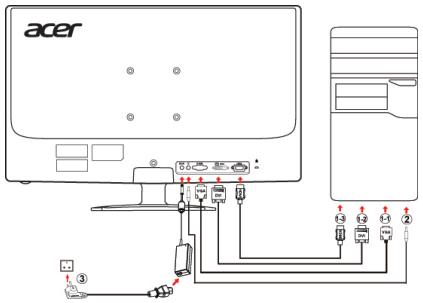
- 1-1 Connect Video Cable
a. Make sure both the monitor and computer are powered-OFF.
b. Connect the VGA video cable to the computer.
1-2 Connect Digital Cable (Only Dual-Input Model)
a. Make sure both the monitor and computer are powered-OFF.
b. Connect one end of the 24-pin DVI cable to the back of the monitor and connect the other end to the computer's port.
1-3 Connect HDMI Cable (Only HDMI-Input Model)
a. Make sure both the monitor and computer are powered-OFF.
b. Connect the HDMI cable to the computer.
- Connect the Audio Cable(Only Audio-Input Model)(Optional)
- Connect power adaptor and power cord
Connect the power adaptor and power cord to the monitor, then to a properly grounded AC outlet.
- Power-ON Monitor and Computer
Power-ON the monitor first, then power-ON the computer.
This sequence is very important.
- If the monitor still does not function properly, please refer to the troubleshooting section to diagnose the problem.
Troubleshooting Tips
No Power - The monitor's power indicator is off.
Make sure the monitor power cable is fully inserted in the monitor's power port and the electrical outlet.
Test the electrical oulet by plugging in a working electrical device such as a lamp.
Try another power cable on the monitor. You can use the computer's power cable to perform this test.
No Video - The monitor's power indicator is on but there are no image on the screen.
Ensure that the video connector is properly connected to the computer.
Ensure that the computer is on and functioning properly.
Turn off the monitor and check the video cable pins. Make sure no pins are bent.
Operation Detail
Please refer to user's guide in CD-ROM packaged with this monitor.
Regulations and safety notices
FCC notice
This device has been tested and found to comply with the limits for a Class B digital device pursuant to Part 15 of the FCC rules. These limits are designed to provide reasonable protection against harmful interference in a residential installation. This device generates, uses, and can radiate radio frequency energy and, if not installed and used in accordance with the instructions, may cause harmful interference to radio communications.
However, there is no guarantee that interference will not occur in a particular installation. If this device does cause harmful interference to radio or television reception, which can be determined by turning the device off and on, the user is encouraged to try to correct the interference by one or more of the following measures:
Reorient or relocate the receiving antenna.
- Increase the separation between the device and receiver.
- Connect the device into an outlet on a circuit different from that to which the receiver is connected.
- Consult the dealer or an experienced radio/television technician for help.
CE declaration of Conformity
Hereby, Acer Inc., declares that this LCD monitor is in compliance with the essential requirements and otherrelevant provisions of EMC Directive 2004/108/EC, Low Voltage Directive 2006/95/EC, RoHS Directive 2002/95/EC and Directive 2009/125/EC with regard to establishing a framework for the setting of eco designrequirements for energy-related product.
Notice: Shielded cables
All connections to other computing devices must be made using shielded cables to maintain compliance with EMC regulations.
Notice: Peripheral devices
Only peripherals (input/output devices, terminals, printers, etc.) certified to comply with the Class B limits may be attached to this equipment. Operation with non-certified peripherals is likely to result in interference to radio and TV reception.
Caution
Changes or modifications not expressly approved by the manufacturer could void the user authority, which is granted by the Federal Communications Commission, to operate this product.
Operation conditions
This device complies with Part 15 of the FCC Rules. Operation is subject to the following two conditions: (1) this device may not cause harmful interference, and (2) this device must accept any interference received, including interference that may cause undesired operation.
Notice: Canadian users
This Class B digital apparatus complies with Canadian ICES-003.
Disposal of Waste Equipment by Users in Private Household in the European Union

This symbol on the product or on its packaging indicates that this product must not be disposed of with your other household waste. Instead, it is your responsibility to dispose of your waste equipment by handing it over to a designated collection point for the recycling of waste electrical and electronic equipment. The separate collection and recycling of your waste equipment at the time of disposal will help to conserve natural resources and ensure that it is recycled in a manner that protects human health and the environment. For more information about where you can drop off your waste equipment for recycling, please contact your local city office, your household waste disposal service or the shop where you purchased the product.
Ohutusabinóud
This Class B digital apparatus complies with Canadian ICES-003.

m = 311
uauauauauauuuuuuuuuuuuuuuuuuuuuuuuuuuuuuuuuuuuuuuuuuuuuuuuuuuuuuuuuuuuuuuuuuuuuuuuuuuuuuuuuuuuuuuuuuuuuuuuuuuuuuuuuuuuuuuuuuuuuuuuuuuuuuuuuuuuuuuuuuuuuuuuuuuuuuuuuuuuuuuuuuuuuuuuuuuuuuuUU
Acer Inc. 2004/108/EC, 2006/95/EC RoHS 2002/95/EC
2009/125/EC 2009/125/EC 2009/125/EC
wauu