Mach Power SM-BCW2M-001 - Home Automation

SM-BCW2M-001 - Home Automation Mach Power - Free user manual and instructions

Find the device manual for free SM-BCW2M-001 Mach Power in PDF.

📄 16 pages English EN Download 💬 AI Question 10 questions ⚙️ Specs
Notice Mach Power SM-BCW2M-001 - page 2
Pick your language and provide your email: we'll send you a specifically translated version.
Product type Smart Wi-Fi Battery Camera / Doorbell
Model SM-BCW2M-001
Brand Mach Power
Wireless connection Wi-Fi (2.4 GHz) via Tuya Smart app
Power source Rechargeable lithium battery (built-in)
Battery life Several months (typical) with normal usage
Video resolution HD (exact resolution not specified)
Night vision IR night vision
Two-way audio Yes
Motion detection PIR sensor with adjustable sensitivity
Recording Local TF card (FAT32) and remote via app
Screenshot Yes
Push notifications Doorbell call and motion alerts
Voice control Compatible with Amazon Echo and Google Home
App support Tuya Smart (Android 4.1+, iOS 8.0+)
Device sharing Yes, multiple family members
Warranty 24 months (legal warranty); optional direct manufacturer warranty
Dimensions (approx.) 5.5 x 3.5 x 2.5 inches (140 x 90 x 64 mm)
Weight (approx.) 200 g
Maintenance Clean with a dry, soft cloth; keep dry

Frequently Asked Questions - SM-BCW2M-001 Mach Power

How do I set up the Mach Power SM-BCW2M-001?
Download the Tuya Smart app from App Store or Google Play. Power on the device, ensure the indicator blinks rapidly. In the app, tap Add Device > Security & Sensor > Smart Camera. Follow the QR code or Wi-Fi setup instructions.
What should I do if the camera won't connect to Wi-Fi?
Make sure your phone is connected to a 2.4 GHz Wi-Fi network (5 GHz not supported). Check the device indicator light; it should blink red rapidly. Reset the device and try again. Also, ensure the app is up to date.
How can I share the camera with other family members?
In the live view page, tap ... > Device Sharing. Enter the email or phone number of the family member, and they will receive an invitation to access your device via the Tuya Smart app.
How do I reset the device to factory settings?
Press and hold the reset button (usually on the back) for about 10 seconds until the indicator light blinks red rapidly. Then set up the device again via the app.
How do I format the TF card?
Go to the device settings in the app, tap SD Card Settings, then select Format Memory Card. The card must be in FAT32 format. Formatting will erase all recordings.
Why is the camera not recording or detecting motion?
Check that Motion Detection is enabled in settings. Adjust the sensitivity level. Ensure the device has sufficient battery and the TF card is properly inserted and formatted.
Can I use the camera with Amazon Alexa or Google Home?
Yes, the device is compatible. In the Tuya Smart app, go to Settings > Third Party Control and follow the instructions to link with Amazon Echo or Google Home.
How long does the battery last?
Battery life varies with usage. With typical settings (motion detection on, moderate activity), the battery lasts 2-4 months. Frequent live viewing and recording will reduce battery life.
What do the indicator lights mean?
Red light blinking rapidly (1s): Ready to pair. Red light solid: Power on. Blue light blinking: Connection in progress. Blue light solid: Connected successfully. Refer to the manual for other statuses.
Is the camera weatherproof?
The manual does not specify an IP rating, but it is designed for indoor or sheltered outdoor use. Avoid direct exposure to rain or extreme temperatures. Use under a porch or eave for outdoor installations.

User questions about SM-BCW2M-001 Mach Power

0 question about this device. Answer the ones you know or ask your own.

Ask a new question about this device

The email remains private: it is only used to notify you if someone responds to your question.

No questions yet. Be the first to ask one.

Download the instructions for your Home Automation in PDF format for free! Find your manual SM-BCW2M-001 - Mach Power and take your electronic device back in hand. On this page are published all the documents necessary for the use of your device. SM-BCW2M-001 by Mach Power.

USER MANUAL SM-BCW2M-001 Mach Power

QUICK

INSTALLATION GUIDE

SM-BCW2M-001

SM-BDBW2M-002

Thanks

for purchasing a Mach Power product, read the manual carefully before use.

This product is covered by a 24 month warranty according to the Consumer Code “Legal Warranty”

Mach Power offers the possibility of activating, within 7 days from the date of purchase, the direct warranty with the manufacturer. Sending, to the following dedicated number Whatsapp +39 339 3203757, proof of purchase and serial number (Serial No).

For more information, methods and advantages, visit our website www.machpower.it

1. APP Download. Tuya Smart

Download the app from App Store or Google Play, run the app on your smart phone, and set up the smart WiFi camera following the app instructions.

Scan QR code to download

2. Smart Wi-Fi Battery Camera Parameter

Smart Wi-Fi Battery Camera security solution mainly provides the following function: wireless connection, ultra-low power consumption, remote active wake-up, quick start.

3. App main Functions

  1. Smart Camera management functions, including adding and deleting Camera.
  2. Configure the smart Camera connection through WiFi network on App.
  3. Receive push messages, including doorbell call, motion detection (PIR) and push information.
  4. Connect the doorbell/ battery Camera, view the camera through the
    camera, screenshot and local recording function.
  5. Share the video to other family members.
  6. Configure other basic functions including power management, detection alarm setting and conenct with Amazon echo & Google home.

Version support:

  1. Android apk only supports Android 4.1 and above operating systems;

  2. IOS apk supports IOS8.0 and above operating systems.

4. App guide

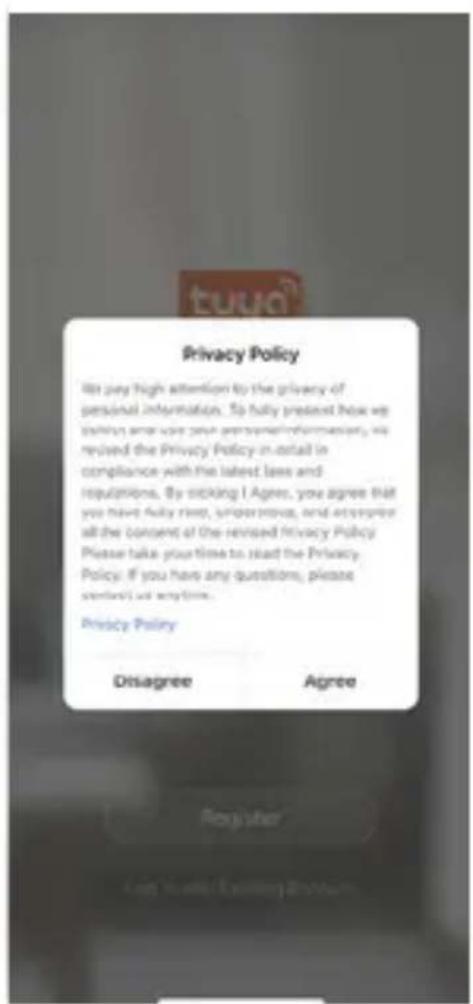
Download app tuya smart, open it and you will see the following guide page.

tuya® Register Log in with Existing Account

Privacy Policy Are pay high attention by the privacy of personal information. So fully present how we think and love your personal information, we revised the Privacy Policy in detail in compliance with the latest laws and regulations. By sticking I Agree, you agree that you have fully risen, understood, and everyone all the consent of the revised Privacy Policy. Please take your time to read the Privacy Policy. If you have any questions, please sent out all anytime. Privacy Policy Disagree Agree

5. User register

If you have already registered an account, you can skip the creating a new account, click "log in with existing account", enter the log in page.

19:14 -Y all 10 ■■ 19:15 -Y all 40 ■■ < < Register Enter Verification Code Italy +39 > Model version(s): - Certification Code is given (next to your before assembly and now #2023/18 version(s))... Get will log in Open

6. Add device

Click "Add Device" on the home pf App, select "Security & Sensor" and then "Smart Camera".
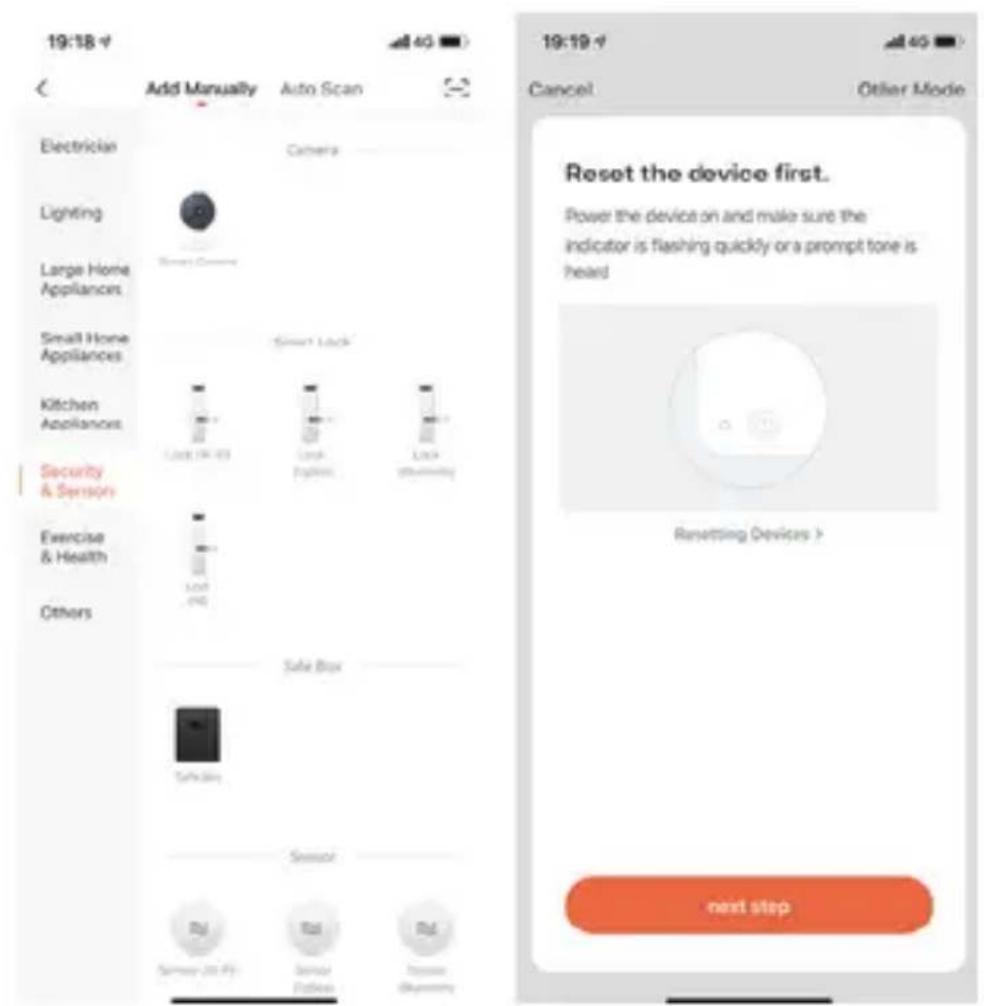
19:18 Add Manually Auto Scan Electrician Lighting Large Home Appliances Small Home Appliances Kitchen Appliances Security & Season Exercise & Health Others Camera Green Lock Lock 16-43 Lock Express Lock Security Safe Box Take Day Sensor Rd Sensay 20 Fi Sensor Edition Rd Tissue Breaker 19:19 Cancel Otlier Mode Reset the device first. Power the device on and make sure the indicator is flashing quickly or a prompt tone is heard Resetting Devices > next step

6.1 QR code connection

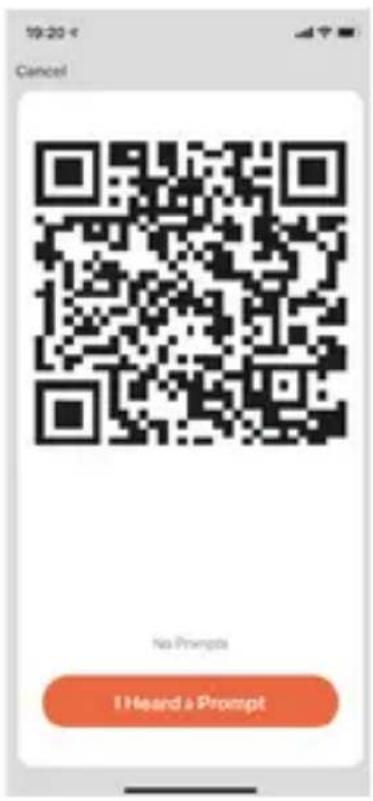
Power on the device and click"QR CodeH, confirm that indicator light rapidly blinks. (red light blink per ls),

Enter Wi-Fi Password and Confirm, it generates QR Code, scan it and waiting for device connection till success.device will show blue light blink always, name the doorbell.

Enter Wi-Fi Password 2.40Hz 50Hz ✓ ✗ Only 24 GHz Wi-Fi networking are supported? 2xTEL Confers

Use Camera to Scan QRC... Tap next. The mobile phone displays a QR code. Use the camera to scan to the OR code 15 cm to 20 cm away from the mobile phone. 15 - 20cm Continue

19:20 Cancel No Prompts I Heard a Prompt

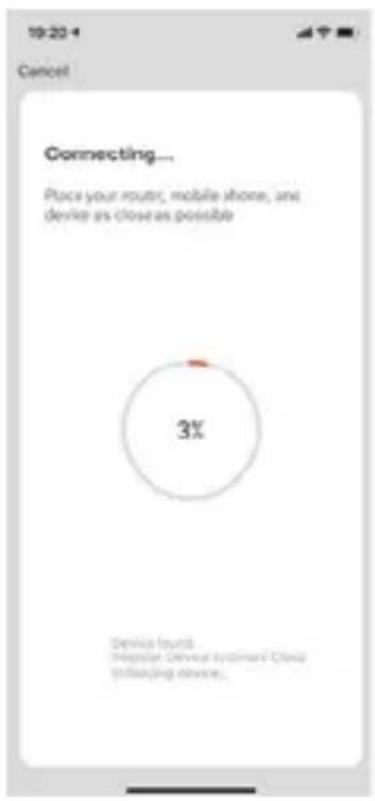
19:20:4 Cancel Connecting... Place your router, mobile phone, and device as close as possible 3% Device found Regular Device System Class (including device.

20:49 v Cancel Connecting... Place your router, mobile phone, and device as close as possible 100% ✓ Device Tools ✓ Register Device to Smart Cloud ✓ Initiating Device.

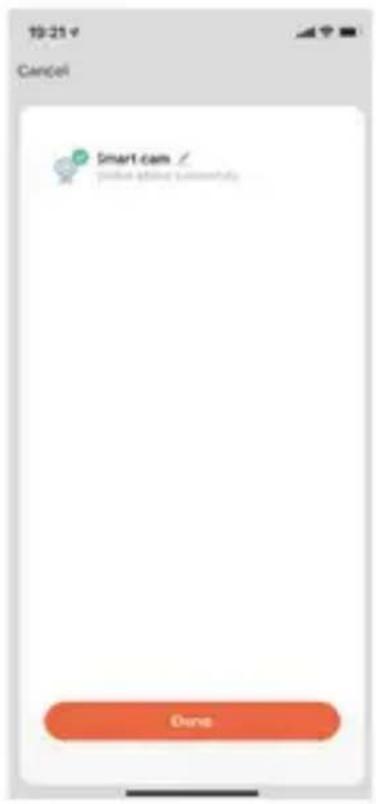
19:21 v Cancel Smart cam / Done

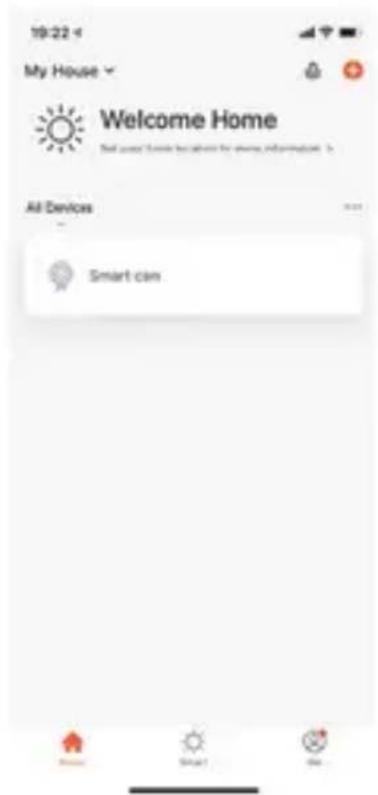
10:22 My House Welcome Home All Devices Smart com

Send Gum 2019 - 12 New Date Type Month Day An Sep

7. Live View Description

7.1 Live View

Device list, it shows all devices with network connection.

Select device name to live view images directly. Support following functions: Two-way Audio; Video recording to local file; screenshot; playback video on TF card.

19-22 My House Welcome Home Set your home location for more information. > All Devices Smart can Smart can Smart can Smart Smart Playback Cloud storage

7.2 TF Card Video Playback

Video type icon description:

  1. Wake up the device and take video: smartphone app wakes up the device and recording.
  2. Press button to wake up the device and take video: via Press the doorbell button, wake up the device and recording the device.
  3. Motion detection and take video: Some people stay in front of the device or move will be detected, once it detects and recording.

TF card statement:

  1. Currently the device only supports TF cards with the FAT32

system format, Others cannot be identified.
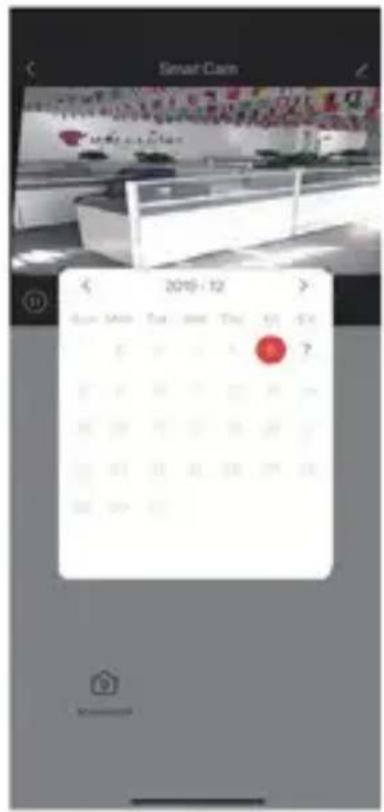
Smart Cam 2019 - 12 Sun Mon Tue Wed Thu Fri Sat E 2 3 4 5 6 7 1 2 3 4 5 6 7 10 11 12 13 14 15 16 17 18 19 20 21 22 23 24 25 26 27 33 34 35 36 37 48 49 50 51 52 53 56 57 58 59 60 61 68 69 70 71 72 73 76 77 78 79 80 88 89 90 91 92 93 96 97 98 99 100 101 102 103 104 105 106 107 108 109 110 111 112 113 114 115 116 117 118 119 120 121 122 123 124 125 126 127 128 129 130 131 132 133 134 135 136 137 138 139 140 141 142 143 144 145 146 147 148 149 150 151 152 153 154 155 156 157 158 159 160 161 162 163 164 165 166 167 168 169 170 171 172 173 174 175 176 177 178 179 180

19:58 d Smart Cam Date Record Screenbox

8. Device Management

Click “...” on live view page to enter device management.
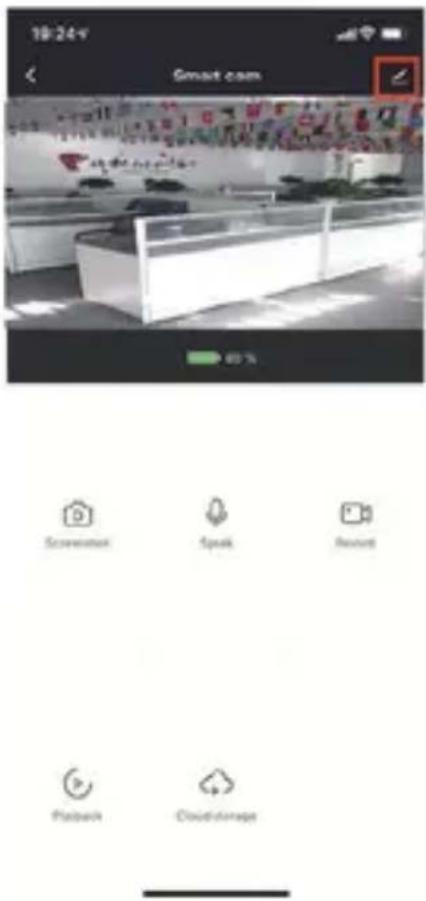
18:24:9 Smart com Screenset Speak Reset Playback Cloud storage

22-39 Settings Smart cam Device Information Tap-to-Fun and Automation BASIC SETTINGS Basic Function Settings THIRD PARTY SUPPORTED ADAMACER SETTINGS Detection Alarm Settings PIR Power Management Settings STORAGE Storage Settings

8.1 Modify Device name

Click "Modify Device Name" on setting page to rename device.

22:39 Settings. Smart can Device Information Tap-to-Run and Automation BASIC SETTINGS Basic Function Settings THIRD PARTY SUPPORTED Advanced Settings Detection Alarm Settings PIR Power Management Settings STORAGE Storage Settings 19:28 Device Name Smart can Cancel Save "can" camera cameras q w e r t y u i o p a s d f g h j k l z x c v b n m 123 space done

8.2 Device Sharing

Click "Device Sharing" on setting page to share other family members.

10:28 Settings Detection Alarm Settings FX Power Management Settings Vas Purchase VIS OPTION NOTIFICATION Offline Notification Others Share Device FAQ & Feedback Add to Home Screen Firmware Information Remove Device 10:29 Add Sharing Done Region Italy +39 Account Limited (Pwetech) 10:29 Add Sharing Done

Done Device Sharing If a permanent resident in your home has an account, we recommend that you sell the account is a family member and where all your family members and "Up to Don" focus with the family member. Home Settings The device has been independently closed to the following o... 86-13682216884 86-13682216884 Add Sharing

8.3 Device Info

Click "Device info" to check device information.

22:30 Settings Smart can Device Information Tap-to-Run and Automation BASIC SETTINGS Basic Function Settings INTRODUCTION SYSTEMS (RIP) (RIP) (RIP) THIRD PARTY SUPPORTED ADAMANCED SETTINGS Detection Alarm Settings PIR Power Management Settings STORAGE Storage Settings 19:30 Device Information Owner 88-169/67/1995 Virtual ID dsc104a19c10c10c10c10c10c10c10c10c10c10c10c10c10c10c10c10c10c10c10c10c10c10c10c10c10c10c10c10c10c10c10c10c10c10C IP Address 70.67.76.22 Device Time Zone An45Shanghai Signal Strength 65%

8.4 Power Management Setting

Click "Power Manage" to check power working status.

22:30 v Settings Smart cam Device information Tax- de Flux and Automation BASE SETTIPS Basic Function Settings Detection Alarm Settings PID Power Management Settings STORAGE Storage Settings 19:31 v Power Management Settings Battery Remaining 80% Power Source Memory Set the low battery alarm threshold 20%

8.5 Basic Function Setting

Click “Basic Function Settings” to set below functions: Indicator status; image reverse; time watermark; wide dynamic mode; IR night vision.

22:39 Settings Smart cam Device Information Touch-Go Bus and Automation SASIC SETTINGS Basic Function Settings 10:31 Basic Function Settings Flip Screen Time Watermark Talk Mode Next Page Talk 5 SELECT START SIGNAL setting Google ADVANCED SETTINGS Detection Alarm Settings Job Power Management Settings STORAGE Storage Settings

8.6 Motion Detection Setting

Click "Detection Alarm Settings" to set the sensitivity.

22:30 Settings Smart cam Device Information Search-Blue and Automation BASE SETTINGS Basic Function Settings TOMING TARGET SUPPORTS AMOUNT Compliance Advanced SETTMENTS Detection Alarm Settings POR High: Power Management Settings SETORAGE Storage Settings 10:32 Detection Alarm Settings- MOTION Alarm Sensitivity Level Alarm CASE SETTINGS Alarm Internal Time >

8.7 D card setting

Click SD card setting" to check SD card volume, setting SD recording take video or not, format memory card.
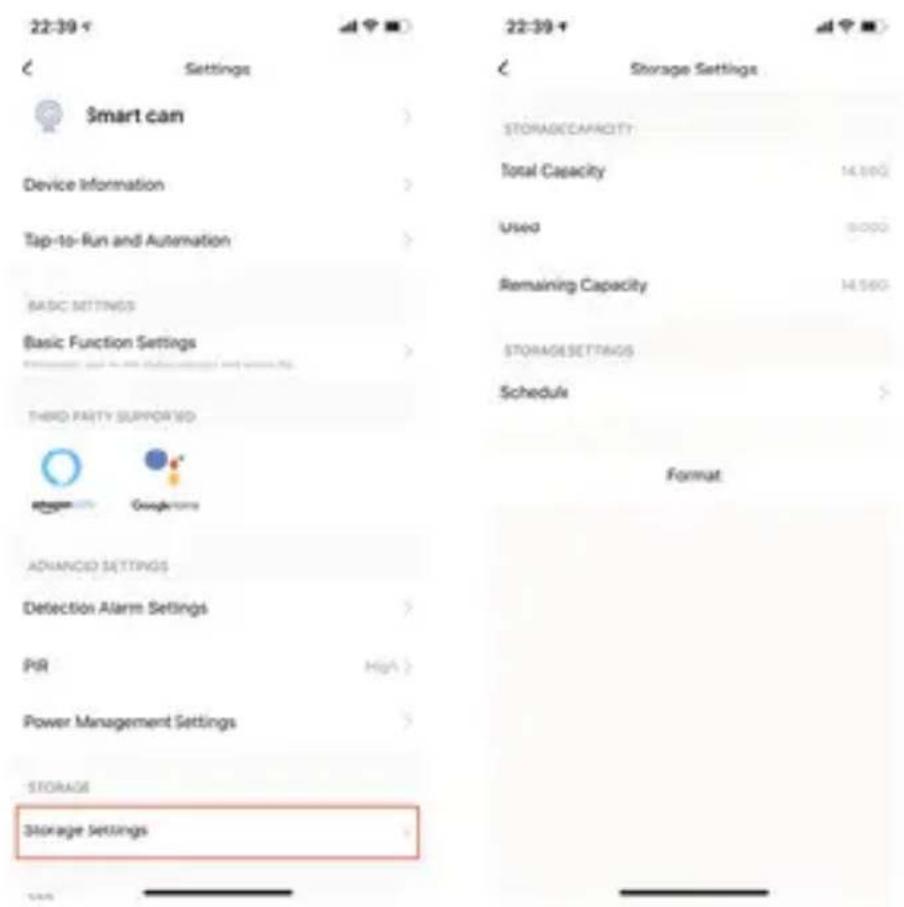
22:39 Settings Smart can Device Information Tap-to-Run and Automation BASIC SETTINGS Basic Function Settings THIRD PARTY SUPPORAID ADJANCED SETTINGS Detection Alarm Settings PIR High Power Management Settings STORAGE Storage Settings Storage Settings STORAGE CAPACITY Total Capacity 14.56G Used 8.00G Remaining Capacity 14.56G STORAGE SETTINGS Schedule > Format

9. App receive push message

9.1 Doorbell Call Push Message

Press doorbell and it rings, device make call to smartphone, select "Accept" to check the monitoring image or "Refuse" the call.
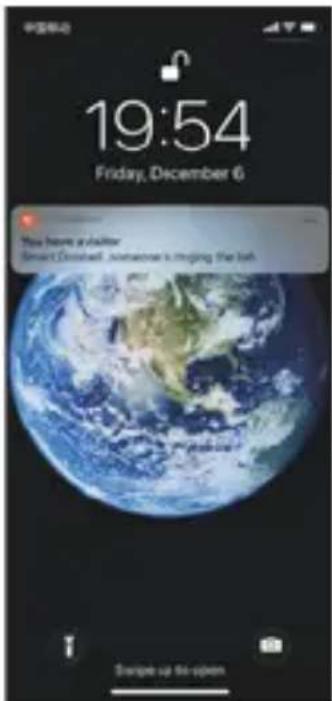
中国移动 19:54 Friday, December 6 You have a submitter Smart Desktop, someone is hoping the job Browse up for open

9.2 PIR Motion Detection Push Message

Select push message, some people stay in front of the device or move will be detected, once it detects and recording.

19:55 Friday, December 6 You have an inhibitor Smart Counsel has detected movement. You have an inhibitor Smart Counsel has detected movement. You have an inhibitor Smart Counsel someone is ringing the list.

10. Message Center

Click app "Message Center to check the history push message.

19:34 Tap to Set Nickname Home Management Message Center FAQ & Feedback More Services Settings Alarm Someone's knocking Smart Doorbell someone is knocking! Visit Someone's knocking Smart Doorbell someone is knocking! Visit Someone's knocking Smart Doorbell someone is knocking! Visit

11. Thirty Party Device

Our smart device can work with Amazon Echo and Google Home
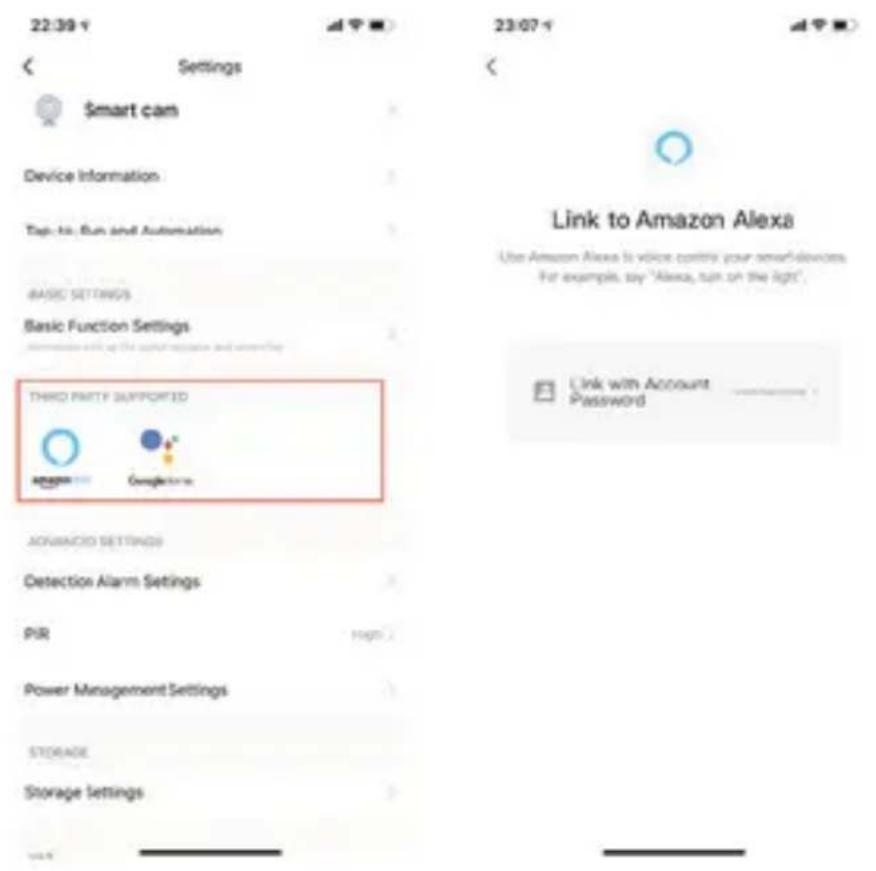
22:39 Settings Smart cam Device Information Tap to Run and Automation BASIC SETTINGS Basic Function Settings THIRD FREE SUPPORTED amazon Google Advanced Settings Detection Alarm Settings PR High Power Management Settings STORAGE Storage Settings Link to Amazon Alexa Use Amazon Alexa is voice controls your smart devices. For example, say "Alexa, turn on the light". Link with Account Password

Manual assistant
Powered by Anthropic
Waiting for your message
Product information

Brand : Mach Power

Model : SM-BCW2M-001

Category : Home Automation