R13S - Laptop Durabook - Free user manual and instructions
Find the device manual for free R13S Durabook in PDF.


| Product Type | Laptop |
| Brand | Durabook |
| Model | R13S |
| Display Size | 13.3 inches |
| Resolution | 1920 x 1080 pixels (Full HD) |
| Processor | Intel Core i5 or i7 (11th Gen) |
| Memory (RAM) | 8 GB or 16 GB DDR4 |
| Storage | 256 GB or 512 GB SSD |
| Operating System | Windows 10 Pro or Windows 11 Pro |
| Weight | Approximately 1.8 kg (3.97 lbs) |
| Dimensions (W x D x H) | 320 x 220 x 22 mm (12.6 x 8.66 x 0.87 inches) |
| Battery | Li-ion, 4-cell, 50 Wh |
| Power Adapter | 65 W AC adapter |
| Keyboard | Full-size, spill-resistant keyboard |
| Ports | 2x USB 3.0, 1x USB-C, HDMI, Ethernet, headphone/mic combo |
| Wireless | Wi-Fi 6, Bluetooth 5.0 |
| Camera | HD webcam with microphone |
| Safety Features | TPM 2.0, Kensington lock slot, optional fingerprint reader |
| Maintenance | Clean with dry cloth; avoid liquids; do not disassemble |
| Spare Parts & Repairability | Contact authorized service center; user-replaceable RAM and SSD |
| Warranty | Standard 1-year limited warranty |
Frequently Asked Questions - R13S Durabook
User questions about R13S Durabook
0 question about this device. Answer the ones you know or ask your own.
Ask a new question about this device
Download the instructions for your Laptop in PDF format for free! Find your manual R13S - Durabook and take your electronic device back in hand. On this page are published all the documents necessary for the use of your device. R13S by Durabook.
USER MANUAL R13S Durabook
Congratulations on your purchase of a Durabook R13S notebook! The R13S is a fully functional PC with built-in wireless connectivity. With the R13S notebook, you will be able to organize and access important business and personal information. In addition, you will be able to access the Internet and send and receive e-mail.
This manual contains all the information you need to set up and use your Durabook R13S. It thoroughly describes all the features of the notebook in a detailed and easy-to-read manner.
System Configurations
■ Processor: Intel U7500 "Merom" Processor Support
◆ Speed at 1.06GHz
■ Chipset: INTEL ICH-8M + 965GM Chipset
■ OS Support:
◆ Microsoft Windows XP Edition OS Support
■ Display Screen Interface Support:
◆ Standard Touch Screen
◆ Sunlight readable screen
■ LCD Flat Panel Support:
◆ 13.3" TFT, 1280x800 Resolution
■ Storage Support:
◆ HDD Support
- 2.5" SATA HDD
● Capacity Points: 80GB 5400RPM (up to 250GB)
■ System Memory:
◆ Single SO-DIMM Memory Slots
DDR2-667MHz
◆ System Memory Upgradeable to 2GB
■ Expansion Slot:
◆ Connecter
◆ USB 2.0 Support
◆ RS-232 Support
◆ PCMCIA & Flash Memory Slot
■ Optical Device:
◆ DVD Super Multi Dual Layer 8X/6X/4X
■ Communication Device Support:
◆ Wireless LAN (WLAN) Intel 802.11A/B/G/N Support:
◆ Modem 56K
Bluetooth 2.1 + EDR
♦ GPS
◆ WWAN Compliant
Safety Precautions
The following safety precautions will increase the life expectancy of the Durabook R13S notebook. Follow all precautions and instructions. Except as described in this manual, refer all servicing to qualified personnel. Do not use damaged power cords, accessories, and other peripherals. Do not use strong solvents such as thinners, benzene, or other chemicals on or near the surface.
IMPORTANT! Disconnect the AC power and remove the battery pack(s) before cleaning. Wipe the R13S notebook using a clean cellulose sponge or chamois cloth dampened with a solution of nonabrasive detergent and a few drops of warm water and remove any extra moisture with a dry cloth.


DO NOT place or drop objects on top of the notebook.
DO NOT insert any foreign objects into the notebook.

DO NOT place the notebook on uneven or unstable work surfaces. Seek servicing if the casing has been damaged.

DO NOT expose the notebook to strong magnetic or electric fields.

DO NOT press or touch the notebook's LCD display.
DO NOT place the notebook together with small items that may scratch or enter the display.

DO NOT expose the notebook to dirty or dusty environments.
DO NOT operate the notebook during a gas leak.

DO NOT expose the notebook to or use near liquids, rain, or moisture.
DO NOT use the notebook's modem during an electrical storm.

DO NOT leave the notebook on your lap or any part of the body in order to prevent discomfort or injury from heat exposure.

BATTERY SAFETY WARNINGS:
DO NOT throw the battery into fire.
DO NOT short circuit the contacts.
DO NOT disassemble the battery.

SAFE TEMPURATURE: The notebook should only be used in environments with ambient temperatures between 5^ C ( 41^ F) and 35^ C ( 95^ F)

INPUT RATING: Refer to the rating label on the bottom of notebook and be sure that your power adapter complies with the rating.

DO NOT throw the notebook into municipal waste. Check local regulations for the disposal of electronic products.

DO NOT carry or cover the notebook while it is ON with any materials that will reduce air circulation such as a carrying bag.
Preparing Your Notebook
These are only quick instructions for powering on your Durabook R13S notebook. Read the later pages for detailed information on using your notebook.
1. Connect the AC Power Adapter

2. Install the Battery Pack

natural_image
Close-up of a hand inserting a card into a device with visible internal components (no text or symbols)3. Turn ON the Notebook

natural_image
Close-up of a laptop keyboard with a blue indicator light on the left side (no readable text or symbols)IMPORTANT! When opening, do not force the display panel down to the table or else the hinges may break! Never carry the notebook by the display panel!

2
Getting Started
Front View
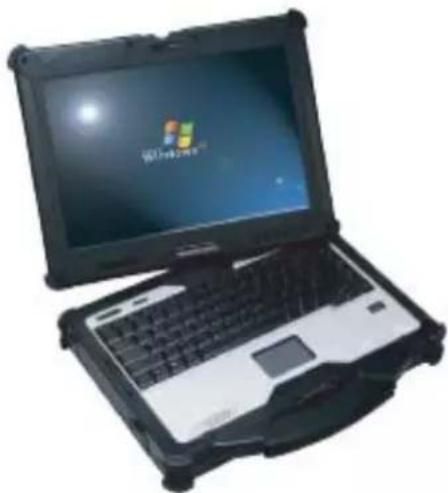
natural_image
Black and white photo of a laptop with a visible 'Microsoft Windows 2019' screen (no text on the device itself)- Five Way Control Key – Up/Down, Left/Right, & Enter Button
- WiFi/BT Power Button
- Mouse Button
- System Power Button
- LCD Panel
- Internal Microphone & Speaker
- LED Status Indicator
- Fingerprint Scanner
- Volume Control
- Brightness Control
I/O Port View
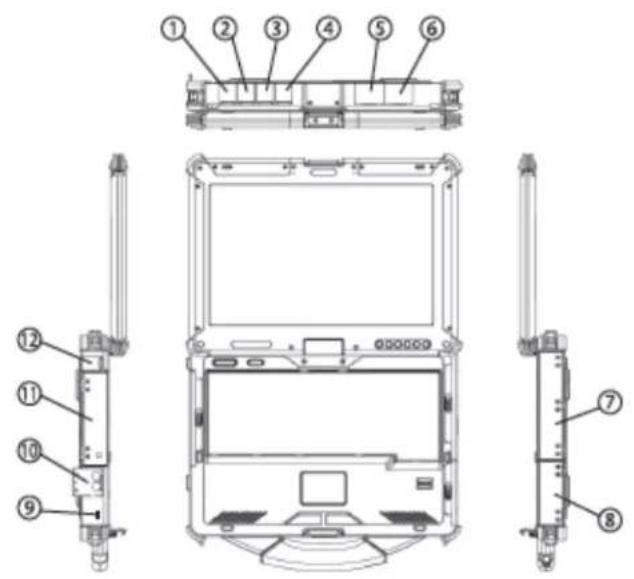
- USB Port
- LAN Port
- Modem Port
- USB Port
- RS232 Port
- Display Output
- Optical Drive
- Battery Slot
- Kensington Lock
- Microphone-In & Audio-Out
- PCMCIA and Flash Memory Slot
- Power (DC) Input
Stylus

Making Connections
Your Durabook R13S notebook is equipped with a full array of ports and connectors, including standard input/output (I/O) ports for quickly and easily adding peripheral devices such as printers, keyboards, and mice. Refer to the documentation included with individual devices for details on connecting these devices to your notebook.
1. USB (Universal Serial Bus) Ports
The Universal Serial Bus (USB) is the latest standard for connecting monitors, input devices, scanners, and other devices to a PC. USB devices can be chained together onto a single cable.
2. LAN Port
The RJ-45 LAN port with eight pins is larger than the RJ-11 modem port and supports a standard Ethernet cable for connection to a local network. The built-in connector allows convenient use without additional adapters.
3. Modem Port
The RJ-11 modem port with two pins is smaller than the RJ-45 LAN port and supports a standard telephone cable. The internal modem supports up to 56K V.90 transfers. The built-in connector allows convenient use without additional adapters.
4. Microphone-In Jack
Connect a microphone to this jack to record audio.
5. RS232 Port
The RS232 connector is reserved for specific purposes used to connect various customer devices.
6. Audio-Out Jack
Connect a stereo headset or external speakers to this jack to listen to multimedia.
7. Power Input Jack
Connect the DC power cable from the AC adapter to this jack.
8. Optical Drive
The R13S notebook comes in various models with different optical drives. The notebook's optical drive may support compact discs (CD) and/or digital video discs (DVD) and may have recordable (R) or re-writable (RW) capabilities.
9. Kensington® Lock Port
The Kensington® lock port allows the notebook to be secured using Kensington® compatible Notebook PC security products. These security products usually include a metal cable and lock that prevent the notebook from being removed from a fixed object. Some may also include a motion detector to sound an alarm when moved.
10. PC Card Slot
One PCMCIA 2.1 compliant PC card socket is available to support on type I/II PC card. The socket supports 32-bit cardbus. This allows accommodation of notebook expansion options such as memory cards, ISDN, SCSI, and Smart Card adapters.
11. Flash Memory Slot
Normally an external memory card reader must be purchased separately in order to use memory cards from devices such as digital cameras, MP3 players, mobile phones, and PDAs. The R13S has a built-in high-speed memory card reader that can conveniently read such cards.
12. Display Output
The 15-pin D-sub monitor port supports a standard VGA-compatible device such as a monitor or projector to allow viewing on a larger external display.
GPS Disclaimer
Underwriters Laboratories Inc. ("UL") has not tested the performance or reliability of the Global Positioning System ("GPS") hardware, operating software or other aspects of this product. UL has only tested for fire, shock or casualties as outlined in UL's Standard(s) for Safety. UL60950-1 Certification does not cover the performance or reliability of the GPS hardware and GPS operating software. UL MAKES NO REPRESENTATIONS, WARRANTIES OR CERTIFICATIONS WHATSOEVER REGARDING THE PERFORMANCE OR RELIABILITY OF ANY GPS RELATED FUNCTIONS OF THIS PRODUCT.
3
Power Systems
Using AC Power
The Durabook R13S notebook power system is comprised of two parts, the power adapter and the battery. The power adapter converts AC power from a wall outlet into DC power required by the R13S. Your R13S notebook comes with a universal AC/DC adapter. That means you may connect the power cord to any 100V-120V outlet as well as any 220V-240V outlets without setting any switches or using power converters. Different countries may require that an adapter be used to connect the provided US-standard AC power cord to a different standard. Most hotels will provide universal outlets to support different power cords as well as voltages. It is always best to ask an experienced traveler about AC outlet voltages when bringing power adapters to another country.

TIP: You can buy travel kits for the R13S notebook that includes power and modem adapters for almost every country (preferably with surge-protection) and then connect the DC plug to the notebook. Connecting the AC/DC adapter to the AC outlet first allows you to test the AC outlet's power and the AC/DC converter itself for compatibility problems before connecting the DC power to the R13S notebook. The power indicator on the adapter (if available) will light if the power is within accepted ranges.

IMPORTANT! Damage may occur if you use a different adapter to power the R13S notebook or use the R13S's power adapter to power other electrical devices. If there is smoke, a burning scent, or extreme heat coming from the AC/DC adapter, seek immediate servicing. Seek servicing if you suspect a faulty AC/DC adapter. You may damage both your battery pack(s) and the R13S notebook with a faulty AC/DC adapter.

NOTE: This R13S notebook may come with either a two or three-prong plug depending on territory. If a three-prong plug is provided, you must use a grounded AC outlet or use a properly grounded adapter to ensure safe operation of the notebook.

Using Battery Power

The Durabook R13S notebook is designed to work with a removable battery pack. The battery pack consists of a set of battery cells housed together. A fully charged pack will provide several hours of battery life, which can be further extended by using power management features through the BIOS setup. Additional battery packs are optional and can be purchased separately through a Durabook retailer.
Installing and Removing the Battery Pack
Your R13S notebook may or may not have its battery pack already installed. If your notebook does not have its battery pack installed, use the following procedures to install the battery pack.

IMPORTANT! Never attempt to remove the battery pack while the R13S notebook is turned ON, as this may result in the loss of working data.

To remove the battery pack:

natural_image
Close-up of a hand pressing down on a black electronic device with a partially open panel showing internal components (no visible text or symbols)IMPORTANT! Only use battery packs and power adapters supplied with this notebook or specifically approved by the manufacturer or retailer for use with this model or else damage may occur to the notebook.

Battery Care
The Durabook R13S notebook's battery pack, like all rechargeable batteries, has a limit on the number times that it can be recharged. The battery pack's usability will depend on your environment's temperature, humidity, and how the R13S notebook is being used. It is ideal that the battery be used in a temperature range between -20^ and 60^ . You must also take into account that the R13S notebook's internal temperature is higher than the outside temperature. Any temperatures above or below this range will shorten the life of the battery. But regardless, the battery pack's usage time will eventually decrease and a new battery pack will need to be purchased from an authorized dealer of this notebook. Because batteries also have a shelf life, it is not recommended to buy extras for storing.

natural_image
Battery component with striped pattern and yellow cable, labeled 'Battery' below (no other text or symbols)
WARNING! For safety reasons, DO NOT throw the battery into fire, DO NOT short circuit the contacts, and DO NOT disassemble the battery. If there is any abnormal operation or damage to the battery pack caused by impact, turn OFF the R13S notebook and contact an authorized service center.



- System Configurations
- ■ Storage Support:
- ■ System Memory:
- ■ Expansion Slot:
- ■ Optical Device:
- ■ Communication Device Support:
- Safety Precautions
- Preparing Your Notebook
- Connect the AC Power Adapter
- Install the Battery Pack
- Turn ON the Notebook
- 2
- Getting Started
- Front View
- I/O Port View
- Stylus
- Making Connections
- USB (Universal Serial Bus) Ports
- LAN Port
- Modem Port
- Microphone-In Jack
- RS232 Port
- Audio-Out Jack
- Power Input Jack
- Optical Drive
- Kensington® Lock Port
- PC Card Slot
- Flash Memory Slot
- Display Output
- GPS Disclaimer
- 3
- Power Systems
- Using AC Power
- Using Battery Power
- Installing and Removing the Battery Pack
- Battery Care
Brand : Durabook
Model : R13S
Category : Laptop