
Vaio VGP-UHDM08 - Hard Drive SONY - Free user manual and instructions
Find the device manual for free Vaio VGP-UHDM08 SONY in PDF.


| Product Type | External Hard Drive |
| Brand | Sony |
| Model | Vaio VGP-UHDM08 |
| Capacity | 500 GB (estimated) |
| Interface | USB 2.0 / 3.0 |
| Dimensions | Approx. 120 x 80 x 15 mm |
| Weight | Approx. 200 g |
| Power Supply | USB bus-powered |
| Operating Temperature | 5°C to 35°C |
| Storage Temperature | -20°C to 60°C |
| Compatible Systems | Windows, macOS |
| Main Functions | Data storage, backup, file transfer |
| Care and Cleaning | Wipe with a soft dry cloth; avoid liquids |
| Safety Precautions | Do not disassemble; avoid drops and water exposure |
| Spare Parts and Repairability | No user-serviceable parts; contact support |
| General Information | Portable design; LED activity indicator |
Frequently Asked Questions - Vaio VGP-UHDM08 SONY
User questions about Vaio VGP-UHDM08 SONY
0 question about this device. Answer the ones you know or ask your own.
Ask a new question about this device
Download the instructions for your Hard Drive in PDF format for free! Find your manual Vaio VGP-UHDM08 - SONY and take your electronic device back in hand. On this page are published all the documents necessary for the use of your device. Vaio VGP-UHDM08 by SONY.
USER MANUAL Vaio VGP-UHDM08 SONY
Operating Instructions
http://www.sony.net/
© 2005 Sony Corporation / Printed in Japan
2-649-113-11 (1)

Printed on 100% recycled paper using VOC (Volatile Organic Compound)-free vegetable oil based ink.

SONY®
WARNING
To prevent fire or shock hazard, do not expose the unit to rain or moisture.
To avoid electrical shock, do not open the cabinet. Refer servicing to qualified personnel only.
For customers in the U.S.A. Owner's Record
The model number and the serial number are located on the bottom of the drive. Record the serial number in the space provided below. Refer to this number whenever you call your Sony dealer regarding this product.
Model No. VGP-UHDM08
Serial No.
FCC Notice
This equipment has been tested and found to comply with the limits for a Class B digital device, pursuant to Part 15 of the FCC Rules. These limits are designed to provide reasonable protection against harmful interference in a residential installation. This equipment generates, uses, and can radiate radio frequency energy and, if not installed and used in accordance with the instructions, may cause harmful interference to radio communications. However, there is no guarantee that interference will not occur in a particular installation. If this equipment does cause harmful interference to radio or television reception, which can be determined by turning the equipment off and on, the user is encouraged to try to correct the interference using one or more of the following measures:
– Reorient or relocate the receiving antenna.
– Increase the separation between the equipment and receiver.
- Connect the equipment into an outlet on a circuit different from that to which the receiver is connected.
- Consult the dealer or an experienced radio/TV technician for help.
The shielded interface cable recommended in this manual must be used with this equipment in order to comply with the limits for a digital device pursuant to subpart B of Part 15 of FCC.
You are cautioned that any changes or modifications not expressly approved in this manual could void your authority to operate this equipment.
For questions regarding your product or for the Sony Customer Information Service Center nearest you, call 1-888-476-6972 in the United States or 1-800-961-7669 in Canada.
The number below is for FCC related matters only.
Declaration of Conformity
Trade Name: SONY
Model No.: VGP-UHDM08
Responsible Party: Sony Electronics Inc.
Address: 16450 W. Bernardo Dr,
San Diego, CA 92127
U.S.A.
Telephone No.: 858-942-2230
This device complies with Part 15 of the FCC Rules. Operation is subject to the following two conditions: (1) This device may not cause harmful interference, and (2) this device must accept any interference received, including interference that may cause undesired operation.
For customers in Canada
This Class B digital apparatus complies with Canadian ICES-003.
AVERTISSEMENT
Supplied Accessories 6
Locating the Controls and Connectors ... 7
Getting Started 8
Installing the batteries 8
Connecting the drive 10
About the power management function (power save function) ... 11
Disconnecting the drive from the computer 12
Using Security Function 13
About the drive security function .. 13
About handling the wireless key ... 13
Setting the security function ...... 14
Using the drive (secure mode) ..... 16
Deactivating the security function. 17
Precautions 18
Maintenance 19
Getting Help 20
Specifications 20
If you lose a wireless key/ If the wireless key is broken ..... 22
Troubleshooting 23
• VAIO and are trademarks of Sony Corporation.
- Microsoft and Windows are registered trademarks of Microsoft Corporation in the United States and/or other countries.
- All other names of systems, products and services are trademarks of their respective owners.
- In the document, the ^TM or ^ marks are not specified.
In this document, Microsoft® Windows® 2000 Professional are referred to as Windows 2000. Microsoft® Windows® XP Home Edition and Microsoft® Windows® XP Professional are referred to as Windows XP.
Overview
The VGP-UHDM08 is a hard disk drive that is compatible with USB2.0 interface. The drive has the following features:
- A 2.5 inch, approx. 80 GB hard disk drive with a maximum transfer rate of 43.7 Mbytes per second.
- The ability used to store large amounts of data.
- This hard disk drive corresponds to a Sony VAIO computer preinstalled the Windows 2000 or Windows XP operating system, or IBM PC/AT compatible computer so that it not only increases your computer's storage capacity, but also allows for easy data transfer between computers.
Notes
- This drive is only for use in the country of purchase.
- Use with the above configuration is not necessarily guaranteed. For example, use with a home-built computer, "White box" computer, computer with an upgraded operating system, or a computer installed with a dual operating system is not guaranteed.
Special features
Security function (page 13)
You can lock/unlock the drive by registering the supplied wireless key.
Notes
Be sure not to lose the registered wireless keys. If both wireless keys are lost, your computer may not recognize the hard disk drive.
See “If you lose a wireless key/If the wireless key is broken” (page 22).
Compatible computers
The drive can be used in conjunction with the following USB 1.1/2.0 compatible computers. (As of September 2005)
• The following Sony VAIO computers:
Computers with Windows 2000 or Windows XP preinstalled.
- The following IBM PC/AT compatible computer:
Computers with Windows 2000 or Windows XP preinstalled.
Notes
- This drive is only supported by computers with the Windows 2000 and Windows XP operating system preinstalled, and is not compatible with older computers running operating systems that have been upgraded to Windows 2000 and Windows XP.
- This drive does not support the Windows Millennium Edition, Windows 98 Second Edition operating system or earlier versions of the Windows operating system. This drive will not work if you connect it to the USB connector of a computer with a preinstalled operating system that is not compatible with the drive.
- Use with a home-built computer, “White box” computer, computer with an upgraded operating system, or a computer installed with a dual operating system is not guaranteed.
- To use the drive, log on to the computer with administrator privileges. If you do not log on with administrator privileges, you might not be able to access certain folders that are restricted.
- Restricting access to folders prevents access to those folders from other computers. To restrict access, refer to Help for Windows 2000 and Windows XP shared folder settings.
Supplied Accessories
After unpacking the hard disk drive, make sure that the accessories listed below are present. If anything is missing or damaged, contact the Sony dealer where you purchased this product or a Sony service representative in your area.
- Hard disk drive (1) • USB cable (1)

natural_image
Line drawing of a white electronic device with a logo on the front panel (no text or symbols on body)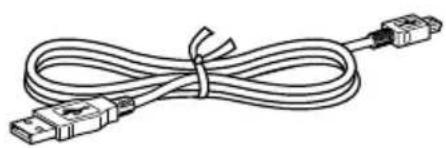
natural_image
Line drawing of a USB cable with connectors (no text or symbols)- Pouch (1)
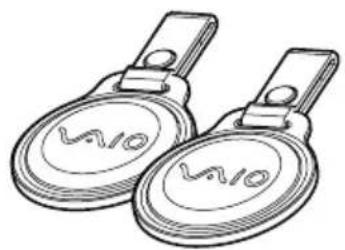
- Wireless key (2)
natural_image
Two identical circular metal objects with 'V410' branding, no additional text or symbols present.• AA(LR6) alkaline batteries (2)
- Operating Instructions (this document) (1)
- Warranty Card (1)
Locating the Controls and Connectors
Front
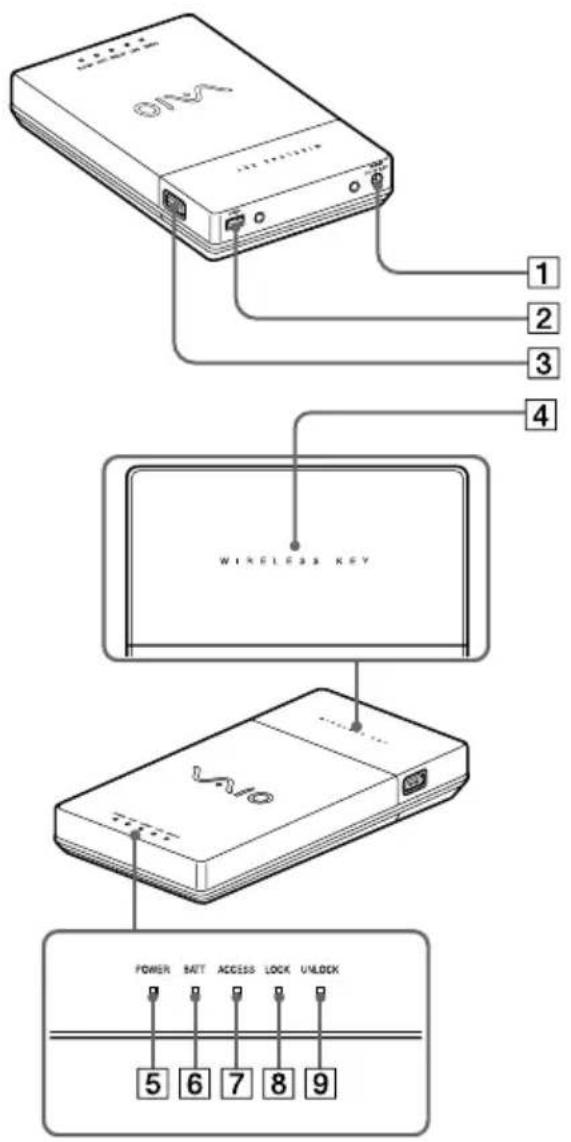
1 ◇C+ DC IN connector
2 USB connector
3 REGIST button
4 Wireless key receiver
5 POWER indicator
6 BATT indicator
7 ACCESS indicator
8 LOCK indicator
9 UNLOCK indicator
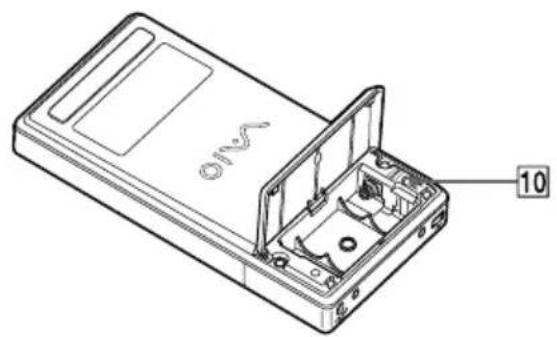
Rear
natural_image
Technical line drawing of an open electronic device showing internal components and a labeled part (10), no text or symbols present.10 CANCEL button
Getting Started
Installing the batteries
1 Turn the drive bottom side up.
2 Slide the battery compartment lid out ① and then open it up ②.

3 Be sure to line up the + and – of the batteries and insert the two supplied size AA (LR6) alkaline batteries.

natural_image
Line drawing of an open mobile phone case with internal components and a lightning bolt indicating a location (no text or symbols)Notes
To avoid battery leakage or corrosion, be sure to do the following:
- Insert the + and - of the batteries correctly.
- Do not use old and new or different types of batteries at the same time.
- Do not charge the batteries.
- Remove the batteries when the drive is not to be used for a long period of time.
- If the batteries leak, clean the battery compartment and insert the new ones.
4 Close the battery compartment lid.

Tip: AC adapter
You can use the drive without batteries by connecting the AC adapter (not supplied) to the connector (DC IN). If you use an AC adapter, use only the Sony VGP-AC5V1 (not supplied). No other AC adapter can be used. For information on the AC adapter, call the Sony dealer where you purchased this product or a Sony service representative in your area.

Tip: Replacing the batteries
Replace the batteries soon if the BATT indicator flashes. A malfunction may occur if you keep using the weak batteries. Alkaline batteries are recommended.
Battery life (alkaline battery):
Under continuous use: approx. 12 hours
Battery life may vary, depending on the files you back up.
Connecting the drive
You can connect the drive to the computer using the supplied USB cable.

Notes
- Place the drive on a flat surface.
- Do not connect the drive to an external USB hub.
- Some computers may not operate the drive correctly due to lack of power. In this case, you need to use the AC adapter. For information on the AC adapter, call the Sony dealer where you purchased this product or a Sony service representative in your area.

Tip
If you connect the drive with the computer for the first time, it takes time for a while to recognize the drive.
After connecting the drive, double-click [My Computer], then check that the “[Local Disk (F:) ], etc.*” is added to [My Computer].
* "F:" is a name of drive and changed depending on the computer.
About the power management function (power save function)
When using the computer's power management function (power save function), note the following points:
- Set your computer so that it does not switch to a power save mode while the ACCESS indicator on the drive is flashing. For more information, refer to the manuals provided with your computer.
- Before switching your computer to a power save mode, make sure the drive's ACCESS indicator is not illuminated, and then close applications that are running.
- While the computer is in a power save mode, do not connect or disconnect the USB cable.
Disconnecting the drive from the computer
Follow the procedure below to disconnect this drive from your computer. (The following procedures are for Windows XP.)
Notes
- Before disconnecting the drive, close any open programs.
- If the message below appears when you attempt to disconnect the drive, close any running software, wait for a while and then repeat the procedure.
“Problem Ejecting USB Mass Storage Device. The device ‘Generic Volume’ cannot be stopped right now. Try stopping the device again later”.

Tip
To use the drive again after disconnecting the USB cable, perform the steps described in the section “Getting Started” on page 8. The drive will be detected automatically by your Windows operating system.
The icon appears on the taskbar when the drive is recognized by the computer. To disconnect the drive from the computer, use the icon.
1 Click the icon on the taskbar.
The “Safely remove USB Mass Storage Device” message appears.
2 Click "Safely remove USB Mass Storage Device".
The message “The ‘USB Mass Storage Device’ device can now be safely removed from the system” appears.
3 Disconnect the USB cable.
Using Security Function
About the drive security function
You can lock the drive using the wireless key. When you register the wireless key(s), you cannot use the drive until you release the lock using the wireless key each time you connect the USB cable. Enabling the security function to secure your important data is recommended.
Note
You need to register the two wireless keys. Be sure not to lose them. If you lose just one, see "If you lose a wireless key/If the wireless key is broken" (page 22).
If both wireless keys are lost, your computer may not recognize the hard disk drive.
About handling the wireless key
It is recommended that you keep the wireless key separate from the hard disk drive, in case it is lost or stolen.
Setting the security function
Notes
- Do not disconnect the USB cable when the wireless keys are being registered.
- Be sure that the computer is not in power save mode when the wireless keys are being registered.
- You need to register both wireless keys.
1 Turn on the computer and connect the drive using the USB cable (page 10).
2 Press the REGIST button.
The blue light of the wireless key receiver flashes.

If you do not touch the wireless key receiver with a wireless key for more than 5 seconds, the blue light of the wireless key receiver will go out and the previous status returns.
3 Touch the wireless key receiver with one of the wireless keys.

The blue light of the wireless key receiver goes out for one second, then the wireless key is registered to the drive.
4 Touch the wireless key receiver with the other wireless key after the blue light of the wireless key receiver starts to flash again.
The blue light will go out after the wireless key is registered.
Tips
- The blue light of the wireless key receiver repeats this pattern: flashes twice and goes out for one second. If you do not touch the wireless key receiver with the wireless key for more than 5 seconds, the blue light of the wireless key receiver goes out and the previous status returns. In this case, follow the procedure from step 1 again to register the wireless key.
- If the blue light of the wireless key receiver keeps flashing even after touching wireless key receiver with the wireless key, you may have touched it with the first key by mistake. Try touching with the other key.
- If you use the Windows 2000 operating system, “Unsafe Removal of Device” appears.
5 Disconnect the USB cable from the computer.
Registering is complete. The security function will be activated from the next time you connect the USB cable to the computer.
Using the drive (secure mode)
If you use the drive registered with wireless key, you need to perform the following procedures each time you connect the USB cable to the computer. Furthermore, you also need to operate them as below status.
- When restarting the computer
- When returning from hibernation
- When returning from standby mode
1 Turn on the computer then connect the USB cable (page 10).
The LOCK indicator lights and the blue light of the wireless key receiver flashes.
Tips
- If you do not operate the hard disk drive for more than 8 seconds, while the blue light of the wireless key receiver flashes, the hard disc drive turns off. In this case, disconnect the USB cable and reconnect it.
- If you use the Windows 2000 operating system, when the hard disk drive turns off, "Unsafe Removal of Device" appears.
2 Touch the wireless key receiver with either registered wireless key.

natural_image
Line drawing of a hand holding a small electronic device with a coin inserted, showing a button and cable (no text or symbols)The UNLOCK indicator lights and the drive is recognized by the computer.
Note
The blue light may flash after recognizing the drive on some computers when returning from hibernation mode or restarting. In this case, touch the wireless key receiver with the wireless key again.
Deactivating the security function
If you want to deactivate the security function of the drive, follow the steps.
1 Connect the drive to the computer and touch the wireless key receiver with the wireless key to unlock.
2 Turn the drive bottom side up and open the lid, then press the CANCEL button.

The LOCK and UNLOCK indicator flashes alternately for one second, then the UNLOCK indicator lights.
The security function is deactivated. When you connect the drive to the computer using the USB cable next time, you can use the hard disk drive without the wireless key.
Tip
If you want to use the security function again, you must register the wireless keys again (page 14).
Note
If you leave the hard disk drive unattended when the security is deactivated, not only is your data unguarded, but someone could also register other wireless keys (not yours) to the hard disk drive. It is recommended that you enable the security function whenever you leave the hard disc drive unattended.
Precautions
Usage and storage locations
Do not use or store this drive in locations subject to high humidity, high temperatures, strong vibrations, or direct sunlight.
Operation
- Do not move the drive during operation. This prevents the possibility of malfunctions.
- Place the drive on a flat, stable surface for operation.
- Do not place any objects on top of the drive.
- Protect the drive from sudden temperature changes. Do not use the drive immediately after moving it from a cold to a warm location or after the ambient temperature has risen drastically. Otherwise, condensation inside the drive can occur. If the temperature changes drastically during operation, stop using the drive while keeping power to the drive turned on and let it stand for about an hour, then turn the power off.
- Do not use the drive during periods of possible lightning strikes. Lightning can cause electric shock or damage the drive. To avoid fire, electric shock or damage to the product during periods of possible lightning strikes, disconnect the drive from the computer and unplug the drive from the power source. Furthermore, if you hear thunder, do not touch the drive or the computer.
- Do not damage the cables.
Cable damage can result in fire or electric shock.
- When installing the product, do not place cables between the wall and a rack or shelf, where they could become pinched.
- Do not damage or modify the cables in anyway.
- Do not place any heavy objects on the cables, and avoid bending or pulling the cables unnecessarily.
- Do not place the equipment near a heater or allow the equipment to become hot.
-
Always grasp the plug when removing cables.
-
Never touch the AC adapter* or USB cable with wet hands.
- Do not touch the drive or AC adapter for long periods when the drive is on.
- Do not use the drive or AC adapter placed on cloth or a mattress.
- Use the USB cables specified.
- Do not block the air vent.
Blocking the air vent can cause heat to build up inside the device, resulting in damage or fire. To ensure that the device is well ventilated, note the following points:
- Place the device at least 10cm from any walls.
- Do not place the device in a closed or narrow space.
- Do not place the device on carpet, rugs, mattresses or cloth.
- Do not wrap the device in cloth.
- Do not use the device turned over or upside down.
- Do not stand or place any heavy objects on the product.
* The AC adapter is not supplied with this product.
- Make sure connectors are securely connected.
Do not allow metal objects to fall inside the connectors. If a short circuit occurs between the pins in the connectors, fire or damage to the equipment may result.
- Disconnect the power when not in use for long periods of time.
When the AC adapter is connected, it uses a small amount of power.
Disconnect the AC adapter and unplug it from the power outlet when not in use for long periods of time.
- During data transfer, do not disconnect the USB cable or turn off the computer.
Doing so can result in loss of data or data corruption. Sony will not accept any liability for data loss or data corruption.
- Make sure you backup your data with some other media (such as CD-R, CD-RW, DVD-R, DVD-RW, DVD+R, DVD+RW and so on).
We recommend always maintaining two backup copies at all times one of your original before updating it, and one of the original after updating it. Data can be erased or corrupted in the following cases:
- Incorrect usage of the device
- Placing the equipment near a magnet or magnetic device
- Subjecting the device to vibrations or shock
– Damaging or repairing the device
– Damage caused by natural disaster - Turning the device on and off over short periods of a few seconds
In the above cases, or in any other instance of data loss or data corruption, Sony will not accept any liability whatsoever.
Transportation
- When you transport the drive, carry it gently and with due caution to prevent damage.
- Before moving the drive, unplug the cables.
Maintenance
Cleaning the cabinet
- Wipe the outside of the drive with a soft, dry cloth. To remove stubborn stains, moisten the cloth with a mild, neutral detergent. Do not use solvents, cleaning alcohol, benzene, or other substances that may damage the finish.
- Unplug the drive before cleaning.
Getting Help
This section provides information on how to get help and support from Sony, and troubleshooting tips for your hard disk drive.
About Sony's support options
Sony provides several support options for your hard disk drive. When you have questions about your hard disk drive or the software, refer to the following:
☐ This guide explains how to use your hard disk drive.
For customers in the United States and Canada
☐ The Sony Customer Information Service Center offers information about your VAIO computer and other Sony products that work with your computer. To contact Sony Customer Information Service Center, call 1-888-4SONYPC (1-888-476-6972).
☐ Sony Computing Support provides instant access to information on commonly encountered problems. Type a description of the problem and the Knowledge Database searches for corresponding solutions online. You can visit Sony Online Support at: http://www.sony.com/pcsupport.
Specifications
Drive
Capacity
Approx. 80 GB ^1)
Format
NTFS
Revolutions per minute
4200 rpm
Data transfer rate
Max: 43.7 Mbytes per second when reading ^2) 43.7 Mbytes per second when writing ^2)
1) 1 GB is equivalent to 1,000,000,000 bytes. Available capacity may vary.
^2) Varies according to the workload of the computer connected to the drive.
Connectors
USB Mini-B (1)
Power requirements
Two LR6(size AA)alkaline batteries, or, AC adapter* (Input: AC 100V-240V, 50/60 Hz, Output voltage and current: 5.2V, 2.9A(max))
* The AC adapter is not supplied with this product. If you use an AC adapter, use the Sony VGP-AC5V1 (not supplied). No other AC adapter can be used.
Operating environment
Operating temperature
41^ F to 95^ F ( 5^ C to 35^ C)
(temperature gradient less than 18^ F ( 10^ C)/hour)
Operating humidity
20% to 80% (no condensation),
provided that humidity is less than 65% at 95°F
(35°C)
(hygrometer reading of less than 84°F (29°C))
Storage temperature
-4^ to 140^ (-20^ to 60^)
(temperature gradient less than 18°F (10°C)/hour)
Storage humidity
10% to 90% (no condensation),
provided that humidity is less than 20% at 140°F
(60°C)
(hygrometer reading of less than 95°F (35°C))
Other specifications
Power consumption
Under normal conditions: approx. 2 W
Dimensions
Approx. 3.2 × 0.9 × 6.2 inches
(80.3 × 22.6 × 157.3 mm) (w × h × d)
Mass
Approx. 9.8 oz. (275 g) (including batteries)
Design and specifications are subject to change without notice.
If you lose a wireless key/ If the wireless key is broken
If you lose a wireless key
If you lose both of the wireless keys, the drive cannot be recognized. In this case, you cannot restore the hard disc data. However, if you lose only one wireless key, buy a new wireless key from the Sony dealer where you purchased this product or a Sony service representative in your area soon, and set the security function again (page 14).
Note
When you replace a wireless key (by ordering from the Sony dealer where you purchased this product or a Sony service representative in your area), be sure to handle the wireless key you still have with care.
If the wireless key is broken
If you touch the wireless key receiver with the wireless key registered to the drive, but the security lock does not release, or you cannot register the wireless key at the factory setting, the wireless key may be broken. In this case, call for the Sony dealer where you purchased this product or a Sony service representative in your area.
Checklist of required items for the Sony dealer where you purchased this product or a Sony service representative in your area:
☐ If both of the wireless keys are broken, bring the drive, warranty card and two wireless keys.
☐ If one key is broken (but the other key is working), bring the broken key and warranty card.
Troubleshooting
If a problem occurs during operation of the unit, refer to the information provided in this section. If the problem persists, consult your nearest Sony dealer. For contact information, see “Getting Help” on page 20. Also refer to the manuals provided with your computer.
Symptom Cause/Remedy
| The hard disc drive is not recognized by the computer (The icon of the hard disc drive does not appear in [My Computer].), or does not work properly. | → If the computer returns from hibernation to normal operating mode or turns on while the drive is connecting, the computer may not recognize the drive correctly.In this case, disconnect the USB cable from the device and reconnect it.→ The drive may not be connected correctly to the computer with an USB cable. See “Connecting the Drive” on page 10.→ The operating system is not Windows 2000 or Windows XP.→ USB is designed to support connection of more than one peripheral device working simultaneously, however, some combinations of peripheral equipment can cause unstable operation. Turn off all peripheral equipment, disconnect all unnecessary devices, check the cable connections, and then turn the power back on.→ To reset the USB interface, shut down your Windows operating system, turn the computer off, and disconnect the USB cable. If the computer is connected to the hard disk drive using an AC adapter, disconnect the AC adapter.→ The drive may be locked. For details, see "Using the drive (in secure/locked mode)" (page 16).→ The batteries may be getting weak. Replace with new ones. To replace the batteries, see "Installing the batteries" (page 8). |
| Data transfer rate is low. | → The power management function of the computer may be active. For details, refer to the manuals provided with your computer.→ The transfer rate varies according to the workload of the computer.→ If you connect the computer corresponding to USB1.1, the data transfer rate will be about 1/40 compared to the computer corresponding to USB2.0. |
| Symptom Cause/Remedy | |
| Data read/write failure. | → The drive does not function correctly with old versions of Windows that have been upgraded.→ The drive has been shaken or bumped. Place the drive in a flat, stable position.→ If you are using more than one USB device, disconnect all USB devices from the computer, and then connect the drive directly to the computer so that it is the only device connected. |
| Cannot read/write data. | → You cannot read data from the drive or write data to the drive if it is not correctly connected to the computer. See “Connecting the Drive” on page 10.→ Writing data to the drive is not possible if there is not enough free space available on the drive.Check the amount of free space available on the drive.→ After moving the drive from a cold to a warm location, condensation may develop inside the drive. Let the drive stand for a while before using it. |
| An error message appears after you disconnect the USB cable. | → In order to safely disconnect the USB cable from the drive, you need to click the Safely Remove Hardware icon on the taskbar. See “Disconnecting the drive from the computer” (page 12). |
| Cannot access folder. | → If you do not log on with administrator privileges, you might not be able to access some folders. Log on with administrator privileges.→ If access restrictions are set for folders, those folders cannot be accessed from other computers. For details, refer to the topic in Windows 2000 or Windows XP Help regarding shared folder settings. |
| Cannot lock/unlock drive security. | → Use the correct wireless key.→ Touch the correct part (wireless key receiver) of the drive with the wireless key. See "Locating the Controls and Connectors" for the wireless key receiver (page 7). |
- WARNING
- For customers in the U.S.A. Owner's Record
- FCC Notice
- Declaration of Conformity
- For customers in Canada
- AVERTISSEMENT
- Overview
- Notes
- Special features
- Security function (page 13)
- Compatible computers
- Supplied Accessories
- Locating the Controls and Connectors
- Getting Started
- Installing the batteries
- Close the battery compartment lid.
- Tip: AC adapter
- Tip: Replacing the batteries
- Battery life (alkaline battery):
- Connecting the drive
- Tip
- About the power management function (power save function)
- Disconnecting the drive from the computer
- Using Security Function
- About the drive security function
- Note
- About handling the wireless key
- Setting the security function
- Touch the wireless key receiver with the other wireless key after the blue light of the wireless key receiver starts to flash again.
- Tips
- Disconnect the USB cable from the computer.
- Using the drive (secure mode)
- Deactivating the security function
- Precautions
- Usage and storage locations
- Operation
- Transportation
- Maintenance
- Cleaning the cabinet
- Getting Help
- About Sony's support options
- For customers in the United States and Canada
- Specifications
- Drive
- Capacity
- Format
- Revolutions per minute
- Data transfer rate
- Connectors
- Power requirements
- Operating environment
- Operating temperature
- Operating humidity
- Storage temperature
- Storage humidity
- Other specifications
- Power consumption
- Dimensions
- Mass
- If you lose a wireless key/ If the wireless key is broken
- If you lose a wireless key
- If the wireless key is broken
- Troubleshooting
Brand : SONY
Model : Vaio VGP-UHDM08
Category : Hard Drive