
RV Tablet 70 - Tablet Rand McNally - Free user manual and instructions
Find the device manual for free RV Tablet 70 Rand McNally in PDF.


| Product Type | Rugged GPS Tablet |
| Brand | Rand McNally |
| Model | RV Tablet 70 |
| Display Size | 7 inches |
| Operating System | Android |
| GPS Features | Built-in GPS, RV-specific routing |
| Connectivity | Wi-Fi, Bluetooth |
| Battery Life | Up to 8 hours |
| Dimensions (W x H x D) | 7.5 x 5.0 x 0.8 inches |
| Weight | 1.2 lbs |
| Water Resistance | IP65 rated |
| Mounting Options | Ram mount compatible |
| Storage Capacity | 32 GB internal |
| Expansion | MicroSD slot up to 128 GB |
| Camera | Rear: 5 MP, Front: 2 MP |
| Audio | Built-in speaker, 3.5 mm jack |
| Power Source | Rechargeable lithium-ion battery, USB-C charging |
| Maintenance | Clean with a soft, damp cloth; avoid solvents |
| Safety | Do not expose to extreme temperatures; use only approved chargers |
| Spare Parts & Repairability | Contact Rand McNally support; battery replacement service available |
Frequently Asked Questions - RV Tablet 70 Rand McNally
User questions about RV Tablet 70 Rand McNally
0 question about this device. Answer the ones you know or ask your own.
Ask a new question about this device
Download the instructions for your Tablet in PDF format for free! Find your manual RV Tablet 70 - Rand McNally and take your electronic device back in hand. On this page are published all the documents necessary for the use of your device. RV Tablet 70 by Rand McNally.
USER MANUAL RV Tablet 70 Rand McNally
Support
www.randmcnally.com/support
800-333-0136
RV-TABLET-010516-001-v2

RAND M McNALLY
RV TABLET 70
QUICK START GUIDE

Getting Started

Connecting to Wi-Fi
When you first turn on your tablet, you'll be asked to select a Wi-Fi network to connect to the Internet. A Wi-Fi connection is required to browse the web, download apps, and use Internet-enabled features such as weather and traffic. Choose your wireless access point or hotspot from the list and type in your password.
Note: If you skip this step, you will not be able to use all the features of your tablet. The RV GPS app, however, does not require a Wi-Fi connection.
Registration
In the next step, you'll be prompted to register your tablet with Rand McNally. Your registration ensures that you have access to the latest information and updates, as well as customer support.
WARNING: This product contains chemicals known to the State of California to cause cancer and/or other harm.
Your RV Tablet 70

Install the Mount
NOTE: Follow all local regulations governing the placement of the mount.
-
Select an area with a line of sight to the sky and GPS satellites.
-
Clean and dry the mounting area.
-
Remove the suction cup protective film.
-
Attach the two pieces of the mount together.
-
Adjust the angle of the mount.
-
Pull the suction cup lever up to release suction n.
-
Plug the power cord into the mount and the vehicle's 12-volt power source.
-
Place and hold the mount suction cup against the mounting surface.
-
Press the suction cup lever down until it snaps into place.
-
Snap the tablet onto the mount.
-
Adjust the tablet so that it can be easily seen and does not block the driver's line of sight.


Android™ User Interface
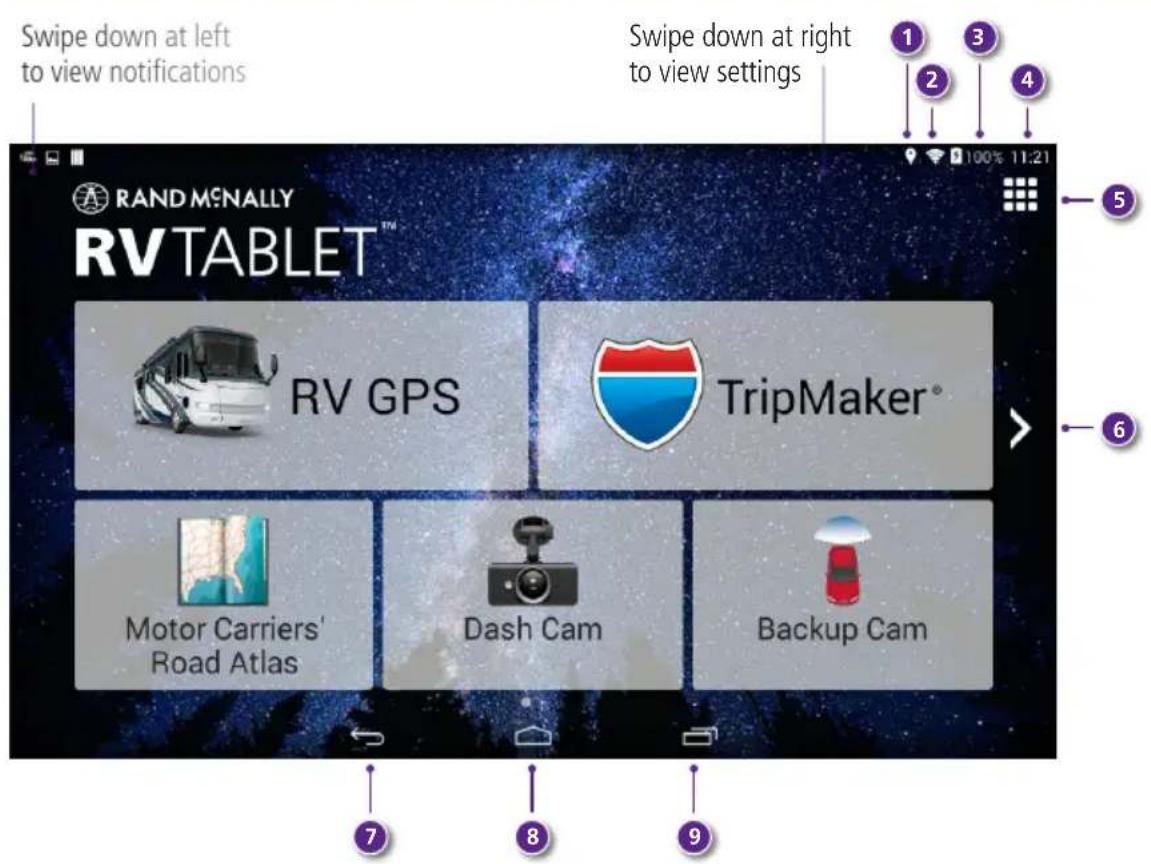
Android™ User Interface
1 GPS is on
2 Wi-Fi is on
3 Indicates remaining battery power
4 Current time
5 View installed apps
6 Tap or swipe right to view second home screen
7 Back
8 Return to last home screen
9 View open apps
For more tips on your device, visit randmcnally.com/support
Main Menu
1 RV GPS Main Menu
2 TripMaker®
Use the online planning tool to plan a trip with multiple via points and transfer it to the navigation app as a multi-stop trip.
3 Motor Carrier's Road Atlas
4 Dash Cam
5 Backup Cam
6 Full list of Apps available on the the tablet
Rand McNally Market
Swipe right to the second home screen and tap the Rand McNally Market. Register to access the latest apps and updates.


RV GPS > Main Menu
1 Enter RV information and access RV-specific tools.
2 Show location on the map and view navigation instructions.
3 Choose a destination.
4 Select general, route, and map preferences.

Note: From other screens, tap the Main Menu icon in the bottom right corner to return to the Main Menu.
RV GPS > Preferences and Warnings
- Tap Preferences.
- Tap the General, Route, Map or Warnings tab.
- Tap the option button to be changed.
- Enter new settings.
On the left, tap on an option
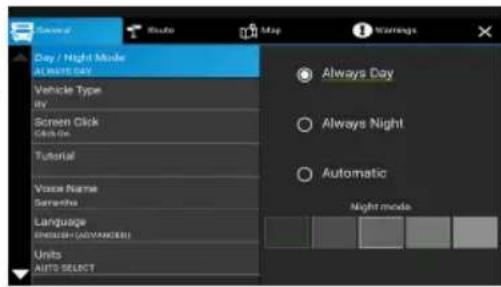
On the right, enter settings for the option
RV GPS > RV Info
- Tap RV Tools > RV Infos.
- Tap and to view options.
- Tap the option button to be changed.
- Enter new settings.
- Tap to save changes.
On the left, tap on an option
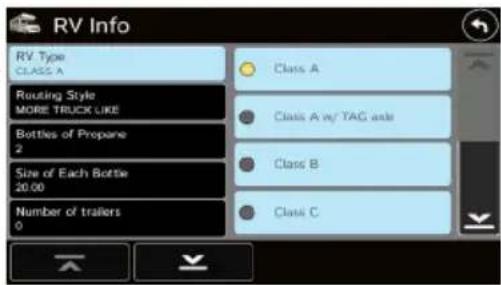
On the right, enter settings for the option
RV GPS > Search
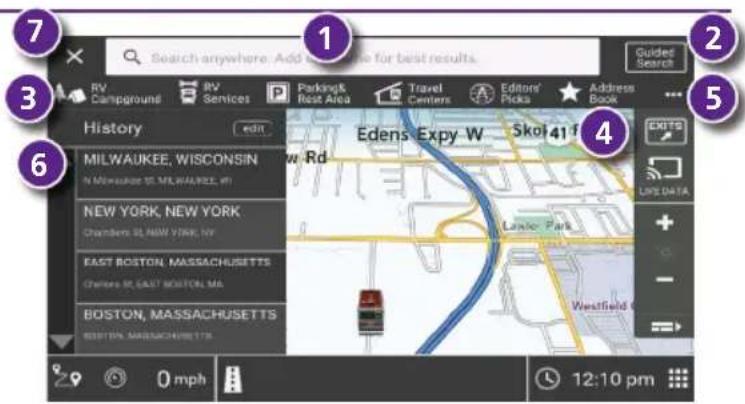
1 Search
2 Guided Search for step by step trip planning.
3 Point of Interest nearby.
4 Address Book.
5 More Points of Interest.
6 Last addresses navigated to.
7 Close the Search.
RV GPS > Select Address
1 Navigate to this destination.
2 Save to your Address Book.
3 Add as via to your current Route.

RV GPS > Compare Routes
Based on preferences selected, fastest and alternate routes are calculated.
1 Select preferred Route
or
2 Tap Start Navigation to start the Route.
3 Tap on Route Options exchange the Route settings.

RV GPS > Guided Search/Destination
1 Route to a new location.
2 Return to a previously entered address.
3 Access the Address Book.
4 Plan a multi-stop trip.
5 Route to a point of interest.
6 Run an Internet search for a location by name or keyword.
(NOTE: This feature requires a Wi-Fi connection.)
7 View trip content from Rand McNally.
8 Tap the button on this screen and others for help.

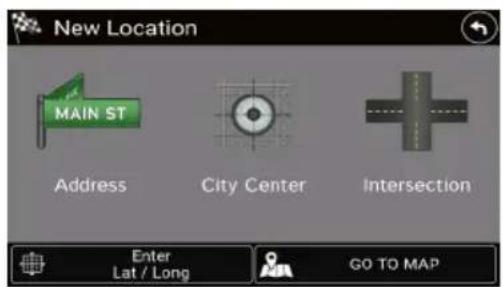
RV GPS > New Location
- Tap Choose Destination > New Location.
- Tap Address.
- Enter the name of the city. (NOTE: As you type, the keyboard displays only the next possible letter.)
- Prompts appear in the top bar. Tap the city to select. Or, tap List to view cities beginning with the letter(s) you entered.
- Enter the street name. (NOTE: If the letters you need do not appear, tap Expand Search.)
- Enter the house number. (NOTE: To enter the house number before the street, tap the house number button in the previous step.)
See Confirm Destination Window.
Tips
- You can also route to a new location by City Center, Intersection, or Latitude/Longitude, or choose Address > Zip Code Search.
- View recent destinations by tapping Choose Destination > History. View recent cities by tapping Choose Destination > New Location > Address > History.
• View saved locations by tapping Choose Destination > Address Book.

RV GPS > Confirm Destination Window
1 Destination address.
2 Begin route to destination.
3 Compare a primary and alternate route and choose one.
4 Add the location as a via point on the way to a previously entered destination.*
5 Save the location to the Address Book.
6 Cross reference to printed Rand McNally Road Atlas.
7 View the map.
8 Change the starting location for a route to the location displayed here.
9 Return to Map.
10 Return to previous window.
*To manage via points, Tap Choose Destination > Multi-Stop Trips. You can add up to 50 destinations in a multi-stop trip, and optimize routing for trips of up to 10 stops.

NOTE: This window may include additional buttons based on the type of destination selected.
RV GPS > Route Map Window
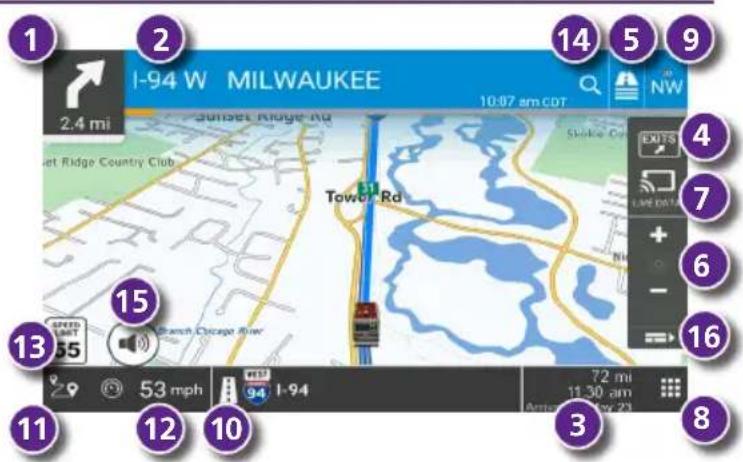
1 Repeat spoken next-maneuver instructions.
2 Name of street you will turn onto next.
3 Show arrival time, remaining time, or other options.
4 Show upcoming exit information.
5 Directions list slideout. Tap Route Display Options to select detail view, highway view, trip summary, or summary map view.
6 Zoom in/zoom out.
7 Access Wi-Fi connected services.
8 Return to Main Menu.
9 Current direction. Tap to select a map display option (Heading Up, North Up, or 3D View). Also displays Wi-Fi status.
10 View current road name, upcoming cross road name, or city, county and state. Also displays advanced lane guidance and weather (when activated). Tap to change.
11 Show Route Options, view and save current location, detour, or cancel a route.
12 Tap on the current speed to display the Virtual Dashboard. (NOTE: Turns red for speed warnings; set in RV Tools >Warnings.)
RV GPS > Route Map Window - continued
13 Current speed limit. Tap to open a "Tell Rand" about speed limits.
14 Search new address to add as via or change destination.
15 Mute the speaker.
16 Minimize icons to show simply the map and next maneuver.
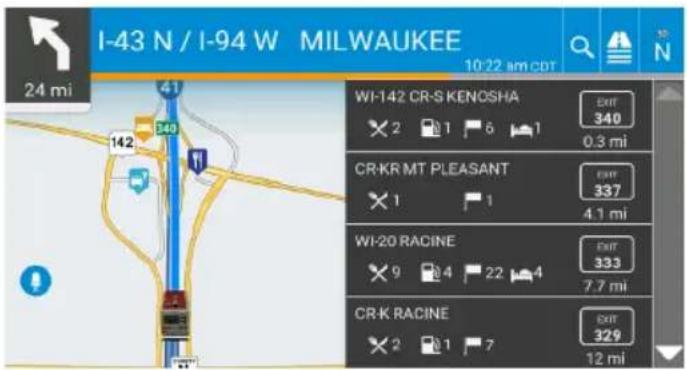
RV GPS > Exits
List the amenities available at the nearest exit.
RV GPS > Junction View
When on a route, Junction View displays when you have an upcoming maneuver. Once past the maneuver, Junction View closes and the previous window displays.
1 Signs to follow for the next maneuver.
2 Number and direction of lanes for the next maneuver.
3 Distance to the upcoming maneuver. Distance decreases as you approach the ramp.
4 Lane assist arrow.
5 Return to previous window.
6 Warnings may appear depending on GPS preferences set.

RV GPS > Points of Interest (POIs)
Tap Choose Destination > Points of Interest.
1 Find popular RV-friendly POIs near your current location.
Search for a POI:
2 Near your RV
3 In a particular city
4 Along your route
5 Near your destination
POI Categories
6 Select a category.
7 Find restaurants, hotels, and other subcategories.
8 View custom POIs that have been uploaded.


RV GPS > POIs - continued
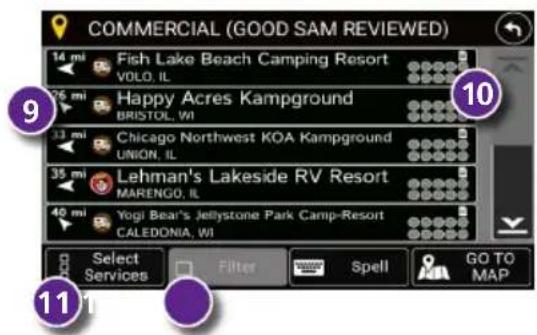
9 Tap location to select.
10 Tap to search by available services.
11 Apply or remove services filter for search results.
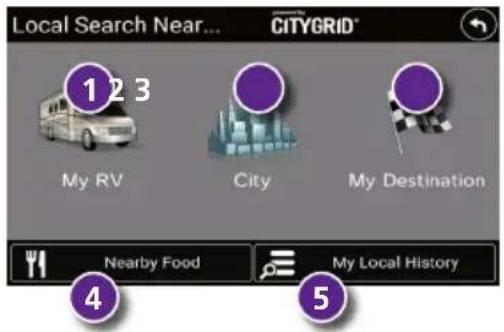
RV GPS > Local Search
Tap Choose Destination > Local Search.
(Note: This feature requires a Wi-Fi connection.)
Search for a location by name or keyword near:
1 Your RV
2 A particular city
3 Your destination
4 Search for local restaurants.
5 Access recent searches.
RV GPS > Virtual Dashboard
1 Sunrise and sunset times based on vehicle location (latitude/longitude) and day.
2 Current speed.
3 Elevation at current location.
4 Percentage of current trip completed, distance to next maneuver, and the number of miles and time spent on the trip to this point.
5 Match with the vehicle's odometer to automatically update new fuel logs. Tap the pencil to edit.
6 Gather trip information for up to three trips. Includes odometer settings, hours, and speeds.
7 Reset trip information for the selected trip (Tab 1, Tab 2, or Tab 3.)
8 Select to automatically reset the information in each tab after the vehicle has remained stationary for the specified number of hours.
9 View fuel logs and add fuel purchase information.
10 Close Dashboard and return to the Route Map Window.

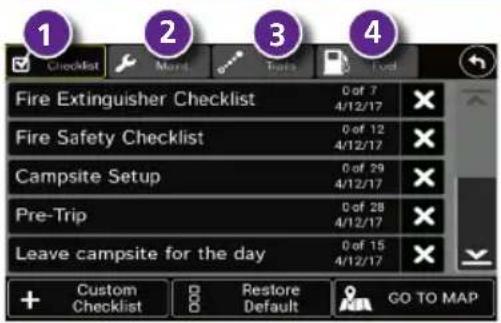
RV GPS > Checklists, Maintenance, Trails, and Fuel
Tap RV Tools > Checklists, Maintenance, Trails, Fuel. Then tap on each tab to view.
1 Use Checklists to create and complete task lists to prepare for a trip.
2 Add notes in the Maintenance tab to record dates of service for your RV.
3 Use Trails to record a "bread-crumb" path of GPS coordinates where your RV has traveled. Tap any record to view the trail, edit the name, or set the color.
4 Use the Fuel tab to view a list of fuel purchases. Tap Add Fuel to record the date, location and cost of fuel purchase. Tap Save. Tap any record to make changes.
RV GPS > Weather, Traffic, and Fuel Prices
Note: These features require a Wi-Fi connection.
To view weather and fuel prices, tap the Wi-Fi connected services icon ( [icon] in the map screen. Tap each tab to view live information.
Tap Weather > Map Overlay to view precipitation, wind speed, and more right on the map screen.
Tap Fuel Prices to view a list, then show prices on the map, sort, and filter.

Warnings, End-User License Agreement, and Warranty
Pay attention to road conditions and street signs, and obey all traffic and safety laws. Traffic laws and current traffic conditions must always be observed and take precedence over the instructions issued by the Rand McNally ® navigation system. The User should be aware of situations where current traffic conditions and the instructions from the navigation system may be in conflict. Some states prohibit the use of windshield mounts and may otherwise restrict the usage of navigation and other electronic devices in the vehicle. It is the User's responsibility to ensure compliance with all laws and regulations. The use of the navigation system does not relieve the User of his/her responsibilities. The User is ultimately responsible for the vehicle under his/her control and should be aware of the surroundings at all times.
If after reading these statements the User decides not to accept these terms, the User should not use this navigation system.
RM Acquisition, LLC d/b/a Rand McNally ("Rand McNally") hereby grants you ("User") a single-user non-exclusive, non-transferable license to use the Rand McNally navigation system (hereinafter referred to as the "Product" (including software and associated data) for User's own internal business or personal use and not for resale, sublicense or commercial use.
This Product and the software incorporated in it and related documentation are furnished under license and may be used or copied only in accordance with this license. Except as permitted by such license, the contents of this Product and software may not be disclosed to third parties, copied or duplicated in any form, in whole or in part, without the prior written permission of Rand McNally. This Product and software contain proprietary and confidential information of Rand McNally and its licensors. Rand McNally grants User a limited license for use of this Product and the software incorporated in the Product for its normal operation. By using the Product, User acknowledges that the content of this document and the Product are the property of Rand McNally and its licensors and are protected by U.S. copyright, trademark and patent laws and international treaties.
THE USER MAY NOT:
- Use the Product on a network or file server, time-sharing or to process data for other persons.
- Use the Product to create any routing tables, files, databases or other compendiums.
- Copy, loan or otherwise transfer or sublicense the Product, its software or content.
- Modify, or adapt the Product in any way, or decompile, disassemble, reverse engineer or reduce to human readable form the Product and software incorporated therein. - Alter, remove or obscure any copyright notice, trademark notice, or proprietary legend from the Product, its software or content.
This license will terminate automatically if User fails to comply with any of the terms of this license and User agrees to stop using the Product. Rand McNally may revise or update the Product and is not obligated to furnish any revisions or updates to User.
Rand McNally warrants that the Product, and the component parts thereof, will be free of defects in workmanship and materials for a period of one (1) year from the date of first use as determined by contact with GPS satellites. This warranty may be enforced by the first consumer purchaser ("Customer"), provided that the Product is utilized within the U.S.A. or Canada.
Rand McNally will, without charge, repair or replace (with a new or newly reconditioned unit), at its option, defective Products or component parts. For repair or replacement of defective Products, Customer must contact Rand McNally at 1-877-446-4863 for return authorization and instructions. Customer will be required to have the product registered via the Rand McNally Dock or, if Customer is unable to register the Product electronically, Customer will be required to provide proof of the date of first Customer purchase, such as a duplicate copy of a sales receipt for warranty to be valid. Customer must register before any software update. The Customer must pay any initial shipping charges required to ship the product for warranty service, but the return charges will be at Rand McNally's expense, if the Product is repaired or replaced under warranty.
Repairs of replacements have a 90-day warranty. If the Product sent in is still under its original warranty, then the new warranty is 90 days or to the end of the original one (1) year warranty, depending on which is longer.
This warranty gives the Customer specific rights. Other rights may be available to Customer which vary from state to state. Exclusions: This limited warranty does not apply: 1) to any Product damaged by accident; 2) in the event of misuse or abuse of the Product or as a result of unauthorized alterations or repairs; 3) if the serial number has been altered, defaced or removed; or 4) if the owner of the Product resides outside of the U.S.A. or Canada.
Caution: Rand McNally makes no warranty as to the accuracy of completeness of the information in the Product and disclaims any and all express, implied or statutory warranties, including any implied warranty of merchantability or fitness for a particular purpose. It is the User's responsibility to use this Product prudently. This Product is intended to be used only as a travel aid and must not be used for any purpose requiring precise measurement of direction, distance, location or topography.
RAND MCNALLY AND ITS LICENSORS DO NOT MAKE ANY OTHER WARRANTY OR REPRESENTATION, EITHER EXPRESS OR IMPLIED, WITH RESPECT TO THE PRODUCT, INCLUDING ANY WARRANTY AS TO QUALITY, PERFORMANCE, TITLE OR NON- INFRINGEMENT. IN NO EVENT WILL RAND MCNALLY OR ITS LICENSORS BE LIABLE FOR ANY INDIRECT, SPECIAL, INCIDENTAL, OR CONSEQUENTIAL DAMAGES ARISING OUT OF THE USE OR INABILITY TO USE THE PRODUCT, EVEN IF ADVISED OF THE POSSIBILITY OF SUCH DAMAGES.
Some states do not allow limitations on how long an implied warranty lasts and/or do not allow the exclusion or limitation of incidental or consequential damages, so the above limitations may not apply to some consumers.
The User agrees to allow User-provided information to Rand McNally and Rand McNally's third party marketing and business partners to be used for internal business evaluation purposes, including, but not limited to, evaluating the effectiveness of the services provided, methods to simplify or improve User experiences. Such information will not be used by third parties or in any way that discloses the identity of the User.
Rand McNally may make use of third party software in the Product. Notwithstanding the terms and conditions of this license, use of some third party materials included in the Product may be subject to other terms and conditions. The official third party copyright notices are provided at the end of this License.
The User agrees to indemnify, defend and hold Rand McNally and its licensors (including their respective licensors, suppliers, assignees, subsidiaries, affiliated companies, and the respective officers, directors, employees, shareholders, agents and representatives of each of them) free and harmless from and against any liability, loss, injury (including injuries resulting in death), demand, action, cost, expense or claim of any kind or character, including but not limited to attorney's fees, arising out of or in connection with any use or possession by the User of this Product.
These terms and conditions constitute the entire agreement between Rand McNally (and its licensors and suppliers) and the User pertaining to the subject matter hereof, and supersedes in their entirety any and all written or oral agreements previously existing between us with respect to such subject matter.
The above terms and conditions shall be governed by the laws of the Illinois, without giving effect to (i) its conflict of laws provisions, or (ii) the United Nations Convention for Contracts for the International Sale of Goods, which is explicitly excluded. The User agrees to submit to the jurisdiction of Illinois for any and all disputes, claims and actions arising from or in connection with the data provided to the User hereunder.
User shall not export the Product in violation of any U.S. or foreign laws. Rand McNally's licensors shall be third party beneficiaries of Rand McNally's rights under this license, but are not parties hereto and have no obligations hereunder.
By using this Product, you agree to be bound both by the foregoing and to the terms of use found at www.randmcnally.com/RVGPS.
Actual toll costs may vary from estimates depending upon a number of factors including inaccurate or imprecise source data and upon variable toll costs which are dependent upon vehicle characteristics (class, axle number, weight, etc.) that vary across toll roads.
Restricted Rights Legend. For governmental agencies: Use, reproduction or disclosure is subject to restrictions set forth in subparagraph (c) (1) (iii) of the Right in Technical Data and Computer Software clause at DFARS 52.227-7013, as amended.
Rand McNally, the Rand McNally logo, the globe design mark, and TripMaker are registered trademarks of RM Acquisition, LLC. The term Wi-Fi® is a registered trademark of the Wi-Fi Alliance®. CityGrid is a registered trademark of CityGrid Media. Android is a trademark of Google, Inc.
Copyright © 2017 Rand McNally. Portions © 2017 HERE. This data includes information taken with permission from the Canadian authorities, including © Her Majesty the Queen in Right of Canada, © Queen's Printer for Ontario. Portions © 2017 InfoGation. © 2017 Bringfido.com. © 2017 Allstays, LLC. © 2017 Fishing Hot Spots, Inc. © 2017 Good Sam Enterprises, LLC. © 2017 MyWeather.com. © 2017 CityGrid. © 2017 gasbuddy.com. © 2017 The RVer's Friend. ©2017 Trip Films. Traffic information provided by INRIX © 2017. All rights reserved. U.S. Patent Nos. 7,580,791 and 8,214,141.
- SUPPORT
- RAND M MCNALLY
- RV TABLET 70
- QUICK START GUIDE
- GETTING STARTED
- CONNECTING TO WI-FI
- REGISTRATION
- YOUR RV TABLET 70
- INSTALL THE MOUNT
- ANDROID™ USER INTERFACE
- MAIN MENU
- RAND MCNALLY MARKET
- RV GPS > MAIN MENU
- RV GPS > PREFERENCES AND WARNINGS
- RV GPS > RV INFO
- RV GPS > SEARCH
- RV GPS > SELECT ADDRESS
- RV GPS > COMPARE ROUTES
- RV GPS > GUIDED SEARCH/DESTINATION
- RV GPS > NEW LOCATION
- TIPS
- RV GPS > CONFIRM DESTINATION WINDOW
- RV GPS > ROUTE MAP WINDOW
- RV GPS > ROUTE MAP WINDOW - CONTINUED
- RV GPS > EXITS
- RV GPS > JUNCTION VIEW
- RV GPS > POINTS OF INTEREST (POIS)
- RV GPS > POIS - CONTINUED
- RV GPS > LOCAL SEARCH
- RV GPS > VIRTUAL DASHBOARD
- RV GPS > CHECKLISTS, MAINTENANCE, TRAILS, AND FUEL
- RV GPS > WEATHER, TRAFFIC, AND FUEL PRICES
- WARNINGS, END-USER LICENSE AGREEMENT, AND WARRANTY
- THE USER MAY NOT
Brand : Rand McNally
Model : RV Tablet 70
Category : Tablet