CA-920 - Headphones Cyber Acoustics - Free user manual and instructions
Find the device manual for free CA-920 Cyber Acoustics in PDF.


| Product Type | Wired Over-Ear Headset with Microphone |
| Brand | Cyber Acoustics |
| Model | CA-920 |
| Connectivity | 3.5mm Audio Jack (TRRS) |
| Driver Size | 40mm |
| Frequency Response | 20Hz - 20kHz |
| Impedance | 32 Ohms |
| Sensitivity | 105 dB SPL |
| Cable Length | 6.5 ft (2m) |
| Microphone | Adjustable Boom Microphone |
| Controls | In-line Volume Control and Mute Switch |
| Compatibility | PC, Mac, Chromebook, Laptops, Tablets, Smartphones |
| Color | Black |
| Weight | 6.5 oz (184 g) |
| Dimensions | 7.5 x 6.5 x 3.5 inches (19 x 16.5 x 8.9 cm) |
| Foldable | Yes, for easy storage |
| Padded Headband | Adjustable with soft padding |
| Ear Cushion Material | Leatherette over foam |
| Warranty | 1 Year Limited |
| Package Contents | Headset, Quick Start Guide |
| Cleaning Instructions | Wipe with dry cloth; do not use liquids |
Frequently Asked Questions - CA-920 Cyber Acoustics
User questions about CA-920 Cyber Acoustics
0 question about this device. Answer the ones you know or ask your own.
Ask a new question about this device
Download the instructions for your Headphones in PDF format for free! Find your manual CA-920 - Cyber Acoustics and take your electronic device back in hand. On this page are published all the documents necessary for the use of your device. CA-920 by Cyber Acoustics.
USER MANUAL CA-920 Cyber Acoustics
Stereo Speaker System
performance
CA 920WB manual 2012/5/3 2:13 PM ,¶ 2



![graph TD A["iPhone®/Smart phone"] --> C["Connecting to source Connexion à la source"] B["iPad®/Tablets"] --> C D["iPod®/Mp3"] --> C](/content/2026/05/1087451/images/8d006be49f1790f0656a921a2b6224531112b1bc00e0d9a3591e95a8040ec451.jpg)
3.5mm audio signal input cable Câble d'entrée de signal audio 3,5mm


CA-920
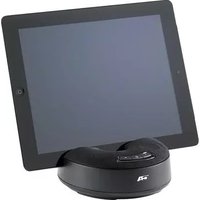
Universal Tablet Stand Speaker System
INTRODUCTION
This speaker system is designed to deliver superior audio performance to iPhone, smartphones, iPod, MP3 players, iPad, tablets, and other portable devices.
BOX CONTENTS
- Stereo speaker
- AC Adapter
- Audio cable
• Supporting insert - Owner's Guide with connection diagram
CAUTION
- Read Instructions Carefully – All safety and operating instructions should be read before this device is operated.
- Power Supply – Do not plug power supply in until all connections are made.
- Power Sources – Use only the AC power adapter supplied with these speakers. Cyber Acoustics will not be held responsible for damage caused by another power supply.
- Heat – Keep speakers out of extreme heat, and away from sources producing extreme heat, such as, space heaters, radiators, stoves, and other devices emitting heat.
- Water and Moisture – Keep speakers out of the rain and humid conditions to avoid electric shock. Keep speakers away from water, such as, sinks, bathtubs, swimming pools, washing machines, tubs of water, etc. in order to avoid electric shock. Keep water from dripping on the device, do not put objects containing water, such as vases on top of the device, and do not put the device near standing water.
- Cleaning – Use a dry cloth for cleaning. Do not wipe any part of the system with cleaning solvents, such as, furniture wax, bleach, benzene, or ammonia.
SPEAKER PREPARATION
This speaker includes supporting insert that can best support your different tablets. Disconnect the power source before making connections

Supporting insert


SPEAKER CONNECTION
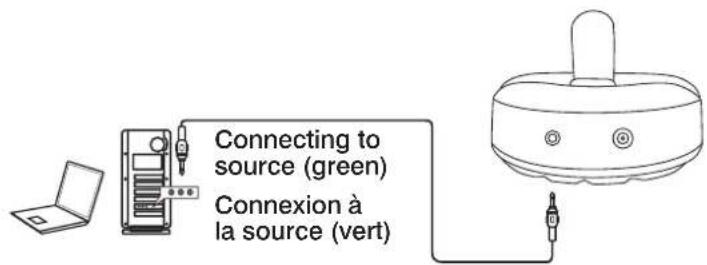
There are a variety of devices this speaker can connect to, such as, iPad, iPhone, iPod, MP3 player and portable audio devices. Please read the step by step instructions along with the diagrams provided to identify which diagram most matches your source.
- iPad, iPhone, iPod, MP3 player -
Take the "2-end 3.5mm plugs cable" and plug one end to the speaker input jack. Then plug the other end the output/source jack on the iPhone, iPod or MP3 player.
Take the AC power adapter cord and plug the black plug into the back of the speaker.
Take the AC power adapter and plug into wall socket or power strip.
- Desktop Computers -
Take the "2-end 3.5mm plugs cable" and plug one end to the speaker input jack. Then plug the other end to the green output/source jack in the back or front of the computer tower, also referred to as the sound/audio output jack.
Take the AC power adapter cord and plug the black plug into the back of the speaker.
Take the AC power adapter and plug into wall socket or power strip.
![graph TD A["To Source"] --> B["Smart Phone"] B --> C["Smart Phone / Smart phone"] C --> D["Smart Phone / Tablets"] D --> E["Smart Phone / MP3"] E --> F["3.5mm audio signal input cable"] G["Connecting to source (green)"] --> H["Smart Phone / Smart Phone"] H --> I["Smart Phone / Tablets"] I --> J["Sma…](/content/2026/05/1087451/images/2b5ff358cd5041edfde32e2b5436334beda7a5498d9bd3b4b47909a43a405351.jpg)
CONTROLS & FEATURES
- Standby Button - This button is on the top of the speaker, press it to on the speaker and blue LED will on. Press again to mute the speaker and red LED will on.
- Master Volume Controls - These controls are on the top of the speaker and are indicated by the symbol + and -.
- Supporting Feet - These supporting feet at the bottom rear can be rotated out to secure the speaker system on desk.

TROUBLE SHOOTING
| Symptom Solution | |
| Speaker System Will Not Power On. | Power button is not turned on. Press in and check for blue LED indicator light to come on. |
| Verify the AC power adapter is plugged into the back of the speaker and it's plugged into the wall outlet. Verify you are using our Cyber Acoustics AC adapter; it will have our business name on it. | |
| Check if the wall outlet or power strip you are using is actually getting power. | |
| Speaker Does Not Produce Sound. | Verify the speaker is getting power. Check above steps. |
| Make sure the volume is turned up to audible listening level. | |
| Verify that all cables are plugged into the correct jacks. | |
| Many times users believe the speakers are not working, when in fact they are having trouble with the sound source. The most common problem when connecting to a computer sound card is the connections are incorrect. Make sure you are connected to the audio output jack from your computer sound card. Many times it has a green color to it. Also, make sure your media device or CD/DVD device is playing and the volume settings are turned up and not muted. | |
| If you still have problems, disconnect the speaker source cable from your computer and connect to a MP3, CD player, or anything else with a 3.5mm headphone jack. If your speakers work on this other source, you know the speakers are okay and the problem lies with your computer or the connections. | |
| Sound Is Distorted. | Turn the volume down 1/4 to 1/4 levels. If this does not work, also check the computer operating system volume level and decrease it if necessary. |
| Adjust the computer's master volume control by balancing the volume until it's centered, then adjust the volume levels on the speakers. | |
If you have questions or need assistance with your speakers, please call or consult our website for further troubleshooting tips.
Telephone:
(USA) 360 823 4100
Website: www.cyberacoustics.com
iPod is a trademark of Apple Inc., registered in the U.S. and other countries.

Brand : Cyber Acoustics
Model : CA-920
Category : Headphones