
0B47184 - Keyboard LENOVO - Free user manual and instructions
Find the device manual for free 0B47184 LENOVO in PDF.


| Product Type | Wired Keyboard |
| Model | 0B47184 |
| Brand | Lenovo |
| Dimensions (approx.) | 445 x 135 x 20 mm |
| Weight (approx.) | 480 g |
| Interface | USB-A |
| Cable Length | 1.5 m |
| Key Count | 104 keys including numeric keypad |
| Key Layout | QWERTY (US layout) |
| Multimedia Keys | Yes (volume, playback, etc.) |
| Operating System Support | Windows, macOS, Linux |
| Power Source | USB bus-powered |
| Material | ABS plastic |
| Color | Black |
| Maintenance | Clean with soft, dry cloth. Avoid liquids. |
| Safety Precautions | Do not expose to moisture or extreme temperatures. |
| Spare Parts | Not user-replaceable. Contact support for repairs. |
| Warranty | 1 year limited warranty |
Frequently Asked Questions - 0B47184 LENOVO
User questions about 0B47184 LENOVO
0 question about this device. Answer the ones you know or ask your own.
Ask a new question about this device
Download the instructions for your Keyboard in PDF format for free! Find your manual 0B47184 - LENOVO and take your electronic device back in hand. On this page are published all the documents necessary for the use of your device. 0B47184 by LENOVO.
USER MANUAL 0B47184 LENOVO
SecondEdition(September2013)
©CopyrightLenovo2013.
LIMITEDANDRESTRICTEDRIGHTSNOTICE: If dataorsoftware is delivered pursuant to General Services Administration "GSA" contract, use, reproduction, or disclosure is subject to restrictions set forth in Contract No. GS-35F-05925.
Contents
Chapter1.Abouttheuserguide.....1
Chapter2. ThinkPadCompactUSB KeyboardwithTrackPoint......3
Productdescription......3
Frontview......3
Rearview......4
Systemrequirements......4
InstallingtheUSBkeyboard......5
Installing the device driver on Windows operating systems.....5
UninstallingthedevicedriverfromWindows operatingsystems....5
UsingtheUSBkeyboard......6
UsingtheTrackPoint......6
Replacingthepointingstickcap......6
Changingthepointingsticksensitivity.7
UsingtheThinkPadpreferredscrolling function......7
Usingthefunctionkeys......7
Troubleshooting......9
Productspecifications.....1.1...
Chapter3. ThinkPadCompact BluetoothKeyboardwith TrackPoint.....13
Productdescription.....13..
Frontview.....13..
Rearview.....14..
Systemrequirements.....15..
PairingtheBluetoothkeyboardwiththe computer......15..
Installing the device driver on Windows operating systems.....17..
UninstallingthedevicedriverfromWindows operatingsystems......17...
UsingtheBluetoothkeyboard...18..
UsingtheTrackPoint....18..
Replacingthepointingstickcap.18..
Changing the pointing sticks sensitivity
UsingtheThinkPadpreferredscrolling function.....19..
ChargingtheBluetoothkeyboard.
Usingthefunctionkey.....19..
Troubleshooting.....21..
Productspecifications.....24..
AppendixA.ServiceandSupport25
Onlinetechnicalsupport.....25..
Telephonetechnicalsupport...25..
AppendixB.LenovoLimited Warranty......27
Part1-GeneralTerms.27...
Part2-Country-specificTerms30..
Part3-WarrantyServiceInformation32..
FederalCommunicationsCommissionDeclaration of Conformity......35..
AppendixD.Notices.....39
Recyclinginformation.....39..
RecyclinginformationforBrazil..39..
ExportClassificationNotice40..
Trademarks......40..
AppendixE.RestrictionofHazardous SubstancesDirective(RoHS).4.1
EuropeanUnionRoHS.....41..
ChinaRoHS......41..
TurkishRoHS.....41..
UkraineRoHS......41..
IndiaRoHS.....41...
Chapter1.Abouttheuserguide
Thisuserguidecontainsproductdescriptionsandinstructionsforinstallingandusingthefollowingproducts:
- ThinkPad ^ CompactUSBKeyboardwithTrackPoint ^
- ThinkPadCompactBluetoothKeyboardwithTrackPoint
Chapter2. ThinkPadCompactUSBKeyboardwithTrackPoint
ThischapterprovidesinformationabouttheThinkPadCompactUSBKeyboardwithTrackPoint(hereafter calledtheUSBkeyboard).
TheUSBkeyboardhasthefollowingfeatures:
• Asmartsizesavesyourdeskspace
- AnintegratedTrackPointconsistingofapointingstickandthreeclickbuttonseliminatestheneeds foranexternalmouse
- Functionkeysprovideshortcutsforsomecommoncomputerfunctions
Theoptionpackageincludes:
- ThinkPadCompactUSBKeyboardwithTrackPoint
- Setupandwarrantyposter
•Cable
Productdescription
ThistopicprovidesageneraldescriptionoftheUSBkeyboard.
Frontview
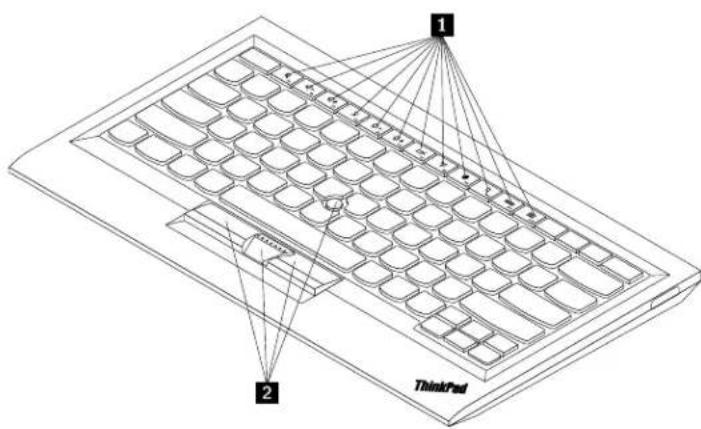
Figure1.FrontviewoftheUSBkeyboard
1Hotkeys
Usedasshortcutsforsomecommoncomputerfunctions.Formoreinformation,see"UsingtheFn functions"onpage7.
2TrackPoint
TheTrackPointconsistsofapointingstickandthreeclickbuttons.Formoreinformation,see““Usingthe TrackPoint”onpage6 .
Rearview

Figure2. RearviewoftheUSBkeyboard
1 Non-skidfeet
UsedtopreventtheUSBkeyboardfromunexpectedmoving.
2 Statusindicator
WhentheUSBkeyboardissuccessfullyconnectedwiththecomputer,thestatusindicatorissolidon.
3 MicroUSBconnector
UsedtoconnecttheUSBkeyboardtoacomputer. Formoreinformation, see "InstallingtheUSBkeyboard" onpage5.
4 dentificationlabel
Containsthepartnumber,versionnumber,andsomeotherproductinformation.
5iltfeet
Usedtoadjusttheangleofthekeyboardtoprovidecomfort.
Systemrequirements
BeforeinstallingtheUSBkeyboard,ensurethatyourcomputermeetsthefollowingrequirements:
- ThereisanavailableUSBconnectoronyourcomputer.
- Yourcomputerhasoneofthefollowingoperatingsystemsinstalled:
—Microsoft ^ Windows ^ XP(32-bit)
-MicrosoftWindowsVista(32-bitor64-bit)
—MicrosoftWindows7(32-bitor64-bit)
—MicrosoftWindows8(32-bitor64-bit)
4UserGuide
—MicrosoftWindows8.1(32-bitor64-bit)
BeforeinstallingtheUSBkeyboard,itisrecommendedthatyouchecktheLenovo® SupportWebsiteforthe latestsoftwareupdates,includingupdatedbasicinput/outputsystemcode(BIOS),utilityprograms,device drivers,andothersoftwareupdates.YoucanfindtheLenovoSupportWebsiteat: http://www.lenovo.com/support
YouareresponsiblefordownloadingandinstallingdesignatedsoftwareupdatesfromtheSupportWebsiteorotherelectronicmedia,andfollowingtheinstructionsprovidedbyyourServiceProvider.
InstallingtheUSBkeyboard
ToinstalltheUSBkeyboard,dothefollowing:
- Adjust the tilt feet to set the keyboard near your computer to your preference.
- Connect the provided cable to an available USB connector on your computer. After the operating system identifies the USB keyboard, the status indicator on the USB keyboard turn on. The USB keyboard is ready for use.
Note: It is recommended that you install the USB keyboard before the ThinkPad Compact Keyboard with TrackPoint driver (hereafter called the Thinkpad Keyboard Suite).
Installing the device driver on Windows operating systems
It is recommended that you install the ThinkPad Keyboard Suitet to customize advanced settings before you use the USB keyboard.
If you are using the Windows 7, Windows 8, or Windows 8.1 operating system, and your computer is connected to the Internet, when you connect the USB keyboard to your computer for the first time, a message will be displayed, asking if you want to install the ThinkPad Keyboard Suite. Click Download Now and the ThinkPad Keyboard Suit will be automatically installed. If the message is not displayed, manually install the ThinkPad Keyboard Suite by doing the following:
- Gotohttp://support.lenovo.com/tpkeyboard.
- LocateanddownloadtheinstallationfileoftheThinkPadKeyboardSuite.
- Double-click the installation file, and then follow the instructions on the screent o complet the installation.
4.Restartthecomputer.
UninstallingthedevicedriverfromWindowsoperatingsystems
TouninstalltheThinkPadKeyboardSuitefromtheWindowsXP,WindowsVista,Windows7,Windows8,or Windows8.1operatingsystem,dothefollowing:
FortheWindowsXPoperatingsystem:
1ClickStart→ControPanebStart→Settings→ControPanel.
2Depending you contro Panama click double-click AddRemove Programs
3ClickThinkPadCompactKeyboardwithTrackPointdriverandherclickRemove.
- Follow the instructions on the screen.
FortheWindowsVistaorWindows7operatingsystem:
1ClickStart→ControPanebStart→Settings→ControPanel.
- Depending on your Control Panel mode, do one of the following:
Click the Uninstallprogram option under the Program menu.
- ClickProgramsandFeatures.
3SelectThinkPadCompacKeyboardwithTrackPointDriveandhenright-clickyoumouseThe Uninstall/Changeoptionisdisplayed.
-
Click Uninstall/Change.
-
Follow the instructions on the screen.
FortheWindows8orWindows8.1operatingsystem:
-
TogotoControlPanel, movethepointertothetop-rightorbottom-rightcornerofthescreentodisplay thecharms.ClickSearchandthensearchforControlPanel.
-
Depending on your Control Panel mode, do one of the following:
Click the Uninstallprogram option under the Program menu.
- ClickProgramsandFeatures.
SelectThinkPadCompacKeyboardwithTrackPointDriveandhemright-clickyoumouseTheUninstallationisdisplayed.
4.ClickUninstall.
- Follow the instructions on the screen until the device driver.
UsingtheUSBkeyboard
ThischapterprovidesinformationaboutusingtheUSBkeyboard.
UsingtheTrackPoint
TheTrackPointconsistsofapointingstickandthreeclickbuttons.Thepointingstickisusedtocontrolthe cursor.Thethreeclickbuttonsaretheleftbutton,therightbutton,andthemiddlebutton.
Tousethepointingstick,dothefollowing:
- Placeyourhandsattypingposition, and pressgently on the pointingstick in the direction that you want the cursor to move. You can press the pointing stick away from out of the cursor up, toward you to mov the cursorsordown, to oneside or the other to mov the cursorsideways. The speed at which the cursormoves depends on the pressure you apply to the pointing stick.
Note: Thecursormightperiodicallydrift. Stopusingthepointingstickforafewsecondsandtry again. Thecursorwillworknormally.
- Toselectanitem, stop the pointing stick when the cursor locate the item and press the left right button with your thumb. The left and right buttons function the same as the left and right button on a conventional mouse.
Replacingthepointingstickcap
Thecapontopofthepointingstickisremovable.YoucanbuyappropriatecapsfromLenovotoreplaceyourcurrentcap.
Toremovethecaponthepointingstick,simplygraspthetopportionofthecapandpullitup.Toinstall anewcap,alignthesquareatthebottomofthecapwiththepointingstickandpushdownuntilthecap seatsintoposition.
Changing the pointing sticks sensitivity
When you are using the pointing stick, you might prefer to use a light touch, or you might want to apply more pressure. You can change the way the pointing stick respond to your touch by doing the following:
- ClicktheThinkPadCompactKeyboardwithTrackPointicononthesystemtray.
- In the Mouse Properties window, click External Keyboard tab.
3rthePointspeeddreamovethslidetowardSlowoFastaccordingyoupreference.
4ClickApplyThenEsthowthe pointing sticks respond to you new setting and make adjustments if necessary.
5.ClickOKtoapplythesetting.
UsingtheThinkPadpreferredscrollingfunction
Youcanscrollthroughanactivewindowbymovingthepointingstickwhilepressingthemiddlebutton. YoualsocanscrollthroughaninactivewindowwiththeThinkPadPreferredScrollingfunction.Toconfigure thescrollingfunction,dothefollowing:
- ClicktheThinkPadCompactKeyboardwithTrackPointicononthesystemtray.
- In the Mouse Properties window, click the External Keyboard tab.
- Depending on your needs, do one of the following:
To scroll through active window just as a convention a mouse clear ThinkPad Preferred Scrolling.
- Toscrollthroughinactivewindows,selectThinkPadPreferredScrolling.
4.ClickOK.
Note: You find camoscroll some applications clear ThinkPad Preferred Scrolling get more compliance.
Usingthefunctionkeys
The following table describes the function keys and key combinations. By default, the USB keyboard acts the standard F1-F12 function. After installing the Thinkpad Keyboard Suite, you can achieve the hot key function by pressing Fn + Fn (where represents 2 keys).
| FunctionkeyFunction | |
| Fn+Esc | SwitchbetweenthehotkeyandthestandardF1-F12function. |
 | Mutethespeaker. |
 | Decreasethevolume. |
 | Increasethevolume. |
 | Mutethemicrophone.Note:ThisfunctionkeymightnotworkontheWindowsXPandWindowsVistaoperatingsystems. |
 | Decreasethebrightness.Note:ThisfunctionkeymightnotworkontheWindowsXPandWindowsVistaoperatingsystems. |
 | Increasethebrightness.Note:ThisfunctionkeymightnotworkontheWindowsXPandWindowsVistaoperatingsystems. |
 | Switchbetweenthecomputerdisplayandanexternalmonitor(Windowswillshowthesedisplayoptions).Note:ThisfunctionkeymightnotworkontheWindowsXPandWindowsVistaoperatingsystems. |
 | Enableordisablethebuilt-inwirelessnetworkingfeatures.Note:ThisfunctionkeymightnotworkontheWindowsXPandWindowsVistaoperatingsystems. |
 | •OpenControlPanel.•OpenSettingsPanel(fortheWindows8andWindows8.1operatingsystems). |
 | •Navigatetosearchdependingonyouractiveapplications.•OpenSearchPanel(fortheWindows8andWindows8.1operatingsystems). |
 | •Viewopenapplications.•Switchbetweenopenapplications(fortheWindowsXPoperatingsystem). |
| F12 | •OpenMyComputer.•Viewallapplications(fortheWindows8andWindows8.1operatingsystems). |
IftheFnkeycombinationsdonotworkcorrectlyonsomeThinkPadcomputerswiththeWindowsXP operatingsystem,ensurethatthecomputerhasthelatestversionoftheLenovoSystemInterfacedriveror thehotkeyutilitydriverinstalled.
Themostup-to-datesoftwareanddevicedriversforyourThinkPadcomputerarealwaysavailablefor downloadat: http://www.lenovo.com/support
Notes:
- Ensure that the Fnkey combinations are functional on the keyboard of your ThinkPad computer. There are software dependencies to get them most complete Fnkey combinations support for your ThinkPad computer.
- MostoftheFnkeycombinationsdonotworkwiththeThinkPadSLseriesnotebookcomputers, Lenovo desktopcomputers,andcomputersfromothermanufacturers.
- SomeFnkeycombinationshavedifferentfunctionsondifferentThinkPadcomputermodels.
- OntheWindows8andWindows8.1operatingsystems,whenyoupressFn+Esc,hotkeyF4,orthe CapsLockkeyforthefirsttime,anOnScreenDisplaywindowmightbedisplayed.Ifyouwanttoshow thescreendisplayclickOKIyoudonotwantshowthescreendisplayclickNothank youTochangethscreendisplaysettingclicktheExternaKeyboardabntheMouseProperty
windowsselectOrScreenDisplaysWhentheboxbeforeOrScreenDisplayssireyitmeansthat theUSBkeyboardfollowsthesystemdefaultsetting,youcanchangethesystemsettingbyclicking AdvancedOSDsetting.
FormoreinformationabouttheFnkeycombinations,refertotheAccessHelpinformationsystemthat comeswiththeThinkPadcomputer.
Troubleshooting
ThischaptercontainstroubleshootinginformationfortheUSBkeyboard.
Problem: AllorsomeoftheFnfunctionkeycombinationsorfunctionkeysdonotwork.
Solution: Read the following for solutionsorexplanations:
- Ensure that you have correctly installed the ThinkPadKeyboardSuite.
- Ensure that all the function key combinations are functional on the keyboard of your ThinkPad computer. There are software dependencies to get them most complete function and hot key combination support for your ThinkPad computer. You can get more detailed information about the function key combinations from the documentation that comes with your ThinkPad computer. You might need to download the updated software components for your ThinkPad computer at: http://www.lenovo.com/support
- TheFnfunctionkeycombinationsworkwithalltheThinkPadcomputersexceptThinkPadSLseries notebookcomputers.MostoftheFnfunctionkeycombinationsdonotworkwithThinkPadSLseries notebookcomputers,Lenovodesktopcomputers,orcomputersfromothermanufacturers.
- It is normally found some of the function key combinations and differently different than that computer models due to the differences of the applications installed on your notebook computers.
- Somefunctionkeysarenotsupporteddependingonyouroperatingsystemandcomputer.
Problem: The TrackPoint cursor drifts when the computer is turned on or after the computer resumes normal operation.
Solution: The cursormight drift when you are not using the TrackPoint during normal operation. This is an normal feature of the TrackPoint and is not a defect. Cursor drifting might occur for several seconds under the following conditions:
•Thecomputeristurnedon.
• The computer resumes normal operation.
- TheTrackPointpointingstickiskeptpressedforalongtime.
•Thetemperaturechanges.
Tosolvetheproblem,youcantryreconnectingtheUSBkeyboardorrestartyourcomputer.
Problem: lpressedabuttononce, but the computer responded as if lpressed it twice.
Solution: Depending your operating system, adjust the keyboard repeat delay or repeat rates settings by doing one of the following:
- FortheWindowsXPorWindowsVistaoperatingsystem:
1Depending you Start menuode click Start > Control Panel Start > Settings > Control Panel
- Depending your Control Panel mode, click order double-click Keyboard.
3.ClicktheSpeedtab.
4Move the Repeat delays led to Long the Repeat ats slid to Slow.
5.ClickOK.
- FortheWindows7operatingsystem:
1Depending you Start menuode click Start-ControPanelStart-Settings-Control Panel
2ClicktheViewbymenuandselectSmallconsLargeconsTheAlControPanelItems categoryisexpanded.
3.ClickKeyboard.
4.ClicktheSpeedtab.
5Move the Repeat delays led to Long the Repeat ats slid to Slow.
6.ClickOK.
- FortheWindows8orWindows8.1operatingsystem:
- TogotoControlPanel, movethepointertothetop-rightorbottom-rightcornerofthescreento displaythecharms.ClickSearchandthensearchforControlPanel.
2ClicktheViewbymenuandselecttheSmaliconsLargeiconsviewTheAlControPanel Itemscategoryisexpanded.
3.ClickKeyboard.
4.ClicktheSpeedtab.
5Move the Repeat delays led to Long the Repeat rates led to Slow.
6.ClickOK.
Problem: The ThinkPad Keyboard Suite cannot be automatically installed when I connect the keyboard to my computer for the first time.
Solution: Tosolvetheproblem, dothefollowing:
-
Ensure that you are using the Windows7, Windows8, or Windows8.1 operating system.
-
Ensure that your computer has been connected to the Internet.
-
Ensure that you have enabled the automatic Windows update feature by doing the following:
a.OpenControlPanel.
b. Depending on your Control Panel mode, do one of the following:
ClickHardwareandSoundDevicesandPrinters.
- ClickDevicesandPrinters.
c.Right-clickyourcomputericonundertheDevicesmenu,andthenselectDeviceinstallation Settings.
d.FollowtheinstructionsonthescreentoenabletheautomaticWindowsupdatefeature.
- Ensure that you have installed all Windows updates by doing the following:
a.OpenControlPanel.
b. Depending on your Control Panel mode, do one of the following:
ClickSystemandSecurity-WindowsUpdate.
- ClickWindowsUpdate.
c.ClickCheckforupdatestoinstallWindowsupdates.
5.DisconnecttheUSBkeyboardfromthecomputerandthenreconnectit.
- If the abovetips still are not workable, it might be caused by the version or language of your operating system. You can manually install the driver by doing the following:
a.Gotohttp://support.lenovo.com/tpkeyboard.
b. Locateanddownloadtheinstallationfileofthedriver.
c. Double-click the installation file, and then follow the instructions on the screent o complet the installation.
Problem: It takes along timetopair the USB keyboard with the computer on the Windows 7 operating system.
Solution: It is not a problem. When the clock on the USB keyboard and disappears, the USB keyboard is successfully paired with the computer. If it fails, try reconnecting it again.
Productspecifications
The following table describes the USB keyboards specifications.
| Keys | 84/85/89keys(variesbycountry) |
| Color | Ravenblack |
| Dimensions(heightxwidthxdepth)305.5mm | 164.0mmx13.5mm(notincludingthetiltfeet) |
| Weight | About441g(Includingthecable) |
| Connectortype4-pinUSBTypeA | |
| Cablelength1.5m(4.92feet) | |
| Operatingvoltage+5V(Typical) | |
| Power consumption | |
| Systeminterface | |
| Supportedoperating system(32-bitand64-bit) | Windows8(32-bitand64-bit) |
| Windows7(32-bitand64-bit) | |
| WindowsVista(32-bitand64-bit) | |
| WindowsXP(32-bit) |
USB
Chapter3. ThinkPadCompactBluetoothKeyboardwith TrackPoint
ThischapterprovidesinformationabouttheThinkPadCompactBluetoothKeyboardwithTrackPoint (hereaftercalledtheBluetoothkeyboard).
Productdescription
ThistopicprovidesageneraldescriptionoftheBluetoothkeyboard.
Frontview

Figure3.FrontviewoftheBluetoothkeyboard
1Hotkeys
Usedasshortcutsforsomecommoncomputerfunctions.Formoreinformation,see"UsingtheFn functions"onpage19.
2Statusindicator
UsedtoindicatethestatusoftheBluetoothkeyboard.
| StatusCode | Description | |
| Fadingin | Green | TheBluetoothkeyboardisturnedon. |
| Blinkingtwiceatonesecondintervals | Green | TheBluetoothkeyboardisinpairingmodeoris establishingaconnectionwiththecomputer. |
| Blinkingforfivetimes | Green | TheBluetoothkeyboardhasestablishaconnection withthecomputer. |
| Fadingout | Green | TheBluetoothkeyboardisturnedoff. |
| Blinkingforthreetimes | Amber | ThebatterypoweroftheBluetoothkeyboardislow. |
3 Powerswitch: UsedtoturnonorturnofftheBluetoothkeyboard.
ToturnontheBluetoothkeyboard,slidedownthepowerswitchandpressitforonesecond.Thestatus indicatorstartstofadein.ToturnofftheBluetoothkeyboard,slidedownthepowerswitchandholdditforat leastthreeseconds.Thestatusindicatorstartstofadeout.

natural_image
Technical line drawing of a computer keyboard with an inset close-up showing a mouse cursor interacting with the keyboard (no text or symbols present)Figure4. TurnonandturnofftheBluetoothkeyboard
Note: Tosavethebatterypower, turnofftheBluetoothkeyboardwhenitisnotinuse.
4 TrackPoint
TheTrackPointconsistsofapointingstickandthreeclickbuttons.Formoreinformation,see“Usingthe TrackPoint”onpage6.
Rearview

Figure5. RearviewoftheBluetoothkeyboard
1 Non-skidfeet
UsedtopreventtheBluetoothkeyboardfromunexpectedmoving.
2NFCtag
UsedforpairingtheBluetoothkeyboardbyNearFieldCommunication(NFC)function.
2Chargingindicator
Used to indicate the charging status of the Bluetooth keyboard. When the Bluetooth keyboard discharging, the charging indicator is blinking. When the Bluetooth keyboard is fully charged, the charging indicator is solidon.
3 MicroUSBconnector
YoucanchargetheBluetoothkeyboardbyinsertingoneendoftheprovidedcabletotheMicroUSB connectorandanotherendtothecomputer.
4 dentificationlabel
Containsthepartnumber,versionnumber,andsomeotherproductinformation.
5Tiltfeet
Usedtoadjusttheangleofthekeyboardtoprovidecomfort.
Systemrequirements
BeforeinstallingtheBluetoothkeyboard,ensurethatyourcomputermeetsthefollowingrequirements:
- ThereisanavailableIntegratedBluetoothhostonyourcomputer.
- Yourcomputerhasoneofthefollowingoperatingsystemsinstalled:
—MicrosoftWindowsXP(32-bit)
—MicrosoftWindowsVista(32-bitor64-bit)
- MicrosoftWindows7(32-bitor64-bit)
-MicrosoftWindows8(32-bitor64-bit)
-MicrosoftWindows8.1(32-bitor64-bit)
BeforeinstallingtheBluetoothkeyboard,itisrecommendedthatyouchecktheLenovoSupportWebsitefor thelatestsoftwareupdates,includingupdatedbasicinput/outputsystemcode(BIOS),utilityprograms, devicedrivers,andothersoftwareupdates.YoucanfindtheLenovoSupportWebsiteat: http://www.lenovo.com/support
YouareresponsiblefordownloadingandinstallingdesignatedsoftwareupdatesfromtheSupportWebsite orotherelectronicmedia,andfollowingtheinstructionsprovidedbyyourServiceProvider.
PairingtheBluetoothkeyboardwiththecomputer
ToestablishaconnectionandexchangedatabetweentheBluetoothkeyboardandthecomputer,youneed topairtheBluetoothkeyboardwiththecomputer.
Notes:
- It is recommended that you pair the Bluetooth keyboard before install the ThinkPad Compact Keyboard with TrackPoint driver (hereafter called the ThinkPad Keyboard Suite).
- OnceyouhavesuccessfullypairedtheBluetoothkeyboardwiththecomputer,youjustneedtoturnon thepowerswitchontheBluetoothkeyboardeachtimeyouuseit.Thestatusindicatorwillblinking greenforfivetimesandthenturnsoff.
Depending on your operating system, you can pair the Bluetooth keyboard with the computer by doing one of the following:
FortheWindowsXPoperatingsystem:
- TurnontheBluetoothradiointhecomputer.
Double-click the MyBluetooth Places con the Windows notification are worth desktop.
3.SlidedownthepowerswitchandpressitforonesecondtoturnontheBluetoothintheBluetooth keyboard. Thestatusindicatorstartstoflash.
4Depending you men umode click View devices range Search for devices range.
5Double-clicktheThinkPadCompacBluetoothKeyboardwithTrackPointconirthdist.
- TypethepasscodeshownonthecomputerscreenintotheBluetoothkeyboard, and thenpress Enter. Thepairingprocessbegins. Afterthestatusindicatorturnsoff, theBluetoothkeyboard has been successfullypaired with the computer and a connection is established between the Bluetooth keyboard and the computer.
ClickClosewhenWindowisdisplayed confirm that the Bluetooth keyboards connected with the operating system.
FortheWindowsVistaorWindows7operatingsystem:
- TurnontheBluetoothradiointhecomputer.
2ClickStart-ControPanel and then depending on the operating system you are using done of the following:
FortheWindows/istoperatingsystemdouble-clickBluetoothDevicesandherclickAdd WirelessDevice.
FortheWindowsOperatingSystemclickDevicesandPrintersAdddevice
3.SlidedownthepowerswitchandpressitforonesecondtoturnontheBluetoothintheBluetooth keyboard. Thestatusindicatorstartstoflash.
4SelecttheThinkPadCompacBluetoothKeyboardwithTrackPointconfromtheistandclicNext.
- TypethepasscodeshownonthecomputerscreenintotheBluetoothkeyboard, and thenpress Enter. Thepairingprocessbegins. Afterthestatusindicatorturnsoff, theBluetoothkeyboard has been successfullypaired with the computer and a connection is established between the Bluetooth keyboard and the computer.
GlickClosewhenwindowdisplayedconfirmthattheBluetoothkeyboardsconnectedwith theoperatingsystem.
FortheWindows8orWindows8.1operatingsystem:
-
TurnontheBluetoothradiointhecomputer.
-
Movethecursortothetop-rightorbottom-rightcornerofthescreentodisplaythecharms, click Settings→ChangePCSettings→Devices.
3.SlidedownthepowerswitchandpressitforonesecondtoturnontheBluetoothintheBluetooth keyboard. Thestatusindicatorstartstoflash.
4SelecttheKeyboard(ThinkPadCompacBluetoothKeyboardwithTrackPoint)confromtheist andclickNext.
- TypethepasscodeshownonthecomputerscreenintotheBluetoothkeyboard, and thenpressEnter. Thepairingprocessbegins. After the status indicator turn soff, the Bluetooth keyboard has been successfully paired with the computer and a connection is established between the Bluetooth keyboard and the computer.
6licClosewhenwindowsdisplayed confirm that the Bluetooth keyboards connected with the operating system.
Note: window displayed indicating that connection fails right-click the ThinkPad Compact BluetoothKeyboard with TrackPointcorand selecDisable disable the Bluetoothkeyboard Thenpair the Bluetoothkeyboard with the computer again.
AftertheoperatingsystemidentifiestheBluetoothkeyboard,theBluetoothkeyboardwillbereadyforuse. Foradditionalinformationonthisproduct,goto: http://www.lenovo.com/support/keyboards
PairingbyNFCfunction:
Dependingontheconfiguration,youalsocanpairtheBluetoothkeyboardwithanNFC-enabledcomputer byNFCfunction.TheNFCtagisinthebottom-leftcorneroftheBluetoothkeyboardbackside.
TopairtheBluetoothkeyboardbyNFCfunction,dothefollowing:
- AligntheNFCreaderwiththeNFCtagontheBluetoothkeyboard.
- A window is displayed to confirm whether you want to add a device.
- Clickthewindow. The status indicator flashes 5 times and fadeout. The Bluetooth keyboard is connected with the computer.
Installing the device driver on Windows operating systems
It is recommended that you install the ThinkPadKeyboard Suitetocustomize advanced settings before you use the Bluetooth keyboard.
If you are using the Windows 7, Windows 8, or Windows 8.1 operating system, and your computer is connected to the Internet, when you connect the keyboard to your computer for the first time, am message will be displayed, asking you want to install the ThinkPad Keyboard Suite Click Download Now and the ThinkPad Keyboard Suite will be automatically installed. If the message is not displayed, manually install the ThinkPad Keyboard Suite by doing the following:
- Gotohttp://support.lenovo.com/tpkeyboard.
- LocateanddownloadtheinstallationfileoftheThinkPadKeyboardSuite.
- Double-click the installation file, and then follow the instructions on the screent to complete the installation.
4.Restartthecomputer, and the ThinkPadKeyboardSuite is installed on your computer.
UninstallingthedevicedriverfromWindowsoperatingsystems
TouninstalltheThinkPadKeyboardSuitefromtheWindowsXP,WindowsVista,Windows7,Windows8,or Windows8.1operatingsystem,dothefollowing:
FortheWindowsXPoperatingsystem:
1ClickStart-ControPanebStart-Settings-ControPanel.
2Depending you contro Panama mode click double-click AddRemove Programs
3ClickThinkPadCompacKeyboardwithTrackPointdriverandherclickRemove.
4. Follow the instructions on the screen.
FortheWindowsVistaorWindows7operatingsystem:
1ClickStart-ControPanebStart-Settings-ControPanel.
- Depending on your Control Panel mode, do one of the following:
Click the Uninstallprogram option under the Program menu.
- ClickProgramsandFeatures.
SelectThinkPadCompactKeyboardwithTrackPointdriveandhenright-clickyoumouseThe Uninstall/Changeoptionisdisplayed.
- Click Uninstall/Change.
- Follow the instructions on the screen.
FortheWindows8orWindows8.1operatingsystem:
- TogotoControlPanel, movethepointertothetop-rightorbottom-rightcornerofthescreentodisplay thecharms.ClickSearchandthensearchforControlPanel.
- Depending on your Control Panel mode, do one of the following:
GlicktheUninstallprogramoptionundetheProgramsmenu.
- ClickProgramsandFeatures.
3SelectThinkPadCompacKeyboardwithTrackPointDriveandthemright-clickyoumouseTheUninstallationisdisplayed.
4.ClickUninstall.
5. Follow the instructions on the screentoun install the device driver.
UsingtheBluetoothkeyboard
ThischapterprovidesinformationaboutusingtheBluetoothkeyboard.
UsingtheTrackPoint
TheTrackPointconsistsofapointingstickandthreeclickbuttons.Thepointingstickisusedtocontrolthe cursor.Thethreeclickbuttonsaretheleftbutton,therightbutton,andthemiddlebutton.
Tousethepointingstick,dothefollowing:
- Placeyourhandsattypingposition, and pressgently on the pointingstick in the direction that you want the cursor to move. You can press the pointing stick away from out of the cursor up, toward you to mov the cursorsordown, to one side or the other to mov the cursorsideways. The speed at which the cursormoves depends on the pressure you apply to the pointing stick.
Note: The cursormight periodically drift. Stop using the pointing stick for a few seconds and try again. The cursor will work normally.
- Toselectanitem, stop the pointing stick when the cursor locate the item and press the left right button with your thumb. The left and right buttons function the same as the left and right button on a conventional mouse.
Replacingthepointingstickcap
Thecapontopofthepointingstickisremovable.YoucanbuyappropriatecapsfromLenovotoreplaceyourcurrentcap.
Toremovethecaponthepointingstick,simplygraspthetopportionofthecapandpullitup.Toinstall anewcap,alignthesquareatthebottomofthecapwiththepointingstickandpushdownuntilthecap seatsintoposition.
Changing the pointing sticks sensitivity
When you are using the pointing stick, you might prefer to use a light touch, or you might want to apply more pressure. You can change the way the pointing stick respond to your touch by doing the following:
- ClicktheThinkPadCompactKeyboardwithTrackPointicononthesystemtray.
- In the Mouse Properties window, click External Keyboard tab.
3rthePointespeeddreamove the slidetoward SlowoFast according you preference.
4ClickApplyThenEsthowthe pointing sticks respond to you new setting and make adjustments if necessary.
5.ClickOKtoapplythesetting.
UsingtheThinkPadpreferredscrollingfunction
Youcanscrollthroughanactivewindowbymovingthepointingstickwhilepressingthemiddlebutton. YoualsocanscrollthroughaninactivewindowwiththeThinkPadPreferredScrollingfunction.Toconfigure thescrollingfunction,dothefollowing:
- ClicktheThinkPadCompactKeyboardwithTrackPointicononthesystemtray.
- In the Mouse Properties window, click the External Keyboard tab.
- Depending on your needs, do one of the following:
To scroll through active window just as conventional mouse clear ThinkPad Preferred Scrolling.
- Toscrollthroughinactivewindows,selectThinkPadPreferredScrolling.
4.ClickOK.
Notely find camotscrolbr some applications clear ThinkPad Preferred Scrolling get more compliance.
ChargingtheBluetoothkeyboard
YoucanchargetheBluetoothkeyboardbyconnectingtheBluetoothkeyboardtothecomputerwiththe providedcable.ItisrecommendedthatyoufullychargetheBluetoothkeyboardbeforeyouuseitforthe firsttime.Anaveragefullchargingtimeis2.5to3hours.WhentheBluetoothkeyboarddisincharging,the chargingindicatorisblinking.WhentheBluetoothkeyboardisfullychargedwiththechargingindicatorsolid on,youarerecommendedtodisconnecttheBluetoothkeyboardfromthecomputer.KeepingtheBluetooth keyboardconnectedtothecomputerwillnotkeeponcharging.WhenyouwanttochargetheBluetooth keyboardforanothertime,reconnecttheBluetoothkeyboardtothecomputer.Itisrecommendedthatyou chargethebatteryatleastonetimeineverysixmonths.
Usingthefunctionkey
The following table describes the function of Fnkeys and Fnkey combinations. The Bluetooth keyboard act should the default key function. After installing the Thinkpad Keyboard Suite, you can achieve the standard F1-F12 function by pressing Fn + Fn (where represents 12 keys).
| FunctionkeyFunction | |
| Fn+Esc | SwitchthedefaultFnfunctionbetweenthehotkeyandthestandardF1-F12 funtion. |
 | Mutethespeaker. |
 | Decreasethevolume. |
 | Increasethevolume. |
 | Mutethemicrophone.Note:ThisfunctionkeymightnotworkontheWindowsXPandWindowsVista operatingsystems. |
 | Decreasethebrightness.Note:ThisfunctionkeymightnotworkontheWindowsXPandWindowsVista operatingsystems. |
 | Increasethebrightness.Note:ThisfunctionkeymightnotworkontheWindowsXPandWindowsVista operatingsystems. |
 | Switchbetweenthecomputerdisplayandanexternalmonitor(Windowswill showthesedisplayoptions).Note:ThisfunctionkeymightnotworkontheWindowsXPandWindowsVista operatingsystems. |
 | Enableordisablethebuilt-inwirelessnetworkingfeatures.Awindowwillbe displayedwarningthatturningoffthewirelesswilldisconnectthewirelessmice and keyboards.Note:ThisfunctionkeymightnotworkontheWindowsXPandWindowsVista operatingsystems. |
 | •OpenControlPanel.•OpenSettingsPanel(fortheWindows8andWindows8.1operatingsystems). |
 | •Navigatetosearchdependingonyouractiveapplications.•OpenSearchPanel(fortheWindows8andWindows8.1operatingsystems). |
 | •Viewopenapplications.•Switchbetweenopenapplications(fortheWindowsXPoperatingsystem). |
| F12 | OpenMyComputer.Viewwallapplications(fortheWindows8andWindows8.1operatingsystems). |
| Fn+Delete | UnpairtheBluetoothkeyboardfromthecomputer.Note:IfyouhaveconfiguredtheBluetoothkeyboardinonecomputerand wanttoconfigureitinanothercomputer,itisrecommendedthatyouunpairthe Bluetoothkeyboardfromthepreviouscomputerfirst. |
IftheFnkeycombinationsdonotworkcorrectlyonsomeThinkPadcomputerswiththeWindowsXP operatingsystem,ensurethatthecomputerhasthelatestversionoftheLenovoSystemInterfacedriver installed.
Themostup-to-datesoftwareanddevicedriversforyourThinkPadcomputerarealwaysavailablefor downloadat:
http://www.lenovo.com/support
Notes:
- Ensure that the Fnkey combinations are functional on the keyboard of your ThinkPad computer. There are software dependencies to get them most complete Fnkey combinations support for your ThinkPad computer.
- MostoftheFnkeycombinationsdonotworkwiththeThinkPadSLseriesnotebookcomputers, Lenovo desktopcomputers,andcomputersfromothermanufacturers.
- SomeFnkeycombinationshavedifferentfunctionsondifferentThinkPadcomputermodels.
- OntheWindows8andWindows8.1operatingsystems,whenyoupressFn+Esc,hotkeyF4,orthe CapsLockkeyforthefirsttime,anOnScreenDisplaywindowmightbedisplayed.Ifyouwanttoshow thescreendisplayclickOKIfyoudonwantshowthescreendisplayclickNothank youTochangethscreendisplaysettingclicktheExternaKeyboardabirtheMouseProperty windowselectOrScreenDisplaysWhethboxbeforeOrScreenDisplaysgreyitmeans thattheBluetoothkeyboardfollowsthesystemdefaultsetting,youcanchangethesystemsetting byclickingAdvancedOSDsetting.
FormoreinformationabouttheFnkeycombinations, refertotheAccessHelpinformationsystemthat comeswiththeThinkPadcomputer.
Troubleshooting
ThischaptercontainstroubleshootinginformationfortheBluetoothkeyboard.
Problem: AllorsomeoftheFnfunctionkeycombinationsorfunctionkeysdonotwork.
Solution: Read the following for solutionsorexplanations:
- Ensure that you have correctly installed the ThinkPadKeyboardSuite.
-
Ensure that all the function key combinations are functional on the keyboard of your ThinkPad computer. There are software dependencies to get them most complete key and hot key combination support for your ThinkPad computer. You can get more detailed information about the function key combinations from the documentation that comes with your ThinkPad computer. You might need to download the updated software components for your ThinkPad computer at: http://www.lenovo.com/support
-
TheFnfunctionkeycombinationsworkwithalltheThinkPadcomputersexceptThinkPadSLseries notebookcomputers.MostoftheFnfunctionkeycombinationsdonotworkwithThinkPadSLseries notebookcomputers,Lenovodesktopcomputers,orcomputersfromothermanufacturers.
- It is normally found some of the function key combinations act differently on different ThinkPad computer models due to the differences of the applications installed on your notebook computers.
- Somefunctionkeysarenotsupporteddependingonyouroperatingsystemandcomputer.
Problem: The TrackPoint cursor drifts when the computer is turned on or after the computer resumes normal operation.
Solution: The cursorm might drift when you are not using the TrackPoint during normal operation. This is an normal feature of the TrackPoint and is not a defect. Cursor drifting might occur for several seconds under the following conditions:
•Thecomputeristurnedon.
•Thecomputerresumesnormaloperation.
•TheTrackPointpointingstickiskeptpressedforalongtime.
•Thetemperaturechanges.
Tosolvetheproblem,youcantryreconnectingtheBluetoothkeyboardorrestartyourcomputer.
Problem: lpressedabuttononce, but the computer responded as if lpressed it twice.
Solution: Depending on your operating system, adjust the keyboard repeat delay or repeat rates settings by doing one of the following:
- FortheWindowsXPorWindowsVistaoperatingsystem:
1Depending you Start menuodeclickStart-ControPanebStart-Settings-Control Panel - Depending your Control Panel mode, click order double-click Keyboard.
3.ClicktheSpeedtab.
4Move the Repeat delays led to Long the Repeat at a slider to Slow.
5.ClickOK.
•FortheWindows7operatingsystem:
1Depending your Start menuodeclickStart-ControPanebStart-Settings-Control Panel
2ClicktheViewbymenuandselectSmallconsLargéconsTheAlControPanelItems categoryisexpanded.
3.ClickKeyboard.
4.ClicktheSpeedtab.
5Move the Repeat delays led to Long the Repeat ats slidet Slow.
6.ClickOK.
- FortheWindows8orWindows8.1operatingsystem:
- TogotoControlPanel, movethepointertothetop-rightorbottom-rightcornerofthescreento displaythecharms.ClickSearchandthensearchforControlPanel.
2ClicktheViewbymenandselectheSmallconsLargeiconsviewTheAlControPanel Itemscategoryisexpanded.
3.ClickKeyboard.
4.ClicktheSpeedtab.
5Move the Repeat delays led to Long the Repeat at a slider to Slow.
6.ClickOK.
Problem: The Bluetooth keyboard is not recognized by your computer.
Solution: Tosolvetheproblem, dothefollowing:
- Ensure that the Bluetooth radio on the computer is turned on and the Bluetooth works.
- Ensure that the Bluetooth connection button on the keyboardist turned on.
- FortheWindowsXPoperatingsystem,ensurethatyouhavedownloadedandinstalledthelatestBluetoothsoftware.IfyouareusingaLenovocomputerwithBroadcomBluetoothsolution,checkandupdatetothelatestBluetoothforWindows(BTW)version(BTW5.6.0.8900orlaterversion).
- Ensure that the Bluetooth keyboard is within the maximum Bluetooth range (10m).
Problem:TheBluetoothkeyboardlags.
Solution: Tosolvetheproblem, trymoving the Bluetooth keyboard closerto the computer and removing other objects with wireless signal to avoid signal interference.
Problem: The ThinkPad Keyboard Suite cannot be automatically installed when I connect the keyboard to my computer for the first time.
Solution: Tosolvetheproblem, dothefollowing:
- Ensure that you are using the Windows7, Windows8, or Windows8.1 operating system.
- Ensure that your computer has been connected to the Internet.
- Ensure that you have been enabled the automatic Windows update feature by doing the following:
a.OpenControlPanel.
b. Depending on your Control Panel mode, do one of the following:
ClickHardwareandSoundDevicesandPrinters.
- ClickDevicesandPrinters.
c.Right-clickyourcomputericonundertheDevicesmenu,andthenselectDeviceinstallation Settings.
d.FollowtheinstructionsonthescreentoenabletheautomaticWindowsupdatefeature.
- Ensure that you have installed all Windows updates by doing the following:
a.OpenControlPanel.
b. Depending on your Control Panel mode, do one of the following:
ClickSystemandSecurity→WindowsUpdate.
- ClickWindowsUpdate.
c.ClickCheckforupdatestoinstallWindowsupdates.
- RemovetheBluetoothkeyboardfromthecomputerandthenreconnectit.
- If the abovetips still are not workable, it might be caused by the version or language of your operating system. You can manually install the ThinkPad Keyboard Suite by doing the following:
a.Gotohttp://support.lenovo.com/tpkeyboard.
b. Locateanddownloadtheinstallationfileofthedriver.
c. Double-click the installation file, and then follow the instructions on the screent to complete the installation.
Problem:TheBluetoothkeyboardmightfailtoresumefromsuspendontheWindows7,Windows8,or Windows8.1operatingsystem.
SolutionYouarchecheckselectivesuspenddisabledbygoingDeviceManagerandnavigatingtheBluetoothkeyboard.Right-clicktheBluetoothkeyboardandgotothePropertiespage.ClearAllowthecomputetdurofthisdevicdosavepowerthePowerManagementab.
Problem: It takes along timetopair the Bluetooth keyboard with the computer on the Windows 7 operating system.
Solution: It is not a problem. When the clock on the Bluetooth keyboard and disappears, the Bluetooth keyboard dissuccessfully paired with the computer. If it fails, try reconnecting it again.
Productspecifications
The following table describes the Bluetooth keyboards specifications.
| Keys | 84/85/89keys(Variesbycountry) |
| Color | Ravenblack |
| Dimensions(HeightxWidthxDepth)305.5mmx164.0mmx13.5mm(notincludingthetiltfeet) | |
| Weight | 458g(includingthecable) |
| PCinterface | Bluetooth3.0 |
| Operatingvoltage3.7V(Typical) | |
| BatteryCapability500mA(Typical) | |
| Powerconsumption50mA maximum | |
| Cablelength1.5m(4.92feet) | |
| SupportedoperatingsystemUSBTypeA connector | |
| Windows8.1(32-bitand64-bit)Windows8(32-bitand64-bit)Windows7(32-bitand64-bit)WindowsVista(32-bitand64-bit)WindowsXP(32-bit) | |
AppendixA.ServiceandSupport
The following information describes the technical support that is available for your product, during the warranty period throughout the life of your product. Referto the Lenovo Limited Warranty for a full explanation of Lenovowarranty terms.
Onlinetechnicalsupport
Onlinetechnicalsupportisavailableduringthelifetimeofaproductat: http://www.lenovo.com/support
Productreplacementassistanceorexchangeofdefectivecomponentsalsoisavailableduringthewarranty period.Inaddition,ifyuroptionisinstalledinaLenovocomputer,youmightbeentitledtoserviceatyour location.ALenovotechnicalsupportrepresentativecanhelpyoudeterminethebestalternative.
Telephonetechnicalsupport
InstallationandconfigurationsupportthroughtheCustomerSupportCenterwillbeavailableuntil90days aftertheoptionhasbeenwithdrawnfrommarketing.Afterthattime,thesupportiscancelled,ormade availableforafee,atLenovo'sdiscretion.Additionalsupportisalsoavailableforanominalfee.
BeforecontactingaLenovotechnicalsupportrepresentative,pleasehavethefollowinginformationavailable: optionnameandnumber,proofofpurchase,computermanufacturer,model,serialnumberandmanual, theexactwordingofanyerrormessage,descriptionoftheproblem,andthehardwareandsoftware configurationinformationforyoursystem.
Your technical support representativemightwanttowalkyouthroughtheproblemwhileyouareatyour computerduringthecall.
Telephonenumbersaresubjecttochangewithoutnotice. Themostup-to-datetelephonelistforLenovo Supportisalwaysavailableaathttp://www.lenovo.com/support/phone____. Ifthetelephonenumberforyour countryorregionisnotlisted,contactyourLenovoresellerorLenovomarketingrepresentative.
AppendixB.LenovoLimitedWarranty
L505-0010-0208/2011
ThisLenovoLimitedWarrantyconsistsofthefollowingparts:
Part1-GeneralTerms
Part2-Country-specificTerms
Part3-WarrantyServiceInformation
The terms: Part2 replace modify terms: Part1 as specified for particular country.
Part1-GeneralTerms
ThisLenovoLimitedWarrantyappliesonlytoLenovohardwareproductsyoupurchasedforyouwnuseand notforresale. ThisLenovoLimitedWarrantyisavailableinotherlanguagesatwww.lenovo.com/warranty.
WhatthisWarrantyCovers
LenovowarrantsthateachLenovohardwareproductthatyoupurchaseisfreefromdefectsinmaterialsand workmanshipundernormaluseduringthewarrantyperiod.Thewarrantyperiodfortheproductstartson theoriginaldateofpurchaseasshownonyoursalesreceptorinvoiceorasmaybeotherwisespecified byLenovo.Thewarrantyperiodandtypeofwarrantyservicethatapplytoyourproductareasspecified inPart&WarrantyServicdInformationbelowThiswarrantyonlyappliesproductsirthecountry orregionofpurchase.
THISWARRANTYISYOUREXCLUSIVEWARRANTYANDREPLACESALLOTHERWARRANTIES ORCONDITIONS,EXPRESSORIMPLIED,INCLUDING,BUTNOTLIMITEDTO,ANYIMPLIED WARRANTIESORCONDITIONSOFMERCHANTABILITYORFITNESSFORAPARTICULARPURPOSE. ASSOMESTATESORJURISDICTIONSDONOTALLOWTHEEXCLUSIONOFEXPRESSOR IMPLIED WARRANTIES,THEABOVEEXCLUSIONMAYNOTAPPL YTOYOU.INTHATEVENT ,SUCH WARRANTIESAPPL YONL YTOTHEEXTENTANDFORSUCHDURATIONASREQUIREDBYLAWAND ARELIMITEDINDURATIONTOTHEWARRANTYPERIOD.ASSOMESTATESORJURISDICTIONSDO NOTALLOWLIMITATIONSONTHEDURATIONOFANIMPLIEDWARRANTY,THEABOVELIMITATION ONDURATIONMAYNOTAPPL YTOYOU.
HowtoObtainWarrantyService
If the product does not function as warranted during the warranty period, you may obtain warranty service by contacting Lenovoora Lenovo-approved Service Provider. A list of approved Service Providers and their telephonenumber is available at: www.lenovo.com/support/phone.
Warranty servicemay not be available in all locations and may differ from location to location. Charges may apply outside a Service Provider's normals service area. Contact a Local Service Provider for information specific to your location.
CustomerResponsibilitiesforWarrantyService
Beforewarrantyserviceisprovided,youmusttakethefollowingsteps:
- followtheservicerequestproceduresspecifiedbytheServiceProvider;
- backuporsecureallprogramsanddatacontainedintheproduct;
- providetheServiceProviderwithallsystemkeysorpasswords;
- providetheServiceProviderwithsufficient,free,andsafeaccesstoyourfacilitiestoperformservice;
- removealldata,includingconfidentialinformation,proprietaryinformationandpersonalinformation,from theproduct,ifyouareunabletoremoveanysuchinformation,modifytheinformationtopreventits accessbyanotherpartyorsothatitisnotpersonaldataunderapplicablelaw.TheServiceProvidershall notberesponsibleforthelossordisclosureofanydata,includingconfidentialinformation,proprietary information,orpersonalinformation,onaproductreturnedoraccessedforwarrantyservice;
- removeallfeatures,parts,options,alterations,andattachmentsnotcoveredbythewarranty;
- ensure that the product or part is free of any legal restriction that prevents replacement;
- ifyouarenottheownerofaproductorpart,obtainauthorizationfromtheownerfortheServiceProvider toprovidewarrantyservice.
WhatYourServiceProviderWillDotoCorrectProblems
WhenyoucontactaServiceProvider,youmustfollowthespecifiedproblemdeterminationandresolution procedures.
TheServiceProviderwillattempttodiagnoseandresolveyourproblembytelephone,e-mailorremote assistance.TheServiceProvidermaydirectyoutodownloadandinstalldesignatedsoftwareupdates.
Someproblemsmayberesolvedwithareplacementpartthatyouinstallyourselfcalleda"CustomerReplaceableUnit"or"CRU."Ifso,theServiceProviderwillshiptheCRUtoyouforyoutoinstall.
If your problem cannot be resolved over the telephone; through the application of software updates or the installation of a CRU, the Service Provider will arrange for service under the type of warranty service designated for the product under "Part3-Warranty Service Information" below.
If the Service Provider determines that it is unable to repair your product, the Service Provider will replace it with one that is at least functionally equivalent.
If the Service Provider determines that it is unable to either repair or replace your product, your sole remedy under this Limited Warranty is to return the product to your place of purchase to Lenovo for refund of your purchase price.
ReplacementProductsandParts
When warranty service involves thereplacement of a product part, thereplaced product part becomes Lenovo's property and thereplacement product part becomes your property. Only unaltered Lenovo products and parts are eligible for replacement. Thereplacement product part provided by Lenovo may not be new, but it will being good working order and least functionally equivalent to the original product part. Thereplacement product part shall be warranted for the balance of the period remaining on the original product.
UseofPersonalContactInformation
If you obtain service under this warranty, you authorize Lenovotostore, use and process information about your warranty service and your contact information, including name, phonenumbers, address, and e-mail address. Lenovomayusethisinformation to perform service under this warranty. Wemaycontact youto inquire about your satisfaction with our warranty service on to notify you about any product recalls safety issues. In accomplishing these purposes, you authorize Lenovototransferyourinformation to any country where wedobusiness and to provide it to entities acting on our behalf. Wemayalsodiscloseitwhere required by law. Lenovo's privacy policy is available at www.lenovo.com/.
WhatthisWarrantyDoesnotCover
Thiswarrantydoesnotcoverthefollowing:
- uninterruptederror-freeoperationofaproduct;
- lossof, ordamageto, yourdatabyaproduct;
- anysoftwareprograms,whetherprovidedwiththeproductorinstalledsubsequently;
- failureordamageresultingfrommisuse,abuse,accident,modification,unsuitablephysicaloroperating environment,naturaldisasters,powersurges,impropermaintenance,orusenotinaccordancewith productinformationmaterials;
- damagecausedbyanon-authorizedserviceprovider;
- failureof, ordamagecausedby, anythirdpartyproducts, includingthosethatLenovomayprovider or integrateintotheLenovoproductatyourrequest;
- anytechnicalorthersupport,suchasassistancewith“how-to”questionsandthoseregardingproduct set-upandinstallation;
- productsorpartswithanalteredidentificationlabelorfromwhichtheidentificationlabelhasbeen removed.
LimitationofLiability
LenovoisresponsibleforlossordamagetoyourproductonlywhileitisintheServiceProvider'spossession orintransit,iftheServiceProviderisresponsibleforthetransportation.
Neither Lenovon or the Service Provider is responsible for loss or disclosure of any data, including confidential information, proprietary information, or personal information, contained in a product.
UNDERNOCIRCUMSTANCES,ANDNOTWITHSTANDINGTHEFAILUREOFESSENTIALPURPOSE OFANYREMEDYSETFORTHHEREIN,SHALLLENOVO,ITSAFFILIATES,SUPPLIERS,RESELLERS, ORSERVICEPROVIDERSBELIABLEFORANYOFTHEFOLLOWINGEVENIFINFORMEDOFTHEIR POSSIBILITYANDREGARDLESSOFWHETHERTHECLAIMISBASEDINCONTRACT,WARRANTY, NEGLIGENCE,STRICTLIABILITYOROTHERTHEORYOFLIABILITY:1)THIRDPARTYCLAIMS AGAINSTYOUFOFDAMAGES?LOSSDAMAGEDDISCLOSUREDPOUDATA?SPECIAL, INCIDENTAL,PUNITIVE,INDIRECTORCONSEQUENTIALDAMAGES,INCLUDINGBUTNOTLIMITED TOLOSTPROFITS,BUSINESSREVENUE,GOODWILLORANTICIPATEDSAVINGS.INNOCASE SHALLTHETOTALLIABILITYOFLENOVO,ITSAFFILIATESS,SUPPLIERS,RESELLERSORSERVICE PROVIDERSFORDAMAGESFROMANYCAUSEEXCEEDTHEAMOUNTOFACTUALDIRECT DAMAGES,NOTTOEXCEEDTHEAMOUNTPAIDFORTHEPRODUCT.
THEFOREGOINGLIMITATIONSDONOTAPPL YTODAMAGESFORBODIL YINJURY(INCLUDING DEATH), DAMAGETOREALPROPERTYORDAMAGETOTANGIBLEPERSONALPROPERTYFOR WHICHLENOVOISLIABLEUNDERLAW.ASSOMESTATESORJURISDICTIONSDONOTALLOW THEEXCLUSIONORLIMITATIONOFINCIDENTALORCONSEQUENTIALDAMAGES, THEABOVE LIMITATIONOREXCLUSIONMAYNOTAPPL YTOYOU.
YourOtherRights
THISWARRANTYGIVESYOUSPECIFICLEGALRIGHTS.YOUMAYHAVEOTHERRIGHTS ACCORDINGTOTHEAPPLICABLELAWSOFYOURSTATEORJURISDICTION.YOUMAYALSO HAVEOTHERRIGHTSUNDERAWRITTENAGREEMENTWITHLENOVO.NOTHINGINTHIS WARRANTY AFFECTSSTATUTORYRIGHTS,INCLUDINGRIGHTSOFCONSUMERSUNDERLAWS ORREGULATIONSGOVERNINGTHESALEOFCONSUMERGOODSTHATCANNOTBEWAIVED ORLIMITEDBYCONTRACT.
Part2-Country-specificTerms
Australia
"Lenovo"meansLenovo(Australia&NewZealand)PtyLimitedABN70112394411.Address:Level 10,NorthTower,1-5RailwayStreet,Chatswood,NSW,2067.Telephone:+61280038200.Email:lensyd_au@lenovo.com
The followingreplacesthesamesectioninPart1:
WhatthisWarrantyCovers:
Lenovowarrantsthateachhardwareproductthatyoupurchaseisfreefromdefectsinmaterialsand workmanshipundernormaluseandconditionsduringthewarrantyperiod.Iftheproductfailsduetoa covereddefectduringthewarrantyperiod,LenovowillprovideyouaremedyunderthisLimitedWarranty. Thewarrantyperiodfortheproductstartsontheoriginaldateofpurchasesspecifiedonyoursalesreceptor invoiceunlessLenovoinformsyouotherwiseinwriting.Thewarrantyperiodandtypeofwarrantyservice thatapplyyouproductaseforthbelowPar&WarrantyServiceInformation.
THEBENEFITSGIVENBYTHISWARRANTYAREINADDITIONTOYOURRIGHTSANDREMEDIESAT LAW,INCLUDINGTHOSEUNDERTHEAUSTRALIANCONSUMERLAW.
The following replaces the same section in Part 1:
ReplacementProductsandParts:
Whenwarrantyserviceinvolvesthereplacementofaproductorpart,thereplacedproductpartbecomes Lenovo'spropertyandthereplacementproductorpartbecomesyourproperty.OnlyunalteredLenovo productsandpartsareeligibleforreplacement.ThereplacementproductorpartprovidedbyLenovomay notbenew,butwillbeingoodworkingorderandatleastfunctionallyequivalenttotheoriginalproduct part.Thereplacementproductorpartshallbewarrantedforthebalanceoftheperiodremainingonthe originalproduct.Productsandpartspresentedforrepairmaybereplacedbyrefurbishedproductsorparts ofthesametyperatherthanbeingrepaired.Refurbishedpartsmaybeusedtorepairtheproduct;andrepair oftheproductmayresultinlossofdata,iftheproductiscapableofretaininguser-generateddata.
The following is added to the same section in Part 1:
UseofPersonalContactInformation:
Lenovowillnotbeabletoperformourserviceunderthiswarrantyifyourefusetoprovideyourinformation ordonotwishustotransferyourinformationtoouragentorcontractor.Youhavetherighttoaccess yourpersonalcontactinformationandrequestcorrectionofanyerrorsinitpursuanttothePrivacyAct 1988bycontactingLenovo.
The followingreplacesthesamesectioninPart1:
LimitationofLiability:
LenovoisresponsibleforlossordamagetoyourproductonlywhileitisintheServiceProvider'spossession orintransit,iftheServiceProviderisresponsibleforthetransportation.
Neither Lenovon or the Service Provider is responsible for loss or disclosure of any data, including confidential information, proprietary information, or personal information, contained in a product.
TOTHEEXTENTPERMITTEDBYLAW,UNDERNOCIRCUMSTANCESANDNOTWITHSTANDING THEFAILUREOFESSENTIALPURPOSEOFANYREMEDYSETFORTHHEREIN,SHALLLENOVO, ITSAFFILIATES,SUPPLIERS,RESELLERS,ORSERVICEPROVIDERSBELIABLEFORANYOFTHE FOLLOWINGEVENIFINFORMEDOFTHEIRPOSSIBILITYANDREGARDLESSOFWHETHERTHE CLAIMISBASEDINCONTRACT,WARRANTY,NEGLIGENCE,STRICTLIABILITYOROTHERTHEORY ORLIABILITY1THIRDPARTYCLAIMSAGAINSTYOUFORDAMAGES2LOSSDAMAGEOR DISCLOSUREDPYOURDATA\$SPECIALINCIDENTALPUNITIVEINDIRECTORCONSEQUENTIAL DAMAGES,INCLUDINGBUTNOTLIMITEDTOLOSTPROFITS,BUSINESSREVENUE,GOODWILLOR ANTICIPATEDSAVINGS.INNOCASESHALLTHETOTALLIABILITYOFLENOVO,ITSAFFILIATESS, SUPPLIERS,RESELLERSORSERVICEPROVIDERSFORDAMAGESFROMANYCAUSEEXCEEDTHE AMOUNTOFACTUALDIRECTDAMAGES,NOTTOEXCEEDTHEAMOUNTPAIDFORTHEPRODUCT.
THEFOREGOINGLIMITATIONSDONOTAPPL YTODAMAGESFORBODIL YINJURY(INCLUDING DEATH), DAMAGETOREALPROPERTYORDAMAGETOTANGIBLEPERSONALPROPERTYFOR WHICHLENOVOISLIABLEUNDERLAW.
The followingreplacesthesamesectioninPart1:
YourOtherRights:
THISWARRANTYGIVESYOUSPECIFICLEGALRIGHTS.YOUALSOHAVEOTHERRIGHTSATLAW, INCLUDINGUNDERTHEAUSTRALIANCONSUMERLAW.NOTHINGINTHISWARRANTYAFFECTS STATUTORYRIGHTSORRIGHTSATLAW,INCLUDINGRIGHTSTHATCANNOTBEWAIVEDOR LIMITEDBYCONTRACT.
Forexample, our products comewith guarantee that cannot be excluded under the Australian Consumer Law. You are entitled to a replacement or refund for a major failure and compensation for any other reasonably foreseeable loss or damage. You are also entitled to have the products repaired or replaced if the products fail to be of acceptable quality and the failure does not amount to a major failure.
NewZealand
The following is added to the same section in Part 1:
UseofPersonalInformation:
Lenovowillnotbeabletoperformourserviceunderthiswarrantyifyourefusetoprovideyourinformationor donotwishustotransferyourinformationtoouragentorcontractor.Youhavetherighttoaccessyour personalinformationandrequestcorrectionofanyerrorsinitpursuanttothePrivacyAct1993bycontacting Lenovo(Australia&NewZealand)PtyLimitedABN70112394411.Address:Level10,NorthTower,1-5 RailwayStreet,Chatswood,NSW,2067.Telephone:61280038200.Email:lensyd_au@lenovo.com
Bangladesh, Cambodia, India, Indonesia, Nepal, Philippines, Vietnam and Sri Lanka
The following is added to Part 1:
DisputeResolution
Disputesarisingoutoforinconnectionwiththiswarrantyshallbefinallysettledbyarbitrationheldin Singapore.Thiswarrantyshallbegoverned,construedandenforcedinaccordancewiththelawsof SingaporewithoutregardconflicbfawslyouacquiredheproductIndiadisputesarisingpubfor inconnectionwiththiswarrantyshallbefinallysettledbyarbitrationheldinBangalore,India.Arbitration inSingaporeshallbeheldinaccordancewiththeArbitrationRulesofSingaporeInternationalArbitration Center("SIACRules")thenineffect.ArbitrationinIndiashallbeheldinaccordancewiththelawsofIndia thenineffect.Thearbitrationawardshallbefinalandbindingonthepartieswithoutappeal.Anyaward
shallbeinwritingandsetforththefindingsoffactandtheconclusionsoflaw.Allarbitrationproceedings, includingalldocumentspresentedinsuchproceedingsshallbeconductedintheEnglishlanguage.The Englishlanguageversionofthiswarrantyprevailsoveranyotherlanguageversioninsuchproceedings.
EuropeanEconomicArea(EEA)
The following is added to Part 1:
CustomersintheEEAmaycontactLenovoatthefollowingaddress:EMEAServiceOrganisation, Lenovo (International)B.V.,Floor2,Einsteinova21,85101,Bratislava,Slovakia.Serviceunderthiswarrantyfor LenovohardwareproductspurchasedinEEAcountriesmaybeobtainedinanyEEAcountryinwhichthe producthasbeenannouncedandmadeavailablebyLenovo.
Russia
The following is added to Part 1:
ProductServiceLife
The product servicelife is four (4) years from the original date of purchase.
Part3-WarrantyServiceInformation
| ProductTypeCountry | orRegionofPurchaseWarranty | PeriodTypeofWarrantyService | |
| ThinkPadCompactUSB KeyboardwithTrackPoint | Worldwide3years1,4 | ||
| ThinkPadCompact BluetoothKeyboard withTrackPoint | Worldwide1year1,4 |
Ifrequired, yourServiceProviderwillproviderepairoexchangeservicedependingonthetypeofwarranty servicespecifiedforyourproductandtheavailableservice.Schedulingofservicewilldependuponthetime ofyourcall,partsavailability,andotherfactors.
TypesofWarrantyService
1CustomerReplaceableUnit("CRU")Service
UnderCRUService,theServiceProviderwillshipCRUstoyouatitscostforinstallationbyyou.CRU informationandreplacementinstructionsareshippedwithyourproductandareavailablefromLenovoatany timeuponrequest.CRUsthatareaseasilyinstalledbyyouarecalled"Self-serviceCRUs"."Optional-service CRUs"areCRUsthatmayrequiresometechnicalskillandtools.InstallationofSelf-serviceCRUsisyour responsibilityYoumayrequestthataServiceProviderinstallOptional-serviceCRUsunderoneoftheother typesofwarrantyservicedesignatedforyourproductAnoptionalserviceofferingmaybeavailablefor purchasefromaServiceProviderorLenovounderwhichSelf-serviceCRUswouldbeinstalledforyou. YoumayfindalistofCRUsandtheirdesignationinthepublicationthatwasshippedwithyourproduct oratwww.lenovo.com/CRUs.ThererequirementtoreturnadefectiveCRU,ifany,willbespecifiedinthe instructionsshippedwithareplacementCRU.Whenreturnisrequired:1)returninstructions,aprepaid returnshippinglabel,andacointainerwillbeincludedwiththereplacementCRU;and2)youmaybecharged forthereplacementCRUiftheServiceProviderdoesnotreceivethedefectiveCRUfromyouwithinthirty (30)daysofyourreceiptofthereplacementCRU.
2On-siteService
UnderOn-SiteService,aServiceProviderwilleitherrepairorexchangetheproductatyourlocation.You mustprovideasuitableworkingareatoallowdisassemblyandreassemblyoftheproduct.Somerepairs mayneedtobecompletedataservicecenter.Ifso,theServiceProviderwillsendtheproducttothe servicecenteratitsexpense.
3. CourierorDepotService
UnderCourierorDepotService,yourproductwillberepairedorexchangedatadesignatedservicecenter, withshippingattheexpenseoftheServiceProvider.Youareresponsiblefordisconnectingtheproductand packingitinashippingcontainerprovidedtoyoutoretturnyourproducttoadesignatedservicecenter. Acourierwillpickupyourproductanddeliverittothedesignatedservicecenter.Theservicecenterwill returntheproducttoyouatitsexpense.
4.CustomerCarry-InService
UnderCustomerCarry-InService,yourproductwillberepairedorexchangedafteryoudeliverittoa designatedservicecenteratyourriskandexpense.Aftertheproducthasbeenrepairedorexchanged,itwill bemadeavailabletoyouforcollection.Ifyoufailtocollecttheproduct,theServiceProvidermaydisposeof theproductasitseesfit,withnoliabilitytoyou.
5.Mail-InService
UnderMail-InService,yourproductwillberepairedorexchangedatadesignatedservicecenterafteryou deliveritayourriskandexpense.Aftertheproducthasbeenrepairedorexchanged,itwillbereturnedto youatLenovo'sriskandexpense,unlesstheServiceProviderspecifiesotherwise.
6.CustomerTwo-WayMail-InService
UnderCustomerTwo-WayMail-InService, your product will berepairedorechanged after you deliver it to a designated service center at your risk and expense. After the product has been repaired over exchanged, it will be made available to you for return shipping at your risk and expense. If you fail to arranger return shipment, the Service Provider may dispose of the product as it sees fit, with no liability to you.
7.ProductExchangeService
UnderProductExchangeService, Lenovowillshipareplacementproducttoyourlocation. You are responsible for its installation and verification of its operation. Thereplacementproduct becomes your property in exchange for the failed product, which becomes the property of Lenovo. You must pack the failed product in the shipping carton in which you receive thereplacement product and return to Lenovo. Transportation charges, both ways, shall beat Lenovo's expense. If you fail to set the carton in which the replacement product was received, you may be responsible for any damage to the failed product occurring during shipment. You may be charged for the replacement product if Lenovo does not receive the failed product within thirty (30) days of your receipt of the replacement product.
The following information refer to the ThinkPad Compact USB Keyboard with TrackPoint and ThinkPad Compact Bluetooth Keyboard with TrackPoint.
ThinkPadCompactBluetoothKeyboardwithTrackPoint-0B47189
ForelectronicemissionsinformationonClassBdigitaldevicesandcomplianceinformation,refertothe RegulatoryNoticespublicationthatisavailableontheLenovoSupportWebsiteat: http://www.lenovo.com/support/keyboards
Lenovo, Einsteinova21, 85101 Bratislava, Slovakia

FederalCommunicationsCommissionDeclarationofConformity
ThinkPadCompactUSBKeyboardwithTrackPoint-0B47190
This equipment has been tested and found to comply with the limits for a Class B digital device, pursuant to Part 15 of the FCC Rules. These limits are designed to provide reasonable protection against harmful interference in a residential installation. This equipment generates, uses, and can radiate radio frequency energy and, if not installed and used in accordance with the instructions, may cause harmful interference or radiocommunication. However, there is no guarantee that interference will not occur in particular installation. If this equipment does cause harmful interference or radioortelevision reception, which can be determined by turning the equipment off and on, the user is encouraged to try to correct the interference by one or more of the following measures:
•Reorientorrelocatethereceivingantenna.
- Increase these separation between the equipment and receiver.
- Connecttheequipmentintoanoutletonacircuitdifferentfromthattowhichthereceiverisconnected.
- Consultanaauthorizeddealerorservicerepresentativeforhelp.
Lenovoisnotresponsibleforanyradioortelevisioninterferencecausedbyusingotherthanspecifiedor recommendedcablesandconnectorsorbyunauthorizedchangesormodificationstothisequipment. Unauthorizedchangesormodificationscouldvoidtheuser'sauthoritytooperatetheequipment.
This device complies with Part 15 of the FCC Rules. Operation is subject to the following two conditions: (1) this device may not cause harmful interference, and (2) this device must accept any interference received, including interference that may cause undesired operation.
ResponsibleParty:
Lenovo(UnitedStates)Incorporated
1009ThinkPlace-BuildingOne
Morrisville, NC27560
PhoneNumber:919-294-5900

EuropeanUnion-CompliancetotheElectromagneticCompatibilityDirective
ThisproductisinconformitywiththeprotectionrequirementsofEUCouncilDirective2004/108/EConthe approximationofthelawsoftheMemberStatesrelatingtoelectromagneticcompatibility.Lenovocannot acceptresponsibilityforanyfailuretosatisfytheprotectionrequirementsresultingfromanon-recommended modificationoftheproduct,includingtheinstallationofoptioncardsfromothermanufacturers.
ThisproducthasbeentestedandfoundtocomplywiththelimitsforClassBInformationTechnology EquipmentaccordingtoEuropeanStandardEN55022. ThelimitsforClassBequipmentwerederived fortypicalresidentialenvironmentstoprovidereasonableprotectionagainstinterferencewithlicensed communicationdevices.
Lenovo, Einsteinova21, 85101 Bratislava, Slovakia

GermanClassBcompliancestatement
KoreaClassBcompliancestatement
B급 기기(가정용 방송통신기자제)
Eurasiancompliancemark
EAC
AppendixD.Notices
Lenovomaynotoffertheproducts,services,orfeaturesdiscussedinthisdocumentinallcountries.Consult yourlocalLenovorepresentativeforinformationontheproductsandservicescurrentlyavailableinyour area.AnyreferencetoaLenovoproduct,program,orserviceisnotintendedtostateorimplythatonlythat Lenovoproduct,program,orservicemaybeused.Anyfunctionallyequivalentproduct,program,orservice thatdoesnotinfringeanyLenovointellectualpropertyrightmaybeusedinstead.However,itistheuser's responsibilitytoevaluateandverifytheoperationofanyotherproduct,program,orservice.
Lenovomayhavepatentsorpendingpatentapplicationscoveringsubjectmatterdescribedinthis document. Thefurnishingofthisdocumentdoesnotgiveyouanylicensetothesepatents.Youcansend licenseinquiries,inwriting,to:
Lenovo(UnitedStates), Inc.
1009ThinkPlace-BuildingOne
Morrisville, NC27560
U.S.A.
Attention: LenovoDirectorofLicensing
LENOVOPROVIDESTHISPUBLICATION“ASIS”WITHOUTWARRANTYOFANYKIND,EITHEREXPRESS ORIMPLIED,INCLUDING,BUTNOTLIMITEDTO,THEIMPLIEDWARRANTIESOFNON-INFRINGEMENT, MERCHANTABILITYORFITNESSFORAPARTICULARPURPOSE.Somejurisdictionsdonotallow disclaimerofexpressorimpliedwarrantiesincertaintransactions,therefore,thisstatementmaynotapply toyou.
This information could include technical inaccuracies in typographical errors. Changes are periodically made to the information herein; these changes will be incorporated in new edition of the publication. Lenovomay make improvements and/or changes in the product(s) and/or the program(s) described in this publication at any time without notice.
Recyclinginformation
Lenovoencouragesownersofinformationtechnology(IT)equipmenttoresponsiblyrecycletheirequipment whenitisnolongerneeded.Lenovooffersavietyofprogramsandservicestoassistequipmentownersin recyclingtheirITproducts.ForinformationonrecyclingLenovoproducts,goto: http://www.lenovo.com/recycling
RecyclinganddisposalinformationforJapanisavailableat: http://www.lenovo.com/recycling/japan
RecyclinginformationforBrazil
The following terms are trademarks or servicemark sof Lenovoin the United States, other countries, or both:
Lenovo
ThinkPad
TrackPoint
Microsoft, Windows, and Windows Vista are trademark of the Microsoft group of companies.
Othercompany, product, or servicenames may be trademarks or servicemark so of others.
AppendixE.RestrictionofHazardousSubstancesDirective (RoHS)
EuropeanUnionRoHS
LenovoproductssoldintheEuropeanUnion,onorafter3January2013meettherequirementsofDirective 2011/65/EUontherestrictionoftheuseofcertainhazardoussubstancesinelectricalandelectronic equipment("RoHSrecast"or"RoHS2").
FormoreinformationaboutLenovoprogressonRoHS,goto: http://www.lenovo.com/social_responsibility/us/en/RoHS_Communication.pdf
ChinaRoHS
The information in the following table is applicable for products manufactured on or after March 1, 2007 for sale in the People's Republic of China.
The Lenovoproductmeetstherequirements of the Republic of Turkey Directive on the Restriction of the Use of Certain Hazardous Substances in Electrical and Electronic Equipment (EEE).



- Contents
- Chapter1.Abouttheuserguide.....1
- Chapter2. ThinkPadCompactUSB KeyboardwithTrackPoint......3
- Chapter3. ThinkPadCompact BluetoothKeyboardwith TrackPoint.....13
- AppendixA.ServiceandSupport25
- AppendixB.LenovoLimited Warranty......27
- AppendixD.Notices.....39
- AppendixE.RestrictionofHazardous SubstancesDirective(RoHS).4.1
- Chapter1.Abouttheuserguide
- Chapter2. ThinkPadCompactUSBKeyboardwithTrackPoint
- Productdescription
- Frontview
- 1Hotkeys
- 2TrackPoint
- Rearview
- Non-skidfeet
- Statusindicator
- MicroUSBconnector
- dentificationlabel
- 5iltfeet
- Systemrequirements
- InstallingtheUSBkeyboard
- Installing the device driver on Windows operating systems
- UninstallingthedevicedriverfromWindowsoperatingsystems
- FortheWindows8orWindows8.1operatingsystem:
- UsingtheUSBkeyboard
- UsingtheTrackPoint
- Replacingthepointingstickcap
- Changing the pointing sticks sensitivity
- UsingtheThinkPadpreferredscrollingfunction
- Usingthefunctionkeys
- Notes:
- Troubleshooting
- Productspecifications
- Chapter3. ThinkPadCompactBluetoothKeyboardwith TrackPoint
- 2Statusindicator
- TrackPoint
- 2NFCtag
- 2Chargingindicator
- 5Tiltfeet
- PairingtheBluetoothkeyboardwiththecomputer
- FortheWindowsXPoperatingsystem:
- FortheWindowsVistaorWindows7operatingsystem:
- PairingbyNFCfunction:
- UsingtheBluetoothkeyboard
- ChargingtheBluetoothkeyboard
- Usingthefunctionkey
- AppendixA.ServiceandSupport
- Onlinetechnicalsupport
- Telephonetechnicalsupport
- AppendixB.LenovoLimitedWarranty
- Part1-GeneralTerms
- WhatthisWarrantyCovers
- HowtoObtainWarrantyService
- CustomerResponsibilitiesforWarrantyService
- WhatYourServiceProviderWillDotoCorrectProblems
- ReplacementProductsandParts
- UseofPersonalContactInformation
- WhatthisWarrantyDoesnotCover
- LimitationofLiability
- YourOtherRights
- Part2-Country-specificTerms
- Australia
- WhatthisWarrantyCovers:
- THEBENEFITSGIVENBYTHISWARRANTYAREINADDITIONTOYOURRIGHTSANDREMEDIESAT LAW,INCLUDINGTHOSEUNDERTHEAUSTRALIANCONSUMERLAW.
- ReplacementProductsandParts:
- UseofPersonalContactInformation:
- LimitationofLiability:
- YourOtherRights:
- NewZealand
- UseofPersonalInformation:
- DisputeResolution
- EuropeanEconomicArea(EEA)
- Russia
- ProductServiceLife
- TypesofWarrantyService
- 1CustomerReplaceableUnit("CRU")Service
- 2On-siteService
- CourierorDepotService
- 4.CustomerCarry-InService
- 5.Mail-InService
- 6.CustomerTwo-WayMail-InService
- 7.ProductExchangeService
- FederalCommunicationsCommissionDeclarationofConformity
- GermanClassBcompliancestatement
- KoreaClassBcompliancestatement
- Eurasiancompliancemark
- AppendixD.Notices
- Recyclinginformation
- RecyclinginformationforBrazil
- AppendixE.RestrictionofHazardousSubstancesDirective (RoHS)
- EuropeanUnionRoHS
- ChinaRoHS
Brand : LENOVO
Model : 0B47184
Category : Keyboard