
ZSY5102 - Telephone Zonet - Free user manual and instructions
Find the device manual for free ZSY5102 Zonet in PDF.


| Product Type | VoIP USB adapter (Sky-USB BOX) for analog phones |
| Dimensions | 125 mm (L) x 72 mm (W) x 32 mm (H) |
| Weight | 250 g |
| Power Supply | USB powered (no external power adapter needed) |
| Operating Temperature | 5°C to 50°C |
| Operating Humidity | 10% to 85% relative humidity |
| System Requirements | IBM compatible PC, Pentium 400 MHz+, 32 MB RAM, 20 MB HDD, USB port, Windows 2000/XP/2003 |
| Supported VoIP Software | Skype, MSN Messenger, Yahoo Messenger, AIM, NetMeeting, Net2Phone, and others |
| Audio Quality | Near-toll quality with DSP and echo cancellation |
| PSTN Compatibility | Auto-switch between PSTN and VoIP (with optional PSTN line connection) |
| Package Contents | Sky-USB BOX, USB cable, RJ11 cable, SkyPhone2000 driver CD, user manual |
| Maintenance & Cleaning | Wipe with dry cloth; avoid liquids; keep away from dust and sunlight |
| Safety Precautions | Do not disassemble; avoid humid, dusty, or high/low temperature areas; allow 30 sec between USB plug/unplug |
| Spare Parts & Repairability | Not user-serviceable; no spare parts listed; contact manufacturer for updates |
| General Information | Designed to use any standard analog phone (including cordless) for VoIP calls via USB connection |
Frequently Asked Questions - ZSY5102 Zonet
User questions about ZSY5102 Zonet
0 question about this device. Answer the ones you know or ask your own.
Ask a new question about this device
Download the instructions for your Telephone in PDF format for free! Find your manual ZSY5102 - Zonet and take your electronic device back in hand. On this page are published all the documents necessary for the use of your device. ZSY5102 by Zonet.
USER MANUAL ZSY5102 Zonet
Sky-USB BOX feature list
Packaging and accessories
Sky-USB BOX system requirements
Sky-USB BOX usage precautions
Sky-USB BOX installation guide
Sky-USB BOX operation guide
Sky-USB BOX FAQ
Safety precautions
Addendum

Sky-USB BOX feature list
☐ Allow using POTS (Plain-Old Telephone Set) to make VoIP calls.
☐ Perfect workability with cordless phone or any other analog phones
Support Skype, MSN Messenger, Yahoo Messenger, AIM, NetMeeting,
Net2Phone, and any other Internet Telephony software
No power adaptor needed
☐ Using DSP and Echo-Cancellation, near-toll sound quality
☐ Intelligent, auto-switch between PSTN and Internet phone calls
☐ Dimension: 125 L * 72 W * 32 H mm Weight: 250 g
Operating temperature: 5°C - 50°C
Operating Relative humidity: 10% to 85%
☐ Operation System: Windows 2003, Windows XP, Windows 2000

Packaging and accessories
One Sky-USB BOX hardware box
One USB cable
One RJ11 cable
One SkyPhone2000 driver CD
One User's manual

Sky-USB BOX system requirements
☐ IBM compatible PC, Pentium 400 MHz and up
At least one USB Port
☐ 32MB DRAM and 20MB hard disc
☐ Any connection (LAN, ADSL, Modem, Cable Modem) to Internet with 56Kbps and up
No need for sound card
Operation System: Windows 2003, Windows XP, Windows 2000
☐ One analog POTS phone or cordless phone

Sky-USB BOX usage precautions
Do not plug-unplug too frequently the Sky-USB BOX USB cable. Allows at least 30 seconds between unplug and re-plug.
- Don’t close Sky-USB BOX application software; otherwise, the regular phone cannot be used to make VoIP calls.
☐ Sky-USB BOX is a sophisticated electronic device. Handle it with care. Do not break the box. Do not expose it under the Sun. Liquid is not allowed. Place it in the dry air. Do not place in too high or too low temperature
Installation of Sky-USB BOX Software-SkyPhone2000
☐ Find Sky-USB BOX setup program at
SkyPhone2000-rel-xxxxxx\Setup.exe in the CD for the SkyPhone2000 application software. The “driver” directory in the CD contains the device driver for Sky-USB BOX hardware installation.

driver 檔案資料表

Zip_Tool.lib PSpace Model Library 5 KB

* Start setup process by double-clicking setup.exe

α Choose Next
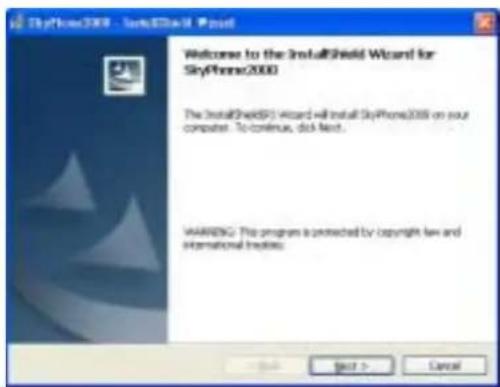
Choose Install

☐ Choose Finish to complete the installation
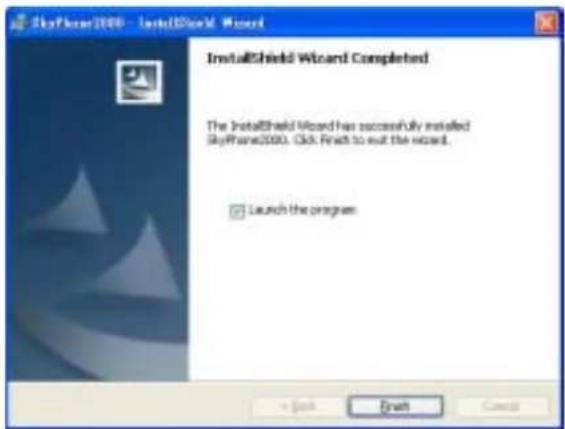
After SkyPhone2000 is launched, the yellow SkyPhone2000 icon will show at the system tray of the windows right bottom corner. That means SkyPhone2000 software has been working properly When the Skype and SkyPhone2000 start, the system will open the following windows. Please choose “Allow this program to use Skype” and OK.

Installation of Sky-USB BOX Hardware
Use a USB cable to connect Sky-USB BOX to PC

☐ The “driver” directory of the installation CD contains the device driver for Sky-USB BOX hardware.
☐ Push “Next”, when the Windows show “Found New Hardware Wizard”.
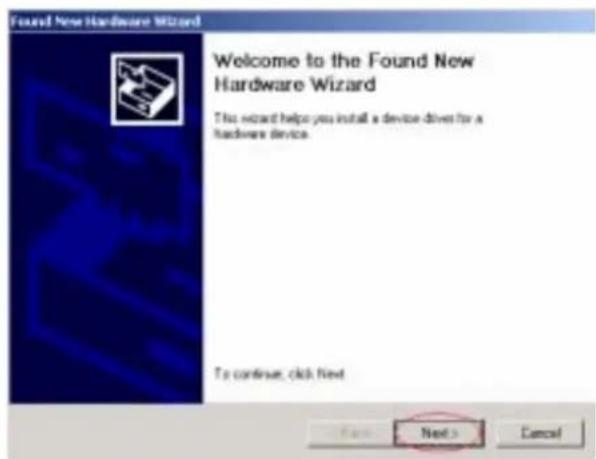
Select "Search for a suitable driver for my device", when the Windows show "Install Hardware Device Drivers". Click "Next".

Check “CD-ROM drives” when the Windows show “Locate Driver Files”. Click “Next”.

Click "Next", when The Windows show "SkyPhone2000-rel-xxxxxx\driver\pupafxxx.inf" with "Driver Files Search Results".

☐ Click “Next”, when the Windows show “Completing the Found New Hardware Wizard”, to complete the installation procedure.
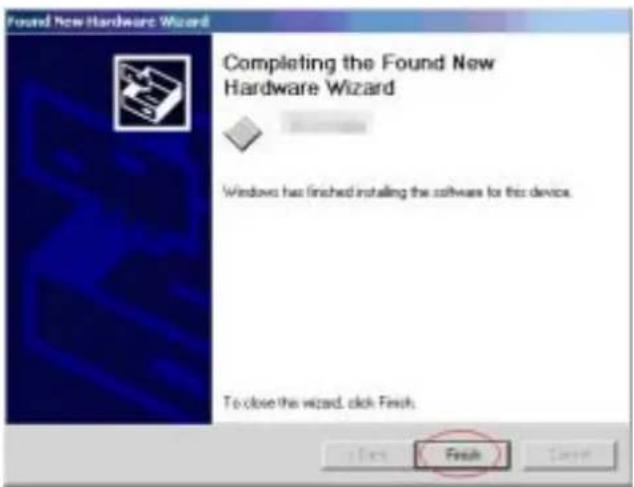
☐ The LED of Sky-USB BOX will be red initially and then turn to green. It means the Sky-USB BOX is ready for use. And, SkyPhone2000 software has been working properly with Sky-USB BOX hardware.

☐ Connect a regular analog Phone to the "Phone" port of Sky-USB BOX.
○ Run Skype Software.
☐ Put the phone off-hook to pop-up the Skype software.
☐ Put the phone on-hook to minimize the Skype software.

Sky-USB BOX installation guide
© Connect any analog telephone (with 2-wires, RJ11 jack connector) to the “Phone” port of Sky-USB BOX.
(If the same phone will be used also for PSTN calls, connect the outside PSTN line to the “Line” port of Sky-USB BOX.)

flowchart
graph TD
    A["USB port"] --> B["Line port"]
    B --> C["Phone port"]
    D["PC"] --> E["PSTN"]
    F["Analog phone&Cordless Phone"] --> G["or"]
Operation

Skype configuration (Very important for Skype to work properly
with Sky-USB BOX)
Select File \ Options \ Hand / Headsets


Windows XP environment
![P-Clouse-Scope [SN] - Options General | Personal | Privacy | Call Alerts | Instant Message Alerts | Sounds | Ring Times | Advanced | Connection | HandSetters | Keyboard | Audio In: USB Audio Audio Out: USB Audio Ringing: USB Audio ✓ Ping PC speaker ✓ Enable Shape support for USB devices ✓ Enable automating sound device settings adjustment Save Cancel](/content/2026/05/1084518/images/b32ce096f9a02490b9931e64032f10d109b411516b04722ea7959659dec52b93.jpg)
Windows 2000 environment
© Audio In: set to SKY-USB BOX or USB Audio
© Audio Out: set to SKY-USB BOX or USB Audio
- Ringing: set to SKY-USB BOX or USB Audio
◎ Check "Use PC Ring"
Attention! Microsoft Windows usually automatically configure the last-installed audio device, Sky-USB BOX (USB Audio), as the default audio. Please use “Control Panel \ Audio and Multimedia” to configure to your original sound card as the “default audio device”. It is recommended to check “Always use default audio”. This setup allows you to play MP3 music while talking over Skype.
Windows XP

Windows 2000

Ψ Skype installation
To download Skype software and do account registration
Go to www.skype.com to get the newest Skype software and follow the instruction to install and to register a free account

To setup the speed dial
To setup the speed dial, please do the following: Right click the contacts and then select the “Assign speed dial”
![P:\Chrome-Skype (TM) - zipcom-br File View Tools Call Help Start Contacts Dial Call List Call This Context Send us Intract Messages... Send Conducts... Send File [guide to Condensate] View Profile Remove... Angio Speed-Dial Remove Price Contacts Block this word Regmt Authentication View Instant Message History View Call List Type Skype Name or number with-country-code 811, 197 Users Online](/content/2026/05/1084518/images/97709078bb204f7b6e32dd88d9dac262084b0beffe159cbb09738aad102c40a2.jpg)

Ψ Telephone Setup
Ψ Test Drive
© Please make sure that Skype is running with the following icon shown.

Pick up the phone to pop-up Skype. Use keyboard to type in “echo123” and then “Enter”. Follow the voice instruction from the test site to record voice and playback your own voice. Hang up the phone and Skype window becomes minimized.
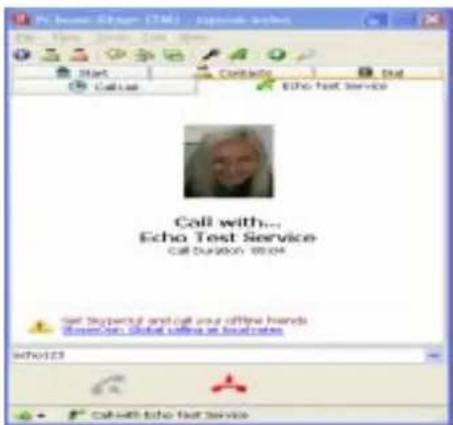
Congratulations! You have finished the installation of Sky-USB BOX and Skype.
Sky-USB BOX Operation Guide
□ Outgoing VoIP calls with Skype
■ PC-to-PC: Pick up the phone to pop-up Skype software. Push in the speed-dial number of your Skype contact, followed by “##”. The call will be sent out. Alternatively, use mouse to double click a Skype Contact.
■ PC-to-Phone (SkypeOut Service)
◆ Buy pre-paid card from Skype
- Go to “Tools \ Go to my account page”. Sign in with your Skype account. - Use credit card to buy SkypeOut pre-paid card.
◆ Call out with SkypeOut: “00 + Country code + Local Number + # # ”
● Fixed line in Taiwan: 00-886-2-2004-0000
● Mobile phone in Taiwan: 00-886-935-123-456
- China: 00-86- -...
- USA: 00-1- ...
◆ Be sure to enter # # to send out the dial digits and complete the call.
□ Incoming VoIP calls with Skype
◆ The phone will ring whenever there is a Skype incoming call.
◆ Simply pick up the phone and the Skype call is accepted automatically.
◆ Put the phone on-hook to finish the call session.
□ Outgoing PSTN calls
Pick up the phone to pop-up Skype window. By default, Sky-USB BOX is in “VoIP” mode and the “green” light is shown on the LED.
◆ Push “**” to switch to PSTN mode. The “red” light is shown on the LED. You should hear the dial-tone from the PSTN line.
◆ Proceed with the regular PSTN phone calls.
◆ Hang up the phone to finish the PSTN call. Sky-USB BOX will be switched back to “VoIP” mode and the “green” light is shown.
□ Incoming PSTN calls
◆ The phone rings whenever there is an incoming PSTN call.
Simply pick up the phone to answer the PSTN call. Sky-USB BOX is automatically switched to PSTN mode with “red” light on.
◆ Hang up the phone to finish the PSTN call. Sky-USB BOX will be switched back to “VoIP” mode and the “green” light is shown.
☐ Call Collision: PSTN incoming call during VoIP conversation
◆ A call alerting signal is played on the phone, when a PSTN call comes during VoIP conversation.
- To accept the PSTN call, simply put the phone on-hook to disconnect the VoIP call. The phone will ring again. Put the phone off-hook to accept the PSTN call.
- Push “ * * ” to accept the PSTN call directly and to save original VoIP call.
☐ Call Collision: VoIP incoming call during PSTN conversation
◆ The VoIP call is rejected automatically. The calling party will hear busy tone.
☐ Call Collision: VoIP incoming call during VoIP conversation
◆ A call alerting signal is played on the phone, when a VoIP call comes during VoIP conversation.
- Push “##” to accept the VoIP call and to save original VoIP call.
- Push “#9” to reject the VoIP call.
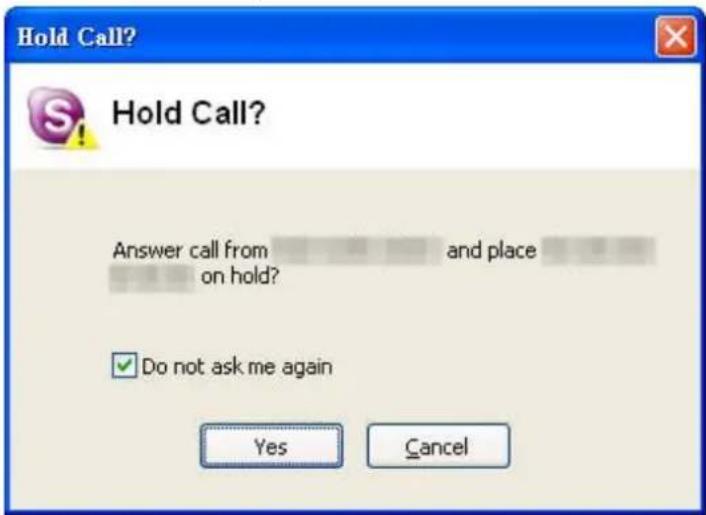
The screen above will pop up, when a VoIP call comes during VoIP conversation the first time. You must click “Do not ask me again” item and choose “Yes”.
☐ Switch from VoIP to PSTN calls
■ Use “**” to switch the phone connection to PSTN for regular phone calls from Skype for VoIP calls.
■ Please note that the VoIP call is maintained when the phone is switched from VoIP to PSTN. But, the PSTN call will be disconnected, when switched from PSTN call to VoIP call.

Miscellaneous Utilities
After you install “setup.exe”, the Skyphone2000 will be setup automatically with the default setting. You don’t need to modify the configuration under most circumstances.
- 繁體中文:Set to “Traditional Chinese” interface.

- Ring On / Ring Off : Test ring. Push again to stop ring.
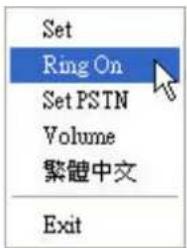
- Set PSTN / Set VoIP : Switch PSTN / VoIP. ( or push “* *”)

- Volume : Open volume control windows.
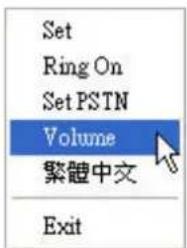
- Set : Select individual setting. (Default : below picture)

【Keypad】
1. Auto Control Skype :
Default item. Control and interaction with Skype.
2. Keyboard Emulation :
If you check this item, Skyphone2000 will disable the control of Skype automatically. It will function as a keyboard. You can key in numbers on document files (such as word) by pressing the number buttons on the phone. Microsoft MSN Messenger, NetMeeting, Net2Phone, Yahoo Instant Messenger, etc., can be supported using this setting.
3. Pure Audio :
Using audio function only.
NEW
[Default PSTN]:
If you use regular PSTN calls more often than Skype, you can check this item to set Sky-USB BOX default to PSTN mode. You will hear dial-tone right after you pick up the phone, without dialing “**” in this PSTN mode.
All incoming call operations are NOT changed with setting this option. Both VoIP and PSTN incoming calls will ring the phone, and you simply pick up the phone to answer the calls, respectively. Sky-USB BOX will return to default "PSTN Mode", after you hang up the phone.
[VoIP DialTone]:
Default item. You can hear dial-tone in VoIP mode after you pick up the phone. (VoIP and PSTN dial-tone are different.)
【VoIP Ring】:
Default item. If you have VoIP incoming calls, you will hear ring-tone.
Question 1. After I install Sky-USB BOX, all speaker outputs, including my favorite MP3 goes to Sky-USB BOX. How to re-direct all other output to my original sound card?
A : Windows installer automatically set BOX as the default windows audio device.
You need to convert it back to your original sound card. For configuration, go to “\ Start \ Settings \ Control Panel \ Sounds and Audio Devices \ Audio \ Sound playback” and “\ Start \ Settings \ Control Panel \ Sounds and Audio Devices \ Audio \ Sound Recording”. It is also recommended that you mark “Always use default audio”.
Question 2. Do I need to connect an outside PSTN line to the "Line" port of BOX?
A : No. It is only optional. You do not need to. You connect the PSTN line to the "Line" port of BOX only when you want to use the same phone for both Skype calls and PSTN calls. If your phone is dedicated for Skype, there is no need to connect the PSTN line.
▶ Question 3. What kind of Cordless phones can be used to connect to BOX?
A : Any kind of cordless phone with standard RJ11 connector can be used. DECT, 46/49, 900 M, and 2.4 G are all applicable.
▶ Question 4. Can Sky-USB BOX work with SkypeOut? How can I do that?
A : Yes. Simply press "00"+"country number"+"phone number"+"##" to call to any phone in the world using SkypeOut.
Question 5. Can my regular PSTN line work even if when the host PC is Power-down, Sky-USB BOX is not running, or the USB port is not connected?
A : Yes, SKY-USB BOX will switch to PSTN mode automatically when it loses the host PC connection. So, the PSTN line should continue to work as before.
▶ Question 6. Can I use Sky-USB BOX with MSN Messenger, Yahoo Messenger, AOL Messenger, or NetMetting, etc?
A: Yes, for sure. In essence, Sky-USB BOX works as a standard USB audio device, converting a regular phone into a standard PC sound device for speaker output and microphone input, while maintaining all the regular PSTN phone functions. Sky-USB BOX supports all other Internet Phone Software for keypad emulation, voice conversation and switching between PSTN mode and Internet Phone mode. But, incoming phone ring, off-hook to set focus and to accept calls, on-hook to disconnect call, are not supported when used with all other applications.
▶ Question 7. If Skype changes design, can Sky-USB BOX still support it?
A : Yes, for sure. Sky-USB BOX utilizes a few special features offered by the current version of Skype. We do not expect Skype to change these features in the near future. Besides, Sky-USB BOX can always support Skype as “Generic” Internet Phone Software. So, your investment in Sky-USB BOX is protected.
▶ Question 8.I still need further help. Whom should I turn to?
A : Refer to Skype's help first. We found it is indeed very helpful. Especially useful are the following: F A Q: http://www.skype.com/help_faq.html User Guide: http://www.skype.com/help_userguide.html Sound and voice guide: http://www.skype.com/help_sound.html
▶ Question 9.How do I un-install Sky-USB BOX?
A : Click “\ Start \ Programs \ SkyPhone2000 \ Uninstall SkyPhone2000” to un - install Sky - USB BOX.
▶ Question 10. How do I update Sky-USB BOX software?
A : Download the latest software from manufacturer's website. Un-install SkyPhone2000 and then execute setup.exe
▶ Question 11. When I use the Sky-USB BOX, do I need to operate the keyboard or mouse?
A : No. Actions of dialing on phone are simulated as the action of keyboard and mouse by Sky-USB BOX setup software. So, Sky-USB BOX can control internet phone software without any operation on keyboard or mouse
▶ Question 12. How do I update SkyPhone2000 program?
A : 1. Close SkyPhone2000 program at the system tray of the windows right bottom corner.
- Download new driver "SkyPhone2000-rel-xxxxxx.zip" and upzip.
- Execute "SkyPhone2000-rel-xxxxxx\update.bat".
- Execute SkyPhone2000 at the desktop of the windows again.
- Finish

Safety precautions
☐ Make sure that you fully understand the following detail before proceeding to the main descriptions in this manual
☐ Do not disassemble, change or repair the Sky-USB BOX
☐ Do not place the Sky-USB BOX on wobbly inclined or unstable surfaces
☐ Avoid using or storing the Sky-USB BOX in the following places :
Θ Places subject to humidity dust and dirt
Θ Places subject to direct sunlight
Θ Places subject to high or low temperature
Places filled with highly flammable gas
Places subject to strong magnetic fields
Country code table
| Country | Code | Country | Code | Country | Code |
| Algeria 213 | Czech Rep | 42 | Luxembourg 352 | ||
| Agrentina 54 | Denmark | 45 | Macao 853 | ||
| Australia 61 | Dominican | 1 | Mainland China 86 | ||
| Austria 43 | Ecuador | 593 | Malaysia 60 | ||
| Bangladesh 880 | Egypt | 20 | Mexico 52 | ||
| Belgium 32 | Fiji | 679 | Morocco 212 | ||
| Bolivia 591 | Finland | 358 | Myanmar (Burma) | 95 | |
| Brazil | 55 | France | 33 | Nepal | 977 |
| Brunei | 673 | Germany | 49 | Netherland | 31 |
| Bulgaria | 359 | Greece (Helenic) | 30 | New Zealand | 64 |
| Canada | 1 | Guam | 671 | Nigeria | 234 |
| Chile | 56 | Guatemala | 502 | Norway | 47 |
| Colombia | 57 | Honduras | 504 | Oman | 968 |
| Costa Rica | 506 | Hong Kong | 852 | Pakistan | 92 |
| Panama | 507 | Hungary | 36 | Tanzania | 255 |
| Paraguay | 595 | India | 91 | Thailand 66 | |
| Peru | 51 | Indonesia | 62 | Turkey | 90 |
| Philippines | 63 | Iran | 98 | United Kingdom | 44 |
| Portugal | 351 | Ireland | 353 | Uruguay 598 | |
| Puerto Rico | 1 | Israel | 972 | U.S.A. | 1 |
| Saudi Arabia | 966 | Italy | 39 | Venezuela | 58 |
| Singapore 65 | Jamaica | 1 | Vietnam | 84 | |
| South Africa | 27 | Japan | 81 | Yugoslavia | 381 |
| Spain | 34 | Jordan | 962 | Zambia | 260 |
| Srilanka | 94 | Kenya | 254 | United Arab Emirates | 971 |
| Sweden | 46 | Korea South | 82 | Yemenarabrep | 967 |
| Switzland 41 | Kuwait | 965 | |||
| Syria | 963 | Taiwan | 886 |
- Sky-USB BOX feature list
- Packaging and accessories
- Sky-USB BOX system requirements
- Sky-USB BOX usage precautions
- Installation of Sky-USB BOX Software-SkyPhone2000
- Installation of Sky-USB BOX Hardware
- Sky-USB BOX installation guide
- Windows XP
- Windows 2000
- Ψ Skype installation
- Sky-USB BOX Operation Guide
- □ Outgoing VoIP calls with Skype
- □ Incoming VoIP calls with Skype
- □ Outgoing PSTN calls
- □ Incoming PSTN calls
- ☐ Call Collision: PSTN incoming call during VoIP conversation
- ☐ Call Collision: VoIP incoming call during PSTN conversation
- ☐ Call Collision: VoIP incoming call during VoIP conversation
- ☐ Switch from VoIP to PSTN calls
- Miscellaneous Utilities
- 【Keypad】
- Auto Control Skype :
- Keyboard Emulation :
- Pure Audio :
- NEW
- [Default PSTN]:
- [VoIP DialTone]:
- 【VoIP Ring】:
- ▶ Question 11. When I use the Sky-USB BOX, do I need to operate the keyboard or mouse?
- ▶ Question 12. How do I update SkyPhone2000 program?
- Safety precautions
Brand : Zonet
Model : ZSY5102
Category : Telephone