Classroom Studio - Audio recorder M-AUDIO - Free user manual and instructions
Find the device manual for free Classroom Studio M-AUDIO in PDF.


| Product Type | Portable Audio Recorder |
| Model | Classroom Studio |
| Brand | M-Audio |
| Dimensions (approx.) | 120 x 70 x 25 mm |
| Weight (approx.) | 200 g (without batteries) |
| Power Supply | 2 AA batteries or USB bus power |
| Recording Media | SD/SDHC card (up to 32GB) |
| Recording Format | WAV or MP3 (selectable) |
| Microphones | Built-in stereo electret condenser microphones |
| Input | 3.5 mm stereo line/mic input |
| Output | 3.5 mm headphone/line output |
| USB | USB 2.0 (type B) for data transfer and power |
| Playback Functions | Play, pause, stop, skip, repeat |
| Recording Modes | Voice activation, auto-level, manual gain |
| Display | LCD screen with backlight |
| Built-in Speaker | Yes, for immediate playback |
| Battery Life (approx.) | Up to 10 hours (alkaline) |
| Memory Card Slot | SD card slot (class 4 or higher recommended) |
| Clean the exterior with a soft, dry cloth. | Avoid solvents; keep microphones free of dust. |
| Safety Precautions | Do not expose to moisture; use only specified power sources. |
| Spare Parts | Batteries, SD card, USB cable |
| Repairability | User-replaceable batteries and SD card; other repairs by authorized service. |
| General Information | Designed for classroom and meeting recording; simple one-button operation. |
Frequently Asked Questions - Classroom Studio M-AUDIO
User questions about Classroom Studio M-AUDIO
0 question about this device. Answer the ones you know or ask your own.
Ask a new question about this device
Download the instructions for your Audio recorder in PDF format for free! Find your manual Classroom Studio - M-AUDIO and take your electronic device back in hand. On this page are published all the documents necessary for the use of your device. Classroom Studio by M-AUDIO.
USER MANUAL Classroom Studio M-AUDIO
Classroom Studio Bundle
Quick Start Guide
English
M-Audio Classroom Bundle QuickStart Guide
Introduction
The M-Audio Classroom Bundle is a special collection of hardware and software that allows you to create professional recordings using a standard PC or Mac computer. The contents of the M-Audio Classroom Bundle are as follows:
- M-Audio MobilePre USB Audio Interface: This compact USB device allows your computer to record audio from a variety of sources. (In this QuickStart, you will be recording from 2 microphones.)
- USB Cable: Used to connect the MobilePre USB to your computer.
- 2 M-Audio Nova Condenser Microphones: Rugged microphones with exceptional frequency response suitable for almost all recording applications.
- 2 Hard Mounts: Used for attaching the Nova microphones to mic stands.
- 2 XLR cables: Used to connect the Nova microphones to the MobilePre USB.
- Ableton Live Lite Software: An exclusive version of Ableton's renowned audio sequencing instrument. This is the software that will be used for recording audio into your computer.
- ProSessions Demo CD: A collection of samples and loops from the ProSessions Sample CD catalog.
- M-Audio Driver CD: Contains software drivers that allow the MobilePre USB to be used with your computer's operating system.
- QuickStart Guide: The document you're reading now. This QuickStart will guide you through the process of setting up the hardware and software, and making your first recording.
The MobilePre USB, Nova microphones, and Live Lite all have their own user's manuals, and it is recommended that you read these manuals for more information on the products. Since this QuickStart will get you up and running quickly, it does not explain every function of the products used. While the MobilePre USB contains a printed manual, the manuals for Live Lite can be found in the Help menu of the program.
Hardware and Software Installation
- Install the MobilePre USB: Directions for installing the MobilePre USB are contained in the MobilePre USB User's Manual. Once the driver is installed, connect the MobilePre USB to your computer using the supplied USB cable. If the MobilePre USB is connected properly, the blue "Power" light will illuminate.
- Install Ableton Live Lite: Insert the Live Lite CD into your CD-ROM drive.
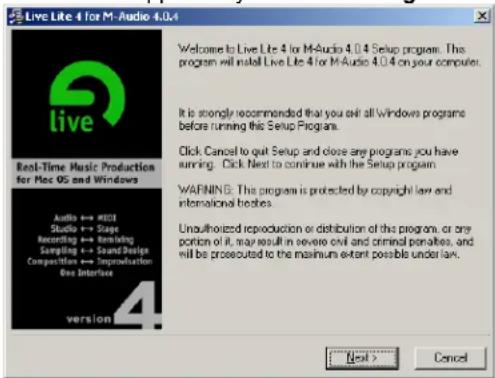
- PC users: This will likely launch a new window of the CD contents which will display an executable file (if this window does not appear, simply browse to your CD-ROM drive to view the CD contents). Double-click the executable file to launch the installer then follow the onscreen prompts. Upon completion, a new program group will appear in your Start > Programs menu containing the icon to launch Live Lite.
- Mac users: The CD will display two different file folders, one for OS 9 users, the other for OS X users. Click and drag the folder corresponding to your operating system onto your hard drive. Live Lite will then be copied onto the computer. To launch Live Lite, open the Live Lite folder on your computer's hard drive and double-click the Live Lite icon. PC users: There will be a file on the CD named "Setup." Double-click this file to launch the installer then follow the onscreen prompts. Upon completion, a new program group will appear in your Start > Programs menu containing the icon to launch Live Lite
a) PC Users

b) Mac Users
- Authorize Live Lite: In order for the Save and Render to Disk functions to be active in Live Lite, the software must first be authorized. Authorization requires that you enter the serial number printed on the card included with the Live Lite CD. You may be prompted for this serial number the first time you run Live Lite. Once the authorization screen appears, enter the number and follow the onscreen directions.

- Connect the Microphones: First, attach the supplied hard mounts to mic stands (not included). Second, carefully fasten the two Nova microphones to the hard mounts. Third, connect the female end of one of the supplied XLR cables to the left Nova, then connect the other end to the XLR jack labeled "Ch. 1" on the back of the MobilePre USB. Repeat the same procedure for the second microphone, plugging the XLR cable into "Ch. 2" on the back of the MobilePre USB. Finally, engage the "Phantom Power" switch on the front of the MobilePre USB. The red indicator will illuminate. Phantom power must be engaged or the Nova microphones will not function.
- Attach Speakers or Headphones: If you wish to listen back and monitor your recordings, you'll want to either connect a pair of headphones to the front-mounted jack on the MobilePre USB or connect the 1/4" outputs on the back of the MobilePre USB to powered speakers, a mixer, or amplifier.
Configuring Live Lite
Before we can begin recording in Live Lite, we must change a few preference settings within the program to ensure the MobilePre USB is the source for recording. It is assumed you have completed all the above installation steps successfully.
- Launch Live Lite. You'll notice a tutorial lesson displayed on the right-hand side of the screen. For the purposes of this QuickStart, we'll start a new Live set, rather than using the displayed tutorial, but you can later go back and review the tutorial lessons by selecting them from the Help menu.
- Click the File menu and choose New Live Set

- Open the Live Lite Preferences: For Windows and Mac OS 9 users, the Preferences option is located in the Options menu. For Mac OS X users, the Preferences option is located in the Live Lite menu.
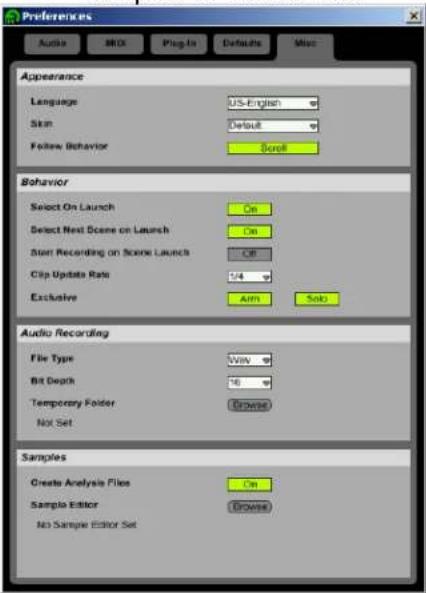
- Click on the Misc tab.
- Select a location for recorded audio: On the Misc page, you'll see a setting near the bottom that reads "Temporary Folder". This option selects the location where Live Lite will place audio files when they're recorded. Press the Browse button and select a destination folder on your computer for the new files.
- Click the Audio tab.
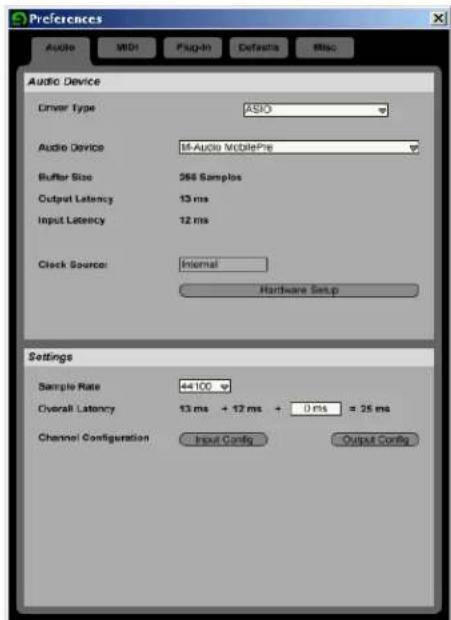
- Select the appropriate Device Type: For PC and Mac OS 9 users, select "ASIO" from the Device Type menu. For Mac OS X users, select "CoreAudio" from the Device Type menu.
a) PC Preferences
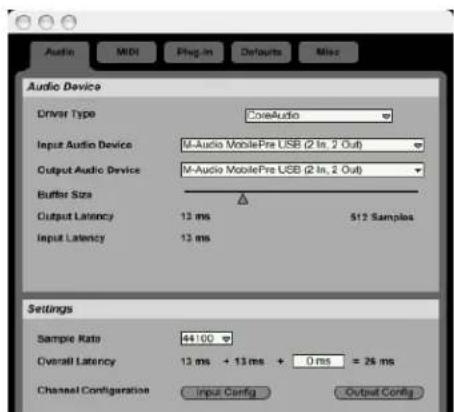
b) Mac preferences
-
Select the MobilePre USB: For PC users, select "M-Audio MobilePre" from the Device menu. For Mac users, select the MobilePre USB for both Input Device and Output
-
Close the Preferences window.
Recording in Live Lite
Now that the MobilePre USB has been selected as the audio device for use within Live Lite, we can set our operating levels and begin recording. When working with digital audio, it is very important that the volume, or "gain," for the microphones is not set too high. If the recording level is too high, harsh digital distortion known as "clipping" will occur.
- Switch to Arrangement View: When you first launch Live Lite, you will be presented with the Session View. The Arrangement View can be accessed in three different ways: by pressing your computer's Tab key, clicking on the icon with 3 horizontal lines in the upper-right corner of the screen, or by selecting Arrangement from the View menu.
a) Arrange View
b) Session View
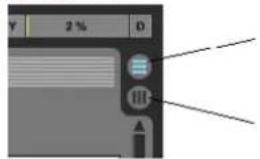
- Arm track for recording: Press the Arm button located on the right side of the track, as shown below. You will now see the microphone level displayed just to the right side of the Arm button.
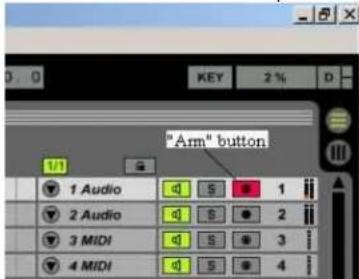
- You can also "unfold" the track to make it larger by clicking the small triangle next to the track name, on the right side of the screen as shown. This will display the audio waveform within the track, and display larger recording levels.

-
Set the recording level: While watching the input levels, have your band, or whatever you plan to record, start playing. As they play, slowly turn up the gain knobs on the front of the MobilePre USB. You'll see the input levels start to increase. Continue to turn up the gain until the level meters consistently reach 3/4 up the scale. If the red clip indicators at the top of the input meters should light, the record level is too high and is distorting. Turn down the gain until the red light turns off. Note: It is especially helpful to have your band, or other source, play their loudest section of music while you adjust the levels to ensure you don't overload the MobilePre USB inputs
-
Start Recording: Now that the record levels are correct, you can begin recording. Press the Record Standby button in the Transport Bar. When you click the Play button in the Transport Bar, recording will begin.
a) Play
b) Record Standby

- Stop Recording: Once you've finished recording, press the Stop button in the Transport Bar. Your newly recorded audio will be displayed on screen. Please note that this new audio file is located on your hard drive in the location selected in step 5 above.

Playing Back Recorded Audio
Now that you've successfully recorded your audio files, we can listen back to check the performance.
- Disarm the track: Click the red Arm button so that it's off.
- Engage Playback: Click the Play button in the Transport Bar and playback will commence from the beginning of the track. Press Stop to stop playback.
- Starting from a different location: If you want to start playback from another position, move the Start Marker to the desired location and press play.
a) Start Marker

Saving Your Work
If you wish to save your work so far, you may do so by selecting File > Save Live Set. If this is your first time saving the file, you'll be prompted for a file name and location. Remember this location so you can open the file again at a future time.
Exporting the Audio for CD Burning
If you're satisfied with your recording and wish to burn it to CD, you'll need to export the audio to a format that can be read by CD burning programs.
-
Selecting the audio to export: Perhaps when you were listening to your recording, you noticed there was time at the beginning and end of the recording you wish to remove. Or, perhaps you recorded a series of different songs and only wish to export one of them. Click and drag to select the area of audio you wish to export. Be careful not to drag your actual recording itself.
-
Select Render to Disk: From the File menu, select Render to Disk. This will cause the Render to Disk panel to appear.
![Data Normalize: Off Render as Loop: Off File File Type: Wave Bit Depth: 16 Sample Rate: 44100 Create Analysis File: Off Convert to Mono: Off Live will render the Master output over the selected time range [5.1.1 - 31.1.1] OK Cancel](/content/2026/05/1082814/images/e5f29ea16e3ee9680fd53006b692a0da112d23ff7db353736a755318c52a0022.jpg)
-
Set the options for CD export: The first two options on the Render to Disk panel (Normalize and Render as Loop) may be left off. For PC users, select WAV as the File Type. Mac users should select AIFF. Select 44100 for the Sample Rate and 16 for the bit depth. These 2 settings are essential for proper CD burning. All other options can be left off.
-
Export the audio: Once all settings are set, press OK and you will be presented with a dialog box asking for the name of the file to create and a location to save it. Remember where you save your file, so you can find it when you go to burn a CD. Once your file is named, press Save or OK and Live Lite will render your new file.
Burning Your Audio File
Now that you have a final version of your audio file created, you may either listen to it using you favorite media player application or burn it using your preferred burning software. Exact directions for burning a CD will be included in your burning software.
Shutting Down Your System
Once you're finished using the Classroom Studio, you'll want to disconnect and power down your system in a fashion that will protect your equipment. The first thing to turn off is your speakers. You should also unplug your headphones if they are still connected. Once your outputs are disconnected, turn off the phantom power on the MobilePre USB. Once the phantom power is off, you may disconnect the microphones. Once the microphones are disconnected, you may shut down your computer normally.

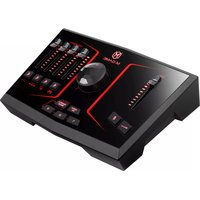
Brand : M-AUDIO
Model : Classroom Studio
Category : Audio recorder