
Sileno 50R Flip - Smartphone MAJESTIC - Free user manual and instructions
Find the device manual for free Sileno 50R Flip MAJESTIC in PDF.


| Product Type | Flip Smartphone |
| Brand | Majestic |
| Model | Sileno 50R Flip |
| Dimensions | 107 x 55 x 18 mm |
| Weight | 120 g |
| Battery Type | Li-Ion 1500 mAh (removable) |
| Display Main | 2.8" TFT (320x240) |
| External Display | 1.77" TFT (160x128) |
| Rear Camera | 2 MP |
| Front Camera | 0.3 MP |
| RAM | 512 MB |
| Internal Storage | 4 GB |
| Expandable Storage | microSD up to 32 GB |
| Operating System | Proprietary OS |
| Connectivity | 4G LTE, Bluetooth 4.0, Wi-Fi 802.11 b/g/n |
| Main Functions | Calls, SMS, Camera, FM Radio, MP3 Player, Torch |
| Maintenance | Clean with soft dry cloth; avoid water and solvents |
| Safety | Use only approved charger; do not disassemble |
| Spare Parts | Battery, charger, USB cable available |
| Repair | Contact authorized service center |
| General | User manual included in multiple languages |
Frequently Asked Questions - Sileno 50R Flip MAJESTIC
User questions about Sileno 50R Flip MAJESTIC
0 question about this device. Answer the ones you know or ask your own.
Ask a new question about this device
Download the instructions for your Smartphone in PDF format for free! Find your manual Sileno 50R Flip - MAJESTIC and take your electronic device back in hand. On this page are published all the documents necessary for the use of your device. Sileno 50R Flip by MAJESTIC.
USER MANUAL Sileno 50R Flip MAJESTIC


MANUALE D'ISTRUZIONI


USER MANUAL


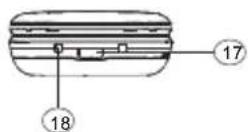
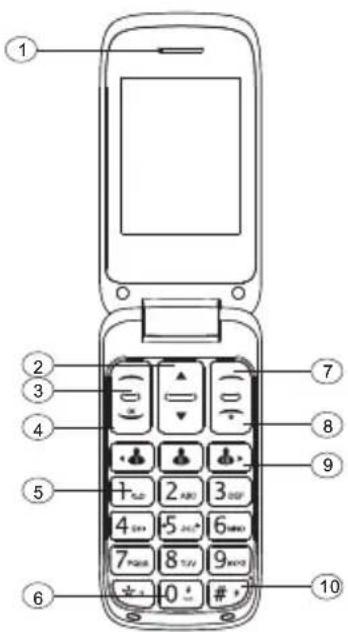
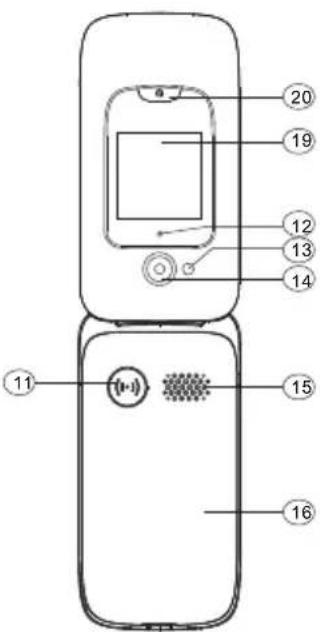
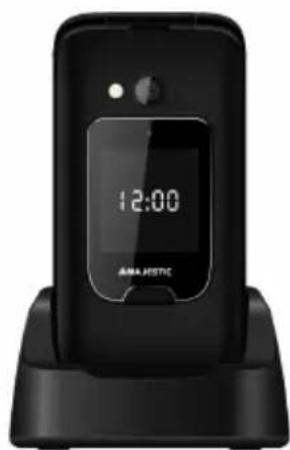
Instructions of button and telephone appearance
| 1. Earpiece | 2. Arrow keys |
| 3. Left selection key | 4. Call key |
| 5. Voice mail | 6. Torch key(On/Off) |
| 7. Right selection key | 8. End call/Power on/Power off |
| 9. Speed dial keys | 10. Silent/Input method |
| 11. SOS Key | 12. LED light(Missed calls/Missed message/Charging) |
| 13. Torch light | 14. Camera lens |
| 15. Loudspeaker | 16. Battery cover |
| 17. USB charging socket | 18. Seat-type charging socket |
| 19. External display(Time/Missed calls/Missed message) | 20. Activate/deactivateexternal display key |
Contents
Installation....4
Installing T-FLASH memory card....4
Installing the SIM card....6
Installing the battery....7
Phonebook....8
Search....8
Add new contact....8
Photo contact....8
Phonebook settings....9
Messages....9
Write Message....9
Inbox....10
Drafts....11
Outbox....11
Sent messages....11
Message settings....11
Call history....12
Magnifier....12
Alarm....13
Organizer....13
Calendar....13
Calculator....14
Bluetooth....14
Multimedia....15
Camera....15
Image viewer....15
FM radio....15
File manager....16
Settings....17
SOS setting....17
Phone settings....18
Call settings....19
Profiles....20
Speed dial....20
Block function....21
Up/Down key shortcuts....22
Security settings....22
Restore factory settings....23
Safety and Attentions....23
Installation
1
IMPORTANT
Turn off the phone and disconnect the charger before removing the battery cover.
Installing T-FLASH memory card
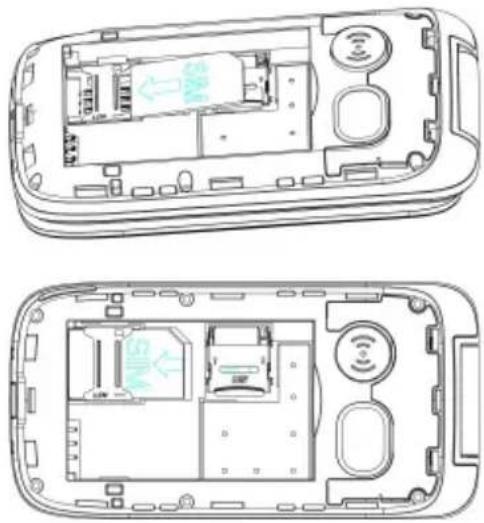
Insert the memory card into the slot under the SIM card holder, make sure card's face downwards, take care and please do not scratch or bend the contacts on the c You can check the pictures as below:

T-Flash card is used as phone storage, when connect to computer by USB cable, Y copy Music, Picture or Photos inside.
Installing the SIM card
1) Insert SIM Card into the SIM card slot upon the memory card holder. (Make sure the SIM card's contacts are facing inwards.)
2) Before taking out the SIM card, please turn off the phone first.
Installing the battery
For the first time use, please use up the battery and charge for 4 hours to achieve state of battery.
Remove the battery cover ,insert the battery into the battery compartment, replace the battery cover.


Phonebook
Search
You can speed search the contact person by entering the initial letter.
Add new contact:
You can add the new contact to the SIM card or phone, by press Save to confirm
- Enter name and telephone number.
- Setup the Caller picture: Press the keypad and to select the picture from Default or From camera or From file.
- Setup the Caller ringtone: Press the keyboard and switch ringtone.
- Press Options to Save.
Photo contact
- Select a contact and press Options - Edit, in photo contact press options – sele choose the image (image size 240x320pixel), under contact ringtone please choose
option and select the ringtone; press options again and select save. 2. The selected picture will be displayed during contact calling.
Phonebook settings:
- Preferred storage: you can save the new contact to the SIM card , phone or bo
- Memory status: to check how many contacts in the SIM card and the phone(max
- Copy contacts: you can copy the contacts to the SIM card or to the phone.
- Move contacts: you can move the contacts to the SIM card or the phone.
- Delete all contacts: you can delete all the contacts in the SIM card or the phor
In the phonebook, you can check the contact persons, send SMS, make a call, edit, copy, set calls group and add to Blacklist.
Warning! See as Entering Text to consult the input method.
Messages
Write SMS
-
Press Menu, scroll to Messages.
-
Select Write message and select SMS then press OK.
- Input your message then press Options.
- Choose Send to add receiver phone number and then press OK to send.
Inbox
- Press Menu enter into Messages and press OK.
- Select Inbox and press OK.
- Select a message from the list and press Options to view the message.
Others options as below:
1) Reply by SMS
Input your message and send to the sender.
2) Call sender
Press Select to call the sender.
3) Forward
Press Select to forward message to other contacts
4) Delete
Press Select to delete the message.
5) Delete all
Delete all received messages.
6) Save to phonebook
Here you can save the sender's phone number to phonebook.
Drafts
Here you can see the messages which you saved.
Outbox
- Press Menu enter into Messages and press OK.
- Select Outbox and press OK.
- Select a message from the list and press Options to View/Resend/Edit/Delete/Delete all message.
Sent messages
Here you can check all messages you sent out.
Message settings
By this menu it is possible to check all settings related to SMS, including preferred storage, memory status, etc.
Call history
Call History
-
In the standby mode, press Menu, scroll to Call history and press OK.
-
Use ▲roll to view Missed calls/Dialled calls/Received calls/All calls or Delete call logs.
Magnifier
In standby mode, Press Menu, scroll to Magnifier.
With the camera's magnifier, users can zoom in by adjusting the focus distance.
With this function, the elderly users can read the newspapers, magazines and other b more easily.
By press the key to zoom in or zoom out it.
Alarm
- To edit an alarm press Menu then choose Alarm and press OK.
- Use key and select Status On/Off.
- Enter time with number keypad.
- Scroll to select Repeat to select Once/Everyday/Custom. The same way to setup Alarm tone, Snooze (min) and Alert type.
Note: The Alarm is available even the phone is power off.
Organizer
Calendar
In the Calendar ,you can view the date and day of the week, and remar event and appointments of the date.
Please use the Options button to display, create, edit or delete the events calendar.
Calculator
Press Menu enter into Organizer, press OK to select Calculator.
a) Enter the first number and use to input into decimal point.
b) Use select (+ - * ÷) then press OK
Connectivity Bluetooth
- Press Menu scroll to Organizer and press OK.
- Scroll to Connectivity then press OK
- select Bluetooth and press OK for the below settings:
Power on /off: Select left key On/Off to enable or disable Bluetooth.
Visibility: Select On/Off to make the phone visible or invisible to other devices.
My device: Allow you to search new available devices and pair new device.
Search audio device: Search for the available audio device, search by press OK. If it connect other device, need to share password, enter it and press OK.
My name: Bluetooth name for current device.
Data account
This setting is provided by service provider.
Torch
Long press “0” to turn on/off the torch light.
Multimedia
Camera
- Press Menu scroll to Camera and press OK.
- Press Up arrow key to take photo.
- To view photos, press Options and select Photos.
Warning! If memory card is insufficient, delete some documents or expand the storage with T card.
FM radio
- Press Menu enter into Multimedia, press OK to select FM radio.
-
Press Options to view Channel list.
-
If in advanced options the point “always play” press back to standby mode. The radio will continue to play.
Important
-
Press the key to turn on/off the FM radio
-
Press key to control volume
-
Press the Arrow keys to select channel and manual search, press keys to start frequency auto search.
-
record function is available only in case a memory card (not supplied) is inserted. You can use option "file list" to play FM radio recordings.
File manager
By the menu it is possible to manage the telephone storage and the additional memory card (not su
Audio Player
First create a folder named “My Music” and then download the music files to the memory card (no supplied).
Play music
-
In the standby mode, press Multimedia → Audio Player and press OK.
-
Select a music file and press Play.
-
While playing, adjust volume

4.To stop by pressy to change track pressy. Please back to the standby mode.
Note: the phone only support MP3 format music.
Image viewer
View all saved photos under this menu.
-
in standby mode, press Multimedia → Image and pres Ok
-
select the file and press options → display
-
to scroll the files


Settings
SOS Setting
-
Press Menu enter into Settings, Select SOS setting and press OK.
-
Scroll to Status and setup SOS status On/Off.
- Scroll to SOS number to setup SOS number, here you can setup 5 numbers.
- Scroll to SOS SMS ON/OFF to choose whether to send SOS sms or not.
- Scroll to SOS SMS to edit SOS emergency message.
- Scroll to Warning Tone to control warning tone status on or off.
Make a SOS call
Before making a SOS call, please ensure SOS status is On and you have already done SOS settings.
Then long press SOS button, the phone will automatically send SOS messages to the saved SOS numbers and then call the saved SOS numbers one by one, warning ton always on until someone answer the call.
Warning! The SOS function must be activated before use. For some interference factors (e.g. Internet, environment and etc.), SOS function is not available.
Phone Settings
- Press Menu scroll to Settings.
- Select Phone settings and press OK.
Then you can setup as below:
Setup Time and date
- Select Time and date and press OK.
- Select Set home city to choose your local city.
- Select Set time/date to set time, date and the status of Daylight saving then you can press Save to save what you have set.
- Select Set format to set the format of Time(12 or 24) and Date.
Setup Language
- Select Languages and press OK.
- Use scroll to select the language from the list and press OK to save.
Air mode
Turn on/off air mode
Change the wallpaper
- Select Display, enter into Wallpapers.
- Here you can select wallpaper from the phone or memory card.
Call Settings
-
Press Menu, scroll to Settings, select Call settings and press OK.
-
You can set Call waiting, Call divert, Call barring and Advanced settings.
-
Here you can enter into Advanced settings to set the functions as below : Blacklist
Auto redial
Call time display
Answer mode
Profiles
- Press Menu, scroll to Settings, select Profiles and press OK.
- Scroll to select available mode, you can see four modes: General / Silent / Meeting / Outdoor.
- In the standby mode, long press, and change into Meeting mode.
- After you select one mode, you can setup its Alert type, Ring type, Ringtone, Ringtone volume, Message tone/volume, Keypad tone/volume and Cover tone open/close.
Speed dial
- M1/M2/M3 key: Press Menu, scroll to Settings select Speed dial and press OK,
select Status to set the status On/Off, then select Set numbers and press to set the 1/ key number from the phonebook, then press OK to save.
Remark: When in standby mode, long press key, up , “no speed number. Assign now?” press Yes to set number from the phonebook.
- 2-9 Number: press OK, select Status to set the status On/Off, then select Set numbers and press ▲ to set the 2-9 numbers from the phonebook, then press OK to save.
Block function
You can disable or hide some functions to keep easy to use the phone.
-
Press Menu, scroll to Settings and press OK.
-
Select Block function and press OK.
-
Scroll to choose each menu you want to disable or hide and press OK to choose On/Off.
Up/Down key shortcuts
- The default setting of Up key is Messages, use ▲ key to change it to be Alarm, Bluetooth, Calendar, Camera, FM radio, Phonebook, Multimedia, Magnifier, Organizer, Photo contact or Messages.
- The default settings of Down key is Photo contact, use ▲ key to change it to be Alarm, Bluetooth, Calendar, Camera, FM radio, Phonebook, Multimedia, Magnifier, Organizer, Photo contact or Messages.
GSM network
Through this menu it is possible to set connection mode to GSM network.
Security settings
-
SIM security: Under this menu, you can turn on or turn off PIN lock and change the PIN code.
-
Phone security: Under this menu, you can turn on or turn off Phone lock and change the phone password.
The default phone password is "1234".
Restore factory settings
In this menu Restore factory settings, after you input the phone password and the powers on again, you can let all the settings of the phone back to the original set. The default restore password of the phone is “1234”.
Safety and Attentions
In order to use your mobile phone safely and efficiently, please read your messages before using:
■ Please be careful when you are near chemical plant, gas station, tank farm and other exploders. Even if your mobile phone is in standby, it will send out RF
as well. Therefore, please power off your mobile phone.
■ When you are driving, do not use your mobile phone. If you have to use it, pl park your car then have your calling.
- Don’t use your mobile phone in the hospital so as not to disturb the operation medical equipment, such as heart pacemakers, hearing aids and etc. You should obey relevant rules before using.
■ Please power off your mobile phone before the plane taking off so as not to flying. It is dangerous and illegal to use mobile phone on board.
■ Please place your mobile phone and all accessories where is untouchable for kids.
■ Accessories and battery: please use the dedicated accessory and battery of our company. If not, it will destroy the phone and lead to danger. Please do not tear down and adapt the battery. If the phone has excessive temperature, discolored variant, bulking, weeping and other unusual phenomenon, please stop using and change the battery immediately so as not to affect the safety. Please place the
batteries in specific recycle spots.
■ No charging without the battery. When you take off the battery, please power off the mobile phone so as not destroy the property of the phone.
■ The phone is not waterproof. Please keep it dry.
■ Avoid using the phone in an excessive and too low temperature.
■ Not throw, fall and beat the phone so as not to destroy the internal and externa phone.
■ Authorized Service: install and maintain the phone by professional people. Please not tear off the phone on your own.
■ The counting unit of radiation standard is called SAR. In the international norm, SAR limitation is 2.0 W/Kg. The maximal SAR of this phone is Head: 0.442V and Body: 0.196W/Kg. It meets the state criterion of GB 21288-2007.
- INSTRUCTIONS OF BUTTON AND TELEPHONE APPEARANCE
- CONTENTS
- ORGANIZER....13
- MULTIMEDIA....15
- SETTINGS....17
- RESTORE FACTORY SETTINGS....23
- INSTALLATION
- IMPORTANT
- INSTALLING T-FLASH MEMORY CARD
- INSTALLING THE SIM CARD
- INSTALLING THE BATTERY
- PHONEBOOK
- SEARCH
- ADD NEW CONTACT
- PHOTO CONTACT
- PHONEBOOK SETTINGS
- MESSAGES
- WRITE SMS
- INBOX
- SAVE TO PHONEBOOK
- DRAFTS
- OUTBOX
- SENT MESSAGES
- MESSAGE SETTINGS
- CALL HISTORY
- MAGNIFIER
- ALARM
- ORGANIZER
- CALENDAR
- CALCULATOR
- CONNECTIVITY BLUETOOTH
- DATA ACCOUNT
- TORCH
- MULTIMEDIA
- CAMERA
- FM RADIO
- FILE MANAGER
- AUDIO PLAYER
- IMAGE VIEWER
- SETTINGS
- SOS SETTING
- MAKE A SOS CALL
- PHONE SETTINGS
- SETUP TIME AND DATE
- SETUP LANGUAGE
- AIR MODE
- CHANGE THE WALLPAPER
- CALL SETTINGS
- PROFILES
- SPEED DIAL
- BLOCK FUNCTION
- UP/DOWN KEY SHORTCUTS
- GSM NETWORK
- SECURITY SETTINGS
- RESTORE FACTORY SETTINGS
- SAFETY AND ATTENTIONS
Brand : MAJESTIC
Model : Sileno 50R Flip
Category : Smartphone