PCM Native MultiVoice Pitch - Audio Mixer LEXICON - Free user manual and instructions
Find the device manual for free PCM Native MultiVoice Pitch LEXICON in PDF.


| Product Type | Audio Plugin (VST/AU/AAX) |
| Brand | Lexicon |
| Model | PCM Native MultiVoice Pitch |
| Category | Pitch & Reverb Effect |
| Platform | Windows 7+ and macOS 10.9+ |
| Plugin Formats | VST2, VST3, Audio Units, AAX |
| Bit Depth | 32-bit and 64-bit |
| Supported Sample Rates | 44.1 kHz to 192 kHz |
| Latency | Low (zero-latency monitoring in supported DAWs) |
| Presets | Over 100 factory presets |
| Key Parameters | Pitch shift, delay time, modulation depth, reverb mix |
| Reverb Algorithms | Lexicon PCM reverb engines (Hall, Plate, Room, etc.) |
| CPU Usage | Optimized for real-time use |
| License | iLok or computer-based authorization |
| Manual | PDF available (36 pages, English) |
| Updates | Free updates for registered users |
| Support | Lexicon website and user forums |
| Installation | Download installer from Lexicon account |
| System Requirements | Refer to manual for details |
| Dimensions | Software only, no physical product |
| Weight | Not applicable |
| Power Supply | Not applicable |
Frequently Asked Questions - PCM Native MultiVoice Pitch LEXICON
User questions about PCM Native MultiVoice Pitch LEXICON
0 question about this device. Answer the ones you know or ask your own.
Ask a new question about this device
Download the instructions for your Audio Mixer in PDF format for free! Find your manual PCM Native MultiVoice Pitch - LEXICON and take your electronic device back in hand. On this page are published all the documents necessary for the use of your device. PCM Native MultiVoice Pitch by LEXICON.
USER MANUAL PCM Native MultiVoice Pitch LEXICON
The Lexicon® Legacy continues...
...with the PCM Native Multivoice Pitch

For over 40 years Lexicon® has been recognized as the gold standard of digital reverb and effects processing and has continuously introduced leading edge technology for the audio industry. Lexicon again rocked the audio industry with the introduction of the PCM Native Reverb and PCM Native Effects Plug-In Bundles, the ultimate bundles for creating professional, inspirational mixes within popular DAWs like Pro Tools®, Logic®, and any other VST®, Audio Unit™, or RTAS® compatible platform.
With all the flexibility you would expect from native plug-ins, these powerhouse plug-ins offer legendary Lexicon processing with the most versatile and finely crafted studio presets. Designed to bring the highest level of sonic quality and functionality to all your audio applications, the PCM Native Series Plug-Ins will take center stage in your DAW.
Congratulations and thank you
for purchasing the PCM Native Multivoice Pitch plug-in. With decades of legacy products to pull from, the PCM Native plug-ins include the finest collection of factory presets available. Designed to bring the highest level of sonic quality and functionality to all of your audio applications, the PCM Native plug-ins will take center stage in your DAW.
Quick Start
- Open your DAW and choose the Lexicon plug-in from your list of plug-ins
- In the plug-in's window, select a category
- Select a preset
- Adjust parameters (optional)
- Save the preset (optional)
It can be as simple or as in-depth as you'd like. The included presets work well for most situations, but you can easily adjust any parameter and save any preset. See the "Factory Presets" section for more information on editing, loading and saving presets.
Included Items
• PCM Native Multivoice Pitch software CD
- iLok license code
- This manual
Table of Contents
Installation....1
Install the Plug-in .... 1
iLok License 1
First Look—The User Interface......2
Overview....2
Level Meters....3
Preset Category.... 3
Preset Selector 3
Realtime Display....3
Control Buttons....3
Stereo/Phase Analyzers....3
Fader Area....3
The Realtime Display 4
Off 5
3-D Voice View 5
Frequency.... 5
Live Impulse Response......5
The Stereo/Phase Analyzers 6
Lissajous Figure Window......6
Stereo Width Meter....6
The Fader Area 7
Parameter Name 7
Parameter Value 7
Modifier Button....7
Fader....7
The Control Buttons....8
Compare 8
Edit....8
Reload 8
Store 8
Edit Navigation and Full Edit Mode ..... 9
The Soft Row....10
Customizing the Soft Row....10
Master Edit Page 11
Voice Edit Pages 12
Presets....13
Loading a Preset....13
Storing and Managing Presets......14
Portable Presets....15
Where are presets stored?......16
Tempo Mode Presets....17
Getting the most out of your computer..17
The Algorithm....20
MultiVoice Pitch 21
The Parameters 22
Delay Master....22
Mix.... 22
Diffusion 22
Delay Level Master....22
Delay Time Master 22
Delay Feedback Master 23
Delay Pitch Master 23
Voice Parameters 23
Delay Time 23
Delay Level....23
Shift Semitone....23
Shift Cent 23
Feedback Level 23
Output Pan....24
Feedback Pan....24
Output Filter Type 24
Output Frequency 24
Output Bandwidth.... 24
Output Shelf....24
Feedback Filter Type 24
Feedback Frequency......24
Feedback Bandwidth 25
Feedback Shelf....25
Lexicon Plug-Ins & Upgrades......26
Available Lexicon Plug-Ins 26
Upgrading 26
Installation
Install the Plug-in
Insert the CD into your CD-ROM drive. The Installer should start automatically.
If the Installer doesn't start automatically, you can start it manually by opening the appropriate file on the CD:
Mac®: Use the ".dmg" installation file
Windows®: Use the "32-bit.exe" or "64-bit.exe" installation file
Once the Installer is open, follow the on-screen instructions to install the software.
iLok License
You must download the license to your 2nd Generation iLok USB smart key before running any program that might use this plug-in. If a valid iLok license is not present, the initial plug-in validation scan will fail and you may not be able to run the plug-in without digging into your system. For more information go to www.iLok.com.

Important! Your PCM Native Plug-in will not work without an authorized 2nd Generation iLok USB smart key inserted in your computer's USB port!

First Look—The User Interface
Overview
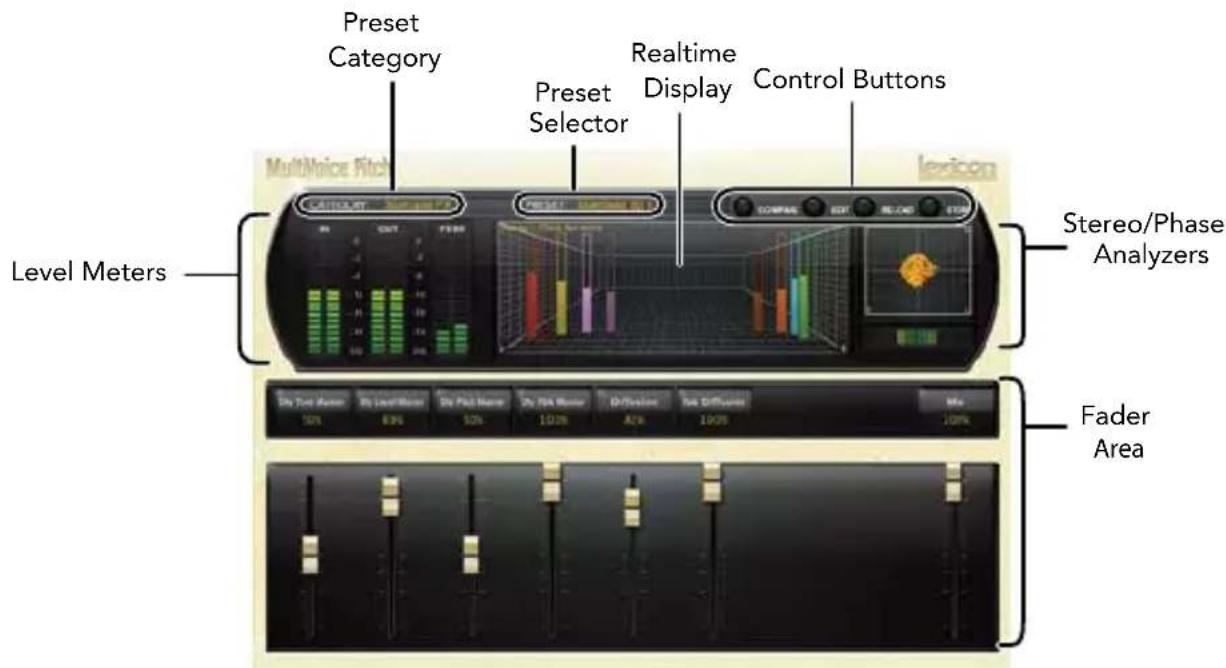
When the plug-in is instantiated, you will see a window that looks something like this:
Level Meters
Shows the input, output and feedback levels. The Feedback meters measure the energy level being fed back into the beginning of the delay line.
Preset Category
Presets for the algorithm are grouped into categories to make them easier to find. Clicking in this area will show the list of categories. Selecting a category will load the presets for that category in the Preset Selector.
Preset Selector
Displays the list of presets within the selected category. Selecting a preset from the list will cause the preset to be loaded into the plug-in.
Realtime Display
Three unique visualizations help you to see inside the effect. See the "Realtime Display" section for more detailed information.
Control Buttons
These buttons are used to compare, edit, reload and store presets. This is explained in more detail in the "Control Buttons" section of this manual.
Stereo/Phase Analyzers
These tools provide a visual of the phase response and perceived stereo image of the processed signal. See the "Stereo/Phase Analyzers" section for more detailed information.
Fader Area
Parameter values are shown and controlled in this area. This is explained in more depth in the "Fader Area" section of this manual.
The Realtime Display
The realtime display window allows you to visualize the effect in three ways. While your ears will always be the primary tool in choosing and adjusting presets, the displays provide a direct way to see what's going on. Click anywhere in the realtime display window to change the view.

Off
This display mode shows only the algorithm name. It is the default view for the plug-in and requires the least amount of CPU cycles.
3-D Voice View
This display shows a 3-D view of each individual voice. Each voice (feedback or output) is displayed on screen using a vertical hollow frame. The frame is filled by the measured real-time level in the voice, and therefore, acts as a meter (0dB = full scale). The depth represents logarithmic delay time and the x axis represents pan.
Frequency
This display shows the frequency levels of the left and right output signals.
Live Impulse Response
This display shows a live impulse response of the left and right output signals.


natural_image
3D wireframe grid with colored vertical bars (no text or symbols)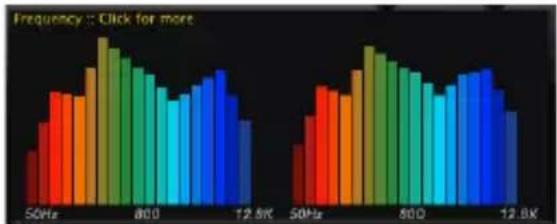
bar
| Frequency | 50Hz | 80.0 | 12.8K | |---|---|---|---| | Red Bar | 3.5 | 4.5 | 3.0 | | Orange Bar | 4.0 | 5.0 | 4.0 | | Green Bar | 4.5 | 6.0 | 5.0 | | Blue Bar | 3.0 | 4.0 | 3.5 | | Light Green Bar | 4.0 | 5.5 | 4.5 | | Dark Green Bar | 4.5 | 6.0 | 5.0 | | Grey Bar | 3.5 | 4.5 | 3.5 | | Dark Blue Bar | 4.0 | 5.0 | 4.0 | | Dark Blue Bar | 3.5 | 4.5 | 3.0 | | Dark Blue Bar | 4.0 | 5.5 | 4.5 | | Dark Blue Bar | 4.5 | 6.0 | 5.0 | | Dark Blue Bar | 5.0 | 6.5 | 5.5 | | Dark Blue Bar | 4.5 | 6.0 | 4.5 | | Dark Blue Bar | 4.0 | 5.5 | 3.5 | | Dark Blue Bar | 3.5 | 4.5 | 2.5 | | Dark Blue Bar | 4.0 | 5.0 | 3.0 | | Dark Blue Bar | 4.5 | 5.5 | 3.5 | | Dark Blue Bar | 5.0 | 6.0 | 4.0 | | Dark Blue Bar | 4.5 | 6.5 | 4.5 | | Dark Blue Bar | 4.0 | 7.0 | 5.0 | | Dark Blue Bar | 3.5 | 7.5 | 4.5 | | Dark Blue Bar | 4.0 | 8.0 | 5.0 | | Dark Blue Bar | 4.5 | 8.5 | 5.5 | | Dark Blue Bar | 5.0 | 9.0 | 6.0 | | Dark Blue Bar | 4.5 | 9.5 | 6.5 | | Dark Blue Bar | 4.0 | 10.0 | 7.0 | | Dark Blue Bar | 3.5 | 10.5 | 7.5 | | Dark Blue Bar | 4.0 | 11.0 | 8.0 | | Dark Blue Bar | 4.5 | 11.5 | 8.5 | | Dark Blue Bar | 5.0 | 12.0 | 9.0 | | Dark Blue Bar | 4.5 | 12.5 | 9.5 | | Dark Blue Bar | 4.0 | 13.0 | 10.0 | | Dark Blue Bar | 3.5 | 13.5 | 10.5 | | Dark Blue Bar | 4.0 | 14.0 | 11.0 | | Dark Blue Bar | 4.5 | 14.5 | 11.5 | | Dark Blue Bar | 5.0 | 15.0 | 12.0 | Frequency: Click for more
The Stereo/Phase Analyzers
These analysis tools provide visualizations of the output signal's stereo image, panning, and phase response.

Lissajous Figure Window
This window shows the width and panning of the effects stereo image. The width of the stereo image is displayed by how far out, from center, the lines spread. Therefore, a mono effect signal panned center would be represented by a thin vertical line and an extremely wide spread would indicate inverted mono and may have mono compatibility problems. A rightward slant indicates effect voices have more energy on the right output as compared to the left and a leftward slant indicates the effect voices have more energy on the left output as compared to the right.
Stereo Width Meter
This meter shows the perceived width of the stereo image in a different way. A mono signal would show no level. A true stereo signal will display a wider bar, while inverted mono will display at the maximum width. The widest signals may exhibit problems with mono compatibility, so they should be monitored. The left and right side of this meter will always show identical level. The greater the meter level, the wider the stereo image will be perceived.
The Fader Area
The fader area may be populated by up to nine faders. This illustration shows what may be found for each fader.

Parameter Name
Shows the parameter being adjusted.
Parameter Value
Shows the current value of the parameter. This field may be directly edited.
Modifier Button
This button only appears for certain types of parameters. It controls aspects of the parameter.
Fader
Changes the value of the parameter. May be dragged, control-dragged (for higher resolution) or may be controlled by the mouse wheel.
The Control Buttons
These buttons let you access all of a preset's parameters, manage presets, and compare changes you've made to the original settings.

Compare
The Compare button temporarily resets all parameters to the original preset value. It is used to get back to the original preset and quickly audition your edits verses the original preset. When compare is on, all parameters are frozen and cannot be changed. Turning compare off returns you to your edits. Choosing a different preset cancels compare mode.
Edit
Clicking the Edit button enters "Pro" mode. Here you can adjust all parameters and configure the soft row. See the "Edit Navigation and Full Edit Mode" section for more detailed information.
Reload
Clicking the Reload button reloads the current preset, overriding all user edits.
Store
The Store button allows you to create and manage user presets. See the "Storing and Managing Presets" section for more information.
Edit Navigation and Full Edit Mode
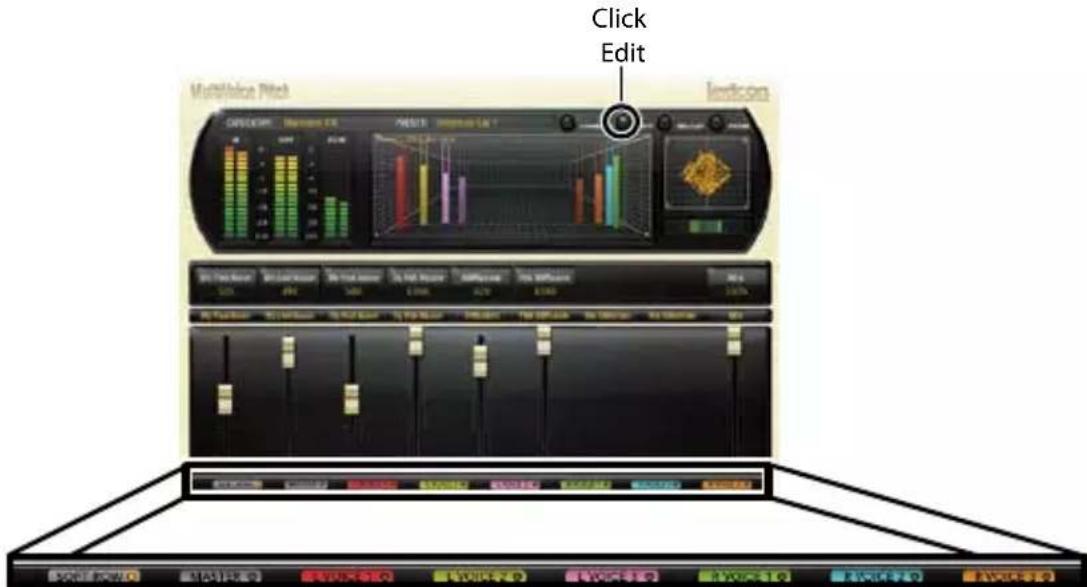
When the Edit button is clicked, an additional row of buttons appear along the lower portion of the plug-in. Clicking one of the buttons will bring up an edit page holding parameters related to the button name. Those parameters may be edited until the desired sound is achieved.
The Soft Row
When the plug-in is first instantiated, a number of parameters appear. This page of parameters is called the "Soft Row". These parameters were chosen as being the most useful parameters for a particular preset. In most cases, we've tried to make a consistent set of choices, but many presets call for different parameters. For most people, the soft row is all that's needed.
Customizing the Soft Row
The soft row assignments are part of the preset. You can change the soft row assignments and store the preset as a User Preset. To do this, press the Edit button to go into edit mode then press the button for Soft Row. The plug-in will look something like this:

In the modifier button area, just above the fader, you will see the name of the parameter that is assigned to that position in the soft row. Clicking on any of these parameter buttons reveals a list of all the algorithm's parameters. Select a parameter (or "no selection") from the list, and that parameter is then assigned to the soft row. The assigned parameter is still available on its original edit page, but now it appears in the soft row as well.
You can assign any parameter to the soft row. You can even assign the same parameter more than once. When you're done, store it as a User Preset and you'll always be able to recall the preset with your customized soft row.
Master Edit Page
To enter the Master Edit page, click the Edit button to display the edit page buttons, then click the Master button. A page similar to this will appear:

- Click Master
Each parameter is described in the "Parameters" section starting on page 22.
The Master page allows you to adjust the master levels of the algorithm. For example, you can adjust the overall mix level (wet/dry mix) and diffusion here.
This page also gives you global control over some of the individual voice parameters. For example, adjusting the delay time master on this page will re-adjust the delay time parameter for all delay voices.
Other controllable parameters on this page are: feedback diffusion, delay level master, delay feedback master, and delay pitch master.
Voice Edit Pages
The MultiVoice Pitch plug-in has multiple Voice Edit pages. To enter one of the Voice Edit pages, click the Edit button to display the edit page buttons, then click the Voice button for the voice in which you would like to edit. A page similar to this will appear:
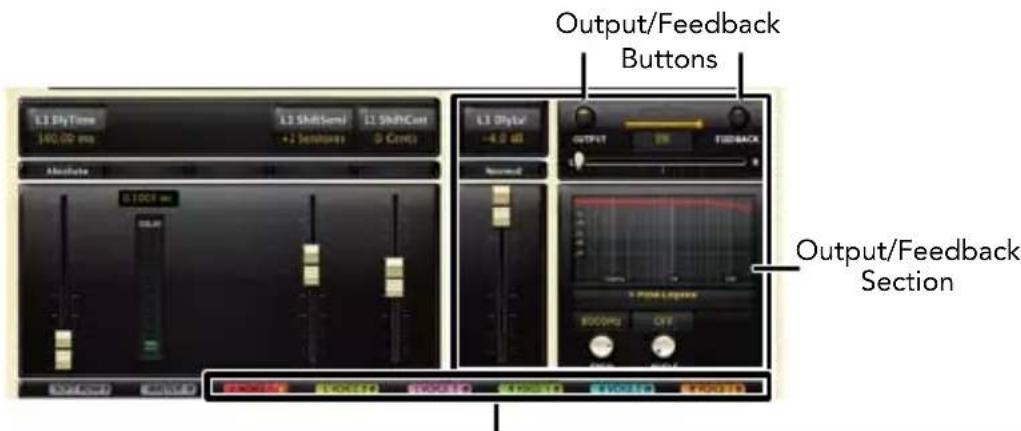
- Click one of the Voice buttons
Each parameter is described in the "Parameters" section starting on page 22.
Each Voice Edit page contains the same parameters, but controls a different voice.
The Output/Feedback section allows you to edit the output and feedback parameters for each voice. The Output and Feedback buttons allow you to toggle between these two sections. Therefore, these Feedback and Output section parameters are independently controlled. Here you can control the output and feedback level, polarity, pan and filtering for each voice.
Presets
The PCM Native plug-ins come with a large complement of Factory Presets. These presets are grouped in categories that make it easier for you to find the sound you need. Most presets also come with several variants that may save you a lot of editing time.
Loading a Preset
The preset category is chosen from the drop-down menu in the upper-left portion of the edit window. When you select a category, the preset menu is updated to show availability of the new presets within the selected category. An initial preset will be loaded from the category. It will be the first preset in the list unless you have previously visited the category. In that case, it will be the last preset you loaded from that category.
Click here
to select
a category
Click here
to select
a preset
Storing and Managing Presets
When you load a Lexicon® plug-in, the overall appearance may be something like this:
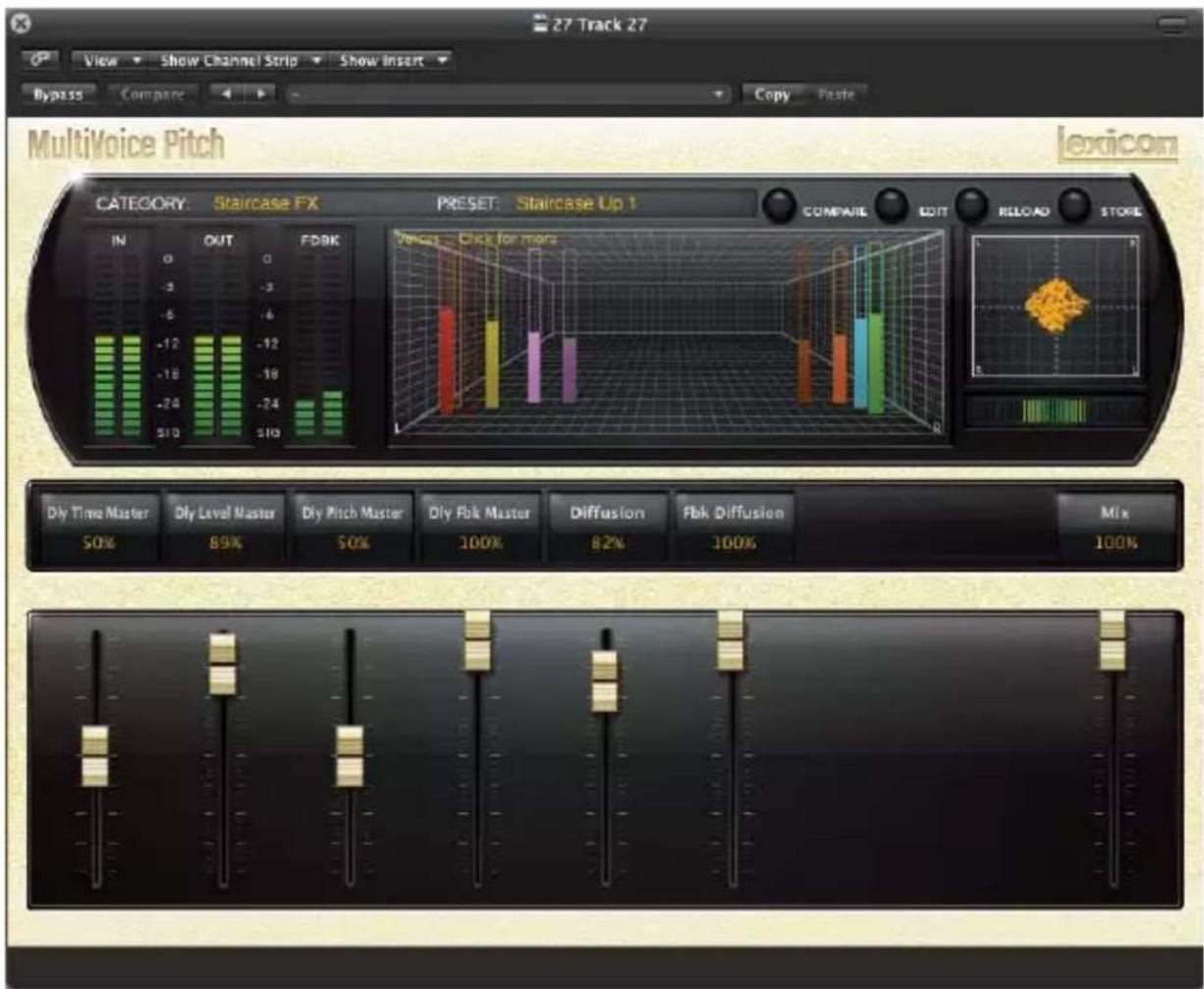
You will notice that the Lexicon plug-in (with the gold border) is embedded within a larger window provided by the DAW. Appearance will differ from host to host (this example is from Logic®). Oftentimes, the DAW itself provides the ability to save presets. The presets saved by the DAW can only be used with the DAW that saved them. If you work with multiple DAWs, this would be a problem. However, Lexicon® solves this problem with the use of Portable Presets.
Portable Presets
When you store presets with the Lexicon Store button (shown below), your presets are available to all DAWs on your machine. With only a little effort, you can also share them with other machines, even when going between Mac and PC.
If you've made some edits you'd like to save as a User Preset, press the Store button on the upper portion of the plug-in editor. You'll see a screen that looks like this:
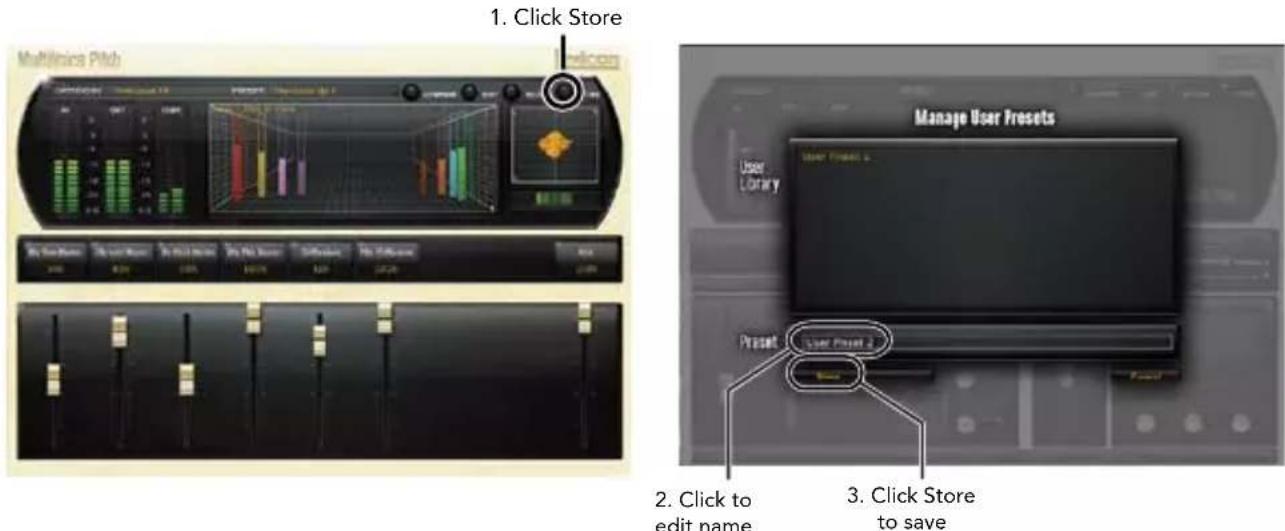
2. Click to edit name
The upper field contains the list of User Presets that have already been created for this algorithm. Presets appear in alphabetical order. Click the name field to edit the name of the preset. Once done, click the Store button.
The lower field contains the name of the preset that was loaded before you began editing. You can easily click in this field and change the name to anything you like. Once you have the appropriate name, click the Store button and the preset will be saved. If you decide not to save the preset, pressing the Cancel button will return you to the editor without saving the preset.
If you select one of the existing presets in the library, you can replace or delete that preset.
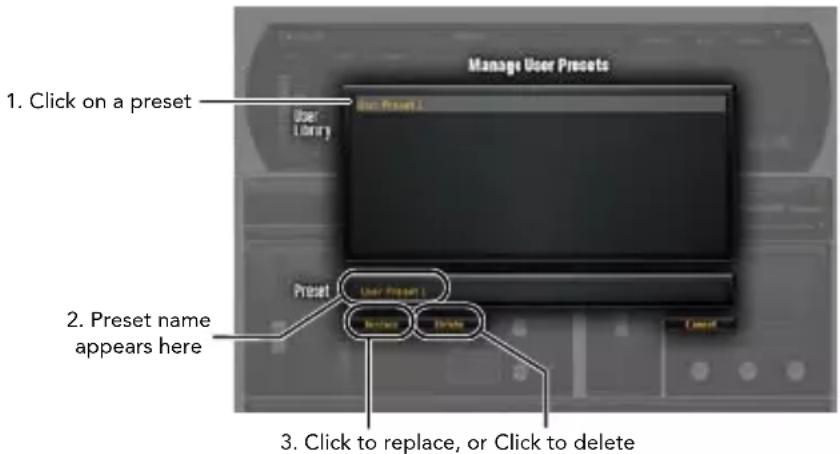
Where are presets stored?
On the Mac, User Presets are stored in:
"Home"/Library/Application Support/Lexicon/Native/User Presets/"AlgorithmName"
("Home" is the name of the account you're logged in under. "AlgorithmName" is the name of the plug-in.)
On Windows Vista/Seven, User Presets are stored in:
Users/"Username"/AppData/Roaming/Lexicon PCM Native/ UserPresets/"AlgorithmName"
("Username" is the name of the account you're logged in under. "AlgorithmName" is the name of the plug-in.)
On Windows XP, User Presets are stored in:
Documents and Settings/"Username"/Application Data/Lexicon PCM Native/User Presets/"AlgorithmName"
("Username" is the name of the account you're logged in under. "AlgorithmName" is the name of the plug-in.)
Note: The AppData and Application Data folders are Windows system folders and are hidden by default. Windows must be configured to "show hidden files and folders" to view these folders.
Tempo Mode Presets
Some presets will contain “(T)” in the preset name. These are tempo mode presets. The delays in these presets respond (or are synced) to the tempo of the DAW. They are best used when the tempo of the project actually reflects the tempo of the musical material (MIDI sequences and such). In those cases, the tempo component of the preset will reinforce the tempo in some way.
Getting the most out of your computer
The PCM Native plug-ins are written to be efficient, and most computers will run more copies than you may need. But if you find yourself needing to squeeze a little bit more out of your CPU, you can take the following simple steps:
- Turn off the active realtime display. The active display window can represent your effect in real time in several ways. However, this display consumes some of your computer's processing power. If you click until you reach the static display, your computer will have more CPU power available.
- Close the plug-in editor. Unless you're actively controlling your mix in realtime, you don't need the editor after you've made the appropriate settings. All those knobs, faders and displays require processing power. You can always reopen the editor if you need to edit.
The lexicon®
Heritage
Lexicon ^® occupies a unique position as a leading innovator in both professional and consumer audio industries. Since the release of the first digital delay, Lexicon has stood at the forefront of digital audio with a reputation as a manufacturer of exceptional audio and home theater products and an inventor of new technologies. Years of research, development, and learning allow us to continue expanding the boundaries of the listening experience.
Our professional products are prominent in the creation of worldwide music, television, and film productions. These products have won numerous awards, including an Emmy® and numerous TEC awards, including a TEC Hall of Fame award for the Lexicon Delta T-101, the world's first digital delay. Lexicon processors have been embraced as the standard in professional signal processing since the introduction of the 480L Digital Effects Processor, which has retained tremendous popularity for the past 22 years. It has since been replaced as the standard in professional signal processing by the 960L Multi-Channel Digital Effects System and the PCM96 Series Reverb/Effects Processors, which have themselves garnered an impressive following of producers, artists, and engineers.
Growing demand for proprietary Lexicon technologies has led to its appearance in numerous applications, with dramatic results. Our processing is relied upon to enhance the sound of prestigious live halls and venues.
Knowingly or unknowingly, you experience Lexicon products and technologies on a daily basis. Chances are that Lexicon processing was involved in the television program you watch at home, the film you see at the cinema, or the song you listen to on the radio. From the initial tracks to your listening room or automobile, Lexicon is part of the process that brings these recordings to life. Our commitment to the audio professional and content delivery ensures an unbroken chain between the artist and the audience. Now hear this...
The Algorithm

MultiVoice Pitch
The MultiVoice Pitch algorithm is a pitch shifter with a twist! This algorithm works great for thickening up vocals, creating lush shifting effects, or creating far-out special effects, such as effects containing multiple delay lines that can shift up and/or down while locked to session tempo.
This algorithm is a multi-voice delay, which contains an independently controlled pitch shifter on each voice and provides feedback control capabilities, which are used for creating arpeggios. Pitch can be adjusted in semitones (-12 to 12) and/or cents (-50 to 50).
The MutiVoice Pitch algorithm has 6 total delay voices (3 delay voices per input channel). Each voice has independently adjustable delay time of up to 4.75 seconds, pitch control and independent output and feedback control.
Each of the delay voice's output and feedback paths include an independently selectable filter, adjustable filter frequency, filter bandwidth, filter shelf, polarity, level and pan control.
The Parameters
The PCM Native plug-ins contain presets covering a wide range of needs, but you can refine and customize any preset by adjusting its parameters. Parameters are the building blocks within each preset that determine how it sounds and behaves.
Each PCM Native plug-in contains a set of parameters, and a variety of those parameters are combined to create a preset.
Following are all the algorithm parameters you can edit in the PCM Native Vintage Plate Plugin. Note that sometimes parameter names are abbreviated when they appear onscreen, and they may have prefixes indicating what channel they control (for example, the Feedback Level parameter for voice 1 may appear as "L1 FbkLvl").
Delay Master
Mix
Mix is the proportion of wet (processed) signal to dry (unprocessed) signal.
Diffusion
Input diffusion is the first part of processing for any signal entering a delay. It can be described as a smearing or softening of the signal and is typically used to lessen the impact of strong transients.
Feedback Diffusion
Feedback Diffusion is similar to Input Diffusion, except that it is applied to a delayed signal that is being added back into the input.
Delay Level Master
Controls all delays in the algorithm. Each voice has its nominal gain value adjusted by this percentage.
Delay Time Master
Controls all delays in the algorithm. Each voice has its nominal delay time adjusted by this percentage.
Delay Feedback Master
Controls all delays in the algorithm. Each voice has its nominal feedback gain adjusted by this percentage.
Delay Pitch Master
This parameter controls all pitch levels in the algorithm. Each voice has its pitch level value adjusted by this percentage.
Voice Parameters
Delay Time
Delay time defines the time offset of a delay voice. This parameter can be adjusted in one of two ways, they are:
• Absolute: Adjusts the delay time in seconds/milliseconds.
- Tempo: Adjusts the delay time in fractions of tempo (quarter note, eighth note, etc.). This tempo is synced to the DAW's session tempo.
Delay Level
This parameter adjusts the output level of the delay line within each voice.
Shift Semitone
This parameter controls the amount of pitch shifting per voice and is adjustable between -12 Semitones and +12 Semitones. This parameter can be used in conjunction with the Shift Cent parameter.
Shift Cent
This parameter controls the amount of pitch shifting per voice and is adjustable between -50 Cents and +50 Cents. This parameter can be used in conjunction with the Shift Semitone parameter.
Feedback Level
This parameter determines the feedback level for a particular voice. It is controlled independently of the voice's output level.
Output Pan
Routes the post-filter delay voice across the left-right soundstage.
Feedback Pan
This parameter controls the left-right soundstage of the feedback portion of the delay line signal.
Output Filter Type
This parameter allows you to assign a filter on the output of a delay voice. There are 6 selections available, they are: 1 Pole Lopass, 1 Pole Hipass, 2 Pole Lopass, 2 Pole Hipass, Bandpass, and Notch.
Output Frequency
This parameter lets you set the cutoff frequency of the output filter. The audible effect of this is determined by the Output Filter Type parameter.
Output Bandwidth
When Bandpass or Notch have been selected, this parameter allows you to set the bandwidth of an output filter. Bandwidth is specified in octaves or fractions thereof.
Output Shelf
This parameter affects all output filter types. It allows a certain amount of unfiltered audio to be combined with the filtered audio. This effectively lowers the effect of the filter. Another way of looking at it is that it lessens the normal filter slope of 12 dB per octave. Unlike the traditional biquad filter, the shelf is effective for all filter forms.
Feedback Filter Type
This parameter allows you to assign a filter on the feedback portion of the signal within a delay voice. There are 6 selections available: 1 Pole Lopass, 1 Pole Hipass, 2 Pole Lopass, 2 Pole Hipass, Bandpass, and Notch.
Feedback Frequency
This parameter lets you set the cutoff frequency of the feedback filter. The audible effect of this is determined by the Feedback Filter Type parameter.
Feedback Bandwidth
When Bandpass or Notch have been selected, this parameter allows you to set the bandwidth of a feedback filter. Bandwidth is specified in octaves or fractions thereof.
Feedback Shelf
This parameter affects all feedback filter types. It allows a certain amount of unfiltered audio to be combined with the filtered audio. This effectively lowers the effect of the filter. Another way of looking at it is that it lessens the normal filter slope of 12 dB per octave. Unlike the traditional biquad filter, the shelf is effective for all filter forms.
Lexicon Plug-Ins & Upgrades
Available Lexicon Plug-Ins
Please visit www.lexiconpro.com for the latest information on available Lexicon plug-ins.
Upgrading
Please visit www.lexiconpro.com for the latest information on upgrading to the PCM Native Effects Bundle or PCM Total Bundle.
lexicon®
by HARMAN
www.lexiconpro.com
Harman
8760 South Sandy Parkway, Sandy, Utah 84070, U.S.A.
Phone: 801.568.7660 | Fax: 801.568.7662
Questions or comments? Visit us at www.lexiconpro.com
©2012 Harman. All rights reserved.
Lexicon is a registered trademark of Harman.
All other trademarks are property of their respective owners.
All features and specifications are subject to change.
PCM MultiVoice Pitch Manual v0.1





- The Lexicon® Legacy continues...
- ...with the PCM Native Multivoice Pitch
- Congratulations and thank you
- Quick Start
- Included Items
- Table of Contents
- Installation....1
- First Look—The User Interface......2
- Presets....13
- Tempo Mode Presets....17
- Getting the most out of your computer..17
- The Algorithm....20
- The Parameters 22
- Installation
- Install the Plug-in
- iLok License
- First Look—The User Interface
- Overview
- Level Meters
- Preset Category
- Preset Selector
- Realtime Display
- Control Buttons
- Stereo/Phase Analyzers
- Fader Area
- The Realtime Display
- Off
- 3-D Voice View
- Frequency
- Live Impulse Response
- The Stereo/Phase Analyzers
- Lissajous Figure Window
- Stereo Width Meter
- The Fader Area
- Parameter Name
- Parameter Value
- Modifier Button
- Fader
- The Control Buttons
- Compare
- Edit
- Reload
- Store
- Edit Navigation and Full Edit Mode
- The Soft Row
- Customizing the Soft Row
- Master Edit Page
- Voice Edit Pages
- Presets
- Loading a Preset
- Storing and Managing Presets
- Portable Presets
- Where are presets stored?
- Tempo Mode Presets
- Getting the most out of your computer
- The lexicon®
- Heritage
- The Algorithm
- MultiVoice Pitch
- The Parameters
- Delay Master
- Mix
- Diffusion
- Feedback Diffusion
- Delay Level Master
- Delay Time Master
- Delay Feedback Master
- Delay Pitch Master
- Voice Parameters
- Delay Time
- Delay Level
- Shift Semitone
- Shift Cent
- Feedback Level
- Output Pan
- Feedback Pan
- Output Filter Type
- Output Frequency
- Output Bandwidth
- Output Shelf
- Feedback Filter Type
- Feedback Frequency
- Feedback Bandwidth
- Feedback Shelf
- Lexicon Plug-Ins & Upgrades
- Available Lexicon Plug-Ins
- Upgrading
- lexicon®
Brand : LEXICON
Model : PCM Native MultiVoice Pitch
Category : Audio Mixer