
MEDUSA - Mp3 player Sunstech - Free user manual and instructions
Find the device manual for free MEDUSA Sunstech in PDF.


| Product type | MP3 Player |
| Brand | Sunstech |
| Model | MEDUSA |
| Dimensions | Approximately 4 x 1 x 0.5 cm |
| Weight | Approximately 30 g |
| Storage capacity | Internal flash memory (4GB, 8GB, or 16GB models depending on version) |
| Screen | Monochrome LCD or OLED display (depending on version) |
| Supported audio formats | MP3, WMA, WAV |
| Power supply | Rechargeable lithium-ion battery (approx. 200 mAh, 3.7 V) |
| Battery life | Up to 12 hours of playback |
| Connectivity | USB 2.0 for file transfer and charging; 3.5mm headphone jack |
| Main functions | Play/pause, volume, folder navigation, repeat, shuffle, playlist, FM radio (depending on version) |
| Voice recording | Yes, via built-in microphone (depending on version) |
| Equalizer | Multiple presets: Normal, Rock, Pop, Classical, Jazz, etc. |
| Care and cleaning | Wipe with a soft, dry cloth. Do not use abrasive products. |
| Safety | Do not expose to water or moisture. Use only the provided USB cable for charging. |
| Spare parts and repairability | Battery replaceable by a professional; other parts not available separately. |
| General information | 2-year warranty. Full manual available online. Made in China. |
Frequently Asked Questions - MEDUSA Sunstech
User questions about MEDUSA Sunstech
0 question about this device. Answer the ones you know or ask your own.
Ask a new question about this device
Download the instructions for your Mp3 player in PDF format for free! Find your manual MEDUSA - Sunstech and take your electronic device back in hand. On this page are published all the documents necessary for the use of your device. MEDUSA by Sunstech.
USER MANUAL MEDUSA Sunstech
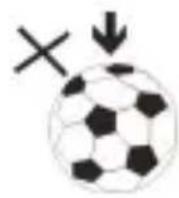
- DO NOT place objects on top of the device, as objects may scratch the device.

natural_image
Simple diagram with a cross and downward arrow, no text or symbols present- DO NOT expose the device to dirty or dusty environments.
- DO NOT place the device on an uneven or unstable surface.
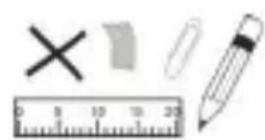
- DO NOT insert any foreign objects into the device.

- DO NOT expose the device to strong magnetic or electrical field.
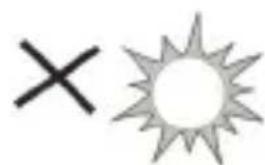
natural_image
Simple graphic with a black X and a sunburst shape (no text or symbols)- DO NOT expose the device to direct sunlight as it can damage the device. Keep it away from heat sources.
60°C(140°F)

- DO NOT store your device in temperatures higher than 40^ C(104°F). The internal operating temperature for this device is from 20^ C(68°F) to 60^ C(140°F).

natural_image
Simple illustration of a cloud with raindrops and a black X symbol (no text or labels)- DO NOT use the device in the rain.

natural_image
Simple line drawing of a hand holding a mobile phone inside a circle (no text or symbols)- Please check with your Local Authority or retailer for proper disposal of electronic products.

natural_image
Symbolic illustration of a person sitting on a chair with a cross and downward arrow, no text or numbers present.- The device and adaptor may product some heat during normal operation of charging. To prevent discomfort or injury from heat exposure, DO NOT leave the device on your lap.

- POWER INPUT RATING: Refer to the rating label on the device and be sure that the power adaptor complies with the rating. Only use accessories specified by the manufacturer.

natural_image
Simple line drawing of a hand cleaning a paper with a spray bottle and a cross mark (no text or symbols)- Clean the device with a soft cloth. If needed, dampen the cloth slightly before cleaning. Never use abrasives or cleaning solutions.

- Always power off the device to install or remove external devices that do not support hot-plug.

flowchart
graph TD
    A["Add Card"] --> B["Mobile Device"]
    B --> C["Hand"]
- Disconnect the device from an electrical outlet and power off before cleaning the device.
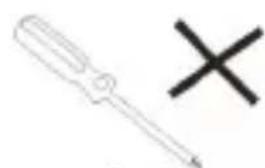
natural_image
Simple line drawing of a screwdriver and a cross symbol (no text or labels)- DO NOT disassemble the device. Only a certified service technician should perform repair.

- The device has apertures to disperse heat. DO NOT block the device ventilation, the device may become hot and malfunction as a result.

flowchart
graph TD
    A["Process Step"] --> B["Output 1"]
    A --> C["Output 2"]
    A --> D["Output 3"]
    A --> E["Output 4"]
- Risk of explosion if battery replaced by an incorrect type. Dispose of used batteries according to the instruction.

natural_image
Simple diagram showing a black downward arrow pointing to a whiteboard, with a wall-mounted icon nearby (no text or symbols)- PLUGGABLE EQUIPMENT: the socket-outlet shall be installed near the equipment and shall be easily accessible.
FUNCTION
- Refined exterior design
Unique design fits for hand. - Multi file format support
This player recognizes MP3, WMA and video in AMV formats. - FM stereo radio
Various functions. Auto search or manual tuning and FM recording.
- e-Documents
Support TXT format E-Book reader function.
- Recorder / Repeat
Voice can be recorded and saved in WAV format.
- Equalizer
Normal, Rock, Pop, Classic, Soft, Jazz, Bass
- Play modes
Normal, Single Repeat, Play Catalog, Repeat Catalog, Repeat All, Shuffle, Lyric.
- Save Mode
The player provides Sleep and battery saving mode, more convenience for you!
• Built-in Microphone
1. Know your player
- Last/Vol-: Volume Decrease /Previous Music /Rewind
- Earphone: Standard Earphone
- MENU/Mode: Enter main menu or exit from current menu.
- VOL: Volume Adjustment
- USB: USB to charge and connect to a PC
- Vol+/ Next: Volume Increase / Next Music / Fast-forward
- Reset: Reset
- PLAY: Power On/Off/Play/Pause/Stop
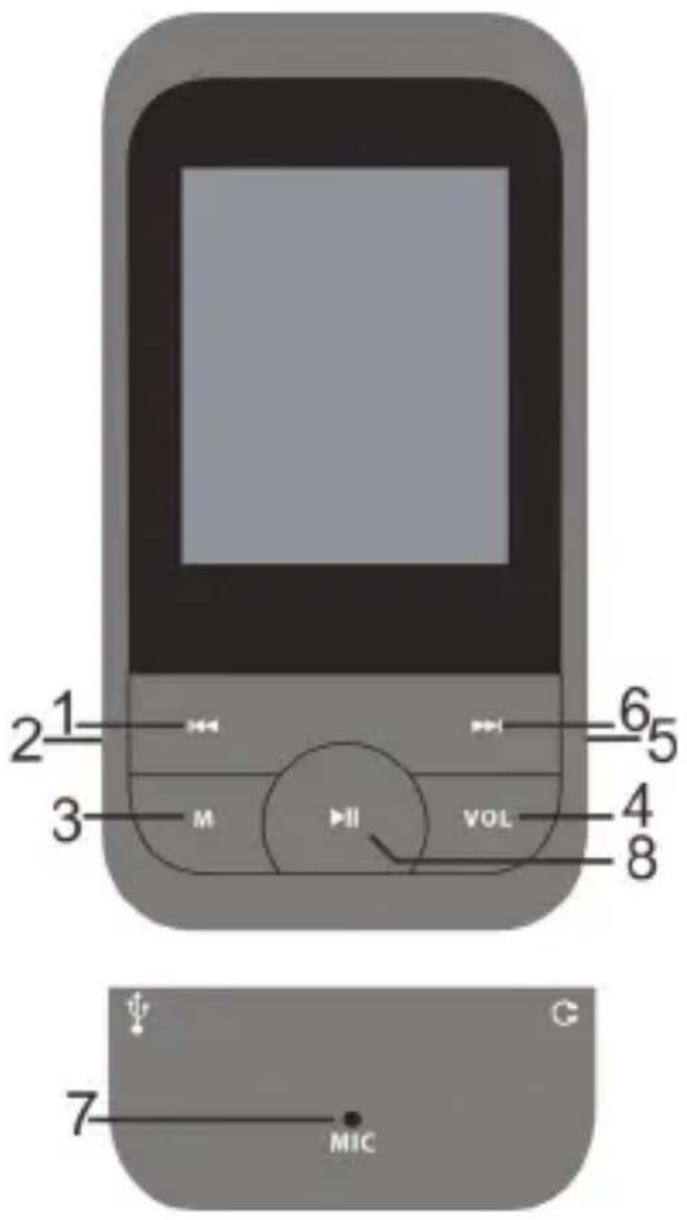
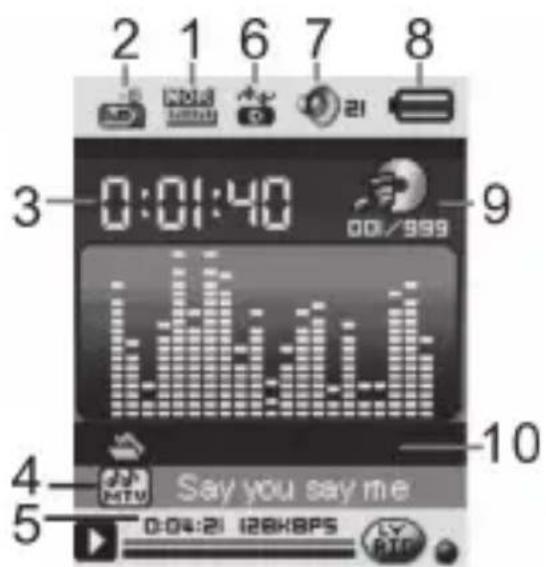
- Displayer
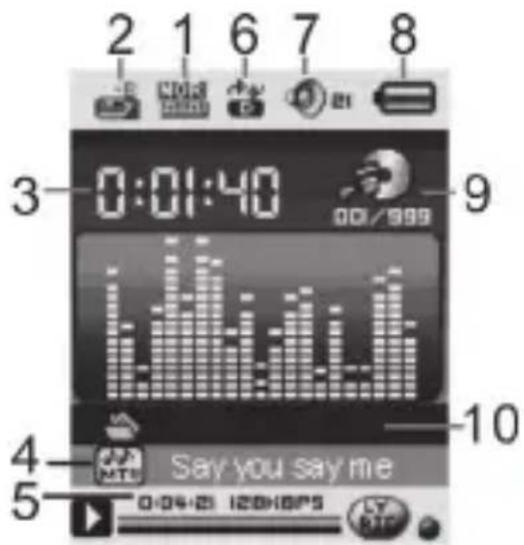
- Sound effect mode
- Repeating/Following/Correlation
- Playing time
- Document format
- Song's time
- Display modes
- Volume
- Power display
- Song's No.
- Songs/singer
3. Battery Level
The power displays full. With the increase the battery indicator will be reduced.
When the battery is almost /completely run icon will be completely white and the unit should be charged to through of the mini USB.
Without the use of the player, please try to
4. Basic Functions
A. Volume Adjust
Press the VOL key to enter the volume selection, short press Next / Last button to increase or decrease the volume.
B. Switch on/off
Press and hold Play to switch on when the player is off. Press and hold Play to switch off when the player is on.
C. Play & Pause; exit from submenu
On music mode, Press Play to play music.
When playing music, press Play to pause; press and hold to stop playing.
5. Play music
A. Simple actions
- Plug earphones into earphone outlet.
- Press and hold Play to switch the player on, then enter Music Mode and press Play to play music.
- Select a Track: Last: Previous Track;
Next: Next Track.
B. Equalizer Mode
- When playing music
- Press MODE to enter in submenu
- Push Next choosing Equalizer Mode;
- Press Mode to entry 'Equalizer Mode' submenu.
- Detail of each equalizer (EQ):
Natural, Rock, Pop, Classical, Soft, Jazz, DBB - Push Next to select an EQ and press Mode to confirm.
C. Synchronous Lyric Display
The player supports lyric files with *.LRC suffix, and displays synchronously.
H o w t o u
Please make sure the lyric has the same name as the music file. Press MODE and hold for a few seconds.
For example:
Music file: Journey.mp3
Lyric file: Journey.lrc
6. Record
A. Recording in "Record mode"
- Enter the main menu:
- Push Next scroll to Record mode
- Push Mode to select Record mod, screen will display as below:
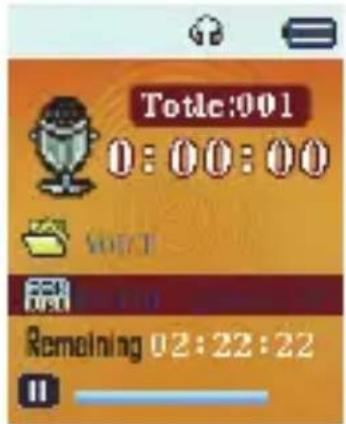
Press Play to start / pause recording.
Press Mode for a few seconds to save the recording.
B. Select Record Type
- When in the interface of 'Record stop'
- Press Mode to enter record submenu

- Push next scrolling into 'Record type' submenu then presses Mode to select it.
32K BPS, 64K BPS, 128K BPS, 256K BPS. - Press Next to choose appropriate type and press Mode to select it
- Press Play to start recording.
7. Voice
- Enter main menu
- Push Next to choose 'Play mode'
- Push Mode to enter playing interface
- Press Play again to play the file.
Choose voice record files:
Last: Select previous file;
Next: Select the next file;
-
When in the interface of 'Voice stop'
-
Press MODE to enter submenu.
Local Folder, Delete file, Delete all, Exit.
-
When in the interface of 'Voice play'
-
Press MODE to enter submenu.
Repeat, Replay mode, Exit.
8. Using FM radio

- Enter main menu;
- Push Next scrolling "FM Mode"
- Push Mode to enter
- Auto search "20 pressets maximum"
Hold Last/Next 2 seconds to start the channel search in 100 KHz interval upwards or downwards. To stop tuning, push Last/Next. - Manual tuning
Push Last: Downward 100 KHz
Push Next: Upward 100 KHz - Save current channel:
Push Mode to enter FM submenu
Press Mode again to save channel. - Listening to a saved channel:
You can press Play to choose a saved channel. - Record.
a. Press PLAY to start recording.
b. Press Mode for a few seconds to save the record.
c. When in the interface of 'Record stop'
d. Press MODE to enter record submenu
9. Setup
A. Enter Settings
You can set system performances here, options may vary in different versions of the firmware.
- Entry main menu
- Push Next Scrolling into "Settings"
- Press Mode to entry.
B. Options introduction:
| LCD set Screensaver setting | |
| Language Choosing different languages | |
| Power off | Setting a count down time in minutes, the player will shut off when time out.(off time) (Sleep time 0-120 minutes) |
| Online mode | Includes Multiply driver, Normal only, Encrypted only, Card only |
| Memory info Check memory space and usage status | |
| Firmware Ver. Version of player's firmware | |
| Firmware Use for upgrade firmware | |
| upgrade | |
| Restore Parameters | Restore factory settings |
| Exit Exit from Setting interface | |
10. Play Videos
- Enter main menu, press Next scrolling to "MOVIE" (Only available to AMV files):
- Press MODE to enter
- Press PLAY to start video.
natural_image
Landscape view of rolling green fields under a clear blue sky with scattered clouds, no visible text or symbols.- When in the interface of 'Movies stop'
- Press MODE to enter submenu.
Local Folder, Delete file, Delete all, Repeat Folder, Repeat Folder, Repeat all, Random ,intro ), Exit.
11. E-book
- On main menu, press Next/Last choosing e-Document,
- Press Mode to enter corresponding submenu:
- Press Next or Last choosing the document you want to read, then press Play to read it.
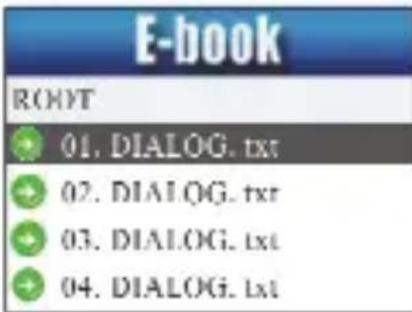
Note: If you are in 'Manual play' you must scroll text via LAST or NEXT; texts can be scrolled automatically under 'Auto play' set.
We have two menus.
In stop mode: Local folder , playback set, Deleted file , delete all , exit.
In play mode: Bookmark select ,bookmark delete ,bookmark add , exit.
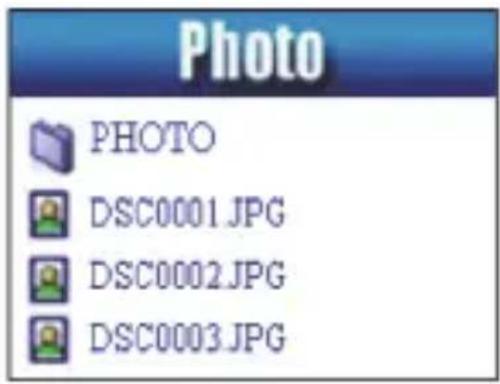
12. Photo Browsing
This function is only available for JPEG and BMP format.
- In the main menu, press Last/Next choosing Browsing pictures.
- Press Mode to enter corresponding submenu.
- Press Last or Next choosing the document you want to read, then press Play to play it.
- In stop mode we have a submenu.
Local folder, Playback set (Manual play, autoplay), delete file, delete all, exit.

13. Game
Enter main menu

14. Using USB Disk
The player is also a standard USB disk. Supported by Windows / Mac/XP.
The player supports USB power supply, can be used without using
the battery when connected to a PC. To enter, when in' waiting mode' press Mode return to main menu and choose the operation you need.
When connected to PC, The player works on the three modes below:

15. Other Settings
A. Play mode (Play submenu)
You can choose different play mode (repeat, shuffle) when playing music or recorded files.
The first option on Play submenu is 'Play mode'
- REPEAT: Normal, Repeat One, Folder, Repeat Folder, Rep Random, Intro.
B. Replay mode (Play submenu)
Enter from Play submenu:
○ A-B Repeat
- When play music or recorder
- Push Mode to entry play submenu
- Push Next scrolling into 'Repeat Mode' option
- Push Mode to enter
Repeat Mode: 'A' of Symbol flashes, waiting for starter
- Push Next to select 'A'
'B' of symbol flashes, waiting ender B
- Push Next to select B. Symbol fixed and starting repeat between A-B, while playing,
you can push Last to reset A point.
16. Troubleshooting
| No Power Make sure you have switched the player on |
| No Sound Make sure the volume is not at 0 and that the |
| earphones are connected correctly.Please make sure the earphone jack is clean Damaged MP3 files may have background noise and may not even play. | |
| Strange characters on display | Make sure you have chosen the correct language |
| FM has bad performance | Adjust place of player and earphoneSwitch off nearby power appliances.Earphone is used as antenna |
| Cannot Download Music | Check USB cable, and make sure the player is properly connected to the PCCheck if the driver has been well installedMake sure there is sufficient memory |
Technical Specifications
| Dimension 43mm x | 84mm x 8mm | |
| Weight 26.2g | ||
| Screen | 1.8 TFT (128*160) | |
| Connecting to PC High Speed USB2.0 | ||
| Memory | Flash Memory: 2GB-8GB | |
| Voice Recorder Format | WAV(32K, 64K, 128K, 256Kbps) | |
| Music Formats MP3, WMA | ||
| MP3, WMA | Max. Output | (L) 10mW + (R)10mW (32Ohm) |
| MP3 Bit rate | 8K bps – 320K bps | |
| WMA | 5K bps – 384K bps | |
| Photo | Format | JPEG, BMP |
| Operate Temperature | 5 to 40 degree | |
| Multi-Languages Display | Simp Chinese, English, Portuguese, Japanese, Korean, Italian, French etc. | |
| Supported Systems | Windows / XP/Mac, etc. | |
Please note: Design and characters may change without prior notice.
Made in China
Warranty conditions
- The warranty of this product is for 2 years since the purchase date.
- The warranty will exclude breakdowns caused by bad use of the product, wrong installation or installation in not desirable places for a proper maintenance of the product, rips, updates of the products that are not the supplied by the brand, pieces wore away for its use or for not domestic or inappropriate use. Also are excluded breakdowns caused for manipulations of the products by people or companies alien to our company.
- For any request regarding the warranty terms, the purchase receipt must be attached.
Correct disposal of this Product
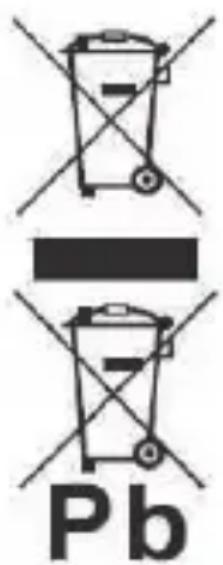
Waste Electrical & Electronic Equipment (WEEE)
Your product is designed and manufactured with high quality materials and components which can be recycled and reused.
This symbol means that electrical and electronic equipment, at their endof-life should be disposed of separately from your household waste.
Please dispose of this equipment at your local community waste collection/ recycling
centre.
In the European Union there are separate collection systems for used electrical and electronic products. Please help us to conserve the environment we live in!
DECLARATION OF CONFORMITY
Council Directive(s) to which conformity is declared:
Directive (2004/108/EC) - EMC Directive (2002/95/EC) - RoHS
Application of the Standards:
EN 55013: 2013
EN 55020: 2007+A11: 2011
EN 55022: 2010
EN 55024: 2010
EN EN61000-3-2: 2006+A1: 2009+A2: 2009
EN 61000-3-3: 2008
Manufacturer's name: AFEX SUNS, S.A.
Manufacturer's address: c/Metall 6-8, 08110, Montcada i Reixac
Type of equipment: MP4 Player
Trade: SUNSTECH
Model no.: MEDUSA
(Serial number range:170100001 - 170101010)
We, the undersigned, hereby declare under our sole responsibility that the specified equipment is in conformity with the above Directive(s) and Standard(s)
Place: Barcelona

(Signature)
Víctor Planas Bas
(Full name)
Date: 28 - November - 2016
General Manager
(Position)
sunstech ^1/2
MEDUSA

Manual del Usuario
FUNCIÓN 4
natural_image
Simple graphic with a black X and a sunburst shape (no text or symbols)natural_image
Simple illustration of a cloud with raindrops and a black X symbol (no text or labels)natural_image
Illustration of a hand holding a mobile phone inside a circle (no text or symbols)natural_image
Symbol of a person sitting on a chair with a cross and downward arrow, indicating no text or numbers present.natural_image
Simple line drawing of a hand cleaning a spray bottle with an 'X' mark (no text or symbols)natural_image
Simple line drawing of a button with an 'OFF' label on the side (no additional text or symbols)natural_image
Simple line drawing of a screwdriver and a cross symbol (no text or labels)flowchart
graph TD
    A[" "] --> B[" "]
    B --> C[" "]
    C --> D[" "]
natural_image
Simple line drawing of a download arrow pointing downward on a flat surface, with a small inset showing two dots (no text or symbols)- Indicador

natural_image
Landscape view of rolling green fields under a clear blue sky with scattered clouds, no visible text or symbols.- Descargando
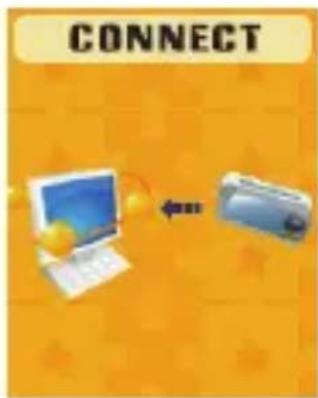
- Cargando
Directive (2004/108/EC) - EMC Directive (2002/95/EC) - RoHS
natural_image
Simple line drawings of a ruler, an eraser, a pencil, and a cross mark (no text or symbols)natural_image
Simple graphic with a black X and a sunburst shape (no text or symbols)natural_image
Simple weather icon showing a cloud with raindrops and a black X symbol (no text or labels)natural_image
Simple line drawing of a hand holding a mobile phone inside a circle (no text or symbols)natural_image
Symbol of a person sitting on a chair with an 'X' mark and a downward arrow, indicating no text or numbers present.natural_image
Simple line drawing of a hand cleaning a button labeled 'OFF' (no text or symbols beyond the label)
Normal, Rock, Pop, Classic, Soft, Jazz, Bass
- Modes de lecture
Normal, Single Repeat, Play Catalog, Repeat Catalog, Repeat All, Shuffle, Lyric.
- Visualisateur
Local Folder, Delete file, Delete all, Exit.
Repeat, Replay mode, Exit.
natural_image
Landscape view of rolling green fields under a clear blue sky with scattered clouds, no visible text or symbols.En mode d'arrêt: Local folder, playback set, Deleted file, delete all, exit.
En mode de lecture: Bookmark select, bookmark delete, bookmark add, exit.
12. Navigation des Photos
Local folder, Playback set (Manual play, autoplay), delete file, delete all, exit.
13. Jeu

DÉCLARATION DE CONFORMITÉ
Directive (2004/108/EC) - EMC Directive (2002/95/EC) - RoHS
natural_image
Simple diagram with a cross and downward arrow, no text or symbols presentnatural_image
Black and white soccer ball with a cross symbol and downward arrow, no text or labels present.natural_image
Simple graphic with a black X and a sunburst shape (no text or symbols)natural_image
Simple line drawing of a hand holding a mobile phone inside a circle (no text or symbols)natural_image
Symbol of a person sitting on a chair with an 'X' mark and a downward arrow, no text or numbers present.natural_image
Simple line drawing of a button with an 'OFF' label on the side (no additional text or symbols)natural_image
Simple line drawing of a wall-mounted switch with a downward arrow pointing to a flat surface (no text or symbols)Normal, Rock, Pop, Clássico, Suave, Jazz, Bass
Music file: Journey.mp3
Lyric file: Journey.lrc
6. Gravar.
7. Voz
natural_image
Landscape view of rolling green fields under a clear blue sky with scattered clouds, no visible text or symbols.- Fazer Download

- Fazer Uploading
Directive (2004/108/EC) - EMC
Directive (2002/95/EC) - RoHS
- FUNCTION
- Know your player
- Battery Level
- Basic Functions
- Volume Adjust
- Switch on/off
- Play & Pause; exit from submenu
- Play music
- Simple actions
- Next: Next Track.
- Equalizer Mode
- Synchronous Lyric Display
- Record
- Recording in "Record mode"
- Select Record Type
- Voice
- Using FM radio
- Setup
- Enter Settings
- Play Videos
- E-book
- Photo Browsing
- Game
- Using USB Disk
- Other Settings
- Play mode (Play submenu)
- Replay mode (Play submenu)
- Troubleshooting
- Made in China
- Warranty conditions
- Correct disposal of this Product
- DECLARATION OF CONFORMITY
- Directive (2004/108/EC) - EMC Directive (2002/95/EC) - RoHS
- sunstech 1/2
- MEDUSA
- FUNCIÓN 4
- Navigation des Photos
- Jeu
- DÉCLARATION DE CONFORMITÉ
- Gravar.
- Voz
- Directive (2004/108/EC) - EMC
- Directive (2002/95/EC) - RoHS
Brand : Sunstech
Model : MEDUSA
Category : Mp3 player