Curie 2 Quad Core - Tablet bq - Free user manual and instructions
Find the device manual for free Curie 2 Quad Core bq in PDF.


| Product Type | Tablet |
| Brand | bq |
| Model | Curie 2 Quad Core |
| Dimensions (W x D x H) | 260 x 174 x 9 mm (approx.) |
| Weight | 620 g (approx.) |
| Power Supply | Li-Po battery 6000 mAh, 5V/2A charger |
| Display | 10.1-inch IPS LCD, 1280 x 800 pixels |
| Processor | Quad-core 1.6 GHz Cortex-A9 |
| RAM | 1 GB |
| Internal Storage | 16 GB (expandable via microSD up to 64 GB) |
| Operating System | Android 4.4 KitKat |
| Connectivity | Wi-Fi 802.11 b/g/n, Bluetooth 4.0, microUSB 2.0, 3.5 mm audio jack |
| Cameras | Rear: 2 MP, Front: 0.3 MP |
| Sensors | Accelerometer, ambient light sensor |
| Audio | Built-in speakers, microphone |
| Cleaning | Use a soft, dry cloth; avoid liquids and abrasive cleaners |
| Safety | Do not expose to extreme temperatures or moisture; use only approved chargers |
| Spare Parts & Repairability | Battery and screen replacement available through authorized service centers |
Frequently Asked Questions - Curie 2 Quad Core bq
User questions about Curie 2 Quad Core bq
0 question about this device. Answer the ones you know or ask your own.
Ask a new question about this device
Download the instructions for your Tablet in PDF format for free! Find your manual Curie 2 Quad Core - bq and take your electronic device back in hand. On this page are published all the documents necessary for the use of your device. Curie 2 Quad Core by bq.
USER MANUAL Curie 2 Quad Core bq
flowchart
graph TD
    A["Quad Core"] --> B["HOLD1000"]
    B --> C["Central Area"]
bq
Curie 2 Quad Core/ Curie 2 3G Quad Core
Alberto Méndez Peydró CEO

bq Curie 2 Quad Core/Curie 2 3G Quad Core
Thank you for choosing bq Curie 2 Quad Core / Curie 2 3G Quad Core. Before using your tablet, carefully read this quick-start guide.
Content of package
Before using your bq for the first time, please check the content of the package. If any of the following items is not in the package, contact the retailer where you purchased the device.
■ bq Curie 2 Quad Core/Curie 2 3G Quad Core
■ MicroUSB - PC cable
■ Mains adapter
- Documents
INSTRUCTIONS
- To properly use the device, carefully read this quick-start guide before using it.
- Instructions are based on factory settings of the device.
- Images and screenshots in this guide may not exactly match those of the final product.
- Parts of the content may not exactly match the operation of the product owing to firmware updates of the device. For the latest version of the user manual, visit www.bqreaders.com.
- bq is not liable for any performance problems or incompatibilities caused by the user's editing of the registry.
- Part of the content and services accessed through this device belong to third parties and are protected by copyright, patent, registered trademark and/or other intellectual property laws. bq does not guarantee the content or the services provided.
Instructional icons

Alert: Important tips and notifications about how to use your new device.
Next: Indicates the next step in a sequence.
Trademarks
bq's logo is a registered trademark of Mundo Reader, S.L.
Android ^TM logo is a registered trademark of Google Inc.
Wi-Fi®, Wi-Fi CERTIFIED and Wi-Fi logos are registered trademarks of Wi-Fi Alliance.
HDMI® (High-Definition Multimedia Interface) is a registered trademark of HDMI Licensing, LLC, subsidiary of Silicon Image, Inc.
Bluetooth® is a registered trademark of Bluetooth SIG, Inc.
MicroSD ^TM is a registered trademark and logo of SD-3D, LLC.
Other trademarks and their copyrights are property of their respective owners.
View of the device

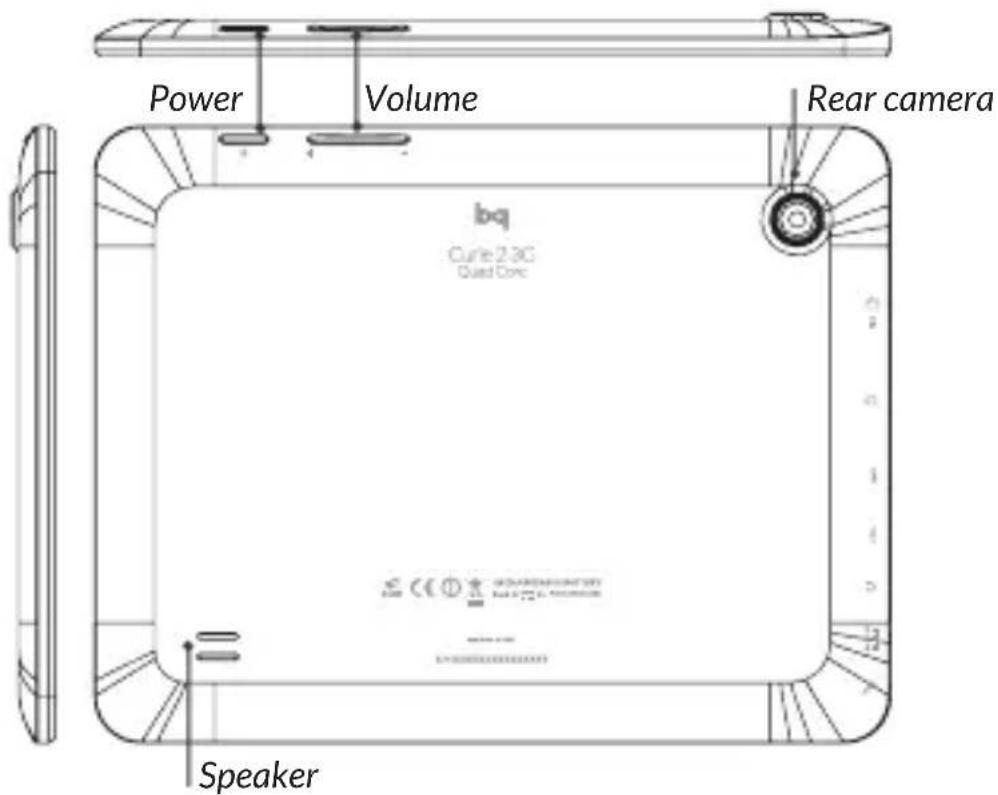
* SIM card slot only available on bq Curie 2 3G Quad Core
Buttons and ports
Power Long press to switch on the device, short press to turn on the screen when the device is in suspended mode. Press and hold for 15 seconds with the device turn on, it will force the turn off.
Volume buttons Enable the adjustment of multimedia volume on the tablet.
MiniHDMI Digital-video outlet which port enables the device to be connected to an external screen.
Headphone jack Insert your CTIA headphone cable here in order to listen to audio played on the device.
MicroUSB A port which enables your bq to be connected to a computer via a USB cable, in order to transfer files between the two devices and charge your tablet.
Front VGA camera for video camera conference.
Rear 2Mp camera camera
Microphone Captures and records sounds and voices.
Touch-screen The capacitive touch-screen enables you to perform actions by touching it directly.
MicroSD slot MicroSD ^TM and microSDHC ^TM cards can be inserted into the device in order to increase its storage capacity.
Speaker Emit the audio when the headphones are not connected.
*SIM card *Only available on bq Curie slot 2 3G Quad Core. Insert your SIM card here in order to connect to the Internet.
GETTING STARTED
Battery
This device contains a rechargeable and non removable Li-ion battery. To charge your bq's battery, connect the AC adapter to any standard socket and connect the microUSB of the device.
When the battery is fully charged, the battery icon will be shown as full. Disconnect the device cord and unplug the charger from the socket.

You should fully charge the battery before using the bq for the first time.
Power on /off
To power on the device, press the power button ⏻ for a few seconds. To power it off, press the power button ⏻ until the popup screen Device options appears (other options will appear, select the one you want). Tap on Power off and confirm by tapping on OK.
If you press and hold for 15 seconds when the device is turned on, it will force the turn off. If you click once will switch off the screen but not the device.
Insert /Remove the microSD ^TM card
To install the microSD ^TM card, insert it in the slot and press until it clicks into place. To safely remove the microSD ^TM card, press the Menu button : : : and go to Settings > Storage > Unmount SD card. Press the card to remove it from the slot.
Operating system
The operating system in your bq Curie 2 Quad Core/Curie 2 3G Quad Core is Android 4.2 (Jelly Bean).
Transferring files
To transfer files from your device to a computer or vice-versa, follow these steps:
-
Connect the microUSB cable to the corresponding ports on the device and on the computer. The device will be detected as a multimedia device (MTP). You can select the mode Camera (PTP).
-
Select and copy files onto either the tablet or the computer.
-
Once the files have been transferred, safely
remove the device from your computer. Do not detach the cable while files are being transferred.
To transfer files from your tablet onto a computer which is running Mac OS and vice versa, it is necessary to download and install the free application Android File Transfer onto your computer: http://www.android.com/filetransfer/.

Periodically backup data in your bq to avoid loss of files in case of physical damage, theft or loss.

To change the storage mode tap on Settings > Storage > menu button : > USB computer connection.
USING THE SCREEN
Screen lock
The bq screen locks automatically and by default when it is powered on or when the device is not used for a long period of time.
To set the sleep screen timeout interval, press the button 🙏 and go to Settings > Display > Sleep. To turn off the screen manually, press the power button.
Adjust screen orientation
The orientation of the display switches automatically from portrait (vertical) to landscape (horizontal) and vice-versa according to the position of the device in all applications that support this function.
To change the display orientation, press the button ⏻ Settings > Display and turn off Auto-rotate screen.
Home screen
The home screen is the main pathway to the tools and applications installed on the bq Curie 2 Quad Core/Curie 2 3G Quad Core. On the home screen, you can control the status of the device, open websites, open applications with their icons, open the Menu, etc.
The Toolbar is located in the lower part of the screen, with the Launcher and the Start Menu.

Launcher. Enables you to access: App, Widgets and Market.
Start Menu. You will find the following buttons:

Back. This will take you back to the previous screen within the application.

Home. This will take you back to the start screen.

Open applications. This enables you to return or fully close an application so that it does not continue to execute its function. To close an application, simply click on it and move it over up and down and out of the list.
Top bar. The top bar displays time, device status, battery level, the intensity of the Wi-Fi signal and other system notifications.

Wi-Fi. This will appear if your device is connected to a Wi-Fi network, and will also indicate the strength of the signal.

Battery. This indicates how much charge is in the battery.
Bluetooth.This will appear if you have activated the Bluetooth ^® .

3G Connection (only on bq Curie 2 3G Quad Core). This will appear if you have activated your 3G connection, and will also indicate the strength of the signal.
From this bar you can access to the Settings pop-up window, and to the Notifications pop-up window.
Settings pop up window
Swipe your finger down from the right-hand corner of the Top bar to bring up the Settings pop-up window. Here you can view the owner profile, adjust screen brightness, access settings, activate Wi-Fi networks, Bluetooth® 3G connection (only on bq Curie 2 3G Quad Core), view battery level and activate automatic screen rotation.
Notifications pop-up window
Swipe your finger down from the left-hand corner of the Top bar to bring up the Notifications pop-up window. From here you can select the method used to transfer files to your computer.
Expanded screens
You can use up to four additional extensions of the Home Screen, that can be personalised with shortcuts, applications and other tools. To move between the Home screen and the extended screens, drag the screen to the left or to the right using your finger.
Personalizing the Home screen
You can personalize the Home screen or the extended screens with your own images, such as backgrounds, icons or shortcuts to your favourite applications, etc.
Change the screen background
To change the screen background, long-press here, a pop-up window will appear in which you can select the origin of the image. Select an image to use as the screen background and tap on Set wallpaper to confirm the selection.
Add shortcuts
To add shortcuts to the Home screen, go to the extended screen where you wish to add an icon. Tap :to open the menu and press and hold the application icon until the screen icon appears. Drag it to the place you wish to put it on the screen.
APPLICATIONS
In the applications Menu you can access all the applications installed on your bq Curie 2 Cuad Core/Curie 2 3G Cuad Core. To open the Menu tap on ,it is located in the lower part of the screen. To access an application, tap on its icon. To go back to the Home screen, tap on .
WI-FI ^® CONNECTION
To connect to the Internet or use and application that requires an Internet connection, you must first connect the device to a Wi-Fi network.
To do this, follow these steps:
-
You can access it by Settings pop-up window or by pressing and accessing the Settings > Wireless & Networks > Wi-Fi®. Turn on Wi-Fi. The device will begin to search for an available network.
-
Tap Wi-Fi settings. A list of the names of the Wi-Fi networks (SSID) detected. Scroll down the list of the available networks. Tap on the network detected to check the security level and the intensity of the signal.
-
If the connection is secure, enter the password and tap on Connect to start the connection. In the top bar, an icon with the signal intensity is shown .
BLUETOOTH®
It allows file exchange between your be device and other Bluetooth ^® devices:
- To access Bluetooth ^® settings press Settings > Wireless & Networks > Bluetooth. Enable your Bluetooth ^® and select search devices. The system will show a list of available Bluetooth ^® device.
- Press on the name of the device you wish to pair with.
- Once pairing is complete you can transfer files between your tablet and the paired Bluetooth® device.
You can access the advanced settings by clicking on the application menu button ■.
3G CONNECTION
(Only available on bq Curie 2 3G Quad Core)
In order to connect to the Internet via 3G, please insert your SIM card in the relevant slot of your tablet:
- Before you insert your SIM card, please switch off your device.
-
Insert your card SIM and turn on the device. Once the card is inserted you will be automatically asked for your PIN (if the card has been protected with this code). Please, accept.
-
Access Settings > Wireless & Networks > More... > Mobile networks. Check the first three checkboxes: Modem power, Data enabled and Data roaming (this option only should be enabled if you want to connect to mobile networks abroad).

The APN configuration must be provided by your Internet provider.
SAFETY PRECAUTIONS
To use the device safely, please observe the following safety precautions:
■ Do not use damaged power cords or connectors or loose sockets.
■ Do not touch the power cord with wet hands or pull on the cord to disconnect the charger.
■ Do not fold or damage the power cord.
■ Do not use the device while charging or touch it with wet hands.
■ Do not strike or drop the charger or battery.
■ Do not charge the battery with chargers that have not been approved by the manufacturer.
■ Do not use the device during a lightning storm.
■ Do not handle damaged or leaky Li-ion batteries.
■ Handle and dispose batteries and chargers with precaution.
■ Do not use the device near a pacemaker: if possible, avoid using the device at a distance
of less than 15 cm from the pacemaker, as the device may interfere with it.
■ Do not use the device in a hospital or near medical equipment which is vulnerable to interference caused by radiofrequency.
■ If you use medical equipment, contact the manufacturer to ensure that the equipment is protected from radiofrequency. If you use a hearing aid, contact the manufacturer for further information on radio interference.
■ In potentially explosive environments, turn off the device instead of removing the battery. Observe all rules, instructions and warning signs in potentially explosive environments.
■ Do not use the device in fuel loading areas (service stations) or near fuels or chemicals in explosive areas.
■ Do not store or carry flammable liquids, gases or explosive materials in the same compartment as the device, its parts or accessories.
■ Turn off the device when on board a plane.
- Electronic devices in a motor vehicle may behave in a wrong way due to the device's radiofrequency.
Warning!
This product has to be used with a power supply that has the following technical specifications:
INPUT: 100-240V \~ 50/60 Hz 0.4A max.
OUTPUT: 5.0V=2.0A
Polarity has to be the same as described in this
picture:
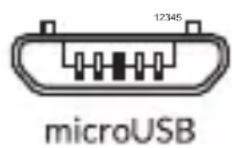
Pin 1" +" Pin 5 "-"
The use of power sources with different specifications may cause damage to equipment and can compromise the safety of people and goods.
Cleaning
Before cleaning the device, turn it off and disconnect all the system and power cords. Ensure that the device is completely dry before connecting again the cords and turning it on. Do not use any cleaning liquids or sprays directly on the surface of the screen or the case.
Use a soft, clean and lint-free cloth to remove dust and dirt from the screen. For fingerprints and stains, use a cloth with mild cleaning products. Moisten the cloth with clean water, wring it well and clean the case to remove any leftover detergent.
CORRECT DISPOSAL OF THIS PRODUCT
(Electric and electronic device waste)
(Applicable in the European Union and in European countries with selective waste collection systems).
This marking on the product, accessories or literature indicates that the product and its electronic accessories (e.g. charger, headset, USB cable) should not be disposed of with other household waste at the end of their working life.
To prevent possible harm to the environment or human health from uncontrolled waste disposal, easy separate these items from other types of waste and recycle them responsibly to promote the sustainable reuse of material resources.
Household users should contact either the retailer where they purchased this product, or their local government office, for details of where and how they can take these items for environmentally safe recycling.
Business users should contact their supplier and check the terms and conditions of the purchase contract. This product and its electronic accessories should not be mixed with other commercial wastes for disposal.
DECLARATION OF CONFORMITY
Mundo Reader, S.L.,
Pol. Ind. Európolis
Calle Sofia, 10
28232 Las Rozas - Madrid (Spain)
CIF: B85991941
Made in China
Warrants that this product:
bq Curie 2 Quad Core/Curie 2 3G Quad Core
complies with the provisions of Directive 1999/5/CE on Radio and Telecommunications
Terminal Equipment (R&TTE) of Directive
95/2006/CE on the Electrical Safety of Low
Voltage Equipment and Directive 2004/108/
CEE on Electromagnetic Compatibility
complying with the harmonized standards: EN
60950-1:2006 + A11:2009, EN 62311:2008,
Madrid, September 2013.

Alberto Méndez Peydró
CEO

Curie 2 Quad Core/ Curie 2 3G Quad Core
www.bqreaders.com www.mibqyyo.com
- Curie 2 Quad Core/ Curie 2 3G Quad Core
- Content of package
- INSTRUCTIONS
- Instructional icons
- Trademarks
- Buttons and ports
- Rear 2Mp camera camera
- GETTING STARTED
- Battery
- Power on /off
- Insert /Remove the microSD TM card
- Operating system
- Transferring files
- USING THE SCREEN
- Screen lock
- Adjust screen orientation
- Home screen
- Settings pop up window
- Notifications pop-up window
- Expanded screens
- Personalizing the Home screen
- Change the screen background
- Add shortcuts
- APPLICATIONS
- WI-FI ® CONNECTION
- BLUETOOTH®
- 3G CONNECTION
- (Only available on bq Curie 2 3G Quad Core)
- SAFETY PRECAUTIONS
- Warning!
- Cleaning
- CORRECT DISPOSAL OF THIS PRODUCT
- DECLARATION OF CONFORMITY
- bq Curie 2 Quad Core/Curie 2 3G Quad Core
Brand : bq
Model : Curie 2 Quad Core
Category : Tablet