
MA-1EX - Pregnant ROLAND - Free user manual and instructions
Find the device manual for free MA-1EX ROLAND in PDF.


| Product Type | Active Monitor Speaker |
| Model | MA-1EX |
| Brand | Roland |
| Dimensions (W x H x D) | Approx. 250 x 162 x 180 mm |
| Weight | Approx. 3.2 kg |
| Power Output | 30 W (per channel, stereo pair) |
| Speaker Type | Full-range, magnetically shielded |
| Frequency Response | 70 Hz - 20 kHz |
| Input Connectors | 1/4" TRS phone jack (balanced), RCA pin jack (unbalanced) |
| Controls | Volume, power switch |
| Power Supply | AC 117/230 V (switchable), 50/60 Hz |
| Power Consumption | 35 W |
| Includes | Speaker unit, power cord, user manual |
| Compatible Devices | Audio mixers, keyboards, computers, CD players |
| Placement | Desk, shelf, or floor stand |
| Cabinet Material | Wood (MDF) with vinyl wrap |
| Cleaning | Wipe with a dry cloth; avoid solvents |
| Safety | Do not expose to rain or moisture |
Frequently Asked Questions - MA-1EX ROLAND
User questions about MA-1EX ROLAND
0 question about this device. Answer the ones you know or ask your own.
Ask a new question about this device
Download the instructions for your Pregnant in PDF format for free! Find your manual MA-1EX - ROLAND and take your electronic device back in hand. On this page are published all the documents necessary for the use of your device. MA-1EX by ROLAND.
USER MANUAL MA-1EX ROLAND
Before using this unit, carefully read the sections entitled: "USING THE UNIT SAFELY" and "IMPORTANT NOTES." These sections provide important information concerning the proper operation of the unit. Additionally, in order to feel assured that you have gained a good grasp of every feature provided by your new unit, Getting Started should be read in its entirety. The manual should be saved and kept on hand as a convenient reference.
USING THE UNIT SAFELY
INSTRUCTIONS FOR THE PREVENTION OF FIRE, ELECTRIC SHOCK, OR INJURY TO PERSONS
About ⚠ WARNING and ⚠ CAUTION Notices
| ⚠ WARNING | Used for instructions intended to alert the user to the risk of death or severe injury should the unit be used improperly. |
| ⚠ CAUTION | Used for instructions intended to alert the user to the risk of injury or material damage should the unit be used improperly.* Material damage refers to damage or other adverse effects caused with respect to the home and all its furnishings, as well to domestic animals or pets. |
About the Symbols
| The △ symbol alerts the user to important instructions or warnings. The specific meaning of the symbol is determined by the design contained within the triangle. In the case of the symbol at left, it is used for general cautions, warnings, or alerts to danger. | |
| The ⊙ symbol alerts the user to items that must never be carried out (are forbidden). The specific thing that must not be done is indicated by the design contained within the circle. In the case of the symbol at left, it means that the unit must never be disassembled. | |
| The ● symbol alerts the user to things that must be carried out. The specific thing that must be done is indicated by the design contained within the circle. In the case of the symbol at left, it means that the power-cord plug must be unplugged from the outlet. |
ALWAYS OBSERVE THE FOLLOWING
! WARNING
- Before using this unit, make sure to read the instructions below, and the Owner's Manual.

- Do not open (or modify in any way) the unit.

- Do not attempt to repair the unit, or replace parts within it (except when this manual provides specific instructions directing you to do so). Refer all servicing to your retailer, the nearest Roland Service Center, or an authorized Roland distributor, as listed on the "Information" page.

- Never use or store the unit in places that are:

- Subject to temperature extremes (e.g., direct sunlight in an enclosed vehicle, near a heating duct, on top of heat-generating equipment); or are

- Damp (e.g., baths, washrooms, on wet floors); or are
- Humid; or are
- Exposed to rain; or are
- Dusty; or are
- Subject to high levels of vibration.
WARNING
• Make sure you always have the unit placed so it is level and sure to remain stable. Never place it on stands that could wobble, or on inclined surfaces.

- This unit, either alone or in combination with an amplifier and headphones or speakers, may be capable of producing sound levels that could cause permanent hearing loss. Do not operate for a long period of time at a high volume level, or at a level that is uncomfortable. If you experience any hearing loss or ringing in the ears, you should immediately stop using the unit, and consult an audiologist.

- Do not allow any objects (e.g., flammable material, coins, pins); or liquids of any kind (water, soft drinks, etc.) to penetrate the unit.


WARNING
- Immediately turn the power off, and request servicing by your retailer, the nearest Roland Service Center, or an authorized Roland distributor, as listed on the "Information" page when:
• If smoke or unusual odor occurs
- Objects have fallen into, or liquid has been spilled onto the unit; or
• The unit has been exposed to rain (or otherwise has become wet); or
- The unit does not appear to operate normally or exhibits a marked change in performance.

- In households with small children, an adult should provide supervision until the child is capable of following all the rules essential for the safe operation of the unit.

- Protect the unit from strong impact. (Do not drop it!)


CAUTION
- Try to prevent cords and cables from becoming entangled. Also, all cords

and cables should be placed so they are out of the reach of children.
- Never climb on top of, nor place heavy objects on the unit.

Disconnect all cords coming from external devices before moving the unit.

* Microsoft and Windows are registered trademarks of Microsoft Corporation.
* The screen shots in this document are used in compliance with the guidelines of the Microsoft Corporation.
* Windows ^® is known officially as: "Microsoft ^® Windows ^® operating system."
* Apple and Macintosh are registered trademarks of Apple Computer, Inc.
* Mac OS is a trademark of Apple Computer, Inc.
* All product names mentioned in this document are trademarks or registered trademarks of their respective owners.
In addition to the items listed under “USING THE UNIT SAFELY” on page 2 and 3, please read and observe the following:
Placement
- Using the unit near power amplifiers (or other equipment containing large power transformers) may induce hum. To alleviate the problem, change the orientation of this unit; or move it farther away from the source of interference.
- This device may interfere with radio and television reception. Do not use this device in the vicinity of such receivers.
- Noise may be produced if wireless communications devices, such as cell phones, are operated in the vicinity of this unit. Such noise could occur when receiving or initiating a call, or while conversing. Should you experience such problems, you should relocate such wireless devices so they are at a greater distance from this unit, or switch them off.
- Do not expose the unit to direct sunlight, place it near devices that radiate heat, leave it inside an enclosed vehicle, or otherwise subject it to temperature extremes. Excessive heat can deform or discolor the unit.
- When moved from one location to another where the temperature and/or humidity is very different, water droplets (condensation) may form inside the unit. Damage or malfunction may result if you attempt to use the unit in this condition. Therefore, before using the unit, you must allow it to stand for several hours, until the condensation has completely evaporated.
Maintenance
- For everyday cleaning wipe the unit with a soft, dry cloth or one that has been slightly dampened with water. To remove stubborn dirt, use a cloth impregnated with a mild, non-abrasive detergent. Afterwards, be sure to wipe the unit thoroughly with a soft, dry cloth.
- Never use benzine, thinners, alcohol or solvents of any kind, to avoid the possibility of discoloration and/or deformation.
Additional Precautions
- Do not play back sine waves or other continuous tones at high volume. Doing so may damage your amp and/or speakers.
- Use a reasonable amount of care when using the unit's buttons, sliders, or other controls; and when using its jacks and connectors. Rough handling can lead to malfunctions.
- When connecting / disconnecting all cables, grasp the connector itself—never pull on the cable. This way you will avoid causing shorts, or damage to the cable's internal elements.
- To avoid disturbing your neighbors, try to keep the unit's volume at reasonable levels. You may prefer to use headphones, so you do not need to be concerned about those around you (especially when it is late at night).
- When you need to transport the unit, pack it in shock-absorbent material. Transporting the unit without doing so can cause it to become scratched or damaged, and could lead to malfunction.
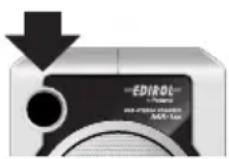
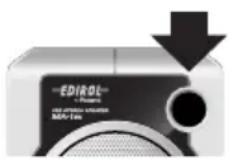
- Be sure to avoid inserting your fingers in the bass reflex ports when transporting or moving the speakers, as your fingers may become wedged and stuck in the ports.
Copyright
- When exchanging audio signals through a digital connection with an external instrument, this unit can perform recording without being subject to the restrictions of the Serial Copy Management System (SCMS). This is because the unit is intended solely for musical production, and is designed not to be subject to restrictions as long as it is used to record works (such as your own compositions) that do not infringe on the copyrights of others. (SCMS is a feature that prohibits second-generation and later copying through a digital connection. It is built into MD recorders and other consumer digital-audio equipment as a copyright-protection feature.)
- Do not use this unit for purposes that could infringe on a copyright held by a third party. We assume no responsibility whatsoever with regard to any infringements of third-party copyrights arising through your use of this unit.
Contents
Getting Connected and Installing Drivers English....6
Windows XP/2000 users 7
Windows Me users 7
Windows 98 users....8
Settings and checking (Windows).... 10
Mac OS X Users.... 13
Mac OS 9 Users .... 14
Problems related to the USB driver.... 24
Problems when using the MA-1EX.... 25
Deleting the USB Audio Device driver....29
Specifications 30
Getting Connected and Installing Drivers English
Before installing the driver
* The MA-1EX cannot be used with Windows 95 or Windows NT.
* Exit all other applications of the Windows before you install the MA-1EX driver.
* If you intend to connect the MA-1EX and other USB devices to your computer and use them simultaneously, disconnect all USB devices other than the MA-1EX from the USB connector before you install the driver. If a USB device other than the USB is left connected to your computer when you install the driver, the driver may not be installed correctly.
In order to use the MA-1EX, you must first install the USB driver. These drivers are included with Windows or Mac OS.
What is a driver?
A driver is software that allows an application program running on your computer to transfer data to and from the MA-1EX when it is connected to your computer via a USB cable.
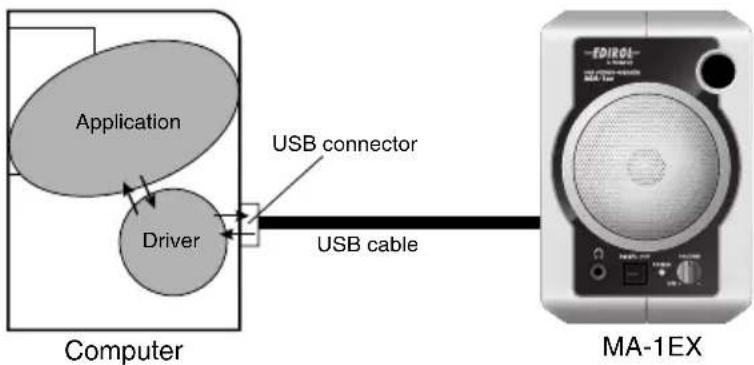
flowchart
graph LR
    A["Application"] --> B["Driver"]
    B --> C["USB connector"]
    C --> D["USB cable"]
    D --> E["MA-1EX"]
The procedure for installation and settings will differ depending on your system. Proceed to the appropriate section as follows.
- Windows XP/2000 users......(p. 7)
- Windows Me users......(p. 7)
- Windows 98 users ......(p. 8)
• Mac OS X Users......(p. 13)
• Mac OS 9 Users......(p. 14)
Windows XP/2000 users
* In order to install software in Windows XP/2000, you must log on as a user who has administrative privileges (e.g., Administrator).
- With the MA-1EX disconnected, start up Windows.
* Disconnect all USB cables except for a USB keyboard and USB mouse (if used).
* Exit all currently running software (applications).
* If you are using a virus checker or similar software, be sure to exit it as well.
- Use the USB cable to connect the MA-1EX to your computer, and turn on the MA-1EX's power (turn the
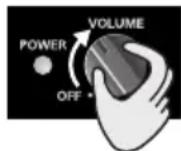
VOLUME knob toward the right). The MA-1EX (USB Audio) will be detected automatically, and the driver will be installed.

If you are using Windows XP, the installation has been completed when the message near the taskbar saying that “Found New Hardware” has disappeared.

This unit is equipped with a protection circuit. A brief interval (a few seconds) after connecting a USB connector is required before the unit will operate normally.
- Restart Windows.
Next, you need to make the driver settings. "Settings and checking (Windows)" (p. 10)
Windows Me users
- With the MA-1EX disconnected, start up Windows.
* Disconnect all USB cables except for a USB keyboard and USB mouse (if used).
* Exit all currently running software (applications).
* If you are using a virus checker or similar software, be sure to exit it as well.
- Use the USB cable to connect the MA-1EX to your computer, and turn on the MA-1EX's power (turn the
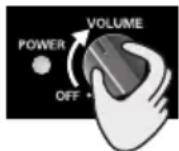
VOLUME knob toward the right).

This unit is equipped with a protection circuit. A brief interval (a few seconds) after connecting a USB connector is required before the unit will operate normally.
-
Windows will detect the MA-1EX (USB Audio), and the “Add New Hardware Wizard” dialog box will appear. Make sure that Automatic search for a better driver (Recommended) is selected, and click [Next].
-
Driver detection will begin.
-
When the driver has been found, driver installation will begin.
* Depending on your system, a certain amount of time may be required for the device to be detected after the driver has been installed.
-
Once the driver has been installed, a dialog box will inform you of this. Click [Finish].
-
Restart Windows.
Next, you need to make the driver settings. → "Settings and checking (Windows)" (p. 10)
Windows 98 users
* The driver necessary for using the MA-1EX with Windows 98 is provided on the Windows CD-ROM. Make sure that you have the Windows CD-ROM available.
* Some computers are sold with the contents of the Windows CD-ROM stored on the hard disk, and therefore will not come with a Windows CD-ROM. If this is the case for your computer, you'll be able to install the driver even without the Windows CD-ROM.
* The USB composite device driver is installed first, then the USB audio device driver is installed. Use the following procedure to install the drivers.
- With the MA-1EX disconnected, start up Windows.
* Disconnect all USB cables except for a USB keyboard and USB mouse (if used).
* Exit all currently running software (applications). If you are using a virus checker or similar software, be sure to exit it as well.
- Use the USB cable to connect the MA-1EX to your computer, and turn on the MA-1EX's power (turn the VOLUME knob toward
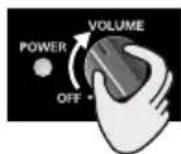
* This unit is equipped with a protection circuit. A brief interval (a few seconds) after connecting a USB connector is required before the unit will operate normally.
-
USB composite device will be detected automatically, and the "Add New Hardware Wizard" dialog box will appear. Click [Next].
-
When "What do you want Windows to do?" appears, select "Search for the best driver for your device (Recommended)," and click [Next].
-
A dialog box like the one shown will appear. Check CD-ROM drive, and click [Next].
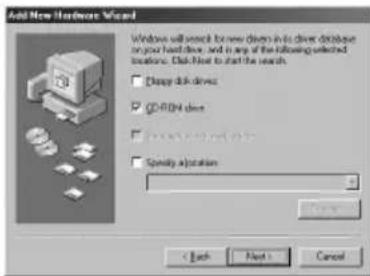
* If the display indicates "Can't find an updated driver for this device," check "Updated driver," and click [Next].
- A dialog box like the one shown will appear. Click [Next].
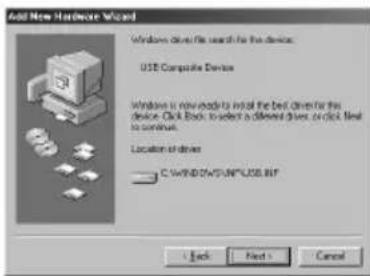
* Depending on your system, the Driver location may differ from the illustration, but this is not a problem.
- File (driver) copying will begin.
If the Windows CD-ROM is not inserted in the CD-ROM drive, a "Insert Disk" dialog box may appear. In this case, insert the Windows CD-ROM into the CD-ROM drive and click [OK].
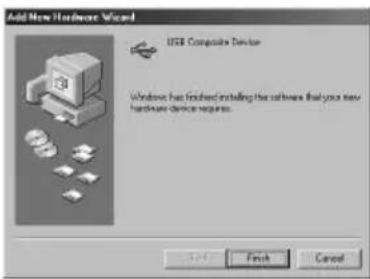
- When installation of the USB Composite Device driver is completed, a dialog box like the one shown here will appear. Click [Finish].
-
Next, the USB audio device will be detected automatically, and the "Add New Hardware Wizard" dialog box will appear. Click [Next], and proceed with the installation in the same way as in steps 3–7.
-
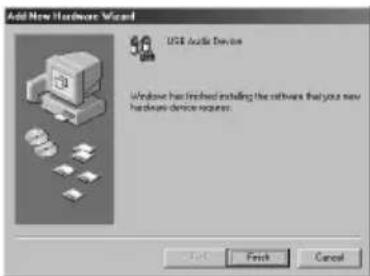
When installation of the USB audio device driver is complete, a dialog box like the one shown here will appear. Click [Finish].
Installation of the USB composite device driver and USB audio device driver has been completed. Restart Windows.
Next, you need to make the driver settings. → "Settings and checking (Windows)" (p. 10)
Settings and checking (Windows)
■ Specifying the audio output destination
Windows XP users
-
Open the Sound, Speech, and Audio Devices Properties dialog box.
-
From the Windows start menu, choose Control Panel.
-
In "Pick a category," click Sound, Speech, and Audio Devices.
-
In "or Pick a Control Panel icon," click the Sounds and Audio Devices icon.
-
Click the Audio tab.
-
For Sound playback, click the ▼ located at the right of [Default device], and select USB Audio.
-
Click [OK] to complete the settings.
Windows 2000/Me users
-
Open the Sounds and Multimedia Properties dialog box
-
Click the Windows Start button, and from the menu that appears, select Settings | Control Panel.
-
In Control Panel, double-click the Sounds and Multimedia icon. If the Sound and Multimedia icon is not displayed, click “Show all control panel options” in the frame at the left.
-
Click the AUDIO tab.
-
For Sound Playback (or in Windows Me, Playback), click the ▼ located at the right of [Preferred device], and select USB Audio Device.
-
Click [OK] to complete the settings.
Windows 98 users
-
Open the Multimedia Properties dialog box.
-
Click the Windows Start button, and from the menu that appears, select Settings I Control Panel.
-
In Control Panel, double-click the Multimedia icon.
-
Click the Audio tab.
-
For Playback field, click the ▼ located at the right of [Preferred device], and select USB Audio Device.
-
Click [OK] to complete the settings.
■ Volume Control setting
If you have installed the Standard driver, the MA-1EX can use the Windows volume control to adjust the output volume.
1. Open the Volume Control.
Click the Windows Start menu, and select Programs (or in Windows XP, All programs) | Accessories | Entertainment | Volume Control.
* What you actually see on your computer screen may be different, depending on your computing environment and the operating system you're using.
* If the Volume Control is not installed on your computer, use the Control Panel icon Add or Remove Programs to install it. For details on installation, refer to the Windows manual or Help.
2. Raise or lower the slider to adjust the volume of the MA-1EX.
This will change the volume of the MA-1EX's speaker output.
Items that can be set
| WAVE Controls the volume of sound output from “MA-1EX (or USB Audio Device)” audio output device. | |
| SW Synth | Controls the volume of the software synthesizer built into Windows. |
| CD Player | Controls the volume of “audio CDs” on the internal CD-ROM drive of the computer. (*1) |
*1 If the CD playback volume does not change when you adjust this control, then change the WAVE volume.
- You will be able to use the MA-1EX at the best audio quality if you set the Volume Control volume to the maximum setting.
- If Mute is checked or if the slider is lowered all the way, no sound will be output from the MA-1EX.
■ Check whether there is sound
Now we will check whether connections are correct.
1. Open the Control Panel
Windows XP users
- From the Windows start menu, choose Control Panel.
- In "Pick a category," click Sound, Speech, and Audio Devices.
- In "or Pick a Control Panel icon," click the Sounds and Audio Devices icon.
Windows 2000/Me users
- Click the Windows Startbutton, and from the menu that appears, select Settings | Control Panel.
- In Control Panel, double-click the Sounds and Multimedia icon. If the Sound and Multimedia icon is not displayed, click “Show all control panel options” in the frame at the left.
Windows 98 users
- Click the Windows Start button, and from the menu that appears, select Settings | Control Panel.
- In Control Panel, double-click the Sounds icon.
2. Click the Sounds tab.
3. In Program Events (Sound Events, Events), click the desired sound, then click ▶.
Sound should be heard from the MA-1EX.
If you hear sound, the MA-1EX is correctly connected to your computer, and the driver has also been installed correctly.
* If you don't hear sound, refer to Troubleshooting (p. 24) and take the appropriate measures to solve the problem.
When playing audio CDs from the computer's internal CD-ROM drive, or using the MA-1EX to play game music
Windows XP/2000 users:
- Open the System Properties dialog box.
Select Start | Settings | Control Panel, and in the Control Panel, double-click the System icon.
(Windows XP- Click the Windows start button, and from the menu that appears, select Control Panel.) - Open the Device Manager.
Click the Hardware tab, and click the Device Manager button. - Open the CD-ROM(DVD-ROM/CD-ROM) drive's Properties.
In CD-ROM drive, double-click the CD-ROM drive that you are using. - Click the Properties tab, and in Digital CD Playback, check the "Enable digital CD audio for this CD-ROM device" item.
Windows Me users:
- Open System Properties dialog box.
Select Start | Settings | Control Panel, and in Control Panel, double-click the System icon. - Open the Device Manager.
Click the Device Manager tab. - Open the CD-ROM drive's Properties.
Double-click the CD-ROM icon, and then double-click the CD-ROM drive that you are using. - Click the Properties tab, and in Digital CD Playback, check the "Enable digital CD audio for this CD-ROM device" item.
Windows 98 users:
- Open the Multimedia Properties dialog box.
Select Start | Settings | Control Panel, and in Control Panel, double-click the Multimedia icon. - Click the CD Music tab, and check the "Enable digital CD audio for this CD-ROM device" item.
* Depending on your system, playback may still not be possible. For details, please contact the manufacturer of your computer. If you are using a PC-card (PCMCIA) type CD-ROM drive, playing back WAVE data from a CD-ROM or playing an audio CD may cause interrupted sound, or possibly no sound at all.
Mac OS X Users
* If a "Authenticate" dialog box appears during the installation, enter the password and click [OK].
* The contents of the display may differ depending on your system.
* Operation may become unstable if you start up your Macintosh with the MA-1EX connected. If this occurs, start up your Macintosh with the MA-1EX disconnected, and then connect the MA-1EX.
-
With the MA-1EX disconnected, start up the Macintosh. Disconnect all USB cables except for a USB keyboard and USB mouse (if used).
-
Exit all currently running software (applications). If you are using virus checking or similar software, be sure to exit it as well.
-
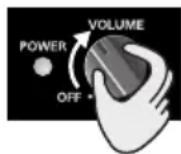
Use the USB cable to connect the MA-1EX to your Macintosh, and turn on the MA-1EX's power (turn the VOLUME knob toward

This unit is equipped with a protection circuit. A brief interval (a few seconds) after connecting a USB connector is required before the unit will operate normally.
-
Open the System Preference dialog box and click Sound
-
In the Sound Effects tab, click Play alerts and sound effects through and choose USB Audio as the playback device for sound effects.

If no sound is output from the speaker (internal speaker) of the Macintosh, choose “Built-in audio controller” in the Output tab.
- Click the Output tab, and choose USB Audio as the device that will output sound.
Known issues: MA-1EX
Caution
Please check the following before you use your software.
- If your software allows you to make audio output settings, choose USB
Audio. For details, refer to the owner's manual of the software you are using. - Use the USB cable to connect the MA-1EX to your computer before you start up your software.
- Do not disconnect the MA-1EX's USB cable while your software is running.
- Exit your software before you disconnect the MA-1EX's USB cable.
- The MA-1EX will not operate in the Mac OS X Classic environment. You can not use it if the Classic environment is running.
Mac OS 9 Users
* Operation may become unstable if you start up your Macintosh with the MA-1EX connected. If this occurs, start up your Macintosh with the MA-1EX disconnected, and then connect the MA-1EX.
-
With the MA-1EX disconnected, start up the Macintosh. Disconnect all USB cables except for a USB keyboard and USB mouse (if used).
-
Exit all currently running software (applications). If you are using virus checking or similar software, be sure to exit it as well.
-
After starting up Mac OS, select Apple System Profiler from the Apple menu. The “Apple System Profiler” dialog box will appear.
-
Click the Devices and Volumes tab.
-
Choose Update all information from the Commands menu.
-
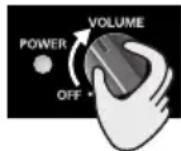
Use the USB cable to connect the MA-1EX to your Macintosh, and turn on the MA-1EX's power (turn the VOLUME knob toward

This unit is equipped with a protection circuit. A brief interval (a few seconds) after connecting a USB connector is required before the unit will operate normally.'
-
Wait for approximately five seconds. While you are waiting, the screen display will not change, but the MA-1EX is being detected. Do not touch the mouse or keyboard.
-
In order to check that detection has been completed, once again go to Apple System Profiler, and select Update all information from the Commands menu. In the USB area, two audio devices "Audio (USB Audio)" will be displayed.
If these are displayed correctly, driver installation has succeeded. In the File menu, click Quit to close “Apple System Profiler.”
If they are not displayed correctly, disconnect the MA-1EX, wait for about ten seconds, and then repeat the procedure from step 2.
■ Adjusting the Sound Output
-
From the Apple menu, select Control Panels - Sound to open the Sound dialog box.
-
Click the Speakers tab or Speaker Setup.
-
Turn down the volume on the MA-1EX and on your audio equipment, then click [Start Test].
-
When you are finished, click [Stop Test]. Test sounds are output from left to right, along with what appears on the screen.
* If you don't hear sound, refer to Troubleshooting (p. 24) and take the appropriate measures to solve the problem.
- When you are finished making settings, close the "Sound" dialog box. Select Quit from the File menu.
MEMO
If an unexpected problem occurs while using the MA-1EX, please read this chapter first. It provides numerous hints that will help you solve problems.
The problems covered in the troubleshooting section are organized according to the operating system on which the problem might be encountered. If you are using computer for the first time, or do not understand the explanation of a procedure, refer to the owner's manuals for your computer or for OS.

Problems common to both Windows and Macintosh

Problems that occur only on Windows

Problems that occur only on Macintosh
Problems related to the USB driver

"Add New Hardware Wizard" does not start up automatically

"Add New Hardware Wizard" terminates before completion
- When the USB cable is connected, approximately 15 seconds (or more) may be required for the MA-1EX to be recognized.
- Is the USB cable connected correctly?
Make sure that the MA-1EX and computer are connected correctly by the USB cable.
- Can USB be used on your computer?
Refer to the owner's manual for your computer, and make sure that it is able to use USB.
- Does your computer or USB hub have sufficient power supply capacity?
The MA-1EX cannot be connected if insufficient power is supplied to it. Check whether one of the following cases apply.
If you are using the MA-1EX with a notebook computer that is running on its battery, operation may be unreliable with some models of computer. If this is the case, connect the AC adaptor to your notebook computer.
The power conservation mode of your computer may limit the power that is supplied to USB. Check the settings of your computer.
In some cases, the MA-1EX cannot be used with a bus-powered hub (a hub that does not contain a power supply). Please use a self-powered hub (a hub that contains a power supply).
- Does your computer meet the USB specifications?
If you are using a computer that does not meet the USB specifications (such as a homemade computer), operation may be unstable. In such cases, you may be able to solve the problem by connecting a USB hub that contains a power supply.
• Could other USB devices be connected?
When installing, all USB devices other than the MA-1EX should be disconnected from your computer.
If you have connected the MA-1EX to an external USB hard disk, please connect the MA-1EX directly to a USB connector on the computer itself.
- Could other applications or resident software (such as a virus checking program) be running?
Installation may not occur correctly if other programs are running. Be sure to close all other programs before installing.
- Are the power conservation settings of your computer turned off?
If power conservation settings are turned on for your computer, disable these settings. (For details on how to disable them, refer to the owner's manual of your computer.)
• Is there enough free space on your hard disk?
Delete unneeded files to increase the amount of free space.
After deleting the file(s), empty the recycling bin.

Can't install/uninstall the driver
- Did you log onto Windows as a user with administrative privileges?
In order to install/uninstall/re-install the MA-1EX driver in Windows, you must log onto Windows as a user with administrative privileges, such as Administrator.

You are asked for the driver file even though you installed the driver
- Did you connect the MA-1EX to a different USB connector than the one you used when installing the driver?
If your computer or USB hub has two or more USB connectors, and you connect the MA-1EX to a USB connector to which you have not previously connected it, this dialog box may appear even though you have already installed the driver.
Install the drivers once again as described in “Getting Connected and Installing Drivers English” (p. 6). This is not a malfunction.

The MA-1EX Driver Is Not Installed Correctly.
Use the procedure described in “Deleting the USB Audio Device driver” (p. 29) to delete the USB Audio Device driver installed in your computer, and install the drivers once again as described in “Getting Connected and Installing Drivers English” (p. 6).
Check whether there is an item named “Unknown Device” in “Other devices” or in “Universal Serial Bus controllers.” If you find “Unknown Device,” delete it.
Problems when using the MA-1EX

OS becomes unstable
- Starting up a computer when the MA-1EX is already connected may cause the computer to become unstable.
If this occurs, start up the computer with the MA-1EX disconnected, and then connect the MA-1EX. On a computer that uses a USB keyboard, starting up the computer with the MA-1EX already connected may cause operation to become unstable. In this case, start up the computer with the MA-1EX disconnected, and then connect the MA-1EX.
No sound

- Are you attempting to use the CD player of your computer to play an audio CD?
If you wish to play an audio CD on the CD-ROM drive of your computer, refer to “When playing audio CDs from the computer’s internal CD-ROM drive, or using the MA-1EX to play game music” (p. 12).

- Are you running multiple software?
If multiple software are running simultaneously, an error message may appear. If this occurs, click [OK], and close the other software. Even if a software window is closed, it is still running if it remains in the taskbar, so be sure to quit any unneeded software shown in the taskbar.

- Have you specified the audio data output destination for your operating system?
You must specify the USB Audio as the audio data output destination for your computer.

- Have you specified the audio data output destination for your playback software?
For some software, you must set the audio data output destination as USB Audio. For details on this setting, refer to the owner's manual for the software.

- Have the drivers been installed correctly?
In order to playback audio data using the MA-1EX, the USB Audio Device driver must be installed. For details on installation and settings, refer to “Getting Connected and Installing Drivers English” (p. 6).

- Are the faders of the Volume Control raised?
Adjust the volume of each fader as described in "Volume Control setting" (p. 11).
Sound is interrupted during audio playback

- Graphic accelerators may cause noise to be heard during audio playback.
Use the following procedure to set graphic acceleration to "None."
- In the Windows Control Panel, double-click Display to open the Display Properties dialog box, and click the Settings tab.
- Click Advanced to open properties, and click the Performance tab.
- In the Graphics section, set the Hardware acceleration slider to None, and then click [OK].
- In the Display Properties dialog box, click [OK] to close the dialog box.
- Then restart your computer.

- The sound may be interrupted if a LAN is operating.
Try disabling the LAN in the Device Manager. If this solved the problem of sound being interrupted, you may be able to solve the problem of interrupted sound by updating the driver or BIOS.

- Are many software running on your computer?
If you use numerous software during playback, or start up another software, the playback may be interrupted depending on your computer system. Exit all unneeded software, and try again. If this does not resolve the problem, try restarting your computer.

- Try making the following changes to the disk drive settings.
Some computers may not have the following settings.
- In the Windows Control Panel, double-click System.
- Click the Device Manager tab.
- Double-click Disk Drives to see the list of devices.
- From the list, select GENERIC IDE DISK TYPE??, and click Properties to access the GENERIC IDE DISK TYPE?? Properties dialog box.
* In the ?? field of GENERIC IDE DISK TYPE??, there will be a number that differs depending on your computing environment.
- Click the Settings tab, place a check mark in the check box for the DMA option, and click [OK] to close the dialog box.
* Depending on your system, a dialog box for DMA settings may appear. Verify the contents of the dialog box, and click [OK] or [Cancel]. - In System Properties dialog box, click [OK] to close the dialog box.
- Restart your computer so that the above settings will take effect.

- Try increasing the memory
You can increase the processing power of your computer by adding more memory. For details on how to install more memory, refer to the operation manual for your computer.

- Does your computer meet the USB specifications?
The audio may be interrupted if you are using a computer that does not electrically meet the USB specifications. In such cases, you may be able to solve the problem by connecting a USB hub that contains a power supply.

- Make Windows XP/Windows 2000 settings to enable background processing.
Windows XP users
- Click the Windows start button, and from the menu that appears, select Control Panel.
- In "Pick a category," click "Performance and Maintenance."
- In "or pick a Control Panel icon," click the System icon.
- Click the Advanced tab.
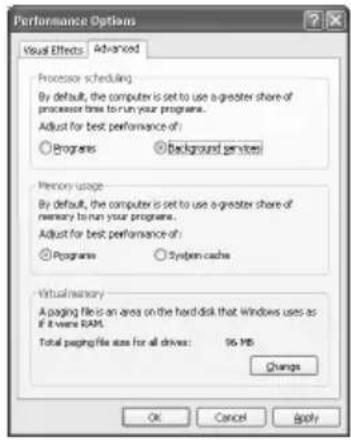
- At the right of the Performance field, click [Settings]. The Performance Options dialog box will appear.
- Click the Advanced tab.
- In the Processor Scheduling field, select "Background services," and click [OK].
- In the System Properties dialog box, click [OK]. The System Properties dialog box will close.
Windows 2000 users
- Click the Windows Start menu, and from the menu that appears, select Settings | Control Panel.
- In Control Panel, double-click the System icon.
- Click the Advanced tab.
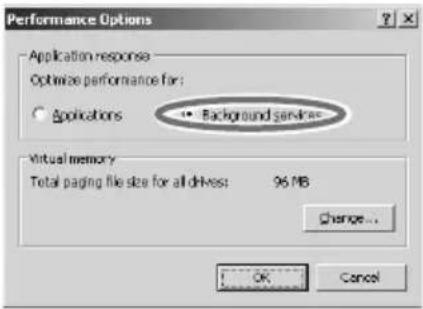
- Click [Performance Options]. The Performance Options dialog box will appear.
- Choose "Background services" and click [OK].
- Click [OK] to close the System Properties dialog box. The System Properties dialog box will close.

• In Macintosh, check the Energy Saver settings.
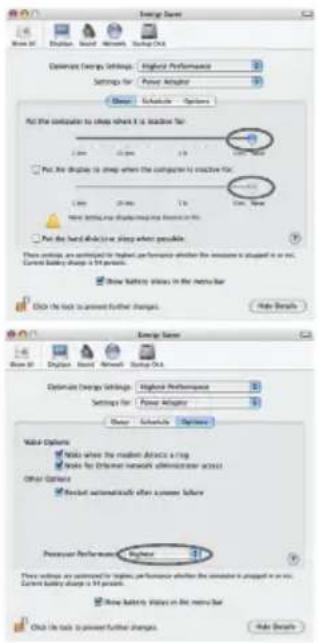
In the Mac OS X System Setup, set Energy Saver as follows.
Click the Sleep tab.
Set "Put the computer to sleep when it is inactive for:" to Never.
Set "Put the display to sleep when the computer is inactive for:" to Never.
Click the Options tab.
If there is a Processor Performance setting, set it to Highest.

- In Windows, Power Management settings in the Control Panel may cause clicks or pops to occur in the audio playback.
The power management properties that appear when you double-click Power Management will differ depending on your computer system. The explanation that follows is for a typical situation, but you should refer to the owner's manual for your computer to verify these settings.
Some computers may not have the following items.
- In the Windows Control Panel, double-click the System icon. The System Properties dialog box will appear.
- Click the Hardware tab.
- Click Device Manager to see the list of devices.
- From the list, choose Advanced Power Management Support, and click Properties The Advanced Power Management Support Properties dialog box will appear.
- Click the Settings tab, and in Troubleshooting, check the "Don't Poll Power Supply Status" check box. Then click [OK].
- In the System Properties dialog box, click [OK].
- Restart Windows.

- Could two or more audio devices be connected to your computer?
Try connecting only one MA-1EX to your computer. Check whether the noise disappears when only the MA-1EX is connected to the computer. Connecting numerous audio devices to a computer may produce noise in some situations. If this occurs, connect only the MA-1EX to your computer.

- Are you using a USB device in addition to the MA-1EX?
Try switching off USB devices other than the MA-1EX.
If you have connected the MA-1EX to an external USB hard disk, please connect the MA-1EX directly to a USB connector on the computer itself.

- Depending on the virtual memory setting or network-related settings, noise may occur.
Please make the following settings before use.
- [Mac OS 9] In Chooser of the Apple menu, set AppleTalk to "Inactive."
(This setting is not changed as a result of turning off AppleTalk, as requested by OMS when sequencer software is started up. You must change the setting yourself using the “Chooser.”)
- [Mac OS 9] In the “Memory” Control Panel, set Virtual Memory to “Off.”
- Depending on the way in which you connect to the Internet, use the MA-1EX with the following settings.
If you connect to the Internet via a LAN cable
Use while the LAN cable is connected.
If you connect to the Internet via the internal modem port, or are not connected to the Internet In the "TCP/IP" Control Panel, set "Connect via" to "PPP."
After you have made the settings, restart your Macintosh.
* Do not use software that accesses the network (such as a Web browser) at the same time that you are using sequencer software or audio editing software.

Game background music does not sound
- Is the Background Music for the Game on an Audio CD?
If the game uses an audio CD for background music, refer to “When playing audio CDs from the computer’s internal CD-ROM drive, or using the MA-1EX to play game music” (p. 12).

The volume changed when you resumed from Suspend or Hibernation status
- When Windows 2000 resumes from Suspend or Hibernation, the output volume setting is changed due to a problem of Windows.
Start up the Mixer application as described in "Volume Control setting" (p. 11), and adjust the USB Audio (Speaker) slider.
Deleting the USB Audio Device driver
- If re-installing the USB Audio Device driver
- If installation of the USB Audio Device driver was terminated before completion
Use the following procedure to delete the driver that is already installed.
Depending on your computer, some of the folder names may be different.
- Use the USB cable to connect the MA-1EX to your computer.
- Delete the USB Audio Device driver. Click the Windows Start button, and select Settings - Control Panel.
- In Control Panel, double-click System to open the "System Properties" dialog box.
- Click the Device Manager tab.
-
Double-click Sound, video and game controllers to see a list of the devices.
-
From the list, select USB Audio Device, and click (Windows 98: Remove). In the Confirm Device Removal dialog box, click [OK]. If USB Audio Device is not displayed, proceed to step 8.
* If a dialog box suggesting that you restart Windows appears at this point, follow the suggestion and restart your computer.
-
Make sure that USB Audio Device is not in the Sound, video and game controllers list, and click [Close] to close the System Properties dialog box.
-
Follow the steps 1–4 again, and double-click Universal Serial Bus controllers to display the list of devices.
If ⚫ is displayed for the USB compatible device icon:
Select the [USB Composite Device] icon, and click (Windows 98: Remove). In the Confirm Device Removal dialog box, click [OK]. As in the step 7, close System Properties.
If there is no USB compatible device icon, or if Ⓐis not displayed:
Simply close System Properties.
If you are using Windows Me and ?is displayed:
Simply close System Properties.
- Disconnect the USB cable from your computer, and restart Windows.
Specifications
MA-1EX: USB Stereo Speaker
■ Rated Power Output
• 1.5 W (0.75 W + 0.75 W)
■ Speaker Units
- 60 mm
• 2-3/8 inches (Magnetically-Shielded)
■ Frequency Range
• 100 Hz to 20 kHz
Controller
• VOLUME Knob (with Power Switch)
Indicator
- USB Indicator
Connectors
R channel
- USB Connector
- PHONES Jack (Stereo 1/4" phone type)
• DIGITAL OUT Connector (48 kHz, 16 bit)
Optical type (confirms to S/P DIF consumer format)
- CONNECT TO LEFT Jack
L channel
- CONNECT TO RIGHT Plug
■ Enclosure
• Full-range Bass-reflex type
Power Supply
- USB Bus Power
■ Current Draw
- 500 mA
■ Dimensions
R channel
• 88 (W) x 53.5 (D) x 130 (H) mm
• 3-1/2 (W) x 2-1/8 (D) x 5-1/8 (H) inches
L channel
• 3-1/2 (W) x 2-5/16 (D) x 5-1/8 (H) inches
■ Weight
- 500 g / 1 lb 2 oz
■ Accessories
- Owner's Manual
* In the interest of product improvement, the specifications and/or appearance of this unit are subject to change without prior notice.
CE
For EU Countries
This product complies with the requirements of European Directive 89/336/EEC.
For the USA
FEDERAL COMMUNICATIONS COMMISSION RADIO FREQUENCY INTERFERENCE STATEMENT
This equipment has been tested and found to comply with the limits for a Class B digital device, pursuant to Part 15 of the FCC Rules. These limits are designed to provide reasonable protection against harmful interference in a residential installation. This equipment generates, uses, and can radiate radio frequency energy and, if not installed and used in accordance with the instructions, may cause harmful interference to radio communications. However, there is no guarantee that interference will not occur in a particular installation. If this equipment does cause harmful interference to radio or television reception, which can be determined by turning the equipment off and on, the user is encouraged to try to correct the interference by one or more of the following measures:
- Reorient or relocate the receiving antenna.
— Increase the separation between the equipment and receiver. - Connect the equipment into an outlet on a circuit different from that to which the receiver is connected.
- Consult the dealer or an experienced radio/TV technician for help.
This device complies with Part 15 of the FCC Rules. Operation is subject to the following two conditions:
(1) This device may not cause harmful interference, and
(2) This device must accept any interference received, including interference that may cause undesired operation.
Unauthorized changes or modification to this system can void the users authority to operate this equipment.
This equipment requires shielded interface cables in order to meet FCC class B Limit.
For Canada
NOTICE
This Class B digital apparatus meets all requirements of the Canadian Interference-Causing Equipment Regulations.
AVIS
DECLARATION OF CONFORMITY Compliance Information Statement
Model Name: MA-1EX
Type of Equipment: USB Stereo Speaker
Responsible Party: Roland Corporation U.S.
Address: 5100 S. Eastern Avenue Los Angeles, CA 90040-2938
Telephone : (323) 890 3700
—EDIROL—
EUROPE
EDIROL (Europe) Ltd.
Studio 3.4 114 Power Road
London W4 5PY
U.K.
TEL: +44 (0)20 8747 5949
FAX:+44 (0)20 8747 5948
http://www.edirol.com/europe
Deutschland
TEL: 0700 33 47 65 20
France
TEL: 0810 000 371
Italia
TEL: 02 93778329
Roland
NORTH AMERICA
CANADA
Roland Canada Music Ltd.
(Head Office)
5480 Parkwood Way Richmond
B. C., V6V 2M4 CANADA
TEL: (604) 270 6626
Roland Canada Music Ltd.
(Toronto Office)
170 Admiral Boulevard
Mississauga On L5T 2N6
CANADA
TEL: (905) 362 9707
U. S. A.
Roland Corporation U.S.
5100 S. Eastern Avenue
Los Angeles, CA 90040-2938.
U.S.A.
TEL: (323) 890 3700
AFRICA
EGYPT
Al Fanny Trading Office
9, EBN Hagar A1 Askalany
Street,
ARD E1 Golf, Heliopolis,
Cairo 11341, EGYPT
TEL: 20-2-417-1828
REUNIÓN
Royal Cape Park, Unit 24
Londonderry Road, Ottery 7800
Cape Town, SOUTH AFRICA
TEL: (021) 799 4900
ASIA
CHINA
Roland Shanghai Electronics
Co., Ltd.
5F. No.1500 Pingliang Road
Shanghai 200090, CHINA
TEL: (021) 5580-0800
Roland Shanghai Electronics
Co., Ltd.
(BEIJING OFFICE)
10F. No.18 3 Section Anhuaxili
Chaoyang District Beijing
100011 CHINA
TEL: (010) 6426-5050
Roland Shanghai Electronics
Co., Ltd.
(GUANGZHOU OFFICE)
2/F., No.30 Si You Nan Er Jie
Yi Xiang, Wu Yang Xin Cheng,
Guangzhou 510600, CHINA
TEL: (020) 8736-0428
HONG KONG
Parsons Music Ltd.
8th Floor, Railway Plaza, 39
Chatham Road South, T.S.T.
Kowloon, HONG KONG
TEL: 2333 1863
INDIA
Rivera Digitec (Indi
- Nirman Kendra
Mahalaxmi Flats Compound
Off. Dr. Edwin Moses Road.
Mumbai-400011, INDIA
TEL: (022) 2493 9051
INDONESIA
PT Citra IntiRama
J1. Cidene Timur No. 15I-150
Jakarta Pusat
INDONESIA
TEL: (021) 6324170
KOREA
Cosmos Corporation
1461-9, Seocho-Dong,
Seocho Ku, Seoul, KOREA
TEL: (02) 3486-8855
MALAYSIA/
SINGAPORE
Roland Asia Pacific Sdn. Bhd.
45-1, Block C2, Jalan PJU 1/39,
Dataran Prima, 47301 Petaling
Jaya, Selangor, MALAYSIA
TEL: (03) 7805-3263
PHILIPPINES
G.A. Yupangco & Co. Inc.
339 Gil J. Puyat Avenue
Makati, Metro Manila 1200,
PHILIPPINES
TEL:(02) 899 9801
TAIWAN
ROLAND TAIWAN
ENTERPRISE CO., LTD.
Room 5, 9fl. No. 112 Chung
Shan N.Road Sec.2, Taipei,
TAIWAN, R.O.C
TEL: (02) 2561 3339
THAILAND
Theera Music Co., Ltd.
330 Verng NakornKasem, Soi
2, Bangkok 10100, THAILAND
TEL: (02) 2248821
VIETNAM
SAIGON MUSIC
DISTRIBUTOR
(TAN DINH MUSIC)
138 Tran Quang Khai Street
Dist. 1, Ho Chi Minh City
VIETNAM
TEL: (08) 848-4068
AUSTRALIA/ NEW ZEALAND
AUSTRALIA/
NEW ZEALAND
Roland Corporation
Australia Pty., Ltd.
38 Campbell Avenue
Dee Why West. NSW 2099
AUSTRALIA
For Australia
Tel: (02) 9982 8266
For New Zealand
Tel: (09) 3098 715
CENTRAL/LATIN AMERICA
ARGENTINA
Instrumentos Musicales S.A.
Av.Santa Fe 2055
(1123) Buenos Aires
ARGENTINA
TEL: (011) 4508-2700
BARBADOS
A&B Music Supplies LTD
12 Webster Industrial Park
Wildey, St. Michael, Barbados
TEL:(246)430-1100
BRAZIL
Roland Brasil Ltda.
Rua San Jose, 780 Sala B
Parque Industrial San Jose
Cotia - Sao Paulo - SP, BRAZI
TEL: (011) 4615 5666
CHILE
Comercial Fancy II S.A.
Rut.: 96.919.420-
Nataniel Cox #739, 4th Floor
Santiago - Centro, CHILE
TEL: (02) 688-9540
COLOMBIA
Centro Musical Ltda.
Cra 43 B No 25 A 41 Bododega 9
Medellin, Colombia
TEL: (574)3812529
CURACAO
Zeelandia Music Center Inc.
Orionweg 30
Curacao, Netherland Antilles
TEL:(305)5926866
DOMINICAN REPUBLIC
Instrumentos Fernando Giraldez
Warehouse Area 'DEPO' Pf.83
H-2046 Torokhalint.
HUNGARY
- USING THE UNIT SAFELY
- INSTRUCTIONS FOR THE PREVENTION OF FIRE, ELECTRIC SHOCK, OR INJURY TO PERSONS
- ALWAYS OBSERVE THE FOLLOWING
- ! WARNING
- WARNING
- CAUTION
- Placement
- Maintenance
- Additional Precautions
- Copyright
- Contents
- Getting Connected and Installing Drivers English....6
- Specifications 30
- Getting Connected and Installing Drivers English
- Before installing the driver
- What is a driver?
- Windows XP/2000 users
- Windows Me users
- Windows 98 users
- Settings and checking (Windows)
- ■ Specifying the audio output destination
- Windows XP users
- Windows 2000/Me users
- ■ Volume Control setting
- Open the Volume Control.
- Raise or lower the slider to adjust the volume of the MA-1EX.
- ■ Check whether there is sound
- Open the Control Panel
- Click the Sounds tab.
- In Program Events (Sound Events, Events), click the desired sound, then click ▶.
- When playing audio CDs from the computer's internal CD-ROM drive, or using the MA-1EX to play game music
- Windows XP/2000 users:
- Windows Me users:
- Windows 98 users:
- Mac OS X Users
- Known issues: MA-1EX
- Mac OS 9 Users
- ■ Adjusting the Sound Output
- MEMO
- Problems related to the USB driver
- "Add New Hardware Wizard" does not start up automatically
- "Add New Hardware Wizard" terminates before completion
- Can't install/uninstall the driver
- You are asked for the driver file even though you installed the driver
- The MA-1EX Driver Is Not Installed Correctly.
- Problems when using the MA-1EX
- OS becomes unstable
- No sound
- Sound is interrupted during audio playback
- Windows 2000 users
- Game background music does not sound
- The volume changed when you resumed from Suspend or Hibernation status
- Deleting the USB Audio Device driver
- Specifications
- MA-1EX: USB Stereo Speaker
- ■ Rated Power Output
- ■ Speaker Units
- ■ Frequency Range
- Controller
- Indicator
- Connectors
- R channel
- L channel
- ■ Enclosure
- Power Supply
- ■ Current Draw
- ■ Dimensions
- ■ Weight
- ■ Accessories
- CE
- FEDERAL COMMUNICATIONS COMMISSION RADIO FREQUENCY INTERFERENCE STATEMENT
- NOTICE
- AVIS
- DECLARATION OF CONFORMITY Compliance Information Statement
- —EDIROL—
- EUROPE
- Roland
- NORTH AMERICA
- CANADA
- S. A.
- AFRICA
- EGYPT
- REUNIÓN
- ASIA
- CHINA
- HONG KONG
- INDIA
- INDONESIA
- KOREA
- MALAYSIA/
- PHILIPPINES
- TAIWAN
- THAILAND
- VIETNAM
- AUSTRALIA/ NEW ZEALAND
- AUSTRALIA/
- CENTRAL/LATIN AMERICA
- ARGENTINA
- BARBADOS
- BRAZIL
- CHILE
- COLOMBIA
- CURACAO
- DOMINICAN REPUBLIC
Brand : ROLAND
Model : MA-1EX
Category : Pregnant