5321 CLi USB - Payment terminal HID Identity - Free user manual and instructions
Find the device manual for free 5321 CLi USB HID Identity in PDF.


| Product Type | Payment Terminal / Smart Card Reader |
| Brand | HID Identity |
| Model | 5321 CLi USB |
| Interface | USB 2.0 (Type-A) |
| Dimensions | 120 x 75 x 40 mm |
| Weight | 200 g |
| Power Supply | USB bus-powered (5V, 500 mA) |
| Card Support | Contactless (ISO 14443 A/B, MIFARE, FeliCa), Contact Chip Card (ISO 7816) |
| Operating Frequency | 13.56 MHz (contactless) |
| Communication Protocol | PC/SC, CCID |
| Operating Temperature | 0°C to 50°C |
| Storage Temperature | -20°C to 70°C |
| Humidity | 5% to 95% non-condensing |
| IP Rating | IP41 (splash resistant) |
| LED Indicators | Power, Data activity, Card detection |
| Cable Length | 1.8 m (USB cable) |
| Material | ABS plastic |
| Color | Black or White |
| Compliance | CE, FCC, RoHS, EMV Level 1 |
| Warranty | 1 year limited |
| Included Accessories | USB cable, Quick start guide |
| Cleaning | Wipe with soft dry cloth; avoid liquids |
| Security | Secure element, encryption, tamper detection |
| Repairability | Not user-serviceable; contact support |
Frequently Asked Questions - 5321 CLi USB HID Identity
User questions about 5321 CLi USB HID Identity
0 question about this device. Answer the ones you know or ask your own.
Ask a new question about this device
Download the instructions for your Payment terminal in PDF format for free! Find your manual 5321 CLi USB - HID Identity and take your electronic device back in hand. On this page are published all the documents necessary for the use of your device. 5321 CLi USB by HID Identity.
USER MANUAL 5321 CLi USB HID Identity
© 2008 - 2012 HID Global Corporation. All rights reserved.
This guide describes the HID OMNIKEY® Smart Card Reader installation. Reference your driver documentation (readme) for a list of supported windows versions.
Three types of installation exist:
• Unattended (preferred installation)
• Automatic (internet connection required)
- Manual
Unattended
The Unattended installation is the preferred method. Unattended installation files are found at www.hidglobal.com/omnikey.
Optionally, obtain these files from an installation CD (if available).
- To download the latest HID OMNIKEY Unattended setup drivers, go to: www.hidglobal.com/omnikey, and select Driver Downloads.
- Select your OMNIKEY product and operating system.
- From the list, select the Unattended Setup Installer and confirm the license agreement.
- Double-click the executable file and follow the instructions displayed in the setup window.
Note: In addition, download API drivers. The SYNC-API is often required for applications with memory or contactless (HID iCLASS) cards. While the CT-API is often required for PinPad reader use (electronic signature applications), as well as health care applications.
In standard installations, installing these APIs is suggested.
CAUTION:
- For driver installation local administration rights may be required.
-
Do not plug-in the OMNIKEY reader into your computer until setup is complete.
-
Execute the Unattended Setup.EXE file and follow the Install Wizard instructions.
Note: For uninstalling the OMNIKEY drivers, restart the setup or (from the control panel) use Add/Remove Programs.
- After finishing the installation, plug-in your reader to the port (USB, ExpressCard, or PCMCIA).
- Windows automatically detects and installs the new hardware connected to the port (USB, ExpressCard, or PCMCIA).
Proceed to the OMNIKEY Workbench section for testing and installation.
Automatic
Ensure your computer has an online connection to the Internet.
- Connect the reader to the computer port (USB, ExpressCard, or PCMCIA).
- Windows detects the new hardware connected to the port (USB, ExpressCard, or PCMCIA) and requests the drivers.
- After the Windows Hardware Wizard opens. Windows requests to connect to Windows Update to search for software, click Yes, this time only.
- The OMNIKEY reader automatically is recognized and the appropriate driver installed through Windows Update.
The OMNIKEY reader is ready for use.
Note:
If your OMNIKEY reader is CCID compliant, use a native Windows CCID driver to operate the reader. However the native driver does not allow you to utilize the readers advanced features and functions.
Proceed to the OMNIKEY Workbench section for testing the installation.
Manual
For manual driver installation, local administration rights may be required.
Original OMNIKEY drivers must be locally available on your computer (for example, after internet download or from a CD).
- To download the latest OMNIKEY drivers, go to: http://www.hidglobal.com/omnikey, and select Driver Downloads.
- Select your OMNIKEY product and operating system.
-
From the list, select the driver for download and confirm the license agreement.
Note: In addition, download API drivers. The SYNC-API is often required for applications with memory or contactless cards (HID iCLASS). While the CT-API is often required for PinPad reader use (electronic signature applications), as well as health care applications.
In standard installations, installing these APIs is suggested. -
After downloading the self-extracting file, execute the file to extract the drivers to the local hard drive (default path c:\HID Global).
Note: Drivers have not yet been installed.
-
Select the driver location, click Next.
-
Once the drivers are stored on the computer, connect the OMNIKEY reader to the port (USB, ExpressCard, or PCMCIA) and start the installation process. When the Windows Hardware Wizard requests for the driver, select Install from a list or specific location.
- Check Include this location in search and specify the location where the drivers are stored (for example: C:\HID Global\5x21_V1.2.9.2). Click Next. When installation is complete, click Finished.
Note: If using unsigned BETA drivers, choose the Don't search, I will choose the driver to install radio button.
After finishing the installation your OMNIKEY Smart Card Reader is ready for use.
Installation Check
Ensure your device is recognized and listed in the Windows Device Manager dialog, for example OMNIKEY 5x21, in the Smart Card Reader section.
Note: If you are using an OMNIKEY reader with a native CCID driver, the reader is listed as a CCID compliant device.
- Open Windows Explorer. Click Start > Programs > Accessories > Click Windows Explorer.
- Open the Device Manager. Right-click Computer > Properties > click Device Manager.
- Expand the Smart card readers and ensure the OMNIKEY reader is found.
Proceed to the OMNIKEY Workbench section for testing the installation.
Release Notes
When installing with Unattended or Manual options, the readme, and Driver Release Notes are installed by default at C:\Program Files\HID Global\HID OMNIKEY Workbench.
OMNIKEY Workbench
- Download the latest OMNIKEY OMNIKEY Workbench, by going to: http://www.hidglobal.com/omnikey. Select Driver Downloads.
- Select your OMNIKEY product and operating system. Choose to download the OMNIKEY Workbench and confirm the license agreement. When download is complete, click Run.
Note: The OMNIKEY Workbench only works with OMNIKEY readers. Older drivers uses a Diagnostic tool which is available from the control panel.
Start the OMNIKEY Workbench from the program shortcut. Go to Start > Programs > HID Global > OMNIKEY Workbench.
OMNIKEY Workbench provides various applications. On startup the Diagnosis application shows the General Settings view with different tabs for smart card reader service status. Also shown is the driver file and API DLL information.
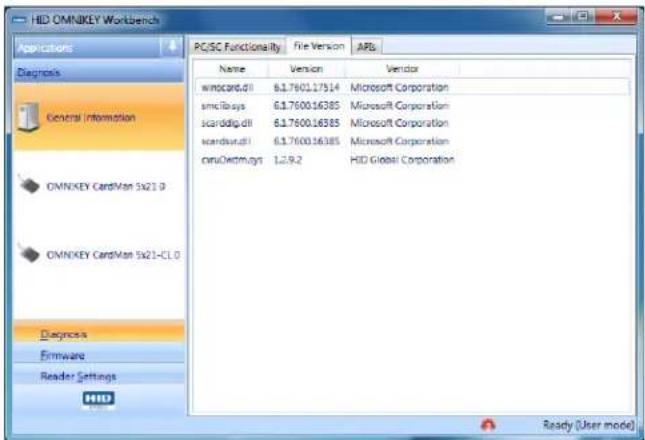
The Diagnosis application also lists all connected OMNIKEY smart card reader details (per the available contact and contactless interface).
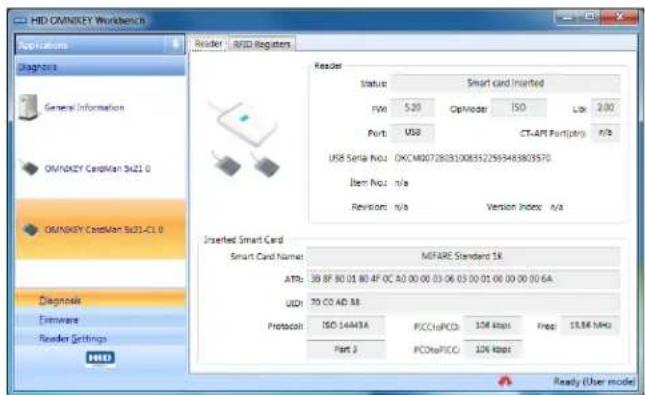
For a functional test, insert a working smart card into the reader. As a result, an ATR string and other card details display.
| North America15370 Barranca ParkwayIrvine, CA 92618USA | Asia Pacific19/F 625 King's RoadNorth Point, Island EastHong Kong | Europe, Middle East & AfricaPhoenix RoadHaverhill, Suffolk CB9 7AEEngland |
| www.hidglobal.comsupport.hidglobal.com | ||