Rugged Triple USB 3.0 - External hard drive SEAGATE - Free user manual and instructions
Find the device manual for free Rugged Triple USB 3.0 SEAGATE in PDF.


| Product Type | External Hard Drive |
| Brand | Seagate |
| Model | Rugged Triple USB 3.0 |
| Capacity | Up to 4 TB (varies by model) |
| Interface | USB 3.0 (backward compatible with USB 2.0) |
| Data Transfer Rate | Up to 140 MB/s |
| Form Factor | Portable |
| Dimensions (L x W x H) | 4.5 x 3.2 x 0.8 inches (115 x 80 x 20 mm) |
| Weight | 0.5 lbs (230 g) |
| Power Source | USB bus-powered (no external power adapter needed) |
| Operating Temperature | 0°C to 35°C (32°F to 95°F) |
| Storage Temperature | -40°C to 70°C (-40°F to 158°F) |
| Shock Resistance | Up to 1.5 m drop resistance (military-grade) |
| Water Resistance | IP67 rated (1 m immersion for 30 min) |
| Dust Resistance | IP67 rated (fully dust-tight) |
| LED Indicator | Yes (activity/power light) |
| Compatibility | Windows 10/8/7, macOS 10.12+ (may require reformat for Time Machine) |
| Software Included | Seagate Dashboard for backup and mirroring |
| Warranty | 2 years limited (varies by region) |
| Color | Orange/Black |
| Material | Rubberized exterior for grip and protection |
| Cable Length | 18 inches (45 cm) USB 3.0 cable included |
| Encryption | Password protection and AES-256 encryption (via software) |
| Cleaning Instructions | Wipe with a soft, dry cloth; avoid liquids and solvents |
Frequently Asked Questions - Rugged Triple USB 3.0 SEAGATE
User questions about Rugged Triple USB 3.0 SEAGATE
0 question about this device. Answer the ones you know or ask your own.
Ask a new question about this device
Download the instructions for your External hard drive in PDF format for free! Find your manual Rugged Triple USB 3.0 - SEAGATE and take your electronic device back in hand. On this page are published all the documents necessary for the use of your device. Rugged Triple USB 3.0 by SEAGATE.
USER MANUAL Rugged Triple USB 3.0 SEAGATE
of this document for the most recent content as well as for features such as expandable illustrations, easier navigation, and search capability.
natural_image
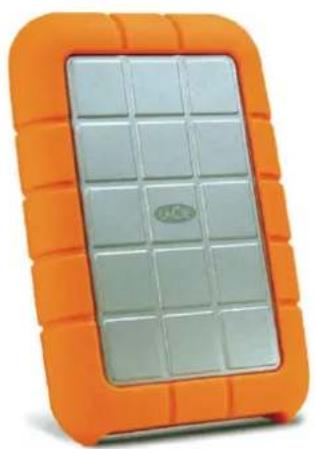
Orange and gray hard drive pad with grid panels (no visible text or symbols)INTRODUCTION
Welcome to the User Manual for the Rugged Hard Drive USB 3.0 and FireWire 800. This drive combines the cutting-edge interfaces SuperSpeed USB 3.0 with FireWire 800 for the ultimate in transfer speeds and flexibility.
These pages will guide you through the process of connecting your LaCie product and will explain its features. If this manual doesn't answer your questions or if you are having trouble, consult the Getting Help page.
BOX CONTENT
Your box contains the following:
- LaCie Rugged Hard Disk
- USB 3.0 cable (USB 2.0-compatible)
- FireWire 800 cable
- Quick Install Guide
Note: A PDF of this User Manual and software utilities are pre-loaded on the drive.
Important info: Please save your packaging. In the event that the drive should need to be repaired or serviced, it must be returned in its original packaging.
Note: For optimal performance through the USB connection, the drive must be connected to a USB 3.0 host port. Many laptops or desktop computers do not feature USB 3.0 ports. You can purchase a USB 3.0 PCI Express Card (for desktop computers) or a USB 3.0 ExpressCard 34 (for laptops) that will permit the maximum transfer speeds for which your LaCie USB 3.0 hard drive is capable.
MINIMUM SYSTEM REQUIREMENTS
Your system must meet certain requirements in order for your LaCie product to function properly. For a list of these requirements, please refer to the product packaging or consult the product support web page at www.lacie.com/support/.
CABLES AND CONNECTORS
USB 3.0
USB is a serial input/output technology for connecting peripheral devices to a computer. SuperSpeed USB 3.0 is the latest implementation of this standard, and it provides higher bandwidth and new power management features.
Transfer rates can attain up to 5 Gbits/s as opposed to USB 2.0's 480 Mbits/s. This means USB 3.0 is theoretically up to ten times faster than its predecessor.
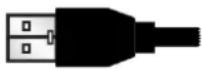
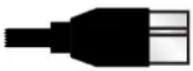
Your LaCie drive is shipped with a SuperSpeed USB 3.0 cable to ensure maximum data transfer performance when connected to a compatible USB 3.0 port. The cable will also work when connected to a USB 2.0 or 1.1 port, but drive performance will be limited to their respective transfer rates.
| Connector Face (to Computer) | Cable End (to Computer) | Cable End (to Hard Drive) | Connector Face (to Hard Drive) |
 |  |  | [2X8K] |
FIREWIRE 800
FireWire, also known as IEEE 1394, is a high-speed serial input/output technology for connecting peripheral devices to a computer or to each other, and FireWire 800 is the implementation of the new IEEE 1394b standard. FireWire 800 offers increased bandwidth and extended distance between devices. FireWire 800 is ideal for bandwidth-intensive applications, such as audio, video and graphics.
| Connector Face (to computer) | Cable End (to computer) | Cable End (to product) | Connector Face (to product) |
 |  |  |  |
Note: FireWire 800 is backwards compatible with FireWire 400, which means that if you have an adapter cable, you can connect your LaCie FireWire 800 product to a FireWire 400 port on your computer. In this case, file transfers will be limited to FireWire 400 speeds. If your product does not include an adapter cable in the package, you can purchase one from www.lacie.com/accessories/.
USB-Y CABLE
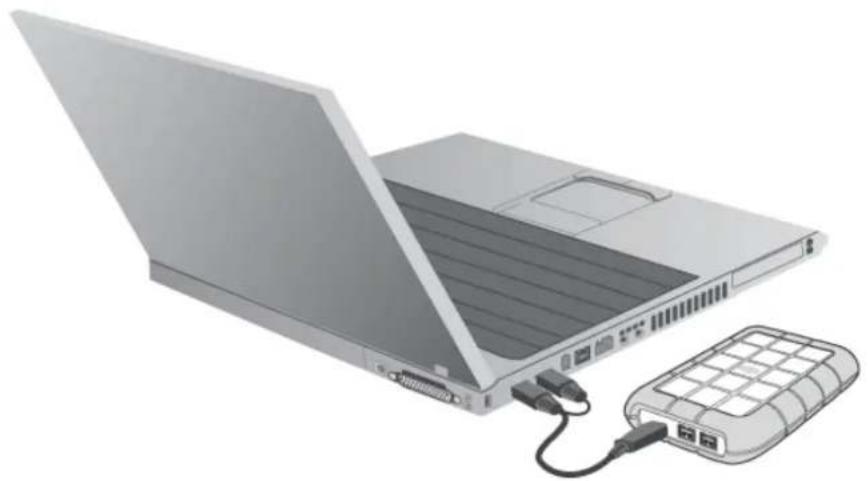
In the event that the USB bus on your computer does not provide the necessary power to operate your mobile LaCie hard disk, you can connect a USB-Y cable to the drive and to your computer's USB 3.0 or USB 2.0 ports to ensure adequate power. If a USB-Y cable is not included in the packaging, you can purchase one from www.lacie.com/accessories/.
| Connector Face (to Computer) | Cable End (to Computer) | Cable End (to Hard Drive) | Connector Face (to Hard Drive) |
 | Power 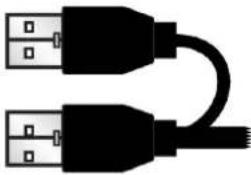 Data Data | 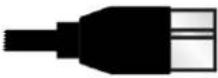 | tweed |
Attach the single connector end of the USB-Y cable to the back of your LaCie drive.1. Attach the double connector end of the USB-Y cable to two USB ports on your computer.2.
natural_image
Illustration of a laptop connected to a portable network device (no text or symbols visible)GETTING CONNECTED
Installing your LaCie hard drive is easy for all users thanks to LaCie Setup Assistant. Please follow the setup steps in the order they are given to ensure that your LaCie hard drive's volume mounts correctly on your computer.
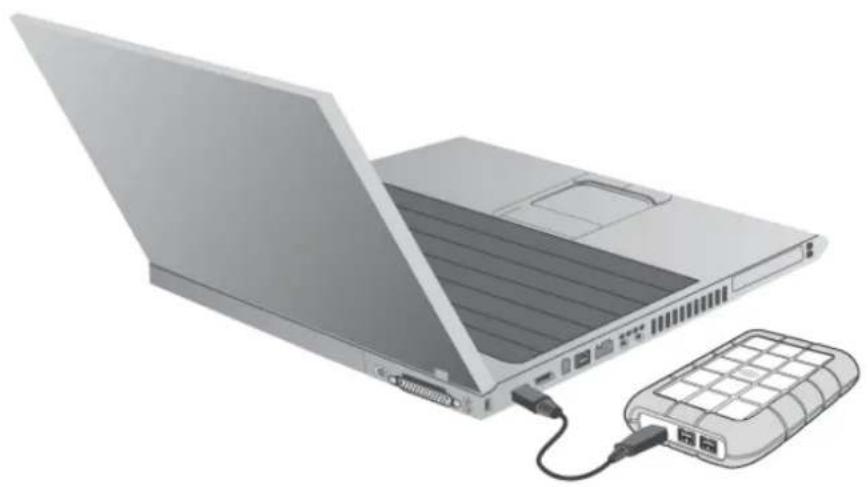
STEP 1: CONNECT THE INTERFACE CABLE
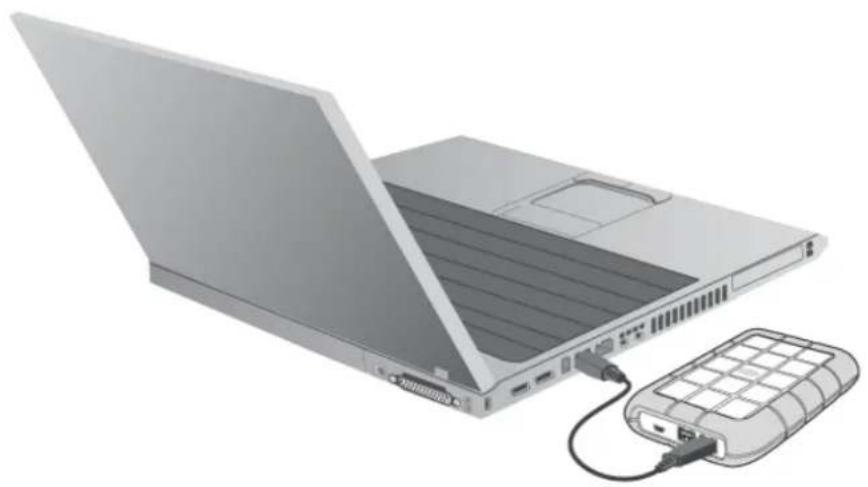
Connect the interface cable from the drive to the computer. The drive will then mount on your computer.
USB 3.0:
natural_image
Illustration of a laptop connected to a portable device with cables (no text or symbols visible)Technical note:
USB connection: If the USB bus on your computer does not provide the necessary power to operate your LaCie device, you may require a USB power-sharing cable. Depending upon your LaCie device, please connect a USB power cable or a USB-Y cable for additional power. If the cable is not included, you may purchase one from www.lacie.com/accessories.
Alternatively, you can connect the drive to a powered FireWire port on your computer in order to provide sufficient power. The FireWire connection can be in place of, or in addition to, the USB connection.
FireWire 800:
natural_image
Illustration of a laptop with a connected power bank plug (no text or symbols visible)Technical note:
FireWire Connection:
The FireWire port on your computer must be powered to operate your LaCie device properly. Additionally, daisy chaining multiple non-powered FireWire devices may effect individual performance. To guarantee optimal performance, LaCie recommends daisy chaining powered FireWire devices to your LaCie hard drive.
FireWire 800 is backwards-compatible with FireWire 400, which means that if you have an adapter cable, you can connect your LaCie FireWire 800 product to a FireWire 400 port on your computer. In this case, file transfers will be limited to FireWire 400 speeds. If your product does not include an adapter cable in the package, you can purchase one from www.lacie.com/accessories/.
STEP 2: LAUNCH LACIE SETUP ASSISTANT
LaCie Setup Assistant (LSA) must be launched before using your drive. It will allow you to:
- Easily format the hard drive according to your needs
- Copy the User Manual to your computer
- Install software for added features
- Register your LaCie device
Important info: If you do not launch LSA or if you quit it after the formatting has begun, your drive will not be ready to use and will require manual formatting. The User Manual and utilities will not be available and will have to be downloaded from the LaCie website: www.lacie.com/support/.
Launch LaCie Setup Assistant
Windows users
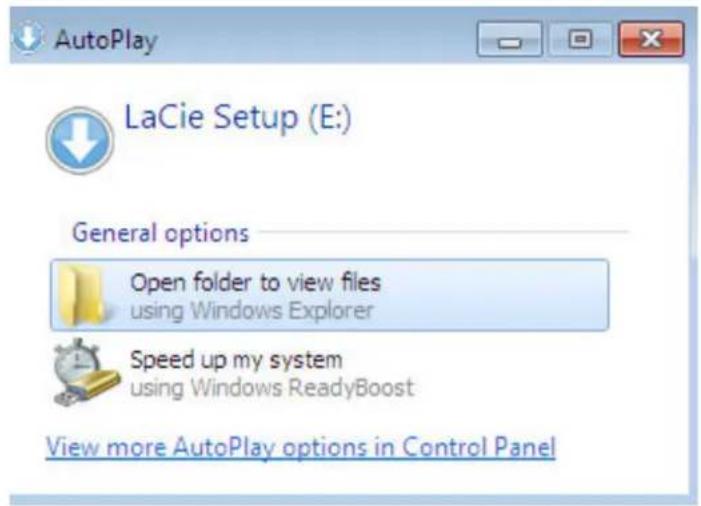
AutoPlay: Windows AutoPlay may detect your LaCie hard drive as soon as it is connected to your computer. If the AutoPlay window appears, choose Open folder to view files using Windows Explorer and double-click LaCie Setup.
text_image
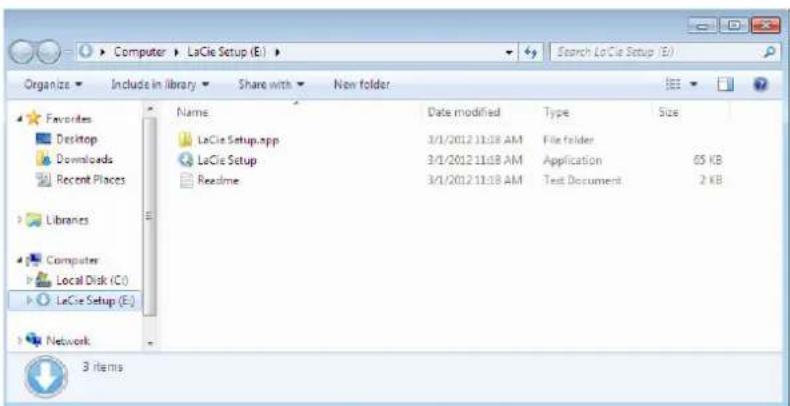
AutoPlay LaCie Setup (E:) General options Open folder to view files using Windows Explorer Speed up my system using Windows ReadyBoost View more AutoPlay options in Control PanelManual access: Open the LACIE SETUP volume in Computer (My Computer for Windows XP) and double-click LaCie Setup.
text_image
Computer > LaCie Setup (E) Organize Include in library Share with New folder Favorites Desktop Downloads Recent Places Libraries Computer Local Disk (C:) LaCie Setup (E:) Network Name Date modified Type Size LaCie Setup.app 3/1/2012 11:58 AM File folder LaCie Setup 3/1/2012 11:58 AM Application 65 KB Realme 3/1/2012 11:58 AM Text Document 2 KB 3 itemsMac users
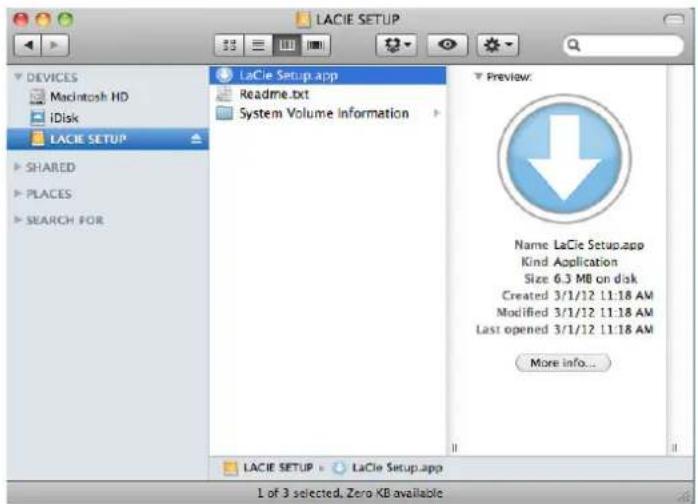
Open the LACIE SETUP volume on your desktop and then double-click LaCie Setup
text_image
LACIE SETUP DEVICES Macintosh HD iDisk LACIE SETUP SHARED PLACES SEARCH FOR LaCie Setup.app Readme.txt System Volume Information Preview: Name LaCie Setup.app Kind Application Size 6.3 MB on disk Created 3/1/12 11:18 AM Modified 3/1/12 11:18 AM Last opened 3/1/12 11:18 AM More info... LACIE SETUP > LaCie Setup.app 1 of 3 selected, Zero KB availableSetup
LaCie Setup Assistant does not prevent you from using your computer's native disk utility program to format or partition your LaCie drive. Simply follow the Setup Assistant through completion, then use Disk Management for Windows or Disk Utility for Mac to reformat your drive.
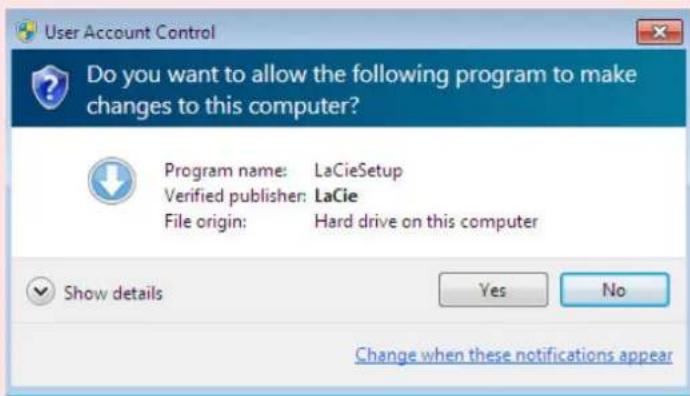
Important info for Windows users: While running LaCie Setup Assistant, generic pop-up windows may ask if you wish to change your computer's settings. This is a normal request when formatting a disk or installing certain software, such as Genie Timeline. To successfully complete LaCie Setup Assistant, LaCie recommends that you agree to change the settings.
text_image
User Account Control Do you want to allow the following program to make changes to this computer? Program name: LaCieSetup Verified publisher: LaCie File origin: Hard drive on this computer Show details Yes No Change when these notifications appearImportant info for Mac users: You may be prompted to enter your computer password to continue with LaCie Setup Assistant.
Follow the on-screen instructions as listed below to format your drive and install software utilities:
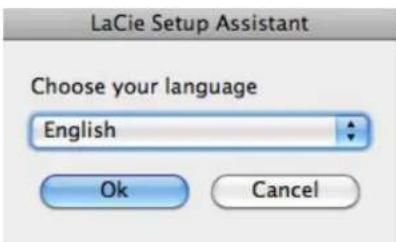
Select your language.1.
text_image
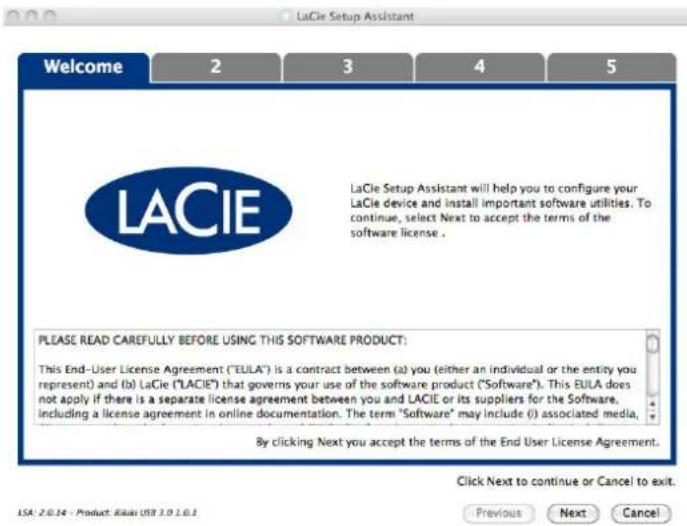
LaCie Setup Assistant Choose your language English Ok Cancel- Read the license agreement before choosing Next. Selecting Next confirms that you accept the license agreement.
text_image
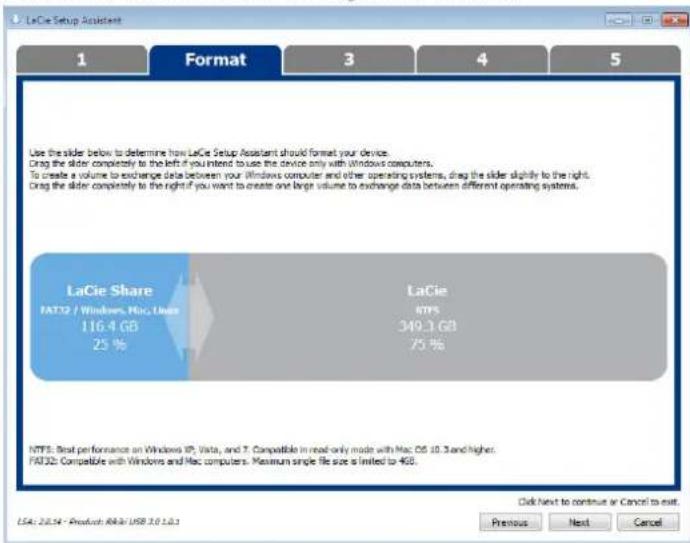
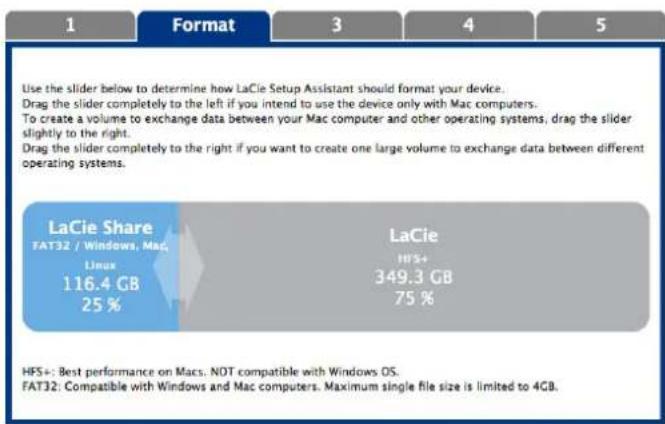
LaCle Setup Assistant Welcome 2 3 4 5 LACIE LaCle Setup Assistant will help you to configure your LaCle device and install important software utilities. To continue, select Next to accept the terms of the software license . PLEASE READ CAREFULLY BEFORE USING THIS SOFTWARE PRODUCT: This End-User License Agreement ("EULA") is a contract between (a) you (either an individual or the entity you represent) and (b) LaCle ("LACIE") that governs your use of the software product ("Software"). This EULA does not apply if there is a separate license agreement between you and LACIE or its suppliers for the Software. including a license agreement in online documentation. The term "Software" may include (i) associated media, By clicking Next you accept the terms of the End User License Agreement. Click Next to continue or Cancel to exit. Previous Next Cancel USA: 2014 - Product: Eula UST 3.0.1.6.1Use the slider to partition your LaCie hard drive. Moving the slider to the left will reduce the size of the3. Compatible volume (called LaCie Share on some products) (for Windows and Mac). If you do not want the Compatible / LaCie Share volume, move the slider all the way to the left. The LaCie volume will be formatted for your operating system, NTFS for Windows and HFS+ for Mac. Once you have made your selection, choose Next to begin the format.
text_image
LaCie Setup Assistant 1 Format 3 4 5 Use the slider below to determine how LaCie Setup Assistant should format your device. Drag the slider completely to the left if you intend to use the device only with Windows computers. To create a volume to exchange data between your Windows computer and other operating systems, drag the slider slightly to the right. Drag the slider completely to the right if you want to create one large volume to exchange data between different operating systems. LaCie Share FAT32 / Windows, No. Units 116.4 GB 25 % LaCie HTTPS 349.3 GB 75 % HTTPS: Best performance on Windows XP, Vista, and 7. Compatible in read-only mode with Mac OS 10.3 and higher. FAT32: Compatible with Windows and Mac computers. Maximum single file size is limited to 4GB. Click next to continue or Cancel to exit. LSA: 20.14 - Product: Riki: USB 3.0 L3.1 Previous Next CancelWindows

text_image
1 Format 3 4 5 Use the slider below to determine how LaCie Setup Assistant should format your device. Drag the slider completely to the left if you intend to use the device only with Mac computers. To create a volume to exchange data between your Mac computer and other operating systems, drag the slider slightly to the right. Drag the slider completely to the right if you want to create one large volume to exchange data between different operating systems. LaCie Share FAT32 / Windows, Mac, Linux 116.4 GB 25% LaCie HFS+ 349.3 GB 75% HFS+: Best performance on Macs. NOT compatible with Windows OS. FAT32: Compatible with Windows and Mac computers. Maximum single file size is limited to 4GB.
Mac
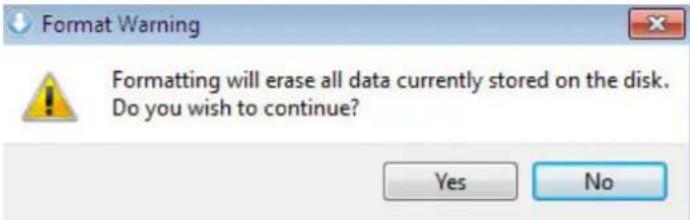
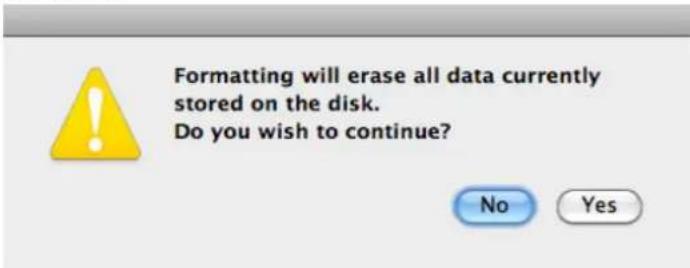
A window prompt alerts you that the disk will be formatted. Select Yes to continue.4.
text_image
Format Warning Formatting will erase all data currently stored on the disk. Do you wish to continue? Yes NoWindows
text_image
Formatting will erase all data currently stored on the disk. Do you wish to continue? No YesMac
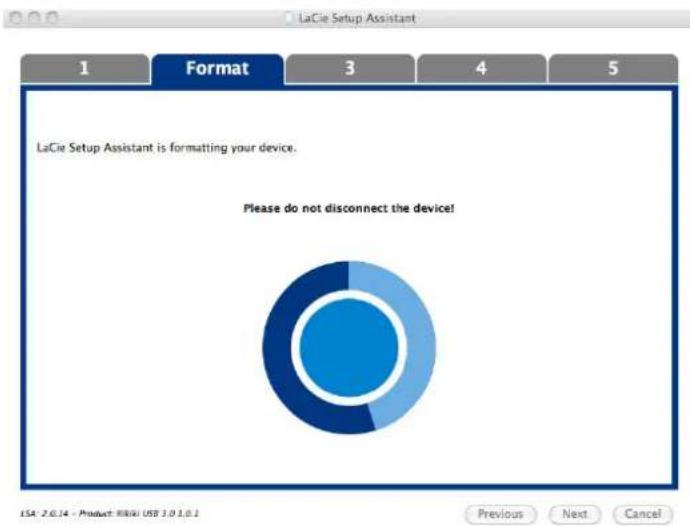
LaCie Setup Assistant will format the hard drive.5.
text_image
LaCie Setup Assistant 1 Format 3 4 5 LaCie Setup Assistant is formatting your device. Please do not disconnect the device! ISA: 2.6.14 - Product: RIR@ USB 3.0.1.0.1 Previous Next CancelRegister your LaCie device. Choose Next to continue.6.
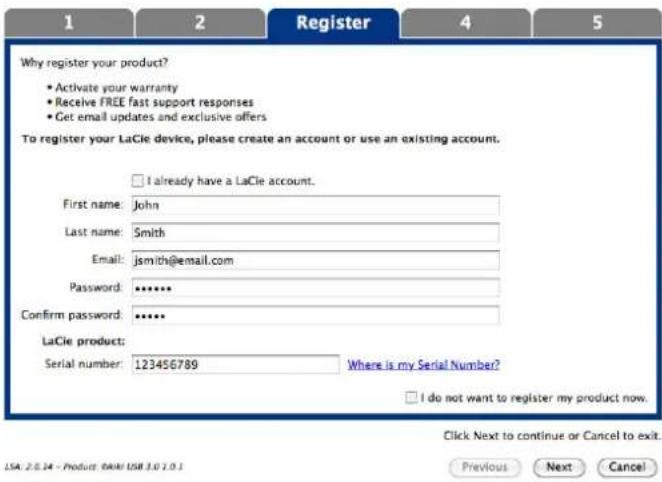
text_image
Why register your product? • Activate your warranty • Receive FREE fast support responses • Get email updates and exclusive offers To register your LaCle device, please create an account or use an existing account. □ I already have a LaCle account. First name: John Last name: Smith Email: jsmith@email.com Password: ****** Confirm password: ****** LaCle product: Serial number: 123456789 Where is my Serial Number? □ I do not want to register my product now. Click Next to continue or Cancel to exit. Previous Next Cancel USA 2.0.14 - Product: USB 1.0.1.0.1New Account
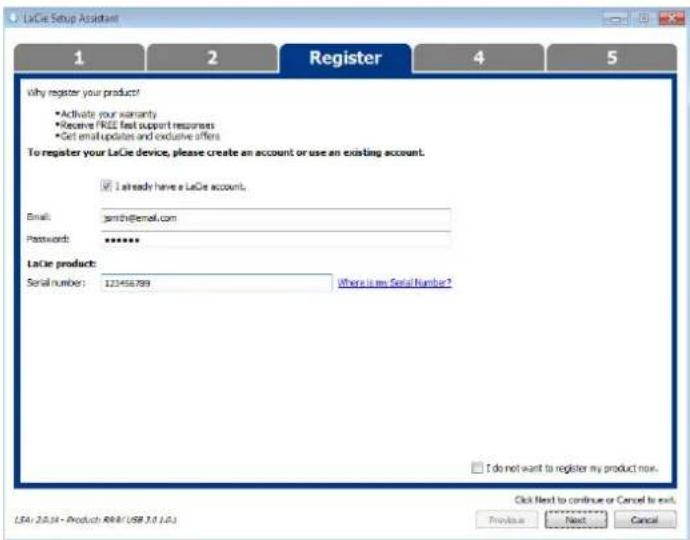
text_image
LaCie Setup Assistant 1 2 Register 4 5 Why register your product? •Activate your warranty •Receive FREE fast support responses •Get email updates and exclusive offers To register your LaCie device, please create an account or use an existing account. ✓ I already have a LaCie account. Email: smth@email.com Password: ****** LaCie product: Serial number: 123456789 Where is my Serial Number? I do not want to register my product now. Click Next to continue or Cancel to exit. LSA: 20.14 - Product RKB/ USB 3.0 LGA Provide Next CancelExisting Account
Choose the software utilities that you want to install. Certain software utilities may begin to install before7. LaCie Setup Assistant has finished. Follow the software utility installer before completing LaCie Setup Assistant.
Choose Next to continue.8.
- LaCie Setup Assistant provides a summary of the installation. Choose Finish to close the program. Your LaCie hard drive is now ready for use.
Software will be installed on the product's storage, not on your computer. It will be located on the volume entitled "Compatible" or "LaCie Share" if it exists, otherwise on "LaCie".
LaCie software utilities may be installed at any time. Once the format is complete, the LaCie Setup Assistant application will be available on:
- LaCie: if you created one partition
- Compatible/LaCie Share: if you created two partitions
To install the software utilities, simply launch LaCie Setup Assistant and follow the steps listed above.
LACIE DESKTOP MANAGER
LaCie Desktop Manager unlocks the full potential of your LaCie hard drive. It will allow you to see advanced information on your drive and to configure Eco Mode.
Note: LaCie Desktop Manager is not compatible with all LaCie devices. Only compatible LaCie devices will appear in LaCie Desktop Manager.
INSTALLING LACIE DESKTOP MANAGER
If LaCie Desktop Manager is not installed on your system (check your Windows Start Menu or Mac Applications folder), you can install it by double clicking the drive icon in My Computer/Computer (Windows) or on the Desktop (Mac), opening the LaCie/Software folder, then launching the installer located in the folder for your operating system.
Windows Mac
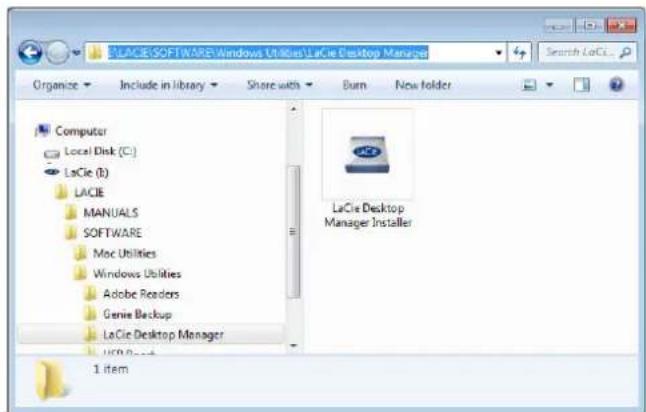
text_image
SLACE SOFTWARE Windows Utilities LaCie Desktop Manager Organize Include in library Share with Burn New Folder Computer Local Disk (C:) LaCie (B:) LACIE MANUALS SOFTWARE Mac Utilities Windows Utilities Adobe Readers Genie Backup LaCie Desktop Manager USB 2.1.1.1 1 item LaCie Desktop Manager Installer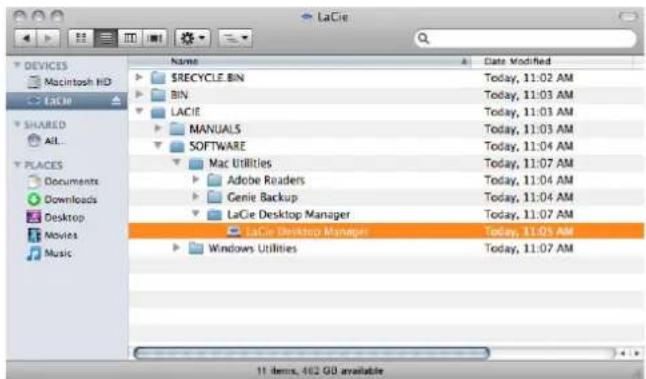
text_image
LAcie Name Date Modified SRECYCLE.BIN Today, 11:02 AM BIN Today, 11:03 AM LACIE Today, 11:03 AM MANUALS Today, 11:03 AM SOFTWARE Today, 11:04 AM Mac Utilities Today, 11:07 AM Adobe Readers Today, 11:04 AM Genie Backup Today, 11:04 AM LaCie Desktop Manager Today, 11:07 AM LaCie Desktop Manager Today, 11:05 AM Windows Utilities Today, 11:07 AM 11 items, 462.90 availableWhen setup has completed, launch the LaCie Desktop Manager from the System tray (Windows) or the Menu bar (Mac).
Windows Mac

text_image
08:25 02/12/2009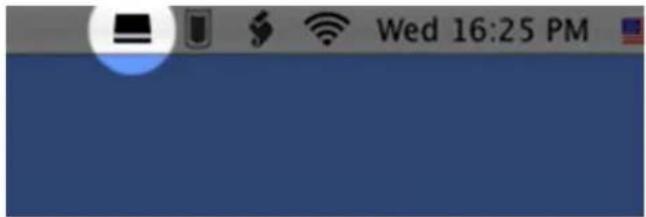
text_image
Wed 16:25 PMNote: If you have manually formatted the drive using your operating system's disk utility instead of or after running the LaCie Setup Assistant, you will need to download the LaCie Desktop Manager from www.lacie.com/support/.
INFO TAB
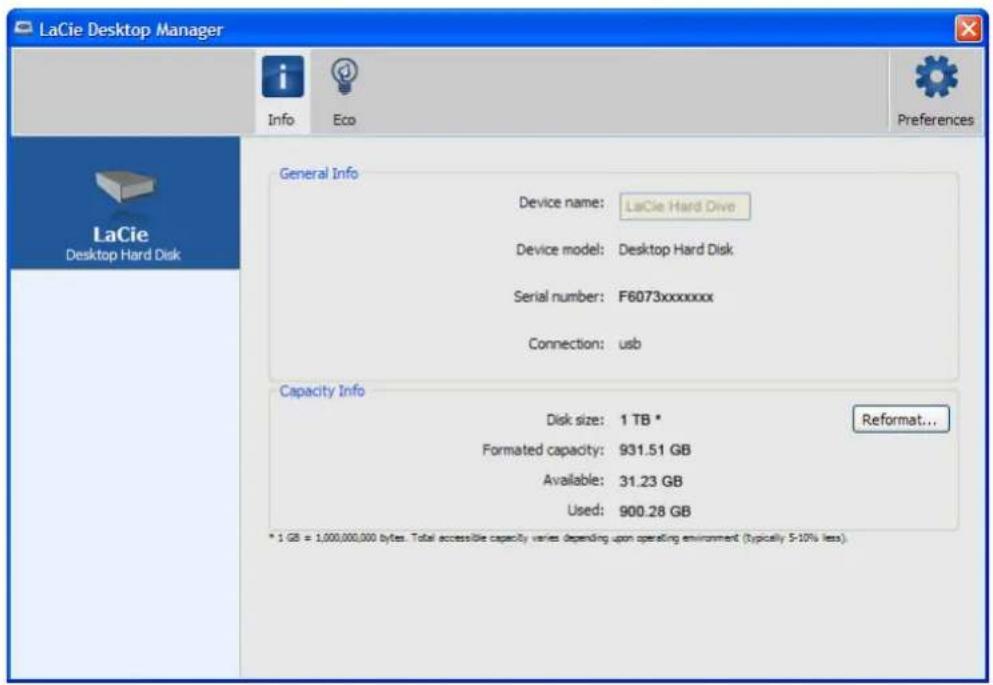
When you run LaCie Desktop Manager, you will see that all compatible connected LaCie devices will appear in the left-hand column. Choose the drive you wish to manage and make sure the Info tab is selected. On this page you will see advanced information on your drive, such as device name, the internal hard disk serial number (not the LaCie product serial number), available capacity, connection type, etc.
You can also reformat the drive from this page.
Caution: If you click the Reformat... button and follow these steps, everything will be erased from the partition. If you have information that you want to protect or continue to use, back up this information before performing these steps.
text_image
LaCie Desktop Manager Info Eco Preferences LaCie Desktop Hard Disk General Info Device name: LaCie Hard Dive Device model: Desktop Hard Disk Serial number: F6073xxxxxxxx Connection: usb Capacity Info Disk size: 1 TB * Formated capacity: 931.51 GB Available: 31.23 GB Used: 900.28 GB * 1 GB = 1,000,000,000 bytes. Total accessible capacity varies depending upon operating environment (typically 5-10% less).ECO TAB
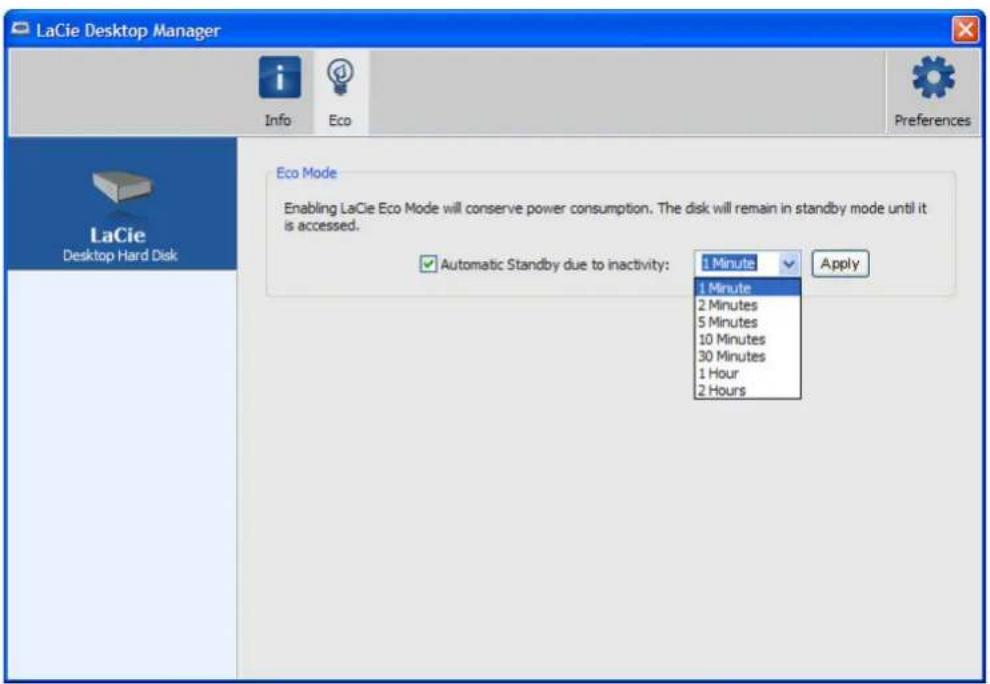
By default, your drive will enter Eco Mode after five minutes of inactivity in order to conserve energy. To exit Eco Mode, simply access data on the drive and the disk will automatically restart.
You can manage this feature using LaCie Desktop Manager. Click the Eco tab.
Note: If you don't see the Eco tab, your hard drive is incompatible with Eco mode. Check www.lacie.com/support/ for a product update which may allow your drive to benefit from this feature.
Unclick the Automatic Standby due to Inactivity box to turn off Eco Mode, or select a period of inactivity after which the drive will enter Eco Mode.
text_image
LaCie Desktop Manager Info Eco Preferences LaCie Desktop Hard Disk Eco Mode Enabling LaCie Eco Mode will conserve power consumption. The disk will remain in standby mode until it is accessed. Automatic Standby due to inactivity: 1 Minute Apply 1 Minute 2 Minutes 5 Minutes 10 Minutes 30 Minutes 1 Hour 2 HoursEco Mode and Mac OS X: Based upon your LaCie hard drive, Eco Mode may be managed by Mac OS X. If prompted, please click on Energy Saver Settings to enter the System Preferences. Select "Put the hard disk(s) to sleep when possible" to conserve energy.
UNINSTALL LACIE DESKTOP MANAGER
Mac Users
Click the LaCie Desktop Manager icon in the menu bar, then select Preferences. In the window that opens, click Uninstall LaCie Desktop Manager.
Windows Users
Use Windows' Control Panel to uninstall LaCie Desktop Manager. For detailed instructions from Microsoft, see here: Windows 7 | Windows Vista
UNMOUNTING YOUR DRIVE
USB, FireWire, Thunderbolt, and eSATA external devices feature "plug & play" connectivity, which means that your LaCie storage can be connected and disconnected while the computer is running. To prevent failures, however, it is important to follow these steps when disconnecting your device.
WINDOWS XP USERS
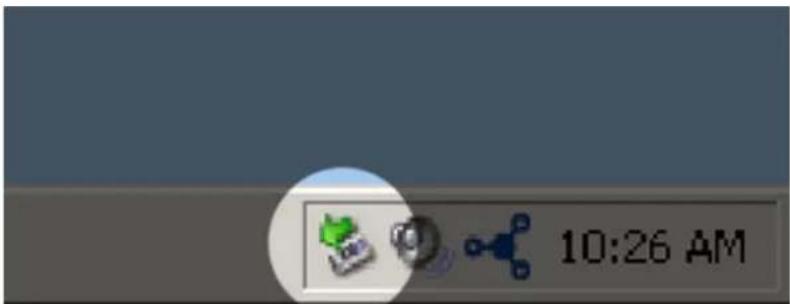
From the System Tray (located in the lower right-hand side of your screen), click the Eject icon (a small green arrow over a hardware image). A message will appear, listing the devices the Eject icon controls (it should say, "Safely remove..."). Click on the LaCie storage device in this prompt.
text_image
10:26 AMThis message will appear: "Safe to Remove Hardware" (or similar). It is now safe to disconnect the device.
WINDOWS VISTA & WINDOWS 7 USERS
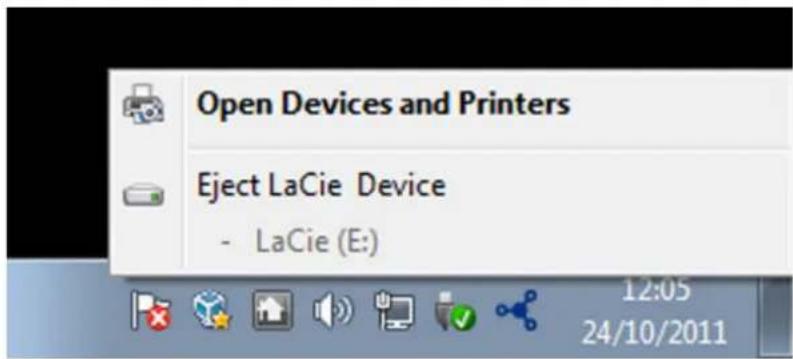
From the System Tray (located in the lower right-hand side of your screen) click on the plug icon (note the white check mark inside a green circle).

text_image
08:25 02/12/2009A message will appear, detailing the devices that may be safely unmounted.
Select Eject for the device you wish to unmount. A message will appear notifying you that it is safe to remove it.
text_image
Open Devices and Printers Eject LaCie Device - LaCie (E:) 12:05 24/10/2011MAC USERS
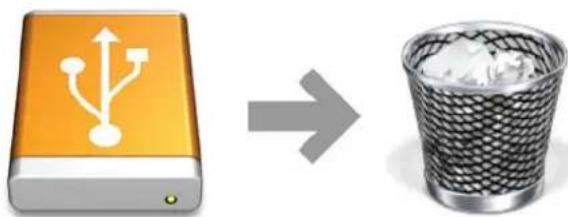
Drag the storage device icon to the Trash. (The icon pictured below is a generic USB device icon. Your LaCie storage may be represented by an icon that looks like the device itself.)
natural_image
Icon showing a USB switch next to a trash bin with ice (no text or symbols)When the icon disappears from the desktop, the storage device can be disconnected.
OPTIONAL FORMATTING AND PARTITIONING
Standard LaCie storage devices will prompt you to run LaCie Setup Assistant when they are first connected to a computer (Windows or Mac). LaCie Setup Assistant helps you to quickly format the storage device according to your needs.
Please read the information below carefully if you:
- Abort LaCie Setup Assistant while it is formatting.
- Wish to reformat your storage device after LaCie Setup Assistant has successfully completed.
- Own a LaCie storage device that does not feature Setup Assistant (for example, select LaCie USB Keys).
ABOUT FILE SYSTEM FORMATS
Windows Users
FAT 32: FAT is an acronym for File Allocation Table, which dates back to the beginnings of DOS programming. Originally, FAT was only 16 bits, but after the second release of Windows 95 it was upgraded to 32 bits, hence the name FAT 32. In theory, FAT 32 volume sizes can range from less than 1MB all the way to 2TB.
It is the native file system of Windows 98 and Windows Me, and is supported by Windows 2000, Windows XP, Windows Vista, and Windows 7. When FAT 32 is used with Windows 2000, Windows XP, Windows Vista, and Windows 7 however, volume size is limited to 32GB (by the Windows partition utility, i.e. Disk Manager), and the individual file size is limited to 4GB.
NTFS: This acronym stands for New Technology File System, and it is the native file system for Windows NT, 2000, XP, Vista, and 7. NTFS offers several features that are not available with FAT 32: file compression, encryption, permissions, auditing, and mirroring drives. The minimum supported volume size for NTFS is 10MB with a maximum of 2TB when initialized in the MBR format. The more recent GPT format does not assign limits to file or partition sizes. Volumes created in NTFS are native read and write for Windows NT, 2000, XP, Vista, and 7. Earlier versions of Windows and Mac OS X 10.5 or higher may read and write to the NTFS partitions with the help of third-party drivers.
See the table below for a comparison of NTFS and FAT 32.
| Windows File System Formats |
| Use NTFS if: |
| ...you will be using the storage device only with Windows XP, Vista, and 7 since performance will be enhances when compared to FAT 32. This file system is compatible in read-only mode with Mac OS 10.3 and higher. |
| Use FAT32 if: |
| ...you will be using your storage device with both Windows and Mac computers. Maximum single file size is limited to 4GB. |
Mac Users
You may customize the storage device by reformatting and/or partitioning it with separate file system formats. For optimal performance in Mac OS environments, format and partition the storage device as one large Mac OS Extended volume.
Mac OS Extended (HFS+): Mac OS Extended refers to the file system used by Mac OS X. HFS+ represents an optimization of the older HFS file system by using hard disk space more efficiently. With HFS+, you are no longer limited by block size.
MS-DOS File System (FAT 32): This is the Microsoft file system, more typically known as FAT 32. Use FAT 32 if you are going to be sharing your LaCie storage device between Mac and Window computers.
See the table below for a comparison between HFS+ and FAT 32 (MS-DOS).
| Mac File System Formats |
| Use HFS+ if: |
| ...you will be using the storage device on Macs only. Performance will be enhances when compared to FAT 32. HFS+ is NOT compatible with Windows OS. |
| Use FAT32 if: |
| ...you will be using your storage device with both Windows and Mac computers. Maximum single file size is limited to 4GB. |
FORMATTING INSTRUCTIONS
The steps listed below will help you to format and partition a storage device. For more information on choosing the optimal file format, refer to About File System Formats.
Caution: Formatting will erase everything on the storage device. LaCie highly recommends that you back up all data on your storage device before performing the steps below. LaCie is not responsible for any data lost due to formatting, partitioning, or using a LaCie storage device.
Important Info: Formatting the LaCie partition will delete the included User Manual and utilities. Please copy all data, including documentation and software from LaCie, before formatting your storage device. User Manuals and select software may also be downloaded from www.lacie.com/support/.
Note: Refer to your operating system's documentation for more information on reformatting and partitioning your storage device.
Windows Users
Technical Note on volumes larger than 2TB: Windows XP 32-bit - This version of Windows will not recognize volumes larger than 2TB; Windows XP x64, Vista and 7 - All of these versions of Windows can recognize volumes greater than 2TB. However, disks must be converted to the GPT file system before partitions greater than 2TB can be created. To do this, go to Windows Disk Management and right-click on the disk. Select Convert to GPT. You may now create partitions greater than 2TB.
Make sure the storage device is connected to and mounted on the computer.1.
-
Right-click on Computer and choose Manage. From the Manage window select Disk Management. From the list of storage devices in the middle of the Disk Management window, locate your LaCie device.3. By default, a partition is already created on the device with LaCie software utilities. Follow your operating4. system instructions to reset the existing partition.
-
To create a new partition, select New Simple Volume. Follow the on-screen instructions when the New Simple Volume Wizard appears.
Mac Users
Make sure the storage device is connected to and mounted on the computer.1.
Select Utilities from the Go menu in the Finder menu bar.2.
In the Utilities folder, double-click Disk Utility.3.
Disk Utility will display the message Select a disk, volume, or image. All connected storage devices, partitions, or disk images will be displayed in this column. Storage devices in this column may have multiple listings. The top name is the name of the physical device's manufacturer, and includes the formatted capacity.
Select the storage device in the left-hand column.4.
Click the Erase tab.5.
- Choose a format from the drop-down window. See About File System Formats for more information on choosing a file format.
Give the volume a name.7.
Click Erase... and confirm your selection in the popup window.8.
GETTING HELP
If you are having problems with your LaCie product, consult the table below for a list of available resources.
| Order | Source | Description Location | |
| 1 | Quick Install Guide | Concise steps to follow for getting your product up and running | Either a printed leaflet or accessory box and included in the product box, or download PDF from the product page |
| 2 | Support Pages | Includes interactive troubleshooting topics for most common problems | www.lacie.com/support/, select your product, then click the “Troubleshooting” tab |
| 3 | User Manual | Includes common troubleshooting topics | See Troubleshooting Topics below |
| 4 | Customer Support | Create an account on lacie.com, register your product, and fill out a support ticket | Create an account here: www.lacie.com/us/mystuff/login.htm?logout&rtn=mystuff |
Note: LaCie is dedicated to providing high quality products that enrich the lives of our customers. To help LaCie offer the best customer support, we encourage you to create an account and register your product at www.lacie.com/us/mystuff/login.htm? logout&rtn=mystuff. You can give us important feedback as well as receive updated information on your LaCie device.
TROUBLESHOOTING TOPICS
Note: Interactive troubleshooting, a highly effective way to resolve problems with your product, is available from www.lacie.com/support/. Select your product, then click the "Troubleshooting" tab.
All Users
Problem: My file transfers are too slow.
Q: Are there other USB devices connected to the same port or hub?
A: Disconnect any other USB devices and see if the drive's performance increases.
Q: Is the drive connected to a USB 2.0 port on your computer or hub?
A: If your drive is connected to a USB 2.0 port or hub, this is normal. A SuperSpeed USB 3.0 device can only operate at USB 3.0 performance levels when it is connected directly to a USB 3.0 port or hub. Otherwise, the USB 3.0 device will operate at the slower USB transfer rates. Consider buying a USB 3.0 PCI Express Card (for desktop computers) or an ExpressCard 34 (for laptops) to allow your computer to achieve full USB 3.0 transfer speeds.
Q: Is the drive connected to a SuperSpeed USB 3.0 port on your computer?
A: Check to see that the SuperSpeed USB 3.0 drivers for both your host bus adapter and device have been installed correctly. If in doubt, uninstall the drivers and re-install them.
Q: Does your computer or operating system support SuperSpeed USB 3.0 or FireWire 800?
A: Please refer to the product packaging or consult the product support web page at www.lacie.com/support/ to check the minimum system requirements.
Q: Is your computer's internal hard drive limiting transfer speeds?
A: If your computer has a low-performance internal hard drive (typically a notebook or netbook computer), it will limit the transfer speed since the internal drive's transfer speed will be significantly less than that of your LaCie USB hard drive.
Q: What do I do if I lose my USB 3.0 or FireWire 800 cable?
A: You can purchase a replacement cable from www.lacie.com/accessories/. For USB 3.0 if you lose the cable you can use a USB 2.0 cable instead, but in this case your transfer speeds will be limited to USB 2.0 speeds.
Problem: I'm receiving file transfer error messages.
Q: Did you get an "Error -50" message while copying to a FAT 32 volume?
A: When copying files or folders from a computer to a FAT 32 volume, certain characters cannot be copied. These characters include, but are not limited to:
Check your files and folders to ensure that these types of characters are not being used. The easiest solution is to check for incompatible characters in file names, change them, then resume file transferring.
If this is a recurrent problem or you can't find the files with incompatible characters, consider reformatting the drive to NTFS (Windows users) or HFS+ (Mac users). See Optional Formatting and Partitioning.
Q: Did you get an error message telling you that the drive has been disconnected when coming out of sleep mode?
A: Simply ignore this message. The drive will remount to the desktop. LaCie drives conserve power by spinning down when you set your computer to sleep mode, and when the computer is awoken from sleep, it may not give the drive enough time to spin-up from its sleep mode.
Mac OS X Users
Problem: The drive icon doesn't appear on my desktop.
Q: Are both ends of the interface cable firmly attached?
A: Check both ends of the interface cable and make sure that they are fully seated in their respective ports. Try disconnecting the cable, waiting 10 seconds, and then reconnecting it, or trying a different interface cable. If the drive is still not recognized, restart your computer and try again. Still not working? Read on.
Q: Is the drive receiving sufficient power?
A: If the drive is connected to your computer via USB and does not appear in Apple System Profiler, the drive may not be receiving enough power from the USB bus on your computer. Try connecting the USB power cable as described in section Cables and Connectors.
Q: Is your Finder configured not to show hard drives on the desktop?
A: Go to your Finder and check if Preferences > General tab > Show these items on the desktop: and then Hard Disks is selected. If not, go on to the next topic.
Q: Is your drive mounting on the operating system?
A: Open Disk Utility (Applications > Utilities > Disk Utility). If the drive is listed in the left-hand column, check your Finder preferences to see why it's not being displayed on the desktop. If that is not helpful, you may need to format your drive. See Optional Formatting and Partitioning.
Q: Does your computer's configuration meet the minimum system requirements for use with this drive?
A: Please refer to the product packaging or consult the product support web page at www.lacie.com/support/ to check the minimum system requirements.
Q: Did you follow the correct installation steps for the specific interface and operating system?
A: Review the installation steps in Getting Connected. Check if you've misunderstood or omitted a step or followed instructions for a different configuration (such as interface or operating system).
Still not working? There may be a hardware defect or other problem. Time to contact www.lacie.com/support/.
Windows XP, 2000, Vista, and Windows 7 Users
Problem: The drive icon doesn't appear in My Computer/Computer.
Q: Are both ends of the interface cable firmly attached?
A: Check both ends of the interface cable and make sure that they are fully seated in their respective ports. Try disconnecting the cable, waiting 10 seconds, and then reconnecting it, or trying a different interface cable. If the drive is still not recognized, restart your computer and try again. Still not working? Read on.
Q: Is the drive receiving sufficient power?
A: If the drive is connected to your computer via USB and does not appear in Disk Manager, the drive may not be receiving enough power from the USB bus on your computer. Try connecting the USB power cable as described in section Cables and Connectors.
Q: Is the drive listed in Device Manager?
A: All LaCie drives appear in at least one place in Device Manager.
To access Device Manager, click on Start and select Run from the menu. In Windows Vista, the 'Run' option doesn't appear by default, so press [Windows-button] and [R] on your keyboard.
Enter the command: devmgmt.msc
Click OK and the Device Manager program will open. For troubleshooting, look in the Disk Drives section. It might be necessary to click on + on the left side.
If you're not sure if your drive is listed, unplug it, then reconnect it. The entry that changes is your LaCie drive.
Q: Does your disk not appear at all?
A: Proceed to physical troubleshooting topics above.
Q: Is your drive listed next to an unusual icon?
A: Windows Device Manager can usually provide information about failures in accessories. It does not display the exact cause, or a solution, but it can assist in troubleshooting most problems.
A problematic device can be found by its unusual icon. Instead of the normal icon based on the type of device, it is instead an exclamation point, question mark, or an X.
Right-click this icon, then choose Properties. The General tab will show why the device is not working.
Still not working? There may be a hardware defect or other problem. Time to contact www.lacie.com/support/.
PRECAUTIONS
Caution: It is essential that you use only the power supply that shipped with your product, since it is a shielded-type power cord that meets FCC emission limits as well as to prevent interference to the nearby radio and television reception.
Caution: Modifications not authorized by the manufacturer may void the user's authority to operate this device.
Important info: Any loss, corruption or destruction of data while using a LaCie drive is the sole responsibility of the user, and under no circumstances will LaCie be held liable for the recovery or restoration of this data. To help prevent the loss of your data, LaCie highly recommends that you keep TWO copies of your data; one copy on your external hard disk, for instance, and a second copy either on your internal hard disk, another external hard disk or some other form of removable storage media. If you would like more information on backup, please refer to our website.
Important info: 1TB (Terabyte) = 1,000GB. 1GB = 1000MB. 1MB = 1,000,000 Bytes. Total accessible capacity varies depending upon operating environment (typically up to 10% less per TB).
HEALTH AND SAFETY PRECAUTIONS
- Only qualified persons are authorized to carry out maintenance on this device.
- Read this User Manual carefully and follow the correct procedure when setting up the device.
- Do not open a disk drive or attempt to disassemble or modify it. Never insert any metallic object into the drive to avoid any risk of electrical shock, fire, short-circuiting or dangerous emissions. The disk drive shipped with your LaCie hard drive contains no user-serviceable parts. If it appears to be malfunctioning, have it inspected by a qualified LaCie Technical Support representative.
- Never expose your device to rain, or use it near water, or in damp or wet conditions. Never place objects containing liquids on the LaCie hard drive, as they may spill into its openings. Doing so increases the risk of electrical shock, short-circuiting, fire or personal injury.
GENERAL USE PRECAUTIONS
- Power requirements 100-240 V\~, 50-60 Hz, (supply voltage fluctuations not exceeding ± 10% of the nominal and transient over-voltages according to over-voltage category II).
- Do not expose the LaCie hard drive to temperatures outside the range of 5^ C to 30^ C ( 41^ F to 86^ F); or to operational humidity beyond 10-80%, non-condensing, or non-operating humidity beyond 10-90%, non-condensing. Doing so may damage the LaCie hard drive or disfigure its casing. Avoid placing your LaCie
hard drive near a source of heat or exposing it to sunlight (even through a window). Inversely, placing your LaCie hard drive in an environment that is too cold may damage the unit.
- Rated cooling for altitudes up to 2000 meters.
- If your drive features a power cable, always unplug it from the electrical outlet if there is a risk of lightning or if it will be unused for an extended period of time. Otherwise, there is an increased risk of electrical shock, short-circuiting or fire.
- Use only the power supply shipped with the device (if applicable).
- Do not use the LaCie hard drive near other electrical appliances such as televisions, radios or speakers. Doing so may cause interference which will adversely affect the operation of the other products.
- Do not place the LaCie hard drive near sources of magnetic interference, such as computer displays, televisions or speakers. Magnetic interference can affect the operation and stability of your LaCie hard drive.
- Never use excessive force on your LaCie hard drive. If you detect a problem, consult the troubleshooting section in this manual.
- Protect your LaCie hard drive from excessive exposure to dust during use or storage. Dust can build up inside the device, increasing the risk of damage or malfunction.
- Never use benzene, paint thinners, detergent or other chemical products to clean the outside of the LaCie hard drive. Such products will disfigure and discolor the casing. Instead, use a soft, dry cloth to wipe the device.
WARRANTY INFORMATION
LaCie offers first-rate service and support through our generous three-tiered warranty policy. Our 1-, 2-, 3-, and 5-year policies include comprehensive, complimentary web-based resources, expert in-house technical support, and worldwide repair and/or replacement coverage. To benefit from this warranty, please contact LaCie Support at www.lacie.com/us/support where you can find online support and contact information. You may also contact representatives at the original point of purchase who will be able to help guide you.
Standard warranties vary depending on the product. To verify your product's warranty status and to see which standard warranty is included with your product, type in your product's serial number at
www.lacie.com/us/support. If no warranty is listed under your product's name, this means that the warranty has expired.
WARRANTY UPGRADES
If you wish to extend your warranty coverage, you can purchase Silver, Gold, or Platinum Care or Advanced Exchange. For details, see www.lacie.com/warranties.
LEGAL INFORMATION
A standard LaCie limited warranty is included with all products. Please read the terms and conditions below.
LaCie Limited Warranty Policy
LaCie ("LaCie") warrants, to the original purchaser, that this equipment shall be free of defects in materials and workmanship for a period of one (1), two (2), three (3), or five (5) years, depending on the model, from LaCie's date of original shipment when the equipment is used normally and is properly serviced when needed. If you discover a defect covered by the warranty set forth above, your sole and exclusive remedy will be for LaCie, in its sole discretion to (i) repair or replace the product at no charge to you; or, if a repaired unit or replacement product is not available, (ii) to refund the current market value of your product. You acknowledge and agree that replacement product, at the sole option of LaCie, may be a new product or a remanufactured product. In order to receive the remedy set forth above, you must return the product during the warranty period and include with each returned product (i) a copy of your original purchase invoice to verify your warranty; (ii) a Return Material Authorization number; (iii) your name, address and telephone number; (iv) a copy of the bill of sale bearing the appropriate LaCie serial numbers as proof of date of original retail purchase; and (v) a description of the problem. The customer must pay all transportation costs for a returned product. The product will need to be returned to LaCie within the country of original retail purchase. This warranty applies only to hardware products; LaCie software, media, and manuals are licensed and warranted pursuant to separate written agreement. This warranty does not apply if the product has been misused or has been damaged by accident, abuse, misuse, or misapplication; if it has been modified without permission of LaCie; or if any LaCie serial number has been removed or defaced. If a customer has purchased a LaCie Advance Care Option (ACO) to go with this equipment, the ACO shall be valid for three (3) years from activation.
EXCEPT FOR THE LIMITED WARRANTY SET FORTH ABOVE, ALL PRODUCTS ARE SOLD "AS IS" AND LACIE EXPRESSLY DISCLAIMS ALL WARRANTIES OF ANY KIND, WHETHER EXPRESS, IMPLIED OR STATUTORY, INCLUDING THE IMPLIED WARRANTIES OF MERCHANTABILITY, NONINFRINGEMENT AND FITNESS FOR A PARTICULAR PURPOSE. WITHOUT FURTHER LIMITING THE GENERALITY OF THE FOREGOING, DOES NOT WARRANT (1) THE PERFORMANCE OR RESULTS OBTAINED FROM USING THIS PRODUCT, (2) THAT THE PRODUCT IS APPROPRIATE FOR THE CUSTOMER'S PURPOSES, (3) THE MANUAL IS ERROR FREE, OR (4) THAT NO DATA WILL BE LOST WHILE USING THE PRODUCT. THE ENTIRE RISK AS TO THE RESULTS AND PERFORMANCE IS ASSUMED BY THE CUSTOMER. THE WARRANTY AND REMEDIES SET FORTH ABOVE ARE EXCLUSIVE AND IN LIEU OF ALL OTHERS, ORAL OR WRITTEN, EXPRESS OR IMPLIED.
EXCLUSIONS AND LIMITATIONS
This Limited Warranty applies only to hardware products manufactured by or for LaCie that can be identified by the “LaCie” trademark, trade name, or logo affixed to them. The Limited Warranty does not apply to any non-LaCie hardware products or any software, even if packaged or sold with LaCie hardware. Manufacturers, suppliers, or publishers, other than LaCie, may provide their own warranties to the end user purchaser, but LaCie, in so far as permitted by law, provides their products “as is”. Software distributed by LaCie with or without the LaCie brand name (including, but not limited to system software) is not covered under this Limited Warranty. Refer to the licensing agreement accompanying the software for details of your rights with respect to its use.
LaCie does not warrant that the operation of the product will be uninterrupted or error-free. LaCie is not responsible for damage arising from failure to follow instructions relating to the product's use. This warranty does not apply: (a) to consumable parts, unless damage has occurred due to a defect in materials or workmanship; (b) to cosmetic damage, including but not limited to scratches, dents and broken plastic on ports; © to damage caused by use with non-LaCie products; (d) to damage caused by accident, abuse, misuse, flood, fire, earthquake or other external causes; (e) to damage caused by operating the product outside the permitted or intended uses described by LaCie; (f) to damage caused by service (including upgrades and expansions) performed by anyone who is not a representative of LaCie or a LaCie Authorized Service Provider; (g) to a product or part that has been modified to alter functionality or capability without the written permission of LaCie; or (h) if any LaCie serial number on the product has been removed or defaced.
No LaCie dealer, agent, or employee is authorized to make any modification, extension, or addition to this warranty.
Any loss, corruption or destruction of data while using a LaCie drive is the sole responsibility of the user, and under no circumstances will LaCie be held liable for the recovery or restoration of this data. To help prevent the loss of your data, LaCie highly recommends that you keep TWO copies of your data; one copy on your external hard disk, for instance, and a second copy either on your internal hard disk, another external hard disk or some other form of removable storage media. LaCie offers a complete line of CD and DVD drives. If you would like more information on backup, please refer to our website.
LACIE IS NOT RESPONSIBLE FOR SPECIAL, INCIDENTAL, OR CONSEQUENTIAL DAMAGES RESULTING FROM ANY BREACH OF WARRANTY, OR UNDER ANY LEGAL THEORY, INCLUDING LOST PROFITS, DOWNTIME, GOODWILL, DAMAGE TO OR REPLACEMENT OF EQUIPMENT AND PROPERTY, AND ANY COSTS OF RECOVERING, REPROGRAMMING, OR REPRODUCING ANY PROGRAM OR DATA STORED IN OR USED WITH LACIE PRODUCTS EVEN IF IT HAS BEEN ADVISED OF THE POSSIBILITY OF SUCH DAMAGES.
Some states do not allow the exclusion or limitation of implied warranties or liability for incidental or consequential damages, so the above limitation or exclusion may not apply to you. This warranty gives you specific legal rights, and you may have other rights, which vary from state to state.
Your opening of your package, your use of the product, or your return of the enclosed Registration Card acknowledges that you have read and agree to the terms of this Agreement. You further agree that it is the complete and exclusive state of the agreement between us and supersedes any proposal or prior agreement, oral or written, and any other communications between us relating to the subject matter of this Agreement.
Read carefully all information related to warranty and precautions of use of your new LaCie product in the user manual.
For products purchased in the United States, you may contact LaCie at 7555 Tech Center Drive, Tigard, Oregon 97223 USA. Email: sales@lacie.com. Website: www.lacie.com. Customer service: 503-844-4503.
Service DOA
On rare occasions, a newly purchased LaCie product may be delivered in non-working order. We are working to avoid these issues, but unfortunately, these situations may arise from time to time. Within the 15 calendar days of purchase, should you experience an issue with your new LaCie product, we ask you to return the product to the place where it was originally bought. You will be required to give a proof of purchase.
Customer Warning
Please be sure to back up your data before returning your drive to LaCie for repair. LaCie cannot under any circumstances guarantee the integrity of data remaining on a returned drive. We make no provisions for data recovery and cannot be held liable for any data loss on drives or media returned to LaCie.
All products returned to LaCie must be securely packaged in their original box and shipped with postage prepaid, except for Products registered under the Advance Care Option.
NOTE TO AUSTRALIAN CUSTOMERS
Our goods come with guarantees that cannot be excluded under the Australian Consumer Law. You are entitled to a replacement or refund for a major failure and for compensation for any other reasonably foreseeable loss or damage. You are also entitled to have the goods repaired or replaced if the goods fail to be of acceptable quality and the failure does not amount to a major failure.
Contact us:
LaCie Australia, 6/151 Beauchamp Rd, Matraville NSW 2036 AUSTRALIA
Phone: 02 8063 3711
Email: info.au@lacie.com
For fast technical support, create a support ticket after registering your product at www.lacie.com/au/register.
LEGAL INFORMATION
COPYRIGHTS
Copyright © 2015 LaCie. All rights reserved. No part of this publication may be reproduced, stored in a retrieval system, or transmitted in any form or by any means, electronic, mechanical, photocopying, recording or otherwise, without the prior written consent of LaCie.
CHANGES
The material in this document is for information only and subject to change without notice. While reasonable efforts have been made in the preparation of this document to assure its accuracy, LaCie assumes no liability resulting from errors or omissions in this document, or from the use of the information contained herein. LaCie reserves the right to make changes or revisions in the product design or the product manual without reservation and without obligation to notify any person of such revisions and changes.
FEDERAL COMMUNICATION COMMISSION INTERFERENCE STATEMENT
This equipment has been tested and found to comply with the limits for a Class B digital device, pursuant to Part 15 of the FCC Rules. These limits are designed to provide reasonable protection against harmful interference in a residential installation. This equipment generates, uses and can radiate radio frequency energy and, if not installed and used in accordance with the instructions, may cause harmful interference to radio communications. However, there is no guarantee that interference will not occur in a particular installation. If this equipment does cause harmful interference to radio or television reception, which can be determined by turning the equipment off and on, the user is encouraged to try to correct the interference by one of the following measures:
Reorient or relocate the receiving antenna.1.
Increase the separation between the equipment and receiver.2.
Connect the equipment into an outlet on a circuit different from that to which the receiver is connected.3.
Consult the dealer or an experienced radio/TV technician for help.4.
FCC Caution: Any changes or modifications not expressly approved by the party responsible for compliance could void the user's authority to operate this equipment.
This device complies with Part 15 of the FCC Rules. Operation is subject to the following two conditions: (1) This device may not cause harmful interference, and (2) this device must accept any interference received, including interference that may cause undesired operation.
Important info: FCC Radiation Exposure Statement: This equipment complies with FCC radiation exposure limits set forth for an uncontrolled environment. This equipment should be installed and operated with minimum distance 20 cm between the radiator & your body.
This transmitter must not be co-located or operating in conjunction with any other antenna or transmitter. The availability of some specific channels and/or operational frequency bands are country dependent and are
firmware programmed at the factory to match the intended destination. The firmware setting is not accessible by the end user.
WEEE

This symbol on the product or on its packaging indicates that this product must not be disposed of with your other household waste. Instead, it is your responsibility to dispose of your waste equipment by handing it over to a designed collection point for the recycling of waste electrical and electronic equipment. The separate collection and recycling of your waste equipment at the time of disposal will help to conserve natural resources and ensure that it is recycled in a manner that
protects human health and the environment. For more information about where you can drop off your waste equipment for recycling, please contact your local city office, your household waste disposal service, or the shop where you purchased the product.
MANUFACTURER'S DECLARATION FOR CE CERTIFICATION

We, LaCie, solemnly declare that this product conforms to the following European standards: Electromagnetic Compatibility Directive (2004/108/EC); Low-Voltage Directive: 2006/95/EC
TRADEMARKS
Apple, Mac, Time Machine, and Macintosh are registered trademarks of Apple Computer, Inc. Microsoft, Windows XP, Windows Vista, and Windows 7 are registered trademarks of Microsoft Corporation. Other trademarks mentioned in this manual are the property of their respective owners.
CANADA COMPLIANCE STATEMENT
This Class B digital apparatus meets all requirements of the Canadian Interference-Causing Equipment Regulations.
CAN ICES-3 (B)/NMB-3(B)
JAPAN COMPLIANCE STATEMENT
This is a Class B product based on the standard of the Voluntary Control Council for Interference from Information Technology Equipment (VCCI). If this is used near a radio/TV receiver, it may cause radio interference. Install the equipment according to the manual. This statement does not apply to the LaCie CloudBox.