AVN6620 - GPS Navigator ECLIPSE - Free user manual and instructions
Find the device manual for free AVN6620 ECLIPSE in PDF.


User questions about AVN6620 ECLIPSE
0 question about this device. Answer the ones you know or ask your own.
Ask a new question about this device
Download the instructions for your GPS Navigator in PDF format for free! Find your manual AVN6620 - ECLIPSE and take your electronic device back in hand. On this page are published all the documents necessary for the use of your device. AVN6620 by ECLIPSE.
USER MANUAL AVN6620 ECLIPSE
Warnings and caution signs, illustrated below, are posted throughout this manual as well as on the AVN6620. They show safe and correct ways to handle the product to prevent personal injury to you and others and avoid damage to property. Before reading through the manual, take time to read through and learn the important information listed in this section.
Cautions for use
- Start driving only after the GPS mark appears. Starting to drive with improper positioning may lead to vehicle positioning errors.
* The images appearing on the screen may differ from those shown in this manual depending on the type of map DVD-ROM used and when it was created.

Warning
This WARNING sign indicates a situation in which incorrect handling through disregard of a sign may result in death or serious personal injury.

Caution
This CAUTION sign indicates a situation in which incorrect handling through disregard of a sign may result in personal injury or may result solely in damage to property.
The symbol shown below indicates that you should know about the information in order to carefully follow it or you should remember the information for its helpfulness.

This ATTENTION sign indicates helpful information to remember and know.
- Please read all materials such as manuals and warranties that have come with the product.
- Eclipse will not be responsible for unsatisfactory product performance due to failure to follow these instructions.
- Changes to product specifications may result in differences between content of the manual and features of the product.

LAMP(S) INSIDE THIS PRODUCT CONTAIN MERCURY AND MUST BE RECYCLED OR DISPOSED OF AS HAZARDOUS WASTE ACCORDING TO LOCAL, STATE, OR FEDERAL LAWS APPLICABLE TO YOU. DO NOT PLACE IN THE TRASH.
Introduction
How to use this manual 10
Features 12
GPS navigation system 16
How to view the navigation screen....16
GPS 18
Situations when GPS signal reception is impossible ..... 18
Basic operation
Menu screen and list screens 20
Menu screen 20
How to switch the list screens 22
Up/down switch display 22
Page switch display 22
POI switch display 22
Adjusting the screen and setting the sound 23
Screen adjustment 23
How to display the image quality adjustment screen ..... 23
Contrast/Bright 24
How to switch to daytime display when the lights are ON ..... 24
How to turn the screen OFF....24
Switching the map display color....25
Switching the clock display 25
Switching miles and km display 26
Switching the Time Zone 26
Switching the Time Zone 26
Setting the Daylight Saving Time....27
Setting the volume 28
Adjust the volume 28
Set the automatic highway volume switch function ..... 28
Map displays 29
Present location display 29
Moving the map (one-touch scroll). 30
Moving the map 30
Setting the Street Name display while scrolling . . . . . . . . . . . . 31
Switching the touch switch display....31
Switching the touch switch display....31
Setting touch switches to display or not display....32
Switching the map reduction scale. 33
Switching to the desired reduction scale 33
Displaying city maps 34
Switching to city map display 34
Canceling the city map display 34
Displaying the building data 35
Switching the building shape display 35
Switching the map orientation 36
Switching the map orientation 36
Switching to double screen display 37
Switching to double screen display 37
Operating the screen on the right 38
Canceling the double screen display 39
POI display....40
Display landmarks by a simple operation while driving ..... 42
Delete a POI landmark. 42
Displaying multiple types 43
Search for POI vicinity 44
Displaying a list of POIs along the set route 46
Displaying POI information 46
Setting the type of POI vicinity to be retrieved while driving ..... 47
How to retrieve maps 49
Changing the search area 51
Retrieving a map using an address 52
Retrieving a map using a POI name 54
If narrowing down candidates per area 55
When narrowing down the list by POI type 57
Retrieving a map in the event of an emergency. 60
Retrieving a map using a memory point. 60
Retrieving a map using the archive 61
Retrieving a map using an intersection name 61
Retrieving a map using a freeway exit/entrance name 63
Retrieving a map using the latitude/longitude 64
Performing operations on a retrieved map 65
Performing operations on a displayed map 65
Displaying POI information. 65
Navigation guidance
Setting the destination and searching for a route ..... 66
Set a destination and search for a route 67
Setting a destination. 68
One-touch setting. 68
Set from a registered point. 69
Set using the map retrieval method 69
Route search....70
All-route display 71
Route displays 71
All-route display and touch switches 72
Display or bypass a restricted segment 74
Bypassing a restricted segment....74
How to display message on a restricted segment ..... 75
Display route data (guided road information) 76
3-route simultaneous display
(3-route search function) 77
Changing the search result route 78
Adding a destination. 79
Change the search conditions for each interval . . . . . . . . . . . . . . . . . . . . 81
Switching the destination order 82
Deleting a destination. 83
Indicating a transit road 84
Canceling a transit road indication 85
Starting, pausing and restarting route guidance. . . . . . . 87
Starting route guidance 87
Pausing and restarting route guidance 87
Route guidance 88
Intersection guidance 88
A non-junction intersection....88
A junction intersection (enlarged guidance screen
for an intersection) 88
Set automatic display of the intersection guidance screen .... 90
Canceling the intersection guidance screen 90
Ferry crossing guidance....91
Setting the required time display 91
Setting the average speed 92
Highway junction guidance 93
Canceling the highway junction guidance screen ..... 93
Switching the highway junction guidance screen. 94
Voice guidance....95
Setting the auto voice guidance....96
Performing operations on the guided route. 97
Guidance in another mode....97
Setting the guidance when in another mode ..... 97
Redisplaying the all-route display 97
Switching the required time/distance remaining display ..... 98
On-route scroll 99
Start on-route scroll 99
On-route scroll screen operations 99
Reinitiating a route search.... 100
Reinitiating a route search .... 100
Reinitiating a route search .... 102
Automatic reroute search 103
Setting the automatic reroute search ..... 103
Point registration
What is point registration.... 104
Registering, correcting or deleting a memory point .... 105
Registering, correcting or deleting your home ..... 105
Registering your home....105
Correcting your home 107
Deleting your home 108
Registering memory points 109
One-touch registration 109
Registering a far away point 110
Correcting the position of a memory point ..... 113
Changing the symbol of the memory point. 114
Enter a telephone number for a memory point. 115
Entering the name of a memory point 116
Displaying the name of a memory point. 117
Deleting a memory point 118
Registering, correcting or deleting a special memory point 119
Registering a special memory point ..... 119
Correcting a special memory point....121
Deleting a special memory point 122
Registering, correcting or deleting detour memory points .... 123
Registering detour memory points 123
Correcting a detour memory point ..... 125
Deleting a detour memory point....126
Destination archive.... 127
Deleting entries from the destination archive .... 127
RTTI(Real Time Traffic Information)
About RTTI Function 128
How to see the screen 128
Display setting of the traffic information ..... 128
Displaying the traffic information 129
Displaying the traffic information on the map 129
How to display the text information screen 129
Searching uncrowded route function ..... 131
Setting of traffic jam avoidance 131
How to avoid traffic jam during destination guidance....131
Information function
Information screen 134
Information screen 134
SYSTEM CHECK screen 135
Optional function
Rear View Camera operations 136
Rear View Camera image 138
Displaying the rear view image manually (MANUAL) ..... 138
Displaying the rear view image in reverse gear (AUTO) ..... 138
Rear View Camera settings 140
Helpful tips
Correction of the present location and distance ..... 142
Present location correction.... 142
Correcting the distance 144
Map DVD-ROM data 145
Map DVD-ROM data display 145
Accuracy and error 146
Positioning accuracy 146
GPS signal quality and reception conditions 146
Present location display error....148
Error due to having changed a tire. 148
Correcting the map matching vehicle position sensor ..... 148
Present location display, route guidance accuracy ..... 149
Road and geographic name data....151
Route guidance 151
For reference
Information you should know 154
If one of these messages appears .... 154
Messages related to general navigation 154
Before asking for repairs 157
Items related to general navigation functions ..... 157
Copyright 158
Glossary.... 167
Index by topic 169
Information about the maps 169
Route guidance 170
Others 172
INDEX 174
The Index by Topic simplifies searches for explanations about individual features. When confused by an operation, use the Index by Topic to search for information about the operation.
MEMO
natural_image
Illustration of a car's steering wheel and dashboard with city skyline background (no text or symbols)1. How to use this manual
text_image
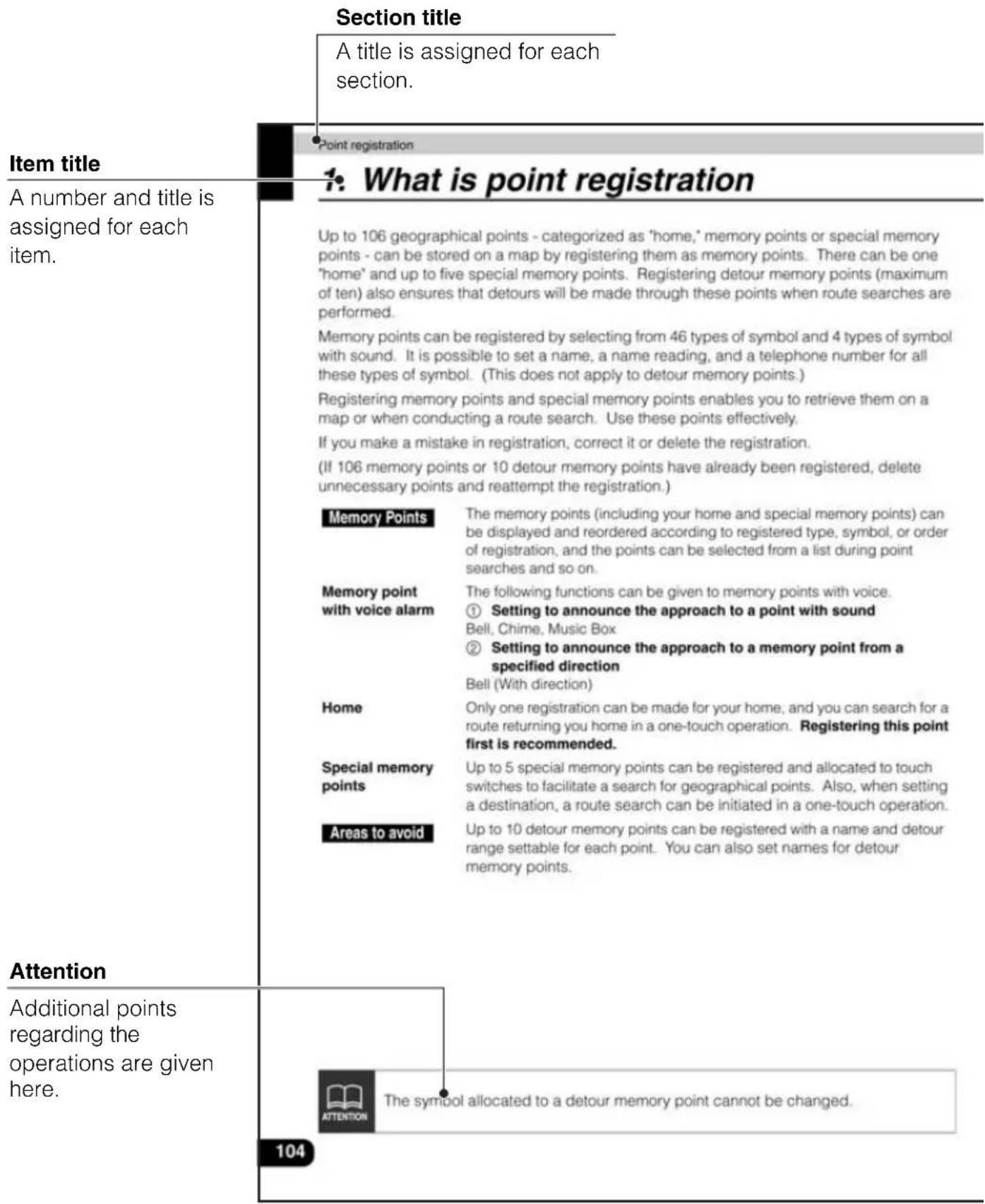
Section title A title is assigned for each section. Point registration 1: What is point registration Item title A number and title is assigned for each item. Up to 106 geographical points - categorized as "home," memory points or special memory points - can be stored on a map by registering them as memory points. There can be one "home" and up to five special memory points. Registering detour memory points (maximum of ten) also ensures that detours will be made through these points when route searches are performed. Memory points can be registered by selecting from 46 types of symbol and 4 types of symbol with sound. It is possible to set a name, a name reading, and a telephone number for all these types of symbol. (This does not apply to detour memory points.) Registering memory points and special memory points enables you to retrieve them on a map or when conducting a route search. Use these points effectively. If you make a mistake in registration, correct it or delete the registration. (If 106 memory points or 10 detour memory points have already been registered, delete unnecessary points and reattempt the registration.) Memory Points The memory points (including your home and special memory points) can be displayed and reordered according to registered type, symbol, or order of registration, and the points can be selected from a list during point searches and so on. Memory point with voice alarm The following functions can be given to memory points with voice. ① Setting to announce the approach to a point with sound Bell, Chime, Music Box ② Setting to announce the approach to a memory point from a specified direction Bell (With direction) Home Only one registration can be made for your home, and you can search for a route returning you home in a one-touch operation. Registering this point first is recommended. Special memory points Up to 5 special memory points can be registered and allocated to touch switches to facilitate a search for geographical points. Also, when setting a destination, a route search can be initiated in a one-touch operation. Areas to avoid Up to 10 detour memory points can be registered with a name and detour range settable for each point. You can also set names for detour memory points. Attention Additional points regarding the operations are given here. The symbol allocated to a detour memory point cannot be changed. 104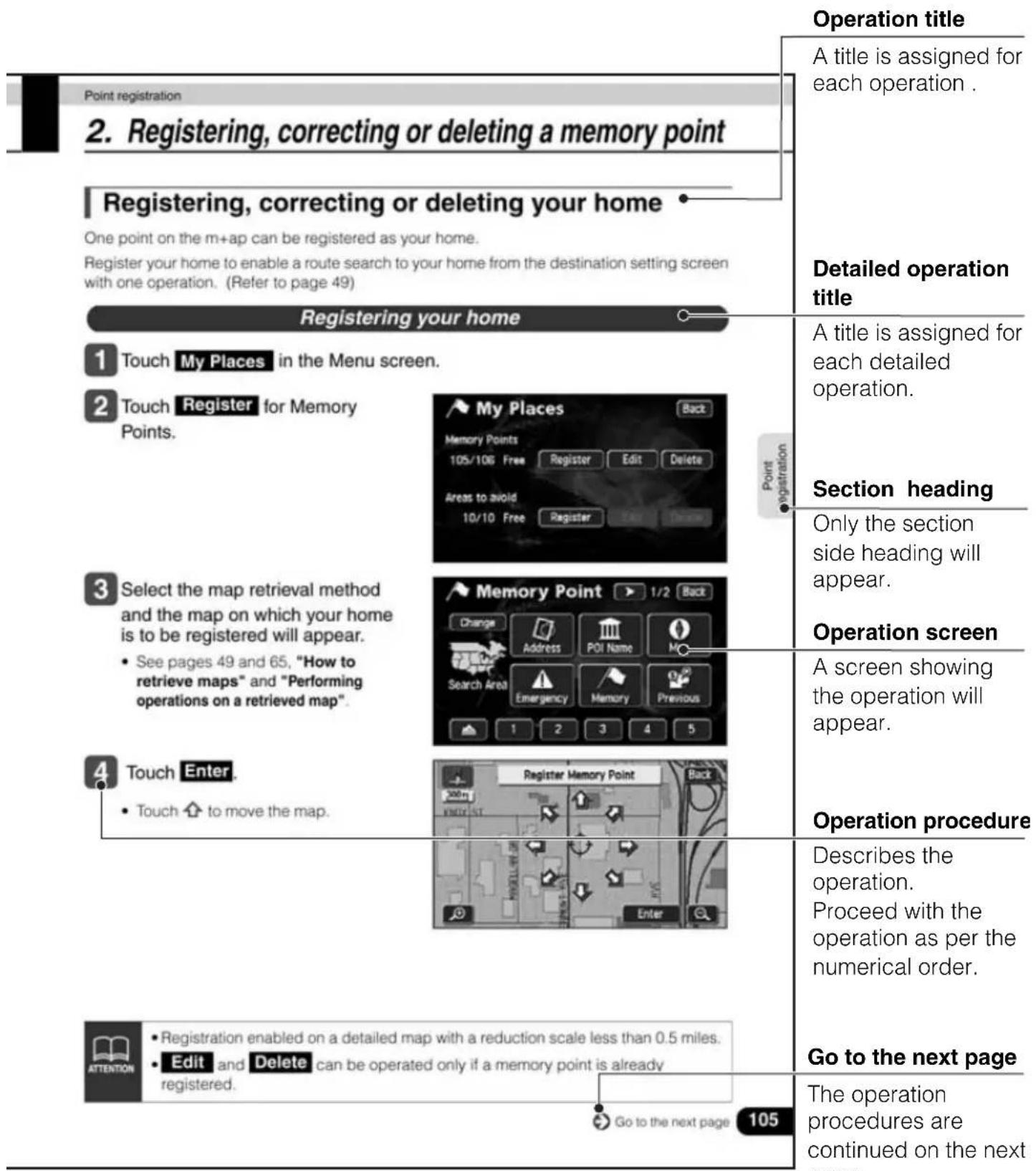
text_image
Point registration 2. Registering, correcting or deleting a memory point Registering, correcting or deleting your home One point on the m+ap can be registered as your home. Register your home to enable a route search to your home from the destination setting screen with one operation. (Refer to page 49) Register your home 1 Touch My Places in the Menu screen. 2 Touch Register for Memory Points. 3 Select the map retrieval method and the map on which your home is to be registered will appear. • See pages 49 and 65, "How to retrieve maps" and "Performing operations on a retrieved map". 4 Touch Enter • Touch ↑ to move the map. 5 6 7 8 9 10 11 12 13 14 15 16 17 18 19 20 21 22 23 24 25 26 27 28 29 30 31 32 33 34 35 36 37 38 39 40 41 42 43 44 45 46 47 48 49 50 51 52 53 54 55 56 57 58 59 60 61 62 63 64 65 66 67 68 69 70 71 72 73 74 75 76 77 78 79 80 81 82 83 84 85 86 87 88 89 90 91 92 93 94 95 96 97 98 99 100 101 102 103 104 105The description shown above is for explanation, and therefore it may differ from the actual one on the same page.
2. Features
Several search methods to choose from (Refer to page 49)
- Search using a POI name (Refer to page 54)
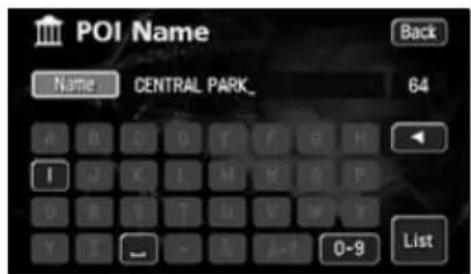
When the name of the POI is known, enter it to initiate a search. It is also possible to search by entering only a part of the name.
- Search using a freeway exit/entrance (Refer to page 63)
A search can be initiated using the name of a freeway or an exit/entrance
- Search using latitude/longitude coordinates (Refer to page 64)
A map can be displayed by directly entering the latitude and longitude coordinates.
• Emergency search (Refer to page 60)
In the event of an emergency, a search can be initiated for the nearest police station or hospital.
- Search using the destination archive (Refer to page 61)
A map can be retrieved using entries previously set in the destination archive.
- Search using a registered point (Refer to page 60)
A map can be retrieved using your home or a point registered in the memory.
text_image
POI Name Back Name CENTRAL PARK_ 64 A B C D E F G H I J K L M N O P O R T U V W Y Y T - - - 0-9 List
text_image
Freeway Freeway VEN Back 2 John G VENEMAN FWY VENTURA FWY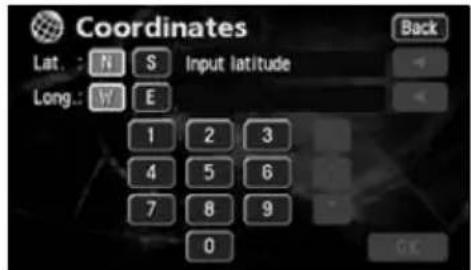
text_image
Coordinates Lat. : N S Input latitude Long.: W E 1 2 3 4 5 6 7 8 9 0 Back OK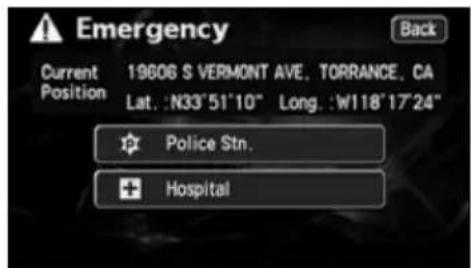
text_image
Emergency Back Current 19606 S VERMONT AVE, TORRANCE, CA Position Lat.: N33°51'10" Long.: W118°17'24" Police Stn. Hospital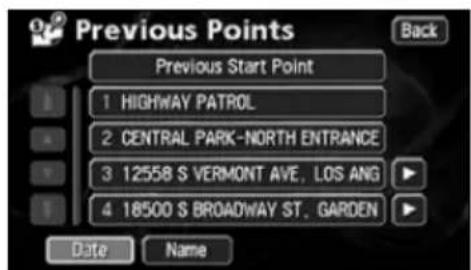
text_image
Previous Points Previous Start Point 1 HIGHWAY PATROL 2 CENTRAL PARK-NORTH ENTRANCE 3 12558 S VERMONT AVE, LOS ANG 4 18500 S BROADWAY ST., GARDEN Date Name Back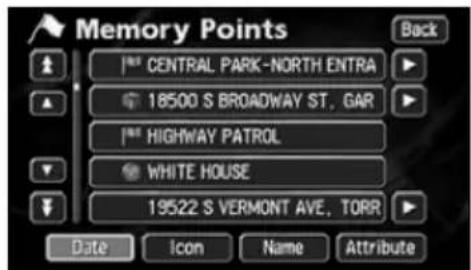
text_image
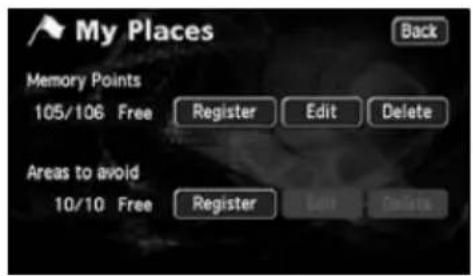
Memory Points Back CENTRAL PARK-NORTH ENTRA 18500 S BROADWAY ST. GAR HIGHWAY PATROL WHITE HOUSE 19522 S VERMONT AVE. TORR Date Icon Name AttributeRegistering a desired point in the memory (Refer to page 104)
Your home or a geographical point you want to indicate on a map can be registered in the memory. Also, when initiating a route search, points through which you want to make a detour can also be registered in advance.
text_image
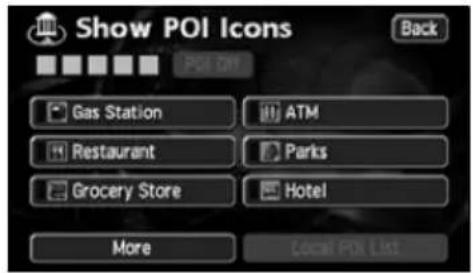
My Places Back Memory Points 105/106 Free Register Edit Delete Areas to avoid 10/10 Free Register Paste ConcretePOI icon display (Refer to page 40)
Various types of POIs can be displayed on a map using icons.
text_image
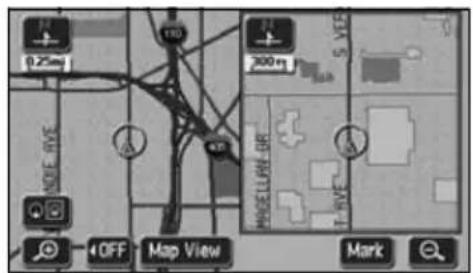
Show POI Icons Back Gas Station ATM Restaurant Parks Grocery Store Hotel More Local POI ListDiverse screen displays (Refer to pages 37, 38, 76)
- Double screen display
The screen can be divided into two parts.
- Enlarged intersection display
While route guidance is in progress, an enlarged illustration of the area around an intersection where turn is to be made (junction) is displayed when approaching that intersection.
- Routedata
A list is displayed of all the distances up to intersections and turning directions prior to reaching the destination.
text_image
125m 170 300 m 4 OFF Map View Mark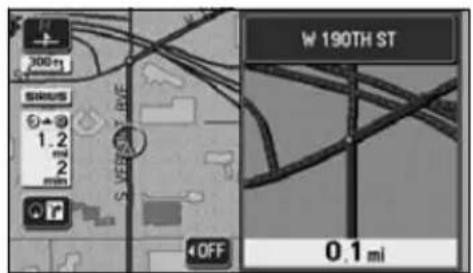
text_image
W 190TH ST 0.1 mi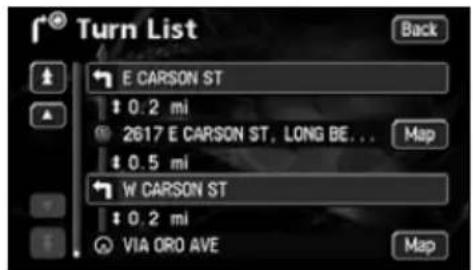
text_image
Turn List E CARSON ST $ 0.2 mi 2617 E CARSON ST, LONG BE... $ 0.5 mi W CARSON ST $ 0.2 mi VIA ORO AVE Back Map Map2. Features
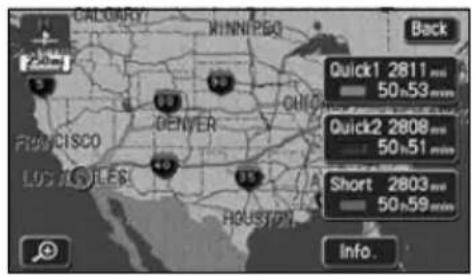
3-route simultaneous display (Refer to page 77)
When initiating a route search, three routes (Quick 1, Quick 2 and Short) can be searched for simultaneously.
text_image
CALBARRY MINNIPSO Back Quick1 2811 mm 50.53 mm QUICK2 2808 mm 50.51 mm Short 2803 mm 50.59 mm IUGUSTOLES HOUSTON Info.The map display color can be switched (Refer to page 25)
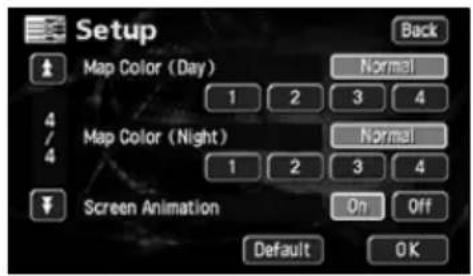
Four map display colors can be selected for the daytime and nighttime screen display respectively.
text_image
Setup Map Color (Day) 1 2 3 4 Map Color (Night) 1 2 3 4 Screen Animation On Off Default OKRTTI (Real Time Traffic Information) (optional)(Refer to page 128)
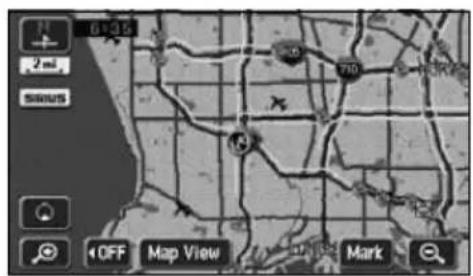
The RTTI allows the unit to display the traffic information on the map using the SIRIUS satellite radio. After you subscribe to the SIRIUS, connect the RTTI tuner to the unit to use the RTTI service.
text_image
6125 2 m SANS 700 14 OFF Map View MarkSystem upgrade (Refer to page 136)
- Rear View Camera
When the optional Rear View Camera is installed, the view to the rear can be displayed on the monitor screen.
natural_image
Black-and-white photo of parked cars on a curved parking garage, no visible text or symbolsMEMO
natural_image
Illustration of a car steering wheel with city skyline background (no text or symbols)3. GPS navigation system
By setting your destination, the device will automatically perform a route search and guide you through the route using screen displays and voice announcements.
How to view the navigation screen
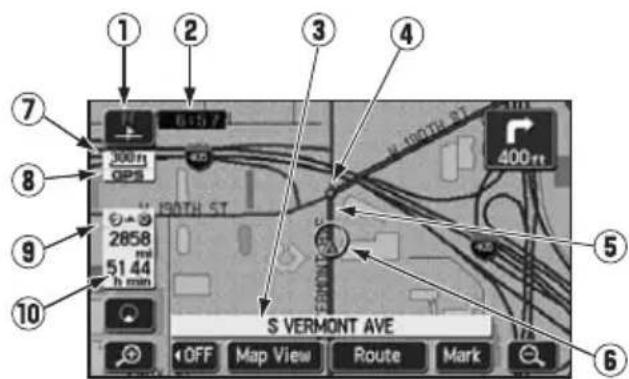
The navigation map display consists of a present location screen and a scrolled map screen.
text_image
① ② ③ ④ ⑦ 300ft GPS 150TH ST 2858 51.44 h min 400ft ⑤ ⑥ ⑧ ⑨ ⑩ S VERMONT AVE OFF Map View Route Mark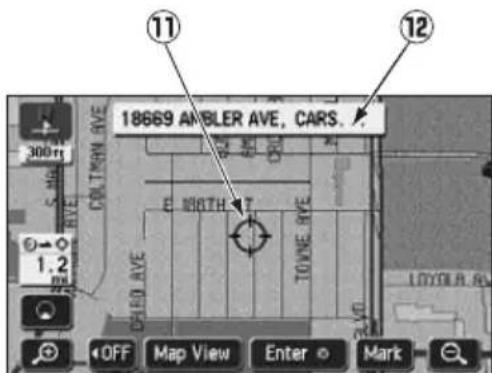
text_image
18669 AMBLER AVE, CARS. 11 12 300ft COLLINGTON AVE E 10BTH T TOWNE AVE 1.2 OFF Map View Enter MarkScroll map screenPresent location screen
① Orientation mark ( ), when the bearing is pointing upwards) The map orientation is indicated.
- Refer to "Switching the map orientation" on page 36 for how to switch the map direction (North up or Heading up).
②Clock display
The present time is indicated.
• See page 25 for information concerning this mark's display.
③Name display
The following names appear depending on the situation.
(Only geographical points represented as data in the map disk)
- Names of junction and non-junction intersections
- Names of roads taken
- Names of interchange exits
④ Instruction points
Intersection guidance (intersection name display / intersection guidance screen) is displayed.
- Refer to "Intersection guidance" on page 88 for information concerning intersection guidance.
⑤Route display
When setting your destination, the route all the way to that point is displayed.
- Route guidance will occur only when the present location appears on a dark blue line.
⑥Vehicle position mark
The present location and the vehicle direction are displayed.
⑦Scale display
The reduction scale of the map being displayed is indicated.
The length of the Lappearing in the screen above represents 300ft.
⑧GPS mark GPS
This mark will appear when utilizing the absolute positioning data from the GPS satellite.
- See page 18 for information concerning this mark's display. There may be misalignments depending on the satellite conditions.
⑨Distance remaining display
The distance from the present location to the destination is indicated.
- While route guidance is in progress, the distance calculated from the route now being taken to the destination is indicated.
- When deviating from the set route, the distance to the destination in a straight line is indicated.
- Refer to "Switching the required time/distance remaining display" on page 98 for information on how to switch the remaining distance display.
⑩Required time display/destination direction mark
The following marks appear depending on the situation.
■ Required time display

While route guidance is in progress, the required time up to the destination is indicated.
- Refer to "Setting the required time display" on page 91 for information concerning the required time.
■ Destination direction mark

When deviating from the set route, the direction towards the destination is displayed.
⑪ Cursor mark
This mark is indicated on the map retrieved by a search or by scrolling.
To scroll, simply touch the map (on a spot other than the touch switches on the screen).
⑫Cursor position name display
The name of the cursor position on the map is displayed (approx. 6 seconds).
Except for some parts describing certain functions, this manual uses normal north-up map screen illustrations to describe the device's functions.
"Map touched" appears signifying that the map was directly touched (on spots other than touch switches).
4. GPS
Global Positioning System (GPS): a system developed and operated by the United States Government that pinpoints your present location by utilizing latitudinal and longitudinal data received from at least 4 satellites (sometimes only 3 are used).
Situations when GPS signal reception is impossible
The following are situations when the GPS signal cannot be received.
- When the GPS signal is obstructed while driving through building clusters, tunnels or overpasses
- When the signal is obstructed by an object placed on or near the GPS antenna
- When the GPS satellite is not sending any signals to the earth (signal emission may be halted due to modifications or repairs
conducted by the U.S. Tracking Control Center, the organization responsible for controlling GPS signals)
- When a digitally formatted cellular telephone unit is brought near the GPS antenna
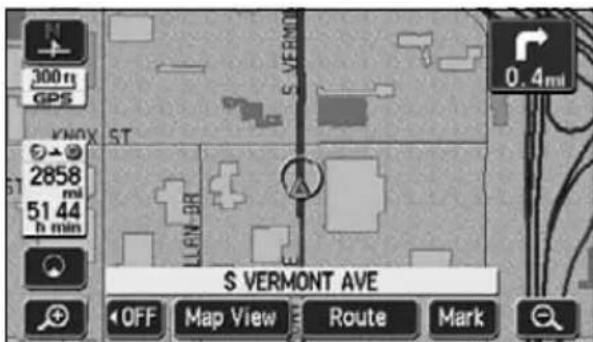
text_image
300 m GPS KNOX ST 2858 mi 51.44 h min S VERMONT AVE OFF Map View Route Mark 0.4miScreen with GPS signal reception in progress

ATTENTION
Handling the GPS antenna
- Consult a specialist at the store of purchase for how to install the GPS antenna.
- Do not apply paint or wax onto the GPS antenna. Otherwise, signal reception sensitivity may be diminished or signal reception may be rendered impossible.
- Do not pull on the cord when uninstalling or moving the GPS antenna. Otherwise, short circuits or disconnections may result.
- See page 146 for information concerning GPS signal accuracy and errors. See page 167 for definitions of the terminology employed.
MEMO
natural_image
Illustration of a car steering wheel with city skyline background (no text or symbols)1. Menu screen and list screens
Menu screen
1 Press MENU to display the MAIN MENU screen.
2 Touch NAVI MENU
3 The following operations can be performed from the Menu screen.
- Touch the desired item's touch switch to activate.
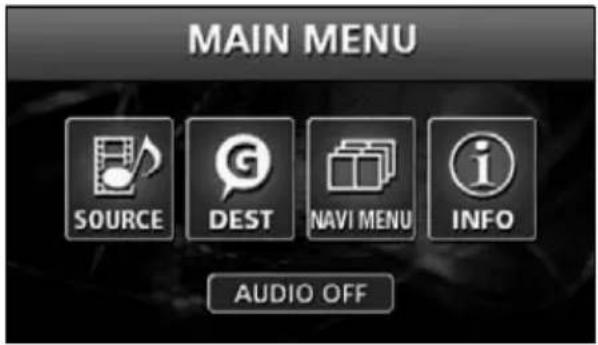
text_image
MAIN MENU SOURCE DEST NAVI MENU INFO AUDIO OFF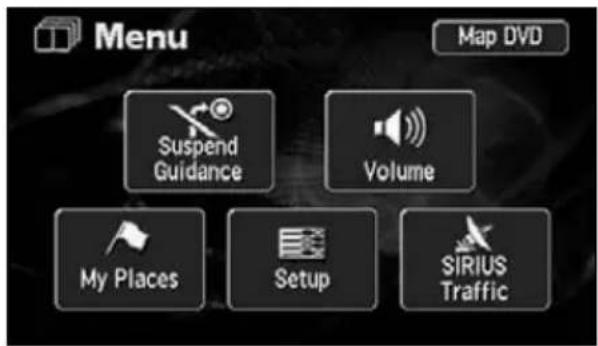
text_image
Menu Map DVD Suspend Guidance Volume My Places Setup SIRIUS Traffic| Item (touch switch) Function Page | ||
| Suspend guidance/Resume guidance^*1 | Stopping or restarting route guidance 87 | |
| Volume | Setting the volume 28 | |
| Setting the automatic highway volume switch 28 | ||
| My places | Registering/correcting/deleting the geographical data for your home | 105, 107, 108 |
| Registering/correcting/deleting memory geographical points *2 | 109, 113, 118 | |
| Registering/correcting/deleting detour memory geographical points | 123, 125, 126 | |
| Setup | Correction of the present location and distance 142 | |
| Switching the kilometer/mile display 26 | ||
| Setting the estimated arrival time 91 | ||
| Setting the automatic reroute search 103 | ||
| Switching the time zone 26 | ||
| Setting the automatic voice guidance 96 | ||
| Setting the guidance when in each mode 97 | ||
| How to display message on a restricted segment 75 | ||
| Set automatic display of the intersection guidance screen | 90 | |
| Setting the street name display while scrolling | 31 | |
| Setting the switch display | 32 | |
| Switching the clock display | 25 | |
| Setting the type of POIs in the vicinity retrieved while driving | 47 | |
| Switching the map display color | 25 | |
| Deleting entries from the destination archive | 127 | |
| SIRIUS Traffic | Setting the RTTI | 128 |
| Map DVD | Map DVD-ROM data display | 145 |
*1: The color is toned down if the destination is not set.
*2: Including registering/correcting/deleting special memory geographical points.
1. Menu screen and list screens
How to switch the list screens
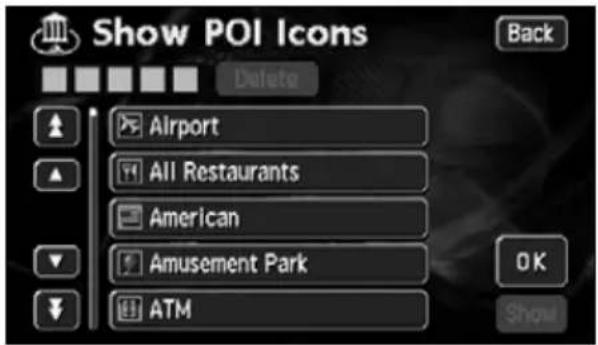
Up/down switch display
Touch ▲ to ▼ move the list one item at a time.
text_image
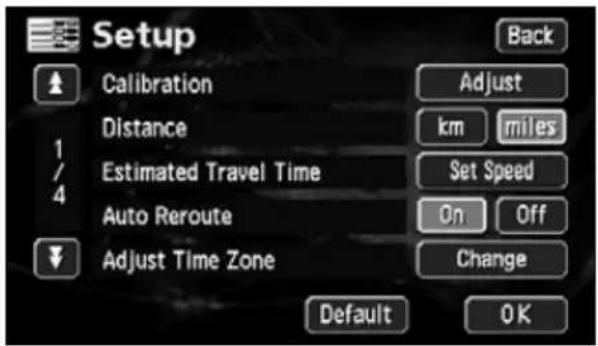
Show POI Icons Back Delete Airport All Restaurants American Amusement Park ATM OK ShowPage switch display
Touch or to move the list one page at a time.
text_image
Setup Calibration Distance Estimated Travel Time Auto Reroute Adjust Time Zone Adjust km miles Set Speed On Off Change Default OKPOI switch display
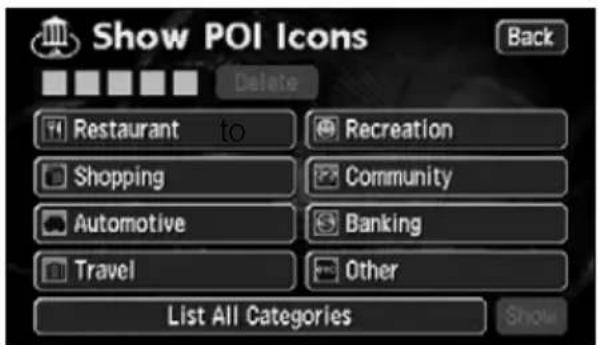
Touch either Restaurant Shopping

text_image
Automotive Travel Recreation Community Banking Order onmove the list one POI at a time.
- The touch switch color is toned down for POIs without corresponding lists. Touching a toned-down touch switch will have no effect.
text_image
Show POI Icons Back Delete Restaurant to Recreation Shopping Community Automotive Banking Travel Other List All Categories Show2. Adjusting the screen and setting the sound
Screen adjustment
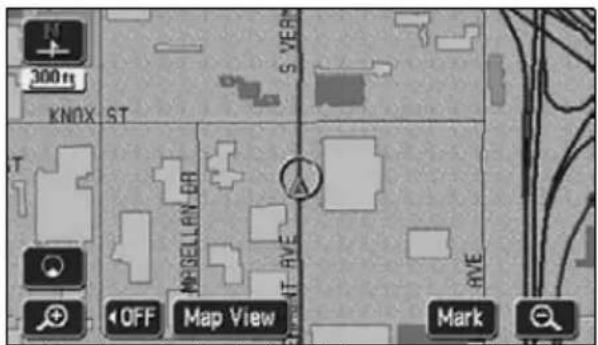
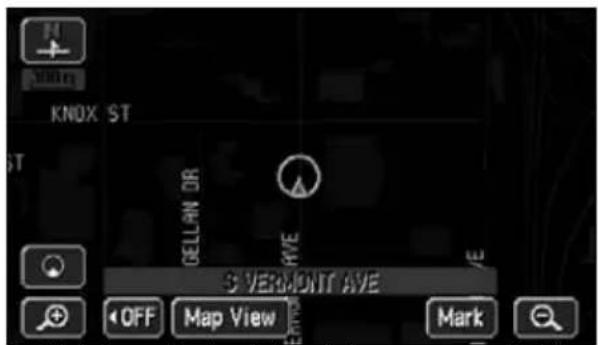
To make viewing easier, the display switches between day screen/night screen according to whether the vehicle lights (parking lights, taillights, license plate lights) are on/off.
(Default status)
● Lights turned OFF ..... daytime display
● Lights turned ON...... nighttime display
text_image
300 m KNOX ST MOSELL AVE AVE OFF Map View Mark● Daytime display (when lights are turned OFF)
text_image
KNOX ST GELLAN OR AYE S VERMONT AVE OFF Map View Mark● Nighttime display (when lights are turned ON)
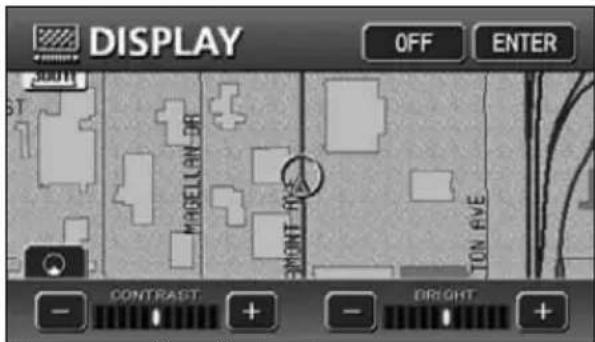
How to display the image quality adjustment screen
1 Press MENa beep is heard.
2 Pressing ENTER after
adjustment, or when more than about 20 seconds without operation, setting is completed automatically and the previously displayed screen is redisplayed.
text_image
DISPLAY OFF ENTER CONTRAST + - DRIGHT +●Image quality adjustment screen
2. Adjusting the screen and setting the sound
Contrast/Bright
1 Contrast
Touch + crease, touch to d - se.
1 Bright
Touch + crease, touch to d - se.
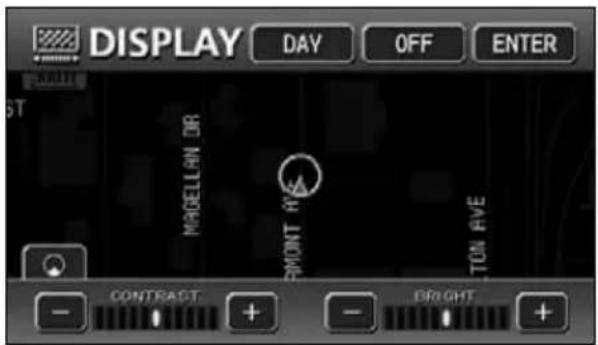
How to switch to daytime display when the lights are ON
1 The daytime display and nighttime display will be switched each time DAY is pressed.
- When in daytime display, the touch switch changes into bright color.
• DAY ayed when the lights are ON.
text_image
DISPLAY DAY OFF ENTER ST MAGELLAN DR POMONT H TON AVE CONTRACT + - BRIGHT +How to turn the screen OFF
1 Touch OFF
• To return to the previous screen, touch MAP AV

- Even with the screen turned OFF, the GPS present location positioning continues to function.
- The daytime display screen and nighttime display screen can be separately adjusted.
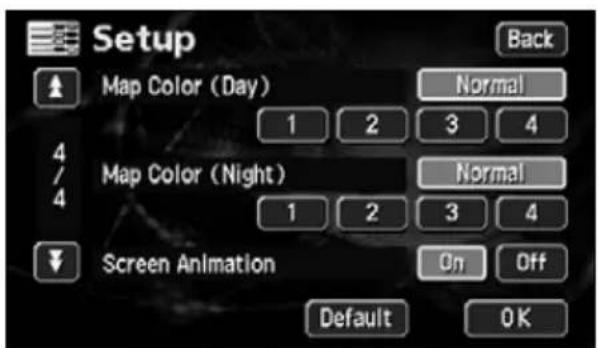
Switching the map display color
The map display color (5 color selection) can be switched for both the daytime and nighttime displays independently.
1 Touch Setup Menu screen.
2 Touch Normal 23 ■ ■ 4 for both Map Color (Day) and Map Color (Night) respectively.
- The pressed touch switch will become brighter.
3 Touch OK
text_image
Setup Map Color (Day) 1 2 3 4 Map Color (Night) 1 2 3 4 Screen Animation On Off Default OKSwitching the clock display
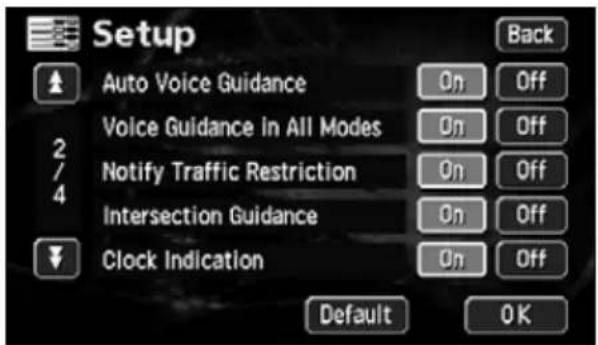
The present time display appearing on the map screen can be switched.
1 Touch Setup Menu screen.
2 Touch On Get
Indication.
- The pressed touch switch will become brighter.
3 Touch OK
text_image
Setup Auto Voice Guidance Voice Guidance in All Modes Notify Traffic Restriction Intersection Guidance Clock Indication Back On Off On Off On Off On Off Default OK
- Touch Default up screen to return all items to the default settings.
- The present time displayed is automatically adjusted using GPS signals. (You cannot adjust the time yourself.)
2. Adjusting the screen and setting the sound
Switching miles and km display
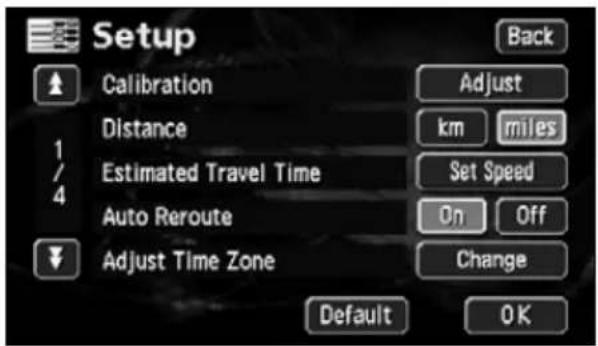
Miles and km display on the map screen can be switched.
1 Touch Setup Menu screen.
2 Touch miles / D. ce.
- The pressed touch switch will become brighter.
3 Touch OK
text_image
Setup Calibration Distance Estimated Travel Time Auto Reroute Adjust Time Zone Adjust km miles Set Speed On Off Change Default OKSwitching the Time Zone
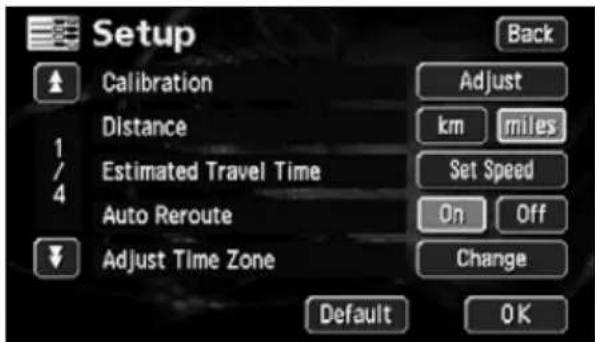
The time zone for every region in the U.S. can be switched.
Switching the Time Zone
1 Touch Setup Menu screen.
2 Touch Change at Time Zone.
3 Touch either Pacific mountain
Central, o:tern
- The pressed touch switch will become brighter.
4 Touch OK
text_image
Setup Calibration Distance Estimated Travel Time Auto Reroute Adjust Time Zone Adjust km miles Set Speed On Off Change Default OK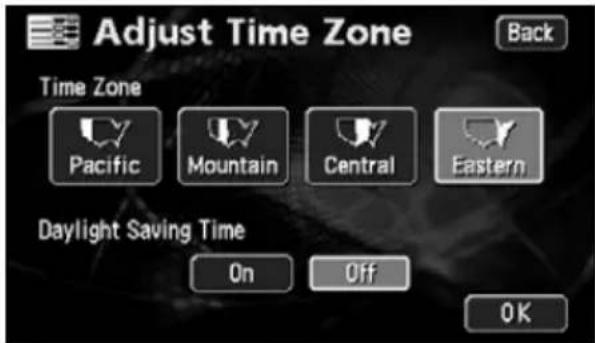
text_image
Adjust Time Zone Back Time Zone Pacific Mountain Central Eastern Daylight Saving Time On Off OK
ATTENTION
Touch Default in the Setup screen to return all items to the default settings.
Setting the Daylight Saving Time
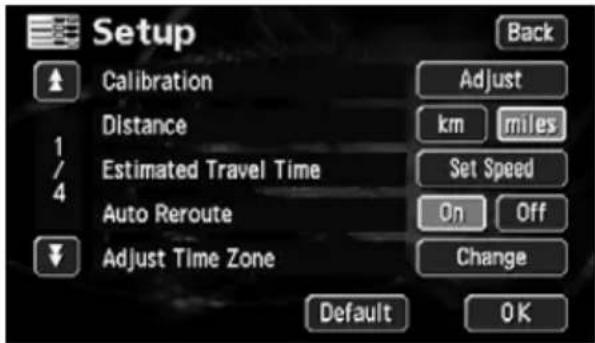
1 Touch Setup Menu screen.
2 Touch Change at Time Zone.
3 Touch On for Right Saving Time.
4 Touch OK
text_image
Setup Calibration Distance Estimated Travel Time Auto Reroute Adjust Time Zone Adjust km miles Set Speed On Off Change Default OK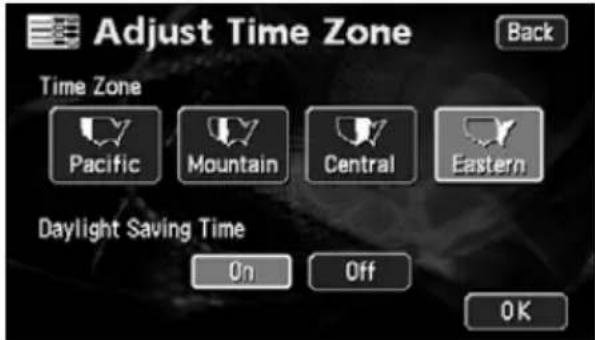
text_image
Adjust Time Zone Back Time Zone Pacific Mountain Central Eastern Daylight Saving Time On Off OK
ATTENTION
- Touch Onain the clock display 1 hour ahead.
Touch Off turn the clock display to the previous setting. - The present time displayed is automatically adjusted using GPS signals. (You cannot adjust the time yourself.)
2. Adjusting the screen and setting the sound
Setting the volume
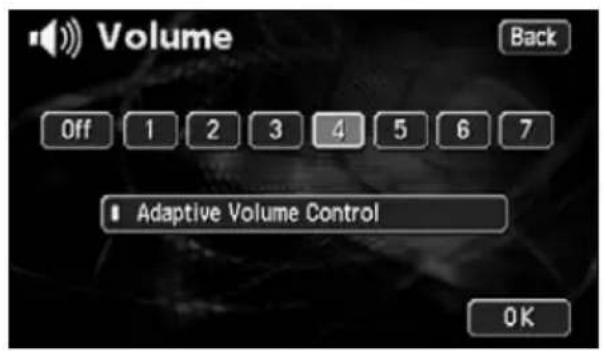
The sound volume during route guidance can be adjusted.
Adjust the volume
1 Touch Volume menu screen.
2 Touch eitl 1 2 3 4 ■ ■ , 5 6,7 ■ .
- The pressed touch switch will become brighter.
- Touch Off in OFF the volume.
When the volume is OFF, touch any of the navi volume switches to turn the volume back ON.
text_image
Volume Back Off 1 2 3 4 5 6 7 Adaptive Volume Control OK3 Touch OK
Set the automatic highway volume switch function
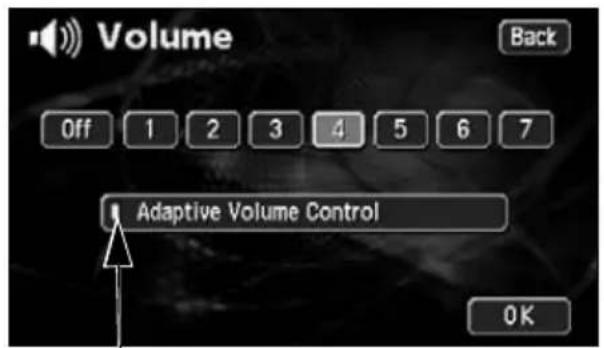
When driving at high speeds, the set volume can be automatically raised one level. Either automatic switch ON (automatically raise) or OFF (not raised) can be selected.
1 Touch Volume menu screen.
2 Touch Adaptive Volume Control
- When turned ON, the movement display light turns yellow.
3 Touch OK
text_image
Volume Back Off 1 2 3 4 5 6 7 Adaptive Volume Control OKMovement display light

ATTENTION
When exceeding 50 mph (80 km/h), the volume automatically increases one level and goes back down to its original level when the speed goes down below 43 mph (70 km/h).
3. Map displays
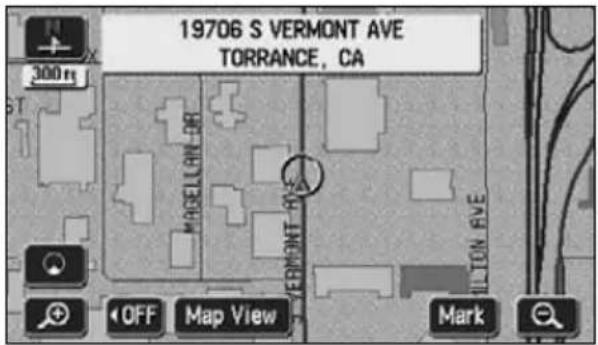
Present location display
The present location screen appears when switching the engine to ACC or ON.
- The present location of your vehicle is displayed on the map.
- When the menu screen or any other map screen besides the present location map screen is displayed, press MAP turn to the present location screen.
1 Press iMAB present
location screen to make all the geographical names near the present location appear.
text_image
19706 S VERMONT AVE TORRANCE, CA 300 m PARSILLAN OR VERMONT AVE OFF Map View Mark
ATTENTION
After having installed the device, or after having reconnected the battery terminal, the vehicle position mark may differ from the actual present location (misalignment of the vehicle position mark) Continue driving and, in a moment, the present location will be automatically corrected using the map matching and GPS data. (Depending on the case, this may take several minutes.) If signals from the GPS are not utilized and the present location is left uncorrected, park the vehicle in a safe place and correct the present location. (Refer to page 142)
3. Map displays
Moving the map (one-touch scroll)
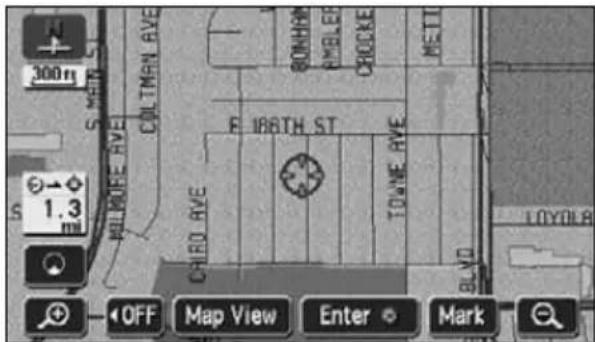
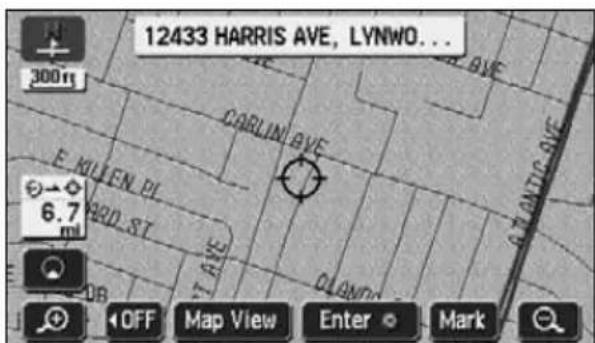
When a map is displayed, touching the map directly (anywhere except the touch switches) makes the point scroll to the center of the display. The street name around the scrolled point may appear.
Moving the map
1 Touch the map (anywhere except the touch switches).
- On the bottom left of the map, the distance in a direct line from the present location is displayed.
- Touch continuously around the center of the screen and the map will move slowly.
- Touch continuously near the edge of the screen and the map will move quickly.
text_image
300m COLTMAN AVE BONNAM AMBLEF CROCKE METTL 1.3 CARD AVE TOWNE AVE LOYOLA OFF Map View Enter Mark●While scrolling
text_image
12433 HARRIS AVE, LYNWO... 300ft CARLIN AVE E KUIEN PL 6.7 mi RIO ST ST AVE PLAYND OFF Map View Enter Mark●Scrolling stopped

- For safety reasons, the map can only be scrolled up to a predetermined distance while driving.
- The map orientation can be switched while driving.
* For a scrolled map, you can only switch from "Heading up" to "North up". (Switching from "North up" to "Heading up" impossible)
- Move the map with one-touch scroll and the map will freeze into position and will not move even if moving the present location. Press MAP turn to the original status (moving map).
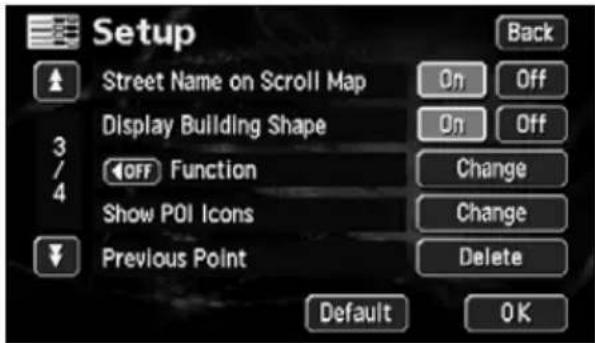
Setting the Street Name display while scrolling
You can select between setting the Street Name display ON (display) or OFF (not display) while scrolling.
1 Touch Setup Menu screen.
2 Touch On for a t Name on Scroll Map.
- The pressed touch switch will become brighter.
3 Touch OK
text_image
Setup Street Name on Scroll Map Display Building Shape OFF Function Show POI Icons Previous Point Back On Off On Off Change Change Delete Default OKSwitching the touch switch display
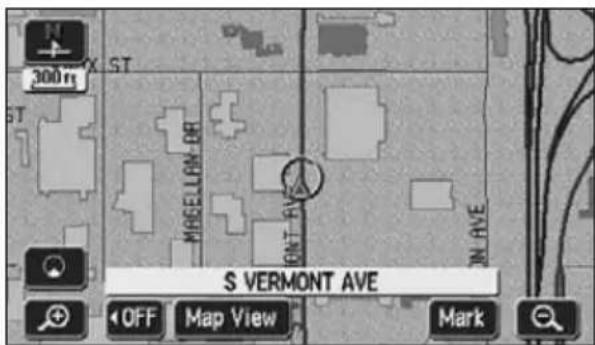
When a map is displayed, the number of touch switches displayed on the screen can be reduced.
Switching the touch switch display
1 Touch OFF
- If the touch switches are not displayed, this operation cannot be performed via a touch switch. First display the touch switches on the screen and then proceed.
- If the touch switches are not displayed, touch ON e them appear on the screen.
text_image
300 m ST MAGELLAN OR OUT RVE S VEMMONT AVE OFF Map View Mark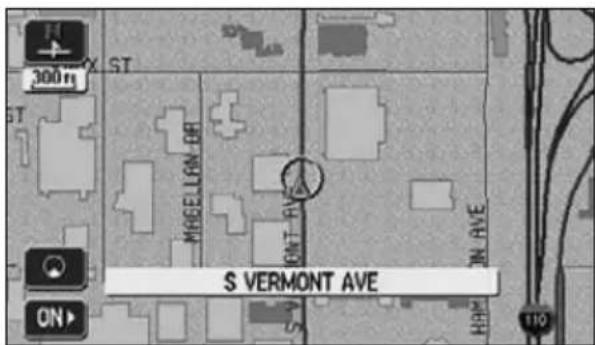
text_image
300m ST MRGELLAN OR ONT RAVE S VERMONT AVE ON 110
Touch Default p screen to return all items to the default settings.
3. Map displays
Setting touch switches to display or not display
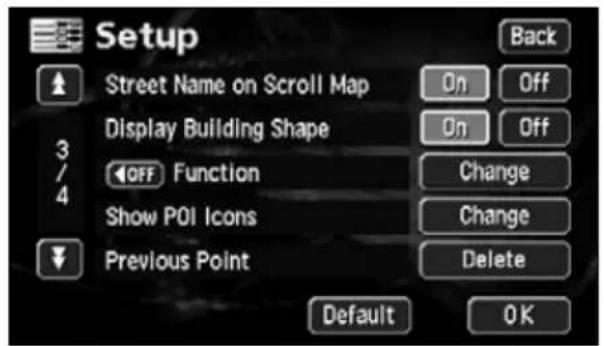
You can set the switches to be hidden on pressing the OFF switch.
1 Touch Setup Menu screen.
2 Touch Change OFF or Function.
3 Touch the touch switches desired for non-display.
- Touch OFFnap screen and the touch switches selected here will not appear.
4 Touch OK
text_image
Setup Street Name on Scroll Map Display Building Shape 3 OFF Function Show POI Icons Previous Point Back On Off On Off Change Change Delete Default OK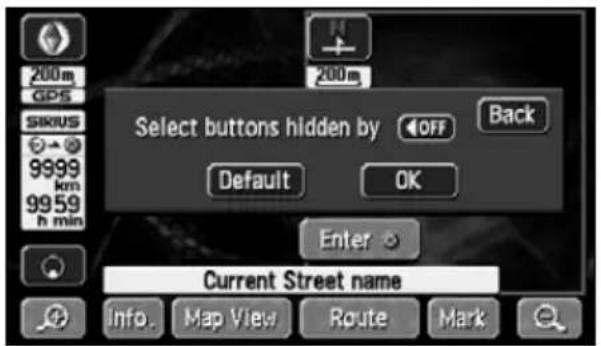
text_image
200m GPS SIRIUS 9999 km 99 59 h min 200m Select buttons hidden by OFF Back Default OK Enter Current Street name Info Map View Route Mark
- Touch Default switch display setting screen to return the switch display setting to default status.
- To display all the touch switches, touch those displayed in toned-down color.
OFF or ON displayed.
Switching the map reduction scale
The map reduction scale (map range) can be switched to any desired setting from 40,960,000:1 to 2,500:1. Also, if the destination is set, you can switch to the reduction scale showing the entire route to the destination with one touch.
| Touch switch | Reduction scale | Scale display | Touch switch | Reduction scale | Scale display | ||
| City map |  | 1/0.0025 million |  |  | 1/0.64 million | 4mi | |
 | 1/0.005 million |  | 1/1.28 million | 8mi | |||
| 1/0.01 million |  | 1/2.56 million | 16mi | ||||
| 1/0.02 million |  | 1/5.12 million | 30mi | ||||
| 1/0.04 million | [4XWB] | 1/10.24 million | 60mi | ||||
| 1/0.08 million |  | 1/20.48 million | 130mi | ||||
| 1/0.16 million |  | 1/40.96 million | 250mi | ||||
| 1/0.32 million | 2mi | ||||||
Switching to the desired reduction scale
1 To widen the map's range, touch
To shrink it down, touch
- Every time the touch switch is touched, the scale goes up/down one level at a time.
-
After having touched 🔒, touch a number on the scale bar to switch to the reduction scale represented by that number.
-
Touch continuously on 📄, fo#t
least 1 second to switch the scale with no increments (free zoom). - The reduction scale switched to will be indicated with a yellow mark.
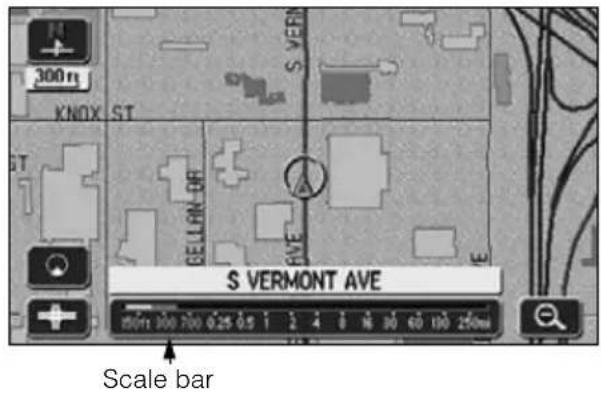
text_image
300m KNOX ST S VERMONT AVE S VEMONT Scale bar
ATTENTION
- The switch will disappear when setting to the maximum range (250 mile scale diagram).
- For safety reasons, the scale cannot be free zoomed while driving.
3. Map displays
Displaying city maps
1 For the area where the city map is provided, 1/0.0025 million (75 ft) scale city map can be displayed.
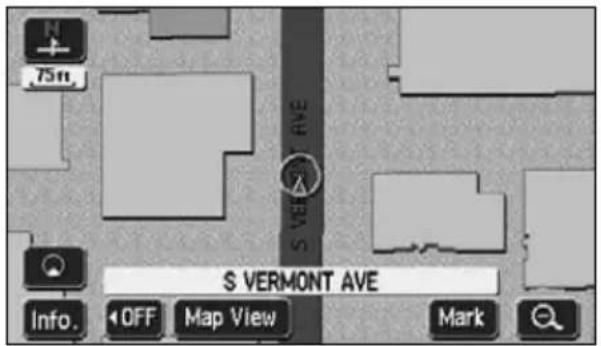
text_image
75ft. S VERMONT AVE Info. OFF Map View Mark●City map
Switching to city map display
1 When 150 ft scale map is displayed, touch
- 75 ft scale city map is displayed.
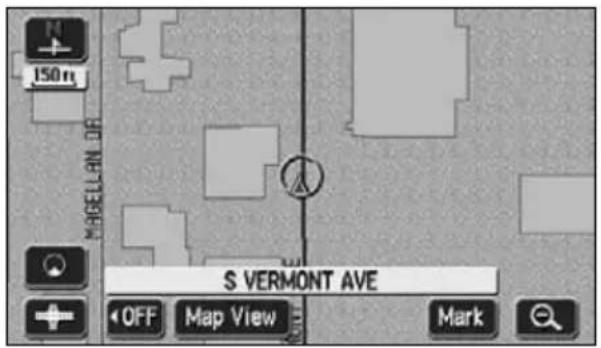
text_image
150m MAGELLAN DE S VERMONT AVE OFF Map View MarkCanceling the city map display
1 When 75 ft scale city map is displayed, touch 🔒.

- Only in the area where the city map is provided, is displayed on the 150 ft scale map and becomes selectable (If you move the map or the present location to the area where the city map is not provided, the city map being displayed is automatically canceled).
●On city maps, the one-way traffic is indicated with mark. The city map cannot be moved while driving.
Displaying the building data
On the 75 ft scale city map, the building data can be displayed.
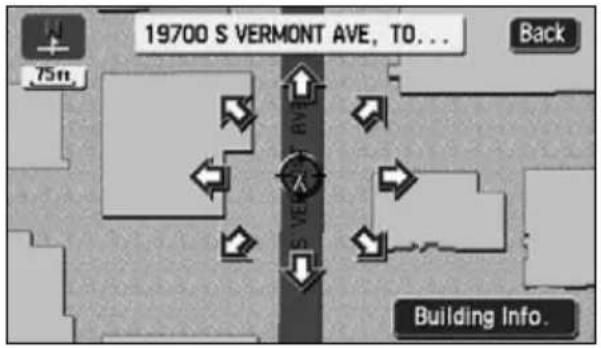
1 Touch Info. 75 ft scale city map.
2 Touch to move the cursor onto the building where you want to see the data.
3 Touch Building Info.
• The building data is displayed.
- If several facilities are included in a building, the facilities list is displayed. Touch one of those where you want to see the data.
Switching the building shape display
As well as city map (75 ft scale map), the Building Shape can be displayed on the 150 ft and 300 ft scale maps.
1 Touch Setup Menu screen.
2 Touch On ( ) for Building Shape.
- The pressed touch switch will become brighter.
3 Touch OK
text_image
19700 S VERMONT AVE, TO... Back 75ft. S V EAV Building Info.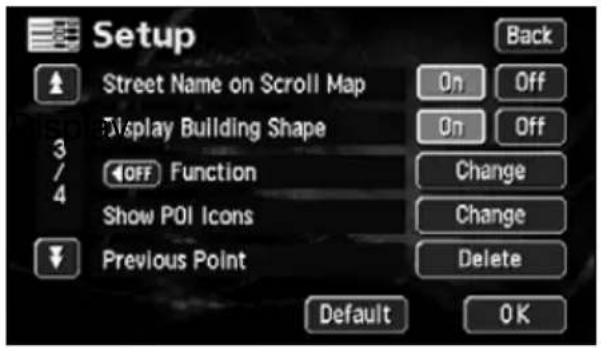
text_image
Setup Street Name on Scroll Map Display Building Shape OFF Function Show POI Icons Previous Point Back On Off On Off Change Change Delete Default OK
No data is recorded for the buildings displayed in yellow.
3. Map displays
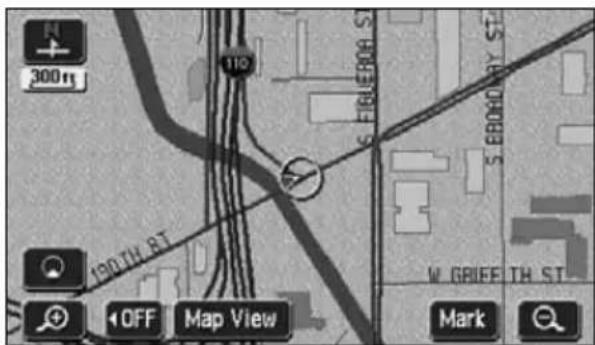
Switching the map orientation
The orientation of the map being displayed can be switched.
- North up display

The map appears with north pointing up at all times regardless of the vehicle's heading.
(The maps appearing in this manual are shown in north up display form.)
text_image
300ft 110 190TH ST OFF Map View Mark●North up display
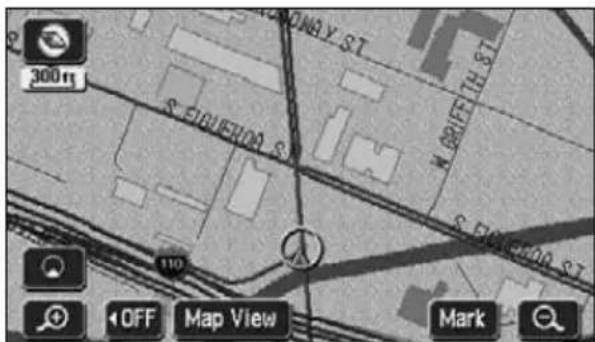
- Heading up display
The map appears with the heading of the vehicle pointing up at all times.
text_image
300 m S. CHUERDA S. 110 OFF Map View Mark●Heading up display
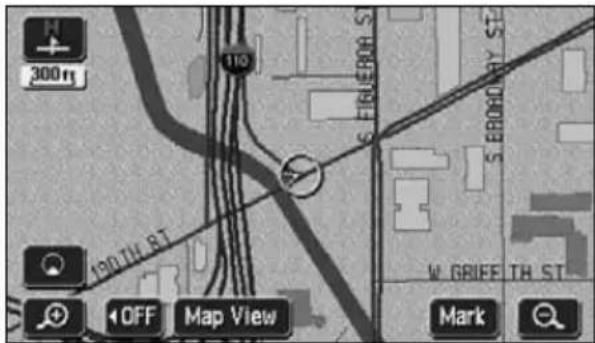
Switching the map orientation
1 Touch


- Switches between "North up" display and "Heading up" display.
text_image
300m 190TH ST OFF Map View Mark
When in heading up display, maps retrieved by setting the destination and all-route display screens are shown with north up. However, when returning to the present location screen, the display will switch back to heading up.
Switching to double screen display
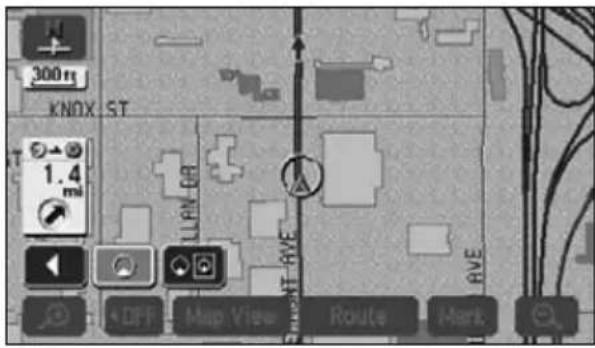
When a map is displayed, the screen can be divided into two parts as shown below.
Ex.) Two maps can be displayed with; different reduction scale screens, North up and Heading up screens, POI display ON and OFF screens.
Switching to double screen display
1 Touch ☐ when a map is displayed on the screen.
2 Touch
- The screen on the left can be operated the same way as when only one screen is displayed.
text_image
300 m KNOX ST 1.4 mi LILN RVE RVE +DFF Map View Routes Mark3. Map displays
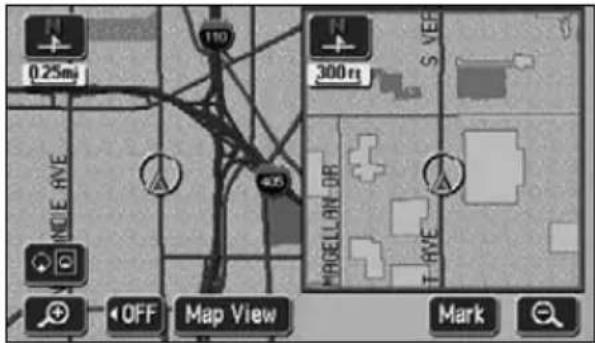
Operating the screen on the right
1 Touch the map shown in the screen on the right.
2 Touch any touch switch.
3 Touch Back to return to the double screen map display.
- Touch to switch the map reduction scale.
- Touch or to switch the map orientation.
text_image
0.25m 110 300 m S VEE NOLE RVE 405 MOGELLON DB T RVE OFF Map View Mark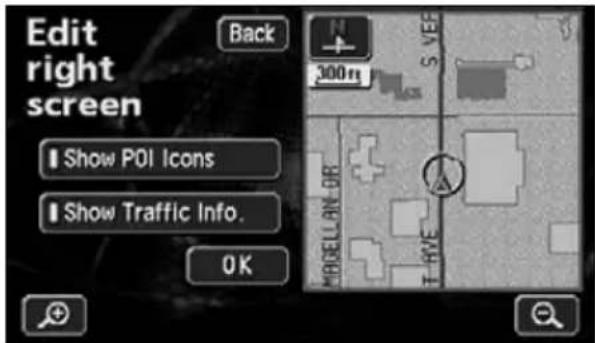
text_image
Edit right screen Back Show POI Icons Show Traffic Info. OK 300m S VEG MOGELL RAY LOB T HIVE
- When in double screen display, only the map appearing on the left screen can be moved with one-touch scroll.
- Maps retrieved by the destination setting screen or all-route display screen will appear as one screen. When returning to the present location screen, the double screen form will reappear.
POI vicinity display
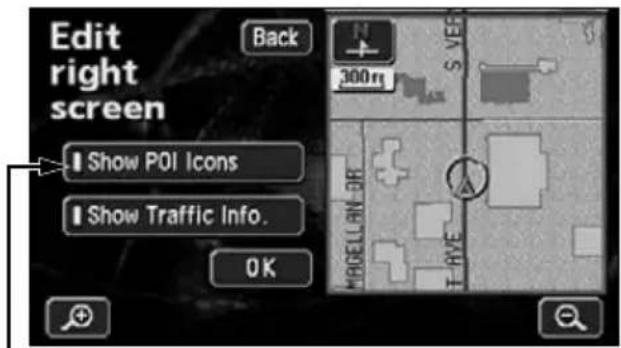
When a POI vicinity is displayed in the screen on the left, you can switch it either ON (display) or OFF (not display) to appear on the right screen.
Please refer to the POIs that can be displayed on "POI display" on page 40.
■ Show POI Icons: ON
1 Touch Show POI Icons
- The actuation right is lit and turns "Show POI Icons" to ON.
■ Show POI Icons: OFF
1 Touch Show POI Icons
Actuation right is lit.
- The actuation right is off and turns "Show POI Icons" to OFF.
text_image
Edit right screen Back 300m Show POI Icons Show Traffic Info. OKMovement display light
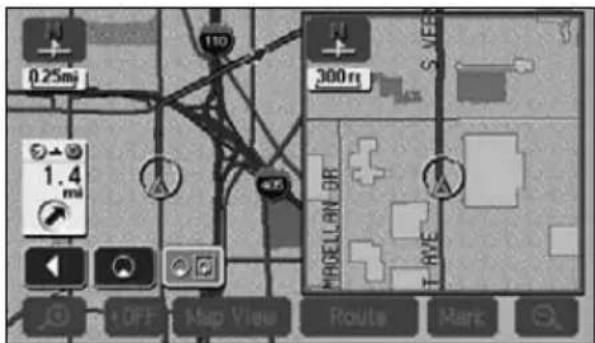
Canceling the double screen display
1 Touch 📋 n a map is displayed on the screen.
2 Touch
- The pressed touch switch will become brighter and the monitor will return to single screen display.
text_image
0.25mi 1.4 mi 300 m MODELLRY OR T AVE OFF Map View Routes Mark
- When a POI vicinity is displayed, the settings in the screen on the left and right are the same. However, POIs not displayed on the left screen cannot be shown on the right screen.
- If re-displaying the double screen, the reduction scale for the maps shown will be the same as the previous double screen display scales.
3. Map displays
POI display
POI landmarks can be displayed on the map.
POI types
| Restaurant | All Restaurants Horse Racing |
| American Marina | |
| Chinese Museum | |
| Continental National and State Parks | |
| Fast Food Ski Resort | |
| French Speedway | |
| Italian Sports Complex | |
| Japanese Theater | |
| Mexican Tourist Attraction | |
| Other Restaurants Tourist Information | |
| Sea Food Video Rental | |
| Thai Winery | |
| Shopping Store City Center | |
| Department Store | |
| Grocery Store | |
| Home and Garden | |
| Other Retail Stores | |
| Pharmacy | |
| Shopping Mall | |
| Specialty Food Store | |
| Auto Club Parks | |
| Car Wash Police Station | |
| Gas Station | |
| Other Automotive Stores | |
| Parking | |
| Service & Maintenance | |
| Airport | |
| Bus Station Beauty and Barber Shops | |
| Campground | |
| Ferry Terminal | |
| Hotel | |
| Rental Car Agency | |
| Rest Area Other Business Facilities | |
| Train Station | |
| Amusement Park | |
| Botanical/Zoological Gardens | |
| Casino | |
| Cinema | |
| Golf Course | |
| Historical Monuments |
| Community | ||||||||||||||||||||||||||||||||||||||||||||||||||||||||||||||||||||||||||||||||||||||||||||||||||||||||||||
| Bank | Other Financial Services | School | Post Office | ATM | School | Post Office | ATM | School | Post Office | ATM | School | Post Office | ATM | School | Post Office | ATM | School | Post Office | ATM | School | Post Office | ATM | School | Post Office | ATM | School | Post Office | ATM | School | Post Office | ATM | School | Post Office | ATM | School | Post Office | ATM | School | Post Office | ATM | School | Pre | Post Office | ATM | School | Post Office | ATM | School | Post Office | ATM | School | Post Office | ATM | School | Post Office | ATM | School | Post Office | ATM | School | Post Office | ATM | School | Post Office | ATM | School | Post Office | ATM | School | Post Office | ATM | School | Post Office | ATM | School | Post Office | ATM | School | Post Office | |||||||||||||||||||||||||||||

- Maps with a scale of 0.5 miles or greater detail can be displayed. (Excluding all route display screens.)
- POI landmarks can only be displayed within a 20 mile radius from the or mark. (Up to 200 landmarks.)
- Move the or mark to switch the POI landmark displays.

3. Map displays
Display landmarks by a simple operation while driving
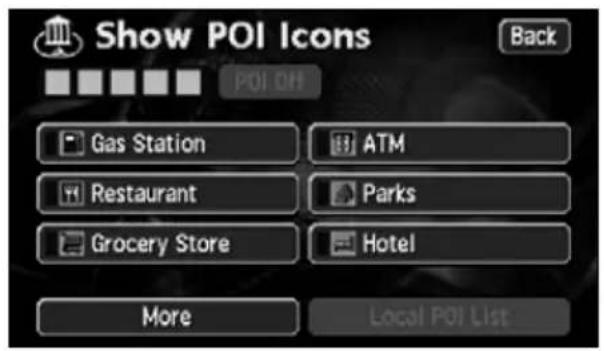
POI landmarks can be displayed by simple operations while driving.
1 Touch Map View displayed.
2 Touch Show POI Icon
3 Touch the POI to be displayed
(Gas Station ATMParts Grocery Store, Restaurant, Hotel).
• The POI landmark touched will appear.
text_image
Show POI Icons Back POI ON Gas Station ATM Restaurant Parks Grocery Store Hotel More Local POI ListDelete a POI landmark
1 Touch Map View displayed.
2 Touch Show POI Icon
3 Touch POI Off
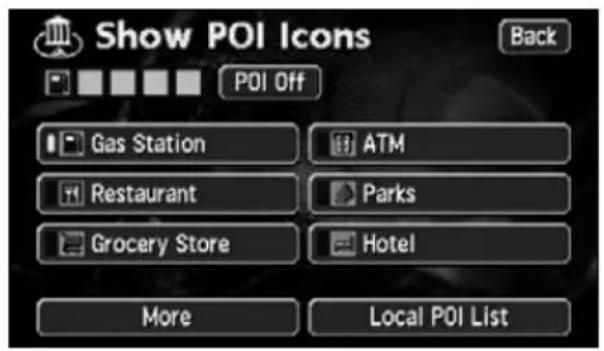
text_image
Show POI Icons Back POI Off Gas Station ATM Restaurant Parks Grocery Store Hotel More Local POI ListDisplaying multiple types
Multiple POI landmarks (5 types) can be displayed simultaneously.
1 Touch Map View displayed.
2 Touch Show POI Icon
3 Touch More
4 Touch the POI type to be displayed.
- Touch List All Categories all the types of POI.
5 Touch the POI name to be displayed.
- Up to 5 POI landmarks can be displayed simultaneously.
- If having made an error, touch
Delete to cancel one POI landmark at a time.
- Touch an already selected POI to cancel that POI.
6 Touch OK
7 Touch Back
- The selected POI landmark is displayed.
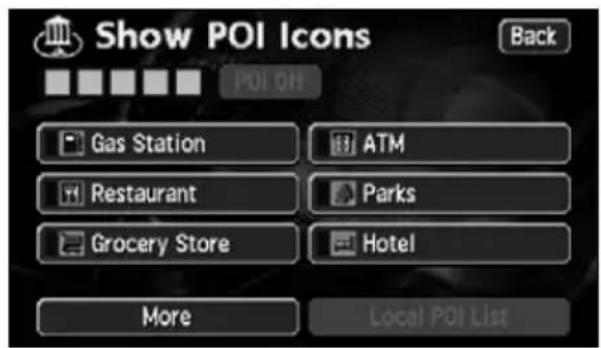
text_image
Show POI Icons Back POI ON Gas Station ATM Restaurant Parks Grocery Store Hotel More Local POI List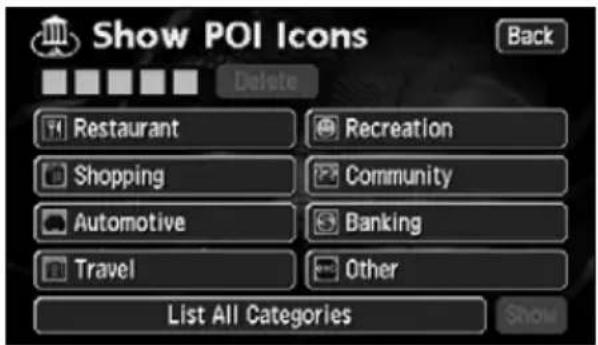
text_image
Show POI Icons Back Delete Restaurant Recreation Shopping Community Automotive Banking Travel Other List All Categories Show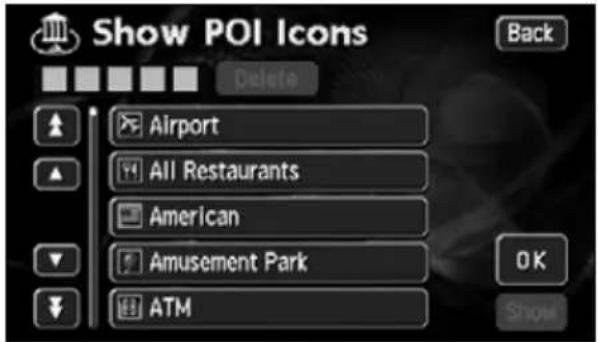
text_image
Show POI Icons Back Delete Airport All Restaurants American Amusement Park ATM OK Show3. Map displays
Search for POI vicinity
Names of POIs close to the or mark on the map and their distance in a straight line from the or mark can be displayed. With , it is also possible to display a direction.
1 If POI landmarks are displayed on the map, touch Map View
2 Touch Show POI Icon
3 Touch Local POI List
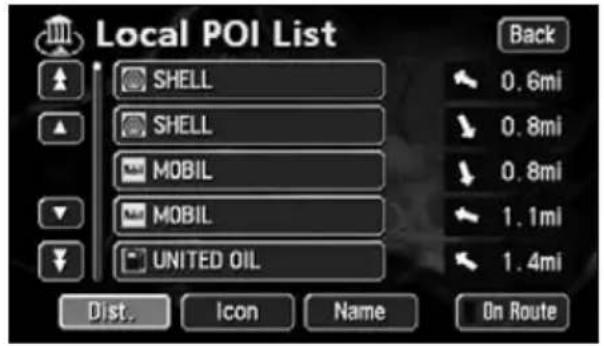
• A list of the selected POIs appears.
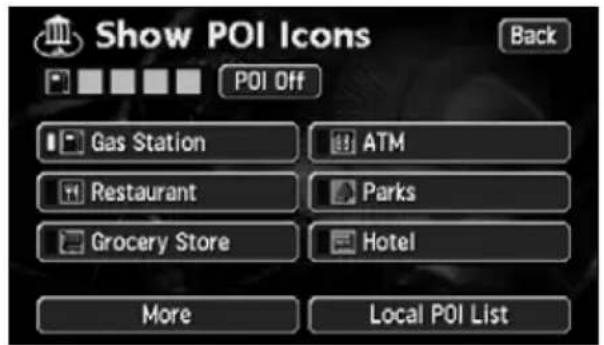
text_image
Show POI Icons Back POI Off Gas Station ATM Restaurant Parks Grocery Store Hotel More Local POI List4 Touch the POI name to be displayed.
- A map with the selected POI in the center is displayed with the POI name and its distance in a straight line to the present location is displayed.
- If the mark is displayed, POIs ahead of it are shown with a mark
(arrow pointing upwards). (Position viewable from the vehicle directional heading.)
- If a destination is set, a list of POIs along the route can be displayed. Refer to the Section "Displaying a list of POIs along the set route" on page 46.
text_image
Local POI List SHELL SHELL MOBIL MOBIL UNITED OIL Dist. Icon Name On Route Back 0.6mi 0.8mi 0.8mi 1.1mi 1.4mi
- Only landmarks within a 20 mile radius of the or mark can be searched for. (Up to 200 landmarks.)
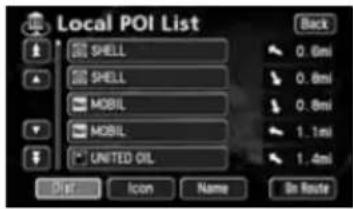
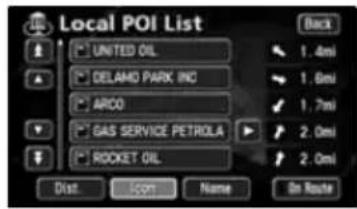
- POI landmarks can be listed in the order of proximity to the or mark or by POI icon category.
● Distance order display
text_image
Local POI List SHELL SHELL MOBIL MOBIL UNITED OIL 0.0mi 0.8mi 0.8mi 1.1mi 1.4mi Back Icon Name On Route● Category order display
text_image
Local POI List UNITED OIL DELAMO PARK INC ARCO GAS SERVICE PETROLA ROCKET OIL Dist OK Name On Route Back 1.4mi 1.0mi 1.7mi 2.0mi 2.0mi- Name order display
text_image
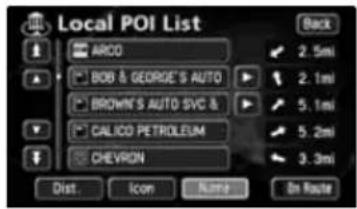
Local POI List ARCO 2.5mi BGB & GEORGE'S AUTO 2.1mi BROWN'S AUTO SVC & 5.1mi CALICO PETROLEUM 5.2mi CHEVRON 3.3mi Dist. Icon Name On RouteDist.
change the listing order to proximity to the Ⓗ or ✿ mark.
• to change to a POI icon category listing order.
• to change the name listing order.
3. Map displays
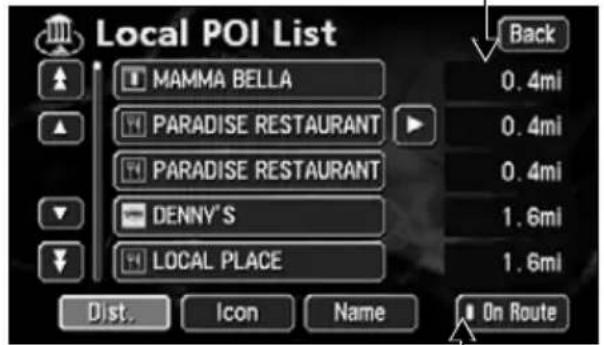
Displaying a list of POIs along the set route
If a destination has been set, a list of POIs whose distance and direction correspond to the set route can be selected. (The distances shown represent distances left to travel to the POIs.)
1 Touch On Route
- If a list displaying POIs along the set route is shown, the movement display light appears yellow.
- Touch the POI name to display a map with that POI in the center, its name and the distance to that POI from the present location.
Distance display
text_image
Local POI List MAMMA BELLA PARADISE RESTAURANT PARADISE RESTAURANT DENNY'S LOCAL PLACE Dist. Icon Name On Route Back 0.4mi 0.4mi 0.4mi 1.6mi 1.6mi●Display of POIs along the set route
Movement display light
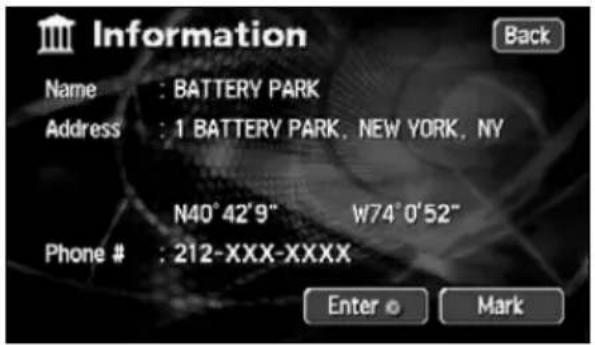
Displaying POI information
1 Touch a POI landmark displayed on the map.
- The name of the POI and the linear distance from the current location will be displayed.
2 If Info. Played, touch to display a description of that POI.
- The data for the POI is displayed.
text_image
Information Name : BATTERY PARK Address : 1 BATTERY PARK, NEW YORK, NY N40°42'9" W74°0'52" Phone # : 212-XXX-XXXX Enter © Mark
- If a route is not displayed on the map shown on the screen, a list of POIs along the set route cannot be displayed.
- There may not be a description available for some POIs.
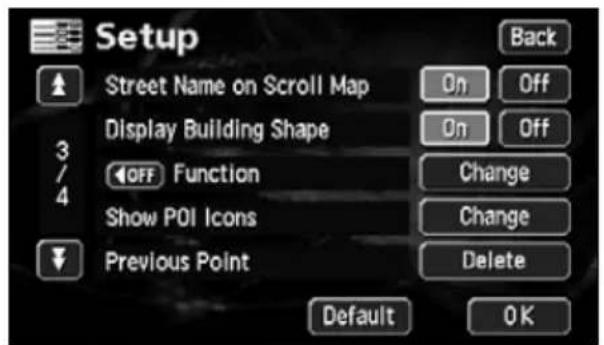
Setting the type of POI vicinity to be retrieved while driving
The 6 items appearing in the POI vicinity menu screen (Gas Station ATMParks
Grocery Store, Restaurant Hotel
This POI vicinity menu can be displayed even while driving and POI landmarks can be displayed on the map screen.
1 Touch Setup enu screen.
2 Touch Change POI Icons.
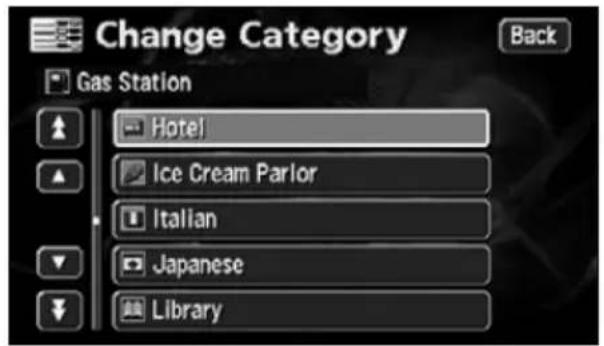
3 Touch the POI type to be changed.
4 Touch the POI type to be displayed.
text_image
Setup Street Name on Scroll Map Display Building Shape OFF Function Show POI Icons Previous Point Back On Off On Off Change Change Delete Default OK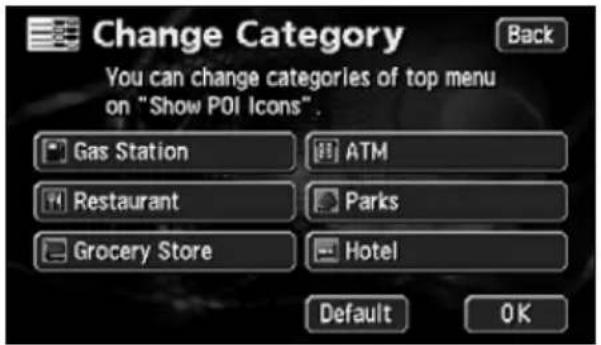
text_image
Change Category You can change categories of top menu on "Show POI Icons". Gas Station ATM Restaurant Parks Grocery Store Hotel Default OK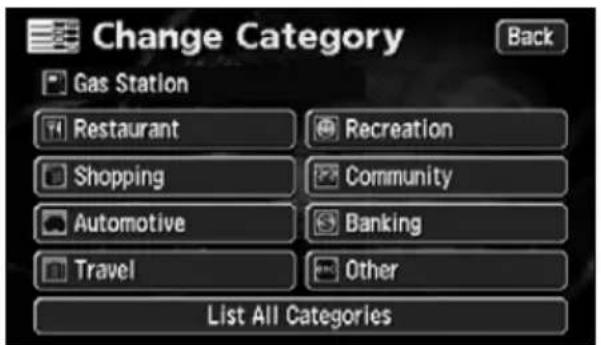
text_image
Change Category Gas Station Restaurant Recreation Shopping Community Automotive Banking Travel Other List All Categories Back3. Map displays
5 Touch the name of the POI to be displayed.
6 Touch OK
text_image
Change Category Gas Station Hotel Ice Cream Parlor Italian Japanese Library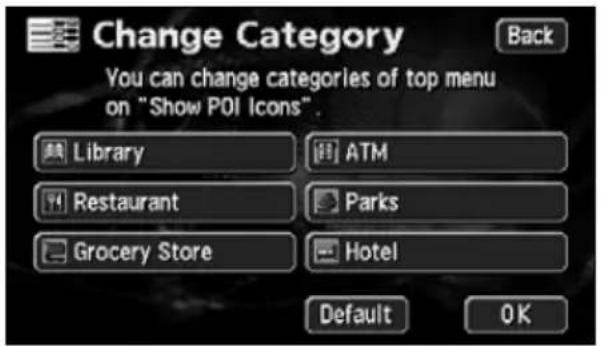
text_image
Change Category You can change categories of top menu on "Show POI Icons". Back Library ATM Restaurant Parks Grocery Store Hotel Default OK
ATTENTION
- Touch Default in screen 2 to return all items to their default settings.
- Touch Default to its default setting. 3 to return the POI vicinity retrieved while driving
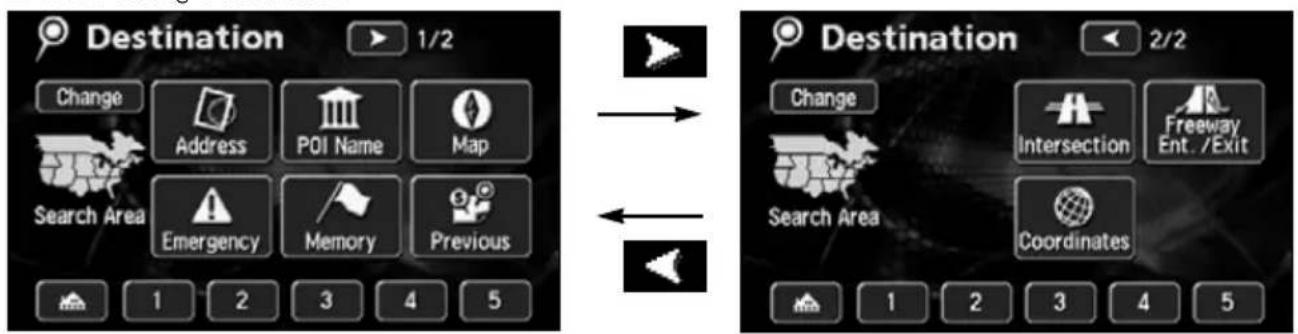
4. How to retrieve maps
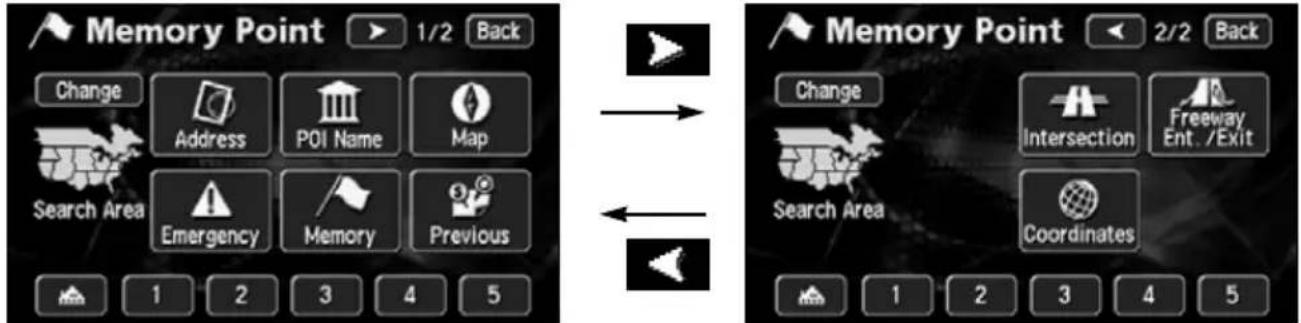
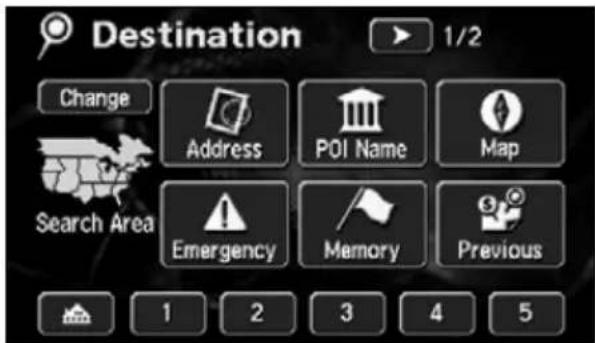
When setting or adding a destination, registering your home, memory points, special memory points or detour memory points, maps corresponding to these setting and registration points can be retrieved using various methods.
For procedures on how to select a map retrieval method, see the corresponding page for each item below.
■ When setting a destination
flowchart
graph LR
    A["Destination 1/2"] --> B["Change"]
    A --> C["Address"]
    A --> D["POI Name"]
    A --> E["Map"]
    A --> F["Search Area"]
    A --> G["Emergency"]
    A --> H["Memory"]
    A --> I["Previous"]
    J["Destination 2/2"] --> K["Change"]
    J --> L["Intersection"]
    J --> M["Freeway Ent. /Exit"]
    J --> N["Search Area"]
    J --> O["Coordinates"]
    P["1 2 3 4 5"] --> Q["1 2 3 4 5"]
●Setting a destination (Refer to page 68)
●Add a destination (Refer to page 79)
■ When registering a memory point
text_image
Memory Point 1/2 Back Change Address POI Name Map Search Area Emergency Memory Previous 1 2 3 4 5 Memory Point 2/2 Back Change Intersection Freeway Search Area Coordinates 1 2 3 4 5●Registering your home (Refer to page 105)
●Registering memory points (Refer to page 109)
●Registering special memory points (Refer to page 119)
●Registering detour memory points (Refer to page 123)
The screens above are examples of screens when setting a destination and when registering a memory point.
Touch the map retrieval method on the displayed Menu screen to select an item.
4. How to retrieve maps
| Item (touch switch) Function | |
 | By entering an address, the map corresponding to that point (or area) can be displayed. (Refer to page 52) |
 | By entering the name of a POI, the map corresponding to that POI's vicinity of can be displayed. Also, enter the name of an address to display the map of that area. (Refer to page 54) |
 | The map displayed on the screen before having opened the Menu screen can be returned. |
 | Police stations, hospitals are displayed in the order of proximity to the present location. (Refer to page 60) |
 | The map of the vicinity of a memory point can be displayed. (Refer to page 60) [Only for when memory points are registered. For information concerning memory points, see page 104.] |
 | The map of the vicinity of a previously set destination or the previous start point can be displayed. (Refer to page 61) [Only for when an entry in the destination archive is registered. For information concerning the destination archive, see Page 127.] |
 | Intersections can be displayed by entering the names of two roads that cross each other. (Refer to page 61) |
 | A map can be displayed by indicating a freeway entrance/exit. (Refer to page 63) |
 | A map can be displayed by entering latitude and longitude coordinates. (Refer to page 64) |
 | [When setting a destination]A route search is started for a registered geographical point. [Only when each respective point is registered.] [When registering a memory point]The map for a registered point can be displayed. [Only when each respective point is registered.]• Registering your home (Refer to page 105)• Registering 1 to 5 special memory points (Refer to page 119) |
Vicinity of special memory point | |
Changing the search area
This navigation system divides the U.S. and Canada into 11 block areas.
For any search method employed, the system will conduct a search in the area you are occupying unless the search area has been changed. To conduct a search in another area, first set the search area prior to beginning the search.
1 Touch Change
2 Touch the area where a search is to be initiated.
- For a list of the areas, see the figure on the right.
3 Touch OK
text_image
Destination 1/2 Change Address POI Name Map Search Area Emergency Memory Previous 1 2 3 4 5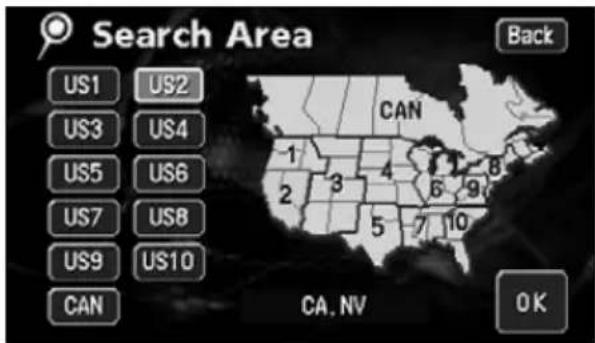
text_image
Search Area Back US1 US2 US3 US4 US5 US6 US7 US8 US9 US10 CAN CA. NV OKUS1
Idaho
Oregon
Washington
US2
California
Nevada
US3
Arizona
Colorado
Montana
New Mexico
Utah
Wyoming
US4
lowa
Kansas
Minnesota
Missouri
North Dakota
South Dakota
US5
Oklahoma
Texas
US6
Illinois
Indiana
Kentucky
Michigan
Ohio
Wisconsin
US7
Arkansas
Alabama
Louisiana
Mississippi
Tennessee
US8
Connecticut
Massachusetts
Maine
New Hampshire
New Jersey
New York
Rhode Island
Vermont
US9
Washington,D.C.
Delaware
Maryland
New Jersey
Pennsylvania
Virginia
West Virginia
US10
Florida
Georgia
North Carolina
South Carolina
CAN
All provinces and regions in Canada included in this switch.
4. How to retrieve maps
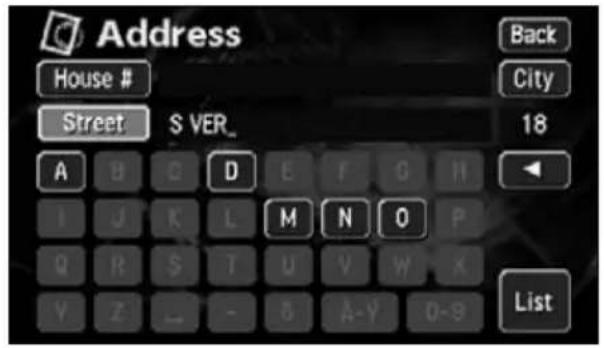
Retrieving a map using an address
If the address is known, its corresponding map can be retrieved by selecting that address.
1 Touch Street er one character at a time.
- If having made a mistake, touch delete one character at a time.
- Lettered touch switches with no corresponding search result will appear inverted. Input is not enabled even if touching them.
text_image
Address House # Street S VER_ Back City 18 A B C D E F G H I J K L M N O P Q R S T U V W X Y Z _ - 8 A-Y 0-9 List2 Touch List
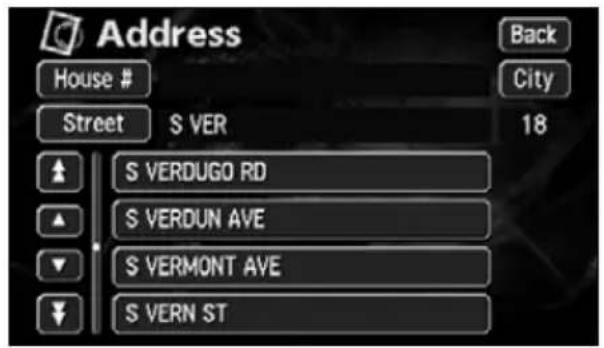
3 Touch the street name to be displayed.
text_image
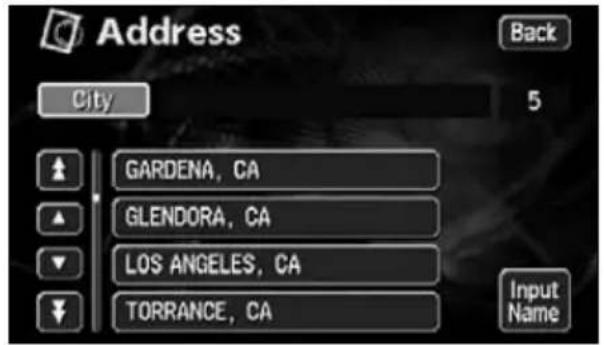
Address House # Street S VER Back City 18 S VERDUGO RD S VERDUN AVE S VERMONT AVE S VERN ST4 Touch the city name to be displayed.
text_image
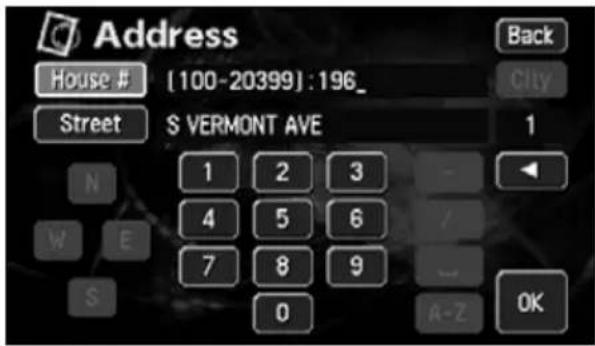
Address City GARDENA, CA GLENDORA, CA LOS ANGELES, CA TORRANCE, CA Back 5 Input Name5 Touch House # one number at a time.
- If you make a mistake, touch delete one character at a time.
text_image
Address House # [100-20399]:196_ Street S VERMONT AVE 1 N 1 2 3 - W E 4 5 6 / S 7 8 9 0 A-Z OK Back City6 Touch OK
- The map searched for by entering an address is displayed.
- If there is an address that corresponds with the entered house number, the map of the vicinity of that address will be displayed.
- If there is no address corresponding to the entered house number, a diagram of the vicinity of the corresponding street will appear.
4. How to retrieve maps
Retrieving a map using a POI name
A map can be retrieved by entering a partial POI name or by narrowing down from a list of several POI types, regions, street or city names, etc. Also, a map can be retrieved by entering the name of an address.
When the number of candidates is low, a map can be selected directly from the list screen.
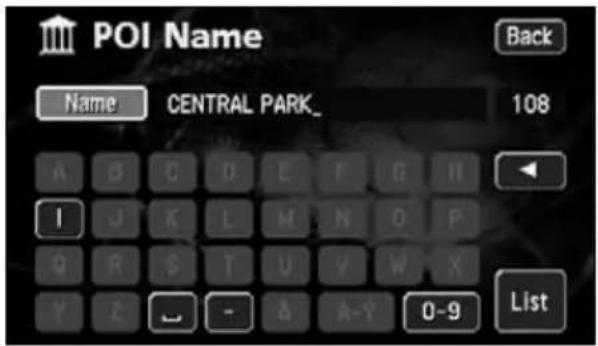
1 Enter the POI name (or address) by touching one character at a time.
- Up to 24 characters can be entered.
- If having made a mistake, touch delete one character at a time.
- Lettered touch switches with no corresponding search result will appear inverted. Input is not enabled even if touching them.
text_image
POI Name Back Name CENTRAL PARK_ 108 A B C D E F G H I J K L M N O P Q R S T U V W X Y Z - & A-Y 0-9 List2 Touch List
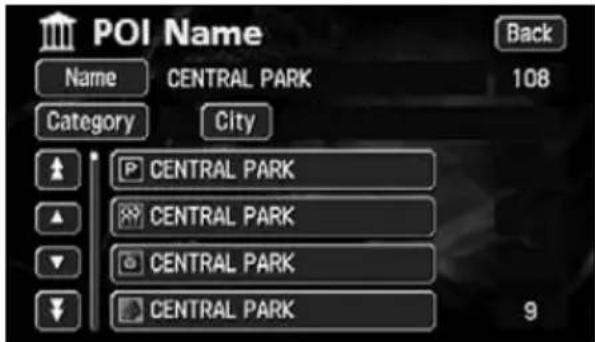
- A POI list screen containing names searched for from the entered characters is displayed.
3 Touch the POI name to be displayed.
- Narrow down a long list of candidates using City Quarterly a search after having eliminated items from the list.
- When indicating the area of the POI to be displayed in the POI list screen,
touch City Non touch or . \s Input City name
indicating the POI type, touch Category
text_image
POI Name Back Name CENTRAL PARK 108 Category City CENTRAL PARK CENTRAL PARK CENTRAL PARK CENTRAL PARK 9

ATTENTION
If entering less than 4 search candidates, the list screen will automatically be displayed.
If narrowing down candidates per area
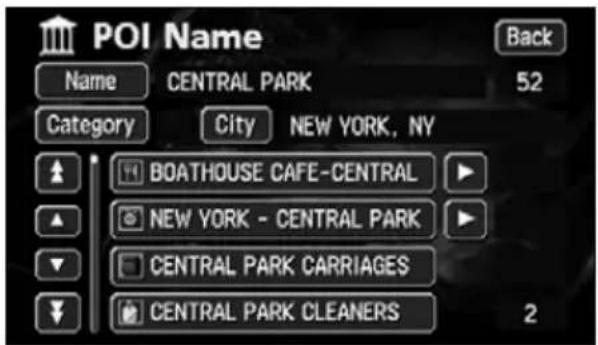
When narrowing down candidates from the nearest 5 cities
1 Touch City e list screen.
2 Touch Nearest 5 cities
3 Touch the name of the city when the desired POI is located.
4 Touch the POI name to be displayed.
- Touch Name to screen
1 on "Retrieving a map using a POI name" (Page 54).
- Touch Category the type of POI to be displayed on the POI list screen. (Refer to page 57)
text_image
POI Name Back Name CENTRAL PARK 52 Category City NEW YORK, NY BOATHOUSE CAFE-CENTRAL NEW YORK - CENTRAL PARK CENTRAL PARK CARRIAGES CENTRAL PARK CLEANERS 2When narrowing down the list by entering a city name
1 Touch City e POI list screen.
2 Touch Input City name
3 Touch one character at a time to enter the city name.
- Up to 24 characters can be entered.
- If having made a mistake, touch delete one character at a time.
- Lettered touch switches with no corresponding search result will appear inverted. Input is not enabled even if touching them.
- Every time a character is touched, the number of POI names searched for is indicated.
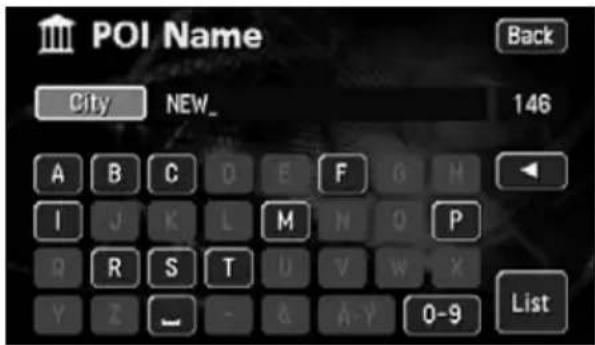
text_image
POI Name City NEW_ 146 A B C D E F G H I J K L M N Q P Q R S T U V W X Y Z _ - & A-Y 0-9 List4. How to retrieve maps
4 Touch List
- A POI list screen containing names searched for from the entered characters is displayed.
5 Touch the POI name to be displayed.
- Touch Name to return to screen (Page 54).
1 on "Retrieving a map using a POI name" - Touch Category e type of POI to be displayed on the POI list screen. (Refer to page 57)
When narrowing down the list by POI type
This is one way to narrow down the list of POI types. This is convenient when knowing what type of POI is the destination. Narrow down a long list of candidates using City start a search after having eliminated items from the list.
1 Touch Category list screen.
2 Touch the POI type to be displayed.
• List All Categories show all the types of POI.
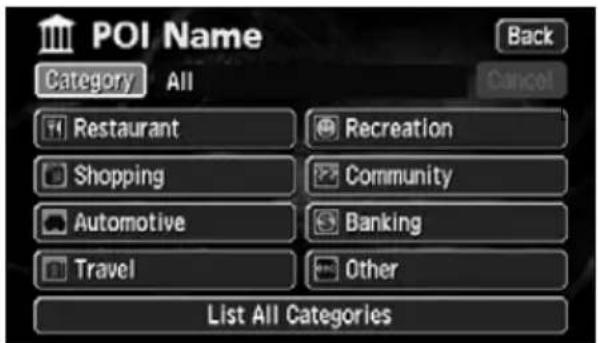
text_image
POI Name Category All Back Cancel Restaurant Recreation Shopping Community Automotive Banking Travel Other List All Categories●POI type indication screen
3 Touch the POI name to be displayed.
- Touch Name to screen
1 on "Retrieving a map using a POI name" (Page 54).
- Touch City ate the POI area to be displayed on the POI list screen. (Refer to page 55)
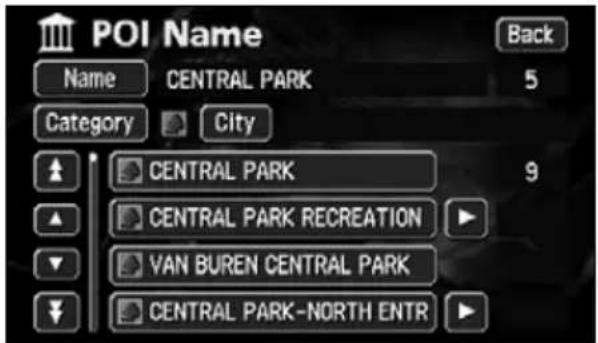
text_image
POI Name Back Name CENTRAL PARK 5 Category City CENTRAL PARK 9 CENTRAL PARK RECREATION VAN BUREN CENTRAL PARK CENTRAL PARK-NORTH ENTR
- POI type selection is set for 1 type. After setting in Category City also be selected.
- If there is no corresponding POI for the set type, no list will appear. Set a different type.
- Depending on the POI, the displayed geographical point is not always the actual location of that POI but can be a representation of the address of that location.
4. How to retrieve maps
POI types
| Restaurant | All Restaurants Horse Racing |
| American Marina | |
| Chinese Museum | |
| Continental National and State Parks | |
| Fast Food Ski Resort | |
| French Speedway | |
| Italian Sports Complex | |
| Japanese Theater | |
| Thai Winery | |
| Convenience Store City Center | |
| Department Store | |
| Grocery Store | |
| Home and Garden | |
| Other Retail Stores | |
| Pharmacy | |
| Shopping Mall | |
| Specialty Food Store | |
| Auto Club Parks | |
| Car Wash Police Station | |
| Gas Station | |
| Other Automotive Stores | |
| Parking | |
| Service & Maintenance | |
| Airport | |
| Bus Station Beauty and Barber Shops | |
| Campground | |
| Ferry Terminal | |
| Hotel | |
| Rental Car Agency | |
| Rest Area Other Business Facilities | |
| Train Station | |
| Amusement Park | |
| Botanical/Zoological Gardens | |
| Casino | |
| Cinema | |
| Golf Course | |
| Historical Monuments |
| Community | ||||||||||||||||||||||||||||||||||||||||||||||||||||||||||||||||||||||||||||||||||||||||||||||||||||||

text_image
ATTENTION- Depending on the POI, the displayed geographical point is not always the actual location of that POI. The following cases may result in a search based on data that differs from general publications.
- Facilities such as art museums in department stores and amusement parks may be located in areas that differ from their customer service centers.
- The address appearing in maps may contain the geographic name of a neighboring area. Also, the address may only appear in part or may be abbreviated.
4. How to retrieve maps
Retrieving a map in the event of an emergency
In the event of a traffic accident, a problem with your vehicle or other emergency, a map for the nearest police station, hospital can be retrieved.
Switch to this mode and the address and longitudinal/latitudinal coordinates of the present location will be indicated on the upper part of the screen.
1 Touch Police Stn. spital
• While driving, the Police Stn.
Hospital will appear, and you will be able to call up a map for the nearest police station or hospital.
2 Touch the POI to be displayed from the list.

text_image
Emergency Back Current Position 19606 S VERMONT AVE, TORRANCE, CA Lat. :N33°51'10" Long. :W118°17'24" Police Stn. Hospital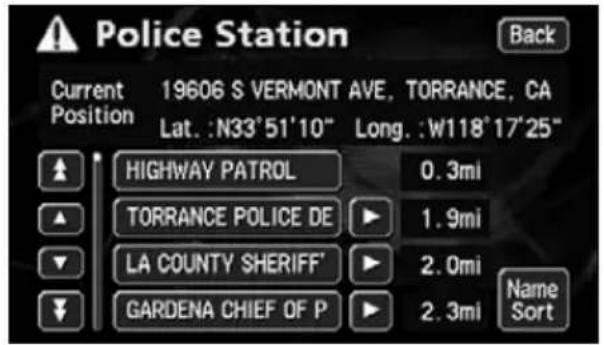
text_image
Police Station Back Current 19606 S VERMONT AVE, TORRANCE, CA Position Lat.: N33°51'10" Long.: W118°17'25" HIGHWAY PATROL 0.3mi TORRANCE POLICE DE 1.9mi LA COUNTY SHERIFF 2.0mi GARDENA CHIEF OF P 2.3mi Name SortRetrieving a map using a memory point
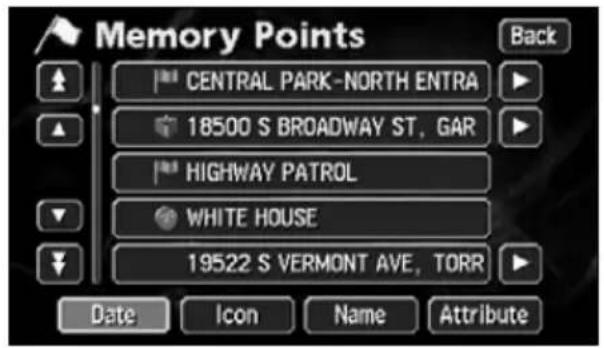
If at least a few memory points are registered in the device in advance (Refer to page 109), a map can be retrieved using one of these points.
1 Touch the memory point to be displayed from the list.
text_image
Memory Points CENTRAL PARK-NORTH ENTRA 18500 S BROADWAY ST, GAR HIGHWAY PATROL WHITE HOUSE 19522 S VERMONT AVE, TORR Date Icon Name AttributeRetrieving a map using the archive
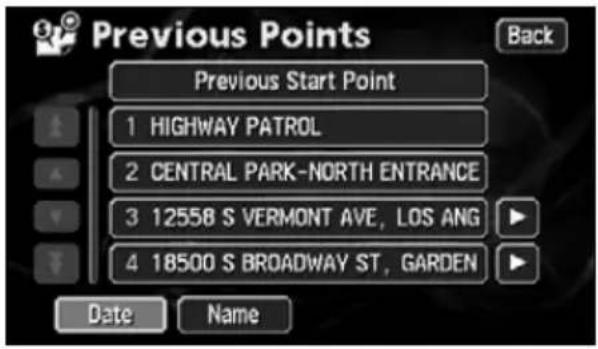
Up to 100 latest previously set destinations are automatically recorded and a map for the same point can be easily retrieved.
1 Touch the destination archive to be displayed from the list.
- By touching
Previous Start Point you can call up the previous start point.
text_image
Previous Points Previous Start Point 1 HIGHWAY PATROL 2 CENTRAL PARK-NORTH ENTRANCE 3 12558 S VERMONT AVE, LOS ANG 4 18500 S BROADWAY ST, GARDEN Date Name BackRetrieving a map using an intersection name
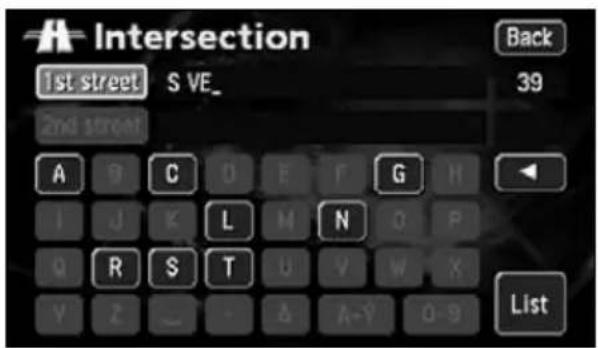
An intersection can be retrieved from 2 intersecting streets.
1 Enter the Street Name by touching on the characters on the screen one character at a time.
- Up to 24 characters can be entered.
- If having made a mistake, touch delete one character at a time.
- Lettered touch switches with no corresponding search result will appear inverted. Input is not enabled even if touching them.
- Every time a character is touched, the number of POI names searched for is indicated.
- Touch List play a list of the applicable streets.
text_image
Intersection 1st street S VE_ Back 39 2nd street A G C O F F G H I J K L M N O P Q R S T U Y W X Y Z _ - & A-Y 0-9 List
ATTENTION
- Your home and special memory points are not recorded in the destination archive.
- Refer to the Section "Deleting entries from the destination archive" on page 127, for information concerning the deletion of entries in the destination archive.
4. How to retrieve maps
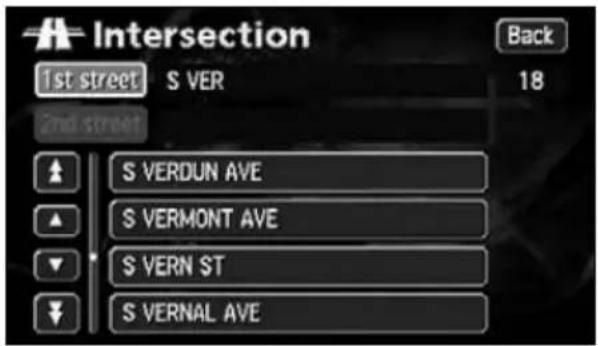
2 Touch Street Name from the list.
text_image
Intersection 1st street S VER Back 2nd street S VERDUN AVE 18 S VERMONT AVE S VERN ST S VERNAL AVE3 Enter one more Street Name in the same manner.
- Up to 24 characters can be entered.
- If having made a mistake, touch to delete one character at a time.
- Lettered touch switches with no corresponding search result will appear inverted. Input is not enabled even if touching them.
- Every time a character is touched, the number of POI names searched for is indicated.
- Touch List play a list of the applicable streets.
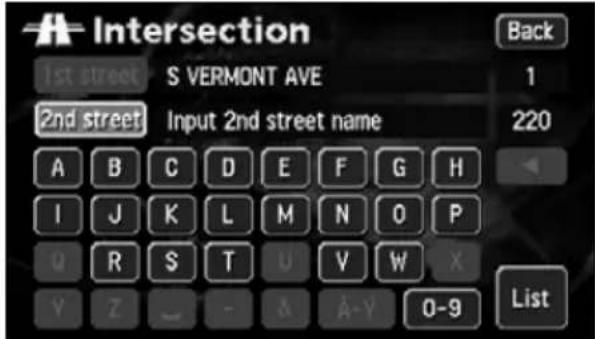
text_image
Intersection 1st street S VERMONT AVE 1 2nd street Input 2nd street name 220 A B C D E F G H I J K L M N O P Q R S T U V W X Y Z _ - & A-Y 0-9 List4 Touch Street Name from the list.
- The map retrieved from the entered street names appears.
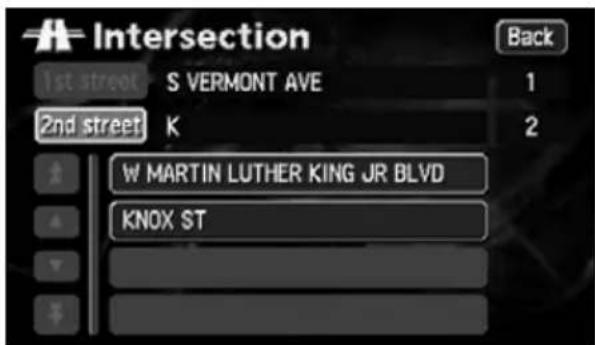
text_image
Intersection 1st street S VERMONT AVE 1 2nd street K 2 W MARTIN LUTHER KING JR BLVD KNOX STRetrieving a map using a freeway exit/entrance name
A map can be retrieved using the name of a freeway or an exit/entrance.
1 Enter the freeway name by touching on the characters on the screen one character at a time.
- Up to 24 characters can be entered.
- If having made a mistake, touch delete one character at a time.
- Lettered touch switches with no corresponding search result will appear inverted. Input is not enabled even if touching them.
- Every time a character is touched, the number of POI names searched for is indicated.
- Touch List play a list of the applicable freeways.
2 Touch the freeway name to be displayed.
3 Touch either Entrance E
to specify the freeway entrance or exit.
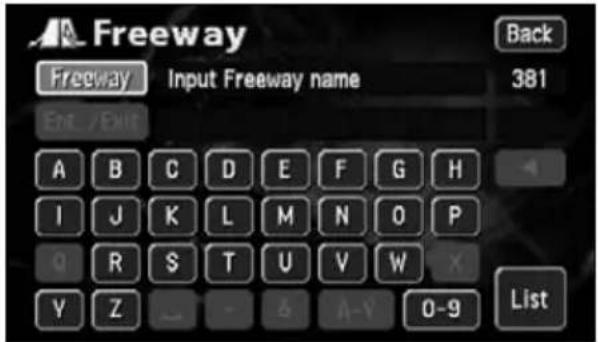
text_image
Freeway Back Freeway Input Freeway name 381 Ent / Exit A B C D E F G H I J K L M N O P g R S T U V W X Y Z _ - & A-Y 0-9 List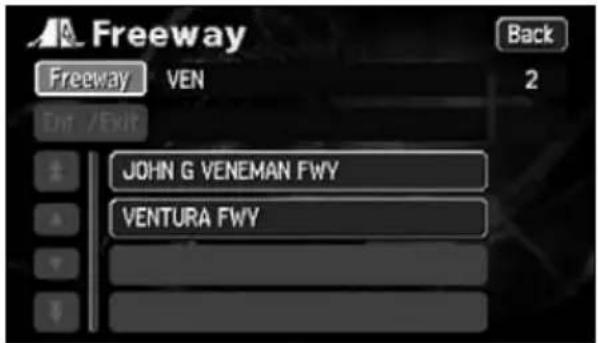
text_image
Freeway Freeway VEN Back 2 Exit /Exit JOHN G VENEMAN FWY VENTURA FWY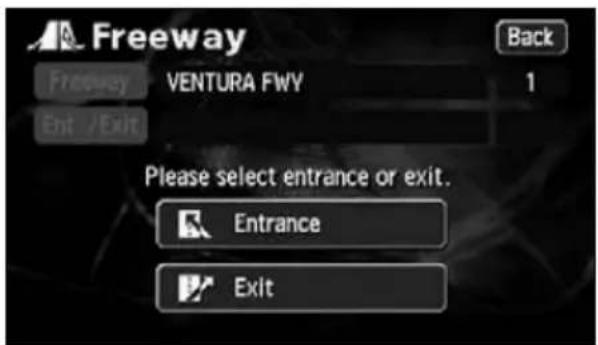
text_image
Freeway Back VentURA FWY 1 Exit /Exit Please select entrance or exit. Entrance Exit4. How to retrieve maps
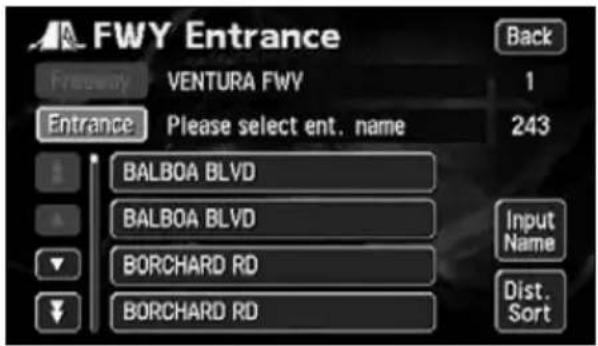
4 Touch the entrance or exit name to be displayed form the list.
- Touch Input Name entrance or exit name directly.
- Touch Dist. Sortries in order of the distance from the present location.
text_image
FWY Entrance Frequency VENTURA FWV 1 Entrance Please select ent. name 243 BALBOA BLVD BALBOA BLVD BORCHARD RD BORCHARD RD Input Name Dist. SortRetrieving a map using the latitude/longitude
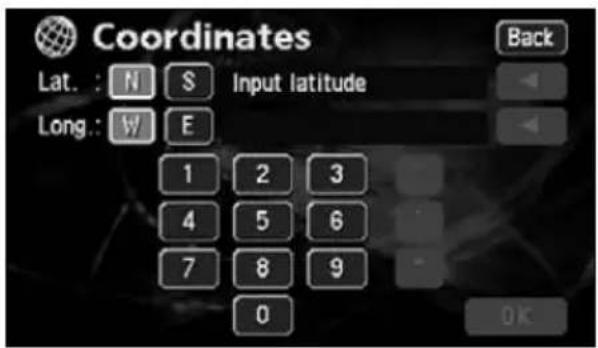
A map can be retrieved using the latitude/longitude.
1 Enter the number by touching the switches on the screen one number at a time.
- If having made a mistake, touch delete one number at a time.
text_image
Coordinates Lat. : N S Input latitude Long.: W E 1 2 3 4 5 6 7 8 9 0 Back OK2 Touch OK
- The map retrieved from the entered latitude and longitude appears.
5. Performing operations on a retrieved map
When retrieving a map, either a map with a pinpoint search result or without a pinpoint search result (vicinity) will be displayed. Information on POIs can be displayed from the map retrieved.
Performing operations on a displayed map
The following conditions are necessary to display a map from a pinpoint:
① When entering a POI name in "Retrieving a map using a POI name"
② When "Retrieving a map in the event of an emergency"
③ When "Retrieving a map using an intersection name"
④ When a corresponding POI is made available when "Retrieving a map using a freeway exit/entrance name"
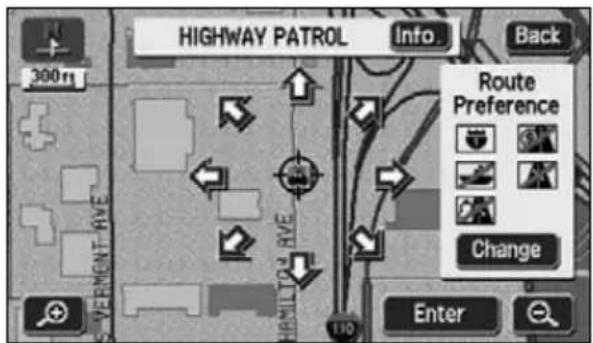
text_image
HIGHWAY PATROL Info Back 300ft SURVEMENT RIVE HORN TOW RIVE Route Preference Change Enter●When a search is made using a pinpoint
text_image
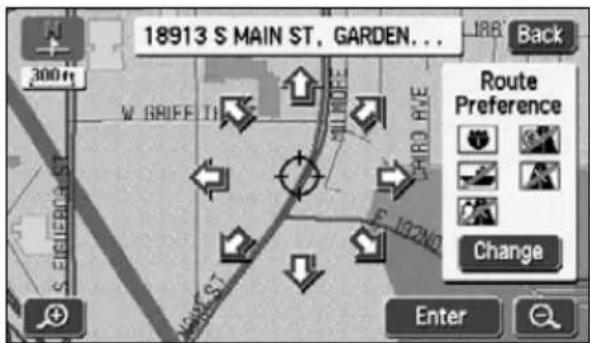
18913 S MAIN ST., GARDEN... Back Route Preference Change Enter●When a search cannot be made using a pinpoint
The following operations are enabled on a retrieved map.
■Changing the position
Scroll to change the position.
■Displaying POI information
The POI data displayed as per the conditions described in steps ① to ④ above is shown.
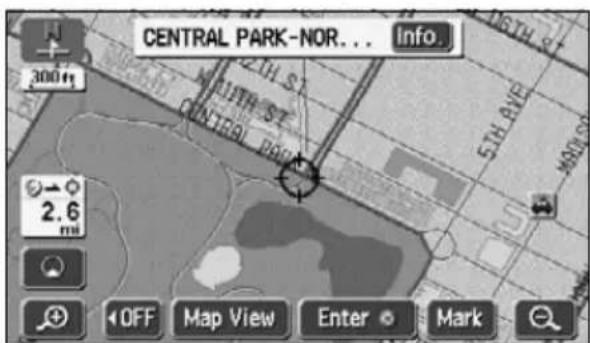
Displaying POI information
1 Touch Info.
• Information on the POI is displayed.
text_image
CENTRAL PARK-NOR... Info. 300ft MILTH ST. MILTH ST. 5TH AVE 2.6 mi OFF Map View Enter Mark
- Information on POIs can be displayed only when the method described in ① to ④ above was used to call up a map.
- There may be no information available for some POIs.
1. Setting the destination and searching for a route
To search for a route to guide you to a destination, settings including a destination setting, additional destinations, and route search conditions are required.
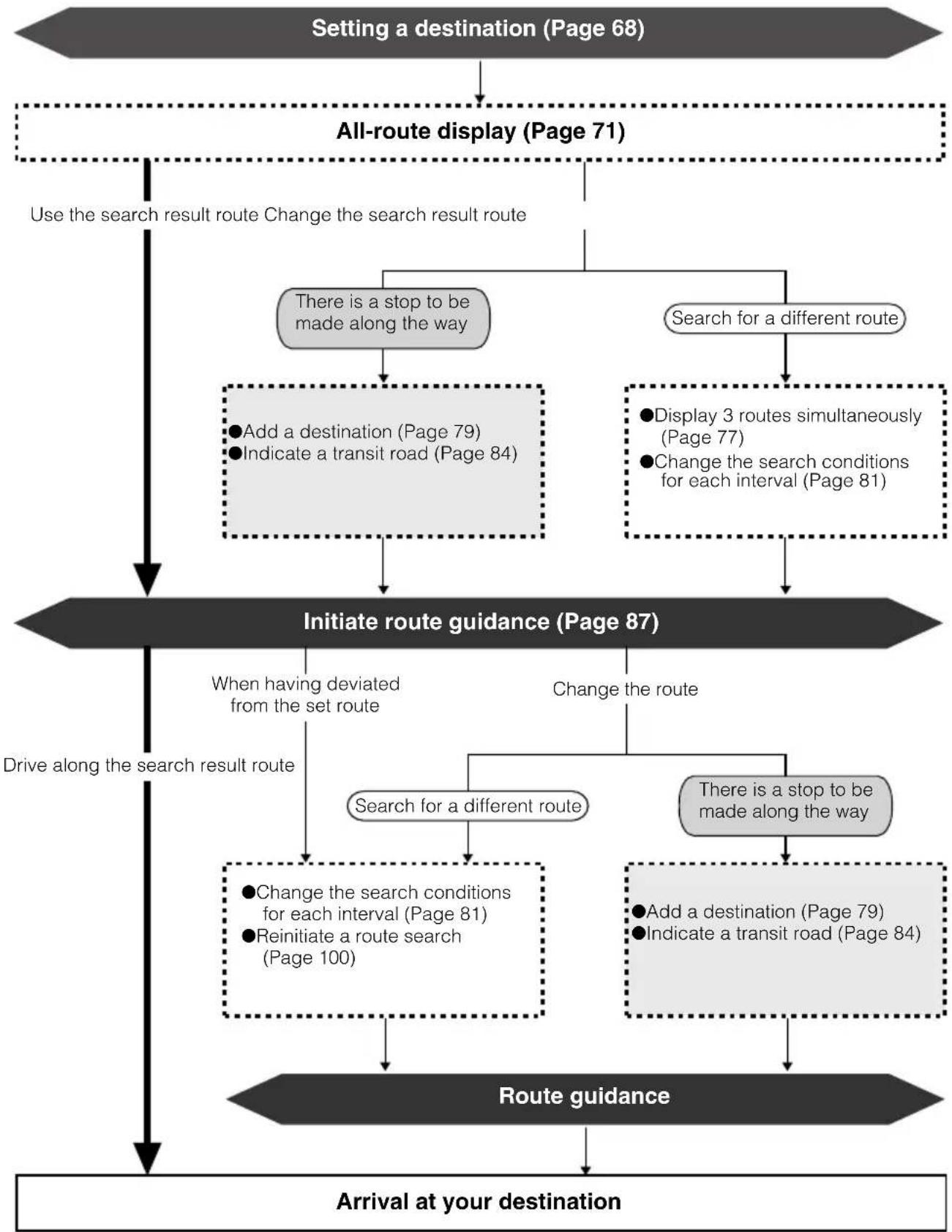
flowchart
graph TD
    A["Setting a destination (Page 68)"] --> B["All-route display (Page 71)"]
    B --> C{Use the search result route Change the search result route}
    C --> D{There is a stop to be made along the way}
    C --> E{Search for a different route}
    D --> F["• Add a destination (Page 79)<br>• Indicate a transit road (Page 84)"]
    E --> G["• Display 3 routes simultaneously (Page 77)<br>• Change the search conditions for each interval (Page 81)"]
    F --> H["Initiate route guidance (Page 87)"]
    G --> H
    H --> I{When having deviated from the set route}
    I --> J{Search for a different route}
    I --> K{Change the route}
    J --> L["• Change the search conditions for each interval (Page 81)<br>• Reinitiate a route search (Page 100)"]
    K --> M["• Add a destination (Page 79)<br>• Indicate a transit road (Page 84)"]
    L --> N["Route guidance"]
    M --> N
    N --> O["Arrival at your destination"]
    O --> P["End"]
2. Set a destination and search for a route
Route guidance begins after setting your destination.
The destination is set as per the following methods:
- One-touch setting
- Set using a registered point (your home, special memory point)
- Set using the map retrieval method
| Item Setting method | |
| One-touch setting | Scroll the map and touch Enter e destination. |
| Set from a registered point | Set your home as the destination only if your home is registered. This cannot be used if your home is not registered. (Refer to "Registering your home" (Page 105).) |
| Set an already registered special memory point (up to 5 points) as the destination. This cannot be used if there are no special memory points registered.(Refer to "Registering a special memory point" (Page 119).) | |
| Set using a map retrieval method | Search using a map retrieval method to set a destination.(Refer to "How to retrieve maps" (Page 49).) |
Set the destination to automatically start a recommended route search.
When adding a destination or a route other than the recommended route or setting a transit road, proceed after the route search is complete.

- When setting the destination, use a detailed map with a reduction scale of under 0.5 miles.
- Geographical points on maps representing set destinations are automatically registered (up to 100 points) and can be used to retrieve a map when setting a destination. When exceeding 100 points, the oldest entry is deleted every time a new one is entered. Unnecessary points can be deleted. (Refer to "Deleting entries from the destination archive" (Page 127).)
2. Set a destination and search for a route
Setting a destination
One-touch setting
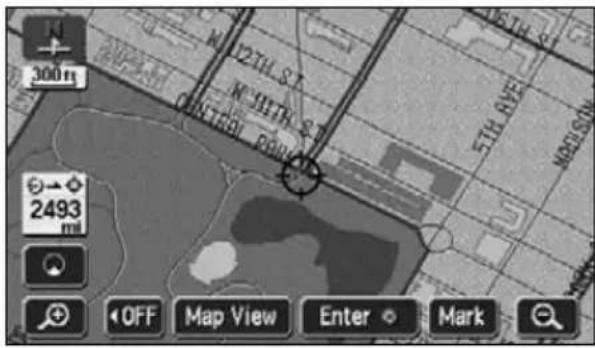
A destination can be set in the map presently displayed.
1 Touch the map.
2 Touch Enter
3 Touch Enter
- Touch to move the map.
- A symbol will appear for the destination point on the position and a route search will begin.
- If a destination is already set, touch Replace to delete the set destination and set a new one.
- Touch Add to destination. It will be added as the next destination after the present location.
text_image
300m 2493 OFF Map View Enter Mark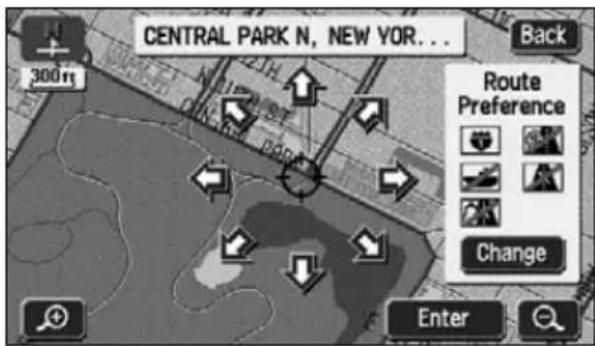
text_image
CENTRAL PARK N, NEW YOR... 300ft Back Route Preference Change Enter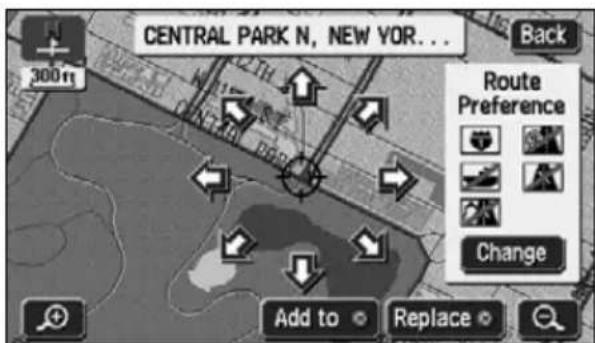
text_image
CENTRAL PARK N, NEW YOR... Back 300ft Route Preference Change Add to Replace
If a map with a reduction scale wider than 0.5 miles is displayed, switch to a 0.5 mile reduction scale.
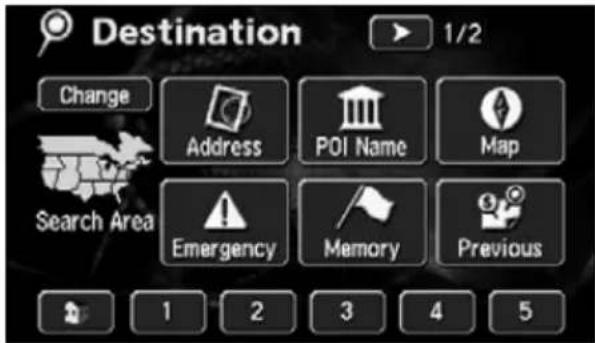
Set from a registered point
1 Touch DEST MAIN MENU screen.
2 Touch "Home" icon or special
memory points 1.5
- The symbol will be displayed at the location of your home or the special memory point and the route search will begin.
- A registered icon is used to represent your home.
- If a destination is already set, touch Replace to delete the set destination and set a new one.
- Touch Add to destination. "Adding a destination" (Page 79) (Refer to 5) 6
text_image
Destination 1/2 Change Address POI Name Map Search Area Emergency Memory Previous 1 2 3 4 5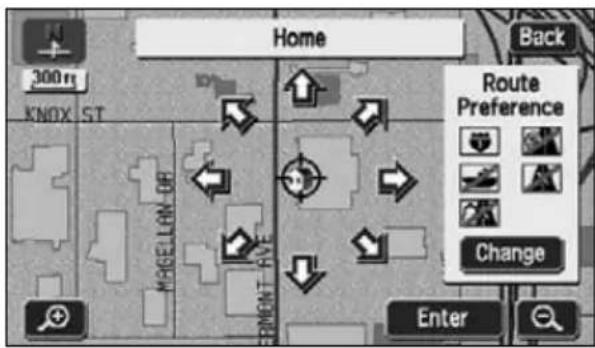
text_image
Home 300 m KNOX ST MEHELLON UR ELEMENT AVE Back Route Preference Change EnterSet using the map retrieval method
1 Touch DEST MAIN MENU screen.
2 Select the map retrieval method and the map corresponding to the point to be set as the destination will appear.
• See pages 49 and 65, "How to retrieve maps" and "Performing operations on a displayed map".
3 Touch Enter
- A symbol will appear for the destination point on the position and a route search will begin.
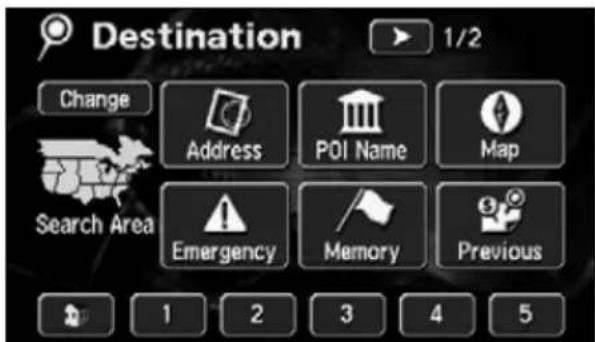
text_image
Destination 1/2 Change Address POI Name Map Search Area Emergency Memory Previous 1 2 3 4 5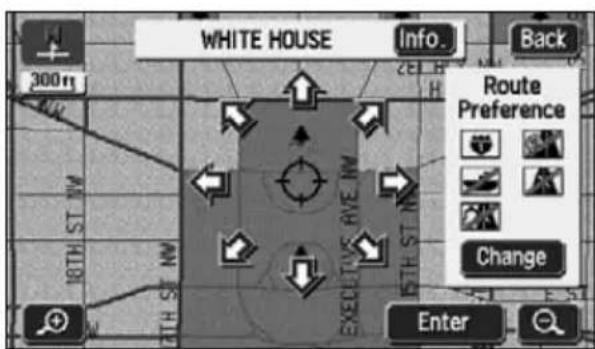
text_image
WHITE HOUSE Info. Back 300ft H Route Preference 18TH ST NW 15TH ST NW EXECUTIVE RIVE NW 15TH ST NW Change Enter2. Set a destination and search for a route
- If a destination is already set, touch
Replace to delete the set destination and set a new one.
- Touch Add to destination.
"Adding a destination" (Page 79)
(Refer to 5.) 6
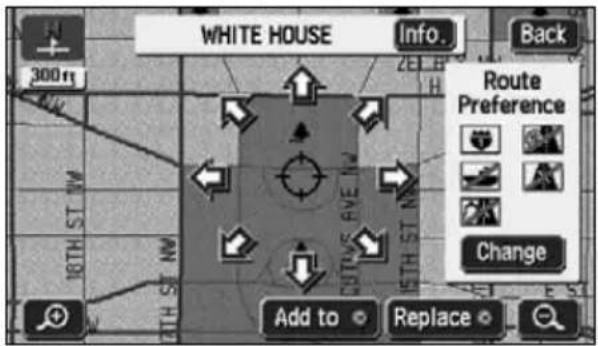
text_image
WHITE HOUSE Info. Back 300 ft Route Preference Change Add to ReplaceRoute search
Set a destination and a route search will automatically start.
- A route search will continue even if switching to other screens.
- The route will not appear if the distance to the destination is too short.
- When a route search is complete, an all-route display (all routes from the present location to the destination) screen will appear.

If the destination is on a freeway or in an inaccessible area, the following screen will appear. Touch the item corresponding to the situation.
- Touch Yes the destination on the highway.
- Touch No the destination on another road.
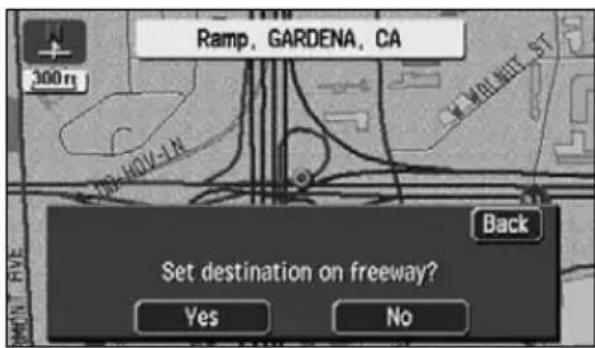
text_image
Ramp, GARDENA, CA 300 m 19-40V-1A ST WALNET ST Back Set destination on freeway? Yes NoIf the destination is inaccessible or if there is a river, railroad or other obstruction in its vicinity, the following screen may be displayed.
- Touch No that point as the destination.
- Touch Yes ve the destination.
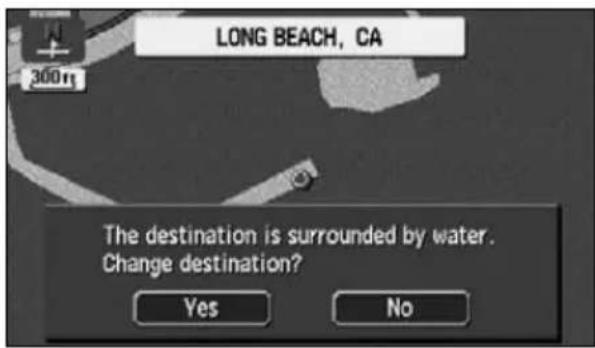
text_image
LONG BEACH, CA The destination is surrounded by water. Change destination? Yes NoIf a route search is conducted on a freeway or toll road interchange (IC), the search result route may start from a nearby local road. In such a case, reinitiate a route search (Refer to page 100).
All-route display
When the route search is complete, an all-route display screen appears.
- Press a MAP the all-route appears, or do not operate the device for at least 3 seconds after you start driving, and route guidance will automatically begin.
Route displays
The routes will be displayed in the following colors.
- Blue
The route when only one destination is set or the present segment up to the first destination set in case of multiple destinations appears blue.
- Light blue
The traffic regulation data in the segment is not corresponded on the map disc. The route guidance with voice and screen display such as intersection guidance is not supported.
- Purple
All segments other than the present segment up to the next destination when multiple destinations are set.
- Orange
Display seasonally restricted segment (Refer to page 74)
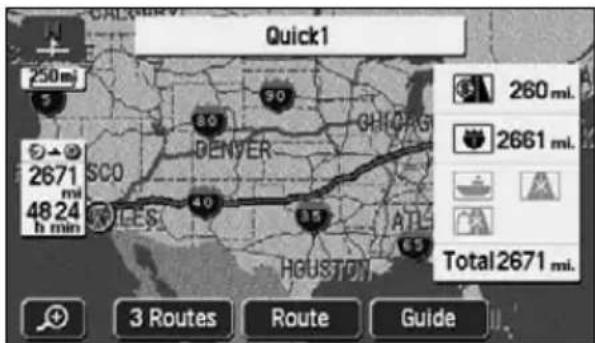
text_image
Quick1 250 mi 2671 mi 48 24 h min SCO DENVER GHICHIG 30 40 3.5 ATL HEUSTON Total 2671 mi. 3 Routes Route Guide●Route search complete screen (all-route)
2. Set a destination and search for a route
All-route display and touch switches
On the all-route screen, routes from the present location to the destination, the estimated arrival time and distance are indicated.
Also, the search result routes can be changed and the guidance data can be displayed.
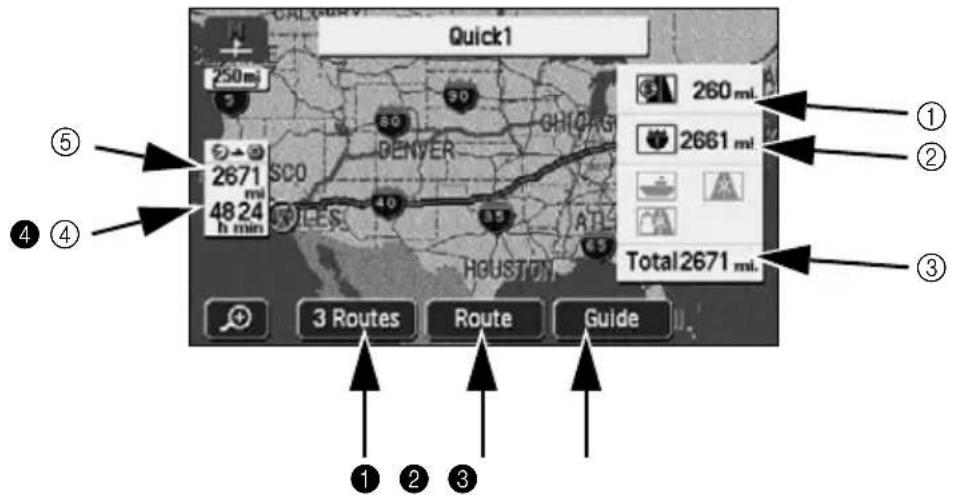
text_image
Quick1 250 mi 260 mi 2671 mi 4824 h min 3 Routes Route Guide Total 2671 mi. ① ② ③ ④ ⑤■Items displayed
Data up to the final destination is displayed.
①Distance on toll roads
The distance on all toll roads is displayed.
②Distance on freeways
The distance on all freeways is displayed.
③Distance
The total distance on all roads including toll roads, freeways, local streets to the destination (when multiple destinations are set, the final destination) are displayed.
④Required time
The required time up to the destination is indicated.
⑤Distance remaining
The distance to the destination for the route presently taken are displayed. (If deviating from the road after route guidance has started, the distance to the destination in a straight line is indicated.)
■Touch switches
The following operations are enabled using the touch switches appearing on the all-route display screen.
1 3 Routes
Different routes are displayed to enable a selection. (Refer to page 77)
2 Route
The route change screen is shown to enable the modification of the search conditions. Also, indicating an additional transit route to the destination is possible. (Refer to pages 79, 81 and 84.)
3 Guide
Route guidance can be initiated.
(Refer to page 87) After route guidance is started, the display returns to the present location screen.
4 When two or more destinations are set, you can switch the display of the required time / remaining distance to each of the destinations by touching the remaining distance display. (Refer to page 98)
If deviating from the road after route guidance has started, the distance to the destination in a straight line is indicated.

- The search result route is a reference route to the vicinity of the destination. In no way is it the shortest, fastest or least congested route.
- The required time is calculated from the average vehicle speed(Refer to page 92) and may have a slight deviation depending on the driving conditions.
- In the following situations, 3 routes cannot be displayed.
- When 2 or more destinations are set
- When a transit road is indicated
•After route guidance has started - An all-route diagram can be displayed even after route guidance has started. (Refer to page 97)
2. Set a destination and search for a route
Display or bypass a restricted segment
Bypassing a restricted segment
Bypass using the all-route display screen
1 Touch Route all route display screen.
2 Touch Route Preference
3 Touch
Allow Season Restricted Road
- If searching for a route that passes through a restricted segment, an indicator will light up.
4 Touch OK start the route search.
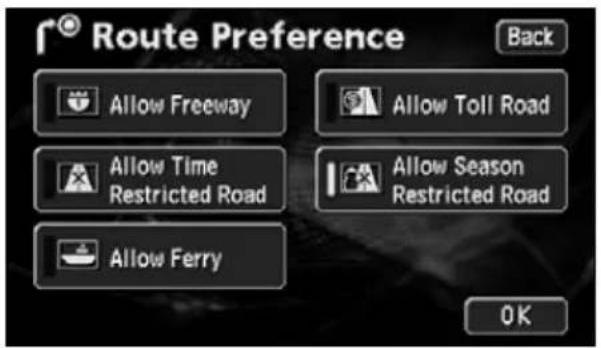
text_image
Route Preference Allow Freeway Allow Toll Road Allow Time Restricted Road Allow Season Restricted Road Allow Ferry OKBypass using the present location screen
1 Touch Route p is displayed.
2 Touch Route Preference
3 Touch
Allow Season Restricted Road
- If searching for a route that passes through a restricted segment, an indicator will light up.
4 Touch OK start the route search.
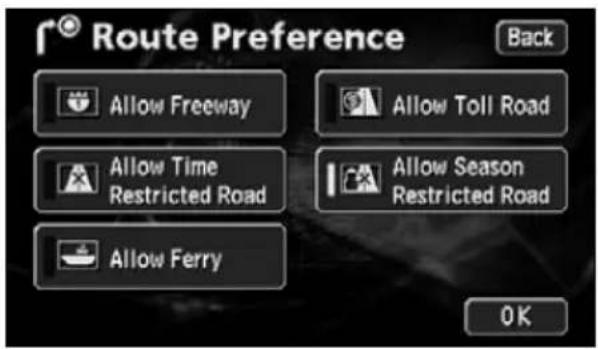
text_image
Route Preference Allow Freeway Allow Toll Road Allow Time Restricted Road Allow Season Restricted Road Allow Ferry OKHow to display message on a restricted segment
The message appearing if a search result route has a restricted segment can be turned ON (display) or OFF (not display).
1 Touch Setup Menu screen.
2 Touch either On (to
Notify Traffic Restriction.
- The pressed touch switch will become brighter.
3 Touch OK
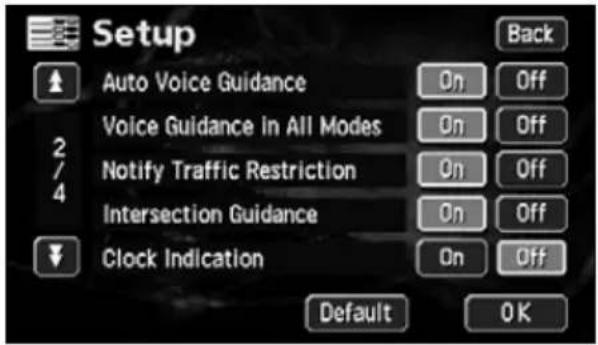
text_image
Setup Auto Voice Guidance Voice Guidance in All Modes Notify Traffic Restriction Intersection Guidance Clock Indication Back On Off On Off On Off On Off On Off Default OK
ATTENTION
Touch Default up screen to return all items to their default settings.
2. Set a destination and search for a route
Display route data (guided road information)
The divided route data to the destination by its entrances/exits of interchanges (IC), transit roads, national roads or local streets can be displayed. The map at the departure or destination area can also be displayed.
1 Touch Map Viewent location screen.
2 Touch Route Overview
3 Touch Tum List
- Route data is divided at entrances/ exits of interchanges (IC), junctions (JCT) and at the turning points of each destination, transit and other roads.
- The road name and distance appear for each piece of divided route data.
4 Touch Map
- Maps for the various set points are displayed.
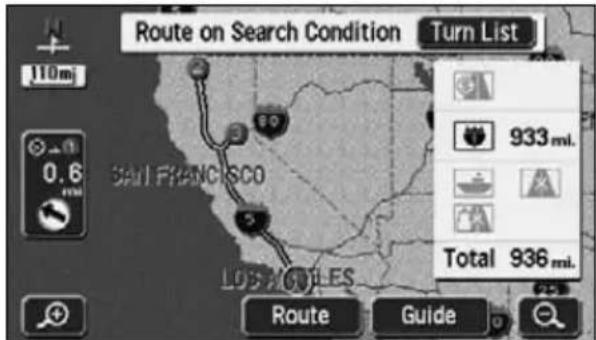
text_image
Route on Search Condition Turn List 110mi 0.6 SAL FRANCISCO 89 5 LOS 2/61LES Route Guide 933 mil. Total 936 mil.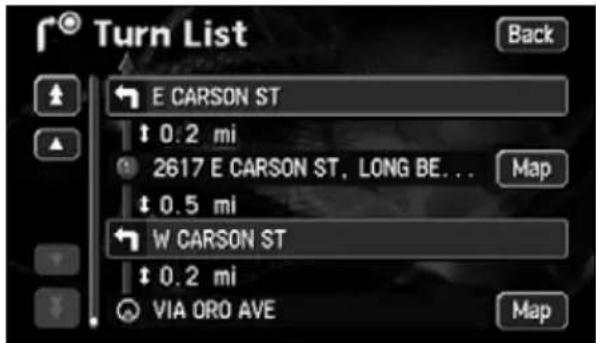
text_image
Turn List Back E CARSON ST ↑ 0.2 mi 2617 E CARSON ST, LONG BE... ↑ 0.5 mi W CARSON ST ↑ 0.2 mi VIA ORO AVE Map Map
- If the present location is on the route, the vehicle position mark will appear in the route data screen.
- If the present location is not on the route (if having deviated from the route), data will be displayed from the point the route is displayed.
3-route simultaneous display (3-route search function)
Set the destination and a recommended route will be searched for resulting in an all-route display from the present location to the destination. Other than the recommended route ("Quick 1"), "Quick 2" and "Short" routes will also be displayed to enable a selection.
1 Touch 3 Routes route display screen to start the route guidance.
- 3 routes will be displayed in different colors along with the distance and required time.
2 Touch the route name.
- The selected route is displayed and the all-route display screen is shown.
- Tou Info. displays information for the three routes.
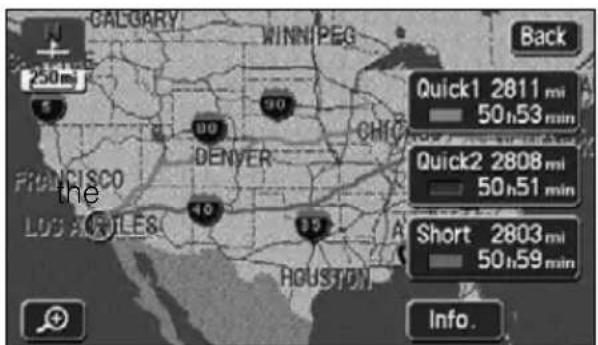
text_image
CALGARY WINNipeg 250m 5 90 90 DFRANCISCO DENVER LOUIS ANDLES 89 HOUSTON Back Quick1 2811 mi 50h53 min Quick2 2808 mi 50h51 min Short 2803 mi 50h59 min Info.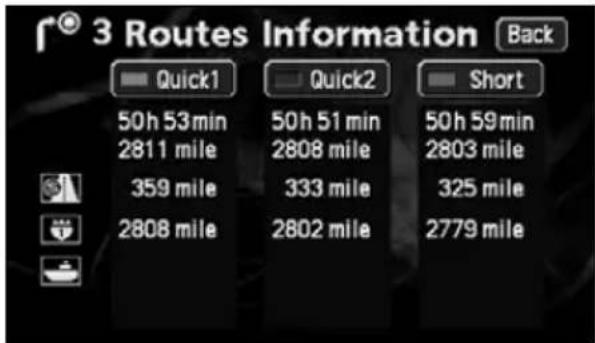
text_image
3 Routes Information Back Quick1 Quick2 Short 50h 53min 50h 51 min 50h 59min 2811 mile 2808 mile 2803 mile 359 mile 333 mile 325 mile 2808 mile 2802 mile 2779 mile
- In the following situations, 3 routes will not appear simultaneously.
- When 2 or more destinations are set
- When transit points (transit roads) are indicated
• After route guidance has started - Refer to the Section "Reinitiating a route search" on page 100, for the characteristics of each of the 3 routes.
- The required time is calculated from the average vehicle speed(Refer to page 92) and may have a slight deviation depending on the driving conditions.
3. Changing the search result route
After a route search is complete, the route can be changed by adding a destination or transit road. The following are methods for changing the route.
- Touch Route II-route display screen or the present location screen (during route guidance) to display the route modification screen.
The route modification method is set on the route modification screen.
● All-route display screen
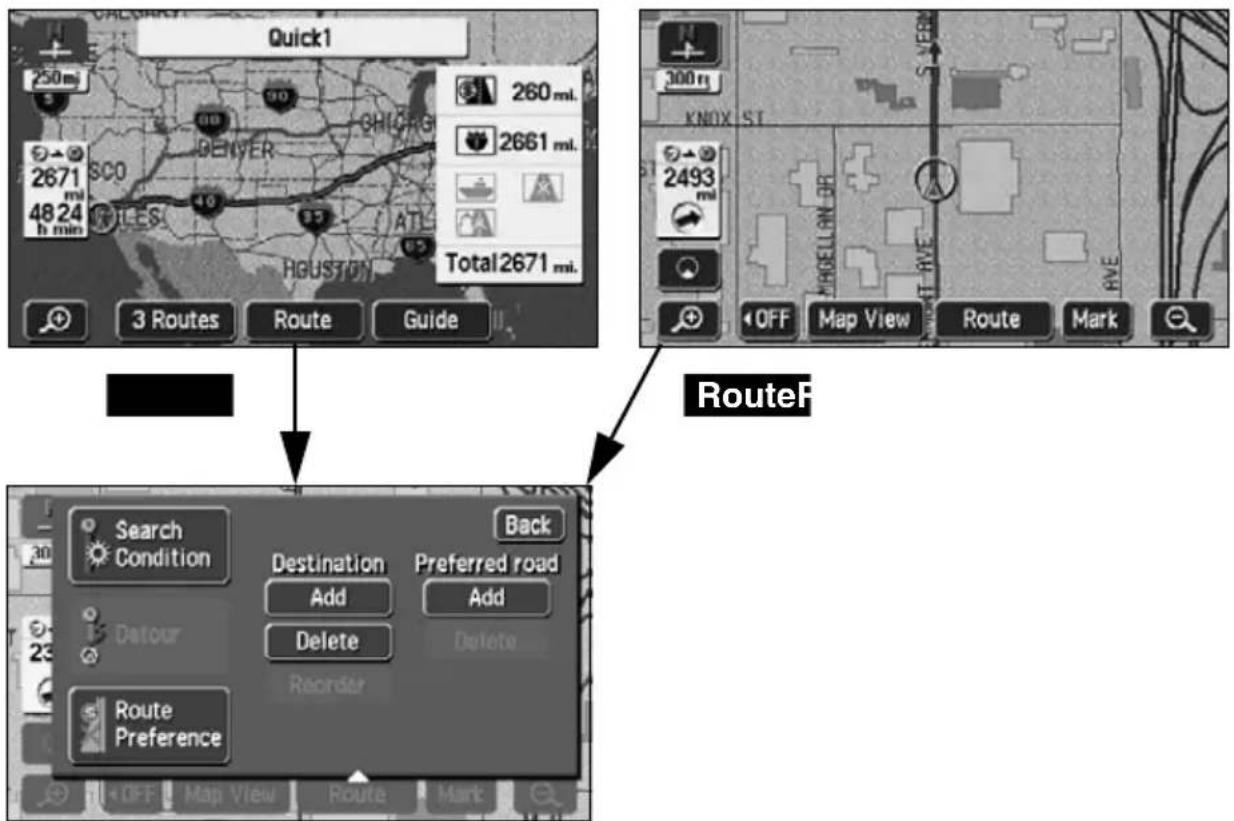
text_image
Quick1 250 mi. 2671 mi. 48 24 h min 3 Routes Route Guide 260 mi. 2661 mi. Total2671 mi. RouteF 300 mi. KNOX ST 2493 mi. OFF Map View Route Mark Back Search Condition Destination Add Preferred road Add Delete Delete Datour Recorder Route Preference●Route modification screen
- Add a destination.... Page 79
- Change the search conditions per segment ...... Page 81
- Switch the order of destinations ...... Page 82
- Delete a destination.... Page 83
- Indicate a transit road.... Page 84
- Cancel the transit road indication...... Page 85

The operations described here cannot be performed if a destination is not set.
Adding a destination
After having set a destination, up to five more destinations can be added.
In the following situations, set an additional destination.
- When setting a transit point between the present location and set destination
- When changing the set destination into a transit point and setting a new destination
Using the same method as setting a destination, touch Add to destination.
(Refer to "One-touch setting" (Page 68), "Set from a registered point" (Page 69) and "Set using the map retrieval method" (Page 69).)
1 Touch Route
2 Touch Add destination.
3 Select the map retrieval method and display the map on which a destination is to be set.
• See pages 49 and 65, "How to retrieve maps" and "Performing operations on a displayed map".
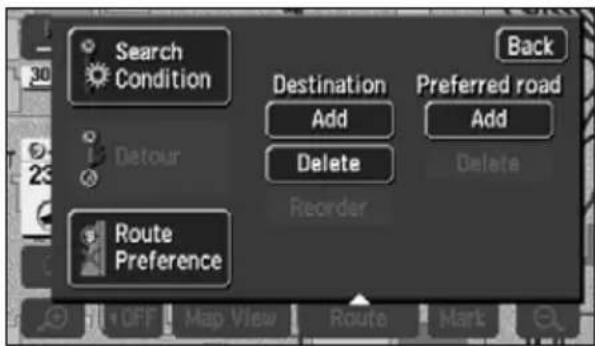
text_image
Search Condition Back Destination Add Preferred road Add Detour Delete Delete Route Preference Recorder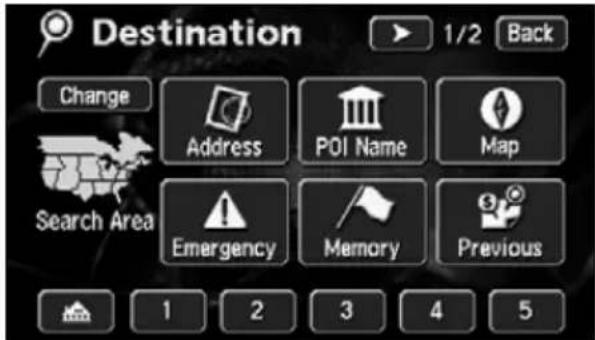
text_image
Destination 1/2 Back Change Address POI Name Map Search Area Emergency Memory Previous 1 2 3 4 5
- The destination can be set on a map with a scale of 0.5 miles or greater detail.
- Geographical points on maps representing set destinations are automatically registered (up to 100 points) and can be used to retrieve a map when setting a destination. When exceeding 100 points, the oldest entry is deleted every time a new one is entered. Unnecessary points can be deleted. (Refer to the Section "Deleting entries from the destination archive" on page 127.)
- When adding a destination with a transit road (see pages 84 and 85) indicated, that transit road indication may be canceled depending on that geographical point.
- When 2 or more destinations are set, Reorder
3. Changing the search result route
4 Touch Enter
• A destination point in the form of the
symbol will appear in the position.
- Up to a maximum of 5 destinations can be set.
- When 5 destinations are already set, delete a destination and proceed. (For information concerning deletion of a destination, refer to "Deleting a destination" on page 83.)
5 Touch Add segment to be set.
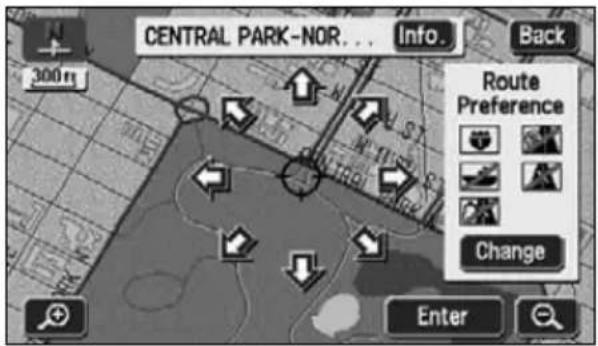
text_image
CENTRAL PARK-NOR... Info. Back 300m Route Preference Change Enter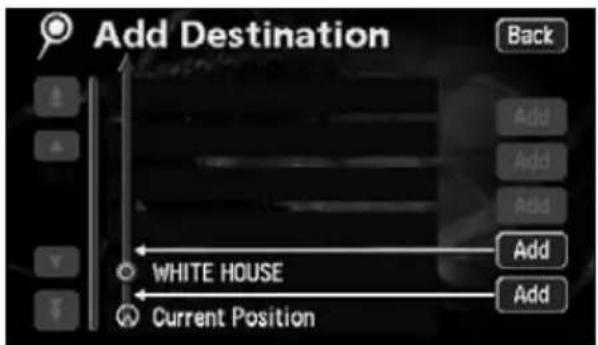
text_image
Add Destination Back Add Add Add Add White HOUSE Add Current Position Add6 When a transit road is indicated, a cancellation screen may appear.
- Touch Yes cel the transit road indication and initiate a route search.
- Touch No the destination without canceling the indication.
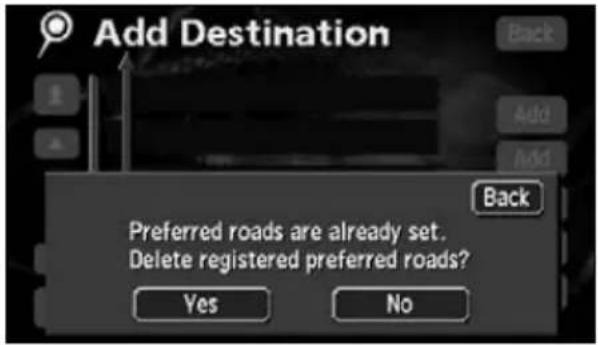
text_image
Add Destination Back Add Add Back Preferred roads are already set. Delete registered preferred roads? Yes No• After having set the destination, the following operations are enabled from this screen:
Change the search conditions per segment (Page 81)
Switch the order of destinations (Page 82)
Delete a destination (Page 83)
Indicate a transit road (Page 84)
Cancel the transit road indication (Page 85)
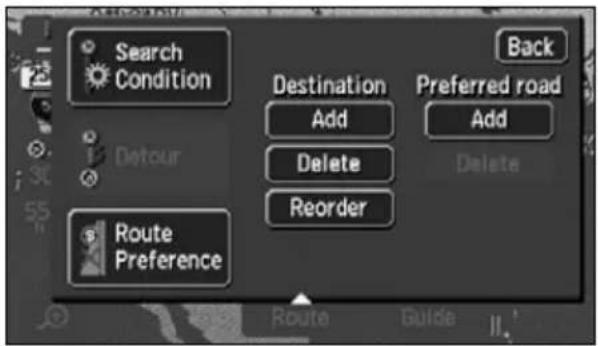
text_image
Search Condition Back Destination Add Preferred road Add Delete Delete Reorder Route Preference- When adding more destinations, touch Add e screen in step on page 3.9
will appear. Repeat steps ③ ⑥
Change the search conditions for each interval
The search conditions per segment can be changed and a search reinitiated.
1 Touch Search Condition
route modification screen.
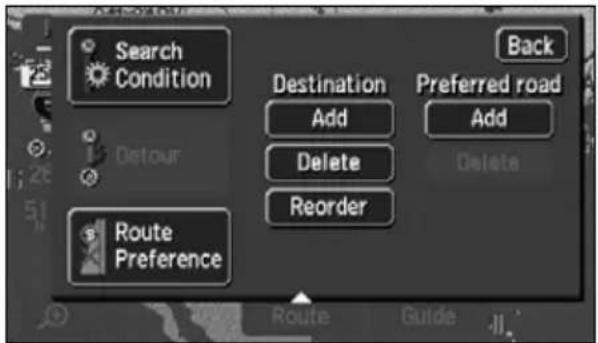
text_image
Search Condition Back Destination Add Preferred road Add Delete Delete Reorder Route Preference2 Touch the search conditions (for
each route) per individual segment.
3 Touch OK
- The route search is started.
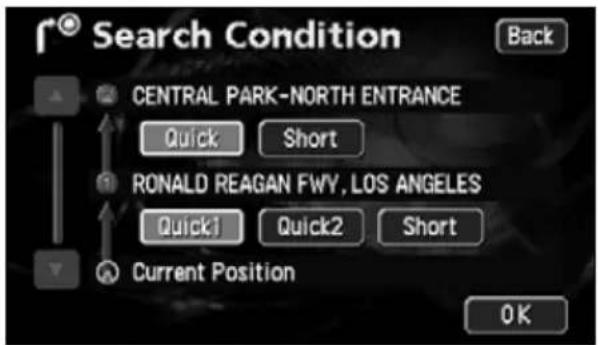
text_image
Search Condition Back CENTRAL PARK-NORTH ENTRANCE Quick Short RONALD REAGAN FWY, LOS ANGELES Quick1 Quick2 Short Current Position OK
ATTENTION
For search condition characteristics, refer to "Reinitiating a route search" on page 100.
3. Changing the search result route
Switching the destination order
The setting order of multiple destinations can be switched and a search reinitiated.
1 Touch Route
2 Touch Reorder
- When transit roads are indicated, a confirmation screen allowing you to cancel and reorder destinations is displayed.
Touch Yes hcel and reorder.
Touch No port reordering and return to the original screen.
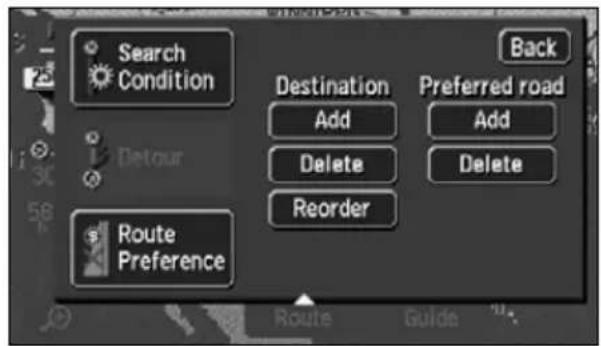
text_image
Search Condition Back Destination Add Preferred road Add Delete Delete Delete Route Preference Reorder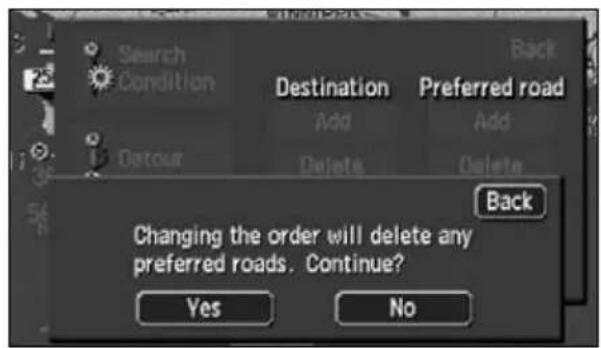
text_image
Search Condition Destination Add Default Delete Preferred road Add Delete Back Changing the order will delete any preferred roads. Continue? Yes No3 Touch the name of the destinations in order starting with the next destination.
- A new order will appear on the right of the selected destination names.
- If having made a mistake, touch
Cancel to cancel the destination name order selected.
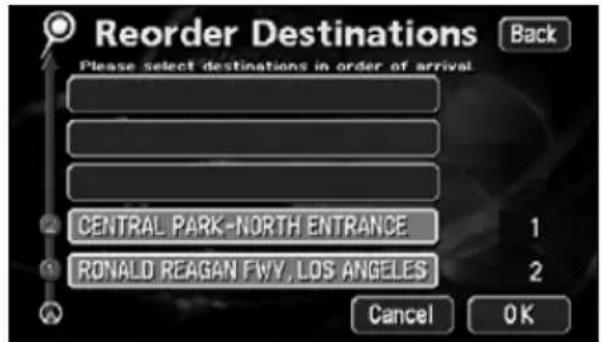
text_image
Reorder Destinations Please select destinations in order of arrival CENTRAL PARK-NORTH ENTRANCE 1 RONALD REAGAN FWV, LOS ANGELES 2 Cancel OK4 Touch OK
- When the new destination name order is determined, the route modification screen will appear automatically after about 3 seconds without having to touch OK
- Without touching all the destination names, touch only the destination you want to change the order of and touch OK at selection will move to the top of the destination order.

ATTENTION
If changing the destination order with a transit road indicated (Refer to page 84), that transit road indication may be canceled.
Deleting a destination
Multiple set destinations can be deleted. It is also possible to delete all the destinations at the same time.
1 Touch Route
2 Touch Delete for
- If only one destination is set, the screen in 4 appear.
3 Touch the destination name to be canceled.
- Touch Delete All the destinations.
4 Touch Yes
- Touch No turn to the original screen.
- When all destinations are deleted and only one point is set, the present location screen appears.
5 Touch OK
- A route search is started and the all-route display screen appears.
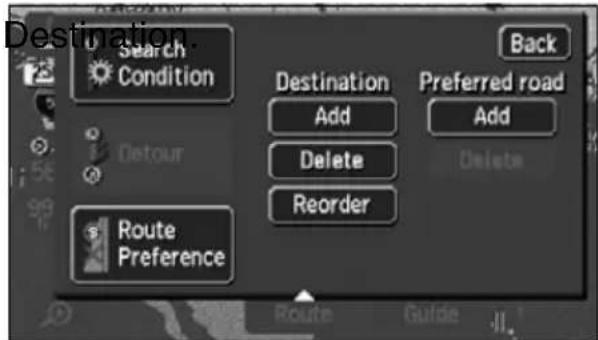
text_image
Destination Search Condition Back Destination Add Preferred road Add Detour Delete Delete Reorder Route Preference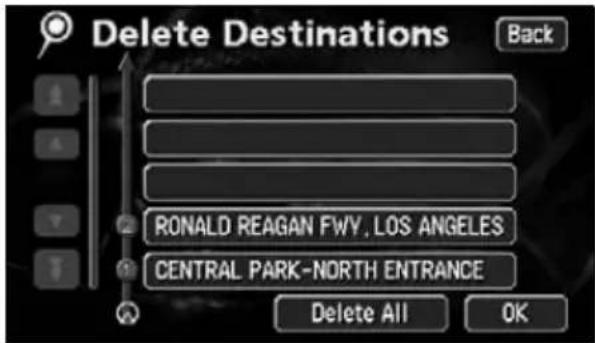
text_image
Delete Destinations Back RONALD REAGAN FWV, LOS ANGELES CENTRAL PARK-NORTH ENTRANCE Delete All OK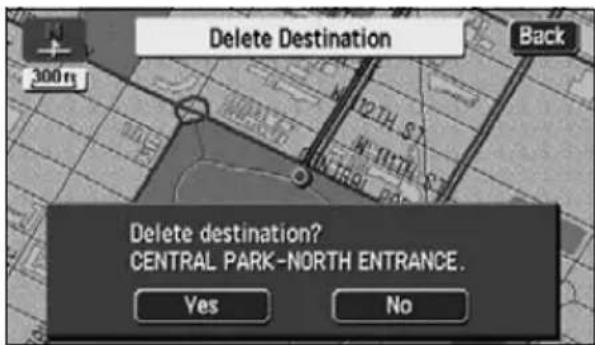
text_image
Delete Destination Back 300m Delete destination? CENTRAL PARK-NORTH ENTRANCE. Yes No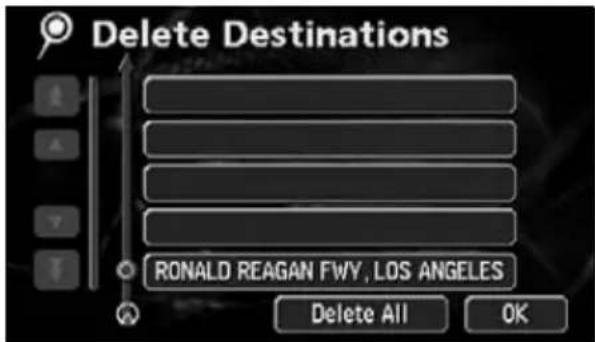
text_image
Delete Destinations RONALD REAGAN FWY, LOS ANGELES Delete All OK
ATTENTION
When all destinations are deleted, route guidance cannot be restarted. Setting a destination is necessary to activate route guidance.
3. Changing the search result route
Indicating a transit road
1 Touch Route
2 Touch Add referred road.
3 The map will move to the position of the indicated transit road.
4 Touch Enter
5 To indicate the road displayed, touch OK.
6 To specify another road, touch Next.
• Transit roads are marked with
- If only one destination is set and there are no interchanges or transit roads indicated, the screen in 71 appear.

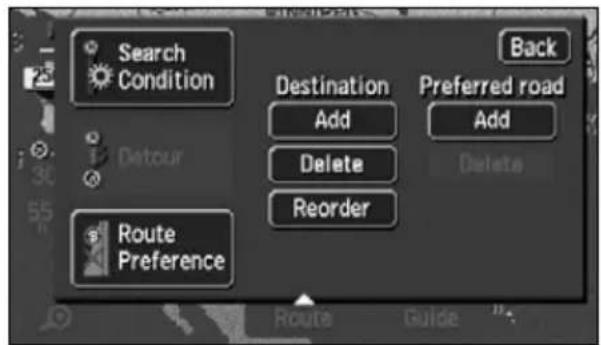
text_image
Search Condition Destination Add Preferred road Add Delete Delete Reorder Route Preference Back Route Guide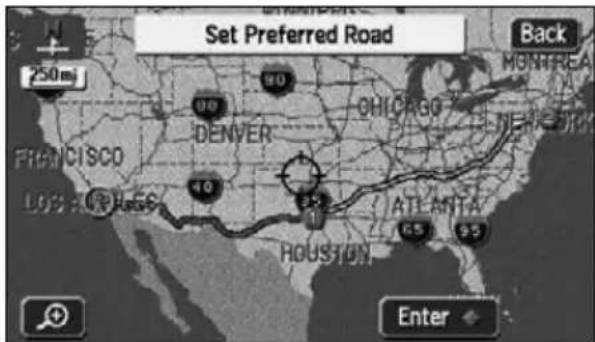
text_image
Set Preferred Road 250mj 90 DENVER CHICAGO NEW JIM LOUIS LAKE HARRIS 40 1 ATLANTA 65 95 HOUSTON Enter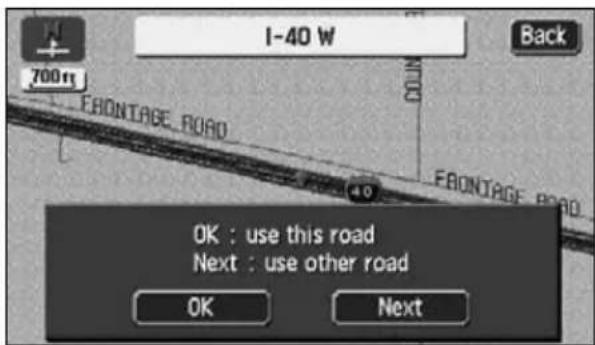
text_image
I-40 W 70011 FRONTAGE ROAD Back OK : use this road Next : use other road OK Next
- Delete if there is a transit road already indicated.
- If a map with a reduction scale wider than 0.5 miles is displayed, switch to a 0.5 mile reduction scale.
7 If 2 or more destinations are set or if a transit road is indicated, touch Add in the segment to be indicated.
8 The route search is started.
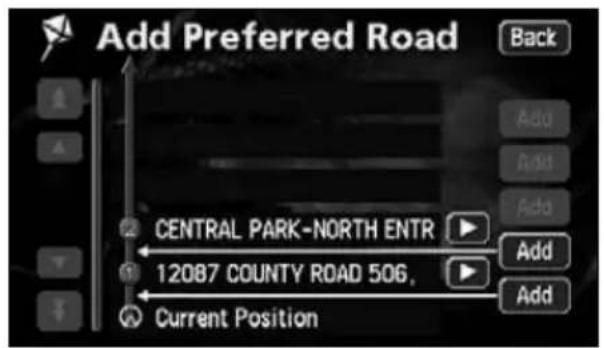
text_image
Add Preferred Road Back Central PARK-NORTH ENTR 12087 COUNTY ROAD 506, Current Position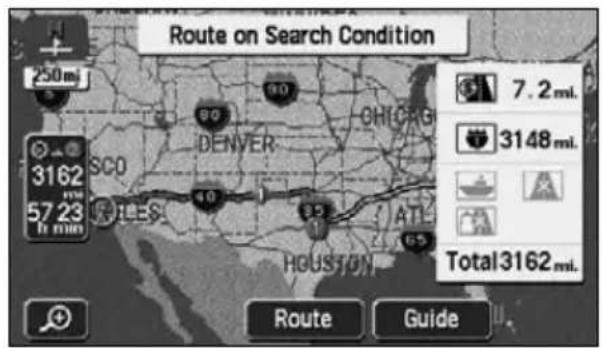
text_image
Route on Search Condition 250mi 3162 57.23 8 min SCO DENVER CHICAG 40 85 ATL HOUSTON 65 7.2 mi. 3148 mi. Total3162 mi. Route GuideCanceling a transit road indication
1 Touch Route.
2 Touch Delete erred road.
- If only one destination is set, the screen in 4 appear.
3 Touch the road name to be canceled.
- Indicated transit roads appear with a mark.
- Touch Delete All transit roads.
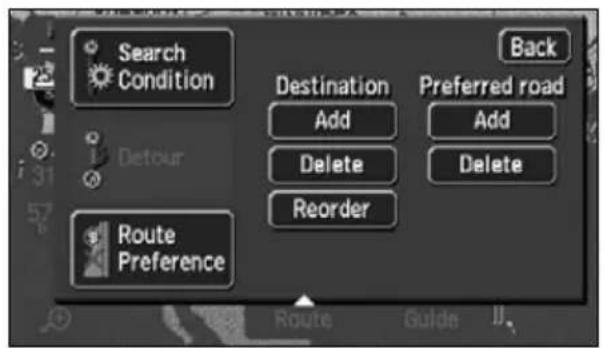
text_image
Search Condition Back Destination Add Preferred road Add Delete Delete Reorder Route Preference Route Guide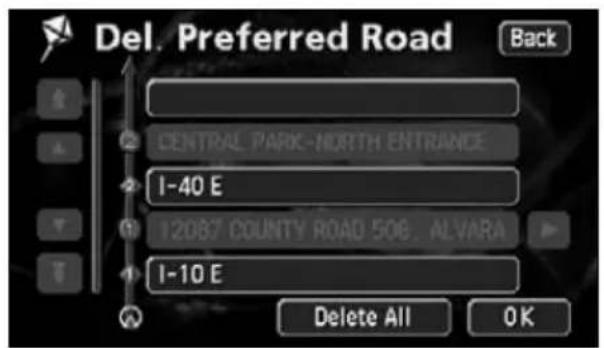
text_image
Del. Preferred Road Back CENTRAL PARK-NORTH ENTRANCE I-40 E 12087 COUNTY ROAD 506, ALVARA I-10 E Delete All OK3. Changing the search result route
4 Touch Yes
- Touch No turn to the original screen.
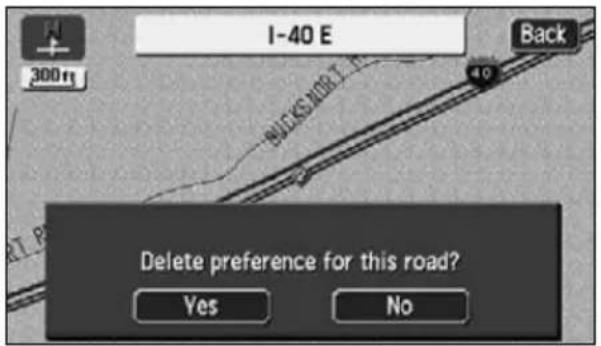
text_image
I-40 E Back 300ft WICKS NORT. 40 Delete preference for this road? Yes No5 Touch OK
• The route search is started.
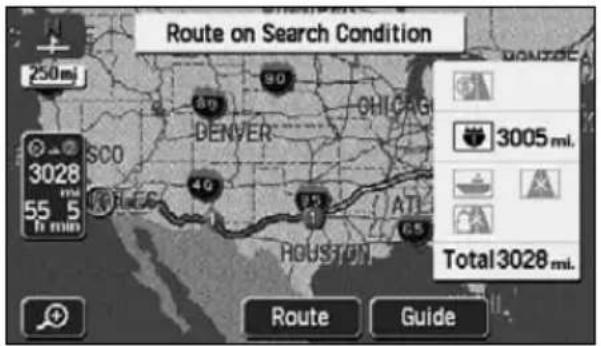
text_image
Route on Search Condition 250m 3028 55 5 1h min SCO DENVER 90 OHICRG 49 40 ATL 65 HOUSTON 3005 mti. Total 3028 mti. Route Guide4. Starting, pausing and restarting route guidance
Starting route guidance
When the route search is complete, the all-route display screen appears. Touch Guide the all-route display screen to start the route guidance. Route guidance can be paused and restarted.
1 Touch Guide all-route display screen.
- Route guidance is started.
- Press MAP the all-route appears, or do not operate the device for at least 3 seconds after you start driving, and route guidance will automatically begin.
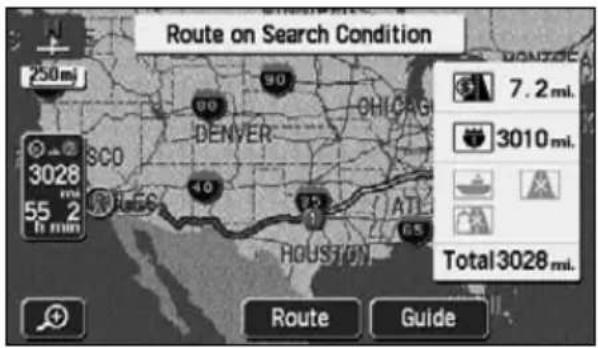
text_image
Route on Search Condition 250mi 3028 55 2 16 min SCO DENVER OHICAG 40 ATL HOUSTON 65 7.2 mi. 3010 mi. Total 3028 mi. Route GuidePausing and restarting route guidance
1 Touch Suspend Guidance
Menu screen.
- Destinations will not be deleted even if pausing route guidance.
- To restart route guidance, touch Resume Guidance on the Menu screen again.
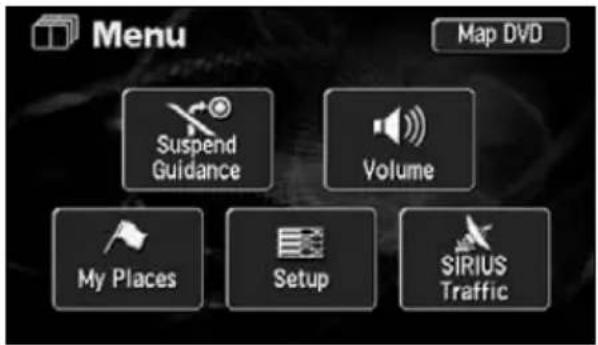
text_image
Menu Map DVD Suspend Guidance Volume My Places Setup SIRIUS Traffic5. Route guidance
When the route search is complete, guidance for the desired route can be started.
Drive towards your destination and the device will guide you along the route all the way to that destination.
Intersection guidance
When approaching an intersection with a guidance point displayed on the present location screen (if the present location is located on the route) while route guidance is in progress, intersection guidance and voice guidance is performed. Also, when approaching a junction intersection (within about a mile), an enlarged intersection display screen will automatically appear.
A non-junction intersection
Distance to the next intersection where a turning is to be made and the turning direction
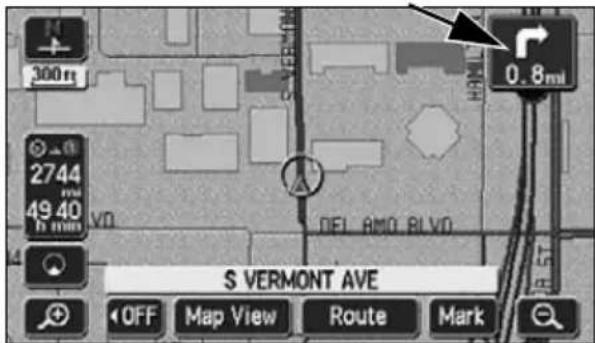
text_image
300m 2744 49 40 V0 DEL AMO BLVD 0.8mi S VERMONT AVE OFF Map View Route MarkA junction intersection (enlarged guidance screen for an intersection)
①Intersection name display
Names of transit points or junction intersections appear.
②Remaining distance display
The distance up to the intersection is indicated.
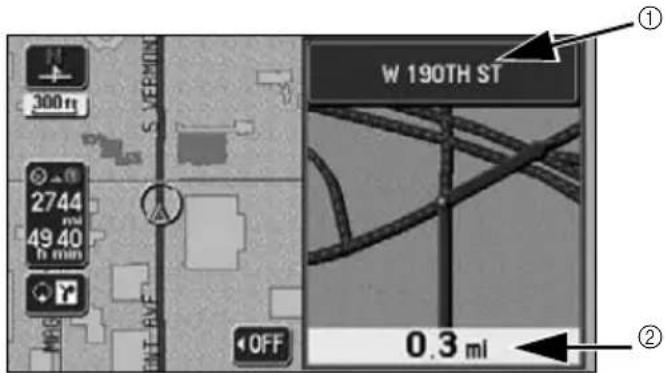
text_image
300ft 2744 49 40 h min OFF W 190TH ST 0.3 mi ① ②
- Enlarged intersection screens only appear if On for automatic enlarged intersection screen display. (Refer to page 90)
- Lane displays and names will not appear for intersections about which there is no data in the map disk.
- The intersection name indicated may differ from the actual intersection.
- In the following situations, intersection guidance is not performed:
- Immediately after route guidance is started
• In the vicinity of the destination
- Intersection guidance may be early or late.
- When approaching a junction intersection, an enlarged intersection display screen will appear.
- When an enlarged intersection display screen is displayed, the intersection name will be displayed for the junction intersection. There is no intersection guidance prior to junction intersections.
- Immediately before a turn is to be made, a chime will sound. However, the chime will not sound if the volume is set to Off
5. Route guidance
Set automatic display of the intersection guidance screen
Select either to have the intersection guidance screen turned ON (display) or OFF (not display).
1 Touch Setup menu screen.
2 Touch On for Section Guidance.
- The pressed touch switch will become brighter.
3 Touch OK
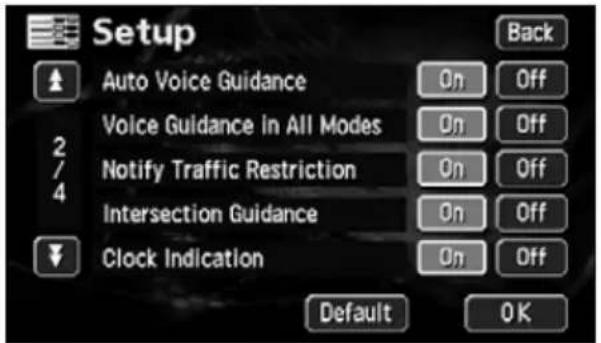
text_image
Setup Auto Voice Guidance Voice Guidance in All Modes Notify Traffic Restriction Intersection Guidance Clock Indication Back On Off On Off On Off On Off Default OKCanceling the intersection guidance screen
■Cancel using OFF
1 Touch OFF
- Press tMAP display the intersection guidance screen.
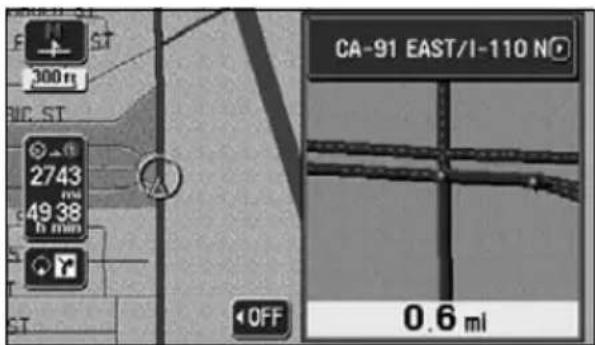
text_image
CA-91 EAST/I-110 NO 300 m 2743 49 38 6 mm OFF 0.6 mi■Cancel using
1 Touch
text_image
CA-91 EAST/I-110 N 300 m 2743 49 38 in mm OFF 0.6 mi
Touch Default up screen to return all items to their default settings.
2 Touch 🔒 display the normal map.
- Touch 📄 on the screen to display the intersection guidance screen.
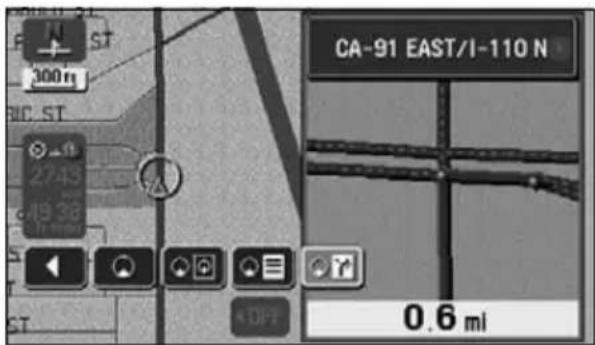
text_image
CA-91 EAST/I-110 N 0.6 miFerry crossing guidance
Ferry crossings are shown with a dotted line.
• Voice guidance occurs up to the ferry terminal.
• After having finished the ferry crossing, start driving and route guidance will resume in a moment.
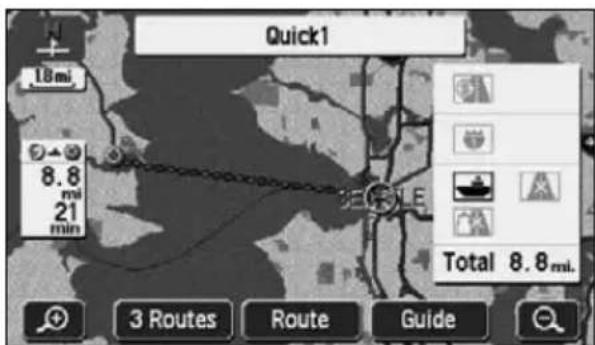
text_image
Quick1 18 mi. 8.8 mi 21 min 3 Routes Route Guide Total 8.8 mi.Setting the required time display
The required time can be indicated on the left of the map appearing on the present location screen (if the present location is on the set route) while route guidance is in progress.
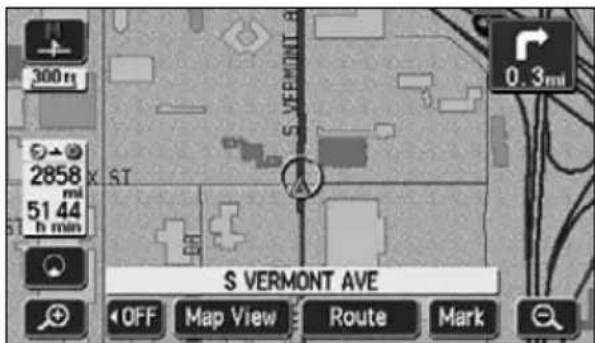
text_image
300 m 2858 mi 51 44 h min S VERMONT AVE OFF Map View Route Mark 0.3mi●Required time display

The required time include the ferry ride hours.
5. Route guidance
Setting the average speed
The following times are calculated based on the set average vehicle speed.
- Required time on the present location screen (Page 16)
- All route display screen required time (Page 71)
- Required times for the segments list (simultaneous 3 route display) (Page 77)
1 Touch Setup menu screen.
2 Touch Set Speed for Estimated Travel Time.
3 Set the speed for each road.
- Touch 📋 raise the speed, touch to lower it. (Each press raises or lowers 5 mph.)
4 Touch OK
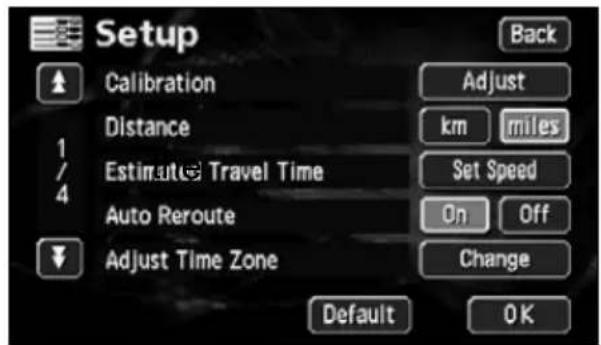
text_image
Setup Calibration Distance Estimute Travel Time Auto Reroute Adjust Time Zone Adjust km miles Set Speed On Off Change Default OK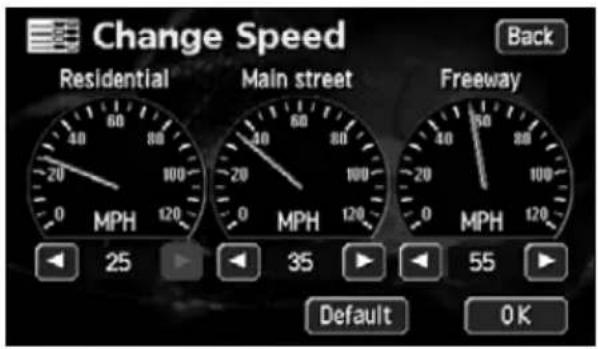
text_image
Change Speed Residential Main street Freeway 25 35 55 Default OK Back
- The required time is calculated from the average vehicle speed and may have a slight deviation depending on the driving conditions.
- When deviating from the set route, the destination direction mark will appear.
- When reaching the maximum speed (75 mph freeway, 55 mph main streets, 25 mph residential), the ▶witch inverts. When reaching the minimum speed (5 mph), the ◀witch inverts. These switches cannot be operated even if touched.
- Touch Default range Speed screen to return to its default settings (Freeway; 55 mph / Main street; 35 mph / Residential; 25 mph).
Highway junction guidance
When driving on a highway with the present location screen displayed (if the present location is on the set route) while route guidance is in progress and a junction point approaches [interchange exits/entrances (IC), junctions (JCT)], the highway junction guidance screen will appear.
①Junction point name display
The interchange exit/entrance name (IC) or the junction (JCT) direction name is displayed.
②Remaining distance display
The distance up to the junction point is displayed. The distance decreases as you approach the junction point.
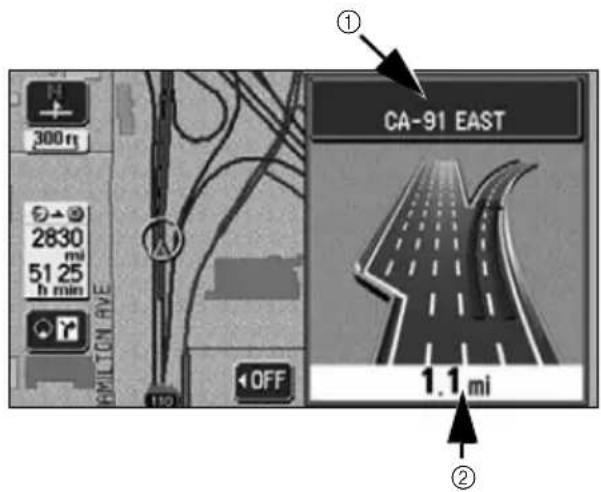
text_image
300 m 2830 mi 51 25 h min AMILTON AVE 110 OFF ① CA-91 EAST 1.1 mi ②Canceling the highway junction guidance screen
1 Touch OFF
- Press MAP display the highway junction guidance screen.
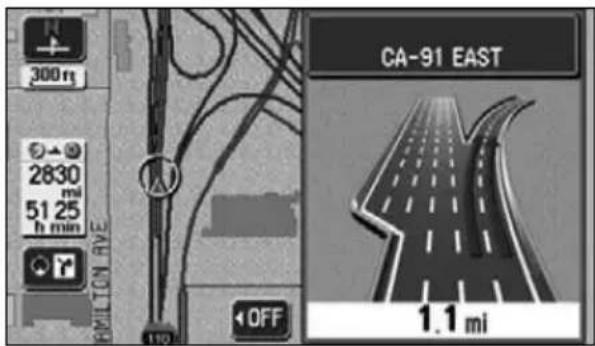
text_image
300m 2830 mi 51 25 h min BILTON AVE 110 OFF CA-91 EAST 1.1 mi
- No highway junction guidance display will occur for junction points that do not have corresponding data in the map data. Also, the junction point name may not be displayed even if the highway junction guidance screen is displayed.
- The junction point name displayed may differ from the actual junction name.
- In the following situations, highway junction guidance is not performed:
- Immediately after route guidance starts
• In the vicinity of the destination
- The highway junction guidance screen may be early or late.
- When approaching the next junction point, the highway junction guidance screen will continue to be displayed.
5. Route guidance
Switching the highway junction guidance screen
1 Touch 🔒 ↗
2 To display the regular screen touch
To display the turn list, touch
• To redisplay the highway pattern
screen,


and
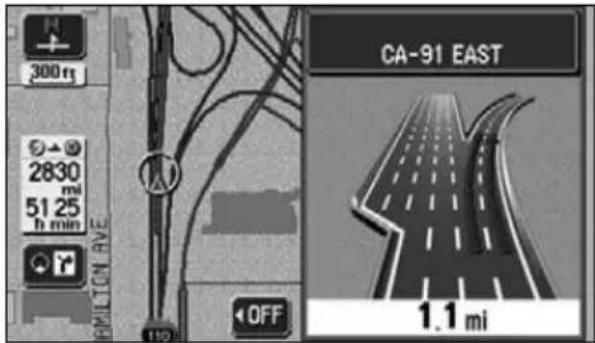
text_image
300ft 2830 mi 51.25 h min PAMILTON AVE 110 OFF CA-91 EAST 1.1 mi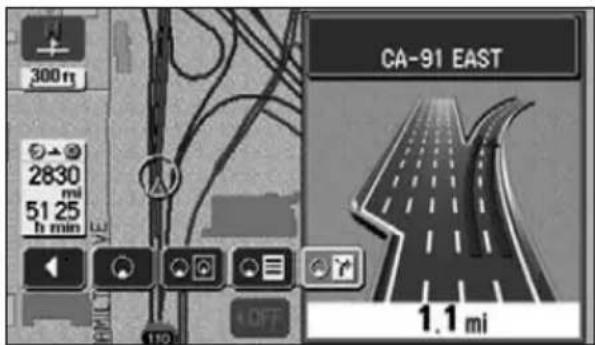
text_image
300 m 2830 mi 51.25 h min CA-91 EAST 1.1 miVoice guidance
If approaching an intersection, junction point, transit point, interchange (ramp) exit/entrance, junction (JCT) or destination while route guidance is in progress, a voice will announce the remaining distance to those points and up to 10 turning directions (straight, right, left, slight right, slight left, sharp right, sharp left, make a legal u-turn, keep right, keep left). Voice guidance is performed in PCM voice (human voice).
1 Press MAPtivate voice
guidance as per the distance up to the junction intersection.
[Example of voice guidance while route guidance is in progress]
• Intersection voice guidance
(just guidance)
While route guidance is in progress, a chime will sound prior to a junction point.
◆Example of voice guidance:
In miles (km), turn
• Highway junction voice guidance
While driving on a highway, junctions are shown as an enlarged display and the direction is announced vocally.
◆Example of voice guidance:
In miles (km), the exit
[Example of voice guidance in the vicinity of the destination while route guidance is in progress]
◆Example of voice guidance:
You have arrived at your destination.
Your route guidance is now finished.
![ECLIPSE AVN6620 - [Example of voice guidance in the vicinity of the destination while route guidance is in progress] - 1](/content/2026/05/1068510/images/71fe96543a3282d9d3c3a0d23946ace3749001366a7e119b2d89b0436460b047.jpg)
text_image
30011 FELDER ST 3479 63 2 h min STH ST OFF CA-91 EAST/I-110 N 0.6 mi In six tenths of a mile, right turn.![ECLIPSE AVN6620 - [Example of voice guidance in the vicinity of the destination while route guidance is in progress] - 2](/content/2026/05/1068510/images/68e12358d603b71dfeb139ec56104ddd7a40a27c71819aced509aab87a8831a7.jpg)
- Use the voice guidance only as a reference.
- After a voice guidance such as "Left turn in about 0.6 miles", drive for a moment and press MARange the announcement as per the approaching distance (ex.: Left turn in about 0.5 miles, etc.)
- The intersection voice guidance is activated by turning On Auto Voice Guidance. (Refer to page 96)
5. Route guidance
Setting the auto voice guidance
The auto voice guidance can be turned ON (announced) or OFF (not announced).
1 Touch Setup menu screen.
2 Touch On ( for Guidance.
- The pressed touch switch will become brighter.
3 Touch OK
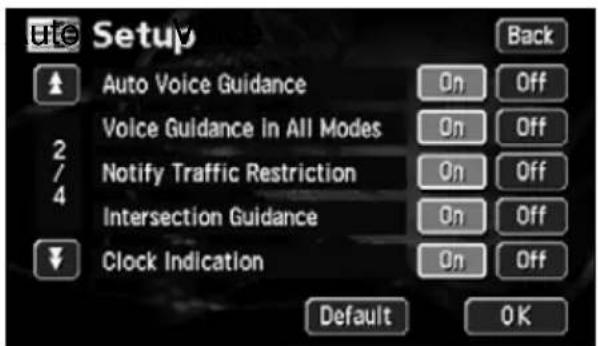
text_image
Setup Auto Voice Guidance Voice Guidance in All Modes Notify Traffic Restriction Intersection Guidance Clock Indication Back On Off On Off On Off On Off Default OK
- The voice guidance examples mentioned above are the most common to be announced and may differ depending on the way the roads along your route are connected.
- If your vehicle position is not precisely specified, voice guidance may not occur or, in some cases, may be delayed or announce an erroneous instruction.
- The voice guidance volume may be adjusted (Refer to page 28). However, selecting Off disable voice guidance.
- Touch Default tup screen to return all items to their default settings.
6. Performing operations on the guided route
Guidance in another mode
The route guidance continues (no vocal guidance output) even if switching to another mode (showing a screen other than the navigation screen). The voice guidance can be made to output even if switching to another mode.
Setting the guidance when in another mode
1 Touch Setup menu screen.
2 Touch On for
Guidance in All Modes.
- The pressed touch switch will become brighter.
3 Touch OK
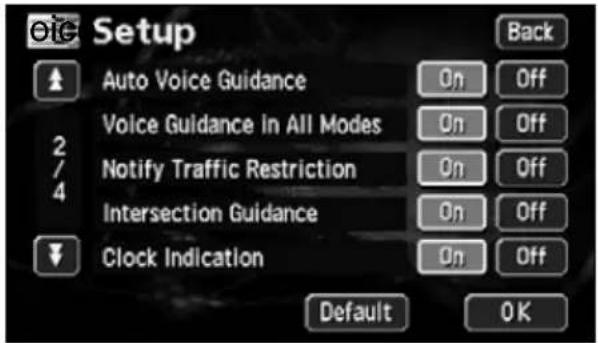
text_image
Setup Auto Voice Guidance Voice Guidance in All Modes Notify Traffic Restriction Intersection Guidance Clock Indication Back On Off On Off On Off On Off Default OKRedisplaying the all-route display
The all-route display from the departure point to the destination can be shown.
1 Touch Map View displayed.
2 Touch Route Overview
• The all-route display screen appears.
- For details pertaining to the all-route display screen, refer to "All-route display and touch switches" on page 72.
- Touch Back lay the present location screen.
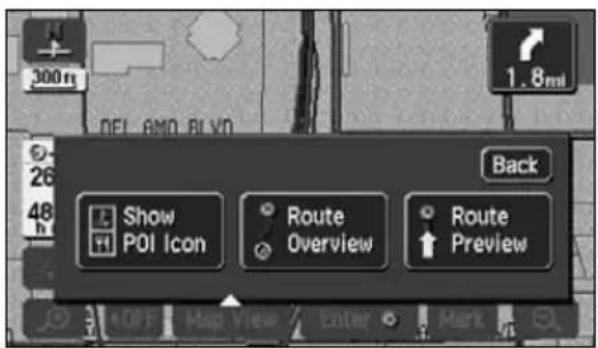
text_image
300m 1.8ml 26 48 h Back Show P01 Icon Route Overview Route Preview OK OFF Map View Enter Mark
ATTENTION
Touch Default up screen to return all items to their default settings.
6. Performing operations on the guided route
Switching the required time/distance remaining display
If 2 or more destinations are set on the present location screen (if the present location is along the set route) while route guidance is in progress, the required time/ distance remaining can be switched.
1 Touch the required time/distance remaining.
- If 2 or more destinations are set, the required time/distance remaining for each destination appears.
- Switching is impossible if having deviated from the set route.
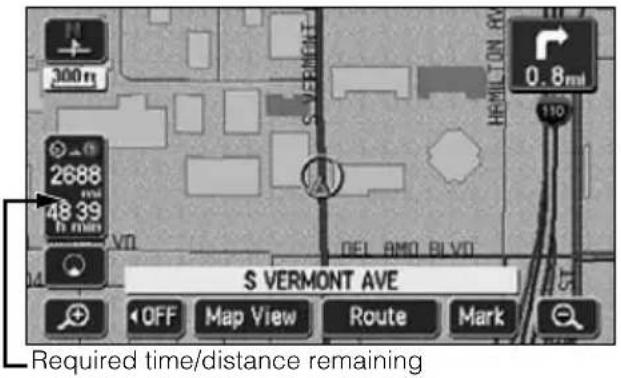
text_image
S VERMONT AVE Required time/distance remaining2 Touch the distance remaining display up to the destination desired.
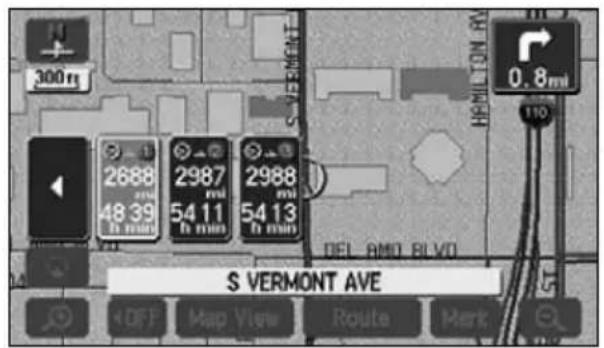
text_image
300 mi 2688 48 39 h min 2987 54 11 h min 2988 54 13 h min S VERMONT AVE DEL AMO BLVD 0.8 mi 110 OFF Map View Route ParkOn-route scroll
The map can be moved automatically along the set route to the destination or to the departure point on the screen showing the guided route.
Start on-route scroll
1 Touch Route Preview modification screen.
2 Touch the scroll touch switches




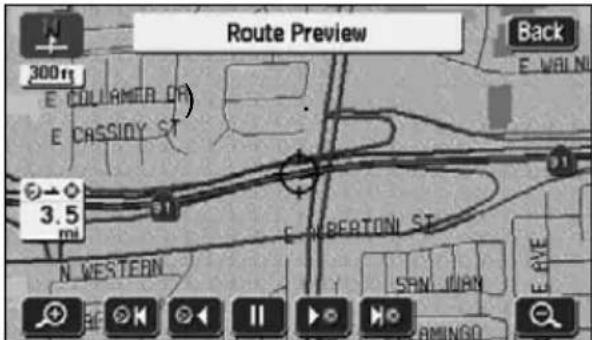
text_image
Route Preview Back 300ft E. COLLAMER DR E. CASSIDY ST 3.5 mi E. BEATONI ST N. WESTERN SPAN JUAN E AVE E. WMJNOn-route scroll screen operations
- Touch to pause map scrolling.
- Press tMAP the on-route scroll.
- Touch or to move the map quickly.
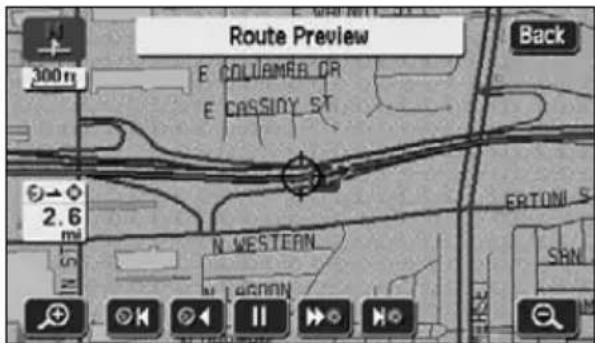
text_image
Route Preview 300 ft E COLUMBER OR E CASSIDY ST 2.6 IN ST N WESTERN ERTONI S SRN Back
ATTENTION
- If there is no route displayed on the map, on-route scroll is impossible.
- Using on-route scrolling during a double screen display will cause a reversion to single screen display. Press MAP turn to double screen display.
-
If scrolling up to the next destination:
-
Use the switch to move the map up to the next destination.
- Use the search to move the map back to the departure point (previous destination).
- Use the switch to display the next destination map.
- Use the 🔊️ to display the departure point map (previous destination).
- The on-route scroll may stop depending on the map displayed.
7. Reinitiating a route search
Reinitiating a route search
While route guidance is in progress, additional destinations can be set, search conditions can be changed and a route search can be reinitiated.
To change the route, use either the "Change method using Route change method using DEST".
A route search can be reinitiated from the following screens.
- See the next page for information concerning the touch switches appearing on each screen.
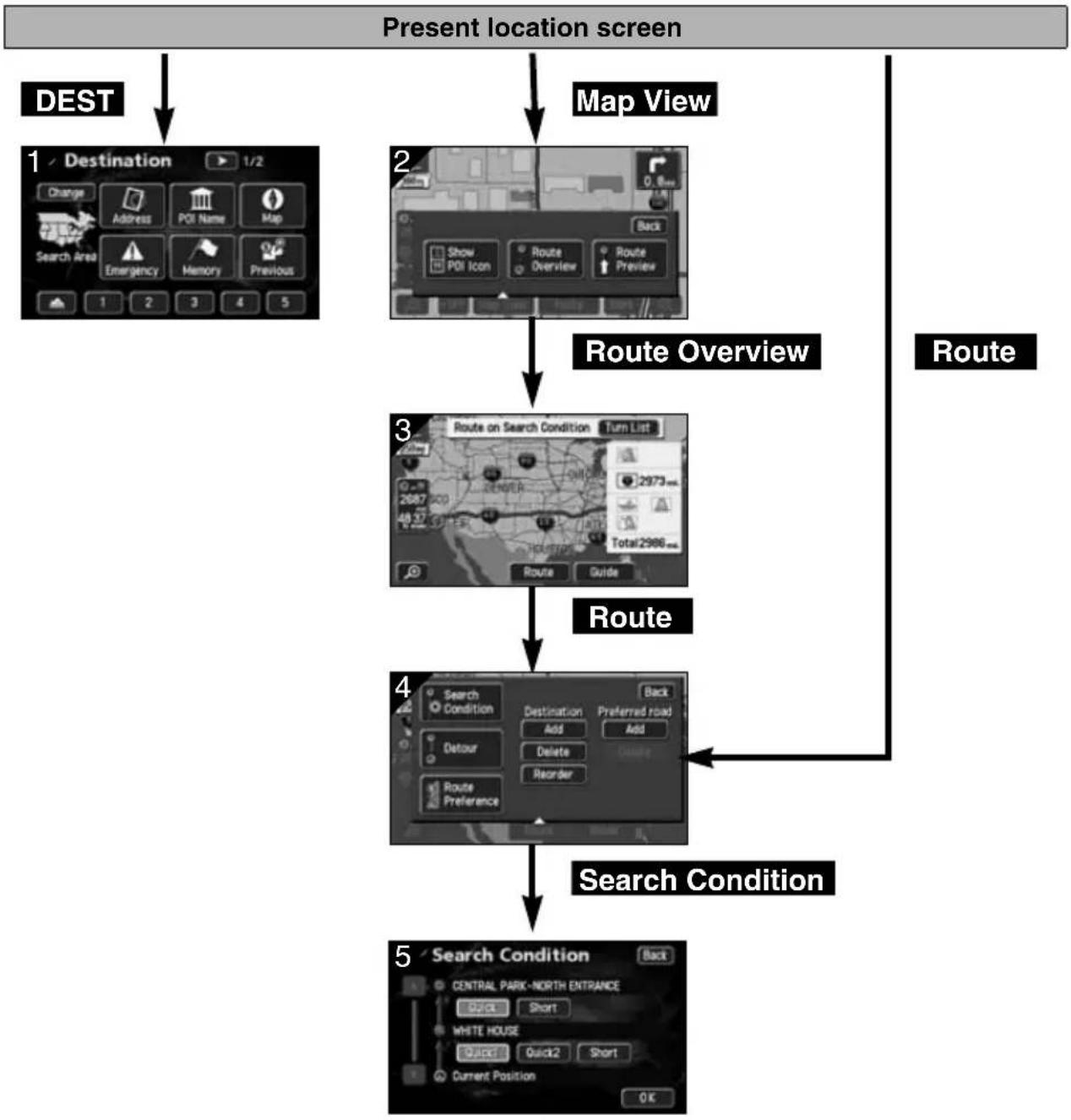
flowchart
graph TD
    A["Present location screen"] --> B["DEST"]
    B --> C["1 Destination 1/2"]
    C --> D["2 Map View"]
    D --> E["Route Overview"]
    E --> F["3 Route on Search Condition Turn List"]
    F --> G["Route"]
    G --> H["4 Search Condition Back"]
    H --> I["5 Search Condition Central Park-North Entrance"]
    I --> J["0 K Current Position"]
| Screen No. | Touch switch Function | Page | |
| 1 Map | retrieval method | Retrieves the destination map Sets/ adds a destination | 49 |
| 2 | Route Overview | Shows the all-route display 71 | |
| 3 | Route | Displays the search condition setting screen | 78 |
| 4 | Destination, Transit destination Add , Delete Reorder | Adds, switches the order or deletes destinations | 798283 |
| Transit point (transit road indication) Add delete | Indicates, corrects or deletes transit roads | 8485 | |
| Search Condition | Displays the route modification screen 81 | ||
| Detour | Detour from the existing route ahead. - | ||
| Route Preference | Permits you to specify whether freeways, toll roads and other road categories are used or not. | 102 | |
| 5 | Search conditions | Sets the search conditions for each segment | 81 |
| Search conditions | Function |
| Quick 1 | A common route from the present location to the next destination* is searched for. |
| Quick 2 | A route prioritizing toll roads from the present location to the next destination* is searched for. |
| Short | A route with the shortest distance from the present location to the next destination* is searched for. |
* When a transit road is indicated between the present location and the next destination, a route is searched for between the present location and the indicated transit road.
7. Reinitiating a route search
Reinitiating a route search
1 Touch Route present location screen while route guidance is in progress.
2 Touch Route Preference
3 Touch the item for which a search is to be reinitiated.
- A route search is reinitiated.
4 Touch OK
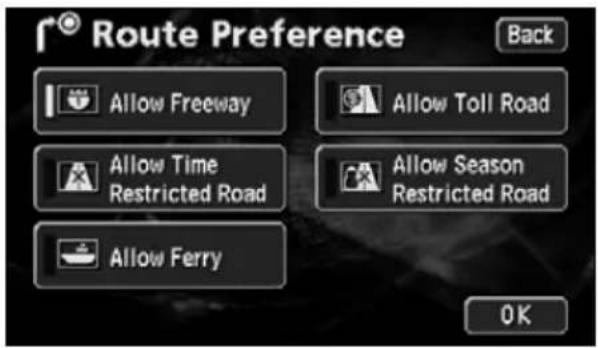
text_image
Route Preference Allow Freeway Allow Toll Road Allow Time Restricted Road Allow Season Restricted Road Allow Ferry OK
- Because of the shape of the road, a route search may not be reinitiated and the same route may result from the reinitialized search due to a change in the search conditions.
- If having deviated far from the set route, a route to return you to the original route is not searched for. Rather, a new route search for the set destination (interchange, transit road) is initiated.
- If driving under an elevated road or along parallel local roads and a route search is initiated, the search result route may take you along elevated toll roads and parallel toll roads.
Automatic reroute search
If having deviated from the road, a route search may be initiated automatically (vicinity search or all-route search).
The search result route may differ as per the conditions under which the set route was deviated.
- Vicinity search: a route search returning you to the original route is initiated
- All-route search: a route search is initiated under selected conditions between the present location to the destination*
* When a transit road is indicated between the present location and the next destination, a route is searched for between the present location and the indicated transit road.
Setting the automatic reroute search
The automatic reroute search function can be turned ON (enable) or OFF (disable).
1 Touch Setup menu screen.
2 Touch On ( for Reroute.
- The pressed touch switch will become brighter.
3 Touch OK
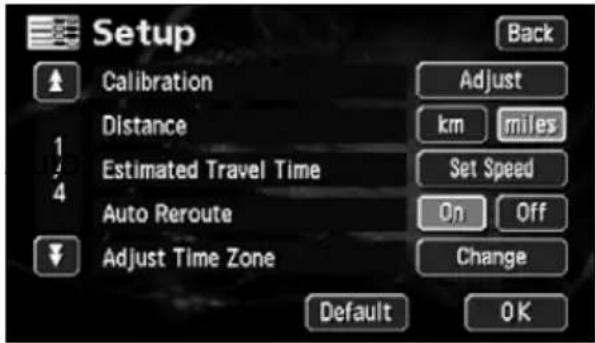
text_image
Setup Calibration Distance Estimated Travel Time Auto Reroute Adjust Time Zone Adjust km Set Speed On Change Default OK
- If having deviated from the set route while route guidance is in progress, the automatic reroute search is activated when the device determines that you are driving on a guidable road.
- Touch Default up screen to return all items to their default settings.
1. What is point registration
Up to 106 geographical points - categorized as "home," memory points or special memory points - can be stored on a map by registering them as memory points. There can be one "home" and up to five special memory points. Registering detour memory points (maximum of ten) also ensures that detours will be made through these points when route searches are performed.
Memory points can be registered by selecting from 46 types of symbol and 4 types of symbol with sound. It is possible to set a name, a name reading, and a telephone number for all these types of symbol. (This does not apply to detour memory points.)
Registering memory points and special memory points enables you to retrieve them on a map or when conducting a route search. Use these points effectively.
If you make a mistake in registration, correct it or delete the registration.
(If 106 memory points or 10 detour memory points have already been registered, delete unnecessary points and reattempt the registration.)
Memory Points
The memory points (including your home and special memory points) can be displayed and reordered according to registered type, symbol, or order of registration, and the points can be selected from a list during point searches and so on.
Memory point with voice alarm
The following functions can be given to memory points with voice.
①Setting to announce the approach to a point with sound Bell, Chime, Music Box
②Setting to announce the approach to a memory point from a specified direction
Bell (With direction)
Home Only one registration can be made for your home, and you can search for a route returning you home in a one-touch operation. Registering this point first is recommended.
Special memory points
Up to 5 special memory points can be registered and allocated to touch switches to facilitate a search for geographical points. Also, when setting a destination, a route search can be initiated in a one-touch operation.
Areas to avoid
Up to 10 detour memory points can be registered with a name and detour range settable for each point. You can also set names for detour memory points.

The symbol allocated to a detour memory point cannot be changed.
2. Registering, correcting or deleting a memory point
Registering, correcting or deleting your home
One point on the m+ap can be registered as your home.
Register your home to enable a route search to your home from the destination setting screen with one operation. (Refer to page 49)
Registering your home
1 Touch My Places u screen.
2 Touch Register for Points.
3 Select the map retrieval method and the map on which your home is to be registered will appear.
• See pages 49 and 65, "How to retrieve maps" and "Performing operations on a retrieved map".
4 Touch Enter
- Touch to move the map.
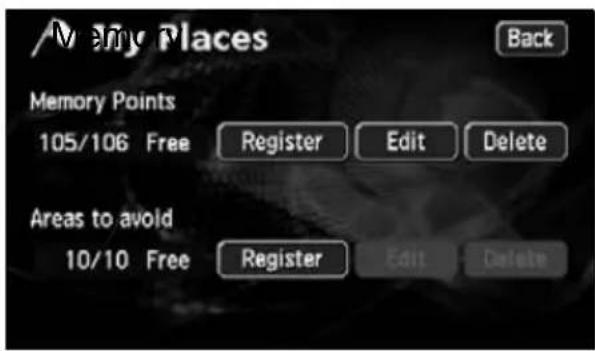
text_image
/Merry Places Back Memory Points 105/106 Free Register Edit Delete Areas to avoid 10/10 Free Register Edit Delete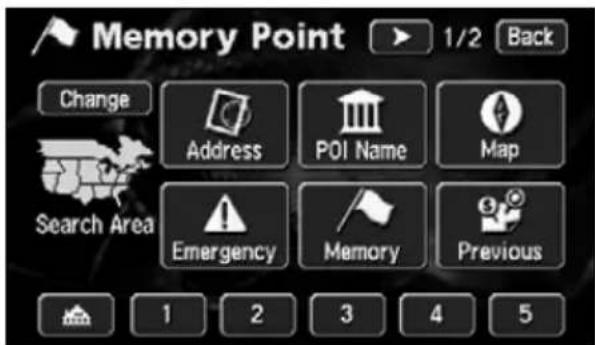
text_image
Memory Point 1/2 Back Change Address POI Name Map Search Area Emergency Memory Previous 1 2 3 4 5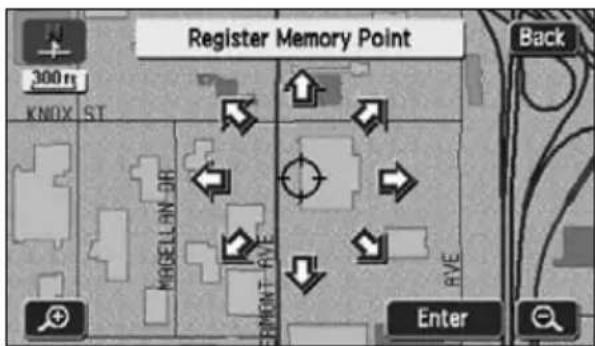
text_image
Register Memory Point 300 m KNOX ST MBELLON EMENT AVE Back Enter
- Registration enabled on a detailed map with a reduction scale less than 0.5 miles.
- Edit I can be used only if a memory point is already registered.
2. Registering, correcting or deleting a memory point
5 Touch Attribute
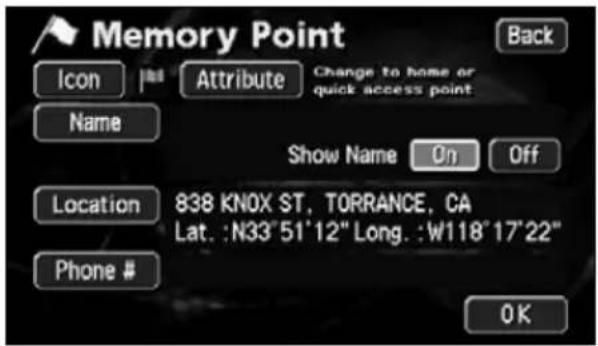
text_image
Memory Point Back Icon | Attribute Change to home or quick access point Name Show Name On Off Location 838 KNOX ST, TORRANCE, CA Lat. :N33'51'12" Long. :W118'17'22" Phone # OK6 Touch Not Registered
Touch switch for registering your home
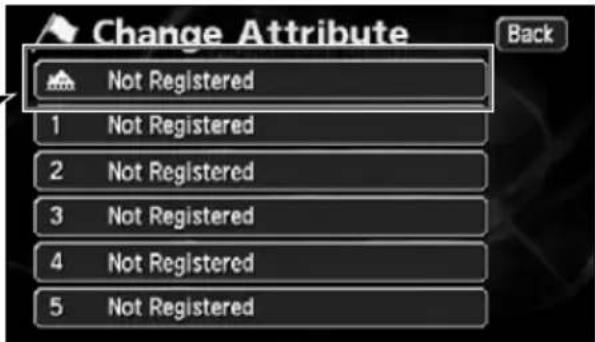
text_image
Change Attribute Back Not Registered 1 Not Registered 2 Not Registered 3 Not Registered 4 Not Registered 5 Not Registered7 Touch Icon
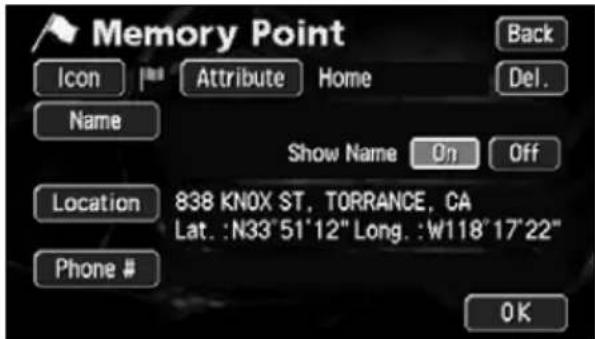
text_image
Memory Point Back Icon | Attribute Home Del. Name Show Name On Off Location 838 KNOX ST, TORRANCE, CA Lat. :N33"51"12" Long. :W118"17"22" Phone # OK8 Touch the symbol to be registered on the map.
• Page 2 V Sound and to select a different symbol. (Refer to page 110)
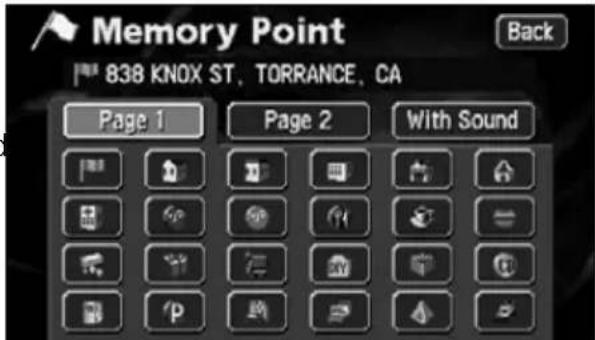
text_image
Memory Point 838 KNOX ST, TORRANCE, CA Back Page 1 Page 2 With Sound
ATTENTION
If your home is already registered, touch it to display the home cancellation screen.
Correcting your home
1 Touch My Places u screen.
2 Touch Edit emory Points.
3 Touch
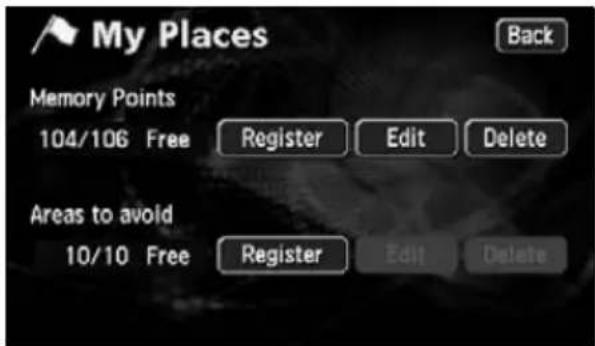
text_image
My Places Back Memory Points 104/106 Free Register Edit Delete Areas to avoid 10/10 Free Register Edit Delete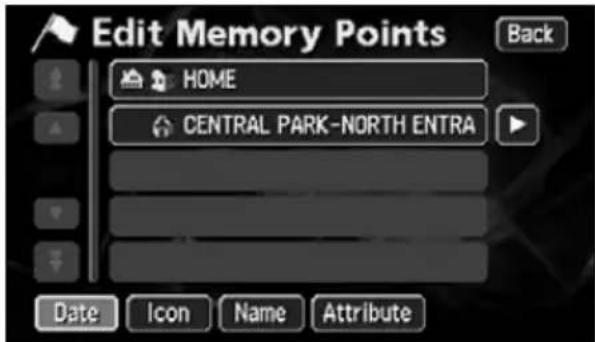
text_image
Edit Memory Points Back HOME CENTRAL PARK-NORTH ENTRA Date Icon Name Attribute4 Touch the touch switch for the item to be corrected or entered.
- Touch Del. cel your home.
- This correction and entry method is the same as for memory points.
- Symbol (Page 114)
- Name entry (Page 116)
- Name display on a map (Page 117)
- Position (Page 113)
- Telephone number (Page 115)
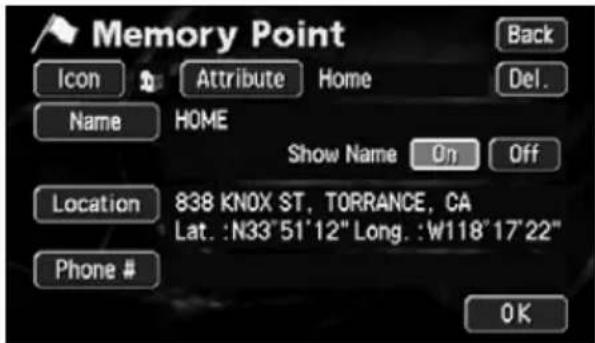
text_image
Memory Point Back Icon Attribute Home Del. Name HOME Show Name On Off Location 838 KNOX ST, TORRANCE, CA Lat. :N33"51'12" Long. :W118"17'22" Phone # OK5 Touch OK
2. Registering, correcting or deleting a memory point
Deleting your home
1 Touch My Places u screen.
2 Touch Delete hory Points.
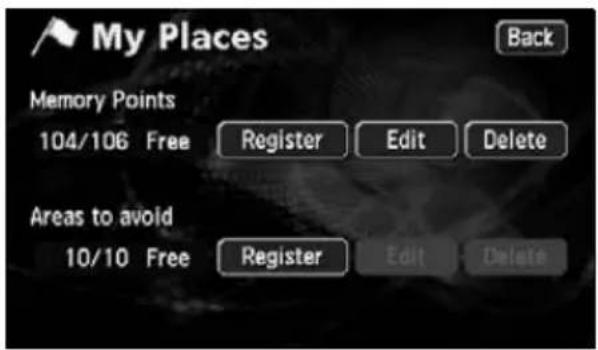
text_image
My Places Back Memory Points 104/106 Free Register Edit Delete Areas to avoid 10/10 Free Register Edit Delete3 Touch
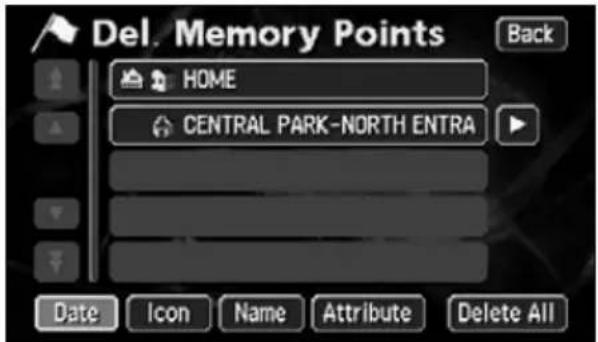
text_image
Del. Memory Points Back HOME CENTRAL PARK-NORTH ENTRA Date Icon Name Attribute Delete All4 Touch Yes
- Touch No turn to the original screen.
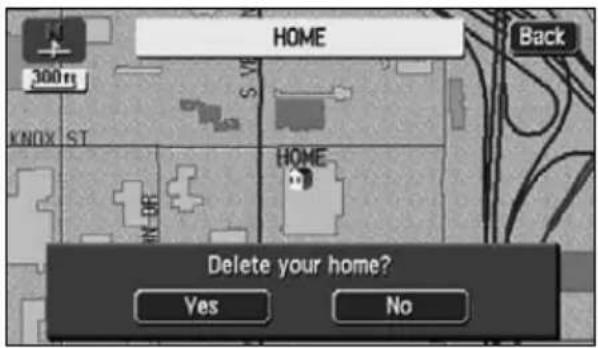
text_image
HOME 300m KNOX ST HOME Delete your home? Yes NoRegistering memory points
Up to 106 memory points (landmarks) can be registered on a map (including 1 home and 5 special memory points). (If registering more than 106 points, first delete unnecessary memory points and proceed.)
Registering memory points enables the following:
• Symbol and name displays on the map
- An alarm that announces when approaching a point
- Maps corresponding to memory points can be retrieved when setting a destination (Refer to page 60)
One-touch registration
Memory points can be registered on a map presently displayed.
1 Touch the position on the map where the memory point is to be registered.
- It is not necessary to scroll the map when registering the present location.
2 Touch Mark
- The memory point will be displayed with a symbol ( ) on the or position.

text_image
17198 S PARK LN, GARDEN... 300m 2ND ST ST 1.8 mi STEVEN S ST PARK LN W ARTESIA BLVD OFF Map View Enter Mark
- Maps with a scale of 0.5 miles or greater detail can be registered.
- Depending on the location, the address displayed for the memory point may include a name of a neighboring area.
- A registered memory point may display a neighboring name or address.
2. Registering, correcting or deleting a memory point
Registering a far away point
1 Touch My Places u screen.
2 Touch Registerry Points.
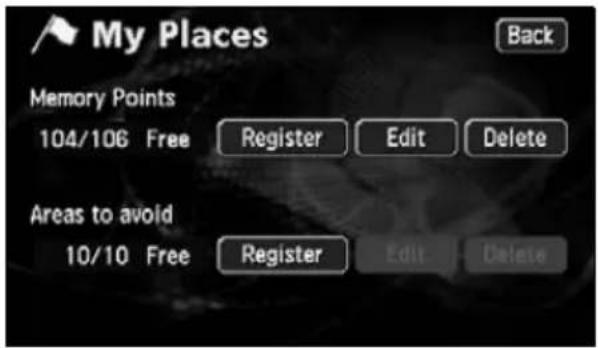
text_image
My Places Back Memory Points 104/106 Free Register Edit Delete Areas to avoid 10/10 Free Register Edit Delete3 Select a map retrieval method to display the map on which the memory point is to be registered.
• See pages 49 and 65, "How to retrieve maps" and "Performing operations on a retrieved map".
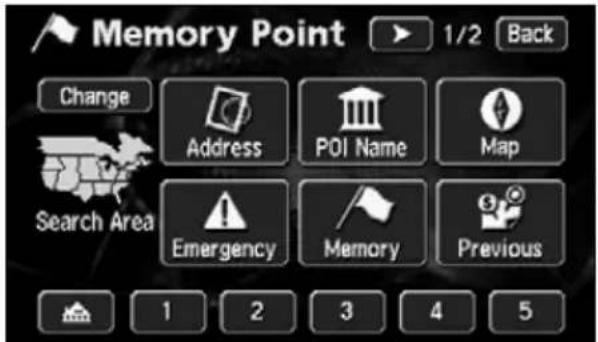
text_image
Memory Point 1/2 Back Change Address POI Name Map Search Area Emergency Memory Previous 1 2 3 4 54 Touch Enter
- Touch to move the map.
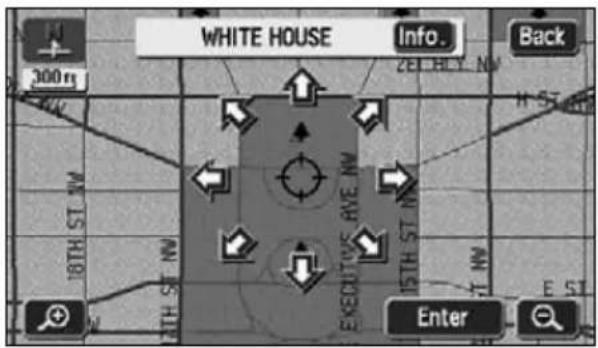
text_image
WHITE HOUSE Info. Back 300 m 18TH ST NW 15TH ST NW EKEDITIVE RVE NW 15TH ST NW EST Enter
- When a memory point is not registered, Edit I have to run and will be inoperable even if touched.
-
Depending on the location of the registered point and the map retrieval method, the name and telephone number may be entered simultaneously.
-
Touch Icon play the selected symbol in the position.
• Page 1 Page 2 With Sound for the memory point Icon to change the type of symbol. - Touch No Icon by the registered memory point symbol on the map.
- Selecting a symbol with sound will enable an alarm to sound when about 0.3 miles from the memory point.
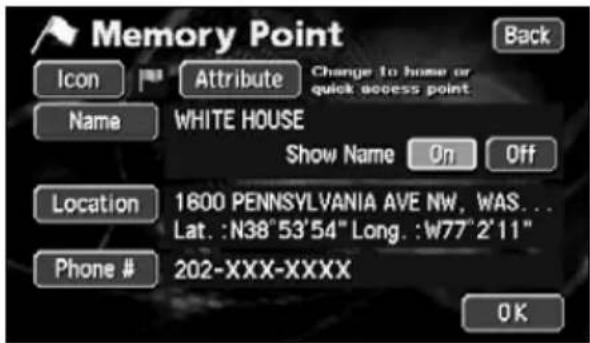
text_image
Memory Point Back Icon Attribute Change to home or quick access point Name WHITE HOUSE Show Name 9n Off Location 1600 PENNSYLVANIA AVE NW, WAS... Lat. :N38°53'54" Long. :W77°2'11" Phone # 202-XXX-XXXX OK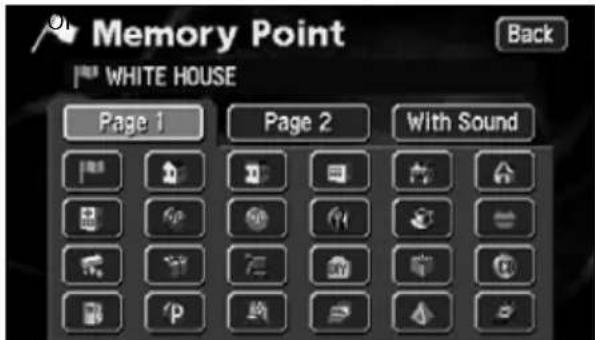
text_image
Memory Point WHITE HOUSE Back Page 1 Page 2 With SoundPage 1
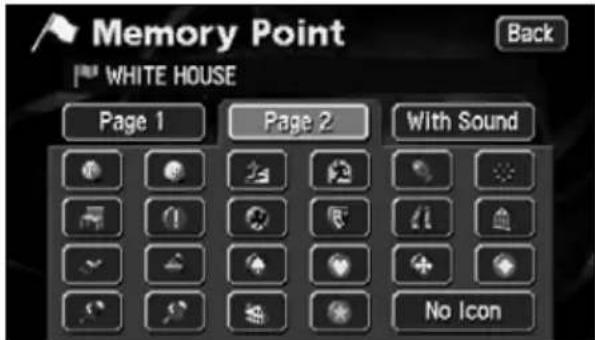
text_image
Memory Point WHITE HOUSE Back Page 1 Page 2 With Sound No IconPage 2
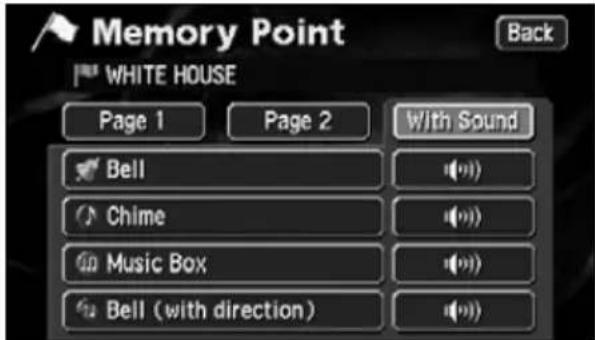
text_image
Memory Point WHITE HOUSE Back Page 1 Page 2 With Sound Bell Chime Music Box Bell (with direction)With Sound
2. Registering, correcting or deleting a memory point
5 Touch Bell (with direction)
- Set the direction.
- To move the direction counterclockwise, touch ↓. To move it clockwise, touch ↓
- The memory point will be displayed with 📋.
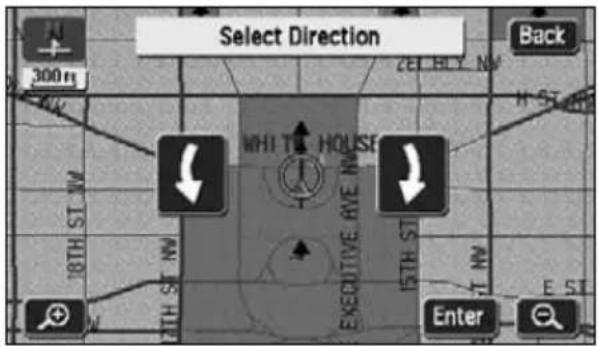
text_image
Select Direction Back 300 m WHI T# HOUSE 15TH ST EXECUTIVE RYE NW 18TH ST NW 15TH ST Enter6 Touch Enter
[With sound] [With direction]
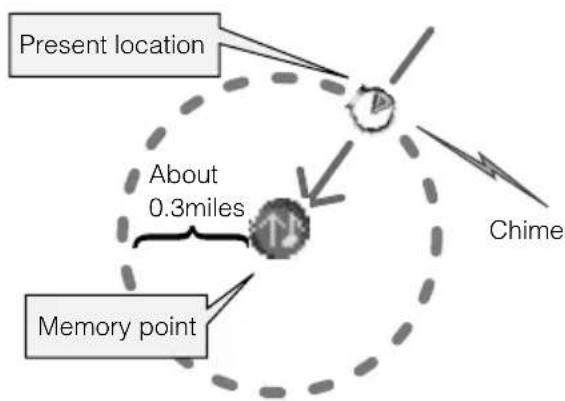
text_image
Present location About 0.3miles Memory point Chime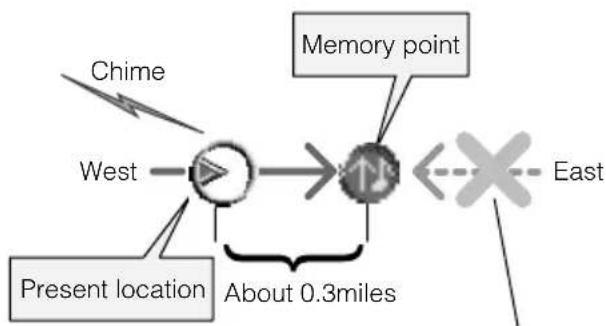
flowchart
graph LR
    A["Present location"] --> B["West"]
    C["Chime"] --> B
    B --> D["Memory point"]
    D --> E["East"]
    style A fill:#f9f,stroke:#333
    style B fill:#ccf,stroke:#333
    style C fill:#cfc,stroke:#333
    style D fill:#fcc,stroke:#333
    style E fill:#cff,stroke:#333
    note right of B: About 0.3miles
An alarm will not sound when approaching this direction.
[When setting with direction]
- Touch Bell (with direction) and only when approaching a memory point within about 0.3 miles from the set direction.
For example, when driving on a road running East-West, you can set an alarm to sound when approaching a memory point from the west and not sound when approaching it from the east.
![ECLIPSE AVN6620 - [When setting with direction] - 1](/content/2026/05/1068510/images/9db0a2f2d97e84dc505296eb4450932c964b793fc00af80a4638e27e77791275.jpg)
ATTENTION
- When selecting a symbol With Sound abled.
- Touch ▪ near each of the sounds.
Correcting the position of a memory point
1 Touch My Places u screen.
2 Touch Edit memory Points.
3 Touch the memory point to be corrected.
4 Touch Location
- A map will appear.
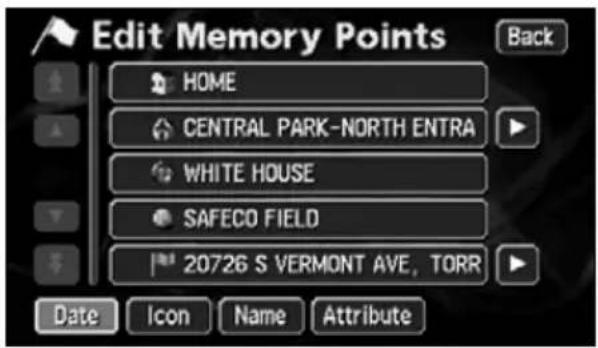
text_image
Edit Memory Points HOME CENTRAL PARK-NORTH ENTRA WHITE HOUSE SAFECO FIELD 20726 S VERMONT AVE, TORR Date Icon Name Attribute Back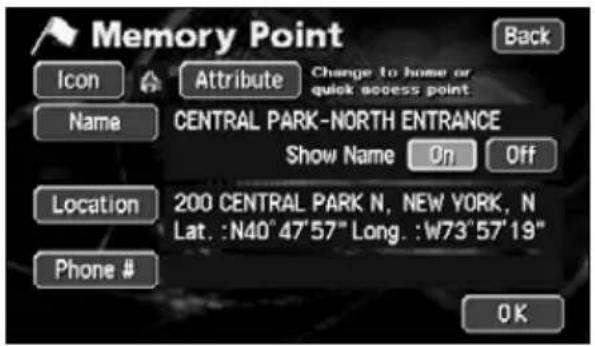
text_image
Memory Point Back Icon Attribute Change to home or quick access point Name CENTRAL PARK-NORTH ENTRANCE Show Name On Off Location 200 CENTRAL PARK N, NEW YORK, N Lat. :N40°47'57" Long. :W73°57'19" Phone # OK5 Touch ↗.
- Move the map to the position on which the memory point is to be corrected.
6 Touch Enter
- The symbol displayed in appears in the position.
- Correct the position and the name of the position displayed in 4 also corrected.
7 Touch OK
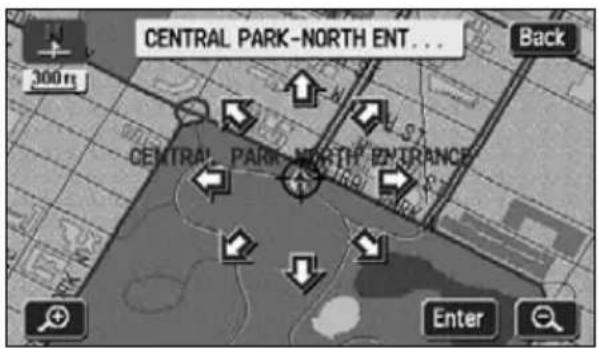
text_image
CENTRAL PARK-NORTH ENT... 300 m Back CENTRAL PARK-NORTH ENTRANCE Enter
ATTENTION
Maps with a scale of 0.5 miles or greater detail can be registered.
2. Registering, correcting or deleting a memory point
Changing the symbol of the memory point
1 Touch My Places u screen.
2 Touch Edit emory Points.
3 Touch the memory point whose symbol you want to change.
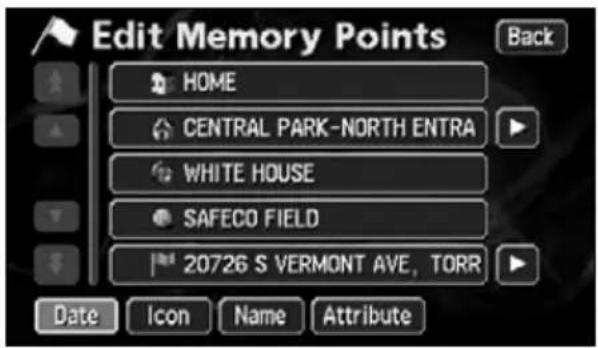
text_image
Edit Memory Points Back HOME CENTRAL PARK-NORTH ENTRA WHITE HOUSE SAFECO FIELD 20726 S VERMONT AVE, TORR Date Icon Name Attribute4 Touch Icon
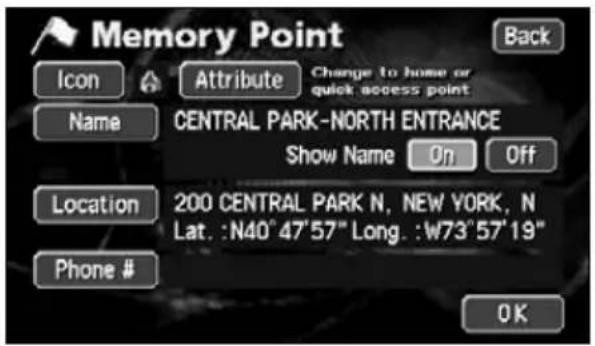
text_image
Memory Point Back Icon Attribute Change to home or quick access point Name CENTRAL PARK-NORTH ENTRANCE Show Name On Off Location 200 CENTRAL PARK N, NEW YORK, N Lat. :N40°47'57" Long. :W73°57'19" Phone # OK5 Touch the symbol to be changed.
• Page 2 V Sound and to select a different symbol. (Refer to page 110)
6 Touch OK
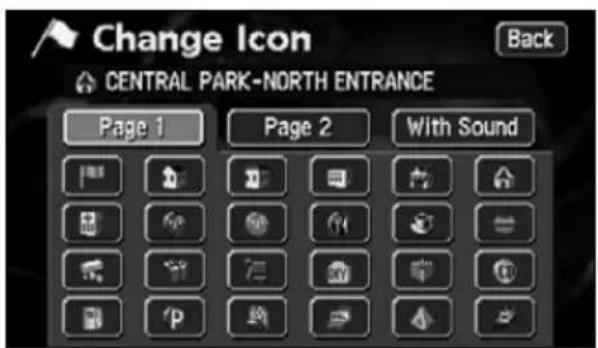
text_image
Change Icon Back CENTRAL PARK-NORTH ENTRANCE Page 1 Page 2 With Sound
The items in memory point list can be sorted by the Date, Icons, Names or Attributes.
Enter a telephone number for a memory point
1 Touch My Places u screen.
2 Touch Edit memory Points.
3 Touch the memory point whose telephone number you want to enter.
4 Touch Phone #
5 Enter the number by touching the switches on the screen one number at a time.
- If having made a mistake (or if the phone number is already entered), touch to delete one number at a time.
6 Touch OK
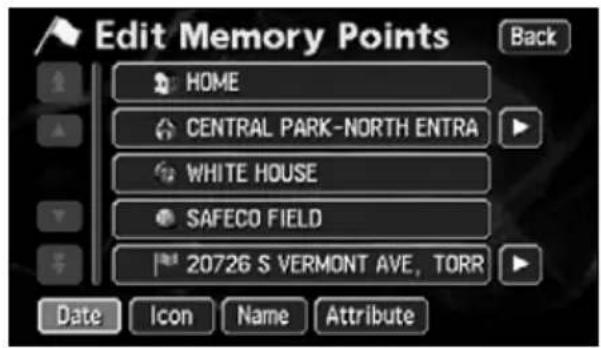
text_image
Edit Memory Points HOME CENTRAL PARK-NORTH ENTRA WHITE HOUSE SAFECO FIELD 20726 S VERMONT AVE, TORR Date Icon Name Attribute Back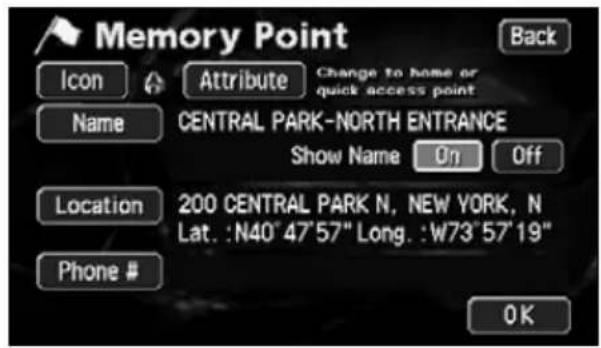
text_image
Memory Point Back Icon Attribute Change to Home or quick access point Name CENTRAL PARK-NORTH ENTRANCE Show Name On Off Location 200 CENTRAL PARK N, NEW YORK, N Lat. :N40° 47'57" Long. :W73°57'19" Phone # OK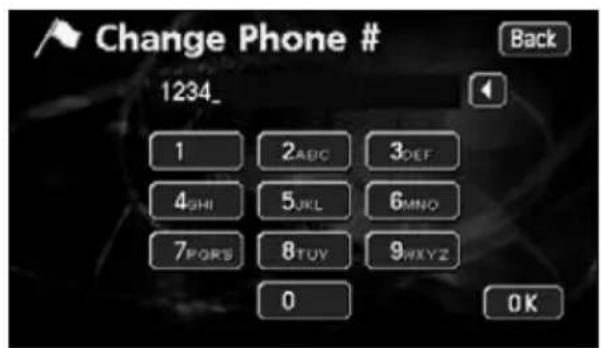
text_image
Change Phone # 1234_ Back 1 2ABC 3DEF 4SHI 5JKL 6MINO 7PORS 8TUY 9WXYZ 0 OK
- Up to 20 digits can be entered.
- Depending on the registered point, there may be a telephone number already entered for it.
2. Registering, correcting or deleting a memory point
Entering the name of a memory point
1 Touch My Places u screen.
2 Touch Edit emory Points.
3 Touch the memory point for which you want to enter a name.
4 Touch Name
5 Enter one character at a time by touching the switches on the screen.
- If having made a mistake (or if the name is already entered), touch ▶b delete one character at a time.
6 Touch OK
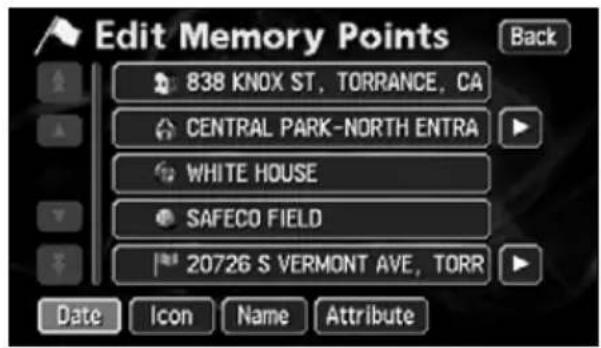
text_image
Edit Memory Points Back 838 KNOX ST, TORRANCE, CA CENTRAL PARK-NORTH ENTRA WHITE HOUSE SAFECO FIELD 20726 S VERMONT AVE, TORR Date Icon Name Attribute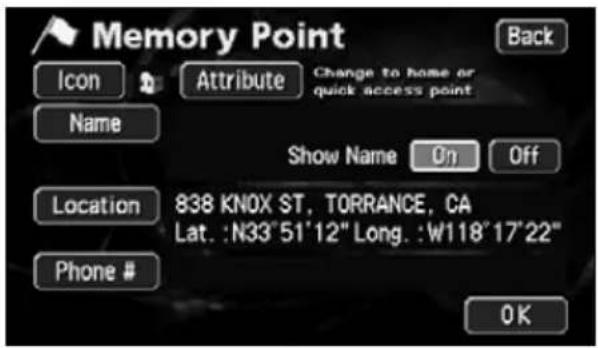
text_image
Memory Point Back Icon Attribute Change to home or quick access point Name Show Name On Off Location 838 KNOX ST, TORRANCE, CA Lat. :N33°51'12" Long. :W118°17'22" Phone # OK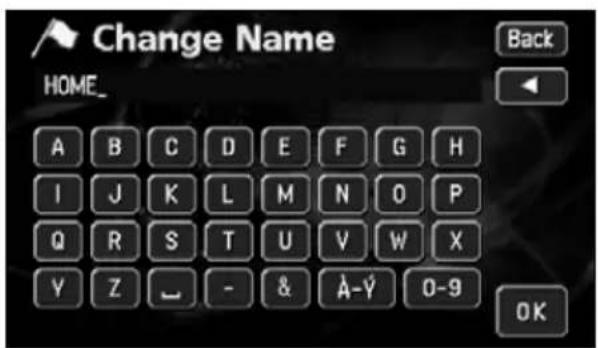
text_image
Change Name HOME_ A B C D E F G H I J K L M N O P Q R S T U V W X Y Z _ - & À-ÿ 0-9 OK
Depending on the registered point, there may be a name already entered for it.
Displaying the name of a memory point
The name of the memory point entered can be displayed.
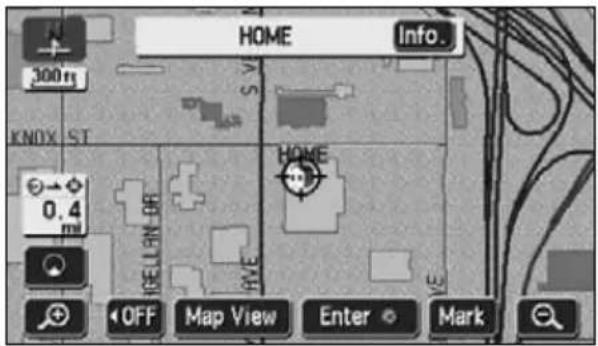
text_image
HOME Info 300m KNOX ST 0.4 HOME OFF Map View Enter Mark1 Touch My Places u screen.
2 Touch Edit memory Points.
3 Touch the memory point whose name you want to display.
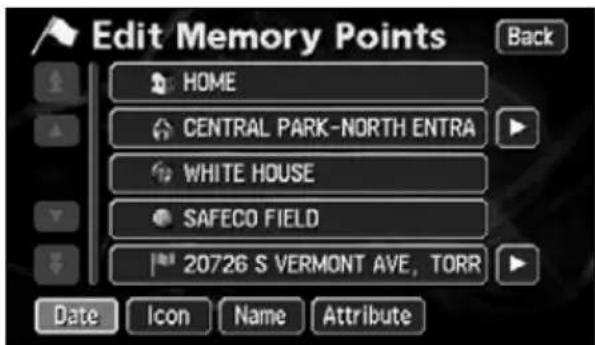
text_image
Edit Memory Points Back HOME CENTRAL PARK-NORTH ENTRA WHITE HOUSE SAFECO FIELD 20726 S VERMONT AVE, TORR Date Icon Name Attribute4 Touch On Our S
Name.
- The pressed touch switch will become brighter.
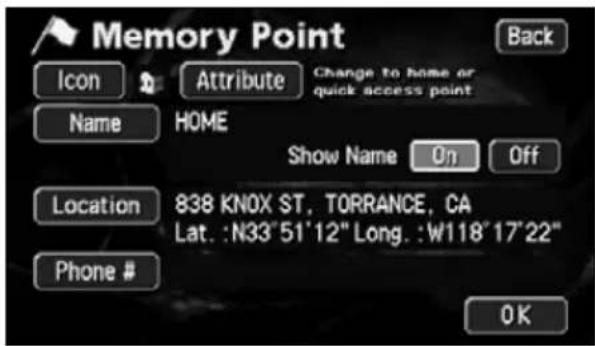
text_image
Memory Point Back Icon Attribute Change to home or quick access point Name HOME Show Name 0η Off Location 838 KNOX ST, TORRANCE, CA Lat. :N33"51"12" Long. :W118"17"22" Phone # OK5 Touch OK

Maps with a scale of 0.5 miles or greater detail can be displayed.
2. Registering, correcting or deleting a memory point
Deleting a memory point
1 Touch My Places u screen.
2 Touch Delete nory Points.
3 Touch the memory point to be deleted.
• To delete all the memory points, touch
Delete All
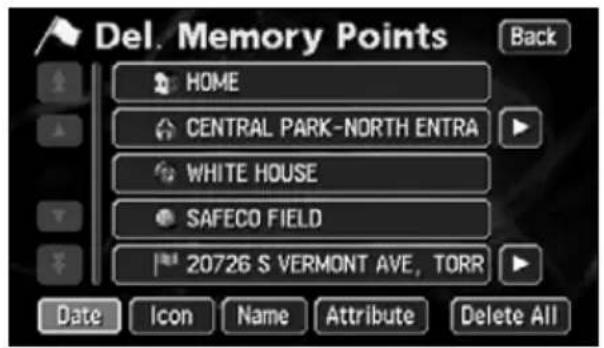
text_image
Del. Memory Points Back HOME CENTRAL PARK-NORTH ENTRA WHITE HOUSE SAFECO FIELD 20726 S VERMONT AVE, TORR Date Icon Name Attribute Delete All4 Touch Yes
- Touch No turn to the original screen.
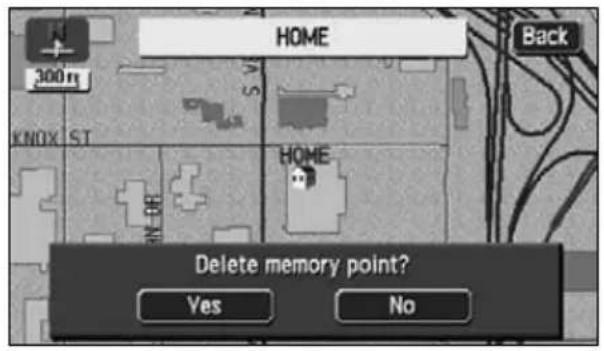
text_image
HOME 300 ft KNOX S.T. HOME Back Delete memory point? Yes No3. Registering, correcting or deleting a special memory point
Up to 5 special memory points can be registered on one map.
A special memory point is different from other memory points in that, when registered, they can be retrieved with one-touch from the screen appearing when retrieving a map. Also, when setting a destination, a route search can be initiated with one-touch from the destination setting screen. (Refer to page 69)
Registering a special memory point
1 Touch My Places u screen.
2 Touch Register Point.
3 Select a map retrieval method and the map corresponding to the special memory point to be registered appears.
• See pages 49 and 65, "How to retrieve maps" and "Performing operations on a retrieved map".
4 Touch Enter
- If is displayed, touch it to move the map.
- The special memory point will appear on the position.
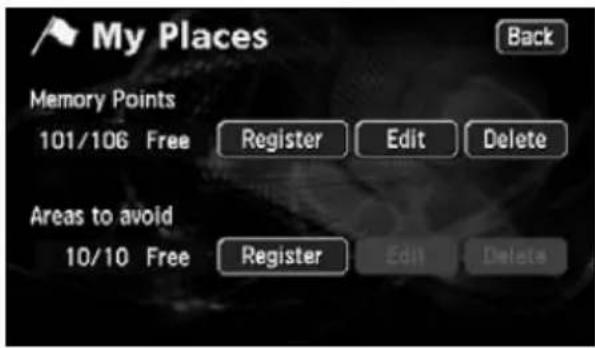
text_image
My Places Back Memory Points 101/106 Free Register Edit Delete Areas to avoid 10/10 Free Register Edit Delete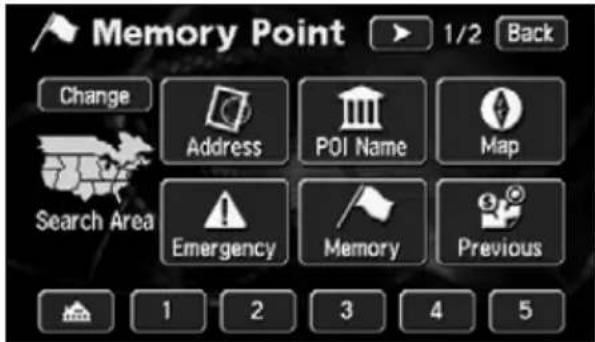
text_image
Memory Point 1/2 Back Change Address POI Name Map Search Area Emergency Memory Previous 1 2 3 4 5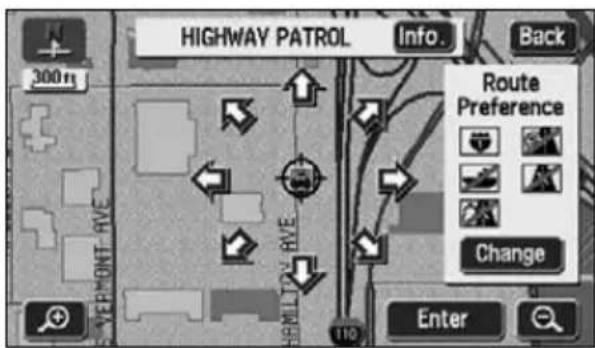
text_image
HIGHWAY PATROL Info. Back 300m Vermont AVE HOMLY D'AYE Route Preference Change Enter3. Registering, correcting or deleting a special memory point
5 Touch Attribute
6 Touch Not Registered special memory point (1 to 5).
7 Touch OK
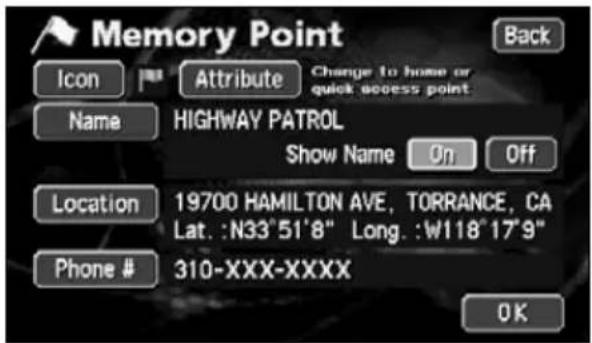
text_image
Memory Point Back Icon Attribute Change to home or quick access point Name HIGHWAY PATROL Show Name On Off Location 19700 HAMILTON AVE, TORRANCE, CA Lat. :N33°51'8" Long. :W118°17"9" Phone # 310-XXX-XXXX OK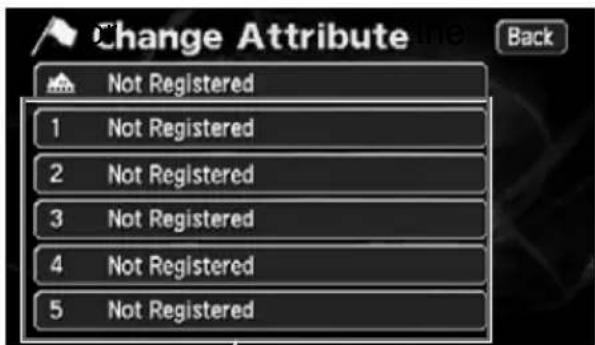
text_image
Change Attribute Back Not Registered 1 Not Registered 2 Not Registered 3 Not Registered 4 Not Registered 5 Not RegisteredTouch switches for special memory point (1 to 5)

- Maps with a scale of 0.5 miles or greater detail can be registered.
- Depending on the location, the address displayed for the special memory point may include a name of a neighboring area.
- A neighboring name or address will be displayed for the registered special memory point.
- Depending on the location of the registered point and the map retrieval method, the name and telephone number may be entered simultaneously.
- Edit Village at any time when a memory point is already registered.
- Select an already registered telephone number and touch it to display a deletion screen for the special memory point corresponding to that selected telephone number.
Correcting a special memory point
1 Touch My Places u screen.
2 Touch Edit memory Points.
3 Touch the special memory point to be corrected/entered.
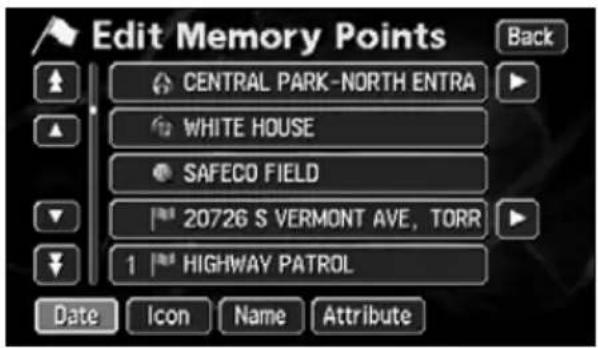
text_image
Edit Memory Points CENTRAL PARK-NORTH ENTRA WHITE HOUSE SAFECO FIELD 20726 S VERMONT AVE, TORR 1 HIGHWAY PATROL Date Icon Name Attribute4 Touch the touch switch for the item to be corrected or entered.
- This correction and entry method is the same as for memory points.
- Symbol (Page 114)
- Name entry (Page 116)
- Name display on a map (Page 117)
- Position (Page 113)
• Telephone number (Page 115)
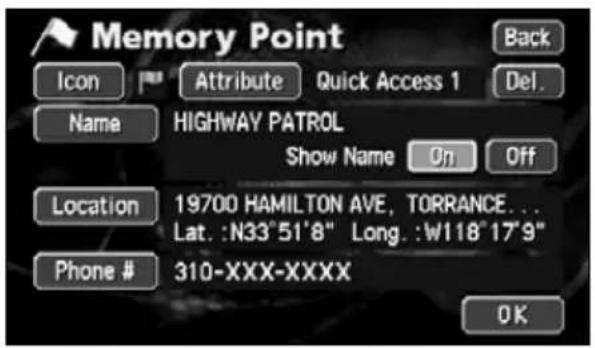
text_image
Memory Point Back Icon Attribute Quick Access 1 Del. Name HIGHWAY PATROL Show Name On Off Location 19700 HAMILTON AVE, TORRANCE... Lat. :N33°51'8" Long. :W118°17'9" Phone # 310-XXX-XXXX OK5 Touch OK
3. Registering, correcting or deleting a special memory point
Deleting a special memory point
1 Touch My Places u screen.
2 Touch Delete nory Points.
3 Touch the special memory point to be deleted.
• To delete all the memory points, touch
Delete All
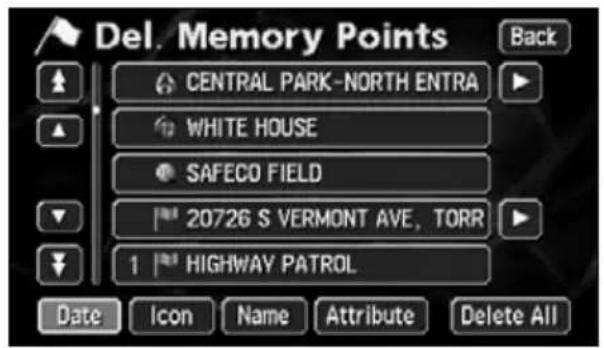
text_image
Del. Memory Points Back CENTRAL PARK-NORTH ENTRA WHITE HOUSE SAFECO FIELD 20726 S VERMONT AVE, TORR 1 HIGHWAY PATROL Date Icon Name Attribute Delete All4 Touch Yes
- Touch No turn to the original screen.
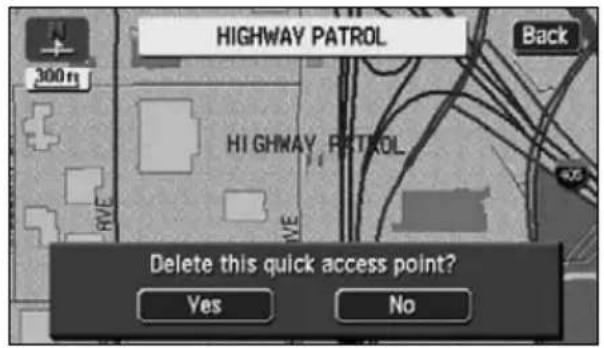
text_image
HIGHWAY PATROL Back 300 m HIGHWAY, PATROL Delete this quick access point? Yes No4. Registering, correcting or deleting detour memory points
Registering detour memory points
Up to 10 detour memory points can be registered. (If registering more than 10 points, first delete unnecessary detour memory points and proceed.)
By registering detour memory points, you can search for a route that takes you through the registered area when conducting a route search.
This function is convenient when knowing what roads are blocked due to construction or accidents or congested.
1 Touch My Places u screen.
2 Touch Register to Avoid.
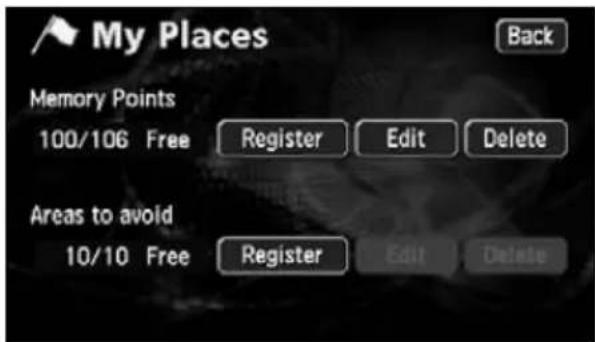
text_image
My Places Back Memory Points 100/106 Free Register Edit Delete Areas to avoid 10/10 Free Register Edit Delete3 Select the map retrieval method to display the map on which a detour memory point is to be registered.
• See pages 49 and 65, "How to retrieve maps" and "Performing operations on a retrieved map".
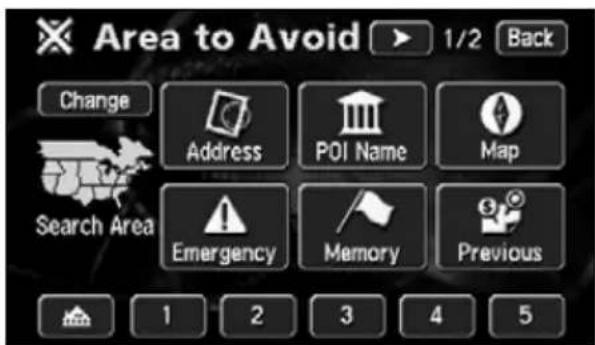
text_image
Area to Avoid 1/2 Back Change Address POI Name Map Search Area Emergency Memory Previous 1 2 3 4 54 Touch Enter
- Touch to move the map.
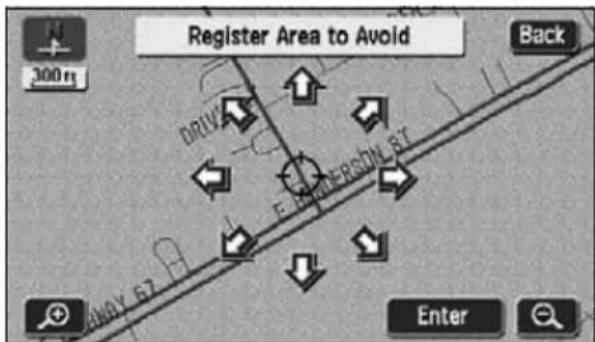
text_image
Register Area to Avoid Back 300 m DRIVE AWAY 67 F-EMERSON 51 ST Enter
- Edit Village at any time when a detour memory point is already registered.
- The route may take you through a detour depending on the position of the set destination or the present location.
4. Registering, correcting or deleting detour memory points
5 Touch ▲ to ▼ the area to be detoured.
- To widen the area, touch
narrow the area, touch - When reaching the maximum or minimum permissible area, the ▲
switches invert and are inoperable even if touched.
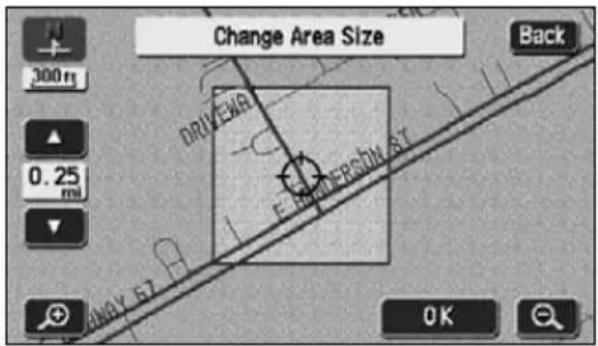
text_image
Change Area Size Back 300 m 0.25 mi DRIVEAR E FLOWER SIN AT ANAY E7 OK6 Touch OK
- The detour memory point will appear on the position with a mark (smallest point) or a mark (area).
7 Touch OK

ATTENTION
- The following 10 values represent settable sizes for detour areas: Point, 150 ft, 300 ft, 700 ft, 1/4 mi, 1/2 mi, 1 mi, 2 mi, 4 mi, 8 mi
- A neighboring name or address will be displayed for the registered detour memory point.
- The address appearing for the detour memory point may differ depending on the location or the registration method.
- Depending on the location of the registered point and the map retrieval method, the name may be entered simultaneously.
Correcting a detour memory point
1 Touch My Places u screen.
2 Touch Edit reas to Avoid.
3 Touch the Area to Avoid to correct/enter.
4 Touch the touch switch for the item to be corrected or entered.
- The correction/entry method is the same as for memory points.
- Name entry (Page 116)
- Position (Page 113)
- Touch Area Size e detour area. (Page 123)
5 Touch OK

text_image
Edit Area to Avoid 110 FM-2738, ALVARADO, TX DRIVEWAY RD x GREEN VALLEY RD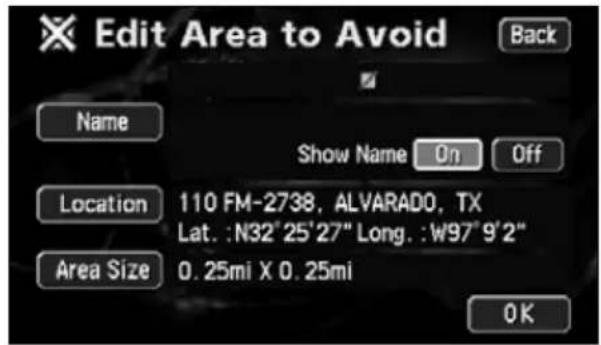
text_image
Edit Area to Avoid Back Name Show Name On Off Location 110 FM-2738, ALVARADO, TX Lat. :N32°25'27" Long. :W97°9'2" Area Size 0.25mi X 0.25mi OK4. Registering, correcting or deleting detour memory points
Deleting a detour memory point
1 Touch My Places u screen.
2 Touch Delete is to Avoid.
3 Touch the Area to Avoid to be deleted.
- To delete all detour memory points, touch Delete All.
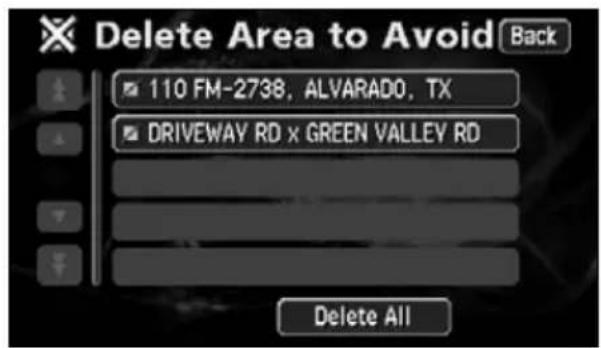
text_image
Delete Area to Avoid Back 110 FM-2738, ALVARADO, TX DRIVEWAY RD x GREEN VALLEY RD Delete All4 Touch Yes
- Touch No turn to the original screen.
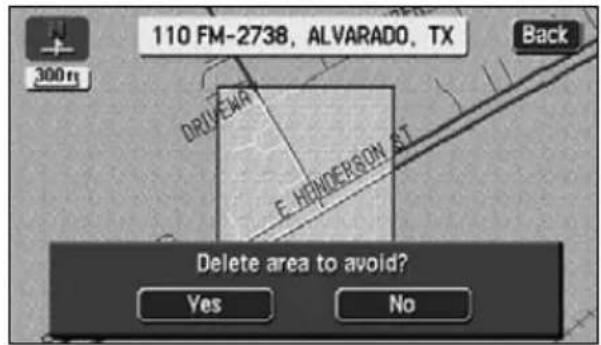
text_image
110 FM-2738, ALVARADO, TX Back 300 m DRIVER E. HENDERSON ST. Delete area to avoid? Yes No5. Destination archive
Deleting entries from the destination archive
Points on a map set as destinations are automatically recorded and can serve to retrieve a map when setting a destination (maximum 100 destinations). When exceeding 100 destinations, the oldest entry is deleted every time a new one is entered. Unnecessary destinations can be deleted.
1 Touch Setup Menu screen.
2 Touch Deleteous Point.
3 Touch the point name to be deleted.
- To delete all destination archive items, touch Delete All.
4 Touch Yes
- Touch No turn to the original screen.
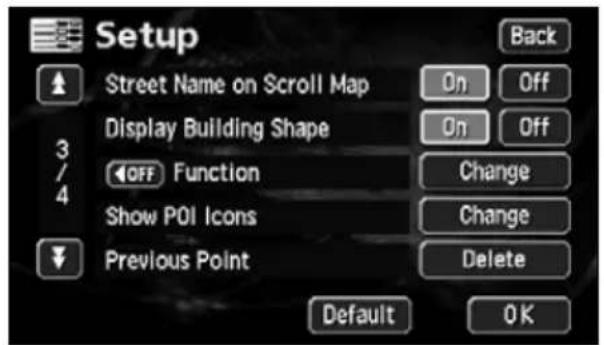
text_image
Setup Street Name on Scroll Map Display Building Shape 3 / 4 OFF Function Show POI Icons Previous Point Back On Off On Off Change Change Delete Default OK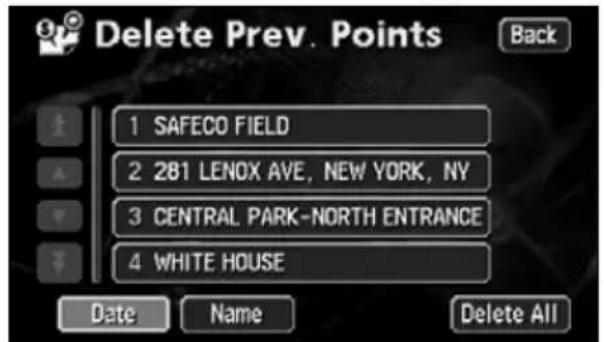
text_image
Delete Prev. Points 1 SAFECO FIELD 2 281 LENOX AVE, NEW YORK, NY 3 CENTRAL PARK-NORTH ENTRANCE 4 WHITE HOUSE Date Name Delete All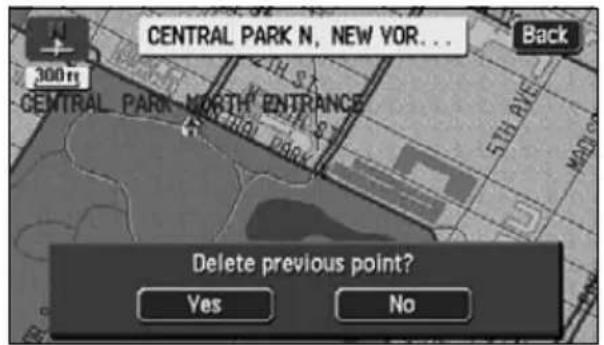
text_image
CENTRAL PARK N, NEW YOR... Back 300 rs CENTRAL PARK NORTH ENTRANCE 5TH AVE MATH Delete previous point? Yes No1. About RTTI Function
The RTTI (Real Time Traffic Information) is the system which displays the traffic information obtained from the SIRIUS satellite in real time. Using the obtained traffic information, it is possible to carry out the destination guidance, avoiding traffic jam.
When the tuner designed for SIRIUS satellite is connected to the navigation system, the system can acquire traffic information and perform navigation using the traffic information.
How to see the screen
There are two displaying method; "Map display screen" and "Text display screen".
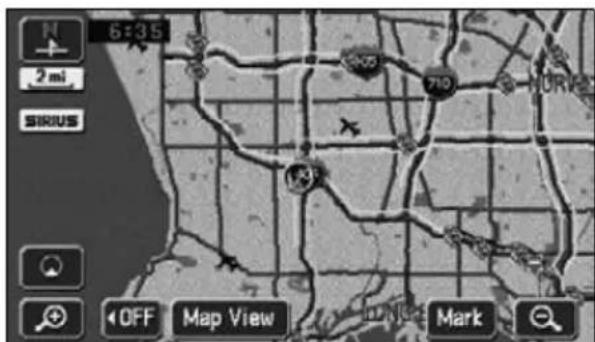
text_image
6:35 2 mi SIRUS 710 NOR OFF Map View Mark● Map display screen
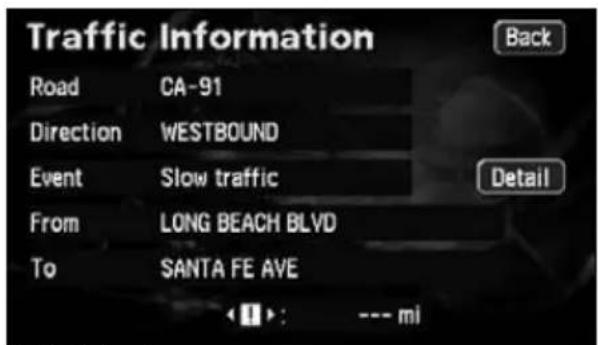
text_image
Traffic Information Road CA-91 Direction WESTBOUND Event Slow traffic From LONG BEACH BLVD To SANTA FE AVE Back Detail < img src="box123457000000000000000000000000000000000000000000000000000000000000000000000000000● Text display screen
Display setting of the traffic information
1 Touch SIRIUS Traffic screen.
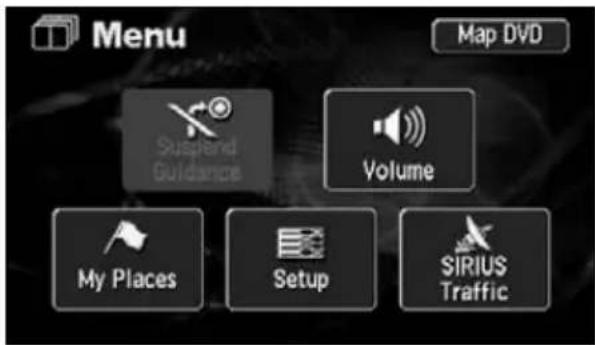
text_image
Menu Map DVD Suspend Guidance Volume My Places Setup SIRIUS Traffic2 Touch ON Show SIRIUS Traffic Information.
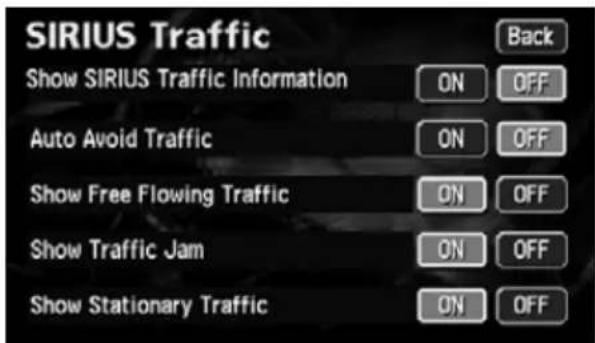
text_image
SIRIUS Traffic Show SIRIUS Traffic Information ON OFF Auto Avoid Traffic ON OFF Show Free Flowing Traffic ON OFF Show Traffic Jam ON OFF Show Stationary Traffic ON OFF2. Displaying the traffic information
Displaying the traffic information on the map
"SIRIUS Traffic" can display the jam situation using color-coded arrows alongside the routes.
1 Touch SIRIUS Traffic screen.
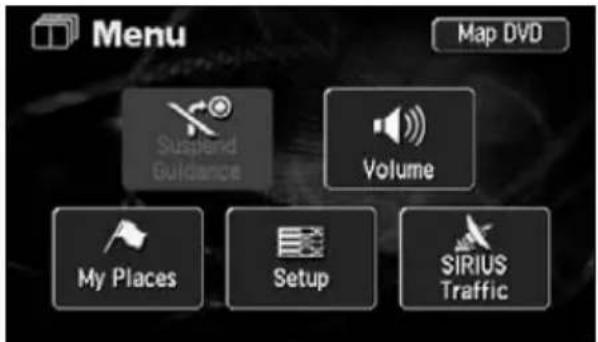
text_image
Menu Map DVD Suspend Guidance Volume My Places Setup SIRIUS Traffic2 Touch ON e item to be displayed.
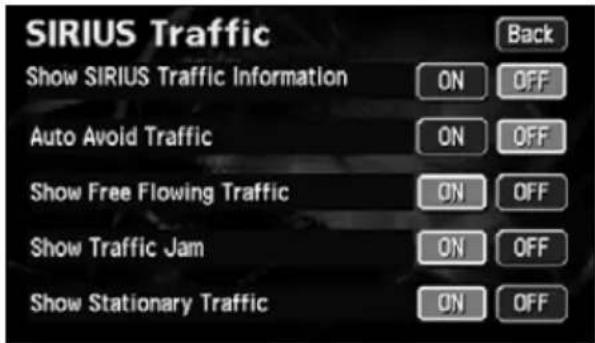
text_image
SIRIUS Traffic Show SIRIUS Traffic Information ON OFF Auto Avoid Traffic ON OFF Show Free Flowing Traffic ON OFF Show Traffic Jam ON OFF Show Stationary Traffic ON OFF- When the "Show Free Flowing Traffic" is
set to ON crowded routes can be displayed in light-blue. - When the "Show Traffic Jam" is set to ON vded routes can be displayed in yellow.
- When the "Show Stationary Traffic" is set to ONes with heavy traffic can be displayed in orange.
How to display the text information screen
By touching the icon on the map, you can see the text information.
1 Touch the icon to be displayed.
2 Touch Info
- The Traffic Information screen is displayed.
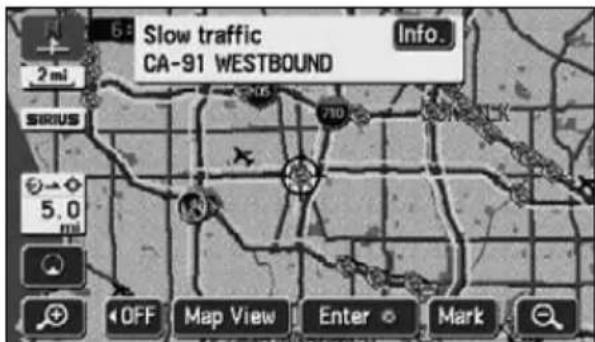
text_image
Slow traffic CA-91 WESTBOUND Info. 2 mi SIRIUS 5.0 mi OFF Map View Enter Mark2. Displaying the traffic information
• Further information can be displayed by touching Detail
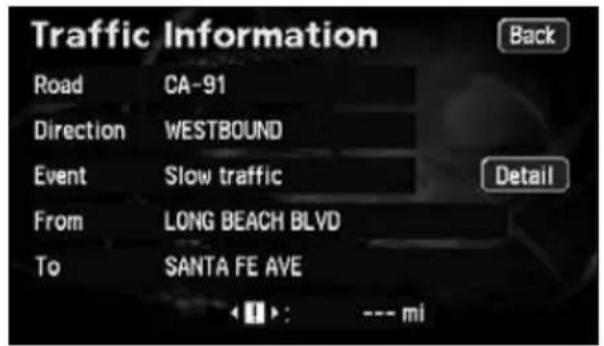
text_image
Traffic Information Road CA-91 Direction WESTBOUND Event Slow traffic From LONG BEACH BLVD To SANTA FE AVE Back Detail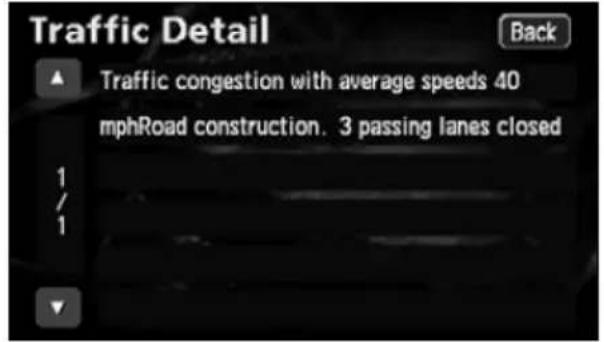
text_image
Traffic Detail Back Traffic congestion with average speeds 40 mphRoad construction. 3 passing lanes closed 1 / 13. Searching uncrowded route function
Using the SIRIUS traffic information, it is possible to carry out the route guidance, avoiding traffic jam.
Setting of traffic jam avoidance
1 Touch SIRIUS Traffic screen.
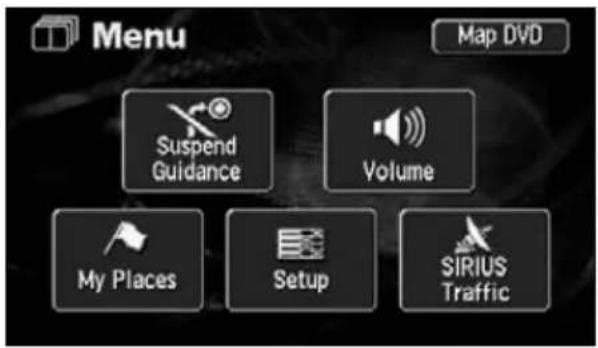
text_image
Menu Map DVD Suspend Guidance Volume My Places Setup SIRIUS Traffic2 Touch ON Auto Avoid Traffic.
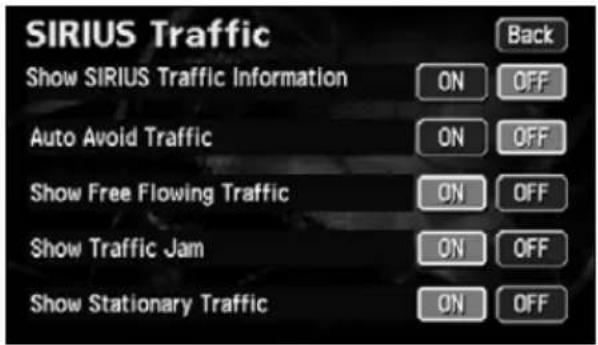
text_image
SIRIUS Traffic Show SIRIUS Traffic Information ON OFF Auto Avoid Traffic ON OFF Show Free Flowing Traffic ON OFF Show Traffic Jam ON OFF Show Stationary Traffic ON OFF3 Touch OK.
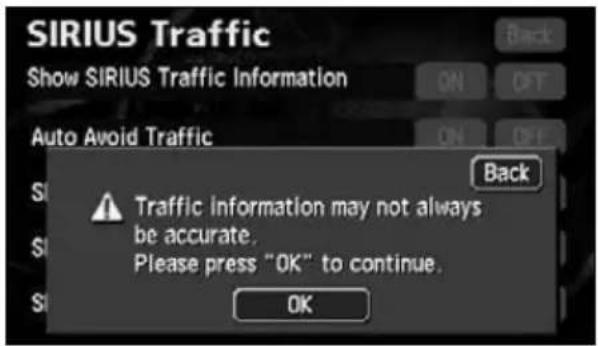
text_image
SIRIUS Traffic Show SIRIUS Traffic Information Auto Avoid Traffic Back Traffic information may not always be accurate. Please press "OK" to continue. OKHow to avoid traffic jam during destination guidance
1 Touch Route
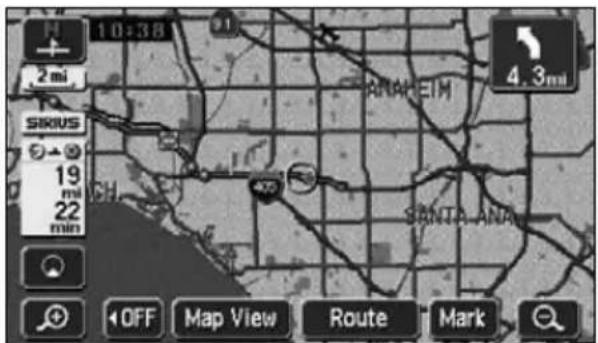
text_image
10:38 2 mi SIXUS 19 mi 22 min ANAHEIM 4.3mi SANTA ANA OFF Map View Route Mark3. Searching uncrowded route function
2 Touch Detour
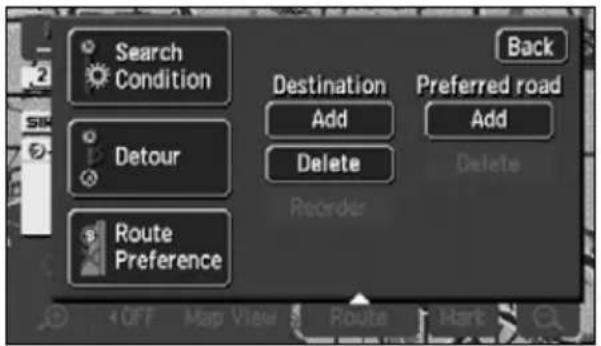
text_image
Search Condition Detour Route Preference Destination Add Delete Recorder Back Preferred road Add Delete OFF Map View Route Hart3 Touch Around Traffic
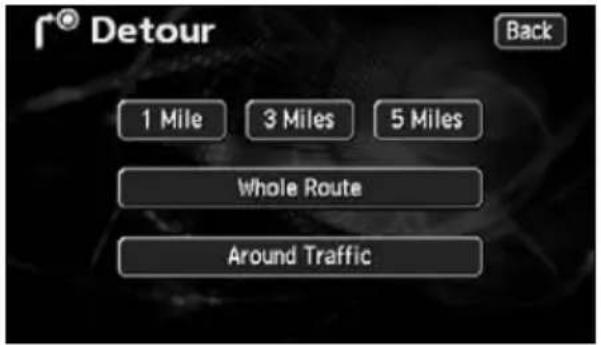
text_image
f® Detour Back 1 Mile 3 Miles 5 Miles Whole Route Around Traffic4 The route avoiding crowded roads is searched.
- According to the situation of traffic, the same route may be selected again.
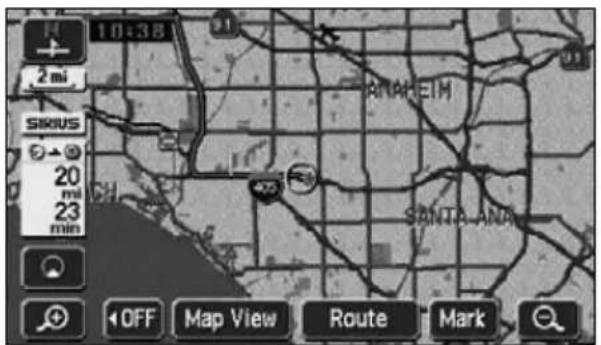
text_image
10:38 2 mi SIXUS 20 mi 23 min ANAHEIM SANTA ANA OFF Map View Route Mark5 When the traffic information is updated while driving, the screen as shown at right is displayed.
- By touching Yes or route is searched again using the updated information.
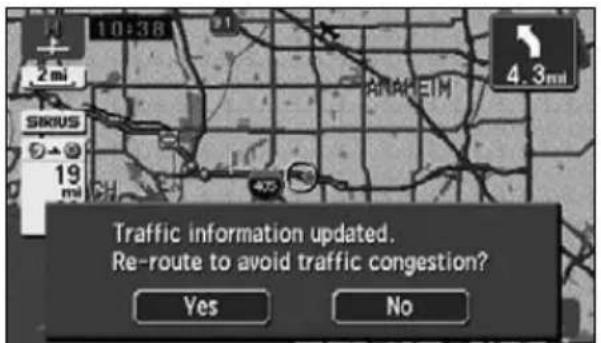
text_image
Traffic information updated. Re-route to avoid traffic congestion? Yes No
ATTENTION
The searched route is just for reference to your destination. It is not necessarily the shortest, fastest nor less crowded route.
MEMO
natural_image
Illustration of a car steering wheel with city skyline background (no text or symbols)RTTI (Real Time Traffic Information)
1. Information screen
The information function contains "SETTING", "ESN" and "SYSTEM CHECK". The "CAMERA SCREEN" and "SIRIUS ID" function can be operated by installing the optional items.
Information screen
1 Press MENU when touch to disp INFO INFORMATION screen.
2 Touch the touch switch.
- Select an item.
- The following functions are possible from the information screen.
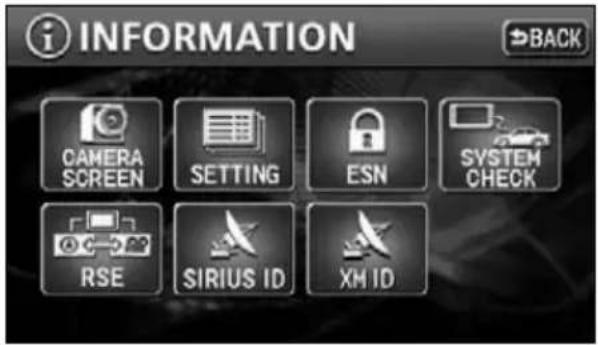
text_image
i INFORMATION BACK CAMERA SCREEN SETTING ESN SYSTEM CHECK RSE SIRIUS ID XM ID| Display order/item (touch switch) Function Page | |||
| 1 CAMERA SCREEN Display of Rear View Camera 136 | |||
| 2 SETTING | Settings for the background, beep, etc. | OPERATION GUIDE/ Audio | |
| Setting for Rear View Camera 140 | |||
| 3 ESN | Settings for the ESN (ECLIPSE Security Network) | OWNER'S MANUAL | |
| 4 SYSTEM CHECK Display of system status 135 | |||
| 5 RSE | Setting the DUAL PLAY | OPERATION GUIDE/ Audio | |
| 6 SIRIUS ID | Display of the SIRIUS ID | OPERATION GUIDE/ Audio | |

ATTENTION
CAMERA SCREEN button is available when backeye camera (BEC106) is conneted.
SYSTEM CHECK screen
1 Touch SYSTEM CHECK INFORMATION screen.
- The SYSTEM CHECK screen is displayed.
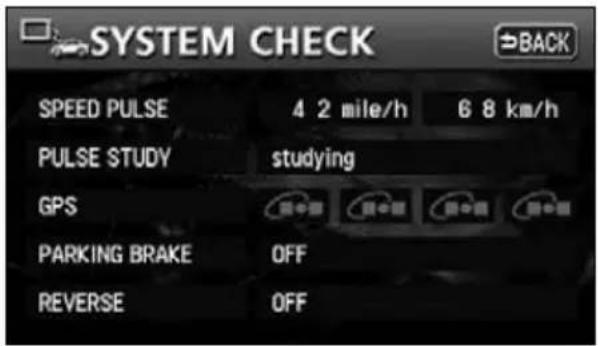
text_image
SYSTEM CHECK SPEED PULSE 4 2 mile/h 6 8 km/h PULSE STUDY studying GPS PARKING BRAKE OFF REVERSE OFF| Item (touch switch) Function | |
| SPEED PULSE Displays the current vehicle speed. | |
| PULSE STUDY | Studies the vehicle speed during events such as tire changes.Studying: Pulse study in progressComplete: Pulse study completed |
| GPS Displays the GPS reception status. | |
| PARKING BRAKE | Displays the parking brake status.ON: Parking brake appliedOFF: Parking brake not applied |
| REVERSE | Displays the reverse gear selection status.ON: Reverse gear selectedOFF: Reverse gear not selected |
1. Rear View Camera operations
When the optional Rear View Camera is installed, the rear view image can be displayed on the monitor screen.

- Do not rely too heavily on the Rear View Camera.
- Please use the Rear View Camera as a back up means to check for obstructions behind the vehicle.
- Raindrops or other natural phenomena may blur the camera's image.
- Do not backup your vehicle looking only at the monitor. Use the rear view mirror and both side mirrors to check for any obstruction behind or around your vehicle.
- Do not use the Rear View Camera in the following situations:
- On frozen, slippery or snowbound roads
- With the trunk opened
- When using tire chains or a spare tire
- On a slope or any uneven road
- When the external air temperature is low, the image may darken or become faint. Images of moving objects in particular may be distorted, or they may not be visible on the screen, so the driver must confirm safety around the vehicle directly by eye.

- The actual position and distance of people or objects may vary depending on the features of the camera lens.
- Do not expose the camera to strong shocks such as hitting it or knocking it onto other objects. The Rear View Camera may not function properly if the position of the camera or its mounting angle is incorrect.
- The camera is waterproof. Do not uninstall, dismantle or reconfigure the unit. Otherwise, the Rear View Camera may not function properly.
- If strongly rubbing the camera cover or using a hard brush or abrasive to clean it, the camera may get scratched adversely affecting the image quality.
- The camera cover is made of plastic. Do not apply an organic solvent, body wax, oil remover, glass coating, etc. If having applied any of the above, wipe it off immediately.
- Pouring hot water on the Rear View Camera to deice it in cold weather can lead to a drastic change in temperature that may render normal operation impossible.
- The Rear View Camera may not operate normally if the camera is damaged as a result of having hit the unit. Immediately bring it to the store of purchase for an inspection.
- Do not leave it in direct sunlight for long periods of time. Otherwise, a printed image phenomenon may result.
- The figure is merely an example. The range appearing on the monitor screen varies depending on the vehicle model.
- The instant the vehicle is put in reverse, part of the monitor will appear white then gradually stabilize.
- A white vertical band will appear when struck by light from the sun, headlights or any other strong light beam source (Smear effect).
• After having used the unit for a long time, white scratches and vertical lines may appear due to a rise in temperature depending on the features of the CCD. - The 50 Hz power source range fluorescent light may cause flickering in the screen. This is not a malfunction.
- Because the Rear View Camera uses a special lens, the image and distance appearing on the screen differs from the actual image and distance.
1. Rear View Camera operations
Rear View Camera image
Displaying the rear view image manually (MANUAL)
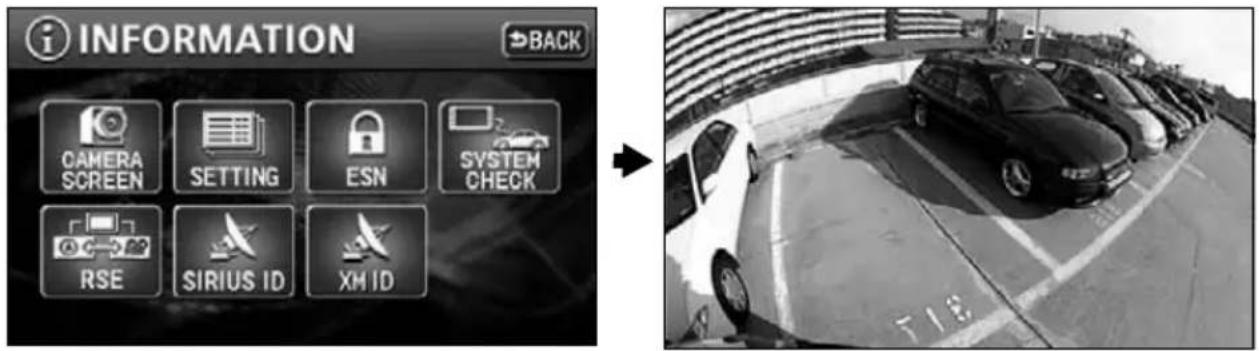
text_image
i INFORMATION BACK CAMERA SCREEN SETTING ESN SYSTEM CHECK RSE SIRIUS ID XH ID1 Touch CAMERA SCREEN N screen.
- The rear image appears on the monitor screen.
- Touch any of the following switches to return to the normal screen:
MAP MENU
Displaying the rear view image in reverse gear (AUTO)
To display the rear view image in reverse gear, set "AUTO" for the "CAMERA SCREEN" setting in advance. (Refer to page 140)
1 Select reverse gear.
- The rear image appears on the monitor screen.
- On shifting to any gear other than reverse, the normal screen is redisplayed.

- The range of the image may vary depending on the vehicle and the road conditions.
- There is a limit to the range of the camera. Objects near the ends of the bumper and under the bumper cannot appear.
- The rear image color may vary from the actual objects.
- The image brightness and contrast can be adjusted. (Refer to "Adjusting/setting the screen" in the OPERATION GUIDE/ Audio.)
- Depending on the vehicle, the back guideline may appear misaligned on the left and right. This is not a malfunction.
- In the following situations, the screen may be difficult to view but does not constitute a malfunction.
• In a dark area (such as at night)
• The temperature near the camera is high or low - Raindrops are on the camera lens or the humidity is high (when raining)
- A foreign object is near the camera (such as mud)
- When the sun or a beam from headlights strikes the camera lens directly
- When a high-luminance point strikes the camera (such as the reflection of the sun's rays on the chassis), a Smear effect* typical of CCD cameras may occur.
[Screen condition]
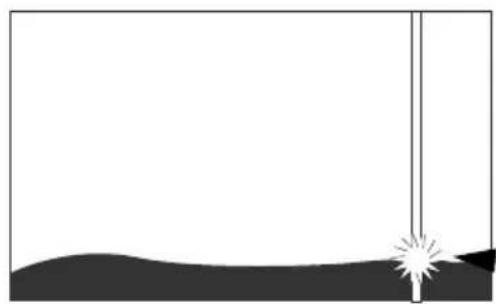
natural_image
Simple black-and-white diagram with a starburst at the bottom left corner and vertical lines, no text or symbols present.*Smear effect: A phenomenon where a vertical line appears from a high-luminance point striking the camera (such as the reflection of the sun's rays on the chassis).
High-luminance point
1. Rear View Camera operations
Rear View Camera settings
You can select whether or not the rear view image is automatically displayed on the monitor on selecting reverse gear.
1 Touch SETTING ORMATION screen.
2 Touch AUTO MANUAL
CAMERA SETTING.
• AUTO view image is displayed in reverse gear.
- MANUAL w image
can be displayed by
touching
CAMERA SCREEN
on the INFORMATION screen.
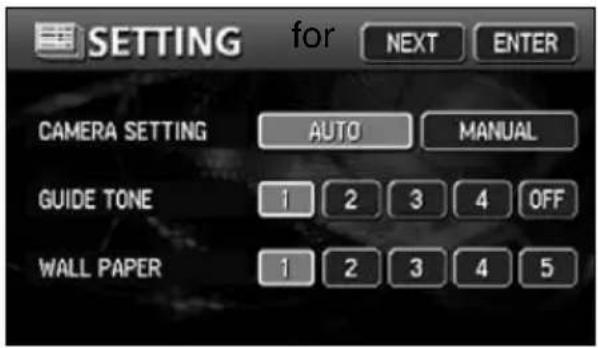
text_image
SETTING for NEXT ENTER CAMERA SETTING AUTO MANUAL GUIDE TONE 1 2 3 4 OFF WALL PAPER 1 2 3 4 5
Even when "AUTO" is set, the rear view image can be displayed by touching
CAMERA SCREEN on the INFORMATION screen.
MEMO
natural_image
Illustration of a car steering wheel with city skyline background (no text or symbols)Optional
function
1. Correction of the present location and distance
A correction is necessary in the following situations:
- When changing a tire: perform an automatic correction (Distance correction) Also, a correction can also be made in the following situations.
- When the vehicle position mark appears in a location different from the actual present location (the vehicle position mark is misaligned), the vehicle position mark position and direction can be corrected. (Present location correction)
- When the progression of the vehicle position mark on the map and the actual progression of the vehicle while driving: the vehicle position mark progression can be corrected. (Distance correction)
However, even if the vehicle position mark on the map is misaligned, continue driving for a moment and the present location will be automatically corrected using map matching and GPS data. (Depending on the case, this may take several minutes.)
In the event the device does not use GPS data and the present location is not automatically corrected, park the vehicle in a safe area and perform present location correction.
Present location correction
1 Touch Setup Menu screen.
2 Touch Adjust for
3 Touch Position/Direction
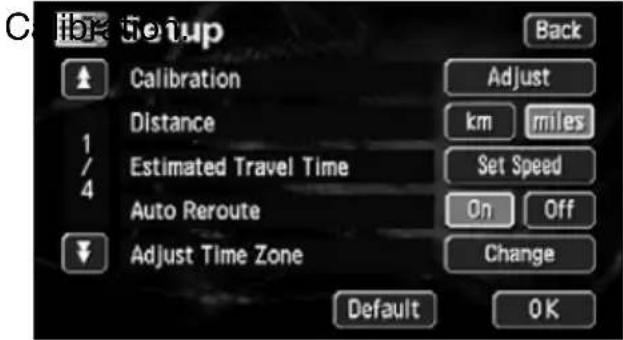
text_image
C:\Hok Setup Back Calibration Adjust Distance km miles Estimated Travel Time Set Speed Auto Reroute On Off Adjust Time Zone Change Default OK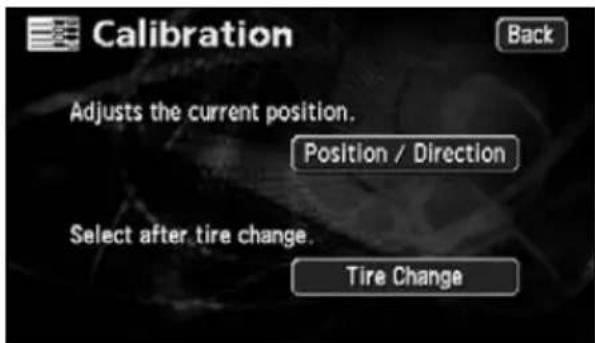
text_image
Calibration Adjusts the current position. Position / Direction Select after tire change. Tire Change4 Touch ↗.
- Move to the actual position of the present location on the map.
5 Touch Enter
6 Set the direction.
- To move the direction counterclockwise, touch ↓ To move it clockwise, touch ↓
7 Touch Enter
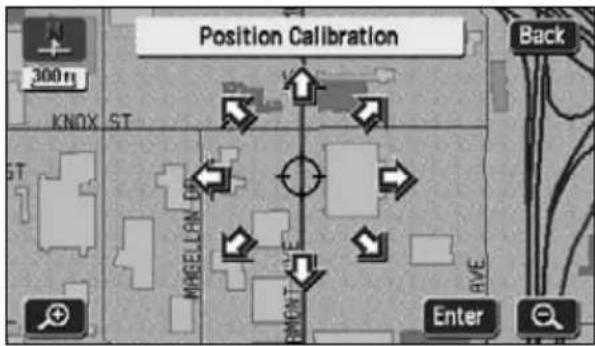
text_image
Position Calibration 300 m KNOX ST MHGELLAN MEAT RVE Enter Back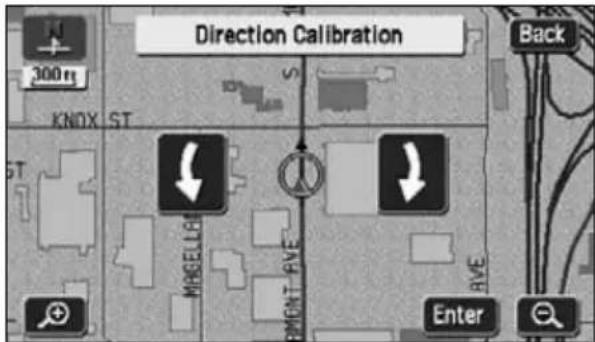
text_image
Direction Calibration 300 m KNOX ST MBGELLER EMEV Back EVE Enter1. Correction of the present location and distance
Correcting the distance
1 Touch Setup Menu screen.
2 Touch Adjust for
C
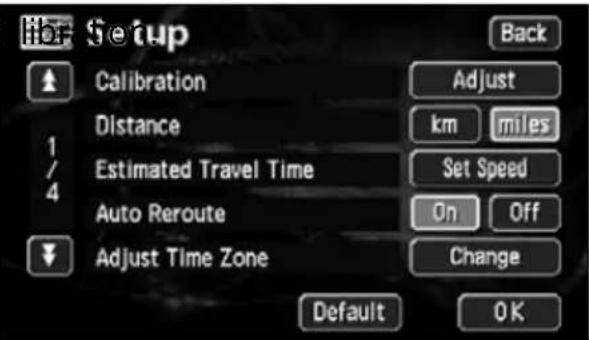
text_image
Setup Calibration Distance Estimated Travel Time Auto Reroute Adjust Time Zone Adjust km Set Speed On Change Default OK Back3 Touch Tire Change
• Automatic correction is performed.
- The touch switch turns brighter during automatic correction.
- Using GPS data, the correction will automatically be completed after driving a moment and the touch switch will turn back to blue.
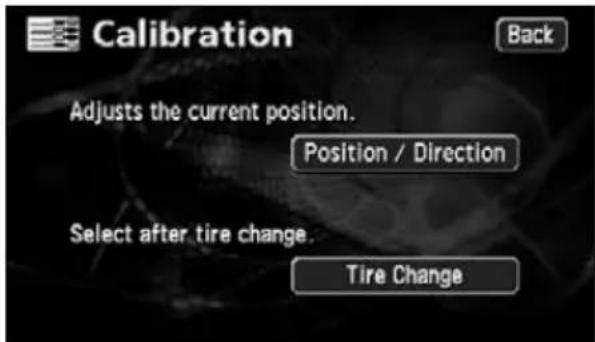
text_image
Calibration Adjusts the current position. Position / Direction Select after tire change. Tire Change
- The device performs automatic distance correction (automatic correction) using GPS and vehicle speed signals. This may be delayed in the event of a sharp deviation that overwhelms the automatic correction function (changing a tire, being towed by another vehicle, etc.) In such a case, drive about 6 miles along a road indicated by favorable GPS signal reception conditions.
- If correction is impossible, have the device inspected at the store of purchase.
- During automatic correction, the vehicle position may be misaligned.
- Even if the automatic correction is complete, because the distance correction has a learning function, there may be variations in the progression of the vehicle position mark depending on the driving conditions.
2. Map DVD-ROM data
The information on the map DVD-ROM can be viewed.
The figure below is merely an example. The displays may vary depending on the type of map DVD-ROM and when it was made.
Map DVD-ROM data display
1 Touch Map DVD u screen.
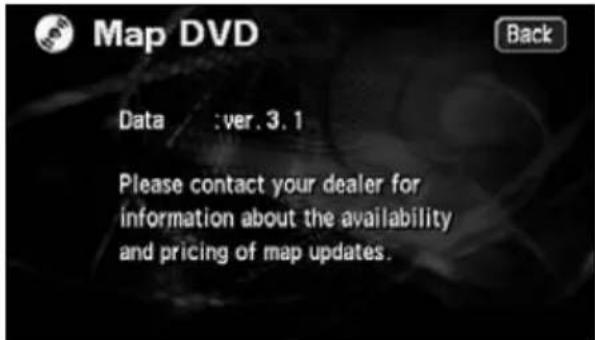
text_image
Map DVD Data :ver. 3.1 Please contact your dealer for information about the availability and pricing of map updates.3. Accuracy and error
Positioning accuracy
The GPS is a very accurate satellite controlled by the U.S. Department of Defense. Errors may result due to the occurrence of a multipath caused by reflections off buildings or other structures.
GPS signal quality and reception conditions
Any obstruction coming between the satellite and the GPS antenna will disrupt signal reception from the satellite.
Also, 3 or more signals must be received simultaneously to enable positioning. When driving along locations such as those shown below, GPS positioning is not possible.
In addition, obstructions placed on or near the GPS antenna (such as a load) will disrupt signals from the satellite.
- Because the GPS satellite orbits the earth, signal reception conditions may vary depending on the position of the satellite even if driving in the same area. Signals from a satellite orbiting near the horizon are more likely to be obstructed.
- The GPS satellite is controlled by the U.S. Department of Defense and can be deliberately made to lose positioning accuracy.
Underground, in a tunnel or in an indoor parking structure
Surrounded by obstructions such as tall buildings In a building
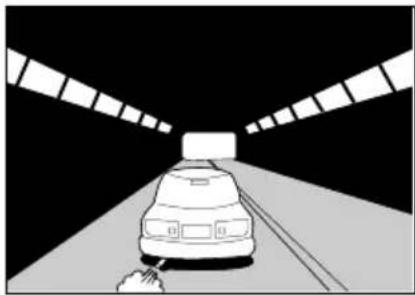
natural_image
Cartoon illustration of a car driving on a road under tunnel lighting (no text or symbols)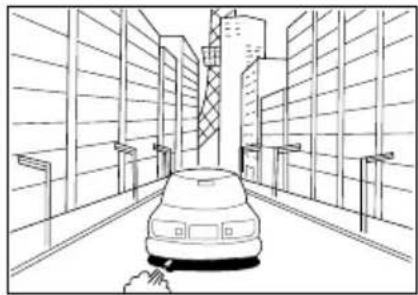
natural_image
Line drawing of a car driving on a multi-lane road with tall buildings (no text or symbols)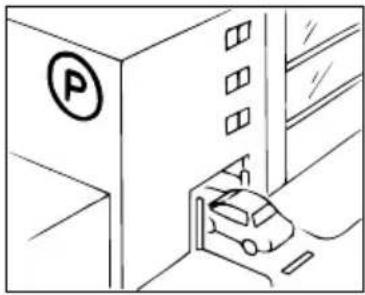
natural_image
Line drawing of a parking garage with a car parked at the gate, adjacent to a building labeled 'P' (no text or symbols on the diagram itself)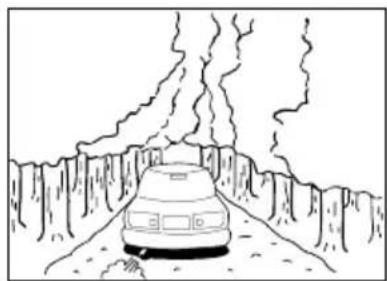
natural_image
Line drawing of a car driving on a dirt road with smoke rising from the roadside (no text or symbols)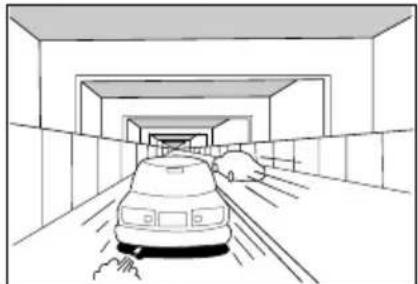
natural_image
Line drawing of a car driving through a tunnel with vehicles on the side (no text or symbols)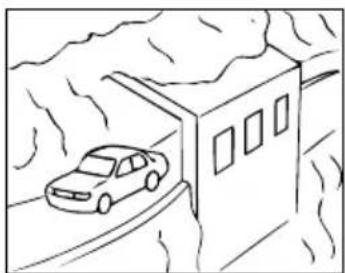
natural_image
Simple line drawing of a car parked near a building with wind or snow falling (no text or symbols)Densely wooded areas Under an elevated road On a cliff side road or at a cavern opening

Under the following conditions, make sure to install the GPS antenna in the position indicated in the instruction manual for your vehicle model.
- If the noise emitted from another electrical device diminishes signal reception.
- If this device may represent an obstruction to the proper operation of airbags.
- If the satellite signal received from the side or rear of the vehicle is diminished because of a windshield pillar or roof panel.
3. Accuracy and error
Present location display error
In order to find the exact position of the present location, this device uses compiled data from the GPS satellite, vehicle speed sensor and vibration gyro sensor. Because each of these contains a margin of error, the present location indicated may not coincide with your actual positioning.
If the indication is different from the actual positioning, the present location displayed can be corrected. Park the vehicle in a safe place first before proceeding.
Error due to having changed a tire
The device calculates the distance traveled by the vehicle using a speed sensor (in proportion to the tire rotation). The following situations would result in a significant error that may render proper present location positioning impossible.
- When using a sub-standard tire
- When driving on a snow covered, gravel road or any slippery road
- When the tire air pressure is incorrect
- When using new tires (the distance correction coefficient setting can be changed and adjusted)
Correcting the map matching vehicle position sensor
Map matching is a system that compares present location positioning data from the GPS and other sources with information concerning all the roads driven on until now in order to correct the present location onto the most appropriate road.
This device corrects the present location data compiled from a combination of independent navigation and satellite navigation and matches it with the shape of the road.
However, there may be instances when the present location error cannot be avoided and the position indicated on the map does not coincide with your actual positioning even after a correction using map matching.
Also, driving along a road whose actual shape differs from the map data may result in a vehicle position mark misalignment.
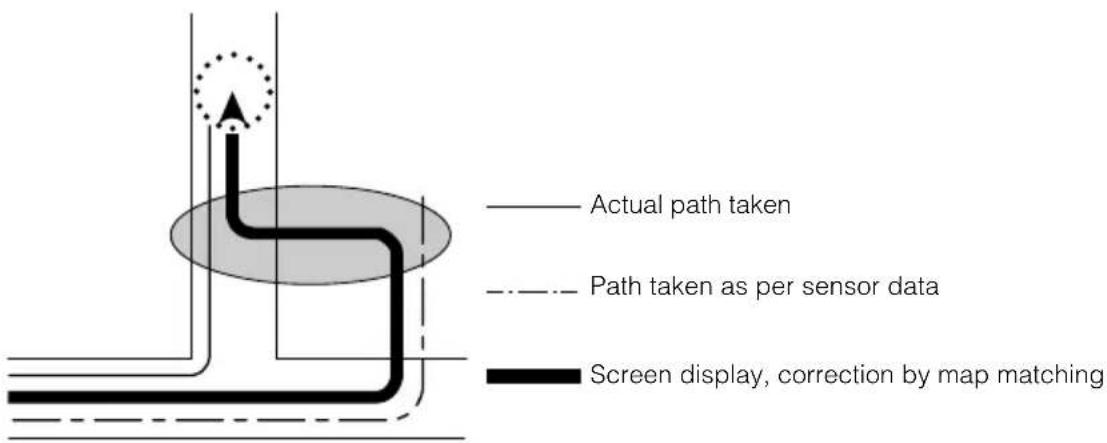
text_image
Actual path taken Path taken as per sensor data Screen display, correction by map matchingPresent location display, route guidance accuracy
The following situations are not malfunctions but merely some examples where inaccurate present location positioning and/or route guidance occurs depending on the road and driving conditions.
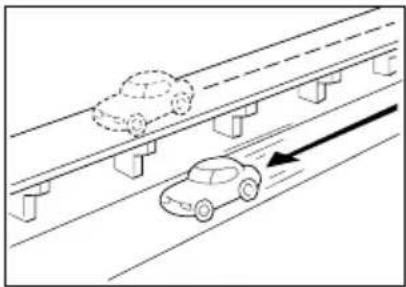
natural_image
Diagram of a car driving on an elevated road with a dashed vehicle in the background (no text or symbols)The present location appears on a road running parallel to the road taken.
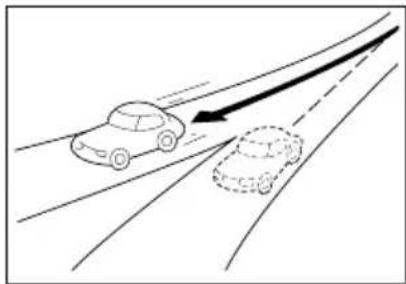
natural_image
Diagram showing a car driving on a curved road with an arrow indicating direction (no text or symbols)When turning on a road forking into two roads making a "Y" shape, the present location appears on the other road.
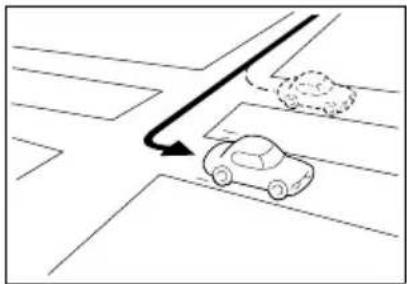
natural_image
Diagram showing a car driving on a road with an arrow indicating direction (no text or symbols)When making a turn, the present location appears on the road just before or after the road turned on.
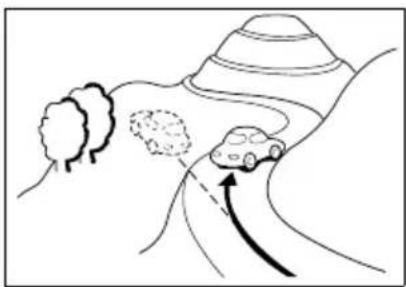
natural_image
Simple line drawing of a car driving on a curved road with trees and hills (no text or symbols)The present location appears misaligned when driving on steep roads.
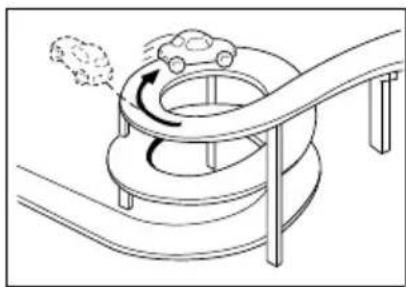
natural_image
Diagram of a mechanical device with rotating components and a curved path (no text or symbols)The present location appears misaligned when driving on a continuous curve in the same direction.
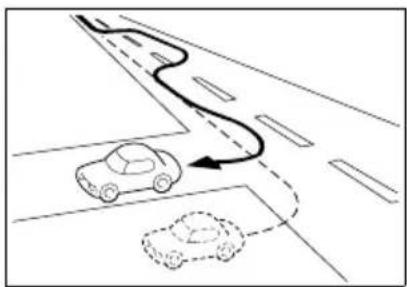
natural_image
Diagram showing a car driving on a road with a curved path and a dashed line indicating motion (no text or symbols)The present location appears misaligned when meandering such as changing lanes.
3. Accuracy and error
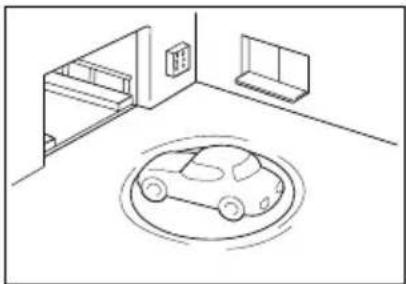
natural_image
Isometric line drawing of a car parked in a garage with two compartments (no text or symbols)The present location appears misaligned when the vehicle is rotated on a parking structure turntable with the ACC turned OFF.
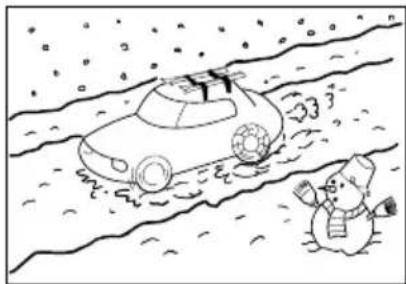
natural_image
Cartoon illustration of a snowman and a car driving through water, with snow falling (no text or symbols)The present location appears misaligned when driving on a snowbound or slippery road or when using tire chains.
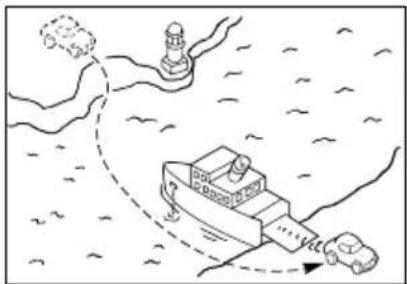
natural_image
Line drawing of a ship navigating through water with a lighthouse and two cars nearby (no text or symbols)When the vehicle is moved by ferry or a means other than being driven, the GPS positioning will indicate a present location on the spot where the vehicle was prior to being moved.
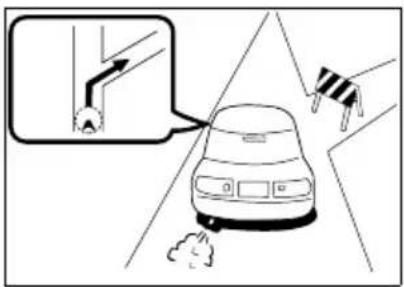
text_image
Diagram showing a car accident with a warning sign and a magnified detail of a road ahead, including Chinese text labels.When route guidance indicates a road that is actually blocked off (regular traffic prohibited).
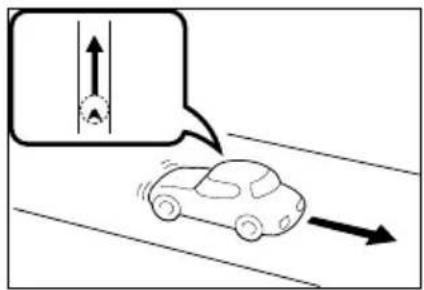
text_image
Diagram showing a car driving on a road with an upward arrow and speech bubble, indicating speed or direction of motion.The present location appears misaligned when turning back.
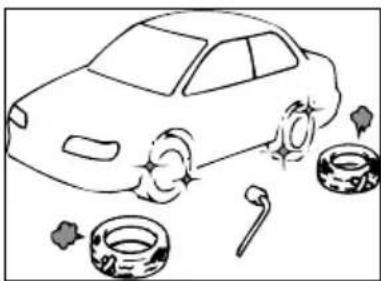
natural_image
Line drawing of a car with wheels and a wrench, no text or symbols presentWhen having changed a tire(s), the vehicle position mark may be misaligned.
Road and geographic name data
The roads and geographic names are subject to change after the compilation of the map database and may differ from the actual roads and names.
Route guidance
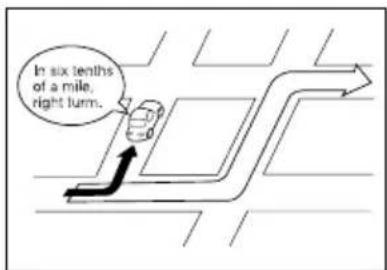
text_image
In six tenths of a mile, right turn.When having turned on an intersection that is not part of the route guidance, there may be an error in the voice guidance instructions.
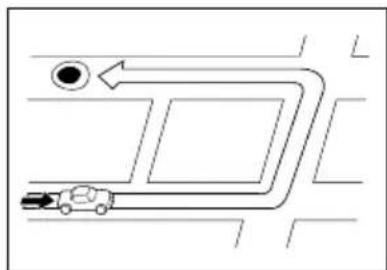
natural_image
Diagram of a car driving on a curved road with directional arrows indicating flow (no text or symbols)When searching for a route, the route provided may include a detour.
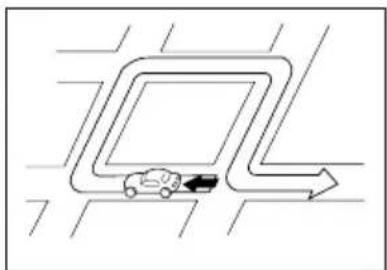
natural_image
Diagram of a car driving on a curved road with directional arrows (no text or symbols)The route guidance may instruct a U-turn.
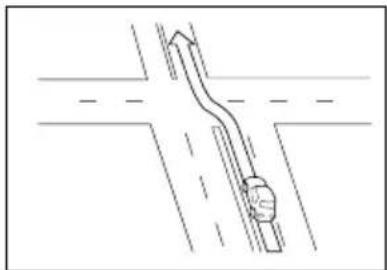
natural_image
Diagram of a road intersection with a curved ramp and vehicle (no text or symbols)When driving on a straight road, the route guidance may instruct you to go straight (in cases where the shape of intersections is difficult to determine).
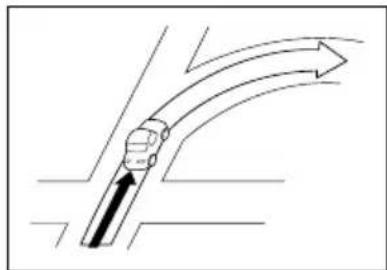
natural_image
Diagram of a curved pipe or pipe with directional arrows indicating flow or movement (no text or symbols)No route guidance may occur even if turning at an intersection.
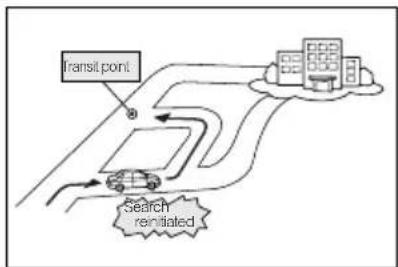
flowchart
graph TD
    A["Transit point"] --> B["Search result"]
    B --> C["Car"]
    C --> D["Building"]
    style A fill:#f9f,stroke:#333
    style B fill:#ccf,stroke:#333
    style C fill:#cfc,stroke:#333
    style D fill:#fcc,stroke:#333
When driving towards the destination without passing through a transit point, the device may reinitiate a route search and provide a new route that takes you towards that transit point.
3. Accuracy and error
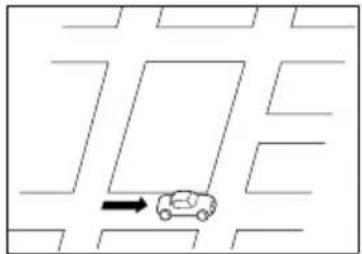
natural_image
Diagram showing a car moving along a road with directional arrow (no text or symbols)When searching for a route, the route display may not appear in time for the next turn.
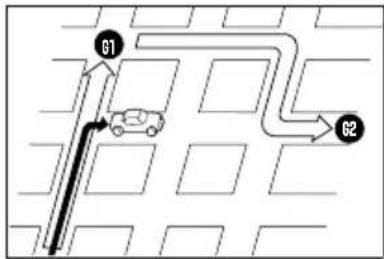
flowchart
graph TD
    A["Start"] --> B["G1"]
    B --> C["Car at center"]
    C --> D["G2"]
    D --> E["End"]
In case of multiple destinations, when having bypassed the next destination, a route search is reinitiated to provide a route returning to it.
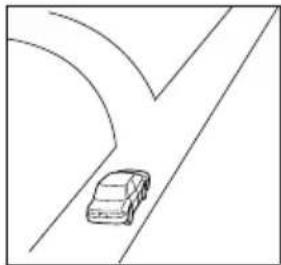
natural_image
Simple line drawing of a car driving on a curved road (no text or symbols)While providing guidance on where you are headed, several geographical names may be indicated.
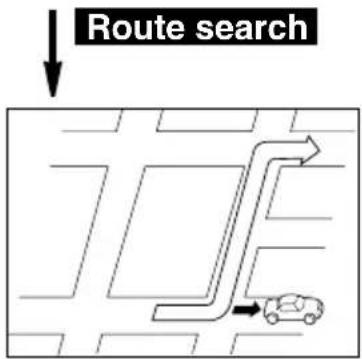
text_image
Route search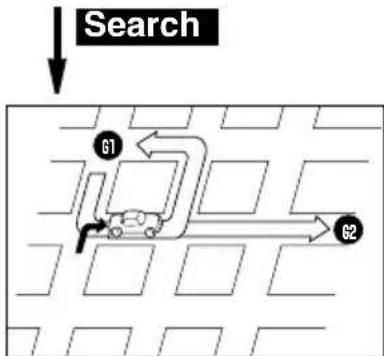
flowchart
graph TD
    A["Search"] --> B["G1"]
    B --> C["Vehicle with Arrow G2"]
    C --> D["Path to G2"]
    style A fill:#f9f,stroke:#333
    style D fill:#bbf,stroke:#333
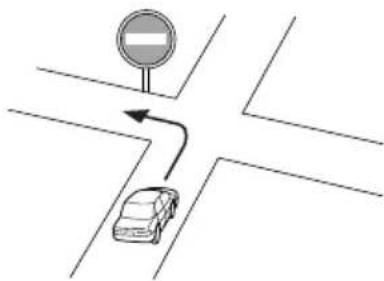
natural_image
Diagram showing a car driving on a crosswalk with a traffic sign and curved arrow (no text or symbols)Drive following the actual traffic regulations.
- The time it takes the device to reinitiate a route search while driving on a highway may be lengthy.
- When correcting the present location mark manually and then driving under conditions where the positioning is not corrected, the position will not be properly indicated.
- The route may not change even if reinitiating a search.
- If having set a present location, destination or transit point on a remote island or in an area where there are no guidable roads, the device may not search for a route.
- The device may not search for a route if the present location and the destination are in close proximity.
- The route guidance will not necessarily recommend toll roads even if having selected to prioritize toll roads in the search conditions.
Similarly, even if having selected not to prioritize toll roads, a route using toll roads may be displayed.
(The "Prioritize/Do not prioritize toll roads" setting enables the prioritization of either toll roads or local roads when a selection of one is made possible.)
MEMO
natural_image
Illustration of a car steering wheel with city skyline background (no text or symbols)1. Information you should know
If one of these messages appears
If any of the following messages are displayed, check the equipment while referring to the Cause and Remedy columns.
Messages related to general navigation
| Messages Cause Corrective action | ||
| Check GPS antenna | The GPS antenna is not connected properly. | Connect the GPS antenna properly. |
| Check speed pulse | The device is not properly connected to the vehicle speed sensor. Each time the disconnected battery is reconnected, this is displayed. | Connect the vehicle speed sensor properly. The input status of the vehicle speed signal can be confirmed on the SYSTEM CHECK screen. |
| No DVD. Please insert map DVD. | The map disk is not inserted. Insert the | map disk. |
| Unable to read data. Check if map DVD is correct. | A disk other than the map disk is inserted. | Remove the inserted disk and insert the correct map disk. |
| Unable to read DVD correctly. Check if the DVD is damaged or dirty. | The data cannot be read due to scratches and/or dirt on the map disk. | Check whether there are any scratches and/or dirt on the map disk and contact the store of purchase. |
| DVD check in process. | The device is now reading the map disk data. | Wait until a map is displayed on the screen. |
| Unable to read data. Temperature is too high. | The DVD player temperature is high. | Wait until the temperature has fallen. |
| Too many characters were input. | Character entry count for memory point names beyond capacity. | Decrease the character entry count and reenter. |
| No previous points registered. | There are no previously set destinations. | Register a destination in the archive and proceed. (Setting a destination registers it in the archives.) |
| Home is not registered. Register in menu Memory Point. | Your home is not registered as a memory point. | Register your home as a memory point and proceed. (Refer to page 105) |
| No quick access point registered. Register in menu Memory Point. | A special memory is not registered for the memory point. | Register a special memory for the memory point and proceed. (Refer to page 119) |
| No roads possible for guidance near current position. Please refer to map. | There are no roads where route guidance is possible in the vicinity of the present location. | Refer to a map and proceed. |
| No roads possible for guidance near current position and destination. Please refer to map. | There are no roads where route guidance is possible in the vicinity of the present location and destination. | Refer to a map and proceed. |
| No roads possible for guidance near destination. Please refer to map. | There are no roads where route guidance is possible in the vicinity of the destination. | Refer to a map and proceed. |
| Seasonal traffic restricted roads on this route. | The system searched for a route that included a seasonally restricted segment. | If changing to a route that bypasses the seasonally restricted segment is desired, bypass the restricted segment after changing the route. (Refer to page 74) |
| Destination too far. Please change to a point within 5000 km in a straight line. | The set destination is too far. | Set the destination within a 5,000 km distance in straight line. |
| 2 preferred roads have been set. Perform operation again after deleting them. | You attempted to set 3 or more transit road indications when changing the route. | Up to 2 transit roads can be indicated. Delete unnecessary transit roads before adding a new one. |
| No roads possible for guidance nearby. Perform operation again after moving. | There are no roads available to serve as transit roads when indicating one for a route change. | Move the map and indicate a transit road among the roads in the vicinity. |
| Unable to save additional points. Please delete some points. | You attempted to set more than 5 destinations. | Up to 5 destinations can be set. Delete unnecessary destinations and proceed with adding new ones. (Refer to page 83) |
| Unable to search for new route. Previous route will be displayed. | A new route could not be found when reinitiating a route search. | Route guidance will proceed using the present route. (Drive referring to the route guidance.) |
| Destination is nearby. Please check the map. | You attempted to set the destination in a nearby location. | The destination is nearby. Refer to the map and continue driving. |
| No corresponding POI nearby. | There is no corresponding POI found nearby for the POI search in the vicinity. | Search for the POI in another area. |
| No corresponding POI on route. | There is no corresponding POI found nearby for the POI search along the route. | Search for the POI in another area. |
| Position cannot be specified in this scale. Switching to more detailed map. | You attempted to set/register a destination/memory point on a map with a reduction scale of more than 0.5 miles. | Set/register a destination/memory point on a more detailed map (with a reduction scale of less than 0.5 miles). |
For
reference
1. Information you should know
| Messages Cause Corrective action | ||
| The destination is surrounded by water. Change destination? | There is a river or other body of water between the destination and the nearest road. | TouchYese the map and set a destination near the road.TouchNoset the destination on the position displayed. |
| No memory point registered. Register in menu Memory Point. | You attempted to retrieve a map using a memory point when there is none registered. | Register a memory point and proceed. (Refer to page 109) |
| Unable to register additional points. Perform operation again after deleting unnecessary points. | You attempted to register a memory point when there are 106 points already registered. | Delete unnecessary memory points and proceed to register a new one. (Refer to page 118) |
Before asking for repairs
Slight differences in operation can sometimes be mistaken for malfunctions, so check the following table before asking for any repairs.
If the following fail to solve the problem, contact the place of purchase.
Items related to general navigation functions
| Symptom Possible reason Corrective action | ||
| The map does not move even when driving. | Is the display showing a screen other than the present location screen? | Display the present location screen. (Refer to page 29) |
| The vehicle position mark does not appear. | Is the display showing a screen other than the present location screen? | Display the present location screen. (Refer to page 29) |
| The GPS mark does not appear. | Is the device in a situation where GPS data cannot be utilized? | Move the vehicle to an area free of obstructions or remove the object placed on the GPS antenna. |
| Voice guidance not outputted. | Is the "Voice Guidance" item for set up set to Off | Touch On Voice Guidance" in set up. |
| Is the guidance paused? | If the route guidance is paused, resume guidance. (Refer to page 87) | |
| Is the guidance volume turned down (voice OFF)? | Turn up the volume. (Refer to page 28) | |
| Small blemishes or luminescent spots on the monitor screen | This phenomenon is characteristic of liquid crystal panels. The liquid crystal panel is make with high-tech precision and has 99.99% or more effective imaging. | This is not a defect, so please use the equipment in this condition. |
| For a moment after turning the engine switch ON, there is an irregular display on the screen. | In cold weather, the liquid crystal panel's backlight features may emit light unevenly. | This condition stops in a few minutes as the backlight warms up. |
| The screen is difficult to view. | Are the contrast and brightness correctly adjusted? | Adjust the contrast and brightness. (Refer to page 24) |
| The vehicle position mark appears on a spot different from the actual present location. (The vehicle position mark is misaligned.) | The vehicle position mark may be misaligned depending on the satellite conditions or vehicle conditions (where and how the vehicle is driven). Also, the vehicle position mark may be misaligned if driving on a newly constructed road or on a road with a shape that differs from the shape recorded in the map data. | Continue driving and, in a moment, the present location will be automatically corrected using the map matching and GPS data. (Depending on the case, this may take several minutes.) If signals from the GPS are not utilized and the present location is left uncorrected, park the vehicle in a safe place and correct the present location. (Refer to page 142) |
2. Copyright
©2008 DENSO CORPORATION
©2006 NAVTEQ. All rights reserved.
©2006 Tele Atlas North America, Inc. All rights reserved. This material is proprietary and the subject of copyright protection and other intellectual property rights owned by or licensed to Tele Atlas North America, Inc. The use of this material is subject to the terms of a license agreement. You will be held liable for any unauthorized copying or disclosure of this material.
Data by infoUSA Copyright ©2006, All Rights Reserved.
©2006 VISA Corporation
National Research Bureau ©2006
The Bullseye Design is a registered trademark of Target Brands, Inc.
©MAPMASTER
END-USER TERMS
The data ("Data") is provided for your personal, internal use only and not for resale. It is protected by copyright, and is subject to the following terms and conditions which are agreed to by you, on the one hand, and DENSO CORPORATION ("[CLIENT]") and its licensors (including their licensors and suppliers) on the other hand.
©2006 NAVTEQ. All rights reserved.
The Data for areas of Canada includes information taken with permission from Canadian authorities, including: © Her Majesty the Queen in Right of Canada, © Queen's Printer for Ontario, © Canada Post Corporation, GeoBase ®.
NAVTEQ holds a non-exclusive license from the United States Postal Service® to publish and sell ZIP+4 ® information.
© United States Postal Service ® 2006. Prices are not established, controlled or approved by the United States Postal Service ®. The following trademarks and registrations are owned by the USPS: United States Postal Service, USPS, and ZIP+4.
TERMS AND CONDITIONS
Personal Use Only
You agree to use this Data together with the navigation system for the solely personal, non-commercial purposes for which you were licensed, and not for service bureau, timesharing or other similar purposes. Accordingly, but subject to the restrictions set forth in the following paragraphs, you may copy this Data only as necessary for your personal use to (i) view it, and (ii) save it, provided that you do not remove any copyright notices that appear and do not modify the Data in any way. You agree not to otherwise reproduce, copy, modify, decompile, disassemble or reverse engineer any portion of this Data, and may not transfer or distribute it in any form, for any purpose, except to the extent permitted by mandatory laws. Multi-disc sets may only be transferred or sold as a complete set as provided by [CLIENT] and not as a subset thereof.
Restrictions
Except where you have been specifically licensed to do so by [CLIENT] and without limiting
the preceding paragraph, you may not (a) use this Data with any products, systems, or applications installed or otherwise connected to or in communication with vehicles, capable of vehicle navigation, positioning, dispatch, real time route guidance, fleet management or similar applications; or (b) with or in communication with any positioning devices or any mobile or wireless-connected electronic or computer devices, including without limitation cellular phones, palmtop and handheld computers, pagers, and personal digital assistants or PDAs.
Warning
The Data may contain inaccurate or incomplete information due to the passage of time, changing circumstances, sources used and the nature of collecting comprehensive geographic data, any of which may lead to incorrect results.
No Warranty
This Data is provided to you "as is," and you agree to use it at your own risk. [CLIENT] and its licensors (and their licensors and suppliers) make no guarantees, representations or warranties of any kind, express or implied, arising by law or otherwise, including but not limited to, content, quality, accuracy, completeness, effectiveness, reliability, fitness for a particular purpose, usefulness, use or results to be obtained from this Data, or that the Data or server will be uninterrupted or error-free.
Disclaimer of Warranty
[CLIENT] AND ITS LICENSORS (INCLUDING THEIR LICENSORS AND SUPPLIERS) DISCLAIM ANY WARRANTIES, EXPRESS OR IMPLIED, OF QUALITY, PERFORMANCE, MERCHANTABILITY, FITNESS FOR A PARTICULAR PURPOSE OR NON-INFRINGEMENT. Some States, Territories and Countries do not allow certain warranty exclusions, so to that extent the above exclusion may not apply to you.
Disclaimer of Liability
[CLIENT] AND ITS LICENSORS (INCLUDING THEIR LICENSORS AND SUPPLIERS) SHALL NOT BE LIABLE TO YOU: IN RESPECT OF ANY CLAIM, DEMAND OR ACTION, IRRESPECTIVE OF THE NATURE OF THE CAUSE OF THE CLAIM, DEMAND OR ACTION ALLEGING ANY LOSS, INJURY OR DAMAGES, DIRECT OR INDIRECT, WHICH MAY RESULT FROM THE USE OR POSSESSION OF THE INFORMATION; OR FOR ANY LOSS OF PROFIT, REVENUE, CONTRACTS OR SAVINGS, OR ANY OTHER DIRECT, INDIRECT, INCIDENTAL, SPECIAL OR CONSEQUENTIAL DAMAGES ARISING OUT OF YOUR USE OF OR INABILITY TO USE THIS INFORMATION, ANY DEFECT IN THE INFORMATION, OR THE BREACH OF THESE TERMS OR CONDITIONS, WHETHER IN AN ACTION IN CONTRACT OR TORT OR BASED ON A WARRANTY, EVEN IF [CLIENT] OR ITS LICENSORS HAVE BEEN ADVISED OF THE POSSIBILITY OF SUCH DAMAGES. Some States, Territories and Countries do not allow certain liability exclusions or damages limitations, so to that extent the above may not apply to you.
Export Control
You agree not to export from anywhere any part of the Data provided to you or any direct product thereof except in compliance with, and with all licenses and approvals required under, applicable export laws, rules and regulations.
Entire Agreement
These terms and conditions constitute the entire agreement between [CLIENT] (and its licensors, including their licensors and suppliers) and you pertaining to the subject matter hereof, and supersedes in their entirety any and all written or oral agreements previously existing between us with respect to such subject matter.
2. Copyright
Governing Law
The above terms and conditions shall be governed by the laws of the State of Illinois, without giving effect to (i) its conflict of laws provisions, or (ii) the United Nations Convention for Contracts for the International Sale of Goods, which is explicitly excluded. You agree to submit to the jurisdiction of the State of Illinois for any and all disputes, claims and actions arising from or in connection with the Data provided to you hereunder.
Government End Users
If the Data is being acquired by or on behalf of the United States government or any other entity seeking or applying rights similar to those customarily claimed by the United States government, this Data is a "commercial item" as that term is defined at 48 C.F.R. ("FAR") 2.101, is licensed in accordance with these End User Terms, and each copy of the Data delivered or otherwise furnished shall be marked and embedded as appropriate with the following "Notice of Use," and shall be treated in accordance with such Notice:
NOTICE OF USE
CONTRACTOR (MANUFACTURER/SUPPLIER) NAME: NAVTEQ
CONTRACTOR (MANUFACTURER/SUPPLIER) ADDRESS:
222 Merchandise Mart Plaza, Suite 900, Chicago, Illinois 60654
This Data is a commercial item as defined in FAR 2.101 and is subject to the End User
Terms under which this Data was provided.
© 2006 NAVTEQ - All rights reserved.
If the Contracting Officer, federal government agency, or any federal official refuses to use the legend provided herein, the Contracting Officer, federal government agency, or any federal official must notify NAVTEQ prior to seeking additional or alternative rights in the Data.
2. Copyright
END USER LICENSE AGREEMENT
PLEASE READ THIS AGREEMENT CAREFULLY BEFORE USING THE NAVIGATION SYSTEM
THIS IS A LICENSE AGREEMENT FOR YOUR COPY OF THE SPATIAL MAP DATABASE, INCLUDING LOCATION CODES AND RELATED PRODUCTS (COLLECTIVELY, THE "DATABASE"), USED IN THE NAVIGATION SYSTEM. BY USING THE NAVIGATION SYSTEM AND THE DATABASE, YOU ACCEPT AND AGREE TO BE BOUND BY ALL TERMS AND CONDITIONS SET FORTH BELOW.
LICENSE GRANT
Denso Corporation ("Denso"), as a licensed distributor of the DATABASE, grants to you a non-exclusive, non-perpetual license to use your copy of the DATABASE for your personal use or for your use in your business' internal operations and not for any other purpose.
This license does not include the right to grant sub-licenses.
OWNERSHIP
The DATABASE and the copyrights and intellectual property and neighboring rights therein are owned by Tele Atlas North America, Inc. ("TANA") and its licensors. This Agreement does not transfer any title or interest in the DATABASE, except for the license to use the DATABASE according and subject to the terms and conditions of this Agreement. You shall not alter, obscure or remove any copyright notices, trademark notices or other restrictive legends relating to the DATABASE.
The DATABASE comprises confidential and proprietary information and materials of TANA. Accordingly, you shall hold the DATABASE in confidence and trust. You shall take reasonable steps to protect the DATABASE from misappropriation or misuse. You shall not extract standalone data from or publish any part of the DATABASE without the prior written consent of TANA and its licensors.
LIMITATIONS ON USE
The DATABASE is restricted for use in the specific system for which it was created. Except to the extent explicitly permitted by mandatory laws, you may not extract or reutilize any portion of the contents of the DATABASE, nor reproduce, copy, duplicate, modify, adapt, translate, disassemble, decompile, or reverse engineer any portion of the DATABASE.
TRANSFER
You may not transfer the DATABASE to third parties, except together with the system for which it was created, provided that you do not retain any copy of the DATABASE, and provided that the transferee agrees to all terms and conditions of this AGREEMENT.
DISCLAIMER OF WARRANTY
THE DATABASE IS PROVIDED ON AN "AS IS" AND "WITH ALL FAULTS BASIS" AND DENSO AND TANA (AND THEIR LICENSORS AND SUPPLIERS) EXPRESSLY DISCLAIM ALL OTHER WARRANTIES, EXPRESS OR IMPLIED, INCLUDING BUT NOT LIMITED TO,
THE IMPLIED WARRANTIES OF NON-INFRINGEMENT, MERCHANTABILITY, SATISFACTORY QUALITY, ACCURACY, TITLE AND FITNESS FOR A PARTICULAR PURPOSE. NO ORAL OR WRITTEN ADVICE OR INFORMATION PROVIDED BY DENSO OR TANA (OR ANY OF THEIR LICENSORS, AGENTS, EMPLOYEES OR THIRD PARTY PROVIDERS) SHALL CREATE A WARRANTY, AND YOU ARE NOT ENTITLED TO RELY ON ANY SUCH ADVICE OR INFORMATION. THIS DISCLAIMER OF WARRANTIES IS AN ESSENTIAL CONDITION OF THIS AGREEMENT.
LIMITATION OF LIABILITY
IN NO EVENT SHALL DENSO OR TANA (OR THEIR LICENSORS OR SUPPLIERS) BE LIABLE FOR ANY INCIDENTAL, CONSEQUENTIAL, SPECIAL, INDIRECT OR EXEMPLARY DAMAGES ARISING OUT OF THIS AGREEMENT OR YOUR USE OF THE DATABASE, INCLUDING, WITHOUT LIMITATION, LOST PROFITS OR COSTS OF COVER, LOSS OF USE OR BUSINESS INTERRUPTION OR THE LIKE, REGARDLESS OF WHETHER THE PARTY WAS ADVISED OF THE POSSIBILITY OF SUCH DAMAGES.
IN NO EVENT WILL THE TOTAL LIABILITY OF DENSO OR TANA (OR THEIR LICENSORS OR SUPPLIERS) EXCEED THE AMOUNTS PAID BY YOU FOR THE DATABASE.
WARNINGS
The DATABASE comprises facts and information from government and other sources reflecting circumstances in existence before you received the DATABASE, which may contain errors and omissions. Accordingly, the DATABASE may contain inaccurate or incomplete information due to the passage of time, changing circumstances, and due to the nature of the sources used. The DATABASE does not include or reflect information relating to, among other things, neighborhood safety; law enforcement; emergency assistance; construction work; road or lane closures; vehicle or speed restrictions; road slope or grade; bridge height, weight or other limits; road or traffic conditions; special events; traffic congestion; or travel time.
U.S. GOVERNMENT RIGHTS
If you are an agency, department, or other entity of the United States Government, or funded in whole or in part by the United States Government, then use, duplication, reproduction, release, modification, disclosure or transfer of this commercial product and accompanying documentation, is restricted in accordance with the LIMITED or RESTRICTED rights as described in DFARS 252.227-7014(a)(1) (JUN 1995) (DOD commercial computer software definition), DFARS 227.7202-1 (DOD policy on commercial computer software), FAR 52.227-19 (JUN 1987) (commercial computer software clause for civilian agencies), DFARS 252.227-7015 (NOV 1995) (DOD technical data - commercial items clause); FAR 52.227-14 Alternates I, II, and III (JUN 1987) (civilian agency technical data and noncommercial computer software clause); and/or FAR 12.211 and FAR 12.212 (commercial item acquisitions), as applicable. In case of conflict between any of the FAR and DFARS provisions listed herein and this Agreement, the construction that provides greater limitations on the Government's rights shall control. Contractor/manufacturer is Tele Atlas North America, Inc., 11 Lafayette Street, Lebanon, NH 03766-1445. Phone: 603.643.0330. The DATABASE is©1984-2006 by Tele Atlas North America, Inc. ALL RIGHTS RESERVED. For purpose of any public disclosure
2. Copyright
provision under any federal, state or local law, it is agreed that the DATABASE is a trade secret and a proprietary commercial product and not subject to disclosure.
If you are an agency, department, or other entity of any State government, the United States Government or any other public entity or funded in whole or in part by the United States Government, then you hereby agree to protect the DATABASE from public disclosure and to consider the DATABASE exempt from any statute, law, regulation, or code, including any Sunshine Act, Public Records Act, Freedom of Information Act, or equivalent, which permits public access and/or reproduction or use of the Licensed Products. In the event that such exemption is challenged under any such laws, this Agreement shall be considered breached and any and all right to retain any copies or to use of the DATABASE shall be terminated and considered immediately null and void. Any copies of the DATABASE held by you shall immediately be destroyed. If any court of competent jurisdiction considers this clause void and unenforceable, in whole or in part, for any reason, this Agreement shall be considered terminated and null and void, in its entirety, and any and all copies of the DATABASE shall immediately be destroyed.
END USER NOTICE
PLEASE READ THIS NOTICE CAREFULLY BEFORE USING THIS NAVIGATION SYSTEM
The Point Of Interest Data ("POI" Data) in the navigation system is in part provided by infoUSA Inc. ("infoUSA"). By using the POI Data, you accept and agree to all terms and conditions set forth below.
1. Ownership
All rights, title and interest to the infoUSA POI Data shall be retained by infoUSA.
2. Limitations on use
Except to the extent explicitly permitted by mandatory laws, you may not extract or re-utilize any portion of the contents of the POI Data, nor reproduce, copy, modify, adapt, translate, disassemble, decompile, or reverse engineer any portion of the POI Data.
3. Transfer
You may not transfer the POI Data to third parties, except together with the system for which it was created, provided that you do not retain any copy of the POI Data.
4. Disclaimer of warranty
EXCEPT AS STATED HEREIN, INFOUSA MAKES NO EXPRESS OR IMPLIED WARRANTIES, INCLUDING, WITHOUT LIMITATION, ANY EXPRESS OR IMPLIED WARRANTY OF FITNESS FOR A PARTICULAR PURPOSE OR WARRANTY OF MERCHANTABILITY.
5. Limitation of Liability
EITHER INFOUSA OR SUPPLIER OF POI DATA SHALL NOT BE LIABLE FOR ANY INDIRECT, CONSEQUENTIAL OR INCIDENTAL DAMAGES MADE OR ALLEGED IN CONNECTION WITH YOUR USE OF THE POI DATA.
END USER LICENSE AGREEMENT
Personal Use Only
You agree to use this information for solely personal, non-commercial purposes, and not for service bureau, time-sharing or other similar purposes. You may not modify the information or remove any copyright notices that appear on the information in any way. You may not decompile, disassemble or reverse engineer any portion of this information, and may not transfer or distribute it in any form, for any purpose. Without limiting the foregoing, you may not use this information with any products, systems, or applications installed or otherwise connected to or in communication with vehicles, capable of vehicle navigation, positioning, dispatch, real time route guidance, fleet management or similar applications.
2. Copyright
No Warranty
This information is provided to you "as is," and you agree to use it at your own risk. DENSO and its licensors (and their licensors and suppliers, collectively "DENSO") make no guarantees, representations or warranties of any kind, express or implied, arising by law or otherwise, including but not limited to, and DENSO expressly disclaims any warranties regarding content, quality, accuracy, completeness, effectiveness, reliability, fitness for a particular purpose, non-infringement, usefulness, use or results to be obtained from this information, or that the information or server will be uninterrupted or error-free.
Some states, territories and countries do not allow certain warranty exclusions, so to that extent, the above exclusion may not apply to you.
Disclaimer of Liability
DENSO SHALL NOT BE LIABLE TO YOU FOR ANY CLAIM, DEMAND OR ACTION, IRRESPECTIVE OF ITS NATURE, ALLEGING ANY LOSS, INJURY OR DAMAGES, WHETHER DIRECT, INDIRECT, INCIDENTAL, SPECIAL OR CONSEQUENTIAL DAMAGES, INCLUDING ANY LOSS OF PROFIT, REVENUE OR CONTRACTS ARISING OUT OF YOUR POSSESSION, USE OF OR INABILITY TO USE THIS INFORMATION, ANY DEFECT IN THE INFORMATION, OR THE BREACH OF THESE TERMS OR CONDITIONS, WHETHER IN AN ACTION IN CONTRACT OR TORT OR BASED ON A WARRANTY, EVEN IF DENSO OR ITS LICENSORS HAVE BEEN ADVISED OF THE POSSIBILITY OF SUCH DAMAGES.
Some states, territories and countries do not allow certain liability exclusions or damages limitations, so to that extent the above may not apply to you.
Indemnity
You agree to indemnify, defend and hold DENSO and its licensors (including their respective licensors, suppliers, assignees, subsidiaries, affiliated companies, and the respective officers, directors, employees, shareholders, agents and representatives of each of them) free and harmless from and against any liability, loss, injury (including injuries resulting in death), demand, action, cost, expense, or claim of any kind or character, including but not limited to attorney's fees, arising out of or in connection with any use or possession by you of this information.
END USER NOTICE
The marks of companies displayed by this product to indicate business locations are the marks of their respective owners. The use of such marks in this product does not imply any sponsorship, approval, or endorsement by such companies of this product.
3. Glossary
In order to use this device effectively, please keep the following definitions in mind.
GPS (Global Positioning System)
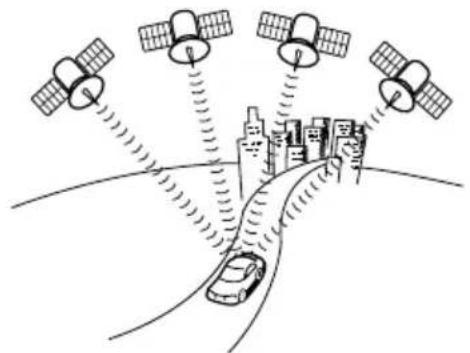
natural_image
Illustration of satellite communication with ground stations and a car driving on a curved road, no text or symbols presentThe GPS is a system that uses signals received from a satellite in a maximum orbit of approximately 21,000 km above the earth to indicate your present position (latitude, longitude, altitude).
These satellites were launched into space by the U.S. Department of Defense to be used for military purposes. This system was released for public utility.
Independent navigation
This technology uses data from a vehicle speed sensor and vibration gyro sensor to track the path followed by your vehicle in order to pinpoint your present location.
The present location of your vehicle can be pinpointed even in tunnels and under elevated roads.
Positioning
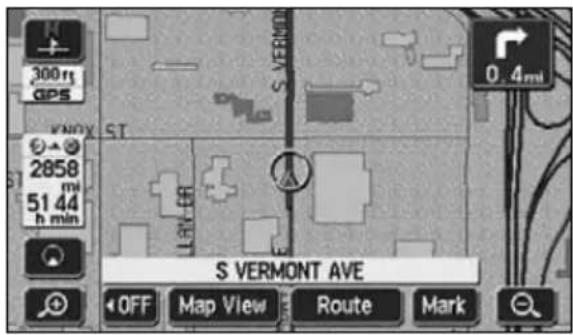
text_image
300 mi GPS KNOX ST 2858 mi 51 44 h min S VERMONT AVE OFF Map View Route MarkSignals are received from 3 or more GPS satellites to pinpoint the present location of your vehicle. The device will display a mark on the upper left part of the present location screen when it is receiving signals from 3 or more satellites and positioning is rendered possible.
(The mark is not displayed on the setting or registration screens.)
3. Glossary
2- and 3-dimensional positioning

text_image
Signals do not intercross at one point Actual position ErrorPosition determined by 2-dimensional measurement
The GPS calculates your position using a 3-point measurement principle.
Signals received from one satellite are used to determine the distance from that satellite to your vehicle. Signals received from 3 satellites can pinpoint your present location.
However, there exists a margin of error in the GPS satellite and navigation unit resulting in 2-dimensional positioning using latitudinal and longitudinal coordinates if signals from only 3 satellites can be received. In such a case, accuracy is low.
Also, when receiving signals from 4 or more satellites, 3-dimensional positioning is effectuated using the latitude, longitude and altitude of your vehicle. 3-dimensional positioning is more accurate than 2-dimensional positioning and the vehicle position display error margin is reduced.
Vibration gyro sensor
This sensor electronically detects in which direction your vehicle turned.
This sensor plays a very important role in the independent navigation function of this device.
4. Index by topic
Information about the maps
[Map displays]
■ Info on how to view the map screens
"How to view the navigation screen"...... Page 16
■ Info on the present location
"Present location display"...... Page 29
■ Info on how to move the map
● How to view a map in the vicinity of the present location
"Moving the map (one-touch scroll)" Page 30
● How to view the street name while scrolling
"Setting the Street Name display while scrolling"...... Page 31
■ Info on how to delete the touch switches appearing on the maps
"Switching the touch switch display" Page 31
■ Info on how to change the map size (reduction scale)
● How to switch from a 250 mile to a 75 ft scale
"Switching the map reduction scale"...... Page 33
■ Info on how to change the map display method
● How to change the map orientation
"Switching the map orientation" Page 36
● How to display a double screen
"Switching to double screen display" ...... Page 37
■ Info on how to display various data on a map
● How to display POIs
"POI display" Page 40
● How to display the arrival time at the destination
"Switching the touch switch display" Page 31
How to display the present time
"Switching the Time Zone" Page 26
4. Index by topic
■ Info on how to switch the map image quality
● How to change the brightness and contrast
"Screen adjustment" ...... Page 23
- How to change the map color
"Switching the map display color" ...... Page 25
[Retrieving a map]
■ Info on how to retrieve a map
"How to retrieve maps"...... Page 49
- How to retrieve a map by entering a POI name or part of an address "Retrieving a map using a POI name"...... Page 54
- How to retrieve a map by searching for an address "Retrieving a map using an address" ...... Page 52
- How to retrieve a map for the police station/hospital "Retrieving a map in the event of an emergency" ...... Page 60
- How to retrieve a map from a registered point "Retrieving a map using a memory point"...... Page 60
- How to retrieve a map from the previous destination "Retrieving a map using the archive" ...... Page 61
- How to retrieve a map from the intersection name "Retrieving a map using an intersection name" ...... Page 61
- How to retrieve a map from the freeway exit/entrance name "Retrieving a map using a freeway exit/entrance name"...... Page 63
- How to retrieve a map by entering the latitude/longitude "Retrieving a map using the latitude/longitude"...... Page 64
Route guidance
[Prior to starting route guidance]
■ Info on how to set a destination
"Setting a destination"......Page 68
■ Info on how to start route guidance
"Starting route guidance" Page 87
■ Info on how to display alternate routes
"3-route simultaneous display (3-route search function)"...... Page 77
[Prior to starting route guidance or while route guidance is in progress]
■ Info on the route up to the destination (guided roads)
"Display route data (guided road information)" Page 76
■ Info on how to add a destination
"Adding a destination"......Page 79
■ Info on how set a transit road
"Indicating a transit road" Page 84
■ Info on how to change the displayed route
"Change the search conditions for each interval" ...... Page 81
[While route guidance is in progress]
■ Info on how to change the voice guidance volume
"Setting the volume"...... Page 28
■ Info on junction intersection landmarks
"Voice guidance" Page 95
■ Stopping route guidance
- How to pause route guidance without deleting the destination(s) "Pausing and restarting route guidance"...... Page 87
- How to pause route guidance and delete the destination(s) "Deleting a destination"...... Page 83
■ Info on how to display all-route diagrams
"Redisplaying the all-route display"...... Page 97
■ Info on how to change the displayed route
■ What to do when having deviated from the displayed route
"Reinitiating a route search"...... Page 100
4. Index by topic
Others
[Useful functions]
■ Info on how to change the menu screen color
"Setting the wallpaper" ...... "OPERATION GUIDE/Audio"
■ Info on how to place a symbol on the map
● How to mark your home
"Registering, correcting or deleting your home"...... Page 105
● How to mark a desired location
"Registering memory points"...... Page 109
"Registering a special memory point" ...... Page 119
[When something isn't clear]
■ I don't understand how to move the list screen
"How to switch the list screens" Page 22
■ I don't understand the screen message
"If one of these messages appears"...... Page 154
■ Was that a malfunction?
"Before asking for repairs"...... Page 157
■ When the GPS mark does not appear
"GPS" Page 18
MEMO
natural_image
Illustration of a car steering wheel with city skyline background (no text or symbols)For
reference
5. INDEX
Numerics
3-route simultaneous display (3-route search function) .... 77
A
Accuracy and error ..... 146 All-route display ..... 71 Automatic reroute search ... 103
B
Building shape display ..... 35
C
Correcting the distance .... 144
D
Deleting entries from the destination archive ..... 127 Display seasonally restricted segment ..... 74 Displaying the building data ... 35 Double screen display ..... 37
F
Ferry crossings ..... 91 Free zoom ..... 33
G
GPS 18
H
Heading up display .... 36 Highway junction guidance .... 93
How to retrieve maps .....49 How to view the navigation screen .....16
|
Indicating a transit road .....84 Intersection guidance .....88
N
Name entry ....116 North up display ....36
O
On-route scroll .....99 Orientation mark .....16
P
POI display ....40 Point registration ....104 Present location correction ...142
R
Rear View Camera operations ....136 Registering detour memory points ....123 Registering memory points ...109 Registering special memory points ....119 Registering your home ....105 Reinitiating a route search ....100 Route data (guided road information) ...76 Route search ....67
RTTI 128
S
Scale display 17
Setting a destination ..... 66,68
Setting the average speed ..... 92
SIRIUS Traffic 129
Starting, pausing and
restarting route guidance ... 87
Switching the distance remaining display 98
Switching the map reduction scale .... 33
SYSTEM CHECK 135
V
Vehicle position mark ..... 17
Voice guidance 95