Smart Energy Switch 3 - Compteur de consommation d'énergie Aeon Labs - Free user manual and instructions
Find the device manual for free Smart Energy Switch 3 Aeon Labs in PDF.


| Product Type | Smart Energy Switch with Power Monitoring |
| Brand | Aeon Labs |
| Model | Smart Energy Switch 3 (ZW095) |
| Category | Energy Consumption Meter |
| Dimensions | 95 x 45 x 35 mm (3.74 x 1.77 x 1.38 in) |
| Weight | 70 g (2.47 oz) |
| Power Supply | 100-240 V AC, 50/60 Hz |
| Maximum Load | 15 A (resistive), 1800 W @ 120 V |
| Wireless Protocol | Z-Wave Plus 700 series (500 series compatible) |
| Range | Up to 30 m (100 ft) indoors, line of sight |
| Energy Monitoring | Real-time power (W), energy (kWh), voltage (V), current (A) |
| Functions | On/off remote control, scheduling, energy reporting, overcurrent protection |
| Installation | Plug-in between wall outlet and appliance |
| Compatibility | Z-Wave certified gateways and hubs (e.g., SmartThings, Vera, Home Assistant) |
| Security | Overload protection, surge protection, S2 security protocol |
| Material | Flame-retardant plastic (UL94 V-0) |
| Certifications | FCC, CE, Z-Wave Plus certified |
| Maintenance | Clean with a dry, soft cloth. Do not use liquids or solvents. |
| Repairability | Not user-serviceable. Contact Aeon Labs support for issues. |
| Warranty | 2 years limited warranty |
Frequently Asked Questions - Smart Energy Switch 3 Aeon Labs
User questions about Smart Energy Switch 3 Aeon Labs
0 question about this device. Answer the ones you know or ask your own.
Ask a new question about this device
Download the instructions for your Compteur de consommation d'énergie in PDF format for free! Find your manual Smart Energy Switch 3 - Aeon Labs and take your electronic device back in hand. On this page are published all the documents necessary for the use of your device. Smart Energy Switch 3 by Aeon Labs.
USER MANUAL Smart Energy Switch 3 Aeon Labs
AEO\_SES3\_EU Inline Smart Energy Switch
Firmware Version : 2.25
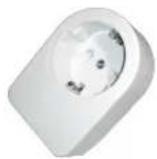
Quick Start
A This is a Z-Wave actuator.
Inclusion and Exclusion are confirmed by a single click on the button. If the Aeon Labs Inline Smart Energy Switch is not included into any Z-Wave network, the LED will be blinking continually. The device supports secure communication.
Please refer to the chapters below for detailed information about all aspects of the products usage.
Product description
The Aeon Labs Inline Smart Energy Switch is a Z-Wave light switch specifically used to enable Z-Wave commands and control (on/off) a device that is connected to a standard Schuko Wall Outlet.
It can also report immediate wattage consumption or kWh energy usage over a period of time. The wireless module is powered from the mains supplies. In the event of power failure, non-volatile memory retains all programmed information relating to the units operating status. This device support secure communication when included by a controller that also supports secure communication. The device will then send all commands as secure commands unless the receiving device can not accept them. Then the command is send the normal way automatically.
Installation Guidelines
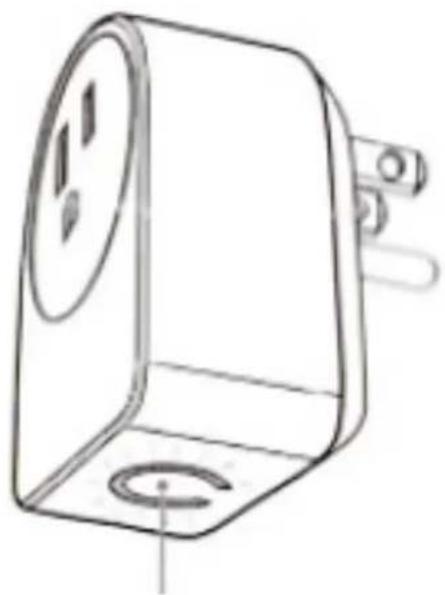
natural_image
Technical line drawing of a mechanical device with mounting holes and a central circular feature (no text or symbols)Z-Wave switch
This device be plugged between every Standard-Schuko wall outlet and the electrical appliance with maximum load of 3500W. To switch the plugged device on or off simply push the local button once or use a Z-Wave Controller. The status is shown by the status LED at the device.
Behavior within the Z-Wave network
On factory default the device does not belong to any Z-Wave network. The device needs to join an existing wireless network to communicate with the devices of this network. This process is called Inclusion. Devices can also leave a network. This process is called Exclusion. Both processes are initiated by the primary controller of the Z-Wave network. This controller will be turned into exclusion respective inclusion mode. Please refer to your primary controllers manual on how to turn your controller into inclusion or exclusion mode. Only if the primary controller is in inclusion or exclusion mode, this device can join or leave the network. Leaving the network - i.e. being excluded - sets the device back to factory default.
If the device already belongs to a network, follow the exclusion process before including it in your network. Otherwise inclusion of this device will fail. If the controller being included was a primary controller, it has to be reset first.
To include this device with your Z-Wave controller simple bring it in the inclusion mode and click the Inclusion/Exclusion button at the Aeon Labs Inline Smart Energy Switch once. If this device was successfully included to a Z-Wave network, the Status Indication LED will either be solid on or off (depending on if the switch is on or off) after the button was last pressed.
Operating the device
The switch is operated by the local switch/button or wireless via Z-Wave. The click on the switch sets the switch on or off.
The Aeon Labs Inline Smart Energy Switch can report wattage energy usage or kWh energy usage to a Z-Wave gateway or controller when requested. If this function is supported by the gateway/controller, the energy consumption will be displayed in the user interface of the gateway/controller. Please consult the operation manual for these gateways/controllers for specific instructions.
Node Information Frame
NIF The Node Information Frame is the business card of a Z-Wave device. It contains information about the device type and the technical capabilities. The inclusion and exclusion of the device is confirmed by sending out a Node Information Frame. Beside this it may be needed for certain network operations to send out a Node Information Frame.
A single click at the Inclusion/Exclusion switch sends a Node Information Frame.
LED Control
- The LED on this device will blink if it is currently not paired into a Z-Wave network.
- If the Aeon Labs Inline Smart Energy Switch was successfully included to a Z-Wave network, the Status Indication LED will either be solid on or off (depending on if the switch is on or off) after the button was pressed.
Associations
A Z-Wave devices control other Z-Wave devices. The relationship between one device controlling another device is called association. In order to control a different device, the controlling device needs to maintain a list of devices that will receive controlling commands. These lists are called association groups and they are always related to certain events (e.g. button pressed, sensor triggers, ...). In case the event happens all devices stored in the respective association group will receive a common wireless command.
Association Groups:
1 Group 1 (max. nodes in group: 5)
2 Group 2 (max. nodes in group: 5)
Configuration Parameters
Z-Wave products are supposed to work out of the box after inclusion, however certain configuration can adapt the function better to user needs or unlock further enhanced features.
IMPORTANT: Controllers may only allow configuring signed values. In order to set values in the range 128 ... 255 the value sent in the application shall be the desired value minus 256. For example: to set a parameter to 200 it may be needed to set a value of 200 minus 256 = minus 56. In case of a two byte value the same logic applies: Values greater than 32768 may needed to be given as negative values too.
Blinking Behavior (Parameter Number 2, Parameter Size 2) This is a double byte value. The LSB defines the total time the device need to blink. The value if set in seconds. The MSB defines the on/off interval of the blinking. The unit is 0.1 s.
Value Description
1 — 255 This is a double byte value. The LSB defines the total time the device need to blink. The value if set in seconds. The MSB defines the on/off interval of the blinking. The unit is 0.1 s.
Current Overload Protection (Parameter Number 3, Parameter Size 1) Load will be closed when the Current overrun (US: 15.5A, other country: 16.2A) and the time more than 2 minutes (0=disabled, 1=enabled).
Value Description
0 Active Overload Protection (Default)
1 Deactivate Overload Protection
Output Load Status (Parameter Number 20, Parameter Size 1) Configure the output load status after re-power on.
Value Description
0 last status (Default)
1 always on
2 always off
Notification on Status Change (Parameter Number 80, Parameter Size 1) Defines the automated status notification of an associated device when status changes (0=nothing, 1=hail CC, 2=basic CC report).
Value Description
0 nothing (Default)
1 hail
2 basic CC report
Configure the state of red LED (Parameter Number 81, Parameter Size 1)
Value Description
0 The LED will follow the status (on/off) of its load. (Default)
When the state of Switch's load changed, The LED will follow the status (on/off) of its load, but the red LED will turn off after 5 seconds if there is no any switch action.
Enables/disables parameter 91/92 (Parameter Number 90, Parameter Size 1)
| Value Description |
| 0 Enabled parameter 91/92 (Default) |
| 1 Disabled parameter 91/92 |
Minimum Change to send Report (Watt) (Parameter Number 91, Parameter Size 2) The value represents the minimum change in wattage for a Report to be sent.
| Value Description |
| 0 — 32000 The value represents the minimum change in wattage. (Default 25) |
Minimum Change to send Report (%) (Parameter Number 92, Parameter Size 1) The value represents the minimum change in wattage Percent for a report to be sent. (Valid values 0-100)
| Value Description |
| 0 — 100 The value represents the minimum change in wattage Percent. (Default 5) |
Set 101-103 to default (Parameter Number 100, Parameter Size 1)
| Value Description |
| 0 set to default (Default) |
| 1 nothing |
Report type send in Reporting Group 1 (Parameter Number 101, Parameter Size 4) Defines the type of report sent for the Reporting Group 1.
| Value Description |
| 2 Multisensor Report |
| 4 Meter Report for Watt |
| 8 Meter Report for kWh (Default) |
Report Type send in Reporting Group 2 (Parameter Number 102, Parameter Size 4) Defines the type of report sent for the Reporting Group 2.
| Value Description |
| 2 Mutlisensor-Report |
| 4 Meter Report for Watt |
| 8 Meter Report for kWh |
Report Type send in Reporting Group 3 (Parameter Number 103, Parameter Size 4) Defines the type of report sent for the Reporting Group 3.
| Value Description |
| 2 Mutlisensor-Report |
4 Meter Report for Watt
8 Meter Report for kWh
Set 111-113 to default (Parameter Number 110, Parameter Size 1)
| Value Description |
| 0 Set to default (Default) |
| 1 nothing |
Send Interval for Reporting Group 1 (Parameter Number 111, Parameter Size 4) Defines the time interval when the defined report of Reporting Group 1 is sent out.
| Value Description |
| 0 — 65535 Interval (Default 720) |
Send Interval for Reporting Group 2 (Parameter Number 112, Parameter Size 4) Defines the time interval when the defined report of Reporting Group 2 is sent out.
| Value Description |
| 0 — 65535 Interval (Default 720) |
Send Interval for Reporting Group 3 (Parameter Number 113, Parameter Size 4) Defines the time interval when the defined report of Reporting Group 3 is sent out.
| Value Description |
| 0 — 32000 Interval |
Partner ID (Parameter Number 200, Parameter Size 1)
| Value Description |
| 0 Aeon Labs Standard (Default) |
| 1 AT&T |
Enable/disable Configuration Locked (Parameter Number 252, Parameter Size 1)
| Value Description |
| 0 Deactivate configurationlock (Default) |
| 1 Activate configurationlock |
Technical Data
Explorer Frame Support Yes
| SDK 6.51.00 |
| Device Type Slave with routing capabilities |
| Generic Device Class Binary Switch |
| Specific Device Class Binary Power Switch |
| Routing Yes |
| FLiRS No |
| Firmware Version 2.25 |