
inDtube - TV Tuner for Computer EVGA - Free user manual and instructions
Find the device manual for free inDtube EVGA in PDF.


| Product Type | TV Tuner for Computer |
| Brand | EVGA |
| Model | inDtube |
| Category | Computer TV Tuner |
| Dimensions (approx.) | 80 x 30 x 15 mm |
| Weight (approx.) | 30 g |
| Power Supply | USB bus-powered (5V, 500mA) |
| Input Connector | Coaxial RF (F-type) |
| Output Connector | USB 2.0/3.0 |
| TV Standards | DVB-T/DVB-C, Analog (NTSC/PAL/SECAM) |
| FM Radio | Yes |
| Remote Control | Included (IR) |
| Software | Windows Media Center, EVGA software |
| Recording | Schedule and record TV programs |
| Time Shift | Yes |
| Operating System | Windows XP/Vista/7/8/10 |
| Maintenance | Clean with a soft, dry cloth; avoid liquids |
| Safety | Keep away from moisture and heat sources; use only included accessories |
| Spare Parts | Remote control, IR receiver cable (available from EVGA support) |
| Repairability | No user-serviceable parts; contact support for issues |
| General Information | Compatible with standard coaxial cable TV antenna; free-to-air channels |
Frequently Asked Questions - inDtube EVGA
User questions about inDtube EVGA
0 question about this device. Answer the ones you know or ask your own.
Ask a new question about this device
Download the instructions for your TV Tuner for Computer in PDF format for free! Find your manual inDtube - EVGA and take your electronic device back in hand. On this page are published all the documents necessary for the use of your device. inDtube by EVGA.
USER MANUAL inDtube EVGA
Introduction
Thank you for purchasing EVGA's inDtube, a USB multimedia device that will allow you to experience high quality television on your personal desktop or laptop.
In addition to allowing you to watch and record television and cablebroadcasts through the bundled software, inDtube will also allow you to capture video and audio from external sources provided the device has a standard RCA video, S-Video, and 3.5mm stereo audio input. This feature alone allows most users to transfer many of their older video to (into) a digital format that is both durable and easy to share with family and friends.
Package Contents
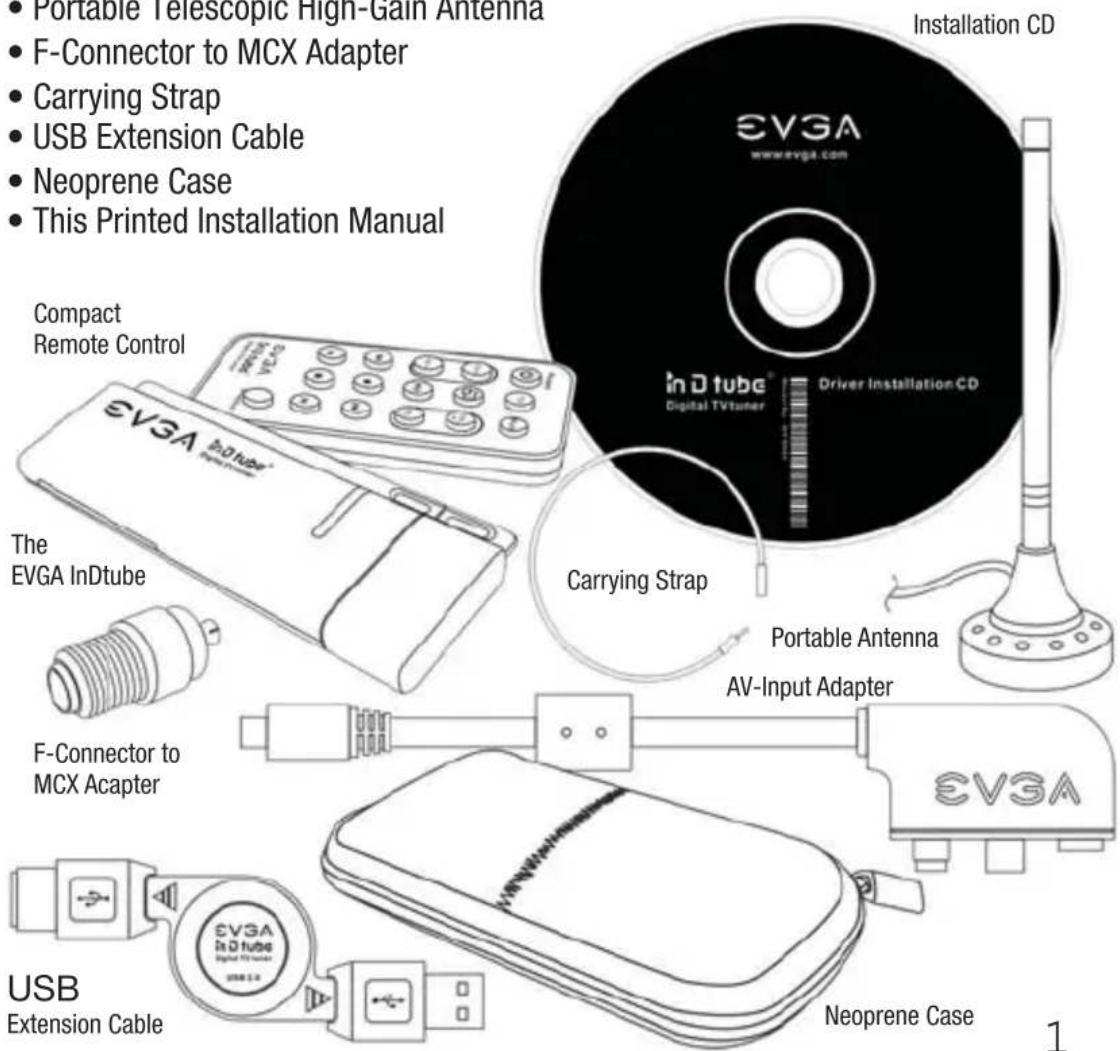
Your EVGA inDtube will have the following optional items included in this package:
- Compact Remote Control (CR2025 3V Battery Included)
- AV-Input Adapter
• Installation CD for Drivers and Software - Portable Telescopic High-Gain Antenna
• F-Connector to MCX Adapter - Carrying Strap
- USB Extension Cable
- Neoprene Case
• This Printed Installation Manual
System Requirements
- A USB 2.0 Port
- An Intel Pentium 4 at 2.6 GHz or higher or an AMD Athlon 64 3000+ or higher
- For Windows XP a minimum of 256 MB of RAM is needed. 512MB or more is recommended. For Windows Vista a minimum of 512MB of RAM is needed. 1GB or more is recommended
- A Display with a minimum 1024x768 resolution
• Windows Media Player 9 or above - 200 MB of hard drive storage needed for the software installation. 1GB of free disk space is needed for running the time-shift recording function.
- A DirectX 9 or above graphics card with a minimum of 64 MB
- DirectX-compatible sound card is needed for audio playback or recording
• A Standard CD/DVD-ROM Drive
Please consult your computer's manufacturer for system specifications
Hardware and Driver Installation
Please do not insert driver CD prior to inDtube's connection with your PC.
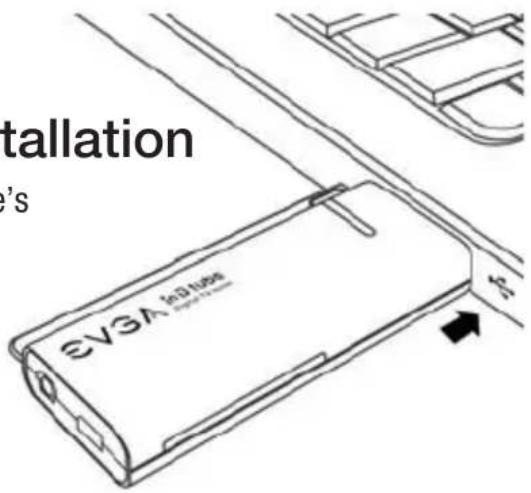
- Power your computer on and allow it to boot in to Windows. Once in Windows connect the EVGA inDtube hardware to your Laptop's or Desktop's USB 2.0 Port.
-
Once connected Windows will detect that new hardware has been added and the Hardware Wizard dialogue box will come up on to the screen. Click Cancel and close it. If the Hardware Wizard box does not appear, continue to step 3.
-
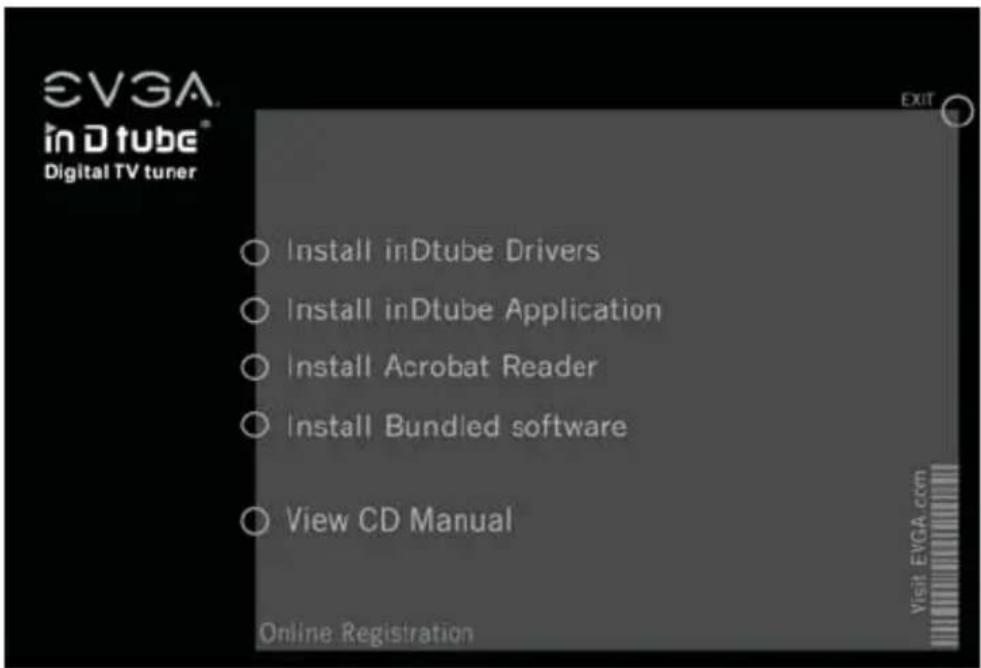
Now you need to install inDtube's Driver Software. To do this place the inDtube Installation CD in to your computer's CD-ROM Drive and allow for it to load. Once it has finished loading, the inDtube Installation Menu should now appear.
If inDtube's Installation Menu does not appear see the FAQ section on page. 9
4a. Click on "Install inDtube® Drivers" to begin the driver installation process.
4b. Clicking on "Install inDtube® Applications" will install the provided TV tuner software.
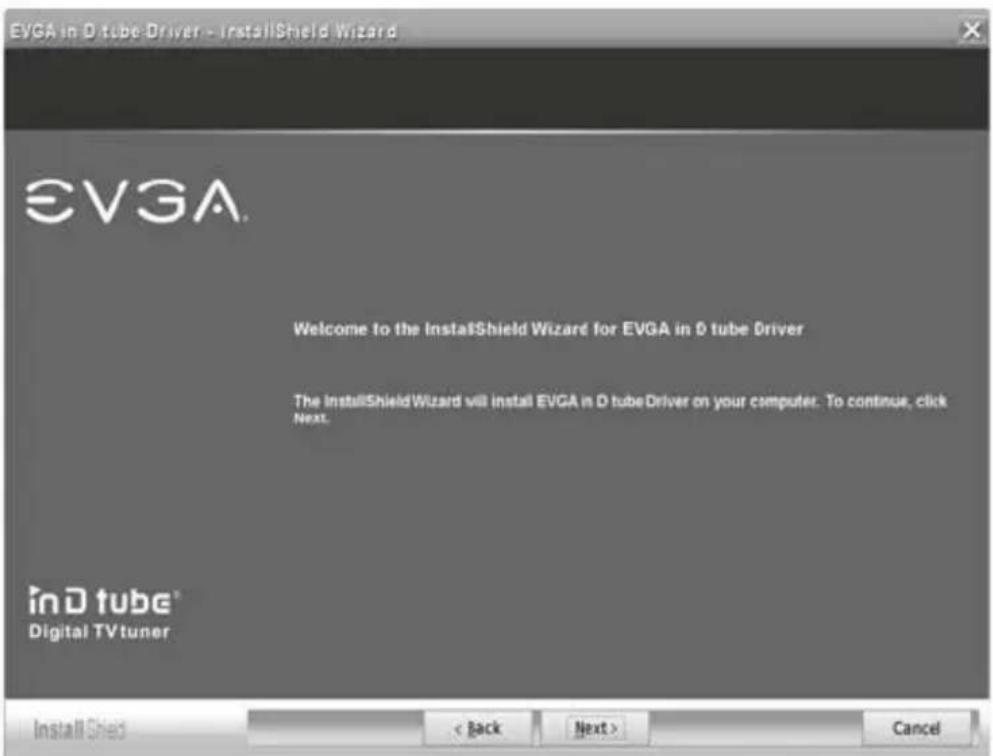
- After clicking next the installation process begins.
Files from the Driver and Software CD are now being installed on to your computer.
- The hardware and software installation is now complete. You can now select Finish to exit the installation program. Your EVGA inDtube is now installed and ready to be used.
You should now see a small EVGA icon in the bottom right hand corner located in the Windows System Tray.

12:26PM
Connecting the antenna
for digital or analog use
InDtube can accept either the portable antenna supplied in the box or a roof top based antenna.

natural_image
Technical line drawings of three different types of antenna or sensor components: a standard pole, a vertical pole with an antenna, and a multimeter (no text or symbols present)300 ohm - 75 ohm TV Balun supported. (not included)
To use this feature, connect your antenna's MCX output to inDtube's MCX input. If your antenna of choice has a coax output with an F-Connector at the end of it, use the F-Connector to MCX Adapter (included).
This will allow the F-Connector to plug into the MCX input.
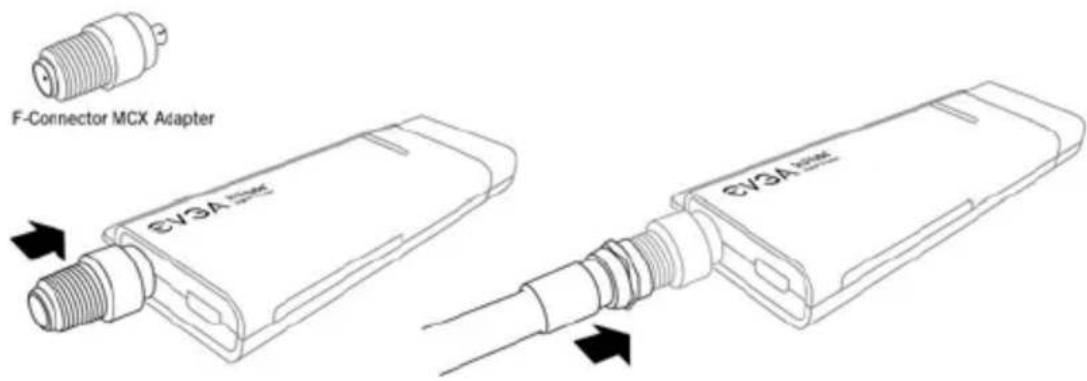
For the best results in obtaining a digital signal, use a roof top antenna that is adjusted and configured properly. Double-shielded coaxial cables and a digitally-enabled antenna amplifier are recommended to achieve the best results.
To properly use the provided telescopic antenna, collapse or extend it until the desired picture is achieved. Be sure the antenna is positioned fully upright. Place the antenna near a window and at a high location for best results. You can also attach the end of the antenna to a magnetic surface which may improve overall signal. Do not attach to or around your computer's case as this may cause irreversible damage to its internal components.
Avoid placing the provided antenna near a Cathode Ray Tube (CRT) monitor or TV as such devices may degrade the signal quality.
Important Notice: Good reception depends on your surroundings and location. Loss of or highly degraded signal can occur if steel walls and towering buildings surround your area. Trying to obtain a signal while in a moving vehicle is usually unachievable and not possible.
Coax Cable Set-up
Your coax cable line will most likely have an F-Connector attached to the end. Use the F-Connector to MCX Adapter (included) to properly connect your coax cable line to inDtube's MCX input.

Cable and Satellite Set-Top Box Set-up
-
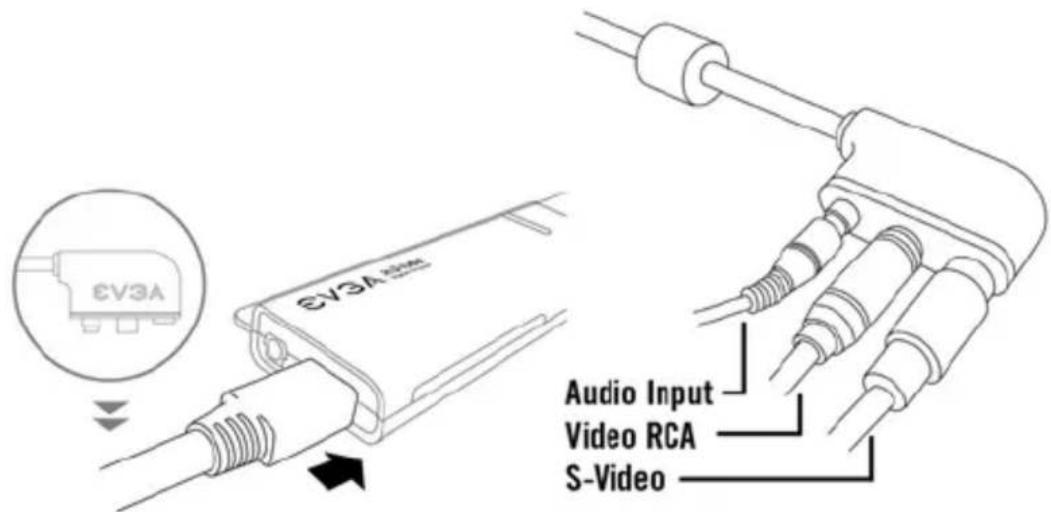
Connect the AV-input adapter (included) into the input located on the rear of inDtube next to the gold platted MCX input. The AV-input on inDtube is notched and will only fit one way. Do not force in as this may cause irreversible damage to both the AV-input adapter and inDtube.
-
Follow instructions A or B depending on which video connection you want to use:
A - If your cable or satellite box has an available Video RCA output, attach it to the AV-input adapter's Video RCA input.
B - If your cable or satellite box has an available S-Video output, attach it to the AV-input adapter's S-Video input. Using this configuration will result in the best image quality.
- Connect the audio output of your cable or satellite box to the 3.5mm stereo input located on the AV-input adapter.
Note: If your cable or satellite box does not have a 3.5mm stereo output, then an RCA Y-Adapter to single 3.5mm audio cable will be needed (not included).

- At this stage, inDtube is properly connected to receive satellite or cable feed.
Note: If no more video and audio outputs are available on your cable or satellite box, then connect to inDtube by using the coaxial jack. The output should be labeled “Out to TV,” “TV Output” or something similar. A coaxial cable will be needed (not included) as well as the F-Connector to MCX Adapter (included) to connect to inDtube’s MCX input. The AV-input adapter is not needed for this confi guration. The cable or satellite box needs to provide such an output for this confi guration to work.
Note: The included software supports Macrovision. This means you can not record media through the AV-input adapter if Macrovision is being used on the source. For example: Trying to copy a DVD. For more information please visit http://www.Macrovision.com
Remote Control
The diagram below explains the features of inDtube's Remote Control.

flowchart
graph TD
    A["Power"] --> B["TV"]
    A --> C["Mute"]
    B --> D["CH+"]
    B --> E["CH-"]
    C --> F["YOL+"]
    C --> G["YOL-"]
    D --> H["<<"]
    E --> I["•"]
    F --> J["▶"]
    G --> K["■"]
    H --> L["SnapShot"]
    I --> L
    J --> L
    K --> L
    L --> M["14."]
| Button | Function |
| 1. Power | Turn ON or OFFTV Enhance Tuner Application(Provided on disc) |
| 2. TV | TV Mode |
| 4. CH + | Channel Up |
| 4. CH - | Channel Down |
| 6. Vol + | Volume Up |
| 6. Vol - | Volume Down |
| 3. Mute | Mute |
| 5. Full Screen | Switch betweenFull Screen / Small Screen |
| 7. Play / Pause | Play / Pause (Time Shifting Mode) |
| 9. Record | Start Recording |
| 12. Stop | Stop Recording |
| 8. Backward | Backward (Time Shifting Mode) |
| 10. Forward | Forward (Time Shifting Mode) |
| 11. Previous | Previous (Time Shifting Mode) |
| 13. Next | Next (Time Shifting Mode) |
| 14. Snap Shot | Takes a screenshot |
How to use the remote:
Point the remote at inDtube and press the button of your choice. Be sure that no obstructions stand in the way of inDtube and the remote control, as signal may be interrupted and inDtube may fail to receive the Infrared Signal from the remote control. You can choose to use the USB Extension Cable (included) to allow movement of inDtube's location. The remote control will work at an estimated 15 feet or more under optimum conditions.

Now that you have inDtube's hardware setup, it is recommended to read over the included TV Tuner software's manual located on inDtube's Installation CD.
FAQ
Question:
What type of battery does inDtube's Remote Control use?
Answer:
inDtube's Remote Control uses a Lithium Cell CR2025 3V battery. This battery can be purchased at most electronic stores if a replacement is needed. To gain access to the battery, turn over the remote so that you are looking at the back and that the IR output is pointed away from you. The battery holder, located at the bottom end of the remote, will slide out if you pinch the left edge to the right and pull at the same time. A small hole is provided to use with a pen or other pointy object to assist in sliding out the battery holder. The holder should now slide out and the battery will be revealed. Be sure the + side (positive side) of the battery corresponds to the + located on the plastic battery holder. Once you are sure the battery is installed correctly, slide the holder back in to secure it.
Question:
Does the inDtube work with other TV Tuner applications?
Answer:
inDtube should work with most popular TV Tuner applications, however only the included software is offi cially supported. If using an application other than what was included and are experiencing problems, then contact the developer of the software in use.
Question:
I am having problems with viewing and recording video through my TV Tuner program.
Answer:
Be sure that you are using the proper cables and that they are connected properly to both the AV-input adapter and the output device. Be sure that the drivers have properly been installed for inDtube. Contact the program's Software Developer for help and support.
Question:
Windows does not detect inDtube when it is plugged into a working USB 2.0 port.
Answer:
Be sure that your computer supports USB 2.0.Try another USB 2.0 port on your computer. If the problem continues, please contact our Customer Service at (888)-880-EVGA(3842)
Question:
inDtube receives poor reception through an antenna/cable or satellite box.
Answer:
Antenna use: Avoid placing the provided antenna near a Cathode Ray Tube (CRT) monitor or TV as such devices may degrade the signal quality. Good reception depends a lot on your surroundings and location. Loss of signal or highly degraded signal can occur if steel walls and towering buildings surround your area. Trying to obtain a signal while in a moving vehicle is usually unachievable and not possible. Please be sure that the antenna of your choice is configured and adjusted properly. Check that the antenna's physical connection to inDtube is properly plugged in. Be sure that the drivers have properly been installed for inDtube.
Cable or Satellite use: Check the physical connections of the AV-input and the cables coming from cable or Satellite box. Contact your service provider in regards to reception.
Question:
High Definition TV does not display properly.
Answer:
When using an antenna to capture free air high definition television, be sure it is fully adjusted for optimal signal. Your video card and monitor must support resolutions that can achieve high definition resolutions: for example - 1280x720 or 1920x1080
If more assistance is needed please contact your service provider or EVGA Customer Service at (888)-880-EVGA(3842)
FAQ
Question:
How do I manually run inDtube's Installation Menu from the CD?
Answer:
To manually run inDtube's Installation Menu from the CD go to: Start →Run →type in the letter designated to your CD-ROM Drive followed by “Autorun.exe” For example: if the letter designated to your CD-ROM drive is E:\ you would type it as follows: Start →Run E:\Autorun.exe Once you have typed in the command, click OK. inDtube's Installation Menu should now appear.
Note: If in Vista, follow this path: Start ➞ in the search box type "Run" and press the Enter Key. Now type in the letter designated to your CD-ROM drive followed by "Autorun.exe"
Example: E:\Autorun.exe
Question:
Can both an Antenna and Cable or Satellite box be used at the same time for dual TV Tuner support?
Answer:
No, InDtube will only support one connection at a time.
Question:
Certain channels do not come through when using a coax line, cable, or satellite set-top box.
Answer:
Depending on your service provider certain channels are distributed in an encoded signal that requires a QAM tuner. These channels can not be decoded by inDtube because it has no QAM tuner.
Question:
Does inDtube work with Windows Media Center 2005?
Answer:
Yes, you will need the MCE Encoder software. Visit www.evga.com/faq for more information on obtaining the MCE Encoder software.
inDtube Device Information
This Hybrid Tuner Supports:
-ATSC (HDTV up to 1080i over the air antenna, SDTV)
-NTSC (cable, over the air antenna)
Note:(Please visit www.dtv.gov for information on the NTSC to ATSC transition)
Hardware Specifications:
-TV Antenna/Cable Input
(MCX-connector/Adapter to F-Connector)
-S-Video (via included AV-input Cable)
-Composite Video (RCA, via included AV-input Cable)
-Stereo Audio (3.5mm TRS input, included on AV-input Cable)
-USB 2.0
Features Support For :
-DVR Functionality
-Time-Shifting Functionality
-Scheduled Recording
-EPG (Electronic Program Guide)
- Microsoft Media Center Edition Operating System Environment

Warranty Information : Users Guide
Thinking about registering? Do it now! "Why should I register?"
In order for you to receive the best possible support, we need to know who you are and what kind of product you have purchased. So don't wait ... register online now!

natural_image
Circular illustration with crescent moon and sun, no text or symbols present24/7
Tech Support
www.evga.com/24-7
*24/7 North America only
Should you require any assistance with the installation or troubleshooting of your EVGA inDtube, please visit the Support section of our website at www.evga.com/support. There you'll be able to download drivers, check out our extensive Knowledge Base, and submit technical and customer support inquiries. Be sure to visit the EVGA community messageboards www.evga.com/community/messageboard
Contact our Customer Service through email to get all of your questions answered and problems resolved - its fast, its easy, and it works! If you require immediate assistance, please contact our Customer Service at 888.880.EVGA (3842).
Point your browser to www.evga.com/register and have the following information ready before contacting customer service:
-Card Name & Part Number
-UPC Number
-Serial Number
Warranty Program To Fit Your Needs
This EVGA product is covered under the excellent 1+1 Warranty.
For more information please visit: www.evga.com/support/1+1
As a valued EVGA customer; you'll be sure to receive a warranty that will fit your needs.
The EVGA Advanced RMA (EAR) Program
The EVGA Advanced RMA (EAR) Program is a program to protect yourself and your product in the case of product failure. For more details please
vist: www.evga.com/EAR
The EVGA Step-UpTM Program
In order to give our customers the greatest amount of fl exibility when purchasing EVGA video cards, we have instituted the EVGA Step-Up™ Program. For more details please visit: www.evga.com/stepup
FCC Compliance Information
This device complies with FCC Rules Part 15, Operation is subject to the following two conditions: This device may not cause harmful interference, and this device must accept any interference received, including interference that may cause undesired operation. This equipment has been tested and found to comply with the limits for a Class B digital device, pursuant to Part 15 of the FCC Rules. These limits are designed to provide reasonable protection against harmful interference in a residential installation. This equipment generates, uses and can radiate radio frequency energy and, if not installed and used in accordance with the manufacturer's instructions, may cause harmful interference to radio communications. However, there is no guarantee that interference will not occur in a particular installation. If this equipment does cause harmful interference to radio or television reception, which can be determined by turning the equipment off and on, the user is encouraged to try to correct the interference by one or more of the following measures: 1) Increase the separation between the equipment and signal source, 2) Connect the equipment to an outlet on a circuit different from that to which the signal source is connected, 3) Consult the dealer or an experienced computer technician for help. The use of shielded cables for connection of the monitor to the graphics card is required to ensure compliance with FCC regulations. Changes or modifications to this unit not expressly approved by the party responsible for compliance could void the user's authority to operate this equipment.
Macrovision Corporation
This device is protected by U.S. Patent numbers 4.631.603; 4,577,216; and 4,819098 and other intellectual property rights. The use of Macrovision's Copy Protection technology in the device must be authorized by Macrovision and is intended for home and other limited pay-per-view uses only, unless otherwise authorized in writing by Macrovision. Reverse engineering or disassembly is prohibited.
Software License Agreement
This EVGA software (the “software”) is copyrighted by EVGA CORP and is protected by US law. All rights reserved. The purchaser is granted a license to use the software only, subject to the following restrictions and limitations:
The license is for the original purchaser only, it is transferable so long as all items bundled with the software are transferred to the same individual as a sale (e.g. all software, manuals, hardware, etc.)
The original purchaser may use the software on a single computer owned or leased by the original purchaser. You may not use the software on more than a single machine, even if you own or lease more than one machine, without the written consent of EVGA
The original purchaser may make backup copies of the software for his or her own use only, subject to the use limitations of this license.
The original purchaser may not engage in, nor permit third parties to engage in, any of the following:
• Providing or disclosing the software to third parties
- Providing use of the software in a computer service business, network, time-sharing network
- Making alterations or copies of any kind in the software (except as permitted above)
- Attempting to un-assemble, de-compile or reverse engineer the software in any way
- Granting sublicenses, leases, or rights in the software to others
- Making copies, or verbal or media translations, of the user's guide
- Making telecommunication data transmissions of the software
Trademark Information
EVGA Corp. EVGA, the EVGA logo and combinations thereof are trademarks of EVGA Corp. All brand names, company names, service marks, logos, and trademarks of the company, or its affiliates or licensors are trademarks or registered trademarks of the company or its subsidiaries, affiliates or licensors in the US and other countries. Other company, products and service names may be trademarks or service marks of others. EVGA reserves the right to terminate this license if there is a violation of its terms or default by the Original Purchaser. Upon termination, for any reason, all copies of Software and materials, must be immediately returned to EVGA and the Original Purchaser shall be liable to EVGA CORP for any and all damages suffered as a result of the violation or default.
Legal Information
Notice- ALL MATERIAL INCLUDING BUT NOT LIMITED TO, TEXT, DATA, DESIGN SPECIFICATIONS, DIAGNOSTICS, GRAPHICS, LOGOS, REFERENCE BOARDS, FILES, IMAGES, DRAWINGS, AND SOFTWARE INCLUDING THIS DOCUMENT AND THE SOFTWARE ITSELF (TOGETHER AND SEPARATELY) IS OWNED, CONTROLLED BY, LICENSED TO, OR USED WITH PERMISSION BY COMPANY AND IS PROTECTED BY COPYRIGHT, TRADEMARK, AND OTHER INTELLECTUAL PROPERTY RIGHTS. ALL IS BEING PROVIDED "AS IS", EVGA CORPORATION MAKES NO WARRANTIES, WHETHER EXPRESS OR IMPLIED, STATUTORY OR OTHERWISE WITH RESPECT TO THE MATERIALS AND EXPRESSLY DISCLAIMS ALL IMPLIED WARRANTIES OF NON-INFRINGEMENT, MERCHANTABILITY, AND FITNESS FOR A PARTICULAR PURPOSE. IN NO EVENT SHALL THE LIABILITY OF EVGA CORPORATION FOR CLAIMS ARISING FROM THE USE OF THE MATERIALS BY ANYONE EXCEED THE ORIGINAL PURCHASE PRICE OF THE MATERIALS (OR REPLACEMENT OF THE MATERIALS AT EVGA CORPORATION'S OPTION). ALL INFORMATION FURNISHED IS BELIEVED TO BE ACCURATE AND RELIABLE. HOWEVER, EVGA CORPORATION ASSUMES NO RESPONSIBILITY FOR THE CONSEQUENCES OF USE OF SUCH INFORMATION OR FOR ANY INFRINGEMENT OF PATENTS OR OTHER RIGHTS OF THIRD PARTIES THAT MAY RESULT FROM ITS USE, OR USE OF THE SOFTWARE. NO LICENSE IS GRANTED BY IMPLICATION OR OTHERWISE UNDER ANY PATENT OR PATENT RIGHTS OF EVGA CORPORATION EXCEPT AS EXPRESSLY PROVIDED HEREIN. ALL SPECIFICATIONS MENTIONED IN THIS PUBLICATION ARE SUBJECT TO CHANGE WITHOUT NOTICE.


- Introduction
- Package Contents
- System Requirements
- Hardware and Driver Installation
- Connecting the antenna
- Coax Cable Set-up
- Remote Control
- How to use the remote:
- FAQ
- Question:
- Answer:
- inDtube Device Information
- This Hybrid Tuner Supports:
- Hardware Specifications:
- Features Support For :
- Warranty Information : Users Guide
- Warranty Program To Fit Your Needs
- The EVGA Advanced RMA (EAR) Program
- The EVGA Step-UpTM Program
- FCC Compliance Information
- Macrovision Corporation
- Software License Agreement
- Trademark Information
- Legal Information
Brand : EVGA
Model : inDtube
Category : TV Tuner for Computer