
BFCL2 - Car kit Scosche - Free user manual and instructions
Find the device manual for free BFCL2 Scosche in PDF.


| Product Type | Hands-free Bluetooth Car Kit |
| Brand | Scosche |
| Model | BFCL2 |
| Connectivity | Bluetooth 3.0 |
| Power Source | 12V/24V DC Car Charger |
| Input | Cigarette Lighter Adapter |
| Speaker | Built-in 3W Speaker |
| Microphone | Built-in Noise Cancelling |
| Mounting | Visor Clip or Dash Mount |
| Dimensions (L x W x H) | 4.5 x 2.5 x 1.5 in (114 x 64 x 38 mm) |
| Weight | 3.2 oz (91 g) |
| Battery | No internal battery (requires car power) |
| Functions | Hands-free calling, Music streaming, Voice control, USB charging (1.2A output) |
| Controls | Answer/End, Volume, Track skip, Voice command button |
| Frequency Response | 80 Hz - 16 kHz |
| Operating Temperature | -20°C to 60°C |
| Compatible Devices | Bluetooth-enabled phones, tablets, and media players |
| Maintenance | Wipe with dry cloth; avoid liquids |
| Safety | Do not obstruct airbags; use hands-free for driving |
| Spare Parts / Repairability | Car adapter cable available; non-serviceable internal components |
| Additional Information | Includes AUX cable for non-Bluetooth devices |
Frequently Asked Questions - BFCL2 Scosche
User questions about BFCL2 Scosche
0 question about this device. Answer the ones you know or ask your own.
Ask a new question about this device
Download the instructions for your Car kit in PDF format for free! Find your manual BFCL2 - Scosche and take your electronic device back in hand. On this page are published all the documents necessary for the use of your device. BFCL2 by Scosche.
USER MANUAL BFCL2 Scosche
HANDS-FREE BLUETOOTH® INTERFACE FOR SELECT 2003-UP SELECT CLASS 2 GM VEHICLES
The Scosche BFCL2K BlueFusion™ Bluetooth Interface will allow you to wirelessly communicate with your Bluetooth enabled cellular phone and Stereo Bluetooth transmitters. The BFCL2K communicates directly with your factory radio allowing you direct control of hands-free, voice dialing, and A2DP functionality. These interfaces maintain the original integrity of important diagnostic and safety systems within the vehicle. For up-to-date applications or any Technical assistance with this product, call Scosche Tech support at (800) 621-3695 Ext 3.
| APPLICATIONS HARNESS APPLICATIONS | |||
| WITH XM SAT TUNER | WITHOUT XM SAT | BFEXTB (EXTENSION) | |
| CADILLAC | |||
| ESCALADE 2003-06 BFCL2XMB | BFCL2HB | NOT REQUIRED | |
| ESCALADE ESV 2003-06 BFCL2XMB | BFCL2HB | NOT REQUIRED | |
| ESCALADE EXT 2003-06 BFCL2XMB | BFCL2HB | NOT REQUIRED | |
| CHEVROLET | |||
| AVALANCHE 2003-06 BFCL2XMB | BFCL2HB | NOT REQUIRED | |
| COLORADO 2004-10 BFCL2XMB | BFCL2HB | NOT REQUIRED | |
| CORVETTE 2006-08 BFCL2XMB | BFCL2HB | YES /XM ONLY | |
| IMPALA/IMPALA SS 2003-05 BFCL2XMB | BFCL2HB | YES /XM ONLY | |
| MONTE CARLO 2003-05 BFCL2XMB | BFCL2HB | YES /XM ONLY | |
| SILVERADO CLASSIC 2007 | |||
| SILVERADO NEW 2003-06 BFCL2XMB | BFCL2HB | NOT REQUIRED | |
| SUBURBAN 2003-06 BFCL2XMB | BFCL2HB | NOT REQUIRED | |
| TAHOE 2003-06 BFCL2XMB | BFCL2HB | NOT REQUIRED | |
| TRAILBLAZER 2004-08 BFCL2XMB | BFCL2HB | NOT REQUIRED | |
| UPLANDER 2005-07 BFCL2XMB | BFCL2HB | NOT REQUIRED | |
| VENTURE 2003-05 BFCL2XMB | BFCL2HB | NOT REQUIRED | |
| GMC | |||
| CANYON 2004-10 BFCL2XMB | BFCL2HB | NOT REQUIRED | |
| ENVOY/XUV 2004-06 BFCL2XMB | BFCL2HB | NOT REQUIRED | |
| SIERRA CLASSIC 2007 | BFCL2XMB | BFCL2HB | NOT REQUIRED |
| SIERRA NEW 2003-06 | BFCL2XMB | BFCL2HB | NOT REQUIRED |
| YUKON 2003-06 BFCL2XMB | BFCL2HB | NOT REQUIRED | |
| YUKON XL 2003-06 BFCL2XMB | BFCL2HB | NOT REQUIRED | |
| HUMMER | |||
| H2 2003-07 BFCL2XMB | BFCL2HB | NOT REQUIRED | |
| H3 2006-07 BFCL2XMB | BFCL2HB | NOT REQUIRED | |
| PONTIAC | |||
| MONTANA SV6 2005-06 | BFCL2XMB | BFCL2HB | NOT REQUIRED |
iPhone is a trademark of Apple Inc., registered in the US and other countries.
IMPORTANT CELL PHONE DISCLAIMER: READ FIRST!
- Some cellular phone manufacturers utilize a Bluetooth microprocessor that unfortunately is not compatible with the BlueFusion system. Some phones from Palm, LG (Envy/Envy2), Samsung (Impression) and HTC (Omni) have exhibited operating difficulties with the BlueFusion system. If you own these models or other models from these manufacturers call Scosche Tech Support for the latest updated phone incompatibility list. (800) 621-3695.
• This BlueFusion device will pair to ONE phone at time. - Due to variances in cell phone manufacturing, Caller ID functions may vary from what is printed in this manual.
• Blue Fusion does not support phone book profiles. - Scosche does not guarantee 100% compatibility with all Bluetooth cellphones.
RADIO COMPATABILITY
WORKS WITH
NAVIGATION RADIOS
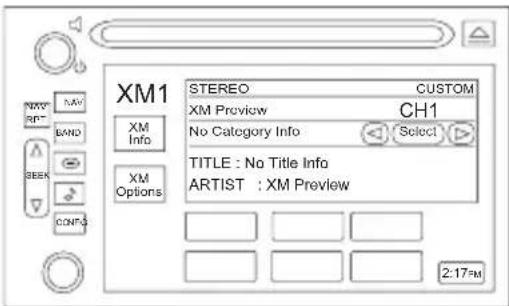
AND
NON-NAVIGATION RADIOS
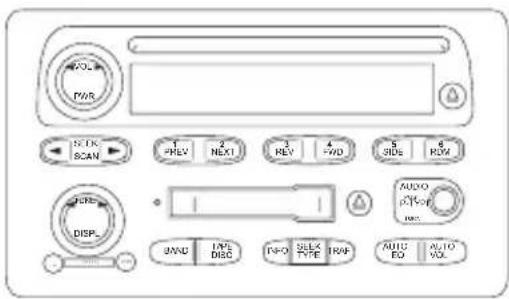
NOTE: RADIO ILLUSTRATIONS ABOVE ARE TYPICAL. THERE ARE ADDITIONAL RADIO MODEL/ STYLES THAT ARE COMPATIBLE WITH BLUEFUSION. YOUR CAR MAY DIFFER.
XM TUNER LOCATIONS GUIDE
PRELIMINARY: Determine whether you have an XM module in the vehicle. Press the band button to see if the XM source displays on the screen of the radio.
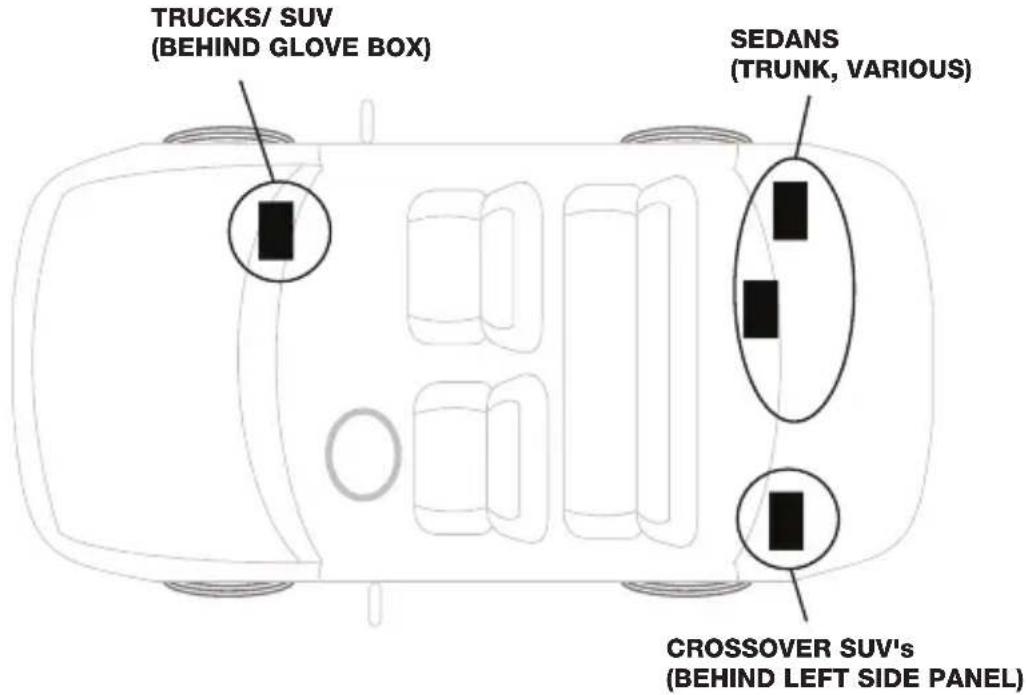
VEHICLES WITH SAT TUNER
IMPORTANT NOTE: If vehicle is equipped with XM tuner box (active or not active) the BFGMLANXMB harness must be used. The BFGMLANXMB "T" harness must be installed at the SAT radio Tuner box location.
XM TUNER LOCATIONS: Trucks/SUVs: Behind Glove box, Crossovers: Left rear side panel, Sedans: Trunk.
TECH TIP: Do not mount the BFCL2 module near moving or mechanical devices that may damage the interface. Keep away from any hot surface areas like heater ducts, direct sun light and metal surface areas that may get hot.
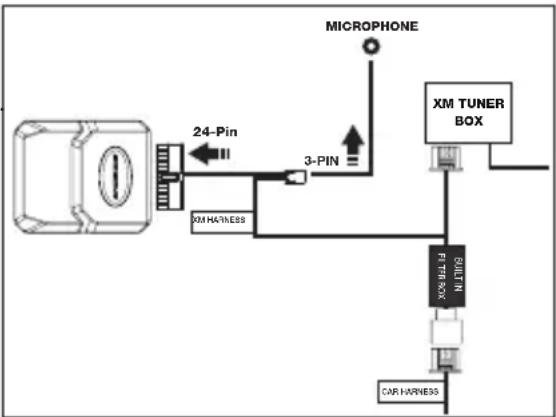
BFCL2 INTERFACE INSTALLATION
- Locate XM tuner box in vehicle.
- Remove harness from the XM tuner
- Install BlueFusion "T" harness into the XM tuner.
- Plug the 24 pin connector into the BFCL2 BlueFusion interface.
flowchart
graph TD
    A["Motor with 24-Pin Pin"] --> B["24-Pin"]
    B --> C["XH HARNESS"]
    C --> D["3-PIN"]
    D --> E["MICROPHONE"]
    E --> F["XH TUNER BOX"]
    F --> G["FUT LXXX"]
    G --> H["CAR HARNESS"]
VEHICLES WITHOUT SAT TUNER
IMPORTANT NOTE: When vehicle is NOT equipped with XM tuner box, the BFCL2HB harness must be used. The BFCL2 "T" harness must be installed behind the vehicle's stereo.
TECH TIP: Do not mount the BFCL2 module near moving or mechanical devices that may damage the interface. Keep away from any hot surface areas like heater ducts, direct sun light and metal surface areas that may get hot.
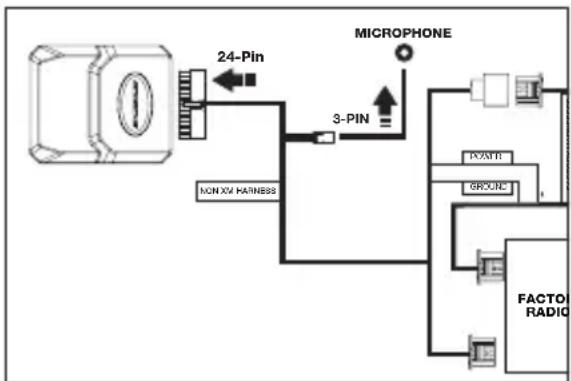
NON-XM INSTALLATION:
- Remove the factory radio.
- Remove the 12 and 24 pin connectors from the factory radio.
- Use T-taps to connect the power and ground wires.
- Plug the factory 14 and 16 pin connectors into (2) BFCL2HB female harnesses.
- Plug the (2) BFCL2HB male harnesses into the factory radio.
- Plug the 24 pin connector into the BFCL2 BlueFusion interface.
flowchart
graph TD
    A["Microphone"] -->|24-Pin| B["24 Pin"]
    A -->|3-PIN| C["Ground"]
    B --> D["NON XV HAINBSS"]
    C --> E["X-axis"]
    C --> F["GROUND"]
    C --> G["FACTOR RADIO"]
VEHICLES WITH REAR SAT TUNER
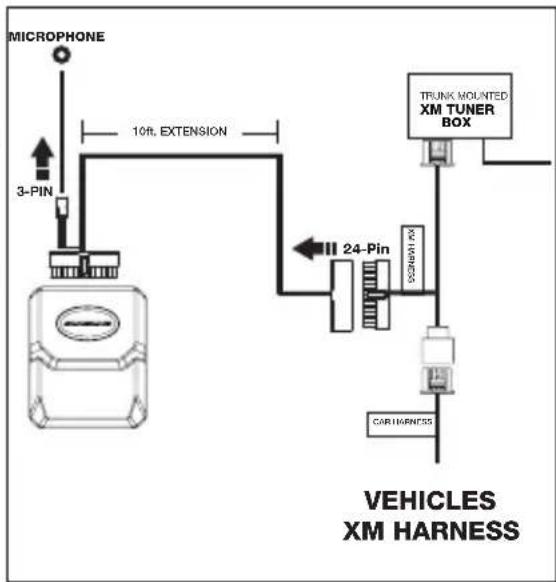
IMPORTANT NOTE: BFEXTB extension is required on vehicles that have their SAT Tuners located at the rear of the vehicle. BFETXB is sold separately (Not included) (Impala, Monte Carlo).
TECH TIP: Do not route BFEXTB extension cable over sharp edges or near moving parts.
BFEXT INSTALLATION:
- Locate XM tuner box in vehicle.
- Remove XM harness from XM tuner.
- Install BFGMLANXMB T harness between the Factory XM harness and XM SAT Tuner.
- Plug the 24 pin Female connector in to the "T" harness in place of where the BlueFusion module would connect.
- Route BFEXTB cable to under driver's seat location.
- Plug the 24 BFEXTB Male connector into the BFGMK BlueFusion interface.
flowchart
graph TD
    A["MICROPHONE"] --> B["3-PIN"]
    B --> C["10ft. EXTENSION"]
    C --> D["24-Pin"]
    D --> E["TRUNK MOUNTED XM TUNER BOX"]
    E --> F["CARI HARNESS"]
    D --> G["VEHICLES XM HARNESS"]
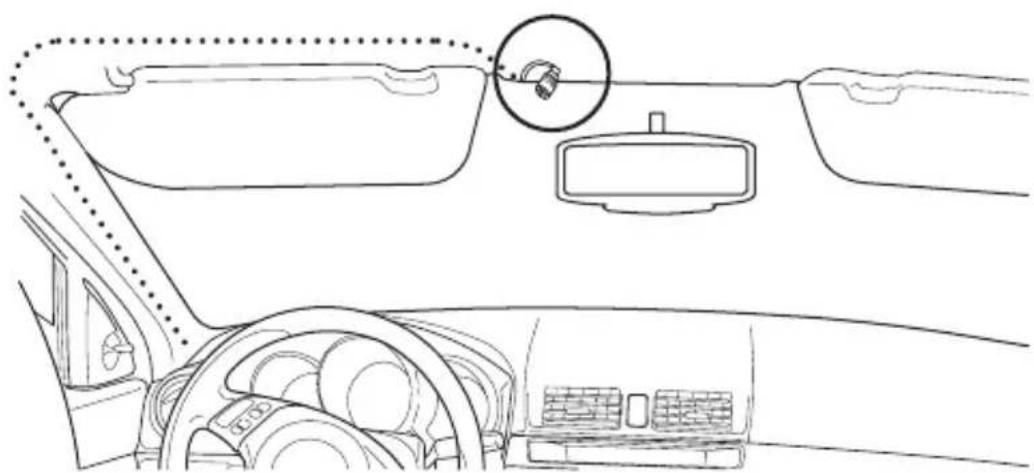
TECH TIP: Aim microphone towards the driver's seat
natural_image
Interior view of a car dashboard and steering wheel, showing the windshield, dashboard, and steering wheel (no text or symbols)MICROPHONE INSTALLATION:
- Attach the microphone to the headliner above the rear view mirror.
-
Carefully route the microphone cable behind the headliner and down the "A" (front most) pillar
Use caution when routing cable and avoid sharp edges or moving metal parts. -
Route the cable to the BlueFusion interface location and plug it into the 3-pin connector on the Scosche "T" harness.
PAIRING YOUR CELLULAR PHONE
IMPORTANT NOTE: Your Bluetooth cellular phone must be paired with the BlueFusion system before use. Once the initial pairing process has been copleted, your phone should easily connect and disconnect to BlueFusion during daily use.
PAIRING INSTRUCTIONS:
- Once the hardware has been properly installed, insert the key and start the vehicle. The BlueFusion interface needs to read the vehicle's ignition codes to properly initialize.
- Press the "BAND" button on the radio until XM is selected as the radio source.
3A. Vehicle's with XM Tuner installed: Press and hold SEEK BACK/SEEK DOWN to get to BlueFusion screen.
3B. Vehicle's without XM Tuner installed: BlueFusion menu screen will be displayed at this step. You do not have to use the SEEK BACK/SEEK DOWN button to switch between XM and BlueFusion screens. - Once in the BlueFusion screen, you will hear a beep tone indicating that BlueFusion is in pairing mode. (BlueFusion enters pairing mode automatically when the Ignition is turned on and no phone is currently paired.)
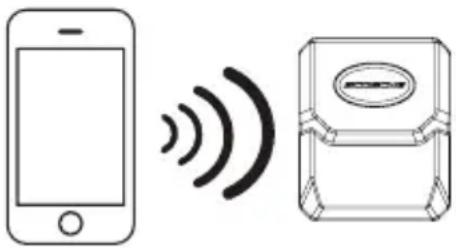
- From your phone's Bluetooth menu, perform a search for new devices (refer to your cell phone user manual). The phone should display "BlueFusion"
- Select [pair to] BlueFusion and enter pin code 0000 when prompted. This will complete the pairing process. (Once your phonies paired with BlueFusion, the beep tones should stop and BlueFusion is now ready for use.)
natural_image
Simple line drawing of a smartphone and a device with wireless signal waves (no text or symbols)ADDITIONAL PAIRING NOTES:
- If pairing is unsuccessful, repeat steps 1-6 above. If you are unable to pair, please call Tech Support (800) 621-3695 Ext. 3
- After your phone has been initially paired with BlueFusion, it should easily re-connect for future use. Many phones will automatically re-connect to the BlueFusion system as long as you keep your phones Bluetooth feature active. If your phone does not freely connect and disconnect to BlueFusion, consult your phones owner's manual to check for addition options that may require enabling.
USING THE RADIO CONTROLS
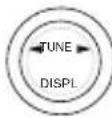
Multi-Function Knob
TO SCROLL MENUS
These are the only buttons used for the interface.

Seek Forward
TO ANSWER/ SELECT
Please read and understand this entire manual before operating the interface.

Seek Back
TO END/ PREVIOUS MENU
USING THE STEERING WHEEL CONTROLS
All other buttons on the steering wheel controls are defaulted to send the conversation to switch back to privacy mode (back to the cellular phone).
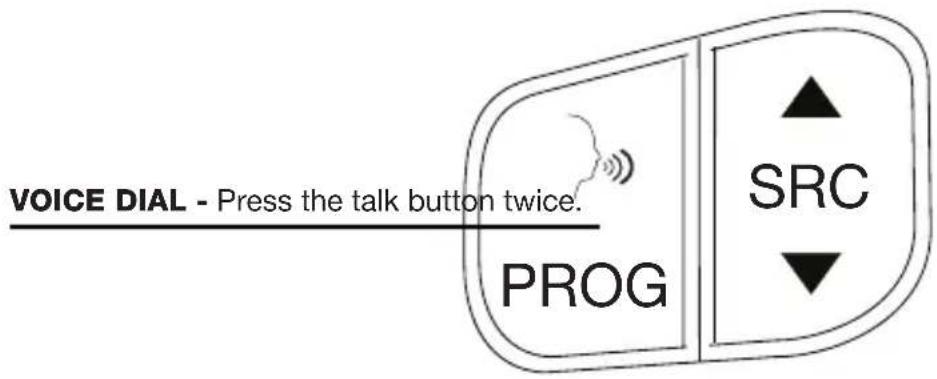
ANSWER - Press the track forward button once.
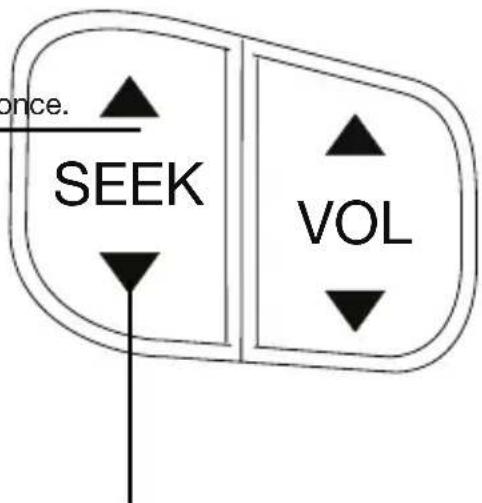
END/ IGNORE - Press the track back button once.
SWITCHING BETWEEN SOURCES
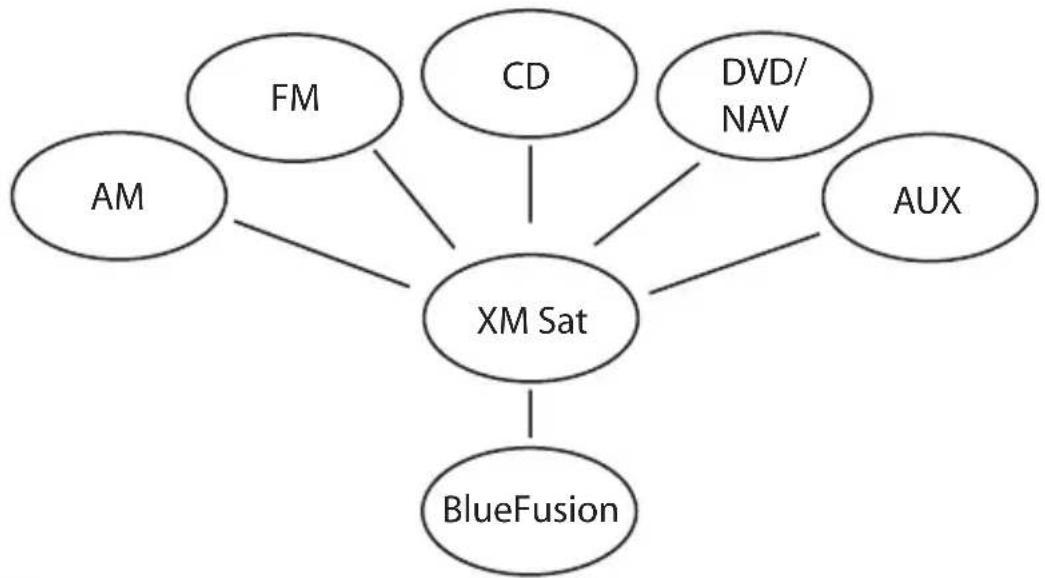
Your BlueFusion system functions as an XM source through your Factory Stereo. In order to access BlueFusion, the XM band must be selected (See diagram).
If listening to a source other than XM, BlueFusion will automatically switch to the XM band when there is an incoming call. (See note) When the call is ended your radio may not switch back to the previous source unless the previous source was XM.
NOTE: Vehicles equipped with Y91 Premium BOSE systems (such as Cadillac Escalade, Hummer H2, Sierra Denali) will automatically switch back to whichever source was previously selected.
flowchart
graph TD
    A["AM"] --> D["XM Sat"]
    B["FM"] --> D
    C["CD"] --> D
    E["DVD/NAV"] --> D
    F["AUX"] --> D
    D --> G["BlueFusion"]
When the vehicle is started, BlueFusion will automatically connect to the phone which it was last paired. Some cellular phones may not freely disconnect and re-connect without user input. If you are having difficulty with this process, there may be additional settings required in your particular phone that will set BlueFusion as a “trusted” device. This operation may vary between phone brands and models.
If you are already on an active call and you enter and start the vehicle, BlueFusion will automatically switch the call to hands-free mode.
If you are on an active call and the vehicle is turned off, BlueFusion will automatically transfer the call to the handset.
VOICE DIALING:
NOTE: This feature activates your cell phone's voice dial function. The cell phone used must be voice dial compatible.
TO ACTIVATE VOICE DIAL ON THE RADIO:
Scroll to Voice dial in BlueFusion main menu and press seek forward once.
TO ACTIVATE VOICE DIAL FROM THE STEERING WHEEL:
Press the mute button twice. (See page 6 for steering wheel control layout)
When receiving an incoming call the Factory radio will automatically switch to the BlueFusion source and display caller number. The BlueFusion system is designed to display caller ID only. (Some phones may provide additional message string information and provide a name in place of the calling number. Your results may vary). BlueFusion does not support Phonebook profile.
TO ANSWER A CALL:
Press Seek Forward on the steering wheel controls.
Press Seek Forward from the radio controls.
INCOMING CALLS (BLOCKED NUMBER):
When receiving an incoming call the Factory radio will automatically switch to the BlueFusion source, however a number WILL NOT display on the screen. Answer the call using the same buttons as Incoming calls above.
OUTGOING CALLS (FROM HANDSET):
When making an outgoing call directly from the phone, the factory radio will automatically switch to the BlueFusion source and send hands-free audio through the factory speakers.
TO MAKE AN OUTGOING CALL FROM CALL LOG:
Enter incoming, outgoing, or missed call menus from BlueFusion main menu, scroll to selected number and press Seek Forward to initiate a call to the chosen number
ENDING A CALL:
Press Seek Back on the radio Press Seek Back on Steering Wheel Control.
IGNORING AN INCOMING CALL:
Press and hold Seek Back from the Steering Wheel Control. Press Seek Back from the radio.
REDIAL LAST NUMBER:
Scroll to redial in BlueFusion main menu and press Seek Forward to initiate a call to the last dialed number.
TRANSFER TO HANDSET:
To transfer a call to privacy mode you can: Change the audio source of the radio or power off the radio ONCE THE CALL HAS BEEN ACCEPTED.
HANDS FREE VOLUME ADJUSTMENT:
If you find the hands-free volume level to Low or High when switching between other sources, follow this step: When idle (standby), scroll to "Settings" from the BlueFusion menu and press Seek Forward. This will now allow access to hands free volume. Use the radio or steering wheel volume controls to adjust volume level as needed. The setting will only apply to hands free mode.
SECONDARY AND CONFERENCE CALL HANDLING
When receiving a second call while in an active call the BlueFusion display a new menu with a list of second call handling functions.
TO ANSWER THE SECOND CALL AND PLACE ACTIVE CALL ON HOLD:
Press Seek forward on radio.
Press Seek forward on Steering Wheel Control.
SWAP CALLS:
(This option is only present during TWO active phone calls)
Scroll to "Swap Calls" in BlueFusion's second call menu and press seek forward once.
RELEASE HELD CALL:
Scroll to "Release held call" in BlueFusion's second call menu and press seek forward once.
CONFERENCE 2 CALLS:
Scroll to “Conference” in BlueFusion’s second call menu and press seek forward once.
END CURRENT CALL AND ANSWER SECOND CALL:
Scroll to "End and Receive" in BlueFusion's second call menu and momentarily press seek forward once.
TO END SECOND CALL:
Press seek back once on the radio controls.
Press seek forward once on the steering wheel controls.
(Depending on your phone, when the second call is ended the held call will either automatically reconnect or it will ring back as a new call.) for steering wheel control layout)
BLUEFUSION MENU MAP
Note: This flow chart is for visual purposes only. It is NOT a representation of a BlueFusion video screen or graphics.
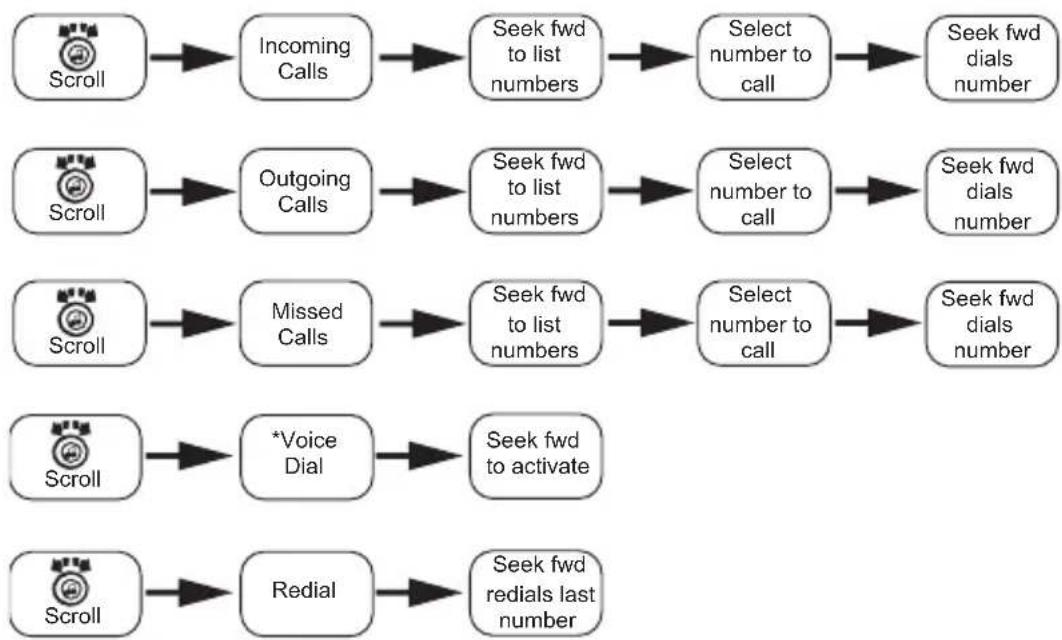
flowchart
graph LR
    A["Scroll"] --> B["Incoming Calls"]
    B --> C["Seek fwd to list numbers"]
    C --> D["Select number to call"]
    D --> E["Seek fwd dials number"]

    F["Scroll"] --> G["Outgoing Calls"]
    G --> H["Seek fwd to list numbers"]
    H --> I["Select number to call"]
    I --> J["Seek fwd dials number"]

    K["Scroll"] --> L["Missed Calls"]
    L --> M["Seek fwd to list numbers"]
    M --> N["Select number to call"]
    N --> O["Seek fwd dials number"]

    P["Scroll"] --> Q["*Voice Dial"]
    Q --> R["Seek fwd to activate"]

    S["Scroll"] --> T["Redial"]
    T --> U["Seek fwd redials last number"]
*Voice dailing feature with voice dial enabled cell phones only. Consult your phone's user guide. to determine if your phone is capable. Some phones may require additional setup within the phone before using this feature.
A2DP/AVRCP STREAMING AUDIO
A2DP STREAMING AUDIO/ AVRCP REMOTE CONTROLS
Important Cell Phone Disclaimer: READ FIRST!
BlueFusion will support audio streaming while it is paired with a cell phone (whether this is within the same device supporting multiple profiles or two separate device).
-While streaming A2DP, redial and voice dial functions are DISABLED.
-Volume output through A2DP will vary from device to device, some products may have distortion at full volume and level control adjustment may be necessary to match the volume between other sources. This may occur during use with an iPhone 3GS. See A2DP Volume Adjustment section below.
PAIRING A2DP FROM YOUR PHONE:
Most phones capable of streaming audio through the A2DP profile will automatically pair this profile when pairing with the hands free profile. If this is does not occur, then refer to your phones user manual for A2DP pairing instructions.
PAIRING A2DP FROM A SEPERATE DEVICE:
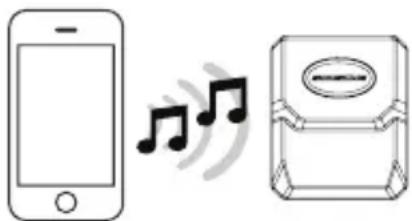
To pair a separate device, such as the Scosche TZ4 or other Bluetooth Audio transmitting device, there must first be a phone paired to the BlueFusion's Hands Free profile. Ensure that the phone is paired only to hands-free profile and not A2DP, refer to your phones manual for selective pairing functions. Once the phone is paired only to the hands-free profile you may activate the pairing process from your second device. Music will start playing once the device has paired.
A2DP AUDIO VOLUME ADJUSTMENT:
If you find the A2DP audio stream level to low or High compared to other sources, follow this step: During A2DP audio streaming, scroll to "Settings" from the BlueFusion menu and press Seek Forward. This will now allow access to A2DP volume. Use the radio or steering wheel volume controls to adjust A2DP level as needed. The setting will only apply to A2DP streaming.
PAUSE/PLAY - Press the talk button once.
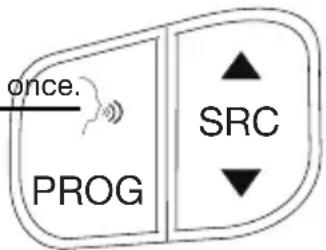
AVRCP CONTROLS
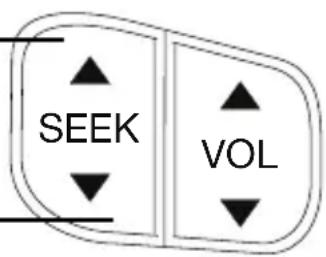
To Select Next Track:
Press the seek forward button once.
Press the seek forward button once on the steering wheel control.
To select Previous Track:
Press seek back once on the radio.
Press seek back once on the steering wheel control.
TROUBLE SHOOTING
For all issues take the following steps first before moving on to any other trouble shooting. This process insures complete initialization.
1) Turn off vehicle
2) Unplug interface,
3) Enter vehicle and close all doors
4) Wait until the vehicle computer enters "Sleep" Hibernation.
(After approx. 3 min. Listen for click sound in thee doors).
5) Without opening doors, plug in interface
6) Start engine.
Unit has been installed properly but BlueFusion screen does not display. Pair phone and make outgoing phone call from any source. OEM radio will switch to BlueFusion screen automatically. If this does not occur check vehicle compatibility chart for your vehicle.
| TROUBLE SHOOTING | |
| NO AVRCP CONTROL | Verify that the paired device supports AVRCP functionality. |
| RANGE ISSUE | Bluetooth standard range maxing out at 30 feet, may vary due to environment. |
| DEVICE NOT FOUND | Delete all previous pairing attempts and try again. |
| BAD CALL QUALITY | Make sure the cellular is within range of the module (30ft.). Make sure the signal reception of the cellular phone is strong. |
| NO SOUND | Make sure the module is on and paired to transmitting device. Make sure the volume is correct, check both the radio and the transmitting device, and other items within range. |
| AUDIO DROP OUTS | Make sure the transmitting device is at a good battery state. If the item in on low battery, please recharge. |
NOTE: DUE TO EVERY PHONE HAVING DIFFERENT SOFTWARE AND FUNCTIONALITY FEATURES, MANY PHONES MAY WORK DIFFERENT WITH THE BLUETOOTH MODULE OF THE BFGMK. WE RECOMMEND CONTACTING THE SCOSCHE TECH SUPPORT AT: 1-800-621-3695 EXT. 3 WITH ANY QUESTIONS.

IMPORTANT! DO NOT RETURN PRODUCT TO THE RETAILER IF YOU NEED ASSISTANCE OR REPLACEMENT PARTS CALL US TOLL FREE: 1-800-621-3695 X3 HOURS MON-FRI 8AM-5:30PM (PST) SATURDAY 8AM-2PM (PST)
FCC
This device complies with FCC Rules Part 15. Operation is subject to the following two conditions: 1) This device may not cause interference, and 2) this device must accept any interference that may be received, including interference that may cause undesired operation. The manufacturer is not responsible for any radio or TV interference caused by unauthorized modification to this equipment. Such modification could void the user's authority to operate the equipment.
LIMITED WARRANTY
Scosche Industries Inc. warrants this product to be free from defects in material and workmanship for a period of 1 year from purchase. This Scosche product is sold with the understanding that the purchaser has independently determined the suitability of this product. This warranty is offered to the original purchaser of the product only. This warranty does not cover the product if physically damaged, subject to negligence or misuse, abuse, alteration, accident, or an act of GOD. This warranty does not apply to product which has water or physically damaged by accident or which has been misused, disassembled or altered.
The original dated sales slip or proof of purchase will establish warranty eligibility. If the product should prove defective within the warranty period, return the product with proof of purchase to Scosche Industries Inc. Scosche, at its option, will replace or repair the product free of charge and return the product postage paid.
In no event shall Scosche Industries, Inc. be responsible for claims beyond the replacement value of the defective product, or in any way be liable or responsible for consequential or incidental damages. No empress warranties and no implied warranties, whether for fitness or any particular use or otherwise, except as set forth above (which is made expressly in lieu of all other warranties) shall apply to products sold by Scosche. Scosche Industries cannot be held responsible for discrepancies/inconsistencies that may occur due to automotive manufacturing changes or option.
- HANDS-FREE BLUETOOTH® INTERFACE FOR SELECT 2003-UP SELECT CLASS 2 GM VEHICLES
- IMPORTANT CELL PHONE DISCLAIMER: READ FIRST!
- RADIO COMPATABILITY
- XM TUNER LOCATIONS GUIDE
- VEHICLES WITH SAT TUNER
- BFCL2 INTERFACE INSTALLATION
- VEHICLES WITHOUT SAT TUNER
- NON-XM INSTALLATION:
- VEHICLES WITH REAR SAT TUNER
- BFEXT INSTALLATION:
- MICROPHONE INSTALLATION:
- PAIRING YOUR CELLULAR PHONE
- PAIRING INSTRUCTIONS:
- ADDITIONAL PAIRING NOTES:
- USING THE RADIO CONTROLS
- USING THE STEERING WHEEL CONTROLS
- SWITCHING BETWEEN SOURCES
- VOICE DIALING:
- TO ACTIVATE VOICE DIAL ON THE RADIO:
- TO ACTIVATE VOICE DIAL FROM THE STEERING WHEEL:
- TO ANSWER A CALL:
- INCOMING CALLS (BLOCKED NUMBER):
- OUTGOING CALLS (FROM HANDSET):
- TO MAKE AN OUTGOING CALL FROM CALL LOG:
- ENDING A CALL:
- IGNORING AN INCOMING CALL:
- REDIAL LAST NUMBER:
- TRANSFER TO HANDSET:
- HANDS FREE VOLUME ADJUSTMENT:
- SECONDARY AND CONFERENCE CALL HANDLING
- TO ANSWER THE SECOND CALL AND PLACE ACTIVE CALL ON HOLD:
- SWAP CALLS:
- RELEASE HELD CALL:
- CONFERENCE 2 CALLS:
- END CURRENT CALL AND ANSWER SECOND CALL:
- TO END SECOND CALL:
- BLUEFUSION MENU MAP
- A2DP/AVRCP STREAMING AUDIO
- A2DP STREAMING AUDIO/ AVRCP REMOTE CONTROLS
- PAIRING A2DP FROM YOUR PHONE:
- PAIRING A2DP FROM A SEPERATE DEVICE:
- A2DP AUDIO VOLUME ADJUSTMENT:
- AVRCP CONTROLS
- To Select Next Track:
- To select Previous Track:
- TROUBLE SHOOTING
- IMPORTANT! DO NOT RETURN PRODUCT TO THE RETAILER IF YOU NEED ASSISTANCE OR REPLACEMENT PARTS CALL US TOLL FREE: 1-800-621-3695 X3 HOURS MON-FRI 8AM-5:30PM (PST) SATURDAY 8AM-2PM (PST)
- FCC
- LIMITED WARRANTY
Brand : Scosche
Model : BFCL2
Category : Car kit