
ZEW3002 - Access Point Zonet - Free user manual and instructions
Find the device manual for free ZEW3002 Zonet in PDF.


| Brand | Zonet |
| Model | ZEW3002 |
| Product Type | 802.11g Wireless Access Point |
| Standards | IEEE 802.11g, IEEE 802.11b |
| Operating Modes | AP, WDS P2P Bridge, WDS P2MP Bridge, WDS AP Repeater, Client |
| Ethernet Port | 1 x 10/100 Mbps Auto-Negotiation RJ45 with Auto MDI/MDIX |
| Wireless Range | 100 meters indoors, 300 meters outdoors (depending on environment) |
| Security | 64/128-bit WEP, WPA-PSK, WPA2-PSK, WPA/WPA2 Mixed |
| MAC Address Filter | Up to 32 MAC addresses (Allow/Block) |
| Antenna | Detachable external dipole antenna (tilt at 45° for optimal coverage) |
| Frequency Band | 2.4 GHz (channels 1-13) |
| RF Mode | 802.11g, 802.11b, BG Mixed (auto-negotiation and manual) |
| Data Rate | Up to 54 Mbps (with Booster mode up to 30% more throughput with Marvell client cards) |
| Management | Web-based (HTTP) via IE 5.5+ or Netscape 6.1+ |
| Default IP Address | 192.168.0.254 |
| Default Username / Password | admin / admin |
| LED Indicators | Power, SYS, WLAN, LAN |
| Power Supply | External AC power adapter (included) |
| Operating Temperature | 0°C to 40°C (32°F to 104°F) |
| Operating Humidity | 10% to 95% RH, non-condensing |
| Firmware Version (as tested) | R_1.0.7 |
| Package Contents | ZEW3002, detachable antenna, power adapter, quick installation guide, CD |
| Reset Button | Factory default reset (hold for ~5 seconds until SYS LED lights up) |
Frequently Asked Questions - ZEW3002 Zonet
User questions about ZEW3002 Zonet
0 question about this device. Answer the ones you know or ask your own.
Ask a new question about this device
Download the instructions for your Access Point in PDF format for free! Find your manual ZEW3002 - Zonet and take your electronic device back in hand. On this page are published all the documents necessary for the use of your device. ZEW3002 by Zonet.
USER MANUAL ZEW3002 Zonet
802.11g Wireless Access Point
USER MANUAL

Copyright Statement
Zonet is the registered trademark of Zonet Technology Inc. All the products and product names mentioned herein are the trademarks or registered trademarks of their respective holders. Copyright of the whole product as integration, including its accessories and software, belongs to Zonet Technology Inc. Without the permission of Zonet Technology Inc., any individual or party is not allowed to copy, plagiarize, imitate or translate it into other languages.
All the photos and product specifications mentioned in this manual are for references only. As the upgrade of software and hardware, there will be changes. And if there are changes, Zonet is not responsible for informing in advance. If you want to know more about our product information, please visit our website at www.zonetusa.com.
Table of Contents
Chapter 1 Introduction......2
1.1 Welcome....2
1.2 Features....2
1.3 Package contents....2
Chapter 2 Hardware Installation....3
2.1 Panel Layout ....3
2.1.1 The Top Panel....3
2.1.2 The Rear Panel....4
2.2 System Requirements....4
2.3 Installation Environment Requirements....4
2.4 Hardware Connection....5
Chapter 3 Configure your Computer....6
3.1 TCP/IP Address Setting....6
Chapter 4 Configure your ZEW3002....8
4.1 Log in....8
4.2 Wizard....9
4.3 System Status....11
4.4 LAN Setting....12
Chapter 5 Radio Configuration....13
5.1 Basic Setting....13
5.2 Mode Setting....14
5.2.1 AP mode....14
5.2.2 WDS P2P Bridge....15
5.2.3 WDS P2MP Bridge....17
5.2.4 WDS AP Repeater....19
5.2.5 Client mode....21
5.3 Access Filter....22
Chapter 6 System Tools....23
6.1 Change Password....23
6.2 Firmware Upgrade....23
6.3 Reboot....24
6.4 Restore Factory Default....24
6.5 Restore / Backup Setting....25
6.6 Logout....25
6.7 Help....25
Chapter 7 Troubleshooting....27
Appendix I : Glossary....28
Chapter 1 Introduction
1.1 Welcome
ZEW3002 is fully compliant with IEEE802.11g/b standards. It can help you extend from the wired network to the wireless network, free from the cabling troubles. It is the best choice for SOHO and small enterprise users. ZEW3002 provides five work modes: AP, WDS P2P Bridge, WDS P2MP Bridge, WDS AP Bridge and Client. It also supports 64/128-bit WEP, WPA, WPA2. The MAC address filter can protect your network against any malicious intrusion. Moreover, the Web management utility can benefit you to manage the device easily.
1.2 Features
● Supports IEEE 802.11g, IEEE 802.11b standards
● Supports five connection modes: AP, WDS P2P Bridge, WDS P2MP Bridge, WDS AP Repeater and Client
● Supports one 10/100M Auto-Negotiation Ethernet port
● Supports 100 meters indoors and 300 meters outdoors (depends on the environments around)
● Supports Web management utility and easy Setup Wizard
● Supports 64/128-bit WEP, WPA & WPA2 encryptions and security mechanism
● Supports IEEE802.11b/IEEE802.11g Auto-negotiation and manual configuration modes
● Supports Auto MDI/MDIX
● Supports Netscape 6.1, IE5.5 or later
● Supports authorization access over thirty-two MAC addresses
● Supports auto wireless channel selection
● Provides detachable antenna
1.3 Package Contents
- One ZEW3002
- One Detachable Antenna
● One External AC Power Adapter - One • quick Installation Guide
- One CD
Chapter 2 Hardware Installation
2.1 Panel Layout
2.1.1 The Top Panel
The top panel of ZEW3002 consists of several LED indicators.

| Name | Action Description | |
| Power | OFF No Power | |
| ON | Power on | |
| SYS | ON ZEW3002 is initializing | |
| Flashing | ZEW3002 is working properly | |
| OFF ZEW3002 has a hardware error | ||
| WLAN | ON There is a device linked to the corresponding port but no activity | |
| OFF There is no device linked to the corresponding port | ||
| LAN | ON There is a device linked to the corresponding port but no activity | |
| Flashing | There is an active device linked to the corresponding port | |
| OFF There is no device linked to the corresponding port | ||
2.1.2 The Rear Panel
The rear panel contains the following features. (Viewed from left to right)

- Power Jack only use the power adapter applied with ZEW3002 to prevent damage
- One LAN 10/100Mbps RJ45 port for connecting to the router/modem, local PC or switch/hub.
- Factory Default Reset button
- One external dipole antenna
There is a way to reset the ZEW3002's factory defaults by using the Factory Default Reset button:
- Turn on ZEW3002's power
- Press and hold the default reset button, until the system LED lights up (about 5 seconds)
- Release the reset button and wait for ZEW3002 to reboot.
Note: Ensure ZEW3002 is powered on before it restarts completely.
2.2 System Requirements
● Broadband Internet Access Service (DSL/Cable/Ethernet)
- PC on the LAN needs a working Ethernet Adapter and an Ethernet cable with RJ45 connector
- TCP/IP protocol must be installed on each PC
- Web browser, such as Microsoft Internet Explorer 5.5 or later, Netscape Navigator 6.1 or later
2.3 Installation Environment Requirements
- Do not in direct sunlight or near a heater or heating vent
- Do not in cluttered or crowded place. There should be at least 2 inches (5 cm) of clear space on all sides of ZEW3002
● Well ventilated (especially if it is in a closet) - Operating temperature: 0^ 40^
- Operating Humidity: 10%\~95%RH, Non-condensing
2.4 Hardware Connection
Note: Before connecting ZEW3002, be sure to power off your computer, DSL/Cable modem, and ZEW3002. To achieve maximum wireless coverage, tilt the AP's antenna outward at 45° angle.
- Connect one end of the cable to your broadband router, DSL/Cable modem, PC or Switch/Hub port and connect the other end to the LAN port of ZEW3002.
- Power on ZEW3002 by connecting one end of the supplied power adapter to the power jack of ZEW3002 and connecting the other end to an electrical outlet.
- Power on your computer.
- Make sure the LEDs of ZEW3002 are lit. If not, try the above steps again.

flowchart
graph LR
    A["Cable/DSL Modem"] --> B["Wireless Broadband Router Z8R 1134WE"]
    B --> C["Wireless Access Point ZEW3002"]
    C --> D["Desktop with PCI Adapter ZEW1605"]
    C --> E["Notebook with USB Adapter ZEW2505"]
    C --> F["Notebook with PCMCIA Adapter ZEW1505"]
Chapter 3 Configure your computer
3.1 TCP/IP Address Setting
Default IP Address: 192.168.0.254
Default Subnet Mask: 255.255.255.0
1. Click Start → Settings → Control Panel
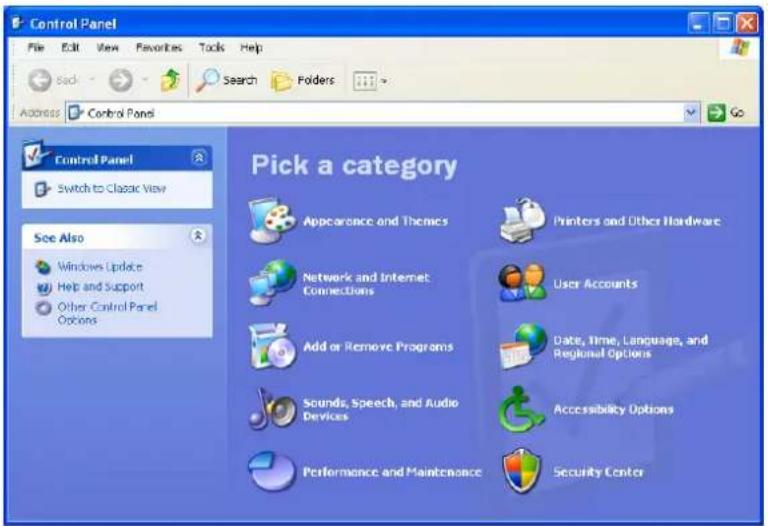
2. Click Network and Internet Connections → Network Connections

- Choose Local Area Connection, right-click on the icon, choose Properties → Local Area Connection Properties → Internet Protocol (TCP/IP) and then click Properties.
![Local Area Connection Properties General Authentication Advanced Connect using: Realtek RTL8139 Family PCI Fast Etr Configure... This connection uses the following items: Client for Microsoft Networks File and Printer Sharing for Microsoft Networks QoS Packet Scheduler Internet Protocol [TCP/IP] Install... Uninstall Properties Description Transmission Control Protocol/Internet Protocol. The default wide area network protocol that provides communication across diverse interconnected networks. Show icon in notification area when connected Notify me when this connection has limited or no connectivity OK Cancel](/content/2026/05/1067963/images/5b010e2379cad58d0c241e64f33bc83114758b59725a38d9459baa37d0268470.jpg)
- Choose Use the following IP address, enter the IP address as: 192.168.0.xxx. ("xxx" is from 1 to 253), Subnet mask is: 255.255.255.0

- Click OK to apply and return to Local Area Connection Properties page and then click OK to exit the setting window.
Chapter 4 Configure your ZEW3002
4.1 Log in
ZEW3002 provides Web based configuration scheme, which is, configuring by Netscape Communicator or Internet Explorer. Take example for Microsoft Internet Explorer.
- Open an Internet Explorer (or other web browser), type 192.168.0.254 in the address bar, and then press Enter.
- Input user name and password and then press OK.
Default User Name: Admin
Default Password: Admin
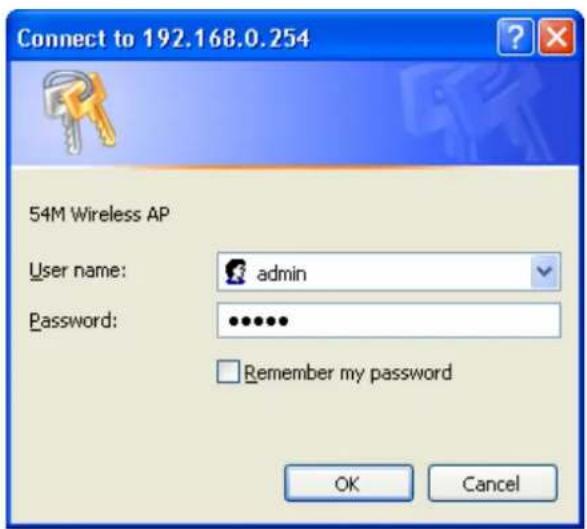
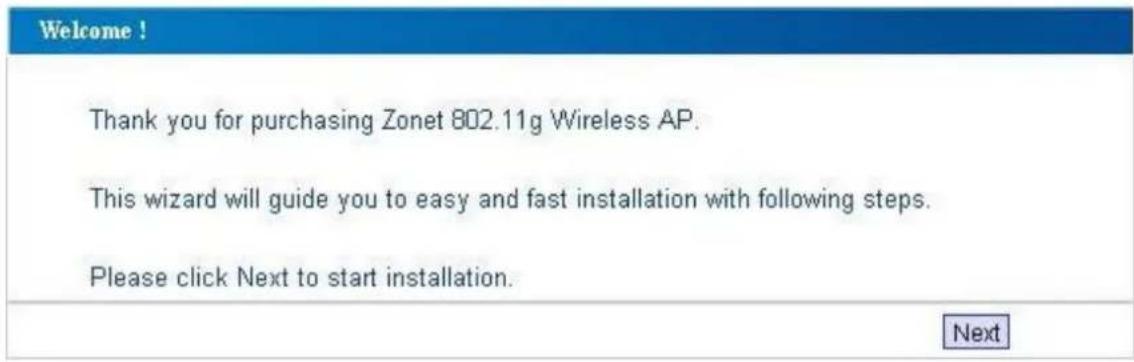
- After login successfully, welcome screen will be displayed.
4.2 Wizard
Click Next from the welcome screen to enter setup Wizard. There are five different operating modes including —AP, WDS P2P Bridge, WDS P2MP Bridge, WDS AP Repeater and Client. For different requirements, you can select one of the suitable operating modes.
Note : If the Wizard page hasn't appears, click the wizard tab on the left to active.
Note: The settings below are based on AP mode. For other modes, same procedure but different screen.
1. Select AP mode and click Next.

2. Click Next to continue or Back button to return to the previous screen.

- SSID: The name of your wireless network. The same name (SSID) must be assigned to all wireless devices in your network. The default SSID is 802.11g Wireless AP, but it is recommended strongly that you change your networks name (SSID) to a different value. This value is case-sensitive.
- Channel: From 1 to 13, this field determines which operating frequency will be used. It is not necessary to change the wireless channel unless you notice interference problems with another nearby access point.
3. Click Apply to save your settings.
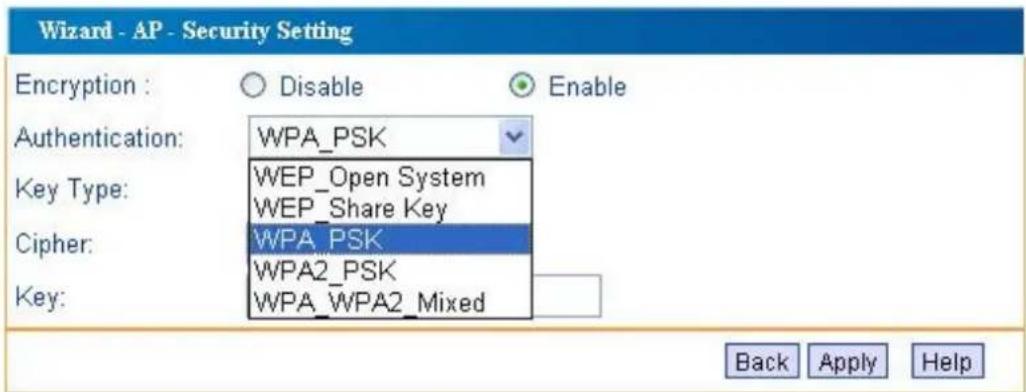
- Authentication: WEP_Open System, WEP_Share Key, WPA_PSK, WPA2_PSK, and WPA_WPA2_Mixed
• Key Type: ASCII or Hex format.
• Key Size: 64-bit or 128-bit
Note: If you select 64-bit, please enter 10 Hexadecimal characters or 5 ASCII Characters for the key content. For 128-bit, please enter 26 Hexadecimal characters or 13 ASCII Characters
• Key: when using the WEP encryption, you could save up to 4 keys.
Wireless encryption settings support are shown below.
| Encry. Mode | AP Repeater | P2P P2MP Client | |||
| WEP Yes Yes Yes Yes | |||||
| WPA | Yes | NO | NO | NO | Yes |
| WPA2 | Yes | NO | NO | NO | Yes |
| WPA_WPA2_Mix | Yes | NO | NO | NO | Yes |
Note: After clicking Apply to save your settings, you have to reboot the device (From System Tools → Reboot) to let your settings take effect.
4.3 System Status
Click Refresh button to update the linking info.
Product information
| Firmware Version: | R_1.0.7 |
| MAC Address: | 00:B0:C6:00:46:D9 |
| IP Address: | 192.168.0.254 |
| Subnet Mask: | 255.255.255.0 |
| Gateway: | 192.168.0.1 |
| Running time: | 00:56:05 |
Radio status
| Current Mode: | AP |
| SSID: | 802.11g Wireless AP |
| Wireless Client: | -- |
| RF Mode: | BG Mixed |
| Channel: | 6(frequency:2.437GHz) |
| Encryption Mode: | Close |
Association Table
| No. | MAC addr | Status | Mode | Rate | Signal Quality | RSSI |
- Product information: Display current firmware version, MAC Address, LAN IP Address, subnet mask, Gateway etc.
- Radio Status: Current mode, SSID, RF mode, Channel and Encryption mode etc.
- Association Table: Display the clients' information of connecting with ZEW3002 including the MAC address, status, mode, rate, signal quality and RSSI.
4.4 LAN Setting

- Static: to assign a static or fixed IP address to ZEW3002, select this option and enter the specified IP address, Subnet mask, and Gateway
- DHCP Client: if the router will automatically assign an IP address to ZEW3002, then select this option.
Note: If the IP address changed, the login IP address to the Web-based management interface will change correspondingly.
Chapter 5 Radio Configuration
5.1 Basic Setting
Click Apply to save your settings, or click Help for more information.
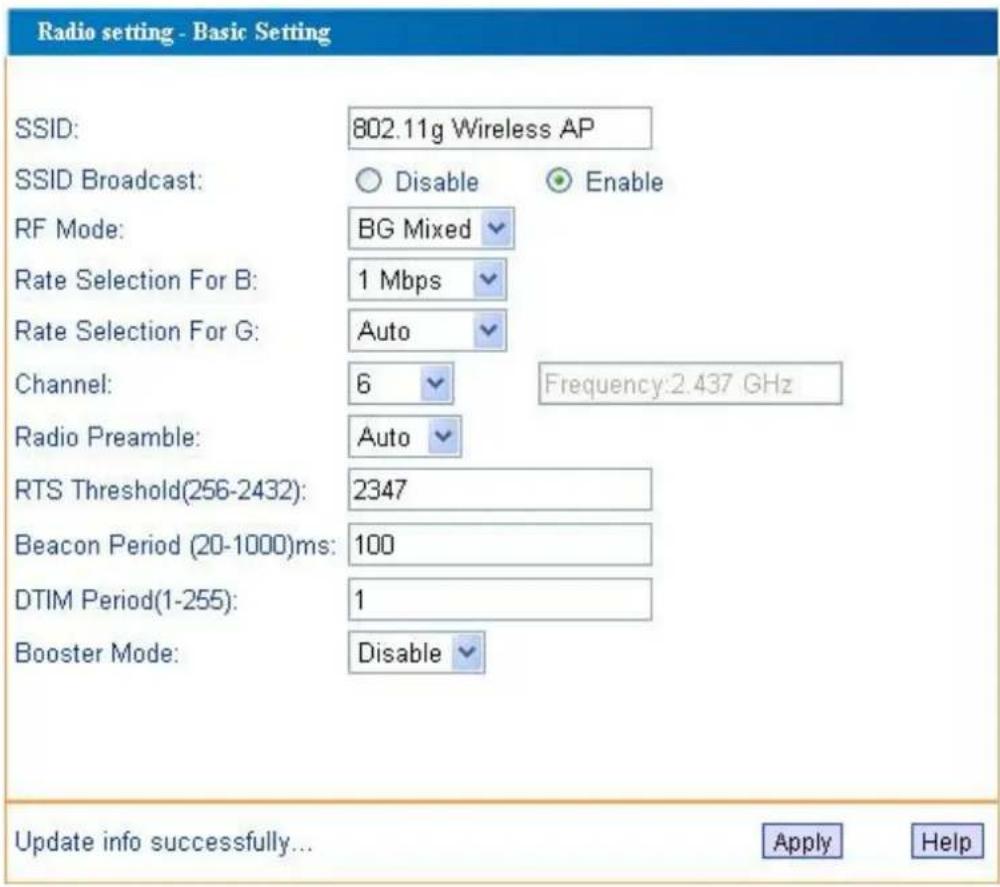
- SSID: the name of your wireless network.
- SSID Broadcast: Enable/disable the SSID broadcast
• RF Mode: Selects 802.11g, 802.11b, BG Mixed - Channel: Select the operating channel for your wireless network.
- Radio Preamble: Selects short, long, or Auto.
- RTS Threshold: This value should remain its default setting of 2347(Bytes).
- Beacon Period: This value indicates the frequency interval of the beacon (in milliseconds)
• DTIM Period: This value indicates how often the AP sends out a DTIM. - Booster mode: When used with Marvell client cards, Boost Mode enhances throughput an additional 30% at 54Mbps.
5.2 Mode Setting
The default operating mode is AP mode.

5.2.1 AP mode
In this mode, ZEW3002 will act as a central hub for different wireless LAN clients. For example, when traveling to a hotel that has high-speed internet access, you can connect to the internet through ZEW3002 which is connected to an Ethernet cable in the room.

flowchart
graph LR
    A["Cable/DSL Modem"] --> B["Wireless Broadband Router ZSR1134WE"]
    B --> C["Wireless Access Point ZEW3002"]
    C --> D["Desktop with PCI Adapter ZEW1605"]
    C --> E["Notebook with USB Adapter ZEW2505"]
    C --> F["Notebook with PCMCIA Adapter ZEW1505"]
Click Apply to save your settings.

- SSID: The name of your wireless network.
• Channel: The operating channel - Encryption: Select disable or WEP, WPA, WPA2, WPA_WPA2 Mixed mode for security.
5.2.2 WDS P2P Bridge
In this mode, two ZEW3002 in two remote locations connect with each other to provide a wireless bridge between 2 remote LANs. The two ZEW3002 operating in P2P mode do not allow client associations. It is mostly used by enterprise to connect 2 remote office's network together.
Note: WDS P2P Bridge mode only can be enabled on two or more ZEW3002 networking environment.

flowchart
graph LR
    A["Switch Hub"] --> B["Termostat"]
    B --> C["Laptop"]
    B --> D["Computer"]
    E["Termostat"] --> F["Termostat"]
    F --> G["Laptop"]
    F --> H["Switch Hub"]
Click Apply to save your settings.
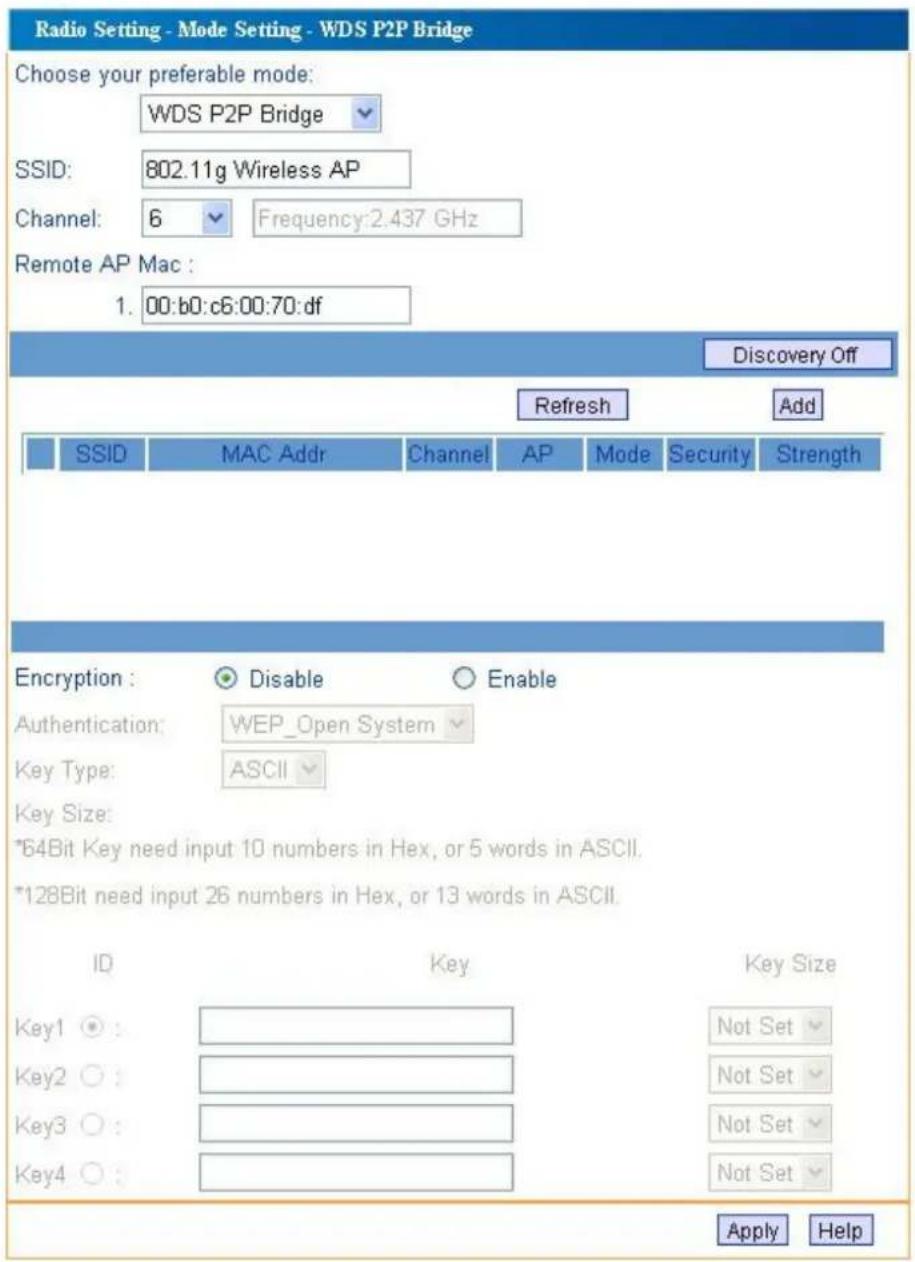
- SSID: The name of your wireless network.
• Channel: The operating channel - WDS remote AP MAC List: Enter MAC addresses whose remote device needs to connect. (Also you can obtain MAC address for copying or entering manually by the scan.)
- Encryption: support only WEP mode for security.
5.2.3 WDS P2MP Bridge
A ZEW3002 operating in Point-to-Multipoint (P2MP) bridge mode wirelessly connects two or more wired networks. The root ZEW3002 (LAN1) operates in P2MP mode, while other ZEW3002 (LAN2, LAN3) must operate in P2P mode.
When operating in P2MP bridge mode, ZEW3002 does not allow client associations.
Note: WDS P2MP Bridge mode only can be enabled on two or more ZEW3002 networking environment.

flowchart
graph TD
    A["Switch Hub"] --> B["Terono"]
    B --> C["Switch Hub"]
    C --> D["Switch Hub"]
    D --> E["Terono"]
    E --> F["Switch Hub"]
    F --> G["Switch Hub"]
    G --> H["Switch Hub"]
    H --> I["Terono"]
    I --> J["Switch Hub"]
    J --> K["Switch Hub"]
    K --> L["Terono"]
    L --> M["Switch Hub"]
    M --> N["Switch Hub"]
    N --> O["Terono"]
    O --> P["Switch Hub"]
    P --> Q["Terono"]
    Q --> R["Switch Hub"]
    R --> S["Terono"]
    S --> T["Switch Hub"]
Click Apply to save your settings.

- SSID: The name of your wireless network.
• Channel: The operating channel - WDS remote AP List: MAC addresses of the P2P Bridge that are connected to this P2MP Bridge. Up to six MAC addresses can be entered. (Also you can obtain MAC address for copying or entering manually by the scan.)
- Encryption: support only WEP mode for security.
5.2.4 WDS AP Repeater
A repeater is placed between an AP and a client to extend the distance between the two WLAN devices. Functioning as a WDS repeater, ZEW3002 connects to both a client card as an AP and to another AP. In typical repeater applications, APs connecting to other APs equipped with WDS functionality must also support WDS.
Figure below shows an example of a Repeater network with two ZEW3002 Repeaters connected to a ZEW3002 (AP mode), with each Repeater allowing wireless clients to associate.
Note: WDS AP Repeater mode only can be enabled on two or more ZEW3002 networking environment.

flowchart
graph LR
    A["Switch Hub"] --> B["Router"]
    B --> C["Router"]
    C --> D["Router"]
    D --> E["Switch Hub"]
    A --> F["Computer"]
    A --> G["Computer"]
    B --> H["Wireless"]
    C --> I["Wireless"]
    D --> J["Wireless"]
    E --> K["Computer"]
    E --> L["Computer"]
Click Apply to save your settings.

- SSID: The name of your wireless network.
• Channel: The operating channel - WDS mode: Dynamic key or Static key; At least one of the two associated repeater should be set as static key. If selecting dynamic key for one repeater, you don't have to fill the other repeater's MAC addresses at the MAC list field.
- WDS remote AP MAC List: MAC addresses of the repeaters that are connected to this repeater. Up to six MAC Addresses can be entered.
Note: MAC addresses also can be searched by clickingScan button and clickAdd button to select the item to the list.
- Encryption: support only WEP mode for security.
5.2.5 Client mode
When Client mode is selected, ZEW3002 associates with another AP within its range. The device behaves like a wireless network adapter.
Figure below shows the Client mode ZEW3002 as a wireless client in infrastructure mode.
Connect the LAN port of the ZEW3002 with Ethernet interface of the wired network.


Click Apply to save your settings.

- SSID: The wireless network's name you want to associate with.
- Channel: The operating channel of the wireless network.
- MAC Addr: The MAC address of the wireless network.
- Scan button: you can through the scan function to display exit wireless network of the neighborhood, and click Add to establish connection with it.
- Encryption: Select disable, WEP, WPA, WPA2, WPA_WPA2 Mixed mode for security.
5.3 Access Filter
The Access filter page allows you to configure ZEW3002 to allow or block association with itself based on the MAC address of clients. Up to 32 MAC addresses can be added to the list.
Click Apply to save your settings.

- Filter mode: Select Off to disable the filter function. Or select Allow, Block to allow / block client with the MAC address listed.
- MAC address: The PCs MAC addresses to filter. Click Add to take it in. Or Delete to remove it from the list.
- Open/Close Association Table: To view the current association information with the device. Click Refresh to update the association info, and click Add to take the selected item into filter list.
Chapter 6 System Tools
6.1 Change Password
Users can setup the User Name and Password for the next login on this page.

Note: For security reason, it is strongly recommend that you change the default user name and password.
6.2 Firmware Upgrade
This page allows you to upgrade ZEW3002's firmware. Click Browse to browse to the new firmware, and click Apply.

Note: During the firmware upgrade, please make sure ZEW3002 is powered on. Otherwise, power failure will result in a fatal damage to ZEW3002. After the process is completed, ZEW3002 will reboot automatically. It will take about several minutes, please wait patiently.
6.3 Reboot
Click OK to reboot your ZEW3002.

6.4 Restore Factory Default
By clicking the Apply button you can restore the factory defaults back configuration to factory default.

| ZEW3002's Default Values | |
| Working mode AP mode | |
| user name admin | |
| password admin | |
| IP address 192.168 | 0.254 |
| subnet mask 255.255 | 5.255.0 |
| Gateway 192.168 | 0.1 |
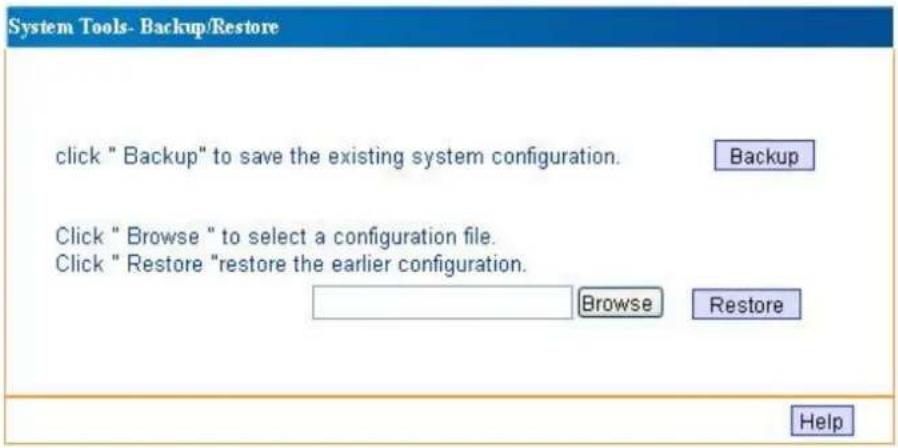
6.5 Restore/Backup Setting
Click Export button to save the current changes that you have made. And click on the Import button to restore the previously saved settings.
6.6 Logout
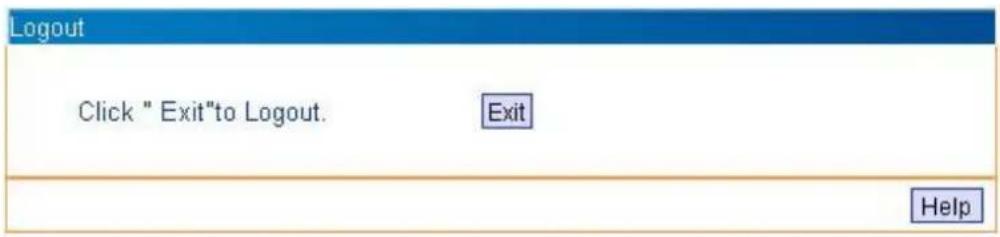
Click the Exit button to log out the web-based utility.
6.7 Help
Click the Help button to get more information about ZEW3002's settings and applications.
| Help | |
| Wizard | Following the Wizard, you can easily set the parameters of the AP,No need specialist in the networking devices, you can also return to the menu tab, to choose any functions that needs customization. |
| LAN Setting | Configure IP address of the 802.11g Wireless AP's LAN interface using an assigned static address or receive an IP address from a DHCP server. Please consult with your LAN administrator if uncertain.. |
| Basic Setting | SSID is the wireless network name.SSID broadcast: Select "Enable" to make your wireless network visible by all clients. Select "Disable" to make it invisible.Radio mode, Speed , Channels,RF mode,Booster Mode, RTS value,Beacon Period, DTIM Period,please input according to the relative value range.then click on "Apply" Button after finished the configuration. |
| Mode Setting | Radio Mode (802.11g Wireless AP with 5 different modes):1、Access Point:802.11g Wireless AP behaves as a wireless switch that accept connection requests from PC workstations and laptops via wifi.2、Point-to-Point: 802.11g Wireless AP behaves as a peer to another 802.11g Wireless AP to form a dedicated wireless trunk over the air. It will not accept connection requests from PC workstations and laptops via wifi. The remote peer's MAC address is required °C use the "Discovery On" for discovery.3、Point-to-Multipoint: 802.11g Wireless AP is used to provide central switching of up to 5 other 802.11g Wireless AP. The remote MAC addresses are required °C click the "Discovery On" for discovery.4、Repeater: 802.11g Wireless AP behaves as a signal repeater between two remote 802.11g Wireless APs. The remote MAC addresses are required °C click the "Discovery On" for discovery.5、Client: 802.11g Wireless AP behaves as a wifi network card to the remote wifi access point. The remote MAC address is required °C click the "Discovery On" for discovery.SSID : Service Set ID.WDS remote AP mac List: manual input or by auto scan the MAC address into the table802.11g Wireless AP supports the following encryption standards:1、WEP Open system protocol.2、WEP Shared key.3、WPA PSK (AES/TKIP 8-63 ASCII characters or 64 HEX digits)4、WPA2 PSK (AES 8-63 ASCII characters or 64 HEX digits)5、WPA2 Mixed (AES 8-63 ASCII characters or 64 HEX digits)Key Type: ASCII or HEXIKey Size: User defined encryption string. |
| Access Filter | Access Control Filer is a security measure to allow/block registered MAC addresses-PC workstations or even other WLAN clients..Filter Optional :Close, Allow, BlockMAC table: add and delete MAC address by manual or scan.All settings will be effective by Apply. |
| Change password | Change the user name or password. |
| Firmware upgrade | Upgrade firmware.Entry "www.zonetusa.com" to download the latest firmware. |
| Reboot | Reboot the AP,all the changes will be applied,All connections will be broke during reboot.Click "OK" to reboot. |
| Restore Factory | Set to default settings:Default username: adminDefault password: adminIP address:192.168.0.254Subnet mask: 255.255.255.0 |
| Restore/Backup | Click Export to save the current configuration files and make a backup file.Click on the "browse" to import the saved configuration file to apply and reboot to take effective. |
| Exit | Click "exit" and Yes to exit AP web-based Management interface. |
Chapter 7. Troubleshooting
- If you have trouble connecting to the Internet, try the following steps.
- Power off the Cable/DSL modem, ZEW3002, and computer and wait for 5 minutes.
- Turn on the Cable/DSL modem and wait for the lights on to settle down.
- Turn on ZEW3002 and wait for the lights on to settle down.
- Turn on the computer.
- Reconfigure ZEW3002 as described in Chapter 4.
- Login to ZEW3002 and select the System Status tab.
- Verify the IP Address, Default Gateway, have valid numbers assigned to them.
- If my network's IP is different than the Access Point's range, what should I do?
You should still configure ZEW3002 first. After all the settings are applied, go to the ZEW3002's configuration page, click on TCP/IP settings and change the IP address of ZEW3002 to match your network's IP.
Appendix I: Glossary
Access Point(AP): Any entity that has station functionality and provides access to the distribution services, via the wireless medium(WM) for associated stations.
Channel: An instance of medium use for the purpose of passing protocol data units (PDUs) that may be used simultaneously, in the same volume of space, with other instances of medium use(on other channels) by other instances of the same physical layer (PHY),with an acceptably low frame error ratio(FER) due to mutual interference.
SSID: Service Set identifier. An SSID is the network name shared by all devices in a wireless network. Your network's SSID should be unique to your network and identical for all devices within the network. It is case-sensitive and must not exceed 20 characters (use any of the characters on the keyboard). Make sure this setting is the same for all devices in your wireless network.
WEP: Wired Equivalent Privacy (WEP) is the method for secure wireless data transmission. WEP adds data encryption to every single packet transmitted in the wireless network. The 40bit and 64bit encryption are the same because of out 64 bits, 40 bits are private. Conversely, 104 and 128 bit are the same. WEP uses a common KEY to encode the data. Therefore, all devices on a wireless network must use the same key and same type of encryption. There are 2 methods for entering the KEY; one is to enter a 16-bit HEX digit. Using this method, users must enter a 10-digit number (for 64-bit) or 26-digit number (for 128-bit) in the KEY field. Users must select the same key number for all devices. The other method is to enter a text and let the computer generate the WEP key for you. However, since each product use different method for key generation, it might not work for different products. Therefore, it is NOT recommend using.
WPA/WPA2: A security protocol for wireless networks that builds on the basic foundations of WEP. It secures wireless data transmission by using a key similar to WEP, but the added strength of WPA is that the key changes dynamically. The changing key makes it much more difficult for a hacker to learn the key and gain access to the network.WPA2 is the second generation of WPA security and provides a stronger encryption mechanism through Advanced Encryption Standard (AES), which is a requirement for some government users.

- Copyright Statement
- Table of Contents
- Chapter 1 Introduction......2
- Chapter 2 Hardware Installation....3
- Chapter 3 Configure your Computer....6
- Chapter 4 Configure your ZEW3002....8
- Chapter 5 Radio Configuration....13
- Chapter 6 System Tools....23
- Chapter 7 Troubleshooting....27
- Chapter 1 Introduction
- Welcome
- Features
- Package Contents
- Chapter 2 Hardware Installation
- Panel Layout
- The Top Panel
- The Rear Panel
- System Requirements
- Installation Environment Requirements
- Hardware Connection
- Chapter 3 Configure your computer
- TCP/IP Address Setting
- Click Start → Settings → Control Panel
- Click Network and Internet Connections → Network Connections
- Chapter 4 Configure your ZEW3002
- Log in
- Wizard
- Select AP mode and click Next.
- Click Next to continue or Back button to return to the previous screen.
- Click Apply to save your settings.
- System Status
- LAN Setting
- Chapter 5 Radio Configuration
- Basic Setting
- Mode Setting
- AP mode
- WDS P2P Bridge
- WDS P2MP Bridge
- WDS AP Repeater
- Client mode
- Access Filter
- Chapter 6 System Tools
- Change Password
- Firmware Upgrade
- Reboot
- Restore Factory Default
- Restore/Backup Setting
- Logout
- Help
- Chapter 7. Troubleshooting
- Appendix I: Glossary
Brand : Zonet
Model : ZEW3002
Category : Access Point